SCB-2001P - Surveillance Camera SAMSUNG - Free user manual and instructions
Find the device manual for free SCB-2001P SAMSUNG in PDF.


User questions about SCB-2001P SAMSUNG
0 question about this device. Answer the ones you know or ask your own.
Ask a new question about this device
Download the instructions for your Surveillance Camera in PDF format for free! Find your manual SCB-2001P - SAMSUNG and take your electronic device back in hand. On this page are published all the documents necessary for the use of your device. SCB-2001P by SAMSUNG.
USER MANUAL SCB-2001P SAMSUNG
Thank you for purchasing this Samsung product.
To receive more complete service,
please register your product at
www.samsungsecurity.com
CAUTION
RISK OF ELECTRIC SHOCK.DO NOT OPEN

CAUTION: TO REDUCE THE RISK OF ELECTRIC SHOCK, DO NOT REMOVE COVER (OR BACK) NO USER SERVICEABLE PARTS INSIDE. REFER SERVICING TO QUALIFIED SERVICE PERSONNEL.
THIS SYMBOL INDICATES THAT DANGEROUS VOLTAGE CONSISTING A RISK OF ELECTRIC SHOCK IS PRESENT WITHIN THIS UNIT.
THIS EXCLAMATION POINT SYMBOL IS INTENDED TO ALERT THE USER TO THE PRESENCE OF IMPORTANT OPERATING AND MAINTENANCE (SERVICING) INSTRUCTIONS IN THE LITERATURE ACCOMPANYING THE APPLIANCE.
WARNING
- TO REDUCE THE RISK OF FIRE OR ELECTRIC SHOCK, DO NOT EXPOSE THIS APPLIANCE TO RAIN OR MOISTURE.
- TO PREVENT INJURY, THIS APPARATUS MUST BE SECURELY ATTACHED TO THE FLOOR/WALL IN ACCORDANCE WITH THE INSTALLATION INSTRUCTIONS.
- IF THIS POWER SUPPLY IS USED AT 240V AC, A SUITABLE PLUG ADAPTER SHOULD BE USED.
WARNING
- BE SURE TO USE ONLY THE STANDARD ADAPTER THAT IS SPECIFIED IN THE SPECIFICATION SHEET. USING ANY OTHER ADAPTER COULD CAUSE FIRE, ELECTRICAL SHOCK, OR DAMAGE TO THE PRODUCT.
- INCORRECTLY CONNECTING THE POWER SUPPLY OR REPLACING BATTERY MAY CAUSE EXPLOSION, FIRE, ELECTRIC SHOCK, OR DAMAGE TO THE PRODUCT.
- DO NOT CONNECT MULTIPLE CAMERAS TO A SINGLE ADAPTER. EXCEEDING THE CAPACITY MAY CAUSE ABNORMAL HEAT GENERATION OR FIRE.
- SECURELY PLUG THE POWER CORD INTO THE POWER RECEPTACLE. INSECURE CONNECTION MAY CAUSE FIRE.
- WHEN INSTALLING THE CAMERA, FASTEN IT SECURELY AND FIRMLY. THE FALL OF CAMERA MAY CAUSE PERSONAL INJURY.
- DO NOT PLACE CONDUCTIVE OBJECTS (E.G. SCREWDRIVERS, COINS, METAL PARTS, ETC.) OR CONTAINERS FILLED WITH WATER ON TOP OF THE CAMERA. DOING SO MAY CAUSE PERSONAL INJURY DUE TO FIRE, ELECTRIC SHOCK, OR FALLING OBJECTS.
- DO NOT INSTALL THE UNIT IN HUMID, DUSTY, OR SOOTY LOCATIONS. DOING SO MAY CAUSE FIRE OR ELECTRIC SHOCK.
- IF ANY UNUSUAL SMELLS OR SMOKE COME FROM THE UNIT, STOP USING THE PRODUCT. IN SUCH CASE, IMMEDIATELY DISCONNECT THE POWER SOURCE AND CONTACT THE SERVICE CENTER. CONTINUED USE IN SUCH A CONDITION MAY CAUSE FIRE OR ELECTRIC SHOCK.
2 - DIGITAL COLOR CAMERA
- IF THIS PRODUCT FAILS TO OPERATE NORMALLY, CONTACT THE NEAREST SERVICE CENTER. NEVER DISASSEMBLE OR MODIFY THIS PRODUCT IN ANY WAY. (SAMSUNG IS NOT LIABLE FOR PROBLEMS CAUSED BY UNAUTHORIZED MODIFICATIONS OR ATTEMPTED REPAIR.)
- WHEN CLEANING, DO NOT SPRAY WATER DIRECTLY ONTO PARTS OF THE PRODUCT. DOING SO MAY CAUSE FIRE OR ELECTRIC SHOCK.
CAUTION
- DO NOT DROP OBJECTS ON THE PRODUCT OR APPLY STRONG BLOWS TO IT. KEEP AWAY FROM A LOCATION SUBJECT TO EXCESSIVE VIBRATION OR MAGNETIC INTERFERENCE.
- DO NOT INSTALL IN A LOCATION SUBJECT TO HIGH TEMPERATURE (OVER 140°F), LOW TEMPERATURE (BELOW -14°F), OR HIGH HUMIDITY. DOING SO MAY CAUSE FIRE OR ELECTRIC SHOCK.
- IF YOU WANT TO RELOCATE THE ALREADY INSTALLED PRODUCT, BE SURE TO TURN OFF THE POWER AND THEN MOVE OR REINSTALL IT.
- REMOVE THE POWER PLUG FROM THE OUTLET WHEN THERE IS A LIGHTING STORM. NEGLECTING TO DO SO MAY CAUSE FIRE OR DAMAGE TO THE PRODUCT.
- KEEP OUT OF DIRECT SUNLIGHT AND HEAT RADIATION SOURCES. IT MAY CAUSE FIRE.
- INSTALL IT IN A PLACE WITH GOOD VENTILATION.
- AVOID AIMING THE CAMERA DIRECTLY TOWARDS EXTREMELY BRIGHT OBJECTS SUCH AS SUN, AS THIS MAY DAMAGE THE CCD IMAGE SENSOR.
- APPARATUS SHALL NOT BE EXPOSED TO DRIPPING OR SPLASHING AND NO OBJECTS FILLED WITH LIQUIDS, SUCH AS VASES, SHALL BE PLACED ON THE APPARATUS.
- THE MAINS PLUG IS USED AS A DISCONNECT DEVICE AND SHALL STAY READILY OPERABLE AT ANY TIME.
FCC STATEMENT
THIS DEVICE COMPLIES WITH PART 15 OF THE FCC RULES. OPERATION IS SUBJECT TO THE FOLLOWING TWO CONDITIONS :
1) THIS DEVICE MAY NOT CAUSE HARMFUL INTERFERENCE, AND
2) THIS DEVICE MUST ACCEPT ANY INTERFERENCE RECEIVED INCLUDING INTERFERENCE THAT MAY CAUSE UNDESIRED OPERATION.
Caution
THIS EQUIPMENT HAS BEEN TESTED AND FOUND TO COMPLY WITH THE LIMITS FOR A CLASS A DIGITAL DEVICE, PURSUANT TO PART 15 OF FCC RULES. THESE LIMITS ARE DESIGNED TO PROVIDE REASONABLE PROTECTION AGAINST HARMFUL INTERFERENCE WHEN THE EQUIPMENT IS OPERATED IN A COMMERCIAL ENVIRONMENT.
THIS EQUIPMENT GENERATES, USES, AND CAN RADIATE RADIO FREQUENCY ENERGY AND, IF NOT INSTALLED AND USED IN ACCORDANCE WITH THE INSTRUCTION MANUAL, MAY CAUSE HARMFUL INTERFERENCE TO RADIO COMMUNICATIONS. OPERATION OF THIS EQUIPMENT IN A RESIDENTIAL AREA IS LIKELY TO CAUSE HARMFUL INTERFERENCE IN WHICH CASE THE USER WILL BE REQUIRED TO CORRECT THE INTERFERENCE AT HIS OWN EXPENSE.

IC COMPLIANCE NOTICE
THIS CLASS A DIGITAL APPARATUS MEETS ALL REQUIREMENTS OF THE CANADIAN INTERFERENCE.-CAUSING EQUIPMENT REGULATIONS OF ICES-003.
Important Safety Instructions
- Read these instructions.
- Keep these instructions.
- Heed all warnings.
-
Follow all instructions.
-
Do not use this apparatus near water.
-
Clean only with dry cloth.
-
Do not block any ventilation openings. Install in accordance with the manufacturer's instructions.
-
Do not install near any heat sources such as radiators, heat registers, or other apparatus (including amplifiers) that produce heat.
-
Do not defeat the safety purpose of the polarized or grounding-type plug. A polarized plug has two blades with one wider than the other. A grounding type plug has two blades and a third grounding prong. The wide blade or the third prong is provided for your safety. If the provided plug does not fit into your outlet, consult an electrician for replacement of the obsolete outlet.
-
Protect the power cord from being walked on or pinched particularly at plugs, convenience receptacles, and the point where they exit from the apparatus.
-
Only use attachments/accessories specified by the manufacturer.
-
Unplug this apparatus during lightning storms or when unused for long periods of time. When a cart is used, use caution when moving the cart/apparatus combination to avoid injury from tip-over.

-
Unplug this apparatus when a card is used. Use caution when moving the cart/ apparatus combination to avoid injury from tip-over.
-
Refer all servicing to qualified service personnel. Servicing is required when the apparatus has been damaged in any way, such as powersupply cord or plug is damaged, liquid has been spilled or objects have fallen into the apparatus, the apparatus has been exposed to rain or moisture, does not operate normally, or has been dropped.

Apparatus shall not be exposed to dripping or splashing and no objects filled with liquids, such as vases, shall be placed on the apparatus
Correct Disposal of This Product (Waste Electrical & Electronic Equipment)
(Applicable in the European Union and other European countries with separate collection systems)
This marking on the product, accessories or literature indicates that the product and its electronic accessories (e.g. charger, headset, USB cable) should not be disposed of with other household waste at the end of their working life. To prevent possible harm to the environment or human health from uncontrolled waste disposal, please separate these items from other types of waste and recycle them responsibly to promote the sustainable reuse of material resources.
Household users should contact either the retailer where they purchased this product, or their local government office, for details of where and how they can take these items for environmentally safe recycling.
Business users should contact their supplier and check the terms and conditions of the purchase contract.
This product and its electronic accessories should not be mixed with other commercial wastes for disposal.

Correct disposal of batteries in this product
(Applicable in the European Union and other European countries with separate battery return systems.)
This marking on the battery, manual or packaging indicates that the batteries in this product should not be disposed of with other household waste at the end of their working life. Where marked, the chemical symbols Hg, Cd or Pb indicate that the battery contains mercury, cadmium or lead above the reference levels in EC Directive 2006/66. If batteries are not properly disposed of, these substances can cause harm to human health or the environment.
To protect natural resources and to promote material reuse, please separate batteries from other types of waste and recycle them through your local, free battery return system.
4 - DIGITAL COLOR CAMERA
PRODUCT & ACCESSORIES 7
Part Names and Functions 8
Connecting the Auto Iris Lens Connector 11
Mounting the lens 11
Connecting cables and checking operation 12
How to use OSD Menu
Using Icons in the Menu 13
Introduction
Features ____
Installation
[EMPTY]
(No text)
(No text)
Main ____
Profile 14
Camera Setup 16
Intelligence ____
Privacy Zone Setup ____ 24
Other Set 25
Communication 26
System Information 26
Specifications
Specifications 28
FEATURES
◆ High Resolution
- This camera has realized high resolution of 600 lines using the top-notch full digital image processing and special algorithm technologies.
◆ Intelligent Motion Detection & Tracking
- This is an intelligent function that automatically detects a motion of an object. You can set a virtual fence so it sounds an alert if an object passes / enters / exits the virtual fence or virtual area.
◆ XDR (eXtended Dynamic Range)
- Actively controls the gamma compensation in the way it operates the ambient luminance contrast in a certain pixel unit to determine the optimal visibility.
DAY/NIGHT
- This function can make the IR Cut fi Itering function inactive under the illumination below the normal value.
High Sensitivity
- It implements images of high sensitivity using the up-to-date SONY Super-HAD IT CCD..
Low Illumination
- It uses the digital signal technologies such as low illumination and Day/Night functions that make your camera identify objects even in the worst environment.
◆ Superior Backlight Adjustment
- When an object has a bright illumination or sunlight behind it, this camera automatically improves the shaded object picture quality.
◆ Digital Power Synchronization
- The full digital Line Lock function directly adjusts the vertical camera synchronization to enhance the operationability and reliability of this camera.
◆ Output Signal Setting
- You can set the following Video output signals: Image reversion (Horizontal, Vertical, or both), Privacy, Horizontal/Vertical profiling, and digital zooming.
- OSD(On Screen Display) Menu
- OSD menu is provided to display the status of camera and to configure the functions interactively.
Coaxial Cable Communication
- This is a remote control function that overlaps the coaxial cable (for a transfer of the video signal) with the control signal. In installation or repair, this helps you control the communication controller (optional) without additional cabling.
PRODUCT & ACCESSORIES
Product & Accessories
- Main Product

natural_image
Illustration of a Samsung rectangular device with a circular lens and mounting holes (no text or symbols)Camera
- Accessories
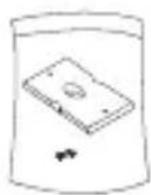
Camera Holder(Mount)

C Mount Adapter
User's Manual
Auto Iris
Lens Connector
PART NAMES AND FUNCTIONS
Side View

text_image
Mount Adapter Fixing Grooves 2000000 Auto Iris Lens Connector Camera Lens Auto Iris Lens Control Cable• Auto Iris Lens Connector
This groove is used for screwing the mount adapter, a part of the bracket where the camera will be installed.
• Auto Iris Lens Control Cable
This cable transmits the power and signals from the camera for controlling the Auto Iris Lens.
- Mount Adapter Fixing Grooves
These grooves are used when fixing screws of the mount adapter connected to the bracket when installing the camera on it.
Note :
— When the camera lens becomes dirty, softly clean it with a lens tissue or a cloth soaked in pure ethanol.
Rear Panel
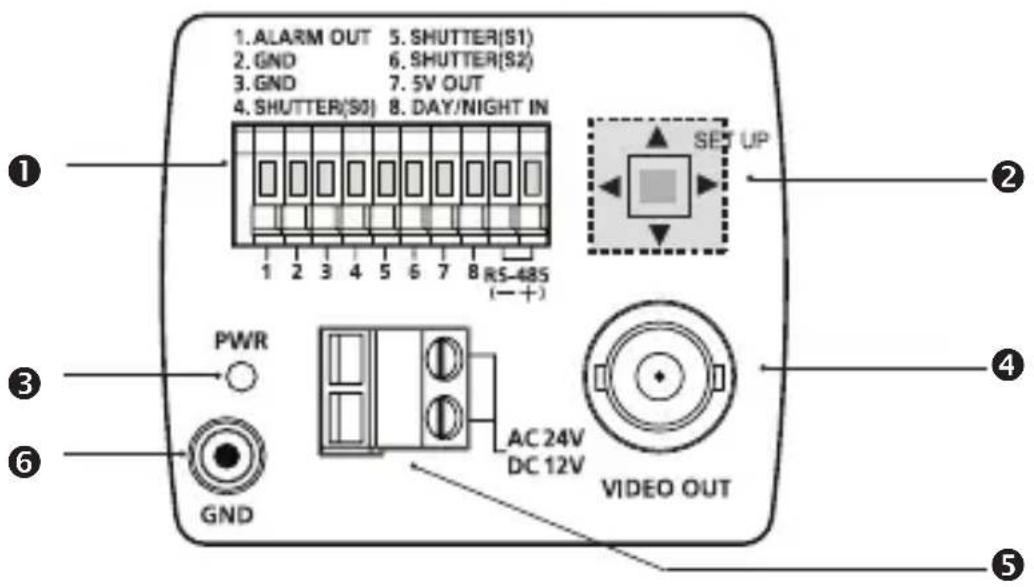
text_image
1. ALARM OUT 5. SHUTTER(S1) 2. GND 6. SHUTTER(S2) 3. GND 7. 5V OUT 4. SHUTTER(S0) 8. DAY/NIGHT IN 1 2 3 4 5 6 7 8 RS-48S ( - + ) PWR GND AC 24V DC 12V SET UP VIDEO OUT ① ② ③ ④ ⑤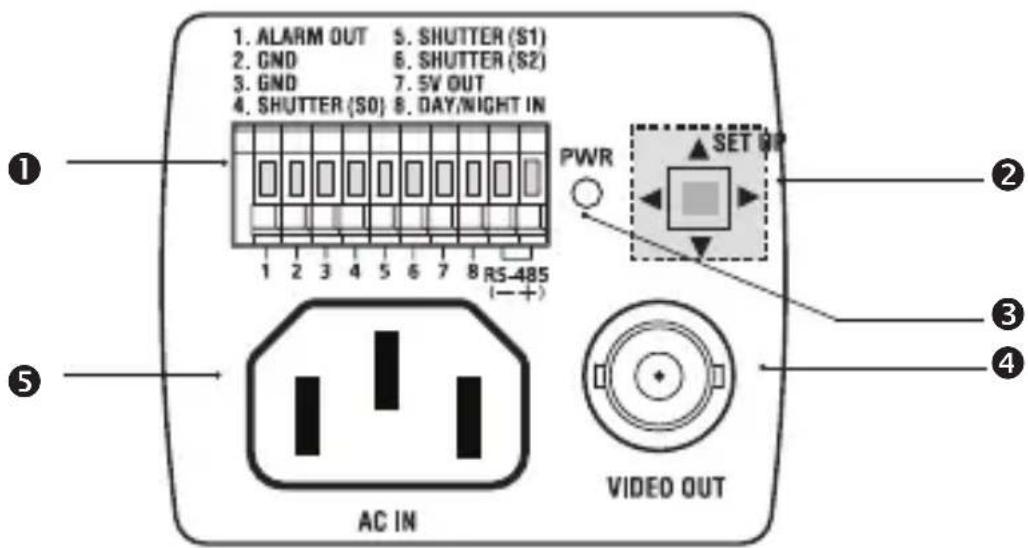
text_image
1. ALARM OUT 5. SHUTTER (S1) 2. GND 6. SHUTTER (S2) 3. GND 7. 5V OUT 4. SHUTTER (S0) 8. DAY/WIGHT IN 1 2 3 4 5 6 7 8 RS-485 (—+) AC IN PWR SET BP VIDEO OUT ① ② ③ ④① Input/Output Connector
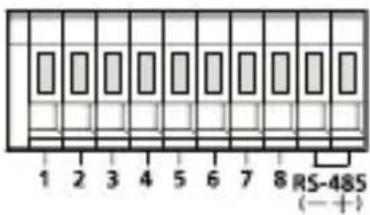
This connector has input and output ports for RS-485 control signals, DAY/NIGHT switching, and alarm output signals.
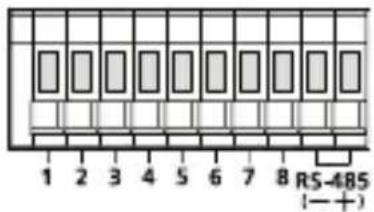
text_image
RS-485 (一+)| No. Function Description | ||
| 1 ALARM OUT | Alarm out port for motion detection. (Open collector type) | |
| 2 GND Grounding Port. | ||
| 3 GND Grounding Port. | ||
| 4 SHUTTER (S0) | This is a port for selecting an external high speed shutter mode.If connected in LOW (0V), it will become ON inside. | |
| 5 SHUTTER (S1) | This is a port for selecting an external high speed shutter mode.If connected in LOW (0V), it will become ON inside. | |
| 6 SHUTTER (S2) | This is a port for selecting an external high speed shutter mode.If connected in LOW (0V), it will become ON inside. | |
| 7 5V OUT | Power supply port for RS-485 JIG. Use within typical DC +5V 100mA | |
| 8 | DAY/NIGHT IN | This is a port for DAY&NIGHT conversion.High(DC +3V~+5V) : DAY(COLOR) Mode,Low(0V) : NIGHT(BW) Mode |
| 9 RS-485 DATA- | This is a port for connection to RS-485 DATA- signal line. | |
| 10 RS-485 DATA+ | This is a port for connection to RS-485 DATA+ signal line. | |
② SETUP Switch
This switch is used to set the function or property. When this switch is pressed for at least 2 seconds, the MAIN MENU appears.
◀ ▶ (Left/Right) : By pressing this switch left or right, you can move left or right on the menu or change the displayed value.
▲▼ (Up/Down): By pressing this switch up or down, you can move up or down on the menu.
☐ : When you press this switch in the menu, the selected function is confirmed. To enter a submenu, press this button.
③ Power Display LED
When the power is normally connected, the red LED lights.
④ Video OUT Port
This is connected to the Video Input Port of the monitor and it outputs the Video signals.
⑤ Power Connection Port
This is connected to the Power cable.
⑥ GND
This is a grounding port.
10 - DIGITAL COLOR CAMERA
CONNECTING THE AUTO IRIS LENS CONNECTOR
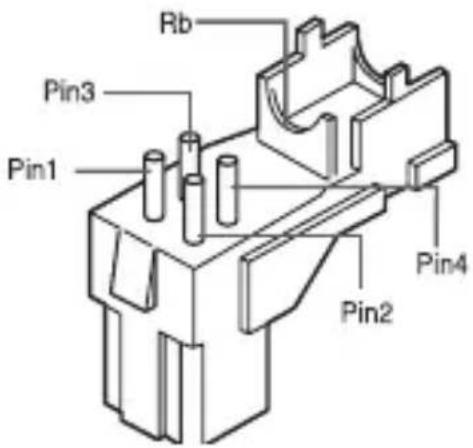
text_image
Rb Pin3 Pin1 Pin4 Pin2Connect each uncovered shutter control cables to the Auto Iris Lens Connector as the following
| Pin No. | DC Control Type | Video Control Type |
| 1 | Damp(-) Power (+12V) | |
| 2 | Damp(+) Not applicable | |
| 3 | Drive(+) Video Signal | |
| 4 | Drive(-) Ground |
Note :
— You can switch a control type of the lens in the menu.
MOUNTING THE LENS
When using the CS lens
Mount the CS lens by rotating it clockwise as shown in the picture:
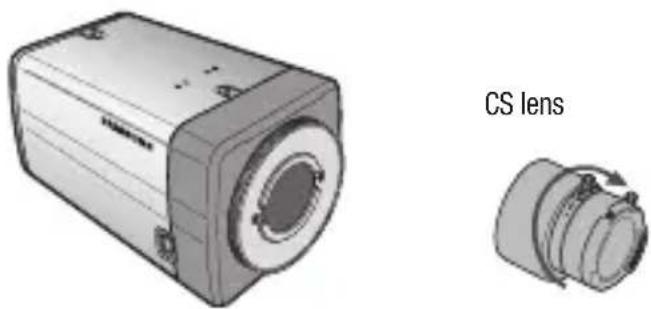
natural_image
Technical illustration of a camera module with CS lens assembly (no text or symbols on the device itself)When using the C lens
After mounting the C-mount adapter by rotating it clockwise, turn the C lens clockwise until it is fixed as shown in the picture.
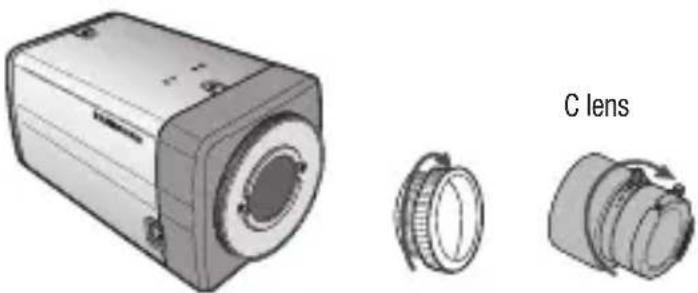
natural_image
Illustration of a camera module with two views of the lens (no text or symbols present)CONNECTING CABLES AND CHECKING OPERATION
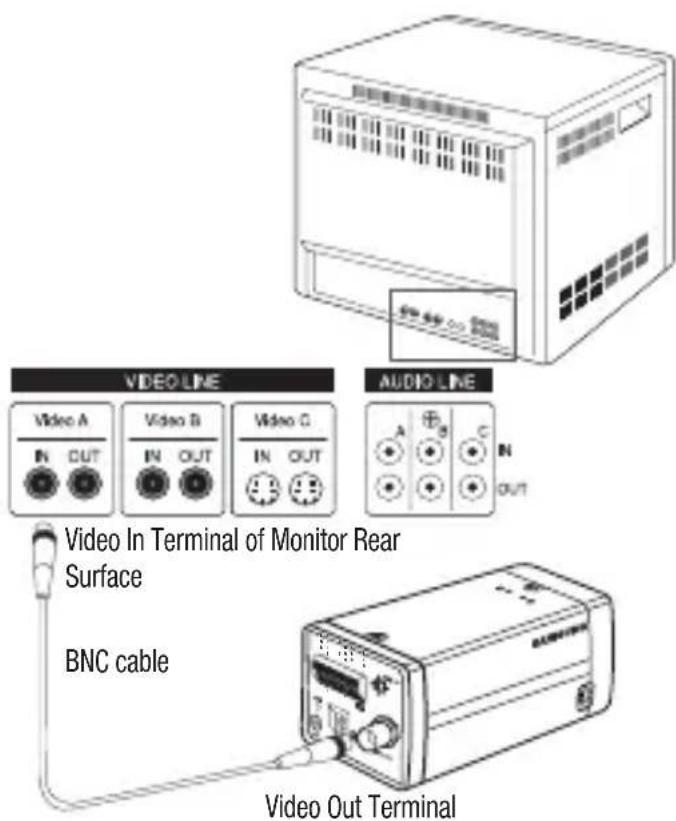
① Connect one end of the BNC cable to the VIDEO OUT Port on the rear of the camera.
② Connect another end of the BNC cable to the VIDEO IN Port on the monitor.
text_image
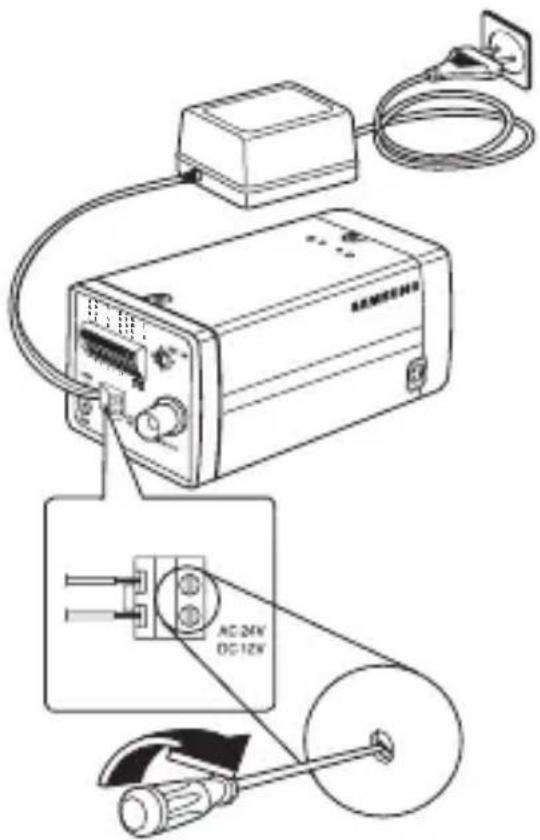
VIDEO LINE Video A IN OUT Video B IN OUT Video C IN OUT AUDIO LINE A B C IN OUT Video In Terminal of Monitor Rear Surface BNC cable Video Out Terminal③ Finally connect the power adapter to the camera. You can connect 2 lines of the power adapter to the camera using the Slot Head screwdriver as shown in the picture. (GND: cable with the white stripe line)
text_image
Diagram of an electronic device connected to a cable and power outlet, with labeled components including AC24V, DC12V, and a plug.Note :
- Connect any power source of AC 24V and DC 12V irrespective of polarity.
USING ICONS IN THE MENU
- (EXIT)
Exits the menu setting.
Before you exits the menu setting, select SAVE to save your settings, or select QUIT to cancel.
• ↘ (RET)
Returns to the previous menu.
- (SAVE)
Used to save your settings of MASK AREA, PRIVACY ZONE and more.
Once you save your settings, they will remain even if you select QUIT in the menu.
• (DEL)
Used to delete your settings of MASK AREA, PRIVACY ZONE and more.
Once you delete your settings, they will not be restored even if you select QUIT in the menu.
MAIN MENU
**MAIN MENU**
PROFILE
CAMERA SET
INTELLIGENCE
PRIVACY ZONE
OTHER SET
COMMUNICATION
SYSTEM INFO

- PROFILE
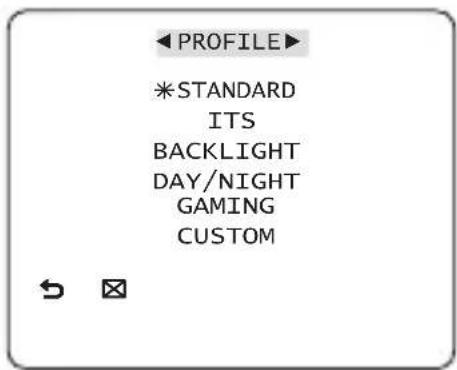
You can set a mode according to the camera installation conditions.
- CAMERA SET
Configure Camera related functions and data.
• INTELLIGENCE
You can configure the settings of motion detection, tracking and more.
- PRIVACY ZONE
You can configure the privacy related settings.
- OTHER SET
You can configure for Factory Defaults, and more.
- COMMUNICATION
Configures the settings regarding the RS-485 communication.
- SYSTEM INFO.
Displays the system information including the camera version and communication settings.
PROFILE
text_image
PROFILE *STANDARD ITS BACKLIGHT DAY/NIGHT GAMING CUSTOMIn the PROFILE menu, you can configure the following camera settings at once.
| CAMERA SET Menu | STANDARD ITS BACKLIGHT DAY/NIGHT GAMING | |||||
| Previous Menu | Sub-menus | |||||
| IRIS ALC | ALC ALC ALC ALC | |||||
| A | L | C | - | - | ||
| LENS DC DC DC DC | ||||||
| LEVEL | 0 | 0 | 0 | 0 | 0 | |
| BACKLIGHT | OFF | OFF BLC OFF | OFF | |||
| MOTION | (F.FAST)--- | (F.FAST)--- | NORM | (F.FAST)--- | SLOW | |
| DNR | MID | MID | MID | MID | MID | |
| SHUTTER | OFF | AUTO1/250 | OFF | OFF | OFF | |
| SENS-UP | AUTOx4 | AUTOx2 | AUTOx4 | AUTOx4 | AUTOx4 | |
| XDR | MID | MID | MID | MID | MID | |
| DAY/ NIGHT | AUTO | AUTO | DAY | AUTO | DAY | |
| NIGHT | - | - | - | - | - | |
| BURST | OFF ON OFF | OFF | OFF | |||
| E | X | T | - | - | ||
| BURST | OFF ON OFF | OFF | OFF | |||
| WHITE BAL | DAY DAY/NIGHT DAY DAY/NIGHT DAY | |||||
| D | A | Y | - | - | ||
| MODE ATW2 ATW1 ATW1 ATW1 ATW1 | ||||||
| R | E | D | 0 | 0 | ||
| BLUE 0 0 0 0 0 | ||||||
| NIGHT | - | - | - | - | - | |
| BRIGHTNESS | User setting allowed | MID | User setting allowed | MID | User setting allowed | |
| MODE | OFF | ATW2 | OFF | ATW2 | OFF | |
| RED | User setting allowed | 0 | User setting allowed | 0 | User setting allowed | |
| BLUE | User setting allowed | 0 | User setting allowed | 0 | User setting allowed | |
| DETAIL | 2 2 2 2 2 | |||||
ITS
It will be set automatically so you can easily check the traffic conditions.
BACKLIGHT
It will be set automatically so you can distinguish the object from the background in a severe backlighting scene.
DAY/NIGHT
It will be set automatically so it optimizes to the day or night conditions, respectively.
GAMING
It will be set automatically to help you take a picture in a regular indoor lighting condition.
CAMERA SETUP
text_image
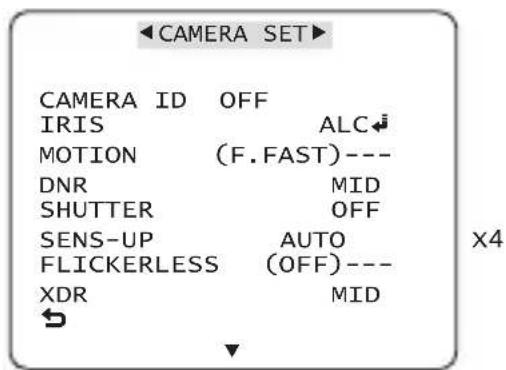
CAMERA SET CAMERA ID OFF IRIS ALC MOTION (F.FAST)--- DNR MID SHUTTER OFF SENS-UP AUTO FLICKERLESS (OFF)--- XDR MID x4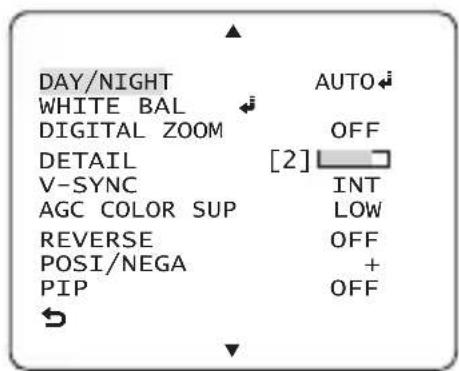
text_image
DAY/NIGHT AUTO WHITE BAL OFF DIGITAL ZOOM DETAIL [2] V-SYNC INT AGC COLOR SUP LOW REVERSE OFF POSI/NEGA + PIP OFF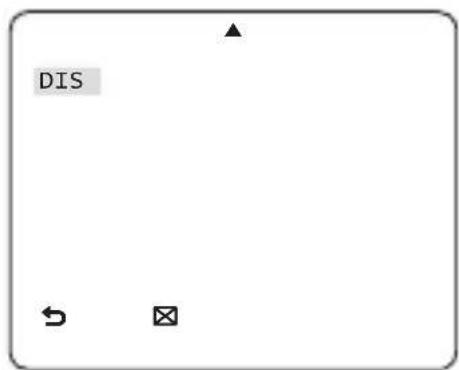
text_image
DISSetup the general functions of zoom camera module.
Use the ▲▼◀▶ switch to select a menu item.
◆ CAMERA ID [OFF, ON]
![SAMSUNG SCB-2001P - ◆ CAMERA ID [OFF, ON] - 1](/content/2026/06/1237145/images/fea42e5fb394130633e10f6b3bf54f2e57171ec71fbd7caf85f2b2b5704f7ffe.jpg)
text_image
CAMERA ID ABCDEFGHIJKLMNOPQRSTUVWXYZ0 123456789 :?-+*()/ SP▶▶◀◀ SP LOCATION◀ CAMERA-1.......... ..........The CAMERA ID menu is used for you to assign a unique name to a camera. If you press the SETUP switch with the CAMERA ID menu selected, you will see the appropriate screen.
You can enter up to 54 alphanumeric or special characters for the CAMERA ID. Select LOCATION and press the SETUP switch to move the display position of the CAMERA ID.
◆ IRIS [ALC, ELC]
The IRIS menu is used if you want to adjust the intensity of radiation incoming to the camera.
OFF • ALC (Automatic Light Control)
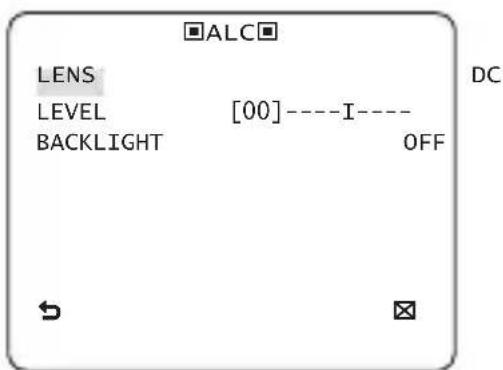
① If you press the SETUP switch with an ALC-based sub menu selected, you will see the appropriate screen.
text_image
ALC LENS LEVEL [00]----I---- BACKLIGHT OFF DCThe LENS menu is used if you select a type of the AI lens.
For normal operation, you must select DC for a DC-type lens, and select VIDEO for a VIDEO-type lens.
The LEVEL menu is used to adjust the overall brightness, where “+” will increase the brightness and “-” will decrease it.
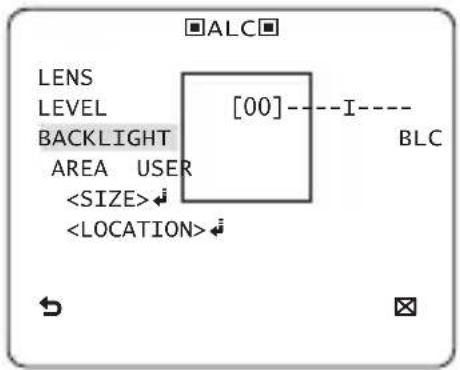
② If you set the BACKLIGHT option to BLC, you will see a menu where you can set the BLC area.
you can set the desired BLC zone by defining the size and location.
text_image
ALC LENS LEVEL BACKLIGHT AREA USERIf you use an ordinary camera in a scene with an intensive backlight, the object will be displayed dark on the monitor affected by the backlight. To solve this problem, you can use the BLC(Back Light Compensation) function to improve the sharpness of the image in such a high contrast scene.
• ELC (Electronic Light Control)
① If you press the SETUP switch when the ELC submenu is selected, the corresponding screen appears. You can make the ELC (Electronic Light Control) function active or not.
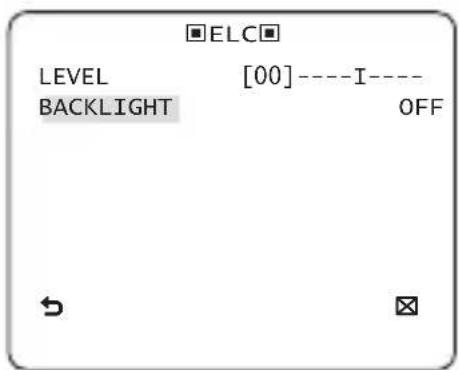
text_image
ELC LEVEL [00]----I---- BACKLIGHT OFF② In similar to ALC setting, you can specify the BLC area.
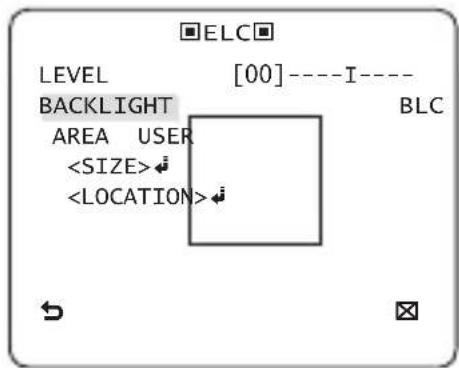
text_image
ELC LEVEL [00]----I---- BACKLIGHT BLC AREA USERAGC
[OFF, VERY LOW, LOW, MID, HIGH, VERY HIGH, USER, FIX]
The AGC (Auto Gain Control) menu is used to set the AGC level of the camera. When the AGC is active, the camera automatically increases the sensitivity by amplifying the Video signal when the strength of the signal falls below the normal value.
If OFF or FIX mode is selected in the SENS-UP menu, you can specify the AGC level.
If you press the SETUP switch with a USER sub menu selected, you will see the appropriate screen.
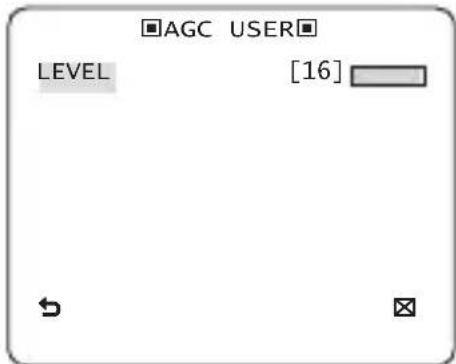
text_image
■AGC USER■ LEVEL [16]In USER mode, you can break down the level in 16 steps from VERY LOW to VERY HIGH to your preference.
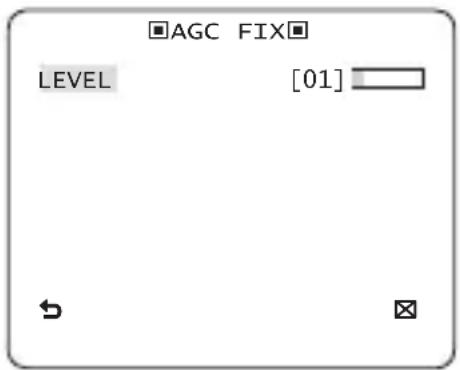
text_image
AGC FIX LEVEL [01]If you press the SETUP switch with a FIX sub menu selected, you will see the appropriate screen.
As a fixed value of the AGC gain is used in FIX mode, you can select one of the 16 detailed levels from VERY LOW to VERY HIGH before fixing it.
Note :
- If the DAY/NIGHT menu of the CAMERA SET is set to AUTO, the AGC menu will be deactivated.
- If FLICKERLESS is set to ON, the AGC FIX mode will be disabled.
✿ MOTION [S.SLOW, SLOW, NORM, FAST, F.FAST]
The MOTION menu is used to adjust the strength of the AGC level for a control of the camera motion. This is available only if the SENS-UP menu is set to AUTO.
You can select one from S.SLOW, SLOW, NORM, FAST and F.FAST for the AGC level.
If you monitor a fast moving object in a low contrast scene, select F.FAST while select S.SLOW for a hardly moving object in the same lighting condition.
Note :
- If the DAY/NIGHT menu of the CAMERA SET is set to AUTO, the MOTION menu will be deactivated.
◆ DNR [OFF,LOW,MID,HIGH,USER(1\~16)]
You can configure the DNR (Digital Noise Reduction) related settings.
Reduces the noise on the screen.
This is especially useful for a severely distorted screen.
You can set the level if you set DNR to USER.
SHUTTER
[OFF, AUTO 1/100(PAL:1/120), AUTO 1/250, AUTO 1/500, AUTO 1/1000, AUTO 1/2000, AUTO 1/4000, AUTO 1/10K, 1/100(PAL:1/120), 1/250, 1/500, 1/1000, 1/2000, 1/4000, 1/10K, EXT]
The SHUTTER menu is used to set the fixed high-speed electronic shutter, auto high speed electronic shutter and external high speed electronic shutter(EXT).
You can select one of 7 options from 1/100(PAL:1/120) to 1/10K for the fixed high speed electronic shutter, which is mostly used for imaging a fast moving object.
The auto high speed electronic shutter operates as the fi xed high speed shutter in a high contrast scene but automatically focuses the target if the iris opens fully in a low contrast scene like in ELC mode. When it gets brighter back, the mode will switch to the fi xed high speed electronic shutter mode.
However, the auto high speed shutter operates properly only in a camera featuring a DC or VIDEO lens.
In external high speed electronic shutter (EXT) mode, you can select one of 8 modes from OFF through 1/100(PAL:1/120) to 1/10K for the high speed electronic shutter. It works as the high speed electronic shutter. You can select an option using SHUTTER(S0), SHUTTER(S1) and SHUTTER(S2) on the rear.
Connect each of the terminals to GND.
See the below table for the operation.
| SHUTTER(S0) | SHUTTER(S1) | SHUTTER(S2) | |
| OFF(NTSC: 1/60,PAL:1/50) | OFF OFF | OFF | |
| 1/100(PAL:1/120) | ON OFF | OFF | |
| 1/250 OFF ON OFF | |||
| 1/500 ON ON OFF | |||
| 1/1000 OFF OFF ON | |||
| 1/2000 ON | OFF ON | ||
| 1/4000 OFF | ON ON | ||
| 1/10K ON | ON ON | ||
Note :
- If IRIS mode is set to ELC, the SHUTTER menu will be deactivated as you adjust the brightness using the electronic shutter.
- If the SENS-UP function is set to AUTO, only items of OFF and AUTO are available in the SHUTTER menu.
- If the SENS-UP mode is set to FIX, the SHUTTER menu will be deactivated.
— If the FLICKERLESS function is set to ON, the SHUTTER menu will be deactivated.
SENS-UP
[OFF, AUTO X2, AUTO X4, AUTO X6, AUTO X8, AUTO X12, AUTO X16, AUTO X24, AUTO X32, AUTO X48, AUTO X64, AUTO X96, AUTO X128, AUTO X256, AUTO X512, FIX X2, FIX X4, FIX X6, FIX X8, FIX X12, FIX X16, FIX X24, FIX X32, FIX X48, FIX X64, FIX X96, FIX X128, FIX X256, FIX X512]
Automatically detects the ambient level of darkness in the dark or low contrast scene to extend the accumulated time, keeping the image bright and sharp; It can be also used as FIX mode.
Note :
- If the SHUTTER option is set to fixed electronic shutter or EXT mode, the SENS-UP menu will be deactivated.
- If FLICKERLESS is set to ON, the FIX mode of the SENS-UP menu will be disabled.
- If the IRIS menu is set to ELC, the electronic shutter will control the brightness so the SENS-UP function can not be set to FIX mode, but to OFF or AUTO mode.
— If the SHUTTER menu is set to AUTO, the SENS-UP menu can be set to either OFF or AUTO mode.
FLICKERLESS
[OFF, ON]
If set to ON, the shutter speed will be fixed to 1/100(PAL:1/120) second. This will prevent possible screen distortion due to a mismatch between the vertical sync frequency and the blinking frequency of the lighting.
Note :
- If the IRIS function is set to ELC, the Flickerless menu will be deactivated. If the SHUTTER menu is set to AUTO, FIX or EXT mode, the Flickerless menu will be deactivated.
— If the SENS-UP function is set to FIX mode, the Flickerless menu will be deactivated.
— If AGC is set to FIX mode, the FLICKERLESS function will be disabled.
✿ XDR (eXtended Dynamic Range) [OFF, LOW, MID, HIGH]
Actively controls the gamma compensation in the way it operates the ambient luminance contrast in a certain pixel unit to determine the optimal visibility.
Select one from OFF, LOW, MID and HIGH.
Closing to HIGH will increase the compensation level.
DAY/NIGHT
[DAY,NIGHT,AUTO,EXT]
• DAY
If set to DAY, it will be fixed to DAY mode regardless of the ambient conditions.
• NIGHT
If set to NIGHT, it will be fixed to Black-and-White mode regardless of the ambient conditions.
If you press the SETUP switch with a NIGHT sub menu selected, you will see a menu where you can set Burst to OFF/ON.
If BURST is set to ON, the Burst signal will output together with the black-and-white composite video signal. If BURST is set to OFF, the Burst signal does not output.
You can set the BURST option to OFF/ON, or select to output the Burst signal in NIGHT mode.
- AUTO
The camera will automatically switch between DAY and NIGHT mode, according to the lighting condition.
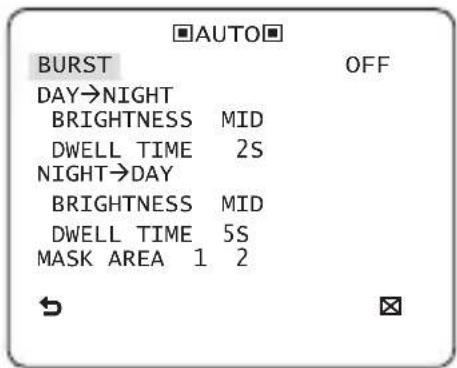
If you press the SETUP switch with an AUTO-based sub menu selected, you will see the appropriate screen.
text_image
AUTO BURST OFF DAY→NIGHT BRIGHTNESS MID DWELL TIME 2S NIGHT→DAY BRIGHTNESS MID DWELL TIME 5S MASK AREA 1 2You can set the BURST option to OFF/ON, or select to output the Burst signal in NIGHT mode.
You can select from LOW, MID and HIGH for the brightness of DAY→NIGHT, which is a brightness level in switching from the color fi liter to Black-and-White. Closing to LOW from HIGH will switch the fi liter in a low contrast scene.
The DWELL TIME of DAY→NIGHT is a time required to determine the need for switching the filter.
You can select from LOW, MID and HIGH for the brightness of NIGHT→DAY, which is a brightness level in switching from the Black-and-White filter to color. Closing to LOW from HIGH will switch the filter in a low contrast scene. The DWELL TIME of NIGHT→DAY is a time required to determine the need for switching the filter.
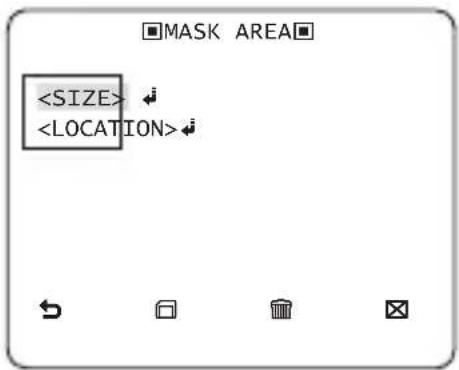
The MASK menu is used to prevent a filter switch error or inability of determining the switch in existence of a high spot light source at night. If you press the SETUP switch in item 1 or 2 of the MASK menu, you will see a menu where you can specify an area to mask.
text_image
You can specify Mask 1 and 2 simultaneously. The mask is used only for determining the filter switch and any excessive bright area at night will be masked.
Note :
- If BACKLIGHT is set to BLC, the MASK AREA function will be deactivated.
• EXT
This enables an auto switch between DAY and NIGHT mode using the interface with the external sensor.
WHITE BAL [DAY/NIGHT]
If you want to adjust the color scheme, use the WHITE BALANCE function.
• DAY
In DAY mode, you can set the color values of RED and BLUE. The screen will be displayed in colors according to your settings.

text_image
WHITE BAL DAY/NIGHT DAY MODE AWC RED [00]----I---- BLUE [00]----I---- R-GAIN [0248] B-GAIN [0247]Note :
— You can set the values of R-GAIN and B-GAIN only in AWC mode.
• NIGHT
Use the NIGHT mode if you want to set the white balance differently according to the ambient luminance.
If the NIGHT mode is set to OFF, the white balance will always operate as set in DAY mode; if not to OFF, the camera will switch to as set in DAY/NIGHT mode according to the brightness.
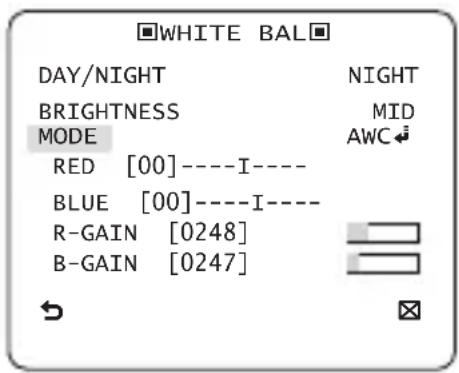
In NIGHT mode, you can set the values of RED, BLUE and BRIGHTNESS. The screen will be displayed in colors according to your settings.
text_image
WHITE BAL DAY/NIGHT NIGHT BRIGHTNESS MID MODE AWC RED [00]----I---- BLUE [00]----I---- R-GAIN [0248] B-GAIN [0247]Note :
- You can set the values of R-GAIN and B-GAIN only in AWC mode.
- If AGC is set to OFF or FIX, you can not access the NIGHT menu.
- For adjusting the white balance, the following 5 modes are provided:
- ATW1(Auto Tracing White Balance mode 1): The camera can automatically adjust the color temperature in real time, according to the ambient conditions. The color temperature ranges from approx. 2500K to 9300K.
- ATW2: The color temperature ranges from approx. 2,000K to 10,000K.
-
AWC (Auto White Balance Control): If you press the SETUP switch in the appropriate item position, Auto White Balance will perform once.
• 3200K : Set color temperature to 3200K
• 5600K : Set color temperature to 5600K -
RED: Adjusts the strength of the red color.
- BLUE: Adjusts the strength of the blue color.
- R-GAIN/B-GAIN : Enables you to set the current color temperature manually.
- BRIGHTNESS: Select a brightness level in switching from setting in DAY mode to setting in NIGHT mode.
DIGITAL ZOOM [ON/OFF]
You can set the digital zoom factor and position. If you press the SETUP switch with the DIGITAL ZOOM function set to ON, you will see the appropriate screen.
When the zoom factor and position are defined, the digital zoom function will operate.
![SAMSUNG SCB-2001P - DIGITAL ZOOM [ON/OFF] - 1](/content/2026/06/1237145/images/400b374169721077bec53717aa062fea28a4e443770beddf2deed4d3d91db0b3.jpg)
text_image
DIGITAL ZOOM RATIO [X1.0] < LOCATION > ↓- LOCATION : If you press the SETUP switch in the condition where the image is enlarged as much as the ratio setting, you can watch an invisible area of the effective screen as well using the ▲▼◀▶ switch.
Note :
- If the digital zoom factor is set to larger than 1x, the FENCE function will be deactivated. The DIGITAL ZOOM function enlarges the pixel itself, which can cause deterioration of the quality.
DETAIL [0\~3]
Controls the horizontal or vertical distinction.
V-SYNC
[INT, LINE]
Select the vertical sync mode for INT or LINE.
If you select INT, the camera will use the internal synchronization.
If selecting LINE, the camera will use the external power source frequency for the synchronization.
You can adjust the LL-PHASE.
Note :
- Use of DC 12V will fix V-SYNC to INT, which can not be changed.
◆ AGC COLOR SUP [LOW, MID, HIGH]
Adjust the color scheme according to the AGC value.
✿ REVERSE [OFF, H, V, H/V]
Mirrors video signals horizontally, vertically, or both.
◆ POSI/NEGA [+, -]
Output as it is or mirror the video brightness signal.
◆ PIP [OFF, ON]
Displays a sub image together with the main image on the same screen using the Picture In Picture function.
Note :
- If more than one privacy zone is set and the PRIVACY SET is set to ON, the PIP function will be deactivated.
— If the INTELLIGENCE function is set to FENCE mode, the PIP menu will be deactivated.
DIS [OFF, ON]
Digital Image Stabilization will set the anti-shake compensation.
Note :
- If you set DIS to ON, the compensation area will be enlarged as set in the digital zoom factor. If you set the digital zoom factor to greater than the enlarged zoom factor for the compensation, the DIS function will be deactivated.
INTELLIGENCE
text_image
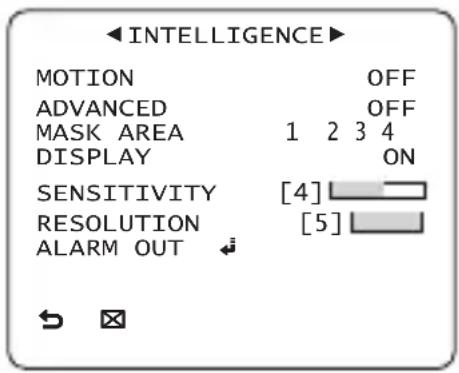
INTELLIGENCE MOTION OFF ADVANCED OFF MASK AREA 1 2 3 4 DISPLAY ON SENSITIVITY [4] RESOLUTION [5] ALARM OUTYou can set the motion detection and tracking in the INTELLIGENCE menu.
MOTION
[OFF, TRACKING, DETECTION]
- TRACKING
Detects and tracks a moving object.
- DETECTION
Detects a moving object.
Note :
— If it is set to DETECTION, you can not set such functions as FIXED/MOVED and FENCE in the ADVANCED menu.
ADVANCED
[OFF, FIXED/MOVED, FENCE]
Detects a motion of an object and displays an image of any moving object before tracking the moving route.
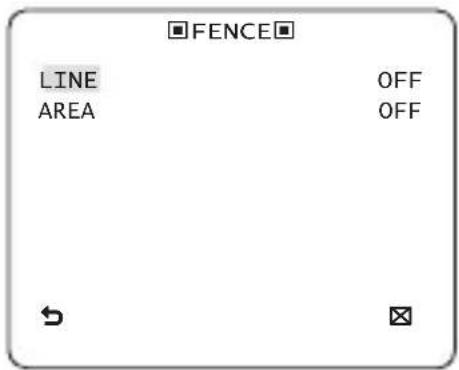
• FENCE
This is to detect if a moving object passes through the specified LINE or AREA.
In a condition where a moving object is detected in an analysis of the previous and current frames whose movement overlaps a certain area, the system displays "PASS" if the object's center line passes through the line while it displays "ENTER" or "EXIT" if the center point passes through the area.
text_image
FENCE LINE OFF AREA OFFYou can set the position and detection direction of the LINE, and the size and position of the AREA.
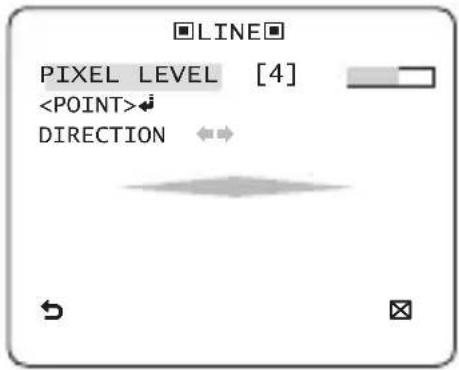
- How to set the line
text_image
LINE PIXEL LEVEL [4]① If you press the SETUP switch with the LINE option set to ON, you can specify the position and detection direction of the line.
② If you change the PIXEL LEVEL for setting the position, specify the pixel that moves by a single pressure of the ▲▼◀▶ switch.
③ In
Set each position of the two points and press the SETUP switch to complete the positioning.
④ If you change the DIRECTION, you can specify the detection direction. The detection direction based on the defined two points will be displayed on the screen.
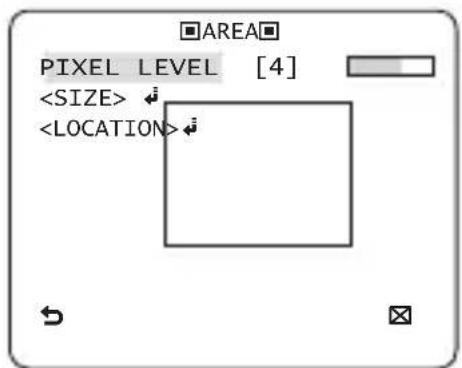
- How to set the area
text_image
AREA PIXEL LEVEL [4]① If you press the SETUP switch with the AREA option set to ON, you can specify the position and size of the area.
② If you change the PIXEL LEVEL for setting the position, specify the pixel that moves by a single pressure of the ▲▼◀▶ switch.
③ In
④ In
Note :
- If you set the LINE of the FENCE to ON, PRIVACY 12 will not be available.
Functions of FENCE, PIP, DIS and DIGITAL ZOOM (if the digital zoom factor is set to larger than 1x) can not be used simultaneously.
- In the boundary of the defined AREA and LINE, a FENCE detection error may occur if two or more moving objects overlap with each other or one object separates in multiple directions.
- FIXED/MOVED
If an object on the screen suddenly disappears or an object comes out of nowhere and stays for a certain time, the area will be displayed.
A detection (FIXED/MOVED) error may occur if :
- multiple motions occur continuously in random directions
- a fixed object moves in one position continuously
- a second object screens the first moving object
◆ MASK AREA [1\~4]
Specify a detection exception area to mask.
Select a mask number and specify the size and position.
![SAMSUNG SCB-2001P - ◆ MASK AREA [1\~4] - 1](/content/2026/06/1237145/images/8ca09511ad6bd716267974a236fc7fd417f7ff06961f32c27ddda909ef2473ca.jpg)
text_image
DISPLAY
[ON, OFF]
With the DISPLAY option set to ON, a motion or a set ADVANCED function will be displayed on the screen, if detected.
◆ SENSITIVITY [1\~7]
Set the sensitivity of the motion detection.
◆ RESOLUTION [1\~5]
If setting it to high, the camera can detect even a trivial movement of the target.
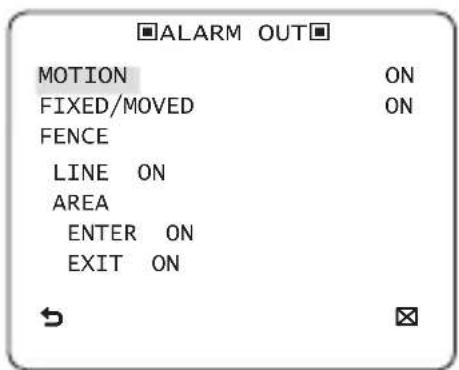
ALARM OUT
If you set a desired menu item to ON, the camera will sound an alert if it detect the appropriate motion.
text_image
■ALARM OUT■ MOTION ON FIXED/MOVED ON FENCE LINE ON AREA ENTER ON EXIT ONPRIVACY ZONE SETUP
text_image
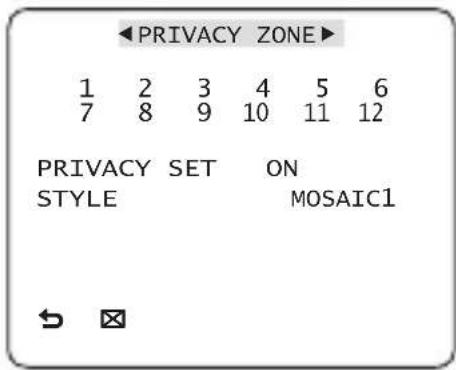
PRIVACY ZONE 1 2 3 4 5 6 7 8 9 10 11 12 PRIVACY SET ON STYLE MOSAIC1The PRIVACY function will protect your privacy by screening the privacy area that you have specified during monitoring. You can specify up to 12 privacy zones.
If you set the PRIVACY SET to ON, your PRIVACY ZONE settings will be applied.
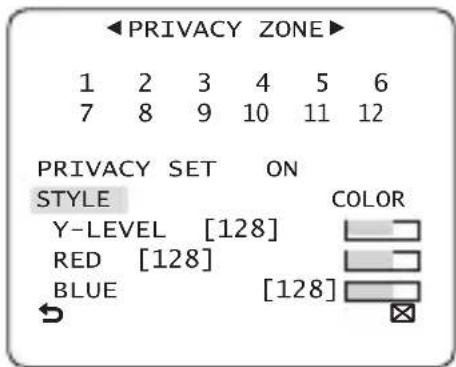
You can change the style to adjust the mosaic size and color of the PRIVACY ZONE.
text_image
PRIVACY ZONE 1 2 3 4 5 6 7 8 9 10 11 12 PRIVACY SET ON STYLE Y-LEVEL [128] RED [128] BLUE [128]Use the ▲▼◀▶ switch to select one from PRIVACY 1 through 12.
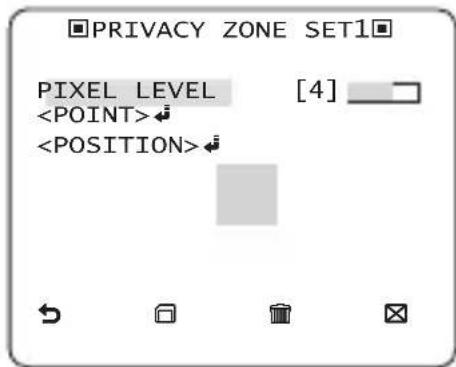
Select one from PRIVACY 1\~12 and press the SETUP switch to confirm your setting. You can specify a pixel that moves as you change the PIXEL LEVEL to set the position.
text_image
PRIVACY ZONE SET1 PIXEL LEVEL [4]- How to set the point
You can set each position of the 4 points.
① If you press the SETUP switch in
② Use the ▲▼◀▶ switch to set the position of each point. Set each position of the four points and press the SETUP switch to complete the positioning.
- How to set the position
You can move the position of the overall area.
① By pressing the SETUP switch in
② Use the ▲▼◀▶ switch to move the position and press the SETUP switch to confirm it.
Note :
- If more than one PRIVACY ZONE is specified and the PRIVACY SET is set to ON, the PIP function will be deactivated.
— If the 12th PRIVACY ZONE is specified, the LINE function of FENCE will be deactivated.
OTHER SET
text_image
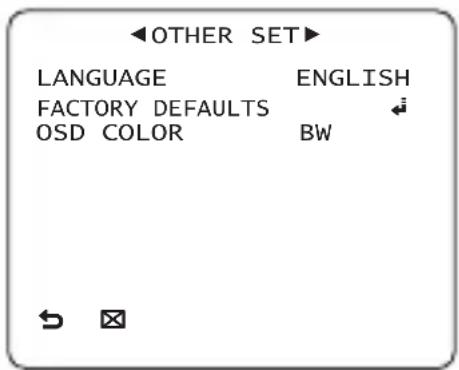
OTHER SET LANGUAGE ENGLISH FACTORY DEFAULTS OSD COLOR BWLANGUAGE
You can set the language displayed on the screen. Select your language by using the left and right keys.
FACTORY DEFAULTS
All the settings will be restored to the factory default.
However, the settings of PROTOCOL, BAUD RATE, ADDRESS and LANGUAGE will not be restored to the default.
✿ OSD COLOR [BW, R/G/B]
You can set the OSD(On-screen Display) color to COLOR or B/W.
COMMUNICATION
text_image
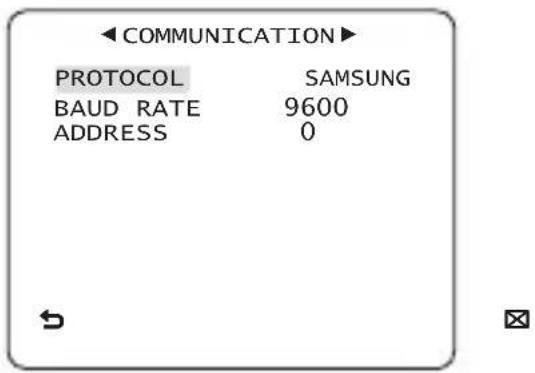
COMMUNICATION PROTOCOL SAMSUNG BAUD RATE 9600 ADDRESS 0The COMMUNICATION menu is used to configure the settings regarding RS-485 communications.
Use the rear panel of the camera to connect to RS-485.
text_image
1 2 3 4 5 6 7 8 RS-485 (一 +)[Camera I/O Connector]
Use the ▲▼◀▶ switch to specify the protocol, baud rate and address (0\~255) for communications.
PROTOCOL
Select a communication protocol.
BAUD RATE
Select a baud rate.
Note :
— The baud rate differs, depending on the specified protocol.
ADDRESS
[0\~255]
You must specify a unique address for each camera in the same RS-485 network.
To control a specific camera, you must match the address of the camera with that of the DVR or the controller.
SYSTEM INFORMATION

text_image
SYSTEM INFO TYPE 3_BOX_NOR_ PROTOCOL SAMSUNG ADDRESS 1 BAUD RATE 9600 SERIAL NO. 000000000000000 CAMERA VER. v2.00_100501You can view the system information including the protocol, address, baud rate, serial number, camera version, and EEP version.
◆ Initial Configuration Table
| • Camera Confi guration | |
| CAMERA ID | OFF |
| IRIS | ALC |
| AGC | VERY HIGH |
| MOTION | (F.FAST) |
| DNR | MID |
| SHUTTER | OFF |
| SENS-UP | AUTO x4 |
| FLICKERLESS | (OFF) |
| XDR | MID |
| DAY/NIGHT | AUTO |
| DIGITAL ZOOM | OFF |
| DETAIL | [2] |
| AGC COLOR SUP | MID |
| REVERSE | OFF |
| POSI/NEGA | + |
| PIP | OFF |
| DIS | |
| V-SYNC | |
SPECIFICATIONS
| Items Sub-items SCB-2001N | ||||||||
| Camera Type | CCTV Camera (DAY/NIGHT) | |||||||
| Image | Device 1/3" Super-HAD IT CCD | |||||||
| Pixels | Total 811 x 508 | |||||||
| Effective 768 x 494 | ||||||||
| Scanning | System Interface | |||||||
| Scanning Line 525 lines | ||||||||
| Frame 30frame/1sec | ||||||||
| Horizontal Frequency | Internal Mode 15,734 Hz | |||||||
| Line-lock Mode 15,750 Hz | ||||||||
| Vertical Frequency | Internal Mode 59.94 Hz | |||||||
| Line-lock Mode 60 Hz | ||||||||
| Min. Scene Illumination | Condition Min. Scene illumination | |||||||
| Sens-up F No. Level DAY | NIGHT | |||||||
| OFF | 1.2 | 50 | IRE | 0.05 | Lux | 0.005 Lux | ||
| OFF | 1.2 | 30 | IRE | 0.03 | Lux | 0.003 Lux | ||
| OFF | 1.2 | 15 | IRE | 0.02 | Lux | 0.002 Lux | ||
| 512 times | 1.2 | 50 | IRE | 0.00010 | Lux | 0.00001 Lux | ||
| 512 times | 1.2 | 30 | IRE | 0.00006 | Lux | 0.00001 Lux | ||
| 512 times | 1.2 | 15 | IRE | 0.00003 | Lux | 0.000003 Lux | ||
| Functions | Number of Privacy Zone | 12 (Polygonal Method) | ||||||
| Day/Night | DAY/NIGHT/AUTO/EXT | |||||||
| Motion Detection | OFF/Tracking/Detection | |||||||
| eXtended Dynamic Range(XDR) | Off/On (Level Setting) | |||||||
| D-Zoom | x1 ~ x16 (x0.1 STEP) | |||||||
| PIP | Off/On | |||||||
| High Speed Shutter | 1/60 ~ 1/10Ksec (OSD/External Control) | |||||||
| Flickerless | Off/On | |||||||
| Sens-Up | x2 ~ x512 | |||||||
| BLC | Off/On (Area Setting) | |||||||
| AGC Off/On (Max.Level Setting) | ||||||||
| ELC Off/On (~ 1/200K sec) | ||||||||
| Line Lock | Off/On (Phase Control) | |||||||
| Camera ID | Off/On (Max.54ea/2Line) | |||||||
| White Balance | ATW1/ATW2/AWC/3200K/5600K | |||||||
| Digital Noise Reduction(DNR) | Off/On (Adaptive 3D+2D) | |||||||
| Digital Image Stabilization(DIS) | Off/On | |||||||
| Intelligent Video Fixed/Moved, Fence | ||||||||
| Etc. Function | Detail, Reverse(H/V), Posi/Nega | |||||||
| Resolution | Horizontal 600 TV Lines | |||||||
| Vertical 350 TV Lines | ||||||||
| Video Output | - VBS 1.0Vp-p, 75 Ω | |||||||
| S/N Ratio | S/N Ratio Approx. 52dB | |||||||
| Lens | Lens Drive Type MANUAL/AI(VIDEO/DC) | |||||||
| Mount Type CS/C | ||||||||
| Alarm | Input | N/A | ||||||
| Output 1 Output | ||||||||
| Remote Control | Coaxitron (Data On Coax cable) Yes (with SCX-RD100) | |||||||
| RS-485 Yes (Multi Protocol, 8ea) | ||||||||
| Environmental Conditions | Operating Temperature -10°C ~ +50°C | |||||||
| Humidity Less than 90% | ||||||||
| Power | Power Requirement | AC24V ± 10%(60Hz ± 0.3Hz)DC12V ± 10% | ||||||
| Power Consumption(With DC Lens) | In normal operation: 2.3WIn switching the DAY/NIGHT fi Iter: 2.8W | |||||||
| LED Indicator Yes | ||||||||
| Physical Specifi cation | Dimensions(WxHxD) | Net 64(W) x 58(H) x 109.2(D) mm | ||||||
| Package | 173(W) x 99(H) x 115(D) mm | |||||||
| Weight | Net | 305g | ||||||
| Package | 530g | |||||||
| Color | Body | Silver | ||||||
| Items Sub-items SCB-2001P / SCB-2001PH | ||||||||
| Camera Type | CCTV Camera (DAY/NIGHT) | |||||||
| Image | Device 1/3" Super-HAD IT CCD | |||||||
| Pixels | Total 795 x 596 | |||||||
| Effective 752 x 582 | ||||||||
| Scanning | System Interface | |||||||
| Scanning Line 625 lines | ||||||||
| Frame 25frame/1sec | ||||||||
| Horizontal Frequency | Internal Mode 15,625 Hz | |||||||
| Line-lock Mode 15,625 Hz | ||||||||
| Vertical Frequency | Internal Mode 50 Hz | |||||||
| Line-lock Mode 50 Hz | ||||||||
| Min. Scene Illumination | Condition Min. Scene illumination | |||||||
| Sens-up F No. Level DAY | NIGHT | |||||||
| OFF | 1.2 | 50 | IRE | 0.05 | Lux | 0.005 Lux | ||
| OFF | 1.2 | 30 | IRE | 0.03 | Lux | 0.003 Lux | ||
| OFF | 1.2 | 15 | IRE | 0.02 | Lux | 0.002 Lux | ||
| 512 times | 1.2 | 50 | IRE | 0.00010 | Lux | 0.00001 Lux | ||
| 512 times | 1.2 | 30 | IRE | 0.00006 | Lux | 0.00001 Lux | ||
| 512 times | 1.2 | 15 | IRE | 0.00003 | Lux | 0.000003 Lux | ||
| Functions | Number of Privacy Zone | 12 (Polygonal Method) | ||||||
| Day/Night | DAY/NIGHT/AUTO/EXT | |||||||
| Motion Detection | OFF/Tracking/Detection | |||||||
| eXtended Dynamic Range(XDR) | Off/On (Level Setting) | |||||||
| D-Zoom | Max. x16 | |||||||
| PIP | Off/On | |||||||
| High Speed Shutter | 1/50 ~ 1/10Ksec (OSD/External Control) | |||||||
| Flickerless | Off/On | |||||||
| Sens-Up | x2 ~ x512 | |||||||
| BLC | Off/On (Area Setting) | |||||||
| AGC Off/On (Max.Level Setting) | ||||||||
| ELC | Off/On (~ 1/200K sec) | |||||||
| Line Lock | Off/On (Phase Control) | |||||||
| Camera ID | Off/On (Max.54ea/2Line) | |||||||
| White Balance | ATW1/ATW2/AWC/3200K/5600K | |||||||
| Digital Noise Reduction(DNR) | Off/On (Adaptive 3D+2D) | |||||||
| Digital Image Stabilization(DIS) | Off/On | |||||||
| Intelligent Video Fixed/Moved, Fence | ||||||||
| Etc. Function | Detail, Reverse(H/V), Posi/Nega | |||||||
| Resolution | Horizontal | 600 TV Lines | ||||||
| Vertical | 350 TV Lines | |||||||
| Items Sub-items SCB-2001P / SCB-2001PH | |||
| Video Output | - VBS 1.0Vp-p, 75 Ω | ||
| S/N Ratio | S/N Ratio Approx. 52dB | ||
| Lens | Lens Drive Type MANUAL/AI(VIDEO/DC) | ||
| Mount Type CS/C | |||
| Alarm | Input | N/A | |
| Output 1 Output | |||
| Remote Control | Coaxitron (Data On Coax cable) Yes (with SCX-RD100) | ||
| RS-485 Yes (Multi Protocol, 8ea) | |||
| Environmental Conditions | Operating Temperature -10°C ~ +50°C | ||
| Humidity Less than 90% | |||
| Power | Power Requirement | SCB-2001P: AC24V ± 10%(50Hz±0.3Hz)DC12V ± 10%SCB-2001PH: AC220V ± 10%(50Hz±0.3Hz) | |
| Power Consumption(With DC Lens) | In Normal operation:SCB-2001P: 2.3WSCB-2001PH: 2.9WIn switching the DAY/NIGHT filter:SCB-2001P:2.8WSCB-2001PH: 3.4W | ||
| LED Indicator Yes | |||
| Physical Specifi cation | Dimensions(WxHxD) | Net | SCB-2001P: 64(W) x 58(H) x 109.2(D) mmSCB-2001PH: 64(W) x 58(H) x 129.2(D) mm |
| Package 173(W) x 99(H) x 115(D) mm | |||
| Weight | Net | SCB-2001P: Approx. 305gSCB-2001PH: Approx. 395g | |
| Package | SCB-2001P: Approx. 530gSCB-2001PH: Approx. 620g | ||
| Color Body | Silver | ||

text_image
SAMSUNGSALES NETWORK
SAMSUNG TECHWIN CO., LTD.
Samsungtechwin R&D Center, 701, Sampyeong-dong, Bundang-gu, Seongnam-si, Gyeonggi-do, Korea, 463-400
TEL : +82-70-7147-8740\~60 FAX : +82-31-8018-3745
Tol Free: +1-877-213-1222 FAX: +1-310-632-2195
www.samsungcctvusa.com
SAMSUNG TECHWIN EUROPE LTD.
Samsung House, 1000 Hillswood Drive, Hillswood Business
Park Chertsey, Surrey, UNITED KINGDOM KT16 OPS
TEL: +44-1932-45-5300 FAX: +44-1932-45-5325