
ViewPad V10s - Tablet VIEWSONIC - Free user manual and instructions
Find the device manual for free ViewPad V10s VIEWSONIC in PDF.


| Product type | Tablet PC |
| Brand | ViewSonic |
| Model | ViewPad V10s (VPAD10) |
| Operating system | Windows 7 |
| Touch screen | Multi-touch touch screen (size not specified) |
| Camera | Built-in webcam for photos, videos and video calls |
| Wireless connectivity | WiFi, Bluetooth, 3G (via SIM card) |
| Internal storage | SSD (drivers installed on the last partition) |
| Ports | 1 x Mini VGA, 1 x USB 2.0, 1 x audio jack, 1 x Micro SD, 1 x power connector |
| Power supply | AC adapter (AC input) and built-in rechargeable battery |
| Battery life | Varies with usage; can be optimized by reducing brightness and disabling unused connections |
| Orientation sensor | Built-in G-sensor (accelerometer) for automatic screen rotation |
| Warranty | 1 year |
| Included accessories | AC adapter with cord, user guide, driver CD |
| Input functions | Touch input panel, virtual keyboard, handwriting, multi-touch gestures |
| Safety instructions | Do not expose to moisture, do not disassemble, use only approved accessories |
| Care and cleaning | Wipe with a soft cloth; do not use liquid products; keep dry |
| Spare parts | AC adapter, battery (replacement with approved type) |
| Compliance information | CE, RoHS (restriction of hazardous substances) |
| Customer service | Contact details available on the ViewSonic website; requires serial number |
Frequently Asked Questions - ViewPad V10s VIEWSONIC
User questions about ViewPad V10s VIEWSONIC
0 question about this device. Answer the ones you know or ask your own.
Ask a new question about this device
Download the instructions for your Tablet in PDF format for free! Find your manual ViewPad V10s - VIEWSONIC and take your electronic device back in hand. On this page are published all the documents necessary for the use of your device. ViewPad V10s by VIEWSONIC.
USER MANUAL ViewPad V10s VIEWSONIC
CE Conformity for European Countries
CE The device complies with the EMC Directive 2004/108/EC and Low Voltage Directive 2006/95/EC.
Following information is only for EU-member states:
The mark shown to the right is in compliance with the Waste Electrical and Electronic Equipment Directive 2002/96/EC (WEEE).
The mark indicates the requirement NOT to dispose the equipment as unsorted municipal waste, but use the return and collection systems according to local law.
If the batteries, accumulators and button cells included with this equipment, display the chemical symbol Hg, Cd, or Pb, then it means that the battery has a heavy metal content of more than 0.0005% Mercury, or more than 0.002% Cadmium, or more than 0.004% Lead.

R&TTE Compliance Statement C€①
This wireless module device complies with the Essential Requirements of the R&TTE Directive of the European Union (1999/5/EC). This equipment meets the following conformance standards:
ETSI EN 300 328
EN 301 489
EN 301 489
Notified Countries: Germany, UK, Netherlands, Belgium, Sweden, Denmark, Finland, France, Italy, Spain, Austria, Ireland, Portugal, Greece, Luxembourg, Estonia, Latvia, Lithuania, Czech Republic, Slovakia, Slovenia, Hungary, Poland and Malta.
Important Safety Instructions
- DO NOT press or touch the LCD Screen. DO NOT place the tablet PC with small items, they may scratch LCD Screen or enter the tablet PC.
- DO NOT expose the tablet PC to dirty or dusty environments. Keep the environment clean and dry.
- DO NOT place the tablet PC on uneven or unstable work surface.
- DO NOT place or drop objects on the top of the tablet PC. DO NOT shove any foreign objects into the tablet PC. DO NOT cover the LCD Screen strongly.
- DO NOT expose the tablet PC to strong magnetic or electrical fields; DO NOT place the floppy disk near or on the tablet PC, that may cause a loss of data on the floppy disk.
- DO NOT leave the tablet PC facing the sun as it can damage the LCD Screen, especially when in the car.
- SAFE TEMPERATURE: This tablet PC should only be used in environments with ambient temperatures between 5^ C ( 41^ F) and 35^ C ( 95^ F).
- DO NOT expose the tablet PC to or use near liquids, rain, or moisture.
- Caution: risk of explosion if battery is replaced by an incorrect type. Dispose of used batteries according to the instructions.
- DO NOT throw the tablet PC in municipal waste. Check local regulations for disposal of electronic products. Please recycle the Battery Pack, and check with your Local Authority or retailer for recycling advice.
- The tablet PC and the Adapter may produce some heat during operation or charging. DO NOT leave the tablet PC on your lap or any part of your body in order to prevent discomfort or injury from heat exposure.
- INPUT RATING: Refer to the rating label on the tablet PC and be sure that the Power Adapter complies with the rating. Only use accessories specified by the manufacturer.
- Check the connections between the main unit and attachments before turning on the tablet PC.
- DO NOT use the tablet PC while eating food, avoid dirtying the tablet PC.
- DO NOT insert anything into the tablet PC that may result in short circuit or damage the circuit.
- Power off the tablet PC, if you want to install or remove some external devices, which do not support hot-plug.
ViewSonic VPAD10
ii
- Disconnect the tablet PC from the electrical outlet and remove any installed batteries before cleaning the tablet PC. Keep the tablet PC and its accessories away from children.
- DO NOT disassemble the tablet PC, only a certified service technician should perform repairs on your computer.
- Only use Battery Packs approved by the manufacturer or else damage may occur.
- The tablet PC has apertures to disperse heat. DO NOT place the tablet PC on soft objects (e.g.: bed, sofa, your lap), or else the tablet PC may become hot and the system may halt.
Declaration of RoHS Compliance
This product has been designed and manufactured in compliance with Directive 2002/95/EC of the European Parliament and the Council on restriction of the use of certain hazardous substances in electrical and electronic equipment (RoHS Directive) and is deemed to comply with the maximum concentration values issued by the European Technical Adaptation Committee (TAC) as shown below:
| Substance | Proposed Maximum Concentration | Actual Concentration |
| Lead (Pb) 0,1% < 0,1% | ||
| Mercury (Hg) 0,1% < 0,1% | ||
| Cadmium (Cd) 0,01% < 0,01% | ||
| Hexavalent Chromium (Cr6+) 0,1% < 0,1% | ||
| Polybrominated biphenyls (PBB) 0,1% < 0,1% | ||
| Polybrominated diphenyl ethers (PBDE) | 0,1% < 0,1% |
Certain components of products as stated above are exempted under the Annex of the RoHS Directives as noted below: Examples of exempted components are:
- Mercury in compact fluorescent lamps not exceeding 5 mg per lamp and in other lamps not specifically mentioned in the Annex of RoHS Directive.
- Lead in glass of cathode ray tubes, electronic components, fluorescent tubes, and electronic ceramic parts (e.g. piezoelectronic devices).
- Lead in high temperature type solders (i.e. lead-based alloys containing 85% by weight or more lead).
- Lead as an allotting element in steel containing up to 0.35% lead by weight, aluminium containing up to 0.4% lead by weight and as a cooper alloy containing up to 4% lead by weight.
Copyright Information
Copyright © ViewSonic® Corporation, 2010. All rights reserved.
ViewSonic, the three birds logo, OnView, ViewMatch, and ViewMeter are registered trademarks of ViewSonic Corporation.
Android is a trademark of Google Inc. Use of this trademark is subject to Google Permissions.
This product has an Android ^™ platform based on Linux, which can be expanded by a variety of JME-based application SW.
All products use in this device and trademarks mentioned herein are trademarks or registered trademarks of their respective owners.
Google™, the Google logo, Android™, the Android logo and Gmail™ are trademarks of
Google Inc. Use of this trademark is subject to Google Permissions.
Wi-Fi and the Wi-Fi CERTIFIED logo are registered trademarks of the Wireless Fidelity Alliance.
microSD ^TM is a trademark of SD Card Association.
Bluetooth and the Bluetooth logo are trademarks owned by Bluetooth SIG, Inc.
The prediction engine of the input method is TOUCHPAL, provided by COOTEK.
Disclaimer: ViewSonic Corporation shall not be liable for technical or editorial errors or omissions contained herein; nor for incidental or consequential damages resulting from furnishing this material, or the performance or use of this product. In the interest of continuing product improvement, ViewSonic Corporation reserves the right to change product specifications without notice. Information in this document may change without notice.
No part of this document may be copied, reproduced, or transmitted by any means, for any purpose without prior written permission from ViewSonic Corporation.
Product Registration
To meet your future needs, and to receive any additional product information as it becomes available, please register your product on the Internet at: www.viewsonic.com. The ViewSonic® Wizard CD-ROM also provides an opportunity for you to print the registration form, which you may mail or fax to ViewSonic®.
For Your Records
| Product Name: | VPAD10ViewSonic Tablet PC |
| Model Number: | VS13790 |
| Document Number: | VPAD10_UG_ENG Rev. 1A 09-28-10 |
| Serial Number: | |
| Purchase Date: |
Product disposal at end of product life
ViewSonic respects the environment and is committed to working and living green. Thank you for being part of Smarter, Greener Computing. Please visit ViewSonic website to learn more.
USA & Canada: http://www.viewsonic.com/company/green/recycle-program/
Europe: http://www.viewsoniceurope.com/uk/support/recycling-information/
Taiwan: http://recycle.epa.gov.tw/recycle/index2.aspx
Table of Contents
Brief introduction....II
Package contents....III
Exploring the Table PC 1
Front View....1
Rear View .... 3
Side view 5
Indicators 8
Windows 7 system application .... 10
Using the Camera....27
Using the Multi-Touch Screen....27
General hardware problems / possible causes and solutions 28
Brief introduction
Safety Instructions
Use the following safety guidelines to help protect yourself and VPAD10.
- Do not attempt to service the VPAD10 yourself. Always follow installation instructions closely.
- Be sure that nothing rests on the AC adapter's power cable and that the cable is not located where it can be tripped over or stepped on.
- Do not cover the AC adaptor with papers or other items that will reduce cooling; also, do not use the AC adapter while it is inside a carrying case.
- Use only the AC adapter, power cord, and batteries that area proved for use with this VPAD10. Use of another type of battery or AC adapter may cause risk of fire or explosion.
- If you use an extension cable with the AC adapter, ensure that the total ampere rating of the products plugged in to the extension cable does not exceed the ampere rating of the extension cable.
- When you move the VPAD10 between environments with very different temperature and/or humidity ranges, condensation may form on or within the VPAD10. To avoid damaging the VPAD10, allow sufficient time for the moisture to evaporate before using the VPAD10.
- When you disconnect a cable, pull on its connector or on its strain relief loop, not on the cable itself. As you pull out the connector, keep it evenly aligned to avoid bending any connector pins. Also, before you connect a cable make sure both connectors are correctly oriented and aligned.
This guide shown may vary from Actual products, please follow the actual products.
Package contents
After opening the package, carefully inspect the contents. If any of the items is missing or appear damaged, contact your dealer.
The shipping carton should contain the following:
STANDARD
• A VPAD10
- An AC adapter with power cord
- User's guide
- Driver CD (Installed on SSD)

WARNING
This VPAD10 driver put on SSD last partition, be careful do not delete or formate the fles.
OPTIONAL
The following items are normally optional, but some vendors may include them in the standard package. Some items may not be available in some countries, or some vendors may choose not to carry all the items. not to carry all the items.
- Pouch
- Mini VGA Cable
- Cleaning cloth
- Earphone
Exploring the Table PC
Front View
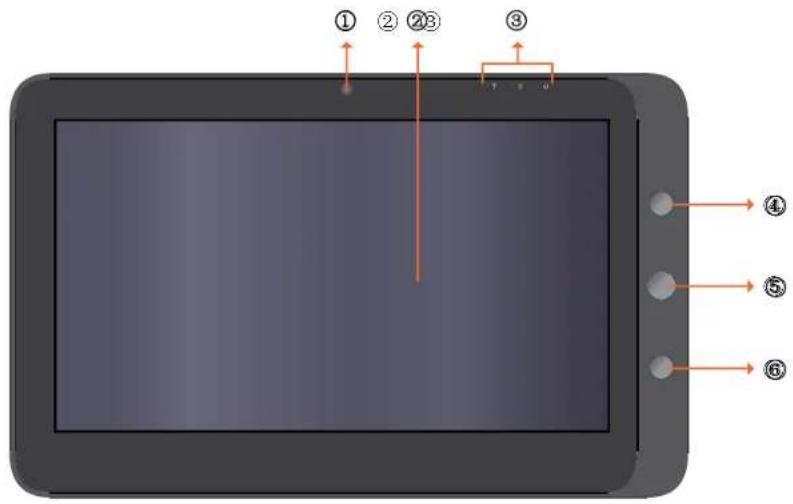
ViewSonic VPAD10
① Camera
A built-in webcam that allows you to capture still images, record videos, and chat online.
② Touch screen
Use finger to control system & application.
③ Indicators
Refer to "Indicators" on page 8\~9 for details.
④ Power button
Turns your VPAD10 on or off.
⑤ Function button 1
Press and hold for "Esc" key, short press for call "Tablet input panel".
(If not access the systems, press and hold for the arrow keys "up", short press for the arrow keys "down".)
⑥ Function button 2
Press and hold for turn on /off 3G, short press that you can quick turn on/o Wi-Fi and bluetooth.
(If not access the systems, for the keys "enter".)
Rear View

natural_image
3D rendering of a rectangular electronic device with labeled components (no text or symbols beyond labels ① and ②)ViewSonic VPAD10
① Speaker
Produces sounds from multimedia files or the operating system.
② Vents
Dissipate heat and keep your VPAD10 at an optimal temperature.
Side view
Left side
Right side
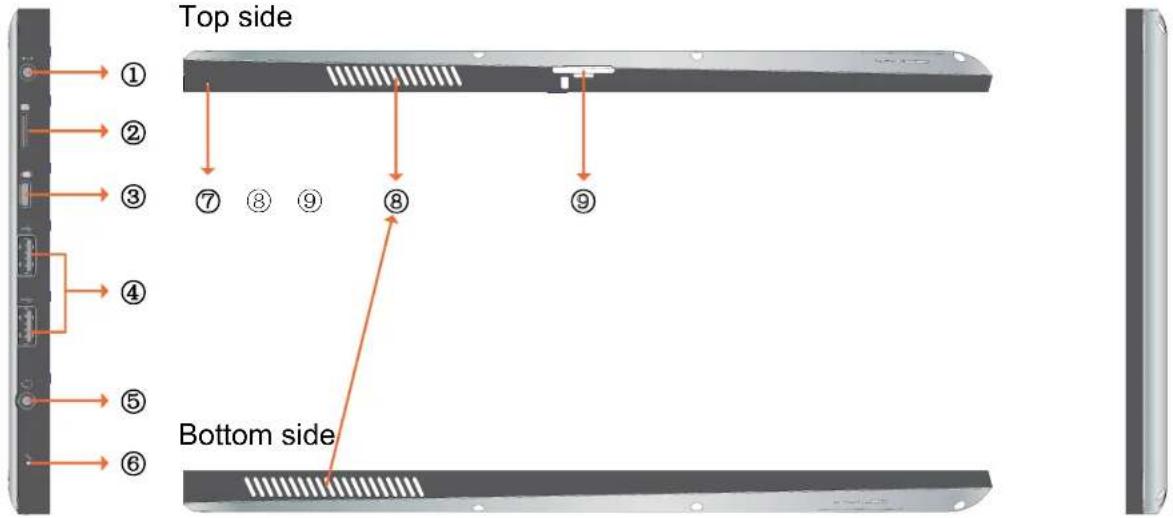
ViewSonic VPAD10
① Power jack
Connects AC power supply to power the VPAD10 and charge the battery.
② Micro SD card slot
Insert a Micro SD memory card, you can exchange data material with VPAD10.
③ Mini VGA port
Connect an external display device (such as a monitor or projector) to the Mini VGA video jack of your Notebook with a Mini VGA cable.
④ Power button
Connects peripherals such as mice, digital cameras and MP3 players that use the USB 2.0 interface.
⑤ Audio output jack
Connects to an earphone/headset or external speaker for playing the VPAD10 audio.
⑥ MIC
Receives sounds and voices for recording.
⑦ Reset eject hole
When system abnormal (can't start the system or turn o the system), insert a thin, straight object(such as a paper clip) in the manual eject hole on the Tablet.
⑧ Vents
Dissipate heat and keep your VPAD10 at an optimal temperature.
⑨ 3G SIM card slot
Insert a 3G SIM card (can not support PnP), then you can connect to 3G network.
(For more information, please contact local Telecom Operators.)
Indicators
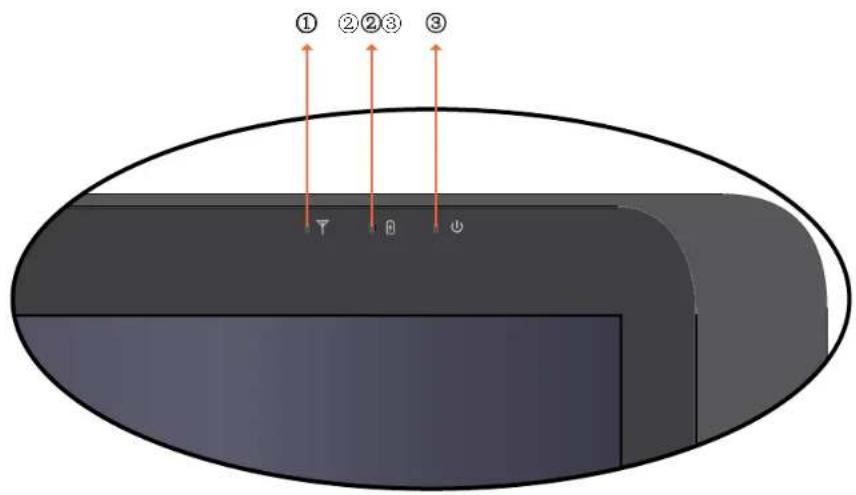
ViewSonic VPAD10
① Wireless LAN indicator
When WLAN is turned on, it lights up in blue.
When WLAN is turned off, the light goes off.
② Battery status indicator
When the battery is charging, it lights up in red.
When the battery is low, it flashes in red.
When the battery is fully charged, it lights up in blue.
③ Power indicator
When the system is on, it lights up in blue.
When the system is in Sleep mode, it flashes in blue.
When the system is o or in Hibernation mode, the light goes off.
Windows 7 system application
Start use your VPAD10
Connect the VPAD10 to the external power source via the AC adapter, press and hold the power button for 2\~3 seconds, then start on your VPAD10. Release the press when the power indicator is light up in blue. And then follow the on-screen instructions to complete the initial Operating system setup.
The system home (destop) screen will appear as follows (The device's built-in G-sensor movement and changes its angle/orientation).
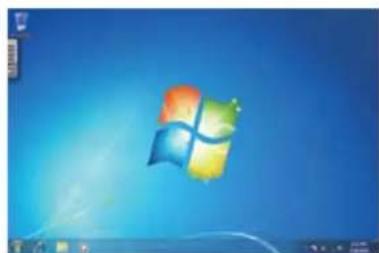
natural_image
Windows XP desktop wallpaper showing the Windows logo and a blue sky background (no text or symbols on the screen)Landscape view
natural_image
Windows logo displayed against a blue background (no text or symbols)Portrait view
ViewSonic VPAD10
Home (desk)
The default system desk include: ① Recycle Bin, ② Virtual keyboard, ③ Work area, and ④ Taskbar.
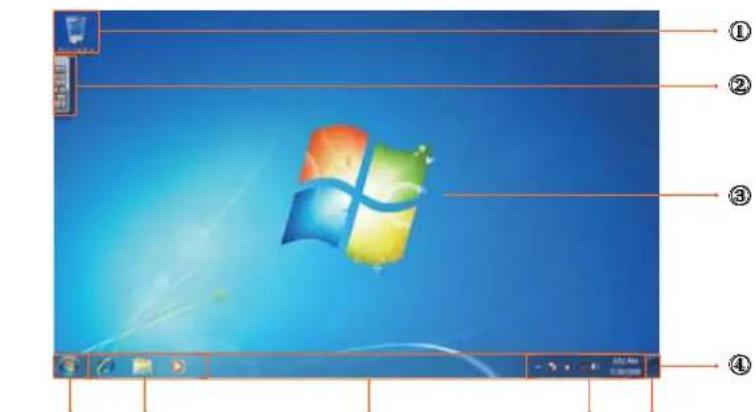
Start Menu Taskbar Button Taskbar Area Notification Area Show Desk
Work area
The onscreen area where users can perform their work, as well as store programs, documents, and their shortcuts. you can add Gadgets for give users fast access to personally relevant information and simple tasks — without getting in the way
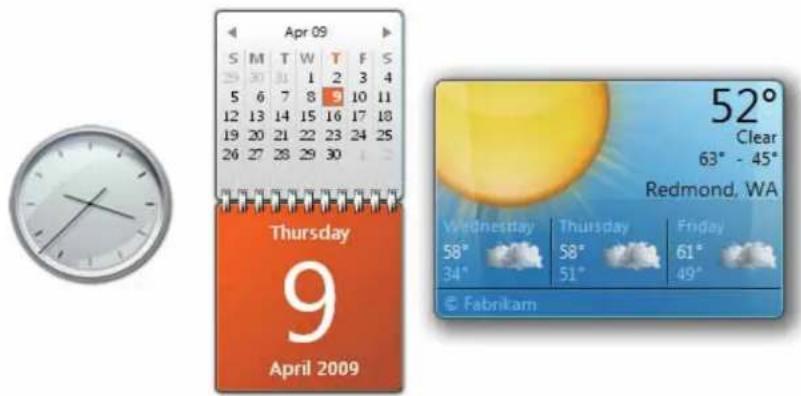
Gadgets(samples)
Taskbar
The taskbar is the access point for programs displayed on the desktop, even if the program is minimized. Such programs are said to have desktop presence. With the taskbar, users can view the open primary windows and certain secondary windows on the desktop, and can quickly switch between them.
Start button: The access point for all programs and special Windows places (Documents, Pictures, Music, Games, Computer, Control Panel), with "most recently used" lists for quick access to recently used programs and documents.
Deskbands: Minimized functional, long-running programs, such as the Language Bar. Programs that minimize to deskbands don't display taskbar buttons when minimized. Deskbands are not recommended for Windows 7.
Notification area: A short-term source for notifications and status, as well as an access point for system- and program-related features that have no presence on the desktop.
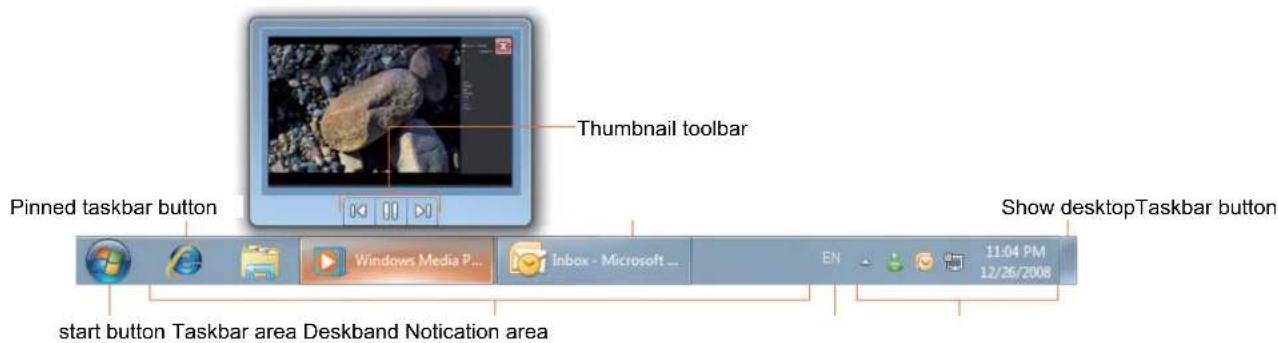
Connect to a wireless networks
-
Make sure you are located within the wireless network service area. Press the Wi-Fi button to turn on Wi-Fi, and the Wi-Fi indicator light up in blue. (If insert a 3G SIM card, and turn on 3G, you also can connect to a 3G networks)
-
Click the network icon 📋 in the notification area, a list of available wireless networks will be displayed.
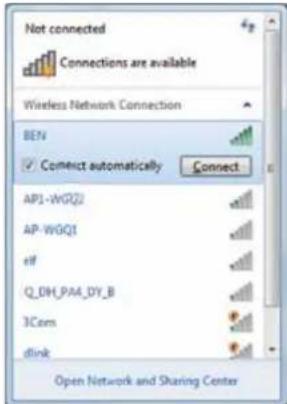
(Wi-Fi hotspots and 3G networks will show up together in the same list. Windows 7 also virtualises the Wi-Fi card so you can use it twice, for example to connect WPS devices to a non-WPS access point.)
(To connect to some networks that require security authentication, you may have to undergo another authorization process and enter username and password. For details, please consult your network administrator.)
(For data security, it is strongly recommended to connect to security-enabled wireless networks whenever possible.)
(When travelling by air, please be sure to turn o wireless networking to avoid any possible risks to ight safety.)
- Choose a network and then click Connect. If security authentication is not required by the network you are using, there will be a successful message showing that you have connected to the network.
Bluetooth
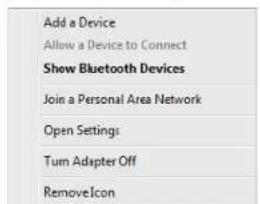
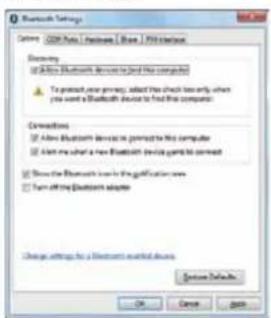
- Right-click in the notification area (located at the lower right corner of the desktop or clicking to access from the hidden icons) and select Open Settings.(If adapter off, please turn on.)
- In the Options tab, select Allow Bluetooth devices to find this computer, and click OK. So, other Bluetooth devices can find your Notebook and make the Bluetooth connection.
(You also need to activate the Bluetooth connection feature of the device that you want to connect to.)
- Right-click and select Add a Device. Wait for a while and the found active Bluetooth devices will show.
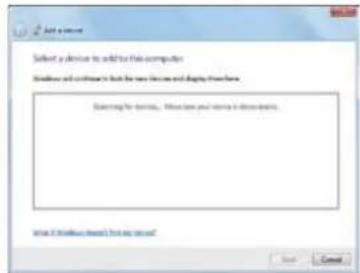
(For details about how to activate the device's Bluetooth function, please refer to its documentation.) (The maximum effective range of connection between your VPAD10 and the Bluetooth device is about 10 meters.)
- Select a Bluetooth device and click Next.
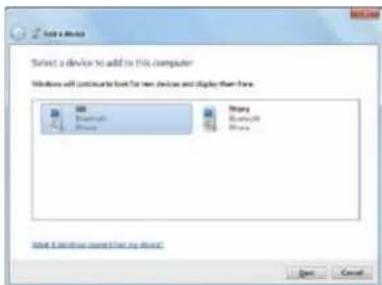
- Windows generates a random code number shown on the screen. Type in this code number into the Bluetooth device your VPAD10 is trying to connecting to.

Sending a file to a Bluetooth device
If your Bluetooth device is capable of sending and receiving data, such as a mobile handset, you can use the Bluetooth connectivity to transfer data wirelessly between your Bluetooth device and Tablet.
- Right-click ③ and select Show Bluetooth Devices.
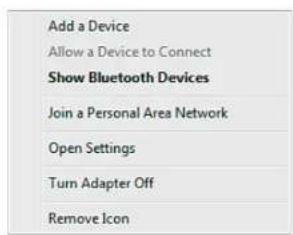
- In this example, double-click the S88 icon (the S88 handset can transfer data via Bluetooth).
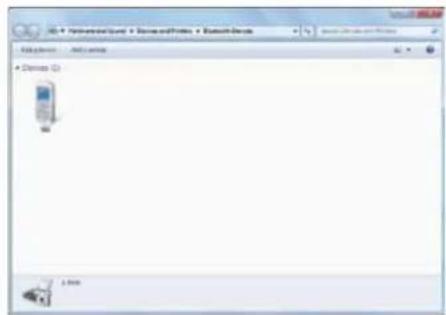
- Click Send files to your phone (S88).

- Click Browse Files to select files to transfer, and then click send.
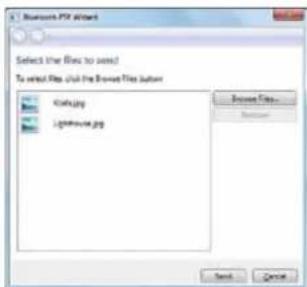
- The selected files are now sending to the S88 handset. Once the transfer is done, the Sending Items dialog box will automatically close.
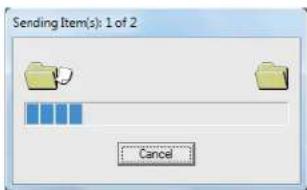
(The example shown above is specifically for connecting to a mobile handset. When connecting to other types of a Bluetooth device, the steps may vary.)
Touch Panel Input
VPAD10 input panel
The VPAD10 input panel is the main input panel used to enter textual content.
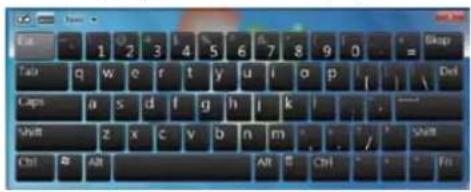
Writing Board
There is also a Writing Board that captures handwriting and converts it to printed text. There are two methods for capturing hand writing: Free writing or Write to Grid.
- Free writing

2. Write to Grid

VPAD10 Settings
In order to fully exploit all the Touch features of this system, you should go to "Start" > "Control Panel" and then select "VPAD10 Settings".
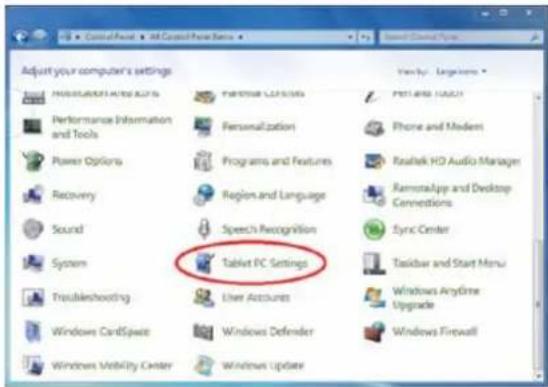
VPAD10 Settings Introduction
Display
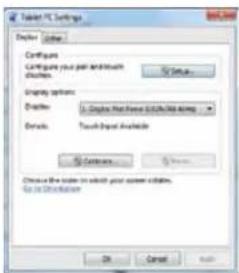
1. Conguration
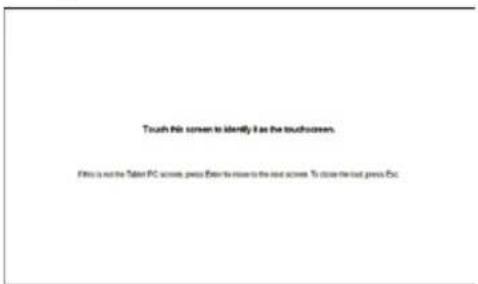
To congure the pen and touch screen, click the Setup button. Then touch the screen with your finger to complete the touch-screen identification settings.
ViewSonic VPAD10
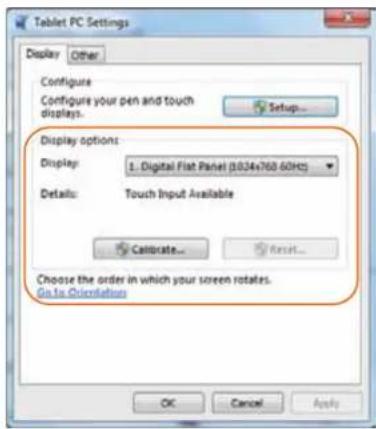
2. Display Options
Display: Select the output display device
Calibration: Do not use windows system build-in screen calibration, if you wanted to Calibrate a Touch screen, please refer to the additional page: "Calibration of the touch screen".
Reset: If you did wrong that with build-in screen calibration, you can click the Reset button to restore the default.
Go to Orientation
This device's built-in G-sensor, you don't need to do this settings.
Others
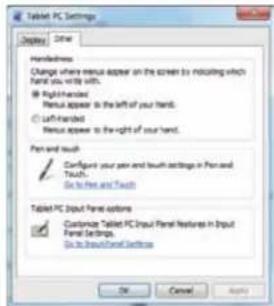
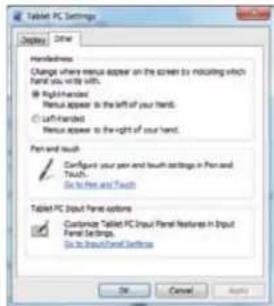
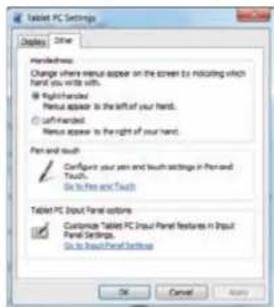
1. Handedness
Select the preferred position of menus based on whether you're right or left handed. If you select the left-handed setting, menus appears on the right; if you select the right-handed setting, menus appears on the left.
2. Pen and Touch
Click the "Go to Pen and Touch" link in the Pen and Touch box.
3. VPAD10 Input Panel Options
Click the "Go to Input Panel Settings" link in the VPAD10 Input Panel options.
Pen and Touch Settings
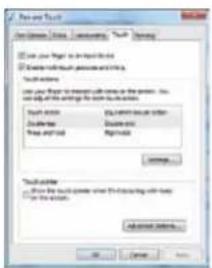
Enable Touch
- Select the checkbox "Use your finger as an input device" to enable the touch interface.
- Select the checkbox "Enable multi-touch gestures and inking" to enable multi-touch gestures such as 2 finger zooming.
![New and Touch File Selection Options Helping Finish [ ] Limit your Page to map the device. [ ] Add to default page to access and link to access. [ ] Add to default page to access or link to the system. You can add to the settings for this system. [ ] Start author Edit mouse user order [ ] Close author Remove author [ ] Print and print <|vision_start|> other [ ] Save... [ ] Add to default page when linking to the system. [ ] Add to the system [ ] Adjusted status...](/content/2026/06/1237124/images/6b6dae79bb493e77b8a9b7c7bcfd806c56ec76bd2407cb26eab5d2850ef929f6.jpg)
Settings
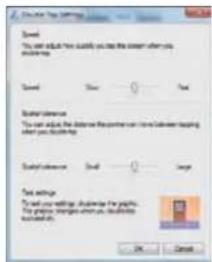
Click the "Settings" button to adjust double tap speed and spatial tolerance, and to test your settings.
ViewSonic VPAD10
Touch Pointer
Select the "Touch pointer" check box to show the touch pointer when fingers interact with items on the screen.
In the Advanced Option, you can set the "Touch Pointer Location Option" and "Touch Pointer Appearance and Behavior".
Panning
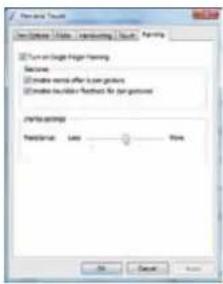
In the "Panning" tab, select the "Turn on Single Finger Panning" checkbox to enable single finger panning.
Select both checkboxes in the "Gestures" box and select the desired Inertia settings.
Using the Camera
The built-in camera allows to participate in video calls and to take pictures.
Using the Multi-Touch Screen
Multi touch technology allows you to control your computer with one or two fingers simultaneously. A double click is equivalent to tapping a finger twice. Scrolling web pages is as intuitive as moving your finger up and down a page. Use two fingers to zoom in and out of pictures – pinch to zoom out, separate to zoom in. To right click a file, touch it with one finger and tap the screen with a second(you can use one finger to touch the screen for 2\~3 seconds too).
General hardware problems / possible causes and solutions
Some common hardware problems and recommended solutions are in the below:
- System Ceased Operation during the Execution of the Program.
Cause: error by using the current procedure. Solution: Click keys. Windows operating system causes error; restart the system by using the power supply.
- Operating System cannot be Restored to the Using State.
If the operating system can not resume operation after a pause, please check the following possible causes: The battery may have a malfunction, or the current power level may be very low. To solve this problem, please connect an external power supply such as the AC adapter.
- The System cannot Shutdown Normally.
Hold down the power button 4-6 seconds, until the system shuts down.
- After Shutdown, if the System cannot reboot:
Connect the AC power adapter immediately; as it means that the battery did not have sufficient power to reboot.
- Measures to Extend Battery Life?
Adjust the screen brightness to the minimum possible level.
Adjust the computer screen to the normal standard.
Remove the VPAD10 card if not often used.
Turn o the VPAD10 Bluetooth function.
Turn o the VPAD10 wireless network function.
Ensure that the power congruration setting is in the "Save power" mode.
- Wireless Network Breaks after 2 to 3 Minutes on line, and cannot resume on-line.
This may be due to interference caused by channel, please change the AP's channel and re-line.
- VPAD10 cannot connect to the Internet Network.
Internet service providers (ISP) account is not setup; please contact your network service company for assistance.
- The VPAD10 has been online via a Wireless Network, but still cannot connect to another Computer.
Please check the device driver is installed correctly. If the driver is not installed correctly, press the [Start] -> [Control Panel] -> [System] -> [Device Manager] -> [Network Adapters], you will find a yellow exclamation mark on the network tag. If a yellow exclamation mark occurs, please use the driver CD to reinstall the device driver.
- Good Signal Strength, but cannot connect to the Network.
Please check the TCP / IP address settings are correct or not.
- If water accidentally penetrates the VPAD10, how to solve this problem?
At this point, do not connect the VPAD10's power supply, or it will cause more serious damage to the VPAD10. Unplug the power supply and power cord, remove any attached external devices (such as: drive). Dry any liquid that was spilled on the VPAD10; wipe stains with a soft cloth to reduce potential damage to the unit. Dry the body and other equipment with fans, and then send it to the nearest VPAD10 repair center to diagnose and repair the VPAD10 by qualified engineers, in order to reduce the damage to the VPAD10.
- The computer cannot continue running.
An external or internal storage device could be the cause of this problem as it is not operating properly when storing the content.
External peripheral devices may not compatible with the VPAD10 - such as external USB devices, Micro SD cards that are belong to precision devices; if incorrectly used, they can easily cause the VPAD10 to move to a standby situation when connected to the VPAD10.Incompatible software or drivers - the driver which is not compatible will cause .dll, .sys and .exe extension les and will put the VPAD10 into standby or hibernation mode.
Contact Distributors
After reading the previous section, if the problem persists, the next step is to contact the distributor.
Distributors can determine whether the computer needs to be sent back to the store.
Before you call the distributor, please prepare the following information:
- What conguration/model is your VPAD10? Distributors need to know what peripherals you use.
- Is there any error message on the screen?
- When operation failure occurs, which software are you trying to use?
- What steps have you tried to solve the problem? If you omit some steps, distributors may be able to help you over the phone to complete the steps.
Customer Support
For technical support or product service, see the table below or contact your reseller.
NOTE: You will need the product serial number.
| Country/Region Website T = Telephone F = FAX Email | |||
| Australia/New Zealand www.viewsonic.com.au | AUS= 1800 880 818NZ= 0800 008 822 | service@au.viewsonic.com | |
| Canada www.viewsonic.com | T (Toll-Free)= 1-866-463-4775T (Toll)= 1-424-233-2533F= 1-909-468-3757 | service.ca@viewsonic.com | |
| Europe www.viewsoniceurope.com www.viewsoniceurope.com/uk/Support/Calldesk.htm | |||
| Hong Kong www.hk.viewsonic.com T= 852 3102 2900 service@hk.viewsonic.com | |||
| India www.in.viewsonic.com T= 1800 11 9999 service@in.viewsonic.com | |||
| Ireland (Eire) | www.viewsoniceurope.com/uk/ | www.viewsoniceurope.com/uk/support/call-desk/ | service_ie@viewsoniceurope.com |
| Korea | www.kr.viewsonic.com | T= 080 333 2131 | service@kr.viewsonic.com |
| Latin America (Argentina) | www.viewsonic.com/la/ T= 0800-4441185 | soporte@viewsonic.com | |
| Latin America (Chile) | www.viewsonic.com/la/ | T= 1230-020-7975 | soporte@viewsonic.com |
| Latin America (Columbia) | www.viewsonic.com/la/ T= 01800-9-157235 | soporte@viewsonic.com | |
| Latin America (Mexico) | www.viewsonic.com/la/ | T= 001-8882328722 | soporte@viewsonic.com |
| Renta y Datos, 29 SUR 721, COL. LA PAZ, 72160 PUEBLA, PUE. Tel: 01.222.891.55.77 CON 10 LINEASElectroser, Av Reforma No. 403Gx39 y 41, 97000 Mérida, Yucatán. Tel: 01.999.925.19.16Other places please refer to http://www.viewsonic.com/la/soporte/index.htm/#Mexico | |||
| Latin America (Peru) | www.viewsonic.com/la/ | T= 0800-54565 | soporte@viewsonic.com |
| Macau | www.hk.viewsonic.com T= 853 2870 0303 service@hk.viewsonic.com | ||
| Middle East | ap.viewsonic.com/me/ | Contact your reseller | service@ap.viewsonic.com |
| Puerto Rico & Virgin Islands | www.viewsonic.com | T= 1-800-688-6688 (English)T= 1-866-379-1304 (Spanish)F= 1-909-468-3757 | service.us@viewsonic.comsoporte@viewsonic.com |
| Singapore/Malaysia/ Thailand | www.ap.viewsonic.com | T= 65 6461 6044 service@sg.viewsonic.com | |
| South Africa | ap.viewsonic.com/za/ | Contact your reseller | service@ap.viewsonic.com |
| United Kingdom | www.viewsoniceurope.com/uk/ | www.viewsoniceurope.com/uk/support/call-desk/ | service_gb@viewsoniceurope.com |
| United States | www.viewsonic.com | T (Toll-Free)= 1-800-688-6688T (Toll)= 1-424-233-2530F= 1-909-468-3757 | service.us@viewsonic.com |
Limited Warranty VIEWSONIC® Tablet PC
What the warranty covers:
ViewSonic warrants its products to be free from defects in material and workmanship, under normal use, during the warranty period. If a product proves to be defective in material or workmanship during the warranty period, ViewSonic will, at its sole option, repair or replace the product with a like product. Replacement product or parts may include remanufactured or refurbished parts or components.
How long the warranty is effective:
ViewSonic Tablet PC are warranted for 1 year for labor from the date of the first customer purchase.
Who the warranty protects:
This warranty is valid only for the first consumer purchaser.
What the warranty does not cover:
- Any product on which the serial number has been defaced, modified or removed.
-
Damage, deterioration or malfunction resulting from:
a. Accident, misuse, neglect, fire, water, lightning, or other acts of nature, unauthorized product modification, or failure to follow instructions supplied with the product.
b. Repair or attempted repair by anyone not authorized by ViewSonic.
c. Causes external to the product, such as electric power fluctuations or failure.
d. Use of supplies or parts not meeting ViewSonic's specifications.
e. Normal wear and tear.
f. Any other cause which does not relate to a product defect. -
Any product exhibiting a condition commonly known as "image burn-in" which results when a static image is displayed on the product for an extended period of time.
How to get service:
- For information about receiving service under warranty, contact ViewSonic Customer Support (Please refer to Customer Support page). You will need to provide your product's serial number.
- To obtain warranty service, you will be required to provide (a) the original dated sales slip, (b) your name, (c) your address, (d) a description of the problem, and (e) the serial number of the product.
- Take or ship the product freight prepaid in the original container to an authorized ViewSonic service center or ViewSonic.
- For additional information or the name of the nearest ViewSonic service center, contact ViewSonic.
Limitation of implied warranties:
There are no warranties, express or implied, which extend beyond the description contained herein including the implied warranty of merchantability and fitness for a particular purpose.
Exclusion of damages:
ViewSonic's liability is limited to the cost of repair or replacement of the product. ViewSonic shall not be liable for:
- Damage to other property caused by any defects in the product, damages based upon inconvenience, loss of use of the product, loss of time, loss of profits, loss of business opportunity, loss of goodwill, interference with business relationships, or other commercial loss, even if advised of the possibility of such damages.
- Any other damages, whether incidental, consequential or otherwise.
- Any claim against the customer by any other party.
- Repair or attempted repair by anyone not authorized by ViewSonic.
4.3: ViewSonic TPC Warranty
TPC_LW01 Rev. 1A 06-20-08

bar
| Category | Value | |---|---| | Category 1 | 100 | | Category 2 | 100 | | Category 3 | 100 | | Category 4 | 100 | | Category 5 | 100 | | Category 6 | 100 | | Category 7 | 100 | | Category 8 | 100 | | Category 9 | 100 | | Category 10 | 100 |
ViewSonic®
VPAD10
Tablet PC

ViewSonic
- User Guide
- Guide de l'utilisateur
- Bedienungsanleitung
- Guía del usuario
- Kullanıcı kılavuzu
-Руководство пользователя
Model No.: VS13790
Android is a trademark of Google Inc. Use of this trademark is subject to Google Permissions.
This product has an Android ^™ platform based on Linux, which can be expanded by a variety of JME-based application SW.
All products use in this device and trademarks mentioned herein are trademarks or registered trademarks of their respective owners.
Google™, the Google logo, Android™, the Android logo and Gmail™ are trademarks of
Google Inc. Use of this trademark is subject to Google Permissions.
Wi-Fi and the Wi-Fi CERTIFIED logo are registered trademarks of the Wireless Fidelity Alliance.
microSD ^™ is a trademark of SD Card Association.
Bluetooth and the Bluetooth logo are trademarks owned by Bluetooth SIG, Inc.
The prediction engine of the input method is TOUCHPAL, provided by COOTEK.
Europe: http://www.viewsoniceurope.com/uk/support/recycling-information/
Taiwan: http://recycle.epa.gov.tw/recycle/index2.aspx
Table des matières
Introduction rapide....ii
natural_image
3D rendering of a rectangular electronic device with labeled components (no text or symbols beyond labels ① and ②)ViewSonic VPAD10
① Haut-parleur
natural_image
Windows XP desktop wallpaper showing the logo and application icons (no text or symbols on the screen)Vue Paysage

natural_image
Windows logo on a blue background, no text or symbols visibleVue Portrait
ViewSonic VPAD10
Accueil (bureau)
Gadgets (exemples)
Barre des tâches
| Add a Device |
| Allow a Device to Connect |
| Show Bluetooth Devices |
| Join a Personal Area Network |
| Open Settings |
| Turn Adapter Off |
| Remove Icon |
- Ecrire dans Grille.

Réglages du VPAD10
1. Conguration (Configuration)
Others (Autres)
1. Handedness (Main)
2. Pen and Touch (Stylet et tactile)
Settings (Réglages)
ViewSonic VPAD10
ViewSonic VPAD10
4.3: ViewSonic TPC Warranty
TPC_LW01 Rev. 1A 06-20-08

bar
| Category | Value | |---|---| | Category 1 | 100 | | Category 2 | 100 | | Category 3 | 100 | | Category 4 | 100 | | Category 5 | 100 | | Category 6 | 100 | | Category 7 | 100 | | Category 8 | 100 | | Category 9 | 100 | | Category 10 | 100 |
ViewSonic®
VPAD10
Tablet PC

ViewSonic
- User Guide
- Guide de l'utilisateur
- Bedienungsanleitung
- Guía del usuario
- Kullanıcı kılavuzu
-Руководство пользователя
Model No.: VS13790
Android is a trademark of Google Inc. Use of this trademark is subject to Google Permissions.
This product has an Android ^™ platform based on Linux, which can be expanded by a variety of JME-based application SW.
All products use in this device and trademarks mentioned herein are trademarks or registered trademarks of their respective owners.
Google™, the Google logo, Android™, the Android logo and Gmail™ are trademarks of Google Inc. Use of this trademark is subject to Google Permissions.
Wi-Fi and the Wi-Fi CERTIFIED logo are registered trademarks of the Wireless Fidelity Alliance.
microSD ^TM is a trademark of SD Card Association.
Bluetooth and the Bluetooth logo are trademarks owned by Bluetooth SIG, Inc.
The prediction engine of the input method is TOUCHPAL, provided by COOTEK.
Disclaimer: ViewSonic Corporation shall not be liable for technical or editorial errors or omissions contained herein; nor for incidental or consequential damages resulting from furnishing this material, or the performance or use of this product.
In the interest of continuing product improvement, ViewSonic Corporation reserves the right to change product specifications without notice. Information in this document may change without notice.
No part of this document may be copied, reproduced, or transmitted by any means, for any purpose without prior written permission from ViewSonic Corporation.
natural_image
3D rendering of a rectangular electronic device with labeled components (no text or symbols beyond labels ① and ②)ViewSonic VPAD10
① Lautsprecher
ViewSonic VPAD10
① WLAN-Anzeige
natural_image
Windows XP desktop wallpaper showing the logo and application icons (no text or symbols on the screen)Querformat
natural_image
Windows logo on a blue background, no text or symbols visibleHochformat
ViewSonic VPAD10
Gadgets (Beispiele)
Taskleiste
1. Conguration (Konfiguration)
Others (Andere)
ViewSonic VPAD10
ViewSonic VPAD10
Kamera verwenden
4.3: ViewSonic TPC Warranty
TPC_LW01 Rev. 1A 06-20-08

bar
| Category | Value | |---|---| | Category 1 | 100 | | Category 2 | 100 | | Category 3 | 100 | | Category 4 | 100 | | Category 5 | 100 | | Category 6 | 100 | | Category 7 | 100 | | Category 8 | 100 | | Category 9 | 100 | | Category 10 | 100 |
ViewSonic®
VPAD10
Tablet PC

ViewSonic
- User Guide
- Guide de l'utilisateur
- Bedienungsanleitung
- Guía del usuario
- Kullanıcı kılavuzu
-Руководство пользователя
Model No.: VS13790
Android is a trademark of Google Inc. Use of this trademark is subject to Google Permissions.
This product has an Android ^™ platform based on Linux, which can be expanded by a variety of JME-based application SW.
All products use in this device and trademarks mentioned herein are trademarks or registered trademarks of their respective owners.
Google™, the Google logo, Android™, the Android logo and Gmail™ are trademarks of
Google Inc. Use of this trademark is subject to Google Permissions.
Wi-Fi and the Wi-Fi CERTIFIED logo are registered trademarks of the Wireless Fidelity Alliance.
microSD ^™ is a trademark of SD Card Association.
Bluetooth and the Bluetooth logo are trademarks owned by Bluetooth SIG, Inc.
The prediction engine of the input method is TOUCHPAL, provided by COOTEK.
natural_image
3D rendering of a rectangular electronic device with labeled components (no text or symbols beyond labels ① and ②)ViewSonic VPAD10
① Altavoz
ViewSonic VPAD10
natural_image
Windows XP desktop wallpaper showing the logo and application icons (no text or symbols on the screen)Vista horizontal
natural_image
Windows logo on a blue background, no text or symbols visibleVista vertical
ViewSonic VPAD10
Inicio (escritorio)
Gadgets (muestras)
Barra de tareas


- R&TTE Compliance Statement C€①
- Important Safety Instructions
- Declaration of RoHS Compliance
- Copyright Information
- Product Registration
- Product disposal at end of product life
- Table of Contents
- Brief introduction
- Safety Instructions
- Package contents
- WARNING
- OPTIONAL
- Exploring the Table PC
- Side view
- Windows 7 system application
- Start use your VPAD10
- Home (desk)
- Work area
- Taskbar
- Connect to a wireless networks
- Bluetooth
- Sending a file to a Bluetooth device
- Touch Panel Input
- Write to Grid
- VPAD10 Settings
- VPAD10 Settings Introduction
- Conguration
- Display Options
- Others
- Handedness
- Pen and Touch
- VPAD10 Input Panel Options
- Pen and Touch Settings
- Enable Touch
- Settings
- Touch Pointer
- Panning
- Using the Camera
- Using the Multi-Touch Screen
- General hardware problems / possible causes and solutions
- Contact Distributors
- Customer Support
- Limited Warranty VIEWSONIC® Tablet PC
- What the warranty covers:
- How long the warranty is effective:
- Who the warranty protects:
- What the warranty does not cover:
- How to get service:
- Limitation of implied warranties:
- Exclusion of damages:
- ViewSonic®
- Table des matières
- Accueil (bureau)
- Barre des tâches
- Réglages du VPAD10
- Conguration (Configuration)
- Others (Autres)
- Handedness (Main)
- Pen and Touch (Stylet et tactile)
- Settings (Réglages)
- Taskleiste
- Conguration (Konfiguration)
- Others (Andere)
- Kamera verwenden
- Inicio (escritorio)
- Barra de tareas
Brand : VIEWSONIC
Model : ViewPad V10s
Category : Tablet