22LED2005TD - TV SALORA - Free user manual and instructions
Find the device manual for free 22LED2005TD SALORA in PDF.


User questions about 22LED2005TD SALORA
0 question about this device. Answer the ones you know or ask your own.
Ask a new question about this device
Download the instructions for your TV in PDF format for free! Find your manual 22LED2005TD - SALORA and take your electronic device back in hand. On this page are published all the documents necessary for the use of your device. 22LED2005TD by SALORA.
USER MANUAL 22LED2005TD SALORA
natural_image
Simple line drawing of a computer monitor with a stand and abstract lines (no text or symbols)22LED2005TD
22LED2015TDW
GEBRUIKERSHANDLEIDING (NL)
LEES DIT ZORGVULDIG DOOR VOOR GEBRUIK

text_image
Technical diagram showing two views of a device with labeled components and directional arrows, including section ① and section ②.
TELETEKSTFUNCTIE ....23
SCART/AV/COMPONENT/HDMI/USB-MENU INSTELLEN
Video-instellingenmenu....24
PC-MENU INSTELLEN
Kanaal 25
Beeld 25
Geluid 26
Tijd 26
Slot....26
Setup....26
INHOUDSOPGAVE
USB-BEDIENING
Korte inleiding....27
Weergaveformaat van usb-multimedia....28
Foto-menu ....29
Muziekmenu ....31
Filmmenu....32
Tekstmenu 34
DVD-BEDIENING
BASISBEDIENING....35
ONDERSTEUNING DVD-FORMAAT 35
BEDIENINGSVOORSCHRIFTEN DVD-FUNCTIES....36
Afspelen MP3/JPEG....38
natural_image
Line drawing of a monitor setup with labeled components (no text or symbols present)PANEEL TOETSEN

text_image
1 2 3 4 5 6 7 8 9 %II ▲ SOURCE MENU CH- CH+ VOL- VOL+ ●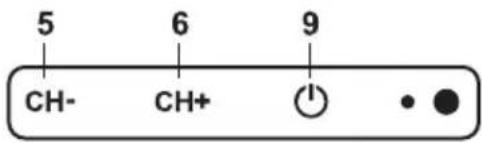
text_image
5 CH- 6 CH+ 9 •text_image
Diagram showing various electronic device connectors and ports, including audio, audio/video, and audio jack components with labels.
OPMERKING
8. OMHOOG/OMLAAG-cursor
natural_image
Three-step diagram showing a battery inside a casing, with arrows indicating rotation and polarity (no text or symbols)LEVENSDUUR BATTERIJ
text_image
CI Information Viaccess Conditional Access Main menu System information Smart card management Language setting Press 'OK' to enter; Press 'EXIT' to returnBEELD
text_image
MEDIA PROG INTRO REPEAT A-BPVR-OPNAME-toets:
PVR-AFSPEEL-toets: INDEX of MEDIA/I
PVR SNEL VOORUIT-toets: ▶▶
PVR-PAUSE-toets of PVR-TSR-toets: ▶ II
PVR-VOLGENDE-toets: ▶▶I
PVR-HERHAAL-toets: REPEAT/GEEL
PVR-HERHAAL SEGMENT-toets: A-B/BLAUW
Surround - surround modus
natural_image
Line drawing of a hand holding a circular object with a central hole (no text or symbols)Reinigen van discs
natural_image
Illustration of a hand holding a pinwheel with a directional arrow indicating rotation (no text or symbols)DVD PROBLEEMOPLOSSING
natural_image
Simple line drawing of a computer monitor with a circular base and abstract lines at the bottom (no text or symbols)SALORA
LED COLOUR TV
natural_image
Simple line drawing of a computer monitor with a circular base and abstract lines at the bottom (no text or symbols)22LED2005TD
22LED2015TDW
USER MANUAL (GB)
This symbol indicates dangerous voltage inside the product that presents a risk of electric shock or personal injury.

This symbol indicates important instructions accompanying the product.
Please read this manual carefully before using this product.
- Before connecting the AC power cord to the DC adapter outlet, make sure the voltage designation of the LED TV corresponds to the local electrical supply. If you are unsure of your power supply, ask your local power company.
● Never insert anything metallic into the cabinet openings of the liquid crystal display LED TV/monitor; otherwise it may create the danger of electric shock. - To avoid electric shock, Never touch the inside of the LED TV/monitor and adapter. Only a qualified technician should open the case of the LED TV/monitor/adapter.
- Never use your LED TV/monitor/adapter if the power cord has been damaged. Do not allow anything to rest on the power cord, and keep the cord away from place where people can trip over it.
- Be sure to hold the plug, not the cord, when disconnecting the adapter from an electric socket.
- Excessive sound pressure from earphones and headphones can cause hearing loss.
● Batteries shall not be exposed to excessive heat such as sunshine, fire or the like. - Ensure a minimum distance of 5 cm around the apparatus for sufficient ventilation.
- Ensure that the ventilation is not impeded by covering the ventilation openings with items such as newspapers, table-cloths, curtains, etc.
- Do not place naked flame sources, such as lighted candles on the apparatus.
Take attention to the environmental aspects of battery disposal. - Use the apparatus only in moderate climates (not in tropical climates).
● The mains plug shall remain readily operable.
- Openings in the LED TV/monitor/adapter cabinet are provided for ventilation. To prevent overheating, these openings should not be blocked or covered. Also, avoid using the LED TV/monitor on a bed ,sofa ,rug, or other soft surface. Doing so may block the ventilation openings in the bottom of the cabinet. If you put the LED TV/monitor in a bookcase or some other enclosed space, be sure to provide adequate ventilation.
- Do not expose the LED TV/monitor to extreme temperature conditions or to extreme humidity conditions.
- The apparatus shall not be exposed to dripping or splashing and that no objects filled with liquids, such as vases, shall be placed on the apparatus.
- Do not place the LED TV/monitor on an unstable cart, stand, tripod, bracket, table, or floor where it can fall. It is damaged if dropped, hit or scratched. Do not clean the front with keton-type materials (e.g. Acetone), ethyl alcohol, toluene, ethyl lacid, methyl, or chloride-these may damage the panel.
- Locate your DC adapter near an easily accessible AC outlet.
- If your LED TV/monitor does not operate normally in particular, if there are any unusual sounds or smells coming from it unplug it immediately and contact an authorizeddealerorservice center.
- High temperature can cause problems. Don't use your LED TV/monitor in direct sunlight, and keep it away from heaters, stoves, fireplaces, and other sources of heat.
- Unplug the DC adapter when it is going to be left unused for an extended period of time.
- To reduce the risk of fire or electric shock, and annoying interference, use the recommended accessories only.
- If the LED TV/monitor is broken, do not try to repair it yourself. Contact qualified service personnel.
● Unplug your DC adapter from the AC outlet before any service.
- Be sure the service technician uses authorized replacement parts or their equivalents. Unauthorized parts may cause fire, electrical shook, or other hazards.
- Following any service or repair, be sure the service technician performs safety checks to certify that your TFT-LED TV/monitor is in safe operating order.
- The apparatus with CLASS I construction shall be connected to a MAINS socket outlet with a protective earthing connection.
text_image
Technical diagram showing two views of a device with labeled components and directional arrows, including section ① and section ②.
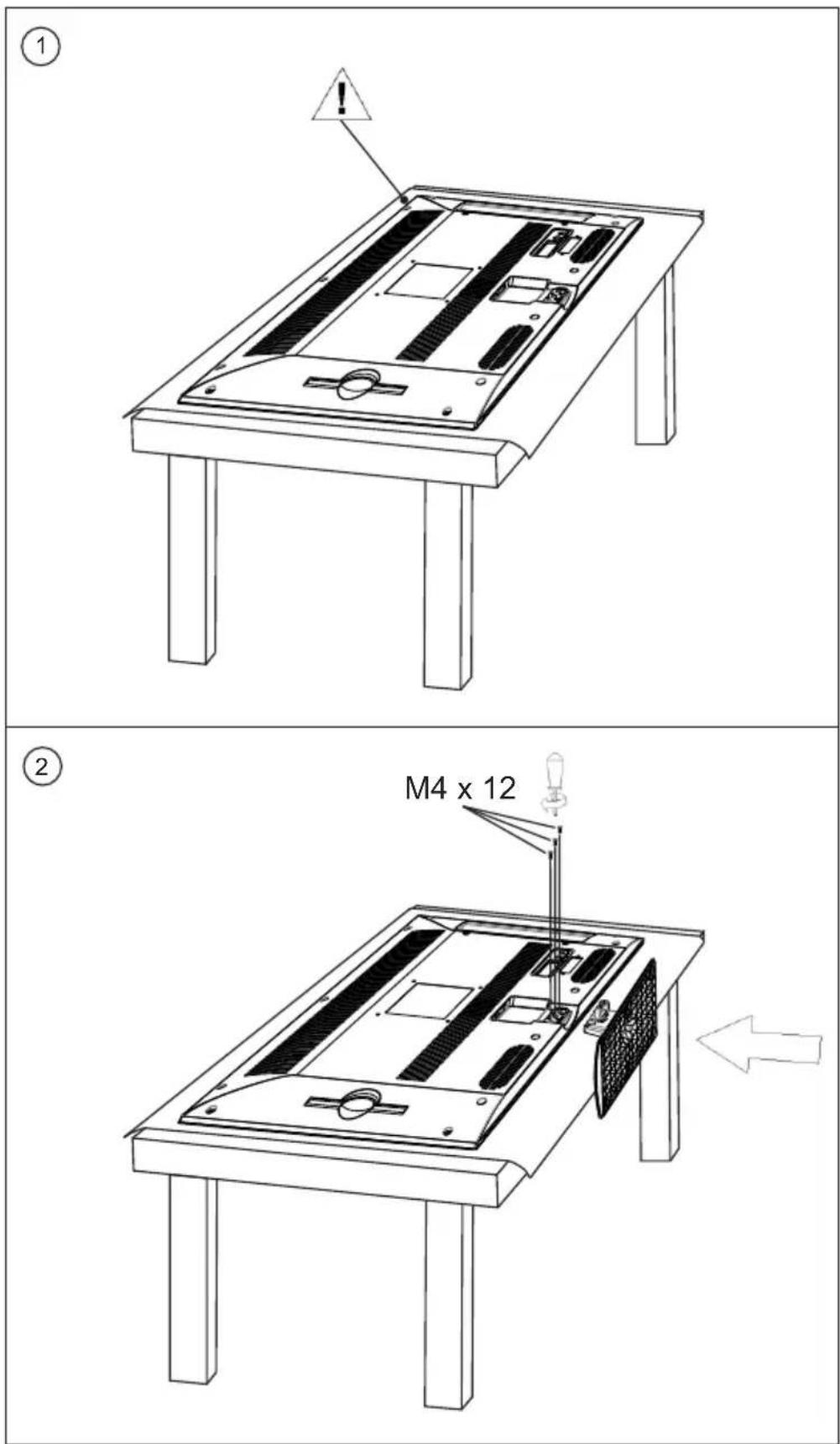
CAUTION: Before mounting a TV stand, place TV on a blanket or quilt with the TV screen facing down, to avoid surface damage.
CONTENT
PANEL BUTTON FUNCTIONS
Front panel....1
EXTERNAL EQUIPMENT
Side panel....2
Rare panel....2
Connecting diagram.... 3
REMOTE CONTROL
Remote buttons....4
Battery installation....7
LET'S START
Switching On....8
Select source operation....8
DTV MENU SETUP
Channel....9
Picture....11
Sound....11
Time....12
Lock....12
Setup....14
PVR file system....15
Electronic program guide (EPG).... 19
Information.... 19
ATV MENU SETUP
Channel....20
Picture....21
Sound 22
Time....22
Lock....22
Setup....22
TELETEXT FUNCTION
Teletext function....23
MEDIA/AV/COMPONENT/SCART/HDMI MENU SETUP
Video setting menu....24
PC MENU SETUP
Screen....25
Picture....26
Sound....26
Time....26
Lock....26
Setup....26
USB OPERATION
Brief introduction....27
USB Multimedia Playback Format....28
Photo menu....29
Music menu.... 31
Movie menu....32
Text menu....34
CONTENT
DVD OPERATION
Basic operation....35
Supporting 4V4 format.... 35
4V4 functions operating instructions.... 36
5P3/7PE0 Playbac+....38
Function Settings....39
General Setup....39
Speaker Setup Page....40
Digital Setup 40
Preferences Page....41
TROUBLE SHOOTING
Care and 5aintenance....43
4isplay troubleshooting....44
Sound and TV troubleshooting.... 44
4V4 troubleshooting.... 45
SPECIFICATIONS
Specifications....46
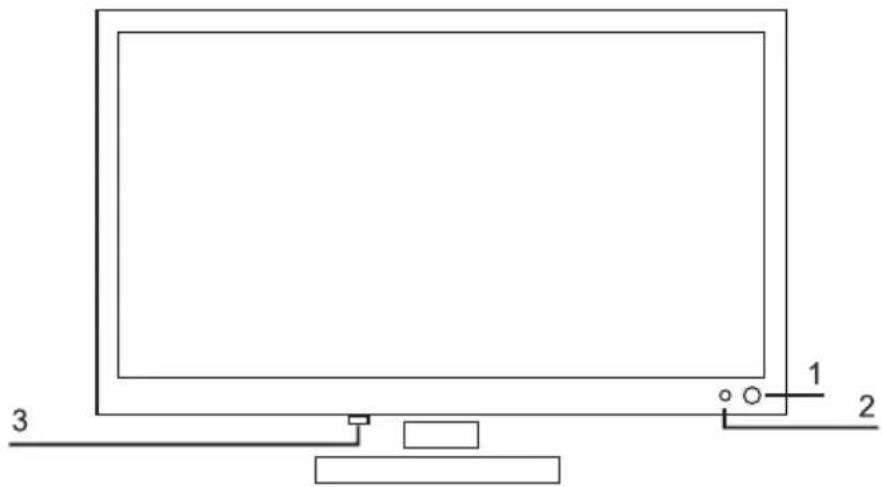
FRONT PANEL
- IR sensor window
- Indicator (the indicator is red when in standby mode, and green when in working normally).
- Mains Power Switch - Completely turns ON or OFF the power to the TV set to save on electricity.
natural_image
Line drawing of a monitor setup with labeled components (no text or symbols present)- Start of play or pause of play
- Take the disc out
- Select input source
- Enter or exit menu
- Decrease channel number
- Increase channel number
- Decrease sound volume
- Increase sound volume
- Switch between standby and power-on mode

text_image
DVD VIDEO™ LABEL SIDESIDE PANEL
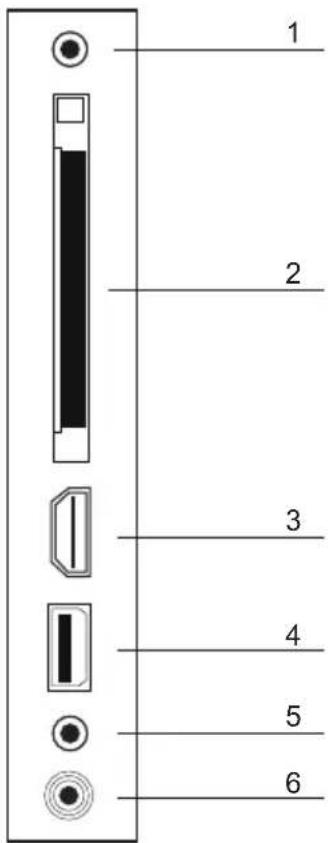
text_image
1 2 3 4 5 6- Audio Earphone output
- Cl Slot
- HDMI input
- USB input
- Component input
- Coaxial output
RARE PANEL
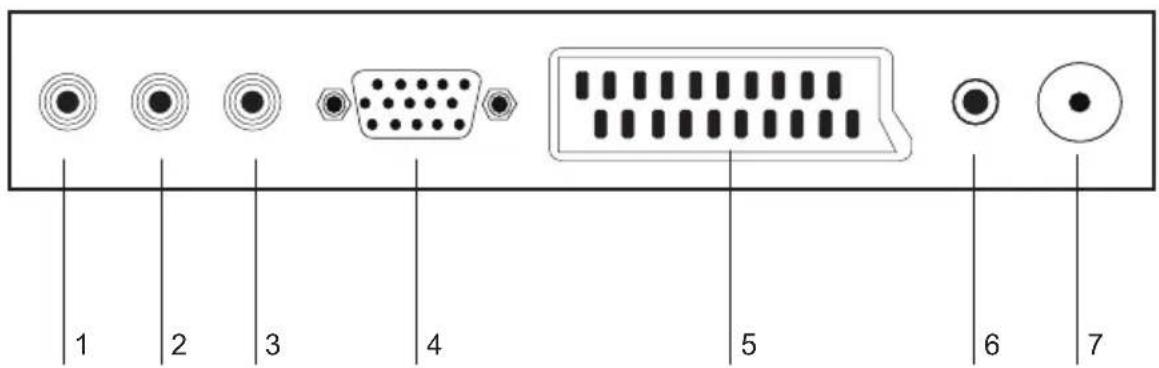
text_image
1 2 3 4 5 6 7- CVBS input
- CVBS / S-Video Left audio input
- CVBS / S-Video Right audio input
- PC VGA input
- SCART connecting terminal
- PC audio input
- TV signal input
CONNECTING DIAGRAM
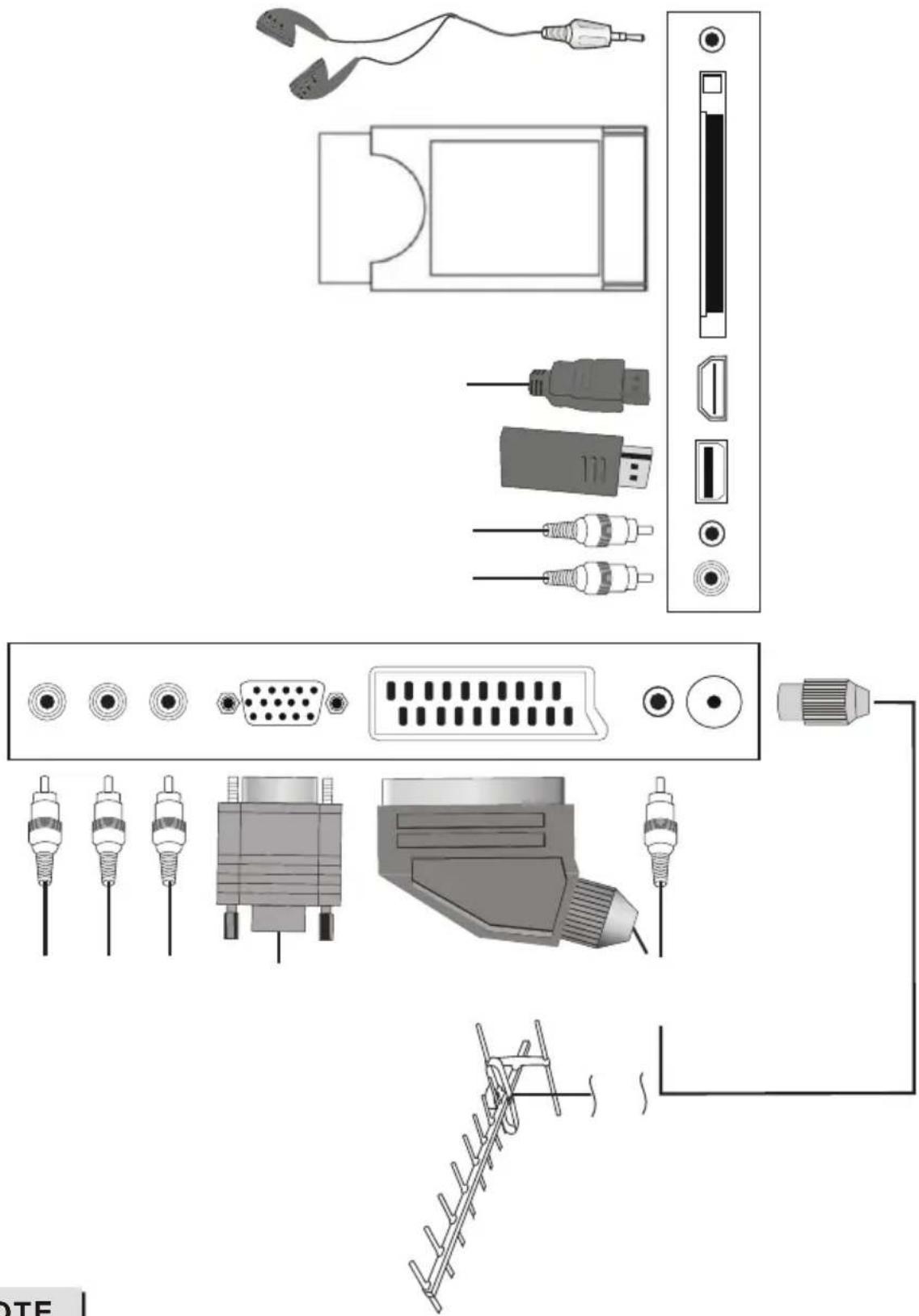
text_image
Diagram showing various electronic device connectors and ports, including audio, audio/video, and audio cable connections.NOTE
You should insert all necessary cables BEFORE plugging in power cord.
REMOTE BUTTONS
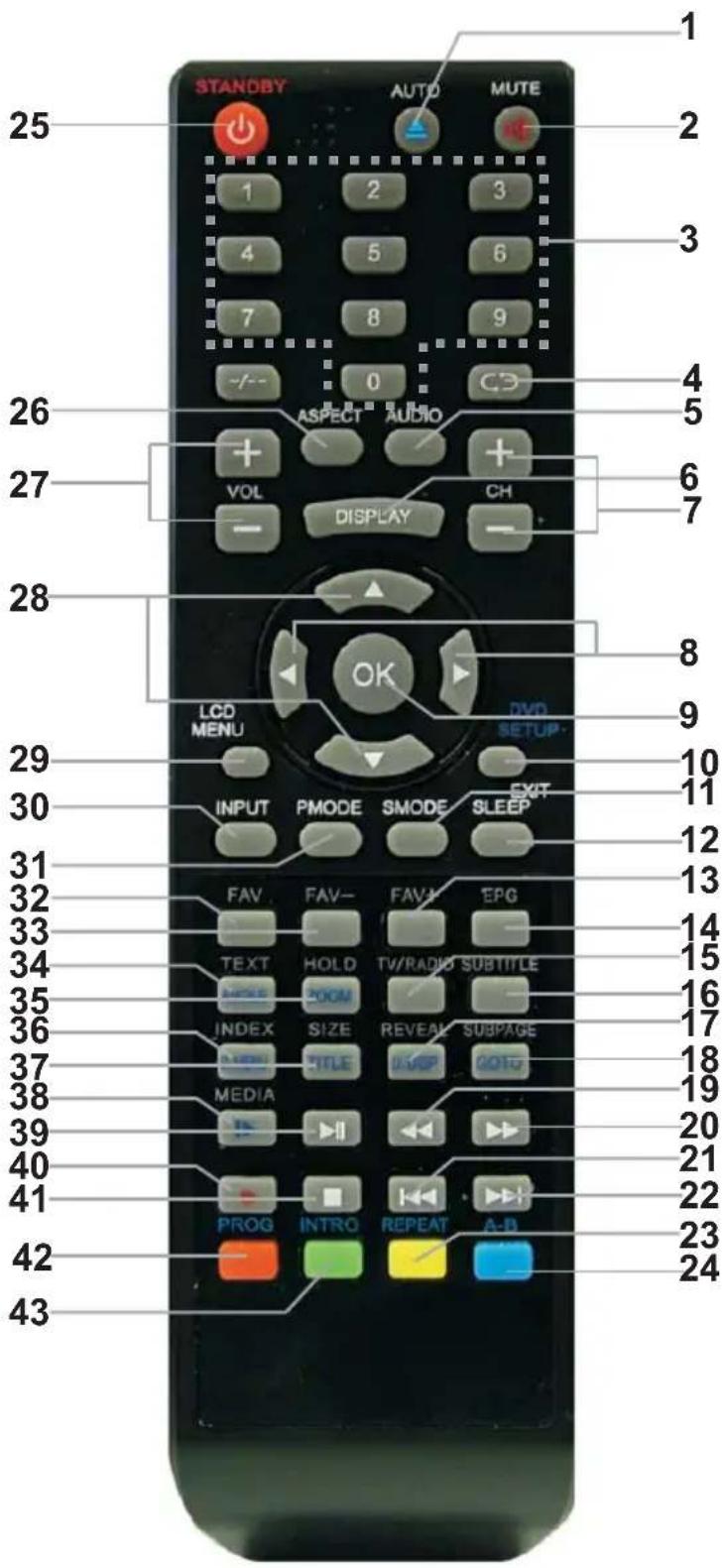
text_image
1 25 STANDBY AUTO MUTE 1 2 3 4 5 6 7 8 9 -/-- 0 CS ASPECT AUDIO + + VOL DISPLAY CH 26 27 28 LCD MENU OK DVD SETUP- 29 INPUT PMODE SMODE SLEEP EXIT 30 10 11 12 31 13 32 FAV FAV- FAV- EPG 33 TEXT HOLD TV/RADIO SUBTITLE 34 INDEX ROOM REVEAT SUBPAGE 35 INDEX SIZE REVEAT SUBPAGE 36 TITLE IMPROCCOM 37 MEDIA PROG INTRO REPEAT A-B 38 20 21 22 23 24 39 40 41 42 431. AUTO/EJECT
Disc in/out, valid in DVD mode.
2. MUTE
Sound mute switch.
3. NUMBER button
To select program number.
4. RECALL
To swap between a previous program and the current program in analog TV and digital TV.
5. AUDIO
To change the audio language and sound track, valid in digital TV and DVD mode.
6. DISPLAY
To display information in digital TV and DVD mode.
7. CH+/-
To increase or decrease program number valid in analog TV and digital TV mode.
8. LEFT/RIGHT cursor (menu adjustment)
To move leftward/rightward or adjust the selected item in the menu.
9. OK button
To confirm the selections.
10. DVD SETUP/EXIT
To go to the menu of DVD, valid in DVD mode/to exit menu.
11. S-MODE
To select sound field modes: Personal, Standard, Music, Movie and Sports.
12. SLEEP
To setup the sleep timer.
13. FAV+
To increase favourite program number valid in analog TV and digital TV mode.
14. EPG
To display the program guide, valid in digital TV mode.
15. TV/RADIO
To switch between TV and radio modes, valid in digital TV mode. (Not used)
16. SUBTITLE
To select subtitle's language, valid in digital TV mode.
17. REVEAL/D DISP
To display the hidden teletext information in analog TV/to display information (track time, chapter etc.) in DVD mode.
18. SUBPAGE/GOTO
To direct select subpage of teletext, valid in ATV mode/ To play from a certain time point, valid in DVD mode.
19.
To fast backward playback, valid in DVD and USB mode.
20. ▶▶
To fast-forwards DVD playback, valid in DVD and USB mode.
21.
To select the previous chapter or track, valid in DVD and USB mode.
22.
To select the next chapter or track, valid in DVD and USB mode.
23. REPEAT/YELLOW
To repeat playback, valid in DVD, USB mode/select page in analog TV teletext mode.
24. A -B/BLUE
To segment repeat, valid in DVD mode)/select page in analog TV teletext mode.
25. STANDBY
To switch between standby mode and power-on mode.
26. ASPECT
To select video format.
27. VOL +/-
To increase or decrease sound volume.
28. UP/DOWN cursor
To select upward/downward in the menu.
29. LCD MENU
To display LCD menu, different in different source mode.
30. INPUT
To select input source.
31. P-MODE
To select picture mode.
32. FAV
To switch in favourite list, valid in DTV/ATV mode.
33. FAV-
To decrease favourite program number valid in analog TV and digital TV mode.
34. TEXT/ANGLE
To enable or disable the function of teletext or MHEG5/To change camera angle in DVD mode when playing DVD disc.
35. HOLD/ZOOM
To stop teletext on current page in analog TV/To zoom in to the picture valid in DVD mode.
36. INDEX/D.MENU
To display main content page when playing the Teletext in analog TV/To switch to DVD root menu, valid in DVD mode.
37. SIZE/TITLE
To magnify teletext page in analog TV/To switch to DVD title menu, valid in DVD mode.
38. MEDIA/I>
For direct switch to media mode. Not valid in DVD mode.
39. ▶II
Pause/playback, valid in DVD and USB mode.
40.
Recording to USB device in DTV mode.
41.
To stop playing, valid in DVD, USB mode.
42. PROG/RED
Programmed play in DVD mode/select page in analog TV teletext mode/delete file in USB mode.
43. INTRO/GREEN
Select page in analog TV teletext mode.
BATTERY INSTALLATION
Remove the battery cover. Insert two SUM-4(AAA) batteries matching the -/+ polarities of the battery to the -/+ marks inside the battery compartment, as follows:

natural_image
Three-step diagram showing a battery inside a casing, with arrows indicating rotation and polarity changes (no text or symbols)BATTERY LIFE
● Normally, battery can be used for one year.
● Please use SUM-4(AAA) battery.
- If the remote control is still not working, when very near to the TV's remote sensor window, please use new batteries.

NOTES
● Never use rechargeable battery.
● Never charge, short-circuit, disassemble and heat the battery, or throw it into fire.
● Pay attention not to fall or knock the remote controller, which will cause damage or function failure to it.
● Do not use a new and an old battery together.
- When not using the remote controller for a long time, please take out the battery to avoid liquid leakage. Before replacing a new battery, please clean the electrolyte in the remote controller.
● If electrolyte splashes into the body, please clean it with water.
CAUTION:
Please put the battery into a place children cannot touch. If swallow by accident, please contact your local doctor immediately.
SWITCHING ON
After the unit has been suitably placed / fixed, on the deskor on the wall, and all necessary cables include power have connected, the next you should do is:
Press the [STANDBY] button on the remote control to make the unit switch to power-on mode - you will see the LED indicator turn green or blue. Now you can enjoy the many features of your new TV.
SELECT SOURCE OPERATION
You can select input source by using source menu. Press [INPUT] button on the remote control to show the menu as follows:
| Input Source |
| ATV |
| DTV |
| Media |
| AV |
| PC |
| Component |
| DVD |
| SCART |
| HDMI |
| OK |
The current source item is highlighted. Press [▲/▼] or [INPUT] button on the remote control to select your desire. Press [OK] button to confirm your choice.
In DTV mode, press [LCD MENU] button on the remote control.
Through pressing [◀/▶] button on the remote control, you can select menu sections (menu sections consist of "CHANNEL", "PICTURE", "SOUND", "TIME", "LOCK", "SETUP").
Press [▲/▼] or [OK] button to enter this menu section.
Press [▲/▼] or [OK] button on the remote control to select the item in this menu section, and then press [◀/▶] button to adjust parameter value. Press [LCD MENU] button to return to main menu or [EXIT] button to exit from menu tables.
CHANNEL
Select CHANNEL section to setting DTV channels. You may select Auto Tuning, DTV Manual Tuning, ATV Manual Tuning (described in ATV MENU SETUP), Programme Edit, Signal Information and CI Information.

text_image
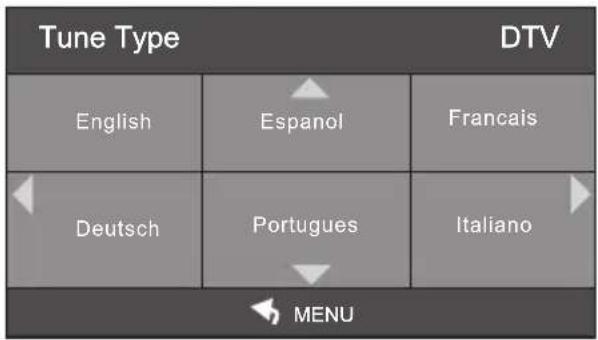
Auto Tuning ATV Manual Tuning DTV Manual Tuning Programme Edit Signal Information CI InformationAuto Tuning item enables to adjust channel setting automatically. Select Auto Tuning item, press [OK] button to enter Tune Type selection menu.
text_image
Tune Type DTV English Espanol Francais Deutsch Portugues Italiano MENUPress [◀/▶] button to select tuning type between DTV+ATV, DTV or ATV.
Press [◀/▶/▲/▼] button to select your country.
Press [OK] button to start auto searching.
| Channel Tuning | |
| TV : 0 Programme | |
| DTV : 0 Programme | |
| Radio : 0 Programme | |
| Data : 0 Programme | |
| 60%... UHF CH (DTV) Please press MENU key to exit |
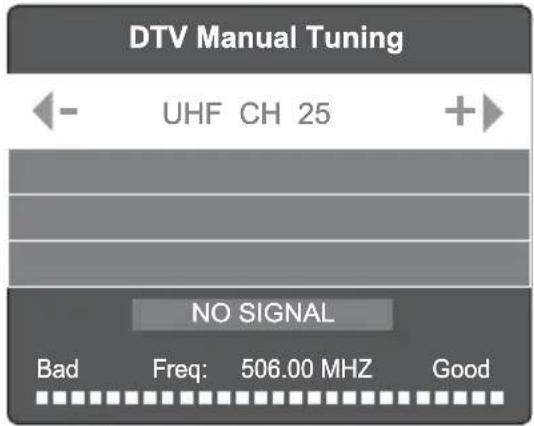
Select DTV Manual Tuning item, press [◀/▶] button to select channel number and press [OK] to start search.
8rogramm
Signal Information it<m <na@l<s to o@tain information a@oXt th< fr<qX
CI Information it<m <na@l<s to o@tain information a@oXt th< Con>itional Acc
text_image
DTV Manual Tuning UHF CH 25 NO SIGNAL Bad Freq: 506.00 MHZ Good
text_image
Programme Edit 17 Digital DTV Delete Move Skip OK FAV Fav MENU| Signal Information |
| Channel 255 |
| Frequency 570.00MHz |
| Quality 90 |
| Strength 85 |

text_image
CI Information Viaccess Conditional Access Main menu System information Smart card management Language setting Press 'OK' to enter; Press 'EXIT' to returnPICTURE
Select PICTURE section to adjust picture parameters. You may select Picture Mode, Colour Temperature, Noise Reduction and adjust Contrast, Brightness, Colour, Sharpness, Tint.

text_image
Picture Mode Standard Contrast 85 Brightness 50 Colour 50 Tint 50 Sharpness 30 Colour Temp Normal Noise Reduction Middle Move MENU Return Select ExitPicture mode item can be changed between Personal, Dynamic, Standard and Mild.
Colour Temperature mode item can be changed between Normal, Cold and Warm.
Noise Reduction item can be changed between reduce noise mode: Off, Low, Middle, High and
Default. You may adjust Brightness, Contrast, Colour, Sharpness, Tint for Personal mode.
SOUND
Select SOUND section to adjust sound parameters. You may select Sound Mode, Auto Volume, SPDIF Mode, AD Switch and adjust Treble, Bass and Balance.

text_image
Sound Mode Standard Treble 50 Bass 50 B Balance 0 Auto Volume Off SPDIF Mode Off AD SWITCH OffSound Mode item can be changed between Personal, Standard, Music, Movie and Sports.
Auto Volume item can be changed between Off or On for control volume automatic. Default value is On.
SPDIF Mode item can be changed between Off, PCM or Auto.
AD Switch item can be changed between Off or On. If On selected, you can adjust AD Volume from 0 to 100.
Treble and Bass items can be adjusted from 0 to 100.
Balance item can be adjusted from -50 to +50 for L and R sound balance. Default value is 0.
TIME
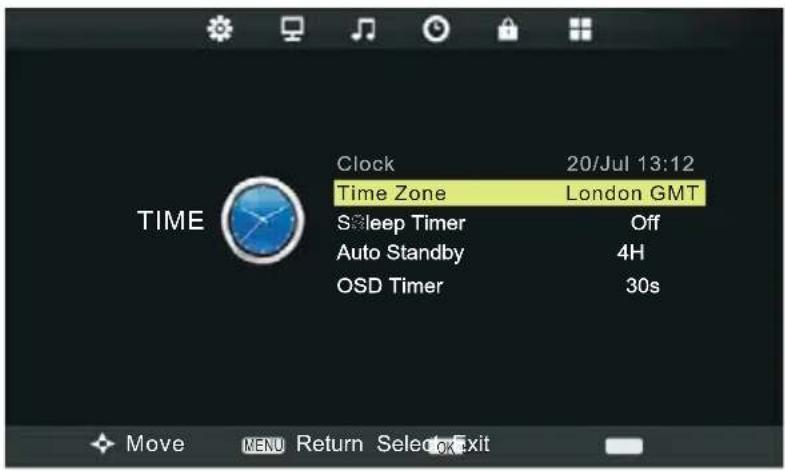
S<I<ct TIME s<ction to s<I<ct Tim< Zon<, SI<
@y an> OSD Tim<r.
text_image
TIME Clock 20/Jul 13:12 Time Zone London GMT Sleep Timer Off Auto Standby 4H OSD Timer 30s Move Mali Return Select OK Exit
Tim< zon< for a>jXst th< local tim< zon<.
Sl<<p Tim<r it<m <na@l<s to s<t th< sl<<p tim
AXto Stan>@y it<m <na@l<s to s
OSD Tim<r it<m <na@l<s to s<t OSD tim< on scr<
LOCK
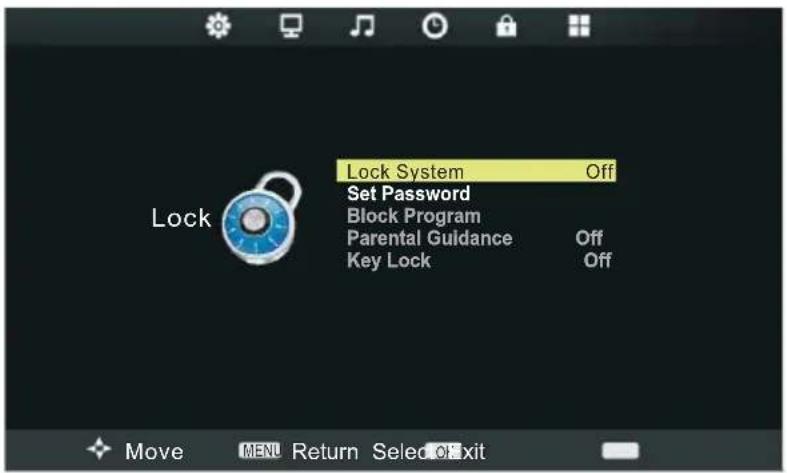
S<I<ct LOCK s<ction to Lock Syst<m, S
text_image
Lock System Set Password Block Program Parental Guidance Key Lock Off Off Move MENU Return Select Off
YoX can lock s<I<ct<> program or ky@oar, s<t th< par
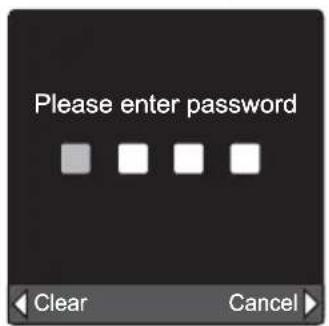
text_image
Please enter password Clear Cancel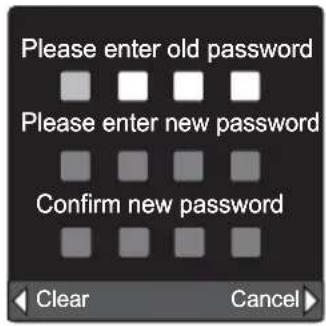
text_image
Please enter old password Please enter new password Confirm new password Clear CancelIf yoX want to chang<>
Block program item enables to block access to undesired programs.
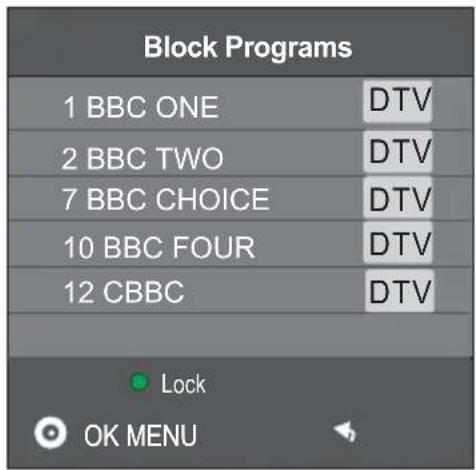
text_image
Block Programs 1 BBC ONE DTV 2 BBC TWO DTV 7 BBC CHOICE DTV 10 BBC FOUR DTV 12 CBBC DTV Lock OK MENU
Parental Guidance item enables to set the age limit for programs.
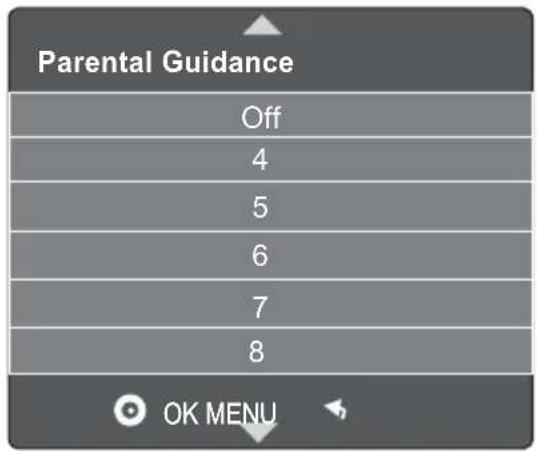
text_image
Parental Guidance Off 4 5 6 7 8 OK MENUKey Lock it<m can chang<>@<tw<
SETUP
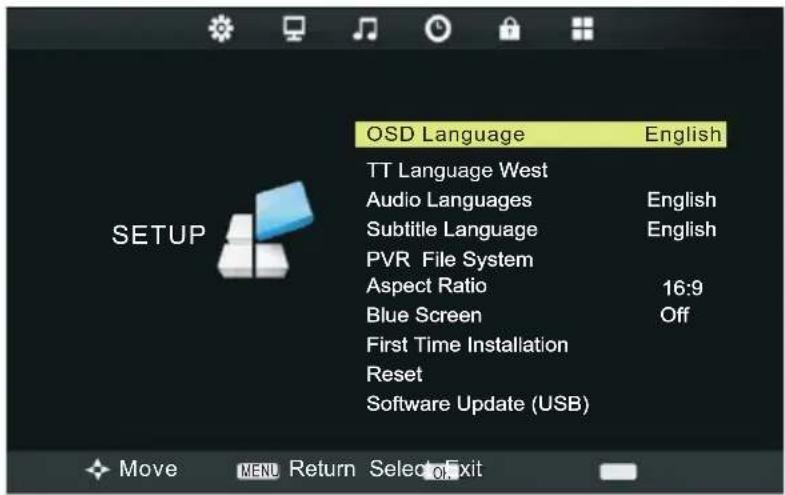
S<I<ct SETU8 s<ction to s<I<ct OSD LangXag<, TT LangXag<, Audio Languages, Subtitle Language, PVR Fil< Syst<m, Asp<ct Ratio, BIX< Scr<<n, First Tim< Installation, R<s
text_image
OSD Language English TT Language West Audio Languages Subtitle Language PVR File System Aspect Ratio Blue Screen First Time Installation Reset Software Update (USB) 16:9 Off SETUP Move MENU Return Select ExitOSD LangXag< it<m <na@ljXst
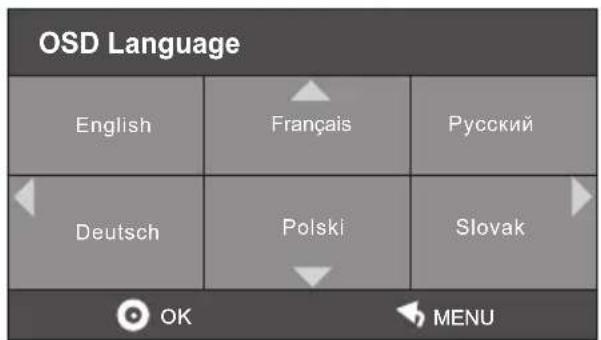
OSD langXag<.
TT LangXag< it<m <na@l<s to s<l<ct groXp of t<l<t<xt langXag<s.
Audio Languages item enables to select primary and secondary speech language of a program (available only in DTV mode if program provider supports the multi language function).
text_image
OSD Language English Français Pусский Deutsch Polski Slovak OK MENU

text_image
TT Language West East Russian Arabic Farsi OK MENU
text_image
Audio Languages Primary Český Français Polski Deutsch Hrvatski Русский English Magyar Română OK MENUSubtitle Language item enables to select primary and secondary subtitle language of a programme.

text_image
Subtitle Language Primary Český Français Polski Deutsch Hrvatski Русский English Magyar Română OK MENUPVR FILE SYSTEM
text_image
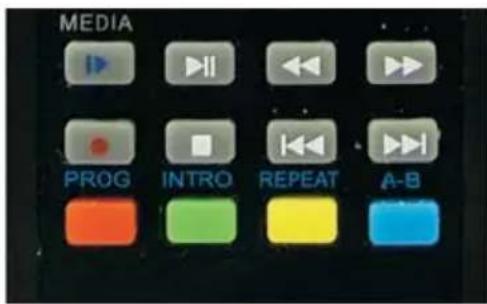
MEDIA PROG INTRO REPEAT A-BPVR REMOTE CONTROL KEY FUNCTIONS
PVR RECORD key: o
R
PVR PLAY key: INDEX or MEDIA/▶
8lay th<r
PVR REWIND key: ◀◀
R
PVR FAST FORWARD key: ▶▶
Fast forwar> at high sp<<>. Each tim< yoX pr<ss this @Xtton th< fast forwar> sp<<> is incr<as<>.
PVR PAUSE key or PVR TSR KEY: ▶II
8aXs<th< play of r
PVR PREVIOUS key: I
To go @ack to th< pr<vioXs r
PVR NEXT key: ▶▶▶
To go forwar> to th<n<xt r
PVR REPEAT key: REPEAT/YELLOW
To s<l<ct r<p
PVR SEGMENT REPEAT key: A-B/BLUE
To s<l<ct s<gm<nt for r<p<at of r
PVR FUNCTIONS
Imagin< coming hom< to yoXr own p<rsonal li@rary of t<l<vision programs, movi
It's TV for yoXr sch<>XI<.
8aXs< of liv< t< l< vision!
R
R
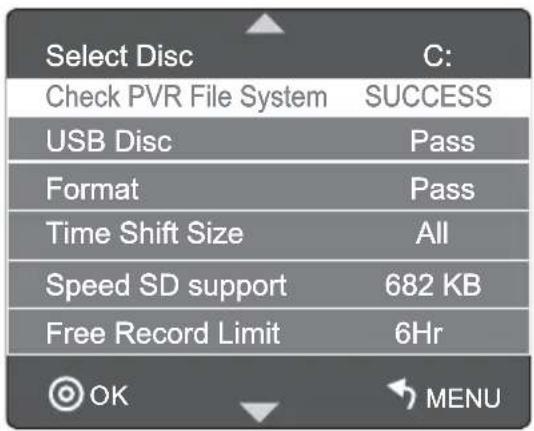
The PVR File system menu description
Insert USB device into your TV's USB port. Press [LCD MENU] button on the remote control, select SETUP section, line PVR File System.

text_image
OSD Language TT Language West Audio Languages Subtitle Language PVR File System Aspect Ratio Blue Screen First Time Installation Reset Software Update (USB) English English English 16:9 Off Move MENU Return Select ExitThe PVR File system menu description
S<I<ct Disk: s<I<ct th<>isk as a 8VR fil<syst
Ch<ck 8VR Fil<Syst<m: ch<ck th<>isk fil< format.
USB Disk: >isplay th< USB Disk activation statXs, "8ASS" flag is activation.
Format: format th
Tim< Shift Siz<: Show a@oXt th< TSR capacity.
Sp<<>: r an> writ< sp<<>.
Free Record Limit : tim<th< @igg<st r
text_image
Select Disc Check PVR File System USB Disc Format Time Shift Size Speed SD support Free Record Limit C: SUCCESS Pass Pass All 682 KB 6Hr OK MENU
Recording
NOTE: Before recording please perform steps discussed in the PVR file system menu description.
Press [o] key to start recording. For stopping use [■] button on the RC or select Stop on the Command Line. You can display the Command Line with RC button [■] while recording or previewing record.

text_image
Play FB FF Prev. Next Pause StopPreviewing records
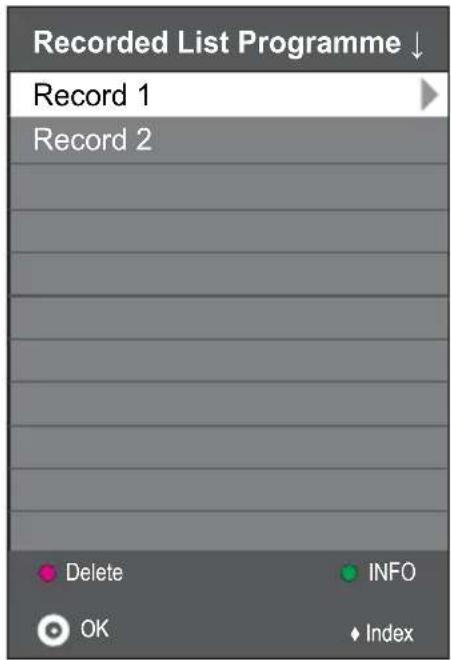
Previewing in DTV mode: You can switch to Recorded List by pressing [INDEX] button. Choose wanted record by moving cursor [▲▼] and press [OK]. Press [PROG/RED] button to delete record, [INTRO/GREEN] - to display record information.
text_image
Recorded List Programme ↓ Record 1 Record 2 Delete INFO OK IndexPreviewing in Media mode: Switch to USB mode using [MEDIA] button, select MOVIE > Wanted disk > MST PVR > Wanted record. Press [OK] to play record in full screen. While watching record, press [OK] to call the command line.
Command line functions
You can find these functions in a command line: Pause; FB; FF; Prev.; Next; Stop; Repeat (Repeat All > Repeat None > Repeat 1); Set A/B; Playlist; Info.; Slow Forward; Step Forward; Goto Time; Zoom In; Zoom Out; Aspect Ratio (Auto > Zoom 1 > Zoom 2 > 16:9 > 4:3); Move View.
PVR using EPG menu
Press [EPG] button on the RC to call EPG menu. Switch to Recorder mode by pressing [o] or [PROG/RED] button. Setup channel, start and end time, then press [OK]. You can choose record periodicity in a bottom line: Mode Auto > Mode Once > Mode Every Day > Mode Weekly. PVR funktion on EPG menu is available on TV Standby mode.

text_image
RECORDER 1 YLE TV1 Start time 15 Minute 08 Hour Dec Month 07 Date End time 15 Minute 08 Hour Dec Month Mode AUTOTime Shift Record (TSR)
Time Shift Disk Size can according to customer need constitution, the capacity establishes bigger, record time more long.

text_image
[-00:00:42 / 01:40:00]Pressing the [▶II] key while having no menu will get into record video function, until pressing [■] key or selecting command [Stop] in command line, or USB disk has been full.
Press [▶II] key repeatedly or select the command [Play] in command line to play.
Press [▶▶I] key or select the command [Next] in command line to go forward for 30 seconds.
Press [I◀◀] key or select the command [Prev.] in command line to go back for 30 seconds.
The process can be used button [I ◀ ◀/▶ ▶ I] or select the command [FB/FF] in command line to play fast rewind / forward.
At this time press [■] key or command [Stop] in command line will stop TSR function and return to normal status.
PVR operator attentions
USB disk at least 1GB in capacity; the length of record determines the capacity of disk.
High-speed USB devices with Hi Speed FS file system are recommended for multimedia and PVR application.
Mobile HDD or high-speed USB stick are recommended for better performance in PVR and time shift application.
Formatted, it will delete all the contents out, pay attention to preservation of important information.
If USB disk have some virus, format function would be failure.
PVR functionality is only effective at the next port DTV.
Has multiple partitions such as the use of mobile hard disk, you can PVR File System menu, and select the corresponding letter PVR.
PVR File System menu of the Recorder will be limited one-time burn the longest. That time will automatically exit. Recording maximum time period set for 24 hours.
Signal formats for DTV video format (TS streams).
PVR function is only available in DTV source.
PVR files will be played in USB mode only if the file size is larger than 5 Mb.
USB device must be compatible USB 2.0 HS specification.
Asp<ct Ratio it<m <na@l<s to s<l<ct pictXr< asp<ct ratio between AXto, 4:3, 16:9, Zoom1 and Zoom7.
BIX< Scr<<n it<m can chang<>@<tw<<faXlt.
Softwar< Up>at< (OSD) <na@lat< th< SW via
USB inpXt.

text_image
Aspect Ratio Auto 4:3 16:9 Zoom1 Zoom2 OK MENUELECTRONIC PROGRAM GUIDE (EPG)
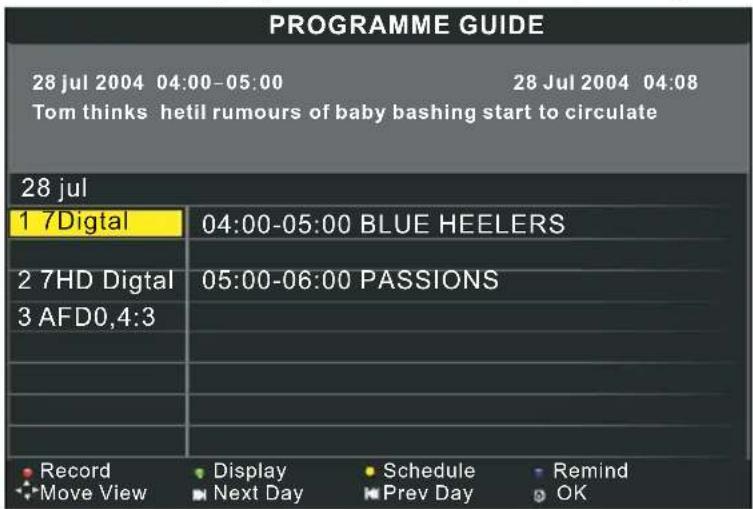
By pr<ssing th<E8G @Xtton on th<r<mot< control, an EI
text_image
PROGRAMME GUIDE 28 jul 2004 04:00-05:00 28 Jul 2004 04:08 Tom thinks thetil rumours of baby bashing start to circulate 28 jul 1 7Digital 04:00-05:00 BLUE HEELERS 2 7HD Digital 05:00-06:00 PASSIONS 3 AFD0,4:3 Record Display Schedule Remind Move View Next Day Prev Day OK
INFORMATION
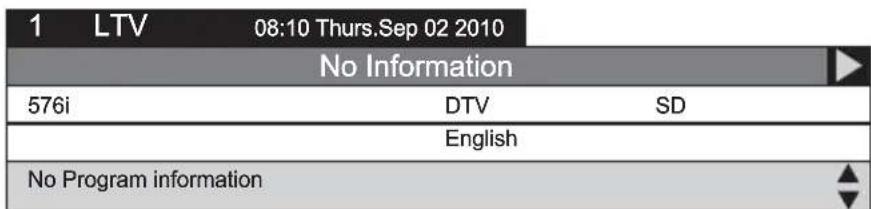
To o@tain mor< information a@oXt pr<s
text_image
1 LTV 08:10 Thurs.Sep 02 2010 No Information 576i DTV SD English No Program information
This product can store up to 100-channel programs. You can select your favourite channel through pressing [CH+/-] or number buttons, and you can scan and store all of the channels through manual or automatic mode.
In ATV mode, press [LCD MENU] button on the remote control.
Through pressing [◀/▶] button on the remote control, you can select menu sections (menu sections consist of "CHANNEL", "PICTURE", "SOUND", "TIME", "LOCK", "SETUP").
Press [▲/▼] or [OK] button to enter this menu section.
Press [▲/▼] or [OK] button on the remote control to select the item in this menu section, and then press [◀/▶] button to adjust parameter value. Press [LCD MENU] button to return to main menu or [EXIT] button to exit from menu tables.
CHANNEL
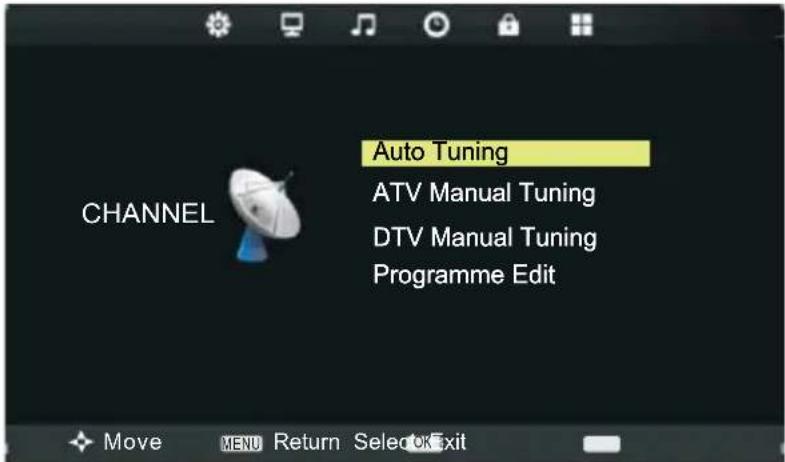
Select CHANNEL section to setting DTV channels. You may select Auto Tuning, DTV Manual Tuning (described in DTV MENU SETUP), ATV Manual Tuning and Programme Edit.
text_image
Auto Tuning ATV Manual Tuning DTV Manual Tuning Programme EditAuto Tuning item enables to adjust channel setting automatically. Select Auto Tuning item, press [OK] button to enter Tune Type selection menu.

text_image
Tune Type ATV English Espanol Francais Deutsch Portugues Italiano MENUPress [◀/▶] button to select tuning type between DTV+ATV, DTV or ATV.
Press [◀/▶/▲/▼] button to select your country.
Press [OK] button to start auto searching.

text_image
Channel Tuning TV : 0 Programme DTV : 0 Programme Radio : 0 Programme Data : 0 Programme 60%... UHF CH (ATV) Please press MENU key to exitSelect ATV Manual Tuning item, press [◀/▶] button to select ATV Manual Tuning menu.
YoX may s<I<ct CXrr<nt Chann<I, ColoXr Syst
CXrr<nt Chann<I it<m <na@l<s to s<I<ct th< chann<I nXm@<r.
ColoXr Syst<m it<m <na@l<s to s<l<ct coloXr syst
SoXn> Syst<m it<m <na@l<s to s<l
Fin<-TXn< it<m <na@ljXst th< chann<l fr<qX<ncy accXrat<ly to mak< th< soXn> an> pictXr< <ff<ct @<tt<r (or set chann<l fr<qX
S<arch it<m <na@ljXst TV chann<l.
8rogramm

text_image
ATV Manual Tuning ← - Current CH 1 +> Color System SECAM Sound System DK Fine-Tune 85.25 MHZ AFC On Search MENU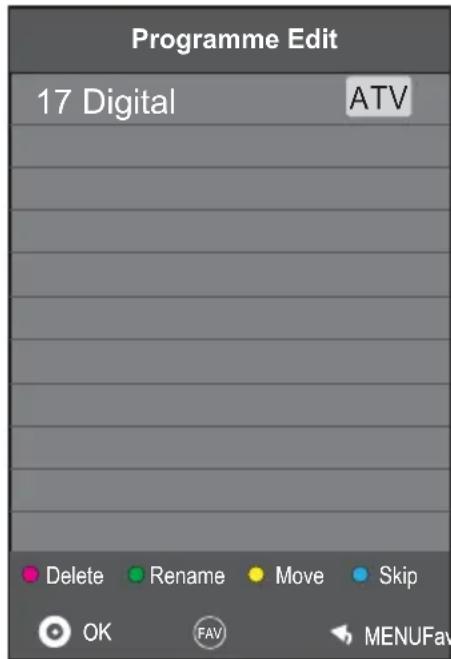
text_image
Programme Edit 17 Digital ATV Delete Rename Move Skip OK FAV MENUFavPICTURE
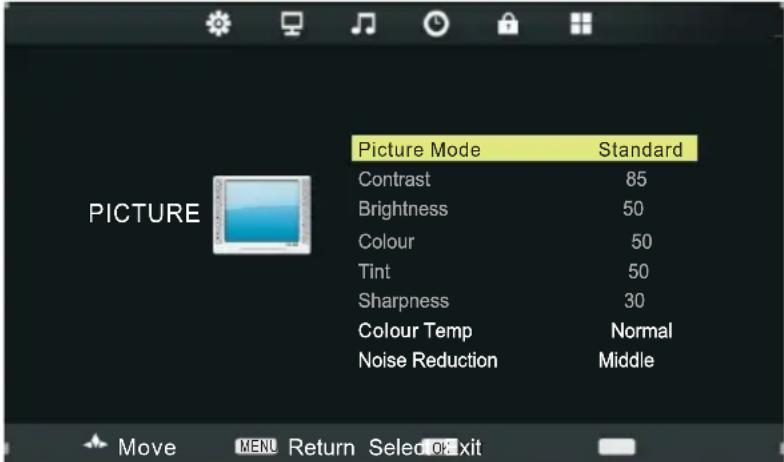
Select PICTURE section to adjust picture parameters. You may select Picture Mode, Colour Temperature, Noise Reduction and adjust Contrast, Brightness, Colour, Sharpness, Tint.
text_image
Picture Mode Standard Contrast 85 Brightness 50 Colour 50 Tint 50 Sharpness 30 Colour Temp Normal Noise Reduction MiddlePicture mode item can be changed between Personal, Dynamic, Standard and Mild.
Colour Temperature mode item can be changed between Normal, Cold and Warm.
Noise Reduction item can be changed between reduce noise mode: Off, Low, Middle, High and Default. You may adjust Brightness, Contrast, Colour, Sharpness, Tint for Personal mode.
SOUND
Select SOUND section to select Sound Mode, Auto Volume, SPDIF Mode and adjust Balance. Sound Mode, Auto Volume, SPDIF Mode and Balance items are discussed in DTV Setup manual. Please refer to it for detailed instructions.
TIME
S<I<ct TIME s<ction to s<I<ct Sl<
@y an> OSD Tim<r. Sleep Timer, Auto Standby and OSD timer items are discussed in DTV Setup manual. Please refer to it for detailed instructions.
LOCK
S<1<ct LOCK s<ction to Lock Syst
SETUP
S<I<ct SETU8 s<ction to s<I<ct OSD LangXag<, TT LangXag<, Asp<ct Ratio, BIX< Scr<<n, First Tim< Installation, R<s
Most TV stations provide cost-free teletext information, including the latest news, weather information, TV program list and stock information etc. You just input the needed teletext page according to the teletext content.
TELETEXT DISPLAY
Select the channel with teletext signal.
Press [TEXT] button.
Select the corresponding page according to the colourized buttons on the remote control.
Press [TEXT] button twice again and only TV screen displays.
PAGE SELECTION
You can input 3 digit numbers to enter the page you want to watch trough number buttons. If the inputted number is invalid, you need to input correct 3 digit numbers again after you finished inputting this 3 digit numbers.
You can select to turn pages forward or backward through [CH+/-] or [/] button.
MIX MODE
This function may let you enjoy TV and teletext information at the same time.
When a certain teletext page displays, press [TEXT] button again, TV and teletext information will display on screen at the same time.
Press [TEXT] button again and only TV screen displays.
LOCK
You can press [HOLD] button to lock teletext page. Press this button again to cancel locking.
INDEX
Press [INDEX] button to display content page.
Enter a certain teletext page through inputting number buttons.
ZOOM IN TELETEXT
When teletext page shows, you may double zoom into display this teletext page.
Press [SIZE] button to zoom in the upper half part of teletext page.
Press [SIZE] button again to enter under half part of teletext page.
Press this button once more to return to original display mode.
DISPLAY MODE
Press [REVEAL] button to display the hidden teletext information. Press this button again to cancel.
COLOURIZED BUTTONS (RED, GREEN, YELLOW, BLUE)
Select the corresponding teletext page through colourized buttons.
VIDEO SETTING MENU
Th< m<nX s
NOTE
If no signal inpXt in DTV, ATV, MEDIA/AV/COMPONENT/SCART/HDMI, th<scr<<n will show as @<low.
NO SIGNAL
This Xnit will switch to stan>@y mo>< aXtomatically if no signal inpXt mor< than 5-20 minXt<s (depending on choice in TIME menu).
The VGA mode supported up to 1920X1080@60Hz, you can use this unit as a multimedia PC monitor. When this unit works in PC mode, the following setup can be done.
Press [LCD MENU] button on the remote control.
Through pressing [◀/▶] button on the remote control, you can select menu sections (menu sections consist of "SCREEN", "PICTURE", "SOUND", "TIME", "LOCK", "SETUP").
Press [▲/▼] or [OK] button to enter this menu section.
Press [▲/▼] or [OK] button on the remote control to select the item in this menu section, and then press [◀/▶] button to adjust parameter value. Press [LCD MENU] button to return to main menu or [EXIT] button to exit from menu tables.
SCREEN
Select SCREEN section to adjust PC screen parameters (only available when inputting PC-RGB signal). You may select Auto Adjust, H-Offset, V-Offset, Size, Phase and Position Reset.

text_image
A Auto Adjust H-Offset 50 V-Offset 50 Size 50 Phase 50 Position Reset Screen Move MENU Return OK Select EXIT ExitNOTE
When your PC goes into standby mode, the screen will show as bellow. This unit will go into sleep mode if no input signal in 5-20 minutes (depending on choice in TIME menu).
You can wake it up by waking up your PC or pressing [STANDBY] button on the remote control.
NO SIGNAL
PICTURE
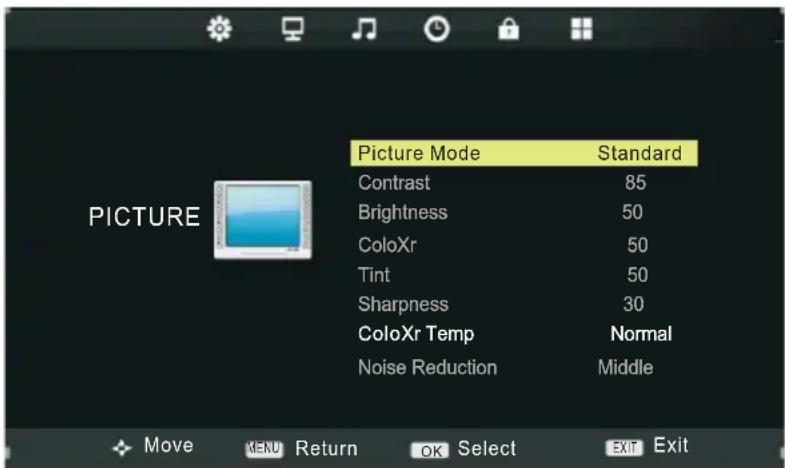
S<I<ct 8ICTURE s
text_image
Picture Mode Standard Contrast 85 Brightness 50 ColoXr 50 Tint 50 Sharpness 30 ColoXr Temp Normal Noise Reduction Middle Move MENU Return OK Select EXIT Exit
8ictXr
SOUND
Select SOUND section to select Sound Mode, Auto Volume, SPDIF Mode and adjust Balance. Sound Mode, Auto Volume, SPDIF Mode and Balance items are discussed in DTV Setup manual. Please refer to it for detailed instructions.
TIME
S<1<ct TIME s<ction to s<1<ct SI<
@y an> OSD Tim<r. Sleep Timer, Auto Standby and OSD timer items are discussed in DTV Setup manual. Please refer to it for detailed instructions.
LOCK
S<I<ct LOCK s<ction to Lock Syst
SETUP
S<I<ct SETU8 s<ction to s<I<ct OSD LangXag<, Asp<ct Ratio, BIX< Scr<
BRIEF INTRODUCTION
This pro>Xct has a USB 7.0 int<rfac<; yoX can play mXsic, movi
USB r<f<rs to Univ<rsal S
Th<r< ar< som< typ<vic<s:
Monitors CommXnication ><vic
Storag<, Most flash m<mory, USB HDD <ct. B<longs to Mass Storag< Class.
Mass Storag< Class inclX><s 7 transport man<rs:
- USB1.1 Mass Storag< Class Control/BXlk/Int<rrXpt (CBI) Transport.
- USB1.1 Mass Storag< Class BXIk-Only Transport. This Xnit sXpports USB1.1
Mass Storag< Class BXIk-Only Transport, w< ar< not sXr< that oh<r USB D<vic<s can @< sXpport<>!
So pl<as
NOTES
- This pro>Xct sXpports M83, M8EG1, M8EG7, AVI, J8EG an> BM8 format fil<s.
- Th< fil< syst
NTFS. - MT8 (M<>ia Transf<r 8rotocol) is not sXpport<>.
- 8l<as<conn
ir<ctly to th<USB port of yoXr TV. If yoX ar<Xsing a s<parat<ca@l<conn<ction, th<r<may@<a USB compati@ility pro@l<m. - B<for<conn
<vic<to th<TV, pl<as<@ack Xp yoXr fil<s to pr<v<nt th amag< or loss of >ata. Th< manXfactXr<r is not r<sponsi@l< for any >ata fil< >amag< or >ata loss. - Do not >isconn<ct th
<vic<whil ing. - If yoX want to chang< playing mo><, firstly yoX hav< to <xit cXrr
< throXgh pr<ssing [EXIT] @Xtton. - Th<high<r th<r<solXtion of th<imag<, th<long<r it tak
isplay on th<scr<<n. - For XnsXpport<> or corrXpt<> fil<s, th< 'UnsXport<> format' m<ssag< is >isplay<>
USB MULTIMEDIA PLAYBACK FORMAT
| Media | File Extension | Code | |
| Video | Audio | ||
| MOVIE | .avi | MP3,WMA,AAC | |
| .mpg | MPEG-1,MPEG-2 | ||
| .dat | MPEG-1 | ||
| MUSIC | .mp3 | -- | MP3 |
| .wma | -- | WMA | |
| .m4a/.aac | -- | AAC | |
| PHOTO | .jpg/.jpeg | Progressive JPEG | |
| Baseline JPEG | |||
| .bmp | BMP | ||
| .png | Non-Interlaced | ||
| Interlaced | |||
NOTE
Before operating MEDIA menu, plug in USB device, then press [INPUT] button to set the Input Source to Media.
Press [▲/▼] button to select Media in the Source menu, then press [OK] button to enter.
Press [◀ / ▶] button to select the option you want to adjust in the main MEDIA menu, then press [OK] button to enter.
PHOTO MENU
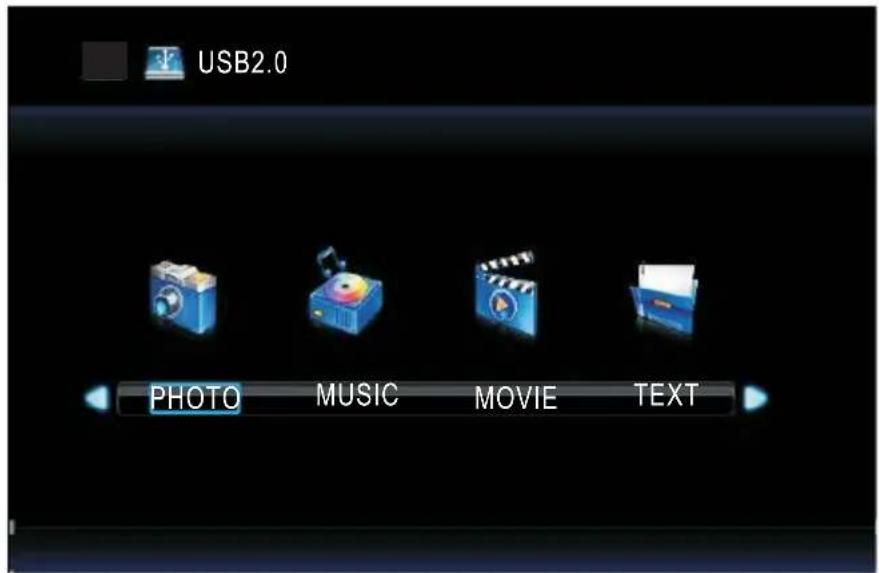
Press [◀ / ▶] button to select PHOTO in the main menu, then press [OK] button to enter. Press [EXIT] button to return back to the previous menu.
text_image
USB2.0 PHOTO MUSIC MOVIE TEXTPress [◀ / ▶] button to select drive disk you want to watch, then press [OK] button to enter. Press [◀ / ▶] button to select return option to back to the previous menu.
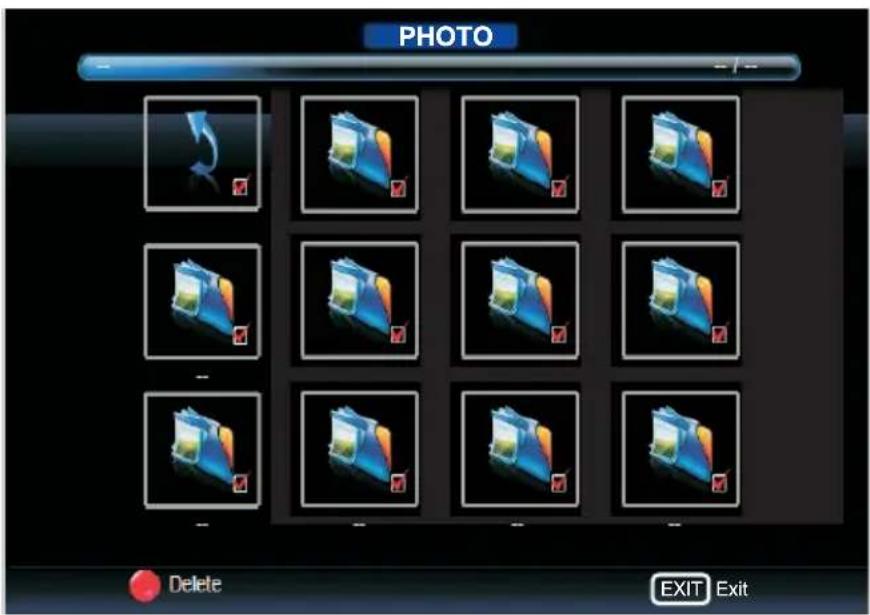
text_image
PHOTO Delete EXIT ExitPress ◀ / ▶ button to select the file you want to watch in the file selecting menu, then press [OK] button to display picture. When highlighting the option you select, the file information will appear on the right and picture will be previewed in the center.
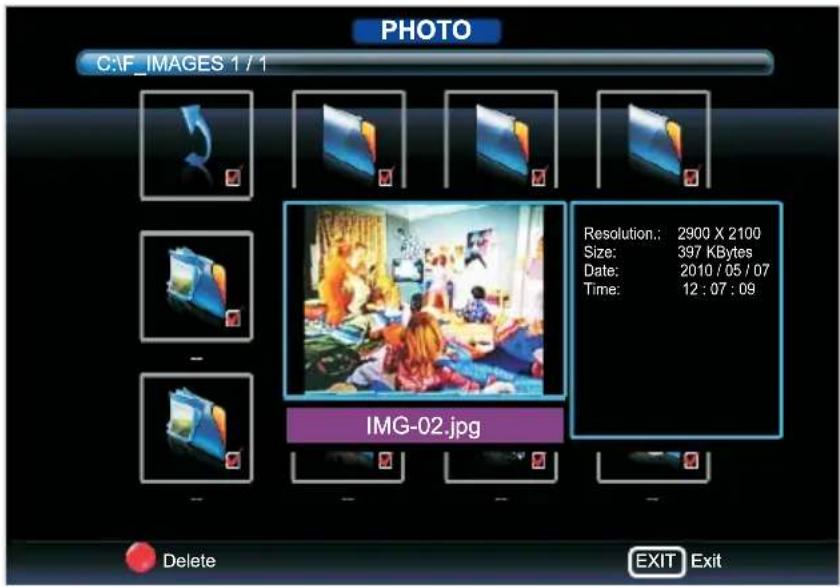
text_image
PHOTO C:\F IMAGES 1 / 1 Resolution: 2900 X 2100 Size: 397 KBytes Date: 2010 / 05 / 07 Time: 12 : 07 : 09 IMG-02.jpg Delete EXIT Exit8r<ss [OK] @Xtton to play th< s<I<ct<> fil<.
8r
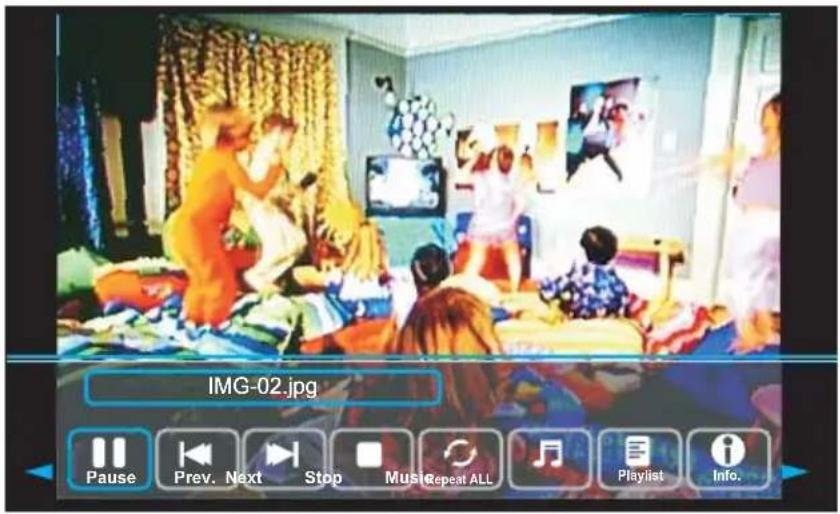
text_image
IMG-02.jpg Pause Prev. Next Stop Music Repeat ALL Playlist Info.
Press [◀/▶] button to select m<nX in th< @ottom yoX want to rXn, th<n pr<ss [OK] @Xtton to op<rat<.
8r<ss [EXIT] @Xtton to @ack to th< pr<vioXs m<nX.
Press [◀/▶] button to select the file folder you want to search in the file selecting menu, then press [OK] button on your remote control to enter sub-menu.
Press [◀/▶] button to select the file you want to delete in the file selecting menu, then press red button on your remote control to delete files.
MUSIC MENU
Press [◀/▶] button to select MUSIC in the main menu, then press [OK] button to enter. Press [EXIT] button to return back to the previous menu..

text_image
USB2.0 PHOTO MUSIC MOVIE TEXTPress [◀/▶] button to select drive disk you want to watch, then press [OK] button to enter. Press [◀/▶] button to select return option to back to the previous menu.
When highlighting the option you select, the file information will appear on the right and music will be previewed in the center.
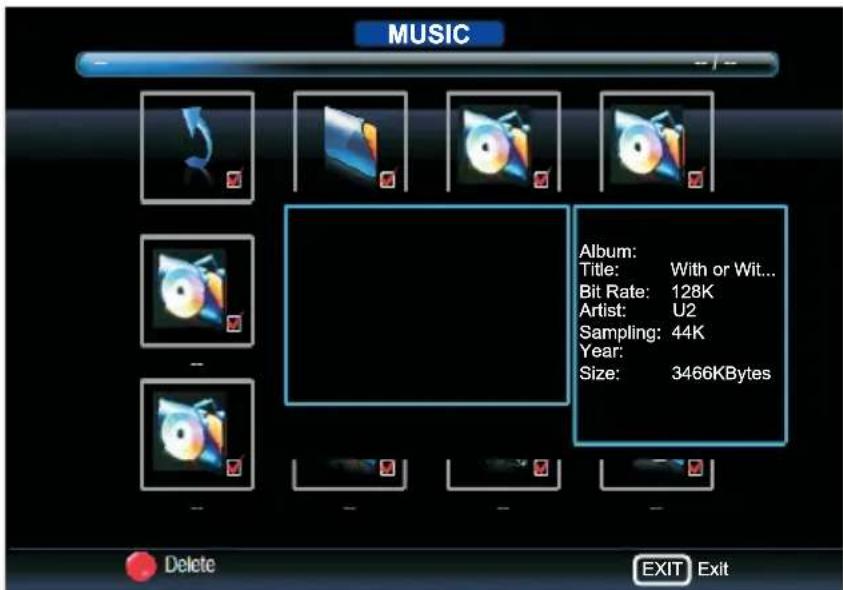
text_image
MUSIC Album: Title: With or Wit... Bit Rate: 128K Artist: U2 Sampling: 44K Year: Size: 3466KBytes Delete EXIT ExitPress [◀/▶] button to select the file you want to watch in the selecting menu, then press [OK] button to add the file to playlist.
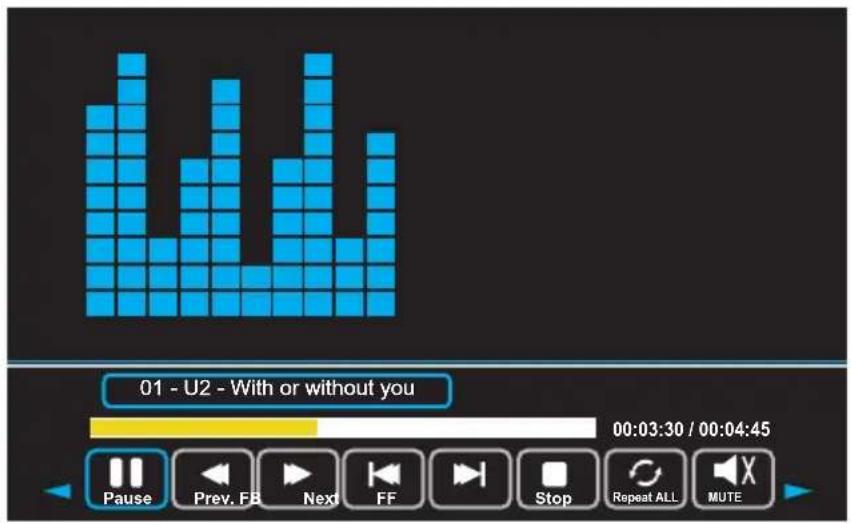
text_image
01 - U2 - With or without you 00:03:30 / 00:04:45 Pause Prev. FB Next FF Stop Repeat ALL MUTEPress [◀/▶] button to select menu in the bottom you want to run, then press [OK] button to operate.
Press [EXIT] button to back to the previous menu.
MOVIE MENU
Press [◀ / ▶] button to select MOVIE in the main menu, then press [OK] button to enter. Press [EXIT] button to return back to the previous menu.

text_image
USB2.0 PHOTO MUSIC MOVIE TEXTPress [◀ / ▶] button to select drive disk you want to watch, then press [OK] button to enter. Press [◀ / ▶] button to select return option to back to the previous menu. When highlighting the option you select, the file information will appear on the right and movie will be previewed in the center.

text_image
MOVIE Resolution: 688x512 Audio Track: 1/1 Subtitle: --/0 program: --/0 Size: 70073KBytes MKV_crazy_loop-johanna_dvitip-x Delete EXIT ExitPress [OK] button to play the selected movie.
Press [OK] button to display menu in the bottom.
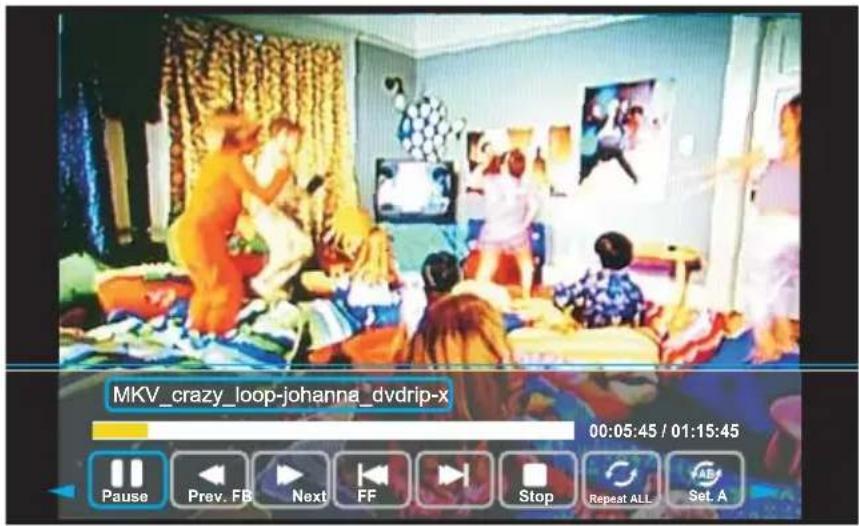
text_image
MKV_crazy_loop-johanna_dvdrip-x 00:05:45 / 01:15:45 Pause Prev. FB Next FF Stop Repeat ALL Set APress [◀ / ▶] button to select menu in the bottom you want to run, then press [OK] button to operate.
Press [EXIT] button to back to the previous menu.
TEXT MENU
Press [◀ / ▶] button to select TEXT in the main menu, then press [OK] button to enter. Press [EXIT] button to return back to the previous menu.

text_image
USB2.0 PHOTO MUSIC MOVIE TEXTPress [◀ / ▶] button to select drive disk you want to watch, then press [OK] button to enter.
Press [◀ / ▶] button to select return option to back to the previous menu.
When highlighting the option you select, the file information will appear on the right and text will be previewed in the center.
Press [OK] button to view the selected text.
Press [OK] button to display menu in the bottom.
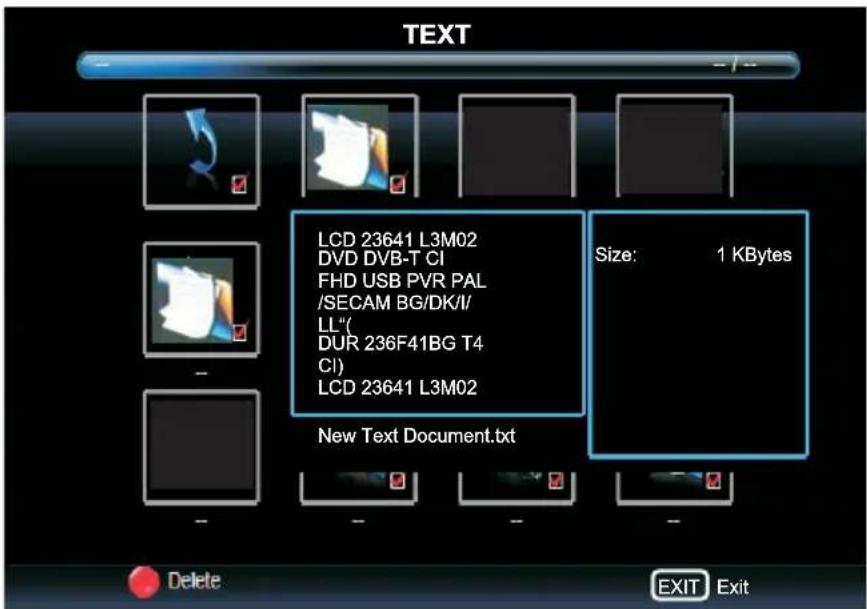
text_image
TEXT LCD 23641 L3M02 DVD DVB-T CI FHD USB PVR PAL /SECAM BG/DK/I/ LL" DUR 236F41BG T4 CI) LCD 23641 L3M02 Size: 1 KBytes New Text Document.txt Delete EXIT ExitPress [◀ / ▶] button to select menu in the bottom you want to run, then press [OK] button to operate.
Press [EXIT] button to back to the previous menu.
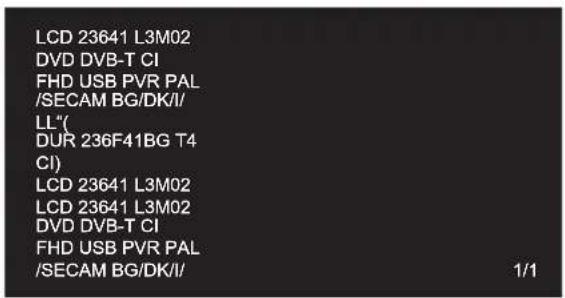
text_image
LCD 23641 L3M02 DVD DVB-T CI FHD USB PVR PAL /SECAM BG/DK/I/ LL* DUR 236F41BG T4 CI) LCD 23641 L3M02 LCD 23641 L3M02 DVD DVB-T CI FHD USB PVR PAL /SECAM BG/DK/I/ 1/1BASIC OPERATION
- Turn ON and OFF the DVD function
- Turn on the LED TV and then press SOURCE repeatedly to select DVD mode.
- Insert Disc to DVD
- Insert the Disc to the Disc slot (mirror (record) side of the disc has to face towards front of the unit), the player will load the disc automatically. There will have an on screen indication "LOADING". After loading the disc content, it will switch to play mode automatically. If the disc is already placed inside, the disc will be read automatically.
NOTE: - For some discs, after loading the content of the disc, need to press ▶II or select from the disc menu to start.
- Please make sure when inserting the Disc, the mirror (record) side of the disc should be facing you. When inserting the Disc incorrectly, you may damage the DVD mechanism.
- Play the DVD
- According to the disc content, the disc menu will display for your selection. When playing the disc, you may use ▶II button to toggle between Play and Pause mode. This product also supports Menu, Title, Sequential and Program playback.
- Press ■ button once to stop. Press ▶ II button to resume from where you stopped.
- Press ■ button Twice to stop. Press ▶ II button to start from beginning.
- In order to protect the disc, press ■ button then press EJECT button to take the disc out. When the disc is ejected, hold the disc edge slightly and take it from the eject direction to prevent scratches.
-
When not using the DVD function (in stand-by mode or using others modes for a long time), please take out the disc to protect the DVD loader and the disc.
-
Title playback (for DVD disc only)
-
Press TITLE button, there will have an on screen indication "Title Menu".
- Press the direction or numeric buttons to select your favorite title.
- Then will play from the first chapter of the selected title.
SUPPORTING DVD FORMAT
This products can play the following format of DVD disc.
 |

NOTE: Also support DVD-R, CD-R, CD-RW playback.
WARNING! DO NOT INSERT OR PLAY 8CM DISC, THEY WILL GET STUCK.
Region Code


As it is usual for DVD movies to be released at different times in different regions of the world, all players have region codes and discs can have an optional region code. If you load a disc of a different region code into your player you will see the region code notice on the screen. The disc will not playback and should be unloaded.
DVD FUNCTIONS OPERATING INSTRUCTIONS
1. Play (for DVD/ Super VCD/ VCD/ CD/ CD-G/HD-CD and Mp3/ JPEG discs)
- For DVD disc, press ▶II button from root or title menu; while playing the DVD, you may play your favorite title directly with title selection by pressing the TITLE button.
- For Super VCD & VCD discs, while playing the disc, you may play your favorite tracks by numeric buttons.
(NOTE: When using the Program playback or when it is PBC ON status, you can only use ▶▶1 or 1◀◀ buttons to change the track)
- For CD, CD-G & HD-CD discs, while playing the disc, you may play your favorite tracks by numeric buttons.
- For MP3 / JPEG disc, you may play your favorite tracks by numeric buttons from the content menu.
- If input track number is not valid, it will not function.
NOTE: From track 1-10, use numeric buttons directly; For tracks over 10use numeric buttons directly or press - / -- button first(E.g. Track 15, press - / -- then 5)
2. Previous/Next (for DVD/ Super VCD/ VCD/ CD/ CD-G/HD-CD and Mp3/ JPEG discs)
- While playing the disc;
- Press I ◀ button to play to the last Title / Chapter / track.
- Press ▶▶I button to play to the next Title / Chapter / track
- For super VCD & VCD discs, in PBC OFF status;
- If the current track is the first one, press I ◀◀ button will stop the playback.
- If the current track is the last one, press ▶▶I button will stop the playback
- For DVD discs, the above functions may vary due to different DVD disc's structure
3. Forward/ Backward (for DVD/ Super VCD/ VCD/ CD/ CD-G/HD-CD and Mp3/ JPEG discs)
- While playing the disc, you may use forward or backward function
-
There are 5 speeds for forward or backward. Press ◀◀ or ▶▶ button to toggle between different speeds in sequent. (FFx2 /FFx4 / FFx8 / FFx16 / FFx32 / Play, or FRx2 /FRx4 / FRx8 / FRx16 / FRx32 / Play).
-
While in forward or backward, you may press ▶II to resume normal speed.
- For CD, HD-CD, Mp3, forward or backward also has audio output.
- For DVD discs, if backward to first title / chapter, it will start from the beginning.
- For Super VCD & VCD discs, in PBC ON status, if backward to the first track, it will start from the beginning NOTE: During Forward or Backward, the sound will be off.
4. Pause (for DVD/ Super VCD/ VCD/ CD/ CD-G/HD-CD and Mp3/ JPEG discs)
- FOR DVD, Super VCD, VCD, CD, CD-G, HD-CD & MP3/JPEG discs, press ▶II button to pause; press ▶II button to resume.
5. Repeat (for DVD/ Super VCD/ VCD/ CD/ CD-G/HD-CD and Mp3/ JPEG discs)
- Press REPEAT button once to display the current repeat mode.
- For Super VCD, VCD, CD, CD-G, HD-CD, discs, while playing in sequent, you may use the repeat playback. There are 2 repeat modes, press REPEAT to toggle between different modes in sequent. (REPEAT (OFF)/ REPEAT (1)/REPEAT (ALL)).
- For DVD discs, you may setup the repeat playback mode. There are 2 repeat modes, press REPEAT to toggle between different modes in sequent. (REP: (OFF) / REP: (CHAPTER) / REP: (TITLE) / REP:
- (ALL)). For MP3 / JPEG discs, while playing the disc, you may use the repeat playback. There are 3 repeat modes, press REPEAT to toggle between different modes in sequent. (REPEAT (OFF) / REPEAT (1) / REPEAT (DIR) / REPEAT (ALL)).
6. Display (for DVD/ Super VCD/ VCD/ CD/ CD-G/HD-CD and Mp3/ JPEG discs)
- Press DISPLAY button to activate the on screen roll-down menu for the current Title, Chapter, time and other information.
7. Goto (for DVD/ Super VCD/ VCD/ CD/ CD-G/HD-CD and Mp3/ JPEG discs)
- This function allows you to play your favorite Title / Chapter / track. Press GOTO button to activate the on screen scroll-down menu for edit. According to the highlighted area, input your favorite Title / chapter / Track number by numeric buttons or input the playback time. After editing, press OK to start. If the input is invalid, it will not function
NOTE: While editing, the GOTO button is not function.
- If it is in PBC ON status, this function will switch it to OFF.
- For Mp3/JPEG discs, use numeric buttons directly to select your favorite songs or pictures
8. AUDIO (for DVD/ Super VCD/ VCD/ CD/ CD-G/HD-CD and Mp3/ JPEG discs)
- Press AUDIO button once to display current audio mode.
- Press again to toggle between different audio modes in sequent.
• For CD, CD-G, HD-CD, MP3 discs: (L/L, R/R, STEREO, MIX MONO) Super VCD & VCD,
NOTE: Switching to Auto L / R audio channel may be varied due to different discs contents. Bilingual VCD discs can use AUDIO button to switch between different languages.
9. Language and (for DVD Super VCD discs)
- Press AUDIO button once to display current language.
- Press again to toggle between different languages mode in sequent.
NOTE: For Multi-languages DVD & Super VCD discs, press AUDIO button to select your favorite language.
10. Subtitle and (for DVD Super VCD discs)
- Press SUBTITLE button once to display current sub-title.
- Press again to toggle between different subtitle modes in sequent.
NOTE: For Multi-languages subtitle DVD & Super VCD discs, press SUBTITLE button to select your favorite subtitle language.
11. Angle (for DVD disc)
- Press ANGLE button once to display current playback angle.
- Press again to toggle between different playback angle codes in sequent. (E.g. Angle -/- (Current/Full) or OFF)
NOTE: Only for DVD with multi-angle, press ANGLE button to select your favorite playback angle.
Selectable playback angle depends on the availability of the DVD contents.
12. Mute (for DVD/ Super VCD/ VCD/ CD/ CD-G/HD-CD and Mp3/ JPEG disc\$
- Press MUTE button to mute the audio output. There will have an on screen symbol indicate "MUTE".
- Press again to cancel, or Press VOL + to cancel and adjust the volume.
- In case there is no audio output, try to press MUTE button to cancel mute.
13. ZOOM / and (for DVD/ Super VCD/ VCD Mp3 JPEG discs)
- Press ZOOM+ button to zoom in the picture.
- There are 3 zoom modes, press ZOOM+ button to toggle between different zoom modes in sequent. (Zoom OFF, Zoomx2, Zoomx3, Zoomx4).
- In Zoomx2, Zoomx3 and Zoomx4, you may use the navigation buttons to pan the picture for your favorite portion.
14. A- B (for DVD/ Super VCD/ VCD/ CD/ CD-G/HD-CD and Mp3/ JPEG discs)
- In normal Playback, fast forward or fast reverse, press A-B button at where you want to start the repeat portion. There will have an on screen indication "REPEAT A".
- In normal Playback, fast forward or fast reverse, press A-B button again at where you want to stop the repeat portion. There will have an on screen indication "REPEAT A B".
- The repeat function started to playback the portion from A to B automatically.
-
Press A-B button again to cancel. There will have an on screen indication "REPEAT OFF".
-
For Super VCD, VCD & CD discs, repeat A-B is only function within the same track. When playing the others, repeat A-B will cancel automatically.
-
For Super DVD discs, repeat A-B is only function within the same Title /Chapter. When playing the others, repeat A-B will cancel automatically.
-
Volume (for DVD/ Super VCD/ VCD/ CD/ CD-G/HD-CD and Mp3/ JPEG discs)
- Press - VOL / VOL + buttons to adjust the output volume.
NOTE: Playback DVD discs in original code, is not adjustable
- INTRO (for Super VCD/ VCD/ CD/ CD-G/ HD-CD)
- 9 picture displays.Intro/Scan/
MP3/JPEG PLAYBACK
After loading the MP3 / JPEG disc, it will start to scan for the stored MP3 /JPEG folders. Then will firstly display the MP3 contents automatically. Screen as follow:

text_image
00:00 00:00 001/100 MP 3 01_ _ _ MP 3 02_ _ MP 3 03_ _ MP 3 04_ _ _ _ 01/100- Using the navigation buttons to check you favorite folder and playback the first file or move to the your favorite file.
NOTE:
- Press ◀/▶ buttons to move the highlight to folders, documents or mode selection.
- Press numeric buttons to select the contents directly. For number over 10, use numeric buttons directly or press - / -- button first(E.g. Track 15, press - / -- then 5)
- When playback MP3 files, there is no picture display, only audio output
- When play or pause with picture playback, you may use navigation butoons to flip / rotate the picture
- ▲ button to flip horizontally.
- button to flip vertically.
- button to rotate left 90°.
- button to rotate right 90°.
- When play or pause with picture playback, Press | ◀◀◀ / ▶▶│ button to select next / previous page or press numeric buttons to view the corresponding pictures.
FUNCTION SETTINGS

text_image
-- General Setup -- TV display mode OSD Language Screen Saver Last MemoryPress [DVD-MENU] button to activate the DVD player OSD menu.
Setup Mode provides the menu for the configuration of General Setup, Speaker Setup Page, Digital Setup and Preferences Page. Press [▲/▼] button to switch between these categories. Press [OK] or [▶] button to enter highlighted submenu. Press [◀] to back the OSD menu and [DVD-MENU] button to exit the OSD menu.
NOTE: In Setup mode, the following functions will be cancel or pause: TITLE, SUBTITLE, DISPLAY, PLAY, SETUP, STOP, SLOW / STEP, AUDIO, F.FWD, F.REV, PREV, NEXT, GOTO, ZOOM, ANGLE, PROGRAM, PREVIEW, REPEAT, A-B.
General setup
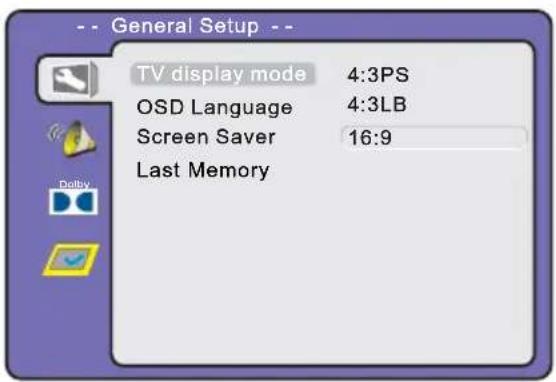
text_image
-- General Setup -- TV display mode 4:3PS OSD Language 4:3LB Screen Saver 16:9 Last MemoryTV DISPLAY MODE
DVDs are produced in a variety of screen aspect ratios. This menu allows you to select one of the three aspect ratios:
4:3 PS
4:3 LB
• 16:9
- Select the most appropriate aspect ratio for the DVD being viewed.
4:3PS
Pan and Scan is used for most normal television broadcasts and it is the default setting. It has an aspect ration of 4:3. If you select this setting when viewing a DVD the picture will fill the screen but, you will not see the left and right edges of the picture.
4:3LB
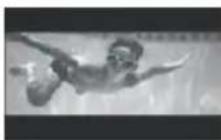
Letter Box will show the DVD in its original aspect ratio so depending on the size of your television screen, you may see black borders above and below the picture.
16:9
Choose this setting if you have a widescreen television.
NOTE:
- Playback screen size may vary according to the discs contents.
- For discs with 4:3 contents, using any mode would only display a 4:3 screen
- Screen ratio selection should be according to the connected TV / Display aspect ratio.
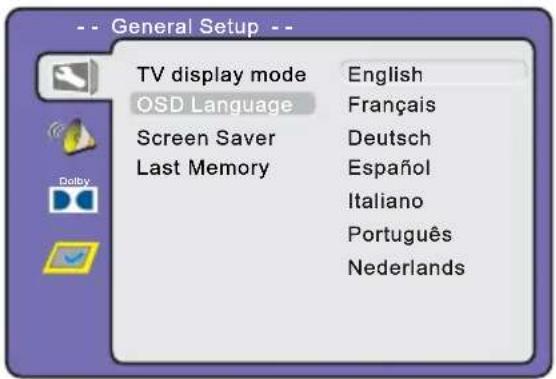
text_image
-- General Setup -- TV display mode English OSD Language Français Screen Saver Deutsch Last Memory Español Italiano Português Nederlands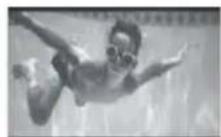
OSD LANGUAGE
Use navigation buttons to select the OSD Language setup icon, press [OK] button to confirm. There are few languages for your selection, press [▼/▲] buttons to toggle between different languages. Press [OK] button to confirm.
NOTE: If the selected language is not included in you DVD disc content, it will select the default language of the disc automatically. The default language setting is English
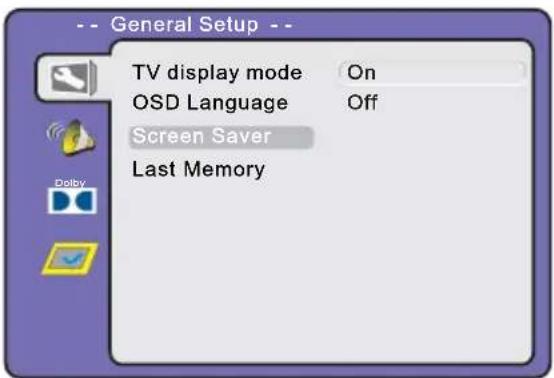
text_image
-- General Setup -- TV display mode On OSD Language Off Screen Saver Last MemorySCREEN SAVER
Enable or disable Screen Saver.
It will appear when the player stops or the picture is frozen for a few minutes. Screen saver can prevent the screen from being damaged.
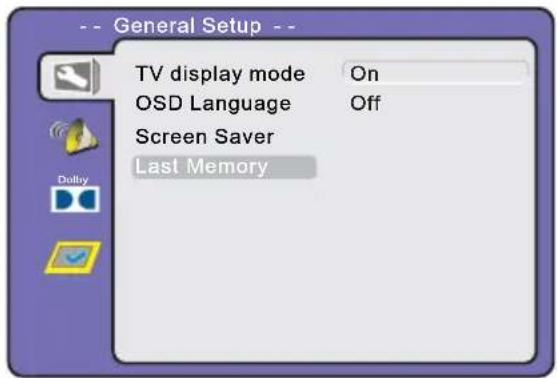
text_image
-- General Setup -- TV display mode On OSD Language Off Screen Saver Last MemoryLAST MEMORY
Enable or disable Last Memory.
On - next time you start playback Last Memory resumes it from the last point and restores last used settings.
Off - automatically switches back to the default settings.
Speaker Setup Page
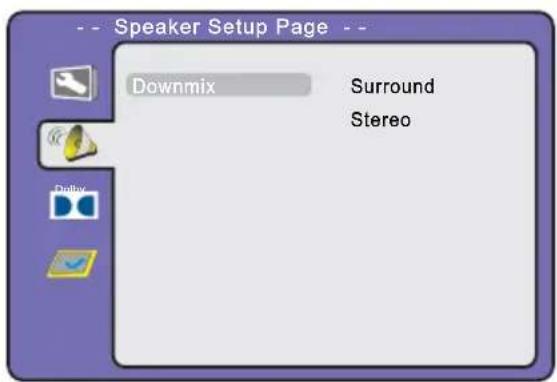
text_image
-- Speaker Setup Page -- Downmix Surround StereoDOWNMIX
Use navigation buttons to select Surround or Stereo option:
Surround - Surround mode
Stereo - Select this option if you don't have a 5.1 channels amplifier.
Digital Setup
text_image
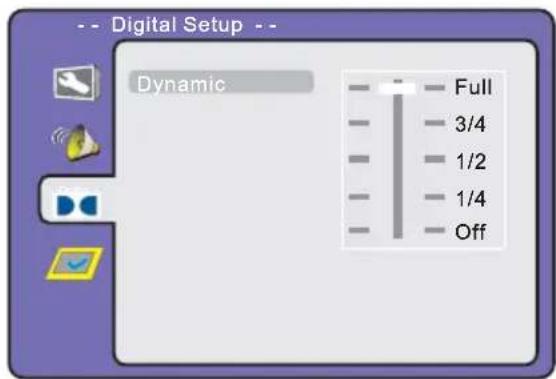
Digital Setup Dynamic Full 3/4 1/2 1/4 OffDYNAMIC
This option is used to set the compression ratio in order to control the sound (Volume) contrast.
Preferences Page
Preferences Page only valid when you press ■ (Stop) button twice to playback and then enter setup menu.

text_image
Preferences Page TV Type PAL Language Multi Subtitles NTSC Disc Menu Lang. Parental Password DefaultTV TYPE
This menu enables you to set the picture format for your TV/DVD.
PAL - This is the format used in the EUROPE and the default setting.
Multi - The player will set the TV system according to the disc in the tray.
NTSC - This format is used by some other countries, e.g. USA
text_image
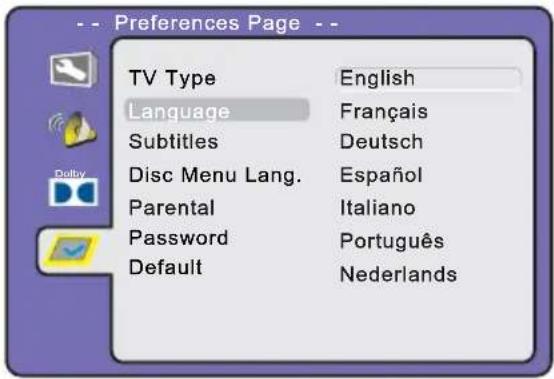
Preferences Page -- TV Type English Language Français Subtitles Deutsch Disc Menu Lang. Espanol Parental Italiano Password Português Default NederlandsLANGUAGE
Use navigation buttons to select the Language setup icon, press [OK] button to confirm. There are few languages for your selection, press [▼/▲] buttons to toggle between different languages. Press [OK] button to confirm.
NOTE: If the selected language is not included in you DVD disc content, it will select the default language of the disc automatically. The default language setting is English.

text_image
Preferences Page -- TV Type English Language Français Subtitles Deutsch Disc Menu Lang. Espanol Parental Italiano Password Português Default Nederlands OffSUBTITLES
Use navigation buttons to select the Subtitles setup icon, press [OK] button to confirm. There are few languages for your selection, press [▼/▲] buttons to toggle between different languages. Press [OK] button to confirm.
NOTE: If the selected language is not included in you DVD disc content, it will select the default language of the disc automatically. The default language setting is English.
text_image
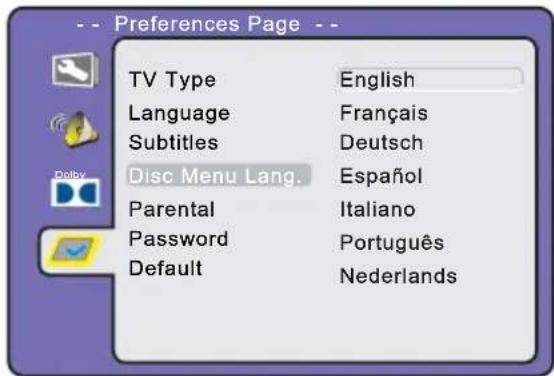
Preferences Page -- TV Type English Language Français Subtitles Deutsch Disc Menu Lang. Espanol Parental Italiano Password Português Default NederlandsDISC MENU LANGUAGE
Use navigation buttons to select the Disc Menu Language setup icon, press [OK] button to confirm. There are few languages for your selection, press [▼/▲] buttons to toggle between different languages. Press [OK] button to confirm.
NOTE: If the selected language is not included in you DVD disc content, it will select the default language of the disc automatically. The default language setting is English.

text_image
Preferences Page TV Type 1 KID Language 2 G Subtitles 3 PG Disc Menu Lang. 4 PG - 13 Parental 5 PG - R Password 6 R Default 7 NC - 17 8 ADULTPARENTAL
For some discs with rating, you can select the Parental setting, according to your preference. Rating restriction divided in eight different category from KID to ADULT.
NOTE: Only editable when password is unlocked. And only can function when password is locked. It does not, however, reset either the Password or the Rating setting.
text_image
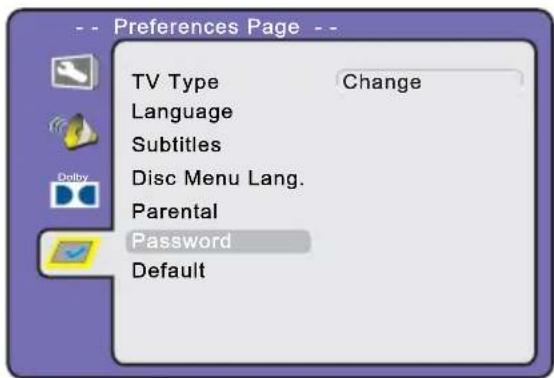
Preferences Page -- TV Type Change Language Subtitles Disc Menu Lang. Parental Password DefaultPASSWORD
The default setting is locked. No Parental selection or Password change could be done. To edit the Parental setting, please enter default password 136900 by numeric buttons, then press [OK] button to confirm.
To change password, input any 6 digit number when the lock is unlocked. Once the 6 digit number is entered, that will be your new password.

text_image
Preferences Page -- TV Type Reset Language Subtitles Disc Menu Lang. Parental Password DefaultDEFAULT
Restores factory default settings. Press [OK]/[▶] to select Default setup icon, then press [OK]/[▶] button again to reset settings.
CARE AND MAINTENANCE
Early malfunctions can be prevented. Careful and regular cleaning can extend the amount of time you will have your new TV. Be sure to turn the power off and unplug the power cord before you begin any cleaning.
Cleaning the screen
- Here's a great way to keep the dust off your screen for a while. Wet a soft cloth in a mixture of lukewarm water and a little fabric softener or dish washing detergent. Wring the cloth until it's almost dry, and then used it to wipe the screen.
- Make sure the excess water is off the screen, and then let it air-dry before you turn on your TV.
Cleaning the cabinet
To remove dirt or dust , wipe the cabinet with a soft, dry, lint-free cloth. Please be sure not to use a wet cloth.
Extended Absence

If you expect to leave your TV dormant for a long time(such as a vacation), it's a good idea to unplug the power cord to protect against possible damage from lightning or power surges.
Handing Discs
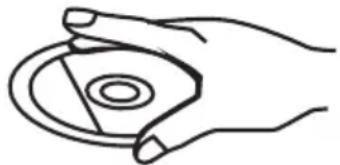
- To remove a disc from its storage case, press on the centre of the case and take the disc out.
- Hold the disc by the edges, to avoid touching the Recorded side of the disc.
natural_image
Line drawing of a hand holding a circular object with a central hole (no text or symbols)Cleaning discs
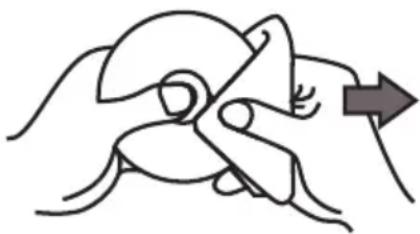
- Fingerprints and dust should be carefully wiped from the disc's surface with a soft Cloth. Audio discs and DVD discs have no grooves to collect dust and microscopic debris so gently wiping with a soft cloth should remove most particles. Wipe in a straight line from the inside to the outside of the disc. Small dust particles and light stains should have no effect on reproduction quality.
- Never use chemicals such as record sprays, antistatic sprays, Benzine, or thinners to clean the discs. These chemicals can irreparably damage the disc's surface.
- Discs should be returned to their cases after use. This avoids serious scratches that could cause the laser pickup to skip.
- Do not expose discs to direct sunlight, high humidity, or high temperature for extended periods. Exposure to high temperatures can warp the disc.
- Do not stick paper or write anything with a ball point pen on the label side of the disc.
natural_image
Illustration of a hand holding a pinwheel with a directional arrow (no text or symbols)Please check for causes of problems in accordance with the following chart before contacting any maintenance personnel.
DISPLAY TROUBLESHOOTING
| Symptom | Causes and Correction |
| Black screen, power indicator light off | ◆ Check whether power cord is well connected, and whether this unit is power on |
| ◆ Check whether the signal cord of input device is well connected◆ Check whether input device is power on | |
| Image display flicker, unstable | ◆ Check whether the input device signal is in this unit's specification |
| ◆ Check computer output mode: control panel-display-setup◆ If the setup does not accord with this unit's specification, please change the display setup | |
| ◆ Hor scanning frequency: 30KHz~75KHz◆ Ver scanning frequency: 50 Hz-75Hz |
SOUND AND TV TROUBLESHOOTING
| Symptom | Causes and Correction |
| Cannot power on | ◆ Please make sure the well connecting of power cord |
| No sound | ◆ Please make sure the well connecting of audio cord |
| ◆ Check volume | |
| ◆ Make sure there is nothing plugged in the headphone jack | |
| Volume too low | ◆ Check volume |
| ◆ If volume is still too low when adjusting volume to maximum, please check whether the input device is well set | |
| Snowy picture | ◆ Input antenna damaged or not well connected |
| Remote control failure | ◆ Check whether remote control battery used up◆ Whether battery installation is correct◆ Whether obstacles exists between remote control and the unit's receiving window◆ Check whether receiving window has strong light |
DVD TROUBLESHOOTING
| Symptom | Causes | Correction |
| Not play | 1. Condensation on laser head2. Disc not properly loaded3. Disc not compatible with the unit | 1. Switch on power and wait for 1 to 2 hours2. Make sure label side of the disc facing up3. Confirm whether this unit compatible with the placed disc |
| Sound distortion | 1. Too large volume of connected device2. Sound field mode not suitable for disc | 1. Adjust the device volume2. Adjust appropriate sound field |
| No sound | 1. Disc warped or dirty2. The unit in mute state | 1. Clean the disc2. Press MUTE button to cancel it. |
| No image | 1. TV not set for proper system | 1. Reset AV/TV state of TV |
| No color | 1. TV system not right2. TV color not well adjusted | 1. Try to change the color system2. Reset the TV color |
| No disc reading | 1. Disc warped or dirty2. Disc not correctly placed3. Condensation on laser head | 1. Clean the disc2. Reload a disc with label side facing up3. Witch on power, unload disc and leave it for about 1 hour |
| Temporary function failure | 1. Mal-fabricated disc used2. Wrong buttons pressed3. Static leakage into the unit from outside | 1. Wait for 5 to 10 seconds to restore to normality automatically2. Operate again3. Power off for 1 to 2 minutes to power on again |
| No subtitle | 1. No subtitle made in disc2. The unit subtitle is turned off | 1. Disc problem2. Press Subtitle button to select it |
| Image rolling | 1. System setup not suitable for disc | 1. Adjust system mode |
- If the above methods still cannot solve the problems or the troubles are special, please contact the local maintenance personnel.
| ♦ LED screen | Type | TFT color21,5" - 55 cm | |
| ♦ Frequency | Hor scanning frequencyVer scanning frequencyDisplay color | 30 KHz~80 KHz50 Hz~75 Hz16.7M color ( ) | |
| ♦ Display mode | Recommended modeMax mode | 1920 X 1080 (Full HD) | |
| Panel Life | Hours | 50 000 | |
| Input signal | Synchronous signalVideo signal | H/V separation, TTL positive/negative;H/V composite, TTL positive/negativeGreen synchronous, 0.3Vp p,negative0.7 Vp p@75ohm | |
| TV/Video | Image systemAudio systemVideo form | PAL/SECAM/NTSC(In video mode)DK/I/BG/LCVBS、RGB, YPbPr,VGA | |
| Power From | ACFrom DC (car) | ~ 100V-240V(50/60) Hz-- 12V/2,4A | |
| Environmental factor | Working temperatureWorking humidityStoring temperatureStoring humidity | 5°C 3 °C 5 ~10 80%% ~-20°C 45°e5 95%% ~ | |
| Media play (USB) | File format | MP3, MPEG1, MPEG2, AVI, JPEG and BMP | |
| Audio parameter | Audio inputFrequency response | Φ3.5jack(L,R),0.5±0.3VrmsTV signal: 100 Hz 12 KHz(-3dB)~AV: 100 Hz~15 KHz (-3dB) | |
| DVD | Disc type | DVD VIDEOMPEG4 *; SVCD**VCD1.0, 1.1, 2.0 version; CD-DA | |
| Digital TV | Digital tunerInput connectorFrequencyrange (VHF/UHF)Channel range(VHF/UHF) | DVB-T MPEG2.IEC-Type, IEC 169-2, Female174MHz~858MHz7 & 8 Mhz | |
Hint: the items with "♦" symbol are related to LED screen. Specifications and design are subject to change without notice.
* Some discs labelled with MPEG 4 on the market actually are *.rm/* .ram/* .rmm and others which are not compatible. Please take care when buying discs.
** Thisunit cannot play some SVCD discs with VCD format.
Because of disc quality and format difference, we cannot make sure smoothly read all discs; some functions cannot be fulfilled for the disc speciality, but not machine trouble.
Disposal of Used Electrical & Electronic Equipment
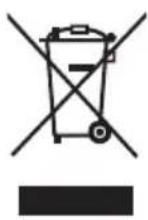
The meaning of the symbol on the product, its accessory or packaging indicates that this product shall not be treated as household waste. Please, dispose of this equipment at your applicable collection point for the recycling of electrical & electronic equipments waste. In the European Union and Other European countries which there are separate collection systems for used electrical and electronic product. By ensuring the correct disposal of this product, you will help prevent potentially hazardous to the environment and to human health, which could otherwise be caused by unsuitable waste handling of this product. The recycling of materials will help conserve natural resources. Please do not therefore dispose of your old electrical and electronic equipment with your household waste. For more detailed information about recycling of this product, please contact your local city office, your household waste disposal service or the shop where you purchased the product.
natural_image
Simple line drawing of a computer monitor with a circular base and abstract lines at the bottom (no text or symbols)This item incorporates copy protection technology that is protected by U.S. patents and other intellectual property rights of Rovi Corporation. Reverse engineering and disassembly are prohibited.
SALORA
TELEVISEUR LED COULEUR
natural_image
Simple line drawing of a computer monitor with a stand and abstract lines (no text or symbols)22LED2005TD
22LED2015TDW
MANUEL DE L'UTILISATEUR (FR)
A LIRE ATTENTIVEMENT AVANT L'UTILISATION

text_image
Technical diagram showing two views of a device with labeled components and directional arrows, including section ① and section ②.
natural_image
Line drawing of a monitor mounted on a stand with labeled parts 1 and 2 (no text or symbols beyond labels)PANNEAUX DES TOUCHES

text_image
1 2 3 4 5 6 7 8 9 %II ▲ SOURCE MENU CH- CH+ VOL- VOL+ ●
text_image
5 CH- 6 CH+ 9 •text_image
Diagram showing various electronic device components with labels and connectors, including audio, audio/video, and TV ports.i REMARQUE
natural_image
Three-step diagram showing battery charging process: moving, adding, and discharging (no text or symbols)AUTONOMIE DES PILES
text_image
CI Information Viaccess Conditional Access Main menu System information Smart card management Language setting Press 'OK' to enter; Press 'EXIT' to returnIMAGE
text_image
MEDIA PROG INTRO REPEAT A-BTITLE, SUBTITLE, DISPLAY, PLAY, SETUP, STOP, SLOW/STEP, AUDIO, F.FWD, F.REV, PREV, NEXT, GOTO, ZOOM, ANGLE, PROGRAM, PREVIEW, REPEAT, A-B.
PSG/PSD - surround mode