ETR9360 - Access Point ENGENIUS - Free user manual and instructions
Find the device manual for free ETR9360 ENGENIUS in PDF.


User questions about ETR9360 ENGENIUS
0 question about this device. Answer the ones you know or ask your own.
Ask a new question about this device
Download the instructions for your Access Point in PDF format for free! Find your manual ETR9360 - ENGENIUS and take your electronic device back in hand. On this page are published all the documents necessary for the use of your device. ETR9360 by ENGENIUS.
USER MANUAL ETR9360 ENGENIUS
Wireless N Pocket AP/Router
V1.0
1
- Package Contents ....5
- System Requirements ....5
- Introduction......6
- Features 7
- Hardware Overview 8
- Before you Begin....10
6.1 Considerations for Wireless Installation....10
6.2 AP Router / AP / Client Bridge Modes 11
6.3 Computer Settings (Windows XP/Vista)....12
- Hardware Installation....15
- Configuring Travel Router....20
8.1 Setup Wizard 21
8.1.1 AP Router Mode....25
8.1.2 AP Mode 36
8.1.3 Client Bridge Mode 38
8.2 Web-Based Configuration....39
8.2.1 System 39
8.2.2 Internet....55
8.2.3 Wireless 65
8.2.4 Firewall....84
8.2.5 Advanced 91
EnGenius®
8.2.6 Tools 102
8.3 AP and Client Bridge Modes....110
8.4 Client Bridge Mode 115
8.4.1 Wireless 115
Appendix A – FCC Interference Statement ...... 118
Appendix B – IC Interference Statement....120
Revision History
| Version | Date | Notes | version | ||
| 1.0 | 2010/03/31 | Initial | Release | ||
1. Package Contents
• EnGenius TRAVEL ROUTER
- Li-ion Battery
- AC Adapter
• RJ-45 Ethernet LAN Cable
• CD-ROM with User Manual and Setup Utility
- Quick Guide
2. System Requirements
• RJ-45 Ethernet Based Internet Connection
• Computer with Wireless Network function
- Windows, Mac OS or Linux based operating systems
- Internet Explorer or Firefox or Safari Web-Browser Software
3. Introduction
TRAVEL ROUTER is the world's smallest 11n Wireless Router and Access Point connectivity that brings superior convenience for users who need to create a wireless network to share the Internet, documents or multimedia files quickly between computers at speeds of up to 150Mbps.
Also, you can leave the bulky power adapter behind as the power supply unit is embedded in the device, so it can be slipped into your pocket easily.
The TRAVEL ROUTER can be connected to the Internet through a DSL/Cable modem at any available location. It can even share the connection in your hotel's room if a RJ-45 network cable is used.
To ensure your data is secure, the TRAVEL ROUTER supports Wi-Fi Protected Setup (WPS) for simple and easy setup of WPA2 encryption of the wireless signal.
4. Features
• WORLD'S SMALLEST AP
Superior design to bring you the world's smallest 11n AP Router for a true portable wireless solution.
• INTERNAL POWER
No need to bring bulky power adapters for improved space saving convenience.
•INTERNET SHARING
Wirelessly share your Internet connection to multiple computers.
• Multiple OPERATION MODES
AP Router, Access Point and Client Bridge modes for flexible usage in different scenarios.
• 802.11n COMPLIANT
Fully 802.11n standard compliant to bring you 6x faster and 3x farther wireless connections at speeds up to 300Mbps.
• WPS PUSH BUTTON
Wi-Fi Protected Setup (WPS) Push Button Configuration support for simple and secure setup of your wireless network.
• BEST CHANNEL SELECTION
In places where there are many wireless networks, the TRAVEL ROUTER will select the channel with the least interference for maximum reception and performance.
- MULTI-SSID
Up to 4 different wireless networks can be created with different security encryption methods. They can even be isolated so each wireless network has their own access policies.
• ADVANCED FIREWALL AND ACCESS CONTROL
Dual Firewall is featured to prevent unwanted access from the Internet. URL, MAC and IP Filters allow control over who can connect to your LAN, and what Internet sites they can connect to.
EnGenius®
5. Hardware Overview
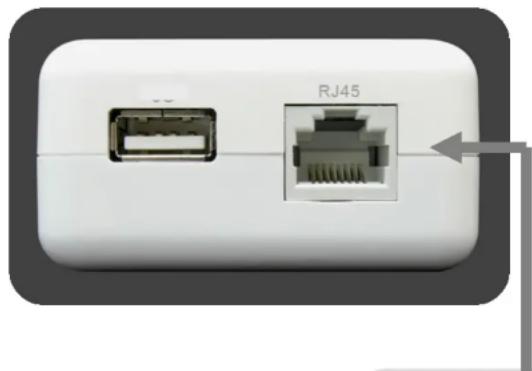
natural_image
Close-up of a white electronic device showing two ports: one with a USB port and the other RJ45 connector (no text or symbols visible)RJ-45
This RJ-45 port can be configured as WAN or LAN modes.
WAN: Connect to the Internet using DSL/Cable modem.
LAN: Connect to a computer, switch or hub.
EnGenius®
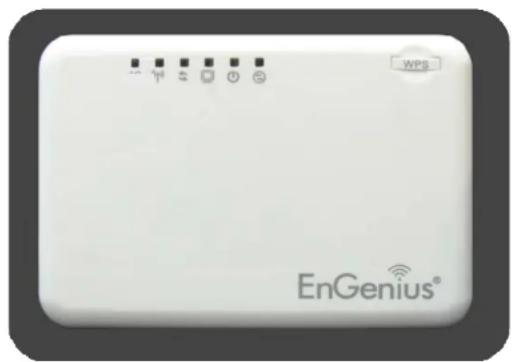
| LED Lights icon | Description | |
| Wireless LAN |  | Color – BlueLights when Wireless signal is activated.Blinks when Wireless data transfer. |
| WPS |  | Color – BlueBlinks when WPS handshake is initialized. |
| LAN |  | Color – BlueLights when wired network device is connected to RJ-45 port.Blinks when data transfer occurs on RJ-45 port. |
| Power |  | Color – BlueLights when device is powered ON.Blinks device is Reset. |
| Mode |  | Indicates which mode the TRAVEL ROUTER is set to.Orange – AP RouterBlue – Access PointGreen – Client Bridge |
| Battery |  | Indicates current battery level. (RED light signifies low in battery) |
| Buttons | icon | Description |
| WPS |  | Press this button to initialize WPS process.Hold this button for 10 seconds to Reset to Factory Defaults. |
EnGenius®
6. Before you Begin
This section will guide you through the installation process. Placement of the TRAVEL ROUTER is very important to avoid poor signal reception and performance. Avoid placing the device in enclosed spaces such as a closet, cabinet or wardrobe.
6.1 Considerations for Wireless Installation
The operating distance of all wireless devices cannot be predetermined due to a number of unknown obstacles in the environment that the device is deployed. These could be the number, thickness and location of walls, ceilings or other objects
natural_image
White EnGenius wireless router device with indicator lights and WPS control (no readable text beyond brand name)that the wireless signals must pass through. Here are some key guidelines to ensure that you have the optimal wireless range.
- Keep the number of walls and ceilings between the EnGenius access point and other network devices to a minimum. Each wall or ceiling can reduce the signal strength, the degradation depends on the building's material.
- Building materials makes a difference. A solid metal door or aluminum stubs may have a significant negative effect on range. Locate your wireless devices carefully so the signal can pass through a drywall or open doorways. Materials such as glass, steel, metal, concrete, water (fish tanks), mirrors, file cabinets and brick will also degrade your wireless signal.
- Interferences can also come from your other electrical devices or appliances that generate RF noise. The most usual types are microwaves, or cordless phones.
EnGenius®
6.2 AP Router / AP / Client Bridge Modes
There are three main modes to select from which will influence the installation of the TRAVEL ROUTER. This section will help you determine which mode works with your setup.
AP Router Mode
AP Router Mode allows you to share an Internet connection to multiple computers.
AP Mode
AP mode establish a network with the Access Point. It does not have NAT function and the ability connecting to internet.
Client Bridge Mode
Client Bridge Mode allows a wired network device to connect to your wireless network, or create a point-to-point bridge.
Change modes from the top-right of the User Interface.

text_image
Wireless-N Pocket AP/Router Status LAN DHCP Schedule Log Monitor Language AP Router Mode AP Router Mode AP Mode Client Bridge ModePlease see Configuring the TRAVEL ROUTER for instructions to access the Web-Based User Interface.
EnGenius®
6.3 Computer Settings (Windows XP/Vista)
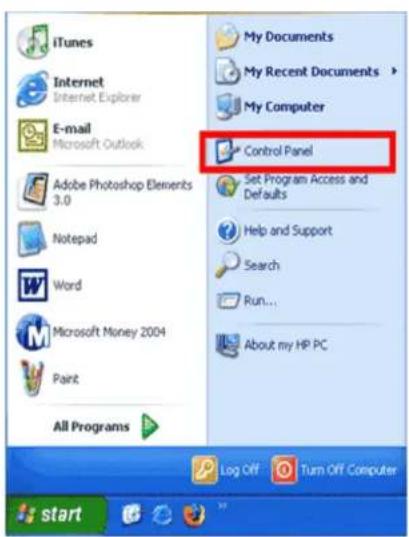
- Click Start button and open Control Panel.
text_image
iTunes Internet Internet Explorer E-mail Microsoft Outlook Adobe Photoshop Elements 3.0 Notepad Word Microsoft Money 2004 Paint All Programs My Documents My Recent Documents > My Computer Control Panel Set Program Access and Defaults Help and Support Search Run... About my HP PC Log Off Turn Off Computer startWindows XP

text_image
Internet Mozilla Firefox E-mail Windows Mail Calculator WordPad Welcome Center Windows Photo Gallery Adobe Photoshop Elements 3.0 Windows Speech Recognition Windows Media Center Windows Ultimate Extras Snaglt 8 All Programs Start Search Michelle Documents Pictures Music Games Search Recent Items Computer Network Connect To Control Panel Default Programs Help and SupportWindows Vista
EnGenius®
13
- Windows XP, click [Network Connection]
Windows Vista, click [View Network Status and Tasks] then [Manage Network Connections]

Network Connections

Network and Internet Connect to the Internet View network status and tasks Set up file sharing
Tasks
View computers and devices
Connect to a network
Set up a connection or network
Manage network connections
Diagnose and repair
- Right click on [Local Area Connection] and select [Properties].

Local Area Connection
Disable
Status
Repair
Bridge Connections
Create Shortcut
Delete
Rename
Properties
EnGenius®
14
- Check "Client for Microsoft Networks", "File and Printer Sharing", and "Internet Protocol (TCP/IP) is ticked. If not, please install them.
- Select "Internet Protocol (TCP/IP)" and click [Properties]
- Select "Obtain an IP Address automatically" and "Obtain DNS server address automatically" then click [OK].
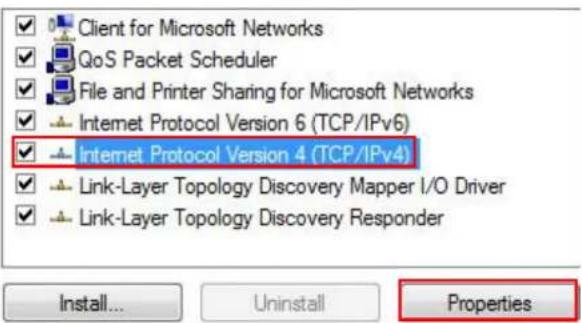
text_image
Client for Microsoft Networks QoS Packet Scheduler File and Printer Sharing for Microsoft Networks Internet Protocol Version 6 (TCP/IPv6) Internet Protocol Version 4 (TCP/IPv4) Link-Layer Topology Discovery Mapper I/O Driver Link-Layer Topology Discovery Responder Install... Uninstall Properties
text_image
Internet Protocol Version 4 (TCP/IPv4) Properties General Alternate Configuration You can get IP settings assigned automatically if your network supports this capability. Otherwise, you need to ask your network administrator for the appropriate IP settings. ● Obtain an IP address automatically ○ Use the following IP address: IP address: + + + Subnet mask: + + + Default gateway: + + + ● Obtain DNS server address automatically ○ Use the following DNS server addresses: Preferred DNS server: + + + Alternate DNS server: + + + Advanced... OK CancelEnGenius®
7. Hardware Installation
CHARGE THE BATTERY
Slide to open the battery cover and insert the battery into place.
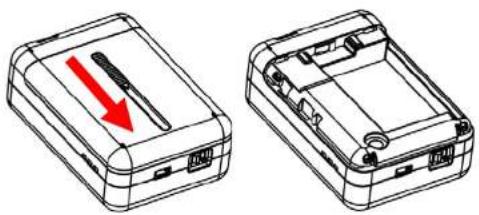
natural_image
Two technical line drawings of a device case with a red arrow indicating a downward motion (no text or symbols present)Insert the battery as shown below.

natural_image
Technical line drawing of a device housing with internal components and a separate housing (no text or symbols)EnGenius®
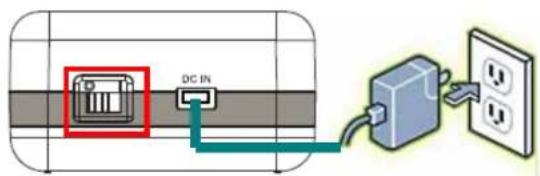
text_image
DC INPlease lay the device safely on flat surface while charging.
Make sure on/off switch is flipped to "O" sign and plug in the included adapter (DC-IN) to start charging the battery.

natural_image
Pure diagram of a device casing with no text, numbers, or symbols visibleRed light indicates low in battery. It's recommended to fully charge the battery before use.
EnGenius®
POWER ON
Recommended uses the device after fully charged the battery.
Make sure On/Off switch is flipped to the "I" sign.

text_image
DC INPlease wait after Wireless starts blinking.

text_image
3GNote1: Please flip on/off switch to "O" when charging the battery.
Note2: It takes about 2 hours to fully charge the battery.
EnGenius®
AP Router Mode:
One type of Internet connection is required. Please either connect the network cable from your DSL/Cable modem to the RJ-45 port on the TRAVEL ROUTER.
AP Mode:
Connect the network cable to the RJ-45 port.
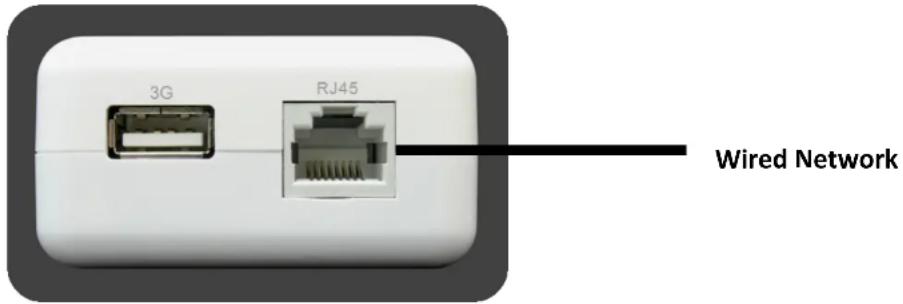
text_image
3G RJ45 Wired NetworkEnGenius®
8. Configuring Travel Router
This section will show you how to configure the device using the web-based configuration interface.
Please use your wireless network adapter to connect the TRAVEL ROUTER.
Default Settings
| IP Address 192.168.0.1 | |
| Username / Password admin / admin | |
| Wireless Mode Enable | |
| Wireless SSID EnGeniusxxxxxx | |
| Wireless Security None | |
text_image
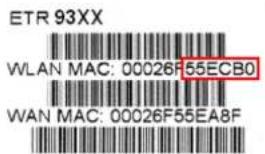
ETR 93XX WLAN MAC: 00026F55ECB0 WAN MAC: 00026F55EA8FNote: xxxxxx represented in the wireless SSID above is the last 6 characters of your device MAC Address. This can be found on the device body label and is unique for each device.
EnGenius®
8.1 Setup Wizard
- Open a web browser (Internet Explorer/Firefox/Safari) and enter the IP Address http://192.168.0.1
Note: If you have changed the default LAN IP Address of the TRAVEL ROUTER, ensure you enter the correct IP Address.

text_image
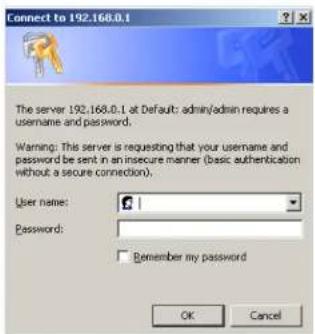
http://192.168.0.1- The default username and password are admin. Once you have entered the correct username and password, click the OK button to open the web-base configuration page.
text_image
Connect to 192.168.0.1 The server 192.168.0.1 at Default: admin/admin requires a username and password. Warning: This server is requesting that your username and password be sent in an insecure manner (basic authentication without a secure connection). User name: Password: Remember my password OK CancelEnGenius®
- You will see the following webpage if login successful.

text_image
Wireless-N Pocket AP/Router Status LAN DHCP Schedule Log Monitor Language AP Router Mode You can use the Status page to monitor the connection status for the WAN/LAN interfaces, firmware and hardware version numbers, any illegal attempts to access your network and information on all DHCP client PCs currently connected to your network. System Model 3G Wireless Travel Router Mode AP Router Uptime 10 min 57 sec Current Date/Time 2009/01/01 00:14:00 Hardware version 1.0.0 Serial Number 09B260553 Kernel version 1.0.2 Application version 1.0.2 WAN Settings Attain IP Protocol Dynamic IP Address IP address --- Subnet Mask ---- Click Wizard to enter the Setup Wizard. Then click Next to begin the wizard.
EnGenius®

text_image
EnGenius ETR9360 System Wizard Internet Wireless Firewall Advanced Tools
text_image
Wireless-N Pocket AP/Router Setup Wizard Welcome to the router's web interface. From here you will continue the setup process using your browser. To continue, click "Next". NextEnGenius®
5. Select the Operation Mode.
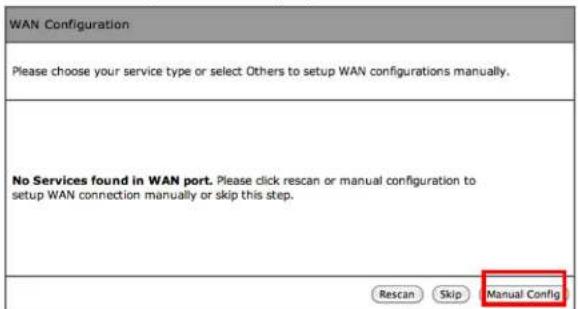
Please ensure you have the proper cables connected as described in the Hardware Installation section.
text_image
WAN Configuration Please choose your service type or select Others to setup WAN configurations manually. No Services found in WAN port. Please click rescan or manual configuration to setup WAN connection manually or skip this step. Rescan Skip Manual Config
text_image
Setup Wizard Please choose the Operation Mode. AP Router Mode: AP Router is the most common Wireless LAN device with which you will work as a Wireless LAN administrator and Internet Access Point. AP Router provides clients with a point of access into the Internet. AP Mode: AP Mode allows wireless communication devices to connect to a wireless network using Wi-Fi. Client Bridge Mode: The Wireless Client Bridge can operate as a point-to-point bridge to link networks in different buildings. NextEnGenius®
8.1.1 AP Router Mode
a) The device will now automatically search for the correct Internet settings.
WAN Configuration
Automatically detecting the Services on WAN port. Please wait 7 seconds
b) The most appropriate WAN type will be determined and selected automatically. If it is incorrect, please select Others to set up the WAN settings manually.
WAN Configuration
Please choose your service type or select Others to setup WAN configurations manually.
| No. | Service | Description |
| 1. | DHCP | DHCP is used when your Modem is controlling your internet connection the Username & Password is stored on the Modem. |
| 2. | PPPoE | PPPoE is used when your modem is set in Bridge Mode and your Router is used to control the internet connection. IE: router houses ISP's Username & Password. |
| 3. | Others |
Rescan Skip Next
EnGenius®
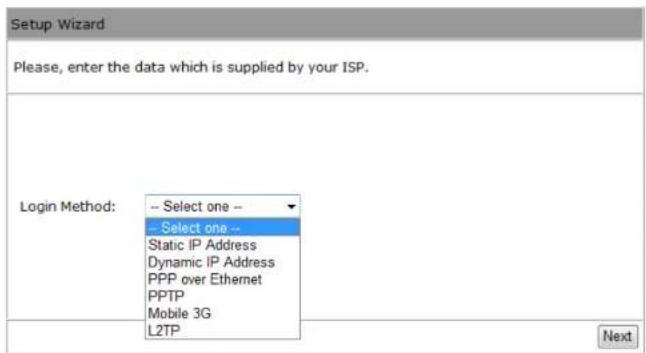
c) There are many WAN service types available. Please obtain the correct settings from your Internet Service Provider (ISP).
text_image
Setup Wizard Please, enter the data which is supplied by your ISP. Login Method: -- Select one -- -- Select one -- Static IP Address Dynamic IP Address PPP over Ethernet PPTP Mobile 3G L2TP NextStatic IP Address
If your ISP Provider has assigned you a fixed IP address, enter the assigned IP address, Subnet mask, Default Gateway IP address, and Primary DNS and Secondary DNS (if available) of your ISP provider.
Login Method:
IP address :
Subnet Mask :
Default Gateway :
Primary DNS :
Secondary DNS (Optional) :
Static IP Address
EnGenius®
Dynamic IP Address
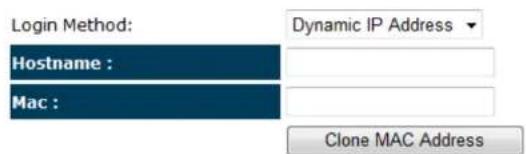
The IP Address is allocated automatically. However some ISP's will also recognize the MAC address and will reject connections if the MAC address does not match.
If your ISP has recorded the MAC address of your computer's Ethernet LAN card, please connect only the computer with the authorized MAC address, and click the Clone MAC Address button.
This will replace the AP Router MAC address to the computer MAC address. The correct MAC address is used to initiate the connection to the ISP.
text_image
Login Method: Dynamic IP Address Hostname : Mac : Clone MAC Address| Dynamic IP Address | |
| Hostname: | This is optional. Only required if specified by ISP |
| MAC: | The MAC Address that is used to connect to the ISP. |
EnGenius®
PPP over Ethernet
ISP requires an account username and password.

text_image
Login Method: PPP over Ethernet Username : Password : Service : MTU : 1492 (512<=MTU Value<=1492)PPP over Ethernet
| Username: | Username assigned to you by the ISP |
| Password: | Password for this username. |
| Service: | You can assign a name for this service. (Optional) |
| MTU: | The maximum size of packets.Do not change unless mentioned by the ISP. |
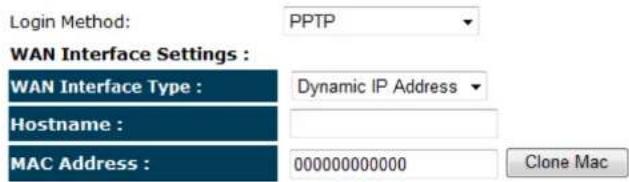
Point-to-Point Tunneling Protocol (PPTP)
PPTP is used by some ISPs.
text_image
Login Method: PPTP WAN Interface Settings : WAN Interface Type : Dynamic IP Address Hostname : MAC Address : 000000000000 Clone MacPPTP Settings :
text_image
Login : Password : Service IP address : Connection ID : 0 (Optional) MTU : 1400 (512<=MTU Value<=1492)EnGenius®
| PPTP WAN Interface Settings | |
| WAN Interface Type: | Select whether the ISP is set to Static IP or Dynamic IP addresses. |
| Hostname: | This is optional. Only required if specified by ISP |
| MAC: | The MAC Address that is used to connect to the ISP. |
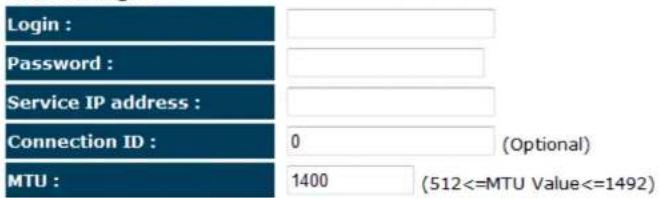
| PPTP Settings | |
| Login: | Username assigned to you by the ISP |
| Password: | Password for this username. |
| Service IP Address: | The IP Address of the PPTP server. |
| Connection ID: | This is optional. Only required if specified by ISP |
| MTU: | The maximum size of packets.Do not change unless mentioned by the ISP. |
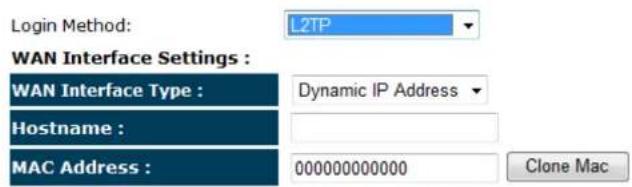
Layer-2 Tunneling Protocol (L2TP)
text_image
Login Method: L2TP WAN Interface Settings : WAN Interface Type : Dynamic IP Address Hostname : MAC Address : 000000000000 Clone MacL2TP Settings :
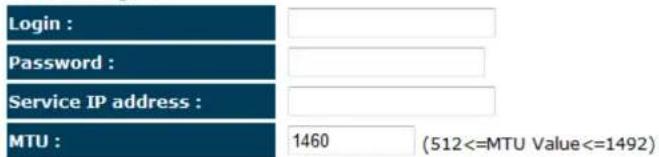
text_image
Login : Password : Service IP address : MTU : 1460 (512<=MTU Value<=1492)| L2TP WAN Interface Settings | |
| WAN Interface Type: | Select whether the ISP is set to Static IP or Dynamic IP addresses. |
| Hostname: | This is optional. Only required if specified by ISP |
| MAC: | The MAC Address that is used to connect to the ISP. |
| L2TP Settings | |
| Login: | Username assigned to you by the ISP |
| Password: | Password for this username. |
| Service IP Address: | The IP Address of the PPTP server. |
| MTU: | The maximum size of packets.Do not change unless mentioned by the ISP. |
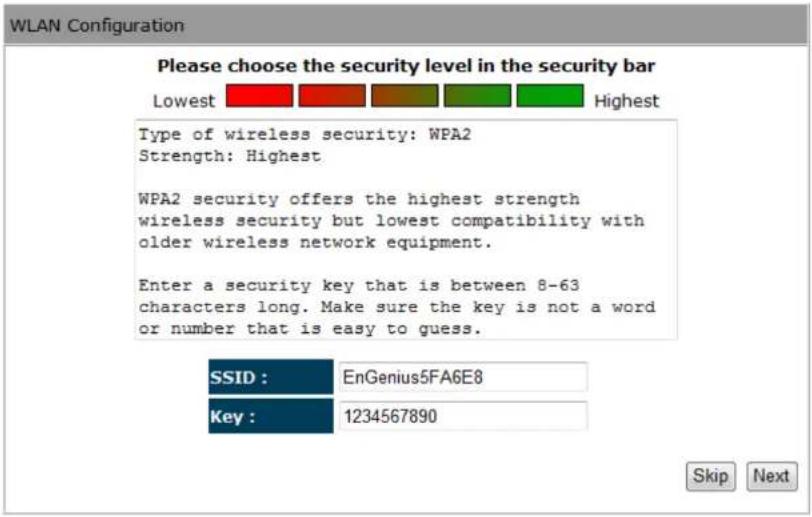
d) Setup the level of wireless security to be used.
EnGenius recommends the Highest level of security to be used.
Note: 802.11n wireless speeds may not be achievable if the security is setup to Lowest and Low level.
text_image
WLAN Configuration Please choose the security level in the security bar Lowest Highest Type of wireless security: WPA2 Strength: Highest WPA2 security offers the highest strength wireless security but lowest compatibility with older wireless network equipment. Enter a security key that is between 8-63 characters long. Make sure the key is not a word or number that is easy to guess. SSID : EnGenius5FA6E8 Key : 1234567890 Skip NextSSID: Enter the name of your wireless network.
Key: Enter the security key for your wireless network.
EnGenius®
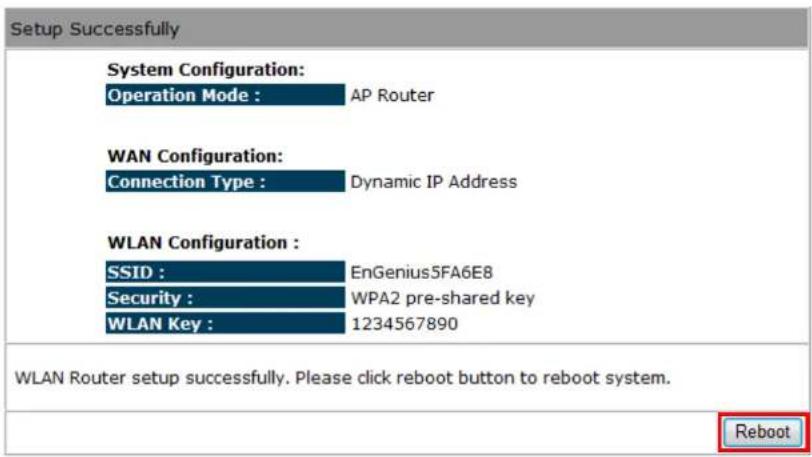
e) Check the settings are correct, and then click Reboot to apply the settings.
text_image
Setup Successfully System Configuration: Operation Mode : AP Router WAN Configuration: Connection Type : Dynamic IP Address WLAN Configuration : SSID : EnGenius5FA6E8 Security : WPA2 pre-shared key WLAN Key : 1234567890 WLAN Router setup successfully. Please click reboot button to reboot system. RebootEnGenius®
8.1.2 AP Mode
a) Select the level of wireless security to be used.
EnGenius recommends the Highest level of security to be used.
Note: 802.11n wireless speeds may not be achievable if the security is setup to Lowest and Low level.

text_image
WLAN Configuration Please choose the security level in the security bar Lowest Highest Type of wireless security: WPA2 Strength: Highest WPA2 security offers the highest strength wireless security but lowest compatibility with older wireless network equipment. Enter a security key that is between 8-63 characters long. Make sure the key is not a word or number that is easy to guess. SSID : EnGenius5FA6E8 Key : 1234567890 Skip NextSSID: Enter the name of your wireless network.
Key: Enter the security key for your wireless network.
EnGenius®
b) Check the settings are correct, and then click Reboot to apply the settings.

text_image
Setup Successfully System Configuration: Operation Mode : AP Router WLAN Configuration : SSID : EnGenius5FA6E8 Security : WPA2 pre-shared key WLAN Key : 1234567890 WLAN Router setup successfully. Please click reboot button to reboot system. RebootEnGenius®
8.1.3 Client Bridge Mode
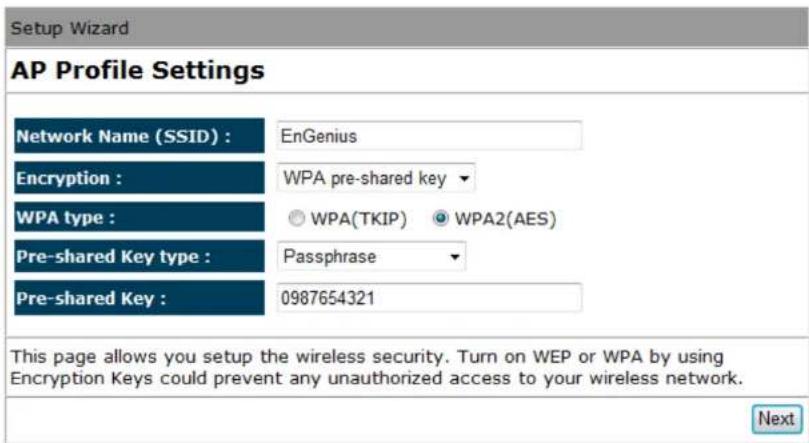
a) In this mode, the TRAVEL ROUTER will connect to a wireless network as a client device. Please enter the SSID and security settings of that wireless network.
text_image
Setup Wizard AP Profile Settings Network Name (SSID) : EnGenius Encryption : WPA pre-shared key WPA type : ○ WPA(TKIP) ○ WPA2(AES) Pre-shared Key type : Passphrase Pre-shared Key : 0987654321 This page allows you setup the wireless security. Turn on WEP or WPA by using Encryption Keys could prevent any unauthorized access to your wireless network. Nextb) Check the settings are correct, and then click Reboot to apply the settings.
System Configuration:
Operation Mode : Client Bridge
EnGenius®
8.2 Web-Based Configuration
8.2.1 System
Status
This page allows you to monitor the status of the device.
System
Model 3G Wireless Router
Mode AP Router
Uptime 33 min 35 sec
Current Date/Time 2009/01/01 00:53:01
Hardware version 1.0.0
Serial Number 000000111
Kernel version 1.0.2
Application version 1.0.2
EnGenius®
| Status | |
| Model: | Description of this device. |
| Mode: | The device is currently in which mode. |
| Uptime: | The duration about the device has been operating without powering down or reboot. |
| Current Date/Time: | The device's system time.If this is incorrect, please set the time in the Tools / Time page. |
| Hardware version and Serial Number: | Hardware information for this device. |
| Kernel and Application version: | Firmware information for this device. |
WAN Settings
| Attain IP Protocol | Dynamic IP Address |
| IP address | 10.0.174.29 |
| Subnet Mask | 255.255.254.0 |
| Default Gateway | 10.0.175.254 |
| MAC address | 00:02:6F:5F:A9:1E |
| Primary DNS | 10.0.200.101 |
| Secondary DNS | 10.0.200.102 |
| WAN Settings | |
| Attain IP Protocol: | Method used to connect to the Internet |
| IP address: | The WAN IP Address of the device. |
| Subnet Mask | The WAN Subnet Mask of the device. |
| MAC address | The MAC address of the device's WAN Interface. |
| Primary and Secondary DNS: | Primary and Secondary DNS servers assigned to the WAN connection. |
LAN Settings
| IP address | 192.168.0.1 |
| Subnet Mask | 255.255.255.0 |
| DHCP Server | Enabled |
| LAN Settings | |
| IP address: | The LAN IP Address of the device. |
| Subnet Mask | The LAN Subnet Mask of the device. |
| DHCP Server | Whether the DHCP server is Enabled or Disabled. |
WLAN Settings
| Channel | 11 | |
| SSID_1 | ||
| ESSID | End | |
| Security | Dir | |
| BSSID | 00 | |
| Associated Clients | 1 | |
SSID_2
| ESSID | EnGenius5FA6E8_2 |
| Security | Disable |
| BSSID | 00:02:6F:5F:A6:E9 |
| Associated Clients | 0 |
| WLAN Settings | |
| Channel: | The wireless channel in use. |
| ESSID: | The SSID (Network Name) of the wireless network.(up to 4 SSID's are supported) |
| Security: | Wireless encryption is enabled for this SSID. |
| BSSID: | The MAC address of this SSID. |
| Associated Clients: | The number of wireless clients connected to this SSID. |
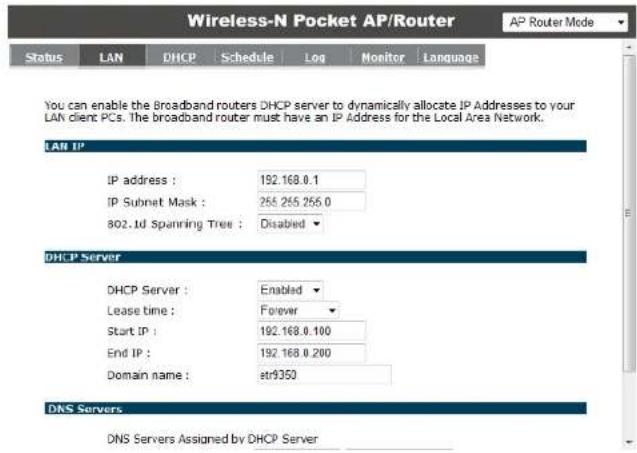
LAN
This page allows you to modify the device's LAN settings.
text_image
Wireless-N Pocket AP/Router AP Router Mode Status LAN DHCP Schedule Log Monitor Language You can enable the Broadband routers DHCP server to dynamically allocate IP Addresses to your LAN client PCs. The broadband router must have an IP Address for the Local Area Network. LAN IP IP address : 192.168.0.1 IP Subnet Mask : 265.255.255.0 802.Jd Spanning Tree : Disabled ▼ DHCP Server DHCP Server : Enabled ▼ Lease time : Forever ▼ Start IP : 192.168.0.100 End IP : 192.168.0.200 Domain name : str9350 DNS Servers DNS Servers Assigned by DHCP ServerEnGenius®
LAN IP
| IP address : | 192.168.0.1 |
| IP Subnet Mask : | 255.255.255.0 |
| 802.1d Spanning Tree : | Disabled ▼ |
| LAN IP | |
| IP address: | The LAN IP Address of this device. |
| IP Subnet Mask: The LAN Subnet Mask of this device. | |
| 802.1d Spanning Tree: | When Enabled, the Spanning Tree protocol will prevent network loops in your LAN network. |
DHCP Server
| DHCP Server : | Enabled ▼ |
| Lease time : | Forever ▼ |
| Start IP : | 192.168.0.100 |
| End IP : | 192.168.0.200 |
| Domain name : | etr9350 |
| DHCP Server | |
| DHCP Server: | The DHCP Server automatically allocates IP addresses to your LAN devices. |
| Lease Time: | The duration of the DHCP server allocates each IP address to a LAN device. |
| Start / End IP: | The range of IP addresses of the DHCP server will allocate to LAN devices. |
| Domain name: | The domain name for this LAN network. |
DNS Servers
DNS Servers Assigned by DHCP Server
First DNS Server
Second DNS Server

Two DNS servers can be assigned for use by your LAN devices.
There are four modes available.
| DNS Servers | |
| From ISP: | The DNS server IP address is assigned from your ISP. |
| User-Defined: | The DNS server IP address is assigned manually. |
| DNS Relay: | LAN clients are assigned the device's IP address as the DNS server.DNS requests are relayed to the ISP's DNS server. |
EnGenius®
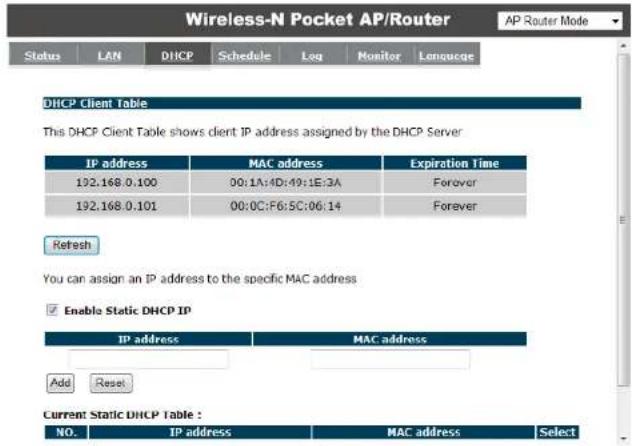
DHCP
This page shows the status of the DHCP server and also allows you to control how the IP addresses are allocated.
text_image
Wireless-N Pocket AP/Router Status LAN DHCP Schedule Log Monitor Language DHCP Client Table This DHCP Client Table shows client IP address assigned by the DHCP Server IP address MAC address Expiration Time 192.168.0.100 00:1A:4D:49:1E:3A Forever 192.168.0.101 00:0C:F6:5C:06:14 Forever Refresh You can assign an IP address to the specific MAC address Enable Static DHCP IP IP address MAC address Add Reset Current Static DHCP Table : NO.IP address MAC address SelectEnGenius®
The DHCP Client Table shows the LAN clients that have been allocated an IP address from the DHCP Server
DHCP Client Table
This DHCP Client Table shows client IP address assigned by the DHCP Server
| IP address | MAC address | Expiration Time |
| 192.168.0.100 | 00:1A:4D:49:1E:3A | Forever |
| 192.168.0.101 | 00:0C:F6:5C:06:14 | Forever |
Refresh
| DHCP Client Table | |
| IP address: | The LAN IP address of the client. |
| MAC address: | The MAC address of the client's LAN interface. |
| Expiration Time: | The time that the allocated IP address will expire. |
| Refresh: | Click this button to update the DHCP Client Table. |
EnGenius®
√ Enable Static DHCP IP
| IP address | MAC address | |
| 192.168.0.155 | 000AF43C1516 | |
| Add | Reset | |
Current Static DHCP Table :
| NO. | IP address | MAC address | Select | ||
| 1 | 192.168.0.150 | 00:0C:C6:3C:06:17 | |||
| Delete Selected Delete All Reset | |||||
You can also manually specify the IP address that will be allocated to a LAN client by associating the IP address with its MAC address.
Type the IP address you would like to manually assign to a specific MAC address and click Add to add the condition to the Static DHCP Table.
EnGenius®
Schedule
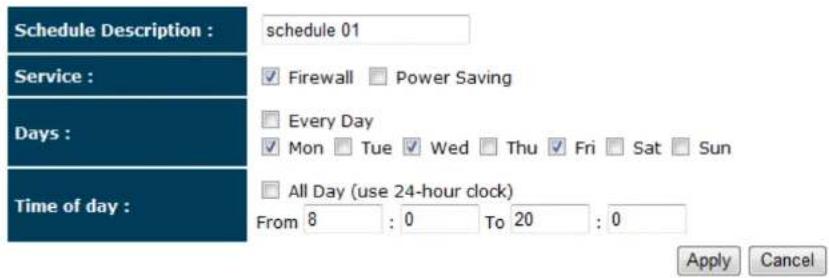
This page allows you to schedule times that the Firewall and Power Saving features will be activated / deactivated.
Click Add to create a Schedule entry.

text_image
Wireless-N Pocket AP/Router AP Router Mode Status LAN DHCP Schedule Log Monitor LanguageYou can use the Schedule page to Start/Stop the Services regularly. The Schedule will start to run, when it get GMT Time from Time Server. Please set up the Time Server correctly in Toolbox. The services will start at the time in the following Schedule Table or it will stop.
☑ Enabled Schedule Table (up to 8)
| NO. | Description | Service | Schedule | Select |
| 1 | schedule 01 | Firewall | From 08:00 to 20:00---Mon, Wed, Fri | |
| 2 | schedule 02 | Power Saving | From 21:00 to 23:30---Mon, Tue, Wed, Thu, Fri, Sat, Sun | |
| Add Edit Delete Selected Delete All | ||||
Apply Cancel
EnGenius®
text_image
Schedule Description : schedule 01 Service : ✓ Firewall □ Power Saving Days : □ Every Day ✓ Mon □ Tue ✓ Wed □ Thu ✓ Fri □ Sat □ Sun Time of day : □ All Day (use 24-hour clock) From 8 : 0 To 20 : 0 Apply Cancel| Schedule | |
| Schedule Description: | Assign a name to the schedule. |
| Service: | The service provides for the schedule. |
| Days: | Define the Days to activate or deactivate the schedule. |
| Time of day: | Define the Time of day to activate or deactivated the schedule.Please use 24-hour clock format. |
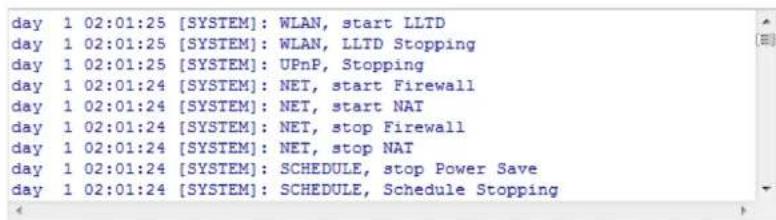
Log
This page displays the system log of the device. When powered down or rebooted, the log will be cleared.

text_image
Wireless-N Pocket AP/Router AP Router Mode Status LAN DHCP Schedule Log Monitor LanguageView the system operation information.
text_image
day 1 02:01:25 [SYSTEM]: WLAN, start LLTD day 1 02:01:25 [SYSTEM]: WLAN, LLTD Stopping day 1 02:01:25 [SYSTEM]: UPnP, Stopping day 1 02:01:24 [SYSTEM]: NET, start Firewall day 1 02:01:24 [SYSTEM]: NET, start NAT day 1 02:01:24 [SYSTEM]: NET, stop Firewall day 1 02:01:24 [SYSTEM]: NET, stop NAT day 1 02:01:24 [SYSTEM]: SCHEDULE, stop Power Save day 1 02:01:24 [SYSTEM]: SCHEDULE, Schedule StoppingSave Clear Refresh
| Log | |
| Save: | Save the log to a file. |
| Clear: | Clears the log. |
| Refresh: | Updates the log. |
EnGenius®
Monitor
This page shows a histogram of the WAN and Wireless LAN traffic.
The information is automatically updated every five seconds.

text_image
Wireless-N Pocket AP/Router Status LAN DHCP Schedule Log Monitor Language AP Router ModeYou can monitor the bandwidth in different interface. This page will refresh in every five seconds.

bar
| Bandwidth Monitor | Rx (KBps) | Tx (KBps) | |---|---|---| | WAN | 0.59KB | 0.00KB | | WLAN | 9.46KB | 0.00KB |EnGenius®
Language
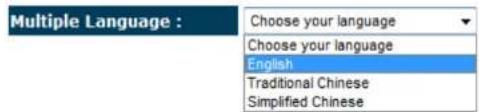
This page allows you to change the Language of the User Interface.

text_image
Wireless-N Pocket AP/Router AP Router Mode Status LAN DHCP Schedule Log Monitor LanguageYou can select other language in this page.
text_image
Multiple Language : Choose your language Choose your language English Traditional Chinese Simplified ChineseEnGenius®
8.2.2 Internet
The Internet section allows you to manually set the WAN type connection and its related settings.
Status
This page shows the current status of the device's WAN connection.

text_image
Wireless-N Pocket AP/Router Status Dynamic IP Static IP PPPoE PPTP L2TP 3G AP Router ModeView the current internet connection status and related information.
WAN Settings
Attain IP Protocol Dynamic IP Address
IP address 10.0.174.29
Subnet Mask 255.255.254.0
Default Gateway 10.0.175.254
MAC address 00:02:6F:5F:A9:1E
Primary DNS 10.0.200.101
Secondary DNS 10.0.200.102
Renew
EnGenius®
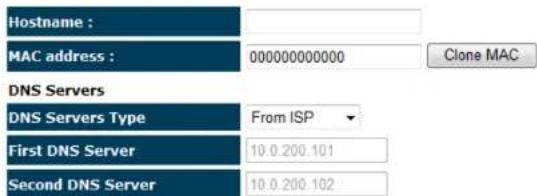
Dynamic IP Address
The IP Address is allocated automatically. However some ISP's will also recognize the MAC address and will reject connections if the MAC address does not match.
If your ISP has recorded the MAC address of your computer's Ethernet LAN card, please connect only the computer with the authorized MAC address, and click the Clone MAC Address button.
This will replace the AP Router MAC address to the computer MAC address. The correct MAC address is used to initiate the connection to the ISP.

text_image
Wireless-N Pocket AP/Router Status Dynamic IP Static IP PPPoE PPTP L2TP 3G AP Router ModeYou can select the type of the account you have with your ISP provider.
text_image
Hostname : MAC address : 000000000000 DNS Servers DNS Servers Type From ISP First DNS Server 10.0.200.101 Second DNS Server 10.0.200.102 Clone MACApply Cancel
EnGenius®
| Dynamic IP Address | |
| Hostname: | This is optional. Only required if specified by ISP |
| MAC address: | The MAC Address that is used to connect to the ISP. |
| DNS Servers | |
| Two DNS servers can be assigned for use by your LAN devices.There are two modes available. | |
| From ISP: | LAN devices are assigned the DNS server IP address of your ISP. |
| User-Defined: | Set the DNS server IP address manually. |
Static IP Address
If your ISP Provider has assigned you a fixed IP address, enter the assigned IP address, Subnet mask, Default Gateway IP address, and Primary DNS and Secondary DNS (if available) of your ISP provider.
EnGenius®

text_image
Wireless-N Pocket AP/Router Status Dynamic IP Static IP PPPoE PPTP L2TP 3G AP Router ModeYou can select the type of the account you have with your ISP provider.
| IP address: | |
| IP Subnet Mask : | |
| Default Gateway : | |
| Primary DNS : | |
| Secondary DNS : |
Apply Cancel
EnGenius®
PPP over Ethernet
ISP requires an account username and password.

text_image
Wireless-N Pocket AP/Router Status Dynamic IP Static IP PPPoE PPTP L2TP 3G AP Router ModeYou can select the type of the account you have with your ISP provider.

text_image
Login : username Password : ••••••••• Service Name ISP MTU : 1492 (512<=MTU Value <=1492) Authentication type : Auto Type : Keep Connection Idle Timeout : 10 (1-1000 Minutes )Apply Cancel
EnGenius®
| PPP over Ethernet (PPPoE) | |
| Username: | Username assigned to you by the ISP |
| Password: | Password for this username. |
| Service: | You can assign a name for this service. (Optional) |
| MTU: | The maximum size of packets.Do not change unless mentioned by the ISP. |
| Authentication type | Select whether the ISP uses PAP or CHAP methods for authentication. Select Auto if unsure. |
| Type: | You can choose the method that the router maintains connection with the ISP.Keep Connection:The device will maintain a constant connection with the ISP.Automatic Connection:The device will only initiate connection to the ISP when there is an Internet connection request made from a LAN device.Manual Connection:The user will need to manually connect to the ISP by clicking the Connect button. |
| Idle Timeout: | When the connection type is Automatic Connection, when Internet traffic is idle, then the device will automatically disconnect from the ISP.Please specify the Idle time in minutes. |
Point-to-Point Tunneling Protocol (PPTP)
PPTP is used by some ISPs.
EnGenius®

text_image
Wireless-N Pocket AP/Router Status Dynamic IP Static IP PPPoE PPTP L2TP 3G You can select the type of the account you have with your ISP provider. WAN Interface Settings : WAN Interface Type : Dynamic IP Address Hostname : MAC address : 000000000000 Clone MAC PPTP Settings : Login : Password : Service IP address : Connection ID : 0 (Optional) MTU : 1400 (512<=MTU Value <=1492) Type : Keep Connection Idle Timeout : 10 (1-1000 Minutes) Apply Cancel AP Router Mode| Point-to-Point Tunneling Protocol (PPTP) | |
| WAN Interface Type: | Select whether the ISP is set to Static IP or will allocate Dynamic IP addresses. |
EnGenius®
| Hostname: | This is optional. Only required if specified by ISP |
| MAC address: | The MAC Address that is used to connect to the ISP. |
| Login: | Username assigned to you by the ISP |
| Password: | Password for this username. |
| Service IP Address: | The IP Address of the PPTP server. |
| Connection ID: | This is optional. Only required if specified by ISP |
| MTU: | The maximum size of packets.Do not change unless mentioned by the ISP. |
| Type: | You can choose the method that the router maintains connection with the ISP.Keep Connection:The device will maintain a constant connection with the ISP.Automatic Connection:The device will only initiate connection to the ISP when there is an Internet connection request made from a LAN device.Manual Connection:The user will need to manually connect to the ISP by clicking the Connect button. |
| Idle Timeout: | When the connection type is Automatic Connection, when Internet traffic is idle, then the device will automatically disconnect from the ISP.Please specify the Idle time in minutes. |
Layer-2 Tunneling Protocol (L2TP)
L2TP is used by some ISPs.

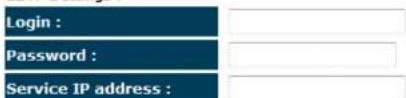
text_image
Wireless-N Pocket AP/Router AP Router Mode Status Dynamic IP Static IP PPPoE PPTP L2TP 3GYou can select the type of the account you have with your ISP provider.
WAN Interface Settings :

text_image
WAN Interface Type : Dynamic IP Address Hostname : MAC address : 000000000000 Clone MACL2TP Settings :
text_image
Login : Password : Service IP address :
text_image
MTU : 1460 (512<=MTU Value <=1492) Type : Keep Connection Idle Timeout : 10 (1-1000 Minutes )Apply Cancel
EnGenius®
| Layer-2 Tunneling Protocol (L2TP) | |
| WAN Interface Type: | Select whether the ISP is set to Static IP or will allocate Dynamic IP addresses. |
| Hostname: | This is optional. Only required if specified by ISP |
| MAC: | The MAC Address that is used to connect to the ISP. |
| Login: | Username assigned to you by the ISP |
| Password: | Password for this username. |
| Service IP Address: | The IP Address of the PPTP server. |
| MTU: | The maximum size of packets.Do not change unless mentioned by the ISP. |
| Type: | You can choose the method that the router maintains connection with the ISP.Keep Connection:The device will maintain a constant connection with the ISP.Automatic Connection:The device will only initiate connection to the ISP when there is an Internet connection request made from a LAN device.Manual Connection:The user will need to manually connect to the ISP by clicking the Connect button. |
| Idle Timeout: | When the connection type is Automatic Connection, when Internet traffic is idle, then the device will automatically disconnect from the ISP.Please specify the Idle time in minutes. |
8.2.3 Wireless
The Wireless section allows you to configure the Wireless settings.
Status
This page shows the current status of the device's Wireless settings.

text_image
Wireless-N Pocket AP/Router AP Router Mode Basic Advanced Security Filter WPS Client List PolicyThis page allows you to define SSID, and Channel for the wireless connection. These parameters are used for the wireless stations to connect to the Access Point.

text_image
Radio : Enable Disable Mode : AP Band : 2.4 GHz (B+G+N) Enable SSID#: 2 SSID1 : EnGenius5FA6E8 SSID2 : EnGenius5FA6E8_2 Auto Channel : Enable Disable Channel : 11
EnGenius®
| Basic | |
| Radio: | Enable or Disable the device’s wireless signal. |
| Mode: | Select between Access Point or Wireless Distribution System (WDS) modes. |
| Band: | Select the types of wireless clients that the device will accept.eg: 2.4 GHz (B+G)Only 802.11b and 11g clients will be allowed. |
| Enable SSID#: | Select the number of SSID’s (Wireless Network names) you would like.You can create up to 4 separate wireless networks. |
| SSID# | Enter the name of your wireless network. You can use up to 32 characters. |
| Auto Channel: | When enabled, the device will scan the wireless signals around your area and select the channel with the least interference. |
| Channel: | Manually select which channel the wireless signal will use. |
| Check Channel Time: | When Auto Channel is Enabled, you can specify the period of the device will scan the wireless signals around your area. |
Wireless Distribution System (WDS)
Using WDS to connect Access Point wirelessly, and in doing so extend a wired infrastructure to locations where cabling is not possible or inefficient to implement.
Note that compatibility between different brands and models is not guaranteed. It is recommended that the WDS network be created using the same models for maximum compatibility.
Also note that all Access Points in the WDS network needs to use the same Channel and Security settings.
To create a WDS network, please enter the MAC addresses of the Access Points that you want included in the WDS. There can be a maximum of four access points.

text_image
Radio : Enable Disable Mode : WDS Band : 2.4 GHz (B+G+N) Enable SSID#: 2 SSID1 : EnGenius5FA6E8 SSID2 : EnGenius5FA6E8_2 Channel : 11 MAC address 1 : 000000000000 MAC address 2 : 000000000000 MAC address 3 : 000000000000 MAC address 4 : 000000000000 WDS Data Rate : 300M Set Security : Set SecurityAdvanced
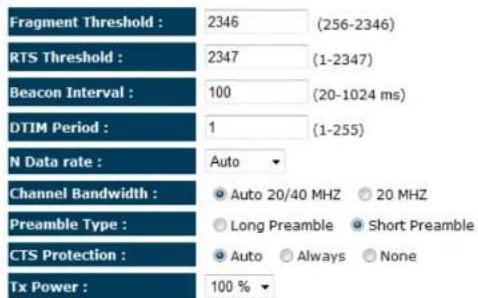
This page allows you to configure wireless advance settings. It is recommended the default settings are used unless the user has experience with these functions.

text_image
Wireless-N Pocket AP/Router AP Router Mode Basic Advanced Security Filter WPS Client List PolicyThese settings are only for more technically advanced users who have a sufficient knowledge about wireless LAN. These settings should not be changed unless you know what effect the changes will have on your Broadband router.
text_image
Fragment Threshold : 2346 (256-2346) RTS Threshold : 2347 (1-2347) Beacon Interval : 100 (20-1024 ms) DTIM Period : 1 (1-255) N Data rate : Auto Channel Bandwidth : ● Auto 20/40 MHZ ○ 20 MHZ Preamble Type : ○ Long Preamble ● Short Preamble CTS Protection : ● Auto ○ Always ○ None Tx Power : 100 %Apply Cancel
EnGenius®
| Advanced | |
| Fragment Threshold: | Specifies the size of the packet per fragment. This function can reduce the chance of packet collision.However when this value is set too low, there will be increased overheads resulting in poor performance. |
| RTS Threshold: | When the packet size is smaller than the RTS Threshold, then the packet will be sent without RTS/CTS handshake which may result in incorrect transmission. |
| Beacon Interval: | The time interval that the device broadcasts a beacon. This beacon is used to synchronize all wireless clients on the network. |
| DTIM Period: | A Delivery Traffic Indication Message informs all wireless clients that the access point will be sending Multi-casted data. |
| N Data Rate: | You can limit the transfer rates between the device and wireless clients.Each Modulation Coding Scheme (MCS) refers to a specific transfer speed. |
| Channel Bandwidth: | Set whether each channel uses 20 or 40Mhz.To achieve 11n speeds, 40Mhz channels must be used. |
| Preamble Type: | A preamble is a message that helps access points synchronize with the client.Long Preamble is standard based so increases compatibility.Short Preamble is non-standard, so it decreases compatibility but increases performance. |
| CTS Protection: | When Enabled, the performance is slightly lower however the chances of packet collision is greatly reduced. |
| Tx Power: | Set the power output of the wireless signal. |
Security
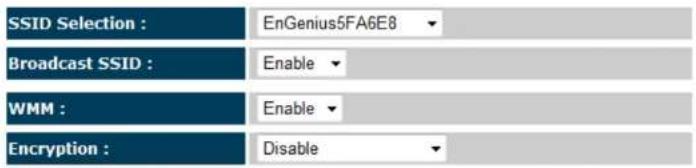
This page allows you to set the wireless security settings.

text_image
Wireless-N Pocket AP/Router AP Router Mode Basic Advanced Security Filter WPS Client List PolicyThis page allows you setup the wireless security. Turn on WEP or WPA by using Encryption Keys could prevent any unauthorized access to your wireless network.
text_image
SSID Selection : EnGenius5FA6E8 Broadcast SSID : Enable WMM : Enable Encryption : DisableEnable 802.1x Authentication
Apply Cancel
EnGenius®
| Security | |
| SSID Selection: | Select the SSID that the security settings will apply to. |
| Broadcast SSID: | If Disabled, then the device will not be broadcasting the SSID. Therefore it will be invisible to wireless clients. |
| WMM: | Wi-Fi Multi-Media is a Quality of Service protocol which prioritizes traffic in the order according to voice, video, best effort, and background.Note that in certain situations, WMM needs to be enabled to achieve 11n transfer speeds. |
| Encryption: | The encryption method to be applied.You can choose from WEP, WPA pre-shared key or WPA RADIUS.·Disabled- no data encryption is used.·WEP- data is encrypted using the WEP standard.·WPA-PSK- data is encrypted using the WPA-PSK standard. This is a later standard than WEP, and provides much better security than WEP. If all your Wireless stations support WPA-PSK, you should use WPA-PSK rather than WEP.·WPA2-PSK- This is a further development of WPA-PSK, and offers even greater security, using the AES (Advanced Encryption Standard) method of encryption.·WPA-RADIUS- This version of WPA requires a Radius Server on your LAN to provide the client authentication according to the 802.1x standard. Data transmissions are encrypted using the WPA standard.If this option is selected:·This Access Point must have a "client login" on the Radius Server.·Each user must have a "user login" on the Radius Server.·Each user's wireless client must support 802.1x and provide the login data when required.·All data transmission is encrypted using the WPA standard. Keys are automatically generated, so no key input is required. |
IEEE 802.1x is an authentication protocol. Every user must use a valid account to login to this Access Point before accessing the wireless LAN. The authentication is processed by a RADIUS server. This mode only authenticates users by IEEE 802.1x, but it does not encrypt the data during communication.
EnGenius®

Enable 802.1x Authentication
| RADIUS Server IP address : | |
| RADIUS Server port : | 1812 |
| RADIUS Server password : |
| 802.1x Authentication | |
| RADIUS Server IP Address: | The IP Address of the RADIUS Server |
| RADIUS Server port: | The port number of the RADIUS Server. |
| RADIUS Server password: | The RADIUS Server's password. |
WEP Encryption:
| WEP Encryption | |
| Authentication Type: | Please ensure that your wireless clients use the same authentication type. |
| Key type | ASCII: regular text (recommended)HEX: for advanced users |
| Key Length: | Select the desired option, and ensure the wireless clients use the same setting.64 Bit - data is encrypted, using the default key, before being transmitted. You must enter at least the default key. For 64 Bit Encryption, the key size is 10 chars in HEX (0~9 and A~F).128 Bit - data is encrypted, using the default key, before being transmitted. You must enter at least the default key. For 128 Bit Encryption, the key size is 26 chars in HEX (0~9 and A~F). |
| Default Key: | Select the key you wish to be the default.Transmitted data is ALWAYS encrypted using the Default Key; the other Keys are for decryption only.You must enter a Key Value for the Default Key. |
| Encryption Key #: | Enter the key value or values you wish to use. Only the Key selected as Default is required. The others are optional. |
| Encryption : | WEP | ||
| Authentication type : | Open System Shared Key Auto | ||
| Key Length : | 128-bit | ||
| Key type : | ASCII (13 characters) | ||
| Default key : | Key 1 | ||
| Encryption Key 1 : | 1234567890123 | ||
| Encryption Key 2 : | ********** | ||
| Encryption Key 3 : | ********** | ||
| Encryption Key 4 : | ********** | ||
WPA Pre-Shared Key Encryption:
| Encryption : | WPA pre-shared key | ||
| WPA type : | WPA(TKIP) | WPA2(AES) | WPA2 Mixed |
| Pre-shared Key type : | Passphrase | ||
| Pre-shared Key : | 1234567890 | ||
| WPA Pre-Shared Key Encryption | |
| Authentication Type: | Please ensure that your wireless clients use the same authentication type. |
| WPA type: | Select the WPA encryption you would like.Please ensure that your wireless clients use the same settings. |
| Pre-shared Key Type: | Select whether you would like to enter the Key in HEX or Passphrase format. |
| Pre-shared Key: | Wireless clients must use the same key to associate the device.If using passphrase format, the Key must be from 8 to 63 characters in length. |
WPA RADIUS Encryption:
| Encryption : | WPA RADIUS | ||
| WPA type : | WPA(TKIP) | WPA2(AES) | WPA2 Mixed |
| RADIUS Server IP address : | |||
| RADIUS Server port : | 1812 | ||
| RADIUS Server password : | |||
| WPA RADIUS Encryption | |
| WPA type: | Select the WPA encryption you would like.Please ensure that your wireless clients use the same settings. |
| RADIUS Server IP address: | Enter the IP address of the RADIUS Server |
| RADIUS Server Port: | Enter the port number used for connections to the RADIUS server. |
| RADIUS Server password: | Enter the password required to connect to the RADIUS server. |
Filter
This page allows you to create filters to control which wireless clients can connect to this device by only allowing the MAC addresses entered into the Filtering Table.

text_image
Wireless-N Pocket AP/Router AP Router Mode Basic Advanced Security Filter WPS Client List PolicyFor security reason, the Access Point features MAC Address Filtering which only allows authorized MAC Addresses to associate with the Access Point
√ Enable Wireless Access Control
| Description | MAC address |
| Notebook2 | 00ABC710722 |
| Add Reset |
MAC Address Filtering Table :
| NO. | Description | MAC address | Select |
| 1 | Notebook1 | 00:0C:C6:3C:06:17 |
Apply Cancel
EnGenius®
| Wireless Filter | |
| Enable Wireless Access Control: | Tick the box to Enable Wireless Access Control.When Enabled, only wireless clients on the Filtering Table will be allowed. |
| Description: | Enter a name or description for this entry. |
| MAC address: | Enter the MAC address of the wireless client that you wish to allow connection. |
| Add: | Click this button to add the entry. |
| Reset: | Click this button if you have made a mistake and want to reset the MAC address and Description fields. |
| MAC Address Filtering Table | |
| Only clients listed in this table will be allowed access to the wireless network. | |
| Delete Selected: | Delete the selected entries. |
| Delete All: | Delete all entries |
| Reset: | Un-tick all selected entries. |
Wi-Fi Protected Setup (WPS)
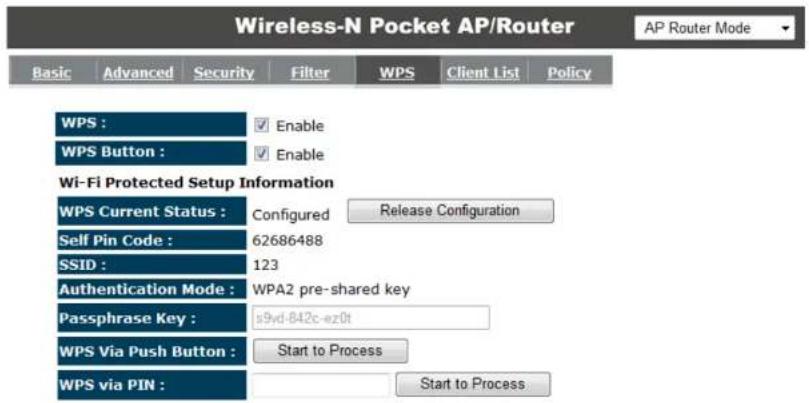
WPS feature is following the Wi-Fi Alliance WPS standard and it eases the set up of security-enabled Wi-Fi networks in the home and small office environment.
It reduces the user steps required to configure a network and supports two methods that are familiar to most consumers to configure a network and enable security.
text_image
Wireless-N Pocket AP/Router AP Router Mode Basic Advanced Security Filter WPS Client List Policy WPS : Enable WPS Button : Enable Wi-Fi Protected Setup Information WPS Current Status : Configured Release Configuration Self Pin Code : 62686488 SSID : 123 Authentication Mode : WPA2 pre-shared key Passphrase Key : is9vd-842c-ez0t WPS Via Push Button : Start to Process WPS via PIN : Start to ProcessEnGenius®
| Wi-Fi Protected Setup (WPS) | |
| WPS: | Tick to Enable the WPS feature. |
| WPS Button: | Tick to Enable the WPS push button. |
| Wi-Fi Protected Setup Information | |
| WPS Current Status: | Shows whether the WPS function is Configured or Un-configured.Configured means that WPS has been used to authorize connection between the device and wireless clients. |
| SSID: | The SSID (wireless network name) used when connecting using WPS. |
| Authentication Mode: | Shows the encryption method used by the WPS process. |
| Passphrase Key: | This is the passphrase key that is randomly generated during the WPS process. It is required if wireless clients that do not support WPS attempts to connect to the wireless network. |
| WPS Via Push Button: | Click this button to initialize WPS feature using the push button method. |
Initializing WPS Feature
There are two methods to initialize the WPS feature. They are the Push Button and Pin code methods.
1. WPS Push Button Method
Push the WPS button on the TRAVEL ROUTER device. The WPS LED light will start to flash to indicate that the WPS process is ready.

text_image
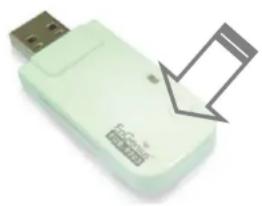
30 EnGenius®While the WPS LED is flashing on the TRAVEL ROUTER, press the WPS button on your wireless client. This could either be a physical hardware button, or a software button in the utility.
natural_image
White USB device with a black arrow pointing to its side (no visible text or symbols)EnGenius®
2. Pin Code Method
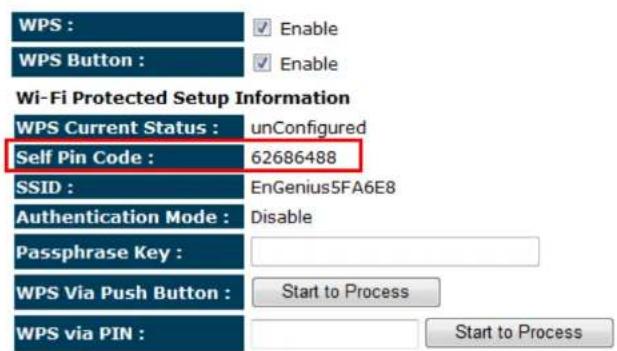
Note the Pin code of your TRAVEL ROUTER device.
text_image
WPS : ✓ Enable WPS Button : ✓ Enable Wi-Fi Protected Setup Information WPS Current Status : unConfigured Self Pin Code : 62686488 SSID : EnGenius5FA6E8 Authentication Mode : Disable Passphrase Key : WPS Via Push Button : Start to Process WPS via PIN : Start to ProcessPlease use this Pin code to initialize the WPS process from the wireless client configuration utility.
This process will be different for each brand or model. Please consult the user manual of the wireless client for more information.
EnGenius®
Client List
This page shows the wireless clients that are connected to the TRAVEL ROUTER device.

text_image
Wireless-N Pocket AP/Router AP Router Mode Basic Advanced Security Filter WPS Client List PolicyWLAN Client Table :
This WLAN Client Table shows client MAC address associate to this Broadband Router
| Interface | MAC Address | Signal (%) | Idle Time |
| EnGeniusSFA6E8_2 | 00:19:7D:9E:D4:9C | 68 | 20 secs |
Refresh
EnGenius®
Policy
This page allows you to configure the access policies for each SSID (wireless network).

text_image
Wireless-N Pocket AP/Router AP Router Mode Basic Advanced Security Filter WPS Client List PolicySSID 1 Connection Control Policy

SSID 2 Connection Control Policy

Apply Cancel
| Policy | |
| WAN Connection: | Allow wireless clients on this SSID to access the WAN port which typically is an Internet connection. |
| Communication between Wireless clients: | Whether each wireless client can communicate with each other in this SSID. When Disabled, the wireless clients will be isolated from each other. |
| Communication between Wireless clients and Wired clients. | Whether wireless clients on this SSID can communicate with computers attached to the wired LAN port. |
EnGenius®
8.2.4 Firewall
The Internet section allows you to set the access control and Firewall settings.
Enable
This page allows you to Enable / Disable the Firewall features.
When Enabled, Denial of Service (DoS) and SPI (Stateful Packet Inspection) features are also be enabled.

text_image
Wireless-N Pocket AP/Router AP Router Mode Enable Advanced DMZ DoS MAC Filter IP Filter URL FilterFirewall automatically detects and blocks Denial of Service (DoS) attacks. URL blocking, packet filtering and SPI (Stateful Packet Inspection) are also supported. The hackers attack will be recorded associated with timestamp in the security logging area.
You can choose whether to allow VPN (Virtual Private Network) packets to pass through the Firewall.
| Wireless-N Pocket AP/Router | AP Router Mode | ||||||
| Enable | Advanced | DMZ | DoS | MAC Filter | IP Filter | URL Filter | |
| Description | Select |
| VPN PPTP Pass-Through | |
| VPN IPSec Pass-Through |
Apply Cancel
EnGenius®
DMZ
If enabled this feature, allows the DMZ computer on your LAN to be exposed to all users on the Internet.
- This allows almost any application to be used on the server.
- The "DMZ PC" will receive all Unknown connections and data.
- If the DMZ feature is enabled, please enter the IP address of the PC to be used as the "DMZ PC"
Note: The "DMZ PC" is effectively outside the Firewall, making it more vulnerable to attacks. For this reason, you should only enable the DMZ feature when required.

text_image
Wireless-N Pocket AP/Router AP Router Mode Enable Advanced DMZ DoS MAC Filter IP Filter URL FilterIf you have a local client PC that cannot run an Internet application properly from behind the NAT firewall, you can open unrestricted two-way Internet access for this client by defining a Virtual DMZ Host.
Enable DMZ
Local IP Address : 192.168.0.100 < 192.168.0.100
Apply Cancel
EnGenius®
Denial of Service (DoS)
Denial of Service (Denial of Service) is a type of Internet attack that sends a high amount of data to you with the intent to overload your Internet connection.
Enable the DoS firewall feature to automatically detect and block these DoS attacks.

text_image
Wireless-N Pocket AP/Router AP Router Mode Enable Advanced DMZ DoS MAC Filter IP Filter URL FilterThe Firewall can detect and block DOS attacks, DOS (Denial of Service) attacks can flood your Internet Connection with invalid packets and connection requests, using so much bandwidth and so many resources that Internet access becomes unavailable.
Block DoS : ☑ Enable ☑ Disable
Apply Cancel
EnGenius®
MAC Filter
You can choose whether to Deny or only Allow those computers listed in the MAC Filtering table to access the Internet.
Enable Advanced DMZ DoS MAC Filter IP Filter URL Filter
MAC Filters are used to deny or allow LAN computers from accessing the Internet.
√ Enable MAC filtering
Deny all clients with MAC address listed below to access the network
Allow all clients with MAC address listed below to access the network
| Description | LAN MAC Address | |
| Notebook2 | 010CF63C0617 | |
| Add | Reset | |
MAC Filtering table :
| NO. | Description | LAN MAC Address | Select |
| 1 | Notebook1 | 00:0C:C6:3C:06:17 |


MAC Filter
| Enable MAC filtering: | Tick this box to Enable the MAC filtering feature. |
| Deny all clients with MAC addresses listed below to access the network: | When selected, the computers listed in the MAC Filtering table will be Denied access to the Internet. |
| Allow all clients with MAC addresses listed below to access the network: | When selected, only the computers listed in the MAC Filtering table will be Allowed access to the Internet. |
EnGenius®
IP Filter
You can choose whether to Deny or only Allow, computer with those IP Addresses from accessing certain Ports.
This can be used to control which Internet applications the computers can access.
You may need to have certain knowledge of what Internet ports the applications use.

text_image
Wireless-N Pocket AP/Router AP Router Mode Enable Advanced UAC UAS MAC Filter UC Filter UAI Filter IP Filters are used to deny or allow LAN computers from accessing the internet. Enable IP Filtering Table Deny all clients with IP address listed below to access the network Allow all clients with IP address listed below to access the network Description : Protocol : Both - Local IP Address : Port range : Add Reset NO. Description Local IP Address Protocol Port range Select 1 Jack and John 192.168.0.100- 192.168.0.101 BOTH 21-22 Delete Selected Delete All Reset Apply Cancel| IP Filter | |
| Enable IP filtering: | Tick this box to Enable the IP filtering feature. |
| Deny all clients with IP addresses listed below to access the network: | When selected, the computers with IP addresses specified will be Denied access to the indicated Internet ports. |
| Allow all clients with IP addresses listed below to access the network: | When selected, the computers with IP addresses specified will be Allowed access only to the indicated Internet ports. |
EnGenius®
URL Filter
You can deny access to certain websites by blocking keywords in the URL web address.
For example, "abc123" has been added to the URL Blocking Table. Any web address that includes "abc123" will be blocked.

text_image
Wireless-N Pocket AP/Router AP Router Mode Enable Advanced DMZ DoS MAC Filter JP Filter URL FilterYou can block access to certain Web sites for a particular PC by entering either a full URL address or just a keyword of the Web site
√ Enable URL Blocking
URL/keyword
Add Reset
Current URL Blocking Table :
| NO. | URL/keyword | Select |
| 1 | abc123 |


EnGenius®
8.2.5 Advanced
The Internet section allows you to configure the Advanced settings of the router.
Network Address Translation (NAT)
This page allows you to Enable / Disable the Network Address Translation (NAT) feature. The NAT is required to share one Internet account with multiple LAN users.
It also is required for certain Firewall features to work properly.

text_image
Wireless-N Pocket AP/Router AP Router Mode NAT Port map. Port fw. Port tri. ALG UPnP QoS RoutingNAT(Network Address Translation) involves re-writing the source and/or destination addresses of IP packets as they pass though a Router or firewall, NAT enable multiple hosts on a private network to access the Internet using a single public IP address.
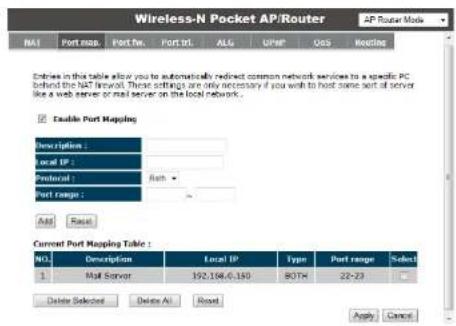
Port Mapping allows you to redirect a particular range of ports to a computer on your LAN network. This helps you host servers behind the NAT and Firewall.
In the example below, there is a Mail Server that requires ports 22 to 23.
When there is a connection from the Internet on those ports, it will be redirected to the Mail Server at IP address 192.168.0.150.
text_image
Wireless-N Pocket AP/Router AP Router Mode NAT Port map Port fn Port tl ALG UHP OS Meeting Entries in this table allow you to automatically redirect common network services to a specific PC behind the NAT network. These settings are necessary if you wish to host some sort of server like a web server or mail server on the local network. Enable Port Mapping Description : Local IP : Protocol : Both - Port Range : Add Race Current Port Mapping Table : NO. Description Local IP Type Port range Select 1.Mall Server 192,198,6,130 80TH 22-23 Delete Selected Delete All Road Apply Cancel| Port Mapping | |
| Enable Port Mapping | Tick this box to Enable the Port Mapping feature. |
| Description: | Enter a name or description to help you identify this entry. |
| Local IP: | The local IP address of the computer the server is hosted on. |
| Protocol: | Select to apply the feature to either TCP, UDP or Both types of packet transmissions. |
| Port range: | The range of ports that this feature will be applied to. |
EnGenius®
Port Forwarding
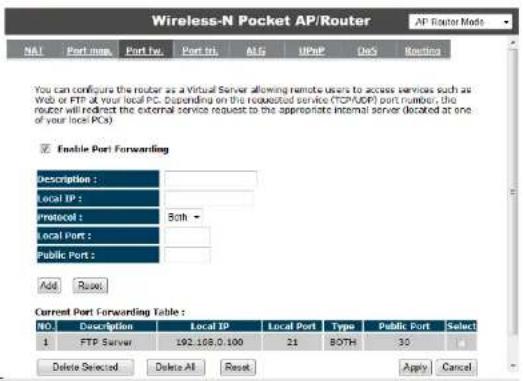
Port Forwarding allows you to redirect a particular public port to a computer on your LAN network. This helps you host servers behind the NAT and Firewall.
In the example below, there is a FTP Server running on port 21 on the LAN.
For security reasons, the Administrator would like to provide this server to Internet connection on port 30.
Therefore then there is a connection from the Internet on port 30, it will be forwarded to the computer with the IP address 192.168.0.100 and changed to port 21.
text_image
Wireless-N Pocket AP/Router AP Router Mode NAT Port map Port Fw Port tri ALG UPnP DeS Routing You can configure the router as a Virtual Server allowing remote users to access services such as Web or FTP at your local PC. Depending on the requested service (TCP/IP) port number, the router will redirect the external service request to the appropriate internal server (located at one of your local PCs) Enable Port Forwarding Description : Local IP : Protocol : Both - Local Port : Public Port : Add Reset Current Port Forwarding Table : NO. Description Local IP Local Port Type Public Port Select 1 FTP Server 192.108.0.100 21 BOTH 30 Delete Selected Delete All Reset Apply Cancel| Port Forwarding | |
| Enable Port Forwarding | Tick this box to Enable the Port Forwarding feature. |
| Description: | Enter a name or description to help you identify this entry. |
| Local IP: | The local IP address of the computer the server is hosted on. |
| Protocol: | Select to apply the feature to either TCP, UDP or Both types of packet transmissions. |
| Local Port: | The port that the server is running on the local computer. |
| Public Port: | When a connection from the Internet is on this port, then it will be forwarded to the indicated local IP address. |
Port Trigger
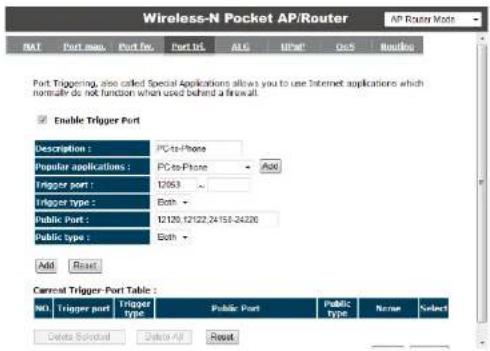
If you use Internet applications which use non-standard connections or port numbers, you may find that they do not function correctly because they are blocked by the Wireless Router's firewall. Port Trigger will be required for these applications to work.
text_image
Wireless-N Pocket AP/Router AP Router Mode NAT Port mode Port fun Port url ALG UPAT OSI Routing Port Triggering, also called Special Applications allows you to use Internet applications which normally do not function when used behind a firewall. Enable Trigger Port Description : PC-to-Phone Popular applications : PC-to-Phone Trigger port : 12053 Trigger type : Both Public Port : 12120.12122.24156.24226 Public type : Both Add Reset Current Trigger Port Table : NO Trigger port Trigger type Public Port Public Type None.Select Delete Select Delete AP Reset| Port Trigger | |
| Enable Port Forwarding | Tick this box to Enable the Port Trigger feature. |
| Popular applications: | This is a list of some common applications with preset settings.Select the application and click Add to automatically enter the settings. |
| Trigger port: | This is the outgoing (outbound) port numbers for this application. |
| Trigger type | Select whether the application uses TCP, UDP or Both types of protocols for outbound transmissions. |
| Public Port | These are the inbound (incoming) ports for this application. |
| Public type: | Select whether the application uses TCP, UDP or Both types of protocols for inbound transmissions. |
EnGenius®
Application Layer Gateway (ALG)
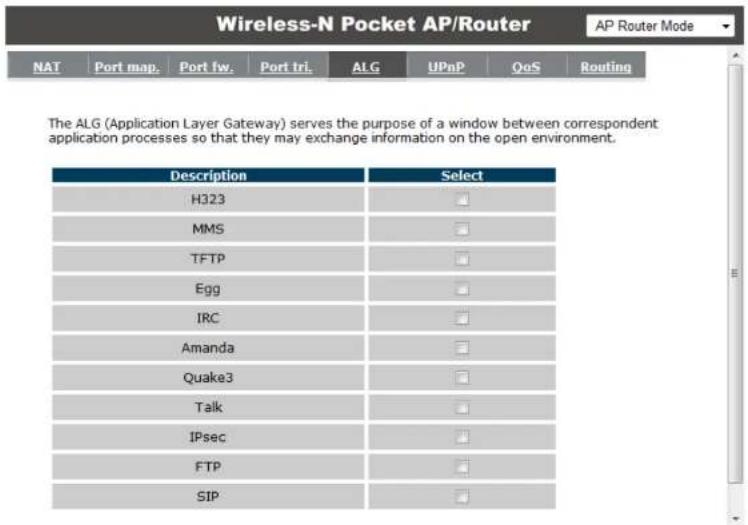
Certain applications may require the use of ALG feature to function correctly. If you use any of the applications listed, please tick and select it to enable this feature.
text_image
Wireless-N Pocket AP/Router AP Router Mode NAT Port map. Port fw. Port tri. ALG UPnP QoS Routing The ALG (Application Layer Gateway) serves the purpose of a window between correspondent application processes so that they may exchange information on the open environment. Description Select H323 MMS TFTP Egg IRC Amanda Quake3 Talk IPsec FTP SIPEnGenius®
Universal Plug and Play (UPnP)
The UPnP function allows automatic discovery and configuration of UPnP enabled devices on your network. It also provides automatic port forwarding for supported applications to seamlessly bypass the Firewall.

text_image
Wireless-N Pocket AP/Router AP Router Mode NAT Port map Port fw Port tri ALG UPnP QoS RoutingUniversal Plug and Play is designed to support zero-configuration, "invisible" networking, and automatic discovery for a range of device from a wide range of vendors. With UPnP, a device can dynamically join a network, obtain an IP address and learn about the presence and capabilities of other devices all automatically. Devices can subsequently communicate with each other directly
Enable the Universal Plug and Play (UPnP) Feature
☐ Allow users to make port forwarding changes through UPnP
Apply
| Universal Plug and Play (UPnP) | |
| Enable the UPnP Feature: | Tick this box to Enable the UPnP feature to allow supported devices to be visible on the network. |
| Allow users to make port forwarding changes through UPnP: | Tick this box to allow applications to automatically set their port forwarding rules to bypass the firewall without any user set up. |
EnGenius®
Quality of Service (QoS)
QoS allows you to control the priority that the data is transmitted over the Internet, or to reserve a specific amount of Internet bandwidth. This is to ensure that applications get enough Internet bandwidth for a pleasant user experience.
If not, then the performance and user experience of time sensitive transmissions such as voice and video could be very poor.
In order for this feature to function properly, the user should first set the Uplink and Downlink bandwidth provided by your Internet Service Provider.

text_image
Wireless-N Pocket AP/Router AP Router Mode NAT Port map, Port fw, Port tri, ALG UPnP QoS RoutingQuality of Service (QoS) refers to the capability of a network to provide better service to selected network traffic. The primary goal of QoS is to provide priority including dedicated bandwidth, controlled jitter and latency (required by some real-time and interactive traffic), and improved loss characteristics. Also important is making sure that providing priority for one or more flows does not make other flows fail.
Total Bandwidth Settings

QoS : ○ Priority Queue ○ Bandwidth Allocation ● Disabled
| Total Bandwidth Settings | |
| Uplink: | Set the Uplink bandwidth provided by your Internet Service Provider. |
| Downlink: | Set the Downlink bandwidth provided by your Internet Service Provider. |
| Priority Queue | Sets the QoS method to Priority Queue. |
| Bandwidth Allocation: | Sets the QoS method to Bandwidth Allocation. |
| Disabled | Disables the QoS feature. |
EnGenius®
Priority Queue Method
Bandwidth priority is set to either High or Low. The transmissions in the High queue will be processed first.
QoS :
Priority Queue Bandwidth Allocation Disabled
Unlimited Priority Queue
| Local IP Address | Description |
| The IP address will not be bounded in the QoS limitation |
High/Low Priority Queue
| Protocol | High Priority | Low Priority | Specific Port | ||
| FTP | 20,21 | ||||
| HTTP | 80 | ||||
| TELNET | 23 | ||||
| SMTP | 25 | ||||
| POP3 | 110 | ||||
| Name: | Both ▼ | ~ | |||
| Name: | Both ▼ | ~ | |||
| Name: | Both ▼ | ~ | |||
| Unlimited Priority Queue | |
| Local IP Address: | The computer with this IP Address will not be bound by the QoS rules. |
| High / Low Priority Queue | |
| Protocol: | The type of network protocol. |
| High / Low Priority | Sets the protocol to High or Low priority. |
| Specific Port | Each protocol uses a specific port range.Please specify the ports used by this protocol. |
Bandwidth Allocation Method
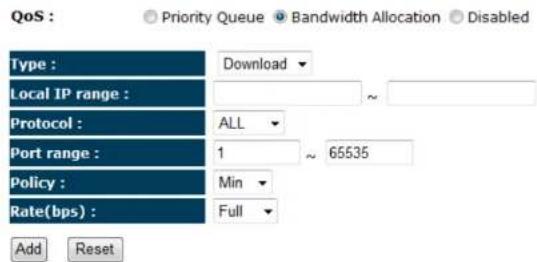
You can set the maximum amount of bandwidth a certain protocol will use at one time. Or you can set a minimum amount of bandwidth that will be guaranteed to a certain protocol.
text_image
QoS Priority Queue Bandwidth Allocation Disabled Type : Download Local IP range : ~ Protocol : ALL Port range : 1 ~ 65535 Policy : Min Rate(bps) : Full Add ResetCurrent QoS Table:
| NO. | Type | Local IP range | Protocol | Port range | Policy | Rate (bps) | Select |
| 1 | Both | 192.168.0.100 ~ 192.168.0.103 | TCP | 80 ~ 90 | Min | 2M | |
| Delete Selected | Delete All | Reset | |||||
Bandwidth Allocation
| Type: | Set whether the QoS rules apply to transmission that are Download, Upload or Both directions. |
| Local IP range: | Enter the IP address range of the computers that you would like the QoS rules to apply to. |
| Protocol: | Select from this list of protocols to automatic set the related port numbers. |
| Port range: | Each protocol uses a specific port range.Please specify the ports used by this protocol.. |
| Policy: | Choose whether this rule is to set a limit on the Maximum amount of bandwidth allocated to this protocol, or to set the guaranteed Minimum amount of bandwidth for this protocol. |
Routing
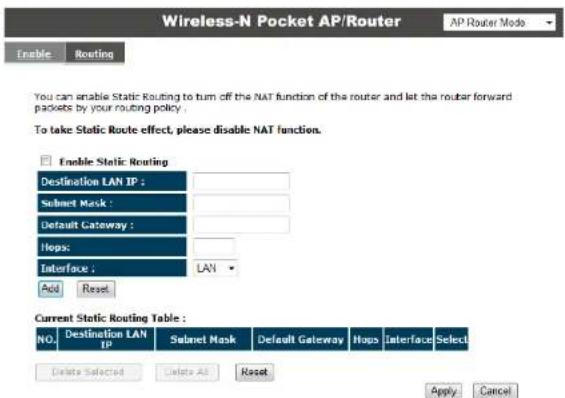
If your TRAVEL ROUTER device is connected a network with different subnets, then this feature will allow the different subnets to communicate with each other.
Note: NAT function needs to be disabled for the Routing feature to be enabled.
text_image
Wireless-N Pocket AP/Router AP Router Mode Enable Routing You can enable Static Routing to turn off the NAT function of the router and let the router forward packets by your routing policy. To take Static Route effect, please disable NAT function. Enable Static Routing Destination LAN IP : Subnet Mask : Default Gateway : Hops: Interface : LAN Add Reset Current Static Routing Table : NO. Destination LAN IP Subnet Mask Default Gateway Hops Interface Select Delete Selected Delete All Reset Apply Cancel| Static Routing | |
| Enable Static Routing: | Tick this box to Enable the Static Router feature. |
| Destination LAN IP: | Enter the IP address of the destination LAN. |
| Subnet Mask: | Enter the Subnet Mask of the destination LAN IP address |
| Default Gateway: | Enter the IP address of the Default Gateway for this destination IP and Subnet. |
| Hops: | Specify the maximum number of Hops in the static routing rule. |
| Interface: | Select whether the routing applies to LAN or WAN interfaces. |
EnGenius®
flowchart
graph TD
    A["Client1\n192.168.1.11"] -->|192.168.1.XXX| B["Router1\n192.168.123.216"]
    B -->|192.168.123.XXX Submask| C["Router2\n192.168.123.105"]
    C -->|192.168.4.XXX| D["Client2\n192.168.0.2"]
    C -->|192.168-12.XXX| E["Client3\n192.168.12.22"]
| Destination | Subnet | Mask | Gateway | Hop | Interface |
| 192.168.1.0 | 255.255.255.0 | 192.168.123.216 | 1 | LAN | |
| 192.168.0.0 | 255.255.255.0 | 192.168.123.103 | 1 | LAN |
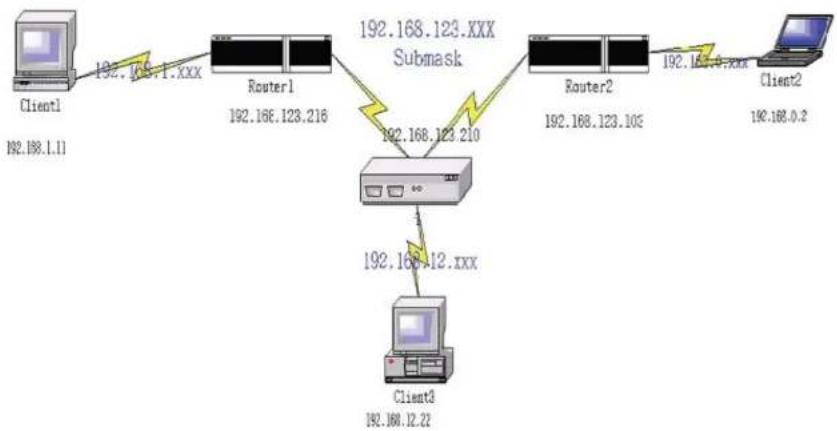
So if, for example, Client3 wants to send an IP data packet to 192.168.0.2 (Client 2), it would use the above table to determine that it had to go via 192.168.123.103 (Router 2)
And if it sends Packets to 192.168.1.11 (Client 1) will go via 192.168.123.216 (Router 1).
EnGenius®
8.2.6 Tools
This section allows you to configure some device system settings.
Admin
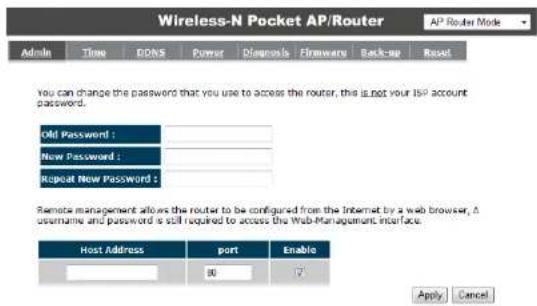
This page allows you to change the system password and to configure remote management.
text_image
Wireless-N Pocket AP/Router AP Router Mode Admin Time DDNS Power Diagnosis Firmware Back-up Reset You can change the password that you use to access the router, this is not your ISP account password. Old Password : New Password : Repeat New Password : Remote management allows the router to be configured from the Internet by a web browser. A username and password is still required to access the Web-Management Interface. Host Address port Enable 00 7 Apply Cancel| Change Password | |
| Old Password: | Enter the current password. |
| New Password: | Enter your new password. |
| Repeat New Password: | Enter your new password again for verification. |
| Remote Management | |
| Host Address: | You can only perform remote management from the specified IP address. Leave blank to allow any host to perform remote management. |
| Port: | Enter the port number you want to accept remote management connections. |
| Enable: | Tick to Enable the remote management feature. |
EnGenius®
Time
This page allows you to set the system time.

text_image
Wireless-N Pocket AP/Router AP Router Mode Admin Time DDNS Power Diagnosis Firmware Back-up ResetThe Router reads the correct time from NTP servers on the Internet and sets its system clock accordingly. The Daylight Savings option merely advances the system clock by one hour. The time zone setting is used by the system clock when displaying the correct time in schedule and the log files.

text_image
Time Setup: Synchronize with the NTP Server Time Zone : (GMT)Greenwich Mean Time: Dublin, Edinburgh, Lisbon, London NTP Time Server : Daylight Saving : Enable From January - 1 To January - 1 -Apply Cancel
| Time | |
| Time Setup: | Select the method you want to set the time. |
| Time Zone: | Select the time zone for your current location. |
| NTP Time Server: | Enter the address of the Network Time Protocol (NTP) Server to automatically synchronize with a server on the Internet. |
| Daylight Savings: | Check whether daylight savings applies to your area. |
EnGenius®
Dynamic DNS (DDNS)
This free service is very useful when combined with the Virtual Server feature. It allows Internet users to connect to your Virtual Servers using a URL, rather than an IP Address.
This also solves the problem of having a dynamic IP address. With a dynamic IP address, your IP address may change whenever you connect, which makes it difficult to connect to you.

text_image
Wireless-N Pocket AP/Router AP Router Mode Admin Time DONS Power Diagnosis Firmware Back-up Reset DONS allows users to map a static domain name to a dynamic IP address, you must get an account, password and your static domain name from the DONS service provider... Dynamic DNS : Enable Disable Server Address : DynDNS Host Name : xxxx.dyndns.org Username : Username Password : ********** Apply CancelDDNS Services work as follows:
- You must register for the service at one of the listed DDNS Service providers.
- After registration, use the Service provider's normal procedure to obtain your desired Domain name.
- Enter your DDNS data on the ETR-9305's DDNS screen, and enable the DDNS feature.
- The Wireless Router will then automatically ensure that your current IP Address is recorded at the DDNS service provider's Domain Name Server.
- From the Internet, users will be able to connect to your Virtual Servers (or DMZ PC) using your Domain name, as shown on this screen.
| Dynamic DNS | |
| Dynamic DNS | Tick this box to Enable the DDNS feature. |
| Server Address: | Select the list of Dynamic DNS homes you would like to use from this list. |
| Username / Password: | Enter the Username and Password of your DDNS account. |
EnGenius®
Power
This page allows you to Enable or Disable the wireless LAN power saving features.

text_image
Wireless-N Pocket AP/Router AP Router Mode Admin Time DDNS Power Diagnosis Firmware Back-up ResetYou can use the power page to save energy for WLAN interfaces.
Power Saving Mode :

Enable Disable
Apply Cancel
EnGenius®
Diagnosis
This page allows you determine if the TRAVEL ROUTER device has an active Internet connection.

text_image
Wireless-N Pocket AP/Router AP Router Mode Admin Time DDNS Power Diagnosis Firmware Back-up Reset APThis page can diagnose the current network status

| Diagnosis | |
| Address to Ping: | Enter the IP address you like to see if a successful connection can be made. |
| Ping Result: | The results of the Ping test. |
EnGenius®
Firmware
The firmware (software) in the TRAVEL ROUTER device can be upgraded using your Web Browser.

text_image
Wireless-N Pocket AP/Router AP Router Mode Admin Time DDNS Power Diagnosis Firmware Back-up ResetYou can upgrade the firmware of the router in this page. Ensure, the firmware you want to use is on the local hard drive of your computer. Click on Browse to browse and locate the firmware to be used for your update.

To perform the Firmware Upgrade:
- Click the Browse button and navigate to the location of the upgrade file.
- Select the upgrade file. Its name will appear in the Upgrade File field.
- Click the Apply button to commence the firmware upgrade.
Note: The Wireless Router is unavailable during the upgrade process, and must restart when the upgrade is completed. Any connections to or through the Wireless Router will be lost.
EnGenius®
Back-up

text_image
Wireless-N Pocket AP/Router AP Router Mode Admin Time DDNS Power Diagnosis Firmware Back-up ResetUse BACKUP to save the routers current configuration to a file named config.dlf. You can use RESTORE to restore the saved configuration. Alternatively, you can use RESTORE TO FACTORY DEFAULT to force the router to restore the factory default settings.
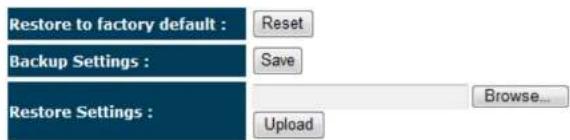
text_image
Restore to factory default : Reset Backup Settings : Save Restore Settings : Browse... Upload| Back-up | |
| Restore to factory default: | Restores the device to factory default settings. |
| Backup Settings: | Save the current configuration settings to a file. |
| Restore Settings: | Restores a previously saved configuration file.ClickBrowseto select the file. ThenUploadto load the settings. |
EnGenius®
Reset
In some circumstances it may be required to force the device to reboot.

text_image
Wireless-N Pocket AP/Router AP Router Mode Admin Time DDNS Power Diagnosis Firmware Back-up ResetIn the event the system stops responding correctly or stops functioning, you can perform a reset. Your settings will not be changed. To perform the reset, click on the APPLY button.
Apply Cancel
EnGenius®
8.3 AP and Client Bridge Modes
When the TRAVEL ROUTER device is set to AP or Client Bridge modes, it will no longer allocate IP addresses to its wireless clients.
To access the Web-Based configuration page, please follow the following steps to set a static IP address (Windows XP/Vista).
-
Connect to the TRAVEL ROUTER using an Ethernet CAT.5 LAN Cable.
-
Click Start and open Control Panel.

text_image
iTunes Internet Internet Explorer E-mail Microsoft Outlook Adobe Photoshop Elements 3.0 Notepad Word Microsoft Money 2004 Paint All Programs My Documents My Recent Documents > My Computer Control Panel Set Program Access and Defaults Help and Support Search Run... About my HP-PC Log Off Turn Off Computer startWindows XP Windows Vista
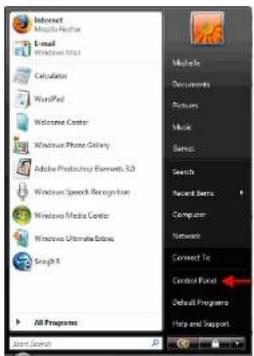
text_image
Microsoft Excel E-mail Windows Notepad Calculation WordPad Welcome Center Windows Photo Galaxy Adobe Photoshop Elements 3.0 Windows Speech Recognition Windows Media Center Windows Ultimate Edition Scap 8 All Programs Microsoft Documents Pictures Music Search Record Bars Computer Network Connect To Control Panel Default Programs Help and SupportEnGenius®
111
- Windows XP, click [Network Connection]

Network Connections
Windows Vista, click [View Network Status and Task then [Manage Network Connections]

Network and Internet Connect to the Internet View network status and tasks Set up file sharing

text_image
Tasks View computers and devices Connect to a network Set up a connection or network Manage network connections Diagnose and repair- Right click on [Local Area Connection] and choose [Properties].

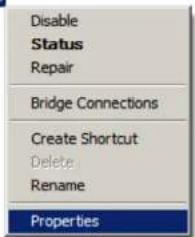
text_image
Disable Status Repair Bridge Connections Create Shortcut Delete Rename PropertiesEnGenius®
-
Check "Client for Microsoft Networks", "File and Printer Sharing", and "Internet Protocol (TCP/IP) is ticked. If not, please install them.
-
Select "Internet Protocol (TCP/IP)" and click [Properties]
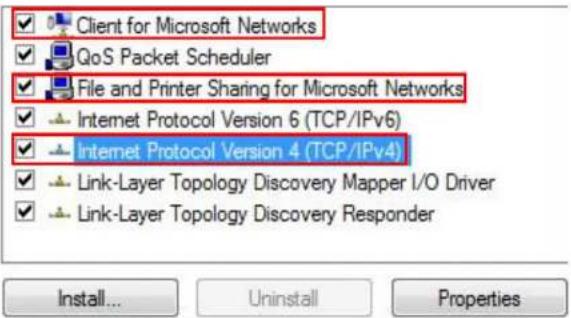
text_image
Client for Microsoft Networks QoS Packet Scheduler File and Printer Sharing for Microsoft Networks Internet Protocol Version 6 (TCP/IPv6) Internet Protocol Version 4 (TCP/IPv4) Link-Layer Topology Discovery Mapper I/O Driver Link-Layer Topology Discovery Responder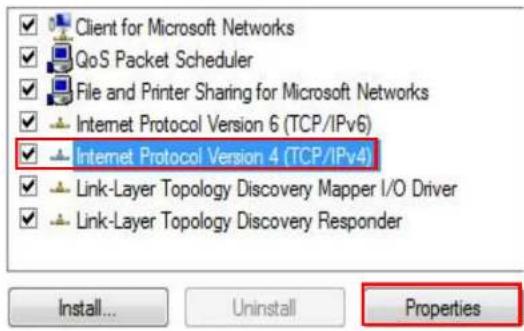
text_image
Client for Microsoft Networks QoS Packet Scheduler File and Printer Sharing for Microsoft Networks Internet Protocol Version 6 (TCP/IPv6) Internet Protocol Version 4 (TCP/IPv4) Link-Layer Topology Discovery Mapper I/O Driver Link-Layer Topology Discovery Responder Install... Uninstall PropertiesEnGenius®
- Manually set the IP Address. Then click [OK]
For example:
IP Address: 192.168.0.250
Subnet Mask: 255.255.255.0

text_image
Internet Protocol Version 4 (TCP/IPv4) Properties General You can get IP settings assigned automatically if your network supports this capability. Otherwise, you need to ask your network administrator for the appropriate IP settings. Obtain an IP address automatically Use the following IP address: IP address: 192 . 168 . 0 . 250 Subnet mask: 255 . 255 . 255 . 0 Default gateway: . Obtain DNS server address automatically Use the following DNS server addresses: Preferred DNS server: . Alternate DNS server: . Advanced... OK CancelEnGenius®
- You should now be able to access the Web-Based configuration in your Web Browser.


- Remember to configure the settings back to Obtain an IP Address Automatically and Obtain DNS Server Address Automatically once you complete configuring the Web-Based interface in Client Bridge Mode.
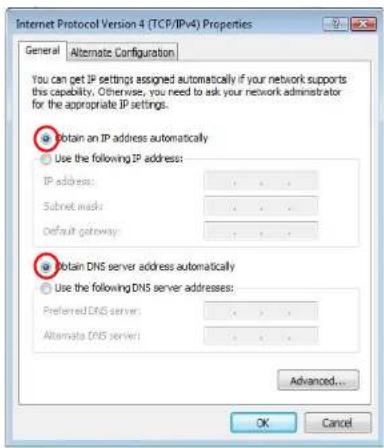
text_image
Internet Protocol Version 4 (TCP/IPv4) Properties General Alternate Configuration You can get IP settings assigned automatically if your network supports this capability. Otherwise, you need to ask your network administrator for the appropriate IP settings. ● Obtain an IP address automatically ○ Use the following IP address: IP address: ... Submit mask: ... Default gateway: ... ● Obtain DNS server address automatically ○ Use the following DNS server addresses: Preferred DNS server: ... Alternate DNS server: ... Advanced... OK CancelEnGenius®
8.4 Client Bridge Mode
The Client Bridge mode turns the TRAVEL ROUTER into a wireless client, which then allows non-wireless devices to use its RJ-45 port to access the network wirelessly.
8.4.1 Wireless
This section allows you to configure which wireless network the TRAVEL ROUTER will connect to.
Basic
- Configure which wireless network the TRAVEL ROUTER will connect to in the Wireless Basic page.
- Use the Site Survey button to scan the area for available wireless networks.

text_image
Wireless-N Pocket AP/Router Client Bridge Mode Basic Advanced AP ProfileThis page allows you to define SSID, and Channel for the wireless connection. These parameters are used for the wireless stations to connect to the Access Point.

Wireless Information

EnGenius®
- Select the SSID (wireless network) that you would like to connect to, and then click Add to AP Profile.
Site Survey
| NO. | Select | Channel | SSID | BSSID | Encryption | Auth | Signal(%) | Mode |
| 1 | 1 | SENAOWL | 00:97:53:AA:11:1C | WEP | AUTOWEP | 65 | 11b/g/n | |
| 2 | 1 | SENAOWL | 00:02:6F:53:0C:9B | WEP | AUTOWEP | 81 | 11b/g | |
| 3 | 1 | SENAOWL | 00:02:6F:36:9C:9A | WEP | AUTOWEP | 70 | 11b | |
| 4 | 1 | SENAOVIP | 00:02:6F:E0:02:12 | NONE | OPEN | 44 | 11b/g | |
| 5 | 1 | EnGenius2 | 06:02:6F:10:10:12 | NONE | OPEN | 44 | 11b/g | |
| 6 | 1 | EnGenius1 | 00:02:6F:10:10:12 | NONE | OPEN | 34 | 11b/g | |
| 7 | 1 | SENAOWL | 00:02:6F:48:00:07 | WEP | AUTOWEP | 55 | 11b/g |
- Enter the wireless security settings for this SSID. Then click Save to apply the settings.
AP Profile Settings
| Network Name (SSID) : | SENAOWL | |
| Encryption : | WEP | |
| Authentication Type : | Open System Shared Key | |
| Key Length : | 64-bit | |
| Key type : | Hex (10 characters) | |
| Default key : | Key 1 | |
| Encryption Key 1 : | ********** | |
| Encryption Key 2 : | ********** | |
| Encryption Key 3 : | ********** | |
| Encryption Key 4 : | ********** | |
- Change your IP Address settings back to Obtain your IP Address Automatically. You should now be connected to the wireless network through the TRAVEL ROUTER.
EnGenius®
AP Profiles
You can save the settings up to three wireless networks. The TRAVEL ROUTER will automatically connect to the wireless network in order of priority.

text_image
Wireless-N Pocket AP/Router Client Bridge Mode Basic Advanced AP ProfileAP Profile Table
| NO. | SSID | MAC | Authentication | Encryption | Select |
| 1 | EnGenius | 00:00:00:00:00:00 | Open System | NONE | |
| 2 | SENAOWL | 00:02:6F:53:0C:98 | Open System | WEP | |
| 3 | EnGenius3 | 0A:02:6F:10:10:12 | Open System | NONE |

| AP Profile | |
| Add: Manually Add a new SSID (wireless network) profile. | |
| Edit: | Edit the SSID settings. |
| Move Up / Down: | Change the priority that the TRAVEL ROUTER will connect to these SSID's. |
| Delete Selected: | Deletes the selected SSID profile. |
| Delete All: | Deletes all SSID profiles. |
| Connect: | Force connection to this SSID. |
EnGenius®
Appendix A – FCC Interference Statement
Federal Communication Commission Interference Statement
This equipment has been tested and found to comply with the limits for a Class B digital device, pursuant to Part 15 of the FCC Rules. These limits are designed to provide reasonable protection against harmful interference in a residential installation. This equipment generates, uses and can radiate radio frequency energy and, if not installed and used in accordance with the instructions, may cause harmful interference to radio communications. However, there is no guarantee that interference will not occur in a particular installation. If this equipment does cause harmful interference to radio or television reception, which can be determined by turning the equipment off and on, the user is encouraged to try to correct the interference by one of the following measures:
● Reorient or relocate the receiving antenna.
- Increase the separation between the equipment and receiver.
- Connect the equipment into an outlet on a circuit different from that to which the receiver is connected.
- Consult the dealer or an experienced radio/TV technician for help.
This device complies with Part 15 of the FCC Rules. Operation is subject to the following two conditions: (1) This device may not cause harmful interference, and (2) this device must accept any interference received, including interference that may cause undesired operation.
FCC Caution: Any changes or modifications not expressly approved by the party responsible for compliance could void the user's authority to operate this equipment.
EnGenius®
IMPORTANT NOTE:
FCC Radiation Exposure Statement:
This equipment complies with FCC radiation exposure limits set forth for an uncontrolled environment. This equipment should be installed and operated with minimum distance 20cm between the radiator & your body.
We declare that the product is limited in CH1\~CH11 by specified firmware controlled in the USA.
This transmitter must not be co-located or operating in conjunction with any other antenna or transmitter.
Appendix B – IC Interference Statement
Industry Canada statement:
This device complies with RSS-210 of the Industry Canada Rules. Operation is subject to the following two conditions:
(1) This device may not cause harmful interference, and (2) this device must accept any interference received, including interference that may cause undesired operation.
IMPORTANT NOTE:
Radiation Exposure Statement:
This equipment complies with IC radiation exposure limits set forth for an uncontrolled environment. This equipment should be installed and operated with minimum distance 20cm between the radiator & your body.
This device has been designed to operate with an antenna having a maximum gain of 2 dBi. Antenna having a higher gain is strictly prohibited per regulations of Industry Canada. The required antenna impedance is 50 ohms.