
GXT 32 - Mouse TRUST - Free user manual and instructions
Find the device manual for free GXT 32 TRUST in PDF.


| Product type | Wired gaming mouse |
| Brand | Trust |
| Model | GXT 32 |
| Connectivity | Wired USB |
| Optical sensor | Yes, with adjustable resolutions |
| DPI resolutions | 800 / 1600 / 2400 DPI (dedicated switch) |
| Programmable buttons | 6 buttons (4 programmable via software) |
| Scroll wheel | Tiltable scroll wheel (lateral movement) |
| Configuration modes | 2 recordable modes (Mode-1 and Mode-2) |
| Configuration software | Trust software provided (on CD or downloadable) |
| Macro and key combination functions | Yes (up to 100 keys per macro) |
| Settings profile | Export/Import profiles via software |
| Compatibility | PC with Windows |
| Power supply | Powered via USB port |
| Cable length | Approximately 1.8 m (standard estimate) |
| Dimensions (L x W x H) | Approximately 125 x 70 x 40 mm (estimate) |
| Weight | Approximately 150 g (estimate) |
| Maintenance and cleaning | Clean with a soft, dry cloth. Do not use liquid or abrasive products. |
Frequently Asked Questions - GXT 32 TRUST
User questions about GXT 32 TRUST
0 question about this device. Answer the ones you know or ask your own.
Ask a new question about this device
Download the instructions for your Mouse in PDF format for free! Find your manual GXT 32 - TRUST and take your electronic device back in hand. On this page are published all the documents necessary for the use of your device. GXT 32 by TRUST.
USER MANUAL GXT 32 TRUST


5

Trust
6
7
Advanced
B

9

10
11

12
Gaming Mouse - USER'S MANUAL
Trust
| Language | page | ||
| Englisch | 2 | ||
| Deutsch | 5 | ||
| Français | 8 | ||
| Italiano | 11 | ||
| Español | 14 | ||
| Português | 17 | ||
| Nederlands | 20 | ||
| Dansk | 23 | ||
| Suomi | 26 | ||
| Norsk | 29 | ||
| Svenska | 32 | ||
| Polski | 35 | ||
| Česky | 38 | ||
| Slovenčina | 41 | ||
| Magyar | 44 | ||
| Română | 47 | ||
| Български | 50 | ||
| Русский | 53 | ||
| Еллэнvíкá | 56 | ||
| Türkçe | 59 | ||
| Hrvatski | 62 | ||
Gaming Mouse - USER'S MANUAL
Trust
Mouse layout
- Button 1. (default function = page forward)
- Button 2. (default function = page backward)
© - DPI switch. - Mode Indicator.(Blue Led off= Mode-1, Blue Led on= Mode-2)
- DPI indicator.(1 Led on = 800DPI, 2 led's = 1600DPI, 3 led's = 2400DPI)
- Left mouse button
- Middle button/ scroll wheel/ tilt wheel (move side ways)
- Right mouse button
- Button 3. (need to be configured in the software first)
- Button 4. (need to be configured in the software first)
- Mode button (click to switch between 'Mode-1' and 'Mode-2')
(select 'Mode' in the software as indicated to edit 'Mode-1' and 'Mode-2')
Installation
① Connect the mouse to the USB port of the PC.
⑥ Wait until the message 'Your device is ready to use' appears.
© Insert the CD in the PC
② Click Install the software in the Trust menu.
b- Follow the installation
⑥- When the installation is finished, restart your PC.
③ Start the mouse configuration software. (located in the taskbar)
In the following part of the manual there be referred to the 'Apply' function that updates the mouse.
'Apply' is located in the bottom right corner of the main window.
(the mouse will stop working when it's beeing updated. This will take a few seconds.)
The mouse can store 2 different set ups. You can instantly switch between these set ups by pressing the 'Mode' button on the mouse.
Configuration
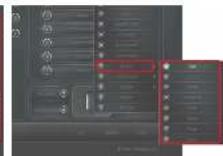
④ Assign a regular mouse function. (Like click, middle click, menu)
- Click on the button which you want to re-assign.
- Click on the function you want to assign to the button.
- Click on 'Apply' → The mouse is being updated.
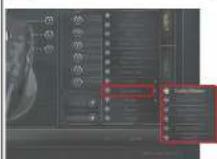
⑤ Assign a basic windows function. (Like cut, copy, paste)
- Click on the button witch you want to re-assign
- Click on a function under the 'Basic' tab.
- Click on 'Apply' → The mouse is beeing updated.
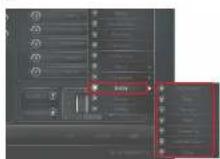
⑥ Assign an advanced windows function. (Like Close Window, Open explorer, run)
- Click on the button witch you want to re-assign.
- Click on a function under the 'Advanced' tab.
- Click on 'Apply' → The mouse is beeing updated.
⑦ Assign a media function. (Like Play/Pause, Volume Up, Volume Down)
- Click on the button witch you want to re-assign
- Click on a function under the 'Media' tab.
- Click on 'Apply' → The mouse is beeing updated.
Advanced Mouse configuration
⑧ Assign a combo key function. (Store a 2key combination in the mouse)
- Click on the button witch you want to re-assign.
- Click on 'Combo Key
- Insert any keypress or key-combination.
- Click on 'OK'
- Click on 'Apply' → The mouse is beeing updated.
Assign a macro function. (Store a sequence of keys in the software)
- Click on the button witch you want to re-assign
- Click on 'Macro'
- Click on 'New'
- Type a name for the macro function.
- Select the new made macro.
- Click on 'Record'
- You can now record the macro. (maximum is 100key presses)
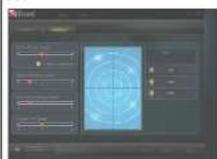
In the sensitivity tab you can change the sensitivity of the scrolling speed, double click speed, and DPI lock.
- By moving the sliders from left (less sensitive) to right (more sensitive) you can adjust the sensitivity.
- By moving the slider in the 'Double Click Speed' bar, you can set the preferred double clicking speed
from slow (left) to fast (right) - In the DPI field you can enable and disable the different DPI settings.
Saving and Loading profiles (Profiles store your mouse settings on the PC)
⑪ Saving a profile
- Click on 'Profile'
- Click on 'Export Profile'
- Browse to the location where you want to save.
- Insert a profile name. for example 'Far_Cry2'
- Click on 'Save'
Loading a profile
- Click on 'Profile'
- Click on 'Import Profile'
- Browse to the location where the profile is located.
- Select the profile that you want to load.
- Click on 'Open
- Click on 'Apply', to apply the profile to the mouse.
Gaming Mouse - USER'S MANUAL
Trust
Mauslayout
Gaming Mouse - USER'S MANUAL
Trust
Konfiguration
Gaming Mouse - USER'S MANUAL
Trust
Gaming Mouse - USER'S MANUAL
Trust
Gaming Mouse - USER'S MANUAL
Trust
Gaming Mouse - USER'S MANUAL
Trust
Esquema do rato
Gaming Mouse - USER'S MANUAL
Trust
Gaming Mouse - USER'S MANUAL
Trust
Muisindeling
Gaming Mouse - USER'S MANUAL
Trust
Configuratie
Gaming Mouse - USER'S MANUAL
Trust
Musens layout
Gaming Mouse - USER'S MANUAL
Trust
Gaming Mouse - USER'S MANUAL
Trust
Gaming Mouse - USER'S MANUAL
Trust
Muslayout
Gaming Mouse - USER'S MANUAL
Trust
Konfiguration
Gaming Mouse - USER'S MANUAL
Trust
Gaming Mouse - USER'S MANUAL
Trust
Budowa myszy
Gaming Mouse - USER'S MANUAL
Trust
Gaming Mouse - USER'S MANUAL
Trust
Myš
Gaming Mouse - USER'S MANUAL
Trust
Konfigurace
Gaming Mouse – USER'S MANUAL
Trust
Gaming Mouse - USER'S MANUAL
Trust
Opis myši
Gaming Mouse – USER'S MANUAL
Trust
Gaming Mouse - USER'S MANUAL
Trust
Az egér felépítése
Gaming Mouse – USER'S MANUAL
Trust
Gaming Mouse - USER'S MANUAL
Trust
Schemă mouse
Gaming Mouse - USER'S MANUAL
Trust
Configurare
Gaming Mouse - USER'S MANUAL
Trust
Gaming Mouse – USER'S MANUAL
Trust
Gaming Mouse – USER'S MANUAL
Trust
Gaming Mouse – USER'S MANUAL
Trust
Gaming Mouse - USER'S MANUAL
Trust
Fare yerleşimi
Gaming Mouse - USER'S MANUAL
Trust
Izgled miša
- Tipka 1. (zadana funkcija = stranica naprijed)
- Tipka 2. (zadana funkcija = stranica nazad)
© - DPI sklopka. - Mode oznaka.(Plava dloda isključena= Mode-1, Plava dloda uključena= Mode-2)
- DPI oznaka.(1 dioda uključena = 800DPI, 2 diode = 1600DPI, 3 diode = 2400DPI)
- Lijeva tipka miša
- Srednja tipka/ kotačić/ nagib kotačića (pomaknuti u stranu)
- Desna tipka miša
- Tipka 3 (prvo se mora podesiti u softveru)
- Tipka 4 (prvo se mora podesiti u softveru)
- Mode tipka (kliknite da se prebacite između 'Mode-1' i 'Mode-2')
(odaberite 'Mode' u softveru kako je označeno da biste uredili 'Mode-1' i 'Mode-2')
Instalacija
Gaming Mouse – USER'S MANUAL
Trust
- Gaming Mouse - USER'S MANUAL
- Trust
- Mouse layout
- Installation
- Configuration
- Advanced Mouse configuration
- Loading a profile
- Mauslayout
- Konfiguration
- Esquema do rato
- Muisindeling
- Configuratie
- Musens layout
- Muslayout
- Budowa myszy
- Myš
- Konfigurace
- Gaming Mouse – USER'S MANUAL
- Opis myši
- Az egér felépítése
- Schemă mouse
- Configurare
- Fare yerleşimi
- Izgled miša
- Instalacija
Brand : TRUST
Model : GXT 32
Category : Mouse