DSR-150N - Router D-LINK - Free user manual and instructions
Find the device manual for free DSR-150N D-LINK in PDF.


User questions about DSR-150N D-LINK
0 question about this device. Answer the ones you know or ask your own.
Ask a new question about this device
Download the instructions for your Router in PDF format for free! Find your manual DSR-150N - D-LINK and take your electronic device back in hand. On this page are published all the documents necessary for the use of your device. DSR-150N by D-LINK.
USER MANUAL DSR-150N D-LINK
UNIFIED SERVICES ROUTER USER MANUAL
DSR-150 / 150N / 250 / 250N / 500 / 500 1000 / 1000N
VER. 1.05

SMALL BUSINESS GATEWAY SOLUTION
User Manual
Unified Services Router
D-Link Corporation
Copyright © 2012.
http://www.dlink.com
User Manual
DSR-150 / 150N /250 / 250N / DSR-500 / 500N / 1000 / 1000N
Unified Services Router
Version 1.05
Copyright © 2012
Copyright Notice
This publication, including all photographs, illus trations and software, is protected under international copyright laws, with all rights reserved. Neither this manual, nor any of the material contained herein, may be reproduced without written consent of the author.
Disclaimer
The information in this document is subject to change without notice. The manufacturer makes no representations or warranties with respect to the contents hereof and specifically disclaim any implied warranties of merchantability or fitness for any particular purpose. The manufacturer reserves the right to revise this publication and to make changes from time to time in the content hereof without obligation of the manufacturer to notify any person of such revision or changes.
Limitations of Liability
UNDER NO CIRCUMSTANCES SHALL D-LINK OR ITS SUPPLIERS BE LIABLE FOR DAMAGES OF ANY CHARACTER (E.G. DAMAGES FOR LOSS OF PROFIT, SOFTWARE RESTORATION, WORK STOPPAGE, LOSS OF SAVED DATA OR ANY OTHER COMMERCIAL DAMAGES OR LOSSES) RESULTING FROM THE APPLICATION OR IMPROPER USE OF THE D-LINK PRODUCT OR FAILURE OF THE PRODUCT, EVEN IF D-LINK IS INFORMED OF THE POSSIBILITY OF SUCH DAMAGES. FURTHERMORE, D-LINK WILL NOT BE LIABLE FOR THIRD-PARTY CLAIMS AGAINST CUSTOMER FOR LOSSES OR DAMAGES. D-LINK WILL IN NO EVENT BE LIABLE FOR ANY DAMAGES IN EXCESS OF THE AMOUNT D-LINK RECEIVED FROM THE END-USER FOR THE PRODUCT.
Table of Contents
Chapter 1. Introduction......11
1.1 About this User Manual 12
1.2 Typographical Conventions....12
Chapter 2. Configuring Your Network: LAN Setup ....13
2.1 LAN Configuration 13
2.1.1 LAN DHCP Reserved IPs 16
2.1.2 LAN DHCP Leased Clients....17
2.1.3 LAN Configuration in an IPv6 Network 18
2.1.4 Configuring IPv6 Router Advertisements 21
2.2 VLAN Configuration 23
2.2.1 Associating VLANs to ports 24
2.2.2 Multiple VLAN Subnets 26
2.2.3 VLAN configuration 27
2.3 Configurable Port: DMZ Setup 28
2.4 Universal Plug and Play (UPnP)....29
2.5 Captive Portal 31
2.6 Captive portal setup....32
Chapter 3. Connecting to the Internet: WAN Setup 35
3.1 Internet Setup Wizard....35
3.2 WAN Configuration....36
3.2.1 WAN Port IP address 37
3.2.2 WAN DNS Servers 37
3.2.3 DHCP WAN 37
3.2.4 PPPoE 38
3.2.5 Russia L2TP and PPTP WAN 41
3.2.6 Russia Dual Access PPPoE....42
3.2.7 WAN Configuration in an IPv6 Network 43
3.2.8 Checking WAN Status....45
3.3 Bandwidth Controls 47
3.4 Features with Multiple WAN Links 49
3.4.1 Auto Failover 49
3.4.2 Load Balancing 50
3.4.3 Protocol Bindings 52
3.5 Routing Configuration....53
3.5.1 Routing Mode 53
3.5.2 Dynamic Routing (RIP) 56
3.5.3 Static Routing 57
3.5.4 OSPFv2 58
3.5.5 OSPFv3 60
3.5.6 6to4 Tunneling 62
3.5.7 ISATAP Tunnels....63
3.6 Configurable Port - WAN Option 64
3.7 WAN 3 (3G) Configuration....64
3.8 WAN Port Settings....66
Chapter 4. Wireless Access Point Setup....68
4.1 Wireless Settings Wizard 68
4.1.1 Wireless Network Setup Wizard 69
4.1.2 Add Wireless Device with WPS 69
4.1.3 Manual Wireless Network Setup 70
4.2 Wireless Profiles....70
4.2.1 WEP Security 71
4.2.2 WPA or WPA2 with PSK 73
4.2.3 RADIUS Authentication 73
4.3 Creating and Using Access Points 75
4.3.1 Primary benefits of Virtual APs: 77
4.4 Tuning Radio Specific Settings 78
4.5 WMM....79
4.6 Wireless distribution system (WDS) 80
4.7 Advanced Wireless Settings 81
4.8 Wi-Fi Protected Setup (WPS) 82
Chapter 5. Securing the Private Network ....85
5.1 Firewall Rules 85
5.2 Defining Rule Schedules 86
5.3 Configuring Firewall Rules 87
5.4 Configuring IPv6 Firewall Rules....92
5.4.1 Firewall Rule Configuration Examples....93
5.5 Security on Custom Services....97
5.6 ALG support....99
5.7 VPN Passthrough for Firewall 100
5.8 Application Rules 101
5.9 Web Content Filtering....102
5.9.1 Content Filtering 102
5.9.2 Approved URLs 103
5.9.3 Blocked Keywords 104
5.9.4 Export Web Filter 105
5.10 IP/MAC Binding 106
5.11 Intrusion Prevention (IPS).... 107
5.12 Protecting from Internet Attacks 108
Chapter 6. IPsec / PPTP / L2TP VPN ....111
6.1 VPN Wizard 113
6.2 Configuring IPsec Policies....115
6.2.1 Extended Authentication (XAUTH) 119
6.2.2 Internet over IPSec tunnel 120
6.3 Configuring VPN clients....120
6.4 PPTP / L2TP Tunnels 120
6.4.1 PPTP Tunnel Support 120
6.4.2 L2TP Tunnel Support 122
6.4.3 OpenVPN Support....123
6.4.4 OpenVPN Remote Network 125
6.4.5 OpenVPN Authentication 126
Chapter 7. SSL VPN 129
7.1 Groups and Users.... 131
7.1.1 Users and Passwords 137
7.2 Using SSL VPN Policies 138
7.2.1 Using Network Resources 141
7.3 Application Port Forwarding 142
7.4 SSL VPN Client Configuration....144
7.5 User Portal 147
7.5.1 Creating Portal Layouts 147
Chapter 8. Advanced Configuration Tools .... 150
8.1 USB Device Setup 150
8.2 USB share port 151
8.3 SMS service....153
8.4 Authentication Certificates 154
8.5 Advanced Switch Configuration 156
Chapter 9. Administration & Management ....157
9.1 Configuration Access Control 157
9.1.1 Admin Settings.... 157
9.1.2 Remote Management....158
9.1.3 CLI Access 159
9.2 SNMP Configuration 159
9.3 Configuring Time Zone and NTP 161
9.4 Log Configuration....162
9.4.1 Defining What to Log 162
9.4.2 Sending Logs to E-mail or Syslog 167
9.4.3 Event Log Viewer in GUI 169
9.5 Backing up and Restoring Configuration Settings 170
9.6 Upgrading Router Firmware....171
9.7 Upgrading Router Firmware via USB....172
9.8 Dynamic DNS Setup....173
9.9 Using Diagnostic Tools 174
9.9.1 Ping....175
9.9.2 Trace Route 175
9.9.3 DNS Lookup 176
9.9.4 Router Options 176
9.10 Localization 177
Chapter 10. Router Status and Statistics....178
10.1 System Overview 178
10.1.1 Device Status 178
10.1.2 Resource Utilization 180
10.2 Traffic Statistics 183
10.2.1 Wired Port Statistics....183
10.2.2 Wireless Statistics.... 184
10.3 Active Connections....185
10.3.1 Sessions through the Router 185
10.3.2 Wireless Clients 187
10.3.3 LAN Clients 187
10.3.4 Active VPN Tunnels 188
Chapter 11. Trouble Shooting....190
11.1 Internet connection....190
11.2 Date and time 192
11.3 Pinging to Test LAN Connectivity....192
11.3.1 Testing the LAN path from your PC to your router.... 192
11.3.2 Testing the LAN path from your PC to a remote device.... 193
11.4 Restoring factory-default configuration settings 194
Chapter 12. Credits....195
Appendix A. Glossary 196
Appendix B. Factory Default Settings....199
Appendix C. Standard Services Available for Port Forwarding & Firewall Configuration....200
Appendix D. Log Output Reference 201
Appendix E. RJ-45 Pin-outs....255
Appendix F. Product Statement 256
List of Figures
Figure 1: Setup page for LAN TCP/IP settings....15
Figure 2: LAN DHCP Reserved IPs ....17
Figure 3: LAN DHCP Leased Clients .... 18
Figure 4: IPv6 LAN and DHCPv6 configuration .... 19
Figure 5: Configuring the Router Advertisement Daemon ....22
Figure 6: IPv6 Advertisement Prefix settings 23
Figure 7: Adding VLAN memberships to the LAN 24
Figure 8: Port VLAN list ....25
Figure 9: Configuring VLAN membership for a port....26
Figure 10: Multiple VLAN Subnets....27
Figure 11: VLAN Configuration 28
Figure 12: DMZ configuration 29
Figure 13: UPnP Configuration .... 30
Figure 14: Active Runtime sessions ...... 32
Figure 15: Captive Portal Setup....33
Figure 16: Customized Captive Portal Setup 34
Figure 17: Internet Connection Setup Wizard....35
Figure 18: Manual WAN configuration....38
Figure 19: PPPoE configuration for standard ISPs 39
Figure 20: WAN configuration for Japanese Multiple PPPoE (part 1)....40
Figure 21: WAN configuration for Multiple PPPoE (part 2) ......41
Figure 22: Russia L2TP ISP configuration....42
Figure 23: Russia Dual access PPPoE configuration ....43
Figure 24: IPv6 WAN Setup page 44
Figure 25: Connection Status information for both WAN ports 46
Figure 26: List of Configured Bandwidth Profiles ....47
Figure 27: Bandwidth Profile Configuration page 48
Figure 28: Traffic Selector Configuration....49
Figure 29: Load Balancing is available when multiple WAN ports are configured and Protocol Bindings have been defined....52
Figure 30: Protocol binding setup to associate a service and/or LAN source to a WAN and/or destination network....53
Figure 31: Routing Mode is used to configure traffic routing between WAN and LAN, as well as Dynamic routing (RIP)....55
Figure 32: Static route configuration fields....58
Figure 33: OSPFv2 configured parameters ....59
Figure 34: OSPFv2 configuration ....60
Figure 35: OSPFv3 configured parameters....61
Figure 36: OSPFv3 configuration....62
Figure 37: 6 to 4 tunneling....63
Figure 38: ISATAP Tunnels Configuration 64
Figure 39: WAN3 configuration for 3G internet 66
Figure 40: Physical WAN port settings....67
Figure 41: Wireless Network Setup Wizards....69
Figure 42: List of Available Profiles shows the options available to secure the wireless link .....71
Figure 43: Profile configuration to set network security....73
Figure 44: RADIUS server (External Authentication) configuration ....75
Figure 45: Virtual AP configuration ....76
Figure 46: List of configured access points (Virtual APs) shows one enabled access point on the radio, broadcasting its SSID....77
Figure 47: Radio card configuration options....78
Figure 48: Wi-Fi Multimedia ....79
Figure 49: Wireless Distribution System....80
Figure 50: Advanced Wireless communication settings 82
Figure 51: WPS configuration for an AP with WPA/WPA2 profile 83
Figure 52: List of Available Firewall Rules 86
Figure 53: List of Available Schedules to bind to a firewall rule ....87
Figure 54: Example where an outbound SNAT rule is used to map an external IP address (209.156.200.225) to a private DMZ IP address (10.30.30.30) ..... 90
Figure 55: The firewall rule configuration page allows you to define the To/From zone, service, action, schedules, and specify source/destination IP addresses as needed. .....91
Figure 56: The IPv6 firewall rule configuration page allows you to define the To/From zone, service, action, schedules, and specify source/destination IP addresses as needed. ..92
Figure 57: List of Available IPv6 Firewall Rules 93
Figure 58: Schedule configuration for the above example. 96
Figure 59: List of user defined services. 98
Figure 60: Custom Services configuration 98
Figure 61: Available ALG support on the router. 100
Figure 62: Passthrough options for VPN tunnels .... 101
Figure 63: List of Available Application Rules showing 4 unique rules ....102
Figure 64: Content Filtering used to block access to proxy servers and prevent ActiveX controls from being downloaded....103
Figure 65: Two trusted domains added to the Approved URLs List .... 104
Figure 66: One keyword added to the block list....105
Figure 67: Export Approved URL list .... 106
Figure 68: The following example binds a LAN host's MAC Address to an IP address served by DSR. If there is an IP/MAC Binding violation, the violating packet will be dropped and logs will be captured....107
Figure 69: Intrusion Prevention features on the router .... 108
Figure 70: Protecting the router and LAN from internet attacks....109
Figure 71: Example of Gateway-to-Gateway IPsec VPN tunnel using two DSR routers connected to the Internet....111
Figure 72: Example of three IPsec client connections to the internal network through the DSR IPsec gateway .....112
Figure 73: VPN Wizard launch screen .... 113
Figure 74: IPsec policy configuration....116
Figure 75: IPsec policy configuration continued (Auto policy via IKE) 117
Figure 76: IPsec policy configuration continued (Auto / Manual Phase 2) 119
Figure 77: PPTP tunnel configuration – PPTP Client....121
Figure 78: PPTP VPN connection status....121
Figure 79: PPTP tunnel configuration – PPTP Server....122
Figure 80: L2TP tunnel configuration – L2TP Server....123
Figure 81: OpenVPN configuration....125
Figure 82: OpenVPN Remote Network 126
Figure 83: OpenVPN Authentication .... 127
Figure 84: Example of clientless SSL VPN connections to the DSR....130
Figure 85: List of groups....131
Figure 86: User group configuration....132
Figure 87: SSLVPN Settings....133
Figure 88: Group login policies options ...... 134
Figure 89: Browser policies options ...... 135
Figure 90: IP policies options....136
Figure 91: Available Users with login status and associated Group 137
Figure 92: User configuration options....138
Figure 93: List of SSL VPN polices (Global filter)....139
Figure 94: SSL VPN policy configuration .... 140
Figure 95: List of configured resources, which are available to assign to SSL VPN policies ..... 142
Figure 96: List of Available Applications for SSL Port Forwarding ....144
Figure 97: SSL VPN client adapter and access configuration .... 145
Figure 98: Configured client routes only apply in split tunnel mode....146
Figure 99: List of configured SSL VPN portals. The configured portal can then be associated with an authentication domain....147
Figure 100: SSL VPN Portal configuration....149
Figure 101: USB Device Detection 151
Figure 102: USB SharePort....152
Figure 103: SMS Service – Send SMS 153
Figure 104: SMS Service – Receive SMS 154
Figure 105: Certificate summary for IPsec and HTTPS management .... 155
Figure 106: Advanced Switch Settings....156
Figure 107: User Login policy configuration .... 157
Figure 108: Admin Settings .... 158
Figure 109: Remote Management from the WAN 159
Figure 110: SNMP Users, Traps, and Access Control .... 160
Figure 111: SNMP system information for this router .... 161
Figure 112: Date, Time, and NTP server setup 162
Figure 113: Facility settings for Logging 164
Figure 114: Log configuration options for traffic through router....166
Figure 115: IPv6 Log configuration options for traffic through router .... 167
Figure 116: E-mail configuration as a Remote Logging option.... 168
Figure 117: Syslog server configuration for Remote Logging (continued)....169
Figure 118: VPN logs displayed in GUI event viewer .... 170
Figure 119: Restoring configuration from a saved file will result in the current configuration being overwritten and a reboot....171
Figure 120: Firmware version information and upgrade option .... 172
Figure 121: Firmware upgrade and configuration restore/backup via USB....173
Figure 122: Dynamic DNS configuration....174
Figure 123: Router diagnostics tools available in the GUI .... 175
Figure 124: Sample trace route output....176
Figure 125: Localization 177
Figure 126: Device Status display .... 179
Figure 127: Device Status display (continued)....180
Figure 128: Resource Utilization statistics....181
Figure 129: Resource Utilization data (continued) 182
Figure 130: Resource Utilization data (continued) 183
Figure 131: Physical port statistics .... 184
Figure 132: AP specific statistics....185
Figure 133: List of current Active Firewall Sessions....186
Figure 134: List of connected 802.11 clients per AP 187
Figure 135: List of LAN hosts .... 188
Figure 136: List of current Active VPN Sessions 189
Chapter 1. Introduction
D-Link Unified Services Routers offer a secure, high performance networking solution to address the growing needs of small and medium business es. Integrated high-speed IEEE 802.11n and 3G wireless technologies offer comparable performance to traditional wired networks, but with fewer limitations. Optimal network security is provided via features such as virtual private network (VPN) tunnels, IP Security (IPsec), Point-to-Point Tunneling Protocol (PPTP), Layer 2 Tunneling Protocol (L2TP), and Secure Sockets Layer (SSL). Empower your road warriors with clients s remote access anywhere and anytime using SSL VPN tunnels.
With the D-Link Unified Services Router you are able to experience a diverse set of benefits:
• Comprehensive Management Capabilities
The DSR-500, DSR-500N, DSR-1000 and DSR-1000N include dual-WAN Gigabit Ethernet which provides policy-based service management ensuring maximum productivity for your business operations. The failover feature maintains data traffic without disconnecting when a landline connection is lost. The Outbound Load Balancing feature adjusts outgoing traffic across two WAN interfaces and optimizes the system performance resulting in high availability. The second WAN port can be configured as a DMZ port allowing you to is olate servers from your LAN.
DSR-150/150N/250 /250N have a single WAN interface, and thus it does not support Auto Failover and Load Balancing scenarios.
• Superior Wireless Performance
Designed to deliver superior wireless performance, the DSR-500N and DSR-1000N include 802.11 a/b/g/n, allowing for operation on either the 2.4 GHz or 5 GHz radio bands. Multiple In Multiple Out (MIMO) technology allows the DSR-500N and DSR-1000N to provide high data rates with minimal “dead spots” throughout the wireless coverage area.
DSR-150N, 250N and DSR-500N supports the 2.4GHz radio band only.
• Flexible Deployment Options
The DSR-1000 / 1000N supports Third Generation (3G) Networks via an extendable USB 3G dongle. This 3G network capability offers an additional secure data connection for networks that provide critical services. The DSR - 1000N can be configured to automatically switch to a 3G network whenever a physical link is lost.
- Robus t VPN features
A fully featured virtual private network (VPN) provides your mobile workers and branch offices with a secure link to your network. The DSR-150/150N/250/250N, DSR-500/500N and DSR-1000 /1000N are capable of simultaneously managing 5, 5, 10, 20 Secure Sockets Layer (SSL) VPN tunnels respectively, empowering your mobile users by providing remote access to a
central corporate database. Site-to-site VPN tunnels use IP Security (IPsec)
Protocol, Point-to-Point Tunneling Protocol (PPTP), or Layer 2 Tunneling
Protocol (L2TP) to facilitate branch office connectivity through encrypted virtual links. The DSR-150/150N, DSR-250/250N, DSR-500/500N and DSR-1000/1000N support 10, 25, 35 and 75 simultaneous IPSec VPN tunnels respectively.
• Efficient D-Link Green Technology
As a concerned member of the global community, D-Link is devoted to providing eco-friendly products. D-Link Green WiFi and D-Link Green Ethernet save power and prevent waste. The D-Link Green WLAN scheduler reduces wireless power automatically during off-peak hours. Likewise the D-Link Green Ethernet program adjusts power usage based on the detected cable length and link status. In addition, compliance with RoHS (Restriction of Hazardous Substances) and WEEE (Waste Electrical and Electronic Equipment) directives make D-Link Green certified devices the environmentally responsible choice.

Support for the 3G wireless WAN USB dongle is only available for DSR-1000 and DSR-1000N.
1.1 About this User Manual
This document is a high level manual to allow new D-Link Unified Services Router users to configure connectivity, setup VPN tunnels, establish firewall rules and perform general administrative tasks. Typical deployment and use case scenarios are described in each section. For more detailed setup instructions and explanations of each configuration parameter, refer to the online help that can be accessed from each page in the router GUI.
1.2 Typographical Conventions
The following is a list of the various terms, followed by an example of how that term is represented in this document:
- Product Name – D-Link Unified Services Router.
o Model numbers DSR-500/500N/1000/1000N/250/250N/150/150N - GUI Menu Path/GUI Navigation – Monitoring > Router Status
- Important note -
Chapter 2. Configuring Your Network: LAN Setup
It is assumed that the user has a machine for management connected to the LAN to the router. The LAN connection may be through the wired Ethernet ports available on the router, or once the initial setup is complete, the DSR may also be managed through its wireless interface as it is bridged with the LAN. A cces s t h e rout er's graphical user interface (GUI) for management by using any web browser, such as Microsoft Internet Explorer or Mozilla Firefox:
- Go to http://192.168.10.1 (default IP address) to display the router's management login screen.
- Default login credentials for the management GUI:
- Username: admin
- Password: admin
If the router's LAN IP address was changed, use that IP address in the navigation bar of the browser to access the router's management UI.
2.1 LAN Configuration
Setup > Network Settings > LAN Configuration
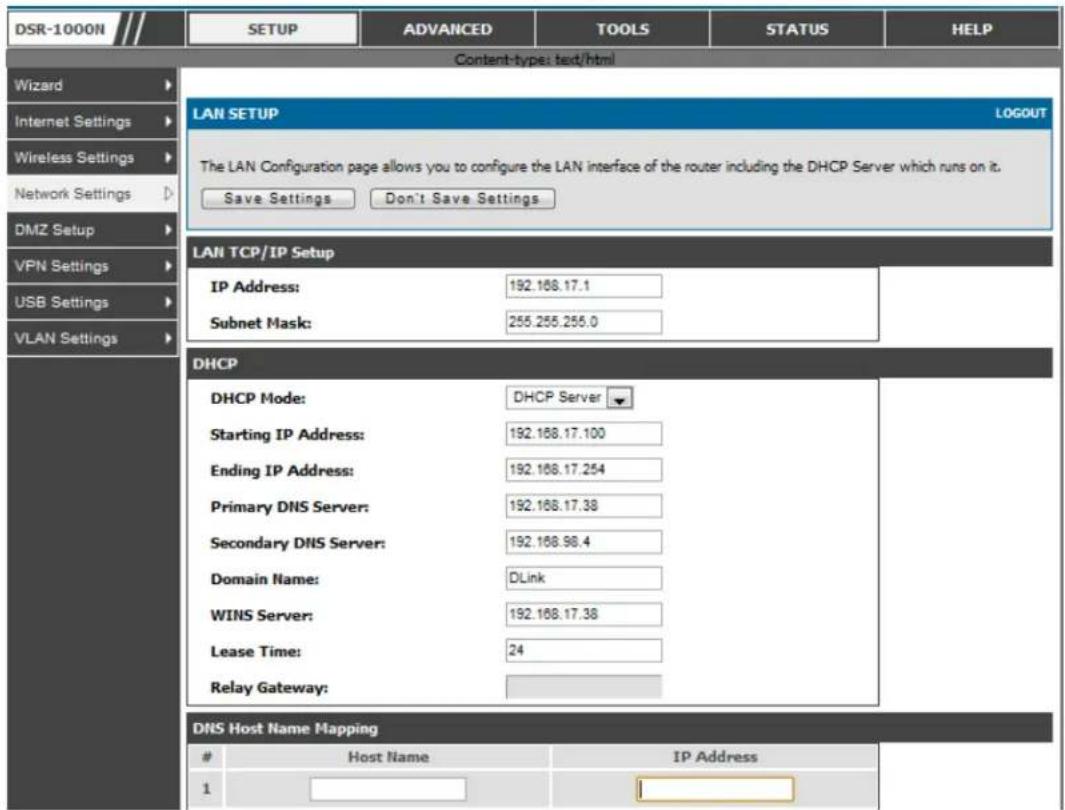
By default, the router functions as a Dynamic Host t Configuration Protocol (DHCP) server to the hosts on the WLAN or LAN network. With DHCP, PCs and other LAN devices can be assigned IP addresses as well as addresses for DNS servers, Windows Internet Name Service (WINS) servers, and the default gateway. With the DHCP
server enabled the router's IP address serves as the gateway address for LAN and WLAN clients. The PCs in the LAN are assigned IP addresses from a pool of addresses specified in this procedure. Each pool address is tested before it is assigned to avoid duplicate address es on the LAN.
For most applications the default DHCP and TCP/IP settings are satis factory. If you want another PC on your network to be the DHCP server or if you are manually configuring the network settings of all of your PCs, set the DHCP mode to 'none'. DHCP relay can be used to forward DHCP lease information from another LAN device that is the network's DHCP server; this is particularly useful for wireless clients.
Instead of using a DNS server, you can use a Windows Internet Naming Service (WINS) server. A WINS server is the equivalent of a DNS server but uses the NetBIOS protocol to resolve hostnames. The router includes the WINS server IP address in the DHCP configuration when acknowledging a DHCP request from a DHCP client.
You can also enable DNS proxy for the LAN. When this is enabled the router then as a proxy for all DNS requests and communicate with the ISP's DNS servers. When disabled all DHCP clients receive the DNS IP addresses of the ISP.
To configure LAN Connectivity, please follow the steps below:
- In the LAN Setup page, enter the following information for your router:
• IP address (factory default: 192.168.10.1).
If you change the IP address and click Save Settings, the GUI will not respond. Open a new connection to the new IP address and log in again. Be sure the LAN host (the machine used to manage the router) has obtained IP address from newly assigned pool (or has a static IP address in the router's LAN subnet) before accessing the router via changed IP address.
- Subnet mask (factory default: 255.255.255.0).
-
In the DHCP section, select the DHCP mode:
-
None: the router's DHCP server is disabled for the LAN
- DHCP Server. With this option the router assigns an IP address within the specified range plus additional specified information to any LAN device that requests DHCP served address es.
- DHCP Relay: With this option enabled, DHCP clients on the LAN can receive IP address leases and corresponding information from a DHCP server on a different subnet. Specify the Relay Gateway, and when LAN clients make a DHCP request it will be passed along to the server accessible via the Relay Gateway IP address.
- If DHCP is being enabled, enter the following DHCP server parameters:
- Starting and Ending IP Addresses: Enter the first and last continuous addresses in the IP address pool. Any new DHCP client joining the LAN is assigned an IP address in this range. The default starting address is 192.168.10.2. The default ending address is 192.168.10.100. These addresses should be in the same IP address subn et as the router's LAN IP address. You may wish to save part of the subnet range for devices with statically assigned IP address es in the LAN.
- Primary and Secondary DNS servers: If configured domain name system (DNS) servers are available on the LAN enter their IP addresses here.
-
WINS Server (optional): Enter the IP address for the WINS server or, if present in your network, the Windows NetBios server.
-
Lease Time: Enter the time, in hours, for which IP addresses are leased to clients.
- Relay Gateway: Enter the gateway address. This is the only configuration parameter required in this section when DHCP Relay is selected as its DHCP mode
3. In the DNS Host Name Mapping section:
- Host Name: Provide a valid host name
- IP address s: Provide the IP address s of the host name,
4. In the LAN proxy section:
- Enable DNS Proxy: To enable the router to act as a proxy for all DNS req ues ts and d co mmu n icat e wit h the ISP's DNS s erv ers , click th e ch ec kbo x.
5. Click Save Settings to apply all changes.
Figure 1: Setup page for LAN TCP/IP settings
text_image
DSR-1000N SETUP ADVANCED TOOLS STATUS HELP Content-type: text/html Wizard Internet Settings Wireless Settings Network Settings DMZ Setup VPN Settings USB Settings VLAN Settings LAN SETUP LOGOUT The LAN Configuration page allows you to configure the LAN interface of the router including the DHCP Server which runs on it. Save Settings Don't Save Settings LAN TCP/IP Setup IP Address: 192.168.17.1 Subnet Mask: 255.255.255.0 DHCP DHCP Mode: DHCP Server Starting IP Address: 192.168.17.100 Ending IP Address: 192.168.17.254 Primary DNS Server: 192.168.17.38 Secondary DNS Server: 192.168.98.4 Domain Name: DLink WINS Server: 192.168.17.38 Lease Time: 24 Relay Gateway: DNS Host Name MappingHost Name IP Address
12.1.1 LAN DHCP Reserved IPs
Setup > Network Settings > LAN DHCP Reserved IPs
This router DHCP server can assign TCP/IP configurations to computers in the LAN explicitly by adding client's network interface hardware address and the IP address to be assigned to that client in DHCP server's database. Whenever DHCP server receives a request from client, hardware address of that client is compared with the hardware address list present in the database, if an IP address is already assigned to that computer or device in the database, the customized IP address is configured otherwise an IP address is assigned to the client automatically from the DHCP pool.
Computer Name: The user defined name for the LAN host.
IP Addresses : The LAN IP address of a host that is reserved by the DHCP server.
MAC Addresses : The MAC address that will be assigned the reserved IP address when it is on the LAN.
Associate with IP/MAC Binding: When the user enables this option the Computer Name, IP and MAC addresses are associated with the IP/MAC binding.
The actions that can be taken on list of reserved IP address es are:
Select: Selects all the reserved IP addresses in the list.
Edit: Opens the LAN DHCP Reserved IP Configuration page to edit the selected binding rule.
Delete: Deletes the selected IP address reservation(s)
Add: Opens the LAN DHCP Reserved IP Configuration page to add a new binding rule.
Figure 2: LAN DHCP Re served IPs

text_image
DSR-1000N SETUP ADVANCED TOOLS STATUS Wizard Internet Settings Wireless Settings Network Setting... DMZ Setup VPN Settings USB Settings VLAN Settings DHCP RESERVED IPS LOGOUT This page allows user to configure reserved IP Addresses for the DHCP server. Save Settings Don't Save Settings DHCP Reserved IPs for LAN Computer Name: DHQ IP Address: 192.168.10.101 MAC Address: 00:00.AA.BB.04:00 Associate with IP / MAC Binding: ✓2.1.2 LAN DHCP Leased Clients
Setup > Network Settings > LAN DHCP Leased Clients
This page provides the list of clients connect to LAN DHCP server.
Figure 3: LAN DHCP Leased Clients
| DSR-1000N | SETUP | ADVANCED | TOOLS | STATUS |
| Wizard | ||||
| Internet Settings | ||||
| Wireless Settings | ||||
| Network Setting... | ||||
| DMZ Setup | ||||
| VPN Settings | ||||
| USB Settings | ||||
| VLAN Settings | ||||
IP Addresses: The LAN IP address of a host that matches the reserved IP list. MAC Addresses: The MAC address of a LAN host that has a configured IP address reservation.
2.1.3 LAN Configuration in an IPv6 Network
Advanced > IPv6 > IPv6 LAN > IPv6 LAN Config
(1) In IPv6 mode, the LAN DHCP server is enabled by default (similar to IPv4 mode). The DHCPv6 server will serve IPv6 addresses from configured address pools with the IPv6 Prefix Length ass ignored to the LAN.

IPv4 / IPv6 mode must be enabled in the Advanced >IPv6 >IP mode to enable IPv6 configuration options.
LAN Settings
The default IPv6 LAN address for the router is fec0::1. You can change this 128 bit IPv6 address based on your network requirements. The other field that defines the LAN settings for the router is the prefix length. The IPv6 network (subnet) is identified by the initial bits of the address called the prefix. By default this is 64 bits long. All hosts in the network have common initial bits for their IPv6 address; the number of common initial bits in the network's addresses is set by the prefix length field.
Figure 4: IPv6 LAN and DHCPv6 configuration

text_image
DSR-1000N SETUP ADVANCED TOOLS STATUS Application Rules Website Filter Firewall Settings Wireless Settings Advanced Network Routing Certificates Users IP/MAC Binding IPv6 Radius Settings Captive Portal Switch Settings Intel® AMT IPV6 LAN CONFIG LOGOUT This page allows user to IPv6 related LAN configurations. Save Settings Don't Save Settings LAN TCP/IP Setup IPv6 Address: fec0::1 IPv6 Prefix Length: 84 DHCPv6 DHCP Status: Disable DHCPv6 Server DHCP Mode: Stateless Domain Name: dlink.com Server Preference: 255 DNS Servers: Use DNS Proxy Primary DNS Server: Secondary DNS Server: Lease/Rebind Time: 86400 (Seconds) Prefix Delegation List of IPv6 Address Pools Start Address End Address Edit Delete Add List of Prefixes for Prefix Delegation Prefix Address Prefix Length Edit Delete AddIf you change the IP address and click Save Settings, the GUI will not respond. Open a new connection to the new IP address and log in again. Be sure the LAN host (the machine used to manage the router) has obtained IP address from newly assigned pool (or has a static IP address in the router's LAN subnet) before accessing the router via changed IP address.
As with an IPv4 LAN network, the router has a DHCPv6 server. If enabled, the router assigns an IP address within the specified range plus additional specified information to any LAN PC that requests DHCP served addresses.
The following settings are used to configure the DHCPv6 server:
- DHCP Mode: The IPv6 DHCP server is either stateless or stateful. If stateless is selected an external IPv6 DHCP server is not required as the IPv6 LAN hosts are auto-configured by this router. In this case the router advertisement daemon (RADVD) must be configured on this device and ICMPv6 router discovery messages are used by the host for auto -configuration. There are no managed addresses to serve the LAN nodes. If stateful is selected the IPv6 LAN host will rely on an external DHCPv6 server to provide required configuration settings
- The domain name of the DHCPv6 server is an optional setting
- Server Preference is used to indicate the preference level of this DHCP server. DHCP advertise messages with the highest server preference value to a LAN host are preferred over other DHCP server advertise messages. The default is 255.
- The DNS server details can be manually entered here (primary/secondary options. An alternative is to allow the LAN DHCP client to receive the DNS server details from the ISP directly. By selecting Use DNS proxy, this router acts as a proxy for all DNS requests and communicates with the ISP's DNS servers (a WAN configuration parameter).
- Primary and Secondary DNS servers: If there is configured domain name system (DNS) servers available on the LAN enter the IP addresses here.
- Lease/Rebind time sets the duration of the DHCPv6 lease from this router to the LAN client.
IPv6 Address Pools
This feature allows you to define the IPv6 delegation prefix for a range of IP addresses to be served by the gateway's DHCPv 6 service. Using a delegation prefix you can automate the process of informing other networking equipment on the LAN of DHCP information specific for the assigned prefix.
Prefix Delegation
The following settings are used to configure the Prefix Delegation:
- Prefix Delegation: Select this option to enable prefix delegation in DHCPv6 server. This option can be selected only in Stateless Address Auto Configuration mode of DHCPv6 server.
- Prefix Address: IPv6 prefix address in the DHCPv6 server prefix pool
- Prefix Length: Length prefix address
2.1.4 Configuring IPv6 Router Advertisements
Router Advertisements are analogous to IPv4 DHCP assignments for LAN clients, in that the router will assign an IP address and supporting network information to devices that are configured to accept such details. Router Advertisement is required in an IPv6 network is required for stateless auto configuration of the IPv6 LAN. By configuring the Router Advertisement Daemon on this router, the DSR will listen on the LAN for router solicitations and respond to these LAN hosts with router advisements.
RADVD
Advanced > IPv6 > IPv6 LAN > Router Advertisement
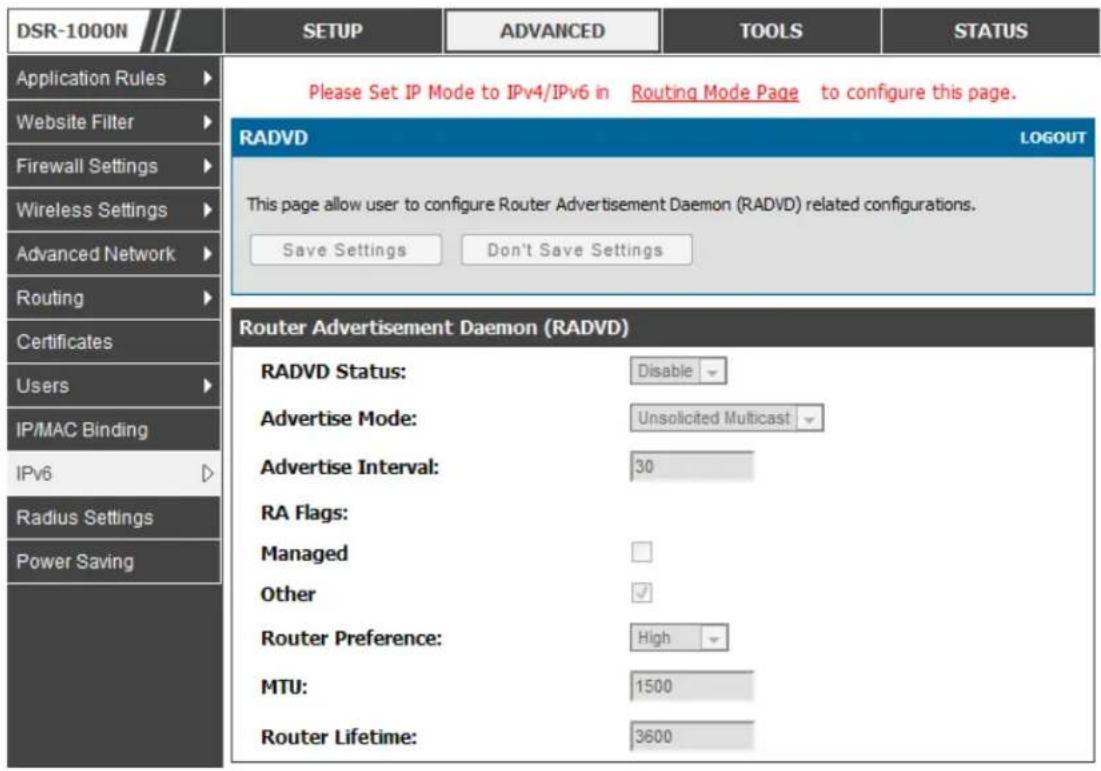
To support stateless IPv6 auto configuration on the LAN, set the RADVD status to Enable. The following settings are used to configure RADVD:
- Advertise Mode: Select Unsolicited Multicast to send router advertisements (RA's) to all interfaces in the multicast group. To restrict RA's to well-known IPv6 addresses on the LAN, and thereby reduce overall network traffic, select Unicast only.
- Advertise Interval: When advertisements are unsolicited multicast packets, this interval sets the maximum time between advertisements from the interface. The actual duration between advertisements is a random value between one third of this field and this field. The default is 30 seconds.
- RA Flags: The router advertisements (RA's) can be sent with one or both of these flags. Chose Managed to use the administered /sta teful protocol for address auto configuration. If the Other flag is selected the host uses administered/stateful protocol for non-address auto configuration.
- Router Preference: this low/medium/high parameter determines the preference associated with the RADVD process of the router. This is useful if there are other RADVD enabled devices on the LAN as it helps avoid conflicts for IPv6 clients.
- MTU: The router advertisement will set this maximum transmission unit (MTU) value for all nodes in the LAN that are auto configured by the router. The default is 1500.
- Router Lifetime: This value is present in RA's and indicates the usefulness of this router as a default router for the interface. The default is 3600
seconds. Upon expiration of this value, a new RADVD exchange must take place between the host and this router.
Figure 5: Configuring the Router Advertisement Daemon
text_image
DSR-1000N Application Rules Website Filter Firewall Settings Wireless Settings Advanced Network Routing Certificates Users IP/MAC Binding IPv6 Radius Settings Power Saving SETUP ADVANCED TOOLS STATUS Please Set IP Mode to IPv4/IPv6 in Routing Mode Page to configure this page. RADVD LOGOUT This page allow user to configure Router Advertisement Daemon (RADVD) related configurations. Save Settings Don't Save Settings Router Advertisement Daemon (RADVD) RADVD Status: Disable Advertise Mode: Unsolicited Multicast Advertise Interval: 30 RA Flags: Managed Other Router Preference: High MTU: 1500 Router Lifetime: 3600Advertisement Prefixes
Advanced > IPv6 > IPv6 LAN > Advertisement Prefixes
The router advertisements configured with advertis ement prefixes allow this router to inform hos ts how to perform s tateless address auto configuration. Router advertisements contain a list of s ubnet prefixes that allow the router to determine neighbours and whether the host is on the same link as the router.
The following prefix options are available for the router advertisements :
- IPv6 Prefix Type: To ensure hosts support IPv6 to IPv4 tunnel select the 6to4 prefix type. Selecting Global/Local/ISATAP will allow the nodes to support all other IPv6 routing options
-
SLA ID: The SLA ID (Site-Level Aggregation Identifier) is available when 6to4 Prefixes are selected. This should be the interface ID of the router's LAN interface used for router advertisements.
-
IPv6 Prefix: When using Global/Local/ISATAP prefixes, this field is used to define the IPv6 network advertised by this router.
- IPv6 Prefix Length: This value indicates the number contiguous, higher order bits of the IPv6 address that define up the network portion of the address. Typically this is 64.
- Prefix Lifetime: This defines the duration (in seconds) that the requesting node is allowed to use the advertised prefix. It is analogous to DHCP lease time in an IPv4 network.
Figure 6: IPv6 Advertise ment Prefix settings

text_image
DSR-1000N SETUP ADVANCED TOOLS STATUS Application Rules Website Filter Firewall Settings Wireless Settings Advanced Network Routing Certificates Users IP/MAC Binding IPv6 Power Saving ADVERTISEMENT PREFIXES LOGOUT Description... Save Settings Don't Save Settings Advertise Prefixes Configuration IPv6 Prefix Type: 6to4 SLA ID: IPv6 Prefix: IPv6 Prefix Length: Prefix Lifetime: (Seconds)2.2 VLAN Configuration
The router supports virtual network isolation on the LAN with the use of VLANs. LAN devices can be configured to communicate in a sub network defined by VLAN identifiers. LAN ports can be assigned unique VLAN IDs so that traffic to and from that physical port can be isolated from the general LAN. VLAN filtering is particularly useful to limit broadcast packets of a device in a large network
VLAN support is disabled by default in the router. In the VLAN Configuration page, enable VLAN support on the router and then proceed to the next section to define the virtual network.
Setup > VLAN Settings > Available VLAN
The Available VLAN page shows a list of configured VLANs by name and VLAN ID. A VLAN membership can be created by clicking the Add button below the List of Available VLANs.
A VLAN membership entry consists of a VLAN identifier and the numerical VLAN ID which is assigned to the VLAN membership. The VLAN ID value can be any
number from 2 to 4091. VLAN ID 1 is reserved for the default VLAN, which is used for untagged frames received on the interface. By enabling Inter VLAN Routing, you will allow traffic from LAN hosts belonging to this VLAN ID to pass through to other configured VLAN IDs that have Inter VLAN Routing enabled.
Figure 7: Adding VLAN memberships to the LAN

text_image
DSR-1000N SETUP ADVANCED TOOLS STATUS Wizard Internet Settings Wireless Settings Network Settings DMZ Setup VPN Settings USB Settings VLAN Settings AVAILABLE VLANS LOGOUT This page allows user to enable/disable VLAN support on the LAN. Save Settings Don't Save Settings VLAN Configuration Name: Id: Inter VLAN Routing Enable: ✓2.2.1 Associating VLANs to ports
In order to tag all traffic through a specific LAN port with a VLAN ID, you can associate a VLAN to a physical port.
Setup > VLAN Settings > Port VLAN
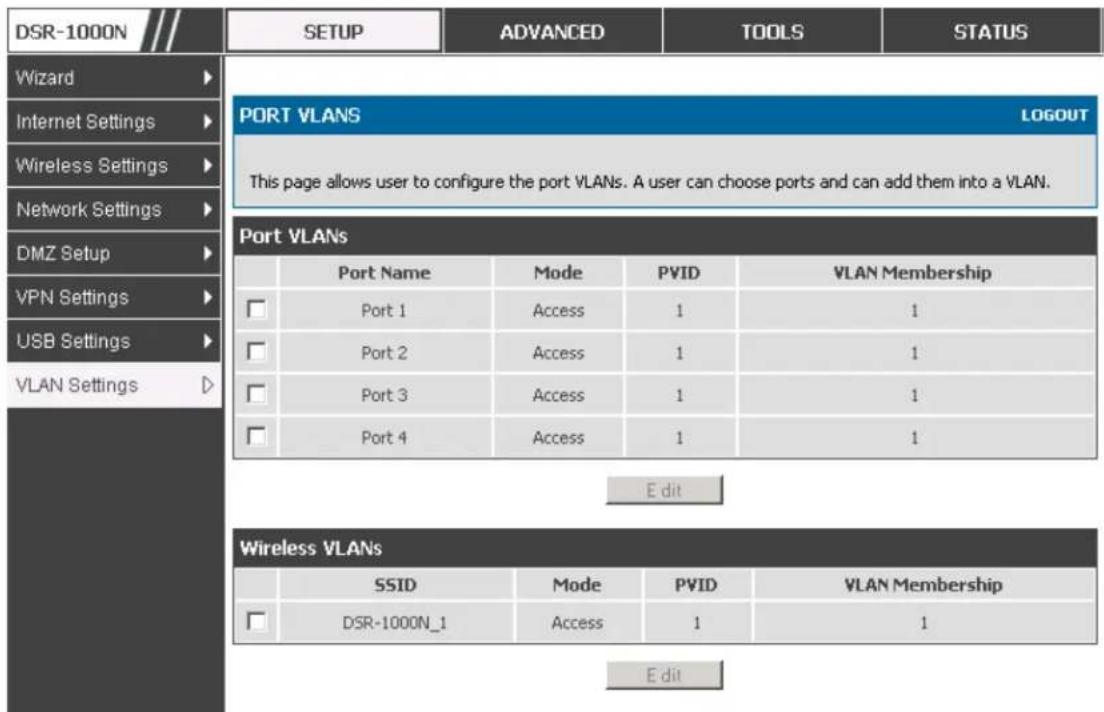
VLAN membership properties for the LAN and wireless LAN are listed on this page. The VLAN Port table displays the port identifier, the mode setting for that port and VLAN members hip information. The configuration page is accessed by selecting one of the four physical ports or a configured access point and clicking Edit.
The edit page offers the following configuration options:
- Mode: The mode of this VLAN can be General, Access, or Trunk. The default is access.
- In General mode the port is a member of a user selectable set of VLANs. The port sends and receives data that is tagged or untagged with a VLAN ID. If the data into the port is untagged, it is as signed the defined PVID. In the configuration from Figure 4, Port 3 is a General port with PVID 3, so untagged data into Port 3 will be as signed PVID 3. All tagged data sent out of the port with the same PVID will be untagged. This is mode is typically used with IP Phones that have dual Ethernet ports. Data coming from phone to the switch port on the router will be tagged. Data passing through the phone from a connected device will be untagged.
Figure 8: Port VLAN list
text_image
DSR-1000N SETUP ADVANCED TOOLS STATUS Wizard Internet Settings Wireless Settings Network Settings DMZ Setup VPN Settings USB Settings VLAN Settings PORT VLANS LOGOUT This page allows user to configure the port VLANs. A user can choose ports and can add them into a VLAN. Port VLANs Port Name Mode PVID VLAN Membership Port 1 Access 1 1 Port 2 Access 1 1 Port 3 Access 1 1 Port 4 Access 1 1 Edit Wireless VLANs SSID Mode PVID VLAN Membership DSR-1000N_1 Access 1 1 Edit- In Access mode the port is a member of a single VLAN (and only one). All data going into and out of the port is untagged. Traffic through a port in access mode looks like any other Ethernet frame.
- In Trunk mode the port is a member of a user selectable set of VLANs. All data going into and out of the port is tagged. Untagged coming into the port is not forwarded, except for the default VLAN with PVID=1, which is untagged. Trunk ports multiplex traffic for multiple VLANs over the same physical link.
- Select PVID for the port when the General mode is selected.
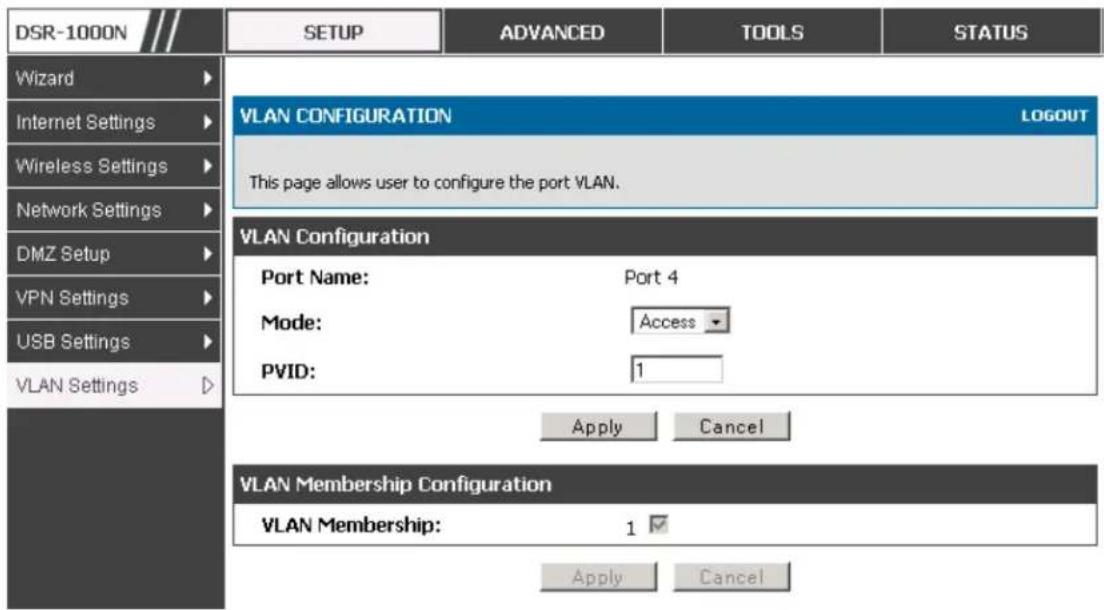
- Configured VLAN memberships will be displayed on the VLAN Membership Configuration for the port. By selecting one more VLAN membership options for a General or Trunk port, traffic can be routed between the selected VLAN membership IDs
Figure 9: Configuring VLAN membership for a port
text_image
DSR-1000N SETUP ADVANCED TOOLS STATUS Wizard Internet Settings Wireless Settings Network Settings DMZ Setup VPN Settings USB Settings VLAN Settings VLAN CONFIGURATION LOGOUT This page allows user to configure the port VLAN. VLAN Configuration Port Name: Port 4 Mode: Access PVID: 1 Apply Cancel VLAN Membership Configuration VLAN Membership: 1 ✓ Apply Cancel2.2.2 Multiple VLAN Subnets
Setup > VLAN Settings > Multi VLAN Settings
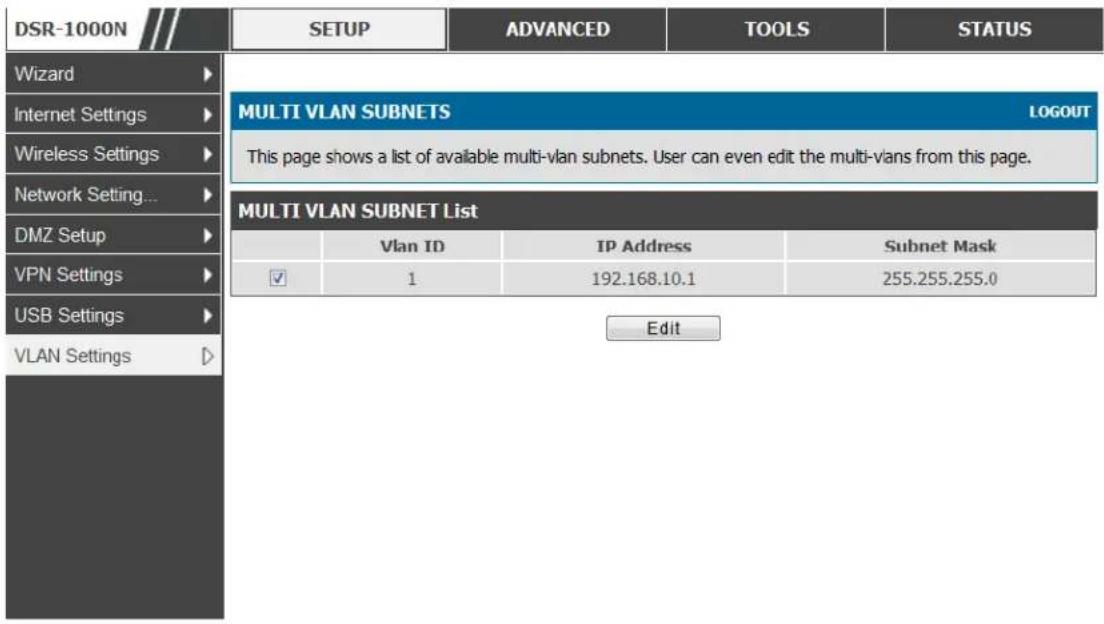
This page shows a list of available multi-VLAN subnets. Each configured VLAN ID can map directly to a subnet within the LAN. Each LAN port can be assigned a unique IP address and a VLAN specific DHCP server can be configured to assign IP address leases to devices on this VLAN.
VLAN ID: The PVID of the VLAN that will have all member devices be part of the same subnet range.
IP Address: The IP address associated with a port assigned this VLAN ID.
Subnet Mask: Subnet Mask for the above IP Address
Figure 10: Multiple VLAN Subnets
text_image
DSR-1000N SETUP ADVANCED TOOLS STATUS Wizard Internet Settings Wireless Settings Network Setting... DMZ Setup VPN Settings USB Settings VLAN Settings MULTI VLAN SUBNETS LOGOUT This page shows a list of available multi-vlan subnets. User can even edit the multi-vans from this page. MULTI VLAN SUBNET List Vlan ID IP Address Subnet Mask ✓ 1 192.168.10.1 255.255.255.0 Edit2.2.3 VLAN configuration
Setup > VLAN Settings > VLANconfiguration
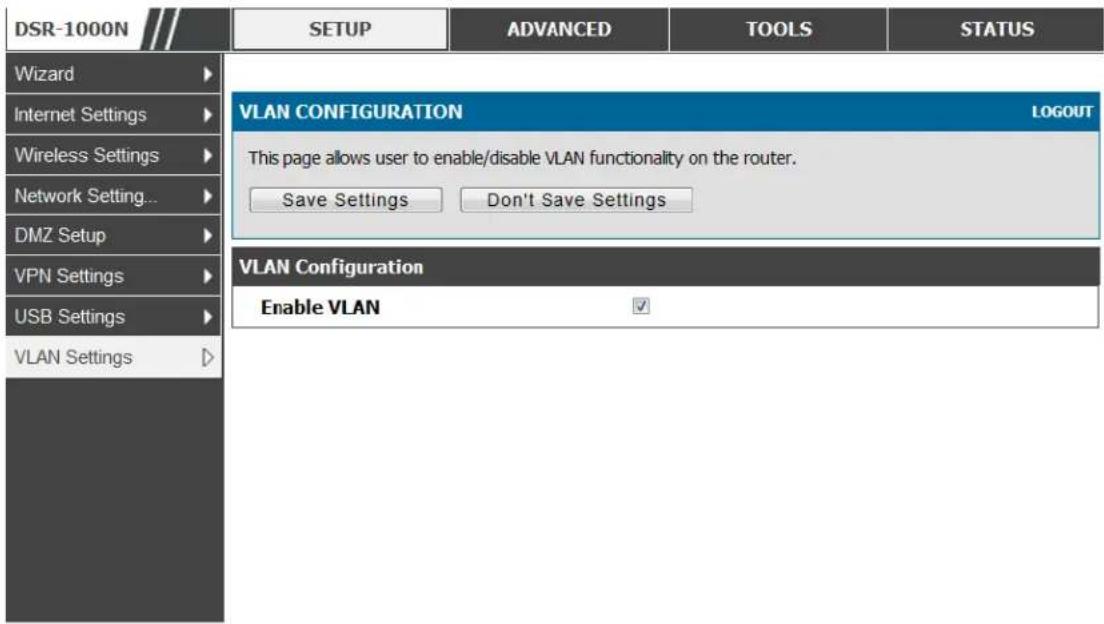
This page allows enabling or disabling the VLAN function on the router. Virtual LANs can be created in this router to provide segmentation capabilities for firewall rules and VPN policies. The LAN network is considered the default VLAN. Check the Enable VLAN box to add VLAN functionality to the LAN.
Figure 11: VLAN Configuration
text_image
DSR-1000N SETUP ADVANCED TOOLS STATUS Wizard Internet Settings Wireless Settings Network Setting... DMZ Setup VPN Settings USB Settings VLAN Settings VLAN CONFIGURATION LOGOUT This page allows user to enable/disable VLAN functionality on the router. Save Settings Don't Save Settings VLAN Configuration Enable VLAN2.3 Configurable Port: DMZ Setup
DSR-150/150N/250/250N does not have a configurable port - there is no DMZ support.
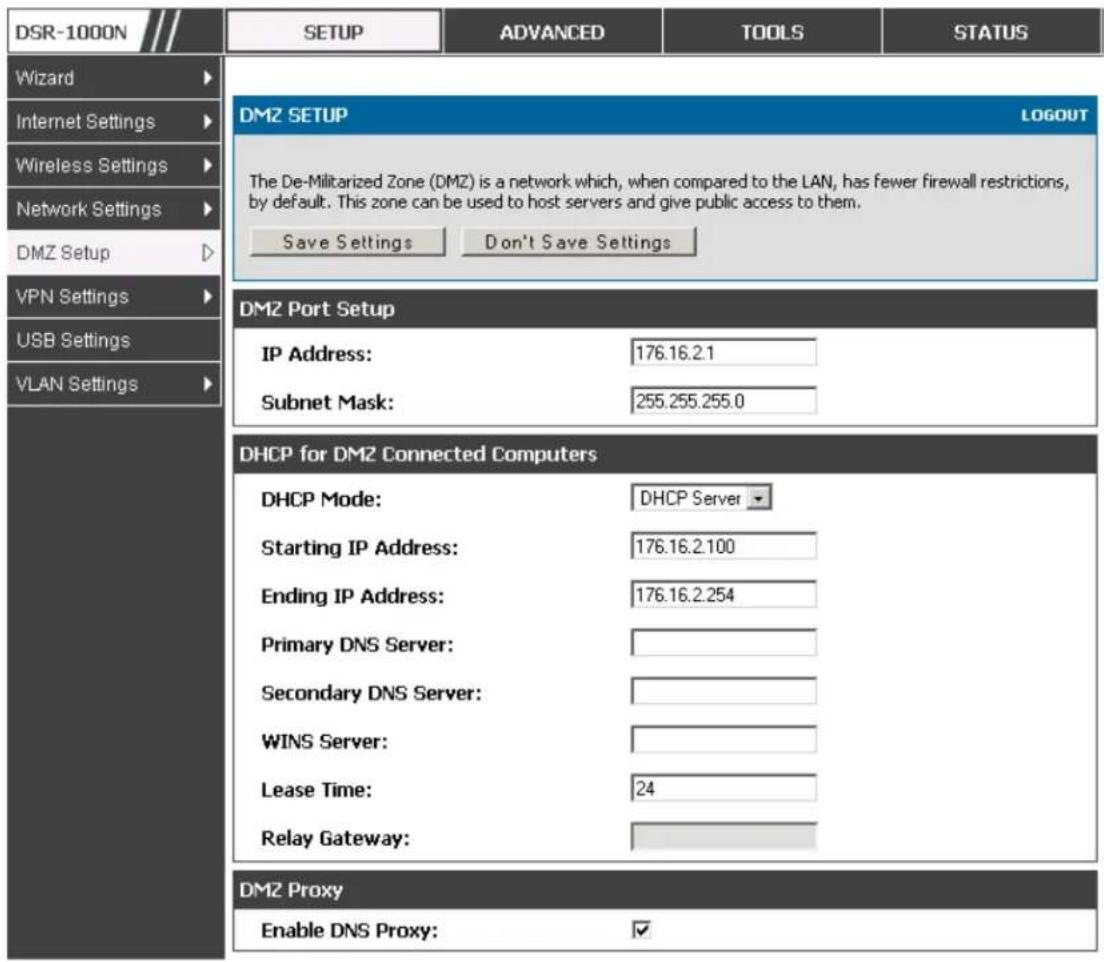
This router supports one of the physical ports to be configured as a secondary WAN Ethernet port or a dedicated DMZ port. A DMZ is a sub network that is open to the public but behind the firewall. The DMZ adds an additional layer of security to the LAN, as specific services/ports that are exposed to the internet on the DMZ do not have to be exposed on the LAN. It is recommended that hosts that must be exposed to the internet (such as web or email servers) be placed in the DMZ network. Firewall rules can be allowed to permit access specific services/ports to the DMZ from both the LAN or WAN. In the event of an attack to any of the DMZ nodes, the LAN is not necessarily vulnerable as well.
Setup > DMZ Setup > DMZ Setup Configuration
DMZ configuration is identical to the LAN configuration. There are no restrictions on the IP address or subnet assigned to the DMZ port, other than the fact that it cannot be identical to the IP address given to the LAN interface of this gateway.
Figure 12: DMZ configuratio n
text_image
DSR-1000N SETUP ADVANCED TOOLS STATUS Wizard Internet Settings Wireless Settings Network Settings DMZ Setup VPN Settings USB Settings VLAN Settings DMZ SETUP LOGOUT The De-Militarized Zone (DMZ) is a network which, when compared to the LAN, has fewer firewall restrictions, by default. This zone can be used to host servers and give public access to them. Save Settings Don't Save Settings DMZ Port Setup IP Address: 176.16.2.1 Subnet Mask: 255.255.255.0 DHCP for DMZ Connected Computers DHCP Mode: DHCP Server Starting IP Address: 176.16.2.100 Ending IP Address: 176.16.2.254 Primary DNS Server: Secondary DNS Server: WINS Server: Lease Time: 24 Relay Gateway: DMZ Proxy Enable DNS Proxy: ✓In order to configure a DMZ port, the router's configurable port must be set to DMZ in the Setup > Internet Settings > Configurable Port page.
2.4 Universal Plug and Play (UPnP)
Advanced > Advanced Network > UPnP
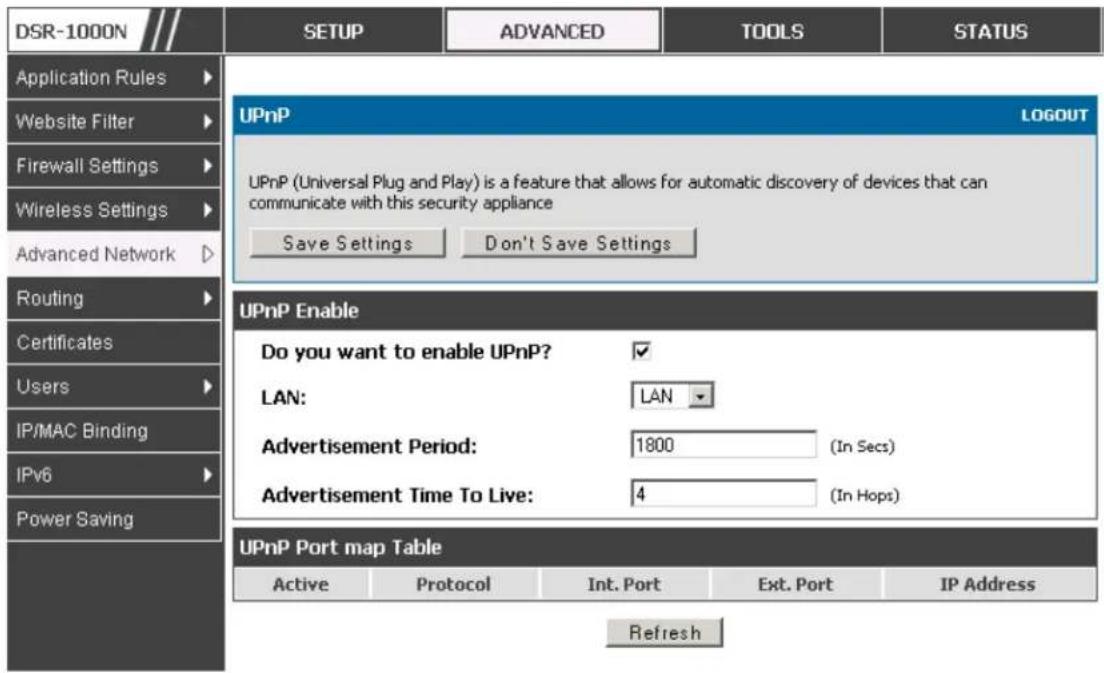
Universal Plug and Play (UPnP) is a feature that allows the router to discovery devices on the network that can communicate with the router and allow for auto configuration. If a network device is detected by UPnP, the router can open internal or external ports for the traffic protocol required by that network device.
Once UPnP is enabled, you can configure the router to detect UPnP-supporting devices on the LAN (or a configured VLAN). If disabled, the router will not allow for automatic device configuration.
Configure the following settings to use UPnP:
- Advertisement Period: This is the frequency that the router broadcasts UPnP information over the network. A large value will minimize network traffic but cause delays in identifying new UPnP devices to the network.
- Advertisement Time to Live: This is expressed in hops for each UPnP packet. This is the number of steps a packet is allowed to propagate before being discarded. Small values will limit the UPnP broadcast range. A default of 4 is typical for networks with few switches.
Figure 13: UPnP Configuration
text_image
DSR-1000N Application Rules Website Filter Firewall Settings Wireless Settings Advanced Network Routing Certificates Users IP/MAC Binding IPv6 Power Saving SETUP ADVANCED TOOLS STATUS UPnP LOGOUT UPnP (Universal Plug and Play) is a feature that allows for automatic discovery of devices that can communicate with this security appliance Save Settings Don't Save Settings UPnP Enable Do you want to enable UPnP? LAN: LAN Advertisement Period: 1800 (In Secs) Advertisement Time To Live: 4 (In Hops) UPnP Port map Table Active Protocol Int. Port Ext. Port IP Address RefreshUPnP Port map Table
The UPnP Port map Table h as the details of UPnP devices that respond to the router's advertisements. The following information is displayed for each detected device:
- Active: A yes/no indicating whether the port of the UPnP device that established a connection is currently active
- Protocol: The network protocol (i.e. HTTP, FTP, etc.) used by the DSR
- Int. Port (Internal Port): The internal ports opened by UPnP (if any)
- Ext. Port (External Port): The external ports opened by UPnP (if any)
• IP Address: The IP address of the UPnP device detected by this router
Click Refresh to refresh the portmap table and search for any new UPnP devices.
2.5 Captive Portal
DSR-150/150N/250/250N does not have support for the Captive Portal feature.
LAN users can gain internet access via web portal authentication with the DSR. Also referred to as Run-Time Authentication, a Captive Portal is ideal for a web café scenario where users initiate HTTP connection requests for web access but are not interested in accessing any LAN services. Firewall policies underneath will define which users require authentication for HTTP access, and when a matching user request is made the DSR will intercept the request and prompt for a username / password. The login credentials are compared against the RunTimeAuth users in user database prior to granting HTTP access.
Captive Portal is available for LAN users only and not for DMZ hosts.
Advanced > Captive Portal > Captive Portal Sessions
The Active Runtime internet sessions through the router's firewall are listed in the below table. These users are present in the local or external user database and have had their login credentials approved for internet access. A 'Disconnect' button allows the DSR admin to selectively drop an authenticated user.
Figure 14: Active Runtime sessions

text_image
DSR-1000N Application Rules Website Filter Firewall Settings Wireless Settings Advanced Network Routing Certificates Users IP/MAC Binding IPv6 Radius Settings Captive Portal Switch Settings Intel® AMT SETUP ADVANCED TOOLS STATUS Helpful Hints... Use this page to monitor the runtime authentication sessions that are active on your router. List of Captive Portal Sessions CAPTIVE PORTAL SESSIONS LOGOUT This page displays a list of active run time sessions on your router. Username IP Adress maheshb 192.168.17.38 sivakumar 192.168.17.41 Disconnect2.6 Captive portal setup
Advanced > Captive Portal > Captive Portal Setup
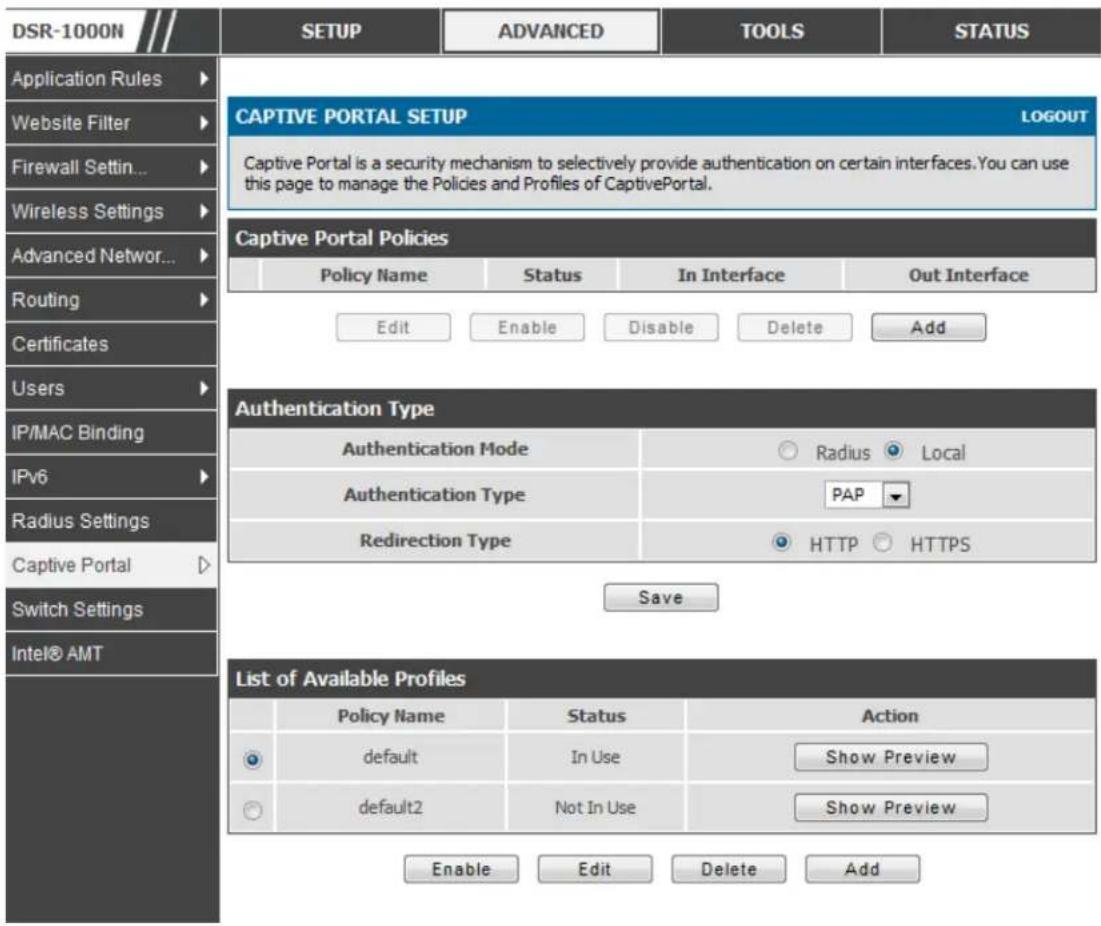
Captive Portal is a security mechanism to selectively provide authentication on certain interfaces. This page allows to manage the Policies and Profiles of CaptivePortal.
Figure 15: Captive Portal Setup
text_image
DSR-1000N Application Rules Website Filter Firewall Settin... Wireless Settings Advanced Network... Routing Certificates Users IP/MAC Binding IPv6 Radius Settings Captive Portal Switch Settings Intel® AMT CAPTIVE PORTAL SETUP LOGOUT Captive Portal is a security mechanism to selectively provide authentication on certain interfaces. You can use this page to manage the Policies and Profiles of CaptivePortal. Captive Portal Policies Policy Name Status In Interface Out Interface Edit EnableDisable Delete Add Authentication Type Authentication Mode ○ Radius ● Local Authentication Type PAP▼ Redirection Type ○ HTTP ○ HTTPS Save List of Available Profiles Policy Name Status Action default Ini Use Show Preview default2 Not In Use Show Preview Enable Edit Delete AddCaptive Portal Policies: The List of Available CaptivePortal Policies are shown in this table.
Authentication Type: This allows in choosing the authentication mode, type and redirection type.
List of Available Profiles: Any one of these profiles can be used for Captive Portal Login page while enabling Captive Portal.
Figure 16: Customized Captive Portal Setup

text_image
DSR-1000N Application Rules Website Filter Firewall Settin... Wireless Settings Advanced Network... Routing Certificates Users IP/MAC Binding IPv8 Radius Settings Captive Portal Switch Settings Intel® AMT CUSTOMIZED CAPTIVE PORTAL SETUP LOGOUT Captive Portal Login page is used for authentication on Captive Portal enabled interfaces. Save Settings Don't Save Settings General Details Profile Name: default2 Browser Title: D-link Unified Services F Page Background Color: Custom Custom Color: (#) 040D18 (CF00CF) Header Details Background: Image Default Add Add Add Add Add Header Background Color: White Custom Color: (#) (CF00CF) Header Caption: Caption Font: Times New Roman Font Size: Big Font Color: Green Login Details Login Section Title: Authentication Details (Optional) Welcome Message: Enter User Details (Optional) Error Message: Invalid UserName or Password (Optional) Advertisement Details Enable Advertisement: ✓ Ad Place: RightClick "Add" in the Captive Portal setup page to allow defining customized captive portal login page information (Page Background Color, Header Details, Header Caption, Login Section Details, Advertisement Details, Footer Details and Captive Portal Header Image).
Chapter 3. Connecting to the Internet: WAN Setup
This router has two WAN ports that can be used to establish a connection to the internet. The following ISP connection types are supported: DHCP, Static, PPPoE, PPTP, L2TP, 3G Internet (via USB modem).
It is assumed that you have arranged for internet service with your Internet Service Provider (ISP). Please contact your ISP or network administrator for the configuration information that will be required to setup the router.
3.1 Internet Setup Wizard
Setup > Wizard > Internet
The Internet Connection Setup Wizard is available for users new to networking. By going through a few straightforward configuration pages you can take the information provided by your ISP to get your WAN connection up and enable internet access for your network.
Figure 17: Internet Connection Setup Wizard

text_image
DSR-1000N SETUP ADVANCED TOOLS STATUS Wizard INTERNET CONNECTION LOGOUT This page will guide you through common configuration tasks such as changing the password, timezone and internet connection type. Internet Connection Setup Wizard If you would like to utilize our easy to use Web-based Wizards to assist you in connecting your new D-Link Systems Router to the Internet, click on the button below. Internet Connection Setup Wizard Note: Before launching these wizards, please make sure you have followed all steps outlined in the Quick Installation Guide included in the package. VLAN Settings Manual Internet Connection Options If you would like to configure the Internet settings of your new D-Link Systems Router manually, then click on the button below. Manual Internet Connection SetupYou can start using the Wizard by logging in with the administrator password for the router. Once authenticated set the time zone that you are located in, and then choose the type of ISP connection type: DHCP, Static, PPPoE, PPTP, L2TP. Depending on the connection type a username/password may be required to register this router with the ISP. In most cases the default settings can be used if the ISP did not specify that parameter. The last step in the Wizard is to click the Connect button, which confirms the settings by es tablishing a link with the ISP. Once connected, you can move on and configure other features in this router.
3G Internet access with a USB modem is supported on WAN3. The Internet Connection Setup Wizard assists with the primary WAN port (WAN1) configuration only.
3.2 WAN Configuration
Setup > Internet Settings > WAN1 Setup
You must either allow the router to detect WAN connection type automatically or configure manually the following basic settings to enable Internet connectivity:
- ISP Connection type: Based on the ISP you have selected for the primary WAN link for this router, choose Static IP address, DHCP client, Point-to-Point Tunneling Protocol (PPTP), Point-to-Point Protocol over Ethernet (PPPoE), Layer 2 Tunneling Protocol (L2TP). Required fields for the selected ISP type become highlighted. Enter the following information as needed and as provided by your ISP:
- PPPoE Profile Name. This menu lists configured PPPoE profiles, particularly useful when configuring multiple PPPoE connections (i.e. for Japan ISPs that have multiple PPPoE support).
-
ISP login information. This is required for PPTP and L2TP ISPs.
-
User Name
-
Password
• Secret (required for L2TP only) -
MPPE Encryption: For PPTP links, your ISP may require you to enable Microsoft Point-to-Point Encryption (MPPE).
- Split Tunnel (supported for PPTP and L2TP connection). This setting allows your LAN hosts to access internet sites over this WAN link while still permitting VPN traffic to be directed to a VPN configured on this WAN port.
If split tunnel is enabled, DSR won't expect a default route from the ISP server. In such case, user has to take care of routing manually by configuring the routing from Static Routing page.
- Connectivity Type: To keep the connection always on, click Keep Connected. To log out after the connection is idle for a period of time (useful if your ISP costs are based on logon times), click Idle Timeout and enter the time, in minutes, to wait before disconnecting in the Idle Time field.
• My IP Address: Enter the IP address assigned to you by the ISP.
• Server IP Address: Enter the IP address of the PPTP or L2TP server.

DSR-150/150N/250/250N doesn't have a dual WAN support.
3.2.1 WAN Port IP address
Your ISP assigns you an IP address that is either dynamic (newly generated each time you log in) or s tatic (permanent). The IP Address Source option allows you to define whether the address is statically provided by the ISP or should be received dynamically at each login. If static, enter your IP address, IPv4 subnet mas k, and the ISP g ateway's IP ad d ress. PPTP and L2TP ISPs also can provide a static IP address and subnet to configure, however the default is to receive that information dynamically from the ISP.
3.2.2 WAN DNS Servers
The IP Addresses of WAN Domain Name Servers (DNS) are typically provided dynamically from the ISP but in some cases you can define the static IP addresses of the DNS servers. DNS servers map Internet domain names (example: www.google.com) to IP addresses. Click to indicate whether to get DNS server addresses automatically from your ISP or to use ISP-specified addresses. If its latter, enter addresses for the primary and secondary DNS servers. To avoid connectivity problems, ensure that you enter the addresses correctly.
3.2.3 DHCP WAN
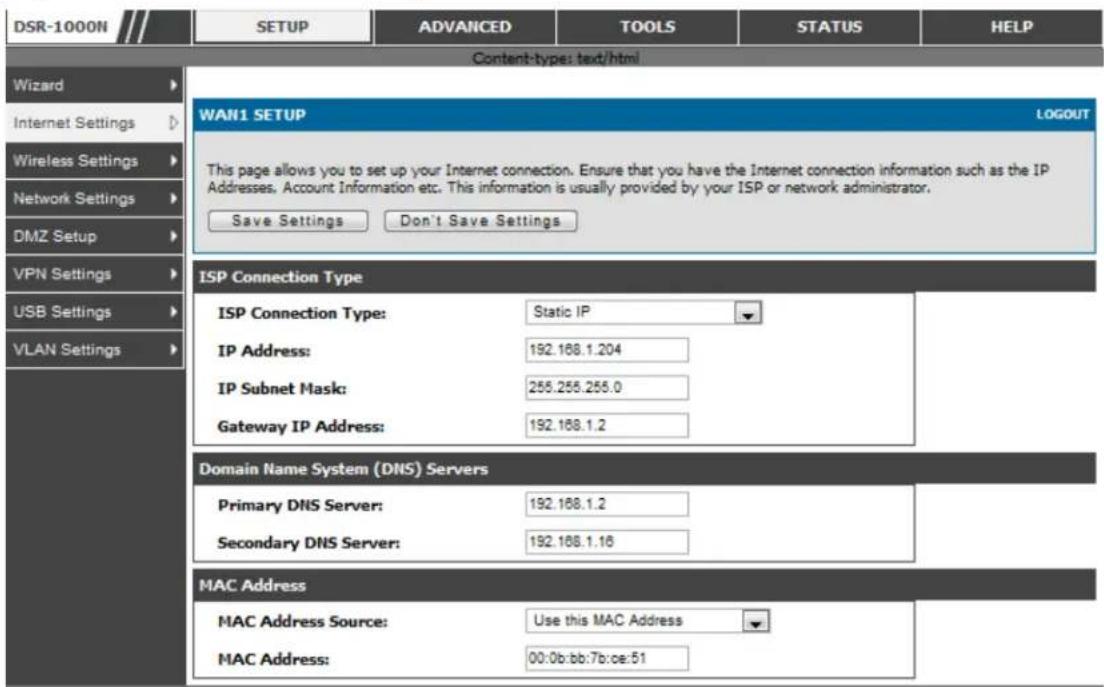
For DHCP client connections, you can choose the MAC address of the router to register with the ISP. In some cases you may need to clone the LAN host's MAC address if the ISP is registered with that LAN host.
Figure 18: Manual WAN configuratio n
text_image
DSR-1000N SETUP ADVANCED TOOLS STATUS HELP Content-type: text/html Wizard Internet Settings Wireless Settings Network Settings DMZ Setup VPN Settings USB Settings VLAN Settings WAN1 SETUP LOGOUT This page allows you to set up your Internet connection. Ensure that you have the Internet connection information such as the IP Addresses, Account Information etc. This information is usually provided by your ISP or network administrator. Save Settings Don't Save Settings ISP Connection Type ISP Connection Type: Static IP IP Address: 192.168.1.204 IP Subnet Mask: 255.255.255.0 Gateway IP Address: 192.168.1.2 Domain Name System (DNS) Servers Primary DNS Server: 192.168.1.2 Secondary DNS Server: 192.168.1.16 MAC Address MAC Address Source: Use this MAC Address MAC Address: 00:0b:bb:7b:ce:513.2.4 PPPoE
Setup > Internet Settings
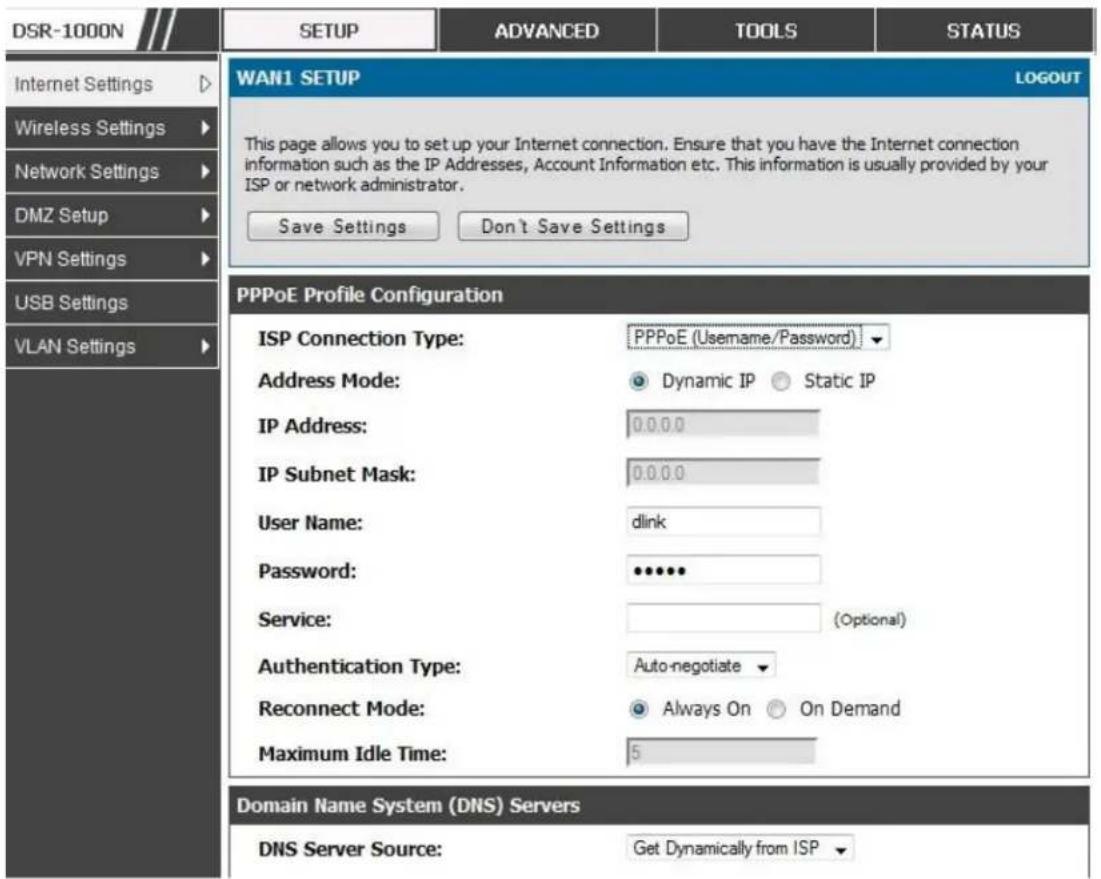
The PPPoE ISP settings are defined on the WAN Configuration page. There are two types of PPPoE ISP's supported by the DSR: the standard username/password PPPoE and Japan Multiple PPPoE.
Figure 19: PPPoE configuration for standard ISPs
text_image
DSR-1000N SETUP ADVANCED TOOLS STATUS INTERNET SETTINGS Wireless Settings Network Settings DMZ Setup VPN Settings USB Settings VLAN Settings WAN1 SETUP LOGOUT This page allows you to set up your Internet connection. Ensure that you have the Internet connection information such as the IP Addresses, Account Information etc. This information is usually provided by your ISP or network administrator. Save Settings Don't Save Settings PPPoE Profile Configuration ISP Connection Type: PPPoE (Username/Password) Address Mode: Dynamic IP Static IP IP Address: 0.0.0.0 IP Subnet Mask: 0.0.0.0 User Name: dlink Password: •••••• Service: (Optional) Authentication Type: Auto-negotiate Reconnect Mode: Always On On Demand Maximum Idle Time: 5 Domain Name System (DNS) Servers DNS Server Source: Get Dynamically from ISPMost PPPoE ISP's use as single control and data connection, and require username/password credentials to login and authenticate the DSR with the ISP. The ISP connection type for this case is "PPPoE (Username/Password)". The GUI will prompt you for authentication, service, and connection settings in order to establish the PPPoE link.
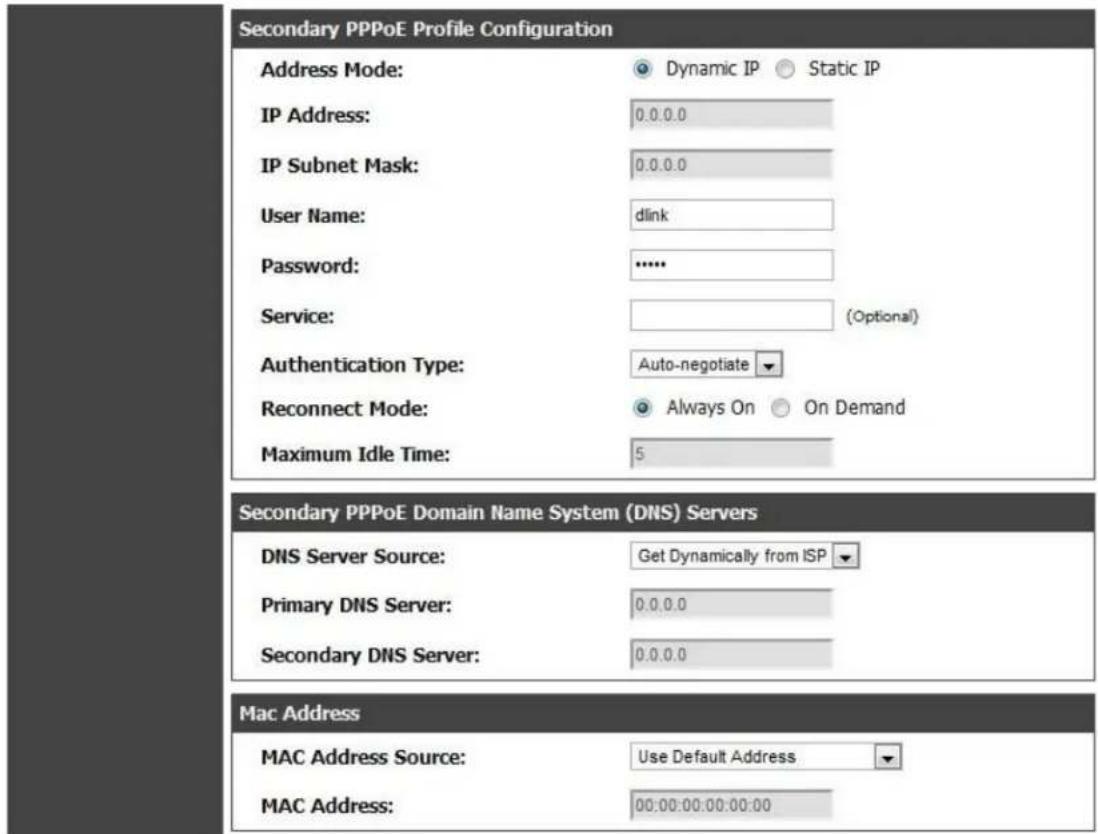
For some ISP's, most popular in Japan, the use of "Japanese Multiple PPPoE" is required in order to es tablish concurrent primary and secondary PPPoE connections between the DSR and the ISP. The Primary connection is used for the bulk of data and internet traffic and the Secondary PPPoE connection carries ISP's specific (i.e. control) traffic between the DSR and the ISP.
Figure 20: WAN configuration for Japanese Multiple PPPoE (part 1)

text_image
DSR-1000N SETUP ADVANCED TOOLS STATUS Wizard Internet Settings Wireless Settings Network Settings DMZ Setup VPN Settings USB Settings VLAN Settings WAN1 SETUP LOGOUT This page allows you to set up your Internet connection. Ensure that you have the Internet connection information such as the IP Addresses, Account Information etc. This information is usually provided by your ISP or network administrator. Save Settings Don't Save Settings Primary PPPoE Profile Configuration ISP Connection Type: Japanese multiple PPPoE Address Mode: Dynamic IP Static IP IP Address: 0.0.0.0 IP Subnet Mask: 0.0.0.0 User Name: dink Password: **** Service: (Optional) Authentication Type: Auto-negotiate Reconnect Mode: Always On On Demand Maximum Idle Time: 5 Primary PPPoE Domain Name System (DNS) Servers DNS Server Source: Get Dynamically from ISP Primary DNS Server: 0.0.0.0 Secondary DNS Server: 0.0.0.0There are a few key elements of a multiple PPPoE connection:
• Primary and secondary connections are concurrent
- Each session has a DNS server source for domain name lookup, this can be assigned by the ISP or configured through the GUI
• The DSR acts as a DNS proxy for LAN users
- Only HTTP requests that specifically identify the secondary connection's domain name (for example *.flets) will use the secondary profile to access the content available through this secondary PPPoE terminal. All other HTTP / HTTPS requests go through the primary PPPoE connection.
When Japanese multiple PPPoE is configured and secondary connection is up, some predefined routes are added on that interface. These routes are needed to access the internal domain of the ISP where he hosts various services. These e routes can even be configured through the static routing page as well.
Figure 21: WAN configuration for Multiple PPPoE (part 2)
text_image
Secondary PPPoE Profile Configuration Address Mode: Dynamic IP Static IP IP Address: 0.0.0.0 IP Subnet Mask: 0.0.0.0 User Name: dlink Password: ...... Service: (Optional) Authentication Type: Auto-negotiate Reconnect Mode: Always On On Demand Maximum Idle Time: 5 Secondary PPPoE Domain Name System (DNS) Servers DNS Server Source: Get Dynamically from ISP Primary DNS Server: 0.0.0.0 Secondary DNS Server: 0.0.0.0 Mac Address MAC Address Source: Use Default Address MAC Address: 00:00:00:00:00:003.2.5 Russia L2TP and PPTP WAN
For Russia L2TP WAN connections, you can choose the address mode of the connection to get an IP address from the ISP or configure a static IP address provided by the ISP. For DHCP client connections, you can choose the MAC addres s of the router to register with the ISP. In some cases you may need to clone the LAN h os t's MAC ad dres s if the ISP is reg is ter ed with that LAN hos t.
Figure 22: Russia L2TP ISP configuration

text_image
DSR-1000N SETUP ADVANCED TOOLS STATUS HELP Content-type: text/html Wizard Internet Settings Wireless Settings Network Settings DMZ Setup VPN Settings USB Settings VLAN Settings WAN1 SETUP LOGOUT This page allows you to set up your Internet connection. Ensure that you have the Internet connection information such as the IP Addresses, Account Information etc. This information is usually provided by your ISP or network administrator. Save Settings Don't Save Settings ISP Connection Type ISP Connection Type: L2TP (Username/Password) Address Mode: Dynamic IP Static IP IP Address: 192.168.1.41 IP Subnet Mask: 255.255.255.0 IP Gateway: 0.0.0.0 Server Address: 192.168.1.84 User Name: teamf1 Password: ****** Secret: ****** Split Tunnel: Reconnect Mode: Always On On Demand Maximum Idle Time: 1 Domain Name System (DNS) Servers DNS Server Source: Get Dynamically from ISP Primary DNS Server: 0.0.0.0 Secondary DNS Server: 0.0.0.0 MAC Address MAC Address Source: Use this MAC Address MAC Address: 00:0b:bb:7b:ce:513.2.6 Russia Dual Access PPPoE
For Rus sia dual access PPPoE connections, you can choose the address s mode of the connection to get an IP address from the ISP or configure a static IP address provided by the ISP.
Figure 23: Russia Dual access PPPoE configuratio n

text_image
Internet Settings Wireless Settings Network Settings DMZ Setup VPN Settings USB Settings VLAN Settings WAN1 SETUP LOGOUT This page allows you to set up your Internet connection. Ensure that you have the Internet connection information such as the IP Addresses, Account Information etc. This information is usually provided by your ISP or network administrator. Save Settings Don't Save Settings PPPoE Profile Configuration ISP Connection Type: Russian dual access PPPoE Address Mode: Dynamic IP Static IP IP Address: 0.0.0.0 IP Subnet Mask: 0.0.0.0 User Name: dlink Password: •••••• Service: (Optional) Authentication Type: Auto-negotiate Reconnect Mode: Always On On Demand Maximum Idle Time: 5 Domain Name System (DNS) Servers DNS Server Source: Get Dynamically from ISP Primary DNS Server: 0.0.0.03.2.7 WAN Configuration in an IPv6 Network
Advanced > IPv6 > IPv6 WAN1 Config
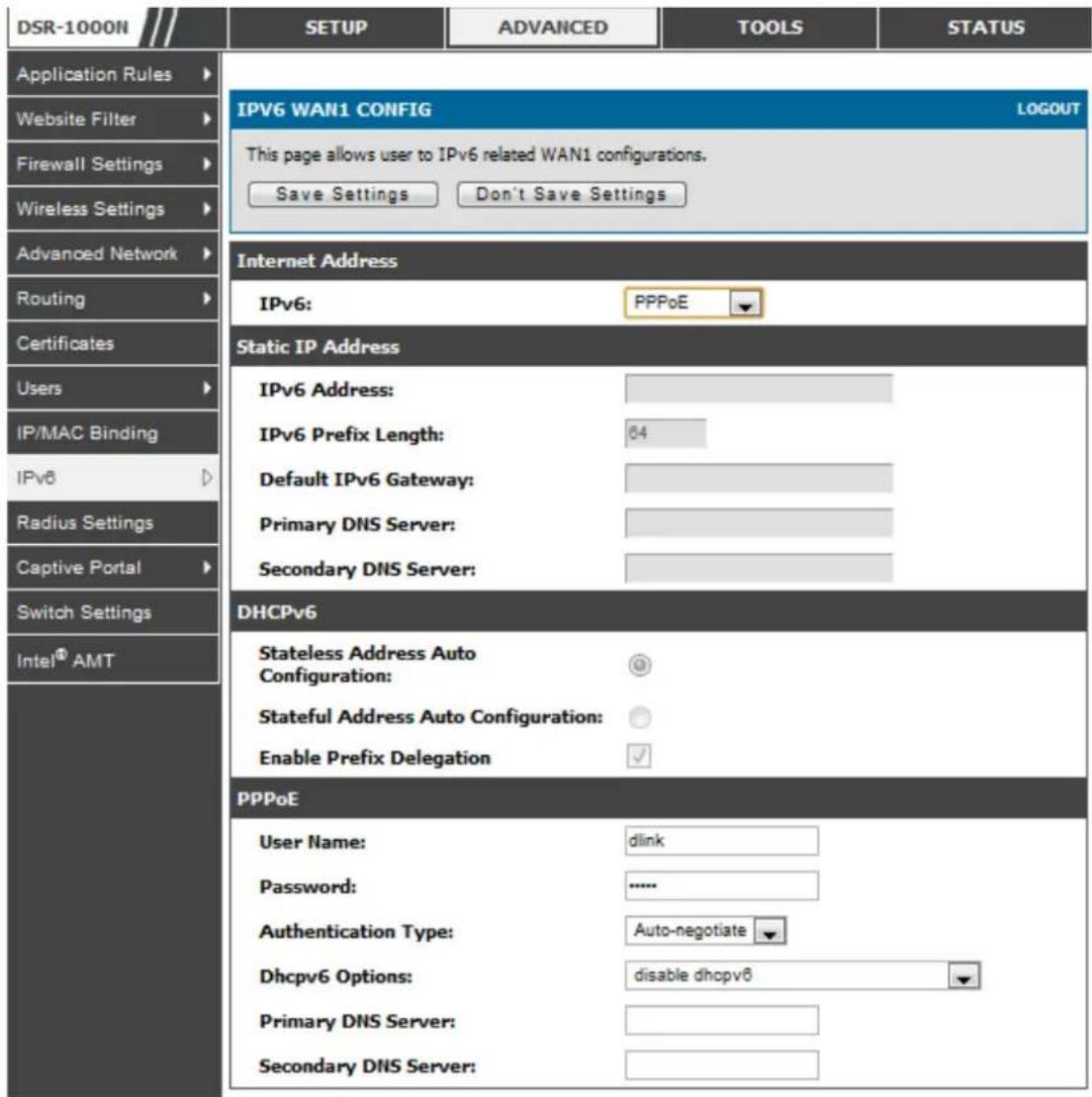
For IPv6 WAN connections, this router can have a static IPv6 address or receive connection information when configured as a DHCPv6 client. In the case where the ISP assigns you a fixed address to access the internet, the static configuration settings must be completed. In addition to the IPv6 address assigned to your router, the IPv6 prefix length defined by the ISP is needed. The default IPv6 Gateway address is the server at the ISP that at this router will connect to for accessing the internet. The primary and secondary DNS servers on the ISP's IPv6 network are used for resolving internet addresses, and these are provided along with the static IP address and prefix length from the ISP.
When the ISP allows you to obtain the WAN IP settings via DHCP, you need to provide details for the DHCPv6 client configuration. The DHCPv6 client on the gateway can be either stateless or stateful. If a stateful client is selected the gateway will connect to the ISP's DHCPv6 server for a leased address. For stateless DHCP
there need not be a DHCPv6 server available at the ISP, rather ICMPv6 discover messages will originate from this gateway and will be used for auto configuration. A third option to specify the IP address and prefix length of a preferred DHCPv6 server is available as well.
Figure 24: IPv6 WAN Setup page
text_image
DSR-1000N SETUP ADVANCED TOOLS STATUS Application Rules Website Filter Firewall Settings Wireless Settings Advanced Network Routing Certificates Users IP/MAC Binding IPv6 Radius Settings Captive Portal Switch Settings Intel® AMT IPV6 WAN1 CONFIG LOGOUT This page allows user to IPv6 related WAN1 configurations. Save Settings Don't Save Settings Internet Address IPv6: PPPoE Static IP Address IPv6 Address: IPv6 Prefix Length: 64 Default IPv6 Gateway: Primary DNS Server: Secondary DNS Server: DHCPv6 Stateless Address Auto Configuration: @ Stateful Address Auto Configuration: Enable Prefix Delegation PPPoE User Name: dlink Password: **** Authentication Type: Auto-negotiate Dhcpv6 Options: disable dhcpv6 Primary DNS Server: Secondary DNS Server:Prefix Delegation: Select this option to request router advertisement prefix from any available DHCPv6 servers available on the ISP, the obtained prefix is updated to the advertised prefixes on the LAN side. This option can be selected only in Statesless Address Auto Configuration mode of DHCPv6 Client.
When IPv6 is PPPoE type, the following PPPoE fields are enable d.
- Username: Enter the username required to log in to the ISP.
- Password: Enter the password required to login to the ISP.
- Authentication Type: The type of Authentication in use by the profile: Auto-Negotiate/PAP/CHAP/MS-CHAP/MS-CHAPv2.
- Dhcpv6 Options: The mode of Dhcpv6 client that will start in this mode: disable dhcpv6/stateless dhcpv6/stateful dhcpv6/stateless dhcpv6 with prefix delegation.
• Primary DNS Server: Enter a valid primary DNS Server IP Address.
• Secondary DNS Server: Enter a valid secondary DNS Server IP Address.
Click Save Settings to save your changes.
3.2.8 Checking WAN Status
Setup > Internet Settings > WAN1 Status
The status and summary of configured settings for both WAN1, WAN2 and WAN3 are available on the WAN Status page. You can view the following key connection status information for each WAN port:
- Connection time: The connection uptime
- Connection type: Dynamic IP or Static IP
- Connection state: This is whether the WAN is connected or disconnected to an ISP. The Link State is whether the physical WAN connection in place; the Link State can be UP (i.e. cable inserted) while the WAN Connection State is down.
- IP address / subnet mask: IP Address assigned
• Gateway IP address: WAN Gateway Address
Figure 25: Connection Status information for both WAN ports
| DSR-1000N | SETUP | ADVANCED | TOOLS | STATUS |
| Wizard | ||||
| Internet Settings | ||||
| Wireless Settings | ||||
| Network Settings | ||||
| DMZ Setup | ||||
| VPN Settings | ||||
| USB Settings | ||||
| VLAN Settings | ||||
| WAN1 Status (IPv4) | ||||
| MAC Address: | 00:0B:BB:7B:CE:51 | |||
| IPv4 Address: | 192.168.1.204 / 255.255.255.0 | |||
| Wan State: | UP(IPv4 and IPv6) | |||
| NAT (IPv4 only): | Enabled | |||
| IPv4 Connection Type: | Static IP | |||
| IPv4 Connection State: | Connected | |||
| Link State: | LINK UP | |||
| WAN Mode: | Use only single WAN port: Dedicated WAN | |||
| Gateway: | 192.168.1.2 | |||
| Primary DNS: | 192.168.1.2 | |||
| Secondary DNS: | 192.168.1.16 | |||
| Disable | ||||
| WAN1 Status (IPv6) | ||||
| MAC Address: | 00:0B:BB:7B:CE:51 | |||
| IPv6 Address: | 2002::20b:dbff:fe7b:ce40/64, fe80::20b:bbff:fe7b:ce51/64 | |||
| Wan State: | UP | |||
| IPv6 Connection Type: | Static IP | |||
| IPv6 Connection State: | Connected | |||
| Gateway: | 2002::20b:dbff:fe7b:ce40 | |||
| Primary DNS: | 2002::20b:dbff:fe7b:ce50 | |||
| Secondary DNS: | 2002::280:48ff:fe46:1338 | |||
The WAN status page allows you to Enable or Disable static WAN links. For WAN settings that are dynamically received from the ISP, you can Renew or Release the link parameters if required.
3.3 Bandwidth Controls
Advanced > Advanced Network > Traffic Management > Bandwidth Profiles
Bandwidth profiles allow you to regulate the traffic flow from the LAN to WAN 1 or WAN 2. This is useful to ensure that low priority LAN us ers (like guests or HTTP service) do not monopolize the available WAN's bandwidth for cost-savings or bandwidth-priority-allocation purposes.
Bandwidth profiles configuration consists of enabling the bandwidth control feature from the GUI and adding a profile which defines the control parameters. The profile can then be associated with a traffic selector, so that bandwidth profile can be applied to the traffic matching the selectors. Selectors are elements like IP addresses or services that would trigger the configured bandwidth regulation.
Figure 26: List of Configured Bandwidth Profiles

text_image
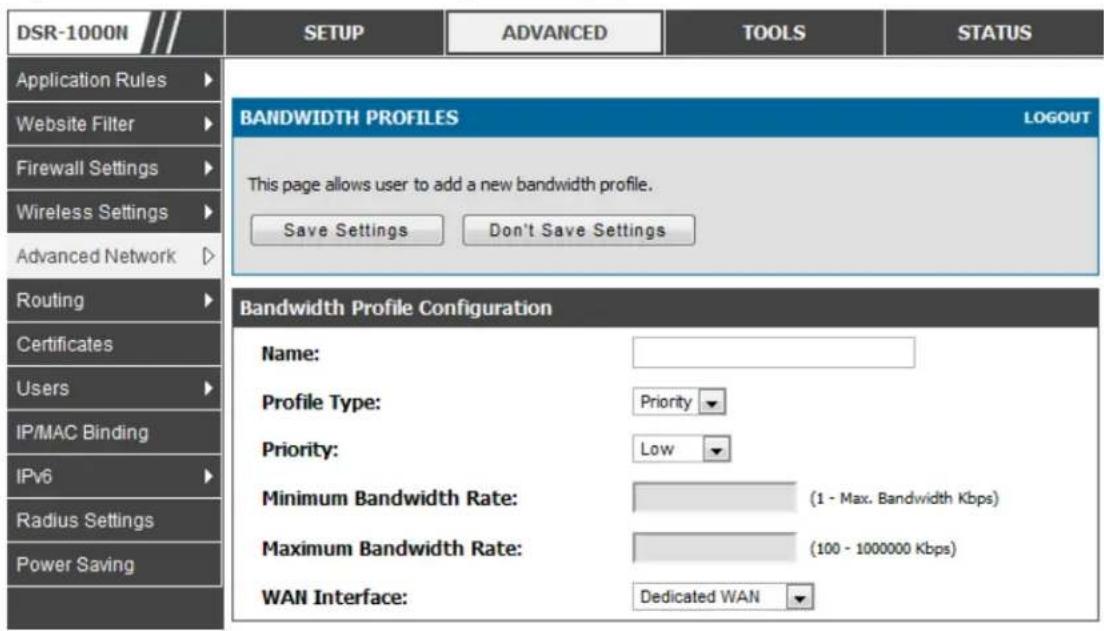
DSR-1000N Application Rules Website Filter Firewall Settings Wireless Settings Advanced Network Routing Certificates Users IP/MAC Binding IPv6 Radius Settings Power Saving SETUP ADVANCED TOOLS STATUS BANDWIDTH PROFILES LOGOUT This page shows the list of configured bandwidth profiles. These profiles then can be used with the traffic selectors. Save Settings Don't Save Settings Enable Bandwidth Profiles: ✓ List of Bandwidth Profiles Name Bandwidth Rate / Priority Guests Low Engineering 1-1000000 Kbps Edit Delete AddTo create a new bandwidth profile, click Add in the List of Bandwidth Profiles. The following configuration parameters are used to define a bandwidth profile:
- Profile Name: This identifier is used to associate the configured profile to the traffic selector
- You can choose to limit the bandwidth either using priority or rate.
- If using priority "Low", "High", and "Medium" can be selected. If there is a low priority profile associated with traffic selector A and a high priority profile associated with traffic selector B, then the WAN bandwidth allocation preference will be to traffic selector B packets.
- For finer control, the Rate profile type can be used. With this option the minimum and maximum bandwidth allowed by this profile can be limited.
- Choose the WAN interface that the profile should be associated with.
Figure 27: Bandwidth Profile Configuration page
text_image
DSR-1000N Application Rules Website Filter Firewall Settings Wireless Settings Advanced Network Routing Certificates Users IP/MAC Binding IPv6 Radius Settings Power Saving SETUP ADVANCED TOOLS STATUS BANDWIDTH PROFILES LOGOUT This page allows user to add a new bandwidth profile. Save Settings Don't Save Settings Bandwidth Profile Configuration Name: Profile Type: Priority Priority: Low Minimum Bandwidth Rate: (1 - Max. Bandwidth Kbps) Maximum Bandwidth Rate: (100 - 1000000 Kbps) WAN Interface: Dedicated WANAdvanced > Advanced Network > Traffic Management > Traffic Selectors
Once a profile has been created it can then be ass ociated with a traffic flow from the LAN to WAN. To create a traffic selector, click Add on the Traffic Selectors page. Traffic selector configuration binds a bandwidth profile to a type or source of LAN traffic with the following settings:
• Available profiles: Assign one of the defined bandwidth profiles
- Service: You can have the selected bandwidth regulation apply to a specific service (i.e. FTP) from the LAN. If you do not see a service that you want, you can configure a custom service through the Advanced > Firewall Settings >
Custom Services page. To have the profile apply to all services, select ANY.
- Traffic Selector Match Type: this defines the parameter to filter against when applying the bandwidth profile. A specific machine on the LAN can be identified via IP address or MAC address, or the profile can apply to a LAN port or VLAN group. As well a wireless network can be selected by its BSSID for bandwidth shaping.
Figure 28: Traffic Selector Configuration

text_image
DSR-500N Application Rules Website Filter Firewall Settings Wireless Settings Advanced Network Routing Certificates Users IP/MAC Binding IPv6 Radius Settings Captive Portal Switch Settings Intel® AMT SETUP ADVANCED TOOLS STATUS TRAFFIC SELECTORS LOGOUT This page allows user to configure various traffic rules, to which bandwidth profiles can be attached. Save Settings Don't Save Settings Traffic Selector Configuration Available Profiles: guests Service: AIM Traffic Selector Match Type: IP IP Address: MAC Address: Port Name: Port 1 BSSID: ap1 VLAN: Default3.4 Features with Multiple WAN Links
This router supports multiple WAN links. This allows you to take advantage of failover and load balancing features to ensure certain internet dependent services are prioritized in the event of unstable WAN connectivity on one of the ports.
Setup > Internet Settings > WAN Mode
To use Auto Failover or Load Balancing, WAN link failure detection must be configured. This involves accessing DNS servers on the internet or ping to an internet address (user defined). If required, you can configure the number of retry attempts when the link seems to be dis connected or the threshold of failures that determines if a WAN port is down.
3.4.1 Auto Failover
In this case one of your WAN ports is assigned as the primary internet link for all internet traffic. The secondary WAN port is used for redundancy in case the primary link goes down for any reason. Both WAN ports (primary and secondary) must be configured to connect to the respective ISP's before enabling this feature. The secondary WAN port will remain unconnected until a failure is detected on the primary link (either port can be assigned as the primary). In the event of a failure on the primary port, all internet traffic will be rolled over to the backup port. When configured in Auto Failover mode, the link status of the primary WAN port is checked at regular intervals as defined by the failure detection settings.
Note that both WAN1, WAN2 and WAN3 can be configured as the primary internet link.
• Auto-Rollover using WAN port
- Primary WAN: Selected WAN is the primary link (WAN1/WAN2/WAN3)
• Secondary WAN: Selected WAN is the secondary link.
Failover Detection Settings: To check connectivity of the primary internet link, one of the following failure detection methods can be selected:
- DNS lookup using WAN DNS Servers: DNS Lookup of the DNS Servers of the primary link are used to detect primary WAN connectivity.
- DNS lookup using DNS Servers: DNS Lookup of the custom DNS Servers can be specified to check the connectivity of the primary link.
- Ping these IP addresses: These IP's will be pinged at regular intervals to check the connectivity of the primary link.
- Retry Interval is: The number tells the router how often it should run the above configured failure detection method.
- Failover after: This sets the number of retries after which failover is initiated.
3.4.2 Load Balancing
Th is featu re allo ws yo u to use multip le W A N lin ks (and d pres u mab ly mult ip le ISP's) simultaneously. After configuring more than one WAN port, the load balancing option is available to carry traffic over more than one link. Protocol bindings are used to segregate and assign services over one WAN port in order to manage internet flow. The configured failure detection method is used at regular intervals on all configured WAN ports when in Load Balancing mode.
DSR currently support three algorithms for Load Balancing:
Round Robin: This algorithm is particularly useful when the connection speed of one WAN port greatly differs from another. In this case you can define protocol bindings to route low-latency services (such as VOIP) over the higher-speed link and let low-volume background traffic (such as SMTP) go over the lower speed link. Protocol binding is explained in next section.
Spill Over: If Spill Over method is selected, WAN1 acts as a dedicated link till a threshold is reached. After this, WAN2 will be used for new connections. You can configure spill-over mode by using following options:
- Load Tolerance: It is the percentage of bandwidth after which the router switches to secondary WAN.
- Max Bandwidth: This sets the maximum bandwidth tolerable by the primary WAN.
If the link bandwidth goes above the load tolerance value of max bandwidth, the router will spill-over the next connections to a secondary WAN.
For example, if the maximum bandwidth of primary WAN is 1 Kbps and the load tolerance is set to 70. Now every time a new connection is established the bandwidth increases. After a certain number of connections say bandwidth reached
70% of 1Kbps, the new connections will be spilled -over to secondary WAN. The maximum value of load tolerance is 80 and the least is 20.
Protocol Bindings : Refer Section 3.4.3 for details
Load balancing is particularly useful when the connection speed of one WAN port greatly differs from another. In this case you can define protocol bindings to route low-latency services (such as VOIP) over the higher-speed link and let low-volume background traffic (such as SMTP) go over the lower speed link.
Figure 29: Load Balancing is available when multiple WAN ports are configured and Protocol Bindings have been defined

text_image
DSR-1000N SETUP ADVANCED TOOLS STATUS Wizard Internet Settings Wireless Settings Network Settings DMZ Setup VPN Settings USB Settings VLAN Settings WAN MODE LOGOUT This page allows user to configure the policies on the two WAN ports for Internet connection. Save Settings Don't Save Settings Port Mode Auto-Rollover using WAN port: Primary WAN: Secondary WAN: Load Balancing: Use only single WAN port: WAN Failure Detection Method None: DNS lookup using WAN DNS Servers: DNS lookup using DNS Servers: WAN1: WAN2: WAN3: Ping these IP addresses: WAN1: WAN2: WAN3: Retry Interval is: Failover after: SPILLOVER CONFIGURATION Load Tolerance: Max Bandwidth: 80 81923.4.3 Protocol Bindings
Advanced > Routing > Protocol Bindings
Protocol bindings are required when the Load Balancing feature is in use. Choos ing from a list of configured services or any of the user-defined services, the type of traffic can be assigned to go over only one of the available WAN ports. For increased flexibility the source network or machines can be specified as well as the destination network or machines. For example the VOIP traffic for a set of LAN IP addresses can be assigned to one WAN and any VOIP traffic from the remaining IP
addresses can be assigned to the other WAN link. Protocol bindings are only applicable when load balancing mode is enabled and more than one WAN is configured.
Figure 30: Protocol binding setup to associate a service and/or LAN source to a WAN and/or destination network
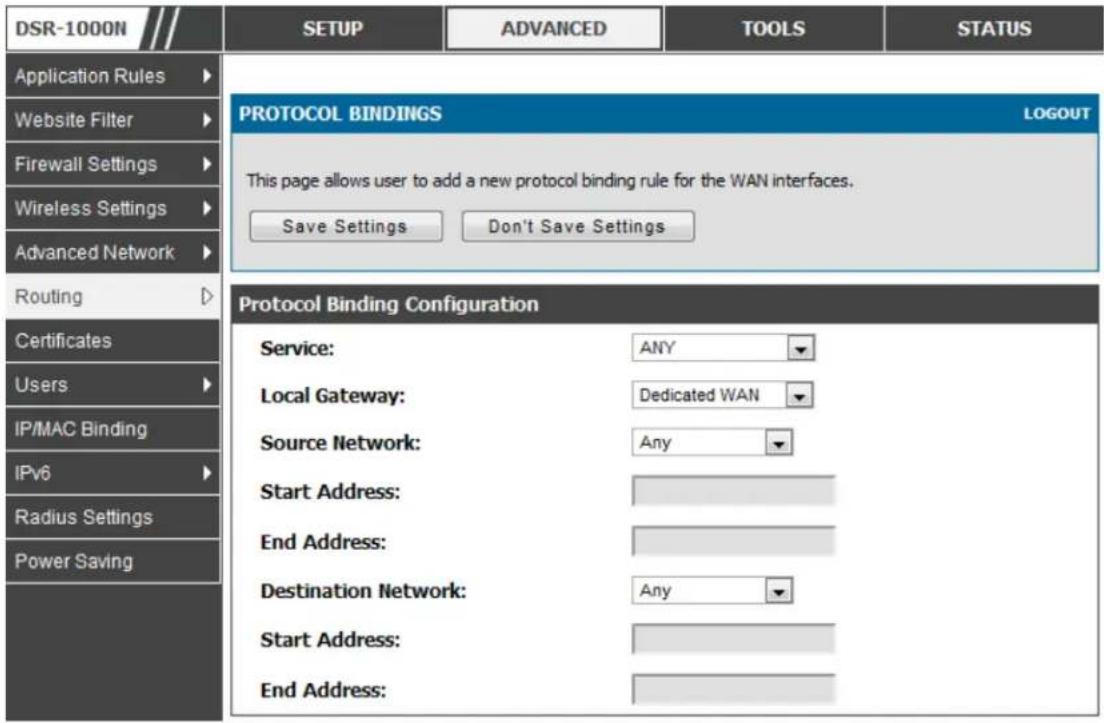
text_image
DSR-1000N Application Rules Website Filter Firewall Settings Wireless Settings Advanced Network Routing Certificates Users IP/MAC Binding IPv6 Radius Settings Power Saving SETUP ADVANCED TOOLS STATUS PROTOCOL BINDINGS LOGOUT This page allows user to add a new protocol binding rule for the WAN interfaces. Save Settings Don't Save Settings Protocol Binding Configuration Service: ANY Local Gateway: Dedicated WAN Source Network: Any Start Address: End Address: Destination Network: Any Start Address: End Address:3.5 Routing Configuration
Routing between the LAN and WAN will impact the way this router handles traffic that is received on any of its physical interfaces. The routing mode of the gateway is core to the behaviour of the traffic flow between the secure LAN and the internet.
3.5.1 Routing Mode
Setup > Internet Settings > Routing Mode
This device supports classical routing, network address translation (NAT), and trans port mode routing.
- With classical routing, devices on the LAN can be directly accessed from the internet by their public IP addresses (assuming appropriate firewall settings). If your ISP has as signed an IP address s for each of the computers that you use, select Class ic Routing.
- NAT is a technique which allows several computers on a LAN to share an Internet connection. The computers on the LAN use a "private" IP address range while the WAN port on the router is configured with a single "public" IP address. Along with connection sharing, NAT also hides internal IP addresses from the computers on the Internet. NAT is required if your ISP has assigned only one IP address to you. The computers that connect through the router will need to be assigned IP addresses from a private subnet.
- Transparent routing between the LAN and WAN does not perform NAT. Broadcast and multicast packets that arrive on the LAN interface are switched to the WAN and vice versa, if they do not get filtered by firewall or VPN policies. To maintain the LAN and WAN in the same broadcast domain select Transparent mode, which allows bridging of traffic from LAN to WAN and vice versa, except for router-terminated traffic and other management traffic. All DSR features (such as 3G modem support) are supported in transparent mode assuming the LAN and WAN are configured to be in the same broadcast domain.

NAT routing has a feature called “NAT Hair-pinning” that allows internal network users on the LAN and DMZ to access internal servers (eg. an internal FTP server) using their externally-known domain name. This is also referred to as “NAT loop back” since LAN generated traffic is redirected through the firewall to reach LAN servers by their external name.
Figure 31: Routing Mode is used to configure traffic routing between WAN and LAN, as well as Dynamic routing (RIP)
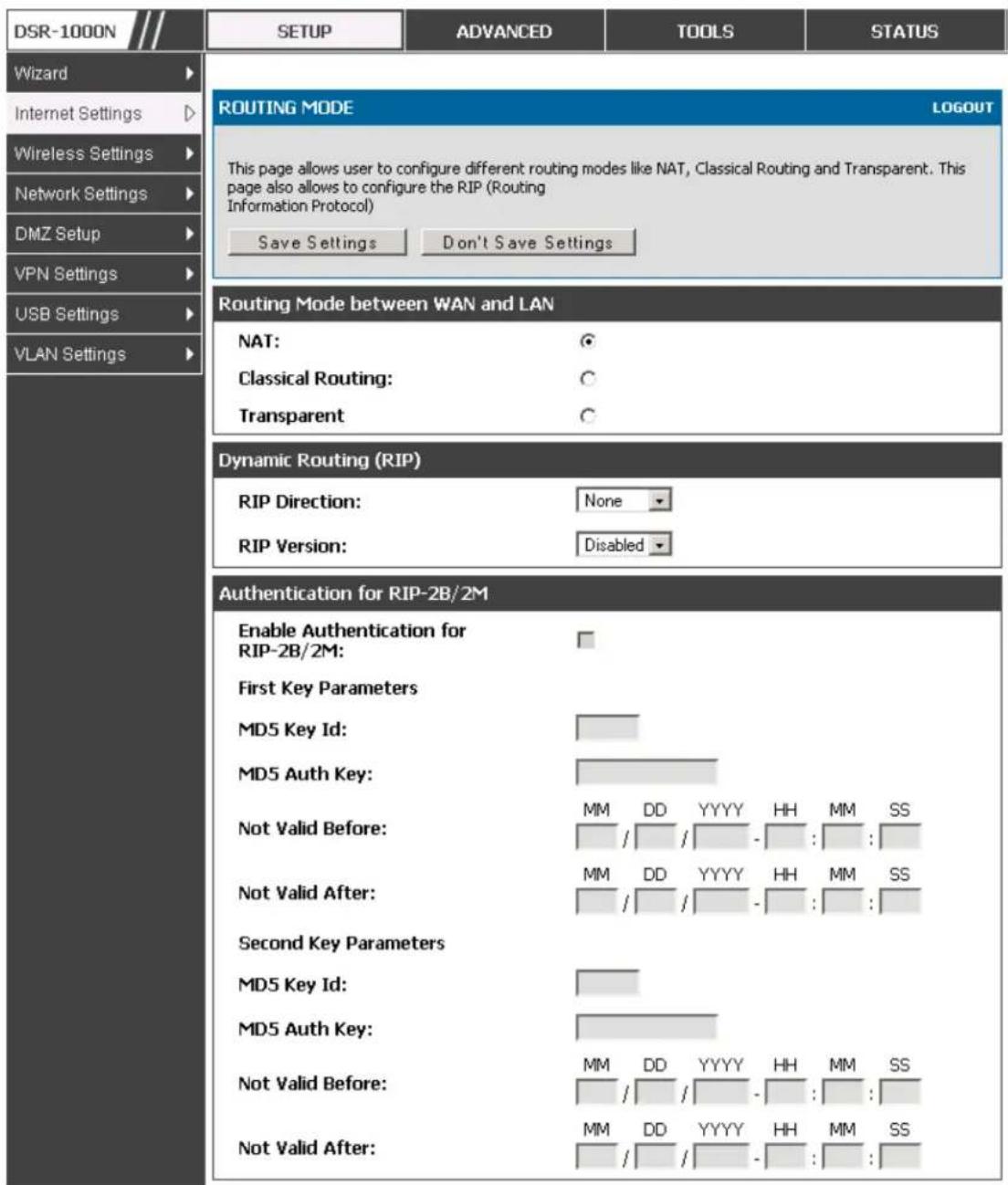
text_image
DSR-1000N SETUP ADVANCED TOOLS STATUS Wizard Internet Settings Wireless Settings Network Settings DMZ Setup VPN Settings USB Settings VLAN Settings ROUTING MODE LOGOUT This page allows user to configure different routing modes like NAT, Classical Routing and Transparent. This page also allows to configure the RIP (Routing Information Protocol) Save Settings Don't Save Settings Routing Mode between WAN and LAN NAT: Classical Routing: Transparent Dynamic Routing (RIP) RIP Direction: None RIP Version: Disabled Authentication for RIP-2B/2M Enable Authentication for RIP-2B/2M: First Key Parameters MD5 Key Id: MD5 Auth Key: Not Valid Before: Not Valid After: Second Key Parameters MD5 Key Id: MD5 Auth Key: Not Valid Before: Not Valid After: MM DD YYYY HH MM SS MM DD YYYY HH MM SS MM DD YYYY HH MM SS MM DD YYYY HH MM SS MM DD YYYY HH MM SS3.5.2 Dynamic Routing (RIP)
DSR- 150/150N/250/250N does not support RIP.
Setup > Internet Settings > Routing Mode
Dynamic routing using the Routing Information Protocol (RIP) is an Interior Gateway Protocol (IGP) that is common in LANs. With RIP this router can exchange routing information with other supported routers in the LAN and allow for dynamic adjustment of routing tables in order to adapt to modifications in the LAN without interrupting traffic flow.
The RIP direction will define how this router sends and receives RIP packets. Choose between:
- Both: The router both broadcasts its routing table and also processes RIP information received from other routers. This is the recommended setting in order to fully utilize RIP capabilities.
- Out Only: The router broadcasts its routing table periodically but does not accept RIP information from other routers.
- In Only: The router accepts RIP information from other routers, but does not broadcast its routing table.
- None: The router neither broadcasts its route table nor does it accept any RIP packets from other routers. This effectively disables RIP.
- The RIP version is dependent on the RIP support of other routing devices in the LAN.
- Disabled: This is the setting when RIP is disabled.
- RIP-1 is a class-based routing version that does not include subnet information. This is the most commonly supported version.
- RIP-2 includes all the functionality of RIPv1 plus it supports subnet information. Though the data is sent in RIP-2 format for both RIP-2B and RIP-2M, the mode in which packets are sent is different. RIP-2B broadcasts data in the entire subnet while RIP-2M sends data to multicast addresses.
If RIP-2B or RIP-2M is the selected version, authentication between this router and other routers (configured with the same RIP version) is required. MD5 authentication is used in a first/second key exchange process. The authentication key validity lifetimes are configurable to ensure that the routing information exchange is with current and supported routers detected on the LAN.
3.5.3 Static Routing
Advanced > Routing > Static Routing
Advanced > IPv6 > IPv6 Static Routing
Manually adding static routes to this device allows you to define the path selection of traffic from one interface to another. There is no communication between this router and other devices to account for changes in the path; once configured the static route will be active and effective until the network changes.
The List of Static Routes displays all routes that have been added manually by an administrator and allows several operations on the static routes. The List of IPv4 Static Routes and List of IPv6 Static Routes share the same fields (with one exception):
- Name: Name of the route, for identification and management.
- Active: Determines whether the route is active or inactive. A route can be added to the table and made inactive, if not needed. This allows routes to be used as needed without deleting and re-adding the entry. An inactive route is not broadcast if RIP is enabled.
- Private: Determines whether the route can be shared with other routers when RIP is enabled. If the route is made private, then the route will not be shared in a RIP broadcast or multicast. This is only applicable for IPv4 static routes.
- Destination: the route will lead to this destination host or IP address.
- IP Subnet Mask: This is valid for IPv4 networks only, and identifies the subnet that is affected by this static route
- Interface: The physical network interface (WAN1, WAN2, WAN3, DMZ or LAN), through which this route is accessible.
- Gateway: IP address of the gateway through which the destination host or network can be reached.
- Metric: Determines the priority of the route. If multiple routes to the same destination exist, the route with the lowest t metric is chosen.
Figure 32: Static route configuration fields
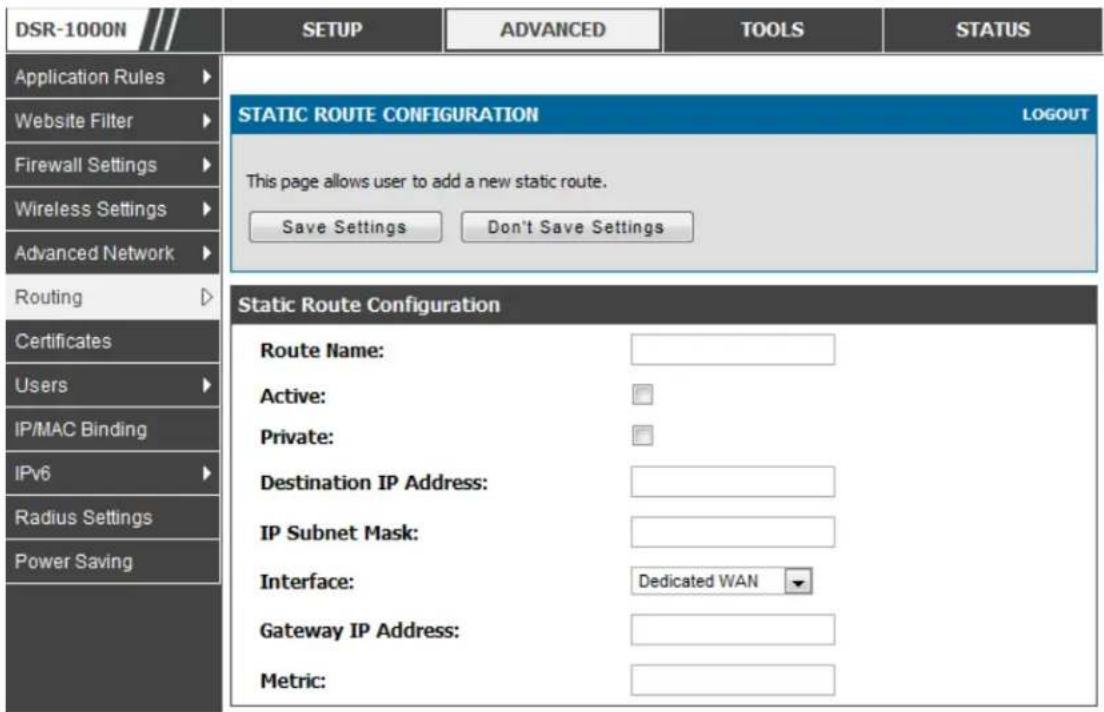
text_image
DSR-1000N SETUP ADVANCED TOOLS STATUS Application Rules Website Filter Firewall Settings Wireless Settings Advanced Network Routing Certificates Users IP/MAC Binding IPv6 Radius Settings Power Saving STATIC ROUTE CONFIGURATION LOGOUT This page allows user to add a new static route. Save Settings Don't Save Settings Static Route Configuration Route Name: Active: Private: Destination IP Address: IP Subnet Mask: Interface: Dedicated WAN Gateway IP Address: Metric:3.5.4 OSPFv2
Advanced > Routing > OSPF
OSPF is an interior gateway protocol that routes Internet Protocol (IP) packets solely within a single routing domain. It gathers link state information from available routers and constructs a topology map of the network.
OSPF version 2 is a routing protocol which described in RFC2328 - OSPF Version 2. OSPF is IGP (Interior Gateway Protocols).OSPF is widely used in large networks such as ISP backbone and enterprise networks.
Figure 33: OSPFv2 configured parameters

text_image
DSR-1000N Application Rules Website Filter Firewall Settin... Wireless Settings Advanced Network... Routing Certificates Users IP/MAC Binding IPv6 Radius Settings SETUP ADVANCED TOOLS STATUS OSPFV2 LOGOUT This page shows the OSPFv2 parameters configured on the router.User can also edit the OSPFv2 configured parameters. OSPFV2 Interface Status Area Priority Hello Interval Dead Interval Cost-Augustentication Type LAN Disabled 1 10 40 10 None WAN1 Disabled 1 10 40 10 None WAN2 Disabled 1 10 40 10 None WAN3 Disabled 1 10 40 10 None EditInterface: The physical network interface on which OSPFv2 is Enabled/Disabled.
Status: This column displays the Enable/Disable state of OSPFv2 for a particular interface.
Area: The area to which the interface belongs. Two routers having a common segment; their interfaces have to belong to the same area on that segment. The interfaces should belong to the same subnet and have similar mask.
Priority: Helps to determine the OSPFv2 designated router for a network. The router with the highest priority will be more eligible to become Designated Router. Setting the value to 0, makes the router ineligible to become Designated Router. The default value is 1. Lower value means higher priority.
HelloInterval: The number of seconds for HelloInterval timer value. Setting this value, Hello packet will be sent every timer value seconds on the specified interface.
This value must be the same for all routers attached to a common network. The default value is 10 seconds.
DeadInterval: The number of seconds that a device's hello packets must not have been seen before its neighbours declare the OSPF router down. This value must be the same for all routers attached to a common network. The default value is 40 seconds.
OSPF requires these intervals to be exactly the same between two neighbours. If any of these intervals are different, these routers will not become neighbours on a particular segment
Cost: The cost of sending a packet on an OSPFv2 interface.
Authentication Type:. This column displays the type of authentication to be used for OSPFv2. If Authentication type is none the interface does not authenticate ospf packets. If Authentication Type is Simple then os pf packets are authenticated using simple text key. If Authentication Type is MD5 then the interface authentica tes ospf packets with MD5 authentication.
Figure 34: OSPFv2 configuratio n
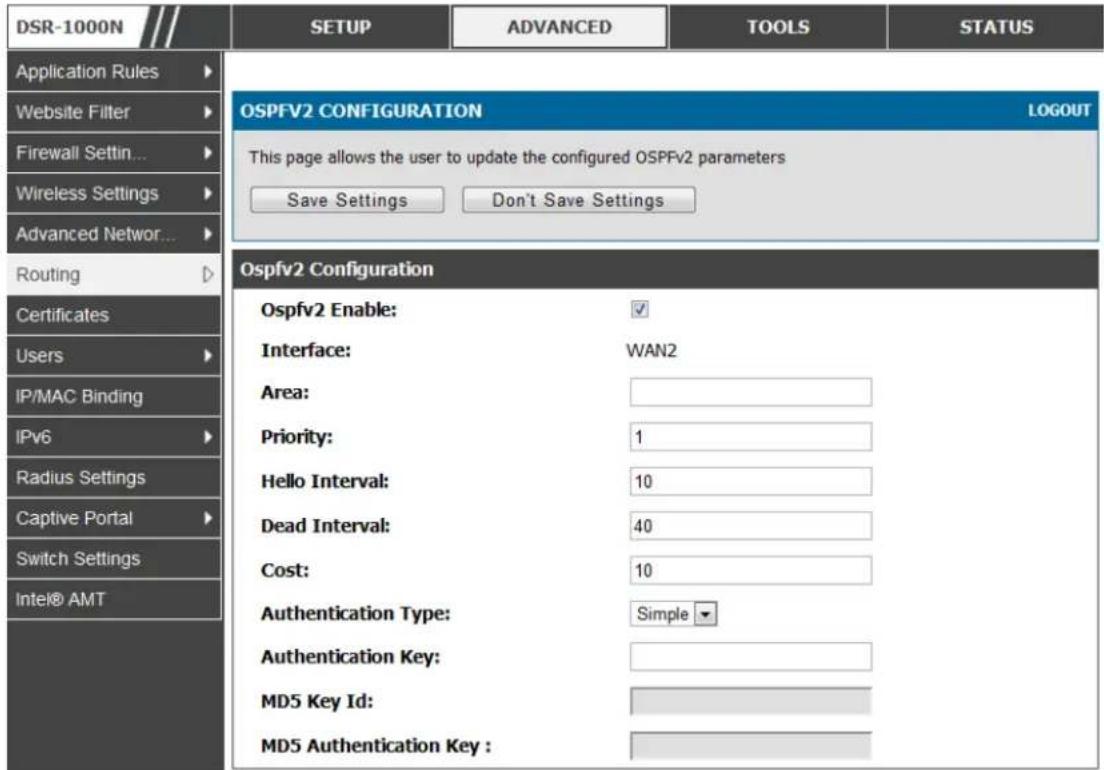
text_image
DSR-1000N Application Rules Website Filter Firewall Settin... Wireless Settings Advanced Network... Routing Certificates Users IP/MAC Binding IPv6 Radius Settings Captive Portal Switch Settings Intel® AMT SETUP ADVANCED TOOLS STATUS OSPFV2 CONFIGURATION LOGOUT This page allows the user to update the configured OSPFv2 parameters Save Settings Don't Save Settings Ospfv2 Configuration Ospfv2 Enable: Interface: Area: Priority: Hello Interval: Dead Interval: Cost: Authentication Type: Authentication Key: MD5 Key Id: MD5 Authentication Key :3.5.5 OSPFv3
Advanced > IPv6 > OSPF
Open Shortest Path First version 3 (OSPFv3) supports IPv6. To enable an OSPFv3 process on a router, you need to enable the OSPFv3 process globally, assign the OSPFv3 process a router ID, and enable the OSPFv3 process on related interfaces
Figure 35: OSPFv3 configured parameters
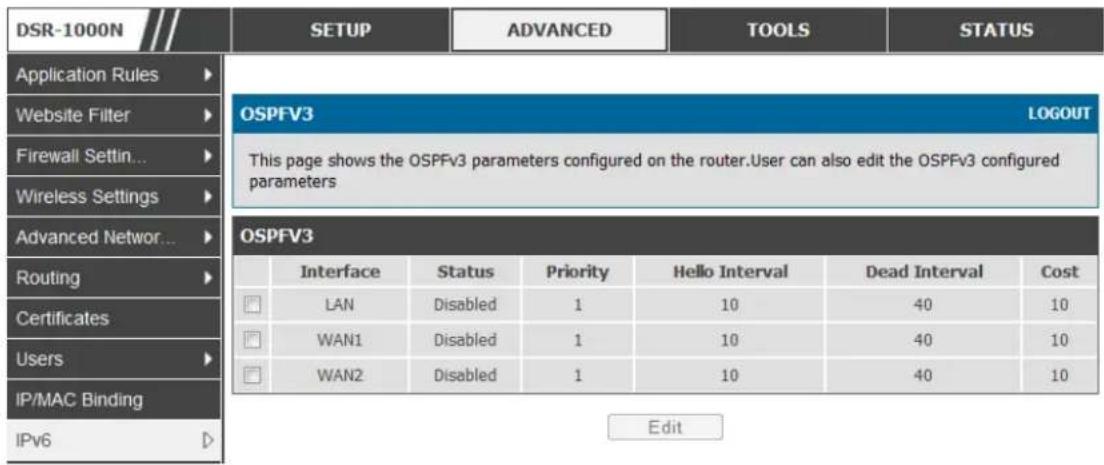
text_image
DSR-1000N Application Rules Website Filter Firewall Settin... Wireless Settings Advanced Network... Routing Certificates Users IP/MAC Binding IPv6 SETUP ADVANCED TOOLS STATUS OSPFV3 LOGOUT This page shows the OSPFv3 parameters configured on the router.User can also edit the OSPFv3 configured parameters OSPFV3 Interface Status Priority Hello Interval Dead Interval Cost LAN Disabled 1 10 40 10 WAN1 Disabled 1 10 40 10 WAN2 Disabled 1 10 40 10 EditInterface: The physical network interface on which OSPFv3 is Enabled/Disabled.
Status: This column displays the Enable/Disable state of OSPFv3 for a particular interface.
Priority: Helps to determine the OSPFv3 des ignited router for a network. The router with the highest priority will be more eligible to become Designated Router. Setting the value to 0, makes the router ineligible to become Designated Router. The default value is 1. Lower Value means higher priority.
HelloInterval: The number of seconds for HelloInterval timer value. Setting this value, Hello packet will be sent every timer value seconds on the specified interface. This value must be the same for all routers attached to a common network. The default value is 10 seconds.
DeadInterval: The number of seconds that a device's hello packets must not have been seen before its neighbours declare the OSPF router down. This value must be the same for all routers attached to a common network. The default value is 40 seconds.
OSPF requires these intervals to be exactly the same between two neighbours. If any of these intervals are different, these routers will not become neighbours on a particular segment
Cost: The cost of sending a packet on an OSPFv3 interface.
Figure 36: OSPFv3 configuratio n
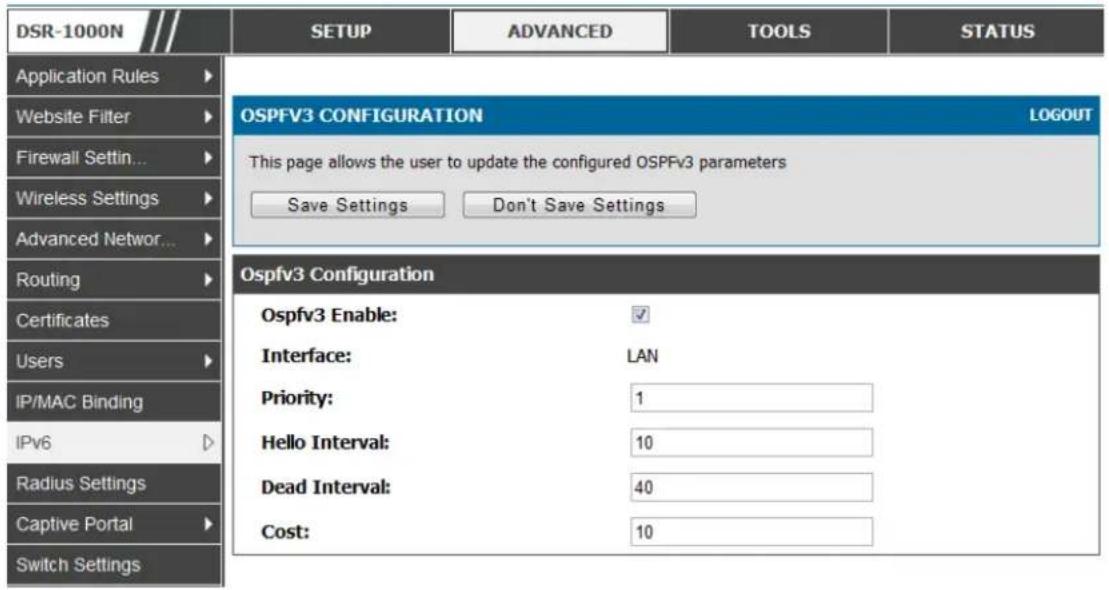
text_image
DSR-1000N Application Rules Website Filter Firewall Settin... Wireless Settings Advanced Network... Routing Certificates Users IP/MAC Binding IPv6 Radius Settings Captive Portal Switch Settings SETUP ADVANCED TOOLS STATUS OSPFV3 CONFIGURATION LOGOUT This page allows the user to update the configured OSPFv3 parameters Save Settings Don't Save Settings Ospfv3 Configuration Ospfv3 Enable: ✓ Interface: LAN Priority: 1 Hello Interval: 10 Dead Interval: 40 Cost: 103.5.6 6to4 Tunneling
Advanced > IPv6 > 6to4 Tunneling
6to4 is an Internet transition mechanism for migrating from IPv4 to IPv6, a system that allows IPv6 packets to be transmitted over an IPv4 network. Select the check box to Enable Automatic Tunneling and allow traffic from an IPv6 LAN to be sent over a IPv4 Option to reach a remote IPv6 network.
Figure 37: 6 to 4 tunneling
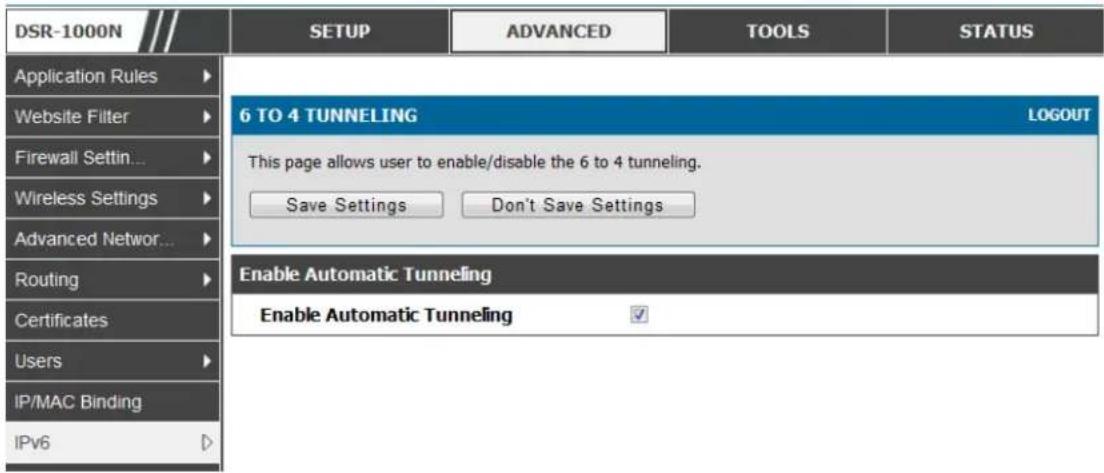
text_image
DSR-1000N Application Rules Website Filter Firewall Settin... Wireless Settings Advanced Network... Routing Certificates Users IP/MAC Binding IPv6 SETUP ADVANCED TOOLS STATUS 6 TO 4 TUNNELING LOGOUT This page allows user to enable/disable the 6 to 4 tunneling. Save Settings Don't Save Settings Enable Automatic Tunneling Enable Automatic Tunneling ✓3.5.7 ISATAP Tunnels
Advanced > IPv6 > 6to4 Tunneling
ISATAP (Intra-Site Automatic Tunnel Addressing Protocol) is an IPv6 transition mechanism meant to transmit IPv6 packets between dual-stack nodes on top of an IPv4 network. ISATAP specifies an IPv6-IPv4 compatibility address format as well as a means for site border router discovery. ISATAP also specifies the operation of IPv6 over a specific link layer - that being IPv4 used as a link layer for IPv6.
Figure 38: ISATAP Tunnels Configurati on

text_image
DSR-1000N Application Rules Website Filter Firewall Settin... Wireless Settings Advanced Networ... Routing Certificates Users IP/MAC Binding IPv6 SETUP ADVANCED TOOLS STATUS ISATAP TUNNELS LOGOUT This page allows user to configure a new isatap tunnel. Save Settings Don't Save Settings ISATAP Tunnel Configuration ISATAP Subnet Prefix: End Point Address: LAN IPv4 Address:ISATAP Subnet Prefix: This is the 64-bit subnet prefix that is as signed to the logical ISATAP subnet for this intranet. This can be obtained from your ISP or internet registry, or derived from RFC 4193.
End Point Address: This is the endpoint address for the tunnel that starts with this router. The endpoint can be the LAN interface (assuming the LAN is an IPv4 network), or a specific LAN IPv4 address.
IPv4 Address : The end point address if not the entire LAN.
3.6 Configurable Port - WAN Option
This router supports one of the physical ports to be configured as a secondary WAN Ethernet port or a dedicated DMZ port. If the port is selected to be a secondary WAN interface, all configuration pages relating to WAN2 are enabled.
3.7 WAN 3 (3G) Configuration
This router supports one of the physical ports WAN3 to be configured for 3G internet access s.
Setup > Internet Settings > WAN3 Setup
WAN3 configuration for the 3G USB modem is available only on WAN3 interface.
There are a few key elements of WAN 3 configuration.
- Reconnect Mode: Select one of the following options
○ Always On: The connection is always on. Username: Enter the username required to log in to the ISP.
On Demand: The connection is automatically ended if it is idle for a specified number of minutes. Enter the number of minutes in the Maximum Idle Time field. This feature is useful if your ISP charges you based on the amount of time that you are connected.
- Password: Enter the pas sword required to login to the ISP.
- Dial Number: Enter the number to dial to the ISP.
- Authentication Protocol: Select one of None, PAP or CHAP Authentication Protocols to connect to the ISP.
- APN: Enter the APN (Access Point Name) provided by the ISP.
Domain Name System (DNS) Servers
-
Domain name servers (DNS) convert Internet names such as www.dlink.com, to IP addresses to route traffic to the correct resources on the Internet. If you configure your router to get an IP address dynamically from the ISP, then you need to specify the DNS server source in this section.
• DNS Server Source: Choose one of the following options: -
Get Dynamically from ISP: Choose this option if your ISP did not assign a static DNS IP address.
- Use These DNS Servers: Choose this option if your ISP assigned a static DNS IP address for you to use. Also complete the fields that are highlighted white in this section.
o Primary DNS Server: Enter a valid primary DNS Server IP Address.
o Secondary DNS Server: Enter a valid secondary DNS Server IP Address.
- Configurable Port: This page allows you to assign the functionality intended for the Configurable Port. Choos e from the following options :
- WAN: If this option is selected, configure the WAN3. The WAN Mode options are now available as there are two WAN ports for the gateway.
- DMZ: If this option is selected, you are able to configure the DMZ port on the DMZ Configuration menu.
Click Save Settings to save your changes.
Click Don't Save Settings to revert to the previous settings.
Figure 39: WAN3 configuration for 3G internet

text_image
DSR-1000N SETUP ADVANCED TOOLS STATUS Wizard Internet Settings Wireless Settings Network Settings DMZ Setup VPN Settings USB Settings VLAN Settings WAN3 SETUP LOGOUT This page allows you to set up your Internet connection. Ensure that you have the Internet connection information such as the IP Addresses, Account Information etc. This information is usually provided by your ISP or network administrator. Save Settings Don't Save Settings Wan3 (3G Internet) Reconnect Mode: Always On On Demand Maximum Idle Time: 5 3G Internet Connection Type Username: admin (Optional) Password: **** (Optional) Dial Number: *99# Authentication Protocol: None APN: wap.isp.com Domain Name System (DNS) Servers DNS Server Source: Get Dynamically from ISP Primary DNS Server: 0.0.0.0 Secondary DNS Server: 0.0.0.0
3G WAN support is available on these dual WAN products: DSR-1000 and DSR-1000N.
Cellular 3G internet access is available on WAN3 via a 3G USB modem for DSR-1000 and DSR-1000N. The cellular ISP that provides the 3G data plan will provide the authentication requirements to establish a connection. The dial Number and APN are specific to the cellular carriers. Once the connection type settings are configured and saved, navigate to the WAN status page (Setup > Internet Settings > WAN3 Status) and Enable the WAN3 link to establish the 3G connection.
3.8 WAN Port Settings
Advanced > Advanced Network > WAN Port Setup
The physical port settings for each WAN link can be defined here. If your ISP account defines the WAN port speed or is associated with a MAC address, this information is required by the router to ensure a s mooth connection with the network.
The default MTU size supported by all ports is 1500. This is the largest packet size that can pass through the interface without fragmentation. This size can be increased, however large packets can introduce network lag and bring down the interface speed. Note that a 1500 byte size packet is the largest allowed by the Ethernet protocol at the network layer.
The port speed can be sensed by the router when Auto is selected. With this option the optimal port settings are determined by the router and network. The duplex (half or full) can be defined based on the port support, as well as one of three port speeds: 10 Mbps, 100 Mbps and 1000 Mbps (i.e. 1 Gbps). The default setting is 100 Mbps for all ports.
The default MAC address is defined during the manufacturing process for the interfaces, and can uniquely identify this router. You can cu st omize each WAN port's MAC address as needed, either by letting the WAN port as sume the current LAN host's MAC address or by entering a MAC address manually.
Figure 40: Physical WAN port settings
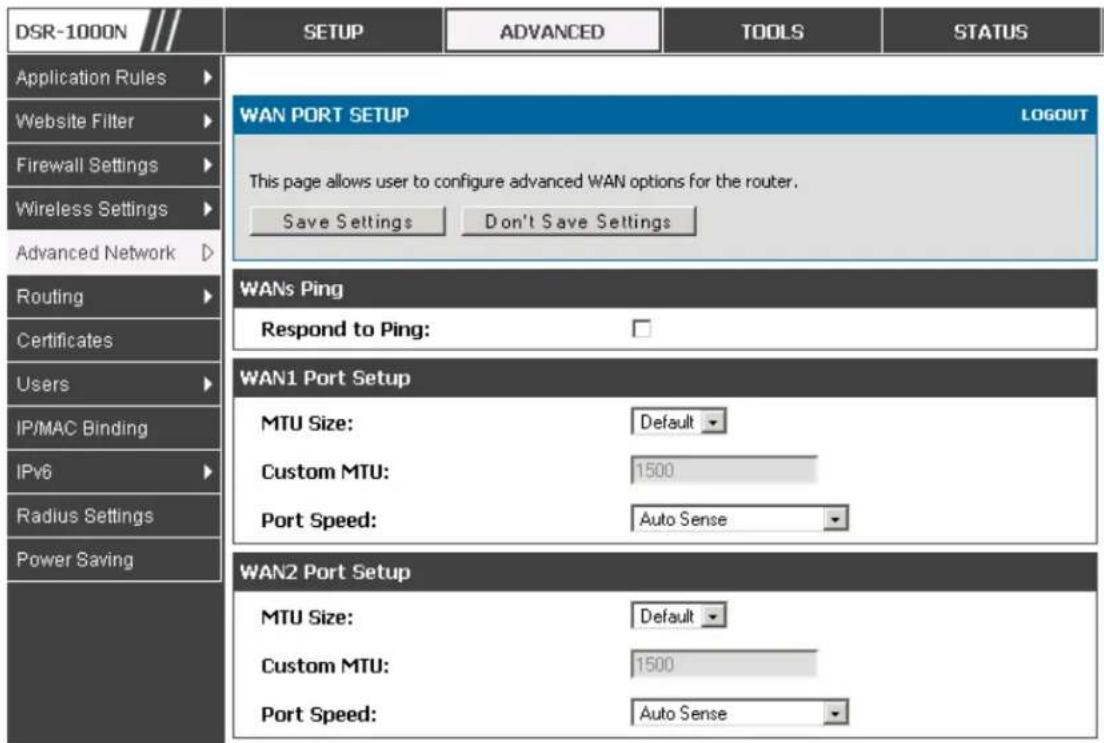
text_image
DSR-1000N Application Rules Website Filter Firewall Settings Wireless Settings Advanced Network Routing Certificates Users IP/MAC Binding IPv6 Radius Settings Power Saving SETUP ADVANCED TOOLS STATUS WAN PORT SETUP LOGOUT This page allows user to configure advanced WAN options for the router. Save Settings Don't Save Settings WANs Ping Respond to Ping: WAN1 Port Setup MTU Size: Default Custom MTU: 1500 Port Speed: Auto Sense WAN2 Port Setup MTU Size: Default Custom MTU: 1500 Port Speed: Auto SenseChapter 4. Wireless Access Point Setup
This router has an integrated 802.11n radio that allows you to create an access point for wireless LAN clients. The security/encryption/authentication options are grouped in a wireless Profile, and each configured profile will be available for selection in the AP configuration menu. The profile defines various parameters for the AP, including the security between the wireless client and the AP, and can be shared between multiple APs instances on the same device when needed.
The content in this section is applicable to the DSR-500N and DSR-1000N products.
Up to four unique wireless networks can be created by configuring multiple “virtual” APs. Each such virtual AP appears as an independent AP (unique SSID) to supported clients in the environment, but is actually running on the same physical radio integrated with this router.
You will need the following information to configure your wireless network:
- Types of devices expected to access the wireless network and their supported Wi-Fi™ modes
- The router's geographical region
- The security settings to use for securing the wireless network.
Profiles may be thought of as a grouping of AP parameters that can then be applied to not just one but multiple AP instances (SSIDs), thus avoiding duplication if the same parameters are to be used on multiple AP instances or SSIDs.
4.1 Wireless Settings Wizard
Setup > Wizard > Wireless Settings
The Wireless Network Setup Wizard is available for users new to networking. By going through a few straightforward configuration pages you can enable a Wi-Fi™ network on your LAN and allow supported 802.11 clients to connect to the configured Acces s Point.
Figure 41: Wireless Network Setup Wizards
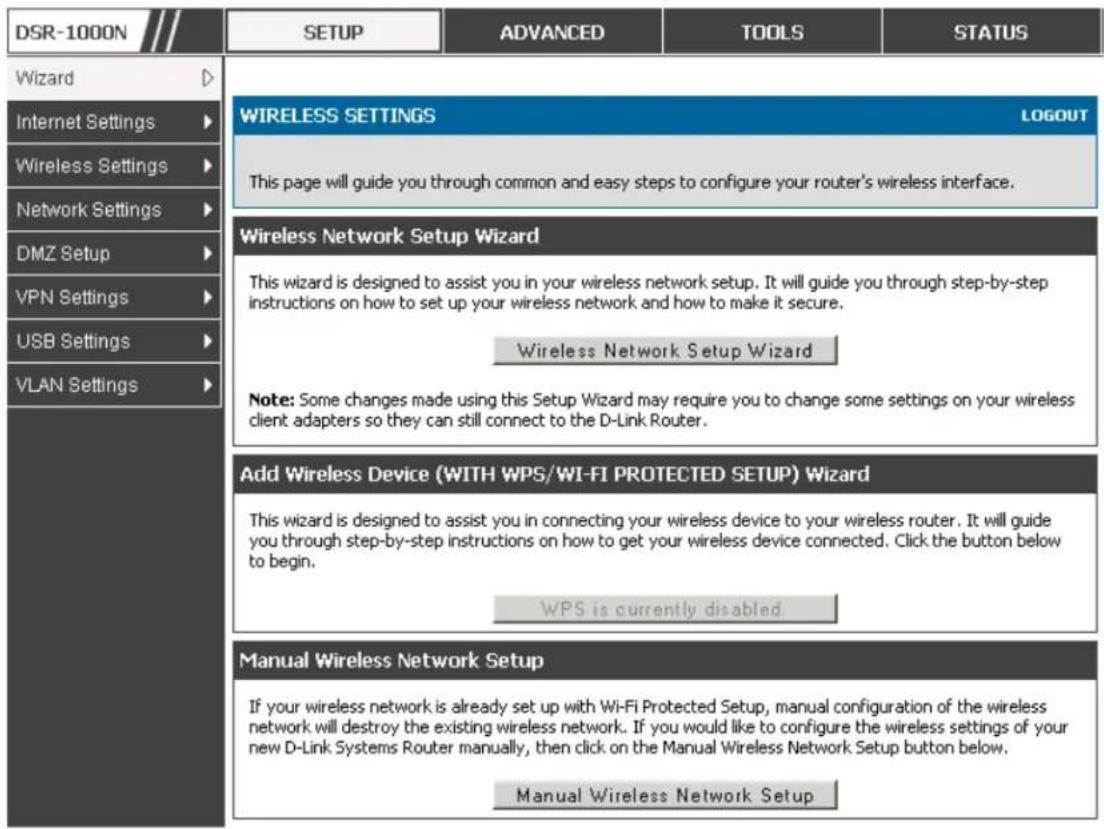
text_image
DSR-1000N Wizard Internet Settings Wireless Settings Network Settings DMZ Setup VPN Settings USB Settings VLAN Settings SETUP ADVANCED TOOLS STATUS WIRELESS SETTINGS LOGOUT This page will guide you through common and easy steps to configure your router's wireless interface. Wireless Network Setup Wizard This wizard is designed to assist you in your wireless network setup. It will guide you through step-by-step instructions on how to set up your wireless network and how to make it secure. Wireless Network Setup Wizard Note: Some changes made using this Setup Wizard may require you to change some settings on your wireless client adapters so they can still connect to the D-Link Router. Add Wireless Device (WITH WPS/WI-FI PROTECTED SETUP) Wizard This wizard is designed to assist you in connecting your wireless device to your wireless router. It will guide you through step-by-step instructions on how to get your wireless device connected. Click the button below to begin. WPS is currently disabled. Manual Wireless Network Setup If your wireless network is already set up with Wi-Fi Protected Setup, manual configuration of the wireless network will destroy the existing wireless network. If you would like to configure the wireless settings of your new D-Link Systems Router manually, then click on the Manual Wireless Network Setup button below. Manual Wireless Network Setup4.1.1 Wireless Network Setup Wizard
This wizard provides a step-by-step guide to create and secure a new access point on the router. The network name (SSID) is the AP identifier that will be detected by supported clients. The Wizard uses a TKIP+AES cipher for WPA / WPA2 security; depending on support on the client side, devices as sociate with this AP using either WPA or WPA2 security with the same pre-shared key.
The wizard has the option to automatically generate a network key for the AP. This key is the pre-shared key for WPA or WPA2 type security. Supported clients that have been given this PSK can associate with this AP. The default (auto-ass ignored) PSK is “p a s p hras e”.
The last step in the Wizard is to click the Connect button, which confirms the settings and enables this AP to bro adcas t its availability in the LAN.
4.1.2 Add Wireless Device with WPS
With WPS enabled on your router, the selected access point allows supported WPS clients to join the network very easily. When the Auto option for connecting a
wireless device is chose, you will be presented with two common WPS setup options:
- Personal Identification Number (PIN): The wireless device that supports WPS may have an alphanumeric PIN, and if entered in this field the AP will establish a link to the client. Click Connect to complete setup and connect to the client.
- Push Button Configuration (PBC): for wireless devices that support PBC, press and hold down on this button and within 2 minutes, click the PBC connect button. The AP will detect the wireless device and es tablis h a link to the client.
You need to enable at least one AP with WPA/WPA2 security and also enable WPS in the Advanced > Wireless Settings > WPS page to use the WPS wizard.
4.1.3 Manual Wireless Network Setup
This button on the Wizard page will link to the Setup> Wireless Settings> Access
Points page. The manual options allow you to create new APs or modify the parameters of APs created by the Wizard.
4.2 Wireless Profiles
Setup > Wireless Settings > Profiles
The profile allows you to assign the security type, encryption and authentication to use when connecting the AP to a wireless client. The default model is “open”, i.e. no security. This mode is insecure as it allows any compatible wireless clients to connect to an AP configured with this security profile.
To create a new profile, use a unique profile name to identify the combination of settings. Configure a unique SSID that will be the identifier used by the clients to communicate to the AP using this profile. By choosing to broadcast the SSID, compatible wireless clients within range of the AP can detect this profile's availability.
The AP offers all advanced 802.11 security modes, including WEP, WPA, WPA2 and WPA+WPA2 options. The security of the Access point is configured by the Wireless Security Type section:
- Open: select this option to create a public “open” network to allow unauthenticated devices to access this wireless gateway.
- WEP (Wired Equivalent Privacy): this option requires a static (pre-shared) key to be shared between the AP and wireless client. Note that WEP does not support 802.11n data rates; is it appropriate for legacy 802.11 connections.
- WPA (Wi-Fi Protected Access): For stronger wireless security than WEP, choose this option. The encryption for WPA will use TKIP and also o CCMP if required. The authentication can be a pre-shared key (PSK), Enterprise mode with RADIUS server, or both. Note that WPA does not support 802.11n data rates; is it appropriate for legacy 802.11 connections.
- WPA2: this security type uses CCMP encryption (and the option to add TKIP encryption) on either PSK (pre-shared key) or Enterprise (RADIUS Server) authentication.
- WPA + WPA2: this uses both encryption algorithms, TKIP and CCMP. WPA clients will use TKIP and WPA2 clients will use CCMP encryption algorithms.

“WPA+WPA2” is a security option that allows devices to connect to an AP using the strongest security that it supports. This mode allows legacy devices that only support WPA2 keys (such as an older wireless printer) to connect to a secure AP where all the other wireless clients are using WPA2.
Figure 42: List of Available Profiles shows the options available to secure the wireless link
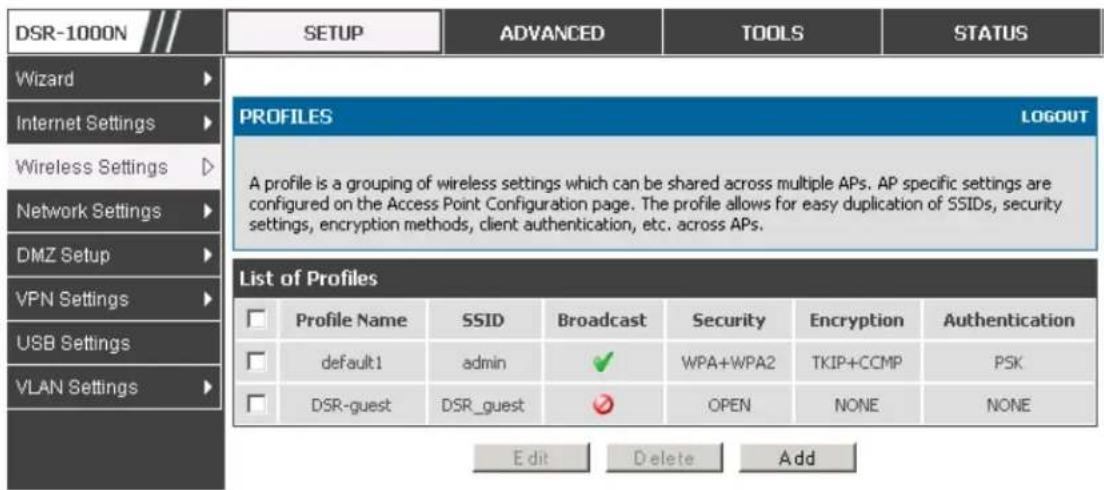
text_image
DSR-1000N SETUP ADVANCED TOOLS STATUS Wizard Internet Settings Wireless Settings Network Settings DMZ Setup VPN Settings USB Settings VLAN Settings PROFILES LOGOUT A profile is a grouping of wireless settings which can be shared across multiple APs. AP specific settings are configured on the Access Point Configuration page. The profile allows for easy duplication of SSIDs, security settings, encryption methods, client authentication, etc. across APs. List of Profiles Profile Name SSID Broadcast Security Encryption Authentication default1 admin ✓ WPA+WPA2 TKIP+CCMP PSK DSR-guest DSR_guest ✓ OPEN NONE NONE Edit Delete Add4.2.1 WEP Security
If WEP is the chosen security option, you must set a unique static key to be s hared with clients that wish to access this secured wireless network. This static key can be generated from an easy-to-remember passphrase and the selected encryption length.
- Authentication: select between Open System, or Shared Key schemes
- Encryption: select the encryption key size -- 64 bit WEP or 128 bit WEP. The larger size keys provide stronger encryption, thus making the key more difficult to crack
- WEP Passphrase: enter an alphanumeric phrase and click Generate Key to generate 4 unique WEP keys with length determined by the encryption key size. Next choose one of the keys to be used for authentication. The selected key must be shared with wireless clients to connect to this device.
Figure 43: Profile configuration to set network security
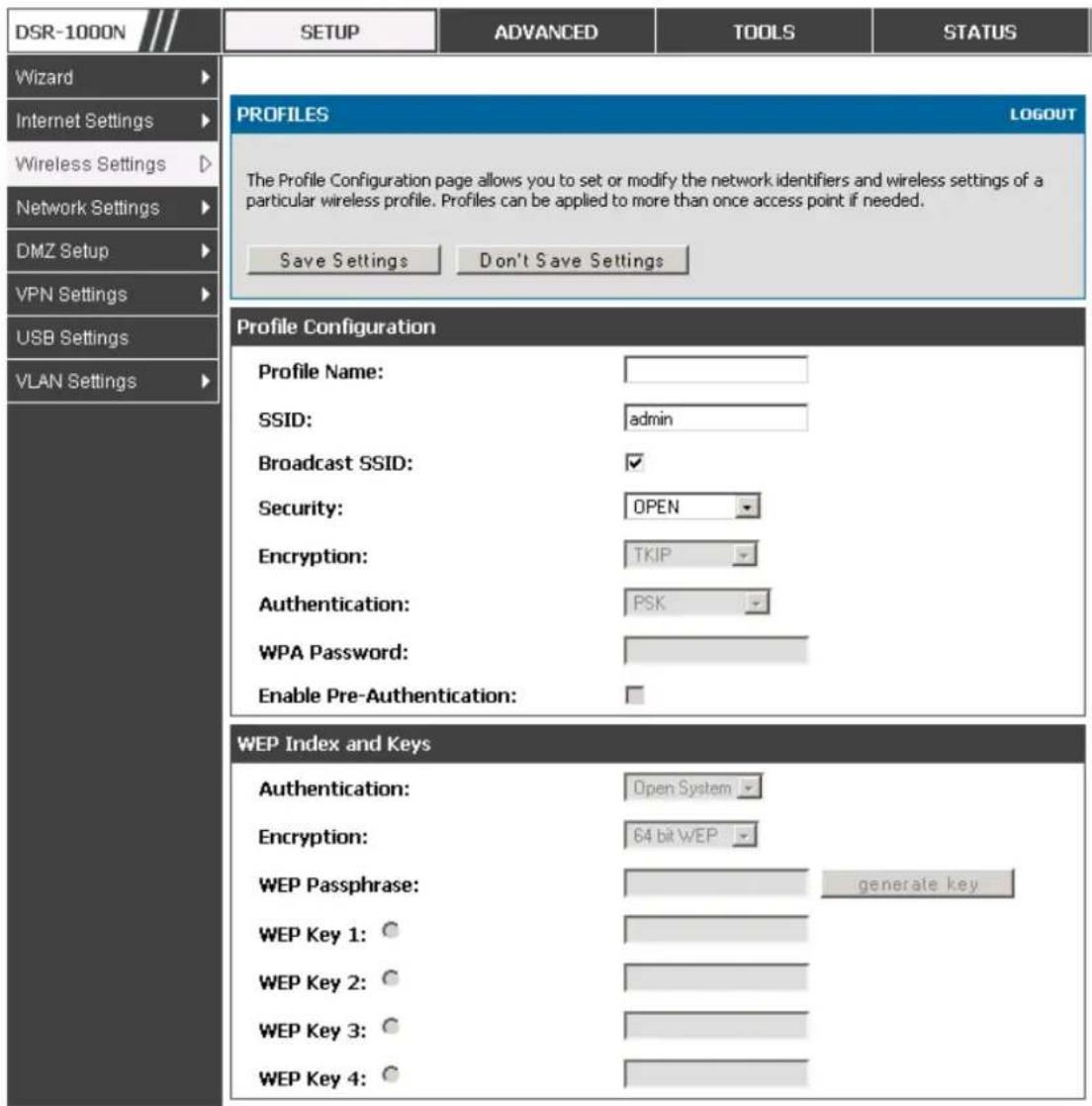
text_image
DSR-1000N SETUP ADVANCED TOOLS STATUS Wizard Internet Settings Wireless Settings Network Settings DMZ Setup VPN Settings USB Settings VLAN Settings PROFILES LOGOUT The Profile Configuration page allows you to set or modify the network identifiers and wireless settings of a particular wireless profile. Profiles can be applied to more than once access point if needed. Save Settings Don't Save Settings Profile Configuration Profile Name: SSID: Broadcast SSID: Security: Encryption: Authentication: WPA Password: Enable Pre-Authentication: WEP Index and Keys Authentication: Encryption: WEP Passphrase: WEP Key 1: WEP Key 2: WEP Key 3: WEP Key 4:4.2.2 WPA or WPA2 with PSK
A pre-s hared key (PSK) is a known passphrase configured on the AP and client both and is used to authenticate the wireless client. An acceptable passphrase is between 8 to 63 characters in length.
4.2.3 RADIUS Authentication
Advanced > RADIUS Settings
Enterprise Mode uses a RADIUS Server for WPA and/or WPA2 security. A RADIUS server must be configured and accessible by the router to authenticate
wireless client connections to an AP enabled with a profile that uses RADIUS authentication.
- The Authentication IP Address is required to identify the server. A secondary RADIUS server provides redundancy in the event that the primary server cannot be reached by the router when needed.
- Authentication Port: the port for the RADIUS server connection
- Secret: enter the shared secret that allows this router to log into the specified RADIUS server(s). This key must match the shared secret on the RADIUS Server.
- The Timeout and Retries fields are used to either move to a secondary server if the primary cannot be reached, or to give up the RADIUS authentication attempt if communication with the server is not possible.
Figure 44: RADIUS server (External Authentication) configuration

text_image
DSR-1000N SETUP ADVANCED TOOLS STATUS Application Rules Website Filter Firewall Settings Wireless Settings Advanced Network Routing Certificates Users IP/MAC Binding IPv6 Radius Settings Captive Portal Switch Settings Intel® AMT RADIUS SERVER LOGOUT This page configures the RADIUS servers to be used for authentication. A RADIUS server maintains a database of user accounts used in larger environments. If a RADIUS server is configured in the LAN, it can be used for authenticating users that want to connect to the wireless network provided by this device. If the first/primary RADIUS server is not accessible at any time, then the device will attempt to contact the secondary RADIUS server for user authentication. Save Settings Don't Save Settings Radius Server Configuration Authentication Server IP Address (Primary): 172.16.4.5 Authentication Port: 1812 Secret: .......... Timeout: 30 (Seconds) Retries: 3 Authentication Server IP Address (Secondary): 172.16.4.6 Authentication Port: 1812 Secret: .......... Timeout: 30 (Seconds) Retries: 34.3 Creating and Using Access Points
Setup > Wireless Settings > Access Points
Once a profile (a group of security settings) is created, it can be assigned to an AP on the router. The AP SSID can be configured to broadcast its availability to the 802.11 environment can be used to establish a WLAN network.
The AP configuration page allows you to create a new AP and link to it one of the available profiles. This router supports multiple AP's referred to as virtual access points (VAPs). Each virtual AP that has a unique SSIDs appears as an independent access point to clients. This valuable feature allows the router's radio to be configured in a way to optimize security and throughput for a group of clients as required by the user. To create a VAP, click the "add" button on the Setup > Wireless Settings > Access Points page. After setting the AP name, the profile dropdown menu is used to select one of the configured profiles.
The AP Name is a unique identifier used to manage the AP from the GUI, and is not the SSID that is detected by clients when the AP has broadcast enabled.
Figure 45: Virtual AP configuration

text_image
DSR-1000N SETUP ADVANCED TOOLS STATUS Wizard Internet Settings Wireless Settings Network Settings DMZ Setup VPN Settings USB Settings VLAN Settings ACCESS POINTS LOGOUT This page allows you to create a new AP or edit the configuration of an existing AP. The details will then be displayed in the AP table on the Wireless > Access Points page. Save Settings Don't Save Settings Access Point Configuration AP Name: Profile Name: default1 Active Time: Start Time: hour minute AM Stop Time: hour minute AM WLAN Partition:A valuable power saving feature is the start and stop time control for this AP. You can conserve on the radio power by disabling the AP when it is not in use. For example on evenings and weekends if you know there are no wireless clients, the start and stop time will enable/disable the access point automatically.
Once the AP settings are configured, you must enable the AP on the radio on the Setup > Wireless Settings > Access Points page. The status field changes to
"Enabled" if the AP is available to accept wireless clients. If the AP is configured to broadcast its SSID (a profile parameter), a green check mark indicating it is broadcasting will be shown in the List of Available Access points.
Figure 46: List of configured access points (Virtual APs) shows one enable d access point on the radio, broadcasting its SSID

text_image
DSR-1000N SETUP ADVANCED TOOLS STATUS Wizard Internet Settings Wireless Settings Network Settings DMZ Setup VPN Settings USB Settings VLAN Settings ACCESS POINTS LOGOUT The List of Available Access Points table lists the configured Access Points (AP) for this device. From this summary list, the status of each AP (over all radios) can be reviewed and AP parameter configuration settings can be accessed. List of Available Access Points Status Virtual AP SSID Broadcast Profile Name Active Time Start Time Stop Time Enabled ap1 admin default1 No - - Enabled Open_guests DSR_guest DSR-guest Yes 9:3 AM 12:30 PM Edit Enable Disable Delete Add MAC Filter StatusThe clients connected to a particular AP can be viewed by using the Status Button on the List of Available Access Points. Traffic statistics are shown for that individual AP, as compared to the summary stats for each AP on the Statistics table. Connected clients are sorted by the MAC address and indicate the security parameters used by the wireless link, as well as the time connected to this particular AP. Clicking the Details button next to the connected client will give the detailed send and receive traffic statistics for the wireless link between this AP and the client.
4.3.1 Primary benefits of Virtual APs:
- Optimize throughput: if 802.11b, 802.11 g, and 802.11n clients are expected to access the LAN via this router, creating 3 VAPs will allow you to manage or shape traffic for each group of clients. A unique SSID can be created for the network of 802.11b clients and another SSID can be assigned for the 802.11n clients. Each can have different security parameters – remember, the SSID and security of the link is determined by the profile. In this way legacy clients can access the network without bringing down the overall throughput of more capable 802.11n clients.
- Optimize security: you may wish to support select legacy clients that only offer WEP security while using WPA2 security for the majority of clients for the radio. By creating two VAPs configured with different SSIDs and different security parameters, both types of clients can connect to the LAN. Since WPA2 is more secure, you may want to broadcast this SSID and not
broadcast the SSID for the VAP with WEP since it is meant to be used for a few legacy devices in this scenario.
4.4 Tuning Radio Specific Settings
Setup > Wireless Settings > Radio Settings
The Radio Settings page lets you configure the channels and power levels available for the A P's enabled on the DSR. The router has a dual band 802.11n radio, meaning either 2.4 GHz or 5 GHz frequency of operation can be selected (not concurrently though). Based on the selected operating frequency, the mode selection will let you define whether legacy connections or only 802.11n connections (or both) are accepted on configured APs.
Figure 47: Radio card configuration options

text_image
DSR-1000N SETUP ADVANCED TOOLS STATUS Wizard Internet Settings Wireless Settings Network Settings DMZ Setup VPN Settings USB Settings VLAN Settings RADIO SETTINGS LOGOUT This page allows you to configure the hardware settings for each available radio card. Save Settings Don't Save Settings Radio Configuration Operating Frequency: 2.4GHz Mode: ng Channel Spacing: 20/40MHz Control Side Band: Upper Current Channel: Auto Channel: Auto Default Transmit Power: 31 (dBm) Transmit Power: 15 dBm Transmission Rate: Best(Automatic)The ratified 802.11n support on this radio requires selecting the appropriate broadcast (NA or NG etc.) mode, and then defining the channel s pacing and control side band for 802.11n traffic. The default settings are appropriate for most networks. For example, changing the channel s pacing to 40 MHz can improve bandwidth at the expense of supporting earlier 802.11n clients.
The available transmission channels are governed by regulatory constraints based on the region setting of the router. The maximum transmission power is similarly governed by regulatory limits; you have the option to decrease from the default maximum to reduce the signal strength of traffic out of the radio.
4.5 WMM
Setup > Wireless Settings > WMM
Wi-Fi Multimedia (WMM) provides basic Quality of service (QoS) features to IEEE 802.11 networks. WMM prioritizes traffic according to four Access Categories (AC) - voice, video, best effort, and background.
Figure 48: Wi-Fi Multimedia
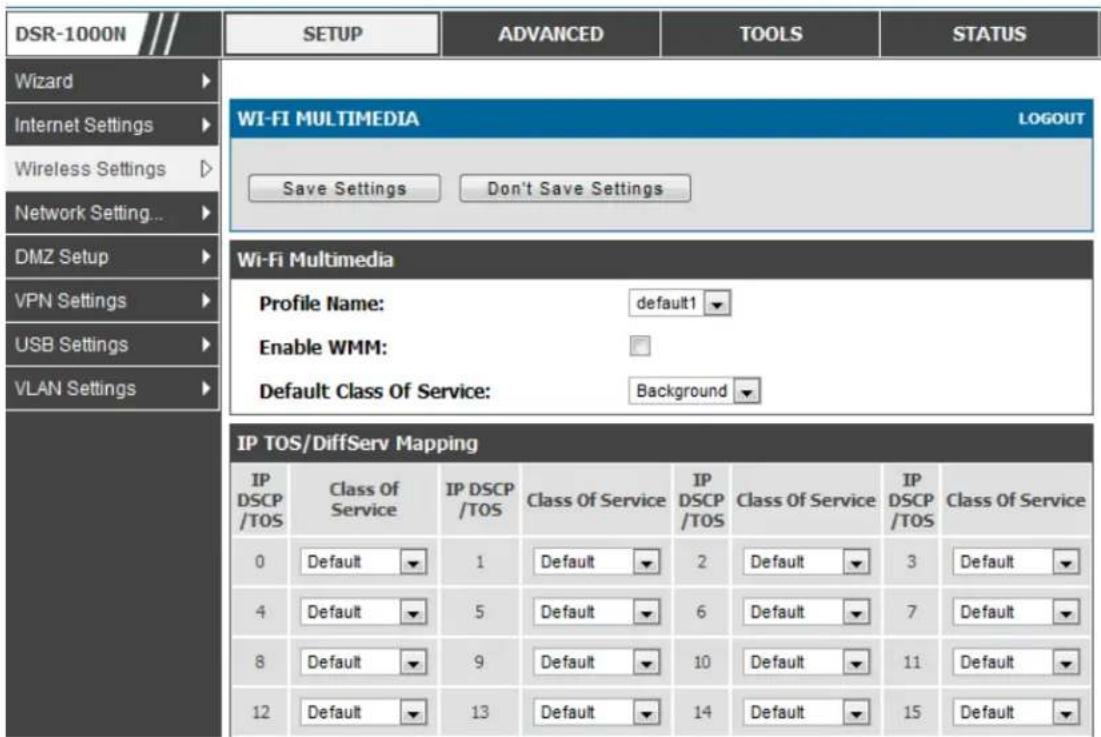
text_image
DSR-1000N Wizard Internet Settings Wireless Settings Network Setting... DMZ Setup VPN Settings USB Settings VLAN Settings SETUP ADVANCED TOOLS STATUS WI-FI MULTIMEDIA LOGOUT Save Settings Don't Save Settings Wi-Fi Multimedia Profile Name: default1 Enable WMM: Default Class Of Service: Background IP TOS/DiffServ Mapping IP DSCP /TOS Class Of Service IP DSCP /TOS Class Of Service IP DSCP /TOS Class Of Service IP DSCP /TOS Class Of Service 0 Default 1 Default 2 Default 3 Default 4 Default 5 Default 6 Default 7 Default 8 Default 9 Default 10 Default 11 Default 12 Default 13 Default 14 Default 15 DefaultProfile Name:
This field allows you to select the available profiles in wireless settings.
Enable WMM:
This field allows you to enable WMM to improve multimedia transmission.
Default Class Of Service:
This field allows you to select the available Access S Categories (voice, video, best effort, and background).
4.6 Wireless distribution system (WDS)
Setup > Wireless Settings > WDS
Wireless distribution system is a system enabling the wireless interconnection of access points in a network. This feature is only guaranteed to work only between devices of the same type.
Figure 49: Wireless Distribution System
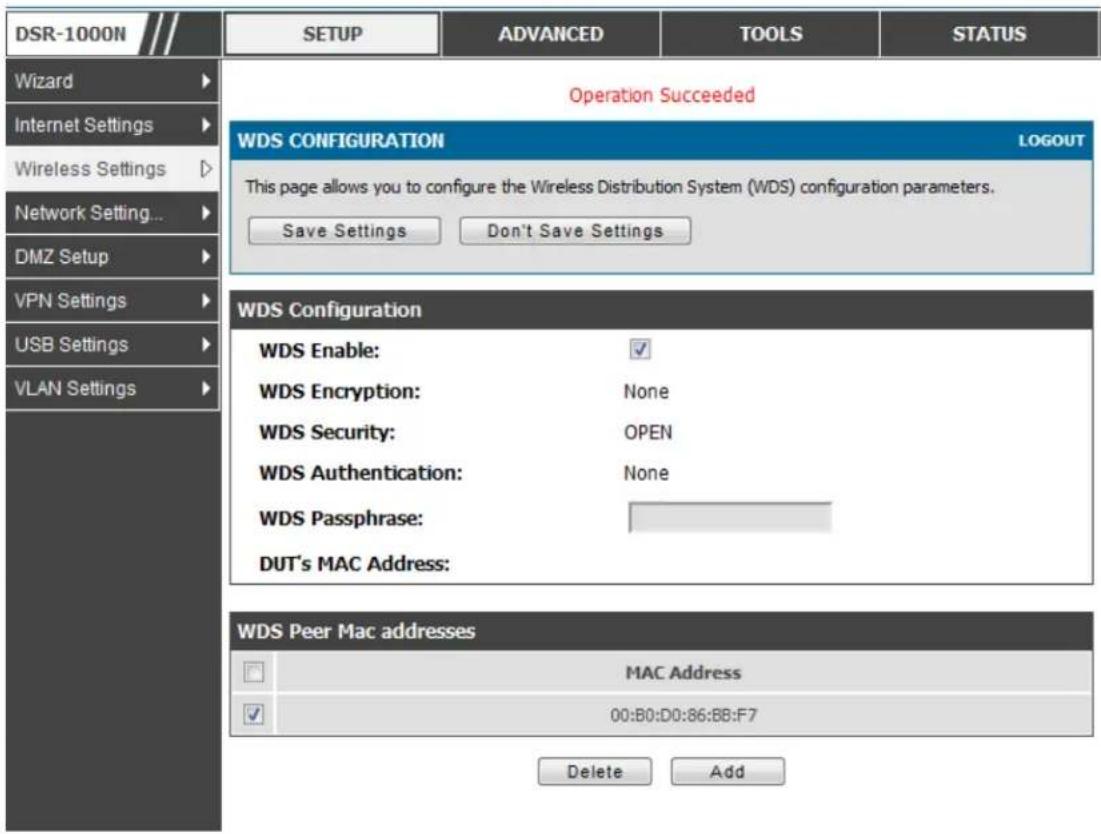
text_image
DSR-1000N SETUP ADVANCED TOOLS STATUS Wizard Operation Succeeded Internet Settings WDS CONFIGURATION LOGOUT Wireless Settings This page allows you to configure the Wireless Distribution System (WDS) configuration parameters. Save Settings Don't Save Settings DMZ Setup VPN Settings WDS Configuration WDS Enable: ✓ WDS Encryption: None WDS Security: OPEN WDS Authentication: None WDS Passphrase: DUT's MAC Address: WDS Peer Mac addresses MAC Address 00:B0:D0:86:BB:F7 Delete AddThis feature is only guaranteed to work only between devices of the same type (i.e. using the same chipset/driver). For example between two DSR250N boxes, or between two DSR1000N. It should also interoperate between a DSR 1000N and DSR 500 N boxes since they are based on the same chipset/driver.
When the user enables the WDS links use the same security configuration as the default access point. The WDS links do not have true WPA/WPA2 support, as in there is no WPA key handshake performed. Instead the Session Key to be used with a WDS Peer is computed using a hashing function (similar to the one used for computing a WPA PMK). The inputs to this function are a PSK (configurable by an administrator from the WDS page) and an internal "magic" string (non-configurable).
In effect the WDS links us e TKIP/AES encryption, depending on the encryption configured for the default AP. In case e the default AP us e s mixed encryption (TKIP + AES). The WDS link will us e the AES encryption scheme.
For a WDS link to function properly the Radio settings on the WDS peers have to be the same.
The WDS page would consist of two sections. The first section provides general WDS settings shared by all its WDS peers.
WDS Enable - This would be a check box
WDS Encryption - Dis plays the type of encryption used. It could be one of OPEN/64 bit WEP/128 bit WEP/TKIP/AES (Use the term being used throughout the box i.e. either CCMP or AES).
WDS Passphrase - This is required if the encryption selected is TKIP/CCMP. We would expect it to be within 8\~63 ASCII characters. In the WDS configuration page this field is mandatory and has to be same on the two WDS peers, when the security is configured in TKIP/AES mode. The WDS links use this as the PSK for the connection.
DUT's Mac Address - This would be the mac address of this box. This should be configured in the peer's WDS configuration page to be able to establish a WDS link with this box. This field in the WDS Configuration section displays the device's mac address, which needs to be specified on the WDS peer for making a connection to this device (Similarly the WDS peers MAC address will have to be specified on this device for the WDS link to be established between the two devices).
The second section will have the list of configured WDS peers with buttons to Add/Delete Peer entries. We support up to a maximum of 4 WDS links per box.
The both devices need to have same wireless settings (wireless mode, encryption, authentication method, WDS passphrase, WDS MAC address and wireless SSID) when we configure WDS features in DSR router.
The "Add WDS Peer" section allows the user to specify a WDS peer. The "WDS Peers" table displays the list of WDS peers currently configured on the device. A maximum of 4 WDS peers can be specified in any given mode.
4.7 Advanced Wireless Settings
Advanced > Wireless Settings > Advanced Wireless
Sophisticated wireless administrators can modify the 802.11 communication parameters in this page. Generally, the default settings are appropriate for most networks. Please refer to the GUI integrated help text for further details on the use of each configuration parameter.
Figure 50: Advanced Wireless communication settings
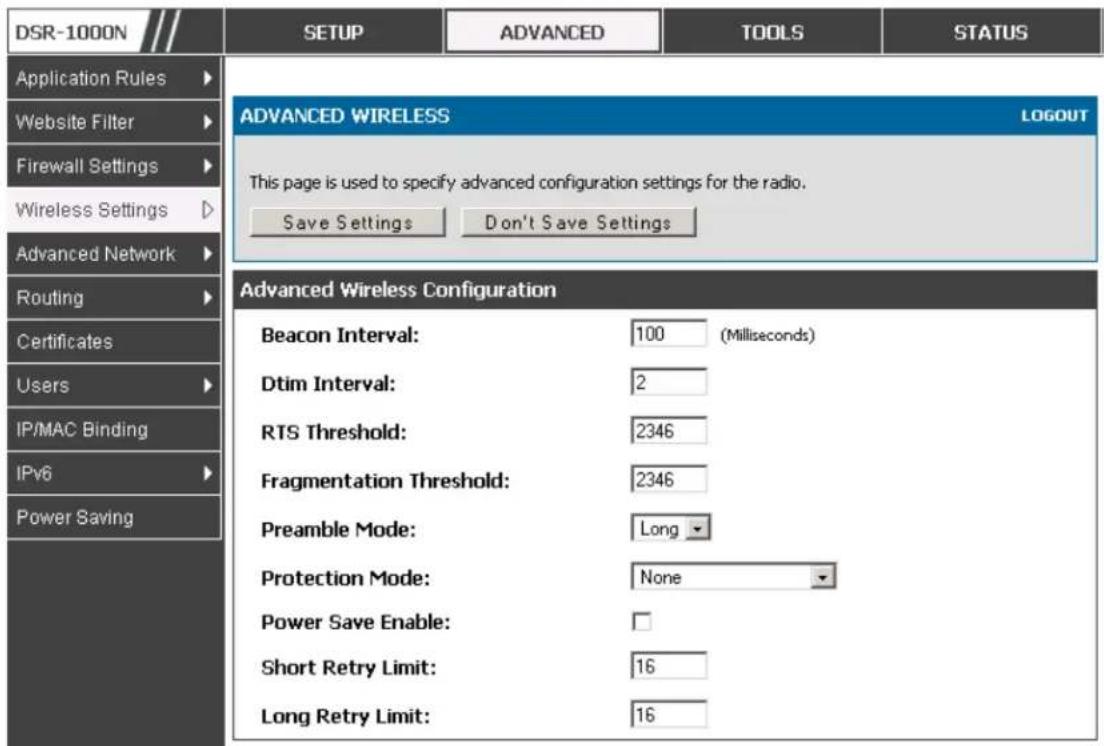
text_image
DSR-1000N Application Rules Website Filter Firewall Settings Wireless Settings Advanced Network Routing Certificates Users IP/MAC Binding IPv6 Power Saving SETUP ADVANCED TOOLS STATUS ADVANCED WIRELESS LOGOUT This page is used to specify advanced configuration settings for the radio. Save Settings Don't Save Settings Advanced Wireless Configuration Beacon Interval: 100 (Milliseconds) Dtim Interval: 2 RTS Threshold: 2346 Fragmentation Threshold: 2346 Preamble Mode: Long Protection Mode: None Power Save Enable: Short Retry Limit: 16 Long Retry Limit: 164.8 Wi-Fi Protected Setup (WPS)
Advanced > Wireless Settings > WPS
WPS is a simplified method to add supporting wireless clients to the network. WPS is only applicable for APs that employ WPA or WPA2 security. To use WPS, select the eligible VAPs from the dropdown list of APs that have been configured with this security and enable WPS status for this AP.
The WPS Current Status section outlines the security, authentication, and encryption settings of the selected AP. These are consistent with the AP's profile. There are two setup options available for :
- Personal Identification Number (PIN): The wireless device that supports WPS may have an alphanumeric PIN, if so add the PIN in this field. The router will connect within 60 seconds of clicking the “Configure via PIN” button immediately below the PIN field. There is no LED indication that a client has connected.
- Push Button Configuration (PBC): for wireless devices that support PBC, press and hold down on this button and within 2 minutes click the PBC connect button. The AP will detect the wireless device and establish a link to the client.
More than one AP can use WPS, but only one AP can be used to establish WPS links to client at any given time.
Figure 51: WPS configuration for an AP with WPA/WPA2 profile

text_image
DSR-1000N Application Rules Website Filter Firewall Settings Wireless Settings Advanced Network Routing Certificates Users IP/MAC Binding IPv6 Radius Settings Captive Portal Switch Settings Intel® AMT SETUP ADVANCED TOOLS STATUS WPS LOGOUT This page allows you to define and modify the Wi-Fi Protected Setup (WPS) configuration parameters. Save Settings Don't Save Settings WPS Configuration Select VAP: D17-2 WPS Status: Enabled WPS Current Status Security: WPA Authentication: Encryption: WPS Setup Method Station PIN: Configure via PIN Configure via PBC Session Status:Chapter 5. Securing the Private Network
You can secure your network by creating and applying rules that your router uses to selectively block and allow inbound and outbound Internet traffic. You then specify how and to whom the rules apply. To do so, you must define the following:
- Services or traffic types (examples: web browsing, VoIP, other standard services and also custom services that you define)
- Direction for the traffic by specifying the source and destination of traffic; this is done by specifying the “From Zone” (LAN/WAN/DMZ) and “To Zone” (LAN/WAN/DMZ)
- Schedules as to when the router should apply rules
- Any Keywords (in a domain name or on a URL of a web page) that the router should allow or block
- Rules for allowing or blocking inbound and outbound Internet traffic for specified services on specified schedules
• MAC addresses of devices that should not access the internet - Port triggers that signal the router to allow or block access to specified services as defined by port number
• Reports and alerts that you want the router to send to you
You can, for example, establish restricted-access policies based on time-of-day, web addresses, and web address keywords. You can block Internet access by applications and services on the LAN, such as chat rooms or games. You can block just certain groups of PCs on your network from being accessed by the WAN or public DMZ network.
5.1 Firewall Rules
Advanced > Firewall Settings > Firewall Rules
Inbound (WAN to LAN/DMZ) rules restrict access to traffic entering your network, selectively allowing only specific outside users to access specific local resources. By default all access from the insecure WAN side are blocked from accessing the secure LAN, except in response to requests from the LAN or DMZ. To allow outside devices to access services on the secure LAN, you must create an inbound firewall rule for each service.
If you want to allow incoming traffic, you must make the router's WAN port IP address known to the public. This is called "exposing your host." How you make your address known depends on how the WAN ports are configured; for this router you
may use the IP address if a static address is assigned to the WAN port, or if your WAN address s is dynamic a DDNS (Dyna mic DNS) name can be used.
Outbound (LAN/DMZ to WAN) rules restrict access to traffic leaving your network, selectively allowing only specific local us ers to access specific outside resources. The default outbound rule is to allow acces s from the secure zone (LAN) to either the public DMZ or ins ecure WAN. On other hand the default outbound rule is to deny access from DMZ to insecure WAN. You can change this default behaviour in the Firewall Settings > Default Outbound Policy page. When the default outbound policy is allow always, you can to block hosts on the LAN from acces sing internet services by creating an outbound firewall rule for each service.
Figure 52: List of Available Firewall Rules
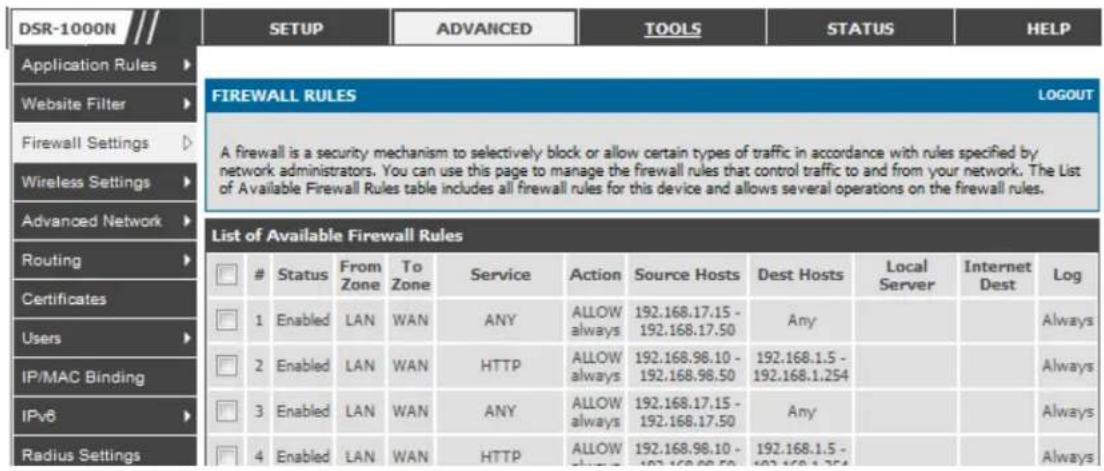
text_image
DSR-1000N Application Rules Website Filter Firewall Settings Wireless Settings Advanced Network Routing Certificates Users IP/MAC Binding IPv6 Radius Settings SETUP ADVANCED TOOLS STATUS HELP FIREWALL RULES LOGOUT A firewall is a security mechanism to selectively block or allow certain types of traffic in accordance with rules specified by network administrators. You can use this page to manage the firewall rules that control traffic to and from your network. The List of Available Firewall Rules table includes all firewall rules for this device and allows several operations on the firewall rules. List of Available Firewall RulesStatus From To Service Action Source Hosts Dest Hosts Local Server Internet Log
1 Enabled LAN WAN ANY ALLOW always 192.168.17.15 - 192.168.17.50 Any 2 Enabled LAN WAN HTTP ALLOW always 192.168.98.10 - 192.168.98.50 192.168.1.5 - 192.168.1.254 3 Enabled LAN WAN ANY ALLOW always 192.168.17.15 - 192.168.17.50 Any 4 Enabled LAN WAN HTTP ALLOW always 192.168.98.10 - 192.168.98.50 192.168.1.2545.2 Defining Rule Schedules
Tools > Schedules
Firewall rules can be enabled or disabled automatically if they are associated with a configured schedule. The schedule configuration page allows you to define days of the week and the time of day for a new schedule, and then this schedule can be selected in the firewall rule configuration page.
All schedules will follow the time in the routers configured time zone. Refer to the section on choosing your Time Zone and configuring NTP servers for more information.
Figure 53: List of Available Schedules to bind to a firewall rule
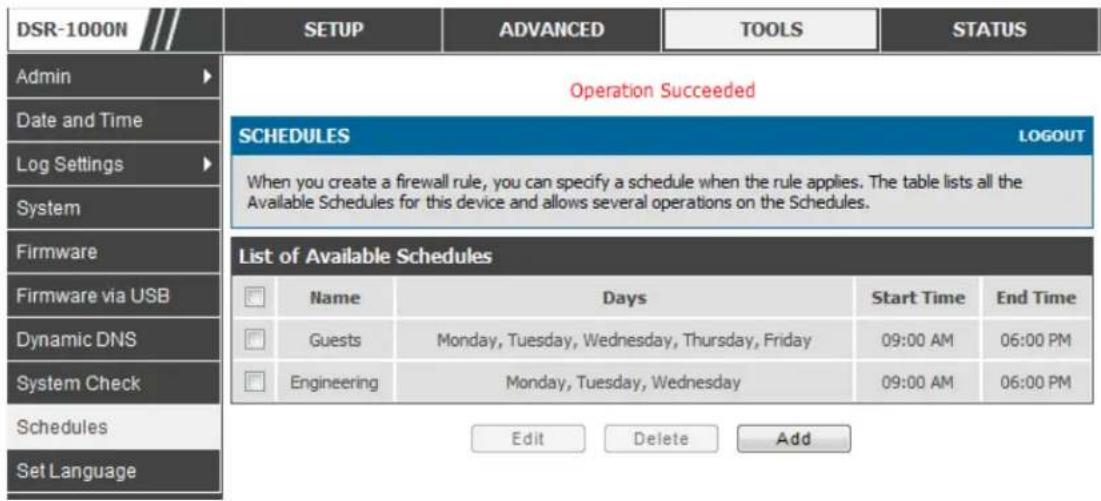
text_image
DSR-1000N SETUP ADVANCED TOOLS STATUS Admin Date and Time Log Settings System Firmware Firmware via USB Dynamic DNS System Check Schedules Set Language Operation Succeeded SCHEDULES LOGOUT When you create a firewall rule, you can specify a schedule when the rule applies. The table lists all the Available Schedules for this device and allows several operations on the Schedules. List of Available Schedules Name Days Start Time End Time Guests Monday, Tuesday, Wednesday, Thursday, Friday 09:00 AM 06:00 PM Engineering Monday, Tuesday, Wednesday 09:00 AM 06:00 PM Edit Delete Add5.3 Configuring Firewall Rules
Advanced > Firewall Settings > Firewall Rules
All configured firewall rules on the router are displayed in the Firewall Rules list.
This list also indicates whether the rule is enabled (active) or not, and gives a summary of the From/To zone as well as the services or users that the rule affects.
To create a new firewall rules, follow the steps below:
- View the existing rules in the List of Available Firewall Rules table.
-
To edit or add an outbound or inbound services rule, do the following:
-
To edit a rule, click the checkbox next to the rule and click Edit to reach that rule's configuration page.
-
To add a new rule, click Add to be taken to a new rule's configuration page. Once created, the new rule is automatically added to the original table.
-
Chose the From Zone to be the source of originating traffic: either the secure LAN, public DMZ, or insecure WAN. For an inbound rule WAN should be selected as the From Zone.
- Choose the To Zone to be the destination of traffic covered by this rule. If the From Zone is the WAN, the to Zone can be the public DMZ or secure LAN. Similarly if the From Zone is the LAN, then the To Zone can be the public DMZ or insecure WAN.
- Parameters that define the firewall rule include the following:
- Service: ANY means all traffic is affected by this rule. For a specific service the drop down list has common services, or you can select a custom defined service.
- Action & Schedule: Select one of the 4 actions that this rule defines: BLOCK always, ALLOW always, BLOCK by schedule otherwise ALLOW, or ALLOW by schedule otherwise BLOCK. A schedule must be preconfigured in order for it to be available in the dropdown list to assign to this rule.
- Source & Destination users: For each relevant category, select the users to which the rule applies:
- Any (all users)
- Single Address (enter an IP address)
- Address Range (enter the appropriate IP address range)
- Log: traffic that is filtered by this rule can be logged; this requires configuring the route's logg in g feature separately.
- QoS Priority: Outbound rules (where To Zone = insecure WAN only) can have the traffic marked with a QoS priority tag. Select a priority level:
• Normal-Service: ToS=0 (lowest QoS)
- Minimize-Cos t: ToS=1
- Maximize-Reliability: ToS=2
- Maximize-Throughput: ToS=4
- Minimize-Delay: ToS=8 (highest QoS)
-
Inbound rules can use Destination NAT (DNAT) for managing traffic from the WAN. Destination NAT is available when the To Zone = DMZ or secure LAN.
-
With an inbound allow rule you can enter the internal server address that is hosting the selected service.
- You can enable port forwarding for an incoming service specific rule (From Zone = WAN) by selecting the appropriate checkbox. This will allow the selected service traffic from the internet to reach the appropriate LAN port via a port forwarding rule.
- Translate Port Number: With port forwarding, the incoming traffic to be forwarded to the port number entered here.
- External IP address: The rule can be bound to a specific WAN interface by selecting either the primary WAN or configurable port WAN as the source IP address for incoming traffic.
This router supports multi-NAT and so the External IP address does not necessarily have to be the WAN address. On a single WAN interface, multiple public IP addresses are supported. If your ISP assigns you more than one public IP address, one of these can be used as your primary IP address on the WAN port, and the others can be assigned to servers on the LAN or DMZ. In this way the LAN/DMZ server can be accessed from the internet by its aliased public IP address.
- Outbound rules can use Source NAT (SNAT) in order to map (bind) all LAN/DMZ traffic matching the rule parameters to a specific WAN interface or external IP address (usually provided by your ISP).
Once the new or modified rule parameters are saved, it appears in the master list of firewall rules. To enable or disable a rule, click the checkbox next to the rule in the list of firewall rules and choose Enable or Disable.
The router applies firewall rules in the order listed. As a general rule, you should move the strictest rules (those with the most specific services or addresses) to the top of the list. To reorder rules, click the checkbox next to a rule and click up or down.
Figure 54: Example where an outbound SNAT rule is used to map an external IP address (209.156.200.225) to a private DMZ IP address (10.30.30.30)

flowchart
graph TD
    A["www.example.com"] --> B["Internet"]
    B --> C["Public IP Address 209.165.200.225 (outside interface)"]
    C --> D["DSR"]
    D --> E["Inside interface 192.168.10.1"]
    D --> F["DMZ interface 10.30.30.1"]
    D --> G["User 192.168.10.10"]
    D --> H["Web Server"]
    H --> I["Private IP Address: 10.30.30.30"]
    H --> J["Public IP Address: 209.165.200.225"]
    C --> K["Source Address Translation 209.165.201.225 → 10.30.30.30"]
    D --> L["DMZ"]
    L --> M["DMZ interface"]
Figure 55: The firewall rule configuration page allows you to define the To/From zone, service, action, schedules, and specify source/destination IP addresses as neede d.

text_image
DSR-1000N Application Rules Website Filter Firewall Settings Wireless Settings Advanced Network Routing Certificates Users IP/MAC Binding IPv6 Power Saving SETUP ADVANCED TOOLS STATUS IPV4 FIREWALL RULES LOGOUT This page allows you to add a new firewall rule or edit the configuration of an existing firewall rule. The details will then be displayed in the List of Available Firewall Rules table on the Firewall Rules page. Save Settings Don't Save Settings Firewall Rule Configuration From Zone: SECURE (LAN) To Zone: INSECURE (Dedicated WAN/Configurable WAN) Service: ANY Action: Always Block Select Schedule: Guests Source Hosts: Any From: To: Destination Hosts: Any From: To: Log: Never QoS Priority: Normal-Service Source NAT Settings External IP Address: WAN Interface Address Single IP Address: WAN Interface: WANT Destination NAT Settings Internal IP Address: Enable Port Forwarding: Translate Port Number: External IP Address: Dedicated WAN Other IP Address:5.4 Configuring IPv6 Firewall Rules
Advanced > Firewall Settings > IPv6 Firewall Rules
All configured IPv6 firewall rules on the router are displayed in the Firewall Rules list. This list also indicates whether the rule is enabled (active) or not, and gives a summary of the From/To zone as well as the services or us ers that the rule affects.
Figure 56: The IPv6 firewall rule configuration page allows you to define the To/From zone, service, action, schedules, and specify source/destination IP addresse as needed.

text_image
DSR-1000N Application Rules Website Filter Firewall Settin... Wireless Settings Advanced Network... Routing Certificates Users IP/MAC Binding IPv6 Radius Settings Captive Portal Switch Settings Intel® AMT SETUP ADVANCED TOOLS STATUS IPV6 FIREWALL RULES LOGOUT This page allows you to add a new firewall rule or edit the configuration of an existing firewall rule. The details will then be displayed in the List of Available Firewall Rules table on the IPv6 Firewall Rules page. Save Settings Don't Save Settings Firewall Rule Configuration From Zone: SECURE (LAN) To Zone: INSECURE (Dedicated WAN/Optional WAN) Service: ANY Action: BLOCK by schedule Select Schedule: Source Hosts: Single Address From: 192.168.1.22 To: Prefix Length: Destination Hosts: Any From: To: Prefix Length: Log: AlwaysFigure 57: List of Available IPv6 Firewall Rules
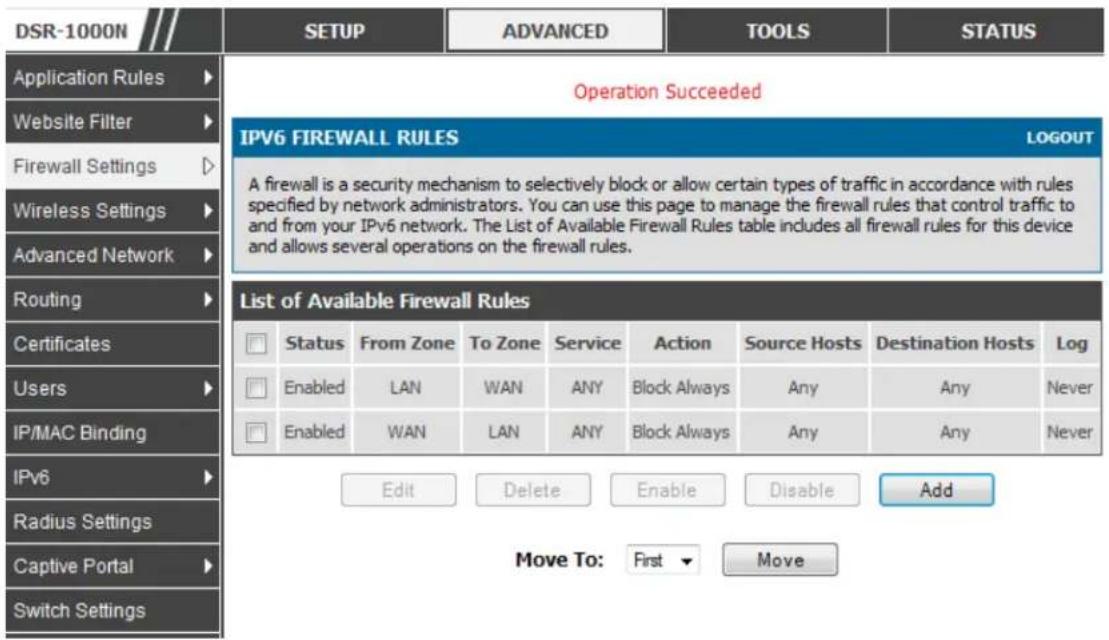
text_image
DSR-1000N SETUP ADVANCED TOOLS STATUS Application Rules Website Filter Firewall Settings Wireless Settings Advanced Network Routing Certificates Users IP/MAC Binding IPv6 Radius Settings Captive Portal Switch Settings Operation Succeeded IPV6 FIREWALL RULES LOGOUT A firewall is a security mechanism to selectively block or allow certain types of traffic in accordance with rules specified by network administrators. You can use this page to manage the firewall rules that control traffic to and from your IPv6 network. The List of Available Firewall Rules table includes all firewall rules for this device and allows several operations on the firewall rules. List of Available Firewall Rules Status From Zone To Zone Service Action Somcure Hosts Destination Hosts Log Enabled LAN WAN ANY Block Always Any Any Never Enabled WAN LAN ANY Block Always Any Any Never Edit Delete EnableDisable Add Move To: First Move5.4.1 Firewall Rule Configuration Examples
Example 1: Allow inbound HTTP traffic to the DMZ
Situation: You host a public web server on your local DMZ network. You want to allow inbound HTTP requests from any outside IP address to the IP address of your web server at any time of day.
Solution: Create an inbound rule as follows.
| Par ameter | Value |
| From Zone | Insecure (WAN1/WAN2/WAN3) |
| To Zone | Public (DMZ) |
| Service | HTTP |
| Action | ALLOW alw ays |
| Send to LocalServer (DNAT IP) | 192.168.5.2 (w eb server IP address) |
| Destination Users | Any |
| Log | Never |
Example 2: Allow videoconferencing from range of outside IP addresses
Situation: You want to allow incoming videoconferencing to be initiated from a restricted range of outside IP addresses (132.177.88.2 - 132.177.88.254), from a branch office.
Solution: Create an inbound rule as follows. In the example, CUSeeMe (the video conference service used) connections are allowed only from a specified range of external IP addresses.
| Par ameter | Value |
| From Zone | Insecure (WAN1/WAN2/WAN3) |
| To Zone | Secure (LAN) |
| Service | CU-SEEME:UDP |
| Action | ALLOW alw ays |
| Send to Local Server (DNAT IP) | 192.168.10.11 |
| Destination Users | Address Range |
| From | 132.177.88.2 |
| To | 134.177.88.254 |
| Enable Port Forw arding | Yes (enabled) |
Example 3: Multi-NAT configuration
Situation: You want to configure multi-NAT to support multiple public IP addresses on one WAN port interface.
Solution: Create an inbound rule that configures the firewall to host an additional public IP address s. Associate this address with a web server on the DMZ. If you arrange with your ISP to have more than one public IP address for your use, you can use the additional public IP addresses to map to servers on your LAN. One of these public IP addresses is used as the primary IP address of the router. This address is used to provide Internet access to your LAN PCs through NAT. The other addresses are available to map to your DMZ servers.
The following address ing scheme is used to illus trate this procedure:
• WAN IP address : 10.1.0.118
• LAN IP address: 192.168.10.1; subnet 255.255.255.0
• Web server host in the DMZ, IP address: 192.168.12.222
- Access to Web server: (simulated) public IP address 10.1.0.52
| Par ameter | Value |
| From Zone | Insecure (WAN1/WAN2/WAN3) |
| To Zone | Public (DMZ) |
| Service | HTTP |
| Action | ALLOW alw ays |
| Send to Local Server (DNAT IP) | 192.168.12.222 ( w eb server local IP address) |
| Destination Users | Single Address |
| From | 10.1.0.52 |
| WAN Users | Any |
| Log | Never |
le 4: Bloc
Example 4: Block traffic by schedule if generated from specific range of machines
Use Case: Block all HTTP traffic on the weekends if the request originates from a specific group of machines in the LAN having a known range of IP addresses, and anyone coming in through the Network from the WAN (i.e. all remote users).
Configuration:
- Setup a schedule:
- To setup a schedule that affects traffic on weekends only, navigate to Security: Schedule, and name the scheduled "Weekend"
- Define “weekend” to mean 12 am Saturday morning to 12 am Monday morning – all day Saturday & Sunday
- In the Scheduled days box, check that you want the schedule to be active for "s specific day s". Select "Sat urd ay" and "Su nd ay"
- In the scheduled time of day, select "all day" – this will apply the schedule between 12 am to 11:59 pm of the selected day.
- Click apply – now schedule “Weekend” isolates all day Saturday and Sunday from the rest of the week.
Figure 58: Schedule configuration for the above example.

text_image
DSR-1000N Admin Date and Time Log Settings System Firmware Firmware via USB Dynamic DNS System Check Schedules SCHEDULE CONFIGURATION LOGOUT This page allows user to configure schedules. These schedules then can be applied to firewall rules to achieve schedule based firewall. Save Settings Don't Save Settings Schedule Name Name: Scheduled Days Do you want this schedule to be active on all days or specific days? All Days Monday: Tuesday: Wednesday: Thursday: Friday: Saturday: Sunday: Scheduled Time of Day Do you want this schedule to be active all day or at specific times during the day? All Day Start Time: Hour: Minute: AM End Time: Hour: Minute: AM-
Since we are trying to block HTTP requests, it is a service with To Zone: Insecure (WAN1/WAN2/WAN3) that is to be blocked according to schedule "Weekend".
-
Select the Action to "Block by Schedule, otherwise allow". This will take a predefined schedule and make sure the rule is a blocking rule during the defined dates/times. All other times outside the schedule will not be affected by this firewall blocking rule
- As we defined our schedule in schedule "Weekend", this is available in the dropdown menu
- We want to block the IP range assigned to the marketing group. Let's say they have IP 192.168.10.20 to 192.168.10.30. On the Source Users dropdown, select Address Range and add this IP range as the from and To IP addresses.
- We want to block all HTTP traffic to any services going to the insecure zone. The Destination Users dropdown should be "any".
- We don't need to change default QoS priority or Logging (unless desired) – clicking apply will add this firewall rule to the list of firewall rules.
- The last step is to enable this firewall rule. Select the rule, and click "enable" below the list to make sure the firewall rule is active
5.5 Security on Custom Services
Advanced > Firewall Settings > Custom Services
Custom services can be defined to add to the list of services available during firewall rule configuration. While common services have known TCP/UDP/ICMP ports for traffic, many custom or uncommon applications exist in the LAN or WAN. In the custom service configuration menu you can define a range of ports and identify the traffic type (TCP/UDP/ICMP) for this service. Once defined, the new service will appear in the services list of the firewall rules configuration menu.
Figure 59: List of user defined services.

text_image
DSR-1000N SETUP ADVANCED TOOLS STATUS Application Rules Website Filter Firewall Settings Wireless Settings Advanced Network Routing Certificates Users IP/MAC Binding IPv6 Power Saving CUSTOM SERVICES LOGOUT When you create a firewall rule, you can specify a service that is controlled by the rule.. Common types of services are available for selection, and you can create your own custom services. This page allows creation of custom services against which firewall rules can be defined. Once defined, the new service will appear in the List of Available Custom Services table. List OF Available Custom Services Name Type ICMP Type / Port Range DocServer TCP 4554 - 4556 Edit Delete AddFigure 60: Custom Service s configuration

text_image
DSR-1000N Application Rules Website Filter Firewall Settin... Wireless Settings Advanced Network... Routing Certificates Users IP/MAC Binding IPv6 Radius Settings Captive Portal Switch Settings Intel® AMT SETUP ADVANCED TOOLS STATUS CUSTOM SERVICES LOGOUT This page allows a user to add a user defined custom service. Save Settings Don't Save Settings Custom Services Configuration Name: Server1 Type: ICMP Port Type: Port Range ICMP Type: 5 Start Port: Finish Port: Ports:Created services are available as options for firewall rule configuration.
Name: Name of the service for identification and management purposes.
Type: The layer 3 Protocol that the service uses. (TCP, UDP, BOTH, ICMP or ICMPv6)
Port Type: This fields allows to select Port Range or Multiple Ports
ICMP Type: This field is enabled when the layer 3 protocol (in the Type field) is selected as ICMP or ICMPv6. The ICMP type is a numeric value that can range between 0 and 40, while for ICMPv6 the type ranges from 1 to 255. For a list of
ICMP types, visit the following URL: http://www.iana.org/assignments/icmp-parameters.
Start Port: The first TCP, UDP or BOTH port of a range that the service uses. If the service uses only one port, then the Start Port will be the same as the Finish Port.
Finish Port: The last port in the range that the service uses. If the service us es only one port, then the Finish Port will be the same as the Start Port.
Port: The port that the service us es.
5.6 ALG support
Advanced > Firewall Settings > ALGs
Application Level Gateways (ALGs) are security component that enhance the firewall and NAT support of this router to seamlessly support application layer protocols. In some cases enabling the ALG will allow the firewall to use dynamic ephemeral TCP/UDP ports to communicate with the known ports a particular client application (such as H.323 or RTSP) requires, without which the admin would have to open large number of ports to accomplish the same support. Because the ALG unders the protocol used by the specific application that it supports, it is a very secure and efficient way of introducing support for client applications through the router's firewall.
Figure 61: Available ALG support on the router.

text_image
DSR-1000N SETUP ADVANCED TOOLS STATUS Application Rules Website Filter Firewall Settings Wireless Settings Advanced Network Routing Certificates Users IP/MAC Binding IPv6 Power Saving ALGS LOGOUT Application Level Gateway allows customized NAT traversal filters to be plugged into the gateway to support address and port translation for certain application layer "control/data" protocols such as TFTP, SIP, RTSP, IPSec, PPTP etc. Each ALG provides special handling for a specific protocol or application. A number of ALGs for common applications are enabled by default. Save Settings Don't Save Settings Enable ALGs PPTP: IPSec: RTSP: SIP: H.323: SMTP: DNS: TFTP:5.7 VPN Passthrough for Firewall
Advanced > Firewall Settings > VPN Passthrough
This router's firewall settings can be configured to allow encrypted VPN traffic for IPsec, PPTP, and L2TP VPN tunnel connections between the LAN and internet. A specific firewall rule or service is not appropriate to introduce this passthrough support; instead the appropriate check boxes in the VPN Pass through page must be enabled.
Figure 62: Passthrough options for VPN tunnels

text_image
DSR-1000N Application Rules Website Filter Firewall Settings Wireless Settings Advanced Network Routing Certificates Users IP/MAC Binding IPv6 Radius Settings Power Saving SETUP ADVANCED TOOLS STATUS VPN PASSTHROUGH LOGOUT This page allows user to configure VPN (IPSec, PPTP and L2TP) passthrough on the router. Save Settings Don't Save Settings VPN Passthrough IPSec: ✓ PPTP: ✓ L2TP: ✓5.8 Application Rules
Advanced > Application Rules > Application Rules
Application rules are also referred to as port triggering. This feature allows devices on the LAN or DMZ to request one or more ports to be forwarded to them. Port triggering waits for an outbound request from the LAN/DMZ on one of the defined outgoing ports, and then opens an incoming port for that specified type of traffic. This can be thought of as a form of dynamic port forwarding while an application is transmitting data over the opened outgoing or incoming port(s).
Port triggering application rules are more flexible than static port forwarding that is an available option when configuring firewall rules. This is because a port triggering rule does not have to reference a specific LAN IP or IP range. As well ports are not left open when not in use, thereby providing a level of security that port forwarding does not offer.
Port triggering is not appropriate for servers on the LAN, since there is a dependency on the LAN device making an outgoing connection before incoming ports are opened.
Some applications require that when external devices connect to them, they receive data on a specific port or range of ports in order to function properly. The router must send all incoming data for that application only on the required port or range of ports. The router has a list of common applications and games with corresponding outbound and inbound ports to open. You can also specify a port triggering rule by defining the type of traffic (TCP or UDP) and the range of incoming and outgoing ports to open when enabled.
Figure 63: List of Available Application Rules showing 4 unique rules
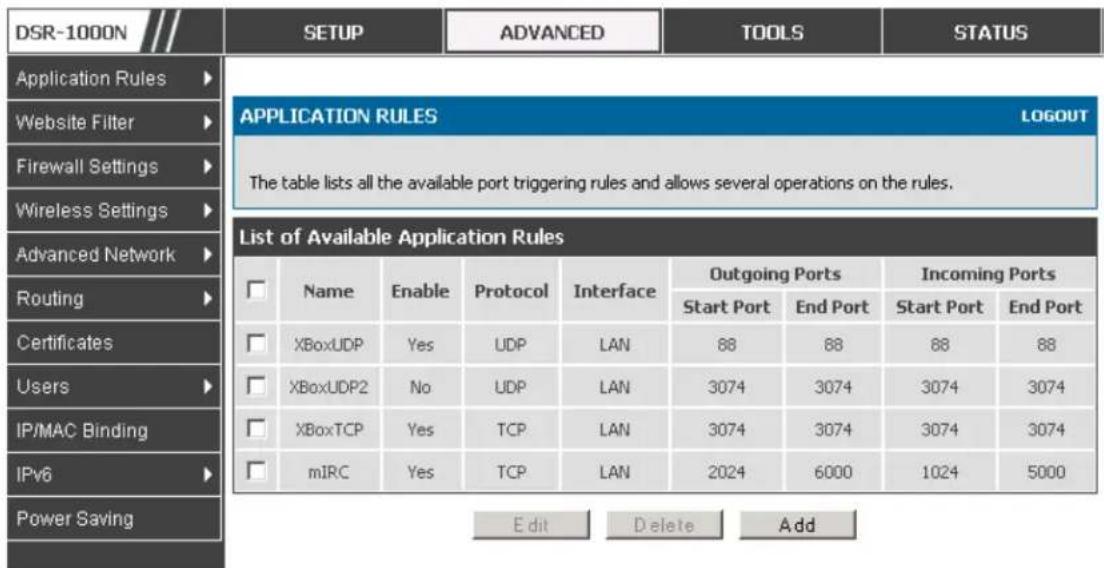
text_image
DSR-1000N SETUP ADVANCED TOOLS STATUS Application Rules Website Filter Firewall Settings Wireless Settings Advanced Network Routing Certificates Users IP/MAC Binding IPv6 Power Saving APPLICATION RULES LOGOUT The table lists all the available port triggering rules and allows several operations on the rules. List of Available Application Rules Name Enable Protocol Interface Outgoing Ports Incoming Ports Start Port End Port Start Port End Port XBoxUDP Yes UDP LAN 88 88 88 88 XBoxUDP2 No UDP LAN 3074 3074 3074 3074 XBoxTCP Yes TCP LAN 3074 3074 3074 3074 mIRC Yes TCP LAN 2024 6000 1024 5000 Edit Delete AddThe application rule status page will list any active rules, i.e. incoming ports that are being triggered based on outbound requests from a defined outgoing port.
5.9 Web Content Filtering
The gateway offers some standard web filtering options to allow the admin to easily create internet access policies between the secure LAN and insecure WAN. Instead of creating policies based on the type of traffic (as is the case when using firewall rules), web based content itself can be used to determine if traffic is allowed or dropped.
5.9.1 Content Filtering
Advanced > Website Filter > Content Filtering
Content filtering must be enabled to configure and use the subsequent features (list of Trusted Domains, filtering on Blocked Keywords, etc.). Proxy servers, which can be used to circumvent certain firewall rules and thus a potential security gap, can be blocked for all LAN devices. Java applets can be prevented from being downloaded from internet sites, and similarly the gateway can prevent ActiveX controls from being downloaded via Internet Explorer. For added security cookies, which typically contain session information, can be blocked as well for all devices on the private network.
Figure 64: Content Filtering used to block access to proxy servers and prevent ActiveX controls from being downloaded

text_image
DSR-1000N Application Rules Website Filter Firewall Settings Wireless Settings Advanced Network Routing Certificates Users IP/MAC Binding IPv6 Power Saving SETUP ADVANCED TOOLS STATUS CONTENT FILTERING LOGOUT This content filtering option allow the user to block access to certain Internet sites. Up to 32 key words in the site's name (web site URL) can be specified, which will block access to the site. To setup URL's, go to Approved URL's and Blocked URL's page. Save Settings Don't Save Settings Content Filtering Configuration Enable Content Filtering: ✓ Web Components Proxy: ✓ Java: ✓ ActiveX: ✓ Cookies: □5.9.2 Approved URLs
Advanced > Website Filter > Approved URLs
The Approved URLs is an acceptance list for all URL domain names. Domains added to this list are allowed in any form. For example, if the domain "yahoo" is added to this list then all of the following URL's are permitted access from the LAN: www.yahoo.com, yahoo.co.uk, etc. Import/export from a text or CSV file for Approved URLs is also supported
Figure 65: Two trusted domains added to the Approved URLs List
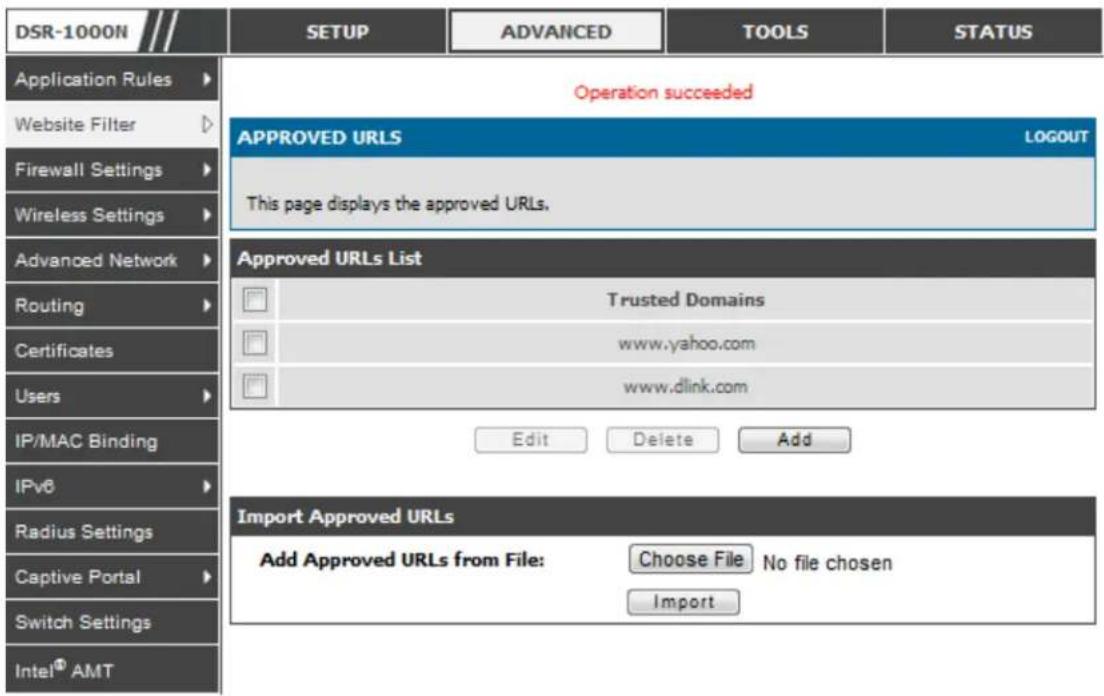
text_image
DSR-1000N Application Rules Website Filter Firewall Settings Wireless Settings Advanced Network Routing Certificates Users IP/MAC Binding IPv6 Radius Settings Captive Portal Switch Settings Intel® AMT SETUP ADVANCED TOOLS STATUS Operation succeeded APPROVED URLs LOGOUT This page displays the approved URLs. Approved URLs List Trusted Domains www.yahoo.com www.dlink.com Edit Delete Add Import Approved URLs Add Approved URLs from File: Choose File No file chosen Import5.9.3 Blocked Keywords
Advanced > Website Filter > Blocked Keywords
Key word b lo cking allo ws y o u to blo c k all webs it e URL's or s it e con tent th at contains the keywords in the configured list. This is lower priority than the Approved URL
List; i.e. if the blocked keyword is present in a site allowed by a Trusted Domain in the Approved URL List, then access to that site will be allowed. Import/export from a text or CSV file for keyword blocking is also supported.
Figure 66: One keyword added to the block list
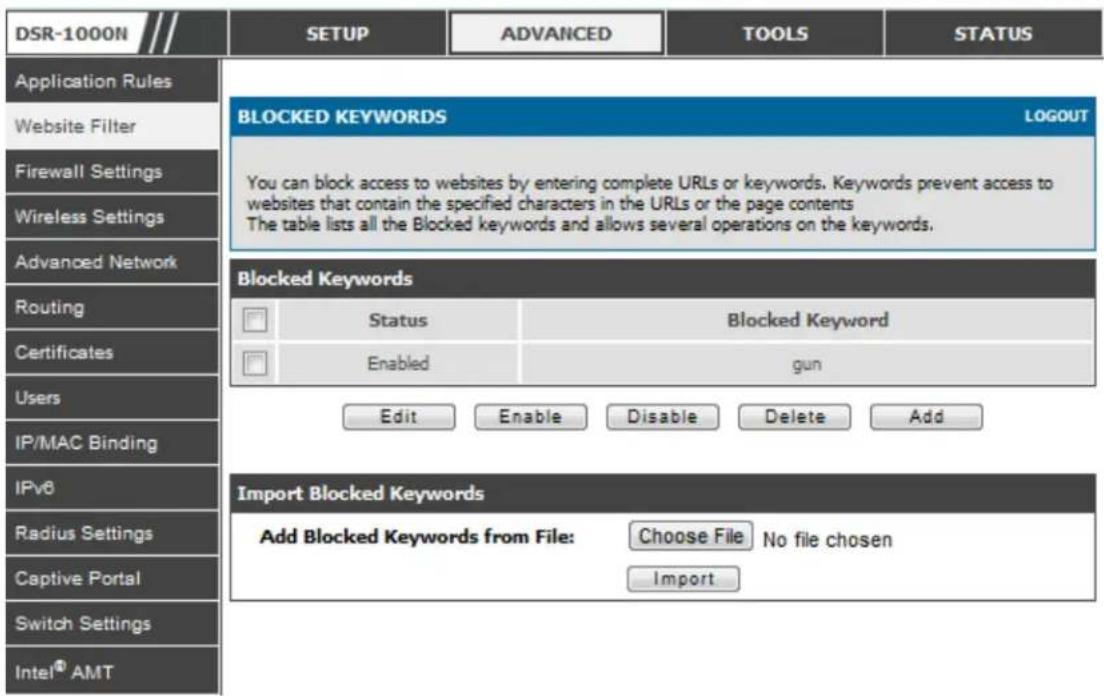
text_image
DSR-1000N Application Rules Website Filter Firewall Settings Wireless Settings Advanced Network Routing Certificates Users IP/MAC Binding IPv6 Radius Settings Captive Portal Switch Settings Intel® AMT SETUP ADVANCED TOOLS STATUS BLOCKED KEYWORDS LOGOUT You can block access to websites by entering complete URLs or keywords. Keywords prevent access to websites that contain the specified characters in the URLs or the page contents The table lists all the Blocked keywords and allows several operations on the keywords. Blocked Keywords Status Blocked Keyword Enabled gun Edit EnableDisable Delete Add Import Blocked Keywords Add Blocked Keywords from File: Choose File No file chosen Import5.9.4 Export Web Filter
Advanced > Website Filter > Export
Export Approved URLs : Feature enables the user to export the URLs to be allowed to a csv file which can then be downloaded to the local host. The user has to click the export button to get the csv file.
Export Blocked Keywords: This feature enables the user to export the keywords to be blocked to a csv file which can then be downloaded to the local host. The user has to click the export button to get the csv file.
Figure 67: Export Approved URL list
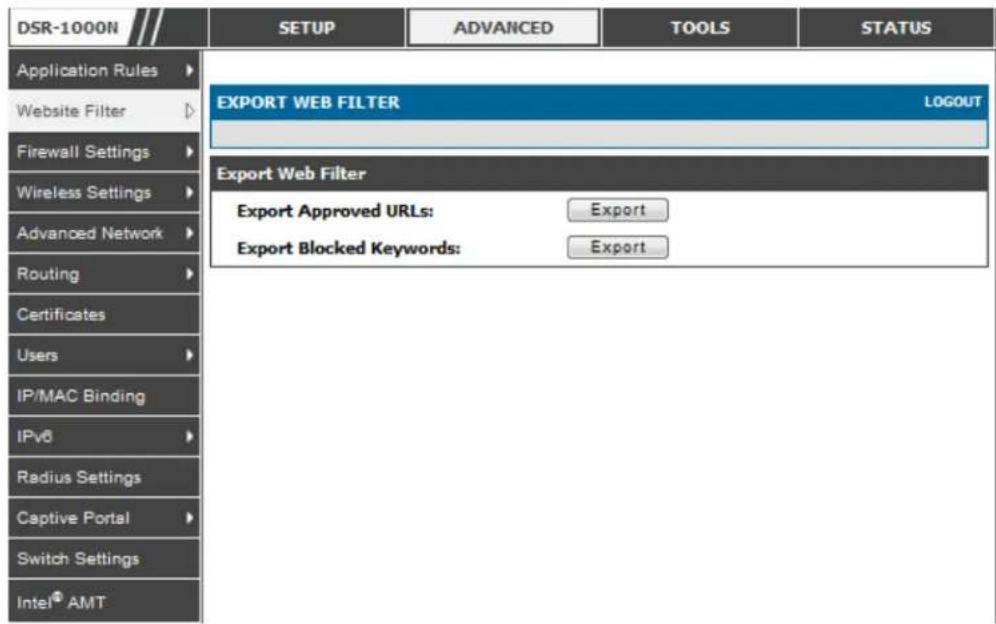
text_image
DSR-1000N SETUP ADVANCED TOOLS STATUS Application Rules Website Filter Firewall Settings Wireless Settings Advanced Network Routing Certificates Users IP/MAC Binding IPv6 Radius Settings Captive Portal Switch Settings Intel® AMT EXPORT WEB FILTER LOGOUT Export Web Filter Export Approved URLs: Export Export Blocked Keywords: Export5.10 IP/MAC Binding
Advanced > IP/MAC Binding
Another available security measure is to only allow outbound traffic (from the LAN to WAN) when the LAN node has an IP address matching the MAC address bound to it. This is IP/MA C Bin din g, and by en for rcin g th e gateway to v alid ate th e s orce traffic's IP address s with the unique MAC Address of the configured LAN node, the administrator can ensure traffic from that IP address is not spoofed. In the event of a violation (i.e. the traffic's source IP address doesn't match up with the expected MAC address s having the same IP address) the packets will be dropped and can be logged for diagnosis.
Figure 68: The following example binds a LAN host's MAC Address to an IP address served by DSR. If there is an IP/MAC Binding violation, the violating packet will be dropped and logs will be captured
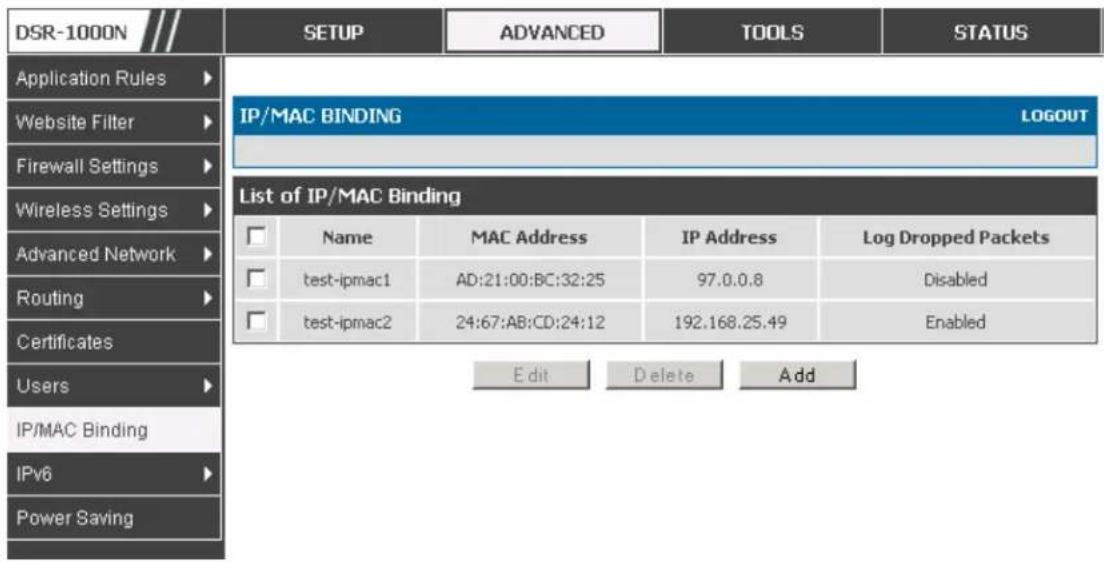
text_image
DSR-1000N Application Rules Website Filter Firewall Settings Wireless Settings Advanced Network Routing Certificates Users IP/MAC Binding IPv6 Power Saving SETUP ADVANCED TOOLS STATUS IP/MAC BINDING LOGOUT List of IP/MAC Binding Name MAC Address IP Address Log Dropped Packets test-ipmac1 AD:21:00:BC:32:25 97.0.0.8 Disabled test-ipmac2 24:67:AB:CD:24:12 192.168.25.49 Enabled Edit Delete Add5.11 Intrusion Prevention (IPS)
Advanced > Advanced Network > IPS
The gateway's Intrusion Prevention System (IPS) prevents malicious attacks from the internet from access sing the private network. Static attack signatures loaded to the DSR allow common attacks to be detected and prevented. The checks can be enabled between the WAN and DMZ or LAN, and a running counter will allow the administrator to see how many malicious intrusion attempts from the WAN have been detected and prevented.

DSR-150/150N does not support Intrusion Prevention System.
Figure 69: Intrusion Prevention features on the router
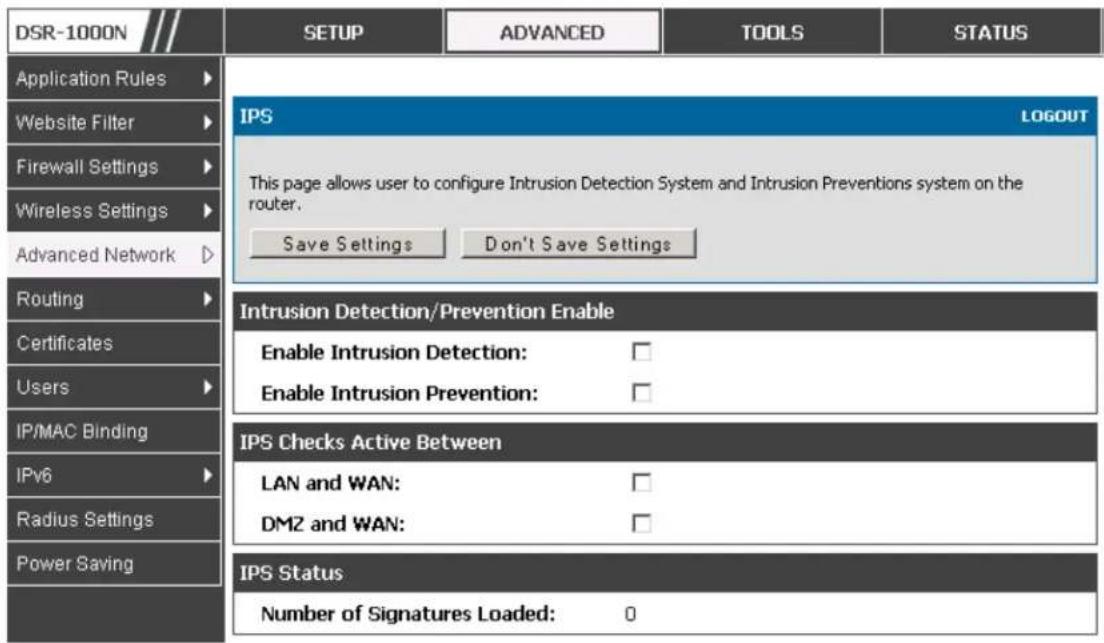
text_image
DSR-1000N Application Rules Website Filter Firewall Settings Wireless Settings Advanced Network Routing Certificates Users IP/MAC Binding IPv6 Radius Settings Power Saving SETUP ADVANCED TOOLS STATUS IPS LOGOUT This page allows user to configure Intrusion Detection System and Intrusion Preventions system on the router. Save Settings Don't Save Settings Intrusion Detection/Prevention Enable Enable Intrusion Detection: Enable Intrusion Prevention: IPS Checks Active Between LAN and WAN: DMZ and WAN: IPS Status Number of Signatures Loaded: 05.12 Protecting from Internet Attacks
Advanced > Advanced Network > Attack Checks
Attacks can be malicious security breaches or unintentional network issues that render the router unusable. Attack checks allow you to manage WAN security threats such as continual ping requests and discovery via ARP s cans. TCP and UDP flood attack checks can be enabled to manage extreme usage of WAN resources.
Additionally certain Denial-of-Service (DoS) attacks can be blocked. These attacks, if uninhibited, can use up process sing power and bandwidth and prevent regular network services from running normally. ICMP packet flooding, SYN traffic flooding, and Echo storm thresholds can be configured to temporarily suspect traffic from the offending source.
Figure 70: Protecting the router and LAN from internet attacks

text_image
DSR-1000N Application Rules Website Filter Firewall Settin... Wireless Settings Advanced Networ... Routing Certificates Users IP/MAC Binding IPv6 Radius Settings Captive Portal Switch Settings Intel® AMT SETUP ADVANCED TOOLS STATUS ATTACK CHECKS LOGOUT This page allows you to specify whether or not to protect against common attacks from the LAN and WAN networks. Save Settings Don't Save Settings WAN Security Checks Enable Stealth Mode: ✓ Block TCP flood: ✓ LAN Security Checks Block UDP flood: ✓ UDP Connection Limit: 25 Allow Ping from Lan: ✓ ICSA Settings Block ICMP Notification: ✓ Block Fragmented Packets: □ Block Multicast Packets: □ Block Spoofed IP Packets: □ DoS Attacks SYN Flood Detect Rate [max/sec]: 128 Echo Storm [ping pkts./sec]: 15 ICMP Flood [ICMP pkts./sec]: 100WAN Security Checks :
Enable Stealth Mode: If Stealth Mode is enabled, the router will not respond to port scans from the WAN. This makes it less susceptible to discovery and attacks.
Block TCP Flood: If this option is enabled, the router will drop all invalid TCP packets and be protected from a SYN flood attack.
LAN Security Checks :
Block UDP Flood: If this option is enabled, the router will not accept more than 20 simultaneous, active UDP connections from a single computer on the LAN.
UDP Connection Limit: You can set the number of simultaneous active UDP connections to be accepted from a single computer on the LAN; the default is 25
ICSA Settings :
Block ICMP Notification: selecting this prevents ICMP packets from being identified as such. ICMP packets, if identified, can be captured and used in a Ping (ICMP) flood DoS attack.
Block Fragmented Packets: selecting this option drops any fragmented packets through or to the gateway
Block Multicas t Packets: selecting this option drops multicast packets, which could indicate a spoof attack, through or to the gateway.
DoS Attacks :
SYN Flood Detect Rate (max/sec): The rate at which the SYN Flood can be detected.
Echo Storm (ping pkts/sec): The number of ping packets per second at which the router detects an Echo storm attack from the WAN and prevents further ping traffic from that external address.
ICMP Flood (ICMP pkts/sec): The number of ICMP packets per second at which the router detects an ICMP flood attack from the WAN and prevents further ICMP traffic from that external address.

The ping on LAN interfaces is enabled in default. To disable the ping response from LAN hosts to the LAN/WAN port of the device uncheck the "Allow Ping from LAN"option.
Chapter 6. IPsec / PPTP / L2TP VPN
A VPN provides a secure communication channel ("tunnel") between two gateway routers or a remote PC client. The following types of tunnels can be created:
- Gateway-to-gateway VPN: to connect two or more routers to secure traffic between remote sites.
- Remote Client (client-to-gateway VPN tunnel): A remote client initiates a VPN tunnel as the IP address of the remote PC client is not known in advance. The gateway in this case acts as a responder.
- Remote client behind a NAT router: The client has a dynamic IP address and is behind a NAT Router. The remote PC client at the NAT router initiates a VPN tunnel as the IP address of the remote NAT router is not known in advance. The gateway WAN port acts as responder.
- PPTP s erver for LAN / WAN PPTP client connections.
• L2TP server for LAN / WAN L2TP client connections.
Figure 71: Example of Gateway-to-Gateway IPsec VPN tunnel using two DSR route rs connected to the Internet
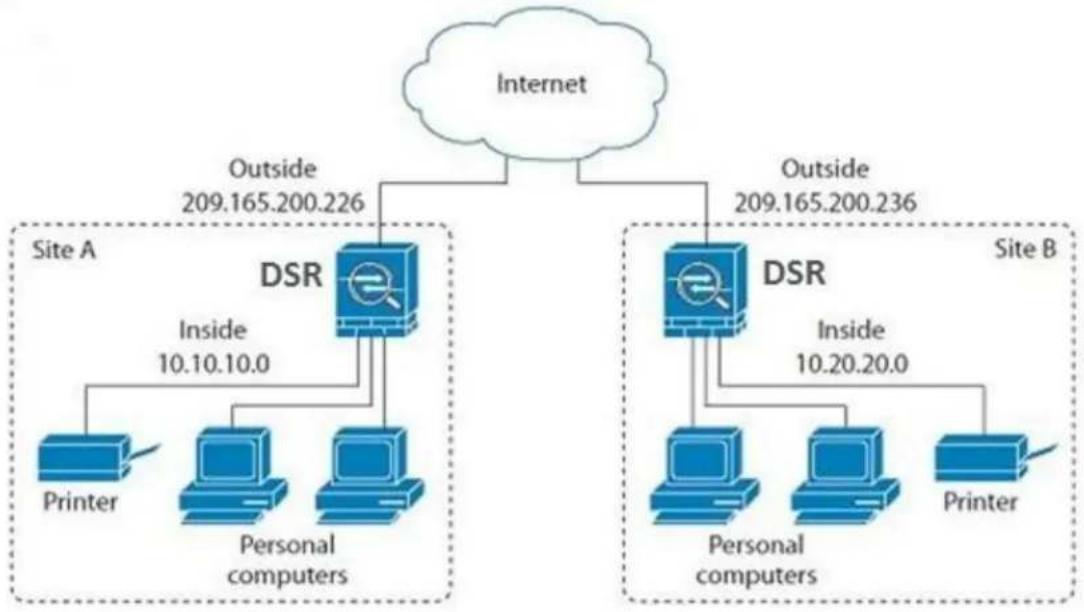
flowchart
graph TD
    A["Internet"] -->|Outside 209.165.200.226| B["DSR"]
    A -->|Outside 209.165.200.236| C["DSR"]
    B -->|Inside 10.10.10.0| D["Printer"]
    B --> E["Personal computers"]
    C --> F["Printer"]
    C --> G["Personal computers"]
    C --> H["Printer"]
    style A fill:#f9f,stroke:#333
    style B fill:#bbf,stroke:#333
    style C fill:#bbf,stroke:#333
    style D fill:#dfd,stroke:#333
    style E fill:#dfd,stroke:#333
    style F fill:#dfd,stroke:#333
    style G fill:#dfd,stroke:#333
    style H fill:#dfd,stroke:#333
Figure 72: Example of three IPsec client connections to the internal network through the DSR IPsec gateway
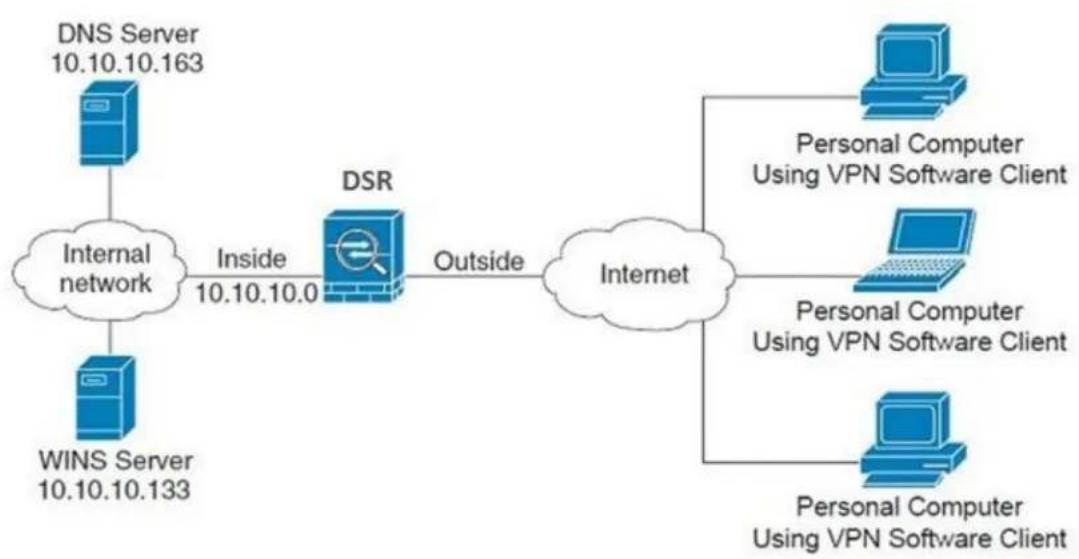
flowchart
graph LR
    A["DNS Server 10.10.10.163"] --> B["Internal network"]
    C["WINS Server 10.10.10.133"] --> B
    B -->|Inside 10.10.10.0| D["DSR"]
    D -->|Outside| E["Internet"]
    F["Personal Computer Using VPN Software Client"] --> E
    G["Personal Computer Using VPN Software Client"] --> E
    H["Personal Computer Using VPN Software Client"] --> E
6.1 VPN Wizard
Setup > Wizard > VPN Wizard
You can use the VPN wizard to quickly create both IKE and VPN policies. Once the IKE or VPN policy is created, you can modify it as required.
Figure 73: VPN Wizard launch screen
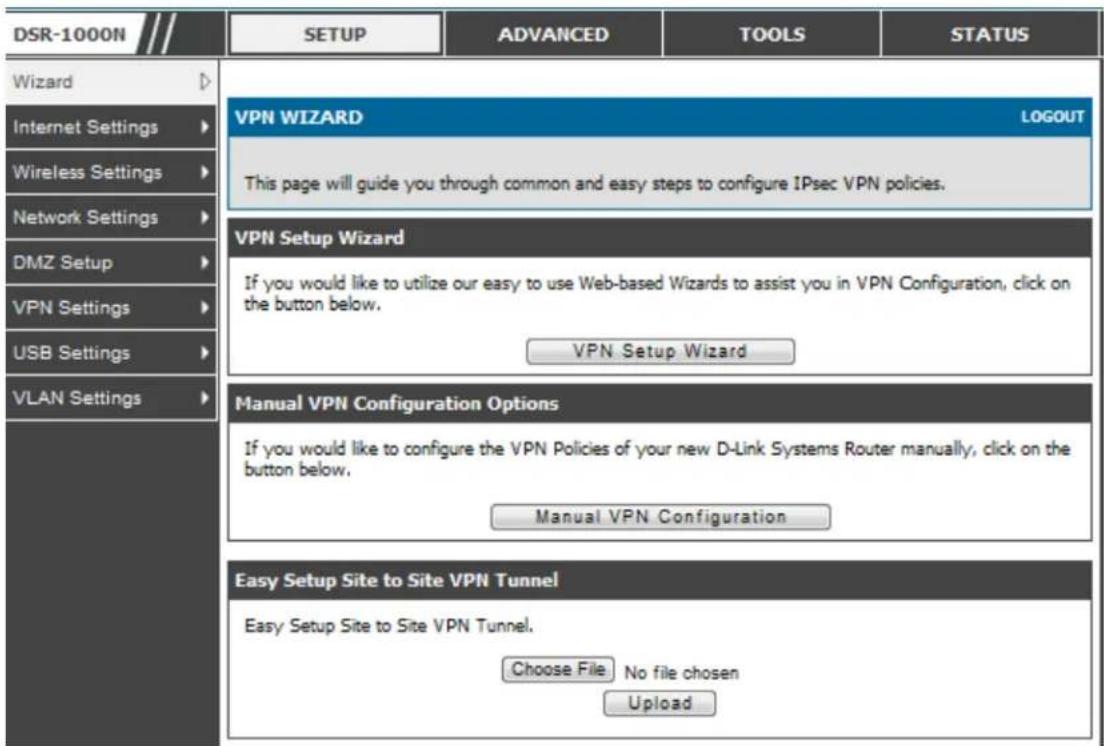
text_image
DSR-1000N Wizard Internet Settings Wireless Settings Network Settings DMZ Setup VPN Settings USB Settings VLAN Settings SETUP ADVANCED TOOLS STATUS VPN WIZARD LOGOUT This page will guide you through common and easy steps to configure IPsec VPN policies. VPN Setup Wizard If you would like to utilize our easy to use Web-based Wizards to assist you in VPN Configuration, click on the button below. VPN Setup Wizard Manual VPN Configuration Options If you would like to configure the VPN Policies of your new D-Link Systems Router manually, click on the button below. Manual VPN Configuration Easy Setup Site to Site VPN Tunnel Easy Setup Site to Site VPN Tunnel. Choose File. No file chosen UploadTo easily establish a VPN tunnel using VPN Wizard, follow the steps below:
-
Select the VPN tunnel type to create
-
The tunnel can either be a gateway to gateway connection (site-to-site) or a tunnel to a host on the internet (remote access s).
- Set the Connection Name and pre-shared key: the connection name is used for management, and the pre-shared key will be required on the VPN client or gateway to es tablish the tunnel
-
Determine the local gateway for this tunnel; if there is more than 1 WAN configured the tunnel can be configured for either of the gateways.
-
Configure Remote and Local WAN address for the tunnel endpoints
-
Remote Gateway Type: identify the remote endpoint of the tunnel by FQDN or static IP address
- Remote WAN IP address / FQDN: This field is enabled only if the peer you are trying to connect to is a Gateway. For VPN Clients, this IP address or Internet Name is determined when a connection request is received from a client.
- Local Gateway Type: identify this router's endpoint of the tunnel by FQDN or static IP address
- Local WAN IP address / FQDN: This field can be left blank if you are not using a different FQDN or IP address than the one specified in the WAN port's configuration.
- Configure the Secure Connection Remote Accessibility fields to identify the remote network:
- Remote LAN IP address: address of the LAN behind the peer gateway
- Remote LAN Subnet Mask: the subnet mask of the LAN behind the peer
Note: The IP address range used on the remote LAN must be different from the IP address s range used on the local LAN.
- Review the settings and click Connect to establish the tunnel.
The Wizard will create an Auto IPsec policy with the following default values for a VPN Client or Gateway policy (these can be accessed from a link on the Wizard page):
| Par ameter | De fault value from Wizard |
| Exchange Mode | Aggressive (Client policy ) or Main (Gatew ay policy) |
| ID Type | FQDN |
| Local WAN ID | w an_local.com (only applies to Client policies) |
| Remote WAN ID | w an_remote.com (only applies to Client policies) |
| Encryption Algorithm | 3DES |
| Authentication Algorithm | SHA-1 |
| Authentication Method | Pre-shared Key |
| PFS Key-Group | DH-Group 2(1024 bit) |
| Life Time (Phase 1) | 24 hours |
| Life Time (Phase 2) | 8 hours |
| Encryption Algorithm | 3DES |
| Authentication Algorithm | SHA-1 |
| Authentication Method | Pre-shared Key |
| PFS Key-Group | DH-Group 2(1024 bit) |
| Life Time (Phase 1) | 24 hours |
| NETBIOS | Enabled (only applies to Gateway policies) |
The VPN Wizard is the recommended method to set up an Auto IPsec policy. Once the Wizard creates the matching IKE and VPN policies required by the Auto policy, one can modify the required fields through the edit link. Refer to the online help for details.
Easy Setup Site to Site VPN Tunnel:
If you find it difficult to configure VPN policies through VPN wizard use easy setup site to site VPN tunnel. This will add VPN policies by importing a file containing vpn policies.
6.2 Configuring IPsec Policies
Setup > VPN Settings > IPsec > IPsec Policies
An IPsec policy is between this router and another gateway or this router and a IPsec client on a remote host. The IPs ec mode can be either tunnel or transport depending on the network being traversed between the two policy endpoints.
- Transport: This is used for end-to-end communication between this router and the tunnel endpoint, either another IPsec gateway or an IPsec VPN client on a host.
Only the data payload is encrypted and the IP header is not modified or encrypted.
- Tunnel: This mode is used for network-to-network IPsec tunnels where this gateway is one endpoint of the tunnel. In this mode the entire IP packet including the header is encrypted and/or authenticated.
When tunnel mode is selected, you can enable NetBIOS and DHCP over IPsec. DHCP over IPsec allows this router to serve IP leases to hosts on the remote LAN. As well in this mode you can define the single IP address, range of IPs, or subnet on both the local and remote private networks that can communicate over the tunnel.
Figure 74: IPsec policy configuration

text_image
DSR-1000N SETUP ADVANCED TOOLS STATUS Wizard Internet Settings Wireless Settings Network Setting... DMZ Setup VPN Settings USB Settings VLAN Settings IPSEC CONFIGURATION LOGOUT This page allows user to add/edit VPN (IPsec) policies which includes Auto and Manual policies. Save Settings Don't Save Settings General Policy Name: Policy Type: IKE Version: IKE Version: IPsec Mode: Select Local Gateway: Remote Endpoint: Enable Mode Config: Enable NetBIOS: Enable RollOver: Protocol: Enable DHCP: Local IP: Local Start IP Address: Local End IP Address: Local Subnet Mask: Local Prefix Length: Remote IP: Remote Start IP Address: Remote End IP Address: Remote Subnet Mask:Once the tunnel type and endpoints of the tunnel are defined you can determine the Phase 1 / Phase 2 negotiation to use for the tunnel. This is covered in the IPs ec mode setting, as the policy can be Manual or Auto. For Auto policies, the Internet Key Exchange (IKE) protocol dynamically exchanges keys between two IPs ec hosts. The Phase 1 IKE parameters are used to define the tunnel's security as so ciation d etails. The Phase 2 Auto policy parameters cover the security association lifetime and encryption/authentication details of the phase 2 key negotiation.
The VPN policy is one half of the IKE/VPN policy pair required to establish an Auto IPsec VPN tunnel. The IP addresses of the machine or machines on the two VPN endpoints are configured here, along with the policy parameters required to secure the tunnel
Figure 75: IPsec policy configuration continued (Auto policy via IKE)
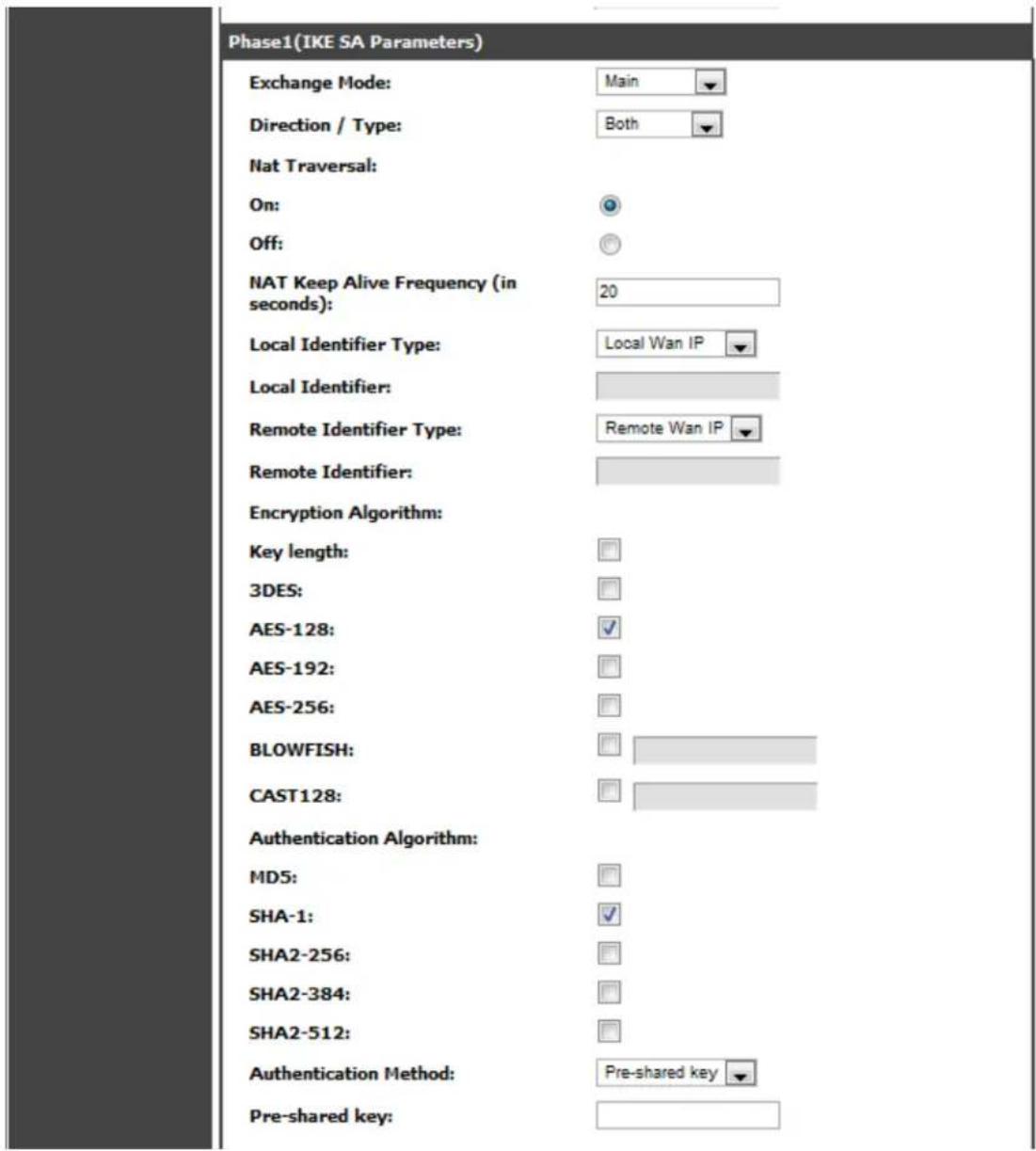
text_image
Phase1(IKE SA Parameters) Exchange Mode: Main Direction / Type: Both Nat Traversal: On: ○ Off: ○ NAT Keep Alive Frequency (in seconds): 20 Local Identifier Type: Local Wan IP Local Identifier: Remote Identifier Type: Remote Wan IP Remote Identifier: Encryption Algorithm: Key length: □ 3DES: □ AES-128: ✓ AES-192: □ AES-256: □ BLOWFISH: □ CAST128: □ Authentication Algorithm: MD5: □ SHA-1: ✓ SHA2-256: □ SHA2-384: □ SHA2-512: □ Authentication Method: Pre-shared key Pre-shared key:A Manual policy does not use IKE and instead relies on manual keying to exchange authentication parameters between the two IPs ec hosts. The incoming and outgoing security parameter index (SPI) values must be mirrored on the remote tunnel
endpoint. As well the encryption and integrity algorithms and keys must match on the remote IPsec host exactly in order for the tunnel to establish successfully. Note that using Auto policies with IKE are preferred as in some IPsec implementations the SPI (s ecurity parameter index) values require conversion at each endpoint.
DSR supports VPN roll-over feature. This means that policies configured on primary WAN will rollover to the secondary WAN in case of a link failure on a primary WAN. This feature can be used only if your WAN is configured in Auto-Rollover mode.
Figure 76: IPsec policy configuration continued (Auto / Manual Phase 2)
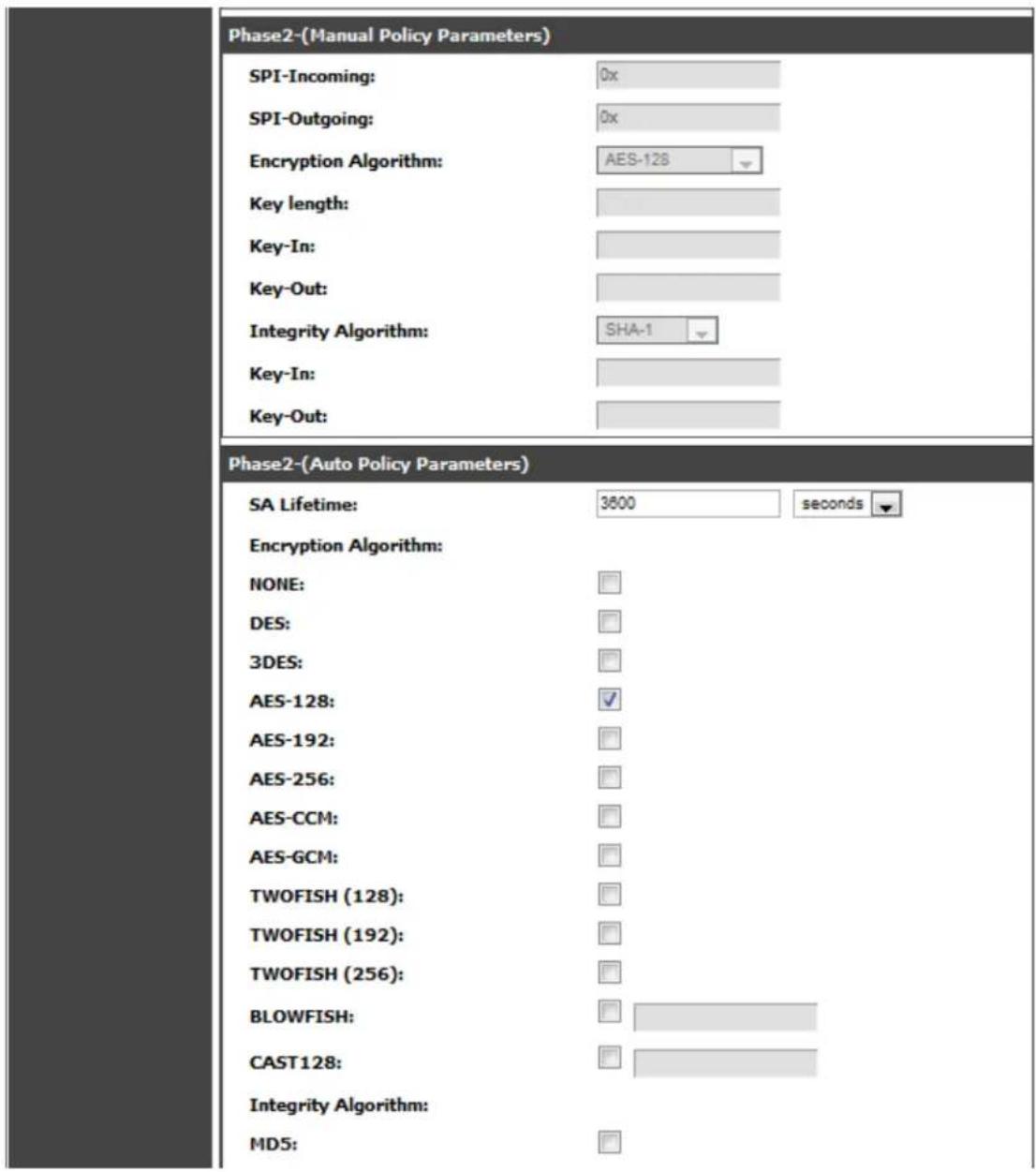
text_image
Phase2-(Manual Policy Parameters) SPI-Incoming: 0x SPI-Outgoing: 0x Encryption Algorithm: AES-128 Key length: Key-In: Key-Out: Integrity Algorithm: SHA-1 Key-In: Key-Out: Phase2-(Auto Policy Parameters) SA Lifetime: 3600 seconds Encryption Algorithm: NONE: DES: 3DES: AES-128: AES-192: AES-256: AES-CCM: AES-GCM: TWOFISH (128): TWOFISH (192): TWOFISH (256): BLOWFISH: CAST128: Integrity Algorithm: MD5:6.2.1 Extended Authentication (XAUTH)
You can also configure extended authentication (XAUTH). Rather than configure a unique VPN policy for each user, you can configure the VPN gateway router to authenticate users from a stored list of user accounts or with an external authentication server such as a RADIUS server. With a user database, user accounts created in the router are used to authenticate users.
With a configured RADIUS server, the router connects to a RADIUS server and passes to it the credentials that it receives from the VPN client. You can secure the connection between the router and the RADIUS server with the authentication protocol supported by the server (PAP or CHAP). For RADIUS – PAP, the router first checks in the user database to see if the user credentials are available; if they are not, the router connects to the RADIUS server.
6.2.2 Internet over IPSec tunnel
In this feature all the traffic will pass through the VPN Tunnel and from the Remote Gateway the packet will be routed to Internet. On the remote gateway side, the outgoing packet will be SNAT'ed.
6.3 Configuring VPN clients
Remote VPN clients must be configured with the same VPN policy parameters used in the VPN tunnel that the client wishes to use: encryption, authentication, life time, and PFS key-group. Upon establishing these authentication parameters, the VPN Client user database must also be populated with an account to give a user access to the tunnel.
VPN client software is required to establish a VPN tunnel between the router and remote endpoint. Open source software (such as OpenVPN or Openswan) as well as Microsoft IPsec VPN software can be configured with the required IKE policy parameters to establish an IPsec VPN tunnel. Refer to the client's software guide for detailed instructions on setup as well as the router's online help.
The user database contains the list of VPN user accounts that are authorized to use a given VPN tunnel. Alternatively VPN tunnel users can be authenticated using a configured Radius database. Refer to the online help to determine how to populate the user database and/or configure RADIUS authentication.
6.4 PPTP / L2TP Tunnels
This router supports VPN tunnels from either PPTP or L2TP ISP servers. The router acts as a broker device to allow the ISP's server to create a TCP control connection between the LAN VPN client and the VPN server.
6.4.1 PPTP Tunnel Support
Setup > VPN Settings > PPTP > PPTP Client
PPTP VPN Client can be configured on this router. Using this client we can access a remote network which is local to PPTP server. Once client is enabled, the user can access Status > Active VPNs page and establish PPTP VPN tunnel clicking Connect. To disconnect the tunnel, click Drop.
Figure 77: PPTP tunnel configuration – PPTP Client
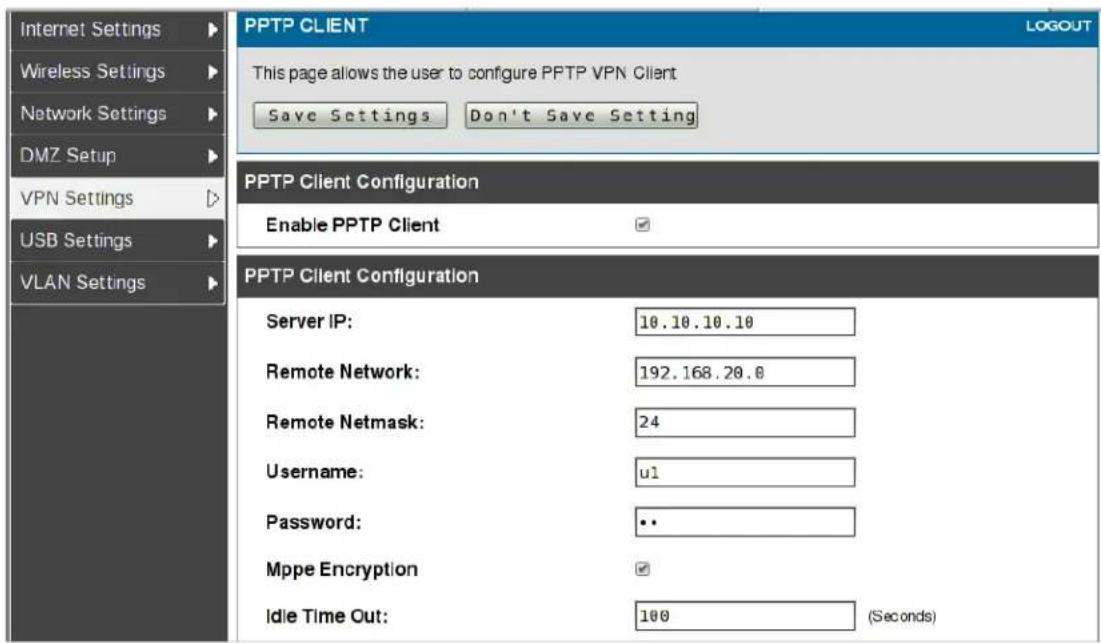
text_image
Internet Settings Wireless Settings Network Settings DMZ Setup VPN Settings USB Settings VLAN Settings PPTP CLIENT LOGOUT This page allows the user to configure PPTP VPN Client Save Settings Don't Save Setting PPTP Client Configuration Enable PPTP Client PPTP Client Configuration Server IP: 10.10.10.10 Remote Network: 192.168.20.0 Remote Netmask: 24 Username: u1 Password: •• Mppe Encryption ✓ Idle Time Out: 100 (Seconds)Figure 78: PPTP VPN connection status
| Active PPTP VPN connections | |
| Connection Status | Action |
| Disconnected | Connect |
Setup > VPN Settings > PPTP > PPTP Server
A PPTP VPN can be es tablished through this router. Once enabled a PPTP server is available on the router for LAN and WAN PPTP client users to access. Once the PPTP server is enabled, PPTP clients that are within the range of configured IP addresses of allowed clients can reach the router's PPTP server. Once authenticated by the PPTP server (the tunnel endpoint), PPTP clients have access to the network managed by the router.
Figure 79: PPTP tunnel configuration – PPTP Server
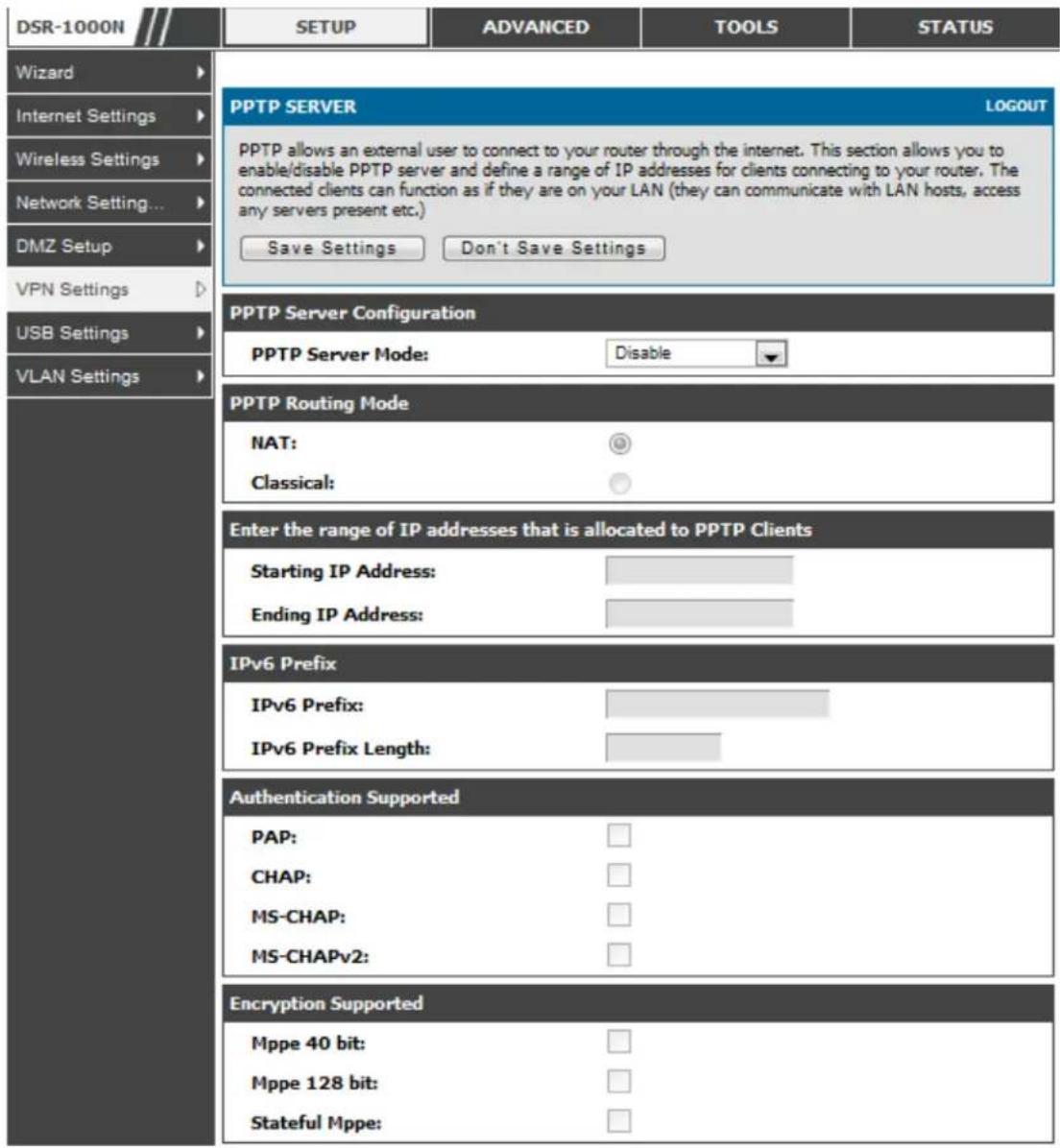
text_image
DSR-1000N SETUP ADVANCED TOOLS STATUS Wizard Internet Settings Wireless Settings Network Setting... DMZ Setup VPN Settings USB Settings VLAN Settings PPTP SERVER LOGOUT PPTP allows an external user to connect to your router through the internet. This section allows you to enable/disable PPTP server and define a range of IP addresses for clients connecting to your router. The connected clients can function as if they are on your LAN (they can communicate with LAN hosts, access any servers present etc.) Save Settings Don't Save Settings PPTP Server Configuration PPTP Server Mode: Disable PPTP Routing Mode NAT: Classical: Enter the range of IP addresses that is allocated to PPTP Clients Starting IP Address: Ending IP Address: IPv6 Prefix IPv6 Prefix: IPv6 Prefix Length: Authentication Supported PAP: CHAP: MS-CHAP: MS-CHAPv2: Encryption Supported Mppe 40 bit: Mppe 128 bit: Stateful Mppe:6.4.2 L2TP Tunnel Support
Setup > VPN Settings > L2TP > L2TP Server
A L2TP VPN can be established through this router. Once enabled a L2TP server is available on the router for LAN and WAN L2TP client users to access s. Once the L2TP server is enabled, L2TP clients that are within the range of configured IP addresses of allowed clients can reach the router's L2TP server. Once authenticated by the L2TP server (the tunnel endpoint), L2TP clients have access to the network managed by the router.
Figure 80: L2TP tunnel configuration - L2TP Server
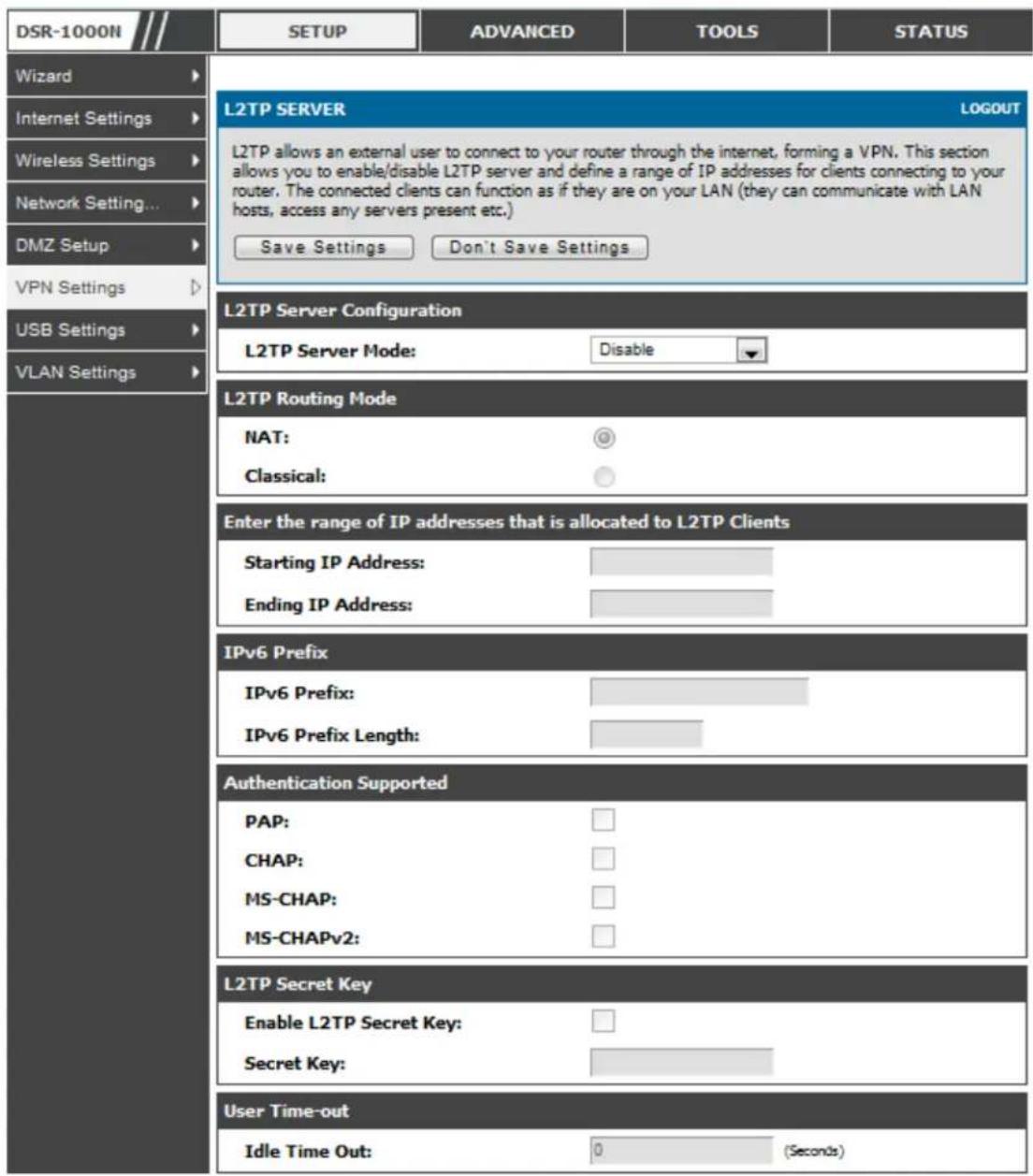
text_image
DSR-1000N SETUP ADVANCED TOOLS STATUS Wizard Internet Settings Wireless Settings Network Setting... DMZ Setup VPN Settings USB Settings VLAN Settings L2TP SERVER LOGOUT L2TP allows an external user to connect to your router through the internet, forming a VPN. This section allows you to enable/disable L2TP server and define a range of IP addresses for clients connecting to your router. The connected clients can function as if they are on your LAN (they can communicate with LAN hosts, access any servers present etc.) Save Settings Don't Save Settings L2TP Server Configuration L2TP Server Mode: Disable L2TP Routing Mode NAT: @ Classical: Enter the range of IP addresses that is allocated to L2TP Clients Starting IP Address: Ending IP Address: IPv6 Prefix IPv6 Prefix: IPv6 Prefix Length: Authentication Supported PAP: CHAP: MS-CHAP: MS-CHAPv2: L2TP Secret Key Enable L2TP Secret Key: Secret Key: User Time-out Idle Time Out: 0 (Seconds)6.4.3 OpenVPN Support
Setup > VPN Settings > OpenVPN > OpenVPN Configuration
OpenVPN allows peers to authenticate each other using a pre-shared secret key, certificates, or username/password. When used in a multiclient -s erver configuration, it allows the server to release an authentication certificate for every client, using
signature and Certificate authority. An Open VPN can be establis hed through this router. Check/Uncheck this and click save settings to start/stop openvpn server.
- Mode: OpenVPN daemon mode. It can run in server mode, client mode or access server client mode. In access server client mode, the user has to download the auto login profile from the Openvpn Access Server and upload the same to connect.
- Server IP: OpenVPN server IP address to which the client connects(Applicable in client mode).
• Vpn Network: Address of the Virtual Network.
• Vpn Netmas k: Netmask of the Virtual Network. - Port: The port number on which openvpn server(or Access Server) runs.
- Tunnel Protocol: The protocol used to communicate with the remote host. Ex: Tcp, Udp. Udp is the default.
- Encryption Algorithm: The cipher with which the packets are encrypted. Ex: BF-CBC, AES-128, AES-192 and AES-256. BF-CBC is the default
- Hash algorithm: Message digest algorithm used to authenticate packets. Ex: SHA1, SHA256 and SHA512. SHA1 is the default.
- Tunnel Type: Select Full Tunnel to redirect all the traffic through the tunnel. Select Split Tunnel to redirect traffic to only specified resources (added from openVpnClient Routes) through the tunnel. Full Tunnel is the default.
- Enable Client to Client communication: Enable this to allow openvpn clients to communicate with each other in split tunnel case. Disabled by default.
- Upload Access Server Client Configuration: The user has to download the auto login profile and upload here to connect this router to the OpenVPN Access Server.
- Certificates: Select the set of certificates openvpn server uses. First Row: Set of certificates and keys the server uses. Second Row: Set of certificates and keys newly uploaded.
- Enable Tls Authentication Key: Enabling this adds Tls authentication which adds an additional layer of authentication. Can be checked only when the tls key is uploaded. Dis abled by default.
Click Save Settings to save the settings.
Figure 81: OpenVPN configuration
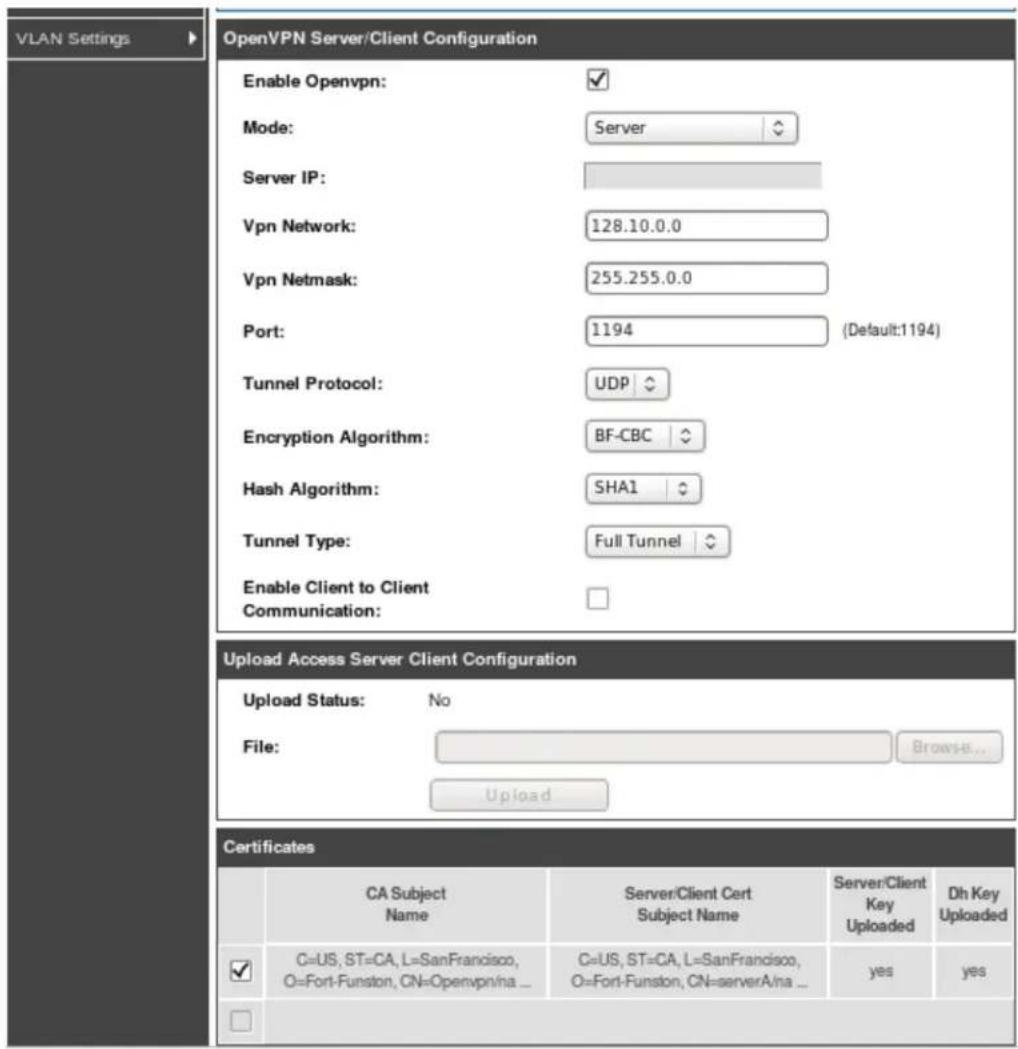
text_image
VLAN Settings OpenVPN Server/Client Configuration Enable Openvpn: Mode: Server Server IP: Vpn Network: 128.10.0.0 Vpn Netmask: 255.255.0.0 Port: 1194 (Default:1194) Tunnel Protocol: UDP Encryption Algorithm: BF-CBC Hash Algorithm: SHA1 Tunnel Type: Full Tunnel Enable Client to Client Communication: Upload Access Server Client Configuration Upload Status: No File: Browse... Upload Certificates CA Subject Name Server/Client Cert Subject Name Server/Client Key Uploaded Dh Key Uploaded C=US, ST=CA, L=SanFrancisco, O=Fort-Funston, CN=Openvpn/na ... C=US, ST=CA, L=SanFrancisco, O=Fort-Funston, CN=serverA/na ... yes yes6.4.4 OpenVPN Remote Network
Setup > VPN Settings > OpenVPN > OpenVPN Remote Network (Site-to-Site)
This page allows the user to add/edit a remote network and netmask which allows the other OpenVPN clients to reach this network.
Figure 82: OpenVPN Remote Network

text_image
DSR-1000N SETUP ADVANCED TOOLS STATUS Wizard Internet Settings Wireless Settings Network Setting... DMZ Setup VPN Settings USB Settings VLAN Settings OPENVPN REMOTE NETWORK CONFIGURATION LOGOUT This page allows the user to add/edit a remote network and netmask which allows the other OpenVPN clients to reach this network. Save Settings Don't Save Settings OpenVPN Remote Network Configuration Common Name: DHQ Remote Network: 192 168.10.111 Subnet Mask: 255.255.255.0Common Name: Common Name of the OpenVPN client certificate.
Remote Network: Network address of the remote resource.
Subnet Mask: Netmas k of the remote resource.
6.4.5 OpenVPN Authentication
Setup > VPN Settings > OpenVPN > OpenVPN Authentication
This page allows the user to upload required certificates and keys.
Figure 83: OpenVPN Authentication

text_image
DSR-1000N SETUP ADVANCED TOOLS STATUS Wizard Internet Settings Wireless Settings Network Setting... DMZ Setup VPN Settings USB Settings VLAN Settings OPENVPN AUTHENTICATION LOGOUT Openvpn provides authentication using certificates. This page allows you to upload required certificates and keys which are in pem format. Trusted Certificate (CA Certificate) CA Cert Status: No Locate & select the certificate file: Choose File No file chosen Upload Server / Client Certificate Server / Client Cert Status: No Locate & select the certificate file: Choose File No file chosen Upload Server / Client Key Server / Client Key Status: No Locate & select the certificate file: Choose File No file chosen Upload DH Key Dh Key Status: NoTrusted Certificate (CA Certificate): Browse and upload the pem formatted CA Certificate.
Server/Client Certificate: Browse and upload the pem formatted Server/Client Certificate.
Server/Client Key: Browse and upload the pem formatted Server/Client Key.
DH Key: Browse and upload the pem formatted Diffie Hellman Key.
Tls Authentication Key: Browse and upload the pem formatted Tls Authentication Key.
Chapter 7. SSL VPN
The router provides an intrinsic SSL VPN feature as an alternate to the standard IPsec VPN. SSL VPN differs from IPsec VPN mainly by removing the requirement of a pre-ins talled VPN client on the remote host. Instead, users can securely login through the SSL User Portal using a standard web browser and receive access to configured network resources within the corporate LAN. The router supports multiple concurrent sessions to allow remote users to access the LAN over an encrypted link through a customizable user portal interface, and each SSL VPN user can be assigned unique privileges and network resource access levels.
The remote user can be provided different options for SSL service through this router:
- VPN Tunnel: The remote user's SSL enabled browser is used in place of a VPN client on the remote host to establish a secure VPN tunnel. A SSL VPN client (Active-X or Java based) is ins talled in the remote host to allow the client to join the corporate LAN with pre-configured acces s/policy privileges. At this point a virtu al ne two rk interface is created on the use r's host and this will be assigned an IP address and DNS server addres s from the router. Once established, the host machine can access allocated network resources.
- Port Forwarding: A web-based (ActiveX or Java) client is installed on the client machine again. Note that Port Forwarding service only supports TCP connections between the remote user and the router. The router administrator can define specific services or applications that are available to remote port forwarding users instead of access to the full LAN like the VPN tunnel.

ActiveX clients are used when the remote user accesses the portal using the Internet Explorer browser. The Java client is used for other browsers like Mozilla Firefox, Netscape Navigator, Google Chrome, and Apple Safari.
Figure 84: Example of clientless SSL VPN connections to the DSR
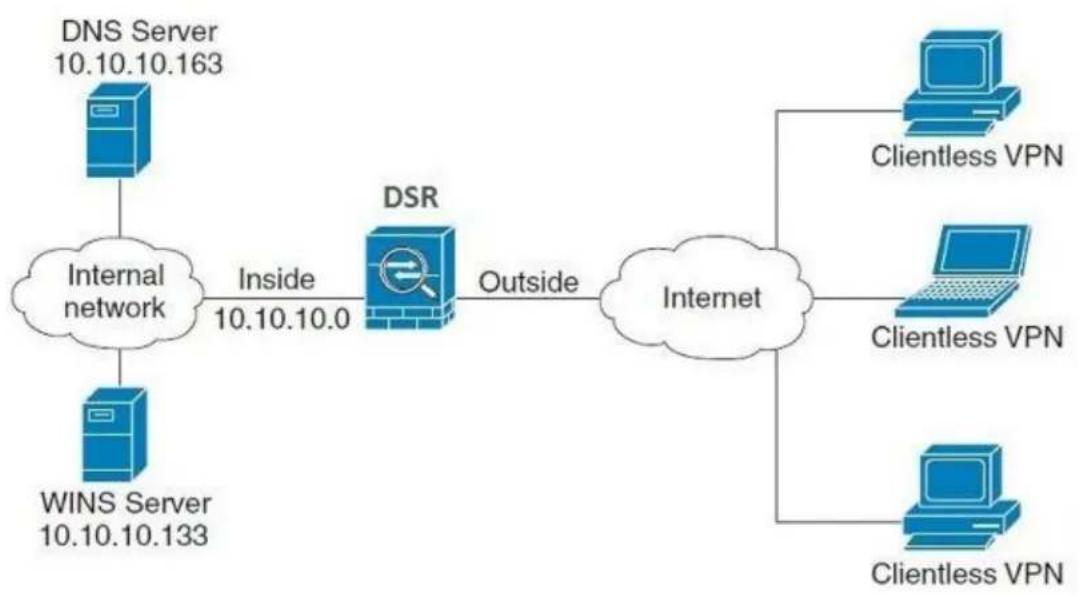
flowchart
graph LR
    A["DNS Server 10.10.10.163"] --> B["Internal network"]
    C["WINS Server 10.10.10.133"] --> B
    B -->|Inside 10.10.10.0| D["DSR"]
    D -->|Outside| E["Internet"]
    F["Clientless VPN"] --> E
    G["Clientless VPN"] --> E
    H["Clientless VPN"] --> E
7.1 Groups and Users
Advanced > Users > Groups
The group page allows creating, editing and deleting groups. The groups are associated to set of user types. The lists of available groups are displayed in the "List of Group" page with Group name and description of group.
- Click Add to create a group.
- Click Edit to update an existing group.
- Click Delete to clear an existing group.
Figure 85: List of groups
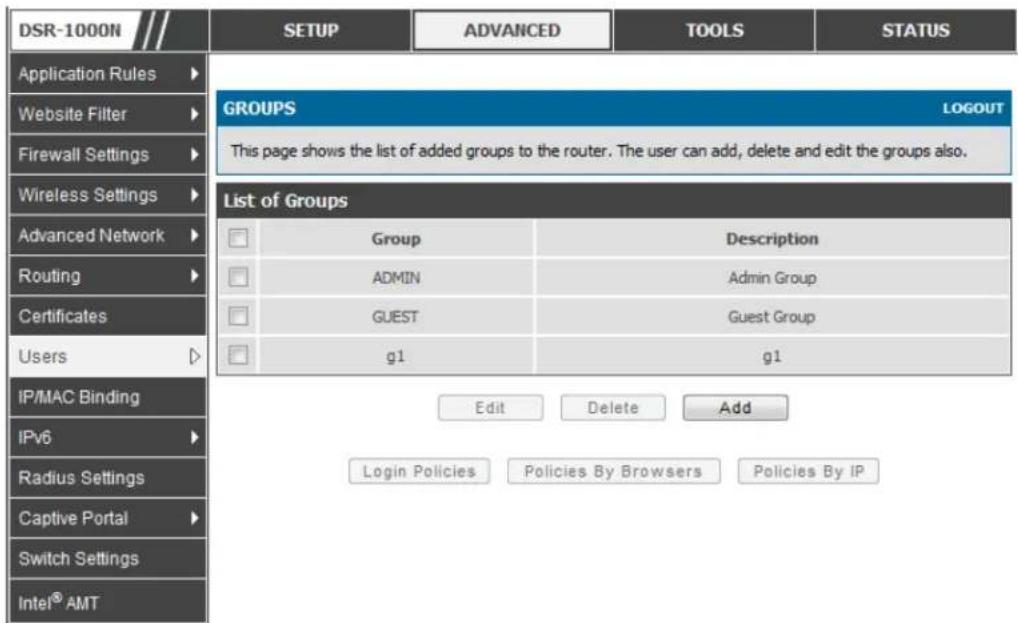
text_image
DSR-1000N Application Rules Website Filter Firewall Settings Wireless Settings Advanced Network Routing Certificates Users IP/MAC Binding IPv6 Radius Settings Captive Portal Switch Settings Intel® AMT SETUP ADVANCED TOOLS STATUS GROUPS LOGOUT This page shows the list of added groups to the router. The user can add, delete and edit the groups also. List of Groups Group Description ADMIN Admin Group GUEST Guest Group g1 g1 Edit Delete Add Login Policies Policies By Browsers Policies By IPGroup configuration page allows to create a group with a different type of users. The user types are as follows:
- PPTP User: These are PPTP VPN tunnel LAN users that can establish a tunnel with the PPTP server on the WAN.
- L2TP User: These are L2TP VPN tunnel LAN users that can establish a tunnel with the L2TP server on the WAN.
- Xauth User: This user's authentication is performed by an externally configured RADIUS or other Enterprise server. It is not part of the local user database.
-
SSLVPN User: This user has access to the SSL VPN services as determined by the group policies and authentication domain of which it is a member. The domain-determined SSL VPN portal will be displayed when logging in with this user type.
-
Admin: This is the router's super-user, and can manage the router, use SSL VPN to access network resources, and login to L2TP/PPTP servers on the WAN. There will always be one default adminis trator user for the GUI
- Guest User (read-only): The guest user gains read only access to the GUI to observe and review configuration settings. The guest does not have SSL VPN access.
- Captive Portal User: These captive portal users has access through the router. The access is determined based on captive portal policies.
Idle Timeout: This the log in timeout period for us ers of this group.
Figure 86: User group configuration
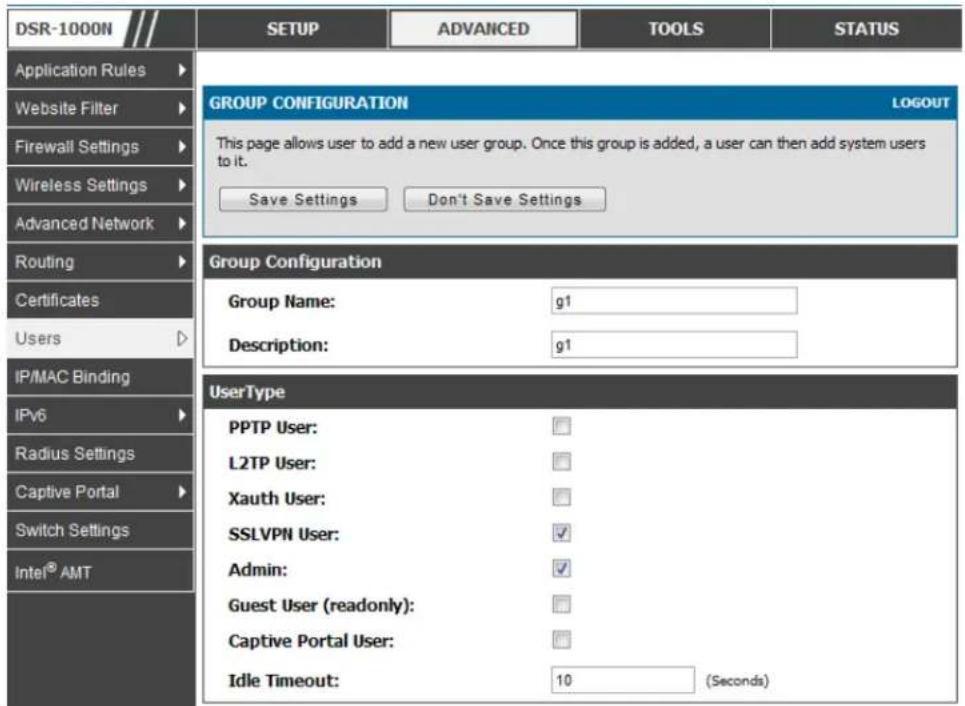
text_image
DSR-1000N Application Rules Website Filter Firewall Settings Wireless Settings Advanced Network Routing Certificates Users IP/MAC Binding IPv6 Radius Settings Captive Portal Switch Settings Intel® AMT SETUP ADVANCED TOOLS STATUS GROUP CONFIGURATION LOGOUT This page allows user to add a new user group. Once this group is added, a user can then add system users to it. Save Settings Don't Save Settings Group Configuration Group Name: g1 Description: g1 UserType PPTP User: L2TP User: Xauth User: SSLVPN User: Admin: Guest User (readonly): Captive Portal User: Idle Timeout: 10 (Seconds)When SSLVPN users are selected, the SSLVPN settings are displayed with the following parameters as captured in SSLVPN Settings. As per the Authentication Type SSL VPN details are configured.
- Authentication Type: The authentication Type can be one of the following: Local User Database (default), Radius-PAP, Radius-CHAP, Radius -MSCHAP, Radius-MSCHAPv2, NT Domain, Active Directory and LDAP.
- Authentication Secret: If the domain uses RADIUS authentication then the authentication secret is required (and this has to match the secret configured on the RADIUS server).
- Workgroup: This is required is for NT domain authentication. If there are multiple workgroups, user can enter the details for up to two workgroups.
-
LDAP Base DN: This is the base domain name for the LDAP authentication server. If there are multiple LDAP authentication servers, user can enter the details for up to two LDAP Base DN.
-
Active Directory Domain: If the domain uses the Active Directory authentication, the Active Directory domain name is required. Users configured in the Active Directory database are given access to the SSL VPN portal with their Active Directory username and password. If there are multiple Active Directory domains, user can enter the details for up to two authentication domains.
- Timeout: The timeout period for reaching the authentication server.
- Retries: The number of retries to authenticate with the authentication server after which the DSR stops trying to reach the server.
Figure 87: SSLVPN Settings
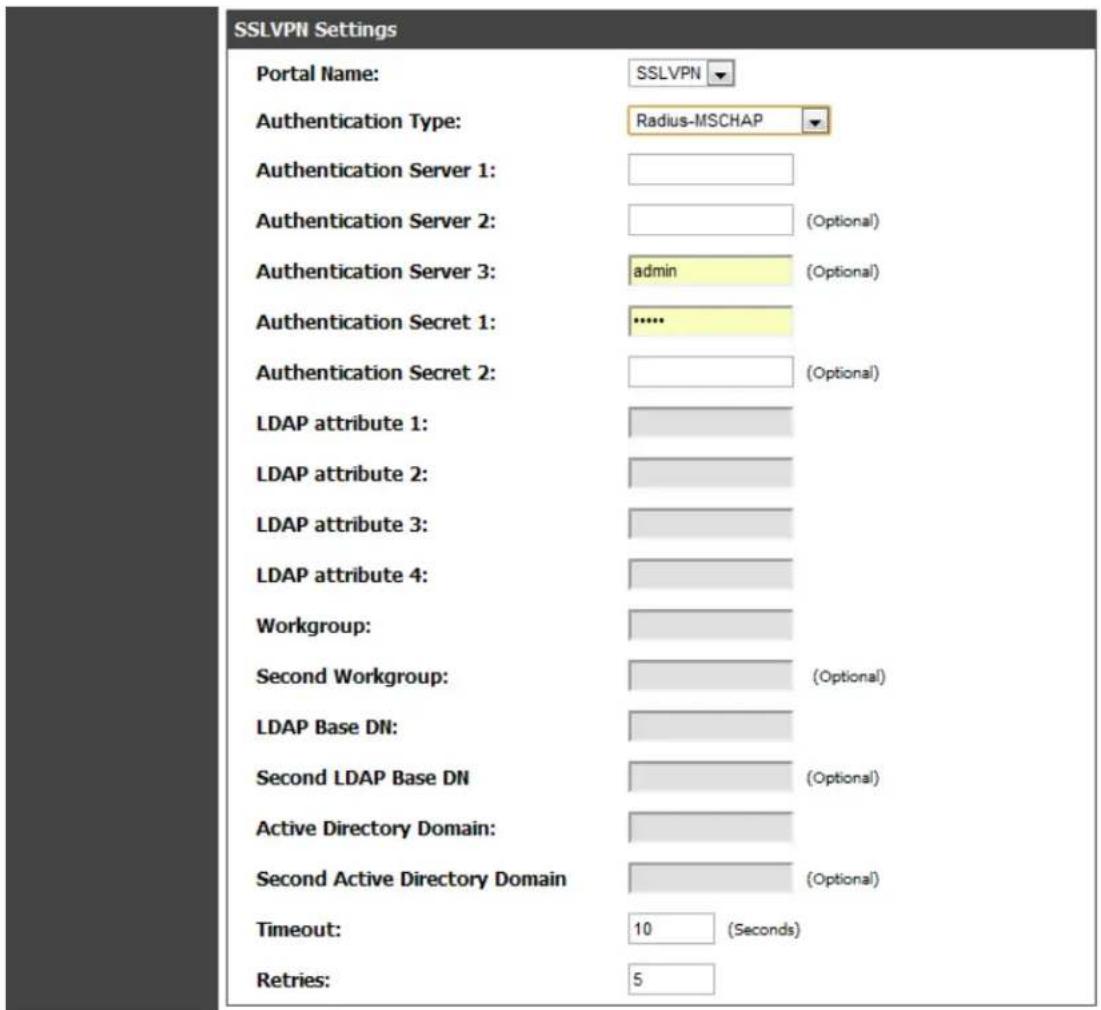
text_image
SSLVPN Settings Portal Name: SSLVPN Authentication Type: Radius-MSCHAP Authentication Server 1: Authentication Server 2: (Optional) Authentication Server 3: admin (Optional) Authentication Secret 1: ...... Authentication Secret 2: (Optional) LDAP attribute 1: LDAP attribute 2: LDAP attribute 3: LDAP attribute 4: Workgroup: Second Workgroup: (Optional) LDAP Base DN: Second LDAP Base DN (Optional) Active Directory Domain: Second Active Directory Domain (Optional) Timeout: 10 (Seconds) Retries: 5Login Policies
To set login policies for the group, select the corresponding group click "Login policies". The fol llo win g parameters are configured:
- Group Name: This is the name of the group that can have its login policy edited
- Disable Login: Enable to prevent the users of this group from logging into the devices management interface(s)
- Deny Login from WAN interface: Enable to prevent the users of this group from logging in from a WAN (wide area network) interface. In this case only login through LAN is allowed.
Figure 88: Group login policies options

text_image
DSR-1000N Application Rules Website Filter Firewall Settings Wireless Settings Advanced Network Routing Certificates Users IP/MAC Binding IPv6 Radius Settings Captive Portal Switch Settings Intel® AMT SETUP ADVANCED TOOLS STATUS GROUPS LOGOUT This page allows user to add login policies for the available users. Save Settings Don't Save Settings Group Login Policies Group Name: g1 Disable Login: Deny Login from WAN Interface:Policy by Browsers
To set browser policies for the group, select the corresponding group click "Policy by Browsers". The following parameters are configured:
- Group Name: This is the name of the group that can have its login policy edited
- Deny Login from Defined Browsers: The list of defined browsers below will be used to prevent the users of this group from logging in to the routers GUI. All non-defined browsers will be allowed for login for this group.
- Allow Login from Defined Browsers: The list of defined browsers below will be used to allow the users of this group from logging in to the routers GUI. All non-defined browsers will be denied for login for this group.
- Defined Browsers: This list displays the web browsers that have been added to the Defined Browsers list, upon which group login policies can be defined. (Check Box At First Column Header): Selects all the defined browsers in the table.
- Delete: Deletes the selected browser(s).
You can add to the list of Defined Browsers by selecting a client browser from the drop down menu and clicking Add. This browser will then appear in the above list of Defined Browsers.
- Click Save Settings to save your changes.
Figure 89: Browser policies options

text_image
DSR-1000N Application Rules Website Filter Firewall Settings Wireless Settings Advanced Network Routing Certificates Users IP/MAC Binding IPv6 Radius Settings Captive Portal Switch Settings Intel® AMT SETUP ADVANCED TOOLS STATUS GROUPS LOGOUT This page allows user to add browser specific policies for available users. Save Settings Don't Save Settings Group Policy By Client Browser Group Name: g1 Deny Login from Defined Browsers: Allow Login from Defined Browsers: Defined Browsers Added Client Browsers Delete Add Defined Browser Client Browser Internet Explorer AddPolicy by IP
To set policies bye IP for the group, select the corresponding on din g group click "Policy by IP". The following parameters are configured:
- Group Name: This is the name of the group that can have its login policy edited
- Deny Login from Defined Browsers: The list of defined browsers below will be used to prevent the users of this group from logging in to the routers GUI. All non-defined browsers will be allowed for login for this group.
- Allow Login from Defined Browsers: The list of defined browsers below will be used to allow the users of this group from logging in to the routers GUI. All non-defined browsers will be denied for login for this group.
- Defined Browsers: This list displays the web browsers that have been added to the Defined Browsers list, upon which group login policies can be defined. (Check Box At First Column Header): Selects all the defined browsers in the table.
- Delete: Deletes the selected browser(s).
You can add to the list of Defined Browsers by selecting a client browser from the drop down menu and clicking Add. This browser will then appear in the above list of Defined Browsers.
- Click Save Settings to save your changes.
Figure 90: IP policies options

text_image
DSR-1000N Application Rules Website Filter Firewall Settings Wireless Settings Advanced Network Routing Certificates Users IP/MAC Binding IPv6 Radius Settings Captive Portal Switch Settings Intel® AMT SETUP ADVANCED TOOLS STATUS GROUPS LOGOUT This page allows user to add IP based policies specific policies for available users. Save Settings Don't Save Settings Groups Policy By Source IP Address Group Name: g1 Deny Login from Defined Addresses: Allow Login from Defined Addresses: Defined Addresses Source Address Type Network Address / IP Address Mask Length Delete AddLogin Policies, Policy by Browsers, Policy by IP are applicable SSL VPN user only.
Advanced > Users > Users
The users page allows adding, editing and deleting existing groups. The user are associated to configured groups. The lists of available users are displayed in the "List of Users" page with User name, associated group and Login status.
- Click Add to create a user.
- Click Edit to update an existing user.
- Click Delete to clear an existing user
Figure 91: Available Users with login status and associated Group
| DSR-1000N /// | SETUP | ADVANCED | TOOLS | STATUS |
| Application Rules | ||||
| Website Filter | ||||
| Firewall Settings | ||||
| Wireless Settings | ||||
| Advanced Network | ||||
| Routing | ||||
| Certificates | ||||
| Users | ||||
| IP/MAC Binding | ||||
| IPv6 | ||||
| Radius Settings | ||||
| Captive Portal | ||||
| Switch Settings | ||||
| Intel® AMT | ||||
7.1.1 Users and Passwords
Advanced > Users > Users
The user configurations allow creating users associated to group. The user settings contain the following key components:
- User Name: This is unique identifier of the user.
- First Name: This is the user's first name
- Last Name: This is the user's last name
- Select Group: A group is chosen from a list of configured groups.
- Password: The password as sociated with the user name.
- Confirm Password: The same password as above is required to mitigate against typing errors.
- Idle Timeout: The session timeout for the user.
It is recommended that passwords contains no dictionary words from any language, and is a mixture of letters (both uppercase and lowercase), numbers, and symbols. The password can be up to 30 characters.
Figure 92: User configuration options

text_image
DSR-1000N Application Rules Website Filter Firewall Settings Wireless Settings Advanced Network Routing Certificates Users IP/MAC Binding IPv6 Radius Settings Captive Portal Switch Settings Intel® AMT SETUP ADVANCED TOOLS STATUS USERS CONFIGURATION LOGOUT This page allows a user to add new system users. Save Settings Don't Save Settings Users Configuration User Name: Jim First Name: Jim Last Name: George Select Group: ADMIN Password: .......... Confirm Password: .......... Idle Timeout: 4 (Minutes)7.2 Using SSL VPN Policies
Setup > VPN Settings > SSL VPN Server > SSL VPN Policies
SSL VPN Policies can be created on a Global, Group, or User level. User level policies take precedence over Group level policies and Group level policies take precedence over Global policies. These policies can be applied to a specific network resource, IP address or ranges on the LAN, or to different SSL VPN services supported by the router. The List of Available Policies can be filtered based on whether it applies to a user, group, or all users (global).
A more specific policy takes precedence over a generic policy when both are applied to the same user/group/global domain. I.e. a policy for a specific IP address takes precedence over a policy for a range of addresses containing the IP address already referenced.
Figure 93: List of SSL VPN polices (Global filter)

text_image
DSR-1000N SETUP ADVANCED TOOLS STATUS Wizard Internet Settings Wireless Settings Network Settings DMZ Setup VPN Settings USB Settings VLAN Settings SSL VPN POLICIES LOGOUT Policies are useful to permit or deny access to specific network resources, IP addresses, or IP networks. They may be defined at the user, group or global level. By Default, a global PERMIT policy (not displayed) was already configured over all addresses and over all services/ports. Query View List of SSL VPN Policies For: Global Available Groups: Available Users: Display List of SSL VPN Policies Name Service Destination Permission Port2525open VPN Tunnel 0.0.0.0/2525-2525 Permit Edit Delete AddTo add a SSL VPN policy, you must first assign it to a user, group, or make it global (i.e. applicable to all SSL VPN users). If the policy is for a group, the available configured groups are shown in a drop down menu and one must be selected. Similarly, for a user defined policy a SSL VPN user must be chosen from the available list of configured users.
The next step is to define the policy details. The policy name is a unique identifier for this rule. The policy can be assigned to a specific Network Resource (details follow in the subsequent section), IP address, IP network, or all devices on the LAN of the router. Based on the selection of one of these four options, the appropriate configuration fields are required (i.e. choosing the network resources from a list of defined resources, or defining the IP addresses). For applying the policy to addresses the port range/port number can be defined.
The final steps require the policy permission to be set to either permit or deny access to the selected addresses or network resources. As well the policy can be specified for one or all of the supported SSL VPN services (i.e. VPN tunnel)
Once defined, the policy goes into effect immediately. The policy name, SSL service it applies to, destination (network resource or IP addresses) and permission (deny/permit) is outlined in a list of configured policies for the router.
Figure 94: SSL VPN policy configuration

text_image
DSR-1000N SETUP ADVANCED TOOLS STATUS Wizard Internet Settings Wireless Settings Network Setting... DMZ Setup VPN Settings USB Settings VLAN Settings SSL VPN POLICY CONFIGURATION LOGOUT This page allows you to add a new SSL VPN Policy or edit the configuration of an existing SSL VPN Policy. Save Settings Don't Save Settings Policy For Policy For: Global Available Groups: ADMIN Available Users: admin SSL VPN Policy Apply Policy to: Network Resource Policy Name: IP Address: Mask Length: ICMP: Port Range / Port Number Begin: (0-65535) End: (0-65535) Service: VPN Tunnel Defined Resources: Permission: PermitTo configure a policy for a single user or group of users, enter the following information:
- Policy for: The policy can be assigned to a group of users, a single user, or all us ers (making it a global policy). To customize the policy for specific users or groups, the user can select from the Available Groups and Available Users drop down.
- Apply policy to: This refers to the LAN resources managed by the DSR, and the policy can provide (or prevent) access to network resources, IP address, IP network, etc.
- Policy name: This field is a unique name for identifying the policy. IP address: Required when the governed resource is identified by its IP address or range of addresses.
-
Mask Length: Required when the governed resource is identified by a range of addresses within a subnet.
-
ICMP: Select this option to include ICMP traffic
- Port range: If the policy governs a type of traffic, this field is used for defining TCP or UDP port number(s) corresponds to the governed traffic. Leaving the starting and ending port range blank corresponds to all UDP and TCP traffic.
- Service: This is the SSL VPN service made available by this policy. The services offered are VPN tunnel, port forwarding or both.
- Defined resources: This policy can provide access to specific network resources. Network resources must be configured in advance of creating the policy to make them available for selection as a defined resource. Network resources are created with the following information
- Permission: The assigned resources defined by this policy can be explicitly permitted or denied.
7.2.1 Using Network Resources
Setup > VPN Settings > SSL VPN Server > Resources
Network resources are services or groups of LAN IP addresses that are used to easily create and configure SSL VPN policies. This shortcut saves time when creating similar policies for multiple remote SSL VPN users.
Adding a Network Resource involves creating a unique name to identify the resource and assigning it to one or all of the supported SSL services. Once this is done, editing one of the created network resources allows you to configure the object type (either IP address or IP range) associated with the service. The Network Address, Mask Length, and Port Range/Port Number can all be defined for this resource as required. A network resource can be defined by configuring the following in the GUI:
- Res ource name: A unique identifier name for the resource.
- Service: The SSL VPN service corresponding to the resource (VPN tunnel, Port Forwarding or All).
Figure 95: List of configured resources, which are available to assign to SSL VPN policies
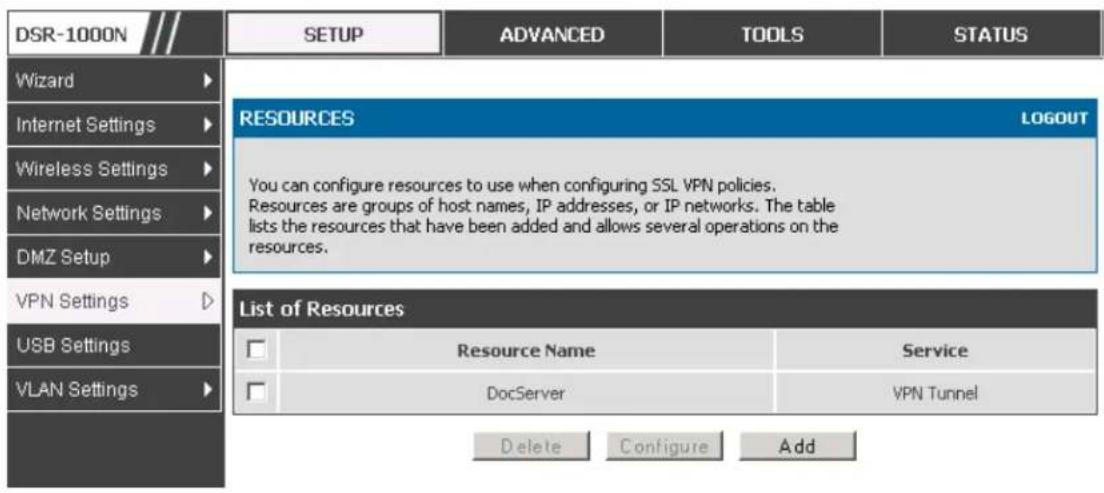
text_image
DSR-1000N SETUP ADVANCED TOOLS STATUS Wizard INTERNET Settings Wireless Settings Network Settings DMZ Setup VPN Settings USB Settings VLAN Settings RESOURCES LOGOUT You can configure resources to use when configuring SSL VPN policies. Resources are groups of host names, IP addresses, or IP networks. The table lists the resources that have been added and allows several operations on the resources. List of Resources Resource Name Service DocServer VPN Tunnel Delete Configure Add7.3 Application Port Forwarding
Setup > VPN Settings > SSL VPN Server > Port Forwarding
Port forwarding allows remote SSL users to access specified network applications or services after they login to the User Portal and launch the Port Forwarding service.
Traffic from the remote user to the router is detected and re-routed based on configured port forwarding rules.
Internal host servers or TCP applications must be specified as being made accessible to remote us ers. Allowing access to a LAN server requires entering the local server IP address and TCP port number of the application to be tunnelled. The table below lists some common applications and corresponding TCP port numbers:
| TCP Application | Por t Number |
| FTP Data (usually not needed) | 20 |
| FTP Control Protocol | 21 |
| SSH | 22 |
| Telnet | 23 |
| SMTP (send mail) | 25 |
| HTTP (w eb) | 80 |
| POP3 (receive mail) | 110 |
| NTP (network time protocol) | 123 |
| Citrix | 1494 |
| Terminal Services | 3389 |
| VNC (virtual network computing) | 5900 or 5800 |
As a convenience for remote us ers, the hostname (FQDN) of the network server can be configured to allow for IP address resolution. This host name resolution provides us ers with easy-to-remember FQDN's to access TCP applications in steps of error-prone IP addresses when using the Port Forwarding service through the SSL User Portal.
To configure port forwarding, following are required:
- Local Server IP address: The IP address of the local server which is hosting the application.
• TCP port: The TCP port of the application
Once the new application is defined it is displayed in a list of configured applications for port forwarding.
allow us ers to access the private network servers by using a hostname instead of an IP address s, the FQDN corresponding to the IP address is defined in the port forwarding host configuration section.
- Local server IP address: The IP address of the local server hosting the application. The application should be configured in advance.
- Fully qualified domain name: The domain name of the internal server is to be specified
Once the new FQDN is configured, it is displayed in a list of configured hosts for port forwarding.

Defining the hostname is optional as minimum requirement for port forwarding is identifying the TCP application and local server IP address. The local server IP addresses of the configured host name must match the IP address of the configured application for port forwarding.
Figure 96: List of Available Applications for SSL Port Forwarding

text_image
DSR-1000N SETUP ADVANCED TOOLS STATUS Wizard Internet Settings Wireless Settings Network Settings DMZ Setup VPN Settings USB Settings VLAN Settings PORT FORWARDING LOGOUT The Port Forwarding page allows you to detect and re-route data sent from remote users to the SSL VPN gateway to predefined applications running on private networks. List of Configured Applications for Port Forwarding Local Server IP Address TCP Port Number 97.0.0.64 125 Delete Add List of Configured Host Names for Port Forwarding Local Server IP Address Fully Qualified Domain Name 192.168.15.25 test Delete Add7.4 SSL VPN Client Configuration
Setup > VPN Settings > SSL VPN Client > SSL VPN Client
An SSL VPN tunnel client provides a point-to-point connection between the browser-side machine and this router. When a SSL VPN client is launched from the user portal, a "network adapter" with an IP address from the corporate subnet, DNS and WINS settings is automatically created. This allows local applications to access services on the private network without any special network configuration on the remote SSL VPN client machine.
It is important to ensure that the virtual (PPP) interface address of the VPN tunnel client does not conflict with physical devices on the LAN. The IP address s range for the SSL VPN virtual network adapter should be either in a different subnet or non - overlapping range as the corporate LAN.

The IP addresses of the client's network interfaces (Ethernet, Wireless, etc.) cannot be identical to the router's IP address or a server on the corporate LAN that is being accessed through the SSL VPN tunnel.
Figure 97: SSL VPN client adapter and access configuration

text_image
DSR-1000N SETUP ADVANCED TOOLS STATUS Wizard Internet Settings Wireless Settings Network Settings DMZ Setup VPN Settings USB Settings VLAN Settings SSL VPN CLIENT LOGOUT An SSL VPN tunnel client provides a point-to-point connection between the browser-side machine and this device. When a SSL VPN client is launched from the user portal, a "network adapter" with an IP address, DNS and WINS settings is automatically created, which allows local applications to talk to services on the private network without any special network configuration on the remote SSL VPN client machine. Save Settings Don't Save Settings Client IP Address Range Enable Split Tunnel Support: DNS Suffix (Optional) : Primary DNS Server (Optional) : Secondary DNS Server (Optional) : Client Address Range Begin: 192.168.251.1 Client Address Range End: 192.168.251.254 LCP Timeout: 60 (Seconds)The router allows full tunnel and split tunnel support. Full tunnel mode just sends all traffic from the client across the VPN tunnel to the router. Split tunnel mode only sends traffic to the private LAN based on pre-specified client routes. These client routes give the SSL client access to specific private networks, thereby allowing access control over specific LAN services.
Client level configuration supports the following:
- Enable Split Tunnel Support: With a split tunnel, only resources which are referenced by client routes can be accessed over the VPN tunnel. With full tunnel support (if the split tunnel option is disabled the DSR acts in full tunnel mode) all addresses on the private network are accessible over the VPN tunnel. Client routes are not required.
- DNS Suffix: The DNS suffix name which will be given to the SSL VPN client. This configuration is optional.
- Primary DNS Server: DNS server IP address to set on the network adaptor created on the client host. This configuration is optional.
- Secondary DNS Server: Secondary DNS server IP address to set on the network adaptor created on the client hos t. This configuration is optional.
- Client Address Range Begin: Clients who connect to the tunnel get a DHCP served IP address assigned to the network adaptor from the range of addresses beginning with this IP address
Client Address Range End: The ending IP address of the DHCP range of addresses served to the client network adaptor.
Setup > VPN Settings > SSL VPN Client > Configured Client Routes
If the SSL VPN client is assigned an IP address in a different subnet than the corporate network, a client route must be added to allow access to the private LAN through the VPN tunnel. As well a static route on the private LAN's firewall (typically this router) is needed to forward private traffic through the VPN Firewall to the remote SSL VPN client. When split tunnel mode is enabled, the user is required to configure routes for VPN tunnel clients:
- Destination network: The network address of the LAN or the subnet information of the destination network from the VPN tunnel clients' perspective is set here.
- Subnet mask: The subnet information of the destination network is set here.
Figure 98: Configured client routes only apply in split tunnel mode
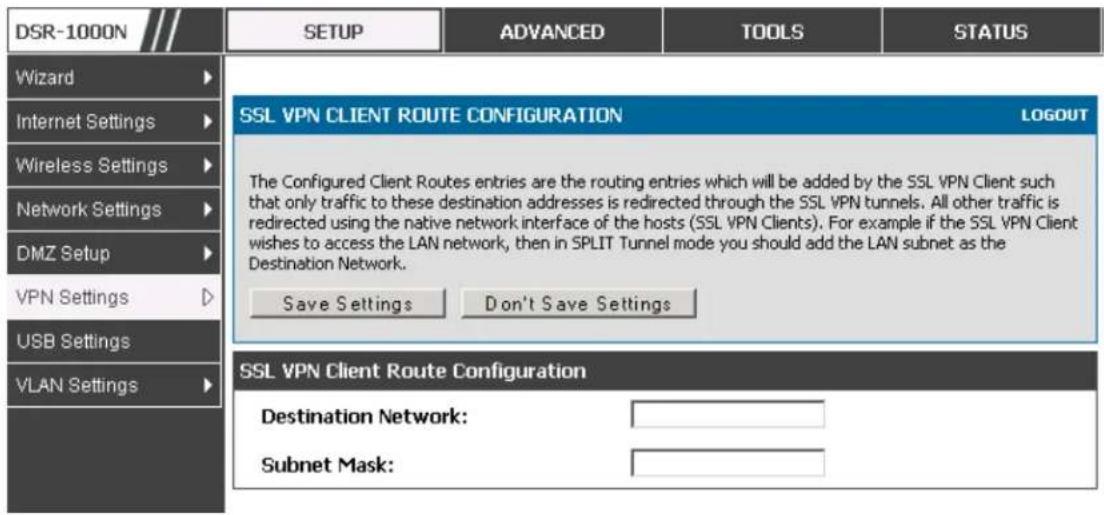
text_image
DSR-1000N SETUP ADVANCED TOOLS STATUS Wizard Internet Settings Wireless Settings Network Settings DMZ Setup VPN Settings USB Settings VLAN Settings SSL VPN CLIENT ROUTE CONFIGURATION LOGOUT The Configured Client Routes entries are the routing entries which will be added by the SSL VPN Client such that only traffic to these destination addresses is redirected through the SSL VPN tunnels. All other traffic is redirected using the native network interface of the hosts (SSL VPN Clients). For example if the SSL VPN Client wishes to access the LAN network, then in SPLIT Tunnel mode you should add the LAN subnet as the Destination Network. Save Settings Don't Save Settings SSL VPN Client Route Configuration Destination Network: Subnet Mask:Steps to Install/Uninstall SSLVPN tunnel in MAC OS
1.Open terminal and run "visudo" as root and it will open sudoers file
2. Add "username ALL=NOPASSWD:/usr/sbin/chown,/bin/chmod,/bin/rm" at the bottom of the sudoers file, save and close the file. (Username is the user name of the MAC account but not SSLVPN us er name).
While uninstalling SSLVPN tunnel, when it asks for password, enter the MAC user account password but no t root password or s slvpn us er password
7.5 User Portal
Setup > VPN Settings > SSL VPN Client > SSL VPN Client Portal
When remote users want to access the private network through an SSL tunnel (either using the Port Forwarding or VPN tunnel service), they log in through a user portal. This portal provides the authentication fields to provide the appropriate access levels and privileges as determined by the router administrator. The domain where the user account is stored must be specified, and the domain determines the authentication method and portal layout screen presented to the remote user.
Figure 99: List of configured SSL VPN portals. The configured portal can then be associated with an authentication domain
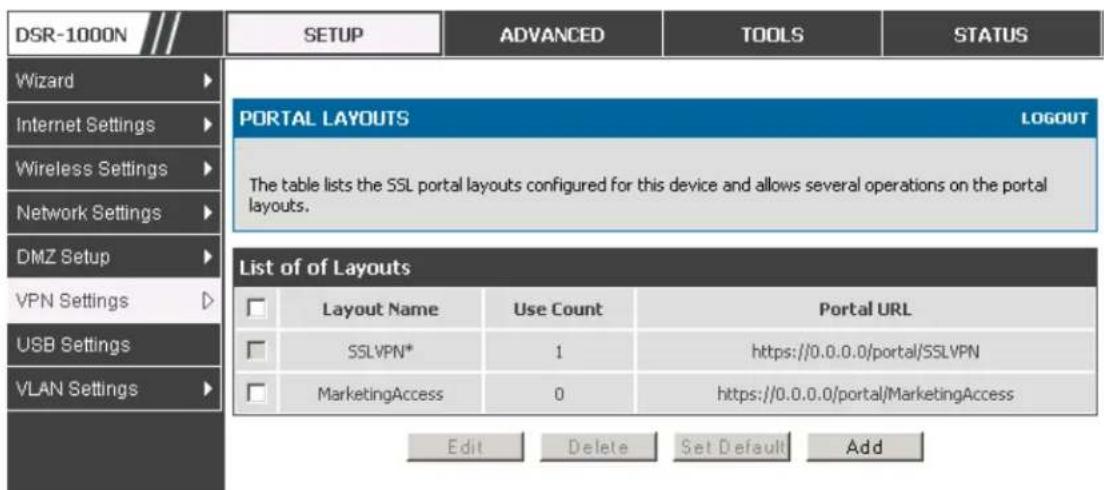
text_image
DSR-1000N SETUP ADVANCED TOOLS STATUS Wizard Internet Settings Wireless Settings Network Settings DMZ Setup VPN Settings USB Settings VLAN Settings PORTAL LAYOUTS LOGOUT The table lists the SSL portal layouts configured for this device and allows several operations on the portal layouts. List of of Layouts Layout Name Use Count Portal URL SSLVPN* 1 https://0.0.0.0/portal/SSLVPN MarketingAccess 0 https://0.0.0.0/portal/MarketingAccess Edit Delete Set Default Add7.5.1 Creating Portal Layouts
Setup > VPN Settings > SSL VPN Server > Portal Layouts
The router allows you to create a custom page for remote SSL VPN users that is presented upon authentication. There are various fields in the portal that are customizable for the domain, and this allows the router administrator to communicate details such as login instructions, available services, and other us age details in the portal visible to remote users. During domain setup, configured portal layouts are available to select for all users authen ticated by the domain.

The default portal LAN IP address is https://192.168.10.1/scgi-bin/userPortal/portal. This is the same page that opens when the "User Portal" link is clicked on the SSL VPN menu of the router GUI.
The router adminis trator creates and edits portal layouts from the configuration pages in the SSL VPN menu. The portal name, title, banner name, and banner contents are all customizable to the intended users for this portal. The portal name is appended to
the SSL VPN portal URL. As well, the users assigned to this portal (through their authentication domain) can be presented with one or more of the router's supported SSL services such as the VPN Tunnel page or Port Forwarding page.
To configure a portal layout and theme, following information is needed:
- Portal layout name: A descriptive name for the custom portal that is being configured. It is used as part of the SSL portal URL.
- Portal site title: The portal web browser window title that appears when the client accesses this portal. This field is optional.
- Banner title: The banner title that is displayed to SSL VPN clients prior to login. This field is optional.
- Banner message: The banner message that is displayed to SSL VPN clients prior to login. This field is optional.
- Display banner message on the login page: The user has the option to either display or hide the banner message in the login page.
- HTTP meta tags for cache control: This security feature prevents expired web pages and data from being stored in the client's web browser cache. It is recommended that the user selects this option.
- ActiveX web cache cleaner: An ActiveX cache control web cleaner can be pushed from the gateway to the client browser whenever users login to this SSL VPN portal.
- SSL VPN portal page to display: The User can either enable VPN tunnel page or Port Forwarding, or both depending on the SSL services to display on this portal.
Once the portal settings are configured, the newly configured portal is added to the list of portal layouts.
Figure 100: SSL VPN Portal configuration

text_image
DSR-1000N SETUP ADVANCED TOOLS STATUS Wizard Internet Settings Wireless Settings Network Setting... DMZ Setup VPN Settings USB Settings VLAN Settings PORTAL LAYOUT CONFIGURATION LOGOUT This page allows you to add a new portal layout or edit the configuration of an existing portal layout. The details will then be displayed in the List of Portal Layouts table on the SSL VPN Server> Portal Layouts page under the VPN menu. Save Settings Don't Save Settings Portal Layout and Theme Name Portal Layout Name: Profile Name (Optional) : Portal Site Title (Optional) : Banner Title (Optional) : Banner Message (Optional) : Display banner message on login page: HTTP meta tags for cache control(recommended):Chapter 8. Advanced Configuration Tools
8.1 USB Device Setup
Setup > USB Settings > USB Status
The DSR Unified Services Router has a USB interface for printer access, file sharing and on the DSR-1000 / DSR-1000N models 3G modem support.
There is no configuration on the GUI to enable USB device support. Upon inserting your USB storage device, printer cable or 3G modem the DSR router will automatically detect the type of connected peripheral.
- USB Mass Storage: also referred to as a "share port", files on a USB disk connected to the DSR can be accessed by LAN users as a network drive.
- USB Printer: The DSR can provide the LAN with access to printers connected through the USB. The printer driver will have to be installed on the LAN host and traffic will be routed through the DSR between the LAN and printer.
- USB 3G modem: A 3G modem dongle can be plugged in and used as a secondary WAN. Load balancing, auto-failover, or primary WAN access can be configured through the 3G interface.
To configure printer on a Windows machine, follow below given steps:
- Click 'Start' on the desktop.
- Select 'Printers and faxes' option.
- Right click and select 'add printer' or click on 'Add printer' present at the left menu.
- Select the 'Network Printer' radio button and click next (select "device isn't listed in case of Windows7").
- Select the 'Connect to printer using URL' radio button ('Select a shared printer by name 'in case of Windows 7) and give the following URL http://
(Model Name can be found in the USB status page of router's GUI). - Click 'next' and select the appropriate driver from the displayed list.
- Click on 'next' and 'finish' to complete adding the printer.
Figure 101: USB Device Detection
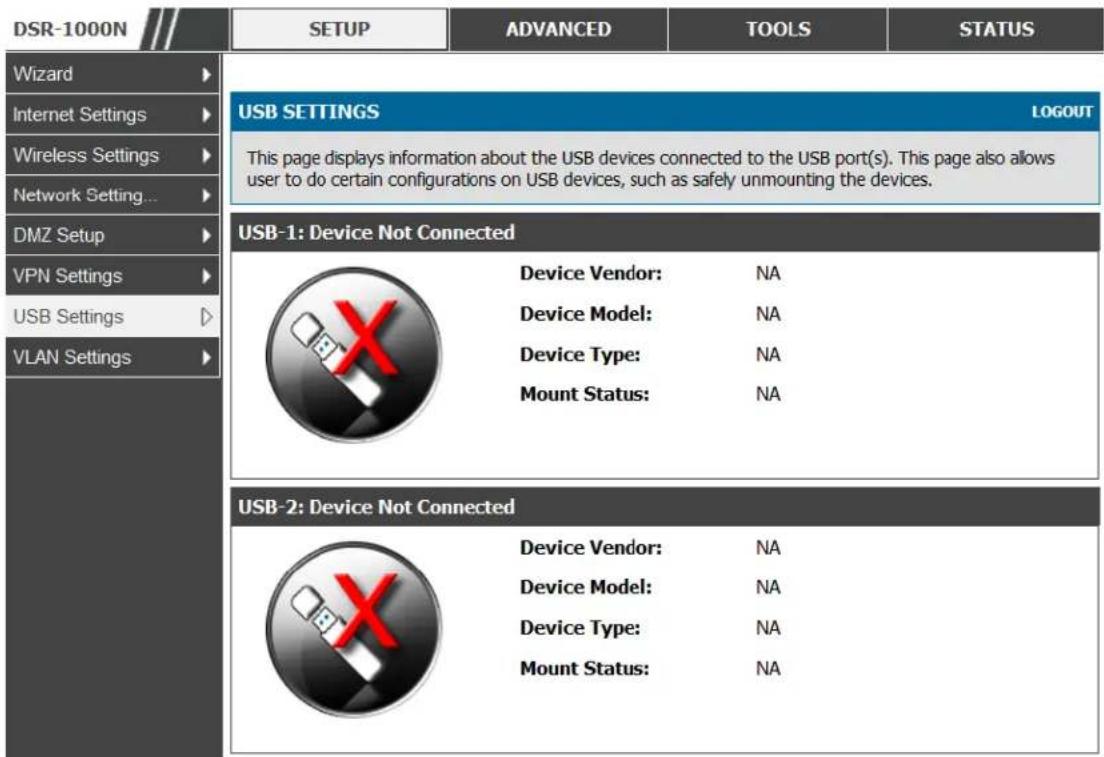
text_image
DSR-1000N SETUP ADVANCED TOOLS STATUS Wizard Internet Settings Wireless Settings Network Setting... DMZ Setup VPN Settings USB Settings VLAN Settings USB SETTINGS LOGOUT This page displays information about the USB devices connected to the USB port(s). This page also allows user to do certain configurations on USB devices, such as safely unmounting the devices. USB-1: Device Not Connected Device Vendor: NA Device Model: NA Device Type: NA Mount Status: NA USB-2: Device Not Connected Device Vendor: NA Device Model: NA Device Type: NA Mount Status: NA8.2 USB share port
Setup > USB Settings > USB SharePort
This page allows configure the SharePoint feature available in th is router.
Figure 102: USB SharePort
| DSR-1000N /// | SETUP | ADVANCED | TOOLS | STATUS |
| Wizard | ||||
| Internet Settings | ||||
| Wireless Settings | ||||
| Network Setting... | ||||
| DMZ Setup | ||||
| VPN Settings | ||||
| USB Settings | ||||
| VLAN Settings | ||||
| USB-1 (NA) | ||||
| Enable USB Printer: | ||||
| Enable sharing: | ||||
| USB-2 (NA) | ||||
| Enable USB Printer: | ||||
| Enable sharing: | ||||
| Sharing Enabled interfaces | ||||
| VLAN Name | Enable Printer | Enable Storage | ||
| default | ||||
| 12 | ||||
| 15 | ||||
| 16 | ||||
USB-1:
Enable USB Printer: Select this option to allow the USB printer connected to the router to be shared across the network.
The USB printer can be accessed on any LAN host (with appropriate printer driver ins talled) connected to the router by using the following command in the host's add printers window
http://
Enable Sharing: Select this option to allow the USB storage device connected to the router to be shared across the network.
USB-2:
Enable USB Printer: Select this option to allow the USB printer connected to the router to be shared across the network.
The USB printer can be accessed on any LAN host (with appropriate printer driver ins talled) connected to the router by using the following command in the host's add printers window
http://
Enable Sharing: Select this option to allow the USB storage device connected to the router to be shared across the network.
Sharing Enabled interfaces :
The LAN interfaces on which USB sharing is enabled, atleast one interface must be selected to begin sharing.
Enable Printer: Enables printer sharing on the selected interface.
Enable Storage: Enables storage device sharing on the selected interface.
8.3 SMS service
Setup > USB Settings > SMS Service
The DSR Unified Services Router has a USB interface to connect 3G modem support to send and receive Short Messaging Service. The received messages can be seen in the Inbox and allows the user to create a new SMS. If WAN3 is used in dedicated wan mode, load balancing mode or if 3G USB Device is not connected to router then the controls on this page will be greyed out.
Figure 103: SMS Service – Send SMS
| DSR-1000N | SETUP | ADVANCED | TOOLS | STATUS | |
| Wizard | |||||
| Internet Settings | SMS INBOX | LOGOUT | |||
| Wireless Settings | |||||
| Network Settings | SMS INBOX | ||||
| DMZ Setup | Sno | Sender | Timestamp | Text | |
| VPN Settings | 0 | 8468451099710510850115109115 | 11/03/12,05:57:15+22 | BSNL gives you email on mobile Works on all mobile sets. It's as simple as SMS only Rs 49 per month for unlimited emails Try now send SMSMAIL to 56688 | |
| USB Settings | |||||
| VLAN Settings | |||||
The following details are displayed in SMS INBOX page:
- Sno: Displays the serial number of message in the inbox.
- Sender: Displays the sender of the particular message.
- TimeStamp: Displays the time when the mess age was sent
• Text: Displays the content of the particular Message.
The following actions are performed:
- Delete: Deletes the SMS having that particular Sno. Only one message can be deleted at a time.
- Refresh: Updates the inbox with new SMS (if any).
- Reply: Lets the user create a new SMS in reply to a particular message by the selected sender. "Receiver" field in the createSms.htm page is filled with the sender's number.
- Forward: Lets the user forward a selected SMS. "Text Message" field in the createSms.htm page is filled with the "Text" of the selected message.
Figure 104: SMS Service – Receive SMS
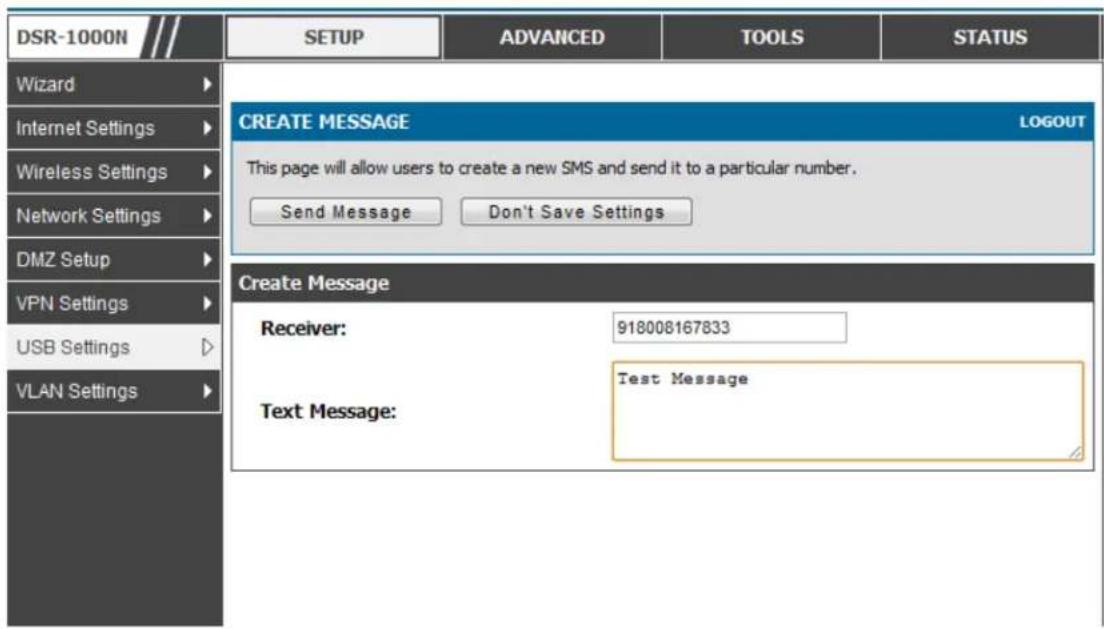
text_image
DSR-1000N SETUP ADVANCED TOOLS STATUS Wizard Internet Settings Wireless Settings Network Settings DMZ Setup VPN Settings USB Settings VLAN Settings CREATE MESSAGE LOGOUT This page will allow users to create a new SMS and send it to a particular number. Send Message Don't Save Settings Create Message Receiver: 918008167833 Text Message: Test MessageThe following details to be provided in Create Mes sage page:
- Receiver: Enter the phone number of the intended receiver of the message.
• Text Message: Enter the body of the message here
Click Send Mess age to send the message.
Click Don't Save Settings to reset Receiver and Text Message fields.
8.4 Authentication Certificates
Advanced > Certificates
This gateway uses digital certificates for IPsec VPN authentication as well as SSL validation (for HTTPS and SSL VPN authentication). You can obtain a digital certificate from a well-known Certificate Authority (CA) such as VeriSign, or generate and sign your own certificate using functionality available on this gateway. The gateway comes with a self-signed certificate, and this can be replaced by one signed by a CA as per your networking requirements. A CA certificate provides strong assurance of the server's identity and is a requirement for most corporate network VPN solutions.
The certificates menu allows you to view a list of certificates (both from a CA and self-signed) currently loaded on the gateway. The following certificate data is displayed in the list of Trusted (CA) certificates:
CA Identity (Subject Name): The certificate is issued to this person or organization
Is suer Name: This is the CA name that issued this certificate
Expiry Time: The date after which this Trusted certificate becomes invalid
A self certificate is a certificate issued by a CA identifying your device (or self - signed if you don't want the identity protection of a CA). The Active Self Certificate
table lists the self certificates currently loaded on the gateway. The following information is displayed for each uploaded self certificate:
- Name: The name you use to identify this certificate, it is not displayed to IPsec VPN peers or SSL users.
- Subject Name: This is the name that will be displayed as the owner of this certificate. This should be your official registered or company name, as IPsec or SSL VPN peers are shown this field.
- Serial Number: The serial number is maintained by the CA and used to identify this signed certificate.
- Issuer Name: This is the CA name that issued (signed) this certificate
- Expiry Time: The date after which this signed certificate becomes invalid – you should renew the certificate before it expires.
To request a self certificate to be signed by a CA, you can generate a Certificate Signing Request from the gateway by entering identification parameters and passing it along to the CA for signing. Once signed, the CA's Trusted Certificate and signed certificate from the CA are uploaded to activate the self-certificate validating the identity of this gateway. The self certificate is then used in IPsec and SSL connection with peers to validate the gateway's authentic it y.
Figure 105: Certificate summary for IPsec and HTTPS management
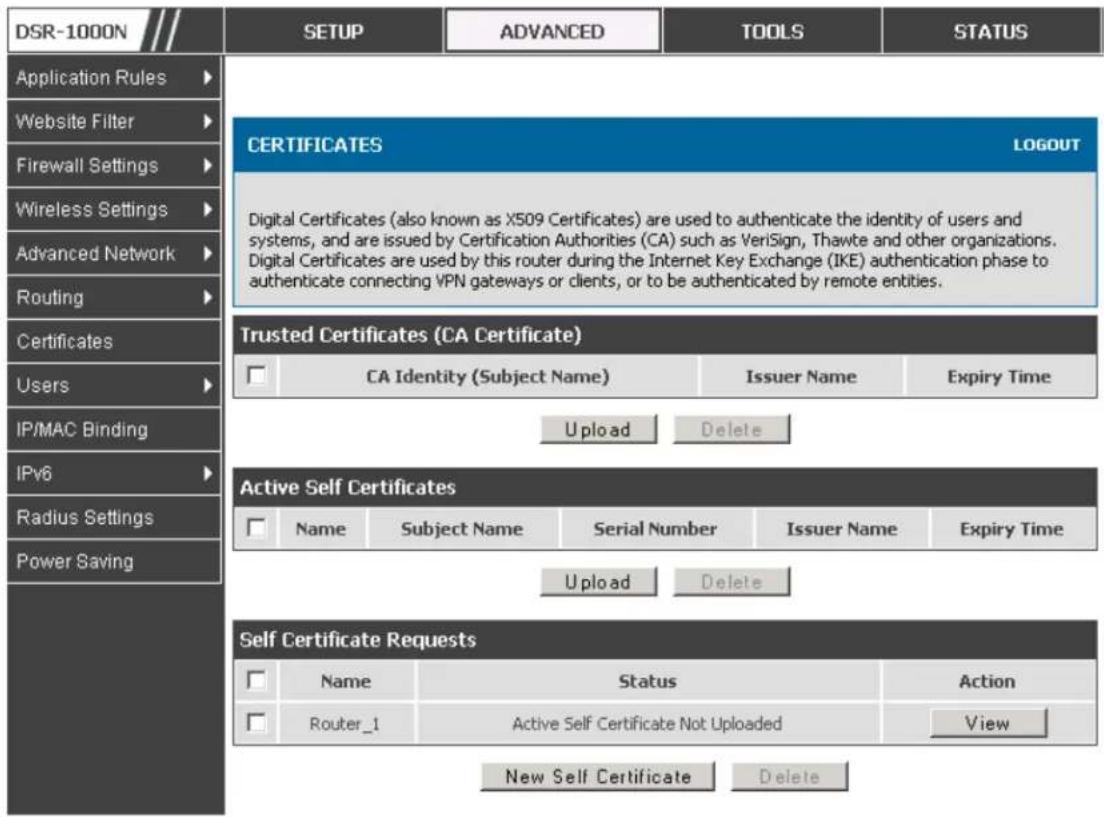
text_image
DSR-1000N Application Rules Website Filter Firewall Settings Wireless Settings Advanced Network Routing Certificates Users IP/MAC Binding IPv6 Radius Settings Power Saving SETUP ADVANCED TOOLS STATUS CERTIFICATES LOGOUT Digital Certificates (also known as X509 Certificates) are used to authenticate the identity of users and systems, and are issued by Certification Authorities (CA) such as VeriSign, Thawte and other organizations. Digital Certificates are used by this router during the Internet Key Exchange (IKE) authentication phase to authenticate connecting VPN gateways or clients, or to be authenticated by remote entities. Trusted Certificates (CA Certificate) □ CA Identity (Subject Name) Issuer Name Expiry Time Upload Delete Active Self Certificates □ Name Subject Name Serial Number Issuer Name Expiry Time Upload Delete Self Certificate Requests □ Name Status Action □ Router_1 Active Self Certificate Not Uploaded View New Self Certificate Delete8.5 Advanced Switch Configuration
The DSR allows you to adjust the power consumption of the hardware based on your actual usage. The two “green” options available for your LAN switch are Power Saving by Link Status and Length Detection State. With “Power Saving by Link Status” option enabled, the total power consumption by the LAN switch is dependent function of on the number of connected ports. The overall current draw when a single port is connected is less than when all the ports are connected. With “Length Detect ion State” option enabled, the overall current up plied to a LAN port is reduced when a smaller cable length is connected on a LAN port.
Jumbo Frames support can be configured as an advanced switch configuration. Jumbo frames are Ethernet frames with more than 1500 bytes of payload. When this option is enabled, the LAN devices can exchange information at Jumbo frames rate.
Figure 106: Advanced Switch Settings
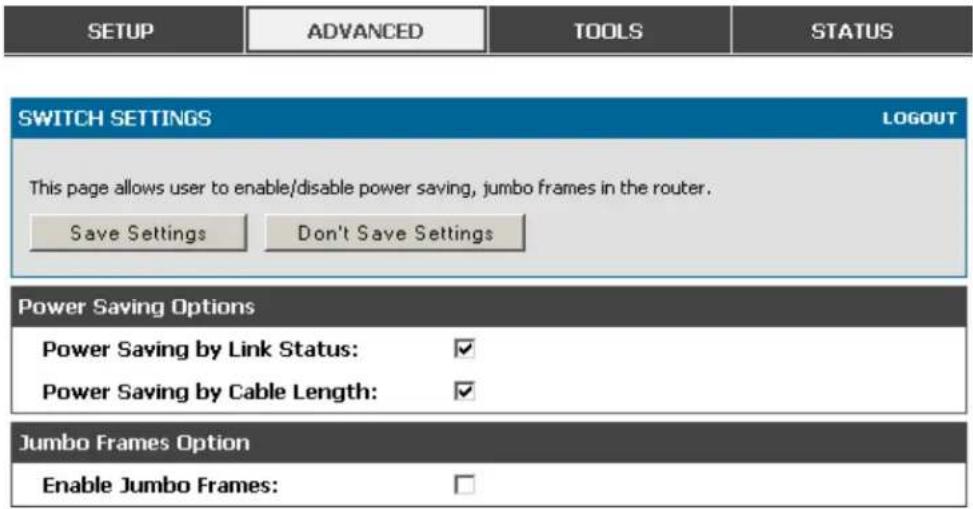
text_image
SETUP ADVANCED TOOLS STATUS SWITCH SETTINGS LOGOUT This page allows user to enable/disable power saving, jumbo frames in the router. Save Settings Don't Save Settings Power Saving Options Power Saving by Link Status: ✓ Power Saving by Cable Length: ✓ Jumbo Frames Option Enable Jumbo Frames: □Chapter 9. Administration & Management
9.1 Configuration Access Control
The primary means to configure this gateway via the browser-independent GUI. The GUI can be accessed from LAN node by using the gateway's LAN IP address and HTTP, or from the WAN by using the gateway's WAN IP address and HTTPS (HTTP over SSL).
Administrator and Guest users are permitted to login to the router's management interface. The user type is set in the Advanced >Users>Users page. The Admin or Guest user can be configured to access the router GUI from the LAN or the Internet (WAN) by enabling the corresponding Login Policy.
Figure 107: User Login policy configuration
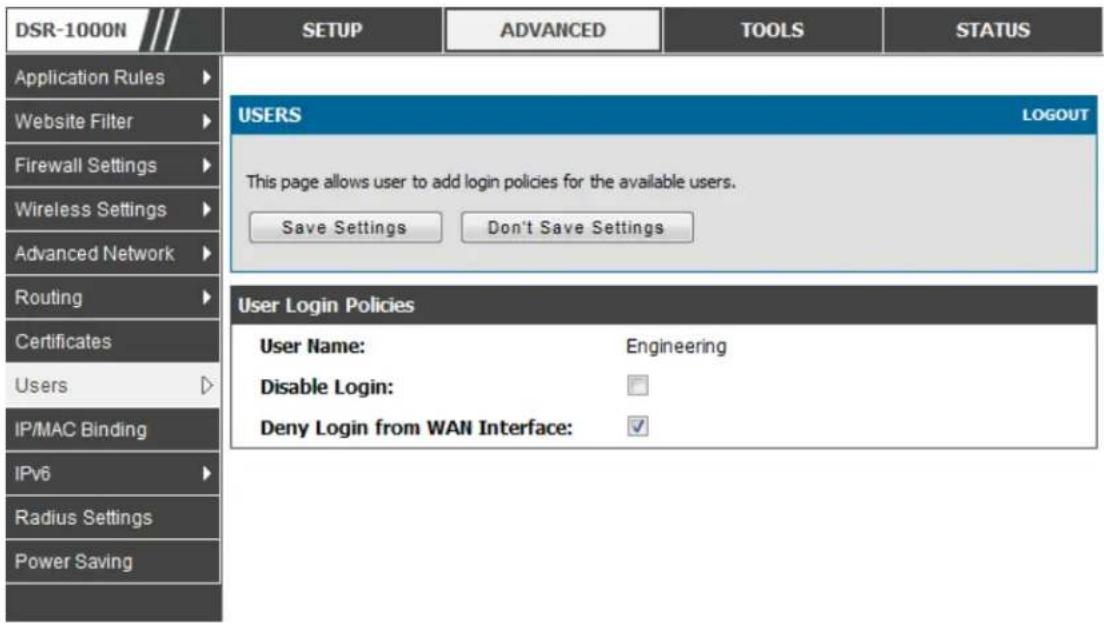
text_image
DSR-1000N Application Rules Website Filter Firewall Settings Wireless Settings Advanced Network Routing Certificates Users IP/MAC Binding IPv6 Radius Settings Power Saving SETUP ADVANCED TOOLS STATUS USERS LOGOUT This page allows user to add login policies for the available users. Save Settings Don't Save Settings User Login Policies User Name: Engineering Disable Login: □ Deny Login from WAN Interface: ✓9.1.1 Admin Settings
Tools > Admin > Admin settings
This page allows to provide the name of the router.
Figure 108: Admin Settings

text_image
DSR-1000N ADMIN Date and Time Log Settings System Firmware Firmware via USB Dynamic DNS System Check Schedules Set Language SETUP ADVANCED TOOLS STATUS ADMIN SETTINGS LOGOUT This page allows user to set the router identification name. Save Settings Don't Save Settings System Name System Name: DSR-1000N9.1.2 Remote Management
Tools > Admin > Remote Management
Both HTTPS and telnet access can be restricted to a subset of IP addresses. The router administrator can define a known PC, single IP address or range of IP addresses that are allowed to access the GUI with HTTPS. The opened port for SSL traffic can be changed from the default of 443 at the same time as defining the allowed remote management IP address range.
Figure 109: Remote Management from the WAN

text_image
DSR-1000N Admin Date and Time Log Settings System Firmware Firmware via USB Dynamic DNS System Check Schedules Set Language SETUP ADVANCED TOOLS STATUS REMOTE MANAGEMENT LOGOUT From this page a user can configure the remote management feature. This feature can be used to manage the box remotely from WAN side. Save Settings Don't Save Settings Remote Management Enable Enable Remote Management: Enable Remote SSH: Access Type: All IP Addresses From: To: IP Address: HTTPS Port Number: 443 Enable Remote SNMP:9.1.3 CLI Access
In addition to the web-based GUI, the gateway supports SSH and Telnet management for command-line interaction. The CLI login credentials are shared with the GUI for administrator users. To access the CLI, type "cli" in the SSH or console prompt and login with administrator user credentials.
9.2 SNMP Configuration
Tools > Admin > SNMP
SNMP is an additional management tool that is useful when multiple routers in a network are being managed by a central Master system. When an external SNMP manager is provided with th is router's Managemen t Info rmat ion Bas e (MIB) file, the manager can update the router's hierarchical variables to view or update configuration parameters. The router as a managed device has an SNMP agent that allows the MIB configuration variables to be accessed by the Master (the SNMP manager). The Access Control List on the router identifies managers in the network that have read-only or read-write SNMP credentials . The Traps List outlines the port over which notifications from this router are provided to the SNMP community (managers ) and also the SNMP version (v1, v2c, v3) for the trap.
Figure 110: SNMP Users, Traps, and Access Control
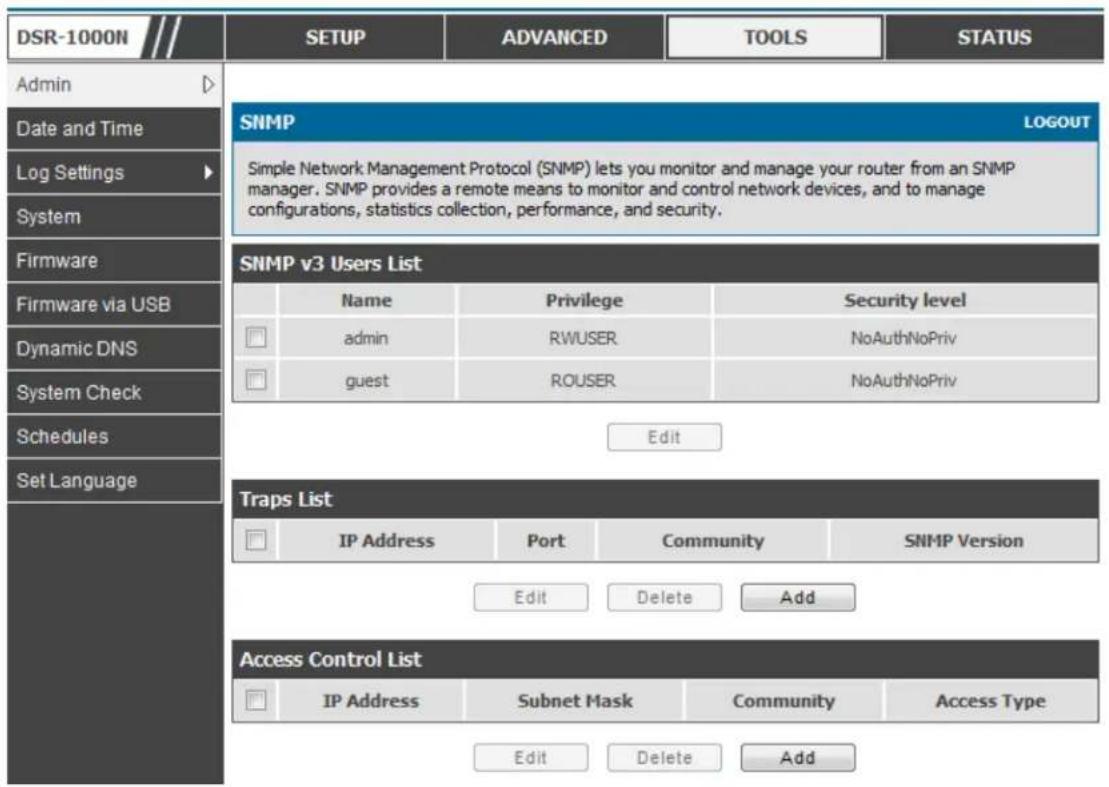
text_image
DSR-1000N SETUP ADVANCED TOOLS STATUS Admin Date and Time Log Settings System Firmware Firmware via USB Dynamic DNS System Check Schedules Set Language SNMP LOGOUT Simple Network Management Protocol (SNMP) lets you monitor and manage your router from an SNMP manager. SNMP provides a remote means to monitor and control network devices, and to manage configurations, statistics collection, performance, and security. SNMP v3 Users List Name Privilege Security level admin RWUSER NoAuthNoPriv guest ROUSER NoAuthNoPriv Edit Traps List IP Address Port Community SNMP Version Edit Delete Add Access Control List IP Address Subnet Mask Community Access Type Edit Delete AddTools > Admin > SNMP System Info
The router is identified by an SNMP manager via the System Information. The identifier settings The SysName set here is also used to identify the router for SysLog logging.
Figure 111: SNMP system information for this router
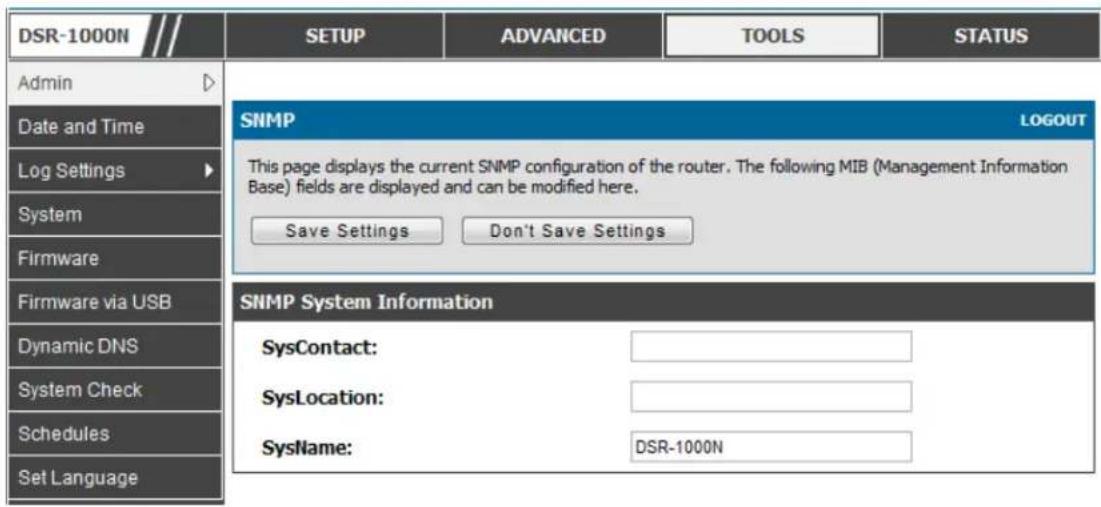
text_image
DSR-1000N Setup ADVANCED TOOLS STATUS Admin Date and Time Log Settings System Firmware Firmware via USB Dynamic DNS System Check Schedules Set Language SNMP LOGOUT This page displays the current SNMP configuration of the router. The following MIB (Management Information Base) fields are displayed and can be modified here. Save Settings Don't Save Settings SNMP System Information SysContact: SysLocation: SysName: DSR-1000N9.3 Configuring Time Zone and NTP
Tools > Date and Time
You can configure your time zone, whether or not to adjust for Daylight Savings Time, and with which Network Time Protocol (NTP) server to synchronize the date and time. You can choose to set Date and Time manually, which will store the information on the router's real time clock (RTC). If the router has access to the internet, the most accurate mechanism to set the router time is to enable NTP server communication.
Accurate date and time on the router is critical for firewall schedules, Wi-Fi power saving support to disable APs at certain times of the day, and accurate logging.
Please follow the steps below to configure the NTP server:
- Select the router's time zone, relative to Greenwich Mean Time (GMT).
- If supported for your region, click to Enable Daylight Savings.
- Determine whether to use default or customNetwork Time Protocol (NTP) servers. If custom, enter the server addresses or FQDN.
Figure 112: Date, Time, and NTP server setup

text_image
DSR-1000N Admin Date and Time Log Settings System Firmware Firmware via USB Dynamic DNS System Check Schedules Set Language SETUP ADVANCED TOOLS STATUS DATE AND TIME LOGOUT This page allows us to set the date, time and NTP servers. Network Time Protocol (NTP) is a protocol that is used to synchronize computer clock time in a network of computers. Accurate time across a network is important for many reasons. Save Settings Don't Save Settings Date and Time Current Router Time: Sat Feb 4 17:26:27 GMT 2012 Time Zone: (GMT+05:30) Chennai Kolkata Mumbai New Delhi Enable Daylight Saving: Configure NTP Servers: Set Date and Time Manually: NTP Servers Configuration Default NTP Server: Custom NTP Server: Primary NTP Server: 0.us.pool.ntp.org Secondary NTP Server: 1.us.pool.ntp.org Time to re-synchronize (in minutes): 120 Set Date And Time Year Month Day Hours Min Sec 2012 / 02 / 04 - 17 : 26 : 279.4 Log Configuration
This router allows you to capture log messages for traffic through the firewall, VPN, and over the wireless AP. As an administrator you can monitor the type of traffic that goes through the router and also be notified of potential attacks or errors when they are detected by the router. The following sections describe the log configuration settings and the ways you can access these e logs.
9.4.1 Defining What to Log
Tools > Log Settings > Logs Facility
The Logs Facility page allows you to determine the granularity of logs to receive from the router. There are three core components of the router, referred to as Facilities:
- Kernel: This refers to the Linux kernel. Log messages that correspond to this facility would correspond to traffic through the firewall or network stack.
- System: This refers to application and management level features available on this router, including SSL VPN and administrator changes for managing the unit.
- Wireless: This facility corresponds to the 802.11 driver used for providing AP functionality to your network.
- LocalI-UTM: This facility corresponds to IPS (Intrusion Prevention System) which helps in detecting malicious intrusion attempts from the WAN.
For each facility, the following events (in order of severity) can be logged:
Emergency, Alert, Critical, Error, Warning, Notification, Information, Debugging.
When a particular severity level is selected, all events with severity equal to and greater than the chosen severity are captured. For example if you have configured
CRITICAL level logging for the Wireless facility, then 802.11 logs with severities
CRITICAL, ALERT, and EMERGENCY are logged. The severity levels available for logging are:
• EMERGENCY: system is unusable
- ALERT: action must be taken immediately
• CRITICAL: critical conditions
- ERROR: error conditions
• WARNING: warning conditions
- NOTIFICATION: normal but s significant condition
• INFORMATION: informational
- DEBUGGING: debug-level messages
Figure 113: Facility settings for Logging

text_image
DSR-1000N Admin Date and Time Log Settings System Firmware Firmware via USB Dynamic DNS System Check Schedules Set Language SETUP ADVANCED TOOLS STATUS LOGS FACILITY LOGOUT This page allows user to set the date and time for the router. User can use the automatic or manual date and settings depending upon his choice. Save Settings Don't Save Settings Logs Facility Facility: System Display Display and Send Logs Display in Event Log Send to Syslog Emergency: ✓ ✓ Alert: ✓ ✓ Critical: ✓ ✓ Error: ✓ ✓ Warning: ✓ ✓ Notification: ✓ ✓ Information: ✓ ✓ Debugging: ✓The display for logging can be customized based on where the logs are sent, either the Event Log viewer in the GUI (the Event Log viewer is in the Status > Logs page) or a remote Syslog server for later review. E-mail logs, discussed in a subsequent section, follow the same configuration as logs configured for a Sys log server.
Tools > Log Settings > Logs Configuration
This page allows you to determine the type of traffic through the router that is logged for display in Syslog, E-mailed logs, or the Event Viewer. Denial of service attacks, general attack information, login attempts, dropped packets, and similar events can be captured for review by the IT administrator.
Traffic through each network segment (LAN, WAN, DMZ) can be tracked based on whether the packet was accepted or dropped by the firewall.
Accepted Packets are those that were successfully transferred through the corresponding network segment (i.e. LAN to WAN). This option is particularly useful when the Default Out book policy is “Block A lway s” so the IT admin can monitor traffic that is passed through the firewall.
- Example: If Accept Packets from LAN to WAN is enabled and there is a firewall rule to allow SSH traffic from LAN, then whenever a LAN machine
tries to make an SSH connection, those packets will be accepted and a message will be logged. (Assuming the log option is set to Allow for the SSH firewall rule.)
Dropped Packets are packets that were intentionally blocked from being transferred through the corresponding network segment. This option is useful when the Default Outbound Policy is “Allo w A lway s”.
- Example: If Drop Packets from LAN to WAN is enabled and there is a firewall rule to block SSH traffic from LAN, then whenever a LAN machine tries to make an SSH connection, those packets will be dropped and a message will be logged. (Make sure the log option is set to allow for this firewall rule.)
Enabling accepted packet logging through the firewall may generate a significant volume of log messages depending on the typical network traffic. This is recommended for debugging purposes only.
In addition to network segment logging, unicast and multicast traffic can be logged. Unicast packets have a single destination on the network, whereas broadcast t (or multicast) packets are sent to all possible destinations simultaneously. One other useful log control is to log packets that are dropped due to configured bandwidth profiles over a particular interface. This data will indicate to the admin whether the bandwidth profile has to be modified to account for the desired internet traffic of LAN users.
Figure 114: Log configuration options for traffic through router
| DSR-1000N | SETUP | ADVANCED | TOOLS | STATUS |
| Admin | ||||
| Date and Time | ||||
| Log Settings | ||||
| System | ||||
| Firmware | ||||
| Firmware via USB | ||||
| Dynamic DNS | ||||
| System Check | ||||
| Schedules | ||||
| Set Language | ||||
| Routing Logs | ||||
| Accepted Packets | Dropped Packets | |||
| LAN to WAN: | ✓ | ✓ | ||
| WAN to LAN: | ✓ | ✓ | ||
| WAN to DMZ: | ✓ | ✓ | ||
| DMZ to WAN: | ☐ | ✓ | ||
| LAN to DMZ: | ✓ | ✓ | ||
| DMZ to LAN: | ☐ | ☐ | ||
| VLAN to VLAN: | ✓ | ☐ | ||
| System Logs | ||||
| All Unicast Traffic: | ✓ | |||
| All Broadcast / Multicast Traffic: | ✓ | |||
| FTP Logs: | ✓ | |||
| Redirected ICMP Packets: | ✓ | |||
| Invalid Packets: | ☐ | |||
| Other Events Logs | ||||
| Bandwidth Limit: | ✓ | |||
Tools > Log Settings > IPv6 logging
This page allows you to configure the IPv6 logging
Figure 115: IPv6 Log configuration options for traffic through router

text_image
DSR-1000N Admin Date and Time Log Settings System Firmware Firmware via USB Dynamic DNS System Check Schedules Set Language SETUP ADVANCED TOOLS STATUS Please Set IP Mode to IPv4/IPv6 in Routing Mode Page to configure this page. IPV6 LOGGING LOGOUT This page allows user to configure log settings for IPv6 network. Save Settings Don't Save Settings LAN to WAN Accepted Packets: Dropped Packets: WAN Please configure at least one Accepted Packets: Dropped Packets:9.4.2 Sending Logs to E-mail or Syslog
Tools > Log Settings > Remote Logging
Once you have configured the type of logs that you want the router to collect, they can be sent to either a Syslog server or an E-Mail address. For remote logging a key configuration field is the Remote Log Identifier. Every logged message will contain the configured prefix of the Remote Log Identifier, so that syslog servers or email addresses that receive logs from more than one router can sort for the relevant device logs.
Once you enable the option to e-mail logs, enter the e-mail server's address (IP address or FQDN) of the SMTP server. The router will connect to this server when sending e-mails out to the configured addres ses. The SMTP port and return e-mail addresses are required fields to allow the router to package the logs and send a valid e-mail that is accepted by one of the configured "send-to" addresses. Up to three e-mail addresses can be configured as log recipients.
In order to establish a connection with the configured SMTP port and server, define the server's authentication requirements. The router supports Login Plain (no encryption) or CRAM-MD5 (encrypted) for the username and pas sword data to be sent to the SMTP server. Authentication can be disabled if the server does not have this requirement. In some cases the SMTP server may send out IDENT requests, and this router can have this response option enabled as needed.
Once the e-mail server and recipient details are defined you can determine when the router should send out logs. E-mail logs can be sent out based on a defined schedule by first choosing the unit (i.e. the frequency) of sending logs: Hourly, Daily, or Weekly. Selecting Never will disable log e-mails but will preserve the e-mail server settings.
Figure 116: E-mail configuration as a Remote Logging option
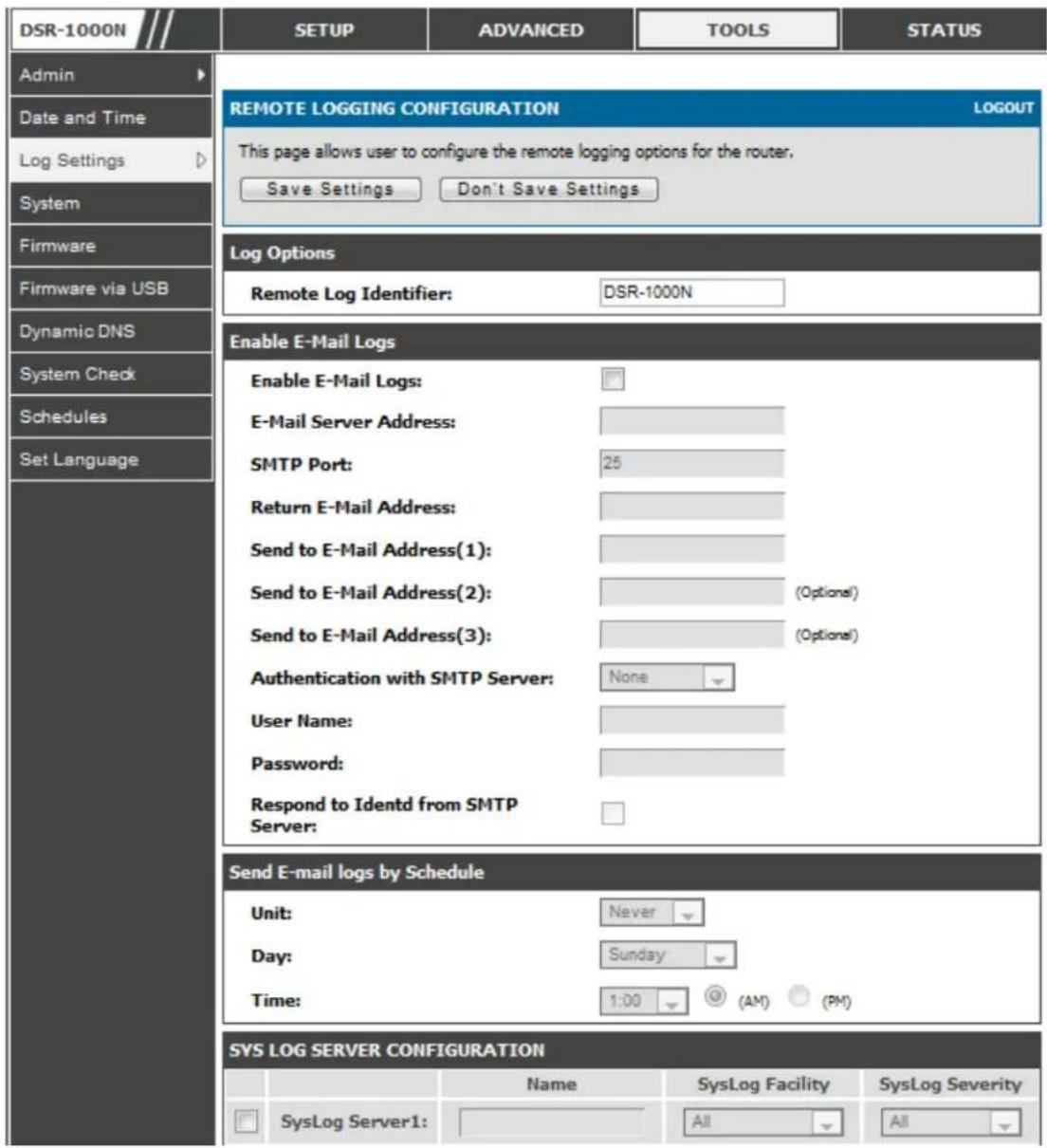
text_image
DSR-1000N Setup ADVANCED TOOLS STATUS Admin Date and Time Log Settings System Firmware Firmware via USB Dynamic DNS System Check Schedules Set Language REMOTE LOGGING CONFIGURATION LOGOUT This page allows user to configure the remote logging options for the router. Save Settings Don't Save Settings Log Options Remote Log Identifier: DSR-1000N Enable E-Mail Logs Enable E-Mail Logs: E-Mail Server Address: SMTP Port: 25 Return E-Mail Address: Send to E-Mail Address(1): Send to E-Mail Address(2): (Options) Send to E-Mail Address(3): (Options) Authentication with SMTP Server: None User Name: Password: Respond to Identd from SMTP Server: Send E-mail logs by Schedule Unit: Never Day: Sunday Time: 1:00 (AM) (PM) SYS LOG SERVER CONFIGURATION SysLog Server1: Name SysLog Facility SysLog Severity All AllAn external Sys log server is often used by network administrator to collect and store logs from the router. This remote device typically has less memory constraints than the local Event Viewer on the router's GUI, and thus can collect a considerable number of logs over a sustained period. This is typically very useful for debugging network issues or to monitor router traffic over a long duration.
This router supports up to 8 concurrent Syslog servers. Each can be configured to receive different log facility messages of varying severity. To enable a Syslog server select the checkbox next to an empty Syslog server field and assign the IP address or FQDN to the Name field. The selected facility and severity level messages will be
sent to the configured (and enabled) Syslog server once you save this configuration page's setting s.
Figure 117: Syslog serve r configuratio n for Remote Logging (continued)

text_image
SYS LOG SERVER CONFIGURATION Name SysLog Facility SysLog Severity SysLog Server1: All All SysLog Server2: All All All SysLog Server3: All All All SysLog Server4: All All All SysLog Server5: All All All SysLog Server6: All All All SysLog Server7: All All All SysLog Server8: All All All9.4.3 Event Log Viewer in GUI
Status > Logs > View All Logs
The router GUI lets you observe configured log messages from the Status menu. Whenever traffic through or to the router matches the settings determined in the Tools > Log Settings > Logs Facility or Tools > Log Settings > Logs Configuration pages, the corresponding log message will be displayed in this window with a timestamp.
It is very important to have accurate system time (manually set or from a NTP server) in order to unders tand log messages.
Status > Logs > VPN Logs
This page displays IPsec VPN log messages as determined by the configuration settings for facility and severity. This data is useful when evaluating IPsec VPN traffic and tunnel health.
Figure 118: VPN logs displayed in GUI event viewe r

text_image
DSR-1000N Device Info Logs Traffic Monitor Active Sessions Wireless Clients LAN Clients Active VPNs SETUP ADVANCED TOOLS STATUS VPN LOGS LOGOUT This page shows the VPN (IPSEC) related log. Display Logs 2000-01-01 00:00:31: INFO: IKE started 2000-01-01 00:01:41: INFO: Adding IPSec configuration with identifier "test_policy" 2000-01-01 00:01:41: INFO: Adding IKE configuration with identifier "test_policy" 2000-01-01 00:02:09: INFO: IKE stopped 2000-01-01 00:02:11: INFO: IKE started 2000-01-01 00:02:12: INFO: Adding IPSec configuration with identifier "test_policy" 2000-01-01 00:02:12: INFO: Adding IKE configuration with identifier "test_policy" 2000-01-01 00:03:03: INFO: Using IPsec SA configuration: anonymous 2000-01-01 00:03:03: INFO: Configuration found for 97.0.0.32. 2000-01-01 00:03:03: INFO: Initiating new phase 1 Refresh Logs Clear Logs9.5 Backing up and Restoring Configuration Settings
Tools > System
You can back up the router's custom configuration settings to restore them to a different device or the same router after some other changes. During backup, your settings are saved as a file on your host. You can restore the router's saved settings from this file as well. This page will also allow you revert to factory default settings or execute a soft reboot of the router.
IMPORTANT! During a restore operation, do NOT try to go online, turn off the router, shut down the PC, or do anything else to the router until the operation is complete. This will take approximately 1 minute. Once the LEDs are turned off, wait a few more seconds before doing anything with the router.
For backing up configuration or restoring a previously saved configuration, please follow the steps below:
-
To save a copy of your current settings, click the Backup button in the Save Current Settings option. The browser initiates an export of the configuration file and prompts to save the file on your host.
-
To restore your saved settings from a backup file, click Browse then locate the file on the host. After clicking Restore, the router begins importing the file's saved configuration settings. After the restore, the router reboots automatically with the restored settings.
- To erase your current settings and revert to factory default settings, click the Default button. The router will then restore configuration settings to factory defaults and will reboot automatically. (See Appendix B for the factory default parameters for the router).
Figure 119: Restoring configuration from a saved file will result in the current configuration being overwritten and a reboot
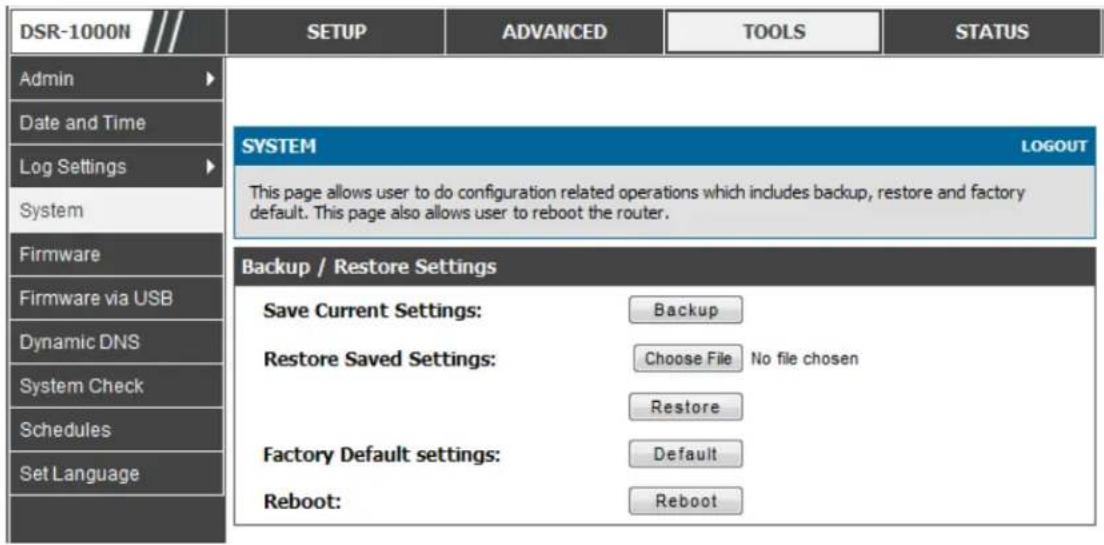
text_image
DSR-1000N ADMIN Date and Time Log Settings System Firmware Firmware via USB Dynamic DNS System Check Schedules Set Language SETUP ADVANCED TOOLS STATUS SYSTEM LOGOUT This page allows user to do configuration related operations which includes backup, restore and factory default. This page also allows user to reboot the router. Backup / Restore Settings Save Current Settings: Backup Restore Saved Settings: Choose File No file chosen Restore Factory Default settings: Default Reboot: Reboot9.6 Upgrading Router Firmware
Tools > Firmware
You can upgrade to a newer software version from the Administration web page. In the Firmware Upgrade section, to upgrade your firmware, click Browse, locate and select the firmware image on your host, and click Upgrade. After the new firmware image is validated, the new image is written to flash, and the router is automatically rebooted with the new firmware. The Firmware Information and also the Status > Device Info > Device Status page will reflect the new firmware version.
IMPORTANT! During firmware upgrade, do NOT try to go online, turn off the DSR, shut down the PC, or interrupt the process in anyway until the operation is complete. This should take only a minute or so including the reboot process. Interrupting the upgrade process at specific points when the flash is being written to may corrupt the flash memory and render the router unusable without a low-level process of restoring the flash firmware (not through the web GUI).
Figure 120: Firmware version information and upgrade option
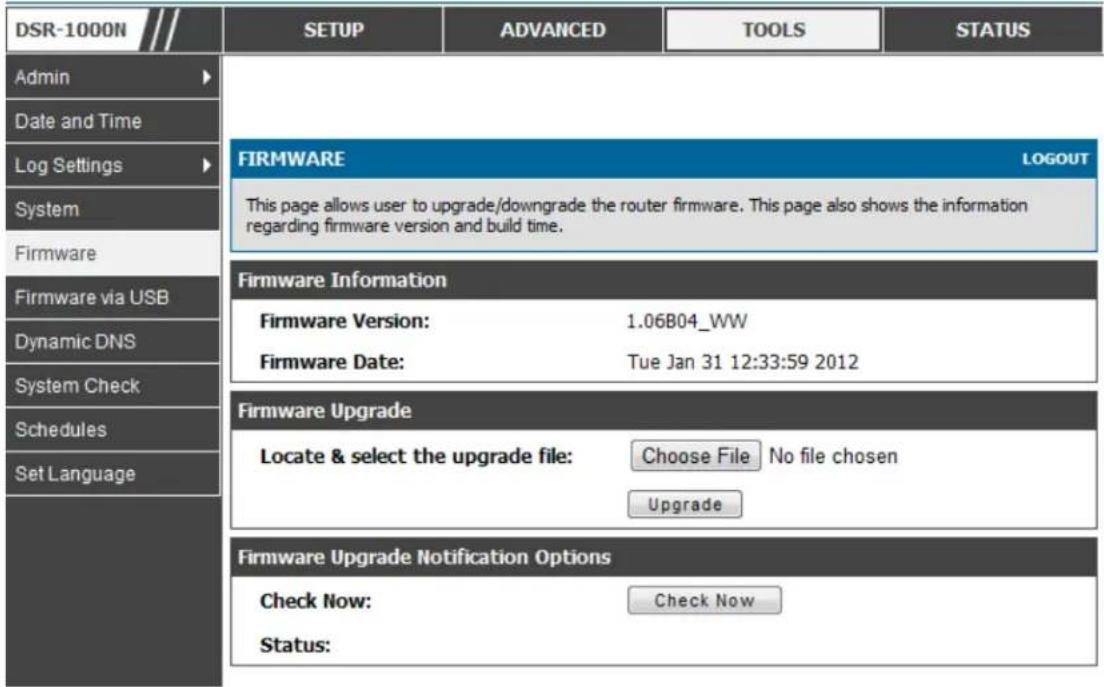
text_image
DSR-1000N Admin Date and Time Log Settings System Firmware Firmware via USB Dynamic DNS System Check Schedules Set Language SETUP ADVANCED TOOLS STATUS FIRMWARE LOGOUT This page allows user to upgrade/downgrade the router firmware. This page also shows the information regarding firmware version and build time. Firmware Information Firmware Version: 1.06B04_WW Firmware Date: Tue Jan 31 12:33:59 2012 Firmware Upgrade Locate & select the upgrade file: Choose File No file chosen Upgrade Firmware Upgrade Notification Options Check Now: Check Now Status:This router als o supports an automated notification to determine if a newer firmware version is available for this router. By clicking the Check Now button in the notification section, the router will check a D-Link server to see if a newer firmware version for this router is available for download and update the Status field below.

IMPORTANT! After firmware 1.04B13, new user database architecture is introduced. The new user database is easier to setup and more intuitively to use.
When users up pg rad e DSR's firmware to 1.04B13 or lat te r, DSR will au to mat ically merge users in the old database into the new one. However, all user databases will be swept away when users downgrade firmware from 1.04B13 to the older one, e.g. 1.03B43. Please keep in mind: backup your user database for further restoring once you decide to downgrade firmware to the older one.
9.7 Upgrading Router Firmware via USB
Tools > Firmware via USB
This page allows user to upgrade the firmware, backup and restore the settings using a USB storage key.
Figure 121: Firmware upgrade and configuration re store/backup via USB
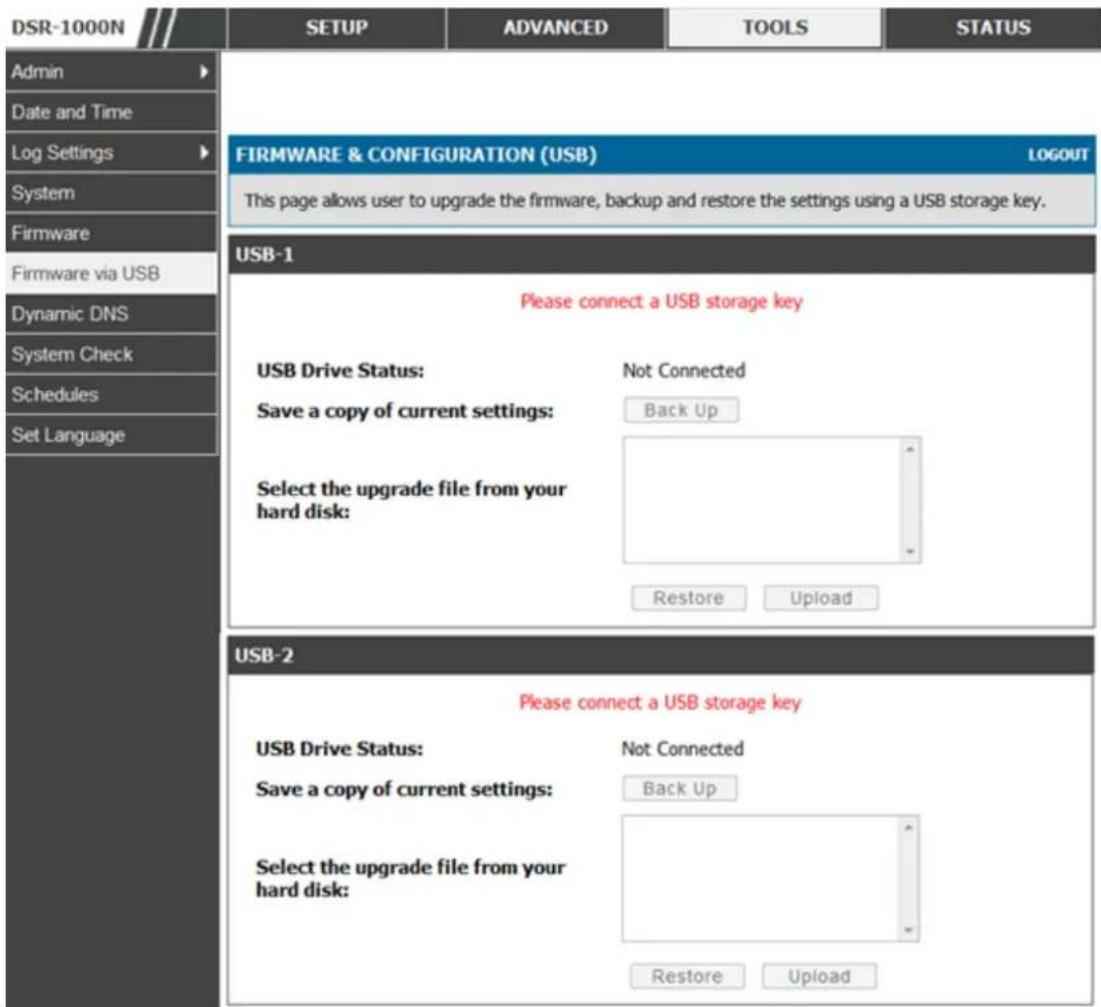
text_image
DSR-1000N ADMIN Date and Time Log Settings System Firmware Firmware via USB Dynamic DNS System Check Schedules Set Language FIRMWARE & CONFIGURATION (USB) LOGOUT This page allows user to upgrade the firmware, backup and restore the settings using a USB storage key. USB-1 Please connect a USB storage key USB Drive Status: Not Connected Save a copy of current settings: Back Up Select the upgrade file from your hard disk: Restore Upload USB-2 Please connect a USB storage key USB Drive Status: Not Connected Save a copy of current settings: Back Up Select the upgrade file from your hard disk: Restore Upload9.8 Dynamic DNS Setup
Tools > Dynamic DNS
Dynamic DNS (DDNS) is an Internet service that allows routers with varying public IP addresses to be located using Internet domain names. To use DDNS, you must setup an account with a DDNS provider such as DynDNS.org, D-Link DDNS, or Oray.net.
Each configured WAN can have a different DDNS service if required. Once configured, the router will update DDNS services changes in the WAN IP address so that features that are dependent on accessing the router's WAN via FQDN will be directed to the correct IP address. When you set up an account with a DDNS service, the host and domain name, username, password and wildcard support will be provided by the account provider.
Figure 122: Dynamic DNS configuration
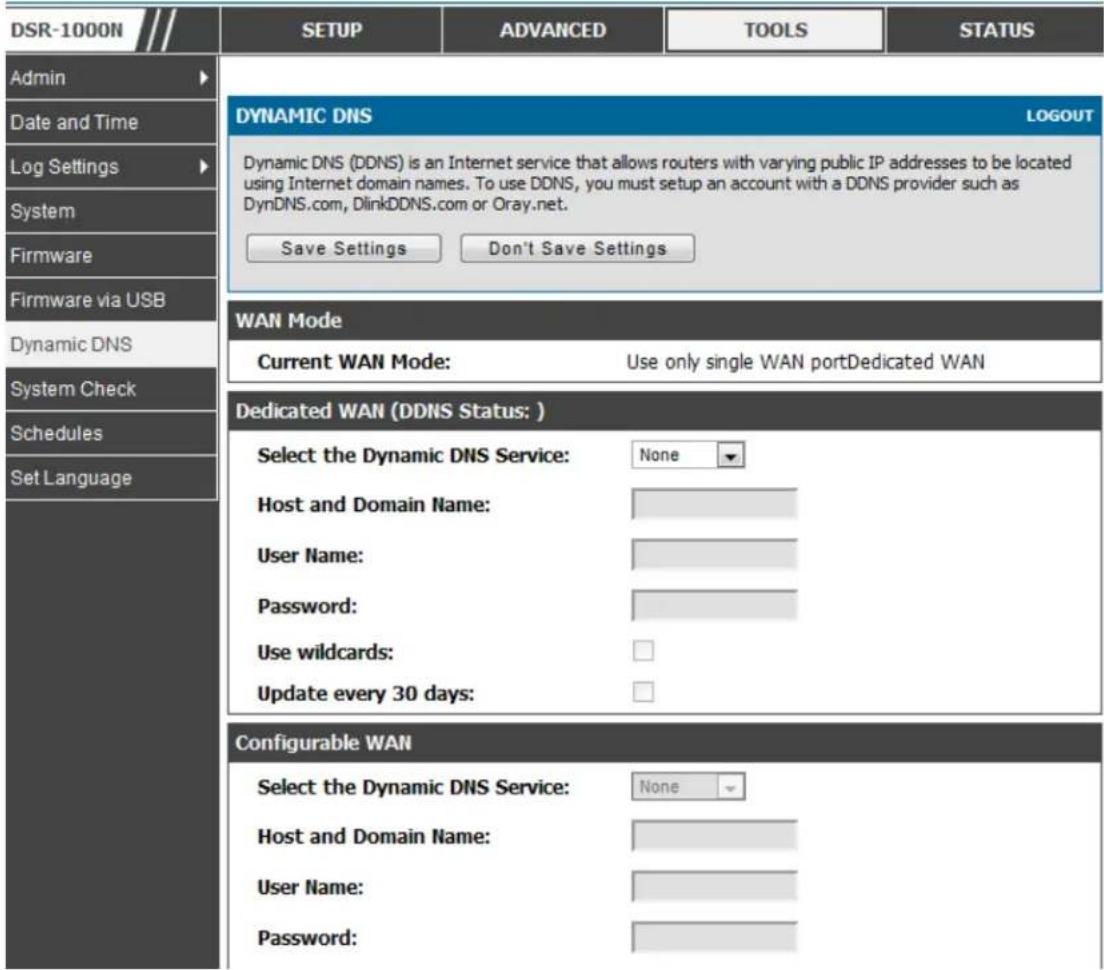
text_image
DSR-1000N Admin Date and Time Log Settings System Firmware Firmware via USB Dynamic DNS System Check Schedules Set Language SETUP ADVANCED TOOLS STATUS DYNAMIC DNS LOGOUT Dynamic DNS (DDNS) is an Internet service that allows routers with varying public IP addresses to be located using Internet domain names. To use DDNS, you must setup an account with a DDNS provider such as DynDNS.com, DlinkDDNS.com or Oray.net. Save Settings Don't Save Settings WAN Mode Current WAN Mode: Use only single WAN portDedicated WAN Dedicated WAN (DDNS Status: ) Select the Dynamic DNS Service: None Host and Domain Name: User Name: Password: Use wildcards: Update every 30 days: Configurable WAN Select the Dynamic DNS Service: None Host and Domain Name: User Name: Password:9.9 Using Diagnostic Tools
Tools > System Check
The router has built in tools to allow an administrator to evaluate the communication status and overall network health.
Figure 123: Router diagnostics tools available in the GUI
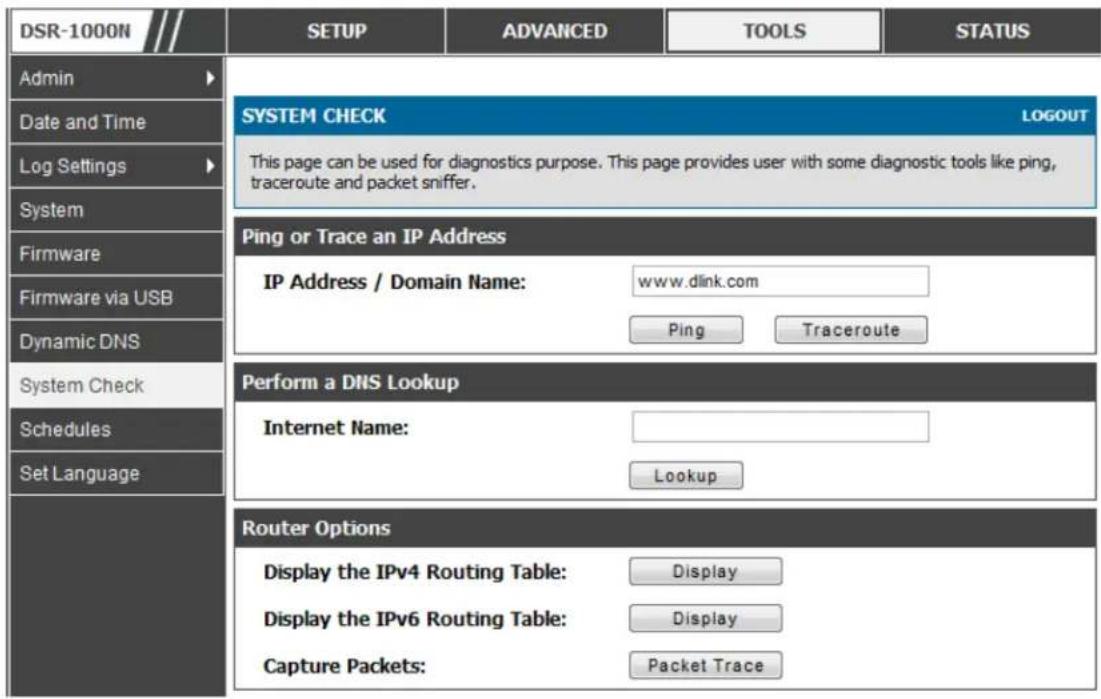
text_image
DSR-1000N ADMIN Date and Time Log Settings System Firmware Firmware via USB Dynamic DNS System Check Schedules Set Language SYSTEM CHECK LOGOUT This page can be used for diagnostics purpose. This page provides user with some diagnostic tools like ping, traceroute and packet sniffer. Ping or Trace an IP Address IP Address / Domain Name: www.dlink.com Ping Traceroute Perform a DNS Lookup Internet Name: Lookup Router Options Display the IPv4 Routing Table: Display Display the IPv6 Routing Table: Display Capture Packets: Packet Trace9.9.1 Ping
This utility can be used to test connectivity between this router and another device on the network connected to this router. Enter an IP address s and click PING. The command output will appear indicating the ICMP echo request status.
9.9.2 Trace Route
This utility will dis play all the routers present between the destination IP address s and d th is router. Up to 30 "h o p s" (in termed ia te ro u t ers) b et ween t his ro u ter and d th e destination will be dis played.
Figure 124: Sample trace route output
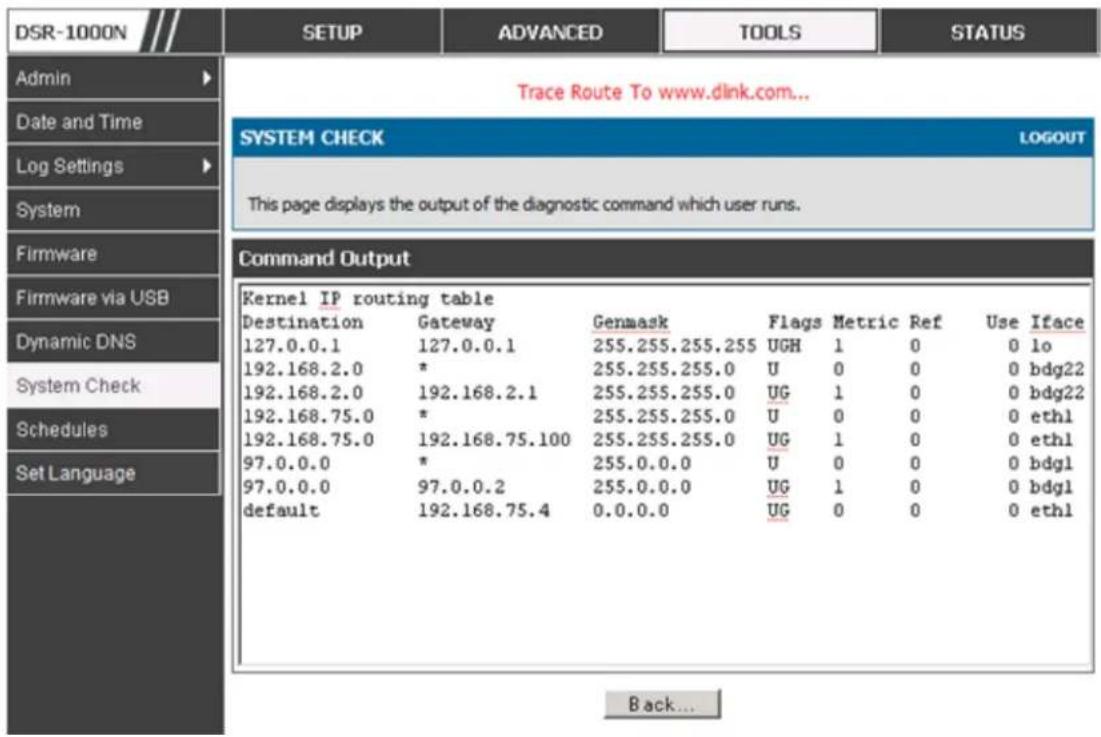
text_image
DSR-1000N Admin Date and Time Log Settings System Firmware Firmware via USB Dynamic DNS System Check Schedules Set Language SETUP ADVANCED TOOLS STATUS Trace Route To www.dlink.com... SYSTEM CHECK LOGOUT This page displays the output of the diagnostic command which user runs. Command Output Kernel IP routing table Destination Gateway Genmask Flags Metric Ref Use Iface 127.0.0.1 127.0.0.1 255.255.255.255 UGH 1 0 0 lo 192.168.2.0 * 255.255.255.0 U 0 0 0 bdg22 192.168.2.0 192.168.2.1 255.255.255.0 UG 1 0 0 bdg22 192.168.75.0 * 255.255.255.0 U 0 0 0 ethl 192.168.75.0 192.168.75.100 255.255.255.0 UG 1 0 0 ethl 97.0.0.0 * 255.0.0.0 U 0 0 0 bdgl 97.0.0.0 97.0.0.2 255.0.0.0 UG 1 0 0 bdgl default 192.168.75.4 0.0.0.0 UG 0 0 0 ethl Back...9.9.3 DNS Lookup
To retrieve the IP address of a Web, FTP, Mail or any other server on the Internet, type the Internet Name in the text box and click Lookup. If the host or domain entry exists, you will see a response with the IP address. A message stating "Unknown Host" in dicat es th at t he s specifie d In tern et Na me do es n ot exis t .

This feature assumes there is internet access available on the WAN link(s).
9.9.4 Router Options
The static and dynamic routes configured on this router can be shown by clicking Display for the corresponding routing table. Clicking the Packet Trace button will allow the router to capture and display traffic through the DSR between the LAN and WAN interface as well. This information is often very useful in debugging traffic and routing issues.
9.10 Localization
Tools > Set Language
The router has built in tools to allow change the default language (Englis h) to four different languages. (French, Deutsche, Spanish h and Italian)
Figure 125: Localization
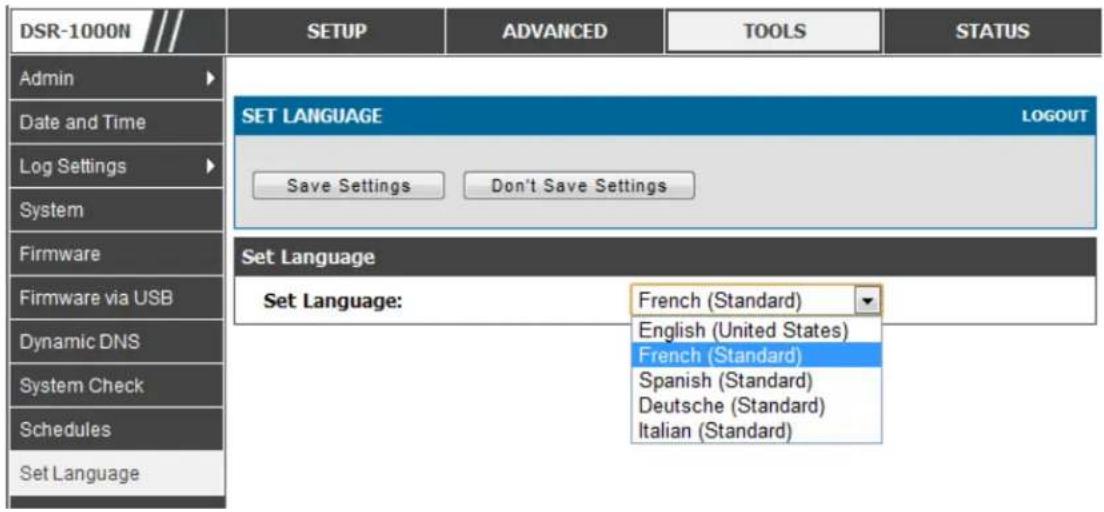
text_image
DSR-1000N ADMIN Date and Time Log Settings System Firmware Firmware via USB Dynamic DNS System Check Schedules Set Language SET LANGUAGE LOGOUT Save Settings Don't Save Settings Set Language Set Language: French (Standard) English (United States) French (Standard) Spanish (Standard) Deutsche (Standard) Italian (Standard)Chapter 10. Router Status and Statistics
10.1 System Overview
The Status page allows you to get a detailed overview of the system configuration. The settings for the wired and wireless interfaces are displayed in the DSR Status page, and then the resulting hardware resource and router usage details are summarized on the router's Das hb o ard.
10.1.1 Device Status
Status > Device Info > Device Status
The DSR Status page gives a summary of the router configuration settings configured in the Setup and Advanced menus. The static hardware serial number and current firmware version are presented in the General section. The WAN and LAN interface information shown on this page are based on the administrator configuration parameters. The radio band and channel settings are presented below along with all configured and active APs that are enabled on this router.
Figure 126: Device Status display
| DSR-1000N /// | SETUP | ADVANCED | TOOLS | STATUS |
| Device Info | ||||
| Logs | ||||
| Traffic Monitor | ||||
| Active Sessions | ||||
| Wireless Clients | ||||
| LAN Clients | ||||
| Active VPNs | ||||
| General | ||||
| System Name: | DSR_router | |||
| Firmware Version: | 1.01B18 | |||
| Serial Number: | 0000000000001 | |||
| WAN1 Information | ||||
| MAC Address: | 00:DE:AD:20:75:01 | |||
| IPv4 Address: | 0.0.0.0 / 0.0.0.0 | |||
| IPv6 Address: | ||||
| Wan State: | DOWN | |||
| NAT (IPv4 only): | Enabled | |||
| IPv4 Connection Type: | Dynamic IP (DHCP) | |||
| IPv6 Connection Type: | IPv6 is disabled | |||
| IPv4 Connection State: | Not Yet Connected | |||
| IPv6 Connection State: | IPv6 is disabled | |||
| Link State: | LINK DOWN | |||
| WAN Mode: | Use only single WAN port: Secondary WAN | |||
| Gateway: | 0.0.0.0 | |||
| Primary DNS: | 0.0.0.0 | |||
| Secondary DNS: | 0.0.0.0 | |||
| WAN2 Information | ||||
| MAC Address: | AA:BB:CC:DD:EF:01 | |||
| IPv4 Address: | 0.0.0.0 / 0.0.0.0 | |||
| IPv6 Address: | ||||
| Wan State: | DOWN | |||
| NAT (IPv4 only): | Enabled | |||
| IPv4 Connection Type: | ThreeG | |||
| IPv6 Connection Type: | IPv6 is disabled | |||
| IPv4 Connection State: | Unable To Open Communication Port | |||
| IPv6 Connection State: | IPv6 is disabled | |||
| Link State: | LINK DOWN | |||
| WAN Mode: | Use only single WAN port: Secondary WAN | |||
| Gateway: | 0.0.0.0 | |||
| Primary DNS: | 0.0.0.0 | |||
| Secondary DNS: | 0.0.0.0 | |||
| LAN Information | ||||
| MAC Address: | 00:DE:AD:20:75:00 | |||
| IP Address: | 176.16.2.40 / 255.255.255.0 | |||
| IPv6 Address: | ||||
| DHCP Server: | Disabled | |||
| DHCP Relay: | Disabled | |||
| DHCPv6 Server: | IPv6 is disabled | |||
| Wireless LAN | ||||
| Operating Frequency: | 2.4GHz | |||
| Mode: | N/G-Mixed | |||
| Channel: | Auto | |||
| Available Access Points | ||||
| SSID | SECURITY | ENCRYPTION | AUTHENTICATION | |
| admin | WPA+WPA2 | TKIP+CCMP | PSK | |
10.1.2 Resource Utilization
Status > Device Info > Dashboard
The Das hboard page presents hardware and usage statistics. The CPU and Memory utilization is a function of the available hardware and current configuration and traffic through the router. Interface statistics for the wired connections (LAN, WAN1, WAN2/DMZ, VLANs) provide indication of packets through and packets dropped by the interface. Click refresh to have this page retrieve the most current statis tics.
Figure 128: Resource Utilization statistics

Figure 129: Resource Utilizatio n data (continue d)
| CPU Utilization | |
| CPU usage by user: | 27 % |
| CPU usage by kernel: | 11 % |
| CPU idle: | 62 % |
| CPU waiting for IO: | 0 % |
| Memory Utilization | |
| Total Memory: | 247908 KB |
| Used Memory: | 172848 KB |
| Free Memory: | 75060 KB |
| Cached Memory: | 30840 KB |
| Buffer Memory: | 7800 KB |
| Interface (LAN) | |
| Incoming Packets: : | 49900 |
| Outgoing Packets: | 5259 |
| Dropped In Packets: | 0 |
| Dropped Out Packets: | 0 |
| Interface (WAN1) | |
| Incoming Packets: : | 0 |
| Outgoing Packets: | 8 |
| Dropped In Packets: | 0 |
| Dropped Out Packets: | 0 |
| Interface (DMZ/WAN2) | |
| Incoming Packets: | 0 |
| Outgoing Packets: | 10 |
| Dropped In Packets: | 0 |
| Dropped Out Packets: | 0 |
Figure 130: Resource Utilizatio n data (continue d)
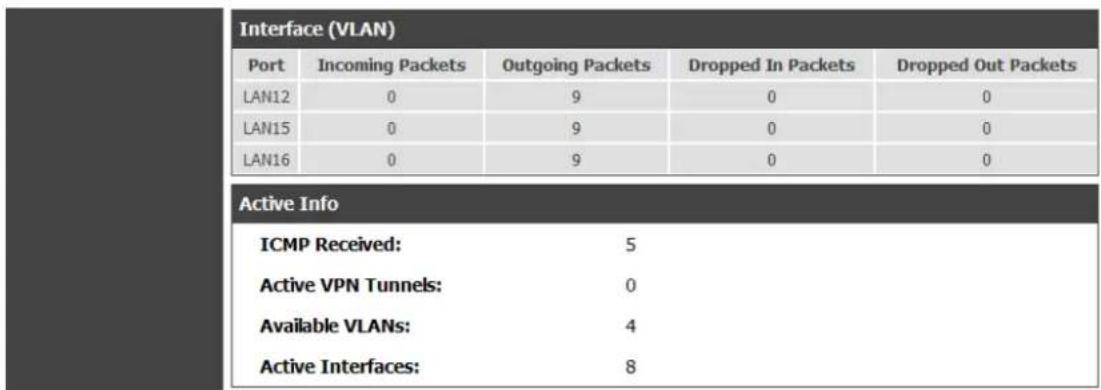
text_image
Interface (VLAN) Port Incoming Packets Outgoing Packets Dropped In Packets Dropped Out Packets LAN12 0 9 0 0 LAN15 0 9 0 0 LAN16 0 9 0 0 Active Info ICMP Received: 5 Active VPN Tunnels: 0 Available VLANs: 4 Active Interfaces: 810.2 Traffic Statistics
10.2.1 Wired Port Statistics
Status > Traffic Monitor > Device Statistics
Detailed transmit and receive s statistics for each physical port are presented here. Each interface (WAN1, WAN2/DMZ, LAN, and VLANs) have port specific packet level information provided for review. Transmitted/received packets, port collisions, and the cumulating bytes/sec for transmit/receive directions are provided for each interface along with the port up time. If you suspect iss ues with any of the wired ports, this table will help diagnos e uptime or trans mit level is sues with the port.
The statistics table has auto-refresh control which allows display of the most current port level data at each page refresh. The default auto-refresh for this page is 10 seconds.
Figure 131: Physical port statistics

text_image
DSR-1000N Device Info Logs Traffic Monitor Active Sessions Wireless Clients LAN Clients Active VPNs SETUP ADVANCED TOOLS STATUS The page will auto-refresh in 8 seconds DEVICE STATISTICS LOGOUT This page shows the Rx/Tx packet and byte count for all the system interfaces. It also shows the up time for all the interfaces. System up Time : 0 days, 1 hours, 11 minutes, 56 seconds Port Statistics Port Tx Pkts Rx Pkts Collisions Tx B/s Rx B/s Up time Dedicated WAN 96 0 0 0 0 0 Days 01:10:22 Configurable Port (WAN) 8 0 0 0 0 0 Days 01:09:55 LAN 12014 10292 0 0 0 Days 01:09:55 LAN22 0 0 Not Yet Available Poll Interval: 10 (Seconds) Start Stop10.2.2 Wireless Statistics
Status > Traffic Monitor > Wireless Statistics
The Wireless Statistics tab dis plays the incrementing traffic statis tics for each enabled access point. This page will give a snapshot of how much traffic is being transmitted over each wireless link. If you s uspect that a radio or VAP may be down, the details on this page would confirm if traffic is being sent and received through the VAP.
The clients connected to a particular AP can be viewed by using the Status Button on the list of APs in the Setup > Wireless > Access Points page. Traffic statistics are shown for that individual AP, as compared to the summary stats for each AP on this Statis tics page. The poll interval (the refresh rate for the statistics) can be modified to view more frequent traffic and collision statis tics.
Figure 132: AP specific statistics
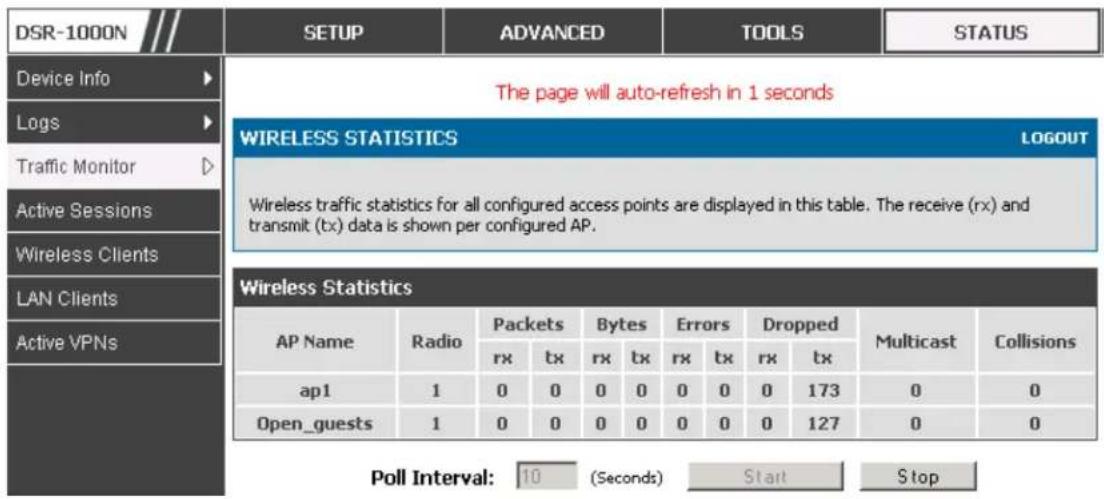
text_image
DSR-1000N Device Info Logs Traffic Monitor Active Sessions Wireless Clients LAN Clients Active VPNs SETUP ADVANCED TOOLS STATUS The page will auto-refresh in 1 seconds WIRELESS STATISTICS LOGOUT Wireless traffic statistics for all configured access points are displayed in this table. The receive (rx) and transmit (tx) data is shown per configured AP. Wireless Statistics AP Name Radio Packets Bytes Errors Dropped Multicast Collisions rx Characteristics rx Characteristics rx Characteristics RX TX ap1 1 0 0 0 0 0 0 0 173 0 0 Open_guests 1 0 0 0 0 0 0 0 127 0 0 Poll Interval: 10 (Seconds) Start Stop10.3 Active Connections
10.3.1 Sessions through the Router
Status > Active Sessions
This table lists the active internet sessions through the router's firewall. The session's pro to co I, state, local and remote IP addresses are shown.
Figure 133: List of current Active Firewall Sessions
| DSR-1000N | SETUP | ADVANCED | TOOLS | STATUS |
| Device Info | ||||
| Logs | ||||
| Traffic Monitor | ||||
| Active Sessions | ||||
| Wireless Clients | ||||
| LAN Clients | ||||
| Active VPNs | ||||
| Local | Internet | Protocol | State | |
| 97.0.0.5:3465 | 97.0.0.2:443 | tcp | TIME_WAIT | |
| 97.0.0.5:3525 | 97.0.0.2:443 | tcp | TIME_WAIT | |
| 97.0.0.5:3491 | 97.0.0.2:443 | tcp | TIME_WAIT | |
| 97.0.0.5:3459 | 97.0.0.2:443 | tcp | TIME_WAIT | |
| 97.0.0.5:3487 | 97.0.0.2:443 | tcp | TIME_WAIT | |
| 97.0.0.5:3408 | 97.0.0.2:443 | tcp | TIME_WAIT | |
| 97.0.0.5:3493 | 97.0.0.2:443 | tcp | TIME_WAIT | |
| 97.0.0.5:3431 | 97.0.0.2:443 | tcp | TIME_WAIT | |
| 97.0.0.5:3479 | 97.0.0.2:443 | tcp | TIME_WAIT | |
| 97.0.0.5:3515 | 97.0.0.2:443 | tcp | TIME_WAIT | |
| 97.0.0.5:3501 | 97.0.0.2:443 | tcp | TIME_WAIT | |
| 97.0.0.5:3527 | 97.0.0.2:443 | tcp | CLOSE | |
| 192,168,75,100:500 | 97.0.0.32:500 | udp | none | |
| 97.0.0.5:3427 | 97.0.0.2:443 | tcp | TIME_WAIT | |
| 97.0.0.5:3519 | 97.0.0.2:443 | tcp | CLOSE | |
| 97.0.0.5:3507 | 97.0.0.2:443 | tcp | TIME_WAIT | |
| 97.0.0.5:3543 | 97.0.0.2:443 | tcp | CLOSE | |
| 97.0.0.5:3437 | 97.0.0.2:443 | tcp | TIME_WAIT | |
| 97.0.0.5:3409 | 97.0.0.2:443 | tcp | TIME_WAIT | |
| 97.0, 0, 5, 3, 4, 9, 1, 1, 1, 1, 1, 1, 1, 1, 1, 1, 1, 1, 1, 1, 1, 1, 1, 1, 1, 1, 1, 1, 1, 1, 1, 1, 1, 1, 1, 1, 1, 1, 1, 1 | ||||
| 97, 0, 5, 3, 4, 9, 1, 1, 1, 1, 1, 1, 1, 1, 1, 1, 1, 1, 1, 1, 1, 1, 1, 1, 1, 1, 1, 1, 1, 1, 1, 1, 1, 1 | ||||
| 97, 0, 5,3482 | 97.0.0.2:443 | tcp | TIME_WAIT | |
| 97.0.0.5:3535 | 97.0.0.2:443 | tcp | TIME_WAIT | |
| 97, 0, 5:3509 | 97.0.0.2:443 | tcp | TIME_WAIT | |
| 97.0.0.5:3467 | 97.0.0.2:443 | tcp | TIME_WAIT | |
| 97.0.0.5:3415 | 97.0.0.2:443 | tcp | TIME_WAIT | |
| 97, 0, 5:3450 | 97.0.0.2:443 | tcp | TIME_WAIT | |
| 97, 0, 5:3499 | 97.0.0.2:443 | tcp | TIME_WAIT | |
10.3.2 Wireless Clients
Status > Wireless Clients
The clients connected to a particular AP can be viewed on this page. Connected clients are sorted by the MAC address and indicate the security parameters used by the wireless link, as well as the time connected to the corresponding AP.
The statistics table has auto-refresh control which allows display of the most current port level data at each page refresh. The default auto-refresh for this page is 10 seconds.
Figure 134: List of connected 802.11 clients per AP
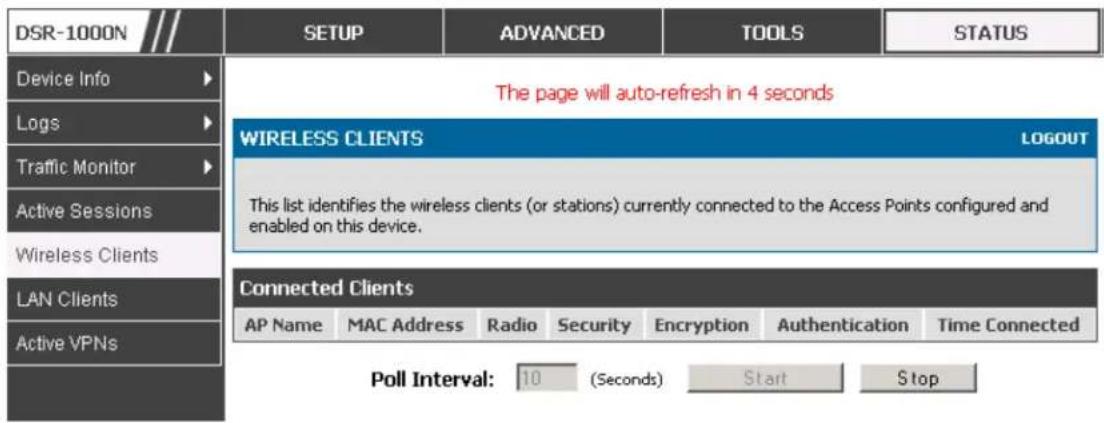
text_image
DSR-1000N Device Info Logs Traffic Monitor Active Sessions Wireless Clients LAN Clients Active VPNs SETUP ADVANCED TOOLS STATUS The page will auto-refresh in 4 seconds WIRELESS CLIENTS LOGOUT This list identifies the wireless clients (or stations) currently connected to the Access Points configured and enabled on this device. Connected Clients AP Name MAC Address Radio Security Encryption-Augustentication Time Connected Poll Interval: 10 (Seconds) Start Stop10.3.3 LAN Clients
Status > LAN Clients
The LAN clients to the router are identified by an ARP scan through the LAN switch. The NetBios name (if available), IP address and MAC address of discovered LAN hosts are displayed.
Figure 135: List of LAN hosts

text_image
DSR-1000N SETUP ADVANCED TOOLS STATUS Device Info Logs Traffic Monitor Active Sessions Wireless Clients LAN CLIENTS LOGOUT This page displays a list of LAN clients connected to the router. List of LAN Clients Name IP Address MAC Address EITHSTINTEL645 97.0.0.5 00:0F:1F:8E:B6:3610.3.4 Active VPN Tunnels
Status > Active VPNs
You can view and change the status (connect or drop) of the router's IPsec security associations. Here, the active IPs ec SAs (security associations) are listed along with the traffic details and tunnel state. The traffic is a cumulative measure of transmitted/received packets since the tunnel was established.
If a VPN policy state is "IPsec SA Not Established", it can be enabled by clicking the Connect button of the corresponding policy. The Active IPsec SAs table displays a list of active IPs ec SAs. Table fields are as follows.
| Field | De s cription |
| Policy Name | IKE or VPN policy associated with this SA. |
| Endpoint | IP address of the remote VPN gateway or client. |
| Tx (KB) | Kilobytes of data transmitted over this SA. |
| Tx (Packets) | Number of IP packets transmitted over this SA. |
| State | Status of the SA for IKE policies: Not Connected or IPsec SA Established. |
Figure 136: List of current Active VPN Sessions

text_image
DSR-1000N Device Info Logs Traffic Monitor Active Sessions Wireless Clients LAN Clients Active VPNs SETUP ADVANCED TOOLS STATUS The page will auto-refresh in 1 seconds ACTIVE VPN LOGOUT This page displays the active VPN connections, IPSEC as well as SSL. Active IPsec SAs Policy Name Endpoint tx ( KB ) tx ( Packets ) State Action Active SSL VPN Connections User Name IP Address Local PPP Interface Peer PPP Interface IP Connect Status Active PPTP VPN connections Connection Status Action Disconnected Connect Poll Interval: 10 (Seconds) Start StopAll active SSL VPN connections, both for VPN tunnel and VPN Port forwarding, are displayed on this page as well. Table fields are as follows.
| Field | De s cription |
| User Name | The SSL VPN user that has an active tunnel or port forwarding session to this router. |
| IP Address | IP address of the remote VPN client. |
| Local PPP Interface | The interface (WAN1 or WAN2) through w hich the session is active. |
| Peer PPP Interface IP | The assigned IP address of the virtual network adapter. |
| Connect Status | Status of the SSL connection between this router and the remote VPN client: Not Connected or Connected. |
Chapter 11. Trouble Shooting
11.1 Internet connection
Symptom: You cannot access the router's web-configuration interface from a PC on your LAN.
Recommended action:
- Check the Ethernet connection between the PC and the router.
- Ensure that your PC's IP address is on the same subnet as the router. If you are using the recommended addressing scheme, your PC's address should be in the range 192.168.1 0.2 to 192.168.10.254.
- Check your PC's IP address. If the PC cannot reach a DHCP server, some versions of Windows and Mac OS generate and assign an IP address. These auto-generated addresses are in the range 169.254.x.x. If your IP address is in this range, check the connection from the PC to the firewall and reboot your PC.
- If your router's IP address has changed and you don't know what it is, reset the router configuration to factory defaults (this sets the firewall's IP address to 192.168.10.1).
- If you do not want to reset to factory default settings and lose your configuration, reboot the router and use a packet sniffer (such as Ethereal™) to capture packets sent during the reboot. Look at the Address Resolution Protocol (ARP) packets to locate the router's LAN interface address.
- Launch your browser and ensure that Java, JavaScript, or ActiveX is enabled. If you are using Internet Explorer, click Refresh to ensure that the Java applet is loaded. Close the browser and launch it again.
- Ensure that you are using the correct login information. The factory default login name is admin and the password is password. Ensure that CAPS LOCK is off when entering this information.
Symptom: Router does not save configuration changes.
Recommended action:
- When entering configuration settings, click Apply before moving to another menu or tab; otherwise your changes are lost.
- Click Refresh or Reload in the browser. Your changes may have been made, but the browser may be caching the old configuration.
Symptom: Router cannot access the Internet.
Possible cause: If you use dynamic IP addresses, your router may not have requested an IP address from the ISP.
Recommended action:
- Launch your browser and go to an external site such as www.google.com.
- Access the firewall's configuration main menu at http://192.168.10.1.
- Select Monitoring > Router Status.
- Ensure that an IP address is shown for the WAN port. If 0.0.0.0 is shown, your firewall has not obtained an IP address from your ISP. See the next symptom.
Symptom: Router cannot obtain an IP address from the ISP.
Recommended action:
- Turn off power to the cable or DSL modem.
- Turn off the router.
- Wait 5 minutes, and then reapply power to the cable or DSL modem.
- When the modem LEDs indicate that it has resynchronized with the ISP, reapply power to the router. If the router still cannot obtain an ISP address, see the next symptom.
Symptom: Router s till cannot obtain an IP address from the ISP.
Recommended action:
- Ask your ISP if it requires a login program — PPP over Ethernet (PPPoE) or some other type of login.
- If yes, verify that your configured login name and password are correct.
- Ask your ISP if it checks for your PC's hostname.
- If yes, select Network Configuration > WAN Settings > Ethernet ISP Settings and set the account name to the PC hostname of your ISP account.
- Ask your ISP if it allows only one Ethernet MAC address to connect to the Internet, and therefore checks for your PC's MAC address.
- If yes, inform your ISP that you have bought a new network device, and ask them to use the firewall's MAC address.
- Alternatively, select Network Configuration > WAN Settings > Ethernet ISP Settings and configure your router to spoof your PC's MAC address.
Symptom: Router can obtain an IP address, but PC is unable to load Internet pages.
Recommended action:
-
Ask your ISP for the addresses of its designated Domain Name System (DNS) servers. Configure your PC to recognize those addresses. For details, see your operating system documentation.
-
On your PC, configure the router to be its TCP/IP gateway.
11.2 Date and time
Symptom: Date s hown is January 1, 1970.
Possible cause: The router has not yet successfully reached a network time server (NTS).
Recommended action:
-
If you have just configured the router, wait at least 5 minutes, select Administration > Time Zone, and recheck the date and time.
-
Verify your Internet access settings.
Symptom: Time is off by one hour.
Possible cause: The router does not automatically adjust for Daylight Savings Time.
Recommended action:
-
Select Administration > Time Zone and view the current date and time settings.
-
Click to check or uncheck "Automatically adjust for Daylight Savings Time", then click Apply.
11.3 Pinging to Test LAN Connectivity
Most TCP/IP terminal devices and firewalls contain a ping utility that sends an ICMP echo-request packet to the designated device. The DSR responds with an echo reply. Troubleshooting a TCP/IP network is made very easy by using the ping utility in your PC or works tation.
11.3.1 Testing the LAN path from your PC to your router
- From the PC's Windows toolbar, select Start > Run.
- Type ping
- Click OK.
4. Observe the display:
- If the path is working, you see this message sequence:
Pinging
Reply from
- If the path is not working, you see this mes sage sequence:
Pinging
Request timed out
5. If the path is not working, Test the physical connections between PC and router
- If the LAN port LED is off, go to the "LED displays" section on page B-1 and follow instructions for "LAN or Internet ports LEDs are not lit."
- Verify that the corresponding link LEDs are lit for your network interface card and for any hub ports that are connected to your workstation and firewall.
6. If the path is still not up, test the network configuration:
- Verify that the Ethernet card driver software and TCP/IP software are installed and configured on the PC.
- Verify that the IP address for the router and PC are correct and on the same subnet.
11.3.2 Testing the LAN path from your PC to a remote device
- From the PC's Windows toolbar, select Start > Run.
- Type ping -n 10
is the IP address of a remote device such as your ISP's DNS server. Example: ping -n 10 10.1.1.1. -
Click OK and then observe the display (see the previous procedure).
-
If the path is not working, do the following:
- Check that the PC has the IP address of your firewall listed as the default gateway. (If the IP configuration of your PC is assigned by DHCP, this information is not visible in your PC's Network Control Panel.)
- Verify that the network (subnet) address of your PC is different from the network address of the remote device.
- Verify that the cable or DSL modem is connected and functioning.
- Ask your ISP if it ass igned a hos tname to your PC.
If yes, select Network Configuration > WAN Settings > Ethernet ISP Settings and enter that hostname as the ISP account name.
- Ask your ISP if it rejects the Ethernet MAC addresses of all but one of your PCs.
Many broadband ISPs restrict access by allowing traffic from the MAC address s of only your broadband modem; but some ISPs additionally res trict access to the MAC address of just a single PC connected to that modem. If this is the case, configure your firewall to clone or spoof the MAC address from the authorized PC.
11.4 Restoring factory-default configuration settings
To restore factory -default configuration settings, do either of the following:
-
Do you know the account password and IP address?
-
If yes, select Administration > Settings Backup & Upgrade and click default.
- If no, do the following:
On the rear panel of the router, press and hold the Res et button about 10 seconds, until the test LED lights and then blinks.
Releas e the button and wait for the router to reboot.
-
If the router does not restart automatically; manually restart it to make the default settings effective.
-
After a restore to factory defaults —whether initiated from the configuration interface or the Reset button — the following settings apply:
• LAN IP address: 192.168.10.1
- Username: admin
- Password: admin
• DHCP server on LAN: enabled
- WAN port configuration: Get configuration via DHCP
Chapter 12. Credits
Microsoft, Windows are registered trademarks of Microsoft Corp.
Linux is a registered trademark of Linus Torvalds.
UNIX is a registered trademark of The Open Group.
Appendix A. Glossary
| ARP | Address Resolution Protocol. Broadcast protocol for mapping IP addresses to MAC addresses |
| CHAP | Challenge-Handshake Authentication Protocol. Protocol for authenticating users to an ISP. |
| DDNS | Dynamic DNS. System for updating domain names in real time. Allow s a domain name to be assigned to a device w ith a dynamic IP address. |
| DHCP | Dynamic Host Configuration Protocol. Protocol for allocating IP addresses dynamically so that addresses can be reused w hen hosts no longer need them. |
| DNS | Domain Name System. Mechanism for translating H.323 IDs, URLs, or e-mail IDs into IP addresses. Also used to assist in locating remote gatekeepers and to map IP addresses to hostnames of administrative domains. |
| FQDN | Fully qualified domain name. Complete domain name, including the host portion. Example: serverA.companyA.com. |
| FTP | File Transfer Protocol. Protocol for transferring files between network nodes. |
| HTTP | Hypertext Transfer Protocol. Protocol used by w eb browsers and web servers to transfer files. |
| IKE | Internet Key Exchange. Mode for securely exchanging encryption keys in ISAKMP as part of building a VPN tunnel. |
| IPsec | IP security. Suite of protocols for securing VPN tunnels by authenticating or encrypting IP packets in a data stream. IPsec operates in either transport mode (encrypts payload but not packet headers) or tunnel mode (encrypts both payload and packet headers). |
| ISAKMP | Internet Key Exchange Security Protocol. Protocol for establishing security associations and cryptographic keys on the Internet. |
| ISP | Internet service provider. |
| MAC Address | Media-access-control address. Unique physical-address identifier attached to a netw ork adapter. |
| MTU | Maximum transmission unit. Size, in bytes, of the largest packet that can be passed on. The MTU for Ethernet is a 1500-byte packet. |
| NAT | Netw ork Address Translation. Process of rewriting IP addresses as a packet passes through a router or firew all. NAT enables multiple hosts on a LAN to access the Internet using the single public IP address of the LAN's gateway router. |
| NetBIOS | Microsoft Window s protocol for file sharing, printer sharing, messaging, authentication, and name resolution. |
| NTP | Netw ork Time Protocol. Protocol for synchronizing a router to a single clock on the netw ork, know n as the clock master. |
| PAP | Passw ord Authentication Protocol. Protocol for authenticating users to a remote access server or ISP. |
| PPPoE | Point-to-Point Protocol over Ethernet. Protocol for connecting a network of hosts to an ISP without the ISP having to manage the allocation of IP addresses. |
| PPTP | Point-to-Point Tunneling Protocol. Protocol for creation of VPNs for the secure transfer of data from remote clients to private servers over the Internet. |
| RADIUS | Remote Authentication Dial-In User Service. Protocol for remote user authentication and accounting. Provides centralized management of usernames and passw ords. |
| RSA | Rivest-Shamir-Adleman. Public key encryption algorithm. |
| TCP | Transmission Control Protocol. Protocol for transmitting data over the Internet with guaranteed reliability and in-order delivery. |
| UDP | User Data Protocol. Protocol for transmitting data over the Internet quickly but with no guarantee of reliability or in-order delivery. |
| VPN | Virtual private network. Network that enables IP traffic to travel securely over a public TCP/IP network by encrypting all traffic from one network to another. Uses tunneling to encrypt all information at the IP level. |
| WINS | Windows Internet Name Service. Service for name resolution. Allow clients on different IP subnets to dynamically resolve addresses, register themselves, and browse the network without sending broadcasts. |
| XAUTH | IKE Extended Authentication. Method, based on the IKE protocol, for authenticating not just devices (which IKE authenticates) but also users. User authentication is performed after device authentication and before IPsec negotiation. |
Appendix B. Factory Default Settings
| Fe ature | De scription | De fault Setting |
| Device login | User login URL | http://192.168.10.1 |
| User name (case sensitive) | admin | |
| Login password (case sensitive) | admin | |
| Internet Connection | WAN MAC address | Use default address |
| WAN MTU size | 1500 | |
| Port speed | Autosense | |
| Local area network (LAN) | IP address | 192.168.10.1 |
| IPv4 subnet mask | 255.255.255.0 | |
| RIP direction | None | |
| RIP version | Disabled | |
| RIP authentication | Disabled | |
| DHCP server | Enabled | |
| DHCP starting IP address | 192.168.10.2 | |
| DHCP ending IP address | 192.168.10.100 | |
| Time zone | GMT | |
| Time zone adjusted for Daylight Saving Time | Disabled | |
| SNMP | Disabled | |
| Remote management | Disabled | |
| Firewall | Inbound communications from the Internet | Disabled (except traffic on port 80, the HTTP port) |
| Outbound communications to the Internet | Enabled (all) | |
| Source MAC filtering | Disabled | |
| Stealth mode | Enabled |
Appendix C. Standard Services Available for Port Forwarding & Firewall Configuration
| ANY | ICMP-TYPE-8 | RLOGIN |
| AIM | ICMP-TYPE-9 | RTELNET |
| BGP | ICMP-TYPE-10 | RTSP:TCP |
| BOOTP_CLIENT | ICMP-TYPE-11 | RTSP:UDP |
| BOOTP_SERVER | ICMP-TYPE-13 | SFTP |
| CU-SEEME:UDP | ICQ | SMTP |
| CU-SEEME:TCP | IMAP2 | SNMP:TCP |
| DNS:UDP | IMAP3 | SNMP:UDP |
| DNS:TCP | IRC | SNMP-TRAPS:TCP |
| FINGER | NEWS | SNMP-TRAPS:UDP |
| FTP | NFS | SQL-NET |
| HTTP | NNTP | SSH:TCP |
| HTTPS | PING | SSH:UDP |
| ICMP-TYPE-3 | POP3 | STRMWORKS |
| ICMP-TYPE-4 | PPTP | TACACS |
| ICMP-TYPE-5 | RCMD | TELNET |
| ICMP-TYPE-6 | REAL-AUDIO | TFTP |
| ICMP-TYPE-7 | REXEC | VDOLIVE |
Appendix D. Log Output Reference
Facility: System (Networking)
| Log Message | Severity | Log Message | Severity |
| DBUpdate event: Table: %s opCode:%d rowId:%d | DEBUG | BridgeConfig: too few arguments to command %s | ERROR |
| networkIntable.txt not found | DEBUG | BridgeConfig: too few arguments to command %s | ERROR |
| sqlite3QueryResGet failed | DEBUG | sqlite3QueryResGet failed.Query:%s | ERROR |
| Interface is already deleted in bridge | DEBUG | ddnsDisable failed | ERROR |
| removing %s from bridge %s... %s | DEBUG | sqlite3QueryResGet failed.Query:%s | ERROR |
| adding %s to bridge %s... %s | DEBUG | sqlite3QueryResGet failed.Query:%s | ERROR |
| stopping bridge... | DEBUG | ddnsDisable failed | ERROR |
| stopping bridge... | DEBUG | failed to call ddns enable | ERROR |
| stopping bridge... | DEBUG | ddnsDisable failed | ERROR |
| %s:DBUpdate event: Table: %s opCode:%d rowId:%d | DEBUG | sqlite3QueryResGet failed.Query:%s | ERROR |
| Wan is not up | DEBUG | Error in executing DB update handler | ERROR |
| %s:DBUpdate event: Table: %s opCode:%d rowId:%d | DEBUG | sqlite3QueryResGet failed.Query:%s | ERROR |
| doDNS:failed | DEBUG | Illegal invocation of ddnsView (%s) | ERROR |
| doDNS:failed | DEBUG | sqlite3QueryResGet failed.Query:%s | ERROR |
| doDNS:Result = FAILED | DEBUG | sqlite3QueryResGet failed.Query:%s | ERROR |
| doDNS:Result SUCCESS | DEBUG | ddns: SQL error: %s | ERROR |
| Write Old Entry: %s %s %s: to %s | DEBUG | Illegal operation interface got deleted | ERROR |
| Write New Entry: %s %s #%s : to %s | DEBUG | sqlite3QueryResGet failed.Query:%s | ERROR |
| Write Old Entry: %s %s %s: to %s | DEBUG | sqlite3QueryResGet failed.Query:%s | ERROR |
| Write New Entry: %s %s #%s : to %s | DEBUG | sqlite3QueryResGet failed.Query:%s | ERROR |
| ifStaticMgmtDBUpdateHandler: returning with " | DEBUG | ddnsDisable failed | ERROR |
| nimfLinkStatusGet: buffer: \ nimfLinkStatusGetErr: returning with status: %d | DEBUG | ddns: SQL error: %s | ERROR |
| DEBUG | Failed to call ddns enable | ERROR | |
| nimfAdvOptSetWrap: current Mac Option: %d | DEBUG | ddns: SQL error: %s | ERROR |
| nimfAdvOptSetWrap: current Port Speed Option: %d | DEBUG | sqlite3QueryResGet failed.Query:%s | ERROR |
| nimfAdvOptSetWrap: current Mtu Option: %d | DEBUG | Failed to call ddns enable | ERROR |
| nimfAdvOptSetWrap: looks like we are reconnecting. " | DEBUG | ddns: SQL error: %s | ERROR |
| nimfAdvOptSetWrap: Mtu Size: %d | DEBUG | ddnsDisable failed | ERROR |
| nimfAdvOptSetWrap: NIMF table is %s nimfAdvOptSetWrap: WAN_MODE TRIGGER | DEBUG | ddns: SQL error: %s | ERROR |
| DEBUG | sqlite3QueryResGet failed.Query:%s | ERROR | |
| nimfAdvOptSetWrap: MTU: %d | DEBUG | Failed to call ddns enable | ERROR |
| nimfAdvOptSetWrap: MacAddress: %s | DEBUG | ddns: SQL error: %s | ERROR |
| nimfAdvOptSetWrap: old Mtu Flag: %d | DEBUG | ddnsDisable failed | ERROR |
| nimfAdvOptSetWrap: user has changed MTU option | DEBUG | ddns: SQL error: %s | ERROR |
| nimfAdvOptSetWrap: MTU: %d | DEBUG | sqlite3QueryResGet failed.Query:%s | ERROR |
| nimfAdvOptSetWrap: old MTU size: %d | DEBUG | sqlite3QueryResGet failed.Query:%s | ERROR |
| nimfAdvOptSetWrap: old Port Speed Option: %d | DEBUG | ddnsDisable failed | ERROR |
| nimfAdvOptSetWrap: old Mac Address Option: %d | DEBUG | ddns: SQL error: %s | ERROR |
| nimfAdvOptSetWrap: MacAddress: %s | DEBUG | sqlite3QueryResGet failed.Query:%s | ERROR |
| Setting LED [%d]:[%d] For %s | DEBUG | sqlite3QueryResGet failed.Query:%s | ERROR |
| l2tpEnable: command string: %s | DEBUG | ddnsDisable failed | ERROR |
| nimfAdvOptSetWrap: handling reboot scenario | DEBUG | failed to call ddns enable | ERROR |
| nimfAdvOptSetWrap: INDICATOR = %d | DEBUG | ddns: SQL error: %s | ERROR |
| nimfAdvOptSetWrap: UpdateFlag: %d | DEBUG | ddnsDisable failed | ERROR |
| nimfAdvOptSetWrap: returning with status: %s | DEBUG | sqlite3QueryResGet failed.Query:%s | ERROR |
| nimfGetUpdateMacFlag: MacTable Flag is: %d | DEBUG | Error in executing DB update handler | ERROR |
| nimfMacGet: Mac Option changed | DEBUG | Failed to open the resolv.conf file. Exiting./n | ERROR |
| nimfMacGet: Update Flag: %d | DEBUG | Could not write to the resolv.conf file. Exiting. | ERROR |
| nimfMacGet: MacAddress: %s | DEBUG | Error opening the lanUptime File | ERROR |
| nimfMacGet: MacAddress: %s | DEBUG | Error Opening the lanUptime File. | ERROR |
| nimfMacGet: MacAddress: %s | DEBUG | failed to open %s | ERROR |
| nimfMacGet: MacAddress: %s | DEBUG | failed to open %s | ERROR |
| nimfMacGet: MacAddress: %s | DEBUG | failed to query networkInterface table | ERROR |
| nimfMacGet: Mac option Not changed \ | DEBUG | failed to query networkInterface table | ERROR |
| nimfMacGet: MacAddress: %s | DEBUG | sqlite3QueryResGet failed.Query:%s | ERROR |
| nimfMacGet: MacAddress: %s | DEBUG | failed to enable IPv6 forwarding | ERROR |
| nimfMacGet: MacAddress: %s | DEBUG | failed to set capabilities on the " | ERROR |
| nimfMacGet: returning with status: %s | DEBUG | failed to enable IPv6 forwarding | ERROR |
| Now in enabling LanBridge function | DEBUG | failed to set capabilities on the " | ERROR |
| successfully executed the command %s | DEBUG | failed to disable IPv6 forwarding | ERROR |
| Now in disabling LanBridge function | DEBUG | failed to set capabilities on the " | ERROR |
| successfully executed the command %s configPortTblHandler: Now we are in Sqlite Update "The Old Configuration of ConfiPort was:%sThe New Configuration of ConfiPort was:%sThe user has deselected the configurable port | DEBUG | Could not create ISATAP Tunnel | ERROR |
| DEBUG | Could not destroy ISATAP Tunnel | ERROR | |
| DEBUG | Could not configure ISATAP Tunnel | ERROR | |
| DEBUG | Could not de-configure ISATAP Tunnel | ERROR | |
| failed query %s | DEBUG | nimfStatusUpdate: updating NimfStatus failed | ERROR |
| failed query %s | DEBUG | nimfStatusUpdate: updating NimfStatus failed | ERROR |
| failed query %s | DEBUG | nimfLinkStatusGet: determining link's status failed | ERROR |
| %s:DBUpdate event: Table: %s opCode:%d rowld:%d | DEBUG | nimfLinkStatusGet: opening status file failed | ERROR |
| %s:DBUpdate event: Table: %s opCode:%d rowId:%d | DEBUG | Failed to commit | ERROR |
| %s:%d SIP ENABLE: %s | DEBUG | ifStatusDBUpdate: Failed to begin " | ERROR |
| sipTblHandler:failed to update ifStatic | DEBUG | %s: SQL error: %s | ERROR |
| sipTblHandler:failed to update Configport | DEBUG | %s: Failed to commit " | ERROR |
| %s:%d SIP DISABLE: %s | DEBUG | nimfNetlfaceTblHandler: unable to get LedPinId | ERROR |
| %s:%d SIP SET CONF: %s | DEBUG | nimfNetlfaceTblHandler: unable to get LedPinId | ERROR |
| Failed to open %s: %s | DEBUG | nimfNetlfaceTblHandler: unable to get LedPinId | ERROR |
| Failed to start sipalg | DEBUG | %s: unable to kill dhclient | ERROR |
| Failed to stop sipalg | DEBUG | nimfAdvOptSetWrap: unable to get current Mac Option | ERROR |
| Failed to get config info | DEBUG | nimfAdvOptSetWrap: unable to get current Port " | ERROR |
| Network Mask: 0x%x | DEBUG | nimfAdvOptSetWrap: unable to get current MTU Option | ERROR |
| RTP DSCP Value: 0x%x | DEBUG | nimfAdvOptSetWrap: error getting Mac Address from " | ERROR |
| Need more arguments | DEBUG | nimfAdvOptSetWrap: unable to get the MTU | ERROR |
| Invalid lanaddr | DEBUG | nimfAdvOptSetWrap: error setting interface advanced " | ERROR |
| Invalid lanmask | DEBUG | nimfAdvOptSetWrap: error getting MTU size | ERROR |
| Invalid option | DEBUG | nimfAdvOptSetWrap: unable to get Mac Address | ERROR |
| Failed to set config info | DEBUG | nimfAdvOptSetWrap: error setting interface advanced " | ERROR |
| Unknown option | DEBUG | nimfAdvOptSetWrap: failed to get old connectiontype | ERROR |
| sshdTblHandler | DEBUG | nimfAdvOptSetWrap: old connection type is: %s | ERROR |
| pPort: %s | DEBUG | nimfAdvOptSetWrap: failed to get old MTU Option | ERROR |
| pProtocol: %s | DEBUG | nimfAdvOptSetWrap: error getting MTU size | ERROR |
| pListerAddr: %s | DEBUG | nimfOldFieldValueGet: failed to get old " | ERROR |
| pKeyBits: %s | DEBUG | nimfOldFieldValueGet: user has changed MTU size | ERROR |
| pRootEnable: %s | DEBUG | nimfAdvOptSetWrap: failed to get old Port Speed " | ERROR |
| pRsaEnable: %s | DEBUG | nimfAdvOptSetWrap: user has changed Port Speed | ERROR |
| pDsaEnable: %s | DEBUG | nimfAdvOptSetWrap: failed to get old Mac Address " | ERROR |
| pPassEnable: %s | DEBUG | nimfAdvOptSetWrap: user has changed Mac Address " | ERROR |
| pEmptyPassEnable: %s | DEBUG | nimfAdvOptSetWrap: unable to get Mac Address | ERROR |
| pSftpEnable: %s | DEBUG | nimfAdvOptSetWrap:Failed to RESET the flag | ERROR |
| pScpEnable: %s | DEBUG | nimfAdvOptSetWrap: setting advanced options failed | ERROR |
| pSshdEnable: %s | DEBUG | nimfAdvOptSetWrap: interface advanced options applied | ERROR |
| pPrivSep: %s | DEBUG | nimfGetUpdateMacFlag: unable to get Flag from MacTable | ERROR |
| %s:DBUpdate event: Table: %s opCode:%d rowld:%d | DEBUG | nimfMacGet: Updating MAC address failed | ERROR |
| Re-Starting sshd daemon.... | DEBUG | sqlite3QueryResGet failed.Query:%s | ERROR |
| sshd re-started successfully. | DEBUG | error executing the command %s | ERROR |
| sshd stopped . | DEBUG | error executing the command %s | ERROR |
| failed query %s | DEBUG | error executing the command %s | ERROR |
| vlan disabled, not applying vlan configuration.. | DEBUG | disableLan function is failed to disable ConfigPort" | ERROR |
| failed query %s | DEBUG | sqlite3QueryResGet failed.Query:%s | ERROR |
| failed query %s | DEBUG | sqlite3QueryResGet failed.Query:%s | ERROR |
| no ports present in this vlanId %d | DEBUG | Unable to Disable configurable port from | ERROR |
| failed query %s | DEBUG | configPortTblHandler has failed | ERROR |
| vlan disabled, not applying vlan configuration.. | DEBUG | sqlite3QueryResGet failed.Query:%s | ERROR |
| disabling vlan | DEBUG | Error in executing DB update handler | ERROR |
| enabling vlan | DEBUG | sqlite3QueryResGet failed | ERROR |
| vlan disabled, not applying vlan configuration.. | DEBUG | Failed to execute switchConfig for port\ | ERROR |
| no ports present in this vlanId %d | DEBUG | Failed to execute switchConfig for port enable | ERROR |
| failed query %s | DEBUG | Failed to execute ifconfig for port enable | ERROR |
| vlan disabled, not applying vlan configuration.. | DEBUG | Failed to execute ethtool for\ | ERROR |
| removing %s from bridge%s... %s | DEBUG | Failed to execute switchConfig for port disable | ERROR |
| adding %s to bridge%d... %s | DEBUG | Failed to execute ifconfig for port disable | ERROR |
| restarting bridge... | DEBUG | sqlite3QueryResGet failed | ERROR |
| [switchConfig] Ignoring event on port number %d | DEBUG | sqlite3_mprintf failed | ERROR |
| restarting bridge... | DEBUG | sqlite3QueryResGet failed | ERROR |
| executing %s ... %s | DEBUG | Failed to execute switchConfig for port mirroring | ERROR |
| removing %s from bridge%s... %s | DEBUG | Usage:%s | ERROR |
| adding %s to bridge%d... %s | DEBUG | sqlite3QueryResGet failed | ERROR |
| [switchConfig] Ignoring event on %s | DEBUG | Could not get all the required variables to email the Logs. | ERROR |
| restarting bridge... | DEBUG | runSmtpClient failed | ERROR |
| [switchConfig] Ignoring event on port number %d | DEBUG | getaddrinfo returned %s | ERROR |
| [switchConfig] executing %s ... %s | DEBUG | file not found | ERROR |
| restarting bridge... | DEBUG | sqlite3QueryResGet failed.Query:%s | ERROR |
| UserName: %s | DEBUG | sqlite3QueryResGet failed.Query:%s | ERROR |
| Password: %s | DEBUG | sqlite3QueryResGet failed.Query:%s | ERROR |
| lspName: %s | DEBUG | No memory to allocate | ERROR |
| DialNumber: %s | DEBUG | Failed to Open SSHD Configuration File | ERROR |
| Apn: %s | DEBUG | lpaddress should be provided with accessoption 1 | ERROR |
| GetDnsFromlsp: %s | DEBUG | Subnetaddress should be provided with accessoption 2 | ERROR |
| IdleTimeOutFlag: %s | DEBUG | Failed to restart sshd | ERROR |
| IdleTimeOutValue: %d | DEBUG | unable to open the " | ERROR |
| AuthMetho: %d | DEBUG | sqlite3QueryResGet failed.Query:%s | ERROR |
| executing %s ... %s | DEBUG | Error in executing DB update handler | ERROR |
| removing %s from bridge%d... %s | DEBUG | Error in executing DB update handler | ERROR |
| adding %s to bridge%d... %s | DEBUG | unknown vlan state | ERROR |
| stopping bridge... | DEBUG | Failed to execute vlanConfig binary for vlanId %d | ERROR |
| restarting bridge... | DEBUG | sqlite3_mprintf failed | ERROR |
| Could not configure 6to4 Tunnel Interface | DEBUG | Access port can be present only in single vlan | ERROR |
| Could not de-configure 6to4 Tunnel Interface | DEBUG | Failed to execute vlanConfig binary for vlanId %d | ERROR |
| failed to restart 6to4 tunnel interfaces | DEBUG | unknown vlan state | ERROR |
| BridgeConfig: too few arguments to command %s | DEBUG | Failed to execute vlanConfig binary for port number %d | ERROR |
| BridgeConfig: unsupported command %d | DEBUG | Failed to clear vlan for oldPVID %d | ERROR |
| BridgeConfig returned error=%d | DEBUG | Failed to execute vlanConfig binary for port number %d | ERROR |
| sqlite3QueryResGet failed | DEBUG | Failed to clear vlan for %d | ERROR |
| Error in executing DB update handler | DEBUG | Failed to set vlan entry for vlan %d | ERROR |
| sqlite3QueryResGet failed | DEBUG | Failed to set vlan entries, while enabling \ | ERROR |
| Failed to remove vlan Interface for vlanId \ | DEBUG | sqlite3QueryResGet failed | ERROR |
| sqlite3QueryResGet failed | DEBUG | Failed to execute vlanConfig binary for port number %d | ERROR |
| Invalid oidp passed | DEBUG | Failed to execute vlanConfig binary for vlanId %d | ERROR |
| Invalid oidp passed | DEBUG | Failed to enable vlan | ERROR |
| Failed to get oid from the tree | DEBUG | Failed to disable vlan | ERROR |
| threegEnable: Input to wrapper %s | DEBUG | Failed to set vlanPort table entries, while \ | ERROR |
| threegEnable: spawning command %s | DEBUG | Failed to enable vlan | ERROR |
| threegMgmtHandler: query string: %s | DEBUG | unknown vlan state | ERROR |
| threegMgmtHandler: returning with status: %s | DEBUG | Error in executing DB update handler | ERROR |
| adding to dhcpreally ifgroup failed | DEBUG | unknown vlan state | ERROR |
| adding to ipset fwDhcpRelay failed | DEBUG | Failed to execute vlanConfig binary for vlanId %d | ERROR |
| Disabling Firewall Rule for DHCP Relay Protocol | DEBUG | sqlite3_mprintf failed | ERROR |
| Enabling Firewall Rule for DHCP Relay Protocol | DEBUG | Access port can be present only in single vlan | ERROR |
| prerouting Firewall Rule add for Relay failed | DEBUG | Failed to execute vlanConfig binary for vlanId %d | ERROR |
| prerouting Firewall Rule add for Relay failed | DEBUG | unknown vlan state | ERROR |
| %s: SQL get query: %s | DEBUG | Failed to execute vlanConfig binary for port number %d | ERROR |
| %s: sqlite3QueryResGet failed | DEBUG | Failed to clear vlan for oldPVID %d | ERROR |
| %s: no result found | DEBUG | Failed to execute vlanConfig binary for port number %d | ERROR |
| %s: buffer overflow | DEBUG | Failed to clear vlan for %d | ERROR |
| %s: value of %s in %s table is: %s | DEBUG | Failed to set vlan entry for vlan %d | ERROR |
| %s: returning with status: %s | DEBUG | Failed to set vlan entries, while enabling \ | ERROR |
| dnsResolverConfigure: addressFamily: %d | DEBUG | Failed to execute vlanConfig binary for port number %d | ERROR |
| dnsResolverConfigure: LogicalName: %s | DEBUG | Failed to execute vlanConfig binary for vlanId %d | ERROR |
| chap-secrets File found | DEBUG | Failed to enable vlan | ERROR |
| PID File for xl2tpd found | DEBUG | Failed to disable vlan | ERROR |
| pid: %d | DEBUG | Failed to set vlanPort table entries, while \ | ERROR |
| options.xl2tpd file found | DEBUG | Failed to enable vlan | ERROR |
| options.xl2tpd file not found | DEBUG | unknown vlan state | ERROR |
| Conf File for xl2tpd found | DEBUG | threegMgmtInit: unable to open the database file %s | ERROR |
| xl2tpd.conf not found | DEBUG | threegConnEnable: failed to get the WanMode | ERROR |
| Chap Secrets file found | DEBUG | threegEnable:spawning failed | ERROR |
| Chap Secrets file not found | DEBUG | threegDisable: unable to kill ppp daemon | ERROR |
| %s:DBUpdate event: Table: %s opCode:%d rowId:%d | DEBUG | threegMgmtHandler: Query: %s | ERROR |
| chap-secrets File found | DEBUG | threegMgmtHandler: error in executing database update | ERROR |
| PID File for pptpd found | DEBUG | Error in executing DB update handler | ERROR |
| pid: %d | DEBUG | are we getting invoked twice ?? | ERROR |
| PID File for pptpd interface found | DEBUG | could not open %s to append | ERROR |
| pid: %d | DEBUG | could not write nameserver %s to %s | ERROR |
| options.pptpd file found | DEBUG | could not write nameserver %s to %s | ERROR |
| options.pptpd file not found | DEBUG | could not open %s to truncate dnsResolverConfigMgmtInit: unable to open the " | ERROR |
| Conf File for pptpd found | DEBUG | resolverConfigDBUpateHandler: sqlite3QueryResGet " | ERROR |
| pptpd.conf not found | DEBUG | could not configure DNS resolver | ERROR |
| Chap Secrets file found | DEBUG | dnsResolverConfigure: could not write nameserver:%s," | ERROR |
| Chap Secrets file not found | DEBUG | unboundMgmt: unable to open the " | ERROR |
| %s:DBUpdate event: Table: %s opCode:%d rowId:%d | DEBUG | ioctl call Failed-could not update active user Details | ERROR |
| chap-secrets File found | DEBUG | sqlite3QueryResGet failed.Query:%s | ERROR |
| pppoeMgmtTblHandler: MtuFlag: %d | DEBUG | Can't kill xl2tpd | ERROR |
| pppoeMgmtTblHandler: Mtu: %d | DEBUG | xl2tpd restart failed | ERROR |
| pppoeMgmtTblHandler: IdleTimeOutFlag: %d | DEBUG | failed to get field value | ERROR |
| pppoeMgmtTblHandler: IdleTimeOutValue: %d | DEBUG | failed to get field value | ERROR |
| pppoeMgmtTblHandler: UserName: %s | DEBUG | sqlite3QueryResGet failed.Query:%s | ERROR |
| pppoeMgmtTblHandler: Password: %s | DEBUG | sqlite3QueryResGet failed.Query:%s | ERROR |
| pppoeMgmtTblHandler: DNS specified: %s | DEBUG | unboundMgmt: unable to open the " | ERROR |
| pppoeMgmtTblHandler: StaticIp: %s | DEBUG | writing options.xl2tpd failed | ERROR |
| pppoeMgmtTblHandler: NetMask: %s | DEBUG | xl2tpdStop failed | ERROR |
| pppoeMgmtTblHandler: AuthOpt: %d | DEBUG | writing xl2tpd.conf failed | ERROR |
| pppoeMgmtTblHandler: Satus: %d | DEBUG | writing options.xl2tpd failed | ERROR |
| pppoeEnable: ppp dial string: %s | DEBUG | xl2tpdStop failed | ERROR |
| pppoeMgmtDBUpdateHandler: returning with status: %s | DEBUG | xl2tpdStart failed | ERROR |
| pptpMgmtTblHandler: MtuFlag: %d | DEBUG | sqlite3QueryResGet failed.Query:%s | ERROR |
| pptpMgmtTblHandler: Mtu: %d | DEBUG | writing Chap-secrets/Pap-Secrets failed | ERROR |
| pptpMgmtTblHandler: IdleTimeOutFlag: %d | DEBUG | xl2tpdStop failed | ERROR |
| pptpMgmtTblHandler: IdleTimeOutValue: %d | DEBUG | xl2tpdStart failed | ERROR |
| pptpMgmtTblHandler: GetDnsFromlsp: %d | DEBUG | sqlite3QueryResGet failed.Query:%s | ERROR |
| pptpMgmtTblHandler: UserName: %s | DEBUG | writing Chap-secrets/Pap-Secrets failed | ERROR |
| pptpMgmtTblHandler: Password: %s | DEBUG | xl2tpdStop failed | ERROR |
| pptpMgmtTblHandler: dynamic Mylp configured | DEBUG | xl2tpdStart failed | ERROR |
| pptpMgmtTblHandler: Mylp: %s | DEBUG | sqlite3QueryResGet failed.Query:%s | ERROR |
| pptpMgmtTblHandler: Serverlp: %s | DEBUG | writing Chap-secrets/Pap-Secrets failed | ERROR |
| pptpMgmtTblHandler: Staticlp: %s | DEBUG | Error in executing DB update handler | ERROR |
| pptpMgmtTblHandler: NetMask: %s | DEBUG | unboundMgmt: unable to open the " | ERROR |
| pptpMgmtTblHandler: MppeEncryptSupport: %s | DEBUG | Can't kill pptpd | ERROR |
| pptpMgmtTblHandler: SplitTunnel: %s | DEBUG | pptpd restart failed | ERROR |
| pptpEnable: ppp dial string: %s | DEBUG | Can't kill pptpd | ERROR |
| pptpEnable: spawning command %s | DEBUG | failed to get field value | ERROR |
| PID File for dhcpc found | DEBUG | failed to get field value | ERROR |
| pid: %d | DEBUG | unboundMgmt: unable to open the " | ERROR |
| pptpMgmtDBUpdateHandler: query string: %s | DEBUG | writing options.pptpd failed | ERROR |
| pptpMgmtDBUpdateHandler: returning with status: %s | DEBUG | pptpdStop failed | ERROR |
| dhcpcReleaseLease: dhcpc release command: %s | DEBUG | writing pptpd.conf failed | ERROR |
| dhcpcMgmtTblHandler: MtuFlag: %d | DEBUG | writing options.pptpd failed | ERROR |
| dhcpcMgmtTblHandler: Mtu: %d | DEBUG | pptpdStop failed | ERROR |
| DHCPv6 Server started successfully. | DEBUG | pptpdStart failed | ERROR |
| DHCPv6 Server stopped successfully | DEBUG | writing Chap-secrets/Pap-Secrets failed | ERROR |
| DHCPv6 Client started successfully. | DEBUG | Error in executing DB update handler | ERROR |
| DHCPv6 Client stopped successfully. | DEBUG | pppStatsUpdate: unable to get default MTU | ERROR |
| DHCPv6 Client Restart successful | DEBUG | pppoeMgmtInit: unable to open the database file %s | ERROR |
| l2tpMgmtTblHandler: MtuFlag: %d | DEBUG | pppoeDisable: unable to kill ppp daemon | ERROR |
| l2tpMgmtTblHandler: Mtu: %d | DEBUG | pppoeMultipleEnableDisable: pppoe enable failed | ERROR |
| l2tpMgmtTblHandler: lspName: %s | DEBUG | pppoeMultipleEnableDisable: pppoe disable failed | ERROR |
| l2tpMgmtTblHandler: UserName: %s | DEBUG | pppoeMgmtTblHandler: unable to get current Mtu Option | ERROR |
| l2tpMgmtTblHandler: Password: %s | DEBUG | pppoeMgmtTblHandler: unable to get the Mtu | ERROR |
| l2tpMgmtTblHandler: AccountName: %s | DEBUG | pppoeMgmtTblHandler: pppoe enable failed | ERROR |
| l2tpMgmtTblHandler: DomainName: %s | DEBUG | pppoeMgmtDBUpdateHandler: failed query: %s | ERROR |
| l2tpMgmtTblHandler: Secret: not specified | DEBUG | pppoeMgmtDBUpdateHandler: error in executing " | ERROR |
| l2tpMgmtTblHandler: Secret: %s | DEBUG | pptpMgmtInit: unable to open the database file %s | ERROR |
| l2tpMgmtTblHandler: dynamic MyIp configured | DEBUG | pptpEnable: error executing command: %s | ERROR |
| l2tpMgmtTblHandler: MyIp: %s | DEBUG | pptpEnable: unable to resolve address: %s | ERROR |
| l2tpMgmtTblHandler: ServerIp: %s | DEBUG | pptpEnable: inet_aton failed | ERROR |
| l2tpMgmtTblHandler: StaticIp: %s | DEBUG | pptpEnable: inet_aton failed | ERROR |
| l2tpMgmtTblHandler: NetMask: %s | DEBUG | pptpEnable:spawning failed pptpDisable: unable to kill ppp daemon | ERROR |
| l2tpMgmtTblHandler: SplitTunnel: %s | DEBUG | pptpMgmtTblHandler: unable to get current MTU Option | ERROR |
| needToStartHealthMonitor: returning with status: %s | DEBUG | pptpMgmtTblHandler: unable to get the Mtu | ERROR |
| l2tpEnable: command string: %s | DEBUG | pptpMgmtTblHandler: unable to get the Mtu | ERROR |
| l2tpEnable: command: %s | DEBUG | pptpMgmtTblHandler: dbRecordValueGet failed for %s " | ERROR |
| l2tpEnable: command string: %s | DEBUG | pptpMgmtTblHandler: pptp enable failed | ERROR |
| PID File for dhcpc found | DEBUG | pptpMgmtTblHandler: pptp disable failed | ERROR |
| pid: %d | DEBUG | pptpMgmtDBUpdateHandler: sqlite3QueryResGet " | ERROR |
| l2tpMgmtDBUpdateHandler: query string: %s | DEBUG | pptpMgmtDBUpdateHandler: error in executing " | ERROR |
| l2tpMgmtDBUpdateHandler: returning with status: %s | DEBUG | Illegal invocation of dhcpConfig (%s) | ERROR |
| RADVD started successfully | DEBUG | dhcpLibInit: unable to open the database file %s | ERROR |
| RADVD stopped successfully | DEBUG | sqlite3QueryResGet failed.Query:%s | ERROR |
| empty update. nRows=%d nCols=%d | WARN | dhcpcMgmtInit: unable to open the database file %s | ERROR |
| Wan is not up or in load balancing mode threeegMgmtHandler: no row found. nRows = %d nCols = %d | WARN | dhcpcReleaseLease: unable to release lease | ERROR |
| pppoeMgmtDBUpdateHandler: empty update. | WARN | dhcpcEnable: unable to kill dhclient | ERROR |
| dhcpcEnable: dhclient already running on: %s | WARN | dhcpcDisable: unable to kill dhclient | ERROR |
| dhcpcDisable: deleted dhclient.leases | WARN | dhcpcDisable: delete failed for dhclient.leases | ERROR |
| l2tpMgmtInit: unable to open the database file %s | ERROR | dhcpcDisable: failed to reset the ip | ERROR |
| l2tpEnable: unable to resolve address: %s | ERROR | dhcpcMgmtTblHandler: unable to get current Mtu Option | ERROR |
| l2tpEnable: inet_aton failed | ERROR | dhcpcMgmtTblHandler: unable to get the Mtu | ERROR |
| The Enable Command is %s | ERROR | dhcpcMgmtTblHandler: dhclient enable failed | ERROR |
| l2tpEnable:Executing the Command failed | ERROR | dhcpcMgmtTblHandler: dhcpc release failed | ERROR |
| l2tpDisable: command string: %s | ERROR | dhcpcMgmtTblHandler: dhcpc disable failed | ERROR |
| l2tpDisable: unable to stop l2tp session | ERROR | dhcpcMgmtDBUpdateHandler: failed query: %s | ERROR |
| l2tpMgmtTblHandler: unable to get current MTU option | ERROR | dhcpcMgmtDBUpdateHandler: error in executing " | ERROR |
| l2tpMgmtTblHandler: unable to get the Mtu | ERROR | DHCPv6 Client start failed. | ERROR |
| l2tpMgmtTblHandler: dbRecordValueGet failed for %s " | ERROR | DHCPv6 Client stop failed. | ERROR |
| l2tpMgmtTblHandler: l2tpEnable failed | ERROR | failed to create/open DHCPv6 client " | ERROR |
| l2tpMgmtTblHandler: disabling l2tp failed | ERROR | failed to write DHCPv6 client configuration file | ERROR |
| l2tpMgmtDBUpdateHandler: sqlite3QueryResGet " | ERROR | failed to restart DHCPv6 Client | ERROR |
| l2tpMgmtDBUpdateHandler: error in executing | ERROR | failed to create/open DHCPv6 Server " | ERROR |
| Illegal invocation of tcpdumpConfig (%s) | ERROR | Restoring old configuration.. | ERROR |
| Failed to start tcpdump | ERROR | DHCPv6 Server configuration update failed | ERROR |
| Failed to stop tcpdump | ERROR | DHCPv6 Server Restart failed | ERROR |
| Invalid tcpdumpEnable value | ERROR | sqlite3QueryResGet failed.Query:%s | ERROR |
Facility: System (VPN)
| Log Message | Severity | Log Message | Severity |
| %d command not supported by eapAuth | DEBUG | PEAP key derive: ERROR | ERROR |
| pCtx NULL. | DEBUG | PEAP context is NULL: ERROR | ERROR |
| Current cert subject name= %s | DEBUG | Constructing P2 response: ERROR | ERROR |
| X509_STORE_CTX_get_ex_data failed. | DEBUG | innerEapRecv is NULL: ERROR | ERROR |
| Cannot get cipher, no session est. | DEBUG | Decrypting TLS data: ERROR | ERROR |
| %s:SSL_ERROR_WANT_X509_LOOKUP | DEBUG | Wrong identity size: ERROR | ERROR |
| err code = (%d) in %s | DEBUG | Wrong size for extensions packet: ERROR | ERROR |
| BIO_write: Error | DEBUG | innerEapRecv is NULL: ERROR. | ERROR |
| Decrypting: BIO reset failed | DEBUG | Inner EAP processing: ERROR | ERROR |
| Encrypting BIO reset: ERROR | DEBUG | TLS handshake: ERROR. | ERROR |
| BIO_read: Error | DEBUG | Sending P1 response: ERROR | ERROR |
| EAP state machine changed from %s to %s. | DEBUG | Unexpected tlsGlueContinue return value. | ERROR |
| EAP state machine changed from %s to %s. | DEBUG | No more fragments in message. ERROR | ERROR |
| Received EAP Packet with code %d | DEBUG | No phase 2 data or phase 2 data buffer NULL: ERROR | ERROR |
| Response ID %d | DEBUG | Allocating memory for PEAP Phase 2 payload: ERROR | ERROR |
| Response Method %d | DEBUG | TLS encrypting response: ERROR | ERROR |
| Created EAP/PEAP context: OK | DEBUG | Setting message in fragment buffer: ERROR | ERROR |
| Deleted EAP/PEAP context: OK | DEBUG | Allocating TLS read buffer is NULL: ERROR | ERROR |
| Upper EAP sent us: decision = %d method state = %d | DEBUG | Setting last fragment: ERROR | ERROR |
| P2 decision=(%d); methodState=(%d) | DEBUG | Getting message: ERROR | ERROR |
| Writing message to BIO: ERROR. | DEBUG | Processing PEAP message: ERROR | ERROR |
| Encrypted (%d) bytes for P2 | DEBUG | Setting fragment: ERROR | ERROR |
| P2: sending fragment. | DEBUG | Creating receive buffer: ERROR | ERROR |
| P2: message size = %d | DEBUG | Setting first fragment: ERROR | ERROR |
| P2: sending unfragmented message. | DEBUG | Sending P1 response: ERROR | ERROR |
| P1: Sending fragment. | DEBUG | NULL request (or response) PDU or NULL context: ERROR | ERROR |
| P1: Total TLS message size = (%d) | DEBUG | Expecting start packet, got something else: ERROR | ERROR |
| P1: sending unfragmented message. | DEBUG | Protocol version mismatch: ERROR | ERROR |
| peapFragFirstProcess: TLS record size to receive = (%d) | DEBUG | Processing PEAP message (from frag): ERROR | ERROR |
| Setting version %d | DEBUG | Processing PEAP message: ERROR | ERROR |
| PEAP pkt rcvd: data len=(%d) flags=(%d) version=(%d) | DEBUG | Processing PEAP message: ERROR | ERROR |
| Got PEAP/Start packet. | DEBUG | Indicated length not valid: ERROR | ERROR |
| Got first fragment | DEBUG | Did not get Acknowledged result: ERROR | ERROR |
| Got fragment (n) | DEBUG | Cannot understand AVP value: ERROR | ERROR |
| Got last fragment | DEBUG | eapExtResp is NULL: ERROReapWscCtxCreate:EAPAUTH_MALLOC failed. | ERROR |
| Got unfragmented message | DEBUG | eapWscProcess: umiloctl req to WSC failed, status = %d | ERROR |
| Got frag ack. | DEBUG | eapWscCheck: Invalid frame | ERROR |
| Ext AVP parsed: flags=(0x%x) | DEBUG | eapWscBuildReq: Invalid state %d | ERROR |
| Mandatory bit not set: WARNING | DEBUG | eapWscProcessWscResp: Invalid data recd pData = %p, dataLen" | ERROR |
| Ext AVP parsed: type=(%d) | DEBUG | Data received for invalid context, dropping it | ERROR |
| Ext AVP parsed: value=(%d) | DEBUG | eapWscProcessWscResp: Build Request failed | ERROR |
| Got PEAPv0 success! | DEBUG | eapWscProcessWscResp: Invalid state %d | ERROR |
| Got PEAPv0 failure! | DEBUG | eapWscProcessWscResp: Message processing failed 0x%XeapWscProcessWscData: Invalid notification recd %d | ERROR |
| pCtx NULL. | DEBUG | ||
| Authenticator response check: Error | DEBUG | unable to initialize MD5 | ERROR |
| Authenticator response check: Failed | DEBUG | MDString: adpDigestInit for md5 failed | ERROR |
| MS-CHAP2 Response AVP size = %u | DEBUG | EAPAUTH_MALLOC failed. | ERROR |
| Created EAP/MS-CHAP2 context: OK. | DEBUG | EAPAUTH_MALLOC failed. | ERROR |
| pCtx NULL. | DEBUG | NULL context created: Error | ERROR |
| Deleted EAP/MS-CHAPv2 context: OK | DEBUG | ||
| Not authenticated yet. | DEBUG | NULL context received: Error | ERROR |
| Authenticator response invalid | DEBUG | Authenticator ident invalid. | ERROR |
| EAP-MS-CHAPv2 password changed. | DEBUG | Success request message invalid:Error | ERROR |
| rcvd. opCode %d. | DEBUG | Plugin context is NULL | ERROR |
| pCtx NULL. | DEBUG | Deriving implicit challenge: Error | ERROR |
| TLS message len changed in the fragment, ignoring. | DEBUG | Generating NT response: Error | ERROR |
| no data to send while fragment ack received. | DEBUG | NULL in/out buffer: Error | ERROR |
| TLS handshake successful. | DEBUG | Incorrect vendor id. | ERROR |
| Created EAP/TTLS context: OK | DEBUG | Allocating memory for outBuff: ERROR | ERROR |
| Deleted EAP/TTLS context: OK | DEBUG | AVP code not recognized | ERROR |
| No more fragments in message. ERROR | DEBUG | EAPAUTH_MALLOC failed. | ERROR |
| Upper EAP sent us: method state = %d; decision = %d | DEBUG | Converting password to unicode: Error | ERROR |
| P2: sending fragment. | DEBUG | Generating password hash: Error. | ERROR |
| P2 send unfragmented message. | DEBUG | Generating password hash hash: Error. | ERROR |
| P1: sending fragment. | DEBUG | Generating master key: Error. | ERROR |
| P1: sending unfragmented message. | DEBUG | Generating first 16 bytes of session key: Error.n | ERROR |
| \tTLSMsgLen = 0x%x | DEBUG | Generating second 16 bytes of session key: Error.n | ERROR |
| Send req ptr = 0x%x; Send resp ptr = 0x%x | DEBUG | Converting password to unicode: Error | ERROR |
| P2 decision=(%d); methodState=(%d) | DEBUG | Constructing failure response: ERROR | ERROR |
| Default EAP: method state = %d; decision = %d | DEBUG | Error checking authenticator response. | ERROR |
| TTLS pkt: data len=(%d) flags=(0x%x) | DEBUG | Error generating NT response. | ERROR |
| Got start | DEBUG | Username string more than 256 ASCII characters: ERROR | ERROR |
| Got first fragment (n). | DEBUG | Invalid Value-Size. | ERROR |
| Got fragment (n). | DEBUG | Invalid MS-Length. Got (%d), expected (%d) | ERROR |
| Got last fragment | DEBUG | Error constructing response. | ERROR |
| Got unfragmented message. | DEBUG | Got type (%d), expecting (%d) | ERROR |
| Got frag ack. | DEBUG | Cannot handle message; opCode = %d | ERROR |
| Rcvd. AVP Code-%u: flags-0x%x: len-%u: vendorId-%u: " | DEBUG | EAPAUTH_MALLOC failed. | ERROR |
| MOD EAP: method state from upper = %d; decision = %d | DEBUG | tlsGlueCtxCreate failed. | ERROR |
| Got AVP len = %ul. Should be less than 16777215 | DEBUG | client certificate must be set in the profile. | ERROR |
| AVP length extract: Error | DEBUG | received tls message length too big. | ERROR |
| pFB is NULL | DEBUG | total frags len > initial total tls length. | ERROR |
| Requesting message before assembly complete | DEBUG | total frags len > initial total tls length. | ERROR |
| pFB is NULL | DEBUG | total data rcvd(%d) doesnt match the initial " | ERROR |
| pFB is NULL | DEBUG | couldn't write %d data to TLS buffer. | ERROR |
| Buffer cannot hold message: ERROR | DEBUG | invalid flags %s passed to eaptTlsBuildResp. | ERROR |
| pFB is NULL: Error | DEBUG | EAPAUTH_MALLOC failed. | ERROR |
| pFB is NULL | DEBUG | tlsGlueCtxCreate failed. | ERROR |
| TLS_FB* is NULL. | DEBUG | Context NULL: ERROR | ERROR |
| pFB->msgBuff is NULL. | DEBUG | Setting profile to glue layer: ERROR. | ERROR |
| Error calculating binary. | DEBUG | _eapCtxCreate failed. | ERROR |
| Error calculating binary. | DEBUG | %d authentication not enabled in the system. | ERROR |
| adpDigestInit for SHA1 failed. | DEBUG | Initializing inner non-EAP auth plugin: ERROR | ERROR |
| adpDigestInit for SHA1 failed. | DEBUG | TTLS key derive: ERROR | ERROR |
| E = %d | DEBUG | TTLS context from EAP plugin is NULL: ERROR | ERROR |
| R = %d | DEBUG | Allocating memory for TTLS Phase 2 payload: ERROR | ERROR |
| Could not initialize des-ecb | DEBUG | TLS Encrypting response: ERROR | ERROR |
| adpDigestInit for MD4 failed. | DEBUG | Allocating TLS read buffer is NULL: ERROR | ERROR |
| adpDigestInit for SHA1 failed. | DEBUG | Inner authentication (id: %d) unhandled | ERROR |
| adpDigestInit for SHA1 failed. | DEBUG | innerEapRecv is NULL: ERROR. | ERROR |
| Error converting received auth reponse to bin. | DEBUG | Decrypting TLS data: ERROR | ERROR |
| Gnerating challenge hash: Error | DEBUG | Processing Phase 2 method: Error | ERROR |
| Generating password hash: Error | DEBUG | Writing message to BIO: ERROR. | ERROR |
| Generating challenge response: Error | DEBUG | TLS handshake: ERROR. | ERROR |
| Conn cipher name=%s ver=%s: %s | DEBUG | Unexpected tlsGlueContinue return value. | ERROR |
| Send req ptr = 0x%x; Send resp ptr = 0x%x | DEBUG | NULL request (or response) PDU or NULL context | ERROR |
| Request ptr = 0x%x; | DEBUG | Protocol version mismatch: ERROR | ERROR |
| Response ptr = 0x%x | DEBUG | Creating receive buffer: ERROR | ERROR |
| Rcvd. AVP Code - %ul | DEBUG | Setting first fragment: ERROR | ERROR |
| Rcvd. AVP flags - 0x%02x | DEBUG | Setting fragment: ERROR | ERROR |
| Rcvd. AVP len - %ul | DEBUG | Setting last fragment: ERROR | ERROR |
| Rcvd. AVP vendor id - %ul | DEBUG | Getting message: ERROR | ERROR |
| \tCode = %d | DEBUG | Processing TTLS message: ERROR | ERROR |
| \tldent = %d | DEBUG | Processing TTLS message: ERROR | ERROR |
| \tLen = %d | DEBUG | Processing TTLS message: ERROR | ERROR |
| \tType = %d | DEBUG | Decapsulating AVP: ERROR | ERROR |
| \tOpCode = %d | DEBUG | Processing EAP receive: Error | ERROR |
| \tMSID = %d | DEBUG | AVP code not EAP: Error | ERROR |
| \tmsLen = %d | DEBUG | Encapsulating AVP: ERROR | ERROR |
| \tvalSize = %d | DEBUG | profile %s doesnt exist. | ERROR |
| Frag Buffer bytes left = (%d) | DEBUG | profile %s is in use. | ERROR |
| Stripped username=(%s) | DEBUG | profile %s already exists. | ERROR |
| digestLen = %d. | DEBUG | EAPAUTH_MALLOC failed | ERROR |
| ClearText = | DEBUG | User not found. | ERROR |
| CipherText = | DEBUG | EAP-MD5 not enabled in system configuration. | ERROR |
| digestLen = %d. | DEBUG | EAP-MSCHAPV2 not enabled in system configuration. | ERROR |
| digestLen1 = %d. | DEBUG | EAP-TLS not enabled in system configuration. | ERROR |
| digestLen2 = %d. | DEBUG | EAP-TTLS not enabled in system configuration. | ERROR |
| password change is not allowed for this user | DEBUG | EAP-PEAP not enabled in system configuration. | ERROR |
| completed writing the policy | DEBUG | EAP-WSC not enabled in system configuration. | ERROR |
| completed writing the SA | DEBUG | PAP not enabled in system configuration. | ERROR |
| completed writing the proposal block | DEBUG | CHAP not enabled in system configuration. | ERROR |
| cmdBuf: %s | DEBUG | MSCHAP not enabled in system configuration. | ERROR |
| X509_DEBUG : Invalid Certificate for the generated" | DEBUG | MSCHAPV2 not enabled in system configuration. | ERROR |
| X590_ERROR : Failed to create File '%s' | DEBUG | PAP/Token not enabled in system configuration. | ERROR |
| x509TblHandler | DEBUG | EAP-MD5 not enabled in system configuration. | ERROR |
| pCertType: %s | DEBUG | EAP-MSCHAPV2 not enabled in system config. | ERROR |
| pRowQueryStr: %s | DEBUG | EAP-TLS not enabled in system configuration. | ERROR |
| x509SelfCertTblHandler | DEBUG | EAP-TTLS and EAP-PEAP are not valid as inner" | ERROR |
| pRowQueryStr: %s | DEBUG | invalid innerAuth %d. | ERROR |
| %s:DBUpdate event: Table: %s opCode:%d rowld:%d | DEBUG | profile %s doesnt exist. | ERROR |
| umiRegister failed | ERROR | Re-assembling fragments incorrect size | ERROR |
| eapAuthHandler: Invalid data received | ERROR | Error creating cipher context. | ERROR |
| EAPAUTH_MALLOC failed. | ERROR | Error initializing cipher context. | ERROR |
| malloc failed. | ERROR | Error creating digest context. | ERROR |
| BIO_new_mem_buf failed. | ERROR | Error initializing digest context. | ERROR |
| malloc failed. | ERROR | Error initializing DES in Klite | ERROR |
| BIO_new_mem_buf failed. | ERROR | Error initializing MD4 in Klite | ERROR |
| SSL_CTX_new (TLSv1_client_method) failed. | ERROR | Error initializing RC4 in Klite | ERROR |
| unable to set user configured CIPHER list %s | ERROR | Error initializing SHA in Klite | ERROR |
| Certificate verification failed. | ERROR | Error cleaning cipher context. | ERROR |
| Server name match failed. Got (%s) expected " | ERROR | Error destroying cipher context. | ERROR |
| SSL_CTX_use_certificate_file (cert, PEM) failed. | ERROR | Error cleaning digest context. | ERROR |
| SSL_CTX_use_PrivateKey_file failed. | ERROR | Error destroying digest context. | ERROR |
| private key does not match public key | ERROR | Error stripping domain name. | ERROR |
| SSL_CTX_load_verify_locations failed | ERROR | Error cleaning digest context. | ERROR |
| SSL_new failed. | ERROR | Error cleaning digest context. | ERROR |
| Both SSL_VERIFY_PEER and SSL_VERIFY_NONE set: Error | ERROR | Challenge not present in failure packet. | ERROR |
| EAPAUTH_MALLOC failed. | ERROR | Wrong challenge length. | ERROR |
| EAPAUTH_MALLOC failed. | ERROR | Incorrect password change version value. | ERROR |
| eapTimerCreate failed. | ERROR | Error generating password hash. | ERROR |
| eapCtxDelete:pCtx == NULL | ERROR | Error generating password hash. | ERROR |
| eapRole != EAP_ROLE_PEER or EAP_ROLE_AUTHENTICATOR | ERROR | Error encrypting password hash with block | ERROR |
| pEapCtx == NULL or pPDU == NULL. | ERROR | Could not initialize des-ecb | ERROR |
| received EAP pdu bigger than EAP_MTU_SIZE. | ERROR | Error cleaning cipher context. | ERROR |
| received EAP pdu bigger than EAP_MTU_SIZE. | ERROR | Error cleaning cipher context. | ERROR |
| state machine is in invalid state. | ERROR | Error cleaning digest context. | ERROR |
| unable to create method context. | ERROR | Error cleaning digest context. | ERROR |
| method ctxCreate failed. | ERROR | adpDigestInit for SHA1 failed. | ERROR |
| method profile set failed. | ERROR | X509_ERROR : .Query:%s | ERROR |
| state machine is in invalid state. | ERROR | X509_ERROR : Invalid Certificate for the " | ERROR |
| Only StandAlone authenticator supported currently. | ERROR | invalid x509 certificate | ERROR |
| state machine is in invalid state. | ERROR | Couldn't get the x509 cert hash | ERROR |
| BuildReq operation failed | ERROR | Memory allocation failed | ERROR |
| No method ops defined for current method | ERROR | FileName too lengthy | ERROR |
| Process operation failed | ERROR | Couldn't execute command | ERROR |
| state machine is in invalid state. | ERROR | Memory allocation failed | ERROR |
| Packet length mismatch %d, %d | ERROR | Memory allocation failed | ERROR |
| eapAuthTypeToType: Invalid eapAuthType %d | ERROR | invalid certificate data | ERROR |
| eapTypeToAuthType: Invalid eapType %d | ERROR | .Query:%s | ERROR |
| unable to create method context. | ERROR | .Query:%s | ERROR |
| method ctxCreate failed. | ERROR | Memory allocation failed | ERROR |
| Invalid condition, methodState = %d, respMethod = %d | ERROR | X509_ERROR : Failed to validate the certificate " | ERROR |
| A EAP Ctx map already exists | ERROR | Memory allocation failed | ERROR |
| eapTimerCreate: Currently unsupported for Peer role | ERROR | .Query:%s | ERROR |
| eapTimerStart: Currently unsupported for Peer role | ERROR | Invalid Sign Key Length : %d | ERROR |
| eapTimerDestroy: Currently unsupported for Peer role | ERROR | Invalid Hash Alg : %d | ERROR |
| eapTimerCancel: Currently unsupported for Peer role | ERROR | Invalid Sign Alg : %d | ERROR |
| eapTimerHandler: Currently unsupported for Peer role | ERROR | No Memory Available | ERROR |
| pCtx is NULL: ERROR | ERROR | Certificate Request Failed | ERROR |
| tlsGlueCtxCreate failed | ERROR | File Open Failed | ERROR |
| eapVars is NULL | ERROR | File is Empty | ERROR |
| Context NULL: ERROR | ERROR | Memory Allocation Failed | ERROR |
| Initializing inner EAP auth: ERROR | ERROR | File Open Failed | ERROR |
| pCtx is NULL: ERROR | ERROR | File is Empty | ERROR |
| Memory Allocation Failed | ERROR | Error in executing DB update handler | ERROR |
Facility: System (Admin)
| Log Message | Severity | Log Message | Severity |
| Usage:%s | DEBUG | unable to register to UMI | ERROR |
| Could not open database: %s | DEBUG | sqlite3QueryResGet failed | ERROR |
| CPU LOG File not found | DEBUG | radSendtoServer: socket: %s | ERROR |
| MEM LOG File not found | DEBUG | radSendtoServer: bind() Failed: %s: %s | ERROR |
| cpuMemUsageDBUpdateHandler: update query: %s | DEBUG | radRecvfromServer: recvfrom() Failed: %s | ERROR |
| Printing the whole list after inserting %s at %d(minute) %d(hour) %d(dayOfMonth) %d(month)" | DEBUG | radRecvfromServer: Packet too small from %s:%d: %s | ERROR |
| radCheckMsgAuth: Invalid Message- Authenticator length in" | ERROR | ||
| adpCmdExec exited with return code=%d | DEBUG | radDictLoad: couldn't open dictionary %s: %s | ERROR |
| %s op=%d row=%d | DEBUG | radBuildAndSendReq: Invalid Request Code %d | ERROR |
| sqlite3_mprintf failed | DEBUG | radPairAssign: bad attribute value length | ERROR |
| sqlite3QueryResGet failed: query=%s | DEBUG | radPairAssign: unknown attribute type %d | ERROR |
| Printing the whole list after delete %s at %d(minute) %d(hour) %d(dayOfMonth) %d(month)" | DEBUG | radPairNew: unknown attribute %d radPairGen: Attribute(%d) has invalid length | ERROR ERROR |
| Printing the whole list after inserting %s at %d(minute) %d(hour) %d(dayOfMonth) %d(month)" | DEBUG | radPairValue: unknown attribute type %d | ERROR ERROR |
| email logs: No logging events enabled | DEBUG | radPairValueLen: unknown attribute type %d | ERROR |
| %s | DEBUG | radPairLocate: Attribute(%d) has invalid length | ERROR |
| Mail sent and the Database is reset. | DEBUG | radPairUnpackDefault: Unknown- Attribute[%d]: | ERROR |
| Disabled syslog server | DEBUG | radConfigure: can't open %s: %s | ERROR |
| Event logs are full, sending logs to email | DEBUG | radConfigure: %s: line %d: bogus format: %s | ERROR |
| Email logs sending failed | DEBUG | radConfAssert: No AuthServer Specified | ERROR |
| Packing attribute: %s | DEBUG | radConfAssert: No Default Timeout Specified | ERROR |
| Server found: %s, secret: %s | DEBUG | radConfAssert: No Default Retry Count Specified | ERROR |
| Packed Auth. Request: code:%d, id:%d, len:%d | DEBUG | radExtractMppeKey: Invalid MS-MPPE-Key Length | ERROR |
| Sending Packet to %x:%d .... | DEBUG | radVendorMessage: Invalid Length in Vendor Message | ERROR |
| Receiving Reply Packet.... | DEBUG | radVendorMessage: Unknown Vendor ID received:%d | ERROR |
| Verified Reply Packet Integrity | DEBUG | radVendorAttrGet: Invalid Length in Vendor Message | ERROR |
| Generated Reply Attribute-Value pairs | DEBUG | radVendorAttrGet: Unknown Vendor ID:%d | ERROR |
| Verified Message-Authenticator | DEBUG | radVendorMessagePack: Unknown Vendor ID:%d | ERROR |
| Unloaded RADIUS Dictionary | DEBUG | radGetIPByName: couldn't resolve hostname: %s | ERROR |
| Adding Dictionary Attribute %s | DEBUG | radGetHostIP: couldn't get hostname | ERROR |
| Adding Dictionary Value %s | DEBUG | radGetHostIP: couldn't get host IP address | ERROR |
| Loaded Dictionary %s | DEBUG | radius dictionary loading failed | ERROR |
| Failed to set default timeout value | ERROR | ||
| Adding Dictionary Attribute '%s' | DEBUG | Failed to set default retries value | ERROR |
| Adding Dictionary Value %s | DEBUG | ERROR: incomplete DB update information. | ERROR |
| Receiving attribute: %s | DEBUG | old values result does not contain 2 rows | ERROR |
| Processing attribute: %s | DEBUG | sqlite3QueryResGet failed | ERROR |
| Processing attribute: %s | DEBUG | empty update. nRows=%d nCols=%d | ERROR |
| Processing attribute: %s | DEBUG | Error in executing DB update handler | ERROR |
| Processing attribute: %s | DEBUG | sqlite3QueryResGet failed | ERROR |
| radConfGet: " | DEBUG | Invalid SQLite operation code - %d | ERROR |
| Added Server %s:%d with " | DEBUG | sqlite3QueryResGet failed | ERROR |
| Added Server %s:%d with " | DEBUG | empty result. nRows=%d nCols=%d | ERROR |
| Default Timeout Set to %d | DEBUG | sqlite3QueryResGet failed | ERROR |
| Default Retry Count Set to %d | DEBUG | empty result. nRows=%d nCols=%d | ERROR |
| %s - %s : %d | DEBUG | RADIUS Accounting Exchange Failed | ERROR |
| Deleting Server %s:%d with " | DEBUG | Unable to set debug for radAcct. | ERROR |
| Adding RowId:%d to Server %s:%d with " | DEBUG | Unable to set debug level for radAcct. | ERROR |
| rowIds: %d - %d | DEBUG | ERROR: option value not specified | ERROR |
| Deleting Server %s:%d with " | DEBUG | ERROR: option value not specified | ERROR |
| RADIUS Deconfigured | DEBUG | Unable to initialize radius radEapMsgQueueAdd: Invalid EAP packet length(%d) | ERROR |
| Found Option %s on line %d of file %s | DEBUG | radEapRecvTask: invalid EAP code:%d | ERROR |
| Setting Option %s with value %s | DEBUG | radEapRecvTask: Packet length mismatch %d, %d | ERROR |
| RADIUS Configured | DEBUG | No attributes received in Access-Challenge message | ERROR |
| %d : Server %s:%d with " | DEBUG | No State Attribute in Access-Challenge message | ERROR |
| DBUpdate event: Table: %s opCode:%d rowId:%d | DEBUG | radEapRecvTask: " | ERROR |
| Host IP address: %s | DEBUG | failed to initialize UMI | ERROR |
| Adding Packet for existing cookie:%p | DEBUG | umiRegister failed. errno=%d | ERROR |
| Adding Packet and cookie:%p | DEBUG | Invalid arguments to ioctl handler | ERROR |
| Releasing Packet and cookie:%p | DEBUG | radEapSendRtn: Invalid Arguments radEapSendRtn: failed to allocate buffer | ERROR |
| Releasing Packet with cookie:%p | DEBUG | ||
| Received EAP-Identity from Pnac: %s | DEBUG | ERROR | |
| Filling User-Name: %s | DEBUG | umiloctl failed | ERROR |
| Filling State: | DEBUG | failed to initialize EAP message queue | ERROR |
| Filling EAP-Message: | DEBUG | Unable to set debug for radEap. | ERROR |
| Filling Service-Type: %d | DEBUG | Unable to set debug level for radEap. | ERROR |
| Filling Framed-MTU: %d | DEBUG | ERROR: option value not specified | ERROR |
| Received Access-Challenge from Server | DEBUG | ERROR: option value not specified | ERROR |
| Sending Reply EAP Packet to Pnac | DEBUG | could not initialize MGMT framework | ERROR |
| Error sending packet to Pnac | DEBUG | Unable to initialize radius | ERROR |
| RADIUS Authentication Failed; " | DEBUG | Unable to set debug for radEap. | ERROR |
| RADIUS Authentication Successful; " | DEBUG | Unable to set debug level for radEap. | ERROR |
| Got Packet with cookie:%p | DEBUG | ERROR: option value not specified | ERROR |
| Next DNS Retry after 1 min | DEBUG | Unable to initialize radius | ERROR |
| Next Synchronization after" | DEBUG | Invalid username or password | ERROR |
| Next Synchronization after" | DEBUG | Unable to set debug for radAuth. | ERROR |
| Next Synchronization after %d \ | DEBUG | Unable to set debug level for radAuth. | ERROR |
| Primary is not available, " | DEBUG | ERROR: option value not specified | ERROR |
| Secondary is not available, " | DEBUG | Unable to initialize radius | ERROR |
| Invalid value for use default servers, " | DEBUG | Invalid username, challenge or response | ERROR |
| No server is configured, " | DEBUG | Unable to set debug for radAuth. | ERROR |
| Backing off for %d seconds | DEBUG | Unable to set debug level for radAuth. | ERROR |
| Requesting time from %s | DEBUG | ERROR: option value not specified | ERROR |
| Synchronized time with %s | DEBUG | Unable to initialize radius | ERROR |
| Received KOD packet from %s | DEBUG | Invalid username or password | ERROR |
| No suitable server found %s | DEBUG | usage : %s | ERROR |
| Received Invalid Length packet from %s | DEBUG | ntpd : umi initialization failed | ERROR |
| Received Invalid Version packet from %s | DEBUG | ntpd : ntpInit failed | ERROR |
| Received Invalid Mode packet from %s | DEBUG | ntpd : ntpMgmtInit failed | ERROR |
| Request Timed out from %s | DEBUG | There was an error while getting the timeZoneChangeScript." | ERROR |
| Looking Up %s | DEBUG | unexpected reply from %d cmd=%d ! | ERROR |
| Timezone difference :%d | DEBUG | cmd %d not supported. caller %d | ERROR |
| Could not open file: %s | DEBUG | default reached | ERROR |
| Could not read data from file | DEBUG | Unable to initialize ntpControl | ERROR |
| ntpTblHandler | DEBUG | ntpMgmt : Couldn't open database %s | ERROR |
| status: %d | DEBUG | ERROR : incomplete DB update information | ERROR |
| tz: %d | DEBUG | empty update. nRows=%d nCols=%d | ERROR |
| DayLightsaving: %d | DEBUG | Error in executing DB update handler | ERROR |
| pNtpControl->ServerNames[PRIMARY_SERVER]: %s | DEBUG | requestNtpTime: Invalid addr | ERROR |
| pNtpControl->ServerNames[SECONDARY_SERVER] : %s | DEBUG | failed to take lock for compld: %d | ERROR |
| DS: %d | DEBUG | failed to convert ioctl args to buffer for" | ERROR |
| pPriServ %s | DEBUG | request timeout dst(%d) <-- src(%d) | ERROR |
| pSecServ %s | DEBUG | failed to take lock for compld: %d | ERROR |
| Making request from %d --> %d | DEBUG | umiloctlArgsToBuf: failed to allocate memory | ERROR |
| sent request dst(%d) <-- src(%d) using option %d | DEBUG | umiRecvFrom: could not allocate memory | ERROR |
| received request too small!(%d bytes) | DEBUG | adpMalloc failed | ERROR |
| Received a UMI request from %d | DEBUG | context with ID: %d already registered | ERROR |
| sent a reply src(%d) --> dst(%d) | DEBUG | Failed to allocate memory for creating UMI context | ERROR |
| umiRegister (%x,%x,%x,%x) | DEBUG | Failed to create recvSem for UMI context | ERROR |
| srcId=%d(%s) --> destId=%d(%s) | DEBUG | Failed to create mutex locks for UMI context | ERROR |
| srcId=%d inLen=%d outLen=%d | DEBUG | Failed to create mutex recvQLock for UMI context | ERROR |
| waiting for reply...Giving Up | DEBUG | Failed to create mutex recvQLock for UMI context | ERROR |
| No request in the list after semTake | DEBUG | Invalid arguments to umiloctl | ERROR |
| reply timeout | DEBUG | could not find the destination context | ERROR |
| timeout after semTake | DEBUG | memPartAlloc for %d size failed | ERROR |
| srcId=%d(%s) <-- destId=%d(%s) | DEBUG | memPartAlloc for %d size failed | ERROR |
| cmd=%d | No Handler registered for this UMI context | ERROR | |
| Un-registering component with Id %d | DEBUG | Couldn't find component with ID (%d)," | ERROR |
| failed to send ioctl request: dst(%d) <--- src(%d) | DEBUG | id=%d handler=%x | ERROR |
| processed a reply dst(%d) <-- src(%d) | DEBUG | Received NULL buffer in umiBufToloctlArgs() | ERROR |
| request with no result option dst(%d) <-- src(%d) | DEBUG | usbMgmtInit: unable to open the database file %s | ERROR |
| cmd = %s | DEBUG | call to printConfig failed | ERROR |
| cmdstring is %s %s:%d | DEBUG | Failed to Disable Network Storage" | ERROR |
| Calling printerConfig binary ... | DEBUG | Some error occurred while removing device | ERROR |
| Calling unmount for USB ... | DEBUG | Some error occurred while removing device | ERROR |
| Calling mount for USB ... | DEBUG | Sqlite update failed | ERROR |
| usbdevice is %d %s:%d | DEBUG | Failed to enable printer properly | ERROR |
| Query string: %s | DEBUG | Failed to mount device on system | ERROR |
| sqlite3QueryResGet failed.Query:%s | DEBUG | Failed to enable network storage device" | ERROR |
| %s: 1. usb is already disconnected for old usb type." | DEBUG | Failed to mount device on system | ERROR |
| %s: 2.call disable for new usb type! | DEBUG | Sqlite update failed | ERROR |
| %s: 3. usb is already disconnected for old usb type." | DEBUG | USB1 Touch failed | ERROR |
| %s: 4. Disabled old usb type . Now " | DEBUG | USB2 Touch failed | ERROR |
| usbdevice is %d %s:%d | DEBUG | Sqlite update failed | ERROR |
| USB: failed to begin transaction: %s | DEBUG | Failed query: %s | ERROR |
| USB: SQL error: %s pSetString = %s | DEBUG | Failed to execute usb database update handler | ERROR |
| USB: failed to commit transaction: %s | DEBUG | Usage:%s | ERROR |
| USB: updated table: %s | DEBUG | Illegal invocation of snmpConfig (%s) | ERROR |
| USB: returning with status: %s | DEBUG | Invalid Community Access Type | ERROR |
| %s:DBUpdate event: Table: %s opCode:%d rowld:%d | DEBUG | Invalid User Access Type | ERROR |
| executing %s status=%d | DEBUG | Invalid Security Level | ERROR |
| executing %s | DEBUG | Invalid Authentication Algorithm | ERROR |
| %s returned status=%d | DEBUG | Invalid Privacy Algorithm | ERROR |
| %s returned status=%d | DEBUG | Invalid Argument | ERROR |
| snmpd.conf not found | DEBUG | Failed to allocate memory for engineID | ERROR |
| [SNMP_DEBUG] : Fwrite Successful | DEBUG | [SNMP_DEBUG]: Failed to get host address | ERROR |
| [SNMP_DEBUG] : Fwrite failed | DEBUG | [SNMP_DEBUG] : FOPEN failed | ERROR |
| radPairGen: received unknown attribute %d of length %d | WARN | sqlite3QueryResGet failed.Query:%s | ERROR |
| radPairGen: %s has unknown type | WARN | sqlite3QueryResGet failed.Query:%s | ERROR |
| radPairLocate: unknown attribute %ld of length %d | WARN | Invalid Security Level | ERROR |
| radPairLocate: %s has unknown type | WARN | Invalid Authentication Algorithm | ERROR |
| Illegal invocation of cpuMemUsage (%s) | ERROR | Invalid Authentication Algorithm | ERROR |
| cpuMemUsageDBUpdateHandler: SQL error: %s | ERROR | Invalid Privacy Algorithm | ERROR |
| unable to open the DB file %s | ERROR | Failed to Get Host Address | ERROR |
| umilnit failed | ERROR | Invalid version | ERROR |
| unable to register to UMI | ERROR | snmp v3 Trap Configuration Failed | ERROR |
| Error Reading from the Database. | ERROR | sqlite3QueryResGet failed query:%s | ERROR |
| short DB update event request! | ERROR | sqlite3QueryResGet failed.Query:%s | ERROR |
| Error in executing DB update handler | ERROR | Failed to Open Snmp Configuration File | ERROR |
| adpListNodeRemove : Returned with an error | ERROR | Failed to write access control entries | ERROR |
| command too long. Try increasing "failed to allocate memory for CRON_NODE | ERROR | Failed to write snmpv3 users entries | ERROR |
| ERROR | Failed to write snmp trap entries | ERROR | |
| sqlite3QueryResGet failed | ERROR | Failed to write system entries. | ERROR |
| There was an error while reading the schedules. | ERROR | Failed to restart snmp | ERROR |
| unable to register to UMI | ERROR | %s failed with status | ERROR |
| short DB update event request! | ERROR | Error in executing DB update handler | ERROR |
| malloc(DB_UPDATE_NODE) failed | ERROR | %s: Unable to open file: %s | ERROR |
| short ifDev event request! | ERROR | RADVD start failed | ERROR |
| sqlite3_mprintf failed | ERROR | RADVD stop failed | ERROR |
| no component id matching %s | ERROR | failed to create/open RADVD configuration file %s | ERROR |
| umiloctl (%s, UMI_CMD_DB_UPDATE(%d)) failed. | ERROR | Restoring old configuration.. | ERROR |
| sqlite3_mprintf failed | ERROR | failed to write/update RADVD configuration file | ERROR |
| sqlite3_mprintf failed | ERROR | upnpDisableFunc failed | ERROR |
| no component id matching %s | ERROR | upnpEnableFunc failed | ERROR |
| umiloctl (%s, UMI_CMD_IFDEV_EVENT(%d)) failed. | ERROR | sqlite3QueryResGet failed.Query:%s | ERROR |
| klogctl(9) failed | ERROR | Error in executing DB update handler | ERROR |
| malloc failed for %d bytes | ERROR | unable to open the DB file %s | ERROR |
| klogctl(4) failed | ERROR | umilnit failed | ERROR |
| emailLogs: Invalid Number of Arguments!! Exiting. | ERROR | unable to register to UMI | ERROR |
| sqlite3QueryResGet failed | ERROR | short DB update event request! | ERROR |
| Could not execute the smtpClient. | ERROR | short ifDev event request! | ERROR |
| Error while cleaning the database.Exiting. %s | ERROR | sqlite3_mprintf failed | ERROR |
| %s failed. status=%d | ERROR |
Facility: System (Firewall)
| Log Message | Severity | Log Message | Severity |
| Enabling rule for protocol binding. | DEBUG | Disable all NAT rules. | DEBUG |
| Disabling rule for protocol binding. | DEBUG | Enable all NAT rules. | DEBUG |
| Enabling Remote SNMP on WAN. | DEBUG | Enabling NAT URL filter rules. | DEBUG |
| Disabling Remote SNMP on WAN | DEBUG | Restarting all NAT rules. | DEBUG |
| wan traffic counters are restored | DEBUG | Deleting schedule based firewall rules. | DEBUG |
| Traffic limit has been reached | DEBUG | Deleting schedule based firewall rules from DB. | DEBUG |
| Traffic meter monthly limit has been changed to %d. | DEBUG | Update schedule based firewall rules in DB. | DEBUG |
| Enabling traffic meter for only download. | DEBUG | Restart schedule based firewall rules. | DEBUG |
| Enabling traffic meter for both directions. | DEBUG | inter vlan routing enabled | DEBUG |
| Enabling traffic meter with no limit. | DEBUG | inter vlan routing disabled | DEBUG |
| Email alert in traffic meter disabled. | DEBUG | Disabling Content Filter for %d | DEBUG |
| Email alert in traffic meter enabled. | DEBUG | Enabling Content Filter for %d | DEBUG |
| Traffic Meter:Monthly limit %d MB has been " | DEBUG | ./src/firewall/linux/user/firewalld.c:59.#undef ADP_DEBUG2 | DEBUG |
| Traffic Metering: Adding rule to drop all traffic | DEBUG | ./src/firewall/linux/user/firewalld.c:61.#define ADP_DEBUG2 printf | DEBUG |
| Traffic Metering: %sabling Email traffic | DEBUG | Enabling Source MAC Filtering | DEBUG |
| Disabling attack checks for IPv6 rules. | DEBUG | Disabling Source MAC Filtering | DEBUG |
| Enabling attack checks for IPv6 rules. | DEBUG | Adding MAC Filter Policy for Block & Permit Rest | DEBUG |
| Configuring one to one NAT settings with %s private start IP " | DEBUG | Adding MAC Filter Policy for Permit & Block Rest | DEBUG |
| Deleting forward one to one NAT having setting %s private start" | DEBUG | Restarting Source MAC Address Policy | DEBUG |
| Disabling attack check for Block ping to WAN interface. | DEBUG | Disabling Firewall Rule for DHCP Relay Protocol | DEBUG |
| Disabling attack check for Stealth mode for tcp | DEBUG | Enabling Firewall Rule for DHCP Relay Protocol | DEBUG |
| Disabling attack check for Stealth mode for udp | DEBUG | prerouting Firewall Rule add for Relay failed | DEBUG |
| Disabling attack check for TCP Flood. | DEBUG | prerouting Firewall Rule add for Relay failed | DEBUG |
| Disabling attack check for UDP Flood. | DEBUG | Deleting MAC Filter Policy for Address %s | DEBUG |
| Disabling attack check for IPsec. | DEBUG | Adding MAC Filter Policy for Address %s | DEBUG |
| Disabling attack check for PPTP. | DEBUG | Disabling Firewall Rules for DMZ host | DEBUG |
| Disabling attack check for L2TP. | DEBUG | Enabling Firewall Rules for DMZ host | DEBUG |
| Disabling attack check for UDP Flood. | DEBUG | Disabling Firewall Rules for Spill Over Load Balancing | DEBUG |
| Disabling attack check for IPsec. | DEBUG | Disabling Firewall Rules for Load Balancing | DEBUG |
| Disabling attack check for PPTP. | DEBUG | Enabling Firewall Rules for Load Balancing | DEBUG |
| Disabling attack check for L2TP. | DEBUG | Enabling Firewall Rules for Spill Over Load Balancing | DEBUG |
| Enabling attack check for Block ping to WAN " | DEBUG | Enabling Firewall Rules for Auto Failover | DEBUG |
| Enabling attack check for Stealth Mode for tcp. | DEBUG | Enabling Firewall Rules for Load Balancing . | DEBUG |
| Enabling attack check for Stealth Mode for udp. | DEBUG | Enabling Firewall Rules for Spill Over Load Balancing . | DEBUG |
| Enabling attack check for TCP Flood. | DEBUG | Enabling Firewall Rules for Auto Failover | DEBUG |
| Enabling attack check for UDP Flood. | DEBUG | Deleting BlockSites Keyword \ | DEBUG |
| Enabling attack check for IPsec. | DEBUG | Enabling BlockSites Keyword \ | DEBUG |
| Enabling attack check for PPTP. | DEBUG | Disabling BlockSites Keyword \ | DEBUG |
| Enabling attack check for L2TP. | DEBUG | Updating BlockSites Keyword from \ | DEBUG |
| Enabling attack check for UDP Flood. | DEBUG | Inserting BlockSites Keyword \ | DEBUG |
| Enabling attack check for IPsec. | DEBUG | Deleting Trusted Domain \ | DEBUG |
| Enabling attack check for PPTP. | DEBUG | Adding Trusted Domain \ | DEBUG |
| Enabling attack check for L2TP. | DEBUG | Restarting Schedule Based Firewall Rules | DEBUG |
| Enabling DoS attack check with %d SyncFlood detect rate, " | DEBUG | Enabling Remote SNMP | DEBUG |
| Disabling DoS attack check having %d SyncFlood detect rate," | DEBUG | Disabling Remote SNMP | DEBUG |
| Enabling ICSA Notification Item for ICMP notification. | DEBUG | Enabling Remote SNMP | DEBUG |
| Enabling ICSA Notification Item for Fragmented Packets. | DEBUG | Disabling DOS Attacks | DEBUG |
| Enabling ICSA Notification Item for Multicast Packets. | DEBUG | Enabling DOS Attacks | DEBUG |
| Disabling ICSA Notification Item for ICMP notification. | DEBUG | Enabling DOS Attacks | DEBUG |
| Disabling ICSA Notification Item for Fragmented Packets. | DEBUG | Restarting Firewall [%d]:[%d] For %s restartStatus = %d for LogicalName = %s | DEBUG |
| Disabling ICSA Notification Item for Multicast Packets. | DEBUG | DEBUG | |
| Adding IP/MAC binding rule for %s MAC address " | DEBUG | Deleting Lan Group %s | DEBUG |
| Deleting IP/MAC binding rule for %s MAC " | DEBUG | Adding Lan Group %s | DEBUG |
| ./src/firewall/linux/user/firewalld.c:60:#undef ADP_DEBUG | DEBUG | Deleting Ian host %s from group %s | DEBUG |
| ./src/firewall/linux/user/firewalld.c:62:#define ADP_DEBUG printf | DEBUG | Adding Ian host %s from group %s | DEBUG |
| Restarting traffic meter with %d mins, %d hours, " | DEBUG | Disabling Firewall Rule for IGMP Protocol | DEBUG |
| Updating traffic meter with %d mins, %d hours, " | DEBUG | Enabling Firewall Rule for IGMP Protocol | DEBUG |
| Deleting traffic meter. | DEBUG | Deleting IP/MAC Bind Rule for MAC address %s and IP " | DEBUG |
| Disabling block traffic for traffic meter. | DEBUG | Adding IP/MAC Bind Rule for MAC address %s and IP | DEBUG |
| Enabling traffic meter. | DEBUG | Deleting Protocol Bind Rule for Service %s | DEBUG |
| Adding Ian group %s. | DEBUG | Deleting Protocol Bind Rule for Service %s | DEBUG |
| Deleting Ian group %s. | DEBUG | Deleting Protocol Bind Rule for Service %s | DEBUG |
| Renaming Ian group from %s to %s. | DEBUG | Adding Protocol Bind Rule for Service %s | DEBUG |
| Deleting host %s from %s group. | DEBUG | %s Session Settings | DEBUG |
| Adding host %s to %s group. | DEBUG | Restarting IPv6 Firewall Rules... | DEBUG |
| Enabling Keyword blocking for %s keyword. | DEBUG | Deleting Port Trigger Rule for %d:%d:%d:%d:%d | DEBUG |
| Disabling keyword Blocking for %s keyword . | DEBUG | Deleting Port Trigger Rule for %d:%d:%d:%d:%d | DEBUG |
| Deleting trusted domain with keyword %s. | DEBUG | Enabling Port Trigger Rule for %d:%d:%d:%d:%d | DEBUG |
| Adding %s keyword to trusted domain. | DEBUG | Disabling Port Trigger Rule for %d:%d:%d:%d:%d | DEBUG |
| Enabling Management Access from | DEBUG | Enabling Port Trigger Rule for | DEBUG |
| Internet on port %d | %d:%d:%d:%d:%d | ||
| Enabling remote access management for IP address range" | DEBUG | Disabling Port Trigger Rule for %d:%d:%d:%d:%d | DEBUG |
| Enabling remote access management to only this PC. | DEBUG | Adding Port Trigger Rule for %d:%d:%d:%d:%d | DEBUG |
| Disabling Management Access from Internet on port %d | DEBUG | Enabling Content Filter | DEBUG |
| Disabling remote access management for IP address range" | DEBUG | Disabling Content Filter | DEBUG |
| Disabling remote access management only to this PC. | DEBUG | Enabling Content Filter | DEBUG |
| MAC Filtering %sabled for BLOCK and PERMIT REST. | DEBUG | Setting NAT mode for pLogicalIfName = %s | DEBUG |
| MAC Filtering %sabled for PERMIT and BLOCK REST. | DEBUG | Enabling DROP for INPUT | DEBUG |
| Enabling Content Filtering. | DEBUG | Enabling DROP for FORWARD | DEBUG |
| Disabling Content Filtering. | DEBUG | Enabling NAT based Firewall Rules | DEBUG |
| Deleting rule, port triggering for protocol TCP. | DEBUG | Setting transparent mode for pLogicalIfName \ | DEBUG |
| Deleting rule, port triggering for protocol UDP. | DEBUG | Enabling Accept for INPUT | DEBUG |
| Deleting rule, port triggering for protocol TCP. | DEBUG | Enabling Accept for FORWARD | DEBUG |
| Deleting rule, port triggering for protocol UDP. | DEBUG | Setting Routing mode for pLogicalIfName \ | DEBUG |
| Enabling rule, port triggering for protocol TCP. | DEBUG | Enabling DROP for INPUT | DEBUG |
| Enabling rule, port triggering for protocol UDP. | DEBUG | Enabling DROP for FORWARD | DEBUG |
| Enabling rule, port triggering for protocol TCP. | DEBUG | Disabling NAT based Firewall Rules | DEBUG |
| Enabling rule, port triggering for protocol UDP. | DEBUG | Enabling Firewall Rules for URL Filtering & " | DEBUG |
| Enabling DNS proxy. | DEBUG | Adding Firewall Rule for RIP Protocol | DEBUG |
| Restarting DNS proxy. | DEBUG | Restarting Schedule Based Firewall Rules | DEBUG |
| checking DNS proxy for Secure zone. | DEBUG | enabling IPS checks between %s and %s zones. | DEBUG |
| checking DNS proxy for Public zone. | DEBUG | disabling IPS checks between %s and %s zones. | DEBUG |
| Enabling Block traffic from %s zone. | DEBUG | Stopping IPS...%s | DEBUG |
| Configuring firewall session settings for " | DEBUG | IPS started. | DEBUG |
| Disabling DMZ | DEBUG | Route already exists | DEBUG |
| Disabling WAN-DMZ rules . | DEBUG | Route addition failed: Network Unreachable | DEBUG |
| Enabling WAN DMZ rules . | DEBUG | Route addition failed: Network is down | DEBUG |
| Restarting DMZ rule having %s address with %s address. | DEBUG | Route addition failed | DEBUG |
| Enabling LAN DHCP relay. | DEBUG | Failed to add rule in iptables | DEBUG |
| OneToOneNat configured successfully | DEBUG | Failed to delete rule from iptables | DEBUG |
| OneToOneNat configuration failed | DEBUG | fwLBSpillOverConfigure: Something going wrong here | ERROR |
| Deleting scheduled IPv6 rules. | DEBUG | fwLBSpillOverConfigure: unable to get interfaceName | ERROR |
| delete from FirewallRules6 where ScheduleName = '%s'. | DEBUG | fwLBSpillOverConfigure: Could not set PREROUTING rules | ERROR |
| Update FirewallRules6 where ScheduleName = '%s' to New " | DEBUG | fwLBSpilloOverConfigure: Could not set POSTROUTING rules | ERROR |
| Dns proxy Restart failed | DEBUG | fwLBSpilloOverConfigure: Something going wrong Here | ERROR |
| deleting interface to ifgroup failed | DEBUG | fwL2TPGenericRules.c: unable to open the database file " | ERROR |
| adding interface to ifgroup failed | DEBUG | fwL2TPGenericRules.c: inet_aton failed | ERROR |
| deleting interface pVirtIface %s from ifgroup %d" | DEBUG | fwPPTPGenericRules.c: unable to open the database file " | ERROR |
| adding interface pVirtIface %s to ifgroup %d failed | DEBUG | fwPPTPGenericRules.c: inet_aton failed | ERROR |
| Deleting IP address %s. | DEBUG | DNS proxy firewall rule add failed for %s | ERROR |
| Adding new IP address %s. | DEBUG | deleting interface %s from ifgroup %d failed | ERROR |
| Updating old IP address %s to new IP address %s. | DEBUG | adding interface %s to ifgroup %d failed | ERROR |
| Restarting Firewall For %s Address Update from %s:%s | DEBUG | nimfBridgeTblHandler: unable to get interfaceName | ERROR |
| Disabling Firewall Rule for MSS packet marking | DEBUG | nimfBridgeTblHandler: \ | ERROR |
| Enabling Firewall Rule for MSS packet marking | DEBUG | nimfBridgeTblHandler: unable to get \ | ERROR |
| Enabling packet marking rule for %s IDLE timer | DEBUG | Failed to %s traffic from %s to %s to IPS. | ERROR |
| Deleted firewall rule %s for service %s with action %s | DEBUG | Failed to %s traffic from %s to %s to IPS. | ERROR |
| %s firewall rule %s for service %s with action %s | DEBUG | failed to start IPS service. | ERROR |
| Added firewall rule %s for service %s with action %s | DEBUG | Timeout in waiting for IPS service to start. | ERROR |
| Deleting inbound(WAN-LAN) firewall rule. | DEBUG | Usage:%s | ERROR |
| Deleting inbound(WAN-DMZ) firewall rule. | DEBUG | xlr8NatConfig: illegal invocation of (%s) | ERROR |
| RIPng disabled. | DEBUG | Illegal invocation of [%s] | ERROR |
| RIPng enabled. | DEBUG | xlr8NatMgmtTblHandler: failed query: %s | ERROR |
| Disable IPv6 firewall rule. | DEBUG | Could not open file: %s | ERROR |
| Enable IPv6 firewall rule. | DEBUG | Rip Error Command Too Long | ERROR |
| Deleting IGMP proxy rule. | DEBUG | No authentication for Ripv1 | ERROR |
| Enable IGMP proxy rule. | DEBUG | Invalid Rip Direction | ERROR |
| Restarting IGMP rule. | DEBUG | Invalid Rip Version | ERROR |
| Traffic meter enabled with no limit type. | DEBUG | Invalid Password for 1st Key | ERROR |
| Traffic meter enabled for only download. | DEBUG | Invalid Time for 1st Key | ERROR |
| Traffic meter enabled for both directions. | DEBUG | Invalid Password for 2nd Key | ERROR |
| Deleted firewall rule %s for service %s with action %s | DEBUG | Invalid Time for 2nd Key | ERROR |
| %s firewall rule %s for service %s with action %s | DEBUG | Invalid First KeyId | ERROR |
| Added firewall rule %s for service %s with action %s | DEBUG | Invalid Second KeyId | ERROR |
| Enabling Inter VLAN routing. | DEBUG | Invalid Authentication Type | ERROR |
| Updating inter VLAN routing status. | DEBUG | ripDisable failed | ERROR |
| Deleting inter VLAN routing. | DEBUG | ripEnable failed | ERROR |
Facility: Local0 (Wireless)
| Log Message | Severity | Log Message | Severity |
| (node=%s) setting %s to val = %d | DEBUG | sqlite3QueryResGet failed | ERROR |
| Custom wireless event: '%s' | DEBUG | sqlite3QueryResGet failed | ERROR |
| Wireless event: cmd=0x%x len=%d | DEBUG | VAP(%s) set beacon interval failed | ERROR |
| New Rogue AP(%02x:%02x:%02x:%02x:%02x:%02x) detected | DEBUG | VAP(%s) set DTIM interval failed | ERROR |
| WPS session in progress, ignoring enrolle assoc request | DEBUG | VAP(%s) set RTS Threshold failed | ERROR |
| ran query %s | DEBUG | VAP(%s) set Fragmentation Threshold failed | ERROR |
| DBUpdate event: Table: %s opCode:%d rowId:%d | DEBUG | VAP(%s) set Protection Mode failed | ERROR |
| %sing VAPs using profile %s | DEBUG | VAP(%s) set Tx Power failed | ERROR |
| %sing VAP %s | DEBUG | WDS Profile %s not found | ERROR |
| ran query %s | DEBUG | Failed to initialize WPS on %s | ERROR |
| %sing VAP instance %s | DEBUG | failed to get profile %s | ERROR |
| VAP(%s) set Short Preamble failed | DEBUG | could not initialize MGMT framework | ERROR |
| VAP(%s) set Short Retry failed | DEBUG | could not initialize MGMT framework | ERROR |
| VAP(%s) set Long Retry failed | DEBUG | dot11VapBssidUpdt SQL error: %s | ERROR |
| Decrypting context with key %s | DEBUG | sqlite3QueryResGet failed.Query:%s | ERROR |
| Unknown IAPP command %d received. | DEBUG | KDOT11_GET_PARAM(IEEE80211_I OC_CHANNEL) failed | ERROR |
| unexpected reply from %d cmd=%d ! | DEBUG | Failed to get the channel setting for %s | ERROR |
| unexpected reply from %d cmd=%d ! | DEBUG | sqlite3QueryResGet failed.Query:%s | ERROR |
| Recvied DOT11_EAPOL_KEYMSG | DEBUG | sqlite3QueryResGet failed.Query:%s | ERROR |
| shutting down AP:%s | DEBUG | profile %s not found | ERROR |
| APCtx Found | DEBUG | sqlite3QueryResGet failed.Query:%s | ERROR |
| APCtx Not-Found | DEBUG | Interface name and policy must be specified | ERROR |
| node not found *:*:*:%x:%x:%x | DEBUG | Interface name and policy must be specified | ERROR |
| error installing unicast key for %s | DEBUG | invalid ACL type %d | ERROR |
| cmd=%d i_type=%d i_val=%d | DEBUG | interface name not specified | ERROR |
| join event for new node %s | DEBUG | interface name not specified | ERROR |
| wpa/rsn IE id %d/%d not supported | DEBUG | Invalid interface - %s specified | ERROR |
| wpa IE id %d not supported | DEBUG | buffer length not specified | ERROR |
| leave event for node %s | DEBUG | Invalid length(%d) specified | ERROR |
| NodeFree request for node : %s | DEBUG | failed created iappdLock | ERROR |
| installing key to index %d | DEBUG | failed to create cipher contexts. | ERROR |
| iReq.i_val : %d | DEBUG | unable to register to UMI | ERROR |
| plfName : %s | DEBUG | iappSockInit() failed | ERROR |
| iReq.i_val : %d | DEBUG | iappInit got error, unregistering it with UMI | ERROR |
| setting mode: %d | DEBUG | umiloctl(UMI_COMP_UDOT11,%d,%d) failed | ERROR |
| Global counter wrapped, re-generating... | DEBUG | umiloctl(UMI_COMP_KDOT11,%d,%d) failed | ERROR |
| GotPNAC_EVENT_PREAUTH_SUCCESS event for : %s | DEBUG | UDP failed, received Length is %d | ERROR |
| event for non-existent node %s | DEBUG | umiloctl(UMI_COMP_KDOT11, | ERROR |
| PNAC_EVENT_EAPOL_START event received | DEBUG | umiloctl(UMI_COMP_UDOT11,%d,%d) \ | ERROR |
| PNAC_EVENT_EAPOL_LOGOFF event received | DEBUG | umiloctl(UMI_COMP_KDOT11,%d,%d) \ | ERROR |
| PNAC_EVENT_REAUTH event received | DEBUG | No IAPP Node found for req id %d | ERROR |
| PNAC_EVENT_AUTH_SUCCESS event received | DEBUG | umiloctl(UMI_COMP_UDOT11,%d,%d) \ | ERROR |
| PNAC_EVENT_PORT_STATUS_CHANGED event received | DEBUG | umiloctl(UMI_COMP_KDOT11,%d,%d) \ | ERROR |
| unsupported event %d from PNAC | DEBUG | umiloctl(UMI_COMP_UDOT11,%d,%d) failed | ERROR |
| event for non-existent node %s. Create new node. | DEBUG | UDP socket is not created | ERROR |
| Add new node to DOT11 Node list | DEBUG | UDP send failed | ERROR |
| Update dot11STA database | DEBUG | IAPP: socket (SOCK_STREAM) failed. | ERROR |
| Add PMKSA to the list | DEBUG | IAPP: TCP connect failed to %s. | ERROR |
| eapolRecvAuthKeyMsg: received key message | DEBUG | cmd %d not supported.sender=%d | ERROR |
| node not found | DEBUG | umiloctl(UMI_COMP_KDOT11,%d,%d) failed | ERROR |
| eapolRecvKeyMsg: replay counter not incremented | DEBUG | IAPP-CACHE-NOTIFY-REQUEST send to | ERROR |
| eapolRecvKeyMsg: replay counter is not same | DEBUG | ./src/dot11/iapp/iappLib.c:1314:ADP_ERROR( | ERROR |
| processing pairwise key message 2 | DEBUG | BSSID value passed is NULL | ERROR |
| RSN IE matching: OK | DEBUG | reserved requestId is passed | ERROR |
| processing pairwise key message 4 | DEBUG | interface name is NULL | ERROR |
| processing group key message 2 | DEBUG | IP address value passed is NULL | ERROR |
| processing key request message from client | DEBUG | opening receive UDP socket failed enabling broadcast for UDP socket failed | ERROR |
| WPA version %2x %2x not supported | DEBUG | opening receive TCP socket for new AP failed | ERROR |
| (%s) group cipher %2x doesn't match | DEBUG | ./src/dot11/iapp/iappLib.c:1784:ADP_ERROR( | ERROR |
| (%s)Pairwise cipher %s not supported | DEBUG | ./src/dot11/iapp/iappLib.c:1794:ADP_ERROR( | ERROR |
| (%s) authentication method %d not supported | DEBUG | ./src/dot11/iapp/iappLib.c:1803:ADP_ERROR( | ERROR |
| %s:Auth method=%s pairwise cipher=%s IE size=%d | DEBUG | failed created dot11dLock. | ERROR |
| WPA version %2x %2x not supported | DEBUG | failed initialize profile library. | ERROR |
| Unable to obtain IE of type %d | DEBUG | failed to create cipher contexts. | ERROR |
| PTK state changed from %s to %s | DEBUG | unable to register to UMI | ERROR |
| using PMKSA from cache | DEBUG | could not create MIB tree | ERROR |
| PTK GK state changed from %s to %s | DEBUG | unable to register to PNAC | ERROR |
| GK state changed from %s to %s | DEBUG | Max registration attempts by DOT11 to PNAC exceeded | ERROR |
| Sending PTK Msg1 | DEBUG | Creation of EAP WPS Profile Failed | ERROR |
| Sending PTK Msg3 | DEBUG | umiloctl(UMI_COMP_IAPP,%d) failed | ERROR |
| Sending GTK Msg1 | DEBUG | ||
| sending EAPOL pdu to PNAC... | DEBUG | DOT11_RX_EAPOL_KEYMSG: unknown ifname %s | ERROR |
| creating pnac authenticator with values %d %d - %s | DEBUG | cmd %d not supported.sender=%d | ERROR |
| Profile %s does not exist | DEBUG | interface name passed is NULL | ERROR |
| IAPP initialized. | DEBUG | BSSID passed is NULL | ERROR |
| Encrypting context key=%s for could not find access point context for %s | DEBUG | interface name passed is NULL | ERROR |
| DEBUG | unable to allocate memory for DOT11_CTX | ERROR | |
| join event for existing node %s failed to send PNAC_FORCE_AUTHORIZED " | DEBUG | unable to install wme mapping on %s | ERROR |
| DEBUG | unable to get %s mac address | ERROR | |
| failed to send PNAC_AUTHORIZED " | DEBUG | Failed to set %s SSID | ERROR |
| failed to send PNAC_VAR_KEY_AVAILABLE (TRUE) " | DEBUG | Failed to set SSID broadcast status | ERROR |
| failed to send PNAC_VAR_KEY_TX_EN (TRUE) " | DEBUG | Failed to set PreAuth mode | ERROR |
| failed to send PNAC_VAR_KEY_TX_EN (FALSE) " | DEBUG | unable to install key | ERROR |
| failed to send PNAC_FORCE_AUTHORIZED " | DEBUG | KDOT11_SET_PARAM:IEEE80211_I OC_AUTHMODE failed | ERROR |
| failed to send PNAC_AUTHORIZED " | DEBUG | KDOT11_SET_PARAM:IEEE80211_I OC_PRIVACY failed | ERROR |
| mic verification: OK | DEBUG | wpalnit failed dot11InstallProfile: unable to get interface index | ERROR |
| pnaclfConfig: Invalid supplicant" | DEBUG | adpHmacInit(%s) failed | ERROR |
| Failed to process user request | DEBUG | interface %s not found | ERROR |
| Failed to process user request - %s(%d) | DEBUG | AP not found on %s | ERROR |
| pnaclfConfigUmilocctl: umiloctl failed | DEBUG | keyLen > PNAC_KEY_MAX_SIZE | ERROR |
| pnaclfConfigUmilocctl: usrPnac returned %d | DEBUG | Invalid profile name passed | ERROR |
| pnaclfConfigUmilocctl: usrPnac returned %d | DEBUG | Creation of WPS EAP Profile failed | ERROR |
| pnacKernNotifier: invalid PAE configuration " | DEBUG | unsupported command %d | ERROR |
| From pnacEapDemoAuthRecv: unsupported response " | DEBUG | device %s not found | ERROR |
| From pnacEapDemoAuthRecv: invalid codes received | DEBUG | unsupported command %d | ERROR |
| From pnacRadXlateDemoRecv: received unknown " | DEBUG | dot11NodeAlloc failed | ERROR |
| From pnacRadXlateDemoRecv: invalid codes received | DEBUG | Getting WPA IE failed for %s | ERROR |
| Error from pnacRadXlateDemoRecv: malloc failed | DEBUG | Getting WPS IE failed for %s | ERROR |
| From pnacRadXlateRadPktHandle: received a non-supported" | DEBUG | Failed initialize authenticator for node %s | ERROR |
| Only md5 authentication scheme currently supported. " | DEBUG | Failed to get the system up time while adding node %s | ERROR |
| Message from authenticator: from pnacPDUXmit: bufsize = %d, pktType = %d," | DEBUG | error creating PNAC port for node %s | ERROR |
| pnacPDUXmit: sending eap packet. code = %d, " | DEBUG | dot11NodeAlloc failed | ERROR |
| pnacRecvRtn: no corresponding pnac port pae found | DEBUG | umiloctl(UMI_COMP_IAPP,%d) failed | ERROR |
| sending unicast key | DEBUG | Invalid IE. | ERROR |
| sending broadcast key | DEBUG | umiloctl(UMI_COMP_KDOT11_VAP,%d ) failed | ERROR |
| from pnacAuthPAEDisconnected: calling pnacTxCannedFail | DEBUG | umiloctl(UMI_COMP_KDOT11,%d ,%d) failed | ERROR |
| from pnacAuthPAEForceUnauth: calling pnacTxCannedFail | DEBUG | KDOT11_SET_PARAM:IEEE80211_I OC_WME_CWMIN failed | ERROR |
| state changed from %s to %s | DEBUG | KDOT11_SET_PARAM:IEEE80211_I OC_WME_CWMAX failed | ERROR |
| PNAC user comp id not set. dropping event %d | DEBUG | KDOT11_SET_PARAM:IEEE80211_I OC_WME_AIFS failed | ERROR |
| sending event %d to %d | DEBUG | KDOT11_SET_PARAM:80211IOC_ WME_TXOPLIMIT failed | ERROR |
| requesting keys information from %d | DEBUG | KDOT11_SET_PARAM:IEEE80211_I OC_WME_ACM failed | ERROR |
| pnacUmiPortPaeParamSet: error in getting port pae | DEBUG | KDOT11_SET_PARAM:IEEE80211_I OC_WME failed | ERROR |
| pnacUmiPortPaeParamSet: invalid param - %d | DEBUG | invalid group cipher %d | ERROR |
| pnacRecvASInfoMessage: Skey of length %d set | DEBUG | KDOT11_SET_PARAM:IEEE80211_I OC_MCASTCIPHER failed | ERROR |
| pnacRecvASInfoMessage: reAuthPeriod set to: %d | DEBUG | KDOT11_SET_PARAM:IEEE80211_I OC_MCASTKEYLEN failed | ERROR |
| pnacRecvASInfoMessage: suppTimeout set to: %d | DEBUG | KDOT11_SET_PARAM:IEEE80211_I OC_UCASTCIPHERS failed | ERROR |
| PORT SUCCESSFULLY DESTROYED | DEBUG | KDOT11_SET_PARAM:IEEE80211_I OC_KEYMGTALGS failed | ERROR |
| creating physical port for %s | DEBUG | KDOT11_SET_PARAM:IEEE80211_I OC_WPA failed | ERROR |
| pnacAuthInit: using defualt pnacAuthParams | DEBUG | unknow cipher type = %d | ERROR |
| pnacSupplInit: using defualt pnacSuppParams | DEBUG | umiloctl(UMI_COMP_IAPP,%d) failed | ERROR |
| Error from pnacCombinedStMachTriggerFunc: " | DEBUG | invalid media value=%d | ERROR |
| Error from pnacCombinedStMachTriggerFunc: " | DEBUG | invalid mediaOpt value=%d | ERROR |
| Error from pnacCombinedStMachTriggerFunc: " | DEBUG | invalid mode value=%d | ERROR |
| Error from pnacCombinedStMachTriggerFunc: " | DEBUG | dot11PnaclfCreate failed | ERROR |
| Error from pnacCombinedStMachTriggerFunc: " | DEBUG | wpaPRF failed | ERROR |
| Error from pnacCombinedStMachTriggerFunc: " | DEBUG | Error generating global key counter | ERROR |
| Error from pnacCombinedStMachTriggerFunc: " | DEBUG | wpaCalcMic: unsupported key descriptor version | ERROR |
| Error from pnacCombinedStMachTriggerFunc: " | DEBUG | integrity failed. need to stop all stations " | ERROR |
| Error from pnacCombinedStMachTriggerFunc: " | DEBUG | couldn't find AP context for %s interface | ERROR |
| received a pdu on %s | DEBUG | dot11Malloc failed | ERROR |
| pnacRecvMapi: protoType: %04x pPhyPort->authToASSendRtn:%p | DEBUG | dot11Malloc failed | ERROR |
| port not found | DEBUG | eapoIRecvKeyMsg: unknown descType =$d | ERROR |
| from pnacRecvMapi: pkt body len = %d,pktType = %d | DEBUG | eapolRecvKeyMsg: invalid descriptor version | ERROR |
| from pnacPDUProcess: receivedPNAC_EAP_PACKET | DEBUG | eapolRecvKeyMsg: incorrect descriptor version | ERROR |
| from pnacPDUProcess: currentId = %d | DEBUG | eapolRecvKeyMsg: Ack must not be set | ERROR |
| from pnacPDUProcess: code = %d,identifier = %d, " | DEBUG | eapolRecvKeyMsg: MIC bit must be set | ERROR |
| from pnacPDUProcess: setting rxResp true | DEBUG | wpaAuthRecvPTKMsg2: unexpected packet received | ERROR |
| from pnacPDUProcess: code = %d,identifier = %d, " | DEBUG | wpaAuthRecvPTKMsg2: mic check failed | ERROR |
| from pnacPDUProcess: received " | DEBUG | wpaAuthRecvPTKMsg2: rsn ie mismatch | ERROR |
| from pnacPDUProcess: received " | DEBUG | wpaAuthRecvPTKMsg4: unexpected packet received | ERROR |
| from pnacPDUProcess: receivedPNAC_EAPOL_KEY_PACKET | DEBUG | wpaAuthRecvPTKMsg4:keyDataLength not zero | ERROR |
| doing pnacTxCannedFail | DEBUG | wpaAuthRecvPTKMsg4: mic check failed | ERROR |
| doing pnacTxCannedSuccess | DEBUG | wpaAuthRecvGTKMsg2: unexpected packet received | ERROR |
| doing pnacTxReqId | DEBUG | secureBit not set in GTK Msg2 | ERROR |
| doing pnacTxReq | DEBUG | wpaAuthRecvGTKMsg2:keyDataLength not zero | ERROR |
| doing pnacTxStart | DEBUG | wpaAuthRecvGTKMsg2: mic check failed | ERROR |
| doing pnacTxLogoff | DEBUG | wpaAuthRecvKeyReq: unexpected packet received | ERROR |
| doing pnacTxRspld: 1st cond | DEBUG | wpaAuthRecvKeyReq: keyDataLength not zero | ERROR |
| doing pnacTxRspld: entering 2nd cond | DEBUG | wpaAuthRecvKeyReq: mic check failed | ERROR |
| from pnacTxRspld: code = %d, identifier = %d, length = %d, " | DEBUG | invalid OUI %x %x %x | ERROR |
| doing pnacTxRspld: 2nd cond | DEBUG | (%s) invalid OUI %x %x %x | ERROR |
| doing pnacTxRspAuth: 1st cond | DEBUG | [%s:%d] Cipher in WPA IE : %x | ERROR |
| doing pnacTxRspAuth: 2nd cond | DEBUG | (%s) invalid OUI %x %x %x | ERROR |
| message for unknown port PAE | DEBUG | short WPA IE (length = %d) received | ERROR |
| from pnacACTSuppRecvRtn: calling pnacEapPktRecord | DEBUG | PTK state machine in unknown state. | ERROR |
| from pnacEapPktRecord: code = %d,identifier = %d, " | DEBUG | dot11InstallKeys failed | ERROR |
| from pnacEapPktRecord: received success pkt | DEBUG | group state machine entered into WPA_AUTH_GTK_INIT | ERROR |
| from pnacEapPktRecord: received failure pkt | DEBUG | dot11Malloc failed | ERROR |
| from pnacEapPktRecord: received request pkt | DEBUG | dot11Malloc failed | ERROR |
| unknown EAP-code %d | DEBUG | dot11Malloc failed | ERROR |
| Authenticator[%d]: | DEBUG | aesWrap failed | ERROR |
| Auth PAE state = %s | DEBUG | unknown key descriptor version %d | ERROR |
| Auth Reauth state = %s | DEBUG | dot11Malloc failed | ERROR |
| Back auth state = %s | DEBUG | could not initialize AES128ECB | ERROR |
| Supplicant[%d]: | DEBUG | could not initialize AES-128-ECB | ERROR |
| Supp Pae state = %s | DEBUG | MD5 initialization failed | ERROR |
| from pnacBackAuthFail: calling pnacTxCannedFail | DEBUG | RC4 framework initialization failed | ERROR |
| %s returned ERROR | DEBUG | PNAC framework initialization failed | ERROR |
| pnacUmiIoctlHandler: cmd: %s(%d) | DEBUG | ERROR: option value not specified | ERROR |
| %s not configured for 802.1x could not process PDU received from the wire | DEBUG | ERROR: -u can be used only with -s | ERROR |
| pnacPDUForward: failed to foward the received PDU | DEBUG | ERROR: user-name not specified | ERROR |
| Creating PHY port with AUTH backend : %s SendRtn: %p RecvRtn:%p | DEBUG | failed to enable debug | ERROR |
| pnacUmiAuthConfig: %s not configured for 802.1x | DEBUG | [%s]: failed to convert string to MAC " | ERROR |
| pnacSuppRegisterUserInfo: not a valid AC | DEBUG | failed to initialize UMI | ERROR |
| DEBUG | pnacPhyPortParamSet:invalid arguments | ERROR | |
| pnaclfConfig: autoAuth Enabled | DEBUG | pnacPhyPortParamSet:Failed to create socket | ERROR |
| pnacSendRtn: no pnac port pae found for " | DEBUG | Error from pnacPhyPortParamSet:%s-device invalid | ERROR |
| sending portStatus: %s[%d] to dot11 | DEBUG | Error from pnacPhyPortParamSet:%s-Getting MAC address " | ERROR |
| pnacRecvASInfoMessage: Rkey of length %d set | DEBUG | pnacPhyPortParamSet:Failed to add 802.1X multicast " | ERROR |
| ASSendRtn: %p ASToAuthRecv: %p | DEBUG | pnaclsInterfaceUp: failed to create a raw socket | ERROR |
| adpRand failed: unable to generate random unicast key | WARN | pnaclsInterfaceUp: failed to get interface flags | ERROR |
| using group key as unicast key | WARN | failed to allocate buffer | ERROR |
| Integrity check failed more than once in last 60 secs. | WARN | UMI initialization failed | ERROR |
| MIC failed twice in last 60 secs, taking countermeasures | WARN | UMI initialization failed | ERROR |
| Failed to set dot11 port status | WARN | Error from pnacEapDemoAuthLibInit: malloc failed | ERROR |
| PTK state machine in NO_STATE. | WARN | Error from pnacEapDemoAuthRecv: received null EAP pkt | ERROR |
| PTK state machine in NO_STATE!! | WARN | Error from pnacEapDemoAuthRecv: send " | ERROR |
| PMKSA refcount not 1 | WARN | Error from pnacRadXlateASAdd: cannot open socket | ERROR |
| IV verification failednknown subtype> pnaclfConfig: overwriting previous interface " | WARN | Error from pnacRadXlateDemoRecv: received null EAP pkt | ERROR |
| WARN | From pnacRadXlateDemoRecv: send " | ERROR | |
| pnaclfConfig: overwriting previous " | WARN | Error from pnacRadXlateDemoRecv: radius " | ERROR |
| pnaclfConfig: overwriting previous username" | WARN | Error from pnacRadXlateDemoRecv: radius " | ERROR |
| pnaclfConfig: overwriting previous password" | WARN | Error from pnacRadXlateRadIdRespSend: send to failed | ERROR |
| %s: Failed to set port status | WARN | Error from pnacRadXlateRadNonIdRespSend: send to failed | ERROR |
| %s: Failed to notify event to dot11 | WARN | Error from pnacRadXlateRadRecvProc: recvfrom failed | ERROR |
| pnacLibDeinit: Failed to destroy thephyPort:%s | WARN | FrompnacRadXlateRadPktIntegrityChk: no corresponding " | ERROR |
| pnacPortPaeDeconfig:kpnacPortPaeDeconfig failed | WARN | Error from pnacRadXlateRadPktIntegrityChk: no message " | ERROR |
| pnacPortPaeDeconfig:kpnacPortPaeDeconfig failed | WARN | Error from pnacRadXlateRadPktIntegrityChk: " | ERROR |
| pnacBackAuthSuccess: failed to notify the destination " | WARN | From pnacRadXlateRadChalPktHandle: no encapsulated eap " | ERROR |
| could not initialize MGMT framework | ERROR | Error from pnacRadXlateRadChalPktHandle: malloc for eap " | ERROR |
| umilInit failed | ERROR | Error from pnacEapDemoSuppUserInfoRegister: invalid " | ERROR |
| iappInit failed | ERROR | Error from pnacEapDemoSuppRecv: received null EAP pkt | ERROR |
| could not initialize IAPP MGMT. | ERROR | Error from pnacEapDemoSuppRecv: send ptr to pnac supplicant" | ERROR |
| dot11Malloc failed | ERROR | From pnacEapDemoSuppRecv: user info not entered yet | ERROR |
| buffer length not specified | ERROR | Error from pnacEapDemoSuppRecv: couldn't " | ERROR |
| Invalid length(%d) specified | ERROR | MDString: adpDigestInit for md5 failed | ERROR |
| Failed to get information about authorized AP list. | ERROR | pnacUmlInit: UMI initialization failed | ERROR |
| Recd IE data for non-existent AP %s | ERROR | could not start PNAC task | ERROR |
| Recd IE data for wrong AP %s | ERROR | invalid arguments | ERROR |
| Received Invalid IE data from WSC | ERROR | pnacIfNameToIndex failed | ERROR |
| Recd IE data for non-existent AP %s | ERROR | pnacPhyPortParamSet: device invalid %s%d | ERROR |
| Recd WSC Start command without interface name | ERROR | pnacPhyPortParamSet: EIOCGADDR ioctl failed | ERROR |
| Recd WSC start for non-existent AP %s | ERROR | pnacPhyPortParamSet: multicast addr add ioctl failed | ERROR |
| Recd WSC start for wrong AP %s | ERROR | pnacPhyPortParamUnset: multicast addr del ioctl failed | ERROR |
| Unable to send WSC_WLAN_CMD_PORT to WSC | ERROR | pnacPDUXmit: Invalid arguments | ERROR |
| Failed to get the ap context for %s | ERROR | pnacPDUXmit: failed to get M_BLK_ID | ERROR |
| WPS can only be applied to WPA/WPA2 security profiles | ERROR | from pnacIsInterfaceUp: device %s%d invalid | ERROR |
| wpsEnable: running wsccmd failed | ERROR | pnacRecvRtn: dropping received packet as port is" | ERROR |
| Failed to get the ap context for %s | ERROR | pnacSendRtn: Invalid arguments | ERROR |
| WPS conf. under non WPA/WPA2 security setting | ERROR | pnacSendRtn: no physical port corresponding to" | ERROR |
| Failed to reset the Beacon Frame IE in the driver | ERROR | pnacSendRtn: dropping packet as port" | ERROR |
| Failed to reset the Beacon Frame IE in the driver | ERROR | pnacAuthBuildRC4KeyDesc: adpEncryptInit(RC4) failed | ERROR |
| WPS method cannot be NULL | ERROR | pnacAuthBuildRC4KeyDesc: adpCipherContextCtrl" | ERROR |
| PIN value length should be a multiple of 4 !! | ERROR | pnacDot11UserSet: incorrect buffer length | ERROR |
| Failed to initiate PIN based association, PIN = %s | ERROR | PNAC user component id not set. | ERROR |
| Failed to initiate PBC based enrolle association | ERROR | pnacKeyInfoGet:failed to allocate buffer | ERROR |
| Invalid association mode. (Allowed modes : PIN/PBC) | ERROR | PNAC user comp id not set. dropping EAPOL key pkt | ERROR |
| wpsEnable: running wsccmd failed | ERROR | pnacUmiPortPaeParamSet: invalid buffer received | ERROR |
| Failed to send QUIT command to WSC from DOT11 | ERROR | Error from pnacRecvASInfoMessage: " | ERROR |
| Failed to clear off the WPS process | ERROR | pnacRecvASInfoMessage: " | ERROR |
| missing profile name | ERROR | pnacRecvASInfoMessage: Bad info length | ERROR |
| A profile exists with the same name | ERROR | Error from pnacLibInit: malloc failed | ERROR |
| Error in allocating memory for profile | ERROR | could not create phy ports lock | ERROR |
| missing profile name | ERROR | could not create nodes ports lock | ERROR |
| missing profile name | ERROR | port exists for iface - %s | ERROR |
| Profile name and interface name must be specified | ERROR | pnacPhyPortCreate failed | ERROR |
| Profile %s does not exist | ERROR | kpnacPhyPortCreate failed | ERROR |
| Could not set profile %s on the interface %s | ERROR | invalid argument | ERROR |
| missing profile name | ERROR | pnacAuthConfig: maxAuth limit reached | ERROR |
| Profile %s does not exist | ERROR | pnacAuthConfig: malloc failed | ERROR |
| Profile %s does not exist | ERROR | Error from pnacAuthConfig: pAsArg cannot be NULL | ERROR |
| SSID should not be longer than %d | ERROR | Error from pnacAuthConfig: receive routine hook " | ERROR |
| Profile %s does not exist | ERROR | pnacAuthConfig: pnacAuthInit failed | ERROR |
| Profile %s does not exist | ERROR | kpnacPortPaeConfig failed | ERROR |
| Profile %s does not exist | ERROR | Invalid arguments | ERROR |
| Profile %s does not exist | ERROR | Error from pnacSuppConfig: malloc failed | ERROR |
| Profile %s does not exist | ERROR | Error from pnacSuppConfig: receive routine hook " | ERROR |
| Profile %s does not exist | ERROR | Error from pnacSuppConfig: pnacSupplInit failed | ERROR |
| SSID not set. SSID is needed to generate password hash | ERROR | kpnacPortPaeConfig failed | ERROR |
| Password string too big | ERROR | pnacAuthDeconfig failed: pPortPae NULL | ERROR |
| dot11Malloc failed | ERROR | Error from pnacPhyPortDestroy: port not configured | ERROR |
| Profile %s does not exist | ERROR | pnacPhyPortDestroy: Failed to deconfigure port | ERROR |
| Hex string should only have %d hex chars | ERROR | pnacPhyPortParamUnset FAILED | ERROR |
| dot11Malloc failed | ERROR | Error from pnacPhyPortCreate: malloc failed | ERROR |
| Profile %s does not exist | ERROR | Error from pnacPhyPortCreate: pnacPhyPortParamSet" | ERROR |
| invalid key index %d. key index should be 0-3. | ERROR | error from pnacPhyPortCreate: malloc failed | ERROR |
| wepKey length incorrect | ERROR | Error from pnacAuthInit: pnacPortTimersInit failed | ERROR |
| Profile %s does not exist | ERROR | Error from pnacAuthInit: pnacAuthPAEInit failed | ERROR |
| Invalid Cipher type %d | ERROR | Error from pnacAuthInit: pnacAuthKeyTxInit failed | ERROR |
| Profile supports WEP stas,Group cipher must be WEP | ERROR | Error from pnacAuthInit: pnacReauthTimerInit failed | ERROR |
| Profile %s does not exist | ERROR | Error from pnacAuthInit: pnacBackAuthInit failed | ERROR |
| Profile %s does not exist | ERROR | Error from pnacAuthInit: pnacCtrlDirInit failed | ERROR |
| Profile %s does not exist | ERROR | Error from pnacAuthInit: pnacKeyRecvInit failed | ERROR |
| invalid pairwise cipher type %d | ERROR | Error from pnacSupplInit: malloc failed | ERROR |
| Cipher %s is already in the list. | ERROR | Error from pnacSupplInit: pnacPortTimersInit failed | ERROR |
| Profile %s does not exist | ERROR | Error from pnacSupplInit: pnacKeyRecvInit failed | ERROR |
| Invalid Cipher type %d | ERROR | Error from pnacSupplInit: pnacSuppKeyTxInit failed | ERROR |
| Cipher %s not found in the list. | ERROR | Error from pnacSupplInit: pnacSuppPAEInit failed | ERROR |
| Profile %s does not exist | ERROR | Error from pnacRecvRtn: invalid arguments | ERROR |
| Profile %s does not exist | ERROR | Error from pnacRecvMapi: unsupported PDU received | ERROR |
| Auth method %s is already in the list | ERROR | suppToACSendRtn returned not OK! | ERROR |
| Profile %s does not exist | ERROR | Error from pnacBasicPktCreate: malloc failed | ERROR |
| Auth method %s not found in the list. | ERROR | Error from pnacEAPPktCreate: basic pkt create failed | ERROR |
| Profile %s does not exist | ERROR | Error from pnacTxCannedFail: eap pkt create failed | ERROR |
| Profile %s does not exist | ERROR | Error from pnacTxCannedSuccess: eap pkt create failed | ERROR |
| Profile %s does not exist | ERROR | Error from pnacTxReqId: eap pkt create failed | ERROR |
| invalid type value %d. supported values are 1,2,3,4 | ERROR | Error from pnacTxReq: eap pkt create failed | ERROR |
| Profile %s does not exist | ERROR | Error from pnacSendRespToServer: malloc failed | ERROR |
| invalid type value %d. supported values are 1,2,3,4 | ERROR | Error from pnacSendRespToServer: no AS configured | ERROR |
| Profile %s does not exist | ERROR | Error from pnacTxStart: basic pkt create failed | ERROR |
| invalid type value %d. supported values are 1,2,3,4 | ERROR | Error from pnacTxStart: basic pkt create failed | ERROR |
| Profile %s does not exist | ERROR | Error from pnacTxRspId: eap pkt create failed | ERROR |
| invalid type value %d. supported values are 1,2,3,4 | ERROR | Error from pnacTxRspAuth: eap pkt create failed | ERROR |
| Profile %s does not exist | ERROR | Error from pnacEapPktRecord: EAP packet too" | ERROR |
| invalid type value %d. supported values are 1,2,3,4 | ERROR | Error from pnacEapPktRecord: "from pnacBackAuthTimeout: calling pnacTxCannedFail | ERROR |
| Profile %s does not exist | ERROR | hmac_md5: adpHmacContextCreate failed | ERROR |
| ERROR: incomplete DB update information. | ERROR | hmac_md5:adpHmacInit failed | ERROR |
| old values result does not contain 2 rows | ERROR | hmac_md5:adpHmacInit failed | ERROR |
| sqlite3QueryResGet failed | ERROR | pnacUmiloctlHandler: invalid cmd: %d | ERROR |
| Error in executing DB update handler | ERROR | pnacEapRadAuthSend: Invalid arguments | ERROR |
| sqlite3QueryResGet failed | ERROR | pnacEapRadAuthSend: failed to allocate inbuffer | ERROR |
| ERROR: incomplete DB update information. | ERROR | pnacXmit : umiloctl failed[%d] | ERROR |
| old values result does not contain 2 rows | ERROR | pnacPDUForward: Invalid input | ERROR |
| sqlite3QueryResGet failed | ERROR | pnacPDUForward: error in getting port pae information | ERROR |
| Error in executing DB update handler | ERROR | pnacPDUForward: error allocating memory | ERROR |
| sqlite3QueryResGet failed.Query:%s | ERROR | pnacUmilfMacAddrChange: %s not configured for 802.1x | ERROR |
| sqlite3QueryResGet failed.Query:%s | ERROR | pnacUmilfMacAddrChange: could not process PDU received" | ERROR |
| sqlite3QueryResGet failed.Query:%s | ERROR | pnacUmiPhyPortConfig: Invalid config data | ERROR |
| sqlite3QueryResGet failed.Query:%s | ERROR | pnacUmiPhyPortConfig: Invalid backend name specified | ERROR |
| startStopVap failed to stop %s | ERROR | pnacUmiPhyPortConfig: could not create PNAC physical" | ERROR |
| Invalid SQLite operation code - %d | ERROR | pnacUmiAuthConfig: Invalid config data | ERROR |
| ./src/dot11/mgmt/dot11Mgmt.c:1177:ADP_ERROR ( | ERROR | pnacUmiAuthConfig: Invalid backend name specified | ERROR |
| only delete event expected on dot11RogueAP. | ERROR | unable to create new EAP context. | ERROR |
| sqlite3QueryResGet failed | ERROR | unable to apply %s profile on the EAP context. | ERROR |
| unhandled database operation %d | ERROR | pnacUmiAuthConfig: could not configure PNAC PAE " | ERROR |
| sqlite3QueryResGet failed | ERROR | pnacUmiSuppConfig: Invalid config data | ERROR |
| failed to configure WPS on %s | ERROR | pnacUmiSuppConfig: Invalid backend name specified | ERROR |
| sqlite3QueryResGet failed | ERROR | pnacUmiSuppConfig: %s not configured for 802.1x | ERROR |
| sqlite3QueryResGet failed | ERROR | pnacUmiSuppConfig: could not PNAC port Access" | ERROR |
| sqlite3QueryResGet failed | ERROR | pnacUmiSuppConfig: Failed to register user information | ERROR |
| sqlite3QueryResGet failed | ERROR | pnacPortByMacDeconfig: port not found | ERROR |
| sqlite3QueryResGet failed | ERROR | pnacPortByMacDeconfig: port not found | ERROR |
| no VAP rows returned. expected one multiple VAP rows returned. expected one | ERROR | pnacUmilfDown: Invalid config data | ERROR |
| sqlite3QueryResGet failed | ERROR | pnacUmilfDown: Invalid config data Error from pnacPortDeconfig: port not configured | ERROR |
| invalid query result. ncols=%d nrows=%d | ERROR | pnacUmilfDown: could not de-configure port | ERROR |
| %s:VAP(%s) create failed | ERROR | pnacUmiPhyPortDestroy: Invalid config data | ERROR |
| sqlite3QueryResGet failed | ERROR | pnacUmiPhyPortDestroy: Invalid config data | ERROR |
| invalid query result. ncols=%d nrows=%d | ERROR | pnacUmiPhyPortDestroy: Failed to destroy the port | ERROR |
| Invalid config data | ERROR |
Facility: Kernel
| Log Message | Severity | Log Message | Severity |
| DNAT: multiple ranges no longer supported | DEBUG | %s: %s%s:%d -> %s:%d %s, | DEBUG |
| DNAT: Target size %u wrong for %u ranges, | DEBUG | %s: %s%s:%d %s, | DEBUG |
| DNAT: wrong table %s, tablename | DEBUG | %s: Failed to add WDS MAC: %s, dev->name, | DEBUG |
| DNAT: hook mask 0x%x bad, hook_mask | DEBUG | %s: Device already has WDS mac address attached, | DEBUG |
| %s%d: resetting MPPC/MPPE compressor, | DEBUG | %s: Added WDS MAC: %s, dev->name, | DEBUG |
| %s%d: wrong offset value: %d, | DEBUG | %s: WDS MAC address %s is not known by this interface, | DEBUG |
| %s%d: wrong length of match value: %d, | DEBUG | [madwifi] %s() : Not enough space., _FUNCTION_ | DEBUG |
| %s%d: too big offset value: %d, | DEBUG | Returning to chan %d, ieeeChan | DEBUG |
| %s%d: cannot decode offset value, | DEBUG | WEP | DEBUG |
| %s%d: wrong length code: 0x%X, | DEBUG | AES | DEBUG |
| %s%d: short packet (len=%d), _FUNCTION_, | DEBUG | AES_CCM | DEBUG |
| %s%d: bad sequence number: %d, expected: %d, | DEBUG | CKIP | DEBUG |
| %s%d: bad sequence number: %d, expected: %d, | DEBUG | TKIP | DEBUG |
| PPPIOCDETACH file->f_count=%d, | DEBUG | %s: cannot map channel to mode; freq %u flags 0x%x, | DEBUG |
| PPP: outbound frame not passed | DEBUG | %s: %s, vap->iv_dev->name, buf | DEBUG |
| PPP: VJ decompression error | DEBUG | %s: [%s] %s, vap->iv_dev->name, | DEBUG |
| PPP: inbound frame not passed | DEBUG | %s: [%s] %s, vap->iv_dev->name, ether_sprintf(mac), buf | DEBUG |
| PPP: reconstructed packet | DEBUG | [%s:%s] discard %s frame, %s, vap->iv_dev->name, | DEBUG |
| PPP: no memory for | DEBUG | [%s:%s] discard frame, %s, vap->iv_dev->name, | DEBUG |
| missed pkts %u..%u, | DEBUG | [%s:%s] discard %s information element, %s, | DEBUG |
| %s%d: resetting MPPC/MPPE compressor, | DEBUG | [%s:%s] discard information element, %s, | DEBUG |
| %s%d: wrong offset value: %d, | DEBUG | [%s:%s] discard %s frame, %s, vap->iv_dev->name, | DEBUG |
| %s%d: wrong length of match value: %d, | DEBUG | [%s:%s] discard frame, %s, vap->iv_dev->name, | DEBUG |
| %s%d: too big offset value: %d, | DEBUG | ifmedia_add: null ifm | DEBUG |
| %s%d: cannot decode offset value, | DEBUG | Adding entry for | DEBUG |
| %s%d: wrong length code: 0x%X, | DEBUG | ifmedia_set: no match for 0x%x/0x%x, | DEBUG |
| %s%d: short packet (len=%d), _FUNCTION_, | DEBUG | ifmedia_set: target | DEBUG |
| %s%d: bad sequence number: %d, expected: %d, | DEBUG | ifmedia_set: setting to | DEBUG |
| %s%d: bad sequence number: %d, expected: %d, | DEBUG | ifmedia_ioctl: no media found for 0x%x, | DEBUG |
| PPPIOCDETACH file->f_count=%d, | DEBUG | ifmedia_ioctl: switching %s to , dev->name | DEBUG |
| PPP: outbound frame not passed | DEBUG | ifmedia_match: multiple match for | DEBUG |
| PPP: VJ decompression error | DEBUG | DEBUG | |
| PPP: inbound frame not passed | DEBUG | desc->ifmt_string | DEBUG |
| PPP: reconstructed packet | DEBUG | mode %s, desc->ifmt_string | DEBUG |
| PPP: no memory for | DEBUG | DEBUG | |
| missed pkts %u..%u, | DEBUG | %s, desc->ifmt_string | DEBUG |
| %s: INC_USE_COUNT, now %d, _FUNCTION_, mod_use_count \ | DEBUG | %s%s, seen_option++ ? , : , | DEBUG |
| %s: DEC_USE_COUNT, now %d, _FUNCTION_, mod_use_count \ | DEBUG | %s%s, seen_option++ ? , : , | DEBUG |
| PPPOL2TP %s: _fmt, | DEBUG | %s, seen_option ? > : | DEBUG |
| PPPOL2TP: --> %s, _FUNCTION_) | DEBUG | %s: %s, dev->name, buf | DEBUG |
| PPPOL2TP: <-- %s, _FUNCTION_) | DEBUG | %s: no memory for sysctl table!, _func_ | DEBUG |
| %s: recv: , tunnel->name | DEBUG | %s: no memory for VAP name!, _func_ | DEBUG |
| %s: xmit:, session->name | DEBUG | %s: failed to register sysctl!, vap->iv_dev->name | DEBUG |
| %s: xmit:, session->name | DEBUG | %s: no memory for new proc entry (%s)!, _func_, | DEBUG |
| %s: module use_count is %d, _FUNCTION_, mod_use_count | DEBUG | %s: 0x%p len %u, tag, p, len | DEBUG |
| PPPOL2TP %s: _fmt, | DEBUG | %03d:, i | DEBUG |
| PPPOL2TP: --> %s, _FUNCTION_) | DEBUG | %02x, ((u_int8_t *)p)[i] | DEBUG |
| PPPOL2TP: <-- %s, _FUNCTION_) | DEBUG | first difference at byte %u, i | DEBUG |
| %s: recv: , tunnel->name | DEBUG | %s: , t->name | DEBUG |
| %s: xmit:, session->name | DEBUG | FAIL: ieee80211_crypto_newkey failed | DEBUG |
| %s: xmit:, session->name | DEBUG | FAIL: ieee80211_crypto_setkey failed | DEBUG |
| PPPOL2TP %s: _fmt, | DEBUG | FAIL: unable to allocate skbuff | DEBUG |
| PPPOL2TP: --> %s, _FUNCTION_) | DEBUG | FAIL: wep decap failed | DEBUG |
| PPPOL2TP: <-- %s, _FUNCTION_) | DEBUG | FAIL: decap botch; length mismatch | DEBUG |
| %s: recv: , tunnel->name | DEBUG | FAIL: decap botch; data does not compare | DEBUG |
| %s: xmit:, session->name | DEBUG | FAIL: wep encap failed | DEBUG |
| %s: xmit:, session->name | DEBUG | FAIL: encap data length mismatch | DEBUG |
| IRQ 31 is triggered | DEBUG | FAIL: encrypt data does not compare | DEBUG |
| [%s:%d], _func_, _LINE_\ | DEBUG | PASS | DEBUG |
| \t[R%s %#0x %#0x 0x%08x%08x], (status == ERROR ? # : ), page, addr, (uint32_t)(*pValue >> 32), (uint32_t)(*pValue & 0xffffff) | DEBUG | %u of %u 802.11i WEP test vectors passed, pass, total | DEBUG |
| \t[W%s %#0x %#0x 0x%08x%08x], (status == ERROR ? # : ), page, addr, (uint32_t)(value >> 32), (uint32_t)(value & 0xffffff) | DEBUG | %s: 0x%p len %u, tag, p, len | DEBUG |
| %s: mac_add %02X:%02X:%02X:%02X:%02X,%02X,%02X,%02X,%02X,%02X,%02X,%02X,%02X,%02X,%02X,%02X,%02X,%02X,%02X,%02X,%02X,%02X,%02X,%02X,%02X,%02X,%02X,%02X,%02X,%02X,dev->name, addr[0], addr[1], addr[2], addr[3], addr[4], addr[5] | DEBUG | %03d:, i | DEBUG |
| %s: mac_del%02X:%02X:%02X:%02X:%02X:%02X,dev->name, addr[0], addr[1], addr[2],addr[3], addr[4], addr[5] | DEBUG | %02x, ((u_int8_t *)p)[i] | DEBUG |
| %s: mac_kick%02X:%02X:%02X:%02X:%02X:%02X,dev->name, addr[0], addr[1], addr[2],addr[3], addr[4], addr[5] | DEBUG | first difference at byte %u, i | DEBUG |
| %s: mac_undefined%02X:%02X:%02X:%02X:%02X:%02X,dev->name, addr[0], addr[1], addr[2],addr[3], addr[4], addr[5] | DEBUG | %s: , t->name | DEBUG |
| %s: addr_add%02X:%02X:%02X:%02X:%02X:%02X,dev->name, addr[0], addr[1], addr[2],addr[3], addr[4], addr[5] | DEBUG | FAIL: ieee80211_crypto_newkey failed | DEBUG |
| %s: addr_del%02X:%02X:%02X:%02X:%02X:%02X,dev->name, addr[0], addr[1], addr[2],addr[3], addr[4], addr[5] | DEBUG | FAIL: ieee80211_crypto_setkey failed | DEBUG |
| %s: mac_undefined%02X:%02X:%02X:%02X:%02X:%02X,dev->name, addr[0], addr[1], addr[2],addr[3], addr[4], addr[5] | DEBUG | FAIL: unable to allocate skbuff | DEBUG |
| %s: set_float %d;%d, | DEBUG | FAIL: ccmp encap failed | DEBUG |
| IRQ 32 is triggeredip_finish_output2: No header cache andno neighbour! | DEBUG | FAIL: encrypt data does not compare | DEBUG |
| a guy asks for address mask. Who is it?icmp v4 hw csum failure) | DEBUG | FAIL: ccmp decap failed | DEBUG |
| DEBUG | FAIL: decap botch; length mismatch | DEBUG | |
| expire>> %u %d %d %d, expire, | DEBUG | FAIL: decap botch; data does notcompare | DEBUG |
| expire++ %u %d %d %d, expire, | DEBUG | PASS | DEBUG |
| rt_cache @%02x: %u.%u.%u.%u, hash,rt_bind_peer(0) @%p,NET_CALLER(iph) | DEBUG | %u of %u 802.11i AES-CCMP testvectors passed, pass, total | DEBUG |
| DEBUG | %s: 0x%p len %u, tag, p, len | DEBUG | |
| ip_rt_advice: redirect toip_rt_bug: %u.%u.%u.%u ->%u.%u.%u.%u, %s, | DEBUG | %03d:, i | DEBUG |
| DEBUG | %02x, ((u_int8_t *)p)[i] | DEBUG | |
| udp cork app bug 2) | DEBUG | first difference at byte %u, i | DEBUG |
| udp cork app bug 3) | DEBUG | ieee80211_crypto_newkey failed | DEBUG |
| udp v4 hw csum failure.) | DEBUG | ieee80211_crypto_setkey failed | DEBUG |
| UDP: short packet: From%u.%u.%u.%u:%u %d/%d to%u.%u.%u.%u:%u, | DEBUG | unable to allocate skbuff | DEBUG |
| UDP: bad checksum. From%d.%d.%d.%d:%d to%d.%d.%d.%d:%d ulen %d, | DEBUG | tkip enmic failed | DEBUG |
| %s: lookup policy [list] found=%s,%s: called: [output START],_FUNCTION_ | DEBUG | enmic botch; length mismatch | DEBUG |
| DEBUG | enmic botch | DEBUG | |
| %s: flow dst=%s, _FUNCTION_,XFRMSTRADDR(fl->fl4_dst, family) | DEBUG | tkip encap failed | DEBUG |
| %s: flow src=%s, _FUNCTION_,XFRMSTRADDR(fl->fl4_src, family) | DEBUG | encrypt phase1 botch | DEBUG |
| %s: flow dst=%s, __FUNCTION__, XFRMSTRADDR(fl->fl6_dst, family) | DEBUG | encrypt data length mismatch | DEBUG |
| %s: flow src=%s, __FUNCTION__, XFRMSTRADDR(fl->fl6_src, family) | DEBUG | encrypt data does not compare | DEBUG |
| a guy asks for address mask. Who is it? | DEBUG | tkip decap failed | DEBUG |
| icmp v4 hw csum failure) | DEBUG | decrypt phase1 botch | DEBUG |
| expire>> %u %d %d %d, expire, | DEBUG | decrypt data does not compare | DEBUG |
| expire++ %u %d %d %d, expire, | DEBUG | decap botch; length mismatch | DEBUG |
| rt_cache @%02x: %u.%u.%u.%u, hash, | DEBUG | decap botch; data does not compare | DEBUG |
| rt_bind_peer(0) @%p, NET_CALLER(iph) | DEBUG | tkip demic failed | DEBUG |
| ip_rt_advice: redirect to | DEBUG | 802.11i TKIP test vectors passed | DEBUG |
| ip_rt_bug: %u.%u.%u.%u -> %u.%u.%u.%u, %s, | DEBUG | %s, buf | DEBUG |
| UDP: short packet: From %u.%u.%u.%u:%u %d/%d to %u.%u.%u.%u:%u, | DEBUG | Atheros HAL assertion failure: %s: line %u: %s, | DEBUG |
| UDP: bad checksum. From %d.%d.%d.%d:%d to %d.%d.%d.%d:%d ulen %d, | DEBUG | ath_hal: logging to %s %s, ath_hal_logfile, | DEBUG |
| a guy asks for address mask. Who is it? | DEBUG | ath_hal: logging disabled | DEBUG |
| fib_add_ifaddr: bug: prim == NULL | DEBUG | %s%s, sep, ath_hal_buildopts[i] | DEBUG |
| fib_del_ifaddr: bug: prim == NULL | DEBUG | ath_pci: No devices found, driver not installed. | DEBUG |
| expire>> %u %d %d %d, expire, | DEBUG | _fmt, __VA_ARGS__ | DEBUG |
| expire++ %u %d %d %d, expire, | DEBUG | %s: Warning, using only %u entries in %u key cache, | DEBUG |
| rt_cache @%02x: %u.%u.%u.%u, hash, | DEBUG | %s: TX99 support enabled, dev->name | DEBUG |
| rt_bind_peer(0) @%p, | DEBUG | %s:grppoll Buf allocation failed, __func__ | DEBUG |
| ip_rt_advice: redirect to | DEBUG | %s: %s: unable to start recv logic, | DEBUG |
| ip_rt_bug: %u.%u.%u.%u -> %u.%u.%u.%u, %s, | DEBUG | %s: %s: unable to start recv logic, | DEBUG |
| %s: lookup policy [list] found=%s, | DEBUG | %s: no skbuff, __func__ | DEBUG |
| %s: called: [output START], _FUNCTION__ | DEBUG | %s: hardware error; resetting, dev->name | DEBUG |
| %s: flow dst=%s, __FUNCTION__, XFRMSTRADDR(fl->fl4_dst, family) | DEBUG | %s: rx FIFO overrun; resetting, dev->name | DEBUG |
| %s: flow src=%s, __FUNCTION__, XFRMSTRADDR(fl->fl4_src, family) | DEBUG | %s: unable to reset hardware: '%s' (HAL status %u) | DEBUG |
| %s: flow dst=%s, __FUNCTION__, XFRMSTRADDR(fl->fl6_dst, family) | DEBUG | %s: unable to start recv logic, dev->name | DEBUG |
| %s: flow src=%s, __FUNCTION__, XFRMSTRADDR(fl->fl6_src, family) | DEBUG | %s: %s: unable to reset hardware: '%s' (HAL status %u), | DEBUG |
| a guy asks for address mask. Who is it? | DEBUG | %s: %s: unable to start recv logic, | DEBUG |
| icmp v4 hw csum failure) | DEBUG | ath_mgtstart: discard, no xmit buf | DEBUG |
| expire>> %u %d %d %d, expire, | DEBUG | %s: [%02u] %-7s , tag, ix, ciphers[hk->kv_type] | DEBUG |
| expire++ %u %d %d %d, expire, | DEBUG | %02x, hk->kv_val[i] | DEBUG |
| rt_cache @%02x: %u.%u.%u.%u, hash, | DEBUG | mac %s, ether_sprintf(mac) | DEBUG |
| rt_bind_peer(0) @%p, NET_CALLER(iph) | DEBUG | %s , sc->sc_splitmic ? mic : rxmic | DEBUG |
| ip_rt_advice: redirect to | DEBUG | %02x, hk->kv_mic[i] | DEBUG |
| ip_rt_bug: %u.%u.%u.%u ->%u.%u.%u.%u, %s, | DEBUG | txmic | DEBUG |
| UDP: short packet: From%u.%u.%u.%u:%u %d/%d to%u.%u.%u.%u:%u, | DEBUG | %02x, hk->kv_txmic[i] | DEBUG |
| UDP: bad checksum. From%d.%d.%d.%d:%d to%d.%d.%d.%d.%d %d ulen %d, | DEBUG | %s: unable to update h/w beacon queue parameters, | DEBUG |
| REJECT: ECHOREPLY no longer supported. | DEBUG | %s: stuck beacon; resetting (bmiss count %u), | DEBUG |
| ipt_rpc: only valid for PRE_ROUTING, FORWARD, POST_ROUTING, LOCAL_IN and/or LOCAL_OUT targets. | DEBUG | move data from NORMAL to XR | DEBUG |
| ip_nat_init: can't setup rules. | DEBUG | moved %d buffers from NORMAL to XR, index | DEBUG |
| ip_nat_init: can't register in hook. | DEBUG | move buffers from XR to NORMAL | DEBUG |
| ip_nat_init: can't register out hook. | DEBUG | moved %d buffers from XR to NORMAL, count | DEBUG |
| ip_nat_init: can't register adjust in hook. | DEBUG | %s:%d %s, __FILE__, __LINE__, __func__ | DEBUG |
| ip_nat_init: can't register adjust out hook. | DEBUG | %s:%d %s, __FILE__, __LINE__, __func__ | DEBUG |
| ip_nat_init: can't register local out hook. | DEBUG | %s: no buffer (%s), dev->name, __func__ | DEBUG |
| ip_nat_init: can't register local in hook. | DEBUG | %s: no skbuff (%s), dev->name, __func__ | DEBUG |
| ipt_hook: happy cracking. | DEBUG | %s: HAL qnum %u out of range, max %u!, | DEBUG |
| ip_conntrack: can't register pre-routing defrag hook. | DEBUG | grppoll_start: grppoll Buf allocation failed | DEBUG |
| ip_conntrack: can't register local_out defrag hook. | DEBUG | %s: HAL qnum %u out of range, max %u!, | DEBUG |
| ip_conntrack: can't register pre-routing hook. | DEBUG | %s: AC %u out of range, max %u!, | DEBUG |
| ip_conntrack: can't register local out hook. | DEBUG | %s: unable to update hardware queue | DEBUG |
| ip_conntrack: can't register local in helper hook. | DEBUG | %s: bogus frame type 0x%x (%s), dev->name, | DEBUG |
| ip_conntrack: can't register postrouting helper hook. | DEBUG | ath_stoprecv: rx queue 0x%x, link %p, | DEBUG |
| ip_conntrack: can't register post-routing hook. | DEBUG | %s: %s: unable to reset channel %u (%u MHz) | DEBUG |
| ip_conntrack: can't register local in hook. | DEBUG | %s: %s: unable to restart recv logic, | DEBUG |
| ip_conntrack: can't register to sysctl. | DEBUG | %s: unable to allocate channel table, dev->name | DEBUG |
| ip_conntrack_rtsp v IP_NF_RTSP_VERSION loading | DEBUG | %s: unable to allocate channel table, dev->name | DEBUG |
| ip_conntrack_rtsp: max_outstanding must be a positive integer | DEBUG | %s: unable to collect channel list from HAL; | DEBUG |
| ip_conntrack_rtsp: setup_timeout must be a positive integer | DEBUG | R (%p %llx) %08x %08x %08x %08x %08x %08x %08x %c, | DEBUG |
| ip_conntrack_rtsp: ERROR registering port %d, ports[i] | DEBUG | T (%p %llx) %08x %08x %08x %08x %08x %08x %08x %08x %c, | DEBUG |
| ip_nat_rtsp v IP_NF_RTSP_VERSION loading | DEBUG | %s: no memory for sysctl table!, __func__ | DEBUG |
| %s: Sorry! Cannot find this match option., __FILE__ | DEBUG | %s: no memory for device name storage!, __func__ | DEBUG |
| ipt_time loading | DEBUG | %s: failed to register sysctl!, sc->sc_dev->name | DEBUG |
| ipt_time unloaded | DEBUG | %s: mac %d.%d phy %d.%d, dev->name, | DEBUG |
| ip_conntrack_irc: max_dcc_channels must be a positive integer | DEBUG | 5 GHz radio %d.%d 2 GHz radio %d.%d, | DEBUG |
| ip_conntrack_irc: ERROR registering port %d, | DEBUG | radio %d.%d, ah->ah_analog5GhzRev >> 4, | DEBUG |
| ip_nat_h323:ip_nat_mangle_tcp_packet | DEBUG | radio %d.%d, ah->ah_analog5GhzRev >> 4, | DEBUG |
| ip_nat_h323:ip_nat_mangle_udp_packet | DEBUG | %s: Use hw queue %u for %s traffic, | DEBUG |
| ip_nat_h323: out of expectations | DEBUG | %s: Use hw queue %u for CAB traffic, dev->name, | DEBUG |
| ip_nat_h323: out of RTP ports | DEBUG | %s: Use hw queue %u for beacons, dev->name, | DEBUG |
| ip_nat_h323: out of TCP ports | DEBUG | Could not find Board Configuration Data | DEBUG |
| ip_nat_q931: out of TCP ports | DEBUG | Could not find Radio Configuration data | DEBUG |
| ip_nat_ras: out of TCP ports | DEBUG | ath_ahb: No devices found, driver not installed. | DEBUG |
| ip_nat_q931: out of TCP ports | DEBUG | _fmt, __VA_ARGS__ | DEBUG |
| ip_conntrack_core: Frag of proto %u., | DEBUG | _fmt, __VA_ARGS__ | DEBUG |
| Broadcast packet! | DEBUG | xlr8NatIpFinishOutput: Err.. skb2 == NULL ! | DEBUG |
| Should bcast: %u.%u.%u.%u->%u.%u.%u.%u (sk=%p, ptype=%u), | DEBUG | xlr8NatSoftCtxEnqueue: Calling xlr8NatIpFinishOutput () ..., status | DEBUG |
| ip_conntrack version %s (%u buckets, %d max) | DEBUG | xlr8NatSoftCtxEnqueue: xlr8NatIpFinishOutput () returned [%d], status | DEBUG |
| ERROR registering port %d, | DEBUG | icmpExceptionHandler: Exception! | DEBUG |
| netfilter PSD loaded - (c) astaro AG | DEBUG | fragExceptionHandler: Exception! | DEBUG |
| netfilter PSD unloaded - (c) astaro AG | DEBUG | algExceptionHandler: Exception! | DEBUG |
| %s , SELF | DEBUG | dnsExceptionHandler: Exception! | DEBUG |
| %s , LAN | DEBUG | IPsecExceptionHandler: Exception! | DEBUG |
| %s , WAN | DEBUG | ESP Packet Src:%x Dest:%x Sport:%ddport:%d secure:%d spi:%d isr:%p, | DEBUG |
| TRUNCATED | DEBUG | xlr8NatConntrackPreHook: We found the valid context, | DEBUG |
| SRC=%u.%u.%u.%uDST=%u.%u.%u.%u , | DEBUG | xlr8NatConntrackPreHook: Not a secured packet. | DEBUG |
| LEN=%u TOS=0x%02X PREC=0x%02X TTL=%u ID=%u , | DEBUG | xlr8NatConntrackPreHook: isr=[%p], plsr | DEBUG |
| FRAG:%u , ntohs(ih->frag_off) & IP_OFFSET | DEBUG | xlr8NatConntrackPreHook: secure=[%d], secure | DEBUG |
| TRUNCATED | DEBUG | Context found for ESP %p,pFlowEntry->post.plsr[0] | DEBUG |
| PROTO=TCP | DEBUG | xlr8NatConntrackPreHook: New connection. | DEBUG |
| INCOMPLETE [%u bytes] , | DEBUG | xlr8NatConntrackPostHook: postSecure=[%d] postlsr=[%p %p], | DEBUG |
| SPT=%u DPT=%u , | DEBUG | proto %d spi %d <----> proto %d spi %d,pKtInfo->proto,pKtInfo->spi, | DEBUG |
| SEQ=%u ACK=%u , | DEBUG | IPSEC_INF Clock skew detected | DEBUG |
| WINDOW=%u , ntohs(th->window) | DEBUG | IPSEC_ERR [%s:%d]: Max (%d) No of SA Limit reached, | DEBUG |
| RES=0x%02x,(u8)(ntohl(tcp_flag_word(th) & TCP_RESERVED_BITS) >> 22) | DEBUG | IPSEC_ERR [%s:%d]: Max (%d) No of SA Limit reached, | DEBUG |
| URGP=%u , ntohs(th->urg_ptr) | DEBUG | IPSEC_ERR [%s:%d]: time(secs): %u | DEBUG |
| TRUNCATED | DEBUG | ERROR: Failed to add entry to IPsec sa table | DEBUG |
| %02X, op[i] | DEBUG | ERROR: Failed to add entry to IPsec sa table | DEBUG |
| PROTO=UDP | DEBUG | ERROR: Failed to add entry to IPsec sa table | DEBUG |
| INCOMPLETE [%u bytes], | DEBUG | ERROR: Failed to add entry to IPsec sa table | DEBUG |
| SPT=%u DPT=%u LEN=%u, | DEBUG | ERROR: Failed to add entry to IPsec sa table | DEBUG |
| SPT=%u DPT=%u LEN=%u, | DEBUG | ERROR: Failed to add entry to IPsec sa table | DEBUG |
| PROTO=ICMP | DEBUG | unknown oid '%s', varName | DEBUG |
| INCOMPLETE [%u bytes], | DEBUG | could not find oid pointer for '%s', varName | DEBUG |
| TYPE=%u CODE=%u , ich->type, ich->code | DEBUG | unRegistering IPsecMib ..... | DEBUG |
| INCOMPLETE [%u bytes], | DEBUG | ERROR: Failed to add entry to IPsec sa table | DEBUG |
| ID=%u SEQ=%u, | DEBUG | ERROR: Failed to add entry to IPsec sa table | DEBUG |
| PARAMETER=%u, | DEBUG | ERROR: Failed to add entry to IPsec sa table | DEBUG |
| GATEWAY=%u.%u.%u.%u, | DEBUG | ERROR: Failed to add entry to IPsec sa table | DEBUG |
| MTU=%u , ntohs(ich->un.frag.mtu) | DEBUG | ERROR: Failed to add entry to IPsec sa table | DEBUG |
| PROTO=AH | DEBUG | ERROR: Failed to add entry to IPsec sa table | DEBUG |
| INCOMPLETE [%u bytes], | DEBUG | unknown oid '%s', varName | DEBUG |
| SPI=0x%x , ntohl(ah->spi) | DEBUG | could not find oid pointer for '%s', varName | DEBUG |
| PROTO=ESP | DEBUG | unRegistering IPsecMib ..... | DEBUG |
| INCOMPLETE [%u bytes], | DEBUG | .%u.%u.%u.%u, NIPQUAD(trt->rt_dst) | DEBUG |
| SPI=0x%x , ntohl(eh->spi) | DEBUG | %02x, *p | DEBUG |
| PROTO=%u , ih->protocol | DEBUG | .%u.%u.%u.%u, NIPQUAD(trt->rt_dst) | DEBUG |
| UID=%u , skb->sk->sk_socket->file->f_uid | DEBUG | %02x, *p | DEBUG |
| <%d>%sIN=%s OUT=%s , loginfo->u.log.level, | DEBUG | .%u.%u.%u.%u, NIPQUAD(trt->rt_dst) | DEBUG |
| level_string | DEBUG | %02x, *p | DEBUG |
| %sIN=%s OUT=%s, | DEBUG | .%u.%u.%u.%u, NIPQUAD(trt->rt_dst) | DEBUG |
| %s, prefix == NULL ? loginfo->prefix : prefix | DEBUG | %02x, *p | DEBUG |
| IN= | DEBUG | unable to register vIPsec kernel comp to UMI | DEBUG |
| OUT= | DEBUG | unregistering VIPSECK from UMI .... | DEBUG |
| PHYSIN=%s , physindev->name | DEBUG | in vIPsecKloctlHandler cmd - %d, cmd | DEBUG |
| PHYSOUT=%s , physoutdev->name | DEBUG | %s: Error. DST Refcount value less than 1 (%d), | DEBUG |
| MAC= | DEBUG | for %s DEVICE refcnt: %d ,pDst->dev->name, | DEBUG |
| %02x%c, *p, | DEBUG | %s: Got Null m:%p *m:%p sa:%p *sa:%p, __func__,ppBufMgr, | DEBUG |
| NAT: no longer support implicit source local NAT | DEBUG | %s Got Deleted SA:%p state:%d, __func__,plPsecInfo,plPsecInfo->state | DEBUG |
| NAT: packet src %u.%u.%u.%u -> dst %u.%u.%u.%u, | DEBUG | %s: %s: fmt, __FILE__, __FUNCTION__, ## args) | INFO |
| SNAT: multiple ranges no longer supported | DEBUG | %s: %s: fmt, __FILE__, __FUNCTION__, ## args) | INFO |
| format,##args) | DEBUG | ipt_TIME: format, ## args) | INFO |
| version | DEBUG | IPT_ACCOUNT_NAME : checkentry() wrong parameters (not equals existing table parameters). | INFO |
| offset_before=%d, offset_after=%d, correction_pos=%u, x->offset_before, x->offset_after, x->correction_pos | DEBUG | IPT_ACCOUNT_NAME : checkentry() too big netmask. | INFO |
| ip_ct_h323: | DEBUG | IPT_ACCOUNT_NAME : checkentry() failed to allocate %zu for new table %s., sizeof(struct t_ipt_account_table), info->name | INFO |
| ip_ct_h323: incomplete TPKT (fragmented?) | DEBUG | IPT_ACCOUNT_NAME : checkentry() wrong network/netmask. | INFO |
| ip_ct_h245: decoding error: %s, | DEBUG | account: Wrong netmask given by netmask parameter (%i). Valid is 32 to 0., netmask | INFO |
| ip_ct_h245: packet dropped | DEBUG | IPT_ACCOUNT_NAME : checkentry() failed to create procfs entry. | INFO |
| ip_ct_q931: decoding error: %s, | DEBUG | IPT_ACCOUNT_NAME : checkentry() failed to register match. | INFO |
| ip_ct_q931: packet dropped | DEBUG | failed to create procfs entry . | INFO |
| ip_ct_ras: decoding error: %s, | DEBUG | MPPE/MPPC encryption/compression module registered | INFO |
| ip_ct_ras: packet dropped | DEBUG | MPPE/MPPC encryption/compression module unregistered | INFO |
| ERROR registering port %d, | DEBUG | PPP generic driver version PPP_VERSION | INFO |
| ERROR registering port %d, | DEBUG | MPPE/MPPC encryption/compression module registered | INFO |
| ipt_connlimit [%d]: src=%u.%u.%u.%u:%ddst=%u.%u.%u.%u:%d %s, | DEBUG | MPPE/MPPC encryption/compression module unregistered | INFO |
| ipt_connlimit [%d]: src=%u.%u.%u.%u:%ddst=%u.%u.%u.%u:%d new, | DEBUG | PPP generic driver version PPP_VERSION | INFO |
| ipt_connlimit: Oops: invalid ct state ? | DEBUG | PPPoL2TP kernel driver, %s, | INFO |
| ipt_connlimit: Hmm, kmalloc failed :- ( | DEBUG | PPPoL2TP kernel driver, %s, | INFO |
| ipt_connlimit: src=%u.%u.%u.%u mask=%u.%u.%u.%u | DEBUG | PPPoL2TP kernel driver, %s, | INFO |
| lvl PPPOL2TP: _fmt, ##args | DEBUG | failed to create procfs entry . | INFO |
| %02X, ptr[length] | DEBUG | proc dir not created .. | INFO |
| %02X, ((unsigned char *) m->msg_iv[i].iov_base)[j] | DEBUG | Initializing Product Data modules | INFO |
| %02X, skb->data[i] | DEBUG | De initializing by \ | INFO |
| _lvl PPPOL2TP: _fmt, ##args | DEBUG | kernel UMI module loaded | INFO |
| %02X, ptr[length] | DEBUG | kernel UMI module unloaded | INFO |
| %02X, ((unsigned char *) m->msg_iv[i].iov_base)[j] | DEBUG | Loading bridge module | INFO |
| %02X, skb->data[i] | DEBUG | Unloading bridge module | INFO |
| _lvl PPPOL2TP: _fmt, ##args | DEBUG | unsupported command %d, cmd | INFO |
| %02X, ptr[length] | DEBUG | Loading ifDev module | INFO |
| %02X, ((unsigned char *) m->msg_iv[i].iov_base)[j] | DEBUG | Unloading ifDev module | INFO |
| %02X, skb->data[i] | DEBUG | ERROR#%d in alloc_chrdev_region, result | INFO |
| KERN_EMERG THE value read is %d,value*/ | DEBUG | ERROR#%d in cdev_add, result | INFO |
| KERN_EMERG Factory Reset button is pressed | DEBUG | using bcm switch %s, bcmswitch | INFO |
| KERN_EMERG Returing error in INTR registration | DEBUG | privilegedID %d wanporttNo: %d, privilegedID,wanportNo | INFO |
| KERN_EMERG Initializing Factory defaults modules | DEBUG | Loading mii | INFO |
| Failed to allocate memory for pSipListNode | DEBUG | Unloading mii | INFO |
| SIPALG: Memeory allocation failed for pSipNodeEntryTbl | DEBUG | %s: Version 0.1 | INFO |
| pkt-err %s, pktInfo.error | DEBUG | %s: driver unloaded, dev_info | INFO |
| pkt-err %s, pktInfo.error | DEBUG | wlan: %s backend registered, be-iab_name | INFO |
| pkt-err %s, pktInfo.error | DEBUG | wlan: %s backend unregistered, | INFO |
| %s Len=%d, msg, len | DEBUG | wlan: %s acl policy registered, iac->iac_name | INFO |
| %02x , ((uint8_t *) ptr)[i] | DEBUG | wlan: %s acl policy unregistered, iac->iac_name | INFO |
| End | DEBUG | %s, tmpbuf | INFO |
| CVM_MOD_EXP_BASE MISMATCH cmd=%x base=%x, cmd, | DEBUG | VLAN2 | INFO |
| op->sizeofptr = %ld, op->sizeofptr | DEBUG | VLAN3 | INFO |
| opcode cmd = %x, cmd | DEBUG | VLAN4 <%d %d>, | INFO |
| modexp opcode received | DEBUG | %s: %s, dev_info, version | INFO |
| Memory Allocation failed | DEBUG | %s: driver unloaded, dev_info | INFO |
| modexpcrt opcode received | DEBUG | %s, buf | INFO |
| kmalloc failed | DEBUG | %s: %s (, dev_info, ath_hal_version | INFO |
| kmalloc failed | DEBUG | %s: driver unloaded, dev_info | INFO |
| kmalloc failed | DEBUG | %s: %s: mem=0x%lx, irq=%d hw_base=0x%p, | INFO |
| kmalloc failed | DEBUG | %s: %s, dev_info, version | INFO |
| kmalloc Failed | DEBUG | %s: driver unloaded, dev_info | INFO |
| kmalloc failed | DEBUG | %s: %s: mem=0x%lx, irq=%d, | INFO |
| unknown cyrypto ioctl cmd received %x, cmd | DEBUG | %s: %s: mem=0x%lx, irq=%d, | INFO |
| register_chrdev returned ZERO | DEBUG | %s: %s, dev_info, version | INFO |
| const char *descr, krb5_keyblock *k) { | DEBUG | %s: driver unloaded, dev_info | INFO |
| F password, &pdata | DEBUG | %s, buf | INFO |
| test key, key | DEBUG | %s: %s (, dev_info, ath_hal_version | INFO |
| pre-hashed key, key | DEBUG | %s: driver unloaded, dev_info | INFO |
| const char *descr, krb5_keyblock *k) { | DEBUG | %s: driver unloaded, dev_info | INFO |
| AES 128-bit key, &key | DEBUG | %s: Version 2.0.0 | INFO |
| const char *descr, krb5_keyblock *k) { | DEBUG | %s: driver unloaded, dev_info | INFO |
| test key, key | DEBUG | %s: driver unloaded, dev_info | INFO |
| pre-hashed key, key | DEBUG | wlan: %s backend registered, be->iab_name | INFO |
| const char *descr, krb5_keyblock *k) { | DEBUG | wlan: %s backend unregistered, | INFO |
| 128-bit AES key,&dk | DEBUG | wlan: %s acl policy registered, iac->iac_name | INFO |
| 256-bit AES key, &dk | DEBUG | wlan: %s acl policy unregistered, iac->iac_name | INFO |
| WARNING: | DEBUG | %s: %s, dev_info, version | INFO |
| bwMonMultipathNxtHopSelect::checking rates | DEBUG | %s: driver unloaded, dev_info | INFO |
| hop:%d dev:%s usableBwLimit = %dcurrBwShare = %d lastHopSelected=%d weightedHopPrefer = %d , | DEBUG | %s: %s (, dev_info, ath_hal_version | INFO |
| 1. selecting hop: %d lastHopSelected=%d , selHop, lastHopSelected | DEBUG | %s: driver unloaded, dev_info | INFO |
| 4. hop:%d dev:%s usableBwLimit = %dcurrBwShare = %d lastHopSelected=%d weightedHopPrefer = %d , | DEBUG | %s: %s: mem=0x%lx, irq=%d, | INFO |
| 2. selecting hop: %d lastHopSelected=%d , selHop, lastHopSelected | DEBUG | %s: %s, dev_info, version | INFO |
| 3. selecting hop: %d lastHopSelected=%d , selHop, lastHopSelected | DEBUG | %s: driver unloaded, dev_info | INFO |
| bwMonitor multipath selection enabled | DEBUG | ath_pci: switching rfkill capability %s, | INFO |
| bwMonitor multipath selection disabled | DEBUG | Unknown autocreate mode: %s, | INFO |
| weightedHopPrefer set to %d ,weightedHopPrefer | DEBUG | %s: %s: mem=0x%lx, irq=%d, | INFO |
| bwMonitor sysctl registration failed | DEBUG | %s: %s, dev_info, version | INFO |
| bwMonitor sysctl registered | DEBUG | %s: driver unloaded, dev_info | INFO |
| bwMonitor sysctl not registered | DEBUG | %s: %s, dev_info, version | INFO |
| Unregistered bwMonitor sysctl | DEBUG | %s: unloaded, dev_info | INFO |
| CONFIG_SYSCTL enabled ... | DEBUG | %s: %s, dev_info, version | INFO |
| Initialized bandwidth monitor ... | DEBUG | %s: unloaded, dev_info | INFO |
| Removed bandwidth monitor ... | DEBUG | %s: %s, dev_info, version | INFO |
| Oops.. AES_GCM_encrypt failed(keylen:%u),key->cvm_keylen | DEBUG | %s: unloaded, dev_info | INFO |
| Oops.. AES_GCM_decrypt failed(keylen:%u),key->cvm_keylen | DEBUG | failed to create procfs entry . | INFO |
| %s, msg | DEBUG | ICMP: %u.%u.%u.%u: | INFO |
| %02x%s, data[i], | DEBUG | ICMP: %u.%u.%u.%u: Source | INFO |
| Failed to set AES encrypt key | DEBUG | Wrong address mask %u.%u.%u.%u from | INFO |
| Failed to set AES encrypt key | DEBUG | Redirect from %u.%u.%u.%u on %s about | INFO |
| AES %s Encrypt Test Duration: %d:%d, hard ? Hard : Soft, | DEBUG | IP: routing cache hash table of %u buckets, %ldKbytes, | INFO |
| Failed to set AES encrypt key | DEBUG | source route option %u.%u.%u.%u -> %u.%u.%u.%u, | INFO |
| Failed to set AES encrypt key | DEBUG | ICMP: %u.%u.%u.%u: | INFO |
| AES %s Decrypt Test Duration: %d:%d, hard ? Hard : Soft, | DEBUG | ICMP: %u.%u.%u.%u: Source | INFO |
| Failed to set AES encrypt key | DEBUG | Wrong address mask %u.%u.%u.%u from | INFO |
| Failed to set AES encrypt key | DEBUG | Redirect from %u.%u.%u.%u on %s about | INFO |
| Failed to set AES encrypt key | DEBUG | IP: routing cache hash table of %u buckets, %ldKbytes, | INFO |
| Failed to set AES encrypt key | DEBUG | source route option %u.%u.%u.%u -> %u.%u.%u.%u, | INFO |
| Failed to set DES encrypt key[%d], i | DEBUG | Wrong address mask %u.%u.%u.%u from | INFO |
| Failed to set DES decrypt key[%d], i | DEBUG | Redirect from %u.%u.%u.%u on %s about | INFO |
| Failed to set DES encrypt key[%d], i | DEBUG | source route option | INFO |
| Failed to set DES decrypt key[%d], i | DEBUG | ICMP: %u.%u.%u.%u: | INFO |
| Failed to set DES encrypt key | DEBUG | ICMP: %u.%u.%u.%u: Source | INFO |
| Failed to set DES decrypt key | DEBUG | Wrong address mask %u.%u.%u.%u from | INFO |
| Failed to set DES encrypt key | DEBUG | Redirect from %u.%u.%u.%u on %s about | INFO |
| Failed to set DES decrypt key | DEBUG | IP: routing cache hash table of %u buckets, %ldKbytes, | INFO |
| AES Software Test: | DEBUG | source route option %u.%u.%u.%u -> %u.%u.%u.%u, | INFO |
| AES Software Test %s, aesSoftTest(0) ? Failed : Passed | DEBUG | IPsec: device unregistering: %s, dev->name | INFO |
| AES Hardware Test: | DEBUG | IPsec: device down: %s, dev->name | INFO |
| AES Hardware Test %s, aesHardTest(0) ? Failed : Passed | DEBUG | mark: only supports 32bit mark | WARNING |
| 3DES Software Test: | DEBUG | ipt_time: invalid argument | WARNING |
| 3DES Software Test %s, des3SoftTest(0) ? Failed : Passed | DEBUG | ipt_time: IPT_DAY didn't matched | WARNING |
| 3DES Hardware Test: | DEBUG | ./Logs_kernel.txt:45:KERN_WARNING | WARNING |
| 3DES Hardware Test %s, des3HardTest(0) ? Failed : Passed | DEBUG | ./Logs_kernel.txt:59:KERN_WARNING | WARNING |
| DES Software Test: | DEBUG | ipt_LOG: not logging via system console | WARNING |
| DES Software Test %s, desSoftTest(0) ? Failed : Passed | DEBUG | %s: wrong options length: %u, fname, opt_len | WARNING |
| DES Hardware Test: | DEBUG | %s: options rejected: o[0]=%02x, o[1]=%02x, | WARNING |
| DES Hardware Test %s, desHardTest(0) ? Failed : Passed | DEBUG | %s: wrong options length: %u, | WARNING |
| SHA Software Test: | DEBUG | %s: options rejected: o[0]=%02x, o[1]=%02x, | WARNING |
| SHA Software Test %s, shaSoftTest(0) ? Failed : Passed | DEBUG | %s: don't know what to do: o[5]=%02x, | WARNING |
| SHA Hardware Test: | DEBUG | %s: wrong options length: %u, fname, opt_len | WARNING |
| SHA Hardware Test %s, shaHardTest(0) ? Failed : Passed | DEBUG | %s: options rejected: o[0]=%02x, o[1]=%02x, | WARNING |
| MD5 Software Test: | DEBUG | %s: wrong options length: %u, | WARNING |
| MD5 Software Test %s, md5SoftTest(0) ? Failed : Passed | DEBUG | %s: options rejected: o[0]=%02x, o[1]=%02x, | WARNING |
| MD5 Hardware Test: | DEBUG | %s: don't know what to do: o[5]=%02x, | WARNING |
| MD5 Hardware Test %s, md5HardTest(0) ? Failed : Passed | DEBUG | *** New port %d ***, ntohs(expinfo->natport) | WARNING |
| AES Software Test: %d iterations, iter | DEBUG | ** skb len %d, dlen %d,(*pskb)->len, | WARNING |
| AES Software Test Duration: %d:%d, | DEBUG | ********** Non linear skb | WARNING |
| AES Hardware Test: %d iterations, iter | DEBUG | End of sdp %p, nexthdr | WARNING |
| AES Hardware Test Duration: %d:%d, | DEBUG | %s: unknown pairwise cipher %d, | WARNING |
| 3DES Software Test: %d iterations, iter | DEBUG | %s: unknown group cipher %d, | WARNING |
| 3DES Software Test Duration: %d:%d, | DEBUG | %s: unknown SIOCSIWAUTH flag %d, | WARNING |
| 3DES Hardware Test: %d iterations, iter | DEBUG | %s: unknown SIOCGIWAUTH flag %d, | WARNING |
| 3DES Hardware Test Duration: %d:%d, | DEBUG | %s: unknown algorithm %d, | WARNING |
| DES Software Test: %d iterations, iter | DEBUG | %s: key size %d is too large, | WARNING |
| DES Software Test Duration: %d:%d, | DEBUG | try_module_get failed \ | WARNING |
| DES Hardware Test: %d iterations, iter | DEBUG | %s: request_irq failed, dev->name | WARNING |
| DES Hardware Test Duration: %d:%d, | DEBUG | try_module_get failed | WARNING |
| SHA Software Test: %d iterations, iter | DEBUG | try_module_get failed \ | WARNING |
| SHA Software Test Duration: %d:%d, | DEBUG | %s: unknown pairwise cipher %d, | WARNING |
| SHA Hardware Test: %d iterations, iter | DEBUG | %s: unknown group cipher %d, | WARNING |
| SHA Hardware Test Duration: %d:%d, | DEBUG | %s: unknown SIOCSIWAUTH flag %d, | WARNING |
| MD5 Software Test: %d iterations, iter | DEBUG | %s: unknown SIOCGIWAUTH flag %d, | WARNING |
| MD5 Software Test Duration: %d:%d, | DEBUG | %s: unknown algorithm %d, | WARNING |
| MD5 Hardware Test: %d iterations, iter | DEBUG | %s: key size %d is too large, | WARNING |
| MD5 Hardware Test Duration: %d:%d, | DEBUG | unable to load %s, scan_modnames[mode] | WARNING |
| ./pnac/src/pnac/linux/kernel/xcalibur.c:2 09:#define DEBUG_PRINTK printk | DEBUG | Failed to mkdir /proc/net/madwifi | WARNING |
| bcmDeviceInit: registration failed | DEBUG | try_module_get failed | WARNING |
| bcmDeviceInit: pCdev Add failed | DEBUG | %s: request_irq failed, dev->name | WARNING |
| REG Size == 8 Bit | DEBUG | too many virtual ap's (already got %d), sc->sc_nvaps | WARNING |
| Value = %x ::: At Page = %x : Addr = %x | DEBUG | %s: request_irq failed, dev->name | WARNING |
| REG Size == 16 Bit | DEBUG | rix %u (%u) bad ratekbps %u mode %u, | WARNING |
| Value = %x ::: At Page = %x : Addr = %x | DEBUG | cix %u (%u) bad ratekbps %u mode %u, | WARNING |
| REG Size == 32 Bit | DEBUG | %s: no rates for %s?, | WARNING |
| Value = %x ::: At Page = %x : Addr = %x | DEBUG | no rates yet! mode %u, sc->sc_curmode | WARNING |
| REG Size == 64 Bit | DEBUG | %u.%u.%u.%u sent an invalid ICMP | WARNING |
| REG Size is not in 8/16/32/64 | DEBUG | dst cache overflow | WARNING |
| Written Value = %x ::: At Page = %x : Addr = %x | DEBUG | Neighbour table overflow. | WARNING |
| bcm_ioctl :Unknown ioctl Case : | DEBUG | host %u.%u.%u.%u/if%d ignores | WARNING |
| ==========Register Dump for Port Number # %d==========,port | DEBUG | martian destination %u.%u.%u.%u from | WARNING |
| %s : Read Status=%s data=%#x,regName[j], | DEBUG | martian source %u.%u.%u.%u from | WARNING |
| %s : Read Status=%s data=%#x,regName[j], | DEBUG | ll header: | WARNING |
| powerDeviceInit: device registration failed | DEBUG | %u.%u.%u.%u sent an invalid ICMP | WARNING |
| powerDeviceInit: adding device failed | DEBUG | dst cache overflow | WARNING |
| %s: Error: Big jump in pn number. TID=%d, from %x %x to %x %x. | DEBUG | Neighbour table overflow. | WARNING |
| %s: The MIC is corrupted. Drop this frame., __func__ | DEBUG | host %u.%u.%u.%u/if%d ignores | WARNING |
| %s: The MIC is OK. Still use this frame and update PN., __func__ | DEBUG | martian destination %u.%u.%u.%u from | WARNING |
| ADDBA send failed: recipient is not a 11n node | DEBUG | martian source %u.%u.%u.%u from | WARNING |
| Cannot Set Rate: %x, value | DEBUG | ll header: | WARNING |
| Getting Rate Series: %x,vap->iv_fixed_rate.series | DEBUG | %u.%u.%u.%u sent an invalid ICMP | WARNING |
| Getting Retry Series: %x,vap->iv_fixed_rate.retries | DEBUG | dst cache overflow | WARNING |
| IC Name: %s,ic->ic_dev->name | DEBUG | Neighbour table overflow. | WARNING |
| usage: rtparams rt_idx <0|1> per <0..100> probe_intval <0..100> | DEBUG | host %u.%u.%u.%u/if%d ignores | WARNING |
| usage: acparams ac <0|3> RTS <0|1> aggr scaling <0..4> min mbps <0..250> | DEBUG | martian source %u.%u.%u.%u from | WARNING |
| usage: hbrparams ac <2> enable <0|1> per_low <0..50> | DEBUG | ll header: | WARNING |
| %s(): ADDBA mode is AUTO, __func__ | DEBUG | martian destination %u.%u.%u.%u from | WARNING |
| %s(): Invalid TID value, __func__ | DEBUG | %u.%u.%u.%u sent an invalid ICMP | WARNING |
| %s(): ADDBA mode is AUTO, __func__ | DEBUG | dst cache overflow | WARNING |
| %s(): Invalid TID value, __func__ | DEBUG | Neighbour table overflow. | WARNING |
| %s(): Invalid TID value, __func__ | DEBUG | host %u.%u.%u.%u/if%d ignores | WARNING |
| Addba status IDLE | DEBUG | martian destination %u.%u.%u.%ufrom | WARNINGG |
| %s(): ADDBA mode is AUTO, __func__ | DEBUG | martian source %u.%u.%u.%u from | WARNING |
| %s(): Invalid TID value, __func__ | DEBUG | ll header: | WARNING |
| Error in ADD- no node available | DEBUG | Unable to create ip_set_list | ERROR |
| %s(): Channel capabilities do not match, chan flags 0x%x, | DEBUG | Unable to create ip_set_hash | ERROR |
| %s: cannot map channel to mode; freq %u flags 0x%x, | DEBUG | ip_conntrack_in: Frag of proto %u (hook=%u), | ERROR |
| ic_get_currentCountry not initialized yet | DEBUG | Unable to register netfilter socket option | ERROR |
| Country ie is %c%c%c, | DEBUG | Unable to create ip_conntrack_hash | ERROR |
| %s: wrong state transition from %d to %d, | DEBUG | Unable to create ip_conntrack slab cache | ERROR |
| %s: wrong state transition from %d to %d, | DEBUG | Unable to create ip_expect slab cache | ERROR |
| %s: wrong state transition from %d to %d, | DEBUG | Unable to create ip_set_iptreeb slab cache | ERROR |
| %s: wrong state transition from %d to %d, | DEBUG | Unable to create ip_set_iptreed slab cache | ERROR |
| %s: wrong state transition from %d to %d, | DEBUG | %s: cannot allocate space for %scompressor, fname, | ERROR |
| %s: wrong state transition from %d to %d, | DEBUG | %s: cannot allocate space for MPPC history, | ERROR |
| ieee80211_deliver_l2uf: no buf availabl | DEBUG | %s: cannot allocate space for MPPC history, | ERROR |
| %s: %s, vap->iv_dev->name, buf /* NB: no */ | DEBUG | %s: cannot load ARC4 module, fname | ERROR |
| %s: [%s] %s, vap->iv_dev->name, | DEBUG | %s: cannot load SHA1 module, fname | ERROR |
| %s: [%s] %s, vap->iv_dev->name, ether_sprintf(mac), buf | DEBUG | %s: CryptoAPI SHA1 digest size too small, fname | ERROR |
| [%s:%s] discard %s frame, %s, vap->iv_dev->name, | DEBUG | %s: cannot allocate space for SHA1 digest, fname | ERROR |
| [%s:%s] discard frame, %s, vap->iv_dev->name, | DEBUG | %s%d: trying to write outside history | ERROR |
| [%s:%s] discard %s information element, %s, | DEBUG | %s%d: trying to write outside history | ERROR |
| [%s:%s] discard information element, %s, | DEBUG | %s%d: trying to write outside history | ERROR |
| [%s:%s] discard %s frame, %s, vap->iv_dev->name, | DEBUG | %s%d: too big uncompressed packet: %d, | ERROR |
| [%s:%s] discard frame, %s, vap->iv_dev->name, | DEBUG | %s%d: encryption negotiated but not an | ERROR |
| HBR list dumpNode\tAddress\t\t\tState\tTrigger\t Block | DEBUG | %s%d: error - not an MPPC or MPPE frame | ERROR |
| Nodes informationAddress\t\tBlock\t\Dropped VI frames | DEBUG | Kernel doesn't provide ARC4 and/or SHA1 algorithms | ERROR |
| %d\t%2.2x:%2.2x:%2.2x:%2.2x:%2.2x\t%s\t%s\t%s, | DEBUG | PPP: not interface or channel?? | ERROR |
| %2.2x:%2.2x:%2.2x:%2.2x:%2.2x\t%s\t%t%d, | DEBUG | PPP: no memory (VJ compressor) | ERROR |
| [%d]\tFunction\t%s, j, ni->node_trace[i].funcp | DEBUG | failed to register PPP device (%d), err | ERROR |
| [%d]\tMacAddr\t%s, j, | DEBUG | PPP: no memory (VJ comp pkt) | ERROR |
| [%d]\tDescp\t\t%s, j, ni->node_trace[i].descp | DEBUG | PPP: no memory (comp pkt) | ERROR |
| [%d]\tValue\t\t%llu(0x%llx), j, ni->node_trace[i].value, | DEBUG | ppp: compressor dropped pkt | ERROR |
| ifmedia_add: null ifm | DEBUG | PPP: no memory (fragment) | ERROR |
| Adding entry for | DEBUG | PPP: VJ uncompressed error | ERROR |
| ifmedia_set: no match for 0x%x/0x%x, | DEBUG | ppp_decompress_frame: no memory | ERROR |
| ifmedia_set: target | DEBUG | ppp_mp_reconstruct bad seq %u < %u, | ERROR |
| ifmedia_set: setting to | DEBUG | PPP: couldn't register device %s (%d), | ERROR |
| ifmedia_ioctl: switching %s to , dev->name | DEBUG | ppp: destroying ppp struct %p but dead=%d | ERROR |
| ifmedia_match: multiple match for | DEBUG | ppp: destroying undead channel %p !, | ERROR |
| DEBUG | PPP: removing module but units remain! | ERROR | |
| desc->ifmt_string | DEBUG | PPP: failed to unregister PPP device | ERROR |
| mode %s, desc->ifmt_string | DEBUG | %s: cannot allocate space for %scompressor, fname, | ERROR |
| DEBUG | %s: cannot allocate space for MPPC history, | ERROR | |
| %s, desc->ifmt_string | DEBUG | %s: cannot allocate space for MPPC history, | ERROR |
| %s%s, seen_option++ ? , : , | DEBUG | %s: cannot load ARC4 module, fname | ERROR |
| %s%s, seen_option++ ? , : , | DEBUG | %s: cannot load SHA1 module, fname | ERROR |
| %s, seen_option ? > : | DEBUG | %s: CryptoAPI SHA1 digest size too small, fname | ERROR |
| %s: %s, dev->name, buf | DEBUG | %s: cannot allocate space for SHA1 digest, fname | ERROR |
| %s: no memory for sysctl table!, _func_ | DEBUG | %s%d: trying to write outside history | ERROR |
| %s: failed to register sysctls!, vap->iv_dev->name | DEBUG | %s%d: trying to write outside history | ERROR |
| Atheros HAL assertion failure: %s: line %u: %s, | DEBUG | %s%d: trying to write outside history | ERROR |
| ath_hal: logging to %s %s, ath_hal_logfile, | DEBUG | %s%d: too big uncompressed packet: %d, | ERROR |
| ath_hal: logging disabled | DEBUG | %s%d: encryption negotiated but not an | ERROR |
| %s%s, sep, ath_hal_buildopts[i] | DEBUG | %s%d: error - not an MPPC or MPPE frame | ERROR |
| ath_pci: No devices found, driver not installed. | DEBUG | Kernel doesn't provide ARC4 and/or SHA1 algorithms | ERROR |
| ---:%d pri:%d qd:%u ad:%u sd:%u tot:%u amp:%d %02x:%02x:%02x, | DEBUG | PPP: not interface or channel?? | ERROR |
| SC Pushbutton Notify on %s::%s,dev->name,vap->iv_dev->name | DEBUG | PPP: no memory (VJ compressor) | ERROR |
| Could not find Board Configuration Data | DEBUG | failed to register PPP device (%d), err | ERROR |
| Could not find Radio Configuration data | DEBUG | PPP: no memory (comp pkt) | ERROR |
| %s: No device, __func__ | DEBUG | ppp: compressor dropped pkt | ERROR |
| ath_ahb: No devices found, driver not installed. | DEBUG | PPP: no memory (VJ comp pkt) | ERROR |
| PKTLOG_TAG %s:proc_dointvec failed, _FUNCTION__ | DEBUG | PPP: no memory (comp pkt) | ERROR |
| PKTLOG_TAG %s:proc_dointvec failed,__FUNCTION__ | DEBUG | PPP: no memory (fragment) | ERROR |
| %s: failed to register sysctls!, proc_name | DEBUG | PPP: VJ uncompressed error | ERROR |
| PKTLOG_TAG %s: proc_mkdir failed, _FUNCTION__ | DEBUG | ppp_decompress_frame: no memory | ERROR |
| PKTLOG_TAG %s: pktlog_attach failed for %s, | DEBUG | ppp_mp_reconstruct bad seq %u < %u, | ERROR |
| PKTLOG_TAG %s:allocation failed for pl_info, _FUNCTION__ | DEBUG | PPP: couldn't register device %s (%d), | ERROR |
| PKTLOG_TAG %s:allocation failed for pl_info, _FUNCTION__ | DEBUG | ppp: destroying ppp struct %p but dead=%d | ERROR |
| PKTLOG_TAG %s: create_proc_entry failed for %s, | DEBUG | ppp: destroying undead channel %p !, | ERROR |
| PKTLOG_TAG %s: sysctl register failed for %s, | DEBUG | PPP: removing module but units remain! | ERROR |
| PKTLOG_TAG %s: page fault out of range, _FUNCTION__ | DEBUG | PPP: failed to unregister PPP device | ERROR |
| PKTLOG_TAG %s: page fault out of range, _FUNCTION__ | DEBUG | JBD: bad block at offset %u, | ERROR |
| PKTLOG_TAG %s: Log buffer unavailable, _FUNCTION__ | DEBUG | JBD: corrupted journal superblock | ERROR |
| PKTLOG_TAG | DEBUG | JBD: bad block at offset %u, | ERROR |
| Logging should be disabled before changing bufer size | DEBUG | JBD: Failed to read block at offset %u, | ERROR |
| %s:allocation failed for pl_info, _func__ | DEBUG | JBD: error %d scanning journal, err | ERROR |
| %s: Unable to allocate buffer, _func__ | DEBUG | JBD: IO error %d recovering block | ERROR |
| %s:allocation failed for pl_info, _func__ | DEBUG | ./Logs_kernel.txt:303:KERN_ERR | ERROR |
| %s: Unable to allocate buffer, _func__ | DEBUG | ./Logs_kernel.txt:304:KERN_ERR | ERROR |
| Atheros HAL assertion failure: %s: line %u: %s, | DEBUG | JBD: recovery pass %d ended at | ERROR |
| ath_hal: logging to %s %s, ath_hal_logfile, | DEBUG | %s: %s:%d: BAD SESSION MAGIC \ | ERROR |
| ath_hal: logging disabled | DEBUG | %s: %s:%d: BAD TUNNEL MAGIC \ | ERROR |
| %s%s, sep, ath_hal_buildopts[i] | DEBUG | msg->msg_namelen wrong, %d, msg->msg_namelen | ERROR |
| failed to allocate rx descriptors: %d, error | DEBUG | addr family wrong: %d, usin->sin_family | ERROR |
| ath_stoprecv: rx queue %p, link %p, no mpdu (%s), _func__ | DEBUG | udp addr=%x/%hu, usin->sin_addr.s_addr, usin->sin_port | ERROR |
| Reset rx chain mask. Do internal reset. (%s), _func__ | DEBUG | %s: %s:%d: BAD TUNNEL MAGIC | ERROR |
| OS_CANCEL_TIMER failed!! | DEBUG | socki_lookup: socket file changed! | ERROR |
| %s: unable to allocate channel table, _func__ | DEBUG | %s: %s:%d: BAD TUNNEL MAGIC | ERROR |
| %s: unable to collect channel list from hal; | DEBUG | %s: %s:%d: BAD SESSION MAGIC \ | ERROR |
| %s: cannot map channel to mode; freq %u flags 0x%x, | DEBUG | %s: %s:%d: BAD TUNNEL MAGIC \ | ERROR |
| %s: unable to reset channel %u (%uMhz) | DEBUG | msg->msg_namelen wrong, %d, msg->msg_namelen | ERROR |
| %s: unable to restart recv logic, | DEBUG | addr family wrong: %d, usin->sin_family | ERROR |
| %s: start DFS WAIT period on channel %d, _func_,sc->sc_curchan.channel | DEBUG | udp addr=%x/%hu, usin->sin_addr.s_addr, usin->sin_port | ERROR |
| %s: cancel DFS WAIT period on channel %d, __func__, sc->sc_curchan.channel | DEBUG | %s: %s:%d: BAD TUNNEL MAGIC | ERROR |
| Non-DFS channel, cancelling previous DFS wait timer channel %d, sc->sc_curchan.channel | DEBUG | %s: %s:%d: BAD TUNNEL MAGIC | ERROR |
| %s: unable to reset hardware; hal status %u | DEBUG | socki_lookup: socket file changed! | ERROR |
| %s: unable to start recv logic, __func__ | DEBUG | %s: %s:%d: BAD TUNNEL MAGIC | ERROR |
| %s: unable to start recv logic, __func__ | DEBUG | %s: %s:%d: BAD SESSION MAGIC \ | ERROR |
| %s: unable to reset hardware; hal status %u, | DEBUG | %s: %s:%d: BAD TUNNEL MAGIC \ | ERROR |
| hardware error; resetting | DEBUG | msg->msg_namelen wrong, %d, msg->msg_namelen | ERROR |
| rx FIFO overrun; resetting | DEBUG | addr family wrong: %d, usin->sin_family | ERROR |
| %s: During Wow Sleep and got BMISS, __func__ | DEBUG | udp addr=%x/%hu, usin->sin_addr.s_addr, usin->sin_port | ERROR |
| AC\tRTS\tAggr Scaling\tMin Rate(Kbps)\tHBR\tPER LOW THRESHOLD | DEBUG | %s: %s:%d: BAD TUNNEL MAGIC | ERROR |
| BE\t%s\t\t%d\t%6d\t\t%s\t%d, | DEBUG | %s: %s:%d: BAD TUNNEL MAGIC | ERROR |
| BK\t%s\t\t%d\t%6d\t\t%s\t%d, | DEBUG | socki_lookup: socket file changed! | ERROR |
| V\t%s\t\t%d\t%6d\t\t%s\t%d, | DEBUG | %s: %s:%d: BAD TUNNEL MAGIC | ERROR |
| VO\t%s\t\t%d\t%6d\t\t%s\t%d, | DEBUG | rebootHook: null function pointer | ERROR |
| --%d,%p,%lu:0x%x 0x%x 0x%p 0x%x 0x%x 0x%x 0x%x 0x%x, | DEBUG | Bad ioctl command | ERROR |
| bb state: 0x%08x 0x%08x, bbstate(sc, 4ul), bbstate(sc, 5ul) | DEBUG | fResetMod: Failed to configure gpio pin | ERROR |
| %08x %08x %08x %08x %08x %08x %08x %08x %08x %08x %08x %08x %08x %08x %08x %08x %08x %08x %08x %08x %08x %08x %08x %08x %08x %08x | DEBUG | fResetMod: Failed to register interrupt handler | ERROR |
| noise floor: (%d, %d) (%d, %d) (%d, %d), | DEBUG | registering char device failed | ERROR |
| %p: %08x %08x %08x %08x %08x %08x %08x %08x %08x %08x %08x %08x %08x %08x %08x %08x %08x %08x %08x %08x %08x %08x %08x %08x %08 | DEBUG | unregistering char device failed | ERROR |
| --%d,%p,%lu:0x%x 0x%x 0x%p 0x%x 0x%x 0x%x 0x%x 0x%x, | DEBUG | proc entry delete failed | ERROR |
| %08x %08x %08x %08x %08x %08x %08x %08x %08x %08x %08x %08x %08x %08x %08x %08x %08x %08x %08x %08x %08x %08x %08x %0 | |||
| ,_func_ | int)len | ||
| %s: unable to start recv logic, | DEBUG | %03d:, i | ERROR |
| %s: Invalid interface id = %u, __func__, if_id | DEBUG | %02x, ((unsigned char *)p)[i] | ERROR |
| %s: unable to allocate channel table, __func_ | DEBUG | mic check failed | ERROR |
| %s: Tx Antenna Switch. Do internal reset., __func_ | DEBUG | %s: 0x%p len %u, tag, p, (unsigned int)len | ERROR |
| Radar found on channel %d (%d MHz), | DEBUG | %03d:, i | ERROR |
| End of DFS wait period | DEBUG | %02x, ((unsigned char *)p)[i] | ERROR |
| %s error allocating beacon, __func_ | DEBUG | mic check failed | ERROR |
| failed to allocate UAPSD QoS NULL tx descriptors: %d, error | DEBUG | [%s] Wrong parameters, __func_ | ERROR |
| failed to allocate UAPSD QoS NULL wbuf | DEBUG | [%s] Wrong Key length, __func_ | ERROR |
| %s: unable to allocate channel table, __func_ | DEBUG | [%s] Wrong parameters, __func_ | ERROR |
| %s: unable to update h/w beacon queue parameters, | DEBUG | [%s] Wrong Key length, __func_ | ERROR |
| ALREADY ACTIVATED | DEBUG | [%s] Wrong parameters, __func_ | ERROR |
| %s: missed %u consecutive beacons, | DEBUG | [%s] Wrong Key length, __func_ | ERROR |
| %s: busy times: rx_clear=%d, rx_frame=%d, tx_frame=%d, __func__, rx_clear, rx_frame, tx_frame | DEBUG | [%s] Wrong parameters, __func_ | ERROR |
| %s: unable to obtain busy times, __func_ | DEBUG | [%s] Wrong Key length, __func_ | ERROR |
| %s: beacon is officially stuck, | DEBUG | [%s]: Wrong parameters, __func_ | ERROR |
| Busy environment detected | DEBUG | [%s] Wrong Key Length %d, __func__, des_key_len | ERROR |
| Inteference detected | DEBUG | [%s] Wrong parameters %d, __func__, des_key_len | ERROR |
| rx_clear=%d, rx_frame=%d, tx_frame=%d, | DEBUG | [%s] Wrong Key Length %d, __func__, des_key_len | ERROR |
| %s: resume beacon xmit after %u misses, | DEBUG | [%s] Wrong parameters, __func_ | ERROR |
| %s: stuck beacon; resetting (bmiss count %u), | DEBUG | [%s] Wrong Key Length, __func_ | ERROR |
| EMPTY QUEUE | DEBUG | [%s] Wrong parameters, __func_ | ERROR |
| SWRInfo: seqno %d isswRetry %d retryCnt %d,wh ? (*(u_int16_t *)&wh->i_seq[0]) >> 4 : 0, bf->bf_isswretry,bf->bf_swretries | DEBUG | [%s] Wrong Key Length, __func_ | ERROR |
| Buffer #%08X --> Next#%08X Prev#%08X Last#%08X,bf, TAILQ_NEXT(bf,bf_list), | DEBUG | [%s] Wrong parameters, __func_ | ERROR |
| Stas#%08X flag#%08X Node#%08X, bf->bf_status, bf->bf_flags, bf->bf_node | DEBUG | [%s] Wrong parameters, __func_ | ERROR |
| Descr #%08X --> Next#%08X Data#%08X Ctl0#%08X Ctl1#%08X, bf->bf_daddr, ds->ds_link, ds->ds_data, ds->ds_ctl0, ds->ds_ctl1 | DEBUG | [%s] Wrong parameters, __func_ | ERROR |
| Ctl2#%08X Ctl3#%08X Sta0#%08X Sta1#%08X,ds->ds_hw[0], ds->ds_hw[1], lastds->ds_hw[2], lastds->ds_hw[3] | DEBUG | [%s] Wrong parameters, __func_ | ERROR |
| Error entering wow mode | DEBUG | device name=%s not found, pReq->ifName | ERROR |
| Wakingup due to wow signal | DEBUG | unable to register KIFDEV to UMI | ERROR |
| %s, wowStatus = 0x%x, __func__, wowStatus | DEBUG | ERROR: %s: Timeout at page %#0x addr %#0x | ERROR |
| Pattern added already | DEBUG | ERROR: %s: Timeout at page %#0x addr %#0x | ERROR |
| Error : All the %d pattern are in use. Cannot add a new pattern , MAX_NUM_PATTERN | DEBUG | Invalid IOCTL %#08x, cmd | ERROR |
| Pattern added to entry %d ,i | DEBUG | %s: unable to register device, dev->name | ERROR |
| Remove wake up pattern | DEBUG | ath_pci: 32-bit DMA not available | ERROR |
| mask = %p pat = %p ,maskBytes,patternBytes | DEBUG | ath_pci: cannot reserve PCI memory region | ERROR |
| mask = %x pat = %x ,(u_int32_t)maskBytes,(u_int32_t)patternBytes | DEBUG | ath_pci: cannot remap PCI memory region) ; | ERROR |
| Pattern Removed from entry %d ,i | DEBUG | ath_pci: no memory for device state | ERROR |
| Error : Pattern not found | DEBUG | %s: unable to register device, dev->name | ERROR |
| PPM STATE ILLEGAL %x %x, forcePpmStateCur, afp->forceState | DEBUG | ath_dev_probe: no memory for device state | ERROR |
| FORCE_PPM %4d %6.6x %8.8x %8.8x %8.8x %3.3x %4.4x, | DEBUG | %s: no memory for device state,_func_ | ERROR |
| failed to allocate tx descriptors: %d, error | DEBUG | kernel MIBCTL registration failed! | ERROR |
| failed to allocate beacon descripots: %d, error | DEBUG | Bad ioctl command | ERROR |
| failed to allocate UAPSD descripots: %d, error | DEBUG | WpsMod: Failed to configure gpio pin | ERROR |
| hal qnum %u out of range, max %u!, | DEBUG | WpsMod: Failed to register interrupt handler | ERROR |
| HAL AC %u out of range, max %zu!, | DEBUG | registering char device failed | ERROR |
| HAL AC %u out of range, max %zu!, | DEBUG | unregistering char device failed | ERROR |
| %s: unable to update hardware queue %u!, | DEBUG | %s:%d - ERROR: non-NULL node pointer in %p, %p<%s>! | ERROR |
| Multicast Q: | DEBUG | %s:%d - ERROR: non-NULL node pointer in %p, %p<%s>! | ERROR |
| %p , buf | DEBUG | can't alloc name %s, name | ERROR |
| buf flags - 0x%08x ---- , buf->bf_flags | DEBUG | %s: unable to register device, dev->name | ERROR |
| buf status - 0x%08x, buf->bf_status | DEBUG | failed to automatically load module: %s; \ | ERROR |
| # frames in aggr - %d, length of aggregate - %d, length of frame - %d, sequence number - %d, tidno - %d, isdata: %d isaggr: %d isampdu: %d ht: %d isretried: %d isxretried: %d shpreamble: %d isbar: %d ispspoll: %d aggrburst: %d calcairtime: %d qosnulleosp: %d, | DEBUG | Unable to load needed module: %s; no support for \ | ERROR |
| %p: 0x%08x 0x%08x 0x%08x 0x%08x 0x%08x 0x%08x 0x%08x 0x%08x 0x%08x 0x%08x 0x%08x 0x%08x 0x%08x 0x%08x 0x%08x 1x%08x 0x%08x 0x%08x 0x%08x 0x%08x 0x%08x 0x%08x 0x%08x 0x%08x 0x%08x 0x%08x 0x%08x 0x%08x 0x%08x 0x%-0x%08x 0x%08x 0x%08x 0x%08x 0x%08x 0x%08x 0x%08x 0x%08x 0x%08x 0x%08x 0x%08x 0x%08x 0x%08x 0x%08x 0y%08x 0y%08x 0y%08x 0y%08x 0y%08x 0y%08x 0y%08x 0y%08x 0y%08x 0y%08x 0y%08x 0y%08x 0y%08x 0y%08x 0y% 08x 0y%08x 0y%08x 0y%08x 0y%08x 0y%08x 0y%08x 0y%08x 0y%08x 0y%08x 0y%08x 0y%08x 0y%08x 0y%08x 0y%09x 0y%08x 0y%08x 0y%08x 0y%08x 0y%08x 0y%08x 0y%08x 0y%08x 0y%08x 0y%08x 0y%08x 0y%08x 0y%08x 0y%08x | DEBUG | Module \%s\ is not known, buf | ERROR |
| 0x%08x 0x%08x 0x%08x 0x%08x 0x%08x 0x%08x 0x%08x 0x%08x 0x%08x 0x%08x 0x%08x 0x%08x 0x%08x 0x%08x 0X%08x 0x%08x 0x%08x 0x%08x 0x%08x 0x%08x 0x%08x 0x%08x 0x%08x 0x%08x 0x%08x 0x%08x 0x%08x 0x%08x 0x%10x 0x%08x 0x%08x 0x%08x 0x%08x 0x%08x 0x%08x 0x%08x 0x%08x 0x%08x 0x%08x 0x%08x 0x%08x 0x%08x 0x%08x | DEBUG | Error loading module \%s\ , buf | ERROR |
| 0x%08x 0x%08x 0x%08x 0x%08x 0x%08x 0x%08x 0x%08x 0x%08x 0x%08x 0x%08x 0x%08x 0x%08x 0x%08x 0x%-0x%08X 0x%08X 0x%08X 0x%08X 0x%08X 0x%08X 0x%08X 0x%08X 0x%08X 0x%08X 0x%08X 0x%08X 0x%08X 0x%08X 0x%08X 0X%08X 0X%08X 0X%08X 0X%08X 0X%08X 0X%08X 0X%08X 0X%08X 0X%08X 0X%08X 0X%08X 0X%08X 0X%08X 0X%08X 0X%10x 0x%08x 0x%08x 0x%08x 0x%08x 0x%08x 0x%08x 0x%08x 0x%08x 0x%08X 0x%08X 0x%08X 0x%08X 0x%08X 0x%08X 0x%08X 0x%08X 0x%08X 0x%08X 0x%08X 0x%08X 0x%08X 0x%08X 1x 0x%08X 0x%08X 0x%08X 0x%08X 0x%08X 0x%08X 0x%08X 0x%08X 0x%08X 0x%08X 0x%08X 0x%08X 0x%08X 0x%08X | DEBUG | Module \%s\ failed to initialize, buf | ERROR |
| 0x%08x 0x%08x, | |||
| 0x%08x 0x%08x 0x%08x 0x%08x, | DEBUG | ath_pci: 32-bit DMA not available | ERROR |
| sc_txq[%d] : , i | DEBUG | ath_pci: cannot reserve PCI memory region | ERROR |
| tid %p pause %d : , tid, tid->paused | DEBUG | ath_pci: cannot remap PCI memory region) ; | ERROR |
| %d: %p , j, tid->tx_buf[j] | DEBUG | ath_pci: no memory for device state | ERROR |
| %p , buf | DEBUG | %s: unable to attach hardware: '%s' (HAL status %u), | ERROR |
| axq_q: | DEBUG | %s: HAL ABI mismatch; | ERROR |
| %s: unable to reset hardware; hal status %u, __func__, status | DEBUG | %s: failed to allocate descriptors: %d, | ERROR |
| ****ASSERTION HIT**** | DEBUG | %s: unable to setup a beacon xmit queue!, | ERROR |
| MacAddr=%s, | DEBUG | %s: unable to setup CAB xmit queue!, | ERROR |
| TxBufIdx=%d, i | DEBUG | %s: unable to setup xmit queue for %s traffic!, | ERROR |
| Tid=%d, tidno | DEBUG | %s: unable to register device, dev->name | ERROR |
| AthBuf=%p, tid->tx_buf[i] | DEBUG | %s: autocreation of VAP failed: %d, | ERROR |
| %s: unable to reset hardware; hal status %u, | DEBUG | ath_dev_probe: no memory for device state | ERROR |
| %s: unable to reset hardware; hal status %u, | DEBUG | kdot11RogueAPEnable called with NULL argument. | ERROR |
| %s: unable to start recv logic, | DEBUG | kdot11RogueAPEnable: can not add more interfaces | ERROR |
| _fmt, __VA_ARGS__ \ | DEBUG | kdot11RogueAPGetState called with NULL argument. | ERROR |
| sample_pri=%d is a multiple of refpri=%d, sample_pri, refpri | DEBUG | kdot11RogueAPDisable called with NULL argument. | ERROR |
| ==========ft->ft_numfilters=%u==========, ft->ft_numfilters | DEBUG | %s: SKB does not exist., __FUNCTION__ | ERROR |
| filter[%d] filterID = %drf_numpulses=%u; rf->rf_minpri=%u; rf->rf_maxpri=%u; rf->rf_threshold=%u; rf->rf_filterlen=%u; rf->rf_mindur=%u; rf->rf_maxdur=%u,j, rf->rf_pulseid, | DEBUG | %s: recvd invalid skb | ERROR |
| NOL | DEBUG | unable to register KIFDEV to UMI | ERROR |
| WARNING!!! 10 minute CAC period as channel is a weather radar channel | DEBUG | The system is going to factory defaults......!!! | CRITICAL |
| %s disable detects, __func__ | DEBUG | %s, msg | CRITICAL |
| %s enable detects, __func__ | DEBUG | %02x, *(data + i) | CRITICAL |
| %s disable FFT val=0x%x , __func__, val | DEBUG | Inside crypt_open in driver ####### | CRITICAL |
| %s enable FFT val=0x%x , __func__, val | DEBUG | Inside crypt_release in driver ####### | CRITICAL |
| %s debug level now = 0x%x , __func__, dfs_debug_level | DEBUG | Inside crypt_init module in driver @@@@@@@@ | CRITICAL |
| RateTable:%d, maxvalidate:%d, ratemax:%d, pRc->rateTableSize,k,pRc->rateMaxPhy | DEBUG | Inside crypt_cleanup module in driver @@@@@@@@ | CRITICAL |
| %s: txRate value of 0x%x is bad., __FUNCTION__, txRate | DEBUG | SKB is null : %p ,skb | CRITICAL |
| Valid Rate Table:- | DEBUG | DST is null : %p ,dst | CRITICAL |
| Index:%d, value:%d, code:%x, rate:%d, flag:%x, i, (int)validRateIndex[i], | DEBUG | DEV is null %p %p ,dev,dst | CRITICAL |
| RateTable:%d, maxvalidate:%d, ratemax:%d, pRc->rateTableSize,k,pRc->rateMaxPhy | DEBUG | Packet is Fragmented %d,pBufMgr->len | CRITICAL |
| Can't allocate memory for ath_vap. | DEBUG | Marked the packet proto:%d sip:%xdip:%x sport:%d dport:%dspi:%d,isr:%p:%p %p | CRITICAL |
| Unable to add an interface for ath_dev. | DEBUG | SAV CHECK FAILED IN DECRYPTION | CRITICAL |
| %s: [%02u] %-7s , tag, ix, ciphers[hk->kv_type] | DEBUG | FAST PATH Breaks on BUF CHECK | CRITICAL |
| %02x, hk->kv_val[i] | DEBUG | FAST PATH Breaks on DST CHECK | CRITICAL |
| mac %02x-%02x-%02x-%02x-%02x-%02x, mac[0], mac[1], mac[2], mac[3], mac[4], mac[5] | DEBUG | FAST PATH Breaks on MTU %d %d%d,bufMgrLen(pBufMgr),mtu,dst_mt( pDst->path) | CRITICAL |
| mac 00-00-00-00-00-00 | DEBUG | FAST PATH Breaks on MAX PACKET %d%d,bufMgrLen(pBufMgr),IP_MAX_PACKET | CRITICAL |
| %02x, hk->kv_mic[i] | DEBUG | SAV CHECK FAILED IN ENCRYPTION | CRITICAL |
| txmic | DEBUG | Match Found proto %d spi%d,pPktInfo->proto,pFlowEntry->pre.spi | CRITICAL |
| %02x, hk->kv_txmic[i] | DEBUG | PRE: proto: %u srcip:%u.%u.%u.%usport :%u dstip: %u.%u.%u.%u dport: %u, | CRITICAL |
| Cannot support setting tx and rx keys individually | DEBUG | POST: proto: %u srcip:%u.%u.%u.%usport :%u dstip: %u.%u.%u.%u dport: %u, | CRITICAL |
| bogus frame type 0x%x (%s), | DEBUG | Clearing the ISR %p,p | CRITICAL |
| ERROR: ieee80211_encap ret NULL | DEBUG | PROTO:%d %u.%u.%u.%u---%u.%u.%u.%u, | CRITICAL |
| ERROR: ath_amsdu_attach not called | DEBUG | ESP-DONE: %p %p,sav,m | CRITICAL |
| %s: no memory for cwm attach, _func_ | DEBUG | ESP-BAD: %p %p,sav,m | CRITICAL |
| %s: error - acw NULL. Possible attach failure, _func_ | DEBUG | Bug in ip_route_input_slow(). | CRITICAL |
| %s: unable to abort tx dma, _func_ | DEBUG | Bug in ip_route_input_slow(). | CRITICAL |
| %s: no memory for ff attach, _func_ | DEBUG | Bug in ip_route_input \ | CRITICAL |
| Failed to initiate PBC based enrolle association | DEBUG | Bug in ip_route_input_slow(). | CRITICAL |
| KERN_EMERG Returing error in INTR registration | DEBUG | AH: Assigning the secure flags for sav :%p,sav | CRITICAL |
| KERN_EMERG Initializing Wps module | DEBUG | ESP: Assigning the secure flags for sav :%p skb:%p src:%xdst:%x,sav,skb,ip->ip_src.s_addr,ip->ip_dst.s_addr | CRITICAL |
| %s:%d %s, __FILE__, __LINE__, __func__ | DEBUG | %s Buffer %d mtu %d path mtu %d header %d trailer%d,_func__,bufMgrLen(pBufMgr),mtu ,dst_mt( pDst->path),pDst->header_len,pDst->trailer_len | CRITICAL |
Appendix E. RJ-45 Pin-outs
| Signal | RJ-45 Cable RJ-45 PIN | Adapter DB-9 PIN | Signal |
| CTS | NC | NC | NC |
| DTR | NC | NC | NC |
| TxD | 6 | 3 | RxD |
| GND | 5 | 5 | GND |
| GND | 4 | 5 | GND |
| RxD | 3 | 2 | TxD |
| DSR | NC | NC | NC |
| RTS | NC | NC | NC |
Appendix F. Product Statement
1. DSR-1000N
Federal Communications Commission (FCC) Compliance Notice: Radio Frequency Notice
This equipment has been tested and found to comply with the limits for a Class B digital device, pursuant to part 15 of the FCC Rules. These limits are designed to provide reasonable protection against harmful interference in a residential installation. This equipment generates, uses, and can radiate radio frequency energy and, if not installed and used in accordance with the instructions, may cause harmful interference to radio communications. However, there is no guarantee that interference will not occur in a particular installation. If this equipment does cause harmful interference to radio or television reception, which can be determined by turning the equipment off and on, the user is encouraged to try to correct the interference by one or more of the following measures:
- Reorient or relocate the receiving antenna.
- Increase the separation between the equipment and receiver.
- Connect the equipment into an outlet on a circuit different from that to which the receiver is connected.
- Consult the dealer or an experienced radio/TV technician for help.
FCC Radiation Exposure Statement
This equipment complies with FCC RF radiation exposure limits set forth for an uncontrolled environment. This equipment should be installed and operated with a minimum distance of 20 centimeters between the radiator and your body.
This device complies with Part 15 of the FCC Rules. Operation is subject to the following two conditions:
1) This device may not cause harmful interference, and
2) This device must accept any interference received, including interference that may cause undesired operation.
This transmitter must not be co-located or operating in conjunction with any other antenna or transmitter.
The antennas used for this transmitter must be installed to provide a spectrum distance of at least 20cm from all persons and must not be co-located or operating in conjunction with any other antenna or transmitter.
This transmitter is restricted to indoor use in the 5150MHz to 5250MHz frequency range.
Non-modification Statement
Use only the integral antenna supplied by the manufacturer when operating this device. Unauthorized antennas, modifications, or attachments could damage the TI Navigator access point and violate FCC regulations. Any changes or modifications not expressly approved by the party responsible for compliance could void the user's authority to operate this equipment.
Canadian Department of Communications Industry Canada (IC) Notice
ndustry Canada Statement
This device complies with RSS-210 of the Industry Canada Rules. Operation is subject to the following two conditions:
1) This device may not cause harmful interference, and
2) This device must accept any interference received, including interference that may cause undesired operation.
IMPORTANT NOTE: Radiation Exposure Statement
This equipment complies with IC radiation exposure limits set forth for an uncontrolled environment. End users must follow the specific operating instructions for satisfying RF exposure compliance. To maintain compliance with IC RF exposure compliance requirements, please follow operation instruction as documented in this manual.
This transmitter is restricted to indoor use in the 5150MHz to 5250MHz frequency range.
Europe – EU Declaration of Conformity
This device complies with the essential requirements of the R&TTE Directive 1999/5/EC. The following test methods have been applied in order to prove presumption of conformity with the essential requirements of the R&TTE Directive 1999/5/EC:
- EN 60950-1: 2006+A11:2009
Safety of information technology equipment
- EN 300 328 V1.7.1 (2006-10)
Electromagnetic compatibility and Radio spectrum Matters (ERM); Wideband transmission systems; Data transmission equipment operating in the 2,4 GHz ISM band and using wide band modulation techniques; Harmonized EN covering essential requirements under article 3.2 of the R&TTE Directive
- EN 301 893-1 V1.5.1 (2008-12)
Broadband Radio Access Networks (BRAN); 5 GHz high performance RLAN; Harmonized EN covering essential requirements of article 3.2 of the R&TTE Directive
- EN 301 489-17 V1.3.2 (2008-04) and EN 301 489-1 V1.8.1 (2008-04)
Electromagnetic compatibility and Radio spectrum Matters (ERM); Electro Magnetic Compatibility (EMC) standard for radio equipment and services; Part 17: Specific conditions for 2,4 GHz wideband transmission systems and 5 GHz high performance RLAN equipment
This device is a 2.4 GHz wideband transmission system (transceiver), intended for use in all EU member states and EFTA countries under the following conditions and/or with the following restrictions:
- In Italy the end-user should apply for a license at the national spectrum authorities in order to obtain authorization to use the device for setting up outdoor radio links and/or for supplying public access to telecommunications and/or network services.
- This device may not be used for setting up outdoor radio links in France and in some areas the RF output power may be limited to 10 mW EIRP in the frequency range of 2454 – 2483.5 MHz. For detailed information the enduser should contact the national spectrum authority in France.
This device is a 5 GHz wideband transmission system (transceiver), intended for use in all EU member states and EFTA countries under the following conditions and/or with the following restrictions:
- This device may only be used indoors in the frequency bands 5150 – 5250 MHz.
- In France and Luxembourg a limited implementation of the frequency bands 5150 – 5250 MHz and 5250 – 5350 MHz. In Luxembourg it is not allowed to make use of the frequency band 5470 – 5725 MHz. End-users are encouraged to contact the national spectrum authorities in France and Luxembourg in order to obtain the latest information about any restrictions in the 5 GHz frequency band(s).


0560

| cs Česky [Czech] | [D-Link Corporation] timto prohlašuje, že tento [DSR-1000N] je ve shodě se základními požadavky a dalšími příslušnými ustanoveními směrnice 1999/5/ES. |
| da Dansk [Danish] | Undertegnede [D-Link Corporation] erklærer herved, at følgende udstyr [DSR-1000N] overholder de væsentlige krav og øvrige relevante krav i direktiv 1999/5/EF. |
| de Deutsch [German] | Hiermit erklärt [D-Link Corporation], dass sich das Gerät [DSR-1000N] in Übereinstimmung mit den grundlegenden Anforderungen und den übrigen einschlägigen Bestimmungen der Richtlinie 1999/5/EG befindet. |
| et Eesti [Estonian] | Käesolevaga kinnitab [D-Link Corporation] seadme [DSR-1000N] vastavust direktiivi 1999/5/EU põhinõuetele ja nimetatud direktiivist tulenevatele teistele asjakohastele sätetele. |
| en English | Hereby, [D-Link Corporation], declares that this [DSR-1000N] is in compliance with the essential requirements and other relevant provisions of Directive 1999/5/EC. |
| es Español [Spanish] | Por medio de la presente [D-Link Corporation] declara que el [DSR-1000N] cumple con los requisitos esenciales y cualesquiera otras disposiciones aplicables o exigibles de la Directiva 1999/5/CE. |
| el Eλληνική [Greek] | ME THN ΠΑΡΟΥΣΑ [D-Link Corporation] ΔΗΛΩΝΕΙ OTI [DSR-1000N] ΣΥΜΜΟΡΦΩΝΕΤΑΙ ΠΡΟΣ ΤΙΣ ΟΥΣΙΩΔΕΙΣ ΑΠΑΙΤΗΣΕΙΣ ΚΑΙ ΤΙΣ ΛΟΙΠΕΣ ΣΧΕΤΙΚΕΣ ΔΙΑΤΑΞΕΙΣ ΤΗΣ ΟΔΗΓΙΑΣ 1999/5/EK. |
| fr Français [French] | Par la présente [D-Link Corporation] déclare que l'appareil [DSR-1000N] est conforme aux exigences essentielles et aux autres dispositions pertinentes de la directive 1999/5/CE. |
| it Italiano [Italian] | Con la presente [D-Link Corporation] dichiara che questo [DSR-1000N] è conforme ai requisiti essenziali ed alle altre disposizioni pertinenti stabilite dalla direttiva 1999/5/CE. |
| lv Latviski [Latvian] | Ar šo [D-Link Corporation] deklarē, ka [DSR-1000N] atbilst Direktīvas 1999/5/EK būtiskajām prasībām un citiem ar to saistītajiem noteikumiem. |
| lt Lietuvių [Lithuanian] | Šiuo [D-Link Corporation] deklaruoja, kad šis [DSR-1000N] atitinka esminius reikalavimus ir kitas 1999/5/EB Direktyvos nuostatas. |
| nl Netherlands [Dutch] | Hierbij verklaart [D-Link Corporation] dat het toestel [DSR-1000N] in overeenstemming is met de essentiële eisen en de andere relevante bepalingen van richtlijn 1999/5/EG. |
| mt Malti [Maltese] | Hawnhekk, [D-Link Corporation], jiddikjara li dan [DSR-1000N] jikkonforma mal-ħtiġijiet essenzjali u ma provvedimenti oħrajn relevanti li hemm fid-Dirrettiva 1999/5/EC. |
| hu Magyar [Hungarian] | Alulírott, [D-Link Corporation] nyilatkozom, hogy a [DSR-1000N] megfelel a vonatkozó alapvető követelményeknek és az 1999/5/EC irányelv egyéb előírásainak. |
| pl Polski [Polish] | Niniejszym [D-Link Corporation] oświadcza, że [DSR-1000N] jest zgodny z zasadniczymi wymogami oraz pozostałymi stosownymi postanowieniami Dyrektywy 1999/5/EC. |
| [pt] Português [Portuguese] | [D-Link Corporation] declara que este [DSR-1000N]está conforme com os requisitos essenciais e outras disposições da Directiva 1999/5/CE. |
| [sl] Slovensko [Slovenian] | [D-Link Corporation] izjavlja, da je ta [DSR-1000N] v skladu z bistvenimi zahtevami in ostalimi relevantnimi določili direktive 1999/5/ES. |
| [sk] Slovensky [Slovak] | [D-Link Corporation] týmto vyhlasuje, že [DSR-1000N] splňa základné požiadavky a všetky príslušné ustanovenia Smernice 1999/5/ES. |
| [fi] Suomi [Finnish] | [D-Link Corporation] vakuuttaa täten että [DSR-1000N] typpinen laite on direktiivin 1999/5/EY oleellisten vaatimusten ja sitä koskevien direktiivin muiden ehtojen mukainen. |
| [sv] Svenska [Swedish] | Härmed intygar [D-Link Corporation] att denna [DSR-1000N] står I överensstämmelse med de väsentliga egenskapskrav och övriga relevanta bestämmelser som framgår av direktiv 1999/5/EG. |
2.DSR-500N
Federal Communications Commission (FCC) Compliance Notice: Radio Frequency Notice
This equipment has been tested and found to comply with the limits for a Class B digital device, pursuant to part 15 of the FCC Rules. These limits are designed to provide reasonable protection against harmful interference in a residential installation. This equipment generates, uses, and can radiate radio frequency energy and, if not installed and used in accordance with the instructions, may cause harmful interference to radio communications. However, there is no guarantee that interference will not occur in a particular installation. If this equipment does cause harmful interference to radio or television reception, which can be determined by turning the equipment off and on, the user is encouraged to try to correct the interference by one or more of the following measures:
- Reorient or relocate the receiving antenna.
- Increase the separation between the equipment and receiver.
- Connect the equipment into an outlet on a circuit different from that to which the receiver is connected.
- Consult the dealer or an experienced radio/TV technician for help.
FCC Radiation Exposure Statement
This equipment complies with FCC RF radiation exposure limits set forth for an uncontrolled environment. This equipment should be installed and operated with a minimum distance of 20 centimeters between the radiator and your body.
This device complies with Part 15 of the FCC Rules. Operation is subject to the following two conditions:
1) This device may not cause harmful interference, and
2) This device must accept any interference received, including interference that may cause undesired operation.
This transmitter must not be co-located or operating in conjunction with any other antenna or transmitter.
The antennas used for this transmitter must be installed to provide a spectrum distance of at least 20cm from all persons and must not be co-located or operating in conjunction with any other antenna or transmitter.
This transmitter is restricted to indoor use in the 5150MHz to 5250MHz frequency range.
Non-modification Statement
Use only the integral antenna supplied by the manufacturer when operating this device. Unauthorized antennas, modifications, or attachments could damage the TI Navigator access point and violate FCC regulations. Any changes or modifications not expressly approved by the party responsible for compliance could void the user's authority to operate this equipment.
Canadian Department of Communications Industry Canada (IC) Notice
Industry Canada Statement
This device complies with RSS-210 of the Industry Canada Rules. Operation is subject to the following two conditions:
1) This device may not cause harmful interference, and
2) This device must accept any interference received, including interference that may cause undesired operation.
IMPORTANT NOTE: Radiation Exposure Statement
This equipment complies with IC radiation exposure limits set forth for an uncontrolled environment. End users must follow the specific operating instructions for satisfying RF exposure compliance. To maintain compliance with IC RF exposure compliance requirements, please follow operation instruction as documented in this manual.
Europe – EU Declaration of Conformity
This device complies with the essential requirements of the R&TTE Directive 1999/5/EC. The following test methods have been applied in order to prove presumption of conformity with the essential requirements of the R&TTE Directive 1999/5/EC:
- EN 60950-1:2006+A11:2009
Safety of information technology equipment
- EN 300 328 V1.7.1 (2006-10)
Electromagnetic compatibility and Radio spectrum Matters (ERM); Wideband transmission systems; Data transmission equipment operating in the 2,4 GHz ISM band and using wide band modulation techniques; Harmonized EN covering essential requirements under article 3.2 of the R&TTE Directive
- EN 301 489-17 V1.3.2 (2008-04) and EN 301 489-1 V1.8.1 (2008-04)
Electromagnetic compatibility and Radio spectrum Matters (ERM); Electro Magnetic Compatibility (EMC) standard for radio equipment and services; Part 17: Specific conditions for 2,4 GHz wideband transmission systems and 5 GHz high performance RLAN equipment
This device is a 2.4 GHz wideband transmission system (transceiver), intended for use in all EU member states and EFTA countries under the following conditions and/or with the following restrictions:
- In Italy the end-user should apply for a license at the national spectrum authorities in order to obtain authorization to use the device for setting up outdoor radio links and/or for supplying public access to telecommunications and/or network services.
- This device may not be used for setting up outdoor radio links in France and in some areas the RF output power may be limited to 10 mW EIRP in the frequency range of 2454 – 2483.5 MHz. For detailed information the enduser should contact the national spectrum authority in France.


0560

| cs Česky [Czech] | [D-Link Corporation] tímto prohlašuje, že tento [DSR-500N] je ve shodě se základními požadavky a dalšími příslušnými ustanoveními směrnice 1999/5/ES. |
| da Dansk [Danish] | Undertegnede [D-Link Corporation] erklærer herved, at følgende udstyr [DSR-500N] overholder de væsentlige krav og øvrige relevante krav i direktiv 1999/5/EF. |
| de Deutsch [German] | Hiermit erklärt [D-Link Corporation], dass sich das Gerät [DSR-500N] in Ubereinstimmung mit den grundlegenden Anforderungen und den übrigen einschlägigen Bestimmungen der Richtlinie 1999/5/EG befindet. |
| et Eesti [Estonian] | Käesolevaga kinnitab [D-Link Corporation] seadme [DSR-500N] vastavust direktiivi 1999/5/EÜ põhinõuetele ja nimetatud direktiivist tulenevatele teistele asjakohastele sätetele. |
| en English | Hereby, [D-Link Corporation], declares that this [DSR-500N] is in compliance with the essential requirements and other relevant provisions of Directive 1999/5/EC. |
| es Español [Spanish] | Por medio de la presente [D-Link Corporation] declara que el [DSR-500N] cumple con los requisitos esenciales y cualesquiera otras disposiciones aplicables o exigibles de la Directiva 1999/5/CE. |
| el Ελληνική [Greek] | ME THN ΠΑΡΟΥΣΑ [D-Link Corporation] ΔΗΛΩΝΕΙ OTI [DSR-500N] ΣΥΜΜΟΡΦΩΝΕΤΑΙ ΠΡΟΣ ΤΙΣ ΟΥΣΙΩΔΕΙΣ ΑΠΑΙΤΗΣΕΙΣ ΚΑΙ ΤΙΣ ΛΟΙΠΕΣ ΣΧΕΤΙΚΕΣ ΔΙΑΤΑΞΕΙΣ ΤΗΣ ΟΔΗΓΙΑΣ 1999/5/EK. |
| fr Français [French] | Par la présente [D-Link Corporation] déclare que l'appareil [DSR-500N] est conforme aux exigences essentielles et aux autres dispositions pertinentes de la directive 1999/5/CE. |
| it Italiano [Italian] | Con la presente [D-Link Corporation] dichiara che questo [DSR-500N] è conforme ai requisiti essenziali ed alle altre disposizioni pertinenti stabilite dalla direttiva 1999/5/CE. |
| lv Latviski [Latvian] | Ar šo [D-Link Corporation] deklarē, ka [DSR-500N] atbilst Direktīvas 1999/5/EK būtiskajām prasībām un citiem ar to saistītajiem noteikumiem. |
| lt Lietuvių [Lithuanian] | Šiuo [D-Link Corporation] deklaruoja, kad šis [DSR-500N] atitinka esminius reikalavimus ir kitas 1999/5/EB Direktyvos nuostatas. |
| nl Nederlands [Dutch] | Hierbij verklaart [D-Link Corporation] dat het toestel [DSR-500N] in overeenstemming is met de essentiële eisen en de andere relevante bepalingen van richtlijn 1999/5/EG. |
| mt Mali [Maltese] | Hawnhekk, [D-Link Corporation], jiddikjara li dan [DSR-500N] jikkonforma mal-ħtiġijiet essenzjali u ma provvedimenti oħrajn relevanti li hemm fid-Dirrettiva 1999/5/EC. |
| hu Magyar [Hungarian] | Alulírott, [D-Link Corporation] nyilatkozom, hogy a [DSR-500N] megfelel a vonatkozó alapvető követelményeknek és az 1999/5/EC irányelv egyéb előírásainak. |
| pl Polski [Polish] | Niniejszym [D-Link Corporation] oświadcza, że [DSR-500N] jest zgodny z zasadniczymi wymogami oraz pozostałymi stosownymi postanowieniami Dyrektywy 1999/5/EC. |
| [pt] Português [Portuguese] | [D-Link Corporation] declara que este [DSR-500N]está conforme com os requisitos essenciais e outras disposições da Directiva 1999/5/CE. |
| [sl] Slovensko [Slovenian] | [D-Link Corporation] izjavlja, da je ta [DSR-500N] v skladu z bistvenimi zahtevami in ostalimi relevantnimi določili direktive 1999/5/ES. |
| [sk] Slovensky [Slovak] | [D-Link Corporation]tým to vyhlasuje, že [DSR-500N]splňa základné požiadavky a všetky príslušné ustanovenia Smernice 1999/5/ES. |
| [fi] Suomi [Finnish] | [D-Link Corporation] vakuuttaa täten että [DSR-500N] tyyppinen laite on direktiivin 1999/5/EY oleellisten vaatimusten ja sită koskevien direktiivin muiden ehtojen mukainen. |
| [sv] Svenska [Swedish] | Härmed intygar [D-Link Corporation] att denna [DSR-500N] står I överensstämmelse med de väsentliga egenskapskrav och övriga relevanta bestämmelser som framgår av direktiv 1999/5/EG. |
3.DSR-250N
Federal Communication Commission Interference Statement
This equipment has been tested and found to comply with the limits for a Class B digital device, pursuant to Part 15 of the FCC Rules. These limits are designed to provide reasonable protection against harmful interference in a residential installation. This equipment generates, uses and can radiate radio frequency energy and, if not installed and used in accordance with the instructions, may cause harmful interference to radio communications. However, there is no guarantee that interference will not occur in a particular installation. If this equipment does cause harmful interference to radio or television reception, which can be determined by turning the equipment off and on, the user is encouraged to try to correct the interference by one of the following measures:
- Reorient or relocate the receiving antenna.
- Increase the separation between the equipment and receiver.
- Connect the equipment into an outlet on a circuit different from that to which the receiver is connected.
- Consult the dealer or an experienced radio/TV technician for help.
FCC Caution:
Any changes or modifications not expressly approved by the party responsible for compliance could void the user's authority to operate this equipment.
This device complies with Part 15 of the FCC Rules. Operation is subject to the following two conditions: (1) This device may not cause harmful interference, and (2) this device must accept any interference received, including interference that may cause undesired operation.
RSS-GEN 7.1.4:
User Manual for Transmitters with Detachable Antennas
The user manual of transmitter devices equipped with detachable antennas shall contain the following information in a conspicuous location:
This device has been designed to operate with the antennas listed below, and having a maximum gain of [1.8] dB. Antennas not included in this list or having a gain greater than [1.8] dB are strictly prohibited for use with this device. The required antenna impedance is [50] ohms.
RSS-GEN 7.1.5
To reduce potential radio interference to other users, the antenna type and its gain should be so chosen that the equivalent isotropically radiated power (e.i.r.p.) is not more than that permitted for successful communication.
Is herewith confirmed to comply with the requirements set out in the Council Directive on the Approximation of the Laws of the Member States relating to Electromagnetic Compatibility (2004/108/EC), Low-voltage Directive (2006/95/EC), the procedures given in European Council Directive 99/5/EC and 2004/104/EC.
The equipment was passed. The test was performed according to the following European standards:
EN 300 328 V.1.7.1
EN 301 489-1 V.1. 8.1 / EN 301 489-17 V.2.1.1
EN 62311
EN 60950-1
Regulatory statement (R&TTE)
European standards dictate maximum radiated transmit power of 100mW EIRP and frequency range 2.400-2.4835GHz; In France, the equipment must be restricted to the 2.4465-2.4835GHz frequency range and must be restricted to indoor use.
Operation of this device is subjected to the following National regulations and may be prohibited to use if certain restriction should be applied.
D=0.020m is the minimum safety distance between the EUT and human body when the E-Field strength is 61V/m.
NCC Warning Statement
Article 12
Without permission, any company, firm or user shall not alter the frequency, increase the power, or change the characteristics and functions of the original design of the certified lower power frequency electric machinery.
Article 14
The application of low power frequency electric machineries shall not affect the navigation safety nor interfere a legal communication, if an interference is found, the service will be suspended until improvement is made and the interference no longer exists.
4. DSR-150N
Federal Communication Commission Interference Statement
This equipment has been tested and found to comply with the limits for a Class B digital device, pursuant to Part 15 of the FCC Rules. These limits are designed to provide reasonable protection against harmful interference in a residential installation. This equipment generates, uses and can radiate radio frequency energy and, if not installed and used in accordance with the instructions, may cause harmful interference to radio communications. However, there is no guarantee that interference will not occur in a particular installation. If this equipment does cause harmful interference to radio or television reception, which can be determined by turning the equipment off and on, the user is encouraged to try to correct the interference by one of the following measures:
- Reorient or relocate the receiving antenna.
- Increase the separation between the equipment and receiver.
- Connect the equipment into an outlet on a circuit different from that to which the receiver is connected.
- Consult the dealer or an experienced radio/TV technician for help.
FCC Caution:
Any changes or modifications not expressly approved by the party responsible for compliance could void the user's authority to operate this equipment. This device complies with Part 15 of the FCC Rules. Operation is subject to the following two conditions:
(1) This device may not cause harmful interference, and
(2) this device must accept any interference received, including interference that may cause undesired operation.
IMPORTANT NOTE:
FCC Radiation Exposure Statement:
This equipment complies with FCC radiation exposure limits set forth for an uncontrolled environment. This equipment should be installed and operated with minimum distance 20cm between the radiator & your body. This transmitter must not be co-located or operating in conjunction with any other antenna or transmitter. The availability of some specific channels and/or operational frequency bands are country dependent and are firmware programmed at the factory to match the intended destination. The firmware setting is not accessible by the end user.
Note: The country code selection is for non-US model only and is not available to all US model. Per FCC regulation, all WiFi product marketed in US must fixed to US operation channels only..
Europe – EU Declaration of Conformity
This device complies with the essential requirements of the R&TTE Directive 1999/5/EC. The following test methods have been applied in order to prove presumption of conformity with the essential requirements of the R&TTE Directive 1999/5/EC:
EN 60950-1:
Safety of Information Technology Equipment
EN50385 : (2002-08)
Product standard to demonstrate the compliance of radio base stations and fixed terminal stations for wireless telecommunication systems with the basic restrictions or the reference levels related to human exposure to radio frequency electromagnetic fields (110MHz - 40 GHz) - General public
EN 300 328 V1.7.1: (2006-10)
Electromagnetic compatibility and Radio spectrum Matters (ERM); Wideband Transmission systems; Data transmission equipment operating in the 2,4 GHz ISM band and using spread spectrum modulation techniques; Harmonized EN covering essential requirements under article 3.2 of the R&TTE Directive
EN 301 489-1 V1.8.1: (2008-04)
Electromagnetic compatibility and Radio Spectrum Matters (ERM); ElectroMagnetic Compatibility (EMC) standard for radio equipment and services; Part 1: Common technical requirements
EN 301 489-17 V2.1.1 (2009-05)
Electromagnetic compatibility and Radio spectrum Matters (ERM); ElectroMagnetic Compatibility (EMC) standard for radio equipment; Part 17: Specific conditions for Broadband Data Transmission Systems
This device is a 2.4 GHz wideband transmission system (transceiver), intended for use in all EU member states and EFTA countries, except in France and Italy where restrictive use applies.
In Italy the end-user should apply for a license at the national spectrum authorities in order to obtain authorization to use the device for setting up outdoor radio links and/or for supplying public access to telecommunications and/or network services.
This device may not be used for setting up outdoor radio links in France and in some areas the RF output power may be limited to 10 mW EIRP in the frequency range of 2454 – 2483.5 MHz. For detailed information the end-user should contact the national spectrum authority in France.

| cs Česky [Czech] | [Jméno výrobce] tímto prohlašuje, že tento [typ zařízení] je ve shodě se základními požadavky a dalšími příslušnými ustanoveními směrnice 1999/5/ES. |
| da Dansk [Danish] | Undertegnede [fabrikantens navn] erklærer herved, at følgende udstyr [udstyrets typebetegnelse] overholder de væsentlige krav og øvrige relevante krav i direktiv 1999/5/EF. |
| de Deutsch [German] | Hiermit erklärt [Name des Herstellers], dass sich das Gerät [Gerätetyp] in Übereinstimmung mit den grundlegenden Anforderungen und den übrigen einschlägigen Bestimmungen der Richtlinie 1999/5/EG befindet. |
| et Eesti [Estonian] | Käesolevaga kinnitab [tootja nimi = name of manufacturer] seadme [seadme tüüp = type of equipment] vastavust direktiivi 1999/5/EÜ põhinõuetele ja nimetatud direktiivist tulenevatele teistele asjakohastele sätetele. |
| en English | Hereby, [name of manufacturer], declares that this [type of equipment] is in compliance with the essential requirements and other relevant provisions of Directive 1999/5/EC. |
| es Español [Spanish] | Por medio de la presente [nombre del fabricante] declara que el [clase de equipo] cumple con los requisitos esenciales y cualesquiera otras disposiciones aplicables o exigibles de la Directiva 1999/5/CE. |
| el Eλληνική [Greek] | ME THN ΠΑΡΟΥΣΑ [name of manufacturer] ΔΗΛΩΝΕΙ OTI [type of equipment] ΣΥΜΜΟΡΦΩΝΕΤΑΙ ΠΡΟΣ ΤΙΣ ΟΥΣΙΩΔΕΙΣ ΑΠΑΙΤΗΣΕΙΣ ΚΑΙ ΤΙΣ ΛΟΙΠΕΣ ΣΧΕΤΙΚΕΣ ΔΙΑΤΑΞΕΙΣ ΤΗΣ ΟΔΗΓΙΑΣ 1999/5/ΕΚ. |
| fr Français [French] | Par la présente [nom du fabricant] déclare que l'appareil [type d'appareil] est conforme aux exigences essentielles et aux autres dispositions pertinentes de la directive 1999/5/CE. |
| it Italiano [Italian] | Con la presente [nome del costruttore] dichiara che questo [tipo di apparecchio] è conforme ai requisiti essenziali ed alle altre disposizioni pertinenti stabilite dalla direttiva 1999/5/CE. |
| lu Latviski [Latvian] | Ar šo [name of manufacturer / izgatavotāja nosaukums] deklarē, ka [type of equipment/ iekārtas tips] atbilst Direktīvas 1999/5/EK būtiskajām prasībām un citiem ar to saistītajiem noteikumiem. |
| lt Lietuvių [Lithuanian] | Siuo [manufacturer name] deklaruoja, kad šis [equipment type] atitinka esminius reikalavimus ir kitas 1999/5/EB Direktyvos nuostatas. |
| nl Nederlands [Dutch] | Hierbij verklaart [naam van de fabrikant] dat het toestel [type van toestel] in overeenstemming is met de essentiële eisen en de andere relevante bepalingen van richtlijn 1999/5/EG. |
| mt Malti [Maltese] | Hawnhekk, [isem tal-manifattur], jiddikjara li dan [il-mudel tal-prodott] jikkonforma mal- htigijiet essenzjali u ma provvedimenti oħrajn relevanti li hemm fid-Dirrettiva 1999/5/EC. |
| hu Magyar | Alulírott, [gyártó neve] nyilatkozom, hogy a [... típus] megfelel a vonatkozó alapvetō |
| [Hungarian] | követelményeknek és az 1999/5/EC irányelv egyéb előírásainak. |
| [pl] Polski [Polish] | Niniejszym [nazwa producenta] oświadcza, że [nazwa wyrobu] jest zgodny z zasadniczymi wymogami oraz pozostałymi stosownymi postanowieniami Dyrektywy 1999/5/EC. |
| [pt] Português [Portuguese] | [Nome do fabricante] declara que este [tipo de equipamento] está conforme com os requisitos essenciais e outras disposições da Directiva 1999/5/CE. |
| [sl] Slovensko [Slovenian] | [lme proizvajalca] izjavlja, da je ta [tip opreme] v skladu z bistvenimi zahtevami in ostalimi relevantnimi določili direktive 1999/5/ES. |
| [sk] Slovensky [Slovak] | [Meno výrobcu] týmto vyhlasuje, že [typ zariadenia] splňa základné požiadavky a všetky príslušné ustanovenia Smernice 1999/5/ES. |
| [fi] Suomi [Finnish] | [Valmistaja = manufacturer] vakuuttaa täten että [type of equipment = laitteen typpimerkintä] typpinen laite on direktiivin 1999/5/EY oleellisten vaatimusten ja sitä koskevien direktiivin muiden ehtojen mukainen. |
| [sv] Svenska [Swedish] | Härmed intygar [företag] att denna [utrustningstyp] står I överensstämmelse med de väsentliga egenskapskrav och övriga relevanta bestämmelser som framgår av direktiv 1999/5/EG. |
Industry Canada statement:
This device complies with RSS-210 of the Industry Canada Rules. Operation is subject to the following two conditions:
(1) This device may not cause harmful interference, and
(2) This device must accept any interference received, including interference that may cause undesired operation.
Radiation Exposure Statement:
This equipment complies with IC radiation exposure limits set forth for an uncontrolled environment. This equipment should be installed and operated with minimum distance 20cm between the radiator & your body.
The Router has four wall-mount slots on its bottom panel.
Before you begin, make sure you have two screws that are size #4 - this indicates a diameter measurement of 0.112 inches (2.845mm).
- Determine where you want to mount the Router.
- Drill two holes into the wall. Make sure adjacent holes are 2.36 inches (60mm) apart.
- Insert a screw into each hole, and leave 0.2inches (5mm) of its head exposed.
- Maneuver the Router so the wall-mount slots line up with the two screws.
- Place the wall-mount slots over the screws and slide the Router down until the screws fit snugly into the wall-mount slots.