P-661HW-D1 - Router ZYXEL - Free user manual and instructions
Find the device manual for free P-661HW-D1 ZYXEL in PDF.


User questions about P-661HW-D1 ZYXEL
0 question about this device. Answer the ones you know or ask your own.
Ask a new question about this device
Download the instructions for your Router in PDF format for free! Find your manual P-661HW-D1 - ZYXEL and take your electronic device back in hand. On this page are published all the documents necessary for the use of your device. P-661HW-D1 by ZYXEL.
USER MANUAL P-661HW-D1 ZYXEL
802.11g Wireless ADSL2+ 4-port Security Gateway
Quick Start Guide
Version 3.40
Edition 1
3/2006
ZyXEL
Overview
Use the included CD or follow the directions in this Quick Start Guide to set up your P-661HW-D.
How to use the included CD
This CD provides multi-media animations that help you set up your P-661HW-D.
1 On the included CD, click Multimedia Auto Provisioner > Installation Tutorial.
2 At the end of the tutorial, click Configuration Genie.
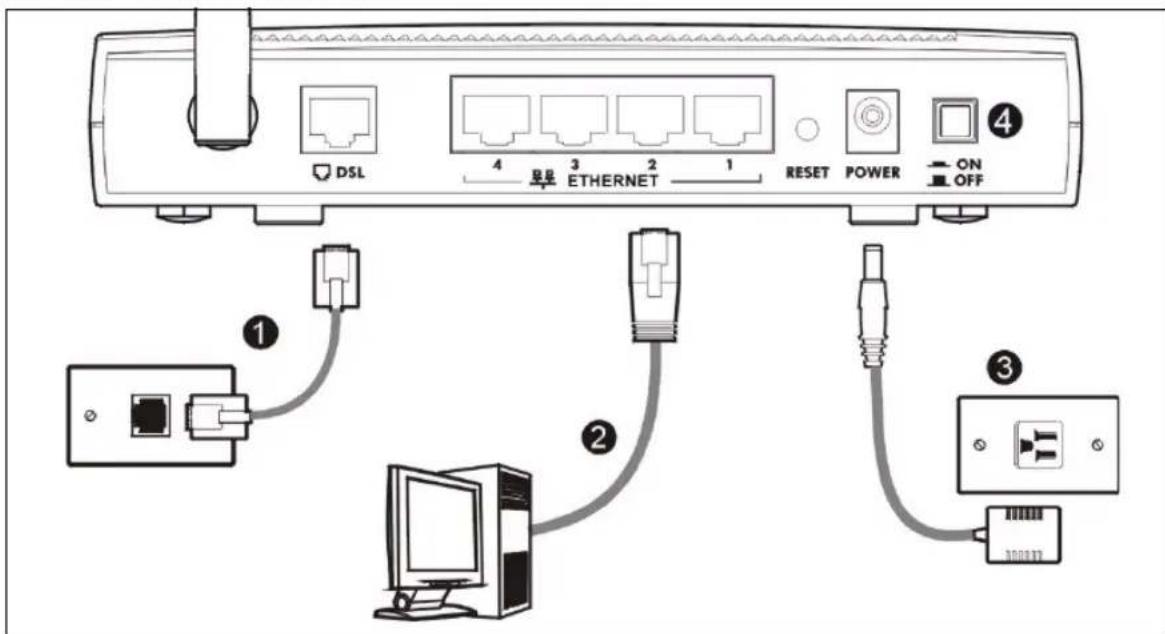
1 Hardware Connections
text_image
DSL 4 3 2 1 ETHERNET RESET POWER ON OFF ① ② ③1 Use a telephone wire to connect your P-661HW-D's DSL port to a telephone jack or the DSL (or modem) jack on a splitter.
2 Use an Ethernet cable to connect a computer to an ETHERNET port for Internet access.
3 Use the power adaptor provided with your P-661HW-D to connect an appropriate power source to the POWER socket. Make sure the power source is on.
4 Push in the POWER button. Look at the lights on the front panel.
- The POWER light blinks green while your P-661HW-D starts up, and stays on once it is ready.
- The DSL light stays on if a physical connection with the ISP is established. The INTERNET light stays on when Internet access is available and blinks when the P-661HW-D is sending or receiving data.
• Each ETHERNET light stays on if the corresponding ETHERNET port is properly connected, and blinks when there is traffic.
- The WLAN light stays on if the wireless network is ready, and blinks when there is traffic.
If any of these lights are not on, check your connections, and inspect your cables for damage. If the lights are still off, contact your local vendor.
2 Status Page
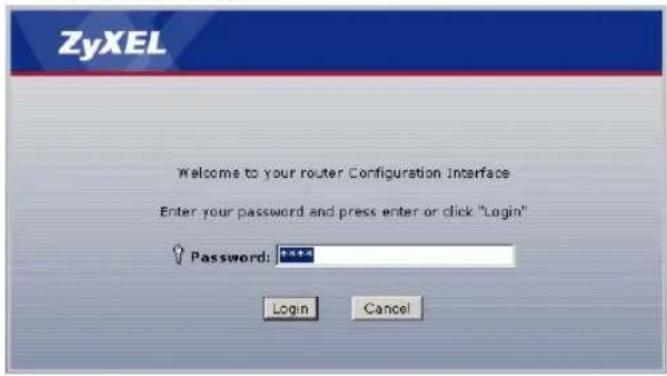
1 In your browser, go to http://192.168.1.1.
Address http://192.168.1.1/
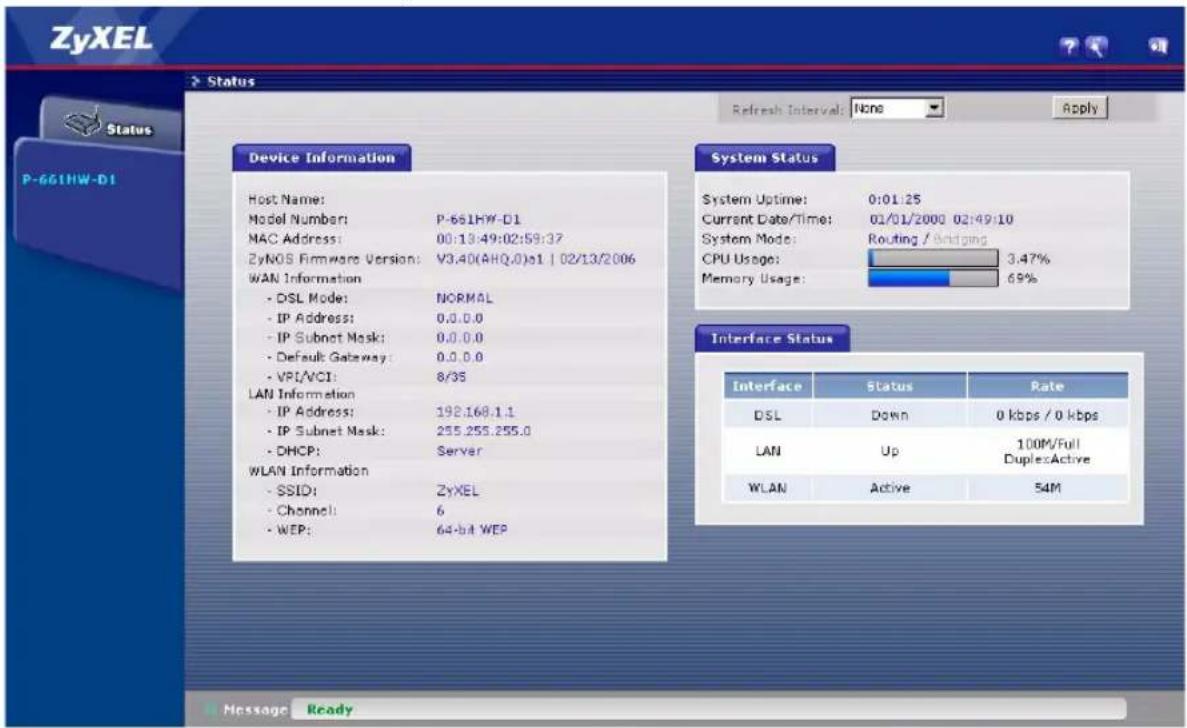
2 Enter the default password user to go directly to the Status screen.
text_image
ZyXEL Welcome to your router Configuration Interface Enter your password and press enter or click "Login" Password: ****** Login CancelIf your browser cannot find this screen, check its security settings. See Troubleshooting for details.
3 See the User's Guide for field descriptions of the Status screen.
text_image
ZyXEL Status P-661HW-D1 Refresh Interval: None Apply Device Information Host Name: Model Number: P-661HW-D1 MAC Address: 00:13:49:02:59:37 ZyNOS Firmware Version: V3.40(AHQ.0)s1 | 02/13/2006 WAN Information - DSL Mode: NORMAL - IP Address: 0.0.0.0 - IP Subnet Mask: 0.0.0.0 - Default Gateway: 0.0.0.0 - VPI/VI: 8/35 LAN Information - IP Address: 192.168.1.1 - IP Subnet Mask: 255.255.255.0 - DHCP: Server WLAN Information - SSID: ZyXEL - Channel: 6 - WEP: 64-b4 WEP System Status System Uptime: 0:01:25 Current Date/Time: 02/01/2000 02:49:10 System Mode: Routing / Antiging CPU Usage: 3.47% Memory Usage: 69% Interface Status Interface Status Rate DSL Down 0 kbps / 0 kbps LAN Up 100M/Full DuplexActive WLAN Active 54M Message Ready3 Internet and Wireless Setup
1 In your browser, go to http://192.168.1.1.
Address

http://192.168.1.1/
2 Enter the admin password 1234 to set up your internet and wireless connections and security settings.

text_image
ZyXEL Welcome to your router Configuration Interface Enter your password and press enter or click "Login" Password: Login Cancel3 Follow the directions in this screen. It is highly recommended that you change the default password.

text_image
ZyXEL Use this screen to change the password. Your router is currently using the default password. To protect your network from unauthorized users we suggest you change your password at this time. Please select a new password that will be easy to remember yet difficult for others to guess. We suggest you combine text with numbers to make it more difficult for an intruder to guess. Enter your new password in the two fields below and click "Apply". Otherwise click "Ignors" to keep the default password New Password: Relyte to Confirm: Apply Ignore4 Click Go to Wizard setup. Then, click Apply.

text_image
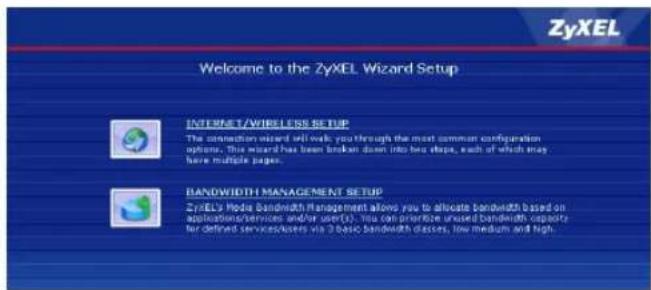
ZyXEL Please select Wizard or Status mode ZyXEL Wizard setup walks you through the most common configuration settings. Please use this mode if it is the first time you are setting up your router. If you want to view the current status on your router, please select the status mode. Go to Wizard setup View device status Change password Apply Exit5 Click INTERNET/WIRELESS SETUP. Wait while your P-661HW-D tries to detect your DSL connection.
text_image
ZyXEL Welcome to the ZyXEL Wizard Setup INTERNET/WIRELESS SETUP The connection wizard will walk you through the most common configuration options. This wizard has been broken down into two steps, each of which may have multiple pages. BANDWIDTH MANAGEMENT SETUP ZyXEL's Media Bandwidth Management allows you to allocate bandwidth based on application services and/or user(s). You can prioritize unused bandwidth capacity for defined serviceclusters via 3 basic bandwidth classes, low medium and high.6 Follow the directions in the wizard. Do not change default settings if your ISP did not provide information.
OTIST
ZyXEL's One-Touch Intelligent Security Technology (OTIST) feature allows you to automatically configure the SSID and WPA-PSK on all OTIST-equipped wireless network devices within range of the P-661HW-D.
Note: If you enable OTIST but select Disable wireless security using the wireless wizard, the P-661HW-D will create a WPA-PSK automatically.
If you enable OTIST and select Manually assign a WEP key using the wireless wizard, the P-661HW-D will replace the WEP key with a WPA-PSK.
Enable OTIST only if your wireless clients support WPA and OTIST.
You must enable OTIST on the P-661HW-D and all wireless clients within three minutes in any order.
To start OTIST on the P-661HW-D, hold in the RESET button (see Section 1) for one to five seconds. Do not hold the RESET button in for too long, as this will reset the P-661HW-D to the factory defaults.
To enable OTIST on wireless clients, click Start in the Adapter screen. The Setup Key is 01234567 by default. If you have previously saved a Setup Key on the P-661HW-D, use it instead of the default.
For more information, see Wireless LAN in the User's Guide.
Troubleshooting
If you cannot access the web configurator using Internet Explorer in Windows XP or Windows Server 2003, make sure you allow pop-up windows, JavaScripts and Java permissions or set the Internet security level lower than High in Internet Explorer (in Internet Explorer, Click Tools > Internet Options > Security > Custom Level...). See the appendix in the User's Guide for more information.
If you cannot access the Internet when your computer is connected to the ETHERNET port, follow these steps.
1 Check the lights on the front panel. If they are different from what is described in section 1, make sure the connections are correct. (See section 1.) If the lights are still different, turn off the device, wait a few seconds, and turn it on again.
2 Follow the steps in section 3 again. Make sure you enter the correct information. For example, if your account has a user name and password, make sure you type it correctly. In addition, if you are not sure which encapsulation your ISP uses, contact your ISP.
3 If you are using a new Internet account, contact your ISP to make sure it is active.
4 If you still have problems, see Troubleshooting in the User's Guide.
If you cannot access the Internet using the wireless network, follow these steps.
1 On a computer in the wireless network, open your browser, and go to http://192.168.1.1. If you see the screen in step 2 of section 3, follow suggestions 1 - 4 above. If not, go to the next step.
2 Make sure your P-661HW-D and the computers in your wireless network are using the same wireless and security settings. Follow the steps in section 3.
3 If you still have problems, see Troubleshooting in the User's Guide.
Viewing Your Product's Certifications
1 Go to www.zyxel.com.
2 Select your product from the drop-down list box on the ZyXEL home page to go to that product's page.
3 Select the certification you wish to view from this page.