Vostro 270s - Desktop computer DELL - Free user manual and instructions
Find the device manual for free Vostro 270s DELL in PDF.


User questions about Vostro 270s DELL
0 question about this device. Answer the ones you know or ask your own.
Ask a new question about this device
Download the instructions for your Desktop computer in PDF format for free! Find your manual Vostro 270s - DELL and take your electronic device back in hand. On this page are published all the documents necessary for the use of your device. Vostro 270s by DELL.
USER MANUAL Vostro 270s DELL
Notes, Cautions, and Warnings

NOTE: A NOTE indicates important information that helps you make better use of your computer.

CAUTION: A CAUTION indicates either potential damage to hardware or loss of data and tells you how to avoid the problem.

WARNING: A WARNING indicates a potential for property damage, personal injury, or death.
© 2012 Dell Inc.
Trademarks used in this text: Dell™, the DELL logo, Dell Precision™, Precision ON™, ExpressCharge™, Latitude™, Latitude ON™, OptiPlex™, Vostro™, and Wi-Fi Catcher™ are trademarks of Dell Inc. Intel®, Pentium®, Xeon®, Core™, Atom™, Centrino®, and Celeron® are registered trademarks or trademarks of Intel Corporation in the U.S. and other countries. AMD® is a registered trademark and AMD Opteron™, AMD Phenom™, AMD Sempron™, AMD Athlon™, ATI Radeon™, and ATI FirePro™ are trademarks of Advanced Micro Devices, Inc. Microsoft®, Windows®, MS-DOS®, Windows Vista®, the Windows Vista start button, and Office Outlook® are either trademarks or registered trademarks of Microsoft Corporation in the United States and/or other countries. Blu-ray Disc™ is a trademark owned by the Blu-ray Disc Association (BDA) and licensed for use on discs and players. The Bluetooth® word mark is a registered trademark and owned by the Bluetooth® SIG, Inc. and any use of such mark by Dell Inc. is under license. Wi-Fi® is a registered trademark of Wireless Ethernet Compatibility Alliance, Inc.
2012 - 10
Rev. A00
Contents
Notes, Cautions, and Warnings....2
1 Working on Your Computer....5
Before Working Inside Your Computer....5
Turning Off Your Computer....6
After Working Inside Your Computer....6
2 Removing and Installing Components....7
Recommended Tools....7
Removing the Cover....7
Installing the Cover....8
Removing the Front Bezel....8
Installing the Front Bezel....9
Removing the Fan Shroud....9
Installing the Fan Shroud....10
Removing the Drive Cage....10
Installing the Drive Cage....12
Removing the Optical Drive....12
Installing the Optical drive....12
Removing the Hard Drive....13
Installing the Hard drive....13
Removing the Expansion Card....14
Installing the Expansion Card....14
Removing the Coin-Cell Battery....14
Installing the Coin-Cell Battery....15
Removing the Memory....15
Installing the Memory....15
Removing the Power Switch....15
Installing the Power Switch....16
Removing the Heat-Sink Assembly....16
Installing the Heat-Sink Assembly....17
Removing the Input/Output (I/O) Panel....17
Installing the I/O Panel....19
Removing the Processor....19
Installing the Processor....20
Removing the System Board....20
System Board Components....21
Installing the System Board....21
Removing the Power-Supply Unit....22
Installing the Power-Supply Unit....22
3 System Setup....25
Boot Sequence....25
Navigation Keys....25
System Setup Overview....26
Enter System Setup....26
System Setup Screens....26
System Setup Options....27
Exit....29
Updating the BIOS 29
Clearing Forgotten Password....30
Clearing CMOS....31
System and Setup Password....32
Assigning a System Password and Setup Password....32
Deleting or Changing an Existing System and/or Setup Password....33
Disabling a System Password....33
4 Diagnostics....35
Enhanced Pre-Boot System Assessment (ePSA) Diagnostics....35
5 Technical Specification....37
6 Contacting Dell....41
Working on Your Computer
Before Working Inside Your Computer
Use the following safety guidelines to help protect your computer from potential damage and to help to ensure your personal safety. Unless otherwise noted, each procedure included in this document assumes that the following conditions exist:
- You have read the safety information that shipped with your computer.
- A component can be replaced or--if purchased separately--installed by performing the removal procedure in reverse order.

WARNING: Before working inside your computer, read the safety information that shipped with your computer. For additional safety best practices information, see the Regulatory Compliance Homepage at www.dell.com/regulatory_compliance

CAUTION: Many repairs may only be done by a certified service technician. You should only perform troubleshooting and simple repairs as authorized in your product documentation, or as directed by the online or telephone service and support team. Damage due to servicing that is not authorized by Dell is not covered by your warranty. Read and follow the safety instructions that came with the product.

CAUTION: To avoid electrostatic discharge, ground yourself by using a wrist grounding strap or by periodically touching an unpainted metal surface, such as a connector on the back of the computer.

CAUTION: Handle components and cards with care. Do not touch the components or contacts on a card. Hold a card by its edges or by its metal mounting bracket. Hold a component such as a processor by its edges, not by its pins.

CAUTION: When you disconnect a cable, pull on its connector or on its pull-tab, not on the cable itself. Some cables have connectors with locking tabs; if you are disconnecting this type of cable, press in on the locking tabs before you disconnect the cable. As you pull connectors apart, keep them evenly aligned to avoid bending any connector pins. Also, before you connect a cable, ensure that both connectors are correctly oriented and aligned.

NOTE: The color of your computer and certain components may appear differently than shown in this document.
To avoid damaging your computer, perform the following steps before you begin working inside the computer.
- Ensure that your work surface is flat and clean to prevent the computer cover from being scratched.
- Turn off your computer (see Turning Off Your Computer).
CAUTION: To disconnect a network cable, first unplug the cable from your computer and then unplug the cable from the network device.
- Disconnect all network cables from the computer.
- Disconnect your computer and all attached devices from their electrical outlets.
- Press and hold the power button while the computer is unplugged to ground the system board.
- Remove the cover.
CAUTION: Before touching anything inside your computer, ground yourself by touching an unpainted metal surface, such as the metal at the back of the computer. While you work, periodically touch an unpainted metal surface to dissipate static electricity, which could harm internal components.
Turning Off Your Computer
CAUTION: To avoid losing data, save and close all open files and exit all open programs before you turn off your computer.
- Shut down the operating system:
- In Windows 7:
Click Start, then click Shut Down.
– In Windows Vista:
Click Start, then click the arrow in the lower-right corner of the Start menu as shown below, and then click Shut Down.

- In Windows XP:
Click Start Turn Off Computer Turn Off. The computer turns off after the operating system shutdown process is complete.
- Ensure that the computer and all attached devices are turned off. If your computer and attached devices did not automatically turn off when you shut down your operating system, press and hold the power button for about 6 seconds to turn them off.
After Working Inside Your Computer
After you complete any replacement procedure, ensure you connect any external devices, cards, and cables before turning on your computer.
- Replace the cover.
△ CAUTION: To connect a network cable, first plug the cable into the network device and then plug it into the computer.
- Connect any telephone or network cables to your computer.
- Connect your computer and all attached devices to their electrical outlets.
- Turn on your computer.
- If required, verify that the computer works correctly by running the Dell Diagnostics.
2
Removing and Installing Components
This section provides detailed information on how to remove or install the components from your computer.
Recommended Tools
The procedures in this document may require the following tools:
- Small flat-blade screwdriver
• Phillips screwdriver - Small plastic scribe
Removing the Cover
- Follow the procedures in Before Working Inside Your Computer.
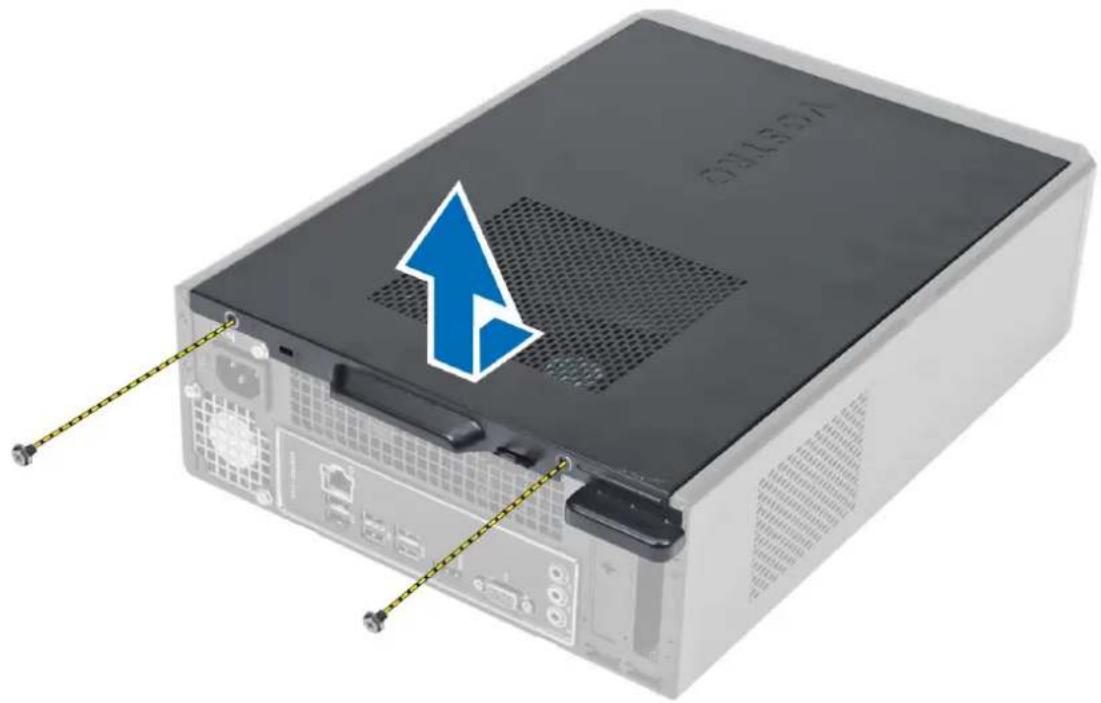
- Remove the screws that secure the cover to the computer to slide and lift the cover upwards to remove it from the computer.
natural_image
Front view of a computer tower with ventilation slots and drive cables, showing a blue upward arrow indicating a loading or optimization point (no text or symbols on the device itself)Installing the Cover
- Align the cover along its tabs on the chassis and slide the cover to its original position.
- Tighten the screws to secure the cover to the computer.
- Follow the procedures in After Working Inside Your Computer.
Removing the Front Bezel
-
Follow the procedures in Before Working Inside Your Computer.
-
Remove the cover.
-
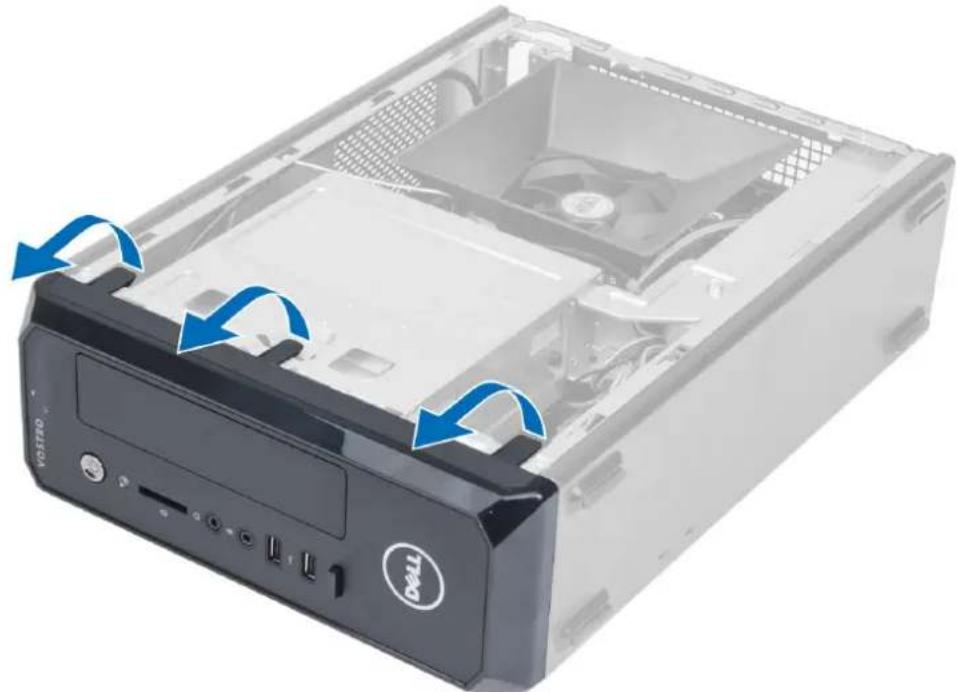
Pry the front panel retention clips away from the chassis located at the edge of front bezel.
natural_image
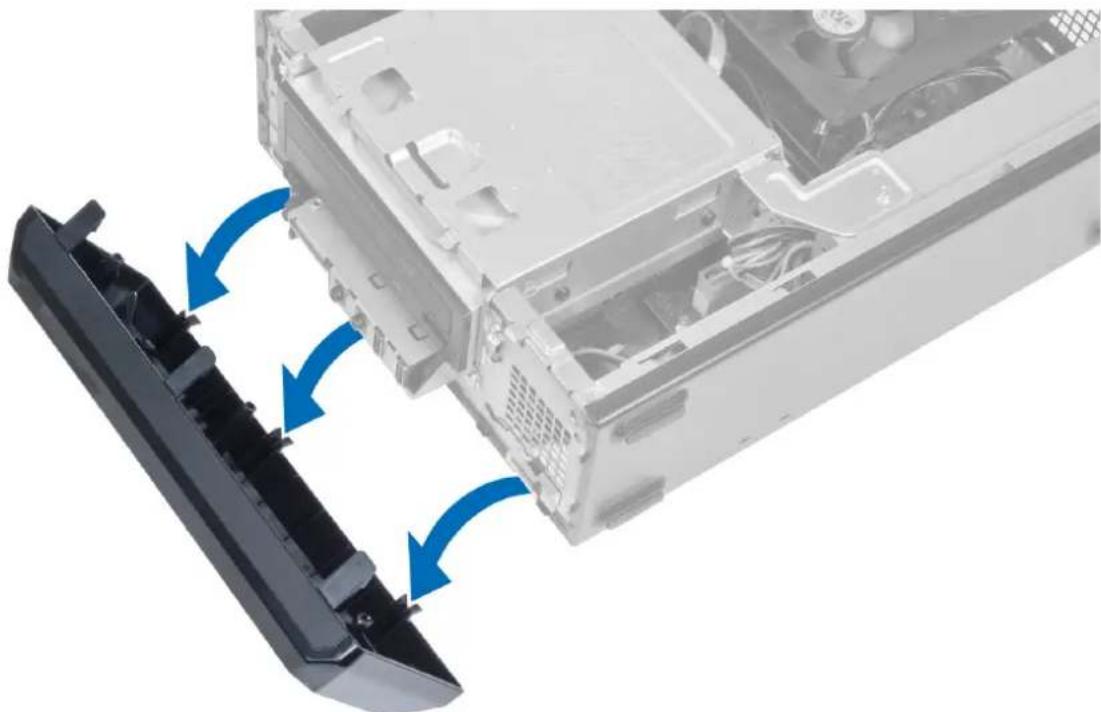
Internal view of a computer tower case with ventilation slots and drive bays (no text or symbols visible)- Rotate the front bezel away from the computer to release the hooks on the opposite edge of the bezel from the chassis.
natural_image
Computer motherboard showing a drive shift and cable assembly (no text or symbols visible)Installing the Front Bezel
- Insert the hooks along the bottom edge of the front bezel into the slots on the chassis front.
- Rotate the bezel toward the computer to engage the front-panel retention clips until they click into place.
- Install the cover.
- Follow the procedures in After Working Inside Your Computer.
Removing the Fan Shroud
- Follow the procedures in Before Working Inside Your Computer.
- Remove the cover.
- Press in on the fan shroud to lift and release the tabs securing the fan shroud and remove it from the computer.

natural_image
3D rendering of a Dell computer tower with a black CPU socket and blue directional arrows indicating rotation (no text or symbols)Installing the Fan Shroud
- Place the fan shroud over the processor fan and heat-sink assembly.
- Press the fan shroud until the tabs on the fan shroud snap into place.
- Install the cover.
- Follow the procedures in After Working Inside Your Computer.
Removing the Drive Cage
- Follow the procedures in Before Working Inside Your Computer.
- Remove:
a) cover
b) fan shroud
c) front bezel
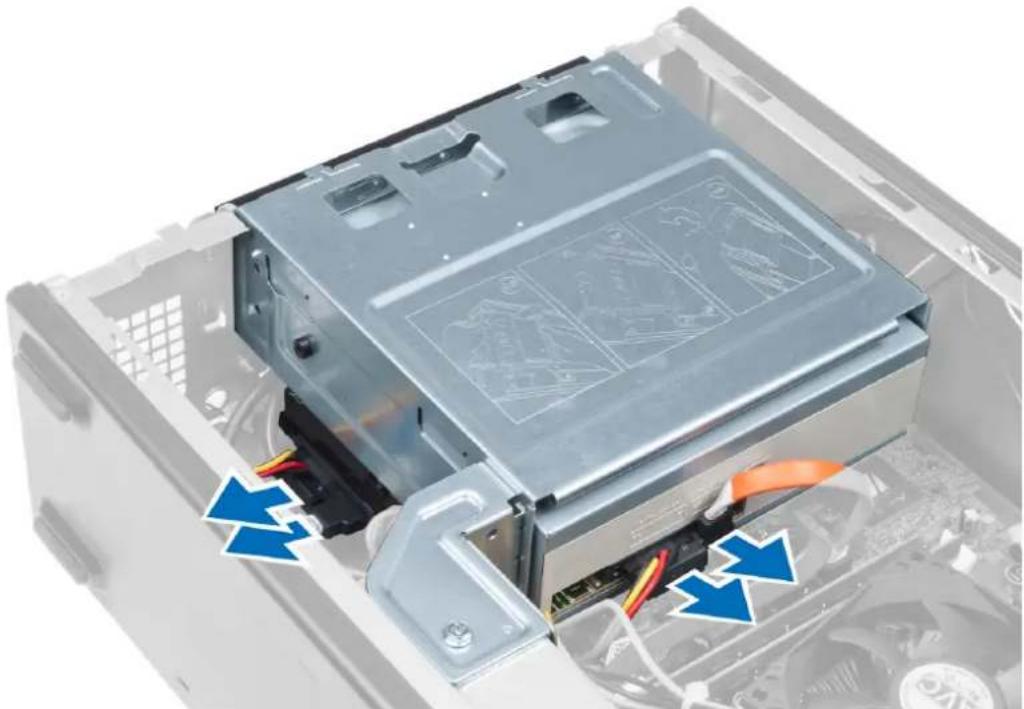
- Disconnect the power and data cables from the hard drive and the optical drive.
natural_image
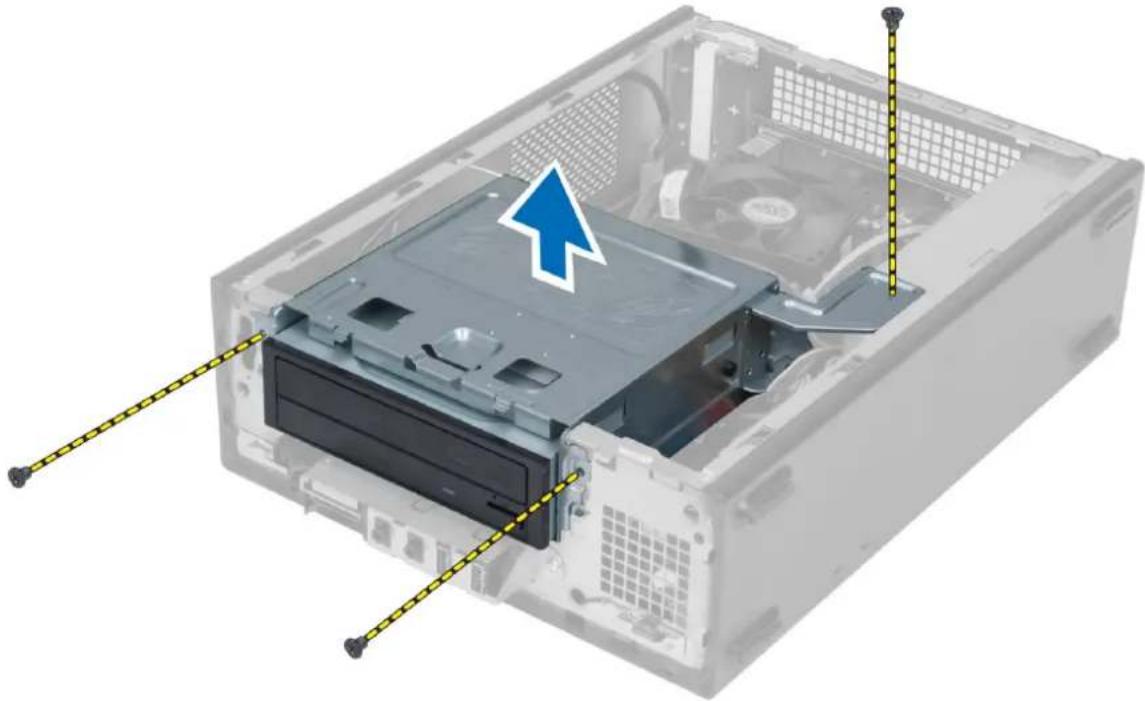
Internal view of a computer drive bay with visible wiring and components, no text or symbols present- Remove the screws that secure the drive cage and lift the drive cage to remove it from the computer.
natural_image
Interior view of a computer drive chassis showing internal components and a blue arrow indicating a specific location (no text or symbols present)Installing the Drive Cage
-
Tighten the screws to secure the drive cage to the computer.
-
Connect the data cable and power cable to the back of the hard drive and the optical drive.
-
Install:
a) front bezel
b) fan shroud
c) cover
- Follow the procedures in After Working Inside Your Computer.
Removing the Optical Drive
-
Follow the procedures in Before Working Inside Your Computer.
-
Remove:
a) cover
b) fan shroud
c) front bezel
d) drive cage
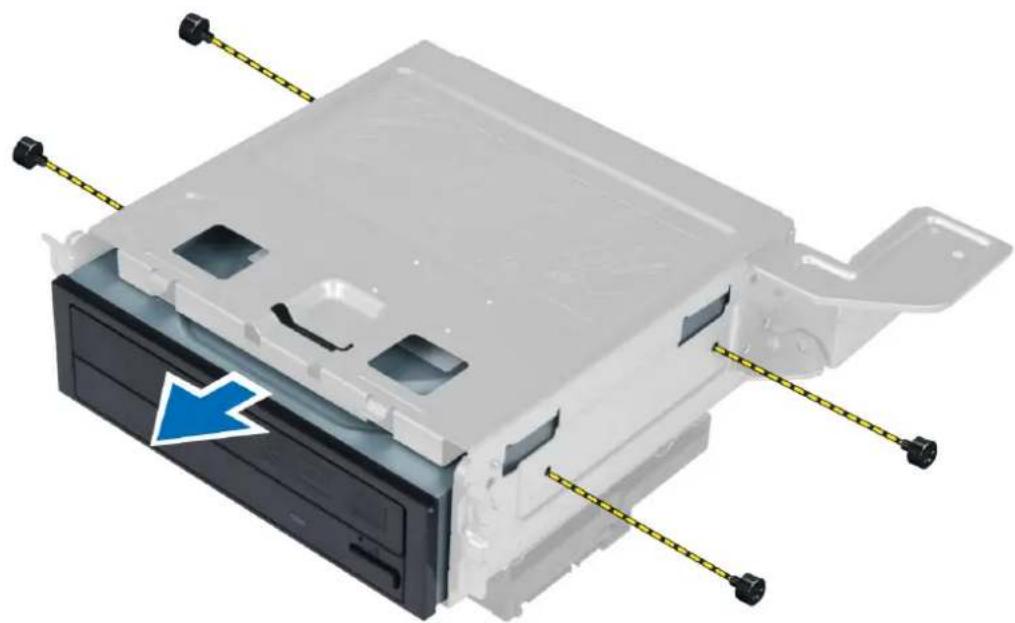
- Remove the screws that secure the optical drive to the drive cage and slide the optical drive out of the drive cage.
natural_image
3D rendering of a computer drive chassis with attached components and yellow tape connectors (no text or symbols visible)Installing the Optical drive
- Slide the optical drive into the drive cage.
- Align the screw holes on the optical drive with the screw holes on the drive cage.
- Tighten the screws to secure the optical drive to the drive cage.
- Install:
a) drive cage
b) front bezel
c) fan shroud
d) cover
- Follow the procedures in After Working Inside Your Computer.
Removing the Hard Drive
- Follow the procedures in Before Working Inside Your Computer.
- Remove:
a) cover
b) fan shroud
c) front bezel
d) drive cage
- Remove the screws that secure the hard drive to the drive cage and slide the hard drive out of the drive cage.

natural_image
3D rendering of an open computer drive chassis with internal components and mounting hardware (no text or symbols visible)Installing the Hard drive
- Slide the hard drive into the drive cage.
- Align the screw holes on the hard drive with the screw holes on the drive cage.
- Tighten the screws that secure the hard drive to the drive cage.
- Install:
a) drive cage
b) front bezel
c) fan shroud
d) cover
- Follow the procedures in After Working Inside Your Computer.
Removing the Expansion Card
-
Follow the procedures in Before Working Inside Your Computer.
-
Remove:
a) cover.
b) fan shroud.
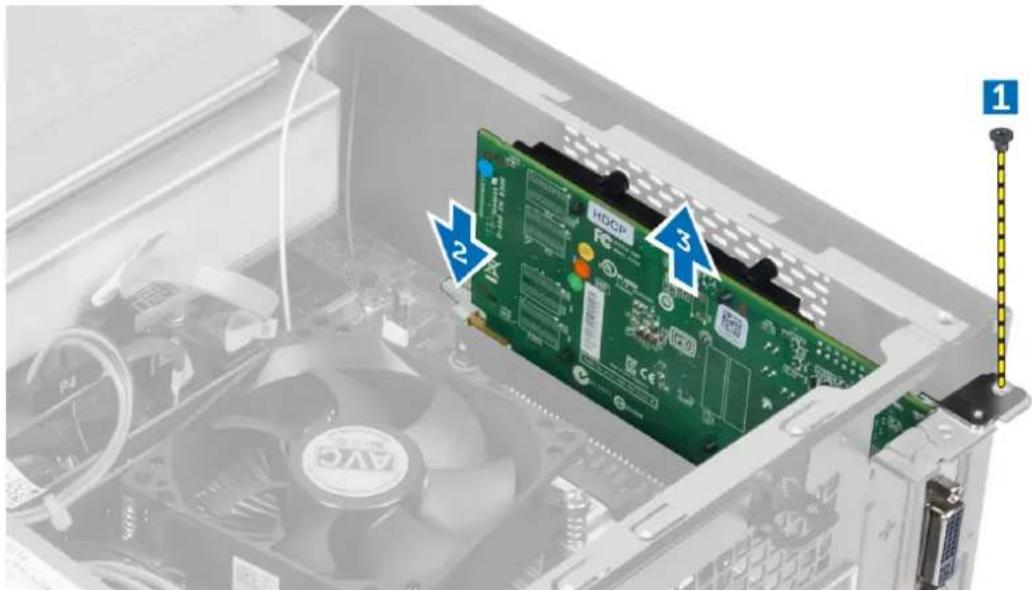
- Remove the screw that secures the expansion card to the chassis. Press down the securing tab, grasp the card and ease it out of its connector.
text_image
Diagram of an open computer motherboard showing CPU socket, fan, and HDCF drive with numbered annotationsInstalling the Expansion Card
-
Insert the expansion card into it's connector on the system board and press down until it is securely in place.
-
Tighten the screw to secure the expansion card to the chassis.
-
Install:
a) fan shroud.
b) cover.
- Follow the procedures in After Working Inside Your Computer.
Removing the Coin-Cell Battery
-
Follow the procedures in Before Working Inside Your Computer.
-
Remove:
a) cover
b) fan shroud
c) drive cage
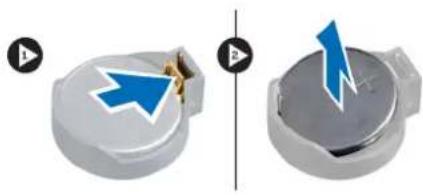
- Press the release latch away from the battery to allow the battery to pop-up and lift the coin-cell battery out of the computer.
natural_image
Two identical mechanical components with blue arrows pointing to features, no text or symbols present.Installing the Coin-Cell Battery
- Place the coin-cell battery into its slot on the system board.
- Press the coin-cell battery downward until the release latch springs back into place and secures it.
- Install :
a) drive cage
b) fan shroud
c) cover
- Follow the procedures in After Working Inside Your Computer.
Removing the Memory
- Follow the procedures in Before Working Inside Your Computer.
- Remove:
a) cover.
b) fan shroud
c) drive cage
- Press down on the memory retention tabs on each side of the memory module, and lift the memory module(s) out of the connectors on the system board.

natural_image
Diagram showing two mechanical components with directional arrows, one gray and one green, connected by a vertical line (no text or symbols)Installing the Memory
- Align the notch on the memory-card with the tab on the system-board connector.
- Press down on the memory module until the retention tabs spring back to secure them in place.
- Install:
a) drive cage
b) fan shroud
c) cover.
- Follow the procedures in After Working Inside Your Computer.
Removing the Power Switch
- Follow the procedures in Before Working Inside Your Computer.
- Remove:
a) cover
b) fan shroud
c) front bezel
d) drive cage
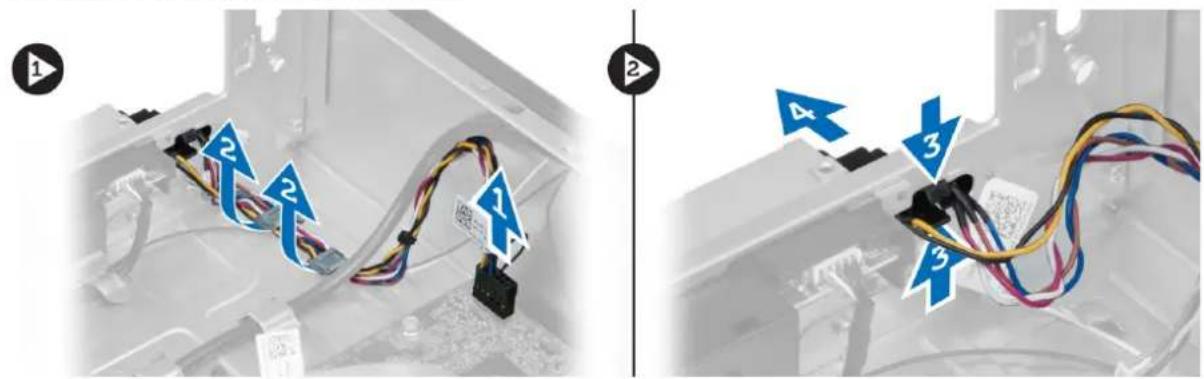
- Disconnect the power-switch cable from the system board and remove the cables from their routing channels. Press the power-switch tabs to release the power switch from the front panel and slide the power switch along with its cable through the slot on the front panel.
text_image
Diagram showing cable routing between a device with numbered connectors and blue directional arrows indicating connection points.Installing the Power Switch
- Slide the power-switch along its cable through the slot on the front panel.
- Align and push the power-switch tabs into the slots on the front panel.
- Route the power-switch cable through the routing channels on the computer.
- Connect the power-switch cable to the system board.
- Install:
a) drive cage
b) front bezel
c) fan shroud
d) cover
- Follow the procedures in After Working Inside Your Computer.
Removing the Heat-Sink Assembly
- Follow the procedures in Before Working Inside Your Computer.
- Remove:
a) cover
b) fan shroud
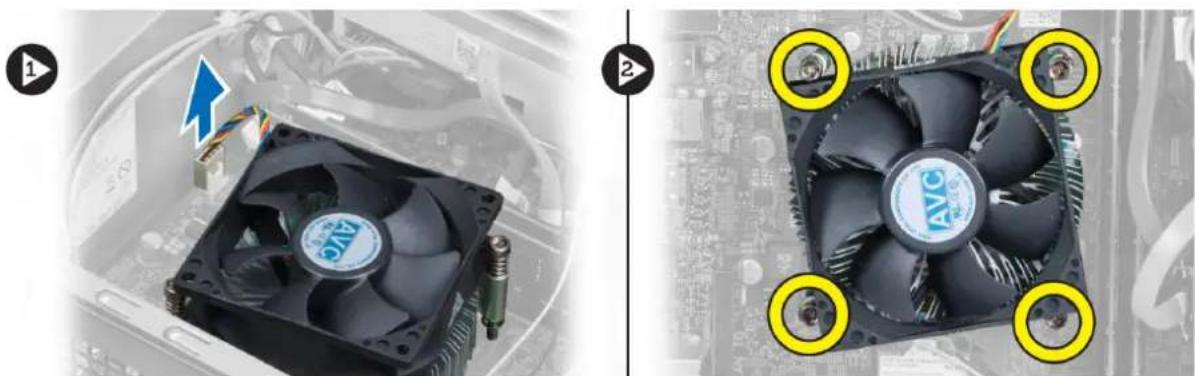
- Disconnect the fan cable from the system board. Loosen the captive screws that secure the heat-sink assembly to the computer and remove it from the computer.
natural_image
Two views of an AVC CPU fan on a motherboard, showing internal components and mounting hardware (no text or symbols visible)Installing the Heat-Sink Assembly
- Align the captive screws on the heat-sink assembly with the screw holes on the system board.
- Tighten the captive screws to secure heat-sink assembly to the system board.
- Connect the fan cable to the system board.
- Install:
a) fan shroud.
b) cover.
- Follow the procedures in After Working Inside Your Computer.
Removing the Input/Output (I/O) Panel
- Follow the procedures in Before Working Inside Your Computer.
- Remove:
a) cover
b) fan shroud
c) front bezel
d) drive cage
e) expansion card
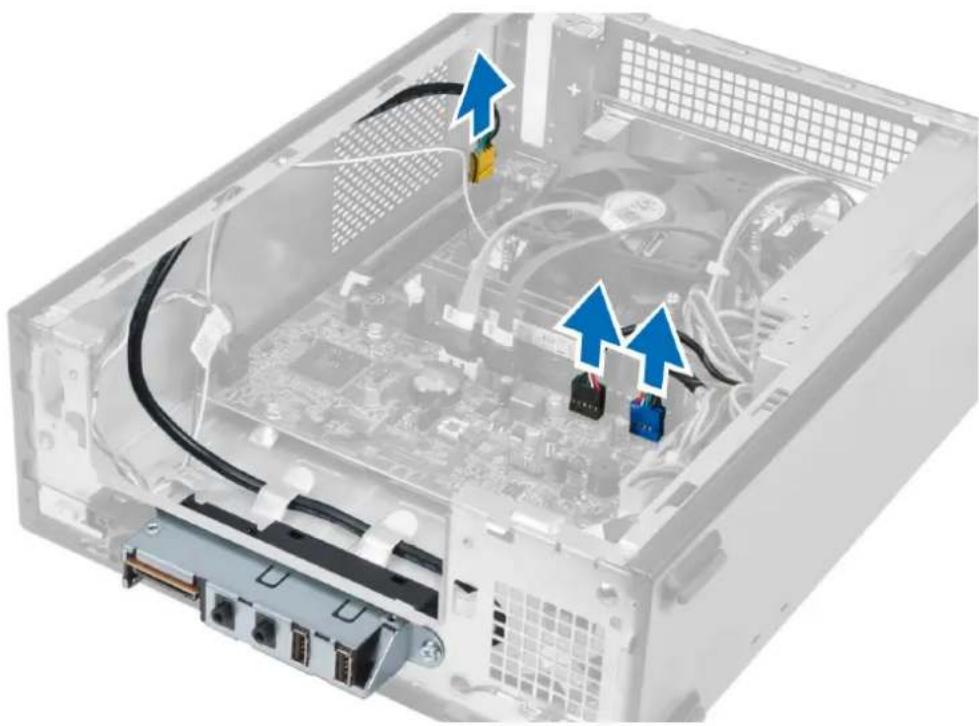
- Disconnect the I/O panel cables from the system board
natural_image
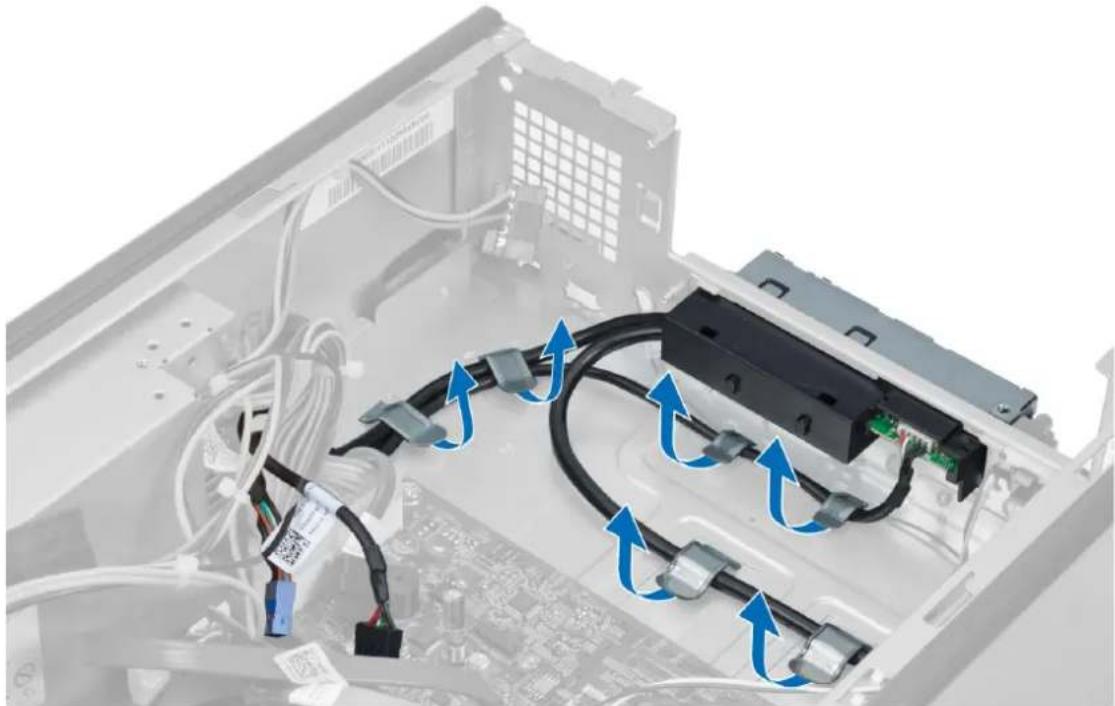
Internal view of a computer drive bay showing CPU socket, RAM slots, and cable routing (no text or labels visible)- Remove the I/O panel cables from the routing channels on the chassis.
natural_image
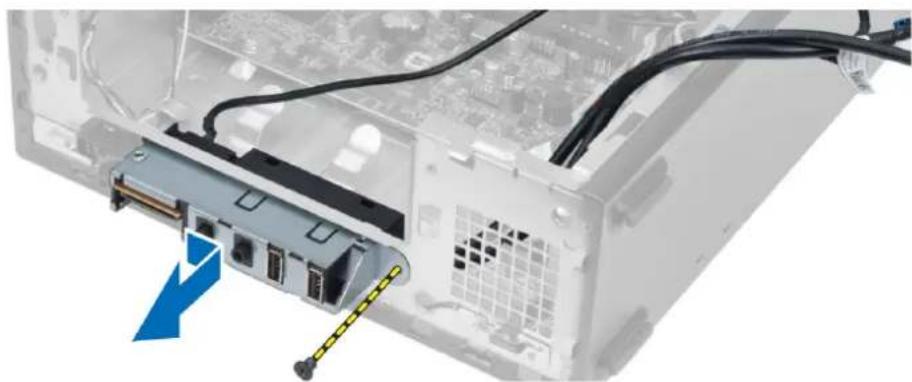
Interior view of an electronic device showing cable routing and connections (no text or symbols visible)- Remove the screw that secures the I/O panel to the front panel and slide the I/O panel toward the side and pull it out of the front panel.
natural_image
Interior view of a computer drive bay showing internal components and cable routing (no text or symbols visible)Installing the I/O Panel
- Insert the I/O panel into the slot on the front panel.
- Slide the I/O panel to align it with the screw holes on the front panel.
- Tighten the screw to secure the I/O panel to the front panel.
- Route the I/O panel cables through the routing channels on the chassis.
-
Connect the I/O panel cables to the system board.
-
Install:
a) expansion card
b) drive cage
c) front bezel
d) fan shroud
e) cover
- Follow the procedures in After Working Inside Your Computer.
Removing the Processor
-
Follow the procedures in Before Working Inside Your Computer.
-
Remove:
a) cover
b) fan shroud
c) heat-sink assembly
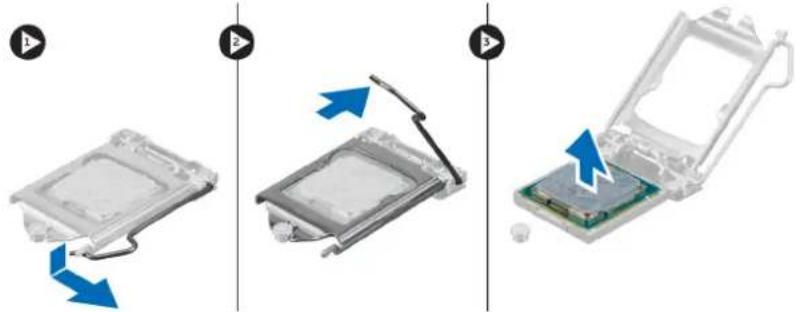
- Press the release lever down and then move it outward to release it from the retention hook. Lift the processor cover and remove the processor from the socket, and place it in antistatic bag.
natural_image
Three-step diagram showing a device being processed, with blue arrows indicating motion and assembly (no text or symbols)Installing the Processor
- Insert the processor into the processor socket. Ensure the processor is properly seated.
- Lower the processor cover.
-
Press the release lever down and then move it inward to secure it with the retention hook.
-
Install:
a) heat-sink assembly
b) fan shroud
c) cover
- Follow the procedures in After Working Inside Your Computer.
Removing the System Board
-
Follow the procedures in Before Working Inside Your Computer.
-
Remove:
a) cover
b) fan shroud
c) front bezel
d) drive cage
e) memory
f) expansion card
g) heat-sink assembly
h) processor
- Disconnect all the cables connected to the system board.
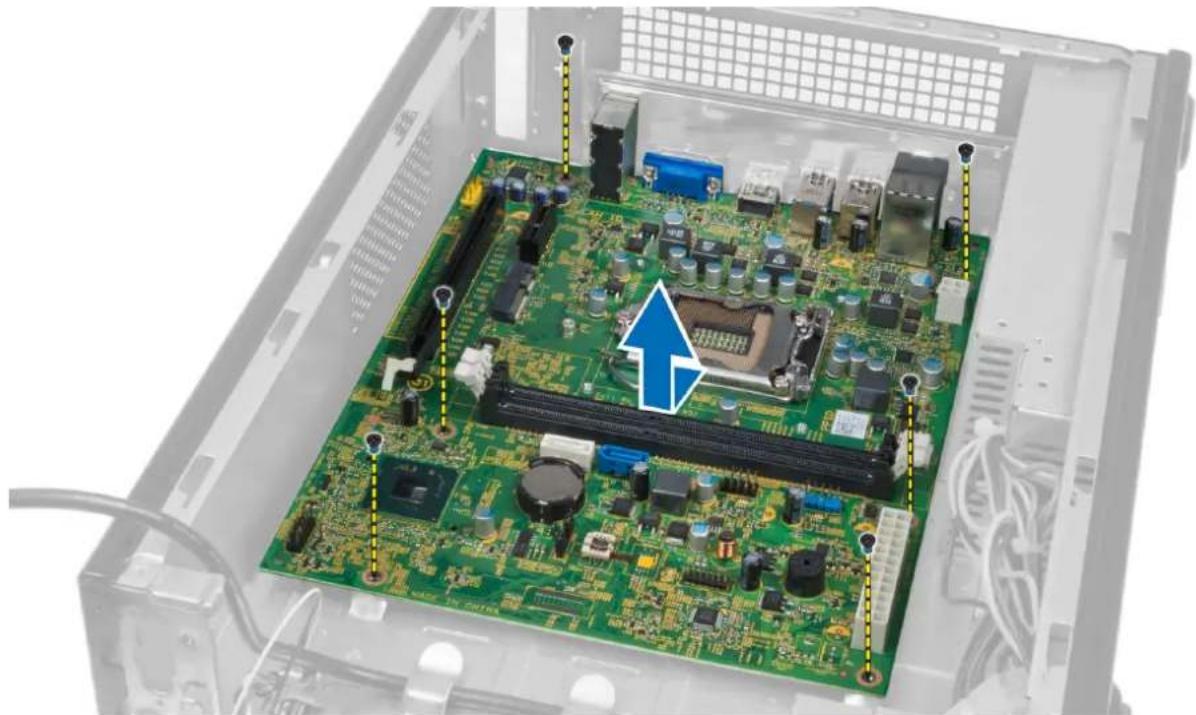
- Remove the screws that secure the system board to the chassis and lift the system board up and out of the chassis.
natural_image
Interior view of an electronic device showing a green circuit board with various components and connectors, no visible text or symbols.System Board Components

text_image
Labeled diagram of a computer motherboard showing component layout with numbered partsFigure 1. Components Of The System Board
- power button connector
- Coin-cell battery
- SATA connectors
- password reset jumper
- front-panel audio connector
- PCI Express x16 slot
- Mini-Card slot
- PCIe x1 slot
-
4-pin CPU power connector
-
CPU Socket
- processor fan connector
- DDR DIMM memory slots (2)
- ATX 24-pin power connector
- front panel USB connector
- front panel USB connector
- CMOS jumper
Installing the System Board
- Align the system board to the port connectors on the rear of the chassis and replace the system board in the chassis.
- Tighten the screws to secure the system board to the chassis.
- Connect the power-supply unit cables to the system board.
- Install the:
a) processor
b) heat-sink assembly
c) expansion card
d) memory
e) drive cage
f) front bezel
g) fan shroud
h) cover
- Follow the procedures in After Working Inside Your Computer.
Removing the Power-Supply Unit
-
Follow the procedures in Before Working Inside Your Computer.
-
Remove:
a) cover
b) fan shroud
c) front bezel
d) drive cage
e) memory
f) expansion card
g) fan and heat sink
h) processor
i) system board
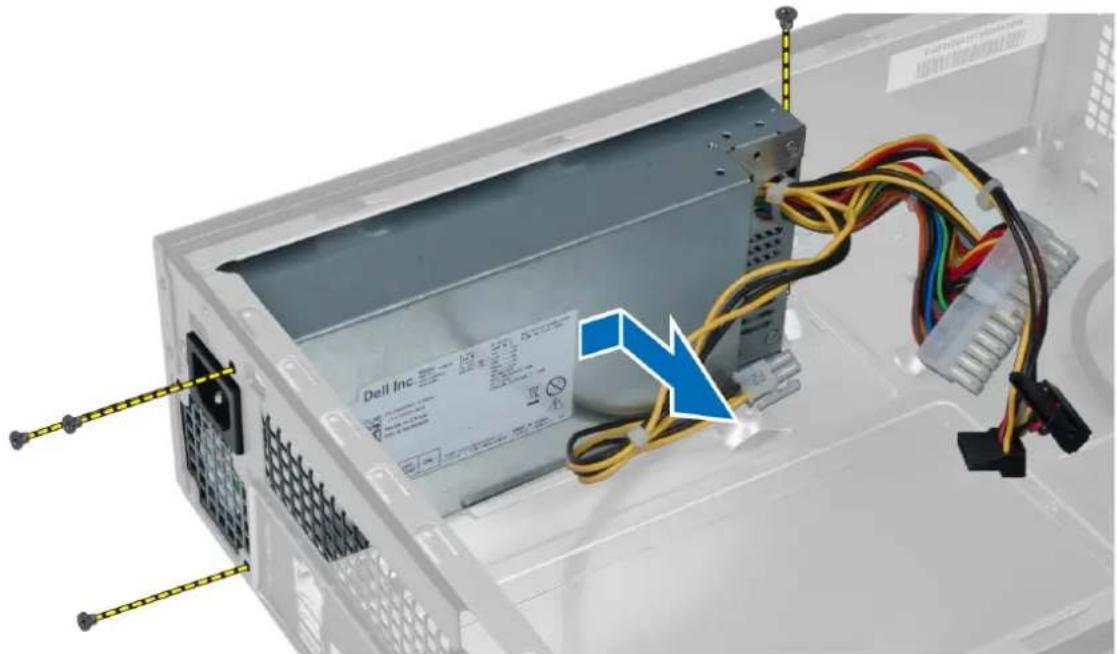
- Remove the screws that secure the power-supply unit to the chassis and slide and remove the power-supply unit away from the computer.
natural_image
Computer power strip with cable and connectors inside a rack, showing no visible text or symbols on the device itself.Installing the Power-Supply Unit
- Slide the power-supply unit toward the back of the chassis.
- Align the screw holes on the power-supply unit with the screw holes on the chassis.
-
Tighten the screws to secure the power-supply unit to the chassis.
-
Install the:
a) system board
b) processor
c) fan and heat sink
d) expansion card
e) memory
f) drive cage
g) front bezel
h) fan shroud
i) cover
- Follow the procedures in After Working Inside Your Computer.
System Setup
System Setup enables you to manage your computer hardware and specify BIOS-level options. From the System Setup, you can:
- Change the NVRAM settings after you add or remove hardware
• View the system hardware configuration - Enable or disable integrated devices
- Set performance and power management thresholds
- Manage your computer security
Boot Sequence
Boot Sequence allows you to bypass the System Setup-defined boot device order and boot directly to a specific device (for example: optical drive or hard drive). During the Power-on Self Test (POST), when the Dell logo appears, you can:
- Access System Setup by pressing
key - Bring up the one-time boot menu by pressing
key
The one-time boot menu displays the devices that you can boot from including the diagnostic option. The boot-menu options are:
- Removable Drive (if available)
- STXXXX Drive

NOTE: XXX denotes the SATA drive number.
- Optical Drive
• Diagnostics

NOTE: Choosing Diagnostics, will display the ePSA diagnostics screen.
The boot sequence screen also displays the option to access the System Setup screen.
Navigation Keys
The following table displays the system setup navigation keys.

NOTE: For most of the system setup options, changes that you make are recorded but do not take effect until you restart the system.
Table 1. Navigation Keys
Keys Navigation
Up arrow Moves to the previous field.
Down arrow Moves to the next field.
Keys Navigation
Spacebar Expands or collapses a drop-down list, if applicable.

NOTE: For the standard graphics browser only.
System Setup Overview
System Setup allows you to:
- change the system configuration information after you add, change, or remove any hardware in your computer.
- set or change a user-selectable option such as the user password.
- read the current amount of memory or set the type of hard drive installed.
Before you use System Setup, it is recommended that you write down the System Setup screen information for future reference.

CAUTION: Unless you are an expert computer user, do not change the settings for this program. Certain changes can cause your computer to work incorrectly.
Enter System Setup
- Turn on (or restart) your computer.
- When the blue DELL logo is displayed, you must watch for the F2 prompt to appear.
- Once the F2 prompt appears, press
immediately.

NOTE: The F2 prompt indicates that the keyboard has initialized. This prompt can appear very quickly, so you must watch for it to display, and then press
- If you wait too long and the operating system logo appears, continue to wait until you see the Microsoft Windows desktop. Then, shut down your computer and try again.
System Setup Screens
Table 2.
Menu — Appears on top of the System Setup window. This field provides a menu to access the System Setup options. Press < Left Arrow > and < Right Arrow > keys to navigate. As a Menu option is highlighted, the Options List lists the options that define the hardware installed on your computer.
Options List — Appears on the left side of the System Setup window. The field lists features that define the configuration of your computer, including installed hardware, power
Options Field — Appears on the right side of Dell Diagnostics and contains information about each option listed in the Dell Diagnostics. In this field you can view information about your
Dell Diagnostics — Appears on the right side of the System Setup window and contains help information about the option selected in Dell Diagnostics.
conservation, and security features. Scroll up and down the list with the up- and down-arrow keys. As an option is highlighted, the Options Fie displays the option's current and available settings.
computer and make changes to your current settings. Press

NOTE: Not all settings listed in the Options Field are changeable.
Function Keys — Appears below the Dell Diagnostics and lists keys and their functions within the active system setup field.
Use the following keys to navigate through the System Setup screens:
Table 3.
| Keystroke Action |
| < F2 > Displays information on any selected item in the System Setup. |
| < Esc > Exit from current view or switch the current view to the Dell Diagnostics page in the System Setup. |
| < Up Arrow > or < Down Arrow > Select an item to display. |
| < Left Arrow > or < Right Arrow > Select a menu to display. |
| - or + Change existing item value. |
| < Enter > Select the sub menu or execute command. |
| < F9 > Load setup default. |
| < F10 > Save current configuration and exit System Setup. |
System Setup Options
Table 4. Main
| System Information Displays the computer model number. |
| BIOS Version Displays the BIOS revision. |
| Build Date Displays the date the system BIOS was built. |
| System Date Re-sets the date on the computer's internal calendar. |
| System Time Re-sets the time on the computer's internal clock. |
| Service Tag Displays the service tag of your computer. |
| Asset Tag Displays the asset tag of your computer (if available). |
| Processor Information |
| Processor Type Displays the type of processor. |
| L2 Cache Size Displays the processor L2 cache size. |
| L3 Cache Size Displays the processor L3 cache size. |
Memory Information
Memory Installed Displays the total computer memory.
Memory Speed Displays the memory speed.
Memory Technology Displays the type and technology.
Device Information
SATA 0 Displays the model number and capacity of the hard drive.
SATA 1 Displays the model number and capacity of the hard drive.
SATA 2 Displays the model number and capacity of the hard drive.
SATA 3 Displays the model number and capacity of the hard drive.
Table 5. Advanced
| CPU Configuration | ||
| Hyper-threading Enable or disable processor hyper-threading. | Default: Enabled | |
| Limit CPUID Value Enable or disable the Limit CPUID Value feature. | Default: Enabled | |
| CPU XD Support Enable or disable the CPU XD feature. Default: Enabled | ||
| Intel Virtualization Technology Enable or disable the Intel Virtualization feature. | Default: Enabled | |
| Intel SpeedStep Enable or disable the Intel SpeedStep feature. | Default: Enabled | |
| CPU C6 Report Enable or disable the processor power saving report to the operating system. | Default: Enabled | |
| System Configuration | ||
| Onboard Audio Controller Enable or disable the onboard audio controller. | Default: Enabled | |
| Onboard LAN Controller Enable or disable the onboard LAN controller. | Default: Enabled | |
| Onboard LAN Boot ROM Enable or disable the onboard LAN boot ROM. | Default: Disabled | |
| USB Controller Enable or disable the USB controller. Default: Enabled | ||
| USB Storage Boot Function | Enable or disable the option to boot through a USB device | Default: Enabled |
| Power Management | ||
| Restore AC Power Loss | Specifies how the computer will behave when AC power is restored after an AC power loss. | Default: Power Off |
| Wake on Lan from S4/S5 | Allows the computer to be remotely turned on. | Default: Enabled |
CPU Configuration
| Auto Power On Enable or disable the computer topower on automatically. You can further specify the date and time the computer power on. | Default: Disabled |
| Post Behaviour | |
| NumLock Key Enable or disable the NumLock State light during POST. | Default: On |
| Keyboard Error Report Enable or disable the Keyboard Error Report to be displayed during POST. | Default: Enabled |
Table 6. Boot
| Set Boot Priority Specifies the order of different devices in which the computer will boot through at start up. |
Hard Disk Drives Specify which hard drive the computer can boot through.
CD/DVD ROM Drives Specify which CD/DVD the computer can boot through.
Table 7. Security
| Unlock Setup Status Specifies whether the BIOS can be edited. |
| Admin Password Status Specifies whether an administrator password has been assigned. |
| System Password Status Specifies whether a system password has been assigned. |
| Admin Password Allows you to change or delete the administrator password. |
Exit
This section allows you to save, discard, and load default settings before exiting from System Setup.
Updating the BIOS
It is recommended to update your BIOS (system setup), on replacing the system board or if an update is available. For notebooks, ensure that your computer battery is fully charged and connected to a power outlet
- Restart the computer.
- Go to support.dell.com/support/downloads.
- If you have your computer's Service Tag or Express Service Code:

NOTE: For desktops, the service tag label is available on the front of your computer.

NOTE: For notebooks, the service tag label is available on the bottom of your computer.
a) Enter the Service Tag or Express Service Code and click Submit.
b) Click Submit and proceed to step 5.
- If you do not have your computer's service tag or express service code, select one of the following:
a) Automatically detect my Service Tag for me
b) Choose from My Products and Services List
c) Choose from a list of all Dell products
-
On the application and drivers screen, under the Operating System drop-down list, select BIOS.
-
Identify the latest BIOS file and click Download File.
-
Select your preferred download method in the Please select your download method below window; click Download Now.
The File Download window appears.
-
Click Save to save the file on your computer.
-
Click Run to install the updated BIOS settings on your computer.
Follow the instructions on the screen.
Clearing Forgotten Password
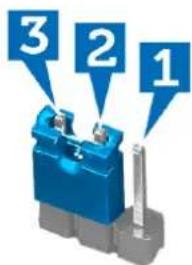
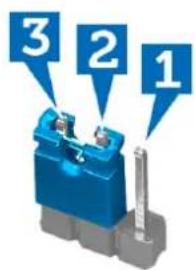
The system's software security features include a system password and a setup password. The password jumper disables any password(s) currently in use. There are 3-pins for the password reset jumper.
-
Follow the procedures in Before Working Inside Your Computer.
-
Remove the cover.
-
Remove the fan shroud.
-
Identify the password reset jumper on the system board, see the System Board Components.
-
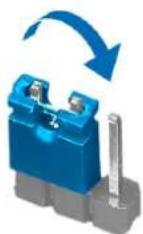
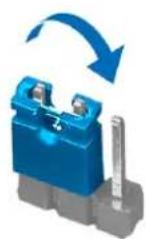
Remove the 2-pin jumper plug from pins 2 and 3 and fix it on pins 1 and 2

text_image
3 2 1
- Install the fan shroud.
- Install the cover.
- Connect the computer to the electrical outlet and power-on the computer to clear the password.
- Power-off the computer and disconnect the power cable from the electrical outlet.
- Remove the cover.
- Remove the fan shroud.
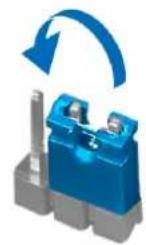
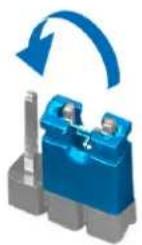
- Replace the jumper on the pins 2 and 3.



text_image
3 2 1- Install the fan shroud.
- Install the cover.
- Follow the procedures in After Working Inside Your Computer.
- Power-on the computer.
- Go to the system setup, and assign a new system or setup password.
Clearing CMOS
- Follow the procedures in Before Working Inside Your Computer.
- Remove the cover.
- Remove the fan shroud.
- Remove the front bezel.
- Remove the drive cage.
- Identify the CMOS jumper on the system board, see the System Board Components.
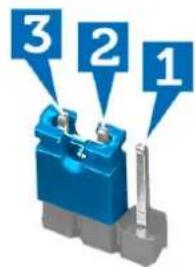
- Remove the 2-pin jumper plug from pins 2 and 3 and fix it on pins 1 and 2

text_image
3 2 1
- Install the drive cage.
- Install the front bezel.
- Install the fan shroud.
- Install the cover.
- Connect the computer to the electrical outlet and power-on the computer to clear the CMOS.
- Power-off the computer and disconnect the power cable from the electrical outlet.
-
Remove the cover.
-
Remove the fan shroud.
- Remove the front bezel.
- Remove the drive cage.
- Replace the jumper on the pins 2 and 3.


text_image
3 2 1- Install the drive cage.
- Install the front bezel.
- Install the fan shroud.
- Install the cover.
- Follow the procedures in After Working Inside Your Computer.
- Power-on the computer.
System and Setup Password
You can create a system password and a setup password to secure your computer.
Password Type Description
System password Password that you must enter to log on to your system.
Setup password
Password that you must enter to access and make changes to the BIOS settings of your computer.

CAUTION: The password features provide a basic level of security for the data on your computer.

CAUTION: Anyone can access the data stored on your computer if is not locked and left unattended.

NOTE: Your computer is shipped with the system and setup password feature disabled.
Assigning a System Password and Setup Password
You can assign a new System Password and/or Setup Password or change an existing System Password and/or Setup Password only when Password Status is Unlocked. If the Password Status is Locked, you cannot change the System Password.

NOTE: If the password jumper is disabled, the existing System Password and Setup Password is deleted and you need not provide the system password to log on to the computer.
To enter a system setup, press
- In the System BIOS or System Setup screen, select System Security and press
. The System Security screen appears. - In the System Security screen, verify that Password Status is Unlocked.
- Select System Password, enter your system password, and press
or . Use the following guidelines to assign the system password:
– A password can have up to 32 characters.
- The password can contain the numbers 0 through 9.
- Only lower case letters are valid, upper case letters are not allowed.
- Only the following special characters are allowed: space, ("), (+), (,), (-), (.), (/), (;), ([), ( ), (]), (^).
Re-enter the system password when prompted.
- Type the system password that you entered earlier and click OK.
- Select Setup Password, type your system password and press
or .
A message prompts you to re-type the setup password.
- Type the setup password that you entered earlier and click OK.
- Press
and a message prompts you to save the changes. - Press
to save the changes.
The computer reboots.
Deleting or Changing an Existing System and/or Setup Password
Ensure that the Password Status is Unlocked (in the System Setup) before attempting to delete or change the existing System and/or Setup password. You cannot delete or change an existing System or Setup password, if the Password Status is Locked.
To enter the System Setup, press
- In the System BIOS or System Setup screen, select System Security and press
.
The System Security screen is displayed. - In the System Security screen, verify that Password Status is Unlocked.
- Select System Password, alter or delete the existing system password and press
or . - Select Setup Password, alter or delete the existing setup password and press
or .
NOTE: If you change the System and/or Setup password, re-enter the new password when promoted. If you delete the System and/or Setup password, confirm the deletion when promoted.
- Press
and a message prompts you to save the changes. - Press < Y> to save the changes and exit from the System Setup.
The computer reboots.
Disabling a System Password
The system's software security features include a system password and a setup password. The password jumper disables any password(s) currently in use.
NOTE: You can also use the following steps to disable a forgotten password.
- Follow the procedures in Before Working on Your Computer.
-
Remove the cover.
-
Identify the PSWD jumper on the system board.
-
Remove the PSWD jumper from the system board.
NOTE: The existing passwords are not disabled (erased) until the computer boots without the jumper.
- Install the cover.
NOTE: If you assign a new system and/or setup password with the PSWD jumper installed, the system disables the new password(s) the next time it boots.
-
Connect the computer to the electrical outlet and power-on the computer.
-
Power-off the computer and disconnect the power cable from the electrical outlet.
-
Remove the cover.
-
Replace the PSWD jumper on the system board.
-
Install the cover.
-
Follow the procedures in After Working on Your Computer.
-
Power-on the computer.
-
Go to the system setup, and assign a new system or setup password. See Setting up a System Password.
Diagnostics
If you experience a problem with your computer, run the ePSA diagnostics before contacting Dell for technical assistance. The purpose of running diagnostics is to test your computer's hardware without requiring additional equipment or risking data loss. If you are unable to fix the problem yourself, service and support personnel can use the diagnostics results to help you solve the problem.
Enhanced Pre-Boot System Assessment (ePSA) Diagnostics
The ePSA diagnostics (also known as system diagnostics) performs a complete check of your hardware. The ePSA is embedded with the BIOS and is launched by the BIOS internally. The embedded system diagnostics provides a set of options for particular devices or device groups allowing you to:
- Run tests automatically or in an interactive mode
- Repeat tests
• Display or save test results - Run thorough tests to introduce additional test options to provide extra information about the failed device(s)
• View status messages that inform you if tests are completed successfully - View error messages that inform you of problems encountered during testing

CAUTION: Use the system diagnostics to test only your computer. Using this program with other computers may cause invalid results or error messages.

NOTE: Some tests for specific devices require user interaction. Always ensure that you are present at the computer terminal when the diagnostic tests are performed.
- Power-on the computer.
- As the computer boots, press the
key as the Dell logo appears. - On the boot menu screen, select the Diagnostics option.
The Enhanced Pre-boot System Assessment window is displayed, listing all devices detected in the computer. The diagnostics starts running the tests on all the detected devices. - If you wish to run a diagnostic test on a specific device, press
and click Yes to stop the diagnostic test. - Select the device from the left pane and click Run Tests.
- If there are any issues, error codes are displayed.
Note the error code and contact Dell.
Technical Specification

NOTE: Offerings may vary by region. The following specifications are only those required by law to ship with your computer. For more information regarding the configuration of your computer, click Start → Help and Support and select the option to view information about your computer.
Table 8. System Information
| System Information |
| Processor Intel Celeron |
| L2 cache 256 KB |
| L3 cache up to 6 MB |
| System chipset Intel B75 Express Chipset |
| DMI speed 5 GT/s |
| Processor data width 64 bits |
Table 9. Dimensions
| Dimensions |
| Height 271.00 mm (10.67 inches) |
| Width 100.00 mm (3.94 inches) |
| Depth 376.20 mm (14.81 inches) |
| Weight 5.90 kg (13.01 lb) |
| Table 10. Memory |
Memory
Connectors two internally-accessible DDR3 DIMM sockets
Type unbuffered, Non-ECC, dual-channel DDR3
Speed up to 1600 MHz
Capacities 2 GB, 4 GB, 8 GB, and 16 GB.

NOTE: The capacities supported by your computer may vary depending on the configuration ordered.
Configurations supported 2 GB, 4 GB, 6 GB, and 8 GB.
Minimum memory 2 GB
Maximum memory 16 GB
Table 11. Video
| Video | |
| Video controller | |
| Integrated Intel HD Graphics | |
| Discrete one PCI Express x16, single-width, full length graphics card. | |
| Video memory | |
| Integrated 64 MB | |
| Discrete 1 GB discrete video memory | |
| NOTE: The available video memory will depend on the graphics card installed on the computer. | |
Table 12. Ports
| Ports | |
| Back panel Ports | |
| Network Adapter one RJ45 port | |
| USB four 4-pin USB 2.0-compliant ports | |
| two 9-pin USB 3.0-compliant ports | |
| Audio three audio input/output ports | |
| one audio input/microphone port | |
| Video one VGA port | |
| one HDMI port | |
| Front Panel Ports | |
| Audio one audio output/headphone port | |
| one audio input/microphone port | |
| USB two 9-pin USB 3.0-compliant ports | |
Table 13. Communications
| Communications |
| Network adapter 10/100/1000 Mbps integrated network card |
| Wireless Wi-Fi and Bluetooth wireless technology (optional) |
| Table 14. Audio |
| Audio |
Type integrated Intel High Definition Audio
Controller Realtek ALC662VD
Table 15. Drives
| Drives |
| Externally accessible one 5.25-inch drive bays for a Blu-ray Disc combo (optional),Blu-ray Disc Writer (optional), or DVD+/-RW |
| Internally accessible one 3.5-inch drive bays for SATA hard drivesone SATA SSD drive (optional) |
Table 16. Expansion Bus
| Expansion Bus |
| PCI Express x1Connectors oneConnector size 36-pin |
| PCI Express x16Connectors oneConnector size 164-pin |
| PCI-E mini-cardConnectors oneConnector size 52-pin |
Table 17. Power
| Power |
| Input voltage 100 VAC - 127 VAC / 200 VAC - 240 VAC |
| Input frequency 50/60 Hz |
| Rated input current 6.0 A/3.0 A |
Table 18. Environmental
| Environmental |
| Temperature: |
| Operating 10 °C to 35 °C (50 °F to 95 °F) |
| Storage -10 °C to 45 °C (-14 °F to 113 °F) |
| Relative humidity: 20 % to 80 % (noncondensing) |
| Maximum vibration: |
| Operating 0.25 Grms |
| Non-Operating 2.20 Grms |
| Maximum shock: |
Environmental
Operating 40 G for 2 ms with a change in velocity of 20 inches/s (51
cm/s)
Non-Operating 50 G for 26 ms with a change in velocity of 320 inches/s (813
cm/s)
Altitude:
Operating
-16 m to 3048 m (-50 to 10,000 ft)

NOTE: For altitudes above 2950 feet, the maximum
operating temperature is derated 1°F/550 ft.
Storage -15.20 m to 10,668 m (-50 ft to 35,000 ft)
Airborne contaminant level G2 or lower as defined by ISA-S71.04-1985
Contacting Dell

NOTE: If you do not have an active Internet connection, you can find contact information on your purchase invoice, packing slip, bill, or Dell product catalog.
Dell provides several online and telephone-based support and service options. Availability varies by country and product, and some services may not be available in your area. To contact Dell for sales, technical support, or customer service issues:
- Visit support.dell.com.
- Select your support category.
- If you are not a U.S. customer, select your country code at the bottom of the support.dell.com page, or select All to see more choices.
- Select the appropriate service or support link based on your need.