Radeon HD 7970 - Graphic card CLUB3D - Free user manual and instructions
Find the device manual for free Radeon HD 7970 CLUB3D in PDF.


User questions about Radeon HD 7970 CLUB3D
0 question about this device. Answer the ones you know or ask your own.
Ask a new question about this device
Download the instructions for your Graphic card in PDF format for free! Find your manual Radeon HD 7970 - CLUB3D and take your electronic device back in hand. On this page are published all the documents necessary for the use of your device. Radeon HD 7970 by CLUB3D.
USER MANUAL Radeon HD 7970 CLUB3D
AMD Graphics Accelerator
User's Manual
Rev. 101
Copyright
© 2012 GIGABYTE TECHNOLOGY CO., LTD
Copyright by GIGA-BYTE TECHNOLOGY CO., LTD. ("GBT"). No part of this manual may be reproduced or transmitted in any form without the expressed, written permission of GBT.
Trademarks
Third-party brands and names are the properties of their respective owners.
Notice
Please do not remove any labels on this graphics card. Doing so may void the warranty of this card.
Due to rapid change in technology, some of the specifications might be out of date before publication of this this manual.
The author assumes no responsibility for any errors or omissions that may appear in this document nor does the author make a commitment to update the information contained herein.
Rovi Product Notice:
This product incorporates copyright protection technology that is protected by U.S. patents and other intellectual property rights. Use of this copyright protection technology must be authorized by Rovi Corporation, and is intended for home and other limited viewing uses only unless otherwise authorized by Rovi Corporation. Reverse engineering or disassembly is prohibited.
Table of Contents
- Introduction ...... 3
1.1. Minimum System Requirements .... 3
- Hardware Installation.... 4
2.1. Hardware Installation 4
2.1.1. AMD Crossfire 5
- Software Installation ...... 7
3.1.Driver and Utility Installation....7
3.1.1. Driver Installation 7
3.1.2. GIGABYTE Easy Boost on Driver Disk 9
3.2. Taskbar Icon 12
3.3. Display Properties Pages 14
-
AMD Eyefinity 29
-
Appendix 30
1. Introduction
1.1. Minimum System Requirements
- Hardware
- Intel ^ Pentium ^ 4 / Core ^TM 2 or AMD Athlon ^TM / Phenom ^TM
- 1 GB or more of system memory for best performance
- Optical drive for software installation (CD-ROM or DVD-ROM drive)
- Operating System
- Windows ^® 7
- Windows ^® Vista
- Windows ^® XP with Service Pack 2 (SP2)
- Windows ^® XP Professional x64 Edition
2.1. Hardware Installation
Step 1.
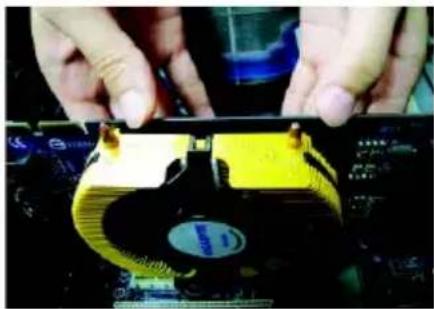
Locate the PCI Express x16 slot. If necessary, remove the metal cover from this slot; then align your graphics card with the PCI Express x16 slot, and press it in firmly until the card is fully seated.

Make sure that the gold edge connector of the graphics card is securely inserted.
Step 2.
Replace the screw to fasten the card in place, and replace the computer cover.
natural_image
Close-up of electronic components with red and black connectors (no visible text or symbols)
natural_image
Close-up of hands assembling a CPU socket on a motherboard (no visible text or symbols)
natural_image
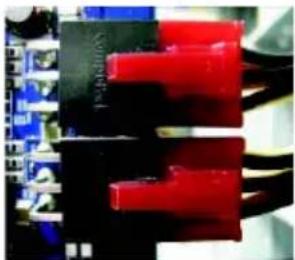
Close-up of a mechanical assembly with a red circle highlighting a component, no visible text or symbolsAfter installation, remember to connect the power cable to your graphics card, or the system will not boot. Do not touch the card when it's operating to prevent system instability.
Step 3.
Plug the display cable into your card; then turn on the computer and monitor. To connect a flat panel display to your graphics card, use the DVI-I connector. To connect an HDMI monitor to your graphics card, use the HDMI connector. To connect a DisplayPort monitor to your graphics card, use the DisplayPort connector.

text_image
To Flat Panel Display To HDMI Monitor To Mini HDMI MonitorTo Flat Panel Display To D-Sub Monitor DisplayPort Monitor To Mini DisplayPort MonitorYou are now ready to proceed with the installation of the graphics card driver. Please refer to next chapter for detailed instructions.
2.1.1. How to enable the AMD CrossFireX™ technology?
•CrossFireX™ Configuration
If you are planning on using this graphics card as part of a CrossFireX system, the following is required:
- A CrossFireX certified motherboard with two PCI Express x16 slots and correct chipset driver
- One or two CrossFire bridge interconnect cables
Step 1:
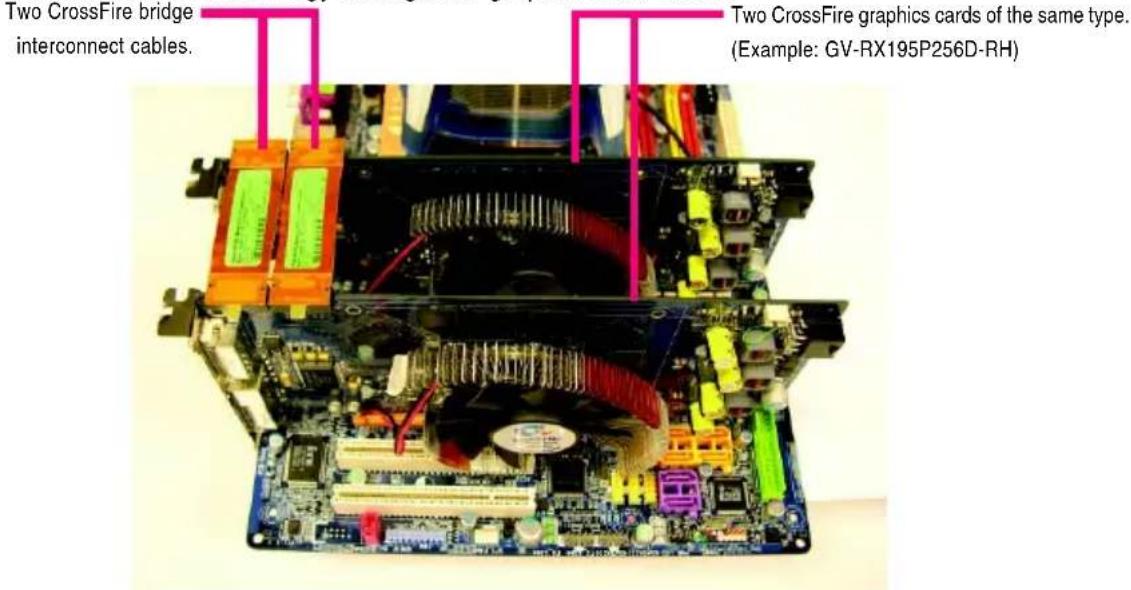
Install two CrossFireX graphics cards of the same chipset on a CrossFireX-supported motherboard and connect the graphics cards via two CrossFire bridge interconnect cables (Figure 1). Then users can enable the CrossFireX technology through the graphics card driver.
text_image
Two CrossFire bridge interconnect cables. Two CrossFire graphics cards of the same type. (Example: GV-RX195P256D-RH)Figure 1
Step 2:
After installing graphics card driver in operating system, when an AMD CrossFireX configuration is detected for the first time by the AMD Catalyst display driver, AMDCrossFireX support is automatically enabled, and the best possible GPU combination is selected based on the hardware configuration. If AMD CrossFireX is not enabled, access the AMD Catalyst Control Center (please refer to Page 14). From the AMD Catalyst Control Center, enter the CrossFire menu and assure to select the Enable CrossFireX™ check box (Figure 2).

text_image
Catalyst Control Center View Hotkeys Profiles Preferences Help Graphics Settings HydroVision Welcome Information Center Displays Manager Display Options Monitor Properties 0 3D Color Autro™ Video ATI Overdrive™ CrossFireX™ Diagnostics CrossFireX™ Graphics Adapter 1.ATI/Radeon HD-5970 Series [GD-1964BP] CrossFireX™ delivers exceptional performance on a single display by containing the processing power of two or more Graphics Processing Units (GPUs). Configure CrossFireX™ Enable CrossFireX™ Identify GPU Your system is not functioning at optimal performance. Please go to the Diagnostics page for a more detailed analysis. Ateo... OK Apply Options OptionsFigure 2
AMD Graphics Accelerator support HDMI output which can handle both audio and video signals. However, audio output from the onboard audio controller or the external sound card will be disabled when HDMI output is activated.
If no need for HDMI output function, set the onboard audio controller or the external sound card to be the default Sound Playback device to obtain audio output from your system.

Expansion cards contain very delicate Integrated Circuit (IC) chips. To protect them against damage from static electricity, you should follow some precautions whenever you work on your computer.
- Turn off your computer and unplug power supply.
- Use a grounded wrist strap before handling computer components. If you do not have one, touch both of your hands to a safely grounded object or to a metal object, such as the power supply case.
- Place components on a grounded antistatic pad or on the bag that came with the components whenever the components are separated from the system.
The card contains sensitive electric components, which can be easily damaged by static electricity, so the card should be left in its original packing until it is installed.
Unpacking and installation should be done on a grounded anti-static mat. The operator should be wearing an anti-static wristband, grounded at the same point as the anti-static mat.
Inspect the card carton for obvious damage. Shipping and handling may cause damage to your card. Be sure there are no shipping and handling damages on the card before proceeding.

DO NOT APPLY POWER TO YOUR SYSTEM IF THE GRAPHICS CARD IS DAMAGED.

In order to ensure that your graphics card can work correctly, please use official GIGABYTE BIOS only. Using non-official GIGABYTE BIOS might cause problem(s) on the graphics card.
3. Software Installation
Notice the following guidelines before installing the drivers:
- First make sure your system has installed DirectX 9 or later version.
- Make sure your system has installed the appropriate motherboard drivers (for the motherboard drivers, please contact the motherboard manufacturer.)
3.1. Driver and Utility Installation
3.1.1. Driver Installation
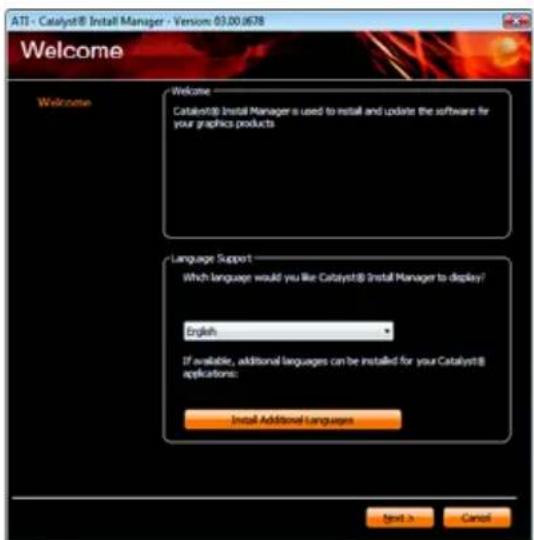
After installing the operating system, insert the driver disk into your optical drive. The driver Autorun screen is automatically displayed which looks like that shown in the screen shot below. (If the driver Autorun screen does not appear automatically, go to My Computer, double-click the optical drive and execute the setup.exe program.)

text_image
GIGABYTE™ • Install DirectOK9 • Install Display Driver • AMD Series manual • Browse this CD • Readme • Exit REAL GRAPHICS TRUE GAMINGStep 1:
Click the Install Display Driver item.
text_image
ATI - Catalyst® Install Manager - Version 03.00.0678 Welcome Welcome Catalyst® Install Managers is used to install and update the software for your graphics products Language Support Which language would you like Catalyst® Install Manager to display? English If available, additional languages can be installed for your Catalyst® applications: Install Additional Languages Next > Cancel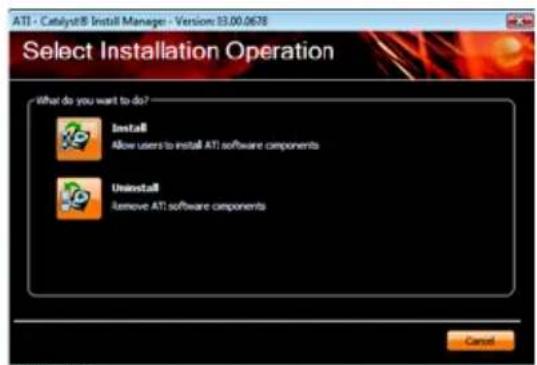
text_image
ATI - Catalyst® Install Manager - Version 13.00.0678 Select Installation Operation What do you want to do? Install Allow users to install ATI software components Uninstall Remove ATI software components CancelStep 3:
Click the Install button.
Step 2:
Select the displayed language and then click Next.

For software MPEG support in Windows XP, you must install DirectX first. Users who run Windows XP with Service Pack 2 or above do not need to install DirectX separately.
text_image
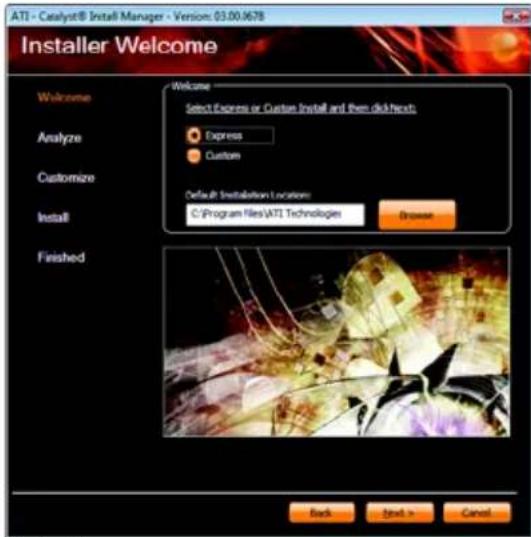
ATI - Catalyst® Install Manager - Version: 03.00.0678 Installer Welcome Welcome Select Express or Custom Install and then disk next: Express Custom Default Installation Location: C:\Program Files\ATI Technologies Browse Analyze Customize Install Finished Back Next > CancelSetp 4:
Click the Express or Custom icon and then click Next.

text_image
End User License Agreement PLEASE READ THIS LICENSE CAREFULLY BEFORE USING THE SOFTWARE... BY USING THE SOFTWARE... YOU ARE AGREEING TO BE DOUND BY THE TERMS OF THIS LICENSE. 1. License: The software accompanying the License (hereinafter "Software"), regardless of the media on which it is distributed, are licensed to yourly Advanced Micro Devices, Inc. ("AMD") for use solely in conjunction with AMD hardware products purchased with the Software ("AMD hardware"). You own the medium on which the Software is recorded, but AMD and AMD's Licenseors (referred to collectively as "AMD") retain title to the Software and related documentation. You say: a) Use the Software solely in conjunction with the AMD hardware or a single computer; b) Use and copy of the Software in machine-readable form for backup purposes only. You must reproduce or such copy skills the copyright notice and any other proprietary legends that were on the original copy of the Software; c) Transfer all your license rights in the Software provided you must also transfer a copy of this License, the backup copy of the Software, the AMD Hardware and the related documentation and provided the other party results and agree to accept the terms and conditions of this license. Upon such transfer your license is then terminated. 2. Restrictions: The Software contains copyrighted and patented material, trade secrets and other proprietary materials. In order to protect them, and except as permitted by applicable legislation, you may not: a) Decomple, reverse engineer, disassemble or otherwise reduce the Software to a human-perceivable form; b) modify, network, rent, lens, loan, distributor or create derivative works because upon the Software in whole or in parts; or Accept DeclineStep 5:
Click the Accept button.
text_image
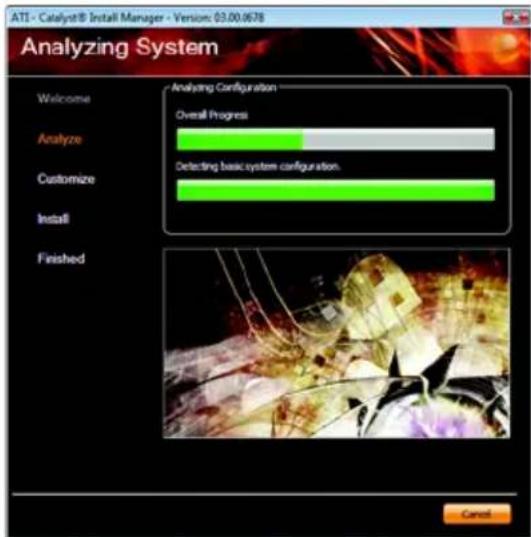
ATI - Catalyst® Install Manager - Version: 03.00.0678 Analyzing System Welcome Analyzing Configuration Overall Progress Analyze Detecting basic system configuration. Customize Install Finished CancelThe system is installing the components.
text_image
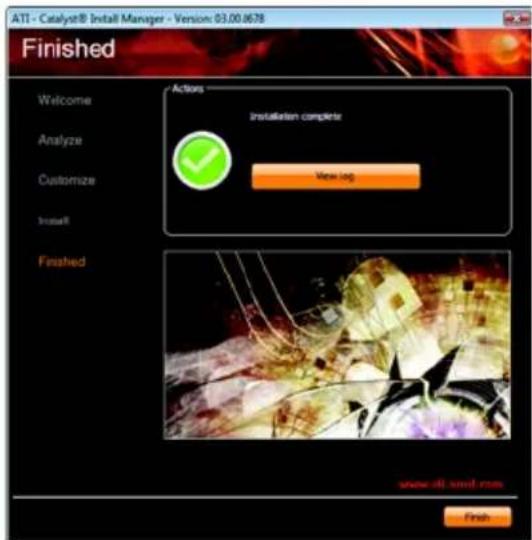
ATI - Catalyst® Install Manager - Version: 03.00.0678 Finished Welcome Analyze Customize Install Finished Actions Installation complete View log Finished www.dti-sind.com FinishStep 6:
Click the Finish button to restart the computer. Then the driver installation is completed.
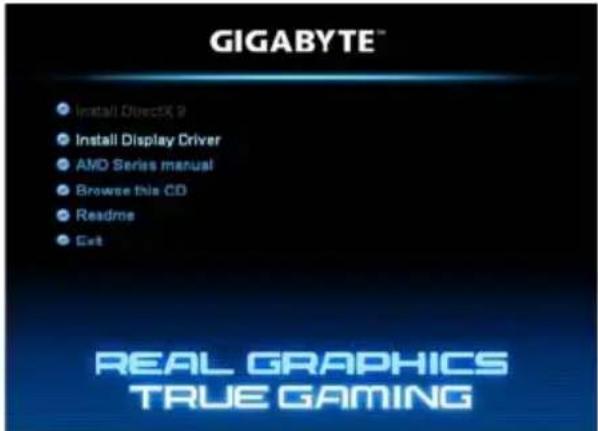
3.1.2. GIGABYTE Easy Boost on Driver Disk
text_image
GIGABYTE™ • Install DirectX 9 • Install Display Driver • AMD Series manual • Browse this CD • Readme • Get REAL GRAPHICS TRUE GAMINGStep 1:
Click the GIGABYTE Easy Boost item.

text_image
Choose Setup Language Select the language for this installation from the choices below. English (United States) OK CancelStep 2:
Choose the language for the installation and click the OK button.
text_image
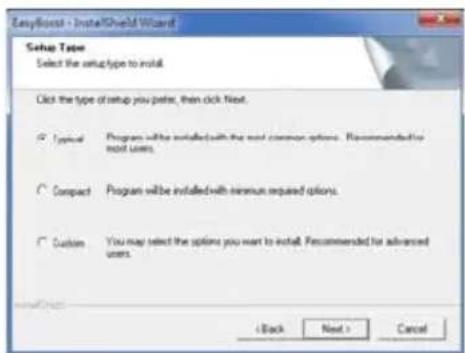
Setup Type Select the setup type to install. Click the type of setup you prefer, then click Next. Typical Program will be installed with the next common options. Recommended for next users. Compact Program will be installed with minimum required options. Custom You may select the options you want to install. Recommended for advanced users. < Back Next > CancelStep 3:
Choose the Typical and click the Next button
text_image
EasyBoost - InstallShield Wizard Setup Status EasyBoost is configuring your new software installation. Removing applications Cancel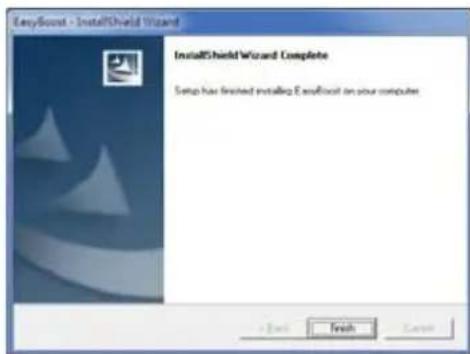
text_image
EasyBound - InstallShield Wizard InstallShield Wizard Complete Setup has finished installing E-mailroot on your computerStep 4:
Click the Finish button. Then the installation of the GIGABYTE Easy Boost is completed.
The system is installing the components.
GIGABYTE Easy Boost
Easy Boost is a graphics card smart tuning tool, combined with Overclock, OSD Turning, BIOS Setting, Technical Support, Live Update function.
Over Clock: User can adjust GPU clock, Memory clock, Shader clock and Fan speed here. User can also monitor graphics card current parameters.
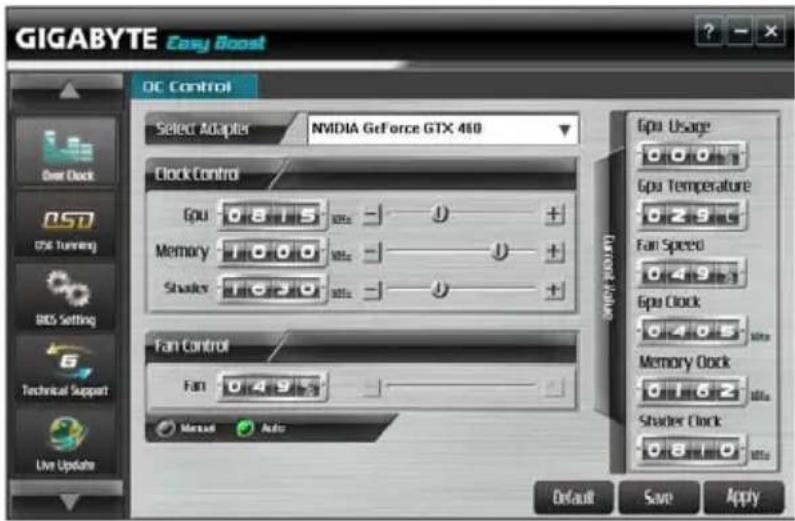
text_image
GIGABYTE Easy Boost DC Control Select Adapter NVIDIA GeForce GTX 460 Clock Control Epu 0.815 Memory 1000 Shakes 1020 Fan Control Fan 0.493 Manual Auto Epu Usage Epu Temperature Fan Speed Epu Clock Memory Clock Shaster Clock Default Save ApplyOSD Turning: User can set hotkey of On-Screen-Display and path of screen shot and recording video savings at "OSD" page. User can also adjust Gamma, Contrast and Brightness at "Color"page.

text_image
GIGABYTE Easy Boost OSO Color OSO Setting DISCKED LISKID ADVERTED OSO Ctrl + F1 Screen Shot Ctrl + F2 Record Ctrl + F3 OSO ON Screen Shot C:\GvTemp Record C:\GvTemp Advanced Setting Default Save Apply
text_image
GIGABYTE Easy Boost O5D Color Select Channel All Red Green Blue Setting Gamma Contrast Brightness Default Save ApplyBIOS Setting:
User can back up current BIOS, flash BIOS from selected file and auto flash BIOS on-line.

text_image
GIGABYTE Easy Boost Bios Setting Model / Location: GV-N460SO-1GI [1, 0, 0] Bios Information Bias Version: F1 Model Name: GV-N460SO-1GI Model Location: bus 1, device 0, function 0 Backup Flash Autoflash More...Technical Support:User can get information of VGA, CPU, motherboard, system memory and monitor. User also can press |\$Export|" button to export all system information into .txt file.
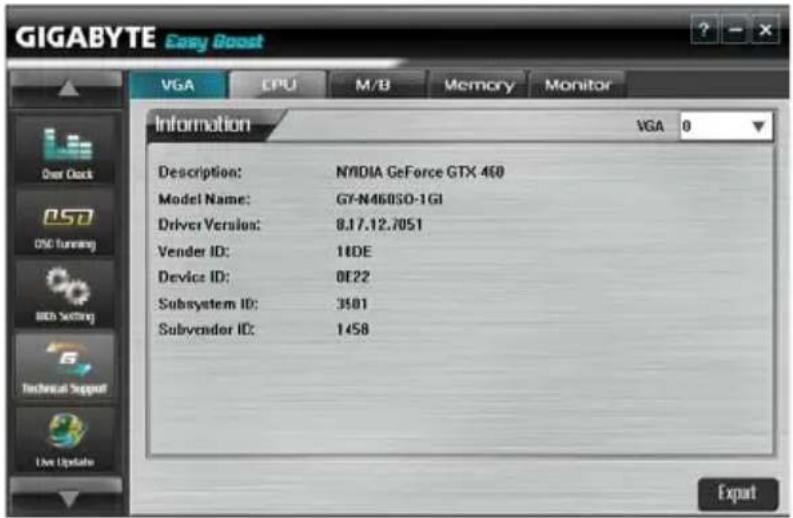
text_image
GIGABYTE Easy Boost VGA CPU M/B Memory Monitor Information VGA 0 Description: NVIDIA GeForce GTX 460 Model Name: G7-N460SO-1GI Driver Version: 8.17.12.7051 Vendor ID: 14DE Device ID: 0E22 Subsystem ID: 3101 Subvendor ID: 1458 ExportLive Update: Easy Boost will auto detect the latest version Easy Boost on-line and auto update.
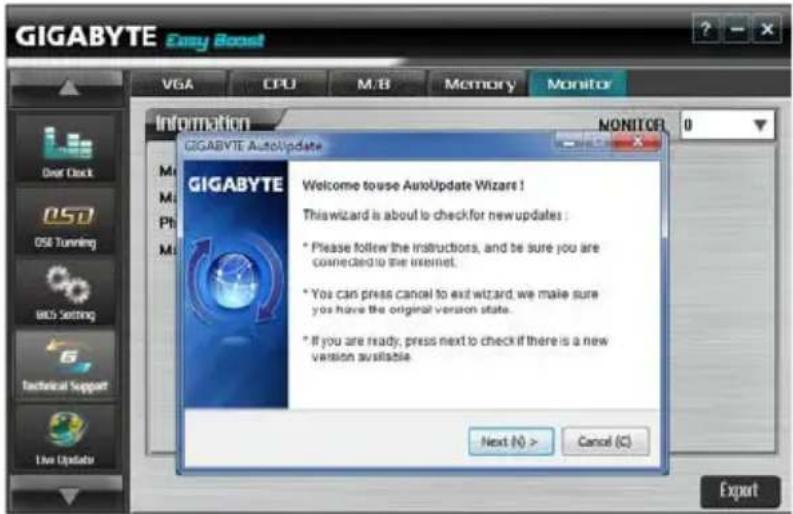
text_image
GIGABYTE Easy Boost VGA CPU M/B Memory Monitor Information GIGABYTE AutoUpdate MONITOR: 0 GIGABYTE Welcome touse AutoUpdate Wizards ! This wizard is about to check for new updates : * Please follow the instructions, and be sure you are connected to the internet. * You can press cancel to exit wizard, we make sure you have the original version state. * If you are ready, press next to check if there is a new version available. Next (N) > Cancel (C) Export
Incorrectly doing overclock may result in damage to your system and reduce the useful life of the system components.
3.2. Taskbar Icon
After installation of the display driver, you will find an AMD icon in the notification area. Right-click the icon to enter the AMD Catalyst Control Center. The AMD Catalyst Control Center is used to configure all your graphics card settings.

text_image
Catalyst Control Center... Active/Intake 1. ATI Retrom HD4800 Series > 2. ATI Retrom HD4800 Series > System Messages (Start Visual)... Help... About... EditRight-click the ATI icon to enter the AMD Catalyst Control Center.

text_image
CatalystCMI Control Center View SortBy Refresh Play Create Refresh Free PersonalizeOr you can right-click on the desktop and select Catalyst(TM) Control Center.
Configuring Audio Output
Configure the default audio output device based upon your needs.
Step 1:
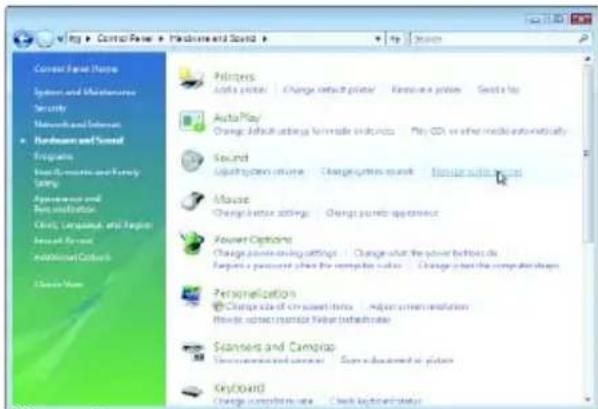
Go to Start > Control Panel > Hardware and Sound > Manage audio devices.

text_image
Microsoft Microsoft Excel E-mail Microsoft Teams Windows Server 2007 Windows 95/12347 Snagit Windows 95/12347 Snagit 95/12347 Snagit 95/12347 Snagit 95/12347 Snagit 95/12347 Snagit 95/12347 Snagit 95/12347 Snagit 95/12347 Snagit 95/12347 Snagit 95/ Snagit 95/12347 Snagit 95/12347 Snagit 95/12347 Snagit 95/12347 Snagit 95/12347 Snagit 95/12347 Snagit 95/12347 Snagit 95/12347 Snagit 6.8.1.0.0.0.0.0.0.0.0.0.0.0.0.0.0.0.0.0.0.0.0.0.0.0.0.0.0.0.0.0.0.0.0.0.0.0.0.0.0.0.0.0.0.0.0.0.0.0.0.0.0.1Figure 1
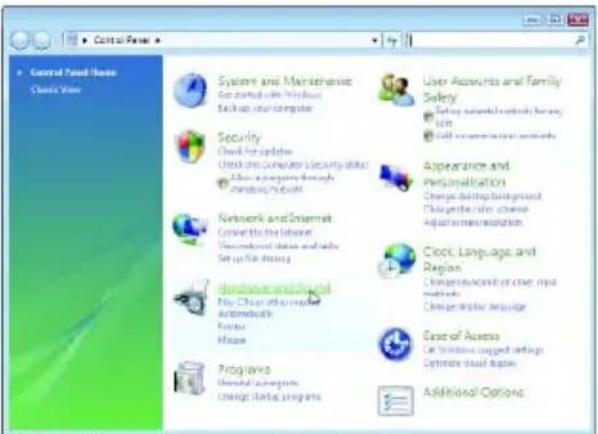
text_image
Control Panel Help Windows View Systems and Maintenance For started with Windows Backup your computer Security Check for updates Check the Computer Security data Show a program through modems/mbtu Network and Internet Converts the Internet Downloaded shares and links Set up file driving Windows and Linux File Clean out the next Automatics Focus Mouse Programs External programs Change Start Programs User Accounts and Family Safety Safety selected recently by any film Call applications to services Appearance and Personalization Change during background Change the other change Adjust recommendation Clock, Language, and Regions Change in access or more new methods Change display language Ease of Access Can Windows support settings Options virtual drives Additional OptionsFigure 2
text_image
Control Panel Name System and Maintenance Security Networks and Internet Hardware and Sound Programs User Resources and Security Utility Appearance and Reconstruction Class, Language, and English Access Features Additional Colors Close Home Printers Logic's plotter | Change default plotter | Resource a plotter | Switch a plotter Audio Play Change default activity to make instructions | Play CD or other media automatically Sound Light system volume | Change system sound | Make audio sound Mouse Change default settings | Change points appearance Power Options Change power encoding settings | Change what the power buttons do Target a person when the computer calls | Change what the computer shapes Personalization Change size of co-sweet notes | Adjust consumer resolution Mobile access monitor value (default rate) Scansets and Camgrap Environment and environment | Save information on planter KeyBoard Change complete rate | Click keyboard statusFigure 3
Step 2:
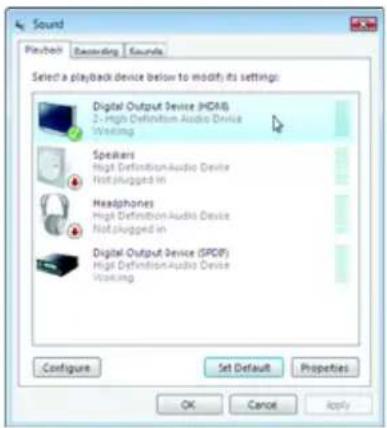
In the Manage audio devices dialog box, click the Playback tab.
text_image
Sound Playback Recording Sounds Select a playback device below to modify its settings: Digital Output Device (HDMI) 2 - High Definition Audio Device Working Speakers High Definition Audio Device Not plugged in Headphones High Definition Audio Device Not plugged in Digital Output Device (SPDP) High Definition Audio Device Working Configure Set Default Properties OK Cancel ApplyUsing the picture to the left as the example, to set HDMI audio to be the default Sound Playback device, select Digital Output Device (HDMI). Otherwise, select Digital Output Device (SPDIF), which is the onboard audio controller.
3.3. Display Properties Pages
Display Settings (Resolutions and Color Quality for Windows)
To access Display Settings page, right-click on desktop and select Personalize, then the Personalization windows will show up. Select Display Settings to adjust the screen resolution and color quality settings.

text_image
Appearance and Personalization Personalization Change desktop icons Adjust font size (DPS) Personalize appearance and sounds Window Color and Appearance Fine tune the color and style of your windows. Desktop Background Choose from available backgrounds or colors or use one of your own pictures to decorate the desktop. Screen Save Change your server/serve or adjust when it displays. A screen server is a picture examination that covers your screen and appears when your computer is idle for a set period of time. Sounds Change which sounds are heard when you do everything from getting e-mail to emptying your Recycle Bin. Mouse Pointers Pick a different mouse pointer. You can also change how the mouse pointer looks during such activities is clicking and selecting. Theme Change the theme. Themes can change a wide range of visual and auditory elements at one time including the appearance of menus, icons, backgrounds, screen screens, some computer sounds, and mouse pointers. Display Settings Adjust your monitor resolution, which changes the view so more or fewer items fit on the screen. You can also control monitor flicker (refresh rate).
text_image
Display Settings Monitor Drag the icons to match your monitors. Identify Monitors 1 2 1. Generic Non-PnP Monitor on ATI Radeon HD 5800 Series This is my main monitor Extend the desktop onto this monitor Resolutions: Low - 0 High Colors: Highest (32 bit) 1024 by 168 pixels How do I get the best displays? Advanced Settings... OK Cancel Apply You can move the slider to change the resolution. You can click the item to change the color quality. Click the Advanced button for advanced settings.AMD Catalyst® Control Center Basic View :
The Basic View is the default view when AMD Catalyst Control Center is launched for the first time. This interface provides access to the basic settings and advanced features of your AMD graphics products. You can switch between Basic View and Advanced View at any time.

text_image
Catalyst™ Control Center - Basic Welcome to the ATI Catalyst™ Control Center What would you like to use? Basic [Easy Setup Wizards and Quick Settings] Provide both deploy-step assistance and Quick. Settings for changing your display steps, and other custom tools. Advanced Allow you to configure all of the many available settings of your ATI graphics product. Don't show the page again. You can choose between "Basic" [Easy and Quick] or "Advanced" at any time. Click Next to continue Edit Next >To access more settings in Basic View, click Basic, and then click Next.
Easy Setup Wizards:
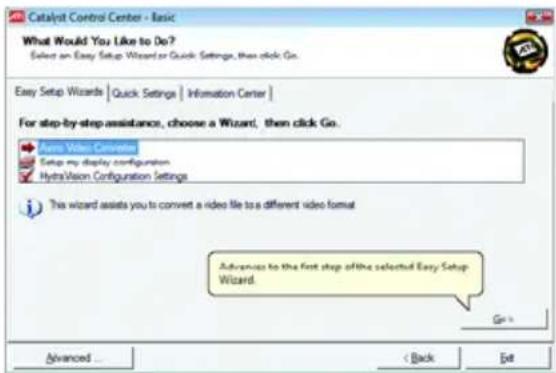
Choose a wizard from the central list and click Go for step-by-step assistance.
■ Avivo Video Converter
This wizard assists you to convert videos from one file format to another.
text_image
Catalyst Control Center - Basic What Would You Like to Do? Select an Easy Setup Wizard or Quick Settings, then click Go. Easy Setup Wizards | Quick Settings | Information Center | For step-by-step assistance, choose a Wizard, then click Go. Pure Video Converter Setup my display configuration HydroVision Configuration Settings This wizard assists you to convert a video file to a different video format. Advances to the first step of the selected Easy Setup Wizard. Go >> Advanced < Back EditStep 1:
Select Avivo Video Converter, then click Go.
text_image
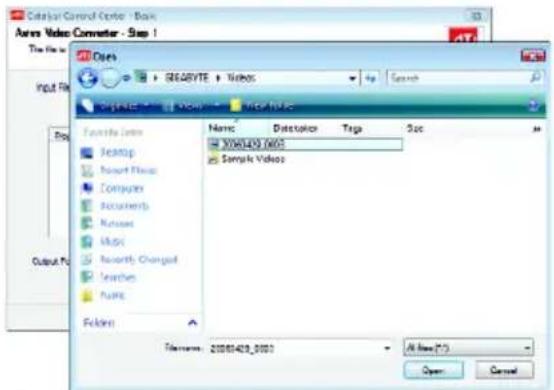
Catalog Control Center - Book Ams Video Converter - Step 1 Datacenter File Edit View Help Name: Dastolicer Taga Suc 3060429 IMOS Sample Videos Filebars: 20080429_0003 Alt New (*.*) Open CancelStep 2:
Select the video file to be converted.
text_image
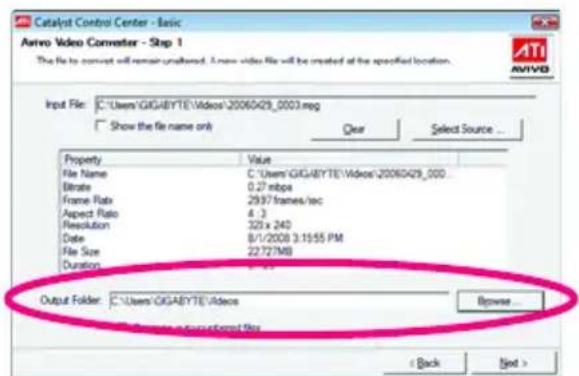
Catalyst Control Center - Basic Aviro Video Converter - Step 1 The file to convert will remain unattended. A new video file will be created at the specified location. Input File: C:\Users\GIGABYTE\Videos\20060429_0003.regg Show the file name only Clear Select Source ... Property Value File Name C:\Users\GIGABYTE\Videos\20060429_000 Eiterate 0.27 mbps Frame Rate 2937/frames/sec Aspect Ratio 4.3 Resolution 325 x 240 Date 8/1/2008 3:15:55 PM File Size 2272/MB Duration 0.05 Output Folder: C:\Users\GIGABYTE\Videos Browse... < Back Next >Step 3:
In the Output Folder area, select the destination folder where the new file will be located. Click Next.
text_image
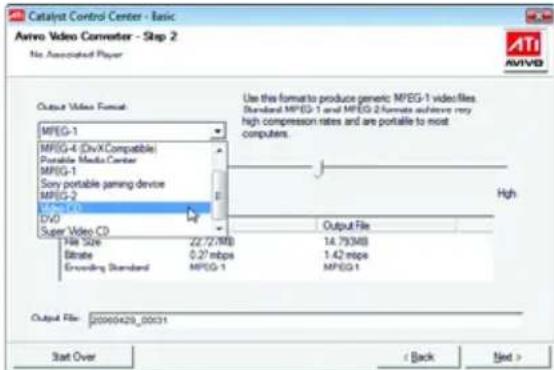
Catalyst Control Center - Basic Aivivo Video Converter - Step 2 No Associated Player Output Video Format MPEG-1 MPEG-4 (DivX Compatible) Portable Media Center MPEG-1 Sony portable gaming device MPEG-2 MPEG-3D DVD Super Video CD File Size: 22.7/2MB Estimate: 0.27 mbps Encoding Standard: MPEG-1 Output File: 14.79348 1.42 mbps MPEG-1 High Output File: 20000429_00031 Start Over < Back Next >Step 4:
In the Output Video Format list, select a file format for the new file. If you wish to change the name of the new file, enter the new name in the Output File area. Finally, click Next to start file conversion.
text_image
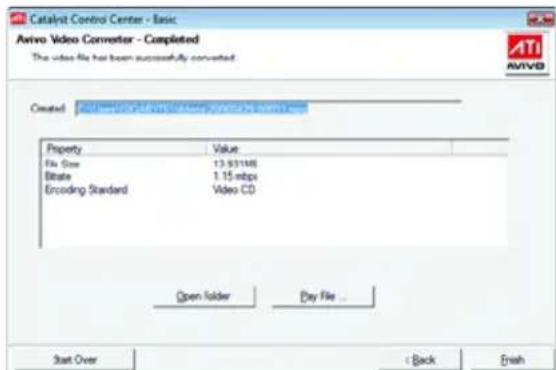
Catalyst Control Center - Basic Avivo Video Converter - Completed The video file has been successfully converted. Created: Property Value File Size 13.93148 Bitrate 1.15 mbps Encoding Standard Video CD Open folder Day File... Start Over C Back FinishThe video file has been successfully converted.
text_image
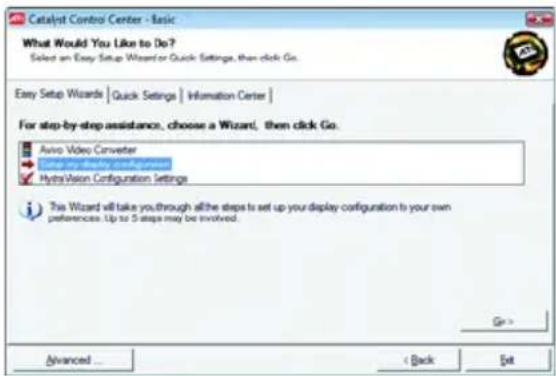
Catalyst Control Center - Basic What Would You Like to Do? Select an Easy Setup Wizard or Quick Settings, then click Go. Easy Setup Wizards | Quick Settings | Information Center | For step-by-step assistance, choose a Wizard, then click Go. Aviso Video Converter MyoVision Configuration Settings This Wizard will take you through all the steps to set up your display configuration to your own preferences. Up to 5 steps may be involved. Advanced < Back Set■ Setup my display configuration
This wizard allows you to configure display setting for desktop viewing.
text_image
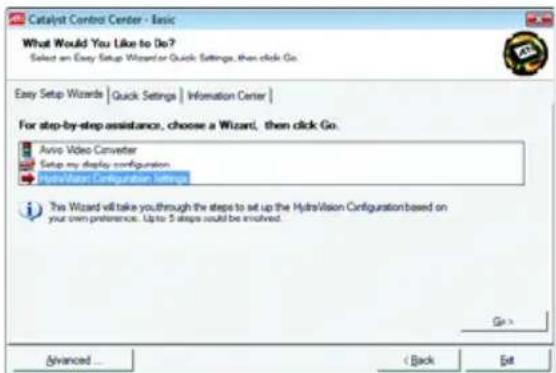
Catalyst Control Center - Basic What Would You Like to Go? Select an Easy Setup Wizard or Quick Settings, then click Go. Easy Setup Wizards | Quick Settings | Information Center | For step-by-step assistance, choose a Wizard, then click Go. Avio Video Converter Setup my display configuration Hybrid/Maxi Configuration Settings This Wizard will take you through the steps to set up the HydraVision Configuration based on your own preference. Up to 5 steps could be involved. Advanced... < Back Set■ HydraVision Configuration Settings
This wizard will take you to set up the HydraVision Configuration based on your own preference.
Quick Settings:
The Quick Settings page provides access to three main settings.

text_image
Catalyst Control Center - Basic What Would You Like to Do? Select an Easy Setup Wizard or Quick Settings, then click Go. Easy Setup Wizards Quick Settings Information Center Change a setting for... 3D Quality Video Playback Display Setup Select a setting and click Go 3D Quality and Performance Settings Lets you adjust 3D settings in one easy step. To fine-tune other 3D settings for the ultimate gaming experience, click the Advanced button (Below) Go > Advanced ... < Back Edit3D Quality
3D Performance and Quality Settings allows your 3D games and applications to get faster performance and better quality with a more balanced setting.
■ Video Playback
Use this option to optimize video playback in different room environment or to select how video playback appears on the second display.
■ Display Setup
This option allows you to configure your desktop, including changing desktop resolution and desktop mode, setting up extended desktop (requires more than one display), and rotating desktop image to match new display orientation.
Information Center:
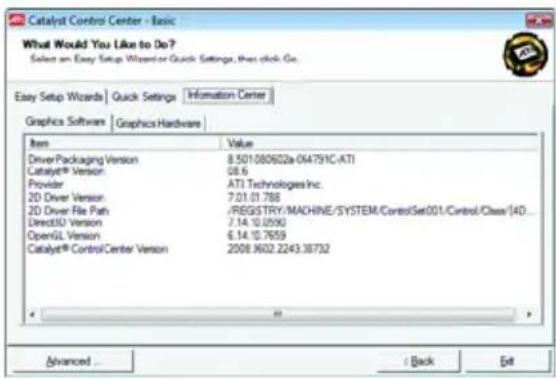
The Information Center page in Basic and Advanced View provides hardware and software information about the installed graphics card.
text_image
Catalyst Control Center - Basic What Would You Like to Do? Select an Easy Setup Wizard or Quick Settings, then click Go. Easy Setup Wizards | Quick Settings Information Center Graphics Software Graphics Hardware Item Value Driver Packaging Version 8.501080602a-044791C/ATI Catalyst® Version 08.6 Provider ATI Technologies Inc. 2D Driver Version 7.01.01.788 2D Driver File Path ./REGISTRY/MACHINE/SYSTEM/ControlSet001/Control/Class[4D... Direct3D Version 7.14.10.0590 OpenGL Version 6.14.10.7659 Catalyst® Control/Center Version 2008.902.2243.38732 Advanced Back Edit■ Graphics Software
Provides software information including driver version, CATALYST version, Direct 3D version and so on.
■ Graphics Hardware
Provides hardware information including graphics chipset, BIOS version, memory size, core clock and so on.
AMD Catalyst Control Center Advanced View
The Advanced page allows you to configure all of the many available settings of your AMD graphics card.
View Properties:
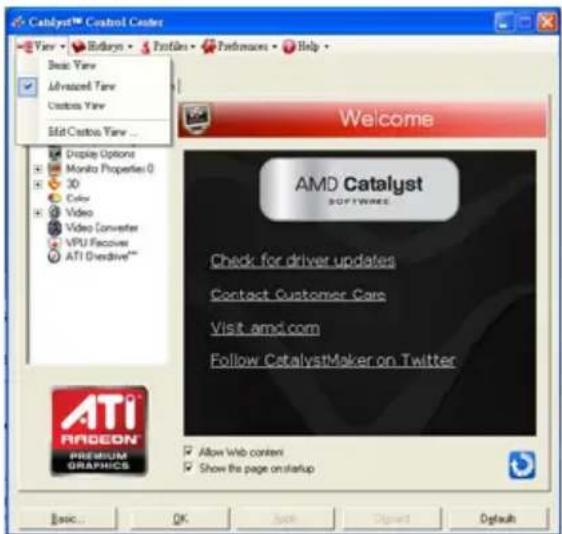
The CATALYST Control Center dashboard supports three types of views: Basic View/ Advanced View/ Custom View.
text_image
Catalyst™ Control Center View • Rollarys • Profiles • Passmages • Help Basic View Advanced View Customs View Mid Custom View ... Display Options Monito Properties 0 3D Color Video Video Converter VPU Facover ATI Creative™ Welcome AMD Catalyst SOFTWARE Check for driver updates Contact Customer Care Visit amp.com Follow CatalystMaker on Twitter ATI Radeon PREMIUM GRAPHICS Allow Web content Show the page on startup Basic... OK Apply Print Copy Default DefaultBasic View
The Basic view is the default view when CATALYST Control Center is launched for the first time. Refer to the previous pages for details.
■ Advanced View
The Advanced view provides access to the advanced features on each page. The left navigation pane displays a tree view that lists all the advanced features. The Advanced view is recommended for experienced users.
■ Custom View
The Custom view allows you to display only the features you choose in the left navigation pane. The Custom view is recommended for experienced users who want to expose only the features they adjust most often or that their 3D application supports.
Hotkeys Properties:
The Hotkeys Manager allows you to create shortcut key combinations to quickly perform tasks such as changing a graphics setting or opening an application. A Hotkey is a combination of a modifier key or keys, such as Ctrl, Alt, or Shift, and any letter from the alphabet.

text_image
CableStar™ Control Center View • Hotkeys • Profile • Textbook • Help Graphics Settings | HydraVision Welcome Information Center Display Manager Display Options Moneta Properties 0 3D Color Video VideoConverter VPU Recovers ATI Overdrive™ Welcome Hotkeys Manager Hotkeys Manager Enable Hotkeys feature List active Hotkeys only List Hotkeys for Catalyst® Control Center According to all available actions Active Hotkeys Actions Holkeys Launch Catalyst® Control Center Basic... Cancel HelpProfiles Properties:
You can use profiles to create customized environments for your desktop, video, and 3D applications. Define and save your own personal video settings that can be quickly activated manually, through a Hotkey, or by file association.

text_image
Catalyst™ Control Center Tany • Rotary • Profiles • Padronians • Help Graphics Settings | Hydration Welcome Information Center Displays Manager Display Systems Monitor Properties 0 3D Color Video Video Converter VPU Resolver ATI AdvancedTM Basic... Profiles Manager Create or Edit a Profile Enter or select a profile name: Profile description Composition | Activation | Applications | This profile includes: all Catalyst™ Control Center settings the following settings: AMD Radeon HI 6600 zones [L375] Access to Close Adder Close HelpNote:
A profile applies to a specific graphics card. If there is more than one graphics card installed in your computer, you need to select the appropriate card before creating, loading, or activating a Profile.
Preferences Properties:
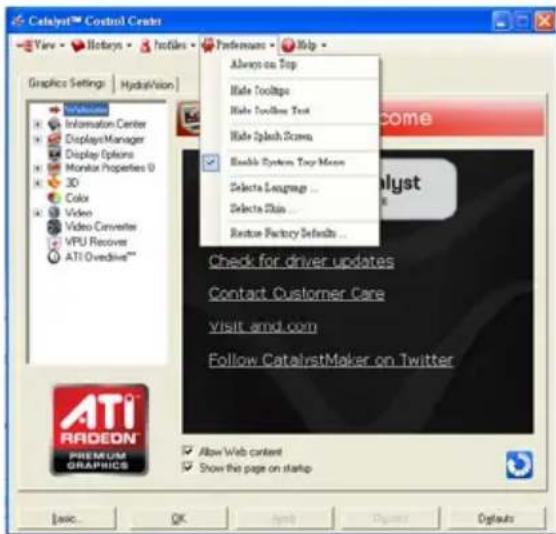
The Preferences page helps to restore defaults, change skins, and update the Catalyst Control Center. The Catalyst Control Center Preferences page contains the following options:
text_image
Catalyst™ Control Center View > Hotkeys > Hotkeys Graphics Settings | HydraulicVision Welcome Information Center Displays Manager Display Options Monix Properties 0 3D Color Video Video Converter VPU Recovers ATI Ovndrive** Always on Top Make Tooltops Make Toolless Text Make Splash Screen Enable System Top More... Selecta Leavage ... Selecta Skin ... Restore Factory Defaults ... Check for driver updates Contact Customer Care Visit email.com Follow CatalystMaker on Twitter ATI RADEON PREFRUM GRAPHICS Allow Web content Show this page on startup■ Always on Top
■ Hide Tooltips
■ Hide Toolbar Text
■ Hide Splash Screen
■ Enable System Tray Menu
■ Select a Language ...
■ Select a Skin ...
■ Restore Factory Defaults ...
Help Properties:
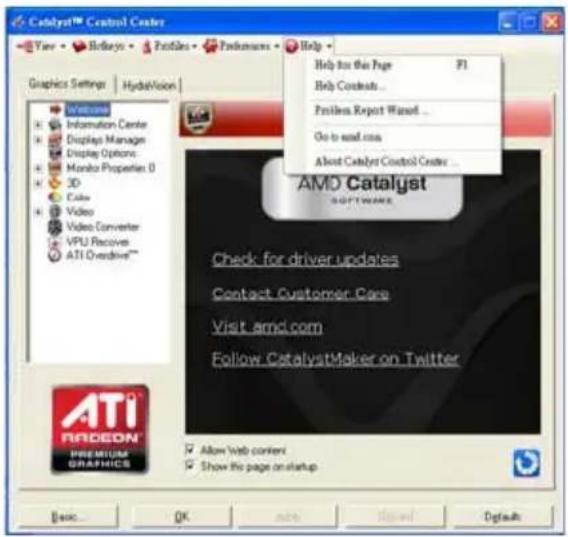
The Catalyst Control Center Help feature allows you to access the comprehensive online help, register your product, or generate a problem report should you require technical support.
text_image
Catalyst™ Control Center View Hotkeys Profiles Preferences Help Graphics Settings | HydraVision Help for the Page Help Contents... Problem Report Wizard... Go to send.com About Catalyst Control Center... AMD Catalyst SOFTWARE Check for driver updates Contact Customer Care Visit amp.com Follow CatalystMaker on Twitter ATI RAGON PREMIUM GRAPHICS Allow Web content Show this page on startup Basic OK Email Signed DefaultsThe Catalyst Control Center Help feature offers the following options:
■ Help for this Page
■ Help Contents ...
■ Go to AMD.com
■ About Catalyst Control Center ...
Displays Manager:
Displays Manager is the central location for configuring your display devices and arranging your desktop. Use Displays Manager to change your display setup and arrange your desktop in a multi-monitor environment.

text_image
Cableyst™ Control Center View History Profiles Preferences Help Graphics Settings HydroVision Information Center Displays Manager Display Properties Display Options Monitors Properties D 3D Color Video Video Converter VPU Recover ATI (Windows) Displays Properties Graphics Adapter: 1 AMD Radeon HD 6800 series [L305] Desktop and Display Setup Main: Attached displays currently disabled: To make changes, drag or right-click, the display cons. Detect Displays Selected Display on AMD Radeon HD 6800 series L305 [Single] Desktop area 1024 x 769 Color quality High (32 bit) Retouch rate 60 Hz Rotation: Standard Landscape (7') Face... Basic... OK Save... Done... Help ATI RADEON PREMIUM GRAFTHICSNote:
The stretch vertically and horizontally options are not supported on systems running Windows Vista.
Display Options:
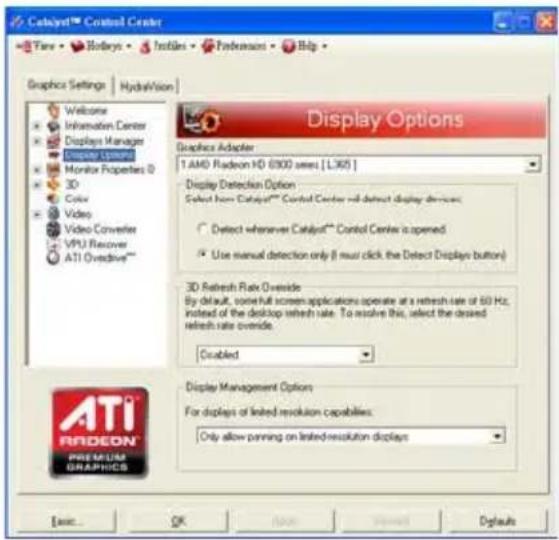
The Display Options aspect gives you additional control to optimize performance of OpenGL and Direct 3D applications. Choose one of the Display Detection Option to prevent screen flicker when detecting a display.
text_image
CATAYORT™ Control Center View • Hotspots • Instles • Preferences • Help Graphics Settings | Hydration Welcome Information Center Displays Manager Display Options Monitor Properties 0 3D Color Video Video Converter VPU Recover ATI Ovadrive** Display Options Graphics Adapter 1 AMD Radeon HD 6300 series [ L365 ] Display Detection Option Select from Catalyst™ Control Center will detect display devices. Detect whenever Catalyst™ Control Center is opened. Use manual detection only (8 must click the Detect Displays button) 3D Refresh Rate Overside By default, some full screen applications operate at a refresh rate of 60 Hz, instead of the desktop refresh rate. To resolve this, select the desired refresh rate override. Enabled Display Management Options For displays of linked resolution capabilities: Only allow panning on linked-resolution displays ATI RADEON® PREMIUM GRAPHICS Basic... OK Next New Page DefaultsNote:
On systems Windows XP, this page will show up the 3D Refresh Rate Override item. Use 3D Refresh Rate Override to set a refresh rate of your choice when a full-screen application or game has a default refresh rate that is lower than optimal.
Monitor Properties 1:
text_image
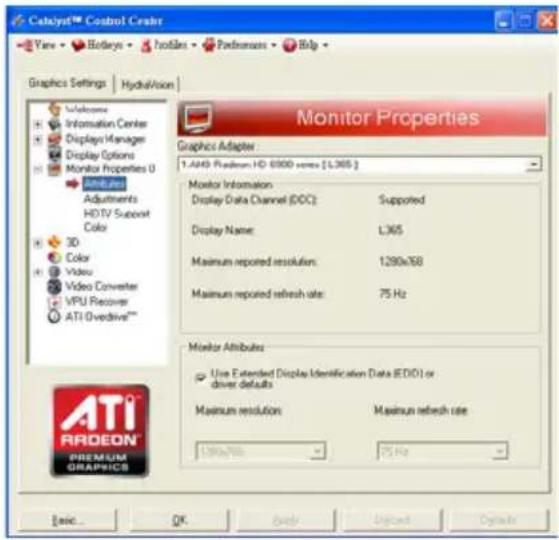
Catalyst™ Control Creator View • Botarys • Profiles • Padronass • Help Graphics Settings | Hydraulion Welcome Information Center Displays Managers Display Options Monitor Properties U Adjustments Adjustments HDTV Subopt Color 3D Color Video Video Converter VPU Receiver ATI O-driven™ Monitor Properties Graphics Adapter 1.A49 Platform HD 6000 series [L365] Monitor Information Display Data Channel (DOC): Supported Display Name: L365 Maximum reported resolution: 1280x168 Maximum reported refresh rate: 75 Hz Monitor Attributes: Use Extended Display Identification Data (EIDI) or driver defaults Maximum resolution: Maximum refresh rate 180x765 - 75 Hz Basic... OK Apply Default Outputs■ Attributes
Monitor Attributes provides information about the attached monitor. You can also enable Extended Display Identification Data (EDID). EDID uses the information provided by the attached monitor to determine the limits for the resolution and refresh rate.
text_image
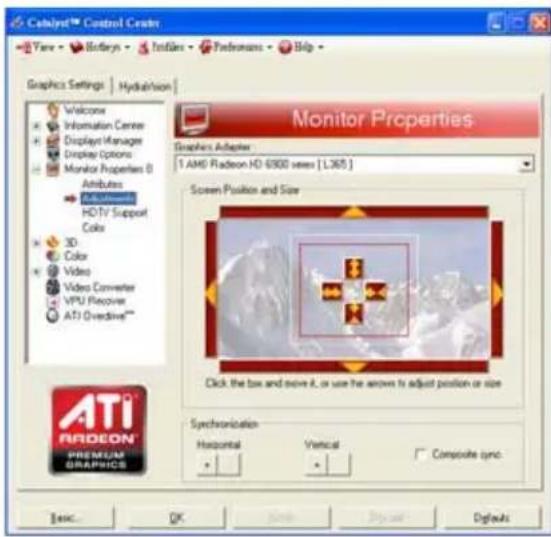
Catalyst™ Control Creator View Hotkeys Files Predroms Help Graphics Settings Hydration Welcome Information Center Displays Manager Display Options Monitor Properties 0 Attributes Adjustments HDTV Support Color 3D Color Video Video Converter VPU Receiver ATI Overdrive** Monitor Properties Graphics Adapter 1 AMG Radeon HD 6900 views [ L365 ] Screen Position and Size Click the box and move X, or use the arrows to adjust position or size Synchronization Horizontal Vertical Composite sync. Basic... OK Finish Cancel DefaultsAdjustments
Use Monitor Adjustments to resize and reposition the computer desktop on your monitor's display screen. You can also adjust the horizontal and vertical sync or enable composite sync.
text_image
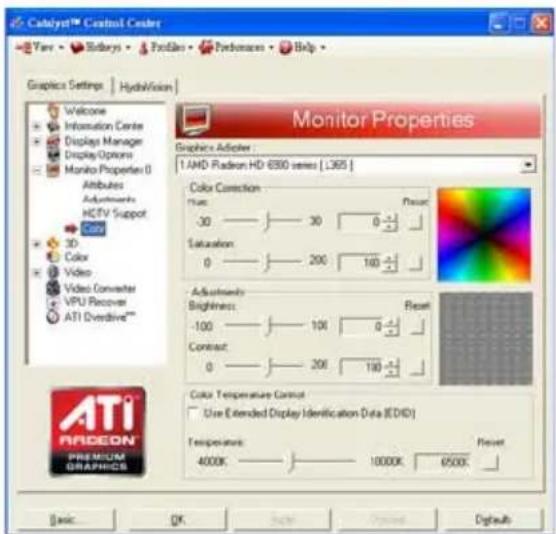
Catalyst™ Control Center View Bodays Profiles Predominers Help Graphics Settings HybridVision Welcome Information Center Display Manager Display Options Monitor Properties 0 Attributes Adjustments HCTV Support 3D Color Video Video Converter VPU Recover ATI Overdrive™ Monitor Properties Graphics Adjector 1 AMD Radeon HD 6990 series [L365] Color Correction: True: 30 —— 30 —— 0 —— Saturation: 0 —— 200 —— 160 —— Adjustments: Brightness: -100 —— 100 —— 0 —— Contrast: 0 —— 200 —— 180 —— Color Temperature Constr Use Extended Display Identification Data (CDID) Temperature: 4000K —— 10000K —— 6500K —— Basic OK Cancel Default DefaultAvivo™ Color
Use Avivo™ Color for AMD graphics cards that support per-display color settings. Independently set the hue, saturation, and temperature for each attached and enabled display.
3D:
text_image
Catalyst® Control Center Yave • Botiny • Jardles • Performance • Help Graphics Settings | Hydraulism Standard Settings Graphics Adapter 1.AHAD Radeon HD 6000 series [L305] 3D Preview Color Video Video Converter VPU Recover ATI Overdrive** Standard Settings Use custom settings Performance Quality Balanced Basic OK Apply Default Defaults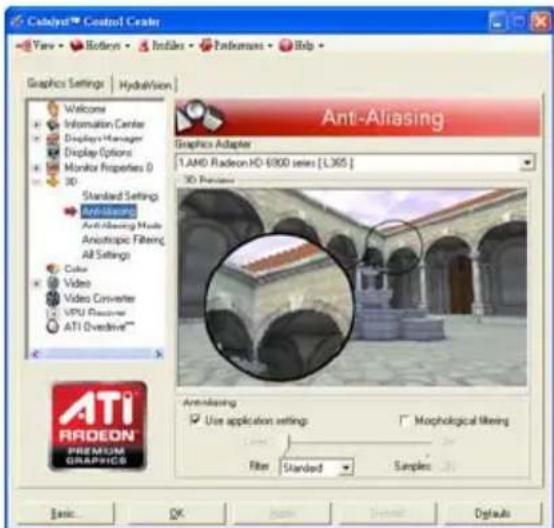
text_image
Catalyst™ Control Center View • Hotkeys • Inflakes • Preferences • Help Graphics Settings | HydroVision Anti-Aliasing Graphics Adapter 1.3 AMD Radeon HD-6900 series [L365] 3D Provisions Anti-Aliasing Mode Aniosotropic Filtering All Settings Color Video Video Converter VPU Remaster ATI Overdrive™ Anti-Aliasing Use application settings: Morphological liking Filter Standard Samples Basic OK Cancel Default Defaults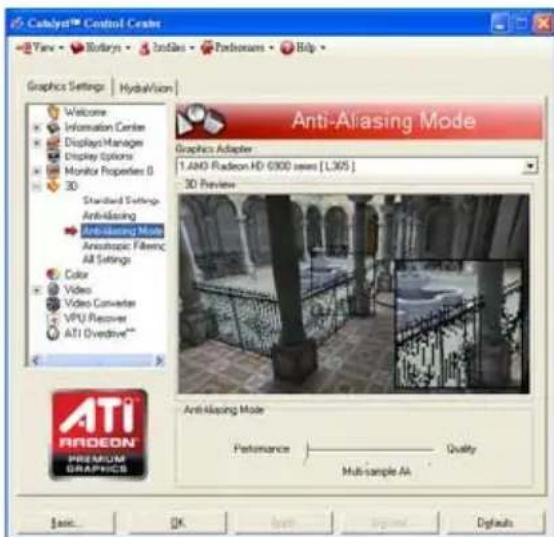
text_image
Cablejet Control Center Yaw • Rotary • Infles • Performance • Help Graphics Settings | HydraVision Welcome Information Center Displays Managers Display Options Monitor Properties 0 3D Standard Settings AntiAliasing AntiAliasing Mode Anesthetic Filtering All Settings Color Video Video Converter VPU Recover ATI Overdrive** Anti-Aliasing Mode Performance Quality Multi-sample AA Basic OK Window Help DefaultsStandard Settings
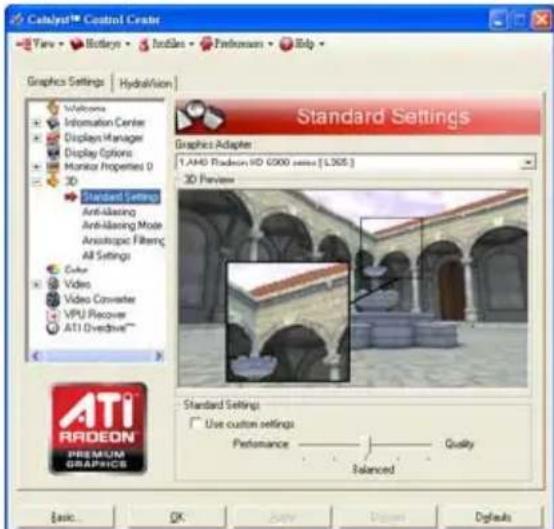
The Standard Settings page provides access to a universal slider control where you can simultaneously adjust all of the standard 3D settings for any type of 3D application. The slider enables you to adjust for overall system performance, overall 3D image quality, or a balance between the two. This page is useful when you are not aware of which type of 3D settings your application uses, or when you want to use an overall adjustment control that rapidly configures your application.
Anti-Aliasing
Anti-Aliasing (AA) is a rendering technique designed to remove jagged edges, shimmering, and pixelation problems that are common in rendered 3D images. Rather than determining the color to display for each pixel by sampling a single location at the pixel's center, anti-aliasing samples multiple locations within each pixel and blends the results together to produce the final color.
Anti-Aliasing can be set to favor either system processing performance or image quality, or the application can decide:
- Setting for performance is best used when the 3D image is animated and smooth motion is the most important consideration.
- Setting for quality is best used when highly detailed and realistic 3D objects is the most important consideration.
- If you are unsure of how to configure anti-aliasing, use the Use application settings option. Your display will automatically adjust to the application's requirements.
■ Adaptive Anti-Aliasing
Adaptive anti-aliasing is a technique that applies a combination of multi-sampling (MSAA) and super-sampling (SSAA) on 3D objects to improve edge smoothness and fine detail.
This feature renders 3D objects containing transparencies more realistic, providing exceptional levels of image quality while maintaining performance.

text_image
Catalyst® Control Center Tayv • Redkary • Profiles • Packhours • Help Graphics Settings | HydroVision Anisotropic Filtering Graphics Adapter 1.4M RADion HD 6500 series [1305] 3D Preview Anisotropic Filtering Use application settings Basic OK Apply Import Default Default ATI RADEON PREF MOUNT GRAPHICS■ Anisotropic Filtering
Anisotropic Filtering is a technique that preserves detail on surfaces that have three-dimensional perspective and fade away into the background. It works best when used in conjunction with Mipmapping. Anisotropic Filtering can be set to favor either an increase in system processing performance or improved image quality:
- Setting for performance is best used with applications that display objects with smooth, simple surfaces, like those seen in CAD applications.
- Setting for quality is best used with applications that display highly detailed scenes, backgrounds, and textured objects, like those seen in 3D games.
- If you are unsure how to configure anisotropic filtering, use the Use application settings option. Your display will automatically adjust to the application's requirements.
text_image
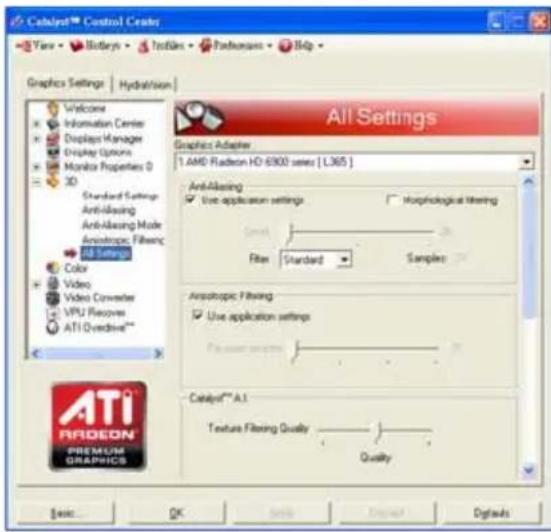
Cabinet™ Control Center View • Botarys • Textiles • Pathways • Help Graphics Settings | Hydration All Settings Graphics Adapter 1 AMD Radeon HD 6900 series [ L365 ] Anti-Ablasing Use application settings Morphological filtering Search Filter Standard Samples Anisotropic Filtering Use application settings Texture filtering Quality Quality Cabinet™ A.I. Texture Filtering Quality Quality Welcome Information Center Displays Manager Display Options Monitor Properties 0 3D Standard Settings Anti-Ablasing Anti-Ablasing Mode Anisotropic Filtering ATI Series Color Video Video Converter VPU Recovers ATI Oreadrive** ATI Radeon PREMIUM GRAPHICSAll Settings
The All Settings page combines all of the principal 3D features onto a single page, without any preview window, allowing for quick access and adjustment. This page is useful when it is not necessary to preview the adjusted settings because the effect is already known or understood.
Color:
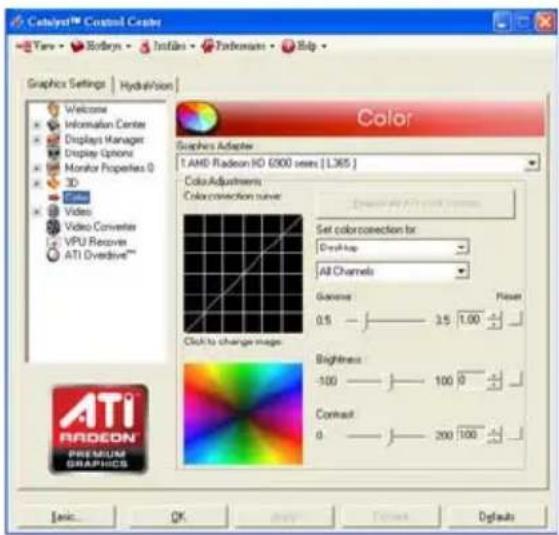
Adjust the overall richness of color by using the Gamma control. To adjust the overall brightness use the Brightness control, and the overall contrast use the Contrast control.
text_image
Cateyept Control Center View Sorties Installs Fudanisms Help Graphics Settings | Hydration Color Graphics Adapter 1 AMD Radeon 90 6000 views [L365] Color Adjustments Colour correction tunnel Set color correction for Droft-Map All Channels Genome Pixel 0.5 — 3.5 1.00 Click to change images Brightness -100 — 100 0 Contrast 0 — 200 100 ATI RADEON® PREMIUM GRAPHICS Basic... OK Cancel Default DefaultsAvivo™ Video:

text_image
Catalyst™ Control Chemistry View • Botany • Textiles • Performance • Help Graphics Settings | Hydration Room Welcome Information Center Display Manager Display Updates Monitor Properties D 3D Color Video Preses Basic Colors Advanced Colors Basic Quality Theater Mode All Settings Video Converter VPU Recovery ATI Overdrive™ Ati RADECON® PREMIUM GRAPHICS Preses Graphics Adapter 1.AMD Radeon HD 6900 views [L365] Video Preview Presets To quickly adjust your video setting, choose one of the video presets. Use Application Settings Video Preset: OK Cancel Help DefaultsPresets
To quickly adjust your video settings choose one of the video presets.
Note:
These settings will only affect applications with video overlay support.

text_image
Catalyst™ Control Center View • Returns • Inflex • Preferences • Help Graphics Settings | Hydraulism Basic Color Graphics Adapter: 1.AM0 Radeon HD 6500 series [L365] Video Promers Basic Color Basic Color ATI RADEON PREMIUM GRAPHICS Live application settings Basic OK Apply Digital DefaultsBasic Color
Use the Avivo Color: Basic option to manually set Gamma, Brightness, Contrast, Saturation, and Tint for video playback.
Note:
Certain video formats do not support these adjustments. These settings will only affect applications with video overlay support.

text_image
Catalyst™ Control Center Views History Infra Performance Help Graphics Settings Hydration Welcome Information Center Displays Manager Display Options Monks Properties 0 Color Video Pots Basic Color Advanced Color Basic Quality Theater Mode All Settings Video Converter VPU Recovers ATI O-Redline** Advanced Color 1 AMD Radeon HD 6000 series [L365] Video Preview Advanced Color Video Gamma Brighter White Dynamic Range ATI RADEON® PREMIUM GRAPHICS OK Cancel Help Defaults■ Advanced Color
Use the Advanced Color page to fine tune the color of standard definition video (720x480) to make the color more or less vibrant and to remove excess red from skin tones. You can preview your changes before applying them.
Note:
This page is only for Windows Vista.
text_image
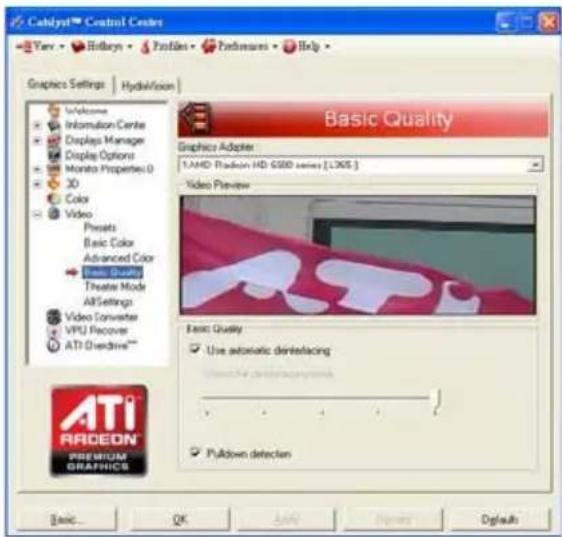
Cablejet™ Control Centre View • Hitkeys • Profiles • Passmears • Help Graphics Settings | HydroVision Basic Quality Graphics Adapter 1:AMD Radeon HD 6500 series [LOGS] Video Preview Basic Quality Use automatic dinterfacing Puldown detection Basic OK Apply Down Default■ Basic Quality
You can control the deinterlacing settings by checking the Use automatic deinterlacing item. The bar determines how the two interlaced video fields are converted into a non-interlaced form.
Note:
These settings will only affect applications with video overlay support.
text_image
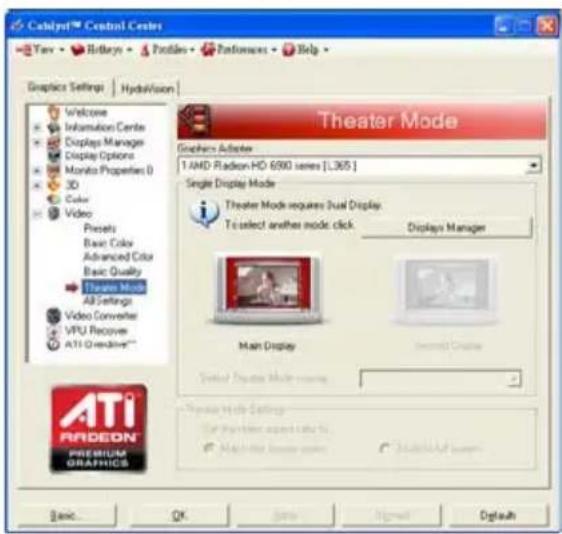
Cabinet™ Central Center Yav • Hitkeys • Profiles • Preferences • Help Graphics Settings | HydraVision Welcome Information Centers Displays Manager Display Options Monato Properties (D) 3D Color Video Presents Basic Color Advanced Color Basic Quality Titano Mode AI Settings Video Converter VPU Recover ATI Creative** Theater Mode Graphics Adapter 1 AMD Radeon HD 6990 series [.365] Single Display Mode Theater Mode requires Dual Display. To select another mode click Displays Manager Main Display Second Create Central Design Mode name: Primary Web Setup Top Review agent info Machine Store name Modified User Basic OK Tools Signed Customize Downloads■ Theater Mode
Use Theater Mode to change the way you view streaming video.
Note:
• These settings will only affect applications with video overlay support. Extended Desktop Mode is not supported on systems running Windows Vista.
- This item will be available when you connect two monitors.

text_image
Cabinet™ Control Center View • Refreshs • Textiles • Pathogens • Help • Graphics Settings | Hydration | All Settings Graphics Adapter 1. AMD Radeon HD 6300 series [ L305 ] Basic Color Baseline Advanced Color Basic Quality Theater Mode AI Settings Video Converter VPU Recover ATI O-DriveTM Size application settings Advanced Color Video Gamma Audio Video ATI RADEON PREMIUM GRAPHICS ASIC OK Cancel Default DefaultsAll Settings
The All Settings page combines all of the principal Video features onto a single page, without any preview window, allowing quick access and adjustment. This page is useful when it is not necessary to preview the adjusted settings because the effect is already known or understood.
Note:
These settings will only affect applications with video overlay support.
AMD Overdrive:
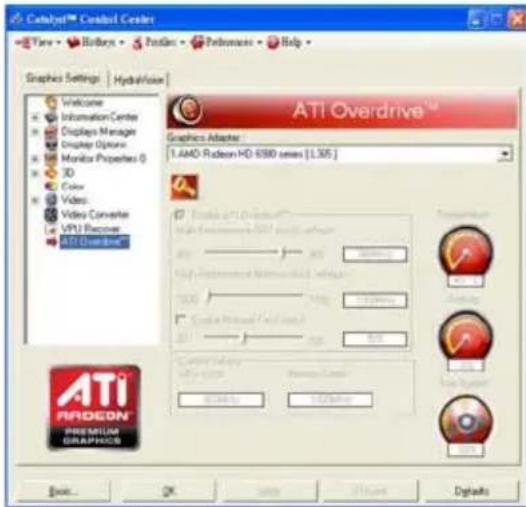
Use Overdrive to maximize your viewing experience by dynamically and safely overclocking the graphics processor and memory. Use the Automated clock configuration utility to obtain the AMD recommended speeds for the graphics processor clock and video memory clock. Alternatively, manually set these speeds to meet your specific requirements. Finally, Overdrive can be configured to run when the computer is booted or only when running 3D applications. Note:
text_image
Catalyst Control Center View Rollers Passels Performance Help Graphics Settings Hydraulics Welcome Information Centers Displays Manage Display Options Monitor Properties 0 3D Color Video Video Converter VPU Receiver ATI Overdrive™ Graphics Adapter 1.AAD Radeon HD 6580 series [1.365] ATI Overdrive™ 400 200 1000 700 600 600 600 600 600 600 600 600 600 600 600 600 600 600 600 600 600 600 600 600 600 600 600 600 600 ATI Overdrive™ ATI Overdrive™ Premium Driver Premium Driver ATI Overdrive™ Premium Driver Premium Driver ATI Overdrive™ Premium Driver Premium DriverIf your computer cannot restart after setting a higher clock speed, press and hold the
CrossFireX™:
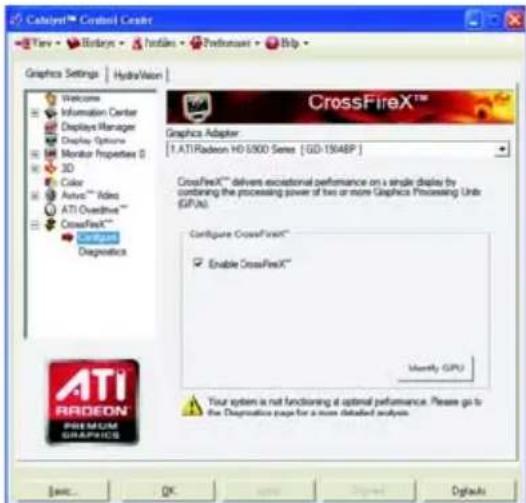
CrossFireX delivers exceptional performance on a single display by combining the processing power of two or more Graphics Processing Units (GPUs).
text_image
Catalyst Control Center View - Webpage - Hostless - Platformer - Help Graphics Settings | HydroVision Welcome Information Center Displays Manager Display Optive Monitor Properties 0 3D Color Autos™ Audio ATI Overdrive™ CrossFireX™ Continuous Diagnostics CrossFireX™ Graphics Adapter 1.ATI Radeon HD 5000 Series [GD-1504BP] CrossFireX™ delivers exceptional performance on a single display by combining the processing power of two or more Graphics Processing Units (GPUs) Configure CrossFireX™ Enable CrossFireX™ Modify GPU Your system is not functioning at optimal performance. Please go to the Diagnosis page for a more detailed analysis. ©AEC... OK...Configure
When an AMD CrossFireX configuration is detected for the first time by the AMD Catalyst display driver, AMD CrossFireX support is automatically enabled. If AMD CrossFireX is not enabled, select the Enable CrossFireX™ check box.
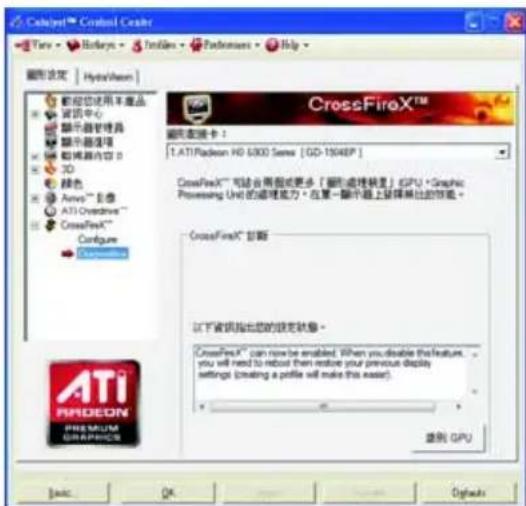
Use this page to determine whether your AMD CrossFireX configurations are configured properly and functioning optimally. You can also use the page to view performance issues and suggested solutions specific to a particular configuration.
Note:
This page is only for AMD CrossFireX configuration.
AMD Eyefinity setting:

text_image
Catalyst Control Center AMD Video Converter Convert video files to DVD and other media player formats. Craig & Drop Video Converter Your keyboard used a video converter than automatically converts video files when they are dropped and dropped onto a portable media player. Your graphic features can be used to activate the convention process. ■ Create activation■ Select Create Eyefinity Display Group
text_image
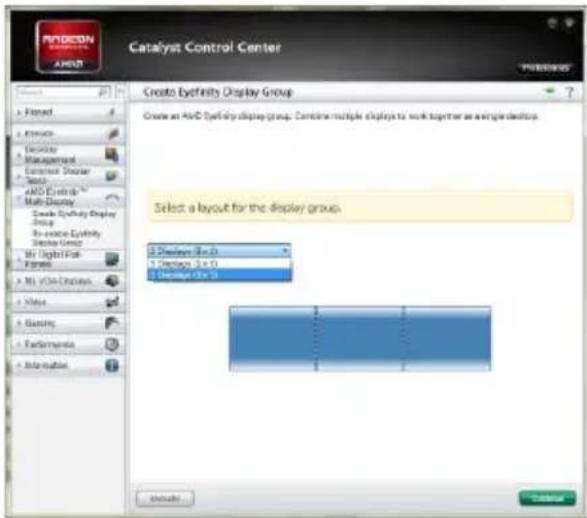
Catalyst Control Center Create Ecyfinity Display Group Create an AnD Ecyfinity display group. Contains multiple displays to work together as a single device. Select: a layout for the display groups. 1 Display (Ex-D) 2 Display (Ex-D) 3 Display (Ex-D)■ Select Display (3 x 1)

text_image
Catalyst Control Center Create Eyefinky Display Group Create an AMD Eyefinky display group. Complete multiple displays to mark together on a single display. Completed creation of an AMD Eyefinky display group with 3 displays (3 x 1) Click Arrange to connect the relative position of the displays in your display group. If required.■ Arrange the order of your displays then the setting is completed
4. Troubleshooting Tips
The following troubleshooting tips may help if you experience problems. Contact your dealer or GIGABYTE for more advanced troubleshooting information.
- Check that the card is seated properly in the PCI Express x16 slot.
■ Ensure that the display cable is securely fastened to the card's display connector.
■ Make sure that the monitor and computer are plugged in and receiving power.
If necessary, disable any built-in graphics capabilities on your motherboard. For more information, consult your computer's manual or manufacturer.
(NOTE: Some manufacturers do not allow the built-in graphics to be disabled or to become the secondary display.)
■ Make sure you selected the appropriate display device and graphics card when you install the graphics driver.
■ For more troubleshooting information, please right-click the ATI icon in the notification area.
■ Restart your computer.
Press
After getting into Safe Mode, in Device Manager check whether the driver for the graphics card is correct.
For more assistance, use the Troubleshooting Guide located in the Windows Help or contact your computer manufacturer.
■ If you are not able to find the desired monitor color/resolution settings:
The color and screen resolution options available for selection depend on the graphics card being installed.

If necessary, adjust your monitor's setting using monitor's adjust panel to make the screen look focused, crisp, and sharp. (Please refer to the monitor's manual.)
5.1. Regulatory Statements
Regulatory Notices
This document must not be copied without our written permission, and the contents there of must not be imparted to a third party nor be used for any unauthorized purpose. Contravention will be prosecuted. We believe that the information contained herein was accurate in all respects at the time of printing. GIGABYTE cannot, however, assume any responsibility for errors or omissions in this text. Also note that the information in this document is subject to change without notice and should not be construed as a commitment by GIGABYTE.
Our Commitment to Preserving the Environment
In addition to high-efficiency performance, all GIGABYTE motherboards fulfill European Union regulations for RoHS (Restriction of Certain Hazardous Substances in Electrical and Electronic Equipment) and WEEE (Waste Electrical and Electronic Equipment) environmental directives, as well as most major worldwide safety requirements. To prevent releases of harmful substances into the environment and to maximize the use of our natural resources, GIGABYTE provides the following information on how you can responsibly recycle or reuse most of the materials in your "end of life" product.
Restriction of Hazardous Substances (RoHS) Directive Statement
GIGABYTE products have not intended to add and safe from hazardous substances (Cd, Pb, Hg, Cr+6, PBDE and PBB). The parts and components have been carefully selected to meet RoHS requirement. Moreover, we at GIGABYTE are continuing our efforts to develop products that do not use internationally banned toxic chemicals.
Waste Electrical & Electronic Equipment (WEEE) Directive Statement
GIGABYTE will fulfill the national laws as interpreted from the 2002/96/EC WEEE (Waste Electrical and Electronic Equipment) directive. The WEEE Directive specifies the treatment, collection, recycling and disposal of electric and electronic devices and their components. Under the Directive, used equipment must be marked, collected separately, and disposed of properly.
WEEE Symbol Statement

The symbol shown below is on the product or on its packaging, which indicates that this product must not be disposed of with other waste. Instead, the device should be taken to the waste collection centers for activation of the treatment, collection, recycling and disposal procedure. The separate collection and recycling of your waste equipment at the time of disposal will help to conserve natural resources and ensure that it is recycled in a manner that protects human health and the environment. For more information about where you can drop off your waste equipment for recycling, please contact your local government office, your household waste disposal service or where you purchased the product for details of environmentally safe recycling.
- When your electrical or electronic equipment is no longer useful to you, "take it back" to your local or regional waste collection administration for recycling.
- If you need further assistance in recycling, reusing in your "end of life" product, you may contact us at the Customer Care number listed in your product's user's manual and we will be glad to help you with your effort.
Finally, we suggest that you practice other environmentally friendly actions by understanding and using the energy-saving features of this product (where applicable), recycling the inner and outer packaging (including shipping containers) this product was delivered in, and by disposing of or recycling used batteries properly. With your help, we can reduce the amount of natural resources needed to produce electrical and electronic equipment, minimize the use of landfills for the disposal of "end of life" products, and generally improve our quality of life by ensuring that potentially hazardous substances are not released into the environment and are disposed of properly.
China Restriction of Hazardous Substances Table
The following table is supplied in compliance with China's Restriction of Hazardous Substances (China RoHS) requirements:

text_image
10Management Methods on Control of Pollution from Electronic Information Products
(China RoHS Declaration)