Premiere Elements 11 - Logiciel audio et vidéo ADOBE - Free user manual and instructions
Find the device manual for free Premiere Elements 11 ADOBE in PDF.


User questions about Premiere Elements 11 ADOBE
0 question about this device. Answer the ones you know or ask your own.
Ask a new question about this device
Download the instructions for your Logiciel audio et vidéo in PDF format for free! Find your manual Premiere Elements 11 - ADOBE and take your electronic device back in hand. On this page are published all the documents necessary for the use of your device. Premiere Elements 11 by ADOBE.
USER MANUAL Premiere Elements 11 ADOBE
flowchart
graph LR
    A["Video recording with CD"] --> B["Laptop with video thumbnails and text blocks"]
    B --> C["Global network with social media icons for Facebook, Twitter, YouTube, and others"]
Premiere Elements installeren
Video's ordenen
Video's importeren
Video's bewerken
Titels maken
Opslaan en delen
text_image
Screenshot of a photo editing software interface showing eye makeup settings with color palettes and adjustment panelsnatural_image
Three portrait photos in colorful frames (green, red, blue) with no visible text or symbolsnatural_image
Person taking a photo of a beach scene with waves and people in the background (no visible text or symbols)natural_image
Family taking a selfie outdoors with a red tower bridge in the background (no visible text or symbols)natural_image
Family photo outdoors with a bridge and greenery in the background (no visible text or symbols)text_image
Lokale albums Borneo Mobiele albums Family Anniversary Jaipond and some other... Personal Travels around the world Mijn mappenLokale albums uploaden naar Revel
Naar boven
Functies voor tags

Verbeterd in de Elements Organizer 12
text_image
Elements Organizer InfoDriver's travel engine on the right side InfoDriver's travel engine on the left side Action menu Video camera's main digital fan camera Bestanden en miopen Video camera's open to all other devices Video camera's open to all other devices Video's fan camera's of appallen Video camera's open to all other devices Video's fan flip-camera's of ensemble screens Video camera's open to all other devices Webcam of HDMI-approval Video camera's open to all other devices DVD-carmander of video station op computer Video camera's open to all other devices DVD-carmander Video camera's open to all other devices DV-carmandernatural_image
Blank white image with no visible content, text, or symbolstext_image
Marketshare 00:00:00 00:00:02:00 00:01:04:00 00:01:06:00 00:01:08:00 Audio 1 CICIO Audio 1 CICIO Commentex Audio_1 CICIO Soundtrack Clear Image Audio view
text_image
RedStream 2:04 06:23:44:58text_image
Vorige Elements Organizer Lokale albums Camping trip John Eilay visit Zoo visit Mobiele albums John Doe's Library johns vacation ph... 9.mp4 00:23 8.mp4 00:23 U/I Bestand tove Gevered• Video's van flip of camera
• Dvd-camera of computerstation
natural_image
Exterior view of a modern cable-stayed bridge over water with city skyline in background (no signage)natural_image
Family walking on a beach with ocean and distant mountains in background (no visible text or symbols)natural_image
A woman and child walking on a beach with water and distant ships in the background (no visible text or symbols)text_image
Timeline 12. March 12. April 12. May 12. June 12. July 12. August 12. September 12. October 12. November 12. December 12. January 12. February 12. March 12. April 12. May 12. June 12. July 12. August 12. September 12. October 12. November 12. December 12. January 12. February 12. March 12. April 12. May 12. June 12. July 12. August 12. September 12. January 12. February 12. March 12. April 12. May 12. June 12. July 12. August 12. September 12. January 12. February 12. March 12. April 12. May 12. June 12. July 12. August 12. September 12. January 12.February 12. March 12. April 12. May 12. June 12. July 12. August 12. September 12. January 12.February 12. March 12. April 12. May 12. June 12. July 12. August 12. September 12. January 12.February 12. March 12.April 12. May 12. June 12. July 12. August 12. September 12. January 12.February 12. March 12. April 12. May 12. June 12. July 12. August 12. September 12. January 12.February 12. March 12. April 12. May 12.JuneSlim bijsnijden
text_image
A 00:01:04:02 00:02:08:04 03:12:06 00:04 B 00:03:13:22 00:01:11:27 C D E F G Input inst. Utpunt inst.natural_image
Beach scene with people taking photos, no visible text or symbolstext_image
Properties Details Details Background (if any company) is selected. Background (if any company) is selected. Background (if any company) is selected. Background (if any company) is selected. Background (if any company) is selected. Background (if any company) is selected. Background (if any company) is selected. Background (if any company) is selected. Background (if any company) is selected. Background (if any company) is selected. Background (if any company) is selected. Background (if any company) is selected. background (if any company) is selected. Background (if any company) is selected. Background (if any company) is selected. Background (if any company) is selected. Background (if any company) is selected. Background (if any company) is selected. Background (if any company) is selected. Background (if any company) is selected. Background (if any company) is selected. Background (if any company) is selected. Background (if any company) is selected. Background(If any company) is selected. Background(If any company) is selected. Background(If any company) is selected. Background(If any company) is selected. Background(If any company) is selected. Background(If any company) is selected. Background(If any company) is selected. Background(If any company) is selected. Background(If any company) is selected. Background(If any company) is selected. Background(If any company) is selected. Background(If an entity in the context of this group) Background(If an entity in the context of this group) Background(If an entity in the context of this group) Background(If an entity in the context of this group) Background(If an entity in the context of this group) Background(If an entity in the context of this group) Background(If an entity in the context of this group) Background(If an entity in the context of this group) Background(If an entity in the context of this group) Background(If a entity in the context of this group) Background(If a entity in the context of this group) Background(If a entity in the context of this group) Background(If a entity in the context of this group) Background(If a entity in the context of this group) Background(If a entity in the context of this group) Background(If a entity in the context of this group) Background(If a entity in the context of this group) Background(If a entity in the condition of this group) Background(If a entity in the condition of this group) Background(If a entity in the condition of this group) Background(If a entity in the condition of this group) Background(If a entity in the condition of this group) Background(If a entity in the condition of this group) Background(If a entity in the condition of this group) Background(If a entity in the condition of this group) Background(If a entity in the condition of this group)Voorkeuren configureren

BY-NO-SA
natural_image
Sequence of six photos showing a person riding a bicycle on a rural road, wearing a yellow helmet against a blue sky (no text or symbols)natural_image
Sequence of three panels (A, B, C) showing a person riding on a path with a helmet, against a blue sky background (no text or symbols)natural_image
Sequence of three panels (A, B, C) showing a person in motion on a path, with no visible text or symbols.Previewing transitions
Specify a default transition
Apply transitions in the Quick view timeline
Apply transitions in the Expert view timeline
Replace a transition
Preview applied transitions
To the top
Video tutorial
To the top
Previewing transitions
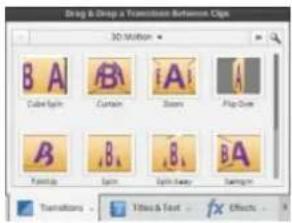
You can access available transitions in the Transitions panel (click Transitions on the Action bar). In the Quick view, all the available transitions appear as thumbnails in the Transitions panel. The Quick view contains a subset of the transitions available in the Expert view. In the Expert view timeline, the transitions are organized into categories. You can narrow a search for transitions by choosing a transition type, such as Dissolve, from the Category menu. You can also search for a transition by typing its name in the search box. The Expert view has more transitions compared to the Quick view.
Video transitions have animated thumbnail previews that show how they affect clips. Select a transition to set its thumbnail in motion. You can preview an animated thumbnail transition in the Transition panel without having to apply it to a clip.
text_image
Drag & Drop: A Transition Between Caps 3D Motion Cube Spin Curtain Down Play Guide Kingslip Spin Spin Away BalanceTransitions panel
Adobe Premiere Elements includes two audio transitions in the Crossfade category: Constant Power and Constant Gain. Though both provide fades, they differ slightly. Constant Power creates a smoother-sounding fade, while Constant Gain, though mathematically linear, often sounds abrupt.
- In the Quick view or the Expert view, click Transitions on the Action bar. The Transitions panel appears.
- Click the thumbnail for any video transition to set it in motion.
To the top
Specify a default transition
The default transition is used in slide shows you create and files you import from Adobe® Photoshop® Elements. It is also used in motion backgrounds you create for DVD menus. The default transitions are Cross Dissolve for video or still images and Constant Power for audio. However, you can change these defaults.
- In the Quick view or the Expert view, click Transitions on the Action bar. The Transitions panel appears.
- Right-click/ctrl-click the transition you want to be the default and choose Set Selected As Default Transition. (A gray outline marks the icon of the default transition.)
To the top
Apply transitions in the Quick view timeline
In the Quick view timeline, drop zones (indicated by vertical green lines) appear the moment you drag a transition. The drop zone let you easily apply transitions between clips.
Apply a double-sided transition in the Quick view timeline
- In the Quick view, click Transitions on the Action bar. The Transitions panel appears.
- Drag a transition from the Transitions panel to the drop zone between two clips in the Quick view timeline. An icon of the transition appears on the right and left bottom corners of the clip to indicate it has been applied. In addition, the Transition contextual control appears.
- (Optional) Modify the properties of the clip, for example duration. Click the More button to further customize the transition and preview the changes.
Apply a single-sided transition in the Quick view timeline
- In the Quick view, click Transitions on the Action bar. The Transitions panel appears.
- From the Transitions panel, select the transition you want to apply.
-
Do one of the following:
-
If the clip has no clip adjacent to one side of it, drag the transition to the transition rectangle on that side of the clip.
- If the clip is adjacent to another clip, drag the transition to the desired edge of the clip. In the Transitions contextual control set Alignment as Left Clip, Between Clips, or Right Clip.
To the top
Apply transitions in the Expert view timeline
When applying transitions to the Expert view timeline, you can choose from alignment options, Left Clip, Between Clips, or Right Clip.
Apply a double-sided transition in the Expert view timeline
To apply a transition between two clips in the Expert view timeline the clips must be on the same track, with no space between them.
If a double-sided transition must use repeated frames (rather than trimmed frames), the transition icon contains additional diagonal lines. The lines span the area where it has used the repeated frames.
- In the Expert view, click Transitions on the Action bar. The Transitions panel appears.
-
From the Transitions panel select the category containing the transition you want to apply.
-
Drag the transition from the Transitions panel to the cut between two clips in the Expert view timeline, and release the mouse button when one of the following alignment icons appears:
Start At Cut transitionStart At Cut Aligns the beginning of the transition to the beginning of the second clip.
Center At Cut transitionCenter At Cut Centers the transition over the cut.
End At Cut transitionEnd At Cut Aligns the end of the transition to the end of the first clip.
Pressing Ctrl while dragging a transition lets you select Start At Cut, Center At Cut, or End At Cut by slowly dragging the transition left and right over the cut.
Apply a single-sided transition in the Expert view timeline
When you create a single-sided transition, whatever is below the transition in the Expert view timeline appears in the transparent portion of the transition. For example, If you want the clip to transition to black, it must be on Track 1 or have no clips beneath it. If the clip is on a track above another clip, the clip on the lower track appears in the transition, so the transition will appear to be double-sided.
- In the Expert view, click Transitions on the Action bar. The Transitions panel appears.
- From the Transitions panel select the category containing the transition you want to apply.
-
Do one of the following:
-
If the clip has no adjacent clip to one side of it, drag the transition from the Transitions panel to the edge of the clip.
- If the clip is adjacent to another clip, Ctrl-drag the transition to the edge of the desired clip.
Apply a default transition in the Expert view timeline
- Do one of the following:
• To select non-consecutive clips, Shift-click each clip.
- To select consecutive clips, click in the Project Assets panel, and drag a marquee around the selected clips.
• To select all the clips, press Ctrl-A.
-
Right-click/ctrl-click the selected clips, and select Apply Default Transition Along CTI.
-
Select one of the following options:
-
Audio
- Video
The transition is applied to all the selected clips.
To apply default transitions between multiple contiguous clips on the same track:
- Ctrl-click the clips to which you want to add the default transition.
- Right-click/ctrl-click one of the selected clips.
- Select Apply Default Transition.
The transition is applied at the cut between each of the contiguous clips.
Replace a transition
You can replace a transition by simply dropping a new transition onto the old one in the Quick view or the Expert view timeline. When you replace a transition, Premiere Elements maintains the alignment and duration of the original transition; however, it discards the settings of the original transition and instead uses the default settings of the new transition.
- In the Quick view/Expert view, click Transitions on the Action bar. The Transitions panel appears.
- From the Transitions panel, select the transition you will use to replace the previous one.
- Drag the transition onto the transition in the Expert view timeline or Quick view timeline.
To the top
Preview applied transitions
You can preview transitions you've applied from either the Transitions contextual control or the Monitor panel. The Transitions contextual control provides a preview area where you can display thumbnails of the actual clips or the default thumbnails (the letters A and B). Adjust your transitions in the Transitions contextual control and preview the transitions as you make adjustments.

If you have a digital camcorder, you probably can connect it to both your computer and TV to see real-time previews on the TV monitor. This gives you a better sense of how the transition will look in the finished movie.
Preview in the Monitor panel
- In the Quick view timeline or the Expert view timeline, move the current-time indicator to the left of the transition, and then click the Play button in the Monitor panel.
Note: To preview a particular frame of the transition in the Monitor panel, drag the current-time indicator to the desired frame.
View transitions in the Quick view timeline and Expert view timeline
In the Quick view timeline, a transition appears as a rectangle on the clips. In the Expert view timeline, a transition appears just above the cut between two clips, or just above the In or Out point of a single clip.
Adobe also recommends

BY-NC-SA
Twitter™ and Facebook posts are not covered under the terms of Creative Commons.
text_image
Box effect near obj(s) stepen Vervagen in verschapen Anti-alias Sham-remager Gaussian, evanogen Sutton Sutangnatural_image
Two smiling children outdoors, one adult and one child, both smiling (no text or symbols visible)
natural_image
Four children running on a sandy beach, wearing casual clothes (no text or symbols visible)
natural_image
Illustration of two smiling children outdoors, one adult and one child, with other children in the background (no text or symbols visible)natural_image
Abstract illustration of silhouetted human figures in blue and green tones (no text or symbols)
natural_image
White flower-shaped outline on black background (no text or symbols)
natural_image
Two people relaxing on a beach under a cloud-shaped frame (no text or symbols)natural_image
A bright circular light source against a black background, no text or symbols visible.
natural_image
Child eating ice cream with a spoon, wearing a patterned shirt against a blue background (no text or symbols visible)
natural_image
Child running on a beach with another child in the background; no visible text or symbols.natural_image
Person standing on a green surface, waving (no visible text or symbols)
natural_image
Person standing in front of a blue background, waving (no visible text or symbols)
natural_image
A young boy standing on a hand next to a person wearing glasses, against a plain wall background (no text or symbols visible)text_image
HOLD:1s 5s 4 5 A B C D E FFocusframe
natural_image
Group of young people outdoors, one smiling with dark hair and red clothing (no visible text or symbols)Frametip
natural_image
Abstract color blocks with red, green, and blue hues, no text or symbols visiblebar
| Toegepaste effecten | Value | | --- | --- | | Rood-rood | 162 | | Rood-groen | 0.0 | | Rood-blauw | 0.0 | | Rood-const | 0.0 | | Groen-rood | 0.0 | | A | 0.0 | | B | 0.0 | | C | 0.0 |natural_image
Close-up of a person's mouth wearing a waffle cone with whipped cream (no text or symbols visible)A
natural_image
Close-up of a person's mouth wearing a waffle cone with whipped cream (no text or symbols visible)B
Anti-alias
natural_image
Profile view of a person wearing a yellow uniform and helmet against a clear blue sky (no text or symbols visible)
natural_image
Person wearing a yellow uniform and black cap against a clear blue sky (no visible text or symbols)
natural_image
Side profile of a person wearing a yellow cap and light-colored jacket against a blue background (no visible text or symbols)Schim, effect
Verscherpen (Alleen Windows)
natural_image
Color gradient clock face with arrow and pointer (no text or symbols)A
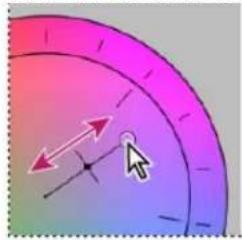
natural_image
Abstract gradient background with arrow and cursor icons (no text or symbols)B
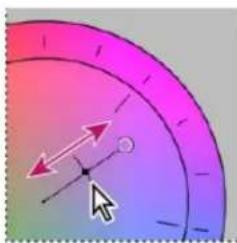
natural_image
Abstract graphic with a curved arrow and cursor icon, no text or symbols presentC
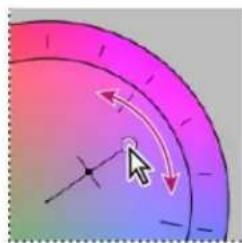
natural_image
Abstract graphic with a curved arrow and cursor icon, no text or symbols presentnatural_image
Child holding a small ice cream cone against a blue background (no text or symbols visible)A
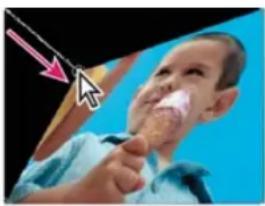
natural_image
Close-up of a child eating ice with a pencil, showing a white substance on the cheek (no text or symbols visible)B
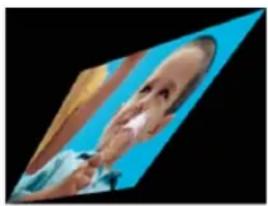
natural_image
Close-up of a baby's face with a blue background (no text or symbols visible)C
Hoekpunt
natural_image
A blurred white circular shape on a black background, resembling a lens or abstract light source.
natural_image
Child holding a small ice cream against a blue background (no text or symbols visible)
natural_image
Child running on a beach with a close-up photo of a smiling child's face (no text or symbols visible)natural_image
Abstract spiral pattern with red-orange gradient on white background (no text or symbols)
natural_image
Colorful spiral graphic against a blue sky background (no text or symbols)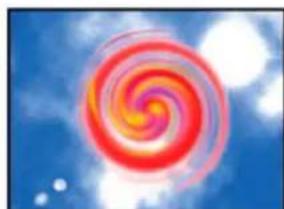
natural_image
Spiral red spiral against a blue sky with scattered white dots (no text or symbols)NewBlue, Inc., www.newbluefx.com.
Colorize
NewBlue, Inc., www.newbluefx.com.
Line Drawing
NewBlue, Inc., www.newbluefx.com.
Metallic
NewBlue, Inc., www.newbluefx.com.
Pastel Sketch
NewBlue, Inc., www.newbluefx.com.
NewBlue Film Look
Naar boven
Old Film
NewBlue, Inc., www.newbluefx.com.
NewBlue Motion Effecten Elements
Naar boven
Active Camera
NewBlue, Inc., www.newbluefx.com.
Earthquake
NewBlue, Inc., www.newbluefx.com.
Shear Energy
NewBlue, Inc., www.newbluefx.com.
Zoom Blur
NewBlue, Inc., www.newbluefx.com.
natural_image
A smiling child lying down with arms outstretched, wearing a white shirt and black shoes against a yellow background (no text or symbols visible)A

natural_image
Illustration of a smiling child with pigtails against a yellow background (no text or symbols)B
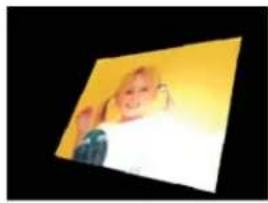
natural_image
Portrait photo of a smiling child against a yellow background (no text or symbols visible)C
NewBlue, Inc., www.newbluefx.com.
Stileren
Naar boven
Alfagloed
natural_image
Profile view of a person wearing a yellow uniform and dark helmet against a clear blue sky (no text or symbols visible)A
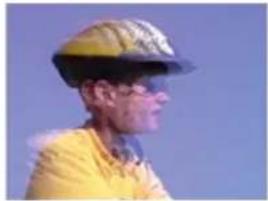
natural_image
Side profile of a person wearing a yellow shirt and a black cap against a blue background (no visible text or symbols)B
natural_image
Side profile of a person wearing a cap and yellow shirt against a blue background (no visible text or symbols)C
Echo
natural_image
Beach scene with people taking photos, no visible text or symbolstext_image
Properties Details Details Background (if any company) is selected. Background (if any company) is selected. Background (if any company) is selected. Background (if any company) is selected. Background (if any company) is selected. Background (if any company) is selected. Background (if any company) is selected. Background (if any company) is selected. Background (if any company) is selected. Background (if any company) is selected. Background (if any company) is selected. Background (if any company) is selected. background (if any company) is selected. Background (if any company) is selected. Background (if any company) is selected. Background (if any company) is selected. Background (if any company) is selected. Background (if any company) is selected. Background (if any company) is selected. Background (if any company) is selected. Background (if any company) is selected. Background (if any company) is selected. Background (if any company) is selected. Background(If any company) is selected. Background(If any company) is selected. Background(If any company) is selected. Background(If any company) is selected. Background(If any company) is selected. Background(If any company) is selected. Background(If any company) is selected. Background(If any company) is selected. Background(If any company) is selected. Background(If any company) is selected. Background(If any company) is selected. Background(If an entity in the context of this image) Background(If an entity in the context of this image) Background(If an entity in the context of this image) Background(If an entity in the context of this image) Background(If an entity in the context of this image) Background(If an entity in the context of this image) Background(If an entity in the context of this image) Background(If an entity in the context of this image) Background(If an entity in the context of this image) Background(If a entity in the context of this image) Background(If a entity in the context of this image) Background(If a entity in the context of this image) Background(If a entity in the context of this image) Background(If a entity in the context of this image) Background(If a entity in the context of this image) Background(If a entity in the context of this image) Background(If a entity in the context of this image) Background(If a entity in the contexts of this image) Background(If a entity in the contexts of this image) Background(If a entity in the contexts of this image) Background(If a entity in the contexts of this image) Background(If a entity in the contexts of this image) Background(If a entity in the contexts of this image) Background(If a entity in the contexts of this image) Background(If a entity in the contexts of this image) Background(If a entity in the contexts of this image)Voorkeuren configureren

BY-NO-SA
A. Lettertypeopties B. Lettertypestijlopties
SmartSound-tracks maken
Videozelfstudie
Naar boven
SmartSound-tracks maken
Naar boven
text_image
SmartSound Express Tracks Sensory Search Tap Search Style Keyword Owned Titles All - 49 Style(s) Acid Jazz Alternative Rock Ambience Ambient Balled Blues Clear Vision Core Foundations 63 Feature Presentation Core Foundations 00 Future Progress Core Foundations 150 Global Vibes Core Foundations 110 In perspective Core Foundations 149 Julie's Place Core Foundations 120 Pavene Core Foundations 71 Run Down Core Foundations 150 Super Logo Core Foundations 100 Wild Chase Core Foundations 146 12 Days Of Xmas Christmas Treasures 58 143th Song Finkle Vol 2 140 3 Seasons Grace Josh Eagle and the H... 65 49 Cent Blaze Nu Shock 55 8 Fold Lighter Than Air 140 A Change In Plans Emotional Depth 56 A Folie In The Road Corporate Identity 105 6 Friend In N and Time Remembered 153 Tempo Options Send Cancel Info Lyrics License Title: Intraspective (SS_50105) Album: Core Foundations Tempo: 143.8PM 00:12.0 Frames Per Beat 02:12 Block of 6 Beats Instruments: Guitar (Electric) User Notes: Favorite Waveform Preview - Last 4 Seconds: 25 27 28 29 Long: 00.00 30.00 Valation: Liquid Mood: Full Mixtext_image
Play Movie Scene Selection Showdown Summer Fun
text_image
Play Movie Scene Selection Game Price Summer Fun Btext_image
Scene Onetext_image
Scene One Scene Onenatural_image
Four boys playing on a turquoise ocean wave under a clear blue sky (no text or symbols visible)audiolead Zie J-cut.