XA10 Pro HD - Video camera CANON - Free user manual and instructions
Find the device manual for free XA10 Pro HD CANON in PDF.


User questions about XA10 Pro HD CANON
0 question about this device. Answer the ones you know or ask your own.
Ask a new question about this device
Download the instructions for your Video camera in PDF format for free! Find your manual XA10 Pro HD - CANON and take your electronic device back in hand. On this page are published all the documents necessary for the use of your device. XA10 Pro HD by CANON.
USER MANUAL XA10 Pro HD CANON
natural_image
Black and white photo of a digital camera with a close-up display showing a scenic harbor scene (no visible text or symbols)English
Français
Español
Important Usage Instructions
WARNING!

TO REDUCE THE RISK OF FIRE OR ELECTRIC SHOCK, DO NOT EXPOSE THIS PRODUCT TO RAIN OR MOISTURE.
WARNING!

TO REDUCE THE RISK OF ELECTRIC SHOCK AND TO REDUCE ANNOYING INTERFERENCE, USE THE RECOMMENDED ACCESSORIES ONLY.
COPYRIGHT WARNING:
Unauthorized recording of copyrighted materials may infringe on the rights of copyright owners and be contrary to copyright laws.
HD Camcorder, XA10 A systems
This device complies with Part 15 of the FCC Rules. Operation is subject to the following two conditions: (1) This device may not cause harmful interference, and (2) this device must accept any interference received, including interference that may cause undesired operation.
Note: This equipment has been tested and found to comply with the limits for class B digital device, pursuant to Part 15 of the FCC Rules. These limits are designed to provide reasonable protection against harmful interference in a residential installation. This equipment generates, uses and can radiate radio frequency energy and, if not installed and use in accordance with the instructions, may cause harmful interference to radio communications. However, there is no guarantee that interference will not occur in a particular installation. If this equipment does cause harmful interference to radio or television reception, which can be determined by turning the equipment off and on, the user is encouraged to try to correct the interference by one or more of the following measures:
- Reorient or relocate the receiving antenna.
- Increase the separation between the equipment and receiver.
- Connect the equipment into an outlet on a circuit different from that to which the receiver is connected.
- Consult the dealer or an experienced radio/TV technician for help.
Use of shielded cable is required to comply with class B limits in Subpart B of Part 15 of FCC Rules.
Do not make any changes or modifications to the equipment unless otherwise specified in the manual. If such changes or modifications should be made, you could be required to stop operation of the equipment.
Canon U.S.A., Inc.
One Canon Plaza, Lake Success, NY 11042, U.S.A.
Tel No. (516)328-5600
WARNING:
To reduce the risk of electric shock, do not expose this product to dripping or splashing.
The Mains plug is used as the disconnect device. The Mains plug shall remain readily operable to disconnect the plug in case of an accident.
CAUTION:
- Danger of explosion if the wrong type of batteries are attached. Use only the same type of batteries.
- Do not expose batteries or product to excessive heat such as the inside of a car under direct sunlight, fire, etc.
ImportantWarning



The lightning flash with arrowhead symbol, within an equilateral triangle, is intended to alert the user to the presence of uninsulated “dangerous voltage” within the product’s enclosure, that may be of sufficient magnitude to constitute a risk of electric shock to persons.
CAUTION:
TO REDUCE THE RISK OF ELECTRIC SHOCK, DO NOT REMOVE COVER (OR BACK). NO USER-SERVICEABLE PARTS INSIDE. REFER SERVICING TO QUALIFIED SERVICE PERSONNEL.

The exclamation point, within an equilateral triangle, is intended to alert the user to the presence of important operating and maintenance (servicing) instructions in the literature accompanying the product.
IMPORTANT SAFETY INSTRUCTIONS
In these safety instructions the word “product” refers to the Canon HD Camcorder XA10 A and all its accessories.
1 Read these instructions.
2 Keep these instructions.
3 Heed all warnings.
4 Follow all instructions.
5 Do not use this apparatus near water.
6 Clean only with dry cloth.
7 Do not install near any heat sources such as radiators, heat registers, stoves, or other apparatus (including amplifiers) that produce heat.
8 Do not defeat the safety purpose of the polarized or grounding-type plug. A polarized plug has two blades with one wider than the other. A grounding type plug has two blades and a third grounding prong. The wide blade or the third prong are provided for your safety. If the provided plug does not fit into your outlet, consult an electrician for replacement of the obsolete outlet.
9 Protect the power cord from being walked on or pinched particularly at plugs, convenience receptacles, and the point where they exit from the apparatus.
10 Only use attachments/accessories specified by the manufacturer.
11 Unplug this apparatus during lightning storms or when unused for long periods of time.
12 Refer all servicing to qualified service personnel. Servicing is required when the apparatus has been damaged in any way, such as power-supply cord or plug is damaged, liquid has been spilled or objects have fallen into the apparatus, the apparatus has been exposed to rain or moisture, does not operate normally, or has been dropped.
13 Read Instructions — All the safety and operating instructions should be read before the product is operated.
14 Retain Instructions — The safety and operating instructions should be retained for future reference.
15 Heed Warnings — All warnings on the product and in the operating instructions should be adhered to.
16 Follow Instructions — All operating and maintenance instructions should be followed.
17 Cleaning — Unplug this product from the wall outlet before cleaning. Do not use liquid or aerosol cleaners. The product should be cleaned only as recommended in this manual.
18 Accessories — Do not use accessories not recommended in this manual as they may be hazardous.
19 Avoid magnetic or electric fields — Do not use the camera close to TV transmitters, portable communication devices or other sources of electric or magnetic radiation. They may cause picture interference, or permanently damage the camera.
20 Water and Moisture — Hazard of electric shock — Do not use this product near water or in rainy/moist situations.
21 Placing or Moving — Do not place on an unstable cart, stand, tripod, bracket or table. The product may fall, causing serious injury to a child or adult, and serious damage to the product. A product and cart combination should be moved with care. Quick stops, excessive force, and uneven surfaces may cause the product and cart combination to overturn.
22 Power Sources — The CA-570 Compact Power Adapter should be operated only from the type of power source indicated on the marking label. If you are not sure of the type of power supply to your home, consult your product dealer or local power company. Regarding other power sources such as battery power, refer to instructions in this manual.
23 Polarization — The CA-570 Compact Power Adapter is equipped with a polarized 2-prong plug (a plug having one blade wider than the other). The 2-prong polarized plug will fit into the power outlet only one way. This is a safety feature. If you are unable to insert the plug fully into the outlet, try reversing the plug. If the plug still fails to fit, contact your electrician to replace your obsolete outlet. Do not defeat the safety purpose of the polarized plug.
24 Power Cord Protection — Power cords should be routed so that they are not likely to be walked on or pinched by items placed upon or against them. Pay particular attention to plugs and the point from which the cords exit the product.
25 Outdoor Antenna Grounding — If an outside antenna is connected to the product, be sure the antenna is grounded so as to provide some protection against voltage surges and built-up static charges. Section 810 of the National Electrical Code, ANSI / NFPA No. 70—1984, provides information with respect to proper grounding of the mast and supporting structure, grounding of the lead-in wire to an antenna discharge unit, size of grounding conductors, location of antenna discharge unit, connection to grounding electrodes, and requirements for the grounding electrode. See figure 1.
26 Lightning — For added protection of this product during a lightning storm, or when it is left unattended and unused for long periods of time, disconnect it from the wall outlet and disconnect the antenna. This will prevent damage to the product due to lightning and power-line surges.
27 Overloading — Do not overload wall outlets and extension cords as this can result in a risk of fire or electric shock.

Fig. 1 EXAMPLE OF ANTENNA GROUNDING AS PER NATIONAL ELECTRICAL CODE

text_image
ANTENNA LEAD IN WIRE ANTENNA DISCHARGE UNIT (NEC SECTION 810-20) GROUNDING CONDUCTORS (NEC SECTION 810-21) GROUND CLAMPS POWER SERVICE GROUNDING ELECTRODE SYSTEM (NEC ART 250. PART H) GROUND CLAMP ELECTRIC SERVICE EQUIPMENT NEC - NATIONAL ELECTRICAL CODE28 Objects and Liquid Entry — Never push objects of any kind into this product through openings as they may touch dangerous voltage points or short out parts that could result in a fire or electric shock. Be careful not to spill liquid of any kind onto the product.
29 Servicing — Do not attempt to service this product yourself as opening or removing covers may expose you to dangerous voltage or other hazards. Refer all servicing to qualified service personnel.
30 Damage Requiring Service — Disconnect this product from the wall outlet and all power sources including battery, and refer servicing to qualified service personnel under the following conditions:
a. When the power-supply cord or plug is damaged.
b. If any liquid has been spilled onto, or objects have fallen into, the product.
c. If the product has been exposed to rain or water.
d. If the product does not operate normally even if you follow the operating instructions.
Adjust only those controls that are covered by the operation instructions. Improper adjustment of other controls may result in damage and will often require extensive work by a qualified technician to restore the product to its normal operation.
e. If the product has been dropped or the cabinet has been damaged.
f. When the product exhibits a distinct change in performance. This indicates a need for service.
31 Replacement Parts — When replacement parts are required, be sure the service technician has used replacement parts that are specified by Canon or that have the same characteristics as the original part. Unauthorized substitutions may result in fire, electric shock or other hazards.
32 Safety Check — Upon completion of any service or repairs to this product, ask the service technician to perform safety checks to determine that the product is in safe operating order.
33 Heat — The product should be situated away from heat sources such as radiators, heat registers, stoves, or other products (including amplifiers) that produce heat.
CA-570 identification plate is located on the bottom.
This Class B digital apparatus complies with Canadian ICES-003.
Trademark Acknowledgements
• SD, SDHC and SDXC Logos are trademarks of SD-3C, LLC.
- Microsoft and Windows are trademarks or registered trademarks of Microsoft Corporation in the United States and/or other countries.
• Macintosh and Mac OS are trademarks of Apple Inc., registered in the U.S. and other countries.
- "x.v.Color" and the "x.v.Color" logo are trademarks.
- HDMI, the HDMI logo and High-Definition Multimedia Interface are trademarks or registered trademarks of HDMI Licensing LLC in the United States and other countries.
- "AVCHD" and the "AVCHD" logo are trademarks of Panasonic Corporation and Sony Corporation.
• Manufactured under license from Dolby Laboratories.
"Dolby" and the double-D symbol are trademarks of Dolby Laboratories.
- YouTube is a trademark of Google Inc.
- Other names and products not mentioned above may be trademarks or registered trademarks of their respective companies.
- This device incorporates exFAT technology licensed from Microsoft.
- ANY USE OF THIS PRODUCT OTHER THAN CONSUMER PERSONAL USE IN ANY MANNER THAT COMPLIES WITH THE MPEG-2 STANDARD FOR ENCODING VIDEO INFORMATION FOR PACKAGED MEDIA IS EXPRESSLY PROHIBITED WITHOUT A LICENSE UNDER APPLICABLE PATENTS IN THE MPEG-2 PATENT PORTFOLIO, WHICH LICENSE IS AVAILABLE FROM MPEG LA, L.L.C., 250 STEELE STREET, SUITE 300, DENVER, COLORADO 80206.
- This product is licensed under AT&T patents for the MPEG-4 standard and may be used for encoding MPEG-4 compliant video and/or decoding MPEG-4 compliant video that was encoded only (1) for a personal and non-commercial purpose or (2) by a video provider licensed under the AT&T patents to provide MPEG-4 compliant video. No license is granted or implied for any other use for MPEG-4 standard.

Highlights of the XA10
The Canon XA10 HD Camcorder is a high-performance camcorder whose compact size makes it ideal in a variety of situations. The following are just some of the many functions featured in the camcorder.
HD Recording
HD CMOS PRO and DIGIC DV III processor
The camcorder is equipped with a 1/3-inch CMOS sensor that captures video at an effective pixel count of approximately 2.07 megapixels (1920x1080). The video is then processed by the state-of-the-art DIGIC DV III image processor. This allows the camcorder to excel in low-light situations and produce a wide dynamic range.
Wide zoom lens
With a focal length at full wide angle of 30.4 mm (35 mm equivalent), the camcorder has superb wide-angle shooting capability. The minimum object distance is 60 cm (2 ft.) throughout the entire zoom range, which means that you can create a pleasing blurred background effect at full telephoto. The 8-bladed iris aperture also enhances the blurred background effect.
Operability
Emphasis on versatility
This camcorder has features to make it usable as a main camera but is also small enough to be very portable. The advanced image stabilization (60) will let you shoot in a variety of situations in the field. The handle is removable so you can detach it when you need improved portability and then reattach it when you need extra functionality.
Manual controls at your fingertips
The focus ring helps you achieve the focus you are looking for. Furthermore, you can assign certain frequently used functions to a customizable button and adjust those functions with the accompanying dial (☐90).
Face detection
When a subject's face is detected, the camcorder can track and focus on it (53). Furthermore, you can have the camcorder in manual focus but switch to autofocus only when a face is detected, ensuring that important subjects are in focus.
Infrared recording
Record in darkness using infrared recording (☐89). With the built-in infrared light on the handle, you can record nocturnal animals in their natural environment or other such scenes.
Relay recording and double slot recording
When you use relay recording (☐38), you can use the double memory card slot to keep on recording video without interruption. Double slot recording (☐39) allows you to record movies simultaneously to two memory cards, which is a convenient way to back up your recordings.
Other Features
Audio
You can use the built-in microphone, MIC audio input terminal or the two XLR audio input terminals when recording. When using the XLR terminals, you can even use microphones that require phantom power.
LCD screen and viewfinder
The LCD screen and viewfinder both have 100% frame coverage, which will ensure that you can accurately check that your shots are framed how you want them.
Touch AE
By simply touching the screen, you can make dark areas in the picture appear brighter (☐65). This operation is simple yet allows you to shoot with the desired exposure.
Added and improved functionality
Other functions include two types of video scopes (84), conversion to standard definition (139) and Story Creator mode (105), which allows you to create engrossing video stories.
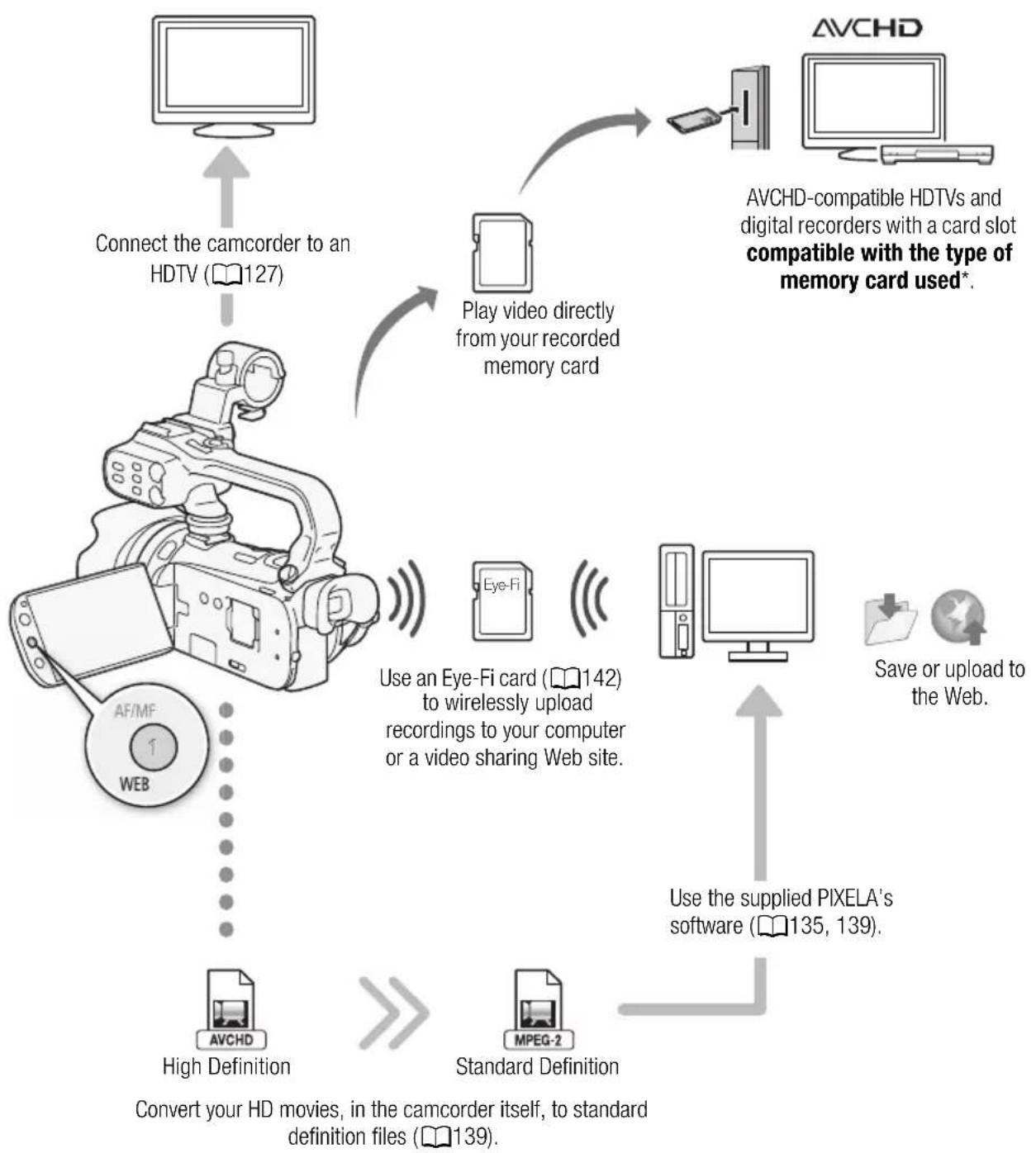
Enjoying your Recordings on Other Devices
flowchart
graph TD
    A["Computer"] -->|Connect the camcorder to an HDTV (127)| B["Play video directly from your recorded memory card"]
    B --> C["AVCHD-compatible HDTVs and digital recorders with a card slot compatible with the type of memory card used*"]
    C --> D["Use an Eye-Fi card (142) to wirelessly upload recordings to your computer or a video sharing Web site"]
    D --> E["Save or upload to the Web"]
    E --> F["Use the supplied PIXELA's software (135, 139)"]
    F --> G["Standard Definition"]
    G --> H["Convert your HD movies, in the camcorder itself, to standard definition files (139)"]
    H --> I["High Definition"]
    H --> J["MPEG-2"]
    I --> K["AF/MF WEB"]
* Refer to the instruction manual of the device. Depending on the device used, correct playback may not be possible even if the device is AVCHD-compatible. In such case, play back the recordings on the memory card using the camcorder.
Table of contents
1 Introduction 11
About this Manual 11
Conventions Used in this Manual 11
Supplied Accessories and CD-ROMs 13
Names of Parts 15
2 Preparations 22
Charging the Battery Pack 22
Preparing the Camcorder 24
Attaching the Microphone Holder Unit 24
Attaching the Handle Unit 24
Attaching the Lens Hood 25
Using the Viewfinder 25
Adjusting the Position and Brightness of the LCD Screen 26
Wireless Controller 28
Using a Tripod 29
Basic Operation of the Camcorder 30
Using the Touch Screen 30
Operating Modes 31
Using the Menus 32
First Time Settings 34
Setting the Date and Time 34
Changing the Language 34
Changing the Time Zone 35
Using a Memory Card 36
Memory Cards Compatible for Use with the Camcorder 36
Inserting and Removing a Memory Card 37
Selecting the Memory for the Recordings 38
Relay Recording 38
Double Slot Recording 39
Initializing the Memory 40
3 Recording 41
Recording Movies and Photos 41
Preparing to Record 41
Recording in AUTO Mode 42
Recording in M (Manual) Mode 46
Quick Start Function 48
Selecting the Video Quality (Recording Mode) 49
Selecting the Frame Rate 50
Focus Adjustment 51
Manual Focus 51
Autofocus 52
Face Detection 53
Touch & Track 55
Zooming 56
Using the Zoom Lever, Handle Zoom Rocker or Wireless Controller 56
Using the Touch Screen's Zoom Controls 58
Soft Zoom Control 58
Digital Tele-Converter 59
Advanced Image Stabilization 60
Automatic Gain Control (AGC) Limit 61
Automatic Exposure Recording Programs 62
Exposure Adjustment 64
Using the Manual Exposure Recording Program 64
Exposure Compensation 65
White Balance 67
Special Scene Recording Programs 69
Image Effects 71
Self Timer 72
Recording Audio 73
Using the Built-in Microphone or an External Microphone Connected to the MIC Terminal 73
Using Line Input or an External Microphone Connected to an XLR Terminal 74
Audio Recording Level 76
Using the Built-in Microphone or Microphone Connected to the MIC Terminal 76
Using a Microphone or Audio Source Connected to an XLR Terminal 77
Built-In Microphone Directionality 78
Audio Equalizer 79
Audio Mix 80
Using Headphones 81
Using a Zoom Remote Controller 82
Color Bars/Audio Reference Signal 83
Video Scopes 84
Displaying the Waveform Monitor during
[P Programmed AE] Recording
Program 84
Displaying the Waveform Monitor during
[M Manual Exposure] Recording
Program 84
Displaying the Edge Monitor 84
Video Snapshot 85
Pre-Recording 86
Onscreen Displays and Data Code 87
Faders 88
Infrared Recording 89
Activating Infrared Mode 89
4 Customization 90
Custom Button and Dial 90
Assignable Buttons 91
Changing the Assigned Function 91
Using an Assignable Button 91
Saving and Loading Menu Settings 92
Saving Menu Settings to a Memory Card 92
Loading Camera Settings from a Memory Card 92
5 Playback 93
Playing Back Video 93
Adjusting the volume 94
3D Flip View 96
The Index Selection Screen: Selecting the
Content to Play Back 97
Deleting Scenes and Stories 98
Deleting a Single Scene 98
Deleting Scenes from the Date Index Screen 98
Deleting a Single Scene from a Story 99
Deleting Scenes from a Story by Rating 99
Deleting Stories 100
Dividing Scenes 101
Selecting the Playback Starting
Point 102
Capturing Video Snapshot Scenes and
Photos from a Movie 103
Capturing a Video Snapshot Scene 103
Capturing Photos 104
6 Video Stories and Cinema Style 105
Using Story Creator to Create Video Stories 105
Creating a New Story 105
Recording a Scene within a Story 106
Recording Additional Scenes within an Existing Story 107
CINEMA Mode and Cinema-Look Filters 108
Adding Decorations 110
Decorating Scenes while Recording 110
Decorating Scenes during Playback 114
Playing Back Stories from the Gallery 115
Rating Scenes 117
Rating Scenes from the List of Scenes 117
Rating Scenes During Playback 117
Playback with Background Music 118
Using One of the Supplied Music Tracks as Background Music 118
Using an External Audio Player for Background Music 119
Copying and Moving Scenes Within/ Between Stories 121
Selecting a Story's Thumbnail Image 122
Changing a Story's Title 123
7 External Connections 124
Terminals on the Camcorder 124
Connection Diagrams 125
Playback on a TV Screen 127
8 Photos 128
Viewing Photos 128
Photo Jump Function 129
Deleting Photos 130
Deleting a Single Photo 130
Deleting Photos from the Index Screen 130
Slideshow 131
9 Saving/Sharing Recordings 132
Copying Recordings to a Memory Card 132
Copying Scenes from the Date Index Screen 132
Copying Scenes from a Story by Rating 133
Copying a Single Photo 133
Copying Photos from the Index Screen 133
Saving Recordings on a Computer 135
Saving Movies (Windows only) 135
Saving Photos (Windows/Mac OS) 135
Copying Recordings to an External Video Recorder 137
In High Definition 137
In Standard Definition 137
Uploading Movies to Video Sharing Web Sites 139
Converting Scenes into Standard Definition from the Date Index Screen 139
Connecting to the Computer and Uploading your Videos 141
Converting Scenes into Standard Definition from a Story by Rating 141
Converting Only Part of a Scene or Story 142
Uploading your Videos Wirelessly 142
10 Additional Information 144
Appendix: Menu Options Lists 144
FUNC. Panel 144
Setup Menus 146
Appendix: Onscreen Icons and Displays 155
Troubleshooting 159
List of Messages 164
Handling Precautions 171
Camcorder 171
Battery Pack 172
Memory Card 172
Built-in Rechargeable Lithium
Battery 173
Lithium Button Battery 173
Disposal 173
Maintenance/Others 174
Cleaning 174
Condensation 174
Using the Camcorder Abroad 175
Accessories 176
Optional Accessories 177
Product Codes 181
Specifications 182
Index 186
1 Introduction
About this Manual
Thank you for purchasing the Canon XA10. Please read this manual carefully before you use the camcorder and retain it for future reference. Should your camcorder fail to operate correctly, refer to Troubleshooting (☐159).
Conventions Used in this Manual
- IMPORTANT: Precautions related to the camcorder's operation.
• NOTES: Additional topics that complement the basic operating procedures. - POINTS TO CHECK: Restrictions or requirements regarding the function described.
• 📄: Reference page number within this manual. - The following terms are used in this manual:
When not specified as “memory card” or “built-in memory”, the term “memory” by itself refers to both.
"Scene" refers to one movie unit from the point you press the START/STOP button to start recording until you press again to pause the recording.
- The photos included in this manual are simulated pictures taken with a still camera.
- Some screenshots in this manual have been simplified to show only relevant icons.
AUTO indicates that a function is available in the operating mode indicated and indicates that the function is not available. For a detailed explanation refer to Operating Modes (☐ 31).
Brackets [] are used to refer to control buttons and menu options you will touch on the screen and to other onscreen messages and displays.

text_image
Self Timer Self Timer Operating modes: 1 Open the [Self Timer] screen. [FUNC.] [MENU] [ ] [Self Timer] 2 Touch [ON On √] and then touch [X]. • will appear on the screen. • Repeat, selecting [OFF Off], to turn off the self timer. Movies: In record pause mode, press START/STOP. The camcorder starts recording after a 10-second countdown*. The countdown appears on the screen. Photos: In record pause mode, touch [PHOTO]. The camcorder will record the photo after a 10-second countdown*. The countdown appears on the screen. * 2 seconds controller. actions will cancel the self timer.The names of physical buttons and switches on the camcorder are indicated within a "button" frame.
For example DISP. .
The arrow is used to abbreviate menu selections. For a detailed explanation on how to use the menus, refer to Using the Menus (☐ 32). For a concise summary of all available menu options and settings, refer to the appendix Menu Options Lists (☐ 144).
Supplied Accessories and CD-ROMs
The following accessories are supplied with the camcorder:
natural_image
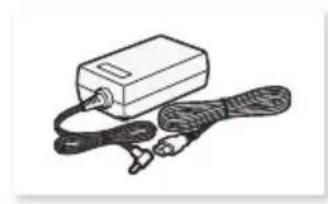
Line drawing of a rectangular electronic device connected to two coiled cables (no text or symbols)CA-570 Compact Power Adapter (incl. power cord)
natural_image
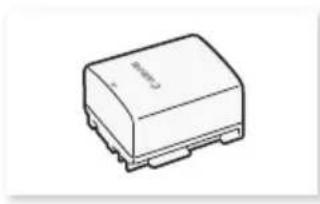
Line drawing of a rectangular electronic component with no visible text or symbolsBP-808 Battery Pack Microphone holder unit
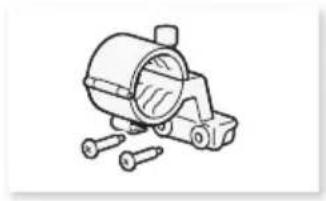
natural_image
Line drawing of a mechanical device with a cylindrical component and two screws (no text or symbols)(incl. screws)
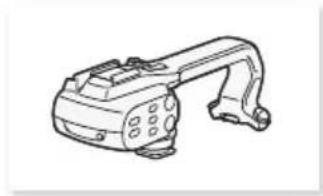
natural_image
Line drawing of a mechanical device with handle and mounting bracket (no text or symbols)Handle unit (incl. screws) WL-D89 Wireless Controller
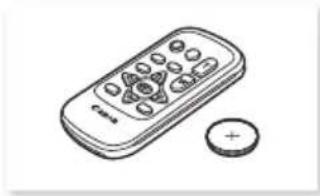
natural_image
Line drawing of a remote control with a circular button and plus sign (no text or symbols)(incl. CR2025 lithium button battery)

natural_image
Simple line drawing of a rectangular object with a slot, resembling a mechanical part or connector (no text or symbols)Stylus Pen
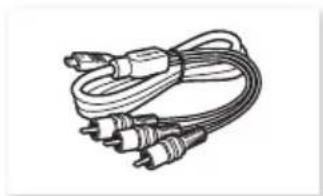
natural_image
Coiled cable with multiple connectors (no text or symbols visible)CTC-100/S Component Cable Red • Green • Blue plugs

natural_image
Illustration of a bundle of three cables (no text or symbols)STV-250N Stereo Video Cable Yellow • Red • White plugs

natural_image
Line drawing of two USB cables with connectors (no text or symbols)IFC-300PCU/S USB Cable
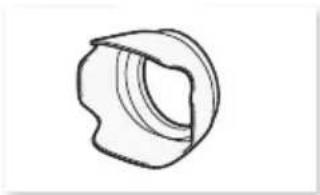
natural_image
Simple line drawing of a mechanical component with no text or symbolsLens hood Lens cap Installation Guide for PIXELA's
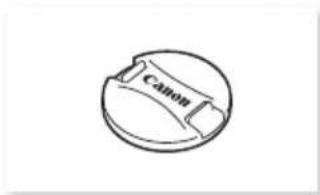
natural_image
Simple line drawing of a Canon lens component (no text or symbols)
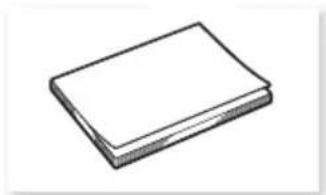
natural_image
Simple line drawing of a closed book (no text or symbols visible)Software
The following CD-ROMs and software are supplied with the camcorder:
- PIXELA's Transfer Utility CD-ROM*
- Use Transfer Utility for saving and transferring movies and music files you can use as background music.
- Music Data/Image Mix Data CD-ROM (referred in the manual as “Camcorder Supplemental Disc”). Contains the following components.
- Music data - Music files that can be used as background music during playback. These music files are for exclusive use with the supplied PIXELA's software. The disc cannot be played back on CD players.
- Image mix data - Image files that can be used with the image mix function (image mix frames).
* The CD-ROM includes the instruction manual of the software (on PDF file).
Names of Parts
Left side view

text_image
LINE MIC MIC CH1 ON OFF CH2 INT EXT LINE MIC MIC 19 ON OFF 1718 16 21 4 3 6 7 15 10 14 13 COMPONENT AV OUT AV OUT 12 111 Handle unit front screw (☐24)
2 RESET button (162)
3 (camera/play) button (31)
4 DISP. (onscreen display) button (87)/BATT. INFO (battery info) button (158)
5 Double memory card slot cover
6 Memory card slot A (☐ 37)
7 Memory card slot B (☐ 37)
8 Handle unit rear screw (☐24)
9 ON/OFF (CHG) indicator (☐22)
Green - ON
Orange - Standby (48)
Red - Charging (☐22)
10 INFRARED switch (☐89)
11 AV OUT terminal (☐124, 126)/ ☐(headphones) terminal (☐81)
12 COMPONENT OUT terminal (124, 125)
13 Focus ring (51)
14 Lens hood (25)
15 Built-in microphone (78)
16 Audio level dials for CH1 and CH2 (77)
17 Audio input switch (☐73)
18 ATT (microphone attenuator) switches for CH1 and CH2 (75)
19 XLR terminal switches for CH1 and CH2 (75)
Right side view
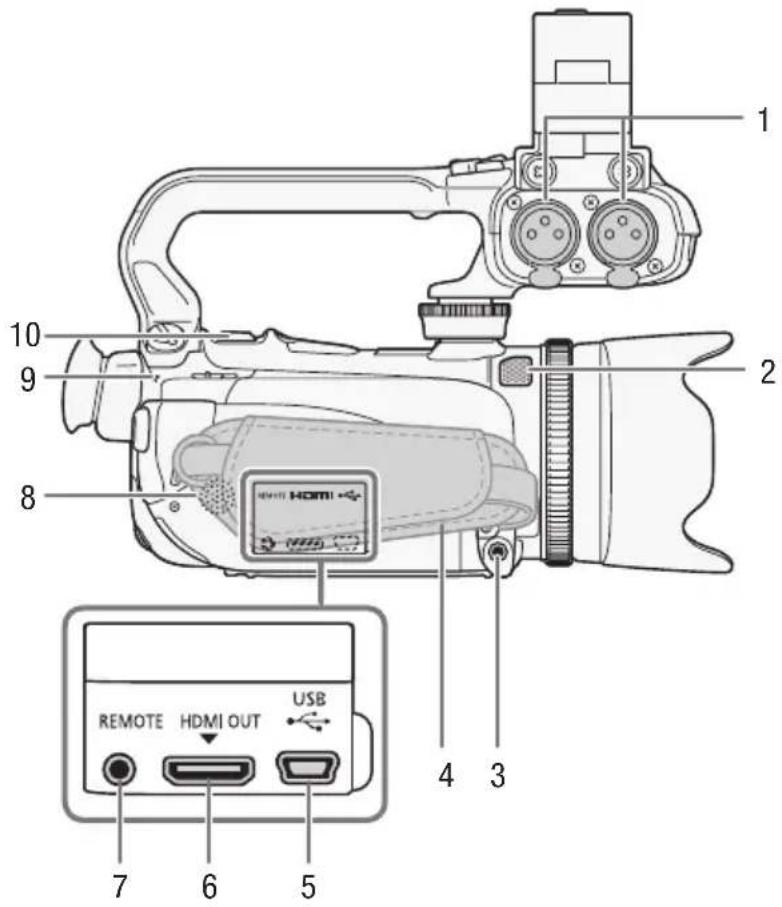
text_image
1 2 3 4 5 6 7 8 9 10 HDMI HDMI OUT USB1 XLR terminals for CH1 and CH2 (75)
2 Built-in microphone (78)
3 M I C t e r m i n a l (
4 Grip belt (27)
5 USB Terminal (
6 H D M I O U T t e r m i n
7 REMOTE terminal (82)
8 Built-in speaker (94)
⑨ABCESS indicator (□41)
10 Zoom lever (56)
124, 126, 137)
Front view
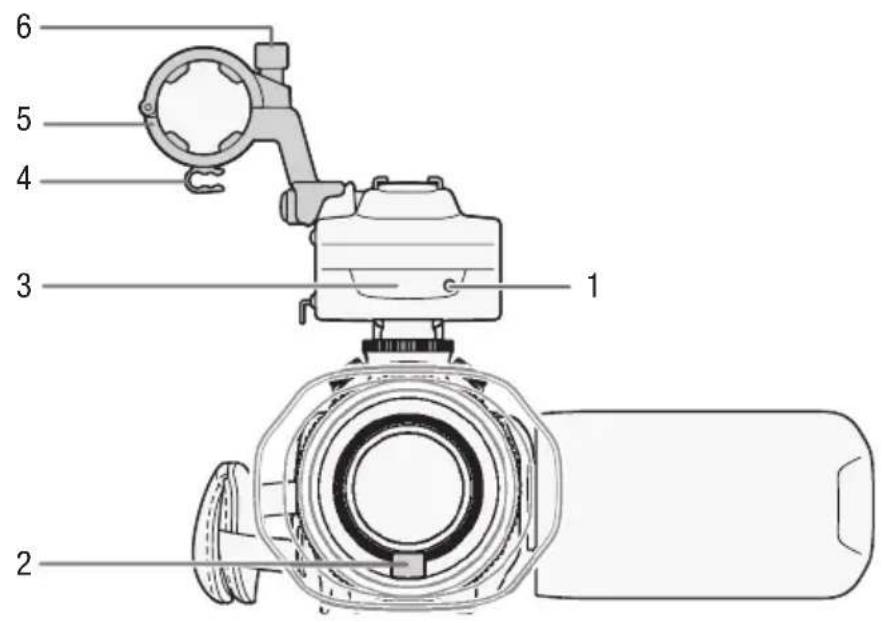
text_image
1 2 3 4 5 61 Tally lamp (153)
2 Instant AF sensor (174)
3 Infrared light (89)
4 Microphone cable clamp (24)
5 Microphone holder unit (☐24)
6 Microphone lock screw (☐24)
Back view

text_image
11 10 9 8 67 5 1 2 3 4 DC IN1 Viewfinder (25)
2 START/STOP button (☐41)
3 Strap mount (27)
4 D C I N t e r m i n a l
5 Dioptric adjustment lever (☐25)
6 CUSTOM (customizable) dial (☐90)
7 CUSTOM (customizable) button (☐90)
8 LCD touch screen (☐26, 30)
9 POWERED IS button (60)/ Assignable button 2 (91)
10 A52F button (51)/ WEB button (139)/ Assignable button 1 (91)
11 Remote sensor (29)
Top view
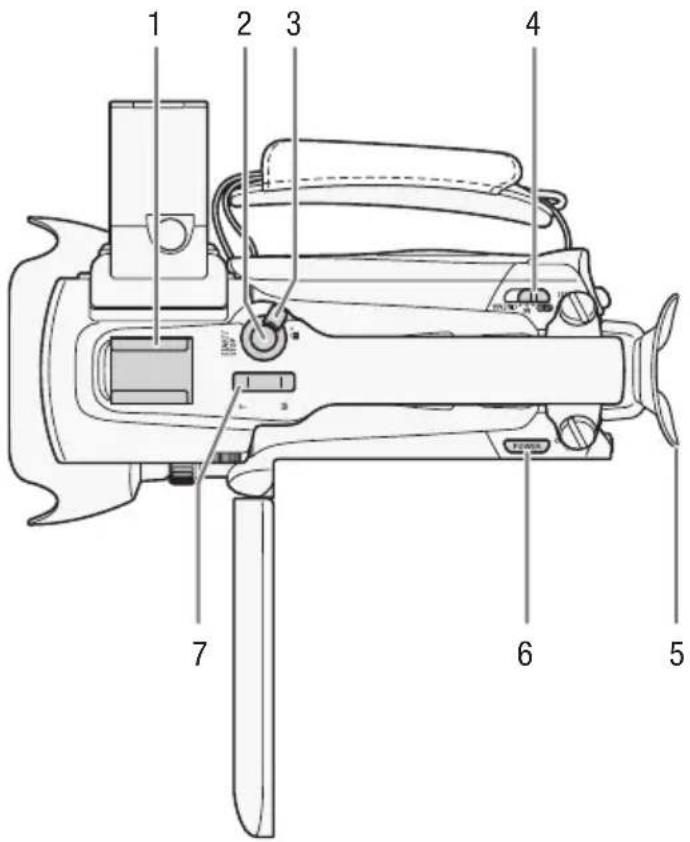
text_image
1 2 3 4 5 6 71 Accessory shoe
Cold shoe for attaching accessories such as the optional VL-10Li II Battery Video Light.
2 START / STOP button ( 41)
3 START/STOP lock () lever (☐47)
4 Mode switch (☐31)
5 E y e c u p
6 POWER button
7 Handle zoom rocker (56)
Names of Parts
Bottom view

text_image
Technical diagram of a video camera with labeled parts including lens, screen, and control panel1 Serial number
2 BATTERY RELEASE switch (☐23)
3 Tripod socket (29)
Wireless Controller WL-D89

text_image
START/ STOP PHOTO ZOOM 1 2 3 MENU T W 4 DISP. SET 5 6 Canon 7 8 9 101 START / STOP button ( 41)
2 (index selection) button (97)
Press and hold for more than 2 seconds to switch between shooting and playback mode.
3 MENU button (☐33, 146)
4 DISP. (onscreen display) button (☐87)
5 SET button
6 ■ (stop) button (☐ 93)
7 PHOTO button (41)
8 Zoom buttons (56)
9 Navigation buttons ( ▲/▼/◄/► )
10 ▶/■ (play/pause) button (☐ 93)
2 Preparations
Charging the Battery Pack
The camcorder can be powered with a battery pack or directly using the compact power adapter. The first time you use a battery pack, fully charge it and then use the camcorder until the battery pack is completely exhausted. Doing so will ensure that the remaining recording time will be displayed accurately.
For approximate charging times and recording/playback times with a fully charged battery pack, refer to Charging, Recording and Playback Times (☐ 177).
1 Connect the power cord to the compact power adapter.
2 Plug the power cord into a power outlet.
3 Connect the compact power adapter to the camcorder's DC IN terminal.
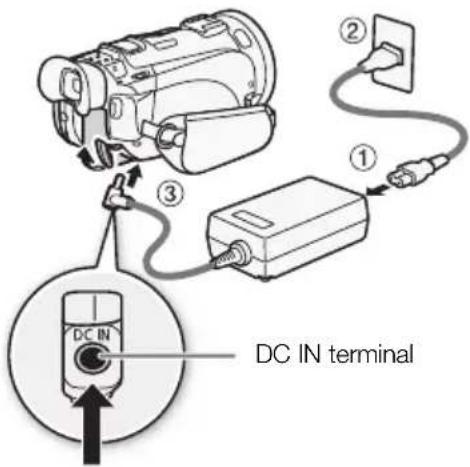
text_image
DC IN terminal4 Attach the battery pack to the camcorder.
- Press the battery pack softly into the battery attachment unit and slide it forward until it clicks in place.
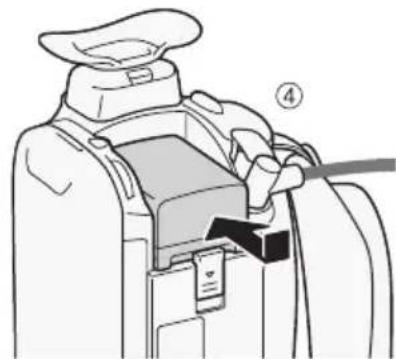
natural_image
Technical diagram of a mechanical device with a handle and belt, no visible text or symbols5 Charging will start when the camcorder is turned off.
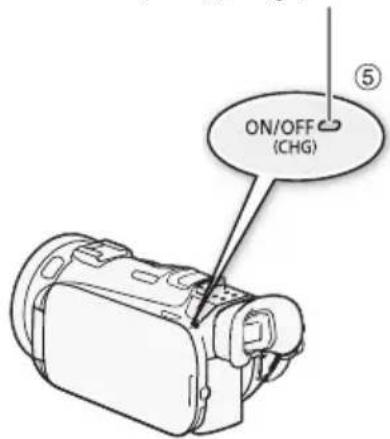
- If the camcorder was on, the green ON/OFF (CHG) indicator will go out when you turn off the camcorder. After a moment, the ON/OFF (CHG) indicator will start flashing in red (battery pack charging). The red ON/OFF (CHG) indicator will go out when the battery pack is fully charged.
- If the indicator flashes quickly, refer to Troubleshooting (161).
ON/OFF (CHG) (charge) indicator
text_image
ON/OFF (CHG) ⑤To remove the battery pack
1 Slide BATTERY RELEASE in the direction of the arrow and hold it pressed down.
2 Slide the battery pack and then pull it out.

text_image
BATTERY RELEASE switch
IMPORTANT
- Turn off the camcorder before connecting or disconnecting the compact power adapter. After pressing [POWER] to turn off the camcorder, important data is updated in the memory. Be sure to wait until the green ON/OFF (CHG) indicator goes out.
- Do not connect to the camcorder's DC IN terminal or to the compact power adapter any electrical equipment that is not expressly recommended for use with this camcorder.
- To prevent equipment breakdowns and excessive heating, do not connect the supplied compact power adapter to voltage converters for overseas travels or special power sources such as those on aircraft and ships, DC-AC inverters, etc.

NOTES
- We recommend charging the battery pack in temperatures between 10 °C and 30 °C (50 °F and 86 °F). If either the ambient temperature or the battery pack's temperature is outside the range of approx. 0 °C to 40 °C (32 °F to 104 °F), charging will not start.
- The battery pack will be charged only when the camcorder is off.
- If the power supply was disconnected while charging a battery pack, make sure the ON/OFF (CHG) indicator has gone out before restoring the power supply.
- If remaining battery time is an issue, you can power the camcorder using the compact power adapter so the battery pack will not be consumed.
- Charged battery packs continue to discharge naturally. Therefore, charge them on the day of use, or the day before, to ensure a full charge.
- We recommend that you prepare battery packs to last 2 to 3 times longer than you think you might need.
- USA and Canada only: The Lithium ion/polymer battery that powers the product is recyclable. Please call 1-800-8-BATTERY for information on how to recycle this battery.

Preparing the Camcorder
This section covers the basic preparations for the camcorder such as attaching the handle unit and lens hood, and adjusting the viewfinder and LCD screen. When attaching the lens hood, grip belt and straps, be careful not to drop the camcorder.
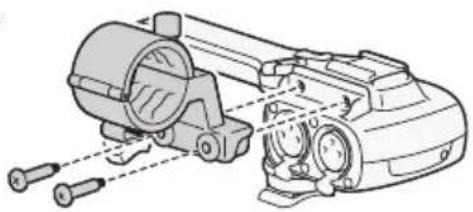
Attaching the Microphone Holder Unit
Use the supplied screws to attach the microphone holder unit to the handle unit.
natural_image
Technical line drawing of a mechanical assembly with no visible text or symbolsAttaching the Handle Unit
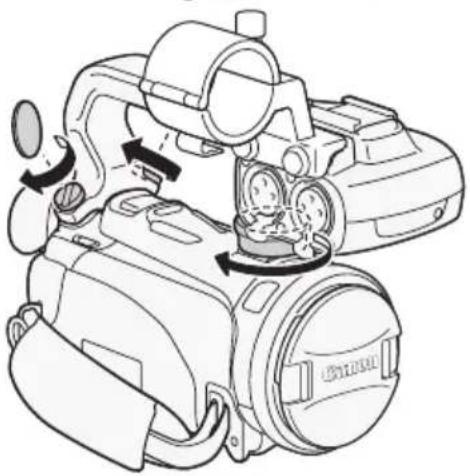
1 Align the handle unit with the front and rear sockets and then slide the handle unit forward until it is in place.
- Make sure the screws are raised when you slide the handle unit.

natural_image
Technical line drawing of a camera assembly with no visible text or symbols2 Firmly tighten the front and rear screws with a coin or similar object.
natural_image
Line drawing of a vintage camera with visible lens, screen, and internal components (no text or symbols)
NOTES
- The camcorder is functional even if you remove the handle unit. However, some audio options (☐ 73, 76), the infrared light and tally lamp will not be available.
Attaching the Lens Hood
Attach the lens hood to protect the lens and reduce the amount of stray light that may hit the lens. Remove the lens cap before attaching the lens hood.
Place the lens hood on the front of the lens so that the groove on the lens hood is aligned with the bottom of the lens (①), and then turn the lens hood clockwise (②).
- Be careful not to deform the lens hood.
- Make sure that the lens hood is aligned with the thread.

text_image
Technical diagram of a camera with labeled parts and internal components, showing assembly stepsUsing the Viewfinder
If it is difficult to use the LCD screen while the LCD backlight is on (27), you can use the viewfinder. You can also use the viewfinder when you rotate the LCD panel 180 degrees to let the subject watch the recording.
1 Pull out the viewfinder.
2 Press POWER to turn on the camcorder.
3 Adjust the viewfinder using the dioptric adjustment lever.
- You can close the LCD panel or rotate it toward the subject as you prefer.
- The LCD backlight setting (☐27) is common to the LCD screen and the viewfinder.

natural_image
Diagram of a camera with adjustment lever and internal component (no text or symbols)Dioptric adjustment lever
- If you wear glasses, you may find the viewfinder easier to use if you flip back the outer edge of the eye cup toward the camcorder body.

natural_image
Mechanical component diagram showing a valve adjustment with arrows indicating direction (no text or symbols)i NOTES
- Make sure you keep the eye cup attached when using the camcorder.
- For details about how to take care of the viewfinder, refer to Handling Precautions (171), Cleaning (174).
Adjusting the Position and Brightness of the LCD Screen
Rotating the LCD Panel
Open the LCD panel 90 degrees.
- You can rotate the panel 90 degrees downward.
-
You can rotate the panel 180 degrees toward the lens. Rotating the LCD panel 180 degrees can be useful in the following cases:
-
To allow the subject to monitor the LCD screen while you use the viewfinder.
- To include yourself in the picture when recording with the self timer.
- To allow the camcorder to be operated with the wireless controller from the front.

text_image
180° 90°
natural_image
Line drawing of a video camera with 180° angle label (no text or symbols on device)Subject can monitor the LCD screen (You can use the viewfinder at the same time)
i NOTES
- About the LCD and viewfinder screens: The screens are produced using extremely high-precision manufacturing techniques, with more than 99.99% of the pixels operating to specification. Less than 0.01% of the pixels may occasionally misfire or appear as black, red, blue or green dots. This has no effect on the recorded image and does not constitute a malfunction.
LCD Backlight
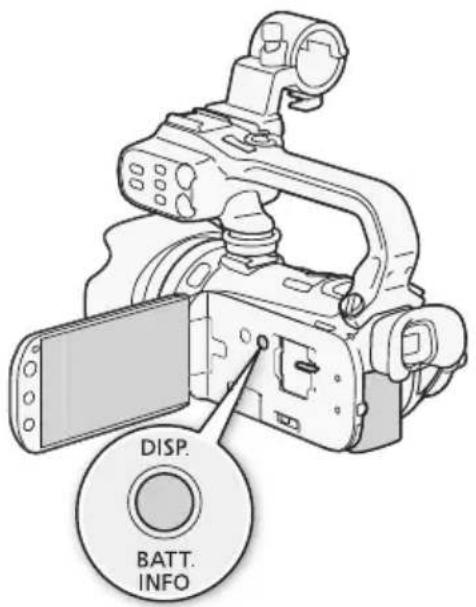
When recording in bright places it may be difficult to use the LCD screen. Turn on the LCD backlight to make it brighter.
With the camcorder on, hold DISP. pressed down for more than 2 seconds.
- Repeat this action to switch the LCD backlight between off (normal) and on (bright).
text_image
DISP. BATT. INFOi NOTES
- Using the bright setting will shorten the effective usage time of the battery pack.
- You can further adjust the brightness of the LCD screen with the [LCD Brightness] setting, or dim it with the [LCD Screen Dimmer] setting to use in places where the light from the LCD screen can be a nuisance.
- Adjusting the brightness does not affect the brightness of the recordings.
- For details about how to take care of the touch screen, refer to Handling Precautions (171), Cleaning (174).
Grip Belt and Straps
Fasten the grip belt.
- Adjust the grip belt so that you can reach the zoom lever with your index finger, and the START/STOP button with your thumb.
- You can attach the supplied stylus pen to the grip belt.

natural_image
Mechanical assembly diagram showing a valve mechanism with a magnified inset detail (no text or symbols)Preparing the Camcorder
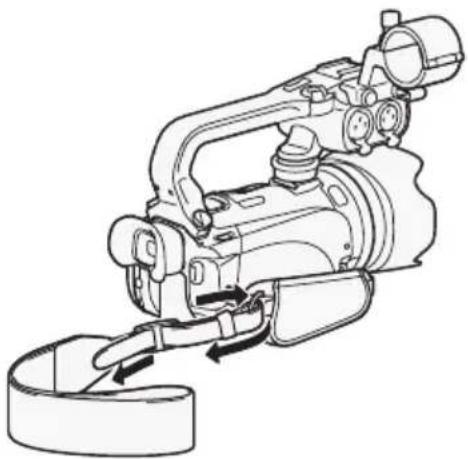
Attaching an optional wrist strap
Attach the wrist strap to the strap mount on the grip belt, adjust the length and fasten.
- You can also attach the wrist strap to the strap mount on the grip belt to use both for extra convenience and protection.
natural_image
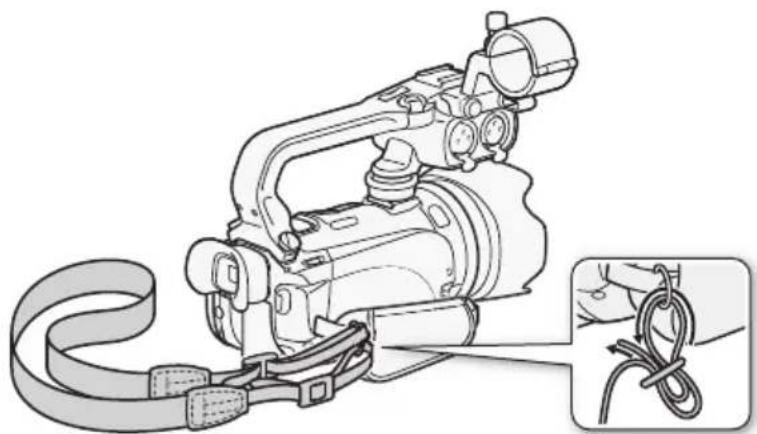
Line drawing of a mechanical device with rotating arms and a base, showing motion arrows (no text or symbols)Attaching an optional shoulder strap
Pass the ends of the shoulder strap through the strap mount on the grip belt and adjust the length of the strap.
natural_image
Line drawing of a cable harness with attached device, showing rope knot application (no text or symbols)Wireless Controller
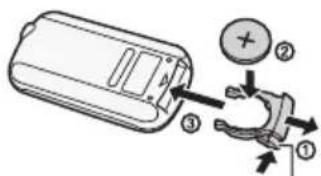
First, insert the supplied CR2025 lithium button battery into the wireless controller.
1 Press the tab in the direction of the arrow and pull out the battery holder.
2 Place the lithium button battery with the + side facing up.
3 Insert the battery holder.
text_image
Diagram showing a device with labeled parts and directional arrows, including a plus and minus symbols.Tab
To use the wireless controller
Point the wireless controller at the camcorder's remote sensor when you press the buttons.
- You can rotate the LCD panel 180 degrees to use the wireless controller from the front of the camcorder.
- When you operate the wireless controller, the camcorder's tally lamp will illuminate.

natural_image
Line drawing of a digital camera with a remote control and a smartphone on the screen (no text or symbols)
natural_image
Line drawing of a video camera with a remote control and screen, no text or symbols presenti NOTES
- When the camcorder cannot be operated with the wireless controller, or when it can only be operated at very close range, replace the battery.
- The wireless controller may not work properly when the remote sensor is situated under strong light sources or direct sunlight.
Using a Tripod
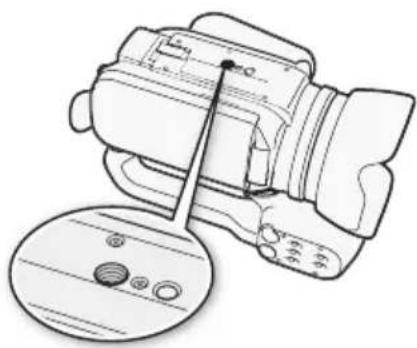
You can mount the camcorder on a tripod but do not use tripods with mounting screws longer than 6.5 mm (0.26 in.) as this may cause damage to the camcorder.
natural_image
Line drawing of a video camera with a close-up inset showing the lens and adjustment knob (no text or symbols)Basic Operation of the Camcorder
Using the Touch Screen
The control buttons and menu items that appear on the touch screen change dynamically depending on the operating mode and the task you are performing. With the intuitive touch screen interface you have all the controls at your fingertips. You can also use the supplied stylus pen for a more precise operation.
Touch
Press firmly on an element displayed on the touch screen. Used to start playing back a scene in an index screen, to select a setting from the menus, to select the subject whom the camcorder will recognize as the main subject of the scene, etc.
Drag
While applying pressure, swipe your finger up and down or left and right across the screen.
Used to scroll menus, to browse through index screen pages or to adjust slider controls like the volume.

natural_image
Illustration of two hand gestures interacting with a screen, one pointing at the screen and the other showing a double-headed arrow (no text or symbols)
IMPORTANT
- The camcorder uses a pressure-sensitive touch screen. Press firmly when using touch operations.
- In the following cases, you may not be able to perform touch operations correctly.
- Using your fingernails or hard-tipped objects other than the supplied stylus pen, such as ballpoint pens.
- Operating the touch screen with wet or gloved hands.
- Applying excessive force or forcefully scratching the touch screen.
- Attaching commercially available screen protectors or adhesive film onto the touch screen's surface.
Operating Modes
Recording
In recording mode, the camcorder's operating mode is determined by the position of the mode switch.
| Operating mode Mode switch Operation | ||
 |  | Let the camcorder take care of all the settings while you concentrate on recording (42). This operating mode is suitable if you just prefer not to bother with detailed camcorder settings. |
 |  | Enjoy full access to menus, settings and advanced functions (46). |
 |  | Give your recordings a cinematic look and use cinema-look filters to create unique movies (108). |
Playback
Press the camera/play button 📄 to switch the camcorder between camera (recording) mode and playback mode. You can press 📄 when the camcorder is off to turn it on directly in playback mode.
| Operating mode Operation | |
| Playing back movies (93). | |
| Viewing photos (128). | |

text_image
Diagram of a digital camera with labeled button and screen, showing mechanical components and directional arrowsi NOTES
- When switching to a playback mode, the memory selected for playback will be the same currently used for recording.
- You can also press and hold 📄 on the wireless controller for more than 2 seconds to switch between recording and playback mode.
Using the Menus
Many of the camcorder's functions can be adjusted from the FUNC. panel and the setup menus. For details about the available menu options and settings, refer to the appendix Menu Options Lists (144).
FUNC. Panel
Operating modes:



The FUNC. panel shows a convenient overview of frequently used shooting functions. Touch [FUNC.] to access the FUNC. panel and then touch the function you want to set or adjust.
You may need to drag your finger up and down the screen to find the control button of the desired function. In ANode, access to functions is limited.
Touch the control button of the desired function

text_image
FUNC. panel in RMD MENU 003 P Rec. Programs BLC Always On WB AWB AGC White Balance AGC Limit Focus AF Exposure A OFF AEdit Panel
Operating modes:





Touch [Edit] to display a panel showing available operations (copying, deleting, etc.), and then touch the operation you want to perform.
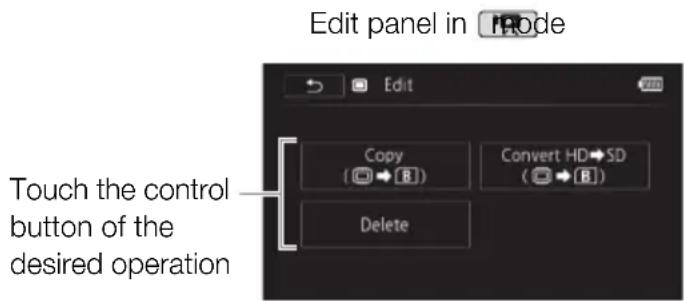
text_image
Edit panel in Mode Touch the control button of the desired operation Copy (→→R) Convert HD→SD (→→R) DeleteSetup Menus
Operating modes:

* In ATOO de setup menus cannot be accessed and most menu settings will be reset to default values.
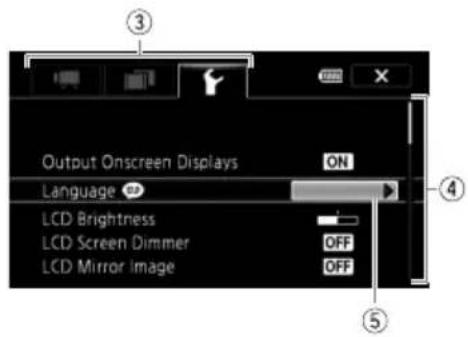
1 oM mode only: Touch [FUNC.]
2 Touch [MENU] to open the setup menus.
- You can also press MENU on the wireless controller.
3 Touch the tab of the desired menu.
4 Drag your finger up and down to bring the setting you want to change into the orange selection bar.
- Menu items not available appear grayed out.
- You can touch any menu item on the screen to bring it directly into the selection bar.
5 When the desired menu item is inside the selection bar, touch the orange frame on the right.
6 Touch the desired option and touch [X].
- You can touch [X] to close the menu at any time.
text_image
Output Onscreen Displays ON Language LCD Brightness LCD Screen Dimmer OFF LCD Mirror Image OFFFirst Time Settings
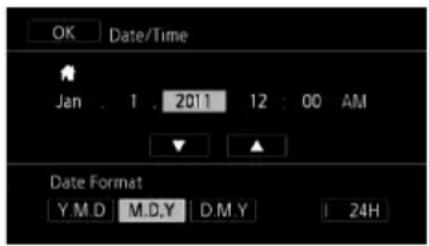
Setting the Date and Time
You will need to set the date and time of the camcorder before you can start using it. The [Date/Time] screen will appear automatically when the camcorder's clock is not set.
text_image
OK Date/Time Jan . 1 . 2011 12 : 00 AM Date Format Y.M.D M.D.Y D.M.Y 24H1 Press POWER to turn on the camcorder.
- The [Date/Time] screen appears and the year will be selected.
2 Touch a field you want to change (year, month, day, hours or minutes).
3 Touch [▲] or [▼] to change the field as necessary.
4 Set the correct date and time by changing all the fields in the same way.
5 Touch [Y.M.D], [M.D,Y] or [D.M.Y] to select the date format you prefer.
- In some screens, only the month and day are displayed but it will still follow the order you selected.
6 Touch [24H] to use 24-hour clock or leave it unselected to use 12-hour clock (AM/PM).
7 Touch [OK] to start the clock and close the setup screen.
i NOTES
- You can adjust the date and time later on with the [Date/Time] setting.
- When you do not use the camcorder for about 3 months, the built-in rechargeable lithium battery may discharge completely and the date and time setting may be lost. In such case, recharge the built-in lithium battery (173) and set the time zone, date and time again.
Changing the Language
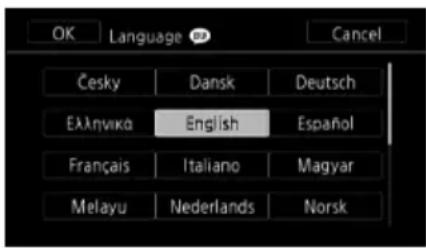
The default language of the camcorder is English. You can set it to one of 27 languages.
text_image
OK Language Cancel Česky Dansk Deutsch Ελληνικο English Español Français Italiano Magyar Melayu Nederlands NorskOperating modes: AUTO M CINEMA
1 Open the [Language ☐] screen.
[FUNC.] [MENU] [Language]
- Touching [FUNC.] is necessary only when performing the procedure in a recording mode.
2 Touch the desired language and then touch [✗].
i NOTES
- Some control buttons, such as [ZOOM], [FUNC.] or [MENU], will appear in English regardless of the language selected.
Changing the Time Zone
Change the time zone to match your location. The default setting is New York.
Operating modes:




1 Open the [Time Zone/DST] screen.
[FUNC.]
[MENU]

[Time
Zone/DST]
- Touching [FUNC.] is necessary only when performing the procedure in a recording mode.
2 Touch [▲] to set the home time zone, or [✗] to set the time zone of your destination when you are traveling.
3 Touch [▲] or [▼] to set the desired time zone. If necessary, touch [★] to adjust for daylight saving time.
4 Touch [ ✗] to close the menu.
Using a Memory Card
Memory Cards Compatible for Use with the Camcorder
You can use the following types of commercially available Secure Digital (SD) cards with this camcorder.
As of October 2010, the movie recording function has been tested using SD/SDHC/SDXC memory cards made by Panasonic, Toshiba and SanDisk.
Memory card type: SD SD memory card, SDHC memory card, SDXC memory card SD Speed Class*: CLASS② CLASS④ CLASS⑥ CLASS⑩
Capacity: 128 MB or larger**.
* When using an SD memory card without a speed class rating, you may not be able to record movies, depending on the memory card used.
**SD memory cards with a capacity of 64 MB or smaller cannot be used to record movies.

NOTES
- About the Speed Class: Speed Class is a standard that indicates the minimum guaranteed data transfer speed of memory cards. When you buy a new memory card, look for the Speed Class logo on the package.
We recommend using memory cards rated SD Speed Class 4, 6 or 10.
SDXC Memory Cards
You can use SDXC memory cards with this camcorder. When using memory cards with other devices, such as digital recorders, computers and card readers, make sure that the external device is compatible with SDXC cards. The table below summarizes compatibility by computer operating system, as of October 2010. For the latest information, however, contact the computer, operating system or memory card manufacturer.
Compatible operating systems for SDXC memory cards
| Operating system Compatibility | |
| Windows 7 Compatible | |
| Windows Vista Compatible (requires Service Pack 1 or later) | |
| Windows XP Compatible (requires Service Pack 3 and KB955704 update) | |
| Mac OS X | Not compatible |

IMPORTANT
- If you use an SDXC memory card with a computer OS that is not SDXC-compatible, you may be prompted to format the memory card. In such case, cancel the operation to prevent data loss.
- After repeatedly recording, deleting and editing scenes (fragmented memory), it will take longer to write data on the memory and recording may stop. Save your recordings and initialize the memory using the camcorder.
Eye-Fi Cards
This product is not guaranteed to support Eye-Fi card functions (including wireless transfer). In case of an issue with an Eye-Fi card, please check with the card manufacturer.
Also note that an approval is required to use Eye-Fi cards in many countries or regions. Without approval, use of the card is not permitted. If it is unclear whether the card has been approved for use in the area, please check with the card manufacturer.
Inserting and Removing a Memory Card
Make sure to initialize (☐ 40) all memory cards before using them with this camcorder.
1 Turn off the camcorder.
- Make sure the ON/OFF (CHG) indicator is off.
2 Open the double memory card slot cover.
3 Insert the memory card straight, with the label facing the front of the camcorder, all the way into one of the memory card slots until it clicks.
- You can also use two memory cards, one in each memory card slot.
- To use the wireless communication features of an Eye-Fi card, insert it into memory card slot B. Be sure you understand the information provided in Eye-Fi Cards (37) before using an Eye-Fi card.
4 Close the double memory card slot cover.
- Do not force the cover closed if the memory card is not correctly inserted.

text_image
Diagram of a camera module with labeled parts and directional arrows indicating assembly or insertion stepsTo remove the memory card
Push the memory card once to release it. When the memory card springs out, pull it all the way out.

IMPORTANT
- Observe the following precautions while the ACCESS indicator is flashing. Failure to do so may result in permanent data loss.
- Do not disconnect the power source or turn off the camcorder.
- Do not remove the memory card.
- Turn off the camcorder before inserting or removing an memory card. Inserting or removing the memory card with the camcorder on may result in permanent data loss.
- Memory cards have front and back sides that are not interchangeable. Inserting a memory card facing the wrong direction can cause a malfunction of the camcorder. Be sure to insert the memory card as described in step 3.
Selecting the Memory for the Recordings
You can select to record your movies and photos in the built-in memory or on a memory card. The default memory for recording both is the built-in memory.
Operating modes:


POINTS TO CHECK
- Be sure you understand the information provided in Eye-Fi Cards (📖 37) before using an Eye-Fi card.
1 Open the [Rec Media for Movies] or [Rec Media for Photos] screen.
[FUNC.] [MENU] [Rec Media for Movies] or [Rec Media for Photos]
2 Touch [☐] (built-in memory), [A] (memory card A) or [B] (memory card B) and then touch [X].
- When selecting the memory, you can check the approximate available recording time/number of photos, based on currently used settings.

NOTES
- Select to record movies in the built-in memory or memory card A if you later want to convert the movies to standard definition in order to upload them to the Web.
Relay Recording
You can activate relay recording so if the memory you are using becomes full while recording movies, the recording will continue uninterrupted on a memory card.
When recording on memory card A, you can use memory card B for relay recording (A ➕ B). When recording in the built-in memory, you can choose to use only memory card A for relay recording (☐ ➕ A), or use both memory cards (☐ ➕ A ➕ B).
Operating modes:

1 Insert a memory card that contains no video recordings into the card slot of the memory card you want to use for relay recording.
- When relay recording from the built-in memory: memory card slot A or both memory card slots.
- When relay recording from memory card A: memory card slot B only.
2 Open the relay recording screen.
[FUNC.] [MENU] [Rec Media for Movies] [☐] or [A] [Relay Recording]
3 Touch the desired option and then touch [X].
- The approximate available recording time will now reflect the combined space in the memories used for relay recording.
i NOTES
- You cannot use relay recording from the built-in memory to memory card B. When using a single memory card, be sure to insert it into memory card slot A.
- There will be a momentary stop in the scene at the point where the camcorder switches from one memory to another.
-
Any of the following actions will deactivate the relay recording function:
-
Turning off the camcorder.
- Opening the double memory card slot cover.
- Changing the position of the mode switch.
- Changing the camcorder's operating mode.
- Changing the memory used for recording movies.
Double Slot Recording
Double slot recording allows you to record the same scene simultaneously to both memory cards. This is a convenient way to make a backup copy of your recording while you record.
Operating modes:

1 Insert memory cards into memory card slot A and memory card slot B.
2 Open the [Rec Media for Movies] screen.
[FUNC.] [MENU] [Rec Media for Movies]
3 Activate double slot recording.
[A] [Double Slot Rec] [ON]
4 Touch [X].
- will appear on the screen.
i NOTES
- If a memory card becomes full during double slot recording, recording on both cards will stop.
- If an error occurs with one of the memory cards, recording will continue on the other card.
Initializing the Memory
Initialize memory cards when you use them with this camcorder for the first time. You can also initialize a memory card or the built-in memory to permanently delete all the recordings it contains.
At the time of purchase, the built-in memory comes pre-initialized and contains music files for use as background music and images for use with the image mix function (image mix frames).
Operating modes:

1 Power the camcorder using the compact power adapter.
- Do not disconnect the power source or turn off the camcorder until the initialization is completed.
2 Open the initialization screen for the desired memory.
[FUNC.] [MENU] [Initialize /s] [Built-in Mem.], [A Mem. Card A] or [B Mem. Card B] [Initialize]
- Touching [FUNC.] is necessary only when performing the procedure in a recording mode.
- In the initialization screen, touch [Complete Initialization] to physically erase all the data rather than just clear the file allocation table of the memory.
3 Touch [Yes].
- If you selected the [Complete Initialization] option, you can touch [Cancel] to cancel the initialization while it is in progress. All recordings will be erased and the memory can be used without any problem.
4 Touch [OK] and then touch [X].

IMPORTANT
- Initializing the memory will permanently erase all recordings. Lost original recordings cannot be recovered. Make sure you save important recordings in advance using an external device (☐ 132).
- Initializing a memory card will permanently erase any music files and images you may have transferred to the card. (The music files and image mix frames that come pre-installed in the built-in memory will be restored after it is initialized.) To transfer music files from the supplied Camcorder Supplemental Disc to the memory card:
- Windows users: Use the supplied PIXELA's software. For details, refer to the Software Guide (PDF file) of the supplied PIXELA's software.
- Mac OS users: Use Finder to transfer music files from the [MUSIC] folder on the supplied Camcorder Supplemental Disc to the memory card. Refer to About the music files (☐ 185) for the folder structure of the memory card.
- At the time of purchase, Eye-Fi cards contain the necessary network configuration software. Be sure to install the software and complete the required configuration setup before you initialize the Eye-Fi card prior to using it with this camcorder.
3
Recording
Recording Movies and Photos
By default, movies and photos are recorded in the built-in memory. You can select the memory that will be used to record movies and photos (☐ 38). For details on recording audio, refer to Recording Audio (☐73).
Please read the IMPORTANT section (☐ 47) before using an Eye-Fi card.

POINTS TO CHECK
- Before you begin recording, make a test recording first to check that the camcorder is operating correctly.
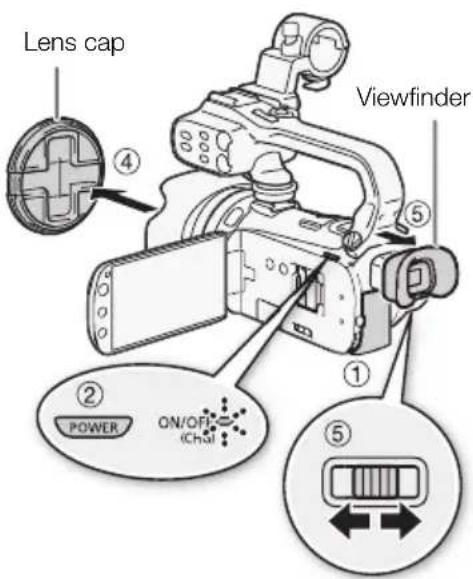
Preparing to Record
1 Attach a charged battery pack to the camcorder (☐22).
2 Turn on the camcorder.
3 Select the memory for recording (☐38).
- To use relay recording (☐ 38), insert a memory card into memory card slot A or both memory card slots.
- To use double slot recording (☐ 39), insert memory cards into both memory card slots.
4 Remove the lens cap.
5 If you need to use the viewfinder, pull it out and, if necessary, adjust it using the dioptric adjustment lever.
text_image
Lens cap Viewfinder ① ② POWER ON/OFF (Chol) ③ ④ ⑤Recording Movies and Photos
Recording in AUTO Mode
When you use AMode to shoot video and take photos, the camcorder will automatically adjust various settings for you.
Operating modes:





1 Set the mode switch to AUTO
2 Turn on the camcorder.
To record video
Press START/STOP to begin recording.
- Pre START/STOP again to pause the recording.
- The ACCESS indicator will flash from time to time while the scene is being recorded.
- During recording, ● will appear on the screen. Additionally, the tally lamp will illuminate.

text_image
[PHOTO] START/ STOP AUTO M CINEMA START/ STOPTo take photos
Touch [PHOTO].
- A green icon ( ) will appear momentarily on the screen and the ACCESS indicator will flash as the photo is recorded.
- You can record photos simultaneously while recording a movie.
- You can also press PHOTO on the wireless controller.
When you have finished recording
1 Make sure that the ACCESS indicator is off.
2 Turn off the camcorder.
3 Close the LCD panel.
Rating Scenes
You can turn on the scene rating option in recording mode with the [Rate Scenes (Recording)] setting. Immediately after recording a scene, you will have the option to rate it by touching one of the rating buttons; you can also touch [•••] or [✗] to leave the scene unrated. Later you can play back scenes and perform other scene operations by rating.
You can rate scenes while the camcorder is in AUMode but you must change the setting described above in ON mode
About AUTO mode
- Only the following functions are available in .
- Zoom (56).
- Quick Start (48).
-
Video snapshot (☐85).
-
Advanced image stabilization modes (☐ 60) to shoot video while walking or to stabilize the shot while zooming in on faraway subjects (telephoto).
- Face detection (☐ 53) to get beautiful shots of people every time, tracking the subject even if the person moves.
- Touch & Track (☐ 55) to track other moving subjects, keeping them in focus and using the best settings to record them.
- Story Creator (105) to transform your movies into compelling video stories by following simple scripts for various scenarios.
- Decoration (110) to add graphical elements using stamps, drawings, image mix and more.
About the Smart AUTO function
In AUTO de, the camcorder will automatically detect certain characteristics of the subject, background, lighting conditions, etc. It will then adjust various settings (focus, exposure, color, image stabilization, image quality, among others), selecting the best settings for the scene you want to shoot. The Smart AUTO icon will change to one of the following icons.
Smart AUTO icons
| Background (color of the icon) → Subject ↓ | Bright ^1 (grey) | Blue skies ^1 (light blue) | Vivid colors ^1 (green/red) | Sunsets ^1 (orange) |
| People (stationary) |  () () |  () () |  () () | — |
| People (moving) |  () () |  () () |  () () | — |
| Subjects other than people, such as landscapes |  () () |  () () |  () () | |
| Close objects / |  2() 2() |  2() 2() |  2() 2() | — |


rk blue)
| Subject ↓ | Spotlight | Night scene | ||
| People (stationary) — — |  | |||
| People (moving) — — | ||||
| Subjects other than people, such as landscapes |  |  |  | |
| Close objects |   | — | — | |
^1 The icon in parentheses appears under backlight conditions.
^2 This icon will appear under tele macro conditions. Tele macro is activated automatically when you zoom toward the telephoto end and close in on the subject. Tele macro allows you to get closer shots of small subjects and adds a soft focus to the background, so the subject not only looks larger but also stands out more.

IMPORTANT
- Observe the following precautions while the ACCESS indicator is on or flashing. Failing to do so may result in permanent data loss or damage to the memory.
- Do not open the double memory card slot cover.
- Do not disconnect the power source or turn off the camcorder.
-
Do not change the camcorder's operating mode.
-
Be sure to save your recordings regularly (132), especially after making important recordings. Canon shall not be liable for any loss or corruption of data.
- Photos recorded on an Eye-Fi card in memory card slot B will be uploaded automatically after setting the camcorder to playback mode, if you are within the range of a configured network. Always verify that Eye-Fi cards have been approved in the country/region of use. See also Using an Eye-Fi Card (142).
i NOTES
- The START/STOP button on the handle has a lock lever to prevent accidental operation. Set the lock lever to 🔒 in cases such as when you do not want a recording inadvertently paused or do not plan to use this START/STOP button. Return the lever to its previous position to enable use of the START/STOP button again.
- About the power saving mode: If [Power Saving Mode] [Auto Power Off] is set to [ON On], the camcorder will shut off automatically to save power when it is powered by a battery pack and is left without any operation for 5 minutes. Press POWER to turn on the camcorder.
- When recording in bright places, it may be difficult to use the LCD screen. In such cases, you can turn on the LCD backlight (☐ 27) or adjust the brightness of the LCD screen with the [LCD Brightness] setting. Alternatively, you can also use the viewfinder (☐ 25).
- Under certain conditions, the Smart AUTO icon that appears on the screen may not match the actual scene. Especially when shooting against orange or blue backgrounds, the sunset or one of the blue skies icons may appear and the colors may not look natural. In such case, we recommend recording in mode (46).
- In mode, most camcorder settings will return to default values, but the following settings will be maintained even after setting the mode switch to AUTO
- FUNC. panel: [Zoom], [Decoration].
- menu: [Soft Zoom Control], [Zoom Speed Level], [Zoom Lever Zoom Speed], [Handle Rocker Zoom Speed], [Wireless Ctrl Zoom Speed], [AF Mode], [Auto Slow Shutter], [Conversion Lens], [Camcorder Shake Indicator], [IR Light], [IR Rec Color].
- [ ] menu: [Video Snapshot Length], [Rate Scenes (Recording)], [Rec Media for Movies], [Recording Mode], [Rec Media for Photos], [Scan Reverse Rec].
- menu: All settings except for [Audio Output CH].
- Photos are recorded as JPG files. The photo size (1920x1080) and quality cannot be changed. At this size, a 1 GB memory card can hold approximately 670 photos. However, the actual number of photos that can be recorded will vary depending on the subject and shooting conditions.
- Photos cannot be recorded while the digital zoom is activated or while fading in or fading out a scene.
Recording Movies and Photos
Recording in M (Manual) Mode
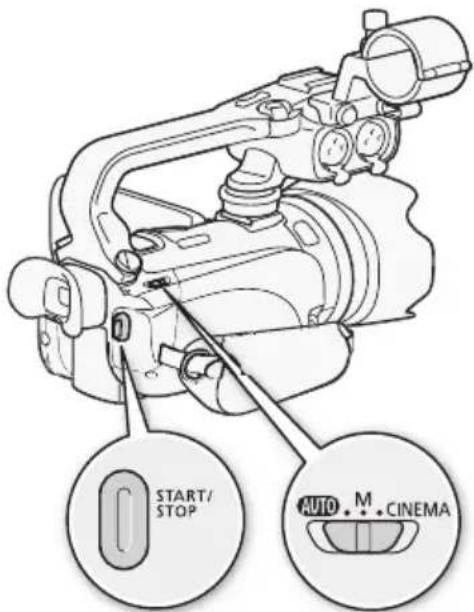
When the mode switch is set to M (Manual mode), you can enjoy full access to the menus and manually adjust the exposure, focus, white balance and many more of the camcorder's settings to your preference. Even in mode, though, the camcorder can help you with the settings. For example, by using Special Scene recording programs (69).
Operating modes:

1 Set the mode switch to M.
2 Turn on the camcorder.
3 Record movies and photos.
- The procedure is the same as in ANTO de (☐42).
text_image
START/ STOP AUTO M CINEMAReviewing the Latest Scene Recorded
You can review the last 4 seconds of the last scene recorded with the camcorder without switching to playback mode. While reviewing the latest scene, the picture will be played back without sound.
Operating modes:

1 Set the mode switch to M or CINEMA
2 Review the last 4 seconds of the scene.
[FUNC.] [Review Recording]
i NOTES
- When double slot recording is activated, only the scene recorded on memory card A will be played back.

IMPORTANT
- Observe the following precautions while the ACCESS indicator is on or flashing. Failing to do so may result in permanent data loss or damage to the memory.
- Do not open the double memory card slot cover.
- Do not disconnect the power source or turn off the camcorder.
-
Do not change the camcorder's operating mode.
-
Be sure to save your recordings regularly (☐ 132), especially after making important recordings. Canon shall not be liable for any loss or corruption of data.
- Photos recorded on an Eye-Fi card in memory card slot B will be uploaded automatically after setting the camcorder to playback mode, if you are within the range of a configured network. Always verify that Eye-Fi cards have been approved in the country/region of use. See also Using an Eye-Fi Card (142).

NOTES
- The START/STOP button on the handle has a lock lever to prevent accidental operation. Set the lock lever to 🔒 in cases such as when you do not want a recording inadvertently paused or do not plan to use this START/STOP button. Return the lever to its previous position to enable use of the START/STOP button again.
- About the power saving mode: If [Power Saving Mode] [Auto Power Off] is set to [ON On], the camcorder will shut off automatically to save power when it is powered by a battery pack and is left without any operation for 5 minutes. Press POWER to turn on the camcorder.
- When recording in bright places, it may be difficult to use the LCD screen. In such cases, you can turn on the LCD backlight (☐ 27) or adjust the brightness of the LCD screen with the [LCD Brightness] setting. Alternatively, you can also use the viewfinder (☐ 25).
- Photos are recorded as JPG files. The photo size (1920x1080) and quality cannot be changed. At this size, a 1 GB memory card can hold approximately 670 photos. However, the actual number of photos that can be recorded will vary depending on the subject and shooting conditions.
- Photos cannot be recorded while the digital zoom is activated or while fading in or fading out a scene.
Quick Start Function
When you close the LCD panel with the camcorder on, the camcorder enters the standby mode. In standby mode the camcorder consumes only about 1/3 the power used when recording, saving energy when you are using a battery pack. Additionally, when you open the LCD panel or pull out the viewfinder, the camcorder is ready to start recording in approximately 1 second*, allowing you to record the subject right away.
* The actual time required varies depending on the shooting conditions.
Operating modes:

1 With the camcorder on and in a recording mode, close the LCD panel.
- A beep will sound and the green ON/OFF (CHG) indicator will change to orange to indicate the camcorder entered standby mode. In addition, the tally lamp will flash twice approximately every 3 seconds.
- When using only the viewfinder (with the LCD panel closed), you can return the viewfinder to its retracted position to set the camcorder in standby mode.
2 When you wish to resume recording, open the LCD panel.
- The ON/OFF (CHG) indicator turns back green and the camcorder is ready to record.
- You can also pull out the viewfinder to start recording with the LCD panel closed.

IMPORTANT
- Do not disconnect the power source during standby mode (while the ON/OFF (CHG) indicator is lit in orange).

NOTES
- The camcorder will not enter standby mode while the ACCESS indicator is on or flashing, while a menu is being displayed or while using the viewfinder. The camcorder may also not enter standby mode when the battery charge is too low. Check that the ON/OFF (CHG) indicator changes to orange.
- About standby mode and auto power off:
- The camcorder will power off automatically if left in standby mode for 10 minutes. Press POWER to turn on the camcorder.
- You can select the length of time until shut-off or turn off the Quick Start function altogether with the [Power Saving Mode] [Quick Start (Standby)] setting.
- The usual 5-minute auto power off setting of [Power Saving Mode] is not applicable while the camcorder is in standby mode.
- Changing the position of the mode switch while the camcorder is in standby mode will reactivate the camcorder in the operating mode selected.
Selecting the Video Quality (Recording Mode)
The camcorder offers 5 recording modes. Changing the recording mode will change the recording time available on the memory. Select MXP or FXP mode for better movie quality; select LP mode for longer recording times. The following table gives approximate recording times.
Operating modes:




1 Open the [Recording Mode] screen.
[FUNC.]
[MENU]

[Recording
Mode]
2 Touch the desired recording mode and then touch [✗].

NOTES
- Movies recorded in MXP mode cannot be saved on AVCHD discs. Use an external Blu-ray Disc recorder to copy MXP movies onto Blu-ray discs.
- The camcorder uses a variable bit rate (VBR) to encode video so the actual recording times will vary depending on the content of the scenes.
- The camcorder retains the last setting used even if you set the camcorder to .
Approximate recording times
♦ Default value
| Recording mode →Memory ↓ | MXP1 | FXP1 | XP+ SP | ♦ | LP |
| 4 GB Memory card | 20 min. | 30 min. | 40 min. | 1 hr. 10 min. | 1 hr. 30 min. |
| 8 GB Memory card | 40 min. | 1 hr. | 1 hr. 25 min. | 2 hr. 20 min. | 3 hr. |
| 16 GB Memory card | 1 hr. 25 min. | 2 hr. 5 min. | 2 hr. 50 min. | 4 hr. 45 min. | 6 hr. 5 min. |
| 32 GB Memory card | 2 hr. 55 min. | 4 hr. 10 min. | 5 hr. 45 min. | 9 hr. 35 min. | 12 hr. 15 min.3 |
| 64 GB Memory card/Built-in memory2 | 5 hr. 55 min. | 8 hr. 20 min. | 11 hr. 30 min. | 19 hr. 10 min.3 | 24 hr. 30 min.3 |
^1 Recorded in 1,920 × 1,080 resolution. Movies recorded using other recording modes are recorded in 1,440 × 1,080 resolution.
^2 At the time of purchase, the built-in memory contains about 70 MB of music files (background music) and 5 MB of image files (image mix frames).
^3 A single scene can be recorded continuously for 12 hours; at that point, the camcorder will stop for about 3 seconds before resuming recording.
Selecting the Frame Rate
You can change the frame rate (the number of frames recorded per second) to change the look of your movies.
Operating modes:




1 Open the [Frame Rate] screen.
[FUNC.]

[MENU]

[Frame
Rate]
2 Touch the desired frame rate and then touch [✗].
Options
[60i 60i (Standard)] 60 fields per second, interlaced. Standard frame rate of NTSC analog TV signals.
[PF30 PF30] Shooting at 30 frames per second, progressive*. Use this frame rate to easily edit your recordings, for example, to post them on the Web.
[PF24 PF24] Shooting at 24 frames per second, progressive*. Using this frame rate will give your recordings a cinematic look. Recording in [CINMODE] will further enhance the effect.
[24P 24P] 24 frames per second, progressive. Using this frame rate will achieve the same cinematic look as [PF24 PF24], the difference being that video is recorded as true 24p.
* Recorded as 60i.

NOTES
- Movies recorded with the [24P] frame rate cannot be converted to standard definition using the camcorder. If you want to upload your movies to video sharing Web sites, set the frame rate to [PF24 PF24].
Focus Adjustment
You can adjust the focus manually and use the peaking function to assist you or you can let the camcorder focus for you by using autofocus. With autofocus, you can set the autofocus speed. The camcorder also features two more focusing functions, face detection and Touch & Track.
Operating modes:





POINTS TO CHECK
- Adjust the zoom before you start the procedure.
Manual Focus
Use the focus ring to focus manually. You can also use peaking to help you focus more accurately.
1 Open the focus controls.
[FUNC.] [● Focus]
- To switch to autofocus without opening the focus controls, press AF/IMF such case, Touch AF (step 3) will not be available.
2 Touch [MF].
3 Touch a subject that appears inside the Ⓞ frame.
- The Touch AF mark (✗) will flash and the focusing distance will be adjusted automatically. You have the option to further adjust the focus manually as necessary.
4 Turn the focus ring to adjust the focus.
- The center of the screen will be magnified to help you focus more easily. You can also turn off this function with the [Focus Assistance] setting.
- The focusing distance displayed will change as you adjust the focus. You can change the units used for the distance display with the [Distance Units] setting.
- You can use the [Focus Ring Response] setting to adjust the sensitivity of the focus ring.
- You can use the [Focus Ring Direction] setting to select which direction to turn the focus ring.
Focus Preset
When focusing manually, you can set a preset position for the focus in advance so that you can later return to that preset focus position instantly.
1 Open the focus controls.
[FUNC.] [● Focus]
2 Touch [MF].
3 Turn the focus ring to the desired focus position.
4 Touch [SET] to set the preset focus position.
5 After adjusting the focus, touch [] to return to the preset focus position.
- Touch [SET again to cancel the current preset focus position.
- [ ] will be grayed out while adjusting the focus or zoom.
- You can use the [Focus Preset Speed] setting to adjust the speed at which the camcorder returns to the preset focus position.
i NOTES
- The preset focus position will be canceled when the camcorder is turned off.
- When the camcorder is in mode, the focus preset function cannot be used.
Peaking
When peaking is activated, edges in focus on the screen will be highlighted in red, blue or yellow. In addition, you can choose to switch the screen to black & white, further emphasizing the edges.
1 Open the focus controls.
[FUNC.] [● Focus]
2 Touch [ ↗].
For the black & white setting: Touch [Off] or [On]
For the peaking color: Touch [Red], [Blue] or [Yellow]
3 Touch [ ↗].
4 Touch [ PEAK].
- Peaking is activated and edges are highlighted. You can turn the focus ring on this screen or touch [✗] to hide the focus controls.
- The peaking effect and black & white picture will not appear in your recordings.
Autofocus
When autofocus is activated, the camcorder continuously adjusts the focus on the subject in the center of the screen. The focusing range is 2 cm (0.8 in.; at full wide-angle, measured from the front of the lens barrel) to and 60 cm (2 ft.; throughout the zoom range, measured from the front of the lens barrel) to . Perform the following procedure to set the autofocus speed.
1 Open the [AF Mode] screen.
[FUNC.] [MENU] [AF Mode]
2 Touch the desired option and then touch [X].
- The icon of the selected option appears on the screen.
Options (♦ Default value)
[ I.AF Instant AF] ♦ Sets the autofocus to Instant AF. The focus is adjusted at the highest speed. This mode is useful even when recording in very bright or low-light surroundings. This mode uses both the TTL system and external sensor for focusing.
[M.AF Medium AF] Sets the autofocus to Medium AF. The camcorder focuses more smoothly on the subject than when using the [I.AF Instant AF] setting. This mode uses both the TTL system and external sensor for focusing.
[AF Normal AF] Sets the autofocus to Normal AF. The autofocus adjustment is made at a stable speed.
i NOTES
- While using autofocus, you can turn the manual ring to focus manually. When you stop turning the ring, the camcorder returns to autofocus. This is useful in situations such as when focusing on a subject on the other side of a window.
- When recording in bright surroundings, the camcorder closes down the aperture. This may cause the picture to appear blurred and is more noticeable toward the wide angle end of the zoom range. In such case, set [ND Filter] to [Automatic].
- When you set [Conversion Lens] to a setting other than [OFF Off], the [I.AF Instant AF] and [IV.IAFium AF] settings are not available.
- Autofocus takes longer to focus when the frame rate is set to [PF30 PF30], [PF24 PF24] or [24P] than when it is set to [60i 60i (Standard)].
- When recording under dark conditions, the focusing range narrows and the picture may appear blurred.
-
Autofocus may not work well on the following subjects or in the following cases. In such case, focus manually.
-
Reflective surfaces
- Subjects with low contrast or without vertical lines
- Fast moving subjects
- Through dirty or wet windows
- Night scenes
Face Detection
The camcorder automatically detects people's faces and uses this information to select the optimal focus and exposure settings.
Operating modes:




* Face detection is always activated in mode.

POINTS TO CHECK
- Select a recording program other than [Night Scene], [Low Light], [Fireworks] or [Manual Exposure].
By default, face detection is activated. If the function was turned off, perform the following procedure to turn it on.
1 Open the [Face Detection & Tracking] screen.
[FUNC.] [MENU] [Face Detection & Tracking]
2 Touch [ON] On [icon] and then touch [X].
To select the main subject
If there is more than one person in the picture, the camcorder will automatically select one person it determines is the main subject. The main subject is indicated by a white face detection frame and the camcorder will optimize the settings for that person. Other faces will have gray frames.
Touch a different face on the touch screen to optimize the camcorder's settings for that person using the Touch & Track function.
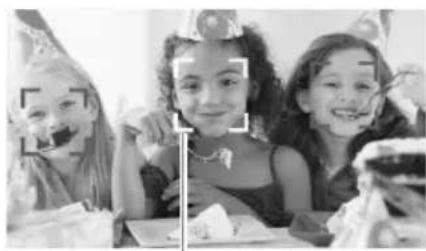
natural_image
Three smiling children in party hats sitting at a table, one holding a pen (no visible text or symbols)Main subject
Limiting Autofocus to Faces
While using autofocus, you can limit the autofocus function only to cases when a subject's face is detected and use manual focus for all other scenes. The camcorder will also adjust the brightness when focusing automatically on the subject's face.
Set assignable button 2 to [Face Only AF] (91) and press the button.
• appears on the screen.
i NOTES
- The camcorder may mistakenly detect the faces of non-human subjects. In such case, turn face detection off.
- In certain cases, faces may not be detected correctly. Typical examples include:
- Faces extremely small, large, dark or bright in relation to the overall picture.
- Faces turned to the side, at a diagonal or partially hidden.
- Face detection cannot be used in the following cases.
- When the shutter speed used is slower than 1/30 (1/24 if the frame rate is set to [PF24 PF24] or [24P]).
- When the digital zoom is activated at more than 40x zoom (dark blue area on the zoom bar).
- When [Scan Reverse Rec] is set to an option other than [OFF Off].
- When infrared mode is on.
- When face detection is activated, the slowest shutter speed used by the camcorder is 1/30 (1/24 if the frame rate is set to [PF24 PF24] or [24IP]).
Touch & Track
When recording a group of people using face detection, the camcorder will automatically detect one person as the main subject. You can use Touch & Track to tell the camcorder to track and optimize settings for a different person. You can also use Touch & Track to always keep in focus other moving subjects, such as pets or moving vehicles.
Operating modes:





1 Make sure face detection (☐ 53) and autofocus (☐ 52) are activated.
- Face detection is always activated in mode.
2 Point the camcorder at a moving subject and touch the subject on the touch screen.
- A white double frame will appear around the subject and track it as it moves.
- Touch [Cancel ☐] to remove the frame and cancel the tracking.

NOTES
- Touching somewhere with a color or pattern unique to the subject will make it easier to track. However, if there is another subject in the vicinity that shares similar characteristics to the selected subject, the camcorder may start tracking the incorrect subject. Touch the screen again to select the desired subject.
-
In certain cases, Touch & Track may not be able to track the subject. Typical examples include:
-
Subjects extremely small or large in relation to the overall picture.
- Subjects too similar to the background.
- Subjects lacking sufficient contrast.
- Fast moving subjects.
- When shooting indoors with insufficient lighting.
Zooming
Operating modes:

There are four ways you can zoom in and out: using the zoom lever on the camcorder, using the zoom rocker on the handle, using the zoom buttons on the wireless controller or using the zoom controls on the touch screen.
In addition to the 10x optical zoom, in M mode, you can turn on the digital zoom* (40x or 200x) with the [Digital Zoom] setting.
This camcorder also features a digital tele-converter, which allows you to enlarge the image on the screen digitally.
* Digital zoom is not available in and modes.
Using the Zoom Lever, Handle Zoom Rocker or Wireless Controller
Move the zoom lever or zoom rocker toward W (wide angle) to zoom out. Move it toward T (telephoto) to zoom in.
- By default, the zoom lever and handle zoom rocker operate at a variable speed - press gently for a slow zoom; press harder for faster zooms.
- You can also use the zoom buttons on the wireless controller.
Setting the Zoom Speed
You can set the zoom speed for the zoom lever, handle zoom rocker and wireless controller.
To set the zoom lever's zoom speed
For the zoom lever, first set the overall zoom speed to one of three levels. Next, select whether the zoom lever operates at a variable or constant speed. Refer to the following table for a summary of the zoom speed.
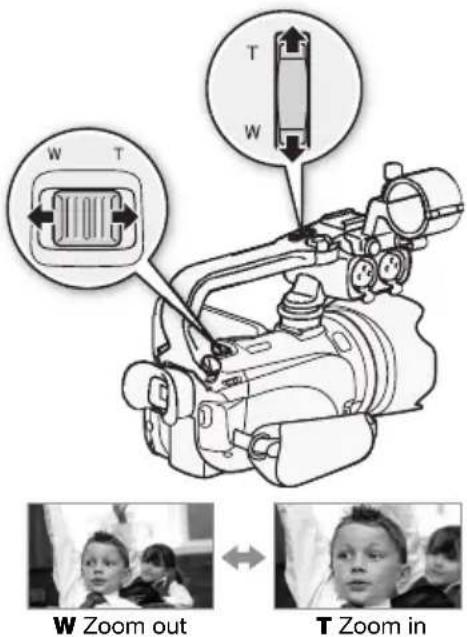
text_image
W T T W W Zoom out T Zoom in1 Open the zoom speed level screen.
[FUNC.] [MENU] [Zoom Speed Level]
2 Touch [▶ Fast], [▶ Normal] or [▶ Slow] and then touch [→].
3 Touch [Zoom Lever Zoom Speed].
4 Touch [VAR] for variable speed or [CONST] for constant speed.
- If you selected [CONSTuch [] or ↑] or drag your finger along the bar to select a constant speed.
5 Touch [×].
Approximate zoom speeds* (zoom lever)
| [Zoom Lever Zoom Speed] setting | Selected constant speed | [Zoom Speed Level] setting | ||
| [▶ Slow] | [▶▶ Normal] | [▶▶▶ Fast] | ||
| [VAR] (variable) | - | 4 sec. to 4 min. 45 sec. | 3 sec. to 3 min. | 2 sec.** to 1 min. |
| [CONST] (constant) | 1 (slowest) | 4 min. 45 sec. | 3 min. | 1 min. |
| 16 (fastest) | 4 sec. | 3 sec. | 2 sec.** | |
* Measured from full wide-angle to full telephoto.
**When the zoom speed is too fast (approximately 2 seconds end-to-end), the camcorder will have more trouble focusing automatically while zooming.
To set the handle zoom rocker's and wireless controller's zoom speed
For the handle zoom rocker and wireless controller, first set the overall zoom speed to one of three levels. The handle zoom rocker and wireless controller operate at a constant speed so select the speed. Refer to the following table for a summary of the zoom speed.
1 Open the zoom speed level screen.
[FUNC.] [MENU] [Zoom Speed Level]
2 Touch [▶ Fast], [▶ Normal] or [▶ Slow] and then touch [→].
3 Touch [Handle Rocker Zoom Speed] or [Wireless Ctrlr Zoom Speed].
- For the handle zoom rocker, continue to step 4. For the wireless controller, skip to step 5.
4 Tou CONST [ ] .
- You can touch [OFF Off] instead to disable use of the handle zoom rocker.
5 Touch [ ] or [ ] or drag your finger along the bar to select a constant speed.
6 Touch [×].
Approximate zoom speeds* (handle zoom rocker)
| [Handle Rocker Zoom Speed] speed setting | [Zoom Speed Level] setting | ||
| [▶ Slow] | [▶▶ Normal] | [▶▶ Fast] | |
| 1 (slowest) | 4 min. 45 sec. | 3 min. | 1 min. |
| 16 (fastest) | 4 sec. | 3 sec. | 2 sec.** |
* Measured from full wide-angle to full telephoto.
**When the zoom speed is too fast (approximately 2 seconds end-to-end), the camcorder will have more trouble focusing automatically while zooming.
Approximate zoom speeds* (wireless controller)
| [Wireless Ctrlr Zoom Speed] speed setting | [Zoom Speed Level] setting | ||
| [▶ Slow] | [▶▶ Normal] | [▶▶▶ Fast] | |
| 1 (slowest) | 4 min. 45 sec. | 3 min. | 1 min. |
| 16 (fastest) | 4 sec. | 3 sec. | 2 sec.** |
* Measured from full wide-angle to full telephoto.
**When the zoom speed is too fast (approximately 2 seconds end-to-end), the camcorder will have more trouble focusing automatically while zooming.
Using the Touch Screen's Zoom Controls
1 Display the zoom controls on the touch screen.
[FUNC.] [ZOOM]
- The zoom controls appear on the left side of the screen.
2 Touch the zoom controls to operate the zoom.
- Touch anywhere within the W area to zoom out or anywhere within the T area to zoom in. Touch closer to the center for a slow zoom; touch closer to the W/T icons for faster zooms.
3 Touch [×] to hide the zoom controls.
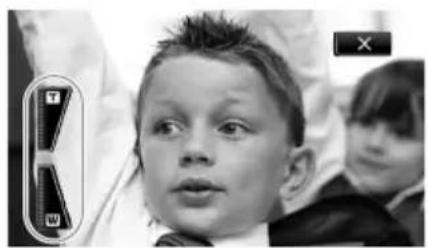
natural_image
Black-and-white photo of a young boy looking at his face, with no visible text or symbolsSoft Zoom Control
Soft zoom control allows you to start and/or stop the zoom gradually.
1 Open the soft zoom control screen.
[FUNC.] [MENU] [Soft Zoom Control]
2 Touch the desired option and then touch [→].
Options (♦ Default value)
[OFF Off] Use this setting if you do not intend to use soft zoom control.
[START S t a r t ] Zoom starts gradually.
[STOP S t o p ] Zoom stops gradually.
[Start & Stop] Zoom start and stops gradually.
Digital Tele-Converter
Using the digital tele-converter, you can digitally increase the focal length of the camcorder by a factor of approx. 2 and record the enlarged image at full HD resolution.
Operating modes:

1 Open the [Digital Zoom] screen.
[FUNC.]

[MENU]

[Digital
Zoom]
2 Touch [digital Tele-conv.] and then touch [×].
3 Open the zoom controls.
[FUNC.]

[ZOOM]
4 Touch [20:digital tele-converter) and then touch [×].
- Touch [70] again before closing the screen to deactivate the digital tele-converter.
- The center of the screen will be enlarged approximately 2 times and the icon will appear.

NOTES
- You can attach the optional tele-converter and use it in conjunction with this function to increase the effect.
- The digital tele-converter cannot be turned on while recording.
- While the digital tele-converter is activated, photos cannot be recorded.
- The image is digitally processed so the image will deteriorate throughout the zoom range.
Advanced Image Stabilization
The image stabilizer reduces camcorder blur (blur due to the camcorder moving) so you can get nice, stable shots. Select the image stabilization mode according to the shooting conditions.
Operating modes:

1 Open the image stabilizer screen.
[FUNC.] [Image Stabilizer]
2 Touch the desired IS mode and then touch [✗].
Options
(♦ Default value)
[◀◀] D y ♦ nCompensates fora higher degree of camcorder shake, such as when shooting while walking, and is more effective as the zoom approaches full wide angle.
[Standard] Compensates for a lower degree of camcorder shake, such as when shooting while remaining stationary, and is suitable for shooting natural-looking scenes. Use this setting when recording movies with the optional wide-converter or tele-converter.
[Off] Use this setting when the camcorder is mounted on a tripod.
Powered IS
You can use Powered IS to make the image stabilization even more powerful. Powered IS is most effective when you are stationary and zooming in on far subjects using high zoom ratios (the more you approach the telephoto end). Holding the LCD panel with your left hand will add to the stability of the shot.
By default, Powered IS is assigned to assignable button 2.
Operating modes:

Press and hold POWERED IS as long as you want to activate Powered IS.
- appears in yellow, while Powered IS is activated. The degree of camcorder shake will be indicated by the icon itself ( ), but you can turn off this indication with the [Camcorder Shake Indicator] setting.
- You can change the operation of the POWERED IS button (long press or toggle on/off) with the [POWERED IS Button] setting.
- Powered IS is available even when [Image Stabilizer] is set to [C#].

text_image
2 POWERED IS
NOTES
- If the degree of camcorder shake is too high, the image stabilizer may not be able to fully compensate.
- For surveying and following shots, when you pan the camcorder from side to side or tilt it up and down, we recommend setting [Image Stabilizer] to [Dynamic] or [Standard].
Automatic Gain Control (AGC) Limit
When recording in dark surroundings, the camcorder will automatically increase the gain to try to get a brighter picture. However, using higher gain values may result in more noticeable video noise. You can select the AGC limit to curb the amount of noise by setting the maximum gain value to be used. The smaller the AGC limit, the picture will be darker but will have less the noise.
Operating modes:


POINTS TO CHECK
- Select a recording program other than the Special Scene recording programs and [MManual Exposure].
1 Open the AGC limit adjustment screen.
[FUNC.] [AGC AGC Limit] [M Manual]
- Touch [ A Automatic] to remove the AGC limit.
2 Touch [◀] or [▶] to set the AGC limit.
- You can also drag your finger along the dial.
3 Touch [X].
- The selected AGC limit will appear on the screen.

NOTES
- If you set [√] [Custom Key/Dial] to [AGC AGC Limit] (☐ 90), you can adjust the AGC limit with the CUSTOM dial.
Automatic Exposure Recording Programs
With the automatic exposure (AE) recording programs, the camcorder will adjust the shutter speed and/or aperture value to obtain the optimal exposure. When using the AE recording programs, you can change functions like the white balance and image effects.
Operating modes:




1 Open the screen of the desired recording program.
[FUNC.] [Rec. Programs] [Tv Shutter-Pri. AE] or [Av Aperture-Pri. AE]
2 Touch [◀] or [▶] to set the desired shutter speed (Tv) or aperture value (Av) and then touch [X].
- You can also drag your finger along the dial.
Options (♦ Default value)
[P Programmed AE] ♦ The camcorder automatically adjusts the aperture and shutter speed to obtain the optimal exposure for the subject.
[Tv Shutter-Pri. AE] Set the shutter speed value. The camcorder automatically sets the appropriate aperture value.
[Av Aperture-Pri. AE] Set the aperture value. The camcorder automatically sets the appropriate shutter speed.
Available shutter speed settings
| [1/8] [1/15] | [1/30] [1/60] | [1/100] | ||
| [1/250] | [1/500] | [1/1000] | [1/2000] |
Available shutter speed settings when the frame rate is set to [PF24 PF24] or [24P 24P]
| [1/6] | [1/12] | [1/24] | [1/48] | [1/60] |
| [1/100] | [1/250] | [1/500] | [1/1000] | [1/2000] |
Available aperture value settings
Because [ND Filter] is set to [A Automatic] by default, ND filter settings will be available for aperture values [F4.0] and higher.
| [F1.8] | [F2.0] | [F2.2] | [F2.4] | [F2.6] | [F2.8] |
| [F3.2] | [F3.4] | [F3.7] | [F4.0] | [F4.4] | [F4.8] |
| [F5.2] | [F5.6] | [F6.2] | [F6.7] | [F7.3] | [F8.0] |
i NOTES
• [ Tv Shutter-Pri. AE]:
- On screen only the denominator is displayed – [Tv 250] indicates a shutter speed of 1/250 second, etc.
- When recording in dark surroundings, you can obtain a brighter picture by using slow shutter speeds; however, image quality may not be as good and autofocus may not work well.
- The image may flicker when recording with fast shutter speeds.
-
Recording movies under fluorescent lights: If the screen starts to flicker, select [Tv Shutter-Pri. AE] and set the shutter speed to 1/100.
-
[Av Aperture-Pri. AE]: The actual range of values available for selection will vary depending on the initial zoom position.
- When setting a numeric value (aperture or shutter speed), the number displayed will flash if the aperture value or shutter speed is not appropriate for the recording conditions. In such case, select a different value.
- During exposure lock, the aperture value/shutter speed cannot be changed. Set the aperture value or shutter speed before manually adjusting the exposure.
- If you set [Custom Key/Dial] to [ Tv / Av] (90), you can adjust the shutter speed or aperture value with the CUSTOM dial.
Exposure Adjustment
At times, backlit subjects may appear too dark (underexposed) or subjects under very strong lights may appear too bright or glaring (overexposed). In such cases, adjusting the exposure will correct this. This camcorder features a dedicated recording program, [M Manual Exposure], for adjusting the exposure manually. However, you can also adjust the exposure when using other recording programs.
Using the Manual Exposure Recording Program
Using the [M Manual Exposure] recording program, you can adjust the aperture, shutter speed and gain to achieve the desired exposure.
Operating modes:




1 Activate the [M Manual Exposure] recording program.
[FUNC.]
[Rec.
Programs]
[M Manual Exposure]
2 Touch the control button of the setting you wish to adjust.
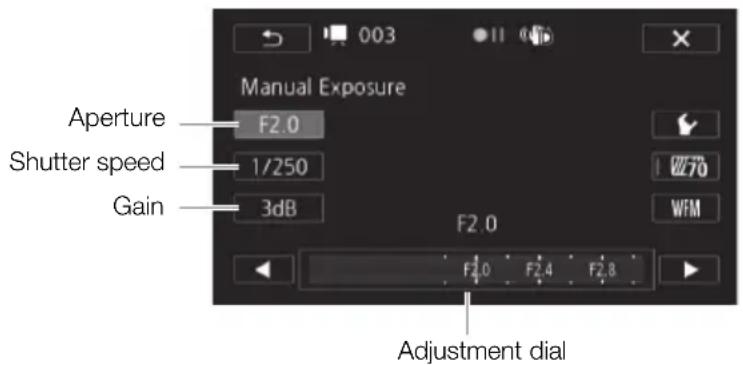
text_image
Manual Exposure Aperture F2.0 Shutter speed 1/250 Gain 3dB F2.0 F2.0 F2.4 F2.8 Adjustment dial3 Touch [◀] or [▶] to set the desired value.
- You can also drag your finger along the dial.
- The exposure will change according to the setting's new value. Repeat steps 2 and 3 to adjust other settings.
- Before touching [✗], you can also use the zebra pattern (see below) and waveform monitor (☐84).
4 Touch [×].

NOTES
- When adjusting the exposure, you can also use the waveform monitor (☐ 84).
- If you set [Custom Key/Dial] to [M Manual Exposure] (☐ 90), you can adjust the aperture, shutter speed and gain with the CUSTOM dial.
Using the Zebra Pattern
You can use the zebra pattern to identify areas that might be overexposed, so you can correct the exposure appropriately. The camcorder offers two levels of zebra pattern: With 100% only areas that will lose detail in the highlight areas will be identified, while 70% will identify also areas that are dangerously close to losing detail.
1 From the exposure adjustment screen, touch [⚡] to select the zebra level.
2 Touch [70%] or [100%] and then touch [→].
3 Touch [70] or [100] and then touch [X].
- The zebra pattern will appear on the overexposed areas of the picture.
- Touch again to turn off the zebra pattern.

NOTES
- Using the zebra pattern will not affect your recordings.
Exposure Compensation
When you use a recording program other than [M Manual Exposure], the camcorder will adjust the exposure automatically. However, you can adjust and lock the exposure or use the Touch AE function to automatically set the optimal exposure for the subject you select. This is convenient when the brightness of the subject you want to shoot is noticeably brighter/darker than the general brightness of the image.
Operating modes:


POINTS TO CHECK
- Select a recording program other than [※: Fireworks] or [M Manual Exposure].
- Exposure adjustment is not available in infrared mode.
1 Open the exposure adjustment screen.
[FUNC.] [Exposure]
2 Touch a subject that appears inside the ☐ frame.
- The Touch AE mark (✗) will flash and the exposure will be adjusted automatically so the area you touched will be correctly exposed. You have the option to further adjust the exposure manually as necessary. Depending on the subject, you may want to use the [Highlights] setting as described below.
- You can touch [M] instead to adjust the exposure manually without activating the Touch AE function.
- The manual adjustment dial appears and the adjustment value is set at ± 0 .
- Touch [M] again to return the camcorder to automatic exposure.
3 Touch [◀] or [▶] or drag your finger along the dial to set the exposure adjustment value.
- The adjustment range may vary depending on the initial brightness of the image, and some values may be grayed out.
- Before touching [×], you can also use the zebra pattern (☐ 65) and waveform monitor (☐ 84).
4 Touch [✗] to lock the exposure at the selected value.
- During exposure lock, ☑ and the selected exposure adjustment value will appear on the screen.
To adjust the Touch AE function for highlights (Highlight AE)
Certain subjects, like clouds or white objects, are easily overexposed and can end up appearing as bright areas where all detail is lost. Using the [Highlights] setting, you can touch the brightest area inside the ☑ frame and the camcorder will automatically make corrections so that area is not overexposed. When you touch a dark area in the picture or the highlights are too bright, the camcorder may not be able to correctly adjust the exposure.
After step 1 above:
1 Touch [√].
2 Touch [Highlights] and then touch [→].
- Touch [Normal] to return the camcorder to normal Touch AE settings.
To use backlight correction
When recording in situations in which the subject is constantly backlit, you can use backlight correction make the entire picture brighter, especially dark areas. This will take precedence over the [Auto Backlight Correction] setting, which is useful in situations in which the subject is not constantly backlit.
1 Open the [ *■BLC Always On] screen.
[FUNC.] [★ BLC Always On]
2 Touch [ON On] and then touch [X].
i NOTES
- If the recording program is changed during exposure lock, the camcorder will return to automatic exposure.
- You can adjust the exposure value with the CUSTOM dial (☐ 90), which is set to [☑ Exposure] by default.
White Balance
The white balance function helps you to accurately reproduce colors under different lighting conditions.
Operating modes:


POINTS TO CHECK
- Select a recording program other than the Special Scene recording programs.
1 Open the white balance screen. [FUNC.] ▶ [WB White Balance]
2 Touch the desired option and then touch [X].
- When you select [Color Temperature], [Set 1] or [Set 2], set the color temperature or a custom white balance with the appropriate procedure below before touching [✗].
- The icon of the selected option will appear on the screen.
To set the color temperature ([KColor Temperature])
Touch [◀] or [▶] to set the desired value.
- You can also drag your finger along the dial.
To set a custom white balance ([Set 1] or [Set2])
Point the camcorder at a white object, so it fills the whole screen, and touch [Set WB]. When the adjustment is completed, ☐ stops flashing and disappears. The camcorder will retain the custom white balance even if you turn it off.
Options (♦ Default value)
[AWB Automatic] ^♦ The camcorder automatically sets the white balance for natural looking colors.
[Daylight] To record outdoors on a bright day.
[Shade] To record in shaded places.
[Cloudy] To record on a cloudy day.
[Fluorescent] To record under warm white, cool white or warm-white-type (3-wavelength) fluorescent lighting.
[Fluorescent H] To record under daylight or daylight-type (3-wavelength) fluorescent lighting.
[★ Tungsten] To record under tungsten and tungsten-type (3-wavelength) fluorescent lighting.
[K Color Temperature] Allows you to set the color temperature between 2,000 K and 15,000 K.
[■1 Set 1], [■2 Set 2] Use the custom white balance settings to make white subjects appear white under colored lighting.
i NOTES
- When you select a custom white balance:
- Set [Digital Zoom] to [OFF Off].
- Reset the white balance when you change locations or the lighting or other conditions change.
- Depending on the light source, ▲ may keep flashing. The result will still be better than with [AWB Automatic].
- Using a custom white balance may provide better results in the following cases:
- Changing lighting conditions
- Close-ups
- Subjects in a single color (sky, sea or forest)
- Under mercury lamps and certain types of fluorescent lights
- Depending on the type of fluorescent light, optimal color balance may not be obtained with [Fluorescent] or [Fluorescent H]. If the color looks unnatural, select [AWB Automatic] or a custom white balance setting.
Special Scene Recording Programs
Recording in a very bright ski resort or capturing the full colors of a sunset or a fireworks display becomes as easy as selecting a Special Scene recording program.
Operating modes:



1 Open the recording programs screen.
[FUNC.] [Rec. Programs] [Portrait]
2 Touch the desired recording program and then touch [✗].
Options
(♦ Default value)
[★ Portrait] ♦ The camcorder uses a large aperture, to achieve a sharp focus on the subject while blurring the background.

natural_image
Black-and-white photo of two smiling children holding flowers (no text or symbols visible)
Sports]
To record sports scenes such as tennis or golf.
natural_image
Black-and-white photo of a person playing badminton, mid-jump with ball in motion (no visible text or symbols)
Night Scene]
To record nightscapes with lower noise.
[8 Snow] To record in bright ski resorts without the subject being underexposed.
natural_image
Two people wearing winter hats and winter clothing, smiling (no visible text or symbols)[Beach] To record on a sunny beach without the subject being underexposed.


Sunset
To record sunsets in vibrant colors.

natural_image
Silhouette of a person walking along a lakeshore at dusk, with no visible text or symbols
Low Light]
To record in low-light situations.

natural_image
Black and white close-up of a baby lying on stomach, no visible text or symbolsSpecial Scene Recording Programs
[Spotlight] To record spotlit scenes.
[※Fireworks] To record fireworks.
natural_image
Silhouette of two people in dynamic poses, one holding a directional arrow (no text or symbols visible)
natural_image
Nighttime cityscape with fireworks and illuminated buildings (no visible text or symbols)i NOTES
• [ Portrait]/[ Sports]/[ Snow]/[ Beach]: The picture may not appear smooth during playback.
• [ Portrait]: The blur effect of the background increases the more you zoom in (T).
- [8 Snow]/[9 Beach]: The subject may become overexposed on cloudy days or in shaded places. Check the image on the screen.
- [▲Low Light]:
- Moving subjects may leave a trailing afterimage.
- Picture quality may not be as good as in other modes.
- White points may appear on the screen.
- Autofocus may not work as well as in other modes. In such case, adjust the focus manually.
- [※: Fireworks]: To avoid camcorder blur (blur due to the camcorder moving) we recommend using a tripod.
Image Effects
You can adjust the color depth, brightness, contrast, and sharpness of the image.
Operating modes:


POINTS TO CHECK
- Select a recording program other than the Special Scene recording programs.
- Image effects are not available in infrared mode.
1 Open the image effects screen.
[FUNC.] [Image Effects]
2 Touch [ON] and then touch [Color Depth], [Sharpness], [Contrast] or [Brightness].
- Select [OFF] to turn off the image effects.
3 Touch [◀] or [▶] or drag your finger along the dial to adjust the effect level.
-
- levels: richer colors, sharper image, stronger contrast, brighter image.
- levels: shallower colors, softer image, softer contrast, darker image.
- To adjust other parameters, touch the desired control button and repeat step 3.
4 Touch [✗] to save and apply the customized picture settings.
- _c will appear on the screen.
Self Timer
Operating modes:





1 Open the [Self Timer] screen.
[FUNC.]

[MENU]

[Self Timer]
2 Touch [ON On ⚙] and then touch [X].
- will appear on the screen.
- Repeat, selecting [OFF Off], to turn off the self timer.
Movies: In record pause mode, press START/STOP.
The camcorder starts recording after a 10-second countdown*. The countdown appears on the screen.
Photos: In record pause mode, touch [PHOTO].
The camcorder will record the photo after a 10-second countdown*. The countdown appears on the screen.
* 2 seconds when using the wireless controller.

NOTES
- Once the countdown has begun, any of the following actions will cancel the self timer.
- Pressing START/STOP, when recording movies.
- Pressing [PHOTO] (on the wireless controller) or touching [PHOTO] (on the screen), when recording photos.
- Turning off the camcorder.
- Changing the camcorder's operating mode.
- Closing the LCD panel to set the camcorder to standby mode.
Recording Audio
You can record audio using the built-in microphone, optional external microphone (XLR or MIC terminal) or line input (XLR terminal). For external microphones or audio sources connected to an XLR terminal, you can select the audio input independently for channel 1 and channel 2.
Operating modes:

Using the Built-in Microphone or an External Microphone Connected to the MIC Terminal
Record audio with the built-in microphone or an external microphone connected to the MIC terminal. You can use commercially available condenser microphones with their own power supply. You can connect almost any stereo microphone with a ∅ 3.5 mm plug but audio recording levels may vary.
When using the built-in microphone or an external microphone connected to the MIC terminal, set the audio input switch to INT.
- If you connect a microphone to the MIC terminal while the audio input switch is set to INT, the camcorder will switch automatically from the built-in microphone to the external microphone.
Audio input switch
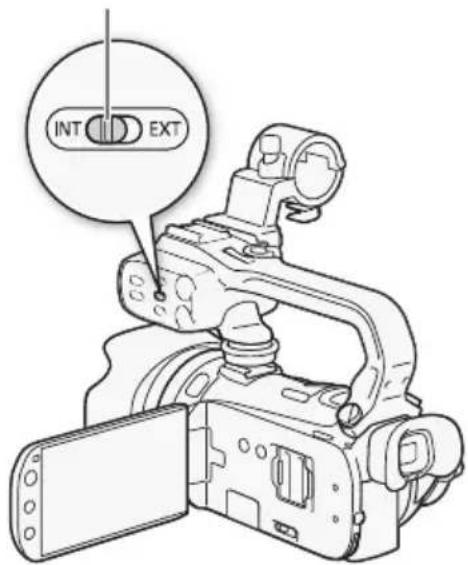
text_image
INT EXTTo use the WM-V1 Wireless Microphone
Using the WM-V1 you can reliably record sound even when recording subjects at a distance exceeding the practical range of the built-in microphone. You can also mix and record audio from the WM-V1 with audio from the built-in microphone.
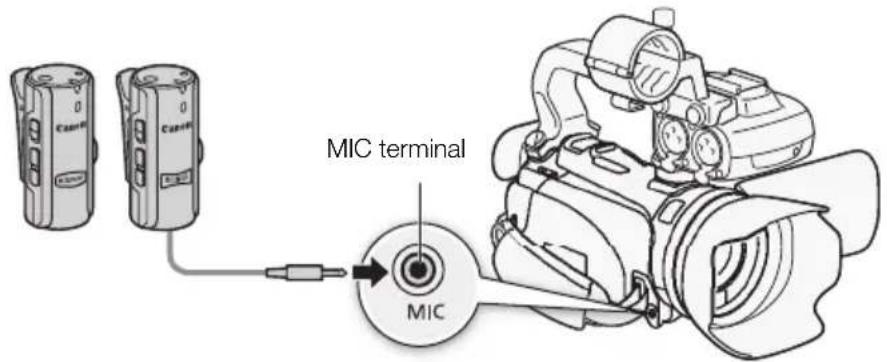
text_image
MIC terminal MIC1 Attach the receiver to the camcorder's grip belt.
2 Connect the receiver to the camcorder's MIC terminal.
3 If necessary, activate the audio mix function (☐ 80) and adjust the audio mix balance.
4 Attach the microphone (transmitter) to the subject.
- For details about using the WM-V1, refer to the instruction manual supplied with the microphone.
To use commercially available microphones
1 Connect the external microphone to the MIC terminal.
2 Open the [MIC Terminal Input] screen.
[FUNC.] [MENU] [MIC Terminal Input]
3 Touch [Microphone] and then touch [X].
- If necessary, activate and adjust the audio mix balance (☐ 80).
i NOTES
- When using an external microphone, make sure that the jacket covering above the plug is smaller than ∅ 9.5 mm.
- When an external microphone is connected to the camcorder, [Wind Screen] will automatically be set to [OFF Off OFF].
Using Line Input or an External Microphone Connected to an XLR Terminal
You can use the XLR terminals to connect an external audio source (analog line in) or microphone. When connecting an external microphone, follow the procedure below.

text_image
Microphone lock screw ① ② ③ Cable clamp ④ XLR terminals1 Loosen the microphone lock screw (①), open the microphone holder unit and insert the microphone (②).
2 Tighten the lock screw and put the microphone cable through the microphone cable clamp under the microphone holder unit (③).
3 Plug the microphone cable into the desired XLR terminal (④).
Setting the XLR Terminal
1 Set the audio input switch to EXT.
- Changing the position of the audio input switch affects both channel 1 and channel 2 simultaneously.
2 Set the XLR terminal switch of the desired channel to LINE or MIC.
- To supply a microphone with phantom power, set the switch to MIC+48V instead. Make sure to connect the microphone first, before turning the phantom power on. Keep the microphone connected when turning off the phantom power.
- When using the XLR terminal to record to only one channel, use the CH1 input terminal and set the XLR terminal switch for CH1 to LINE, MIC or MIC+48V.
Selecting the Recording Channel
You can select to which channel the camcorder will record audio.
1 Open the [XLR Rec Channel] screen.
[FUNC.]
[MENU]
[ ]
[XLR Rec Channel]
2 Touch the desired option and then touch [✗].
Options (♦ Default value)
[CH1 CH1] Records audio to each channel separately. Audio input into CH1 is recorded to channel 1, while audio input into CH2 is recorded to channel 2.
[CH1/2 CH1/CH2] Audio input into CH1 is recorded to both channels. Audio input into CH2 will not be recorded.
Activating the Microphone Attenuator
You can activate the external microphone's attenuator (20 dB) if the XLR terminal switch is set to MIC or MIC+48V.
Set the ATT switch of the desired channel to ON.

IMPORTANT
- When connecting a microphone or device that does not support phantom power, make sure to set the XLR terminal switch to MIC or LINE, respectively. If you set the switch to MIC+48V, the microphone or device may be damaged.
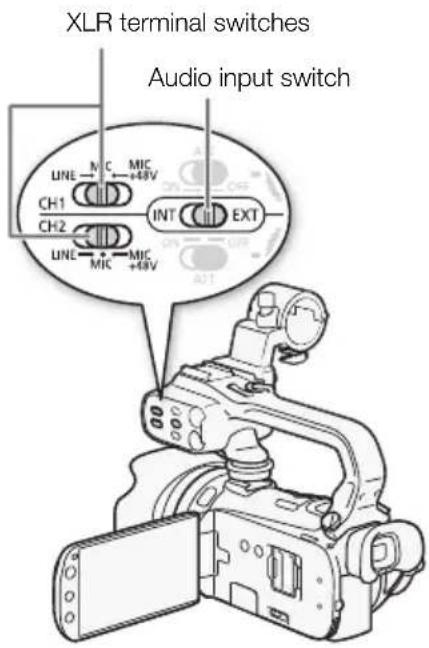
text_image
XLR terminal switches Audio input switch LINE - MIC +48V CH1 INT EXT CH2 LINE - MIC +48V
text_image
ATT ON → OFF INT → EXT ON → OFF ATTAudio Recording Level
When using the built-in microphone or a microphone connected to the MIC terminal, you can adjust the audio recording level using the FUNC. panel. For a microphone or audio source connected to an XLR terminal, adjust the audio recording level using the corresponding channel's audio level dial.
Operating modes:



Using the Built-in Microphone or Microphone Connected to the MIC Terminal
1 Open the manual audio recording level adjustment screen.
[FUNC.] [↓ Mic. Level] [M Manual]
- The audio level indicator and current audio recording level will appear on the screen. When [ ] [Audio Mix] is set to [ON On], two audio level indicators will appear, the top one for the built-in microphone, and the bottom one for the external audio.
- Touch [A Automatic] to return the camcorder to automatic audio recording levels.
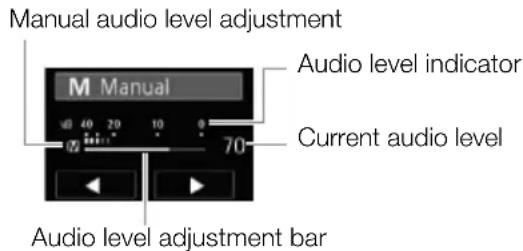
text_image
Manual audio level adjustment M Manual Audio level indicator Current audio level 70 Audio level adjustment bar2 Touch and hold [◀] or [▶] to adjust the audio recording level as necessary.
- As a guideline, adjust the audio recording level so that the audio level meter will go to the right of the -18 dB mark (about one mark right of the -20 dB mark) only occasionally.
- When the audio mix function is on (☐ 80), [INT] (built-in microphone) and [EXT] (external audio source) will appear next to the audio level indicator.
3 Touch [✗] to lock the audio recording level at the current level.
To display the audio level indicator
Usually, the audio level indicator will be displayed only after activating the manual adjustment of the audio recording level. You can choose to display it also when the audio level is adjusted automatically.
1 Open the automatic audio recording level screen.
[FUNC.] [↓ Mic. Level] [A Automatic]
2 Touch [Audio Level Indicator] and then touch [✗].
Using a Microphone or Audio Source Connected to an XLR Terminal
When a microphone or audio source is connected to an XLR terminal and the audio input switch is set to EXT, the audio level indicator will appear on the screen.
Turn the corresponding audio level dial to adjust the audio recording level as necessary.
- As a guideline, adjust the audio recording level so that the audio level meter will go to the right of the -18 dB mark (about one mark right of the -20 dB mark) only occasionally.
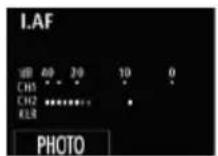
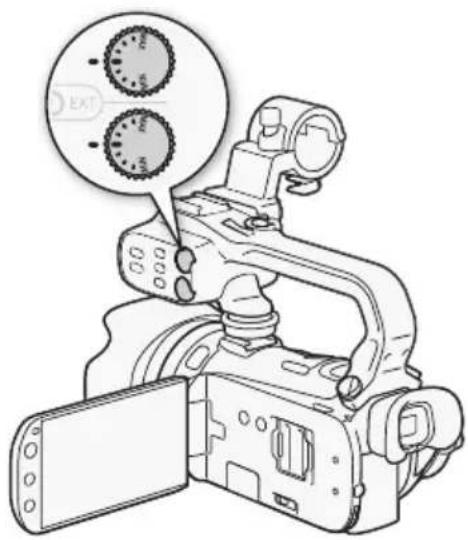
text_image
Diagram of a digital camera with labeled parts and an inset showing two circular components labeled 'EXIT' (no text or symbols on the device itself)
NOTES
- When the audio level meter reaches the red point (0 dB), the sound may be distorted.
- If the audio level is too high and the sound gets distorted while using an external microphone connected to an XLR terminal, activate the microphone attenuator with the ATT switches. For a microphone connected to the MIC terminal, adjust the audio recording level manually.
- We recommend using headphones to check the sound level while adjusting the audio recording level or when the microphone attenuator is activated.
Built-In Microphone Directionality
You can change the directionality of the built-in microphone to have more control over how sound is recorded.
Operating modes:

1 Open the [Built-in Mic Directionality] screen.
[FUNC.] [MENU] [Built-in Mic Directionality]
2 Touch the desired option and then touch [✗].
Options (♦ Default value)
[2ch Monaural] Mono recording that emphasizes sound coming from the front of the camcorder. [NORM N 0 ♦ Standard stereo recording; a middle point between the [Wide] and [Monaural] settings in reach.
[2nd Wide] Stereo recording of ambient sound over a more extensive area that adds to the sense of presence of movies.
[2ch Zoom] Stereo recording with the sound linked to the zoom position. The larger the subject appears on the screen, the louder and more focused the sound will be.
i NOTES
- Except when using the audio mix function, an external microphone overrides the built-in microphone. In the following cases, the built-in microphone's directionality cannot be changed.
- When an external microphone is connected to the MIC terminal with [Audio Mix] set to [OFF Off].
- When the audio input switch is set to EXT.
Audio Equalizer
You can use the audio equalizer to adjust sound levels by specifically targeting the high- or low-frequency range. The audio equalizer settings are only available when recording sound using the built-in microphone.
Operating modes:

1 Open the [Built-in Mic Freq. Response] screen.
[FUNC.] [MENU] [Built-in Mic Freq. Response]
2 Touch the desired option and then touch [X].
Options (♦ Default value)
[NORM N o ◆ Appropriate for balanced sound under most normal recording conditions.
[16st LF Range] Accentuates the low-frequency range for more powerful sound.
[ LC Low Cut Filter] Filters the low-frequency range to reduce the noise of blowing wind, a car's engine and similar ambient sounds.
[30st MF Range] Best for recording human voices and dialog.
[LHB Boost HF+LF Range] Best, for example, for recording live music and clearly capture the special sound characteristics of a variety of instruments.
Audio Mix
When recording, you can mix audio from the built-in microphone with external audio from the MIC terminal and adjust the mix balance for original sound effects. The external audio input can be from the optional WM-V1 Wireless Microphone, a commercially available external microphone or from an external audio player (analog Line In).
Operating modes:

1 Connect the external source to the MIC terminal.
2 Open the [MIC Terminal Input] screen.
[FUNC.] [MENU] [MIC Terminal Input]
3 Touch [LINE External Audio] or [MIC Microphone] and then touch [→].
- This step is not necessary after connecting an optional WM-V1 wireless microphone.
4 Activate the audio mix.
[Audio Mix] [ON On]
5 Adjust the audio mix balance as necessary.
- Touch [INT] (more of the sound from the built-in microphone) or [EXT] (more of the sound from the external audio) or drag your finger along the audio mix bar to adjust the mix balance as desired.
6 Touch [ ✗] to set the audio mix and close the menu.
Using Headphones
Use headphones for playback or to check the audio level while recording. The headphones are connected to the AV OUT/Ω terminal, which is used for both the headphones and the audio/video output. Before connecting the headphones, follow the procedure below to change the function of the terminal from AV output to Ω (headphones) output.
Operating modes:

* Headphones can be used also in ANDOE but the function of the terminal cannot be changed in this mode. Change the setting in advance in one of the other operating modes.
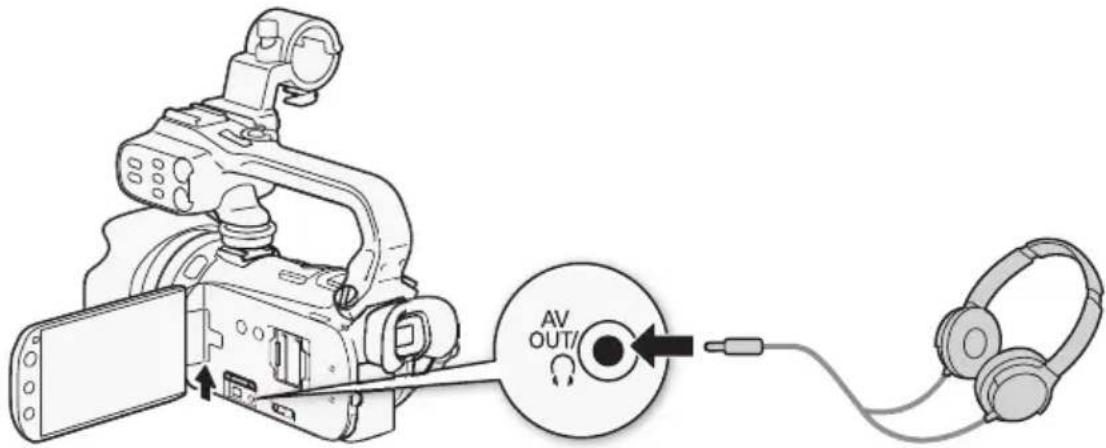
text_image
AV OUT/1 Open the [AV/Headphones] screen.
[FUNC.] [MENU] [AV/Headphones]
- Touching [FUNC.] is necessary only when performing the procedure in a recording mode.
2 Touch [Headphones] and then touch [→].
3 Connect the headphones to the AV OUT/Ω terminal.
4 Back in the menu, touch [Volume].
5 Touch [Ω] or [Ω] to adjust the volume and then touch [X].
- You can also drag your finger along the [Headphones] bar.
• will appear on the screen.
To adjust the volume during playback
In mode, and in mode during slideshow playback, adjust the headphones volume the same way you adjust the speaker's volume (94).
IMPORTANT
- When using headphones, make sure to lower the volume to an appropriate level.
- Do not connect the headphones to the AV OUT/Ω terminal if the Ω icon does not appear on the screen. The noise output in such case may be harmful to your hearing.
i NOTES
- Use commercially available headphones with a ∅ 3.5 mm minijack.
- Even if [AV/Headphones] was set to [Ω Headphones] in a playback mode, the function of the AV OUT/Ω terminal will return automatically to AV output when you turn off the camcorder.
Using a Zoom Remote Controller
Using a Zoom Remote Controller
You can attach the optional ZR-2000 or ZR-1000 Zoom Remote Controller to the camcorder to use certain functions while viewing the picture on an external monitor without touching the camcorder. This is particularly useful while the camcorder is mounted on a tripod and you want to ensure maximum stability of a shot.
Operating modes:



Connect the optional ZR-2000 or ZR-1000 Zoom Remote Controller to the REMOTE terminal on the camcorder.
For details about using the zoom remote controller, refer to the instruction manual of the ZR-2000 or ZR-1000.
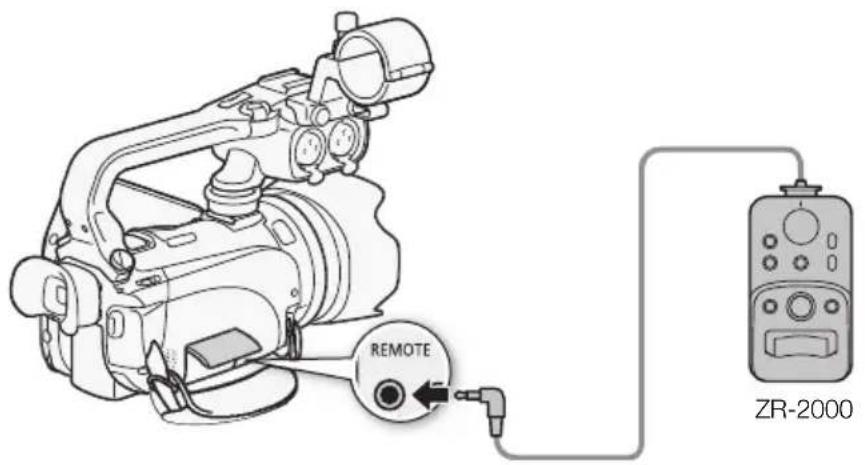
text_image
REMOTE ZR-2000Functions Available with the Zoom Remote Controller
Using the ZR-2000 or ZR-1000: turning the power on/off, starting/stopping a recording, zoom, focus adjustment and displaying on-screen displays on an external monitor.
Using the ZR-2000 only: switching between autofocus and manual focus, Push AF* and focus assistance (MAGNIFYING button).
* The Push AF function allows you to switch to autofocus temporarily during manual focus.

NOTES
- In mode, the only available functions are turning the power on/off, starting/stopping a recording, and zoom.
Color Bars/Audio Reference Signal
You can have the camcorder output and record color bars and a 1 kHz audio reference signal.
Operating modes:

1 Open the [Color Bars & Test Tone] screen.
[FUNC.] [MENU] [Color Bars & Test Tone]
2 Touch the desired option* and then touch [X].
* When you select [Color Bars & Tone], you can adjust the audio reference signal. Touch [→] and continue with the procedure below.
Options ( ♦ Default value)
[OFF Off] ♦ Select this option if you do not intend to use the color bars or audio reference signal.
[Color Bars] Displays a standard SMPTE color bar pattern.
[Color Bars & Tone] In addition to the color bar pattern, an audio reference signal is output.
To adjust the audio reference signal
1 Back in the menu, touch [Audio Reference Signal].
2 Touch [-12dB -12 dB], [-18dB -18 dB] or [-20dB -20 dB] and then touch [✗].
Video Scopes
The camcorder can display a simplified waveform monitor. It can also display an edge monitor* to help you focus. The video scopes appear only on the LCD screen. They do not appear in the viewfinder or on an external monitor.
* The edge monitor looks at the focus of the entire picture and displays the results as a waveform.
Operating modes:

Displaying the Waveform Monitor during [P Programmed AE] Recording Program
1 Make sure the recording program is [P Programmed AE].
[FUNC.] [Rec. Programs] [P Programmed AE]
2 Open the exposure adjustment screen.
[FUNC.] [+] Exposure]
3 Touch [M manual adjustment) and then touch [ ] (waveform monitor).
- The waveform monitor will appear in a window on the screen. Touch the window to close it.
- You can adjust the exposure using the dial at the bottom of the screen or by touching inside the ☑ frame (☐ 65). You can see the results immediately in the waveform monitor.
Displaying the Waveform Monitor during [M Manual Exposure] Recording Program
1 Open the [MManual Exposure] screen.
[FUNC.] [Rec. Programs] [MManual Exposure]
2 Touch [W(waveform monitor).
- The waveform monitor will appear in a window on the screen. Touch the window to close it.
- You can adjust the exposure by using the controls on the screen (64). You can see the results immediately in the waveform monitor.
Displaying the Edge Monitor
1 Open the focus adjustment screen.
[FUNC.] [● Focus]
2 Touch [IV manual focus) and then touch [ ] (waveform monitor).
- The edge monitor will appear at the bottom of the screen. Touch the edge monitor to close it.
- You can adjust the focus using the focus dial or by touching the inside the Ⓞ frame (☐ 51). You can see the results immediately in the edge monitor.
Video Snapshot
Record a series of short scenes. Then, play back your video snapshot scenes set to your favorite music (118).
The default length of a video snapshot scene is 4 seconds but you can change it to 2 or 8 seconds, or to the length recommended for the selected story scene (category) in Story Creator, with the [Video Snapshot Length] setting.
Operating modes:

1 Open the video snapshot screen.
[FUNC.] [Music] Video Snapshot
- Alternatively, you can set an assignable button to [☐: Video Snapshot] (☐ 91). Skip to step 3.
2 Touch [ON On].
- A blue border appears on the screen.
- Touch [OFF Off] to return to normal video recording mode.
3 Press START/STOP.
- The camcorder records for a few seconds (the blue frame serves as a visual progress bar) and then automatically returns to record pause mode.
- When the camcorder stops recording, the screen will momentarily turn black as if a camera shutter had released.
i NOTES
- Changing the camcorder's operating mode will deactivate the video snapshot mode.
Pre-Recording
The camcorder will start recording 3 seconds before you press START/STOP, ensuring you do not miss important shooting opportunities. This is especially useful when it is difficult to predict when to start recording.
Operating modes:

1 Open the pre-recording screen.
[FUNC.] [③ Pre REC]
2 Touch [ON On] and then touch [X].
• 📋 will appear on the screen.
- Repeat, selecting [OFF Off], to turn off pre-recording.
3 Press START/STOP.
- The scene recorded in the memory will start 3 seconds before [START/STOP] was pressed.
i NOTES
- The camcorder will not record the full 3 seconds prior to pressing START/STOP if the button was pressed within 3 seconds of having turned on pre-recording or having finished the previous recording.
- Any of the following actions will deactivate the pre-recording function.
- Leaving the camcorder without any operation for 5 minutes.
- Changing the position of the mode switch.
- Pressing
- Activating video snapshot.
- Setting the camcorder to standby mode.
- Touching any of the following control buttons in the FUNC. panel: [MENU], [Rec. Programs], [White Balance], [AGC Limit], [Image Stabilizer], [Faders], [Decoration] or [Review Recording].
Onscreen Displays and Data Code
You can turn most onscreen displays on or off.
Operating modes:



Repeatedly press DISP. to turn the onscreen displays on/off in the following sequence:
M, CINEMA
mode:
- All displays on
- Most displays off ^1
,
mode
- Only data code on
- All displays on
1 Pressing DISP. will turn off most of the icons and displays that appear automatically but will not remove control buttons ([FUNC.], [PHOTO], etc.) and onscreen displays that were turned on manually (for example, onscreen markers or the audio level meter).
^2 Touch the screen to display the playback controls.

text_image
DISP. BATT. INFOAbout the Data Code
With every scene or photo recorded, the camcorder keeps a data code (date/time of recording, information about the camera setup, etc.).
You can select the information to be displayed with the / [Data Code] setting.
Faders
The camcorder offers two professional looking transition effects to fade-in or fade-out scenes. You have the option to activate the fader only one time or every time you start or stop recording.
Operating modes:

1 Open the fader selection screen.
[FUNC.] [Faders]
2 Touch the desired fader and then touch [X].
- You can preview the transition effect on the screen.
- The icon of the selected fader appears in green.
To fade in/out
Press START/STOP in record pause mode (●) to start recording with a fade in. Press START/STOP while recording (●) to fade out and pause the recording.
i NOTES
- When you apply a fader, not only the picture but also the sound will fade in or out.
-
Faders cannot be used in the following cases:
-
While using the [Old Movies] cinema-look filter in mode.
- When recording scenes with decorations.
- When recording video snapshot scenes.
- While pre-recording is activated.
- You can select whether to fade to/from a black screen or a white screen with the [Fader Setting] setting.
Infrared Recording
This camcorder features the ability to shoot movies in dark surroundings using the camcorder's infrared light and other sources of infrared light. Also, you can select whether the lighter areas of the picture appear in green or white.
Operating modes:

Activating Infrared Mode
Follow the procedure below to set the camcorder to infrared (IR) mode and to set the color of highlights in the picture.
1 Move the INFRARED switch to ON.
- I ears on the screen. ✪ also appears when the built-in infrared light is on.
2 Open the [IR Rec Color] screen to select a color.
[FUNC.] [MENU] [IR Rec Color]
3 Touch [MMite] or [Green] and then touch [X].
- By default, the infrared light is on. To turn off the infrared light (when using an external infrared light source, for example), touch [→] and perform the following procedure.
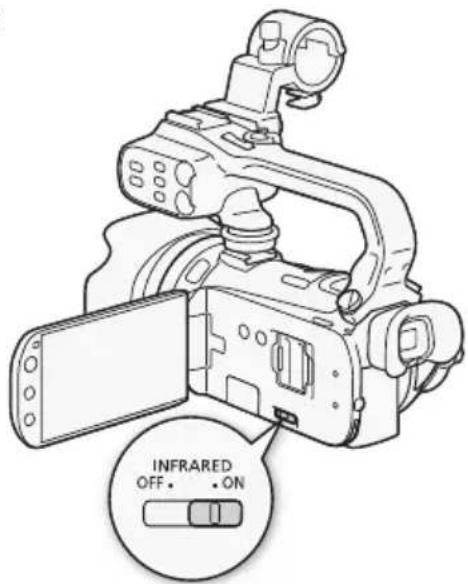
text_image
INFRARED OFF . . . ONTo turn off the infrared light
1 Back in the menu, touch [IR Light].
2 Touch [OFF Off] and then touch [X].

NOTES
- The infrared light is located in the handle unit. Make sure to attach it to use the infrared light.
- If you set an assignable button to [IR Light] (☐ 91), you can press the button to turn on the infrared light.
-
When the camcorder is in Infrared mode, the following adjustments are made automatically.
-
Gain, shutter speed and aperture are set to auto.
- Autofocus is set to Normal AF. However, you can change the focus mode to manual focus.
- AGC limit, white balance, image effects, exposure, backlight correction, recording program and face detection cannot be set.
- ND filters are not available.
- Depending on the light source, autofocus may not work well during zoom.
- When switching the camcorder to infrared mode, do not point the lens at strong sources of light or heat. The camcorder's sensitivity to such sources is much higher than when shooting video normally. If there are such sources in the picture before you switch the camcorder to infrared mode, shield the lens first.
4
Customization
Custom Button and Dial
You can assign to CUSTOM and CUSTOM dial one of several frequently used functions. You can then adjust the selected function using CUSTOM and CUSTOM dial, without having to access the menu.
Operating modes:

1 Open the [Custom Key/Dial] screen.
[FUNC.] [MENU] [Custom Key/Dial]
2 Touch the desired option and then touch [✗].
Options (♦ Default value)
[Tv Tv/Av] When you set the recording program to [Tv Shutter-Pri. AE] or [Av Aperture-Pri. AE] priority, you can adjust the shutter speed or aperture value with the CUSTOM dial.
[Manual Exposure] When you set the recording program to [M Manual Exposure], press CUSTOM to toggle between the aperture value, shutter speed and gain. Next, use the CUSTOM dial to adjust the setting.
[AGC AGC Limit] When you set [AGC AGC Limit] in the FUNC. panel to [M Manual], you can adjust the AGC limit with the CUSTOM dial. Press CUSTOM first if the AGC limit does not appear on the screen.
[☑Exposure] ♦ Adjusts the exposure. Press CUSTOM to display the exposure value and then use the CUSTOM dial to adjust the exposure value.
[OFF Off] Use this setting if you do not intend to use CUSTOM or CUSTOM dial.

natural_image
Line drawing of a digital camera with an inset showing the cable being inserted (no text or symbols present)i NOTES
- You can press and hold CUSTOM instead of the procedure above to display a quick menu of the options. Use the CUSTOM dial to select an option and then press CUSTOM.
Assignable Buttons
The camcorder conveniently features 2 buttons to which you can assign various functions. By assigning often used functions, you can quickly access them with a single press of a button.
Operating modes:

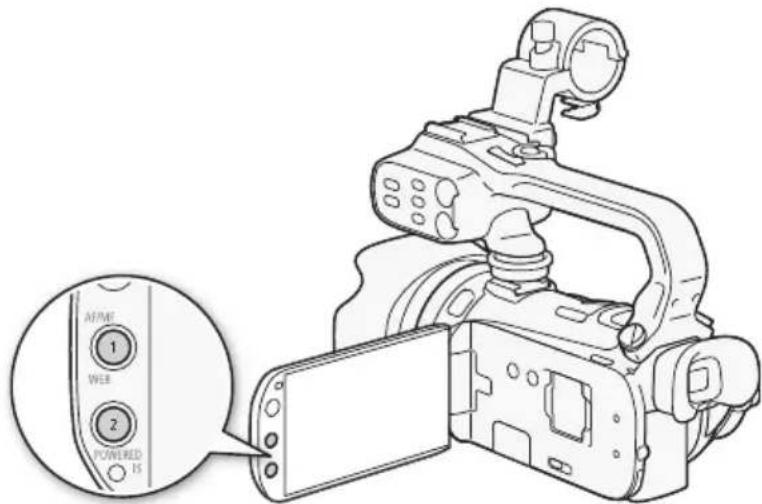
text_image
WEE 1 2 POWERED ISChanging the Assigned Function
1 Open the selection screen for the desired assignable button.
[FUNC.] [MENU] [Assign Button 1] or [Assign Button 2]
2 Select the desired option and then touch [X].
Options (♦ Default value for assignable button 1, ♦♦ default value for assignable button 2)
[★B L C A I w a y s O n ] Turns backlight correction on/off.
Face Only AF] Turns face only autofocus on/off (☐ 54).
[Story Creator] Activates Story Creator mode (105).
[Video Snapshot] Turns video snapshot on/off (85).
[WB WB Priority] Turns white balance priority on/off (153).
[★ IR Light] Turns the infrared light on/off (☐ 89). The handle unit must be attached to use this option.
[CH/CH Audio Output CH] Switches the audio output channel (153). The handle unit must be attached to use this option.
[AF/ME A F♦ Switches between autofocus and manual focus (51). This option is available only for assignable button 1.
[<<P 0 W Turns Powered IS on/off (□□60)SThis option is available only for assignable button 2.
[OFF Off] Does not assign a function to the assignable button.
Using an Assignable Button
After you assign a function to one of the buttons, press the button to activate the function.
Saving and Loading Menu Settings
After you adjust the cinema-look filters and other settings in the FUNC. panel and setup menus, you can save those settings on a memory card.
Operating modes:

Saving Menu Settings to a Memory Card
Menu settings must be saved to memory card B. If the memory card already has menu settings on it, they will be overwritten.
1 Insert a memory card into memory card slot B.
2 Open the [Backup Menu Settings ☐] screen.
[FUNC.] [MENU] [Backup Menu Settings B]
3 Touch [Save] and then touch [Yes].
- The current settings are saved to the memory card.
4 Touch [OK] and then touch [✗].
Loading Camera Settings from a Memory Card
1 Insert a memory card with menu settings into memory card slot B.
2 Open the [Backup Menu Settings ☐] screen.
[FUNC.] [MENU] [Backup Menu Settings B]
3 Touch [Load] and then touch [Yes].
- After the camcorder's current settings are replaced with the settings saved on the memory card, the screen will turn black momentarily and the camcorder will restart.
i NOTES
- This camcorder can load settings from other Canon XA10 and VIXIA HF G10 camcorders. Loading menu settings will replace all the menu settings currently in the camcorder that are common to both types of camcorders. In addition, settings that are not common to both types will be reset to default values.
5
Playback
Playing Back Video
Operating modes:

1 Press
- You can also press and hold 📄 on the wireless controller for more than 2 seconds to switch between shooting and playback mode.
2 Open the date index screen, if it is not displayed.
[◀▶] ▶ [▶ Date]
3 Look for the scene you want to play back.
- Move the zoom lever toward W to show 15 scenes per page; move it toward T to show 6 scenes per page.
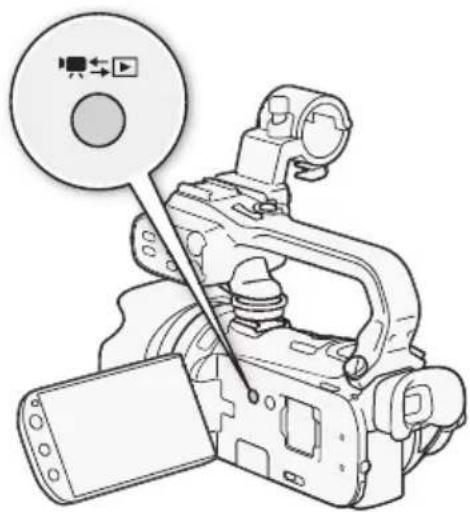
natural_image
Diagram of a digital camera with a circular button and playback icon (no text or symbols)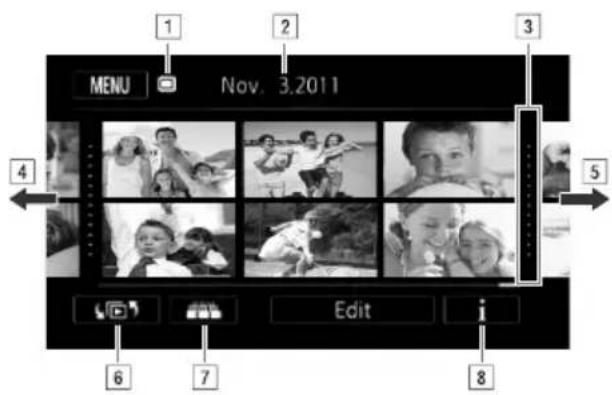
1 Memory being read.
2 Recording date.
3 Division line between recording dates.
4 Drag your finger left for the next index page*.
5 Drag your finger right for the previous index page*.
6 Open the index selection screen ( 97).
7 3D Flip View (96).
8 Scene's timeline (102).
* While browsing through index pages, a scroll bar will appear at the bottom of the screen for a few seconds. When you have a large number of scenes it may be more convenient to drag your finger along the scroll bar.
4 Touch the desired scene to play it back.
- Playback will start from the scene selected and continue until the end of the last scene in the index screen.
- Touch the screen to display the playback controls. During playback, the playback controls will disappear automatically after a few seconds without operation. In playback pause, touch the screen again to hide the playback controls.
During playback:

1 Jump to the beginning of the scene. Double-tap to jump to the previous scene.
2 Jump to the beginning of next scene.
3 Pause the playback.
4 Fast playback* backward/forward.
5 Display the volume (☐ 94) and background music mix balance (☐ 118) controls.
6 Stop the playback.
7 Decoration (110).
* Touch several times to increase the playback speed to approximately 5x → 15x → 60x the normal speed. During fast playback, touch anywhere on the screen to return to normal playback.
Adjusting the volume
1 During playback, touch the screen to display the playback controls.
2 Touch [ ] drag your finger along the [Speaker Volume]* bar to adjust the volume and touch [→].
* When [AV/Headphones] is set to [Ω Headphones], adjust the [Headphone Volume] bar instead.
During playback pause:

text_image
MENU Edit 11 0:00:10 MXP 095 1 PHOTO 2 9:15 PM Nov. 3.2011 3 4①Resume playback.
2 Slow playback* backward/forward.
3 Capture the displayed frame as a photo (104).
4 Decoration (110).
* Touch several times to increase the playback speed 1/8 → 1/4 the normal speed. During slow playback, touch anywhere on the screen to return to playback pause.

IMPORTANT
- Observe the following precautions while the ACCESS indicator is on or flashing. Failing to do so may result in permanent data loss.
- Do not open the double memory card slot cover.
- Do not disconnect the power source or turn off the camcorder.
- Do not change the camcorder's operating mode.
- You may not be able to play back with this camcorder movies recorded on a memory card using another device.

NOTES
- You can turn off the recording date and time display or change the information displayed with the [Data Code] setting.
- Depending on the recording conditions, you may notice brief stops in video or sound playback between scenes.
- During fast/slow playback, you may notice some anomalies (blocky video artifacts, banding, etc.) in the playback picture.
- The speed indicated on the screen is approximate.
- Slow reverse playback will look the same as continuous frame reverse.
3D Flip View
Touch [] in the date index screen to switch to 3D Flip View. This convenient way of displaying scenes grouped by recording date in a 3D layout can be useful to flip through a large number of recordings.
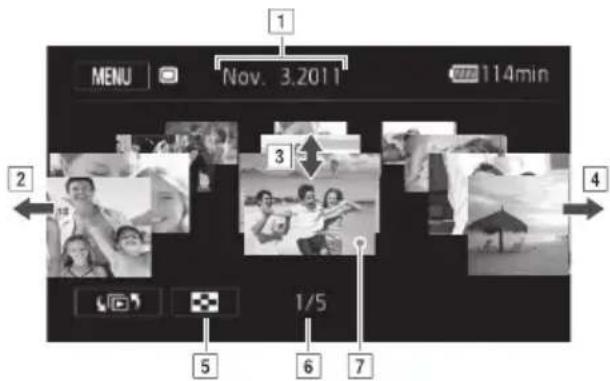
1 Recording date.
2 Drag your finger left to go to the next date with recordings.
3 Drag your finger up and down to browse through the scenes recorded in the displayed date.
4 Drag your finger right to go to the previous date with recordings.
5 Return to the date index screen.
6 Current scene / Total number of scenes recorded on the selected date.
7 Touch the scene in the front to play it back.
The Index Selection Screen: Selecting the Content to Play Back
From the index selection screen you can select the content you want to play back (original scenes by date or by story, or photos, for example). You can also select the memory from which you want to play back your recordings.
Operating modes:




In any index screen, touch [▶].
During single photo view, touch the screen once to display the controls then touch [☐] to open the [Photos] index screen.
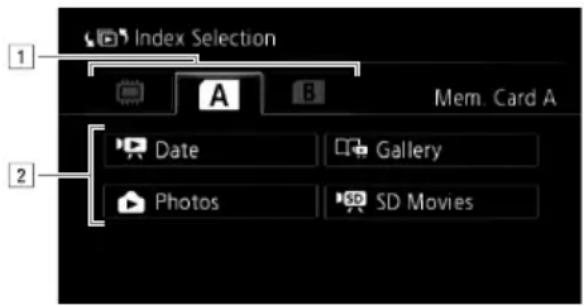
text_image
Index Selection 1 A B Mem. Card A 2 Date Gallery Photos SD Movies① Touch the tab of the desired memory: built-in memory, memory card A or memory card B.
② Touch a control button to select the content you want to play back.
Options
[ˈɒd] Date] Scenes organized by recording date.
[Gallery] Scenes organized by story (115).
[Photos] Photos' index screen.
[SD SD Movies] (only when a memory card is selected) Scenes that were converted to standard definition to upload them to the Web (139).
i NOTES
- Fast/slow playback modes are not available for scenes converted to standard definition. Scenes in the [SD] SD Movies index screen can only be played back at normal speed.
Two playback modes: the date index screen vs. the gallery
In the date index screen you can find all the movies you have recorded, conveniently organized by recording date. When you play back scenes from the date index screen they will be played back in chronological order.
In the gallery, you can find your scenes grouped as video stories. If you record movies using the Story Creator function (105), your scenes will appear in the story you created; scenes recorded without using this function will appear in the [Unsorted] story (or [Video Snapshot] story, in the case of video snapshot scenes). When you play back a story from the gallery, scenes will be played back in the order of the story's outline, regardless of their recording date.
Deleting Scenes and Stories
You can delete those scenes and stories that you are not interested in keeping. Deleting scenes allows you also to free up space on the memory.
Operating modes:

Deleting a Single Scene
1 Play back the scene you wish to delete.
2 Touch the screen to display the playback controls.
3 Open the screen to delete the scene.


[Delete]
4 Touch [Yes].
- The scene is deleted.
5 Touch [OK].
Deleting Scenes from the Date Index Screen
1 Open the date index screen.
- To delete all the scenes recorded on a specific date, drag your finger left/right until the desired date appears in the title bar.
2 Open the [Delete] screen.
[Edit]

[Delete]
3 Touch the desired option.
- When you select [Select], perform the following procedure to select the individual scenes you want to delete before touching [Yes].
4 Select [Yes].
- Touch [Stop] to interrupt the operation while it is in progress. Some scenes may be deleted nevertheless.
- The selected scenes are deleted.
5 Touch [OK].
To select individual scenes
1 Touch on the individual scenes you want to delete.
- A checkmark √ will appear on the scenes you touch. The total number of selected scenes will appear next to the √ icon.
- Touch a selected scene to remove the checkmark. To remove all checkmarks at once, touch [Remove All] [Yes].
2 After selecting all the desired scenes, touch [OK].
Options
[date] Delete all the scenes recorded on the date shown in the control button.
[Select] Select individual scenes to delete.
[All Scenes] Delete all the scenes.
Deleting a Single Scene from a Story
1 Open the list of scenes of the story that contains the scene you want to delete.
[Gallery] [Gallery] Bring the desired story to the front [Scene List]
2 In the [Scene List] screen, drag your finger up/down to select the scene you want to delete.
3 Touch the orange box on the right to open the [Edit Scene] screen.
4 Touch [ ☑] and then touch [Yes].
- The selected scene is deleted.
5 Touch [OK] and then touch [→].
Deleting Scenes from a Story by Rating
1 Open the information screen of the story that contains the scenes you want to delete.
[◀▶] [◀ Gallery] ▶ Bring the desired story to the front ▶ [Story Details]
2 Open the rating selection screen.
[Edit Story] [Delete]
3 Touch one or more of the rating buttons to select all the applicable scenes.
- A grayed out rating button indicates that no scenes in the story have been given that particular rating.
4 Delete all applicable scenes.
[Set] ▶ [Yes]
- Touch [Stop] to interrupt the operation while it is in progress. Some scenes may be deleted nevertheless.
5 Touch [OK] and then touch [→].
Deleting Stories
Deleting a story permanently deletes all the scenes it contains. The two preexisting stories, [Unsorted] and [Video Snapshot], cannot be deleted.
1 Open the gallery.
[Gallery]
2 Select the story you want to delete.
- Drag your finger right/left to bring the desired story to the front.
3 Open the [Delete Story] screen.
[Story Details] [Edit Story] [Delete Story]
4 Touch [Yes].
- Touch [Stop] to interrupt the operation while it is in progress. Some scenes may be deleted nevertheless.
5 Touch [OK].

IMPORTANT
- Be careful when deleting recordings. Once deleted, scenes cannot be recovered.
- Deleting a story permanently deletes all the scenes it contains.
- When deleting scenes, scenes will be removed from the date index screen and from any stories in the gallery they may have belonged to, regardless of the method used to delete them.
- Save copies of important scenes before deleting them (135).
-
Observe the following precautions while the ACCESS indicator is on or flashing (while scenes are being deleted).
-
Do not open the double memory card slot cover.
- Do not disconnect the power source or turn off the camcorder.
- Do not change the camcorder's operating mode.

NOTES
- To delete all movies and make all recordable space available again you may prefer to initialize the memory (☐40).
Dividing Scenes
You can divide scenes in order to leave out the best parts and later cut out the rest.
Operating modes:

1 Play back the scene you want to divide.
2 Pause the playback at the point where you want to divide the scene.
3 Open the scene division screen.
[Edit] ▶ [Divide]
4 Bring the scene to a precise point, if necessary.
- Playback controls will appear on the screen (☐ 94). Use any special playback modes (fast playback, frame reverse/advance) as necessary to locate the desired point.
5 Divide the scene.
[★ Divide] [Yes]
- The video from the division point to the end of the scene will appear as a new scene in the index screen.
i NOTES
- When advancing/reversing frames while dividing the scenes, the interval between frames is about 0.5 seconds.
- If the scene cannot be divided at the point where you paused the playback, advance/reverse a frame and then divide the scene.
- During the playback of a scene that was divided, you may notice some anomalies in the picture/sound at the point where the scene was cut.
- Scenes that are too short (less than 3 seconds) cannot be divided.
- Scenes cannot be divided within 1 second from the beginning or the end of the scene.
Selecting the Playback Starting Point
If you have a very long scene, you may want to start playing back the scene from a certain point. You can use the movie timeline to break the scene to segments at fixed time intervals ranging from 6 seconds to 6 minutes.
Operating modes:





1 Open the date index screen.
2 Open the scene's [Timeline] screen.
[i]
Desired scene
- The [Timeline] screen appears. The large thumbnail will show the first frame of the scene. Below it, the timeline ruler shows frames taken from the scene at fixed intervals.
3 Touch the desired frame in the timeline ruler to start playing back the scene from that point.

text_image
Timeline SP 0:00:37 Nov. 3.2011 9:15 PM 92/95 6 sec① Touch twice to return to the index screen.
2 Previous/next scene.
3 Drag your finger left along the ruler to display the next 5 frames.
4 Scene's recording mode and length.
5 Recording date and time.
6 Drag your finger right along the ruler to display the previous 5 frames.
7 Current scene / Total number of scenes.
8 Currently selected interval between frames.
To change the interval between frames
1 Touch [6 sec].
2 Select the desired interval and then touch [→].
Capturing Video Snapshot Scenes and Photos from a Movie
You can capture video snapshot scenes, single photos or a series of continuous photos from a previously recorded scene. For example, you may want to print photos from video recorded at a party or create a small video clip using video snapshot scenes from the highlights of an event.
Operating modes:

Capturing a Video Snapshot Scene
1 Play back the scene or story from which you want to capture the video snapshot scene.
2 Press START/STOP to capture the video snapshot scene.
- The camcorder captures the video snapshot scene for about 4 seconds (the blue frame serves as a visual progress bar), and then enters playback pause mode. You can change the length of the video snapshot scenes you capture to 2 or 8 seconds with the [Image] [Video Snapshot Length] setting.
3 Touch [■] to stop the playback.

NOTES
- A video snapshot scene can be captured only during playback; it cannot be captured during playback pause mode.
- The captured video snapshot scene is saved to the same memory that contains the source scene.
• Video snapshot scenes cannot be captured from scenes shorter than 1 second. - When the source scene is itself a video snapshot scene, you may not be able to capture a video snapshot scene depending on the length of the source scene and the length currently selected for video snapshot scenes.
- When you start capturing a video snapshot scene less than 1 second from the end of the scene, the video snapshot scene will be captured starting from the beginning of the following scene.
- During the playback of video snapshot scenes captured from a previously recorded movie, you may notice some anomalies in the picture/sound at the point where the playback switches to a new scene.
Capturing Photos
You can capture a single photo or a series of photos. The size of the captured photos will be 1920x1080 and it cannot be changed.
Please read the IMPORTANT section (☐ 104) before using an Eye-Fi card.
To select the photo capture settings
1 Open the [Photo Capture from Video] screen.
[MENU] [Photo Capture from Video]
2 Touch [☐ Single Photo] or [☐ Photo Sequence] and then touch [✗].
To capture the photos
1 Play back the scene or story from which you want to capture the photo.
2 Pause the playback at the point you want to capture.
3 Touch [PHOTO].
- To capture a photo sequence, keep touching [PHOTO]. The scene will be played back frame-by-frame and each frame captured as a separate photo.
4 Touch [ ■] to stop the playback.

IMPORTANT
- When capturing photos on an Eye-Fi card in memory card slot B, photos will be uploaded automatically if you are within the range of a configured network. Always verify that Eye-Fi cards have been approved in the country/region of use. See also Using an Eye-Fi card (142).

NOTES
- The data code of the photos will reflect the date and time of recording of the original scene.
- Photos captured from a scene with a lot of fast movement may be blurred.
-
Photos will be recorded on the memory selected for recording photos.
• [ ☐ Photo Sequence]: -
Up to 100 photos can be captured at a time.
- The photo sequence capture will stop when the end of the scene is reached (playback will pause at the beginning of the following scene).
- Photos will be captured at intervals of 1/30 second (1/24 second, if the scene was recorded at a frame rate of [PF24 PF24] or [24P]).
6
Video Stories and Cinema Style
Using Story Creator to Create Video Stories
Story Creator is a helpful function that offers suggestions for typical scenes in a number of situations. With Story Creator, creating a video story with a structured yet interested storyline is as easy as selecting one of the story themes, such as [Travel], [Kids & Pets] or [Blog], and following the suggested categories to record video. You can even select [Unrestricted] to group recordings as a single story without following the other storylines. During playback, select your story from the gallery to play back the scenes you recorded as a single, compelling video story (115).
Operating modes:

Creating a New Story
1 Start Story Creator mode.
[FUNC.] [Story Creator]
- Alternatively, you can set an assignable button to [Story Creator] (91).
- If the memory already contains other stories, the story selection screen will appear. In that case, touch [New Story].
2 Select the desired theme.
- Drag your finger left/right to browse through the themes and touch the thumbnail of the desired theme.
- A list of the suggested categories (story scenes) for the selected theme will appear.
3 Drag your finger up/down to select a category and touch [OK].
4 In the confirmation screen, touch [Yes] to create the story.
- Initially, the current date will be used as the story's title, but you can touch the [ ] control button to change it (123) before pressing [Yes].
- A new story will be created and the camcorder will enter record pause mode. The selected story scene category will appear at the bottom of the screen.
Recording a Scene within a Story
Press START/STOP to record movies within the selected story scene (category).
- Use the displayed recommended length as a reference when recording scenes.
- Scenes will be recorded under the story and category currently selected.
- You can also record video snapshot scenes (85).
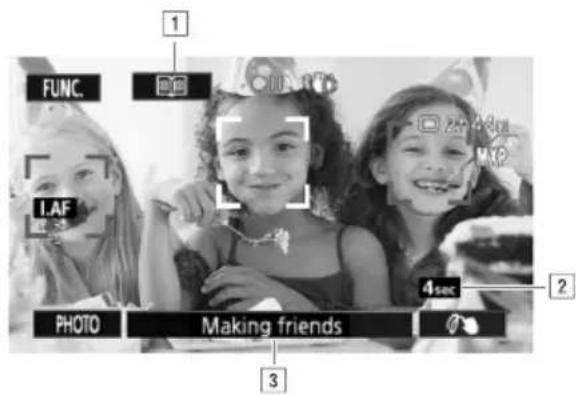
text_image
FUNC. LAF PHOTO Making friends 4sec 1 2 3① Return to the list of story scenes (categories).
2 Recommended length of scenes in this category.
3 Currently selected story scene (category). You can also touch here to return to the list of story scenes.
To select a different story scene (category)
1 Touch [] to return to the list of story scenes.
- When it appears on the screen, you can also touch the current category at the bottom of the screen.
2 Drag your finger up/down to select another category and touch the orange frame on the right (number of scenes).
To exit Story Creator mode
1 Touch [FUNC.] and then touch [Story Creator].
2 Touch [Yes].
i NOTES
- When recording video snapshot scenes, you can have the camcorder automatically link the length of video snapshot scenes to the recommended length of story scenes with the [Image] [Video Snapshot Length] setting.
- During Story Creator mode, relay recording and double slot recording are not available.
Recording Additional Scenes within an Existing Story
1 Start Story Creator mode.
[FUNC.] [Story Creator]
- Alternatively, you can set an assignable button to [Story Creator] (91).
2 Select the story to which you want to add new scenes.
- The list of story scenes will appear. The orange frame on the right will show how many scenes you have recorded in each story scene (category).
3 Drag your finger up/down to select a category and touch the orange frame on the right (number of scenes).
- The camcorder will enter record pause mode and the selected story scene category will appear at the bottom of the screen.
4 Press START/STOP to record a scene within the selected story scene.
CINEMA Mode and Cinema-Look Filters
In mode, the camcorder will adjust the frame rate and several other picture-related settings to give your recordings a cinematic look. In this mode you can also use a variety of professional cinema-look filters to create unique movies with a distinctive appearance.
Operating modes:




1 Set the mode switch to CINEMA
2 Select the desired cinema-look filter.
[FILTER 1] Desired cinema-look filter* [OK]
* You can change the effect level before touching [OK]. [Cinema Standard] offers different adjustment options than the other cinema-look filters.
- The selected cinema-look filter will be applied and its number will appear on the control button.

text_image
AUTO M CINEMATo select the effect level of [Cinema Standard]
1 Open the parameter selection screen.


2 Touch [Color Depth], [Softening Filter], [Key (Brightness)] or [Contrast].
3 Touch [◀] or [▶] to adjust the parameter.
- You can also drag your finger along the dial.
- The picture will change immediately according to the adjustment.
To select the effect level of the other cinema-look filters
1 Touch [ ↗] to open the adjustment screen.
2 Touch [L] (low), [M] (medium) or [H] (high).
3 Touch [ ↩] and then touch [OK].
Options (♦ Default value)
The camcorder offers 9 cinema-look filters. Select the desired filter while previewing the effect on the screen.
[1: Cinema Standard]
[2: Vivid]
[3: Dream]
[4: Cool]
[5: Nostalgic]
[6: Sepia]
[7: Old Movies]
[8: Memory]
[9: Dramatic B&W]
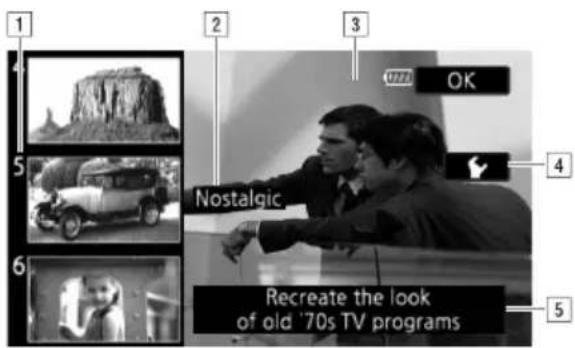
text_image
1 2 3 4 5 Nostalgic OK Recreate the look of old '70s TV programs① Filter number (will appear on the control button)
2 Filter name
3 Preview the effect on the screen
4 Select the effect level
5 Brief description (onscreen guidance)
i NOTES
- Photos cannot be recorded while the camcorder is set to mode.
- When recording in CINEMA mode, the [Frame Rate] setting will be set to [PF24 PF24].
Adding Decorations
Adding Decorations
Using the decoration function, you can add various graphical elements to the picture, such as stamps, watermarks, the date/time, and even your own freehand drawings. Freehand drawings can help emphasize a portion of the picture to attract viewers' attention. The supplied stylus pen will be especially useful for adding decorations.
You can decorate scenes as they are being recorded, during playback or just before converting them to standard definition.
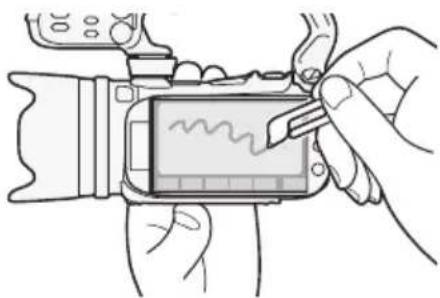
natural_image
Illustration of hands using a handheld device to interact with a screen displaying a waveform (no text or symbols present)Decorating Scenes while Recording
Operating modes:


1 Open the decoration screen.
[FUNC.] Decoration]
- The decoration screen will open automatically also when you stow the LCD panel with the touch screen facing out.
2 Use a tool from the toolbar as explained in the following procedures.
3 Press START/STOP to record movies with your decorations.
- You can add decorations even while recording a scene.
4 Touch [ X ] to exit the decoration screen.
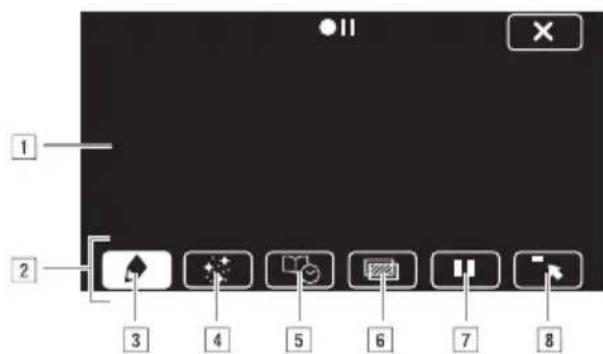
text_image
1 2 3 4 5 6 7 81 Canvas - The area where you will draw and see your decorations in action.
2 Toolbar.
3 [Pens and Stamps] Select the type of pen or stamp and its color. You can also save a canvas or load a previously saved canvas.
4 [Animated Stamps] Select animated stamps to add to your decoration.
5 [Captions] Add the date, date and time, story title or story theme category as a caption that will be included in the recording.
6 [Image Mix] Choose one of 27 different frames to add onto the canvas. Image mix can be used in combination with the pens, stamps and animated stamps. During playback, you can add a watermark to the picture using image mix.
7 [■■]* In recording mode: pause the live video. Touch [■■] again to restore the live video. You can add decorations to and record the frozen image.
In playback mode: pause the playback. Touch [▶] to resume playing back the scene.
8 [T]Minimize the toolbar to the top of the screen to view almost all of the canvas.
Touch [ ] to restore the toolbar.
* Not available in mode.
To use [Pens and Stamps]
1 Touch [ ].
• The [Pens and Stamps] screen will appear.
2 Select the desired pen or stamp from [Tools].
3 Select white or black from [Colors].
• Alternatively, you can touch [] and select a color from the color palette.
4 Draw freely on the canvas.
- Touch [] [Clear] [Yes] to clear the canvas and start again.
- Continue the procedure only if you wish to save the canvas.
5 Touch [ ] and then touch [☐ Save].
6 Touch [Yes].
- The freehand drawings and stamps will be saved in the built-in memory.
7 Touch [→].
To load a previously saved canvas
In the decoration screen:
1 Touch [] and then touch [☐ Load].
2 Touch [Yes].
- The freehand drawings and stamps saved in the memory will be loaded.
3 Touch [ ↩].
To use [Animated Stamps]
1 Touch [ ].
- The [Animated Stamps] screen will appear.
2 Touch one of the control buttons.
3 Touch anywhere on the canvas to place the selected animated stamp. You can also drag the animated stamp to a different location.
To use [Captions]
1 Touch [ ]
- The [Captions] screen will appear.
2 Touch [Date] or [Time].
- When recording a scene using Story Creator, you can also select [Title] (the story's title) or [Story Scene] (the story scene category).
3 Select the desired text settings and touch [→].
- Touch [ ] (white text on dark background), [ ] (white text) or [ ] (black text).
- The selected caption will appear in the center of the screen.
4 Touch the caption and drag it to the desired location.
To use image mix
1 Open the [Select Image] screen.

2 Touch [+] or [-] to select a different image mix frame.
- You can touch one of the memory icons at the bottom of the screen to read image mix frames saved on a different memory.
3 Touch [→] to mix the selected frame with the live video.
Mixing Your Own Images with Live Video
You can use images you make on your computer for the image mix (Chroma Key) function. Make sure that the image you want to use has a blue or green area, which will be replaced by the live video using Chroma Key mixing. Refer to About the image files for the Image Mix function
(185) for details about the types of image files that can be used and where to transfer them. The image files are in the [MY_PICT] folder on the supplied Camcorder Supplemental Disc.
Example of an image used for Chroma Key
natural_image
Abstract gray shape with a white line extending from its right side (no text or symbols)Blue/Green area that will be replaced by the live video
To use the Chroma Key function
1 Open the [Select Image] screen of the image mix function (☐ 112).
2 Touch [+] or [-] to select the image you created.
3 Touch [▶] to open the [Chroma Key] screen.
4 Touch [Green] or [Blue] depending on the characteristics of the image you want to use and touch [◀] or [▶] or drag your finger along the bottom bar to adjust the chroma key setting as necessary.
5 Touch [▶] at the top of the screen to open the [Transparency] screen.
6 Touch [◀] or [▶] or drag your finger along the bottom bar to adjust the overall transparency of the image as necessary.
7 Touch [ ↩] to mix your image with live video.
Decorating Scenes during Playback
Operating modes:





1 Play back the scene you want to decorate.
2 Touch the screen to display the playback controls.
3 Touch [] to open the decoration screen.
4 Decorate the scene using the tools from the toolbar as explained in the previous section.
- In playback mode, the decorations will not be saved with the original recording.
i NOTES
- Initializing a memory will erase any [Pens and Stamps] drawing canvas and image files you may have saved. (The image mix frames that come pre-installed in the built-in memory will be restored after it is initialized.)
- Animated stamps and captions cannot be used at the same time.
- When [Rec Media for Movies] is set to [☐] (the built-in memory), you will not be able to select image mix fames saved on a memory card.
- Image mix cannot be selected during playback or while converting a scene to standard definition. Select the image mix during playback pause or before starting the conversion.
Playing Back Stories from the Gallery
You can play back recordings made using Story Creator to play them back as a single compelling video story following the storyline order. Regular scenes and video snapshot scenes recorded without using Story Creator, will appear in the gallery under the [Unsorted] or [Video Snapshot] stories. When playing back stories from the gallery, you can choose to play back only scenes with a certain rating.
Operating modes:

1 Open the gallery.
[Gallery]

text_image
MENU Gallery Kids & Pets Nov. 3.2011 Story Details Scene List① Drag your finger right or left to select a story.
② Story's theme.
3 Selected story (large thumbnail in the front).
4 Story's title (123).
5 Open the index selection screen (☐ 97).
6 Details about the story (number of scenes, total playback time) and editing options.
7 List of scenes recorded in the selected story.
2 Select the story you want to play back.
- Drag your finger right/left to bring the desired story to the front.
- To play back only scenes with a certain rating, proceed to step 3. If not, skip to step 5.
3 Open the [Play by Rating] screen.
[Story Details] [Play by Rating]
4 Touch the desired rating and touch [→] twice.
5 Touch the story's thumbnail to start the playback.
- All applicable scenes will be played back from the first scene to the last. When playback ends, the camcorder will return to the gallery.
- During the playback of a story other than [Unsorted] or [Video Snapshot], touch the screen and then touch [播放] display the scene's category during playback. Touch the control button again to turn the story scene display off.
- Playback controls are the same as when playing back scenes from the date index screen (94).
Playing Back Stories from the Gallery

IMPORTANT
- Observe the following precautions while the ACCESS indicator is on or flashing. Failing to do so may result in permanent data loss.
- Do not open the double memory card slot cover.
- Do not disconnect the power source or turn off the camcorder.
- Do not change the camcorder's operating mode.
Rating Scenes
You can rate story scenes immediately after recording them (☐ 43) or during playback. You can then select multiple scenes with the same rating, for example, in order to play back or copy only your favorite scenes.
Operating modes:

Rating Scenes from the List of Scenes
1 Open the list of scenes of the story that contains the scenes you want to rate.
[Gallery] [Scene List]
2 In the [Scene List] screen, drag your finger up/down to select the scene you want to rate.
3 Touch the orange box on the right to open the [Edit Scene] screen.
4 Touch the control button of the desired rating and touch [→] twice to return to the gallery.
Rating Scenes During Playback
1 Play back from the gallery the story that contains the scenes you want to rate.
2 During playback of a scene you want to rate, pause the playback and rate the scene.
Touch the screen [■]
3 Open the [Rating] screen.
[Edit] ▶ [Rating]
4 Touch the desired rating and then touch [✗].
5 Touch [▶] to resume the playback and rate other scenes in the same way or touch [■] to return to the gallery.
Playback with Background Music
Play back movies (or a photo slideshow) with background music. You can use one of the supplied music tracks or connect an external audio player to use your favorite songs as background music.
Operating modes:

Using One of the Supplied Music Tracks as Background Music
The supplied Camcorder Supplemental Disc contains 3 music tracks you can use as background music. The music files come pre-installed in the built-in memory.
You can mix the original audio and the background music and adjust the background music mix balance to your preference.

POINTS TO CHECK
- To play back scenes or a slideshow of photos recorded on the memory card, you will need to transfer the music tracks to the memory card in advance. See the NOTES section (120).
1 Open the gallery or date index screen.
[◀▶] [◀ Gallery] or [◀ Date]
2 Open the [Select Music] screen.
[MENU] [Select Music] [ON On]
3 Touch [▲] or [▼] to select the desired music track.
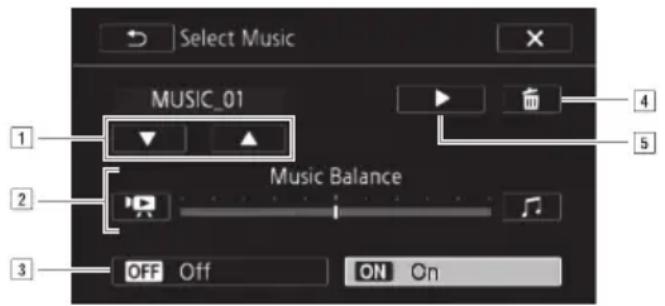
text_image
Select Music MUSIC_01 Music Balance OFF Off ON On1 Select the desired music track.
2 Adjust the background music balance.
3 Play back the original sound (no background music).
4 Delete the music track selected.
5 Listen to the music track selected. Touch again (■) to stop the playback.
4 Adjust the mix balance between the original sound and the background music.
- Touch [ˈʃ] (more of the original sound) or [ʃ] (more of the background music) or drag your finger along the [Music Balance] bar to adjust the background music balance as desired.
5 Touch [✗] and then touch a story or scene to start the playback with the selected background music.
To adjust the background music balance during playback
1 During playback, touch the screen to display the playback controls.
2 Touch [ ] drag your finger along the [Music Balance] bar to adjust the background music balance as desired and touch [→].
To delete a music track
In the [Select Music] screen, touch [▲] or [▼] to select the track you want to delete.
Touch [☐] and then touch [Yes].
- The selected music track is deleted.
Using an External Audio Player for Background Music
Use your favorite songs as background music by connecting an external player.

POINTS TO CHECK
- You will need a commercially available audio cable with at least one mini-stereo plug (to connect to the MIC terminal on the camcorder); the other end will depend on external player used).
- Make sure that the jacket covering above the mini-stereo plug is smaller than ∅ 9.5 mm.
1 Open the gallery or date index screen.
[◀▶] [▶ Gallery] or [▶ Date]
2 Open the [External Audio Input] screen.
[MENU] [External Audio Input]
3 Touch [ON On].
4 Connect the external player to the camcorder's MIC terminal.
5 Adjust the audio input as necessary.
- Start the music playback on the external player and adjust its volume according to the onscreen indications. When the audio input is in the correct range, stop the music playback and touch [✗] on the camcorder.
- Touch [External Player Link] to link the video playback to the start/end of the music from the external player.
Playback with the video linked to the external audio
6 Start the music playback on the external player.
- Playback will start from the first scene in the story or index screen.
- When the external audio input stops, video playback will pause. When the external audio input is restored, video playback will resume automatically.
- Even when the video playback stops, audio playback on the external player will not stop automatically.
Playback with the video not linked to the external audio
6 Touch a story or scene to start the video playback.
7 Start the music playback on the external player.

IMPORTANT
- If you use copyrighted songs and music tracks in your video creations, remember that music under copyright may not be used without permission from the copyright holder, except for cases permitted under applicable laws, such as for personal use. Make sure to follow applicable laws when using music files.

NOTES
- Initializing a memory card will permanently erase any music files you may have transferred to the card. (The music files that come pre-installed in the built-in memory will be restored after it is initialized.) To transfer music files from the supplied Camcorder Supplemental Disc to the memory card:
- Windows users: Use the supplied PIXELA's software. For details, refer to the Software Guide (PDF file) of the supplied PIXELA's software.
- Mac OS users: Use Finder to transfer music files from the [MUSIC] folder on the supplied Camcorder Supplemental Disc to the memory card. Refer to About the music files (185) for the folder structure of the memory card.
- Transfer music files to the memory card that contains the recordings you want to play back with background music.
- In some cases, the video playback may not be correctly linked to the external player. For example, if the volume of external player is too low or if the audio signal contains a lot of noise, etc.
Copying and Moving Scenes Within/Between Stories
You can copy and move scenes in the gallery within the same story scene (category), between story scenes in the same story, and between stories recorded in the same memory.
Operating modes:

1 Open the list of scenes of the story that contains the scene you want to copy or move.
[Gallery] [Scene List]
2 In the [Scene List] screen, drag your finger up/down to select the scene you want to copy/move.
3 Touch the orange box on the right to open the [Edit Scene] screen and touch [Copy] or [Move].
4 Select the destination.
- Drag your finger right/left to select the desired story and touch its thumbnail. Then, drag your finger up/down to select the desired category and touch the orange frame on the right (number of scenes). And last, drag your finger up/down to move the orange bar within the category to select the position of the scene.
5 Copy or move the scene.
[Set]* ▶ [Yes]**
* This step is not necessary when copying/moving a scene into a story scene category that contains no other scenes.
**When copying a scene, you can touch [Stop] to interrupt the operation while it is in progress.
6 Touch [OK] and then touch [→].

NOTES
- You cannot copy or move scenes to the two preexisting stories, [Unsorted] and [Video Snapshot].
Selecting a Story's Thumbnail Image
Initially, the image used as the story's thumbnail is the first frame of the first scene in the story. You can set your favorite scene as the thumbnail that will represent the story in the gallery.
Operating modes:

1 Open the gallery.
[Gallery]
2 Select the story whose thumbnail you want to change.
- Drag your finger right/left to bring the desired story to the front.
3 Open the [Story Thumbnail] screen.
[Story Details] [Edit Story] [Story Thumbnail]
4 Locate the frame you want to use as the story's thumbnail.
- Playback controls will appear on the screen (94). Use any special playback modes (fast/slow playback, frame reverse/advance) as necessary to locate the desired image.
5 Touch [Set] to change the story's thumbnail.
6 Touch [ ↩] to return to the gallery.
Changing a Story's Title
When you first create a story, the current date will be used as the story's title but you can change the title later on. The title can be up to 14 characters long (available characters are limited). The title of the two preexisting stories, [Unsorted] and [Video Snapshot] cannot be changed.
Operating modes:

1 Open the gallery.
[Gallery]
2 Select the story whose title you want to change.
- Drag your finger right/left to bring the desired story to the front.
3 Open the [Edit Title] screen.
[Story Details] [Edit Story] [Edit Title]
4 Use the virtual keyboard to change the title.
5 Touch [OK] ➕ [→] ➕ [→] to return to the gallery.

text_image
OK Edit Title Cancel 10.25.2011 1 2 3 4 5 6 7 8 9 0 _ - ~ . $ ! * + ( ) : : @ = & . / ABC ← #%? 41 Switch between letters and numbers/special characters.
2 Change the position of the cursor.
3 Delete the character to the cursor's left (backspace).
4 Caps Lock. When the numerical keyboard is displayed, [ % ?] switches between set 1 and set 2 of special characters.
7
External Connections
Terminals on the Camcorder

text_image
Technical diagram of a video camera with labeled parts, showing front and side views with numbered annotations.

text_image
Technical diagram of a video camera with labeled parts ③ and ④

①COMPONENT OUT Terminal\*
Access: Open the LCD panel and terminal cover. The component video terminal is for video only. When you use connection 2, do not forget the audio connections using the AV OUT/Ω terminal.
②AV OUT/Ω Terminal
Access: Open the LCD panel and terminal cover. Sound from the built-in speaker will be muted while the STV-250N Stereo Video Cable is connected to the camcorder. Adjust the volume on the connected TV.
③HDMI OUT Terminal\*
Access: Open the side terminal cover. The HDMI OUT terminal offers a high-quality digital connection that combines audio and video in a single convenient cable.
④USB Terminal
Access: Open the side terminal cover.
* When connecting a cable to the camcorder, make sure to align the triangle marks on the cable's connector and on the camcorder's terminal.

text_image
HDMI OUT
natural_image
Illustration of a USB connector with a small display and a triangular icon (no text or symbols)Connection Diagrams
In the following connection diagrams, the left side shows the terminals on the camcorder and the right side shows (for reference only) an example of terminals on a connected device.
Connection 1 HDMI
Type: Digital • Quality: High definition • Output only
Connect to a high-definition TV (HDTV) with an HDMI input terminal. If your HDTV supports HDMI-CEC or 1080p input, you can activate these functions with the [Control for HDMI] and [HDMI 1080p Output] settings, respectively. You can check the standard of the current output signal with the [HDMI Status] setting.

text_image
HDMI OUT (HDMI mini connector) HTC-100 HDMI Cable (optional) (standard HDMI connector) HDMI INAbout the HDMI™ connection
The HDMI (High-Definition Multimedia Interface) connection (1) is a convenient all-digital connection using a single cable for both video and audio. When you connect the camcorder to an HDTV equipped with an HDMI terminal, you can enjoy video and audio playback at the highest quality.
- The HDMI OUT terminal on the camcorder is for output only. Do not connect it to an HDMI output terminal on an external device, as this may damage the camcorder.
- While the camcorder is connected to an HDTV using connection 1, there will be no video output from other terminals.
- Correct operation cannot be guaranteed when connecting the camcorder to DVI monitors.
- Depending on the HDTV, correct playback of personal video content may not be possible using connection 1. Try one of the other connections.
Connection 2
Component Video
Type: Analog • Quality: High Definition • Output only
Connect to a high-definition TV (HDTV) with component video input terminals. Change the following settings on the camcorder:
- [AV/Headphones] to [AV AV]

text_image
CTC-100/S Component Cable (supplied) Red Blue Green Pr/Cr Pb/Cb Y
text_image
AV OUT/ STV-250N Stereo Video Cable (supplied) White Red AUDIO L RConnection 3
Composite Video
Type: Analog • Quality: Standard definition Output only
Connect to a standard TV or a VCR with audio/video input terminals. Change the following settings on the camcorder:
- [TV Type] according to the TV set (widescreen or 4:3), if the TV cannot automatically detect and change the aspect ratio
- [AV/Headphones] to [AV AV]

text_image
AV OUT/ STV-250N Stereo Video Cable (supplied) Yellow White Red VIDEO AUDIO L RConnection 4
USB
Type: Digital data connection
Connect to a computer to save your recordings, or to a compatible digital video recorder to copy your recordings.

text_image
USB USB Cable (supplied)
NOTES
- Power the camcorder using the compact power adapter and only then connect it to the computer using the supplied USB cable in the following cases.
- To write back scenes recorded with this camcorder that were previously saved on a computer.
- To transfer music files from the supplied Camcorder Supplemental Disc to a memory card in the camcorder in order to use them as background music.
Playback on a TV Screen
Connect the camcorder to a TV to view and check your recordings. Playback on an HDTV using one of the high-definition connections will ensure the best playback quality.
Operating modes:

1 Turn off the camcorder and the TV.
2 Connect the camcorder to the TV.
- Refer to Connection Diagrams (125) and select the most appropriate connection for your TV.
3 Turn on the connected TV.
- On the TV, select as the video input the same terminal to which you connected the camcorder. Refer to the instruction manual of the connected TV.
4 Turn on the camcorder and set it to
- Play back the movies or photos.

NOTES
- To correctly play back movies recorded with x.v.Color (150) on an HDTV compatible with this standard, additional settings may be required on the connected HDTV. Refer to the TV's instruction manual.
- We recommend powering the camcorder using the compact power adapter.
- Connection 3: When you play back your 16:9 movies on standard TV sets with a 4:3 aspect ratio, the TV set will switch automatically to widescreen mode if it is compatible with the Video ID-1 system. Otherwise, change the aspect ratio of the TV manually.
8
Photos
Viewing Photos
Operating modes:





1 Press

natural_image
Diagram of a digital camera with a screen and playback button, no text or symbols present2 Open the [Photos] index screen, if it is not displayed.
[Photos]
3 Look for the photo you want to play back.
- Move the zoom lever toward W to show 15 photos per page; move it toward T to show 6 photos per page.
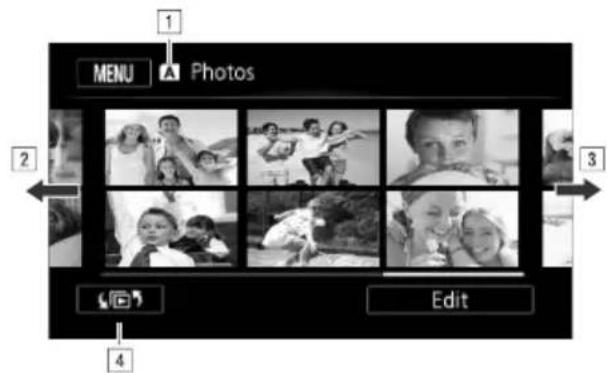
text_image
MENU Photos 1 2 3 Edit 41 Memory being read.
2 Drag your finger left for the next index page.*
3 Drag your finger right for the previous index page.*
4 Open the index selection screen (97).
* While browsing through index pages, a scroll bar will appear at the bottom of the screen for a few seconds. When you have a large number of photos it may be more convenient to drag your finger along the scroll bar.
4 Touch the photo you wish to view.
- The photo is displayed in single photo view.
- Drag your finger left/right to browse through the photos one by one.
To return to the index screen from single photo view
1 Touch the screen to display the playback controls.
2 Touch [ ■].
Photo Jump Function
When you have recorded a large number of photos, you can jump easily through the photos using the scroll bar.
1 Touch the screen to display the playback controls.
2 Touch [ ]
3 Drag your finger left and right along the scroll bar and then touch [→].

IMPORTANT
- Observe the following precautions while the ACCESS indicator is on or flashing. Failing to do so may result in permanent data loss.
- Do not open the double memory card slot cover.
- Do not disconnect the power source or turn off the camcorder.
- Do not change the camcorder's operating mode.
- The following image files may not be displayed correctly.
- Images not recorded with this camcorder.
- Images edited on a computer.
- Images whose file names have been changed.
Deleting Photos
You can delete those photos that you are not interested in keeping.
Operating modes:

Deleting a Single Photo
1 In single photo view, select the photo you want to delete.
2 Touch the screen to display the playback controls.
3 Open the screen to delete photos.
[Edit] [Delete]
4 Touch [ ☑Proceed] and then touch [Yes].
- The photo is deleted.
5 Drag your finger left/right to select another photo to delete or touch [✗].
Deleting Photos from the Index Screen
1 Open the [Photos] index screen.
[Photos]
2 Open the screen to delete photos.
[Edit] [Delete]
3 Touch the desired option and then touch [Yes].
- When you select [Select], perform the following procedure to select the individual photos you want to delete before touching [Yes].
- Touch [Stop] to interrupt the operation while it is in progress. Some photos will be deleted nevertheless.
4 Touch [OK].
To select individual photos
1 Touch on the individual photos you want to delete.
- A checkmark √ will appear on the photos you touch. The total number of selected photos will appear next to the ☑ icon.
- Touch a selected photo to remove the checkmark. To remove all checkmarks at once, touch [Remove All] [Yes].
2 After selecting all the desired photos, touch [OK].
Options
[Select] Select individual photos to delete.
[All Photos] Delete all the photos.

IMPORTANT
- Be careful when deleting photos. Deleted photos cannot be recovered.
- Photos that were protected with other devices cannot be deleted with this camcorder.
Slideshow
You can play a slideshow of all the photos and even set it to music.
Operating modes:

1 Open the [Photos] index screen.
[Photos]
2 Select the background music to use during the photo slideshow.
- Music tracks: Steps 2 - 3 (118). External audio: Steps 2 - 4 (119).
Slideshow set to a music track
3 Touch the photo that will open the slideshow to display it in single photo view.
4 Touch the screen to display the playback controls, then touch [▶] to play back the slideshow set to the selected music track.
Slideshow not linked to the external audio
3 Touch the photo that will open the slideshow to display it in single photo view.
4 Touch the screen to display the playback controls, then touch [▶] to start the slideshow.
5 Start the music playback on the external player.
Slideshow linked to the external audio
3 Start the music playback on the external player.
- Playback will start from the first photo in the index screen.
- Photos will be displayed continuously until the music stops. When the external audio input stops, the slideshow will stop as well.
During the photo slideshow
- Touch the screen and drag your finger left and right along the volume bar to adjust the volume.
- Touch the screen and touch [■■] to stop the slideshow. Hide the playback controls if necessary.
To change the slideshow's transition effects
1 Open the [Slideshow Transition] screen.
[MENU] [Slideshow Transition]
2 Touch [Off], [Dissolve] or [Slide Image] and then touch [X].
9
Saving/Sharing Recordings
Copying Recordings to a Memory Card
To copy your recordings, you must select recordings in the built-in memory or on memory card A. In either case, the recordings will be copied to memory card B. Scenes and photos will be copied from the index screen or from a story in the gallery on the source memory to the same index screen or story on memory card B.
Please read the IMPORTANT section (☐ 134) before using an Eye-Fi card.
Copying Scenes from the Date Index Screen
Operating modes:





1 Open the date index screen.
- Check that you have selected the ☐ tab (built-in memory) or ☐ tab (memory card A).
- To copy all the scenes recorded on a specific date, drag your finger left/right until the desired date appears in the title bar.
2 Open the screen to copy scenes.
[Edit] [Copy (☐→B)] or [Copy (A→B)]
3 Touch the desired option and then touch [Yes].
- When you select [Select], perform the following procedure to select the individual scenes you want to copy before touching [Yes].
- Touch [Stop] to interrupt the operation while it is in progress.
4 Touch [OK].
To select individual scenes
1 Touch on the individual scenes you want to copy.
- A checkmark √ will appear on the scenes you touch. The total number of selected scenes will appear next to the ☑ icon.
- Touch a selected scene to remove the checkmark. To remove all checkmarks at once, touch [Remove All] (Yes).
2 After selecting all the desired scenes, touch [OK].
Options
[date] Copy all the scenes recorded on the date shown in the control button.
[Select] Select individual scenes to copy.
[All Scenes] Copy all the scenes.
Copying Scenes from a Story by Rating
1 Open the gallery and bring the desired story to the front.
[Gallery] Desired story
- Check that you have selected the ☐ tab (built-in memory) or ☐ tab (memory card ☐).
2 Open the [Play by Rating] screen.
[Story Details] [Play by Rating]
3 Touch the desired rating and then touch [→] twice.
4 Open the screen to copy scenes.
[Story Details] ▶ [Edit Story] ▶ [Copy (☐ ➕ B)] or [Copy (A ➕ B)]
5 Touch [Yes].
- Touch [Stop] to interrupt the operation while it is in progress.
- The selected scenes are copied.
6 Touch [OK] and then touch [→].
Copying a Single Photo
Operating modes:

1 In single photo view, select the photo you want to copy.
- Check that you are viewing photos recorded in the built-in memory or on memory card A. (☐ or ☐ appears next to the photo number.)
2 Touch the screen to display the playback controls.
3 Open the screen to copy photos.
[Edit] [Copy (☐→☐)] or [Copy (A→B)]
4 Touch [ ☐Proceed].
5 Touch [Yes].
- The photo is copied.
6 Drag your finger left/right to select another photo to copy or touch [✗].
Copying Photos from the Index Screen
Operating modes:

1 Open the [Photos] index screen.
- Check that you have selected the ☐ tab (built-in memory) or A tab (memory card A).
2 Open the screen to copy photos.
[Edit] [Copy (☐→☐)] or [Copy (A→B)]
3 Touch the desired option and then touch [Yes].
- When you select [Select], perform the following procedure to select the individual photos you want to copy before touching [Yes].
- Touch [Stop] to interrupt the operation while it is in progress.
- The selected photos are copied.
4 Touch [OK].
To select individual photos
1 Touch on the individual photos you want to copy.
- A checkmark √ will appear on the photos you touch. The total number of selected photos will appear next to the ☑ icon.
- Touch a selected photo to remove the checkmark. To remove all checkmarks at once, touch [Remove All] [Yes].
2 After selecting all the desired photos, touch [OK].
Options
[Select] Select individual photos to copy.
[All Photos] Copy all the photos.

IMPORTANT
- Observe the following precautions while the ACCESS indicator is on or flashing. Failing to do so may result in permanent data loss.
- Do not open the double memory card slot cover.
- Do not disconnect the power source or turn off the camcorder.
- Do not change the camcorder's operating mode.
- When copying photos onto an Eye-Fi card in memory card slot B, photos will be uploaded automatically if you are within the range of a configured network. Always verify that Eye-Fi cards have been approved in the country/region of use. See also Using an Eye-Fi card (142).

NOTES
- In the following cases, you will not be able to copy recordings to the memory card:
- If the double memory card slot is open.
- If the LOCK switch on memory card B is set to prevent writing.
- If there is no memory card in memory card slot B.
- If there is not enough space on memory card B, as many photos as possible will be copied before stopping the operation.
Saving Recordings on a Computer
Movies recorded with this camcorder are saved in the built-in memory or on a memory card. Because space is limited, make sure to save your recordings on a computer on a regular basis.
Saving Movies (Windows only)
With the supplied software Transfer Utility you can save to your computer the scenes you have recorded.
Installation
Install the software before you connect the camcorder to the computer for the first time. Refer to the Installation Guide (supplied leaflet) and follow the instructions in the Software Guide (PDF file) to install the supplied PIXELA's software.
Connecting the Camcorder to a Computer
1 Power the camcorder using the compact power adapter.
- If the camcorder is connected to the computer while it is powered only by the battery pack, previously saved video files cannot be transferred back to the camcorder and music files cannot be transferred from the supplied Camcorder Supplemental Disc to a memory card in the camcorder.
2 Open the date index screen.
3 Connect the camcorder to the computer using the supplied USB cable.
- Connection 4. Refer to Connection Diagrams (☐ 126).
4 Camcorder: Select [All (for PC only)].
- Camcorder: When the connection is successfully established, [USB Connection] appears on the screen.
5 Computer: Transfer Utility will start up automatically.
- Click [Video file import] to start transferring files. For details about using the software, click [Help] to open the Software Guide (PDF file).
Saving Photos (Windows/Mac OS)
If your computer is running Windows 7, Windows Vista, Windows XP or Mac OS X, you can save your photos simply by connecting the camcorder to the computer using the supplied USB cable.
Connecting the Camcorder to a Computer
1 Power the camcorder using the compact power adapter.
2 Open the [Photos] index screen.
- Select in advance the memory that contains the photos you want to save.
3 Connect the camcorder to the computer using the supplied USB cable.
- Connection 4. Refer to Connection Diagrams (126).
- Camcorder: When the connection is successfully established, [USB Connection] appears on the screen.
4 Computer: The camcorder will appear as a new device (or drive), for example, [Canon XA10]. Use the program of your choice or the standard application built into your computer's operating system to transfer or copy your photos to the computer.
- Windows 7/Vista: Your photos can be found under [Canon XA10] > [Removable Storage] > [DCIM] > [xxxCANON], where “xxx” is a folder number between 101 and 998.
- Windows XP: Your photos can be found under [Canon XA10].
• Mac OS X: iPhoto will start up automatically and [Canon XA10] will appear as a new device.

IMPORTANT
- When the camcorder is connected to a computer:
- Do not open the double memory card slot cover and do not remove the memory cards.
- Do not change or delete any of the camcorder's folders or files directly from the computer as this may result in permanent data loss. Always use only the supplied PIXELA's software to save your movies on the computer and, if necessary, to transfer back previously saved video files to the camcorder.
- Observe the following precautions while the ACCESS indicator is on or flashing. Failing to do so may result in permanent data loss.
- Do not open the double memory card slot cover.
- Do not disconnect the USB cable.
- Do not turn off the camcorder or the computer.
-
Do not change the camcorder's operating mode.
-
When restoring to the camcorder video files that were previously saved to the computer, do not disconnect the USB cable or turn off the camcorder or computer. Doing so may result in scenes that cannot be played back on the camcorder.
- Operation may not work correctly depending on the software and the specifications/settings of your computer.
- If you wish to use the image files on your computer, make copies of them first. Use the copied files, retaining the originals.

NOTES
- Refer also to the computer's instruction manual.
- If you connect the camcorder to the computer while it is set to ☐ Mode, the process of creating scene thumbnails will start automatically. If your intention was to save photos to the computer, you can touch [Skip] to stop the process and use the computer's Safely Remove Hardware function (Windows) or Eject function (Mac OS) to end the connection to the camcorder. Disconnect the USB cable, set the camcorder to ☐ Mode and restore the connection.
Copying Recordings to an External Video Recorder
Operating modes:

In High Definition
Connect the camcorder to Blu-ray Disc recorders and other AVCHD-compatible digital video recorders using the supplied USB cable to make perfect copies of your movies in high definition. If the external digital video recorder has an SD memory card slot*, you can use the memory card to copy your movies without connecting the camcorder.
* Make sure the external device is compatible with the type of memory card used.
Connecting
1 Power the camcorder using the compact power adapter.
2 Open the date index screen or gallery.
3 Connect the camcorder to the digital video recorder using the supplied USB cable.
- Connection 4. Refer to Connection Diagrams (126).
4 Camcorder: Select the memory that contains the scenes you want to copy.
- Select an option other than [All (for PC only)].
- Camcorder: When the connection is successfully established, [USB Connection] appears on the screen.
Recording
Details will vary depending on the device used so be sure to refer to the instruction manual of the digital video recorder.
In Standard Definition
You can copy your movies by connecting the camcorder to a VCR or a digital video recorder with analog audio/video inputs. Video output will be in standard definition, although the original scenes are in high definition.
Connecting
Connect the camcorder to the VCR using Connection 3. Refer to Connection Diagrams (126).
Recording
1 External recorder: Load a blank cassette or disc and set the recorder to record pause mode.
2 Turn on the camcorder and set it to mode.
- We recommend powering the camcorder using the compact power adapter.
- Verify that [AV/Headphones] is set to [AV AV].
3 Camcorder: Locate the scene or story you wish to copy and pause the playback shortly just before the desired scene.
4 Camcorder: Resume playback.
- By default, onscreen displays will be embedded in the output video signal. You can change the displays by repeatedly pressing DISP. (87).
5 External recorder: Start recording when the scene you wish to copy appears; stop recording when it ends.
6 Camcorder: Stop playback.
Uploading Movies to Video Sharing Web Sites
With the supplied software Transfer Utility, you can upload your scenes to your favorite video sharing Web site. To do so, you must first convert them into standard-definition scenes in the camcorder.
If you are using an Eye-Fi card, you can upload the standard-definition scenes wirelessly, directly from the camcorder. Refer to Eye-Fi's homepage for the latest information on compatible Web sites.
Installation
Install the software before you connect the camcorder to the computer for the first time. Refer to the Installation Guide (supplied leaflet) and follow the instructions in the Software Guide (PDF file) to install the supplied PIXELA's software.
Converting Scenes into Standard Definition from the Date Index Screen
Operating modes:

1 Power the camcorder using the compact power adapter.
2 Make sure there is a memory card in memory card slot B with sufficient available space.
3 Open the date index screen.
- Check that you have selected the ☐ tab (built-in memory) or A tab (memory card A). - To convert all the scenes recorded on a specific date, drag your finger left/right until the desired date appears in the title bar.
4 Press WEB to convert all the scenes recorded in the selected date. Alternatively, touch [Edit] [Convert HD→SD (☐→B)] or [Convert HD→SD (A→B)] and select one of the options for converting multiple scenes.
- You can convert all the scenes recorded on the date shown in the control button, select individual scenes to convert or convert all the scenes.
- When you select [Select], perform the procedure described below to select the individual scenes you want to convert.
- If a copyright notice appears, read it carefully and touch [OK] if you agree.
5 Review the conversion settings and touch [Next].
- Before touching [Next], you can touch [◀] to change the conversion settings as described below.
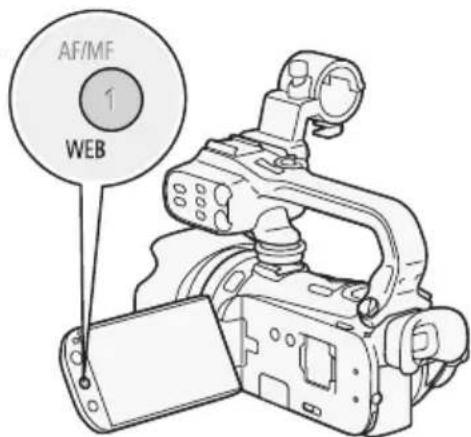
text_image
AF/MF 1 WEB6 Touch [START] to convert the scenes.
- Before touching [START], you can touch [播放] to add graphical elements to the converted SD movies (110), or touch [播放] to adjust the volume (94) and background music balance (119).
- You can also decorate the scenes as they are being converted.
- Touch [STOP] to interrupt the operation while it is in progress.
7 When the conversion is completed, a confirmation screen will appear.
- Connect the camcorder to the computer at this point (141) to continue uploading the converted videos to the Web or touch [End Without Connecting] to connect to the computer later.
To select individual scenes (step 4)
1 Touch on the individual scenes you want to convert.
- A checkmark √ will appear on the scenes you touch. The total number of selected scenes will appear next to the ☑ icon.
- Touch a selected scene to remove the checkmark. To remove all checkmarks at once, touch [Remove All] [Yes].
2 After selecting all the desired scenes, touch [OK].
To select the bit rate (step 5)
Using a higher bit rate will result in better video quality for the converted scenes, while a lower bit rate will result in smaller file sizes and faster uploads.
1 Touch [ ↗].
2 Touch [Bit Rate (Quality)].
3 Touch the desired option and then touch [→] twice.
To automatically divide scenes (step 5)
If you are converting a long scene, you can have the camcorder divide it into 10-minute SD movies to make uploading easier.
1 Touch [ ↗].
2 Touch [Auto Divide].
3 Touch [On] and then touch [→] twice.
Connecting to the Computer and Uploading your Videos
1 Connect the camcorder to the computer using the supplied USB cable.
- Connection 4. Refer to Connection Diagrams (126).
2 Computer: Transfer Utility will start up automatically.
- Click [Web Upload] to upload your SD movies to the Web. For details about using the software, click [Help] to open the Software Guide (PDF file).

IMPORTANT
- While the camcorder is connected to the computer, do not open the double memory card slot cover and do not remove the memory cards.
-
Observe the following precautions while the ACCESS indicator is on or flashing. Failing to do so may result in permanent data loss.
-
Do not open the double memory card slot cover.
- Do not disconnect the USB cable.
- Do not disconnect the compact power adapter or turn off the camcorder or the computer.

NOTES
- If after converting the scenes you selected the [End Without Connecting] option, you will need to upload the SD movies manually when you connect the camcorder to the computer. First, open the [SD Movies] index screen on the memory card that contains the converted SD movies and save them to the computer (135). Then, use the supplied PIXELA's software to upload the SD movies to the Web.
- You can play back and delete the converted SD movies from the [SD Movies] index screen on the memory card used for the conversion.
Converting Scenes into Standard Definition from a Story by Rating
1 Open the gallery and bring the desired story to the front.
[Gallery] Desired story
- Check that you have selected the ☐ tab (built-in memory) or ☐ tab (memory card ☐).
2 Open the [Play by Rating] screen.
[Story Details] [Play by Rating]
3 Touch the desired rating and then touch [→].
4 Press WEB and continue the conversion to standard definition from step 5 in the previous procedure (139).

NOTES
- When converting scenes from a story:
- All the scenes are merged into one converted SD movie.
- If the converted SD movie is too large, it will be split into smaller 10-minute long movies when [Auto Divide] (☐140) is set to [On].
- The maximum total playback time of the scenes to be converted is 2 hours and 30 minutes.
Converting Only Part of a Scene or Story
1 Play back the scene or story that you want to partially convert.
- Check that you have selected a scene recorded in the built-in memory or on memory card A.
2 Pause the playback where you want the converted SD movie to begin.
3 Press WEB and continue the conversion to standard definition from step 5 in the previous procedure (139).
- The video from the playback pause until the end of the scene/story (or up to a maximum of 10 minutes, in case of longer scenes/stories) will be converted to standard definition.
Uploading your Videos Wirelessly
If you are using an Eye-Fi card, you can automatically upload the converted SD movies to your favorite video sharing Web site. You will need to have installed the software supplied with your Eye-Fi card and completed all the required configuration setup in advance. Refer to the instruction manual of the Eye-Fi card.
Please read the IMPORTANT section before using an Eye-Fi card.
1 Insert your Eye-Fi card into memory card slot B and make sure there is sufficient available space on the memory card.
2 Convert the desired movies (139).
- When the conversion is completed, touch [End Without Connecting].
- If you are within the range of a configured network, Web upload will start automatically.
- The status of the wireless communication is shown by the Eye-Fi icon as follows:
- ⚙ (grayed out) Communication not established
- 📋 (white, flashing) Connecting; ⚙ (white, continuously on) Wireless upload on standby
- 📤 (animated) Wireless upload in progress
- OFF [Eye-Fi Communication] is set to [OFF Off]
- Wireless upload stopped by the camcorder ( 163)
- ⓞ Error reading from the Eye-Fi card (162)
IMPORTANT
Using an Eye-Fi Card
- This product is not guaranteed to support Eye-Fi card functions (including wireless transfer). In case of an issue with an Eye-Fi card, please check with the card manufacturer. Also note that an approval is required to use Eye-Fi cards in many countries or regions. Without approval, use of the card is not permitted. If it is unclear whether the card has been approved for use in the area, please check with the card manufacturer.
- Do not use Eye-Fi cards on airplanes and in other places where wireless communication is forbidden. Remove the Eye-Fi card from the camcorder beforehand.

NOTES
- Depending on the amount of data to be uploaded and the network's wireless connection conditions, it can take some time to upload video files. If the wireless connection is too weak, the wireless upload may fail and the video files will be registered as incomplete uploads.
-
About power saving:
-
Wireless communication drains the power of the battery pack faster than usual. We recommend powering the camcorder using the compact power adapter.
-
While files are being uploaded wirelessly, the camcorder's automatic power off function will be disabled.
-
Wirelessly uploading files is not possible when the Eye-Fi card is in memory card slot A (the Eye-Fi icon will not appear on the screen). Be sure to insert the Eye-Fi card into memory card slot B.
- While using an Eye-Fi Card, the ACCESS indicator may flash from time to time.
- Wireless communication is available only in playback mode. Any wireless transfer in progress will be stopped if you set the camcorder to recording mode.
- Wireless communication is not available when the optional WM-V1 Wireless Microphone is attached to the camcorder. Any wireless transfer in progress will be stopped the moment you attach the WM-V1 to the camcorder.
- You can turn off the wireless communication with the [Eye-Fi Communication]* setting.
- If the LOCK switch on the Eye-Fi card is set to prevent writing, you will not be able to turn the wireless communication on/off and the status icon will change to 🔒. To use wireless communication make sure the switch on the Eye-Fi card is not in the LOCK position.
* This menu option will appear only when using an Eye-Fi card.
10 Additional Information
Appendix: Menu Options Lists
Menu items not available appear grayed out. For details about how to select an item, refer to Using the Menus (☐ 32). For details about each function, see the reference page. Menu options without a reference page are explained after the tables. Underlined menu options indicate default values.
FUNC. Panel
FUNC. Panel - Recording Modes
| Control Button | Setting options/Function | AUTO | M | CINEMA | |
| [MENU] | Open the menus | - | ● | ● | 33 |
| [Rec. Programs] | [P Programmed AE], [Tv Shutter-Pri. AE], [Av Aperture-Pri. AE], [M Manual Exposure] | - ● | ● | 62, | 64 |
| [ Portrait], [ Sports], [ Night Scene], [ Snow], [ Beach], [ Sunset], [ Low Light], [ Spotlight], [ Fireworks] | - ● | - 69 | |||
| [BLC Always On] | [ON On], [OFF Off] | - | ● | ● | 66 |
| [WB White Balance] | [AWB Automatic], [ Daylight], [ Shade], [ Cloudy], [ Fluorescent], [ Fluorescent H], [ Tungsten], [ Color Temperature], [1 Set 1], [2 Set 2] | - ● | ● | 67 | |
| [AGC AGC Limit] | [A Automatic], [M Manual] | - | ● | ● | 61 |
| [● Focus] | Touch AF frame; [MF] (manual focus): Toggle on or off; [ PEAK ] (peaking): Toggle on or off; [ ] (settings): [Peaking and B&W], [Peaking Color]When [MF] is on - [SET] (focus preset), [WFM] (edge monitor)When [SET] is on - [ON] (return to preset focus position) | - ● | ● | 51 | |
| [● Exposure] | Touch AE frame; [M] (manual adjustment): Toggle on or off, [ ] (settings); [AE Lock (touch)], [Zebra Pattern]; [ZZ70] or [ZZ100] (zebra pattern)When [M] is on - [ Waveform monitor), exposure adjustment dial | - ● | ● | 65 | |
| [ZOOM] | Zoom controls, [START]/[STOP] control (for movies) and [PHOTO] control (for photos) ^1 | ● | ● | ● | 58 |
| [● Mic. Level] ^2 | [A Automatic], [M Manual][Audio Level Indicator]: Toggle on or off | - ● | ● | 76 | |
| [Image Effects] | [ON], [OFF]When [ON] - [Color Depth], [Sharpness], [Contrast], [Brightness]: ±0 (-2 to +2) | - ● | - 71 | ||
| [Image Stabilizer] | [ Dynamic], [ Standard], [ Off] | - | ● | ● | 60 |
| [Faders] ^1 | [ Off Off], [ F1 Fade Trigger/Once], [ F1 Fade Trigger/Always], [ F2 Wipe/Once], [ F2 Wipe/Always] | - ● | ● | 88 | |
| [IMAGE] D e 1c | [●ensrand Stamps], [Animated Stamps],[Captions] ^3 | ● | ● ● | 110 | |
| [○○] (image mix): Toggle on or off, [■■] (pause live video) | - | ● | - | ||
| [↑(minimize toolbar) ● ● ● | |||||
| [○○ Story Creator] | Story themes, [New Story] | ● | ● | ● | 105 |
| [●○ VideoSnapshot] | [ON On], [OFF Off] | - | ● | ● | 85 |
| [◆○ Pre REC] ^1 | [ON On], [OFF Off] | - | ● | ● | 86 |
| [○○ ReviewRecording] ^1 | - | - ● | ● | 46 |
^1 Option not available in cmode.
^2 Option available only for recording movies.
^3 Some options are available only when recording a story using Story Creator.
Edit Panel - Mode
| Control Button | Date Index Screen | [SD Movies] Index Screen | Playback Pause | |
| [Copy (☐→B)]^1 | , [Select], [All Scenes] | - | - | 132 |
| [Copy (A→B)]^1 | ||||
| [Convert HD→SD (☐→B)]^1 | , [Select], [All Scenes] | - | - | 139 |
| [Convert HD→SD (A→B)]^1 | ||||
| [Delete] or [☑] | , [Select], [All Scenes] | [This Scene], [All Scenes] | [This Scene] | 98 |
| [Divide] | - | - | ● | 101 |
From the gallery:
| Control Button | [Edit Story] from the [Story Details] screen | [Edit Scene] from the [Scene List] screen | Playback Pause | |
| [Copy (☐ B)]^1 | - | - | 133 | |
| [Copy (A B)]^1 | ||||
| [Convert HD SD (☐ B)]^1 | - | - | 141 | |
| [Convert HD SD (A B)]^1 | ||||
| [Delete] or [☑] | [This Scene] | [This Scene] | 98 | |
| [Delete Story]^2 | ● | - | - | 100 |
| [Story Thumbnail]^2 | ● | - | - | 122 |
| [Edit Title]^2 | ● -- 123 | |||
| [Copy] - ● - 121 | ||||
| [Move] - ● - 121 | ||||
| [Divide] -- ● 101 | ||||
| [Rating] - [], [], [], | ★★★ ★★• ★••[···](unrated), [-](others) | 117 | ||
^1 Operation not available for recordings on memory card B (B tab).
^2 Operation not available for the two preexisting stories, [Unsorted] and [Video Snapshot].
Edit Panel - Mode
| Control Button | Index Screen | Single Photo View | |
| [Copy (☐ ➔ ☐)]* | [Select], [All Photos] | ● | 133 |
| [Copy (A ➔ B)]* | |||
| [Delete] | ● | 130 |
* Operation not available for recordings on memory card B (B tab).
Setup Menus
Camera Setup
| Menu item Setting options | M | CINEMA | ||
| [Digital Zoom] ^1 | [OFF Off], [40x 40x], [200x 200x], [20x Digital Tele-conv.] | ● | - | - |
| [Soft Zoom Control] | [OFF Off], [START Start], [STOP Stop], [START STOP Start & Stop] | ● | ● | 58 |
| [Zoom Speed Level] | [>> Fast], [>> Normal], [> Slow] | ● | ● | 56 |
| [Zoom Lever Zoom Speed] | [VAR] (variable speed), [CONST] (constant speed)When [CONST] is selected: 1-16 (8) | ● | ● | 56 |
| [Handle Rocker Zoom Speed] | [OFF] (turns off use of handle zoom rocker),[CONST] (constant speed)When [CONST] is selected: 1-16 (8) | ● | ● | 57 |
| [Wireless Ctrlr Zoom Speed] | 1-16 (8) | ● | ● | 57 |
| [AF Mode] | [I.AF Instant AF], [M.AF Medium AF], [AF Normal AF] | ● | ● | - |
| [Focus Assistance] ^1 | [ON On], [OFF Off] | ● | ● | - |
| [Face Detection & Tracking] | [ON On [,], [OFF Off] | ● | ● | 53 |
| [Auto Backlight Correction] | [ON On], [OFF Off] | ● | ● | 66 |
| [Auto Slow Shutter] | [ON On], [OFF Off] | ● | ● | - |
| [ND Filter] | [A Automatic], [OFF Off] | ● | ● | - |
| [Conversion Lens] | [Tele Tele-converter], [Wide Wide-converter], [OFF Off] | ● | ● | - |
| Menu item | Setting options | M | CINEMA | |
| [Fader Setting] ^1 | [BLACK Black Screen], [WHITE White Screen] | ● | ● | 88 |
| [Onscreen Markers] | [OFF Off], [W Level (White)], [G Level (Gray)], [W Grid (White)], [Grid (Gray)] | ● | ● | - |
| [Camcorder Shake Indicator] | [ON On], [OFF Off] | ● | ● | - |
| [IR Light] | [ON On], [OFF Off] | ● | ● | 89 |
| [IR Rec Color] | [WHITE White], [GREEN Green] | ● | ● | 89 |
| [Wind Screen] ^1 | [A Automatic], [OFF Off] | ● | ● | - |
| [Microphone Attenuator] ^1 | [A Automatic], [ON On ATT] | ● | ● | - |
| [MIC Terminal Input] ^1 | [LINE External Audio], [MIC Microphone] | ● | ● | 80 |
| [Audio Mix] ^1 | [OFF Off], [ON On]When [ON On] is selected: [INT]....[EXT],[Internal Microphone]/[MIC Terminal Input] | ● | ● 80 | |
| [Built-in Mic Freq. Response] ^1 | [NORM Normal], [LB Boost LF Range], [LC Low Cut Filter], [30st MF Range], [130st HF+LF Range] | ● | ● 79 | |
| [Built-in Mic Directionality] ^1 | [Monawal], [NORM Normal], [Wide Wide], [Zoom] | ● | ● | 78 |
| [XLR Rec Channel] ^1 | [CH1 CH1], [CH1/2 CH1/CH2] | ● | ● | 75 |
^1 Option available only for recording movies.
[Digital Zoom]: Determines the operation of the digital zoom. The color of the indicator indicates the zoom.
- When [40x 40x] or [200x 200x] is selected, the camcorder will switch automatically to digital zoom when you zoom in beyond the optical zoom range.
- With the digital zoom the image is digitally processed, so the image resolution will deteriorate the more you zoom in.
- For an explanation of the digital tele-converter, see Digital Tele-Converter (☐59).
| Optical zoom | Digital zoom | |
| White | Light blue | Dark blue |
| Up to 10x | 10x - 40x | 40x - 200x |
[Focus Assistance]: When focus assistance is activated, the image at the center of the screen is magnified to help you focus manually (☐51).
- Using focus assistance will not affect the recordings. It will be cancelled automatically after 4 seconds or when you start recording.
[Auto Slow Shutter]: The camcorder automatically uses slow shutter speeds to obtain brighter recordings in places with insufficient lighting.
- Minimum shutter speed used: 1/30; 1/12 when the frame rate is set to [PF24 PF24] or [24P 24P]; 1/15 when it is set to [PF30 PF30].
- The auto slow shutter can only be activated when the recording program is set to [P Programmed AE], but the setting will not change even if you set the camcorder to Auto mode.
- If a trailing afterimage appears, set the slow shutter to [OFF Off].
[ND Filter]: Only available during the [Av Aperture-Pri. AE] and [M Manual Exposure] recording programs. When set to [A Automatic], the ND filter can be selected when adjusting the aperture. Depending on the selected setting, [ND1/2], [ND1/4] or [ND1/8] will appear on the screen next to the aperture value.
[Conversion Lens]: When you attach to the camcorder the optional TL-H58 Tele-converter or WD-H58W Wide-converter, set the appropriate conversion lens setting. The camcorder will then optimize the image stabilization and adjust the minimum object distance. The minimum object distance throughout the entire zoom range will be 130 cm (4 ft. 3 in.) for the TL-H58 and 40 cm (1 ft. 3 in.) for the WD-H58W.
- When you select a setting other than [OFF Off], the AF mode is automatically set to [AF Normal AF].
- The approximate subject distance displayed on the screen will change depending on the setting. If you are not using a conversion lens, select [OFF Off].
[Onscreen Markers]: You can display a grid or a horizontal line at the center of the screen. Use the markers as a reference to make sure your subject is framed correctly (vertically and/or horizontally).
- Using the onscreen markers will not affect the recordings.
[Camcorder Shake Indicator]: The degree of camcorder shake will be indicated by the POWERED IS icon (5 levels: ☐, ☐, ☐) to help you be aware of excessive movement.
[Wind Screen]: The camcorder automatically reduces the background sound of wind when recording outdoors.
- Some low-frequency sounds will be suppressed along with the sound of wind. When recording in surroundings unaffected by wind or if you want to record low-frequency sounds, we recommend setting the wind screen to [OFF Off OFF].
[Microphone Attenuator]: Helps prevent audio distortions.
[A] Automatic]: The camcorder will automatically activate the microphone attenuator as necessary for optimal audio recording levels so high audio levels will not be distorted.
[ON On ATT]: The microphone attenuator will be activated at all times to reproduce more faithfully the sound dynamics. ATT will appear on the screen.
Playback Setup
| Menu item Setting options | ||||
| [Select Music] | [OFF Off], [ON On]^1 When [ON On] - list of music tracks, [OK] (Original sound/Background music) | ● | ● | 118 |
| [External Audio Input] | [OFF Off], [ON On 🎨+] When [ON On 🎨+] - [External Player Link]: Toggle on or off | ● | ● | 119 |
| [Data Code] | [OFF Off], [Date], [Time], [Date and Time], [Camera Data] | ● | ● | - |
| [Slideshow Transition] | [OFF Off], [Dissolve], [Slide Image] | - | ● | 131 |
| [TV Type] ^2 | [4:3 Normal TV], [16:9 Wide TV] | ● | ● | - |
^1 Default in mode.
^2 Option not available when the camcorder is connected to an HDTV using an optional HDMI cable.
[Data Code]: Displays the date and/or time when the scene or photo was recorded.
[Camera Data]: Displays the aperture (f-stop) and shutter speed used when recording the scene or photo.
[TV Type]: When you connect the camcorder to a TV using the supplied STV-250N Stereo Video Cable, select the setting according to the type of TV in order to display the picture in full and in the correct aspect ratio.
[4:3 Normal TV]: TV sets with 4:3 aspect ratio.
[16:9 Wide TV]: TV sets with 16:9 aspect ratio.
- When the TV type is set to [43 Normal TV], during the playback of video originally recorded with an aspect ratio of 16:9, the picture will not be displayed fullscreen.

Recording & Connections Setup
| Menu item Setting options M | CINEMA | ||||
| [Self Timer] | [ON On ⬤], [OFF Off] | ● | ● | - | - |
| [Video Snapshot Length] ^1 | [2sec 2 sec], [4sec 4 sec], [8sec 8 sec],[Story Length-Based]: Toggle on or off | ● | ● - - | 85, | |
| [2sec 2 sec], [4sec 4 sec], [8sec 8 sec] | - | - | ● | ||
| [Rate Scenes (Recording)] ^1 | [ON On], [OFF Off] | ● | ● | - | - |
| [Rec Media for Movies] ^1 | [☐] (built-in memory), [A] (memory card A),[B] (memory card B),When set to [☐] or [A]: [Relay Recording]: [OFF],[☐→A], [☐→A→B], [A→B]When set to [A]: [Double Slot Rec]: [OFF], [ON] | ● | ● - - | 38 | |
| [Recording Mode] ^1 | [MXP High Quality 24 Mbps], [FXP High Quality 17 Mbps],[XP+High Quality 12 Mbps], [SP Standard Play 7 Mbps],[LP Long Play 5 Mbps] | ● | ● - - | 49 | |
| [Frame Rate] ^1,2 | [60i 60i (Standard)], [PF24 PF24], [PF30 PF30],[24P | ● | ● - - | 50 | |
| [Rec Media for Photos] ^3 | [☐] (built-in memory), [A] (memory card A),[B] (memory card B) | ● | - ● | -38 | |
| [Photo Capture from Video] ^3 | [☐ Single Photo], [☐ Photo Sequence] | - | - | ● | - |
| [Scan Reverse Rec] ^1 | [OFF Off], [K Vertical], [R Horizontal], [R Both] | ● | ● | - | - |
| [Memory Info] | [☐] (built-in memory), [A] (memory card A),[B] (memory card B) | ● | ● ● | ● | - |
| [x.v.Color] | [ON On color], [OFF Off] | ● | ● | - | - |
| [Color Bars & Test Tone] ^1 | [OFF Off], [L Color Bars], [V Color Bars & Tone] | ● | ● | - | - |
| [Audio Reference Signal] ^1 | [-12dB -12 dB], [-18dB -18 dB], [-20dB -20 dB] | ● | ● | - | - |
| [Photo Numbering] ^3 | [Reset], [← Continuous] | ● | - | ● | ● |
^1 Option available only for recording movies.
2 Can be set independently for M and CINEMA mode. The default value in CINEMA mode is [PF24 PF24].
^3 Option available only for recording photos.
[Rate Scenes (Recording)]: When set to [ON] On, the scene rating scene will appear after every scene you record.
[Scan Reverse Rec]: Inverts the recorded image horizontally, vertically or horizontally and vertically.
[Memory Info]: Displays a screen where you can verify how much of the built-in memory or the memory card is currently in use (☐ total recording time and ☐ total number of photos) and how much space remains available for recording.
- Estimated figures about available movie recording time and available number of photos are approximate and based on the recording mode and photo quality/size settings currently in use.
- In the information screen of a memory card you can also check its Speed Class.
- The [Total space] shown for the built-in memory indicates actually usable space. It may be slightly smaller than the nominal built-in memory capacity listed in the specifications.
[x.v.Color]: Uses a color space with an extended gamut to achieve deeper colors, closer to real life.
- Use this function to record video only when you intend to play back your recordings on an HDTV compatible with x.v.Color, connected to the camcorder using an optional HDMI cable. If recordings made with x.v.Color are played back on a non-compatible TV, colors may not be reproduced correctly.
[Photo Numbering]: Select the photo numbering method to be used on a new memory card. Photos are automatically assigned consecutive numbers from 0101 to 9900, and stored in folders containing up to 100 photos. Folders are numbered from 101 to 998.
[Reset]: Photo numbers will restart from 101-0101 every time you insert a new memory card.
Continuous]: Photo numbers will continue from the number following that of the last photo recorded with the camcorder.
- If the memory card you insert already contains a photo with a larger number, a new photo will be assigned a number one higher than that of the last photo on the memory card.
- We recommend using the [→ Continuous] setting.
- The photo number indicates the name and location of the file on the memory card. For example, the file name of a photo numbered 101-0107 is "IMG_0107.JPG", stored under the folder "DCIM\101CANON".
System Setup
| Menu item Setting options M | CINEMA | |||||
| [Output Onscreen Displays] | [ON On], [OFF Off] | ● | ● | ● | ● | - |
| [Language ☐] | [Česky], [Dansk], [Deutsch], [Ελληνικά], [English], [Español], [Français], [Italiano], [Magyar], [Melayu], [Nederlands], [Norsk], [Polski], [Português], [Română], [Suomi], [Svenska], [Türkçe], [Русский], [Українська], [العربية], [فارسی], [طلاطไทย], [简体中文], [繁體中文], [한국어], [日本語] | ● | ● ● | ● | 34 | |
| [LCD Brightness] | ※ ⚪️ ⚪️ | ● | ● ● | ● - | ||
| [LCD Screen Dimmer] | [ON On], [OFF Off] | ● | ● | ● | ● | - |
| [LCD Mirror Image] | [ON On], [OFF Off] | ● | ● | - | - | - |
| [AV/Headphones] | [AV AV], [Headphones] | ● | ● | ● | ● | 81 |
| Menu item | Setting options | M | CINEMA | ||||
| [Volume] [Speaker]: | -- | ● | ● | 94 | |||
| [Headphones]: | ● | ● | ● | ● | 81 | ||
| [Notification Sounds] | [High Volume], [Low Volume], [Off Off] | ● | ● | ● | ● | ● | - |
| [Audio Output CH] [ | CH H 1CH1/ C CH2 2 ] , [CH/CH], [CH2/CH2], [AW/WH] | ||||||
| [Wireless Remote Control] | [ON On], [OFF Off ▲] | ● | ● | ● | ● | ● | - |
| [Tally Lamp] | [ON On], [OFF Off] | ● | ● | - | - | - | - |
| [POWERED IS Button] | [ON Press and Hold], [ON Toggle On/Off] | ● | ● | - | - | - | 60 |
| [Custom Key/Dial] | [TV Tv/Av], [M Manual Exposure], [AGC AGC Limit], [Exposure], [OFF Off] | ● | ● | - - | 90 | ||
| [Assign Button 1] | [BLC Always On], [Face Only AF], [Story Creator], [Video Snapshot], [WB WB Priority], [IR Light], [CH/CH Audio Output CH], [AF/MF AF/MF], [OFF Off] | ● | ● | - - | 91 | ||
| [Assign Button 2] | [BLC Always On], [Face Only AF], [Story Creator], [Video Snapshot], [WB WB Priority], [IR Light], [CH/CH Audio Output CH], [Powered IS], [OFF Off] | ● | ● | - - | 91 | ||
| [Set WB Priority] | [AWB Automatic], [Daylight], [Shade], [Cloudy], [Fluorescent], [Fluorescent H], [Tungsten], [Color Temperature], [Set 1], [Set 2] | ● | ● | - - | - | ||
| [Focus Ring Direction] | [NORM Normal], [REV Reverse] | ● | ● | - | - | - | - |
| [Focus Ring Response] | [Fast], [Normal], [Slow] | ● | ● | - | - | - | - |
| [Focus Preset Speed] | [Fast], [Normal], [Slow] | ● | ● | - | - | - | - |
| [Autostart Decoration] | [ON On], [OFF Off] | ● | ● | - | - | - | - |
| [Power Saving Mode] | [Auto Power Off]: [OFF Off], [ON On] [Quick Start (Standby)]: [Off], [10 min], [20 min], [30 min] | ● | ● | ● | ● | ● | - |
| [Initialize /→] | [Built-in Mem.], [A Mem. Card A], [B Mem. Card B] | ● | ● | ● | ● | 40 | |
| [Complete Initialization]: Toggle on or off | |||||||
| [Time Zone/DST] | [▲] (home time zone) or [★] (travel time zone): [New York], list of world time zones [★] (DST adjustment): Toggle on or off | ● | ● | ● | ● | 35 |
| Menu item | Setting options | M | CINEMA | |||
| [Date/Time] [Date/Time]: –[Date Format]: [Y.M.D], [M.D,Y], [D.M.Y](Y- year, M- month, D- day)[24H]: Toggle on (24-hour clock) or off(12-hour clock) | ● | ● ● | ● 34 | |||
| [Battery Info] – ● | ● ● ● – | |||||
| [Control for HDMI] ^1 | [ON On], [OFF Off] | ● | ● | ● | ● | – |
| [HDMI 1080p Output] ^1 | [ON On], [OFF Off] | ● | ● | ● | ● | – |
| [HDMI Status] – ● | ● ● ● – | |||||
| [Distance Units] | [m meters], [ft feet] | ● | ● | – | – | – |
| [Backup Menu Settings B] | [Save], [Load] | ● | ● | – | – | 92 |
| [Demo Mode] | [ON On], [OFF Off] | ● | ● | – | – | – |
| [Firmware] | – | – | – | – | ● | – |
| [Eye-Fi Communication] ^2 | [A Automatic], [OFF Off] | ● | ● | ● | ● | 142 |
^1 Option not available when the camcorder is connected to an HDTV using an optional HDMI cable.
^2 Option available only after having inserted an Eye-Fi card into memory card slot B.
[Output Onscreen Displays]: When set to [ON] On, the camcorder's onscreen displays will appear also on the screen of a TV or monitor connected to the camcorder.
[LCD Brightness]: Adjusts the brightness of the LCD screen.
- Changing the brightness of the LCD screen does not affect the brightness of your recordings or the brightness of the playback image on a TV.
[LCD Screen Dimmer]: When set to [ON On], the LCD screen is dimmed. Doing so is ideal when using the camcorder in locations where the LCD's illumination could become a nuisance to others. Hold DISP. pressed down for about 2 seconds to restore the LCD screen to its previous brightness setting.
- Dimming the LCD screen does not affect the brightness of your recordings or the brightness of the playback image on a TV.
- When the screen dimmer is set to [OFF Off], the LCD screen will return to the brightness level that was in use before the screen was dimmed.
[LCD Mirror Image]: When set to [ON] On, you can rotate the LCD panel 180 degrees to let the subject check the image while you record. While the LCD panel is rotated toward the subject you will not be able to decorate the scene.
[Notification Sounds]: A beep will accompany some operations like turning on the camcorder, the self-timer countdown, etc.
- While pre-recording (☐ 86) is activated, the camcorder will not emit any notification sounds.
[Audio Output CH]: Selects the channels from which audio will be output.
[CH17 1/CH2]: Audio from CH1 is output from the left audio channel and audio from CH2 is output from the right audio channel.
[CH1/CH1]: Audio from CH1 is output from both the left and right audio channels.
[CH2]2/CH2]: Audio from CH2 is output from both the left and right audio channels.
[Al/Al] Audio from CH1 and CH2 is mixed and output from both the left and right audio channels.
- [Audio Output CH] cannot be set for signals output from the HDMI terminal.
[Wireless Remote Control]: Allows the camcorder to be operated with the wireless controller.
[Tally Lamp]: Activates the tally lamp when the camcorder is recording, the camcorder is in standby mode, the wireless controller is being operated, the battery level is low or the memory is full. When set to [OFF Off], the tally lamp will not turn on in these cases.
[POWERED IS Button]: Determines the operation mode of the POWERED IS button.
[↓ON↑ Press and Hold]: Powered IS will be activated while you hold the button pressed down.
[ON OFF Toggle On/Off]: Each press of the button will turn the Powered IS function on and off.
[Set WB Priority]: You can press an assignable button set to [WB WB Priority] to switch between the current white balance and the white balance setting selected for [Set WB Priority].
[Focus Ring Direction]: Changes the direction the focus ring needs to be turned.
[Focus Ring Response]: Selects the sensitivity of the response when operating the focus ring.
[Focus Preset Speed]: Determines the speed at which the focus changes to the preset position.
[Autostart Decoration]: When set to [ON On], the decoration screen will open automatically when you stow the LCD panel with the LCD screen facing out.
[Power Saving Mode]: Controls the camcorder's automatic power off settings.
[Auto Power Off]: In order to save power when the camcorder is powered by a battery pack, it will automatically shut off if left without any operation for 5 minutes.
- Approximately 30 seconds before the camcorder shuts off, [Auto Power Off] will appear.
- In standby mode, the camcorder will shut off after the time selected for the [Quick Start (Standby)] setting.
[Quick Start (Standby)]: Select whether to activate the Quick Start function (☐ 48) when you close the LCD panel in a recording mode and the length of time after which the camcorder will end the standby mode and shut off automatically.
- You can set Quick Start to [Off], for example, if the camcorder is set on a fixed position and you want to keep recording video with the LCD panel closed in order to conserve the battery's power.
[Battery Info]: Displays a screen where you can verify the battery charge (as a percentage) and the remaining recording time (, mode) or playback time (, mode).
[Control for HDMI]: Activates the HDMI-CEC (Consumer Electronics Control) function. When you connect the camcorder to an HDTV compatible with HDMI-CEC using an optional HDMI cable, you can control the camcorder's playback using the remote control of the TV.
- If set to [ON On], when the camcorder is connected to a compatible HDTV using an optional HDMI cable, the video input on the TV will automatically be set to the camcorder's video input. Then, you can use the up/down/left/right buttons and the OK or SET button on the TV's remote control to play back your recordings.
- Depending on the TV set, additional settings may be required on the TV itself to activate the HDMI-CEC function. Refer to the TV's instruction manual.
- Correct operation of the HDMI-CEC function cannot be guaranteed even when connecting the camcorder to compatible TV sets. If you cannot use the remote control of the TV, set [Control for HDMI] to [OFF Off] and operate the camcorder directly or use the camcorder's wireless controller.
- The remote control of the TV can only be used to play back movies or photos (or mode only). If the camcorder is connected to the TV while it is set to a recording mode, depending on the TV used, turning off the TV will automatically turn off the camcorder even if it is recording at the time.
- We recommend not connecting more than 3 HDMI-CEC compatible devices at a time.
[HDMI 1080p Output]: If set to [ON On], when the camcorder is connected using an optional HDMI cable to an HDTV that supports the 1080p standard, your video recordings (made in 1080i) will be converted and output as 1080p.
[HDMI Status]: Displays a screen where you can verify the standard of the output signal from the HDMI OUT terminal.
[Distance Units]: Selects the units to use for the focusing distance display during manual focus.
[Demo Mode]: The demonstration mode displays the camcorder's main features. It starts automatically when the camcorder is powered with the compact power adapter if you leave it turned on without a memory card for more than 5 minutes.
- To cancel the demo mode once it has started, press any button or turn off the camcorder.
[Firmware]: You can verify the current version of the camcorder's firmware. This menu option is usually unavailable.
Appendix: Onscreen Icons and Displays
AUTO Recording Movies (using Story Creator)

text_image
1 FUNC. 6 7 8 95min 9 2 AUTO MXP 10 3 4 5 PHOTO Meeting the travelers 8sec 13 141 Control button [FUNC.]: Open the FUNC. panel (☐32)
2 Smart AUTO (
3 Face detection frame (☐53)
4 Touch & Track frame (55)
5 Control button [PHOTO]: Take a photo (☐42, 104)
6 Control button [ ]: Return to the list of story scenes (106)
7 Memory operation (158)
8 Image stabilizer (60)
439 Remaining battery time (158)
10 Zoom (☐58)
11 Recording mode (49)
12 Current story scene (category) (106)
13 Recommended scene length (106)
14 Decoration (110)
M, CINEMA
Recording Movies
M Manual mode CINEMA mode

text_image
22 23 724 25 8 26 27 1 FUNC. 0:00:15 D 93min 9 15 P 16 ±0 17 3dB 18 AF 19 color 20 40 20 10 0 21 0:1 PHOTO PEAK W/TO Tele ZOOM 36 373534 3938 40 41 42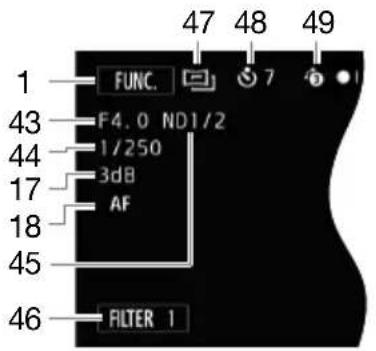
text_image
1 FUNC. 43 F4.0 ND1/2 1/250 3dB AF 17 18 45 46 FILTER 1 47 48 4915 Recording program (☐ 62, 69),
IR Infrared mode (89),
ON Infrared light (89)
16 Exposure compensation (65)
17 AGC limit (☐61); Gain (during the [MManual Exposure] recording program) (☐64)
18 IAF Instant AF/MAF Medium AF/AF Normal AF (146), MF Manual focus (51)
19 Face detection (53)
20 White balance (67)
21 Audio level indicator (76)
22 x.v.Color (150)
23 While recording/during playback: Scene counter (hours : minutes : seconds)
24 Double slot recording (39)
25 Remote sensor off (153)
26 Digital tele-converter (☐ 59)
27 Frame rate (☐50)
28 Remaining recording time A/B On the memory card In the built-in memory ▶/A▶ Relay recording (38)
29 Image effects (71)
30 Backlight correction (66)
31 Microphone attenuator (☐ 148)
32 External audio input from the MIC terminal (☐ 80)
33 Headphone output (81)
34 Peaking (52)
35 Zebra pattern (65)
36 Level marker (148)
37 Conversion lens (Tele-converter shown) (148)
38 Fader (☐88)
39 Wind screen off (148)
40 Built-in microphone directionality (78)
41 Audio equalizer (79)
42 Control button: Last function used ([ZOOM] in this case)
43 Aperture value (62, 64)
44 Shutter speed (☐62, 64)
45 ND filter (147)
46 Control button [FILTER 1]: Cinema-look filters (☐108)
47 CINEMA mode (108)
48 Self timer (72)
49 Pre-recording (86)

Playing Movies (during playback)

text_image
711 552 95min 0:00:06 MXP 095 CH1/1 9 23 53 54 50 9:15 PM Nov. 3.2011 55 56 1450 Playback control buttons (☐94)
51 External audio input (119)
52 Eye-Fi wireless communication (142)
53 Scene number

Viewing Photos

text_image
57 58 MENU Edit 145min 9 13/15 59 101-0128 60 62 63 61 9:15 PM Nov. 3.2011 5557 Control button [MENU]: Open the setup menus (146)
58 Control button [Edit]: Open the Edit panel (146)
59 Current photo / Total number of photos
60 Photo number (150)
61 Control button [☐]: Photo jump (☐129)
62 Control button [▶]: Slideshow (131)
63 Control button [☐]: Return to the [Photos] index screen (☐128)

NOTES
- You can press the DISP. button to turn off most icons and displays.
7 Memory operation
- Record, - Record pause, ▶ Playback, - Playback pause, ▶ Fast playback, - Fast reverse playback, ▶ Slow playback, - Slow reverse playback, - Frame advance, - Frame reverse.
9 Remaining battery time
- The icon shows a rough estimate of the remaining charge as a percentage of the full charge of the battery pack. The remaining recording/playback time of the battery pack is displayed, in minutes, next to the icon.

text_image
100% 75% 50% 25% 0%- When is displayed in red, replace the battery pack with a fully charged one.
- When you attach an empty battery pack, the power may turn off without displaying
- Depending on the conditions under which the camcorder and the battery pack are used, the actual battery charge may not be indicated accurately.
- When the camcorder is off, press BATT.INFO to display the charge status of a battery pack. The Intelligent System will display the charge status (as a percentage) and the remaining recording time (in minutes) for 5 seconds. If the battery pack is exhausted, the battery information may not be displayed.
28 Remaining recording time
When there is no more free space on the memory, [☐ End] (built-in memory), [A End] (memory card A) or [B End] (memory card B) will be displayed in red and the recording will stop.
Troubleshooting
If you have a problem with your camcorder, refer to this section. Sometimes what you think is a malfunction of the camcorder may have the simplest of solutions - please read the “CHECK THIS FIRST” box before going on to the more detailed problems and solutions. Consult your dealer or a Canon Service Center if the problem persists.
CHECK THIS FIRST
Power supply
- Is the battery charged? Is the compact power adapter correctly connected to the camcorder? (22)
Recording
- Did you turn the camcorder on and correctly set it to a recording mode? (☐ 41) If you are recording on a memory card, is one correctly inserted into the camcoder? (☐ 37)
Playback
- Did you turn the camcorder on and correctly set it to playback mode? (☐ 93, 128) If you are playing back recordings from a memory card, is one correctly inserted into the camcorder? (☐ 37) Does it contain any recordings?
Other
- Does the camcorder make a rattling sound? The internal lens fixture can move when the camcorder is turned off or in a playback mode. This is not a malfunction.
Power source
The camcorder will not turn on or it turns off by itself.
- The battery pack is exhausted. Replace or charge the battery pack.
- Remove the battery pack and reattach it correctly.
Cannot charge the battery pack.
- Make sure the camcorder is off so charging can start.
- The temperature of the battery pack is outside its operating range (approximately 0 – 40 °C (32 – 104 °F)). Remove the battery pack, warm it or let it cool down, as necessary, and try charging it again.
- Charge the battery pack in temperatures between approximately 0 °C and 40 °C (32 °F and 104 °F).
- The battery pack is faulty. Replace the battery pack.
- The camcorder cannot communicate with the battery pack attached. Battery packs not recommended by Canon for use with this camcorder cannot be charged using this camcorder.
- If you are using a battery pack recommended by Canon for use with this camcorder, there may be a problem with the camcorder or battery pack. Consult a Canon Service Center.
A noise can be heard from the compact power adapter.
- A faint sound can be heard while the compact power adapter is connected to a power outlet. This is not a malfunction.
The battery pack is exhausted extremely quickly even at normal temperatures.
- The battery may have reached the end of its battery life. Buy a new battery pack.
Recording
Pressing START/STOP will not start recording.
- You cannot record while the camcorder is writing previous recordings onto the memory (while the ACCESS indicator is on or flashing). Wait until the camcorder has finished.
- The memory is full or it already contains the maximum number of scenes (3,999 scenes). Delete some recordings (☐ 98, 130) or initialize the memory (☐ 40) to free some space.
The point where START/STOP was pressed does not match the beginning/end of the recording.
- There is a slight interval between pressing [START/STOP] and the actual start/end of recording. This is not a malfunction.
The camcorder will not focus.
- Autofocus does not work on the subject. Focus manually (☐ 51).
- The lens or Instant AF sensor is dirty. Clean the lens or sensor with a soft lens-cleaning cloth (174). Never use tissue paper to clean the lens.
When a subject flits across in front of the lens, the image appears slightly bent.
- This is a phenomenon typical of CMOS image sensors. When a subject crosses very quickly in front of the camcorder, the image may seem slightly warped. This is not a malfunction.
Changing the operating mode between recording (●)/record pause (●■)/ playback (▶) takes longer than usual.
- When the memory contains a large number of scenes, some operations may take longer than usual. Save your recordings (☐ 135) and initialize the memory (☐ 40).
Movies or photos cannot be recorded properly.
- This may occur as movies and photos are recorded/deleted over time. Save your recordings (☐ 135) and initialize the memory (☐ 40).
Cannot record a photo while recording movies.
- You cannot take photos in CINEMA mode, while the digital zoom is activated (147), while fading in or fading out a scene (88) or while the digital tele-converter is activated (59).
After using the camcorder for a long time, it becomes hot.
- The camcorder may become hot after using it continuously for long periods of time; this is not a malfunction. If the camcorder becomes unusually hot or it becomes hot after using it only for a short while, it may indicate a problem with the camcorder. Consult a Canon Service Center.
Cannot create a new story.
- A memory can contain a maximum of 98 user-created stories. Delete some stories from the gallery (☐ 100) or select a different memory (☐ 38).
Playback
Cannot copy/move scenes in a story.
- The memory is full. Delete some recordings (☐ 98, 130) to free some space.
Cannot delete a scene.
- You may not be able to delete scenes recorded or edited using another device.
Deleting scenes takes longer than usual.
- When the memory contains a large number of scenes, some operations may take longer than usual. Save your recordings (135) and initialize the memory (40).
Cannot capture a video snapshot scene from a movie.
- You cannot capture video snapshot scenes from scenes recorded or edited using another device.
- The memory is full. Delete some recordings (☐ 98, 130) to free some space.
When playing back scenes/slideshow with background music, the music track is not played back correctly.
- This can occur when you transfer the music files to a memory card after repeatedly recording and deleting scenes (fragmented memory). Save your recordings (135) and initialize the memory card (40). Then, transfer the music files first and only then transfer the video files.
- Music tracks will not play back correctly if the connection was interrupted while transferring the music files to a memory card. Delete the music tracks and transfer the music files again.
- The transfer rate of the memory card used is too slow. Use a recommended memory card (☐36).
When playing scenes/a slideshow linked to external audio, the video playback is not correctly linked to the external player.
- The volume of external player may be too low. Try increasing the volume of the external player.
Cannot divide scenes
- You cannot divide scenes recorded or edited using another device.
- The memory is full. Delete some recordings (☐ 98, 130) to free some space.
Cannot copy scenes/photos
- You may not be able to copy scenes/photos recorded or edited using another device.
Cannot mark individual scenes/photos in the index screen with a checkmark √
- You cannot select more than 100 scenes/photos individually. Select the [All Scenes] or [All Photos] option instead of [Select].
Indicators and Onscreen Displays
lights up in red.
- Battery pack is exhausted. Replace or charge the battery pack.
appears on the screen.
- The camcorder cannot communicate with the battery pack attached so the remaining battery time cannot be displayed.
The tally lamp does not light up.
- Change the ↗ [Tally Lamp] setting to [On].
The tally lamp flashes quickly (4 flashes per second).
- The battery pack is exhausted. Replace or charge the battery pack.
- The memory is full. Delete some recordings (☐ 98, 130) to free some space or replace the memory card.
A/B lights up in red.
- A memory card error occurred. Turn off the camcorder. Remove and reinsert the memory card. Initialize the memory card if the display does not change back to normal.
- The memory card is full. Replace the memory card or delete some recordings (☐ 98, 130) to free some space on the memory card.
Even after stopping recording, the ACCESS indicator does not go off.
- The scene is being recorded in the memory. This is not a malfunction.
The red ON/OFF (CHG) indicator flashes rapidly (one flash at 0.5-second intervals).
- Charging has stopped because the compact power adapter or the battery pack is faulty. Consult a Canon Service Center.
The red ON/OFF (CHG) indicator flashes very slowly (one flash at 2-second intervals).
- The temperature of the battery pack is outside its operating range (approximately 0 – 40 °C (32 – 104 °F)). Remove the battery pack, warm it or let it cool down, as necessary, and try charging it again.
- Charge the battery pack in temperatures between approximately 0 °C and 40 °C (32 °F and 104 °F).
- The battery pack is damaged. Use a different battery pack.
appears on the screen
- The LOCK switch on the Eye-Fi card is set to prevent accidental erasure. Change the position of the LOCK switch.
- An error occurred when trying to access control data on the Eye-Fi card. Turn the camcorder off then on again. If the icon appears often, there might be a problem with the Eye-Fi card. Contact the card manufacturer's customer care.
Picture and Sound
The screen appears too dark.
- The LCD screen was dimmed. Hold DISP. pressed down for 2 seconds to restore the LCD screen to its previous brightness setting.
Screen displays turn on and off repeatedly.
- The battery pack is exhausted. Replace or charge the battery pack.
- Remove the battery pack and reattach it correctly.
Abnormal characters appear on the screen and the camcorder does not operate properly.
- Disconnect the power source and reconnect it after a short time. If the problem still persists, remove the battery pack and disconnect all other power sources from the camcorder. Then, press the RESET button with a pointed object to reset all the camcorder's settings to default values.
Video noise appears on screen.
- Keep a distance between the camcorder and devices that emit strong electromagnetic fields (plasma TVs, cellular phones, etc.).
Horizontal bands appear on the screen.
- This is a phenomenon typical of CMOS image sensors when recording under some types of fluorescent, mercury or sodium lamps. To reduce the symptoms, set the recording program to [Programmed AE] or [Shutter-Pri. AE] (☐ 62). This is not a malfunction.
No picture appears on the viewfinder.
- Pull out the viewfinder to activate it.
- No picture will be output to the viewfinder if a cable is connected to the HDMI OUT, COMPONENT OUT or AV OUT/Ω terminal in playback mode. Remove the cable.
Viewfinder picture is blurred.
- Adjust the viewfinder with the dioptric adjustment lever (☐ 25).
Audio cannot be recorded.
- When using a microphone connected to the MIC terminal, make sure the microphone is turned on. Also, make sure its battery is not exhausted.
- The audio input switch is not set correctly (73) or the audio recording level is not set correctly (76).
- An external microphone that requires phantom power is connected to the XLR terminal. Set the XLR terminal switch to MIC+48V (75).
Sound is distorted or is recorded at lower levels.
- When recording near loud sounds (such as fireworks, shows or concerts), sound may become distorted or it may not be recorded at the actual levels. Adjust the audio recording level manually (76).
There are brief stops in the sound recorded with the optional WM-V1 Wireless Microphone.
- This may occur if the LOCK switch on the Eye-Fi card was set to prevent writing, causing wireless communication to occur while recording. Change the position of the LOCK switch.
The picture is displayed correctly but there is no sound from the built-in speaker.
- Speaker volume is turned off. Adjust the volume.
- If the STV-250N Stereo Video Cable is connected to the camcorder, disconnect it.
- The AV terminal is set to headphone output. Set [AV/Headphones] to [AV].
Memory Card and Accessories
Cannot insert the memory card.
- The memory card was not facing the correct direction. Turn the memory card over and insert it.
Cannot record on the memory card.
- The memory card is full. Delete some recordings (98, 130) to free some space or replace the memory card.
- Initialize the memory card (☐ 40) when you use it with the camcorder for the first time.
- The LOCK switch on the memory card is set to prevent accidental erasure. Change the position of the LOCK switch.
- A compatible memory card must be used to be able to record movies on a memory card (36).
- The folder and file numbers have reached their maximum value. Set [Photo Numbering] to [Reset] and insert a new memory card.
The wireless controller will not work.
- Set [Wireless Remote Control] to [On].
- Replace the battery of the wireless controller.
Cannot upload files wirelessly using an Eye-Fi card.
- You may have inserted the Eye-Fi card into memory card slot A. Insert it into memory card slot B.
- [Eye-Fi Communication] is set to [Off] (OFF appears onscreen). Set it to [Automatic].
- Wireless communication is not available in recording mode or while the optional WM-V1 Wireless Microphone is attached to the camcorder. Set the camcorder to playback mode or remove the WM-V1.
- Opening the LCD panel may help when the wireless connection is not strong enough.
- During wireless transfer, wireless communication may stop when the wireless signal conditions worsen ( 🔺 appears onscreen). Perform wireless transfer in a place with good signal conditions.
- Contact the card manufacturer's customer care.
The wireless communication status icon does not appear
- You may have inserted the Eye-Fi card into memory card slot A. Insert it into memory card slot B.
Connections with External Devices
Video noise appears on the TV screen.
- When using the camcorder in a room where a TV is located, keep a distance between the compact power adapter and the power or antenna cables of the TV.
Playback looks fine on the camcorder but there is no image on the TV screen.
- The video input on the TV is not set to the video terminal to which you connected the camcorder. Select the correct video input.
- There will be no video output from the AV OUT terminal while the supplied CTC-100/S Component Cable is connected to the camcorder's COMPONENT OUT terminal. Disconnect the CTC-100/S Component Cable in advance to use the AV OUT terminal.
There is no sound from the TV.
- When connecting the camcorder to an HDTV using the supplied CTC-100/S Component Cable, make sure to connect also the audio connections using the white and red plugs of the STV-250N Stereo Video Cable.
The camcorder is connected using an optional HDMI cable, but there is no picture or sound from the HDTV.
- Disconnect the HDMI cable and then restore the connection or turn the camcorder off and then on again.
The camcorder is connected using an optional HDMI cable, but HDMI-CEC does not work (cannot play back using the TV's remote control).
- Disconnect the HDMI cable and turn off the camcorder and the TV. After a short while turn them on again and restore the connection.
- [Control for HDMI] is set to [Off]. Set it to [On].
- HDMI-CEC is not activated on the connected TV. Activate this function on the TV.
- Even with TV sets compatible with HDMI-CEC the range of functions available differs depending on the type of TV. Refer to the instruction manual of the connected TV.
The computer does not recognize the camcorder even though the camcorder is connected correctly.
- Disconnect the USB cable and turn off the camcorder. After a short while, turn it on again and restore the connection.
- Connect the camcorder to a different USB port on the computer.
Cannot save photos on my computer
- When the memory contains too many photos (Windows – 2,500 photos or more, Macintosh – 1,000 photos or more), you may not be able to transfer photos to a computer. Try using a card reader to transfer the photos on the memory card. To transfer the photos in the built-in memory, copy them to the memory card in advance (132).
List of Messages (in alphabetical order)
Accessing the memory card. Do not remove the memory card.
- You opened the double memory card slot cover while the camcorder was accessing the memory card or the camcorder started accessing the memory card as you opened the double memory card slot cover. Do not remove the memory card until this message disappears.
Back up recordings regularly
- This message may appear when you turn on the camcorder. In the event of a malfunction, recordings may be lost so back up your recordings regularly.
Buffer overflow. Recording was stopped.
- The data transfer rate was too high for the memory card in use and the recording was stopped. Replace the memory card with one rated SD Speed Class 2, 4, 6 or 10.
- After repeatedly recording, deleting and editing scenes (fragmented memory), it will take longer to write data on the memory and recording may stop. Save your recordings (135) and initialize the memory (40).
Built-in memory error
- The built-in memory could not be read. Contact a Canon Service Center.
Built-in memory is full
- The built-in memory is full (“☐ End” appears on the screen). Delete some recordings (☐ 98, 130) to free some space. Alternatively, save your recordings (☐ 135) and initialize the built-in memory (☐40).
Cannot access the built-in memory
- There is a problem with the built-in memory. Contact a Canon Service Center.
Cannot communicate with the battery pack. Continue using this battery pack?
- You attached a battery pack that is not recommended by Canon for use with this camcorder.
- If you are using a battery pack recommended by Canon for use with this camcorder, there may be a problem with the camcorder or battery pack. Consult a Canon Service Center.
Cannot convert
- Cannot access the memory card. Check the memory card and make sure it is inserted correctly.
- You inserted a MultiMedia Card (MMC) into the camcorder. Use a recommended memory card (36).
- There was an error creating the file name. Set 📄 [Photo Numbering] to [Reset] and initialize the memory card (☐ 40) or delete all the photos (☐ 130) and converted SD movies (☐98).
Cannot copy
- The total size of the scenes you selected to copy exceeds the available space on the memory card. Delete some recordings on the memory card (☐ 98, 130) or reduce the number of scenes to copy.
- The memory card already contains the maximum number of scenes (3,999 scenes). Delete some scenes (98) to free some space.
- The gallery already contains the maximum number of stories (98 stories in any one given memory). Delete some stories (100) to free some space.
Cannot divide the scene. Initialize only using the camcorder.
- The scene could not be divided because the camcorder's internal scene management data log is full. Save your recordings (135) and initialize the memory (40). Transfer back the backup files and try dividing the scene again.
Cannot enter standby mode now
- The camcorder cannot enter standby mode if the remaining battery charge is too low. Charge or replace the battery pack (22).
Cannot load canvas
- The canvas file that was saved on the memory is corrupted.
- Canvas data cannot be read from canvas files created using other devices.
Cannot play back
- You cannot play back scenes that were recorded or edited using another device and then written back to the built-in memory.
- If a memory card was recorded on with another device and then the LOCK switch was set to prevent writing, gallery information cannot be accessed correctly so playback is not possible from the gallery screen. Play back scenes from the date index screen or change the position of the LOCK switch on the memory card.
- There is a problem with the memory. If this message appears often without apparent reason, contact a Canon Service Center.
Cannot play back Cannot access the built-in memory
- There is a problem with the built-in memory. Save your recordings (135) and initialize the built-in memory using the [Complete Initialization] option (40). If the problem persists, contact a Canon Service Center.
Cannot play back Check the memory card
- There is a problem with the memory card. Save your recordings (135) and initialize the memory card using the [Complete Initialization] option (40). If the problem persists, use a different memory card.
Cannot play the movies in the built-in memory Initialize only using the camcorder
- The camcorder's built-in memory was initialized using a computer. Initialize the built-in memory with this camcorder (☐40).
Cannot play the movies on this memory card Initialize only using the camcorder
- The memory card in the camcorder was initialized using a computer. Initialize the memory card with this camcorder (40).
Cannot play the movies on this memory card
- Movies cannot be played back from a 64 MB or smaller memory card. Use a recommended memory card (☐36).
Cannot record
- You cannot capture video snapshot scenes from scenes recorded or edited using another device.
- There is a problem with the memory. If this message appears often without apparent reason, contact a Canon Service Center.
Cannot record Cannot access the built-in memory
- There is a problem with the built-in memory. Save your recordings (☐ 135) and initialize the built-in memory using the [Complete Initialization] option (☐ 40). If the problem persists, contact a Canon Service Center.
Cannot record Check the memory card
- There is a problem with the memory card. Save your recordings (135) and initialize the memory card using the [Complete Initialization] option (40). If the problem persists, use a different memory card.
Cannot record movies in the built-in memory Initialize only using the camcorder
- The camcorder's built-in memory was initialized using a computer. Initialize the built-in memory with this camcorder (☐40).
Cannot record movies on this memory card Initialize only using the camcorder
- The memory card in the camcorder was initialized using a computer. Initialize the memory card with this camcorder (40).
Cannot record movies on this memory card
- Movies cannot be recorded on a 64 MB or smaller memory card. Use a recommended memory card (☐36).
Cannot save the canvas
- Cannot save your [Pens and Stamps] drawings on the memory. Save your recordings (☐ 135) and initialize the memory (☐40).
Cannot use IR mode during Cinema mode. Change the camcorder's mode to M or AUTO.
- Infrared recording is not available in mode. Change the camcorder to or mode.
Change the battery pack
- Battery pack is exhausted. Replace or charge the battery pack.
Check the memory card
- Cannot access the memory card. Check the memory card and make sure it is inserted correctly.
- A memory card error occurred. The camcorder cannot record or display the image. Try removing and reinserting the memory card, or use a different memory card.
- You inserted a MultiMedia Card (MMC) into the camcorder. Use a recommended memory card (☐36).
- If after the message disappears, A/B appears in red, perform the following: Turn off the camcorder and remove and reinsert the memory card. If A/B turns back to green you can resume recording/playback. If the problem persists, save your recordings (135) and initialize the memory card (40).
Do not disconnect the power source. Cannot write data with this connection. To write data to the camcorder, connect the compact power adapter then reconnect the camcorder and computer. Do not disconnect the USB cable unless you first use the computer to safely end the connection.
- The camcorder cannot be operated while it is not being powered by the compact power adapter and is connected to a computer with the supplied USB cable. In addition, scenes cannot be written back and music files cannot be transferred to the camcorder. To avoid corrupting the data in the camcorder's memory, use the computer's Safely Remove Hardware function to end the connection and disconnect the USB cable before using the camcorder.
- To be able to write back scenes and to transfer music files to the camcorder, use the computer's Safely Remove Hardware function to end the connection, disconnect the USB cable, power the camcorder using the compact power adapter and only then connect it to the computer again.
Do not disconnect the power source. Do not disconnect the USB cable unless you first use the computer to safely end the connection.
- When the camcorder is in mode and is connected to the computer with the supplied USB cable, the camcorder cannot be operated. Disconnecting the USB cable or power source while this message appears may result in permanent loss of the recordings in the camcorder. Use the computer's Safely Remove Hardware function to end the connection and disconnect the USB cable before using the camcorder.
- To be able to write back scenes and to transfer music files to the camcorder, power the camcorder using the compact power adapter and only then connect it to the computer using the supplied USB cable.
Error writing on the memory card. Data may be recovered if the memory card has not been removed. Attempt recovering the data?
- This message will appear the next time you turn on the camcorder if power supply was accidentally interrupted while the camcorder was writing on the memory card. Select [Recover] to try to recover the recordings. If you removed the memory card and used it with another device after this happened, we recommend you select [Give Up].
File name error
- The folder and file numbers have reached their maximum value. Set [Photo Numbering] to [Reset] and delete all the photos on the memory card (130) or initialize it (40).
Initialize only using the camcorder
- There is a problem with the file system that prevents accessing the selected memory. Initialize the memory with this camcorder (40).
LCD Screen has been dimmed
- Hold DISP. pressed for 2 seconds to restore the LCD screen to its previous brightness setting.
May not be possible to record movies on this memory card
- You may not be able to record movies on a memory card without a Speed Class rating. Replace the memory card with one rated SD Speed Class 2, 4, 6 or 10.
Mem. Card Number of scenes already at maximum
- The memory card already contains the maximum number of scenes (3,999 scenes); no further scenes can be copied onto the memory card. Delete some scenes (☐ 98) to free some space.
Mem. Card Unable to recognize the data
- The memory card contains scenes recorded using a video configuration that is not supported (PAL or SECAM). Play back the recordings in the memory card with the device originally used to record them.
Memory card cover is open
- After inserting a memory card, close the double memory card slot cover.
Memory card is full
- The memory card is full. Delete some recordings (98, 130) to free some space or replace the memory card.
Memory card is write-protected
- The LOCK switch on the memory card is set to prevent accidental erasure. Change the position of the LOCK switch.
Need to recover files from the memory card. Change the position of the LOCK switch on the memory card.
- This message will appear the next time you turn on the camcorder if power supply was accidentally interrupted while the camcorder was writing on the memory card and later the position of the card's LOCK switch was changed to prevent erasure. Change the position of the LOCK switch.
No memory card
- Insert a compatible memory card into the camcorder (☐ 37).
No photos
- There are no photos to play back.
No scenes
- There are no scenes in the memory selected.
Not enough available space
- Delete some recordings on the memory card (98, 130) or select the [3 Mbps] bit rate for the conversion to SD.
Number of scenes already at maximum
- The maximum number of scenes (3,999 scenes) has been reached. Delete some scenes (98) to free some space.
Number of stories already at maximum
- The gallery already contains the maximum number of stories (98 user-created stories in any one given memory). Delete some stories (100) or change the recording memory for movies (38).
Scene recorded using another device. Cannot divide the scene.
- Scenes that were not recorded with this camcorder cannot be divided with this camcorder.
Scene recorded using another device. Cannot play back the scene.
- Scenes that were not recorded with this camcorder cannot be played back.
Select the desired scene number
- A number of scenes have the same recording date but different file control information. This can occur for example when you edit photos and write the files back to the camcorder. Select a number to display the corresponding group of scenes.
Some scenes could not be converted
- Some scenes selected for conversion to SD were recorded using another device. These scenes were not converted.
- Among the scenes selected for conversion to SD there are scenes recorded with the camcorder or another device using 24p frame rate. When converting scenes to SD, leave out scenes recorded using 24p frame rate.
Some scenes could not be deleted
- Movies that were protected/edited with other devices cannot be deleted with this camcorder.
Some scenes were recorded using another device and cannot be copied.
- Scenes that were not recorded with this camcorder cannot be copied to memory card B.
Task in progress. Do not disconnect the power source.
- The camcorder is updating the memory. Wait until the operation ends and do not disconnect the compact power adapter or remove the battery pack.
There are no scenes with the selected rating
- No scenes have been rated yet. Rate the scenes as you like (☐ 117).
- The criteria you used to select scenes by rating resulted in no applicable scenes. Change the criteria used to select scenes by rating.
This memory card contains scenes. Delete all scenes to use relay recording.
- Save your movies (135) if necessary, and delete all the movies from the memory card (98).
This photo cannot be displayed
- You may not be able to display photos taken with other devices or image files created or edited on a computer.
This scene was recorded using another device and cannot be copied.
- Scenes that were not recorded with this camcorder cannot be copied to memory card B.
To record video on this memory card, it is recommended to use only the XP+/SP/LP recording modes
- Movies may not be recorded correctly on this memory card if the recording mode is set to MXP or FXP mode (☐49).
To use the wireless function, insert the Eye-Fi card into slot B.
- You may have inserted the Eye-Fi card into memory card slot A. Insert it into memory card slot B.
Too many photos. Disconnect the USB cable.
- Disconnect the USB cable. Try using a memory card reader or decrease the number of photos on the memory card to fewer than 2,500 photos (Windows), or 1,000 photos (Mac OS).
- If a dialog box appeared on the computer screen, close it. Disconnect the USB cable, and restore the connection after a short while.
Total play time is too long
- When converting scenes from a story, the maximum total playback time of the scenes to be converted is 2 hours and 30 minutes. Reduce the number of scenes to be converted to SD.
Unable to recognize the data
- You transferred data to the camcorder recorded using a video configuration that is not supported (PAL or SECAM). Play back the recordings with the device originally used to record them.
Unable to recover data
- Could not recover a corrupted file. Save your recordings (135) and initialize the memory using the [Complete Initialization] option (40).
Unsupported gallery data detected. Cannot record or edit. Delete gallery data?
- The gallery data of the movies in the selected memory card is not supported. The movies can be played back but you cannot edit them or record additional scenes to this gallery. Select [Yes] to delete the unsupported gallery data. Note that after doing so, you will not be able to play back the movies with the device originally used to record the unsupported gallery data.
Handling Precautions
Camcorder
Be sure to observe the following precautions to ensure maximum performance.
- Save your recordings periodically. Make sure to transfer your recordings to an external device such as a computer or digital video recorder (132) and save them on a regular basis. This will protect your important recordings in case of damage and create more free space on the memory. Canon shall not be liable for any data loss.
- Do not carry the camcorder by the LCD panel. Be careful when closing the LCD panel. When using a wrist strap, do not allow the camcorder to swing and hit an object.
- Handle the touch screen with care. Do not apply excessive force and, with the exception of the supplied stylus pen, do not use ballpoint pens or other hard-tipped tools to operate the touch screen. This may damage the touch screen's surface or the pressure-sensitive layer beneath it.
- Do not attach protective film on the touch screen. The touch screen's operation is based on detecting applied pressure, so you may not be able to correctly operate the touch screen with an additional protective layer.
- Do not leave the camcorder in places subject to high temperatures (like the inside of a car parked under direct sunlight), or high humidity.
- Do not use the camcorder near strong electromagnetic fields such as above TVs, near plasma TVs or mobile phones.
- Do not point the lens or viewfinder at strong light sources. Do not leave the camcorder pointed at a bright subject.
- Do not use or store the camcorder in dusty or sandy places. The camcorder is not waterproof – avoid also water, mud or salt. If any of the above should get into the camcorder it may damage the camcorder and/or the lens.
- Be careful of heat generated by lighting equipment.
- Do not disassemble the camcorder. If the camcorder does not function properly, consult qualified service personnel.
- Handle the camcorder with care. Do not subject the camcorder to shocks or vibration as this may cause damage.
- When recording movies, try to get a calm, stable picture. Excessive camcorder movement while shooting and extensive use of fast zooms and panning can result in jittery scenes. In extreme cases, the playback of such scenes may result in visually induced motion sickness. If you experience such a reaction, stop the playback immediately and take a rest break as necessary.
- Do not insert the supplied stylus pen into the mouth. If swallowed, seek medical assistance immediately.
- Handle the supplied stylus pen with extreme care and keep it out of the reach of children. If mishandled, the stylus pen can present a risk of severe eye injury and even blindness.
Long-term storage
If you do not intend to use the camcorder for a long time, store it in a place free of dust, in low humidity, and at temperatures not higher than 30 °C ( 86 °F ).
Battery Pack
DANGER!
Treat the battery pack with care.
- Keep it away from fire (or it might explode).
- Do not expose the battery pack to temperature higher than 60 °C (140 °F). Do not leave it near a heater or inside a car in hot weather.
- Do not try to disassemble or modify it.
- Do not drop it or subject it to shocks.
- Do not get it wet.
- Dirty terminals may cause a poor contact between the battery pack and the camcorder. Wipe the terminals with a soft cloth.
Long-term storage
- Store battery packs in a dry place at temperatures no higher than 30 °C (86 °F).
- To extend the battery life of the battery pack, discharge it completely before storing it.
- Charge and discharge all your battery packs fully at least once a year.
Remaining battery time
If the remaining battery time displayed is not correct, charge the battery pack fully. Still, the correct time may not be displayed after a large number of repeated uses, if a fully charged battery pack is left unused, or if a battery pack is used for long periods of time in high temperatures. Use the time shown on the screen as an approximation.
Regarding the use of non-Canon battery packs
- For your safety, battery packs that are not genuine Canon battery packs will not be charged even if you attach them to this camcorder or to the optional CG-800 Battery Charger.
- We recommend using genuine Canon battery packs bearing the Intelligent System mark.
- If you attach to the camcorder battery packs that are not genuine Canon battery packs, will appear and the remaining battery time will not be displayed.
Intelligent Li-ion Battery

Memory Card
- We recommend backing up the recordings on the memory card onto your computer. Data may be corrupted or lost due to memory card defects or exposure to static electricity. Canon shall not be liable for lost or corrupted data.
- Do not touch or expose the terminals to dust or dirt.
- Do not use memory cards in places subject to strong magnetic fields.
- Do not leave memory cards in places subject to high humidity and high temperature.
- Do not disassemble, bend, drop, or subject memory cards to shocks and do not expose them to water.
- Check the direction before inserting the memory card. Forcing a memory card into the slot if it is not correctly oriented may damage the memory card or the camcorder.
- Do not attach any labels or stickers on the memory card.
- Secure Digital (SD) memory cards have a physical switch to prevent writing on the card so as to avoid the accidental erasure of the card's content. To write-protect the memory card set the switch to the LOCK position.

text_image
LOCK LOCK switchBuilt-in Rechargeable Lithium Battery
The camcorder has a built-in rechargeable lithium battery to keep the date/time and other settings. The built-in lithium battery is recharged while you use the camcorder; however, it will discharge completely if you do not use the camcorder for about 3 months.
To recharge the built-in lithium battery: Connect the compact power adapter to the camcorder and leave it connected for 24 hours with the camcorder off.
Lithium Button Battery
WARNING!
- The battery used in this device may present a fire or chemical burn hazard if mishandled.
- Do not disassemble, modify, immerse in water, heat above 100 °C (212 °F) or incinerate the battery.
- Replace with a CR2025 battery made by Panasonic, Hitachi Maxell, Sony, FDK, or with Duracell2025. Use of other batteries may present a risk of fire or explosion.
- Do not insert the battery into the mouth. If swallowed, seek medical assistance immediately. The battery case may break and the battery fluids may cause internal injuries.
- Keep the battery out of the reach of children.
- Do not recharge, short-circuit or insert the battery in the wrong direction.
- Dispose of the used battery according to applicable recycling regulations.
- Do not pick up the battery using tweezers or other metal tools, as this will cause a short circuit.
- Wipe the battery with a clean dry cloth to ensure proper contact.
- For California, USA only: The lithium battery included contains Perchlorate Material – special handling may apply.
See www.dtsc.ca.gov/hazardouswaste/perchloratefor details.
Disposal
When you delete movies or initialize the memory, only the file allocation table is altered and stored data is not physically erased. When you dispose of the camcorder or memory card or give either to another person, initialize it using the [Complete Initialization] option (☐ 40). Fill it up with unimportant recordings, and then initialize it again using the same option. This makes recovering the original recordings very difficult.
Maintenance/Others
Cleaning
Camcorder Body
- Use a soft, dry cloth to clean the camcorder body. Never use chemically treated cloths or volatile solvents such as paint thinner.
Lens, Viewfinder and Instant AF Sensor
- If the lens surface or Instant AF sensor is dirty, autofocus may not work properly.
- Remove any dust or dirt particles using a non-aerosol type blower brush.
- Use a clean, soft lens-cleaning cloth to gently wipe the lens or viewfinder. Never use tissue paper.
LCD Touch Screen
- Clean the LCD touch screen using a clean, soft lens-cleaning cloth.
- Condensation may form on the surface of the screen when the temperature changes suddenly. Wipe it with a soft dry cloth.
Condensation
Moving the camcorder rapidly between hot and cold temperatures may cause condensation (water droplets) to form on its internal surfaces. Stop using the camcorder if condensation is detected. Continued use may damage the camcorder.
Condensation may form in the following cases:
- When the camcorder is moved quickly from cold to warm places
- When the camcorder is left in a humid room
- When a cold room is heated rapidly
To avoid condensation
- Do not expose the camcorder to sudden or extreme changes in temperature.
- Remove the memory card and battery pack. Then, place the camcorder in an airtight plastic bag and let it adjust gradually to temperature changes before removing it from the bag.
When condensation is detected
The camcorder automatically shuts off.
The precise time required for water droplets to evaporate will vary depending on the location and weather conditions. As a general rule, wait for 2 hours before resuming use of the camcorder.
Using the Camcorder Abroad
Power Sources
You can use the compact power adapter to operate the camcorder and to charge battery packs in any country with power supply between 100 and 240 V AC, 50/60 Hz. Consult a Canon Service Center for information on plug adapters for overseas use.
Playback on a TV Screen
You can only play back your recordings on TVs compatible with the NTSC system. NTSC is used in the following regions/countries:
Americas: All of North America and Central America; most Caribbean islands (except in French territories like Guadeloupe and Martinique); most of South America (except in Argentina, Brazil and Uruguay). Asia: Only in Japan, the Philippines, South Korea, Taiwan and Myanmar. Oceania: US territories (Guam, American Samoa, etc.) and some Pacific islands like Micronesia, Samoa and Tonga.
Accessories (Availability differs from area to area)
The following optional accessories are compatible with this camcorder. Select accessories are described in more detail in the following pages.

BP-808, BP-809(B), BP-809(S), BP-819, BP-827 Battery Pack

CG-800 Battery Charger

TL-H58 Tele-converter
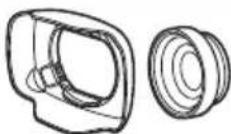
WD-H58W Wide-converter
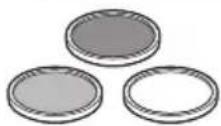
Protect Filter 58 mm, ND4L Filter 58 mm, ND8L Filter 58 mm
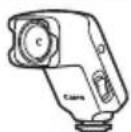
VL-10Li II Battery Video Light

WM-V1 Wireless Microphone
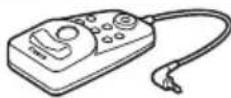
ZR-1000 Zoom Remote Controller
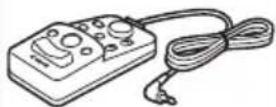
ZR-2000 Zoom Remote Controller
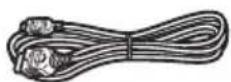
HTC-100 HDMI Cable

SS-600/SS-650 Shoulder Strap

WS-20 Wrist Strap
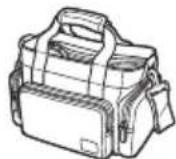
SC-2000 Soft Carrying Case
Optional Accessories
Call or visit your local retailer/dealer for genuine Canon video accessories. You can also obtain genuine accessories for your Canon camcorder by calling: 1-800-828-4040, Canon U.S.A. Information Center.
Use of genuine Canon accessories is recommended.
This product is designed to achieve excellent performance when used with genuine Canon accessories. Canon shall not be liable for any damage to this product and/or accidents such as fire, etc., caused by the malfunction of non-genuine Canon accessories (e.g., a leakage and/or explosion of a battery pack). Please note that this warranty does not apply to repairs arising out of the malfunction of non-genuine Canon accessories, although you may request such repairs on a chargeable basis.
Battery Packs
When you need extra battery packs, select one of the following models: BP-808*, BP-809(B)*, BP-809(S)*, BP-819, or BP-827.
* Please note that the shape/color of this battery does not match the external design of the camcorder.
When you use battery packs bearing the Intelligent System mark, the camcorder will communicate with the battery and display the
remaining usage time (accurate to 1 minute). You can only use and charge these battery packs with camcorders and chargers compatible with Intelligent System.
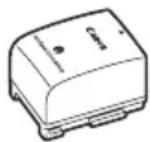

Intelligent Li-ion Battery
CG-800 Battery Charger
Use the battery charger to charge the battery packs. It plugs directly into a power outlet without a cable.
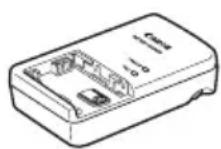
Charging, Recording and Playback Times
The charging times given in the following table are approximate and vary according to charging conditions and initial charge of the battery pack.
| Battery pack→ | BP-808BP-809 | BP-819 BP-827 | |
| Charging conditions↓ | |||
| Using the camcorder 150 min. 260 min. 385 min. | |||
| Using the CG-800 Battery Charger 105 min. | 190 min. 260 min. | ||
Recording and playback times given in the following tables are approximate and vary according to recording mode and charging, recording or playback conditions. The effective usage time of the battery pack may decrease when recording in cold surroundings, when using the brighter screen settings, etc.
Using the built-in memory
* Approximate times for recording with repeated operations such as start/stop, zooming, and power on/off.
TL-H58 Tele-converter
This Tele-converter lens increases the focal length of the camcorder lens by a factor of 1.5.
- The image stabilizer is not as effective when the Tele-converter is attached.
- The minimum focusing distance at full telephoto with the Teleconverter is 1.3 m (4.3 ft.).
WD-H58W Wide-converter
This Wide-converter lens decreases the focal length by a factor of 0.7, giving you a wide perspective for indoor shots or panoramic views.
Protect Filter 58 mm, ND4L Filter 58 mm, ND8L Filter 58 mm
Neutral density and MC protector filters help you to control difficult lighting conditions.
VL-10Li II Battery Video Light
This video light enables you to record brightly in color even in dark places.
WM-V1 Wireless Microphone
Reliably record rich sound even when shooting subjects at a distance. The transmitter is conveniently equipped with a clothing clip and the receiver can be attached to the camcorder's grip belt.
ZR-2000 Zoom Remote Controller
When the ZR-2000 is connected to the REMOTE terminal, it is possible to control functions such as the start and stop of recording, the zoom and the focus functions without touching the camcorder. This is particularly useful while the camcorder is mounted on a tripod and you want to ensure maximum stability of a shot.
SC-2000 Soft Carrying Case
A handy camcorder bag with padded compartments and plenty of space for accessories.
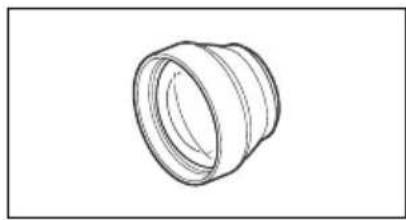
natural_image
Simple line drawing of a cylindrical mechanical component (no text or symbols)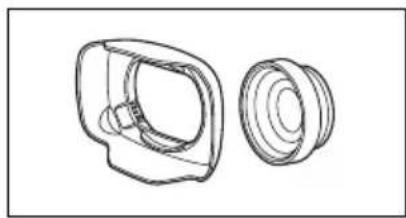
natural_image
Technical line drawing of a mechanical component with a flanged housing and a separate circular component (no text or symbols)
natural_image
Three circular objects with different shading and texture, arranged in a triangular pattern (no text or symbols)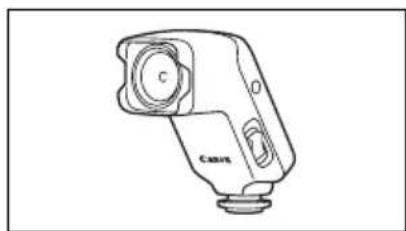
natural_image
Line drawing of a Canon camera lens (no text or symbols)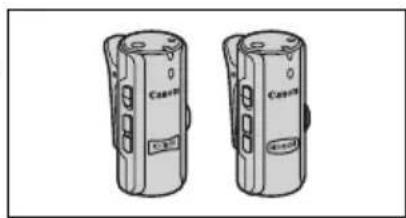
natural_image
Two identical cylindrical electronic devices with labeled buttons and ports, shown from different angles (no text or symbols on body)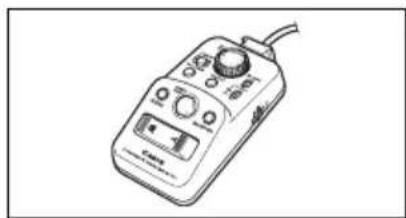
natural_image
Line drawing of a handheld electronic device with control panel and display (no text or symbols)
natural_image
Line drawing of a portable medical bag with handle and side pockets (no text or symbols)Accessories
This mark identifies genuine Canon video accessories. When you use Canon video equipment, we recommend Canon-brand accessories or products bearing the same mark.

Product Codes
Provided Accessories
CA-570 Compact Power Adapter 8468A002AA
BP-808 Battery Pack 2740B002AA
WL-D89 Wireless Controller D83-0790-000
STV-250N Stereo Video Cable 3067A002AA (D82-0590-002)
Optional Accessories
BP-809 Battery Pack 2588B003AA (silver), 2588B004AA (black)
BP-819 Battery Pack 2589B002AA
BP-827 Battery Pack 3185B002AA
CG-800 Battery Charger 2590B002AA
TL-H58 Tele-converter 3573B001AA
WD-H58W Wide-converter 4892B001AA
Protect Filter 58 mm 2595A002AA
ND4L Filter 58 mm 2596A002AA
ND8L Filter 58 mm 2597A002AA
VL-10Li II Battery Video Light 1729B001AA
WM-V1 Wireless Microphone 5068B001AA
ZR-1000 Zoom Remote Controller 3089A002AA
ZR-2000 Zoom Remote Controller 0973B002AA
HTC-100 HDMI Cable 2384B001AA
CTC-100 Component Cable 1719B001AA
IFC-400PCU USB Cable 9370A001AA
SS-650 Shoulder Strap 3123A001AA
SS-600 Shoulder Strap 3122A001AA
WS-20 Wrist Strap 3118A002AA
SC-2000 Soft Carrying Case 9389A001AA
Specifications
XA10
◆ — Values given are approximate figures.
System
- Recording System
Movies: AVCHD Video compression: MPEG-4 AVC/H.264;
Audio compression: Dolby Digital 2ch
Photos: DCF (Design rule for Camera File system), compatible with Exif* Ver. 2.2 Image compression: JPEG
* This camcorder supports Exif 2.2 (also called “Exif Print”). Exif Print is a standard for enhancing the communication between camcorders and printers. By connecting to an Exif Print-compliant printer, the camcorder’s image data at the time of shooting is used and optimized, yielding extremely high quality prints.
• Video Signal Configuration
1080/60i* or 1080/24p (only recordings made with the [24P] frame rate)
* Recordings made with the [PF24], [PF30] frame rate are converted and recorded on the memory as 60i.
- Recording Media
- Built-in memory: 64 GB
- SD, SDHC (SD High Capacity) or SDXC (SD eXtended Capacity) memory card (not included)
• Maximum Recording Time ♦
64 GB built-in memory:
MXP mode: 5 hr. 55 min. FXP mode: 8 hr. 20 min. XP+ mode: 11 hr. 30 min.
SP mode: 19 hr. 10 min. LP mode: 24 hr. 30 min.
Commercially available 8 GB memory card:
MXP mode: 40 min. FXP mode: 1 hr. XP+ mode: 1 hr. 25 min.
SP mode: 2 hr. 20 min. LP mode: 3 hr.
- Image Sensor
1/3-inch CMOS, 2,370,000 pixels
Effective pixels: 2,070,000 pixels
- LCD Touch Screen: 3.5 inch, wide, TFT color, 922,000 dots♦, 100% coverage, touch operation
• Viewfinder: 0.24 inch, wide, color, equivalent to 260,000 dots ^♦ , 100% coverage
- Microphone: Stereo electret condenser microphone
- Lens
f=4.25-42.5 mm, F/1.8-2.8, 10x optical zoom, iris aperture
35 mm equivalent: 30.4 – 304 mm
- Lens Configuration: 12 elements in 10 groups (2 double-sided aspheric elements)
- AF System
Autofocus (TTL + external distance sensor when set to [Instant AF] or [Medium AF]) or Manual focus
- Filter Diameter: 58 mm
• Minimum Focusing Distance
60 cm (2 ft.); 2 cm (0.39 in.) at full wide angle
- White Balance
Auto white balance, Custom white balance (2 settings), User-defined color temperature or Preset white balance settings: Daylight, Shade, Cloudy, Fluorescent, Fluorescent H, Tungsten
• Minimum Illumination
0.1 lx ([Low Light] recording program, Shutter speed at 1/2)
1.5lx ([Programmed AE] recording program, Auto slow shutter [On], Shutter speed at 1/30)
- Recommended Illumination: More than 100 lx
• Image Stabilization: Optical-Shift Image Stabilizer
• Size of Video Recordings
MXP, FXP mode: 1920 x 1080 pixels; XP+, SP, LP mode: 1440 x 1080 pixels
• Size of Photos: 1920 x 1080 pixels
Terminals
• A V O U T / ☉ Terminal
∅ 3.5 mm minijack; output only (dual purpose terminal also for headphones stereo output)
Video: 1 Vp-p / 75 Ω unbalanced
Audio: -10 dBV (47 kΩ load) / 3 kΩ or less
- USB Terminal: mini-B, USB 2.0 (Hi-Speed USB)
- COMPONENT OUT Terminal (proprietary mini-D terminal)
Luminance (Y): 1 Vp-p / 75 Ω; Chrominance (P B /P R ): ±350 mV / 75 Ω
1080i (D3) compatible; output only
• HDMI OUT Terminal
HDMI mini connector; output only; compatible with HDMI-CEC and x.v.Color
- XLR Terminal
XLR jack (pin1: shield, pin2: hot, pin3: cold), 2 sets (balanced)
Sensitivity:
For microphone input: -60 dBu (manual volume center, full scale -18 dB) / 600 Ω
For line input: 4 dBu (manual volume center, full scale -18 dB) / 10 kΩ
Microphone attenuator: 20 dB
- MIC Terminal
∅ 3.5 mm stereo minijack (unbalanced)
Sensitivity:
For microphone input: -65 dBV (auto volume, full scale -12 dB) / 5 kΩ
For line input: -30 dBV (auto volume, full scale -12 dB) / 5 kΩ
Microphone attenuator: 20 dB
Power/Others
- Power supply (rated) 7.4 V DC (battery pack), 8.4 V DC (compact power adapter)
- Power consumption ♦: 3.2 W (SP mode, AF on, LCD normal brightness) 3.0 W (SP mode, AF on, viewfinder) Maximum rated power consumption: 10.5 W
- Operating temperature : 0 - 40 ^ C (32 - 104 ^ F)
- D i m e n s[W x H xS D] (excluding the grip belt and lens hood): 130 x 177 x 205 mm (5.1 x 7.0 x 8.0 in.)
• We i ♦g(damcorder body only): 775 g (1.7 lb)
CA-570 Compact Power Adapter
• Power supply: 100 – 240 V AC, 50/60 Hz
- Rated output / consumption: 8.4 V DC, 1.5 A / 29 VA (100 V) – 39 VA (240 V)
- Operating temperature ^ : 0 - 40 °C (32 - 104 °F)
- Dimen's 52α 29×90 mm (2.1 × 1.1 × 3.5 in.)
• We i g 185 g (4.8 oz.)
BP-808 Battery Pack
- Battery type Rechargeable lithium ion battery, compatible with Intelligent System
- Rated voltage: 7.4 V DC
- Operating temperature ♦: 0 – 40 °C (32 – 104 °F)
- Battery capacity: 890 mAh (typical); 6.3 Wh / 850 mAh (minimum)
- Dimen's 30.7 x 28.3 x 40.2 mm (1.2 x 0.9 x 1.6 in.)
• We i g 46 t (1.6 oz)
About the music files
The specifications of the music files compatible with the camcorder are as follows.
Audio encoding: Linear PCM
Audio sampling: 48 kHz, 16 bits, 2 channels
Minimum length: 1 second
File type: WAV
The music data is saved in the memory under the following folders.
In the built-in memory:
About the image files for the image mix function
The specifications of image files that can be used with the image mix function are as follows.
Image size: 1920x1080 pixels
File type: Baseline JPEG
Color sampling: 4:2:2 or 4:2:0
Image files are saved in the memory under the following folders.
In the built-in memory:
\CANON\MY_PICT\MIX_01.JPG to MIX_99.JPG
On the memory card:
\CANON\PRIVATE\MY_PICT\MIX_01.JPG to MIX_99.JPG
Index
3D Flip View 96
A
Abroad, using the camcorder ..... 175
AGC (automatic gain control) limit ..... 61
Aperture (f number) 62
Aspect ratio of a connected TV (TV type) 149
Assignable buttons 91
Audio equalizer 79
Audio mix 80
Audio recording level 76
Audio reference signal 83
Auto slow shutter 147
Av (recording program) 62
AV OUT/Ω terminal 81, 124, 126
B
Background music 118
Backlight correction 66
Battery pack
Battery information 153
Charging 22
Remaining charge indicator 158
Beach (recording program) 69
Built-in backup battery 173
C
Camcorder supplemental disc .... 14
Capturing photos/video snapshot scenes from a movie 103
Chroma key 113
CINEMA mode 108
Cinema-look filters 108
Color bars 83
COMPONENT OUT terminal ..... 124, 125
Condensation 174
Connections to external devices ..... 125
Copying recordings to a memory card .... 132
CUSTOM button 90
CUSTOM dial 90
D
Data code 87,148
Date and time 34
Decoration 110
Deleting
Movies 98
Photos 130
Digital tele-converter 59
Dividing scenes 101
Double slot recording .... 39
E
Edge monitor 84
Edit panel 32,145
Editing stories 121
Error messages ..... 164
External audio input 80,119
Eye-Fi card 142
F
Face detection 53
Faders 88
Fireworks (recording program) .....70
Focus preset 52
Focus ring 51
Frame rate 50
FUNC. panel .....32, 144
G
Gallery 97,115
H
Handle Unit 24
HD to SD conversion ..... 139, 141
HDMI OUT terminal 124, 125
HDMI-CEC 154
Headphones 81
Highlight AE 66
|
Image effects 71
Image mix 112
Image stabilizer....60
Index screen selection .....97
Infrared recording 89
Initializing the memory 40
L
Language 34
LCD screen dimmer ..... 152
LCD touch screen 26,30
Lens hood 25
Low light (recording program) .....69
M
M (Manual) mode .....46
Maintenance 174
Manual exposure 64
Manual focus ....51
Markers 148
Memory card 36,172
Menu settings, saving and loading .....92
MIC terminal 73
Microphone attenuator .....148
Microphone directionality .....78
Mode switch 31
N
ND filter 147
Night scene (recording program) .....69
Notification sounds....152
0
Onscreen display selection .....87
Onscreen icons 155
P
P (recording program) 62
Peaking 52
Photo numbers 150
Playback
Movies 93,115
Photos 128
Portrait (recording program) .....69
Power saving ....45, 47
Powered IS 60
Pre-recording 86
Q
Quick Start 48
R
Rating scenes 43,117
Recording
Movies 46,108
Photos 46
Recording mode 49
Recording programs .....62, 64, 69
Recording time 49
Relay recording ....38
Remote sensor 29
REMOTE terminal .....82
Resetting all camcorder settings .....162
Reviewing recordings 46
S
Saving recordings
Transferring to a computer 135
Using external video recorders ..... 137
Scan reverse recording
Selecting the memory
for playback 97
for recording 38
Self timer 72
Serial number 20
Setup menus 33,146
Shutter speed 62
Slideshow 131
Smart AUTO 43
Snow (recording program) 69
Sports (recording program) 69
Spotlight (recording program) 70
Story Creator 105
Sunset (recording program) 69
T
Telephoto 56
Time zone/DST 35
Timeline 102
Touch & Track 55
Touch AE 65
Touch AF 51
Touch screen operations 30
Tripod 29
Troubleshooting 159
Tv (recording program) 62
U
Uploading movies to video sharing
Web sites 139
USB terminal 124, 126, 137
V
Video snapshot 85
Viewfinder 25
Volume 94
W
Waveform monitor .....84
White balance 67
Wide angle ....56
Wind screen....148
Wireless controller .....24
X
XLR terminals 74
Z
Zebra pattern 65
Zoom 56
Digital zoom 147
Soft zoom control 58
Zoom speed level 56
USA
CANON DIGITAL VIDEO PRODUCTS LIMITED WARRANTY FOR THE UNITED STATES
The limited warranty set forth below is given by Canon U.S.A., Inc. ("Canon USA") with respect to Canon Digital Video Products (the "Products")* purchased in the United States. Warranty coverage is subject to the country where the unit was purchased.
This limited warranty is only effective upon presentation of your Bill of Sale or other proof of purchase.
The Products are warranted under normal use, against defective materials or workmanship as follows:
Parts: Defective parts will be exchanged for new parts or comparable rebuilt parts for a period of ONE YEAR from the date of original purchase. Labor: For a period of ONE YEAR from the date of original purchase, labor will be provided free of charge by our factory service centers or designated service facilities located in the United States.
When returning Products under this warranty, you must pre-pay the shipping charges, and you must enclose the Bill of Sale or other proof of purchase with a complete explanation of the problem. During the ONE-YEAR warranty period, repairs will be made and the Products will be return-shipped to you free of charge. For repairs after the warranty period is over, you will be given an estimate of the cost of repair and an opportunity to approve or disapprove of the repair expense before it is incurred. If you approve, repairs will be made and the Products will be return-shipped to you. (shipping charges apply). If you disapprove, we will return-ship the Products at no charge to you.
Non-Canon brand peripheral products and software which may be distributed with, or factory loaded on, the Products, are sold "AS IS" without warranty of any kind by Canon USA, including any implied warranty regarding merchantability or fitness for a particular purpose. The sole warranty with respect to such non-Canon brand items is given by the manufacturer or producer thereof. If the Products contain a hard disk drive or a flash memory, Canon USA recommends that data stored on that drive be duplicated or backed up to prevent its loss in the event of failure or other malfunction of such drive.
Canon USA shall have no responsibility under this limited warranty for use of the Products in conjunction with incompatible peripheral products and incompatible software.
TO OBTAIN WARRANTY SERVICE
You may obtain technical support for your Products as follows:
Internet support at www.usa.canon.com/support (E-mail support also available)
Telephone assistance from a Canon U.S.A. Customer Care representative free of charge during regular business hours at 1-800-OK-CANON (1-800-652-2666)
This Limited Warranty covers all defects encountered in normal use of the Products and does not apply in the following cases:
A) Loss or damage to the Products due to abuse, mishandling, accident, improper maintenance, or failure to follow operating instructions;
B) If the Products are defective as a result of leaking batteries, sand, dirt or water damage;
C) If defects or damages are caused by the use of unauthorized parts or by service other than by Canon USA's factory service centers or authorized service facilities;
This Limited Warranty does not cover cabinet (exterior finish), video cassette tape, head cleanings, nor does it apply to Products purchased outside the United States. This warranty does not cover units sold to rental firms, military operations, hotels, schools, hospitals or for other commercial, industrial, or institutional applications. These uses are covered only by such specific warranty as Canon may issue with such sales. This Limited Warranty does not apply to accessories or consumables for the Products, which are sold "AS IS", without warranty of any kind by Canon USA. Please retain this warranty card and your Bill of Sale as a permanent record of your purchase. This card is most important in order to be sure you are contacted right away should there be a safety inspection, modification or products recall under applicable laws or regulations.
NO IMPLIED WARRANTY, INCLUDING MERCHANTABILITY AND FITNESS FOR A PARTICULAR PURPOSE APPLIES TO THESE PRODUCTS AFTER THE APPLICABLE PERIOD OF EXPRESS WARRANTY OR GUARANTY, EXCEPT AS MENTIONED ABOVE, GIVEN BY ANY PERSON, FIRM OR CORPORATION WITH RESPECT TO THESE PRODUCTS SHALL BIND THE UNDERSIGNED (SOME STATES DO NOT ALLOW LIMITATIONS ON HOW LONG AN IMPLIED WARRANTY LASTS, SO THE ABOVE LIMITATION OR EXCLUSION MAY NOT APPLY TO YOU). CANON USA SHALL NOT BE LIABLE FOR LOSS OF REVENUES OR PROFITS, EXPENSE FOR SUBSTITUTE PRODUCTS OR SERVICE, STORAGE CHARGES, LOSS OR CORRUPTION OF DATA, INCLUDING WITHOUT LIMITATION, LOSS OR CORRUPTION OF DATA STORED ON THE PRODUCTS' HARD DRIVE OR FLASH MEMORY, OR ANY OTHER SPECIAL, INCIDENTAL OR CONSEQUENTIAL DAMAGES CAUSED BY THE USE, MISUSE OR INABILITY TO USE THE PRODUCTS, REGARDLESS OF THE LEGAL THEORY ON WHICH THE CLAIM IS BASED, AND EVEN IF CANON USA HAS BEEN ADVISED OF THE POSSIBILITY OF SUCH DAMAGES. NOR SHALL RECOVERY OF ANY KIND AGAINST CANON USA BE GREATER THAN THE PURCHASE PRICE OF THE PRODUCTS SOLD BY CANON USA AND CAUSING THE ALLEGED DAMAGE. WITHOUT LIMITING THE FOREGOING, YOU ASSUME ALL RISK AND LIABILITY FOR LOSS, DAMAGE OR INJURY TO YOU AND YOUR PROPERTY AND TO OTHERS AND THEIR PROPERTY ARISING OUT OF USE, MISUSE OR INABILITY TO USE THE PRODUCTS NOT CAUSED DIRECTLY BY THE NEGLIGENCE OF CANON USA. (SOME STATES DO NOT ALLOW THE EXCLUSION OR LIMITATION OF INCIDENTAL OR CONSEQUENTIAL DAMAGES, SO THE ABOVE LIMITATION MAY NOT APPLY TO YOU). THIS WARRANTY SHALL NOT EXTEND TO ANYONE OTHER THAN THE ORIGINAL PURCHASER OF THIS PRODUCTS OR THE PERSON FOR WHOM IT WAS PURCHASED AS A GIFT. This warranty gives you specific legal rights, and you may also have other rights which vary from state to state. CANON U.S.A., INC.
*The battery pack packaged with the Products carries a separate ninety (90) day limited warranty.
CANADA
CANON DIGITAL VIDEO PRODUCTS LIMITED WARRANTY
The limited warranty set forth below is given by Canon Canada Inc. ("Canon Canada") with respect to Canon Digital Video Products (the "Products") purchased in Canada. This limited warranty is only effective upon presentation of a bill of sale or other proof of purchase for these Products to a Canon Service Facility when repairs are required. The Products are warranted under normal use, against defective materials or workmanship as follows:
Parts: Defective parts will be exchanged for new parts or, at Canon Canada's option, comparable rebuilt parts for a period of one year from the date of original purchase. Labour: For a period of one year from the date of original purchase, labour will be provided free of charge by our Canon Service Facilities in Canada. This limited warranty covers all defects except where:
(a) The loss or damage to the products results from:
i) accident, natural disaster, mishandling, abuse, neglect, unauthorized products modification or failure to follow instructions contained in the instruction manual;
ii) the use of accessories, attachments, products, supplies, parts or devices with the Products that do not conform to Canon specifications or that cause abnormally frequent service problems;
iii) repairs or services performed by any party other than a Canon Service Facility;
iv) defective batteries or any exposure to water, sand or dirt:
v) shipping (claim must be presented to the shipper);
(b) Any serial number on the video Products is altered or removed.
This limited warranty does not cover the cabinet (exterior finish) of the Products, media, nor does it apply to Products purchased outside Canada. If the Products contain a hard disk drive or a flash memory, Canon Canada recommends that data stored on that drive be duplicated or backed up to prevent its loss in the event of a failure or other malfunction of such drive.
TO OBTAIN WARRANTY SERVICE
You may obtain technical support for your Products as follows:
Internet support for English at www.canon.ca/english/cs (E-mail support also available)
Internet support for French at www.canon.ca/francais/cs (E-mail support also available)
Telephone assistance from a Canon Canada Customer Care representative free of charge during regular business hours at 1-800-OK-CANON (1-800-652-2666)
LIMITATIONS
Except as otherwise required by applicable legislation, this warranty is in lieu of all other warranties, conditions, guarantees or representations, express or implied, statutory or otherwise, relative to the Products, including implied warranties or conditions of merchantability or fitness for a particular purpose. Canon Canada assumes no liability for special, consequential or incidental damages, loss or corruption of data including, without limitation, data stored on the hard disk drive or flash memory of the Products or loss that may arise, whether on account of negligence or otherwise, from the use, misuse or inability to use the Products (including loss of profit, revenue, media or enjoyment) or from failure to conform to any express or implied warranties, conditions, guarantees or representations. Any recovery under this limited warranty shall not exceed the purchase price of the Products. Canon Canada does not assume or authorize any other person to assume for Canon Canada any other liability with respect to these Products. This warranty does not extend to any person other than the original purchaser of the Products or the person for whom it was purchased as a gift and states your exclusive remedy.
NOTICE TO CONSUMER
If you plan to take important videos or if the Products have not been used for some time, please check all functions with the instruction book before using it.
Canon
USA CANON U.S.A., INC. NEW JERSEY OFFICE
100 Jamesburg Road, Jamesburg, NJ 08831 USA
CANON U.S.A., INC. CHICAGO OFFICE
100 Park Blvd., Itasca, IL 60143 USA
15955 Alton Parkway, Irvine, CA 92618 USA
CANON U.S.A., INC. HONOLULU OFFICE
210 Ward Avenue, Suite 200, Honolulu, HI 96814 USA
If you have any questions, call the Canon U.S.A. Information Center toll-free at 1-800-828-4040 (USA only).
CANADA CANON CANADA INC.
6390 Dixie Road, Mississauga, ON L5T 1P7
If you have any questions, call the Canon Canada Information Center toll free (in Canada only) at 1-800-OK-CANON (1-800-652-2666).
Blvd. Manuel Ávila Camacho No. 138, Piso 17
Col. Lomas de Chapultepec, C.P. 11000 México, D.F., México
CANON U.S.A., INC. NEW JERSEY OFFICE
100 Jamesburg Road, Jamesburg, NJ 08831 USA
CENTRO Y CANON LATIN AMERICA, INC.
SURAMÉRICA 703 Waterford Way, Suite 400, Miami, FL 33126 USA
19/F, The Metropolis Tower, 10 Metropolis Drive, Hunghom, Kowloon,
Hong
Kong
Tel: +852 3191 2333, Fax: +852 2428 3963
- For support concerning the supplied PIXELA's software, please call PIXELA customer support (details in the Installation Guide for PIXELA's software).
- Pour le support technique concernant les logiciels de PIXELA fournis, veuillez appeler le service clientèle de PIXELA (reportez-vous au dos du guide d'installation pour le logiciel de PIXELA).
- Para soporte relacionado con el software de PIXELA suministrado, llame al centro de ayuda al cliente de PIXELA (puede encontrar los detalles en la Guía de Instalación para el software PIXELA).