XLH H1S - Video camera CANON - Free user manual and instructions
Find the device manual for free XLH H1S CANON in PDF.


User questions about XLH H1S CANON
0 question about this device. Answer the ones you know or ask your own.
Ask a new question about this device
Download the instructions for your Video camera in PDF format for free! Find your manual XLH H1S - CANON and take your electronic device back in hand. On this page are published all the documents necessary for the use of your device. XLH H1S by CANON.
USER MANUAL XLH H1S CANON
natural_image
Silhouette of a Canon HDV video camera with headband and antenna, captured in profile view (no text or symbols on device body)English
Français
Español
XL H1S XL H1A
HD Video Camera Recorder Instruction Manual
TO REDUCE THE RISK OF FIRE OR ELECTRIC SHOCK, DO NOT EXPOSE THIS PRODUCT TO RAIN OR MOISTURE.
WARNING:

TO REDUCE THE RISK OF ELECTRIC SHOCK AND TO REDUCE ANNOYING INTERFERENCE, USE THE RECOMMENDED ACCESSORIES ONLY.
COPYRIGHT WARNING:
Unauthorized recording of copyrighted materials may infringe on the rights of copyright owners and be contrary to copyright laws.
HD Video Camera Recorder, XL H1S A / XL H1A A Systems.
This device complies with Part 15 of the FCC Rules. Operation is subject to the following two conditions: (1) This device may not cause harmful interference, and (2) this device must accept any interference received, including interference that may cause undesired operation.
Note: This equipment has been tested and found to comply with the limits for class B digital device, pursuant to Part 15 of the FCC Rules. These limits are designed to provide reasonable protection against harmful interference in a residential installation. This equipment generates, uses and can radiate radio frequency energy and, if not installed and use in accordance with the instructions, may cause harmful interference to radio communications. However, there is no guarantee that interference will not occur in a particular installation. If this equipment does cause harmful interference to radio or television reception, which can be determined by turning the equipment off and on, the user is encouraged to try to correct the interference by one or more of the following measures:
•Reorient or relocate the receiving antenna.
- Increase the separation between the equipment and receiver.
- Connect the equipment into an outlet on a circuit different from that to which the receiver is connected.
- Consult the dealer or an experienced radio/TV technician for help.
Use of shielded cable is required to comply with class B limits in Subpart B of Part 15 of FCC Rules.
Do not make any changes or modifications to the equipment unless otherwise specified in the manual.
If such changes or modifications should be made, you could be required to stop operation of the equipment.
Canon U.S.A. Inc.
One Canon Plaza, Lake Success, NY 11042, U.S.A.
Tel No. (516)328-5600
CAUTION:
TO PREVENT ELECTRIC SHOCK, MATCH WIDE BLADE OF PLUG TO WIDE SLOT, FULLY INSERT.
Important Warning


CAUTION:
TO REDUCE THE RISK OF ELECTRIC SHOCK, DO NOT REMOVE COVER (OR BACK). NO USER-SERVICEABLE PARTS INSIDE. REFER SERVICING TO QUALIFIED SERVICE PERSONNEL.

The lightning flash with arrowhead symbol, within an equilateral triangle, is intended to alert the user to the presence of uninsulated “dangerous voltage” within the product’s enclosure, that may be of sufficient magnitude to constitute a risk of electric shock to persons.

The exclamation point, within an equilateral triangle, is intended to alert the user to the presence of important operating and maintenance (servicing) instructions in the literature accompanying the product.
In these safety instructions the word "product" refers to the Canon HD Video Camera Recorder XL H1S A / XL H1A A and all its accessories.
- Read Instructions — All the safety and operating instructions should be read before the product is operated.
- Retain Instructions — The safety and operating instructions should be retained for future reference.
- Heed Warnings — All warnings on the product and in the operating instructions should be adhered to.
- Follow Instructions — All operating and maintenance instructions should be followed.
- Cleaning — Unplug this product from the wall outlet before cleaning. Do not use liquid or aerosol cleaners. The product should be cleaned only as recommended in this manual.
- Accessories — Do not use accessories not recommended in this manual as they may be hazardous.
- Avoid magnetic or electric fields — Do not use the camera close to TV transmitters, portable communication devices or other sources of electric or magnetic radiation. They may cause picture interference, or permanently damage the camera.
- Water and Moisture — Hazard of electric shock — Do not use this product near water or in rainy/moist situations.
- Placing or Moving — Do not place on an unstable cart, stand, tripod, bracket or table. The product may fall, causing serious injury to a child or adult, and serious damage to the product.
A product and cart combination should
be moved with care. Quick stops, excessive force, and uneven surfaces may cause the product and cart combination to overturn. - Power Sources — The CA-920
Compact Power Adapter should be operated only from the type of power source indicated on the marking label. If you are not sure of the type of power supply to your home, consult your product dealer or local power company. Regarding other power sources such as battery power, refer to instructions in this manual. - Polarization — The CA-920 Compact Power Adapter is equipped with a polarized 2-prong plug (a plug having one blade wider than the other).
The 2-prong polarized plug will fit into the power outlet only one way. This is a safety feature. If you are unable to insert the plug fully into the outlet, try reversing the plug. If the plug still fails to fit, contact your electrician to replace your obsolete outlet. Do not defeat the safety purpose of the polarized plug.

-
Power Cord Protection — Power cords should be routed so that they are not likely to be walked on or pinched by items placed upon or against them. Pay particular attention to plugs and the point from which the cords exit the product.
-
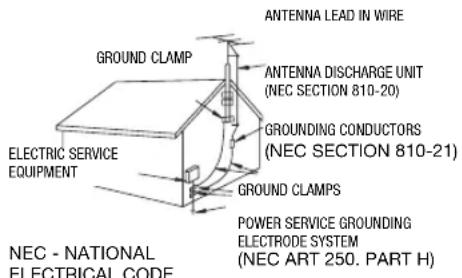
Outdoor Antenna Grounding — If an outside antenna is connected to the product, be sure the antenna is grounded so as to provide some protection against voltage surges and built-up static charges. Section 810 of the National Electrical Code, ANSI / NFPA No. 70—1984, provides information with respect to proper grounding of the mast and supporting structure, grounding of the lead-in wire to an antenna discharge unit, size of grounding conductors, location of antenna discharge unit, connection to grounding electrodes, and requirements for the grounding electrode. See figure 1.
Fig.1 EXAMPLE OF ANTENNA GROUNDING AS PER NATIONAL ELECTRICAL CODE
text_image
ANTENNA LEAD IN WIRE GROUND CLAMP ANTENNA DISCHARGE UNIT (NEC SECTION 810-20) GROUNDED CONDUCTORS (NEC SECTION 810-21) ELECTRIC SERVICE EQUIPMENT GROUND CLAMPS POWER SERVICE GROUNDING ELECTRODE SYSTEM (NEC ART 250. PART H) NEC - NATIONAL ELECTRICAL CODE-
Lightning — For added protection of this product during a lightning storm, or when it is left unattended and unused for long periods of time, disconnect it from the wall outlet and disconnect the antenna. This will prevent damage to the product due to lightning and power-line surges.
-
Power Lines — An outside antenna system should not be located in the vicinity of overhead power lines or other electric light or power circuits, or where it can fall into such power lines or circuits. When installing an outside antenna system, extreme care should be taken to keep from touching such power lines or circuits as contact with them might be fatal.
-
Overloading — Do not overload wall outlets and extension cords as this can result in a risk of fire or electric shock.
-
Objects and Liquid Entry — Never push objects of any kind into this product through openings as they may touch dangerous voltage points or short out parts that could result in a fire or electric shock. Be careful not to spill liquid of any kind onto the product.
-
Servicing — Do not attempt to service this product yourself as opening or removing covers may expose you to dangerous voltage or other hazards. Refer all servicing to qualified service personnel.
-
Damage Requiring Service — Disconnect this product from the wall outlet and all power sources including battery, and refer servicing to qualified service personnel under the following conditions:
a. When the power-supply cord or plug is damaged.
b. If any liquid has been spilled onto, or objects have fallen into, the product.
c. If the product has been exposed to rain or water.
d. If the product does not operate normally even if you follow the operating instructions. Adjust only those controls that are covered by the operation instructions. Improper adjustment of other controls may result in damage and will often require extensive work by a qualified technician to restore the product to its normal operation.
e. If the product has been dropped or the cabinet has been damaged.
f. When the product exhibits a distinct change in performance. This indicates a need for service.
-
Replacement Parts — When replacement parts are required, be sure the service technician has used replacement parts that are specified by Canon or that have the same characteristics as the original part. Unauthorized substitutions may result in fire, electric shock or other hazards.
-
Safety Check — Upon completion of any service or repairs to this product, ask the service technician to perform safety checks to determine that the product is in safe operating order.
When replacement of power supply is required, please return it to the responsible nearest Canon Service Center and please replace it with the same type number CA-920.
The Adapter can be used with a power supply between 100 and 240 V AC. Contact your Canon dealer for information about plug adapter for overseas use.
Ultimate HD Quality
New and improved lens The HD 20x L IS III is the latest addition to the XL line of high-end interchangeable lenses and now features a built-in iris ring for improved operability.
3CCD system By using three 1/3-in. CCDs (each with a total of 1.67 mega pixels and 1,440x1,080 effective pixels), the camcorder offers a horizontal resolution of 800 TV lines, the highest in HDV standard.
DIGIC DV II image processor The next generation of Canon's video processing engine ensures optimal video quality and color reproduction for high-definition video.
Versatile Artistic Expression
HDV native 1080/24p, 1080/30p recording Use the 24F or 30F mode for video recordings compliant with native recordings according to HDV specifications (☐ 50). Whatever your video needs -TV programs, commercials, music videos or movies- you can shoot it with the XL H1S / XL H1A.
Custom presets Enjoy unparalleled image control to deliver the "look" you want. The camcorder offers 23 customizable parameters you can easily save and exchange as custom preset files (96).
Advanced Professional Features
XLH1s Pro level connectivity An industry-standard HD/SD SDI terminal for uncompressed HD signal output, embedded audio and SMPTE time code (LTC) are just a few of the features of the XL H1S that give it the functionality of professional broadcast cameras.
XLH1s Synchronization Genlock synchronization, as well as TC-IN and TC-OUT terminals, allow the XL H1S to be part of any multi-camera shooting setup.
Enhanced customization Custom functions (104) and custom display (110) options give you even more freedom to control many aspects of the camcorder's operation.
And More
Audio options The camcorder is equipped with two sets of XLR audio input terminals with phantom power supply. Record audio using both audio inputs or combine one audio input and the supplied front microphone. You can also activate the audio peak limiter (☐ 59) to avoid distortions during manual audio level adjustment.
Added and improved functionality Push AE (66) • Gain fine-tuning in 0.5 dB increments (70)
- Focus limit (48) • Selective NR (77) • Audio output level selection (90) • and more!
Thank you for purchasing the Canon XL H1S / XL H1A. Please read this manual carefully before you use the camcorder and retain it for future reference. Should your camcorder fail to operate correctly, refer to Troubleshooting (150).
Conventions Used in this Manual
- Precautions related to the camcorder's operation.
○ ① Additional topics that complement the basic operating procedures.
○ Reference page number. - Capital letters are used to refer to buttons on the camcorder or the wireless controller.
- Brackets [] and capital letters are used to refer to menu options as they are displayed on screen. In tables in the manual, menu options in boldface indicate the default setting.
The supplied lens, Canon HD Video Lens 20x Zoom XL 5.4-108 mm L IS III, is referred to as the "HD 20x L IS III" lens. - “Screen” refers to the viewfinder screen.
- “Card” or “Memory card” refers to an SDHC memory card, an SD memory card or a MultiMedia Card (MMC).
Photographs in the manual are simulated pictures taken with a still camera.
○ XLext that applies only to the model shown in the icon. - Illustrations in the manual show an XL H1S with the HD 20x L IS III lens attached.
Operating modes
The availability of the various functions depends on the operating mode as indicated in the bar.

text_image
A , : Function can be used in this mode. A , : Function cannot be used in this mode.Menu item shown at its default position
Date/Time and Language Settings
Set the time zone, date and time when you first start using your camorder, or if the built-in
rechargeable battery has discharged comp
Setting the Time Zone/Daylight Saving Time

-
Press the MENU button.
-
Turn the SELECT dial to select [SYSTEM SETUP/Hand press the SET button.
-
Select [D/TIME SET] and then select [T.ZONE/DST] and press the SET button
The time zone setting appears. The default setting is New York.
- Turn the SELECT dial to select the setting option that matches your time zone and
press the SET button.
To adjust for daylight saving time, select the time zone marked with a
Setting the Date and Time

Trademark Acknowledgements
- Canon is a registered trademark of Canon Inc.
- MinDV is a trademark.
- HDV and the HDV logo are trademarks of Sony Corporation and Victor Company of Japan, Ltd. (JVC).
• is a trademark. - Microsoft, Windows and Windows Vista are trademarks or registered trademarks of Microsoft Corporation in the United States and/or other countries.
- Other names and products not mentioned above may be trademarks or registered trademarks of their respective companies.
- ANY USE OF THIS PRODUCT OTHER THAN CONSUMER PERSONAL USE IN ANY MANNER THAT COMPLIES WITH THE MPEG-2 STANDARD FOR ENCODING VIDEO INFORMATION FOR PACKAGED MEDIA IS EXPRESSLY PROHIBITED WITHOUT A LICENSE UNDER APPLICABLE PATENTS IN THE MPEG-2 PATENT PORTFOLIO, WHICH LICENSE IS AVAILABLE FROM MPEG LA, L.L.C., 250 STEELE STREET, SUITE 300, DENVER, COLORADO 80206.
About the HD/HDV and SD/DV Specifications
In the manual, a distinction is made between video signal standards (camera section) and recording standards (recorder section). The video signal can be set to HD (high definition) or SD (standard definition) specifications; the recording standard on the tape will be HDV or DV, respectively.

flowchart
graph TD
    A["Camera Section"] --> B["HD/SD"]
    B --> C["HD/SD SDI Terminal HD/SD (XLHb o n l y)"]
    A --> D["Recorder Section"]
    D --> E["HDV/DV"]
    E --> F["HDV/DV Terminal HDV/D v"]
    D --> G["Playback Signal HDV/DV"]
    G --> D
Introduction
The XL H1S / XL H1A - A Broad Range of Capabilities .... 5
About this Manual 6
Checking the Supplied Accessories 10
Components Guide 11
Preparations
Preparing the Power Supply 17
Preparing the Camcorder....21
Preparing the Lens 27
Using the Wireless Controller....30
Loading/Removing a Cassette 31
Inserting/Removing a Memory Card 32
Changing Settings with the MENU Button....33
Date/Time and Language Settings....34
Recording
Recording 36
Selecting the Signal Standard and Aspect Ratio 40
Locating the End of the Last Scene 41
Zooming 42
Adjusting the Focus....44
Using the ND Filter 49
Selecting the Frame Rate....50
Setting the Time Code 52
XL H1s Synchronizing the Camcorder's Time Code 54
Setting the User Bit 56
Audio Recording....57
Image Stabilizer 61
Using the Programmed AE Modes....62
Recording in Manual Mode 65
Recording in Shutter-Priority (Tv) Mode 67
Recording in Aperture-Priority (Av) Mode 68
Adjusting the Exposure 69
AE Shift....69
Gain 70
White Balance 71
Zebra Pattern 73
Color Correction....74
Skin Detail Function 76
Selective Noise Reduction 77
Clear Scan....78
Custom Keys 79
Color Bars/Audio Reference Signal....83
Faders 83
External Connections
Video Signal Output Standards 84
Connecting to a Monitor/TV 85
Audio Output 90
Digital Video Control....92
Recording an External Video Signal (HDV/DV In, Analog Line-In)....93
Converting Analog Signals into Digital Signals (Analog-Digital Converter) 94
Connecting to a Computer....95
Customization
Custom Preset Settings 96
Customized Functions 104
Customized On-Screen Displays 110
Playback
Playing Back a Tape....114
Returning to a Pre-marked Position.... 116
Index Search 116
Date Search....117
Data Code 117
Remote Sensor Mode 118
Using a Memory Card
Selecting the Still Image Quality/Size....119
File Numbers 120
Recording Still Images on a Memory Card 121
Reviewing a Still Image right after Recording 123
Drive Mode....124
Metering Mode....125
Using an Optional Flash 126
Playing Back Still Images from a Memory Card....127
Erasing Still images 129
Protecting Still images....130
Initializing a Memory Card....131
Print Order Settings....132
Additional Information
Menu Options and Default Settings....133
Settings Memorized and Retained 141
Screen Displays....142
List of Messages 144
Maintenance/Others 145
Troubleshooting....150
System Diagram....152
Optional Accessories 154
Specifications....157
Index....160
Checking the Supplied Accessories
CA-920 Compact Power Adapter DC-920 DC Coupler BP-950G Battery Pack WL-D5000 Wireless Controller 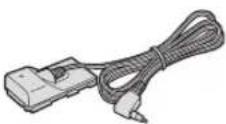   | |||
SDC-32M SD Memory Card HDVM-E63PR DigitalVideocassette  Color Viewfinder Unit 2 x AA (R6) Batteries(for the wireless controller) Color Viewfinder Unit 2 x AA (R6) Batteries(for the wireless controller)  | |||
Microphone Unit Stereo Cable DTC-1000 Component Video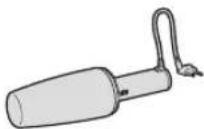  Cable[C8Y2D] Cable[C8Y2D] 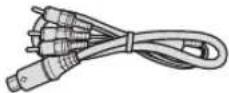 | |||
Adjustment Band (for the externalmicrophone holder)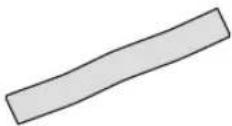 Adapter Holder Unit Tripod Adapter Adapter Holder Unit Tripod Adapter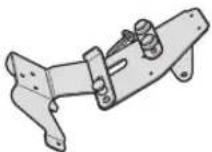 Base SS-1100 Shoulder Strap Base SS-1100 Shoulder Strap 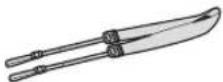 | |||
Camcorder Dust Cap Canon HD Vid[e] Lens 20x ZoomXL 5.4-108 mm L IS III(incl. soft case) Lens Cap and Dust Cap Lens Hood Lens Cap and Dust Cap Lens Hood 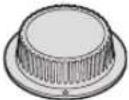 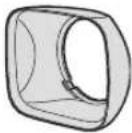 |
| The serial number of this product can be found at the battery attachment unit of the camcorder. Write down the number and other information here and retain this book as a permanent record of your purchase to aid identification in case of theft. |
| Date of Purchase: Model Name: XL H1S A / XL H1A A |
| Purchased From: Serial No.: |
| Dealer Address |
| Dealer Phone No.: |
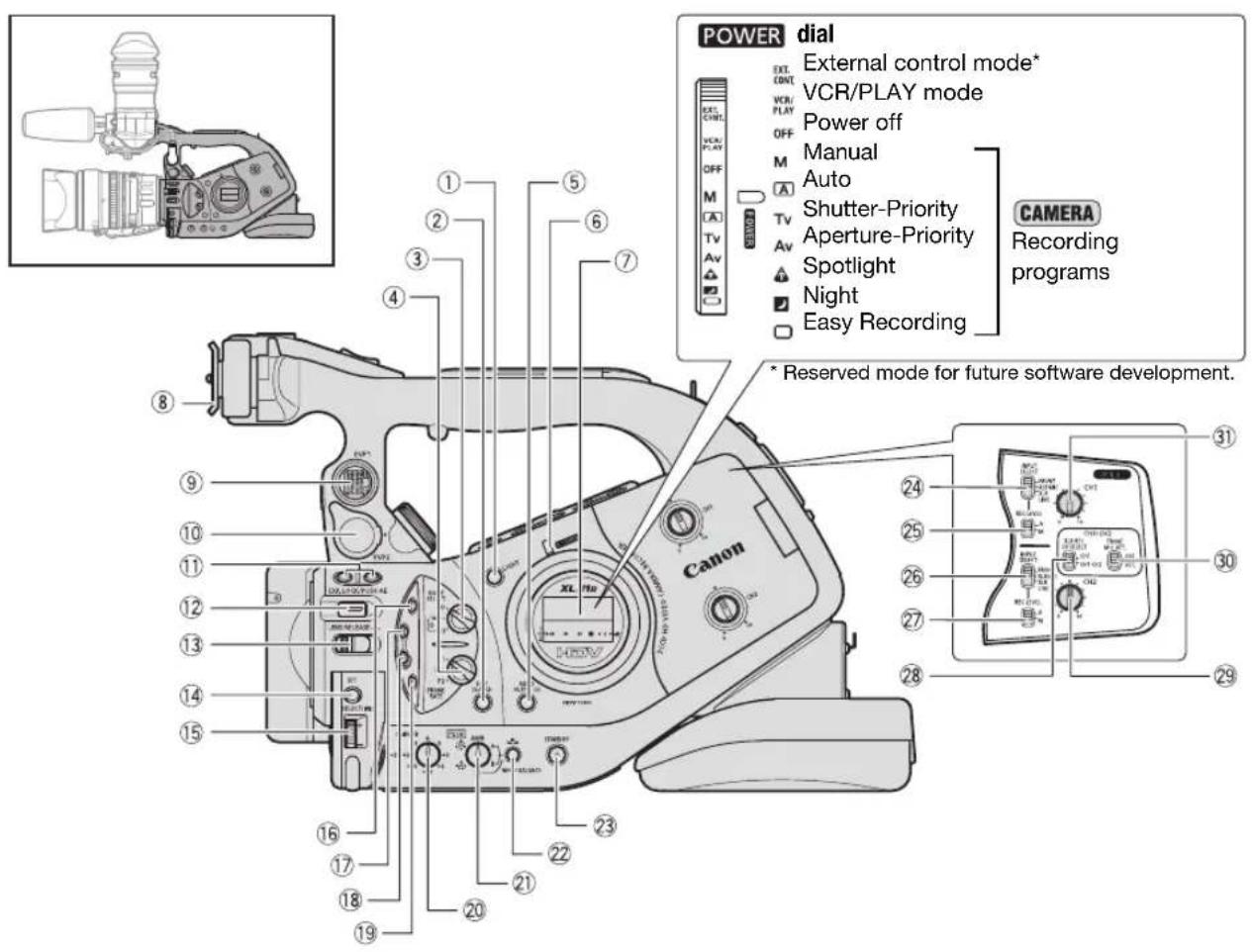
Left side view
text_image
POWER dial External control mode* VCR/PLAY mode Power off Manual Auto Shutter-Priority Aperture-Priority Spotlight Night Easy Recording CAMERA Recording programs * Reserved mode for future software development. Canon 31 24 25 26 27 28 29 30 31 32 33 34 35 36 37 38 39 40 41 42 43 44 45 46 47 48 49 50 51 52 53 54 55 56 57 58 59 60 61 62 63 64 65 66 67 68 69 70 71 72 73 74 75 76 77 78 79 80① LIGHT button
② END SEARCH button (41)
③ MODE SELECT switch (40)
④ FRAME RATE switch (50)
⑤ AUDIO OUTPUT CH button (90)
⑥ POWER indicator
⑦ Side panel (143)
⑧ Viewfinder attachment bracket (21)
⑨ EVF1 color viewfinder socket (21)
⑩ EVF2 external monitor/viewfinder socket (85, 155)
⑪ EVF PEAKING/EVF MAGNIFYING buttons (46)
⑫ EXP. LOCK button (69)/PUSH AE button (66)
⑬ LENS RELEASE switch (27)
⑭ SET button (33)
⑮ SELECT dial (33)/IRIS dial (65, 68)
⑯ (record review) button (39)
⑰ BARS/FADE SELECT button (83)
⑱ BARS/FADE ON/OFF button (83)
⑲ MENU button (33)
⑳ GAIN dial (70)
②1 WHITE BALANCE dial (71)
② WHITE BALANCE Button (71)
②3 STANDBY button (37)
②4 INPUT SELECT switch (CH1) (58)
⑲ REC LEVEL switch (CH1) (59)
②6 INPUT SELECT switch (CH2) (58)
②7 REC LEVEL switch (CH2) (59)
28 XLR REC CH SELECT switch (CH1/CH2) (58)
29 CH2 dial (59)
③0 FRONT MIC ATT. switch (CH/CH2) (58)
③1 CH1 dial (59)

natural_image
Line drawing of a handheld electronic device with control panel and lens (no text or symbols)Left side view
Viewfinder unit/Microphone unit

text_image
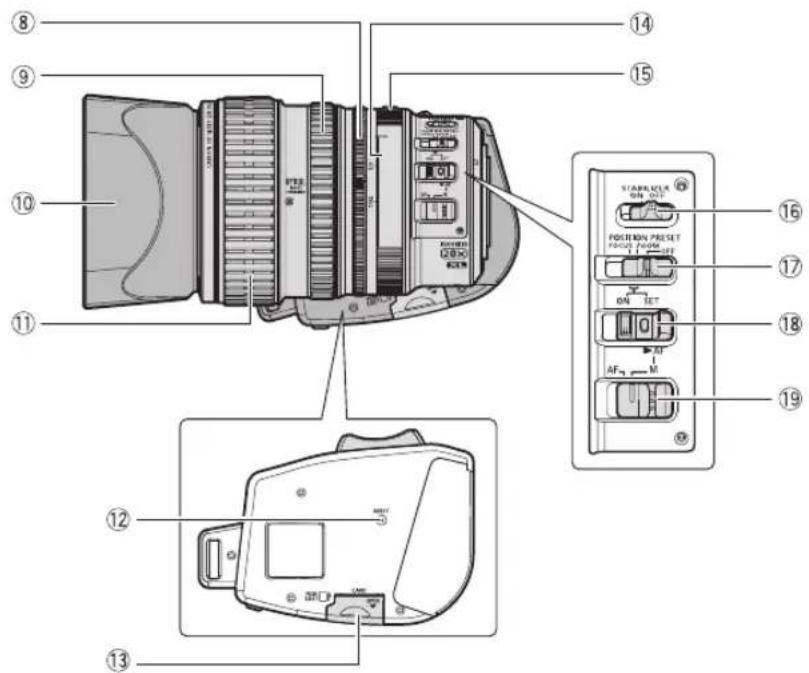
Technical diagram of a mechanical device with numbered components for identificationHD 20x L IS III lens
text_image
Labeled diagram of a camera module with numbered parts and component labels in Chinese① Eye cup (22)
② Dioptric adjustment lever (23)
③ Color viewfinder (21-24)
④ STEREO/MONO microphone selector (58)
⑤ Lock screw (23)
⑥ Viewfinder cable (21)
⑦ Lock release button (24)
⑧ Iris ring (65, 68)
⑨ Zoom ring (42)
⑩ Lens hood (28)
⑪ Focus ring (44)
⑫ RESET button (150)
⑬ Memory card slot (32)
⑭ ND filter operating ring (49)
⑮ ND filter unlock button (49)
⑯ STABILIZER ON/OFF switch (61)
⑰ POSITION PRESET switch (43)
⑱▶ AF switch (44)/
POSITION PRESET ON/SET switch (43)
⑲ Focus mode switch (45)

text_image
Labeled diagram of a Canon HDV camera with numbered parts for identification and assembly reference.① S-video terminal (88)
②VIDEO OUT terminal (BNC) (88)
③VIDEO IN/OUT terminal (RCA) (88)
④ AUDIO OUT terminals (CH1/CH2, RCA) (90)
⑤ AUDIO IN terminals (CH1/CH2, RCA) (58)
⑥ Terminal cover
⑦ Battery attachment unit (17)
⑧ BATT. RELEASE button (17)
⑨ HD/SD SDI terminal* (86)
⑩ GENLOCK terminal* (54)
⑪ TC-OUT terminal* (54)
* XLH1s o n l y .
⑫ TC-IN terminal* (54)
⑬ Serial number
⑭ Screw hole for adapter holder (26)
⑮ AE SHIFT dial (69)
⑯ LOCK switch (37)
⑰ FRONT MIC terminals (25)
⑱ Lens hood lock screw (28)
⑲ Grip zoom lever (42)
20 PHOTO button (121) / MAGN. button (108)
②1 Cassette compartment (31)
Front view

text_image
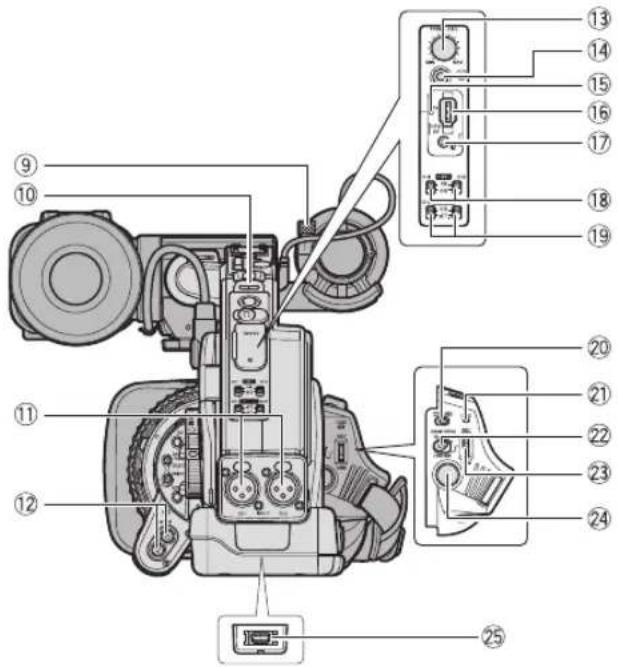
Diagram of a camera with numbered parts for identification and assembly reference.Back view
text_image
Technical diagram of a camera with numbered parts and labeled control knobs for device status.① Tally lamp (109)
② Remote sensor (30, 118)
③ Grip belt (25)
④ Attachment sockets for the optional TA-100 Tripod Adapter (155) or the supplied tripod adapter base
⑤Tripod socket
⑥ Viewfinder cable (21)
⑦ Remote sensor (30, 118)
⑧ START/STOP button (36)
⑨ Microphone lock screw (25)
⑩ Strap mount (25)
⑪ INPUT terminals (CH1/CH2, XLR) (58)
⑫ SHUTTER buttons (65, 67)
⑬ PHONES LEVEL dial
⑭ (headphone) terminal
⑮ HDV indicator (40)
⑯ HDV/DV terminal (87, 93, 95)
⑰ terminal
⑱ +48V switches (CH1,CH2) (58)
⑲ XLR MIC ATT. switches (CH1, CH2) (58)
20 / (card/tape) switch (121)
②1 CARD access indicator (121)
② ZOOM SPEED switch (42)
②3 ZOOM SPEED dial (42)
②4 Start/Stop button (36)
⑲5 COMPONENT OUT terminal (87)
④. ⑤ Using tripods
Do not use tripods with mounting screws longer than 5.5 mm (0.2 in.) as this may cause damage to the camcorder. To use tripods featuring 3/8" mounting screws, attach first the supplied tripod adapter base and attach the tripod to the adapter base.
⑰ About the Terminal
(LANC) stands for Local Application Control Bus System. The terminal allows you to connect and control connected devices. Connect only devices with the mark to the terminal.
Operation cannot be guaranteed for connections with devices not bearing the mark.
Some buttons of connected devices may not operate or may operate differently than the buttons on the camcorder.
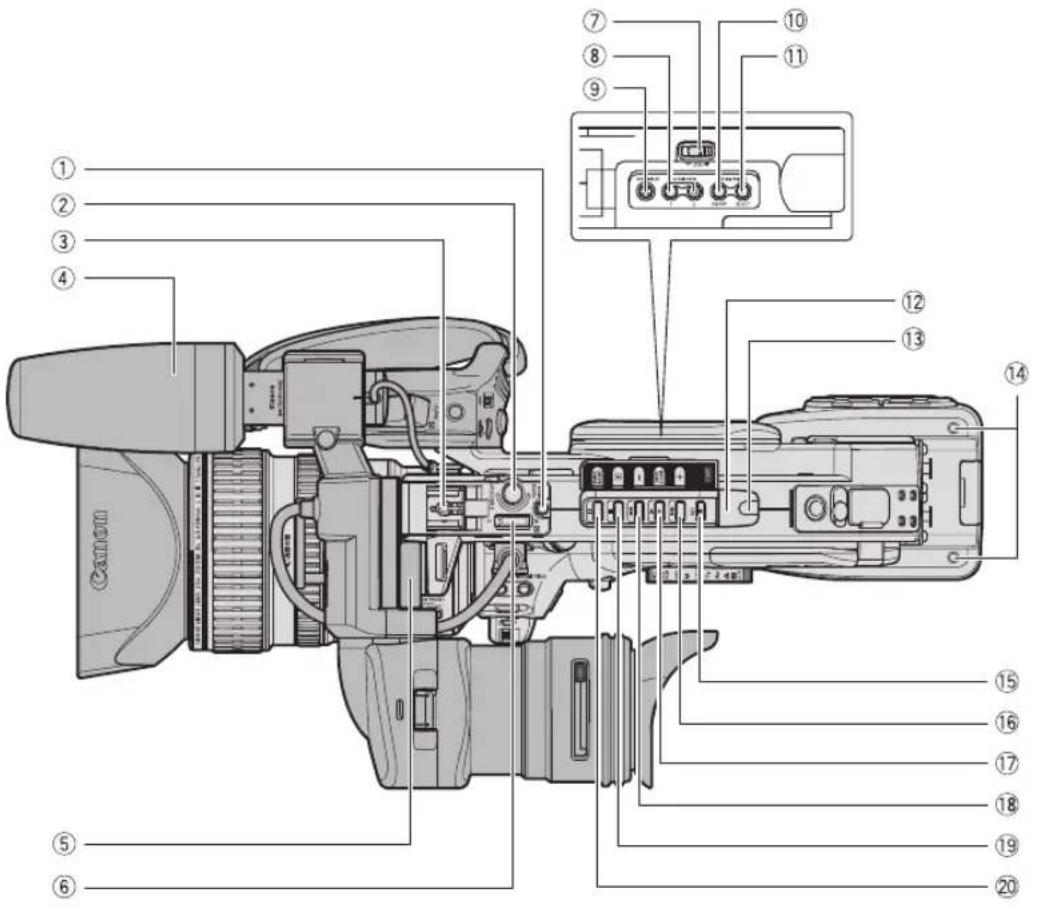
text_image
Labeled diagram of a Canon digital camera with numbered parts for identification① PHOTO button (121) / MAGN. button (108)
② START/STOP button (36)
③ Hot shoe (126)
④ Microphone (25)
⑤ Viewfinder lock screw (21)
⑥ Handle zoom lever (42)
⑦ EJECT switch (31)
⑧ CUSTOM KEYS (79)
⑨ EVF DISPLAY button (39)
⑩ CUSTOM PRESET ON/OFF button (99)
⑪ CUSTOM PRESET SELECT button (99)
⑫ Remote sensor (30, 118)
⑬ Tally lamp (109)
⑭ Screw holes for adapter holder (26)
⑮ REC (record) button (93)
⑯ (fast forward) button (114) /
CARDutton (100, 127)
⑰▶ (play) button (114) /
SLIDESHOW button (127)
⑱◀◀ (rewind) button (114) /
CALDton (100,127)
⑲ (stop) button (114,117) /
(metering mode) button (125)
⑳ (pause) button (114) /
DRIVE MODE button (124)
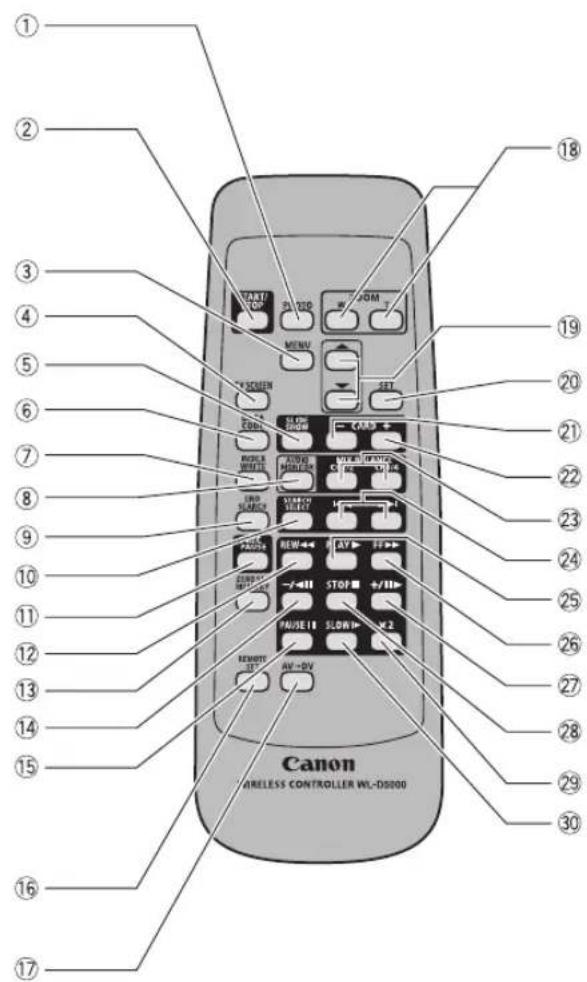
text_image
① ② ③ ④ ⑤ ⑥ ⑦ ⑧ ⑨ ⑩ ⑪ ⑫ ⑬ ⑭ ⑮ ⑯ ⑰ ⑱ ⑲ ⑳ ⑮ ⑯ ⑰ ⑱ ⑲ ⑳ ⑮ ⑯ ⑰ ⑱ ⑲ ⑳ ⑮ ⑯ ⑰ ⑱ ⑲ ⑳ ⑮ ⑯ ⑰ ⑱ ⑲ ⑳ ⑮ ⑯ ⑰ ⑱ ⑲ ⑳ ⑮ ⑯ ⑰① PHOTO button (121)
② START/STOP button (36)
③ MENU button (33)
④ TV SCREEN button (80)
⑤ SLIDESHOW button (127)
⑥ DATA CODE button (117)
⑦ INDEX WRITE button (80)
⑧ AUDIO MONITOR button (90)
⑨ END SEARCH button (41)
⑩ SEARCH SELECT button (116, 117)
⑪ REC PAUSE button (93)
⑫ REW Button (114)
⑬ ZERO SET MEMORY button (116)
⑭ - / ▶ button (114)
⑮ PAUSE I button (114)
⑯ REMOTE SET button (118)
⑰ AV-DV button (94)
⑱ Zoom buttons (42)
⑲ Menu selection buttons (33)
⑳ SET button (33)
②1 CARD - button (127)
② CARD + button (127)
②3 MIX BALANCE buttons (90)
⑳ ◀◀/▶buttons (116.117)
⑲ PLAY button (114)
26 FF button (114)
⑳ + / ▶ button (114)
⑳ STOP ■ button (114)
29 ×2 button (114)
③0 SLOW button (114)
Charging the Battery Pack
Disconnect the DC coupler from the compact power adapter before charging. Remove the terminal cover of the battery pack.
- Connect the power cord to the compact power adapter.
- Plug the power cord into a power outlet.
-
Attach the battery pack to the compact power adapter.
-
Press lightly and slide the battery pack in the direction of the arrow until it clicks.
-
The charge indicator starts flashing. The indicator will stay on when the charging is completed.
-
When the charging is completed, remove the battery pack from the compact power adapter.
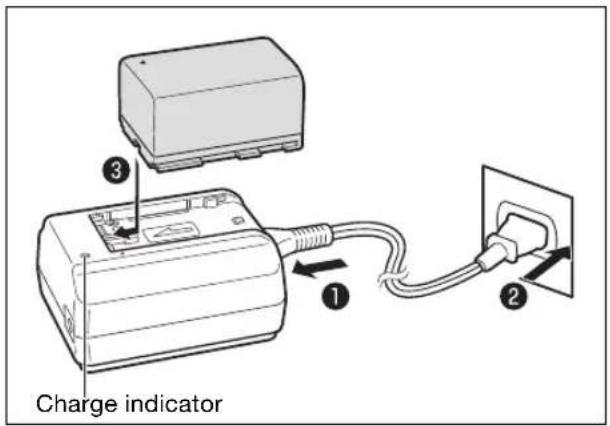
text_image
Charge indicator- Unplug the power cord from the power outlet and disconnect it from the compact power adapter.
Attaching the Battery Pack
- Turn the Player OFF.
- Attach the battery pack to the camcorder.
Align the battery pack with the guideline and press lightly. Slide the battery pack up, in the direction of the arrow, until it clicks.
- Remove the battery pack after use.
Holding the BATT. RELEASE button pressed down, slide the battery pack down to remove it.
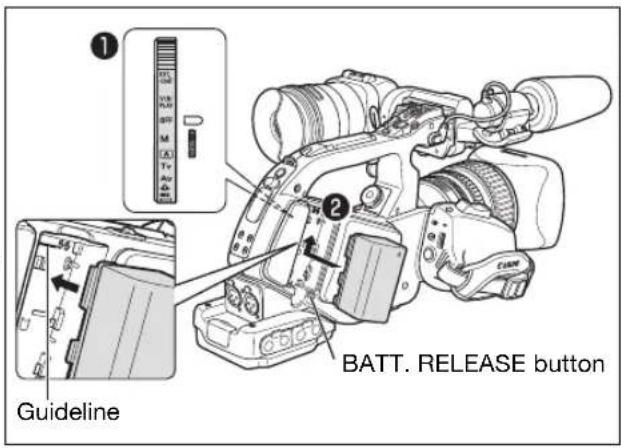
text_image
① ② BATT. RELEASE button GuidelineUsing a Household Power Outlet
-
Turn the Forever OFF.
-
Attach the DC coupler to the camcorder.
Press lightly and slide the DC coupler up, in the direction of the arrow until it clicks.
-
Connect the power cord to the compact power adapter.
-
Plug the power cord into a power outlet.
-
Connect the DC coupler to the compact power adapter.
-
Detach the DC coupler after use.
Holding the BATT. RELEASE button pressed down, slide the DC coupler down to remove it.

text_image
BATT. RELEASE buttonAbout the Built-in Rechargeable Lithium Battery
This camcorder has a built-in rechargeable lithium battery to retain the date, time and other settings. The built-in battery is recharged every time you use the camcorder. However, when you use the camcorder for only short periods or do not use it for a period of over 3 months, it will discharge completely. In that case, recharge the built-in battery by powering the camcorder from a power outlet and leaving it with the POWER set to OFF for at least 24 hours.

○ Disconnect the DC coupler from the compact power adapter when charging a battery pack.
○ Turn off the camcorder before connecting or disconnecting the compact power adapter.
○ If the compact power adapter is used close to a TV, it may cause picture interference. Move the compact power adapter away from the TV or the antenna cable.
Do not connect to the compact power adapter any products not expressly recommended for use with this camcorder.

If you connect a faulty compact power adapter or battery pack, the charge indicator turns off and charging will stop.
The charge indicator serves also as an indication about the charge status.
0-50%: Flashes once per second
50-75%: Flashes twice per second
More than 75%: Flashes 3 times per second
100%: Continuously on
We recommend charging the battery pack in temperatures between 10 °C and 30 °C (50 °F and 86 °F). The charging time will vary depending on the surrounding temperature and the battery's initial charge condition.
○ In cold places the effective usage time of the battery will decrease.
We recommend that you prepare battery packs 2 to 3 times longer than you think you might need.
To conserve battery power, turn off the camcorder instead of leaving it in record pause mode.
USA and Canada only: The Lithium ion/polymer battery that powers the product is recyclable. Please call 1-800-8-BATTERY for information on how to recycle this battery.

○ Charging, Recording and Playback Times
The following times are approximate and vary according to the charging, recording and playback conditions.
| Battery Pack | BP-930 BP-945 BP-950G BP-970G | ||
| Charging time with the CA-920 Compact Power Adapter | 145 min. 220 min. 235 min. 320 min. | ||
| XLHS | |||
| HDV Maximum Recording Time | |||
| HD 20x L IS III Lens Supplied color viewfinder | 130 min. 195 min. 275 min. 375 min. | ||
| FU-1000 monochrome viewfinder ^2 | 100 min. 155 min. 215 min. 295 min. | ||
| HD 20x L IS II Lens Supplied color viewfinder | 130 min. 195 min. 275 min. 380 min. | ||
| FU-1000 monochrome viewfinder ^2 | 100 min. 155 min. 215 min. 300 min. | ||
| HD 6x L Lens Supplied color viewfinder | 135 min. 200 min. 285 min. 390 min. | ||
| FU-1000 monochrome viewfinder ^2 | 105 min. 160 min. 220 min. 305 min. | ||
| HDV Typical Recording Time ^1 | |||
| HD 20x L IS III Lens Supplied color viewfinder | 75 min. 115 min. 165 min. 225 min. | ||
| FU-1000 monochrome viewfinder ^2 | 60 min. 95 min. 135 min. 185 min. | ||
| HD 20x L IS II Lens Supplied color viewfinder | 75 min. 115 min. 165 min. 230 min. | ||
| FU-1000 monochrome viewfinder ^2 | 65 min. 95 min. 135 min. 185 min. | ||
| HD 6x L Lens Supplied color viewfinder | 80 min. 120 min. 170 min. 235 min. | ||
| FU-1000 monochrome viewfinder ^2 | 65 min. 100 min. 140 min. 190 min. | ||
| HDV Playback Time (supplied color viewfinder) | 155 min. 235 min. 335 min. 455 min. | ||
| DV Maximum Recording Time | |||
| HD 20x L IS III Lens Supplied color viewfinder | 145 min. 220 min. 305 min. 420 min. | ||
| FU-1000 monochrome viewfinder ^2 | 110 min. 170 min. 240 min. 330 min. | ||
| HD 20x L IS II Lens Supplied color viewfinder | 145 min. 220 min. 310 min. 425 min. | ||
| FU-1000 monochrome viewfinder ^2 | 115 min. 175 min. 240 min. 330 min. | ||
| HD 6x L Lens Supplied color viewfinder | 150 min. 225 min. 310 min. 435 min. | ||
| FU-1000 monochrome viewfinder ^2 | 115 min. 175 min. 240 min. 340 min. | ||
| 20x L IS Lens Supplied color viewfinder | 135 min. 205 min. 285 min. 390 min. | ||
| FU-1000 monochrome viewfinder ^2 | 105 min. 160 min. 225 min. 310 min. | ||
| 16x Manual Zoom Lens Supplied color viewfinder | 150 min. 225 min. 310 min. 435 min. | ||
| FU-1000 monochrome viewfinder ^2 | 115 min. 175 min. 240 min. 340 min. | ||
| DV Typical Recording Time ^1 | |||
| HD 20x L IS III Lens Supplied color viewfinder | 85 min. 125 min. 180 min. 245 min. | ||
| FU-1000 monochrome viewfinder ^2 | 65 min. 100 min. 140 min. 190 min. | ||
| HD 20x L IS II Lens Supplied color viewfinder | 85 min. 130 min. 180 min. 250 min. | ||
| FU-1000 monochrome viewfinder ^2 | 65 min. 100 min. 140 min. 195 min. | ||
| HD 6x L Lens Supplied color viewfinder | 90 min. 135 min. 185 min. 260 min. | ||
| FU-1000 monochrome viewfinder ^2 | 70 min. 105 min. 145 min. 205 min. | ||
| 20x L IS Lens Supplied color viewfinder | 80 min. 120 min. 165 min. 230 min. | ||
| FU-1000 monochrome viewfinder ^2 | 60 min. 95 min. 130 min. 185 min. | ||
| 16x Manual Zoom Lens Supplied color viewfinder | 90 min. 135 min. 185 min. 260 min. | ||
| FU-1000 monochrome viewfinder ^2 | 70 min. 105 min. 145 min. 205 min. | ||
| DV Playback Time (supplied color viewfinder) | 175 min. 265 min. 370 min. 505 min. | ||
^1 Approximate times for recording with repeated operations such as start/stop, zooming, power on/off.
Actual time may be shorter.
^2 Optional.
| Battery Pack | BP-930 BP-945 BP-950G BP-970G | ||
| XLHA | |||
| HDV Maximum Recording Time | |||
| HD 20x L IS III Lens Supplied color viewfinder | 140 min. 205 min. 290 min. 400 min. | ||
| FU-1000 monochrome viewfinder ^2 | 105 min. 160 min. 230 min. 310 min. | ||
| HD 20x L IS II Lens Supplied color viewfinder | 140 min. 210 min. 295 min. 405 min. | ||
| FU-1000 monochrome viewfinder ^2 | 105 min. 165 min. 230 min. 315 min. | ||
| HD 6x L Lens Supplied color viewfinder | 145 min. 215 min. 305 min. 420 min. | ||
| FU-1000 monochrome viewfinder ^2 | 110 min. 165 min. 240 min. 320 min. | ||
| HDV Typical Recording Time ^1 | |||
| HD 20x L IS III Lens Supplied color viewfinder | 85 min. 125 min. 180 min. 245 min. | ||
| FU-1000 monochrome viewfinder ^2 | 65 min. 100 min. 140 min. 190 min. | ||
| HD 20x L IS II Lens Supplied color viewfinder | 80 min. 125 min. 175 min. 240 min. | ||
| FU-1000 monochrome viewfinder ^2 | 65 min. 100 min. 140 min. 190 min. | ||
| HD 6x L Lens Supplied color viewfinder | 80 min. 125 min. 180 min. 245 min. | ||
| FU-1000 monochrome viewfinder ^2 | 65 min. 100 min. 145 min. 195 min. | ||
| HDV Playback Time (supplied color viewfinder) | 175 min. 265 min. 375 min. 510 min. | ||
| DV Maximum Recording Time | |||
| HD 20x L IS III Lens Supplied color viewfinder | 150 min. 225 min. 325 min. 440 min. | ||
| FU-1000 monochrome viewfinder ^2 | 115 min. 180 min. 250 min. 340 min. | ||
| HD 20x L IS II Lens Supplied color viewfinder | 155 min. 230 min. 325 min. 450 min. | ||
| FU-1000 monochrome viewfinder ^2 | 115 min. 180 min. 250 min. 340 min. | ||
| HD 6x L Lens Supplied color viewfinder | 130 min. 205 min. 285 min. 390 min. | ||
| FU-1000 monochrome viewfinder ^2 | 105 min. 160 min. 225 min. 315 min. | ||
| 20x L IS Lens Supplied color viewfinder | 140 min. 210 min. 300 min. 410 min. | ||
| FU-1000 monochrome viewfinder ^2 | 110 min. 165 min. 235 min. 315 min. | ||
| 16x Manual Zoom Lens Supplied color viewfinder | 155 min. 235 min. 335 min. 455 min. | ||
| FU-1000 monochrome viewfinder ^2 | 120 min. 185 min. 255 min. 350 min. | ||
| DV Typical Recording Time ^1 | |||
| HD 20x L IS III Lens Supplied color viewfinder | 90 min. 130 min. 190 min. 260 min. | ||
| FU-1000 monochrome viewfinder ^2 | 65 min. 105 min. 145 min. 195 min. | ||
| HD 20x L IS II Lens Supplied color viewfinder | 90 min. 135 min. 190 min. 260 min. | ||
| FU-1000 monochrome viewfinder ^2 | 70 min. 105 min. 145 min. 195 min. | ||
| HD 6x L Lens Supplied color viewfinder | 75 min. 115 min. 165 min. 230 min. | ||
| FU-1000 monochrome viewfinder ^2 | 60 min. 95 min. 130 min. 185 min. | ||
| 20x L IS Lens Supplied color viewfinder | 85 min. 125 min. 175 min. 240 min. | ||
| FU-1000 monochrome viewfinder ^2 | 65 min. 100 min. 140 min. 185 min. | ||
| 16x Manual Zoom Lens Supplied color viewfinder | 95 min. 140 min. 195 min. 270 min. | ||
| FU-1000 monochrome viewfinder ^2 | 70 min. 110 min. 150 min. 205 min. | ||
| DV Playback Time (supplied color viewfinder) | 195 min. 290 min. 410 min. 560 min. | ||
^1 Approximate times for recording with repeated operations such as start/stop, zooming, power on/off. Actual time may be shorter.
^2 Optional.
Attaching and Detaching the Color Viewfinder Unit
Attaching the Color Viewfinder Unit
- Slide the viewfinder unit onto the bracket and tighten the lock screw.
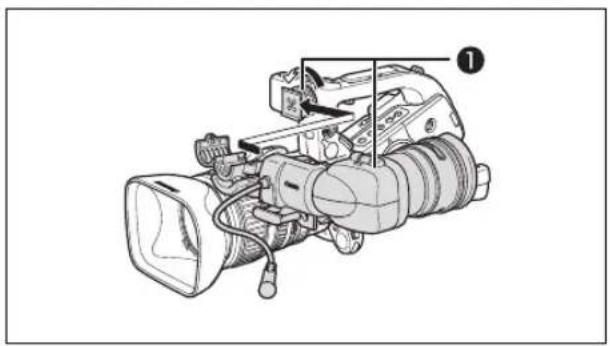
natural_image
Line drawing of a professional video camera with labeled component (no text or symbols present)- Connect the viewfinder cable to the EVF1 socket on the camcorder.
Insert the cable plug straight into the camcorder's socket.
- Hook the viewfinder cable onto the cable clamp.
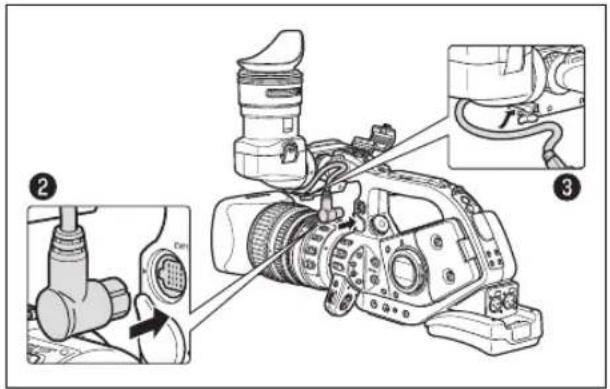
text_image
Technical diagram of a digital camera with labeled parts including lens, cable, and adjustment mechanismTo use the optional FU-1000 Monochrome CRT Viewfinder Unit, connect it to the EVF2 socket on the camcorder instead.
Detaching the Viewfinder Unit
-
Detach the viewfinder cable.
-
Loosen the lock screw and slide the viewfinder unit off the bracket.
Attaching and Detaching the Eye Cup
You can change the position of the eye cup for use with either the left or right eye. Detach the eye cup and reattach it when changing the position of the eye cup for right or left eye use.
Attaching the Eye Cup
Align the hole for the dioptric adjustment lever with the lever, and pull the eye cup into position.
Right eye use Left eye use

natural_image
Line drawing of a mechanical device with a cylindrical component inserted into a housing (no text or symbols)
natural_image
Illustration of a mechanical device with a cylindrical component inserted into a housing (no text or symbols visible)Detaching the Eye Cup
Detach the eye cup as shown in the illustration.
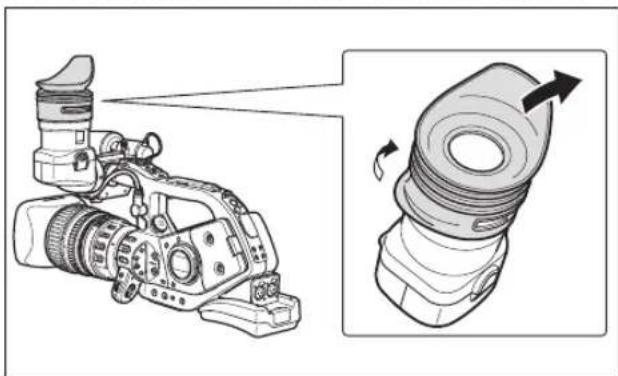
natural_image
Illustration of a DSLR camera with an external camera component, showing motion arrows (no text or symbols)Adjusting the Position of the Viewfinder
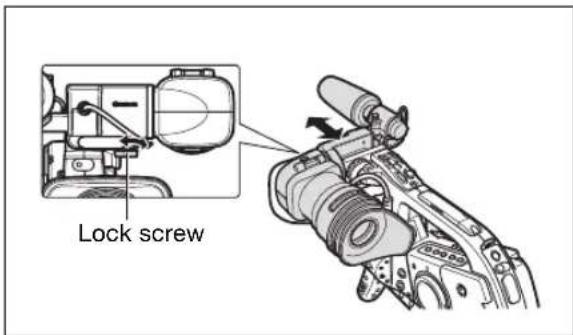
The viewfinder position can be changed (right/left, forward/backward).
When storing the camcorder in the optional HC-3200 System Case, adjust the viewfinder to the right and lock it.
Right/Left Adjustment
Loosen the top lock screw, adjust the viewfinder to the right/left and tighten the screw.
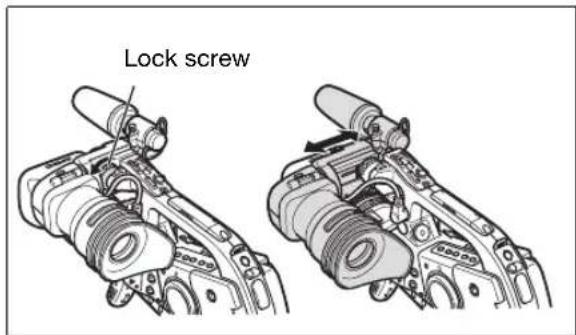
text_image
Lock screwForward/Backward Adjustment
Loosen the bottom lock screw, adjust the viewfinder forward/backward and tighten the screw.
text_image
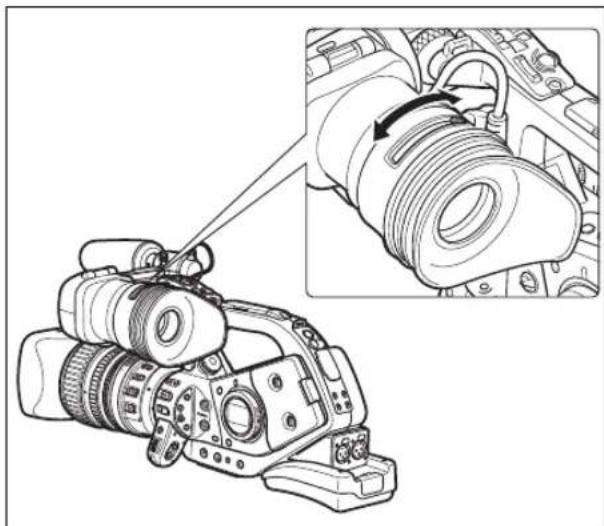
Lock screwDioptric Adjustment
Turn on the camcorder and adjust the dioptric adjustment lever.
natural_image
Line drawing of a DSLR camera with an inset showing the cable being inserted (no text or symbols present)
Do not let the viewfinder be exposed to direct sunlight or other strong light sources. The viewfinder LCD may become damaged due to concentration of the light by the lens. Pay special attention when mounting the camcorder on a tripod, or during its transportation.
Adjusting the Viewfinder
You can adjust the brightness, contrast, color and sharpness of the viewfinder. These adjustments will not affect your recordings.

text_image
VCR/ PLAY M A Tv Av # MENU (33) DISPLAY SETUP / EVF SETUP EVF BW MODE ...OFF BRIGHTNESS...0 CONTRAST...0 COLOR...0 SHARPNESS...2- Press the MENU button.
- Turn the SELECT dial to select [DISPLAY SETUP/] and press the SET button.
- Select [EVF SETUP] and then select [BRIGHTNESS], [CONTRAST], [COLOR] or [SHARPNESS].
-
Adjust the setting with the SELECT dial and press the SET button.
-
After the adjustment you will return to the [EVF SETUP] submenu. Change additional settings in the same way.
-
For more details regarding the [EVF BW MODE] setting refer to page 81.
-
Press the MENU button to close the menu.
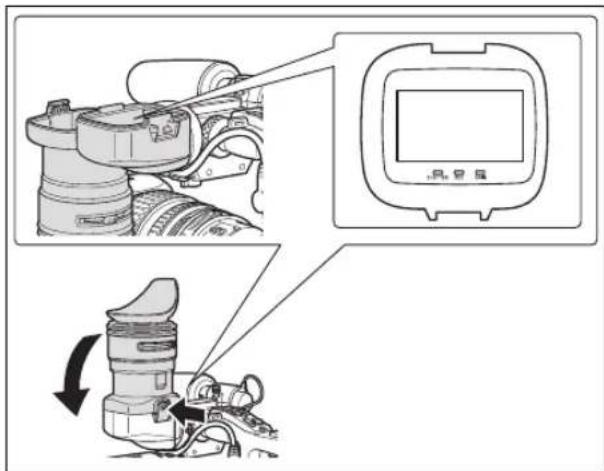
Using the Viewfinder as LCD Panel
You can use the viewfinder as an LCD panel by opening the eyepiece adapter.
Press the lock release button and open the eyepiece adapter.
text_image
Diagram showing camera setup with labeled components and directional arrows indicating motion or rotation.
Make sure to close the eyepiece adapter when you are not using the viewfinder as an LCD panel.

The screen is slightly brighter when you open the eyepiece adapter.
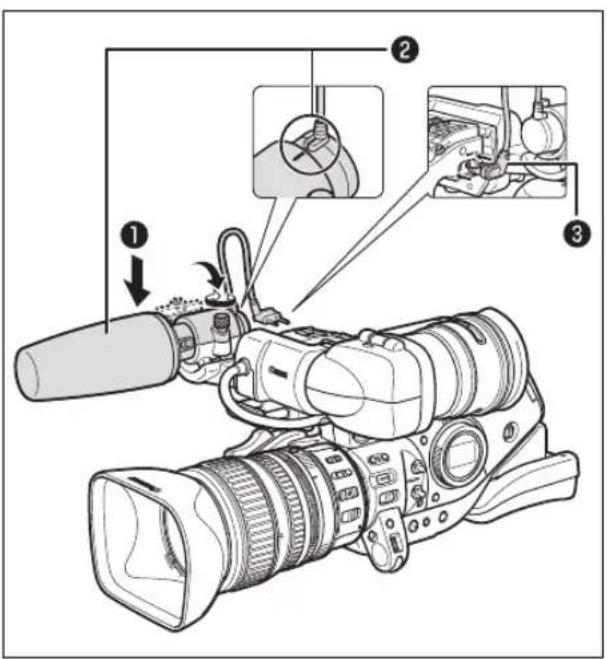
Attaching the Microphone Unit
- Loosen the microphone lock screw on the viewfinder unit, open the microphone holder and insert the microphone.
- Align the mark on the microphone with the mark on the microphone holder and tighten the lock screw.
- Plug the microphone cable to the camcorder's FRONT MIC terminals.
text_image
Diagram of a video camera with labeled parts including lens, trigger, and control panel
To use an external microphone with a diameter too small for the microphone holder to close securely, attach first the supplied adjustment band to the microphone holder and then insert the microphone.
Fastening the Grip Belt
Adjust the grip belt so that you can reach the zoom lever with your index and middle finger, and the Start/Stop button with your thumb.

natural_image
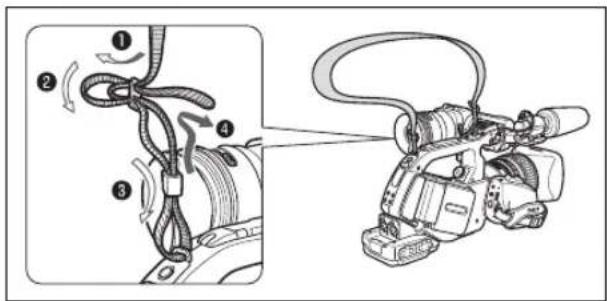
Line drawing of a professional video camera with extended lens and handle (no text or symbols)Attaching the Shoulder Strap
Pass the ends through the strap mount and adjust the length of the strap.
text_image
Diagram showing cable being connected to a video camera via cable rope, with numbered steps and motion arrows
Be careful not to drop the camcorder when adjusting the strap or the grip belt.
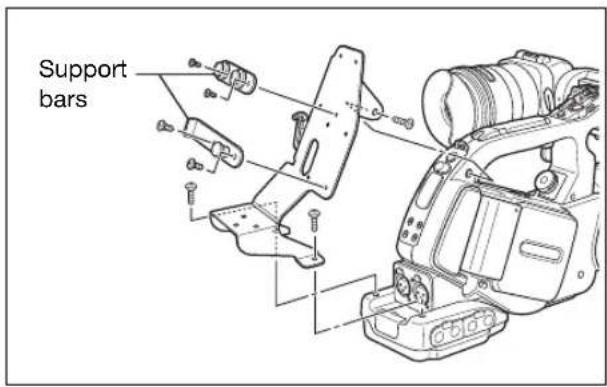
Attaching the Adapter Holder
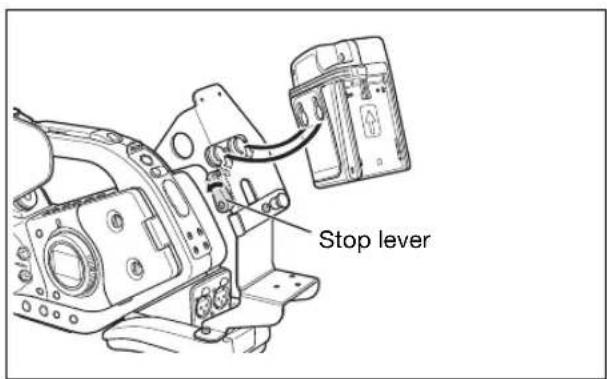
Attach the adapter holder to use the optional CH-910 Dual Battery Charger/Holder or a commercially available wireless microphone receiver.
- Attach the adapter holder and secure it by tightening the screws.
- Adjust the position of the support bars.
text_image
Support barsWhen using the optional CH-910, hook it onto the support bars and secure it with the stop lever. To detach the CH-910, press the stop lever in the direction of the arrow and pull the CH-910 off the support bars.
text_image
Stop leverRefer also to the instruction manual of the lens.
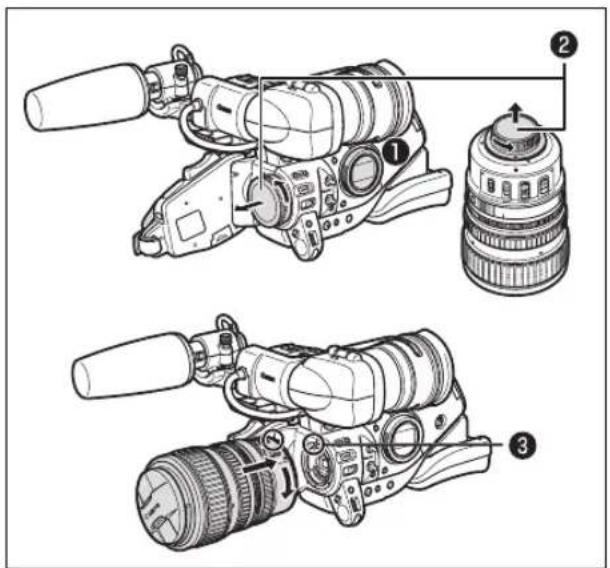
Mounting the Lens
- Set the dial to OFF.
- Remove the dust caps from the camcorder and the lens.
- Align the red mark on the lens with the red mark on the camcorder and turn the lens clockwise until it clicks.
text_image
Technical diagram showing three views of a DSLR camera with labeled parts and componentsRemoving the Lens
- Set the Fdd to OFF.
- Slide the LENS RELEASE switch all the way in the direction of the arrow.
- Turn the lens counter-clockwise until it stops and remove the lens.
- Attach the dust caps to the camcorder and the lens.
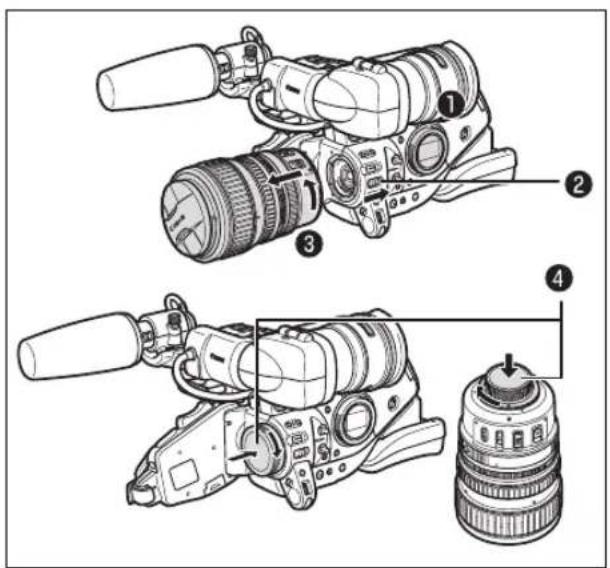
text_image
Technical diagram of a DSLR camera with numbered parts for identification and assembly reference.
○ Be careful not to drop the lens or camcorder when mounting or removing the lens.
- Avoid direct sunlight or strong light sources when mounting or removing the lens.
- The XL mount is not compatible with the VL mount.
If you set the POWER dial to a recording mode without a lens attached, the lens warning icon "LENS" will flash in red on the screen.
Do not touch the lens, lens mount and the interior of the mount, or expose them to dust or dirt. If necessary, clean the lens with a dry, soft lens-cleaning cloth. Make sure to turn off the camcorder while cleaning the lens.
☐ Proper operation cannot be guaranteed when recording in HDV standard with lenses that were not designed for HDV recording. If you attach such a lens to the camcorder, the messages “THIS LENS HAS NO STILL SHOOTING CAPABILITY” and “HD INCOMPATIBLE LENS” will appear.
☐ Proper operation cannot be guaranteed when recording in HDV standard with the optional Extender XL 1.6x. The message "HD INCOMPATIBLE LENS" will appear when using the extender, even with an HD-compatible lens.
Attaching the Lens Hood
Attach the lens hood to protect the lens and shade it from stray light.
- Place the lens hood on the front of the lens and screw it clockwise until the Canon logo appears on top.
- Be careful not to deform the lens hood. - Make sure that the lens hood is aligned with the thread.
- Tighten the lock screw.
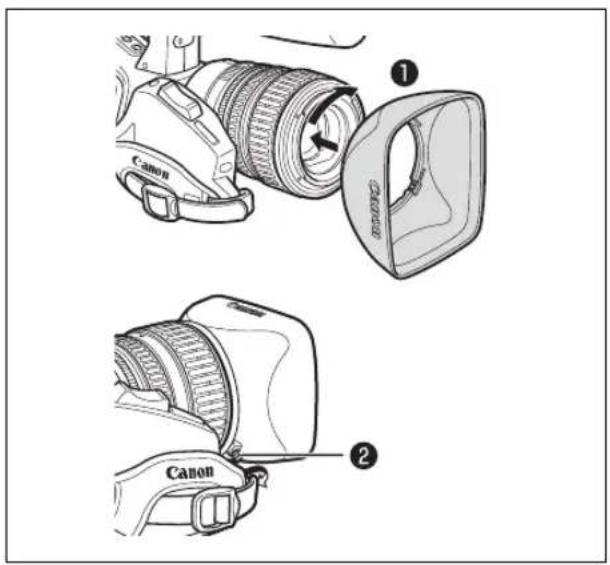
text_image
Canon ① Canon ②Adjusting the Flange Back (lenses without built-in flange back adjustment function)
The flange back can be adjusted to correct the focus while zooming to full telephoto or full wide-angle. The flange back can be adjusted automatically by the camcorder (AF) or manually (MF). The camcorder can store and back up flange back adjustment values for up to 10 different lenses.

text_image
VCR/ PLAY M A Tv Av A J □Preparations
- Set the frame rate to 60i or 30F.
- Point the camcorder to face a subject and secure it in place.
Place the camcorder at a distance of at least 1 m (3.3 ft.) from the subject. Avoid subjects that are difficult to focus on at full wide-angle.
- Zoom out to full wide-angle.
- Set the pli to Av and set the aperture to full open.
- Zoom in to full telephoto.
Make sure the subject remains in the center of the frame at full telephoto as well as at full wide-angle.
- Check that the exposure conditions are appropriate.
If necessary, use the ND filter.
AF Adjustment
- Press the MENU button.
- Turn the SELECT dial to select [CAMERA SETUP] and press the SET button.
- Select [FB] and then select [AF ADJUST].
- When the confirmation screen appears, press the SET button to begin the adjustment.
- Once the message "FB ADJUSTMENT SUCCESSFUL" is displayed, press the MENU button to close the menu.
MF Adjustment
- Press the MENU button.
- Turn the SELECT dial to select [CAMERA SETUP] and press the SET button.
- Select [FB] and then select [MF ADJUST].
- When the confirmation screen appears, press the SET button to begin the adjustment.
- The camcorder will zoom in to full telephoto. When the message "ADJUST FOCUS & PUSH appears, focus as necessary and press the SET button.
- The camcorder will zoom out to full wide-angle. When the message "ADJUST FOCUS & PUSH \$appears, focus as necessary and press the SET button.
- Once the message "FB ADJUSTMENT SUCCESSFUL" is displayed, press the MENU button to close the menu.

If an error message appears during the flange back adjustment, be sure to reset the FB adjustment value before readjusting the flange back.
Resetting the flange back adjustments
This procedure will reset the stored flange back adjustment value for the mounted lens.
- Press the MENU button.
- Turn the SELECT dial to select [CAMERA SETUP] and press the SET button.
- Select [FB] and then select [SET DEFAULT].
- Select [YES] and press the SET button.
- Press the MENU button to close the menu.

In the following cases the flange back cannot be adjusted correctly and the camcorder will return to the flange back adjustment selection screen.
- The camcorder cannot focus in AF adjustment.
- The lens was removed during the flange back adjustment.
Using the Wireless Controller
When you press the buttons on the wireless controller, point it at one of the camcorder's remote sensors.
The camcorder has 3 remote sensors: 2 at the front and 1 at the back.
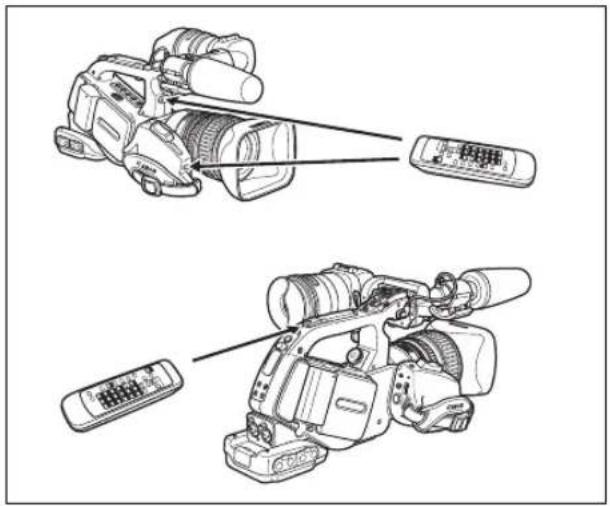
natural_image
Line drawings of two video cameras with attached devices, no text or symbols presentInserting the Batteries
The wireless controller operates with two AA (R6) batteries.
- Open the battery cover.
- Insert the batteries following the + and - markings.
- Close the battery cover.

text_image
Diagram showing three steps of a remote control device with directional arrows indicating movement or operation.
The camcorder and wireless controller are equipped with 2 remote sensor modes (☐ 118). If the wireless controller does not work, verify that the camcorder and wireless controller are set to the same mode.
When the camcorder cannot be operated with the wireless controller, or when it can only be operated at very close range, replace the batteries. Make sure to replace both batteries at the same time.
The wireless controller may not work properly when the remote sensor is located under strong light sources or direct sunlight.
Use only videocassettes marked with the "lodo. For recording in HDV we recommend you use videocassettes designed for HDV recording.
1. Slide the ⬆EJECT switch to open the cassette compartment cover.
The cassette compartment opens automatically.
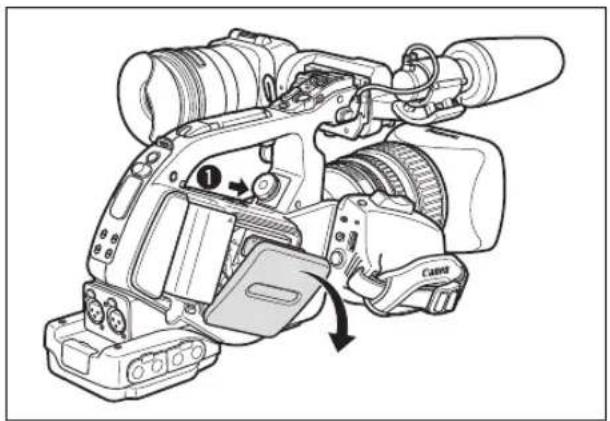
natural_image
Line drawing of a video camera with labeled parts and directional arrows (no text or symbols)2. Load/remove the cassette.
- Insert the cassette straight, fully into the compartment with the window facing out.
- Remove the cassette by pulling it straight out.
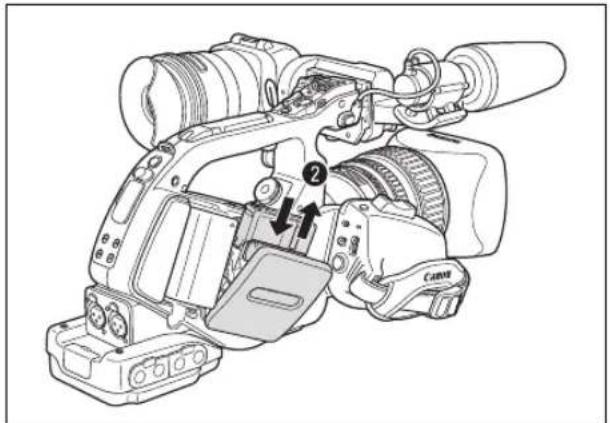
natural_image
Line drawing of a Canon digital camera with labeled parts (no text or symbols beyond component labels)3. Close the cassette compartment cover.
Press the mark on the cassette compartment cover.

text_image
Diagram of a DSLR camera with labeled parts and a hand adjusting the component, showing a close-up view of the camera's side panel.
Do not interfere with the cassette compartment while it is opening or closing automatically.
○ Be careful not to get your fingers caught in the cassette compartment.

If the camcorder is connected to a power source, cassettes can be loaded/removed even if the POWER dial is set to OFF.
Inserting/Removing a Memory Card
You can use SDHC (SD High Capacity) memory cards, SD memory cards or MultiMedia Cards (MMC) with this camcorder.
Inserting the Card
- Set the 081/tG OFF.
- Push the switch in the direction of the arrow to open the memory card slot cover.
- Insert the memory card straight, all the way into the memory card slot.
- Close the memory card slot cover.
Do not force the cover closed if the card is not correctly inserted.

text_image
Diagram showing a mechanical device with numbered components and a digital display labeled '32'Removing the Card
Do not forcefully remove the memory card without first pushing it in to release it.
- Make sure that the CARD access indicator is not flashing and set the F:\TAVER OFF.
- Push the switch in the direction of the arrow to open the memory card slot cover.
- Push the memory card once to release it and then remove the memory card.
- Close the memory card slot cover.
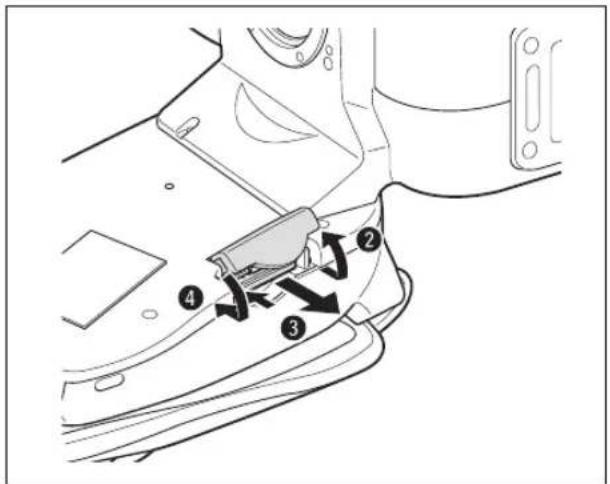
text_image
Technical diagram showing mechanical component with numbered parts and directional arrows indicating motion or movement
- If you use memory cards other than the supplied one, make sure to initialize them with the camcorder (131).
Turn off the camcorder before inserting or removing a memory card. Inserting/removing the memory card with the camcorder on may result in permanent data loss.

- SDHC and SD memory cards have a write-protect switch to prevent their accidental erasure. When this switch is set to the LOCK position, images cannot be recorded on or deleted from the memory card.
○ Proper operation cannot be guaranteed for all memory cards.
About SDHC Memory Cards: SDHC is the new type of SD memory card with capacities over 2 GB. Please note that the specifications of SDHC memory cards are different from those of regular SD cards and you will not be able to use memory cards of over 2 GB with devices that do not support SDHC. However, SDHC devices (including this camcorder) are backward compatible and you can use regular SD cards with them.
Many of the camcorder's functions can be changed from the on-screen menu.
Selecting Menus and Settings
- Press the MENU button to open the menu.
- Turn the SELECT dial to select a submenu and press the SET button.
- Turn the SELECT dial to select a menu item and press the SET button
- Turn the SELECT dial to select a setting option and press the SET button.
- Press the MENU button to close the menu.
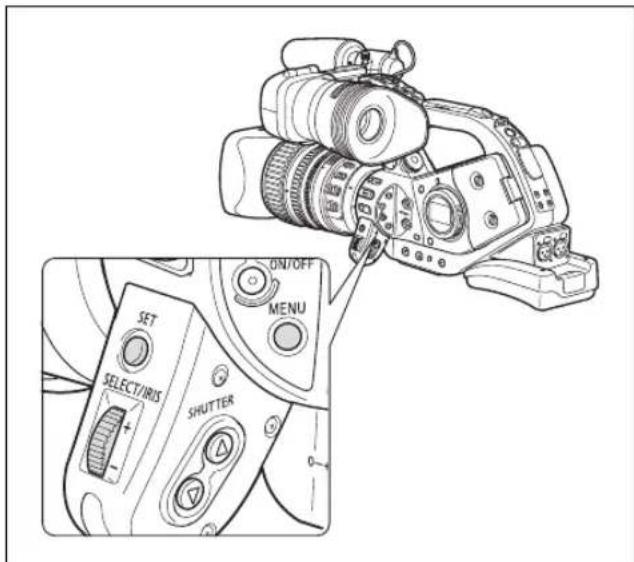
text_image
ON/OFF MENU SET SELECT/IRIS SHUTTER
The, and icons displayed at the bottom of the screen will give you additional indications about the function of these controls in specific situations.
- You may find it more convenient to use the wireless controller to operate the menu. Press the MENU button on the wireless controller to open or close the menu. Use the menu selection buttons ▲ the wireless controller instead of the SELECT dial, and press the SET button on the wireless controller to save the settings or make a selection.
○ Unavailable items will appear grayed out.
- Pressing the MENU button at any time closes the menu.
Date/Time and Language Settings
Set the time zone, date and time when you first start using your camcorder, or if the built-in rechargeable battery has discharged completely.
Setting the Time Zone/Daylight Saving Time

text_image
VCR/ PLAY M A Tv Av # MENU (33) SYSTEM SETUP/®/TIME SET T.ZONE/DST...NEW YORK- Press the MENU button.
- Turn the SELECT dial to select [SYSTEM SETUP/ and press the SET button.
- Select [D/TIME SET] and then select [T.ZONE/DST] and press the SET button.
The time zone setting appears. The default setting is New York. - Turn the SELECT dial to select the setting option that matches your time zone and press the SET button.
To adjust for daylight saving time, select the time zone marked with a ✿
Setting the Date and Time

text_image
VCR/ PLAY M A Tv Av # MENU (33) SYSTEM SETUP/®/TIME SET ✓ DATE/TIME... JAN.1,2008 12:00 AM- Select [D/TIME SET] and press the SET button.
The year display starts flashing.
- Turn the SELECT dial to select the year, and press the SET button.
• The month starts flashing.
- Set the rest of the date and time in the same way.
- Press the MENU button to close the menu and start the clock.
Displaying the Date and Time while Recording
You can display the date and time in the lower left corner of the screen.

text_image
VCR/ PLAY M A Tv Av A MENU (33) DISPLAY SETUP/GUIDE INFO...OFOpen the menu and select [DISPLAY SETUP/☑] Select [GUIDE INFO], set it to [D/T DISPLAY] and close the menu.

If you do not use the camcorder for a period of approximately 3 months, the built-in rechargeable battery will discharge completely and the date and time settings will be lost. In that case, recharge the built-in battery (18) and set the time zone, date and time again.
Changing the Date Format
You can select between three date formats: [JAN. 1, 2008], [1. JAN. 2008] and [2008. 1. 1].

text_image
VCR/ PLAY M A Tv Av # MENU (33) SYSTEM SETUP/®/TIME SET DATE FORMAT .. JAN. 1,2008Open the menu and select [SYSTEM SETUP/ ☑ Select the [D/TIME SET] submenu and then select [DATE FORMAT]. Select a date format and close the menu.
Changing the Display Language
The default language for displays and menu items is English. The language can be changed to German, Spanish, French, Italian, Polish, Russian, simplified Chinese or Japanese.

text_image
VCR/ PLAY M A Tv Av A D MENU (33) DISPLAY SETUP/ LANGUAGE …ENGLISHTo change the display language, open the menu and select [DISPLAY SETUP]. Select [LANGUAGE] select a language and close the menu.

○ If you have mistakenly changed the language, follow the 🔒 mark next to the menu item to change the setting.
The displays MENU and SET at the bottom of the screen refer to the names of buttons on the camcorder and will not change regardless of the language selected.
Before You Begin Recording
Make a test recording first to check if the camcorder operates correctly. If necessary, clean the video heads (☐ 148).
The default recording standard is HDV. About the audio recording, refer to the relevant chapter (57).
Recording

text_image
VCR/ PLAY M A Tv Av- Remove the lens cap.
- Press the lock button and set the POWER dial to a recording program.
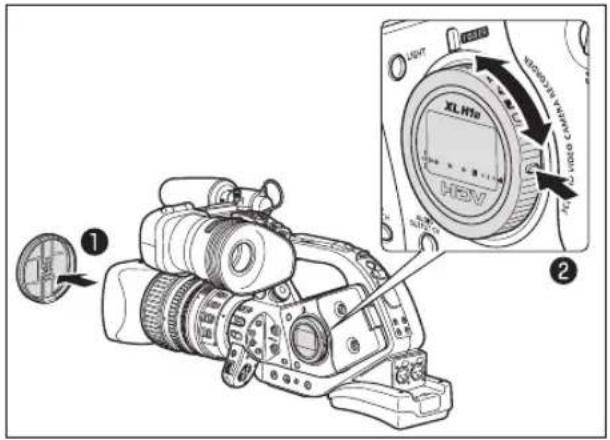
text_image
Diagram showing a DSLR camera with labeled parts and an inset view of the XL H78 HGV lens.3. Press the Start/Stop button to begin recording.
- The red REC indicator on the viewfinder and the tally lamps light up.
- Press the Start/Stop button again to pause recording.

text_image
Tally lamp Tally lamp 3When You Have Finished Recording
- Set the P03/16 OFF.
- Replace the lens cap.
- Remove the cassette.
- Disconnect the power source.

The end search, date search and index search functions may not work correctly if you mix recordings in HDV and DV standards on the same tape. We recommend not mixing recordings in different standards on the same tape.

○ After inserting a cassette, wait until the tape counter stops completely before you start recording.
Turn the POWER dial to OFF if you do not intend to use the camcorder for a long time.
If you do not remove the cassette, you can record the next scene without any noise or blank sections between recordings even if you turn the camcorder off.
Low-angle Recording
The carrying handle is equipped with a duplicate set of recording and zoom controls, ideal for low-angle recording. Slide the LOCK switch in the direction of the arrow to prevent the accidental operation of these controls.

text_image
STAKT/STOP PHOTO MAGL LOCK switch Zoom leverPower Saving Mechanisms
STANDBY Button
Press the STANDBY button and hold it pressed down for more than 1 second in record pause or VCR stop mode to enter the standby mode. The message "ENTERING "POWER STANDBY" will be displayed before the camcorder enters the standby mode. In standby mode, power will be shut down to the camera and recorder sections but camera settings (including exposure lock and color bars settings) will be retained. Press the STANDBY button again to turn the camcorder on.
Power Save Function
In order to protect the tape and video heads, the camcorder will enter the power save mode (VCR stop) after 4 minutes 30 seconds in record pause mode. If left 30 more seconds without any operation, the camcorder will automatically shut off. Turn off the power save function with [SYSTEM SETUP] ▶ [POWER SAVE] setting (☐ 136) if you wish to make adjustments without worrying about losing your settings as a result of the automatic shut-off.
Once the camcorder entered the power save mode, press the Start/Stop button to start recording or press one of the custom keys (79) to which the [VCR STOP] function was assigned, to return to record pause mode. If the camcorder automatically shut off (after 5 minutes), turn the POWER dial to OFF and then back to one of the recording programs.
VCR Stop Function
You can assign the [VCR STOP] function to either custom key (☐ 79). In VCR stop mode the camcorder is only partially turned off: The camera section is powered normally while the recorder section is shut off. When you press the assigned custom key, you can make adjustments to the camera section as long as necessary without worrying about the 5-minute shut-off timer of the power save function. To return to record pause mode, press the assigned custom key again.
Screen Displays while Recording

text_image
HDV 60 i 00:01:25:15R 57 mm CHI/CH2 LW CH 1 ... : . . . . .① Time code
You can select between drop frame or non-drop frame time code (52).
② Remaining tape
Indicates the remaining time on the tape in minutes. "END" will appear when the tape reaches the end.
- When the time left is less than 15 seconds, the remaining tape time may not appear.
- Depending on the type of tape, the remaining time displayed may not be accurate. In any case, you will be able to record on the tape the number of minutes that appears on the cassette's label (for example, 85 minutes).
③ Remaining battery charge
The battery symbol indicates the charge status of the battery pack.

• starts flashing in red when the battery pack is empty.
- When you attach an empty battery pack, the power may turn off without displaying
- The actual battery charge may not be indicated accurately depending on the condition under which the battery pack and camcorder are used.
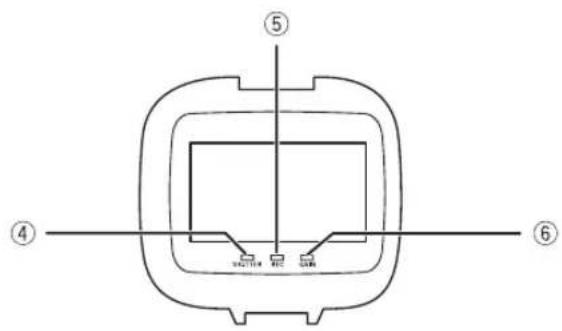
text_image
⑤ ④ ⑥④ SHUTTER indicator
Lights up when recording with a shutter speed other than 1/60 (or 1/48, if the frame rate is set to 24F).
⑤ REC indicator
Lights up while recording. The REC indicator starts flashing when the remaining time on the tape is less than 5 minutes (it does not flash if the remaining tape information is not displayed on the screen).
⑥ GAIN indicator
Lights up when the AGC (auto gain control) is set to either -3 dB or +3 dB or higher.
⑦ Reference guides
With the [DISPLAY SETUP/][MARKERS], [ASPECT GUIDE] and [SAFETY ZONE] settings you can display reference guides to help you frame the subject more accurately.

text_image
Safety zone 80% Level marker Aspect guide 4:3Selecting the On-Screen Displays
You can select the amount of information shown on the screen from full, partial or no display. Repeatedly pressing the EVF DISPLAY button will cycle through the options in the following sequence.

text_image
EVF DISPLAY 1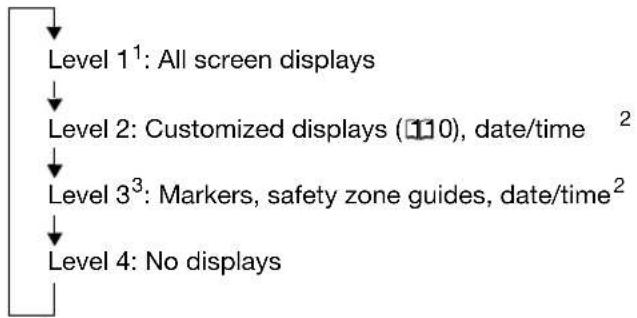
flowchart
graph TD
    A["Level 1¹: All screen displays"] --> B["Level 2: Customized displays (10), date/time²"]
    B --> C["Level 3³: Markers, safety zone guides, date/time²"]
    C --> D["Level 4: No displays"]
^1 This level cannot be selected if [SYSTEM SETUP/☑ [ALL DISPLAY] is set to [DISABLE].
^2 If [DISPLAY SETUP/IDE] [GUIDE INFO] is set to [D/T DISPLAY], the date and time will be displayed; if it is set to [CUSTOM KEYS], the functions currently assigned to the custom keys will be displayed instead.
^3 This level cannot be selected if [DISPLAY SETUP/☐] ▶ [MARKERS], [SAFETY ZONE] and [GUIDE INFO] are all set [OFF].

The camcorder's on-screen displays will also appear on a connected external TV or monitor.
Reviewing the Recording


text_image
VCR/ PLAY M A Tv Av A J □In record pause mode, this function allows you to review the last few seconds of your recording.
Press and release the (record review) button.
The camcorder rewinds the tape, plays back the last few seconds, and returns to record pause mode.

text_image
LOCK/PUSH AE MODE SELECT H0+ +16 3.4 SD +12° BARS/ FADE SELECT ON/OFF MENU F1 F2
If the current video signal standard is different from the signal standard in which the tape was recorded, the recording will not be played back correctly.
Selecting the Signal Standard and Aspect Ratio
You can select the signal standard of your recording (high definition or standard definition) and, for standard definition recordings, also the aspect ratio of the recording. Since the camcorder's screen has an aspect ratio of 16:9, when you set the MODE SELECT switch to SD 4:3 the picture will appear in the center of the screen with black sidebars.
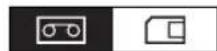

text_image
VCR/ PLAY M A Tv Av A J □Change the position of the MODE SELECT switch.
- HD: To record on the tape in HDV standard or to use the camcorder as a high-definition (HD) camera.
- SD 16:9, SD 4:3: To record on the tape in DV standard or to use the camcorder as a standard-definition (SD) camera. Select the aspect ratio as desired.
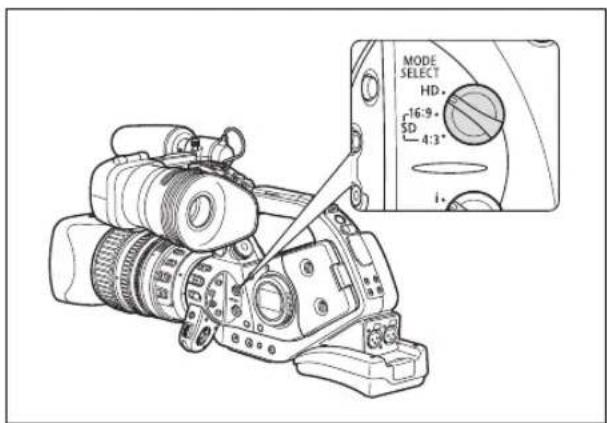
text_image
MODE SELECT HD. 16:9- SD 4:3- i.
○ If the custom function [LED] is not set to [OFF], the MODE SELECT switch will light up in blue when set to HD.
○ If the position of the MODE SELECT switch is changed while recording, the standard/aspect ratio will not change immediately; it will change once you pause the recording.
When you play back 16:9 recordings, the TV set will switch automatically to widescreen mode if it is compatible with the Video ID-1 system. Otherwise, change the aspect ratio of the TV manually.
To play back on a standard TV set with 4:3 aspect ratio, set [SIGNAL SETUP] ▶ [LETTERBOX] to [ON] (133).
When recording in 4:3, you can attach the optional RC-72 Ratio Converter (0.8x) to get the same angle of view of the 16:9 aspect ratio. (Note that not all XL lenses are compatible with the RC-72.)
Locating the End of the Last Scene
You can use this function to locate the end of the last recorded scene.


text_image
VCR/ PLAY M A Tv AvPress the END SEARCH button.
- appears.
- The camcorder rewinds/fast forwards the tape, plays back the last few seconds of the recording and stops the tape.
- Pressing the button again cancels the search.
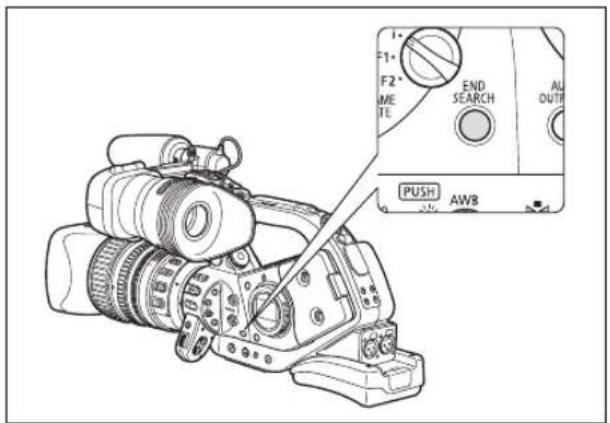
text_image
F1* F2* ME TE END SEARCH AL OUT PUSH AWB
The end search function cannot be used once you remove the cassette.
The end search function may not work correctly if there is a blank section between recordings or if you mixed recordings in HDV and DV standards on the same tape.
Zooming
You can operate the zoom using the zoom lever on the side grip or the one on the carrying handle. You can also use the zoom ring on the lens or the zoom buttons on the wireless controller. With the customized functions (104) you can change the direction and response sensitivity of adjustment when the zoom ring is used, change the zoom speed and select the zoom indicator (graphic or numeric).

text_image
START/STOP PHOTCH MAGN Zoom lever Zoom ring Zoom buttons
text_image
VCR/ PLAY M A Tv AvMove the zoom lever toward W to zoom out (wide-angle). Move it toward T to zoom in (telephoto).
Zoom Speed
Zoom lever on the side grip:
When the ZOOM SPEED switch is set to CONSTANT, the zoom speed will be constant at one of 16 zoom speed levels (the current zoom speed level will appear next to the zoom indicator). Turn the ZOOM SPEED dial toward FAST to select a faster zoom speed level (higher number); turn it toward SLOW to select a slower zoom speed level (lower number).
When the ZOOM SPEED switch is set to VARIABLE, the zoom speed will depend on how you operate the zoom lever: press gently for a slower zoom; press harder for faster zooms.
Approximate zoom speeds using the HD 20x L IS III lens (from full wide-angle to full telephoto):
| ZOOM SPEED switch Zoom speed level | Custom function [ZOOM SPEED] setting | |||
| [NORMAL]1 | [SLOW] [FAST] | |||
| CONSTANT | Level 1 5 min. | 3 min. 1 min. | ||
| Level 16 4.3 sec. | 2 sec. 1.2 | ^2 sec. | ||
| VARIABLE – | 1 | ^2 –.60 sec. | ||
^1 Default setting when recording movies. When recording still images, the default setting is [FAST].
^2 When the zoom speed is too fast (less than 2 seconds end-to-end), the camcorder will have more trouble focusing automatically while zooming.
Zoom ring: The zoom speed depends on how fast you turn the zoom ring.
Zoom buttons on the carrying handle: The zoom speed is constant and can be set to one of 16 zoom speed levels. Set the ZOOM SPEED switch to CONSTANT and change the zoom speed level as described previously.
Zoom buttons on the supplied wireless controller: The zoom speed is constant and cannot be adjusted.

When a fixed focal length lens is used, no zoom-related indications will appear on screen.
Zoom Preset (lenses with zoom preset function)
This function enables any given zoom position to be memorized. Later, you can return to the preset zoom position instantly.
Presetting the Zoom

text_image
VCR/ PLAY M A Tv Av- Set the POSITION PRESET switch to ZOOM.
- Move the POSITION PRESET ON/SET switch to SET.
The preset zoom position appears in yellow on the zoom indicator.
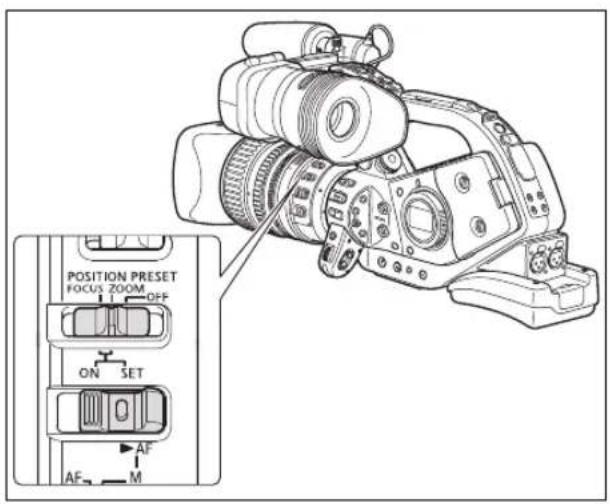
text_image
POSITION PRESET FOCUS ZOOM OFF ON SET AF AF MReturning to the Preset Zoom Position
Move the POSITION PRESET ON/SET switch to ON.
The camcorder returns to the preset zoom position.

The preset setting is canceled when you attach the optional Extender XL 1.6x or mount a lens with a different magnification.
To return to the preset zoom position the camcorder uses the speed set for the constant zoom speed (when the ZOOM SPEED switch is set to CONSTANT).
Adjusting the Focus
Functions in this chapter are explained using the HD 20x L IS III lens. If you are using a different lens, refer also to the instruction manual of the lens.
The camcorder can be set to Autofocus or Manual Focus.
Autofocus
In addition to the usual autofocus, the camcorder has also a Push-AF function to allow for temporary autofocus while focusing manually.
Manual Focus
With the customized functions (104) you can change the direction and response sensitivity of adjustment when the focus ring is used. To make it easier to focus manually, you can also make use of the Peaking and Magnifying functions (46).

text_image
VCR/ PLAY M A Tv AvAutofocus
The autofocus is activated when the focus mode switch is set to AF. The camcorder uses the TTL autofocus system with a focusing range of 2 cm (0.8 in.) (at full wide-angle, measured from the front of the lens barrel) to ∞
The camcorder focuses on the subject in the center of the screen.

text_image
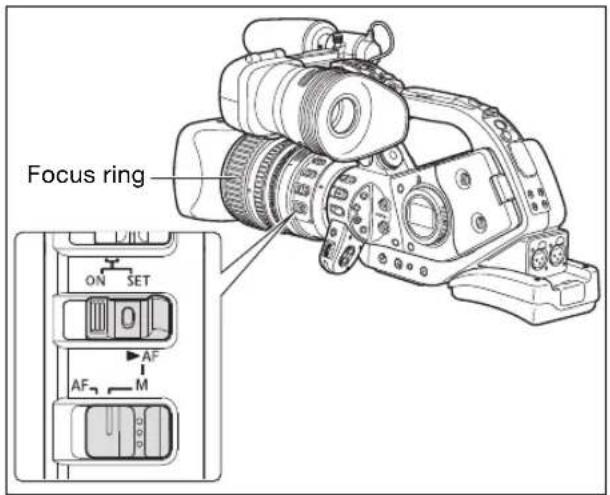
Focus ring POSITION PRESET FOCUS ZOOM OFF ON SET AF AF MTemporary Focus Override
Even while in autofocus mode, turn the focus ring to temporarily focus manually.
The camcorder will return to autofocus as soon as you release the focus ring.
Push AF (using the HD 20x L IS III lens)
In manual focus mode, set the POSITION PRESET switch to OFF. Move the ▶ AF switch to ▶ AF and hold it.
The autofocus is activated as long as you hold the switch in the AF position.

When recording under bright conditions, the camcorder closes down the aperture. When the aperture value used is too large, the picture may appear blurred. If you are using a lens with a built-in ND filter, turn the ND filter on/off according to the screen display (49).

○ In 30F and 24F mode, autofocus takes longer than in 60i mode.
When recording under dark conditions, the focusing range narrows and the picture may appear blurred.
○ Autofocus may not work well on the following subjects. In that case, focus manually.
- Reflective surfaces
- Subjects with low contrast or without vertical lines
- Fast moving subjects
- Through dirty or wet windows
- Night scenes
Manual focus

text_image
VCR/ PLAY M A Tv Av ↑ □1. When using a lens with autofocus function, set the focus mode switch to M.
- "MF" appears.
- When a lens without autofocus function is used, "MF" will not appear.
2. Zoom in to telephoto.
3. Turn the focus ring to adjust the focus.
With the customized functions (104) you can change the direction and response sensitivity of adjustment when the focus ring is used.
4. Operate the zoom to reframe the subject.
If you focus manually and then leave the camcorder with the power turned on, the focus on the subject may be lost after a while. This possible slight shift in focus is a result of the internal temperature rising in the camcorder and lens. Check the focus before resuming shooting or adjust the flange back as necessary (28).
text_image
Focus ring ON SET AF AF M
☐ Manual focus cannot be selected in ☐ Easy Recording mode. Even if you set the focus mode switch to M, the autofocus will still be activated.
When using a lens designed for HDV recording, the focusing distance to the subject will be displayed for approx. 3 seconds when you switch from autofocus to manual focus or when you operate the focus ring in manual focus mode. It will also be displayed with the focus preset. With the custom function [OBJ DST UNIT] (104) you can change the units for the distance display (meter or feet) and with the custom display (110) you can select when to display this information (always, never, or only upon the operation of the focus ring).
- The focusing distance will not be displayed when the optional Extender XL 1.6x is attached to the camcorder.
- Use the focusing distance display as an estimate; when the distance reading is not considered very precise it will be displayed in gray. Infinity focus -: Over infinity focus.
- You can simultaneously zoom and focus manually. If the camcorder is in AF mode, the autofocus will be reactivated when you finish the operation.
Using the Focus Assist Functions (Peaking and Magnifying)
In order to make manual focusing easier, you can use two assist functions: Peaking emphasizes the outlines of the subject creating a clearer contrast, and Magnifying enlarges the image on the screen. You can also combine both for greater effect. With the custom function [F.AST BW-MOD] (104) you can set the display to change automatically to black & white while using the focus assist functions. The screen of an external monitor or viewfinder connected to the EVF2 socket will show the exact same picture as displayed on the camcorder's viewfinder screen.

text_image
PEACHING MADRY FINS EXP. LOCK/PUSH AE

text_image
VCR/ PLAY M A Tv AvPeaking
While recording or in record pause, press the EVF PEAKING button.
• appears and the outlines of the subject will be emphasized.
- Press the button again to change the Peaking level to PLAK 2; press once more to cancel the function.

The Peaking function will not affect your recordings.
The gain and frequency of peak level and can be set independently with the [DISPLAY SETUP/® [PEAKING SETUP] setting.
Magnifying
In record pause, press the EVF MAGNIFYING button.
- "MAGN." appears and the central part of the screen will be magnified approximately 2x.
- Press the button again to cancel the function.

The magnified picture will be output as is to the HD/SD SDI terminal (XLHS only) and the HDV/DV terminal.
With the custom function [CUSTOM REC] (☐ 104) you can select to have the magnified picture recorded on the tape (☐ only) as it is, or to cancel the Magnifying function when you start recording video or record a still image on the memory card. In ☐ Card Magnifying function will always be canceled when you press the PHOTO button.
You can use the custom keys (☐ 79) or the [SYSTEM SETUP/☑] ▶ [MAGN.B.LOCK] setting to prevent the accidental operation of the EVF MAGNIFYING button. With the custom function [BUTTONS OPER.1] (☐ 104) you can also change the operation of the EVF MAGNIFYING button (normal or long press).
Focus Preset (lenses with focus preset function)
This function enables a focus position to be memorized. Later, you can return to the preset focus position instantly. You can also select the speed at which the camcorder returns to the preset focus position.

text_image
Focus ring POSITION PRESET FOCUS ZOOM OFF ON SET AF AF M

text_image
VCR/ PLAY M A Tv AvPresetting the Focus
- Set the focus mode switch to M.
"MF" appears.
- Set the POSITION PRESET switch to FOCUS.
The focus preset speed currently selected appears.
-
Adjust the focus with the focus ring.
-
Move the POSITION PRESET ON/SET switch to SET.
"MF" and the focus preset speed display turn yellow.
Setting the Focus Preset Speed

text_image
MENU (33) CAMERA SETUP F SPEED PSET • 4Open the menu and select [CAMERA SETUP]. Select [F SPEED PSET], select a setting option and close the menu.
4 is the fastest speed; 1 is the slowest.
Returning to the Preset Focus position
Move the POSITION PRESET ON/SET switch to ON.
The camcorder returns to the preset focus position.
Macro Shooting (Focus Limit)
Usually the camcorder's focus range allows macro shooting. You can activate the focus limit to restrict the focus range. Using the HD 20x L IS III lens, the focus range 10 cm - o(at full wide-angle) is limited to 1 m - o(throughout the entire zoom range).

text_image
VCR/ PLAY M A Tv AvMENU
(33)
CAMERA SETUP FOCUS LIMIT...OFF

Open the menu and select [CAMERA SETUP]. Select [FOCUS LIMIT], set it to [ON] and close the menu.
FLMT appears.

The focus limit will be canceled in the following cases.
- If the lens attached has an independent macro switch.
- If the lens attached does not support the macro setting being changed from the camcorder.
- When there is no lens attached.
Using the ND Filter (lenses with built-in ND filter)
When recording in bright surroundings, the camcorder will set a small aperture value and the picture may appear blurred. When using a lens with a built-in ND filter, turn the ND filter on/off according to the screen display.
With the HD 20x L IS III lens: Press the ND filter unlock button and turn the ND filter operating ring.
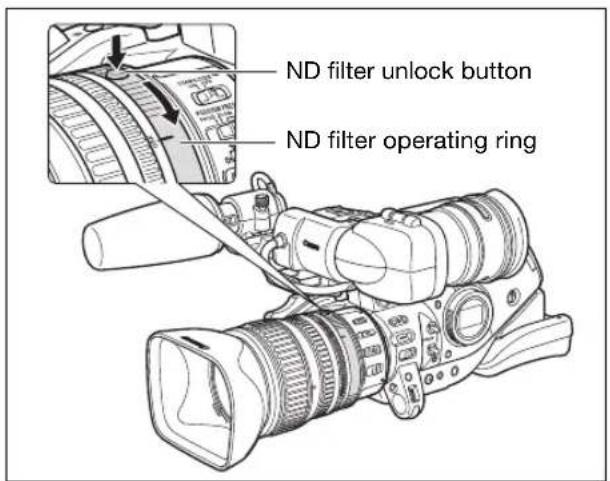
text_image
ND filter unlock button ND filter operating ringWhen using a recording program other than M Manual and if the GAIN dial is set to A, the following displays appear:
| Screen display What it means What you should do | ||
| No display ND filter is not activated – | ||
| “ND” ND filter is activated | 1 | – |
| “ND ON flashes ND filter required Turn on the ND filter | ||
| ND “OFLashes Lenses with single-density ND filters (ON/OFF): External ND filter required. Lenses with selectable ND filter density: Higher density setting or external ND filter required. | Set the ND filter to a higher density setting or attach an external ND filter to the lens ^2 | |
| ND “OFLashes Built-in ND filter not required Turn off the ND filter | ||
| “ND” flashes in red | Incorrect setting of the built-in ND filter | Set the ND filter to an appropriate density |
^1 Displayed only when using lenses with built-in ND filter.
2 If you have no external ND filter available, use the Tv mode and set a faster shutter speed, or use the Av mode and set a small aperture value.

Depending on the scene, the color may change when turning the ND filter on/off. Setting a custom white balance may be effective in such case (72).
You can select from the following frame rates depending on the recording mode:
HD 60i, 30F, 24F (2:3 pulldown-converted)
SD 60i, 30F, 24F (2:3 pulldown-converted or 2:3:3:2 pulldown-converted)
60i Mode
Records 60 interlaced fields per second, the same as standard-definition TV signals.
30F Mode
HD Records 30 frames per second according to HDV native 1080/30p specifications. For playback, the signal is converted to 60i but video output from the HDV/DV terminal will be 30p.
SD The picture captured by the camera at 30 frames per second is converted and recorded on the tape as 60i.
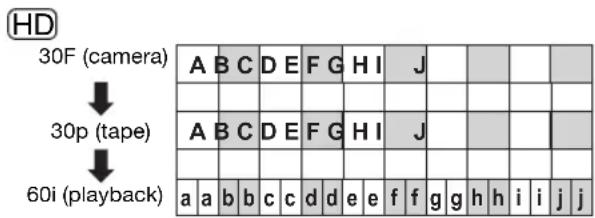
text_image
HD 30F (camera) ↓ 30p (tape) ↓ 60i (playback) A B C D E F G H I J A B C D E F G H I J a a b b c c d d e e f f g h h i i j j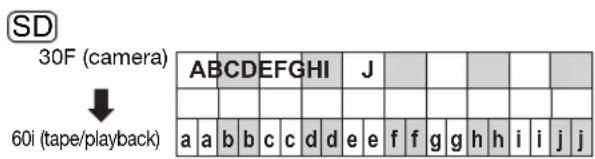
text_image
SD 30F (camera) ↓ 60i (tape/playback) A B C D E F G H I J a a b b c c d e f f g h h i i j j24F Mode
Records 24 frames per second according to HDV native 1080/24p specifications, creating a true cinematic feel to the picture.
HD Video output from the HDV/DV terminal will be 24p. For playback and video output from the HD/SD SDI terminal (or by) and the COMPONENT OUT terminal, the signal will be down-converted to 60i using the 2:3 pulldown method.
SD
24F (2:3) Mode
Signals are down-converted to 60i using the 2:3 pulldown method. This 24F mode is suited for playback on a TV screen but may require the extension/compression of some frames while editing.
24F (2:3:3:2) Mode
Signals are down-converted to 60i using the 2:3:3:2 pulldown method. This 24F mode is ideal for extracting true 24 frames per second in order to transfer to film simply by discarding the 3:3 adjacent frames (bc and fg in the figure).
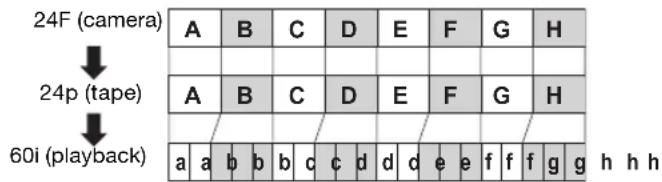
text_image
24F (camera) ↓ 24p (tape) ↓ 60i (playback) A B C D E F G H A B C D E F G H a a b b c c d d e e f f f g h h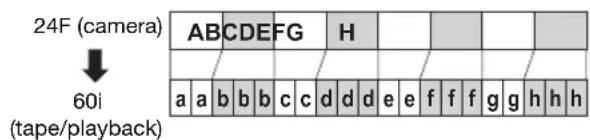
text_image
24F (camera) ↓ 60i (tape/playback) A B C D E F G H H h a a b b c c d d e f f g h h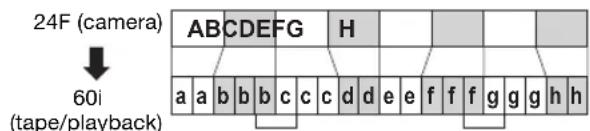
text_image
24F (camera) 60i (tape/playback)Selecting the Frame Rate

text_image
VCR/ PLAY M A Tv Av A J □Set the FRAME RATE switch to the desired position.
- i: 60i Mode, F1: 30F Mode, F2: 24F Mode.
- The selected frame rate appears on-screen.
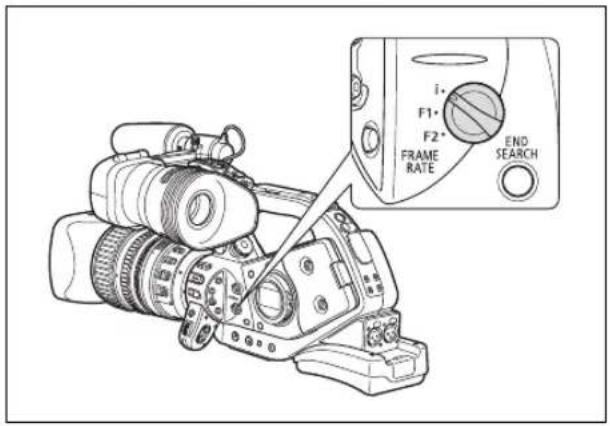
text_image
i+ F1* F2* FRAME RATE END SEARCH
If the position of the FRAME RATE switch is changed while recording, the frame rate will not change immediately; it will change once you pause the recording.

Selecting the 24F Pulldown Mode


text_image
VCR/ PLAY M A Tv Av A J O
CAMERA SETUP 24F MODE SEL
·2:3
Open the menu and select [CAMERA SETUP]. Select [24F MODE SEL], select a setting option and close the menu.
• [2:3]: “24F” appears in white.
• [2:3:3:2]: “24F” appears in orange.
![CANON XLH H1S - Open the menu and select [CAMERA SETUP]. Select [24F MODE SEL], select a setting option and close the menu. - 1](/content/2026/06/1244132/images/b50060b577a39807eade80a7950a74a0437ed8ee65a3a851a517eed962701deb.jpg)
If you are using an editing system that does not support the 2:3:3:2 pulldown method, make sure to record in 24F 2:3 pulldown mode.
Video recorded in 24F or 30F can only be played back with compatible devices and can only be edited with software that supports these frame rates. For software and hardware compatibility consult the relevant customer support center.
Selecting the Frame Setting
When recording in a mode other than SD at a frame rate of 24F, you can select between drop frame or non-drop frame time code.

text_image
VCR/ PLAY M A Tv Av A J MENU (33) SIGNAL SETUP TIME CODE FRAME SETTING DROPOpen the menu and select [SIGNAL SETUP]. Select the [TIME CODE] submenu and then [FRAME SETTING]. Select a setting option and close the menu.
When you select the [NON-DROP] setting or when you set the frame rate to 24F in SD mode, "NDF" will appear on the side panel.
Selecting the Running Mode
You can select the running mode of the camcorder's time code. You can enter the initial value for the [FREE-RUN] and the [REC-RUN PS.] settings.
[REC-RUN]: The time code runs only when recording.
[REC-RUN PS.]: The time code runs only when recording, starting from a preset value.
[FREE-RUN]: The time code runs regardless of the operation of the camcorder. (Cannot be selected when recording in standard definition (SD) with the frame rate se to 24F.)

text_image
VCR/ PLAY M A Tv Av COUNT-UP···REC-RUN MENU (33) SIGNAL SETUP TIME CODE COUNT-UP···REC-RUN- Open the menu and select [SIGNAL SETUP]. Select the [TIME CODE] submenu and then [COUNT-UP]. Select a setting option and close the menu.
[REC-RUN]: Close the menu.
[REC-RUN PS.], [FREE-RUN]: Continue the procedure to set the initial value.
- Select [SET].
The hours display flashes.
- Set the time code's initial value.
Turn the SELECT dial to set the value for the hours and press the SET button. Set the value for the minutes, seconds and frames in the same way.
- Close the menu.

○ About the time code display
- [REC-RUN]: The time code will be displayed with an next to R
- [REC-RUN PS.]: The time code will be displayed in blue with a neP to it.
- [FREE-RUN]: The time code will be displayed in blue with an next tFt.
- External Time Code: The time code will be displayed in blue with an Eext to it.
- Time Code Hold: The time code will be displayed with an neH to it.
- Playback: No time code display.
When you select [FREE-RUN], the time code starts to run the moment you press the MENU button in the middle of the setting, or when you press the SET button after setting the value for frames (F) in step 3.
To reset the time code to [00:00:00:00], select [RESET] in step 2.
☐ In SD mode with the frame rate set to 24F, the frames value of the time code can be set only in multiples of 5. When you change the frame rate from 60i/30F to 24F, the frames value of the time code will automatically become a multiple of 5.
When you mix drop frame and non-drop frame time codes (including 24F frame rate in SD mode), there might be a discontinuity in the time code at the point where the recording starts.
When recording over existing scenes: When a time code discontinuity occurred near the recording start point, the time code at the point where the recording starts may be discontinuous as well.
As long as the built-in rechargeable lithium battery is charged, the free-run time code continues to run even if you disconnect all other power sources.
XLH1s
Synchronizing the Camcorder's Time Code
You can synchronize this camcorder's time code to an external time code generator. You can also include in the recording the user bit signal received from the TC-IN terminal (56). The camcorder offers the following synchronization options.
Genlock
When a reference sync signal (analog blackburst or tri-level signal) is input through the GENLOCK terminal, the V and H phases of the camcorder's time code will automatically be synchronized to it.
Time Code IN
An external SMPTE-standard LTC timing signal received from the TC-IN terminal will be recorded as the time code on the tape. The user bit of the external timing signal can also be recorded on tape.
Time Code OUT
The camcorder's internal time code is sent out from the TC-OUT terminal as a standard LTC timing signal. When [SIGNAL SETUP] ▶ [SDI OUTPUT] is set to [ON(OSD)] or [ON], the time code signal will be output also through the HD/SD SDI terminal.
| CAMERA * | VCR/PLAY | CAMERA·CARD | VCR/PLAY·CARD | ||
| Genlock – | ● | - | ● | ||
| Time Code/User bit IN – | ●- | - | |||
| Time Code OUT – | - | ● | ● | ||
* In SD mode, Time Code IN is not available if you select the 24F frame rate (the mode will be canceled and the "TC-IN" display on the side panel will disappear).
Connection Diagram
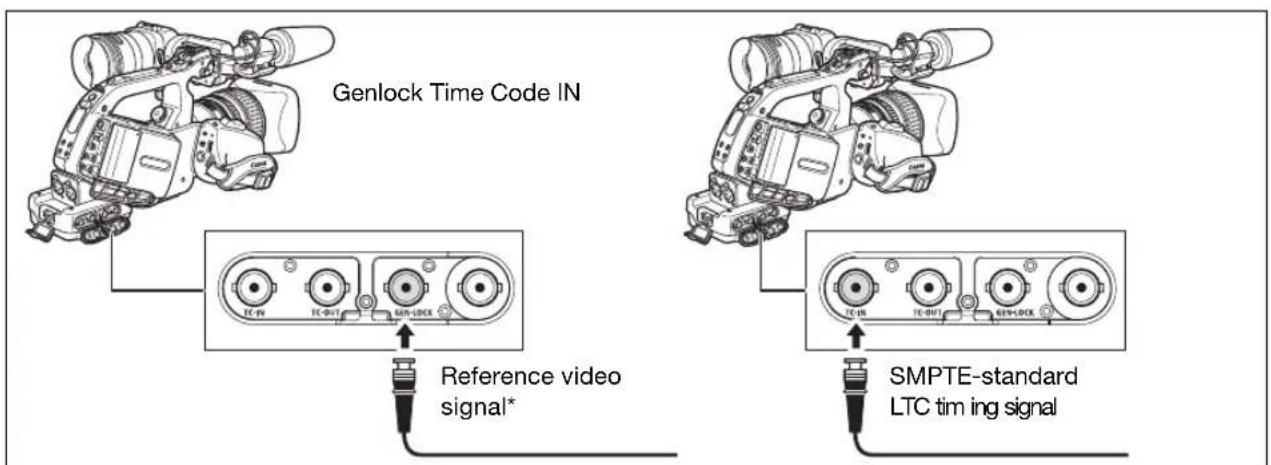
text_image
Genlock Time Code IN Reference video signal* SMPTE-standard LTC timing signal* As a reference video signal input you can use either an HD Y signal or an NTSC composite video signal.

While a time code signal is being received, the [FRAME SETTING] and [COUNT-UP] settings of the camcorder will be ignored and the external time code's drop-frame bit will be used instead (if the external time code is non-drop frame, "NDF" will appear on the side panel).
The Genlock synchronization stabilizes after approx. 10 seconds. After that, the synchronization will be maintained even if you disconnect the cable from the GENLOCK terminal.
When an external time code signal is received, the camcorder's own time code will be synchronized to it and the synchronization will be maintained even if you disconnect the cable from the TC-IN terminal. However, performing any of the following actions while the cable is not connected will cause the time code to lag slightly; the correct time code will be restored once you reconnect the cable.
- Turning the camcorder off/on.
- Changing the position of the PCAVER or from . VCR/ PLAY
- Changing the position of the □ (card/tape) switch.
- Changing the position of the MODE SELECT or FRAME RATE switch.
○ If the external time code signal is incorrect or there is no input signal, the internal time code (according to the [TIME CODE]/[COUNT-UP] settings) will be recorded on the tape instead.
○ If the external Genlock signal is incorrect or there is no input signal, the external time code being recorded on tape may be incorrect.
When recording in SD mode, Time Code IN is not available if you select the 24F frame rate (the mode will be canceled and the "TC-IN" display on the side panel will disappear).
When the camcorder is set to HD standard, Genlock synchronization is possible even if the external Genlock signal is in SD standard. However, Genlock synchronization will not be possible if the external Genlock signal is in HD standard but the camcorder is set to SD standard.
The phase difference between the external Genlock signal and the camcorder is initially set to 0; it can be adjusted within the range of approx. ±0.4H (-1023 to +1023) with the [SIGNAL SETUP] ▶ [GENLCK ADJST] setting (133).
- Genlock synchronization is not possible when the camcorder is set to HD standard and [SDI SPEC.] is set to [SD LOCKED].
○ About the Side Panel Indications
- “GENLOCK” will flash until the synchronization stabilizes and will stay on once the phase synchronization has stabilized.
- “TC·IN” and “TC·OUT” indicate, respectively, that Time Code IN or Time Code OUT synchronization is available.
- "EXT- LOCK" indicates that the camcorder has locked on to an external time code signal.
Setting the User Bit
The user bit display can be selected from the date or the time of recording, or an identification code consisting of 8 characters in the hexadecimal system that is useful for labeling tapes. There are sixteen possible characters: the numbers 0 to 9 and the letters A to F.
XLHfs If user bit information is being received along with an external time code, you can also record the external user bit on the tape.

text_image
VCR/ PLAY M A Tv Av MENU (33) RECORDING SETUP UB SELECT...00 00 00 00- Open the menu and select [RECORDING SETUP]. Select [UB SELECT], select a setting option and press the SET button.
If you selected [00 00 00 00], the user bit set/reset options appear; continue with the procedure below. Otherwise, close the menu.
If you selected [00 00 00 00]:
- Select [SET].
The first character of the user bit flashes.
- Turn the SELECT dial to select a number or letter and press the SET button.
The next character of the user bit starts flashing. Set the rest of the user bit in the same way.
- Close the menu.

To reset the user bit to [00 00 00 00], select [CLEAR] in step 2.
The user bit can be recorded when recording with the camcorder or from analog devices. The user bit set in the camcorder cannot be recorded when recording from digital devices (HDV or DV).
Displaying the User Bit

text_image
VCR/ PLAY M A Tv Av Menu (33) DISPLAY SETUP/USB DISPLAY·OFFOpen the menu and select [DISPLAY SETUP/Select [UB DISPLAY], set it to [ON] and close the menu.
Recording an External User Bit

text_image
VCR/ PLAY M A Tv Av # MENU (33) RECORDING SETUP UB REC...INT.USR-BITOpen the menu and select [RECORDING SETUP]. Select [UB REC], select [EXT.USR-BIT] and close the menu.
When recording on the tape in either HDV or DV standard, audio is recorded on two channels.
HDV The audio transfer rate is 384 kbps and the sampling frequency is 48 kHz.
DV You can record audio in 16-bit mode (sampling frequency 48 kHz), or 12-bit mode (sampling frequency 32 kHz).
- Audio is recorded on channels 1 and 2, leaving the other channels unused.
• Audio cannot be dubbed using this camcorder. - Audio recorded with this camcorder is locked audio except for audio recorded from an analog input, or from a digital input if you select the Unlock mode.
- MWh recording, the sampling frequency of the output signal from the HD/SD SDI terminal will be 48 kHz regardless of the audio input.
SD Selecting the DV Audio Mode

text_image
VCR/ PLAY M A Tv Av A MENU (33) AUDIO SETUP DV AUDIO...16bitOpen the menu and select [AUDIO SETUP]. Select [DV AUDIO], select a setting option and close the menu.
Using the Wind Screen
With the supplied microphone (only), you can reduce the sound of wind recorded from the front microphone.

text_image
VCR/ PLAY M A Tv Av A MENU (33) AUDIO SETUP WIND SCREEN...OFFOpen the menu and select [AUDIO SETUP]. Select [WIND SCREEN], set it to [ON 📋] and close the menu.
Selecting the Sensitivity of the Front Microphone
You can change the sensitivity of the front microphone to [NORMAL] or [HIGH] (+6 dB) to match the recording conditions.
[NORMAL]: To record audio under usual conditions.
[HIGH]: To record audio at a higher volume.

text_image
VCR/ PLAY M A Tv Av A J MENU (33) AUDIO SETUP MIC SENSIT.…NORMOpen the menu and select [AUDIO SETUP]. Select [MIC SENSIT.], select a setting option and close the menu.
Recording Audio
Select the audio input from FRONT (supplied microphone), XLR MIC (XLR terminals) or XLR LINE (XLR terminals). You can select the audio input independently for channel 1 and channel 2.

text_image
VCR/ PLAY M A Tv Av ↑ ↓ □Using the Front Microphone
Set the INPUT SELECT switch to FRONT MIC.
- You can select the microphone setting with the STEREO/MONO switch on the microphone itself. In the MONO position, the same monaural audio signal will be recorded on channels 1 and 2.
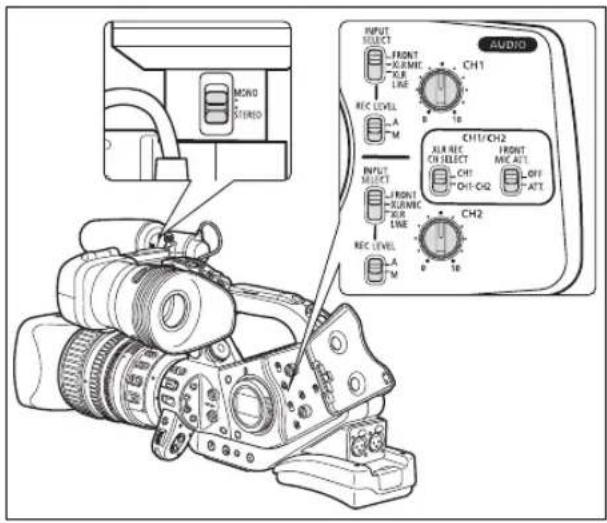
text_image
MONO STUDIO INPUT SELECT FRONT -X/RMIE -X/R LINE CH1 REC LEVEL A M B 10 INPUT SELECT FRONT -X/RMIE -X/R LINE CH1/CH2 ALR REC CH SELECT FRONT -MIC-AIT CH1 OH1-CH2 OFF -ATT CH2 REC LEVEL A M 0 10 AUDIOUsing the XLR terminals
1. Connect a microphone to one of the XLR terminals.
- To supply a microphone with phantom power, set the corresponding 🐘Switch to ON. Make sure to connect the microphone first, before turning the phantom power on. Keep the microphone connected when turning off the phantom power. - Use commercially available microphones.
2. Set the INPUT SELECT switch to XLR MIC or XLR LINE.
3. Set the XLR REC CH SELECT switch to CH1 or CH1·CH2.
4. If necessary, turn on the microphone attenuator (20 dB) by setting the corresponding XLR MIC ATT switch to ATT.
The microphone attenuator will only be effective when the INPUT SELECT switch is set to XLR MIC.
5. If necessary, adjust the gain of the input signal. Open the menu and select [AUDIO SETUP]. Select [XLR 1 TRIM] or [XLR 2 TRIM], depending on the audio input you want to adjust. Select a setting option and close the menu.
The gain adjustment will only be effective when the INPUT SELECT switch is set to XLR MIC.
![CANON XLH H1S - If necessary, adjust the gain of the input signal. Open the menu and select [AUDIO SETUP]. Select [XLR 1 TRIM] or [XLR 2 TRIM], depending on the audio input you want to adjust. Select a setting option and close the menu. - 1](/content/2026/06/1244132/images/3a871889a60db1226f8af90a0ddb924d1ddf942637d5e6d8210e53ef2d00368a.jpg)
text_image
CH1 +48V CH2 ON OFF CH1 XL8 MIC ADT CH2 OFF ATT.![CANON XLH H1S - If necessary, adjust the gain of the input signal. Open the menu and select [AUDIO SETUP]. Select [XLR 1 TRIM] or [XLR 2 TRIM], depending on the audio input you want to adjust. Select a setting option and close the menu. - 2](/content/2026/06/1244132/images/bb3c692ea5bbcdbce4ed7283a6b744bfacd99b5f4f9d31a42eda504c1aa5e37e.jpg)
When connecting a microphone that does not support phantom power, make sure to set the +48V switch to OFF. Otherwise the microphone may be damaged.
Adjusting the Audio Recording Level
If the audio level is too high and the sound sounds distorted, activate the microphone attenuator (20 dB), by setting the FRONT MIC ATT. switch or the corresponding RLSWCH to ATT.

text_image
VCR/ PLAY M A Tv AvHiding/Displaying the Audio Level Indicator
MENU (33)
DISPLAY SETUP/ AUDIO LEVEL
..ON
Open the menu and select [DISPLAY SETUP/☑] Select [AUDIO LEVEL], select a setting option and close the menu.
The audio level indicator can also be turned on/off with a custom key (79).
Automatic Audio Adjustment
Set the REC LEVEL switch to A.

When recording audio using the front microphone, you can change the microphone's sensitivity (57).
When the INPUT SELECT switches for both channels are set to FRONT, if the REC LEVEL switch for CH1 is set to A, the automatic audio adjustment setting will automatically apply to CH2 as well.
When the INPUT SELECT switches for both channels are set to XLR MIC or XLR LINE, you can select if the audio adjustment setting for CH2 will be linked to that of CH1 ([LINK]), or if the settings will be separated ([SEP]).
Open the menu and select [AUDIO SETUP]. Select [XLR ALC LINK], select a setting option and close the menu.
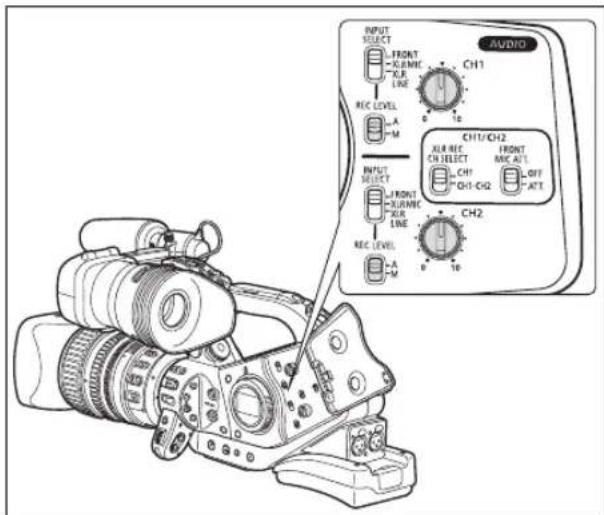
text_image
INPUT SELECT FRONT KLMHC XLR LINE CH1 REC LEVEL A M e 1b CH11/CH2 XLR REF. CH SELECT FRONT MRC AFL CH1 CH1-Ci2 OFF ATT INPUT SELECT FRONT KLMHC XLR LINE CH2 REC LEVEL A M e 1b CH2Manual Audio Adjustment
- Set the REC LEVEL switch to M.
- Turn the corresponding java qCH1 or CH2) to adjust each channel's audio level.
Adjust the audio recording level so that the audio level meter will go to the right of the 12 mark on the side panel's audio level meter (or the larger dot on the level meter displayed on the screen) only occasionally.

We recommend using headphones when adjusting the audio level. If the input level is too high, audio may become distorted even if the audio level indicator shows an appropriate level. Use commercially available headphones.
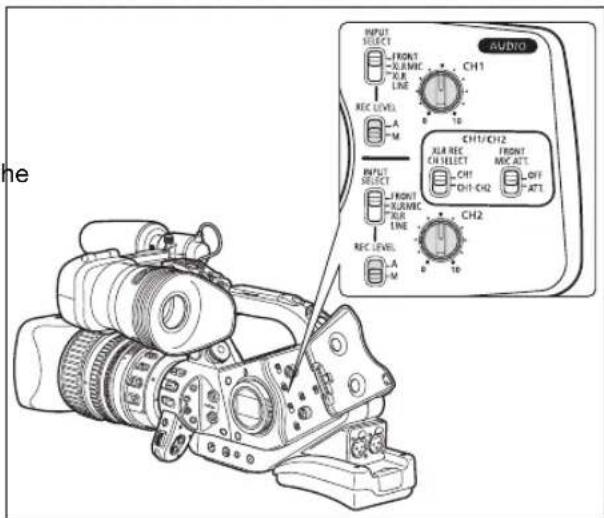
text_image
AUDIO INPUT SELECT FRONT -XJ/MIC -XJ/R LINE CH1 REC LEVEL A M INPUT SELECT FRONT -XJ/MIC -XJ/R LINE CH1/CH2 XJ/R REC CHI SELECT CH1 CH1-CH2 FRONT MIC ATT OFF ATT CH2 REC LEVEL A M 0 10 the☐ You can select to synchronize the audio signal with the video signal by adding an equal amount of delay to the audio. Open the menu and select [AUDIO SETUP]. Select [MONITOR SEL.], set it to [LINE OUT] and close the menu. If you wish to monitor audio in real time, select [NORMAL] instead. With either setting, the audio and video signals recorded on the tape will be synchronized.
- You can activate the audio peak limiter to prevent audio distortions. When activated, the audio peak limiter will limit the amplitude of audio input signals when they exceed -4 dBFS. The audio peak limiter can be activated if at least one of the channels is set to manual audio adjustment. Open the menu and select [AUDIO SETUP]. Select [AUD.LIMITER], set it to [ON] and close the menu.
When the INPUT SELECT switches for both channels are set to FRONT, if the REC LEVEL switch for CH1 is set to M, the audio level adjusted with the CH1 dial will automatically apply to CH2 as well.
XLH1s Embedded Audio
Embedded audio refers to the superimposing of the audio signal along with the video signal being output from the HD/SD SDI terminal.
[ON]: To embed the audio.
[ON(OSD)]: To embed the audio and on-screen displays.

text_image
VCR/ PLAY M A Tv Av
text_image
MENU (33) SIGNAL SETUP SDI OUTPUT ▶ ··OFFOpen the menu and select [SIGNAL SETUP]. Select [SDI OUTPUT], select a setting option and close the menu.
CAMERA : The embedded audio output depends on the signal standard and the sampling frequency settings.
| Signal standard | Sampling frequency | Locked/unlocked audio | Embedded audio output |
| HD (48 kHz) | Locked | ● | |
| SD | 32 kHz (12bit) | Locked | ● |
| 48 kHz (16bit) | Locked | ● |
VCR/PLAY : Cannot output embedded audio from a tape that was originally recorded with unlocked audio. ✗, ✗ 3/4 will 1/2 pear on the screen.
| Signal standard | Sampling frequency | Locked/unlocked audio | Embedded audio output |
| HD (48 kHz) | Locked | ● | |
| SD | 32 kHz (12bit) | Locked | ● |
| Unlocked | - | ||
| 48 kHz (16bit) | Locked | ● | |
| Unlocked | - |
* The sampling rate will be 48 kHz.

When [SDI OUTPUT] is set to [ON(OSD)], SDI will appear on the screen and on-screen displays will be included in the video signal output from the SDI terminal.
Image Stabilizer (lenses with image stabilization function)
You can select to activate the image stabilizer or turn it off depending on the recording conditions.

text_image
VCR/ PLAY M A Tv Av A J □To turn off the image stabilizer using the HD 20x L IS III lens:
Set the STABILIZER ON/OFF switch to OFF.
The image stabilizer cannot be turned off in Easy Recording mode.

text_image
STABIUZER ON OFF POSITION PRESET FOCUS ZOOM OFF
We recommend turning off the image stabilizer when the camcorder is mounted on a tripod.
○ The image stabilizer is designed to compensate for a normal degree of camcorder shake.
The image stabilizer may not be effective when attaching an optional Extender.
☐ CAMERA·CARD: The image stabilizer will be activated while half-pressing the PHOTO button to lock the autofocus.
Using the Programmed AE Modes
Programmed auto exposure modes provide advanced automated recording techniques ensuring professional results in various shooting conditions.
MManual (65)
This mode offers the creative freedom of a complete range of manual controls. In Manual mode, you have the option to set the exposure at any combination of shutter speed and aperture levels.

natural_image
Microscopic image of a single aircraft with visible wings and tail, labeled with scale bar (M) and numerical values (1/100, F2.0), no readable text or symbols beyond labels.A Auto
Like the Easy Recording mode, the camcorder automatically controls camera adjustments allowing you to simply point and film. However, in Auto mode you have the option of adjusting the settings manually.

natural_image
Black-and-white photo of a family of four smiling outdoors near a beach (no text or symbols visible)Tv Shutter-Priority (67)
Use this mode to select the shutter speed. The camcorder automatically sets the appropriate aperture value.
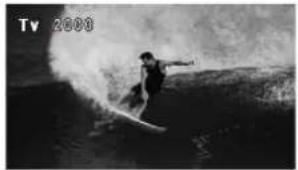
natural_image
Black-and-white photo of a person surfing on the ocean, no visible text or symbolsAv Aperture-Priority (68)
Use this mode to select the aperture value from F/1.6 to F/9.5 (or full iris close) and let the camcorder automatically set the appropriate shutter speed. This mode allows for the best control of depth of field.

natural_image
Black-and-white photo of a person with hand on cheek, no visible text or symbolsSpotlight
The Spotlight mode automatically adjusts the exposure to effectively record images and/or subjects lit by a spotlight or other concentrated light source.
natural_image
Two dancers in dynamic poses, one in black attire and the other in white, against a plain background (no text or symbols)Night
This mode allows you to continue recording even when light levels begin to fall. The camcorder uses slower shutter speeds (60i, 30F: 1/4–1/500; 24F: 1/3–1/500) to deliver proper exposure.
natural_image
Black-and-white photo of two people conversing in a dimly lit indoor setting with blurred background figures (no visible text or symbols)○ Moving subjects may leave a trailing afterimage.
○Picture quality may not be as good as in other modes.
○ White points may appear on the screen.
OAutofocus may not work as well as in other modes. In such case, adjust the focus manually.
□ Easy Recording
The camcorder automatically controls the focus, shutter speed, aperture, gain, white balance, and AE Shift allowing you to simply point and film. This mode locks all of these features and options, making them fixed and unadjustable.
natural_image
Black-and-white photo of two sailboats on the ocean with a small boat nearby (no text or symbols visible)Selecting the Programmed AE Modes
Press the lock button and turn the POWER dial.
The symbol of the selected mode appears.

text_image
POWER dial XL HT0
Do not change the position of the POWER dial while recording as the brightness of the image may change abruptly.
The □ Easy Recording, ▲ Spotlight and ▼ Night modes are all-automatic modes. In the A Auto, Tv Shutter-Priority, Av Aperture-Priority and M Manual modes you can change some settings manually according to the recording conditions.
Available controls/functions by programmed AE mode
| M | A | Tv | Av | A | B | C | |
| EXP. LOCK button -- | ● | ||||||
| PUSH AE button - | ● | ||||||
| Iris ring3 | ● | -1 | -1 | ● | - | ||
| SHUTTER buttons | ● | -1 | ● | -1 | - | ||
| AE SHIFT dial - | ● | -(0) | |||||
| GAIN dial | ● | ● | -(0 dB) | -(auto) | |||
| WHITE BALANCE dial | ● | ● | -(auto) | ||||
| Custom preset adjustments - | ● | ● | |||||
| CUSTOM PRESET SELECT button - | ● | ● | |||||
| CUSTOM PRESET ON/OFF button - | ● | ● | |||||
| Skin detail | ● | ● | - | ||||
| Clear scan | ●2 | - | ●2 | - | - | ||
| Frequency selection for clear scan | ● | - | ● | - | - | ||
^1 Available during exposure lock.
^2 Available during clear scan.
^3 Only lenses with manual iris ring.
Available lens functions by programmed AE mode ^1
| ☐ | All other modes | |
| Focus ring | ● | |
| Zoom ring | ● | |
| Iris ring See previous table | ||
| Image stabilizer ^2 | -(ON) | ● |
| ND filter | ● | |
| Focus mode selection – | (AF) | ● |
| ▶AF switch (Push-AF) – | ● | |
^1 HD 20x L IS III, HD 20x L IS II, HD 6x L, 20x L IS and 16x IS II lenses.
^2 Not available with the HD 6x L lens.
Recording in Manual Mode
You can set the exposure at any combination of shutter speed and aperture. The aperture value can be adjusted in 1/16 EV stops; however, the aperture value displayed on the screen will change only in 1/4 EV stops.

text_image
SELECT/IRIS SHUTTER IRIS ringAvailable settings
| Shutter speed | CAMERA (60i/30F) | 1/4*, 1/8, 1/15, 1/30, 1/60, 1/75, 1/90, 1/100, 1/120, 1/150, 1/180, 1/210, 1/250, 1/300, 1/360, 1/420, 1/500, 1/600, 1/720, 1/840, 1/1000, 1/1200, 1/1400, 1/1700, 1/2000, 1/2300, 1/2600, 1/3000, 1/4000, 1/8000, 1/15000, CS (clear scan) |
| CAMERA (24F) | 1/3*, 1/6, 1/12, 1/24, 1/48, 1/60, 1/75, 1/90, 1/100, 1/120, 1/150, 1/180, 1/210, 1/250, 1/300, 1/360, 1/420, 1/500, 1/600, 1/600, 1/720, 1/840, 1/1000, 1/1200, 1/1400, 1/1700, 1/2000, 1/2300, 1/2600, 1/3000, 1/4000, 1/4000, 1/8000, 1/15000, CS (clear scan) | |
| CAMERA-CARD | 1/4*, 1/8, 1/15, 1/30, 1/60, 1/75, 1/90, 1/100, 1/120, 1/150, 1/180, 1/210, 1/250, 1/300, 1/360, 1/300, 1/500 | |
| Aperture (with the HD 20x L IS II or HD 20x L IS III lens) | F1.6, F1.8, F2.0, F2.2, F2.4, F2.6, F2.8, F3.2, F3.4, F3.7, F4.0, F4.4, F4.8, F5.2, F5.6, F6.2, F6.7, F7.3, F8.0, F8.7, F9.5, F10**, F11**, F12**, F14**, F15**, F16**, F17**, F19**, F21**, F22**, CLOSE** | |
* Only with the HD 20x L IS or HD 20x L IS III Lens.
** Can only be selected if the custom function [IRIS LIMIT] is set to [OFF].


1. Set the Roal to M.
- The exposure indicator appears. Use the exposure indicator as an estimate.
- The ▼ mark above the indicator indicates the standard exposure (calculated by the camcorder). The ■ mark of the indicator indicates the current exposure level within ± 2 EV stops of the standard exposure (beyond 2 stops, the marker will blink).
2. Select the aperture using the IRIS dial or the iris ring (only lenses with manual iris ring, like the HD 20x L IS III lens).
With the custom function [RINGS DIRECTION] (104) you can change the direction of the adjustment when you turn the iris ring and IRIS dial (the setting is common to both).
3. Select the shutter speed with the SHUTTER ▲r button.
With the custom function [OPER.DIRECTION] (104) you can change the direction of the adjustment when you push the SHUTTER buttons.

- You can use the custom keys(179) or the [SYSTEM SETUP/ ][SHTR B.LOCK] setting (136) to prevent the accidental operation of the SHUTTER buttons.
With the custom function [IRIS LIMIT] (☐ 104) you can activate the iris limit to prevent the aperture from closing below the diffraction limit of the lens. If the iris limit is not activated, aperture values that exceed the diffraction limit will appear in gray when selecting the aperture. Using aperture values displayed in gray will cause diffraction blur.
When a lens without iris control function is used, the aperture value will not appear on the screen.
With the custom function [LANC AE SHIFT] (104), you can change the function of the AE SHIFT dial on the optional ZR-2000 Zoom Remote Controller and use it to change the aperture value.
Push AE
In M Manual mode you can use the Push AE function when you want the camcorder to re-establish optimal exposure settings by automatically adjusting the aperture and gain (if the GAIN dial is set to A).
Press the PUSH AE button and hold it pressed down.
- The camcorder will adjust the aperture value and gain to achieve optimal exposure (▼mark above the exposure indicator).
- After you release the button, the aperture value and gain (if the GAIN dial is set to A) set by the camcorder will override the previous settings made in M Manual mode.

text_image
EXP. LOCK/PUSH AE LENS RELEASE
The Push AE function is not available when no lens is attached to the camcorder, or if the aperture of the lens attached cannot be controlled from the camcorder.
- You can use the custom keys (☐ 79) or the [SYSTEM SETUP/☑] ▶ [E.LCK B.LCK] setting to prevent the accidental operation of the PUSH AE button.
Recording in Shutter-Priority (Tv) Mode
Available shutter speeds when recording movies depend on the selected frame rate:
| 60i/30F 1/4*, 1/8, 1/15, 1 | 1/30, 1/60, 1/100, 1/250, 1/500, 1/1000, 1/2000, 1/4000, 1/8000, 1/15000, CS (clear scan) |
| 24F 1/3*, 1/6, 1/12, 1/24 | 1/48, 1/60, 1/100, 1/250, 1/500, 1/1000, 1/2000, 1/4000, 1/8000, 1/15000, CS (clear scan) |
Available shutter speeds when recording still images:
1/4 ^* , 1/8, 1/15, 1/30, 1/60, 1/100, 1/250, 1/500
* Only with the HD 20x L IS II or HD 20x L IS III Lens.



-
Set the Roay/3 Tv.
-
Select the shutter speed with the
SHUTTER ▲ o▼ button.
With the custom function [OPER.DIRECTION] (104) you can change the direction of the adjustment when you push the SHUTTER ▲▼ buttons.

natural_image
Line drawing of a DSLR camera with an inset close-up showing the lens and control buttons (no text or symbols)
- Settings other than the shutter speed (aperture, etc.) are adjusted automatically.
○ Using exposure lock to adjust the exposure manually will change the shutter speed, overriding the shutter speed selected in Tv mode.
When the GAIN dial is set to A (automatic gain), the numeric value on the screen flashes if the selected shutter speed is not suitable for the recording conditions. In such case, readjust the shutter speed. If you are using an ND filter, turn it off first and readjust the shutter speed.
○ Image quality may decrease to some extent when using slow shutter speeds.
When recording under artificial light sources such as fluorescent, mercury or halogen lamps, the screen may flicker depending on the shutter speed. To avoid the flicker, set the shutter speed to 1/100. - You can use the custom keys(179) or the [SYSTEM SETUP/ ][SHTR B.LOCK] setting (136) to prevent the accidental operation of the SHUTTER buttons.
Recording in Aperture-Priority (Av) Mode
The aperture value can be adjusted in 1/16 EV stops; however, the aperture value displayed on the screen will change only in 1/4 EV stops.
Available aperture values (with the HD 20x L IS II or HD 20x L IS III lens)
F1.6, F1.8, F2.0, F2.2, F2.4, F2.6, F2.8, F3.2, F3.4, F3.7, F4.0, F4.4, F4.8, F5.2, F5.6, F6.2, F6.7, F7.3, F8.0, F8.7, F9.5, F10*, F11*, F12*, F14*, F15*, F16*, F17*, F19*, F21*, F22*, CLOSE*
* Can only be selected if the custom function [IRIS LIMIT] is set to [OFF].

| VCR/PLAY | M | Tv | Av |
-
Set the Roal/to Av.
-
Select the aperture using the IRIS dial or the iris ring (only lenses with manual iris ring, like the HD 20x L IS III lens).
With the custom function [RINGS DIRECTION] (104) you can change the direction of the adjustment when you turn the iris ring and IRIS dial (the setting is common to both).

text_image
IRIS ring SET SELECT/IRIS + - +10
○ Settings other than the aperture value (shutter speed, etc.) are adjusted automatically.
○ Using exposure lock to adjust the exposure manually will change the aperture, overriding the value selected in Av mode.
When the GAIN dial is set to A (automatic gain), the numeric value on the screen flashes when the selected aperture is not appropriate for the recording condition. In such case, readjust the aperture.
When the built-in ND filter is activated, the picture may become dark when you set a high aperture value. In such case, turn off the ND Filter first and readjust the aperture.
With the custom function [IRIS LIMIT] (☐ 104) you can activate the iris limit to prevent the aperture from closing below the diffraction limit of the lens. If the iris limit is not activated, aperture values that exceed the diffraction limit will appear in gray when selecting the aperture. Using aperture values displayed in gray will cause diffraction blur.
When a lens without iris control function is used, the aperture value will not appear on the screen.
With the custom function [LANC AE SHIFT] (104), you can change the function of the AE SHIFT dial on the optional ZR-2000 Zoom Remote Controller and use it to change the aperture value.
Exposure Lock


text_image
VCR/ PLAY M A Tv Av1. Set the POWER dial to A, Tv or Av.
2. Press the EXP. LOCK button.
- The exposure indicator appears. Use the exposure indicator as an estimate.
- The ▼mark above the indicator indicates the standard exposure (calculated by the camcorder). The ▼mark of the indicator indicates the current exposure level within ± 2 EV stops of the standard exposure (beyond 2 stops, the marker will blink).
- You can use the custom keys (79) or the
[SYSTEM SETUP/☑] ▶ [E.LCK B.LCK] setting to prevent the accidental operation of the EXP. LOCK button.

text_image
EXP. LOCK/PUSH AE LENS RELEASEAE Shift
You can use the AE Shift control to manually override the automatic exposure system in order to darken or lighten the image. Select from 13 AE levels (+2.0, +1.5, +1.0, +0.75, +0.5, +0.25, ±0, -0.25, -0.5, -0.75, -1.0, -1.5, -2.0).

text_image
VCR/ PLAY M A Tv Av1. Set the POWER dial to A, Tv or Av.
2. Turn the AE SHIFT dial to adjust the level.
- "AE" and the selected shift level will be displayed on the screen.
- You can use the custom keys (79) or the [SYSTEM SETUP/∅] [AE D.LOCK] setting to prevent the accidental operation of the AE SHIFT dial.

natural_image
Line drawing of a DSLR camera with an inset showing the dial (no text or symbols present)Gain
The gain control adjusts the level of the video signal generated depending on the lighting and shooting conditions. Select automatic gain control, one of the preset gain level ranging from -3 dB to +18 dB or fine-tune the gain level in 0.5 dB increments.
| GAIN dial Use | |
| A Automatic gain control. | |
| -3 For the lowest noise recording for indoor, low light or low contrast scenes. | |
| 0 For lifelike night scenes or scenes under artificial lighting. | |
| +3, +6, +12, +18 | Increases the brightness in indoor or low-light scenes. Increases the depth of field. |
| 0 – +18, +36 Gain fine tuning. | |


text_image
VCR/ PLAY M A Tv AvSelecting the Gain Level
- Set the POWER dial to A, Tv, Av or M.
- Push the GAIN dial so that it pops out.
- Turn the GAIN dial to adjust the level.
When the dial is set to a position other than A (automatic gain control), the selected gain level appears.
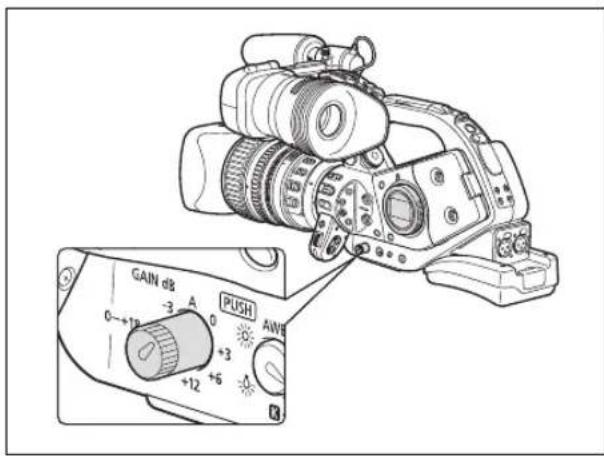
text_image
GAIN dB -3 A 0 +12 +3 +6 PUSH AWBGain Fine Tuning
- Set the POWER dial to A, Tv, Av or M.
- Set the GAIN dial to 0 - +18, +36.
The gain level currently set will be displayed.
- Press the SET button.
The gain level display will start flashing.
- Turn the SELECT dial to set the desired gain level.
You can change the gain level in 0.5 dB increments within the range 0.0 to 18.0 dB. In CAMERA mode (only) you can also set the gain level to 36.0 dB.
- Press the SET button again.
The gain level display stops flashing and stays on.

When you select high gain levels, the picture may flicker slightly. The 36.0 dB gain level in particular, allows you to shoot video with a higher sensitivity but is more prone to the appearance of video noise and artifacts (white dots, vertical streaks or blocking).
When the GAIN dial is set to A (automatic gain control) you can activate the gain limit to prevent the camcorder from setting a level higher than a preset limit between 3 dB and 15 dB.
Open the menu and select [CAMERA SETUP]. Select [AGC LIMIT], set the maximum gain level and close the menu.
White Balance
The camcorder uses an electronic white balance process to calibrate the picture for accurate color display under different lighting conditions. In addition to the fully automated mode, white balance modes include an indoor mode, an outdoor mode, a color temperature setting and two user-defined custom preset values.
WHITE BALANCE dial Use
AWB Automatic adjustment of white balance.
(outdoor) Bright sunlight (5,600 K).
(indoor) Incandescent light (3,200 K).
K (color temperature) Setting depending on the hue of a specific lighting (2,000 - 15,000 K in 100 K increments).
Custom Preset A, B Custom preset (3,200 - 5,600 K).


VCR/PLAY
M
A
Tv
Av
T
[NO TEXT]
□
Selecting the White Balance Setting
- Set the POWER dial to a recording program other than ☐
- Push the WHITE BALANCE dial so that it pops out.
- Set the WHITE BALANCE dial to the desired white balance setting.
You can fine-tune the preset settings. Press the WHITE BALANCE button so the preset icon and the neutral value ±0 start flashing. Adjust the white balance with the SELECT dial to a value between -9 and +9 and press the WHITE BALANCE button again.

text_image
PUSH AWB +12 WHITE BALANCE STASetting the Color Temperature
- Set the POWER dial to a recording program other than ☐
- Set the WHITE BALANCE dial to K
The color temperature currently set will be displayed.
- Press the WHITE BALANCE Button.
The color temperature display will start flashing.
- Turn the SELECT dial to set the desired color temperature.
- Press the WHITE BALANCE button again.
The color temperature display stops flashing and stays on.
Setting a Custom White Balance
- Set the POWER dial to a recording program other than ☐
- Press the WHITE BALANCE dial so that it pops out.
- Set the WHITE BALANCE dial to one of the custom preset positions, A or B.
- Point the camcorder at a white object and zoom in until it fills the whole screen.
Keep the camcorder zoomed at the white object until step 5 is completed.
- Press the WHITE BALANCE Button.
and the corresponding letter will stop flashing and stay on when the setting is completed.

When you set the custom white balance: Very rarely and depending on the light source, may keep flashing. The result will still be better than with the AWB setting.
As long as the built-in rechargeable lithium battery is charged, the camcorder retains the custom white balance setting even if you turn it off.
The following custom preset settings take precedence, and will override the white balance set with the procedure above: The color matrix [CMX] setting, the 3 R/G/B gain settings, and the 6 R/G/B matrix settings (102).
The custom white balance may provide better results in the following cases:
-Changing lighting conditions
-Close-ups
-Subjects in a single color (sky, sea or forest)
-Under mercury lamps or certain types of fluorescent lights
○ Perform the custom white balance setting procedure in a sufficiently well lit place.
- Readjust the custom white balance if you turn the ND filter on/off (lenses with a built-in ND filter) or when the light source has changed.
Recording with a Custom White Balance Previously Set
- Set the MEAVEC a recording program other than .
- Turn the WHITE BALANCE dial to the desired custom preset, A or B.
The custom white balance set in advance is activated.
Zebra Pattern
This camcorder has a zebra pattern feature that shows black and white diagonal stripes over the areas that are overexposed. The zebra pattern is only displayed on the screen and will not affect your recordings. The zebra pattern will not be displayed while the Peaking function is activated (46).
Available zebra pattern settings: 70 IRE, 75 IRE, 80 IRE, 85 IRE, 90 IRE, 95 IRE, and 100 IRE.

text_image
VCR/ PLAY M A Tv Av A J □Selecting the Zebra Pattern Level

text_image
MENU (33) DISPLAY SETUP/ FEBRA LEVEL ••85Open the menu and select [DISPLAY SETUP/☑] Select [ZEBRA LEVEL], select a setting option and close the menu.
Activating the Zebra Pattern

text_image
MENU (33) DISPLAY SETUP/SEBRA ...OFFOpen the menu and select [DISPLAY SETUP/☑] Select [ZEBRA], set it to [ON] and close the menu.
With the color correction function you can set the camcorder to detect the characteristics of a certain color or pattern (color phase, chroma, area and Y level) and correct them automatically when recording. You can set the color correction for up to two different colors (A and B).
When determining the color to be corrected, targeted areas will be identified on the screen by zebra pattern alternating with the normal picture. On a connected monitor or computer, targeted areas will be identified by white areas alternating with the normal picture.

text_image
VCR/ PLAY M A Tv Av A J □Determining the Color to be Corrected

flowchart
graph LR
    A["CAMERA SETUP COLOR CORR. ...."] --> B["1"]
    C["A AREA SEL. COLOR PHASE"] --> D["......0"]
    E["B AREA SEL. CHROMA"] --> F["......0"]
    G["AREA......3"] --> H
    I["Y LEVEL......0"] --> J
- Open the menu and select [CAMERA SETUP]. Select the [COLOR CORR.] submenu and then select [A AREA SEL.] or [B AREA SEL.].
- Select each setting option, adjust the levels as necessary and close the menu.
[COLOR PHASE]: Select the basic color phase (0-15) of the color to be detected. Use the following values as an approximate reference: 0=purple, 3=red, 6=orange, 9=green, 12=blue.
[CHROMA]: Adjust the color saturation for the color to be detected. 13 levels (-6 to 6) are available; set higher levels to detect areas with richer colors.
[AREA]: Adjust the color range for the color to be detected. 4 levels (1 to 4) are available; set higher levels to detect a wider color range.
[Y LEVEL]: Adjust the brightness for the color to be detected. 13 levels (-6 to 6) are available; set higher levels to detect brighter areas.
Adjusting the Color Correction

flowchart
graph LR
    A["CAMERA SETUP COLOR CORR. ...."] --> B[" "]
    B --> C["①"]
    D["①...."] --> E["A AREA REV. R GAIN"]
    E --> F["...........0"]
    G["B AREA REV. B GAIN"] --> H["...........0"]
- Open the menu and select [CAMERA SETUP]. Select the [COLOR CORR.] submenu and then select [A AREA REV.] or [B AREA REV.].
- Select the color gain options, adjust the levels as necessary and close the menu.
[R GAIN]: Adjust the red gain of the detected area. 13 levels (-6 to 6) are available; set [+] values to increase red tones or [-] values to increase cyan tones.
[B GAIN]: Adjust the blue gain of the detected area. 13 levels (-6 to 6) are available; set [+] values to increase blue tones or [-] values to increase yellow tones.
Activating the Color Correction
MENU
(33)
- You can correct only the predefined A area, only the predefined B area or both.
- appears.
With the skin detail function you can set the camcorder to detect the characteristics of a certain color or tone. Detail in the targeted areas will be softened in order to conceal skin imperfections. Targeted areas will be identified on the screen by a zebra pattern alternating with the normal picture. On a connected monitor or computer, targeted areas will be identified by white areas alternating with the normal picture. You can adjust the hue, chroma, area and Y level as required, to determine the areas that will be detected as skin areas.


text_image
VCR/ PLAY M A Tv Av ↑ □Determining the Tone to be Detected as Skin Area
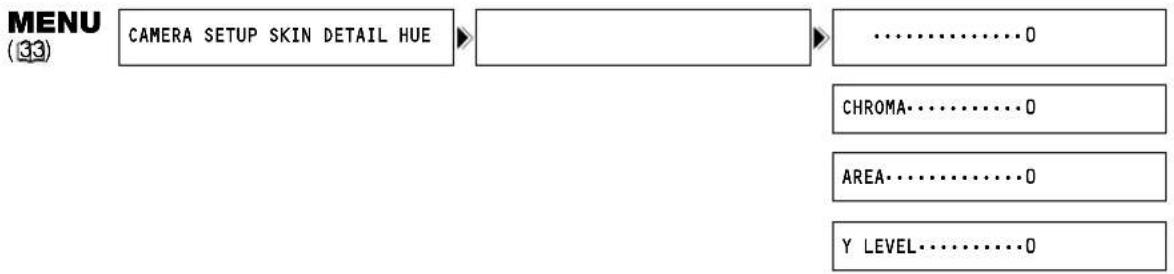
flowchart
graph LR
    A["CAMERA SETUP SKIN DETAIL HUE"] --> B["......0"]
    B --> C["CHROMA......0"]
    C --> D["AREA......0"]
    D --> E["Y LEVEL......0"]
- Open the menu, select [CAMERA SETUP] and then select the [SKIN DETAIL] submenu.
-
Select each setting option, adjust the levels as necessary and close the menu.
-
[HUE]: Adjust the hue for detection of the skin area. 13 levels (-6 to 6) are available; set [+] values to detect hues closer to red or [-] values to detect hues closer to green.
- [CHROMA]: Adjust the color saturation for detection of the skin area. 13 levels (-6 to 6) are available; set higher levels to detect areas with richer colors.
- [AREA]: Adjust the color range for detection of the skin area. 13 levels (-6 to 6) are available; set higher levels to detect a wider color range.
- [Y LEVEL]: Adjust the brightness for detection of the skin area. 13 levels (-6 to 6) are available; set higher levels to detect brighter areas.
Activating the Skin Detail Function

flowchart
graph LR
    A["CAMERA SETUP SKIN DETAIL EFFECT"] --> B["LEVEL"]
    B --> C["•• OFF"]
- Open the menu and select [CAMERA SETUP]. Select the [SKIN DETAIL] submenu and then select [EFFECT LEVEL].
-
Select a setting option and close the menu.
-
You can select the strength of the effect from low, middle or high.
- appears.
With the selective noise reduction function you can set the camcorder to detect the characteristics of a certain color or tone and automatically reduce noise in the targeted areas. This is particularly useful for chroma keying, as targeting the selective noise reduction to the color of the background green or blue screen will result in a smoother composite picture.
Targeted areas will be identified on the screen by a zebra pattern alternating with the normal picture. On a connected monitor or computer, targeted areas will be identified by white areas alternating with the normal picture.

text_image
VCR/ PLAY M A Tv AvDetermining the Area to be Corrected

flowchart
graph LR
    A["CAMERA SETUP SELECTIVE NR HUE"] --> B["......0"]
    B --> C["CHROMA......0"]
    C --> D["AREA......0"]
    D --> E["Y LEVEL......0"]
- Open the menu, select [CAMERA SETUP] and then select the [SELECTIVE NR] submenu.
- Select each setting option, adjust the levels as necessary and close the menu.
• [HUE]: Select the base hue (-6 to 6) of the color to be detected. Use the following values as an approximate reference: -6=blue-violet, 0=cyan, 6=yellowish green.
- [CHROMA]: Adjust the color saturation for the color to be detected. 13 levels (-6 to 6) are available; set higher levels to detect areas with richer colors.
- [AREA]: Adjust the color range for the color to be detected. 13 levels (-6 to 6) are available; set higher levels to detect a wider color range.
- [Y LEVEL]: Adjust the brightness for the color to be detected. 13 levels (-6 to 6) are available; set higher levels to detect brighter areas.
Activating the Selective Noise Reduction

flowchart
graph LR
    A["CAMERA SETUP SELECTIVE NR EFFECT"] --> B["LEVEL"]
    B --> C["OFF"]
- Open the menu and select [CAMERA SETUP]. Select the [SELECTIVE NR] submenu and then select [EFFECT LEVEL].
-
Select a setting option and close the menu.
-
You can select the strength of the effect from low, middle or high.
• SPPears.
This feature allows you to record a computer's CRT screen or other equipment without displaying black band or flicker on the screen. You can adjust the frequency from 60.1 Hz to 203.9 Hz.

text_image
VCR/ PLAY M A Tv AvMENU
(33)
CAMERA SETUP CLEAR SCAN
…60.1Hz
- Set the TV or M.
- Repeatedly press the SHUTTER ▲button to set the shutter speed to "CS".
- Open the menu and select [CAMERA SETUP]. Select [CLEAR SCAN], adjust the frequency and close the menu.
Adjust the frequency so that the black band does not appear.
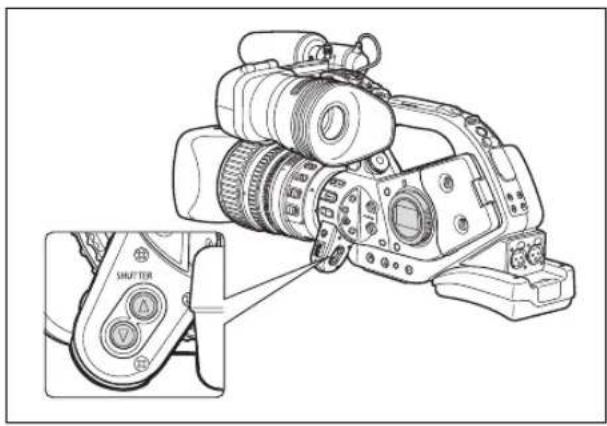
natural_image
Line drawing of a DSLR camera with an inset showing its mode dial and control buttons (no text or symbols present)You can assign frequently used functions to the custom keys. The custom keys can have different functions assigned to them in each of the operating modes.
Default settings:
| CAMERA | VCR/PLAY | CAMERA·CARD | VCR/PLAY·CARD | |
| CUSTOM KEY 1 TIME CODE TV SCREEN ZEBRA TV SCREEN | ||||
| CUSTOM KEY 2 INDEX WRITE DATA CODE TV SCREEN EVF BW MODE | ||||
To check the current custom key settings:
In a recording mode: Open the menu and select [DISPLAY SETUP/ ☑]. Select [GUIDE INFO], set it to [CUSTOM KEYS] and close the menu.
In a playback mode: Open the menu and select [DISPLAY SETUP/ ☑]. Select [CUSTOM KEY], set it to [ON] and close the menu.
The following functions can be assigned to the custom keys:
| CAMERA | VCR/PLAY | |
| Time codeIndex write ^2 Zebra patternVCR stop ^2 TV screenTime code hold ^2 Audio levelViewfinder's B&W modeMAGN. button lock | SHUTTER button lockAE SHIFT dial lockEXP. LOCK button lockCP backward key ^1,2 Flange back adjustmentFlip EVF ^2 SDI output ^3 Focus limit | Time codeTV screenData codeAudio levelTime code hold ^2 Viewfinder's B&W modeSDI output ^3 |
| CAMERA·CARD | VCR/PLAY·CARD | |
| Zebra patternTV screenViewfinder's B&W modeMAGN. button lockSHUTTER button lockAE SHIFT dial lock | EXP. LOCK button lockCP backward key ^1,2 Flange back adjustmentFlip EVF ^2 SDI output ^3 Focus limit | TV screenViewfinder's B&W modeSDI output ^3 |
^1 Can only be assigned to Custom Key 2.
^2 This function can only be operated with a custom key. (Index write can also be operated with the wireless controller.)
3 XLH1s only.
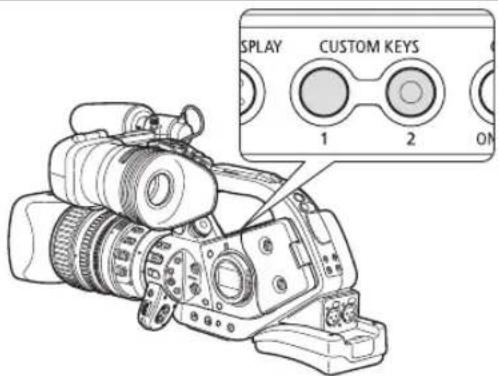
text_image
DISPLAY CUSTOM KEYS 1 2 ONChanging the Custom Keys Setting

text_image
VCR/ PLAY M A Tv Av A D □ MENU (33) SYSTEM SETUP/✓ CUSTOM KEY 1·TIME CODE** Default value in OAMERA
Open the menu and select [SYSTEM SETUP/ Select [CUSTOM KEY 1] or [CUSTOM KEY 2], select the function you wish to assign to the custom key and close the menu.
When you do not wish to use the custom keys, select [(NONE)].
Activating the Functions with the Custom Key
[TIME CODE] Time Code (52) CAMERA VCR/PLAY
Press the CUSTOM KEY (1 or 2) button.
The time code setting menu appears.
[INDEX WRITE] Index Write CAMERA
You can add an index signal to your recording for easy search in VCR/PLAY 116).
Press the CUSTOM KEY (1 or 2) button.
- will appear while the index signal is being recorded (approx. 6.5 seconds).
- When the camcorder is in record pause mode, the index signal will be written when you start recording.
- An index signal cannot be added or erased later.
[ZEBRA] Zebra Pattern (73) CAMERA CAMERA·CARD
Press the CUSTOM KEY (1 or 2) button.
The zebra pattern is activated. Press the button again to cancel it.
[VCR STOP] VCR Stop (37) CAMERA
When the camcorder is in record pause mode, you can turn off the recorder section. Even if [SYSTEM SETUP/☑] ▶ [POWER SAVE] is set to [OFF], you can take your time adjusting the camera settings, while the recorder section of the camcorder is powered off so you do not need to worry about the tape or the video heads.
VCR Stop can only be operated with the custom keys.
Press the CUSTOM KEY (1 or 2) button.
The VCR Stop mode is activated. Press the button again to return to record pause mode. You can also start recording by pressing the Start/Stop button directly in VCR Stop mode.
[TV SCREEN] TV Screen CAMERA VCR/PLAY CAMERA·CARD VCR/PLAY·CARD
You can show the camcorder's displays on a connected external monitor or TV.
Press the CUSTOM KEY (1 or 2) button.
[TC HOLD] Time Code Hold CAMERA VCR/PLAY
You can press the custom key button to freeze the display of the time code. The time code will continue running normally even while the time code display is on hold.
Time code hold can only be operated with the custom keys.
Press the CUSTOM KEY (1 or 2) button.
- Pressing the custom key button again will reactivate the normal display of the time code.
- While on hold, the time code will be displayed with an H next to it and "HOLD" will appear on the side panel.
- The time code being output from the TC-OUT*, HD/SD SDI*, (LANC) and HDV/DV terminals will not be put on hold. The time code superimposed on the video signal output from the COMPONENT OUT, VIDEO IN/OUT and SN/OUT (S-Video) terminals will be put on hold. (* dN145
- The time code hold will be canceled when you turn the camcorder on/off, change the operating mode between recording and playback or change the position of the ☐ (card/tape) switch.
[AUDIO LEVEL] Audio Level Indicator (59) CAMERA VCR/PLAY
Press the CUSTOM KEY (1 or 2) button.
The audio level indicator appears. Press the button again to hide the audio level indicator.
[EVF BW MODE] Viewfinder's B&W mode
The image on the screen will be shown in black & white (on-screen displays and indicators will still be displayed in color). Press the button again to return to color display.
[MAGN.B. LOCK] MAGN. Button Lock CAMERA CAMERA·CARD
Press the CUSTOM KEY (1 or 2) button.
Pressing the button will lock the EVF MAGNIFYING buton to prevent its accidental operation. Press the custom key button again to reactivate the EVF MAGNIFYING button.
[SHTR B. LOCK] SHUTTER Button Lock CAMERA CAMERA·CARD
Press the CUSTOM KEY (1 or 2) button.
Pressing the button will lock the SHUTTER buttons to prevent their accidental operation. Press the custom key button again to reactivate the SHUTTER buttons.
[AE D.LOCK] AE SHIFT Dial Lock CAMERA CAMERA·CARD
Press the CUSTOM KEY (1 or 2) button.
Pressing the button will lock the AE SHIFT dial to prevent its accidental operation. Press the custom key button again to reactivate the AE SHIFT dial.
[E.LCK B.LCK] EXP. LOCK Button Lock CAMERA CAMERA·CARD
Press the CUSTOM KEY (1 or 2) button.
Pressing the button will lock the EXP. LOCK button to prevent its accidental operation. Press the custom key button again to reactivate the EXP. LOCK button.
[CP BKWD KEY] Custom Preset Backward Key CAMERA CAMERA·CARD
Press the CUSTOM KEY 2 button.
Usually, pressing the CUSTOM PRESET SELECT button will cycle forwards to the following custom preset file. Pressing the custom key button instead will cycle backwards to the preceding custom preset file. CP backward key can only be operated with the custom keys.
[FB] Flange Back Adjustment CAMERA CAMERA·CARD
Press the CUSTOM KEY (1 or 2) button.
The flange back adjustment menu appears. (Will have no effect if flange back adjustment is not available with the lens attached.)
Activating the function will reverse the displayed image both upside/down and right/left. This affects only the display, and the video signal being output from all terminals will not change.
- When using XL lenses designed for HDV recording, the Flip EVF function will be deactivated while displaying the menu screens.
- Flip EVF can only be operated with the custom keys.
XLHS [SDI OUTPUT] SDI Output CAMERA VCR/PLAY CAMERA·CARD VCR/PLAY·CARD
Press the CUSTOM KEY (1 or 2) button.
The SDI output setup menu appears.
[FOCUS LIMIT] Focus Limit (48) CAMERA CAMERA·CARD
Press the CUSTOM KEY (1 or 2) button.
The focus limit is activated. Press the button again to cancel it.
[DATA CODE] Data Code (117) VCR/PLAY
Press the CUSTOM KEY (1 or 2) button.
The data code appears. Press the button again to hide the data code.
Color Bars/Audio Reference Signal
You can generate and record color bars signals and a 1 kHz audio reference signal.
With the customized functions (104) you can choose between SMPTE standard-definition color bars ([TYPE 1]) and ARIB multiformat HDTV color bars ([TYPE 2]) and you can also select the strength of the audio signal (-12 dB, -18 dB, or -20 dB).

text_image
VCR/ PLAY M A Tv Av A J □-
Select the standard of the color bars signal [COLOR BARS] and the strength of the audio reference signal [1kHz TONE] with the customized functions (104).
-
Press the BARS/FADE SELECT button to display the @color bars) icon.
-
Repeatedly pressing the button will cycle through the options in the following order: CB, Wc o BF display.
- 6arts flashing.
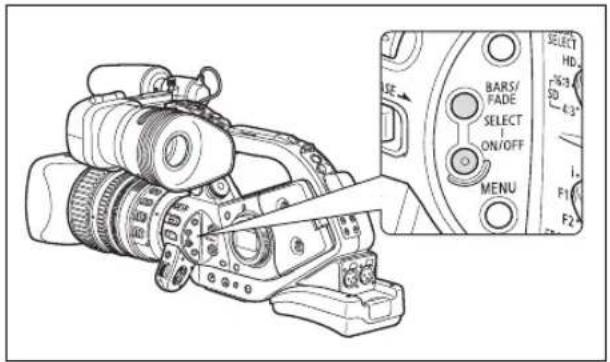
text_image
Diagram of a DSLR camera with labeled control panel showing settings like SE, SELECT, and F1/F2 controls-
Press the BARS/FADE ON/OFF button.
-
The color bars appear and the audio reference signal is emitted (if activated). Press the Start/Stop button to record the signal.
- If you set the custom function [1kHz TONE] to [OFF], the current audio input (microphone, line in, etc.) will be recorded as the audio signal.
Faders
You can choose to fade to/from white or to/from black.

text_image
VCR/ PLAY M A Tv Av A D-
While recording or in record pause mode, press the BARS/FADE SELECT button to display the white fader) or (black fader) icon.
-
Repeatedly pressing the button will cycle through the options in the following order: QB, WF o BF display.
-
The icon of the selected fader type starts flashing.
-
Press the BARS/FADE ON/OFF button.
The icon stops flashing.
-
Press the Start/Stop button.
-
In record pause: the recording will fade in and start. While recording: the recording will fade out and stop.
- After the fade-in/out the icon will start flashing again. To activate the fader again, press the BARS/FADE ON/OFF button (step 2).
The standard of the video signal output from the HD/SD SDI (or by)COMPONENT OUT and HDV/DV terminals depends on the standard used for recording (or the standard of the recording on the tape being played back) and on various menu settings. Video output from the VIDEO OUT or SN/OUT (S-Video) terminal will always be in 480/60i standard.
Standard of Video Output while Recording
XLHS While recording in high definition, video output from the HD/SD SDI terminal will be an uncompressed HD, YPbPr signal. You can down-convert the video output with the respective menu settings.
| Recording standard and frame rate | HD/SD SDI terminal1 | COMPONENT OUT terminal | HDV/DV terminal | ||
| Unchanged | Down-converted2, 5, 6 | Unchanged | Down-converted3, 5 | ||
| HD 60i 1080/60i 480/60i 1080/60i | 480/60i 1080/60i | ||||
| HD 30F 1080/60i 480/60i | 8 | 1080/60i 480/60i | 8 | 1080/30p | |
| HD 24F 1080/60i 480/60i | 9 | 1080/60i 480/60i | 9 | 1080/24p | |
Standard of Video Output during Playback
XLHfs When playing back a tape recorded in HDV standard, video output from the HD/SD SDI terminal will be a signal modified from the HDV video. You can down-convert the video output with the respective menu settings.
| Standard of the tape | [LETTERBOX] setting | HD/SD SDI terminal^1 | COMPONENT OUT terminal HDV/DV terminal | ||||
| Unchanged | Down-converted2,5 | Unchanged | Down-Converted3,5 | Unchanged | Down-Converted4,7 | ||
| HDV 1080/60i | [OFF] 1080/60i 480/60i 1080/60i 480/60i | 1080/60i 480/60i | |||||
| [ON] 480/60i 480/60i | |||||||
| HDV 1080/30p | [OFF] | 1080/60i^8 | 480/60i | 1080/60i^8 | 480/60i | 1080/30p | 480/60i |
| [ON] | 480/60i^8 | 480/60i^8 | |||||
| HDV 1080/24p | [OFF] | 1080/60i^9 | 480/60i | 1080/60i^9 | 480/60i | 1080/30p | 480/60i |
| [ON] | 480/60i^9 | 480/60i^9 | |||||
1 XLH1s only.
^2 [SIGNAL SETUP] ▶[SDI SPEC.] set to [SD LOCKED].
^3 [SIGNAL SETUP] ▶[COMP.OUT] set to [480i].
^4 [SIGNAL SETUP] ▶[HD DOWN-CONV] set to [ON].
^5 16:9 picture is horizontally squeezed to a 4:3 aspect ratio.
^6 On-screen displays will not be embedded in the video output even if [SIGNAL SETUP] ▶[SDI OUTPUT] is set to [ON(OSD)].
7 On-screen displays will not be embedded in the video output even if [DISPLAY SETUP/∅ [TV SCREEN] is set to [ON].
^8 Converted to 60i.
^9 Converted to 60i using the 2:3 pulldown method.
Connecting to a Monitor/TV
The different recording modes and the corresponding output terminals are given in the table below:
| HD/SD SDI Terminal* | COMPONENT OUT Terminal | HDV/DV Terminal | VIDEO and S Terminals | |||
| HD [LETTERBOX] set to [OFF] | 1920x1080 D3 (1440x1080) MPEG TS | |||||
 |  |  |  | |||
| [LETTERBOX] set to [ON] | SD SDI D1 (SD) MPEG TS | |||||
 |  |  |  | |||
| SD 16:9 [LETTERBOX] set to [OFF] | 640x480 D1 (SD) DV (SD) | |||||
 |  |  |  | |||
| [LETTERBOX] set to [ON] | SD SDI D1 (SD) DV (SD) | |||||
 |  |  |  | |||
| SD 4:3 | 640x480 | D1 (SD) Normal | DV (SD) | |||
 |  |  | ||||
* XLHis o n l y .
Displaying the Viewfinder's Screen on an External Monitor
The screen of an external monitor or viewfinder connected to the EVF2 socket will show the exact same picture as displayed on the camcorder's viewfinder screen. Use the supplied external monitor cable to connect to a monitor or TV equipped with component video inputs.

flowchart
graph LR
    A["External Monitor Cable (supplied)"] -->|Signal flow| B["Output"]
    C["Green"] --> D["Y"]
    E["Blue"] --> F["Pb"]
    G["Red"] --> H["Pr"]
1 Using the HD/SD SDI Terminal
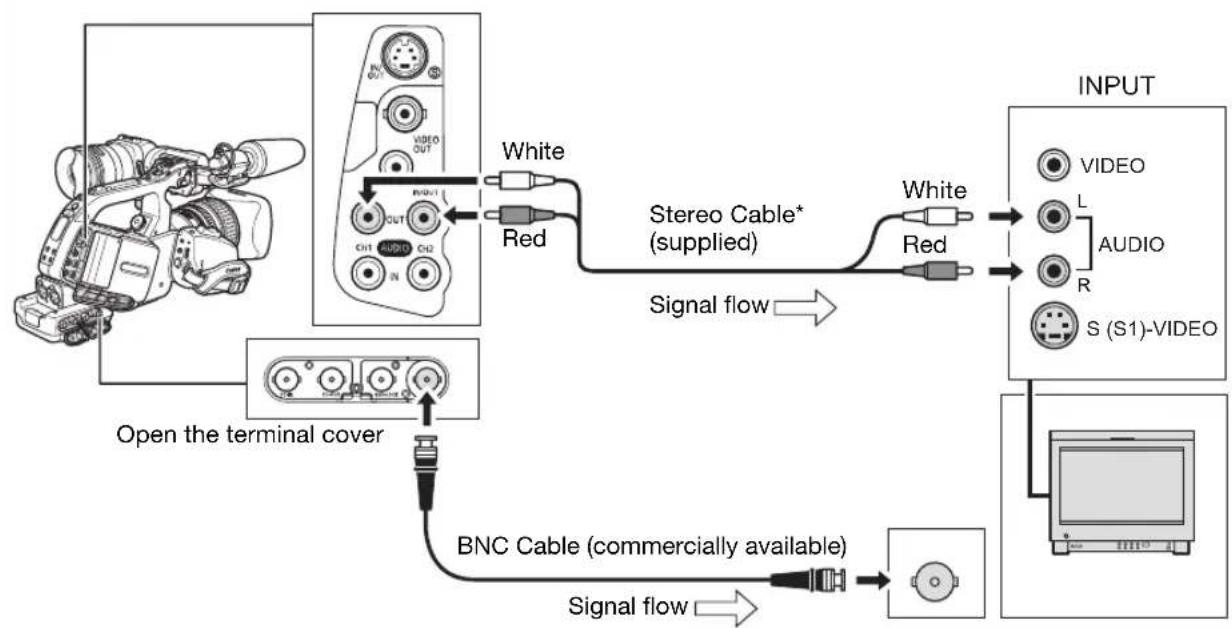
flowchart
graph TD
    A["Video Camera"] -->|Open the terminal cover| B["BNC Cable (commercially available)"]
    B -->|Signal flow| C["Audio Output"]
    C --> D["INPUT"]
    D --> E["Video L AUDIO S (S1)-VIDEO"]
    A --> F["White Red"]
    F --> G["Stereo Cable* (supplied)"]
    G --> H["Red"]
    H --> I["Output"]
* If [SDI OUTPUT] is set to [OFF] (no embedded audio), the audio signal is separate from the SDI video output signal
Activate the HD/SD SDI output and select the appropriate video output option (HD or SD).
- Set the F24/16 . VCR/PLAY
- Open the menu and select [SIGNAL SETUP]. Select [SDI OUTPUT] and set it to [ON] or [ON(OSD)].
- From the same [SIGNAL SETUP] submenu select [SDI SPEC.]. Select [AUTO] or [SD LOCKED] to match the video output you wish to use.
- Close the menu.

When [SDI OUTPUT] is set to [ON(OSD)], SDI will appear on the screen and on-screen displays will be included in the video signal output from the SDI terminal.

When [SDI OUTPUT] is set to [ON(OSD)]:
The on-screen displays included in the video output signal are determined by the display level selected with the EVF DISPLAY button (☐ 39). Markers (safety zone guide, level/grid markers, etc.) are never included in the video signal output.
The [SIGNAL SETUP] [COMP.OUT] setting is not available.
② Using the COMPONENT OUT Terminal
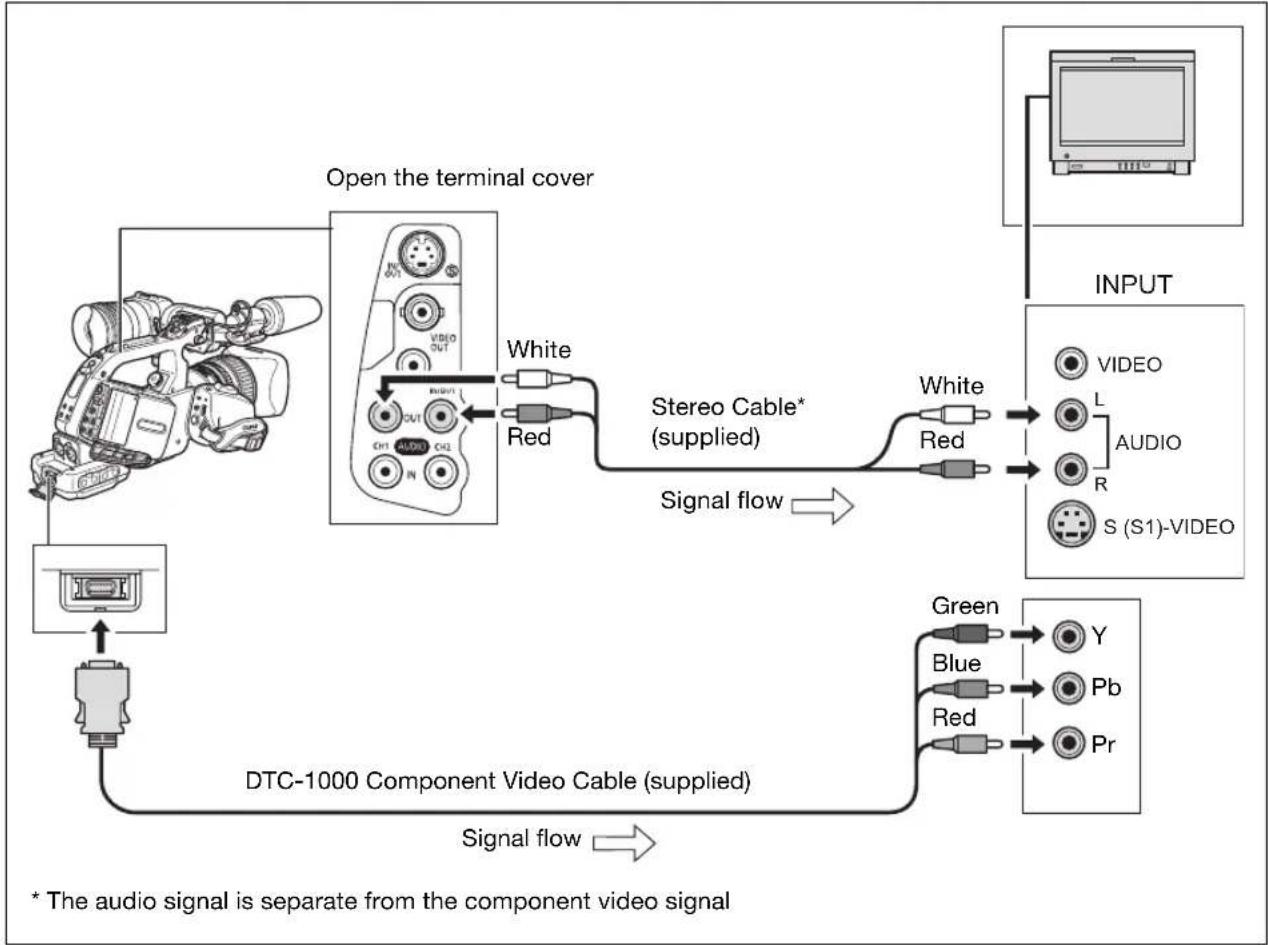
flowchart
graph TD
    A["Monitor"] --> B["Open the terminal cover"]
    B --> C["White"]
    B --> D["Red"]
    C --> E["Stereo Cable* (supplied)"]
    D --> E
    E --> F["Signal flow"]
    F --> G["DATA"]
    G --> H["DTC-1000 Component Video Cable (supplied)"]
    H --> I["Signal flow"]
    I --> J["OUTPUT"]
    J --> K["Video"]
    J --> L["L AUDIO R S (S1)-VIDEO"]
    J --> M["Y Pb Pr"]
    style A fill:#f9f,stroke:#333
    style J fill:#ccf,stroke:#333
    note right of A: * The audio signal is separate from the component video signal
Select the appropriate component video signal depending on the TV or monitor you connect. Open the menu and select [SIGNAL SETUP]. Select [COMP.OUT], select a setting option and close the menu.
③ Using the HDV/DV Terminal
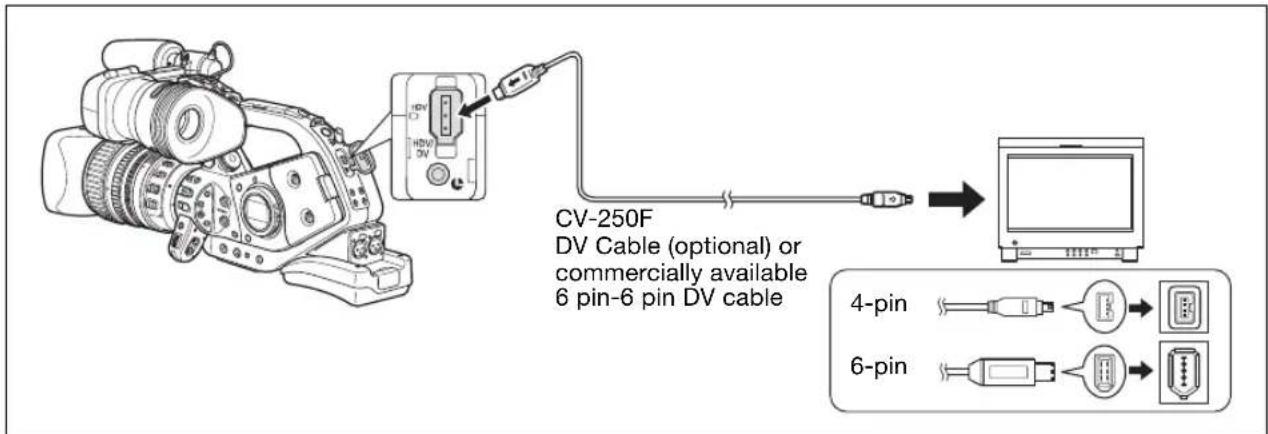
text_image
CV-250F DV Cable (optional) or commercially available 6 pin-6 pin DV cable 4-pin 6-pin- When connecting the camcorder to a monitor or TV that supports DV input, you may need to carry out a procedure on the monitor or TV to recognize the camera.
- If necessary, turn on the DV conversion and select whether to convert a tape recorded in HD to SD with the following procedure.
Open the menu and select [SIGNAL SETUP]. Select [HD DOWN-CONV], select a setting option and close the menu.

flowchart
graph LR
    A["Open the terminal cover"] --> B["White"]
    A --> C["Red"]
    B --> D["Stereo Cable (supplied)"]
    C --> D
    D --> E["S-Video Cable* (commercially available)"]
    E --> F["Signal flow"]
    F --> G["White"]
    F --> H["Red"]
    G --> I["VIDEO"]
    H --> J["L"]
    H --> K["AUDIO"]
    H --> L["R"]
    H --> M["S (S1)-VIDEO"]
    I --> N["INPUT"]
    J --> N
    K --> N
    L --> N
* To use the VIDEO terminals instead of the Sterminal, connect the TV to the camcorder's VIDEO OUT terminal using a BNC cable (commercially available), or connect the TV to the camcorder's VIDEO IN/OUT terminal using an RCA video cable (commercially available).

We recommend powering the camcorder from a household power outlet.
○ TV sets with S1-Video terminals: Recordings made with a 16:9 aspect ratio (☐ 40) will be played automatically in widescreen mode if you connect the camcorder to the TV using the S-VIDEO terminal.
○ TV sets equipped with the Video ID-1 System: Recordings made with a 16:9 aspect ratio (☐ 40) will be played automatically in widescreen mode whether you connect the camcorder to the TV using the S (S1-) VIDEO terminal or the VIDEO terminal.
During fast forward playback, rewind playback and reverse playback of a tape recorded in HDV standard, the picture may be distorted.
Connection to a Standard Definition TV or Monitor
① Using the COMPONENT OUT Terminal
- Refer to the connection diagram in the previous section (87).
- Select the appropriate component video signal depending on the TV or monitor you connect.
Open the menu and select [SIGNAL SETUP]. Select [COMP.OUT], select a setting option and close the menu.
② Using the VIDEO IN/OUT or (S-Video) IN/OUT Terminal
- Refer to the connection diagram in the previous section (88).
- If connecting to a TV set with a 4:3 aspect ratio, change the [LETTERBOX] setting appropriately.
Open the menu and select [SIGNAL SETUP]. Select [LETTERBOX], set it to [ON] and close the menu.

- We recommend powering the camcorder from a household power outlet.
○ TV sets with S1-Video terminals: Recordings made with a 16:9 aspect ratio (☐ 40) will be played automatically in widescreen mode if you connect the camcorder to the TV using the S-VIDEO terminal.
○ TV sets equipped with the Video ID-1 System: Recordings made with a 16:9 aspect ratio (☐ 40) will be played automatically in widescreen mode whether you connect the camcorder to the TV using the S (S1-) VIDEO terminal or the VIDEO terminal.
During fast forward playback, rewind playback and reverse playback of a tape recorded in HDV standard, the picture may be distorted.
Selecting the Audio Channel
You can select the channel for audio signal output from the Al3H1OCH2 and the (headphone) terminals.

text_image
VCR/ PLAY M A Tv Av A J □Repeatedly press the AUDIO OUTPUT CH button to change the audio channel.
- Pressing the button will cycle between the audio channels in the following order: CH1/CH2 →
CH1/CH1 → CH2/CH2 ALL CH/ALL CH CH1/CH2. - During playback of a tape recorded with 4-channel audio (using another device) or while recording external video with 4-channel audio from the HDV/DV terminal, the output channels will be: CH1·3/CH2·4 →
CH1·3/CH1·3 → CH2·4/CH2·4 ALL CH/ALL
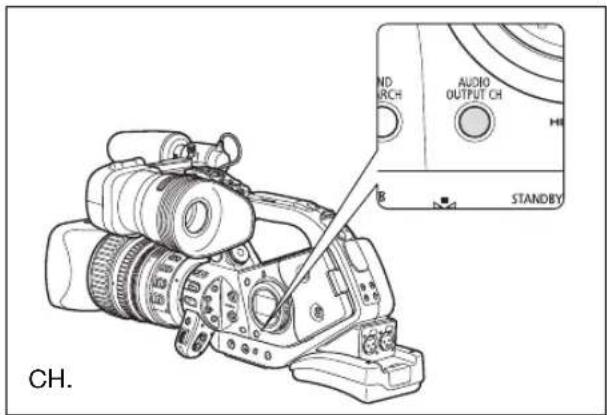
text_image
CH. AudiO OUTPUT CH ND ARCH STANDBYSelecting the Audio Output Level
You can boost the level of the audio output signal from the AUDIO CH1/CH2 terminals from 1 Vrms to 2 Vrms (+6 dB).

text_image
VCR/ PLAY M A Tv Av
text_image
MENU (33) AUDIO SETUP OUTPUT LEVEL...1Vr sOpen the menu and select [AUDIO SETUP]. Select [OUTPUT LEVEL], select a setting option and close the menu.
Selecting the Audio Monitor

text_image
VCR/ PLAY M A Tv Av
text_image
MENU (33) AUDIO SETUP AUD.M.SET ...CH 1/2Open the menu and select [AUDIO SETUP]. Select [AUD.M.SET], select a setting option and close the menu.
- You can also select the audio monitor using the wireless controller.
- If you selected [MIX/VAR.], adjust the mix balance with the [MIX BALANCE] setting or using the MIX BALANCE buttons on the wireless controller.
| Audio Output Selected Audio Recordings on 2Channels | Audio Monitor[AUD.M.SET] | Audio Recordings on 4 Channels | |
| CH1/CH2CH3/CH4CH1-3/CH2-4 | Left Output: L or CH1Right Output: R or CH2 | CH 1/2 Output: CH1 | Right Output: CH2 |
| CH 3/4 Output: CH3 | Right Output: CH4 | ||
| MIX/FIXED Left Output: CH1+CH3Right Output: CH2+CH4Mix balance fixed at 1:1 | |||
| MIX/VAR. Left Output: CH1+CH3Right Output: CH2+CH4Mix balance can be adjusted | |||
| CH1/CH1CH3/CH3CH1-3/CH1-3 | Left Output: L or CH1Right Output: L or CH1 | CH 1/2n Outputs: CH1 | |
| CH 3/4n Outputs: CH3 | |||
| MIX/FIXED Both Outputs: CH1+CH3Mix balance fixed at 1:1 | |||
| MIX/VAR. Both Outputs: CH1+CH3Mix balance can be adjusted | |||
| CH2/CH2CH4/CH4CH2-4/CH2-4 | Left Output: R or CH2Right Output: R or CH2 | CH 1/2n Outputs: CH2 | |
| CH 3/4n Outputs: CH4 | |||
| MIX/FIXED Both Outputs: CH2+CH4Mix balance fixed at 1:1 | |||
| MIX/VAR. Both Outputs: CH2+CH4Mix balance can be adjusted | |||
| ALL CH/ALL CH Left Output: All channelsRight Output: All channels | CH 1/2n Outputs: All channels | ||
| CH 3/4n Outputs: All channels | |||
| MIX/FIXED Both Outputs: All channelsMix balance fixed at 1:1 | |||
| MIX/VAR. Both Outputs: All channelsMix balance can be adjusted | |||
Digital Video Control
This feature enables the camcorder to control the record and stop functions of an external digital device connected to the camcorder through the HDV/DV terminal. The device must comply with the IEEE1394 AV/C protocol. Use the optional CV-250F (4 pin-6 pin) DV cable or a commercially available 6 pin-6 pin DV cable to connect the external device.

text_image
VCR/ PLAY M A Tv Av # MENU (33) SYSTEM SETUP/®V CONTROL ... OFF-
Open the menu and select [SYSTEM SETUP/ ] Select [DV CONTROL], set it to [ON DV] and close the menu.
-
Press the Start/Stop button.
If the button was pressed while the camcorder was in record pause mode:
Camcorder and external device: start recording.
If the button was pressed while the camcorder was recording:
Camcorder and external device: stop recording (record pause mode).
If the button was pressed while the camcorder was not ready to start recording:
Camcorder: no change; External device: starts/stops recording following the camcorder's control. If you press the Start/Stop button again after solving the problem on the camcorder (inserting a cassette, etc.), the camcorder will start recording as the external device continues recording.

While both this camcorder and a connected device are recording, if this camcorder stops recording because of a condition other than pressing the Start/Stop button (e.g., if the tape has reached its end), the connected device will continue recording.
When this camcorder stops recording you may notice a brief interruption of the audio on the connected device.
○ The status of the connected device is indicated as follows.

text_image
DV Z→ ●connected device is recording DV Z→ ■connected device is in record pause or stop mode DV Z→ --- Connected device is in a mode other than record pause or stop DV Z→ [DV CONTROL] is set to [ON DV at no external device is connectedAs long as the built-in rechargeable lithium battery is charged, the camcorder retains the DV control setting even if you turn the power off. Make sure to check the setting after using the DV control function, as the tape in the connected device may be overwritten.
When connecting two DV Control-compatible Canon camcorders with a DV cable, make sure to set [DV CONTROL] on the other connected camcorder to [OFF].
○ Up to 2 other devices can be connected to this camcorder for DV control.
With some non-Canon devices the DV control may not work properly depending on the connected device.
Recording an External Video Signal (HDV/DV In, Analog Line-In)
You can record on the tape an external video signal, either from the HDV/DV input (SD or HD standard) or from the analog video input (SD standard).


text_image
VCR/ PLAY M A Tv Av ↑ ↓ □HDV/DV In
When recording from an external digital device you can select the time code to be used for the recording made with this camcorder. Select [COPY] to keep the original time code of the video source, or [REGEN.] to use instead this camcorder's internal time code.
- Open the menu, select [SIGNAL SETUP] and then select the [TIME CODE] submenu.
- Select [HDV/DV IN], select a setting option and close the menu.
- Connect the camcorder to the external video device.
For the connection diagram to a digital device refer to Section 3 of Connecting to a Monitor/TV (☐ 87).
-
Press the ● and buttons (or the REC PAUSE button on the wireless controller).
-
The camcorder enters the record pause mode. In this mode you can monitor the picture on the screen.
-
If you press only the button, recording will start immediately.
-
Press the button (or the PAUSE button on the wireless controller) when the scene you wish to record appears.
Recording starts.
- Press the ☐ button to stop recording.
Analog Line-In
- Open the menu and select [AUDIO SETUP]. Select [DV AUDIO], select a setting option and close the menu.
- Connect the camcorder to the analog video device.
For the connection diagram to an analog device refer to Section 4 of Connecting to a Monitor/TV (88). Connect the supplied Stereo Cable to the IN AUDIOals on the camcorder.
-
Press the ● and buttons (or the REC PAUSE button on the wireless controller).
-
The camcorder enters the record pause mode. In this mode you can monitor the picture on the screen.
-
If you press only the ● button, recording will start immediately.
-
Press the Button (or the PAUSE button on the wireless controller) when the scene you wish to record appears.
Recording starts.
- Press the button to stop recording.
Copyright Signal
Certain software tapes are copyright protected. If you attempt to play back such tape, “COPYRIGHT PROTECTED PLAYBACK IS RESTRICTED” appears and you will not be able to view the contents of the tape. If you attempt to record from such tape via the DV terminal, “COPYRIGHT PROTECTED DUBBING RESTRICTED” appears and you will not be able to record the contents of the tape.

We recommend powering the camcorder from a household power outlet.
Converting Analog Signals into Digital Signals (Analog-Digital Converter)
Using the camcorder you can convert analog video input signals to a digital video signal (SD standard) and output it through the HDV/DV terminal.

text_image
VCR/ PLAY M A Tv Av
text_image
MENU (33) SIGNAL SETUP AV DV → ······OFFOpen the menu and select [SIGNAL SETUP]. Select [AV-DV], set it to [ON] and close the menu.

○ Depending on the signal sent from the connected device, the conversion from analog to digital signals might not work properly (e.g., signals that include copyright protection signals or anomalous signals such as ghost signals).
For normal use, set [AV→DV] to [OFF]. If it is set to [ON], digital signals cannot be input via the camcorder's HDV/DV terminal.
○ Depending on the software and the specifications of your computer, you may not be able to transfer converted signals via the HDV/DV terminal.
We recommend powering the camcorder from a household power outlet. You can also press the AV→DV button on the wireless controller. Pressing the button will toggle the AV→DV conversion on and off.
Connecting to a Computer
To connect the camcorder to a computer you will need a computer equipped with an IEEE1394 (DV) terminal and video editing software with video capturing capability installed. Use the optional CV-250F (4 pin-6 pin) DV cable or a commercially available 6 pin-6 pin DV cable. For the minimum system requirements for video editing, refer to the instruction manual of the video editing software.
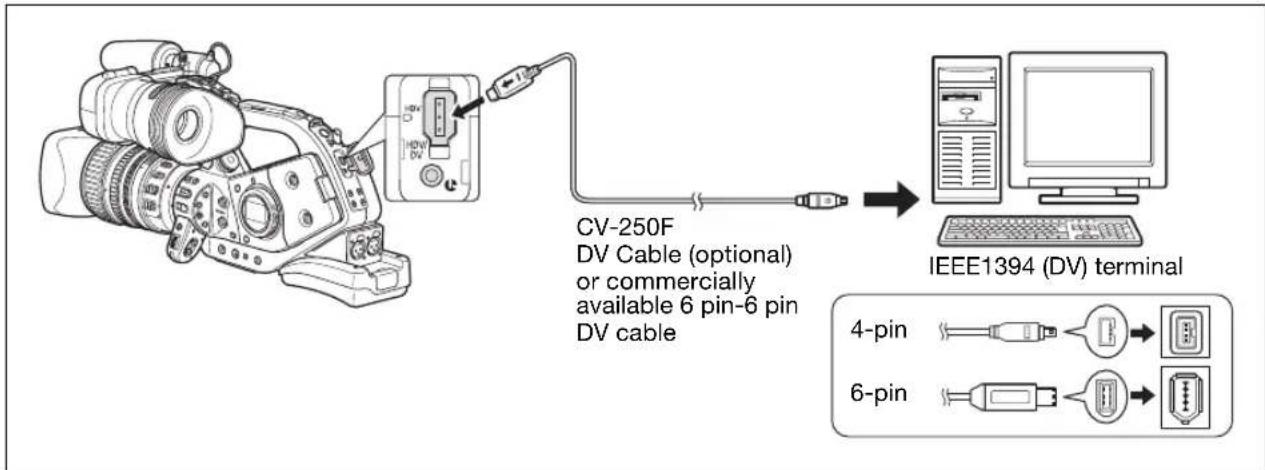
flowchart
graph TD
    A["Video Cam"] --> B["CV-250F DV Cable (optional) or commercially available 6 pin-6 pin DV cable"]
    B --> C["IEEE 1394 (DV) terminal"]
    C --> D["4-pin / 6-pin USB port icons"]

Operation may not work correctly depending on the software and the specifications/settings of your computer.
○ If the computer freezes while the camcorder is connected, disconnect and reconnect the DV cable. Should the problem persist, disconnect the cable, turn both the camcorder and the computer off and then on again and reconnect them.
Make sure that the computer's video capturing system is compatible with the video signal standard you are using. If the computer is not compatible with the camcorder's video output signal, the camcorder may not be correctly detected or may not operate properly.

○ Refer also to the instruction manual of the computer and the editing software.
Adjust the [SIGNAL SETUP] ▶ [PLAYBACK STD] and [HD DOWN-CONV] settings in accordance with the video signal standards of the connected computer.
- For video output from the camcorder to the computer:
- HDIVput: Set [PLAYBACK STD] to [HDV] and [HD DOWN-CONV] to [OFF].
- DOutput: Set [PLAYBACK STD] to [DV].
- Output of a recording originally made in HDV standard: Set [PLAYBACK STD] to [HDV] and [HD DOWN-CONV] to [ON].
- For video input from the computer to the camcorder:
- [HIDOut: Set [PLAYBACK STD] to [HDV] and [HD DOWN-CONV] to [OFF].
- Dvout: Set [PLAYBACK STD] to [DV].
Custom Preset Settings
You can select preset level for a number of picture-related parameters (23 parameters when recording movies, 17 when recording still images). A list of the parameters is given in the following table and you can find more detailed descriptions on page 101. After changing individual parameters to your preference, you can save the whole set as a custom preset file. You can also embed the data of the custom preset parameters currently in use within a still image recorded on the memory card.
Up to 9 different custom preset files can be saved on the camcorder* and up to 20 custom preset files can be saved on a memory card. Custom preset files can be copied between the camcorder and memory card.
Custom preset files saved with a Canon XL H1, XH G1 or XH A1 can be used with this camcorder. Custom preset files saved with this camcorder can be used on a Canon XH G1 or XH A1.
* Custom preset files 7 to 9 on the camcorder are predefined custom preset files, especially designed for specific scenes.
Custom Preset Parameters
| GAM Gamma curve** Group 1 | Parameters related to light and gradation | ||
| KNE Knee point | |||
| BLK Black stretch/Black press | |||
| PED Master pedestal** | |||
| SET Setup level** | |||
| SHP Sharpness Group 2 | Parameters related to noise and definition of contour lines | ||
| HDF Horizontal detail frequency | |||
| DHV Horizontal/vertical detail frequency | |||
| COR Coring | |||
| NR1 Noise reduction 1** | |||
| NR2 | Noise reduction 2** | ||
| CMX Color matrix** Group 3 | Parameters related to color direction and intensity | ||
| CGN Color gain | |||
| CPH Color phase | |||
| RGN Red gain | |||
| GGN Green gain | |||
| BGN Blue gain | |||
| RGM R-G matrix | Group 2 | Parameters related to change in color | |
| RBM R-B matrix | |||
| GRM G-R matrix | |||
| GBM G-B matrix | |||
| BRM B-R matrix | |||
| BGM B-G matrix | |||
** Available only when recording movies.
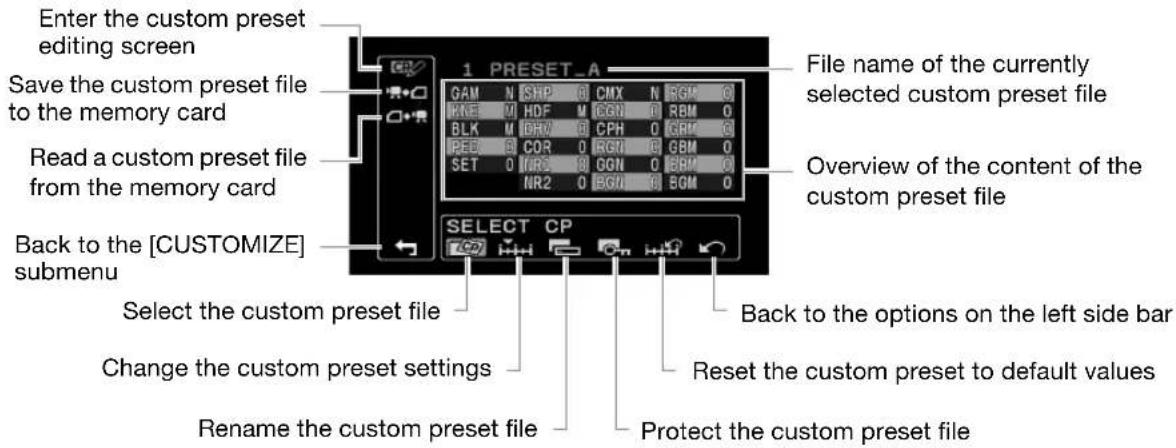
text_image
Enter the custom preset editing screen Save the custom preset file to the memory card Read a custom preset file from the memory card Back to the [CUSTOMIZE] submenu Select the custom preset file Change the custom preset settings Rename the custom preset file 1 PRESET_A File name of the currently selected custom preset file Overview of the content of the custom preset file Back to the options on the left side bar Reset the custom preset to default values Protect the custom preset fileChanging Custom Preset Parameters

flowchart
graph LR
    A["CUSTOMIZE CUSTOM PRESET EDIT"] --> B["OK"]
    C["SELECT CP"] --> D["TUNE"]
- Open the menu, select [CUSTOMIZE] and then select the [CUSTOM PRESET] submenu.
The custom preset submenu appears.
- Select [ EDIT] from the column on the left.
The cursor will move to the bottom bar of the custom preset editing screen. To return one level back to the options on the column on the left, select [RETURN] and press the SET button.
- From the bottom bar, select [SELECT CP] and then select the name of the custom preset file you want to change.
The overview display shows in shortened form the current settings of the parameters of the custom preset file selected.
- From the bottom bar, select [TUNE].
The first parameter ([GAM]) of the custom preset file will be highlighted in blue.
-
Turn the SELECT dial to select a parameter you want to adjust and press the SET button. Make the adjustment or the selection as necessary and press the SET button.
-
During the adjustment you can verify the effect on the screen.
-
Repeat this step to adjust all the parameters you want to change.
-
When you finish adjusting all the parameters you want to change in the custom preset file, select [RETURN], press the SET button and close the menu.

The custom preset parameters appear in one screen as 3-letter abbreviations followed by the current setting value. As you move between the items with the SELECT dial, the full name of the currently selected item and its current value will be displayed at the bottom of the screen.
- Protected custom preset files cannot be changed. If you attempt to change a protected file, will start flashing.
Renaming a Custom Preset File
Follow steps 1-3 in Changing Custom Preset Parameters (☐ 97) to select the custom preset file you want to rename.
1. From the bottom bar, select [RENAME].
The first character of the custom preset file name will start flashing.
2. Turn the SELECT dial to select a number, letter or punctuation mark and press the SET button.
- The next character of the custom preset file name will start flashing.
- Set the rest of the custom preset file name in the same way.
3. When you finish renaming the custom preset file, press the SET button.
You will return to the custom preset editing screen.
4. Close the menu.
Protecting a Custom Preset File
Follow steps 1-3 in Changing Custom Preset Parameters (☐ 97) to select the custom preset file you want to protect.
1. From the bottom bar, select [PROTECT].
- The protection mark will appear next to the custom preset file name.
- To cancel the protection, repeat the procedure for a custom preset file with the o-mark.
Resetting a Custom Preset File
Follow steps 1-3 in Changing Custom Preset Parameters (☐ 97) to select the custom preset file you want to reset to default values.
1. From the bottom bar, select [RESET].
A confirmation screen will appear.
2. Select [EXECUTE] and press the SET button.
You will return to the custom preset editing screen.
3. Close the menu.

Protected custom preset files cannot be reset. If you attempt to reset a protected file, 0 will start flashing.
Activating the Custom Preset Settings
1. Press the CUSTOM PRESET SELECT button.
- Repeatedly pressing the button will cycle through the available custom preset files. You can also set a custom key as [CP BKWD KEY] to cycle through the custom preset files in reverse order (from last to first) (79).
- When you are not using the custom preset settings, set the camcorder to CP0FF
-
d the name of the selected custom preset file will flash on the screen. After 4 seconds, the file name will be replaced by the custom preset file number.
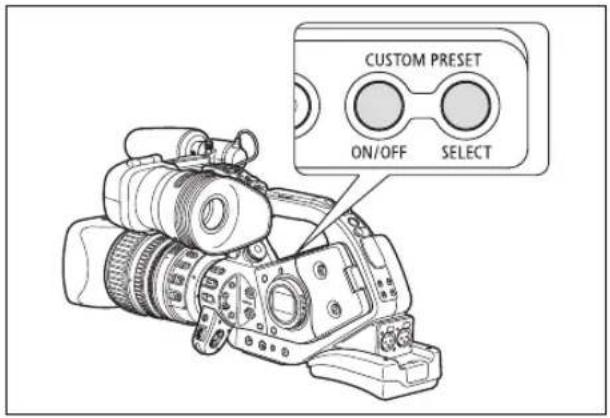
text_image
CUSTOM PRESET ON/OFF SELECT2. Press the CUSTOM PRESET ON/OFF button.
CP and the name of the selected custom preset file will stay on and the custom settings will be activated. After 4 seconds, the file name will be replaced by the custom preset file number.
Copying a Custom Preset File to the Memory Card
- Open the menu, select [CUSTOMIZE] and then select the [CUSTOM PRESET] submenu.
- Select [CAMERA CARD] from the column on the left.
- From the bottom bar, select [SELECT CP] and then select the name of the custom preset file you want to copy to the card.
- Select [SAVE POSITION] and select the file name under which you want to store the file on the memory card.
- Up to 20 custom preset files can be stored on the memory card. If you try to save more than 20 custom preset filed one of the files on the card will be overwritten (you can select which file to overwrite).
- If there are no custom preset files saved on the memory card, the default file name will be "NEW_FILE".
- Select [→ □ EXECUTE] and in the confirmation screen select [EXECUTE] to copy the file.
- Close the menu.
Reading a Custom Preset File from the Memory Card
- Open the menu, select [CUSTOMIZE] and then select the [CUSTOM PRESET] submenu.
- Select [CARD CAMERA] from the column on the left.
- From the bottom bar, select [IMPORT] and then select the name of the custom preset file you want to read to the camcorder.
- Select [ SELECT POSITION] and select the preset number under which you want to store the file in the camcorder.
- Select [ EXECUTE] and in the confirmation screen select [EXECUTE] to load the file.
- Close the menu.
Reading a Custom Preset File from a Still Image
With the custom function [PHOTO BUTTON] (104) you can select to save the custom preset settings currently in use along with a still image recorded in ☐☐☐☐☐☐☐☐☐☐☐☐☐☐☐☐☐☐☐☐☐☐☐☐☐☐☐☐☐☐☐☐☐☐☐☐☐☐☐☐☐☐☐☐☐☐☐☐☐☐☐☐☐☐☐☐☐☐☐☐☐☐☐☐☐☐☐☐☐☐☐☐☐☐☐☐☐☐☐☐☐☐☐☐☐☐☐☐☐☐☐☐☐☐☐☐☐☐☐☐☐☑ This is very useful when you want to load the custom preset file later by selecting the still image captured from a specific scene.

text_image
VCR/ PLAY M A Tv Av A D O- Select the still image that contains the custom preset file you want to read.
Use the CARD buttons to move between the still images. - Open the menu, select [CUSTOMIZE] and then select [META DATA CP].
- Select [CARD CAMERA] from the column on the left.
- From the bottom bar, select [SELECT POSITION] and select the preset number under which you want to store the file on the camcorder.
- Select [ EXECUTE] and in the confirmation screen select [EXECUTE] to load the file.
- Close the menu.

Custom preset files 7 to 9 are predefined settings designed for specific scenes.
- These 3 custom preset files are protected and, as long as the protection is not removed, cannot be overwritten.
- Even if you deleted or changed the sample custom preset files, you can reset them to the original values by resetting all the camcorder's settings. Open the menu and select [SYSTEM SETUP/☑]. Select [RESET ALL] and select [YES] in the confirmation screen.
- After resetting custom preset files 1 to 6 with the [←→] RESET] option, they will all contain the same default settings.
| Custom Preset [7 VIDEO.C] For playback on a consumer-level monitor.[BLK] = [PRESS], [PED] = -2, [SET] = -2 |
| Custom Preset [8 CINE.V] For playback on a monitor TV with a film-like feel.[GAM] = [CINE1], [KNE] = [LOW], [BLK] = [STRETCH], [SHP] = -4,[CMX] = [CINE1], [CGN] = -20, [CPH] = 5, [RBM] = -5, [GRM] = -5[GBM] = -5, [BRM] = 5, [BGM] = 12 |
| Custom Preset [9 CINE.F] For video transfer to film.[GAM] = [CINE2], [KNE] = [LOW], [BLK] = [STRETCH], [SHP] = 6,[CMX] = [CINE2], [RGN] = -8 |
*All other settings are left at their neutral values.
[GAM] Gamma Curve
The gamma curve changes the overall look of the image. You can select from [NORMAL], [CINE1] or [CINE2]. [NORMAL]: standard gamma setting suitable for video. [CINE1]: appropriate for video telecined from film. [CINE2]: appropriate for transfer to film.
![CANON XLH H1S - [GAM] Gamma Curve - 1](/content/2026/06/1244132/images/0da3b4ad0890e55eaf16ad22ad32143bf74f235e5cb0e3f1afc2b84cc41675c4.jpg)
line
| Input | [NORMAL] | [CINE1] | [CINE2] | |-------|----------|---------|---------| | 0 | 0 | 0 | 0 | | 1 | ~0.8 | ~0.6 | ~0.4 | | 2 | ~1.2 | ~1.0 | ~0.8 | | 3 | ~1.5 | ~1.3 | ~1.1 | | 4 | ~1.7 | ~1.5 | ~1.3 | | 5 | ~1.8 | ~1.6 | ~1.4 | | 6 | ~1.9 | ~1.7 | ~1.5 | | 7 | ~2.0 | ~1.8 | ~1.6 | | 8 | ~2.0 | ~1.9 | ~1.7 | | 9 | ~2.0 | ~2.0 | ~1.8 | | 10 | ~2.0 | ~2.0 | ~1.9 | | 11 | ~2.0 | ~2.0 | ~2.0 | | 12 | ~2.0 | ~2.0 | ~2.0 | | 13 | ~2.0 | ~2.0 | ~2.0 | | 14 | ~2.0 | ~2.0 | ~2.0 | | 15 | ~2.0 | ~2.0 | ~2.0 | | 16 | ~2.0 | ~2.0 | ~2.0 | | 17 | ~2.0 | ~2.0 | ~2.0 | | 18 | ~2.0 | ~2.0 | ~2.0 | | 19 | ~2.0 | ~2.0 | ~2.0 | | 20 | ~2.0 | ~2.0 | ~2.0 | | 21 | ~2.0 | ~2.0 | ~2.0 | | 22 | ~2.0 | ~2.0 | ~2.0 | | 23 | ~2.0 | ~2.0 | ~2.0 | | 24 | ~2.0 | ~2.0 | ~2.0 | | 25 | ~2.0 | ~2.0 | ~2.0 | | 26 | ~2.0 | ~2.0 | ~2.0 | | 27 | ~2.0 | ~2.0 | ~2.0 | | 28 | ~2.0 | ~2.0 | ~2.0 | | 29 | ~2.0 | ~2.0 | ~2.0 | | 30 | ~2.0 | ~2.0 | ~2.0 | | 31 | ~2.0 | ~2.0 | ~2.0 | | 32 | ~2.0 | ~2.0 | ~2.0 | | 33 | ~2.0 | ~2.0 | ~2.0 | | 34 | ~2.0 | ~2.0 | ~2.0 | | 35 | ~2.0 | ~2.0 | ~2.0 | | 36 | ~2.0 | ~2.0 | ~2.0 | | 37 | ~2.0 | ~2.0 | ~2.0 | | 38 | ~2.0 | ~2.0 | ~2.0 | | 39 | ~2.0 | ~2.0 | ~2.0 | | 40 | ~2.0 | ~2.0 | ~2.0 | | 41 | ~2.0 | ~2.0 | ~2.0 | | 42 | ~2.0 | ~2.0 | ~2.0 | | 43 | ~2.0 | ~2.0 | ~2.0 | | 44 | ~2.0 | ~2.0 | ~2.0 | | 45 | ~2.0 | ~2.0 | ~2.0 | | 46 | ~2.0 | ~2.0 | ~2.0 | | 47 | ~2.0 | ~2.0 | ~2.0 | | 48 | ~2.0 | ~2.0 | ~2.0 | | 49 | ~2.0 | ~2.0 | ~2.0 | | 50 | ~2.0 | ~2.0 | ~2.0 | | 51 | ~2.0 | ~2.0 | ~2.0 | | 52 | ~2.0 | ~2.0 | ~2.0 | | 53 | ~2.0 | ~2.0 | ~2.0 | | 54 | ~2.0 | ~2.0 | ~2.0 | | 55 | ~2.0 | ~2.0 | ~2.0 | | 56 | ~2.0 | ~2.0 | ~2.0 | | 57 | ~2.0 | ~2.0 | ~2.0 | | 58 | ~2.0 | ~2.0 | ~2.0 | | 59 | ~2.0 | ~2.0 | ~2.0 | | 60 | ~2.0 | ~2.0 | ~2.0 | | 61 | ~2.0 | ~2.0 | ~2.0 | | 62 | ~2.0 | ~2.0 | ~2.0 | | 63 | ~2.0 | ~2.0 | ~2.0 | | 64 | ~2.0 | ~2.0 | ~2.0 | | 65 | ~2.0 | ~2.0 | ~2.0 | | 66 | ~2.0 | ~2.0 | ~2.0 | | 67 | ~2.0 | ~2.0 | ~2.0 | | 68 | ~2.0 | ~2.0 | ~2.0 | | 69 | ~2.0 | ~2.0 | ~2.0 | | 70+ | - | - | - | | Representation of the setting; [NORMAL] and [CINE1] and [CINE2] represent two distinct data series; [NORMAL] and [CINE1] represent one series; [CINE1] and [CINE2] represent two series; [NORMAL] and [CINE1] represent one series; [CINE1] and [CINE2] represent one series; [CINE1] and [CINE2] represent one series; [CINE1] and [CINE2] represent one series; [CINE1] and [CINE2] represent one series; [CINE1] and [CINE2] represent one series; [CINE1] and [CINE2] represent one series; [CINE1] and [CINE2] represent one series; [CINE1 ] and [CINE1] represent one series; [CINE1] and [CINE1] represent one series; [CINE1] and [CINE1] represent one series; [CINE1] and [CINE1] represent one series; [CINE1] and [CINE1] represent one series; [CINE1] and [CINE1] represent one series; [CINE1] and [CINE1] represent one series; [CINE1] and [CINE1] represent one series, respectively; [CINE1] and [CINE1] represent one series; [CINE1] and [CINE1] represent one series; [CINE1] and [CINE1] represent one series; [CINE1] and [CINE1] represent one series; [CINE1] and [CINE1] represent one series; [CINE1] and [CINE1] represent one series; [CINE1] and [CINER] The chart is created using a curve plot with labeled axes (X-axis) and Y-axis (Output). The curves are ordered by increasing output from top-left to bottom-right, showing that higher output values correspond to lower output values at each input level.[KNE] Knee Point Adjustment
#
Adjust the dynamic range (knee point) in the highlight area of the image to prevent overexposure. You can select from [AUTO], [HIGH], [MIDDLE] or [LOW].
[BLK] Black Stretch/Black Press
The image provided is a graphic design and does not contain any chart or data. It appears to be a simple icon or icon set with two circular shapes, possibly representing a cassette player or a file, but lacks sufficient textual content to extract. Therefore, no OCR output can be generated from this image.
Adjust the dynamic range in the shadow area of the image. You can select from [STRETCH], [MIDDLE] or [PRESS]. [STRETCH]: emphasizes contrast in the dark area. [PRESS]: enhances or deepens darkness.
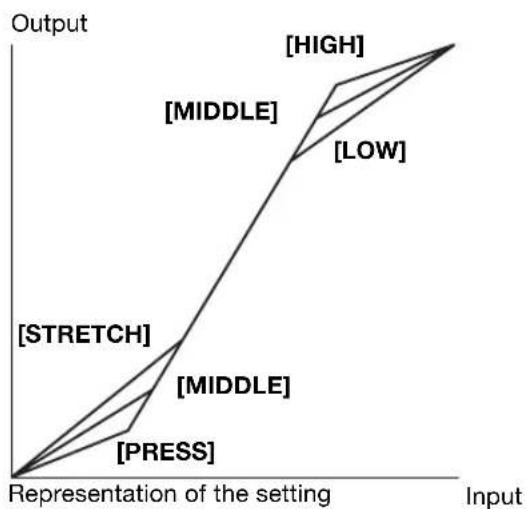
flowchart
graph TD
    A["Representation of the setting"] --> B["Input"]
    B --> C["Output"]
    C --> D["[MIDDLE"]]
    C --> E["[STRETCH"]]
    C --> F["[PRESS"]]
    D --> G["[HIGH"]]
    D --> H["[LOW"]]
    E --> I["[MIDDLE"]]
    E --> J["[MIDDLE"]]
    F --> K["[PRESS"]]
[PED] Master Pedestal
Adjust the master pedestal level in the range -9 to +9. The master pedestal lowers or raises the baseline of the luminance signal affecting only the shadow areas. Set [-] values to subdue the dark areas, or set [+] values to get more detail in the shadows.
[SET] Setup Level
Adjust the setup level in the range -9 to +9. The setup level lowers or raises the whole gamma curve controlling the darkest level of black in the image. Set [-] values to get a darker image, or set [+] values to get a brighter image.
- Depending on the value set for the master pedestal [PED], the setup level may not be able to take a negative value. As a result, adjusting the setup value within a certain value range will have no effect.
[SHP] Sharpness
Adjust the sharpness level in the range -9 to +9. Noise artifacts caused by too-high sharpness settings can be reduced using the coring setting.
[HDF] Horizontal Detail Frequency
Select the horizontal definition of the image from [HIGH], [MIDDLE] or [LOW].
[DHV] Horizontal/Vertical Detail Balance
Adjust the balance between horizontal and vertical definition of the image in the range -9 (only horizontal) to +9 (only vertical).
[COR] Coring
Adjust the coring level in the range -9 to +9. Set higher coring values to help reduce the noise artifacts caused by high sharpness levels.
[NR1] Noise Reduction 1
You can select from [OFF], [HIGH], [MIDDLE] or [LOW] to reduce the noise caused by shooting in dark places or by increasing the gain too much.
- When picture noise is already low due to the gain settings, the noise reduction function may not be noticeable.
![CANON XLH H1S - [NR1] Noise Reduction 1 - 1](/content/2026/06/1244132/images/fd0658ac13e93b98d5959652046aa163fba913852633d484162445e7329dd9ab.jpg)
When activated (settings other than [OFF]), moving subjects may leave a trailing afterimage.
[NR2] Noise Reduction 2
You can select from [OFF], [HIGH], [MIDDLE] or [LOW] to reduce the noise caused by shooting fast moving objects. Results in an effect similar to applying the skin detail function over the whole picture.
- Unlike with the NR1 setting, a trailing afterimage will not appear.
[CMX] Color Matrix
Color mix affects the fundamental color settings and affects the feel of the whole image. You can select from [NORMAL], [CINE1] or [CINE2].
[CGN] Color Gain
Adjust the color intensity in the range -50 to +50.
[CPH] Color Phase
Adjust the color phase in the range -9 to +9. Color phase affects the overall balance of the colors in the picture. Set [-] values to adjust the colors toward violet/red tones, or set [+] values to adjust the colors toward green/blue tones.
[RGN] R Gain
Adjust the intensity of red tones in the range -50 to +50.
[GGN] G Gain
Adjust the intensity of green tones in the range -50 to +50.
[BGN] B Gain
Adjust the intensity of blue tones in the range -50 to +50.
[RGM] R-G Matrix
The R-G matrix changes the tint of the picture along the cyan/green and red/magenta gradations without affecting blues. Adjust the level in the range -50 to +50.
[ RBM] R-B Matrix
The R-B matrix changes the tint of the picture along the cyan/blue and red/yellow gradations without affecting greens. Adjust the level in the range -50 to +50.
[GRM] G-R Matrix
The G-R matrix changes the tint of the picture along the magenta/red and green/cyan gradations without affecting blues. Adjust the level in the range -50 to +50.
[GBM] G-B Matrix
The G-B matrix changes the tint of the picture along the magenta/blue and green/yellow gradations without affecting reds. Adjust the level in the range -50 to +50.
[BRM] B-R Matrix
The B-R matrix changes the tint of the picture along the yellow/red and blue/cyan gradations without affecting greens. Adjust the level in the range -50 to +50.
[BGM] B-G Matrix
The B-G matrix changes the tint of the picture along the yellow/green and blue/magenta gradations without affecting reds. Adjust the level in the range -50 to +50.
Customized Functions
You can customize to your personal preferences many aspects of the operation of the camcorder, most of them governing how the camcorder operates in create. You can adjust up to 3 different custom function files and save them on the camcorder or to a memory card. By just reading the custom function file saved on the memory card with another XL H1S / XL H1A, you will instantly get a camcorder configured to operate in the same familiar manner you prefer.

text_image
VCR/ PLAY M A Tv Av
text_image
Selected custom function file (highlighted in blue) Cfn1 00 01 02 03 04 05 06 07 08 09 10 11 Cfn2 00 00 00 00 00 00 00 00 00 00 00 Cfn3 12 13 14 15 16 17 18 19 20 Overview of the content of the custom function file Function number (black background) Code of the current setting option Apply THIS SET Back to the selection of custom function files on the left side bar Change the custom function settings Reset the custom function file to default values Save the custom function file to the memory card Read a custom function file from the memory cardChanging the Custom Function Settings

flowchart
graph LR
    A["CUSTOMIZE CUSTOM FUNCTION C.Fn"] --> B[" "]
    B --> C["C.Fn2"]
    B --> D["C.Fn3"]
- Open the menu, select [CUSTOMIZE] and then select the [CUSTOM FUNCTION] submenu.
The custom function editing screen appears.
-
From the column on the left, select one of the 3 custom function files [C.Fn1] - [C.Fn3].
-
The overview display shows the current settings of the custom function file currently selected.
-
The cursor will move to the bottom bar of the custom function editing screen. To return one level back to the options on the column on the left, select [RETURN] and press the SET button.
-
From the bottom bar, select [C.THONE].
The first function (00) of the custom function file will be highlighted in blue.
- Turn the SELECT dial to select a function you want to adjust and press the SET button. Make the selection as necessary and press the SET button.
Repeat this step to adjust all the functions you want to change.
- When you finish adjusting all the functions in the custom function file, select [RETURN], press the SET button and close the menu.

Custom functions appear in one screen represented only by the function number on the top (numbers 00 - 20 with a black background), and the code of the current setting immediately under it.
Resetting a Custom Function File
- Open the menu, select [CUSTOMIZE] and then select the [CUSTOM FUNCTION] submenu.
- From the column on the left select the custom function file you want to reset.
- From the bottom bar select [RESET].
- Select [OK], press the SET button and close the menu.
Activating a Custom Function File
Even if you define a custom function file, as long as you do not activate it, the camcorder will function according to default settings.
- Open the menu, select [CUSTOMIZE] and then select the [CUSTOM FUNCTION] submenu.
- From the column on the left select the custom function file you want to activate.
- From the bottom bar select [APPLY THIS SET].
- Select [ACTIVE] and press the SET button.
√ will appear next to the custom function file currently activated.
Copying a Custom Function File to the Memory Card
- Open the menu, select [CUSTOMIZE] and then select the [CUSTOM FUNCTION] submenu.
- From the column on the left select the custom function file you want to copy to the memory card.
- From the bottom bar select [ SAVE TO CARD].
- Select the destination file on the memory card [→□- [ 3].→□]
- Select [OK], press the SET button and close the menu.
When the operation is finished, "TASK COMPLETED" will appear on the screen.
Reading a Custom Function File from the Memory Card
- Open the menu, select [CUSTOMIZE] and then select the [CUSTOM FUNCTION] submenu.
- From the column on the left select the custom function file to which you want to read the settings from the memory card.
- From the bottom bar select [READ FROM CARD].
- Select the source file on the memory card [1]→[3]→
- Select [OK], press the SET button and close the menu.
When the operation is finished, "TASK COMPLETED" will appear on the screen.

Custom function files saved with a Canon XH G1 or XH A1 cannot be used with this camcorder.
Availability of custom functions in each recording program/playback mode ( Video)
| Custom Function | M | A | Tv | Av | A | B | C | VCM/PLAY | ||
| 00 SHCKLSS WB/GN WHITE BALANCE - | ● | ● | (OFF) | - | ||||||
| GAIN - | ● | ● | (OFF) | - | ||||||
| 01 ZOOM RING CTRL 1 | ● | ● | -(NORMAL) | - | ||||||
| 02 ZOOM SPEED 1 | ● | ● | -(NORMAL) | - | ||||||
| 03 FOCUS RING CTRL 1 | ● | ● | - | |||||||
| 04 BUTTONS OPER.1 MAGN. -- | ● | ● | ||||||||
| WB SET -- | ● | ● | ||||||||
| 05 BUTTONS OPER.2 REC REVIEW - | ● | ● | ||||||||
| BARS/FADE - | ● | ● | ||||||||
| END SEARCH - | ● | ● | ||||||||
| GAIN SET - | ● | - | ● | |||||||
| 06 RINGS DIRECTION ZOOM 1 | ● | ● | - | |||||||
| FOCUS1 | ● | ● | - | |||||||
| IRIS | ● | ●2 | ●2 | ● | - | - | ||||
| 07 OPER.DIRECTION CURSOR | ● | ● | ● | |||||||
| SHUTTER | ● | ●2 | ● | ●2 | - | - | ||||
| 08 IRIS LIMIT 1 | ● | ●2 | ●2 | ● | - | - | ||||
| 09 PHOTO BUTTON | PHOTO + CP DATA | ● | ● | - | ||||||
| PHOTO | ● | ● | - | |||||||
| MAGNIFYING | ● | ● | -- | |||||||
| 10 | MARKER LEVEL | MARKER | ● | ● | - | |||||
| ASPECT | ● | ● | - | |||||||
| SAFETY | ● | ● | - | |||||||
| 11 | FAST BW-MOD | MAGN. | ● | ● | - | - | ||||
| PEAKING | ● | ● | -- | |||||||
| 12 OBJ DST UNIT 1 | ● | ● | - | |||||||
| 13 ZOOM INDICATOR 1 | ● | ● | - | |||||||
| 14 COLOR BARS | ● | ● | - | |||||||
| 15 1kHz TONE | ● | ● | - | |||||||
| 16 WIRELESS REMOTE | ● | ● | ● | |||||||
| 17 | LANC AE SHIFT | AE SHIFT | - | ● | - | - | ||||
| IRIS | ● | ● | - | - | ||||||
| 18 TALLY LAMP | ●3 | ●3 | ●3 | |||||||
| 19 LED | ● | ● | ● | |||||||
| 20 | CUSTOM REC | CHARACTER REC | ● | ● | - | |||||
| MAGNIFYING REC | ● | ● | -(OFF) | - | ||||||
^1 Only with a lens that supports this function.
^2 Only during exposure lock.
^3 Only if [LED] is set to a setting other than [OFF]. When [LED] is set to [OFF], this function will be set to [OFF] as well.
Availability of custom functions in each recording program/playback mode ( Still Images)
| Custom Function | M | A | Tv | Av | A | B | C | VOR/PLAY | ||
| 00 | SHCKLSS WB/GN WHITE BALANCE | -(OFF) | - (OFF) | - | ||||||
| GAIN | -(OFF) | - (OFF) | - | |||||||
| 01 | ZOOM RING CTRL | REC REVIEW | ● | ● | -(OFF) | - | ||||
| 02 | ZOOM SPEED 1 | -(FAST) | - (FAST) | - | ||||||
| 03 | FOCUS RING CTRL 1 | ● | ● | - | ||||||
| 04 | BUTTONS OPER.1 MAGN. -- | ● | ● | |||||||
| WB SET -- | ● | ● | ||||||||
| 05 | BUTTONS OPER.2 | REC REVIEW | - | - | - | |||||
| BARS/FADE -- | ||||||||||
| END SEARCH -- | ||||||||||
| GAIN SET - | ● | - | ● | |||||||
| 06 | RINGS DIRECTION ZOOM 1 | ● | ● | - | ||||||
| FOCUS1 | ● | ● | - | |||||||
| IRIS | ● | ●2 | ●2 | ● | - | - | ||||
| 07 | OPER.DIRECTION | CURSOR | ● | ● | ● | |||||
| SHUTTER | ● | ●2 | ● | ●2 | ● | - | - | |||
| 08 | IRIS LIMIT 1 | ● | ●2 | ●2 | ● | - | - | |||
| 09 | PHOTO BUTTON | -- -- | ||||||||
| 10 | MARKER LEVEL | MARKER | ● | ● | - | |||||
| ASPECT | -- -- | |||||||||
| SAFETY | -- -- | |||||||||
| 11 | FAST BW-MOD | MAGN. | ● | ● | - | - | ||||
| PEAKING | ● | ● | -- | |||||||
| 12 | OBJ DST UNIT 1 | ● | ● | - | ||||||
| 13 | ZOOM INDICATOR 1 | ● | ● | - | ||||||
| 14 | COLOR BARS | -- -- | ||||||||
| 15 | 1kHz TONE | -- -- | ||||||||
| 16 | WIRELESS REMOTE | ● | ● | ● | ||||||
| 17 | LANC AE SHIFT | AE SHIFT | - | ● | - | - | ||||
| IRIS | ● | ● | - | - | ||||||
| 18 | TALLY LAMP | -- -- | ||||||||
| 19 | LED | ● | ● | ● | ||||||
| 20 | CUSTOM REC | -- -- | ||||||||
1 Only with a lens that supports this function.
^2 Only during exposure lock.
List of Custom Functions and Setting Options
The default value for all items is the option assigned to 00.
00 [SHCKLSS WB/GN] Shockless White Balance/Gain
The shockless setting will ensure a softer transition when changing the white balance or gain.
CAMERA mode: Shockless gain will not function when changing the gain setting from/to -3 dB or +36 dB.
Setting Options: [WHITE BALANCE] Shockless white balance: [OFF], [ON]
[GAIN] Shockless gain: [OFF], [ON]
01 [ZOOM RING CTRL] Zoom Ring Control
Selects the sensitivity of the response when operating the zoom ring.
Setting Options: [NORMAL], [SLOW], [FAST]
02 [ZOOM SPEED] Zoom Speed
Selects the set of 16 constant zoom speeds that will be available when the ZOOM SPEED switch is set to CONSTANT.
- When the zoom speed is too fast (less than 2 seconds end-to-end), the camcorder will have more trouble focusing automatically while zooming.
Setting Options: [NORMAL], [SLOW], [FAST]
03 [FOCUS RING CTRL] Focus Ring Control
Selects the sensitivity of the response when operating the focus ring.
Setting Options: [NORMAL], [SLOW], [FAST].
04 [BUTTONS OPER.1] Buttons Operation (1/2)
You can set that a long press be required to activate various buttons to prevent their accidental operation.
When you select [LONG PUSH], keep the button pressed for more than 1 second.
Setting Options: [MAGN.] EVF MAGNIFYING button: [ONE PUSH], [LONG PUSH]
[WB SET] WHITE BALANCE 📋 button: [ONE PUSH], [LONG PUSH]
05 [BUTTONS OPER.2] Buttons Operation (2/2)
You can set that a long press be required to activate various buttons to prevent their accidental operation.
When you select [LONG PUSH], keep the button pressed for more than 1 second.
Setting Options: [REC REVIEW] ☑ (record review) button: [ONE PUSH], [LONG PUSH]
[BARS/FADE] BARS/FADE buttons: [ONE PUSH], [LONG PUSH]
[END SEARCH] END SEARCH buton: [ONE PUSH], [LONG PUSH]
[GAIN SET] SET button for gain fine-tuning: [ONE PUSH], [LONG PUSH]
06 [RINGS DIRECTION] Rings Direction
Changes the direction of the adjustment when turning the camcorder's rings.
Setting Options: [ZOOM] Zoom ring:
[NORMAL] - turn up for wide angle W, [REVERSE] - turn down for wide angle W.
[FOCUS] Focus ring:
[NORMAL] - turn up to focus closer, [REVERSE] - turn down to focus closer.
[IRIS] Iris ring:
[NORMAL] - turn up to close the aperture, [REVERSE] - turn down to close the aperture.
07 [OPER.DIRECTION] Operation Direction
Changes the direction of the adjustment when pressing the SHUTTER buttons or when operating the SELECT dial as a cursor (for example, while selecting setting options in the menu screens or in the index screen).
Setting Options: [CURSOR] SELECT dial for menu navigation:
[NORMAL] - turn up to move left in the menu, [REVERSE] - turn down to move left in the menu.
[SHUTTER] Shutter buttons:
[NORMAL] - press the ▲ button for a faster shutter speed, [REVERSE] - press the ▼ button for a faster shutter speed.
08 [IRIS LIMIT] Iris Limit
Activates the iris limit. With the HD 20x L IS III lens, when set to [ON] you can close the aperture down to F9.5; when set to [OFF] you can close the aperture down to F22 (or completely -[CLOSE]- in M Manual mode, Av mode or during exposure lock).
Setting Options: [OFF], [ON]
09 [PHOTO BUTTON] Photo Button
Selects the function of the PHOTO button in CAMERA mode. You can enable recording still images while recording video (simultaneous recording) or assign to the PHOTO button the same function as the EVF MAGNIFYING button. When set to [PHOTO + CP DATA] the custom preset settings currently in use will be recorded along with the still image.
Setting Options: [PHOTO + CP DATA], [PHOTO], [MAGNIFYING], [OFF]
10 [MARKER LEVEL] Markers' Intensity Level
![CANON XLH H1S - [MARKER LEVEL] Markers' Intensity Level - 1](/content/2026/06/1244132/images/25eab8b2f6a42fc7d376f9f74e94aad1a2bdc034ae0b320c76091f7668dbeed5.jpg)
Changes the intensity of the markers displayed on the screen to 40% (gray) or 100% (white).
Setting Options: [MARKER] Level/center/grid markers: [100%], [40%]
[ASPECT] Aspect ratio guides: [100%], [40%]
[SAFETY] Safety zone guides: [100%], [40%]
11 [F.AST BW-MOD] Focus Assist Function B&W Display Mode
![CANON XLH H1S - [F.AST BW-MOD] Focus Assist Function B&W Display Mode - 1](/content/2026/06/1244132/images/5b45a58fbed40142edb87526048a22908ae2512cff77bc535991c50190993a73.jpg)
Changes the display mode to black & white while the focus assist functions are activated.
Setting Options: [MAGN.] While the Magnifying function is active: [OFF], [ON]
[PEAKING] While the Peaking function is active: [OFF], [ON]
12 [OBJ DST UNIT] Object Distance Units Display
![CANON XLH H1S - [OBJ DST UNIT] Object Distance Units Display - 1](/content/2026/06/1244132/images/5f4a9376dbb51d881b4f41ff52e58473d65a8c05ef273cea69fad98c66fb8847.jpg)
Selects the units meters or feet for the display of the distance to the object.
Setting Options: [m (meter)], [ft (feet)]
13 [ZOOM INDICATOR] Zoom Indicator Display
![CANON XLH H1S - [ZOOM INDICATOR] Zoom Indicator Display - 1](/content/2026/06/1244132/images/bf7831baab07b227e5cb737452bb9b95408d48776888d8f08695a551c6356275.jpg)
Selects the display of the zoom indicator between a graphic bar and a numeric display.
Setting Options: [BAR], [NUMBER]
14 [COLOR BARS] Color Bars Signal
Selects the type of signal to use to produce the color bars: SMPTE color bars (type 1) or ARIB color bars (type 2).
Setting Options: [TYPE 1], [TYPE 2]
15 [1kHz TONE] 1 kHz Reference Audio Signal
![CANON XLH H1S - [1kHz TONE] 1 kHz Reference Audio Signal - 1](/content/2026/06/1244132/images/f6acd6b9d1eaeb404672a17cdd06bf75dcfbb32bd53f0aaf9be4497660b9ce57.jpg)
Selects the strength of the audio signal.
Setting Options: [OFF], [-12dB], [-18db], [-20dB]
16 [WIRELESS REMOTE] Wireless Remote Controller
![CANON XLH H1S - [WIRELESS REMOTE] Wireless Remote Controller - 1](/content/2026/06/1244132/images/9ff43ecc5f185de8a2fb45526fa6c3be65fe375681fb0a6ab1dd078aa29fa4ba.jpg)
Selects the remote sensor mode that the camcorder will accept. When set to [OFF (20)] the camcorder will not accept commands from wireless controllers.
Setting Options: [1, 2], [2], [OFF]
17 [LANC AE SHIFT] AE SHIFT Dial on a Controller
![CANON XLH H1S - [LANC AE SHIFT] AE SHIFT Dial on a Controller - 1](/content/2026/06/1244132/images/3a6373ca39b6180de7c14e34ac7c3750eb8ce78b75862b9c2d1c816d34d4925e.jpg)
Selects the function of the AE SHIFT dial on the optional ZR-2000 Zoom Remote Controller so you can use it to adjust the exposure compensation or the aperture value.
Setting Options: [AE SHIFT], [IRIS]
18 [TALLY LAMP] Tally Lamp
![CANON XLH H1S - [TALLY LAMP] Tally Lamp - 1](/content/2026/06/1244132/images/bb764ea6ee717da0fd75162642a320b872c84c7ed8dafd9317a4bb34893ab174.jpg)
Selects the operation of the tally lamp. Even if set to [OFF], the tally lamp will turn on when receiving a command from the wireless controller.
Setting Options: [ON], [BLINK], [OFF]
19 [LED] LED Indicators
![CANON XLH H1S - [LED] LED Indicators - 1](/content/2026/06/1244132/images/eb83ff00fedc47d1ac780fdabfc9fb5db4e0fbeecce484dc1ba571e151802238.jpg)
Selects the operation of the LED indicators on the camcorder. When set to [TYPE 1], all LED indicators (including that of the HDV/DV terminal) will be on. When set to [TYPE 2] all LED indicators will be on, except for that of the HDV/DV terminal.
Setting Options: [TYPE 1], [TYPE 2], [OFF]
20 [CUSTOM REC] Custom Recording
![CANON XLH H1S - [CUSTOM REC] Custom Recording - 1](/content/2026/06/1244132/images/fcefa22cc68027d5a7654e7eff7cc798265fda996d32d3a0b7460d9b3338097d.jpg)
Selects whether to embed the on-screen character displays (date and time) as part of the video recording and whether to record on the tape the enlarged image when using the Magnifying focus assist function.
- When [CHARACTER REC] is set to [ON], the menu option [TV SCREEN] will not be available and [COMP.OUT] will automatically be set to [1080i/480i] and you will not be able to select [480i].
Setting Options: [CHARACTER REC] Recording of superimposed on-screen displays: [OFF], [ON]
[MAGNIFYING REC] Recording of enlarged image while the Magnifying function is active:
[OFF], [ON]
Customized On-Screen Displays
You can customize which icons to display on the screen according to your personal preferences and needs. You can save your personal settings as a custom display file on the camcorder or on the memory card. To activate the on-screen displays at the level that you customized, repeatedly press the EVF DISPLAY button (39).


text_image
VCR/ PLAY M A Tv Av A J O
text_image
Change the custom display settings Save the custom display file to the memory card Read a custom display file from the memory card Reset the custom display file to default values DISP2 00 01 02 03 04 05 06 07 08 09 10 11 01 03 07 01 01 01 07 03 03 01 00 01 12 13 14 15 16 17 18 19 20 21 03 02 02 03 03 02 00 15 02 02 TUNE Overview of the contents of the custom display file Item number (black background) Code of the current setting optionChanging the Custom Display Settings

text_image
MENU (33) CUSTOMIZE CUSTOM DISPLAY- Open the menu, select [CUSTOMIZE] and then select [CUSTOM DISPLAY].
The custom display editing screen appears. The overview display shows the current settings of the custom display file.
- From the column on the left, select [TUNE].
The first item (00) of the custom display file will be highlighted in blue.
- Turn the SELECT dial to select a display item you want to change and press the SET button. Make the selection as necessary and press the SET button.
Repeat this step to adjust all the items you want to change.
-
When you finish changing all the items in the custom display file, select [RETURN], press the SET button and close the menu.
-
Repeatedly press the EVF DISPLAY button to select the display level you customized.

Custom display items appear in one screen represented only by the item number on the top (numbers 00 – 21 with a black background), and the code of the current setting immediately under it.
Resetting a Custom Display File
- Open the menu, select [CUSTOMIZE] and then select [CUSTOM DISPLAY].
- From the column on the left select [RESET].
- Select [OK], press the SET button and close the menu.
Copying a Custom Display File to the Memory Card
- Open the menu, select [CUSTOMIZE] and then select [CUSTOM DISPLAY].
- From the column on the left select [SAVE TO CARD].
- Select [OK], press the SET button and close the menu.
When the operation is finished, "TASK COMPLETED" will appear on the screen.
Reading a Custom Display File from the Memory Card
- Open the menu, select [CUSTOMIZE] and then select [CUSTOM DISPLAY].
- From the column on the left select [READ FROM CARD].
- Select [OK], press the SET button and close the menu.
When the operation is finished, "TASK COMPLETED" will appear on the screen.

Custom display files saved with a Canon XH G1 or XH A1 cannot be used with this camcorder.
List of Custom Display Items and Setting Options
00 [REC PROGRAMS] Recording Mode Icon
Setting Options: [OFF], [ON]
01 [CAMERA DATA1] Camera Data (1/2)
Setting Options: [F NUMBER]* Aperture value display: [OFF], [ON] [SHUTTER SPEED] Shutter speed display: [OFF], [ON]
* Setting applicable only when using lenses with iris control.
02 [CAMERA DATA2] Camera Data (2/2)
Setting Options: [EXPOSURE] Exposure indicator and exposure displays: [OFF], [ON] [WHITE BALANCE] White balance icons and displays: [OFF], [ON] [GAIN] Gain icons and displays: [OFF], [ON]
03 [ZOOM] Zoom Indicator
You can select to display the zoom indicator* permanently or only when operating the zoom.
Setting Options: [OFF], [ON(NORMAL)], [ON(ALWAYS)]
* Setting applicable only when using lenses with zoom control (variable focal length).
04 [FOCUS] Focus Distance Display
You can select to display the focusing distance* permanently or only when operating the focus.
Setting Options: [OFF], [ON(NORMAL)], [ON(ALWAYS)]
* Setting applicable only when using lenses with autofocus function.
05 [ND] ND Filter displays
Setting Options: [OFF], [ON]
* Setting applicable only when using lenses with a built-in ND filter.
06 [IMAGE EFFECTS] Image Effects
Setting Options: [SKIN DETAIL] Skin detail icon: [OFF], [ON] [SELECTIVE NR] Selective NR icon: [OFF], [ON] [COLOR CORRECTION] Color correction icon: [OFF], [ON]
07 [F.ASSIST FUNC.] Focus Assist Functions
Setting Options: [PEAKING] Peaking function icon: [OFF], [ON] [MAGNIFYING] Magnifying function icon: [OFF], [ON]
08 [CUSTOMIZE] Customized Functions
Setting Options: [CUSTOM PRESET] Icon of the custom preset file currently active: [OFF], [ON] [CUSTOM FUNCTION] Icon of the custom function file currently active: [OFF], [ON]
09 [RECORDING STD] HD Standard Icon
Setting Options: [OFF], [ON]
10 [DV REC MODE] Recording Mode in Standard Definition
Setting Options: [OFF], [ON]
11 [FRAME RATE] Frame Rate Display
Setting Options: [OFF], [ON]
12 [TAPE] Tape-Related Icons and Displays
![CANON XLH H1S - [TAPE] Tape-Related Icons and Displays - 1](/content/2026/06/1244132/images/b67de362ab285cb6aab3627903803d14065f1f3a46337f6620075100a175bb32.jpg)
Setting Options: [TIME CODE] Time code display: [OFF], [ON]
[OPERATION MODE] Icon of the current tape operation: [OFF], [ON]
[DV CONTROL] DV control icon: [OFF], [ON]
13 [TAPE REMAINDER] Remaining Time on the Tape
![CANON XLH H1S - [TAPE REMAINDER] Remaining Time on the Tape - 1](/content/2026/06/1244132/images/f809b055907cccdac082d56d238b3fb92f35eaa3e28c3f9947c2eddf5778a9e1.jpg)
You can select to display the tape remainder permanently or only the warning when the tape is about to end.
Setting Options: [OFF], [NORMAL], [WARNING]
14 [TAPE/CARD] Tape/Card-Related Displays
![CANON XLH H1S - [TAPE/CARD] Tape/Card-Related Displays - 1](/content/2026/06/1244132/images/5c02fb2bac990372620dffed98347a17b48a1b29b8d5beda382b461921b8af91.jpg)
Setting Options: [EXT CONTROL] Icon of the external control mode (POWER dial set to EXT CONT.): [OFF], [ON]
[BARS/FADE] Icon of the color bars or fader: [OFF], [ON]
[IMG SIZE/QUALITY] Icon of the size and quality of the still image: [OFF], [ON]
15 [LIGHT METERING] Light Metering-Related Displays
![CANON XLH H1S - [LIGHT METERING] Light Metering-Related Displays - 1](/content/2026/06/1244132/images/b3af0789be1102bc3249d612b3ea55d89d0cf0bf621acce7df498c52d68ee720.jpg)
Setting Options: [SPOT AE POINT] Bracketing frames when Spot AE metering is active: [OFF], [ON]
[LIGHT METERING] Icon of the metering mode currently active: [OFF], [ON]
16 [CARD] Icons Related to Recording Still Images
![CANON XLH H1S - [CARD] Icons Related to Recording Still Images - 1](/content/2026/06/1244132/images/a47d28d0f01f629afb05d4c22055e0258598be88a0ad151ddaedc6997aeeb169.jpg)
Setting Options: [DRIVE MODE] Icon of the drive mode currently active: [OFF], [ON]
[FLASH] Icon of the flash mode currently active: [OFF], [ON]
17 [CARD REMAINDER] Remaining Still Images on the Memory Card
![CANON XLH H1S - [CARD REMAINDER] Remaining Still Images on the Memory Card - 1](/content/2026/06/1244132/images/5e610ab658b2df88708f92e22e3cb4353416ec1a337590b13846ce6cc8dd282a.jpg)
You can select to display the information regarding the number of still images available on the memory card permanently or only the warning when the memory card is about to get full.
Setting Options: [OFF], [NORMAL], [WARNING]
18 [AUDIO] Audio-Related Displays
Setting Options: [WIND SCREEN] Icon of the wind screen function: [OFF], [ON]
[AUDIO MODE] Icon of the audio mode: [OFF], [ON]
[OUTPUT CH] Icon of the audio channel output: [OFF], [ON]
19 [WARNING/STATUS] Warning and Status Icons
![CANON XLH H1S - [WARNING/STATUS] Warning and Status Icons - 1](/content/2026/06/1244132/images/16af8e77371e71bcc8db45e48f1caa161b25af67ada611cc13a1b4c6fd0ac398.jpg)
Setting Options: [LENS] Lens-related warning icon: [OFF], [ON]
[CONDENSATION] Condensation warning icon: [OFF], [ON]
[CHARACTER REC] Character recording warning icon: [OFF], [ON]
XLH13 [SDI] Warning icon when on-screen displays are embedded in the SDI output:
[OFF], [ON]
20 [BATTERY] Battery-Related Displays
You can select to display the information regarding the battery pack permanently or only the warning when the battery is almost empty.
Setting Options: [OFF], [NORMAL], [WARNING]
21 [WIRELESS REMOTE] Wireless Remote Display
![CANON XLH H1S - [WIRELESS REMOTE] Wireless Remote Display - 1](/content/2026/06/1244132/images/1f7b37337b003b076501ac2afce1ff065418a3f8089c7bc7b054a7d7864bf1cf.jpg)
You can select to display the information regarding the wireless controller permanently or only related warnings.
Setting Options: [OFF], [NORMAL], [WARNING]
CAMERA / EXT. CONT.
![CANON XLH H1S - [WIRELESS REMOTE] Wireless Remote Display - 2](/content/2026/06/1244132/images/2397f8321e91e5e180523dc75855d83a2e6199354a83cab9155b8531e3f745ed.jpg)
text_image
03 09 12 19 00 A T10 HDV601 1/500 6dB F2.8 E. LOCK S-NR MF-4J1. 4m MAGN3 FMT CB PEAK EXT ND LENSSDI 15R 8min DVZ CFn2 LW CH1/CH2 16bit SP 02 14 40 18 19 06 08 10CAMERA·CARD
![CANON XLH H1S - [WIRELESS REMOTE] Wireless Remote Display - 3](/content/2026/06/1244132/images/d35501aedfcbaef1532b88a12ae4c023827f211cb09795f521c902ed10b396e9.jpg)
text_image
03 15 6 49 00 A W T10 6dB 1/500 F2.8 E. LOCK S-NR MF-41.4m FLM PEAK 1 MAGN. ND 4295 SDI CP1 CFn2 17 20 21 08 02 06 07 16 15If the playback picture is distorted, clean the video heads using a Canon DVM-CL video head cleaning cassette or a commercially available digital video head cleaning cassette (148).
Select a playback standard according to the tape you wish to play back.
![CANON XLH H1S - [WIRELESS REMOTE] Wireless Remote Display - 4](/content/2026/06/1244132/images/237dc2a05bb259a1e6a01d7cfacfa9f2f9f0c63906b94dc0b0d226689f2a7505.jpg)
text_image
Diagram showing a digital camera connected to two remote control panels with labeled buttons and function keys.![CANON XLH H1S - [WIRELESS REMOTE] Wireless Remote Display - 5](/content/2026/06/1244132/images/6c44ea56c96539c063b568d91608fca3bb1bfe4638e048e7c826bf9b29447975.jpg)
text_image
VCR/ PLAY M A Tv Av![CANON XLH H1S - [WIRELESS REMOTE] Wireless Remote Display - 6](/content/2026/06/1244132/images/e4cf8bcf7cae053c9a2af6e106ef97e2317eb4b7693545ef35b06d60d624c7c3.jpg)
text_image
MENU (33) SIGNAL SETUP PLAYBACK STD ....AUTO- Set the P38/16 . VCR/PLAY
- Open the menu and select [SIGNAL SETUP]. Select [PLAYBACK STD] and set it to [AUTO], [HDV] or [DV] to match the tape you wish to playback.
- Close the menu.
Special Playback Modes
All special playback modes except for fast forward playback, rewind playback and playback pause can only be operated with the wireless controller.
HDV
▶II ( playback pause)
To pause playback, press the || button on the camcorder or the PAUSE || button on the wireless controller during normal playback.
◀ (rewind playback) / ▶(fast forward playback)
Press down and hold the ◀◀ or ▶▶ button on the camcorder or the REW ◀◀ or FF ▶▶ button on the wireless controller during normal playback, rewind or fast forward to enter the fast playback at 8x the normal playback speed.
◀ x1 (reverse playback)
Press the -/◄ button on the wireless controller during normal playback. Press the ▶ (play) button to return to normal playback.
▶ (frame advance)
Plays back frame-by-frame. Repeatedly press the button on the +wireless controller during playback pause. Hold the button pressed down to enter the continuous frame advance playback.
▶ (slow forward)
Plays back at about 1/3 normal speed. Press the SLOW ▶ button on the wireless controller during normal or reverse playback. Press the ▶ (play) button to return to normal playback.
DV
▶II (playback pause)
To pause playback, press the || button on the camcorder or the PAUSE || button on the wireless controller during normal playback.
◀◀ (rewind playback) / ▶(fast forward playback)
Plays back the tape at 9.5 times normal speed (forward or reverse). Press down and hold the ◀ or ▶ button on the camcorder or the REW ◀ or FF ▶ button on the wireless controller during normal playback, rewind or fast forward to enter the fast playback.
◀ (frame reverse) / ▶ (frame advance)
Plays back frame-by-frame. Press the -/◄◄ or +/► button on the wireless controller repeatedly during playback pause. Hold the button pressed down to enter the continuous frame advance/reverse playback.
◀ (slow reverse) / ▶(slow forward)
Plays back at about 1/3 normal speed. Press the SLOW ▶ button on the wireless controller during normal or reverse playback. Press the ▶ (play) button to return to normal playback.
◀ x1 (reverse playback)
Press the -/◄► button on the wireless controller during normal playback. Press the ► (play) button to return to normal playback.
◀ x2 (reverse x2 playback) / x2 ▶ (forward x2 playback)
Plays back at 2 times normal speed. Press the ×2 button on the wireless controller during normal or reverse playback. Press the ▶play) button to return to normal playback.

- The sound will be muted during special playback modes.
○ The picture may become distorted during some special playback modes.
The camcorder stops the tape automatically after 4 minutes 30 seconds in playback pause mode to protect the tape and video heads.
During fast forward playback, rewind playback and reverse playback of a tape recorded in HDV standard, the picture may be distorted.
The picture may be slightly distorted at the switch point between recordings in HDV and DV standards on the tape.
If you wish to return to a particular scene later, mark the point with the zero set memory, and the tape will stop at that point when you rewind/fast forward the tape.
This function is operated with the wireless controller.


-
During playback, press the ZERO SET MEMORY button at the point you wish to return to later.
-
The tape counter is reset to 0:00:00 and the Mark appears.
-
To cancel, press the ZERO SET MEMORY button again.
-
Stop the playback.
-
Rewind the tape.
-
If the tape counter shows a negative value, fast forward the tape instead.
- The tape stops automatically at "0:00:00" and the Mark disappears.
- The tape counter changes to time code.

The zero set memory may not function correctly if the time code has not been recorded consecutively.
The zero set memory function may not work correctly if you mix recordings in HDV and DV standards on the same tape.
Index Search
With the index search you can locate any point you have marked beforehand with an index signal (80). This function is operated with the wireless controller.

text_image
VCR/ PLAY M A Tv Av ↑ ↓ □- Press the SEARCH SELECT button to display the icon.
-
Press the ▼ button to begin searching.
-
Press more than once to search for further index signals (up to 10 times).
- Press the STOP button to stop searching.

○ Playback may start slightly before or after the index signal.
The index search function may not work correctly if you mix recordings in HDV and DV standards on the same tape.
You can locate the change of the date/time zone with the date search function.
This function is operated with the wireless controller.


text_image
VCR/ PLAY M A Tv Av A J O1. Press the SEARCH SELECT button to display the icon.
2. Press the button to begin searching.
- Press more than once to search for further date changes (up to 10 times).
- Press the STOP button to stop searching.

○ A recording of longer than a minute per date/time zone is required.
The date search may not function if the data code is not correctly displayed.
The date search function may not work correctly if you mix recordings in HDV and DV standards on the same tape.
Data Code
The camcorder maintains a data code containing the recording date and time and other camera data such as shutter speed, gain and exposure (f-stop).

text_image
VCR/ PLAY M A Tv AvSelecting the Data Code

DISPLAY SETUP/DATA CODE

Open the menu and select [DISPLAY SETUP/☑] Select [DATA CODE], select a setting option and close the menu.
Displaying the Data Code
Press the DATA CODE button on the wireless controller.

If you turn off the camcorder, the data code will not appear the next time you turn it on.
Six-Second Auto Date
The date and time appear for 6 seconds when you begin playback, or to indicate that the date or time zone in the recording has changed.
DISPLAY SETUP/SEC.DATE

Open the menu and select [DISPLAY SETUP/ Select [6SEC.DATE], set it to [ON] and close the menu.
Two remote sensor modes and an off setting are available to prevent interference from other Canon wireless controllers being used nearby.
To change the remote sensor mode of the camcorder Change the custom function [WIRELESS REMOTE] (109).
To change the remote sensor mode of the wireless controller While holding the REMOTE SET button pressed down, press and hold the ZOOM T button for more than 2 seconds to change the wireless controller to mode 2.
To change the wireless controller to mode 1, press and hold the REMOTE SET and ZOOM W buttons instead.

Make sure that the camcorder and wireless controller are set to the same mode. Display the camcorder's mode by pressing any button on the wireless controller (except the REMOTE SET button) and set the wireless controller's mode to the same mode. Change the batteries if the wireless controller still does not work.
The wireless controller returns to mode 1 when you replace the batteries. Change the mode if necessary.
Changing the Still Image Quality
You can choose from Super fine, Fine and Normal.

text_image
VCR/ PLAY M A Tv Av* Only when playing back a tape.

text_image
MENU (33) RECORDING SETUP IMG QUALITY ·· FINEOpen the menu and select [RECORDING SETUP]. Select [IMG QUALITY], select a setting option and close the menu.
Changing the Still Image Size
Available image sizes will depend on the operating mode and the recording standard settings.
| Recording still images in CAMERA·CARD mode | Simultaneous recording of a still image in CAMERA mode | Capturing a still image in VOBOPLAY |
| LW 1920x1080 [HD] or [SD16:9]:SW 848x480 | LW 1920x1080SW 848x480 | From a recording made in [HD]: LW 1920x1080SW 848x480 |
| L 1440x1080 [SD4:3]:S 640x480 From a recording made in [SD4:3]: | L 1440x1080S 640x480 | From a recording made in [SD16:9]: SW 848x480S 640x480 |
* Only when playing back a tape.

text_image
MENU (33) RECORDING SETUP IMAGE SIZE ...LW 1920x1080 CAMERA CAMERA·CARD HD IMG SIZE...LW 1920x1080 VCR/PLAYOpen the menu and select [RECORDING SETUP]. Select [IMAGE SIZE] ([HD IMG SIZE] in VCR/PLAY mode), select a setting option and close the menu.

Still images are recorded on the memory card using JPEG compression.
Number of still images that can be recorded on a memory card
| Image size Image quality | Memory card | File size per image | |||
| 16 MB 128 MB 512 MB | |||||
| LW 1920 x 1080 | Super Fine | 9 | 90 | 350 | 1360 kB |
| Fine | 14 | 135 | 525 | 910 kB | |
| Normal | 28 | 265 | 1035 | 460 kB | |
| SW 848 x 480 | Super Fine | 50 | 455 | 1770 | 280 kB |
| Fine 70 645 | 2510 190 kB | ||||
| Normal | 140 | 1295 | 5030 | 100 kB | |
| L 1440 x 1080 | Super Fine | 12 | 120 | 470 | 1020 kB |
| Fine | 19 | 180 | 700 | 690 kB | |
| Normal | 38 | 350 | 1370 | 350 kB | |
| $ 640 x 480 | Super Fine | 65 | 595 | 2320 | 215 kB |
| Fine 95 865 | 3350 149 kB | ||||
| Normal | 170 | 1555 | 6035 | 82 kB | |
- These figures are approximate. They vary according to recording conditions and the subject.
- The total number of still images that can be recorded will decrease if you store custom preset files on the card.
File Numbers
Still images are automatically assigned file numbers from 0101 to 9900, and stored in folders containing up to 100 images. Folders are numbered from 101 to 998.
[RESET]: Image numbers will restart from 101-0101 every time you insert a new memory card.
[CONTINUOUS]: Image numbers will continue from the number following that of the last image recorded with the camcorder. If the memory card you insert already contains an image with a larger number, a new image will be assigned a number one higher than that of the last image on the memory card. There will be no duplication of file numbers. This is useful for organizing images on a computer.

text_image
VCR/ PLAY M A Tv Av A J □* Only when playing back a tape.
MENU
(□ 33)
RECORDING SETUP
FILE NOS....CONTINUOUS
To change the setting, open the menu and select [RECORDING SETUP]. Select [FILE NOS.], select a setting option and close the menu.
Recording Still Images on a Memory Card
You can record still images directly on the memory card. You can also record still images on the memory card simultaneously while recording video on the tape and capture still images while playing back a tape.
Using a lens specially designed for HDV recording is required to be able to record still images. As of March 2008, only the following lenses can be used to record still images: HD 6x L, HD 20x L IS II and HD 20x L IS III.
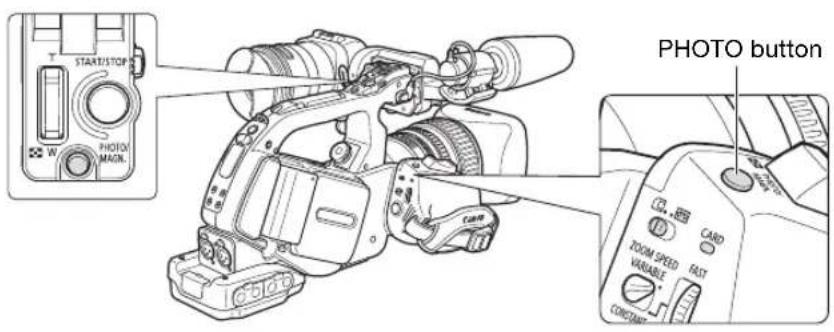
text_image
START/STOP PHOTO MAGN. PHOTO button ZOOM SPEED VARIABLE CONSTANT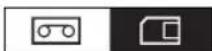

text_image
VCR/ PLAY M A Tv Av A J □-
Turn the Player a recording program and set the / (card/tape) switch to ☐.
-
Press the PHOTO button halfway.
• Turns green once the focus is adjusted and exposure is locked. The picture may appear out of focus for a moment while the camcorder is focusing.
- While the PHOTO button is half-pressed you can also use the focus ring to adjust the focus.
- When you press the PHOTO button on the wireless controller, the still image is recorded immediately.
-
Press the PHOTO button fully.
-
disappears.
- The CARD access indicator flashes and the card access display appears.

text_image
Diagram of a camera control panel with labeled buttons and an arrow pointing to the center button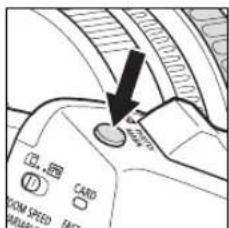
text_image
Diagram of a camera control panel with labeled buttons and an arrow pointing to the button
When you are using an SDHC or SD memory card, make sure that the protect switch is set to allow recording. If you attempt to record a still image on a write-protected memory card the message "THE CARD IS SET FOR ERASURE PREVENTION" will be displayed.
Observe the following precautions while the card access display (▶□) appears on the screen or the CARD access indicator is on or flashing. Failing to do so may result in permanent data loss.
- Do not remove the memory card.
- Do not change the position of the ☐ (card/tape) switch or the dia POWER
- Do not turn off the camcorder, remove the battery pack or disconnect the power supply.

○ If [CAMERA SETUP] [FOCUS PRI.] is set to [ON]:
When you press the PHOTO button fully, before ☐urns green, it may take up to 2 seconds (4 seconds in Night mode) until the focus is adjusted.
If the subject is not suitable for autofocus, the camcorder locks the focus. In that case, adjust the focus manually with the focus ring.
○ If [CAMERA SETUP] [FOCUS PRI.] is set to [OFF]:
In step 2, ☐urns green and the focus and exposure are locked.
○ About the Power Save function:
In CAMER An CABR to save power when the camcorder is powered with a battery pack, the camcorder will automatically enter the power save mode if you do not operate it for 5 minutes. You can turn off the power save function with the [SYSTEM SETUP] [POWER SAVE] setting (☐ 136). To resume recording if the camcorder shut off automatically because of the power save function, press the STANDBY button or turn the Ⓞ/t/a OFF and then back to a recording mode.
Recording a Still Image on a Memory Card While Recording Movies on a Tape
With the custom function [PHOTO BUTTON] (☐ 104) you can select to activate the simultaneous recording of a still image while recording movies on the tape. If you select [PHOTO + CP DATA] you can also save the custom preset settings currently in use embedded within the still image. This is very useful when you want to read the custom preset file later by selecting the still image captured from a specific scene.
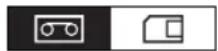

text_image
VCR/ PLAY M A Tv Av A J O1. Activate the simultaneous recording of still images with the custom function [PHOTO BUTTON] (108).
2. While you are recording the movie, press the PHOTO button.

○ Simultaneous still images cannot be recorded while a fader is in use.
OFF appears if you press the PHOTO button when the custom function [PHOTO BUTTON] is set to [OFF].
Capturing a Still Image from a Tape
With the custom function [PHOTO BUTTON] (☐ 104) you can select to activate the capturing of a still image during playback pause.
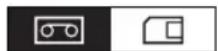

text_image
VCR/ PLAY M A Tv Av ↑ ↓ □1. Activate the capturing of still images with the custom function [PHOTO BUTTON] (108).
2. In playback pause, press the PHOTO button to record the frame as a still image on the memory card.

Still images cannot be captured from a tape when [SIGNAL SETUP] ▶ [LETTERBOX] is set to [ON].
Screen Displays during Still Image Recording

text_image
① ② LW 269 ③ ④① Metering Mode Icon (125)
Indicates the metering mode currently selected for recording still images.
② Drive Mode Icon (124)
Indicates the drive mode currently selected for recording still images.
③ Image Quality and Size
Indicates the quality and size currently selected for recording still images.
④ Remaining Number of Still Images that can be Recorded on the Memory Card
flashing in red: No card
in green: 6 or more images
in yellow: 1 to 5 images
in red: No more images
- The indication may not decrease even though a recording has been made, or may decrease by 2 images at once.
- All indicators are displayed in green when a memory card is played back.
"Card Access Display
Indicates that the camcorder is writing on the memory card.
Reviewing a Still Image right after Recording
You can select to display a still image for 2, 4, 6, 8 or 10 seconds after it has been recorded.

text_image
VCR/ PLAY M A Tv AvMENU (33)
CAMERA SETUP REVIEW
……2sec
Open the menu and select [CAMERA SETUP]. Select [REVIEW], select a setting option and close the menu.

Regardless of the [REVIEW] setting, a still image is displayed as long as you hold the PHOTO button after recording.
The still image operations menu appears when you press the SET button while you are reviewing a still image or right after recording one. In this menu, you can protect (130) or erase (129) the image.
○ The [REVIEW] setting is only available when the drive mode is set to □ (single).
| Drive mode Use | |
| Continuous Shooting | Captures a quick series of still images while you hold the PHOTO button pressed down. For the number of shots per second, refer to the table below. |
| High-Speed Continuous | |
| AEB(Auto Exposure Bracketing) | The camcorder records a still image in three different exposures (dark, normal, light in 1/2 EV steps). |
| Single Records a single still image when you press the PHOTO button. | |
| VCR/PLAY | M | Tv | Av |
Changing the Drive Mode
- Set the P/W/R a recording program other than and move the / (card/tape) switch to ☐
- Press the DRIVE MODE button to switch between the drive modes.
Pressing the button will cycle through the drive modes. The icon of the selected drive mode will appear on the screen.
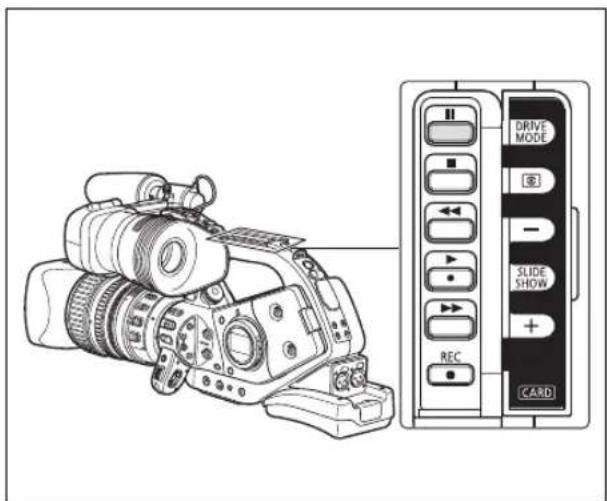
text_image
Diagram of a digital camera with labeled control panel showing drive mode, slide show, and card interfaceContinuous Shooting/High-Speed Continuous Shooting
Press and hold the PHOTO button.
A series of still images will be recorded as long as you hold the PHOTO button pressed down.

Maximum number of continuous shots:
| Shots per second Maximum number of continuous | |
| Normal speed High speed | shots |
| 3 images 5 images 60 images | |
- These figures are approximate and vary depending on the recording conditions and subject.
- Sufficient space on the memory card is required. Continuous shooting will stop when the card is full.
Auto Exposure Bracketing
Press the PHOTO button.
Three still images in different exposures are recorded on the memory card. Make sure that there is sufficient space on the memory card.
| Metering mode Use | |
| Evaluative Appropriate for standard shooting conditions, including backlit scenes. The camcorder divides images into several metering zones. It evaluates the position and brightness of the subject, background, direct light or backlight, and adjusts the exposure of the main subject accordingly. | |
| Center-weighted average Averages the light metered from the entire screen, giving more weight to the subject in the center. | |
| Spot AE Meters the area within the Spot AE frame. | |
| VCR/PLAY | M | Tv | Av |
- Set the POWER dial to A, Tv, Av or M, and set the ☐(card/tape) switch to .
-
Press the button.
-
Pressing the button will cycle through the metering modes. The icon of the selected metering mode will appear on the screen.
- If you selected Spot AE, the Spot AE frame appears in the center of the screen.
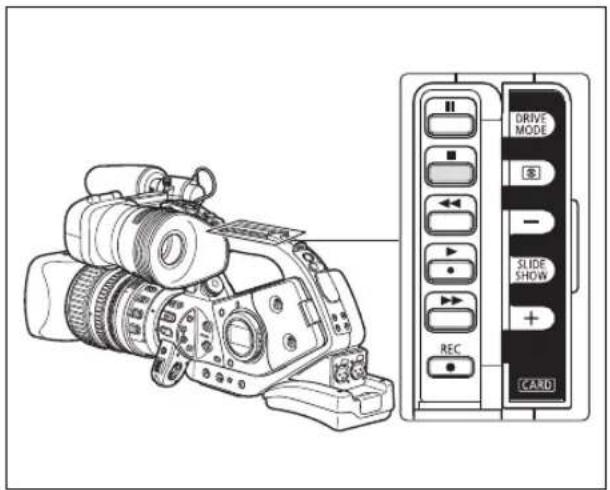
text_image
Diagram of a digital camera with labeled control panel showing drive mode, slide show, and card interfaceYou can use E-TTL II-compatible Canon Speedlite flashes designed for use with Canon SLR cameras, including the 420EX/430EX/550EX/580EX/580EX II models, to record natural still images under low light conditions. Refer also to the instruction manual of the Speedlite flash.
The following procedures are explained using a Canon 580EX II Speedlite Flash.
Connecting a Speedlite Flash
When connecting a Canon Speedlite flash you cannot use the Off-Camera Shoe Cord designed for Canon EOS SLR cameras.
Always turn off the camcorder when connecting or removing the flash.
- Slip the flash's mounting foot all the way into the camcorder's hot shoe.
- Slide the lock lever on the mounting foot to the right until it clicks in place.
To remove the flash:
Press and hold the lock-release button and slide the lock lever to the left and then remove the flash form the hot shoe.
Using the Flash

text_image
VCR/ PLAY M A Tv Av A D □-
Set the POWER dial to a recording mode other than M and turn on the flash.
-
While the Speedlite flash is charging, the indicator will flash in white. Once charged, the indicator will stay on in green.
- If the indicator keeps flashing in white for a long time, replace the flash's batteries.
2. Press the PHOTO button to record a still image.

- Wait until the flash is charged before recording the still image. You can record a still image while the flash is charging, but the flash will not go off.
Turn off the Speedlite flash when you are not using it. - The flash will not go off during exposure lock and in the M Manual mode.
○ While using the flash, the shutter speeds that can be set in Tv mode are 1/4 - 1/500.
The camcorder does not support the Bounce Flash function or the Wireless Multiple Flash System function of the Speedlite 420EX/430EX/550EX/580EX/580EX II flashes.
The camcorder does not support the ST-E2 Wireless Speedlite Flash Transmitter or the Wireless Master/Slave Control function of the Speedlite 420EX/430EX/550EX/580EX/580EX II flashes.
When recording under very dark conditions, as you keep the PHOTO button pressed halfway, the AF assist lamp of the Speedlite flash may light up (only when recording using autofocus and with [CAMERA SETUP] ▶[FOCUS PRI.] set to [ON]).
The Speedlite flash will not go off when the drive mode is set to Auto Exposure Bracketing.
Playing Back Still Images from a Memory Card


-
Turn the PDAVEG and set the / (card/tape) switch to .
-
Press the 📄 button to move between images.

text_image
Diagram of a digital camera with labeled control panel showing drive mode, slide show, and card interface
- Still images not recorded with this camcorder, uploaded from a computer, edited on a computer and still images whose file names have been changed, may not be played back correctly.
-
Observe the following precautions while the card access display appears on the screen or the CARD access indicator is on or flashing. Failing to do so may result in permanent data loss.
-
Do not remove the memory card.
- Do not change the position of the ☐ (card/tape) switch or the dia POWER
- Do not turn off the camcorder, remove the battery pack or disconnect the power supply.
Slideshow
Press the SLIDESHOW button.
- Still images are played back one after another.
- Press the button again to stop the slideshow.
Index Screen
1. Move the zoom lever toward W.
Up to 6 still images appear.
2. Turn the SELECT dial to select an image.
- Move to the still image you wish to view.
- You can switch between index pages by pressing the CARD button.
3. Move the zoom lever toward T or press the SET button.
The selected still image is displayed.
Image Jump Function
You can locate still images without displaying them one by one. The number in the upper right of the screen indicates the number of the current still image out of the total number of still images.
Press and hold the CARD - button.
When you release the button, the still image corresponding to the number that appears on the screen is displayed.
Displaying the Recording Data
You can select whether to display all the recording data stored when the still image was recorded (histogram, Exif camera information, etc.).
Repeatedly press the EVF DISPLAY button to display the recording data.
Erasing Still images
You can erase still images one at a time or all at once.


○ Be careful when erasing still images. Erased still images cannot be recovered.
- Erasing a still image that had a custom preset file embedded (recorded with the [PHOTO + CP DATA] setting) will erase the still image and the embedded custom preset file.

Protected still images (130) cannot be erased.
Erasing a Single Still Image
- Select the still image you wish to erase.
- Press the SET button to open the still image operations menu.
In CAMERAHCARBnu appears when you press the SET button while you are reviewing a still image, or immediately after recording a still image.
- Select [IMAGE ERASE].
- Select [ERASE].
The image is erased and the previous image appears.
- Select [CLOSE] to close the menu.
Erasing All Images

text_image
MENU (33) CARD OPERATIONS ERASE ALL IMAG- Open the menu and select [CARD OPERATIONS].
- Select [ERASE ALL IMAGES].
- Select [YES] and close the menu.
All still images except the protected ones are erased.
You can protect important still images from accidental erasure when displaying a single image or the index screen.


text_image
VCR/ PLAY M A Tv Av ↑ ↓ □
If a memory card is initialized, all still images, even protected ones, will be erased permanently.
Protecting a Single Still Image
- Select the still image you wish to protect.
- Press the SET button to open the still image operations menu.
In CAMERAHGARBnu appears when you press the SET button while you are reviewing a still image, or immediately after recording a still image.
- Select [PROTECT].
- Select [ON].
To remove the protection select [OFF] instead.
- Select [ CLOSE] to close the menu.
o- appears and now the image cannot be erased.
Protecting Still Images from the Index Screen
CARD OPERATIONS PROTECT

- Move the zoom lever toward W.
Up to 6 still images appear.
- Open the menu and select [CARD OPERATIONS]. Select [PROTECT] and press the SET button.
- Select the image you wish to protect and press the SET button.
• appears on the image.
- Select additional images with the SELECT dial and protect them in the same way.
- Close the menu to return to the index screen.
Initialize new memory cards, or when you get the message "CARD ERROR". You can also initialize a memory card to erase all data recorded on it. The regular initialization option [INITIALIZE] will clear the file allocation table but will not physically erase the stored data. If you need to completely erase all the data, select instead the complete initialization option [COMPL.INIT.].




○ Initializing a memory card erases all data, including protected still images and custom preset files.
- Still images and custom preset files erased as a result of initializing the card cannot be recovered.
We recommend using the [COMPL.INIT.] option when you feel that the time it takes to record an image on or read an image from the memory card has become too long.
○ Depending on the memory card, the complete initialization may take up to a few minutes.
○ If you use a memory card other than the supplied one, initialize it with the camcorder.
MENU
(33)
[COMPL.INIT.]: Select [YES] and, in the confirmation screen, select [YES] again.
- The card initialization starts.
- The complete initialization can be canceled while still in progress by pressing the SET button. All the image files will be erased and the memory card can be used without any problem.
You can select still images for printing and set the number of copies. These print order settings are compatible with the Digital Print Order Format (DPOF) standards and can be used for printing on DPOF-compatible printers. A maximum of 998 still images can be selected.





Selecting Still Images for Printing (Print Order)
- Select the still image you wish to print.
- Press the SET button to open the still image operations menu.
- Select [ 📋 PRINT ORDER].
- Select the number of copies.
To cancel the print order, set the number of copies to 0. - Select [CLOSE] to close the menu.
Setting Print Orders from the Index Screen

- Move the zoom lever toward W.
Up to 6 still images appear.
-
Open the menu, select [CARD OPERATIONS] and select [PRINT ORDER].
-
Select the still image you wish to print and press the SET button.
-
Set the number of copies with the SELECT dial and press the SET button.
-
appears on the image.
-
To cancel the print order, set the number of copies to 0.
-
Close the menu to return to the index screen.
Erasing All Print Orders

CARD OPERATIONS ERASE ALL PRINT ORD

- Open the menu and select [CARD OPERATIONS].
- Select [ERASE ALL PRINT ORD] and select [YES].
All
disappear. - Close the menu.
Menu Options and Default Settings
In the following tables, default settings are shown in boldface and the availability of menu settings in different operating modes is indicated with the following icons:
CAMERA : CAMERA MENU (Polarset to one of the recording modes, / switch set to)

VCR/PLAY: VCR/PLAY MENU (playset to, / switch is set to)

CAMERA·CARD: CARD CAMERA MENU (FIRV set to one of the recording modes, / switch set to)

VCR/PLAY-CARD : CARD PLAY MENU (FIR/Set to, / switch set to)

■ SIGNAL SETUP
| Menu item (Submenu item and) Setting options | CAMERA | VCR/PLAY | CAMERA·CARD | VCR/PLAY·CARD | |||
| TIME CODE | FRAME SETTING | DROP, NON-DROP | ● | ● | - | - | 52 |
| COUNT-UP REC-RUN, REC-RUN PS., FREE-RUN ^1 | ● | ● | -- 52 | ||||
| START VALUE | 00:00:00:00 (SET, RESET) | ● | ● | - | - | 52 | |
| HDV/DV IN | REGEN., COPY | - | ● | - | - | 93 | |
| GENLCK ADJST ^2 | 0000 (-1023 to 1023) | ● | - | ● | - | 54 | |
| PLAYBACK STD | AUTO, HDV, DV | - | ● | - | - | 114 | |
| COMP.OUT | 480i, 1080i/480i | ● | ● | ● | ● | 87 | |
| SDI OUTPUT ^2 | ON(OSD), ON, OFF | ● | ● | ● | ● | 86 | |
| SDI SPEC. ^2 | AUTO, SD LOCKED | ● | ● | ● | ● | 86 | |
| AV → DV | ON, OFF | - | ● | - | - | 94 | |
| HD DOWN-CONV | ON, OFF | - | ● | - | - | 87 | |
| LETTERBOX | ON, OFF | - | ● | - | - | 85 | |
^1 Not available when recording in standard definition (SD) with the frame rate set to 24F.
2 XLH1s only.
[HD DOWN-CONV]: Selects whether to down-convert the video signal output from the HDV/DV terminal while playing back a tape recorded in HDV standard.
| Standard of the tape being played back | [HD DOWN-CONV] Setting | [PLAYBACK STD] Setting | ||
| [AUTO] | [HDV] | [DV] | ||
| HDV | [ON] | DV | DV | No output |
| [OFF] | HDV | HDV | No output | |
| DV | [ON] | DV | No output | DV |
| [OFF] | DV | No output | DV | |
The down-converted output video signal will always be 60i, regardless of the frame rate of the original recording.
Even if the audio was originally recorded using all 4 channels (with another camcorder), only channels 1 and 2 will be output.
■ CAMERA SETUP
| Menu item (Submenu item and) Setting options | CAMERA | VCR/PLAY | CAMERA·CARD | VCR/PLAY·CARD | |||
| 24F MODE SEL ^1 | 2:3, 2:3:3:2 — — — 51 | ● | |||||
| AGC LIMIT | OFF(18dB), 15dB, 12dB, 9dB, 6dB, 3dB | ● | - | ● | - | 70 | |
| SKIN DETAIL | EFFECT LEVEL | OFF, LOW ,MIDDLE ,HIGH | ● | -- 76 | ● | ||
| HUE 0 (-6 to 6) | |||||||
| CHROMA | 0 (-6 to 6) | ||||||
| AREA | 0 (-6 to 6) | ||||||
| Y LEVEL | 0 (-6 to 6) | ||||||
| SELECTIVE NR | EFFECT LEVEL | OFF, LOW S-NR,MIDDLE S-NR , HIGH S-NR | ● | -- 77 | ● | ||
| HUE 0 (-6 to 6) | |||||||
| CHROMA | 0 (-6 to 6) | ||||||
| AREA | 0 (-6 to 6) | ||||||
| Y LEVEL | 0 (-6 to 6) | ||||||
| COLOR CORR. | CORRECT | OFF, A , B , A&B | ● | - | ● | - | 74 |
| A AREA SEL.,B AREA SEL. | COLOR PHASE: 0 (0 to 15) | ||||||
| CHROMA: 0 (-6 to 6) | |||||||
| AREA: 3 (1 to 4) | |||||||
| Y LEVEL: 0 (-6 to 6) | |||||||
| A AREA REV.,B AREA REV. | R GAIN: 0 (-6 to 6) | ||||||
| B GAIN: 0 (-6 to 6) | |||||||
| F SPEED PSET | 4 (4 to 1) | ● | - | ● | - | 47 | |
| CLEAR SCAN | 60.1Hz (60.1Hz to 203.9Hz) | ● | - | - | - | 78 | |
| FB | → AF ADJUST, → MF ADJUST, SET DEFAULT | ● | - | ● | - | 28 | |
| FOCUS PRI. | ON, OFF | - | - | ● | - | 121 | |
| REVIEW | OFF, 2sec, 4sec, 6sec, 8sec, 10sec | - | - | ● | - | 123 | |
| FOCUS LIMIT | ON PLNT , OFF | ● | - | ● | - | 48 | |
1 Available only when recording in standard definition (SD) with the frame rate set to 24F.
■ RECORDING SETUP
| Menu item Setting options | CAMERA | VCR/PLAY | CAMERA·CARD | VCR/PLAY·CARD | ||
| DV REC MODE | SP, LP | ●1 | ● | -- | 111 | |
| UB REC | INT.USR-BIT, EXT.USR-BIT | ● | - | - | - | 56 |
| UB SELECT | 00 00 00 00, TIME, DATE | ● | ● | - | - | 56 |
| IMG QUALITY | SUPER FINE, ▲FINE, ▲NORMAL | ● | ● | ● | - | 119 |
| IMAGE SIZE | MODE SELECT switch at HD or SD 16:9: LW 1920x1080, SW 848X480MODE SELECT switch at SD 4:3: L 1440x1080, S 640X480 | ● | ---- | 119 | ||
| LW 1920x1080, SW 848X480, L 1440x1080, S 640X480 | - | -- | ● | |||
| HD IMG SIZE | LW 1920x1080, SW 848X480 | - | ● | - | - | 122 |
| FILE NOS. | RESET, CONTINUOUS | ● | ● | ● | - | 120 |
^1 Available only when recording in standard definition (SD).
[DV REC MODE]: When recording in standard definition (SD mode) only, you can choose between SP (standard play) and LP (long play). LP extends the tape usage by 1.5 times.
☐ Depending on the tape and its usage condition, picture and sound recorded in LP mode may be distorted. We recommend using SP mode for important recordings.
If you record in both SP and LP modes on the same tape, the playback picture may become distorted, and the time code may not be written correctly.
If you play back on this camcorder, a tape that was recorded in LP mode with another digital device or vice versa, the picture and sound may become distorted.
AUDIO SETUP
| Menu item Setting options | CAMERA | VCR/PLAY | CAMERA·CARD | VCR/PLAY·CARD | ||
| AUD.M.SET | CH 1/2, CH 3/4, MIX/FIXED, MIX/VAR. | - | ● | - | - | 59 |
| MIX BALANCE - - - 90 | 1/2|——■——| 3/4 | ● | ||||
| DV AUDIO | 16bit, 12bit | ●1 | ● | -- 57 | ||
| MONITOR SEL. | NORMAL, LINE OUT | ● | - | - | - | 90 |
| WIND SCREEN | ON ≈/#, OFF | ● | - | ● | - | 57 |
| MIC SENSIT. | NORMAL, HIGH | ● | - | ● | - | 57 |
| XLR 1 TRIM | +12dB, +6dB, 0dB, -6dB, -12dB | ● | - | ● | - | 59 |
| XLR 2 TRIM | ||||||
| OUTPUT LEVEL | 1Vrms, 2Vrms | ● | ● | ● | - | 90 |
| XLR ALC LINK | LINK, SEP | ● | - | ● | - | 59 |
| AUD.LIMITER | ON, OFF | ● | - | ● | - | 59 |
^1 Available only when recording in standard definition (SD).
[OUTPUT LEVEL]: Select the amplitude of the audio output signal.
■ CARD OPERATIONS
| Menu item Setting options | CAMERA | VCR/PLAY | CAMERA·CARD | VCR/PLAY·CARD | ||
| ERASE ALL 📁 PRINT ORD | NO, YES | - | - | - | ● | 132 |
| ERASE ALL IMAGES | NO, YES | - | - | - | ● | 129 |
| INITIALIZE | CANCEL, INITIALIZE, COMPL.INIT. | - | - | - | ● | 131 |
| After opening the menu from the index screen: | ||||||
| → 📌 PROTECT | - | - | - | - | ● | 130 |
| → 📄 PRINT ORDER | - | - | - | - | ● | 132 |
| After pressing the SET button: | ||||||
| IMAGE ERASE | CANCEL, ERASE | - | - | ● ^1 | ● | 129 |
| PROTECT | OFF, ON | - | - | ● ^1 | ● | 130 |
| PRINT ORDER | O COPIES | - | - | - | ● | 132 |
| SLIDESHOW | CANCEL, START | - | - | - | ● | 127 |
1 Available only when you press the SET button within the time set for the [CAMERA SETUP] ▶[REVIEW] setting (or immediately after recording if it is set to [OFF]).
■ DISPLAY SETUP
| Menu item (Submenu item and) Setting options | CAMERA | VCR/PLAY | CAMERA·CARD | VCR/PLAY·CARD | |||
| EVF SETUP | EVF BW MODE | ON, OFF | ● | ● | ● | ● | 24 |
| BRIGHTNESS 0 (-23 to 22) | |||||||
| CONTRAST 0 (-23 to 22) | |||||||
| COLOR 0 (-3 to 3) | |||||||
| SHARPNESS 2 (1 to 4) | |||||||
| PEAKING SETUP | PEAKING1 | GAIN: 8 (OFF to 15) | ● | - | ● | - | 46 |
| FREQUENCY: 2 (1 to 4) | |||||||
| PEAKING2 GAIN: 15 (OFF to 15) | |||||||
| LANGUAGE ☑ | DEUTSCH, ENGLISH, ESPAÑOL, FRANÇAIS, ITALIANO, POLSKI, РУССКИЙ, 简体中文, 日本語 | ● | ● | ● | ● | 35 | |
| MARKERS | OFF, LEVEL MARK., CENT.MARK., GRID MARKER | ● | - | ● | - | - | |
| ASPECT GUIDE | OFF, 4:3, 13:9, 14:9, 1.66:1, 1.75:1, 1.85:1, 2.35:1 | ● | - | - | - | - | |
| SAFETY ZONE | OFF, 80%, 90% | ● | - | - | - | - | |
| ZEBRA | ON, OFF | ● | - | ● | - | 73 | |
| ZEBRA LEVEL | 70, 75, 80, 85, 90, 95, 100 | ● | - | ● | - | 73 | |
| TV SCREEN ^1 | ON, OFF | ● | ● | ● | ● | 80 | |
| AUDIO LEVEL | ON, OFF | ● | ● | - | - | 59 | |
| GUIDE INFO | OFF, CUSTOM KEYS, D/T DISPLAY | ● | - | ● | - | 39 | |
| CUSTOM KEY | ON, OFF | - | ● | - | ● | 79 | |
| DATA CODE | DATE, TIME, DATE & TIME, CAMERA DATA, CAM.& D/T | - | ● | - | -117 | ||
| 6SEC.DATE | ON, OFF | - | ● | - | - | 117 | |
| UB DISPLAY | ON, OFF | ● | ● | - | - | 56 | |
^1 In playback modes the default setting is [OFF].
[MARKERS]: You can display the on-screen markers to help you accurately frame your subject. Select from a center marker, a horizontal level marker or a grid. You can also adjust the intensity of the markers display (1 0 9).
[ASPECT GUIDE]: Use the aspect ratio guides as a reference to accurately frame subjects. You can select to display the aspect guides for 4:3, 13:9, 14:9, 1.66:1, 1.75:1, 1.85:1 or 2.35:1 (Cinemascope).
[SAFETY ZONE]: The safety zone guide shows a frame including 80% or 90% of the screen area. Use it as a reference to accurately frame subjects.
■ SYSTEM SETUP
| Menu item | (Submenu item and) Setting options | CAMERA | VCR/PLAY | CAMERA·CARD | VCR/PLAY·CARD | |
| CUSTOM KEY1 | TIME CODE, INDEX WRITE, ZEBRA, VCR STOP, TV SCREEN, TC HOLD, AUDIO LEVEL, EVF BW MODE, MAGN.B.LOCK, SHTR B.LOCK, AE D.LOCK, E.LCK B.LCK, FB, FLIP EVF, SDI OUTPUT ^1 , FOCUS LIMIT, (NONE) | ● | - | - | - | 79 |
| TIME CODE, TV SCREEN, DATA CODE, AUDIO LEVEL, TC HOLD, EVF BW MODE, SDI OUTPUT ^1 , (NONE) | - | ● | - | - | 79 | |
| ZEBRA, TV SCREEN, EVF BW MODE, MAGN.B.LOCK, SHTR B.LOCK, AE D.LOCK, E.LCK B.LCK, FB, FLIP EVF, SDI OUTPUT ^1 , FOCUS LIMIT, (NONE) | - | - | ● | - | 79 | |
| TV SCREEN, EVF BW MODE, SDI OUTPUT ^1 , (NONE) | - | - | - | ● | 79 |
■ SYSTEM SETUP(cont.)
| Menu item (Submenu item and) Setting options | CAMERA | VCR/PLAY | CAMERA·CARD | VCR/PLAY·CARD | |||
| CUSTOM KEY2 | TIME CODE, INDEX WRITE, ZEBRA, VCR STOP, TV SCREEN, TC HOLD, AUDIO LEVEL, EVF BW MODE, MAGN.B.LOCK, SHTR B.LOCK, AE D.LOCK, E.LCK B.LCK, CP BKWD KEY, FB, FLIP EVF, SDI OUTPUT1, FOCUS LIMIT, (NONE) | ● | ---79 | ||||
| TIME CODE, TV SCREEN, DATA CODE, AUDIO LEVEL, TC HOLD, EVF BW MODE, SDI OUTPUT1, (NONE) | ---79 | ● | |||||
| ZEBRA, TV SCREEN, EVF BW MODE, MAGN.B.LOCK, SHTR B.LOCK, AE D.LOCK, E.LCK B.LCK, CP BKWD KEY, FB, FLIP EVF, SDI OUTPUT1, FOCUS LIMIT, (NONE) | ---79 | ● | |||||
| TV SCREEN, EVF BW MODE, SDI OUTPUT1, (NONE) | - | - | - | ● | 79 | ||
| POWER SAVE | ON, OFF | ● | - | ● | - | 37 | |
| D/TIME SET | T.ZONE/DST | NEW YORK (list of world time zones) | ● | ● | ● | ● | 34 |
| DATE/TIME | - | ||||||
| DATE FORMAT | YMD (2008.1.1 AM12:00), MDY (JAN.1.2008 12:00AM) DMY (1.JAN.2008 12:00AM) | ||||||
| DV CONTROL | ON DVZ, OFF | ● | - | - | - | 92 | |
| MAGN.B.LOCK | DISABLED, ACTIVE | ● | - | ● | - | 46 | |
| SHTR B.LOCK | DISABLED, ACTIVE | ● | - | ● | - | 67 | |
| AE D.LOCK | DISABLED, ACTIVE | ● | - | ● | - | 69 | |
| E.LCK B.LCK | DISABLED, ACTIVE | ● | - | ● | - | 69 | |
| ALL DISPLAY | ENABLE, DISABLE | ● | - | ● | - | 39 | |
| RESET ALL | NO, YES | ● | ● | ● | ● | 150 | |
| CAM.F.VER. | Current version of the camcorder's firmware. | - | - | - | ● | - | |
| LENS F.VER. | Current version of the lens' firmware. | - | - | - | ● | - | |
1 XLH1s only.
CUSTOMIZE
| Menu item Submenu item | CAMERA | VCR/PLAY | CAMERA·CARD | VCR/PLAY·CARD | ||
| CUSTOM PRESET | EDIT | ● | - | ● | - | 96 |
| CAMERA → CARD | ||||||
| CARD → CAMERA | ||||||
| ← RETURN | ||||||
| META DATA CP | CARD → CAMERA | - | - | - | ● | 96 |
| ← RETURN | ||||||
| CUSTOM FUNCTION ^1 | C.Fn1 | ● | ● | ● | ● | 104 |
| C.Fn2 | ||||||
| C.Fn3 | ||||||
| ← RETURN | ||||||
| CUSTOM DISPLAY | Refer to the table on page 140. | ● | - | ● | - | 110 |
^1 In vino order, this will appear on the main menu and not under the [CUSTOMIZE] menu.
■ Custom Preset Submenu (CUSTOMIZE CUSTOM PRESET)
| Submenu item Action (Parameter and) Setting Options | |||
| EDIT | SELECT CP | 1 PRESET_A, 2 PRESET_B, 3 PRESET_C, 4 PRESET_D, 5 PRESET_E, 6 PRESET_F, 7 VIDEO.C, 8 CINE.V, 9 CINE.F | |
| TUNE | [GAM] GAMMA* | NORMAL, CINE1, CINE2 | |
| [KNE] KNEE | AUTO, LOW, MIDDLE, HIGH | ||
| [BLK] BLACK | STRETCH, MIDDLE, PRESS | ||
| [PED] MASTER PED. * | 0 (-9 to 9) | ||
| [SET] SETUP LEVEL* | 0 (-9 to 9) | ||
| [SHP] SHARPNESS | 0 (-9 to 9) | ||
| [HDF] H DTL FREQ | LOW, MIDDLE, HIGH | ||
| [DHV] DTL HV BAL | 0 (-9 to 9) | ||
| [COR] CORING | 0 (-9 to 9) | ||
| [NR1] NR1* | OFF, LOW, MIDDLE, HIGH | ||
| [NR2] NR2* | OFF, LOW, MIDDLE, HIGH | ||
| [CMX] COLOR MAT. * | NORMAL, CINE1, CINE2 | ||
| [CGN] COLOR GAIN | 0 (-50 to 50) | ||
| [CPH] COLOR PHASE | 0 (-9 to 9) | ||
| [RGN] R GAIN | 0 (-50 to 50) | ||
| [GGN] G GAIN | 0 (-50 to 50) | ||
| [BGN] B GAIN | 0 (-50 to 50) | ||
| [RGM] RG MATRIX 0 (-50 to 50) | |||
| [ RBM] RB MATRIX | 0 (-50 to 50) | ||
| [GRM] GR MATRIX 0 (-50 to 50) | |||
| [GBM] GB MATRIX 0 (-50 to 50) | |||
| [BRM] BR MATRIX | 0 (-50 to 50) | ||
| [BGM] BG MATRIX 0 (-50 to 50) | |||
| RENAME | - | ||
| PROTECT | - | ||
| RESET | CANCEL, EXECUTE | ||
| CAMERA ⇒ CARD | SELECT CP | 1 PRESET_A, 2 PRESET_B, 3 PRESET_C, 4 PRESET_D, 5 PRESET_E, 6 PRESET_F, 7 VIDEO.C, 8 CINE.V, 9 CINE.F | |
| SAVE POSITION - | |||
| EXECUTE | CANCEL, EXECUTE | ||
| CARD ⇒ CAMERA | IMPORT | - | |
| SELECT POSITION | 1 PRESET_A, 2 PRESET_B, 3 PRESET_C, 4 PRESET_D, 5 PRESET_E, 6 PRESET_F, 7 VIDEO.C, 8 CINE.V, 9 CINE.F | ||
| EXECUTE | CANCEL, EXECUTE | ||
* Available only when recording movies.
■ Custom Function Submenu (CUSTOMIZE CUSTOM FUNCTION)
| Submenu item Action (Custom Function and) Setting Options | |||
| C.Fn1,C.Fn2,C.Fn3 | APPLY THIS SET DISABLED, ACTIVE | ||
| TUNE | 00 SHCKLESS WB/GN | 00 (00 to 03) | |
| 01 ZOOM RING CTRL 00 NORMAL, | 01 SLOW, 02 FAST | ||
| 02 ZOOM SPEED 00 NORMAL, 01 SLOW, 02 FAST | |||
| 03 FOCUS RING CTRL 00 NORMAL, | 01 SLOW, 02 FAST | ||
| 04 BUTTONS OPER.1 00 (00 to 03) | |||
| 05 BUTTONS OPER.2 00 (00 to 15) | |||
| 06 RINGS DIRECTION 00 (00 to 07) | |||
| 07 OPER.DIRECTION 00 (00 to 03) | |||
| 08 IRIS LIMIT | 00 OFF, 01 ON | ||
| 09 PHOTO BUTTON | 00 PHOTO + CP DATA, 01 PHOTO,02 MAGNIFYING, 03 OFF | ||
| 10 MARKER LEVEL | 00 (00 to 07) | ||
| 11 F.AST BW-MOD | 00 (00 to 03) | ||
| 12 OBJ DST UNIT | 00 m(meter), 01 ft(feet) | ||
| 13 ZOOM INDICATOR | 00 BAR, 01 NUMBER | ||
| 14 COLOR BARS | 00 TYPE 1, 01 TYPE 2 | ||
| 15 1kHz TONE | 00 OFF, 01 -12dB, 02 -18dB, 03 -20dB | ||
| 16 WIRELESS REMOTE | 00 (000 1, 01 (000 2, 02 OFF) | ||
| 17 LANC AE SHIFT | 00 AE SHIFT, 01 IRIS | ||
| 18 TALLY LAMP | 00 ON, 01 BLINK, 02 OFF | ||
| 19 LED | 00 TYPE 1, 01 TYPE 2, 02 OFF | ||
| 20 CUSTOM REC | 00 (00 to 03) | ||
| SAVE TO CARD CANCEL, OK | |||
| READ FROM CARD | CANCEL, OK | ||
| RESET | CANCEL, OK | ||
■ Custom Displays
| Menu item Action (Custom Display and) Setting Options | |||
| CUSTOM DISPLAY | TUNE | 00 REC PROGRAMS | 00 OFF, 01 ON |
| 01 CAMERA DATA1 03 (00 to 03) | |||
| 02 CAMERA DATA2 07 (00 to 07) | |||
| 03 ZOOM | 00 OFF, 01 ON(NORMAL), 02 ON(ALWAYS) | ||
| 04 FOCUS | 00 OFF, 01 ON(NORMAL), 02 ON(ALWAYS) | ||
| 05 ND 00 OFF, 01 ON | |||
| 06 IMAGE EFFECTS 07 (00 to 07) | |||
| 07 F.ASSIST FUNC. 03 (00 to 03) | |||
| 08 CUSTOMIZE | 03 (00 to 03) | ||
| 09 RECORDING STD | 00 OFF, 01 ON | ||
| 10 DV REC MODE | 00 OFF, 01 ON | ||
| 11 FRAME RATE | 00 OFF, 01 ON | ||
| 12 TAPE | 03 (00 to 07) | ||
| 13 TAPE REMAINDER | 00 OFF, 01 NORMAL, 02 WARNING | ||
| 14 TAPE/CARD | 02 (00 to 07) | ||
| 15 LIGHT METERING | 03 (00 to 03) | ||
| 16 CARD | 03 (00 to 03) | ||
| 17 CARD REMAINDER | 00 OFF, 01 NORMAL, 02 WARNING | ||
| 18 AUDIO | 00 (00 to 07) | ||
| 19 WARNING/STATUS | 15 (00 to 15) | ||
| 20 BATTERY 00 OFF, 01 NORMAL, 02 WARNING | |||
| 21 WIRELESS REMOTE | 00 OFF, 01 NORMAL, 02 WARNING | ||
| SAVE TO CARD | CANCEL, OK | ||
| READ FROM CARD | CANCEL, OK | ||
| RESET | CANCEL, OK | ||
Settings Memorized and Retained
The following lists show the settings that are memorized and retained under different circumstances like turning off the camcorder, setting it to standby or changing operating modes. If the built-in lithium button battery discharges completely, all settings will be erased.
| CAMERA / CAMERA·CARD M | o | d | e | Changing between S HD and SD* | Power Off STAND |
| Shutter speed setting in Tv mode | ● | ||||
| Aperture setting in Av mode | ● | ||||
| Aperture, shutter speed setting in M Manual mode | ● | ||||
| Custom white balance | ● | ||||
| Exposure lock Returns to off | ● | ||||
| Aperture, shutter speed setting during exposure lock Reset | ● | ||||
| Color bars setting* | Reset | ● | |||
| Color bars on/off* | Reset | ● | |||
| Faders setting* | Reset | ● | |||
| Faders on/off* | Reset | ● | |||
| CAMERA , CAMERA-HARD | ● | ||||
| TV SCREEN on/off | ● | ||||
| On-screen display settings | ● | ||||
| EVF display Returns to normal display | ● | ||||
| Side panel light Returns to off | ● | ||||
| Gain fine tuning | ● | ||||
| Gain limit | ● | ||||
| Iris limit | ● | ||||
| CAMERA / CAMERA·CARD M | Changing from Easy oRecording to other programmed AE mode | Changing the programmed AE mode to □ Easy Recording | Changing the frame rate* |
| Shutter speed setting in Tv mode | ● | ||
| Aperture setting in Av mode | ● | ||
| Aperture, shutter speed setting in M Manual mode | ● | ||
| Custom white balance | ● | ||
| Exposure lock Returns to off | |||
| Aperture, shutter speed setting during exposure lock | Reset | ||
| Color bars setting* | ● | ||
| Color bars on/off* | ● | ||
| Faders setting* | ● | Reset | ● |
| Faders on/off* | ● | Reset | ● |
| CAMERA , CAMERAHDAGD | ● | ||
| TV SCREEN on/off | ● | ||
| On-screen display settings | ● | ||
| EVF display | ● | ||
| Side panel light | ● | ||
| Gain fine tuning | ● | ||
| Gain limit | ● | ||
| Iris limit | ● | ||
* CAMERA m o d e o n l y .
Screen Displays during Recording
You can find additional explanations on pages 38 and 123. Most of the on-screen displays and icons can be customized using the custom displays (110).

text_image
CAMERA ① ② ③ ④ ⑤ ⑥ ⑦ ⑧ ⑨ 1/500 F2.8 E. LOCK S-NR 10 HDV 60 i 00:01:25:15R 6dB 6dB 57 min DVZ CFn2 LV 12 13 14 15 16 17 18 19 20 ②1 ②2 ②3 ②4 ②5 ②6 ②7 ②8 ②9 ③0 ③1 ③2 ③3 ③4 MF-4 1.4m MAGN. FLMT CB PEAK 1/ 1:TIME CODE CHI/CH2 2:INDEX WRITE 16bit SP 2:INDEX WRITE 2 : : : . . . . . . . . . . . . . . . . . . . . . . . . . . . . . . . . . . . . . . . . . . . . . . . . . . . . . . . . . . . . . . . . . . . . . . . . . . . . . . . . . . . . . 35CAMERA·CARD

text_image
36 37 4295 38 39 40① Programmed AE (62)
② Shutter speed* (67, 65)
③ Aperture ^* (68, 65)
④ Exposure lock (69)/ AE shift (69)
⑤ Skin detail (76)
⑥ Zoom position/Zoom speed (42)/ Exposure level (65)
⑦ Recording standard (40)
⑧ Frame rate (50)
⑨ Tape operation
- Recording Stop
Record pause Eject ▲
⑩ Remote sensor mode (118)
⑪ DV control (92)
⑫ Selective noise reduction (77)
⑬ White balance (71)
⑭ Custom preset file (96)
⑮ Superimposed character recording (109)
⑯ Center marker (136)
⑰ Button/dial used is locked
⑱ Gain (70)
⑲ Custom function (104)
⑳ Still image size/quality (simultaneous recording)
(1 1 9 )
②1 Manual focus (45)
②2 Focus limit (48)
②3 Custom keys (79)/ Date and time (34)
⑳ Focus preset speed (47)
⑳ Color correction (74)
26 Focusing distance (45)
⑳ Peaking (46)
28 Magnifying (46)
⑲ Wind screen (57)
③0 Audio peak limiter (59)
③1 Audio output (90)
③2 SD Audio mode (57)
③3 SD Recording mode (134)
③4 Audio level indicator (59)
35 Color bars (83)
36 Metering mode (125)
③7 Drive mode (124)
③8 Still image size/quality (119)
39 Available still images on the card (119)
④0 Flash (126)
* In M Manual mode.
VCR/PLAY
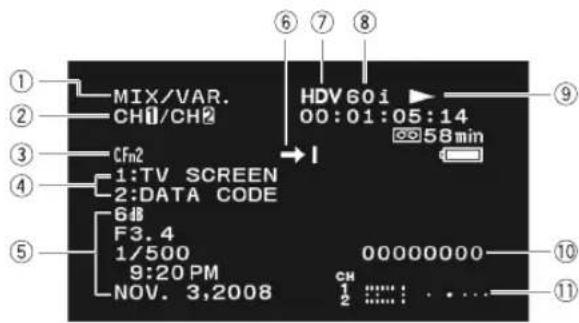
text_image
① ② MIX/VAR. ③ CH1/CH2 ④ CFn2 ⑤ 1:TV SCREEN ⑥ 00:01:05:14 ⑦ 58 min ⑧ HDV60i NOV. 3,2008 F3.4 1/500 9:20 PM CH 1 : : : : . . . . .VCR/PLAY·CARD

text_image
⑫ SLIDESHOW ③ CFn2 ④ 1:TV SCREEN 2:EVF BW MODE ⑬ SLIDESHOW STOP ⑬ On ⑲ LW ⑳ NOV. 3, 2008 ⑰ 9:20 PM ⑱ ⑲ 101-0125 ⑳ 25/25 ⑴ 1920x1080 0.30MB F 1.8 1/60 ⑶ ⑷ ⑧
text_image
1920x1080 0.30MB F1.8 1/60 +0.25 ②② ②② ②② ②⑧① Audio monitor (90)
② Audio output (90)
③ Custom function (104)
④ Custom keys (79)
⑤ Data code (117)
⑥ Date search (117)/ Index search (116)
End search (41)
⑦ Recording standard (40)
⑧ Frame rate (50)
⑨ Tape operation (114)
Recording
●11 Record pause
Stop
▲ Eject
▶ Playback
▶II : Playback pause
: Fast forward
◀ : Rewind
/ : Fast forward playback/rewind playback
×2▶/◀×2: Playback (double speed)
×1▶/◀×1: Playback (normal speed)
|►/◄ : Frame advance/reverse
⑩ User bit (56)
⑪ Audio level indicator (59)
⑫ Slideshow (127)
⑬ Image protected (130)
⑭ Image number (120)
⑮ Current image/total number of still images (119)
⑯ Histogram (128)
⑰ Exif information icons (128)
⑱ Date and time of recording
⑲ Custom preset data embedded with the still image (☐ 99)
⑳ Still image quality/size
②1 Programmed AE (62)
22 Metering mode (125)
②3 AE shift (69)
24 Still image size (119)
25 File size
26 Aperture (65, 68)
⑳ Shutter speed (65, 67)
28 White balance (71)

text_image
Side panel Time code Video signal standard HDV 88:88:88:88 DV Time code setting NDF EXT-LOCK HOLD HD-SDI TC-IN TC-OUT GENLOCK XC1HS Video output signal from the HD/SD SDI Terminal M CH1/2>MIX(CH3/4) 8 CH Manual audio adjustment 1 CH 50 40 30 20 12 6 2 0 -dB Audio level indicator| Message Explanation | ||
| CARD ERROR | A memory card error occurred. The camcorder cannot record or play back the image. The error may be temporary. If the message disappears after 4 seconds and flashes in red, turn the camcorder off, remove the card and reinsert the card. If changes to green, you can continue recording/playback. | - |
| CARD FULL | No remaining capacity on the memory card. Replace with another card or erase images. | - |
| CHANGE THE BATTERY PACK | Battery pack is exhausted. Replace or charge the battery pack. | 17 |
| CHECK THE HDV/DV INPUT | DV cable is not connected, or the connected digital device is turned off. | 93 |
| CHECK THE LENS | Lens is not correctly mounted. Tum the lens until it clicks. If the message does not disappear, unmount and remount the lens. | - |
| CONDENSATION HAS BEEN DETECTED | Condensation has been detected in the camcorder. | 149 |
| COPYRIGHT PROTECTED DUBBING RESTRICTED | You attempted to dub a copyright protected tape. May also appear when an anomalous signal is received during analog line-in recording, or during analog-digital conversion of a copyright protected tape. | 93 |
| COPYRIGHT PROTECTED PLAYBACK IS RESTRICTED | You attempted to play back a copyright protected tape. | 93 |
| ENTERING “POWER STANDBY” | Appears for 1 second when you press the STANDBY button. | - |
| HD INCOMPATIBLE LENS | You mounted a lens that does not support HDV recording. | |
| HEADS DIRTY, USE CLEANING CASSETTE | Video heads are dirty. Clean the video heads. | 148 |
| INCORRECT TAPE SPECIFICATION PLAYBACK IS RESTRICTED | You attempted to play back a tape recorded in a standard different than the one to which is the camcorder is set. | - |
| INPUT SIGNAL NOT SUPPORTED | You attempted to input a video signal incompatible with the camcorder (for example 720p). | 93 |
| NAMING ERROR | The folder and file numbers have reached their maximum value. | - |
| NO CARD | Memory card not is inserted into the camcorder. | 32 |
| NO IMAGES | No images are recorded on the memory card. | - |
| PLAYBACK STD LOCKED INCOMPATIBLE VIDEO INPUT | When the playback standard is already set in the camcorder, you attempted to input a video signal in a standard different from that set. | 93 |
| PLAYBACK STD LOCKED PLAYBACK IS RESTRICTED | When the playback standard is already set in the camcorder, you attempted to play back a tape in a video standard different from that set. | 114 |
| REMOVE THE CASSETTE | Camcorder stopped operating to protect the tape. Remove the cassette and reinsert it. | 31 |
| SET THE TIME ZONE, DATE AND TIME | You have not set the time zone, date and time. This message appears each time you turn the power on until you set the time zone, date and time. | 34 |
| TAPE END | Tape reached the end. Rewind the tape or replace the cassette. | - |
| THE CARD IS SET FOR ERASURE PREVENTION | SD/SDHC memory card is set for erasure prevention. Replace the card or change the position of the LOCK switch. | 32 |
| THE MEMORY CARD COVER IS OPEN | Close the memory card cover. | |
| THE TAPE IS SET FOR ERASURE PREVENTION | Cassette is protected. Replace the cassette or change the position of the protect switch. | 147 |
| THIS LENS HAS NO STILL SHOOTING CAPABILITY | You mounted a lens that does not support still image recording. | |
| UNIDENTIFIABLE IMAGE | Image is not recorded with JPEG compression, or with a compression not compatible with the camcorder, or the image file is corrupted. | - |
Camcorder Handling Precautions
- Do not carry the camcorder by the viewfinder, the microphone or its cable.
Do not leave the camcorder in places subject to high temperatures, such as a sun-heated car, and high humidity.
Do not use the camcorder in places subject to strong electromagnetic fields such as near TV sets, plasma TVs, radio transmitters or portable communication devices.
Do not point the lens or viewfinder at strong light sources. Do not leave the camcorder pointed at a bright subject.
Do not use the camcorder in dusty or sandy places. Dust or sand getting inside the cassette or camcorder may cause damage. Dust and sand can also damage the lens. Attach the lens cap after use.
The camcorder is not waterproof. Water, mud or salt getting inside the cassette or camcorder may cause damage.
○Be careful of heat generated by lighting equipment.
Do not disassemble the camcorder. If the camcorder does not function properly, consult qualified service personnel.
○Handle the camcorder with care. Do not subject the camcorder to shocks or vibration as this may cause damage.
Avoid sudden changes in temperature. Moving the camcorder rapidly between hot and cold temperatures may cause condensation to form on its internal surfaces (149).
Storage
If you do not intend to use the camcorder for a long time, store it in a place free of dust, with low humidity, and at temperatures not higher than 30 °C ( 86 °F ).
Before using the camcorder after a long storage period, check the functions of your camcorder to make sure that the camcorder is still working properly.
Cleaning
Camcorder Body and Lens
Use a soft, dry cloth to clean the camcorder body and lens. Never use chemically treated cloth or volatile solvents such as paint thinner.
LCD Screen
○Clean the LCD screen using a commercially available leans cleaning cloth.
☐Condensation may form on the surface of the screen when the temperature changes suddenly. Wipe it with a soft dry cloth.
Viewfinder
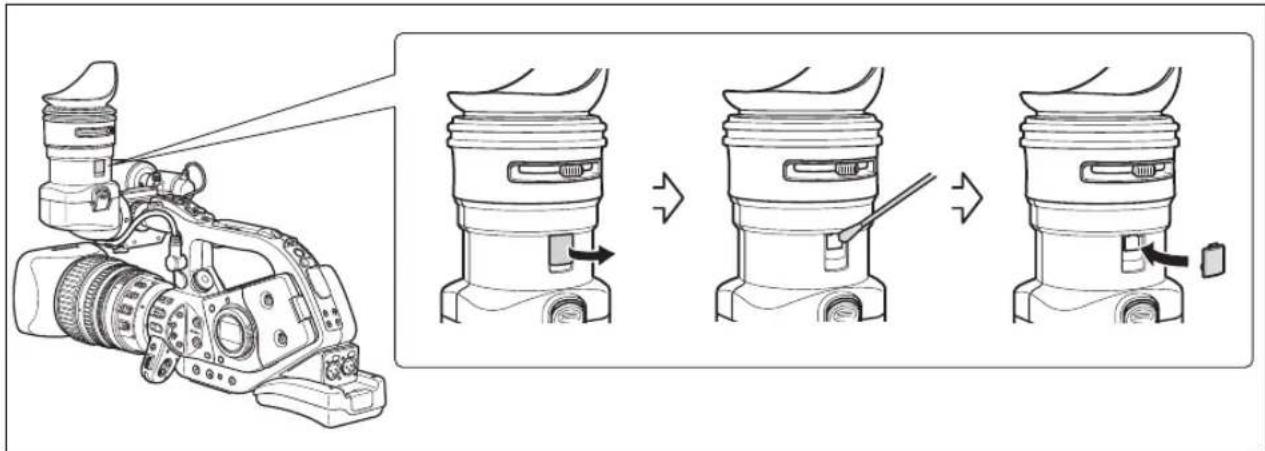
text_image
Diagram illustrating the process of a camera lens assembly, showing step-by-step assembly from sensor input to final output.- Open the protecting cover (e.g. using a flathead screwdriver).
- Clean the glass with a cotton swab.
- Reattach the protecting cover.

Be careful not to scratch the glass when cleaning it.
Battery Pack Handling Precautions
DANGER!
Treat the battery pack with care.
- Keep it away from fire (or it might explode).
- Do not expose the battery pack to temperature higher than 60 °C (140 °F). Do not leave it near a heater or inside a car in hot weather.
- Do not try to disassemble or modify it.
- Do not drop or knock it.
- Do not get it wet.
Charged battery packs continue to discharge naturally. Therefore, charge them on the day of use, or the day before, to ensure a full charge.
Attach the terminal cover whenever a battery pack is not in use. Contact with metallic objects may cause a short circuit and damage the battery pack.
- Dirty terminals may cause a poor contact between the battery pack and the camcorder. Wipe the terminals with a soft cloth.
Since storing a charged battery pack for a long time (about 1 year) can shorten its lifecycle or affect performance, we recommend to discharge the battery pack fully and to store it in a dry place at temperatures no higher than 30^ (86°F). If you do not use the battery pack for long periods, charge and discharge it fully at least once a year. If you have more than one battery pack, perform these precautions at the same time for all battery packs.
Although the battery pack's operating temperature range is from 0 °C to 40 °C (32 °F to 104 °F), the optimal range is from 10 °C to 30 °C (50 °F to 86 °F). At cold temperatures, performance will temporarily decline. Warm it in your pocket before use.
○Replace the battery pack if the usable time after full charge diminishes substantially at normal temperatures.
About the battery terminal cover
The battery terminal cover has a [☐]-shaped hole. This is useful when you wish to differentiate between charged and uncharged battery packs. For example, with charged battery packs, attach the terminal cover so that the [☐]-shaped hole shows the blue label.
Back side of the battery pack

Terminal cover attached
Charged

Uncharged

Cassette Handling Precautions
○Rewind tapes after use. If the tape is lose or damaged, it may cause picture and sound distortion.
- Return cassettes to their case and store them upright. Rewind tapes from time to time if they are stored for a long time.
Do not leave the cassette in the camcorder after use.
- Do not use spliced tapes or nonstandard cassettes as they may damage the camcorder.
- Do not use tapes that have been jammed as video heads may become dirty.
Do not insert anything into the small holes of the cassette, or cover them with cellophane tape.
○Handle cassettes with care. Do not drop or subject them to severe impact as this may damage the cassettes.
With cassettes equipped with a memory function, metal plated terminals may become dirty with use. Clean the terminals with a cotton swab after about 10 times of loading/unloading. The memory function is not supported by the camcorder.
Protecting Tapes from Accidental Erasure
To protect your recordings from accidental erasure, slide the tab on the cassette to the left. (This switch position is usually labeled SAVE or ERASE OFF.)
If you load a protected cassette in recording mode, the message "THE TAPE IS SET FOR ERASURE
PREVENTION" appears for approx. 4 seconds and starts flashing. If you wish to record on that cassette, slide the tab back to the right.

flowchart
graph TD
    A["Device with memory"] --> B["Rec SAVE"]
    A --> C["Rec SAVE"]
Memory Card
To transfer the still images recorded on the memory disc to a computer, use a commercially available card reader or PC/PCMCIA memory card adapter.
○ Initialize new memory cards with the camcorder. Memory cards initialized with other devices such as a computer may not operate correctly.
We recommend backing up memory card images to your computer's hard drive or other external memory device. Image data may be corrupted or lost due to memory card defects or exposure to static electricity. Canon makes no warranties for corrupted or lost data.
- Do not use memory cards in places subject to strong magnetic fields.
- Do not leave memory cards in places subject to high humidity or high temperature.
○Do not disassemble memory cards.
Do not bend, drop, or subject memory cards to shocks and do not expose them to water.
- Moving a memory card rapidly between hot and cold temperatures may cause condensation to form on its external and internal surfaces. If condensation forms on the card, put it aside until the droplets have evaporated completely.
- Do not touch or expose the terminals to dust or dirt.
☐Check the direction before inserting the memory card. Forcing a memory card backwards into the slot may damage the memory card or the camcorder.
Do not remove the label from the memory card, or attach other labels to the memory card.
When you erase image files or initialize the memory card, only the file allocation table is altered and the data itself is not actually deleted. Take the necessary precautions when you dispose of the memory card, for example by physically damaging it to prevent the leakage of private data.
OSD/SDHC memory cards have a physical switch to prevent writing on the card so as to avoid the accidental erasure of the card's content. To write-protect the memory card set the switch to the LOCK position.

Built-in Rechargeable Lithium Battery
The camcorder has a built-in rechargeable lithium battery to keep the date/time and other settings. The built-in lithium battery is recharged while you use the camcorder; however, it will become totally discharged if you do not use the camcorder for about 3 months.
To recharge the built-in lithium battery:
Connect the compact power adapter to the camcorder and leave it connected for 24 hours with the camcorder off.
Video Heads
When the message "HEADS DIRTY, USE CLEANING CASSETTE" appears, when the playback picture becomes distorted, or if during playback of a tape recorded in HDV standard the picture and/or sound stops momentarily (about 0.5 seconds) the video heads need to be cleaned.
To maintain the best picture quality, we recommend cleaning the video heads frequently with the Canon DVM-CL Digital Video Head Cleaning Cassette or a commercially available dry cleaning cassette.
- Tapes already recorded with dirty video heads may not be played back correctly even after cleaning the video heads.
- Do not use wet type cleaning cassettes as this may damage the camcorder.
If the playback picture does not improve after cleaning the video heads it may indicate a malfunction. Consult a Canon Service Center.
Condensation
Moving the camcorder rapidly between hot and cold temperatures may cause condensation (water droplets) to form on its internal surfaces. Stop using the camcorder if condensation is detected. Continued use may damage the camcorder.
Condensation may form in the following cases:
When the camcorder is moved from an air-conditioned room to a warm, humid place
When the camcorder is moved from a cold place to a warm room
When the camcorder is left in a humid room
When a cold room is heated rapidly
How to avoid condensation:
☐Unload the cassette, place the camcorder in an airtight plastic bag and let it adjust to temperature changes slowly before removing it from the bag.
When condensation is detected:
The camcorder stops operating, and the warning message “CONDENSATION HAS BEEN DETECTED” appears for approx. 4 seconds and starts flashing.
If a cassette is loaded, the warning message "CONDENSATION HAS BEEN DETECTED REMOVE THE CASSETTE" appears and estarts flashing. Remove the cassette immediately and leave the cassette compartment open. Leaving the cassette in the camcorder may damage the tape.
OA cassette cannot be loaded when condensation is detected.
Resuming use:
☐It takes about 1 hour until the water droplets evaporate. After the condensation warning stops flashing, wait for 1 more hour before resuming use.
Using the Camcorder Abroad
Power Sources
You can use the compact power adapter to operate the camcorder and to charge battery packs in any country with power supply between 100 and 240 V AC, 50/60 Hz. Consult a Canon Service Center for information on plug adapters for overseas use.
Playback on a TV Screen
You can only play back your recordings on TVs compatible with the NTSC system. The NTSC system is used in the following countries/areas:
American Samoa, Antigua, Aruba, Bahamas, Barbados, Bermuda, Bolivia, Canada, Chile, Colombia, Costa Rica, Cuba, Ecuador, El Salvador, Greenland, Guam, Guatemala, Haiti, Honduras, Jamaica, Japan, Korea, Mexico, Micronesia, Myanmar, Nicaragua, Panama, Peru, Philippines, Puerto Rico, Saint Kitts and Nevis, Saint Lucia, Saint Vincent and the Grenadines, Surinam, Taiwan, Trinidad and Tobago, USA, Venezuela, Virgin Islands.
If you have a problem with your camcorder, refer to this checklist. Consult your dealer or a Canon Service Center if the problem persists.
Power Source
| Problem Cause Solution | # | ||
| Camcorder will not turn on. | Battery pack is not correctly attached. | Attach the battery pack correctly. | 17 |
| The camcorder switches off by itself. | Power save function has been activated. | Turn on the camcorder. | 37 |
| The screen switches on and off. | Battery pack is exhausted. | Replace or charge the battery pack. | 17 |
Recording/Playback
| Problem Cause Solution | |||
| Buttons will not work. | Cassette is not loaded. | Load a cassette. | 31 |
| flashes on the screen. | Condensation is detected. | See reference page. | 149 |
| “REMOVE THE CASSETTE” appears on the screen. | Camcorder stopped operating to protect the tape. | Remove the cassette and reinsert it. | 31 |
| The wireless controller will not work. | Camcorder and wireless controller are not set to the same remote sensor mode. | Change the remote sensor mode. | 118 |
| Batteries of the wireless controller are exhausted. | Replace the batteries. | 30 | |
| Abnormal characters appear on the screen. The camcorder does not operate properly. | This camcorder uses a microcomputer. External noise or static electricity may cause abnormal characters to appear on the screen. | Disconnect the power source and reconnect it after a short time. If the problem still persists, disconnect the power source and press the RESET button with a pointed item. Pressing the RESET button resets all settings. You can also reset all the camcorder’s settings to default values using the [SYSTEM SETUP/√] ▶ [RESET ALL] setting. | - |
Recording
| Problem Cause Solution | |||
| The POWER dial is not in the OFF position but the POWER indicator is off. | The LED indicators option in the customized functions is set to [OFF]. | Set the [LED] setting to one of the other types. | 109 |
| Image will not appear on the screen. | The POWER dial is not set to a recording program. | Set the POWER dial to a recording program. | 36 |
| “SET THE TIME ZONE, DATE AND TIME” appears on the screen. | Time zone, date and time are not set, or the built-in rechargeable lithium battery is exhausted. | Set the time zone, date and time. If necessary, power the camcorder with the compact power adapter and leave it connected with the POWER dial set to OFF for at least 24 hours to recharge the built-in battery before making the settings. | 34 |
| Pressing the Start/Stop button will not start recording. | Cassette is not loaded. | Load a cassette. | 31 |
| The POWER dial is not set to a recording program. | Set the POWER dial to a recording program. | 36 | |
| The lock switch is set to prevent the operation of the controls on the carrying handle. | Slide the lock switch to the left to enable the operation of the carrying handle controls. | 37 | |
| Camcorder will not focus. | Autofocus does not work on that subject. | Focus manually. | 45 |
| Viewfinder is not adjusted. Adjust the viewfinder with the dioptric adjustment lever. | 23 | ||
| Lens is dirty. | Clean the lens. | 145 | |
| The tally lamp will not light up. | The tally lamp option in the customized functions is set to [OFF]. | Set the [TALLY LAMP] setting to [ON] or [BLINK]. | 109 |
Recording
| Problem Cause Solution | |||
| A vertical light bar appears on the screen. | Bright light in a dark scene may cause a vertical light bar (smear) to appear. This is not a malfunction. | Record in Av mode with an aperture value in the range F5.6–F8.0. | 68 |
| Viewfinder picture is blurred. | Viewfinder is not adjusted. | Adjust the viewfinder with the dioptric adjustment lever. | 23 |
| Audio is not recorded. The input channel selection switch is not set to the correct position. | Set the INPUT SELECT switch to the correct position. | 58 | |
| Microphone connected to the XLR terminal needs to be powered by the phantom power. | Set the ✦ATCH to ON. 58 | ||
| Audio is recorded in a very low level. The REC LEVEL switch is set to M, and recording level is set too low. | Adjust the audio level correctly. 59 | ||
| Microphone attenuator is turned on. Set the FRONT MIC ATT. switch or the XLR MIC ATT switch to OFF. | 59 | ||
Playback
| Problem Cause Solution | |||
| Pressing the playback button does not start playback. | Camcorder is turned off, or is not set to VCR/PLAY mode. | Set the camcorder to WORK/PLAY 114 | |
| Cassette is not loaded. | Load a cassette. | 31 | |
| Tape is running, but image will not appear on the TV screen. | Video heads are dirty. | Clean the video heads. | 148 |
| You attempted to play back or dub a copyright protected tape. | Stop playback/dubbing. | - | |
| The video output cable is not connected correctly. | Verify that the video cable is connected properly. | - | |
| While playing back a tape recorded in HDV standard there are brief stops in the playback picture. | Video heads are dirty. | Clean the video heads with a dry cleaning cassette. | 148 |
Memory Card Operations
| Problem Cause Solution | |||
| Memory card cannot be inserted. | Memory card was not facing the correct direction. | Turn the memory card over and try inserting it again. | 32 |
| Memory card cannot be recorded. | No memory card. | Insert a memory card. | 32 |
| Memory card is full. | Replace the memory card or erase images. | 129 | |
| Memory card is not initialized. | Initialize the memory card. | 131 | |
| The folder and file numbers have reached their maximum value. | Set [FILE NOS.] to [RESET] and insert a new memory card. | 120 | |
| Memory card cannot be played back. | The POWER dial or / (card/tape) switch are not set to the correct position. | Set the POWER dial to VCR/PLAY and the / (card/tape) switch to . | 127 |
| Image cannot be erased. | Image is protected. | Cancel the protection. | 148 |
| On an SDHC or SD memory card, the write-protect switch is set to the locked position. | Change the position of the write-protect switch on the memory card to unlock it. | ||
| flashes red. | Card error occurred. | Turn off the camcorder. Remove and reinsert the memory card. Initialize the memory card if flashing persists. | 131 |
Others
| Lenses with built-in image stabilizer:Detected air bubbles inside the lens. | Sometimes air bubbles may form inside the lens in airplanes or on high mountains. This is not a malfunction. The air bubbles disappear in about 1 week. | — |
About the LCD screen
The LCD screen is produced with extremely high-precision manufacturing techniques, with more than 99.99% of the pixels operating to specification. Less than 0.01% of the pixels may occasionally misfire or appear as black, red, green or blue dots. This has no effect on the recorded image and does not constitute a malfunction.

flowchart
graph TD
    A["Canon HC-3200 System Case"] --> B["FCU-2000 Color Viewfinder Unit"]
    A --> C["BU-1000 Monochrome CRT Viewfinder Unit 3"]
    A --> D["SS-1100 Shoulder Strap"]
    A --> E["SBR-1000 Shooting Brace"]
    A --> F["Memory card (SD/SDHC/MMC)"]
    A --> G["MiniDV Video Cassette"]
    A --> H["DC-920 DC Coupler"]
    A --> I["CB-920 Car Battery Adapter"]
    A --> J["CA-920 Compact Power Adapter"]
    A --> K["CH-910 Dual Battery Charger/Holder"]
    A --> L["External Monitor Cable"]
    A --> M["External Monitor"]
    A --> N["DTC-1000 Component Video Cable"]
    A --> O["TV"]
    A --> P["VCR"]
    A --> Q["Tripod Adapter Base"]
    A --> R["TA-100 Tripod Adapter"]
    A --> S["EF Lens 2"]
    A --> T["EA 82 mm Protection Filter (colorless)"]
    A --> U["PLC 82 mm Circular Polarizing Filter"]
    A --> V["RC-72 Ratio Converter 5"]
    A --> W["FS-72U Filter Set"]
    A --> X["Speedlite Flash 420EX, 430EX, 550EX, 580EX, 580EX II"]
    A --> Y["Extender XL 1.6x 1"]
    A --> Z["ZR-1000 Zoom Remote Controller"]
    Z --> AA["FU-2000 Color Viewfinder Unit"]
    Z --> AB["ZR-2000 Zoom Remote Controller"]
    Z --> AC["Extruder"]
    Z --> AD["Extruder XL 1.6x 1"]
    Z --> AE["16x IS II Zoom Lens XL 5.5-88 mm"]
    Z --> AF["16x Manual Zoom Lens XL 5.4-86.4 mm"]
    Z --> AG["20x L IS Zoom Lens XL 5.4-108 mm"]
    Z --> AH["HD 20x L IS II Zoom Lens XL 5.4-108 mm"]
    Z --> AI["HD Video Lens 20x Zoom XL 5.4-108 mm L IS III"]
    Z --> AJ["HD Video Lens 6x Zoom XL 3.4-20.4 mm L"]
    Z --> AK["EF Adapter XL 4"]
    Z --> AL["EF lens 2"]
1 Can be attached to the HD 20x L IS III, HD 20x L IS II, HD 6x L, 20x L IS, 16x IS II and 16x manual zoom lenses (only for recording in SD mode).
^2 EF-S lenses cannot be used.
^3 When you use the FU-1000 Monochrome CRT Viewfinder with this camcorder you can use the compact power adapter or the optional CB-920 Car Battery Adapter as the power source. You cannot use the battery adapter supplied with the FU-1000; instead, connect the DC coupler directly to the camcorder and connect it to the compact power adapter or the car battery adapter.
Also, you cannot use the microphone protector supplied with the FU-1000 when using it with this camcorder.
^4 When attaching EF lenses to the camcorder, the approximate 35 mm equivalent of the effective focal length is as follows: 4:3 - approx. 8.8x / 16:9 - approx. 7.2x.
^5 Only when recording in SD 4:3 mode.
Product Codes
Provided accessories: Optional accessories:
| CA-920 Compact Power Adapter 8029A002AA | |
| DC-920 DC Coupler 8033A001AA | |
| BP-950G Battery Pack 0971B002AA | |
| SS-1100 Shoulder Strap D81-1510-000 | |
| WL-D5000 Wireless Controller D83-0730-000 | |
| Adapter holder D82-0780-000 | |
| DTC-1000 Component Video Cable D82-0820-000 | |
| HD 20x L IS III Lens | 3019B002AA |
| Lens Hood | D52-0290-000 |
| Lens Soft Case | D81-1490-000 |
BP-970G Battery Pack 0972B002AA
CB-920 Car Battery Adapter 8034A002AA
CH-910 Dual Battery Charger/Holder 3036A002AA
ZR-2000 Zoom Remote Controller 0973B002AA
TA-100 Tripod Adapter 9859A001AA
Extender XL 1.6x 3163A002AA
EF Adapter XL 3162A002AA
16x Zoom Lens XL 5.4-86.4mm 7122A002AA
20x L IS Lens 9825A002AA
HD 6x L Lens 1696B002AA
HD 20x L IS II Lens D51-0361-000
FS-72U Filter Set 3093A002AA
RC-72 Ratio Converter 0553B001AA
HC-3200 System Case 9826A001AA
DVM-CL DV Cleaning Cassette 3134A002AA
FU-1000 Monochrome Viewfinder 4252A001AA
FU-2000 Color Viewfinder Unit 0974B002AA
Optional Accessories
Call or visit your local retailer/dealer for genuine Canon video accessories. You can also obtain genuine accessories for your Canon camcorder by calling: 1-800-828-4040, Canon U.S.A. Information Center.
Use of genuine Canon accessories is recommended.
This product is designed to achieve excellent performance when used with genuine Canon accessories. Canon shall not be liable for any damage to this product and/or accidents such as fire, etc., caused by the malfunction of non-genuine Canon accessories (e.g., a leakage and/or explosion of a battery pack). Please note that this warranty does not apply to repairs arising out of the malfunction of non-genuine Canon accessories, although you may request such repairs on a chargeable basis.
Battery Packs
The BP-950G is also available as an optional accessory. The optional BP-970G provides over 35% more recording time than the BP-950G.
Car Battery Adapter CB-920
Use the car battery adapter to power the camcorder or charge battery packs on the move. The car battery adapter plugs into your car's cigarette lighter socket and runs off a 12-24V DC negative ground battery.
FS-72U Filter Set
Ultraviolet, neutral density and circular polarizing filters to help you take control of difficult lighting conditions.
HC-3200 System Case
A solid, lockable case that provides safe and stylish protection for the camcorder during transportation and storage.
16x Manual Zoom Lens XL 5.4-86.4 mm
A high-resolution zoom lens with two zoom modes (manual and powered), built-in ND filter and AE functions.
Extender XL 1.6x
Attach this extender between a Canon XL lens and the camcorder to boost the focal length of the lens by 1.6x.
BP-950G BP-970G

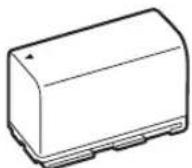
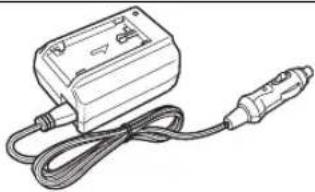
natural_image
Line drawing of a handheld electronic device with coiled cable and connector (no text or symbols)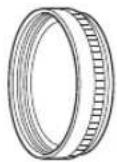

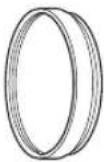
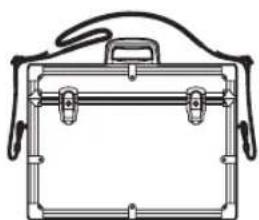
natural_image
Line drawing of a briefcase with handles and clamps (no text or symbols)
natural_image
Technical line drawing of a camera lens with no text or symbols
EF Adapter XL
This allows you to attach Canon EF lenses to the camcorder. The difference in size between the camcorder's 1/3-inch CCD's and 35 mm film means that the effective focal length of still camera lenses is multiplied by 8.8x (4:3)/7.2x (16:9).
- Consult your local service outlet to make sure there are no compatibility problems with your chosen lens.
FU-1000 Monochrome CRT Viewfinder Unit
Professional quality B&W viewfinder with a 1.5-inch CRT.
- When you use the FU-1000 with this camcorder, you can supply power from the CA-920 or optional CB-920. The battery adapter supplied with the FU-1000 is not required. Attach the DC Coupler directly to the camcorder, and connect it with the CA-920/CB-920.
TA-100 Tripod Adapter
The TA-100 allows you to quickly mount/unmount the camcorder on/from a tripod.
SBR-1000 Shooting Brace
Using the SBR-1000 for additional support of the camcorder with the neck strap will significantly lighten the load of the camera's weight while shooting.
CH-910 Dual Battery Charger/Holder
The CH-910 can charge two battery packs consecutively. You can also power the camcorder by connecting the CH-910 with charged battery packs to the camcorder. When you attach two battery packs, a battery pack can be exchanged without interrupting the power supply.
| Battery Pack Charging Time | |
| BP-950G 280 min. | |
| BP-970G 380 min. | |
Charging time varies according to the charging condition.
ZR-2000 Zoom Remote Controller
When the ZR-2000 is connected to the LANC terminal of a Canon camcorder, it is possible to control functions such as the start and stop of recording, the zoom and the focus functions while reviewing the picture on the local display without touching the camcorder. This is particularly useful while the
camcorder is mounted on a tripod and you want to ensure maximum stability of a shot.
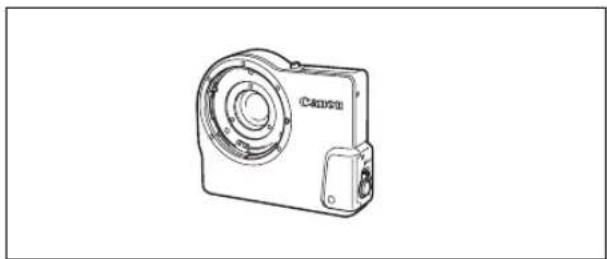
natural_image
Line drawing of a Canon digital camera module (no text or symbols on the device itself)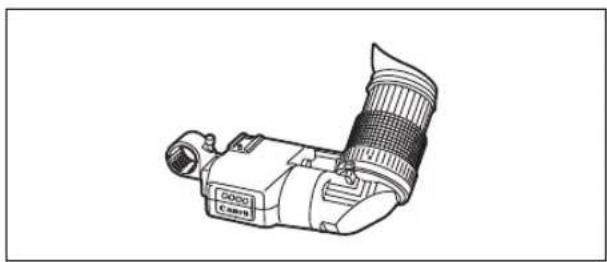
natural_image
Line drawing of a Canon camera with lens and aperture (no text or symbols)
natural_image
Technical line drawing of two mechanical components: a flange and a housing (no text or symbols)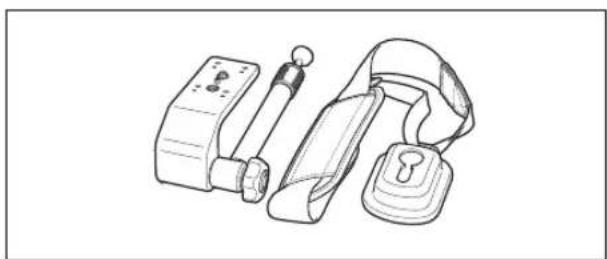
natural_image
Line drawing of a medical device with attached straps and a lock (no text or symbols)
natural_image
Illustration of four electronic devices: a front-mounted device, a switch, and two cables with connectors (no text or symbols visible)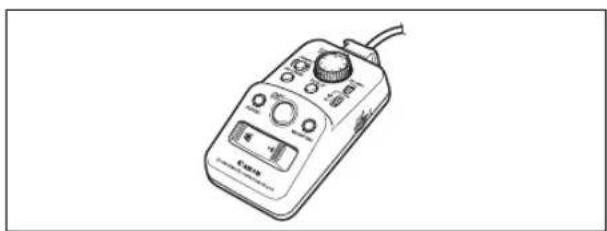
natural_image
Line drawing of a handheld electronic device with control knobs and a display (no text or symbols)FU-2000 Color Viewfinder Unit
When the FU-2000 is connected to the color viewfinder socket of the camcorder, it is possible to review the on screen picture without having to be next to the camcorder. Also, by connecting the FU-2000 to the optional ZR-2000 Remote Zoom Controller you can have complete control of the main operations of the camcorder while reviewing the on-screen picture without touching the camcorder.
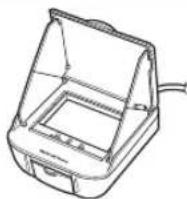

This mark identifies genuine Canon video accessories. When you use Canon video equipment, we recommend Canon-brand accessories or products bearing the same mark.
XL H1S / XL H1A
System
| Video Recording System Rotary head, helical scanning, digital component recording | |
| HDV High Definition Video 1080i | |
| DV Consumer digital VCR SD system | |
| Audio Recording System MPEG-1 audio layer 2, HDV (48 kHz), Transfer rate: 384 kbps (2CH) | |
| DV PCM digital sound, 16 bit (48 kHz) or 12 bit (32 kHz) | |
| Television System High Definition Video (HDV) 1080/60i | |
| SD EIA standard (525 lines, 60 fields) NTSC color signal | |
| Tape Format Videocassettes bearing the “MiniDV” mark. | |
| Tape Speed 18.81 mm/s (0.74 ips) | HDV |
| DV SP: 18.81 mm/s (0.74 ips), LP: 12.56 mm/s (0.49 ips) | |
| Maximum Recording Time(60 min. cassette) | HDV 60 min. |
| DV SP: 60 min., LP: 90 min. | |
| Fast Forward/Rewind Time Approx. 2 min. 20 sec. (with a 60 min. cassette) | |
| Image Sensor 1/3-inch CCD x 3 (horizontal pixel shift), approx. 1,670,000 pixels | |
| Effective pixels: HD approx. 1,560,000 | |
| SD16:9 approx. 1,560,000 | |
| SD4:3 approx. 1,170,000 | |
| Viewfinder | 2.4 in. wide, 16:9 aspect ratio, TFT color, approx. 215,000 pixels, RGB delta configuration |
| Microphone M/S Stereo electret condenser microphone | |
| Lens Mount XL interchangeable mount system | |
| AF System TTL autofocus, manual focusing with focus ring (with the HD 20x L IS III lens) | |
| White Balance | Auto white balance, pre-set white balance (indoor, outdoor), custom white balance, or color temperature setting |
| Minimum Illumination | 0.5 lx (with HD 20x L IS Lens, 60i/30F mode, Manual mode, Shutter speed 1/4, F1.6, Gain 18 dB) |
| Recommended Illumination | More than 100 lx |
| Subject Illumination Range 0.5 to 100,000 lx (60i/30F) | |
Memory Card
| Recording media | SDHC (SD High Capacity) memory card, SD memory card, MultiMedia Card (MMC)* |
| Size of Images on the Card 1920 x 1080, 1440 x 1080, 848 x 480, 640 x 480 pixels | |
| File Format | Design rule for Camera File system (DCF), Exif 2.2** compliant, DPOF compliant |
| Image Compression Method | JPEG compression (Super Fine, Fine, Normal) |
* The camcorder's operations have been tested with SD/SDHC memory cards up to 16 GB. Performance cannot be guaranteed for all memory cards.
** The camcorder supports Exif 2.2 (also called “Exif Print”). Exif Print is a standard for enhancing the communication between camcorders and printers. By connecting to an Exif Print-compliant printer, the camcorder’s image data at the time of shooting is used and optimized, yielding extremely high quality prints.
Terminals
| XLH3 HD/SD SDI Terminal BNC jack, output only, 0.8 Vp-p/75 ohms, unbalancedSDI 480/60i: SMPTE 259M, SMPTE 272M, SMPTE RP 188 (LTC)HD SDI: SMPTE 292M, SMPTE 299M, SMPTE RP 188 (LTC) | |
| HDV/DV Terminal Special 6-pin connector (IEEE1394 compliant) input/output | |
| COMPONENT OUT Terminal 1080i (D3)/480i (D1) compatible | |
| S-video Terminal 4-pin mini-DIN jack 1 Vp-p/75 ohms (Y signal), 0.286 Vp-p/75 ohms (C signal) | |
| Video Terminal VIDEO IN/OUT - RCA jack (input/output), VIDEO OUT - BNC jack (output only)1 Vp-p/75 ohms unbalanced | |
| Audio Out Terminals RCA jacks (L, R) | -12 dBV (47 kohm load, output level 1Vrms, full-scale -12 dB)/3 kohms or less |
| (headphone) Terminal | ∅ 3.5 mm stereo mini-jack, -∞ to -12 dBV (16 ohm load, volume range Min to Max) / 50 ohms or less |
| Audio In Terminals FRONT MIC: | ∅ 3.5 mm stereo mini jack (unbalanced), ATT: 20 dBsensitivity: -61 dBV (manual volume center, normal sensitivity, full scale -12 dB) / 600 ohmsAUDIO IN: RCA jack (unbalanced)sensitivity: -12 dBV (47 kohm load, full scale -12 dB)INPUT CH1/CH2: XLR jack (pin1: shield, pin2: hot, pin3: cold), ATT: 20 dB, 2 setssensitivity:XLR MIC: -60 dBu (manual volume center, normal sensitivity, full scale -18 dB) / 600 ohmsXLR LINE: 4 dBu (manual volume center, normal sensitivity, full scale -18 dB) / 10 kohms |
| XLH3 GENLOCK Terminal BNC jack, input only, 1 Vp-p/75 ohms | |
| XLH3 TC-IN Terminal | BNC jack, input only, 0.5 V-18 Vp-p/10 kohms |
| XLH3 TC-OUT Terminal | BNC jack, output only, 1 Vp-p/75 ohms |
| (LANC) Terminal | ∅ 2.5 mm stereo mini-jack |
| EVF 1, 2 Terminals | 20 pin connectorEVF2 terminal for monochrome viewfinder unit or external monitor (component video) |
| Power/Others | |
| Power supply (rated) | 7.4 V (battery pack) |
| Power consumption | XLH3 8.4 W; XLH3 7.9 W(recording using the color viewfinder, autofocus, HD 20x L IS III lens, HD mode) |
| Operating temperature | 0 – 40 °C (32 – 104 °F) |
| Dimensions (W x H x D) | 226 x 220 x 496 mm (8.9 x 8.7 x 19.5 in.) excluding the gripbelt |
| Weight | With the viewfinder unit and microphone attached:XLH3 2,560 g (5.6 lb.) XLH3 2,500 g (5.5 lb.) |
Lens
The lens' angle of view may change when it is mounted on the XL H1S / XL H1A. Refer to the following table.
| Angle of View | Field Size at Closest Focusing Distance | |||
| Wide Angle | Telephoto | Wide Angle | Telephoto | |
| HD 20x L IS II Lens | 51° 36' x 30° 29' (16:9) | 2° 46' x 1° 34' (16:9) | [20 mm] | [1 m] |
| HD 20x L IS III Lens | 39° 51' x 30° 29' (4:3) | 2° 05' x 1° 34' (4:3) | 64.8 x 35.4 mm (16:9) | 70.5 x 39.7 mm (16:9) |
| 47.7 x 35.4 mm (4:3) | 52.9 x 39.7 mm (4:3) | |||
| HD 6x L Lens | 75° 01' x 46° 48' (16:9) | 14° 35' x 8° 15' (16:9) | [20 mm] | [0.5 m] |
| 59° 52' x 46° 48' (4:3) | 10° 58' x 8° 15' (4:3) | 86.4 x 47.5 mm (16:9) | 149.9 x 84.6 mm (16:9) | |
| 63.8 x 47.5 mm (4:3) | 112.5 x 84.6 mm (4:3) | |||
| 20x L IS Lens | 51° 36' x 30° 29' (16:9) | 2° 46' x 1° 34' (16:9) | [20 mm] | [1 m] |
| 39° 51' x 30° 29' (4:3) | 2° 05' x 1° 34' (4:3) | 64.8 x 35.4 mm (16:9) | 70.5 x 39.7 mm (16:9) | |
| 47.7 x 35.4 mm (4:3 | 52.9 x 39.7 mm (4:3) | |||
| 16x Manual | 51° 36' x 30° 29' (16:9) | 3° 28' x 1° 57' (16:9) | [50 mm] | [1 m] |
| Zoom Lens | 39° 51' x 30° 29' (4:3) | 2° 36' x 1° 57' (4:3) | 81.9 x 44.6 mm (16:9) | 55.8 x 31.7 mm (16:9) |
| 60.1 x 44.6 mm (4:3) | 42.0 x 31.7 mm (4:3) | |||
| 16x IS II | 50° 46' x 29° 57' (16:9) | 3° 24' x 1° 55' (16:9) | [20 mm] | [1 m] |
| Zoom Lens | 39° 11' x 29° 57' (4:3) | 2° 33' x 1° 55' (4:3) | 61.7 x 33.7 mm (16:9) | 79.3 x 44.7 mm (16:9) |
| 45.3 x 33.7 mm (4:3) | 59.4 x 44.7 mm (4:3) | |||
CA-920 Compact Power Adapter
| Power supply 100 – 240 V AC, 50/60 Hz |
| Rated output Adapter: 7.2 V DC, 2.0 A, 35 VA (100 V AC) - 47 VA (240 V AC)Charger: 8.4 V DC, 1.5 A, 29 VA (100 V AC) - 40 VA (240 V AC) |
| Operating temperature 0 – 40 °C (32 – 104 °F) |
| Dimensions 75 x 99 x 51 mm (3.0 x 3.9 x 2.0 in.) |
| Weight 215 g (7.6 oz.) excluding the power cable |
| BP-950G Battery Pack |
| Battery type Rechargeable lithium ion battery |
| Rated voltage 7.4 V DC |
| Operating temperature 0 – 40 °C (32 – 104 °F) |
| Battery capacity 5,200 mAh |
| Dimensions 38.2 x 40.3 x 70.5 mm (1.5 x 1.6 x 2.8 in.) |
| Weight 210 g (7.4 oz.) |
Weight and dimensions are approximate. Errors and omissions excepted. Subject to change without notice.
A
Abroad, using the camcorder 149
Accessories 10, 154
AE shift 69
AEB - Auto exposure bracketing 124
Analog line-in 93
Analog/digital (A/D) converter 94
Aperture 65, 68
Aspect guides 136
Aspect ratio 40
Audio level indicator 59
Audio mode (SD) 57
Audio output 90
Audio peak limiter 59
Audio recording 57
Audio reference signal 83
Auto (programmed AE mode) 62
Av (programmed AE mode) 68
B
Battery pack 17,146
Black level 101
Built-in backup battery 18
C
Clear scan 78
Color bars 83
Color correction 74
Color gain 102
Color matrix....102
Color phase 102
Compact power adapter 17
COMPONENT OUT terminal 87
Condensation 149
Connection to a computer 95
Connection to a High Definition TV (HDTV) 86
Connection to a TV 85, 89
Continuous shooting 124
Coring 102
Custom displays 140
Custom functions 104, 139
Custom keys 79
Custom presets 96,138
D
Data code 117
Date and time 34
Date format 35
Date search 117
DC coupler 18
Drive mode 124
Drop frame (time code) 52
DV control 92
E
Easy recording (programmed AE mode) 63
Embedded audio* 60
End search....41
Erasing still images 129
Error messages 144
Exposure 69
Exposure lock 69
External synchronization* 54
External video input 93
F
Faders 83
File numbers 120
Flange back adjustment 28
Flash 126
Focus 44
Focus assist functions 46
Focus limit 48
Focus preset 47
Frame rate 50
Free-run (time code) 52
G
Gain 70
Gain fine-tuning 70
Gamma 101
Genlock ^* 54
H
HD 20x L IS III Lens 27
HD/SD SDI terminal* 86
HD/SD video signal standards 7
HDV/DV tape recording standards 7
HDV/DV terminal 87, 93, 95
I
Image stabilizer 61
Index search 116
Index write 80
Initializing the memory card 131
K
Knee 101
L
Language 35
Lens hood 28
Low-angle recording 37
M
Macro shooting 48
Magnifying (focus assist) 46
Manual (programmed AE mode) 65
Manual focus 45
Markers 136
Master pedestal 101
Memory card 32,147
MENU settings 33,133
Metering mode 125
Microphone 25,58
Microphone attenuator 58, 59
N
ND filter 49
Night (programmed AE mode) 62
Non-drop frame (time code) 52
NR (noise reduction) 102
P
Peaking (focus assist) 46
Phantom power (microphone) 58
Playback - Movies 114
Playback - Still images 127
POWER dial 11
Power save 37
Print order 132
Programmed AE 62
Protecting still images 130
Pulldown mode (24F frame rate) 51
R
Record review 39
Recording - Movies 36
Recording - Still images 121
Recording mode (SD) 134
Rec-run (time code) 52
Rec-run preset (time code) 52
Remaining battery 38
Remaining tape 38
Remote sensor 30
RESET 150
Reviewing still images (Review) 123
s
Safety zone 136
Screen displays 142
SD/SDHC memory card 32
Selective NR 77
Setup level 101
Sharpness 102
Shutter speed 65, 67
Side panel 143
Signal standard 40
Simultaneous recording 122
Skin detail 76
Slideshow 127
Specifications 157
Spotlight (programmed AE mode) 62
Standby mode 37,141
Still image quality 119
Still image size 119
T
Tape protection 147
Temporary autofocus (Push AF) 44
Temporary automatic exposure (Push AE) 66
Time code 52
Troubleshooting 150
Tv (programmed AE mode) 67
U
User bit 56
V
VCR Stop 37
Video heads, cleaning 148
Video output standards 84
Videocassettes 31, 147
Viewfinder 21
W
White balance 71
Wireless controller 16,30,118
Z
Zebra pattern 73
Zero set memory 116
Zoom 42
Zoom preset 43
Zoom speed 42
U.S.A.
CANON CONSUMER DIGITAL VIDEO EQUIPMENT LIMITED WARRANTY FOR THE UNITED STATES
The limited warranty set forth below is given by Canon U.S.A., Inc. ("Canon USA") with respect to Canon Consumer Digital Video Equipment (the "Equipment") purchased in the United States. This limited warranty is only effective upon presentation of your Bill of Sale or other proof of purchase.
The Equipment is warranted under normal, non-commercial, personal use, against defective materials or workmanship as follows:
Parts: Defective parts will be exchanged for new parts or comparable rebuilt parts for a period of ONE YEAR from the date of original purchase, except for a defective Video Head, which will be exchanged for a period of three months from the date of purchase.
Labor: For a period of ONE YEAR from the date of original purchase, labor will be provided free of charge by our factory service centers or designated service facilities located in the United States.
When returning Equipment under this warranty, you must pre-pay the shipping charges, and you must enclose the Bill of Sale or other proof of purchase with a complete explanation of the problem. During the ONE-YEAR warranty period, repairs will be made and the Equipment will be return-shipped to you free of charge. For repairs after the warranty period is over, you will be given an estimate of the cost of repair and an opportunity to approve or disapprove of the repair expense before it is incurred. If you approve, repairs will be made and the Equipment will be return-shipped to you. (shipping charges apply). If you disapprove, we will return-ship the equipment at no charge to you.
Non-Canon brand peripheral equipment and software which may be distributed with, or factory loaded on, the Equipment, are sold "AS IS" without warranty of any kind by Canon USA, including any Implied warranty regarding merchantability or fitness for a particular purpose. The sole warranty with respect to such non-Canon brand items is given by the manufacturer or producer thereof. If the Equipment contains a hard disk drive, Canon USA recommends that data stored on that drive be duplicated or backed up to prevent its loss in the event of failure or other malfunction of such drive.
Canon USA shall have no responsibility under this limited warranty for use of the Equipment in conjunction with incompatible peripheral equipment and incompatible software.
In order to obtain warranty service, contact the authorized Canon retail dealer from whom you purchased the Equipment or call the CANON INFORMATION CENTER AT 1-800-OK-CANON). You will be directed to the nearest service facility for your Equipment.
This Limited Warranty covers all defects encountered in normal use of the Equipment and does not apply in the following cases:
A) Loss or damage to the Equipment due to abuse, mishandling, accident, improper maintenance, or failure to follow operating instructions;
B) If the Equipment is defective as a result of leaking batteries, sand, dirt or water damage;
C) If defects or damages are caused by the use of unauthorized parts or by service other than by Canon USA's factory service centers or authorized service facilities;
D) If the Equipment is used for commercial or industrial use.
This Limited Warranty does not cover cabinet (exterior finish), video cassette tape, head cleanings, nor does it apply to Equipment purchased outside the United States. This warranty does not cover units sold to rental firms, military operations, hotels, schools, hospitals or for other commercial, industrial, or institutional applications. These uses are covered only by such specific warranty as Canon may issue with such sales. This Limited Warranty does not apply to accessories or consumables for the Equipment, which are sold "AS IS", without warranty of any kind by Canon USA.
Please retain this warranty card and your Bill of Sale as a permanent record of your purchase. This card is most important in order to be sure you are contacted right away should there be a safety inspection, modification or product recall under applicable laws or regulations.
NO IMPLIED WARRANTY, INCLUDING MERCHANTABILITY AND FITNESS FOR A PARTICULAR PURPOSE APPLIES TO THIS EQUIPMENT AFTER THE APPLICABLE PERIOD OF EXPRESS WARRANTY OR GUARANTY, EXCEPT AS MENTIONED ABOVE, GIVEN BY ANY PERSON, FIRM OR CORPORATION WITH RESPECT TO THIS EQUIPMENT SHALL BIND THE UNDERSIGNED (SOME STATES DO NOT ALLOW LIMITATIONS ON HOW LONG AN IMPLIED WARRANTY LASTS, SO THE ABOVE LIMITATION OR EXCLUSION MAY NOT APPLY TO YOU). CANON USA SHALL NOT BE LIABLE FOR LOSS OF REVENUES OR PROFITS, EXPENSE FOR SUBSTITUTE EQUIPMENT OR SERVICE, STORAGE CHARGES, LOSS OR CORRUPTION OF DATA, INCLUDING WITHOUT LIMITATION, LOSS OR CORRUPTION OF DATA STORED ON THE EQUIPMENT'S HARD DRIVE, OR ANY OTHER SPECIAL, INCIDENTAL OR CONSEQUENTIAL DAMAGES CAUSED BY THE USE, MISUSE OR INABILITY TO USE THE EQUIPMENT, REGARDLESS OF THE LEGAL THEORY ON WHICH THE CLAIM IS BASED, AND EVEN IF CANON USA HAS BEEN ADVISED OF THE POSSIBILITY OF SUCH DAMAGES. NOR SHALL RECOVERY OF ANY KIND AGAINST CANON USA BE GREATER THAN THE PURCHASE PRICE OF THE EQUIPMENT SOLD BY CANON USA AND CAUSING THE ALLEGED DAMAGE. WITHOUT LIMITING THE FOREGOING, YOU ASSUME ALL RISK AND LIABILITY FOR LOSS, DAMAGE OR INJURY TO YOU AND YOUR PROPERTY AND TO OTHERS AND THEIR PROPERTY ARISING OUT OF USE, MISUSE OR INABILITY TO USE THE EQUIPMENT NOT CAUSED DIRECTLY BY THE NEGLIGENCE OF CANON USA. (SOME STATES DO NOT ALLOW THE EXCLUSION OR LIMITATION OF INCIDENTAL OR CONSEQUENTIAL DAMAGES, SO THE ABOVE LIMITATION MAY NOT APPLY TO YOU). THIS WARRANTY SHALL NOT EXTEND TO ANYONE OTHER THAN THE ORIGINAL PURCHASER OF THIS EQUIPMENT OR THE PERSON FOR WHOM IT WAS PURCHASED AS A GIFT.
This warranty gives you specific legal rights, and you may also have other rights which vary from state to state.
CANON U.S.A., INC.
CANADA
CANON CONSUMER DIGITAL VIDEO EQUIPMENT LIMITED WARRANTY
The limited warranty set forth below is given by Canon Canada Inc. ("Canon Canada") with respect to Canon Consumer Digital Video Equipment (the "Equipment") purchased in Canada. This limited warranty is only effective upon presentation of a bill of sale or other proof of purchase for this Equipment to a Canon Service Facility when repairs are required.
The Equipment is warranted under normal, non-commercial, personal use, against defective materials or workmanship as follows:
Parts: Defective parts will be exchanged for new parts or, at Canon Canada's option, comparable rebuilt parts for a period of one year from the date of original purchase, except Video Heads which will be exchanged for a period of 3 months from the date of purchase.
Labour: For a period of one year from the date of original purchase, labour will be provided free of charge by our Canon Service Facilities in Canada.
This limited warranty covers all defects except where:
(a) The loss or damage to the product results from:
) accident, natural disaster, mishandling, abuse, neglect, unauthorized product modification or failure to follow instructions contained in the instruction manual;
ii) the use of accessories, attachments, products, supplies, parts or devices with the Equipment that do not conform to Canon specifications or that cause abnormally frequent service problems;
iii) repairs or services performed by any party other than a Canon Service Facility;
iv) defective batteries or any exposure to water, sand or dirt;
v) shipping (claim must be presented to the shipper):
(b) Any serial number on the video equipment is altered or removed.
(c) The Equipment is used for commercial, professional or industrial purposes.
This limited warranty does not cover the cabinet (exterior finish) of the Equipment, media, nor does it apply to Equipment purchased outside Canada.
If the Equipment contains a hard disk drive, Canon Canada recommends that data stored on that drive be duplicated or backed up to prevent its loss in the event of a failure or other malfunction of such drive.
TO OBTAIN WARRANTY SERVICE
Ship your Equipment in its original carton, box or equivalent, properly packed, fully insured with shipping charges prepaid, together with a copy of your bill of sale or other proof of purchase and a description of the problem to any of the Canon Service Facilities in Canada.
LIMITATIONS
Except as otherwise required by applicable legislation, this warranty is in lieu of all other warranties, conditions, guarantees or representations, express or implied, statutory or otherwise, relative to the Equipment, including implied warranties or conditions of merchantability or fitness for a particular purpose.
Canon Canada assumes no liability for special, consequential or incidental damages, loss or corruption of data including, without limitation, data stored on the hard disk drive of the Equipment or loss that may arise, whether on account of negligence or otherwise, from the use, misuse or inability to use the Equipment (including loss of profit, revenue, media or enjoyment) or from failure to conform to any express or implied warranties, conditions, guarantees or representations. Any recovery under this limited warranty shall not exceed the purchase price of the equipment. Canon Canada does not assume or authorize any other person to assume for Canon Canada any other liability with respect to this equipment.
This warranty does not extend to any person other than the original purchaser of the Equipment or the person for whom it was purchased as a gift and states your exclusive remedy.
NOTICE TO CONSUMER
If you plan to take important videos or if the product has not been used for some time, please check all functions with the instruction book before using it.
Canon
USA CANON U.S.A., INC. NEW JERSEY OFFICE
100 Jamesburg Road, Jamesburg, NJ 08831 USA
CANON U.S.A., INC. CHICAGO OFFICE
100 Park Blvd., Itasca, IL 60143 USA
15955 Alton Parkway, Irvine, CA 92618 USA
CANON U.S.A., INC. HONOLULU OFFICE
210 Ward Avenue, Suite 200, Honolulu, HI 96814 USA
If you have any questions, call the Canon U.S.A. Information Center toll-free at 1-800-828-4040 (USA only).
CANADA CANON CANADA INC. NATIONAL HEADQUARTERS
6390 Dixie Road, Mississauga, Ontario L5T 1P7
CANON CANADA INC. CALGARY
2828, 16th Street, N.E. Calgary, Alberta T2E 7K7
CANON CANADA INC. MONTREAL
5990 Côte de Liesse, Quebec H4T 1V7
If you have any questions, call the Canon Canada Information Center toll-free at 1-800-828-4040 (Canada only).
Blvd. Manuel Ávila Camacho No. 138, Piso 17
Col. Lomas de Chapultepec
100 Jamesburg Road, Jamesburg, NJ 08831 USA
CENTRO Y CANON LATIN AMERICA, INC.
SURAMÉRICA 703 Waterford Way, Suite 400, Miami, FL 33126 USA
19/F, The Metropolis Tower, 10 Metropolis Drive,
Hunghom, Kowloon, Hong Kong
The information in this manual is verified as of March 2008.