MED400X2S - Media player Mede8er - Free user manual and instructions
Find the device manual for free MED400X2S Mede8er in PDF.


User questions about MED400X2S Mede8er
0 question about this device. Answer the ones you know or ask your own.
Ask a new question about this device
Download the instructions for your Media player in PDF format for free! Find your manual MED400X2S - Mede8er and take your electronic device back in hand. On this page are published all the documents necessary for the use of your device. MED400X2S by Mede8er.
USER MANUAL MED400X2S Mede8er
Based on Firmware V2.0.0
21 November 2011

text_image
TV.SYL ANGLE BROWSE 1 2 3 4 5 6 7 8 9 RONG FANG MAYE 0 VOL MENU AUDIO EDIT VIEW ABOUT GOTO SANS meDE83R
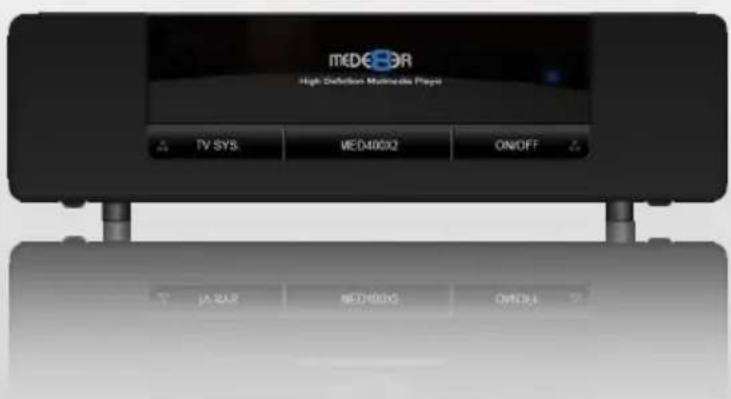
text_image
MEDCOR High Solution Multiscale Propan TV SYS. MED400X2 ON/OFF IA SAR MED800X5 OFF61MED400X2
High Definition Multimedia Player
m€D€8R ^TM
INDEX
page 1 Index
page 2 Introduction
page 3 General Overview
page 4 Connections
page 5 Connections continued
page 6 TV Output Settings
page 7 Remote Functionality
page 8 Samba Network Setup
page 9 Home Network Samba Server
page10 Wired Network Connection and Setup
page11 Wireless Network Setup / Firmware Update / Web Browser
page12 Home Page
page13 Home Page Strip
page14 Media Library
page15 Media Library Continued
page16 Media Library Metadata Display
page17 Adding Custom Backdrops and Skins
page18 XML Search Jukebox
page19 Jukebox View
page20 Media Library Music Player
page21 Cover Art Preview in Media Library
page22 Play Folder / Play from Cover Art / Watched Indicator
page23 Media Scanner
page24 Folder Lock/ System Lock
page25 Favourites Manager
page26 Adding genre artwork to Favourites / Lock / Unlock Favourites
page27 Play Info Search / GOTO / Apha Jump
page28 Screen Calibration / Video Zoom
page29 Subtitles / Custom Fonts
page30 File Manager
page31 File Manager Continued
page32 Picture View Media Library
page33 Plasma Mode / Autoplay / Internet Streams / Web Browser
page34 NFS Setup
page35 Setup
Thank you for purchasing the Mede8er Multimedia Player.
The MED400X2 is the latest generation multimedia player specially developed by Sanji for today's demanding media enthusiast. The Mede8er has some very unique features so we suggest you read this guide and visit the Mede8er forum for additional help and information. The firmware is always “work in progress” so we suggest you regularly check the Mede8er forum for updated firmware releases and updated User Manuals.
Please check the Mede8er forum for the latest user guide. www.mede8erforum.com
Warranty International
Mede8er products carry a 24 month from date of purchase warranty. In the event of warranty service please provide proof of purchase. Return your product to the store that it was purchased from or return it directly to Sanji Electronics (Pty) Ltd 106, 16th Rd Midrand, Gauteng, South Africa.
Warranty & Support Europe
Mede8er products carry a 60* month from date of purchase limited warranty. In the event of warranty service or support, please contact one of the Mede8er Service Centers; www.mede8er.eu/support, support@mede8er.eu or call +31(0)10-7142861 during business hours (CET). In order to obtain the extended warranty service of in total 60* months after purchase, you need to register your product on www.mede8er.eu/register within 1 month after purchase. * On accessories 24 months applies.
Warranty does not cover damage by
a) Lightning or over voltage
b) Water damage or liquid spill
c) Misuse or abuse
d) User tampering
e) Using non Mede8er approved Firmware
Sanji Electronics is not responsible for any loss of data irrespective of the cause.
Important Safety Instructions
- Read these instructions for all components before using this product.
- Do not use this apparatus near water or moisture. Do not use this product near a bathtub, washbowl, kitchen sink, laundry tub, in a wet basement, near a swimming pool, or anywhere else that water or moisture are present.
- Clean only with a soft dry cloth and as directed by the manufacturer. Unplug this product from the wall outlet before cleaning.
- Do not block any ventilation openings. Install in accordance with the manufacturer instructions. To ensure reliable operation of the product and to protect it from overheating, put the product in a position and location that will not interfere with its proper ventilation. For example, do not place the product on a bed, sofa, or similar surface that may block the ventilation openings. Do not put it in a built-in system, such as a bookcase or a cabinet that may keep air from flowing through its ventilation openings.
- Do not install near any heat sources, such as radiators, heat registers, stoves or other apparatus that produce heat.
- Protect the power cord from being walked on or pinched, particularly at plugs, convenience receptacles, and the point where they exit from the apparatus.
- Only use attachments or accessories specified by the manufacturer.
- Unplug this apparatus during lightning storms or when unused for long periods of time to prevent damage to this product.
Refer all servicing to qualified service personnel
GENERAL OVERVIEW
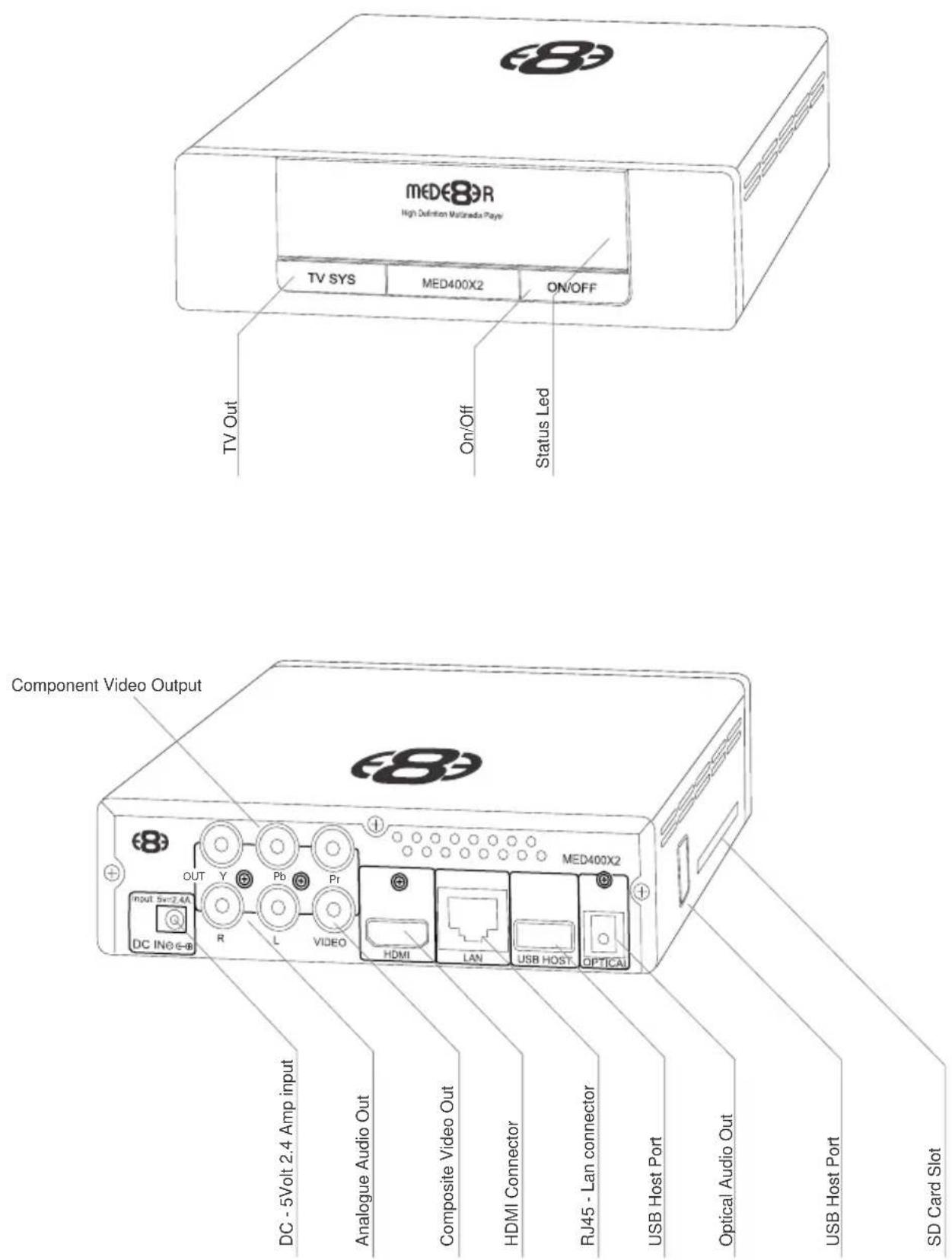
text_image
meDE8R High Definition Motorola Playi TV SYS MED400X2 ON/OFF TV Out On/Off Status Led Component Video Output DC - 5Volt 2.4 Amp input Analogue Audio Out Composite Video Out HDMI Connector RJ45 - Lan connector USB Host Port Optical Audio Out USB Host Port SD Card SlotCONNECTIONS
Analogue Audio and Composite Video connection to TV.
Composite Video offers the most basic picture quality connection and should only be used if your TV does not have a HDMI input. Use RCA analogue audio outputs in the absence of HDMI or Digital Audio inputs on your TV or Home Theatre system. RCA analogue outputs will downmix and audio output signal to 2 ch stereo.

text_image
ED8 MED400X2 HDMI LAN USB HOST OPTICAL OUT Y Pb Pr DC INo e-8 AUDIO IN VIDEO INComponent Video Connection to Amp or TV
Component Video offers the next best picture quality to HDMI so if your system does not have a HDMI input we suggest you use the Component Video Connection.
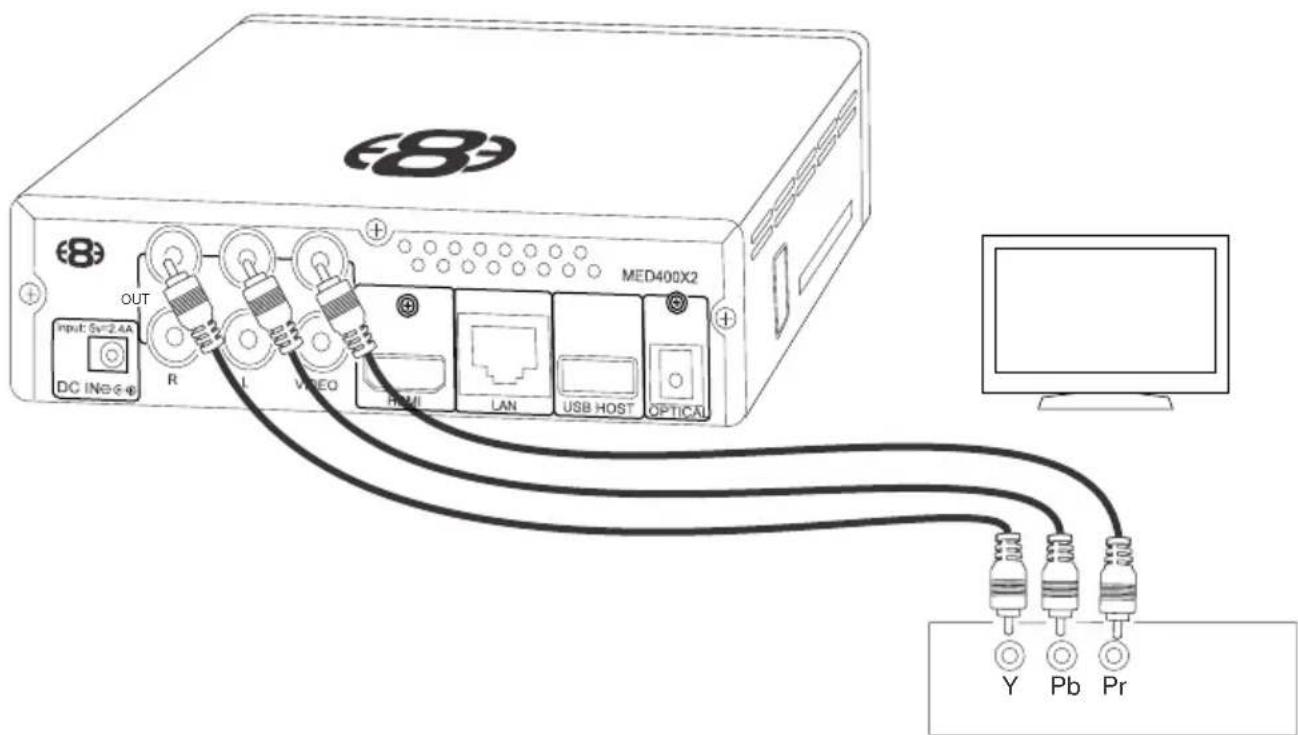
text_image
ED8 MED400X2 OUT R VIDEO HDMI LAN USB HOST OPTICAL DC INo®® Y Pb PrHDMI - RJ45 Network - Toslink Connection to a TV or Amplifier
For digital audio connection to your Home Theatre System use the HDMI connector. If your amplifier does not have HDMI connector than you can use the TOSLINK Optical Digital output. The MED400X supports both Passthrough and Downmix for both Dolby Digital and DTS signals.

text_image
OUT Pb Pr MED400X2 DC INo 6-8 R L VIDEO USB HOST CA Optical Digital HDMI Connect LAN cable to router or switchPower up and Standby
Plug the AC/DC adapter into the mains outlet and plug the DC Jack into the DC IN at the rear of the MED400X2. DO NOT USE ANY AC/DC ADAPTER AND ONLY USE THE ONE SUPPLIED otherwise you may cause damage to the unit. Press the On/Off button on the Mede8er's front panel and front facia LED will turn on Blue. You can put your Mede8er into standby by pressing the On/Off button on the remote. When in standby the front facia LED will turn Red.

text_image
88 OUT Y Pb Pr Pall 2007-43 R L VIDEO HDMI TAN USB HOST OPTICO 88 MeDE89R High Concentration Automatic Ports TV SYS MED400X2 ON/OFF TWO. ANGLE BROWHOZ 1 2 3 4 5 6 7 8 9 0 i Audiro BDI VNOI MDD mDE89RTV OUTPUT SETTINGS
Connect the Mede8er to your TV by one of the connection options as shown on page 4 & 5 and change the input option on your TV to match the option you selected. If you do not get to see the Mede8er GUI on your TV you will need to toggle the Mede8er TV output until you get a picture.
TV SYS Toggle Procedure
The Mede8er has three video output options ie Composite Video (yellow RCA connectors, Component Video (Red - Green- Blue connectors) and HDMI. Each output option also offers different screen resolution settings and these will need to be adjusted to match the type of TV used.
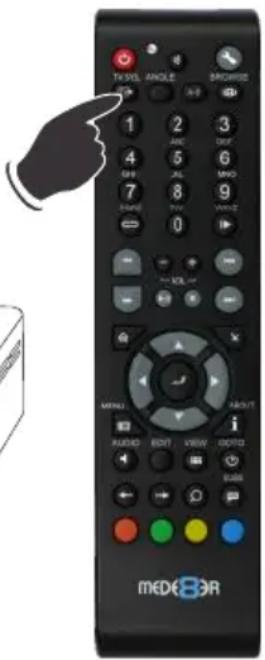
To change the Video Output on the Mede8er just press the TV SYS button on the remote and it will change the Video Output to the next available output option. If after pressing the TV SYS button you still do not get a picture then after a short pause press the TV SYS again until you see the Mede8er GUI on your TV. Keep repeating this procedure until you see a picture on your TV.
text_image
TV-SYL ANGLE BROWAGE 1 2 3 4 5 6 GIF AL MNO 7 8 9 RANGE TIN VANZ 0 I KEL MENU ABOUT AUDIO COPY VIEW INFO SUBS mDE88R
text_image
meDE80R 122 Digital Security System TV SYS MEDI40X2 ON/OFFOnce you see the Mede8er GUI on your TV then you must enter the Video Setup mode and adjust the Video settings to match the screen size resolution of your TV.
AUDIO SETTINGS
Surround Sound
Select "Don't Care" if you are using 2 CH stereo. If you are using SPDIF or Co-Axial Digital then select "AC3". If you are using HDMI Audio to amplifier then select "True HD"
HDMI Downmix (2 channel)
Use this setting if you are connecting the Mede8er directly to the HDMI input on your TV. The sound will be downmixed to 2 channel stereo.
HDMI Passthrough
Use this setting if you are connecting to the HDMI input of a Home Theatre Amplifier. The audio will be passed through as Bitstream or LPCM and the amplifier will do the multichannel decoding.
HDMI LPCM MULTI CH
Use this setting for content that has a 6 channel AAC soundtrack.
SPDIF Downmix (2 channel)
Use this setting to connect to a Amplifier via Toslink optical cable or Co-Axial Digital RCA cable. The sound will be downmixed to 2 channel stereo.
SPDIF Passthrough
Use this setting to connect to amplifier via Toslink optical cable or Co-Axial Digital RCA cable. The sound will be passed through as Bitstream or LPCM and the amplifier will do the multichannel decoding.
REMOTE FUNCTIONALITY

text_image
DVD Angle On / Off TV System Numbers Repeat Shuffle Volume Up/Down Fast Forward / Rewind Play / Pause Home Page *Navigation Left Search Bar - Video File Menu Edit Audio Selection / Audio Currently Playing Skip Forward/Back Web Browser Toggle Scroll Bars & Hyperlink select Web Browser Toggle Address Bar Start dBase Scan Audio Mute A-B Setup Media Library Shortcut 1 2 3 4 ABC DEF GHI JKL MBO 7 8 9 PQRS TUN VXYZ 0 Slow Next / Previous Stop Return Navigation Up - Volume Up in Video File (not DVD) Navigation Right - Search Bar - Video File Navigation Enter - Pause / Play in Video File (not DVD) Navigation Down - Volume Down in Video File (not DVD) Info Screen / Movie Sheet (about.jpg) Zoom View - Change the layout view in Media Library Goto Zoom Subtitle Setup Functions / Browser Functions / Edit Functions Favourites Shortcut button Edit Text - Internet BrowserUSB Keyboard Function Keys (based on MEDX2KEY)

text_image
Esc F1 F2 F3 F4 F5 F6 F7 F8 Prtsc Back Del ! 1 @ ABC 2 #DEF 3 $GHI 4 %JKL 5 MNO 6 &PCRS 7 TUV 8 (WXYZ 9) 0 ~ Q W E R T Y U I O P Shift Caps A S D F G H J K L AB : , Shift Z X C V B N M < > Enter CTRL-ALT+OR Tab Fn Ctrl Alt - + = [ ]? / Info/ About mDEBOR Back Light Play/ Pause MEDX2KEY Enter Return Pu Pd V
text_image
Ctrl'Ctrl' - ZOOM YouTube, Internet Browser
ESC: RETURN SPACE: PLAY
ENTER: SELECT(ENTER)
'0': 0 '1': 1 '2': 2 '3': 3 '4': 4 '5': 5 '6': 6 '7': 7 '8': 8 '9': 9
'': VOL_DOWN '+': VOL_UP
'P' + 'SHIFT': POWER OFF
'R(r)': REPEAT 'T(t)': SUBTITLE
'I(i)': INFO 'A(a)': AUDIO
'G(g)': GOTO 'H(h)': HOME
'Z(z)': ZOOM '/(?)': Info / About
"Ctrl": ZOOM YouTube, Internet Browser
',(<)': FRWD '.(>)': FFWD
'F(f)': Favourite 'E(e)': EDIT
'M(m)': MENU 'S(s)': Setup
'V(v)': View 'L(l)': AB
(|)': SLOW " (")': STOP
'/(?)': Info / About '[({})': Back Skip
']()': Forward Skip 'W(w)': Launch Web Browser
'B(b)': Browser - Devices
'Alt': Mute 'FI': Red button
'F2': Green button 'F3': Yellow button
'F4': Blue button 'F5': TV Sys
'F6': Previous Chapter 'F7': Next Chapter
SAMBA (Network Setup)
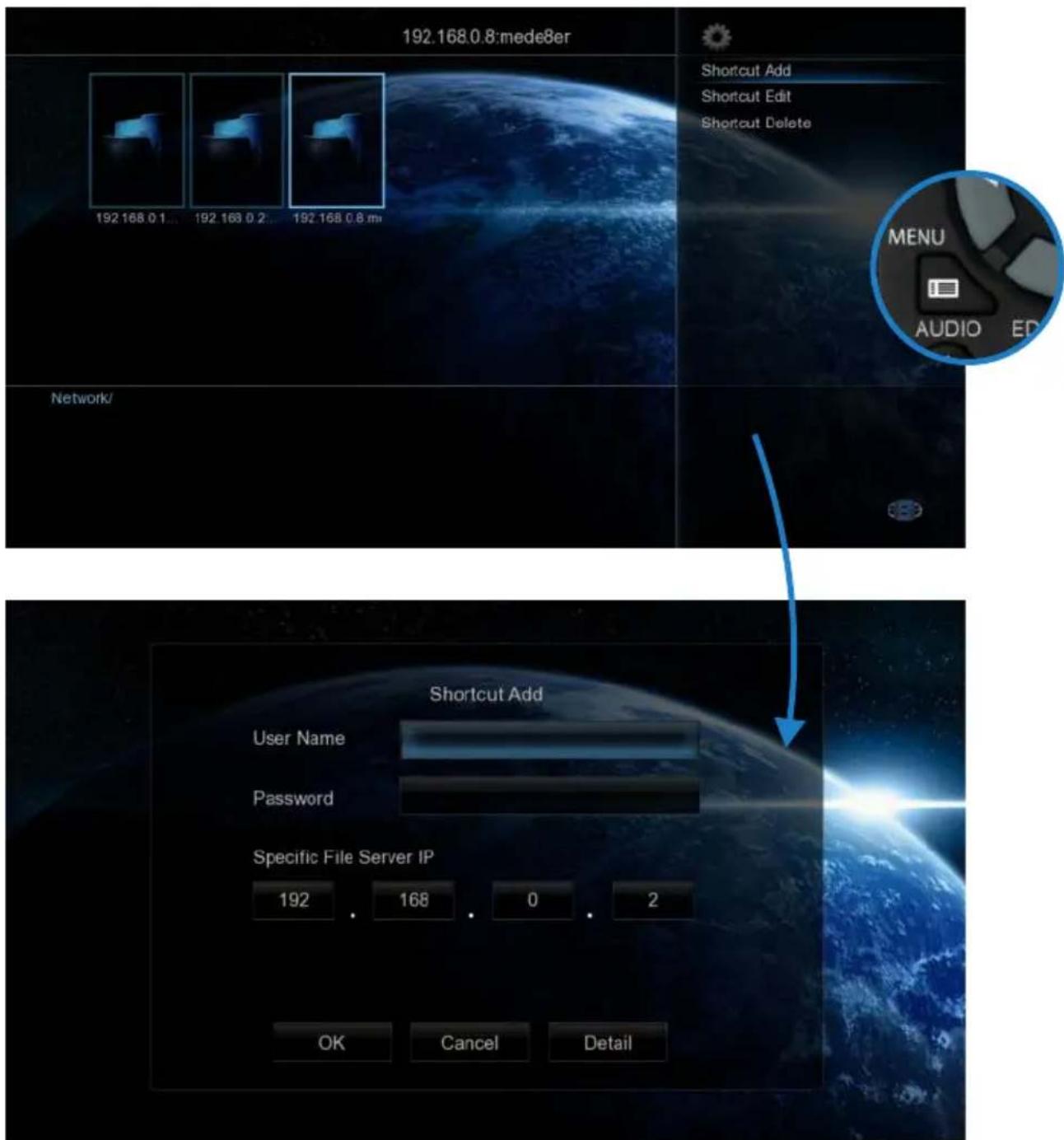
If your PC or NAS has shares setup to specific users then you will need to setup a shortcut on the X2 to each machine and specify the IP, Username and Password
Setting up Samba shortcuts on the Mede8er
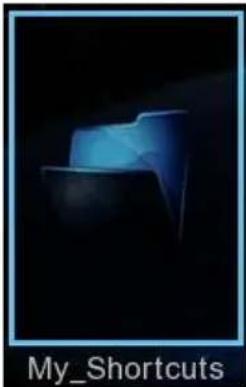
Select 'Network' and then select the 'My_Shortcuts' icon. Now press the 'Menu' button and select 'Add New Shortcut' option. Fill in the fields User Name, Password, IP Address (Host Machine), and select 'OK'
NOTE: In order to browse your secure shares you will have to enter 'My_Shorcuts' and then select the Shortcut/'s that you have setup.
text_image
My_ShortcutsPUBLIC SHARES
For Public Shares (shares that do not have a Username and Password) just use the name ‘Guest’ for username and password.
text_image
192.168.0.8:mede8er Shortcut Add Shortcut Edit Shortcut Delete 192.168.0.1... 192.168.0.2... 192.168.0.8.mu Network/ MENU AUDIO ED Shortcut Add User Name Password Specific File Server IP 192 . 168 . 0 . 2 OK Cancel DetailHOME NETWORK SAMBA SERVER
The Mede8er has NAS (Network Attached Storage) functionality built in. And although it is limited in transfer speed compared to standalone NAS servers it performs very well if speed is not your major requirement. You can also use the MED400X2 as a Media Server and stream content to other Mede8er's on your home network.
The Samba function is enabled or disabled in the System menu under Network. Should the Samba stop working for any reason we suggest you re-boot the Mede8er ie Disconnect the DC Jack at the rear and re connect and press the on/off button on the front panel.

text_image
Network 192.168.0.9 Search 192... Organize Network and Sharing Center Favorites Desktop Recent Places Downloads Dropbox Libraries Documents 2 items usb1 Share
flowchart
graph TD
    A["Media Server"] -->|USB Hard Drive acting as Media Server| B["MEO8R"]
    B --> C["Router"]
    C --> D["Mede8er without Hard Drive Room1"]
    C --> E["Mede8er without Hard Drive Room 2"]
    B --> F["Cat5"]
    C --> G["Cat5"]
WIRED NETWORK CONNECTION AND SETUP
The Mede8er MED400X2 can be connected to your local network by means of a RJ45 CAT5 cable. The Mede8er is supplied standard with a UPnP facility, Samba Client and NFS that allows connection to your local area network via a router or switch. You can share media files from your PC and stream media content to the Mede8er and you can use the Mede8er as a Media Server to stream media content to other Mede8er's on your network.
Press the "setup" button on the Mede8er Remote or select "setup" tab on the home page. Select "Network" option in the setup window and press "OK" to confirm. Network configuration allows for either automatic or manual IP setup.
Follow the on-screen instructions to complete the network setup.
If you connect to a wired Ethernet network using DHCP, Mede8er automatically detects your network.
Alternately you may have to enter your IP address, subnet mask, router, and DNS addresses manually.
DHCP IP (AUTO)
Choose this option if you want your router to assign a dynamic IP address to Mede8er. This option is easy to use and recommended for normal users.
FIX IP (MANUAL)
This option allows you to assign a static IP address to Mede8er. This option requires modifying network settings of the Mede8er and is recommended for advanced users. To set a Static IP for your Mede8er, enter the information IP Address, Subnet Mast and Gateway and DNS Server Address as relevant to your router as in the screen below.

text_image
Wired Lan Setup DHCP IP (Auto) FIX IP (Manual) DHCP IP Auto Change category Network FIX IP (Manual) IP Address 127 0 0 1 Subnet Mask 255 255 255 0 Default Gateway 127 0 0 1 DNS server IP address 127 0 0 1 Change category NetworkWIRELESS NETWORK SETUP (basic)
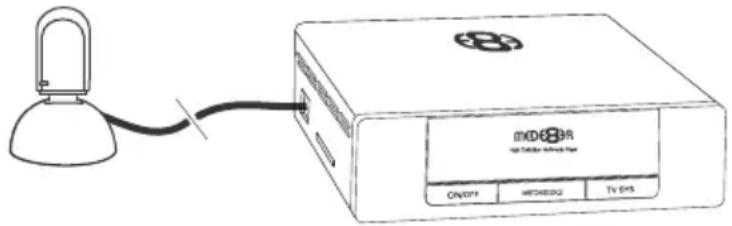
The Mede8er MED400X2 is only compatible with the Mede8er Wireless Dongle 802.11n (Other brands will not work)
Refer to User Instructions supplied with the Mede8er dongle for detailed wireless connection setup.
Only use model MED10WFB WiFi Dongle as it is supplied together with the USB extension cable base.
WIRELESS NETWORK CONNECTION
Plug the MED10WFB into the USB extension base that was supplied with your Mede8er. Plug the USB cable into one of the USB host ports on the side of the Mede8er. Extend the cable and try to place the base in a position that is away from any metal object that could effect the RF signal strength. The best placement for the dongle will depend on your particular environment. In order to get the best placement you may need to extend the length with an additional USB extension cable.
text_image
IMDE8BR Air Bus Bus Bus Bus CANDFR METH40002 TV EHSNote: The draft N standard prohibits using High Throughput with WEP or WPA2-PSK as the unicast cipher, and your data rate will drop to 54 Mbps (802.11g) which is normal. Please try other encryption methods (WPA-PSK), or choose to configure an unsecured profile.
The operating distance or range of your wireless connection can vary significantly based on the physical placement of the Router and the WiFi Dongle.
For best results, place your Router:
* Near the center of the area in which your Mede8er will operate,
* In an elevated location such as a high shelf,
* Away from potential sources of interference, such as PCs, microwaves, and cordless phones,
FIRMWARE UPDATE
Download the latest Mede8er Firmware from www.mede8erforum.com. UnZIP or UnRAR or join with HJ Split and will find one file named install.img. Copy this file to the root directory of a Flash Drive. Plug the flash drive into the Mede8er.
DO NOT REMOVE POWER DURING THE EMERGENCY RECOVERY PROCEDURE.
Setup Menu Update with Auto Configuration Restore
Open the Setup Menu and select the "Misc" tab. Now select USB upgrade option. After +- 5 sec the screen will display the current Firmware Version and the New Firmware Version. You will have the option to select "OK" or "Cancel". Select "OK" and the Mede8er will reboot within +- 1 second and start the update process will start in +- 10 seconds. During the update process the front facia Blue LED will flash and you will see the version of the Firmware and the install progress bar on your TV screen. After the update is complete the Mede8er will reboot with the new firmware installed.
If the Mede8er does not reboot within 5 seconds (after pressing the "Enter" button) then press the "Home" button to initiate
Power Up and hold on/off button for 10 seconds

text_image
MODEBH on 2016.12.2016 ON/OFF MSCI/SSZ TV SYS then releaseEmergency Method (Resets Configuration to Default)
Disconnect the power jack at the rear of the Mede8er then plug it back in - Now press the on/off button and hold it pressed for 10 seconds and then release.
After approximately 15 seconds the LED on the Mede8er with flash blue and you will get a progress bar on your TV display (some TV's will not display this) wait until the Mede8er re boots itself +- 60 sec. Your Mede8er is now updated.
HOME PAGE
The Mede8er Home is the central point where you can launch all the user applications. Press the Right/Left Navigation buttons on the remote to navigate the Home Page and press "Enter" to launch the selected page.

natural_image
Global map with Earth and a star emblem, no visible text or symbols on the globe or iconsFAVOURITES
Create, manage, apply Genre cover art to local and network folder shortcuts.

natural_image
Global scene with a satellite orbiting Earth, no visible text or symbolsMEDIA LIBRARY
In Media Library you can browse all your media content SD Card, USB Devices and Network and launch the built in File Manager to manage and transfer your content.
natural_image
Desktop screen showing a planet with orbiting rings and icons, no readable text or symbols on the globe or background.MOVIE DATABASE SEARCH (USB only)
The Movies Database Search page will display all information about Video Files and allow you other functionality such as search, most viewed and recently added.

natural_image
Illustration of a person orbiting Earth with moonlight, no text or symbols presentMUSIC DATABASE SEARCH (USB only)
The Music Database Search page will display all information about your Music Files and allow you other functionality such as Search and filtering options such as sort by -- Albums, Artists, Genres, Year and access to Playlists.
natural_image
Computer desktop interface showing a planet with Earth and icons, no readable text or symbols on the globe or screen.PICTURES DATABASE SEARCH (USB only)
The Pictures Database Search will display all information about your Pictures and Images and allow you other functionality such as Search and filtering by recently added and recently viewed.
text_image
Screenshot of a macOS desktop with 'Playbox' icons and a globe background showing 'Playbox' brandingINTERNET MEDIA
The Internet Media page contains all the Internet Media such as Web Browser, Social Media, YouTube, Flicker etc

natural_image
Digital globe with Earth and satellite icons, no readable text or symbols on the globe itselfSETUP
The Setup page is the area where you personalize the setup option for your needs
HOME PAGE STRIP
The Home Page can be accessed at any time by pressing the "Home Page" button on the remote. The Home Page Strip will appear at the bottom of the page and allow you to make your selection using the Left / Right Navigation buttons on the remote.

text_image
Favourites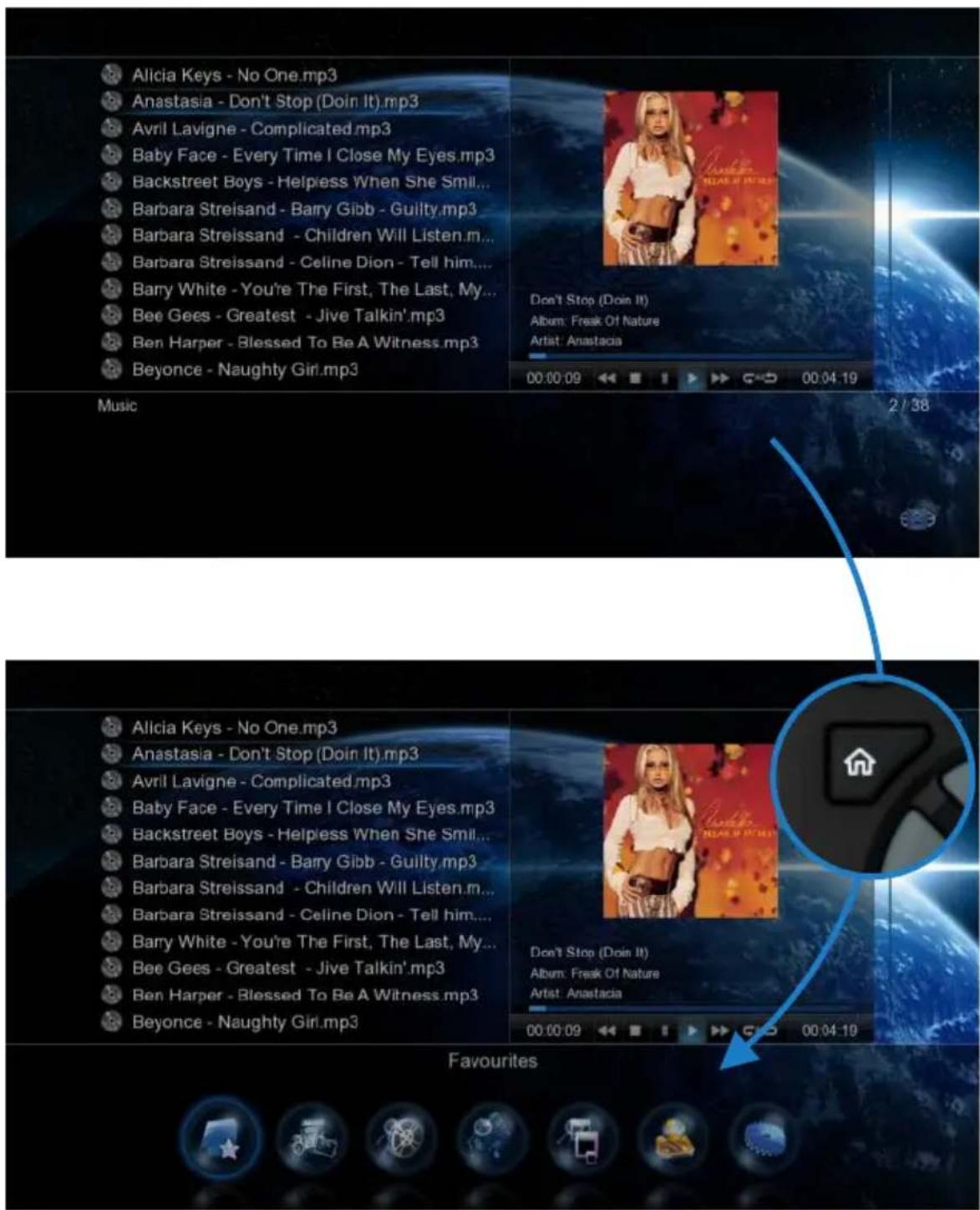
text_image
Alicia Keys - No One.mp3 Anastasia - Don't Stop (Doin It).mp3 Avril Lavigne - Complicated.mp3 Baby Face - Every Time I Close My Eyes.mp3 Backstreet Boys - Helpiess When She Smil... Barbara Streisand - Barry Gibb - Guilty.mp3 Barbara Streissand - Children Will Listen.m... Barbara Streissand - Celine Dion - Tell him... Barry White - You're The First, The Last, My... Bee Gees - Greatest - Jive Talkin'.mp3 Ben Harper - Blessed To Be A Witness.mp3 Beyonce - Naughty Girl.mp3 Don't Stop (Doin It) Album: Freak Of Nature Artist: Anastacia 00:00:09 2/38 Music FavouritesMEDIA LIBRARY
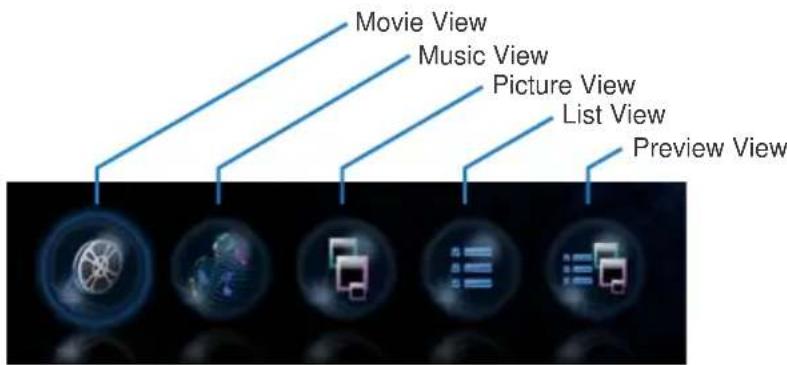
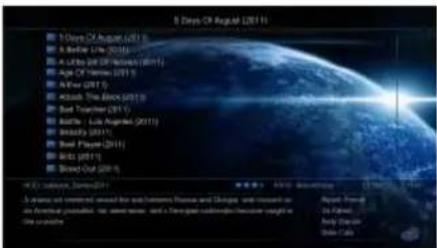
The Mede8er Media Library has five built in standard views ie Movie View, Music View, Picture View, List View, List View and Preview View. The Media Library has been designed so that the view can be easily changed on the fly. In the Media Library you have the option of changing the Views Manually or you can enable the 'Auto View' option in the Setup Menu. If the 'Auto View' option is enabled the X2 will automatically save the View of the folder when you change the View manually. The next time you enter the same folder it will automatically change to the saved View. Auto View mode requires that the X2 has 'write' permissions as it needs to save a xml file to each folder. Auto View is disabled in Jukebox mode.
text_image
Movie View Music View Picture View List View Preview View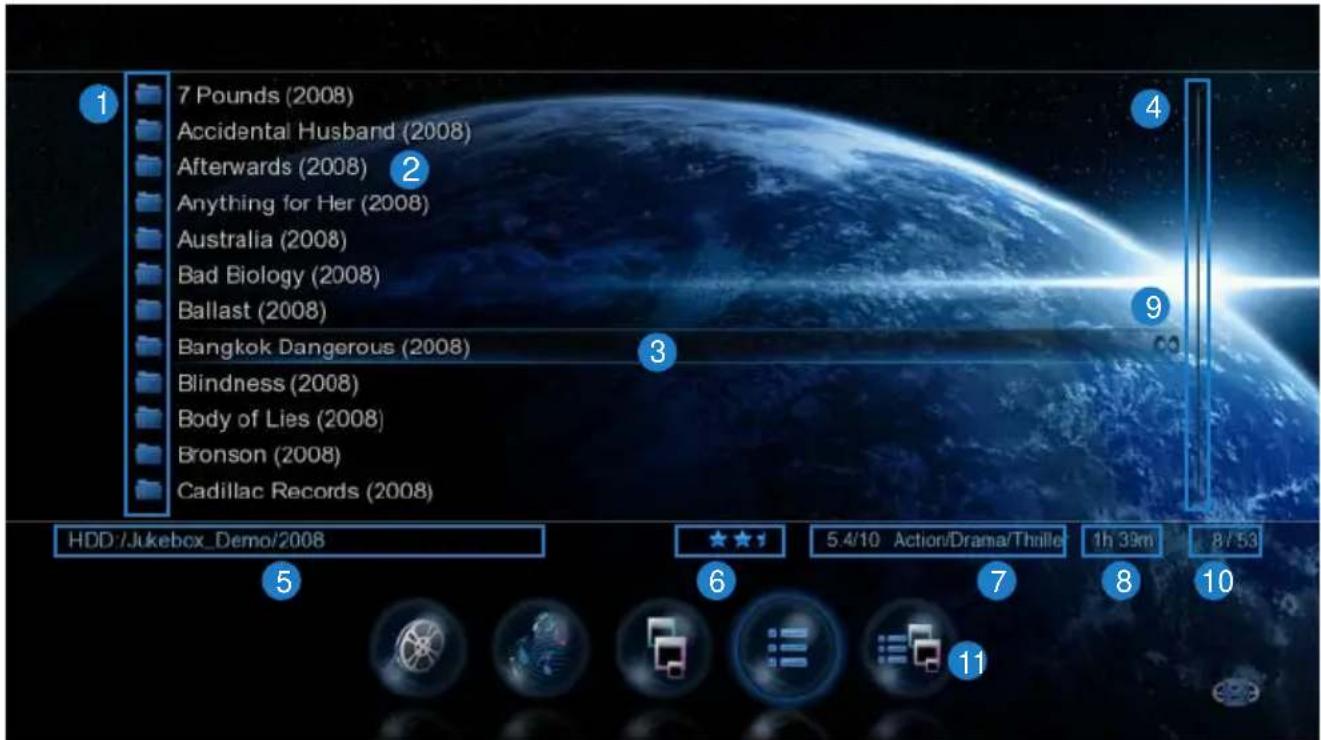
text_image
7 Pounds (2008) Accidental Husband (2008) Afterwards (2008) 2 Anything for Her (2008) Australia (2008) Bad Biology (2008) Ballast (2008) Bangkok Dangerous (2008) 3 Blindness (2008) Body of Lies (2008) Bronson (2008) Cadillac Records (2008) HDD:/Jukebox_Demo/2008 5.4/10 Action/Drama/Thrille 1h 39m 8/53 6 7 8 10- Media Icons 2. File Name 3. Focus Bar 4. Scroll Bar 5. Folder Path 6. Metadata Rating 7. Metadata Genre 8. Metadata Movie Length 9. Watched Indicator 10. Index 11. View Icons

text_image
5 Days On August (2011) Movie stills: France & Spain Dennis: 1974 Movie stills: France & Spain Dennis: 1974 Movie stills: France & Spain Dennis: 1974 Movie stills: France & Spain Dennis: 1974 Movie stills: France & Spain Dennis: 1974 Movie stills: France & Spain Dennis: 1974 Movie stills: France & Spain Dennis: 1968 Movie stills: France & Spain Dennis: 1968 Movie stills: France & Spain Dennis: 1968 Movie stills: France & Spain Dennis: 1968 Movie stills: France & Spain Dennis: 1968 Movie stills: France & Spain Dennis: 1968 Movie stills: France & Spain Dennis: 1898 Movie stills: France & Spain Dennis: 1898 Movie stills: France & Spain Dennis: 1898 Movie stills: France & Spain Dennis: 1898 Movie stills: France & Spain Dennis: 1898 Movie stills: France & Spain Dennis: 1898 Movie stills: France & Spain Dennis: 2000 Movie stills: France & Spain Dennis: 2000 Movie stills: France & Spain Dennis: 2000 Movie stills: France & Spain Dennis: 2000 Movie stills: France & Spain Dennis: 2000 Movie stills: France & Spain Dennis: 2000 Movie stills: France & Spain Dennis: 2300 Movie stills: France & Spain Dennis: 2300 Movie stills: France & Spain Dennis: 2300 Movie stills: France & Spain Dennis: 2300 Movie stills: France & Spain Dennis: 2300 Movie stills: France & Spain Dennis: 2300 Movie stills: France & Spain Dennis: D. Movie stills: France & Spain Dennis: D. Movie stills: France & Spain Dennis: D. Movie stills: France & Spain Dennis: D. Movie stills: France & Spain Dennis: D. Movie stills: France & Spain Dennis: D. Movie stills: France & Spain Dennis: D. Movie stills: France & Spain Dennis: D. Movie stills: France & Spain A drama on commercial music for the new parades of Drama and Comedy, and演示了新戏《需要》的影片。The genre shows a 'one' genre has been introduced to become a 'one' genre. The genre has been introduced to become a 'one' genre. The genre has been introduced to become a 'one' genre. The genre has been introduced to become a 'one' genre. The genre has been introduced to become a 'one' genre. The genre has been introduced to become a 'one' genre. The genre has been introduced to become a 'one' genre. The genre has been introduced to become a 'one' genre. The genre has been introduced to become a 'on' the genre.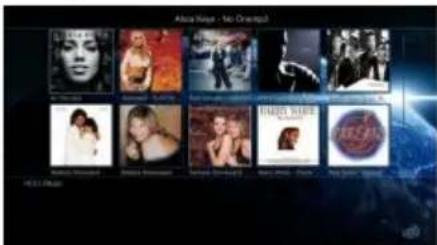
text_image
Alice Beauty - No Orontal The Green Alice Beauty The Green Alice Beauty The Green Alice Beauty The Green Alice Beauty The Green Alice Beauty The Green Alice Beauty The Green Alice Beauty The Green Alice Beauty The Green Alice Beauty The Green Alice Beauty The Green Alice Beauty The Green Alice Beauty The Green Alice Beauty The Green Alice Beauty The Green Alice Beauty The Green Alice Beauty The Green Alice Beauty The Green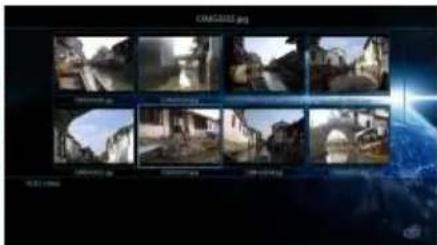
natural_image
Grid of nine grayscale images showing urban scenes with buildings and structures, set against a cosmic background (no text or symbols)Movie View Music View Picture View
text_image
5 Days Of August 2011 ■ 1 Days Of August (2011) ■ A Brief Line (2011) ■ A Little (9) Of November (2011) ■ A Age Of November (2011) ■ A Year (2011) ■ Alaska The Rock (2011) ■ Back Together (2011) ■ Backfire: Live Argentina (2011) ■ Brady (2011) ■ Steel Player (2011) ■ BRL (2011) ■ Blood Out (2011)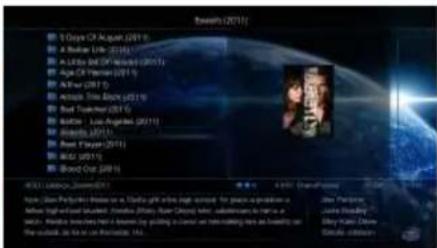
text_image
Ecoast 2011E 1 Day Of August (2011) A Woman Life (2011) A Little Book Of Award (2011) Age Of Future (2011) A Year (2011) Action The Back (2011) Best Teacher (2011) Auditor: Los Angeles (2011) Alcalia (2011) Best Player (2011) Best Out (2011) 4/3/2012, June 2011 4/3/2012, December 2011 Jenny Pintice Lucy Baggie Gibby Goburn Jenny Pintice Lucy Baggie Gibby GoburnList View Preview View
MEDIA LIBRARY CONTINUED
To change the View of the Media Library press the "View" button on the remote and the Media Library strip will light up. Press the 'View' button again and the focus will change to the next icon. Repeat pressing the 'View' button until the icon you require is selected and then wait and the X2 will automatically change the Media Library view to one one you have selected. You can also use the Left /Right Navigation buttons on your remote to change the icon focus and one you have selected the icon you require just wait and the X2 will automatically change the Media Library view.
text_image
Ballast (2008) 7 Pounds (2008) Accidental Husband (2008) Afterwards (2008) Anything for Her (2008) Australia (2008) Bad Biology (2008) Ballast (2008) Bangkok Dangerous (2008) Blindness (2008) Body of Lies (2008) Bronson (2008) Cadillac Records (2008) HDD:/Jukebox_Demo/2008 6.9/10 Drama 1h 36m 7/53 A single mother and her embattled son struggle to subsist in a small Mississippi Delta township. An act of violence thrusts them into the world of an emotionally devastated highway store owner, awakening the fury of a bitter and longstanding conflict. Micheal J.... JimMyron Ross Tarra Fogs Johnny Mc Phail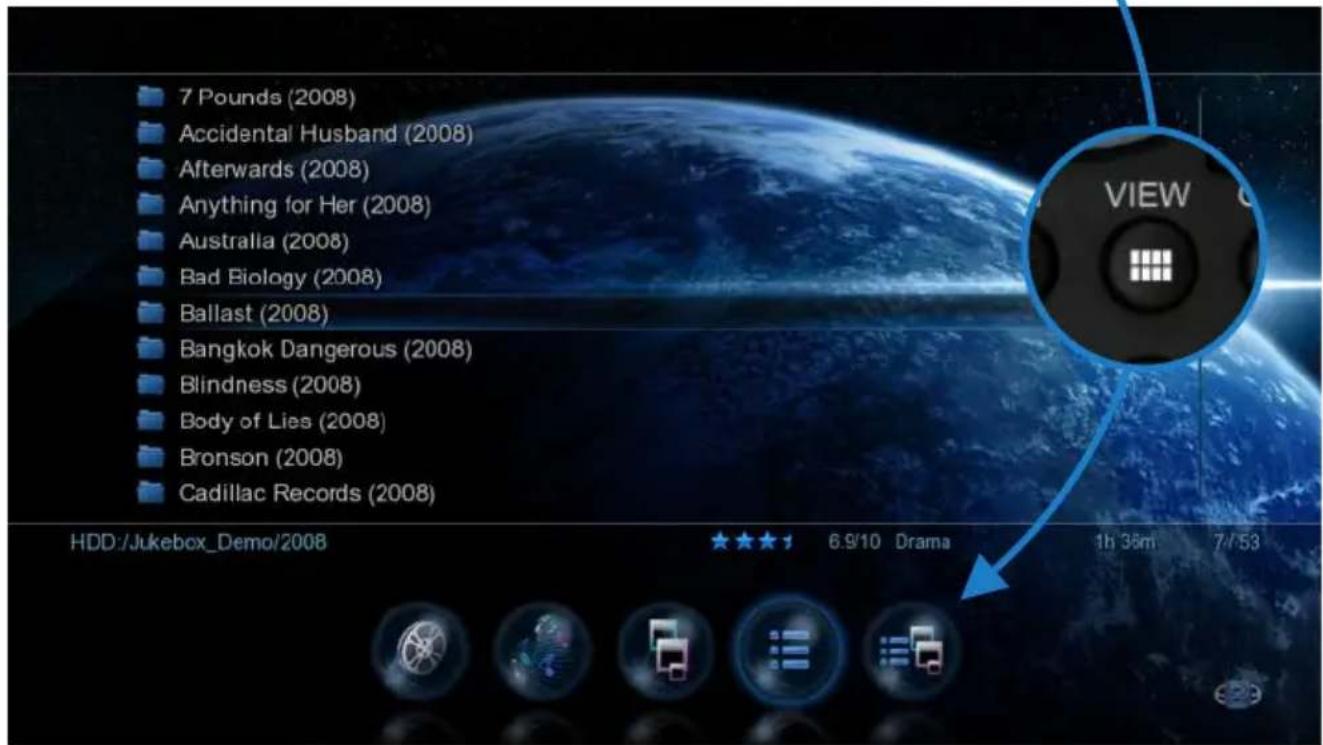
text_image
7 Pounds (2008) Accidental Husband (2008) Afterwards (2008) Anything for Her (2008) Australia (2008) Bad Biology (2008) Ballast (2008) Bangkok Dangerous (2008) Blindness (2008) Body of Lies (2008) Bronson (2008) Cadillac Records (2008)
flowchart
graph LR
    A["Left Hand"] --> B["Right Hand"]
    B --> C["Arrow Up"]
    C --> D["Left Hand"]
    D --> E["Right Hand"]
MEDIA LIBRARY METADATA DISPLAY
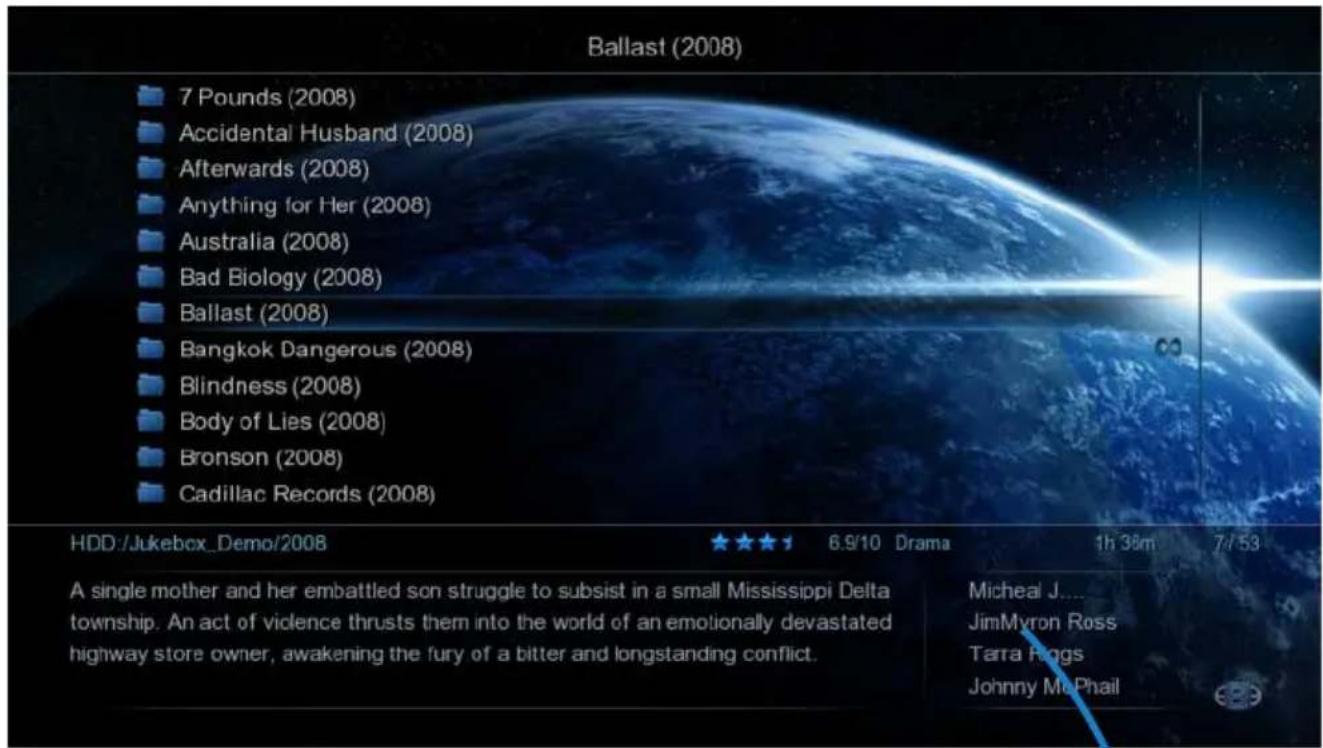
The Media Library will display basic Movie Metadata in all 'Views'. This unique Mede8er functionality will greatly enhance your Media Library browsing experience and make it real easy for the whole family to enjoy. In order to take advantage of the advanced functionality you will need to scan your movie collection with Y2M (YAMJ to Mede8er) or Thumbgen in order to create the required xml files.
Movie Rating - stars out of 5, Movie rating - x out of 10, Movie Genre, Movie Run time
Visit the Mede8er Forum for downloads and instructions on using Y2M. www.mede8erforum.com

text_image
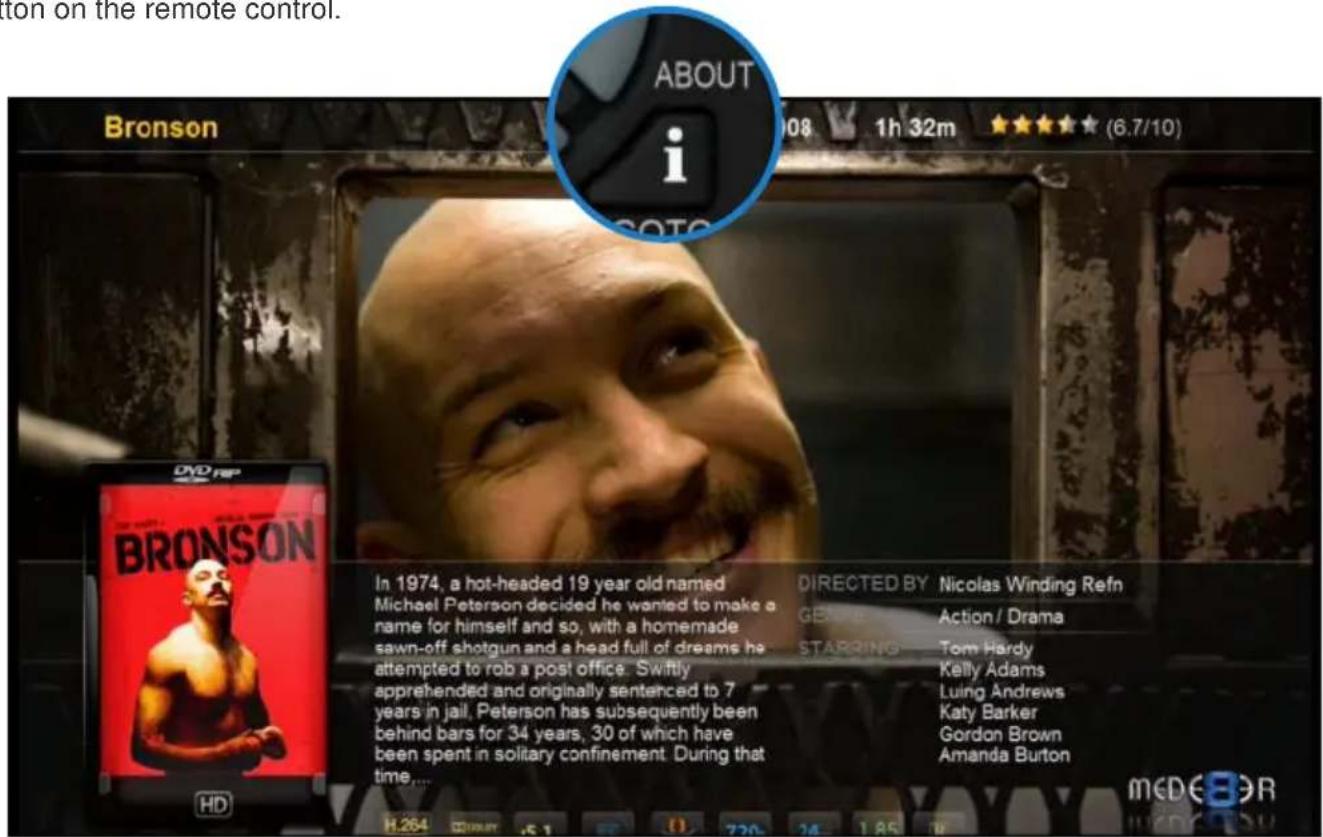
Bronson (2008) 7 Pounds (2) Accidental H Afterwards ( ) Anything for Australia (20) Bad Boyboy British (2013) Bangkok Dan... Blindness (2... Body of Lies ... ) Cadillac Rec Cass (2008) Changeling ( ) Contract Kill Cornered (2... HDD:/Jukebox_Demo/2008 ★★★★ 6 7/10 Action/Drama/Thriller 1h 32m 11 7 53 In 1974, a hot-headed 19 year old named Michael Peterson decided he wanted to make a name for himself and so, with a homemade sawn-off shotgun and a head full of dreams he attempted to rob a post office. Swiftly apprehended and originally sentenced to 7 years in jail, Peterson has subsequently been behind bars... Tom Hardy Kelly Adams Lung Andrews Katy BarkerYou can view the Movie Sheet that contains the full movie details at any time by pressing the "Info" About button on the remote control.
text_image
Bronson 08 1h 32m ★★★★ (6.7/10) i SOTO BRONSON In 1974, a hot-headed 19 year old named Michael Peterson decided he wanted to make a name for himself and so, with a homemade sawn-off shotgun and a head full of dreams he attempted to rob a post office. Swiftly apprehended and originally sentenced to 7 years in jail, Peterson has subsequently been behind bars for 34 years, 30 of which have been spent in solitary confinement. During that time... DIRECTED BY Nicolas Winding Refn GELEME Action / Drama STARRING Tom Hardy Kelly Adams Luing Andrews Katy Barker Gordon Brown Amanda Burton H.264 ■■■■ ■■ ■ ■ ■ ■ ■ ■ ■ ■ ■ ■ ■ ■ ■ ■ ■ ■ ■ ■ ■ ■ ■ ■ ■ ■ ■ ■ ■ ■ ■ ■ ■ ■ ■ ■ ■ ■ ■ ■ ■ ■ ■ ■ ■ ■ ■ ■ ■ ■ ■ ■ ■ ■ ■ ■ ■ ■ ■ ■ ■ ■ ■ ■ ■ ■ ■ ■ ■ ■ ■ ■ ■ ■ ■ ■ ■ ■ ■ ■ ■ ■ ■ ■ ■ ■ ■ ■ ■ ■ ■ ■ ■ ■ ■ ■ ■ ■ ■ ■ ■ ■ MCDE BORADDING CUSTOM BACKDROPS AND SKINS
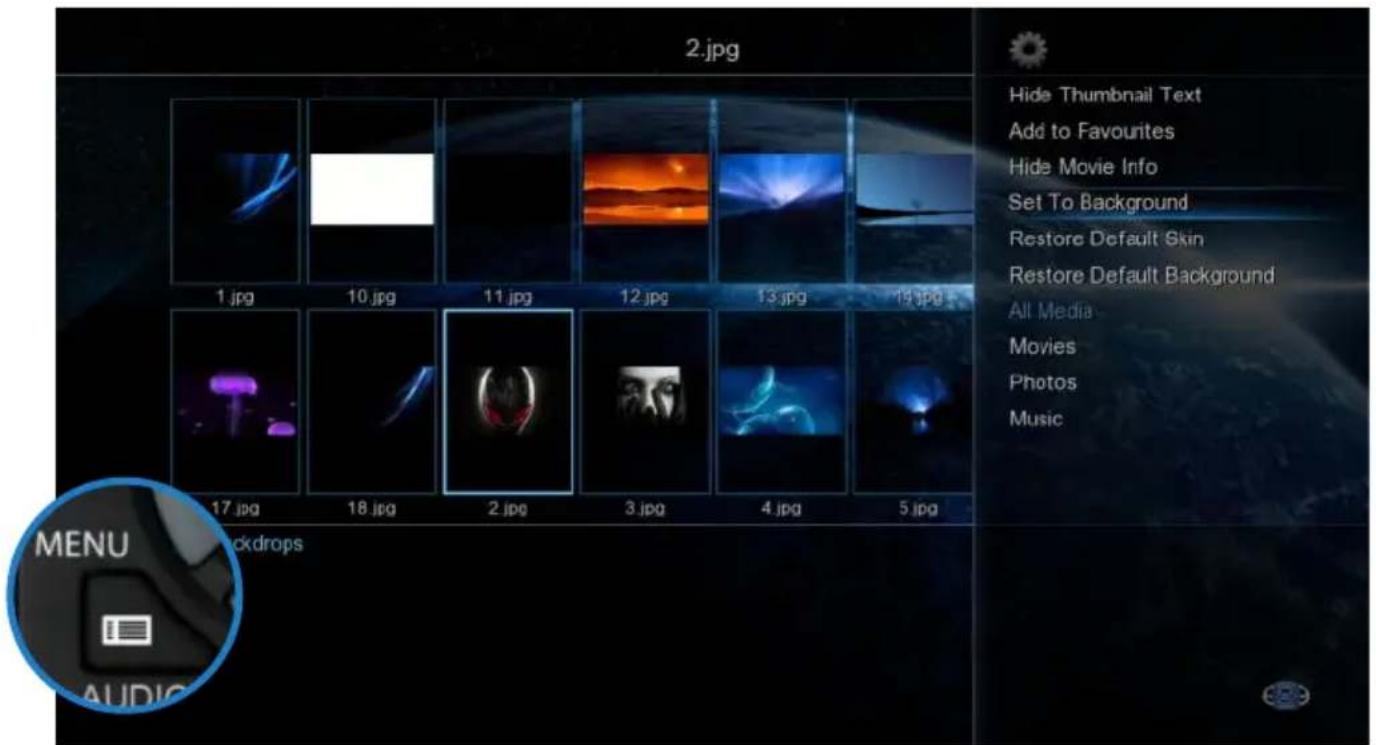
You can easily customise your X2 by adding your own backdrop image. Prepare the jpg image to size 1280 x 720 pixels with max size 500KB. In the X2 Media Library navigate to the image you require and press the 'Menu' button. Select the option 'Set to Background' and the x2 will load your new backdrop into flash memory and use it as its default. You can always revert to the Mede8er original default by selecting the option 'Restore Default Background'
text_image
2.jpg 1.jpg 10.jpg 11.jpg 12.jpg 13.jpg 19.jpg 17.jpg 18.jpg 2.jpg 3.jpg 4.jpg 5.jpg MENU AUDIC Backdrops Hide Thumbnail Text Add to Favourites Hide Movie Info Set To Background Restore Default Skin Restore Default Background All Media Movies Photos MusicThe skin option is community driven and we are expecting some unique designs to become available and these will be available for download from the Mede8er forum and website. To load a skin -- just download it and unzip /unrar it to a folder. In X2 navigate to this folder and press the 'Menu' button and select 'Add to Skin Option' The new Skin will be loaded into flash memory and used as the new default. You can revert back to the original default skin at any time by selecting the option 'Restore Default Skin'
text_image
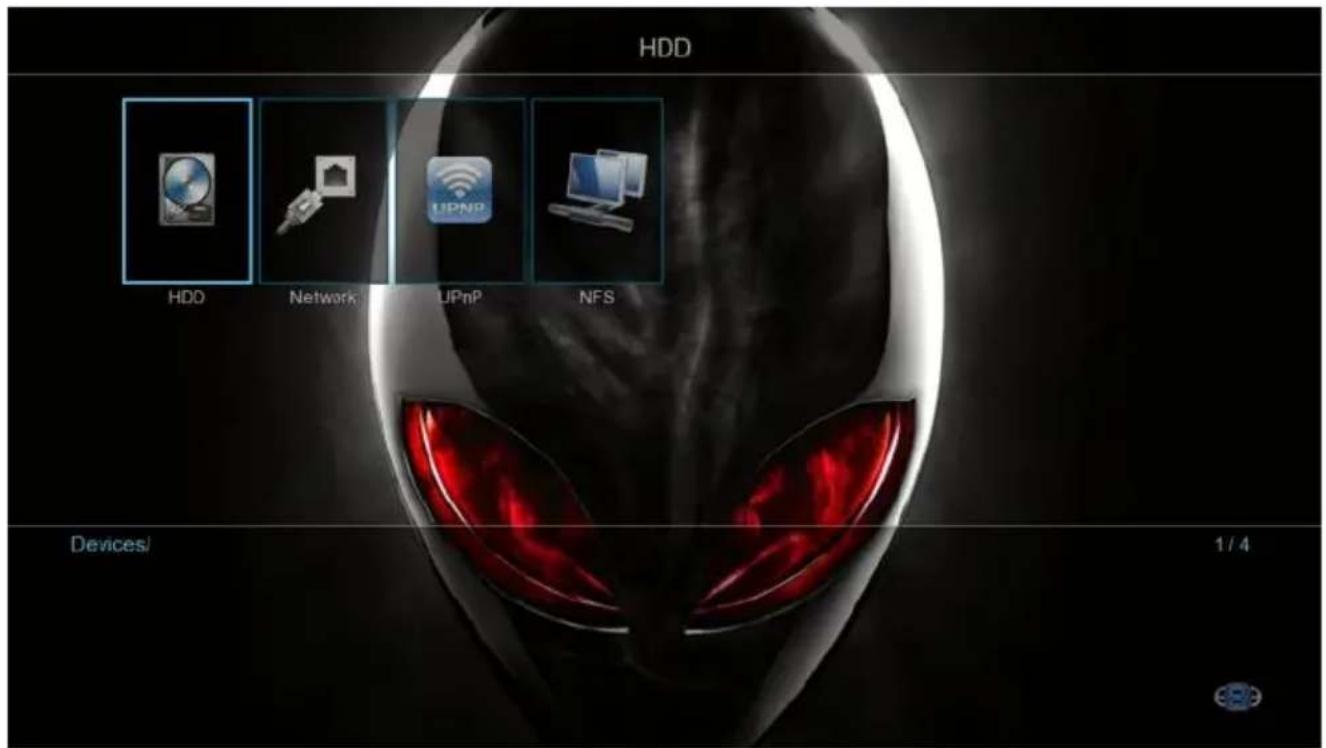
HDD HDD Network UPnP NFS Devices/ 1/4Once you have decided on the Background or Skin we recommend that the X2 be be Re-booted for reliable system operation.
XML SEARCH (JUKEBOX FUNCTION)
The X2 has a built in XML Search facility that will allow you to sort and arrange your Video Files by pre defined xml filters. The XML Search can be used with content on External USB Hard Drive, Samba Network and NFS Network.
Library Preparation for XML Search operation
The Media Library must conform to the Mede8er standard with all the relevant movie file information in its own folder. A typical folder will contain - Video File - Folder.jpg - About.jpg - XML File - Subtitle file. Once you have arranged your Video Collection into individual folders you can use Y2M (YAMJ To Mede8er) or Thumbgen to scan the folders to make the requires images and xml files.
Scanning your Library
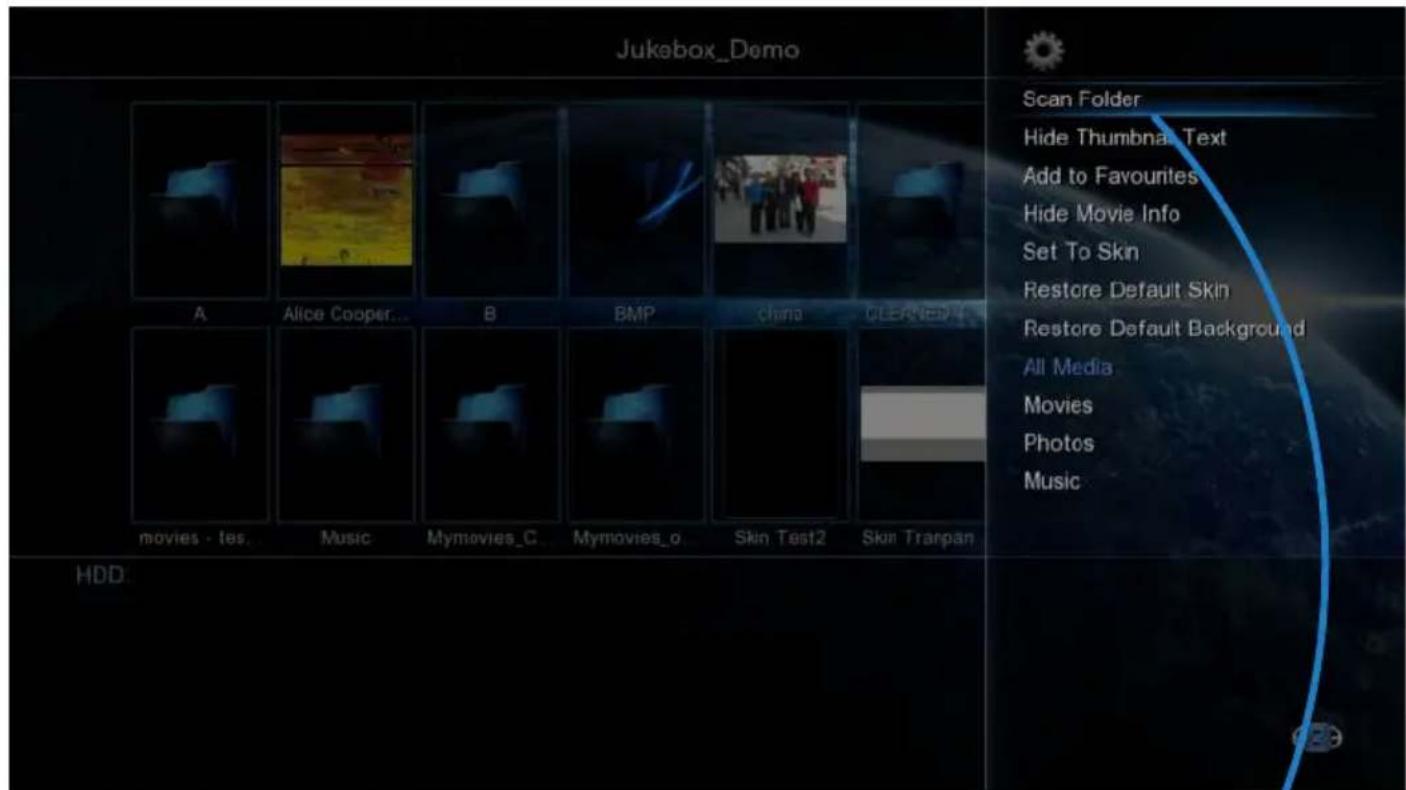
In order to provide XML Search functionality the X2 must scan your library and build a Database file. To scan your library you must focus on the Root Folder of your library and press the 'Menu' button and then select the 'Scan Folder' option. The X2 will start the scan process and Scan all folders and sub folders in order to build the dBase file. The Search criteria is to only include folders that have a valid Y2M or Thumbgen XML inside. The folder depth level is not limited in the X2 firmware but the path of the string cannot be longer than 512 characters and the max number of sub folders cannot exceed 4096. The Database file 'Mede8er.db' will be save to the root of the folder that has been scanned. Network shares must be 'Write Enabled' for the scan process to complete. If new content is added to the root folder then the scan operation must be repeated. Scanning time is quick and it should take about 30 seconds to scan over 300 video files.
Note: The Maximum amount of Movies in one Database is currently +- 1000. If you scan a library with more movies than 1000 then the operation of the xml Search can become erratic and you may experience that the Mede8er often crashes.
text_image
Jukebox_Demo Scan Folder Hide Thumbnail Text Add to Favourites Hide Movie Info Set To Skin Restore Default Skin Restore Default Background All Media Movies Photos Music movies - tes. Music Mymovies_C. Mymovies_o. Skin Test2 Skin Tranpan HDD.
text_image
Scan FolderJukeBox View
In Setup under 'Misc Options' you can select JukeBox View -- on/off
JukeBox View ‘off’ - Favourite Links to a Jukebox will be presented in a normal structure and you can navigate the scanned Folders and Sub Folders folder as you normally would in the Media Library.
JukeBox View ‘on’ - Favourite Links to Jukebox will be presented in JukeBox View ie 16 Covers in a flat display. The internal folder structure of the folder will be ignored.
You can add a scanned XML Folder to Favourites in the normal way.
JukeBox View
On
Using XML Search - Media Library
To use the XML Search you must navigate to the root folder that was scanned and open it. You will see a XML Search icon on the top right of the screen.

Using XML Search - Favourite Link
If the Jukebox was launched from a Favourite link then the contents will be displayed in Jukebox Style (provided the Jukebox View in enables in the Setup Menu.
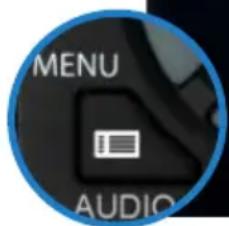
If you see the Search Icon top right of the screen you then have Jukebox functionality. Press the Menu Button and you will have a choice of XML Search option.
Sort Search Results by Latest / Alphabetically
You have the option to have the Search results filtered by 'Latest' ie the date you added the movie to your collection or in Alphabetic order. This is a global setting and will be stored in memory. After selecting this option you must then do a XML Search.
Watched Indicator
If this option is enabled in the Setup Menu then it will then show on the XML Search Menu. You will have the option to Mark the Video as Watched / Unmark as Watched. The Video file will automatically marked as
Watched if more than 10% of the Video was watched.
Folder Lock
If enabled in the Setup Menu (Folder Protection) You will be able to lock any Movie in the Jukebox. Just select the 'Lock' option and the Movie will be locked. To unlock the Movie just focus on the cover and press the Menu Button and select 'Unlock' then enter your 4 digit pin code and the Movie will be unlocked. Default code is 0000
Hide Movie Info
If this option is selected the XML Movie Info will be hidden
All - All content will be displayed by 'Latest' or in 'Alphabetic' order.
Genre - list of all the available Genres in the dBase will be displayed.
Year - This is the release date of the movie. A list of all the 'Years' ie release dates in the dBase will be displayed.
Star Rating - The star rating is the IMDB users rating for the movie.
Alpha Search - Use the Alpha buttons on the remote. An Alpha search can be conducted within a dBase XML Search.
text_image
MENU AUDIO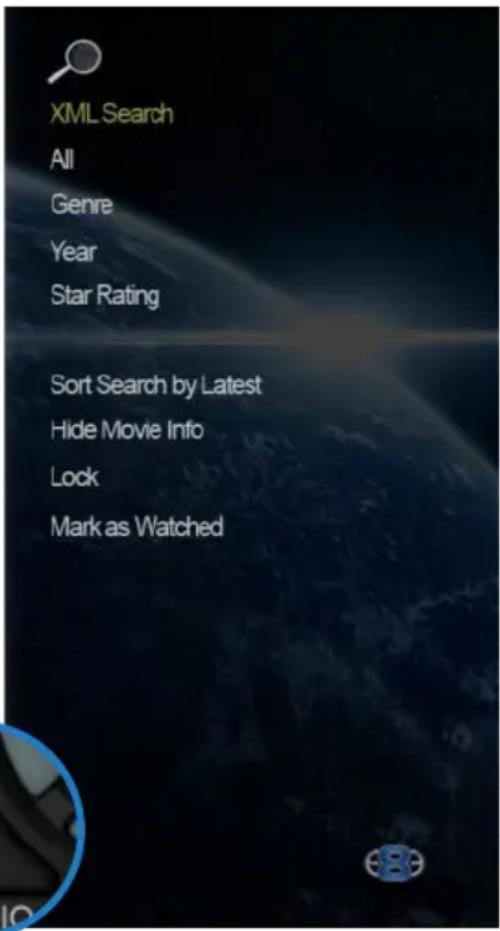
text_image
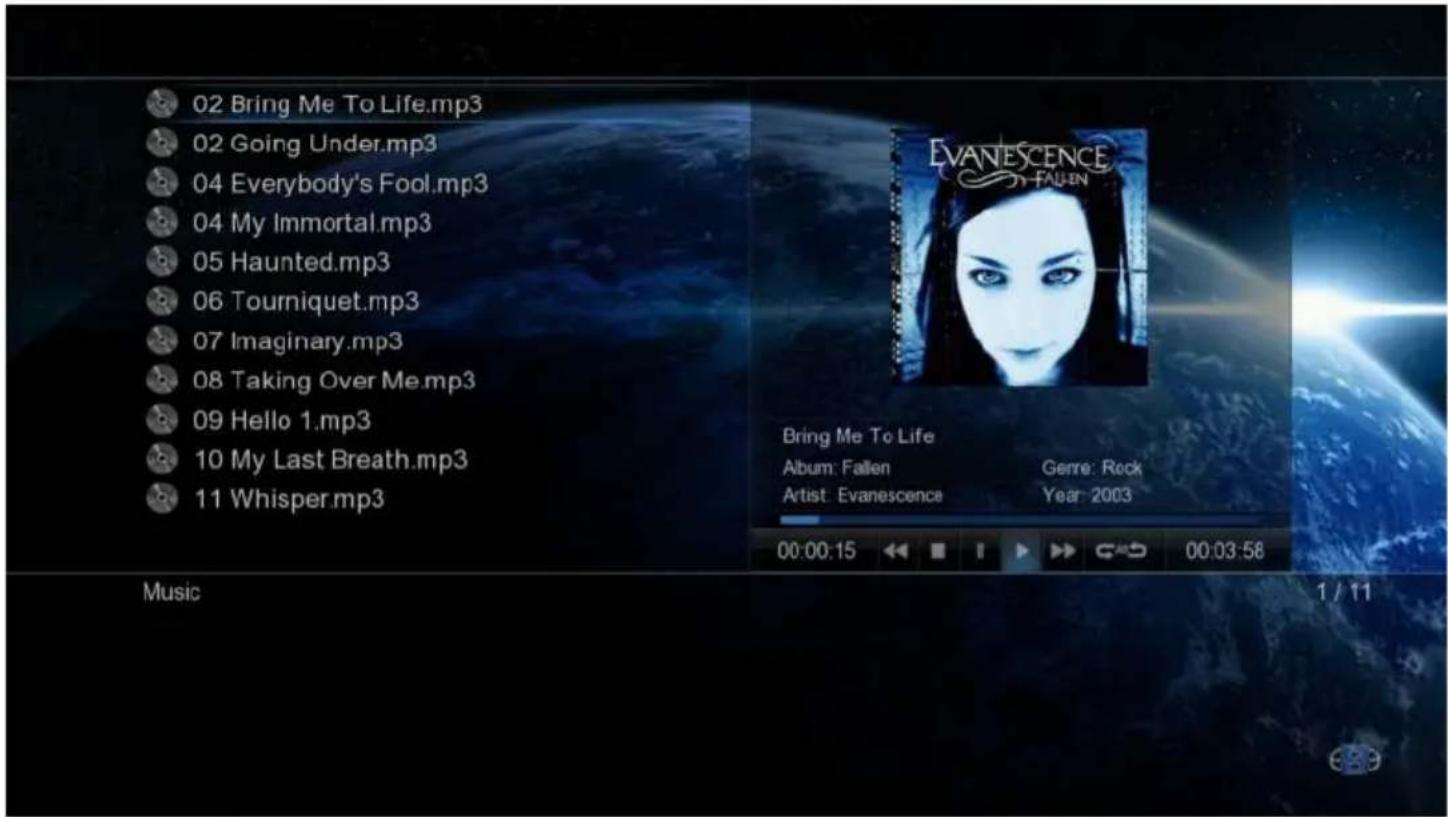
XML Search All Genre Year Star Rating Sort Search by Latest Hide Movie Info Lock Mark as WatchedSelect any supported music file and the Music Player Screen will launch. If the music file has embedded information tags and images then these will be displayed on the right hand side in the preview window area. If you do not want to use embedded mp3 art or you are using .m4a, ape or flac files you can save the Album Cover as a jpg file named 'folder.jpg' to the Music Album Folder and the X2 will use it if it does not find any embedded art in the music files. Suggested size of the embedded art is 250 x 250pixels.
text_image
02 Bring Me To Life.mp3 02 Going Under.mp3 04 Everybody's Fool.mp3 04 My Immortal.mp3 05 Haunted.mp3 06 Tourniquet.mp3 07 Imaginary.mp3 08 Taking Over Me.mp3 09 Hello 1.mp3 10 My Last Breath.mp3 11 Whisper.mp3 Bring Me To Life Album: Fallen Genre: Rock Artist: Evanescence Year: 2003 00:00:15 00:03:58 Music 1 / 11
text_image
AUDIOCurrently Playing - Music Shortcut
The currently playing shortcut will take you back to the Music Player and display the music that is currently playing. Press the 'Audio' button for the Currently Playing functionality.

text_image
EVANESCENCE FALLEN Bring Me To Life Album: Fallen Genre: Rock Artist: Evanescence Year: 2003 00:00:15 00:03:58Current Track Time
Total Track Time
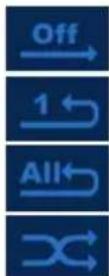
OFF - Repeat and Shuffle off
Repeat Track - Repeat the current track
Repeat All - Repeat all tracks in the folder. Shuffle off
Shuffle - Shuffle all tracks in the current folder
text_image
PQRS or MENU AUDIO EDCOVER ART PREVIEW IN MEDIA LIBRARY
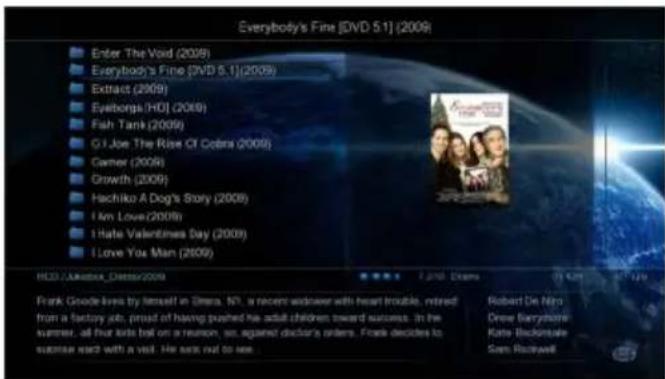
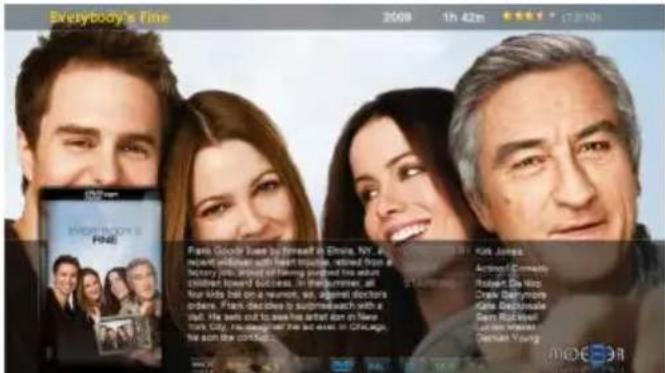
The Mede8er has a built in facility to preview cover art and it will automatically read the folder.jpg and the about.jpg inside the movie folders. All you need to do in order to use this very useful feature is to arrange your collection with each video, in its own folder. Place a JPEG picture together with each movie in the folder and you will be ready to go. You can easily download DVD cover art for your picture or you can use the free program like YAMJ to Mede8er to make your folder.jpg and about.jpg pictures that will contain additional content information such as Synopsis, Cover, Rating, Year, Actors etc etc
IMPORTANT: We recommend that you set your screen size in the Setup Menu before viewing the in folder full screen cover art.
text_image
Everybody's Fine [DVD 5.1] (2009) Enter The Void (2009) Everybody's Fine [DVD 5.1](2009) Extract (2009) Eyeborgs (HDI) (2009) Fish Tank (2009) G.I Joe The Rise Of Cobra (2009) Career (2009) Growth (2009) Hachiko A Dog's Story (2009) I Am Love (2009) I Hate Valentines Day (2009) I Love You Man (2009) HEDD / Alkresse_Dress/2009 Frank Goode lives by himself in Elmera, NY, a recent widower with heart trouble, retired from a factory job, proud of having pushed his adult children toward success. In the summer, all four little fell on a reunion, an against doctor's orders. Frank decides to succeed each with a visit. He isn't too nice. Robert De Niro Onew Bárzyhorne Kate Beckensale Sam RoovellNavigate to a folder. The image will be displayed in the preview window.
text_image
Everybody's Fine 2008 1h 42m (2010) #300 Box 5 #300 Box 5 Frank Goodie Love by First in Elys, NY. All new art pieces with heart tourists, edited from a history job, impact of being joined the adult children toward success. In the summer, all Nur kids hit on a review, so, against doctors options. Frank decides to suit me wish with a visit. He won't see his debut aren in New York City. News himself has made in Chicago. He don't like comments. Kai Jones Actives! Comedy Robert De Vio Craig Barrymore Gile Desimade Gary Riddell Luisan Kines Dennis YoungTo view the preview in full screen press the Info / About button.
text_image
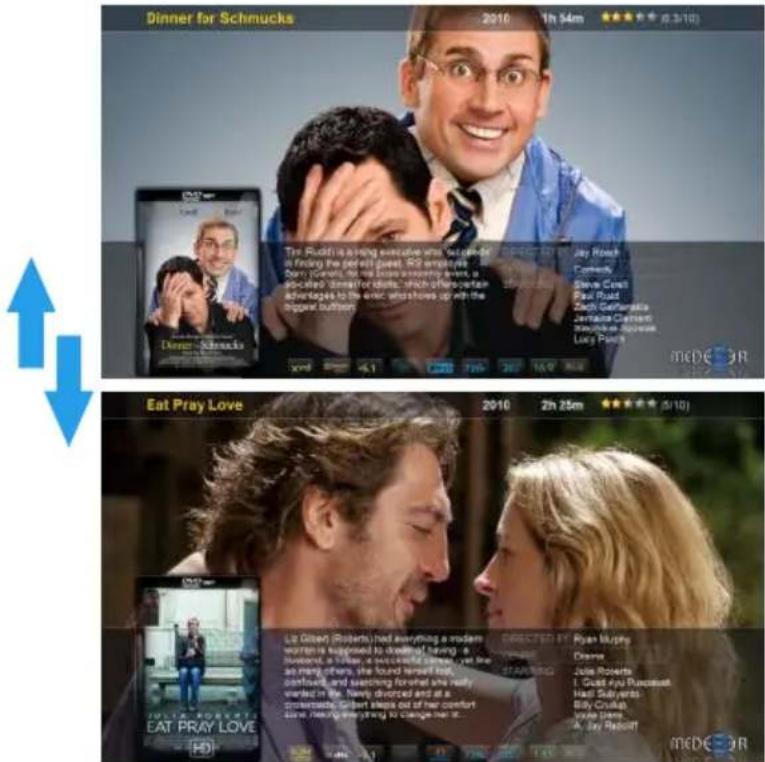
Dinner for Schmucks 2010 1h 34m ★★★★ (2:3/10) The Ruck is a strong executive who's confident in finding the pickell guest. R2 employees Beny Fomen, he has done something even, is possible? I'm sure that she will have to be able to decide to the enter who shows up with the biggest bullthem. Jay Rock Carmick Steve Carel Paul Road Zach Gatharaka Jermaine Clement Jahara Siperea Lacy Panch meDE 3R Eat Pray Love 2010 2h 25m ★★★★ (2/10) Lie Gilbert (Roberts) had everything a modern woman is supposed to download! having a husband, in France, a new cheerful scene, yet like as many others, she found herself feel, himself, and searching before she really worked in the. Never divorced and at a programme. Gilbert steps out of her comfort. Love, there everything to change me it. Directed by Ryan Murphy Drama Joe Roberts I. Guett Joe Russell Hail Salyerati Billy Cruick Voice Name A. Jay Russell meDE 3RPress the Nav Up/Down to browse by cover art

text_image
ABOUT i COTO
natural_image
Simple blue curved arrow pointing downward and to the right, with a small circular mark at the bottom (no text or symbols)
natural_image
Blue hands pointing at a circular control knob with directional arrows (no text or symbols)PLAY FOLDER
Mede8er allows you to play a video file within a folder without the need to open the folder. Just focus on the required folder and press the 'Play' or 'FF' button. The first video file found in the folder will be played. The folder play will only work with video files.
text_image
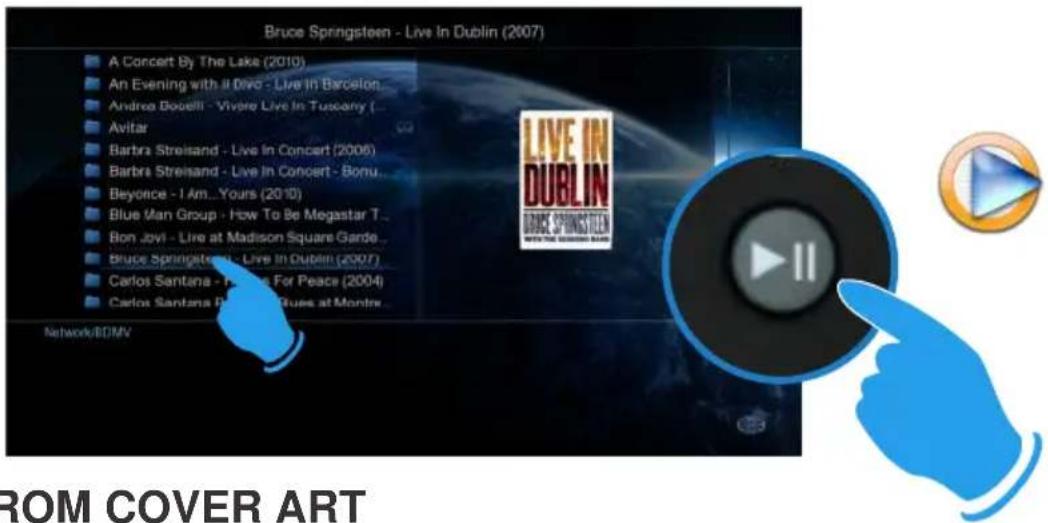
Bruce Springsteen - Live In Dublin (2007) A Concert By The Lakes (2010) An Evening with # Divo - Live In Barcelona Andrea Boselli - Vivore Live In Tuscany ( Avitar Barbra Streisand - Live In Concert (2006) Barbra Streisand - Live In Concert - Bonu Beyonce - I Am...Yours (2010) Blue Man Group - How To Be Megastar T... Bon Jovi - Live at Madison Square Garde ... Bruce Springsteen - Live In Dublin (2007) Carlos Santana - For Peace (2004) Carlos Santana Bao's Blues at Montre LIVE IN DUBLIN BRUCE SPRINGSTEEN WELCOME TO THE GENDER'S SCHOOLS Network/BOMV FROM COVER ARTPLAY VIDEO FROM COVER ART
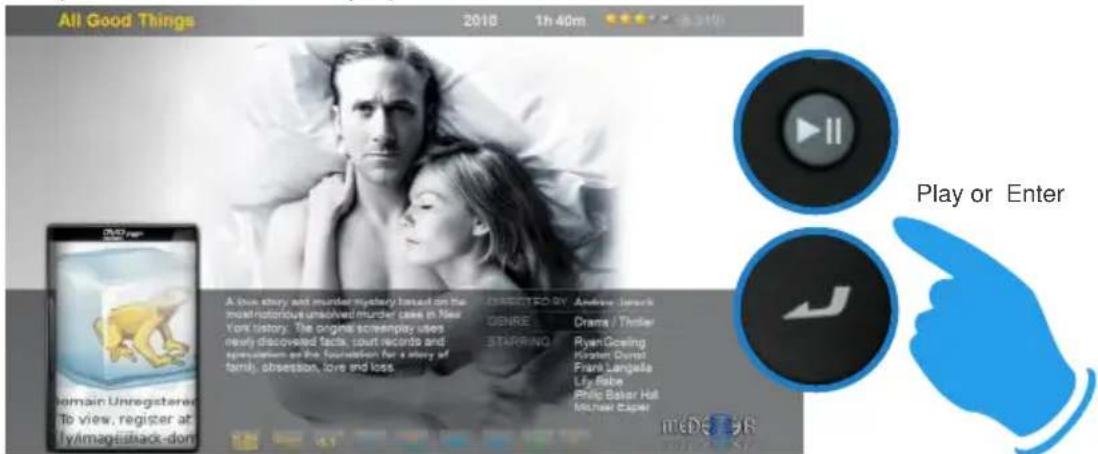
With Mede8er you can play the video directly from the cover art. Zoom the about.jpg by pressing the 'Info / About' button then press 'Play' or 'FF' or 'Enter' to play the video.
text_image
All Good Things 2018 1h 40m Play or Enter Domain Unregistered To view, register at: MyImageStack-dom A love story and murder mystery based on the most ridiculous unshaped murder case in New You history. The original screenplay uses newly discovered facts, court records and repetition on the foundation for a story of family, obsession, love and loss. ISSUED BY Andrew Jarnick GENRE Drama / Thriller STARRING Ryan Goring Kramer Durat Frank Langate Lily Ribe Philip Baker Hat Michael Caser meDE 98WATCHED INDICATOR
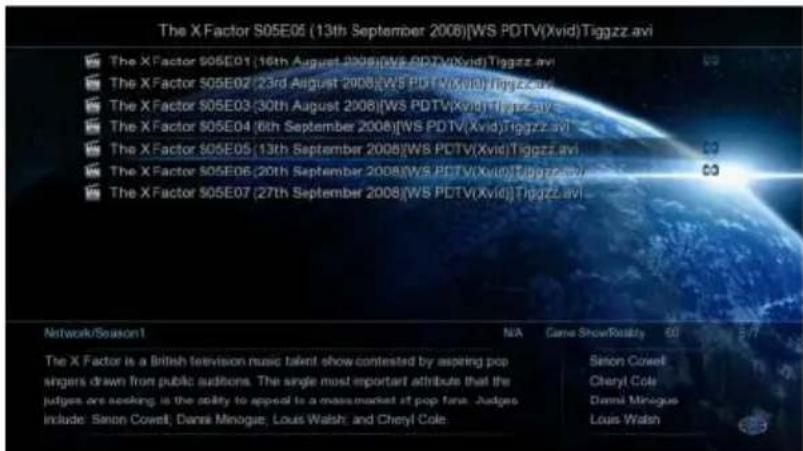
Mede8er is equipped with a watched video indicator feature. To enable this function go to Setup -- Misc -- Watched Indicator and switch it on. Mede8er will mark the Video file with a eye icon once more than 10% of a video has been watched. You can also mark a video as watched or clear the watched icon manually.
Media Library - Focus on the file or folder and press the 'EDIT' button on the remote control and you will be able to add or remove the watched indicator.
JukeBox - Focus on the file or folder and press the 'Menu' button on the remote control and you will be able to add or remove the watched indicator.
text_image
The X Factor S05E05 (13th September 2008)[WS PDTV(Xvid)Tiggzz.avi] The X Factor S05E01 (16th August 2008)[WS PDTV(Xvid)Tiggzz.avi] The X Factor S05E02 (23rd August 2008)[WS PDTV(Xvid)Tiggzz.avi] The X Factor S05E03 (30th August 2008)[WS PDTV(Xvid)Tiggzz.avi] The X Factor S05E04 (6th September 2008)[WS PDTV(Xvid)Tiggzz.avi] The X Factor S05E05 (13th September 2008)[WS PDTV(Xvid)Tiggzz.avi] The X Factor S05E06 (20th September 2008)[WS PDTV(Xvid)Tiggzz.avi] The X Factor S05E07 (27th September 2008)[WS PDTV(Xvid)Tiggzz.avi] Network/Season1 N/A Game ShowRealty 60 5/7 The X Factor is a British television music talent show contested by aspiring pop singers drawn from public auditors. The single most important attribute that the judges are seeking in the ability to appeal to a mass-market at pop fans. Judges include Simon Cowell, Danni Minogue, Louis Walsh, and Cheryl Cole. Simon Cowell Cheryl Cole Dennis Minogue Louis Walsh
natural_image
Two stylized binoculars above a blue sky with clouds (no text or symbols)Watched Indicator
MEDIA SCANNER

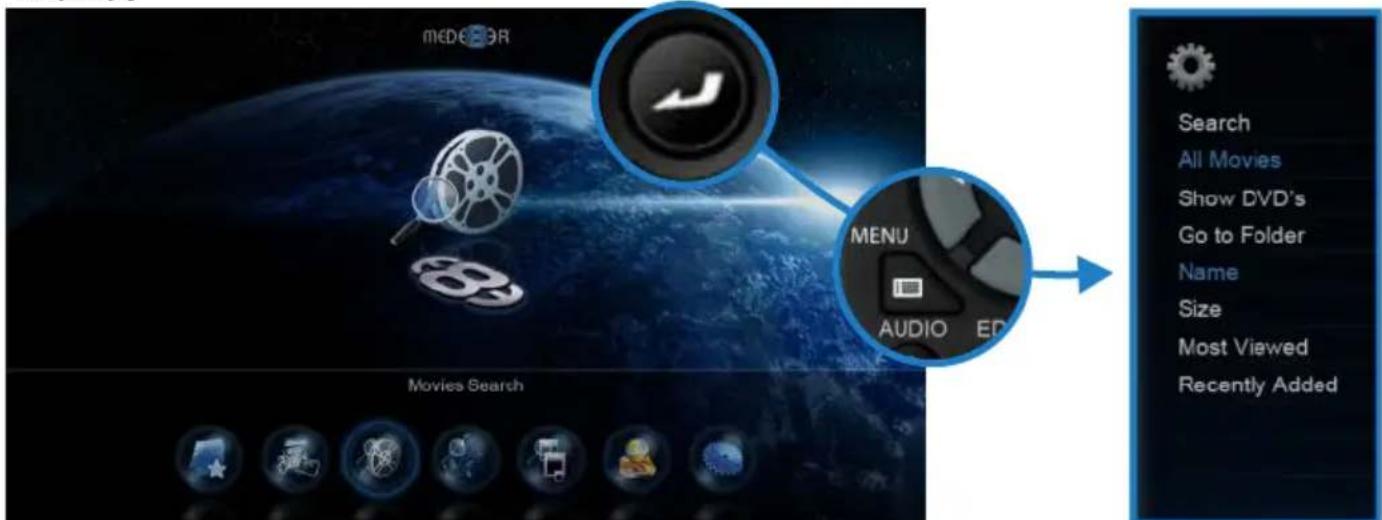
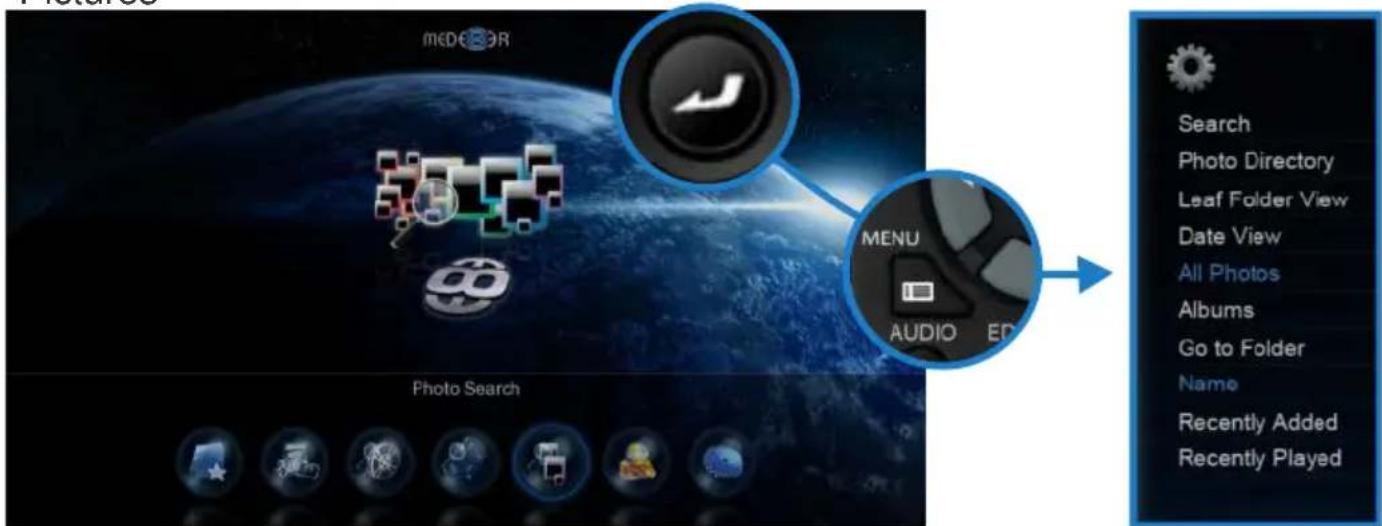
The Mede8er has a built in Media Scanner that will scan your Media Files on your USB drive and allow user functionality such as Search, Genre, Last Played
etc. You can select "Auto Scan" options in the Setup menu. The Media Scanner will automatically update the database when the Mede8er is powered "on" or when an external USB Hard Drive is connected. It is important to let the scanner complete the scan if you intend to use this function. Progressive scans take less time than the original scan as only new information is added to the database. To use the Media Scanner Database information, you must select the Movies, Music or Pictures icon from the Home Page or Home Page strip and then press the "Menu" button for options. The corresponding Search Icon will be shown on the Media Library when you are in Media Search Mode. The View can be changed as normal.
Movies
text_image
mCD88R MENU AUDIO ED Search All Movies Show DVD's Go to Folder Name Size Most Viewed Recently Added Movies SearchMusic

text_image
mede8or MENU AUDIO ED Music Search Search All Songs Albums Artists Genres Years PlaylistsPictures
text_image
mCD80R MENU AUDIO ED Photo Search Search Photo Directory Leaf Folder View Date View All Photos Albums Go to Folder Name Recently Added Recently PlayedLOCK FACILITY
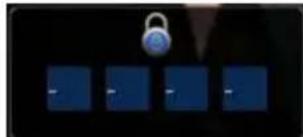
Mede8er has a built in Lock facility designed to restrict access to certain folders.
natural_image
Four blue square buttons with a lock icon above them, no text or symbols visibleLock facility functions
a. System access areas such as Hard Drive Format screen and File Manager. (Pin Protection)
b. User Folders (Folder Protection)
You can enable or disable these options in the Setup menu
CHANGE PIN CODE
The default 4 digit Pin Code is 0000.
To change the Pin Code go to Setup -- Misc -- Password -- You will be prompted to enter the existing pin code. For the first time you must enter the default factory pin ie 0000 then the Pin Code change screen will open. Now enter you new personal 4 digit code by pressing the numbers on your remote. Once you have entered the code press the "ENTER" button on the remote and the new code will be saved.
PIN PROTECTION
Enable Pin Protection to protect access to the Hard Drive Format area and the File Manager functionality. Once the Pin Protection is enabled you will be prompted to enter your personal 4 digit pin code when trying to gain access to these screens.
text_image
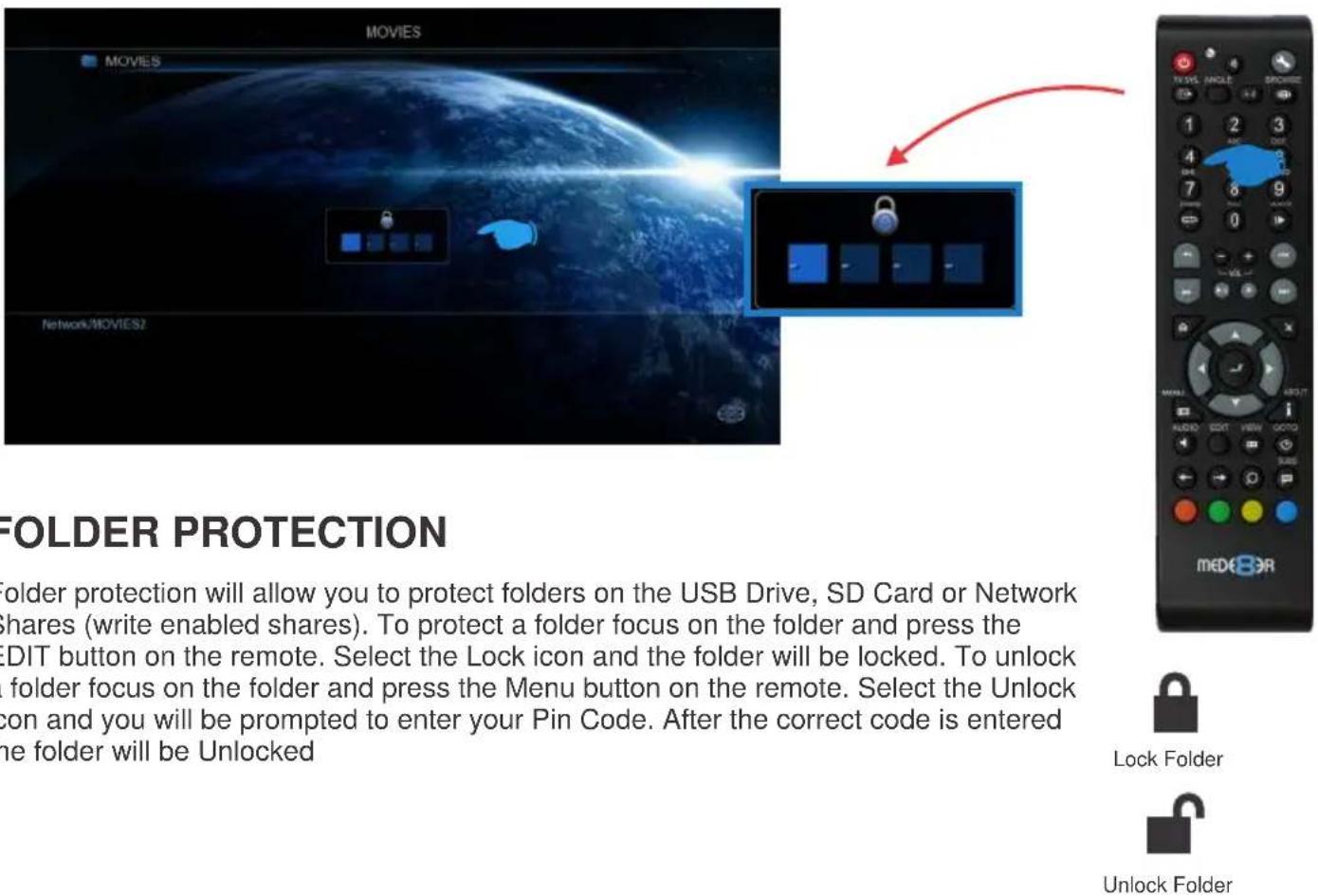
MOVIES MOVIES Network/MOVIES2 FOLDER PROTECTION Folder protection will allow you to protect folders on the USB Drive, SD Card or Network shares (write enabled shares). To protect a folder focus on the folder and press the EDIT button on the remote. Select the Lock icon and the folder will be locked. To unlock folder focus on the folder and press the Menu button on the remote. Select the Unlock icon and you will be prompted to enter your Pin Code. After the correct code is entered the folder will be Unlocked Lock Folder Unlock FolderFOLDER PROTECTION
Folder protection will allow you to protect folders on the USB Drive, SD Card or Network Shares (write enabled shares). To protect a folder focus on the folder and press the EDIT button on the remote. Select the Lock icon and the folder will be locked. To unlock a folder focus on the folder and press the Menu button on the remote. Select the Unlock icon and you will be prompted to enter your Pin Code. After the correct code is entered the folder will be Unlocked
RESET PIN CODE
To reset the Pin Code re-install the latest firmware and the Pin Code will default back to 0000
FAVOURITES MANAGER
The MED400X2 is equipped with a powerful function that we call Favourites. Basically it is a list of Shortcuts that you the user easily create yourself. The Favourite Link will work as a shortcut link to shared folder on your hosted USB Drive, Samba and NFS Network Share. Our Favourites Manager will consolidate all your paths and links them into one Favourites page no matter where the folders reside. So you can have multiple links residing on multiple locations all presented on one easy to read and manage Favourites page. Once the Favourite link is launched you will be presented with all of the folders contents in its normal native structure irrespective of the folder level depth. You can also easily remove a Favourite Link at any time should you wish to do so.
Using the Favourites
Navigate to the file or folder that you want to add to Favourites and press the "Menu" button on the remote control. The Menu dialogue will open and you will see the option "Add to Favourites". Select this and the folder path will be added to the Favourites screen. If the Favourite cannot be added (in the case that it already exists) you will get a failed "X" indicator top left of the screen.
Bootup to Favourites
You can set the X2 to Bootup to the Favourites screen. Setup ---> 'Misc' and select option 'Bootup to Favourites'

natural_image
Illustration of a hand pointing at a circular device with colored buttons (no text or symbols)Favourite Shortcut
You can launch the Favourite screen at any time by pressing the "Blue" button on the remote control.

text_image
MENU AUDIO
text_image
Scan Folder Hide Thumbnail Text Add to Favourites Hide Movie Info Set To Skin Restore Default Skin Restore Default Background All Media Movies Photos Music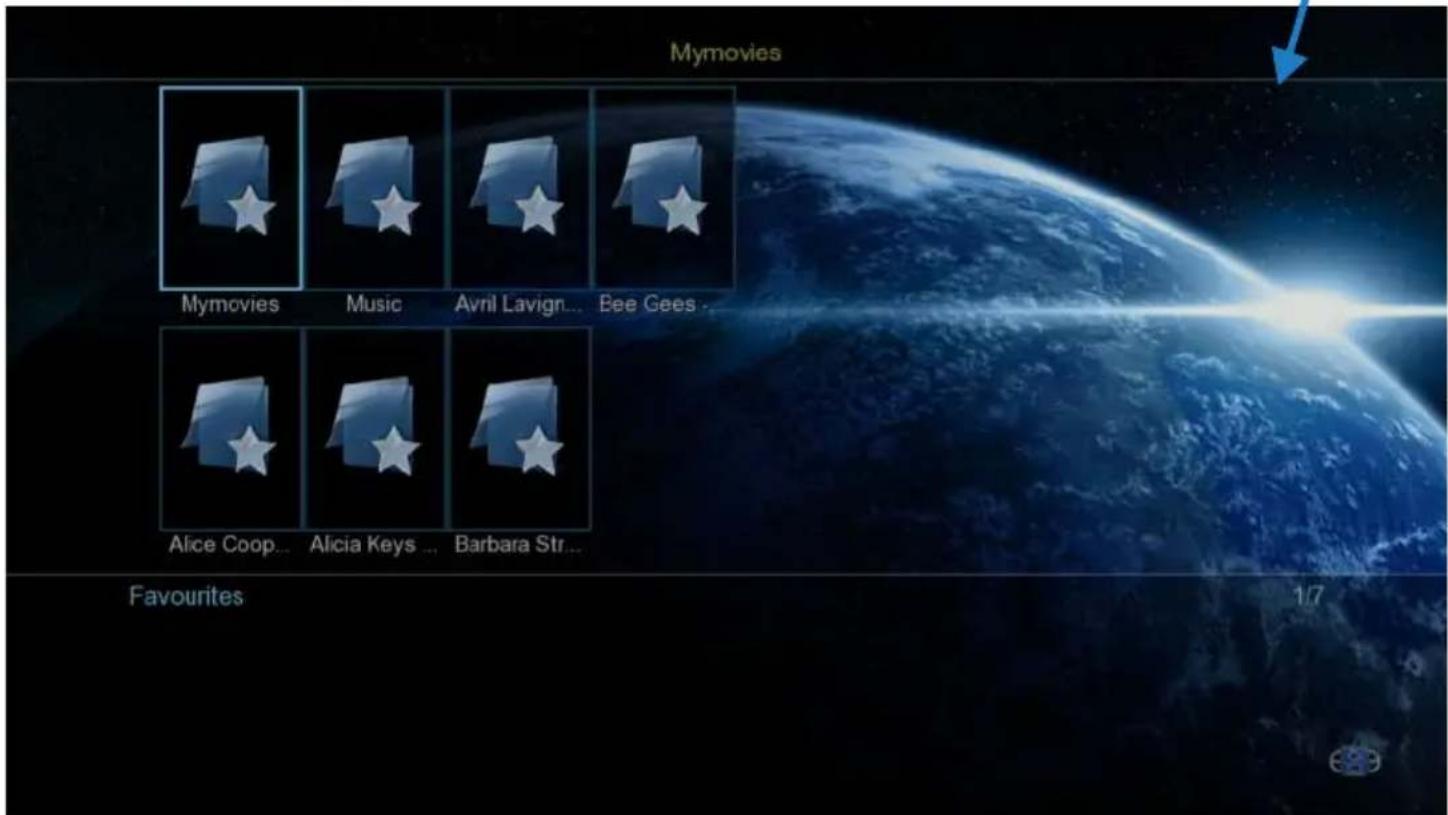
text_image
Mymovies Mymovies Music Avril Lavign... Bee Gees... Alice Coop... Alicia Keys ... Barbara Str... Favourites 1/7ADDING GENRE ARTWORK TO FAVOURITES
You can easily add Genre artwork to each Favourite link. To add the cover artwork just focus on the Favourite thumbnail and press the "Menu" button on the remote control. The menu dialogue screen will open and now you can select the "Genre" option. A new screen will open with a list of cover options. Navigate up or down to select the cover you require and press the "Enter" button to select the cover. You can also use the Alpha Jump facility to jump to covers down the list. You can use the same procedure to change covers.
Adding Custom Genre Art To Favourites
You can use your own Genre covers instead of the default ones provided. Make a new folder called "Genre" or "genre" on the USB Drive or SD Card and copy png images to this folder. The images should be 117 x 172 pixels in size.
Locking and Unlocking Favourites
To password protect a Favourite link just press the "Menu" button on the remote control and the Menu dialogue screen will open. Select the Lock option and the link will now be Pin Code protected. To Unlock the Favourite link select the unlock option and you will be prompted to enter your 4 digit pin code and then the Link will be unlocked..

natural_image
Digital lock icon on a dark background with four blue square buttons (no text or symbols)Scan XML Data
You can scan a Favourite link to build or re-build a XML Data dBase.

text_image
Scan Folder Remove Genre Lock Unlock MENU AUDIO
text_image
Action Animation Biography Chick_flicks Comedy_c... Disaster Drama Fantasy Adventure Baby Cartoons Comedy Crime Documenta... Family GeneralVIDEO INFO SEARCH
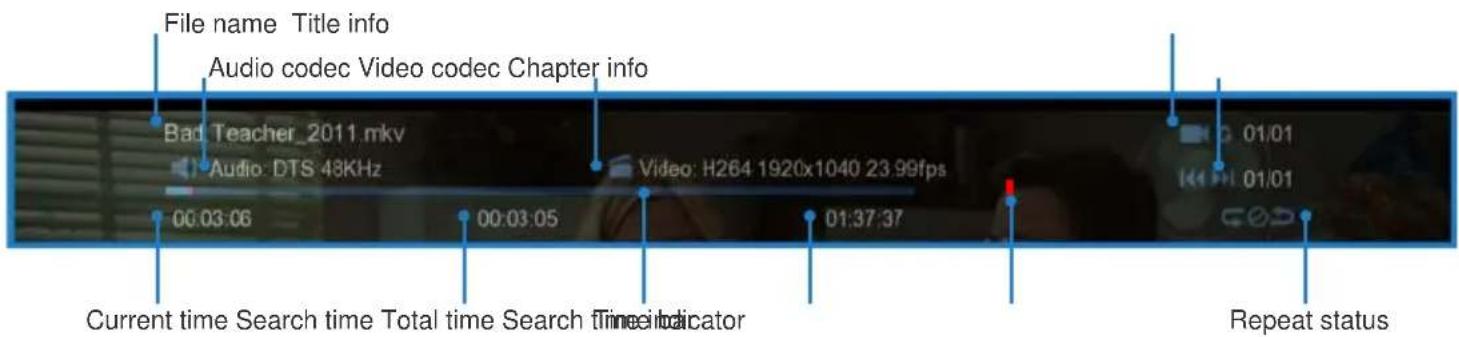
The Info Search allows you to easily jump to any part of the video. While viewing a Video File press the Left/Right Navigation button and the Info Screen will appear on the top of the screen. Now press the Left/Right Nav and a red bar will move left or right and with the corresponding Time position displayed in number text on the left side. Once you have reached the time search you require juts press the "Enter" button and the Mede8er will jump to the time you selected in the Video.
text_image
File name Title info Audio codec Video codec Chapter info Bad Teacher_2011.mkv Audio: DTS 48KHz 00:03:06 00:03:05 Video: H264 1920x1040 23.99fps 01:37:37 Current time Search time Total time Search Time Indicator Repeat status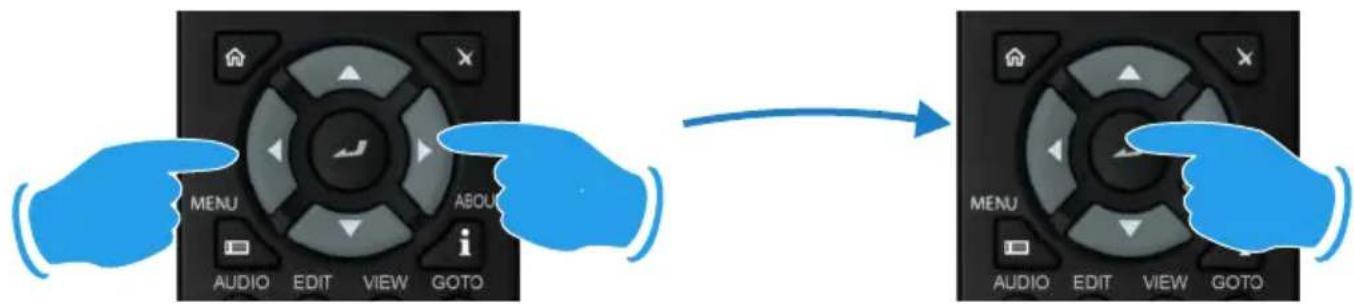
text_image
MENU AUDIO EDIT VIEW GOTO ABOUT → MENU AUDIO EDIT VIEW GOTOGOTO SEARCH
The GOTO Search allows you to easily jump to a specific time point or Title or Chapter in a Video file. While viewing a Video File press "Goto" button and the Goto Screen will appear on the top of the screen. Now press the Left/Right Navigation button to select the function you require such as Time, Title or Chapter. Once the function is selected press the Up/Down Navigation button to select the numeric value you require and then press the "Enter" button and the Mede8er will jump to the time you selected in the Video.

text_image
GOTO
text_image
Time Title Chapter 00:03:24 00:03:21 01:37:37Current time Search time Total time Search time indicator Time bar
ALPHA JUMP
The Mede8er has a easy to use Alpha Jump facility built into the Media Library. The Alpha Jump enables you to quickly jump to files and folders in your Media Library. Navigate to the Media Library and press one of the Alpha buttons on the remote control ie ABC, DEF, GHI, JKL, MNO, PQRS, TUV,WXYZ and the Alpha letter will be displayed on the top left of the screen. Press the button again and the next Alpha character will be displayed. After a short pause of you making your final selection the focus will jump to the first file or folder with the Alpha character you have selected.

text_image
1 2 3 ABC DEF 4 5 GHI JKL 7 8 PQRS TUV WXYZ 0SCREEN CALIBRATION
For more accurate Zoom functionality we suggest you calibrate your TV screen. Go to System Setup then Video and select Screen Size.

text_image
ADJUST THE RED SQUARE TO THE SIZE OF YOUR SCREEN PRESS 'ENTER' TO SAVE
natural_image
Blue hand pointing at a circular control knob with directional arrows (no text or symbols)Press Enter to save
Using the left, right, up and down navigation buttons you can adjust the red rectangle to fit the outer frame of your TV screen. You can then do a fine adjustment to move the red rectangle so that it is just not visible.
ZOOM
The Mede8er is equipped with advanced zoom functionality and once your screen is calibrated you can zoom intuitively to either WIDTH or HEIGHT or XY of the video.

Zoom in/out

Zoom To Height
Zoom To Height - This zoom function is designed for full screen viewing of ultra wide screen aspect videos on a 16:9 TV.

Zoom To Width
Zoom To Width - This zoom function is designed for full screen viewing of older 4:3 aspect videos on a 16:9 TV.

X:100% Y:100%
Zoom XY - The Zoom XY allows you to stretch the picture horizontally and vertically independent of each other. This zoom function is designed to correct videos encoded with the wrong aspect ratio. You can also use the Zoom XY to zoom to any zoom preference you may have. Once you have selected your X and Y percentage press the ENTER button on the remote to store the settings. To re-adjust the Zoom XY you need to exit and then select Zoom XY again.

flowchart
graph LR
    A["OFF"] --> B["W"]
    B --> C["H X: 100% Y: 100%"]
    style A fill:#333,stroke:#fff,color:#fff
    style B fill:#333,stroke:#fff,color:#fff
    style C fill:#333,stroke:#fff,color:#fff
    note right of B "need to exit and then select Zoom XY again."
    note left of A "ENTER"
SUBTITLES
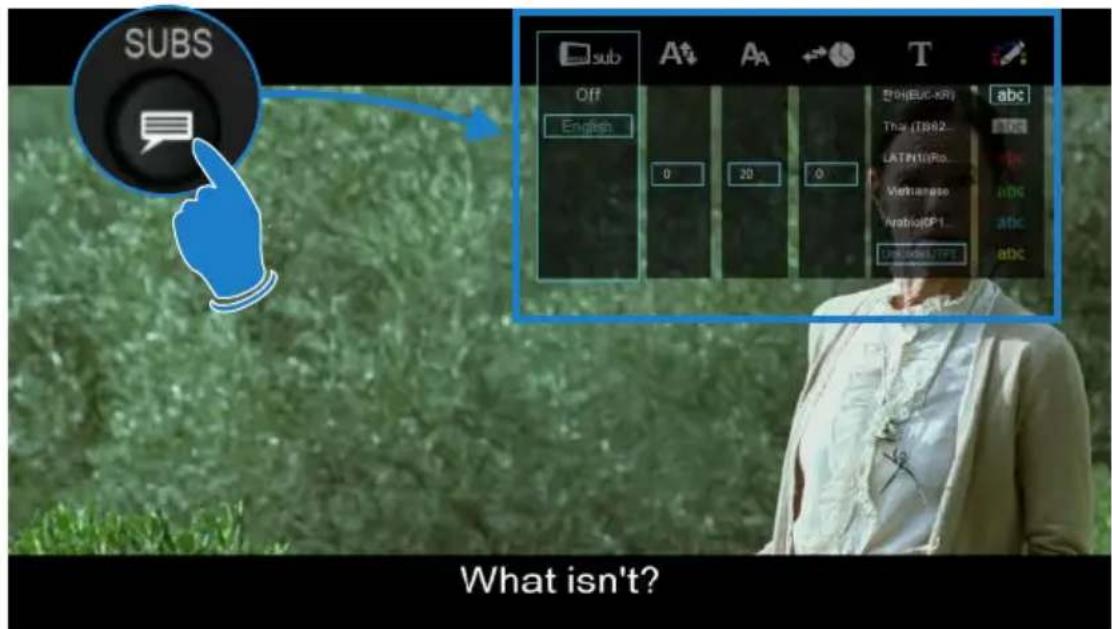
Mede8er supports various types of subtitle files. If the subtitle is embedded into the video file it will automatically be available on the Subtitle Dialogue Screen. External Subtitles must be placed into the same folder as the video file and must be named to be exactly the same name as the video file eg
Cloudy.With.A.Chance.Of.Meatballs.2009.720p.BluRay.HebDub.x264-WiKi.mkv Cloudy.With.A.Chance.Of.Meatballs.2009.720p.BluRay.HebDub.x264-WiKi.srt
To access the Subtitle screen press the Subtitle button on the remote during video play.
text_image
SUBS Off English 0 20 0 EUG(EUC-KR) Thai (T862_ LATIN(10)Ro_ Vietnamese_ Arabio(GP1_ LUNI(0001/FFE) abc What isn't?
text_image
sub Off English 0 20 0 Subtitle Select Subtitle Position Subtitle Size Subtitle Time Sync Subtitle Language Subtitle Colour A↑ Aa T abc Thai (TIS62... LATIN10(Ro... Vietnamese Arabic(CP 1... Unicode(UTFE) abc abc abc abc abc
natural_image
Blue hand pointing at a circular control dial with directional arrows (no text or symbols)CUSTOM FONTS
You can easily customize the GUI and Subtitle fonts on the X2. Fonts must be smaller than 500KB in size. For the GUI font select a fft font and rename it to 'gui.fft' - For the Subtitle font select a ttf font and rename it 'Subtitle.ttf' - Copy these to the 'skin' folder if you are using a custom skin. If not you can copy these to any folder name. Navigate to this folder and press the 'Menu' button and select the 'Set to Skin' option. To reset the fonts back to the default just navigate to this folder and select the 'Restore Skin Default' option.
MUSIC PLAYLISTS
To make music .M3u playlists on your mede8er follow the steps in FILE MANAGER - MULTIPLE FILES section and select the playlists option.
FILE MANAGER
The Mede8er has a built in File Manager to manage and transfer files between your media sources. The File Manager is launched by pressing the "Edit" button on the remote Control while you are Media Library.
To Copy, Delete, Move or Rename a single file just focus on the file (that you require to perform the action on) and press the "Edit" button on the remote control. Select the option you require and press "Enter". Follow on-screen instructions.

text_image
Network/1111_Fac 10/49 Bee Gees - The Very Best Of The Bee G... Boz Scaggs - Silk Degrees 2007 remaster Diana Krall - From This Moment On (200... Dire Straits -US-Radio-Live-Soundboard... Dire Straits-England-WorburnAbbey 199... Dire Straits-Germany-Colonia 17-09-197... Dire Straits-Holland-Rotterdam-1978-So... DS-Copenhagen-OES-Tour 1992-Sound... Soundboard-FLAC DS-Sydney-Final-Oz-Soundboard-FLAC Exit Move Focus Add to List Prev / Next Total size: 1.2GB 1/4 Boy Scaggs - Silk Degrees Dire Straits - US-Radio-Live... Dire Straits-Germany-Colon DS-Copenhagen-OES-Tour Clear All Edit Operations Remove from List File Editing Copy Destination 1/2 HDD Network Devices/ Exit Confirm New Folder Devices/ Exit Confirm New FolderFILE MANAGER - MULTIPLE FILES
To Copy, Delete, Move or Rename multiple files just press the "Edit" button on the remote control while you are in Media Library view. Select "Multiple Select" and a new dialogue screen will open.

text_image
mDCB20R 13 Thirteen (2010) A Serbian Film (2010) Brotherhood (2010) Countdown to Zero (2010) Cyrus (2010) Expendables (2010) Game of Death (2010) Jack Goes Bounding (2010) Once A Gangster (2010) Red (2010) Skeletons (2010) Takers (2010) HDD Movie Collection File Editing Copy Delete Move Rename DVD Copy Edit Playlist Edit Photo Album Lock Mark as Watched Send to Buddy Multiple Select Mark as Watch Send to Buddy Multiple SelectNavigate to the files or folders on the left screen "A" that you want to perform the action on and press the "Play/Pause" button to select and add the files to the File List "B".

text_image
m€DEB3R Network/WORKGROUP/BI... 1/37 ... Brotherhood (2010) Countdown to Zero (2010) Cyrus (2010) Expendables (2010) Game of Death (2010) Jack Goes Boating (2010) Once A Gangster (2010) Red (2010) Skeletons (2010) Exit Add to List Move Focus Prev / Next File List 1 / 2 Crusaders Bread - The Best... Clear All EDIT Operations Remove from List A B
text_image
Exit Add to List Move Focus Prev / Next Clear All EDIT Operations Remove from ListOnce you have selected all the files you require then press the "Right Navigation" button. The focus will change to "B". To continue to the next step you must select the "Edit" button and then you can select one of the available options ie Copy, Delete, Move, DVD Copy, Save Playlist, Save Photo Album, Save Playlist, or Edit.
PICTURES
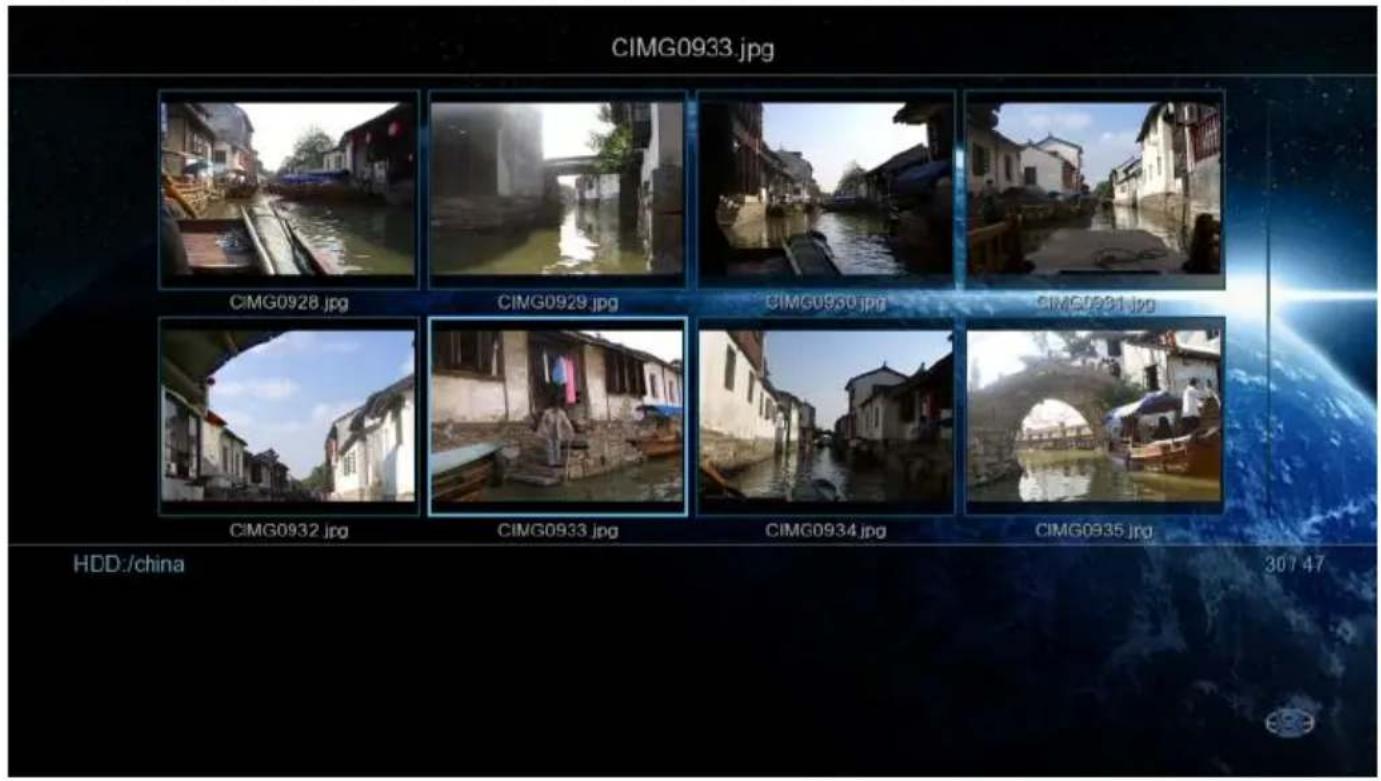
Press the "View" button on the remote and the Icon strip will light up. Now select the Picture Icon. The page will re-arrange into a image grid that is optimized for image thumbnail viewing. The X2 supports full Slideshow functions and you must enable the 'Slideshow' option in the Setup Menu. You can now navigate your pictures as normal and zoom the images to full screen by pressing the "Enter" button on the Remote Control. Once zoomed to full screen press the "Menu" button on the remote for more options.
text_image
CIMG0933.jpg CIMG0928.jpg CIMG0929.jpg CIMG0930.jpg CIMG0931.jpg CIMG0932.jpg CIMG0933.jpg CIMG0934.jpg CIMG0935.jpg HDD:/china 30/47
text_image
EDIT PI
text_image
Slide Timing Slide Transition Reset off Shuffle Loop Bitscoural Music Video Setting
text_image
Slide Timing Slide Transition Repeat off Repeat off Shuffle Loop Background Music Video Setting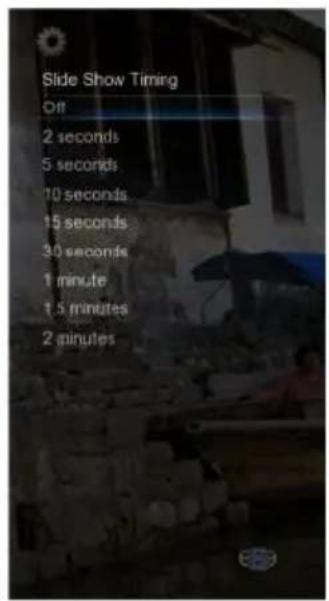
text_image
Slide Show Timing Off 2 seconds 5 seconds 10 seconds 15 seconds 30 seconds 1 minute 1.5 minutes 2 minutes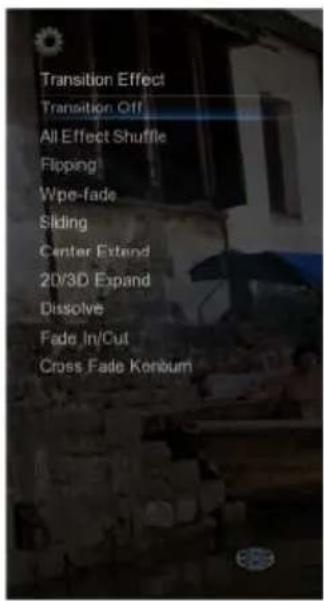
text_image
Transition Effect Transition Off All Effect Shuffle Fipping Wpe-fade Sliding Center Extend 2D/3D Expand Dissolve Fade In/Cut Cross Fade Konburn
text_image
Set Music Off Default Select MusicPLASMA MODE / VIDEO SCREEN TRANSPARENCY
The Plasma Mode has been designed for use with Plasma TV's that are susceptible to still image "burn in". The Plasma control will change the transparency level of the GUI screens and will not have any effect on the screens during Video Play. The Video Screen Transparency controls the transparency level of all video menus during Video Play. You have a choice of settings Off, Low or High.
AUTOPLAY
Mede8er allows for automated seamless folder play when the Mede8er is switched on. The autoplay facility is very useful and can turn the Mede8er into a very effective low cost Digital Signage Solution.
Autoplay Function
The Autoplay files can be stored on SD Card or USB Drive.
- Create a folder in the root of the drive named "Autoplay" (Case Sensitive)
- Put either Video OR Audio files into this folder
- If you require the files to play in order name them as following 01name - 02name
- 03name - 04name - 05name - 06name - 07name - 08name - 09name - 10name - 11name up
Autoplay Operation
On power up the Mede8er will look for the “autoplay” folder and if found it will automatically play the contents of the “autoplay” folder. The contents will be played with the “Repeat All” as default. If a USB Drive is plugged into the Mede8er it will auto scan for the “Autoplay” folder and if found it will start the Autoplay function.
natural_image
Illustration of a black stand with a blue water ripple effect and a play button icon (no text or symbols)INTERNET MEDIA STREAMS
Internet Media consists of YouTubeXL, Picassa, Video Podcasts, Yahoo News, Shoutcast Radio, Flickr, Yahoo Finance, Facebook, Twitter, and Web Browser.
Internet Media is launched from the Home Page or Home Page strip. The Web Browser and Social Media requires a USB compatible keyboard /mouse for correct system operation. The contents of the Internet Media can change depending on legal circumstances at the time and Sanji are not responsible for external changes.

text_image
YouTube XL flickr YAHOO! WEATHER bing TRANSMISSION VIDEO PODCASTS Picasa YAHOO! FINANCE RADIO INTERNETREMOTE CONTROL OVER NETWORK
The X2 supports remote control via another networked device running a DLNA Digital Media Controller. That includes Windows 7 "Play To". Please consult your own Windows Help Guide for assistance. To play media hosted on the X2 requires a UPNP Server (still in development).
Remote Control from mobile device such as a iPhone, iPad or any device that has WiFi and a built in Web Browser. Navigate to Setup Menu and enable Web Remote. Enter the Mede8er IP into your Web Browser with the correct Port number eg http://xxx.xxx.xxx.xxx:1024 "x" is your actual IP
NFS (Network File System)
Mede8er by default uses Samba to stream content on a local network and this should be more than sufficient for all users. NFS can be used when streaming on a local network but you may need take care of 'Flow Control problems by using a managed switch. If you are streaming from a Windows PC you will require a NFS client to be running on the host PC. The Mede8er has been tested and verified with HaneWin but other NFS Servers should work equally as well. You can download HaneWin at http://www.hanewin.net/nfs-e.htm
Setting up NFS shortcuts on the Mede8er
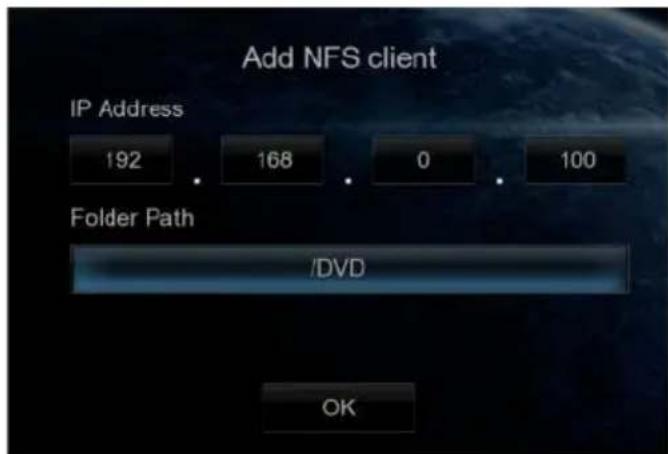
Select the NFS tab on the Media Library screen. To "Add" "Modify" or "Delete" a NFS shortcut press the "Menu" button and the Menu screen will open. Select Add NFS Client and a "ADD nfs Dialogue" screen will open. Fill in the IP Address of the Host PC and the Share Name (Folder Path).
NOTE: The share must be inputted as an "absolute path" ie C/YOURSHARENAME
IMPORTANT NOTE:
You may have to enable "Flow Control" or disable "Jumbo Frames" on your Network Card settings if you are using NFS with a 1GB switch on your network.
text_image
MENU AUDIO EDRecommended Settings HaneWIN
UDP NFS Server Threads : 32
Max NFS tranfer size : 32768

text_image
haneWIN NFS Server NFS | Server | Exports | Mounts | PortMapper | Language | Mount Daemon Port: 1058 Help NFS Server Port: 2049 Register Number of UDP NFS Server Threads: 32 About ... Maximum NFS transfer size (bytes): 32768 Operate NFS Server on: ✓ UDP ✓ TCP NFS Server protocol: Version 2 ✓ Version 3 □ Async write for NFS-2 (faster) ✓ Allow unix style soft links Hard links are supported on NTFS volumes starting with Win2k. ✓ Emulate hard links by a file copy for other volumes. Modifications are activated after server restart OK Cancel Applyexport example of a folder
l:\dvd -public -readonly -name:dvd
text_image
Add NFS client IP Address 192 168 0 100 Folder Path /DVD OKexport example complete drive
e:\ -public -readonly -name:e

text_image
Add NFS client IP Address 192 . 168 . 0 . 100 Folder Path /E OKSetup
Main Page
| Menu Language | -- Menu Language. |
| Text Encoding | -- Text Encoding for Subtitles. |
| Time | -- Set the Time / Time Zone and daylight saving. |
| DVD Auto-Play | -- Option for USB DVD drive. If enabled the DVD will Auto Play when inserted. |
| Screen Saver | -- Set the Screen Saver time period and type of Screen Saver. |
| DLNA-DMR | -- Plays media from UPNP servers under the control of external devices. |
| DLNA Device name | -- DLNA Device name. |
| MiniKBD Language | -- Keyboard Language. |
| Keyboard Layout | -- Default US English other option for possible future update. |
| Scan Storage | -- Default Media Scanner for Hard Drive and USB only. |
| Resume Play | -- If enabled the X2 will prompt the user to continue from the last position. |
| Format | -- Format internal Hard Drive Option. |
| BD Menu | -- Switch the BD Menu option on/off -- Supported BD Profile 1.0 |
| Restore Default | -- Reset Network and Flash memory settings. |
| Auto Detect Encoding | -- Auto Detect Language - Suggest to leave it off. |
Audio
| Night Mode | -- Dynamic Range Control limits the dynamics for night viewing. |
| HDMI Output | -- HDMI Output Audio output settings. |
| SPDIF Output | -- Optical Audio output settings. |
| Surround Sound | -- Settings for 7.1 or 5.1 Surround Sound. |
Picture
| Aspect Ratio | -- Set the Aspect Ratio size of the TV. |
| TV System | -- Set the Pixel Size Resolution Size of the TV. |
| 1080p 24HZ | -- 24HZ Frame Rate -- Enable this function if your TV supports 1080p 24HZ. |
| Plasma Mode | -- Changes the transparency to prevent screen burn in on Plasma Tv's. |
| Deep Color | -- Colour Depth -- Auto - 12bit - 10bit - off. |
| Screen Size | -- Set the TV Screen size accurately for zooming about.jpg. |
Network
| Wired Lan Setup | -- Network Setup -- DHCP IP (Auto) / Fixed IP (Manual). |
| Wireless Setup | -- Wireless Setup -- DHCP IP (Auto) / Fixed IP (Manual). |
| PPPoe Setup | -- PPPoe Setup. |
| Transmission BT | -- Unsupported function on the MED400X2 |
| NAS Mode | -- Enables X2 to be used as a server to other Network Connected Devices. |
| UPnP Server | -- If enabled other UPnP enabled devices will be able to stream content from the X2. |
| Web Remote | -- If enabled you can control the X2 GUI functions from a Web Browser. |
Misc
| Version Info | -- Information about the Firmware Version. |
| Network Info | -- Network connection Information. |
| HDD Info | -- Internal Hard Drive Information. |
| USB Upgrade | -- X2 firmware update from USB Flash Drive. |
| Save Config | -- Save your settings to USB Flash Drive before doing a firmware update. |
| Restore Config | -- Restore your settings from a Flash Drive after doing a firmware update. |
Folder Protection
| Watched Indicator | -- Eye indicator display for watched videos. |
| Subtitle | -- Enable or disable Subtitles |
| Slideshow | -- Enable or disable Slideshow functionality. |
Boot to Favourites
| JukeBox View |
Auto View
| Password |
-- If enabled the X2 will boot up the Favourites Desktop.
-- If enabled will the X2 will present a XML Jukebox that is launched from
Favourites in a traditional Movie Wall View even if the content is in separate or nested folders.
-- If enabled the X2 will remember the View of the folders you have navigated.
-- Change Password
text_image
MDE8BR High-Diffraction Audio Player TV SYS MED8BR2 ON/OFF MDE8BR High-Diffraction Audio Player
text_image
8High Definition Multimedia Player
MED400X2
www.mede8erforum.com
www.mede8er.com www.mede8er.eu
For more information or support please visit
www.mede8er.eu/support/
or call +31(0)10-7142861 during business hours.
