30XS MultiView - Calculator TEXAS INSTRUMENTS - Free user manual and instructions
Find the device manual for free 30XS MultiView TEXAS INSTRUMENTS in PDF.


User questions about 30XS MultiView TEXAS INSTRUMENTS
0 question about this device. Answer the ones you know or ask your own.
Ask a new question about this device
Download the instructions for your Calculator in PDF format for free! Find your manual 30XS MultiView - TEXAS INSTRUMENTS and take your electronic device back in hand. On this page are published all the documents necessary for the use of your device. 30XS MultiView by TEXAS INSTRUMENTS.
USER MANUAL 30XS MultiView TEXAS INSTRUMENTS
TI-30XS MultiView™ and
TI-30XB MultiView™ Scientific
Calculator
Important information ....2
Examples 3
Switching the TI-30XS MultiView calculator on and off .....3
Display contrast 3
Home screen 4
2nd functions 5
Modes 5
Menus 7
Scrolling 9
Answer toggle 10
Last answer 11
Order of operations 11
Clearing and correcting ....13
Fractions 13
Percentages 15
x10 ^n key 16
Powers, roots and inverses 16
Pi 17
Angle menu 18
Rectangular to polar ....20
Trigonometry 21
Hyperbolics 23
Logarithm and exponential functions .....24
Constant 24
Memory and stored variables 26
Data editor and list formulas ...... 29
Statistics 31
Probability 36
Function table 38
Errors 40
Battery information 42
In case of difficulty 43
Texas Instruments Support and Service ....44
Important information
Texas Instruments makes no warranty, either express or implied, including but not limited to any implied warranties of merchantability and fitness for a particular purpose, regarding any programs or book materials and makes such materials available solely on an "as-is" basis. In no event shall Texas Instruments be liable to anyone for special, collateral, incidental, or consequential damages in connection with or arising out of the purchase or use of these materials, and the sole and exclusive liability of Texas Instruments, regardless of the form of action, shall not exceed the purchase price of this product. Moreover, Texas Instruments shall not be liable for any claim of any kind whatsoever against the use of these materials by any other party.
MathPrint, APD, Automatic Power Down, EOS, and MultiView are trademarks of Texas Instruments Incorporated.
Examples
Each section is followed by instructions for keystroke examples that demonstrate the TI-30XS MultiView™ and TI-30XB MultiView functions. All references in this manual will refer to the TI-30XS MultiView, but are also applicable for the TI-30XB MultiView.
Examples assume all default settings, as shown in the Modes section.
For more activities and examples, see the TI-30XS MultiView™ Teacher Guide available at education.ti.com/guides.
Switching the TI-30XS MultiView calculator on and off
on turns on the TI-30XS MultiView calculator. 2nd [off] turns it off. The display is cleared, but the history, settings, and memory are retained.
The APD ^TM (Automatic Power Down ^TM ) feature turns off the TI-30XS MultiView calculator automatically if no key is pressed for about 5 minutes. Press on after APD. The display, pending operations, settings, and memory are retained.
Display contrast
The brightness and contrast of the display can depend on room lighting, battery freshness, and viewing angle.
To adjust the contrast:
- Press and release the 2nd key.
- Press ☐ (to darken the screen) or ☐ (to lighten the screen).
Home screen
On the Home screen, you can enter mathematical expressions and functions, along with other instructions. The answers are displayed on the Home screen. The TI-30XS MultiView screen can display a maximum of four lines with a maximum of 16 characters per line. For entries and expressions of more than 16 characters, you can scroll left and right (◀ and ▶) to view the entire entry or expression. In the MathPrint™ mode, you can enter up to four levels of consecutive nested functions and expressions, which include fractions, square roots, exponents with ^, √y, e^, and 10^.
When you calculate an entry on the Home screen, depending upon space, the answer is displayed either directly to the right of the entry or on the right side of the next line.
Special indicators may display on the screen to provide additional information concerning functions or results.
| Indicator Definition | |
| 2nd 2nd function. | |
| HYP Hyperbolic function. | |
| FIX Fixed-decimal setting. (See Mode section.) | |
| SCI, ENG Scientific or engineering notation.(See Mode section.) | |
| DEG, RAD, GRAD | Angle mode (degrees, radians, or gradians). (See Mode section.) |
| K Constant feature is on. | |
| L1, L2, L3 Displays above the lists in data editor. | |
| The TI-30XS MultiViewTM calculator is performing an operation. | |
| ↑ ↓ An entry is stored in memory before and/or after the active screen. Press ⬆ and ⬇ to scroll. | |
2nd functions
2nd
Most keys can perform two functions. The primary function is indicated on the key and the secondary function is displayed above it. Press 2nd to activate the secondary function of a given key. Notice that 2nd appears as an indicator on the screen. To cancel it before entering data, press 2nd again. For example, 2nd [√] 25 enter calculates the square root of 25 and returns the result, 5.
Modes
mode
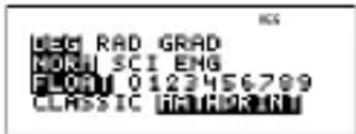
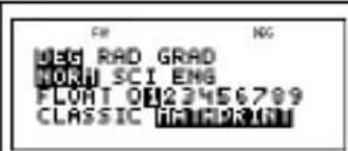
Use mode to choose modes. Press ▼ 🔍 ⬇ to choose a mode, and enter to select it. Press clear or 2nd[quit] to return to the Home screen and perform your work using the chosen mode settings.
Default mode settings are shown highlighted.
text_image
DEG RAD GRAD NORM SCI ENG FLOR 0123456789 CLASSIC 013193319DEG RAD GRAD Sets the angle mode to degrees, radians, or gradians.
NORM SCI ENG Sets the numeric notation mode. Numeric notation modes affect only the display of results, and not the accuracy of the values stored in the unit, which remain maximal.
NORM displays results with digits to the left and right of the decimal, as in 123456.78.
SCI expresses numbers with one digit to the left of the decimal and the appropriate power of 10, as in 1.2345678 × 10^5 (which is the same as 123456.78).
Note: In some restricted environments (for example function table, data editor, and the 2nd [recall] menu), the TI-30XS MultiView ^TM calculator may display E instead of *10^n .
ENG displays results as a number from 1 to 999 times 10 to an integer power. The integer power is always a multiple of 3.
Note: ×10^n is a shortcut key to enter a number in scientific notation format. The result displays in the numeric notation format set in mode.
FLOAT 0123456789 Sets the decimal notation mode.
FLOAT (floating decimal point) displays up to 10 digits, plus the sign and decimal.
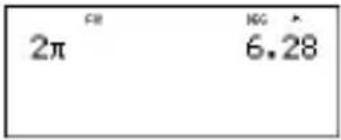
0123456789 (fixed decimal point) specifies the number of digits (0 through 9) to display to the right of the decimal.
CLASSIC MATHPRINT
CLASSIC mode displays inputs and outputs in a single line.
MATHPRINT mode displays most inputs and outputs in textbook format.
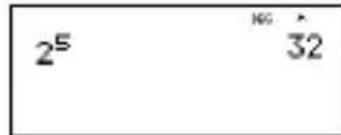
Examples of Classic and MathPrint modes
| Classic mode MathPrint mode | |
Sci Sci | 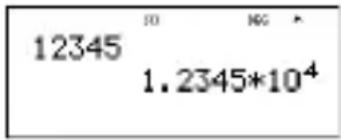 |
Float | Float mode and answer toggle key. |
| Fix 2 Fix 2 and answer toggle key. | |
 |  |
| U n/d U n/d | |
 |  |
| Exponent example Exponent example | |
 |  |
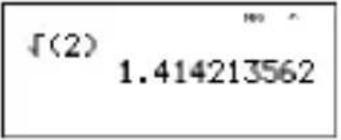
| Square root example Square root example | |
 |  |
| Cube root example Cube root example | |
 |  |
Menus
Certain keys display menus: prb, 2nd [angle], data, 2nd [stat], 2nd [reset], 2nd [recall], and 2nd [clear var]. Some keys may display more than one menu.
Press ▶ and ⬇ to scroll and select a menu item, or press the corresponding number next to the menu item. To return to the previous screen without selecting the item, press clear. To exit a menu or application and return to the Home screen, press 2nd[quit].
The menu chart shows the menu keys and the menus they display.
| prb | 2nd [angle] | ||
| PRB RAND DMS R ◆ P | |||
| 1: nPr | 1: rand | 1: ° | 1: R ▶ Pr( |
| 2: nCr | 2: randint( | 2: ' | 2: R ▶ Pθ( |
| 3: ! | 3: '' | 3: P ▶ Rx( | |
| 4: r 4: P ▶ Ry( | |||
| 5: g | |||
| 6: ▶ DMS | |||
data data
(Press once to display the Data editor screen. Press again to display the menu.)
CLEAR FORMULA
1: Clear L1 1: Add/Edit Frmla
2: Clear L2 2: Clear L1 Frmla
3: Clear L3 3: Clear L2 Frmla
4: Clear ALL 4: Clear L3 Frmla
5: Clear ALL
Press data while you are in the Add/Edit Formula option of the FORMULA menu to display this menu:
Ls
1: L1
2: L2
3: L3
2nd [stat]
STATS
1: 1-Var Stats
2: 2-Var Stats
3: StatVars This menu option displays after you
calculate 1-var or 2-var stats.
StatVars menu:
1: n
2:
3: Sx
Etc. See StatVar values for full list.
2nd [reset] 2nd [recall] 2nd [clear var]
1: No 1: x = 1: Yes
2: Yes 2: y = 2: No
3: z =
4: t =
5: a =
6: b =
7: c =
Scrolling
◀ ▶ ▲ ▼
Press ◀ or ▶ to place the cursor horizontally over the expression entered. Press 2nd ◀ or 2nd ▶ to move the cursor directly to the beginning or end of the expression.
After an expression is evaluated, use ⬆ and ⬇ to scroll through previous entries, which are stored in the TI-30XS MultiView™ calculator's memory. You can reuse a previous entry by pressing enter to paste it on the bottom line, and then evaluating a new expression.
Examples
| Scroll | 1 + 1 enter | 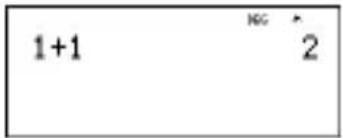 |
| 2 + 2 enter | 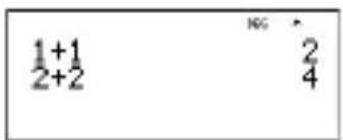 | |
| 3 + 3 enter | 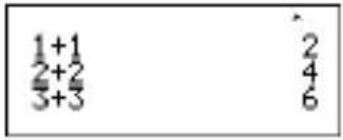 | |
| 4 + 4 enter |  | |
| ▲ ▲ ▲ ▲ enter | 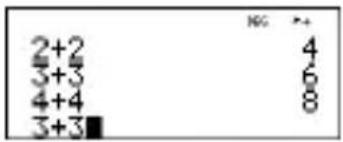 | |
| + 2 enter | 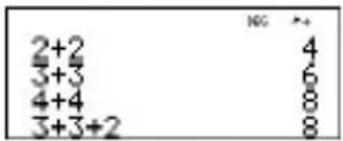 |
Answer toggle

Press the ◀ key to toggle the display result between fraction and decimal answers, exact square root and decimal, and exact pi and decimal.
Example
| Answer toggle | 2nd [√] 8 enter | 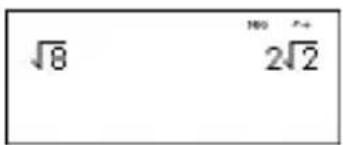 |
 |
Last answer
2nd [ans]
The most recently calculated result is stored to the variable Ans. Ans is retained in memory, even after the TI-30XS MultiView™ calculator is turned off. To recall the value of Ans:
- Press 2nd [ans] (Ans displays on the screen), or
- Press any operations key (+, -, and so forth) as the first part of an entry. Ans and the operator are both displayed.
Examples
| Ans | 3 × 3 enter | 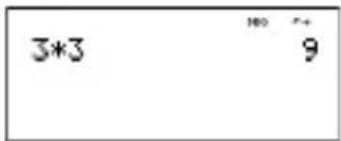 |
| × 3 enter | 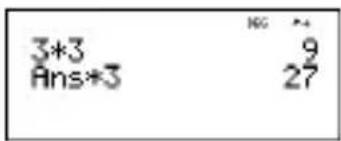 | |
| 3 2nd [x√-] 2nd [ans]enter |  |
Order of operations
The TI-30XS MultiView ^™ calculator uses Equation Operating System (EOS ^™ ) to evaluate expressions. Within a priority level, EOS evaluates functions from left to right and in the following order.
| 1st Expressions inside parentheses. | |
| 2nd Functions that need a ) and precede the argument, such as sin, log, and all R ↪ P menu items. | |
| 3rd Fractions. | |
| 4th Functions that are entered after the argument, such as x^2 and angle unit modifiers. | |
| 5th | Exponentiation (^) and roots (x√).Note: In Classic mode, exponentiation is evaluated from left to right. The expression 2^3^2 is evaluated as (2^3)^2, with a result of 64. In MathPrintTM mode, exponentiation is evaluated from right to left. The expression 2^3^2 is evaluated as 2^(3^2), with a result of 512.[232 512 In MathPrintTM mode, exponentiation is evaluated from right to left. The expression 2^3^2 is evaluated as 2^(3^2), with a result of 512.[232 512 |
| 6th | Negation (-). |
| 7th | Permutations (nPr) and combinations (nCr). |
| 8th | Multiplication, implied multiplication, division. |
| 9th | Addition and subtraction. |
| 10th | Conversions (n/d ↘ Un/d, F↔ D, ▶DMS). |
| 11th enter | completes all operations and closes all open parentheses. |
Examples
| + × ÷ - | 6 0 + 5 × (-) 1 2 enter |  |
| (-) | 1 + (-) 8 + 1 2 enter | 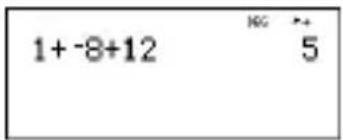 |
| 2nd [√] 9 + 16 enter | 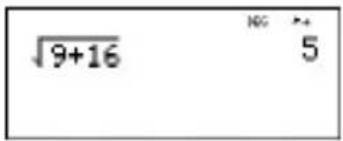 | |
| () | 4 × ( 2 + 3 ) enter | 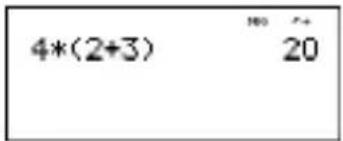 |
| 4 ( 2 + 3 ) enter |  | |
| ^ and x√ | 2nd [√] 3 ^ 2 ▶+ 4 ^ 2 enter |  |
Clearing and correcting
| clear | Clears an error message.Clears characters on entry line.Moves the cursor to last entry in history once display is clear.Backs up one screen in applications. |
| delete | Deletes the character at the cursor. |
| 2nd | [insert] Inserts a character at the cursor. |
| 2nd | [clear var] Clears variables x, y, z, t, a, b, and c. |
| 2nd | [reset] 2 Resets the TI-30XS MultiViewTM calculator. Returns unit to default settings; clears memory variables, pending operations, all entries in history, and statistical data; clears the constant feature, K, and Ans. |
| on & clear |
Fractions


In the MathPrint™ mode, fractions with can include operation keys ( + , × , etc.) and most function keys ( x^2 , 2nd[%] , etc.).
In Classic mode, fractions with do not allow operation keys, functions, or complex fractions in the numerator or denominator.
Note: In Classic mode, data editor, and table, use ÷ to perform complex division problems.
Calculations using fractions can display fraction or decimal results, depending on input.
The TI-30XS MultiView™ calculator defaults output to improper fractions. Results are automatically simplified.
- enters a simple fraction. Pressing before or after a number can result in different behavior. Entering a number before pressing makes that number the numerator. To enter fractions with operators or radicals, press before you enter a number (in MathPrint™ mode only). In MathPrint mode, press between the entry of the numerator and the denominator.
In Classic mode, press between the entry of the numerator and the denominator.
- 2nd [U_d^n] enters a mixed number. Press 2nd [U_d^n] between the entry of the unit and the numerator.
- 2nd [ U_d^n] converts between mixed numbers and simple fraction form.
- 2nd [f ◀▶d] converts results between fractions and decimals.
Examples Classic mode
| n/d, U n/d | 3 4 + 1 2nd [ U_d^n ] 7 12 enter | 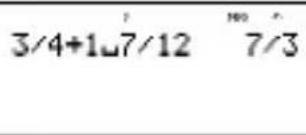 |
| n/d ↘ U n/d | 9 2 2nd [ ◀▶ U_d^n ] enter | 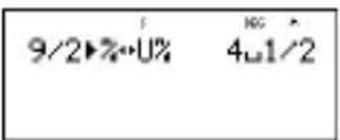 |
| F ↘ D | 4 2nd [ U_d^n ] 1 2 2nd[f ◀▶d] enter | 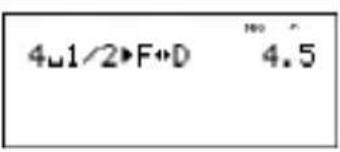 |
Examples MathPrint™ mode
| n/d, U n/d | 3 4 +12nd[U _d^n ] 7 12 enter |  |
| n/d ⇌ Un/d | 9 2 2nd[n _d ◀▶U _d^n ]enter | 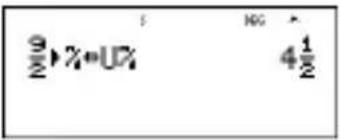 |
| F↔D | 4 2nd [ U_d^n ] 1 ➕ 2 ➕2nd [f◄►d] enter |  |
| Examples (MathPrintTM mode only) | 1 · 2 + 1 · 3 ➕ 4enter |  |
| (MathPrint mode only) | (-) 5 + 2nd [√-] 5 x^2 - 4 ( 1 ) ( 6) ➕ 2 ( 1 ) enter | 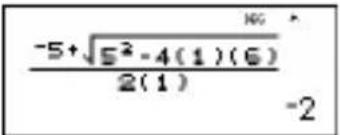 |
Percentages
2nd [%]
2nd [▶%]
To perform a calculation involving a percentage, press [2nd] [%] after entering the value of the percentage.
To express a value as a percentage, press 2nd [▶%] after the value.
Example
| 2 2nd [%] × 150 enter |  |
| 1 5 ▶ 2nd [▶%] enter | 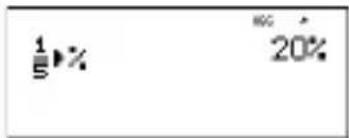 |
Problem
A mining company extracts 5000 tons of ore with a concentration of metal of 3% and 7300 tons with a concentration of 2.3% . On the basis of these two extraction figures, what is the total quantity of metal obtained?
If one ton of metal is worth 280 dollars, what is the total value of the metal extracted?
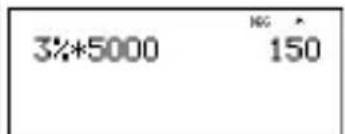
3 2nd [%] × 5000 enter
text_image
3%*5000 150| + 2 □ 3 2nd [%] × 7300 enter |  |
| × 280 enter | 3%*5000 150Ans+2.3%*7300 317.9Ans*280 89012 |
The two extractions represent a total of 317.9 tons of metal for a total value of 89012 dollars.
x10 ^n key
×10^n
× 10^n is a shortcut key to enter a number in scientific notation format.
Example
| 2 × 10^n 5 enter |  |
| mode ▼ ▶ enter |  |
| clear enter | 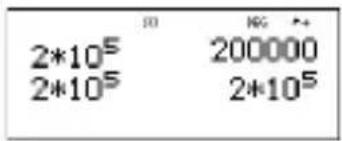 |
Powers, roots and inverses
| x^2 | Calculates the square of a value. The TI-30XS MultiViewTM calculator evaluates expressions entered with x^2 and x^-1 from left to right in both Classic and MathPrintTM modes. |
| Raises | a value to the power indicated. If you insert an expression as the exponent, you must place it between parentheses. |
| 2nd[-] | Calculates the square root of a positive value. |
| 2nd[x√-] | Calculates the nth root of any positive value and any odd integer root of a negative value. |
| x^-1 | Gives the inverse of a value: 1/x. The TI-30XS MultiViewTM calculator evaluates expressions entered with x^2 and x^-1 from left to right in both Classic and MathPrintTM modes. |
Examples
| 5 △ 2 ▶ + 4 △ ( 2 + 1 )enter |  |
| 10 △ (-) 2 enter |  |
| 2nd [√] 49 enter |  |
| 2nd [√] 3 △ 2 ▶ + 2 △ 4 enter | 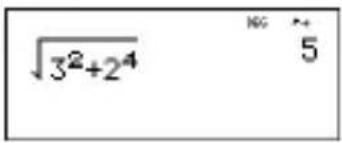 |
| 6 2nd [x√] 64 enter | 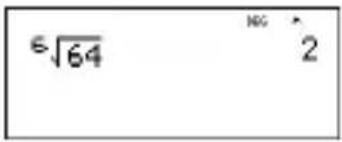 |
| 2 x^-1 enter | 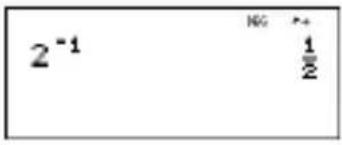 |
Pi
π
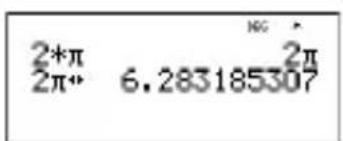
= 3.141592653590 for calculations.
= 3.141592654 for display.
Example
| π2×πenter |  | |
 |

Problem
What is the area of a circle if the radius is 12 cm?
Reminder: A = r^2 .
| π × 12 ∧ 2 enter | |
| π*12 ^2 144π | |
| π*12 ^2 144π144π°452.3893421 |
The area of the circle is 144 square cm. The area of the circle is approximately 452.4 square cm when rounded to one decimal place.
Angle menu
2nd [angle]
2nd [angle] displays the choice of two submenus that enable you to specify the angle unit modifier as degrees (°), minutes ('), seconds ("); radian (r); gradian (g), or convert units using ▶DMS. You can also convert between rectangular coordinate form (R) and polar coordinate form (P). (See Rectangular to Polar for more information.)
Choose an angle mode from the mode screen. You can choose from DEG (default), RAD, or GRAD. Entries are interpreted and results displayed according to the angle mode setting without needing to enter an angle unit modifier.
Examples
| RAD mode ▶ | enter |  |
| clear sin 30 | 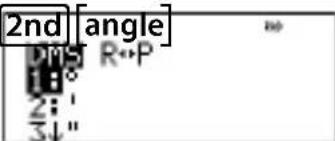 | |
| 1 ) enter | 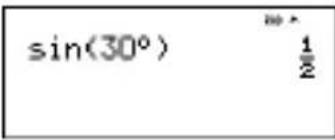 | |
| DEG mode enter |  | |
| clear 2 π 2nd [angle] 4 enter | 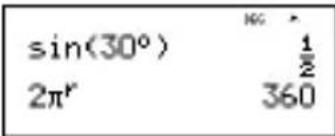 | |
| ►DMS | 1 · 5 2nd [angle] 6 enter | sin(30°) 1/22πr 3601.5►DMS 1°30'0" |
Problem
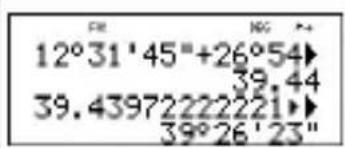
Two adjacent angles measure 12^31'45'' and 26^54'38'' respectively. Add the two angles and display the result in DMS format. Round the results to two decimal places.
| clear mode enter |  |
| clear 12 2nd [angle] | 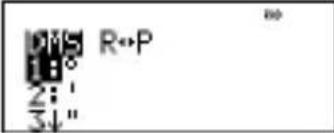 |
| 1 31 2nd [angle] 2 45 2nd [angle] 3 + 26 2nd [angle] 1 54 2nd [angle] 2 38 2nd [angle] 3 enter |  |
2nd [angle] 6 enter
text_image
12°31'45"+26°54 39.44 39.43972222221 39°26'23"The result is 39 degrees, 26 minutes and 23 seconds.
Problem
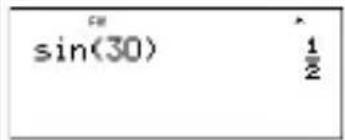
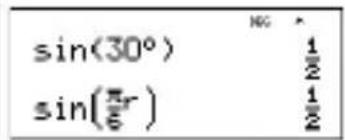
It is known that 30^ = / 6 radians. In the default mode, degrees, find the sine of 30^ . Then set the calculator to radian mode and calculate the sine of / 6 radians.
Note: Press clear to clear the screen between problems.
clear sin 30 ) enter
text_image
sin(30) 1/2
text_image
mode ▶ enter clear sin π n/d 6 ▶ ) enter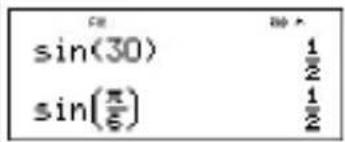
text_image
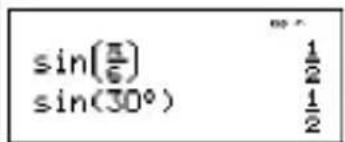
sin(30) 1/2 sin(π/6) 1/2Retain radian mode on the calculator and calculate the sine of 30^ . Change the calculator to degree mode and find the sine of / 6 radians.
sin 30 2nd [angle] enter ) enter
text_image
sin(π/6) 1/2 sin(30°) 1/2mode enter clear
sin π 6 ▶ 2nd [angle] 4
text_image
sin(30°) 1/2 sin(πr/6) 1/2) enter
Rectangular to polar
2nd [angle]
2nd [angle] displays a menu to convert rectangular coordinates (x,y) to polar coordinates (r,) or vice versa. Set Angle mode, as necessary, before starting calculations.
Example
Convert polar coordinates (r, ) = (5, 30) into rectangular coordinates. Then convert rectangular coordinates (x, y) = (3, 4) into polar coordinates. Round the results to one decimal place.
| R↔P | clear mode▼▼ ▶ enter |  |
| clear 2nd [angle] ▶ 35 2nd [, ] 30 ) enter2nd [angle] ▶ 45 2nd [, ] 30 ) enter | 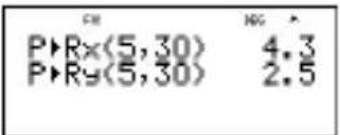 | |
| 2nd [angle] ▶ 13 2nd [, ] 4 ) enter2nd [angle] ▶ 23 2nd [, ] 4 ) enter |  |
Converting (r, Θ) = (5, 30) gives (x, y) = (4.3, 2.5) and (x, y) = (3, 4) gives (r, Θ) = (5.0, 53.1).
Trigonometry
sin cos tan 2nd [sin-1] [cos-1] [tan-1]
Enter trigonometric functions (sin, cos, tan, ^-1 , ^-1 , ^-1 ), just as you would write them. Set the desired Angle mode before starting trigonometric calculations.
Example Degree Mode
| Tan mode | enter cleartan 45 ) enter |  |
| Tan^-1 | 2nd [ tan^-1 ] 1 ) enter |  |
| Cos | 5 × cos 60 ) enter |  |
Example Radian Mode
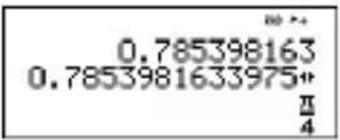
| Tan mode ▶ enter clear tan 4 ▶ ) enter |  | |
| Tan ^-1 | 2nd [tan ^-1 ] 1 ) enter |  |
 | ||
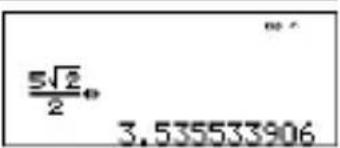
| Cos | 5 × cos π 4 ▶ ) enter |  |
 | ||
Problem
Find angle A of the right triangle below. Then calculate angle B and the length of the hypotenuse c. Lengths are in meters. Round results to one decimal place.
Reminder:
$$ \tan A = \frac {7}{3} \text { therefore } m \angle A = \tan^ {- 1} \left(\frac {7}{3}\right) $$
$$ m \angle A + m \angle B + 9 0 ^ {\circ} = 1 8 0 ^ {\circ} $$
$$ \text { therefore } m \angle B = 9 0 ^ {\circ} - m \angle A $$
$$ c = \sqrt {3 ^ {2} + 7 ^ {2}} $$

text_image
A 3 C 7 B c
text_image
CH WEG RAD GRAD NORTH SCI ENG FLOAT 0122456709 CLASSIC H11023418| clear 2nd [tan-1] 7 3 ▶ ) enter | 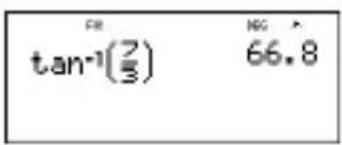 |
| 90 - 2nd [ans] enter | FE & HG \ tan^-1(73) & 66.8 \ 90-Ans & 23.2 |
| 2nd [√] 3 x^2 + 7 x^2 enter | FE & HG \ 90-Ans & 23.2 \ 3^2+7^2 & 58 |
| FE & HG \ 90-Ans & 23.2 \ 3^2+7^2 & 58\ 58* & 7.6 |
To one decimal place, the measure of angle A is 66.8^ , the measure of angle B is 23.2^ , and the length of the hypotenuse is 7.6 meters.
Hyperbolics
2nd [hyp]
2nd [hyp] displays the HYP indicator and accesses the hyperbolic function of the next trigonometry key that you press. Angle modes do not affect hyperbolic calculations.
Example
| HYP | 2nd [hyp] sin 5 ) + 2enter |  |
| ▲ ▲ enter ◀ ◀ ◀ ◀ ◀ ◀2nd [hyp] 2nd [sin-1] enter | 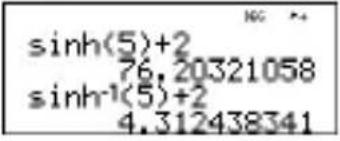 |
Logarithm and exponential functions
log
In
2nd
[10x]
log yields the common logarithm of a number.
In yields the logarithm of a number to the base e (e ≈819291929).
2nd [10^x] raises 10 to the power you specify.
2nd [e^x] raises e to the power you specify.
Examples
| LOG 1 | enter |  |
| LN 1 | 5 ) × 2 enter | 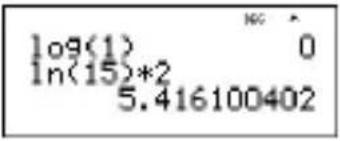 |
| 10^x | 2nd [10^x] 2 \ 2nd [10^x]5 enter | 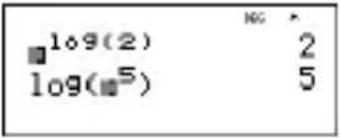 |
| e^x | 2nd [e^x]· 5 enter | 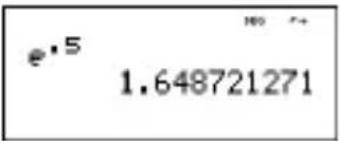 |
Constant
2nd [K]
2nd [K] turns Constant feature on and lets you define a constant.
To store an operation to K and recall it:
- Press 2nd [K].
- Enter any combination of numbers, operators, and/or values, up to 44 characters.
-
Press enter to save the operation. K displays in the indicator line.
-
Each subsequent time you press enter, the TI-30XS MultiView™ calculator recalls the stored operation and applies it to the last answer or the current entry.
Press 2nd [K] again to turn Constant feature off.
Examples
| K 2nd [K] |  | |
| × 2 + 3 enter | 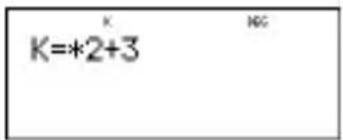 | |
| 4 enter |  | |
| 6 enter |  | |
| Reset K 2nd | [K] 2nd [K] clear x^2 enter |  |
| 5 enter | 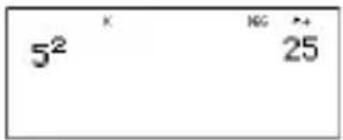 | |
| 20 enter | 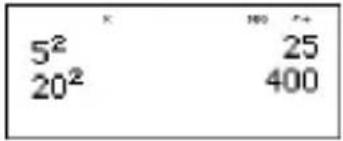 | |
| Turn off K | 2nd [K] 1 + 1 enter | 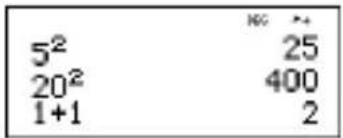 |

Problem
Given the linear function y = 5x - 2, calculate y for the following values of x: -5; -1.
| 2nd [K] × 5 - 2 enter | 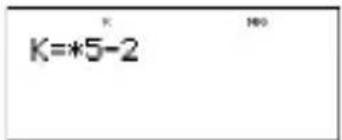 |
| (-) 5 enter | -5*5-2 -2? |
| (-) 1 enter | -5*5-2 -2? -1*5-2 -7 |
| 2nd [K] | -5*5-2 -2? -1*5-2 -7 |
Memory and stored variables


The TI-30XS MultiView™ calculator has 7 memory variables—x, y, z, t, a, b, and c. You can store a real number or an expression that results in a real number to a memory variable.
sto▶ lets you store values to variables. Press sto▶ to store a variable, and press x_abc^yzt to select the variable to store. Press enter to store the value in the selected variable. If this variable already has a value, that value is replaced by the new one.
x_abc^yzt accesses the menu of variables. Press this key multiple times to choose x, y, z, t, a, b, or c. You can also use x_abc^yzt to recall the stored values for these variables. The name of the variable is inserted into the current entry, but the value assigned to the variable is used to evaluate the expression.
2nd [recall] recalls the values of variables. Press 2nd [recall] to display a menu of variables and their stored values. Select the variable you want to recall and press enter. The value assigned to the variable is inserted into the current entry and used to evaluate the expression.
2nd [clear var] clears variable values. Press 2nd [clear var] and select 1: Yes to clear all variable values.
Examples
| Clear Var 2nd [clear var] 1 | 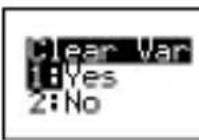 | |
| Store 15sto | x^yzt_abc | 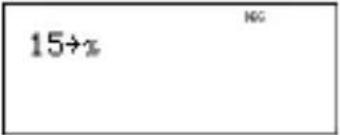 |
| enter |  | |
| Recall 2nd [recall] | 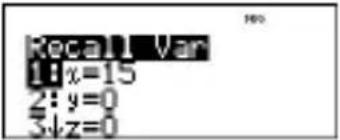 | |
| enter x^2 enter |  | |
| sto x^yzt_abc x^yzt_abc |  | |
| enter | 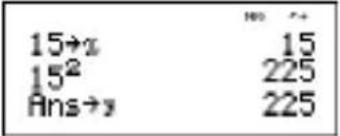 | |
| x^yzt_abc x^yzt_abc enter ÷ 4 enter | 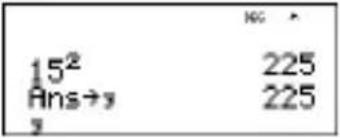 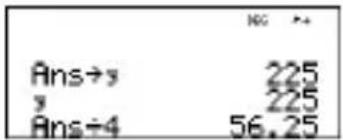 | |

Problem
In a gravel quarry, two new excavations have been opened. The first one measures 350 meters by 560 meters, the second one measures 340 meters by 610 meters. What volume of gravel does the company need to extract from each excavation to reach a depth of 150 meters? To reach 210 meters? Display the results in engineering notation.
| mode ▼ ▶ ▶ enter clear350 × 560 sto ▶ x_abc^yzt enter | 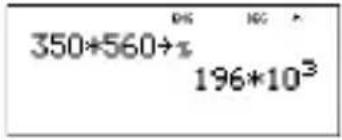 |
| 340 × 610 sto ▶ x_abc^yzt x_abc^yzt enter | 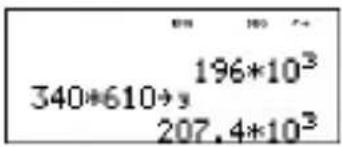 |
| 150 × 2nd [recall] | 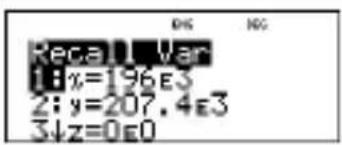 |
| enter enter | 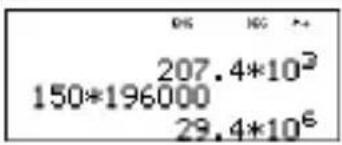 |
| 210 × 2nd [recall] enter enter | 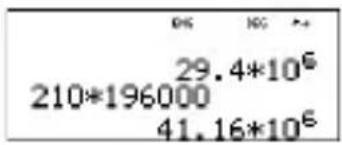 |
| 150 × x_abc^yzt x_abc^yzt enter | 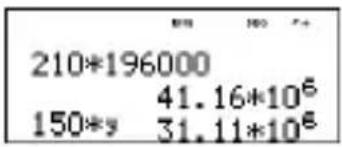 |
| 210 × x_abc^yzt x_abc^yzt enter |  |
For the first excavation: The company needs to extract 29.4 million cubic meters to reach a depth of 150 meters, and to extract 41.16 million cubic meters to reach a depth of 210 meters.
For the second excavation: The company needs to extract 31.11 million cubic meters to reach a depth of 150 meters, and to extract 43.554 million cubic meters to reach a depth of 210 meters.
Data editor and list formulas
data
data lets you enter data in up to 3 lists. Each list can contain up to 42 items. Press 2nd 🔗 to go to the top of a list, and 2nd ⬇ to go to the bottom of a list.
List formulas accept all calculator functions.
Numeric notation, decimal notation, and angle modes affect the display of an element (except fractional elements).
Example
| L1 | data 1 nd 4 2 nd 4 3 nd 4 4 nd 4 enter | 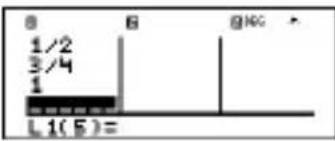 |
| Formula ▶ data ▶ |  | |
| enter | 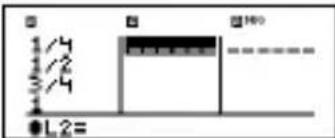 | |
| data enter 2nd [f ◀▶d] |  | |
| enter | 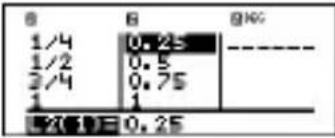 | |
Notice L2 is calculated per the formula you entered, and L2(1)= in the author line is highlighted to indicate the list is the result of a formula.

Problem
On a November day, a weather report on the Internet listed the following temperatures.
Paris, France 8°C
Moscow, Russia -1°C
Montreal, Canada 4°C
Convert these temperatures from degrees Celsius to degrees Fahrenheit.
Reminder: F = 95 + 32
| data data 4data ▶ 5 |  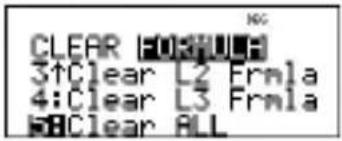 |
| 8 ▶ (-) 1 ▶ 4 ▶ ▶ | 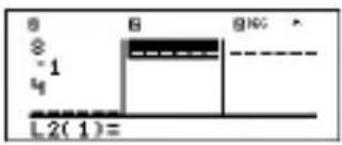 |
| data ▶ 1 | 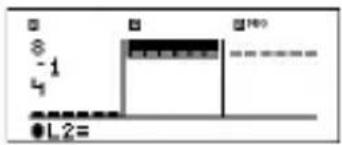 |
| 9 ÷ 5 × data 1 + 32 |  |
| enter |  |
If Sydney, Australia is 21^ C, find the temperature in degrees Fahrenheit.


text_image
B *1 4 21 30.2 39.2 69.0 L1(5)=Statistics
2nd [stat] data
2nd [stat] displays a menu with the following options:
- 1-Var Stats analyzes statistical data from 1 data set with 1 measured variable, x.
- 2-Var Stats analyzes paired data from 2 data sets with 2 measured variables—x, the independent variable, and y, the dependent variable.
- StatVars displays a secondary menu of statistical variables. The StatVars menu only appears after you have calculated 1-Var or 2-Var stats. Use ⬇ and ⬆ to locate the desired variable, and press enter to select it.
Variables Definition
| n | Number of x or (x,y) data points. |
| or | Mean of all x or y values. |
| Sx or Sy | Sample standard deviation of x or y. |
| σ x or σ y | Population standard deviation of x or y. |
| Σ x or Σ y | Sum of all x or y values. |
| Σ x2 or Σ y2 | Sum of all x2 or y2 values. |
| Σ xy | Sum of (x ...y) for all xy pairs. |
| a Linear regression | slope. |
| b | Linear regression y-intercept. |
| r Correlation coefficient. | |
| x' (2-Var) | Uses a and b to calculate predicted x value when you input a y value. |
| y' (2-Var) | Uses a and b to calculate predicted y value when you input an x value. |
| MinX | Minimum of x values. |
| Q1 (1-Var) Median | of the elements between MinX and Med (1st quartile). |
| Med Median of all data points. | |
| Q3 (1-Var) Median | of the elements between Med and MaxX (3rd quartile). |
| MaxX | Maximum of x values. |
To define statistical data points:
- Enter data in L1, L2, or L3. (See Data editor.)
- Press 2nd [stat]. Select 1-Var or 2-Var and press enter.
- Select L1, L2, or L3, and the frequency.
- Press enter to display the menu of variables.
- To clear data, press data data, select a list to clear, and press enter.
Examples
1-Var: Find the mean of 45, 55, 55, 55
| Clear all data | data data ▼ ▼ ▼ |  |
| Data | enter 45 ▼ 55 ▼ 55 ▼ 55 enter | 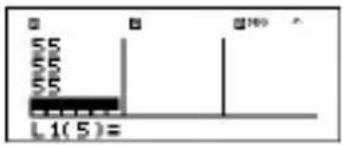 |
| Stat 2nd [stat] | 1 |  |
| ▼ ▼ |  | |
| enter |  | |
| Stat Var 2 enter | × 52.5 | |
| × 2 enter | × Ans*2 105 |
2-Var: Data: (45,30); (55,25). Find: x'(45)
| Clear all data | data data ▼ ▼ ▼ | 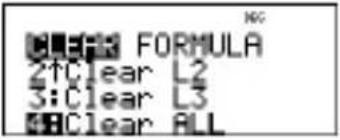 |
| Data | enter 45 ▼ 55 ▼ ▶ 30 ▼ 25 ▼ | 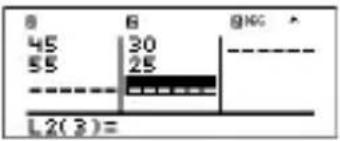 |
| Stat 2nd [stat] | 2 (Your screen may not show 3:StatVars if you did not previously perform a calculation.) | 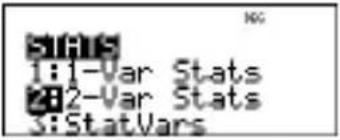 |
| ▽ ▼ |  | |
| enter ▲ ▲ ▲ ▲ ▲ ▲ |  | |
| enter 45 □ enter |  |
Problem
For his last four tests, Anthony obtained the following scores. Tests 2 and 4 were given a weight of 0.5, and tests 1 and 3 were given a weight of 1.
| T | e | s | t | N | o | . | 1 | |
| S | c | o | r | e | 1 | 2 | 1 | 3 |
| Coefficient 1 | 0.5 | 1 | 0.5 | |||||
- Find Anthony's average grade (weighted average).
- What does the value of n given by the calculator represent? What does the value of x given by the calculator represent?
Reminder: The weighed average is
$$ \frac {\Sigma x}{n} = \frac {(1 2) (1) + (1 3) (0 . 5) + (1 0) (1) + (1 1) (0 . 5)}{1 0 . 5 1 0 . 5 + +} $$
- The teacher gave Anthony 4 more points on test 4 due to a grading error. Find Anthony's new average grade.
| data data 4data ▶5 |   |
| 12 ▶13 ▶10 ▶11 ▶▶1 ▶□5 ▶1 ▶ □5 ▶ | 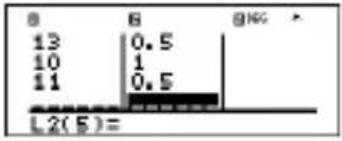 |
| 2nd [stat]1(Your screen may not show3:StatVars if you did not previously perform a calculation.) | 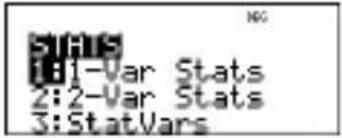 |
| ▼ ▶ ▶ enter ▶ | 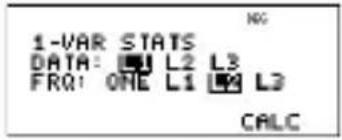 |
| enter | 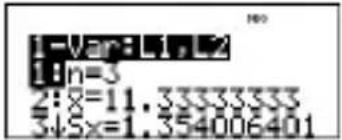 |
Anthony has an average ( ) of 11.33 (to the nearest hundredth).
On the calculator, n represents the total sum of the weights n = 1 + 0.5 + 1 + 0.5 .
Σ x represents the weighted sum of his scores.
$$ (1 2) (1) + (1 3) (0. 5) + (1 0) (1) + (1 1) (0. 5) = 3 4. $$
Change Anthony's last score from 11 to 15.
| data 15 | 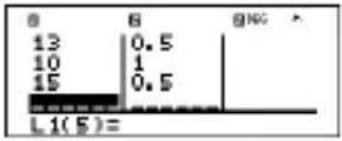 |
| 2nd [stat]1 enter |  |
If the teacher adds 4 points to Test 4, Anthony's average grade is 12.
Problem
The table below gives the results of a braking test.
| Test No. 1 2 3 | 4 | |||
| Speed (kph) | 33 49 65 | 79 | ||
| Braking distance (m) | 5.30 14.4 | 5 20.21 38.45 |
Use the relationship between speed and braking distance to estimate the braking distance required for a vehicle traveling at 55 kph.
A hand-drawn scatter plot of these data points suggest a linear relationship. The TI-30XS MultiView™ calculator uses the least squares method to find the line of best fit, y' = ax' + b , for data entered in lists.
| data data 4 |  |
| 33 49 65 79 5.3 14.45 20.21 38.45 | 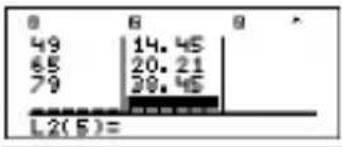 |
| 2nd [stat] 2 | 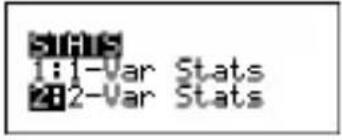 |
 | |
| enter | 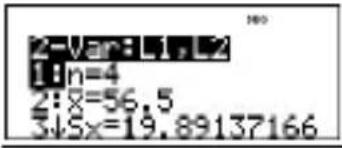 |
| Press ➕ to view a and b. | 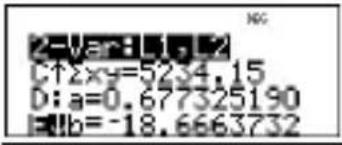 |
| This line of best fit, y'=0.67732519x'-18.66637321 models the linear trend of the data. | |
| Press ➕ until y' is highlighted. | |
| enter 55 □ enter | y'(55) 18.58651222 |
The linear model gives an estimated braking distance of 18.59 meters for a vehicle traveling at 55 kph.
Probability
prb
This key displays two menus: PRB and RAND.
PRB contains the following options:
| nPr Calculates | the number of possible permutations of n items taken r at a time, given n and r. The order of objects is important, as in a race. |
| nCr Calculates! | the number of possible combinations of n items taken r at a time, given n and r. The order of objects is not important, as in a hand of cards.A factorial is the product of the positive integers from 1 to n. n must be a positive whole number ≤ 69. |
RAND contains the following options:
rand Generates a random real number between 0 and 1. To control a sequence of random numbers, store an integer (seed value) ≥ 0 to rand. The seed value changes randomly every time a random number is generated.
randint( Generates a random integer between 2 integers, A and B, where A ≤ randint ≤ B . Separate the 2 integers with a comma.
Examples
| nPr 8 |  | |
| prb 1 | 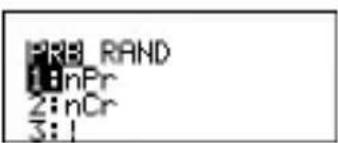 | |
| 3 enter |  | |
| nCr 52 prb 2 | 5 enter |  |
| ! 4 prb | 3 enter |  |
| STO▶rand | 5 STO▶ prb ▶ |  |
| 1 enter | 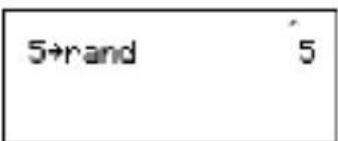 |
| Randprb1enter | 5+rand 5rand0.000093165 |
| Randint(prb)232nd[,]5)enter | 5+rand 5rand0.000093165randint(3,5)5 |

Problem
An ice cream store advertises that it makes 25 flavors of home made ice cream. You like to order three different flavors in a dish. How many combinations of ice cream can you test over a very hot summer?
| 25 | 25 |
| prb 2 | 25 nCr |
| 3 enter | 25 nCr 3 2300 |
You can choose from 2300 dishes with different combinations of flavors! If a long hot summer is about 90 days long, you will need to eat about 25 ice cream dishes each day!
Function table
table
The function table allows you to display a defined function in a tabular form. To set up a function table:
- Press table .
- Enter a function and press enter . Functions allow up to one level of fractions.
- Select the table start, table step, auto, or ask-x options and press enter.
The table is displayed using the specified values.
| Start Specified the | starting value for the independent variable, x. |
| Step Specified the | incremental value for the independent variable, x. The step can be positive or negative, but cannot be zero. |
| Auto The TI-30XS | MultiViewTM calculator automatically generates a series of values based on table start and table step. |
| Ask-x Lets you build | a table manually by entering specific values for the independent variable, x. |

Problem
Find the vertex of the parabola, y = x(36 - x) using a table of values.
Reminder: The vertex of the parabola is the point on the line of symmetry of the parabola.
| table x_abc^yzt (36 - x_abc^yzt ) enter |  |
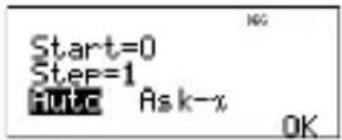 | |
| clear 15 ▼ clear 3 ▼ ▼ enter | Start=15Step=3HUTC As k-xOK |
| x=15 |
After searching close to x = 18, the point (18, 324) appears to be the vertex of the parabola since it appears to be the turning point of the set of points of this function. To search closer to x = 18, change the Step value to see points closer to (18, 324).

Problem
A charity collected \3,600 to help support a local food kitchen. \450 will be given to the food kitchen every month until the funds run out. How many months will the charity support the kitchen?
Reminder: If x = months and y = money left, then y = 3600 - 450x.
| table 3600 - 450 x_abc^yzt | 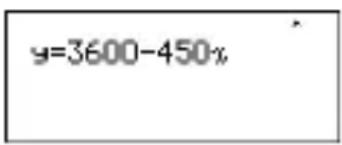 |
 | 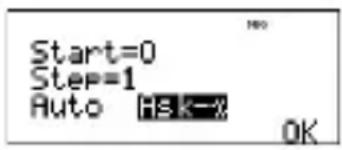 |
| Input guesses enter |
The support of \$450 per month will last for 8 months since y(8) = 3600 - 450(8) = 0 as shown in the table of values.
Errors
When the TI-30XS MultiView™ calculator detects an error, it returns an error message with the type of error.
To correct the error, note the error type and determine the cause of the error. If you cannot recognize the error, use the following list, which describes error messages in detail.
Press clear to clear the error message. The previous screen is displayed with the cursor at or near the error location. Correct the expression.
ARGUMENT — A function does not have the correct number of arguments.
DIVIDE BY 0 —
- You attempted to divide by 0.
- In statistics, n = 1 .
DOMAIN — You specified an argument to a function outside the valid range. For example:
- For x : x = 0 or y < 0 and x is not an odd integer.
- F o ^x : r y and x = 0; y < 0 and x is not an integer.
- For : x < 0 .
- For LOG or LN: x ≤ 0 .
- For TAN: x = 90^ , -90^ , 270^ , -270^ , 450^ , etc., and equivalent for radian mode.
• F o r ^-1 or SDS ^-1 : |x| > 1.
- For nCr or nPr: n or r are not integers ≥ 0 .
- For x! : x is not an integer between 0 and 69.
EQUATION LENGTH ERROR — An entry exceeds the digit limits (80 for stat entries or 47 for constant entries); for example, combining an entry with a constant that exceeds the limit.
FRQ DOMAIN — FRQ value (in 1-Var stats) < 0 or > 99, or not an integer.
OVERFLOW — || ≥ 1E10 , where is an angle in a trig, hyperbolic, or R Pr( function.
STAT — Attempting to calculate 1-var or 2-var stats with no defined data points, or attempting to calculate 2-var stats when the data lists are not of equal length.
DIM MISMATCH — Attempting to create a formula when the lists are not of equal length.
FORMULA — The formula does not contain a list name (L1, L2, or L3), or the formula for a list contains its own list name. For example, a formula for L1 contains L1.
SYNTAX — The command contains a syntax error: entering more than 23 pending operations or 8 pending values; or having misplaced functions, arguments, parentheses, or commas. If using ☐, try using ☑.
INVALID FUNCTION — Invalid function entered in the function table.
LOW BATTERY — Replace the battery.
Note: This message displays briefly and then disappears.
Pressing clear does not clear this message.
Battery information
Battery precautions
- Do not leave batteries within the reach of children.
- Do not mix new and used batteries. Do not mix brands (or types within brands) of batteries.
- Do not mix rechargeable and non-rechargeable batteries.
- Install batteries according to polarity (+ and -) diagrams.
- Do not place non-rechargeable batteries in a battery recharger.
- Properly dispose of used batteries immediately.
- Do not incinerate or dismantle batteries.
- Seek Medical Advice immediately if a cell or battery has been swallowed. (In the USA, contact the National Capital Poison Center at 1-800-222-1222.)
Battery disposal
Do not mutilate, puncture, or dispose of batteries in fire. The batteries can burst or explode, releasing hazardous chemicals. Discard used batteries according to local regulations.
How to remove or replace the battery
The TI-30XS MultiView™ calculator uses one 3 volt CR2032 lithium battery.
Remove the protective cover and turn the TI-30XS MultiView calculator face downwards.
- With a small screwdriver, remove the screws from the back of the case.
- From the bottom, carefully separate the front from the back. Be careful not to damage any of the internal parts.
- With a small screwdriver (if required), remove the battery.
- To replace the battery, check the polarity (+ and -) and slide in a new battery. Press firmly to snap the new battery into place.
Important: When replacing the battery, avoid any contact with the other components of the TI-30XS MultiView™ calculator.
- If necessary, press on and CLEAR simultaneously to reinitialize the calculator (erases the memory and all the settings and displays a MEM DELETED message).
Dispose of the dead battery immediately and in accordance with local regulations.
Per CA Regulation 22 CCR 67384.4, the following applies to the button cell battery in this unit:
Perchlorate Material - Special handling may apply.
See www.dtsc.ca.gov/hazardouswaste/perchlorate
In case of difficulty
Review instructions to be certain calculations were performed properly.
Press on and clear at the same time. This clears all settings and memory.
Check the battery to ensure that it is fresh and properly installed.
Change the battery when:
• on does not turn the unit on, or
• The screen goes blank, or
- You get unexpected results.
Texas Instruments Support and Service
For general information
| Home Page: | education.ti.com |
| KnowledgeBase and e-mail inquiries: | education.ti.com/support |
| Phone: | (800) TI-CARES / (800) 842-2737 For U.S., Canada, Mexico, Puerto Rico, and Virgin Islands only |
| International information: | education.ti.com/international |
For technical support
| KnowledgeBase and support by e-mail: | education.ti.com/support |
| Phone (not toll-free): | (972) 917-8324 |
For product (hardware) service
Customers in the U.S., Canada, Mexico, Puerto Rico and Virgin Islands: Always contact Texas Instruments Customer Support before returning a product for service.
All other customers: Refer to the leaflet enclosed with this product (hardware) or contact your local Texas Instruments retailer/distributor.