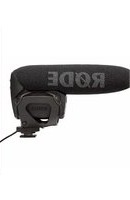
Rode VideoMic Pro - Microphone RODE - Free user manual and instructions
Find the device manual for free Rode VideoMic Pro RODE in PDF.


| Product Type | Compact shotgun microphone |
| Acoustic Principle | Line gradient |
| Polar Pattern | Super Cardioid |
| Frequency Range | 40 Hz – 20,000 Hz |
| High Pass Filter | Selectable HPF @ 80 Hz / 12 dB/octave |
| Variable Level | 3-position switch: -10 dB, 0 dB, +20 dB |
| Output Impedance | 200 ohms |
| Signal to Noise Ratio | 74 dB |
| Maximum SPL | 134 dB |
| Sensitivity | -38 dB re 1V/Pa (12.6 mV @ 94 dB SPL) ± 2 dB @ 1 kHz |
| Power Requirements | 9V alkaline battery (7.8 mA) |
| Battery Life | >70 hours (alkaline) |
| Output Connection | 3.5mm stereo mini jack plug (dual mono) |
| Dimensions (W x L x H) | 43 mm x 150 mm x 95 mm (1.69" x 6" x 3.74") |
| Weight (without battery) | 86 g (3 oz) |
| Shock Mount | Integrated suspension with elastomer bands |
| Windshield | Integrated foam windshield (removable) |
| Mounting | Standard camera shoe mount with 3/8" thread |
| Cable | Ultra-light multi-strand shielded dual core cable |
| Construction | Rugged, Australian designed and manufactured |
| Warranty | 10 years (with online registration) |
Frequently Asked Questions - Rode VideoMic Pro RODE
User questions about Rode VideoMic Pro RODE
0 question about this device. Answer the ones you know or ask your own.
Ask a new question about this device
Download the instructions for your Microphone in PDF format for free! Find your manual Rode VideoMic Pro - RODE and take your electronic device back in hand. On this page are published all the documents necessary for the use of your device. Rode VideoMic Pro by RODE.
USER MANUAL Rode VideoMic Pro RODE
natural_image
Rode microphone device with black foam cover and attached audio jack (no visible text or symbols on body)www.rodemic.com
natural_image
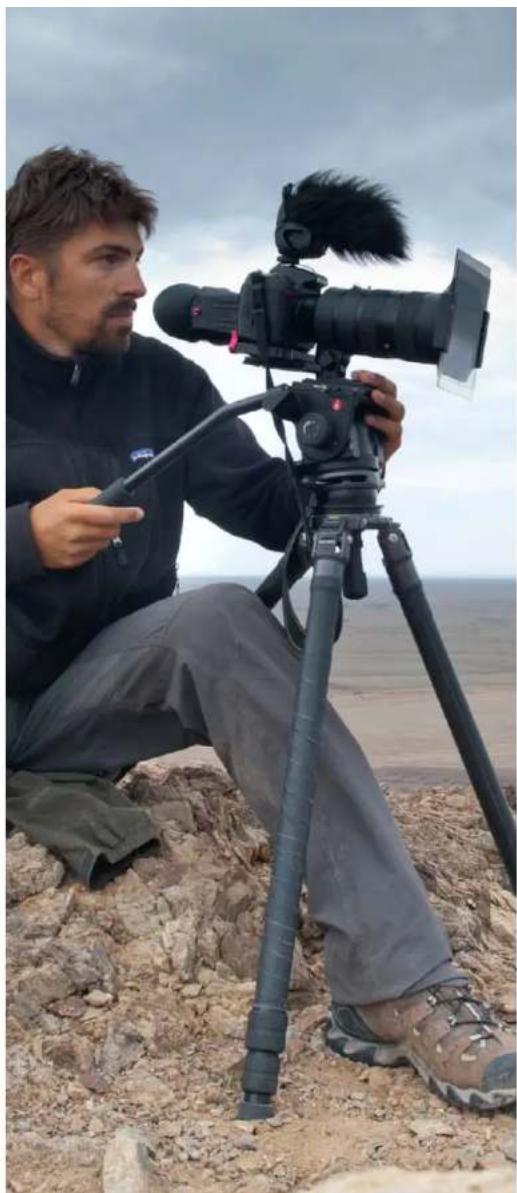
Man operating a professional video camera on a tripod in an open, rocky outdoor environment (no visible text or symbols)INTRODUCTION CONTENTS
Thank you for investing in the R∅DE VideoMic Pro.
When R∅DE released the original VideoMic in 2004 it was the only mic of
its kind on the market. Just like many great innovations it was born from a personal need. At the time MiniDV cameras were the latest technology, offering consumers and independent fi Immakers unprecedented freedom and creativity for their video, but neglecting audio quality. I went shopping for a solution but found that the only offerings were either cheap inferior quality or high cost shotgun microphones not designed to integrate easily with the cameras.
Thus the VideoMic was born. Almost a decade later its broadcast audio quality, integrated shock mounting and accessible price tag has made it the world's largest selling microphone for consumer cameras.
However in this time there have been numerous innovations in video cameras, from hard drive, solid state and network cameras, through to high definition Digital SLR and onwards to large sensor video cameras. The technology has gotten larger but of course the form factor much smaller, thus the decision to create the high performance, yet conveniently compact VideoMic Pro.
Creating a high performance microphone as lightweight and manageable as the VideoMic Pro was quite a technical challenge. Other companies have attempted and failed, simply because a directional microphone depends on the length of the microphone barrel to reject the surrounding ambient noise that you don't want to pick up.
Leveraging the technology developed alongside our award winning NTG1, NTG2 and NTG3 shotgun microphones we've finally realised a professional microphone with a much smaller form factor.
Please take the time to visit www.rodemic.com and register your mic for a full ten year warranty.

Peter Freedman
R∅DE Microphones
Sydney, Australia
INTRODUCTION 2.
SPECIFICATIONS 3.
FEATURES 4.
WHAT'S IN THE BOX 4.
VIDEOMIC PRO STRUCTURE 5.
SETUP AND USE
Installing the battery 6.
Mounting and connecting ____ 7.
VideoMic Pro controls 8.
Replacing shock mount bands 10.
Recording Tips 12.
OPTIONAL ACCESSORIES 13.
SAFETY / CARE INSTRUCTIONS 15.
TROUBLESHOOTING / FAQ 16.
PRODUCT WARRANTY 18.
SUPPORT AND SERVICE 18.
SPECIFICATIONS
| Acoustic Principle: | Line gradient |
| Polar Pattern | Super Cardioid |
| Frequency Range: | 40 Hz ~ 20 000 Hz |
| Frequency Range:(High Pass Filter) | Selectable HPF@ 80 Hz / 12 dB /octave |
| Variable Level: | 3 position switch(-10 dB, 0 dB, +20 dB) |
| Output Impedence | 200Ω |
| Signal to Noise Ratio: | 74 dB |
| Equivalent Noise: | 20 dBA SPL(A-weighted as per IEC651) |
| Maximum SPL: | 134 dB |
| Maximum Output: | +6.9 dBu(@ 1% THD into 1K Ω load) |
| Sensitivity: | -38 dB re 1V/Pa(12.6mV @ 94 dB SPL)± 2 dB @ 1kHz |
| Dynamic Range: | 114 dB SPL (as per IEC651) |
| Power requirements: | 9V alkaline battery(Current 7.8mA) |
| Output Connection: | 3.5 Stereo mini jack plug(dual mono)Tip - left channelRing - right channel |
| Battery Life: | >70 hours |
| Weight (No Battery): | 86g (3oz) |
| Dimension (W x L x H): | 43mm x 150mm x 95mm(1.69" x 6" x 3.74") |
FREQUENCY RESPONSE
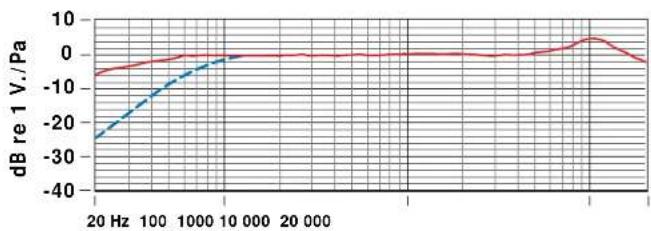
line
| Frequency | dB re 1 V./Pa | | --------- | ------------- | | 20 Hz | -25 | | 100 | -10 | | 1000 | -5 | | 10,000 | 0 | | 20,000 | 0 | | 10,000+ | 5 |POLAR PATTERN
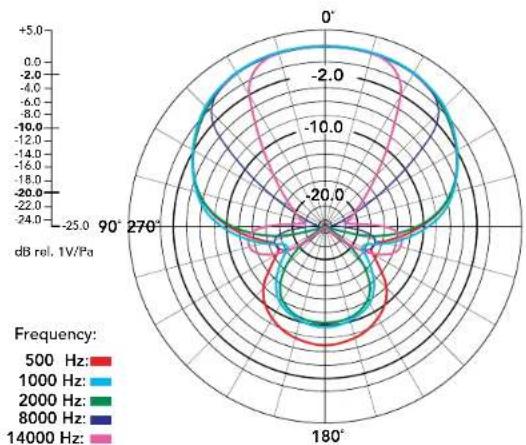
radar
| Frequency | Angle (°) | Value (dB rel. 1V/Pa) | |-----------|-----------|------------------------| | 500 Hz | 0° | ~-2.0 | | 500 Hz | 90° | ~-2.0 | | 500 Hz | 270° | ~-2.0 | | 1000 Hz | 0° | ~-2.0 | | 1000 Hz | 90° | ~-2.0 | | 1000 Hz | 270° | ~-2.0 | | 2000 Hz | 0° | ~-2.0 | | 2000 Hz | 90° | ~-2.0 | | 2000 Hz | 270° | ~-2.0 | | 8000 Hz | 0° | ~-2.0 | | 8000 Hz | 90° | ~-2.0 | | 8000 Hz | 270° | ~-2.0 | | 14000 Hz | 0° | ~-2.0 | | 14000 Hz | 90° | ~-2.0 | | 14000 Hz | 270° | ~-2.0 |FEATURES WHAT'S IN THE BOX
COMPACT SHOTGUN MICROPHONE
• Compact, lightweight body
• Broadcast recording quality
• Condenser microphone
- Integrated shock mount provides isolation from handling / mechanical noise
• Integrated foam windshield
• 3.5mm stereo mini jack output (dual mono)
• Rugged construction
DETAILED CONTROL
• Two step high-pass fi lter (0, 80 Hz)
• Three position level control (-10dB, 0dB, +20dB)
• LED on / off power indicator
- Integrated billeted metal camera shoe mount with 3/8" thread for easy boompole mounting
HIGH QUALITY PERFORMANCE
- 9V battery powered – over 70 hours use (alkaline)
- Low noise circuitry
- Flexible and lightweight cable to minimise handling noise and ensure isolation
• Australian designed and manufactured
• 10 Year Warranty*
*Online product registration required.
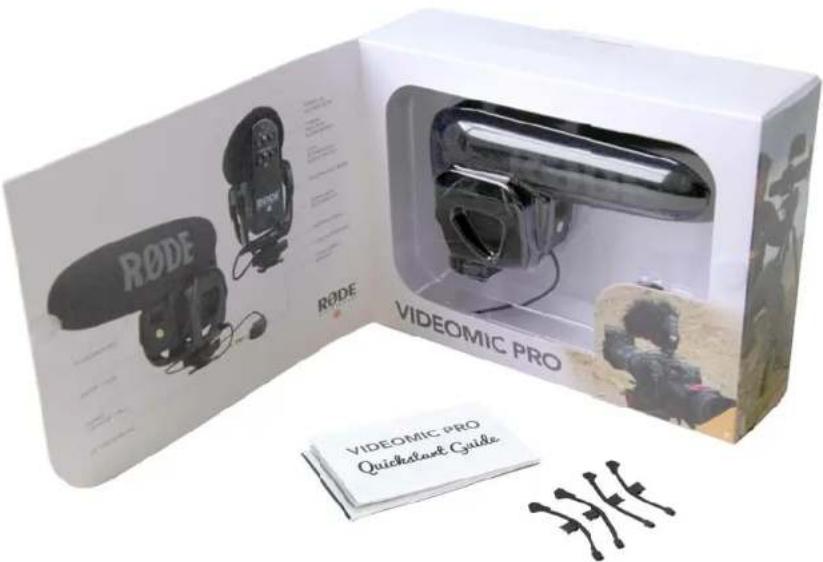
- VideoMic Pro
- Spare shock mount bands (4 pieces)
• VideoMic Pro quick start guide
• Moisture absorbent crystals


- Foam windshield
- Shock mount cradle
- Shock mount band
- Power / High Pass Filter switch
- Level attenuation / boost switch
- Power on / off LED indicator
-
Battery cover
-
Billeted metal
camera shoe mount - Fastening ring
- 3/8" thread mount
- Signal output cable
- 3.5mm stereo mini jack
SETUP AND USE
INSTALLING THE BATTERY
Before you can record with your VideoMic Pro, you will need to install a standard 9V battery (ANS1:1604A or IEC:6LR61). R∅DE recommends using a high quality lithium or alkaline battery to achieve the best possible battery life.
To install the battery, open the battery cover that is located on the front of the VideoMic Pro, just under the windshield foam. To remove the cover, hold the sides of the cover with your thumb and third fi nger, and push up on the indentation with your index fi nger, then pivot the bottom of the cover away.
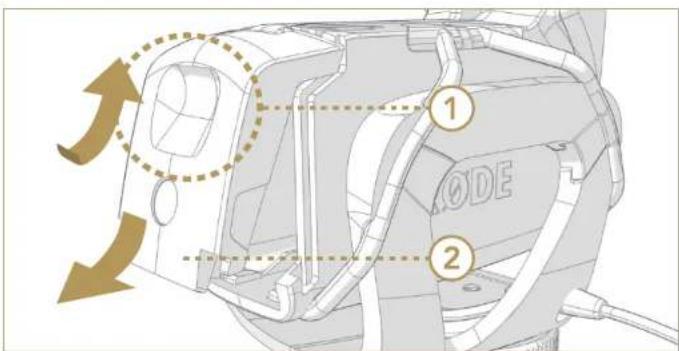
Push up on the indentation with your index finger then pivot the bottom of the cover away
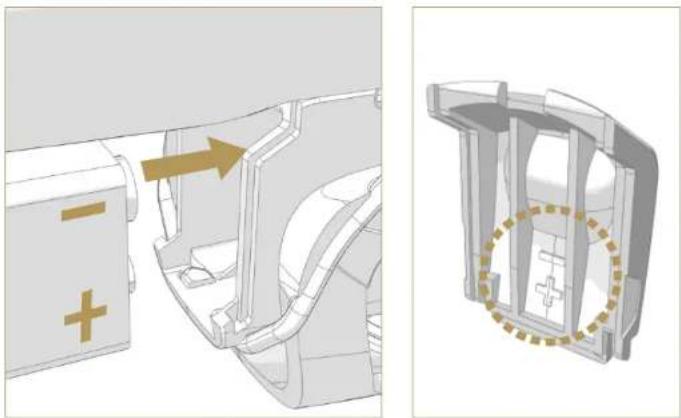
Insert the battery with the negative terminal (-) on top as shown in the next diagram. The correct battery orientation is also shown on the inside of the battery cover. If the battery orientation is incorrect the cover will not close fully.
natural_image
Technical illustration of a mechanical assembly with cross symbol and highlighted internal components (no text or labels)Insert the battery with the negative terminal on top
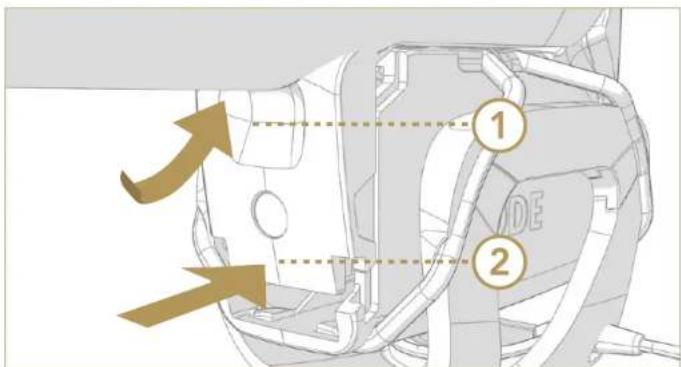
Replace the cover by fi rst hooking the top clips in, then press the bottom clips into place. The cover will push the battery against its spring terminal during installation.
SETUP AND USE
The VideoMic Pro will run continuously for over 70 hours with a high quality alkaline or lithium battery. Battery performance may vary depending on ambient temperature and battery shelf life, so it is wise to always carry a spare battery. We suggest always installing a fresh battery when the application is critical, with no opportunity to re-shoot. Always remember to switch off the VideoMic Pro when not in use.
MOUNTING AND CONNECTING YOUR VIDEOMIC PRO

natural_image
Technical diagram of a mechanical component with a highlighted circular detail (no text or symbols)The standard shoe mount on the VideoMic Pro
The VideoMic Pro incorporates a standard camera shoe mount on the underside of the shock mount cradle.
Designed to reduce handling and mechanical noise being carried through from the camera to the microphone, the camera shoe mount also has a 3/8" thread at the bottom to allow mounting on tripods and boompoles.
Some older model and low cost cameras may produce a higher level of mechanical noise, which can be picked up by the VideoMic Pro. The integrated High Pass Filter should be switched on to reduce the resulting low frequency rumble.
(Refer to page 8 for more details on engaging the High Pass Filter.)
Before sliding the camera shoe into place, loosen the fastening ring by turning anti-clockwise until it is loose enough to fit easily into your camera's shoe mount. Once the shoe is in place, gently tighten by turning the fastening ring clockwise until the VideoMic Pro is seated firmly in place.

natural_image
Technical line drawing of a mechanical assembly with no visible text or symbolsPress your cable into the cable management clip on the underside of the shock mount cradle
The VideoMic Pro has a small cable clip on the underside of the shock mount to secure the cable in place and prevent any unwanted movement noise. Simply press your cable into the clip / groove until the cable is secured in place.
SETUP AND USE
The VideoMic Pro delivers a mic level signal to the video camera via a stereo mini jack audio lead. The mini jack should be connected to the camera via the camera's "audio-in" socket – refer to your video camera user manual for the location of the socket on your camera model.
Now that you have the VideoMic Pro securely fastened to your camera and the audio output lead connected, you can switch the microphone on and start recording.
The power / HPF switch is located on the back of the microphone body.
Mic OFF Mic ON (Flat) Mic ON (HPF on)

Power/ High Pass Filter switch
The High Pass Filter (HPF) is a low frequency cut-off setting, which you can use to reduce rumble and other low frequency noise picked up by the microphone while recording. It may affect the tone slightly but in some situations it is recommended.
For instance, it may be helpful to engage the High Pass Filter to cut out the sound of air conditioning, handling noise while adjusting
focus settings and distant traffic audible in the background.
To engage the High Pass Filter, slide the power switch to the right hand position until it is pointing to where the HPF ( ) symbol is indicated.
LED POWER INDICATOR
The power indicator LED fl ashes RED briefy when the microphone is first turned on. This changes to GREEN indicating the battery has adequate charge.
When the battery runs low the LED will remain RED and you should replace the battery. The microphone will work for over ten hours once the RED indicator is lit, however with reduced performance. R∅DE recommends changing the battery as soon as possible after the LED has turned red.
LEVEL CONTROL
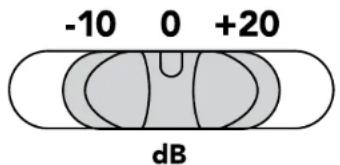
Three position level control switch
The VideoMic Pro features three settings to control the signal output level to your recording device. These are set via the right hand side selector switch on the back of the microphone.
SETUP AND USE
The left setting (-10) will reduce or attenuate the signal by 10dB, meaning that loud sound sources will be reduced and be less likely to overload or 'clip' the input of the camera.
The right setting (+20) will increase the signal level by 20dB. This is useful for recording quiet sound sources, or when your camera requires a higher input level for better signal to noise ratio (as in many digital SLR cameras).
Please note that when setting the input level you should always be mindful of your camera's internal audio level setting. If you have the +20dB level selected on the VideoMic Pro you may need to reduce the input level on your camera.
(For best results reduce the camera's input level as much as possible, selecting the +20dB input level on the VideoMic Pro and working downward until the appropriate input level is achieved. This will result in a much lower noise floor and an overall clearer recording when plugging the VideoMic Pro into the typically low quality mic preamps found on most DSLR cameras.)
The VideoMic Pro has been designed to work best with the camera's Auto Gain Control switched off. (see page 16 for more information on Auto Gain Control) As always it is recommended to test your audio first before recording anything of importance.
The VideoMic Pro has been RF/EMI shielded for very high rejection of radio frequency interference, but we suggest you keep all transmitters, cell phones, pagers etc. at least two metres away to reduce the possibility of interference affecting your recordings.

Loud sound levels can cause serious hearing damage.
Take care when setting the audio levels, especially while wearing headphones.
For additional recording tips and tricks, please visit the R∅DE University – R∅DE's free online microphone training website (www.rodeuniversity.com). Check out the Broadcast recording semester for tutorials most relevant to the VideoMic Pro.
For more entertaining videos, you may also wish to visit R∅DE TV (www.rodetv.com) – featuring a wide range of demos, reviews, interviews and behind-the-scenes clips for anyone interested in music, audio and recording.
SETUP AND USE
REPLACING SHOCK MOUNT BANDS
The VideoMic Pro has been designed with an integrated suspension shock mount, reducing the amount of handling noise that is transmitted to the microphone while recording your audio.
This shock mount uses four elastomer suspension bands to hold the VideoMic Pro in its shock mount cradle. These bands have been created to be intentionally soft, again to minimise the transmission of mechanical and handling noise through this material.
If the VideoMic Pro is shaken vigorously or knocked during use, the microphone body may touch the sides of the shock mount cradle. This should be avoided as it may add unwanted noise.
During handling or transport, the bands attaching the VideoMic Pro to its shock mount cradle may become dislodged. They can easily be put back into place by hand. Also, if the bands should become damaged or worn over time, the old bands can be fully removed and replacement bands fitted. Please follow the instructions below to readjust or replace the bands as necessary.
Start by attaching your shock mount bands to the microphone body. The shock mount cradle will then slip easily up under the bands and support the microphone. You may then attach the microphone to the shock mount cradle by sliding the shock mount bands into place.
Consult the image to the right to determine which band to use on the relevant side of the microphone. There are four bands in total, two of each shape.
You may wish to first remove the windshield foam, however this is not mandatory. The foam is not present in the following diagrams for ease of illustration purposes only.
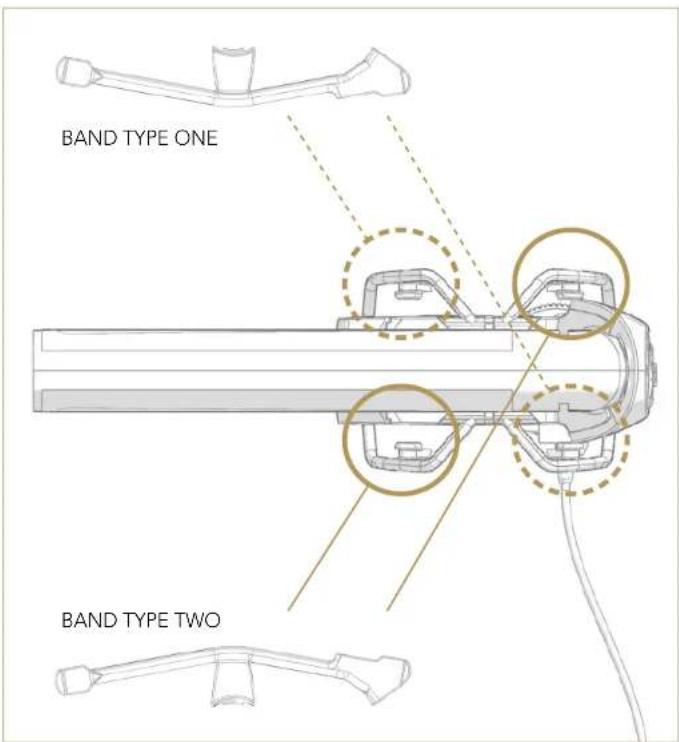
Top view of the VideoMic Pro.
Use the band with the correct alignment for the area you are attaching.
SETUP AND USE
You will notice the bands have two ends of different shapes.
The larger end is shaped like an 'arrow head' while the smaller end is square. In the middle is a tapered square, also with a circular knob on one side.
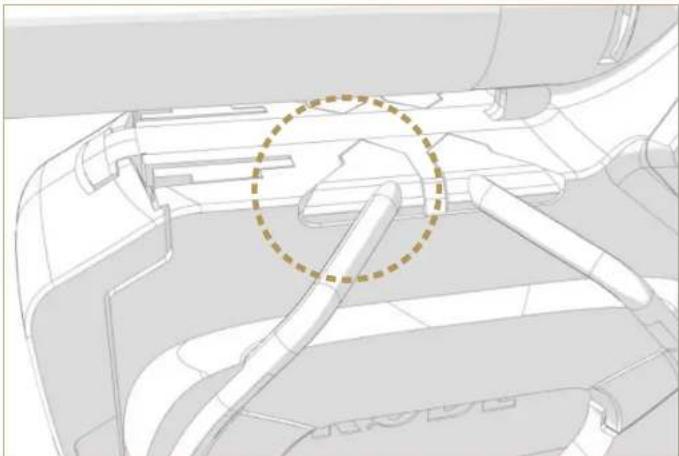
To fit your band, match the shape of the band to the notches on the VideoMic Pro's body. The 'arrow head' end of the band is to be placed into the notch on the side of the mic body which is normally just below the windshield foam.
Match the shape of the band to the notch, and press firmly into place. Ensure the lip on the band is caught against lip inside the notch to hold it securely in place.
natural_image
Technical line drawing of a mechanical component with a highlighted circular area (no text or symbols)Press the 'arrow head' end of the band into the notch on the side of the VideoMic Pro body
Once the first end is secured, angle the small square end of the band into the corresponding notch underneath the front or back of the mic body and press into place.

Angle the square end of the band into the corresponding square notch on the underside of the mic body
Repeat the process for all four shock mount bands.
Once all four are fitted on the mic body, pull up the shock mount cradle underneath the bands. Please note the correct alignment will have the shoe mount on the cradle closer towards the rear of the microphone.
SETUP AND USE

natural_image
Technical diagram of a mechanical assembly with labeled components and an arrow indicating direction (no readable text or symbols)Slide the tapered square on the middle of the band into the notch on the shock mount. Note the orientation of the cradle has the shoe mount closer to the rear of the microphone
Next, slide the tapered square on the middle of the band into the notch on the shock mount. The circular knob on the inner side of the band will lock into the shock mount notch.
Repeat the process for all four bands, and the VideoMic Pro will be securely mounted to its shock mount cradle.
Note: The bands should press in and hold to the notches on the microphone body and shock mount cradle quite easily, as it is moulded to the shape of the notch required. If the band does not appear to fit well, you may have the wrong band shape for that area of the shock mount. Switch to the other band shape and try again.
RECORDING TIPS
Shotgun microphones such as the VideoMic Pro have a narrow pick-up angle or polar response, and so can be used to great effect with cameras for news gathering, weddings or sporting events. The VideoMic Pro can be used in any situation where you want to listen to what's in the shot, not what's at the side or out of view.
Regular use of the VideoMic Pro will provide you with better results as you become more familiar with its sound and pick-up characteristics.
OPTIONAL ACCESSORIES
DEADCAT VMP FURRY WINDSHIELD
natural_image
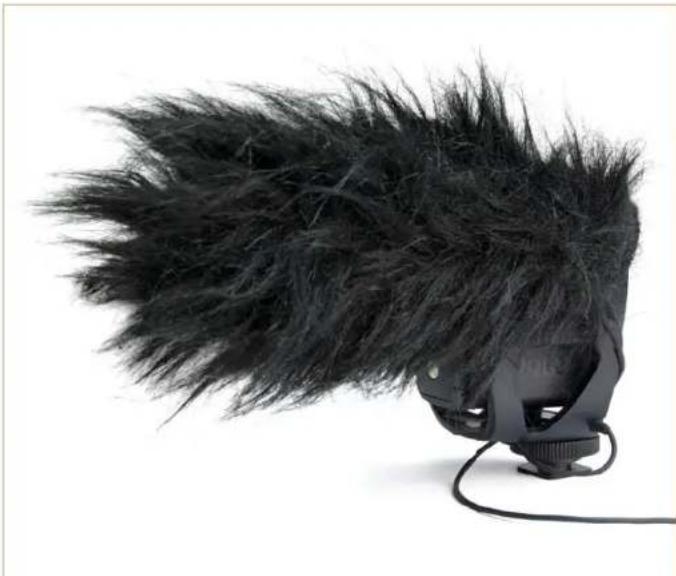
Black handheld microphone with spiky black foam head and attached cable (no text or symbols visible)For increased wind protection, an optional DeadCat VMP furry windshield is available for the VideoMic Pro. The windshield is ideal for situations such as outdoor performances where wind noise may distort the audio quality of the microphone.
The DeadCat VMP furry windshield fi ts over the foam windshield that comes pre-mounted on the VideoMic Pro. Do not remove the foam windshield before installing the DeadCat VMP. To fi t the DeadCat VMP, use both hands to stretch the elastic opening and pull over the
VideoMic Pro's foam windshield. Ensure that the DeadCat VMP is fitted right up to the edge of the microphone body and covers the full foam area, to prevent any leakage of wind noise. Finally, fl uff up the DeadCat VMP fur in all directions for optimum protection.
When removing the DeadCat VMP windshield, keep hold of the foam underneath with one hand while using the other to gently pull away the DeadCat VMP around the diameter of the elastic.
Please Note: After fi tting the DeadCat VMP for long periods of time, the foam windshield may appear squashed or disfi gured. This is normal for high density acoustic foam and does not indicate damage – within a short period of time, the foam will regain its usual shape on its own. However if you wish you may gently remove the foam windshield and soak in cold water to reshape. Please ensure the foam is completely dry before refi tting to your VideoMic Pro.
OPTIONAL ACCESSORIES
BOOMPOLES
natural_image
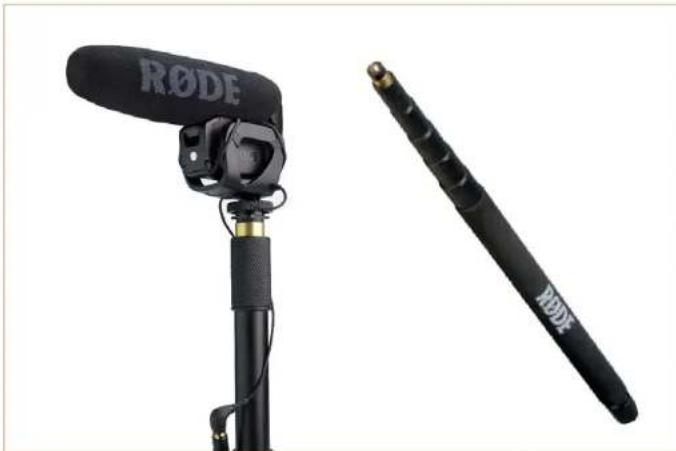
Rode microphone and its black metal bar antenna on a stand (no text or symbols visible)The VideoMic Pro may be mounted on a Boompole, Mini Boompole or Micro Boompole via the 3/8" thread located at the bottom of the camera shoe mount. This allows you to move the microphone closer to your sound source independent of your camera.
To mount the microphone, match the thread on the VideoMic Pro to the screw at the tip of the boompole, and twist clockwise until securely fastened. The VC1 stereo extension lead will assist in connecting your microphone to your camera or sound recorder for remote use.
PG1 PISTOL GRIP

natural_image
Black RODE audio recording device with a black handle and metallic grip (no visible text or symbols)The VideoMic Pro can also be mounted on the PG1 pistol grip. This allows independent movement of the microphone from your video camera. The VideoMic Pro is mounted onto the PG1 via the shoe mount in the same way you would mount your microphone to your camera.
Before sliding the camera shoe into place, turn the fastening ring anti-clockwise to loosen and provide enough leeway. Slide the VideoMic Pro's camera shoe into the groove at the top of the PG1, rear first. Then twist the fastening ring clockwise to tighten until the microphone is fastened securely. The VC1 stereo extension lead will assist in connecting your microphone to your camera or sound recorder for remote use.
SAFETY / CARE INSTRUCTIONS
When not in use, always keep your VideoMic Pro in a cool, dry place, preferably in a camera bag or equivalent to protect from dust or damage. When not in use for long periods of time, remove the battery before storage. Do not expose the VideoMic Pro to rain or moisture.
It is recommended that the pre-fi tted foam windshield be left on at all times possible to protect the microphone from dust and moisture.
In instances where the microphone has become exposed to the elements and the foam has become moist or dirty, it may be necessary to remove the foam gently and dry it separately to the microphone body to prevent moisture from damaging the microphone. Take care in this operation so as not to damage or tear the foam during removal. The foam windshield can be hand washed in cold water, then dried thoroughly in the sun before refi tting.
Inside the VideoMic Pro box, you will find a sachet of moisture absorbent crystals. Please retain these crystals and store with the VideoMic Pro to keep the microphone in ideal condition.
Eventually this pack of crystals will need to be dried. This is indicated by the crystals turning pink in colour. They can easily be re-used by placing them in an oven at 100-150 degrees Celsius for approximately ten minutes. The crystals will operate effectively again once they have turned blue.
The VideoMic Pro has no internal user serviceable parts. Should you encounter a problem, please refer all servicing to qualified service personnel.

Loud sound levels can cause serious hearing damage.
Take care when setting the audio levels, especially while wearing headphones.
TROUBLESHOOTING / FREQUENTLY ASKED QUESTIONS
WHY DO I GET LOW-LEVEL BACKGROUND NOISE WHEN RECORDING ON MY CAMERA?
A low level background noise in your recordings is usually caused by Automatic Gain Control function (or AGC) on the camera.
This occurs when the camera cannot sense an audio input signal and automatically increases the gain (or level) of the audio input. When it is increased to the level that the noise floor in the camera microphone amplifies becomes audible, the low level sound will be present in your recording.
The Automatic Gain Control can be disabled on some camera models. This may sometimes require a fi rmware update to your camera. Please check with your camera manual or manufacturer for more information.
You can help combat this issue by engaging the +20dB level boost switch on your VideoMic Pro. This will increase the audio signal so that the camera is able to recognise a significant input level and reduce usage of Automatic Gain Control.
MY MICROPHONE DOESN'T FIT INTO THE SHOE MOUNT ON MY CAMERA
The R∅DE cold shoe adaptor is a standard size adaptor, also known as a universal shoe mount. This standard shoe is suitable for the majority of camera attachments.
If your camera has a different, or custom adaptor, there are usually converters available, which can be used to connect your camera to accessories that use the universal shoe. Please contact your camera
manufacturer for information on the available converters for your camera model.
WHY CAN I HEAR A RATTLING NOISE FROM THE MICROPHONE WHEN IT IS MOVED / SHAKEN?
After a long period of use, the screw that fastens the camera shoe mount to the base of the VideoMic Pro may need to be tightened. A slight rattling noise when the VideoMic Pro is moved is an indicator the screw requires tightening. The screw is located inside the 3/8" thread mount cavity on the base of the shoe mount. Simply use a Phillips head screwdriver to tighten the screw.
If the screw on the base of the camera shoe mount is secure, make sure that the camera shoe fastening ring is screwed all the way down (Refer to page 7) and that battery cover is correctly installed. (Refer to page 6)
WHY DID R∅DE USE A THIN CABLE ON MY VIDEOMIC PRO?
The VideoMic Pro has been designed with an ultra light, multi strand shielded dual core cable. This allows for far lower handling noise transference when compared to older style, thicker cables used in many video microphones currently on the market. The VideoMic Pro cable is incredibly strong and is rated to several thousand fl ex cycles, ensuring it will last a very long time.
Of course, the VideoMic Pro also comes with our industry leading 10 year warranty, ensuring complete peace of mind that your microphone is built to last.
TROUBLESHOOTING / FREQUENTLY ASKED QUESTIONS
WHERE CAN I ORDER REPLACEMENT SHOCK MOUNT BANDS FOR MY VIDEOMIC PRO?
The elastomer shock mount bands are available to order as a pack through your local R∅DE distributor.
Please visit www.rodemic.com/wheretobuy to find your nearest distributor's contact details.
PRODUCT WARRANTY SUPPORT AND SERVICE
R∅DE Microphones prides itself on designing and manufacturing microphones of the highest quality and performance.
Our state-of-the-art engineering and manufacturing techniques, combined with decades of experience in professional audio and recording has resulted in microphones that will last a lifetime.
All R∅DE Microphones are guaranteed for one year from the date of purchase. The VideoMic Pro warranty may be extended to a full ten year period. Extending your warranty is completely free of charge – simply register your purchase details on the R∅DE website at
www.rodemic.com/warranty*
The warranty covers parts and labour that may be required to repair the microphone during the warranty period. The warranty excludes defects caused by normal wear and tear, modification, shipping damage, or failure to use the microphone as per the instruction guide.
The R∅DE Microphones 10 Year Warranty gives you the peace of mind that your investment is protected for many years to come.
If you experience any problem, or have any questions regarding your microphone, first contact the dealer who sold it to you.
If the microphone requires a factory authorised service, return will be organised by that dealer.
We have an extensive distributor/dealer network, but if you have difficulty getting the advice or assistance you require, do not hesitate to contact us directly.
Technical Support
For information and technical support questions please visit www.rodemic.com/support
*subject to terms & conditions - see rodemic.com/warranty for full details

- INTRODUCTION CONTENTS
- SETUP AND USE
- SPECIFICATIONS
- FEATURES WHAT'S IN THE BOX
- COMPACT SHOTGUN MICROPHONE
- DETAILED CONTROL
- HIGH QUALITY PERFORMANCE
- INSTALLING THE BATTERY
- MOUNTING AND CONNECTING YOUR VIDEOMIC PRO
- LED POWER INDICATOR
- REPLACING SHOCK MOUNT BANDS
- RECORDING TIPS
- OPTIONAL ACCESSORIES
- DEADCAT VMP FURRY WINDSHIELD
- SAFETY / CARE INSTRUCTIONS
- TROUBLESHOOTING / FREQUENTLY ASKED QUESTIONS
- WHY DO I GET LOW-LEVEL BACKGROUND NOISE WHEN RECORDING ON MY CAMERA?
- MY MICROPHONE DOESN'T FIT INTO THE SHOE MOUNT ON MY CAMERA
- WHY CAN I HEAR A RATTLING NOISE FROM THE MICROPHONE WHEN IT IS MOVED / SHAKEN?
- WHY DID R∅DE USE A THIN CABLE ON MY VIDEOMIC PRO?
- PRODUCT WARRANTY SUPPORT AND SERVICE
- Technical Support
Brand : RODE
Model : Rode VideoMic Pro
Category : Microphone