DIR-506L - Router D-LINK - Free user manual and instructions
Find the device manual for free DIR-506L D-LINK in PDF.


User questions about DIR-506L D-LINK
0 question about this device. Answer the ones you know or ask your own.
Ask a new question about this device
Download the instructions for your Router in PDF format for free! Find your manual DIR-506L - D-LINK and take your electronic device back in hand. On this page are published all the documents necessary for the use of your device. DIR-506L by D-LINK.
USER MANUAL DIR-506L D-LINK
text_image
D-Link DIR-5 6LUser Manual
SharePort Go
DIR-506L
Preface
D-Link reserves the right to revise this publication and to make changes in the content hereof without obligation to notify any person or organization of such revisions or changes.
Manual Revisions
| RevisionDateDescription | |
| 1.1 September 11, 2012 • Initial release | |
| 1.2 January 16, 2013 • Modify Default | WiFi SSID |
| 1.3 April 26, 2013 • Added new Setup | Wizard and 3G/4G information |
Trademarks
D-Link and the D-Link logo are trademarks or registered trademarks of D-Link Corporation or its subsidiaries in the United States or other countries. All other company or product names mentioned herein are trademarks or registered trademarks of their respective companies.
Copyright © 2013 D-Link Corporation.
All rights reserved. This publication may not be reproduced, in whole or in part, without prior expressed written permission from D-Link Corporation.
Table of Contents
Product Overview 1
Package Contents .... 1
System Requirements 1
Introduction ......2
Features 3
Hardware Overview ....4
Front/Top 4
Side/Left 5
Back....6
Installation 7
Setup Overview 7
Wireless Installation Considerations 8
Setting Up Your DIR-506L 9
Initial Setup Wizard ....10
SharePort Mobile App ....13
QRS Mobile App Setup 16
Configuration 19
Web-based Configuration ....19
Setup 20
Internet Settings 20
Internet Connection Setup Wizard ....21
Manual Internet Setup 24
Wireless Settings 34
Wireless Network Setup Wizard 35
Manual Wireless Network Configuration ....37
Network Settings 45
Storage 47
Advanced 48
Virtual Server 48
Application Rules 49
MAC Address Filter 50
URL Filters ....51
Outbound Filters 52
Inbound Filters....53
SNMP 54
Routing 55
Advanced Wireless 56
Advanced Network ....57
Tools 58
Administrator Settings 58
Time and Date 59
SysLog 60
Email Settings 61
System Settings 62
Firmware 63
Dynamic DNS 64
System Check 65
Schedules 66
Status 67
Device Info 67
Log 68
Table of Contents
Statistics 69
Wireless 70
Help 71
Connecting a Wireless Client ....72
WPS Button 72
Windows® 7....73
WPA/WPA2 73
WPS 76
Windows Vista ^® 80
WPA/WPA2 81
WPS/WCN 2.0 83
Windows ^® XP 84
WPA/WPA2 85
Troubleshooting 87
Wireless Basics 91
What is Wireless? 92
Tips 94
Networking Basics 95
Assign a Static IP address 96
Technical Specifications 97
GPL Code Statement......98
Safety Statements ......113
Product Overview Package Contents

DIR-506L SharePort Go

Rechargeable battery

CD
Quick Install Guide

USB cable
If any of the above items are missing from your package, please contact your reseller.
System Requirements
| Network Requirements | An Ethernet-based Cable or DSL modemIEEE 802.11n or 802.11g wireless clients10/100 Ethernet |
| Web-based Configuration Utility Requirements | Computer with the following:Windows®, Macintosh, or Linux-based operating systemAn wireless adapter or Ethernet portBrowser Requirements:Internet Explorer 8, Firefox 8.0, Safari 4.0, or Google Chrome 16 or high versionsWindows® Users:Make sure you have the latest version of Java installed. Visit www.java.com to download the latest version. |
Introduction
TOTAL PERFORMANCE
Combines award winning router features and Wireless N 150 technology to provide the best wireless performance.
TOTAL SECURITY
The most complete set of security features including Active Firewall and WPA/WPA2 to protect your network against outside intruders.
TOTAL COVERAGE
Provides greater wireless signal rates even at farther distances for best-in-class Whole Home Coverage.
ULTIMATE PERFORMANCE
The D-Link SharePort Go (DIR-506L) lets you create a secure wireless network to share photos, files, music, video, printers, and network storage throughout your home. Connect the DIR-506L router to a cable or DSL modem and share your high-speed Internet access with everyone on the network. In addition, this Router includes a Quality of Service (QoS) engine that keeps digital phone calls (VoIP) and online gaming smooth and responsive, providing a better Internet experience.
TOTAL NETWORK SECURITY
The DIR-506L router supports all of the latest wireless security features to prevent unauthorized access, be it from over the wireless network or from the Internet. Support for WPA/WPA2 standards ensure that you'll be able to use the best possible encryption method, regardless of your client devices. In addition, this router utilizes dual active firewalls (SPI and NAT) to prevent potential attacks from across the Internet.
Features
- Faster Wireless Networking - The provides an up to 150 Mbps* wireless connection with other 802.11n wireless clients. This capability allows users to participate in real-time activities online, such as video streaming, online gaming, and real-time audio.
- Compatible with 802.11g Devices - The DIR-506L is still fully compatible with the IEEE 802.11g standards, so it can connect with existing 802.11g devices.
- Advanced Firewall Features - The Web-based user interface displays a number of advanced network management features including:
- Content Filtering - Easily applied content filtering based on MAC address and website address.
- Filter Scheduling - These filters can be scheduled to be active on certain days or for a duration of hours or minutes.
- Secure Multiple/Concurrent Sessions - The can pass through VPN sessions. It supports multiple and concurrent IPSec and PPTP sessions, so users behind the can securely access corporate networks.
text_image
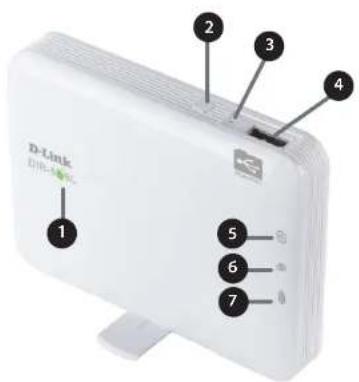
D-Link DHLW 1 2 3 4 5 6 7Hardware Overview Front/Top
| 1 | Power LED | When charging When not charging | |||
| Solid green | Battery is fully charged (when device is on) | ||||
| Flashing green Battery almost full | |||||
| Solid amber Battery is charging | |||||
| Solid red Low battery | |||||
| Flashing red Very low battery | |||||
| Off | Battery is fully charged (when device is off) | Device is turned off | |||
| 2 | WPS Button | Pressing the WPS button allows additional devices to connect securely and automatically. | |||
| 3 | Reset Button | Pressing the Reset button restores the DIR-506L to its original factory default settings. | |||
| 4 | USB Port | Connects to a compatible ^1 3G/4G USB adapter for mobile Internet access, or a USB flash drive to share your files through SharePortTM Mobile and SharePortTM Web File Access. | |||
| 5 | USB LED Indicator | Solid green USB device is connected , SharePort is ready to use | |||
| Flashing green USB device is connected, SharePort is not ready | |||||
| Off No USB device is connected | |||||
| 6 | Ethernet LED Indicator | Solid green Ethernet connection is established | |||
| Flashing green Data is being transferred over Ethernet | |||||
| Off No Ethernet connection | |||||
| 7 | Wi-Fi LED Indicator | Solid green Wi-Fi is on and working | |||
| Flashing green Data is being transferred over Wi-Fi | |||||
| Flashing green (rapid) WPS is activated and looking for clients | |||||
| Off Wi-Fi is off | |||||
1 For an updated list of compatible 3G/4G USB adapters, check your local D-Link website.
Hardware Overview Side/Left

text_image
1 2 3| 1 | Ethernet LAN/WAN Port | Connects to a cable or DSL modem through an Ethernet cable. |
| 2 | Power Switch Turns the DIR | -506L on and off. |
| 3 | Mini USB Port | This port provides power to the router and charges the battery. |
Hardware Overview Back
natural_image
White rectangular electronic device with a small internal component, no visible text or symbols
natural_image
White plastic cover with a red arrow and circle, labeled with number 1 (no text or symbols on the cover itself)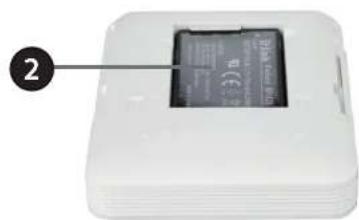
natural_image
White electronic device with a black card slot and label pointing to it, no visible text or symbols on the device itself.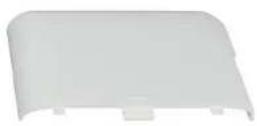
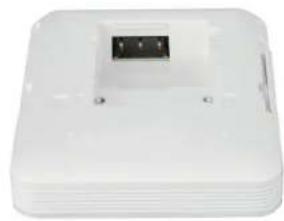
| 1 | Battery cover | Slide the battery cover to remove it and access the battery compartment. |
| 2 | Battery compartment | Insert the rechargeable battery into the compartment, making sure the contact points on the battery are properly aligned with the contact points of the device. After proper insertion, replace the battery cover. |
Note: Using a rechargeable battery other than the one that came with your package may cause damage to your device and will void its warranty.
Installation Setup Overview
The DIR-506L connects to your cable modem, DSL modem, or other Internet source and shares your Internet connection with your devices wirelessly, providing Internet access for an entire home or office. You can also share files with other computers or devices on your wireless network by using the SharePort Mobile feature.
Note: To ensure an optimal experience when using SharePoint, we suggest a maximum of 5 simultaneous users.

flowchart
graph LR
    A["Internet DIR-606e/DSL Modem"] --> B["USB Storage Drive"]
    B --> C["Wireless Devices"]
    B --> D["Mobile Device"]
    B --> E["Desktop"]
    B --> F["Laptop"]
Wireless Installation Considerations
The D-Link wireless router lets you access your network using a wireless connection from virtually anywhere within the operating range of your wireless network. Keep in mind, however, that the number, thickness and location of walls, ceilings, or other objects that the wireless signals must pass through, may limit the range. Typical ranges vary depending on the types of materials and background RF (radio frequency) noise in your home or business. The key to maximizing wireless range is to follow these basic guidelines:
- Keep the number of walls and ceilings between the D-Link router and other network devices to a minimum - each wall or ceiling can reduce your adapter's range from 3-90 feet (1-30 meters.) Position your devices so that the number of walls or ceilings is minimized.
- Be aware of the direct line between network devices. A wall that is 1.5 feet thick (.5 meters), at a 45-degree angle appears to be almost 3 feet (1 meter) thick. At a 2-degree angle it looks over 42 feet (14 meters) thick! Position devices so that the signal will travel straight through a wall or ceiling (instead of at an angle) for better reception.
- Building Materials make a difference. A solid metal door or aluminum studs may have a negative effect on range. Try to position access points, wireless routers, and computers so that the signal passes through drywall or open doorways. Materials and objects such as glass, steel, metal, walls with insulation, water (fish tanks), mirrors, file cabinets, brick, and concrete will degrade your wireless signal.
- Keep your product away (at least 3-6 feet or 1-2 meters) from electrical devices or appliances that generate RF noise.
- If you are using 2.4GHz cordless phones or X-10 (wireless products such as ceiling fans, lights, and home security systems), your wireless connection may degrade dramatically or drop completely. Make sure your 2.4GHz phone base is as far away from your wireless devices as possible. The base transmits a signal even if the phone in not in use.
Setting Up Your DIR-506L
-
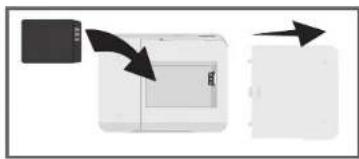
Slide off the cover and insert the battery. Make sure the gold contacts align with the gold terminals. Slide the cover back on.
-
Connect the USB cable to the DIR-506L and then connect to a USB port on your computer.
Note: Charge the device using the USB cable for at least 4 hours or until it is fully charged before usage.
- Use the following information to connect to your DIR-506L wirelessly:
Default WiFi SSID: dlink_DIR-506L
Default Password: (leave this blank)
natural_image
Diagram showing a printer with arrows indicating process direction (no text or symbols)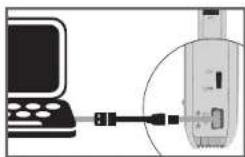

natural_image
White wireless device with signal waves connected to two devices (no text or symbols visible)- Open a web browser, and go to http://dlinkrouter.local. By default, the User Name is admin, and the Password should be left blank. After logging in, the Setup Wizard will appear, which is described on the following pages.

text_image
LOGIN Log in to the router : User Name: admin Password: LoginInitial Setup Wizard
The first time you use your DIR-506L, the Setup Wizard will automatically open.
Click Next to continue.
Note: If the Setup Wizard does not open automatically, click the Internet Connection Setup Wizard button.
Select an operating mode to use, then click Next to continue.
Note: When selecting Hotspot Mode or Repeater Mode, it may take up to 30 seconds before the next screen appears.
If you selected Router Mode, select which type of Internet connection you use, then click Next.
- DHCP is often used for cable modem and direct Internet connections.
- PPPoE is used for most DSL connections. If you choose PPPoE, enter the username and password for your connection on the next screen.
- Static IP should only be used if instructed to by your Internet service provider. Enter the IP information provided to you by your ISP on the next screen.
WELCOME TO THE SETUP WIZARD
This setup wizard will guide you through configuration of your Internet connection and wireless settings. You can exit this setup wizard if you want to configure your router manually or to configure other advanced settings.
• Step 1: Choose an operation mode
- Step 2: Configure your Internet connection
- Step 3: Configure your wireless settings
- Step 4: Save your changes and reboot

STEP 1: CHOOSE OPERATION MODE
Please choose one of the following modes:
Router Mode
Connect to Internet through a wired connection (DHCP, PPPoE, Static IP)
Wi-Fi Hotspot Mode
Connect to the Internet through a Wi-Fi hotspot
3G/4G Mode
Connect to the Internet through a 3G/4G USB adapter
- Repeater Mode
Extend the range of your existing wireless router
AP Mode
Connect to Internet through another router
STEP 2: CONFIGURE INTERNET CONNECTION
Please select Internet connection type below:
DHCP Connection (Dynamic IP Address)
Choose this if your Internet connection automatically provides you with an IP Address. Most cable modems use this type of connection.
Username / Password Connection (PPPoE)
Choose this option if your Internet connection requires a username and password to get online. Most DSL modems use this type of connection.
Static IP Address Connection
Choose this option if your Internet Setup Provider provided you with specific IP Address information to use.

If you selected Wi-Fi Hotspot Mode, select the hotspot you want to connect to, then click the Select button at the bottom. If the hotspot requires a password, enter it on the next screen.
STEP 2: CONFIGURE INTERNET CONNECTION (WI-FI HOTSPOT)
| Select | SSID | BSSID | Channel | Mode | Security | Singnal Strength |
| ○ | D-Link | 1:cbd:b9:c3:8f:50 | 1 | B/G/NMixed | (None) | 70% |
| ○ | dink-1111 | 00:94:e4:c6:d8:04 | 1 | B/G/NMixed | (None) | 91% |
| ○ | dink45E8 | 1:caf:f7:a1:45:e8 | 12 | B/G/NMixed | WPA-PSK/WPA2-PSK(TKIP/AES) | 76% |
| ○ | dink-2244 | 00:49:05:11:22:44 | 13 | B/G/NMixed | WPA-PSK/WPA2-PSK(TKIP/AES) | 60% |
If you selected 3G/4G Mode, enter the PIN code for your SIM card if it uses one, then click Next.
STEP 2: CONFIGURE INTERNET CONNECTION (36/46)
| If your SIM card requires a PIN code to unlock it, please enter it. | |
| Pin Code: | |
| Reconnect Mode: | Auto Manual |
| Maximum Idle Time: | 600 seconds |
If you selected Repeater Mode, select the wireless network you want to extend, then click the Select button at the bottom. If the wireless network requires a password, enter it on the next screen.
STEP 2: CONFIGURE INTERNET CONNECTION (REPEATER)
| Select | SSID | BSSID | Channel | Mode | Security | Singnal Strength |
| ○ | D-Link | 1:cbd:b9:c3:bf:50 | 1 | B/G/N Mixed | (None) | 70% |
| ○ | dink-1111 | 00:94:e4:c6:d8:04 | 1 | B/G/N Mixed | (None) | 91% |
| ○ | dink45E8 | 1:caf:f7:a1:45:e8 | 12 | B/G/N Mixed | WPA-PSK/WPA2- PSK(TKIP/AES) | 76% |
| ○ | dink-2244 | 00:49:05:11:22:44 | 13 | B/G/N Mixed | WPA-PSK/WPA2- PSK(TKIP/AES) | 60% |
Enter a name for your new wireless network. It is highly recommended that you enable wireless security and enter a password that is 8-63 characters long to use for your wireless network. Click Next to continue.
Note: If you set your DIR-506L to use Repeater Mode, it is recommended that you use a different Wi-Fi network name. If you use the same Wi-Fi network name, it will extend your existing Wi-Fi network and will no longer be listed as a separate Wi-Fi network. You can connect your devices to your existing Wi-Fi network as normal, and verify the DIR-506L is working by observing increased signal strength.
Setup is complete! After confirming your settings, click Save to save your settings and reboot the DIR-506L.
After the DIR-506L reboots, you will need to reconnect to it using the wireless network name and password you created.
STEP 3: CONFIGURE WIRELESS SETTINGS

text_image
Please enter the following information: Wireless Network Name (SSID) : dink_DIR-106L Wireless Security : Disable Enable Wireless Password : Prev Next CancelSTEP 4: SAVE CHANGES AND REBOOT
Setup is complete!
If this information is correct, click the "Save" button to save your changes.
Mode: Router Mode
Internet connection: DHCP
Wireless Network Name (SSID): dlink_DIR-506L
Wireless Security: Enable
Wireless Password: ascfasd

Note: After clicking the "Save" button, the router will reboot and you will be disconnected from the router. After it finishes rebooting, use the new settings you created to reconnect to the router.
SharePort Mobile App
The SharePort Mobile app allows you to remotely access files stored on a USB flash drive or USB external hard drive connected to the DIR-506L. For more information on using this feature, please refer to "Storage" on page 47.
Note: The SharePort Web/SharePort Mobile feature of the DIR-506L can only be used when the device is configured for Router Mode or Hotspot Mode.
- Plug your USB flash drive into the USB port on top of the DIR-506L.
Note: Do not add or remove USB devices when turning the DIR-506L on or off.

- Use your iOS or Android mobile device to scan the QR code to the right to download the SharePort Mobile app.
You can also search for the SharePort Mobile app directly in the iOS App Store or Google Play.
text_image
Available on the App Store
text_image
ANDROID APP ON Google playSection 2 - Installation
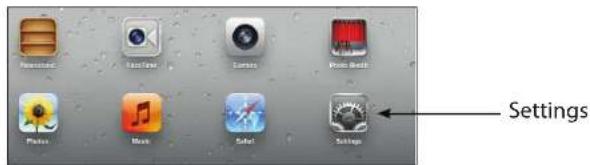
- From your iOS mobile device, tap Settings.
text_image
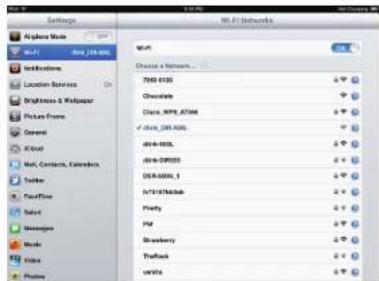
Specifications FaceTime Camera Photo Bubble Photo Mock Safe! Settings- Click Wi-Fi and select the network (SSID) that you assigned during initial setup. Then, enter your Wi-Fi password.
text_image
Settings Airplane Mode Air2L Networks Location Services Brightness & Wallpaper Picture Frame Current iCloud Mail Contacts, Colors Twitter FaceTime Select Messages Mode View Photo Wire Wire2L Networks Wnt Choose a Network... 700-6100 Chocolate Class: 899_8744 ✓ class: 350.000 d16-800L d16-800M USB:8000_1 f731E744ab Fidelity HV Strawberry Traffic Unita- Once connected, tap the SharePort icon, and the SharePort app will load.

text_image
SharePort FilesSection 2 - Installation
-
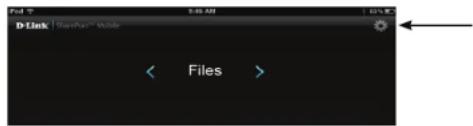
Tap on the Settings gear icon located on the right top corner of the screen. Then, click Edit to enter your User Name and Password. Once you finish, click Done to continue.
-
You can now use the SharePoint Mobile app to access the files on your USB storage drive.
Note: If you connect a USB storage drive with many files or with a large capacity, it may take a while for the DIR-506L to scan and catalog your files.
text_image
D-Link SearchX® Mobile Files >
text_image
Movie Search Passport Archive Amazing_Caves_720.mp4 49.77MB, Thu Apr 15 08:00:00 2004 Because I Love You.mp4 7.06MB, Sun Jan 25 00:34:01 2011 Coral_Reef_Adventure_720.mp4 74.38MB, Sun Dec 21 17:12:40 2003 The Script - The Man Who Can_t Be Moved.mp4 17.57MB, Thu Dec 27 17:41:08 2011 t2_720.mp4 85.61MB, Mon Dec 22 14:47:16 2003QRS Mobile App Setup
- Use your iOS or Android mobile device to scan the QR code to the right to download the QRS Mobile app.
You can also search for the QRS Mobile app directly in the iOS App Store or Google Play.

text_image
Available on the App Store
text_image
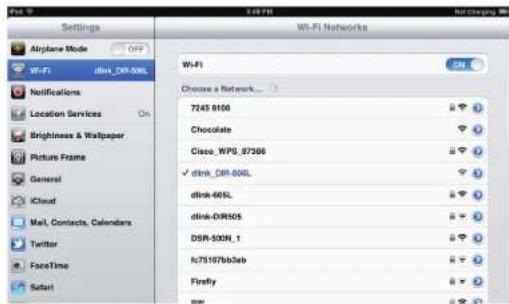
ANDROID APP ON Google play- From your mobile device, go to Settings, and then go to Wi-Fi.

text_image
Photo Booth Settings- Use the following information to connect to your DIR-506L wirelessly:
Default WiFi SSID: dlink_DIR-506L
Default Password: (leave this blank)
text_image
Settings Airplane Mode W-Fi dlink_DR-000L Wi-Fi Networks Choose a Network... 7245 8100 Chocolate Cisco_WPB_87308 ✓ dlink_DR-000L dlink-60SL dlink-DR505 DSR-530N_1 lc75167bb3ab Firefly SanySection 2 - Installation
-
Once your mobile device is connected, click on the QRS Mobile icon.
-
Click Start to continue.
-
Follow the instructions and click Next to continue.


text_image
D-Link | Quick Router Setup Mobile® Welcome This wizard will guide you through a step by step process to configure your new D-Link router and connect the Internet. Step 1: Configure your Internet Connection Step 2: Configure your Wi-Fi Security Step 3: Set your router password Step 4: Save settings Start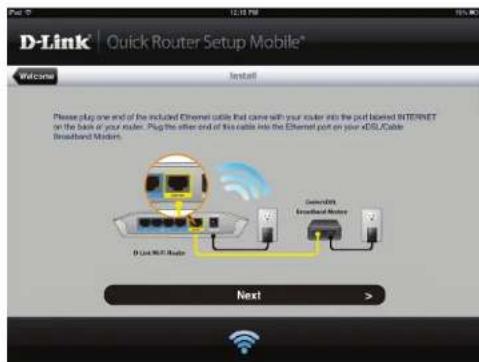
text_image
D-Link | Quick Router Setup Mobile® Welcome Install Please play one end of the included Ethernet cable that came with your router into the port based INTERNET or the back of your router. Plug the other end of this cable into the Ethernet port on your xDSL Cable Broadband Motors. B Link Wi-Fi Router Broadcast Broadband Router Next >Section 2 - Installation
- After the Setup Wizard is complete, the following screen will appear. You can now change your mobile device and laptop Wi-Fi settings to the wireless network name and password you just created.

text_image
D-Link | Quick Router Setup Mobile® Congratulations. Congratulations, your reader has configured. You can now enjoy your Wi-Fi network by connecting to the new Wi-Fi Network Name you setup. Connect from your iPhone set iPad 1. Please go to Settings - Wi-Fi, and choose "link-offset" from the list of Wi-Fi network services. 2. Enter the password you just setup when prompted. Connect from your computer 1. On your computer, choose "link-offset" from the list of Wi-Fi network services in your settings. 2. Enter the password you just setup when prompted.Configuration Web-based Configuration
To access the configuration utility for the DIR-506L, open a web browser and enter http://dlinkrouter.local.or http://192.168.0.1 in the address bar.
http://dlinkrouter.local.
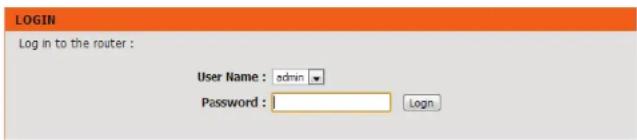
Select admin from the drop-down menu and then enter your password. By default, the password is blank.
text_image
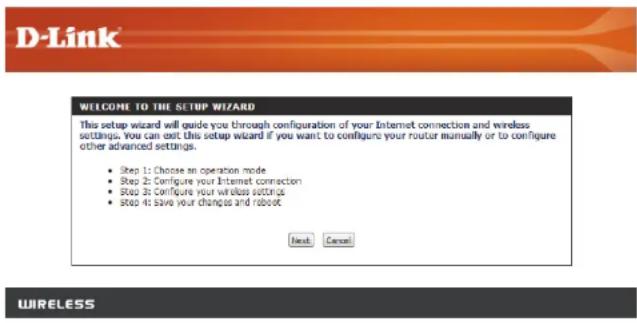
LOGIN Log in to the router : User Name : admin Password : LoginThe first time you open this interface, the Setup Wizard will appear automatically. For more information, refer to "Internet Connection Setup Wizard" on page 21.
text_image
D-Link WELCOME TO THE SETUP WIZARD This setup wizard will guide you through configuration of your Internet connection and wireless settings. You can exit this setup wizard if you want to configure your router manually or to configure other advanced settings. • Step 1: Choose an operation mode • Step 2: Configure your Internet connection • Step 3: Configure your wireless settings • Step 4: save your changes and robot Next Cancel WIRELESSSetup Internet Settings
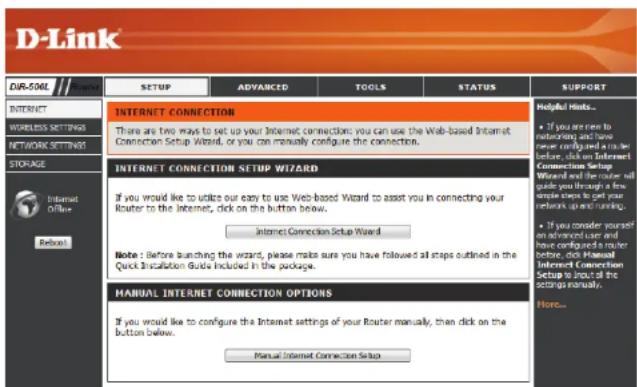
If you want to configure your router to connect to the Internet using a setup wizard, click Internet Connection Setup Wizard, and continue to the next page.
To configure your Internet settings manually, click the Manual Internet Connection Setup button and go to "Manual Internet Setup" on page 24.
text_image
D-Link EUR-506L INTERNET WIRELESS SETTINGS NETWORK SETTING STORAGE Internet Offline Refresh INTERNET CONNECTION There are two ways to set up your Internet connections: you can use the Web-based Internet Connection Setup Wizard, or you can manually configure the connection. INTERNET CONNECTION SETUP WIZARD If you would like to utilize our easy to use Web-based Wizard to assist you in connecting your Router to the Internet, click on the button below. Internet Connection Setup Wizard Note : Before launching the wizard, please make sure you have followed all steps outlined in the Quick Installation Guide Included in the package. MANUAL INTERNET CONNECTION OPTIONS If you would like to configure the Internet settings of your Router manually, then click on the button below. Manual Internet Connection Setup Helpful Hints... ■ If you are nice to networking and have required a router before, click on Internet Connection Setup Wizard and the router will guide you through a few minutes to get your network up and running. ■ If you consider yourself on advanced user and have configured a router before, click Manual Internet Connection Setup to install all the settings manually. Here...Internet Connection Setup Wizard
The Internet Connection Setup Wizard is designed to guide you through a step-by-step process to configure the Internet and wireless settings of your DIR-506L.
Click Next to continue.
Select an operating mode to use, then click Next to continue.
Note: When selecting Hotspot Mode or Repeater Mode, it may take up to 30 seconds before the next screen appears.
If you selected Router Mode, select which type of Internet connection you use, then click Next.
- DHCP is often used for cable modem and direct Internet connections.
- PPPoE is used for most DSL connections. If you choose PPPoE, enter the username and password for your connection on the next screen.
- Static IP should only be used if instructed to by your Internet service provider. Enter the IP information provided to you by your ISP on the next screen.
WELCOME TO THE SETUP WIZARD
This setup wizard will guide you through configuration of your Internet connection and wireless settings. You can exit this setup wizard if you want to configure your router manually or to configure other advanced settings.
• Step 1: Choose an operation mode
- Step 2: Configure your Internet connection
- Step 3: Configure your wireless settings
- Step 4: Save your changes and reboot

STEP 1: CHOOSE OPERATION MODE
Please choose one of the following modes:
Router Mode Connect to Internet through a wired connection (DHCP, PPPoE, Static IP)
Wi-Fi Hotspot Mode
Connect to the Internet through a Wi-Fi hotspot
☐ 3G/4G Mode
Connect to the Internet through a 3G/4G USB adapter
Repeater Mode
Extend the range of your existing wireless router
- AP Mode Connect to Internet through another router

STEP 2: CONFIGURE INTERNET CONNECTION
Please select Internet connection type below:
DHCP Connection (Dynamic IP Address) Choose this if your Internet connection automatically provides you with an IP Address. Most cable modems use this type of connection.
Username / Password Connection (PPPoE) Choose this option if your Internet connection requires a username and password to get online. Most DSL modems use this type of connection.
Static IP Address Connection Choose this option if your Internet Setup Provider provided you with specific IP Address information to use.

If you selected Wi-Fi Hotspot Mode, select the hotspot you want to connect to, then click the Select button at the bottom. If the hotspot requires a password, enter it on the next screen.
STEP 2: CONFIGURE INTERNET CONNECTION (WI-FI HOTSPOT)
| Select | SSID | BSSID | Channel | Mode | Security | Singnal Strength |
| ○ | D-Link | 1:cbd:b9:c3:8f:50 | 1 | B/G/NMixed | (None) | 70% |
| ○ | dink-1111 | 00:94:e4:c6:d8:04 | 1 | B/G/NMixed | (None) | 91% |
| ○ | dink45E8 | 1caf:f7:a1:45:e8 | 12 | B/G/NMixed | WPA-PSK/WPA2-PSK(TKIP/AES) | 76% |
| ○ | dink-2244 | 00:49:05:11:22:44 | 13 | B/G/NMixed | WPA-PSK/WPA2-PSK(TKIP/AES) | 60% |
If you selected 3G/4G Mode, enter the PIN code for your SIM card if it uses one, then click Next.
STEP 2: CONFIGURE INTERNET CONNECTION (36/46)
| If your SIM card requires a PIN code to unlock it, please enter it. | |
| Pin Code: | |
| Reconnect Mode: | Auto Manual |
| Maximum Idle Time: | 600 seconds |
If you selected Repeater Mode, select the wireless network you want to extend, then click the Select button at the bottom. If the wireless network requires a password, enter it on the next screen.
STEP 2: CONFIGURE INTERNET CONNECTION (REPEATER)
| Select | SSID | BSSID | Channel | Mode | Security | Singnal Strength |
| ○ | D-Link | 1:cbd:b9:c3:bf:50 | 1 | B/G/N Mixed | (None) | 70% |
| ○ | dink-1111 | 00:94:e4:c6:d8:04 | 1 | B/G/N Mixed | (None) | 91% |
| ○ | dink45E8 | 1:caf:f7:a1:45:e8 | 12 | B/G/N Mixed | WPA-PSK/WPA2- PSK(TKIP/AES) | 76% |
| ○ | dink-2244 | 00:49:05:11:22:44 | 13 | B/G/N Mixed | WPA-PSK/WPA2- PSK(TKIP/AES) | 60% |
Enter a name for your new wireless network. It is highly recommended that you enable wireless security and enter a password that is 8-63 characters long to use for your wireless network. Click Next to continue.
Note: If you set your DIR-506L to use Repeater Mode, it is recommended that you use a different Wi-Fi network name. If you use the same Wi-Fi network name, it will extend your existing Wi-Fi network and will no longer be listed as a separate Wi-Fi network. You can connect your devices to your existing Wi-Fi network as normal, and verify the DIR-506L is working by observing increased signal strength.
Setup is complete! After confirming your settings, click Save to save your settings and reboot the DIR-506L.
After the DIR-506L reboots, you will need to reconnect to it using the wireless network name and password you created.
STEP 3: CONFIGURE WIRELESS SETTINGS
Please enter the following information:
Wireless Network Name (SSID) : dlnk_DIR-506L
Wireless Security : ☑ Disable ☐ Enable
Wireless Password :

STEP 4: SAVE CHANGES AND REBOOT
Setup is complete!
If this information is correct, click the "Save" button to save your changes.
Mode: Router Mode
Internet connection: DHCP
Wireless Network Name (SSID): dlink_DIR-506L
Wireless Security: Enable
Wireless Password: ascfasd

Note: After clicking the "Save" button, the router will reboot and you will be disconnected from the router. After it finishes rebooting, use the new settings you created to reconnect to the router.
Manual Internet Setup
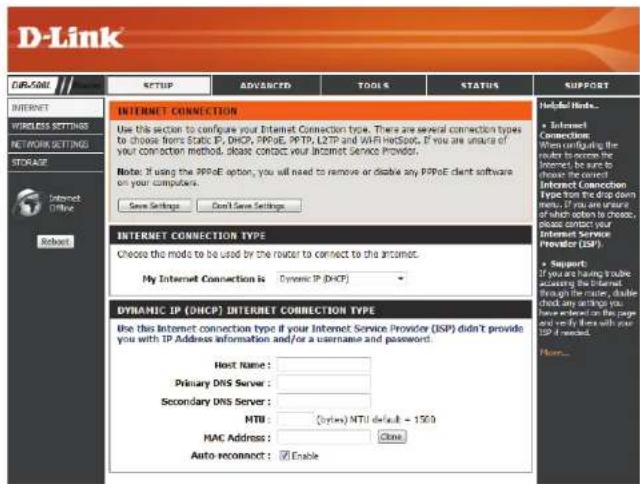
If you clicked Manual Internet Connection Setup on the Internet Settings page, you will see this screen. Here, you can configure the Internet connection for your DIR-506L. After making your changes, click the Save Settings button.
My Internet Select the connection mode to use: Dynamic IP (DHCP), Connection is: PPPoE, PPTP, or L2TP. The remaining settings will change depending on which connection mode you use.
Note: Most cable modem connections use DHCP, and most DSL connections use PPPoE. If you are not sure which connection mode to use, contact your Internet service provider.
text_image
D-Link CIRLSATE SETUP ADVANCED TOOLS STATUS SUPPORT INTERNET CONNECTION Use this section to configure your Internet Connection type. There are several connection types to choose from Static IP, DHCP, PPPoE, PPPT, L2TP and WAF HerSpot. If you are unsure of your connection method, please contact your Internet Service Provider. Note: If using the PPPoE option, you will need to remove or disable any PPPoE client software on your computers. Save Settings Don't Save Settings Internet Connection TYPE Choose the mode to be used by the router to connect to the internet. My Internet Connection is Dynamic IP (DHCP) • Internet Connection Type from the drop down them. If you are unsure of which option to choose, please contact your Internet Service Provider (ISP). • Support: If you are having trouble accessing the Internet through the route, double check any settings you have linked on the page and verify here with your ISP if needed. Dynamic IP (DHCP) INTERNET CONNECTION TYPE Use this Internet connection type if your Internet Service Provider (ISP) didn't provide you with IP Address information and/or a username and password! Host Name: Primary DNS Server: Secondary DNS Server: MTI: (bytes) NTI default = 1509 MAC Address: Close Auto reconnect: Enable Helpful Links... • Internet Connection When controlling the router to access the Internet, be sure to choose the correct Internet Connection Type from the drop down them. If you are unsure of which option to choose, please contact your Internet Service Provider (ISP). • Support: If you are having trouble accessing the Internet through the route, double check any settings you have linked on the page and verify here with your ISP if needed. Home...If you selected Dynamic IP (DHCP), you will see the following settings.
Host Name: Entering a host name is optional but may be required by some ISPs. Leave this blank if you are not sure.
Use Unicasting: Check the box if you are having problems obtaining an IP address from your ISP.
Primary/ Enter the Primary and secondary DNS server IP addresses Secondary DNS assigned by your ISP. These addresses are usually obtained Server: automatically from your ISP. Leave this setting at 0.0.0.0 if you did not specifically receive these from your ISP.
MTU: If you experience connection issues, you may need to change the MTU setting for optimal performance with your specific ISP. 1492 is the default MTU.
MAC Address: If your ISP requires you to enter a MAC address, fill it in here. You can click the Clone MAC button to enter your current computer's MAC address.
INTERNET CONNECTION TYPE
Choose the mode to be used by the router to connect to the Internet.
My Internet Connection is : Dynamic IP (DHCP)
DYNAMIC IP (DHCP) INTERNET CONNECTION TYPE :
Use this Internet connection type if your Internet Service Provider (ISP) didn't provide you with IP Address information and/or a username and password.

text_image
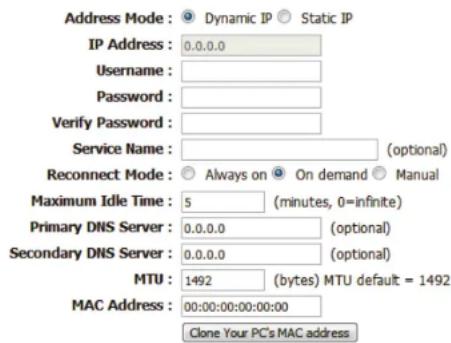
Host Name : Use Unicasting : (compatibility for some DHCP Servers) Primary DNS Server : 0.0..0.0 Secondary DNS Server : 0.0..0.0 MTU : 1500 (bytes) MTU default = 1500 MAC Address : 00:00:00:00:00:00 Clone Your PC's MAC addressIf you selected PPPoE, you will see the following settings. Your ISP will provide you with a username and password. This option is typically used for DSL services. Make sure to remove your PPPoE software from your computer. The software is no longer needed and will not work through a router.
Address Mode: Select Static IP if your ISP assigned you an IP address, subnet mask, gateway, and DNS server address. In most cases, select Dynamic IP.
IP Address: Enter the IP address (for static PPPoE only).
User Name: Enter your PPPoE user name.
Password: Enter your PPPoE password and then retype the password in the next box.
Service Name: Enter the ISP service name (optional).
Reconnect Select either Always-on, On-Demand, or Manual. Mode:
Maximum Idle Enter a maximum idle time during which the Internet Time: connection is maintained during inactivity. To disable this feature, set the Reconnect Mode to Always on.
Primary/ Enter the primary and secondary DNS server addresses Secondary DNS (Static PPPoE only). Server:
MTU: If you experience connection issues, you may need to change the MTU setting for optimal performance with your specific ISP. 1492 is the default MTU.
MAC Address: If your ISP requires you to enter a MAC address, fill it in here. You can click the Clone MAC button to enter your current computer's MAC address.
INTERNET CONNECTION TYPE
Choose the mode to be used by the router to connect to the Internet.
My Internet Connection is : PPPoE (Username / Password)
PPPOE INTERNET CONNECTION TYPE :
Enter the information provided by your Internet Service Provider (ISP).
text_image
Address Mode : Dynamic IP Static IP IP Address : 0.0.0.0 Username : Password : Verify Password : Service Name : (optional) Reconnect Mode : Always on On demand Manual Maximum Idle Time : 5 (minutes, 0=infinite) Primary DNS Server : 0.0.0.0 (optional) Secondary DNS Server : 0.0.0.0 (optional) MTU : 1492 (bytes) MTU default = 1492 MAC Address : 00:00:00:00:00:00 Clone Your PC's MAC addressIf you selected PPTP, you will see the following settings. Your ISP will provide you with a username and password. This option is typically used for DSL services.
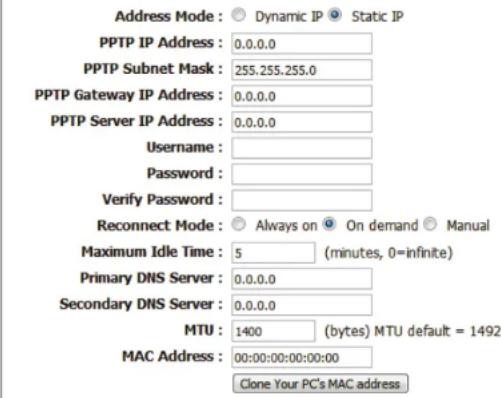
Address Mode: Select Static if your ISP assigned you an IP address, subnet mask, gateway, and DNS server address. In most cases, select Dynamic.
PPTP IP Address: Enter the IP address (Static PPTP only).
PPTP Subnet Enter the primary and secondary DNS server addresses Mask: (for static PPTP only).
PPTP Gateway Enter the gateway IP address provided by your ISP. IP Address:
PPTP Server IP Enter the server IP provided by your ISP (optional). Address:
Username: Enter your PPTP username.
Password: Enter your PPTP password and then retype the password in the next box.
Reconnect Select either Always-on, On-Demand, or Manual. Mode:
Maximum Idle Enter a maximum idle time during which the Internet Time: connection is maintained during inactivity. To disable this feature, set the Reconnect Mode to Always on.
Primary/ The DNS server information will be supplied by your ISP Secondary DNS (Internet Service Provider.) Server:
MTU: If you experience connection issues, you may need to change the MTU setting for optimal performance with your specific ISP. 1492 is the default MTU.
INTERNET CONNECTION TYPE
Choose the mode to be used by the router to connect to the Internet.
My Internet Connection is : PPTP (Username / Password)
PPTP INTERNET CONNECTION TYPE :
Enter the information provided by your Internet Service Provider (ISP).
text_image
Address Mode: Dynamic IP Static IP PPTP IP Address: 0.0.0.0 PPTP Subnet Mask: 255.255.255.0 PPTP Gateway IP Address: 0.0.0.0 PPTP Server IP Address: 0.0.0.0 Username: Password: Verify Password: Reconnect Mode: Always on On demand Manual Maximum Idle Time: 5 (minutes, 0=infinite) Primary DNS Server: 0.0.0.0 Secondary DNS Server: 0.0.0.0 MTU: 1400 (bytes) MTU default = 1492 MAC Address: 00:00:00:00:00:00 Clone Your PC's MAC addressSection 3 - Configuration
MAC Address: If your ISP requires you to enter a MAC address, fill it in here. You can click the Clone MAC button to enter your current computer's MAC address.
INTERNET CONNECTION TYPE
Choose the mode to be used by the router to connect to the Internet.
My Internet Connection is : PPTP (Username / Password)
PPTP INTERNET CONNECTION TYPE :
Enter the information provided by your Internet Service Provider (ISP).

text_image
Address Mode: Dynamic IP Static IP PPTP IP Address: 0.0.0.0 PPTP Subnet Mask: 255.255.255.0 PPTP Gateway IP Address: 0.0.0.0 PPTP Server IP Address: 0.0.0.0 Username: Password: Verify Password: Reconnect Mode: Always on On demand Manual Maximum Idle Time: 5 (minutes, 0=infinite) Primary DNS Server: 0.0.0.0 Secondary DNS Server: 0.0.0.0 MTU: 1400 (bytes) MTU default = 1492 MAC Address: 00:00:00:00:00:00 Clone Your PC's MAC addressIf you selected L2TP, you will see the following settings. Your ISP will provide you with a username and password. This option is typically used for DSL services.
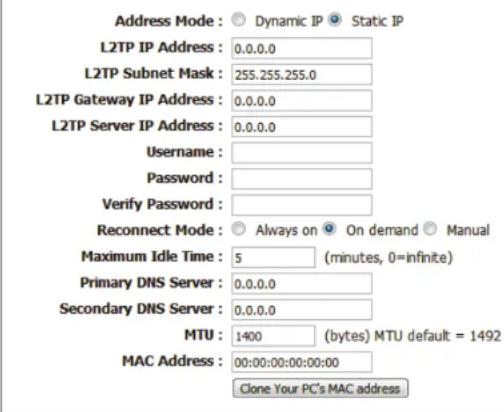
My Internet Select L2TP (Username/Password) from the drop-down Connection: menu.
Address Mode: Select Static if your ISP assigned you the IP address, subnet mask, gateway, and DNS server addresses. In most cases, select Dynamic.
L2TP IP Address: Enter the L2TP IP address supplied by your ISP (for static IP only).
L2TP Subnet Enter the subnet mask supplied by your ISP (for static IP Mask: only).
L2TP Gateway IP Enter the gateway IP Address provided by your ISP. Address:
L2TP Server IP Enter the server IP provided by your ISP (optional). Address:
Username: Enter your L2TP username.
Password: Enter your L2TP password and then retype the password in the next box.
Reconnect Select either Always-on, On-Demand, or Manual. Mode:
Maximum Idle Enter a maximum idle time during which the Internet Time: connection is maintained during inactivity. To disable this feature, set the Reconnect Mode to Always on.
Primary/ Enter the primary and secondary DNS server addresses Secondary DNS (for static L2TP only). Server:
INTERNET CONNECTION TYPE
Choose the mode to be used by the router to connect to the Internet.
My Internet Connection is : L2TP (Username / Password)
L2TP INTERNET CONNECTION TYPE :
Enter the information provided by your Internet Service Provider (ISP).
text_image
Address Mode: Dynamic IP Static IP L2TP IP Address: 0.0.0.0 L2TP Subnet Mask: 255.255.255.0 L2TP Gateway IP Address: 0.0.0.0 L2TP Server IP Address: 0.0.0.0 Username: Password: Verify Password: Reconnect Mode: Always on On demand Manual Maximum Idle Time: 5 (minutes, 0=infinite) Primary DNS Server: 0.0.0.0 Secondary DNS Server: 0.0.0.0 MTU: 1400 (bytes) MTU default = 1492 MAC Address: 00:00:00:00:00:00 Clone Your PC's MAC addressSection 3 - Configuration
MTU: If you experience connection issues, you may need to change the MTU setting for optimal performance with your specific ISP. 1492 is the default MTU.
MAC Address: If your ISP requires you to enter a MAC address, fill it in here. You can click the Clone MAC button to enter your current computer's MAC address.
INTERNET CONNECTION TYPE
Choose the mode to be used by the router to connect to the Internet.
My Internet Connection is : LZTP (Username / Password)
L2TP INTERNET CONNECTION TYPE :
Enter the information provided by your Internet Service Provider (ISP).

text_image
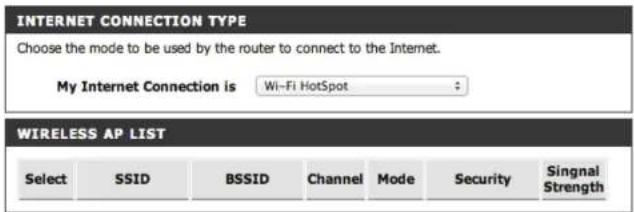
Address Mode : Dynamic IP Static IP L2TP IP Address : 0.0.0.0 L2TP Subnet Mask : 255.255.255.0 L2TP Gateway IP Address : 0.0.0.0 L2TP Server IP Address : 0.0.0.0 Username : Password : Verify Password : Reconnect Mode : Always on On demand Manual Maximum Idle Time : 5 (minutes, 0=infinite) Primary DNS Server : 0.0.0.0 Secondary DNS Server : 0.0.0.0 MTU : 1400 (bytes) MTU default = 1492 MAC Address : 00:00:00:00:00:00 Clone Your PC's MAC addressIf you selected Wi-Fi Hotspot, the DIR-506L will scan for an available Wi-Fi hotspot to connect to. If one or more is found, they will appear in a list along with details of the signal.
My Internet Select Wi-Fi Hotspot from the drop-down menu. Connection:
Wireless AP List: The router will automatically scan for potential hotspot connections and add them to the Wireless AP List.
Refresh: The router will rescan for available hotspots.
Select: When you have chosen a hotspot from the list, press Select to enter your credentials and connect.
text_image
INTERNET CONNECTION TYPE Choose the mode to be used by the router to connect to the Internet. My Internet Connection is Wi-Fi HotSpot WIRELESS AP LIST Select SSID BSSID Channel Mode Security Singnal StrengthRefresh Select
If you selected 3G/4G, you will see the following settings. For most connections, you can just enter your PIN code if your SIM card requires one. For more detailed settings, select Manual for your Dial-Up Profile and enter the settings according to your Internet Service Provider's instructions.
Dial-Up Profile: Select Auto-Detection to automatically detect the appropriate 3G settings for your connection. You can also select Manual to enter the settings yourself. See the next page for more details.
PIN Code: Enter the PIN associated with your SIM card.
Reconnect Select Auto or Manual to decide whether the router Mode: should reconnect to your 3G/4G network automatically or manually.
Maximum Idle Set the maximum time your connection can be idle before Time: disconnecting. Set it to 0 or choose Auto in Reconnect Mode to disable this feature.
Keep Alive: Select Disable or Use LCP Echo Request depending on the settings required by your ISP.
If you select Use LCP Echo Request, enter the lcp-echo-interval and lcp-echo-failure limits.
INTERNET CONNECTION TYPE
Choose the mode to be used by the router to connect to the Internet.
My Internet Connection is 3G/4G
3G/4G INTERNET CONNECTION TYPE
Enter the information provided by your Internet Service Provider (ISP).
Dial-Up Profile : Auto-Detection Manual
Pin Code :
Reconnect Mode : Auto Manual
Maximum Idle Time : 600 seconds
Keep Alive : ☐ Disable ☑ Use LCP Echo Request
lcp-echo-interval: : 10 seconds
lcp-echo-failure: : 3 times
Section 3 - Configuration
If you choose Manual for Dial-Up Profile, you will see some additional settings:
Country / You can select your Country, Telecom, and 3G/4G Telecom / 3G/4G Network to automatically fill in some of the settings for Network: you.
Username: Enter the username for your account (optional).
Password/Verify Enter the password for your account (optional). Password:
Dialed Number: Enter the dial number as given to you by your Internet Service Provider.
Authentication: You can set your authentication to Auto, PAP, or CHAP authentication.
APN: Enter your APN here.
Primary/ Enter the Primary and secondary DNS server IP addresses Secondary DNS assigned by your ISP. These addresses are usually obtained Server: automatically from your ISP. Leave at 0.0.0.0 if you did not specifically receive these from your ISP.
INTERNET CONNECTION TYPE
Choose the mode to be used by the router to connect to the Internet.
My Internet Connection is 3G/4G
3G/4G INTERNET CONNECTION TYPE
Enter the information provided by your Internet Service Provider (ISP).

text_image
Dial-Up Profile : ○ Auto-Detection ○ Manual Country : Australia Telecom : Exetel 3G/4G Network : WCDMA/HSPA Username : (optional) Password : (optional) Verify Password : (optional) Dialed Number : Authentication : Auto APN : (optional) Pin Code : Reconnect Mode : ○ Auto ● Manual Maximum Idle Time : 600 seconds Primary DNS Server : Primary DNS Server : Keep Alive : ○ Disable ● Use LCP Echo Request lcp-echo-interval : 10 seconds lcp-echo-failure : 3 timesWireless Settings
If you want to configure the wireless settings on your router using the wizard, click Wireless Connection Setup Wizard and refer to the next page.
If you want to manually configure the wireless settings on your router click Manual Wireless Connection Setup and refer to "Manual Wireless - Router Mode" on page 38.

text_image
D-Link DVR-506L WIRELESS CONNECTION The following Web-based wizards are designed to assist you in your wireless network setup and wireless device connection. Before launching these wizards, please make sure you have followed all steps outlined in the Quick Installation Guide Included in the package. WIRELESS CONNECTION SETUP WIZARD This wizard is designed to assist you in your wireless network setup. It will guide you through step-by-step instructions on how to set up your wireless network and how to make it secure. Wireless Connection Setup Wizard Note: Some changes made using this Setup Wizard may require you to change some settings on your wireless client adapters so they can still connect to the D-Link Router. MANUAL WIRELESS CONNECTION OPTIONS If your wireless network is already set up with Wi-Fi Protected Setup, manual configuration of the wireless network will destroy the existing wireless network. If you would like to configure the wireless vertices of your new D-Link Systems Router manually, then click on the Manual Wireless Network Setup button below. Manual Wireless Connection Setup WI-FI PROTECTED SETUP If you would like to configure the Wi-Fi Protected Setup of your Router, then click on the button below. WI-FI Protected Setup Helpful risks... • If you want new to wireless networking and have recently configured a wireless network device, click on Wireless Connection Setup Wizard and the router will guide you through a few words when to get your wireless network up and running. • If you consider yourself an advanced user and have configured a wireless power button, click. Manual Wireless Connection Setup to make all the setups manually.Wireless Network Setup Wizard
The Internet Connection Setup Wizard is designed to guide you through a step-by-step process to configure your wireless network.
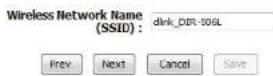
Type your desired wireless network name (SSID) and click Next.
Choose your wireless security level from the following options:
BEST (Recommended): Select this option to create a network key using either AES or TKIP, and click Next.
BETTER: Select this option to create a network key using TKIP, and click Next.
GOOD: Select this option to create a network key using either ASCII or HEX, and click Next.
NONE (Not Recommended): Select this option if you do not with to use a network key, and click Next. If you select this option, wireless setup will be completed. Click Save to save your settings and complete the setup process.
WELCOME TO THE WIRELESS SECURITY SETUP WIZARD
This wizard will guide you through a step-by-step process to setup your wireless network and make it secure.
• Step 1: Name your Wireless Network
• Step 2: Secure your Wireless Network
• Step 3: Set your Wireless Security Password

STEP 1: NAME YOUR WIRELESS NETWORK
Your wireless network needs a name so it can be easily recognized by wireless clients.
STEP 2: SECURE YOUR WIRELESS NETWORK
In order to protect your network from hackers and unauthorized users, it is highly recommended you choose one of the following wireless network security settings.
There are three levels of wireless security -Good Security, Better Security, or Best Security. The level you choose depends on the security features your wireless adapters support.
BEST: Select this option if your wireless adapters SUPPORT WPA2
BETTER : ○ Select this option if your wireless adapters SUPPORT WPA
GOOD : ○ Select this option if your wireless adapters DO NOT SUPPORT WPA
NONE: Select this option if you do not want to activate any security features
For information on which security features your wireless adapters support, please refer to the adapters' documentation.
Note: All wireless adapters currently support WPA.

Section 3 - Configuration
If you selected BEST for your wireless security option, you will need to choose either AES or TKIP and manually enter a password for your wireless network. When you are finished, click Next.
If you selected BETTER for your wireless security option, you will need to manually enter a password for your wireless network using TKIP. When you are finished, click Next.
If you selected GOOD for your wireless security option, you will need to choose either ACSII or HEX and manually enter a password for your wireless network. When you are finished, click Next.
Wireless setup is now complete. Click Save to save your settings and complete the setup process.
STEP 3: SET YOUR WIRELESS SECURITY PASSWORD
Once you have selected your security level - you will need to set a wireless security password. With this password, a unique security key will be generated.

Note: You will need to enter the unique security key generated into your wireless clients enable proper wireless communication - not the password you provided to create the security key.

STEP 3: SET YOUR WIRELESS SECURITY PASSWORD
Once you have selected your security level - you will need to set a wireless security password. With this password, a unique security key will be generated.

Note: You will need to enter the unique security key generated into your wireless clients enable proper wireless communication - not the password you provided to create the security key.

STEP 3: SET YOUR WIRELESS SECURITY PASSWORD
Once you have selected your security level - you will need to set a wireless security password. With this password, a unique security key will be generated.

Note: You will need to enter the unique security key generated into your wireless clients enable proper wireless communication - not the password you provided to create the security key.

SETUP COMPLETE!
Below is a detailed summary of your wireless security settings. Please print this page out, or write the information on a piece of paper, so you can configure the correct settings on your wireless client adapters.
Wireless Network Name (SSID): dlink_DIR-506L

Manual Wireless Network Configuration
If you clicked Manual Wireless Network Setup you can choose what mode the DIR-506L will operate in and configure the wireless network settings. After making your changes, click the Save Settings button.
Wireless Mode: Choose from either Router Mode, AP (Access Point) Mode, or Repeater Mode from the drop down menu.

text_image
D-Link WIRELESS NETWORK Use this section to configure the wireless settings for this device. Please note that changes made on this section may also need to be duplicated on your wireless client. To protect your privacy you can configure wireless security features. This device supports three wireless security modes including: WEP, WPA and WPA2. Save Settings Don't Save Settings WIRELESS MODE SETTING Wireless Mode : Router Mode ▼ Wireless NETWORK SETTINGS Enable Wireless : ✓ Wireless Network Name : dirx_081-506. (Also called the SSD) 802.11 Mode : 3/50/40 mixed ▼ Auto Channel Scan : ✓ Wireless Channel : 2412 CH - CH 1 Channel Width : Auto 20/40 Mbps ▼ Visibility Status : Visible Invasive WIRELESS SECURITY MODE Security Mode : None ▼ Helpful Hints. Changing your Wireless Network Name is the first step in securing your wireless network. We recommend that you change to a better name that does not contain any personal information. Building Hidden Mode is another way to secure your network, with the wire server, so we do clients will be able to see your wireless network when they perform more to see what's available. In order for your wireless devices to connect to your router, you will need to manually enter the wireless network home on each device. If you have enabled Wireless Security, make sure you write down WIP key or Geography. You have on https. You will need to enter this information on any wireless device that you connect to your wireless network.Manual Wireless - Router Mode
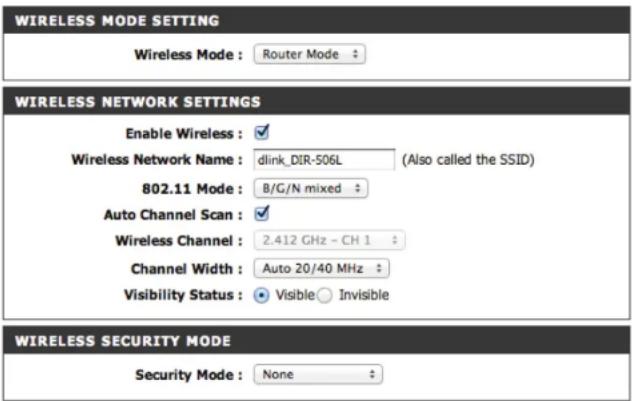
If you chose Router mode you can configure the DIR-506L as a router. After making changes to the wireless network settings, click the Save Settings button.
Enable Wireless: Check Enable Wireless to enable the wireless function. If you want to disable wireless functions, uncheck the box.
Wireless When you are browsing for available wireless networks, Network Name: this is the name that will appear in the list (unless Visibility Status is set to Invisible, see below). This name is also referred to as the SSID. For security purposes, it is highly recommended to change from the default network name.
802.11 Mode: Select one of the following based on your needs:
- 802.11b Only: Select this for 802.11b wireless clients.
- 802.11g Only: Select this for 802.11g wireless clients.
- 802.11n Only: Select this for 802.11n wireless clients.
- Mixed 802.11g and 802.11b: Select this if you are using a mix of 802.11g and 11b wireless clients.
- Mixed 802.11n and 802.11g: Select this if you are using a mix of 802.11n and 11g wireless clients.
- Mixed 802.11n, 802.11g and 802.11b: Select this if you are using a mix of 802.11n, 11g, and 11b wireless clients.
Enable Auto Select Auto Channel Scan to automatically choose the Channel Scan: channel with the least amount of interference.
Wireless If Auto Channel Scan is unchecked, choose the channel Channel: you want to use for wireless communication.
Channel Width: Use the drop down menu to choose the width of the wireless channel you want to use.
Visibility Status: If you want to broadcast the name of your wireless network choose Visible. Choose Invisible to hide it.
text_image
WIRELESS MODE SETTING Wireless Mode : Router Mode WIRELESS NETWORK SETTINGS Enable Wireless : ✓ Wireless Network Name : dlink_DIR-506L (Also called the SSID) 802.11 Mode : B/G/N mixed Auto Channel Scan : ✓ Wireless Channel : 2.412 GHz - CH 1 Channel Width : Auto 20/40 MHz Visibility Status : ● Visible ○ Invisible WIRELESS SECURITY MODE Security Mode : NoneSection 3 - Configuration
If you select WEP as your Security Mode:
WEP Key Select an encryption level and key length to use. This will Length: also set the type and length of the key you will need to enter.
WEP Key: Enter the password(key) for your wireless network. It will need to match the requirements for the WEP Key Length selected above.
Authentication: Choose what Authentication type to use.
If you select WPA-Personal as your Security Mode:
WPA Mode: Select whether to use WPA, WPA2, or both WPA and WPA2 for your wireless network..
Cipher Type: Choose whether to use TKIP, AES, or both TKIP and AES ciphers for your wireless network.
Pre-Shared Key: Enter the password(key) for your wireless network.
WIRELESS SECURITY MODE

WEP
WEP is the wireless encryption standard. To use it you must enter the same key(s) into the router and the wireless stations. For 64 bit keys you must enter 10 hex digits into each key box. For 128 bit keys you must enter 26 hex digits into each key box. A hex digit is either a number from 0 to 9 or a letter from A to F. For the most secure use of WEP set the authentication type to "Shared Key" when WEP is enabled.
You may also enter any text string into a WEP key box, in which case it will be converted into a hexadecimal key using the ASCII values of the characters. A maximum of 5 text characters can be entered for 64 bit keys, and a maximum of 13 characters for 128 bit keys.
If you choose the WEP security option this device will ONLY operate in Legacy Wireless mode (802.11B/6). This means you will NOT get 11N performance due to the fact that WEP is not supported by the Draft 11N specification.

text_image
WEP Key Length : 64 bit (10 hex digits) (length applies to all keys) WEP Key 1 : Authentication : BothWIRELESS SECURITY MODE

WPA
Use WPA or WPA2 mode to achieve a balance of strong security and best compatibility. This mode uses WPA for legacy clients while maintaining higher security with stations that are WPA2 capable. Also the strongest cipher that the client supports will be used. For best security, use WPA2 Only mode. This mode uses AES(COMP) cipher and legacy stations are not allowed access with WPA security. For maximum compatibility, use WPA Only. This mode uses TKIP cipher. Some gaming and legacy devices work only in this mode.
To achieve better wireless performance use WPA2 Only security mode (or in other words AES cipher).
WPA Mode : Auto (WPA or WPA2)
Cipher Type : TKIP and AES
PRE-SHARED KEY
Enter an 8 to 63 character alphanumeric pass-phrase. For good security it should be of ample length and should not be a commonly known phrase.
Pre-Shared Key : ....
Section 3 - Configuration
If you select WPA-Enterprise as your Security Mode:
WPA Mode: Select whether to use WPA, WPA2, or both WPA and WPA2 for your wireless network..
Cipher Type: Choose whether to use TKIP, AES, or both TKIP and AES ciphers for your wireless network.
RADIUS Server Enter your RADIUS server IP address. IP Address:
RADIUS Server Enter your RADIUS server port. Port:
RADIUS Server Enter your RADIUS server shared secret. Shared Secret:
WIRELESS SECURITY MODE
Security Mode : WPA-Enterprise
WPA
Use WPA or WPA2 mode to achieve a balance of strong security and best compatibility. This mode uses WPA for legacy clients while maintaining higher security with stations that are WPA2 capable. Also the strongest cipher that the client supports will be used. For best security, use WPA2 Only mode. This mode uses AES(COMP) cipher and legacy stations are not allowed access with WPA security. For maximum compatibility, use WPA Only. This mode uses TKIP cipher. Some gaming and legacy devices work only in this mode.
To achieve better wireless performance use WPA2 Only security mode (or in other words AES cipher).
WPA Mode : Auto (WPA or WPA2) Cipher Type : TKIP and AES
EAP (802.1X)
When WPA enterprise is enabled, the router uses EAP (802.1x) to authenticate clients via a remote RADIUS server.
RADIUS Server IP Address : 0.0,0.0 RADIUS Server Port : 1812 RADIUS Server Shared Secret :
Advanced
Manual Wireless - Access Point Mode
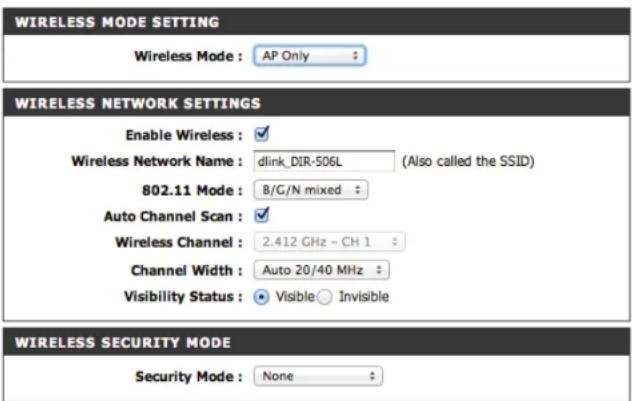
If you chose AP Only mode you can configure the DIR-506L as an access point within an existing network. After making changes to the wireless network settings, click the Save Settings button.
Note: If you connect your DIR-506L to another D-Link router, you may want to change the device name of your DIR-506L to avoid having an address/IP conflict with your other router. For more information on changing your device name, refer to "Network Settings" on page 45.
Enable Wireless: Check Enable Wireless to enable the wireless function. If you want to disable wireless functions, uncheck the box.
Wireless When you are browsing for available wireless networks, Network Name: this is the name that will appear in the list (unless Visibility Status is set to Invisible, see below). This name is also referred to as the SSID. For security purposes, it is highly recommended to change from the default network name.
802.11 Mode: Select one of the following based on your needs:
- 802.11b Only: Select this for 802.11b wireless clients.
- 802.11g Only: Select this for 802.11g wireless clients.
- 802.11n Only: Select this for 802.11n wireless clients.
- Mixed 802.11g and 802.11b: Select this if you are using a mix of 802.11g and 11b wireless clients.
- Mixed 802.11n and 802.11g: Select this if you are using a mix of 802.11n and 11g wireless clients.
- Mixed 802.11n, 802.11g and 802.11b: Select this if you are using a mix of 802.11n, 11g, and 11b wireless clients.
text_image
WIRELESS MODE SETTING Wireless Mode : AP Only WIRELESS NETWORK SETTINGS Enable Wireless : ✓ Wireless Network Name : dlink_DIR-506L (Also called the SSID) 802.11 Mode : B/G/N mixed Auto Channel Scan : ✓ Wireless Channel : 2.412 GHz - CH 1 Channel Width : Auto 20/40 MHz Visibility Status : ● Visible ○ Invisible WIRELESS SECURITY MODE Security Mode : NoneSection 3 - Configuration
Enable Auto Select Auto Channel Scan to automatically choose the Channel Scan: channel with the least amount of interference.
Wireless If Auto Channel Scan is unchecked, choose the channel Channel: you want to use for wireless communication.
Channel Width: Use the drop down menu to choose the width of the wireless channel you want to use.
Visibility Status: If you want to broadcast the name of your wireless network choose Visible. Choose Invisible to hide it.
Security Mode: Select the wireless security mode you wish to use. For more details, refer to "Manual Wireless - Router Mode" on page 38.

text_image
WIRELESS MODE SETTING Wireless Mode : AP Only WIRELESS NETWORK SETTINGS Enable Wireless : ✓ Wireless Network Name : dlink_DIR-506L (Also called the SSID) 802.11 Mode : B/G/N mixed Auto Channel Scan : ✓ Wireless Channel : 2.412 GHz - CH 1 Channel Width : Auto 20/40 MHz Visibility Status : ● Visible ○ Invisible WIRELESS SECURITY MODE Security Mode : NoneManual Wireless - Repeater Mode
If you chose Repeater mode you can configure the DIR-506L as a repeater for another routing device. After making changes to the wireless network settings, click the Save Settings button.
Note: If you connect your DIR-506L to another D-Link router, you may want to change the device name of your DIR-506L to avoid having an address/IP conflict with your other router. For more information on changing your device name, refer to "Network Settings" on page 45.
Enable Wireless: Check Enable Wireless to enable the wireless function. If you want to disable wireless functions, uncheck the box.
Wireless When you are browsing for available wireless networks, Network Name: this is the name that will appear in the list (unless Visibility Status is set to Invisible, see below). This name is also referred to as the SSID. For security purposes, it is highly recommended to change from the default network name.
802.11 Mode: Select one of the following based on your needs:
• 802.11b Only: Select this for 802.11b wireless clients.
• 802.11g Only: Select this for 802.11g wireless clients.
• 802.11n Only: Select this for 802.11n wireless clients.
- Mixed 802.11g and 802.11b: Select this if you are using a mix of 802.11g and 11b wireless clients.
- Mixed 802.11n and 802.11g: Select this if you are using a mix of 802.11n and 11g wireless clients.
- Mixed 802.11n, 802.11g and 802.11b: Select this if you are using a mix of 802.11n, 11g, and 11b wireless clients.

text_image
WIRELESS MODE SETTING Wireless Mode : Repeater WIRELESS NETWORK SETTINGS Enable Wireless : ✓ Wireless Network Name : DHP-W310AV (Also called the SSID) 802.11 Mode : B/G/N mixed Auto Channel Scan : Wireless Channel : 2.412 GHz - CH 1 Channel Width : Auto 20/40 MHz Authentication : WPA-PSK/WPA2-PSK Encryption : TKIP/AES Pre-Shared Key : 1234567890 Visibility Status : ● Visible ○ Invisible REPEATER| Wireless Mode : Repeater Mode Site survey | ||||||
| WIRELESS AP LIST | ||||||
| SSID | Channel | Quality | Authentication | Encryption | MAC Address | Select |
| D-Link | 1 | 0% | None | 00:1e:58:72:f8:e8 | ||
| D-Link_Guest | 1 | 10% | None | 00:1e:58:72:f8:e9 | ||
| DHP-W310AV | 1 | 29% | WPA-PSK/WPA2-PSK | TKIP/AES | 90:94:e4:3e:6d:c3 | |
| dlink-2244 | 13 | 20% | WPA-PSK/WPA2-PSK | TKIP/AES | 00:49:05:11:22:44 | |
Section 3 - Configuration
Enable Auto Select Auto Channel Scan to automatically choose the Channel Scan: channel with the least amount of interference.
Wireless If Auto Channel Scan is unchecked, choose the channel Channel: you want to use for wireless communication.
Channel Width: Use the drop down menu to choose the width of the wireless channel you want to use.
Visibility Status: If you want to broadcast the name of your wireless network choose Visible. Choose Invisible to hide it.
Wireless Mode: Click the Site Survey button to search for available wireless networks, then select a wireless network to connect to and repeat/extend. If the wireless network requires a password, enter it in the Pre-Shared Key box above.

text_image
WIRELESS MODE SETTING Wireless Mode : Repeater WIRELESS NETWORK SETTINGS Enable Wireless : ✓ Wireless Network Name : DHP-W310AV (Also called the SSID) 802.11 Mode : B/G/N mixed Auto Channel Scan : Wireless Channel : 2.412GHz - OH 1 Channel Width : Auto 20/40 MHz Authentication : WPA-PSK/WPA2-PSK Encryption : TKIP/AES Pre-Shared Key : 1234567890 Visibility Status : ○ Visible ○ Invisible| REPEATER | ||||||
| Wireless Mode : Repeater Mode Site survey | ||||||
| WIRELESS AP LIST | ||||||
| SSID | Channel | Quality | Authentication | Encryption | MAC Address | Select |
| D-Link | 1 | 0% | None | 00:1e:58:72:f8:e8 | ○ | |
| D-Link_Guest | 1 | 10% | None | 00:1e:58:72:f8:e9 | ○ | |
| DHP-W310AV | 1 | 29% | WPA-PSK/WPA2-PSK | TKIP/AES | 90:94:e4:3e:6d:c3 | ○ |
| dlink-2244 | 13 | 20% | WPA-PSK/WPA2-PSK | TKIP/AES | 00:49:05:11:22:44 | ○ |
Network Settings
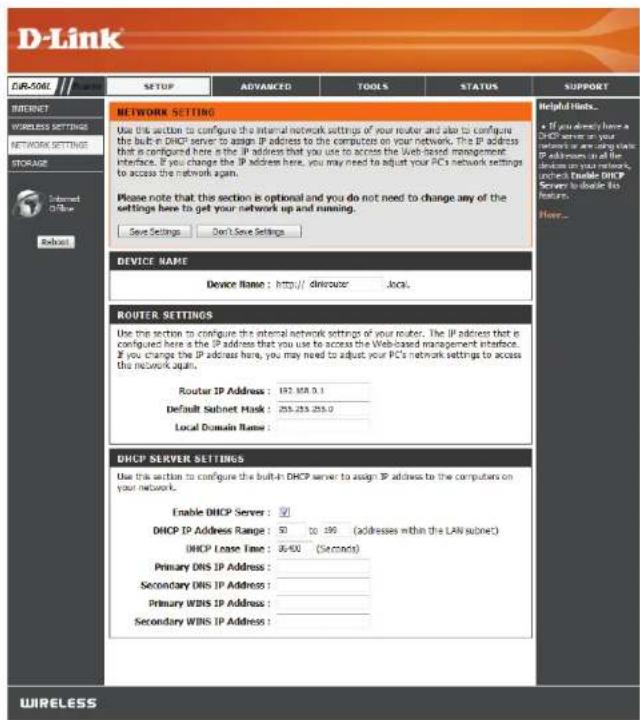
This section will allow you to change the local network settings of the router and to configure the DHCP settings. After making your changes, click the Save Settings button.
Router Settings
Device Name: By default, you can access the configuration interface by going to http://dlinkrouter.local. in a web browser. Changing the device name allows you to change this address, which can be useful if the DIR-506L is connected to another D-Link product through Repeater or Wi-Fi Hotspot mode.
Router IP Enter the IP address of the router. The default IP address Address: is 192.168.0.1.
If you change the IP address, once you click Save Settings, you will need to enter the new IP address in your browser to get back into the configuration utility.
Default Subnet Enter the Subnet Mask. The default subnet mask is Mask: 255.255.255.0.
Local Domain Enter a name for the DIR-506L. Name:
Enable DHCP Check this box to enable the DHCP server on your router. Server: Uncheck this box to disable this function.
DHCP Lease Enter the length of time to lease IP addresses to devices Time: on your network.
Primary DNS Configure the IP address of the preferred DNS server. IP Address
text_image
D-Link EUR-SOIL SETUP ADVANCED TOOLS STATUS SUPPORT INTERNET WORKLESS SETTINGS NETWORK SETTING STORAGE Internet OFFLINE Adjust NETWORK SETTING Use this section to configure the internal network settings of your router and also to configure the built-in DHCP server to assign IP address to the computers on your network. The IP address that is configured here is the IP address that you use to access the Java liquid management interface. If you change the IP address here, you may need to adjust your PC's network settings to access the network again. Please note that this section is optional and you do not need to change any of the settings here to get your network up and running. Save Settings Don't Save Settings Device NAME Device Name : http://dircuzer/ Local. ROUTER SETTINGS Use this section to configure the internal network settings of your router. The IP address that is configured here is the IP address that you use to access the Web-based management interface. If you change the IP address here, you may need to adjust your PC's network settings to access this network again. Router IP Address : 192.103.0.1 Default Subnet Mask : 253.253.253.0 Local Domain Name : DHCP SERVER SETTINGS Use this section to configure the built-in DHCP server to assign IP address to the computers on your network. Enable DHCP Server : ✓ DHCP IP Address Range : 50 to 196 (addresses within the LAN subnet) DHCP Lease Time : 06:00 (Seconds) Primary DNS IP Address : Secondary DNS IP Address : Primary WINS IP Address : Secondary WINS IP Address : Helpful Hinds... a If you already have a DHCP server on your network or are using these IP addresses that will be done on your network, check Enable DHCP Server to choose this feature. Here... WIRELESSSection 3 - Configuration
Secondary DNS Enter the IP address of the backup DNS server, if any. IP Address
Primary WINS Enter the IP address of the preferred WINS server. IP Address
Secondary WINS Enter the IP address of the backup WINS server, if any. IP Address
DEVICE NAME
Device Name: http://dinkrouter.local.
ROUTER SETTINGS
Use this section to configure the internal network settings of your router. The IP address that is configured here is the IP address that you use to access the Web-based management interface. If you change the IP address here, you may need to adjust your PC's network settings to access the network again.
Router IP Address : 192.168.0.1
Default Subnet Mask : 255.255.255.0
Local Domain Name :
DHCP SERVER SETTINGS
Use this section to configure the built-in DHCP server to assign IP address to the computers on your network.
Enable DHCP Server : √
DHCP IP Address Range : 50 to 199 (addresses within the LAN subnet)
DHCP Lease Time : 86400 (Seconds)
Primary DNS IP Address :
Secondary DNS IP Address :
Primary WINS IP Address :
Secondary WINS IP Address :
Storage
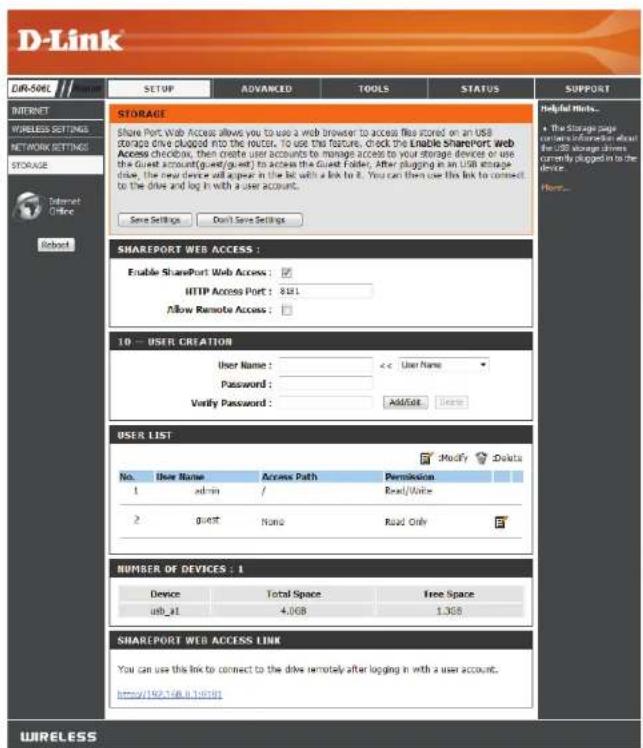
This page will allow you to access files from a USB external hard drive or flash drive that is plugged into the DIR-506L from your local network or the Internet using either a web browser or the SharePoint Mobile app on a smartphone or tablet. You can create users to customize access rights to the files stored on the USB drive. After making changes, click the Save Settings button.
Enable Tick this checkbox to enable sharing files stored on a USB Shareport storage drive connected to the DIR-506L. Web Access:
HTTP Access Enter a port to use for HTTP web access to your files Port: (8181 is the default). You will have to add this port to the IP address of the DIR-506L when connecting. For example: http://192.168.0.1 or http://dlinkrouter.local.:8181
Allow Remote Check to enable remote access to your router's storage. Access:
User Name: To create a new user, enter a user name. To edit an existing user, use the dropdown box to the right.
Password/Verify Enter a password you want to use for the account, re-enter Password: the password in the Verify Password text box, then click Add/Edit to save your changes.
User List: This section shows existing user accounts. There are admin and guest accounts by default.
Number of This section shows you information about the USB storage Devices: device plugged into the router.
SharePort Web This will give you a direct link to the web access interface Access Link that you can click on or copy and paste.
text_image
D-Link DIR-506L INTERNET WIRELESS SETTINGS NETWORK SETTINGS STORAGE Internet Offline Robust SETUP ADVANCED TOOLS STATUS SUPPORT HAPPORT Helpful Tools... • The storage map citizens information about the USB storage drives currently plugged in to the device. Home... STORAGE Share Port Web Access allows you to use a web browser to access files scored on an USB storage drive plugged into the router. To use this feature, check the Enable SharePort Web Access Chrome, then create user accounts to manage access to your storage devices or use the Guest account(g=wt)(g=wt) to access the Guest Folder. After plugging in an USB storage drive, the new device will appear in the bit with a link to it. You can then use this link to connect to the drive and log in with a user account. Save Settings Don't Save Settings SHAREPORT WEB ACCESS : Enable SharePort Web Access : HTTP Access Port : 8131 Allow Remote Access : 10 -- USER CREATION User Name : << User Name Password : Verify Password : Add/Set Users USER LIST Modify Delete No. User Name Access Path Permission 1 admin / Read/Write 2 Quest None Read Only NUMBER OF DEVICES : 1 Device Total Space Free Space usb_at 4.0GB 1.3GB SHAREPORT WEB ACCESS LINK You can use this link to connect to the drive remotely after logging in with a user account. http://192.158.8.195781 WIRELESSAdvanced Virtual Server
This will allow you to open a single port. If you would like to open a range of ports, refer to "Application Rules" on page 49. After making your changes, click the Save Settings button.
Well-known This contains a list of pre-defined services. You can select Services: a service, select a rule ID, then click the Copy to button to copy the default settings for that service to the specified rule ID.
ID: Specifies which rule to copy the selected Well known service settings to when you click the Copy to button.
Use schedule Select a schedule to use and copy to the specified rule rule: ID when you click the Copy to button. You may select Always On or use a specific schedule that you have defined. To create and edit schedules, please refer to "Schedules" on page 66.
ID: This identifies the rule.
Service Ports: Enter the external ports you want to open for the service.
Server IP: Port: Enter the IP address and ports of the computer on your local network that you want to allow the incoming service through.
Enable: Tick the checkbox to enable the specified rule.
Schedule Rule #: Specify the schedule rule number to use, or click Add New Rule... to create a new schedule. To create schedules, please refer to "Schedules" on page 66.

text_image
D-Link VIRUAL SERVERS The Virtual Server option allows you to define a single public port on your router for redirection to an owned LAN IP Address and Private LAN port if required. The feature is useful for hosting online services such as IP or Web Servers. Save Settings Don't Save Settings Well known services -- select one -- Cans to: D -- Use schedule rule -- ALWAYS ON-- VIRTUAL SERVERS LIST ID Service Ports Server IP - Port Enable Schedule Rule# 1 0 □ Add New Rule... 2 0 □ Add New Rule... 3 0 □ Add New Rule... 4 0 □ Add New Rule... 5 0 □ Add New Rule... 6 0 □ Add New Rule... 7 0 □ Add New Rule... 8 0 □ Add New Rule... 9 0 □ Add New Rule... 10 0 □ Add New Rule... 11 0 □ Add New Rule... 12 0 □ Add New Rule... 13 0 □ Add New Rule... 14 0 □ Add New Rule... 15 0 □ Add New Rule... 16 0 □ Add New Rule... 17 0 □ Add New Rule... 18 0 □ Add New Rule... 19 0 □ Add New Rule... 20 0 □ Add New Rule... Helpful Links... • You can select your computer from the list of PCs, which is the Computer's network diagram menu, or under the IP address normally of the computer. For you would be open the specified parts by • This feature allows you to open a range of ports for a computer on your network. To do so, enter the first port in the range you would be to open on the router in the first box under Public Rail and last part of the range in the second box. • To open a single port using the feature, simply enter the same number in both devices. More...Application Rules
Some applications may require multiple connections, such as Internet gaming, video conferencing, and VoIP calls over the Internet. These applications may have difficulty working through NAT (Network Address Translation). Application Rules allow some of these applications work with the DIR-506L. If you need to run applications that require multiple connections, specify the port normally associated with the application in the Trigger Port setting and the ports associated with the trigger port to open them for inbound traffic. After making your changes, click the Save Settings button.
Popular Enter a name for the rule or select an application from applications: the drop-down menu and click << to automatically fill in the rule with the default settings for that application.
Trigger: This is the port used to trigger the application. It can be either a single port or a range of ports.
Incoming Ports: Enter the ports you want to allow incoming traffic when the trigger port is activated.
Enable: Check to enable this rule or leave unchecked to ignore it.
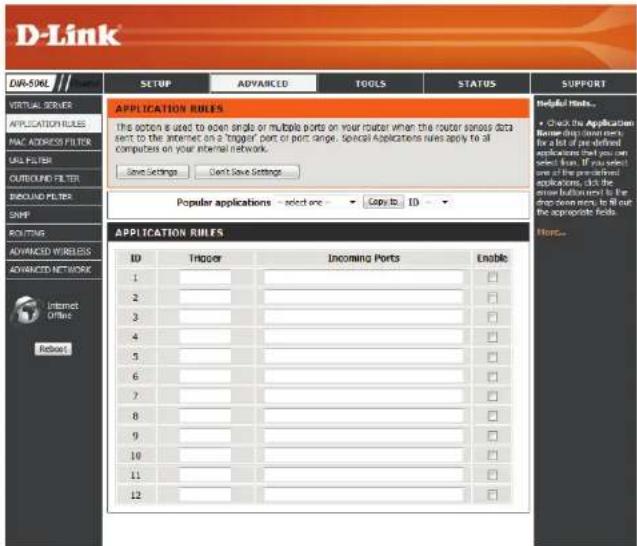
text_image
D-Link DVA-50NL SETUP ADVANCED TOOLS STATUS SUPPORT VIRTUAL SERVER APPLICATION RULES MAC ADDRESS FILTER URL FILTER CLOUBOUND FILTER BROAD FILTER SNIP ROUTING ADVANCED WIRELESS ADVANCED NETWORK Internet Office Rebeart APPLICATION RULES The action is used to open single or multiple ports on your router when the router sends data sent to the Internet on a Trigger port or port range. Special Applications rules apply to all computers on your internal network. Save Settings Don't Save Settings Popular applications - select one Copy to ID Helpful Rials... Check the Application Worner ship (new starts for a list of pre-defined applications that you can select them. If you select one of the pre-defined applications, click the close button to the drop open ends, to fill out the appropriate fields. More...MAC Address Filter
Use MAC (Media Access Control) Filters to control access to your network based on the MAC addresses of connected clients. You can set MAC address filtering to only allow the listed MAC addresses to connect, or block access to all listed MAC addresses. After making your changes, click the Save Settings button.
MAC Address Click Enable to allow MAC filtering. Control:
Connection When this option is selected, only PCs and devices with Control: MAC addresses listed below with the 'C' option checked can connect to the router. The drop-down menu will allow you to choose whether all other MAC addresses that are not in the list will be blocked or allowed to connect.
Association When this option is selected, only PCs and devices with Control: MAC addresses listed below with the 'A' option checked can associate themselves with the wireless LAN. The drop-down menu will allow you to choose whether all other MAC addresses that are not in the list will be blocked or allowed to associate.
MAC Address: Enter the MAC addresses you would like to filter and then select whether you want them group with the 'C' (Connection Control) group, the 'A' (Association Control) group, or both. If the control groups are not enabled, these designations will be ignored.

text_image
D-Link DAR-506L SETUP ADVANCED TOOLS STATUS SUPPORT VIRTUAL SERVERS APPLICATION RULES MAC ADDRESS FILTER URL FILTER CUTROUND FILTER INDOUND FILTER SNP ROUTING ADVANCED WIRELESS ADVANCED NETWORK Internet Other HAC ADDRESS FILTER the MAC (Media Access Controller) Address filter often is used to control network access based on the MAC Address of the network adapter. A MAC address is a unique ID assigned by the manufacturer of the network adapter. This feature can be configured to ALLOW or DENY network/Internet access. Save Settings Can't Save Settings HAC FILTERING SETTINGS MAC Address Control: Enable Connection control Wireless and wired clients with C checked can connect to this device; and allow - unspecified MAC addresses to connect. Association control Wireless clients with A checked can associate to the wireless LAN; and allow - unspecified MAC addresses to associate. DHCP clients - select one - Case in: ID - MAC FILTERING RULES ID MAC Address C A 1 □ □ □ □ □ □ □ □ □ □ □ □ □ □ □ □ □ □ □ □ □ □ □ □ □ □ □ □ □ □ □ □ □ □ □ □ □ □ □ □ □ □ □ □ □ □ □ □ □ □ ○ □ □ □ □ □ □ □ □ □ □ □ □ □ □ □ □ □ □ □ □ □ □ □ □ □ □ □ □ □ □ □ □ □ □ □ □ □ □ □ □ □ □ □ □ □ □ □ □ □ □ ▢ ▢ ▢ ▢ ▢ ▢ ▢ ▢ ▢ ▢ ▢ ▢ ▢ ▢ ▢ ▢ ▢ ▢ ▢ ▢ ▢ ▢ ▢ ▢ ▢ ▢ ▢ ▢ ▢ ▢ ▢ ▢ ▢ ▢ ▢ ▢ ▢ ▢ ▢ ▢ ▢ ▢ ▢ ▢ ▢ ▢ ▢ ▢ ▢ ▢ ▩ ▩ ▩ ▩ ▩ ▩ ▩ ▩ ▩ ▩ ▩ ▩ ▩ ▩ ▩ ▩ ▩ ▩ ▩ ▩ ▩ ▩ ▩ ▩ ▩ ▩ ▩ ▩ ▩ ▩ ▩ ▩ ▩ ▩ ▩ ▩ ▩ ▩ ▩ ▩ ▩ ▩ ▩ ▩ ▩ ▩ ▩ ▩ ▩ ▩ △ Association control: The Association process is the exchange of information between wireless clients and the device to establish a link between them. A wireless client is capable of transmitting and receiving data to □ MAC Address C A 1 2 3 4 5 6 7 8 9 10 11 12 13 14 15 16 17 18 19 20 21 22 23 24 25 26 27 28 29 30 31 32 33 34 35 36 37 38 39 40 41 42 43 44 45 46 47 48 49 50 51 52 53 54 55 56 57 58 59 60 61 62 63 64 65 66 67 68 69 70 71 72 73 74 75 76 77 78 79 80 81 82 83 84 85 86 87 88 89 90 91 92 93 94 95 96 97 98 99 100URL Filters
Website Filters are used to allow you to set up a list of websites to either allow or block access to. After making your changes, click the Save Settings button.
URL Filtering: Check the Enable box to allow website filter rules.
URL Filtering Enter the websites you want to block or allow in the text Rules: Any website address that contains the text entered will be blocked once you click Enable and then save your settings..
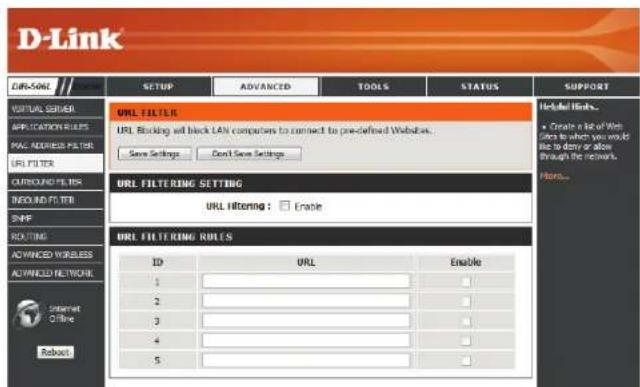
text_image
D-Link EURS-SELF SETUP ADVANCED TOOLS STATUS SUPPORT VIRTUAL SERVER APPLICATION RESULTS MAIL ADDRESS FILTER URL FILTER CURRENCY FILTER TWOIND FILTER SNIP ROUTING ADVANCED VARIABLES ADVANCED NETWORK Internet Offline Robust URL FILTERING SETTING URL filtering: Enable URL FILTERING RULES ID URL Enable 1 2 3 4 5 Enabled Links... • Create a list of Web sites to which you would like to deny or allow through the network. Here... URL FILTERING SETTING URL filtering: Enable URL FILTERING RULESOutbound Filters
The Outbound Filter option is an advanced method of controlling data sent from the DIR-506L. With this feature you can configure outbound data filtering rules that control data based on an IP address range. Outbound Filters can be used on outbound packets.
Outbound Filter: Check the Enable box to allow outbound filtering rules.
Use schedule Select from the drop-down menu how you want the rule rule: to be scheduled and apply this schedule to existing rules.
Outbound Filter This section will list any rules that are created. You may Rules List: click the Edit icon to change the settings or enable/disable the rule, or click the Delete icon to remove the rule.
Allow/Deny all Here you decide whether to use the outbound filters to to pass: allow or deny passage of addresses and ports that match the filter rules you set.
Source IP and Enter the source IP address and port. Enter 0.0.0.0 if you Ports: do not want to specify an IP range.
Destination IP Enter the destination IP address and port. Enter 0.0.0.0 if and Ports: you do not want to specify an IP range.
Enable: Check this box to enable the rule you are creating.
Add New Rule: Specify the schedule rule number to use, or click Add New Rule... to create a new schedule. To create schedules, please refer to "Schedules" on page 66.
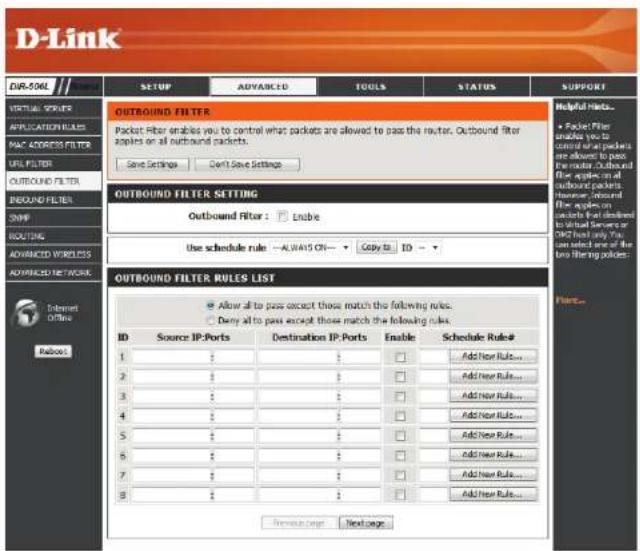
text_image
D-Link EUR-SOXL SETUP ADVANCED TOOLS STATUS SUPPORT VIRTUAL FILTER APPLICATION RULES MAC ADDRESS FILTER URL FILTER OUTBOUND FILTER INBOUND FILTER SNIP ROUTING ADVANCED VIORELINES ADVANCED NETWORK Internet OFFIB Relocation OUTBOUND FILTER SETTING Outbound Filter : Enabe Use schedule rule -- ALWAYS ON-- Copy to ID -- OUTBOUND FILTER RULES LIST Allow all to pass except those match the following rules: Deny all to pass except those match the following rules: ID Source IP-Ports Destination IP-Ports Enable Schedule Rules# 1 : : : : Add New Rule... 2 : : : : Add New Rule... 3 : : : : Add New Rule... 4 : : : : Add New Rule... 5 : : : : Add New Rule... 6 : : : : Add New Rule... 7 : : : : Add New Rule... 8 : : : : Add New Rule... Remove Page Next page Helpful Nets... Packet Filter enables you to control what packets are allowed to pass the router. Outbound filter applies on all outbound packets. Reverse: Second pair of filters applies on controls that desired to initial server to D-Link only. You can select one of the two filtering policies. Pore...Inbound Filters
The Inbound Filter option is an advanced method of controlling data received from the Internet. With this feature you can configure inbound data filtering rules that control data based on an IP address range. Inbound Filters can be used with Virtual Server, Port Forwarding, or Remote Administration features.
Inbound Filter: Check the Enable box to allow inbound filtering rules.
Use schedule Select from the drop-down menu how you want the rule rule: to be scheduled and apply this schedule to existing rules.
Inbound Filter This section will list any rules that are created. You may Rules List: click the Edit icon to change the settings or enable/disable the rule, or click the Delete icon to remove the rule.
Allow/Deny all Here you decide whether to use the inbound filters to pass: allow or deny passage of addresses and ports that match the filter rules you set.
Source IP and Enter the source IP address and port. Enter 0.0.0.0 if you Ports: do not want to specify an IP range.
Destination IP Enter the destination IP address and port. Enter 0.0.0.0 if and Ports: you do not want to specify an IP range.
Enable: Check this box to enable the rule you are creating.
Schedule Rule #: Specify the schedule rule number to use, or click Add New Rule... to create a new schedule. To create schedules, please refer to "Schedules" on page 66.
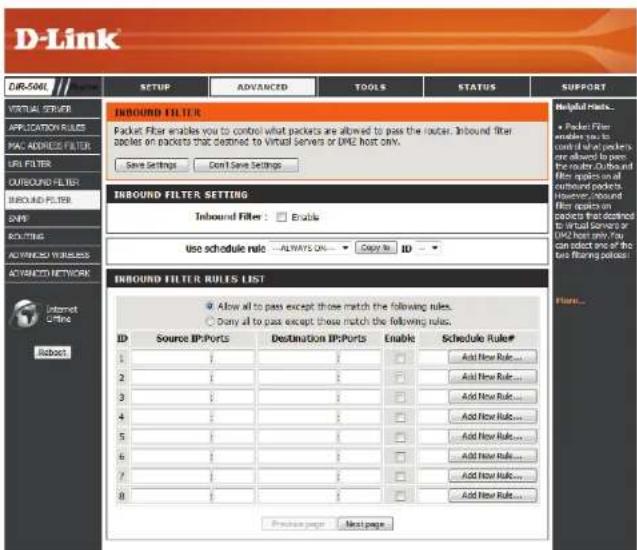
text_image
D-Link DIR-506L SETUP ADVANCED TOOLS STATUS SUPPORT VIRTUAL FILTER INBOUND FILTER Packet Filter enables you to control what packets are allowed to pass the router. Inbound filter packets on packets that destined to Virtual Servers or DME host only. Save Settings Don't Save Settings INFBOUND FILTER SETTING Inbound Filter : Enable Use schedule rule: ALWAYS ON... Copy No ID INFBOUND FILTER RULES LIST Allow all to pass except those match the following rules. Only all to pass except those match the following rules. ID Source IP/Ports Destination IP/Ports Enable Schedule Rule# 1 1 1 Add Now Rule ... 2 1 1 Add Now Rule ... 3 1 1 Add Now Rule ... 4 1 1 Add Now Rule ... 5 1 1 Add Now Rule ... 6 1 1 Add Now Rule ... 7 1 1 Add Now Rule ... 8 1 1 Add Now Rule ... Preview page Next page Helpful Hests... • Packet Filter enables you to confirm if what packets are allowed to pass the router difficult and filter applies on all custom packets. However, around filters apply on packets that destined to virtual servers or DME host You can select one of the two filters protocols. Internet Chrome Robots Flare...SNMP
The Simple Network Management Protocol is an application layer protocol to remotely manage network devices so you can find and solve network problems with ease. After making your changes, click the Save Settings button.
SNMP Local: Enable this option to allow local SNMP management.
SNMP Remote: Enable this option to allow remote SNMP management.
Get Community: Enter a name for the read community of your SNMP server.
Set Community: Enter a name for the write community of your SNMP server.
IP 1: Set the first IP address to be managed here.
IP 2: Set a second IP address to be managed here.
IP 3: Set a third IP address to be managed here.
IP 4: Set a fourth IP address to be managed here.
SNMP Version: Choose the version of SNMP to be used by your server.
WAN Access IP Enter the IP address used for WAN access here. Address:

text_image
D-Link LIFE-SOIL VIRUAL SERVER APPLICATION RULES MAC ADDRESS FILTER URL FILTER CLOSLUND FILTER TWOOLND FILTER SNMP ROUTING ADVANCED WIRELESS ADVANCED NETWORK Internet Online Robot SETUP ADVANCED TOOLS STATUS SUPPORT SNMP Use simple Network Management Protocol(SNMP) for management purposes. Save Settings Don't Save Settings SNMP SNMP Local: Enabled Disabled SNMP Remote: Enabled Disabled Get Community: Set Community: IP 1: IP 2: IP 3: IP 4: SNMP Version: V1 V2c WAN Access IP Address:Routing
The Routing option is an advanced method of customizing specific routes of data through your network. After making your changes, click the Save Settings button.
RIP: Select Enable to turn on routing and auto-select the RIP version, or select RIPv1 or RIPv2.
Destination IP: Enter the IP address of packets that will take this route.
Subnet Mask: Enter the netmask of the route, please note that the octets must match your destination IP address.
Gateway: Enter your next hop gateway to be taken if this route is used.
Hop: Enter a number to represent the hop value of this route.
Enable: Check to enable this route or leave unchecked to ignore it.

text_image
D-Link UPL506L SETUP ADVANCED TOOLS STATUS SUPPORT VIRTUAL SERVERS APPLICATION RULES PNC ADDRESS FILTER URL FILTER CURBOUND FILTER RECOUND FILTER SNIP ROUTING ADVANCED WIRELESS ADVANCED NETWORK Internet Offline Rebeart ROUTING RIP: Enable RIPv1 RIPv2 RIP SETTING RIP Setting Helpful Links... • Each route has a check how next to it, check the box if you want the route to be enabled. • The destination IP address in the address of the reset or network you with to reach. • The network field necessary the person of the destination IP to use • The gateway IP address in the E address of the reset, if any, useful to reach the specified destination. Horse...Advanced Wireless
This screen allows you to set various advanced wireless settings of your DIR-506L. Unless you are experiencing specific problems, it is recommended that you leave these settings at their default values. After making your changes, click the Save Settings button.
Beacon Interval This value determines the frequency in which packets broadcast by the router will synchronize the wireless network. Choose a value here.
Transmit Power: Use the dropdown box to set the transmit power of the antennas.
RTS Threshold: Enter the size of each Request to Send frame.
Fragmentation: Enter a value of the maximum size for a packet before the data is fragmented into multiple packets.
DTIM Interval: Set your Delivery Traffic Indication Message rate here.
WMM Capable: WMM is Quality of Service(QoS) for your wireless network. This will improve the quality of video and voice applications for your wireless clients.
TX Rates: Select the TX data rate you would like to use from the drop-down menu.
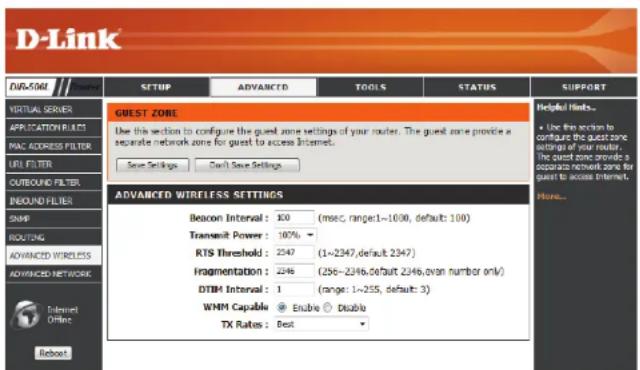
text_image
D-Link FUB-50M VIRUAL SERVER APPLICATION PROJECTS MAC ADDRESS FILTER URL FILTER CUBOUND FILTER BEOUND FILTER SNMP ROUTING ADVANCED WIRELESS ADVANCED NETWORK Internet Offline Reboot SETUP ADVANCED TOOLS STATUS SUPPORT GUEST ZONE Use this section to configure the guest zone settings of your router. The guest zone provides a separate network zone for guest to access Internet. Save Settings Don't Save Settings ADVANCED WIRELESS SETTINGS Beacon Interval: 100 (msec, range:1~1600, default: 100) Transmit Power: 100% RTS Threshold: 2347 (1~2347, default: 2347) Fragmentation: 2346 (256~2346, default: 2346, even number only) DTIM Interval: 1 (range: 1~255, default: 3) WMM Capable Enable Double TX Rates: Best Helpful Fints... • Use this section to configure the guest zone settings of your router. The guest zone provides a separate network zone for guest to access Internet. More...Advanced Network
This screen allows you to set various advanced network settings of your DIR-506L. Unless you are experiencing specific problems, it is recommended that you leave these settings at their default values. After making your changes, click the Save Settings button.
Enable UPnP: To use the Universal Plug and Play (UPnP) feature click on Enabled. UPnP provides compatibility with networking equipment, software and peripherals.
Enable WAN Checking the box will allow the DIR-506L to respond Ping Respond: to pings. Unchecking the box may provide some extra security from hackers.
Enable Power Checking this box will allow the router to minimize the Saving in power usage when disconnected from a power source Battery Mode: and using the battery, while still providing the necessary power for normal operations.

text_image
D-Link DIR-506L SETUP ADVANCED TOOLS STATUS SUPPORT VIRTUAL SERVER APPLICATION RULES MAC ADDRESS FILTER URL FILTER CLOUROUND FILTER INDUROUND FILTER SNIP ROUTING ADVANCED WIRELESS ADVANCED NETWORK Internet Offline Reboot ADVANCED WIRELESS If you are not familiar with these Advanced Wireless settings, please read the help section before attempting to modify these settings. Save Settings Don't Save Settings UPnP Universal Plug and Play (UPnP) supports peer-to-peer Plug and Play functionality for network devices. Enable UPnP : ✓ WAN PING If you enable this feature, the WAN port of your router will respond to ping requests from the internet that are sent to the WAN IP Address. Enable WAN Ping Respond : ✓ POWER SAVING Enable this option to activate power saving policy when power is supplied by battery. Enable Power Saving in Battery Mode : ✓ Helpful Hints... • This recommended that you leave these parameters at their default value. Adjusting items could tell the performance of your wireless network. The 202-15d links for countries where it is required. More...Tools Administrator Settings
This page will allow you to change the password for the administrator account for configuring the settings of the DIR-506L. You can also turn on remote management. After making your changes, click the Save Settings button.
New Password: Enter a new password for the Administrator Login Name. The administrator can make changes to the settings.
Confirm Enter the same password that you entered in the previous Password: textbox in order to confirm its accuracy.
Enable Remote Management: Remote management allows the DIR-506L to be configured over the Internet through a web browser. A username/password password is still required to access the configuration interface.
IP Allowed to This is the IP that will be used to access the DIR-506L Access: configuration interface when using remote management.

text_image
D-Link® LINKSOME SETUP ADVANCED TOOLS STATUS SUPPORT ADMINISTRATOR SETTINGS To help secure your network, we recommend that you should choose a new password. Save Settings Don't Save Settings ADMINISTRATOR ("THE DEFAULT" LOGIN NAME IS "admin") New Password: Confirm Password: REMOTE MANAGEMENT Enable Remote Management: Enabled IP Allowed to Access: 5.0.0.9 Port: $0.00 $0.00 Helpful Links... • If I don't secure the response, it is recommended that you change the password for the Admin and User accounts to be sure to write down the notes and passwords to avoid having to read the router in case they are forgotten. • Training Remote Management, allows you or about to change the router configuration from a computer on the Internet. • Choose a port to open for remote management.Port: This is the port number to be used for remote management.
Time and Date
The Time page allows you to configure, update, and maintain the correct time on the internal system clock. From this section you can set the time zone that you are in. Daylight Saving can also be configured to automatically adjust the time when needed. After making your changes, click the Save Settings button.
Time Zone: Select the Time Zone from the drop-down menu.
Enable Daylight To select Daylight Saving time manually, click the Enable Saving: Daylight Saving check box. Next use the drop-down menu to select a Daylight Saving Offset and then enter a start date and an end date for daylight saving time.
Automatically NTP is short for Network Time Protocol. NTP synchronizes Synchronize computer clock times in a network of computers. Check with Internet this box to use a NTP server. This will only connect to a Time Server: server on the Internet, not a local server.
NTP Server Enter the NTP server or select one from the drop-down Used: menu.

text_image
D-Link CVR-596L // ... SETUP ADVANCED TOOLS STATUS SUPPORT AOWSKI TIME SYSLOG EMAIL SETTINGS SYSTEM PUSWARE DYNAMIC INS SYSTEM CHECK SCHEDULES Internet Options TIME AND DATE The Time and Date Configuration option allows you to configure, update, and maintain the correct time on the internal system clock. From this section you can set the time zone that you are in and set the NTP (Network Time Protocol) Server. Save Settings Don't Save Settings TIME AND DATE CONFIGURATION Time: Fri Jan 01, 2010 08:03:13 Time Zone: (GMT +08:00) Setting, Hong Kong, Taipei Enable Daylight Saving: AUTOMATIC TIME AND DATE CONFIGURATION Automatically synchronize with Internet time server NTP Server Used : ymc.mw.net.gov time.mw.net.gov Update Now SYNC. RESULTSysLog
The Broadband Router keeps a running log of events and activities occurring on the Router. You may send these logs to a SysLog server on your network.
Enable Logging Check this box to send the router logs to a SysLog Server. to SysLog Server:
SysLog Server IP The address of the SysLog server that will be used to send Address: the logs. You may also select your computer from the drop-down menu (only if receiving an IP address from the router via DHCP).
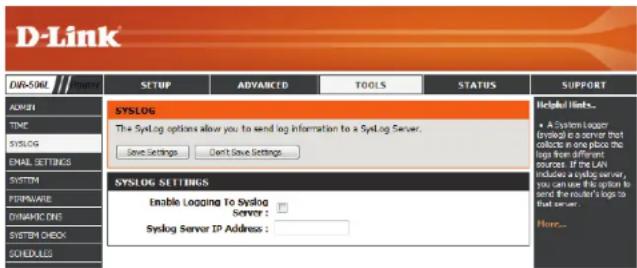
text_image
D-Link DAR-506L SYSTEM SETUP ADVANCED TOOLS STATUS SUPPORT ADMIN TIME SYSLOG EMAIL SETTINGS SYSTEM FIRMWARE DYNAMIC INS SYSTEM CHECK SCHEDULES SYSLOG The SysLog options allow you to send log information to a SysLog Server. Save Settings Don't Save Settings SYSLOG SETTINGS Enable Logging To Syslog Server: Syslog Server IP Address : Helped links... • A System Logger (optional) in server that collects in one place the logs from different sources. If the LAN includes a syslog server, you can use if it option to send the router's logs to that server. Here...Email Settings
The Email feature can be used to send the system log files, router alert messages, and firmware update notification to your email address.
Enable Email When this option is enabled, router activity logs are Notification: emailed to a designated email address.
SMTP Server IP Enter the SMTP server address and SMTP port used for and Port: sending email.
SMTP Enter your account username for sending email. Username:
SMTP Password: Enter the password associated with the account.
Send E-mail Enter the email address(es) where you would like your alert to: email alerts delivered.
E-mail Subject: Enter a subject line for the alert emails.
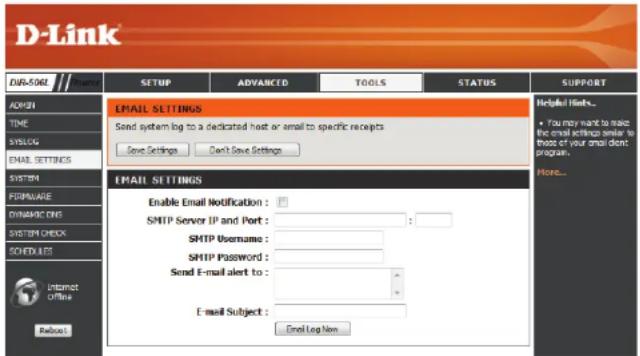
text_image
D-Link EUP-5001 SETUP ADVANCED TOOLS STATUS SUPPORT ADMIN TIME SYMBOLG EMAIL SETTINGS SYSTEM FORMWARE DYNAMIC ONE SYSTEM CHECK SCHEDULES Internet OFFINS Request EMAIL SETTINGS Send system log to a dedicated host or email to specific receipts Save Settings Don't Save Settings Email Setting Enable Email Notification : SMTP Server IP and Port : SMTP Username : SMTP Password : Send E-mail alert to : E-mail Subject : Email Log New Helpful Links... • You may want to make the email settings similar to those of your email dont program... More...System Settings
This page allows you to save and restore your configuration, and reset the DIR-506L to the factory default settings.
Save Settings Clicking the Save button will allow you to save the current To Local Hard repeater configuration settings to a file on the hard disk Drive: of the computer you are using. You will then see a file dialog where you can select a location and file name for the settings.
Load Settings Use this option to load previously saved configuration From Local Hard settings. Click Browse to find a previously saved Drive: configuration file. Then, click the Upload Settings button to transfer those settings to the DIR-506L.
Restore to This option will restore all configuration settings back to Factory Default the factory default settings. Any settings that have not Settings: been saved will be lost, including any rules that you have created. If you want to save your current configuration settings, use the Save button above.
Note: Restoring the factory default settings will not reset the Wi-Fi Protected Status to Not Configured.
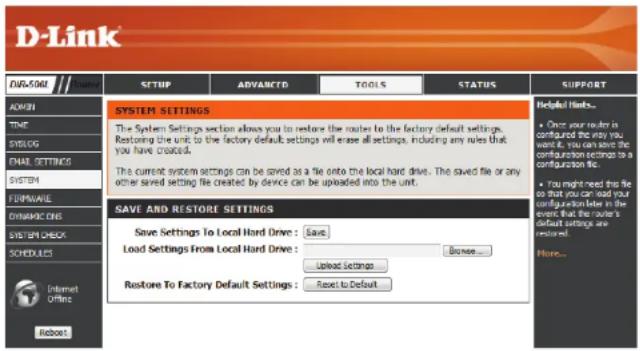
text_image
D-Link DW-5001 SYSTEM SETTINGS The System Settings section allows you to restore the router to the factory default settings. Restoring the unit to the factory default settings will erase all settings, including any rules that you have created. The current system settings can be saved as a file onto the local hard drive. The saved file or any other saved setting file created by device can be uploaded into the unit. SAVE AND RESTORE SETTINGS Save Settings To Local Hard Drive: Save Load Settings From Local Hard Drive: Browse... Upload Settings Restore To Factory Default Settings: Reset to Default Helpful Links... • Once your router is configured the only you want it, you can save the configuration settings to a configuration file. • You might need this file so that you can load your configuration order in the event that the router's default settings are removed! More... Internet Offins RebootFirmware
You can upgrade the firmware of the DIR-506L here. Make sure the firmware you want to use is on the local hard drive of the computer. Click on Browse to locate the firmware file to be used for the upgrade. Please check the D-Link support website for firmware updates at http://support.dlink.com. You can download firmware upgrades to your hard drive from this site.
Upload: After you have downloaded the new firmware, click Choose File to locate the firmware update on your hard drive. Click Upgrade to complete the firmware upgrade. Do not disconnect from the DIR-506L or power your computer or DIR-506L off during the upgrade process.
Accept unofficial Check this box to apply a firmware file that is not an firmware: official release from D-Link. Using this option is not recommended.
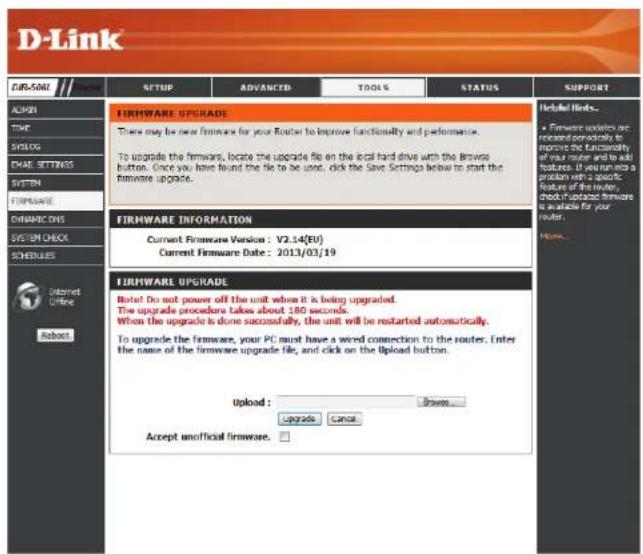
text_image
D-Link CIRI-5001 SETUP ADVANCED TOOLS STATUS SUPPORT ACHN TIME SYLOG EMAIL SETTINGS SYSTEM FIRMWARE Dynamic OIS SYSTEM CHECK SCHEDULES Internet Office Robot FIRMWARE UPGRADE There may be new firmware for your router to improve functionality and performance. To upgrade the firmware, locate the upgrade file on the local hard drive with the browser button. Once you have found the file to be used, click the Save Settings below to start the firmware upgrade. FIRMWARE INFORMATION Current Firmware Version : V2.14(EU) Current Firmware Date : 2013/03/19 FIRMWARE UPGRADE Note! Do not power off the unit when it is being upgraded. The upgrade procedure takes about 180 seconds. When the upgrade is done successfully, the unit will be restarted automatically. To upgrade the firmware, your PC must have a word connection to the router. Enter the name of the firmware upgrade file, and click on the upload button. Upload : Upgrade Cancel Accept unofficial firmware. Helpful Links... • Firmware updates are restored periodically to improve the functionality of your router and to add features. If returning a problem with a specific feature of the router, check Protocol firmware is available for your router. More...Dynamic DNS
The DDNS feature allows you to host a server (Web, FTP, Game Server, etc...) behind your using a domain name that you have purchased (www.whateveryournameis.com) with your dynamically assigned IP address. Most broadband Internet Service Providers assign dynamic (changing) IP addresses. Using a DDNS service provider, your friends can enter in your domain name to connect to your server no matter what your IP address is. After making your changes, click the Save Settings button.
Enable DDNS: Tick the checkbox to enable DDNS.
Provider: Select your DDNS service from the drop-down menu.
Host Name: Enter the Host Name that you registered with your DDNS service provider.
Username / Enter the Username or key for your DDNS account. E-mail:
Password / Key: Enter the Password or key for your DDNS account.
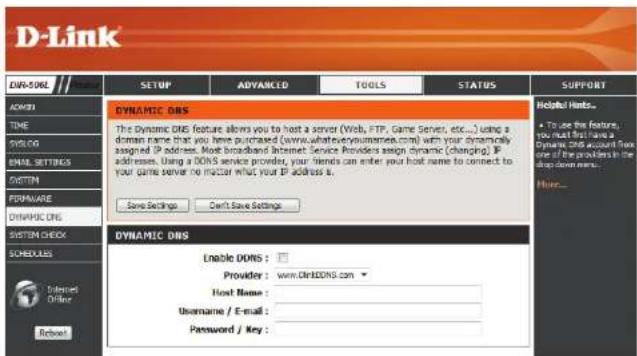
text_image
D-Link DVR-506 SETUP ADVANCED TOOLS STATUS SUPPORT AVERAGE TIME SYLOG EMAIL SETTINGS SYSTEM FORMAIRE DYNAMIC DNS SYSTEM CHECK SCHEDULES Internet Online Reboot DYNAMIC DNS The Dynamic DNS feature allows you to host a server (Web, FTP, Game Server, etc...) using a domain name that you have purchased (www.whateyoumarines.com) with your dynamically assigned IP address. Most broadcast Internet Service Providers assign dynamic (changing). If addresses, Using a DOS service provider, your friends can enter your host name to connect to your game server no matter what your IP address is. Save Settings Can't Save Settings Helpful Hints. • To use the feature, you must first have a Dynamic DNS account from one if the providers in the drop from new... More... DYNAMIC DNS Enable DOS: Provider: www.Cdr3DNS.com Host Name: Username / E-mail: Password / Key:System Check
This page allows you to run a ping test to check your Internet connectivity.
Host Name or The Ping Test is used to send ping packets to test if your IP address: is connected to the Internet. Enter the host name or IP address that you wish to ping and click the Ping button.
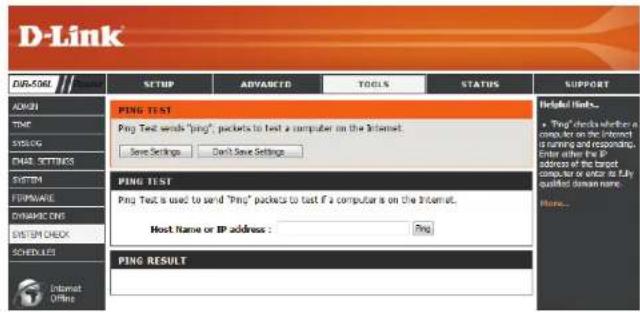
text_image
D-Link PING TEST Ping Test sends "ping", packets to test a computer on the Internet. Save Settings Can't Save Settings PING TEST Ping Test is used to send "Ping" packets to test if a computer is on the Internet. Host Name or IP address : Ping PING RESULT Helpful links... • Ping" checks whether a computer on the Internet is running and responding. Enter other the IP address of the target computer or enter to file qualified stream more. Here... Internet OptionsSchedules
You can create schedules for use with some of the features of the DIR-506L, which will allow those features to be active during certain times of the day or week.
Enable Allows the DIR-506L to apply schedule rules for the filters Schedule: you have configured.
After entering the details of your schedule, click the Save button to save your changes.
Schedule Rules The list of created schedules will be listed here. Click the List: Add New Rule... button to create a schedule rule.
If you click Add New Rule..., you will see the following screen:
Name of Rule #: Enter a name for your new schedule.
Policy: Select Activate or Inactivate to decide whether features that use the schedule should be active or inactive except during the times specified.
Week Day: Select a day of the week for the start time and end time.
Start Time Enter the time at which you would like the schedule to (hh:mm): become active.
End Time Select the time at which you would like the schedule to (hh:mm): become inactive.
After making your changes, click Save Settings to save the schedule.
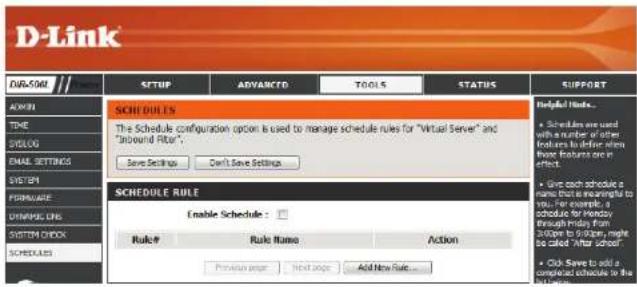
text_image
D-Link CUSTOM SETUP ADVANCED TOOLS STATUS SUPPORT ADDRESS THE TITLE SVELOG EMAIL SETTINGS SYSTEM FORWARE UNIPATIC CNS SHEET Check SCHEDULES SCHEDULES The Schedule configuration option is used to manage schedule rules for "Virtual Server" and "Unbound Filter". Save Settings Can't Save Settings SCHEDULE RULE Enable Schedule: Rule # Rule Name Action Preview Page Next Page Add New Rule... Helpful Guide... • Schedule are used with a number of other features to define from those features or in effect. • Give each schedule a name that is meaningful to you. For example, a schedule for privacy through Friday from 30 Apr to 5 Oct, might be called "after School" • Click Save to add a scheduled schedule in the following
text_image
SCHEDULE RULE SETTING Name of Rule 1 : Policy : Inactivate ▼ except the selected days and hours below. ID Week Day Start Time (hh:mm) End Time (hh:mm) 1 -- choose one -- ▼ Neg 2 announcing one -- 3 announcing one -- 4 announcing one -- 5 announcing one -- 6 announcing one -- 7 announcing one -- 8 announcing one -- BackStatus Device Info
This page displays the current information for the DIR-506L. It will display the LAN and wireless LAN information.
General: Displays the time and firmware version.
WAN Displays information about the connection to your modem or Internet connection.
LAN: Displays the MAC address and the private (local) IP settings for the access point.
Wireless LAN: Displays the wireless MAC address and your wireless settings such as SSID and Channel.
LAN Computers: Displays information about the devices on your local network.
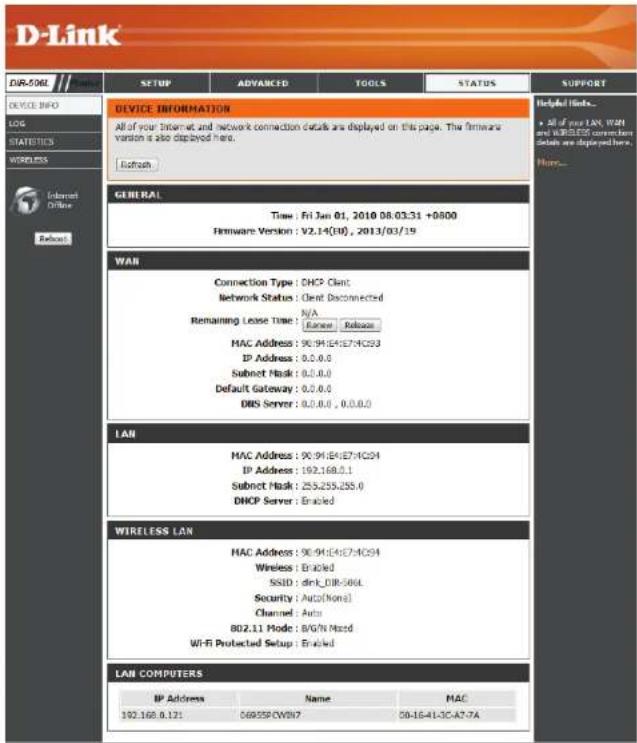
text_image
D-Link DUR-506L / Service DEVICE INFO LOG STATISTICS WIRELESS Internet Offline SETUP ADVANCED TOOLS STATUS SUPPORT DEVICE INFORMATION All of your Internet and network connection details are displayed on this page. The firmware version is also displayed here. Refresh GENERAL Time: Fri Jan 01, 2010 08.03:31 +0800 Firmware Version : V2.14(EU), 2013/03/19 WAB Connection Type : DHCP Client Network Status : Client Disconnected N/A Remaining Lease Time : Range Release MAC Address : 90.91E4/E74C03 IP Address : 0.0.0.0 Subnet Mask : 0.0.0.0 Default Gateway : 0.0.0.0 DNS Server : 0.0.0.0 , 0.0.0.0 LAN MAC Address : 90.91E4/E74C04 IP Address : 192.168.1.1 Subnet Mask : 255.255.255.0 DHCP Server : Enabled WIRELESS LAN MAC Address : 90.91E4/E74C04 Wireless : Enabled SSID : link_DIR-506L Security : Auto(None) Channel : Auto BD2.11 Mode : B/G/N Mixed Wi-Fi Protected Setup : Enabled LAN COMPUTERS IP Address Name MAC 192.168.0.121 06955P/CWB7 00-16-41-3C-A7-7ALog
The DIR-506L keeps a running log of events and activities occurring on the DIR-506L. If the DIR-506L is rebooted, the logs are automatically cleared.
Log Options: There are several types of logs that can be viewed: System Activity, Debug Information, Attacks, Dropped Packets and Notice.
Previous: This button directs you to the previous page of the log.
Next: This button directs you to the next page of the log.
First Page: This button directs you to the first page of the log.
Last Page: This button directs you to the last page of the log.
Refresh: This button refreshes the log.
Download: This button opens dialog where you can save the current log to your hard drive.
Clear logs: This button clears all current log content.
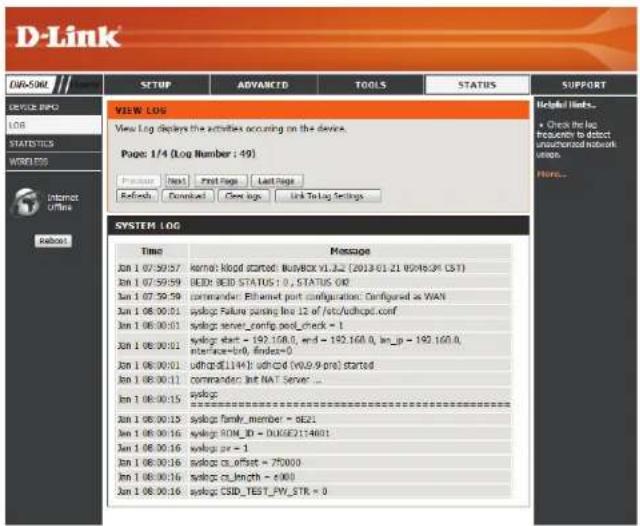
text_image
D-Link CNP-50M SETUP ADVANCED TOOLS STATUS SUPPORT DEVICE INFO LOG STATISTICS WORKLOGS Internet OFFICE System VIEW LOG View Log displays the activities occurring on the device. Page: 1/4 (Log Number : 49) Preview Next First Page Last Page Refresh Download Cover Page Link To Log Settings SYSTEM LOG Time Message Jun 1 07:30:57 Kernel: Kipid started: WinBox V1.3.2 (2013.01.21 WOR6.04 CST) Jun 1 07:59:59 BED: BID STATUS : 0 , STATUS OK Jun 1 07:39:59 commander: Ethernet port configuration: Configured as WAN Jun 1 08:00:01 syslog: Failure passing log 12 of /etc/udcpt.conf Jun 1 08:00:03 syslog: server_config.pool_check = 1 Jun 1 08:00:01 syslog: start = 192.168.0, end = 192.168.0, lon_p = 192.168.0, interface=lnb, finders=0 Jun 1 08:00:01 udcpc$114H2 udcpcd (WU2.9-pro) started Jun 1 08:00:11 commander: Int NAT Server ... Jun 1 08:00:15 syslog: ====================- Jun 1 08:00:15 syslog: family_member = 6E21 Jun 1 08:00:16 syslog: ROM_ID = DLKGE214601 Jun 1 08:00:16 syslog: pr = 1 Jun 1 08:00:16 syslog: cn_offset = 75000 Jun 1 08:00:16 syslog: cn_length = exoo Jun 1 08:00:16 syslog: CSD_TEST_PW_STK = 0Statistics
The DIR-506L keeps statistics of the traffic that passes through it. You can view the amount of packets that pass through the LAN and wireless portions of the network. Click the Refresh Statistics button to update the information, or click the Clear Statistics button to reset all statistics. The traffic counter will reset if the DIR-506L is rebooted.
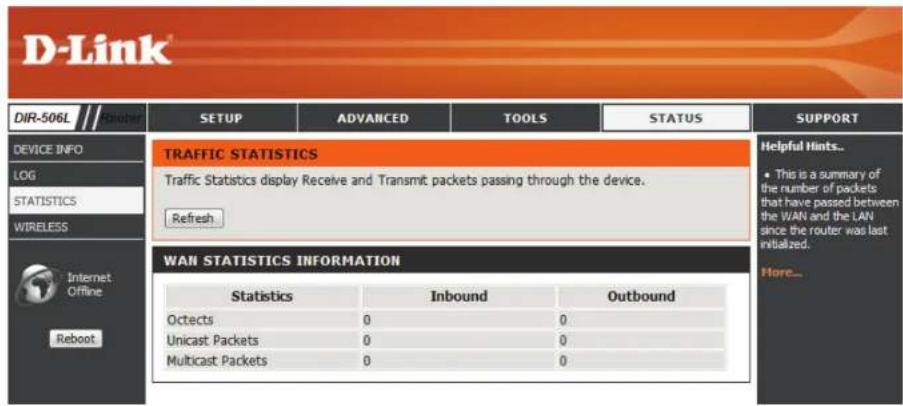
text_image
D-Link DIR-506L Device INFO LOG STATISTICS WIRELESS Internet Offline Reboot SETUP ADVANCED TOOLS STATUS SUPPORT TRAFFIC STATISTICS Traffic Statistics display Receive and Transmit packets passing through the device. Refresh WAN STATISTICS INFORMATION Statistics Inbound Outbound Octects 0 0 Unicast Packets 0 0 Multicast Packets 0 0 Helpful Hints.. • This is a summary of the number of packets that have passed between the WAN and the LAN since the router was last initialized. More...Wireless
The wireless client table displays a list of current connected wireless clients. This table also displays the connection time and MAC address of the connected wireless clients.

text_image
D-Link DIR-506L Device INFO LOG STATISTICS WIRELESS Internet Offline Reboot SETUP ADVANCED TOOLS STATUS SUPPORT WIRELESS CLIENT LIST View the wireless clients that are connected to the router. (A client might linger in the list for a few minutes after an unexpected disconnect.) Refresh WIRELESS CLIENT TABLE ID MAC Address Helpful Hints.. • This is a list of all wireless clients that are currently connected to your wireless router. More...Help
This screen gives you more information about the various parts of the configuration interface. Click on a link to learn more about that topic.

text_image
D-Link DIR-50SL SETUP ADVANCED TOOLS STATUS SUPPORT MENU Setup • Advanced • Tools • Status SETUP HELP • Internet • Wireless Settings • Network Settings • Media Server • Storage ADVANCED HELP • VIRTUAL SERVERS • Application Rules • MAC Address Filter • URL Filter • Outbound Filter • Inbound Filter • SIMP • Routing • Guest Zone • Advanced Wireless • Advanced Network TOOLS HELP • Admin • Time • Email setting • System • Features • Duration DNS • System Check • Schedules STATUS HELP • Device Info • Log • Statistics • WirelessConnecting a Wireless Client WPS Button
The easiest and most secure way to connect your wireless devices to the router is WPS (Wi-Fi Protected Setup). Most wireless devices such as wireless adapters, media players, Blu-ray DVD players, wireless printers and cameras will have a WPS button (or a software utility with WPS) that you can press to connect to the DIR-506L router. Please refer to your user manual for the wireless device you want to connect to make sure you understand how to enable WPS. Once you know, follow the steps below:
Step 1 - Press the WPS button on the DIR-506L for about 1 second. The WPS button will start to blink.
Step 2 - Within 2 minutes, press the WPS button on your wireless client (or launch the software utility and start the WPS process).
Step 3 - Allow up to 1 minute to configure. Once the WPS light stops blinking, you will be connected and your wireless connection will be secure with WPA2.
Windows® 7 WPA/WPA2
It is recommended to enable wireless security (WPA/WPA2) on your wireless router or access point before configuring your wireless adapter. If you are joining an existing network, you will need to know the security key or passphrase being used.
- Click on the wireless icon in your system tray (lower-right corner).
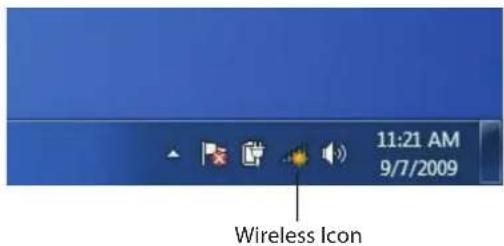
text_image
11:21 AM 9/7/2009 Wireless Icon- The utility will display any available wireless networks in your area.

text_image
Not connected Connections are available Wireless Network Connection dlink key2690_24 AllenH DIR-655 SD6_WLAN DAP-2690g wpstest1 BBIQ633304WPA2 Eddie_APNAS Open Network and Sharing Center- Highlight the wireless network (SSID) you would like to connect to and click the Connect button.
If you get a good signal but cannot access the Internet, check your TCP/IP settings for your wireless adapter. Refer to the Networking Basics section in this manual for more information.
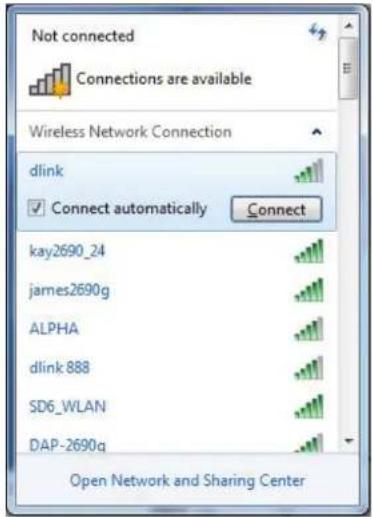
text_image
Not connected Connections are available Wireless Network Connection dlink Connect automatically Connect kay2690_24 james2690g ALPHA dlink 888 SD6_WLAN DAP-2690q Open Network and Sharing Center- The following window appears while your computer tries to connect to the router.
text_image
Connect to a Network Getting information from dlink... CancelSection 4 - Connecting a Wireless Client
- Enter the same security key or passphrase that is on your router and click Connect. You can also connect by pushing the WPS button on the router.
It may take 20-30 seconds to connect to the wireless network. If the connection fails, please verify that the security settings are correct. The key or passphrase must be exactly the same as on the wireless router.

text_image
Connect to a Network Type the network security key Security key: Hide characters You can also connect by pushing the button on the router. OK CancelWPS
The WPS feature of the DIR-506L can be configured using Windows ^® 7. Carry out the following steps to use Windows ^® 7 to configure the WPS feature:
- Click the Start button and select Computer from the Start menu.

text_image
Paint Getting Started Windows Media Center Calculator Sticky Notes Snapping Tool Remote Desktop Connection MagicPan Software All Programs Search Programs and Gain TITLE Documents Patterns Music Guruah Computer Control Panel Devices and Printers Default Programs Help and Support Power/Storage/100%- Click Network on the left side.
text_image
Organize Computer System properties Uninstall to change a program Map network drive Favorites Desktop Downloads Recent Places Libraries Documents Music Pictures Videos Computer Local Disk (C:) Local Disk (D:) 200 GB free of 100 GB DATA (E:) 39.6 GB free of 55.1 GB Hardware with Removable Storage (I:) DVD RW Drive (P:) Network A300 Workgroup WORKGROUP Memory: 200 GB Processor: Intel®i Case(TM)2 CPU...Section 4 - Connecting a Wireless Client
- Double-click the DIR-506L.
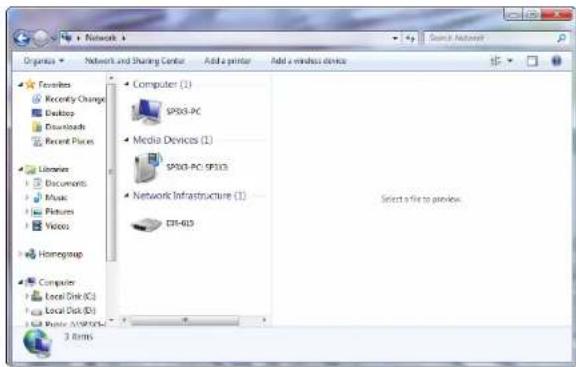
text_image
Network Organisms Network and Sharing Center Add a printer Add a wireless devices Favorites Recently Change Desktop Downloads Recent Places Libraries Documents Music Pictures Videos Homogroup Computer Local Disk (C:) Local Disk (D:) Soft Puzzle /WNTFS. 3 Bits Computer (1) SP503-PC Media Devices (1) SP503-PC: SP503 Network Infrastructure (1) CH-403 Select a file to preview.- Input the WPS PIN number (displayed in the WPS window on the Router's label or in the Setup > Wireless Setup menu in the Router's Web UI) and click Next.
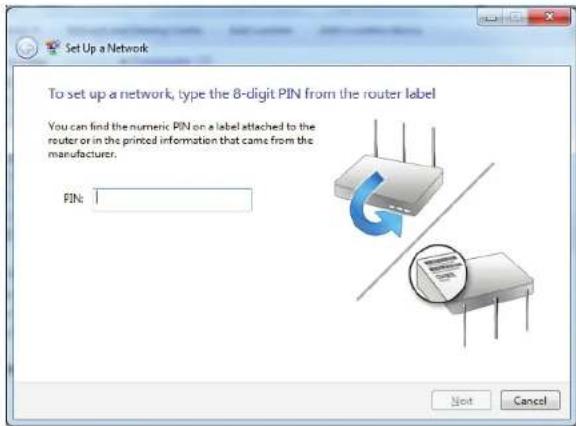
text_image
Set Up a Network To set up a network, type the 8-digit PIN from the router label You can find the numeric PIN on a label attached to the router or in the printed information that came from the manufacturer. PIN: Next CancelSection 4 - Connecting a Wireless Client
- Type a name to identify the network.
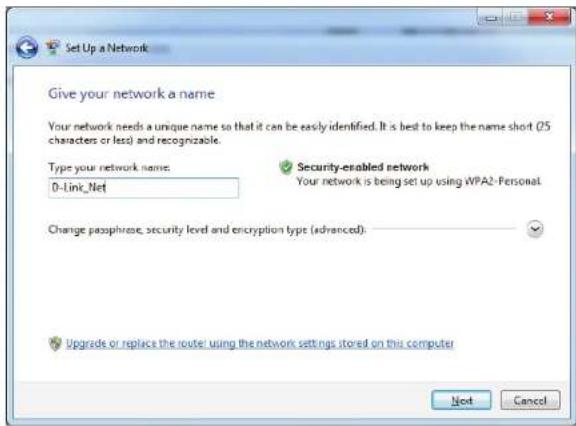
text_image
Set Up a Network Give your network a name Your network needs a unique name so that it can be easily identified. It is best to keep the name short (5 characters or less) and recognizable. Type your network name: D-Link_Net Security-enabled network Your network is being set up using WPA2-Personal Change paraphrase, security level and encryption type (advanced). Upgrade or replace the router using the network settings stored on this computer Next Cancel- To configure advanced settings, click the √ icon.
Click Next to continue.

text_image
Set Up a Network Give your network a name Your network needs a unique name so that it can be easily identified. It is best to keep the name short (25 characters or loss) and recognizable. Type your network name: D-Link, Net Security-enabled network Your network is being set up using WPA2-Personel. Change passphrase, security level and encryption type (advanced): Security key: f6mm-g13b-9mvv Security level: WPA2-Personal (Recommended) Connect automatically Encryption type: AES (Recommended) Upgrade or replace the router using the network settings stored on this computer Next CancelSection 4 - Connecting a Wireless Client
- The following window appears while the Router is being configured.
Wait for the configuration to complete.

text_image
Set Up a Network Setting up D-Link_Net... Cancel- The following window informs you that WPS on the router has been setup successfully.
Make a note of the security key as you may need to provide this security key if adding an older wireless device to the network in the future.

text_image
D-Link_Net has been successfully set up To add an older wireless device to this network, you might need to provide this security key 894g-eyd5-g5wb You can print these network settings for future reference. For gaming consoles or computers running Windows XP, copy the network profile to a USB drive for easier set up. Close- Click Close to complete WPS setup.
Windows Vista®
Windows Vista® users may use the built-in wireless utility. If you are using another company's utility or Windows® 2000, please refer to the user manual of your wireless adapter for help with connecting to a wireless network. Most utilities will have a "site survey" option similar to the Windows Vista® utility as seen below.
If you receive the Wireless Networks Detected bubble, click on the center of the bubble to access the utility.
or
Right-click on the wireless computer icon in your system tray (lower-right corner next to the time). Select Connect to a network.
The utility will display any available wireless networks in your area. Click on a network (displayed using the SSID) and click the Connect button.
If you get a good signal but cannot access the Internet, check you TCP/IP settings for your wireless adapter. Refer to the Networking Basics section in this manual for more information.
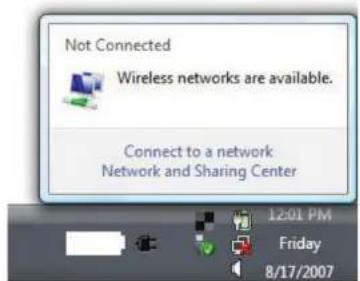
text_image
Not Connected Wireless networks are available. Connect to a network Network and Sharing Center 12:01 PM Friday 8/17/2007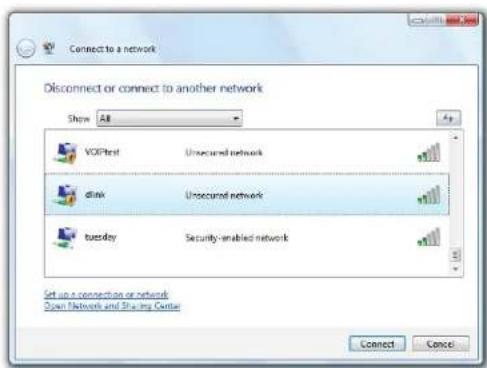
text_image
Connect to a network Disconnect or connect to another network Show All VOPFirst Unsecured network dlink Unsecured network Tuesday Security-enabled network Set up a connection or network Open Network and Sharing Center Connect CancelWPA/WPA2
It is recommended to enable wireless security (WPA/WPA2) on your wireless router or access point before configuring your wireless adapter. If you are joining an existing network, you will need to know the security key or passphrase being used.
-
Open the Windows Vista® Wireless Utility by right-clicking on the wireless computer icon in your system tray (lower right corner of screen). Select Connect to a network.
-
Highlight the wireless network (SSID) you would like to connect to and click Connect.
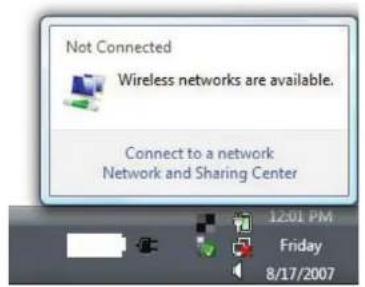
text_image
Not Connected Wireless networks are available. Connect to a network Network and Sharing Center 12:01 PM Friday 8/17/2007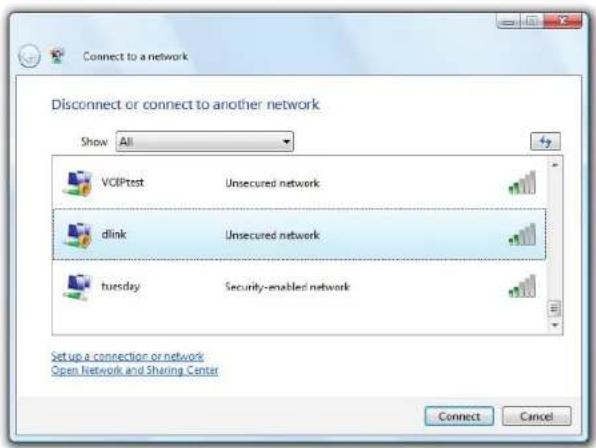
text_image
Connect to a network Disconnect or connect to another network Show All VoIPtest Unsecured network dink Unsecured network tuesday Security-enabled network Setup a connection or network Open Network and Sharing Center Connect Cancel- Enter the same security key or passphrase that is on your router and click Connect.
It may take 20-30 seconds to connect to the wireless network. If the connection fails, please verify that the security settings are correct. The key or passphrase must be exactly the same as on the wireless router.
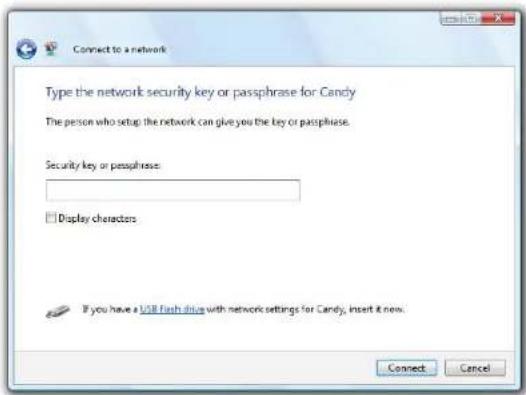
text_image
Connect to a network Type the network security key or passphrase for Candy The person who setup the network can give you the key or passphrase. Security key or passphrase: □ Display characters If you have a USB flash drug with network settings for Candy, insert it now. Connect CancelWPS/WCN 2.0
The router supports Wi-Fi protection, referred to as WCN 2.0 in Windows Vista ^® . The following instructions for setting this up depends on whether you are using Windows Vista ^® to configure the router or third party software.
When you first set up the router, Wi-Fi protection is disabled and unconfigured. To enjoy the benefits of Wi-Fi protection, the router must be both enabled and configured. There are three basic methods to accomplish this: use Windows Vista's built-in support for WCN 2.0, use software provided by a third party, or manually configure.
If you are running Windows Vista ^® , log into the router and click the Enable checkbox in the Basic > Wireless section. Use the Current PIN that is displayed on the Advanced > Wi-Fi Protected Setup section or choose to click the Generate New PIN button or Reset PIN to Default button.

text_image
PIN SETTINGS Current PIN : 53468734 Reset PIN to Default Generate New PINIf you are using third party software to set up Wi-Fi Protection, carefully follow the directions. When you are finished, proceed to the next section to set up the newly-configured router.
Windows® XP
Windows® XP users may use the built-in wireless utility (Zero Configuration Utility). The following instructions are for Service Pack 2 users. If you are using another company's utility, please refer to the user manual of your wireless adapter for help with connecting to a wireless network. Most utilities will have a "site survey" option similar to the Windows® XP utility as seen below.
If you receive the Wireless Networks Detected bubble, click on the center of the bubble to access the utility.
or
Right-click on the wireless computer icon in your system tray (lower-right corner next to the time). Select View Available Wireless Networks.
The utility will display any available wireless networks in your area. Click on a network (displayed using the SSID) and click the Connect button.
If you get a good signal but cannot access the Internet, check you TCP/IP settings for your wireless adapter. Refer to the Networking Basics section in this manual for more information.
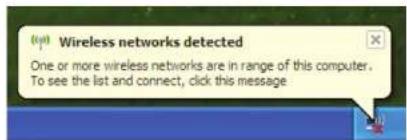
text_image
(a) Wireless networks detected One or more wireless networks are in range of this computer. To see the list and connect, click this message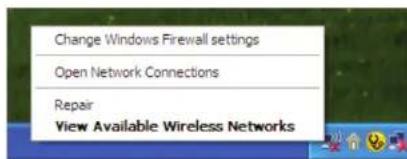
text_image
Change Windows Firewall settings Open Network Connections Repair View Available Wireless Networks
text_image
Wireless Network Connection 6 Choose a wireless network Click an link in the list below to connect to a wireless network in range or to get more information. Test Unsecured wireless network default Unsecured wireless network salestest Security-enabled wireless network B023 Security-enabled wireless network This network requires a network key. If you want to connect to this network, then Connect. DGL-1300 ConnectWPA/WPA2
It is recommended to enable WPA on your wireless router or access point before configuring your wireless adapter. If you are joining an existing network, you will need to know the WPA key being used.
-
Open the Windows® XP Wireless Utility by right-clicking on the wireless computer icon in your system tray (lower-right corner of screen). Select View Available Wireless Networks.
-
Highlight the wireless network (SSID) you would like to connect to and click Connect.

text_image
Change Windows Firewall settings Open Network Connections Repair View Available Wireless Networks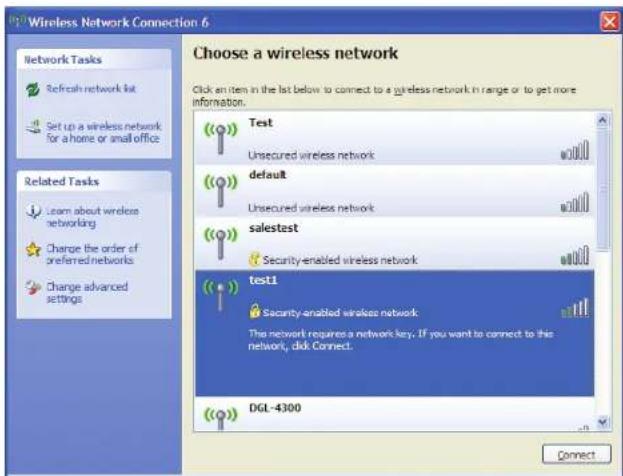
text_image
Wireless Network Connection 6 Choose a wireless network Click an item in the list below to connect to a wireless network in range or to get more information. Network Tasks Refresh network kit Set up a wireless network for a home or small office Related Tasks Learn about wireless networking Change the order of preferred networks Change advanced settings Test Unsecured wireless network default Unsecured wireless network salestest Security-enabled wireless network test1 Security-enabled wireless network This network requires a network key. If you want to connect to this network, click Connect. DGL-4300 Connect3. The Wireless Network Connection box will appear. Enter the WPA-PSK passphrase and click Connect.
It may take 20-30 seconds to connect to the wireless network. If the connection fails, please verify that the WPA-PSK settings are correct. The WPA-PSK passphrase must be exactly the same as on the wireless router.

text_image
Wireless Network Connection The network 'test1' requires a network key (also called a WEP key or WPA key). A network key helps prevent unknown intruders from connecting to this network. Type the key, and then click Connect. Network key: Confirm network keys: Connect CancelTroubleshooting
This chapter provides solutions to problems that can occur during the installation and operation of the . Read the following descriptions if you are having problems. The examples below are illustrated in Windows® XP. If you have a different operating system, the screenshots on your computer will look similar to the following examples.
1. Why can't I access the web-based configuration utility?
When entering the IP address of the D-Link router (http://192.168.0.1 or http://dlinkrouter.local. for example), you are not connecting to a website nor do you have to be connected to the Internet. The device has the utility built-in to a ROM chip in the device itself. Your computer must be on the same IP subnet to connect to the web-based utility.
- Make sure you have an updated Java-enabled web browser. We recommend the following:
- Microsoft Internet Explorer® 6.0 and higher
- Mozilla Firefox 3.0 and higher
• - Google™ Chrome 2.0 and higher
• - Apple Safari 3.0 and higher
- Verify physical connectivity by checking for solid link lights on the device. If you do not get a solid link light, try using a different cable or connect to a different port on the device if possible. If the computer is turned off, the link light may not be on.
- Disable any Internet security software running on the computer. Software firewalls such as Zone Alarm, Black Ice, Sygate, Norton Personal Firewall, and Windows XP firewall may block access to the configuration pages. Check the help files included with your firewall software for more information on disabling or configuring it.
- Configure your Internet settings:
- Go to Start > Settings > Control Panel. Double-click the Internet Options Icon. From the Security tab, click the button to restore the settings to their defaults.
- Click the Connection tab and set the dial-up option to Never Dial a Connection. Click the LAN Settings button. Make sure nothing is checked. Click OK.
- Go to the Advanced tab and click the button to restore these settings to their defaults. Click OK three times.
- Close your web browser (if open) and open it.
- Access the web management. Open your web browser and enter the IP address of your D-Link router in the address bar. This should open the login page for your web management.
- If you still cannot access the configuration, unplug the power to the router for 10 seconds and plug back in. Wait about 30 seconds and try accessing the configuration. If you have multiple computers, try connecting using a different computer.
2. What can I do if I forgot my password?
If you forgot your password, you must reset your router. Unfortunately this process will change all your settings back to the factory defaults.
To reset the router, locate the reset button (hole) on the rear panel of the unit. With the router powered on, use a paperclip to hold the button down for 10 seconds. Release the button and the router will go through its reboot process. Wait about 30 seconds to access the router. The default IP address is 192.168.0.1 or http://dlinkrouter.local. When logging in, the username is admin and leave the password box empty.
3. Why can't I connect to certain sites or send and receive emails when connecting through my router?
If you are having a problem sending or receiving email, or connecting to secure sites such as eBay, banking sites, and Hotmail, we suggest lowering the MTU in increments of ten (Ex. 1492, 1482, 1472, etc).
To find the proper MTU Size, you'll have to do a special ping of the destination you're trying to go to. A destination could be another computer, or a URL.
- Click on Start and then click Run.
- Windows® 95, 98, and Me users type in command (Windows® NT, 2000, XP, Vista®, and 7 users type in cmd) and press Enter (or click OK).
- Once the window opens, you'll need to do a special ping. Use the following syntax:
ping [url] [-f] [-l] [MTU value]
Example: ping yahoo.com -f -l 1472
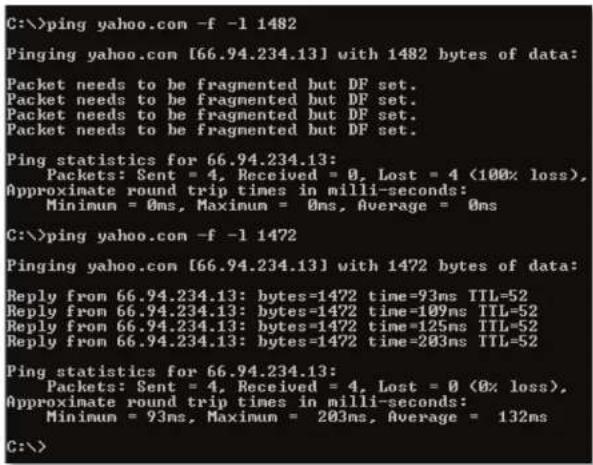
text_image
C:\>ping yahoo.com -f -l 1482 Pinging yahoo.com [66.94.234.13] with 1482 bytes of data: Packet needs to be fragmented but DF set. Packet needs to be fragmented but DF set. Packet needs to be fragmented but DF set. Packet needs to be fragmented but DF set. Ping statistics for 66.94.234.13: Packets: Sent = 4, Received = 0, Lost = 4 (100% loss), Approximate round trip times in milli-seconds: Minimum = 0ms, Maximum = 0ms, Average = 0ms C:\>ping yahoo.com -f -l 1472 Pinging yahoo.com [66.94.234.13] with 1472 bytes of data: Reply from 66.94.234.13: bytes=1472 time=93ms TTL=52 Reply from 66.94.234.13: bytes=1472 time=109ms TTL=52 Reply from 66.94.234.13: bytes=1472 time=125ms TTL=52 Reply from 66.94.234.13: bytes=1472 time=203ms TTL=52 Ping statistics for 66.94.234.13: Packets: Sent = 4, Received = 4, Lost = 0 (0% loss), Approximate round trip times in milli-seconds: Minimum = 93ms, Maximum = 203ms, Average = 132ms C:\>You should start at 1472 and work your way down by 10 each time. Once you get a reply, go up by 2 until you get a fragmented packet. Take that value and add 28 to the value to account for the various TCP/IP headers. For example, lets say that 1452 was the proper value, the actual MTU size would be 1480, which is the optimum for the network we're working with (1452+28=1480).
Once you find your MTU, you can now configure your router with the proper MTU size.
To change the MTU rate on your router follow the steps below:
- Open your browser, enter the IP address of your router (192.168.0.1 or http://dlinkrouter.local.) and click OK.
- Enter your username (admin) and password (blank by default). Click OK to enter the web configuration page for the device.
- Click on Setup and then click Manual Configure.
• To change the MTU enter the number in the MTU field and click Save Settings to save your settings. - Test your email. If changing the MTU does not resolve the problem, continue changing the MTU in increments of ten.
Wireless Basics
D-Link wireless products are based on industry standards to provide easy-to-use and compatible high-speed wireless connectivity within your home, business or public access wireless networks. Strictly adhering to the IEEE standard, the D-Link wireless family of products will allow you to securely access the data you want, when and where you want it. You will be able to enjoy the freedom that wireless networking delivers.
A wireless local area network (WLAN) is a cellular computer network that transmits and receives data with radio signals instead of wires. Wireless LANs are used increasingly in both home and office environments, and public areas such as airports, coffee shops and universities. Innovative ways to utilize WLAN technology are helping people to work and communicate more efficiently. Increased mobility and the absence of cabling and other fixed infrastructure have proven to be beneficial for many users.
Wireless users can use the same applications they use on a wired network. Wireless adapter cards used on laptop and desktop systems support the same protocols as Ethernet adapter cards.
Under many circumstances, it may be desirable for mobile network devices to link to a conventional Ethernet LAN in order to use servers, printers or an Internet connection supplied through the wired LAN. A Wireless Router is a device used to provide this link.
What is Wireless?
Wireless or Wi-Fi technology is another way of connecting your computer to the network without using wires. Wi-Fi uses radio frequency to connect wirelessly, so you have the freedom to connect computers anywhere in your home or office network.
Why D-Link Wireless?
D-Link is the worldwide leader and award winning designer, developer, and manufacturer of networking products. D-Link delivers the performance you need at a price you can afford. D-Link has all the products you need to build your network.
How does wireless work?
Wireless works similar to how cordless phone work, through radio signals to transmit data from one point A to point B. But wireless technology has restrictions as to how you can access the network. You must be within the wireless network range area to be able to connect your computer. There are two different types of wireless networks Wireless Local Area Network (WLAN), and Wireless Personal Area Network (WPAN).
Wireless Local Area Network (WLAN)
In a wireless local area network, a device called an Access Point (AP) connects computers to the network. The access point has a small antenna attached to it, which allows it to transmit data back and forth over radio signals. With an indoor access point as seen in the picture, the signal can travel up to 300 feet. With an outdoor access point the signal can reach out up to 30 miles to serve places like manufacturing plants, industrial locations, college and high school campuses, airports, golf courses, and many other outdoor venues.
Wireless Personal Area Network (WPAN)
Bluetooth is the industry standard wireless technology used for WPAN. Bluetooth devices in WPAN operate in a range up to 30 feet away.
Compared to WLAN the speed and wireless operation range are both less than WLAN, but in return it doesn't use nearly as much power which makes it ideal for personal devices, such as mobile phones, PDAs, headphones, laptops, speakers, and other devices that operate on batteries.
Who uses wireless?
Wireless technology as become so popular in recent years that almost everyone is using it, whether it's for home, office, business, D-Link has a wireless solution for it.
Home
• Gives everyone at home broadband access
- Surf the web, check email, instant message, etc.
- Gets rid of the cables around the house
- Simple and easy to use
Small Office and Home Office
- Stay on top of everything at home as you would at office
- Remotely access your office network from home
- Share Internet connection and printer with multiple computers
- No need to dedicate office space
Where is wireless used?
Wireless technology is expanding everywhere not just at home or office. People like the freedom of mobility and it's becoming so popular that more and more public facilities now provide wireless access to attract people. The wireless connection in public places is usually called "hotspots".
Using a D-Link Cardbus Adapter with your laptop, you can access the hotspot to connect to Internet from remote locations like: Airports, Hotels, Coffee Shops, Libraries, Restaurants, and Convention Centers.
Wireless network is easy to setup, but if you're installing it for the first time it could be quite a task not knowing where to start. That's why we've put together a few setup steps and tips to help you through the process of setting up a wireless network.
Tips
Here are a few things to keep in mind, when you install a wireless network.
Centralize your router or Access Point
Make sure you place the router/access point in a centralized location within your network for the best performance. Try to place the router/access point as high as possible in the room, so the signal gets dispersed throughout your home. If you have a two-story home, you may need a repeater to boost the signal to extend the range.
Eliminate Interference
Place home appliances such as cordless telephones, microwaves, and televisions as far away as possible from the router/access point. This would significantly reduce any interference that the appliances might cause since they operate on same frequency.
Security
Don't let you next-door neighbors or intruders connect to your wireless network. Secure your wireless network by turning on the WPA or WEP security feature on the router. Refer to product manual for detail information on how to set it up.
Networking Basics
Check your IP address
After you install your new D-Link adapter, by default, the TCP/IP settings should be set to obtain an IP address from a DHCP server (i.e. wireless router) automatically. To verify your IP address, please follow the steps below.
Click on Start > Run. In the run box type cmd and click OK. (Windows® 7/Vista® users type cmd in the Start Search box.)
At the prompt, type ipconfig and press Enter.
This will display the IP address, subnet mask, and the default gateway of your adapter.
If the address is 0.0.0.0, check your adapter installation, security settings, and the settings on your router. Some firewall software programs may block a DHCP request on newly installed adapters.
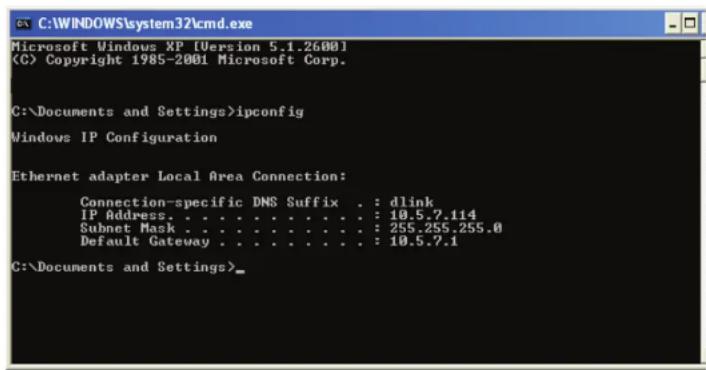
text_image
C:\WINDOWS\system32\cmd.exe Microsoft Windows XP [Version 5.1.2600] (C) Copyright 1985-2001 Microsoft Corp. C:\Documents and Settings>ipconfig Windows IP Configuration Ethernet adapter Local Area Connection: Connection-specific DNS Suffix . : dlink IP Address . . . . . . . . . . . . . . : 10.5.7.114 Subnet Mask . . . . . . . . . . . . . : 255.255.255.0 Default Gateway . . . . . . . . . . . : 10.5.7.1 C:\Documents and Settings>Assign a Static IP address
If you are not using a DHCP capable gateway/router, or you need to assign a static IP address, please follow the steps below:
Step 1
Windows® 7 - Click on Start > Control Panel > Network and Internet > Network and Sharing Center.
Windows Vista® - Click on Start > Control Panel > Network and Internet > Network and Sharing Center > Manage Network Connections.
Windows® XP - Click on Start > Control Panel > Network Connections.
Windows® 2000 - From the desktop, right-click My Network Places > Properties.
Step 2
Right-click on the Local Area Connection which represents your network adapter and select Properties.
Step 3
Highlight Internet Protocol (TCP/IP) and click Properties.
Step 4
Click Use the following IP address and enter an IP address that is on the same subnet as your network or the LAN IP address on your router.
Example: If the router's LAN IP address is 192.168.0.1 or http://dlinkrouter.local., make your IP address 192.168.0.X where X is a number between 2 and 99. Make sure that the number you choose is not in use on the network. Set the Default Gateway the same as the LAN IP address of your router (I.E. 192.168.0.1 or http://dlinkrouter.local.).
Set Primary DNS the same as the LAN IP address of your router (192.168.0.1 or http://dlinkrouter.local.). The Secondary DNS is not needed or you may enter a DNS server from your ISP.
Step 5
Click OK twice to save your settings.

text_image
Internet Protocol (TCP/IP) Properties General You can get IP settings assigned automatically if your network supports this capability. Otherwise, you need to ask your network administrator for the appropriate IP settings. Obtain an IP address automatically Use the following IP address: IP address: 192 . 168 . 0 . 52 Subnet mask: 255 . 255 . 255 . 0 Default gateway: 192 . 169 . 0 . 1 Obtain DNS server address automatically Use the following DNS server addresses: Preferred DNS server: 192 . 169 . 0 . 1 Alternate DNS server: Advanced... OK CancelTechnical Specifications
Standards
• IEEE 802.11g, compatible with 802.11n devices
• IEEE 802.3
• IEEE 802.3u
Wireless Modes
- Router/AP Mode
- Repeater Mode
• Wi-Fi Hot Spot Mode
Wireless Frequency Range ^1
• 2.4 GHz to 2.4835 GHz
Antennas
- Internal Antenna
Security
• Wi-Fi Protected Access (WPA/WPA2)
• WPS™ (PBC)
Advanced Features
- SharePort™ Mobile app for iOS ^2
- VPN pass-through
• UPnP™ Support - Web File Access Support
• Wi-Fi WMM Quality of Service
Advanced Firewall Features
• Network Address Translation (NAT)
• Stateful Packet Inspection (SPI)
• MAC Address Filtering
Device Management
- Web UI
Diagnostic LEDs
- Power/Status
Operating Temperature
• 0 to 40 °C (32 to 104 °F)
Operating Humidity
• 0% to 90% non-condensing
Certifications
• CE
• Wi-Fi Certified
• FCC
• IC
Dimensions
- 102.9 x 79.8 x 22.3 mm
Weight
• 0.125 kg
GPL Code Statement
This D-Link product includes software code developed by third parties, including software code subject to the GNU General Public License ("GPL") or GNU Lesser General Public License ("LGPL"). As applicable, the terms of the GPL and LGPL, and information on obtaining access to the GPL code and LGPL code used in this product, are available to you at:
http://tsd.dlink.com.tw/GPL.asp
The GPL code and LGPL code used in this product is distributed WITHOUT ANY WARRANTY and is subject to the copyrights of one or more authors. For details, see the GPL code and the LGPL code for this product and the terms of the GPL and LGPL.
WRITTEN OFFER FOR GPL AND LGPL SOURCE CODE
Where such specific license terms entitle you to the source code of such software, D-Link will provide upon written request via email and/or traditional paper mail the applicable GPL and LGPLsource code files via CD-ROM for a nominal cost to cover shipping and media charges as allowed under the GPL and LGPL.
Please direct all inquiries to:
Email: GPLCODE@DLink.com
Snail Mail:
Attn: GPLSOURCE REQUEST
D-Link Systems, Inc.
Fountain Valley, CA 92708
GNU GENERAL PUBLIC LICENSE Version 3, 29 June 2007
Copyright (C) 2007 Free Software Foundation, Inc. http://fsf.org/ Everyone is permitted to copy and distribute verbatim copies of this license document, but changing it is not allowed.
Preamble
The GNU General Public License is a free, copyleft license for software and other kinds of works.
The licenses for most software and other practical works are designed to take away your freedom to share and change the works. By contrast, the GNU General Public License is intended to guarantee your freedom to share and change all versions of a program--to make sure it remains free software for all its users. We, the Free Software Foundation, use the GNU General Public License for most of our software; it applies also to any other work released this way by its authors. You can apply it to your programs, too.
When we speak of free software, we are referring to freedom, not price. Our General Public Licenses are designed to make sure that you have the freedom to distribute copies of free software (and charge for them if you wish), that you receive source code or can get it if you want it, that you can change the software or use pieces of it in new free programs, and that you know you can do these things.
To protect your rights, we need to prevent others from denying you these rights or asking you to surrender the rights. Therefore, you have certain responsibilities if you distribute copies of the software, or if you modify it: responsibilities to respect the freedom of others.
For example, if you distribute copies of such a program, whether gratis or for a fee, you must pass on to the recipients the same freedoms that you received. You must make sure that they, too, receive or can get the source code. And you must show them these terms so they know their rights.
Developers that use the GNU GPL protect your rights with two steps:
(1) assert copyright on the software, and (2) offer you this License giving you legal permission to copy, distribute and/or modify it.
For the developers' and authors' protection, the GPL clearly explains that there is no warranty for this free software. For both users' and authors' sake, the GPL requires that modified versions be marked as changed, so that their problems will not be attributed erroneously to authors of previous versions.
Some devices are designed to deny users access to install or run modified versions of the software inside them, although the manufacturer can do so. This is fundamentally incompatible with the aim of protecting users' freedom to change the software. The systematic pattern of such abuse occurs in the area of products for individuals to use, which is precisely where it is most unacceptable. Therefore, we have designed this version of the GPL to prohibit the practice for those products. If such problems arise substantially in other domains, we stand ready to extend this provision to those domains in future versions of the GPL, as needed to protect the freedom of users.
Finally, every program is threatened constantly by software patents. States should not allow patents to restrict development and use of software on general-purpose computers, but in those that do, we wish to avoid the special danger that patents applied to a free program could make it effectively proprietary. To prevent this, the GPL assures that patents cannot be used to render the program non-free.
The precise terms and conditions for copying, distribution and modification follow.
TERMS AND CONDITIONS
0. Definitions.
"This License" refers to version 3 of the GNU General Public License.
"Copyright" also means copyright-like laws that apply to other kinds of works, such as semiconductor masks.
"The Program" refers to any copyrightable work licensed under this License. Each licensee is addressed as "you". "Licensees" and "recipients" may be individuals or organizations.
To "modify" a work means to copy from or adapt all or part of the work in a fashion requiring copyright permission, other than the making of an exact copy. The resulting work is called a "modified version" of the earlier work or a work "based on" the earlier work.
A "covered work" means either the unmodified Program or a work based on the Program.
To "propagate" a work means to do anything with it that, without permission, would make you directly or secondarily liable for infringement under applicable copyright law, except executing it on a computer or modifying a private copy. Propagation includes copying, distribution (with or without modification), making available to the public, and in some countries other activities as well.
To "convey" a work means any kind of propagation that enables other parties to make or receive copies. Mere interaction with a user through a computer network, with no transfer of a copy, is not conveying.
An interactive user interface displays "Appropriate Legal Notices" to the extent that it includes a convenient and prominently visible feature that (1) displays an appropriate copyright notice, and (2) tells the user that there is no warranty for the work (except to the extent that warranties are provided), that licensees may convey the work under this License, and how to view a copy of this License. If the interface presents a list of user commands or options, such as a menu, a prominent item in the list meets this criterion.
1. Source Code.
The "source code" for a work means the preferred form of the work for making modifications to it. "Object code" means any non-source form of a work.
A "Standard Interface" means an interface that either is an official standard defined by a recognized standards body, or, in the case of interfaces specified for a particular programming language, one that is widely used among developers working in that language.
The "System Libraries" of an executable work include anything, other than the work as a whole, that (a) is included in the normal form of packaging a Major Component, but which is not part of that Major Component, and (b) serves only to enable use of the work with that Major Component, or to implement a Standard Interface for which an implementation is available to the public in source code form. A "Major Component", in this context, means a major essential component (kernel, window system, and so on) of the specific operating system (if any) on which the executable work runs, or a compiler used to produce the work, or an object code interpreter used to run it.
The "Corresponding Source" for a work in object code form means all the source code needed to generate, install, and (for an executable work) run the object code and to modify the work, including scripts to control those activities. However, it does not include the work's System Libraries, or general-purpose tools or generally available free programs which are used unmodified in performing those activities but which are not part of the work. For example, Corresponding Source includes interface definition files associated with source files for the work, and the source code for shared libraries and dynamically linked subprograms that the work is specifically designed to require, such as by intimate data communication or control flow between those subprograms and other parts of the work.
The Corresponding Source need not include anything that users can regenerate automatically from other parts of the Corresponding Source.
The Corresponding Source for a work in source code form is that same work.
2. Basic Permissions.
All rights granted under this License are granted for the term of copyright on the Program, and are irrevocable provided the stated conditions are met. This License explicitly affirms your unlimited permission to run the unmodified Program. The output from running a covered work is covered by this License only if the output, given its content, constitutes a covered work. This License acknowledges your rights of fair use or other equivalent, as provided by copyright law.
You may make, run and propagate covered works that you do not convey, without conditions so long as your license otherwise remains in force. You may convey covered works to others for the sole purpose of having them make modifications exclusively for you, or provide you with facilities for running those works, provided that you comply with the terms of this License in conveying all material for which you do not control copyright. Those thus making or running the covered works for you must do so exclusively on your behalf, under your direction and control, on terms that prohibit them from making any copies of your copyrighted material outside their relationship with you.
Conveying under any other circumstances is permitted solely under the conditions stated below. Sublicensing is not allowed; section 10 makes it unnecessary.
3. Protecting Users' Legal Rights From Anti-Circumvention Law.
No covered work shall be deemed part of an effective technological measure under any applicable law fulfilling obligations under article 11 of the WIPO copyright treaty adopted on 20 December 1996, or similar laws prohibiting or restricting circumvention of such measures.
When you convey a covered work, you waive any legal power to forbid circumvention of technological measures to the extent such circumvention
is effected by exercising rights under this License with respect to the covered work, and you disclaim any intention to limit operation or modification of the work as a means of enforcing, against the work's users, your or third parties' legal rights to forbid circumvention of technological measures.
4. Conveying Verbatim Copies.
You may convey verbatim copies of the Program's source code as you receive it, in any medium, provided that you conspicuously and appropriately publish on each copy an appropriate copyright notice; keep intact all notices stating that this License and any non-permissive terms added in accord with section 7 apply to the code; keep intact all notices of the absence of any warranty; and give all recipients a copy of this License along with the Program.
You may charge any price or no price for each copy that you convey, and you may offer support or warranty protection for a fee.
5. Conveying Modified Source Versions.
You may convey a work based on the Program, or the modifications to produce it from the Program, in the form of source code under the terms of section 4, provided that you also meet all of these conditions:
a) The work must carry prominent notices stating that you modified it, and giving a relevant date.
b) The work must carry prominent notices stating that it is released under this License and any conditions added under section 7. This requirement modifies the requirement in section 4 to "keep intact all notices".
c) You must license the entire work, as a whole, under this License to anyone who comes into possession of a copy. This License will therefore apply, along with any applicable section 7 additional terms, to the whole of the work, and all its parts, regardless of how they are packaged. This License gives no permission to license the work in any other way, but it does not invalidate such permission if you have separately received it.
d) If the work has interactive user interfaces, each must display Appropriate Legal Notices; however, if the Program has interactive interfaces that do not display Appropriate Legal Notices, your work need not make them do so.
A compilation of a covered work with other separate and independent works, which are not by their nature extensions of the covered work, and which are not combined with it such as to form a larger program, in or on a volume of a storage or distribution medium, is called an "aggregate" if the compilation and its resulting copyright are not used to limit the access or legal rights of the compilation's users beyond what the individual works permit. Inclusion of a covered work in an aggregate does not cause this License to apply to the other parts of the aggregate.
6. Conveying Non-Source Forms.
You may convey a covered work in object code form under the terms of sections 4 and 5, provided that you also convey the machine-readable Corresponding Source under the terms of this License, in one of these ways:
a) Convey the object code in, or embodied in, a physical product (including a physical distribution medium), accompanied by the Corresponding Source fixed on a durable physical medium customarily used for software interchange.
b) Convey the object code in, or embodied in, a physical product (including a physical distribution medium), accompanied by a written offer, valid for at least three years and valid for as long as you offer spare parts or customer support for that product model, to give anyone who possesses the object code either (1) a copy of the Corresponding Source for all the software in the product that is covered by this License, on a durable physical medium customarily used for software interchange, for a price no more than your reasonable cost of physically performing this conveying of source, or (2) access to copy the Corresponding Source from a network server at no charge.
c) Convey individual copies of the object code with a copy of the written offer to provide the Corresponding Source. This alternative is allowed only occasionally and noncommercially, and only if you received the object code with such an offer, in accord with subsection 6b.
d) Convey the object code by offering access from a designated place (gratis or for a charge), and offer equivalent access to the Corresponding Source in the same way through the same place at no further charge. You need not require recipients to copy the Corresponding Source along with the object code. If the place to copy the object code is a network server, the Corresponding Source may be on a different server (operated by you or a third party) that supports equivalent copying facilities, provided you maintain clear directions next to the object code saying where to find the Corresponding Source. Regardless of what server hosts the Corresponding Source, you remain obligated to ensure that it is available for as long as needed to satisfy these requirements.
e) Convey the object code using peer-to-peer transmission, provided you inform other peers where the object code and Corresponding Source of the work are being offered to the general public at no charge under subsection 6d.
A separable portion of the object code, whose source code is excluded from the Corresponding Source as a System Library, need not be included in conveying the object code work.
A "User Product" is either (1) a "consumer product", which means any tangible personal property which is normally used for personal, family, or household purposes, or (2) anything designed or sold for incorporation into a dwelling. In determining whether a product is a consumer product, doubtful cases shall be resolved in favor of coverage. For a particular product received by a particular user, "normally used" refers to a typical or common use of that class of product, regardless of the status of the particular user or of the way in which the particular user actually uses, or expects or is expected to use, the product. A product is a consumer product regardless of whether the product has substantial commercial, industrial or non-consumer uses, unless such uses represent the only significant mode of use of the product.
"Installation Information" for a User Product means any methods, procedures, authorization keys, or other information required to install and execute modified versions of a covered work in that User Product from a modified version of its Corresponding Source. The information must suffice to ensure that the continued functioning of the modified object code is in no case prevented or interfered with solely because modification has been made.
If you convey an object code work under this section in, or with, or specifically for use in, a User Product, and the conveying occurs as part of a transaction in which the right of possession and use of the User Product is transferred to the recipient in perpetuity or for a fixed term (regardless of how the transaction is characterized), the Corresponding Source conveyed under this section must be accompanied by the Installation Information. But this requirement does not apply if neither you nor any third party retains the ability to install modified object code on the User Product (for example, the work has been installed in ROM).
The requirement to provide Installation Information does not include a requirement to continue to provide support service, warranty, or updates for a work that has been modified or installed by the recipient, or for the User Product in which it has been modified or installed. Access to a network may be denied when the modification itself materially and adversely affects the operation of the network or violates the rules and protocols for communication across the network.
Corresponding Source conveyed, and Installation Information provided, in accord with this section must be in a format that is publicly documented (and with an implementation available to the public in source code form), and must require no special password or key for unpacking, reading or copying.
7. Additional Terms.
"Additional permissions" are terms that supplement the terms of this License by making exceptions from one or more of its conditions. Additional permissions that are applicable to the entire Program shall be treated as though they were included in this License, to the extent that they are valid under applicable law. If additional permissions apply only to part of the Program, that part may be used separately under those permissions, but the entire Program remains governed by this License without regard to the additional permissions.
When you convey a copy of a covered work, you may at your option remove any additional permissions from that copy, or from any part of it. (Additional permissions may be written to require their own removal in certain cases when you modify the work). You may place additional permissions on material, added by you to a covered work, for which you have or can give appropriate copyright permission.
Notwithstanding any other provision of this License, for material you add to a covered work, you may (if authorized by the copyright holders of that material) supplement the terms of this License with terms:
a) Disclaiming warranty or limiting liability differently from the terms of sections 15 and 16 of this License; or
b) Requiring preservation of specified reasonable legal notices or author attributions in that material or in the Appropriate Legal Notices displayed by works containing it; or
c) Prohibiting misrepresentation of the origin of that material, or requiring that modified versions of such material be marked in reasonable ways as different from the original version; or
d) Limiting the use for publicity purposes of names of licensors or authors of the material; or
e) Declining to grant rights under trademark law for use of some trade names, trademarks, or service marks; or
f) Requiring indemnification of licensors and authors of that material by anyone who conveys the material (or modified versions of it) with contractual assumptions of liability to the recipient, for any liability that these contractual assumptions directly impose on those licensors and authors.
All other non-permissive additional terms are considered "further restrictions" within the meaning of section 10. If the Program as you received it, or any part of it, contains a notice stating that it is governed by this License along with a term that is a further restriction, you may remove that term. If a license document contains a further restriction but permits relicensing or conveying under this License, you may add to a covered work material governed by the terms of that license document, provided that the further restriction does not survive such relicensing or conveying.
If you add terms to a covered work in accord with this section, you must place, in the relevant source files, a statement of the additional terms that apply to those files, or a notice indicating where to find the applicable terms.
Additional terms, permissive or non-permissive, may be stated in the form of a separately written license, or stated as exceptions; the above requirements apply either way.
8. Termination.
You may not propagate or modify a covered work except as expressly provided under this License. Any attempt otherwise to propagate or modify it is void, and will automatically terminate your rights under this License (including any patent licenses granted under the third paragraph of section 11).
However, if you cease all violation of this License, then your license from a particular copyright holder is reinstated (a) provisionally, unless and until the copyright holder explicitly and finally terminates your license, and (b) permanently, if the copyright holder fails to notify you of the violation by some reasonable means prior to 60 days after the cessation.
Moreover, your license from a particular copyright holder is reinstated permanently if the copyright holder notifies you of the violation by some reasonable means, this is the first time you have received notice of violation of this License (for any work) from that copyright holder, and you cure the violation prior to 30 days after your receipt of the notice.
Termination of your rights under this section does not terminate the licenses of parties who have received copies or rights
from you under this License. If your rights have been terminated and not permanently reinstated, you do not qualify to receive new licenses for the same material under section 10.
9. Acceptance Not Required for Having Copies.
You are not required to accept this License in order to receive or run a copy of the Program. Ancillary propagation of a covered work occurring solely as a consequence of using peer-to-peer transmission to receive a copy likewise does not require acceptance. However, nothing other than this License grants you permission to propagate or modify any covered work. These actions infringe copyright if you do not accept this License. Therefore, by modifying or propagating a covered work, you indicate your acceptance of this License to do so.
10. Automatic Licensing of Downstream Recipients.
Each time you convey a covered work, the recipient automatically receives a license from the original licensors, to run, modify and propagate that work, subject to this License. You are not responsible for enforcing compliance by third parties with this License.
An "entity transaction" is a transaction transferring control of an organization, or substantially all assets of one, or subdividing an organization, or merging organizations. If propagation of a covered work results from an entity transaction, each party to that transaction who receives a copy of the work also receives whatever licenses to the work the party's predecessor in interest had or could give under the previous paragraph, plus a right to possession of the Corresponding Source of the work from the predecessor in interest, if the predecessor has it or can get it with reasonable efforts.
You may not impose any further restrictions on the exercise of the rights granted or affirmed under this License. For example, you may not impose a license fee, royalty, or other charge for exercise of rights granted under this License, and you may not initiate litigation (including a cross-claim or counterclaim in a lawsuit) alleging that any patent claim is infringed by making, using, selling, offering for sale, or importing the Program or any portion of it.
11. Patents.
A "contributor" is a copyright holder who authorizes use under this License of the Program or a work on which the Program is based. The work thus licensed is called the contributor's "contributor version".
A contributor's "essential patent claims" are all patent claims owned or controlled by the contributor, whether already acquired or hereafter acquired, that would be infringed by some manner, permitted by this License, of making, using, or selling its contributor version, but do not include claims that would be infringed only as a consequence of further modification of the contributor version. For purposes of this definition, "control" includes the right to grant patent sublicenses in a manner consistent with the requirements of this License.
Each contributor grants you a non-exclusive, worldwide, royalty-free patent license under the contributor's essential patent claims, to make, use, sell, offer for sale, import and otherwise run, modify and propagate the contents of its contributor version.
In the following three paragraphs, a “patent license” is any express agreement or commitment, however denominated, not to enforce a patent (such as an express permission to practice a patent or covenant not to sue for patent infringement). To “grant” such a patent license to a party means to make such an agreement or commitment not to enforce a patent against the party.
If you convey a covered work, knowingly relying on a patent license, and the Corresponding Source of the work is not available for anyone to copy, free of charge and under the terms of this License, through a publicly available network server or other readily accessible means, then you must either (1) cause the Corresponding Source to be so available, or (2) arrange to deprive yourself of the benefit of the patent license for this particular work, or (3) arrange, in a manner consistent with the requirements of this License, to extend the patent license to downstream recipients. "Knowingly relying" means you have actual knowledge that, but for the patent license, your conveying the covered work in a country, or your recipient's use of the covered work in a country, would infringe one or more identifiable patents in that country that you have reason to believe are valid.
If, pursuant to or in connection with a single transaction or arrangement, you convey, or propagate by procuring conveyance of, a covered work, and grant a patent license to some of the parties receiving the covered work authorizing them to use, propagate, modify or convey a specific copy of the covered work, then the patent license you grant is automatically extended to all recipients of the covered work and works based on it.
A patent license is “discriminatory” if it does not include within the scope of its coverage, prohibits the exercise of, or is conditioned on the non-exercise of one or more of the rights that are specifically granted under this License. You may not convey a covered work if you are a party to an arrangement with a third party that is in the business of distributing software, under which you make payment to the third party based on the extent of your activity of conveying the work, and under which the third party grants, to any of the parties who would receive the covered work from you, a discriminatory patent license (a) in connection with copies of the covered work conveyed by you (or copies made from those copies), or (b) primarily for and in connection with specific products or compilations that contain the covered work, unless you entered into that arrangement, or that patent license was granted, prior to 28 March 2007.
Nothing in this License shall be construed as excluding or limiting any implied license or other defenses to infringement that may otherwise be available to you under applicable patent law.
12. No Surrender of Others' Freedom.
If conditions are imposed on you (whether by court order, agreement or otherwise) that contradict the conditions of this License, they do not excuse you from the conditions of this License. If you cannot convey a covered work so as to satisfy simultaneously your obligations under this License and any other pertinent obligations, then as a consequence you may not convey it at all. For example, if you agree to terms that obligate you to collect a royalty for further conveying from those to whom you convey the Program, the only way you could satisfy both those terms and this License would be to refrain entirely from conveying the Program.
13. Use with the GNU Affero General Public License.
Notwithstanding any other provision of this License, you have permission to link or combine any covered work with a work licensed under version 3 of the GNU Affero General Public License into a single combined work, and to convey the resulting work. The terms of this License will continue to apply to the part which is the covered work, but the special requirements of the GNU Affero General Public License, section 13, concerning interaction through a network will apply to the combination as such.
14. Revised Versions of this License.
The Free Software Foundation may publish revised and/or new versions of the GNU General Public License from time to time. Such new versions will be similar in spirit to the present version, but may differ in detail to address new problems or concerns.
Each version is given a distinguishing version number. If the Program specifies that a certain numbered version of the GNU General Public License "or any later version" applies to it, you have the option of following the terms and conditions either of that numbered version or of any later version published by the Free Software Foundation. If the Program does not specify a version number of the GNU General Public License, you may choose any version ever published by the Free Software Foundation. If the Program specifies that a proxy can decide which future versions of the GNU General Public License can be used, that proxy's public statement of acceptance of a version permanently authorizes you to choose that version for the Program.
Later license versions may give you additional or different permissions. However, no additional obligations are imposed on any author or copyright holder as a result of your choosing to follow a later version.
15. Disclaimer of Warranty.
THERE IS NO WARRANTY FOR THE PROGRAM, TO THE EXTENT PERMITTED BY APPLICABLE LAW. EXCEPT WHEN OTHERWISE STATED IN WRITING THE COPYRIGHT HOLDERS AND/OR OTHER PARTIES PROVIDE THE PROGRAM "AS IS" WITHOUT WARRANTY OF ANY KIND, EITHER EXPRESSED OR IMPLIED, INCLUDING, BUT NOT LIMITED TO, THE IMPLIED WARRANTIES OF MERCHANTABILITY AND FITNESS FOR A PARTICULAR PURPOSE. THE ENTIRE RISK AS TO THE QUALITY AND PERFORMANCE OF THE PROGRAM IS WITH YOU. SHOULD THE PROGRAM PROVE DEFECTIVE, YOU ASSUME THE COST OF ALL NECESSARY SERVICING, REPAIR OR CORRECTION.
16. Limitation of Liability.
IN NO EVENT UNLESS REQUIRED BY APPLICABLE LAW OR AGREED TO IN WRITING WILL ANY COPYRIGHT HOLDER, OR ANY OTHER PARTY WHO MODIFIES AND/OR CONVEYS THE PROGRAM AS PERMITTED ABOVE, BE LIABLE TO YOU FOR DAMAGES, INCLUDING ANY GENERAL, SPECIAL, INCIDENTAL OR CONSEQUENTIAL DAMAGES ARISING OUT OF THE USE OR INABILITY TO USE THE PROGRAM (INCLUDING BUT NOT LIMITED TO LOSS OF DATA OR DATA BEING RENDERED INACCURATE OR LOSSES SUSTAINED BY YOU OR THIRD PARTIES OR A FAILURE OF THE PROGRAM TO OPERATE WITH ANY OTHER PROGRAMS), EVEN IF SUCH HOLDER OR OTHER PARTY HAS BEEN ADVISED OF THE POSSIBILITY OF SUCH DAMAGES.
17. Interpretation of Sections 15 and 16.
If the disclaimer of warranty and limitation of liability provided above cannot be given local legal effect according to their terms, reviewing courts shall apply local law that most closely approximates an absolute waiver of all civil liability in connection with the Program, unless a warranty or assumption of liability accompanies a copy of the Program in return for a fee.
Safety Statements
CE Mark Warning:
This is a Class B product. In a domestic environment, this product may cause radio interference, in which case the user may be required to take adequate measures.
FCC Statement:
This equipment has been tested and found to comply with the limits for a Class B digital device, pursuant to Part 15 of the FCC Rules. These limits are designed to provide reasonable protection against harmful interference in a residential installation. This equipment generates, uses and can radiate radio frequency energy and, if not installed and used in accordance with the instructions, may cause harmful interference to radio communications. However, there is no guarantee that interference will not occur in a particular installation. If this equipment does cause harmful interference to radio or television reception, which can be determined by turning the equipment off and on, the user is encouraged to try to correct the interference by one of the following measures:
- Reorient or relocate the receiving antenna.
- Increase the separation between the equipment and receiver.
- Connect the equipment into an outlet on a circuit different from that to which the receiver is connected.
- Consult the dealer or an experienced radio/TV technician for help.
This device complies with Part 15 of the FCC Rules. Operation is subject to the following two conditions: (1) This device may not cause harmful interference, and (2) this device must accept any interference received, including interference that may cause undesired operation.
FCC Caution:
Any changes or modifications not expressly approved by the party responsible for compliance could void the user's authority to operate this equipment.
Operations in the 5.15-5.25GHz / 5.470 \~ 5.725GHz band are restricted to indoor usage only.
IMPORTANT NOTICE:
FCC Radiation Exposure Statement:
This equipment complies with FCC radiation exposure limits set forth for an uncontrolled environment. This equipment should be installed and operated with minimum distance 20cm between the radiator & your body. To maintain compliance with FCC RF exposure compliance requirements, please avoid direct contact to the transmitting antenna during transmitting.
If this device is going to be operated in 5.15 \~ 5.25GHz frequency range, then it is restricted in indoor environment only. This transmitter must not be co-located or operating in conjunction with any other antenna or transmitter.
The availability of some specific channels and/or operational frequency bands are country dependent and are firmware programmed at the factory to match the intended destination. The firmware setting is not accessible by the end user.
ICC Notice:
Operation is subject to the following two conditions:
1) This device may not cause interference and
2) This device must accept any interference, including interference that may cause undesired operation of the device.
IMPORTANT NOTE:
IC Radiation Exposure Statement:
This equipment complies with IC radiation exposure limits set forth for an uncontrolled environment. End users must follow the specific operating instructions for satisfying RF exposure compliance. This equipment should be installed and operated with minimum distance 20cm between the radiator & your body.
This transmitter must not be co-located or operating in conjunction with any other antenna or transmitter.
(i) The device for the band 5150-5250 MHz is only for indoor usage to reduce potential for harmful interference to co-channel mobile satellite systems;
(ii) The maximum antenna gain (2dBi) permitted (for devices in the band 5725-5825 MHz) to comply with the e.i.r.p. limits specified for point-to-point and non point-to-point operation as appropriate, as stated in section A9.2(3).
In addition, users should also be cautioned to take note that high-power radars are allocated as primary users (meaning they have priority) of the bands 5250-5350 MHz and 5650-5850 MHz and these radars could cause interference and/or damage to LE-LAN devices.