Fritz! Powerline 500E - Powerline Adapter AVM - Free user manual and instructions
Find the device manual for free Fritz! Powerline 500E AVM in PDF.


User questions about Fritz! Powerline 500E AVM
0 question about this device. Answer the ones you know or ask your own.
Ask a new question about this device
Download the instructions for your Powerline Adapter in PDF format for free! Find your manual Fritz! Powerline 500E - AVM and take your electronic device back in hand. On this page are published all the documents necessary for the use of your device. Fritz! Powerline 500E by AVM.
USER MANUAL Fritz! Powerline 500E AVM
Installation and Operation

text_image
FRTZ! POWERLINT Power - DAS Powerline Reset Security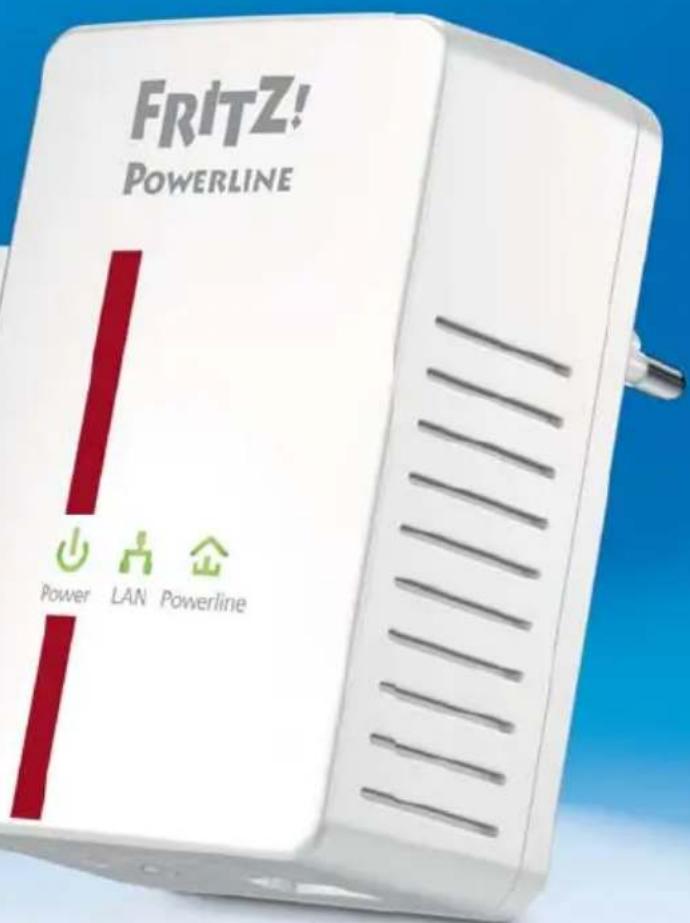
text_image
FRITZ! POWERLINE Power LAN PowerlineTable of Contents
Symbols and Highlighting 4
1 FRITZ!Powerline 500E....5
2 Before You Connect the FRITZ!Powerline ..... 6
2.1 Package Contents 6
2.2 Security Instructions 6
2.3 LEDs, Buttons and Network Port....7
3 Connecting the FRITZ!Powerline....9
3.1 Connecting FRITZ!Powerline 500E Set 9
3.2 Expanding a FRITZ!Powerline Network ..... 10
3.3 Connecting Powerline Adapters from Other Manufacturers ..... 11
3.4 Connecting Multiple Network Devices 11
4 Security in the Powerline Network ..... 12
4.1 Encryption 12
4.2 Changing the Network Password 12
5 Application Examples....16
5.1 Internet Connection for All Network Devices ..... 16
5.2 Networking Computers 17
5.3 Game Consoles on the Internet Connection or in the Home Network . . 18
5.4 TVs and Stereo Systems in the Network....19
6 The AVM FRITZ!Powerline Program....20
7 Factory Settings 22
8 Power-saving Features of FRITZ!Powerline 500E.....23
9 Optimizing Transmission Capacity....24
10 FAQs....25
10.1 Multiple Powerline Networks in Once Circuit 25
10.2 FRITZ!Powerline across Various Phases in the Power Supply ..... 25
10.3 Electricity Meter, Fuse Box, GFCI Ground Fault Circuit Interrupter . 26
10.4 Adapters from Other Manufacturers in the Powerline Network ... 26
10.5 Kinds of Devices on the Powerline Adapter 27
11 Powerline: Technical Background ..... 28
12 Electromagnetic Interference ..... 29
13 Comparison with other Network Technologies ..... 30
14 Technical Specifications....32
15 Customer Service .... 33
15.1 Information in the Internet 33
15.2 Support from the Support Team 33
15.3 Manufacturer's Warranty....35
Legal Notice....36
Legal Notice 36
Declaration of CE Conformity 37
Disposal Information....38
Index 39
Symbols and Highlighting
Symbols and emphasized text are used to mark certain information in this manual.
Symbols

This symbol marks useful hints and tips.

This symbol indicates important instructions that must be observed to avoid malfunctions.
Highlighting
| Highlighting Example | |
| Quotation marks designate elements in the user interface, path entries, and names of folders and files | “Home Network”“C:\Pictures”“Info” |
| Blue, underlined text designates addresses to be entered in the browser | fritz.box |
| Blue text designates links and references within this manual | see page 36 |
| Bold type emphasizes important words Do not click ... | |
1 FRITZ!Powerline 500E
FRITZ!Powerline 500E allows data to be transmitted over the electrical wiring in your home.
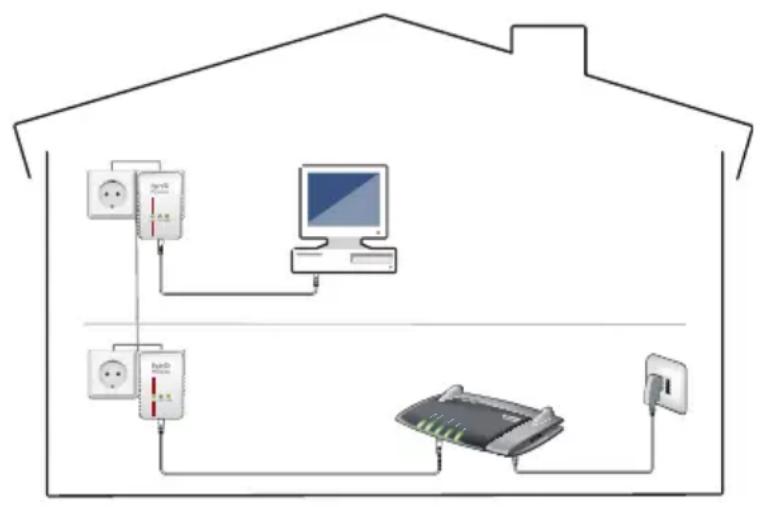
With FRITZ!Powerline 500E you connect network devices like computers, game consoles and televisions via electrical wiring in what is known as a powerline network. The powerline network can then be connected to your Internet router, Internet connection and home network.
In a powerline connection over electrical wiring a network device, for instance your computer, is connected to a FRITZ!Powerline 500E with a network cable. An additional network device, for instance your Internet router, is connected with the second FRITZ!Powerline 500E in the same way. Each FRITZ!Powerline 500E is plugged into a power outlet in your home to provide the connection between the two devices. With the powerline connection to the Internet router the connected computer receives access to the Internet.
The FRITZ!Powerline 500E Set includes two adapters, which require no setup. Upon delivery both FRITZ!Powerline 500E are configured such that connections are safely encrypted from the outset. Additional FRITZ!Powerline adapters, including adapters from other manufacturers, are easy to integrate into the powerline network to extend coverage.
FRITZ!Powerline 500E is the right solution whenever a network connection is necessary, but laying network cables is either impossible or undesirable. FRITZ!Powerline 500E is an economical solution for institutions as well, like offices, schools or hotels.
flowchart
graph TD
    A["Home Device"] --> B["Power Source 1"]
    A --> C["Power Source 2"]
    A --> D["Computer"]
    A --> E["Router"]
    B --> F["Switch 1"]
    C --> G["Switch 2"]
    D --> H["Switch 3"]
    E --> I["Switch 4"]
2 Before You Connect the FRITZ!Powerline
- Check the contents of your FRITZ!Powerline 500E package.
- Read the security instructions before connecting FRITZ!Powerline 500E.
2.1 Package Contents
- two FRITZ!Powerline 500E
- two network cables
• printed product information
2.2 Security Instructions
- Always plug FRITZ!Powerline 500E directly into a wall outlet. If at all possible, do not plug FRITZ!Powerline 500E into sockets on extension cords or multiple socket-outlets (power outlet strips).
- Insert FRITZ!Powerline 500E in outlets located in a dry place that is free of dust and protected from direct sunlight.
- FRITZ!Powerline 500E may heat up during operation. This is normal. The FRITZ!Powerline 500Es comply with the required safety regulations.
- Avoid operation in the direct vicinity of a radiator or heating unit and provide for sufficient ventilation. The slits and openings on the housing are for ventilation and must not be blocked or covered.
- The FRITZ!Powerline 500E is intended for indoor use only.
- Never let liquids get inside the FRITZ!Powerline 500E. Otherwise, electric shocks or short circuits may result.
- Do not open the FRITZ!Powerline 500E housings. The devices contain hazardous components and should only be opened by authorized repair technicians.
- Remove the device from the mains before cleaning. Clean the device using only a moist cloth.
2.3 LEDs, Buttons and Network Port
LEDs
FRITZ!Powerline 500E has three LEDs that display the operating status:
| LED Condition | on Meaning | |
 | on FRITZ!Powerline has electrical power | |
| flashing FRITZ!Powerline is restarting or configuring security settings | ||
| flashing (every 15 seconds) | FRITZ!Powerline is on standby | |
| off FRITZ!Powerline has no electrical power | ||
 | on The network port (LAN port) is occupied | |
| off No network cable is connected, or the device connected to the network cable is switched off | ||
 | on FRITZ!Powerline is connected with the powerline network and sending or receiving data | |
| off FRITZ!Powerline did not detect any compatible powerline devices or did not detect any devices that use the same network key | ||

If you do not want to use the LEDs, you can switch them off in the AVM FRITZ!Powerline program or in the user interface of a connected FRITZ!Box.
Button
FRITZ!Powerline 500E has two buttons:
| Button Function | |
| “Reset” Button Restores the factory settings to FRITZ!Powerline. | |
| “Security” Button Integrates into an existing powerline network. | |
LAN Port
FRITZ!Powerline 500E has a network port (LAN port) for computers and other network devices.
This port is a gigabit Ethernet port.
3 Connecting the FRITZ!Powerline
With FRITZ!Powerline 500E Set you can set up a powerline network and expand it with further adapters.
3.1 Connecting FRITZ!Powerline 500E Set
- Insert the first FRITZ!Powerline adapter in an outlet near your FRITZ!Box.

natural_image
Diagram showing two electrical outlets connected by a cable, with a red arrow indicating the cable's direction (no text or symbols present)- Connect your FRITZ!Box to the FRITZ!Powerline adapter with a LAN cable.

text_image
FRITZ!Box FRITZ!Powerset-
Plug the second FRITZ!Powerline adapter into any outlet in your home.
-
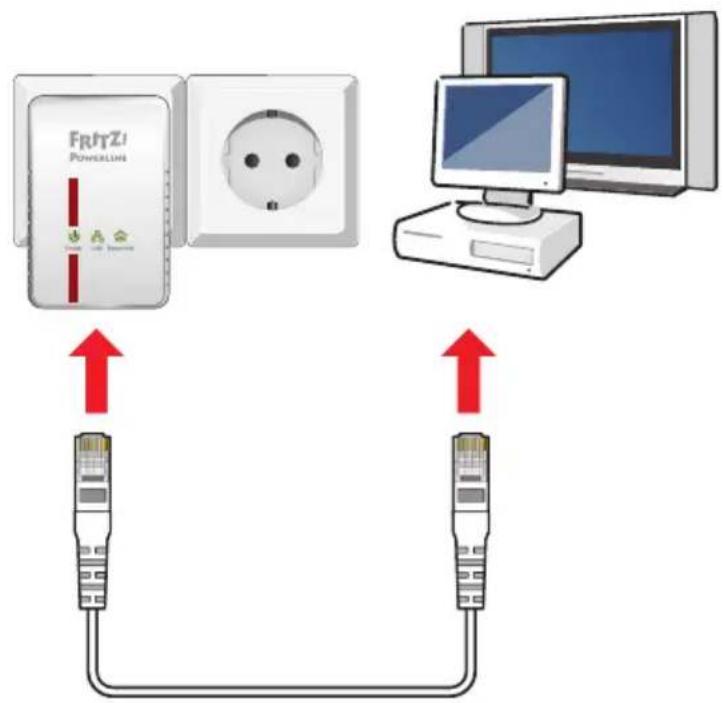
Use a LAN cable to connect a computer or another network device (such as a television) to the second FRITZ!Powerline adapter.
text_image
FRITZI POWERLINE Powerline Powerline Powerline Powerline Powerline Powerline Powerline Powerline Powerline Powerline Powerline Powerline Powerline Powerline Powerline Powerline Powerline Powerline Powerline Powerline Powerline Powerline Powerline Powerline Powerline Powerline Powerline Powerline Powerline Powerline Powerline Powerline Powerline PowerlineNow you can use the Internet connection of the FRITZ!Box on the network device.
3.2 Expanding a FRITZ!Powerline Network
An existing FRITZ!Powerline powerline network can be expanded with additional FRITZ!Powerline adapters.
- Insert the new FRITZ!Powerline in an electrical outlet near a plugged in FRITZ!Powerline that is already part of the powerline network.
- Press the "Security" button for one second to establish a new connection.
- Within two minutes, press the “Security” button on an existing FRITZ!Powerline already connected in your network and hold it down until the “Powerline” LED stops flashing.
- Now plug the new FRITZ!Powerline into the desired power outlet.
The new FRITZ!Powerline is now safely integrated in your network.
3.3 Connecting Powerline Adapters from Other Manufacturers
In a FRITZ!Powerline network you can also integrate powerline adapters from other manufacturers. The prerequisite for this is that they are powerline devices of the 500 and 200-Mbit/s category.
- Plug the powerline adapter from the other manufacturer into any outlet in your home.
- Press the “Security” button on a FRITZ!Powerline already integrated in the network for one second in order to start transmission of the network password to the powerline adapter from the other manufacturer.

Always establish a secure powerline connection. This keeps you from inadvertently integrating device in a neighboring powerline network.
- Within 2 minutes, press the “Security” button on the powerline adapter from the other manufacturer to apply the new network password.

For detailed instructions, see the documentation of the powerline adapter or contact the manufacturer.
The powerline adapter now connects with the FRITZ!Powerline network. Generally an LED indicates when this process has been completed.
3.4 Connecting Multiple Network Devices
You can also operate multiple network devices on FRITZ!Powerline if you connect a standard switch or hub to the network port on FRITZ!Powerline. All of the network devices connected to the switch or hub can then exchange data with all other devices in the local network.
4 Security in the Powerline Network
FRITZ!Powerline 500E is delivered with a preset individual network password. This protects connections within the FRITZ!Powerline from the outset.
The network password within a powerline network has two functions:
- The network password is the code word for exclusive access to the network. It identifies the adapter in the network.
Up to four powerline networks can exist within a single circuit. They are separated from each other by their network passwords.
- The network password is used to encrypt the user data during data transmission.
4.1 Encryption
FRITZ!Powerline uses AES-128 Bit encryption. This encryption method is used both to identify FRITZ!Powerline in the power-line network and for encryption during data transmission. Both adapters from the FRITZ!Powerline Set are delivered with a preset individual network password. From the outset this guarantees secure connections in the FRITZ!Powerline network. Additional FRITZ!Powerline adapters are integrated into the network safely and securely at the push of a button.
4.2 Changing the Network Password
The network password should be changed whenever there are concerns about security or whenever one larger network is to be divided into two or more smaller ones.
There are two ways you to change the network password of a powerline if necessary:
- by button: a random new network password is generated automatically
- using the AVM FRITZ!Powerline program: specify your own network password
Changing the Network Password by Button
Plug all FRITZ!Powerline adapters in any outlet in your home.
For this operation it makes sense to plug all adapters that are supposed to receive the new network password next to each other in a multi-outlet strip.
- Plug the first two adapters into the sockets, and press the “Security” button on both adapters for 12 seconds, until all LEDs briefly turn off.
Now the FRITZ!Powerline restart and each one automatically assigns itself a randomly chosen network password.
- Press the “Security” button on one of the two adapters for a second in order to start transmission of the new network password.
The “Power” LED begins flashing.
- Within 2 minutes, press the “Security” button on the other adapter so that it can receive the new network password.
Now the powerline connection is established with the new network password. The process is concluded as soon as the “Powerline” LEDs on both adapters stop flashing.
- Proceed as follows for every additional adapter that is to receive the new network password:
Plug the adapter into a socket and press briefly the “Security” button on the adapter. Within 2 minutes, press the “Security” button on an adapter that already has the new network password.
Changing the Network Password in the AVM FRITZ!Powerline Program
- Plug both FRITZ!Powerline adapter into outlets in your home.
- Use a network cable to connect one FRITZ!Powerline adapter to a computer on which the AVM FRITZ!Powerline program is installed.
-
Restart the AVM FRITZ!Powerline software and click the icon of the FRITZ!Powerline adapter that is not connected with the computer.
The “FRITZ!Powerline Device Profile” window opens. -
Enter any password you like in the "New network password" field and then click "OK".
The “Set Network Password” window opens.
- Enter the device password of the FRITZ!Powerline in the "Device password" field and then click "OK". The device password of the adapter is printed on the sticker on the base of the adapter housing.
Now FRITZ!Powerline will restart. As soon as the “Power” LED stops flashing, the device has been restarted.
- Next, go to the AVM FRITZ!Powerline program and double-click the icon of the FRITZ!Powerline connected with the computer.
The “FRITZ!Powerline Device Profile” window opens.
-
In the "New network password" field, enter the same password you entered before for the first adapter.
-
Click "OK".
Now the FRITZ!Powerline connection is established with the new network password. The process is concluded as soon as the “Powerline” LEDs on both adapters stop flashing.
- If there are more than two adapters in your network, then the adapters that still have the old network password will no longer be visible in the AVM FRITZ!Powerline program. In order to change their passwords as well, proceed as follows for each individual adapter:
Connect the adapter with the computer on which the AVM FRITZ!Powerline program is installed and repeat steps 6 through 8.
5 A p p l i c a t i o r
The network devices connected in a network can exchange data among each other and share network resources. Computers exchange data, and share an Internet connection or a printer. The stereo system has access to the central music collection, and the TV plays back video on demand movies.
The following sections introduce several examples of how powerline networks can look.
5.1 Internet Connection for All Network Devices

flowchart
graph TD
    A["Power Source"] --> B["Switch"]
    C["Computer"] --> D["Switch"]
    E["Power Source"] --> F["Switch"]
    G["Computer"] --> H["Switch"]
    I["Power Source"] --> J["Switch"]
    K["Router"] --> L["Switch"]
    M["Router"] --> N["Switch"]
    O["Router"] --> P["Switch"]
    Q["Router"] --> R["Switch"]
    S["Router"] --> T["Switch"]
    U["Router"] --> V["Switch"]
    W["Router"] --> X["Switch"]
    Y["Router"] --> Z["Switch"]
Network devices like computers, game consoles or televisions are scattered over different rooms or even different floors of your home. But generally there is only one Internet connection. With FRITZ!Powerline you use the electrical wiring to connect all devices with the Internet connection. In contrast to a wireless network, this type of
connection is not limited by structural components like reinforced concrete or clay plaster, delivers high transmission speeds and can be set up easily and economically.
5.2 Networking Computers

flowchart
graph TD
    A["House"] --> B["Power Supply"]
    A --> C["Power Supply"]
    B --> D["Computer"]
    C --> E["Computer"]
    D --> F["Switch"]
    E --> G["Switch"]
    F --> H["Power Source 1"]
    F --> I["Power Source 2"]
    G --> J["Power Source 3"]
    H --> K["Power Source 4"]
    I --> L["Power Source 5"]
    J --> M["Laptop"]
    K --> N["Laptop"]
    L --> O["Laptop"]
    M --> P["Digital Display"]
    N --> Q["Digital Display"]
    O --> R["Digital Display"]
Computers connected with each other in a network can exchange data among each other and share hard drives or printers. Portable computers (laptop, notebook, tablet, etc.) can be integrated into the home network temporarily.
With FRITZ!Powerline 500E you connect your computers via electrical wiring in a powerline network.
5.3 Game Consoles on the Internet Connection or in the Home Network
flowchart
graph TD
    A["Home Device"] --> B["Power Source 1"]
    A --> C["Power Source 2"]
    A --> D["Power Source 3"]
    A --> E["Power Source 4"]
    A --> F["Power Source 5"]
    A --> G["Power Source 6"]
    A --> H["Power Source 7"]
    A --> I["Power Source 8"]
    A --> J["Power Source 9"]
    A --> K["Power Source 10"]
    A --> L["Power Source 11"]
    A --> M["Power Source 12"]
    A --> N["Power Source 13"]
    A --> O["Power Source 14"]
    A --> P["Power Source 15"]
    A --> Q["Power Source 16"]
    A --> R["Power Source 17"]
    A --> S["Power Source 18"]
    A --> T["Power Source 19"]
    A --> U["Power Source 20"]
    A --> V["Power Source 21"]
    A --> W["Power Source 22"]
    A --> X["Power Source 23"]
    A --> Y["Power Source 24"]
    A --> Z["Power Source 25"]
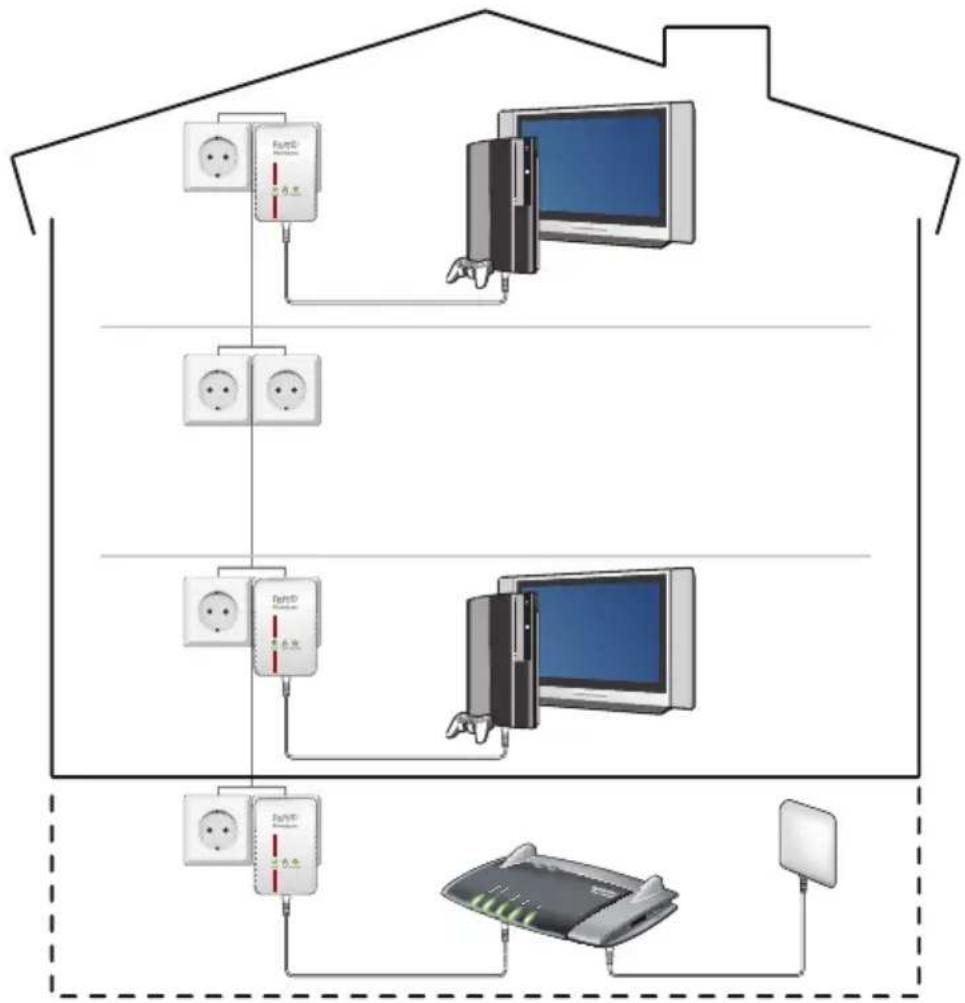
With FRITZ!Powerline 500E you can integrate your game console into your network. If the network is connected to the Internet, you can play against users all over the world and download game add-ons.
5.4 TVs and Stereo Systems in the Network

flowchart
graph TD
    A["Home"] --> B["Power Supply"]
    B --> C["Switch 1"]
    C --> D["Computer"]
    D --> E["Monitor"]
    E --> F["Device"]
    F --> G["Server"]
    G --> H["Display"]
    H --> I["Power Line"]
    I --> J["Switch 2"]
    J --> K["Switch 3"]
    K --> L["Power Line"]
    L --> M["Switch 4"]
    M --> N["Switch 5"]
    N --> O["Power Line"]
    O --> P["Switch 6"]
    P --> Q["Switch 7"]
    Q --> R["Power Line"]
    R --> S["Switch 8"]
    S --> T["Switch 9"]
    T --> U["Power Line"]
With FRITZ!Powerline 500E you can integrate your TV and your stereo system into your network. When the network is connected with the Internet, the TV can use services like video on demand, IP TV or services available in the Internet like YouTube and Flickr. The stereo system can receive web radio stations. Both devices also enjoy access to the collections of photographs, videos and music available in the home network, which can be accessed on network storage.
6 T h e A V M F R I T
For FRITZ!Powerline there is the AVM FRITZ!Powerline program, a user interface for the FRITZ!Powerline network. The program offers you an overview of the FRITZ!Powerline adapters used in the network and the adapters from other manufacturers. An individual device profile can be displayed for each adapter.
Download for Free
You can download AVM FRITZ!Powerline from the Internet free of change from www.avm.de/en/powerline.
Operating Systems
The program is available for the Windows 7, Vista und XP operating systems.
Features
• Graphical overview of all powerline adapters in the network

flowchart
graph TD
    A["Computer"] --> B["FattyD Platform"]
    B --> C["FattyD Platform"]
    C --> D["FattyD Platform"]
    B --> E["Living room"]
    C --> E
    D --> E
    style A fill:#f9f,stroke:#333
    style B fill:#ccf,stroke:#333
    style C fill:#ccf,stroke:#333
    style D fill:#ccf,stroke:#333
    note right of B: Living room
    note left of D: Office
    note right of D: Powerline S20E
    note bottom of D: Sending: 185 MB/s
    note bottom of D: Receiving: 176 MB/s
• Additional powerline adapters can be added to the secure powerline network
• Support in locating the best outlet
• LEDs can be switched on and off
• Energy savings through reduced throughput rates on the network port
• Additional network encryption options
• Naming the adapters in the network
- Display of the individual device profile for each adapter
• Factory settings can be restored to each adapter - Firmware updates of visible FRITZ!Powerline adapter

When you use FRITZ!Powerline in a FRITZ!Box home network, the FRITZ!Box user interface gives you additional information about the network.
7 Factory Settings
The adapters from the FRITZ!Powerline Set are delivered with preset values for the adapter name, LED control, power-saving function (green mode) and network password settings. These four settings can be changed as needed. There are two ways to restore the factory settings later.
Restoring Factory Settings with the "Reset" Button
- Plug a FRITZ!Powerline adapter into an outlet.
- Press the “Reset” button on the adapter and hold it down for ca. two seconds. Use a pointed object to do this, for instance a paper clip or a mechanical pencil, since the button is recessed in the top of the housing to keep it from being pressed by accident.
All LEDs go out for a moment and then the adapter will re-start. As soon as the “Power” LED stops flashing, the procedure has been concluded.
Restoring Factory Settings with AVM FRITZ!Powerline
- Plug a FRITZ!Powerline adapter into an outlet.
- Use a network cable to connect the FRITZ!Powerline adapter to a computer on which the “AVM FRITZ!Powerline” program is installed.
-
Start the "AVM FRITZ!Powerline" program and double-click the icon of the FRITZ!Powerline adapter.
The “FRITZ!Powerline Device Profile” window opens. -
Click the "Reset" button and then "OK".
All LEDs go out for a moment and then the adapter will re-start. As soon as the “Power” LED stops flashing, the procedure has been concluded.
8 Power-saving Features of FRITZ!Powerline 500E
FRITZ!Powerline is equipped with modern power-saving features and adjusts its energy consumption to the given state of operation.
Maximum Power Consumption
• in normal operation: less than 4 W
• in standby: less than 1 W
Standby Mode
FRITZ!Powerline automatically switches to standby mode approximately five minutes after the connected network device has been switched off. The LEDs on the adapter switch off as well.

Computers that can be started over the network (Wake on LAN) are not switched off completely, so FRITZ!Powerline does not switch to standby operation. To allow standby operation of the adapter in spite of this, you must either disable the Wake on LAN function, or completely cut off the computer from the power supply using a multi-outlet strip with its own power switch.
Green Mode
The data rate on the network port of a FRITZ!Powerline adapter amounts to 1 Gbit/s. This data rate can be limited to 100 Mbit/s for each adapter in order to reduce the energy consumption under load by up to 1 watt.
This limit is configured in the AVM FRITZ!Powerline program. The setting for limiting data rates is called “Green Mode”.

For many applications in the home network a net data rate of 100 Mbit/s is sufficient.
9 Optimizing Transmission Capacity
The power mains and the installed wiring are not designed for fast data transmission. However, if you follow the tips in this chapter, with FRITZ!Powerline you can use the power outlet as a fast data port.
Finding the Ideal Power Outlet
The power mains does not offer shielded transmission, which is generally the case for computer network cabling. Thus every branch, every socket and every switch on the way between two stations reduces transmission capacity. The shorter and more direct route over the electrical wiring, the higher the transmission capacity.
In the AVM FRITZ!Powerline program the utilizable transmission capacity is displayed for each FRITZ!Powerline to help you determine the ideal power outlet.
Avoiding Multi-Outlet Strips
Multi-outlet strips have two disadvantages:
- they constitute a branch and thus reduce transmission capacity
• devices plugged into the multi-outlet strip that operate in parallel can interfere with the powerline signal
Therefore the FRITZ!Powerline should be operated directly at a wall outlet rather than at a multi-outlet strip to allow a higher transmission capacity.
Multi-outlet strips with surge protection should never be used in front of powerline. The filters implemented for surge protection can block the powerline signal completely.
10 FAQs
This section presents answers to questions that may arise about powerline adapters and powerline networks.
10.1 Multiple Powerline Networks in Once Circuit
Can multiple powerline networks exist in a single circuit?
Multiple FRITZ!Powerline networks can exist within one circuit.
A powerline network consists of multiple adapters, all of which use the same network password. The network password is the code word for exclusive access to the network. It identifies the adapter in the network, and is also used to encrypt the user data. The network password ensures that the network users can communicate securely and without interference.
Up to four powerline networks can exist within a single circuit. Each network uses its own individual network password. No network interferes with the communication of another network.
10.2 FRITZ!Powerline across Various Phases in the Power Supply
Can FRITZ!Powerline be used across different phases of the power supply?
Yes, home networking with FRITZ!Powerline is possible even when the adapters are used in different phases (phase conductors) of the home's power supply.
FRITZ!Powerline routes the transmission data to the electrical wiring as high-frequency signals. This process is called modulation. During a phase shift the powerline signal shifts from one phase to another as soon as the phase conductors run parallel over a certain distance. Since this is the case in almost all buildings, FRITZ!Powerline can also be used across different phases.
10.3 Electricity Meter, Fuse Box, GFCI Ground Fault Circuit Interrupter
Can a powerline connection extend over an electricity meter, fuse box or GFCI?
The signal of powerline adapters can be received even on the other side of an electricity meter, fuse box or GFCI (or RCCB: residual-current circuit breaker)—even by unauthorized users like neighbors. However, data traffic in your FRITZ!Powerline network is protected from unauthorized access. The FRITZ!Powerline network is secured upon delivery with an individual network password (128 Bit-AES key).

Most powerline adapters from other manufacturers allow data exchange over powerline with no more than a standard, preset network password. However, this does not protect access to the network and data transmission. Use the “Security” button to establish a secure connection as soon as possible.
10.4 Adapters from Other Manufacturers in the Powerline Network
Can I integrate adapters from other manufacturers in my powerline network?
The FRITZ!Powerline comply with the IEEE P1901 standard and thus can be connected with all standard 200 and 500 Mbit/s category powerline adapters. For integration into the FRITZ!Powerline network you must share the network password with the other powerline adapter (see Connecting Powerline Adapters from Other Manufacturers on page 11).
10.5 Kinds of Devices on the Powerline Adapter
What kinds of devices can be connected to powerline?
All network devices that comply with the Ethernet IEEE 802.3 standard can be connected to the adapters.
The network devices in the computer field include, for instance, network cards, network hubs, network switches, routers and printer servers.
Network devices in the consumer electronics field can include, for instance, set top boxes, game consoles, stereo systems, media receivers and Blu-ray players.
IP telephones are also network devices.
11 Powerline: Technical Background
Powerline is a network technology that uses existing electrical wires for data transmission. The data signals are modulated onto the power lines.
Data Transmission through Modulation (OFDM)
Powerline uses OFDM (Orthogonal frequency division multiplexing) for this modulation.
The powerline adapter works as a power line communication system.
Sending adapters modulate the data signals to a carrier frequency; in other words, the carrier frequency is changed. Receiving adapters demodulate the data signals, meaning that they change the modulated frequency back to the carrier frequency and the original data signal.
Standard: IEEE P1901
FRITZ!Powerline complies with the IEEE P1901 standard.
IEEE P1901 is a standard that defines the settings for networks over power lines.
IEEE P1901 provides for data transmission rates of up to 500 Mbit/s.
12 Electromagnetic Interference
There are norms that limit the emission of high-frequency interference for all electronic devices. For FRITZ!Powerline the norm EN 55022 (Information technology equipment - Radio disturbance characteristics - Limits and methods of measurement) applies. FRITZ!Powerline thus does not cause any more interference than power drills, refrigerators or similar consumers.
- Disturbance of wireless communications applications: No disturbance of wireless communications applications is to be expected. Radio reception is generally restricted to the FM band between 87.20 and 108.00 MHz. The FRITZ!Powerline band is considerably lower, at 2 to 68 MHz.
- Interference in the amateur radio bands: No disturbance of amateur radio bands are to be expected, either. Within the frequency bands of amateur radio, FRITZ!Powerline transmits at a lower level; the transmitting capacity is relatively low and through symmetrical coupling only a very small part of it is radiated by the power line.
13 Comparison with other Network Technologies
powerline is suitable for building small to medium-sized networks, like private home networks, networks in offices, practices, hotels, schools and similar institutions. For this size of network the WLAN radio technology or Ethernet technology are also suitable. Ethernet technology has become the premiere LAN technology for applications of this size.
Transmission Medium
| powerline Data transmission over the power lines |
| WLAN Data transmission over radio |
| Ethernet Data transmission over cabling intended exclusively for the data network (by cable) |
Data Throughput
| Powerline |
| Depending on the standard used, gross transmission rates of 200 Mbit/s and 500 Mbit/s are currently possible. |
| Branches, sockets and switches reduce transmission speed on the way between two stations. The shorter and more direct the route, the higher the transmission speed. |
WLAN
Depending on the WLAN standard used and the antenna technology, gross transmission values of between 11 and 450 Mbit/s are possible.
Structural conditions and the number of wireless networks in the vicinity influence the transmission speed.
Ethernet
Gross transmission rates of 10 Mbit/s, 100 Mbit/s (Fast Ethernet), 1000 Mbit/s (gigabit Ethernet) and 10 Gbit/s are specified.
The greater the distance between sender and recipient, the lower the transmission speed.
Range
| Powerline up to several hundred meters | |
| WLAN not specified, because rates depend so strongly on structural conditions | |
| Ethernet up to 100 meters |
14 Technical Specifications
- Up to several hundred meters range on the power line
- Gigabit LAN Port
• Encryption: AES 128 Bit (ex works) - Transmission rate: up to 500 Mbit/s. This is a gross value; the attainable user data rate is lower. The power lines and ambient conditions can also lower the transmission rate.
- Quality of Service: Data prioritization for video transmission and Internet telephony free of interference
- Low power consumption of less than 4 W during operation, efficient energy-saving feature with less than 1 W on standby
• Power: 100 to 240 V, 50/60 Hz
• Multicast: supports multicast sessions using IGMP
• Support for IPv6
• Compatible with IEEE P1901 - Compatible with 200 and 500 Mbit/s powerline adapters
- Implementation is possible in parallel with a powerline network compliant with an older standard.
• Dimensions: 92 x 61 x 72 mm (LxWxH)
• Weight: ca. 170 g
15 Customer Service
Be it product documentation, frequently asked questions, tips or support: this chapter presents information on all important service topics.
15.1 Information in the Internet
On its web site AVM presents comprehensive information on your AVM product.
AVM Knowledge Base
We would like to make our products as easy to use as possible. If you still have problems, sometimes you need just a tip to resolve them.
In our AVM knowledge base you find immediately help and answers to your questions in easy dialogs. In a guided navigation we provide for customized solutions. You find the AVM knowledge base on the AVM Internet pages in the “Service” area:
15.2 Support from the Support Team
Should problems with your FRITZ!Powerline arise, first we advise:
- Read our tips from the AVM Knowledge Base in the “Service” area.
This site contains answers to questions our customers have frequently asked our Support team.
Support by E-mail
You can send us an English-language e-mail request at any time using the “Service” area of our web site. The “Service” area can be reached at:
www.avm.de/en/service
-
Select the product group and your product for which you need support from the “Support” area.
You will receive a selection of FAQs. -
If you need more help, click the "Contact support" button to open the e-mail support form.
-
Fill out the form and send it to AVM by clicking the "Submit support request".
Our Support team will respond by e-mail as quickly as possible.
15.3 Manufacturer's Warranty
Within the warranty period, we will remove defects to the product which are demonstrably due to faults in materials or manufacturing. Our warranty does not cover defects which occur due to incorrect installation, improper use, non-observance of instructions in the user manual, normal wear and tear or defects in the environment of the system (third-party hardware or software). We may, at our discretion, repair or replace the defective product. Claims other than the right to the removal of defects which is mentioned in these terms of warranty are not constituted.
We guarantee that the software conforms with general specifications, not, however, that the software meets your individual requirements. Delivery costs will not be reimbursed. Products which have been replaced revert to our ownership. Claims recognized under warranty entail neither an extension or recommencement of the warranty period. If we reject a warranty claim, this claim lapses no later than six months after being rejected by us.
This warranty shall be governed by German substantive law, to the exclusion of the United Nations Convention on Contracts for the International Sale of Goods (CISG).
Legal Notice
Legal Notice
This documentation and the software it describes are protected by copyright. AVM grants the non-exclusive right to use the software, which is supplied exclusively in object code format. The licensee may create only one copy of the software, which may be used exclusively for backup use.
AVM reserves all rights that are not expressly granted to the licensee. Without previous approval in writing, and except for in cases permitted by law, it is particularly prohibited to
- copy, propagate or in any other manner make this documentation or this software publicly accessible, or
- process, disassemble, reverse engineer, translate, decompile or in any other manner open the software and subsequently copy, propagate or make the software publicly accessible in any other manner.
This documentation and software have been produced with all due care and checked for correctness in accordance with the best available technology. AVM GmbH disclaims all liability and warranties, whether express or implied, relating to the AVM product's quality, performance or suitability for any given purpose which deviates from the performance specifications contained in the product description. The licensee bears all risk in regard to hazards and impairments of quality which may arise in connection with the use of this product.
AVM will not be liable for damages arising directly or indirectly from the use of the manual or the software, nor for incidental or consequential damages, except in case of intent or gross negligence. AVM expressly disclaims all liability for the loss of or damage to hardware or software or data as a result of direct or indirect errors or destruction and for any costs (including connection charges) related to the documentation and the software and due to incorrect installations not performed by AVM itself.
© AVM GmbH 2012. All rights reserved. Documentation release 08/2012
| AVM Audiovisuelles Marketingund Computersysteme GmbHAlt-Moabit 95D 10559 BerlinGermany |
Marks: Marks like AVM, FRITZ! and FRITZ!Box (product names and logos) are protected marks owned by AVM GmbH. Microsoft, Windows and the Windows logo are trademarks owned by Microsoft Corporation in the USA and/or other countries. Apple, App Store, iPhone, iPod and iPad are marks owned by Apple Inc. in the USA and/or other countries. IOS is a mark owned by Cisco Technology Inc. in den USA and/or other countries. Google and Android are marks owned by Google Inc. in the USA and/or other countries. All other marks (like product names, logos, commercial names) are owned by their respective holders.
Declaration of CE Conformity
The manufacturer AVM GmbH
Alt-Moabit 95
D 10559 Berlin
herewith declares that the product
FRITZ!Powerline 500E
Powerline adapter
complies with the following directives:
2004/108/EC EMC Directive: Electromagnetic Compatibility
2006/95/EC Low Voltage Directive: Electrical equipment designed for use within certain voltage limits
2009/125/EC EU directive: ecodesign requirements for energy-related products
The following norms were consulted to assess conformity:
- EN 60950-1:2006 + A11:2009 + -EN 50412-2-1:04.2006
A1:2010 -EN 61000-3-2:2006/A2:2009
- EN 55022:2010 -EN 61000-3-3:2008
- EN 55024:2010

The CE symbol confirms that this product conforms with the above mentioned norms and regulations.

Berlin, 08-01-2012 Peter Faxel, Technical Director
Disposal Information
In accordance with European regulations and the Waste Electrical and Electronic Equipment Directive (WEEE), the FRITZ!Powerline 500E, as well as all devices and electronic components contained in the package, may not be disposed with household waste.
Please bring FRITZ!Powerline 500E to a collection point in your local community for the disposal of electric and electronic appliances after use.

natural_image
Simple line drawing of a trash bin with crossed lines indicating no waste or plastic, and a solid black rectangle below (no text or symbols)Symbol for the separate collection of electric and electronic devices

Note the symbol for the separate collection of electric and electronic devices. FRITZ!Powerline 500E and the electronic parts included with delivery must be disposed of separately from household waste.
Index
A
application examples ..... 16
game consoles on the Internet connection....18
Internet connection for all network devices....16
networking multiple computers...17
TVs in the network 19
B
buttons 7
C
CE conformity declaration ..... 37
collected questions 25
connecting....9
copyright 36
customer service....33
D
declaration of CE conformity ..... 37
disposal....38
E
encryption....12
F
factory settings 22
FAQs....25
frequently asked questions ..... 25
H
help customer service ....33
knowledge base 33
support team 33
hub....11
|
IEEE P1901 28
imprint....36
information in the Internet knowledge base .... 33
K
knowledge base 33
L
LAN port....7
LEDs 7
legal notice 36
M
manufacturer's warranty ..... 35
modulation 28
multi-outlet power strip 6
N
network....25
network password .....12, 12, 12
network port 7
notice legal....36
0
optimizing transmission capacity .... 24
P
package contents 6
power outlet strip 6
prepairing....12, 12
R
recovery electrical equipment .... 38 electronic equipment .... 38
recycling 38
Reset button 7
S
security 12
Security button 7
security instructions....6
standard 28
stereo systems in the network ..... 19
support 33
by e-mail....34
information in the Internet. . . . . . 33
switch 11
symbols
in the manual....4
T
technical background 28
technical specifications .... 32
W
warranty....35