49LJ614T - TV LG - Free user manual and instructions
Find the device manual for free 49LJ614T LG in PDF.


User questions about 49LJ614T LG
0 question about this device. Answer the ones you know or ask your own.
Ask a new question about this device
Download the instructions for your TV in PDF format for free! Find your manual 49LJ614T - LG and take your electronic device back in hand. On this page are published all the documents necessary for the use of your device. 49LJ614T by LG.
USER MANUAL 49LJ614T LG
text_image
X 4 (M4 X L16)text_image
Illustration showing a hand interacting with a mobile phone screen displaying a house icon and a red button, suggesting a home control or app interface.▶
natural_image
Abstract grayscale pattern with diagonal stripes and a central white circle containing a question mark (no text or symbols)▶


natural_image
Illustration of a hand pressing a button on a remote control with a house icon (no text or symbols)[NO TEXT]

natural_image
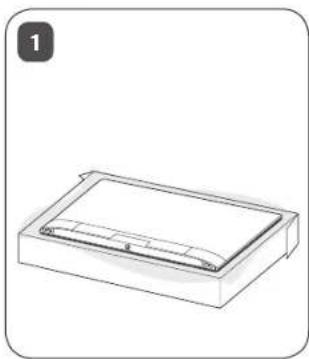
Simple line drawing of a rectangular tray or container with a curved lid (no text or symbols)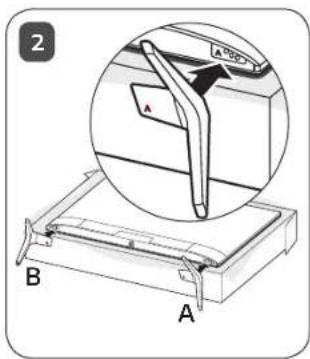
text_image
2 A A B A
text_image
Diagram illustrating a mechanical assembly process with labeled parts and directional arrows indicating motion or movement.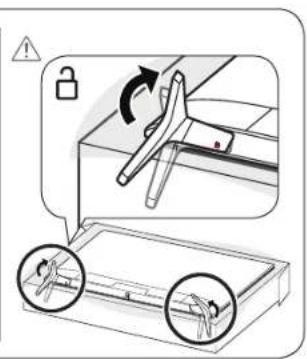
text_image
Diagram illustrating lock mechanism and gear shift process with labeled arrows and warning symbols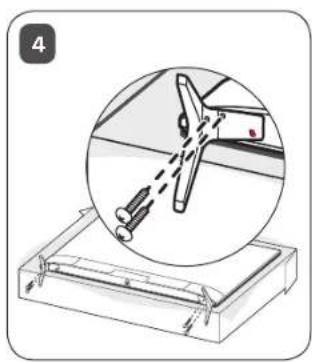
natural_image
Diagram showing a mechanical assembly with a magnified inset of a component (no text or symbols)
natural_image
Illustration of a device being placed on top of a flat-screen monitor, with an arrow indicating the motion direction (no text or symbols present)

text_image
ANTENNA/ CABLE IN
text_image
HDMI IN
text_image
HDMI IN/ARC
text_image
USB IN 000000 /
text_image
LAN

text_image
H/P OUT Satellite IN OPTICAL DIGITAL AUDIO OUT PCMCIA CARD SLOT

text_image
PCMCIA CARD SLOT
natural_image
Simple line drawing of an earphone icon with a cord, no text or symbols present
natural_image
Simple line drawing of an earphone icon with a cord, no text or symbols present
natural_image
Simple line drawing of an earphone icon with a cord, no text or symbols present
natural_image
Simple line drawing of an earphone icon with a cord, no text or symbols present
natural_image
Simple line drawing of an earphone icon with a cord, no text or symbols present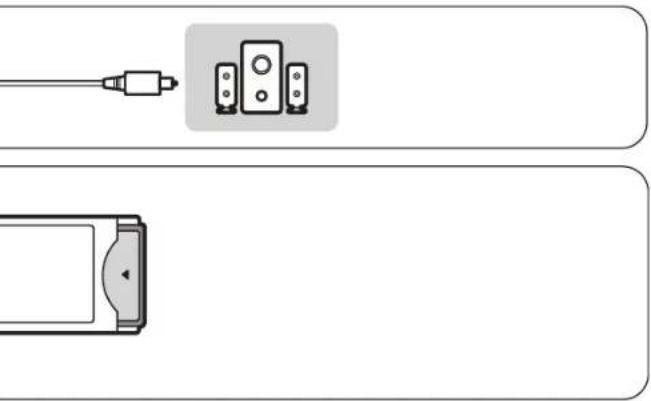




text_image
COMPONENT IN AV IN VIDEO/YP B PR L/MONOAUDIOR Y PB PR L R VIDEO AUDIO
text_image
VIDEO/YP B PR L/MONOAUDIOR VIDEOL/MONOAUDIOR
natural_image
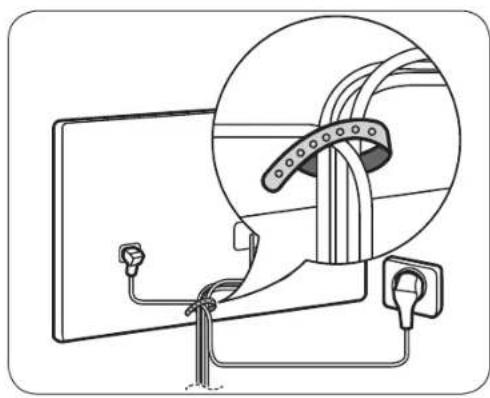
Diagram of a cable harness being installed into a panel, showing rope routing and mounting bracket (no text or labels)
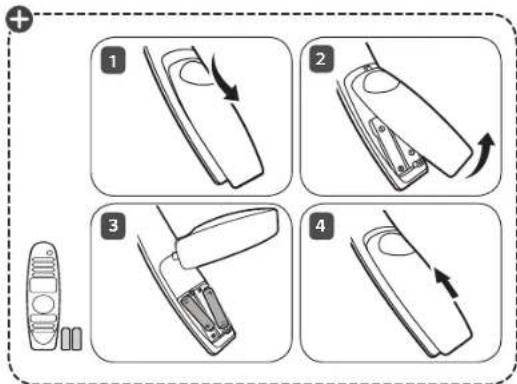
text_image
Diagram showing four-step cleaning or assembly steps of a device, labeled 1 to 4 with directional arrows indicating motion.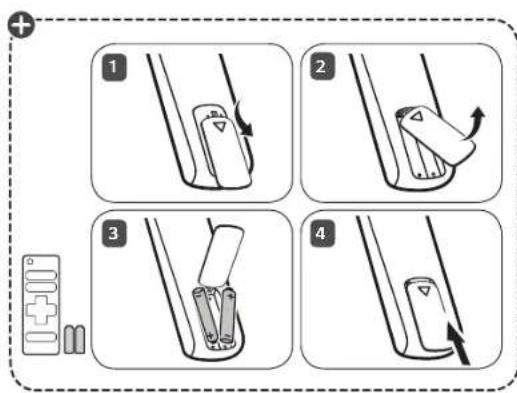
text_image
Diagram illustrating four steps of battery charging and discharging process, labeled 1 to 4 with directional arrows and battery symbols.
text_image
LG Life's Good

text_image
A D G₁ B G₂ F kg
| A (mm) | B (mm) | C (mm) | D (mm) | E (mm) | F (kg) | F - (G_1 + G_2) (kg) | |
| 43LJ610V-TA43LJ617V-TB43LJ614T-TA43LJ617T-TB43LJ610Y-TA43LJ620T-TA | 974 | 625 220 | 571 | 79.4 | 9.3 9.2 | ||
| 49LJ610V-TA49LJ617V-TB49LJ614T-TA49LJ617T-TB49LJ610Y-TA49LJ620T-TA | 1107 | 701 235 | 645 | 79.4 | 11.42 11.30 | ||
| Yêu cấu về nguồn điên | AC 100-240 V ~ 50 / 60 Hz | ||||||



HUỐNG DÃN SỬ DỤNG
natural_image
Pure electrical circuit lines without any symbols10 cm (+ / -2 cm)

text_image
Diagram illustrating a hand gesture with labeled correct and incorrect states, showing finger movement and outline variations.natural_image
Illustration of a flat-screen TV with a power button icon below (no text or symbols)\$I □D□ONJOH□D,□C\_0
Bật nguồn (Ấn)
text_image
Diagram illustrating a mechanical or electrical setup with labeled components and directional arrows, including annotations like 'a' and 'b'.The Ground Truth image displays a single, solid horizontal line. According to Rule 2 (UNDERSCORE & LINE RULES), if the GT contains lines used for stylistic emphasis or as background (like ruled paper), the OCR result must ignore them. The provided OCR content is "____", which consists of four underscores. This is incorrect because underscores are not equivalent to a solid line and are not permitted under the “Stylistic/Background Lines (Ignore)” rule. Outputting underscores for a stylistic line violates the rule and constitutes an error. Therefore, the OCR result is inconsistent with the Ground Truth.
[Non-Text]
[Non-Text]
[Non-Text]
[Non-Text]
[Non-Text]
[Non-Text]
[Non-Text]
[Non-Text]
[Non-Text]
[Non-Text]
[Non-Text]
[Non-Text]
[Non-Text]
[Non-Text]
[Non-Text]
[Non-Text]
[Non-Text]
[Non-Text]
[Non-Text]
[Non-Text]
[Non-Text]
[Non-Text]
(No text to output)
(No text)
| |
[Non-Text]

Please read this manual carefully before operating the set and retain it for future reference.
KEY CODES
• This feature is not available for all models.
| Code (Hexa) | Function Note | Code (Hexa) | Function Note | ||
| 00 CH | +, PR + R/C Button 53 List | R/C Button | |||
| 01 CH | -, PR - R/C Button 5B Exit | R/C Button | |||
| 02 Volume + R/C Button 60 PIP(AD) | |||||
| 03 Volume - R/C Button 61 Blue R/C Button | |||||
| 06 > (Arrow Key / Right Key) R/C Button 63 Yellow | R/C Button | ||||
| 07 < (Arrow Key / Left Key) R/C Button 71 Green | R/C Button | ||||
| 08 Power R/C Button 72 Red | R/C Button | ||||
| 09 | Mute | R/C Button | 79 | Ratio / Aspect Ratio | R/C Button |
| 0B Input R/C Button 91 AD (Audio Description) R/C Button | |||||
| 0E SLEEP R/C Button 9E LIVE MENU | R/C Button | ||||
| 0F | TV, TV/RAD | R/C Button | 7A | User Guide | R/C Button |
| 10 - 19 | * Number Key 0 - 9 | R/C Button | 7C | Smart / Home | R/C Button |
| 1A Q.View / Flashback R/C Button 7E SIMPLINK | R/C Button | ||||
| 1E | FAV (Favorite Channel) | R/C Button | 8E | ►► (Forward) | R/C Button |
| 20 | Text (Teletext) | R/C Button | 8F | ◄◄ (Rewind) | R/C Button |
| 21 | T. Opt (Teletext Option) | R/C Button | AA | Info | R/C Button |
| 28 | Return (BACK) | R/C Button | AB | Program Guide | R/C Button |
| 30 | AV (Audio / Video) Mode | R/C Button | B0 | ► (Play) | R/C Button |
| 39 | Caption/Subtitle | R/C Button | B1 | ■ (Stop / File List) | R/C Button |
| 40 ∧ | (Arrow Key / Cursor Up) | R/C Button B5 RECENT | R/C Button | ||
| 41 | V (Arrow Key / Cursor Down) | R/C Button | BA | II (Freeze / Slow Play / Pause) | R/C Button |
| 42 | My Apps | R/C Button | BB | Soccer | R/C Button |
| 43 | Menu / Settings | R/C Button | BD | ● (REC) | R/C Button |
| 44 | OK / Enter | R/C Button | DC | 3D | R/C Button |
| 45 Q.Menu R/C Button 99 AutoConfig | R/C Button | ||||
| 4C | List, -(ATSC Only) | R/C Button | 9F | App / * | R/C Button |
| 4D PICTURE R/C Button 9B TV / PC | R/C Button | ||||
| 52 SOUND R/C Button | |||||
* Key code 4C (0x4C) is available on ATSC/ISDB models which use major/minor channel. (For South Korea, Japan, North America, Latin America except Colombia models)
EXTERNAL CONTROL DEVICE SETUP
• Image shown may differ from your TV.
Connect the USB to Serial converter/RS-232C input jack to an external control device (such as a computer or an A/V control system) to control the product's functions externally.
Note: The type of control port on the TV can be different between model series.
* Please be advised that not all models support this type of connectivity.
* Cable is not provided.
USB to Serial converter with USB Cable
USB Type

text_image
(PC) USB IN (TV)- LGTV supports PL2303 chip-based (Vendor ID : 0x0557, Product ID : 0x2008) USB to serial converter which is not made nor provided by LG.
- It can be purchased from computer stores that carry accessories for IT support professionals.
RS-232C With RS232C Cable
DE9 (D-Sub 9pin) Type
- You need to purchase the RS-232C (DE9, D-Sub 9pin female-to-female type) to RS-232C cable required for the connection between the PC and the TV, which is specified in the manual.

text_image
(PC) RS-232C IN (CONTROL & SERVICE) (TV)The connection interface may differ from your TV.

Phone jack Type
- You need to purchase the phone-jack to RS-232 cable required for the connection between the PC and the TV, which is specified in the manual.
* For other models, connect to the USB port.
* The connection interface may differ from your TV.

text_image
(PC) 3 1 2 SERVICE ONLY (TV)- or

text_image
(PC) 3 1 2 RS-232C IN (CONTROL & SERVICE) (TV)Customer Computer RS-232C configurations
3-Wire Configurations(Not standard)
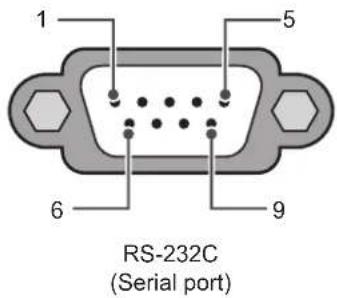
text_image
RS-232C (Serial port)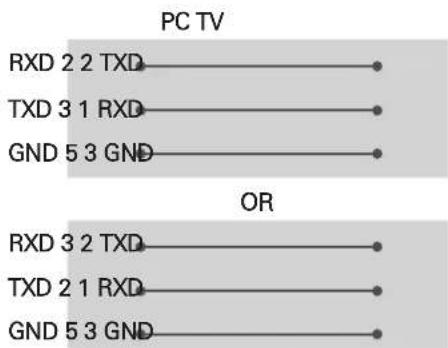
text_image
PC TV RXD 2 2 TXD TXD 3 1 RXD GND 5 3 GND OR RXD 3 2 TXD TXD 2 1 RXD GND 5 3 GNDD-Sub 9 Phone
Set ID
For Set ID number, see "Real Data Mapping" on p.6
- Press SETTINGS to access the main menus.
- Press the Navigation buttons to scroll to (*General → About this TV or OPTION) and press OK.
- Press the Navigation buttons to scroll to SET ID and press OK.
- Scroll left or right to select a set ID number and select CLOSE. The adjustment range is 1-99.
- When you are finished, press EXIT. * (Depending on model)
Communication Parameters
• Baud rate : 9600 bps (UART)
• Data length : 8 bits
- Parity : None
- Stop bit : 1 bit
• Communication code : ASCII code
• Use a crossed (reverse) cable.
Command reference list
(Depending on model)
| COMMAND1 | COMMAND2 | DATA (Hexadecimal) | COMMAND1 | COMMAND2 | DATA (Hexadecimal) | ||
| 01. Power* k a | 00 to 01 15. | Balance k t 00 to 64 | |||||
| 02. Aspect Ratio | k c (p.7) | 16. Color (Colour) Temperature | x u 00 to 64 | ||||
| 03. Screen Mute | k d (p.7) | 17. ISM Method (Only Plasma TV) | j p (p.8) | ||||
| 04. Volume Mute | k e 00 to 01 | 18. Equalizer j v (p.8) | |||||
| 05. Volume Control | k f 00 to 64 | 19. Energy Saving | j q 00 to 05 | ||||
| 06. Contrast k | g 00 to 64 | 20. Tune Command | m a (p.9) | ||||
| 07. Brightness | k h 00 to 64 | 21. Channel (Programme) Add/Del(Skip) | m b 00 to 01 | ||||
| 08. Color/ Colour | k i 00 to 64 | 22. Key | m c Key Codes | ||||
| 09. Tint | k j 00 to 64 | 23. Control Backlight, Control Panel Light | m g 00 to 64 | ||||
| 10. Sharpness | k k 00 to 32 | 24. Input select (Main) | x b (p.11) | ||||
| 11. OSD Select | k l 00 to 01 | 25. 3D (Only 3D models) | x t (p.11) | ||||
| 12. Remote Control Lock Mode | k m 00 to 01 | 26. Extended 3D (Only 3D models) | x v (p.12) | ||||
| 13. Treble | k r | 00 to 64 | 27. Auto Configure | j u (p.12) | |||
| 14. Bass | k s 00 to 64 | ||||||
* Note: During playing or recording media, all commands except Power (ka) and Key (mc) are not executed and treated as NG. With RS232C cable, TV can communicate "ka command" in power-on or power-off status. but with USB-to-Serial converter cable, the command works only if TV is on.
Transmission / Receiving Protocol
Transmission
[Command1][Command2][ ][Set ID][ ][Data][Cr]
[Command 1] : First command to control the TV. (j, k, m or x)
[Command 2] : Second command to control the TV.
[Set ID] : You can adjust the [Set ID] to choose desired monitor ID number in option menu. Adjustment range in TV is 1 to 99. If [Set ID] value is selected to '0', every connected set can be controlled.
* [Set ID] is indicated as decimal (1 to 99) on menu and as Hexadecimal (0x00 to 0x63) on transmission/receiving protocol.
[DATA] : To transmit command data (hexadecimal). Transmit 'FF' data to read status of command.
[Cr] : Carriage Return - ASCII code '0x0D'
[ ] : Space – ASCII code '0x20'
OK Acknowledgement
[Command2][ ][Set ID][ ][OK][Data][x]
* The set transmits ACK (acknowledgement) based on this format when receiving normal data. At this time, if the data is data read mode, it indicates present status data. If the data is data write mode, it returns the data of the PC computer.
Error Acknowledgement
[Command2][ ][Set ID][ ][NG][Data][x]
* The set transmits ACK (acknowledgement) based on this format when receiving abnormal data from non-viable functions or communication errors.
Data 00: Illegal Code
Real data mapping (Hexadecimal b Decimal)
* When you enter the [data] in hexadecimal, refer to following conversion table.
* Channel Tune (ma) Command uses two-byte hexadecimal value([data]) to select channel number.
* Commands may work differently depending on model and signal.
- Power (Command: k a)
▶ To control Power *On or Off of the set.
Transmission[k][a][ ][Set ID][ ][Data][Cr]
Data 00 : Power Off 01 : *Power On
Ack [a][ ][Set ID][ ][OK/NG][Data][x]
▶ To Show TV is Power On or *Off
Transmission [k][a][ ][Set ID][ ][FF][Cr]
Ack [a][ ][Set ID][ ][OK][Data][x]
* Similarly, if other functions transmit 'FF' data based on this format, Acknowledgement feedback presents status about each function.
- Aspect Ratio (Command: k c) (Main Picture Size)
▶ To adjust the screen format. (Main picture format) You can also adjust the screen format using the Aspect Ratio in the Q.MENU. or PICTURE menu.
Transmission [k][c][ ][Set ID][ ][Data][Cr]
Data 01 : Normal screen 07 : 14:9
(4:3)
02 : Wide screen (16:9)
04 : Zoom
05: Zoom 2
(LatinAmerica except Colombia Only)
06 : Set by Program/Original
(Europe, Colombia, Mid-East, Asia except South Korea and Japan)
09: * Just Scan
OB : Full Wide
(Europe, Colombia, Mid-East, Asia except South Korea and Japan)
10 to 1F: Cinema Zoom 1 to 16
0c : 21:9 (Depending on model)
Ack [c][ ][Set ID][ ][OK/NG][Data][x]
* Using the PC input, you select either 16:9 or 4:3 screen aspect ratio.
* In DTV/HDMI/Component mode (high-definition), Just Scan is available.
* Full wide mode may work differently based on model and is supported for DTV fully, and ATV, AV partially.
- Screen Mute (Command: k d)
▶ To select screen mute on/off.
Transmission [k][d][ ][Set ID][ ][Data][Cr]
Data 00 : Screen mute off (Picture on) Video mute off
01: Screen mute on (Picture off)
10: Video mute on
Ack [d][ ][Set ID][ ][OK/NG][Data][x]
* In case of video mute on only, TV will display On Screen Display(OSD). But, in case of Screen mute on, TV will not display OSD.
- Volume Mute (Command: k e)
▶ To control volume mute on/off.
You can also adjust mute using the MUTE button on remote control.
Transmission [k][e][ ][Set ID][ ][Data][Cr]
Data 00 : Volume mute on (Volume off)
01: Volume mute off (Volume on)
Ack [e][ ][Set ID][ ][OK/NG][Data][x]
- Volume Control (Command: k f)
▶ To adjust volume.
You can also adjust volume with the volume buttons on remote control.
Transmission [k][f][ ][Set ID][ ][Data][Cr]
Data Min : 00 to Max : 64
Ack [f][ ][Set ID][ ][OK/NG][Data][x]
You can also adjust contrast in the PICTURE menu.
Transmission [k][g][ ][Set ID][ ][Data][Cr]
Data Min : 00 to Max : 64
Ack [g][ ][Set ID][ ][OK/NG][Data][x]
- Brightness (Command: k h)
▶ To adjust screen brightness.
You can also adjust brightness in the PICTURE menu.
Transmission [k][h][ ][Set ID][ ][Data][Cr]
Data Min : 00 to Max : 64
Ack [h][ ][Set ID][ ][OK/NG][Data][x]
- Color/Colour (Command: k i)
▶ To adjust the screen Color(Colour). You can also adjust colour in the PICTURE menu. Transmission [k][i][ ][Set ID][ ][Data][Cr]
Data Min : 00 to Max : 64
Ack [i][ ][Set ID][ ][OK/NG][Data][x]
- Tint (Command: k j)
▶ To adjust the screen tint. You can also adjust tint in the PICTURE menu. Transmission [k][j][ ][Set ID][ ][Data][Cr]
Data Red : 00 to Green : 64
Ack [j][ ][Set ID][ ][OK/NG][Data][x]
- Sharpness (Command: k k)
▶ To adjust the screen sharpness. You can also adjust sharpness in the PICTURE menu. Transmission [k][k][ ][Set ID][ ][Data][Cr]
Data Min : 00 to Max : 32
Ack [k][ ][Set ID][ ][OK/NG][Data][x]
- OSD Select (Command: k l)
▶ To select OSD (On Screen Display) on/off when controlling remotely. Transmission [k][l][ ][Set ID][ ][Data][Cr]
Data 00 : OSD off 01 : OSD on
Ack [I][ ][Set ID][ ][OK/NG][Data][x]
- Remote control lock mode (Command: k m)
▶ To lock the front panel controls on the monitor and remote control. Transmission [k][m][ ][Set ID][ ][Data][Cr]
Data 00 : Lock off 01 : Lock on
Ack [m][ ][Set ID][ ][OK/NG][Data][x]
* If you are not using the remote control, use this mode.
When main power is off & on (plug-off and plug-in, after 20 - 30 seconds), external control lock is released.
* In the standby mode (DC off by off timer or 'ka', 'mc' command), and if key lock is on, TV will not turn on by power on key of IR & Local Key.
- Treble (Command: k r)
▶ To adjust treble. You can also adjust in the AUDIO menu.
Transmission [k][r][ ][Set ID][ ][Data][Cr]
Data Min : 00 to Max : 64
Ack [r][ ][Set ID][ ][OK/NG][Data][x]
* (Depending on model)
- Bass (Command: k s)
▶ To adjust Bass. You can also adjust in the AUDIO menu.
Transmission [k][s][ ][Set ID][ ][Data][Cr]
Data Min : 00 to Max : 64
Ack [s][ ][Set ID][ ][OK/NG][Data][x]
* (Depending on model)
- Balance (Command: k t)
▶ To adjust balance. You can also adjust balance in the AUDIO menu. Transmission [k][t][ ][Set ID][ ][Data][Cr]
Data Min : 00 to Max : 64
Ack [t][ ][Set ID][ ][OK/NG][Data][x]
- Color(Colour) Temperature (Command: x u)
▶ To adjust colour temperature. You can also adjust Color(Colour) Temperature in the PICTURE menu. Transmission [x][u][ ][Set ID][ ][Data][Cr]
Data Min : 00 to Max : 64
Ack [u][ ][Set ID][ ][OK/NG][Data][x]
- ISM Method (Command: j p) (Only Plasma TV)
To control the ISM method. You can also adjust ISM Method in OPTION menu. Transmission [j][p][ ][Set ID][ ][Data][Cr]
Data Min : 02: Orbiter
08: Normal
20: Color(Colour) Wash
Ack [p][ ][Set ID][ ][OK/NG][Data][x]
18. Equalizer (Command : j v)
▶ Adjust EQ of the set.
Transmission [j][v][ ][Set ID][ ][Data][Cr]
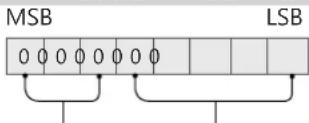
Frequency Data
| 7 | 6 | 5 | Frequency | 4 | 3 | 2 | 1 | 0 | Step | |||
| 0 | 0 | 0 | 1st Band | 0 | 0 | 0 | 0 | 0 | 0(decimal) | |||
| 0 | 0 | 1 | 2nd Band | 0 | 0 | 0 | 0 | 1 | 1(decimal) | |||
| 0 | 1 | 0 | 3rd Band | ... | ... | ... | ... | ... | ... | |||
| 0 | 1 | 1 | 4th Band | 1 | 0 | 0 | 1 | 1 | 19(decimal) | |||
| 1 | 0 | 0 | 5th Band | 1 | 0 | 1 | 0 | 1 | 20(decimal) |
Acknowledgement [v][ ][Set ID][ ][OK/NG][Data][x]
* It depends on model, and can adjust when sound mode is EQ adjustable value.
19. Energy Saving (Command: j q)
▶ To reduce the power consumption of the TV. You can also adjust Energy Saving in PICTURE menu.
Transmission [j][q][ ][Set ID][ ][Data][Cr]
Data
00 : Off
01: Minimum
02 : Medium
03 : Maximum
04 : Auto (For LCD TV / LED TV) / Intelligent sensor (For PDP TV)
05 : Screen off
* (Depending on model)
Ack [q][ ][Set ID][ ][OK/NG][Data][x]
20. Tune Command (Command: m a)
* This command may work differently depending on model and signal.
• For Europe, Mid-East, Colombia, Asia except South Korea and Japan Model
▶ Select channel to following physical number.
Transmission [m][a][ ][Set ID][ ][Data 00][ ] [Data 01][ ][Data 02][Cr]
* Analog Antenna/Cable
[Data 00][Data 01] Channel Data
Data 00 : High byte channel data
Data 01 : Low byte channel data
- 00 00 \~ 00 C7 (Decimal : 0 \~ 199)
Data 02 : Input Source (Analog)
- 00 : Antenna TV (ATV)
- 80 : Cable TV (CATV)
* Digital Antenna/Cable/Satellite
[Data 00][Data 01]: Channel Data
Data 00 : High Channel data
Data 01 : Low Channel data
- 00 00 \~ 27 0F (Decimal: 0 \~ 9999)
Data 02 : Input Source (Digital)
- 10 : Antenna TV (DTV)
- 20 : Antenna Radio (Radio)
- 40 : Satellite TV (SDTV)
- 50 : Satellite Radio (S-Radio)
- 90 : Cable TV (CADTV)
- a0 : Cable Radio (CA-Radio)
* Tune Command Examples:
- Tune to the Analog antenna (PAL) Channel 10.
Set ID = All = 00
Data 00 & 01 = Channel Data is 10 = 00 0a
Data 02 = Analog Antenna TV = 00
Result = ma 00 00 0a 00
- Tune to the digital antenna (DVB-T) Channel 01.
Set ID = All = 00
Data 00 & 01 = Channel Data is 1 = 00 01
Data 02 = Digital Antenna TV = 10
Result = ma 00 00 01 10
- Tune to the satellite (DVB-S) Channel 1000.
Set ID = All = 00
Data 00 & 01 = Channel Data is 1000 = 03 E8
Data 02 = Digital Satellite TV = 40
Result = ma 00 03 E8 40
Ack [a][ ][Set ID][ ][OK][Data 00][Data 01]
[Data 02][x][a][ ][Set ID][ ][NG][Data 00][x]
• For South Korea, North/Latin America except Colombia Model
▶ To tune channel to following physical/major/minor number.
Transmission [m][a][ ][0][ ][Data00][ ][Data01]
[ ][Data02][ ][Data03][ ][Data04][ ][Data05][Cr]
Digital channels have a Physical, Major, and Minor channel number. The Physical number is the actual digital channel number, the Major is the number that the channel should be mapped to, and the Minor is the sub-channel. Since the ATSC tuner automatically maps the channel from the Major / Minor number, the Physical number is not required when sending a command in Digital.
* Analog Antenna/Cable
Data 00 : Physical Channel Number
- Antenna (ATV) : 02\~45 (Decimal: 2 \~ 69)
- Cable (CATV) : 01, 0E\~7D (Decimal : 1, 14\~125)
[Data 01 \~ 04]: Major/Minor Channel Number
Data 01 & 02: xx (Don't care)
Data 03 & 04: xx (Don't care)
Data 05: Input Source (Analog)
- 00 : Antenna TV (ATV)
- 01 : Cable TV (CATV)
* Digital Antenna/Cable
Data 00 : xx (Don't care)
[Data 01][Data 02]: Major Channel Number
Data 01 : High byte Channel Data
Data 02 : Low byte Channel Data
- 00 01 \~ 27 0F (Decimal: 1 \~ 9999)
[Data 03][Data 04]: Minor Channel Number
Data 03 : High byte Channel Data
Data 04 : Low byte Channel Data
Data 05 : Input Source (Digital)
- 02 : Antenna TV (DTV) – Use Physical Channel Number
- 06 : Cable TV (CADTV) – Use Physical Channel Number
- 22 : Antenna TV (DTV) – Don't Use Physical Channel Number
- 26 : Cable TV (CADTV) - Don't Use Physical Channel Number
- 46 : Cable TV (CADTV) – Use Physical/Major Channel Number Only (One Part Channel)
- 66 : Cable TV (CADTV) – Use Major Channel Number Only (One Part Channel)
- 0b : Cable DTV Plus – Use Physical Channel Number
- 2b : Cable DTV Plus – Don't Use Physical Channel Number
- 4b : Cable DTV Plus – Use Physical/Major Channel Number Only (One Part Channel)
- 6b : Cable DTV Plus – Use Major Channel Number Only (One Part Channel)
Two bytes are available for each major and minor channel data, but usually the low byte is used alone (high byte is 0).
* Tune Command Examples:
- Tune to the Analog cable (NTSC) channel 35.
Set ID = All = 00
Data 00 = Channel Data is 35 = 23
Data 01 & 02 = No Major = 00 00
Data 03 & 04 = No Minor = 00 00
Data 05 = Analog Cable TV = 01
Total = ma 00 23 00 00 00 00 01
- Tune to the digital antenna (ATSC) channel 30-3.
Set ID = All = 00
Data 00 = Don't know Physical = 00
Data 01 & 02 = Major is 30 = 00 1E
Data 03 & 04 = Minor is 3 = 00 03
Data 05 = Digital Antenna TV = 22
Total = ma 00 00 00 1E 00 03 22
Ack [a][ ][Set ID][ ][OK][Data 00][Data 01]
[Data 02][Data 03][Data 04][Data 05]
[x][a][ ][Set ID][ ][NG][Data 00][x]
- For Japan Model
▶ To tune channel to following physical/major/minor number.
Transmission [m][a][ ][0][ ][Data00][ ][Data01]
[ ][Data02][ ][Data03][ ][Data04][ ][Data05][Cr]
* Digital Antenna/Satellite
Data 00: xx (Don't care)
[Data 01][Data 02]: Major Channel Number
Data 01: High byte Channel Data
Data 02: Low byte Channel Data
- 00 01 \~ 27 0F (Decimal: 1 \~ 9999)
[Data 03][Data 04]: Minor/Branch Channel Number
(Don't care in Satellite)
Data 03: High byte Channel Data
Data 04: Low byte Channel Data
Data 05 : Input Source (Digital/Satellite for Japan)
- 02 : Antenna TV (DTV)
- 42 : Antenna TV (DTV) – Use Physical/Major Channel Number Only (One Part Channel)
- 62 : Antenna TV (DTV) – Use Major Channel Number Only (One Part Channel)
- 07 : BS (Broadcasting Satellite)
- 08 : CS1 (Communication Satellite 1)
- 09 : CS2 (Communication Satellite 2)
* Tune Command Examples:
1 Tune to the digital antenna (ISDB-T) channel 17-1.
Set ID = All = 00
Data 00 = Don't know Physical = 00
Data 01 & 02 = Major is 17 = 00 11
Data 03 & 04 = Minor/Branch is 1 = 00 01
Data 05 = Digital Antenna TV = 02
Total = ma 00 00 00 11 00 01 02
- Tune to the BS (ISDB-BS) channel 30.
Set ID = All = 00
Data 00 = Don't know Physical = 00
Data 01 & 02 = Major is 30 = 00 1E
Data 03 & 04 = Don't Care = 00 00
Data 05 = Digital BS TV = 07
Total = ma 00 00 00 1E 00 00 07
* This feature is varied based on the model.
Ack [a][ ][Set ID][ ][OK][Data 00][Data 01]
[Data 02][Data 03][Data 04][Data 05]
[x][a][ ][Set ID][ ][NG][Data 00][x]
- Channel(Programme) Add/Del(Skip)
(Command: m b)
▶ To skip current channel(programme) for next time.
Transmission [m][b][ ][Set ID][ ][Data][Cr]
Data 00 : Del(ATSC,ISDB)/Skip(DVB) 01 : Add
Ack [b][ ][Set ID][ ][OK/NG][Data][x]
* Set the saved channel status to del(ATSC, ISDB)/skip(DVB) or add.
- Key (Command: m c)
▶ To send IR remote key code.
Transmission [m][c][ ][Set ID][ ][Data][Cr]
Data Key code - p.2.
Ack [c][ ][Set ID][ ][OK/NG][Data][x]
- Control Backlight (Command: m g)
• For LCD TV / LED TV
▶ To control the backlight.
Transmission [m][g][ ][Set ID][ ][Data][Cr]
Data Min : 00 to Max : 64
Ack [g][ ][Set ID][ ][OK/NG][Data][x]
Control Panel Light (Command: m g)
- For Plasma TV
▶ To control the panel light.
Transmission [m][g][ ][Set ID][ ][Data][Cr]
Data Min : 00 to Max : 64
Ack [g][ ][Set ID][ ][OK/NG][Data][x]
- Input select (Command: x b)
(Main Picture Input)
▶ To select input source for main picture.
Transmission [x][b][ ][Set ID][ ][Data][Cr]
Data
00 : DTV 01 : CADTV
02: Satellite DTV 10: ATV
ISDB-BS (Japan)
03:ISDB-CS1(Japan)
04:ISDB-CS2(Japan)
11:CATV
20:AV or AV1 21:AV2
40 : Component1 41 : Component2
60:RGB
90: HDMI1 91: HDMI2
92:HDMI3 93:HDMI4
Ack [b][ ][Set ID][ ][OK/NG][Data][x]
* This function depends on model and signal.
- 3D(Command: x t) (only 3D models)
(Depending on model)
▶ To change 3D mode for TV.
Transmission [x][t][ ][Set ID][ ][Data 00][ ][Data 01]
[ ][Data 02][ ][Data 03][Cr]
* (Depending on model)
Data Structure
[Data 00] 00:3D On
01:3D Off
02:3D to 2D
03:2D to 3D
[Data 01] 00: Top and Bottom
01:Side by Side
02:Check Board
03 : Frame Sequential
04:Column interleaving
05 : Row interleaving
[Data 02] 00 : Right to Left
01: Left to Right
[Data 03] 3D Effect(3D Depth): Min : 00 - Max : 14
(*transmit by Hexadecimal code)
* [Data 02], [Data 03] functions depend on model and signal.
* If [Data 00] is 00 (3D On), [Data 03] has no meaning.
* If [Data 00] is 01 (3D off) or 02 (3D to 2D), [Data 01], [Data 02] and [Data 03] have no meaning.
* If [Data 00] is 03 (2D to 3D), [Data 01] and [Data 02] have no meaning.
* If [Data 00] is 00 (3D On) or 03 (2D to 3D), [Data 03] works when 3D Mode (Genre) is manual only.
* All 3D pattern options ([Data 01]) may not be available according to broadcasting/video signal.
| [Data 00] [Data 01] [Data 02] [Data 03] | |||
| 00 O O O | |||
| 01 X X X | |||
| 02 X X X | |||
| 03 X O O | |||
X : don't care
Ack [t][ ][Set ID][ ][OK][Data00][Data01][Data02] [Data03][x] [t][ ][Set ID][ ][NG][Data00][x]
- Extended 3D(Command: x v) (only 3D models) (Depending on model)
▶ To change 3D option for TV. Transmission [x][v][ ][Set ID][ ][Data 00][ ] [Data 01][Cr]
[Data 00] 3D option
00 : 3D Picture Correction
01 : 3D Depth (3D Mode is Manual Only)
02 : 3D Viewpoint
06 : 3D Color Correction
07:3D Sound Zooming
08 : Normal Image View
[Data 01] It has own range for each 3D option determined by [Data 00].
1) When [Data 00] is 00
00 : Right to Left
01 : Left to Right
2) When [Data 00] is 01, 02
Data Min: 0 - Max: 14 (*transmit by Hexadecimal code)
Data value range(0 - 20) converts Viewpoint range
(-10 - +10) automatically (Depending on model)
* This option works when 3D Mode (Genre) is manual only.
3) When [Data 00] is 06, 07
00 : Off
01: On
4) When [Data 00] is 08
00 : Revert to 3D video from 3D-to-2D converted 2D video
01 : Change 3D video to 2D video, except 2D-to-3D video
* If conversion condition doesn't meet, command is treated as NG.
5) When [Data 00] is 09
00: Standard 01: Sport
▶ To adjust picture position and minimize image shaking automatically. It works only in RGB (PC) mode.
Transmission [j][u][ ][Set ID][ ][Data][Cr]
Data 01 : To set Auto Configure
Ack [u][ ][Set ID][ ][OK/NG][Data][x]

LG
Life's Good