
XM-228 - Audio recorder JVC - Free user manual and instructions
Find the device manual for free XM-228 JVC in PDF.

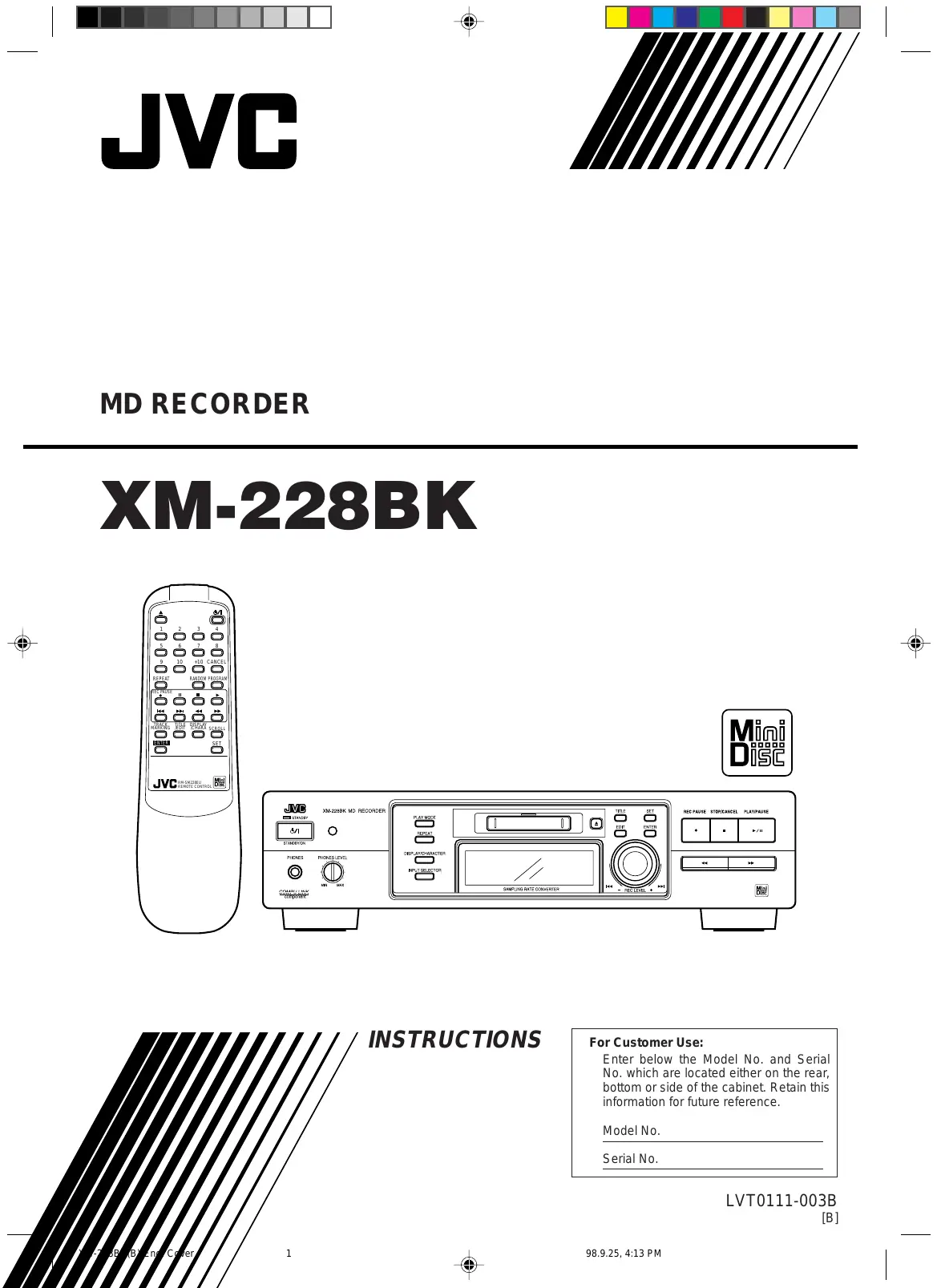

| Product type | Minidisc Audio Recorder |
| Brand | JVC |
| Model | XM-228 |
| Dimensions (W × H × D) | 435 × 112 × 335 mm |
| Weight | 4.3 kg |
| Power supply | AC 230 V, 50 Hz |
| Power consumption | 11 W (operating), 7 W (standby) |
| Frequency range | 5 Hz to 20,000 Hz (±0.5 dB) |
| Signal-to-noise ratio | 93 dB |
| Dynamic range | 91 dB |
| Inputs | Analog (RCA jacks), optical digital (2 inputs) |
| Outputs | Analog (RCA jacks), headphone (mini-jack) |
| Playback functions | Normal, program, random, repeat (track/disc) |
| Recording functions | Digital/analog recording, automatic/manual track marking |
| Editing functions | Divide, join, move, track erase, total erase, title assignment |
| Compu Link system | Compatibility with JVC remote control and synchronization |
| Supplied accessories | Remote control, batteries, audio cables (RCA), optical cable, Compu Link cable, power cord |
| Laser safety | Class 1 laser product |
| Maintenance and cleaning | Wipe with a soft, dry cloth. Do not use organic solvents. |
| Repairability | No user-serviceable parts. Contact a qualified technician. |
| Operating temperature | 5 °C to 35 °C |
| Wow and flutter | Below measurable limit |
Frequently Asked Questions - XM-228 JVC
User questions about XM-228 JVC
0 question about this device. Answer the ones you know or ask your own.
Ask a new question about this device
Download the instructions for your Audio recorder in PDF format for free! Find your manual XM-228 - JVC and take your electronic device back in hand. On this page are published all the documents necessary for the use of your device. XM-228 by JVC.
USER MANUAL XM-228 JVC
Enter below the Model No. and Serial No. which are located either on the rear, bottom or side of the cabinet. Retain this information for future reference.
Model No.
Serial No.
Warnings, Cautions and Others
IMPORTANT for the U.K.
DO NOT cut off the mains plug from this equipment. If the plug fitted is not suitable for the power points in your home or the cable is too short to reach a power point, then obtain an appropriate safety approved extension lead or consult your dealer.
BESURE to replace the fuse only with an identical approved type, as originally fitted.
If nonetheless the mains plug is cut off ensure to remove the fuse and dispose of the plug immediately, to avoid a possible shock hazard by inadvertent connection to the mains supply.
If this product is not supplied fitted with a mains plug then follow the instructions given below:
IMPORTANT:
DO NOT make any connection to the terminal which is marked with the letter E or by the safety earth symbol or coloured green or green-and-yellow.
The wires in the mains lead on this product are coloured in accordance with the following code:
Blue: Neutral
Brown:Live
As these colours may not correspond with the coloured markings identifying the terminals in your plug proceed as follows:
The wire which is coloured blue must be connected to the terminal which is marked with the letter N or coloured black.
The wire which is coloured brown must be connected to the terminal which is marked with the letter L or coloured red.
IF IN DOUBT - CONSULT A COMPETENT ELECTRICIAN.
Caution — 山 / switch!
Disconnect the mains plug to shut the power off completely.
The () / switch in any position does not disconnect the mains line. The power can be remote controlled.
IMPORTANT FOR LASER PRODUCTS
REPRODUCTION OF LABELS
① CLASSIFICATION LABEL, PLACED ON REAR ENCLOSURE
CLASS 1
LASER PRODUCT
② WARNING LABEL, PLACED INSIDE THE UNIT
DANGER: Invisible laser radiation when open and interlock failed or defeated.
AVOID DIRECT EXPOSURE TO BEAM. (e)
VARNING: Osynlng laserstrahlung nara denna del aroppnd och sparen ar urkoplada. Betraktja e stralen. (s)
ADVSELSS: Usynig laserstrailing ve abning, nár sikherhedsatbrydere ure cfafunktion.Ungad udsaetelare for strailing
- CLASS 1 LASER PRODUCT
- DANGER: Invisible laser radiation when open and interlock failed or defeated. Avoid direct exposure to beam.
- CAUTION: Do not open the top cover. There are no user serviceable parts inside the Unit; leave all servicing to qualified service personnel.
CAUTION
To reduce the risk of electrical shocks, fire, etc.:
- Do not remove screws, covers or cabinet.
- Do not expose this appliance to rain or moisture.
Welcome!
We would like to thank you for purchasing one of our JVC products. Before connecting this unit to the wall outlet, please read the instructions carefully to ensure that you obtain the best possible performance. If you have any questions, please consult your JVC dealer.
Important cautions
Installation of the Unit
- Select a place which is level, dry and neither too hot nor too cold (Between 5^ and 35^ or 41^ and 95^ ).
- Leave sufficient distance between the Unit and a TV.
- Be sure to place the Unit in a location with good ventilation.
- Do not use the Unit in a place subject to vibrations.
- Do not place the Unit on a carpet.
- Do not place the Unit on top of another heat-generating piece of equipment.
Power cord
- Do not handle the power cord with wet hands!
- When unplugging the Unit from the wall outlet, always pull the plug, not the power cord.
Malfunctions, etc.
- There are no user serviceable parts inside. If anything goes wrong, turn off the power immediately. If the same problem reoccurs when the power is turned on once more, turn off the power again, unplug the power cord and consult your dealer.
- Do not insert any metallic object into the Unit.
For safe use, observe the following
Avoid moisture, water and dust
Do not set your machine in moist or dusty places.
Avoid high temperatures
Do not expose your machine to direct sunlight or set near a heating device.
Do not block the vents
Poor-ventilation may damage your machine. So do not block the vents or put the unit in a poorly ventilated place.
When you're away
When away on travel or otherwise for an extended period of time, turn off the power and pull the plug from the electrical socket.
Do not insert foreign matter into the machine
Do not insert wires, hairpins, coins, etc. into your machine.
Care of the cabinet
When cleaning your machine, use a soft cloth and follow the relevant instructions on the use of chemically-coated cloths. Avoid applying benzene, thinner or other organic solvents and disinfectants. This may cause deformation or discoloring.
If water gets inside the machine
Turn off the power and pull the plug from the electrical socket, then call the store where you made your purchase. Using the machine in this state may cause a fire or electrical shock.
US and foreign patents licensed from Dolby Laboratories Licensing Corporation.
Table of Contents
Welcome! 1
Important cautions 1
For safe use, observe the following 1
Parts Index 3
Front panel 3
Display 3
Remote control unit 4
Setting up the System 5
Supplied Accessories 5
Remote control batteries 5
Operating the Remote Control 5
Connection 6
Turning the Power On and Off.... 7
Power On 7
Power Off 7
Playback 8
Normal playback 8
Switching the displayed information 10
Program playback 10
Random playback 12
Repeat playback 13
Recording 14
Recording operation 14
Editing Functions 17
MD editing functions 17
Dividing a track (DIVIDE) 19
Joining tracks (JOIN) 20
Moving a track (MOVE) 22
Erasing a track (ERASE) 23
Erasing all tracks in an MD (ALL ERASE) 24
Assigning the disc title and track titles..... 26
Assigning a track title during playback or recording 29
COMPU LINK 30
Linked Operation of the Other Optional Components (Compu Link) 30
Rule on Digital Copying 31
SCMS (Serial Copy Management System) 31
About MD (Mini Disc) 32
Role of the cartridge 32
Two disc types 32
ATRAC (Adaptive TRansform Acoustic Coding) 33
Sound skip guard memory 33
UTOC (User Table Of Contents) 33
MD Messages 34
MD Restrictions 35
Handling MDs 36
MD handling precautions 36
To protect important recording 36
Troubleshooting 37
Specifications 38
Front panel
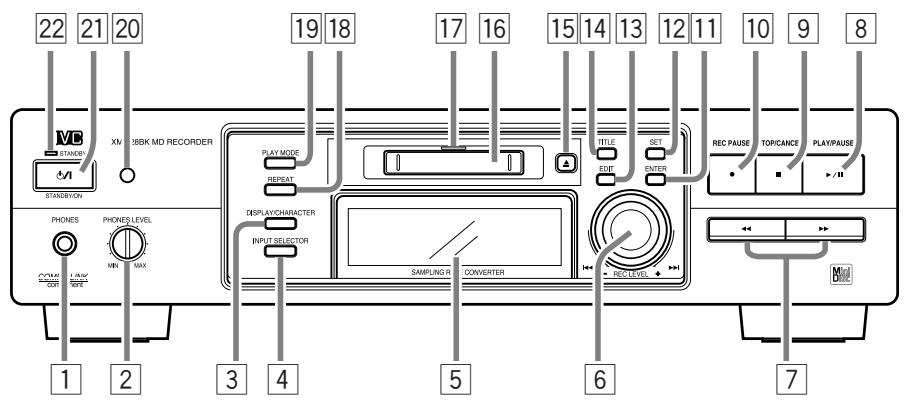
1 PHONES jack
2 PHONES LEVEL control
3 DISPLAY/CHARACTER button
4 INPUT SELECTOR button
5 Display
6 Jog dial (REC LEVEL)
7 , buttons
8 /II PLAY/PAUSE button
9 STOP/CANCEL button
10 REC PAUSE button
11 ENTER button
12 SET button
13 EDIT button
14 TITLE button
15 (Eject) button
16 MD insertion slot
17 Disc indicator
18 REPEAT button
19 PLAY MODE button
20 Remote sensor
21 0/ISTANDBY/ON button
22 STANDBY indicator
Display
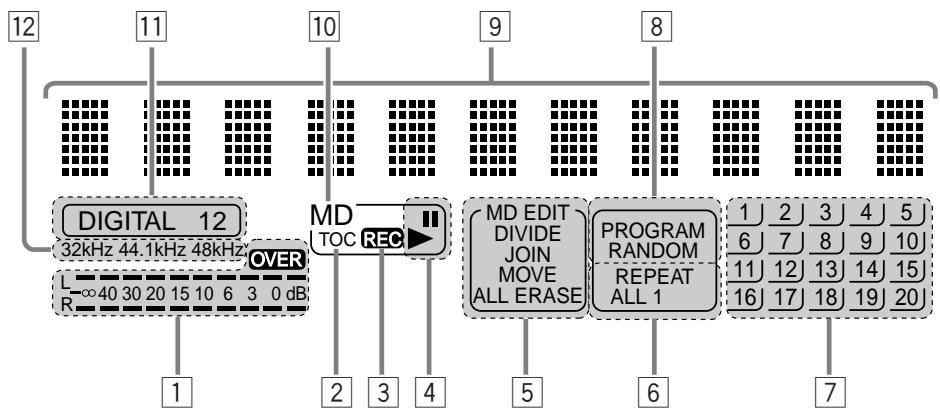
Level indicators and OVER indicator
TOC indicator
3RECindicator
4 Play indicators ( (Play), (Pause))
MD editing mode indicators
(DIVIDE, JOIN, MOVE, ERASE, ALL ERASE)
6 Repeat mode indicators
(REPEAT ALL, REPEAT 1)
7 Music calender
Play mode indicators (PROGRAM, RANDOM)
9 Character display (11 digits)
MD indicator
Input mode indicators (DIGITAL 1, DIGITAL 2)
12 Sampling frequency indicators
(32kHz,44.1kHz,48kHz)
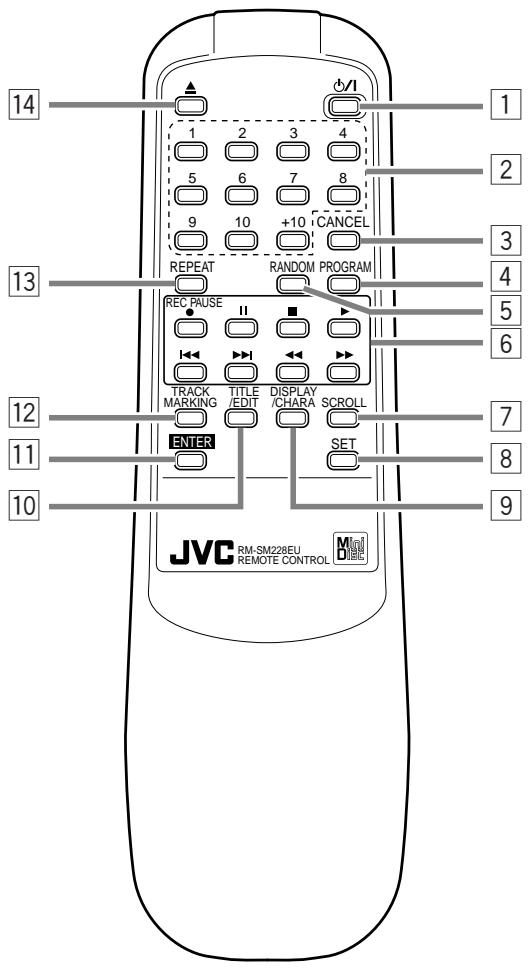
1/STANDBY/ON) button
2 Numeric keys
3 CANCEL button
4 PROGRAM button
5 RANDOM button
MD control buttons
REC PAUSE
II (Pause)
(Stop)
▶ (Play)
A
A,
7 SCROLL button
8 SET button
9 DISPLAY/CHARA button
10 TITLE/EDIT button
11 ENTER button
12 TRACK MARKING button
13 REPEAT button
14 (Eject) button
Supplied Accessories
Before setting up your system make sure you received all of the following supplied accessories.
AC power cord (1)
Audio pin cord (2)
Compu Link cable (1)
Optical digital cable (1)
Batteries R6P (SUM-3)/AA (15F) (2)
Remote Control (1)
Remote control batteries
Match the polarity (+ and -) on the batteries with the + and - markings in the battery compartment.
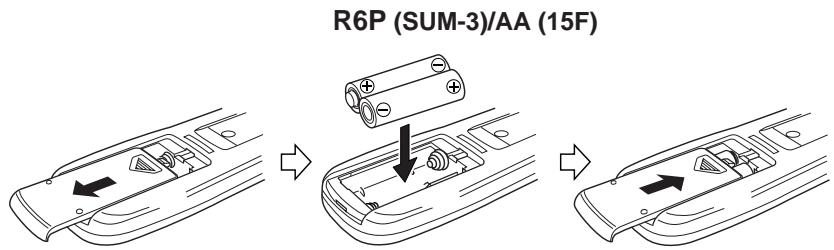
CAUTION: Handle batteries properly.
To avoid battery leakage or explosion:
- Remove batteries when the Remote Control will not be used for a long time.
- When you need to replace the batteries, replace both batteries at the same time with new ones.
- Do not use an old battery with a new one.
- Do not use different types of batteries together.
Operating the Remote Control
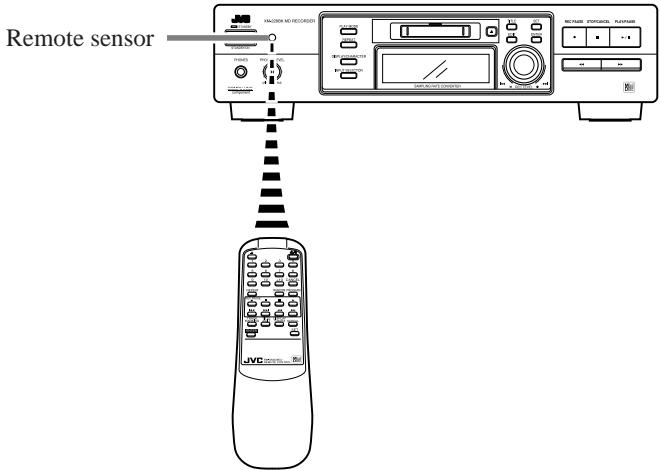
The remote control makes it easy to use many of the functions of the system from a distance of up to 7m (23 feet) away.
You need to point the remote control unit at the remote sensor on the front panel.
Signal cable connections
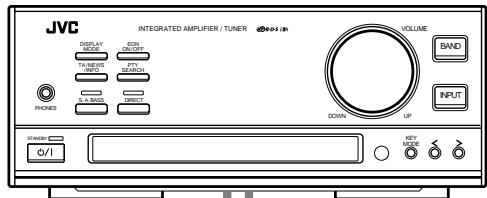
Example: Amplifier/Tuner
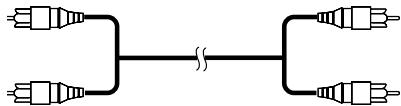
Audio pin cord (supplied)
Audio pin cords
Connect to the MD jacks, TAPE jacks, etc. of an external unit.
Always connect the jacks with the plugs of the same colors so as not to mistake the L (Left) and R (Right) connections.
Connect the OUT (PLAY) jacks to the IN (PLAY) jacks of the external unit, and the IN (REC) jacks to its OUT (REC) jacks.
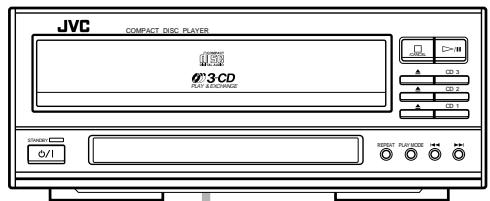
Example: CD player

Optical digital cable (supplied)
Optical digital cable
Connect to the DIGITAL OUT jack of the CD player, for example.
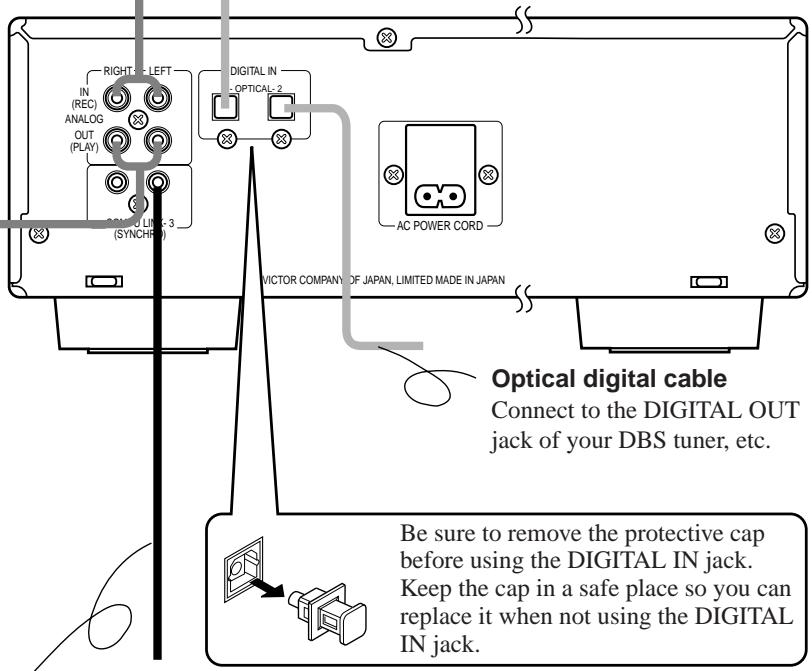
Compu Link cable
Connect to the COMPU LINK-3 (SYNCHRO) jack of another component equipped with the Compu Link remote control system.
Compu link cable (supplied)

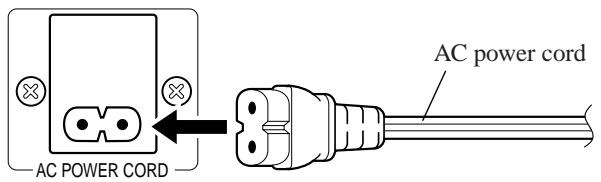
AC power cord connection
First, firmly insert the supplied AC power cord into the AC inlet on the back of the unit. Next, plug the AC power cord plug into the wall outlet.
Cautions
- Use only the JVC AC power cord provided with this system to avoid malfunction or damage to the system.
- Be sure to unplug the power cord from the outlet when going out or when the system is not in use for an extended period of time.
Turning the Power On and Off
Power On
1 Press / STANDBY/ON on the main unit or the remote control unit.
The STANDBY indicator goes out, the disc indicator lights in green, and the display comes on. The MD indicator lights up on the display.
When no MD is loaded:
"NO DISC" is shown on the display.
When an MD is already loaded:
The following messages are shown on the display in succession.
TOC Reading
The disc title, if the MD has.
Number of tracks and the total playing time of the MD
You can play the MD by pressing / on the main unit or on the remote control unit. For detailed description, see "Playback" on the next page.
Power Off
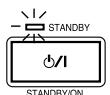
1 Press / I STANDBY/ON again.
The STANDBY indicator lights up, the disc indicator goes out, and the display becomes blank.
- Some power (7W) is always consumed even though power is turned off (called Standby mode).
- To switch off the system completely, unplug the AC power cord from the AC outlet.
Normal playback
The basic operation for playing an MD is described below. When no MD is loaded yet, "NO DISC" is shown on the display.
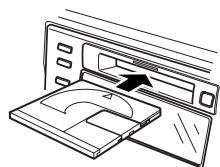
1 Load an MD.
Hold an MD with the side on which an arrow is marked facing up, and insert it into the slot in the direction of the arrow. The MD will be pulled in automatically from the middle.
111
TUC Read in



Number of tracks Total playing time
- If the MD has a disc title, the display shows the disc title then the number of tracks and total playing time of the MD.
The tracks in the MD appears on the music calender.
Note: To allow easy insertion, insert the MD along the upper part of the MD insertion slot.
Caution
- Do not mistake the MD insertion direction, otherwise malfunction will result.
Shortcut:
You can insert an MD in Standby mode. Then, the power is turned on and the MD is pulled in automatically.

or

2 Press /II on the main unit or on the remote control unit.
Playback starts.
The indicator blinks for a while and then stays lit.
The playback level for the L and R channels are shown on the level indicators.
- If the track has a title, the track title will be displayed before playing the track.
- The track number that has been played disappears from the music calender.
- The MD automatically stops when the last track of the MD has finished playing.
Shortcut:
When you press / on the main unit or on the remote control unit in Standby mode, power is turned on and the MD is automatically played. However, if no MD is loaded, "NO DISC" is shown on the display.

STOPICANCEL
or


or

To stop the MD:
Press on the main unit or the remote control unit.
- If the MD has a disc title, the display shows the disc title then the number of tracks and total playing time of the MD.
To eject the MD:
Press on the main unit or the remote control unit.
The MD is ejected and the display changes as follows:

To pause the MD:
Press / on the main unit or press II on the remote control unit.
The II indicator lights up.
To cancel pause, press on the main unit or press on the remote control unit. The MD starts from the position where it has paused.
To select a track
You can select a desired track during playback or in Stop mode. When you use the numeric keys on the remote control unit in Stop mode, the selected track automatically starts playing.
Main unit:
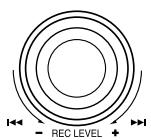
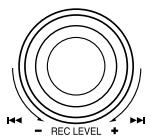
During playback, turn the jog dial to the right or left to select the track you want. Then, the selected track starts playing.
- Turn the jog dial to the right by one click to skip to the beginning of the next track.
- Turn the jog dial to the left by one click to skip to the beginning of the current track being played. While “--:--” is shown on the display, you can play the previous track by turning the jog dial to the left.
In Stop mode, you can select a track in the same way. To start playback, press /II.


Remote control unit:
Using or :
During playback, press or to select the track you want. Then, the selected track starts playing.
Press once to skip to the beginning of the next track.
- Press once to skip to the beginning of the current track being played. While "---:--" is shown on the display, you can play the previous track by pressing .
In Stop mode, you can select a track in the same way. To start playback, press
Using the numeric keys:
During playback or in Stop mode, select a track with the numeric keys. Then, the selected track starts playing.
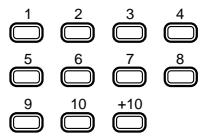
Selecting a track with the numeric keys:
To select track No. 5 : Press 5.
To select track No. 15: Press +10 then 5.
To select track No. 20: Press +10 then 10.
To select track No. 52: Press +10 five times then press 2.
- When you try to select a track number greater than the recorded tracks in the MD, the last track is automatically selected.
Search play
During playback, you can fast forward/backwards the MD to quickly find a particular passage in the track you are listening to.
To perform this, press and hold or on the main unit or the remote control unit.
Using headphones
Connect a pair of headphones (not supplied) to the PHONES jack to listen to the playback sound of the MD or rec-monitor sound.
- The output from the unit is not cut off even if the headphones are used.
Caution
- Be sure to turn down the PHONES LEVEL control before connecting or putting on headphones.
Switching the displayed information
The display can show the disc title, track title and remaining time (recording time available when a recordable MD is loaded) information.
DISPLAY/CHARACTER

or
DISPLAY



Number of tracks and total playing time



Number of tracks and remaining recording time



Disc title
When no track is selected (In Stop mode):
Press DISPLAY/CHARACTER on the main unit or the remote control unit. Each press of the button switches the displayed information as follows.

- A disc title composed of more than 11 characters is scrolled, and the first 11 characters are displayed after scrolling.
- The display shows "NO TITLE" if the disc has no title assigned to it.
When a track has already been selected (During playback or in Stop mode):
Press DISPLAY/CHARACTER on the main unit or the remote control unit. Each press of the button switches the displayed information as follows.

- A track title composed of more than 11 characters is scrolled, and the first 11 characters are displayed after scrolling.
- The display shows "NO TITLE" if the track has no title assigned to it.
Program playback
You can program up to 32 tracks in any desired order including the same tracks.
- You can only make a program in Stop mode.
1 Load an MD.
See "Normal playback" on page 8.
2 Select Program mode. Main unit:
Press PLAY MODE until "PROGRAM" is shown. Then, the PROGRAM indicator lights up.
Each time PLAY MODE is pressed, the play mode indicators switches as follows:


Remote control unit:
Press PROGRAM. The "PROGRAM" is shown and the PROGRAM indicator lights up.
To exit Program mode, press PROGRAM once again. Then, the PROGRAM indicator goes out.
The display shows the following for programming.




3 Select desired track numbers to be programmed. Main unit:
1 Turn the jog dial to the right or left to select the desired track number to be programmed. (Turning it to the right increases the track number and vice versa.) The selected track number will blink.
2 Press SET. The track number stays lit and the program number increases by 1. Also, the programmed track is indicated on the music calender. Then, the total playing time is displayed instead of the program number.
Example)

3 Repeat steps 1 and 2 to select the other tracks for the program.
Remote control unit:
1 Select the desired track number with the numeric keys. The selected track number is programmed and the program number is displayed. Then, the total playing time is displayed instead of the program number. To select a track, see "Selecting a track with the numeric keys" on page 9.
2 Repeat step 1 to select the other tracks for the program.
4 Press /II on the main unit or on the remote control unit.
Program playback starts in the programmed order.
- Program playback stops after having played all programmed tracks.
- To stop playing, press on the main unit or the remote control unit.
- To skip the programmed track, turn the jog dial on the main unit to the right or left or press or on the remote control unit.
To check the programmed tracks and their order (In Stop mode):
Press or on the remote control unit in Stop mode. The programmed tracks will be successively displayed in the programmed order. (The track title will be displayed before the track number, if it is written.)
If you make a mistake in programming (In Stop mode):
Press STOP/CANCEL on the main unit or CANCEL on the remote control unit in Stop mode to clear the last track. Each press of the button clears the last track in the program. Press the button repeatedly until the track you programmed by mistake is cleared and then re-program tracks from that point.
To exit Program Play mode (In Stop mode): Main unit:
Press PLAY MODE in Stop mode to select any mode other than Program Play mode.
Remote control unit:
Press PROGRAM in Stop mode to light off the PROGRAM indicator.
The program contents remain in memory even after the unit has exited Program Play mode.
Note: The program contents are cleared from memory when the power cord is unplugged or in case of power failure.
To clear the program:
Press on the main unit or the remote control unit.
The programmed tracks are cleared then the MD is ejected.
To play programmed tracks repeatedly:
Combine the program playback and repeat playback to play the programmed tracks repeatedly.
For the repeat playback, see page 13.
Random playback
Tracks in the MD can be played in a randomly selected order. The random playback may bring you a surprising effect by playing tracks in a different order every time.
- You can only select the random play in Stop mode.
1 Load an MD.
See "Normal playback" on page 8.
2 Press PLAY MODE to select RANDOM. Main unit:
Press PLAY MODE until "RANDOM" is shown. Then, the RANDOM indicator lights up.

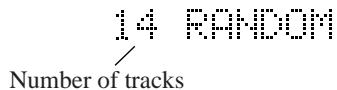
Each time PLAY MODE is pressed, the play mode indicators switches as follows:

Remote control unit:
Press RANDOM. The "RANDOM" is shown and the RANDOM indicator lights up. To exit Random mode, press RANDOM once again. Then, the RANDOM indicator goes out.
3 Press /II on the main unit or on the remote control unit.
Random playback starts.
- Random playback stops after having played every track once.
- To stop playing, press on the main unit or the remote control unit.
To exit Random Play mode (In Stop mode): Main unit:
Press PLAY MODE in Stop mode to select any mode other than Random Play mode.
Remote control unit:
Press RANDOM in Stop mode to light off the RANDOM indicator.
To repeat random playback:
Combine the random playback and repeat playback to play tracks repeatedly in random orders. The order tracks are played differs every time random playback is repeated.
For the repeat playback, see page 13.
Repeat playback
You can repeat all the tracks or single track in each playback mode.
REPEAT

or
REPEAT

1 Press REPEAT on the main unit or the remote control unit to select Repeat Play mode.
Each time REPEAT is pressed, the repeat mode indicators switches as follows.


PLAY/PAUSE
or

REPEAT ALL : In Normal Play mode, repeats all the tracks.
In Program Play mode, repeats all the tracks in the program.
In Random Play mode, repeats all the tracks in random order.
REPEAT 1 :Repeats one track.
2 Press /II on the main unit or on the remote control unit.
Repeat playback starts.
- To stop playing, press on the main unit or the remote control unit.

or

To cancel repeat playback:
Press REPEAT on the main unit or the remote control unit until the repeat mode indicator goes out.
An audio signal from a variety of sources can be recorded by using either digital or analog input as required.
Things to know before recording
- It may be unlawful to record or play back copyrighted material without the consent of the copyright owner.
- Carefully read the "Rule on Digital Copying" on page 31.
- The MD recorder supports the following sampling frequencies for digital sources DIGITAL 1 and DIGITAL 2 and lights the sampling frequency being received on the display.
32kHz 44.1kHz and 48kHz
- Recording level adjustment:
When recording a digital input, the recording level is automatically set correctly. When recording an analog input, it is necessary to adjust the recording level properly.
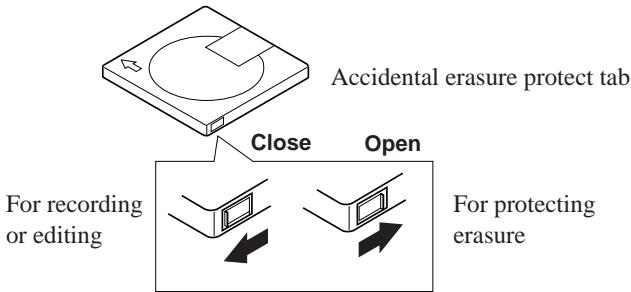
- The accidental erasure protect tab is provided on the back of an MD cartridge to prevent accidental erasure or recording. It must be set to the close position before recording. Otherwise, "DISC PROTECTED" will appear when you try to record a signal to the
MD.
- When you stick an adhesive label onto the MD cartridge, adhere it securely. If it peels off, ejection trouble, etc. will occur.
- Be sure that the MD is not the Playback-only type one. (See "Two disc types" on page 32.)
- Be sure that the MD has enough space for recording. If not, carry out ERASE ALL or ERASE function to erase all the tracks or desired tracks in the MD. You can check the recordable remaining time of the MD. (See "To display the remaining recording time" on page 16.)
Recording operation
1 Load a recordable MD.
2 Press REC PAUSE on the main unit or the remote control unit.
The MD recorder enters Rec/Pause mode. The REC and II (Pause) indicators light up and the first track to be recorded is displayed. Also, the disc indicator lights in red.
Example) When 14 tracks are already recorded


or
The first track to be recorded



3 Select the input by pressing INPUT SELECTOR on the main unit.
Each press of INPUT SELECTOR switches the inputs as follows.

DIGITAL 1 IN: Select this to record the digital input from the digital source component connected to the DIGITAL IN 1 optical jack. The DIGITAL 1 indicator lights up.
DIGITAL 2 IN: Select this to record the digital input from the digital source component connected to the DIGITAL IN 2 optical jack. The DIGITAL 2 indicator lights up.
ANALOG IN : Select this to record the analog input from the analog source component (cassette deck, tuner, etc.) connected to the ANALOG IN (REC jacks).
4 Play the source to be recorded.
The level indicators show the input levels.
- The input level should be adjusted when the analog input is recorded (see "To adjust the analog input level" below).
- The input level for the digital inputs does not need adjustment.
- When DIGITAL 1 or DIGITAL 2 is selected, one of the sampling frequency indicators lights up. For example, 44.1kHz indicator is displayed for a CD player input.
However, if no source component is connected to the digital input or the sampling frequency input is other than 32kHz , 44.1kHz , or 48kHz , "DIGITAL IN UNLOCK" scrolls on the display showing that the recording is impossible.
DIGITAL 1
44.1kHz
5 Press /II on the main unit or on the remote control unit.
Recording starts.
The indicator lights up.
- When the MD becomes full, "UTOCwriting" is displayed indicating that the recording is successfully completed. Then, the MD stops. The disc indicator lights in green.
To stop recording:
Press on the main unit or the remote control unit.
"UTOCwriting" is displayed and the MD stops. The disc indicator lights in green.
To pause the MD:
Press REC PAUSE on the main unit or the remote control unit.
To resume recording, press / on the main unit or on the remote control unit.
To adjust the analog input level
The input level should be adjusted before recording the analog input.
1 In Rec/Pause mode, start playing the source for level adjustment. The level indicators show the input levels.
2 Turn the jog dial on the main unit to the right or left or press | or on the remote control unit to increase or decrease the recording level.
As you adjust the recording level, "VOL. -10" will appear, for example. You can adjust the recording level between VOL.-50 and VOL.0 (-50 dB and 0 dB), or to VOL. -- (below -50 dB).
OVER

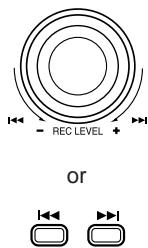
- Normally the input level should be adjusted so that the segments for 0 dB blink at the peak level.
- When the input level is too high, the OVER indicator will light up, resulting in distorted recording.
To display the remaining recording time
In Rec/Pause or during recording, press DISPLAY/CHARACTER on the main unit or the remote control unit.
Each press of the button switches the elapsed recording time display and remaining recording time display alternately.
15 42:12 15 -31:48
remaining recording time
Track marking
The track numbers on the MD are marked at the beginning of each track. The track numbers are identified by these "track markings" and each section between two track markings are considered as a track.
For analog input:
You can create the track marking automatically or manually.
Automatic track marking:
Press TRACK MARKING on the remote control unit to select "AUTO".

- A track marking is automatically recorded every time a blank of more than 3 seconds is detected.
Manual track marking:
1 Press TRACK MARKING on the remote control unit to select "MANUAL".

2 When the point you want to record a track marking comes during recording, press SET on the remote control unit.
This operation records a track marking at the point where the button is pressed.
For digital input:
When tracks are recorded from a CD player by digital input, track markings are recorded automatically at the points where the CD tracks change.
MD editing functions
A recorded MD can be edited in many ways. The editing functions include the dividing, joining, moving, erasing a single track, erasing the entire disc and assigning titles to the disc and tracks, and more than one of them can be combined as required.
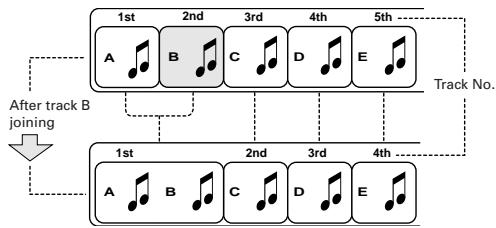
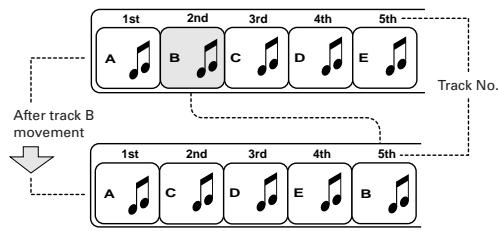
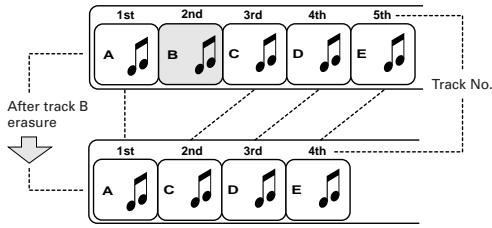
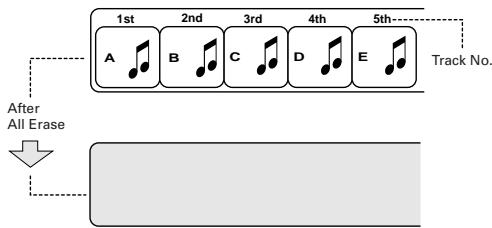
Dividing a track (DIVIDE) Page 19
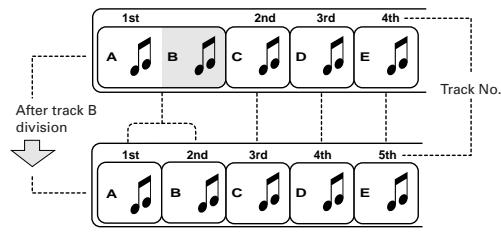
This function divides a track by adding track marking(s) in desired point(s) in the middle or where you want to search later.
Joining tracks (JOIN) Page 20
This function joins two adjacent tracks into a single track by deleting a track marking.
Moving a track (MOVE) Page 22
This function moves a track by reordering the track numbers.
Erasing a track (ERASE) Page 23
This function erases a specified track. After the erasure, the subsequent tracks are justified and their track numbers are decremented automatically.
Erasing all tracks (ALL ERASE) Page 24
This function erases data in a disc entirely.
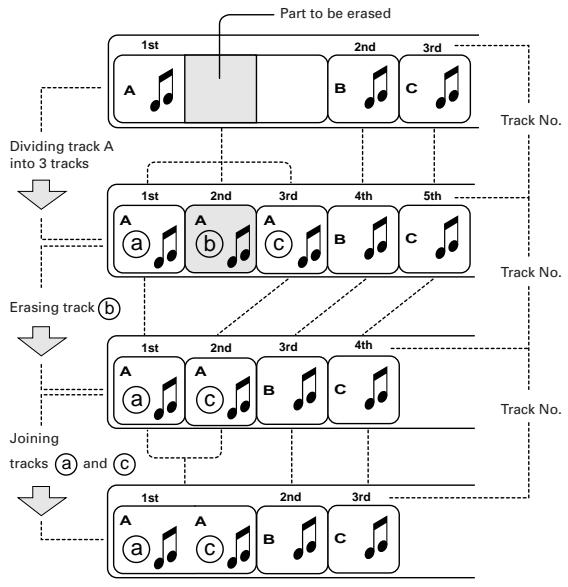
Combining editing functions
By combining "DIVIDE", "ERASE" and "JOIN", for example, it is possible to erase only a part of existing track.
Assigning titles
A title can be assigned to a track or disc. Once a title is assigned, it is displayed in later playback for confirmation. Each title can be composed of up to 64 characters, and can be input using any of character types, alphabets ( uppercase and lowercase), symbols and numerals.
Dividing a track (DIVIDE)
A track can be divided into desired number of tracks by adding track markings in the middle, in the desired points or where you want to search later.
This makes it possible to assign track numbers after recording medley music or FM broadcast. The track numbers after the divided track are incremented automatically.

or

1 Press EDIT on the main unit or the TITLE/EDIT on the remote control unit to select "DIVIDE".
The DIVIDE indicator lights up.
Each press of the button switches the editing functions as follows.
- When TITLE/EDIT on the remote control unit is used, the disc title is displayed after "ALL ERASE".

Blinks
DIVIDE


or


or


or


or

2 Press SET on the main unit or the remote control unit.

Blinks Blinks
中

3 Play the track to be divided.
Using the jog dial or or :
Select the track number by turning the jog dial on the main unit or 1 1 or on the remote control unit.
Then, Press / on the main unit or on the remote control unit.

Blinks


Blinks
Example)
When track No. 3 is selected
Using the numeric keys:
Select the track number with the numeric keys on the remote control unit. The selected track is repeatedly played.
To select a track, see "Selecting a track with the numeric keys" on page 9.
4 Press SET when a point where you want to divide the track comes.
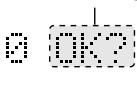
"POSITION" is displayed and the track marking fine-adjustment display appears.
Blinks

Blinks
Increments by 1
Example) Track Nos. 3 and 4 blink and the 4-second section from the divided point will be played repeatedly.
- When the track has been divided as desired, go to step 6.
- If the track has not been divided as desired, fine-adjust the track marking position. Go to step 5.
- If you notice that the selected track number is wrong, press STOP/CANCEL on the main unit or CANCEL on the remote control unit and repeat from step 3.
5 Fine-adjust the track marking position.
Turn the jog dial on the main unit or 1 1 or 1 on the remote control unit.
The track marking position can be fine-adjusted in the range of ± 128 positions (approx. ± 8 sec.).
As you adjust, the track marking displaces slightly and the 4-second section from the newly divided point will be played repeatedly.
After completing the fine-adjustment, go to step 6.
- To cancel the current track marking position, press STOP/CANCEL on the main unit or CANCEL on the remote control unit and repeat from step 3.
6 Press ENTER on the main unit or the remote control unit.
The change made above is entered temporarily in the memory. The display shows "EDITING" and the TOC indicator lights up.
EDITING

TOC indicator:
The TOC indicator shows that the MD has new data that should be memorized. The data writing operation is done by ejecting the MD or by turning the power off. Before the MD is ejected or the power is turned off, "UTOCwriting" is displayed until data is completely written.

or

7 Press on the main unit or the remote control unit to eject the MD.
The data in the memory is written in the MD before it is ejected.
The display shows "UTOCwriting" during MD writing operation.
- Be careful not to apply impact to the MD recorder during writing data in the memory in the MD. Otherwise the recording may be unplayable later.
- The data in the memory is written in the MD also when the unit is switched to Standby mode while "EDITING" is being displayed.
To exit editing:
Press EDIT on the main unit or the TITLE/EDIT on the remote control unit before pressing ENTER in step 6. Then, press the same button repeatedly until the editing track number is displayed.
To restore the original track from the divided tracks:
Use the JOIN editing function mentioned below.
Joining tracks (JOIN)
Two adjacent tracks can be joined into a single track by deleting the unnecessary track marking. This also makes it possible to join more than two tracks into a single track or a piece of music divided into multiple tracks into a single piece. The track numbers after the joined tracks are decremented automatically.


or
1 Press EDIT on the main unit or the TITLE/EDIT on the remote control unit to select "JOIN".
The JOIN indicator lights up.
Each press of the button switches the editing functions as follows.
- When TITLE/EDIT on the remote control unit is used, the disc title is displayed after "ALL ERASE".

Blinks
JOIN


3 Select the track to be joined with the previous track. Using the jog dial or or :
Select the track number by turning the jog dial on the main unit or 1 1 or on the remote control unit.
Example) To join track numbers 1 and 2, select track number 2.
Using the numeric keys:
Select the track number with the numeric keys on the remote control unit. The selected track is repeatedly played.
To select a track, see "Selecting a track with the numeric keys" on page 9.
Example) To join track numbers 1 and 2, select track number 2.

or


or


or

4 Press SET on the main unit or the remote control unit.
Track numbers 1 and 2 blink, indicating that these tracks will be joined into one.

Blinks


Blinks
Press ENTER on the main unit or the remote control unit.
The change made above is entered temporarily in the memory. The display shows "EDITING" and the TOC indicator lights up.


Decrements by 1
6 Press on the main unit or the remote control unit to eject the MD.
The data in the memory is written in the MD before it is ejected.
The display shows "UTOCwriting" during MD writing operation.
- Be careful not to apply impact to the MD recorder during writing data in the memory in the MD. Otherwise the recording may be unplayable later.
- The data in the memory is written in the MD also when the unit is switched to Standby mode while "EDITING" is being displayed.
To exit editing:
Press EDIT on the main unit or the TITLE/EDIT on the remote control unit before pressing ENTER in step 5. Then, press the same button repeatedly until the editing track number is displayed.
To restore the original tracks from the track obtained by joining:
Use the DIVIDE editing function.
See "Dividing a track (DIVIDE)" on page 19.
Moving a track (MOVE)
A track can be moved to the desired position by selecting its track number and the destination track number.

or

Press EDIT on the main unit or the TITLE/EDIT on the remote control unit to select "MOVE".
The MOVE indicator lights up.
Each press of the button switches the editing functions as follows.
- When TITLE/EDIT on the remote control unit is used, the disc title is displayed after "ALL ERASE".
Blinks

MUE


or

2 Press SET on the main unit or the remote control unit.
"1" for track number 1 will blink on the display.
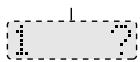

Blinks
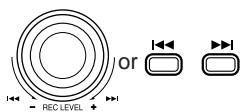

or

3 Select the track number to be moved, then press SET.
Using the jog dial or or :
Select the track number by turning the jog dial on the main unit or or on the remote control unit.
Then press SET on the main unit or the remote control unit.
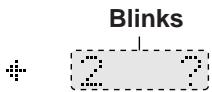

Blinks

Blinks
2

Blinks
Example) When track No. 2 is to be moved
Using the numeric keys:
Select the track number with the numeric keys on the remote control unit. The selected track is repeatedly played.
Then press SET on the remote control unit.
To select a track, see "Selecting a track with the numeric keys" on page 9.
- If you selected a wrong track number, press STOP/CANCEL on the main unit or CANCEL on the remote control unit and select the correct track number.

or

4 Select the movement destination track number, then press SET.
Using the jog dial or | | or :
Select the track number to be given to the selected track by turning the jog dial on the main unit or or on the remote control unit.
Then press SET on the main unit or the remote control unit.

Blinks

Blinks

Blinks


Blinks
Example) When track No. 5 is selected
Using the numeric keys:
Select the destination track number with the numeric keys on the remote control unit.
The selected track is repeatedly played.
Then press SET on the remote control unit.
To select a track, see "Selecting a track with the numeric keys" on page 9.
- If you selected a wrong track number, press STOP/CANCEL on the main unit or CANCEL on the remote control unit and repeat from step 3.

or


or

5 Press ENTER on the main unit or the remote control unit.
The change made above is entered temporarily in the memory. The display shows "EDITING" and the TOC indicator lights up.


6 Press on the main unit or the remote control unit to eject the MD.
The data in the memory is written in the MD before it is ejected. The display shows "UTOCwriting" during MD writing operation.
- Be careful not to apply impact to the MD recorder during writing data in the memory in the MD. Otherwise the recording may be unplayable later.
- The data in the memory is written in the MD also when the unit is switched to Standby mode while "EDITING" is being displayed.
To exit editing:
Press EDIT on the main unit or the TITLE/EDIT on the remote control unit before pressing ENTER in step 5. Then, press the same button repeatedly until the editing track number is displayed.

Erasing a track (ERASE)
A desired track can be erased from the MD. The track numbers after the erased track are decremented automatically.

or

1 Press EDIT on the main unit or the TITLE/EDIT on the remote control unit to select "ERASE".
The ERASE indicator lights up.
Each press of the button switches the editing functions as follows.
- When TITLE/EDIT on the remote control unit is used, the disc title is displayed after "ALL ERASE".


Blinks


or


or

2 Press SET on the main unit or the remote control unit.
"1" for track number 1 will blink on the display.

Blinks


Blinks

links
3 Select the track number to be erased, then press SET.
Using the jog dial or or
Select the track number by turning the jog dial on the main unit or or on the remote control unit. Then press SET on the main unit or the remote control unit.

Blinks


Blinks

Blinks
Example) When track No. 2 is to be erased
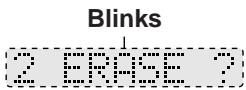

Blinks
Example) When SET is pressed

Using the numeric keys:
Select the track number with the numeric keys on the remote control unit. The selected track is repeatedly played.
Then press SET on the remote control unit.
To select a track, see "Selecting a track with the numeric keys" on page 9.
- If you selected a wrong track number, press STOP/CANCEL on the main unit or CANCEL on the remote control unit and select the correct track number.
- If the display shows "TRACK PROTECTED", the selected track has been protected against accidental erasure by other components than the MD recorder in use. If you still want to erase the track, go to step 4. If you will not erase it, press EDIT on the main unit or the TITLE/EDIT on the remote control unit.

or

4 Press ENTER on the main unit or the remote control unit.
The change made above is entered temporarily in the memory. The display shows "EDITING" and the TOC indicator lights up.
EDITING

Decrements by 1

or

5 Press on the main unit or the remote control unit to eject the MD.
The data in the memory is written in the MD before it is ejected.
The display shows "UTOCwriting" during MD writing operation.
- Be careful not to apply impact to the MD recorder during writing data in the memory in the MD. Otherwise the recording may be unplayable later.
- The data in the memory is written in the MD also when the unit is switched to Standby mode while "EDITING" is being displayed.
To exit editing:
Press EDIT on the main unit or the TITLE/EDIT on the remote control unit before pressing ENTER in step 4. Then, press the same button repeatedly until the editing track number is displayed.
Caution
- Once erased, the track can never be restored. An MD containing recording that you do not want to erase should be protected by sliding the protect tab (see page 36).

or

Erasing all tracks in an MD (ALL ERASE)
The data recorded in an MD can be erased entirely to turn the MD into a blank disc.
1 Press EDIT on the main unit or the TITLE/EDIT on the remote control unit to select "ALL ERASE".
The ALL ERASE indicator lights up.
Each press of the button switches the editing functions as follows.
- When TITLE/EDIT on the remote control unit is used, the disc title is displayed after "ALL ERASE".
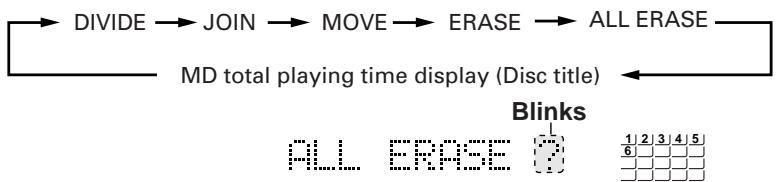
2 Press SET on the main unit or the remote control unit.

or

Blinks


- If the display shows "TRACK PROTECTED", the tracks have been protected against accidental erasure by other components than the MD recorder in use. If you still want to erase the tracks, go to step 3. If you will not erase them, press EDIT on the main unit or the TITLE/EDIT on the remote control unit.

or

3 Press ENTER on the main unit or the remote control unit.
The change made above is entered temporarily in the memory. The display shows "EDITING" and the TOC indicator lights up.
1 1 1 1 1 1 1 1 1 1 1 1 1 1 1 1 1 1

BLINK DISC

or

4 Press on the main unit or the remote control unit to eject the MD.
The data in the memory is written in the MD before it is ejected. The display shows "UTOCwriting" during MD writing operation.
- Be careful not to apply impact to the MD recorder during writing data in the memory in the MD. Otherwise the recording may be unplayable later.
- The data in the memory is written in the MD also when the unit is switched to Standby mode while "EDITING" is being displayed.
To exit editing:
Press EDIT on the main unit or the TITLE/EDIT on the remote control unit before pressing ENTER in step 3. Then, press the same button repeatedly until the editing track number is displayed.
Caution
- Once erased, the tracks can never be restored. An MD containing recording that you do not want to erase should be protected by sliding the protect tab (see page 36).
Assigning the disc title and track titles
A disc title and track titles can be assigned to a recorded MD. Any title name can be given up to 64 characters. This operation is possible while the MD recorder is in Stop mode.
- You can assign the track title during playback or recording as well. For details, see "Assigning a track title during playback or recording" on page 29.


or
1 Load a recorded MD.
2 Press TITLE on the main unit once or press TITLE/EDIT on the remote control repeatedly until the disc title is displayed.
The display will show "DISC/NO TITLE".
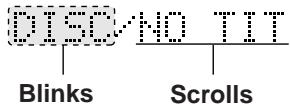
- If a disc title has already been assigned, the title is displayed.
When you assign the disc title: Go to step 3.
When you assign the track titles:
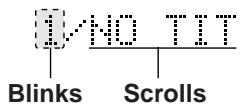
First select the track to be titled by turning the jog dial on the main unit to the right or left or press or
on the remote control unit. Then, go to step 3.
3 Press SET on the main unit or the remote control unit.

or

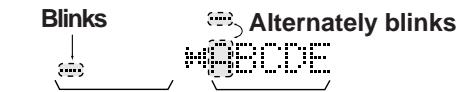
The title editing display appears.
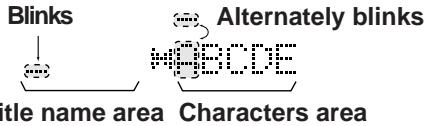
The display is divided into the title name area and the characters area.
You can select a character to be input to the title name from the characters area. For the character to be input, see the "Character Layout Table" below.
Title name area Characters area
[Character layout table]
You can input the title name by combining the following uppercase letters, lowercase letters, and numbers.
Uppercase letters
| A | B | C | D | E |
| F | G | H | I | J |
| K | L | M | N | O |
| P | Q | R | S | T |
| U | V | W | X | Y |
| Z | ||||
| (space) | ! | '', | # | $ |
| % | & | , | ( | ) |
| * | + | , | - | . |
| / | : | ; | < | = |
| > | ? | @ | - | 、 |
Lowercase letters
| a | b | c | d | e |
| f | g | h | i | j |
| k | l | m | n | o |
| p | q | r | s | t |
| u | v | w | x | y |
| z | ||||
| (space) | ! | ,, | # | $ |
| % | & | , | ( | ) |
| * | + | , | - | . |
| / | : | ; | < | = |
| > | ? | @ | - | 、 |
Numbers
| 0 | 1 | 2 | 3 | 4 |
| 5 | 6 | 7 | 8 | 9 |
4 Input the disc or track title.
The following table shows the buttons to be used to input a title. Also, an example how to input title is explained here.
[Title editing buttons and their functions]
| Button | Function |
| DISPLAY/CHARACTER or DISPLAY/CHARACTER | Changes the type of characters to be input as follows. Upper case letters and symbols← Lower case letters and symbols Numbers |
| or RECLEVEL | •Moves the cursor for the character to be input to the right. •When the cursor is further moved to the right at the last character, the next character group in the lower row is displayed. e.g. ABCDE → FGHIJ |
| or RECLEVEL | •Moves the cursor for the character to be input to the left. •When the cursor is further moved to the left at the first character, the next character group in the upper row is displayed. e.g. FGHIJ → ABCDE |
| SCROLL | The SCROLL on the remote control unit selects the character group in the lower row. e.g. ABCDE → FGHIJ |
| or OR | Moves the cursor for the title name to the right. |
| or OR | Moves the cursor for the title name to the left. |
| STOP/CANCEL | Cleared the input character for the title name. Note: When assigning a track title during playback or recording on page 29, the button functions as follows: ■STOP/CANCEL on the main unit : Stops the MD. CANCEL on the remote control unit : Clears the input character. |
| or CANCEL | Scrolls the title name exceeding 5 characters. |
How to input the title name:
Example: When input the title "N(space)1234"
1 Display the letters "KLMNO".
- Turn the jog dial on the main unit or | | | | | | on the remote control unit until "KLMNO" is displayed.
OR
- Press SCROLL on the remote control unit until "KLMNO" is displayed.
2 Select "N".
Move the cursor to the letter N using the jog dial on the main unit or or on the remote control unit.
3 Press SET on the main unit or the remote control unit.
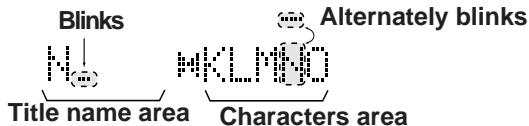
The letter N is now displayed in the title name area.
4 Select "(space)" and press SET on the main unit or the remote control unit.
5 Press DISPLAY/CHARACTER on the main unit or the remote control unit until the numbers "01234" are displayed.
6 Select "1" and press SET.
7 Select "2", "3" and "4" in the same way. When you enter "3", the title name scrolls to the left to display "4".
To check the title name, press / on the main unit or on the remote control unit. Then the title name starts scrolling from the beginning.
8 Go to step 5.
Editing the title name:
-
If a wrong character has been input, clear it using ■STOP/CANCEL on the main unit or CANCEL on the remote control unit.
To clear a particular character which has been input: -
First, press or on the main unit or the remote control unit to align the cursor with the character, and press STOP/CANCEL on the main unit or CANCEL on the remote control unit.
- Next, select the correct character and press SET on the main unit or the remote control unit.
5 Press ENTER on the main unit or the remote control unit.
The display shows "EDITING" and the TOC indicator lights up.
Next, the display shows the disc title name and then shows the track number and the total playback time.
ENTER
or
ENTER
□
EDITING

(Disc Title)

or

- If the disc title is longer than 11 characters, it scrolls on the display.
After editing the title track, the name of the track is not displayed.
6 Press on the main unit or the remote control unit to eject the MD.
The data in the memory is written in the MD before it is ejected.
The display shows "UTOCwriting" during MD write operation.
- Be careful not to apply impact to the MD recorder during writing data in the memory in the MD. Otherwise the recording may be unplayable later.
- The data in the memory is written in the MD also when the unit is switched to Standby mode while "EDITING" is being displayed.
To exit editing:
Press TITLE on the main unit or TITLE/EDIT on the remote control unit before pressing ENTER in step 5.
Assigning a track title during playback or recording
A track title up to 64 characters can be assigned as you play or record the track.
1 Starts playback or recording the track.
2 Press TITLE on the main unit once or press TITLE/EDIT on the remote control repeatedly until the title editing display appears.

or

The display is divided into the title name area and the characters area.
You can select a character to be input to the title name from the characters area. For the character to be input, see the "Character Layout Table" on page 26.
3 Input the track title name.
- Input the track title using the title editing buttons.
- For detailed description, refer to step 4 in "Assigning the disc title and track titles" on page 27.
However, note that the function of STOP/CANCEL differs. STOP/CANCEL acts to stop the MD.

or

4 Press ENTER on the main unit or the remote control unit.
The display shows "EDITING" and the TOC indicator lights up.
Next, the display shows the disc title name and then shows the track number and the total playback time.
- If it is during playback, the track will be played repeatedly until ENTER is pressed. Pressing ENTER stops the playback.
- If it is during recording, recording continues even after ENTER is pressed.
If ENTER is not pressed until the end of the track, the characters input before the end of the track are recorded as a track title.

or

5 Press on the main unit or the remote control unit to eject the MD.
The data in the memory is written in the MD before it is ejected.
The display shows "UTOCwriting" during MD write operation.
- Be careful not to apply impact to the MD recorder during writing data in the memory in the MD. Otherwise the recording may be unplayable later.
- The data in the memory is written in the MD also when the unit is switched to Standby mode while "EDITING" is being displayed.
To exit editing:
Press TITLE on the main unit or TITLE/EDIT on the remote control unit before pressing ENTER in step 4.
Linked Operation of the Other Optional Components (Compu Link)
The XM-228BK MD recorder can be controlled under linked operation provided by the JVC's Compu Link remote control system.
What is Compu Link
The world of single components, in which you purchase a cassette deck, CD player, amplifier and other components separately and enjoy your own composition, is an effective means for pursuit of high-quality reproduction. However, in terms of operability, the need of controlling components independently makes their control complicated and their linked operation impossible. Then, isn't it possible to combine single component and control them as simply as an integrated audio system? The Compu Link remote control system is the response to such a requirement.
By connecting the COMPU LINK jacks to the components equipped with jacks named COMPU LINK-3 (COMPU LINK jacks), they can be controlled simply with a systematized, linked operation.
Compu Link connections
Using Compu Link cables, connect the COMPU LINK jacks of the components. Connect so that the Compu Link cables can bridge all of the components you have. The components can be connected in any order.
Compu Link-3 features
The Compu Link-3 system makes the following operations possible.
Shortcut playback:
Simply selecting an input source of the receiver starts playback of the selected source component (CD player, MD recorder or cassette deck).
Also, even if you do not touch the receiver, starting playback of a source component sets the receiver's input source automatically to the played component.
*Refer to the instruction manual of amplifier/tuner.
A single remote control unit:
The remote control unit provided with the receiver can also be used to control the CD player, MD recorder, or cassette deck.
Synchronized recording:
Recording can be started automatically in synchronism with the start of playback of a source component.
Timer operation:
The timer function built into the receiver can be used to start recording or playback of other components at the reserved time of the day or switch the power to the Standby mode in the reserved time period.
*Refer to the instruction manual of receiver.
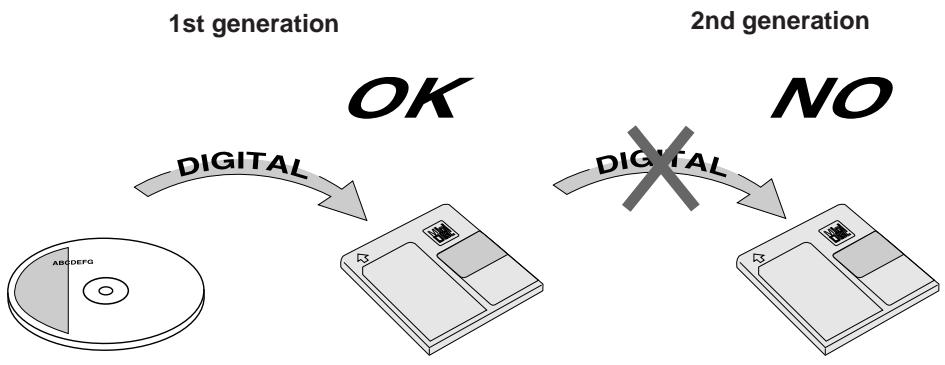
The digital audio equipment exchange audio signals in the digital forms through digital input/output jacks, and include the CD (Compact Disc) player, MD (Mini Disc) recorder and DAT (Digital Audio Tape) recorder. The digital audio equipment allows digital copy of signals with little deterioration of music signals. This has made it necessary to have a copy restriction rule for protecting the copyright, and the SCMS has been established as a result.
SCMS (Serial Copy Management System)
With a view to protecting the copyright, the SCMS restricts the number of generations permitted for copying of signals in the digital form between digital audio equipment to only one generation.
Caution
- Because of this rule, the MD obtained by recording a CD on the MD recorder cannot be copied in the digital form on other digital equipment.
The MD (Mini Disc) is a new digital audio medium using a disc with a diameter of 64 millimeters. In spite of the small size, the MD has multiple functions, high audio quality and recording/playback capabilities for up to 74 minutes.
Role of the cartridge
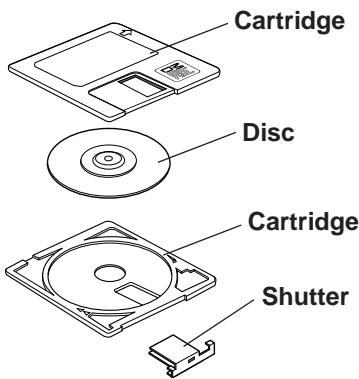
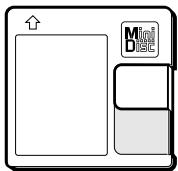
The MD cartridge has a pocket size of 68mm× 72mm with a thickness of 5 mm. The cartridge accommodates the 64mm diameter disc for ease of transportation and storage.
The internal disc is usually protected by the cartridge shells and shutter so no dust, dirt, scratch or fingerprint is left on the disc and the disc handling is easy.
Two disc types
Playback-only MD
The MD (Mini Disc) includes two disc types, the recordable MD that can be recorded onto and the playback-only MD that can exclusively be played back. Although both types of discs are played in the same way, that is, by irradiating a laser beam on the disc and reading signals from the reflected light, the ways they are recorded are completely different.
Playback-only MD
This type of disc is used in prerecorded MD software marketed in music stores. It cannot be recorded by the user and data is recorded in the same way as a CD, i.e. according to the presence or absence of small holes called pits. A disc recorded in this way is referred to as an "optical disc".
Recordable MD
Recordable MD
This type of disc records data using the magnetism to allow repeated data recording operations. A disc recorded in this way is referred to as an "MO (Magneto-Optical) disc".
ATRAC (Adaptive TRansform Acoustic Coding)
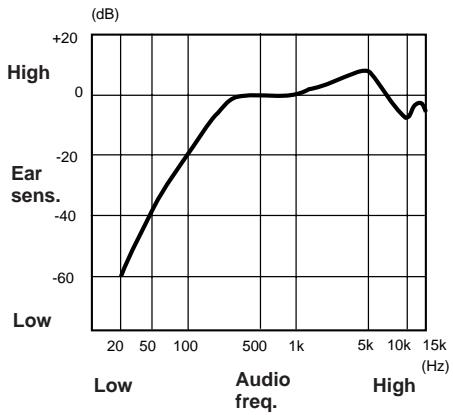
The MD (Mini Disc) has half the size of the CD but can record data for the same period of time. This has been made possible by the newly developed ATRAC (Adaptive TRansform Acoustic Coding), which compresses data by cutting the audio components that are inaudible to the human sense of audition. This technology reduces the recorded data to about 1/5 the original data quantity and enables recording/playback of data for up to 74 minutes.
Sound skip guard memory
During normal playback
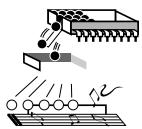
During vibration
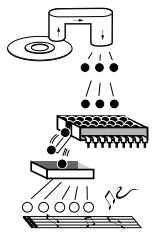
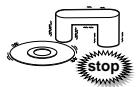
The sound skip guard memory stores some data of the played track so that the played audio does not skip due to vibration during MD (Mini Disc) playback.
In case the optical laser cannot read disc signal due to vibration, the actually reproduced audio is not interrupted because the data stored in the guard memory is available.
UTOC (User Table Of Contents)
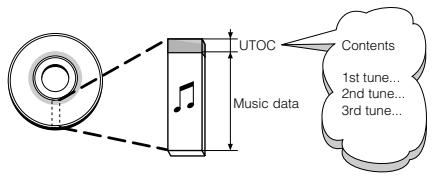
The recordable MD (Mini Disc) contains the recording of UTOC (User Table Of Contents) in addition to music data itself. The UTOC includes the information on the positions the tracks are recorded, markings between tracks and order of tracks, so tracks can be searched quickly by referring to it. The editing operations consist of altering the UTOC contents and the actual music data does not need to be re-recorded.
The display of the MD recorder may show the messages which are explained in the following table.
| Messages | Description | Treatment |
| BLANK DISC | The loaded disc is a non-recorded disc. | Use a recorded disc unless you want to start recording on a blank disc. |
| CANNOT JOIN | An attempt is made to join tracks that cannot be joined. | This is one of system restrictions on the MD. [See page 35.] |
| DISC ERROR | The MD is abnormal (damaged). | Use another MD. |
| DISC FULL | The disc has no available space or the number of tracks has reached 254. | Use another recordable MD. |
| EMERGENCY STOP | An abnormality occurred during recording. | Press ■STOP/CANCEL on the main unit or ■ on the remote control unit to enter Stop mode, then press ▲ to eject the MD and retry recording. |
| NO DISC | No MD is loaded. | Load an MD. |
| NON-AUDIO CANNOT COPY | An attempt is made to digitally dub a CD-ROM (Video CD, etc.). | Stop recording. |
| PLAYBACK DISC | An attempt is made to record on or edit a playback-only MD. | Use a recordable MD. |
| DISC PROTECTED | The MD is protected against accidental erasure. | Slide the protect tab of the MD. [See page 36.] |
| TRACK PROTECTED | A track has been protected against accidental erasure by other component that the MD recorder in use. | This protection cannot be released by the MD recorder being used. Release it using the MD recorder which activated the protection. |
| SCMS CANNOT COPY | An attempt is made to copy a digitally dubbed copy. | Use the analog input for recording. |
| DIGITAL UNLOCK | A wrong digital input is selected. | Press INPUT to select the correct digital input. |
The MD uses a unique data recording format that is different from the formats used by Cassette tape and DAT. Due to the restrictions imposed by this MD recording format, following symptoms may be observed. Note that these symptoms do not indicate malfunction of the product.
| Symptom | Cause |
| “DISC FULL” is displayed before the available recording time indicated on the disc has been used. | The number of tracks that can be recorded on an MD is limited regardless of the time period. It is not possible to record a 255th track. |
| “DISC FULL” is displayed although there remains margin in both the number of tracks and available recording time. | After partial erasure and re-recording are repeated, the disc comes to contain many idle spaces here and there. When recording data on such a disc, the MD recorder distributes the data of a single track in many locations. When such separated sections increase, “DISC FULL” may be displayed during recording. When a section below 8 seconds is created by separation, the track containing it cannot be joined with another track using the JOIN function, and the remaining recording time does not increase even when such a section is erased. Also, the audio may be interrupted after fast forwarding or fast reversing a track recorded in separate sections. |
| The JOIN operation is not possible. | |
| The remaining recording time does not increase after some tracks are erased. | |
| Sound is interrupted after fast forward or fast reverse. | |
| The total of the elapsed recording time and remaining recording time is less than the available recording time indicated on the disc. | The MD always spend a continuous space of at least 2 seconds for recording data even when it is shorter than 2 seconds. When a large number of non-used spaces below 2 seconds are produced in a disc as a result of the above, the available recording time in the disc is shortened. |
MD handling precautions
To maintain high quality audio for a long period
Since the disc is accommodated inside a cartridge, it can be handled easily without caring about dust and dirt. However, to maintain the high audio quality for an extended period, use care in the following points.
Installation location
Do not install the MD in following places.
- In a place subject to direct sunlight or where the temperature rises, for example in a closed automobile. The disc may be warped and unusable in these places.
- In a bathroom or where the humidity is high. The disc may be rusted in these places.
- On a beach or sandbox. The disc surface may be scratched or damaged if grit penetrates through an opening on the cartridge.
Periodical maintenance
When the cartridge gets dusty or dirty, wipe with a soft, dry cloth.
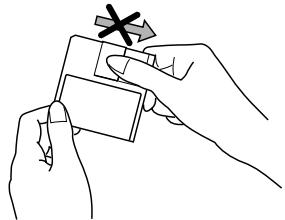
Do not open the shutter.
The shutter is usually locked to prevent opening. Do not force to open it or the disc may be destroyed.
To protect important recording
A recordable MD has a sliding tab for protection against accidental erasure of important recording.
After recording or editing, slide open the accidental erasure protect tab on the cartridge edge to make additional recording or editing impossible. If you want to re-record or edit the disc, slide the protect tab again.
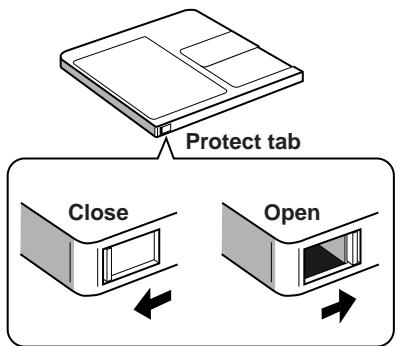
Recording/editing possible
Recording/editing not possible
In case of difficulty, check the following before calling for service.
| Symptom | Cause | Treatment |
| Sound is not heard. | Cables are not connected properly. | Connect cables properly by referring to “Connection”. |
| The power cord is unplugged from the power outlet. | Plug the power cord securely into the power outlet. | |
| Recording is not possible. | A playback-only MD is loaded. | Use a recordable MD. |
| The MD is protected against accidental erasure (“DISC PROTECTED” is displayed in this case). | Close the accidental erasure protect tab of the MD. | |
| Remote control is not possible. | The batteries are exhausted. | Replace batteries with new ones. |
| The batteries are inserted with wrong polarity (+, -). | Insert batteries with correct polarity. | |
| There is an obstacle between the remote control unit and remote control sensor. | Remove the obstacle. | |
| The remote control sensor is under direct sunlight. | Screen the direct sunlight. | |
| Operation is abnormal. | Condensation is produced inside the MD recorder immediately after starting the room heating or when it is transported from a cold to warm place. | Unplug the power cord, wait a few hours and plug it again. |
| The microcomputer is malfunctioning due to external noise or lightning. | Unplug the power cord then plug it in again. |
| Format | Minidisc digital audio system | Output terminal | ANALOG OUT (pin jack) |
| Recording format | Magnetic modulation overwrite format | (Analog) | Terminal name ANALOG OUT Load impedance 10 kohms |
| Reading format | Non-contacting optical method by semiconductor laser (λ=780 nm) | ||
| Sampling frequency | 44.1 kHz | Output level 1.1 V | |
| Compression/expansion method | ATRAC (Adaptive TRansform Acoustic Coding) method | Power requirements | AC 230 V ∅, 50 Hz |
| Number of channels | 2 channels | Power consumption | 11 watts (ON), 7 watts (STANDBY) |
| Frequency response | 5 Hz to 20,000 Hz (±0.5 dB) | ||
| S/N ratio | 93 dB | Dimensions | 435 × 112 × 335 mm (W/H/D) (17-1/8 × 4-13/32 × 13-1/4 inches) |
| Dynamic range | 91 dB | ||
| Wow/flutter | Less than measurable limit | ||
| Input terminals | ANALOG IN (pin jack), OPTICAL DIGITAL IN (square optical connector jack) | Mass | 4.3 kg (9.5 lbs) |
| (Angalog) | Terminal name ANALOG IN Reference input level 275 mV rms. Minimum input level 100 mV rms. | Accessories | Remote control (1) Batteries R6P (SUM-3)/AA (15F) (2) Audio pin cord (2) Optical digital cable (1) Compu Link cable (1) AC power cord (1) |
| (Digital) | Terminal name DIGITAL IN 1, 2 Received optical signal wave length 660 nm Input level -23 dBm to -15 dBm Specifications and appearance subject to change for improvements without prior notice. | ||