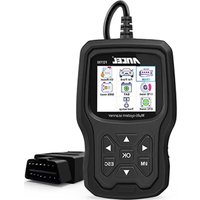
BM500 - Uncategorized ANCEL - Free user manual and instructions
Find the device manual for free BM500 ANCEL in PDF.


User questions about BM500 ANCEL
0 question about this device. Answer the ones you know or ask your own.
Ask a new question about this device
Download the instructions for your Uncategorized in PDF format for free! Find your manual BM500 - ANCEL and take your electronic device back in hand. On this page are published all the documents necessary for the use of your device. BM500 by ANCEL.
USER MANUAL BM500 ANCEL
To prevent personal injury or damage to vehicles and/or the scan tool, read this instruction manual first and observe the following safety precautions at a minimum whenever working on a vehicle:
Always perform automotive testing in a safe environment.
Do not attempt to operate or observe the tool while driving a vehicle. Operating or observing the tool will cause driver distraction and could cause a fatal accident.
Wear safety eye protection that meets ANSI standards.
Operate the vehicle in a well ventilated work area: Exhaust gases are Poisonous.
Put the transmission in PARK (for automatic transmission) or NEUTRAL (for manual transmission) and make sure the parking brake is engaged.
Keep the scan tool dry, clean, free from oil/water or grease. Use a mild detergent on a clean cloth to clean the outside of the scan tool, when necessary.
ABOUT BM500
1. Coverage
1) BM500 supports for BMW, Mini and Rolls-Royce brand cars. It works on all the systems such as engine, transmission, ABS and airbag etc.
2) Supports OBDII/EOBD Modes of operation.
2. Product specification
• 2.4" 240x320 pixels LCD screen..
- Operating Voltage: 8V-18V.
- Operating Temperature: 0^ - 60^(32 - 140^)
- Storage Temperature: -20^ - 70^(4 - 158^) .
3. Appearance and buttons description
text_image
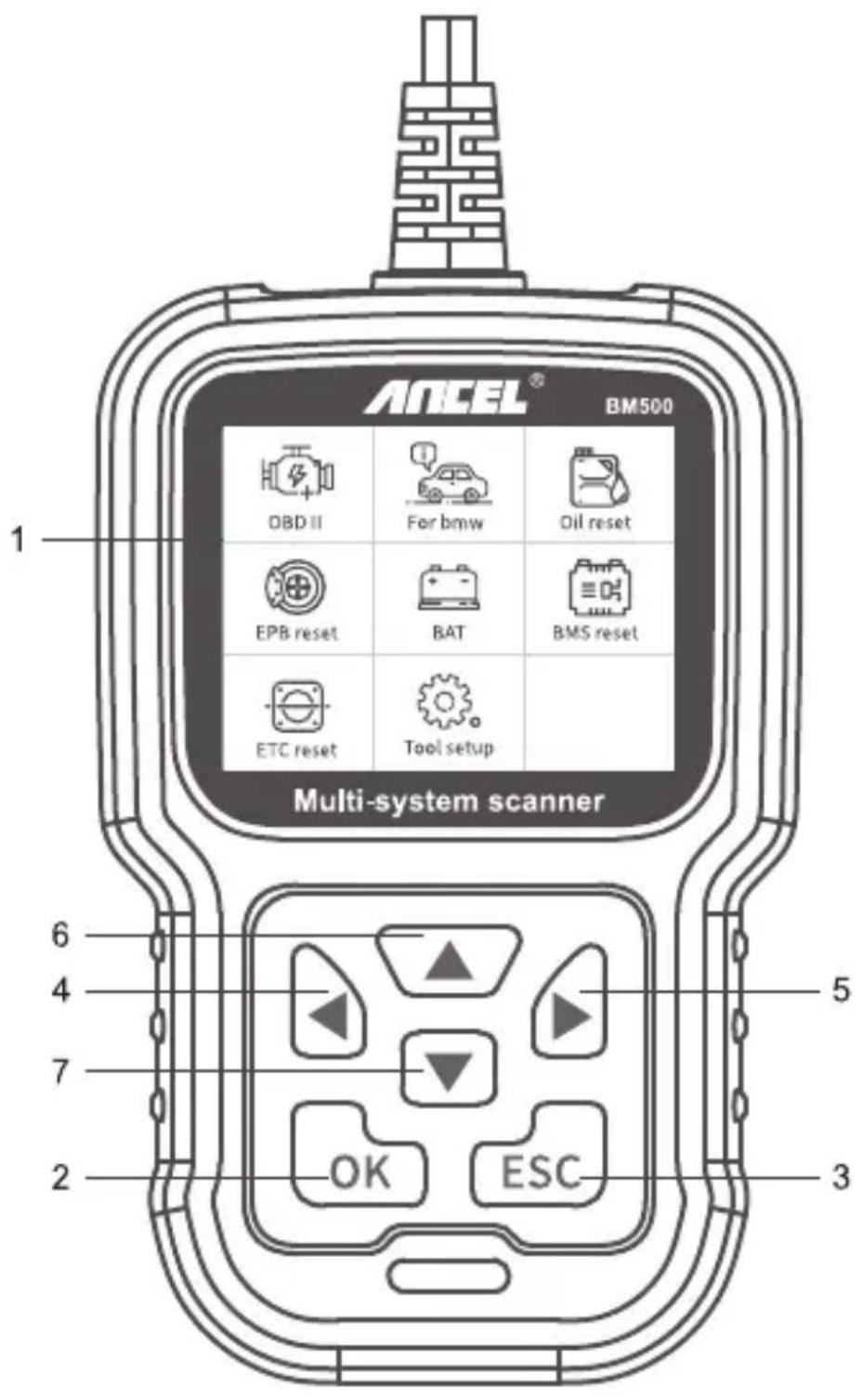
ANCEL® BM500 1 Multi-system scanner 6 4 7 2 3 5 OK ESC- LCD SCREEN – Indicates test results. Backlit, 320 x 240 pixels display
- [OK] BUTTON – Confirms a selection (or action) from a menu.
-
[ESC] BUTTON – Cancels a selection (or action) from a menu or returns to the menu.
-
[LEFT] SCROLL BUTTON – In the menu mode through the menu and sub menu move to the left, when rolling in a data interface, use the left button can be moved to the last screen.
- [RIGHT] SCROLL BUTTON – In the menu mode through the menu and sub menu item move to the right, when rolling in the data interface, use the right button can be moved to the next screen.
- [UP] SCROLL BUTTON – In the menu mode through the menu and sub menu item moving up. When retrieving data for more than a screen by moving up the screen to the previous screen for more data.
- [DOWN] SCROLL BUTTON – In the menu mode through the menu and sub menu item moves down. When retrieving data more than one screen, by moving down the screen to the next screen for more data.
OPERATION INSTRUCTIONS
1. Connect BM500
1.1 Turn the ignition on.
1.2 Locate the vehicle's 16-pin Data Link Connector (DLC).
2. BM500 Features
2.1 For bmw
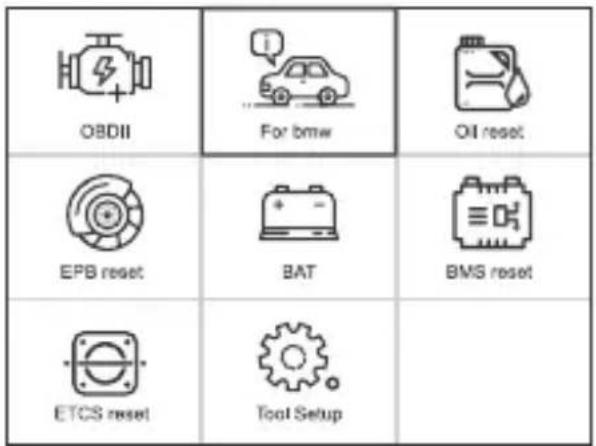
Choose [For bmw] and then select [For BMW Series Diagnose]. The screen will show all car series. As follow:
text_image
OBDII For bmw Oil reset EPB reset BAT BMS reset ETCS reset Tool Setup| Select Brand |
| Last Test Record |
| For BMW Series Diagnose |
| For MINI Series Diagnose |
| For Rolls-Royce Series Diagnose |
For example: Choose [For 5 Series] and select [G38(2017-Present)], it displays as follow:
| Select Series |
| For 1 Series |
| For 2 Series |
| For 3 Series |
| For 4 Series |
| For 5 Series |
| For 6 Series |
| For 7 Series |
| Select Chassis |
| G38(2017-Present) |
| 8/8 |
2.2 Basic Functions
Choose [Basic Functions] and it displays as follow:
| Select Function |
| Basic Functions |
| Special Functions |
| Erase All Systems Fault Codes |
System scan is to scan all vehicle systems.
Manual Select is to display all possible systems, select one of the systems to diagnosis.
Choose [Manual Select] and it displays as follows:
| Select Menu |
| System Scan |
| Manual Select |
| Select System Diagnose |
| CAS Car Access System |
| ECM Engine Control Module |
| ECM2 Engone Control Module 2 |
| EGS/SMG Transmission Manag |
| EKPS Fuel-pump Control |
| GWS Gear Selector Switch |
| VTG Transfer Case |
For example: Choose [ECM Engine Control Module] and it displays as follows:
| Select System Diagnose |
| CAS Car Access System |
| ECM Engine Control Module |
| ECM2 Engone Control Module 2 |
| EGS/SMG Transmission Manag |
| EKPS Fuel-pump Control |
| GWS Gear Selector Switch |
| VTG Transfer Case |
| Select Function |
| Version Information |
| Read Fault Codes |
| Erase Fault Codes |
| Read Datastream |
2.2.1 Version Information
Choose [Version Information] and it displays as follows:
| Select Function |
| Version Information |
| Read Fault Codes |
| Erase Fault Codes |
| Read Datastream |
| Version Information | |
| Diagnosis Index: 0F2426 |
2.2.2 Read Fault Codes
Choose [Read Fault Codes]. Press up or down button to check each fault code as follows:
| Select Function |
| Version Information |
| Read Fault Codes |
| Erase Fault Codes |
| Read Datastream |
| Read Fault Codes | |
| 1/20 | |
| 29CF Combustion misfires | |
| Cylinder 3 | |
2.2.3 Erase Fault Codes
Choose [Erase Fault Codes] then press [OK] button as follows:
| Select Function |
| Version Information |
| Read Fault Codes |
| Erase Fault Codes |
| Read Datastream |
| Information |
| Erase fault codes! |
| Are you sure? |
You need to press [OK] again to clear the fault codes, or you can press [ESC] button to give up clearing fault codes, as follows:
| Version Information |
| Erase fault codes had success. Please wait 10 seconds, Turn ignition off and Switch on again. Read fault codes to verify. |
2.2.4 Read Datastream
Choose [Read Datastream] then press [OK] button as follow:
| Select Function |
| Version Information |
| Read Fault Codes |
| Erase Fault Codes |
| Read Datastream |
Choose [Select Items] and press [OK] button as follows:
| Select Function |
| View All Items |
| Select Items |
| Select Datastream | |
| [v] | All Datastream Of Page |
| [v] | Engine speed[rpm] |
| [v] | DISA potentiometer voltage[v] |
| [v] | Throttle opening[%] |
| [v] | Throttle opening[%] |
Press [LEFT] and [RIGHT] buttons to page
Press [UP] and [DOWN] buttons to select one by one
Press [OK] button to select the Datastream
Press [ESC] button to read Datastream
2.3 Special Functions
Choose [Special Functions] function step by step and it displays as follows:
| Select Function |
| Basic Functions |
| Special Functions |
| Erase All Systems Fault Codes |
| Special Function |
| CBS Reset |
| PCM Clear adaptations |
| Battery Management |
| EPB Electronic Parking Brake |
2.3.1 CBS Functions
Choose [CBS Reset] function step by step and it displays as follow:
| Special Function |
| CBS Reset |
| PCM Clear adaptations |
| Battery Management |
| EPB Electronic Parking Brake |
| Special Functions |
| Engine oil: 73% |
| Vehicle check: 100% |
| Front Brake: 99% |
| Rear Brake: 98% |
| Brake fluid: 98% |
| Microfilter: 98% |
| Vehicle inspection |
2.3.2 PCM Clear adaptations
Choose [PCM Clear adaptations] function step by step and it displays as follows:
| Special Function |
| CBS Reset |
| PCM Clear adaptations |
| Battery Management |
| EPB Electronic Parking Brake |
| Special Functions |
| Clear adaptations |
| DME:Delete adaptation variable |
| Special Functions | |
| (1) | The adaptation values can be reset in the next test step.(1).Reset VANOS adaptation values. |
| Special Functions |
| Service function finished |
2.3.3 Battery Management
Choose [Battery Management] function step by step and it displays as follows:
| Special Function |
| CBS Reset |
| PCM Clear adaptations |
| Battery Management |
| EPB Electronic Parking Brake |
| Special Functions | |
| (1) | Selection |
| (2) | (1). Diasplay Kilometrr reading of last battery change and last but one(2). Register battery exchange. |
Step 1: Use the up or down button to select the (2) option and press the [OK] button to achieve register battery replacement and display the following menu:
| Special Functions | |
| (1) | Selection |
| (2) | (1). Diasplay Kilometrr reading of last battery change and last but one(2). Register battery exchange. |
| Special Functions | |
| (1) | The battery |
| (2) | replacement is eneredin |
| (3) | the DME/DDE in the next test step! |
| The engine does not have to be running and -Engine off | |
Step 2: Use the up or down button to select the (1) option and press the [OK] button to display the following menu:
| Special Functions |
| The battery replacement is entered in the engine electronics(DME or DDE) Please wait! |
| Special Functions |
| The battery replacement was registered successfully in the DME/DDE) |
| The following is now entered in the DME/DDE: |
| Last battery replacement: |
2.3.4 EPB Electronic Parking Brake
Choose [EPB Electronic Parking brake] function step by step and it displays as follows:
| Special Function |
| CBS Reset |
| PCM Clear adaptations |
| Battery Management |
| EPB Electronic Parking Brake |
| EPB Parking brake |
| (1).Activate the installation positi |
| (2).Deactivate the installation p... |
| Information |
| Initialisation was completed successfully. |
| If faults occurred during this, they must be processed according to the test schedule. |
| Information |
| Service function finished. |
Note: The special features of each model are different, please according to the actual operation.
2.4 Erase All Systems Fault Codes
Choose [Erase All Systems Fault Codes] and it displays as follows:
| Select Function |
| Basic Functions |
| Special Functions |
| Erase All Systems Fault Codes |
| Information |
| Erase fault codes!Are you sure? |
You need to press [OK] again to clear the fault codes. Or you can press [ESC] button to give up clearing fault codes. It shows as the follow after clearing the fault codes.

text_image
Information Erase fault codes had success. Please wait 10 seconds, Turn ignition off and Switch on again. Read fault codes to verify.Note: For BMW car after 2003.
3. OBDII System
3.1 Read Codes
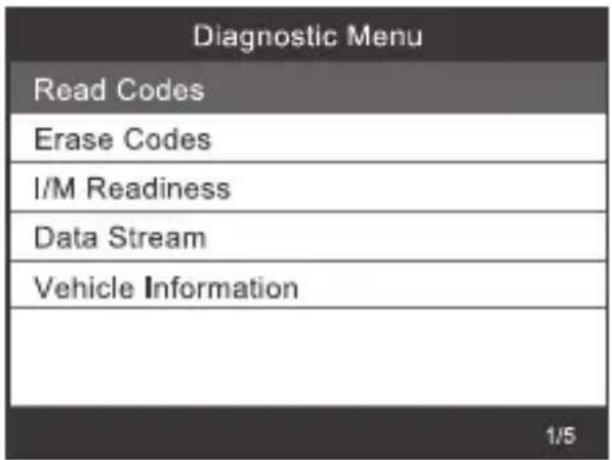
1) Use the UP/DOWN scroll button to select Read Codes from the Diagnostic Menu and press [OK].
text_image
Diagnostic Menu Read Codes Erase Codes I/M Readiness Data Stream Vehicle Information 1/52) View DTCs and their definitions on screen.

text_image
DTC P0143 1/8 Generic Current O2 Sensor Circuit Low Voltage Bank 1 Sensor 3 ↑ ↓ OK ESC3.2 Erase Codes
1) Use the UP/DOWN scroll buttons to select Erase Codes from the Diagnostic Menu and press [OK].
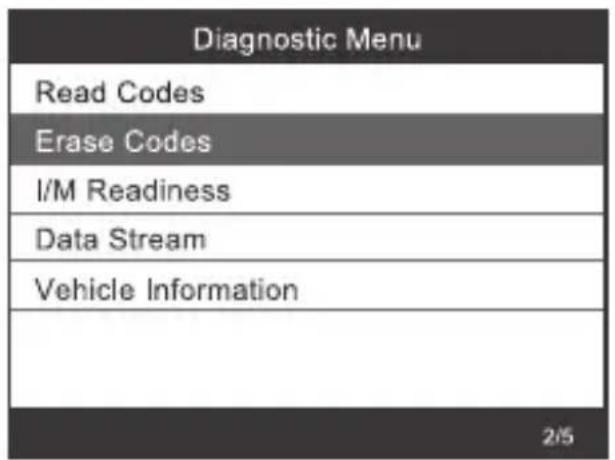
text_image
Diagnostic Menu Read Codes Erase Codes I/M Readiness Data Stream Vehicle Information 2/52) A warning message comes up asking for your confirmation.
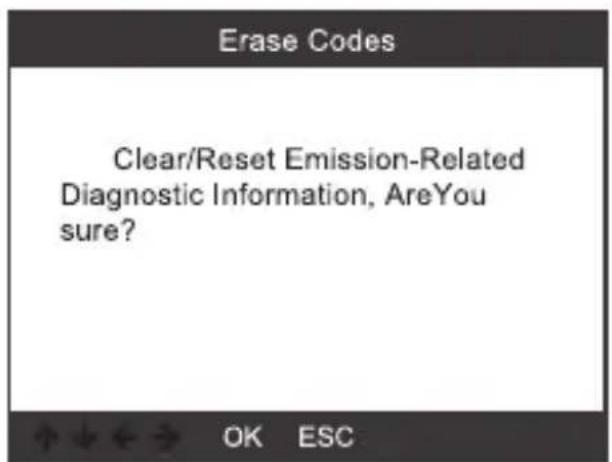
text_image
Erase Codes Clear/Reset Emission-Related Diagnostic Information, AreYou sure? OK ESC3) Press [OK] to confirm.
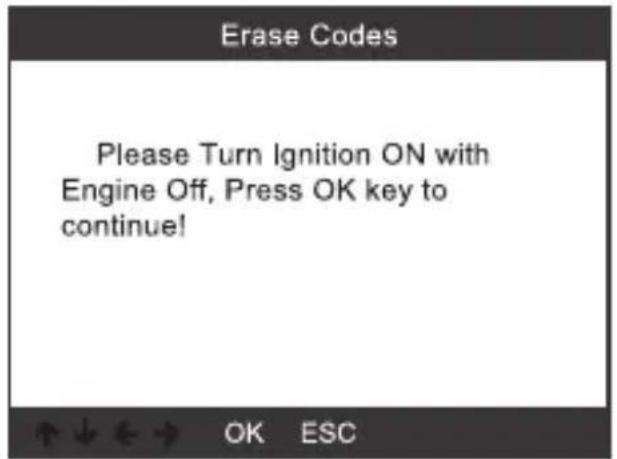
text_image
Erase Codes Please Turn Ignition ON with Engine Off, Press OK key to continue! OK ESC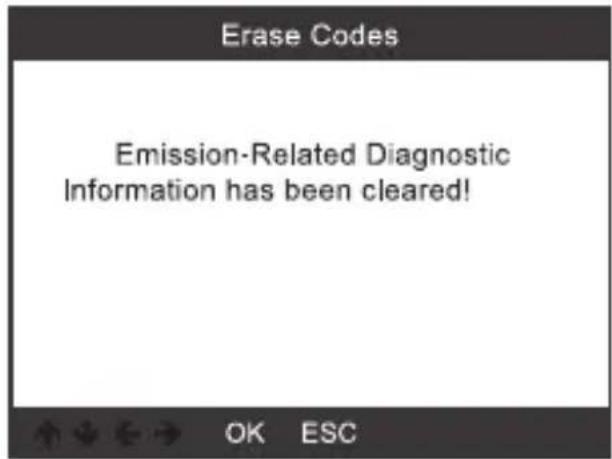
text_image
Erase Codes Emission-Related Diagnostic Information has been cleared!3.3 I/M Readiness
1) Use the UP/DOWN scroll button to select I/M Readiness from the Diagnostic Menu and press [OK].

text_image
Diagnostic Menu Read Codes Erase Codes I/M Readiness Data Stream Vehicle Information 3/5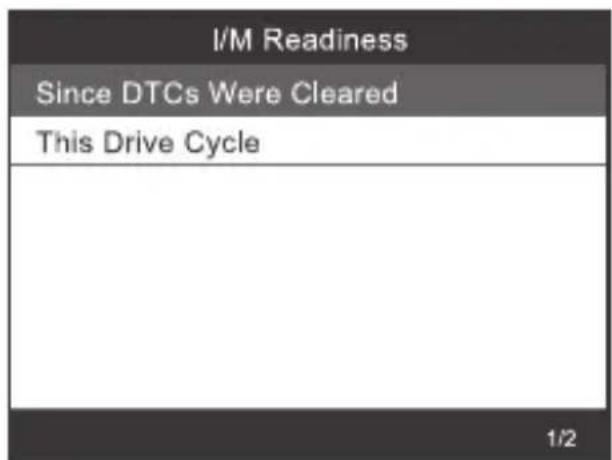
text_image
I/M Readiness Since DTCs Were Cleared This Drive Cycle 1/23.4 Data Stream
Use the UP/DOWN scroll button to select Data Stream from the Diagnostic Menu and press [OK].
| Diagnostic Menu |
| Read Codes |
| Erase Codes |
| I/M Readiness |
| Data Stream |
| Vehicle Information |
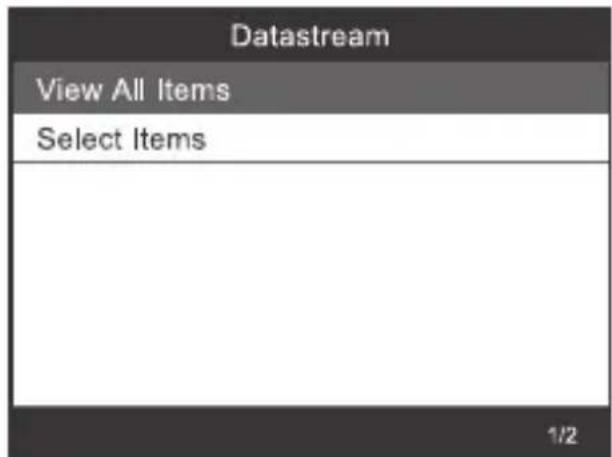
text_image
Datastream View All Items Select Items 1/23.5 Vehicle Information.
Select [Vehicle Information] and press [OK], the screen will display the formation such as VIN (Vehicle identification Number), CID (Calibration ID) and CVN (Calibration verify number).
| Diagnostic Menu |
| Read Codes |
| Erase Codes |
| I/M Readiness |
| Data Stream |
| Vehicle Information |
| Vehicle Information |
| Vehicle Identification Number(VIN):LVSFBFAC94F020950 |
| Calibration Identifications(CID):000007550753 |
| Calibration Verification Numbers(CVN):B5073064 |
4. Tool Setup
4.1 Language
Choose [Language] and it displays as follows:
Interface languages: English, French, German, Spanish, Russian, Portuguese, Sweden, Finland, Norway, Denmark, Italian.
| Tool Setup |
| Language |
| Instructions(Display at startup) |
| Unit of Measure |
| Skin Style |
| Feedback the test result |
| Device Information |
| Language |
| English |
| Svenska |
| Suomalainen |
| Norsk språk |
| Dansk |
| Deutsch |
| Français |
4.2 Instructions (Display at startup)
Choose [Instructions (Display at startup)] and it displays as follows:
| Tool Setup |
| Language |
| Instructions(Display at startup) |
| Unit of Measure |
| Skin Style |
| Feedback the test result |
| Device Information |
| Beeper |
| OFF |
| ON |
4.3 Unit of measure
Choose Unit of measure and it displays as follows:
| Tool Setup |
| Language |
| Instructions(Display at startup) |
| Unit of Measure |
| Skin Style |
| Feedback the test result |
| Device Information |
| Unit of measure |
| Mertic |
| Imperial |
4.4 Skin Style
Choose Unit of measure and it displays as follows:
| Tool Setup |
| Language |
| Instructions(Display at startup) |
| Unit of Measure |
| Skin Style |
| Feedback the test result |
| Device Information |
| Skin Style |
| Sky Gray |
| Gem Blue |
4.5 Feedback the test result
- If it shows connected error with vehicle or other problem during using, please using the feedback function. Choose [Feedback the test result] and it displays as follows:
| Tool Setup |
| Language |
| Instructions(Display at startup) |
| Unit of Measure |
| Skin Style |
| Feedback the test result |
| Device Information |
| Feedback |
| Automatic recording is ready, perform the related functions that require feedback. After the execution, disconnect the car, connect to the computer via USB use the |
Next : Press ESC Button several times and return to the main menu.
- For example: Register battery change fail.
Select [Register battery change] option, and do Register battery change again (This step is very important).
Note : Keep tool connect with vehicle in above steps.
- After doing register battery change, disconnect with car
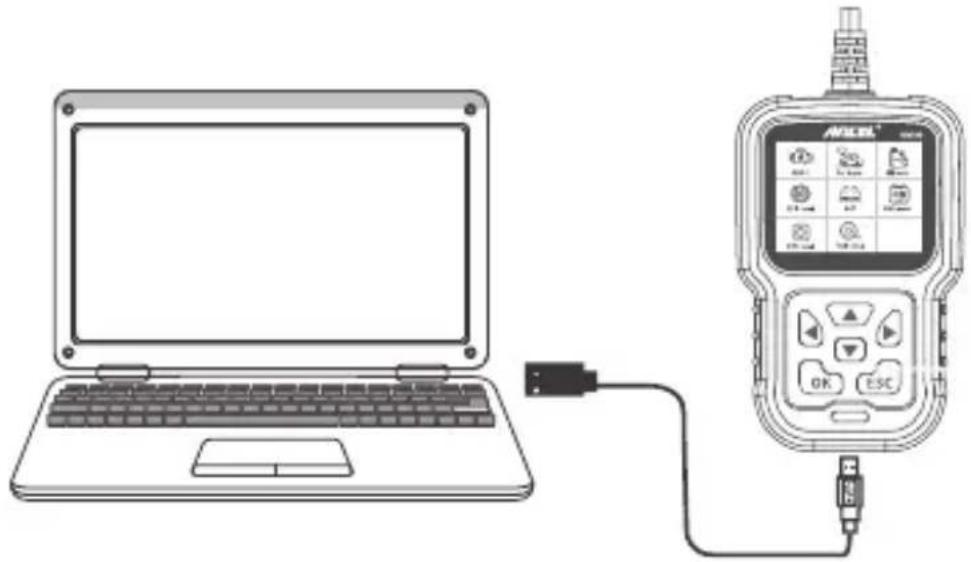
- Transfer data to your computer and generate feedback file (You need to download upgrade file on the computer from ANCEL website). The device is connected with computer through USB cable.
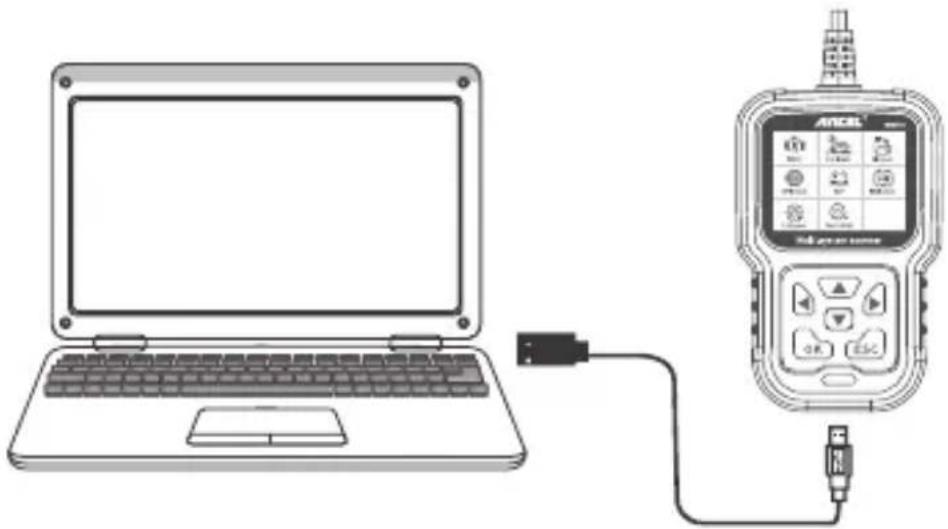
natural_image
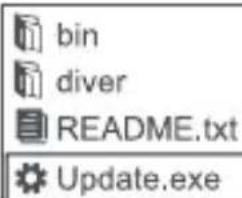
Line drawing of a laptop connected to an ANCEL device via cable (no text or symbols present)Choose "Update" file and it displays as follow:
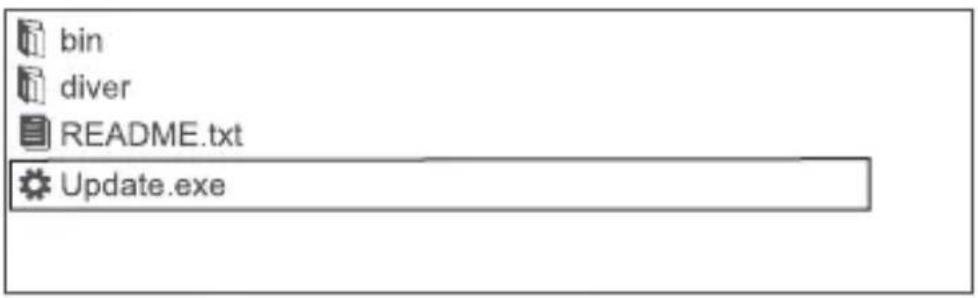
text_image
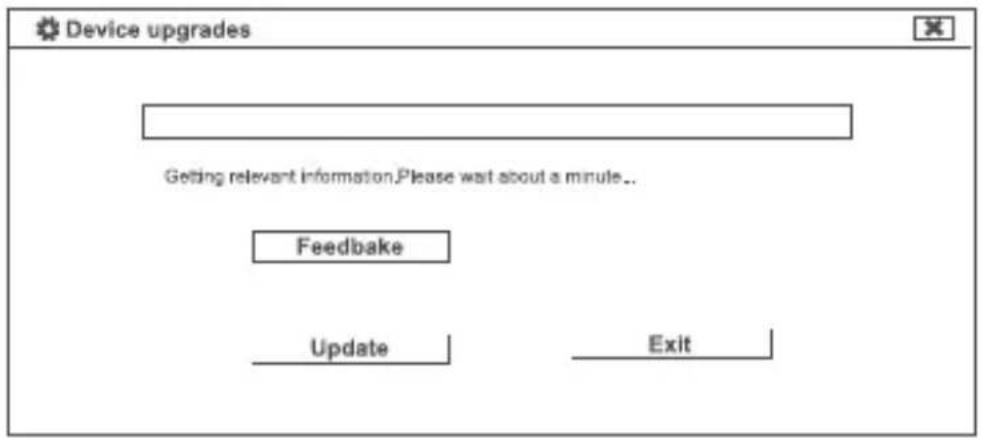
bin diver README.txt Update.exeClick "Feedback" and it displays as follow:
text_image
Device upgrades Getting relevant information. Please wait about a minute... Feedback Update Exit
text_image
bin diver feedback.bin README.txt Update.exePlease send the feedback.bin file to support@anceltech.com
4.6 Device Information
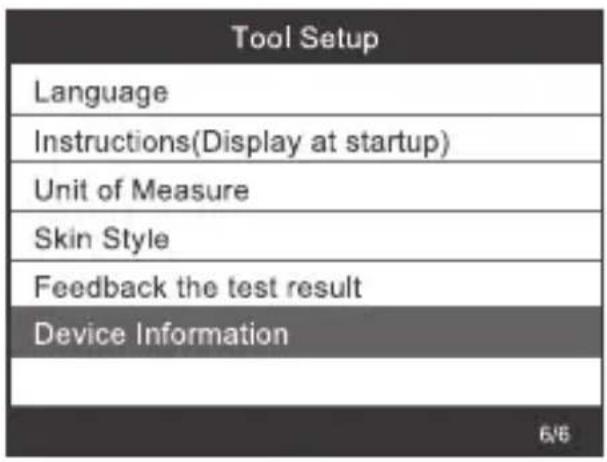
Choose Device Information and it displays as follows:
text_image
Tool Setup Language Instructions(Display at startup) Unit of Measure Skin Style Feedback the test result Device Information 6/6
text_image
Device Information Software Version: 01.00.000 Hardware Version: 01.00.000 Serial Number: ANCEL20170500173758 ↑↓←→ OK ESC5. Update
- Download update software.
- Connect the devise with computer through USB cable.
natural_image
Line drawing of a laptop connected to an MILE device via cable (no text or symbols visible)- The update software is only supported by win7/8/10.
* Click "install driver.bat" in the driver files to install the driver, if computer system is Windows 7

text_image
bin diver
text_image
README.txt Update.exe 1.Cilck "driver" file

2.Cilck "install driver.bat" to install the driver
text_image
bin diver README.txt Update.exe3.Cilck "Update"
* Windows 8/10 can run update software directly.
Warranty
1) This warranty is limited to the person who purchases ANCEL products.
2) ANCEL product is warranted against defects in materials and workmanship for one year (12 months) from date of delivery to the user.
OBDSPACE TECHNOLOGY CO.,LTD
Address: Runfeng office longhua district Shenzhen GuangDong518000 P.R.China
Tel: 0755-81751202
E-mail: support@anceltech.com
Website: www.anceltech.com