
SMDWB-E07 - Unspecified Lectrosonics - Free user manual and instructions
Find the device manual for free SMDWB-E07 Lectrosonics in PDF.


| Product Type | Wireless microphone transmitter and recorder |
| Model | SMDWB-E07 (941 MHz band) |
| Frequency Range | 941.525 – 951.975 MHz, 953.025 – 956.225 MHz, 956.475 – 959.825 MHz |
| RF Power Output | Selectable 25, 50, or 100 mW (E07 models) |
| Dimensions (without mic) | 2.366 x 2.475 x 0.642 inches (60.096 x 62.865 x 16.307 mm) |
| Weight (with batteries) | 4.8 oz (136.078 g) |
| Power Source | Two AA batteries (1.5 V each); lithium recommended |
| Battery Life | Approximately 11.2 hours with two AA lithium batteries |
| Audio Input | 5-pin locking TA5F jack; compatible with electret lavaliere, dynamic mics, line level, instruments |
| Input Limiter | DSP-controlled dual envelope soft limiter, >30 dB range |
| Gain Control Range | 44 dB via membrane switches |
| Modulation Indicators | Dual bicolor LEDs (-20, -10, 0, +10 dB referenced to full modulation) |
| Frequency Selection | 100 kHz or 25 kHz steps; IR sync compatible |
| Compatibility Modes | Nu Hybrid, Mode 3, IFB (for E07 models) |
| Recorder Function | Built-in recorder; microSDHC card (4‑32 GB, Class 10); 24‑bit/44.1 kHz, .wav BWF format |
| Recording Time (16 GB card) | Approximately 23 hours (mono) |
| Antenna Connector | 50 ohm SMA |
| Audio Frequency Response | 35 Hz – 20 kHz (±1 dB) |
| Signal-to-Noise Ratio (SmartNR normal) | 107.0 dB (without limiting), 111.5 dB (with limiting) |
| Total Harmonic Distortion | 0.2% typical |
| Low Frequency Roll-off | Selectable: 35, 50, 70, 100, 120, 150 Hz |
| Supplied Accessories | TA5F connector kit, silver paste vial, 16 GB microSDHC card, foam pads, leather pouch (PSMDWB), spring-loaded clip (SMWBBCUPSL), lithium batteries, antenna (AMMxx) |
| Optional Accessories | Belt clips (SMDWBBCSL wire and spring-loaded), LectroRM remote control app |
Frequently Asked Questions - SMDWB-E07 Lectrosonics
User questions about SMDWB-E07 Lectrosonics
0 question about this device. Answer the ones you know or ask your own.
Ask a new question about this device
Download the instructions for your Unspecified in PDF format for free! Find your manual SMDWB-E07 - Lectrosonics and take your electronic device back in hand. On this page are published all the documents necessary for the use of your device. SMDWB-E07 by Lectrosonics.
USER MANUAL SMDWB-E07 Lectrosonics
Wireless Microphone Transmitters and Recorders
SMWB, SMDWB, SMWB/E01, SMDWB/E01, SMWB/E06, SMDWB/E06, SMWB/E07-941,
SMDWB/E07-941, SMWB/X, SMDWB/X
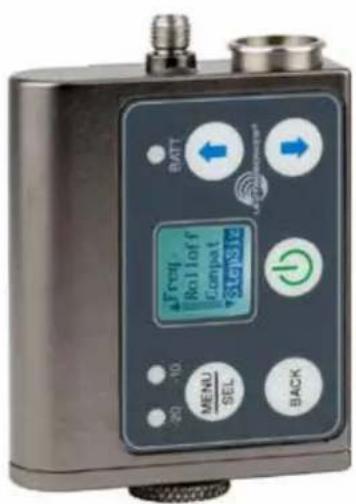
SMWB
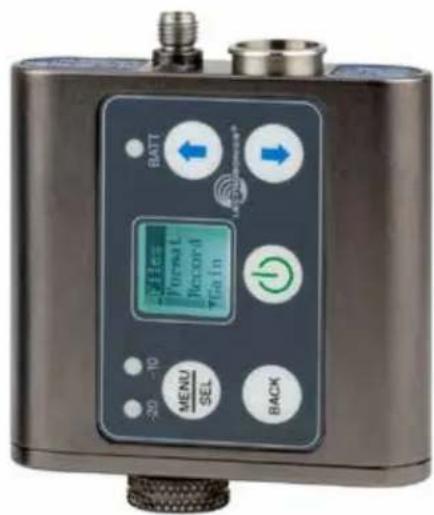
SMDWB
Featuring
Digital Hybrid Wireless® Technology
US Patent 7,225,135
CE UK CA


Fill in for your records:
Serial Number:
Purchase Date:
Table of Contents
Introduction....2
About Digital Hybrid Wireless ^* 2
Servo Bias Input and Wiring....3
DSP-controlled Input Limiter....3
Recorder function 3
Compatibility with microSDHC memory cards....3
Features......4
Battery Status LED Indicator....4
Menu Shortcuts 4
IR (infrared) Sync 4
Battery Installation....5
Formatting SD Card 5
IMPORTANT 5
iXML HEADER SUPPORT....5
Turning Power ON 6
Short Button Press 6
Long Button Press....6
Menu Shortcuts 6
Transmitter Operating Instructions 7
Recorder Operating Instructions 7
SMWB Main Menu....8
SMWB Power Button Menu....9
Setup Screen Details ....10
Locking/Unlocking Changes to Settings 10
Main Window Indicators....10
Connecting the Signal Source....10
Turning Control Panel LEDs ON/OFF....10
Helpful Features on Receivers 10
Files 10
Record or Stop 11
Adjusting the Input Gain....11
Selecting Frequency....11
Selecting Frequency Using Two Buttons....12
About Overlapping Frequency Bands....12
Selecting the Low Frequency Roll-off....12
Selecting the Compatibility (Compat) Mode 12
Selecting Step Size....13
Selecting Audio Polarity (Phase)....13
Setting Transmitter Output Power 13
Setting Scene and Take Number.... 13
Recorded File Naming 13
SD Info....13
Restoring Default Settings 13
5-Pin Input Jack Wiring....14
Microphone Cable Termination
for Non-Lectrosonics Microphones 15
Input Jack Wiring for Different Sources....16
Microphone RF Bypassing 17
Line Level Signals....17
Firmware Update....18
Recovery Process 19
Declaration of Conformity 19
Silver Paste on SM Series Transmitter Thumbscrews......20
Straight Whip Antennas 21
Supplied Accessories.... 22
Optional Accessories....23
LectroRM....24
Specifications 25
Troubleshooting....26
Service and Repair 28
Returning Units for Repair....28
Introduction
The design of the SMWB transmitter delivers the advanced technology and features of Digital Hybrid Wireless in a Lectrosonics belt-pack transmitter at a modest cost. Digital Hybrid Wireless combines a 24-bit digital audio chain with an analog FM radio link to eliminate a compandor and its artifacts, yet preserve the extended operating range and noise rejection of the finest analog wireless systems.
The housing is a rugged, machined aluminum package with a standard Lectrosonics 5-pin input jack for use with electret lavaliere mics, dynamic mics, musical instrument pickups and line level signals. The LEDs on the keypad allow quick and accurate level settings without having to view the receiver. The unit is powered by AA batteries, one battery in the SMWB and two in the SMDWB. The antenna port uses a standard 50 ohm SMA connector.
Switching power supplies provide constant voltages to the transmitter circuits from the beginning to the end of battery life, with output power remaining constant over the life of the battery. The input amplifier uses an ultra low noise op amp. Input gain is adjustable over a 44 dB range, with a DSP-controlled dual envelope input limiter providing a clean 30 dB range to prevent overload from signal peaks.
About Digital Hybrid Wireless®
All wireless links suffer from channel noise to some degree, and all wireless microphone systems seek to minimize the impact of that noise on the desired signal. Conventional analog systems use compandors for enhanced dynamic range, at the cost of subtle artifacts (known as “pumping” and “breathing”). Wholly digital systems defeat the noise by sending the audio information in digital form, at the cost of some combination of power, bandwidth, operating range and resistance to interference.
The Lectrosonics Digital Hybrid Wireless system overcomes channel noise in a dramatically new way, digitally encoding the audio in the transmitter and decoding it in the receiver, yet still sending the encoded information via an analog FM wireless link. This proprietary algorithm is not a digital implementation of an analog compandor but a technique which can be accomplished only in the digital domain.
Since the RF link between transmitter and receiver is FM, channel noise will increase gradually with increased operating range and weak signal conditions, however, the Digital Hybrid Wireless system handles this situation elegantly with rarely audible audio artifacts as the receiver approaches its squelch threshold.
In contrast, a purely digital system tends to drop the audio suddenly during brief dropouts and weak signal conditions. The Digital Hybrid Wireless system simply encodes the signal to use a noisy channel as efficiently and robustly as possible, yielding audio performance that rivals that of purely digital systems, without the power, noise and bandwidth problems inherent in digital
transmission. Because it uses an analog FM link, Digital Hybrid Wireless enjoys all the benefits of conventional FM wireless systems, such as excellent range, efficient use of RF spectrum, and long battery life.
Servo Bias Input and Wiring
The input preamp is a unique design that delivers audible improvements over conventional transmitter inputs. Two different microphone wiring schemes are available to simplify and standardize the configuration. Simplified 2-wire and 3-wire configurations provide several arrangements designed for use only with servo bias inputs to take full advantage of the preamp circuitry.
A line level input wiring provides an extended frequency response with an LF roll-off at 35 Hz for use with instruments and line level signal sources.
DSP-controlled Input Limiter
The transmitter employs a digitally-controlled analog audio limiter prior to the analog-to-digital converter. The limiter has a range greater than 30 dB for excellent overload protection. A dual release envelope makes the limiter acoustically transparent while maintaining low distortion. It can be thought of as two limiters in series, connected as a fast attack and release limiter followed by a slow attack and release limiter. The limiter recovers quickly from brief transients, so that its action is hidden from the listener, but recovers slowly from sustained high levels to keep audio distortion low and preserve short term dynamic changes in the audio.
Recorder function
The SMWB has a built in recording function for use in situations where RF may not be possible or to work as a stand alone recorder. The record function and transmit functions are exclusive of each other - you cannot record AND transmit at the same time. When the unit is transmitting and recording is turned on, the audio in the RF transmission will stop, but the battery status will still be sent to the receiver.
The recorder samples at 44.1kHz rate with a 24 bit sample depth. (the rate was selected due to the required 44.1kHz rate used for the digital hybrid algorithm). The micro SDHC card also offers easy firmware update capabilities without the need for a USB cable or driver issues.
Compatibility with microSDHC memory cards
Please note that the SMWB and SMDWB are designed for use with microSDHC memory cards. There are several types of SD card standards (as of this writing) based on capacity (storage in GB).
SDSC: standard capacity, up to and including 2 GB – DO NOT USE!
SDHC: high capacity, more than 2 GB and up to and including 32 GB – USE THIS TYPE.
SDXC: extended capacity, more than 32 GB and up to and including 2 TB – DO NOT USE!
SDUC: extended capacity, more than 2TB and up to and including 128 TB – DO NOT USE!
The larger XC and UC cards use a different formatting method and bus structure and are NOT compatible with the recorder. These are typically used with later generation video systems and cameras for image applications (video and high resolution, high speed photography).
ONLY microSDHC memory cards should be used. They are available in capacities from 4GB to 32GB. Look for the Speed Class 10 cards (as indicated by a C wrapped around the number 10), or the UHS Speed Class I cards (as indicated by the numeral 1 inside a U symbol). Also note the microSDHC Logo.
If you are switching to a new brand or source of card, we always suggest testing first before using the card on a critical application.
The following markings will appear on compatible memory cards. One or all of the markings will appear on the card housing and the packaging.
Speed Class 10

UHS Speed Class 1

UHS Speed Class I

Stand-alone

UHS Speed Class I
Accompanying microSDHC logo
microSDHC Logo is a trademark of SD-3C, LLC
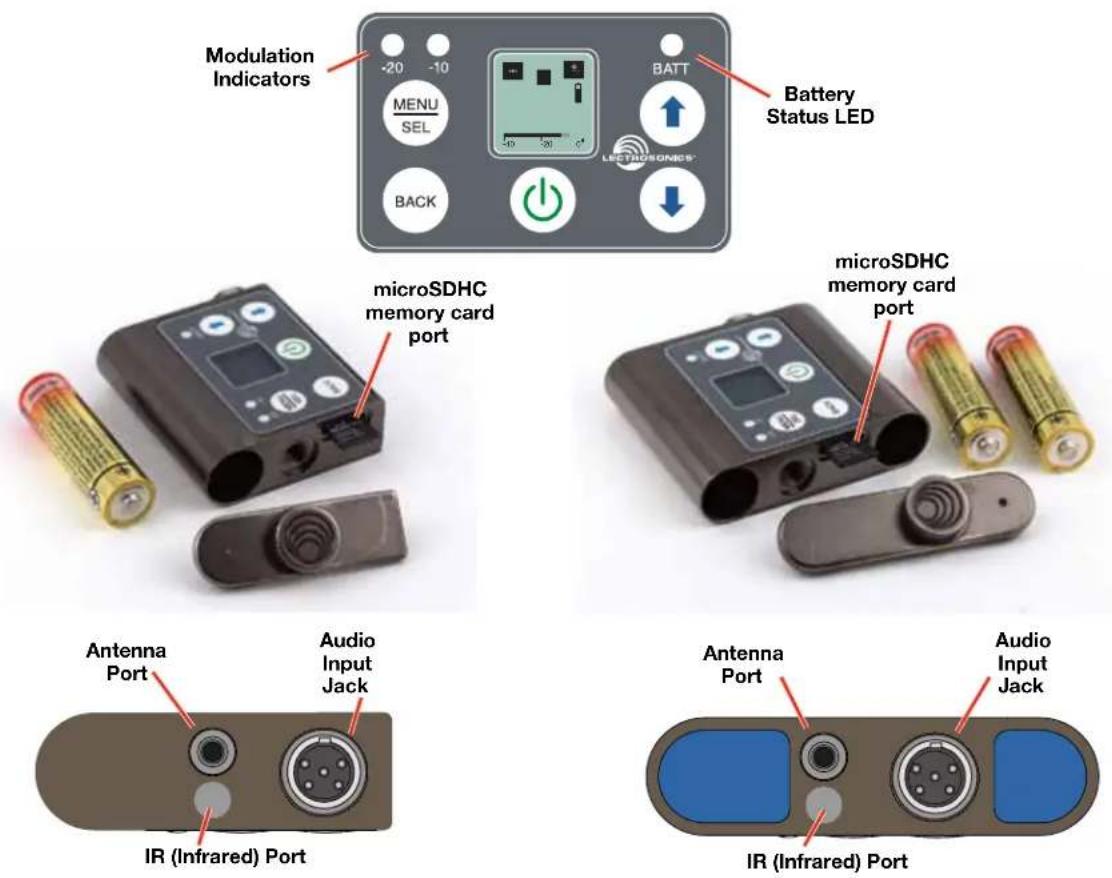
Battery Status LED Indicator
AA batteries can be used to power the transmitter.
The LED labeled BATT on the keypad glows green when the batteries are good. The color changes to red when the battery voltage drops down and stays red through most of the battery life. When the LED begins to blink red, there will be only a few minutes remaining.
The exact point at which the LEDs turn red will vary with battery brand and condition, temperature and power consumption. The LEDs are intended to simply catch your attention, not to be an exact indicator of remaining time.
A weak battery will sometimes cause the LED to glow green immediately after the transmitter is turned on, but it will soon discharge to the point where the LED will turn red or the unit will turn off completely.
Some batteries give little or no warning when they are depleted. If you wish to use these batteries in the transmitter, you will need to manually keep track of the operating time to prevent interruptions caused by dead batteries.
Start with a fully charged battery, then measure the time it takes for the Power LED to go out completely.
Menu Shortcuts
From the Main/Home Screen, the following shortcuts are available:
- Record: Press the MENU/SEL + UP arrow simultaneously
- Stop Recording: Press the MENU/SEL + DOWN arrow simultaneously
NOTE: The shortcuts are only available from the main/home screen AND when a microSDHC memory card is installed.
IR (infrared) Sync
The IR port is for quick setup using a receiver with this function available. IR Sync will transfer the settings for frequency, step size and compatibility mode from the receiver to the transmitter. This process is initiated by the receiver. When the sync function is chosen on the receiver, hold the IR port of the transmitter near the IR port of the receiver. (There is no menu item available on the transmitter to initiate the sync.)
NOTE: If a mismatch exists between the receiver and transmitter, an error message will appear on the transmitter LCD stating what the problem is.
Battery Installation
The transmitter is powered by AA batteries. (The SMWB requires one AA battery and the SMDWB requires two.) We recommend using lithium for longest life.
WARNING: Risk of explosion if the battery is replaced by an incorrect type.
Because some batteries run down quite abruptly, using the Power LED to verify battery status will not be reliable. However, it is possible to track battery status using the battery timer function available in Lectrosonics Digital Hybrid Wireless receivers.
The battery door opens by simply unscrewing the knurled knob part way until the door will rotate. The door is also easily removed by unscrewing the knob completely, which is helpful when cleaning the battery contacts. The battery contacts can be cleaned with alcohol and a cotton swab, or a clean pencil eraser. Be sure not to leave any remnants of the cotton swab or eraser crumbs inside the compartment.
A small pinpoint dab of silver conductive grease* on the thumbscrew threads can improve battery performance and operation. See page 20. Do this if you experience a drop in battery life or an increase in operating temperature.
If you are unable to locate a supplier of this type of grease - a local electronics shop for example - contact the factory for a small maintenance vial.
Insert the batteries according to the markings on the back of the housing. If the batteries are inserted incorrectly, the door may close but the unit will not operate.
Formatting SD Card
New microSDHC memory cards come pre-formatted with a FAT32 file system which is optimized for good performance. The PDR relies on this performance and will never disturb the underlying low level formatting of the SD card. When the SMWB/SMDWB “formats” a card, it performs a function similar to the Windows “Quick Format” which deletes all files and prepares the card for recording. The card can be read by any standard computer but if any write, edit or deletions are made to the card by the computer, the card must be re-formatted with the SMWB/SMDWB to prepare it again for recording. The SMWB/SMDWB never low level formats a card and we strongly advise against doing so with the computer.
To format the card with the SMWB/SMDWB, select Format Card in the menu and press MENU/SEL on the keypad.
WARNING: Do not perform a low level format (complete format) with a computer. Doing so may render the memory card unusable with the SMWB/SMDWB recorder.
With a windows based computer, be sure to check the quick format box before formatting the card.
With a Mac, choose MS-DOS (FAT).
IMPORTANT
The formatting of the SD card sets up contiguous sectors for maximum efficiency in the recording process. The file format utilizes the BEXT (Broadcast Extension) wave format which has sufficient data space in the header for the file information and the time code imprint.
The SD card, as formatted by the SMWB/SMDWB recorder, can be corrupted by any attempt to directly edit, change, format or view the files on a computer.
The simplest way to prevent data corruption is to copy the .wav files from the card to a computer or other Windows or OS formatted media FIRST. Repeat - COPY THE FILES FIRST!
Do not rename files directly on the SD card.
Do not attempt to edit the files directly on the SD card.
Do not save ANYTHING to the SD card with a computer (such as the take log, note files etc) - it is formatted for SMWB/SMDWB recorder use only.
Do not open the files on the SD card with any third party program such as Wave Agent or Audacity and permit a save. In Wave Agent, do not IMPORT - you can OPEN and play it but do not save or Import - Wave Agent will corrupt the file.
In short - there should be NO manipulation of the data on the card or addition of data to the card with anything other than an SMWB/SMDWB recorder. Copy the files to a computer, thumb drive, hard drive, etc. that has been formatted as a regular OS device FIRST - then you can edit freely.
iXML HEADER SUPPORT
Recordings contain industry standard iXML chunks in the file headers, with the most commonly used fields filled in.
Turning Power ON
Short Button Press
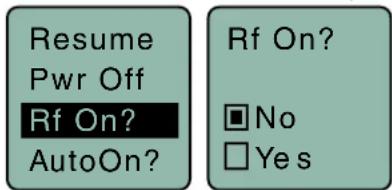
When the unit is turned off, a short press of the power button will turn the unit on in the Standby Mode with the RF output turned off.
RF indicator blinks

To enable RF output from the Standby Mode, press the Power button, select Rf On? option, then select yes.
Long Button Press
When the unit is turned off, a long press of the power button will start a countdown to turn the unit on with the RF output turned on. Continue to hold the button until the countdown is complete.
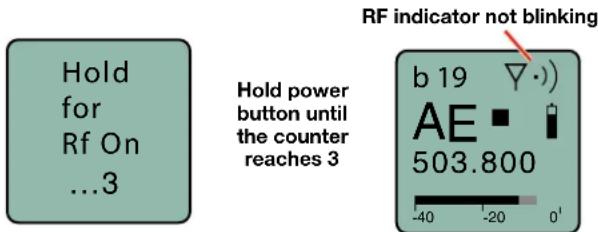
If the button is released before the countdown is completed, the unit will power up with the RF output turned off.
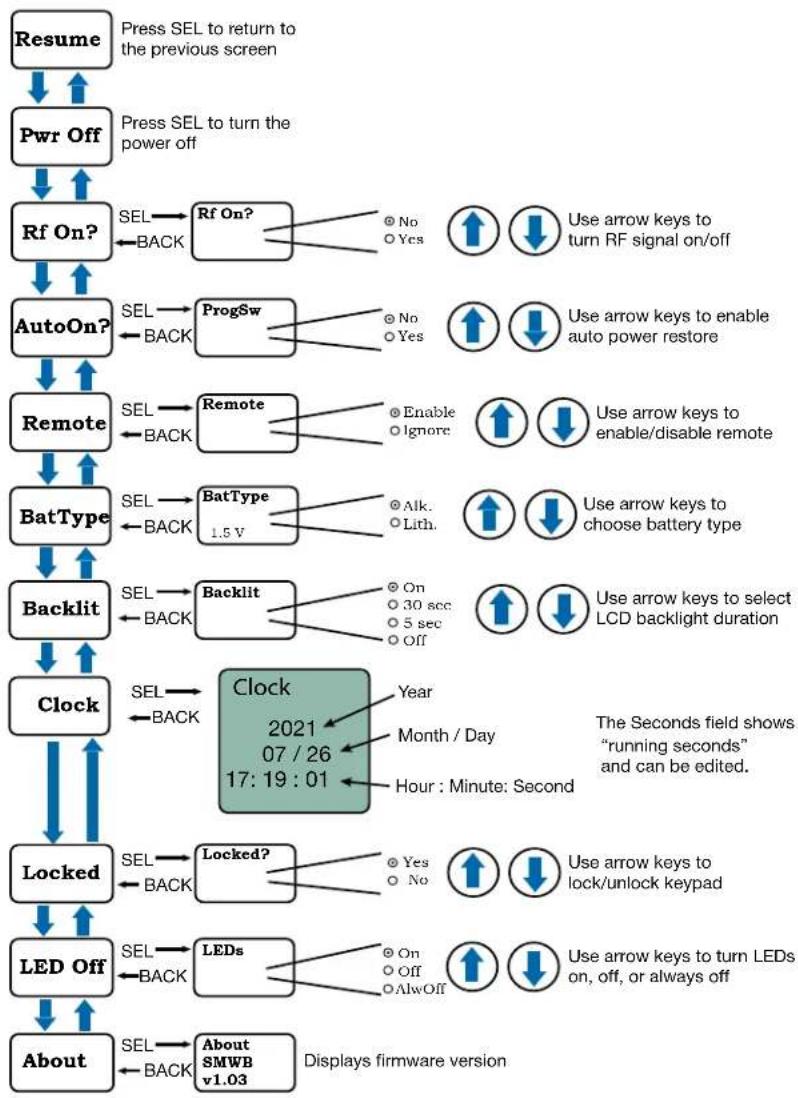
Power Button Menu
When the unit is already turned on, the Power Button is used to turn the unit off, or to access a setup menu.
A long press of the button turns the power off.
A short press of the button opens a menu for the following setup options. Select the option with the UP and DOWN arrow buttons then press MENU/SEL.
- Resume returns the unit to the previous screen and operating mode
- Pwr Off turns the unit off
- Rf On? turns the RF output on or off
- AutoOn? selects whether or not the unit will turn on automatically after a battery change
- Blk606? - enables Block 606 legacy mode for use with Block 606 receivers. This option is only available for E01 models.
- Remote enables or disables the audio remote control (dweedle tones)
- Bat Type selects the type of battery in use
- Backlit sets the duration of the LCD backlight
- Clock sets the Year/Month/Day/Time
- Locked disables the control panel buttons
• LED Off enables/disables control panel LEDs
NOTE: The Blk606? feature is only available on Bands B1, B2 or C1.
Menu Shortcuts
From the Main/Home Screen, the following shortcuts are available:
- Record: Press the MENU/SEL + UP arrow simultaneously
- Stop Recording: Press the MENU/SEL + DOWN arrow simultaneously
NOTE: The shortcuts are only available from the main/home screen AND when a microSDHC memory card is installed.
Transmitter Operating Instructions
- Install battery(s)
- Turn power on in the Standby mode (see previous section)
- Connect microphone and place it in the position where it will be used.
- Have the user talk or sing at the same level that will be used in the production, and adjust the input gain so that the -20 LED blinks red on louder peaks.
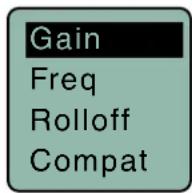
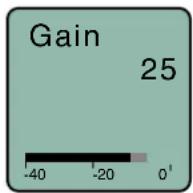
Use the UP and DOWN arrow buttons to adjust the gain until the -20 LED blinks red on louder peaks
| Signal Level -20 LED -10 LED | ||
| Less than -20 dB | ● Off Off | ● |
| -20 dB to -10 dB | ● Green Off | ● |
| -10 dB to +0 dB | ● Green Green | ● |
| +0 dB to +10 dB | ● Red Green | ● |
| Greater than +10 dB | ● Red Red | ● |
- Set the frequency and compatibility mode to match the receiver.
- Turn the RF output on with the Rf On? item in the power menu, or by turning the power off and then back on while holding the power button in and waiting for the counter to reach 3.
Recorder Operating Instructions
- Install battery(s)
- Insert microSDHC memory card
- Turn power on
- Format memory card
- Connect microphone and place it in the position where it will be used.
- Have user talk or sing at the same level that will be used in the production, and adjust the input gain so that the -20 LED blinks red on louder peaks
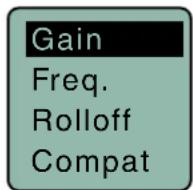
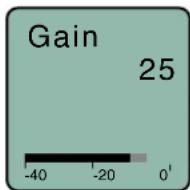
Use the UP and DOWN arrow buttons to adjust the gain until the -20 LED blinks red on louder peaks
| Signal Level -20 LED -10 LED | |
| Less than -20 dB | ● Off Off ● |
| -20 dB to -10 dB | ● Green Off ● |
| -10 dB to +0 dB | ● Green Green ● |
| +0 dB to +10 dB | ● Red Green ● |
| Greater than +10 dB | ● Red Red ● |
- Press MENU/SEL and choose Record from the menu
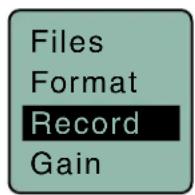

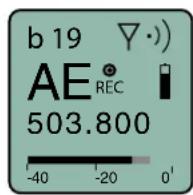
- To stop recording, press MENU/SEL and choose Stop; the word SAVED appears on the screen


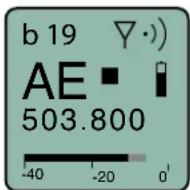
To play back the recordings, remove the memory card and copy the files onto a computer with video or audio editing software installed.
SMWB Main Menu
From the Main Window press MENU/SEL. Use the UP/Down arrow keys to select the item.


flowchart
graph TD
    A["Files"] -->|SEL BACK| B["Format"]
    B -->|SEL BACK| C["Record"]
    C -->|SEL BACK| D["Gain"]
    D -->|SEL BACK| E["Freq."]
    E -->|SEL BACK| F["Rolloff"]
    F -->|SEL BACK| G["Compat"]
    G -->|SEL BACK| H["StepSiz"]
    H -->|SEL BACK| I["Phase"]
    I -->|SEL BACK| J["TxPower"]
    J -->|SEL BACK| K["Sc&Take"]
    K -->|SEL BACK| L["Takes"]
    L -->|SEL BACK| M["Naming"]
    M -->|SEL BACK| N["SD Info"]
    N -->|SEL BACK| O["Default"]

    B -->|Select from listing| P["Save key to select file in list"]
    B -->|Use arrow keys to initiate formatting the memory card| Q["Save key to initiate formatting the memory card"]
    C --> R["OR"]
    R --> S["Stop"]
    S --> T["SAVE"]

    D --> U["Select from listing"]
    U --> V["Press SEL to select desired adjustment"]
    V --> W["Use arrow keys to select desired frequency"]

    E --> X["Freq b 550400"]
    X --> Y["Use arrow keys to select input gain"]

    F --> Z["Select from listing"]
    Z --> AA["Use arrow keys to select input gain"]

    G --> AB["Select from listing"]
    AB --> AC["Use arrow keys to select compatibility mode"]

    H --> AD["StepSiz b 100 kHz 25 kHz"]
    AD --> AE["Use arrow keys to select frequency step size"]

    I --> AF["Phase b Pos. Neg."]
    AF --> AG["Use arrow keys to select audio output polarity"]

    J --> AH["TxPower b 25mW 50 mW 100 mW"]
    AH --> AI["Use arrow keys to select RF power output"]

    K --> AJ["Sc&Take Scene Take 3"]
    AJ --> AK["Press SEL to select desired adjustment"]
    AK --> AL["Use arrow keys to advance scene &"]

    L --> AM["Takes S05 T004 S05 T005 S05 T006"]
    AM --> AN["Use arrow keys to select scene & take"]

    M --> AO["Naming b Scq # Clock"]
    AO --> AP["Use arrow keys to select file naming method"]

    N --> AQ["[SMWB"] Battery remaining E 0/14G Max Rec 32:27:01]
    AQ --> AR["Battery remaining Storage used Storage capacity Available recording time (H:M:S)"]

    O --> AS["Default settings b No Yes"]
    AS --> AT["Use arrow keys to return recorder to default factory settings"]
SMWB Power Button Menu
From the Main Window press the power button.
Use the UP/DOWN arrow keys to select the item.
flowchart
graph TD
    A["Resume"] --> B["Pwr Off"]
    B --> C["Rf On?"]
    C --> D["AutoOn?"]
    D --> E["Remote"]
    E --> F["BatType"]
    F --> G["Backlit"]
    G --> H["Clock"]
    H --> I["Locked"]
    I --> J["LED Off"]
    J --> K["About"]

    C --> L["SEL"] --> M["Rf On?"]
    M --> N["⊕ No"]
    M --> O["○ Yes"]
    N --> P["Use arrow keys to turn RF signal on/off"]
    O --> Q["Use arrow keys to enable auto power restore"]
    L --> R["SEL"] --> S["ProgSw"]
    S --> T["⊕ No"]
    S --> U["○ Yes"]
    T --> V["Use arrow keys to enable/disable remote"]
    U --> W["Use arrow keys to choose battery type"]
    V --> X["SEL"] --> Y["Remote"]
    Y --> Z["⊕ Enable"]
    Y --> AA["○ Ignore"]
    Z --> AB["Use arrow keys to select LCD backlight duration"]
    AA --> AC["SEL"] --> AD["Backlit"]
    AD --> AE["⊕ On"]
    AD --> AF["○ 30 sec"]
    AD --> AG["○ 5 sec"]
    AD --> AH["○ Off"]
    AE --> AI["Clock 2021 07 / 26 17: 19 : 01"]
    AF --> AI
    AG --> AI
    AH --> AI
    AI --> AJ["Year Month / Day Hour : Minute: Second"]
    AJ --> AK["The Seconds field shows “running seconds” and can be edited."]
    AK --> AL["Close?"]
    AL --> AM["SET Back"]
    AM --> AN["LEDs"]
    AN --> AO["SET Back"]
    AO --> AP["About SMWB v1.03"]
    AP --> AQ["Display firmware version"]
Setup Screen Details
Locking/Unlocking Changes to Settings
Changes to the settings can be locked in the Power Button Menu.
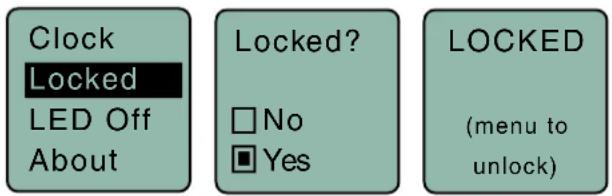
When changes are locked, several controls and actions can still be used:
- Settings can still be unlocked
- Menus can still be browsed
- When locked, POWER CAN ONLY BE TURNED OFF by removing the batteries.
Main Window Indicators
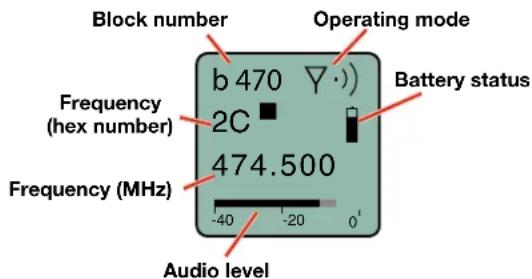
The Main Window displays the block number, Standby or Operating mode, operating frequency, audio level, battery status and programmable switch function. When the frequency step size is set at 100 kHz, the LCD will look like the following.
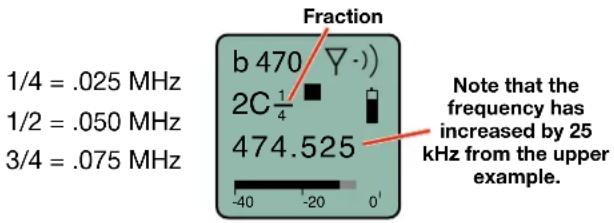
When the frequency step size is set to 25 kHz, the hex number will appear smaller and may include a fraction.
bar
| Frequency | Value | | :--- | :--- | | 1/4 = .025 MHz | b 470 (▽·) | | 1/2 = .050 MHz | 2C 1/4 | | 3/4 = .075 MHz | 474.525 | Note that the frequency has increased by 25 kHz from the upper example.Changing the step size never changes the frequency. It only changes the way the user interface works. If the frequency is set to a fractional increment between even 100 kHz steps and the step size is changed to 100 kHz, the hex code will be replaced by two asterisks on the main screen and the frequency screen.
Frequency set to fractional 25 kHz step, but step size changed to 100 kHz.

Connecting the Signal Source
Microphones, line level audio sources, and instruments can be used with the transmitter. Refer to the section entitled Input Jack Wiring for Different Sources for details on the correct wiring for line level sources and microphones to take full advantage of the Servo Bias circuitry.
Turning Control Panel LEDs ON/OFF
From the main menu screen, a quick press of the UP arrow button turns the control panel LEDs on. A quick press of the DOWN arrow button turns them off. The buttons will be disabled if the LOCKED option is selected in the Power Button menu.
The control panel LEDs can also be turned on and off with the LED Off option in the Power Button menu.
Helpful Features on Receivers
To aid in finding clear frequencies, several Lectrosonics receivers offer a SmartTune feature that scans the tuning range of the receiver and displays a graphical report that shows where RF signals are present at different levels, and areas where there is little or no RF energy present. The software then automatically selects the best channel for operation.
Lectrosonics receivers equipped with an IR Sync function allow the receiver to set frequency, step size and compatibility modes on the transmitter via an infrared link between the two units.
Files

Select recorded files on microSDHC memory card.
Format

Formats the microSDHC memory card.
WARNING: This function erases any content on the microSDHC memory card.
Record or Stop
Begins recording or stops recording. (See page 7.)
Adjusting the Input Gain
The two bicolor Modulation LEDs on the control panel provide a visual indication of the audio signal level entering the transmitter. The LEDs will glow either red or green to indicate modulation levels as shown in the following table.
| Signal Level -20 LED -10 LED | ||
| Less than -20 dB | ● Off Off | ● |
| -20 dB to -10 dB | ● Green Off | ● |
| -10 dB to +0 dB | ● Green Green | ● |
| +0 dB to +10 dB | ● Red Green | ● |
| Greater than +10 dB | ● Red Red | ● |
NOTE: Full modulation is achieved at 0 dB, when the "-20" LED first turns red. The limiter can cleanly handle peaks up to 30 dB above this point.
It is best to go through the following procedure with the transmitter in the standby mode so that no audio will enter the sound system or recorder during adjustment.
1) With fresh batteries in the transmitter, power the unit on in the standby mode (see previous section Turning Power ON and OFF).
2) Navigate to the Gain setup screen.
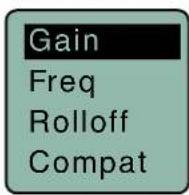
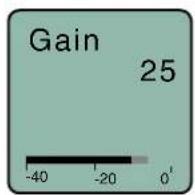
3) Prepare the signal source. Position a microphone the way it will be used in actual operation and have the user speak or sing at the loudest level that will occur during use, or set the output level of the instrument or audio device to the maximum level that will be used.
4) Use the 1 and arrow buttons to adjust the gain until the -10 dB glows green and the -20 dB LED starts to flicker red during the loudest peaks in the audio.
5) Once the audio gain has been set, the signal can be sent through the sound system for overall level
Rio Rancho, NM 11
adjustments, monitor settings, etc.
6) If the audio output level of the receiver is too high or low, use only the controls on the receiver to make adjustments. Always leave the transmitter gain adjustment set according to these instructions, and do not change it to adjust the audio output level of the receiver.
Selecting Frequency
The setup screen for frequency selection offers several ways to browse the available frequencies.

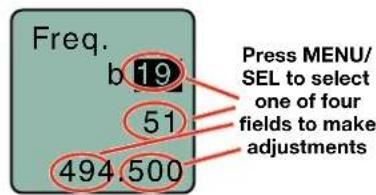
Each field will step through the available frequencies in a different increment. The increments are also different in the 25 kHz mode from the 100 kHz mode.


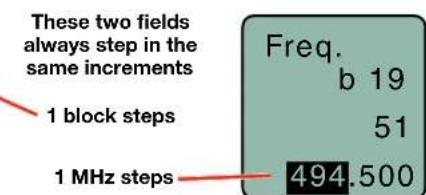
A fraction will appear next to the hex code in the setup screen and in the main window when the frequency ends in .025, .050 or .075 MHz.
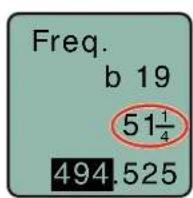
Fraction appears next to hex code in 25 kHz mode

All Lectrosonics Digital Hybrid Wireless receivers provide a scanning function to quickly and easily find prospective frequencies with little or no RF interference. In other cases, a frequency may be specified by officials at a large event such as the Olympics or a major league ball game. Once the frequency is determined, set the transmitter to match the associated receiver.
Selecting Frequency Using Two Buttons
Hold the MENU/SEL button in, then use the ① and ② arrow buttons for alternate increments.
NOTE: You must be in the FREQ menu to access this feature. It is not available from the main/home screen.

If the Step Size is 25 kHz with the frequency set between even 100 kHz steps and the Step Size is then changed to 100 kHz, the mismatch will cause the hex code to display as two asterisks.
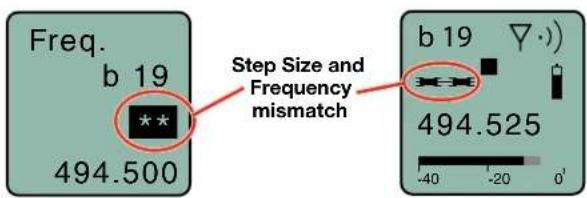
About Overlapping Frequency Bands
When two frequency bands overlap, it is possible to select the same frequency at the upper end of one and the lower end of the other. While the frequency will be the same, the pilot tones will be different, as indicated by the hex codes that appear.
In the following examples, the frequency is set to 494.500 MHz, but one is in band 470 and the other in band 19. This is done intentionally to maintain compatibility with receivers that tune across a single band. The band number and hex code must match the receiver to enable the correct pilot tone.
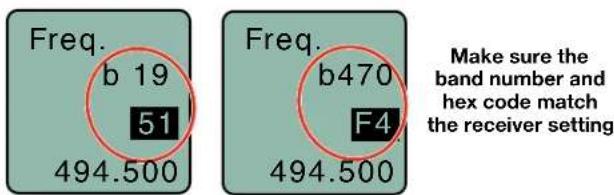
Selecting the Low Frequency Roll-off
It is possible that the low frequency roll-off point could affect the gain setting, so it's generally good practice to make this adjustment before adjusting the input gain. The corner frequency for the high-pass filter can be set to:
• LF 35 35 Hz • LF 100 100 Hz
• LF 50 50 Hz • LF 120 120 Hz
• LF 70 70 Hz • LF 150 150 Hz
The roll-off is often adjusted by ear while monitoring the audio.

Selecting the Compatibility (Compat) Mode
When used with a Lectrosonics Digital Hybrid Wireless ^® receiver, the best audio quality will be achieved with the system set to the Nu Hybrid compatibility mode.

Use the UP and DOWN arrows to select the desired mode, then press the BACK button twice to return to the Main Window.
Compatibility modes are as follows:
Transmitter Models LCD menu item
SMWB/SMDWB:
- Nu Hybrid: Nu Hybrid
- Mode 3:* Mode 3
• IFB Series: IFB Mode
Mode 3 works with certain non-Lectrosonics models. Contact the factory for details.
NOTE: If your Lectrosonics receiver does not have Nu Hybrid mode, set the receiver to Euro Digital Hybrid Wireless® (EU Dig. Hybrid).
Transmitter Models LCD menu item
SMWB/E01 and SMDWB/E01:
• Digital Hybrid Wireless: EU Hybr
- Mode 3: Mode 3^*
• IFB Series: IFB Mode
* Mode works with certain non-Lectrosonics models. Contact the factory for details.
Transmitter Models LCD menu item SMWB/SMDWB/X:
• Digital Hybrid Wireless*: NA Hybr
- Mode 3:* Mode 3
• 200 Series: 200 Mode
• 100 Series: 100 Mode
- Mode 6:* Mode 6
- Mode 7:* Mode 7
- IFB Series: IFB Mode
Modes 3, 6 and 7 work with certain non-Lectrosonics models. Contact the factory for details.
Selecting Step Size
This menu item allows frequencies to be selected in either 100 kHz or 25 kHz increments.
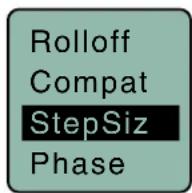
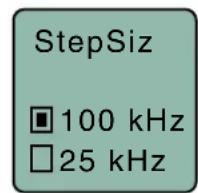

If the desired frequency ends in .025, .050 or .075 MHz, the 25 kHz step size must be selected.
Selecting Audio Polarity (Phase)
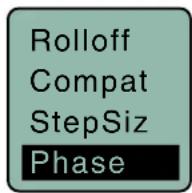
Audio polarity can be inverted at the transmitter so the audio can be mixed with other microphones without comb filtering. The polarity can also be inverted at the receiver outputs.

Setting Transmitter Output Power
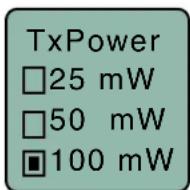
The output power can be set to:
SMWB/SMDWB, /X
• 25, 50 or 100 mW
/E01
- 10, 25 or 50 mW

Setting Scene and Take Number
Use UP and DOWN arrows to advance Scene and Take and MENU/SEL to toggle. Press the BACK button to return to menu.

Recorded File Naming
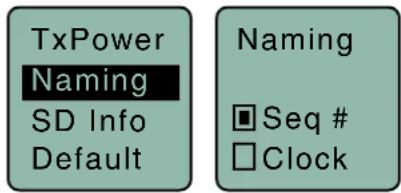
Choose to name the recorded files by the sequence number or by the clock time.
SD Info
Information regarding the microSDHC memory card including space remaining on card.
![TxPower Naming SD Info Default [SMWB ] E....F 0/14G Max Rec 32 : 27 : 01 Fuel gauge Storage used Storage capacity Available recording time (H : M : S)](/content/2026/06/1230379/images/a86b169595b9cd19dd7807dd655b7ccdac4cd7c7e3b46ac2b5f41f31dd9e9376.jpg)
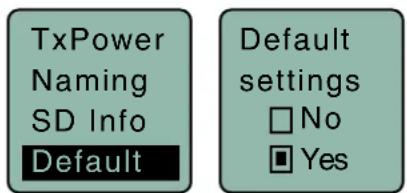
Restoring Default Settings
This is used to restore the factory settings.
5-Pin Input Jack Wiring
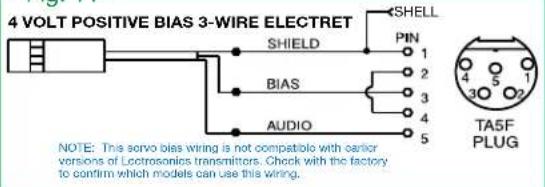
The wiring diagrams included in this section represent the basic wiring necessary for the most common types of microphones and other audio inputs. Some microphones may require extra jumpers or a slight variation on the diagrams shown.
It is virtually impossible to keep completely up to date on changes that other manufacturers make to their products, thus you may encounter a microphone that differs from these instructions. If this occurs please call our toll-free number listed under Service and Repair in this manual or visit our web site at:
www.lectrosonics.com

Audio input jack wiring:
PIN 1
Shield (ground) for positive biased electret lavaliere microphones. Shield (ground) for dynamic microphones and line level inputs.
PIN 2
Bias voltage source for positive biased electret lavaliere microphones that are not using servo bias circuitry and voltage source for 4 volt servo bias wiring.
PIN 3
Microphone level input and bias supply.
PIN 4
Bias voltage selector for Pin 3.
Pin 3 voltage depends on Pin 4 connection.
Pin 4 tied to Pin 1: 0 V
Pin 4 Open: 2 V
Pin 4 to Pin 2: 4 V
PIN 5
Line level input for tape decks, mixer outputs, musical instruments, etc.
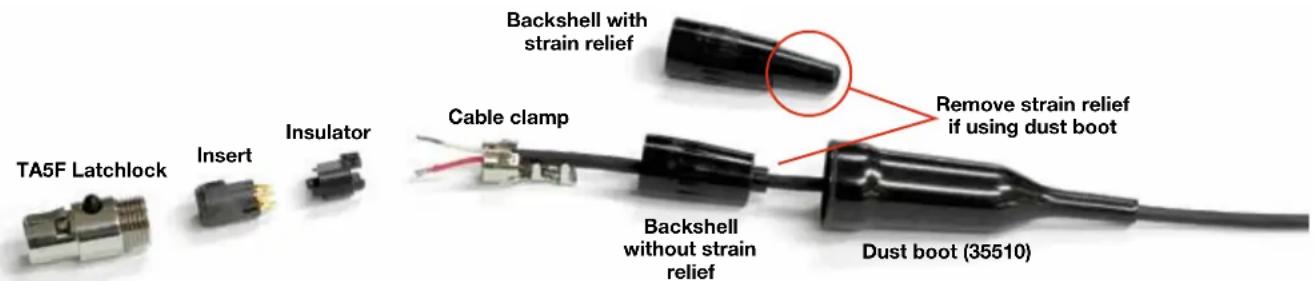
Note: If you use the dust boot, remove the rubber strain relief that is attached to the TA5F cap, or the boot will not fit over the assembly.
Installing the Connector:
1) If necessary, remove the old connector from the microphone cable.
2) Slide the dust boot onto microphone cable with the large end facing the connector.
3) If necessary, slide the 1/8-inch black shrink tubing onto the microphone cable. This tubing is needed for some smaller diameter cables to ensure there is a snug fit in the dust boot.
4) Slide the backshell over the cable as shown above. Slide the insulator over the cable before soldering the wires to the pins on the insert.
5) Solder the wires and resistors to the pins on the insert according to the diagrams shown in Wiring Hookups for Different Sources. A length of .065 OD clear tubing is included if you need to insulate the resistor leads or shield wire.
6) If necessary, remove the rubber strain relief from the TA5F backshell by simply pulling it out.
7) Seat the insulator on the insert. Slide the cable clamp over the and of the insulator and crimp as shown on the next page.
8) Insert the assembled insert/insulator/clamp into the latchlock. Make sure the tab and slot align to allow the insert to fully seat in the latchlock. Thread the backshell onto the latchlock.
Microphone Cable Termination for Non-Lectrosonics Microphones
TA5F Connector Assembly

flowchart
graph LR
    A["Internal Component"] --> B["External Component"]
    B --> C["Internal Component"]
    C --> D["External Component"]
    D --> E["Final Component"]
Mic Cord Stripping Instructions

Crimping to Shield and Insulation
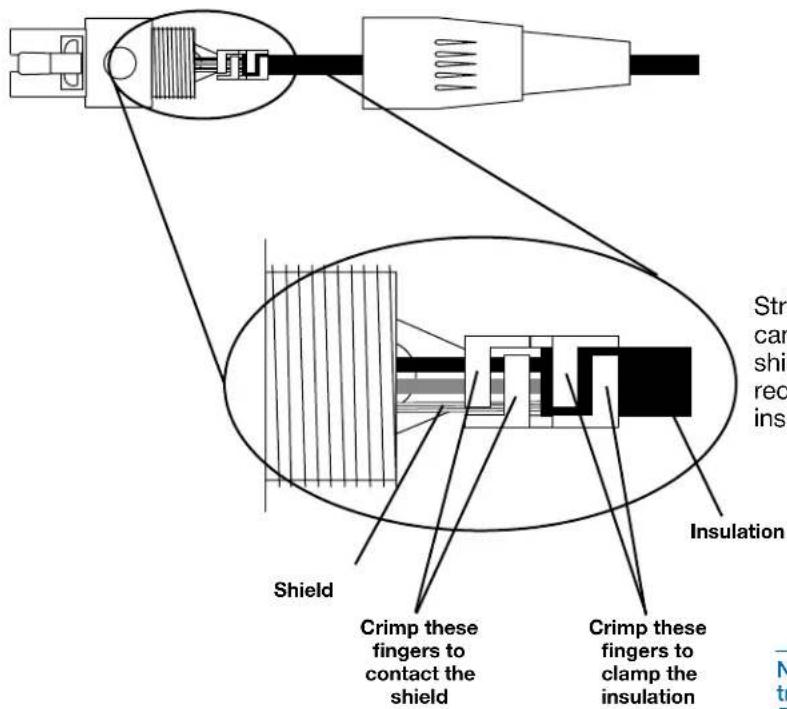
Strip and position the cable so that the clamp can be crimped to contact both the mic cable shield and the insulation. The shield contact reduces noise with some microphones and the insulation clamp increases ruggedness.
NOTE: This termination is intended for UHF transmitters only. VHF transmitters with 5-pin jacks require a different termination. Lectrosonics lavaliere microphones are terminated for compatibility with VHF and UHF transmitters, which is different from what is shown here.
Wiring Hookups for Different Sources
In addition to the microphone and line level wiring hook-ups illustrated below, Lectrosonics makes a number of cables and adapters for other situations such as connecting musical instruments (guitars, bass guitars, etc.) to the transmitter. Visit www.lectrosonics.com and click on Accessories, or download the master catalog.
A lot of information regarding microphone wiring is also available in the FAQ section of the web site at:
http://www.lectrosonics.com/faqdb
Follow the instructions to search by model number or other search options.
Compatible Wiring for Both Servo Bias Inputs and Earlier Transmitters:
Fig. 1
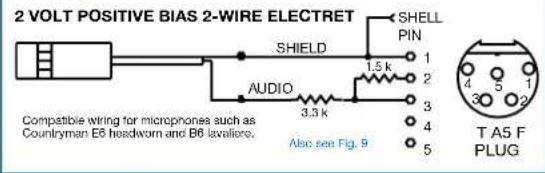
Fig. 2

Fig. 3 - DPA Microphones

Fig. 4
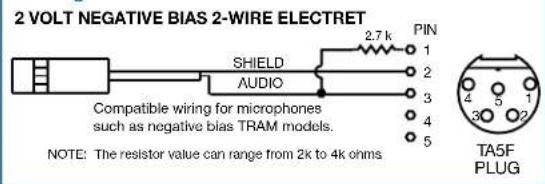
Fig. 5 - Sanken COS-11 and others

Fig. 6

Fig. 7
BALANCED AND FLOATING LINE LEVEL SIGNAL S

Fig. 8
Simple Wiring - Can ONLY be used with Servo Bias Inputs:
Servo Bias was introduced in 2005 and all transmitters with 5-pin inputs have been built with this feature since 2007.
Fig. 9
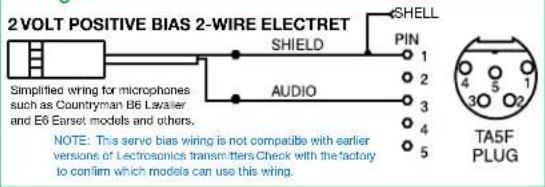
Fig. 10

Fig. 11
Microphone RF Bypassing
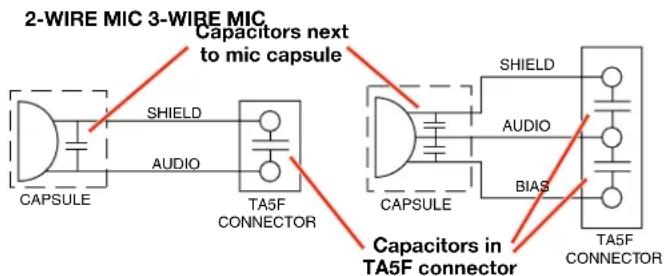
When used on a wireless transmitter, the microphone element is in the proximity of the RF coming from the transmitter. The nature of electret microphones makes them sensitive to RF, which can cause problems with microphone/transmitter compatibility. If the electret microphone is not designed properly for use with wireless transmitters, it may be necessary to install a chip capacitor in the mic capsule or connector to block the RF from entering the electret capsule.
Some mics require RF protection to keep the radio signal from affecting the capsule, even though the transmitter input circuitry is already RF bypassed.
If the mic is wired as directed, and you are having difficulty with squealing, high noise, or poor frequency response, RF is likely to be the cause.
The best RF protection is accomplished by installing RF bypass capacitors at the mic capsule. If this is not possible, or if you are still having problems, capacitors can be installed on the mic pins inside the TA5F connector housing. Refer to the diagram below for the correct locations of capacitors.
Use 330 pF capacitors. Capacitors are available from Lectrosonics. Please specify the part number for the desired lead style.
Leaded capacitors: P/N 15117
Leadless capacitors: P/N SCC330P
All Lectrosonics lavaliere mics are already bypassed and do not need any additional capacitors installed for proper operation.
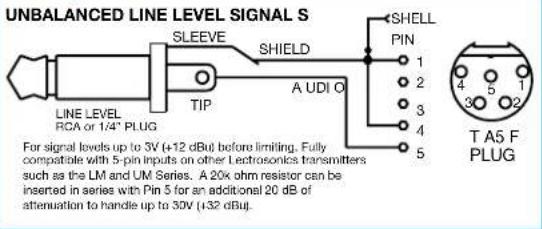
Line Level Signals
The wiring for line level and instrument signals is:
- Signal Hot to pin 5
- Signal Gnd to pin 1
- Pin 4 jumped to pin 1
This allows signal levels up to 3V RMS to be applied without limiting.
NOTE for line level inputs only (not instrument): If more headroom is needed, insert a 20 k resistor in series with pin 5. Put this resistor inside the TA5F connector to minimize noise pickup. The resistor will have little or no effect on the signal if the input is set for instrument.

See Fig. 8 on previous page
Firmware Update
Firmware updates are made using a microSDHC memory card. Download and copy the following firmware update files to a drive on your computer.
- smwb vX_xx.ldr is the firmware update file, where "X_xx" is the revision number.
In the computer:
1) Perform a Quick Format of the card. On a Windows-based system, this will automatically format the card to the FAT32 format, which is the Windows standard. On a Mac, you may be given several options. If the card is already formatted in Windows (FAT32) - it will be greyed out - then you do not need to do anything. If the card is in another format, choose Windows (FAT32) and then click "Erase". When the quick format on the computer is complete, close the dialogue box and open the file browser.
2) Copy the smwb vX_xx.ldr file to the memory card, then safely eject the card from the computer.
In the SMWB:
1) Leave the SMWB turned off and insert the microSDHC memory card into the slot.
2) Hold down both the UP and DOWN arrow buttons on the recorder and turn the power on.
3) The recorder will boot up into the firmware update mode with the following options on the LCD:
- Update - Displays a scrollable list of the .ldr files on the card.
- Power Off - Exits the update mode and turns the power off.
NOTE: If the unit screen shows FORMAT CARD?, power the unit off and repeat step 2. You were not properly pressing UP, DOWN and Power at the same time.
4) Use the arrow buttons to select Update. Use the UP and DOWN arrow buttons to select the desired file and press MENU/SEL to install the firmware. The LCD will display status messages while the firmware is being updated.
5) When the update is complete, the LCD will display this message: UPDATE SUCCESSFUL REMOVE CARD. Open the battery door and remove the memory card.
6) Re-attach the battery door and power the unit back on. Verify that the firmware version was updated by opening the Power Button Menu and navigating to the About item. See page 6.
7) If you re-insert the update card and turn the power back on for normal use, the LCD will display a message prompting you to format the card:
Format Card?
(files lost)
• No
- Yes
If you wish to record audio on the card, you must re-format it. Select Yes and press MENU/SEL to format the card. When the process is complete, the LCD will return to the Main Window and be ready for normal operation.
If you choose to keep the card as is, you may remove the card at this time.
The firmware update process is managed by a bootloader program - on very rare occasions, you might need to update the bootloader.
WARNING: Updating the bootloader can corrupt your unit if interrupted. Don't update the bootloader unless advised to do so by the factory.
- smwb_boot vX_xx.Idr is the bootloader file
Follow the same process as with a firmware update and select the smwbboot file.
Recovery Process
In the event of a battery failure while the unit is recording, a recovery process is available to restore the recording in proper format. When a new battery is installed and the unit is turned back on, the recorder will detect the missing data and prompt you to run the recovery process. The file must be recovered or the card will not be usable in the SMWB.
First it will read:
Interrupted Recording Found
The LCD message will ask:
Recover?
for safe use
see manual
You will have the choice of No or Yes (No is selected as the default). If you wish to recover the file, use the DOWN arrow button to select Yes, then press MENU/SEL.
The next window will give you the option to recover all or part of the file. The default times shown are the best guess by the processor where the file stopped recording. The hours will be highlighted and you can either accept the value shown or select a longer or shorter time. If you are unsure, simply accept the value shown as the default.
Press MENU/SEL and the minutes are then highlighted. You can increase or decrease the time to be recovered. In most cases you can simply accept the values shown and the file will be recovered. After you have made your time choices, press MENU/SEL again. A small GO! symbol will appear next to the DOWN arrow button. Pressing the button will initiate the file recovery. The recovery will happen quickly and you will see:
Recovery Successful
Special Note:
Files under 4 minutes long may recover with additional data "tacked on" to the end of the file (from previous recordings or data if the card had been used previously). This can be effectively eliminated in post with a simple delete of the unwanted extra "noise" at the end of the clip. The minimum recovered length will be one minute. For example, if the recording is only 20 seconds long, and you have selected one minute there will be the desired 20 recorded seconds with an additional 40 seconds of other data and or artifacts in the file. If you are uncertain about the length of the recording you can save a longer file - there will simply be more "junk" at the end of the clip. This "junk" may include audio data recorded in earlier sessions that were discarded. This "extra" information can be easily deleted in post production editing software at a later time.
Declaration of Conformity

EU Declaration of Conformity
LECTROSONICS, INC. 581 Laser Road Rio Rancho, NM 87124 USA
Declares under our sole responsibility that the following product:
Models: SMWB/E01-A1, SMDWB/E01-A1 SMWB/E01-B1, SMDWB/E01-B1 SMWB/E01-B2, SMDWB/E01-B2 SMWB/E01-C1, SMDWB/E01-C1
Wireless microphone transmitter
is in conformity with the provisions of the following EC directive(s) (including applicable amendments) and are designed and manufactured in accordance with the harmonized standards:
| Document | Description | Date/Version |
| RL 2014/53/EU | Radio Equipment Directive 2014/53/EU (RED) | 2014-04 |
| EN 300 422-1 | Wireless Microphones; Audio PMSE up to 3 GHz; Part 1: Class A Receivers | V2.1.2(2017-01) |
| Electromagnetic Compatibility | ||
| EN 301 489-1 | ElectroMagnetic Compatibility (EMC) standard for radio equipment and services; Common Technical Requirements | V2.2.0(2017-03) |
| EN 301 489-9 | Specific Conditions for wireless microphones, similar Radio Frequency (RF) audio link equipment, cordless audio and in-ear monitoring devices | V2.1.1(2017-03) |
| Safety and Health | ||
| EN 60065-1 | Audio, video and similar electronic apparatus – Safety Requirements | 2014 |
| EN 62311 | Assessment of electronic and electrical equipment related to human exposure restrictions for electromagnetic fields (0 Hz – 300 GHz) | 2008 |
| RL 2011/65/EU | RoHS Directive 2011/65/EU; Restriction of the use of certain hazardous substances (RoHS Recast) | 2011 |
The EU type examination was performed by notified body Bay Area Compliance Laboratories.
Software version (all models): v0.14
Rio Rancho, NM USA, 20 June 2017

Robert Cunnings V.P. Engineering Lectrosonics, Inc.
Silver Paste on SM Series Transmitter Thumbscrews
Silver paste is applied to thumbscrew threads on new units at the factory to improve the electrical connection from the battery compartment through the housing on any SM Series transmitter. This applies to the standard battery door and the battery eliminator.
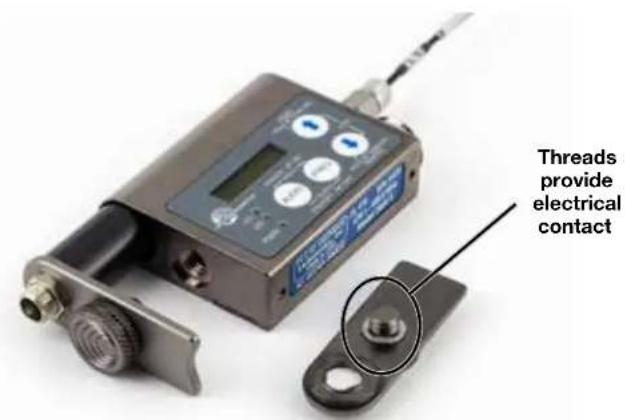
The small enclosed vial contains a tiny amount (25 mg) of silver conductive paste. A small speck of this paste will improve the conductivity between the battery cover plate thumbscrew and the case of the SM.

With improved conductivity (lower resistance) more of the battery voltage can get to the internal power supplies causing reduced current drain and longer battery life. Though the amount seems very small, it is enough for years of use. It is, in fact, 25 times the amount that we use on the thumbscrews at the factory.
To apply the silver paste, first completely remove the cover plate from the SM housing by backing the thumbscrew completely out of the case. Use a clean, soft cloth to clean the threads of the thumbscrew.
Simply hold the cloth around the threads and turn the thumbscrew. Move to a new spot on the cloth and do it again. Do this until the cloth remains clean. Now, clean the threads in the case by using a dry cotton swab (Q-tip) or equivalent. Again, clean the case threads until a fresh cotton swab comes away clean.
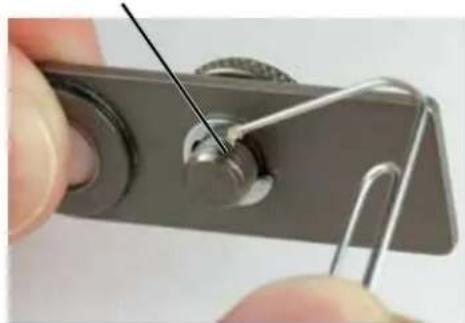
Open the vial, and transfer a pinhead speck of silver paste to the second thread from the end of the thumb-screw. A easy way to pickup a speck of paste is to partially unfold a paper clip and use the end of the wire to acquire a tiny bit of paste. A toothpick will also work. An amount that covers the end of the wire is sufficient.
Apply paste to second thread from end of thumbscrew
natural_image
Close-up of a hand using a metal tool to adjust a metallic component (no text or symbols visible)It is not necessary to spread the paste more than a little bit on the thread as the paste will spread itself every time the thumbscrew is screwed in and out of the case during battery changes.
Do not apply the paste to any other surfaces. The cover plate itself can be cleaned with a clean cloth by rubbing the slightly raised rings on the plate where it contacts the battery terminal. All you want to do is to remove any oils or dirt on the rings. Do not abrade these surfaces with a harsh material such as a pencil eraser, emery paper, etc., as this will remove the conductive nickel plating and expose the underlying aluminum, which is a poor contact conductor.
Straight Whip Antennas
Antennas are supplied by the factory according to the following table:
| BAND BL | OCKS COVERED SUPPLIEDANTENNA |
| A1 470, 19 | 20 AMM19 |
| B1 21, 22 | 23 AMM22 |
The supplied caps can be used several different ways:
1) A color cap on the end of the whip
2) A color sleeve next to the connector with a black cap on the end of the whip (trim the closed end of the colored cap off with scissors to make a sleeve).
3) A color sleeve and color cap (cut the cap in half with scissors).
This is a full size cutting template used to cut the length of the whip for a particular frequency. Lay the uncut antenna on top of this drawing and trim the whip length to the desired frequency.
After cutting the antenna to the desired length, mark the antenna by installing a color cap or sleeve to indicate the frequency. Factory labeling and marking is listed in the table below.

Note: Check the scale of your printout. This line should be 6.00 inches long (152.4 mm).
Factory Marking and Labeling
| BLOCK FREQUENCY RANGE CAP/ SLEEVE COLOR | ANTENNA LENGTH | ||
| 470 470.100 | - 495.600 Black w/ Label 5.67 in./144.00 mm. | ||
| 19 486.400 - | 511.900 Black w/ Label 5.23 in./132.80 mm. | ||
| 20 512.000 - | 537.575 Black w/ Label 4.98 in./126.50 mm. | ||
| 21 537.600 - | 563.100 Brown w/ Label | 4.74 in./120.40 mm. | |
| 22 563.200 - | 588.700 Red w/ Label | 4.48 in./113.80 mm. | |
23 588.800 - 607.950 Orange w/ Label 4.24 in./107.70 mm.
Supplied Accessories
SMKITTA5

TA5 connector kit; with sleeves for small or larger cable; mic cable not included
SMSILVER

natural_image
Transparent plastic cylindrical object with a looped neck, containing a pale yellowish liquid (no text or symbols visible)Small vial of silver paste for use on battery door retaining knob threads
55010

MicroSDHC memory card with SD adapter. UHS-I; Class 10; 16 GB. Brand and capacity may vary.
35924
Foam insulating pads attached to the side of the transmitter when it is worn very close to or on the user's skin. (pkg of two)
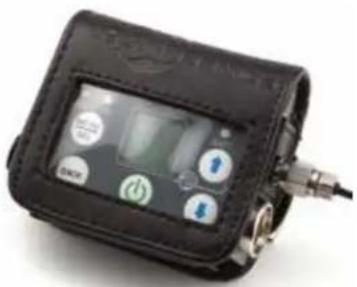
PSMWB
natural_image
Black handheld electronic device with digital display and control buttons (no visible text or symbols)Sewn leather pouch supplied with single battery model; plastic window allows access to control panel.
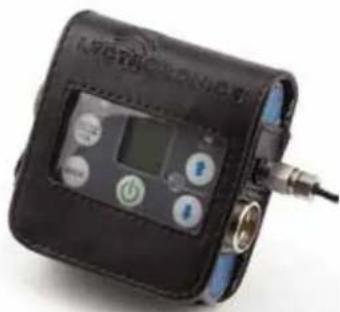
PSMDWB
natural_image
Black handheld electronic device with digital display and control buttons (no visible text or symbols)Sewn leather pouch for dual battery model; plastic window allows access to control panel.
natural_image
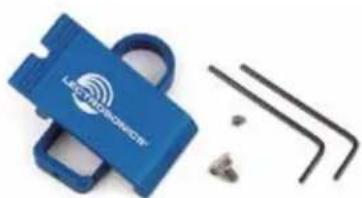
Blue handheld device with 'LESTROMATE' logo and three black metal tools beside it (no visible text or symbols on main objects)SMWBBCUPSL
Spring-loaded clip; antenna points UP when unit is worn on a belt.
40073 Lithium Batteries
DCR822 is shipped with four (4) batteries. Brand may vary.

natural_image
Four identical cylindrical batteries with blue and white labels, arranged side by side (no visible text or symbols on body)AMMxx Antenna
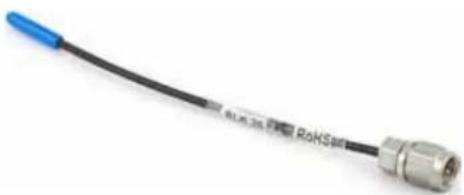
Antenna supplied corresponds with unit ordered. A1 - AMM19, B1 - AMM22, C1 - AMM25.
natural_image
Coiled black cable with blue connectors, no visible text or symbols on the main subjectOptional Accessories
SMWB Single Battery Model
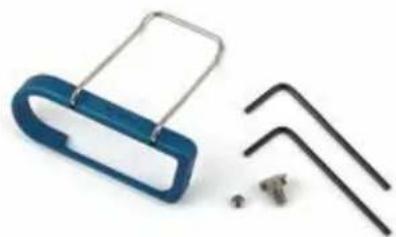
SMWBBCUP
natural_image
Close-up of a blue plastic clip with metal handles and three black L-shaped pins (no text or symbols visible)Wire clip for single battery model; antenna points UP when unit is worn on a belt.
SMWBBCDN
Wire clip for single battery model; antenna points DOWN when unit is worn on a belt.

natural_image
Close-up of a blue plastic clamp with metal hooks and two black L-shaped tools beside it (no text or symbols visible)SMWBBCDNSL
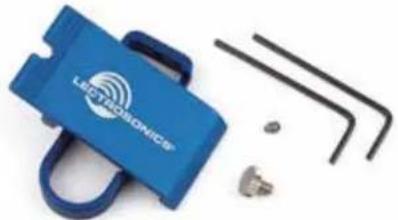
natural_image
Blue LED transceiver device with three L-shaped pins and a small metallic component (no visible text or symbols)Spring-loaded clip; antenna points DOWN when unit is worn on a belt.
SMDWB Dual Battery Model
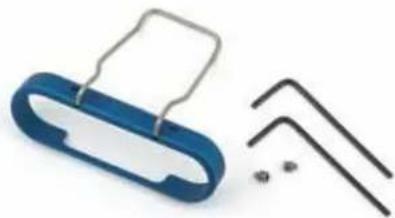
SMDWBBCSL
natural_image
Blue plastic clip with metal wire and two black L-shaped tools beside it (no text or symbols visible)Wire clip for dual battery model antenna points UP when unit is worn on a belt; can be installed for UP or DOWN antenna.
SMDWBBCSL

natural_image
Blue LEC ELECTRONICS device with multiple small components and a separate black wire bar (no text or symbols visible)Spring-loaded clip for dual battery model; can be installed for UP or DOWN antenna.
LectroRM
By New Endian LLC
LectroRM is a mobile application for iOS and Android smart phone operating systems. Its purpose is to make changes to the settings on select Lectrosonics transmitters by delivering encoded audio tones to the microphone attached to the transmitter. When the tone enters the transmitter, it is decoded to make a change to a variety of different settings such as input gain, frequency and a number of others.
The app was released by New Endian, LLC in September 2011. The app is available for download and sells for about \$20 on the Apple App Store and Google Play Store.
The settings and values that can be changed vary from one transmitter model to another. The complete list of available tones in the app is as follows:
- Input gain
- Frequency
- Sleep Mode
- Panel LOCK/UNLOCK
- RF output power
- Low frequency audio roll-off
- LEDs ON/OFF
The user interface involves selecting the audio sequence related to the desired change. Each version has an interface for selecting the desired setting and the desired option for that setting. Each version also has a mechanism to prevent accidental activation of the tone.
iOS

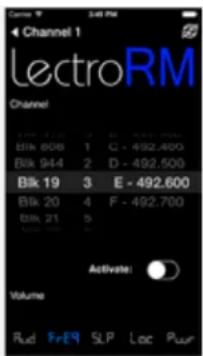
The iPhone version keeps each available setting on a separate page with the list of options for that setting. On iOS, the "Activate" toggle switch must be enabled to show the button which will then activate the tone. The iOS version's default orientation is upside-down but can be configured to orient right-side up. The purpose for this is to orient the phone's speaker, which
is at the bottom of the device, closer to the transmitter microphone.
Android
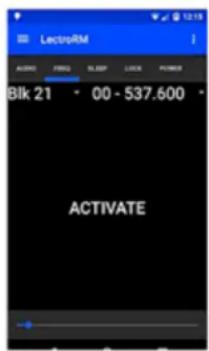

The Android version keeps all settings on the same page and allows the user to toggle between the activation buttons for each setting. The activation button must be pressed and held to activate the tone. The Android version also allows users to keep a configurable list of full sets of settings.
Activation
For a transmitter to respond to remote control audio tones, the transmitter must meet certain requirements:
- The transmitter must be turned on.
- The transmitter must have firmware version 1.5 or later for Audio, Frequency, Sleep and Lock changes.
- The transmitter microphone must be within range.
- The remote control function must be enabled on the transmitter.
Please be aware this app is not a Lectrosonics product. It is privately owned and operated by New Endian LLC, www.newendian.com.
Specifications
Transmitter
Operating frequencies:
SMWB/SMDWB:
Band A1: 470.100 - 537.575
Band B1: 537.600 - 607.950
SMWB/E01 and SMDWB/E01:
Band A1: 470.100 - 537.575
Band B1: 537.600 - 607.900 614.100 - 614.375
Band C1: 614.400 - 691.175
SMWB/E06 and SMDWB/E06:
Band B1: 537.600 - 614.375
Band C1: 614.400 - 691.175
SMWB/SMDWB/EO1:
Band A1: 470.100 - 537.575
Band B1: 537.600 - 614.375
Band B2: 563.200 - 639.975
Band C1: 614.400 - 691.175
Band 961: 961.100 - 1014.900
SMWB/SMDWB/EO7-941:
941.525 - 951.975MHz
953.025 - 956.225MHz
956.475 - 959.825MHz
NOTE: It's the user's responsibility to select the approved
frequencies for the region where the transmitter is operating
Channel Spacing: Selectable; 25 or 100 kHz
RF Power output: SMWB/SMDWB, /X: Switchable; 25, 50 or 100 mW
/E01: Switchable; 10, 25 or 50 mW
/E06: Switchable; 25, 50 or 100 mW EIRP
Compatibility Modes: SMWB/SMDWB: Nu Hybrid, Mode 3, IFB
/E01: Digital Hybrid Wireless
^w (EU Hybr),
Mode 3, IFB
/E06: Digital Hybrid Wireless
IFB
/X: Digital Hybrid Wireless
* (NA Hybr), 200
Series, 100 Series, Mode 3, Mode 6, IFB
Pilot tone: 25 to 32 kHz
Frequency stability: ± 0.002%
Spurious radiation: Compliant with ETSI EN 300 422-1
Equivalent input noise: -125 dBV, A-weighted
Input level:
If set for dynamic mic:
0.5 mV to 50 mV before limiting
Greater than 1 V with limiting
If set for electret lavaliere mic: 1.7 uA to 170 uA before limiting Greater than 5000 uA (5 mA) with limiting
Line level input: 17 mV to 1.7 V before limiting
Greater than 50 V with limiting
Input impedance:
Dynamic mic: 300 Ohms
Electret lavaliere: Input is virtual ground with servo adjusted
constant current bias
Line level: 2.7 k ohms
Input limiter: Soft limiter, 30 dB range
Bias voltages: Fixed 5 V at up to 5 mA
Selectable 2 V or 4 V servo bias for any
electret lavaliere
Gain control range: 44 dB; panel mounted membrane switches
Modulation indicators: Dual bicolor LEDs indicate modulation
-20, -10, 0, +10 dB referenced to full
modulation
Controls: Control panel w/ LCD and 4 membrane
switches
Low frequency roll-off: Adjustable from 35 to 150 Hz
Audio Frequency Response: 35 Hz to 20 kHz, +/-1 dB
Signal to Noise Ratio (dB):
(overall system, 400 Series mode)
| SmartNR | No Limiting | w/Limiting |
| OFF | 103.5 | 108.0 |
(Note: the dual envelope "soft" limiter NORMAL 107.0 111.5
provides exceptionally good handling of transients using variable attack NORMAL 107.5 111.5 FULL 108.5 113.0
and release time constants. The gradual
onset of limiting in the design begins below full modulation,
which reduces the measured figure for SNR without limiting by 4.5 dB)
Total Harmonic Distortion: 0.2% typical (400 Series mode)
Audio Input Jack: Switchcraft 5-pin locking (TA5F)
Antenna: Flexible, unbreakable steel cable.
Battery: AA, disposable, Lithium recommended +1.5VDC
Battery Life w/ AA:
| SMWB (1 AA): | 4.4hrs |
| SMDWB (2 AA): | 11.2hrs |
Weight w/ battery(s): SMWB: 3.2 oz. (90.719 grams)
SMDWB: 4.8 oz. (136.078 grams)
Overall Dimensions:
SMWB: 2.366 x 1.954 x 0.642 inches;
(without microphone)
60.096 x 49.632 x 16.307 mm
SMDWB: 2.366 x 2.475 x 0.642 inches;
60.096 x 62.865 x 16.307 mm
Emission Designator: SMWB/SMDWB/E01, E06 and E07-941: 110KF3E
SMWB/SMDWB/X: 180KF3E
Recorder
Storage media: microSDHC memory card
File format: .wav files (BWF)
A/D converter: 24-bit
Sampling rate: 44.1 kHz
Input Type: Analog mic/line level compatible;
servo bias preamp for 2V and 4V lavaliere microphones
Input level: • Dynamic mic:
• Electret mic: Nominal 2 mV to 300 mV
• Line level: 17 mV to 1.7 V
Input connector: TA5M 5-pin male
Audio Performance
Frequency response: 20 Hz to 20 kHz; +0.5/-1.5 dB
Dynamic range: 110 dB (A), before limiting
Distortion: < 0.035%
Operating temperature range
Celsius: -20 to 40
Specifications subject to change without notice.
Available Recording Time
Using a microSDHC memory card, the approximate Recording times are as follows. The actual time may vary slightly from the values listed in the tables.
(HD mono mode)

*microSDHC Logo is
a trademark of SD-3C, LLC
| Size | Hrs:Min |
| 8GB | 11:12 |
| 16GB | 23:00 |
| 32GB | 46:07 |
Troubleshooting
It is important that you follow these steps in the sequence listed.
Symptom:
Possible
Cause:
Transmitter Battery LED off 1. Batteries are inserted incorrectly. when Power Switch "ON" 2. Batteries are low or dead.
No Transmitter Modulation LEDs when Signal Should be Present
- Gain control turned all the way down.
-
Batteries are inserted incorrectly. Check power LED.
-
Mic capsule is damaged or malfunctioning.
- Mic cable damaged or miswired.
- Instrument Cable damaged or not plugged in.
- Musical instrument output level set too low.
Receiver Indicates RF But No Audio using an alternate source or cable.
-
Audio source or cable connected to transmitter is defective. Try
-
Make sure the compatibility mode is the same on transmitter and receiver.
- Ensure musical instrument volume control is not set to minimum.
- Check for correct pilot tone indication on the receiver. See item on page 16 entitled About Overlapping Frequency Bands.
Receiver RF Indicator Off
- Ensure that the transmitter and receiver are set to the same
frequency, and that the hex code matches.
- Transmitter not turned on, or battery is dead.
- Receiver antenna missing or improperly positioned.
- Operating distance is too great.
- Transmitter may be set to the Standby Mode. See page 8.
No Sound (Or Low Sound Level), Receiver Indicates Proper Audio Modulation
- Receiver output level set too low.
-
Receiver output is disconnected; cable is defective or miswired.
-
Sound system or recorder input is turned down.
Distorted Sound
- Transmitter gain (audio level) is too high. Check Modulation
LEDs on transmitter and receiver while distortion is being heard.
- Receiver output level may be mismatched with the sound system or recorder input. Adjust output level on receiver to the correct level for the recorder, mixer or sound system.
- Transmitter and receiver may not be set to the same compatibility mode. Some mis-matched combinations will pass audio.
- RF interference. Reset both transmitter and receiver to a clear channel. Use scanning function on receiver if available.
Wind Noise or Breath "Pops"
-
Reposition microphone, or use a larger windscreen, or both.
-
Omni-directional mics produce less wind noise and breath pops than directional types.
Hiss and Noise -- Audible Dropouts
-
Transmitter gain (audio level) far too low.
-
Receiver antenna missing or obstructed.
- Operating distance too great.
- RF interference. Reset both transmitter and receiver to a clear channel. Use scanning function on receiver if available.
- Musical instrument output set too low.
- Microphone capsule picking up RF noise. See item on page 21 entitled Microphone RF Bypassing.
Excessive Feedback (With Microphone)
and/or reduce receiver output level.
- Microphone too close to speaker system.
-
Microphone is too far from user's mouth.
-
Transmitter gain (audio level) too high. Check gain adjustment
ow Card Warning While Recording
keep up with the speed at which the SMWB is recording data.
- This creates tiny gaps in the recording.
- This may present an issue when the recording is to be
synchronized with other audio or video.
Service and Repair
If your system malfunctions, you should attempt to correct or isolate the trouble before concluding that the equipment needs repair. Make sure you have followed the setup procedure and operating instructions. Check the interconnecting cables and then go through the Troubleshooting section in this manual.
We strongly recommend that you do not try to repair the equipment yourself and do not have the local repair shop attempt anything other than the simplest repair. If the repair is more complicated than a broken wire or loose connection, send the unit to the factory for repair and service. Don't attempt to adjust any controls inside the units. Once set at the factory, the various controls and trimmers do not drift with age or vibration and never require readjustment. There are no adjustments inside that will make a malfunctioning unit start working.
LECTROSONICS' Service Department is equipped and staffed to quickly repair your equipment. In warranty repairs are made at no charge in accordance with the terms of the warranty. Out-of-warranty repairs are charged at a modest flat rate plus parts and shipping. Since it takes almost as much time and effort to determine what is wrong as it does to make the repair, there is a charge for an exact quotation. We will be happy to quote approximate charges by phone for out-of-warranty repairs.
Returning Units for Repair
For timely service, please follow the steps below:
A. DO NOT return equipment to the factory for repair without first contacting us by email or by phone. We need to know the nature of the problem, the model number and the serial number of the equipment. We also need a phone number where you can be reached 8 A.M. to 4 P.M. (U.S. Mountain Standard Time).
B. After receiving your request, we will issue you a return authorization number (R.A.). This number will help speed your repair through our receiving and repair departments. The return authorization number must be clearly shown on the outside of the shipping container.
C. Pack the equipment carefully and ship to us, shipping costs prepaid. If necessary, we can provide you with the proper packing materials. UPS is usually the best way to ship the units. Heavy units should be "double-boxed" for safe transport.
D. We also strongly recommend that you insure the equipment, since we cannot be responsible for loss of or damage to equipment that you ship. Of course, we insure the equipment when we ship it back to you.
Lectrosonics USA:
Mailing address: Shipping address: Telephone:
Lectrosonics, Inc. Lectrosonics, Inc. (505) 892-4501
PO Box 15900 561 Laser Rd. NE, Suite 102 (800) 821-1121 Toll-free
Rio Rancho, NM 87174 Rio Rancho, NM 87124 (505) 892-6243 Fax
USA USA
Web:
E-mail:
www.lectrosonics.com sales@lectrosonics.com
service.repair@lectrosonics.com
Lectrosonics Canada:
Mailing Address:
Telephone:
E-mail:
720 Spadina Avenue,
(416) 596-2202
Sales: colinb@lectrosonics.com
Suite 600 (877) 753-2876 Toll-free Service: joeb@lectrosonics.com
Toronto, Ontario M5S 2T9
(877-7LECTRO)
(416) 596-6648 Fax
Self-Help Options for Non-Urgent Concerns
Our Facebook groups and weblists are a wealth of knowledge for user questions and information. Refer to:
Lectrosonics General Facebook Group: https://www.facebook.com/groups/69511015699
D Squared, Venue 2 and Wireless Designer Group: https://www.facebook.com/groups/104052953321109
The Wire Lists: https://lectrosonics.com/the-wire-lists.html

UKCA Declaration of Conformity
LECTROSONICS, INC.
581 Laser Road
Rio Rancho, NM 87124 USA
Declares under our sole responsibility that the following products:
Models: SMWB/E01-961, SMDWB/E01-961
Wireless microphone transmitter
are in conformity with the provisions of the following EC directive(s) (including applicable amendments) and are designed and manufactured in accordance with the harmonized standards:
| Document | Description | Date/Version |
| UK: Radio Equipment Regulations | 2017 | |
| EN 300 422-1 | Wireless Microphones; Audio PMSE up to 3 GHz; Part 1: Class A Receivers | V2.1.2(2017-01) |
| UK: Electromagnetic Compatibility Regulations | 2011 | |
| EN 301 489-1 | ElectroMagnetic Compatibility (EMC) standard for radio equipment and services; Common Technical Requirements | V2.2.3(2019-11) |
| EN 301 489-9 | Specific Conditions for wireless microphones, similar Radio Frequency (RF) audio link equipment, cordless audio and in-ear monitoring devices | V2.1.1(2019-04) |
| EN 55032 | Electromagnetic compatibility of multimedia equipment. Emission Requirements | 2015/A11:2020 |
| EN 55035 | Electromagnetic compatibility of multimedia equipment. Immunity requirements | 2017 |
| UK: The Electrical Equipment (Safety) Regulations | 2016 | |
| EN 62368-1 | Audio/video and communications technology equipment – Safety Requirements | 2014 |
| EN 62311 | Assessment of electronic and electrical equipment related to human exposure restrictions for electromagnetic fields (0 Hz – 300 GHz) | 2020 |
| UK: The Restriction of the Use of Certain Hazardous Substances in Electrical and Electronic Equipment Regulations | 2012 | |
| RL 2011/65/EU | RoHS Directive 2011/65/EU: Restriction of the use of certain hazardous substances (RoHS Recast) | 2011 |
The EU type examination was performed by notified body Bay Area Compliance Laboratories.
Software version of SMWB/E01-961, SMDWB/E01-961: v0.26
The equipment is warranted for one year from date of purchase against defects in materials or workmanship provided it was purchased from an authorized dealer. This warranty does not cover equipment which has been abused or damaged by careless handling or shipping. This warranty does not apply to used or demonstrator equipment.
Should any defect develop, Lectrosonics, Inc. will, at our option, repair or replace any defective parts without charge for either parts or labor. If Lectrosonics, Inc. cannot correct the defect in your equipment, it will be replaced at no charge with a similar new item. Lectrosonics, Inc. will pay for the cost of returning your equipment to you.
This warranty applies only to items returned to Lectrosonics, Inc. or an authorized dealer, shipping costs prepaid, within one year from the date of purchase.
This Limited Warranty is governed by the laws of the State of New Mexico. It states the entire liability of Lectrosonics Inc. and the entire remedy of the purchaser for any breach of warranty as outlined above. NEITHER LECTROSONICS, INC. NOR ANYONE INVOLVED IN THE PRODUCTION OR DELIVERY OF THE EQUIPMENT SHALL BE LIABLE FOR ANY INDIRECT, SPECIAL, PUNITIVE, CONSEQUENTIAL, OR INCIDENTAL DAMAGES ARISING OUT OF THE USE OR INABILITY TO USE THIS EQUIPMENT EVEN IF LECTROSONICS, INC. HAS BEEN ADVISED OF THE POSSIBILITY OF SUCH DAMAGES. IN NO EVENT SHALL THE LIABILITY OF LECTROSONICS, INC. EXCEED THE PURCHASE PRICE OF ANY DEFECTIVE EQUIPMENT.
This warranty gives you specific legal rights. You may have additional legal rights which vary from state to state.


- Featuring
- Table of Contents
- Introduction
- About Digital Hybrid Wireless®
- Servo Bias Input and Wiring
- DSP-controlled Input Limiter
- Recorder function
- Compatibility with microSDHC memory cards
- Battery Status LED Indicator
- Menu Shortcuts
- IR (infrared) Sync
- Battery Installation
- Formatting SD Card
- IMPORTANT
- iXML HEADER SUPPORT
- Turning Power ON
- Short Button Press
- Long Button Press
- Power Button Menu
- Transmitter Operating Instructions
- Recorder Operating Instructions
- SMWB Main Menu
- SMWB Power Button Menu
- Setup Screen Details
- Locking/Unlocking Changes to Settings
- Main Window Indicators
- Connecting the Signal Source
- Turning Control Panel LEDs ON/OFF
- Helpful Features on Receivers
- Files
- Format
- Record or Stop
- Adjusting the Input Gain
- Selecting Frequency
- Selecting Frequency Using Two Buttons
- About Overlapping Frequency Bands
- Selecting the Low Frequency Roll-off
- Selecting the Compatibility (Compat) Mode
- Transmitter Models LCD menu item
- SMWB/SMDWB:
- SMWB/E01 and SMDWB/E01:
- Transmitter Models LCD menu item SMWB/SMDWB/X:
- Selecting Step Size
- Selecting Audio Polarity (Phase)
- Setting Transmitter Output Power
- Setting Scene and Take Number
- Recorded File Naming
- SD Info
- Restoring Default Settings
- 5-Pin Input Jack Wiring
- Audio input jack wiring:
- PIN 1
- PIN 2
- PIN 3
- PIN 4
- PIN 5
- Installing the Connector:
- Microphone Cable Termination for Non-Lectrosonics Microphones
- Wiring Hookups for Different Sources
- http://www.lectrosonics.com/faqdb
- Compatible Wiring for Both Servo Bias Inputs and Earlier Transmitters:
- Simple Wiring - Can ONLY be used with Servo Bias Inputs:
- Microphone RF Bypassing
- Line Level Signals
- Firmware Update
- In the computer:
- In the SMWB:
- Recovery Process
- Interrupted Recording Found
- Recovery Successful
- Special Note:
- Declaration of Conformity
- EU Declaration of Conformity
- Silver Paste on SM Series Transmitter Thumbscrews
- Straight Whip Antennas
- Supplied Accessories
- SMWBBCUPSL
- Lithium Batteries
- AMMxx Antenna
- Optional Accessories
- SMWB Single Battery Model
- SMWBBCDN
- SMDWB Dual Battery Model
- LectroRM
- By New Endian LLC
- Activation
- Specifications
- Transmitter
- Recorder
- Available Recording Time
- Troubleshooting
- Symptom:
- Possible
- Cause:
- No Transmitter Modulation LEDs when Signal Should be Present
- Receiver Indicates RF But No Audio using an alternate source or cable.
- Receiver RF Indicator Off
- No Sound (Or Low Sound Level), Receiver Indicates Proper Audio Modulation
- Distorted Sound
- Wind Noise or Breath "Pops"
- Hiss and Noise -- Audible Dropouts
- Excessive Feedback (With Microphone)
- ow Card Warning While Recording
- Service and Repair
- Returning Units for Repair
- Lectrosonics USA:
- Lectrosonics Canada:
- Self-Help Options for Non-Urgent Concerns
- UKCA Declaration of Conformity
Brand : Lectrosonics
Model : SMDWB-E07
Category : Unspecified