MCP9984 - Unknown Microchip - Free user manual and instructions
Find the device manual for free MCP9984 Microchip in PDF.


User questions about MCP9984 Microchip
0 question about this device. Answer the ones you know or ask your own.
Ask a new question about this device
Download the instructions for your Unknown in PDF format for free! Find your manual MCP9984 - Microchip and take your electronic device back in hand. On this page are published all the documents necessary for the use of your device. MCP9984 by Microchip.
USER MANUAL MCP9984 Microchip
Note the following details of the code protection feature on Microchip products:
• Microchip products meet the specifications contained in their particular Microchip Data Sheet.
- Microchip believes that its family of products is secure when used in the intended manner, within operating specifications, and under normal conditions.
- Microchip values and aggressively protects its intellectual property rights. Attempts to breach the code protection features of Microchip product is strictly prohibited and may violate the Digital Millennium Copyright Act.
- Neither Microchip nor any other semiconductor manufacturer can guarantee the security of its code. Code protection does not mean that we are guaranteeing the product is "unbreakable" Code protection is constantly evolving. Microchip is committed to continuously improving the code protection features of our products.
This publication and the information herein may be used only with Microchip products, including to design, test, and integrate Microchip products with your application. Use of this information in any other manner violates these terms. Information regarding device applications is provided only for your convenience and may be superseded by updates. It is your responsibility to ensure that your application meets with your specifications. Contact your local Microchip sales office for additional support or, obtain additional support at https://www.microchip.com/en-us/support/design-help/client-support-services.
THIS INFORMATION IS PROVIDED BY MICROCHIP "AS IS". MICROCHIP MAKES NO REPRESENTATIONS OR WARRANTIES OF ANY KIND WHETHER EXPRESS OR IMPLIED, WRITTEN OR ORAL, STATUTORY OR OTHERWISE, RELATED TO THE INFORMATION INCLUDING BUT NOT LIMITED TO ANY IMPLIED WARRANTIES OF NON-INFRINGEMENT, MERCHANTABILITY, AND FITNESS FOR A PARTICULAR PURPOSE, OR WARRANTIES RELATED TO ITS CONDITION, QUALITY, OR PERFORMANCE.
IN NO EVENT WILL MICROCHIP BE LIABLE FOR ANY INDIRECT, SPECIAL, PUNITIVE, INCIDENTAL, OR CONSEQUENTIAL LOSS, DAMAGE, COST, OR EXPENSE OF ANY KIND WHATSOEVER RELATED TO THE INFORMATION OR ITS USE, HOWEVER CAUSED, EVEN IF MICROCHIP HAS BEEN ADVISED OF THE POSSIBILITY OR THE DAMAGES ARE FORESEEABLE. TO THE FULLEST EXTENT ALLOWED BY LAW, MICROCHIP'S TOTAL LIABILITY ON ALL CLAIMS IN ANY WAY RELATED TO THE INFORMATION OR ITS USE WILL NOT EXCEED THE AMOUNT OF FEES, IF ANY, THAT YOU HAVE PAID DIRECTLY TO MICROCHIP FOR THE INFORMATION.
Use of Microchip devices in life support and/or safety applications is entirely at the buyer's risk, and the buyer agrees to defend, indemnify and hold harmless Microchip from any and all damages, claims, suits, or expenses resulting from such use. No licenses are conveyed, implicitly or otherwise, under any Microchip intellectual property rights unless otherwise stated.
Trademarks
The Microchip name and logo, the Microchip logo, Adaptec, AVR, AVR logo, AVR Freaks, BesTime, BitCloud, CryptoMemory, CryptoRF, dsPIC, flexPWR, HELDO, IGLOO, JukeBlox, KeeLoq, Kleer, LANCheck, LinkMD, maXStylus, maXTouch, MediaLB, megaAVR, Microsemi, Microsemi logo, MOST, MOST logo, MPLAB, OptoLyzer, PIC, picoPower, PICSTART, PIC32 logo, PolarFire, Prochip Designer, QTouch, SAM-BA, SenGenuity, SpyNIC, SST, SST Logo, SuperFlash, Symmetricom, SyncServer, Tachyon, TimeSource, tinyAVR, UNI/O, Vectron, and XMEGA are registered trademarks of Microchip Technology Incorporated in the U.S.A. and other countries.
AgileSwitch, APT, ClockWorks, The Embedded Control Solutions Company, EtherSynch, Flashtec, Hyper Speed Control, HyperLight Load, Libero, motorBench, mTouch, Powermite 3, Precision Edge, ProASIC, ProASIC Plus, ProASIC Plus logo, Quiet-Wire, SmartFusion, SyncWorld, Temux, TimeCesium, TimeHub, TimePictra, TimeProvider, TrueTime, and ZL are registered trademarks of Microchip Technology Incorporated in the U.S.A.
Adjacent Key Suppression, AKS, Analog-for-the-Digital Age, Any Capacitor, AnyIn, AnyOut, Augmented Switching, BlueSky, BodyCom, Clockstudio, CodeGuard, CryptoAuthentication, CryptoAutomotive, CryptoCompanion, CryptoController, dsPICDEM, dsPICDEM.net, Dynamic Average Matching, DAM, ECAN, Espresso T1S, EtherGREEN, GridTime, IdealBridge, In-Circuit Serial Programming, ICSP, INICnet, Intelligent Paralleling, IntelliMOS, Inter-Chip Connectivity, JitterBlocker, Knob-on-Display, KoD, maxCrypto, maxView, memBrain, Mindi, MiWi, MPASM, MPF, MPLAB Certified logo, MPLIB, MPLINK, MultiTRAK, NetDetach, Omniscient Code Generation, PICDEM, PICDEM.net, PICkit, PICtail, PowerSmart, PureSilicon, QMatrix, REAL ICE, Ripple Blocker, RTAX, RTG4, SAM-ICE, Serial Quad I/O, simpleMAP, SimpliPHY, SmartBuffer, SmartHLS, SMART-I.S., storClad, SQI, SuperSwitcher, SuperSwitcher II, Switchtec, SynchroPHY, Total Endurance, Trusted Time, TSHARC, USBCheck, VariSense, VectorBlox, VeriPHY, ViewSpan, WiperLock, XpressConnect, and ZENA are trademarks of Microchip Technology Incorporated in the U.S.A. and other countries.
SQTP is a service mark of Microchip Technology Incorporated in the U.S.A.
The Adaptec logo, Frequency on Demand, Silicon Storage Technology, and Symmcom are registered trademarks of Microchip Technology Inc. in other countries.
GestIC is a registered trademark of Microchip Technology Germany II GmbH & Co. KG, a subsidiary of Microchip Technology Inc., in other countries.
All other trademarks mentioned herein are property of their respective companies.
© 2024, Microchip Technology Incorporated and its subsidiaries.
All Rights Reserved.
ISBN: 978-1-6683-3785-1
For information regarding Microchip's Quality Management Systems, please visit www.microchip.com/quality.
Table of Contents
Chapter 1. Product Overview
1.1 Introduction 9
1.2 MCP9984 Device Short Overview 9
1.3 What is the MCP9984 Evaluation Board? 9
1.4 MCP9984 Evaluation Board Kit Contents 10
Chapter 2. Installation and Operation
2.1 Getting Started 11
2.2 System and Configuration Requirements .... 11
2.3 MCP9984 Evaluation Board Setup 11
2.3.1 Hardware Setup and Description 12
2.4 Software Setup 14
Chapter 3. Software GUI Description
3.1 Thermal Managemen Utility - [MCP9984] Software GUI Overview 17
3.2 Real-Time Acquisition Action Buttons 17
3.3 Temperatures, Sensor Settings and Registers List tabs 19
3.3.1 Temperatures Tab 19
3.3.2 Sensor Settings Tab 20
3.3.3 Registers List Tab 22
3.4 Data Acquisition Charting Area 23
Appendix 1. Schematic and Layouts
1.1 Introduction 29
1.2 MCP9984 Evaluation Board – Schematic 30
1.3 Board – Top Silk 31
1.4 Board – Top Copper and Silk 31
1.5 Board – Top Copper 32
1.6 Board – Bottom Copper 32
1.7 Board – Bottom Copper and Silk 33
1.8 Board – Bottom Silk 33
Appendix 1. Bill of Materials (BOM)
1.1 MCP9984 Evaluation Board - Bill of Materials (BOM) 35
1.2 MCP9984 Evaluation Board - BOM Mechanical Parts 36
NOTES:
Preface
NOTICE TO CUSTOMERS
All documentation becomes dated, and this manual is no exception. Microchip tools and documentation are constantly evolving to meet customer needs, so some actual dialogs and/or tool descriptions may differ from those in this document. Please refer to our website (www.microchip.com) to obtain the latest documentation available.
Documents are identified with a "DS" number. This number is located on the bottom of each page, in front of the page number. The numbering convention for the DS number is "DSXXXXXXXXA", where "XXXXXXXXX" is the document number and "A" is the revision level of the document.
For the most up-to-date information on development tools, see the MPLAB ^® IDE online help. Select the Help menu, and then Topics to open a list of available online help files.
INTRODUCTION
This chapter contains general information that will be useful to know before using the MCP9984 Evaluation Board. Items discussed in this chapter include:
- Document Layout
• Conventions Used in this Guide
• Recommended Reading
• The Microchip Website
• Product Change Notification Service - Customer Support
• Document Revision History
DOCUMENT LAYOUT
This document describes how to use the MCP9984 Evaluation Board as a development tool to emulate and debug firmware on a target board. The manual layout is as follows:
- Chapter 1. "Product Overview" – Important information about the MCP9984 Evaluation Board.
- Chapter 2. "Installation and Operation" – This chapter includes a detailed description of each function of the MCP9984 Evaluation Board and instructions on how to use it.
- Chapter 3. "Software GUI Description" – Includes instructions to evaluate the MCP9984 for temperature sensing applications.
- Appendix 1. "Schematic and Layouts" – Shows the schematic and layout diagrams for the MCP9984 Evaluation Board.
- Appendix 1. "Bill of Materials (BOM)" – Lists the parts used to build the MCP9984 Evaluation Board.
CONVENTIONS USED IN THIS GUIDE
This manual uses the following documentation conventions:
DOCUMENTATION CONVENTIONS
| Description Represents Examples | ||
| Arial font: | ||
| Italic characters Referenced books | oks MPLAB | ^ IDE User's Guide |
| Emphasized text ...is the only compiler... | ||
| Initial caps A window the Output | window | |
| A dialog the Settings dialog | ||
| A menu selection select Enable | Programmer | |
| Quotes A field name in a window or dialog | "Save project before build" | |
| Underlined, italic text with right angle bracket | A menu path File>Save | — |
| Bold characters | A dialog button | Click OK |
| A tab | Click the Power tab | |
| N'Rnnnn | A number in verilog format, where N is the total number of digits, R is the radix and n is a digit. | 4'b0010, 2'hF1 |
| Text in angle brackets <> | A key on the keyboard | Press,, |
| Courier New font: | ||
| Plain Courier New | Sample source code | #define START |
| Filenames | autoexec.bat | |
| File paths | c:\mccl8\h | |
| Keywords | _asm, _endasm, static | |
| Command-line options | -Opa+, -Opa- | |
| Bit values | 0, 1 | |
| Constants | 0xFF, 'A' | |
| Italic Courier New | A variable argument | file.o, where file can be any valid filename |
| Square brackets [] | Optional arguments | mccl8 [options] file [options] |
| Curly brackets and pipe character: { | } | Choice of mutually exclusive arguments; an OR selection | errorlevel {0|1} |
| Ellipses... | Replaces repeated text | var_name [, var_name...] |
| Represents code supplied by user | void main (void) { ... } | |
RECOMMENDED READING
This user's guide describes how to use the MCP9984 Evaluation Board. Another useful document is listed below. The following Microchip document is available and recommended as a supplemental reference resource:
- MCP998X/MCP9933/MCP998XD/MCP9933D Data Sheet – “2-Wire, ±1.0°C Accurate Multichannel Automotive Temperature Monitor” (DS20006827).
THE MICROCHIP WEBSITE
Microchip provides online support via our website at www.microchip.com. This website is used as a means to make files and information easily available to customers. Accessible by using your favorite internet browser, the website contains the following information:
- Product Support – Data sheets and errata, application notes and sample programs, design resources, user's guides and hardware support documents, latest software releases and archived software
- General Technical Support – Frequently Asked Questions (FAQs), technical support requests, online discussion groups, Microchip consultant program member listing
- Business of Microchip – Product selector and ordering guides, latest Microchip press releases, listing of seminars and events, listings of Microchip sales offices, distributors and factory representatives
PRODUCT CHANGE NOTIFICATION SERVICE
Microchip's customer notification service helps keep customers current on Microchip products. Subscribers will receive email notifications whenever there are changes, updates, revisions or errata related to a specified product family or development tool of interest.
To register, access the Microchip website at www.microchip.com, click on Product Change Notification and follow the registration instructions.
CUSTOMER SUPPORT
Users of Microchip products can receive assistance through several channels:
• Distributor or Representative
- Local Sales Office
• Field Application Engineer (FAE)
- Technical Support
Customers should contact their distributor, representative or FAE for support. Local sales offices are also available to help customers. A listing of sales offices and locations is included in the back of this document.
Technical support is available through the website at: http://www.microchip.com/support
DOCUMENT REVISION HISTORY
Revision A (January 2024)
- Initial release of this document.
NOTES:
Chapter 1. Product Overview
1.1 INTRODUCTION
This chapter provides an overview of the MCP9984 Evaluation Board and covers the following topics:
• MCP9984 Device Short Overview
• What is the MCP9984 Evaluation Board?
• MCP9984 Evaluation Board Kit Contents
1.2 MCP9984 DEVICE SHORT OVERVIEW
The MCP9984 Evaluation Board is used to evaluate the MCP998X family of remote diode temperature monitors. Users can now easily evaluate many of the integrated features of the MCP998X device family. The MCP9984 Evaluation Board has the MCP9984-A, which has the SMBus address decode capability. The MCP9984 Evaluation Board also has on-board connectors to allow for diode-connected transistors used for off-board temperature measurements.
In addition, the MCP9984 Evaluation Board connects to the PC through a USB interface. Temperature can be data-logged using the Microchip Thermal Management Software Graphical User Interface (GUI).
1.3 WHAT IS THE MCP9984 EVALUATION BOARD?
The MCP9984 Evaluation Board enables users to easily evaluate many custom programmable features such as Temperature Alert Limit settings, Temperature Conversion Rate, Resistance Error Correction (REC) and Power Modes.
Figure 1-1 shows the top and bottom views of the MCP9984 Evaluation Board.

text_image
C7 J1 GND VDD I2C Activity LD2 R2 U1 C1 5V Power R1 LD1 MCP9984 Evaluation Board U3 C9 Alert LD3 R12 Therm LD4 R3 External 1 External 2/3 J4 J3 C3C4 U2 C6 Client Address J5 78h 38h D8h 98h B8h F8h C10 C8 Q1 R4 VDD GND SDA SCL J2 UK CA CE RoHS 50 LABEL1 MICROCHIP EV23P16A 04-12024-R1FIGURE 1-1: MCP9984 Evaluation Board - Top and Bottom Views.
1.4 MCP9984 EVALUATION BOARD KIT CONTENTS
The MCP9984 Evaluation Board Kit includes the following items:
• MCP9984 Evaluation Board (EV23P16A);
- USB cable for PC connectivity;
• (2) 2N3904TA transistor (TO-92 package).
Chapter 2. Installation and Operation
2.1 GETTING STARTED
This chapter describes how to power-up and interface with the MCP9984 Evaluation Board device. Items discussed in this chapter include:
• System and Configuration Requirements
• MCP9984 Evaluation Board Setup
- Software Setup
2.2 SYSTEM AND CONFIGURATION REQUIREMENTS
The MCP9984 Evaluation Board is designed to be used with a personal computer (desktop or laptop) running Microsoft ^® Windows ^® XP or later. For USB connectivity, the minimal physical requirement for the PC is a standard type-A USB 2.0 port.
2.3 MCP9984 EVALUATION BOARD SETUP
Before the MCP9984 Evaluation Board can be used, a few steps must be performed to install the PC software and configure the MCP9984 Evaluation Board's hardware.
- Download the support material (PC application) that can be found on the EV23P16A board page, at www.microchip.com. Unzip the archive and install the executable.
- When evaluating the MCP9984, ensure a jumper is populated at J5 to select the address decode resistance. Use Table 2-1 as a reference.
TABLE 2-1: MCP9984 ADDRESS DECODE
| Resistance Selected at J5 SMBus Address | ||
| 4.7 kΩ | 1111_100 (r/w) | )b |
| 6.8 kΩ | 1011_100 (r/w)b | — |
| 10 kΩ | 1001_100 (r/w) | )b |
| 15 kΩ | 1101_100 (r/w) | )b |
| 22 kΩ | 0011_100 (r/w)b | — |
| 33 kΩ | 0111_100 (r/w) | )b |
2.3.1 Hardware Setup and Description
Follow these steps to set up the hardware:
- The MCP9984 Evaluation Board kit provides a micro-USB cable for PC interface. Connect the USB cable to a PC.
- Start the Thermal Management Software GUI to evaluate the sensor board features.
This MCP9984 Evaluation Board is fully powered from PC USB source at 5V. Once power is applied via USB and the USB is successfully enumerated, then the MCP2221A USB to I ^2 C Bridge is ready to receive commands from the host PC to program the MCP9984 Evaluation Board settings or transfer temperature data.

flowchart
graph TD
    A["PC"] -->|USB Interface| B["MCP2221A USB to I²C Bridge"]
    B <-->|SMBus/I²C Bus| C["MCP9984"]
    C --> D["Connector"]
    C --> E["Ext2 Diode"]
    E --> F["Connector"]
    F --> G["Ext1 Diode"]
    F --> H["Ext3 Diode"]
    G --> I["Off-board diode connected transistors"]
    H --> J["PC"]
    style A fill:#f9f,stroke:#333
    style B fill:#ccf,stroke:#333
    style C fill:#cfc,stroke:#333
    style D fill:#fcc,stroke:#333
    style E fill:#cff,stroke:#333
    style F fill:#ffc,stroke:#333
    style G fill:#fcc,stroke:#333
    style H fill:#fcc,stroke:#333
    style I fill:#fff,stroke:#333
    style J fill:#fff,stroke:#333
FIGURE 2-1: MCP9984 Evaluation Board Circuit Block Diagram.
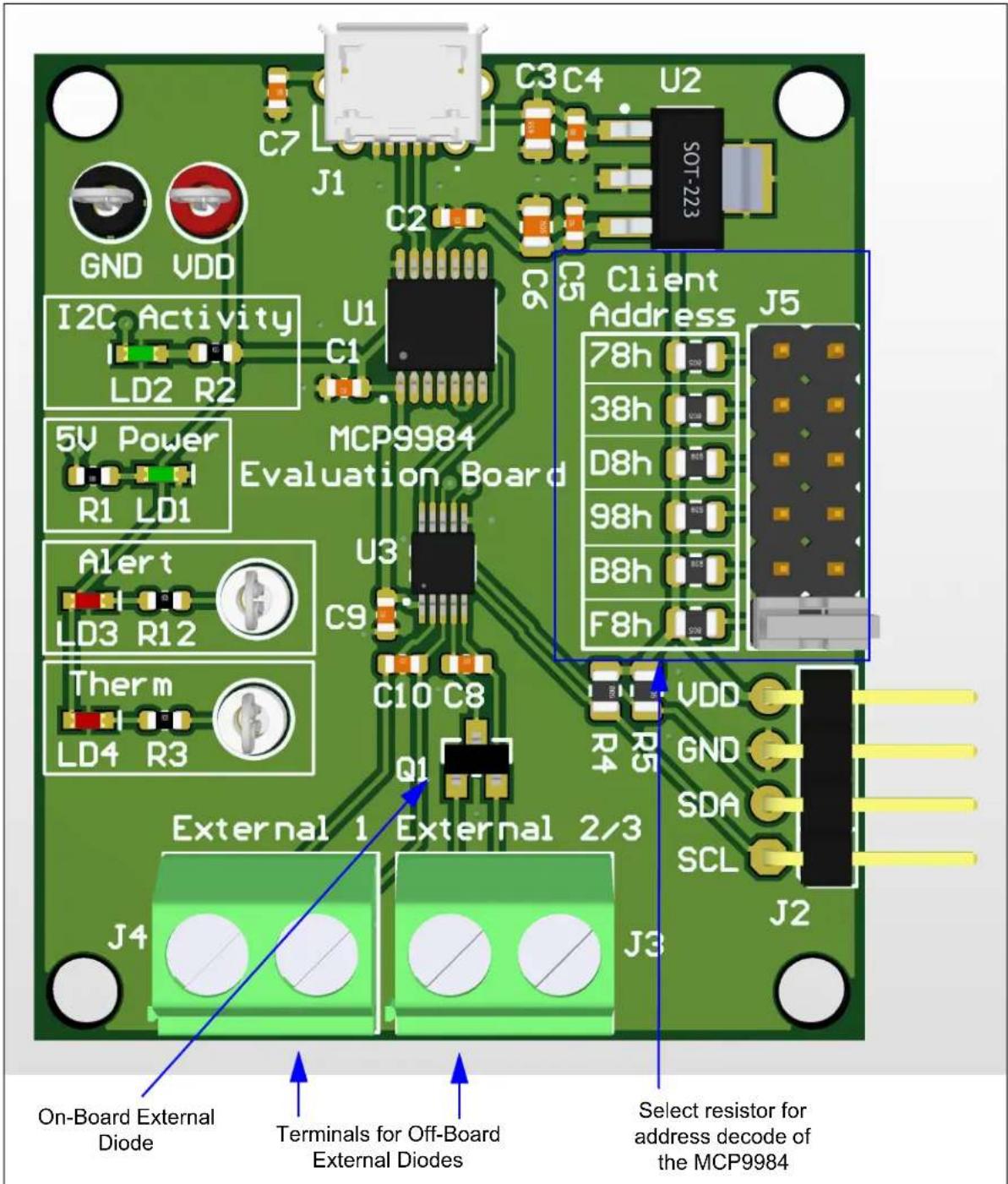
The block diagram in Figure 2-1 shows that the MCP9984 device is able to monitor and report the ambient temperature of three external diode-connected transistors. One diode is installed on the PCB for the MCP9984. Two-pin connectors allow the user to connect additional transistors to the MCP9984 for evaluation of off-board temperature applications. The Alert and Therm outputs, SDA, SCL and V_DD are connected to test points for external connections.
text_image
C3C4 U2 C7 J1 GND VDD I2C Activity U1 LD2 R2 C1 5V Power MCP9984 Evaluation Board Client Address J5 78h 38h D8h 98h B8h F8h Alert U3 LD3 R12 C9 Therm C10 C8 LD4 R3 Q1 External 1 External 2/3 J4 J3 J2 On-Board External Diode Terminals for Off-Board External Diodes Select resistor for address decode of the MCP9984FIGURE 2-2: Top view of the MCP9984 Evaluation Board with Component Descriptions.
Figure 2-2 shows the top view of the MCP9984 Evaluation Board. See Table 2-2 for a more detailed description of each component.
TABLE 2-2: COMPONENT DESCRIPTIONS
| Component Name | Description |
| VDD 3.3V | |
| GND Ground | |
| Alert Test point for the ALERT pin | |
| Therm Test point for the THERM pin | |
| J1 Micro-USB Connection | |
| J2 I2C/SMBus Connections | |
| J3 Terminal connection for External Channel 3 off-board diode connected transistor | |
| J4 Terminal connection for External Channel 1 off-board diode connected transistor | |
| J5 Address decode selection | |
| Q1 On-board diode connected transistor for External Channel 2 | |
| U1 MCP2221A: USB to I2C Bridge | |
| U2 MCP1703/3.3V: 3.3V Voltage regulator | |
| U3 MCP9984: Temperature sensor device | |
2.4 SOFTWARE SETUP
Follow these steps to complete the Microchip Thermal Management Utility software installation and setup:
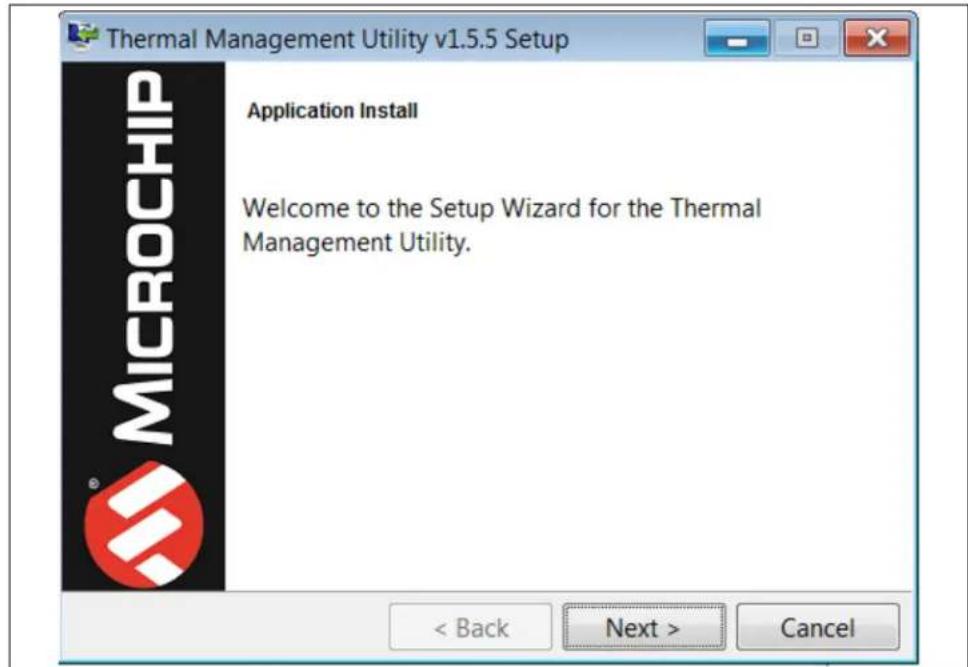
- Open the Thermal Management Utility.exe then click Next in the Application Install window.
FIGURE 2-3: APPLICATION INSTALL DIALOG BOX
text_image
Thermal Management Utility v1.5.5 Setup Application Install Welcome to the Setup Wizard for the Thermal Management Utility. < Back Next > Cancel- Read and Accept the License Agreement, then click Next.
FIGURE 2-4: LICENSE AGREEMENT DIALOG BOX

text_image
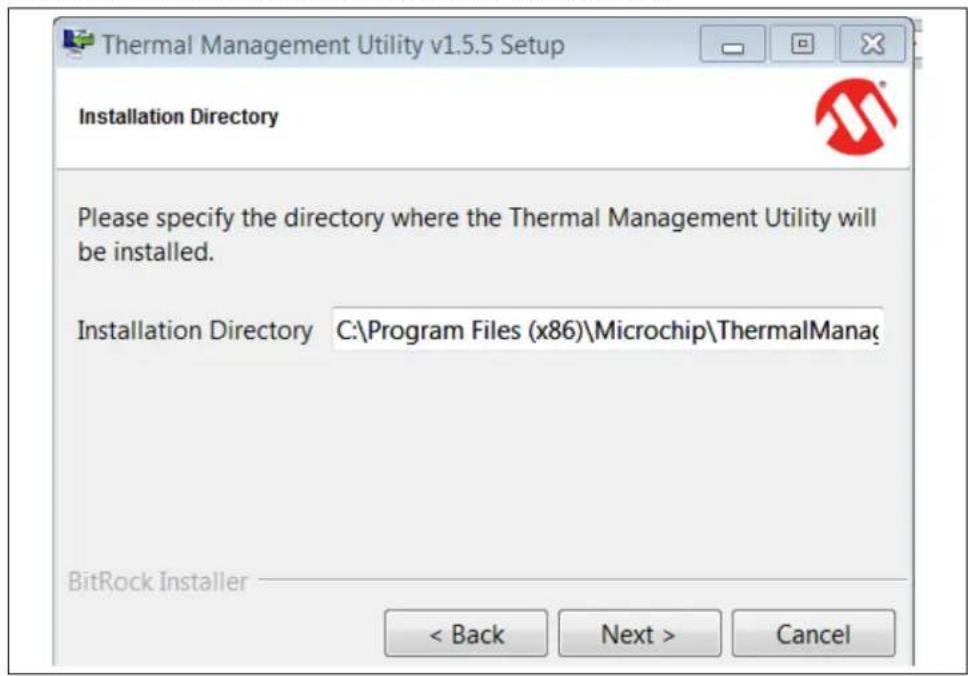
Thermal Management Utility v1.5.5 Setup License Agreement Please read the following License Agreement. You must accept the terms of this agreement before continuing with the installation. MICROCHIP SOFTWARE NOTICE AND DISCLAIMER: You may use this software, and any derivatives created by any person or entity by or on your behalf, exclusively with Microchips products. Microchip and its licensors retain all ownership and intellectual property rights in the accompanying software and in all derivatives hereto. Do you accept this license? ● I accept the agreement ○ I do not accept the agreement BitRock Installer < Back Next > Cancel- Select an installation directory and click Next. A default installation directory is provided.
FIGURE 2-5: INSTALLATION DIRECTORY DIALOG BOX
text_image
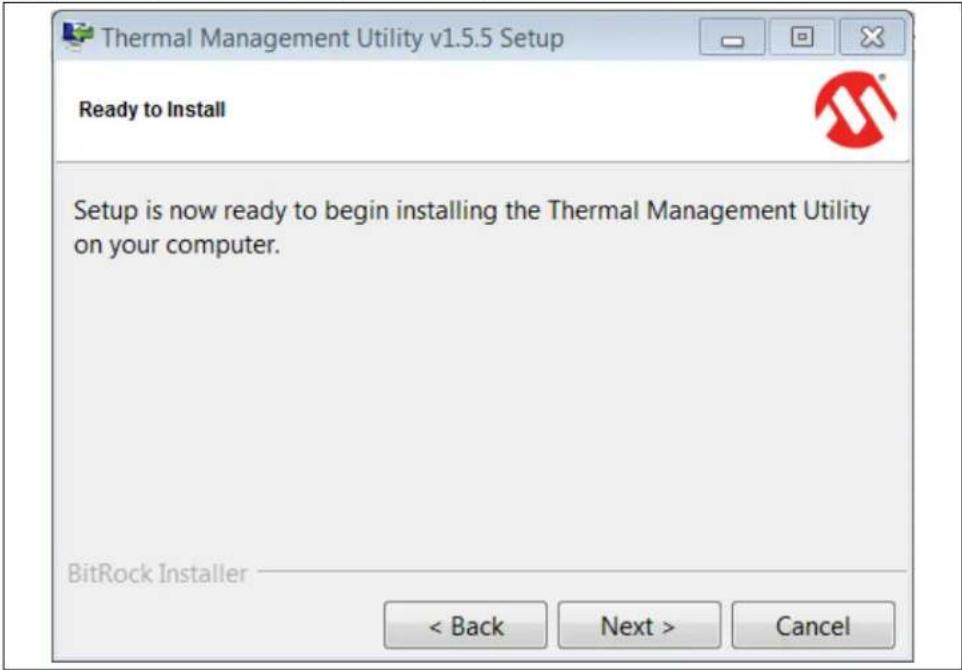
Thermal Management Utility v1.5.5 Setup Installation Directory Please specify the directory where the Thermal Management Utility will be installed. Installation Directory C:\Program Files (x86)\Microchip\ThermalManag BitRock Installer < Back Next > Cancel- Select Next to install the Microchip Thermal Management Utility.
FIGURE 2-6: READY TO INSTALL DIALOG BOX
text_image
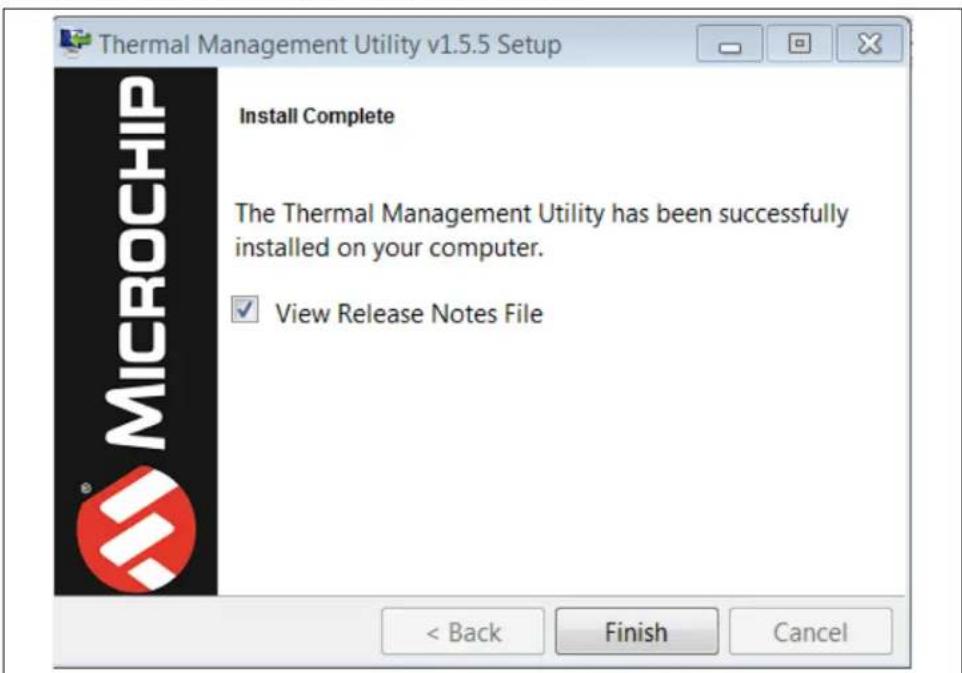
Thermal Management Utility v1.5.5 Setup Ready to Install Setup is now ready to begin installing the Thermal Management Utility on your computer. BitRock Installer < Back Next > Cancel- In the Install Complete dialog box click Finish to finalize installation.
FIGURE 2-7: INSTALL COMPLETE DIALOG BOX
text_image
Thermal Management Utility v1.5.5 Setup Install Complete The Thermal Management Utility has been successfully installed on your computer. ✓ View Release Notes File < Back Finish CancelChapter 3. Software GUI Description
3.1 THERMAL MANAGEMENT UTILITY - [MCP9984] SOFTWARE GUI OVERVIEW
The Microchip Thermal Management Software GUI allows users to evaluate the MCP9984 for temperature sensing applications. Once the hardware is connected, the software recognizes the board ID and displays the corresponding GUI for the MCP9984 Evaluation Board. Disconnecting the USB closes the GUI. This tool enables users to evaluate the sensor features and perform temperature data-logging.
Figure 3-1 depicts the Thermal Managemen Utility - [MCP9984] GUI.
FIGURE 3-1: THERMAL MANAGEMENT UTILITY - [MCP9984] GUI
![Microchip MCP9984 - THERMAL MANAGEMENT UTILITY - [MCP9984] SOFTWARE GUI OVERVIEW - 1](/content/2026/06/1230137/images/5b09a1b5cd00e7308d41d8342bcf1c126c2920ca783535f4da38f7928cf44674.jpg)
text_image
Thermal Management Utility - [MCP99b] View/Select 0Us One Start Update Register 1 Temperature Sensor Settings Registers List Results Internal Ext 1 Ext 2 Ext 3 Temp (°C) 23.625 24 0 0 Hollowed Dode Hollowed Comparison-ON Hollowed Compare for Internal Dode Ext 1 Ext 2 Ext 3 Hollowed Temp (°C) Hollowed Dode Status Internal Ext 1 Ext 2 Ext 3 High Unit Low Unit Therm Unit Fault Data Acquisition 180 170 160 150 140 130 120 110 100 90 80 70 Time (s) Temperature Plot Options Internal Temperature External 1 Temp External 2 Temp External 3 Temp Set up time interval 2 minutesAs displayed in Figure 3-1, the GUI can be divided into three sections as follows:
- Real-Time Acquisition action buttons
- Temperatures, Sensor Settings and Registers List tabs
- Data Acquisition Charting area
The features and functionality of the GUI are described below.
3.2 REAL-TIME ACQUISITION ACTION BUTTONS
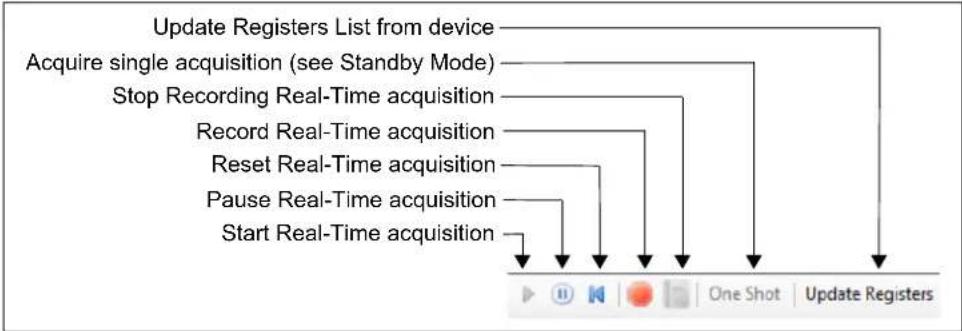
The Play, Pause and Reset icons (Figure 3-2) can be used to perform continuous data acquisitions.
FIGURE 3-2: REAL-TIME ACQUISITION BUTTONS
flowchart
graph TD
    A["Start Real-Time acquisition"] --> B["Pause Real-Time acquisition"]
    B --> C["Reset Real-Time acquisition"]
    C --> D["Record Real-Time acquisition"]
    D --> E["Stop Recording Real-Time acquisition"]
    E --> F["Acquire single acquisition (see Standby Mode)"]
    F --> G["Update Registers List from device"]
To initiate data logging, click the Record Acquisitions button (red button). The system displays the Save As window (see Figure 3-3), where users must select a file name and a location, then click the Save button.
FIGURE 3-3: SAVE AS WINDOW FOR RECORDING ACQUISITIONS

text_image
Save As Microchip Technology Inc ▶ Thermal Management Utility ▶ 1.5.4.0 Search 1.5.4.0 Organize ▶ New folder Favorites Downloads Recent Plac Libraries Documents Music Pictures Subversion Videos Computer Name Date modified Type Size No items match your search. File name: temp Save as type: Data File (*.txt) Hide Folders Save CancelTo stop the data logging click the Stop Recording button. Users can now go to the file's location to view the file.
Clicking the Update Registers button updates the GUI with all the registers of the selected device (see the Registers List tab for all register values).
3.3 TEMPERATURES, SENSOR SETTINGS AND REGISTERS LIST TABS
3.3.1 Temperatures Tab
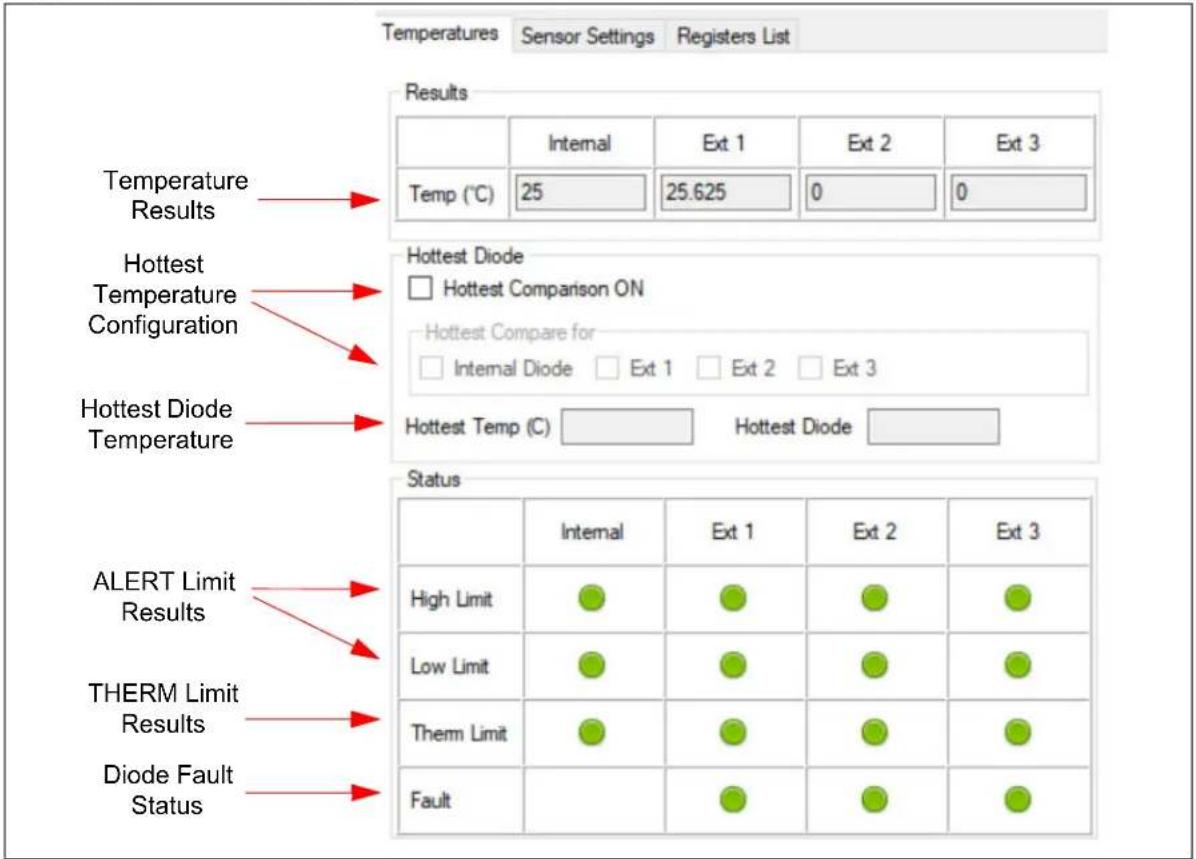
The Temperatures tab displayed in Figure 3-4 shows the results of the MCP9984 temperature channels. This tab also displays the results of the various user programmable features of the MCP9984 Evaluation Board, such as the temperature ALERT and THERM status, Diode Fault status and hottest diode comparison.
FIGURE 3-4: TEMPERATURES TAB
text_image
Temperatures Sensor Settings Registers List Results Internal Ext 1 Ext 2 Ext 3 Temp (°C) 25 25.625 0 0 Hottest Diode □ Hottest Comparison ON Hottest Compare for □ Internal Diode □ Ext 1 □ Ext 2 □ Ext 3 Hottest Temp (°C) _________ Hottest Diode _________ Status Internal Ext 1 Ext 2 Ext 3 High Limit ● ● ● ● Low Limit ● ● ● ● Therm Limit ● ● ● ● Fault ● ● ● ● THERM Limit Results Diode Fault Status ALERT Limit Results3.3.2 Sensor Settings Tab
The Sensor Settings tab is divided into two sections:
- General Settings
- Beta & Ideality
3.3.2.1 GENERAL SETTINGS
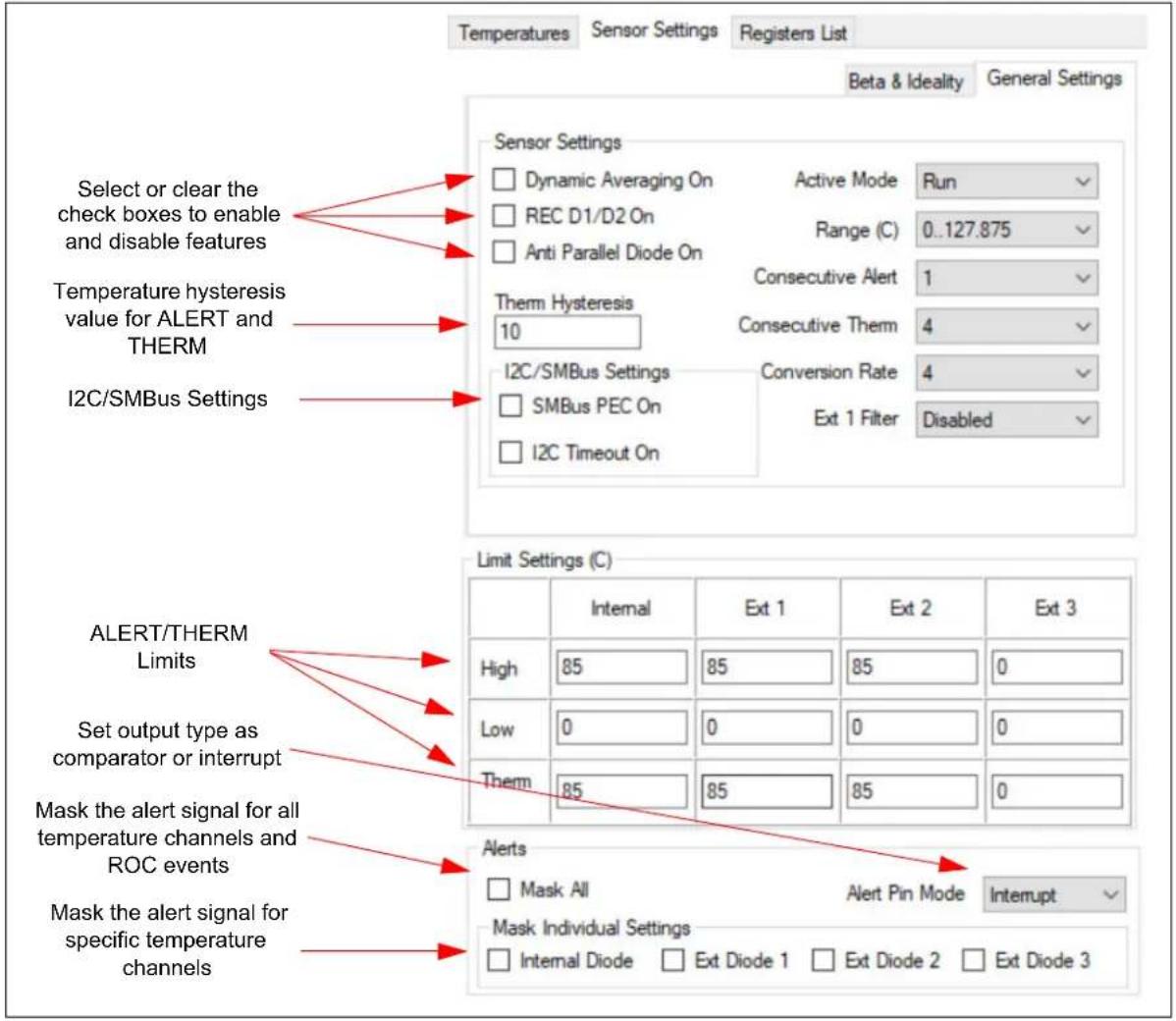
Figure 3-5 displays the General Settings section under the Sensor Settings tab. This is where the user configures various features of the device.
Refer to the MCP998X data sheet for detailed information on the operation of these features and settings.
FIGURE 3-5: SENSOR SETTINGS TAB - GENERAL SETTINGS
text_image
Temperatures Sensor Settings Registers List Beta & Ideality General Settings Select or clear the check boxes to enable and disable features Temperature hysteresis value for ALERT and THERM I2C/SMBus Settings Sensor Settings Dynamic Averaging On Active Mode Run REC D1/D2 On Range (C) 0..127.875 Anti Parallel Diode On Consecutive Alert 1 Therm Hysteresis 10 Consecutive Therm 4 I2C/SMBus Settings Conversion Rate 4 SMBus PEC On Ext 1 Filter Disabled I2C Timeout On Limit Settings (C) Internal Ext 1 Ext 2 Ext 3 High 85 85 85 0 Low 0 0 0 0 Therm 85 85 85 0 Alerts Mask All Alert Pin Mode Interrupt Mask Individual Settings Internal Diode Ext Diode 1 Ext Diode 2 Ext Diode 33.3.2.1.1 Standby Mode (One Shot)
Selecting Standby in the Active Mode drop-down menu puts the selected device in Standby mode. While in this mode, the device does not continuously acquire new data acquisitions. Instead, the device only acquires data when a One Shot command is issued. This is done by clicking on the One Shot button in the Real-Time Acquisition Action Buttons bar.
3.3.2.2 BETA & IDEALITY
Figure 3-6 displays the Beta and Ideality tab under the Sensor Settings tab. In this section, the user can manage the Auto-Beta Detection feature and ideality factor of the selected device. The Beta Value, which is determined by the device, is read-only. The ideality factor can be changed by the user.
FIGURE 3-6: BETA AND IDEALITY TAB

text_image
Turn the Auto-Beta Detection feature on or off View the beta value determined by the Auto-Beta Detection Adjust the Ideality Factor Limit Settings (C) Ext 1 Ext 2 Beta On ✓ ✓ Beta Value Diode Mode 2.333 Ideality Factor BJT Diode Model Set factor for channel: Ext1 Id. Factor Ext1: 1.008 Id. Factor Ext2: 1.008 Id. Factor Ext3: 0 Setting Id. Factor Select Factor 0x08 0.9949 Select 0x09 0.9962 Select 0x0A 0.9975 Select 0x0B 0.9988 Select 0x0C 1.0001 Select3.3.3 Registers List Tab
The Registers List tab (Figure 3-7) contains a read/write table that contains all the user registers.
3.3.3.1 READING AND WRITING TO REGISTERS
Read
To read all registers, simply click the Update Registers button at the top of the GUI. To read an individual register, highlight the row of the register that you want to read, right-click, then select read.
Write
To write to a register, enter the value you wish to write to the corresponding Data High or Data Low cell. Then, click out of the cell and highlight the entire row, including the cell that was just written to. Then, right-click and select write. If the cell that is being written to is not highlighted blue with the rest of the row, the write function does not take place.
FIGURE 3-7: REGISTERS LIST TAB
| Temperatures Sensor Settings Registers List | ||||
| User Registers | ||||
| Name | Address High | Address Low | Data High | Data Low |
| Internal Temp | 0x00 | 0x01 | 0x19 | 0x20 |
| Ext 1 Temp | 0x02 | 0x03 | 0x19 | 0xC0 |
| Ext 2 Temp | 0x04 | 0x05 | 0x00 | 0x00 |
| Ext 3 Temp | 0x06 | 0x07 | 0x00 | 0x00 |
| Ext 4 Temp | 0x08 | 0x09 | 0x00 | 0x00 |
| Open Shot | - | 0x0A | - | 0x00 |
| Internal Diode High Limit | - | 0x0B | - | 0x55 |
| Internal Diode Low Limit | - | 0x0C | - | 0x00 |
| Ext 1 High Limit | 0x0D | 0x0E | 0x55 | 0x00 |
| Ext 1 Low Limit | 0x0F | 0x10 | 0x00 | 0x00 |
| Ext 2 High Limit | 0x11 | 0x12 | 0x55 | 0x00 |
| Ext 2 Low Limit | 0x13 | 0x14 | 0x00 | 0x00 |
| Ext 3 High Limit | 0x15 | 0x16 | 0x00 | 0x00 |
| Ext 3 Low Limit | 0x17 | 0x18 | 0x00 | 0x00 |
| Ext 4 High Limit | 0x19 | 0x1A | 0x00 | 0x00 |
| Ext 4 Low Limit | 0x1B | 0x1C | 0x00 | 0x00 |
| Internal Therm Limit | - | 0x1D | - | 0x55 |
| Ext 1 Therm Limit | - | 0x1E | - | 0x55 |
| Ext 2 Therm Limit | - | 0x1F | - | 0x55 |
| Ext 3 Therm Limit | - | 0x20 | - | 0x00 |
| Ext 4 Therm Limit | - | 0x21 | - | 0x00 |
| Config | - | 0x22 | - | 0x00 |
| Config 2 | - | 0x23 | - | 0x00 |
| Convert | - | 0x24 | - | 0x06 |
| Therm Hyst | - | 0x25 | - | 0xOA |
| Consecutive Alert | - | 0x26 | - | 0x70 |
| Diode Alert Mask | - | 0x27 | - | 0xOO |
| Filter Select | ||||
3.4 DATA ACQUISITION CHARTING AREA
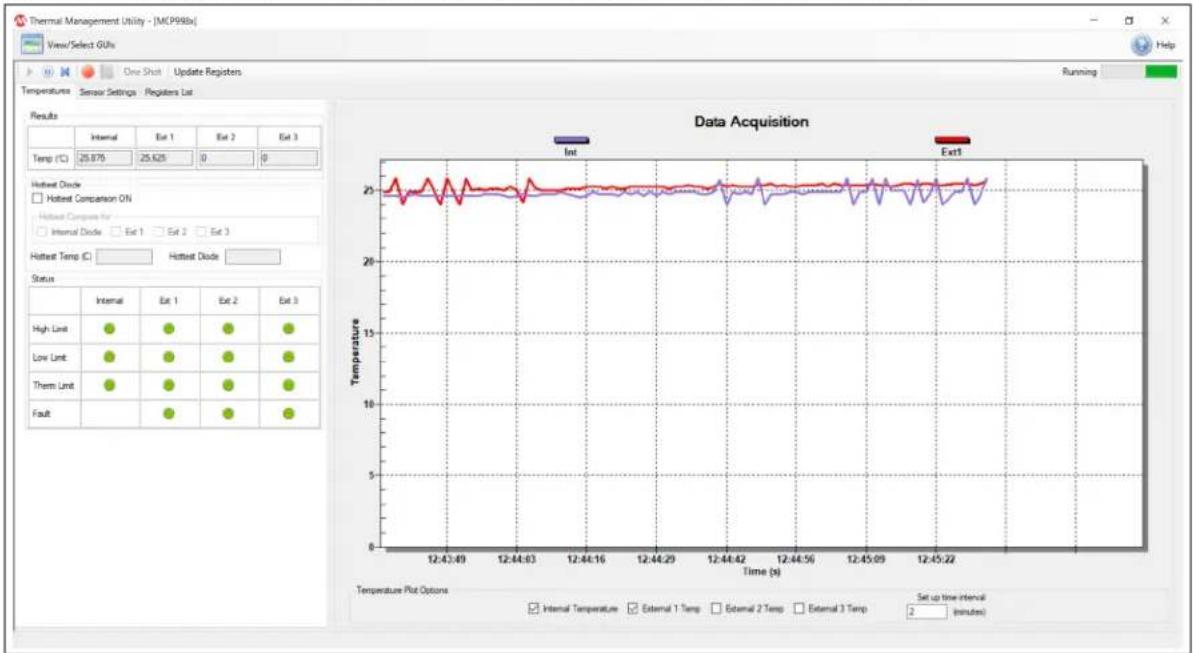
Figure 3-8 shows the Data Acquisition interface with a plot of the MCP9984 Evaluation Board's temperature channels.
FIGURE 3-8: MICROCHIP THERMAL MANAGEMENT UTILITY GUI DATA PLOT
line
| Time (s) | Temperature | |----------|-------------| | 12:43:49 | 25 | | 12:44:03 | 25 | | 12:44:16 | 25 | | 12:44:29 | 25 | | 12:44:42 | 25 | | 12:44:56 | 25 | | 12:45:09 | 25 | | 12:45:22 | 25 |The logging interval can be adjusted using the interval scroll bar from 100 ms to 30s, as shown in Figure 3-8.
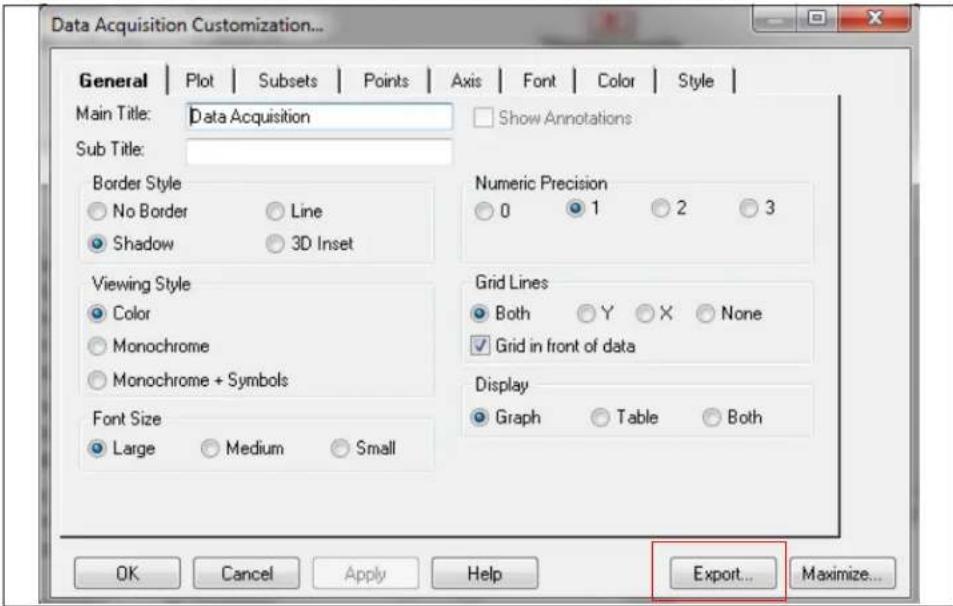
The data acquisition charting area (Figure 3-8) can be customized by double clicking the chart. Performing this action opens the Data Acquisition Customization window, shown in Figure 3-9.
Users can also zoom into a specific plot range by clicking and dragging the section. The data in the chart can also be exported by right-clicking the plot and selecting the Export dialog button.
FIGURE 3-9: DATA ACQUISITION CUSTOMIZATION WINDOW
text_image
Data Acquisition Customization... General | Plot | Subsets | Points | Axis | Font | Color | Style | Main Title: Data Acquisition Show Annotations Sub Title: Border Style No Border Line Shadow 3D Inset Numeric Precision 0 1 2 3 Viewing Style Color Monochrome Monochrome + Symbols Grid Lines Both Y X None Grid in front of data Display Graph Table Both Font Size Large Medium Small OK Cancel Apply Help Export... Maximize...3.4.0.1 DATA ACQUISITION CUSTOMIZATION WINDOW DESCRIPTION
The Data Acquisition Customization window contains eight tabs with several options allowing users to customize the data acquisition charting area.
The General tab (Figure 3-9) determines how the data acquisition charting area is displayed. General options include the border style, viewing style, font size, numeric precision and grid lines.
The Display option determines how the data acquisition charting area is generated: a graph, a table, or both.
The Plot tab, displayed in Figure 3-10, allows users to customize the appearance of the data sensor plots.
FIGURE 3-10: DATA ACQUISITION CUSTOMIZATION - PLOT TAB

text_image
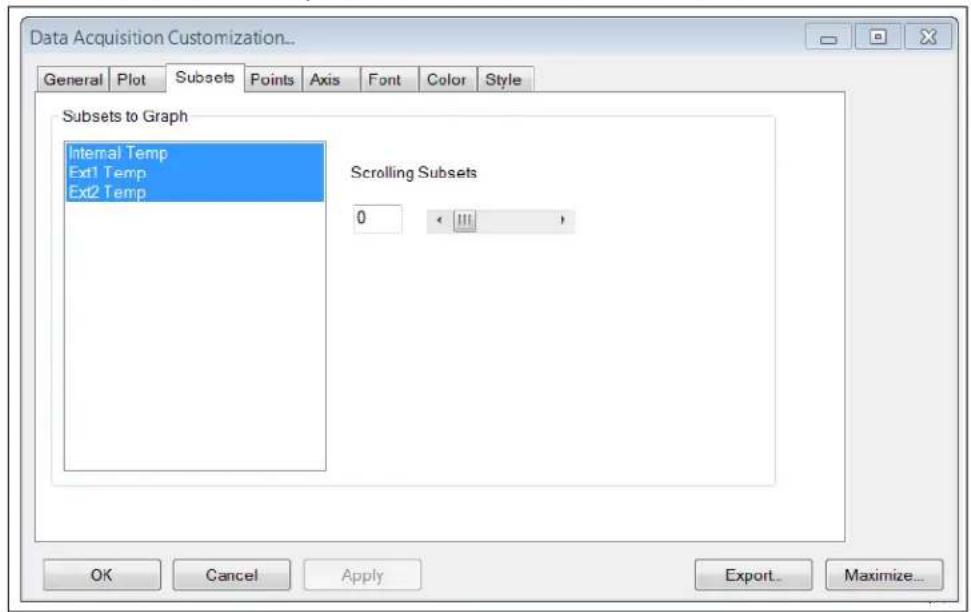
Data Acquisition Customization... General Plot Subsets Points Axis Font Color Style All Subsets Internal Temp Ext1 Temp Ext2 Temp 3D Off Shadow 3D Mark Data Points Plot Style Area Bar Line Points Points+BestFitCurve Points+BestFitCurve II Points+BestFitLine Points+BestFitLine II Points+Line Points+Spline Spline OK Cancel Apply ExportMaximize...Users can also control the appearance of the subsets plots using the Subsets tab, displayed in Figure 3-11.
FIGURE 3-11: DATA ACQUISITION WINDOW - SUBSETS TAB
text_image
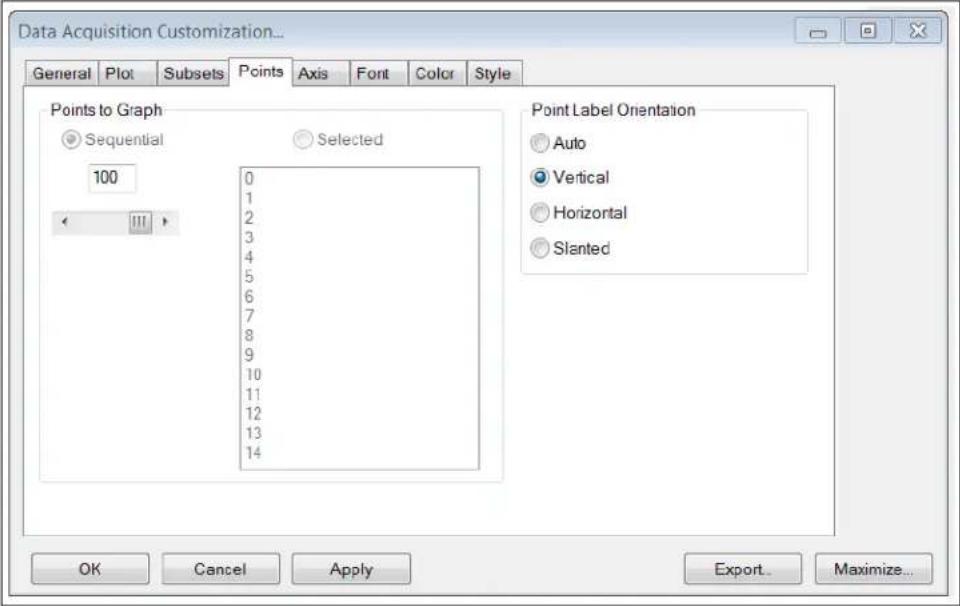
Data Acquisition Customization... General Plot Subsets Points Axis Font Color Style Subsets to Graph Internal Temp Ext1 Temp Ext2 Temp Scrolling Subsets 0 < III > OK Cancel Apply Export Maximize...The Points tab, displayed in Figure 3-12, controls the number of data points displayed in the graph and the orientation of the labels on the X-Axis.
FIGURE 3-12: DATA ACQUISITION WINDOW - POINTS TAB
text_image
Data Acquisition Customization... General Plot Subsets Points Axis Font Color Style Points to Graph Sequential Selected 100 0 1 2 3 4 5 6 7 8 9 10 11 12 13 14 Point Label Orientation Auto Vertical Horizontal Slanted OK Cancel Apply Export... Maximize...The Axis tab, displayed in Figure 3-13, determines the scale and range of the Y-Axis.
FIGURE 3-13: DATA ACQUISITION WINDOW - AXIS TAB.

text_image
Data Acquisition Customization... General Plot Subsets Points Axis Font Color Style Y Axis Linear Auto Log Min Max Min/Max Min Max -40.0000 100 OK Cancel Apply Export... Maximize...The user can modify the options in the Font tab, displayed in Figure 3-14, to change the size, font and style of the text that appears in the data acquisition charting area. A sample text is also provided for preview before applying the changes to the charting area.
FIGURE 3-14: DATA ACQUISITION WINDOW - FONT TAB

text_image
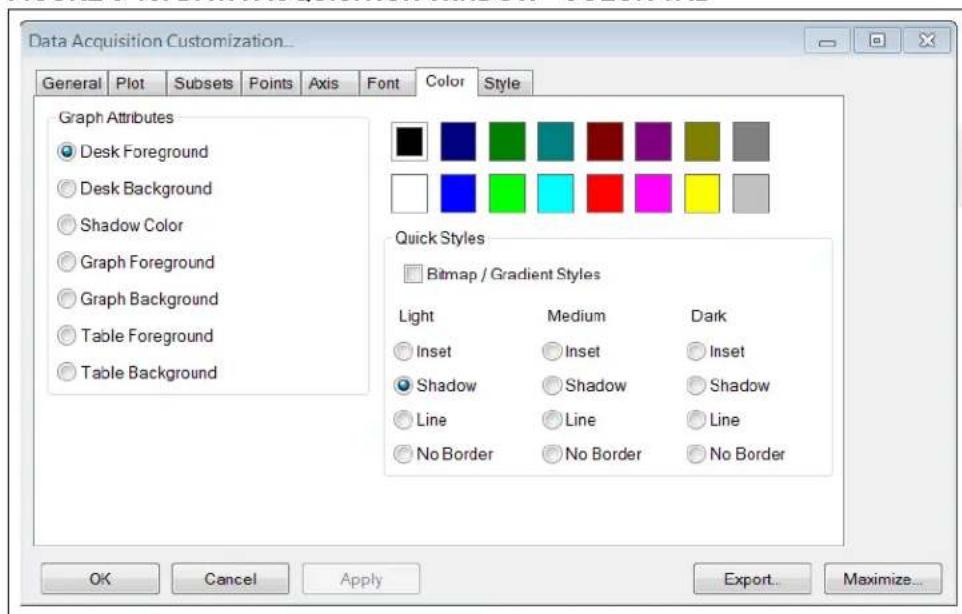
Data Acquisition Customization... General Plot Subsets Points Axis Font Color Style Main Title: Times New Roman □ bold □ italic □ underline Sub-Title: Times New Roman □ bold □ italic □ underline Subset / Point / Axis Labels: Arial Baltic □ bold □ italic □ underline Table Data: Arial sample: AaBbCcDdEeFfGg OK Cancel Apply Export... Maximize...The Color tab, displayed in Figure 3-15, determines which colors are used by the system. Optionally, users can select a pre-configured style in the Quick Styles section.
FIGURE 3-15: DATA ACQUISITION WINDOW - COLOR TAB
text_image
Data Acquisition Customization... General Plot Subsets Points Axis Font Color Style Graph Attributes Desk Foreground Desk Background Shadow Color Graph Foreground Graph Background Table Foreground Table Background Quick Styles Bitmap / Gradient Styles Light Medium Dark Inset Inset Inset Shadow Shadow Shadow Line Line Line No Border No Border No Border OK Cancel Apply Export...Maximize...Through the Style tab, displayed in Figure 3-16, users can customize the line style, color and data point type for each temperature plot.
FIGURE 3-16: DATA ACQUISITION WINDOW - STYLE TAB

text_image
Data Acquisition Customization... General Plot Subsets Points Axis Font Color Style Internal Temp Ext1 Temp Ext2 Temp Point Type: Solid Circle Line Type: OK Cancel Apply Export Maximize...Appendix 1. Schematic and Layouts
1.1 INTRODUCTION
This appendix contains the following schematics and layouts for the MCP9984 Evaluation Board:
• MCP9984 Evaluation Board – Schematic
- Board – Top Silk
• Board – Top Copper and Silk
- Board – Top Copper
- Board – Bottom Copper
• Board – Bottom Copper and Silk
- Board – Bottom Silk
1.2 MCP9984 EVALUATION BOARD - SCHEMATIC

text_image
VDD C2 0.1uF 10V 0603 GND U1 VDD VUSB GPI GP1 GP2 GP3 D- D1 12 13 14 RNT UART RX UART TX SDA SCL VSS MCP221A GND U2 VCC17035.3V VIN VOU1 GND -3V USB C3 4.3uF 10V 8805 C4 8.1uF 10V 6603 GND C5 8.1uF 10V 6603 GND C6 4.7uF 10V 6603 GND VDD J1 VBUS D- D1 ID GND C7 8.1uF 10V 6603 SHIELD L12/25/45/45/45/45/45/45/45/45/45/45/45/45/45/45/45/45/45/45/45/45/45/45/45/45/45/45/45/45/45/45/45/45/45/41.3 BOARD - TOP SILK
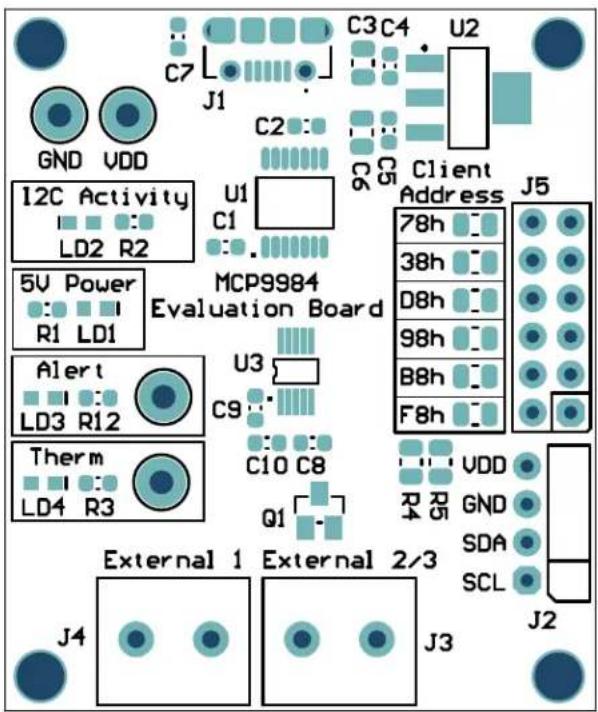
text_image
GND VDD I2C Activity LD2 R2 5V Power R1 LD1 A1ert LD3 R12 Therm LD4 R3 MCP9984 Evaluation Board U1 C1 U3 C9 C10 C8 Q1 External 1 External 2/3 J4 J3 C7 C2 C3 C4 U2 C6 C5 Client Address J5 78h 38h D8h 98h B8h F8h VDD GND SDA SCL J21.4 BOARD - TOP COPPER AND SILK
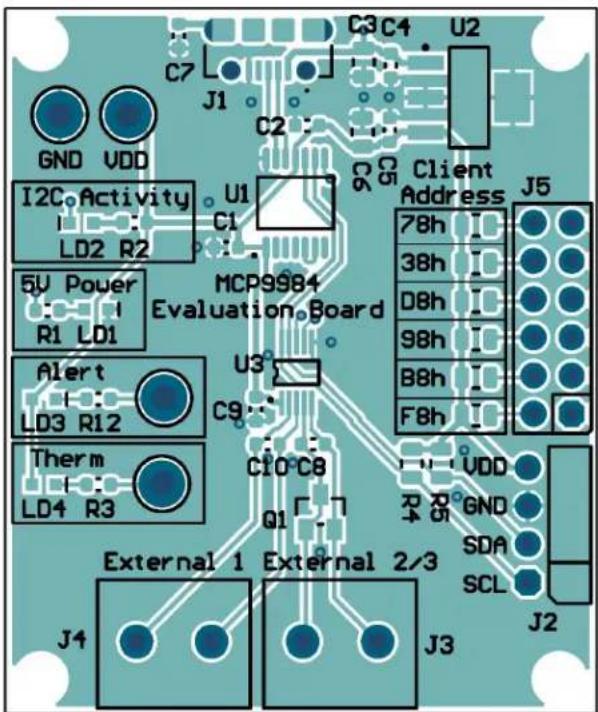
text_image
C7 GND VDD I2C Activity LD2 R2 U1 C1 5V Power R1 LD1 MCP9984 Evaluation Board U3 C9 Alert LD3 R12 Therm LD4 R3 C10 C8 Q1 External 1 External 2/3 J4 J3 C3 C4 U2 C6 Client Address J5 78h 38h D8h 98h B8h F8h VDD GND SDA SCL J21.5 BOARD - TOP COPPER
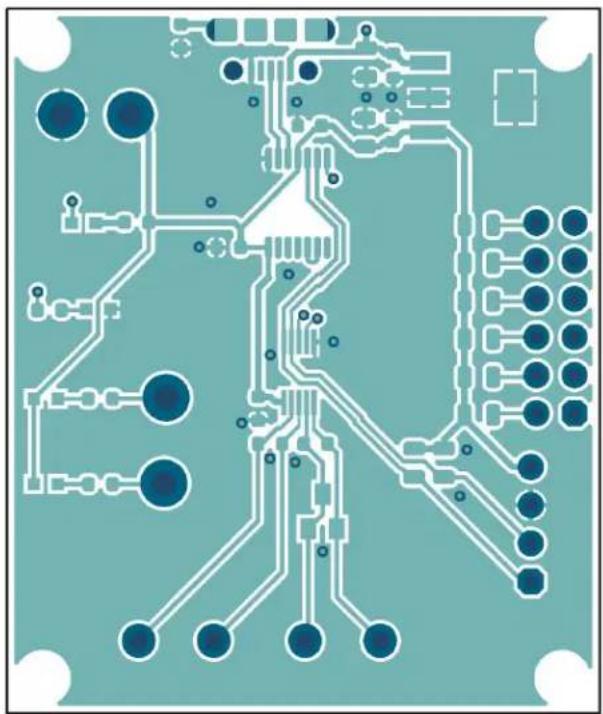
natural_image
Pure electrical circuit lines without any symbols1.6 BOARD - BOTTOM COPPER
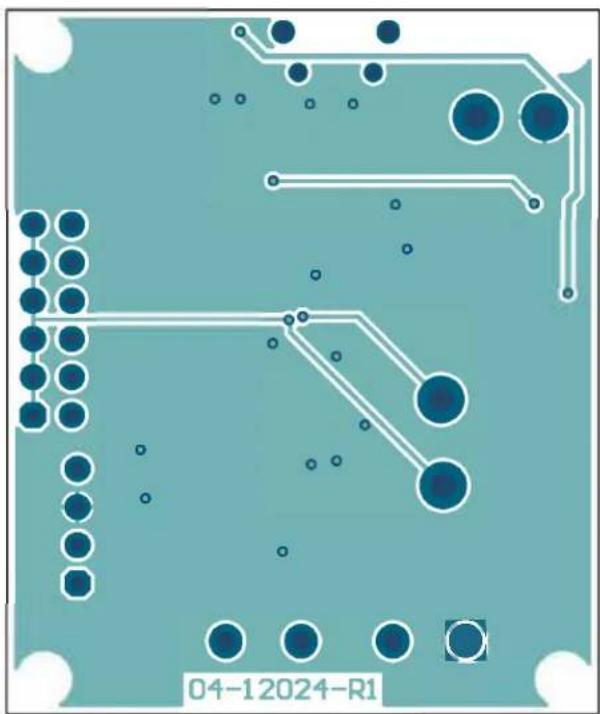
natural_image
PCB layout diagram with circuit traces and circular components (no readable text or symbols)1.7 BOARD - BOTTOM COPPER AND SILK
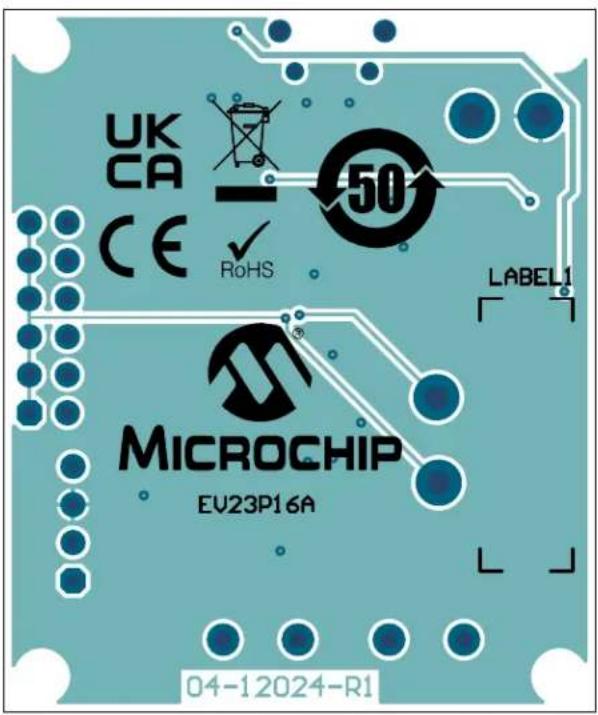
text_image
UK CA CE RoHS 50 LABEL1 MICROCHIP EV23P16A 04-12024-R11.8 BOARD - BOTTOM SILK

text_image
UK CA CE RoHS 50 LABEL1 MICROCHIP EV23P16ANOTES:
Appendix 1. Bill of Materials (BOM)
1.1 MCP9984 EVALUATION BOARD - BILL OF MATERIALS (BOM)
TABLE 1-1: MCP9984 EVALUATION BOARD - BOM
| Qty. | Reference | Description | Manufacturer | Part | Number |
| 1 C1 | Ceramic Capacitor, 0 | 47 μF, 10V, 10%, X5R, Surface-Mount, 0603 | KEMET C0603C47 | 4K8PACTU | |
| 1 C10 | Ceramic Capacitor, | 2200 pF, 16V, 10%, X7R, Surface-Mount, 0603 | AVX Corporation | 0603YC222KAT2A | |
| 5 C2, C4, C5, C7, C9 | Ceramic Capacitor, 0.1 μF, 10V, 10%, X7R, Surface-Mount, 0603 | KEMET C0603C10 | 4K8RACTU | ||
| 2 | C3, C6 | Ceramic Capacitor, 4.7 μF, 10V, 10%, X5R, Surface-Mount, 0805 | Wurth Elektronik | 885012107009 | |
| 1 C8 | Ceramic Capacitor, 2 | 00 pF, 50V, 5%, C0G, Surface-Mount, 0603 | Murata Electronics® | GRM1885C1H201JA01D | |
| 1 J1 | Connector, USB 2.0, | Micro-B, Female, Through-Hole/Surface-Mount, Right-Angle | FCI | 10118194-0001LF | |
| 1 J2 | Connector, HDR-2.54 | Male, 1x4, Gold 5.84 MH, Through-Hole, Right-Angle | Samtec, Inc. TSW- | 104-08-S-S-RA | |
| 2 J3, J4 | Connector, Terminal, 5 mm, 1x2, Female, 12-26AWG, 18A, Through-Hole, Right-Angle | Phoenix Contact | 1935161 | ||
| 1 J5 | Connector, HDR-2.54 | Male, 2x6, Tin, 5.84 MH, Through-Hole, Vertical | Amphenol ICC (FCI) | 67996-412HLF | |
| 2 LD1, | LD2 Diode | LED, Green, 3.2V, 20 mA, 430 mcd, Clear, Surface-Mount, 0603 | Wurth Elektronik | 150060GS75000 | |
| 2 LD3, | LD4 Diode | LED, Red, 2V, 20 mA, 250 mcd, Clear, Surface-Mount, 0603 | Wurth Elektronik | 150060RS75000 | |
| 1 PCB1 | MCP9984 Evaluation Board - Printed Circuit Board | Microchip Technology Inc. | 04-12024-R1 | ||
| 1 Q1 | Transistor, BJT, NPN, MMBT3904-7-F, 40V, 0.2A, Surface-Mount, SOT23-3 | Diodes Incorporated® | MMBT3904-7-F | ||
| 1 R1 | Resistor, Thick Film, | 10 kΩ, 1%, 1/10W, Surface-Mount, 0603 | Panasonic Industry Co., Ltd. | ERJ-3EKF1002V | |
| 1 | R10 | Resistor, Thick Film, 22 kΩ, 1%, 1/8W, Surface-Mount, 0805, AEC-Q200 | Stackpole Electronics, Inc. | RMCF0805FT22K0 | |
| 1 | R11 | Resistor, Thick Film, 33 kΩ, 1%, 1/16W, Surface-Mount, 0805 | Stackpole Electronics, Inc. | RMCF 1/10 33K 1% R | |
| 3 | R2, R3, R12 | Resistor, Thick Film, 6.8 kΩ, 1%, 1/10W, Surface-Mount, 0603 | Panasonic Industry Co., Ltd. | ERJ-3EKF6801V | |
| 3 | R4, R5, R8 | Resistor, Thick Film, 10 kΩ, 1%, 1/8W, Surface-Mount, 0805 | Panasonic Industry Co., Ltd. | ERJ-6ENF1002V | |
Note 1: The components listed in this Bill of Materials are representative of the PCB assembly. The released BOM used in manufacturing uses all RoHS-compliant components.
TABLE 1-1: MCP9984 EVALUATION BOARD - BOM (CONTINUED)
| Qty. | Reference | Description | Manufacturer | Part Number |
| 1 R6 Resistor, Thick Film, 4 | .7 kΩ, 1%, 1/8W, Surface-Mount, 0805 | Yageo Corporation | RC0805FR-074K7L | |
| 1 R7 Resistor, 6.8 kΩ, 1%, | 1/8W, Surface-Mount, 0805 | Yageo Corporation | RC0805FR-076K8L | |
| 1 | R9 | Resistor, Thick Film, 15 kΩ, 1%, 1/8W, Surface-Mount, 0805 | Yageo Corporation | RC0805FR-0715KL |
| 1 TP1 Connector, Test Point, Loop, Red, Through-Hole | Keystone® Electronics Corp. | 5010 | ||
| 1 TP2 Connector, Test Point, Loop, Black, Through-Hole | Keystone Electronics Corp. | 5011 | ||
| 2 TP3, TP4 Connector, Test Point, Loop, White, Through-Hole | Keystone Electronics Corp. | 5012 | ||
| 1 U1 MCHP Interface USB, I ^2C , UART, MCP2221A-I/ST, TSSOP-14 | Microchip Technology Inc. | MCP2221A-I/ST | ||
| 1 U2 MCHP Analog LDO, 3.3V, MCP1703T-3302E/DB, SOT-223-3 | Microchip Technology Inc. | MCP1703T-3302E/DB | ||
| 1 U3 MCP9984-AE/E3, 2-Wire, ±1°C, Accuracy Remote Diode Temperature Monitor MSOP-10 | Microchip Technology Inc. | MCP9984-AE/E3 | ||
Note 1: The components listed in this Bill of Materials are representative of the PCB assembly. The released BOM used in manufacturing uses all RoHS-compliant components.
1.2 MCP9984 EVALUATION BOARD - BOM MECHANICAL PARTS
TABLE 1-2: MCP9984 EVALUATION BOARD - BOM MECHANICAL PARTS
| Qty. | Reference | Description | Manufacturer | Part Number |
| 1 | CBL2 | Mechanical, Headings & Wires Cable, USB Male-A to USB Male Micro-B, 0.91M | Dongguan Zhanxin Electronic Technology Co., Ltd | A006ZX028 |
| 1 | JP1 | Mechanical, Headings & Wires Jumper, 2.54 mm, 1x2, Handle, Gold | TE Connectivity AMP | 881545-2 |
| 2 | Q3, Q4 | Transistor, BJT, NPN, 2N3904TA, 40V, 0.2A, 0.625W, TO-92-3 | Fairchild Semiconductor® | 2N3904TA |
Note 1: The components listed in this Bill of Materials are representative of the PCB assembly. The released BOM used in manufacturing uses all RoHS-compliant components.
Worldwide Sales and Service
AMERICAS
Corporate Office
2355 West Chandler Blvd.
Chandler, AZ 85224-6199
Tel: 480-792-7200
Fax: 480-792-7277
Technical Support:
http://www.microchip.com/
support
Web Address:
www.microchip.com
Atlanta
Duluth, GA
Tel: 678-957-9614
Fax: 678-957-1455
Austin, TX
Tel: 512-257-3370
Boston
Westborough, MA
Tel: 774-760-0087
Fax: 774-760-0088
Chicago
Itasca, IL
Tel: 630-285-0071
Fax: 630-285-0075
Dallas
Addison, TX
Tel: 972-818-7423
Fax: 972-818-2924
Detroit
Novi, MI
Tel: 248-848-4000
Houston, TX
Tel: 281-894-5983
Indianapolis
Noblesville, IN
Tel: 317-773-8323
Fax: 317-773-5453
Tel: 317-536-2380
Los Angeles
Mission Viejo, CA
Tel: 949-462-9523
Fax: 949-462-9608
Tel: 951-273-7800
Raleigh, NC
Tel: 919-844-7510
New York, NY
Tel: 631-435-6000
San Jose, CA
Tel: 408-735-9110
Tel: 408-436-4270
Canada - Toronto
Tel: 905-695-1980
Fax: 905-695-2078
ASIA/PACIFIC
Australia - Sydney
Tel: 61-2-9868-6733
China - Beijing
Tel: 86-10-8569-7000
China - Chengdu
Tel: 86-28-8665-5511
China - Chongqing
Tel: 86-23-8980-9588
China - Dongguan
Tel: 86-769-8702-9880
China - Guangzhou
Tel: 86-20-8755-8029
China - Hangzhou
Tel: 86-571-8792-8115
China - Hong Kong SAR
Tel: 852-2943-5100
China - Nanjing
Tel: 86-25-8473-2460
China - Qingdao
Tel: 86-532-8502-7355
China - Shanghai
Tel: 86-21-3326-8000
China - Shenyang
Tel: 86-24-2334-2829
China - Shenzhen
Tel: 86-755-8864-2200
China - Suzhou
Tel: 86-186-6233-1526
China - Wuhan
Tel: 86-27-5980-5300
China - Xian
Tel: 86-29-8833-7252
China - Xiamen
Tel: 86-592-2388138
China - Zhuhai
Tel: 86-756-3210040
ASIA/PACIFIC
India - Bangalore
Tel: 91-80-3090-4444
India - New Delhi
Tel: 91-11-4160-8631
India - Pune
Tel: 91-20-4121-0141
Japan - Osaka
Tel: 81-6-6152-7160
Japan - Tokyo
Tel: 81-3-6880-3770
Korea - Daegu
Tel: 82-53-744-4301
Korea - Seoul
Tel: 82-2-554-7200
Malaysia - Kuala Lumpur
Tel: 60-3-7651-7906
Malaysia - Penang
Tel: 60-4-227-8870
Philippines - Manila
Tel: 63-2-634-9065
Singapore
Tel: 65-6334-8870
Taiwan - Hsin Chu
Tel: 886-3-577-8366
Taiwan - Kaohsiung
Tel: 886-7-213-7830
Taiwan - Taipei
Tel: 886-2-2508-8600
Thailand - Bangkok
Tel: 66-2-694-1351
Tel: 43-7242-2244-39
Fax: 43-7242-2244-393
Denmark - Copenhagen
Tel: 45-4485-5910
Fax: 45-4485-2829
Finland - Espoo
Tel: 358-9-4520-820
France - Paris
Tel: 33-1-69-53-63-20
Fax: 33-1-69-30-90-79
Germany - Garching
Tel: 49-8931-9700
Germany - Haan
Tel: 49-2129-3766400
Germany - Heilbronn
Tel: 49-7131-72400
Germany - Karlsruhe
Tel: 49-721-625370
Germany - Munich
Tel: 49-89-627-144-0
Fax: 49-89-627-144-44
Germany - Rosenheim
Tel: 49-8031-354-560
Israel - Ra'anana
Tel: 972-9-744-7705
Italy - Milan
Tel: 39-0331-742611
Fax: 39-0331-466781
Italy - Padova
Tel: 39-049-7625286
Netherlands - Drunen
Tel: 31-416-690399
Fax: 31-416-690340
Norway - Trondheim
Tel: 47-7288-4388
Poland - Warsaw
Tel: 48-22-3325737
Romania - Bucharest
Tel: 40-21-407-87-50
Spain - Madrid
Tel: 34-91-708-08-90
Fax: 34-91-708-08-91
Sweden - Gothenberg
Tel: 46-31-704-60-40
Sweden - Stockholm
Tel: 46-8-5090-4654
UK - Wokingham
Tel: 44-118-921-5800
Fax: 44-118-921-5820