Rack WC422D8A-2T/U - Server ASROCK - Free user manual and instructions
Find the device manual for free Rack WC422D8A-2T/U ASROCK in PDF.


User questions about Rack WC422D8A-2T/U ASROCK
0 question about this device. Answer the ones you know or ask your own.
Ask a new question about this device
Download the instructions for your Server in PDF format for free! Find your manual Rack WC422D8A-2T/U - ASROCK and take your electronic device back in hand. On this page are published all the documents necessary for the use of your device. Rack WC422D8A-2T/U by ASROCK.
USER MANUAL Rack WC422D8A-2T/U ASROCK
Industry Standard, Flexible Architecture
GREEN
Less Heat, Less Power Consumption
STABLE
Robust Design, Quality Parts
Stable and
Reliable Solution
Server/Workstation
Motherboard
WC422D8A-2T
WC422D8A-2T/U
User Manual
English

Version 1.0
Published November 2019
Copyright©2019 ASRock Rack Inc. All rights reserved.
Copyright Notice:
No part of this documentation may be reproduced, transcribed, transmitted, or translated in any language, in any form or by any means, except duplication of documentation by the purchaser for backup purpose, without written consent of ASRock Rack Inc.
Products and corporate names appearing in this documentation may or may not be registered trademarks or copyrights of their respective companies, and are used only for identification or explanation and to the owners' benefit, without intent to infringe.
Disclaimer:
Specifications and information contained in this documentation are furnished for informational use only and subject to change without notice, and should not be constructed as a commitment by ASRock Rack. ASRock Rack assumes no responsibility for any errors or omissions that may appear in this documentation.
With respect to the contents of this documentation, ASRock Rack does not provide warranty of any kind, either expressed or implied, including but not limited to the implied warranties or conditions of merchantability or fitness for a particular purpose.
In no event shall ASRock Rack, its directors, officers, employees, or agents be liable for any indirect, special, incidental, or consequential damages (including damages for loss of profits, loss of business, loss of data, interruption of business and the like), even if ASRock Rack has been advised of the possibility of such damages arising from any defect or error in the documentation or product.

This device complies with Part 15 of the FCC Rules. Operation is subject to the following two conditions:
(1) this device may not cause harmful interference, and
(2) this device must accept any interference received, including interference that may cause undesired operation.
CALIFORNIA, USA ONLY
The Lithium battery adopted on this motherboard contains Perchlorate, a toxic substance controlled in Perchlorate Best Management Practices (BMP) regulations passed by the California Legislature. When you discard the Lithium battery in California, USA, please follow the related regulations in advance.
"Perchlorate Material-special handling may apply, see www.dtsc.ca.gov/hazardouswaste/perchlorate"
ASRock Rack's Website: www.ASRockRack.com
Contact Information
If you need to contact ASRock Rack or want to know more about ASRock Rack, you're welcome to visit ASRock Rack's website at www.ASRockRack.com; or you may contact your dealer for further information.
ASRock Rack Incorporation
6F., No.37, Sec. 2, Jhongyang S. Rd., Beitou District,
Taipei City 112, Taiwan (R.O.C.)
Contents
Chapter 1 Introduction 1
1.1 Package Contents 1
1.2 Specifications 2
1.3 Unique Features 6
1.4 Motherboard Layout 7
1.5 Onboard LED Indicators 10
1.6 I/O Panel 12
1.7 Block Diagram 14
Chapter 2 Installation 15
2.1 Screw Holes 15
2.2 Pre-installation Precautions 16
2.3 Installing the CPU 17
2.4 Installing the CPU Fan and Heatsink 20
2.5 Installation of Memory Modules (DIMM) 21
2.6 Expansion Slots (PCI Express Slots) 23
2.7 Jumper Setup 24
2.8 Onboard Headers and Connectors 27
2.9 Dr. Debug 37
2.10 Unit Identification purpose LED/Switch 43
2.11 Driver Installation Guide 43
2.12 Dual LAN and Teaming Operation Guide 44
2.13 M.2_SSD (NGFF) Module Installation Guide 45
Chapter 3 UEFI Setup Utility 48
3.1 Introduction 48
3.1.1 UEFI Menu Bar 48
3.1.2 Navigation Keys 49
3.2 Main Screen 50
3.3 Advanced Screen 51
3.3.1 CPU Configuration 52
3.3.2 Memory Configuration 54
3.3.3 Chipset Configuration 55
3.3.4 Storage Configuration 58
3.3.5 Super IO Configuration 60
3.3.6 Serial Port Console Redirection 61
3.3.7 H/W Monitor 64
3.3.8 Runtime Error Logging 66
3.3.9 Intel ME Configuration 68
3.3.10 ACPI Configuration 69
3.3.11 USB Configuration 70
3.3.12 Instant Flash 71
3.4 Security 72
3.4.1 Key Management 74
3.5 Boot Screen 77
3.6 Server Mgmt 80
3.6.1 System Event Log 81
3.6.2 BMC Network Configuration 82
3.7 Event Logs 84
3.8 Exit Screen 86
Chapter 4 Software Support 87
4.1 Install Operating System 87
4.2 Support CD Information 87
4.2.1 Running The Support CD 87
4.2.2 Drivers Menu 87
4.2.3 Utilities Menu 87
4.2.4 Contact Information 87
Chapter 5 Troubleshooting
5.1 Troubleshooting Procedures
5.2 Technical Support Procedures
5.3 Returning Merchandise for Service
88
90
90
88
Chapter 1 Introduction
Thank you for purchasing ASRock Rack WC422D8A-2T / WC422D8A-2T/U motherboard, a reliable motherboard produced under ASRock Rack's consistently stringent quality control. It delivers excellent performance with robust design conforming to ASRock Rack's commitment to quality and endurance.
In this manual, chapter 1 and 2 contains introduction of the motherboard and step-by-step guide to the hardware installation. Chapter 3 and 4 contains the configuration guide to BIOS setup and information of the Support CD.

Because the motherboard specifications and the BIOS software might be updated, the content of this manual will be subject to change without notice. In case any modifications of this manual occur, the updated version will be available on ASRock Rack website without further notice. You may find the latest memory and CPU support lists on ASRock Rack website as well. ASRock Rack's Website: www.ASRockRack.com
If you require technical support related to this motherboard, please visit our website for specific information about the model you are using. http://www.asrockrack.com/support/
1.1 Package Contents
- ASRock Rack WC422D8A-2T / WC422D8A-2T/U Motherboard (ATX Form Factor: 12.0-in x 9.6-in, 30.5 cm x 24.4 cm)
- Support CD
• Quick Installation Guide - 1 x I/O Shield
• 1 x SATA3 Cable (60cm)
• 2 x Screws for M.2 Sockets

If any items are missing or appear damaged, contact your authorized dealer.
1.2 Specifications
| WC422D8A-2T / WC422D8A-2T/U | |
| MB Physical Status | |
| Form Factor ATX | |
| Dimension 12.0-in x 9.6-in (30.5 cm x 24.4 cm) | |
| Processor System | |
| CPU Intel® Skylake-W Processors | |
| Socket Single Socket R4(LGA 2066) | |
| Chipset Intel® C422 | |
| System Memory | |
| Capacity - 8 x 288-pin DDR4 DIMM slots- Support up to 256GB RDIMM (32GB w/ 8Gb DRAM)- Support up to 512GB LRDIMM (64GB w/ 8Gb DRAM) | |
| Type - Quad Channel DDR4 memory technology- Supports DDR4 RDIMM, and LRDIMM | |
| DIMM Size Per DIMM | - Four Channel DDR4 memory technology- R DIMM: 4GB, 8GB, 16GB, 32GB- LR DIMM: 4GB, 8GB, 16GB, 32GB, 64GB |
| DIMM Frequency | - R DIMM: 2666/2400/2133/1866/1600MHz- LR DIMM: 2666/2400/2133/1866/1600MHz |
| Voltage 1.2V | |
| Expansion Slot | |
| PCIe 3.0 x16 Slot4 | Gen3 x16 link, auto switch to x8 link if Slot3 is occupied.Slot6: Gen3 x16 link, auto switch to x8 link if Slot5 is occupied. |
| PCIe 3.0 x8 WC422D8A-2T/U:Slot3: Gen3 x8 linkSlot5: Gen3 x8 linkWC422D8A-2T:Slot1: Gen3 x8 linkSlot3: Gen3 x8 linkSlot5: Gen3 x8 link | |
| M.2 2 (2230/2242/2260/2280/22110, support PCIE(x4)/SATA 3) | |
| Storage | |
| SATA Controller | 8 x SATA3 6Gb/s (SATA 0-6 SATA Conn, SATA7 by SATA DOM/M.2), support RAID 0, 1, 5, 10 |
| additional SATA controller | 88SE9172: 2x SATA3 6Gb/s (mSATA0-1 by SATA conn) |
| OCuLink for U.2 | WC422D8A-2T/U:4 Oculink (from CPU)WC422D8A-2T:2 Oculink (from CPU) |
| Ethernet | |
| Interface 10000M/ | 1000M/ 100Mbps |
| LAN - 2 x RJ45 GLAN by Intel® X550- Supports Wake-On-LAN- Supports Energy Efficient Ethernet 802.3az- Supports Dual LAN with Teaming function- Supports PXE- LAN1 Supports NCSI | |
| Management | |
| BMC Controller ASPEED AST2500 : IPMI (Intelligent Platform Management Interface) 2.0 with Ikvm and vMedia support | |
| IPMI Dedicated GLAN | 1 x Realtek RTL8211E for dedicated management GLAN |
| Features NMI | |
| Graphics | |
| Controller ASPEED AST2500 | |
| VRAM DDR4 4GB | |
| Audio | |
| Audio Codec Realtek ALC892 | |
| Rear Panel I/O | |
| PS/2 KB/mouse 1 | |
| VGA Port 1 x D-Sub | |
| USB 3.0 Port 4 | |
| USB 3.1 Port 2 (1 type A, 1 type C) | |
| LAN Port - 2 x RJ45 Gigabit Ethernet LAN ports- 1 x RJ45 Dedicated IPMI LAN port- LAN Ports with LED (ACT/LINK LED and SPEED LED) | |
| Audio 1(5+1 jack) | |
| Internal Connector | |
| Auxiliary Panel Header | 1 (includes chassis intrusion, location button & LED, and front LAN LED) |
| VGA Header 1 | |
| COM Header | 1 |
| SATA DOM | 1 |
| TR1 | 1 |
| TPM Header | 1 |
| IPMB Header | 1 |
| PMBus Header | 1 |
| BMC SMBus Header | 1 |
| Fan Header | 6 x 6-pin Fans (1CPU/5 system) |
| ATX power | 1x (24-pin) + 1x (8-pin) |
| Type A USB 3.0 Port | 1 |
| USB 3.0 Header | 1 (supports 2 USB3.0 ports) |
| USB 2.0 Header | 1 (supports 2 USB2.0 ports) |
| ClearCMOS 1 (header) | |
| NMI Button 1 | |
| SGPIO 2 | |
| Front Panel 1 | |
| Buzzer 1 | |
| NVME support W C422D8A-2T/U:4 Oculink (from CPU)WC422D8A-2T:2 Oculink (from CPU) | |
| 80 Debug Port LED | 1 |
| Speaker 1 | |
| VROC 1 | |
| PWR_SMB 1 | |
| OH/FanFail LED | 1 (Fan Fail LED only ) |
| System BIOS | |
| BIOS Type 128Mb AMI UEFI Legal BIOS | |
| BIOS Features - Plug and Play (PnP)- ACPI 2.0 Compliance Wake Up Events-SMBIOS 2.8.0 Support- ASRock Rack Instant Flash | |
| Hardware Monitor | |
| Temperature -CPU Temperature Sensing- System Temperature Sensing- Card side Temperature Sensing- System TR Temperature Sensing | |
| Fan - CPU/Front Fan Tachometer- CPU Quiet Fan (Allow CPU Fan Speed Auto-Adjust by CPU Temperature)- CPU/Front Fan Multi-Speed Control | |
| Voltage Voltage Monitoring: Vcore, VCCSA, VCCIO, VCCMAB,VCCMCD, 3v, 5v, 12v, 1.05V_PCH, 1.05V_PCH_PHY, +BAT,3VSB, 5VSB, 5V_Dual, 5V_Dual2 | |
| Support OS | |
| OS | Microsoft® Windows®- Windows 10 (64 bit)Linux®- RedHat Enterprise Linux Server 6.9 (64 bit) / 7.3 (64 bit) /7.6 (64 bit)- SUSE Enterprise Linux Server 11 SP4 (64 bit) / 12 SP2 (64 bit) /12 SP4 (64 bit)- Ubuntu 16.04 (64 bit) / 16.10 (64 bit)Virtual- VMWare® Workstation 12-Citrix XenServer 7.5-Win hyper-V Server 2016* Please refer to our website for the latest OS support list.* On Ubuntu 16.04 (64bit) system, Intel Raid mode only supports UEFI BOOT. |
| Environment | |
| Temperature Operation temperature: 10°C ~ 35°C / Non operationtemperature: -40°C ~ 70°C | |
| GPU Support | |
| Technolog y - Supports NVIDIA® 4-Way SLITM Technology-Supports AMD Quad-GPU CrossFireXTM Technology | |
NOTE: Please refer to our website for the latest specifications.

This motherboard supports Wake from on Board LAN. To use this function, please make sure that the "Wake on Magic Packet from power off state" is enabled in Device Manager >Intel® Ethernet Connection >Power Management. And the "PCI Devices Power On" is enabled in UEFI SETUP UTILITY >Advanced >ACPI Configuration. After that, onboard LAN1&2 can wake up S5 under OS.

If you install Intel® LAN or Marvell SATA utility, this motherboard may fail Windows® Hardware Quality Lab (WHQL) certification tests. If you install the drivers only, it will pass the WHQL tests.
1.3 Unique Features
ASRock Rack Instant Flash is a BIOS flash utility embedded in Flash ROM. This convenient BIOS update tool allows you to update system BIOS without entering operating systems first like MS-DOS or Windows. With this utility, you can press the
1.4 Motherboard Layout
WC422D8A-2T

text_image
ATXPWR1 DDR4_B1 (64 bit, 288-pin module, Blue) DDR4_B2 (64 bit, 288-pin module, White) DDR4_A1 (64 bit, 288-pin module, Blue) DDR4_A2 (64 bit, 288-pin module, White) ASPEED AST2500 CPU1 LAN1 LAN2 PCIE6 PCIE5 ASRock Rock WC422D8A-2T PCIE4 PCIE3 Intel C422 PCIE1 Dr. Debug M2_1 M2_2 NUT0 NUT7 NUT5 NUT9 DATA 2 M2_1 USB3_7 USB2_1_3 TPM31 VGA1 VDA1 VGA1 USB 3.0 T: USB2 B: USB1 IPMI LAN USB 3.0 T: USB4 B: USB3 PS2 Keyboard /Mouse USB 3.1 T: USB1 TA_1 B: USB1_TC_1 LAN1 [NOB] LAN2 24.4 cm (9.6 in) 30.5cm (12 in) 15 16 17 18 19 20 21 22 23 24 25 26 27 28 29 30 31 32 33 34 35 4041424364454647 38 37 36English
No. Description
| 1 Non Maskable Interrupt Button (NMI_BTN1) |
| 2 ATX Power Connector (ATXPWR1) |
| 3 PSU SMBus Header (PSU_SMB1) |
| 4 Chassis ID0 Jumper (CHASSIS_ID0) |
| 5 BMC SMBus Header (BMC_SMB_1) |
| 6 Chassis ID1 Jumper (CHASSIS_ID1) |
| 7 Chassis ID2 Jumper (CHASSIS_ID2) |
| 8 Intelligent Platform Management Bus Header (IPMB_1) |
| 9 CPU PECI Mode Jumper (PECI1) |
| 10 Enable/Disable BMC Jumper (MFG_N) |
| 11 Front Fan Connector (FRNT_FAN1) |
| 12 Front Fan Connector (FRNT_FAN2) |
| 13 Front Fan Connector (FRNT_FAN3) |
| 14 Front Fan Connector (FRNT_FAN4) |
| 15 2 x 288-pin DDR4 DIMM Slots (DDR4_A1, DDR4_B1, Blue)* |
| 16 2 x 288-pin DDR4 DIMM Slots (DDR4_A2, DDR4_B2, White)* |
| 17 ATX 12V Power Connector (ATX12V1) |
| 18 PWM Configuration Header (PWM_CFG1) |
| 19 2 x 288-pin DDR4 DIMM Slots (DDR4_C2, DDR4_D2, White)* |
| 20 2 x 288-pin DDR4 DIMM Slots (DDR4_C1, DDR4_D1, Blue)* |
| 21 Front Fan Connector (FRNT_FAN5) |
| 22 SATA3 Connector (SATA_6) |
| 23 SATA SGPIO Connector (SATA_SGPIO1) |
| 24 SATA SGPIO Connector (SATA_SGPIO2) |
| 25 SATA3 Connector (SATA_5) |
| 26 SATA3 Connector (SATA_4) |
| 27 SATA3 Connector (SATA_3) |
| 28 SATA3 Connector (SATA_2) |
| 29 SATA3 Connector (SATA_1) |
| 30 SATA3 Connector (SATA_0) |
| 31 SATA3 Connector (M_SATA_1)** |
| 32 SATA3 Connector (M_SATA_0)** |
| 33 Vertical Type A USB 3.0 (USB3_7)** |
No. Description
34 M.2 Socket (M2_1) (Type 2230/2242/2260/2280/22110)
35 Virtual RAID On CPU Header (VROC1)
36 TPM Header (TPMS1)
37 USB 2.0 Header (USB2_1_2)
38 SATADOM Power Jumper (SATAPWR1)
39 USB 3.0 Header (USB3_5_6)
40 SATA3 DOM Connector (SATA_7)
41 System Panel Header (PANEL1)
42 Auxiliary Panel Header (AUX_PANEL1)
43 Power LED and Speaker Header (SPK_PLED1)
44 Clear CMOS Jumper (CLRMOS1)
45 Thermal Sensor Header (TR1)
46 COM Port Header (COM1)
47 Front Panel Audio Header (HD_AUDIO1)
48 OCULink x4 Connector (OCU1)
49 M.2 Socket (M2_2) (Type 2230/2242/2260/2280/22110)
50 OCULink x4 Connector (OCU2)
51 CPU Fan Connector (CPU1_FAN1)
52 Front VGA Header (FRNT_VGA1)
*For DIMM installation and configuration instructions, please see p.24 (Installation of Memory Modules (DIMM)) for more details.
**By default, USB3_7 supports a USB 2.0 device and both M_SATA_0 and M_SATA_1 are enabled. To enable USB3_7 to support a USB 3.0 device, please go to the BIOS Settings: BIOS Menu > Advanced > USB Configuration > USB3_7 Select. Please note that if USB3_7 supports a USB 3.0 device, M_SATA_0 and M_SATA_1 are disabled.
*** If M2_1 is occupied by a SATA-type M.2 device, SATA_7 will be disabled.
WC422D8A-2T/U

text_image
ATXPWR1 DDR4_B1 (64 bit, 288-pin module, Blue) DDR4_B2 (64 bit, 288-pin module, White) DDR4_A1 (64 bit, 288-pin module, Blue) DDR4_A2 (64 bit, 288-pin module, White) 2066 Socket CPU1 ASPEED AST2500 USB 3.0 T: USB2 B: USB1 IPMI LAN USB 3.0 T: USB4 B: USB3 PS2 Keyboard /Mouse BMC ROM USB 3.1 T: USB1 TA B: USB1_TC_1 LAN1 LAN2 PCIE6 PCIE5 /ASRock Rock WC422D8A-2T/U PCIE4 PCIE3 Intel C422 NUT10 NUT1 NUT3 NUT4 NUT5 NUT6 NUT7 NUT8 NUT9 NUT10 NUT11 NUT12 NUT13 NUT14 NUT15 NUT16 NUT17 NUT18 NUT19 NUT20 NUT21 NUT22 NUT23 NUT24 NUT25 NUT26 NUT27 NUT28 NUT29 NUT30 NUT31 NUT32 NUT33 NUT34 NUT35 ATXPWR1 DDR4_B1 (64 bit, 288-pin module, Blue) DDR4_B2 (64 bit, 288-pin module, White) DDR4_A1 (64 bit, 288-pin module, Blue) DDR4_A2 (64 bit, 288-pin module, White) 4041 4243 4454 4647 38 37 36No. Description
| 1 Non Maskable Interrupt Button (NMI_BTN1) |
| 2 ATX Power Connector (ATXPWR1) |
| 3 PSU SMBus Header (PSU_SMB1) |
| 4 Chassis ID0 Jumper (CHASSIS_ID0) |
| 5 BMC SMBus Header (BMC_SMB_1) |
| 6 Chassis ID1 Jumper (CHASSIS_ID1) |
| 7 Chassis ID2 Jumper (CHASSIS_ID2) |
| 8 Intelligent Platform Management Bus Header (IPMB_1) |
| 9 CPU PECI Mode Jumper (PECI1) |
| 10 Enable/Disable BMC Jumper (MFG_N) |
| 11 Front Fan Connector (FRNT_FAN1) |
| 12 Front Fan Connector (FRNT_FAN2) |
| 13 Front Fan Connector (FRNT_FAN3) |
| 14 Front Fan Connector (FRNT_FAN4) |
| 15 2 x 288-pin DDR4 DIMM Slots (DDR4_A1, DDR4_B1, Blue)* |
| 16 2 x 288-pin DDR4 DIMM Slots (DDR4_A2, DDR4_B2, White)* |
| 17 ATX 12V Power Connector (ATX12V1) |
| 18 PWM Configuration Header (PWM_CFG1) |
| 19 2 x 288-pin DDR4 DIMM Slots (DDR4_C2, DDR4_D2, White)* |
| 20 2 x 288-pin DDR4 DIMM Slots (DDR4_C1, DDR4_D1, Blue)* |
| 21 Front Fan Connector (FRNT_FAN5) |
| 22 SATA3 Connector (SATA_6) |
| 23 SATA SGPIO Connector (SATA_SGPIO1) |
| 24 SATA SGPIO Connector (SATA_SGPIO2) |
| 25 SATA3 Connector (SATA_5) |
| 26 SATA3 Connector (SATA_4) |
| 27 SATA3 Connector (SATA_3) |
| 28 SATA3 Connector (SATA_2) |
| 29 SATA3 Connector (SATA_1) |
| 30 SATA3 Connector (SATA_0) |
| 31 SATA3 Connector (M_SATA_1)** |
| 32 SATA3 Connector (M_SATA_0)** |
| 33 Vertical Type A USB 3.0 (USB3_7)** |
No. Description
| 34 M.2 Socket (M2_1) (Type 2230/2242/2260/2280/22110)*** |
| 35 Virtual RAID On CPU Header (VROC1) |
| 36 TPM Header (TPMS1) |
| 37 USB 2.0 Header (USB2_1_2) |
| 38 SATADOM Power Jumper (SATAPWR1) |
| 39 USB 3.0 Header (USB3_5_6) |
| 40 SATA3 DOM Connector (SATA_7) |
| 41 System Panel Header (PANEL1) |
| 42 Auxiliary Panel Header (AUX_PANEL1) |
| 43 Power LED and Speaker Header (SPK_PLED1) |
| 44 Clear CMOS Jumper (CLRMOS1) |
| 45 Thermal Sensor Header (TR1) |
| 46 COM Port Header (COM1) |
| 47 Front Panel Audio Header (HD_AUDIO1) |
| 48 OCULink x4 Connector (OCU1) |
| 49 OCULink x4 Connector (OCU3) |
| 50 OCULink x4 Connector (OCU4) |
| 51 M.2 Socket (M2_2) (Type 2230/2242/2260/2280/22110)*** |
| 52 OCULink x4 Connector (OCU2) |
| 53 CPU Fan Connector (CPU1_FAN1) |
| 54 Front VGA Header (FRNT_VGA1) |
*For DIMM installation and configuration instructions, please see p.24 (Installation of Memory Modules (DIMM)) for more details.
**By default, USB3_7 supports a USB 2.0 device and both M_SATA_0 and M_SATA_1 are enabled. To enable USB3_7 to support a USB 3.0 device, please go to the BIOS Settings: BIOS Menu > Advanced > USB Configuration > USB3_7 Select. Please note that if USB3_7 supports a USB 3.0 device, M_SATA_0 and M_SATA_1 are disabled.
*** If M2_1 is occupied by a SATA-type M.2 device, SATA_7 will be disabled.
1.5 Onboard LED Indicators

text_image
ATXPWR1 DDR4_B (64 bit, 288-pin module, Blue) DDR4_A (64 bit, 288-pin module, Blue) DDR4_B (64 bit, 288-pin module, Blue) DDR4_A (64 bit, 288-pin module, Blue) 2066 Socket CPU1 PCIE6 PCIE5 ASRock Rock WC422D8A-2T/U PCIE4 PCIE3 Dr. Debug USB3_7No. Item Status Description
| 1 BMC_LED1 Green BMC heartbeat LED | |||
| 2 | FFAN_LED1 | Amber | FRNT_FAN1 failed* |
| 3 | FFAN_LED2 | Amber | FRNT_FAN2 failed* |
| 4 | FFAN_LED3 | Amber | FRNT_FAN3 failed* |
| 5 | FFAN_LED4 | Amber | FRNT_FAN4 failed* |
| 6 | CPU_FAN_LED1 | Amber | CPU1_FAN1 failed* |
| 7 | FFAN_LED5 | Amber | FRNT_FAN5 failed* |
| 8 SB_PWR1 Green STB PWR ready | |||
1.6 I/O Panel

text_image
Diagram showing 16 labeled electronic device ports and connectors, including VGA, Ethernet, and various internal components.No. Description No. Description
1 UID Button (UID1) 9 Central / Bass (Orange)
2 VGA Port (VGA1) 10 Rear Speaker (Black)
3 LAN RJ-45 Port (IPMI_LAN)* 11 Optical SPDIF Out Port
4 USB 3.0 Ports (USB3_1_2) 12 Line In (Light Blue)
5 PS/2 Mouse/Keyboard Port 13 Front Speaker (Lime)***
6 USB 3.0 Ports (USB3_3_4) 14 Microphone (Pink)
7 USB 3.1 Type-A Port (USB31_TA_1) 15 10G LAN RJ-45 Port (LAN2)**
8 USB 3.1 Type-C Port (USB31_TC_1) 16 10G LAN RJ-45 Port (LAN1)**
LAN Port LED Indications
*There are two LED next to the LAN port. Please refer to the table below for the LAN port LED indications.

text_image
ACT/LINK LED SPEED LED LAN PortDedicated IPMI LAN Port LED Indications
| Activity / Link LED | Speed LED | ||
| Status | Description | Status | Description |
| Off | No Link | Off | 10M bps connection or no link |
| Blinking Orange | Data Activity | Amber | 100M bps connection |
| On | Link | Green | 1Gbps connection |
**There are two LEDs on each LAN port. Please refer to the table below for the LAN port LED indications.

text_image
ACT/LINK LED SPEED LED LAN Port10G LAN Port (LAN1, LAN2) LED Indications
| Activity / Link LED Speed LED | |||
| Status Description Status Description | |||
| Off No Link Off 100Mbps connection or | no link | ||
| Blinking Orange | Data Activity | Amber | 1Gbps connection |
| On Link Green 10Gbps connection | |||
*** If you use a 2-channel speaker, please connect the speaker's plug into "Front Speaker Jack". See the table below for connection details in accordance with the type of speaker you use.
| Audio Output Channels | Front Speaker (No. 13) | Rear Speaker (No. 10) | Central / Bass (No. 9) | Line In (No. 12) |
| 2 V | -- | -- | -- | |
| 4 V | V | -- | -- | |
| 6 V | V | V | -- | |
| 8 V | V | V | V |
1.7 Block Diagram

flowchart
graph TD
    A["Intel Skylake-W Processors (LGA-2066)"] -->|CH. D| B["CPU X16"]
    A -->|CH. C| C["CPU X16"]
    A -->|CH. A| D["CPU X16"]
    A -->|CH. B| E["CPU X16"]
    B --> F["PCIE X16"]
    C --> G["PCIE X16"]
    F --> H["PCIE Quick Switch"]
    G --> I["PCIE Quick Switch"]
    H --> J["PCIE X550"]
    I --> K["PCIE X16"]
    J --> L["PCIE X4"]
    K --> M["PCIE X4"]
    L --> N["PCIE X4"]
    M --> O["PCIE X4"]
    N --> P["PCIE X4"]
    O --> Q["SATA_0:5"]
    P --> R["SATA_0:5"]
    Q --> S["SATA_6"]
    R --> T["SATA_6"]
    S --> U["M2_1"]
    T --> V["M2_1"]
    U --> W["SATA_DOM"]
    V --> X["M_SATA_0H1"]
    W --> Y["SATA_7"]
    X --> Z["SATA_7"]
    Y --> AA["PCIe X4"]
    Z --> AB["PCIe X4"]
    AA --> AC["PCIe X4"]
    AB --> AD["PCIe X4"]
    AC --> AE["PCIe X4"]
    AD --> AF["PCIe X4"]
    AE --> AG["PCIe X4"]
    AF --> AH["PCIe X4"]
    AG --> AI["PCIe X4"]
    AH --> AJ["PCIe X4"]
    AI --> AK["PCIe X4"]
    AJ --> AL["PCIe X4"]
    AK --> AM["PCIe X4"]
    AL --> AN["PCIe X4"]
    AM --> AO["PCIe X4"]
    AN --> AP["PCIe X4"]
    AO --> AQ["PCIe X4"]
    AP --> AR["PCIe X4"]
    AQ --> AS["PCIe X4"]
    AR --> AT["PCIe X4"]
    AS --> AU["PCIe X4"]
    AT --> AV["PCIe X4"]
    AU --> AW["PCIe X4"]
    AV --> AX["PCIe X4"]
    AW --> AY["PCIe X4"]
    AX --> AZ["PCIe X4"]
    AY --> BA["PCIe X4"]
    AZ --> BB["PCIe X4"]
    BA --> BC["PCIe X4"]
    BB --> BD["PCIe X4"]
    BC --> BE["PCIe X4"]
    BD --> BF["PCIe X4"]
Chapter 2 Installation
This is an ATX form factor (12" x 9.6", 30.5 cm x 24.4 cm) motherboard. Before you install the motherboard, study the configuration of your chassis to ensure that the motherboard fits into it.

Make sure to unplug the power cord before installing or removing the motherboard. Failure to do so may cause physical injuries to you and damages to motherboard components.
2.1 Screw Holes
Place screws into the holes indicated by circles to secure the motherboard to the chassis.

Attention! Before installing this motherboard, be sure to unscrew and remove the standoff at the marked location, under the motherboard, from the chassis, in order to avoid electrical short circuit and damage to your motherboard.

text_image
Rear I/O Remove the standoff from the chassis
Do not over-tighten the screws! Doing so may damage the motherboard.
2.2 Pre-installation Precautions
Take note of the following precautions before you install motherboard components or change any motherboard settings.
- Unplug the power cord from the wall socket before touching any components.
- To avoid damaging the motherboard's components due to static electricity, NEVER place your motherboard directly on the carpet or the like. Also remember to use a grounded wrist strap or touch a safety grounded object before you handle the components.
- Hold components by the edges and do not touch the ICs.
- Whenever you uninstall any component, place it on a grounded anti-static pad or in the bag that comes with the component.
- When placing screws into the screw holes to secure the motherboard to the chassis, please do not over-tighten the screws! Doing so may damage the motherboard.

Before you install or remove any component, ensure that the power is switched off or the power cord is detached from the power supply. Failure to do so may cause severe damage to the motherboard, peripherals, and/or components.
2.3 Installing the CPU

-
Before you insert the 2066-Pin CPU into the socket, please check if the PnP cap is on the socket, if the CPU surface is unclean, or if there are any bent pins in the socket. Do not force to insert the CPU into the socket if above situation is found. Otherwise, the CPU will be seriously damaged.
-
Unplug all power cables before installing the CPU.
CAUTION:
Please note that C422 platform is only compatible with the LGA 2066 socket, which is incompatible with the LGA 2011-3 socket.
1

natural_image
Technical diagram of a mechanical component with labeled parts A and B, showing internal structure without any text or symbols.2

natural_image
Technical line drawing of a mechanical component with labeled points A and B (no text or symbols beyond labels)3

natural_image
Technical line drawing of a mechanical component with labeled parts A and B, showing internal structure and rotation arrows (no text or symbols beyond labels)4

natural_image
Technical illustration of a mechanical assembly with a component, showing top and side views (no text or symbols)5

natural_image
Technical diagram of a mechanical component with internal structure and orange arrows indicating motion (no text or symbols)6

natural_image
Technical line drawing of a mechanical component with labeled points A and B, showing internal structure and mounting brackets (no text or symbols beyond labels)7

natural_image
Technical line drawing of a mechanical component with labeled points A and B, showing internal structure and mounting holes (no text or symbols beyond labels)8

natural_image
Technical diagram showing a mechanical component with an arrow indicating assembly or transformation (no text or symbols present)
Please save and replace the cover if the processor is removed. The cover must be placed if you wish to return the motherboard for after service.
2.4 Installing the CPU Fan and Heatsink

natural_image
Technical line drawing of a mechanical assembly with a pipette inserted into a component (no text or symbols)
text_image
Technical diagram showing a CPU fan and its internal circuit board with labeled components and directional arrows indicating assembly steps.2.5 Installation of Memory Modules (DIMM)
This motherboard provides eight 288-pin DDR4 (Double Data Rate 4) DIMM slots, and supports Quad Channel Memory Technology.

- It is not allowed to install a DDR, DDR2 or DDR3 memory module into a DDR4 slot; otherwise, this motherboard and DIMM may be damaged.
- For quad channel configuration, you always need to install identical (the same brand, speed, size and chip-type) DDR4 DIMMs.
- It is required to install four memory modules to activate Quad Channel Memory Technology.
Quad Channel Memory Configuration
| Priority | DDR4_A1(Blue) | DDR4_A2(White) | DDR4_B1(Blue) | DDR4_B2(White) |
1 Populated Populated
2 Populated Populated Populated Populated
| Priority | DDR4_C1(Blue) | DDR4_C2(White) | DDR4_D1(Blue) | DDR4_D2(White) |
1 Populated Populated
2 Populated Populated Populated Populated
*Since installing three memory modules is NOT supported on this motherboard, we suggest not using this configuration.

The DIMM only fits in one correct orientation. It will cause permanent damage to the motherboard and the DIMM if you force the DIMM into the slot at incorrect orientation.
1

natural_image
Technical line drawing of a mechanical support structure with no text or symbols2

natural_image
Illustration of hands installing a component into a mechanical bracket with a circular arrow indicating motion (no text or symbols)3

natural_image
Isometric line drawing of a rectangular electronic component with multiple slots and a curved arrow indicating rotation (no text or symbols)
The DIMM only fits in one correct orientation. It will cause permanent damage to the motherboard and the DIMM if you force the DIMM into the slot at incorrect orientation.
2.6 Expansion Slots (PCI Express Slots)
There are 5 PCI Express slots on this motherboard.
PCIE slot:
PCIE1 (PCIE 3.0 x8 slot) is used for PCI Express x8 lane width cards.*
PCIE3 (PCIE 3.0 x8 slot) is used for PCI Express x8 lane width cards.
PCIE4 (PCIE 3.0 x16 slot) is used for PCI Express x16 lane width cards.
PCIE5 (PCIE 3.0 x8 slot) is used for PCI Express x8 lane width cards.
PCIE6 (PCIE 3.0 x16 slot) is used for PCI Express x16 lane width cards.
*PCIE1 is supported for WC422D8A-2T only.
| Slot Generation Mechanical Electrical Source | ||||
| PCIE6 3.0 x16 x16 CPU 1 | ||||
| PCIE5 3.0 x8 x8 CPU 1 | ||||
| PCIE4 3.0 x16 x16 CPU 1 | ||||
| PCIE3 3.0 x8 x8 CPU 1 | ||||
| PCIE1* | 3.0 | x8 | x8 | CPU 1 |
PCI Express Slot Configuration
| PCIE 5 | PCIE 6 | |
| Single PCIE Card | x0 | x16 |
| Two PCIE Cards | x8 x8 | |
| PCIE 3 | PCIE 4 | |
| Single PCIE Card | x0 | x16 |
| Two PCIE Cards | x8 x8 |
Installing an expansion card
Step 1. Before installing an expansion card, please make sure that the power supply is switched off or the power cord is unplugged. Please read the documentation of the expansion card and make necessary hardware settings for the card before you start the installation.
Step 2. Remove the system unit cover (if your motherboard is already installed in a chassis).
Step 3. Remove the bracket facing the slot that you intend to use. Keep the screws for later use.
Step 4. Align the card connector with the slot and press firmly until the card is completely seated on the slot.
Step 5. Fasten the card to the chassis with screws.
Step 6. Replace the system cover.
2.7 Jumper Setup
The illustration shows how jumpers are setup. When the jumper cap is placed on the pins, the jumper is "Short". If no jumper cap is placed on the pins, the jumper is "Open". The illustration shows a 3-pin jumper whose pin1 and pin2 are "Short" when a jumper cap is placed on these 2 pins.

Short

Open

Clear CMOS Jumper (CLRMOS1)


Clear CMOSDefault
CLRMOS1 allows you to clear the data in CMOS. To clear and reset the system parameters to default setup, please turn off the computer and unplug the power cord from the power supply. After waiting for 15 seconds, use a jumper cap to short pin2 and pin3 on CLRMOS1 for 5 seconds. However, please do not clear the CMOS right after you update the BIOS. If you need to clear the CMOS when you just finish updating the BIOS, you must boot up the system first, and then shut it down before you do the clear-CMOS action. Please be noted that the password, date, time, and user default profile will be cleared only if the CMOS battery is removed.
SATA DOM Power Jumper
(3-pin SATAPWR1)

SATA DOM (SATA_7) requires 5V power supply

SATA DOM (SATA_7) does NOT require 5V power supply (Default)

Consult the documentation that comes with your SATA DOM and check whether or not Pin 7 requires 5V power supply.
If the connected SATA DOM requires 5V power supply, move the jumper caps placed on the SATA DOM Power Jumper (SATAPWR1) from pins 2-3 (default) to pins 1-2.
If the connected SATA DOM does NOT require 5V power supply, there is no need to change the default jumper setting of the SATA DOM Power Jumper (pins 2-3).
Warning! Incorrect setting of the SATA DOM Power Jumper (SATAPWR1) may cause damage to the motherboard or your SATA DOM.
| Chassis ID0 Jumper(3-pin CHASSIS_ID0) |  |  |
| Chassis ID1 Jumper(3-pin CHASSIS_ID1) |  |  |
| Chassis ID2 Jumper(3-pin CHASSIS_ID2) |  |  |
| Board Level SKU (Default) Reserved for system level use | ||
| Chassis ID0 Jumper(3-pin CHASSIS_ID0) |  |  |
| Chassis ID1 Jumper(3-pin CHASSIS_ID1) |  |  |
| Chassis ID2 Jumper(3-pin CHASSIS_ID2) |  |  |
| Reserved for system level use | Reserved for system level use | |
| Chassis ID0 Jumper(3-pin CHASSIS_ID0) |  |  |
| Chassis ID1 Jumper(3-pin CHASSIS_ID1) |  |  |
| Chassis ID2 Jumper(3-pin CHASSIS_ID2) |  |  |
| Reserved for system level use | Reserved for system level use | |
| CPU PECI Mode Jumper(3-pin PECI1) |  |  |
| CPU PECI connect to PCH | CPU PECI connect to BMC(Default) | |
Enable/Disable BMC Jumper (2-pin MFG_N)

Normal Mode (Default) BMC Enabled

BMC Disabled
2.8 Onboard Headers and Connectors

Onboard headers and connectors are NOT jumpers. Do NOT place jumper caps over these headers and connectors. Placing jumper caps over the headers and connectors will cause permanent damage to the motherboard.
System Panel Header (9-pin PANEL1)

text_image
PLED+ PLED- PWRBTN# GND 1 GND RESET# GND HDLED- HDLED+Connect the power switch, reset switch and system status indicator on the chassis to this header according to the pin assignments. Particularly note the positive and negative pins before connecting the cables.

PWRBTN (Power Switch):
Connect to the power switch on the chassis front panel. You may configure the way to turn off your system using the power switch.
RESET (Reset Switch):
Connect to the reset switch on the chassis front panel. Press the reset switch to restart the computer if the computer freezes and fails to perform a normal restart.
PLED (System Power LED):
Connect to the power status indicator on the chassis front panel. The LED is on when the system is operating. The LED is off when the system is in S4 sleep state or powered off (S5).
HDLED (Hard Drive Activity LED):
Connect to the hard drive activity LED on the chassis front panel. The LED is on when the hard drive is reading or writing data.
The front panel design may differ by chassis. A front panel module mainly consists of power switch, reset switch, power LED, hard drive activity LED, speaker and etc. When connecting your chassis front panel module to this header, make sure the wire assignments and the pin assignments are matched correctly.
Auxiliary Panel Header (18-pin AUX_PANEL1)

flowchart
graph TD
    A[" SMB_AAlert"] -->|+5VSB| C[" CASEOPEN "]
    A -->|GND| D[" LOCATORLED1+ "]
    A -->|GND| E[" LOCATORLED1-LOCATORBTN# "]
    A -->|GND| F[" System Fault LED-System Fault LED+ "]
    A -->|GND| G[" LAN1_LINK "]
    A -->|GND| H[" LAN2_LINK "]
    A -->|GND| I[" LAN_PWR "]
    A -->|GND| J[" LAN1_LINK "]
    A -->|GND| K[" LAN2_LINK "]
    A -->|GND| L[" LAN1_LINK "]
    A -->|GND| M[" LAN2_LINK "]
    A -->|GND| N[" LAN1_LINK "]
    A -->|GND| O[" LAN2_LINK "]
    A -->|GND| P[" LAN1_LINK "]
    A -->|GND| Q[" LAN2_LINK "]
    A -->|GND| R[" LAN1_LINK "]
    A -->|GND| S[" LAN2_LINK "]
    A -->|GND| T[" LAN1_LINK "]
    A -->|GND| U[" LAN2_LINK "]
This header supports multiple functions on the front panel, including the front panel SMB, internet status indicator and chassis intrusion pin.

A. Front panel SMBus connecting pin (6-1 pin FPSMB)
This header allows you to connect SMBus (System Management Bus) equipment. It can be used for communication between peripheral equipment in the system, which has slower transmission rates, and power management equipment.
B. Internet status indicator (2-pin LAN1_LED, LAN2_LED)
These two 2-pin headers allow you to use the Gigabit internet indicator cable to connect to the LAN status indicator. When this indicator flickers, it means that the internet is properly connected.
C. Chassis intrusion pin (2-pin CHASSIS)
This header is provided for host computer chassis with chassis intrusion detection designs. In addition, it must also work with external detection equipment, such as a chassis intrusion detection sensor or a microswitch. When this function is activated, if any chassis component movement occurs, the sensor will immediately detect it and send a signal to this header, and the system will then record this chassis intrusion event. The default setting is set to the CASEOPEN and GND pin; this function is off.
D. Locator LED (4-pin LOCATOR)
This header is for the locator switch and LED on the front panel.
E. System Fault LED (2-pin LOCATOR)
This header is for the Fault LED on the system.
Serial ATA3 Connectors
(SATA_0)
(SATA_1)
(SATA_2)
(SATA_3)
(SATA_4)
(SATA_5)
(SATA_6)
(SATA_7)
(M_SATA_0)
(M_SATA_1)


These ten SATA3 connectors support SATA data cables for internal storage devices with up to 6.0 Gb/s data transfer rate.
*By default, USB3_7 supports a USB 2.0 device and both M_SATA_0 and M_SATA_1 are enabled.
*To enable USB3_7 to support a USB 3.0 device, please go to the BIOS Settings: BIOS Menu > Advanced > USB Configuration > USB3_7 Select. If USB3_7 supports a USB 3.0 device, M_SATA_0 and M_SATA_1 are disabled.
Serial ATA3 DOM
Connector
(SATA_7)

The SATA3 DOM
connector supports
both a SATA DOM
(Disk-On-Module) and a SATA data cable for internal storage device.
* If M2_1 is occupied by a SATA-type M.2 device, SATA_7 will be disabled.
USB 3.0 Connector
(USB3_7)
(see p.7, No.33)

*By default, USB3_7 supports a USB 2.0 device and both M_SATA_0 and M_SATA_1 are enabled.
*To enable USB3_7 to support a USB 3.0 device, please go to the BIOS Settings: BIOS Menu > Advanced > USB Configuration > USB3_7 Select. If USB3_7 supports a USB 3.0 device, M_SATA_0 and M_SATA_1 are disabled.
USB 3.0 Header
(19-pin USB3_5_6)

text_image
IntA_PA_D+ IntA_PA_D- GND IntA_PA_SSTX+ IntA_PA_SSTX- GND IntA_PA_SSRX+ IntA_PA_SSRX- Vbus 1 Vbus IntA_PB_SSRX- InIA_PB_SSRX+ GND IntA_PB_SSTX- GND IntA_PBA_SSTX+ InIA_PB_D- DummyBesides four default USB 3.0 ports on the I/O panel, there is one USB 3.0 header on this motherboard. This USB 3.0 header can support two USB 3.0 ports.
Front Panel Audio Header (9-pin HD_AUDIO1)

text_image
GND PRESENCE# MIC_RET OUT_RET 1 J_SENSE OUT2_R MIC2_R MIC2_LThis header is for connecting audio devices to the front audio panel.

- High Definition Audio supports Jack Sensing, but the panel wire on the chassis must support HDA to function correctly. Please follow the instructions in our manual and chassis manual to install your system.
- If you use an AC'97 audio panel, please install it to the front panel audio header by the steps below:
A. Connect Mic_IN (MIC) to MIC2_L.
B. Connect Audio_R (RIN) to OUT2_R and Audio_L (LIN) to OUT2_L.
C. Connect Ground (GND) to Ground (GND).
D. MIC_RET and OUT_RET are for the HD audio panel only. You don't need to connect them for the AC'97 audio panel.
E. To activate the front mic, go to the "FrontMic" Tab in the Realtek Control panel and adjust "Recording Volume".
USB 2.0 Header (9-pin USB2_1_2)

text_image
USB_PWR -B +B GND DUMMY 1 -UA +A GND USB_PWRThere is one USB 2.0 header on this motherboard. This USB 2.0 header can support two USB 2.0 ports.
CPU Fan Connector (6-pin CPU1_FAN1)

text_image
6 5 4 3 2 1 GND FAN_VOLTAGE FAN_SPEED FAN_SPEED_CONTROL SENSOR NCThis motherboard provides one 6-Pin CPU fan (Quiet Fan) connectors. If you plan to connect a 3-Pin CPU fan, please connect it to Pin 1-3.
*For more details, please refer to the Cooler QVL list on the ASRock Rack website.
Front Fan Connectors
(6-pin FRNT_FAN1)
(6-pin FRNT_FAN2)
(6-pin FRNT_FAN3)
(6-pin FRNT_FAN4)
(6-pin FRNT_FAN5)

text_image
6 5 4 3 2 1 GND FAN_VOLTAGE FAN_SPEED FAN_SPEED_CONTROL SENSOR NCPlease connect fan cables to the fan connectors and match the black wire to the ground pin. All fans support Fan Control.
ATX Power Connector (24-pin ATX PWR1)

text_image
PWROK PS 5VSB 12V 12V 3V 3V GND 6V GND 5V GND GND N/A 5V 5V 5V GND 13 -12V GND PSON# GND GND GND N/A 24This motherboard provides a 24-pin ATX power connector. To use a 20-pin ATX power supply, please plug it along Pin 1 and Pin 13.
ATX 12V Power Connector (8-pin ATX12V1)

This motherboard provides one 8-pin ATX 12V power connector.
Serial Port Header (9-pin COM1)

text_image
RRXD1 DDTR#1 DDS#1 CCTS#1 RRI#1 RRTS#1 GND TTXD1 DDCD#1This COM1 header supports a serial port module.
Front VGA Header (15-pin FRNT_VGA1)

text_image
V_SYNC DDC_DATA GND GND GND Green 1 DDC_CLK H_SYNC +5V GND GN_D Blue RedPlease connect either end of VGA_2X8 cable to VGA header.
| TPM Header(17-pin TPMS1) |  | This connector supports Trusted Platform Module (TPM) system, which can securely store keys, digital certificates, passwords, and data. A TPM system also helps enhance network security, protects digital identities, and ensures platform integrity. |
| Serial General Purpose Input/Output Headers (7-pin SATA_SGPIO1)(7-pin SATA_SGPIO2) | 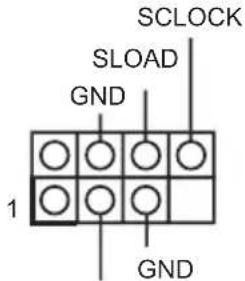 SDATAOUT0 for 7-pin SATA_SGPIO1SDATAOUT1 for 7-pin SATA_SGPIO2 SDATAOUT0 for 7-pin SATA_SGPIO1SDATAOUT1 for 7-pin SATA_SGPIO2 | This header supports Serial Link interface for onboard SATA connections. |
| PSU SMBus Header(PSU_SMB1) |  | PSU SMBus monitors the status of the power supply, fan and system temperature. |
| Non Maskable Interrupt Button Header(NMI_BTN1) |  | Please connect a NMI device to this header. |
| Intelligent Platform Management Bus header(4-pin IPMB_1) |  | This 4-pin connector is used to provide a cabled base-board or front panel connection for value added features and 3rd-party add-in cards, such as Emergency Management cards, that provide management features using the IPMB. |
Baseboard Management Controller SMBus Header (5-pin BMC_SMB_1)

text_image
BMC_SMB_PRESENT_1_N Power BMC_SMBCLK GND BMC_SMBDATAThis header is used for the SM BUS devices.
Thermal Sensor Header (3-pin TR1)

Please connect the thermal sensor cable to either pin 1-2 or pin 2-3 and the other end to the device which you wish to monitor its temperature.
PWM Configuration Header (3-pin PWM_CFG1)

text_image
GND SMB_DATA_VSB SMB_CLK_VSB 1This header is used for PWM configurations.
Power LED and Speaker Header (7-pin SPK_PLED1)

Please connect the chassis power LED and the chassis speaker to this header.
Virtual RAID On CPU
Header
(4-pin VROC1)

text_image
GND +3VSB GND VROC RAID KEY 1This connector supports Intel ^®
Virtual RAID on CPU and NVME/AHCI RAID on CPU PCIE.
With the introduction of the Intel VROC product, there are three modes of operation:
SKU HW key required Key features
| Pass-thru Not needed | Pass-thru only (no RAID)LED ManagementHot Plug SupportRAID 0 support for Intel Fultondale NVMe SSDs | |
| Standard VROCSTANMOD | Pass-thru SKU featuresRAID 0, 1, 10 | |
| Premium | VROCPREMMOD | Standard SKU featuresRAID 5RAID 5 Write Hole Closure |
| ISS | VROCISSDMOD | |
*Only Intel SSDs are supported.
*For further details on VROC, please refer to the official information released by Intel.
OCuLink Connectors
(OCU1)
(OCU2)
WC422D8A-2T/U only:
(OCU3)
(OCU4)

| A21 | B21 |
| A20 | B20 |
| A19 | B19 |
| A18 | B18 |
| A17 | B17 |
| A16 | B16 |
| A15 | B15 |
| A14 | B14 |
| A13 | B13 |
| A12 | B12 |
| A11 | B11 |
| A10 | B10 |
| A9 | B9 |
| A8 | B8 |
| A7 | B7 |
| A6 | B6 |
| A5 | B5 |
| A4 | B4 |
| A3 | B3 |
| A2 | B2 |
| A1 | B1 |
| 1 | 3 |
| 2 | 4 |
Please connect a PCIE SSD to this connector.
OCU#
| Pin Definition Pin Definition | |||
| 1 N/A 3 GND | |||
| 2 N/A 4 GND | |||
| A1 N/A B1 N/A | |||
| A2 GND B2 GND | |||
| A3 OCU#_RX_DP0 B3 OCU_TX_DP0 | |||
| A4 | OCU#_RX_DN0 | B4 | OCU_TX_DN0 |
| A5 GND B5 | GND | ||
| A6 | OCU#_RX_DP1 | B6 | OCU_TX_DP1 |
| A7 OCU#_RX_DN1 | B7 OCU_TX_DN1 | ||
| A8 GND B8 | GND | ||
| A9 | GPP_A19 | B9 | PCH_OCU1_SCL |
| A10 | WAKE# | B10 | PCH_OCU1_SDA |
| A11 | GND | B11 | GND |
| A12 | CLK_OCU_1 | B12 | OCU#_PERST_BUF_N |
| A13 | CLK_OCU_1# | B13 | OCU#_B13_PRSNT_N |
| A14 | GND | B14 | GND |
| A15 | OCU#_RX_DP2 | B15 | OCU_TX_DP2 |
| A16 | OCU#_RX_DN2 | B16 | OCU_TX_DN2 |
| A17 | GND | B17 | GND |
| A18 | OCU#_RX_DP3 | B18 | OCU_TX_DP3 |
| A19 | OCU#_RX_DN3 | B19 | OCU_TX_DN3 |
| A20 | GND | B20 | GND |
| A21 | N/A | B21 | N/A |
2.9 Dr. Debug
Dr. Debug is used to provide code information, which makes troubleshooting even easier. Please see the diagrams below for reading the Dr. Debug codes.
Code Description
0x10 PEI_CORE_STARTED
0x11 PEI_CAR_CPU_INIT
0x15 PEI_CAR_NB_INIT
0x19 PEI_CAR_SB_INIT
0x31 PEI_MEMORY_INSTALLED
0x32 PEI_CPU_INIT
0x33 PEI_CPU_CACHE_INIT
0x34 PEI_CPU_AP_INIT
0x35 PEI_CPU_BSP_SELECT
0x36 PEI_CPU_SMM_INIT
0x37 PEI_MEM_NB_INIT
0x3B PEI_MEM_SB_INIT
0x4F PEI_DXE_IPL_STARTED
0x60 DXE_CORE_STARTED
0x61 DXE_NVRAM_INIT
0x62 DXE_SBRUN_INIT
0x63 DXE_CPU_INIT
0x68 DXE_NB_HB_INIT
0x69 DXE_NB_INIT
0x6A DXE_NB_SMM_INIT
0x70 DXE_SB_INIT
0x71 DXE_SB_SMM_INIT
0x72 DXE_SB_DEVICES_INIT
0x78 DXE ACPI INIT
0x79 DXE_CSM_INIT
0x90 DXE_BDS_STARTED
0x91 DXE_BDS_CONNECT_DRIVERS
0x92 DXE_PCI_BUS_BEGIN
0x93 DXE_PCI_BUS_HPC_INIT
0x94 DXE_PCI_BUS_ENUM
0x95 DXE_PCI_BUS_REQUEST_RESOURCES
0x96 DXE_PCI_BUS_ASSIGN_RESOURCES
0x97 DXE_CON_OUT_CONNECT
0x98 DXE_CON_IN_CONNECT
0x99 DXE_SIO_INIT
0x9A DXE_USB_BEGIN
0x9B DXE_USB_RESET
0x9C DXE_USB_DETECT
0x9D DXE_USB_ENABLE
0xA0 DXE_IDE_BEGIN
0xA1 DXE_IDE_RESET
0xA2 DXE_IDE_DETECT
0xA3 DXE_IDE_ENABLE
0xA4 DXE_SCSI_BEGIN
0xA5 DXE_SCSI_RESET
0xA6 DXE_SCSI_DETECT
0xA7 DXE_SCSI_ENABLE
0xA8 DXE_SETUP_VERIFYING_PASSWORD
0xA9 DXE_SETUP_START
0xAB DXE_SETUP_INPUT_WAIT
0xAD DXE_READY_TO_BOOT
0xAE DXE_LEGACY_BOOT
0xAF DXE_EXIT_BOOT_SERVICES
0xB0 RT_SET_VIRTUAL_ADDRESS_MAP_BEGIN
0xB1 RT_SET_VIRTUAL_ADDRESS_MAP_END
0xB2 DXE_LEGACY_OPROM_INIT
0xB3 DXE_RESET_SYSTEM
0xB4 DXE_USB_HOTPLUG
0xB5 DXE_PCI_BUS_HOTPLUG
0xB6 DXE_NVRAM_CLEANUP
0xB7 DXE_CONFIGURATION_RESET
0xF0 PEI_RECOVERY_AUTO
0xF1 PEI_RECOVERY_USER
0xF2 PEI_RECOVERY_STARTED
0xF3 PEI_RECOVERY_CAPSULE_FOUND
0xF4 PEI_RECOVERY_CAPSULE_LOADED
0xE0 PEI_S3_STARTED
0xE1 PEI_S3_BOOT_SCRIPT
0xE2 PEI_S3_VIDEO_REPOST
0xE3 PEI_S3_OS_WAKE
0x50 PEI_MEMORY_INVALID_TYPE
0x53 PEI_MEMORY_NOT_DETECTED
0x55 PEI_MEMORY_NOT_INSTALLED
0x57 PEI_CPU_MISMATCH
0x58 PEI_CPU_SELF_TEST_FAILED
0x59 PEI_CPU_NO_MICROCODE
0x5A PEI_CPU_ERROR
0x5B PEI_RESET_NOT_AVAILABLE
0xD0 DXE_CPU_ERROR
0xD1 DXE_NB_ERROR
0xD2 DXE_SB_ERROR
0xD3 DXE_ARCH_PROTOCOL_NOT_AVAILABLE
0xD4 DXE_PCI_BUS_OUT_OF_RESOURCES
0xD5 DXE_LEGACY_OPROM_NO_SPACE
0xD6 DXE_NO_CON_OUT
0xD7 DXE_NO_CON_IN
0xD8 DXE_INVALID_PASSWORD
0xD9 DXE_BOOT_OPTION_LOAD_ERROR
0xDA DXE_BOOT_OPTION_FAILED
0xDB DXE_FLASH_UPDATE_FAILED
0xDC DXE_RESET_NOT_AVAILABLE
0xE8 PEI_MEMORY_S3_RESUME_FAILED
0xE9 PEI_S3_RESUME_PPI_NOT_FOUND
0xEA PEI_S3_BOOT_SCRIPT_ERROR
0xEB PEI_S3_OS_WAKE_ERROR
2.10 Unit Identification purpose LED/Switch
With the UID button, You are able to locate the server you're working on from behind a rack of servers.
Unit Identification purpose LED/Switch (UID1)

When the UID button on the front or rear panel is pressed, the front/rear UID blue LED indicator will be turned on. Press the UID button again to turn off the indicator.
2.11 Driver Installation Guide
To install the drivers to your system, please insert the support CD to your optical drive first. Then, the drivers compatible to your system can be auto-detected and listed on the support CD driver page. Please follow the order from top to bottom to install those required drivers. Therefore, the drivers you install can work properly.
2.12 Dual LAN and Teaming Operation Guide
Dual LAN with Teaming enabled on this motherboard allows two single connections to act as one single connection for twice the transmission bandwidth, making data transmission more effective and improving the quality of transmission of distant images. Fault tolerance on the dual LAN network prevents network downtime by transferring the workload from a failed port to a working port.

The speed of transmission is subject to the actual network environment or status even with Teaming enabled.
Before setting up Teaming, please make sure whether your Switch (or Router) supports Teaming (IEEE 802.3ad Link Aggregation). You can specify a preferred adapter in Intel PROSet. Under normal conditions, the Primary adapter handles all non-TCP/IP traffic. The Secondary adapter will receive fallback traffic if the primary fails. If the Preferred Primary adapter fails, but is later restored to an active status, control is automatically switched back to the Preferred Primary adapter.
Step 1
From Device Manager, open the properties of a team.
Step 2
Click the Settings tab.
Step 3
Click the Modify Team button.
Step 4
Select the adapter you want to be the primary adapter and click the Set Primary button.
If you do not specify a preferred primary adapter, the software will choose an adapter of the highest capability (model and speed) to act as the default primary. If a failover occurs, another adapter becomes the primary. The adapter will, however, rejoin the team as a non-primary.
2.13 M.2\_SSD (NGFF) Module Installation Guide
The M.2, also known as the Next Generation Form Factor (NGFF), is a small size and versatile card edge connector that aims to replace mPCIe and mSATA. The M.2 Sockets (M2_1 / M2_1) support M.2 SATA3 6.0 Gb/s module and M.2 PCI Express module up to Gen3 x4 (16 Gb/s).
* If M2_1 is occupied by a SATA-type M.2 device, SATA_7 will be disabled.
Installing the M.2\_SSD (NGFF) Module

natural_image
Pure technical line drawing of a rectangular component with no text, numbers, or symbolsStep 1
Prepare a M.2_SSD (NGFF) module and the screw.

text_image
E D C B A 1 2 3 4 5Step 2
Depending on the PCB type and length of your M.2_SSD (NGFF) module, find the corresponding nut location to be used.
No.12345
| Nut Location A B C D E | |||||
| PCB Length | 3cm | 4.2cm | 6cm | 8cm | 11cm |
| Module Type | Type2230 | Type 2242 | Type2260 | Type 2280 | Type 22110 |
Step 3

text_image
E D C B A
Move the standoff based on the module type and length.
The standoff is placed at the nut location D by default. Skip Step 3 and 4 and go straight to Step 5 if you are going to use the default nut. Otherwise, release the standoff by hand.


Step 4
Peel off the yellow protective film on the nut to be used. Hand tighten the standoff into the desired nut location on the motherboard.

text_image
ABCDEStep 5
Gently insert the M.2 (NGFF) SSD module into the M.2 slot. Please be aware that the M.2 (NGFF) SSD module only fits in one orientation.

text_image
ABCDE 20°Step 6


text_image
DETighten the screw with a screwdriver to secure the module into place.
Please do not overtighten the screw as this might damage the module.
Chapter 3 UEFI Setup Utility
3.1 Introduction
This section explains how to use the UEFI SETUP UTILITY to configure your system. The UEFI chip on the motherboard stores the UEFI SETUP UTILITY. You may run the UEFI SETUP UTILITY when you start up the computer. Please press during the Power-On-Self-Test (POST) to enter the UEFI SETUP UTILITY; otherwise, POST will continue with its test routines.
If you wish to enter the UEFI SETUP UTILITY after POST, restart the system by pressing

Because the UEFI soft ware is constantly being updated, the following UEFI setup screens and descriptions are for reference purpose only, and they may not exactly match what you see on your screen.
3.1.1 UEFI Menu Bar
The top of the screen has a menu bar with the following selections:
Item Description
| Main To set up the system time/date information | |
| Advanced To set up the advanced UEFI features | |
| Security To set up the security features | |
| Boot | To set up the default system device to locate and load the Operating System |
| Server Mgmt To manage the server | |
| Event Logs For event log configuration | |
| Exit | To exit the current screen or the UEFI SETUP UTILITY |
Use< > key on< > key to choose among the selections on the menu bar, and then press
3.1.2 Navigation Keys
Please check the following table for the function description of each navigation key.
Navigation Key(s) Function Description
← / Moves cursor left or right to select Screens
↑ / Moves cursor up or down to select items
+ / - To change option for the selected items
3.2 Main Screen
Once you enter the UEFI SETUP UTILITY, the Main screen will appear and display the system overview. The Main screen provides system overview information and allows you to set the system time and date.

text_image
Aptio Setup Utility - Copyright (C) 2019 American Megatrends, Inc. Main Advanced Security Boot Server Mgmt Event Logs Exit UEFI Version: MC422DBA-2T L0.04 BMC Version: 0.08.00 Processor Type: Intel(R) Xeon(R) H-2145 CPU @ 3.706Hz Processor Speed: 3700MHz Microcode Update: 50654/2000060 L1 Cache Size: 256KB L2 Cache Size: 8192KB L3 Cache Size: 11264KB Total Memory: 8GB Single-Channel Memory Mode DDR4_A1: None DDR4_B1: None DDR4_C1: DDR4-2566 SR×8 8GB R-DIMM DDR4_D1: None DDR4_A2: None DDR4_B2: None DDR4_C2: None DDR4_D2: None System Date [Mon 09/02/2019] System Time [00:03:08] Set the Date. Use Tab to switch between Date elements. Default Ranges: Year: 2005-2099 Months: 1-12 Days: dependent on month ↔: Select Screen ↑↓: Select Item Enter: Select +/-: Change Option F1: General Help F7: Discard Changes F9: Load UEFI Defaults F10: Save and Exit ESC: Exit Version 2.19.1268. Copyright (C) 2019 American Megatrends, Inc.
All screenshots in this document are provided for reference only, and may be different by models. Here is the example of X299 WS/IPM1 interface.
3.3 Advanced Screen
In this section, you may set the configurations for the following items: CPU Configuration, Memory Configuration, Chipset Configuration, Storage Configuration, Super IO Configuration, Serial Port Console Redirection, H/W Monitor, Runtime Error Logging, Intel ME Information, ACPI Configuration, USB Configuration and Instant Flash.

text_image
Optio Setup Utility - Copyright (C) 2019 American Megatrends, Inc. Main Advanced Security Boot Server Mgmt Event Logs Exit CPU Configuration Memory Configuration Chipset Configuration Storage Configuration Super ID Configuration Serial Port Console Redirection H/W Monitor Runtime Error Logging Intel ME Information ACPI Configuration USB Configuration UEFI Update Utility Instant Flash CPU Configuration Parameters ++: Select Screen ↑↓: Select Item Enter: Select +/-: Change Option F1: General Help F7: Discard Changes F9: Load UEFI Defaults F10: Save and Exit ESC: Exit Version 2.19.1268. Copyright (C) 2019 American Megatrends, Inc.
Setting wrong values in this section may cause the system to malfunction.
3.3.1 CPU Configuration

text_image
Aptio Setup Utility - Copyright (C) 2019 American Megatrends, Inc. Advanced Intel(R) Xeon(R) H-2175 CPU @ 2.50GHz Microcode Revision 50654 49 Max CPU Speed 2500 MHz Min CPU Speed 1000 MHz Processor Cores 14 Intel SpeedStep Technology [Enabled] Intel Turbo Boost Technology [Enabled] Intel Hyper Threading Technology [Enabled] Active Processor Cores [All] CPU C States Support [Manual] Enhanced Halt State(C1E) [Enabled] CPU C6 State Support [Enabled] Package C State Support [Auto] CPU Thermal Throttling [Enabled] No-Execute Memory Protection [Enabled] Intel Virtualization Technology [Enabled] DCU Streamer Prefetcher [Enabled] Hardware Prefetcher [Enabled] Adjacent Cache Line Prefetch [Enabled] Intel SpeedStep technology allows processors to switch between multiple frequencies and voltage points for better power saving and heat dissipation. CPU turbo ratio can be fixed when Intel SpeedStep Technology set Disabled and Intel Turbo Boost Technology set Enabled. +:-: Select Screen 14: Select Item Enter: Select +/-: Change Option F1: General Help F7: Discard Changes F9: Load UEFI Defaults F10: Save and Exit ESC: Exit Version 2.19.1258. Copyright (C) 2019 American Megatrends, Inc.Intel SpeedStep Technology
Intel SpeedStep technology allows processors to switch between multiple frequencies and voltage points for better power saving and heat dissipation. CPU turbo ratio can be fixed when Intel SpeedStep Technology set Disabled and Intel Turbo Boost Technology set Enabled.

Please note that enabling this function may reduce CPU voltage and lead to system stability or compatibility issues with some power supplies. Please set this item to [Disabled] if above issues occur.
Intel Turbo Boost Technology
Intel Turbo Boost Technology enables the processor to run above its base operating frequency when the operating system requests the highest performance state.
Intel Hyper Threading Technology
Intel Hyper Threading Technology allows multiple threads to run on each core, so that the overall performance on threaded software is improved.
Active Processor Cores
Select the number of cores to enable in each processor package.
CPU C States Support
Enable CPU C States Support for power saving. It is recommended to keep C3, C6 and C7 all enabled for better power saving.
Enhanced Halt State(C1E)
Enable Enhanced Halt State (C1E) for lower power consumption.
CPU C6 State Support
Enable C6 deep sleep state for lower power consumption.
Package C State Support
Enable CPU, PCIe, Memory, Graphics C State Support for power saving.
Processor Hot Modes
When a processor thermal sensor trips (either core), the PROCHOT# will be driven. If bidirection is enabled, external agents can drive PROCHOT# to throttle the processor.
CPU Thermal Throttling
Enable CPU internal thermal control mechanisms to keep the CPU from overheating.
No-Execute Memory Protection
Processors with No-Execution Memory Protection Technology may prevent certain classes of malicious buffer overflow attacks.
Intel Virtualization Technology
Intel Virtualization Technology allows a platform to run multiple operating systems and applications in independent partitions, so that one computer system can function as multiple virtual systems.
DCU Streamer Prefetcher
DCU streamer prefetcher is an L1 data cache prefetcher (MSR 1A4h [2]).
Hardware Prefetcher
Automatically prefetch data and code for the processor. Enable for better performance.
Adjacent Cache Line Prefetch
Automatically prefetch the subsequent cache line while retrieving the currently requested cache line. Enable for better performance.
3.3.2 Memory Configuration

text_image
Aptio Setup Utility - Copyright (C) 2019 American Megatrends, Inc. Advanced Enforce FOR [Disabled] DRAM Frequency [Auto] Channel Interleaving [Auto] Rank Interleaving [Auto] Enforce FOR - Enforces Plan Of Record restrictions for DDR4 frequency and voltage programming. Disable - Disables this feature; current default is Disabled. ++: Select Screen ↑↓: Select Item Enter: Select +/-: Change Option F1: General Help F7: Discard Changes F9: Load UEFI Defaults F10: Save and Exit ESC: Exit Version 2.19.1256. Copyright (C) 2019 American Megatrends, Inc.Enforce POR
Enforce POR - Enforces Plan Of Record restrictions for DDR4 frequency and voltage programming.
Disable - Disables this feature.
Auto - Sets it to the MRC default setting: current default is Enable.
DRAM Frequency
If [Auto] is selected, the motherboard will detect the memory module(s) inserted and assign the appropriate frequency automatically.
Channel Interleaving
Select to configure Channel Interleaving settings.
Rank Interleaving
Select to configure Rank Interleaving settings.
3.3.3 Chipset Configuration

text_image
Aptio Setup Utility - Copyright (C) 2019 American Megatrends, Inc. Advanced Above 46 Decoding [Enabled] VT-d [Enabled] Primary Graphics Adapter [PCI Express] Onboard VGA [Auto] Onboard LAN [Enabled] PCIE5/PCIE6 LinkWidth [Auto] PCIE5/PCIE6 Link Speed [Auto] PCIE5/PCIE6 ASPM Support [L1 Only] PCIE3/PCIE4 LinkWidth [Auto] PCIE3/PCIE4 Link Speed [Auto] PCIE3/PCIE4 ASPM Support [L1 Only] PCIE1 LinkWidth [Auto] PCIE1 Link Speed [Auto] PCIE1 ASPM Support [L1 Only] DCU1 Link Speed [Auto] DCU2 Link Speed [Auto] DCU1 ASPM Support [Disabled] DCU2 ASPM Support [Disabled] PCH PCIE ASPM Support [Disabled] PCH DMI ASPM Support [Disabled] Globally Enables or Disables 64bit capable Devices to be Decoded in Above 46 Address Space (Only if System Supports 64 bit PCI Decoding). ←: Select Screen F1: Select Item Enter: Select +/-: Change Option F1: General Help F7: Discard Changes F9: Load UEFI Defaults F10: Save and Exit ESC: Exit Version 2.19.1268. Copyright (C) 2019 American Megatrends, Inc.Above 4G Decoding
Enable or disable 64bit capable Devices to be decoded in Above 4G Address Space (only if the system supports 64 bit PCI decoding).
VT-d
Intel Virtualization Technology for Directed I/O helps your virtual machine monitor better utilize hardware by improving application compatibility and reliability, and providing additional levels of manageability, security, isolation, and I/O performance.
Primary Graphics Adapter
If PCI Express graphics card is installed on the motherboard, you may use this option to select PCI Express or Onboard VGA as the primary graphics adapter.
*If no PCI Express graphics card is installed, [Onboard VGA] is the default graphics adapter. There is no screen on monitor even if a HDMI display is connected. Select [Onboard Hdmi] instead to use HDMI as output source.
Onboard VGA
This allows you to enable or disable the Onboard VGA feature.
Onboard LAN
This allows you to enable or disable the Onboard LAN feature.
PCIE5 & PCIE6 Link Width
This allows you to select PCIE5 & PCIE6 Link Width. The default value is [Auto].
PCIE5 & PCIE6 Link Speed
This allows you to select PCIE5 & PCIE6 Link Speed. The default value is [Auto].
PCIE5 & PCIE6 ASPM Support
This option enables or disables the ASPM support for all downstream devices.
PCIE3 & PCIE4 Link Width
This allows you to select PCIE3 & PCIE4 Link Width. The default value is [Auto].
PCIE3 & PCIE4 Link Speed
This allows you to select PCIE3 & PCIE4 Link Speed. The default value is [Auto].
PCIE3 & PCIE4 ASPM Support
This option enables or disables the ASPM support for all downstream devices.
PCIE1 Link Width
This allows you to select PCIE1 Link Width. The default value is [Auto].
PCIE1 Link Speed
This allows you to select PCIE1 Link Speed. The default value is [Auto].
PCIE1 ASPM Support
This option enables or disables the ASPM support for all downstream devices.
OCU1 Link Speed
This allows you to select OCU1 Link Speed. The default value is [Auto].
OCU2 Link Speed
This allows you to select OCU2 Link Speed. The default value is [Auto].
OCU1 ASPM Support
This option enables or disables the ASPM support for all downstream devices.
OCU2 ASPM Support
This option enables or disables the ASPM support for all downstream devices.
PCH DMI ASPM Support
This option enables/disables the ASPM support for all PCH DMI devices.
Onboard Debug Port LED
Enable/Disable the onboard Dr. Debug LED.
Onboard HD Audio
Use this item to automatically enable or disable onboard HD audio. Set to Auto to enable onboard HD audio and automatically disable it when a sound card is installed.
Front Panel
Use this item to set front panel HD audio to Auto or Disabled.
PS2 Y-Cable
Enable the PS2 Y-Cable or set this option to Auto.
Restore AC Power Loss
Select the power state after a power failure. If [Power Off] is selected, the power will remain off when the power recovers. If [Power On] is selected, the system will start to boot up when the power recovers.
Restore AC Power Current State
This allows you to restore AC Power Current State.
3.3.4 Storage Configuration

text_image
Optio Setup Utility - Copyright (C) 2019 American Megatrends, Inc. Advanced SATA Controller(s) [Enabled] SATA/M.2_SATA Mode Selection [AHCI] SATA Aggressive Link Power [Enabled] Management Hard Disk S.M.A.R.T [Enabled] Intel VHD technology Marvell 9172 Controller [Enabled] Marvell 9172 Operation Mode [AHCI Mode] Bootable Marvell 9172 SATA3 [None] Easy RAID Installer SATA_0 : Not Detected SATA_1 : Not Detected SATA_2 : Not Detected SATA_3 : Not Detected SATA_4 : Not Detected SATA_5 : Not Detected SATA_6 : Not Detected SATA_7/M2_1(SATA) : Not Detected H_SATA_0 : Not Detected H_SATA_1 : Not Detected H2_1(PCIE) : Not Detected Enable/disable the SATA controllers. +:-: Select Screen 11: Select Item Enter: Select +/-: Change Option F1: General Help F7: Discard Changes F9: Load UEFI Defaults F10: Save and Exit ESD: Exit Version 2.19.1258, Copyright (C) 2019 American Megatrends, Inc.SATA Controller(s)
Use this item to enable or disable SATA Controllers.
SATA/M.2\_SATA Mode Selection
Identify the SATA/M.2_SATA port is connected to Solid State Drive or Hard Disk Drive. Press
SATA Aggressive Link Power Management
Use this item to enable or disable SALP.
Hard Disk S.M.A.R.T.
Use this item to enable or disable the S.M.A.R.T. (Self-Monitoring, Analysis, and Reporting Technology) feature. Configuration options: [Disabled] and [Enabled].
Intel VMD Technology
Marvell 9172Controller
Enable or disable Marvell 9172 Controller.
Marvell 9172 Operation Mode
This item is for M_SATA ports. Use this to select Marvell SATA operation mode. Configuration options: [IDE Mode], [AHCI Mode] and [RAID Mode]. The default value is
[AHCI Mode]. Press
Bootable Marvell 9172 SATA3
We recommend to use Intel SATA ports (Port 0\~5) for your bootable devices. This will minimize your boot time and get the best performance. If you still want to boot from Marvell SATA3 controller, please set this item to [Yes]
Easy RAID Installer
Easy RAID Installer helps you to copy the RAID driver from a support CD to your USB storage device. After copying the driver, please change the SATA mode to RAID, then you can start installing operating system in RAID mode.
3.3.5 Super IO Configuration

text_image
Aptio Setup Utility - Copyright (C) 2019 American Megatrends, Inc. Advanced AST2500 Super IO Configuration Super IO Chip AST2500 Serial Port 1 Configuration SOL Configuration Set Parameters of COM1 +:-: Select Screen T↓: Select Item Enter: Select +/-: Change Option F1: General Help F7: Discard Changes F3: Load UEFI Defaults F10: Save and Exit ESC: Exit Version 2.19.1268. Copyright (C) 2019 American Megatrends, Inc.Serial Port 1 Configuration
Use this item to set parameters of Serial Port 1 (COM1).
Serial Port
Use this item to enable or disable the serial port.
Change Settings
Use this item to select an optimal setting for Super IO device.
SOL Configuration
Use this item to set parameters of SOL.
SOL Port
Use this item to set parameters of SOL.
Change Settings
Use this item to select an optimal setting for Super IO device.
3.3.6 Serial Port Console Redirection

text_image
Optio Setup Utility - Copyright (C) 2019 American Megatrends, Inc. Advanced COM1 Console Redirection [Disabled] ► Console Redirection Settings SOL Console Redirection [Disabled] ► Console Redirection Settings Legacy Console Redirection ► Legacy Console Redirection Settings Serial Port for Out-of-Band Management/ Windows Emergency Management Services (EMS) Console Redirection [Disabled] ► Console Redirection Settings Console Redirection Setting Console Redirection Setting Console Redirection Setting Console Redirection Setting Console Redirection Setting Console Redirection Setting Console Redirection Setting Console Redirection Setting Console Redirection Setting Console Redirection Setting Console Redirection Setting Console Redirection Setting Console Redirection Setting Console Redirection Setting Console Redirection Setting Console Redirection Setting Console Redirection Setting Console Redirection Setting Console Redirection Setting Console Redirection Setting Console Redirection Settings Console Redirection Setting Console Redirection Setting Console Redirection Setting Console Redirection Setting Console Redirection Setting Console Redirection Setting Console Redirection Setting Console Redirection Setting Console Redirection Setting Console Redirection Setting Console Redirection Setting Console Redirection Setting Console Redirection Setting Console Redirection Setting Console Redirection Setting Console Redirection Setting Console Redirection Setting Console Redirection Setting Console Redirection Setting console Redirection Setting console Redirection Setting console Redirection Setting console Redirection Setting console Redirection Setting console Redirection Setting console Redirection Setting console Redirection Setting console Redirection Setting console Redirection Setting console Redirection Setting console Redirection Setting console Redirection Setting console Redirection Setting console Redirection Setting console Redirection Setting console Redirection Setting console Redirection Setting console Redirection Setting console Redirection Setting consoles Redirection Setting consoles Redirection Setting consoles Redirection Setting consoles Redirection Setting consoles Redirection Setting consoles Redirection Setting consoles Redirection Setting consoles Redirection Setting consoles Redirection Setting consoles Redirection Setting consoles Redirection Setting consoles Redirection Setting consoles Redirection Setting consoles Redirection Setting consoles Redirection Setting consoles Redirection Setting consoles Redirection Setting consoles Redirection Setting consoles Redirection Setting consoles Redirection Setting console Select Screen ↑↓ Select Item Enter Select +/-: Change Option F1: General Help F7: Discard Changes F9: Load UEFI Defaults F10: Save and Exit ESC: ExitCOM1/SOL
Console Redirection
Use this option to enable or disable Console Redirection. If this item is set to Enabled, you can select a COM Port to be used for Console Redirection.
Console Redirection Settings
Use this option to configure Console Redirection Settings, and specify how your computer and the host computer to which you are connected exchange information.
Terminal Type
Use this item to select the preferred terminal emulation type for out-of-band management. It is recommended to select [VT-UTF8].
| Option Description | |
| VT100 ASCII character set | |
| VT100+ Extended VT100 that supports color and function keys | |
| VT-UTF8 UTF8 encoding is used to map Unicode chars onto 1 or more bytes | |
| ANSI Extended ASCII character set |
Bits Per Second
Use this item to select the serial port transmission speed. The speed used in the host computer and the client computer must be the same. Long or noisy lines may require lower transmission speed. The options include [9600] , [19200] , [38400] , [57600] and [115200] .
Data Bits
Use this item to set the data transmission size. The options include [7] and [8] (Bits).
Parity
Use this item to select the parity bit. The options include [None], [Even], [Odd], [Mark] and [Space].
Stop Bits
The item indicates the end of a serial data packet. The standard setting is [1] Stop Bit. Select [2] Stop Bits for slower devices.
Flow Control
Use this item to set the flow control to prevent data loss from buffer over low. When sending data, if the receiving buffers are full, a "stop" signal can be sent to stop the data flow. Once the buffers are empty, a "start" signal can be sent to restart the flow. Hardware flow uses two wires to send start/stop signals. The options include [None] and [Hardware RTS/CTS].
VT-UTF8 Combo Key Support
Use this item to enable or disable the VT-UTF8 Combo Key Support for ANSI/VT100 terminals.
Recorder Mode
Use this item to enable or disable Recorder Mode to capture terminal data and send it as text messages.
Resolution 100x31
Use this item to enable or disable extended terminal resolution support.
Legacy OS Redirection Resolution
Use this item to select the number of rows and columns used in legacy OS redirection.
Putty Keypad
Use this item to select Function Key and Keypad on Putty.
Redirection After BIOS POST
If the [LoadBooster] is selected, legacy console redirection is disabled before booting to legacy OS. If [Always Enabled] is selected, legacy console redirection is enabled for legacy OS. The default value is [Always Enabled].
Legacy Console Redirection
Legacy Console Redirection Settings
Use this option to configure Legacy Console Redirection Settings, and specify how your
computer and the host computer to which you are connected exchange information.
Legacy Serial Redirection Port
Use this item to select a COM port to display redirection of Legacy OS and Legacy OPROM Messages.
Serial Port for Out-of-Band Management/Windows Emergency Management Services (EMS)
Console Redirection
Use this option to enable or disable Console Redirection. If this item is set to Enabled, you can select a COM Port to be used for Console Redirection.
Console Redirection Settings
Use this option to configure Console Redirection Settings, and specify how your computer and the host computer to which you are connected exchange information.
Out-of-Band Mgmt Port
Microsoft Windows Emergency Management Services (EMS) allows for remote management of a Windows Server OS through a serial port.
Terminal Type
Use this item to select the preferred terminal emulation type for out-of-band management. It is recommended to select [VT-UTF8].
| Option Description | |
| VT100 ASCII character set | |
| VT100+ Extended VT100 that supports color and function keys | |
| VT-U TF8 UTF8 encoding is used to map Unicode chars onto 1 or more bytes | |
| ANSI Extended ASCII character set |
Bits Per Second
Use this item to select the serial port transmission speed. The speed used in the host computer and the client computer must be the same. Long or noisy lines may require lower transmission speed. The options include [9600] , [19200] , [57600] and [115200] .
Flow Control
Use this item to set the f low control to prevent data loss from buffer overflow. When sending data, if the receiving buffers are full, a "stop" signal can be sent to stop the data flow. Once the buffers are empty, a "start" signal can be sent to restart the flow. Hardware flow uses two wires to send start/stop signals. The options include [None], [Hardware RTS/CTS], and [Software Xon/Xoff].
Data Bits
Parity
Stop Bits
3.3.7 H/W Monitor
In this section, it allows you to monitor the status of the hardware on your system, including the parameters of the CPU temperature, motherboard temperature, CPU fan speed, chassis fan speed, and the critical voltage.

text_image
Optio Setup Utility - Copyright (C) 2019 American Megatrends, Inc. Advanced 3VSB : 3.86 V 5VSB : 5.01 V 5VDual : 5.10 V 5VDual2 : 5.10 V CPU1_VCORE : 1.78 V VCCSA : 0.62 V VCCIO : 1.00 V VCCM_AB : 1.20 V VCCM_CD : 1.20 V 1.05_PCH : 1.05 V PCH_PHY : 1.05 V BAT : 3.04 V 3V : 3.36 V 5V : 5.13 V 12V : 12.0 V PSU1_VIN : N/A PSU2_VIN : N/A PSU1_IOUT : N/A PSU2_IOUT : N/A MB_Temp : 34.0 °C Card Side_Temp : 35.0 °C TR1_Temp : N/A CPU1_Temp : 51.0 °C Onboard_LAN_Temp : 41.0 °C DDR4_A_Temp : N/A If [Auto] is selected, the fan speed will be controlled by BMC. +:-: Select Screen 11: Select Item Enter: Select +/-: Change Option F1: General Help F7: Discard Changes F9: Load UEFI Defaults F10: Save and Exit ESC: Exit Version 2.19.1250. Copyright (C) 2019 American Megatrends, Inc.Fan Control
If [Auto] is selected, the fan speed will controlled by BMC.
If [Manual] is selected, configure the items below.
CPU1\_FAN1
This allows you to set the CPU fan1's speed. The default value is [Smart Fan].
FRNT\_FAN1
This allows you to set the front fan 1's speed. The default value is [Smart Fan].
FRNT\_FAN2
This allows you to set the front fan 2's speed. The default value is [Smart Fan].
FRNT\_FAN3
This allows you to set the front fan 3's speed. The default value is [Smart Fan].
FRNT\_FAN4
This allows you to set the front fan 4's speed. The default value is [Smart Fan].
FRNT\_FAN5
This allows you to set the front fan 5's speed. The default value is [Smart Fan].
Smart Fan Control
This allows you to set the Smart fan's level speed.
Smart Fan Duty Control
Smart Fan Duty x (x means 1 to 11 stage)
This allows you to set duty cycle for each stage.
Smart Fan Temp Control
Smart Fan Temp x (x means 1 to 11 stage)
This allows you to set temperature for each stage.
Watch Dog Timer
This allows you to enable or disable the Watch Dog Timer. The default value is [Disabled]..
3.3.8 Runtime Error Logging

text_image
Aptio Setup Utility - Copyright (C) 2019 American Megatrends, Inc. Advanced AHEA Support [Enabled] System Error [Enabled] S/W Error Injection Support [Disabled] Memory Error [Enabled] Correctable Error Threshold ff PCIE Corrected Error Enable [Enabled] PCIE Corrected Error Threshold 1 PCIE Uncorrected Error Enable [Enabled] PCIE Fatal Error Enable [Enabled] Enable or disable Windows Hardware Error Architecture. ++: Select Screen T↓: Select Item Enter: Select +/-: Change Option F1: General Help F7: Discard Changes F9: Load UEFI Defaults F10: Save and Exit ESC: Exit Version 2.19.1268. Copyright (C) 2019 American Megatrends, Inc.WHEA Support
Use this item to enable or disable Windows Hardware Error Architecture.
System Error
Use this item to enable or disable System Error feature. When it is set to [Enabled], you can configure Memory Error and PCIE Error log features.
S/W Error Injection Support
When it is set to [Enabled], S/W Error Injection is supported by unlocking MSR Ox790.
Memory Error
Memory enabling and logging setup option.
Correctable Error Threshold
Correctable Error Threshold (0 - 0x7FFF) used for sparing, tagging, and leaky bucket.
PCIE Corrected Error Enable
Use this item to enable or disable PCIe Correctable errors.
PCIE Corrected Error Threshold
PCIE Correctable Error Threshold (0x01-0xFF) used for sparing, tagging, and leaky bucket.
PCIE Uncorrected Error Enable
Use this item to enable or disable PCIe Uncorrectable errors.
PCIE Fatal Error Enable
Use this item to enable or disable PCIe Ftal errors.
3.3.9 Intel ME Configuration

text_image
Aptio Setup Utility - Copyright (C) 2019 American Megatrends, Inc. Advanced HE Version 11.11.50.1422 HE FW State Operational ↔: Select Screen ↑↓: Select Item Enter: Select +/-: Change Option F1: General Help F7: Discard Changes F9: Load UEFI Defaults F10: Save and Exit ESC: Exit Version 2.19.1268. Copyright (C) 2019 American Megatrends, Inc.Intel ME Configuration screen displays the Intel ME Configuration information, such as Operational Firmware Version and Firmware State.
3.3.10 ACPI Configuration

text_image
Aptio Setup Utility - Copyright (C) 2019 American Megatrends, Inc. Advanced Suspend to RAM [Auto] Ring-In Power On [Disabled] RTC Alarm Power On [By OS] USB Keyboard/Remote Power On [Disabled] USB Mouse Power On [Disabled] It is recommended to select auto for ACP1 SS power saving. ++: Select Screen ↑↓: Select Item Enter: Select +/-: Change Option F1: General Help F7: Discard Changes F9: Load UEFI Defaults F10: Save and Exit ESC: Exit Version 2.19.1268. Copyright (C) 2019 American Megatrends, Inc.Suspend to RAM
Select disable for ACPI suspend type S1. It is recommended to select auto for ACPI S3 power saving.
Ring-In Power On
Allow the system to be waked up by onboard COM port modem Ring-In signals.
RTC Alarm Power On
Allow the system to be waked up by the real time clock alarm. Set it to By OS to let it be handled by your operating system.
USB Keyboard/Remote Power On
Allow the system to be waked up by an USB keyboard or remote controller.
USB Mouse Power On
Allow the system to be waked up by an USB mouse.
3.3.11 USB Configuration

text_image
Aptio Setup Utility - Copyright (C) 2019 American Megatrends, Inc. Advanced Legacy USB Support [Enabled] F8/2 Simulator [Enabled] USB9_7 Select [M_SATA_0_1] Enable or disable Legacy OS Support for USB 2.0 devices. If you encounter USB compatibility issues it is recommended to disable legacy USB support. Select UEFI Setup Only to support USB devices under the UEFI setup and Windows/Linux operating systems only. +4: Select Screen ↑↓: Select Item Enter: Select +/-: Change Option F1: General Help F7: Discard Changes F9: Load UEFI Defaults F10: Save and Exit ESC: Exit Version 2.19.1268. Copyright (C) 2019 American Megatrends, Inc.Legacy USB Support
Enable or disable Legacy OS Support for USB 2.0 devices. If you encounter USB compatibility issues it is recommended to disable legacy USB support. Select UEFI Setup Only to support USB devices under the UEFI setup and Windows/Linux operating systems only.
PS/2 Simulator
Enable PS/2 Simulator. This should be enabled for the complete USB keyboard legacy support for non-USB aware OSes.
USB 3\_7 Select
Select as USB3.0 port7 enabled or Select as M_SATA_0_1 enabled.
3.3.12 Instant Flash
Instant Flash is a UEFI flash utility embedded in Flash ROM. This convenient UEFI update tool allows you to update system UEFI without entering operating systems first like MS-DOS or Windows ^® . Just save the new UEFI file to your USB flash drive, floppy disk or hard drive and launch this tool, then you can update your UEFI only in a few clicks without preparing an additional floppy diskette or other complicated flash utility. Please be noted that the USB flash drive or hard drive must use FAT32/16/12 file system. If you execute Instant Flash utility, the utility will show the UEFI files and their respective information. Select the proper UEFI file to update your UEFI, and reboot your system after the UEFI update process is completed.
3.4 Security
In this section, you may set or change the supervisor/user password for the system. For the user password, you may also clear it.

text_image
Aptio Setup Utility - Copyright (C) 2019 American Megatrends, Inc. Main Advanced Security Boot Server Mgmt Event Logs Exit Supervisor Password Not Installed User Password Not Installed Supervisor Password User Password ▶ Secure Boot Set or change the password for the administrator account. Only the administrator has authority to change the settings in the UEFI Setup Utility. Leave it blank and press enter to remove the password. ◆: Select Screen ↑: Select Item Enter: Select +/-: Change Option F1: General Help F7: Discard Changes F9: Load UEFI Defaults F10: Save and Exit ESC: Exit ◆: Select Screen ↑: Select Item Enter: Select +/-: Change Option F1: General Help F7: Discard Changes F9: Load UEFI Defaults F10: Save and Exit ESC: Exit Version 2.19.1256. Copyright (C) 2019 American Megatrends, Inc.Supervisor Password
Set or change the password for the administrator account. Only the administrator has authority to change the settings in the UEFI Setup Utility. Leave it blank and press enter to remove the password.
User Password
Set or change the password for the user account. Users are unable to change the settings in the UEFI Setup Utility. Leave it blank and press enter to remove the password.
Secure Boot
Use this to enable or disable Secure Boot Control. The default value is [Disabled]. Enable to support Windows Server 2012 R2 or later versions Secure Boot.
Secure Boot Mode
Secure Boot mode selector: Standard/Custom. In Custom mode Secure Boot Variables can be configured without authentication.
Clear Secure Boot keys
Force System to Setup Mode - clear all Secure Boot Variables. Change takes effect after reboot.
Install Default Secure Boot Keys
Please install default secure boot keys if it's the first time you use secure boot.
3.4.1 Key Management
In this section, expert users can modify Secure Boot Policy variables without full authentication.

text_image
Auto Setup Utility - Copyright (C) 2019 American Megatrends, Inc. Security Vendor Keys Valid Factory Key Provision [Disabled] ► Install default Secure Boot keys ► Clear Secure Boot keys ► Export Secure Boot variables ► Enroll Efi Image Device Guard Ready ► Remove 'UEFI CA' from DB ► Restore DB defaults Secure Boot variable | Size | Keys | Key Source ► Platform Key(PK) | 0 | 0 | No Keys ► Key Exchange Keys | 0 | 0 | No Keys ► Authorized Signatures | 0 | 0 | No Keys ► Forbidden Signatures | 0 | 0 | No Keys ► Authorized TimeStamps | 0 | 0 | No Keys ► OsRecovery Signatures | 0 | 0 | No Keys Install factory default Secure Boot keys after the platform reset and while the System is in Setup mode +: Select Screen ↑↓: Select Item Enter: Select +/-: Change Option F1: General Help F7: Discard Changes F9: Load UEFI Defaults F10: Save and Exit ESC: Exit Version 2.20.1275, Copyright (C) 2019 American Megatrends, Inc.Install Default Secure Boot Keys
Please install default secure boot keys if it's the first time you use secure boot.
Enroll Efi Image
Allow the image to run in Secure Boot mode. Enroll SHA256 hash of the binary into Authorized Signature Database (db).
Export Secure Boot Variables
Copy NVRAM content of Secure Boot variables to files in a root folder on a file system device.
Platform Key(PK)
Enroll Factory Defaults or load certificates from a file:
- Public Key Certificate in:
a) EFI_SIGNATURE_LIST
b) EFI_CERT_X509 (DER encoded)
c) EFI_CERT_RSA2048 (bin)
d) EFI_CERT_SHA256, 384, 512
2. Authenticated UEFI Variable
3. EFI PE/COFF Image(SHA256)
Key Source: Default, External, Mixed, Test
Key Exchange Keys
Enroll Factory Defaults or load certificates from a file:
- Public Key Certificate in:
a) EFI_SIGNATURE_LIST
b) EFI_CERT_X509 (DER encoded)
c) EFI_CERT_RSA2048 (bin)
d) EFI_CERT_SHA256, 384, 512 - Authenticated UEFI Variable
- EFI PE/COFF Image(SHA256)
Key Source: Default, External, Mixed, Test
Authorized Signatures
Enroll Factory Defaults or load certificates from a file:
- Public Key Certificate in:
a) EFI_SIGNATURE_LIST
b) EFI_CERT_X509 (DER encoded)
c) EFI_CERT_RSA2048 (bin)
d) EFI_CERT_SHA256, 384, 512 - Authenticated UEFI Variable
- EFI PE/COFF Image(SHA256)
Key Source: Default, External, Mixed, Test
Forbidden Signatures
Enroll Factory Defaults or load certificates from a file:
- Public Key Certificate in:
a) EFI_SIGNATURE_LIST
b) EFI_CERT_X509 (DER encoded)
c) EFI_CERT_RSA2048 (bin)
d) EFI_CERT_SHA256, 384, 512 - Authenticated UEFI Variable
- EFI PE/COFF Image(SHA256)
Key Source: Default, External, Mixed, Test
Authorized TimeStamps
Enroll Factory Defaults or load certificates from a file:
- Public Key Certificate in:
a) EFI_SIGNATURE_LIST
b) EFI_CERT_X509 (DER encoded)
c) EFI_CERT_RSA2048 (bin)
d) EFI_CERT_SHA256, 384, 512 - Authenticated UEFI Variable
- EFI PE/COFF Image(SHA256)
Key Source: Default, External, Mixed, Test
OsRecovery Signatures
Enroll Factory Defaults or load certificates from a file:
- Public Key Certificate in:
a) EFI_SIGNATURE_LIST
b) EFI_CERT_X509 (DER encoded)
c) EFI_CERT_RSA2048 (bin)
d) EFI_CERT_SHA256, 384, 512 - Authenticated UEFI Variable
- EFI PE/COFF Image(SHA256)
Key Source: Default, External, Mixed, Test
3.5 Boot Screen
This section displays the available devices on your system for you to configure the boot settings and the boot priority.

text_image
Aptio Setup Utility - Copyright (C) 2019 American Megatrends, Inc. Main Advanced Security Boot Server Mgmt Event Logs Exit Boot Option Priorities Boot Option #1 [UEFI: Built-In EPI Shell] Boot option filter [UEFI and Legacy] Boot From Onboard LAN [Disabled] Setup Prompt Timeout 1 Bootup Num-Lock [On] Boot Beep [Disabled] Full Screen Logo [Enabled] AddOn ROM Display [Enabled] ► CSM(Compatibility Support Module) Sets the system boot order +: Select Screen #: Select Item Enter: Select +/-: Change Option F1: General Help F7: Discard Changes F9: Load UEFI Defaults F10: Save and Exit ESC: Exit Version 2.19.1268. Copyright (C) 2019 American Megatrends, Inc.Boot Option #1
Use this item to set the system boot order.
Boot Option Filter
This option controls Legacy/UEFI ROMs priority.
Boot From Onboard LAN
Use this item to enable or disable the Boot From Onboard LAN feature.
Setup Prompt Timeout
Configure the number of seconds to wait for the UEFI setup utility.
Bootup Num-Lock
If this item is set to [On], it will automatically activate the Numeric Lock function after boot-up.
Full Screen Logo
Use this item to enable or disable OEM Logo. The default value is [Enabled].
AddOn ROM Display
Enable AddOn ROM Display to see the AddOn ROM messages or configure the
AddOn ROM if you've enabled Full Screen Logo. Disable for faster boot speed.
CSM (Compatibility Support Module)

text_image
Aptio Setup Utility - Copyright (C) 2019 American Megatrends, Inc. Boot CSM [Custom] Launch Video OpROM Policy [Legacy only] PCIES/PCIE6 Slot OpROM [Auto] PCIES/PCIE4 Slot OpROM [Auto] PCIE1 Slot OpROM [Auto] OCU1 Slot OpROM [Auto] OCU2 Slot OpROM [Auto] H2_1 Slot OpROM [Auto] H2_2 Slot OpROM [Auto] Enable to launch the Compatibility Support Module, If you are using Windows 8 or later versions 64-bit UEFI and all of your devices support UEFI, you may also disable CSM for faster boot speed. ++: Select Screen ↓: Select Item Enter: Select +/-: Change Option F1: General Help F7: Discard Changes F9: Load UEFI Defaults F10: Save and Exit ESC: Exit Version 2.19.1268, Copyright (C) 2019 American Megatrends, Inc.CSM
Enable to launch the Compatibility Support Module. Please do not disable unless you're running a WHCK test.
Launch Video OpROM Policy
Select UEFI only to run those that support UEFI option ROM only. Select Legacy only to run those that support legacy option ROM only. Select Do not launch to not execute both legacy and UEFI option ROM.
PCIE5/PCIE6 Slot OpROM
To select Slot Storage and Network Option ROM policy. In Auto option, the default is Disabled with NVMe device, but it is Legacy with other devices. (This item can't select Video Option ROM policy.)
PCIE3/PCIE4 Slot OpROM
To select Slot Storage and Network Option ROM policy. In Auto option, the default is Disabled with NVMe device, but it is Legacy with other devices. (This item can't select Video Option ROM policy.)
PCIE1 Slot OpROM
To select Slot Storage and Network Option ROM policy. In Auto option, the default is Disabled with NVMe device, but it is Legacy with other devices. (This item can't select Video Option ROM policy.)
OCU1 Slot OpROM
To select Slot Storage and Network Option ROM policy. In Auto option, the default is Disabled with NVMe device, but it is Legacy with other devices. (This item can't select Video Option ROM policy.)
OCU2 Slot OpROM
To select Slot Storage and Network Option ROM policy. In Auto option, the default is Disabled with NVMe device, but it is Legacy with other devices. (This item can't select Video Option ROM policy.)
M2\_1 Slot OpROM
Use this item to select slot storage and Network Option ROM policy. In Auto option, the default is Disabled with NVMe device, but it is Legacy with other devices. (This item can't select Video Option ROM policy.)
M2\_2 Slot OpROM
Use this item to select slot storage and Network Option ROM policy. In Auto option, the default is Disabled with NVMe device, but it is Legacy with other devices. (This item can't select Video Option ROM policy.)
3.6 Server Mgmt

text_image
Aptio Setup Utility - Copyright (C) 2019 American Megatrends, Inc. Main Advanced Security Boot Server Mgmt Event Logs Exit BMC Self Test Status PASSED Halt For BMC [Enabled] Inventory support [Enabled] ► System Event Log ► BMC Network Configuration Wait For BMC response for specified time out. In PILOTII, BMC starts at the same time when BIOS starts during AC power OK. It takes around 30 seconds to initialize Host to BMC interfaces. ◆: Select Screen ↑↓: Select Item Enter: Select +/-: Change Option F1: General Help F7: Discard Changes F9: Load UEFI Defaults F10: Save and Exit ESD: Exit ◆+: Select Screen ↑↓: Select Item Enter: Select +/-: Change Option F1: General Help F7: Discard Changes F9: Load UEFI Defaults F10: Save and Exit ESD: Exit Version 2.19.1256. Copyright (C) 2019 American Megatrends, Inc.Wait For BMC
Wait For BMC response for specified time out. In PILOTII, BMC starts at the same time when BIOS starts during AC power ON. It takes around 30 seconds to initialize Host to BMC interfaces.
Inventory support
Use this item to execute inventory function for system. It will take more time at system boot when it is enabled.
3.6.1 System Event Log

text_image
Aptio Setup Utility - Copyright (C) 2019 American Megatrends, Inc. Server: Ngmt Enabling/Disabling Options SEL Components [Disabled] Erasing Settings Erase SEL [No] When SEL is Full [Do Nothing] Custom EFI Logging Options Log EFI Status Codes [Error code] NOTE: All values changed here do not take effect until computer is restarted. Change this to enable or disable event logging for error/progress codes during boot. +: Select Screen +: Select Item Enter: Select +/-: Change Option F1: General Help F7: Discard Changes F9: Load UEFI Defaults F10: Save and Exit ESC: Exit Version 2.19.1268. Copyright (C) 2019 American Megatrends, Inc.SEL Components
Change this to enable ro disable all features of System Event Logging during boot.
Erase SEL
Use this to choose options for earsing SEL.
When SEL is Full
Use this to choose options for reactions to a full SEL.
Log EFI Status Codes
Use this item to disable the logging of EFI Status Codes or log only error code or only progress or both.
3.6.2 BMC Network Configuration

text_image
Aptio Setup Utility - Copyright (C) 2019 American Megatrends, Inc. Server Hgmt BMC Network Configuration BMC Out of band Access [No Change] Out of band Access Enabled LAN channel (Failover) Manual setting IPMI LAN [No] Configuration address source DHCP Station IP address D.0.0.0 Current subnet mask D.0.0.0 Current MAC address d0-50-99-e3-42-81 Current router IP address D.0.0.0 Enabled/Disabled BMC Out of band Access ←: Select Screen ↑↓: Select Item Enter: Select +/-: Change Option F1: General Help F7: Discard Changes F9: Load UEFI Defaults F10: Save and Exit ESC: Exit Version 2.19.1268, Copyright (C) 2019 American Megatrends, Inc.BMC Out of Band Access
Use this item to enable or disable BMC Out of Band Access.
Lan Channel (Failover)
Manual Setting IPMI LAN
If [No] is selected, the IP address is assigned by DHCP. If you prefer using a static IP address, toggle to [Yes], and the changes take effect after the system reboots. The default value is [No].
Configuration Address Source
Select to configure BMC network parameters statically or dynamically(by BIOS or BMC). Configuration options: [Static] and [DHCP].
Static: Manually enter the IP Address, Subnet Mask and Gateway Address in the BIOS for BMC LAN channel configuration.
DHCP: IP address, Subnet Mask and Gateway Address are automatically assigned by the network's DHCP server.

When [DHCP] or [Static] is selected, do NOT modify the BMC network settings on the IPMI web page.

The default login information for the IPMI web interface is:
Username: admin
Password: admin
For more instructions on how to set up remote control environment and use the IPMI management platform, please refer to the IPMI Configuration User Guide or go to the Support website at: http://www.asrockrack.com/support/faq.asp
VLAN
Enabled/Disabled Virtual Local Area Network.
BMC Tools
Load BMC Default Settings
Use this item to load BMC default settings.
3.7 Event Logs

text_image
Aptio Setup Utility - Copyright (C) 2019 American Megatrends, Inc. Main Advanced Security Boot Server Mgmt Event Logs Exit Change Smbios Event Log Settings View Smbios Event Log PressChange Smbios Event Log Settings
This allows you to configure the Smbios Event Log Settings.
When entering the item, you will see the followings:
Smbios Event Log
Use this item to enable or disable all features of the SMBIOS Event Logging during system boot.
Erase Event Log
The options include [No], [Yes, Next reset] and [Yes, Every reset]. If Yes is selected, all logged events will be erased.
When Log is Full
Use this item to choose options for reactions to a full Smbios Event Log. The options include [Do Nothing] and [Erase Immediately].
Log System Boot Event
Choose option to enable/disable logging of System boot event.
MECI (Multiple Event Count Increment)
Use this item to enter the increment value for the multiple event counter. The valid range is from 1 to 255.
METW (Multiple Event Time Window)
Use this item to specify the number of minutes which must pass between duplicate log
entries which utilize a multiple-event counter. The value ranges from 0 to 99 minutes.
View Smbios Event Log
Press

All values changed here do not take effect until computer is restarted.
3.8 Exit Screen

text_image
Aptio Setup Utility - Copyright (C) 2019 American Megatrends, Inc. Main Advanced Security Boot Server Mgmt Event Logs Exit Save Changes and Exit Discard Changes and Exit Discard Changes Load UEFI Defaults Boot Override UEFI: Built-In EFI Shell Exit system setup after saving the changes. F10 key can be used for this operation. ++: Select Screen ↑↓: Select Item Enter: Select +/-: Change Option F1: General Help F7: Discard Changes F9: Load UEFI Defaults F10: Save and Exit ESC: Exit Version 2.19.1258. Copyright (C) 2019 American Megatrends, Inc.Save Changes and Exit
When you select this option, the following message "Save configuration changes and exit setup?" will pop-out. Press
Discard Changes and Exit
When you select this option, the following message “Discard changes and exit setup?” will pop-out. Press
Discard Changes
When you select this option, the following message "Discard changes?" will pop-out. Press
Load UEFI Defaults
Load UEFI default values for all the setup questions. F9 key can be used for this operation.
Boot Override
These items displays the available devices. Select an item to start booting from the selected device.
Chapter 4 Software Support
4.1 Install Operating System
This motherboard supports various Microsoft® Windows® /Linux® compliant. Because motherboard settings and hardware options vary, use the setup procedures in this chapter for general reference only. Refer to your OS documentation for more information.
*Please download the Intel ^ SATA Floppy Image driver from the ASRock Rack's website (www.asrockrack.com) to your USB drive or simply install the SATA driver from the Support CD while installing OS in SATA RAID mode.
4.2 Support CD Information
The Support CD that came with the motherboard contains necessary drivers and useful utilities that enhance the motherboard's features.
4.2.1 Running The Support CD
To begin using the support CD, insert the CD into your CD-ROM drive. The CD automatically displays the Main Menu if “AUTORUN” is enabled in your computer. If the Main Menu does not appear automatically, locate and double click on the file “ASRSetup.exe” from the root folder in the Support CD to display the menu.
4.2.2 Drivers Menu
The Drivers Menu shows the available device's drivers if the system detects installed devices. Please install the necessary drivers to activate the devices.
4.2.3 Utilities Menu
The Utilities Menu shows the application softwares that the motherboard supports. Click on a specific item then follow the installation wizard to install it.
4.2.4 Contact Information
If you need to contact ASRock Rack or want to know more about ASRock Rack, welcome to visit ASRock Rack's website at http://www.ASRockRack.com; or you may contact your dealer for further information.
Chapter 5 Troubleshooting
5.1 Troubleshooting Procedures
Follow the procedures below to troubleshoot your system.

Always unplug the power cord before adding, removing or changing any hardware components. Failure to do so may cause physical injuries to you and damages to motherboard components.
- Disconnect the power cable and check whether the PWR LED is off.
- Unplug all cables, connectors and remove all add-on cards from the motherboard. Make sure that the jumpers are set to default settings.
- Confirm that there are no short circuits between the motherboard and the chassis.
- Install a CPU and fan on the motherboard, then connect the chassis speaker and power LED.
If there is no power...
- Confirm that there are no short circuits between the motherboard and the chassis.
- Make sure that the jumpers are set to default settings.
- Check the settings of the 115V/230V switch on the power supply.
- Verify if the battery on the motherboard provides \~3VDC. Install a new battery if it does not.
If there is no video...
- Try replugging the monitor cables and power cord.
- Check for memory errors.
If there are memory errors...
- Verify that the DIMM modules are properly seated in the slots.
- Use recommended DDR4 R/LR DIMMs.
- If you have installed more than one DIMM modules, they should be identical with the same brand, speed, size and chip-type.
- Try inserting different DIMM modules into different slots to identify faulty ones.
- Check the settings of the 115V/230V switch on the power supply.
Unable to save system setup configurations...
- Verify if the battery on the motherboard provides \~3VDC. Install a new battery if it does not.
- Confirm whether your power supply provides adequate and stable power.
Other problems...
- Try searching keywords related to your problem on ASRock Rack's FAQ page: http://www.asrockrack.com/support
5.2 Technical Support Procedures
If you have tried the troubleshooting procedures mentioned above and the problems are still unsolved, please contact ASRock Rack's technical support with the following information:
- Your contact information
- Model name, BIOS version and problem type.
- System configuration.
- Problem description.
You may contact ASRock Rack's technical support at:
http://www.asrockrack.com/support/tsd.asp
5.3 Returning Merchandise for Service
For warranty service, the receipt or a copy of your invoice marked with the date of purchase is required. By calling your vendor or going to our RMA website (http://event.asrockrack.com/tsd.asp) you may obtain a Returned Merchandise Authorization (RMA) number.
The RMA number should be displayed on the outside of the shipping carton which is mailed prepaid or hand-carried when you return the motherboard to the manufacturer.
Shipping and handling charges will be applied for all orders that must be mailed when service is complete.
This warranty does not cover damages incurred in shipping or from failure due to alteration, misuse, abuse or improper maintenance of products.
Contact your distributor first for any product related problems during the warranty period.