AWA6220-C - Access Point Dahua Technology - Free user manual and instructions
Find the device manual for free AWA6220-C Dahua Technology in PDF.


User questions about AWA6220-C Dahua Technology
0 question about this device. Answer the ones you know or ask your own.
Ask a new question about this device
Download the instructions for your Access Point in PDF format for free! Find your manual AWA6220-C - Dahua Technology and take your electronic device back in hand. On this page are published all the documents necessary for the use of your device. AWA6220-C by Dahua Technology.
USER MANUAL AWA6220-C Dahua Technology
...Preparing-for-installation-1
Safety recommendations 1
Site preparation 1
Installation accessories-1
Installation tools 2
Device-and-mounting-bracket-dimensions-2
Installing the AP1
Installation-flowchart-1
Pre-installation tasks 1
Determining the installation position2
Mounting the AP-2
Mounting bracket2
Mounting the AP on a wall 3
Mounting the AP on a ceiling 5
Connecting the AP to a power source 7
Connecting a PoE power source 7
Connecting a local power source 7
Check after power on 8
Connecting the AP to the network 8
Appendix A Hardware information and specifications-1
Ports-1
Technical specifications-1
LEDs2
Preparing for installation
Safety recommendations

WARNING!
Only professional technical personnel can install and remove the AP and its accessories. You must read all safety instructions carefully before working with the AP.
To avoid possible bodily injury and equipment damage, read the following safety recommendations before installing the AP. Note that the recommendations do not cover every possible hazardous condition.
• To avoid bodily injury and device damage, take adequate safety measures.
- Place the AP in a dry and flat location and take anti-slip measures.
- Keep the AP clean and dust-free.
• Do not place the AP in a moist area and avoid liquid intrusion.
- Keep the AP and installation tools away from walkways.
Site preparation
Before installing the AP, examine the installation site and make sure the AP will operate in a favorable environment. Make sure the temperature and humidity at the installation site meet the requirements in Table 1.
Table 1 Temperature and humidity requirements
| Item | Specification |
| Operating temperature | -10^ C to +55^ C ( 32^ F to 113^ F) |
| Storage temperature | -40^ C to +70^ C ( -40^ F to +158^ F) |
| Operating humidity | 5% RH to 95% RH, noncondensing |
Installation accessories
Figure 1 Accessories provided with the AP

Mounting bracket

M3 × 23.5mm security screw
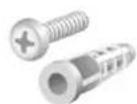
Screw anchor and screw
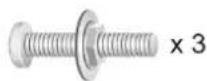
M4 × 30mm
pan-head screw
Installation tools
When installing the AP, you might need the following tools. Prepare the installation tools yourself as required.
Figure 2 Installation tools

Torque screwdriver
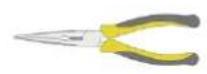
Needle-nose pliers
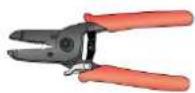
Wire stripper

Marker

Diagonal pliers
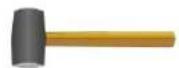
Rubber hammer

Hammer drill

Drill
Device and mounting bracket dimensions
Figure 3 AP dimensions
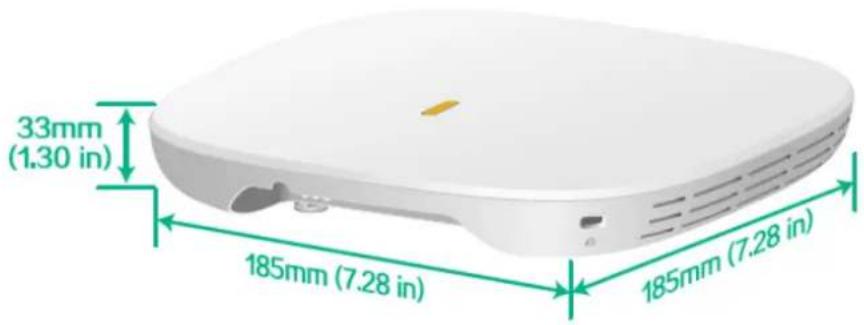
text_image
33mm (1.30 in) 185mm (7.28 in) 185mm (7.28 in)Figure 4 Mounting bracket dimensions
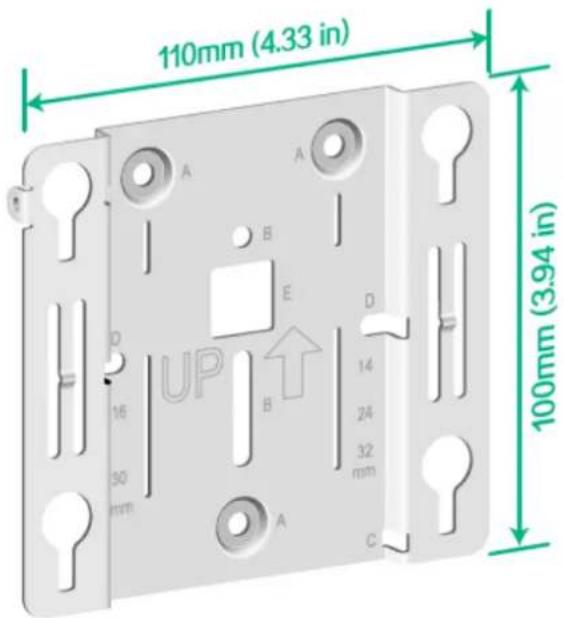
text_image
110mm (4.33 in) 100mm (3.94 in)Installing the AP
Installation flowchart
Figure 5 Installation flowchart
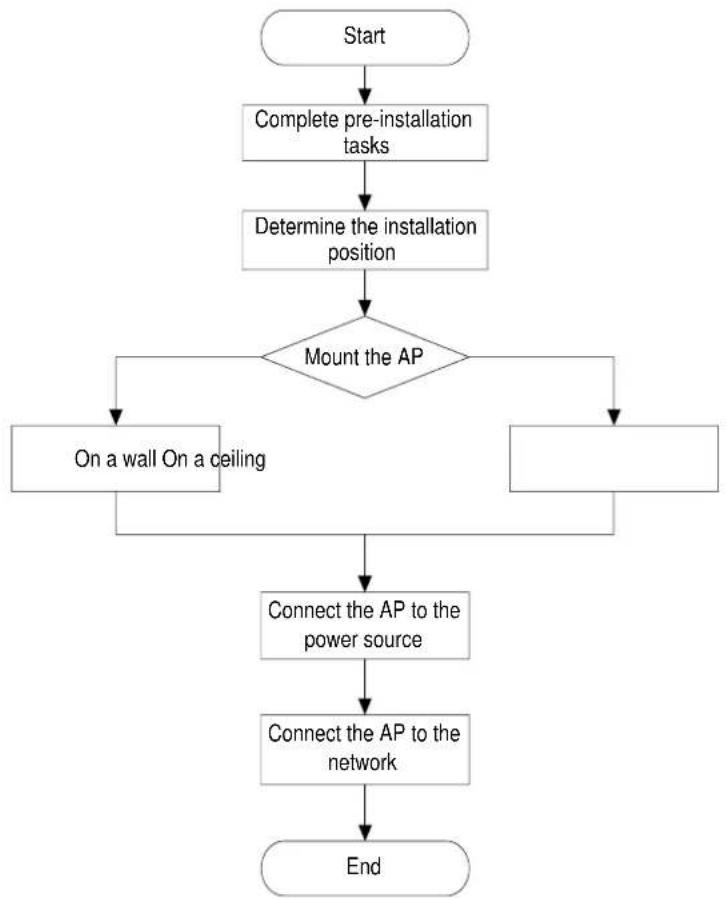
flowchart
graph TD
    A["Start"] --> B["Complete pre-installation tasks"]
    B --> C["Determine the installation position"]
    C --> D{Mount the AP}
    D --> E["On a wall On a ceiling"]
    D --> F["End"]
    E --> G["Connect the AP to the power source"]
    F --> G
    G --> H["Connect the AP to the network"]
    H --> I["End"]
Pre-installation tasks
Before installing the AP, perform the following tasks:
- Connect the AP to a power source and the network. Examine the LEDs to verify that the AP is operating correctly. For information about AP LEDs, see "LEDs."
• Record the MAC address and serial number at the rear of the AP for future use.
• Make sure you have completed cabling at the installation site.
Determining the installation position
Determine the installation position by observing the following principles:
• Few obstacles such as wall exist between the AP and clients.
- The AP is far away from electronic devices (such as microwave oven) that might generate radio frequency (RF) noise.
The AP does not hinder people's daily work and life.
• The place is not water seeping, water soaking, and condensing.
Mounting the AP
IMPORTANT:
- Before mounting the AP on a wall or ceiling, connect cables to the AP.
• Install an M3 × 23.5 security screw as required.
The AP can be installed only indoors. You can mount the AP on a wall or a ceiling.
Mounting bracket
Figure 6 Mounting bracket

text_image
1 A A 6 4 D 2 B E 5 4 D 16- 30- mm B 1 A -14 -24 -32 mm 3 C(1) Installation hole for securing the mounting bracket to a wall or ceiling (point A)
(2) T-rail installation hole (reserved) (point B)
(3) Auxiliary hole for securing cables by using cable tie (point C)
(4) Installation hole reserved for electrical outlet box installation (point D)
(5) Auxiliary hole for threading a cable to connect to the AP (point E)
(6) Security hole for an M3 × 23.5 security screw
Mounting the AP on a wall
- Place the mounting bracket against the wall and mark the installation holes on the wall.
Figure 7 Marking the installation holes on the wall
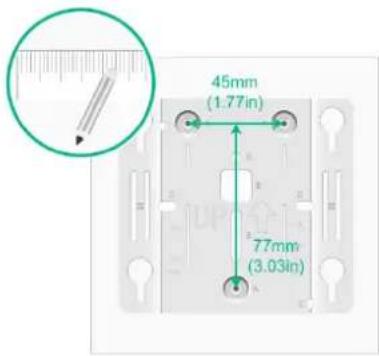
text_image
45mm (1.77in) 77mm (3.03in)- Drill three holes with a diameter of 6 mm (0.24 in) and a depth of 30 mm (1.18 in) at the marked locations, as shown in Figure 8.
Figure 8 Drilling holes in the wall
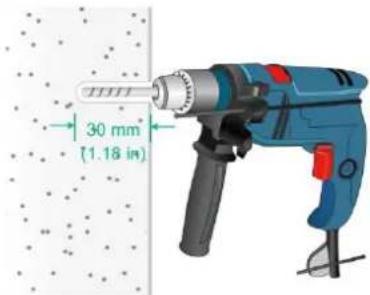
text_image
30 mm (1.18 in)- Insert a screw anchor into each hole, and tap the screw anchor with a rubber hammer until it is all flush with the wall surface, as shown in Figure 9.
Figure 9 Hammering the screw anchor into the wall
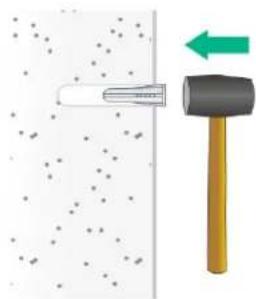
natural_image
Diagram showing a hammer striking a surface with scattered debris and a green arrow indicating motion (no text or symbols)- Thread the M3 × 23.5 security screw through the security hole in the mounting bracket. Make sure the screw does not block the keyhole slot.
Figure 10 Inserting the security screw
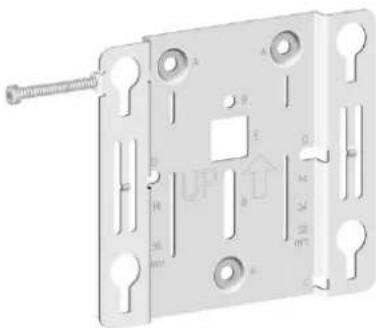
natural_image
Technical diagram of a mechanical component with mounting holes and a threaded rod (no text or symbols)- Insert the screws through the installation holes in the mounting bracket into the holes in the wall. Fasten the screws to secure the mounting bracket to the wall, as shown in Figure 11.
Figure 11 Attaching the mounting bracket to the wall

text_image
1.6N·m- Position the four pegs at the AP rear into the keyhole slots in the mounting bracket and then slide the AP down until it clicks into place, as shown in Figure 12.
Figure 12 Attaching the AP to the mounting bracket

text_image
Diagram showing a device with two labeled components, one connected to a wall-mounted device and the other attached.- Use a security Torx screwdriver to fasten the M3 × 23.5 security screw.
Figure 13 Fastening the M3 × 23.5 security screw
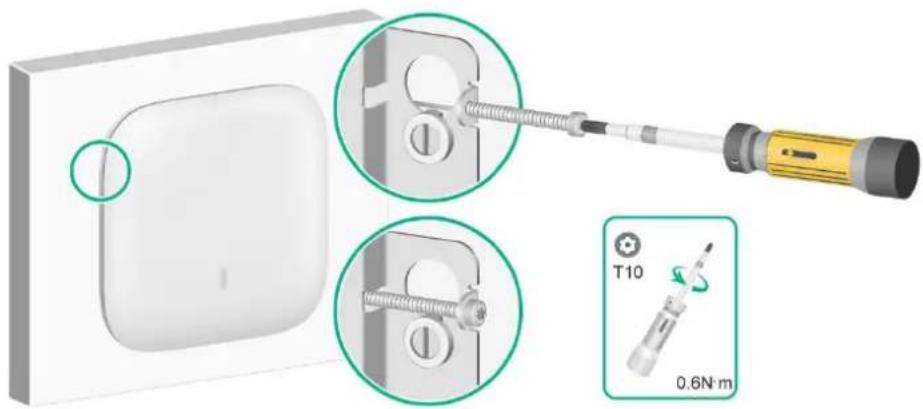
text_image
T10 0.6N·mMounting the AP on a ceiling

CAUTION:
The ceiling for installing the AP must be less than 18 mm (0.71 in) in thickness, and can bear a load of 5 kg (11.02 lb). If you must install the AP on a ceiling not strong enough, use boards to reinforce the ceiling.
The installation method for the M3 × 23.5 security screw is similar when the AP is mounted on the wall and on the ceiling.
To mount the AP on a ceiling:
- Remove the ceiling tile.
- Place the mounting bracket against the ceiling tile and mark the installation holes on the ceiling tile. Drill three holes with a diameter of 6 mm (0.24 in) at the marked positions, as shown in Figure 14.
Figure 14 Drilling holes in the ceiling tile
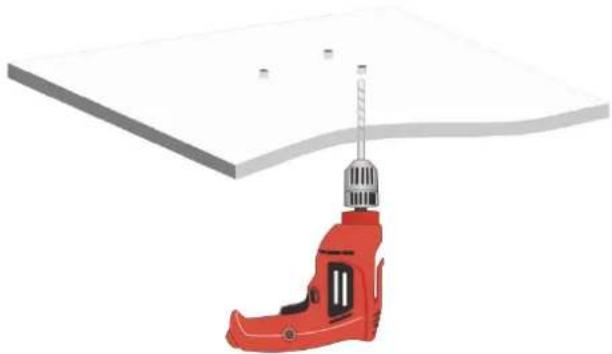
natural_image
3D illustration of a red electric drill bit mounted on a flat panel, with no visible text or symbols.- Thread the pan-head screws through the installation holes in the mounting bracket and into the holes in the ceiling tile. Fasten washers and nuts at the other side of the ceiling to secure the mounting bracket to the ceiling, as shown in Figure 15.
Figure 15 Attaching the mounting bracket to the ceiling
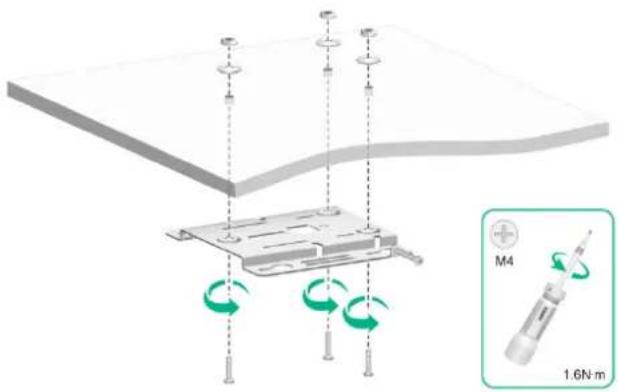
text_image
M4 1.6N·m- Connect a cable to the AP:
a. If you are not to use a cable tie, directly connect the cable to the AP. b. To use a cable tie, thread the cable tie through the auxiliary hole in the mounting bracket, and do not tighten the cable tie. Then, connect a cable to the AP, adjust the cable length, and then tighten the cable tie to secure the cable to the AP.
No cable tie is provided with the AP. Prepare one yourself as required.
Figure 16 Securing a cable
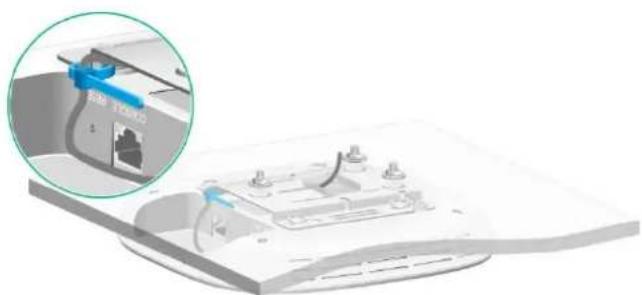
natural_image
3D diagram of a device with a close-up inset showing internal components (no text or symbols visible)- Position the four pegs at the AP rear into the keyhole slots in the mounting bracket and slide the AP until it clicks into place, as shown in Figure 17.
Figure 17 Attaching the AP to the mounting bracket

text_image
Diagram of a device component with labeled parts and directional arrows indicating movement or assembly.- Verify that the AP is securely installed to prevent it from falling off.
Connecting the AP to a power source
You can supply power to the AP by using a local power source or through 802.3af PoE as required. Before powering the AP, make sure the local power source or the power sourcing equipment (PSE) is reliably grounded.
Connecting a PoE power source

CAUTION:
The AP is to be connected only to PoE networks without routing to the outside plant.
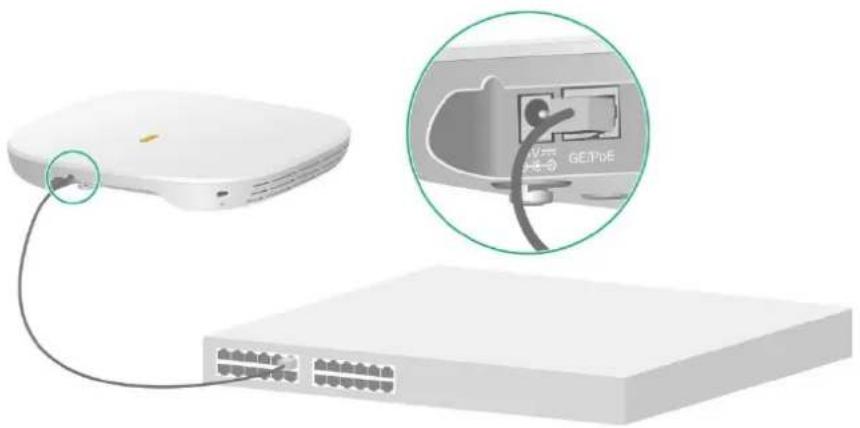
To power the AP through PoE, use an Ethernet cable to connect an Ethernet port on a PoE switch to the GE/PoE port on the AP.
Figure 18 Powering the AP through PoE
text_image
Diagram showing a device connected to a network interface with an inset close-up highlighting the GE Peru switch.Connecting a local power source
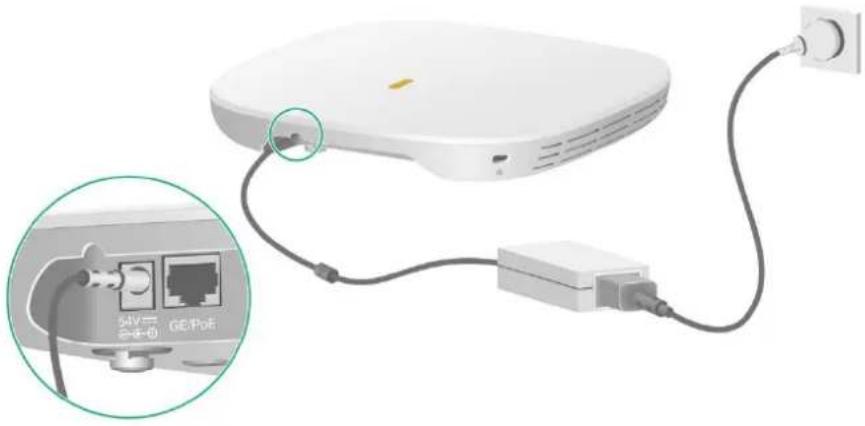
You can use an AC/DC power adapter to connect the AP to a local power source. No power adapter is provided with the AP. Prepare one yourself as required. Table 2 describes the power adapter specifications.
Table 2 Power adapter specifications
| Item | Specification |
| Input | 100 VAC to 240 VAC |
| Output | 48 VDC to 55 VDC |
| Power consumption | ≥ 15 W |
Figure 19 Using a power adapter to connect the AP to a local power source
natural_image
White wireless router connected to a power outlet via cable, with an inset showing port connections (no text or symbols visible)Check after power-on
Examine the LEDs on the AP after you power on it to verify that the AP is operating correctly. For more information about the LEDs, see "LEDs."
Connecting the AP to the network
All AP settings are configured on the AC. To verify network connectivity of the AP, execute the display wlan ap all command on the AC. If the AP status is R/M, the AP has been connected to the network.
<Sysname> display wlan ap all
Total number of APs: 1
Total number of connected APs: 1
Total number of connected manual APs: 1
Total number of connected auto APs: 0
Total number of connected common APs: 1
Total number of connected WTUs: 0
Total number of inside APs: 0
Maximum supported APs: 3072
Remaining APs: 3071
Total AP licenses: 128
Remaining AP licenses: 127
AP information
State : I = Idle,    J = Join,    JA = JoinAck,    IL = ImageLoad
    C = Config,    DC = DataCheck,    R = Run    M = Master,    B = Backup
AP name APID State Model Serial ID
apl 1 R/M DH-AWA6220-C 219801A3CD8218E0002T
Appendix A Hardware information and specifications
Ports
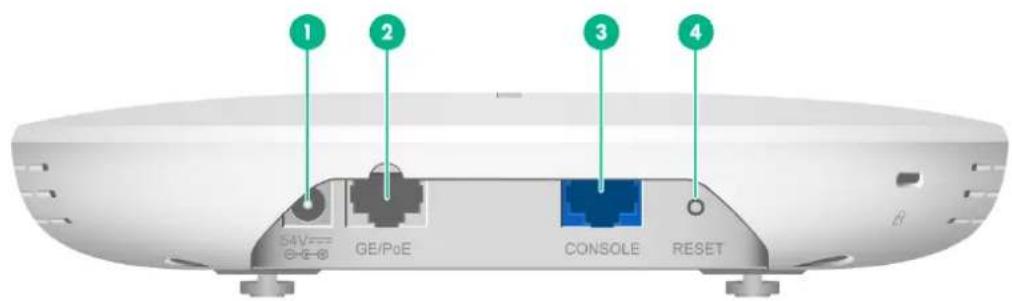
Figure 20 Ports on the AP
text_image
1 2 3 4 S4V GE/PoE CONSOLE RESET(1) Power port
(2) 10/100/1000M Ethernet copper port
(3) Console port
(4) Reset button
Technical specifications
Table 3 Technical specifications
| Item | Specification |
| Dimensions (W × D × H) | 185 × 185 × 33 mm (7.28 × 7.28 × 1.30 in) |
| Weight | 423 g (14.92 oz) |
| Antenna | Built-in antenna |
| Power consumption | Standby power consumption: 3.06 WSystem power consumption: ≤ 12.42 W |
| Standards | 802.11b/g/a/n/ac/ax802.3af |
| Console port | Used by technical personnel only for device configuration and management. |
| 10/100/1000M Ethernet copper port (GE/PoE) | Used for connecting the AP to an uplink device for Internet or MAN access. It can also receive PoE power from the uplink device.It is represented by interface number GE1/0/1 in the MAP file or GigabitEthernet 1 on the AC. |
| Power port (54 V) | Used for receiving +54 VDC power from a local power source. |
| Reset button | Functions of the reset button vary by the pressing duration. For more information, see Table 5. |
Table 4 LED descriptions
| LED | Status | Description | |
 | Off | No power is present or the LED has been turned off from the CLI. | |
| Yellow | Steady on | The AP is initializing, or an initialization exception has occurred. | |
| Flashing at 2 Hz | The Ethernet interfaces are down and no mesh links are established. | ||
| Green | Steady on | The AP has registered to an AC, but does not have any associated clients. | |
| Flashing at 0.5 Hz | The AP has started up but has not registered to any AC. | ||
| Flashing at 2 Hz | The AP is upgrading the image. | ||
| Blue | Flashing at 1 Hz | The radio has associated clients. | |
Table 5 Reset button LED descriptions
| LED | Pressing duration (seconds) | Status | Description | |
| Reset button (RESET) | 0 to 5 | Green | Steady on | Used to reset the AP. |
| 5 to 20 | Green | Flashing at 2 Hz | Used to restore the factory default. | |