
SM-D2H-4Q - KVM switch Smart-AVI - Free user manual and instructions
Find the device manual for free SM-D2H-4Q Smart-AVI in PDF.


| Product Type | 4-Port DisplayPort to HDMI KVM Switch with USB 2.0 Support |
| Brand | Smart-AVI |
| Model | SM-D2H-4Q |
| Video Input Interface | 4 x DisplayPort 20-pin Female |
| Video Output Interface | 1 x HDMI 19-pin Female |
| Maximum Resolution | 3840 x 2160 @ 30Hz (4K) |
| Audio Input | 4 x 3.5mm Stereo Audio Jack |
| Audio Output | 1 x 3.5mm Stereo Audio Jack |
| USB Input | 4 x USB Type B |
| USB Output (KVM Devices) | 2 x USB 1.1 Type A |
| USB Output (Transparent) | 2 x USB 2.0 Type A |
| Control Methods | Front Panel Push Buttons, Keyboard Hotkeys, RS-232 Serial |
| Power Supply | External 100-240 VAC / 12VDC 3A Adapter (24W) |
| Operating Temperature | 32 to 104°F (0 to 40°C) |
| Storage Temperature | -4 to 140°F (-20 to 60°C) |
| Humidity | Up to 80% (Non-Condensing) |
| Approvals | UL, CE, RoHS |
| Warranty | 1 Year Limited |
| Weight (Estimated) | Approx. 1.5 lbs (0.68 kg) |
| Dimensions (Estimated) | 1.75 x 6.5 x 4.5 inches (44 x 165 x 114 mm) |
Frequently Asked Questions - SM-D2H-4Q Smart-AVI
User questions about SM-D2H-4Q Smart-AVI
0 question about this device. Answer the ones you know or ask your own.
Ask a new question about this device
Download the instructions for your KVM switch in PDF format for free! Find your manual SM-D2H-4Q - Smart-AVI and take your electronic device back in hand. On this page are published all the documents necessary for the use of your device. SM-D2H-4Q by Smart-AVI.
USER MANUAL SM-D2H-4Q Smart-AVI
USER MANUAL
SM-D2H-4S 4-Port Single-Head DP-to-HDMI KVM Switch with USB 2.0 Support
SM-D2H-4D 4-Port Dual-Head DP-to-HDMI KVM Switch with USB 2.0 Support

Designed and Manufactured in the USA
Smart-AM
1-800-284-2131
www.smartavi.com
OVERVIEW
TECHNICAL SPECIFICATIONS 3
WHAT'S IN THE BOX? 4
FRONT AND BACK 4
INSTALLATION 5-6
SYSTEM OPERATION 7
FRONT PANEL CONTROL 7
HOTKEY AND RS232 SERIAL CONTROL 7
CUSTOM HOTKEY TRIGGERS 8
TROUBLESHOOTING 9
TECHNICAL SUPPORT 9
LIMITED WARRANTY STATEMENT 10
TECHNICAL SPECIFICATIONS
| VIDEO | ||
| Format DisplayPort, HDMI | ||
| Input Interface | SM-D2H-2S (4) DisplayPort 20-pin | |
| SM-D2H-2D (8) DisplayPort 20-pin | ||
| Output Interface | SM-D2H-2S (1) HDMI 19-pin | |
| SM-D2H-2D (2) HDMI 19-pin | ||
| Resolution Up to 4K (3840x2160 @ 30Hz) | ||
| DDC 5 volts p-p (TTL) | ||
| Input Equalization Automatic | ||
| Input Cable Length Up to 20 ft | ||
| Output Cable Length Up to 20 ft | ||
| AUDIO | ||
| Input Interface (4) 3.5 mm Stereo Audio | ||
| Output Interface (1) 3.5 mm Stereo Audio | ||
| Impedance 600 Ohm | ||
| Frequency Response 20 Hz to 20 kHz | ||
| Nominal Level | 0-1.0 V | |
| Common Mode | Rejection at 60 dB | |
| USB | ||
| Signal Type | USB 2.0, 1.1, and 1.0 w/ internal hub | |
| Input Interface | (4) USB Type B | |
| Output Interface | (2) USB 1.1 Type A for KVM Devices; (2) USB 2.0 Type A Transparent | |
| CONTROL | ||
| Front Panel | Push Buttons with LED Indicators | |
| RS-232 | DB9 Female - 115200 N,8,1, No flow control | |
| Hot Keys | Via Keyboard | |
| OTHER | ||
| Power Adapter | External 100-240 VAC/12VDC3A @ 24W | |
| Approvals | UL, CE, ROHS Compliant | |
| Operating Temperature | +32 to +104°F (0 to +40°C) | |
| Storage Temperature | -4 to 140°F (-20 to +60°C) | |
| Humidity | Up to 80% (No Condensation) | |
| Emulation | Keyboard and Mouse | |
WHAT'S IN THE BOX?
| PART NO. Q-TY DESCRIPTION | |
| SM-D2H Unit 1 4-Port DP-to-HDMI KVM Switch with USB 2.0 Support | |
| PS12VDC3A 1 Power Adapter | |
| 1 User Manual | |
FRONT AND BACK

SM-D2H-4S Back

SM-D2H-4S Front
INSTALLATION
- Ensure that power is turned off or disconnected from the unit and the computers.
- Use DisplayPort cables to connect the DP output ports from each computer to the corresponding DisplayPort ports of the unit.
- Use a USB cable (Type-A to Type-B) to connect a USB port on each computer to the respective USB ports of the unit.
- Optionally connect a stereo audio cable (3.5mm to 3.5mm) to connect the audio output of the computers to the AUDIO IN ports of the unit.
- Connect monitors to the HDMI console ports of the unit using HDMI cables.
- Connect a USB keyboard and mouse in the two USB console ports.
- Optionally connect stereo speakers to the AUDIO OUT port of the unit.
- Finally, power on the KVM by connecting a 12VDC power supply to the power connector, and then turn on all the computers
Note: You can connect up to 4 computers to the 4 port KVM.
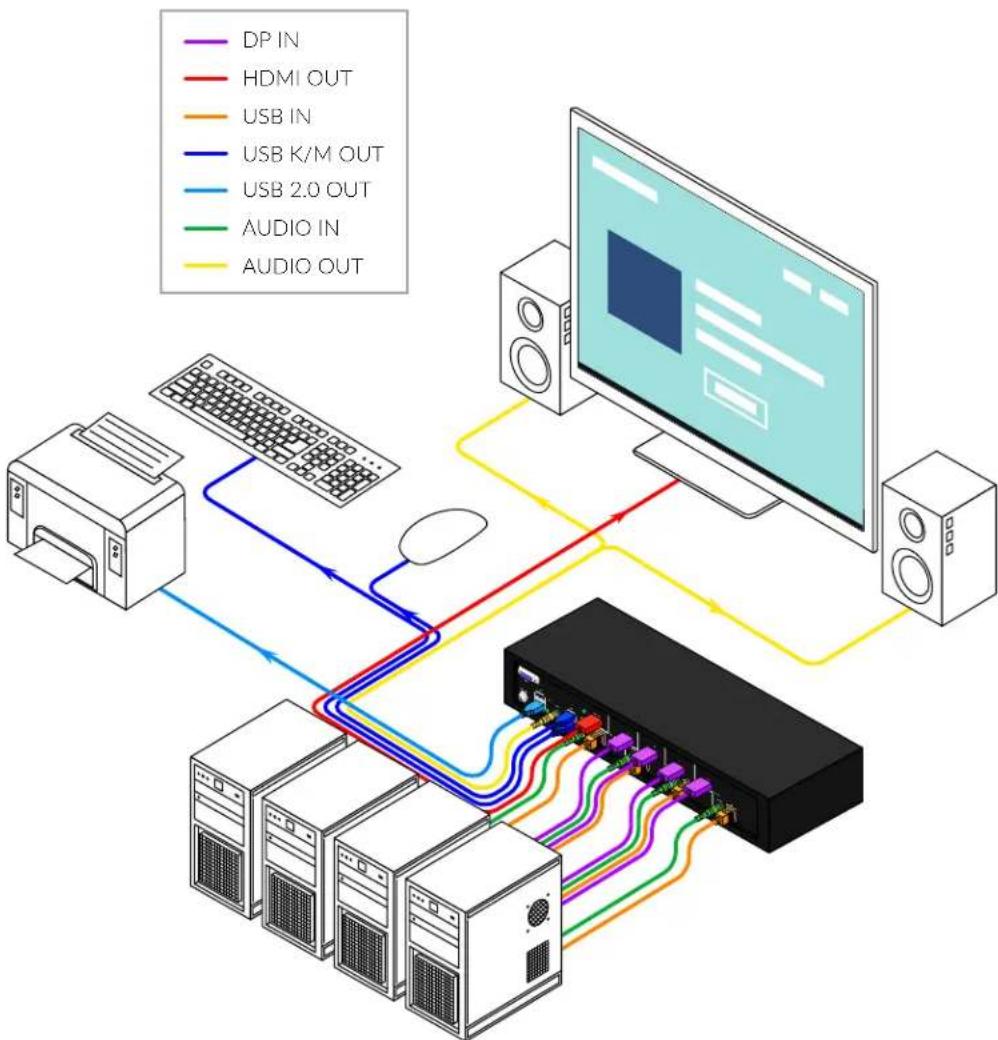
flowchart
graph TD
    A["Server"] -->|USB 2.0 OUT| B["Computer"]
    B -->|USB IN| C["HD/IN"]
    C -->|USB K/M OUT| D["Audio IN"]
    D -->|AUDIO OUT| E["Video/Video"]
    A --> F["Desktop Computer"]
    B --> G["Desktop Tablet"]
    style A fill:#f9f,stroke:#333
    style B fill:#ccf,stroke:#333
    style C fill:#cfc,stroke:#333
    style D fill:#fcc,stroke:#333
    style E fill:#ffc,stroke:#333
INSTALLATION (CONTINUED)
EDID LEARN
The KVM is designed to learn the connected monitor's EDID upon power up. In the event of connecting a new monitor to the KVM, a power recycle is recommended.
The KVM will indicate to the user the EDID learn process by flashing the front panel's LEDs. When the LEDs stop flashing, the EDID learn process is done.
The monitor must be connected to the video output connector located in the console space at the back of the KVM during the EDID learn process.
If the read EDID from the connected monitor is identical to the current stored EDID in the KVM then the EDID learn function will be skipped.
SYSTEM OPERATION
There are three ways to control the SM-D2H Unit: Keyboard Hotkeys, RS-232 Serial Commands, and Front Panel Buttons. All modes of control will allow the user the set their desired configurations.
FRONT PANEL CONTROL
To switch to an input port, simply push the button on the front-panel of the KVM. If an input port is selected, the LED of that port will turn on.
Hold down the button of Front Panel for 3 seconds to force learn EDID.
HOTKEY AND RS232 SERIAL CONTROL
The SM-D2H Unit may also be controlled via RS-232 commands. To use these commands, you must use HyperTerminal or an alternate terminal application. The settings for the connection are as follows: Baudrate 115200; Data Bits 8; Parity None; Stop Bits 1; Flow Control None.
Once you have connected to the SM-D2H Unit via Serial, you will see the SM-D2H Unit's information when the device starts up.
The following commands can be used for RS-232 with available keyboard hotkeys:
| COMMAND DESCRIPTION HOTKEY RS-232 COMMAND | ||
| Switch All USB and Video | [CTRL] [CTRL] [port #] [ENTER] //m | [port #] [ENTER] |
| Switch KVM Only | [CTRL] [CTRL] c [port #] [ENTER] //c | [port #] [ENTER] |
| Switch USB Only | [CTRL] [CTRL] u [port #] [ENTER] //u | [port #] [ENTER] |
| Learn EDID | [CTRL] [CTRL] e [ENTER] //e [ENTER] | |
| Trigger Hotplug | [CTRL] [CTRL] h [ENTER] //h [ENTER] | |
| Reset Software | [CTRL] [CTRL] r [ENTER] //r [ENTER] | |
| Factory Defaults | [CTRL] [CTRL] f [ENTER] //f [ENTER] | |
| Get Port Status | N/A //?? [ENTER] | |
CUSTOM HOTKEY TRIGGERS
Users are able to customize the keys that trigger Hotkeys. The default trigger for hot key function on the keyboard is Ctrl + Ctrl. The trigger function can be used to change to the following keys:
Ctrl (Left / Right), Alt, Shift (Left / Right), Caps Lock, Scroll Lock, F1-F12
TO VIEW HOTKEY TRIGGER SETTING
Use the RS-232 command: / + / + ? + ? + Enter to view the current HotKey Trigger To reset the Hotkey Trigger use the "Factory Defaults" command.
TO CHANGE THE HOTKEY TRIGGER SETTING
HotKey + HotKey + x + [desired hotkey]
RESET HOTKEY TRIGGER
Run "Factory Defaults" command.
Example: If users current Hotkey trigger is Shift and want to change to Scroll Lock, user would type Shift + Shift + x + Scroll Lock
TROUBLESHOOTING
No Power
- Make sure that the power adapter is securely connected to the power connector of the unit.
- Check the output voltage of the power supply and make sure that the voltage value is around 12VDC.
- Replace the power supply.
No Video
- Check if all the video cables are connected properly.
- Connect the computer directly to the monitor to verify that your monitor and computer are functioning properly.
- Restart the computers.
Keyboard is not working
- Check if the keyboard is properly connected to the unit.
- Check if the USB cables connecting the unit and the computers are properly connected.
- Try connecting the USB on the computer to a different port.
- Make sure that the keyboard works when directly connected to the computer.
- Replace the keyboard.
Mouse is not working
- Check if the mouse is properly connected to the unit.
- Try connecting the USB on the computer to a different port.
- Make sure that the mouse works when directly connected to the computer.
- Replace the mouse.
No Audio
- Check if all the audio cables are connected properly.
- Connect the speakers directly to the computer to verify that the speakers and the computer audio are functioning properly.
- Check the audio settings of the computer and verify that the audio output is through the speakers.
TECHNICAL SUPPORT
For product inquiries, warranty questions, or technical questions, please contact info@smartavi.com.
LIMITED WARRANTY STATEMENT
A. Extent of limited warranty
SmartAVI, Inc. warrants to the end-user customers that the SmartAVI product specified above will be free from defects in materials and workmanship for the duration of 1 year, which duration begins on the date of purchase by the customer. Customer is responsible for maintaining proof of date of purchase.
SmartAVI limited warranty covers only those defects which arise as a result of normal use of the product, and do not apply to any:
a. Improper or inadequate maintenance or modifications
b. Operations outside product specifications
c. Mechanical abuse and exposure to severe conditions
If SmartAVI receives, during applicable warranty period, a notice of defect, SmartAVI will at its discretion replace or repair defective product. If SmartAVI is unable to replace or repair defective product covered by the SmartAVI warranty within reasonable period of time, SmartAVI shall refund the cost of the product.
SmartAVI shall have no obligation to repair, replace or refund unit until customer returns defective product to SmartAVI.
Any replacement product could be new or like new, provided that it has functionality at least equal to that of the product being replaced.
SmartAVI limited warranty is valid in any country where the covered product is distributed by SmartAVI.
B. Limitations of warranty
To the extant allowed by local law, neither SmartAVI nor its third party suppliers make any other warranty or condition of any kind whether expressed or implied with respect to the SmartAVI product, and specifically disclaim implied warranties or conditions of merchantability, satisfactory quality, and fitness for a particular purpose.
C. Limitations of liability
To the extent allowed by local law the remedies provided in this warranty statement are the customers sole and exclusive remedies.
To the extant allowed by local law, except for the obligations specifically set forth in this warranty statement, in no event will SmartAVI or its third party suppliers be liable for direct, indirect, special, incidental, or consequential damages whether based on contract, tort or any other legal theory and whether advised of the possibility of such damages.
D. Local law
To the extent that this warranty statement is inconsistent with local law, this warranty statement shall be considered modified to be consistent with such law.
Smart-AM
SMART AUDIO VIDEO INNOVATION
NOTICE
The information contained in this document is subject to change without notice. SmartAVI makes no warranty of any kind with regard to this material, including but not limited to, implied warranties of merchantability and fitness for particular purpose. SmartAVI will not be liable for errors contained herein or for incidental or consequential damages in connection with the furnishing, performance or use of this material. No part of this document may be photocopied, reproduced, or translated into another language without prior written consent from SmartAVI, Inc.
20180109

Designed and Manufactured in the USA
Tel: (800) AVI-2131 • (702) 800-0005
2455 W Cheyenne Ave, Suite 112
North Las Vegas, NV 89032
www.smartavi.com


- USER MANUAL
- Smart-AM
- OVERVIEW
- TECHNICAL SPECIFICATIONS
- WHAT'S IN THE BOX?
- FRONT AND BACK
- INSTALLATION
- INSTALLATION (CONTINUED)
- EDID LEARN
- SYSTEM OPERATION
- FRONT PANEL CONTROL
- HOTKEY AND RS232 SERIAL CONTROL
- CUSTOM HOTKEY TRIGGERS
- TO VIEW HOTKEY TRIGGER SETTING
- TO CHANGE THE HOTKEY TRIGGER SETTING
- RESET HOTKEY TRIGGER
- TROUBLESHOOTING
- No Power
- No Video
- Keyboard is not working
- Mouse is not working
- No Audio
- TECHNICAL SUPPORT
- LIMITED WARRANTY STATEMENT
- Extent of limited warranty
- Limitations of warranty
- Limitations of liability
- Local law
- SMART AUDIO VIDEO INNOVATION
- NOTICE
- Designed and Manufactured in the USA
Brand : Smart-AVI
Model : SM-D2H-4Q
Category : KVM switch