
KBM-ABWSG - Keyboard Xcellon - Free user manual and instructions
Find the device manual for free KBM-ABWSG Xcellon in PDF.


| Product Type | Wireless and Wired Keyboard |
| Brand | Xcellon |
| Model | KBM-ABWSG |
| Connectivity | Bluetooth (up to 4 devices) + USB Type-C Wired |
| Compatibility | macOS (primary), iOS, iPadOS, Windows, Android (basic functionality) |
| Keyboard Layout | Full-size with numeric keypad, Mac function keys |
| Switch Type | Scissor-switch |
| Power Source | Built-in rechargeable battery via USB Type-C |
| Charging Cable Included | USB Type-C cable |
| LED Indicators | Caps Lock, Bluetooth, Battery |
| Dimensions (W × H × D) | 43.6 cm × 1.8 cm × 12.6 cm |
| Material | Aluminum chassis |
| Battery Life | Varies with use; charge via USB-C |
| Special Features | 4 Bluetooth device pairing, Dictation key, Emoji Picker, Media controls, Screenshot menu |
| Warranty | 1-year limited warranty |
| Certifications | FCC Part 15 Class B, FCC ID: 2ACZK-KBM-ABWS |
| Care Instructions | Clean with a soft, dry cloth; do not remove keycaps |
| Safety Precautions | Keep away from moisture and heat; do not disassemble |
| Power Options | Power on/off switch on keyboard; power button for sleep/wake Mac |
| Included Accessories | USB Type-C cable |
| Operating Range | Up to 10 meters (typical Bluetooth range) |
Frequently Asked Questions - KBM-ABWSG Xcellon
User questions about KBM-ABWSG Xcellon
0 question about this device. Answer the ones you know or ask your own.
Ask a new question about this device
Download the instructions for your Keyboard in PDF format for free! Find your manual KBM-ABWSG - Xcellon and take your electronic device back in hand. On this page are published all the documents necessary for the use of your device. KBM-ABWSG by Xcellon.
USER MANUAL KBM-ABWSG Xcellon
Bluetooth + Wired Keyboard for Mac
User Manual

XCELLON

Thank you for choosing Xcellon.
The Xcellon Mac Keyboard is a Bluetooth keyboard with a sleek, low-profile aluminum construction designed for Apple computers and macOS. It offers a full-size key bed and numeric keypad with scissor-style keycaps that perform with quiet operation but ample key-travel distance. This keyboard can pair with four Bluetooth devices, and seamlessly switch between them via the Bluetooth selector keys. In addition, integrated standard Mac keyboard function buttons adjust brightness, video/audio transport, and volume. Charge the keyboard via the USB Type-C port.
Precautions
» Please read and follow these instructions, and keep this manual in a safe place.
» Keep this product away from sources of moisture and heat.
»Handle this product with care.
»Clean this product with only a soft, dry cloth.
» Remove dust and debris with a soft brush or compressed air.
» Do not remove the keycaps for any reason. Removing the keycaps will damage the keyboard and void the warranty.
»Do not disassemble or repair the product yourself.
»All images are for illustrative purposes only.
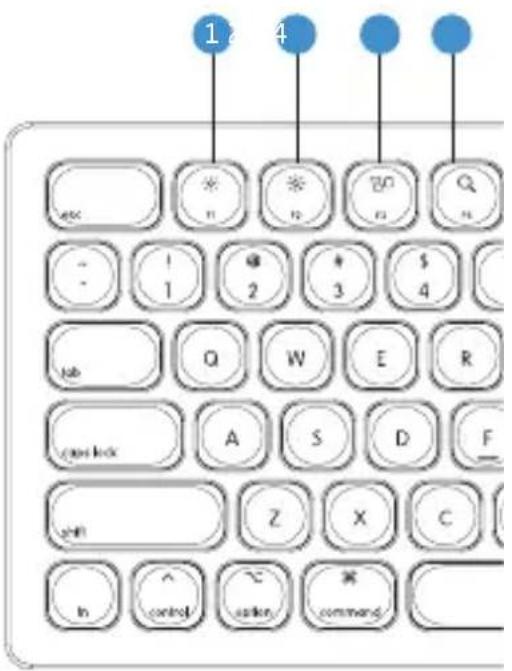
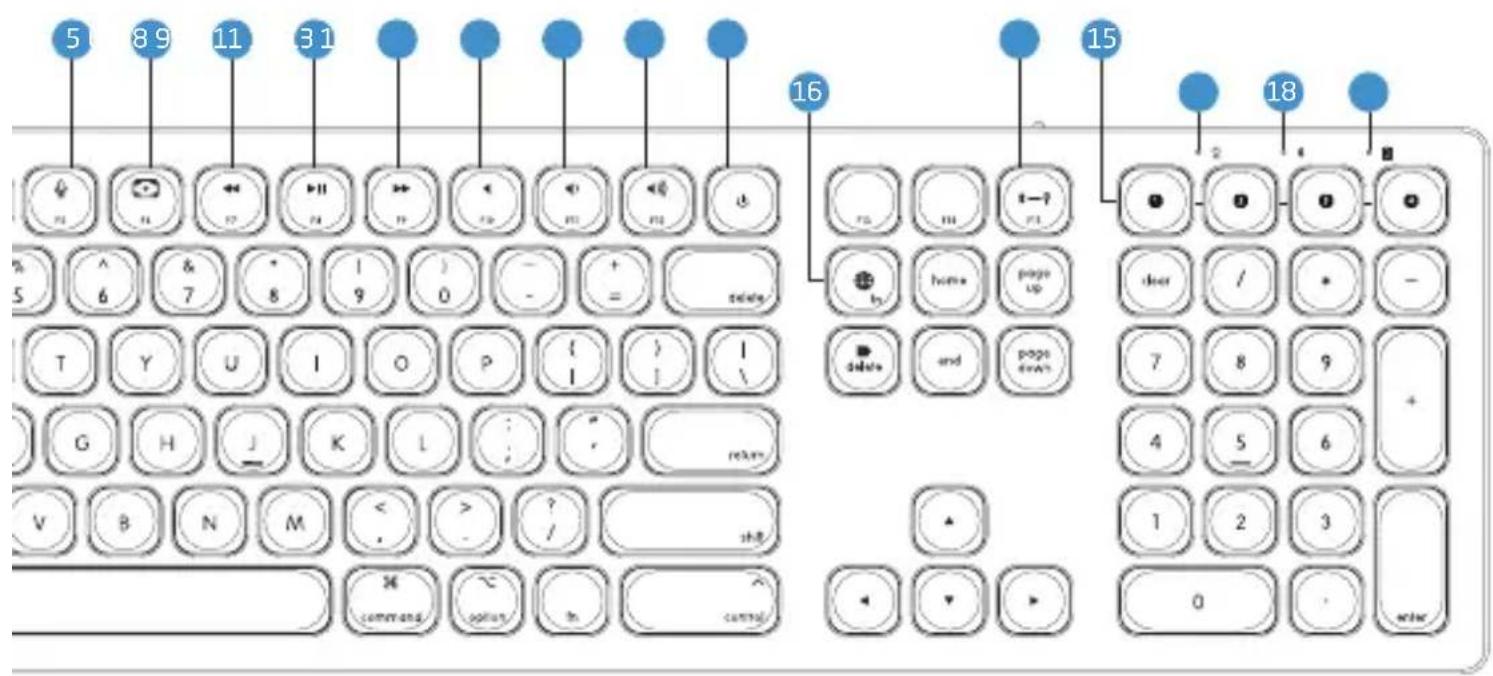
Function Keys
1 Decreasebrightness
2 Increasebrightness
3 Missioncontrol
4 Searchlight
5 Dictation
6 Screenshot Menu
7 Play / Pause
8 Rewind / Previous track
9 Fast-forward / Next track
10 Mute
11 Volume down
12 Volume up
13 Power options / Sleep
14 Bluetooth / Wired USB mode selector (fn+F15)
15 Bluetooth device selector
Other function keys
16 Emoji Picker
LED Indicators
17 Caps Lock
18 Bluetooth
19 Battery
Powering On
Move the power switch to the ON position. The Bluetooth indicator will briefly illuminate.
Charging the Keyboard
The battery indicator light blinks when the battery is low.
Use the included USB Type-C cable to connect the keyboard to a USB charger such as the Xcellon Mighty Mini USB Type-C Charger.
The light is solid while the keyboard is charging.
The indicator turns off when the keyboard is fully charged.
Bluetooth Mode
The keyboard can be paired with four separate Bluetooth devices. Pair the keyboard to a computer, laptop, tablet, and iPhone, and switch between the devices.
- Make sure Bluetooth is turned on in your device's Bluetooth settings.
- Press and hold the Bluetooth key that will pair with the device. The keyboard is in pairing mode when the Bluetooth indicator light blinks.
- On the device's Bluetooth settings, select Bluetooth Keyboard, and the device will pair with that Bluetooth key. The keyboard will overwrite any device that was previously paired with that key.
To switch from one Bluetooth Device to another, press the corresponding Bluetooth key.
Wired USB Mode
Use the included USB Type-C cable to connect to a computer. Once the keyboard is connected to the computer, it automatically switches to wired mode and disables Bluetooth.
Key Controls: Dictation
» Press the F5 button to open the Dictation Dialog window. If the Dictation window does not open, follow these instructions:
- In System Preferences, select Keyboard.
-
In the keyboard preferences, select Dictation.
-
In the Dictation window, click on the Shortcut drop-down menu, and make sure "Press Control Key Twice" is selected.
Note: This keyboard is configured for macOS 12 (Monterey). Apple may change keyboard shortcut functions in future OS versions.
Power Button
From the lock screen, press the power button to put the computer to sleep. Press any key to wake it up.
When logged in, press and hold the power button to open the power options dialog box.

Specifications
| Number of Keys | |
| Switch Type | |
| System Connection | USB Type-C |
| Operating Range | |
| Battery Capacity | |
| USB Cable Length | |
| Supported OS | iOS, iPadOS, Windows, Android: Basic functionality |
| Dimensions (W × H × D) | × 4.95 in. (43.6 × 1.8 × 12.6 cm) |
| Weight |
FCC Compliance
This device complies with Part 15 of the FCC Rules. Operation is subject to the following two conditions:
- This device may not cause harmful interference.
- This device must accept any interference received, including interference that may cause undesired operation.
Warning: Changes or modifications not expressly approved by the party responsible for compliance could void the user's authority to operate the equipment.
NOTE: This equipment has been tested and found to comply with the limits for a Class B digital device, pursuant to Part 15 of the FCC Rules. These limits are designed to provide reasonable protection against harmful interference in a residential installation. This equipment generates uses and can radiate radio frequency energy and, if not installed and used in accordance with the instructions, may cause harmful interference to radio communications. However, there is no guarantee that interference will not occur in a particular installation. If this equipment does cause harmful interference to radio or television reception, which can be determined by turning the equipment off and on, the user is encouraged to try to correct the interference by one or more of the following measures:
Reorient or relocate the receiving antenna.
Increase the separation between the equipment and receiver.
Connect the equipment into an outlet on a circuit different from that to which the receiver is connected.
Consult the dealer or an experienced radio/TV technician for help.
RF warning statement:
The device has been evaluated to meet general RF exposure requirement. The device can be used in portable exposure condition without restriction.
FCC ID: 2ACZK-KBM-ABWS
One-Year Limited Warranty
This Xcellon product is warranted to the original purchaser to be free from defects in materials and workmanship under normal consumer use for a period of one (1) year from the original purchase date or thirty (30) days after replacement, whichever occurs later. The warranty provider's responsibility with respect to this limited warranty shall be limited solely to repair or replacement, at the provider's discretion, of any product that fails during normal use of this product in its intended manner and in its intended environment. Inoperability of the product or part(s) shall be determined by the warranty provider. If the product has been discontinued, the warranty provider reserves the right to replace it with a model of equivalent quality and function.
This warranty does not cover damage or defect caused by misuse, neglect, accident, alteration, abuse, improper installation or maintenance. EXCEPT AS PROVIDED HEREIN, THE WARRANTY PROVIDER MAKES NEITHER ANY EXPRESS WARRANTIES NOR ANY IMPLIED WARRANTIES, INCLUDING BUT NOT LIMITED TO ANY IMPLIED WARRANTY OF MERCHANTABILITY OR FITNESS FOR A PARTICULAR PURPOSE. This warranty provides you with specific legal rights, and you may also have additional rights that vary from state to state.
To obtain warranty coverage, contact the Xcellon Customer Service Department to obtain a return merchandise authorization ("RMA") number, and return the defective product to Xcellon along with the RMA number and proof of purchase. Shipment of the defective product is at the purchaser's own risk and expense.
For more information or to arrange service, visit www.xcellongear.com or call Customer Service at 212-594-2353.
Product warranty provided by the Gradus Group.
www.gradusgroup.com
Xcellon is a registered trademark of the Gradus Group. © 2022 Gradus Group LLC. All Rights Reserved.

XCELLON * A Gradus Group Brand


Brand : Xcellon
Model : KBM-ABWSG
Category : Keyboard