
PRM-207Q - Tracking Postium - Free user manual and instructions
Find the device manual for free PRM-207Q Postium in PDF.


| Product Type | Multi-Channel LCD Monitor |
| Brand | Postium |
| Model | PRM-207Q |
| Display Size | 2 inches |
| Resolution | 960 x 540 (16:9) |
| Color Depth | 16.7 million colors (24-bit) |
| Viewing Angle | Horizontal: 100°, Vertical: 100° |
| Luminance | 250 cd/m² (center) |
| Contrast Ratio | 200:1 |
| Input Signal | SDI (HD-SDI, SD-SDI); supports 1080i/p, 720p, 480i, 576i, 1035i, 2K formats |
| Output | SDI active loop-through (1 BNC) |
| Power Supply | DC 12V, max 4.2A |
| Power Consumption | 50.4 W (DC) |
| Operating Temperature | -5°C to 40°C (32°F to 104°F) |
| Storage Temperature | -30°C to 50°C (-22°F to 122°F) |
| Dimensions (W x L x H) | 445 x 225 x 44.8 mm |
| Weight (net) | 4 kg (8.8 lb) without AC/DC adaptor |
| Mounting | Rack mountable (1U) with optional kit |
| Included Accessories | DC power adapter |
| Additional Features | Dynamic UMD, markers (center, safety, aspect), Pixel to Pixel, HV Delay, Blue Only/Mono, OSD control, cooling fan |
| Maintenance | Clean with mild neutral detergent; keep in well-ventilated area; avoid direct sunlight |
| Safety | Use specified voltage (DC 12V); disconnect when not in use; do not expose to liquids |
Frequently Asked Questions - PRM-207Q Postium
User questions about PRM-207Q Postium
0 question about this device. Answer the ones you know or ask your own.
Ask a new question about this device
Download the instructions for your Tracking in PDF format for free! Find your manual PRM-207Q - Postium and take your electronic device back in hand. On this page are published all the documents necessary for the use of your device. PRM-207Q by Postium.
USER MANUAL PRM-207Q Postium
natural_image
Front panel of a black rack-mounted server rack with seven circular images showing animal and racing scenes (no visible text or symbols on the rack itself)PRM-207Q
MULTI-CHANNEL LCD MONITOR
User's Manual

POSTIUM KOREA
Contents
PRM-207Q
Warning 2
Features 3
Feature Name & Functions 4
OSD Menu Organization & Adjustment 6
Other Functions 10
System Default Value.... 15
Product Specification 16
Warning
· Always use set voltage.
- DC 12V
- If liquid is spilled on or impacts this product, please disconnect the product immediately and contact for professional help before continuing use.
- Keep unit disconnected during extended periods of disuse.
- Keep unit in a well-ventilated place to prevent overheating.
- Do not install the product near any heat-generating equipment.
- Keep the product out of direct sunlight or dusty areas.
- Only clean the product with a noncommercial, mild, and neutral detergent.
- When transporting the product, make use of its original packaging for safer transport.
FCC (Federal Communications Commission)
This equipment has been tested and found to comply with the limits for class A digital device, pursuant to part 15 of the FCC Rules. These limits are designed to provide reasonable protection against harmful interface when the equipment is operated in a commercial environment.
This equipment generates, uses, and can radiate radio frequency energy, and if not installed and used in accordance with the instruction manual, may cause harmful interference to radio communications.
Operation of this equipment in a residential to correct the interference at his own expense
Warning!! : Change or modifications not expressly approved by the manufacturer responsible for compliance void the user's authority to operate the equipment.
Disposal of Old Electrical & Electronic Equipment
(Applicable in the European Union and other European countries with separate collection systems)
This symbol on the product or on its packing indicates that this product shall not be treated as household waste. Instead it shall be handed over to the applicable collection point for the recycling of electrical and electronic equipment. By ensuring this product is disposed of correctly, you will help prevent potential negative consequence for the environment and human health, which could otherwise be caused by inappropriate waste handling of this product. The recycling of materials will help to conserve natural resources.

Features
Multi-Format PRM-207Q Rack Monitor Contains the following features :
- Compatible with various SDI Signals
The product is compatible with varied SDI Signals
-480i,576i,720p,1035i,1080i,1080p,1080psf,2K
· Wide Varieties of Markers & Safety Areas
Center Marker, Safety Area Marker, Aspect Marker, Display Size(Scan)
· High Resolution(960X540)/LED Backlight
· 24Bit RGB CMOS Interface Panel
- Tilt of LCD Module: ± 15^
· Dynamic UMD(Under Monitor Display)
Small, medium, and large size display.
Possible to control monitor to the maximum value of 100 by Set ID Menu.
· BLUE ONLY/MONO
· H/V Delay
- Pixel To Pixel
Provides both full screen and unscaled native image.
· DC Compatible
The product is powered by a normal 12V source.
• Additional Features
Active loop-thru/SDI, 200:1 Contrast Ratio, 250 cd/m² Brightness, OSD user interface, Rack Mountable, Cooling Fan
Feature Name & Functions

natural_image
Row of eight grayscale images showing a person in a bridge and landscape, with no visible text or symbols.
· [MENU] button
Used to activate the OSD Menu.
· [UP] button
Used to navigate menu during OSD Menu activation.
It may also be used to select Aspect Marker during OSD Menu non-activation.
· [DOWN] button
Used to navigate menu during OSD Menu activation.
It may also be used to select Aspect Marker during OSD Menu non-activation
· [ENTER] button
Used to confirm a chosen value (or mode) within the OSD Menu.
Feature Name & Functions

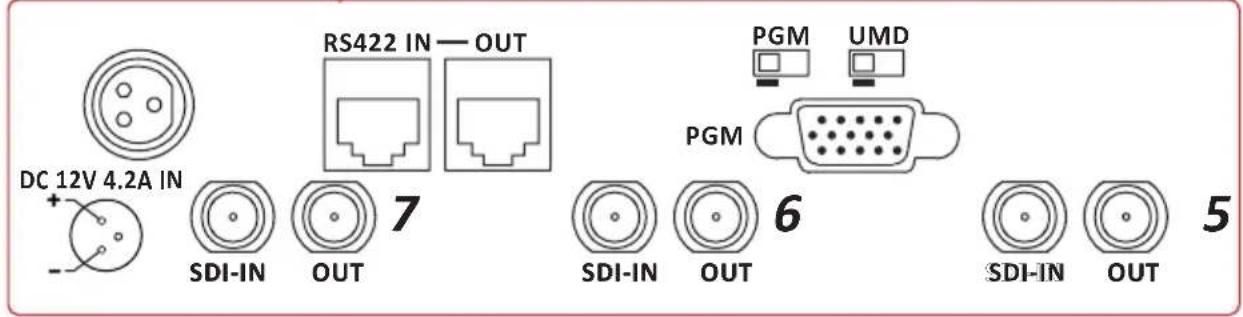
· SDI A-IN (BNC)
SDI A signal input terminal
· SDI-OUT (BNC)
SDI signal output terminal
· DC IN (3 pins)
Used to supply DC power; 12V
· RS422 IN/OUT (RJ45)
Used to display a dynamic UMD
· PGM SW(mini slide switch)
Used to download a program.
· UMD SW(mini slide switch)
Used to active a dynamic UMD

| Pin 1 TX- | |
| Pin 2 | TX+ |
| Pin 3 | RX- |
| Pin 6 | RX+ |
| Pin 7, 8 Ground | |
| Pin 4, 5 N.C | |

PGM SW
· F/W Download · Control Set

natural_image
Two identical diagrams showing a black rectangle on a white background with arrows pointing left and right (no text or symbols)UMD SW
· Dynamic UMD Off
& F/W Download

natural_image
Two computer monitors with black and white panels, each with a red bidirectional arrow indicating leftward movement (no text or symbols)OSD Menu Organization & Adjustment
[1] MAIN - Color

· Color Temp (Default Setting - 6500K)
This item controls Color Temperature with presets of 3200K, 5600K, 6500K, 9300K, and User1, User2, and User3 mode.
- User
On User Mode, the user may select and control R, G, & B GAIN, or BIAS values by using the [UP]/[DOWN]/[ENTER] buttons.
· Color Copy (Default Setting - 6500K)
In User mode, user can copy the presets of 3200K, 5600K, 6500K, or 9300K to make the custom adjustment by using the [UP]/[DOWN]/[ENTER] buttons.
[2] MAIN - Marker

- Marker (Default Setting – On)
Used to show MARKER on the screen. The type of marker at work may be selected on the other menu.
-This function is not available in Pixel to Pixel and HV Delay modes.
· Line Marker (Default Setting – Off)
This selects the marker type when the MARKER is displayed on the screen. Compatible MARKER types are as follows:
| MODE MARKER CLASS | |
| HD / SD 16:9 | 16:9, 4:3, 4:3 ON AIR, 15:9, 14:9, 13:9, 1.85:1, 2.35:1, 1.85:1 & 4:3 |
| SD 4:3 16:9 | |
- Center Marker (Default Setting – Off)
This item displays the CENTER MARKER on the screen.
· Safety Area (Default Setting – Off)
This item controls the size of the SAFETY AREA between 80%, 85%, 88%, 90%, 93%, and 100%.
-Line Marker, Center Marker, and Safety Area functions operate only after activating the MARKER function to the 'On' position in the Marker Menu.
[3] MAIN - System [page1]
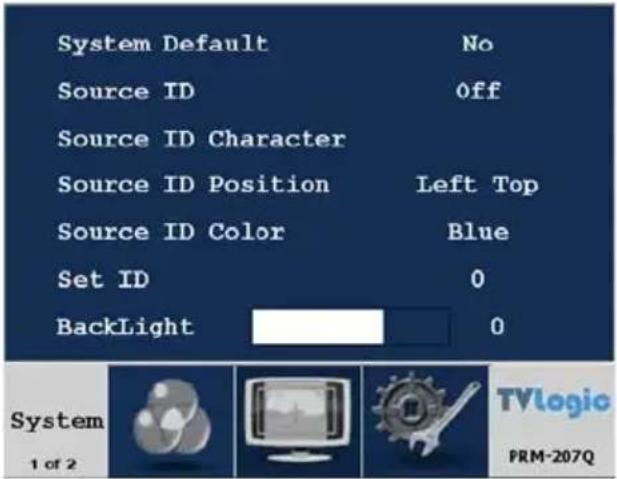
- System Default (Default Setting – No)
User can use the System Default Menu to initialize the values of the monitor.
- Source ID (To make active, off the Marker function)
This item is used to activate the Source ID display by selecting Manual(BG), Manual(Char), UMD(Small), UMD(Medium), or UMD(Large).
-This function is only available in same Set ID with UMD controller's.
- Source ID Character
This item is used to customize the Source ID display. (A\~Z, a\~z, 0\~9, and special characters).
-This function is only available if the Source ID is selected on Manual.
- Source ID Position (Default Setting – Left Top)
This item controls the position of the Source ID display. (Top-Left, Top-Center, Top-Right, Bottom-Right, Bottom-Center, Bottom-Left)
-This function is only available if the Source ID is selected on Manual.
- Source ID Color (Default Setting – Blue)
This item is used to change the color of Source ID display by selecting blue, white, red, green, black, or yellow.
- Set ID (Default Setting - 0)
This item controls the Set ID settings for Dynamic UMD. The value should be within range between 0 and 126.
· Back Light
This item controls the LED backlight setting. The value should be within ranges between MIN(0) and MAX(50).
[4] MAIN - System [page2]

· Blue & Mono
You may remove R(red) and G(green) from the input signal and show the image only with a B(blue) signal. Menu may be set to 'Mono' to change the screen to MONO mode. (This mode uses only the Luminance value)
- Scan
This item controls the transition from OVER SCAN mode to ZERO SCAN mode. Mode changes in the order of Zero Scan -> Over Scan -> Pixel To Pixel -> Zero Scan. -In Pixel To Pixel mode, the Marker Feature and Menu are disabled automatically. -In Pixel To Pixel mode, pressing the Enter button rotates the position of display.
- Aspect Ratio
This item toggles aspect ratio in SD from standard to anamorphic. -SD Signal only (Disables automatically in any other signal including No signal)
· HV Delay
This item activates the HV Delay mode. -In HV Delay mode, Marker Feature and Menu are disabled automatically.
- Firmware Version
This item is the firmware version of the system.
· License
Licensed by Postium Korea.
Other Functions
[1] Line Marker
· A line marker which is enabled by default, displays aspect lines with the input signal.
- To display the [Line Marker] mode, use the [UP]/[DOWN] buttons to select aspect lines as below.

[2] PIXEL TO PIXEL
- Pixel to Pixel mode in PRM-207Q monitor displays the input signal without scaling the image.
- To activate the [Pixel to Pixel] mode, access the Scan Menu in System Menu and select [Pixel to Pixel].
- In the [Pixel To Pixel] mode, use the [UP]/[DOWN] buttons to toggle between 1:1 scan sections.
![Postium PRM-207Q - [2] PIXEL TO PIXEL - 1](/content/2026/06/1229428/images/8797bf7140940fdb8b0c506f472ef3550462e71d3cd2708cca674ab8970ce85e.jpg)
flowchart
graph TD
    A["Input Action"] --> B Button Available Modes
    C["HD 1080i / 1080p"] --> D["UP"]
    D --> E["Center --> Left-Top --> Mid-Top --> Right-Top --> Right-Mid --> Right-Bottom --> Mid-Bottom --> Left-Bottom --> Left-Mid --> Center --> ..."]
    C --> F["DOWN"]
    F --> G["Center --> Left-Mid --> Left-Bottom --> Mid-Bottom --> Right-Bottom --> Right-Mid --> Right-Top --> Mid-Top --> Left-Top --> Center --> ..."]
    H["- OSD change"] --> I["Left Top"]
    H --> J["Mid Top"]
    H --> K["Right Top"]
    H --> L["Left Mid"]
    H --> M["Center"]
    H --> N["Right Mid"]
    H --> O["Left Bot"]
    H --> P["Mid Bot"]
    H --> Q["Right Bot"]
| Input Action Button Available Modes | ||
| HD 720p | [UP](Clockwise) | Center -> Left-Top -> Right-Top -> Right-Bottom ->Left-Bottom -> Center -> ... |
| [DOWN](Opposite) | Center -> Left-Bottom -> Right-Bottom -> Right-Top ->Left-Top -> Center -> ... | |
- OSD change![Postium PRM-207Q - [2] PIXEL TO PIXEL - 2](/content/2026/06/1229428/images/dd151ce3b6abe537168c19fe1d0bed0d9d9ae4ad007efbdfeb67e02c86aa81e1.jpg) | ||
- Pixel To Pixel mode is not available in Graphic mode.
-
Pixel To Pixel mode is available in SD mode, but 1:1 sections cannot be rotated through as with HD sources.
-
Positions in HD Signal 1080i/1080p mode
![Postium PRM-207Q - [2] PIXEL TO PIXEL - 3](/content/2026/06/1229428/images/3396ad576fa89122e8e97fa1018fb30bb50e472c03835f703bac75ede7c9a9fc.jpg)
flowchart
graph TD
    A["Center"] -->|[UP]/[DOWN]| B["Left-Top"]
    B --> C["Mid-Top"]
    C --> D["Right-Mid"]
    D --> E["Right-Bottom"]
    E --> F["Left-Bottom"]
    F --> G["Left-Mid"]

    subgraph Step1
        A -->|[UP]/[DOWN]| B
        B -->|[UP]/[DOWN]| C
    end

    subgraph Step2
        D -->|[UP]/[DOWN]| E
        E -->|[UP]/[DOWN]| F
    end

    style A fill:#ccc,stroke:#333
    style B fill:#ccc,stroke:#333
    style C fill:#ccc,stroke:#333
    style D fill:#ccc,stroke:#333
    style E fill:#ccc,stroke:#333
    style F fill:#ccc,stroke:#333
    style G fill:#ccc,stroke:#333
- Position in HD Signal 720p mode
![Postium PRM-207Q - [2] PIXEL TO PIXEL - 4](/content/2026/06/1229428/images/16d0f7be62391661cc3449d540db4eabd1d4c339bb2f496993e46958e025b243.jpg)
flowchart
graph TD
    A["Center"] <-->|[UP]| B["Left-Top Right-Top"]
    B <-->|[UP]| C["Left-BottomRight-Bottom"]
    C <-->|[UP]| D["Down"]
    D <-->|[UP]| E["Down"]
[3] Source ID
| Manual (BG) Manual (Char) | |
| UMD (Small) UMD (Medium) | |
![Postium PRM-207Q - [2] PIXEL TO PIXEL - 5](/content/2026/06/1229428/images/ccaab8e572a2d678f355716172a01516d600fe8f0631b8b5b417b14705b6b8af.jpg)
bar
UMD (Large) UMD Usage Example | Category | UMD Usage Example | |---|---| | Yellow Bar | 100 | | Light Blue Bar | 95 | | Green Bar | 90 | | Purple Bar | 85 | | Red Bar | 80 | | Blue Bar | 75 | | Black Bar | 70 | | Grey Bar | 65 | | Light Grey Bar | 60 | | Green Grey Bar | 55 | | Dark Grey Bar | 50 | | Grey Grey Bar | 45 | | Light Grey Grey Bar | 40 | | Green Grey Grey Bar | 35 | | Dark Grey Grey Bar | 30 | | Grey Grey Grey Bar | 25 | | Light Grey Grey Grey Bar | 20 | | Green Grey Grey Grey Bar | 15 | | Dark Grey Grey Grey Grey Bar | 10 | | Grey Grey Grey Grey Grey Bar | 5 | | Light Grey Grey Grey Grey Bar | 0 | | Green Grey Grey Grey Grey Bar | 0 | | Dark Grey Grey Grey Grey Grey Bar | 0 | | Grey Grey Grey Grey Grey Grey Bar | 0 | | Light Grey Grey Grey Grey Grey Bar | 0 | | Green Grey Grey Grey Grey Grey Bar | 0 | | Dark Grey Grey Grey Grey Grey Bar | 0 | | Grey Grey Grey Grey Grey Grey Bar | 0 | | Light Grey Grey Grey Grey Grey Bar | 0 | | Green Grey Grey Grey Grey Grey Bar | 0 | | Dark Grey Grey Grey Grey Grey Bar | 0 | | Grey Grey Grey Grey Grey Grey Bar | 0 | | Light Grey Grey Grey Grey Grey Bar | 0 | | Green Grey Grey Grey Grey Gray Bar | 0 | | Dark Grey Grey Grey Grey Gray Bar | 0 | | Grey Grey Grey Grey Grey Gray Bar | 0 | | Light Grey Grey Grey Grey Gray Bar | 0 | | Green Grey Grey Grey Gray Gray Bar | 0 | | Dark Grey Grey Grey Gray Gray Bar | 0 | | Grey Grey Grey Grey Gray Gray Bar | 0 | | Light Grey Grey Grey Gray Gray Bar | 0 | | Green Grey Grey Gray Gray Gray Bar | 0 | | Dark Grey Grey Gray Gray Gray Bar | 0 | | Grey Grey Grey Gray Gray Gray Bar | 0 | | Light Grey Grey Grey Gray Gray Bar | 0 | | Green Grey Grey Gray Gray Gray Bar | 0 | | Dark Grey Grey Gray Gray Gray Bar | 0 | | Grey Grey Blue Gray Bar | 0 | | Light Blue Bar | 95 | | Green Bar | 90 | | Purple Bar | 85 | | Red Bar | 80 | | Blue Bar | 75 | | Black Bar | 70 | | Dark Blue Bar | 65 | | Green Blue Bar | 60 | | Dark Blue Bar | 55 | | Dark Blue Bar | 50 | | Dark Blue Bar | 45 | | Dark Blue Bar | 40 | | Dark Blue Bar | 35 | | Dark Blue Bar | 30 | | Dark Blue Bar | 25 | | Dark Blue Bar | 20 | | Dark Blue Bar | 15 | | Dark Blue Bar | 10 | | Dark Blue Bar | 5 | | Dark Blue Bar | 0 | The chart displays the values for 'UMD Usage Example' and 'UMD Usage Example' in the top section. The 'UMD Usage Example' is labeled above the chart. The 'UMD Usage Example' contains the corresponding color names and the corresponding numerical values.· Source ID Position (Manual Only)

- Source ID Color
| Blue | White | Red | Green | Black | Yellow |
| CAM-1 | CAM-1 | CAM-1 | CAM-1 | CAM-1 | CAM-1 |
System Default Value
| MENU VALUE | ||
| Color | Color Temp | 6500K |
| Gain RED (1/2/3) | 0 | |
| Gain GREEN (1/2/3) | 0 | |
| Gain BLUE (1/2/3) | 0 | |
| Bias RED (1/2/3) | 0 | |
| Bias GREEN (1/2/3) | 0 | |
| Bias BLUE (1/2/3) | 0 | |
| Color Copy | 6500K | |
| Marker | Marker | On |
| Line Marker | Off | |
| Center Marker | Off | |
| Safety Area | Off | |
| System [Page1] | System Default | No |
| Source ID | Off | |
| Source ID Character | C A M - 1 | |
| Source ID Position | Left Top | |
| Source ID Color | Blue | |
| Set ID | 0 | |
| Back Light | different for each set | |
| System [Page2] | Blue & Mono | Off |
| Scan | Zero Scan | |
| Aspect Ratio | 16:9 | |
| HV Delay | Off | |
Product Specification
| Input (1 Screen)* | 1 x BNC | SDI 2 Channel Input |
| Output (1 Screen)* | 1 x BNC | SDI Output (Active Through Out) |
| Input Signal* | HD-SDI | 1.458Gbps |
| SD-SDI | 270Mbps | |
| SDI Input Signal Formats* | SMPTE-274M | 1080i (60/59.94/50) |
| 1080p (30/29.97/25/24/24sF/23.98/23.98sF) | ||
| SMPTE-296M | 720p (23.98/24/25/29.97/30/50/59.94/60) | |
| SMPTE-260M | 1035i (60/59.94) | |
| SMPTE-125M | 480i (59.94) | |
| ITU-R BT.656 | 576i (50) | |
| 2K Format | 2048 x 1080 (23.98psf/24psf/23.98psf/24p) | |
| LCD* | Size | 2 Inch |
| Resolution | 960 x 540 (16:9) | |
| Pixel Pitch | 0.0465(H) x 0.0465(V)mm | |
| Color | 16.7M(true), 24bit | |
| Viewing Angle | H : 100 degrees | |
| V : 100 degrees | ||
| Luminance of White | 250 cd/m2(Center) | |
| Contrast | 200:1 | |
| Display Area | 44.64 (H) x 25.11 (V)mm | |
| Power | 12V DC/Max4.2A | |
| Power Consumption (Approx.) | 50.4 Watts(DC) | |
| Operating Temperature | -5°C to 40°C (32°F to 104°F) | |
| Storage Temperature | -30°C to 50°C (-22°F to 122°F) | |
| Main Body Dimensions (mm/inch) | 445(W) x 225(L) x 44.8(H) mm | |
| Weight | 4kg, 8.8083 lb (net without AC/DC Adaptor) | |
| Accessory | DC Power Adapter | |
| Option | 19" Rack Mountable Kit (1U) | |
· All specifications are subject to change without notice.
* Specification is for (1) screen out of 7 display screens.


- PRM-207Q
- Contents
- Warning
- FCC (Federal Communications Commission)
- Disposal of Old Electrical & Electronic Equipment
- (Applicable in the European Union and other European countries with separate collection systems)
- Features
- Multi-Format PRM-207Q Rack Monitor Contains the following features :
- Feature Name & Functions
- OSD Menu Organization & Adjustment
- - Marker (Default Setting – On)
- · Line Marker (Default Setting – Off)
- - Center Marker (Default Setting – Off)
- · Safety Area (Default Setting – Off)
- - System Default (Default Setting – No)
- - Source ID (To make active, off the Marker function)
- - Source ID Character
- - Source ID Position (Default Setting – Left Top)
- - Source ID Color (Default Setting – Blue)
- - Set ID (Default Setting - 0)
- · Back Light
- [4] MAIN - System [page2]
- · Blue & Mono
- - Scan
- - Aspect Ratio
- · HV Delay
- - Firmware Version
- · License
- Other Functions
- [1] Line Marker
- [2] PIXEL TO PIXEL
- System Default Value
Brand : Postium
Model : PRM-207Q
Category : Tracking