
OBM-N070 - Tracking Postium - Free user manual and instructions
Find the device manual for free OBM-N070 Postium in PDF.


| Product Type | Professional Video Monitor |
| Model | OBM-N070 |
| Display Size | 7 inch |
| Panel Resolution | 1920 x 1080 (16:9) |
| Color Depth | 1.064 billion colors (8bit+2bit FRC) |
| Brightness | 600 cd/m² |
| Contrast Ratio | 800:1 |
| Viewing Angle | 170° horizontal / 170° vertical |
| Input Interfaces | 2x 3G/HD/SD-SDI, 1x HDMI, 1x Component (YPbPr), 1x Composite (CVBS) |
| Output Interfaces | 2x 3G/HD/SD-SDI loopout, 1x HDMI loopout |
| Audio Input | Line in (stereo mini-jack) |
| Audio Output | Headphone (front), 2x built-in speakers |
| Power Supply | DC 12V, 1.5A |
| Power Consumption | 18W |
| Operating Temperature | 0°C to 40°C |
| Dimensions (with stand) | 191 x 139 x 40 mm |
| Weight | 1.6 kg |
| HDR Support | PQ (ST 2084), Hybrid Log Gamma, S-Log3 |
| Advanced Video Analysis | Waveform, VectorScope, Audio Level Meter, Focus Assist |
| False Color Modes | Zebra, ARRI, Variable |
| 3D LUT Import | Yes, via USB (up to 65x65x65 cube files) |
| Remote Control | Ethernet, RS-422, GPI (RJ-45) |
| Firmware Update | via USB |
| Markers | Aspect (various), Center, Area, adjustable color and thickness |
| Cleaning | Use mild neutral detergent |
Frequently Asked Questions - OBM-N070 Postium
User questions about OBM-N070 Postium
0 question about this device. Answer the ones you know or ask your own.
Ask a new question about this device
Download the instructions for your Tracking in PDF format for free! Find your manual OBM-N070 - Postium and take your electronic device back in hand. On this page are published all the documents necessary for the use of your device. OBM-N070 by Postium.
USER MANUAL OBM-N070 Postium
Professional Video Monitor
HDR

natural_image
Digital video player monitor displaying a colorful child wearing a colorful hat, mounted on a stand (no visible text or symbols)

natural_image
Digital display of a colorful, horned child wearing a rainbow hat, displayed on a stand (no visible text or symbols)Operational Instructions
OBM-N070
OBM-N090
OBM-N101
Table of Contents
- Precaution 3
- Main Features 5
- Location and Function of Parts and Controls
Front Panel 6
Rear Panel 8 - Using the Menu 11
- Adjustment Using the Menus 12
- OSD Menu Operations
Status Menu 14
Color Temp/Color Space/Gamma Menu ---- 15
Camera Assist Menu 17
User Configuration Menu 18
Remote Menu 22
Security Menu 23 - Available Signal Formats 24
- Key Functions 25
- Product Specifications 31
1. Precaution
Always use set voltage.
DC 12V
All these instructions should be read and understood before operating the unit.
If liquid is spilled on or impacts this product, please disconnect the product immediately and seek professional help before continued use.
Unplug the product from the wall outlet if it is not to be used for several days or more.
Keep the product in a well-ventilated place to prevent overheating.
Do not install the product near any heat-generating equipment. Also, keep the product out of direct sunlight or dusty areas.
Protect the power cord from being walked on or pinched particularly at plugs, convenience receptacles, and the point where they exit from the apparatus.
When using other DC 12V adapters instead of the standard adapter provided by the manufacturer, please check the proper load capacity or current capacity and use an adapter with stable voltage.
Do not overload AC outlets or extension cords. Overloading can cause fire or electric shock.
A very small proportion of pixels may be stuck, either always off (black), always on (red, green, or blue), or flashing. In addition, over a long period of use, because of the physical characteristics of the liquid crystal display, such stuck pixels may appear spontaneously. These problems are not a malfunction.
If a fixed picture such as a frame of a divided picture or time code, or a still picture is displayed for a long time, an image may remain on the screen and be superimposed as a ghosting image.
The permanent burn-in may occur for LCD panel if still images are displayed in the same position on the screen continuously, or repeatedly over extended periods.
To reduce the risk of burn-in,
a. Turn off the character displays.
b. Turn off the power when not in use.
c. Turn off the power if the monitor is not to be used for a prolonged period of time.
Do not attempt to service the product yourself. Removing covers can expose you to high voltage and other dangerous conditions. Request a qualified service person to perform servicing.
When the product needs replacement parts, make sure that the service person uses replacement parts specified by the manufacturer, or those with the same characteristics and performance as the original parts. Use of unauthorized parts may result in fire, electric shock and/or other danger.
Only clean the product with a noncommercial, mild and neutral detergent.
Do not throw away the carton and packing materials. When transporting the product, make use of its original packaging for safer carriage.
FCC (Federal Communications Commission)
This equipment has been tested and found to comply with the limits for class A digital device, pursuant to part 15 of the FCC Rules. These limits are designed to provide reasonable protection against harmful interference when the equipment is operated in a commercial environment. This equipment generates, uses, and can radiate radio frequency energy, and if not installed and used in accordance with the instruction manual, may cause harmful interference to radio communications. Operation of this equipment in a residential area is likely to cause harmful interference in which case the user will be required to correct the interference at his own expense.
Warning!!: Changes or modifications not expressly approved by the manufacturer could void the user's authority to operate the equipment.
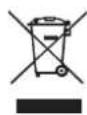
Disposal of Old Electrical & Electronic Equipment
(Applicable in the European Union and other European countries with separate collection systems)
This symbol on the product or on its packing indicates that this product shall not be treated as household waste. Instead it shall be handed over to the applicable collection point for the recycling of electrical and electronic equipment. By ensuring this product is disposed of correctly, you will help prevent potential negative consequence for the environment and human health, which could otherwise be caused by inappropriate waste handling of this product. The recycling of materials will help to conserve natural resources.
2. Main Features
The OBM N series offers the superior picture quality and wide viewing angle, and includes an array of professional features and the advanced audio & video signal analysis functions including Waveform, Vector Scope, Audio Level Meter, IMD, Camera Log Selection, Custom 3D LUT Import, Focus Assist, etc. The OBM N series are equipped with various I/O interfaces such as 3G-SDI, HDMI, Component, Composite.
- 3G/HD/SD-SDI 2 Channel
- HDR(High Dynamic Range) Display supporting PQ EOTF(ST 2084), Hybrid Log Gamma, S-Log3
- 3D-LUT for Accurate Color Reproduction
- 1.064 Billion Colors
- Camera Log Conversion
- Camera Log Mapped SDI Loopout
- Custom 3D LUT File Import Through USB
- Gamma Selection (1.0 \~ 3.0)
- Color Temperature(3200K, 5500K, 6500K, 9300K, USER 1/2/3, D-CINEMA)
- HDR & Camera log Compare (Side by Side, Wipe Position)
- Waveform, VectorScope (Wave + Vector, Waveform Wide, Position Change, Size Adjustment)
- Monitor Control via Ethernet, RS-422
- Various Markers (EBU, 4:3, 16:9, 1.85:1, 2.35:1, Variable etc.)
- Internal Patterns Display for Color Test (Black \~ 100%, Color Bar)
- Easy Firmware Update by USB
- Fast Mode
- Focus Assist
- False Color (Zebra, False Color ARRI, False Color Variable)
- False Color Comparison
- Gamut Error
- HDR Waveform
- Zero Scan / 1:1 Scan
- H/V Delay
- Blue/Mono Only
- Time Code Display (Position/Size Selection)
- IMD (TSL V3.1/V5.0)
- De-embedded 8\~16ch Audio Level Meter
- Remote Control via GPI(RJ-45) Port
- 3 Color TALLY Lamp
- External Tally Support
- Rack & VESA Mount (Option)
- Closed Caption(608, 708)
- System Data Copy
- Key Lock & Password Lock
- Aspect
- Freeze
3. Location and Function of Parts and Controls
Front Panel
OBM-N070

OBM-N090/N101

A : Input select Buttons/Lamp
Press to monitor the signal input to each connector.
[SDI] Button/Lamp (OBM-N070)
- Press the button to select SDI input.
- Mode changes in the order of [3G SDI-A], [3G SDI-B].
[SDI-A] Button/Lamp (OBM-N090)
- Press the button to select 3G SDI-A input.
[SDI-B] Button/Lamp (OBM-N090)
- Press the button to select 3G SDI-B input.
[ANALOG] Button/Lamp
- Press the button to select Analog Input.
- Mode changes in the order of [Composite], [Component].
[DIGITAL] Button/Lamp
- Press the button to select Digital input.
- Mode changes in the order of [HDMI], [DVI].
B : F1 \~ F5 Button/Lamp
Press to adjust or turn on/off the assigned function.
The following functions are assigned at the factory.
[F1]: HDR&Cam.Log Compare
[F2]: H/V Delay
[F4]: Audio Level Meter (N090)
[F5]: Time Code (N090)
[F3]: Color Temp
C : Function Button/Lamp
Press to adjust or turn/off each function.
[SCAN] Button - Press the button to adjust the scan mode. (Zero Scan, 1:1 Scan).
[ASPECT] Button - Press the button to select the Aspect Ratio of the signal.
- Mode changes in the order of [16:9], [4:3], [2.35:1], [1.85:1], [15:9], [16:10], [AUTO].
[MARKER] Button
- Press the button to activate and deactivate the Marker.
[BLUE ONLY] Button
- Press the button to activate and deactivate the Blue Only function.
- You may remove R(red) and G(green) from the input signal and display the screen only with B(blue) signal. This function is convenient to adjust Chroma and Phase and to observe the signal noise.
- The button may be pressed twice to change the screen to MONO mode.
(This mode uses only Luminance value.)
[KEY LOCK] Button - Press the button to lock all buttons except Power.
D : Rotary Encoder
[BRIGHT] knob
Press this knob to display the adjustment screen and adjust the picture brightness. Press again to hide the adjustment screen. Turn the knob right to increase the brightness and turn left to decrease it.
[CONTRAST] knob
Press this knob to display the adjustment screen and adjust the picture contrast. Press again to hide the adjustment screen. Turn the knob right to increase the contrast and turn left to decrease it.
[CHROMA] knob
Press this knob to display the adjustment screen and adjust the color intensity. Press again to hide the adjustment screen. Turn the knob right to increase the color intensity and turn left to decrease it.
[APERTURE] knob
Press this knob to display the adjustment screen and adjust the picture sharpness. Press again to hide the adjustment screen. Turn the knob right to make the picture sharper and turn it left to make the picture softer.
E : Menu Operation Buttons
Displays or sets the on-screen menu.
[MENU/RETURN]
- Activates and deactivates the display of the Main Menu.
- When the on-screen menu is not displayed, if this button is pressed the main menu is displayed. When the menu is displayed, press the button to return to the previous menu.
[SEL/VOL] knob (Menu selection control)
- When the menu is displayed, turn the knob to select a menu item or a setting value, and then press the knob to confirm the setting.
- If this knob is pressed when the menu is not displayed, the adjustment screen of [VOLUME] is displayed to adjust the audio volume.
- Press this knob to change the modes in the order of [Focus Frequency], [Zebra Level], [Line Position], [Variable Marker] and adjust each mode's value.
[Focus Frequency]: When Focus Assist function is activated, this mode is displayed.
[Zebra Level]: When Zebra function is activated, this mode is displayed.
[Line Position]: When WFM/Vector function and Line Select function is activated, this mode is displayed.
[Variable Marker]: When Marker function is activated and Aspect Marker is set Variable, this mode is displayed.
F : ⏻ (Standby) Switch and Indicator
- Press to turn the power on when this monitor is in standby mode. After being turned on, the monitor performs initialization and the indicator flashes in green.
- Press the switch again for a second to set the monitor in standby mode. Then, the indicator flashes in orange and then turns red. The indicator in orange means that the monitor goes into the standby mode.
When the indicator flashes in orange, this button doesn't work.
G : 📋 (headphone) Jack and USB connector
Headphone Jack
- The audio signal which is selected using the input select button is output in stereo sound.
- When SDI signals are input, the audio signals of the channels selected with SDI Audio Setting in the User Configuration menu are output.
- When the headphone is connected to the jack, audio signals will not be output from speskers.
[USB] Connector
- To update CPU, GPU, FPGA program.
- To connect the monitor with the Color Calibration program provided by the manufacturer and perform the color calibration.
- To connect the monitor with the control program provided by the manufacturer and control functions remotely.
- To impot the custom 3D LUT file(*.cube, 32^3, 33^3, 64^3 and 65^3).
H : IR Receiver (OBM-N090)
- Receives signals from the remote control.
Rear Panel
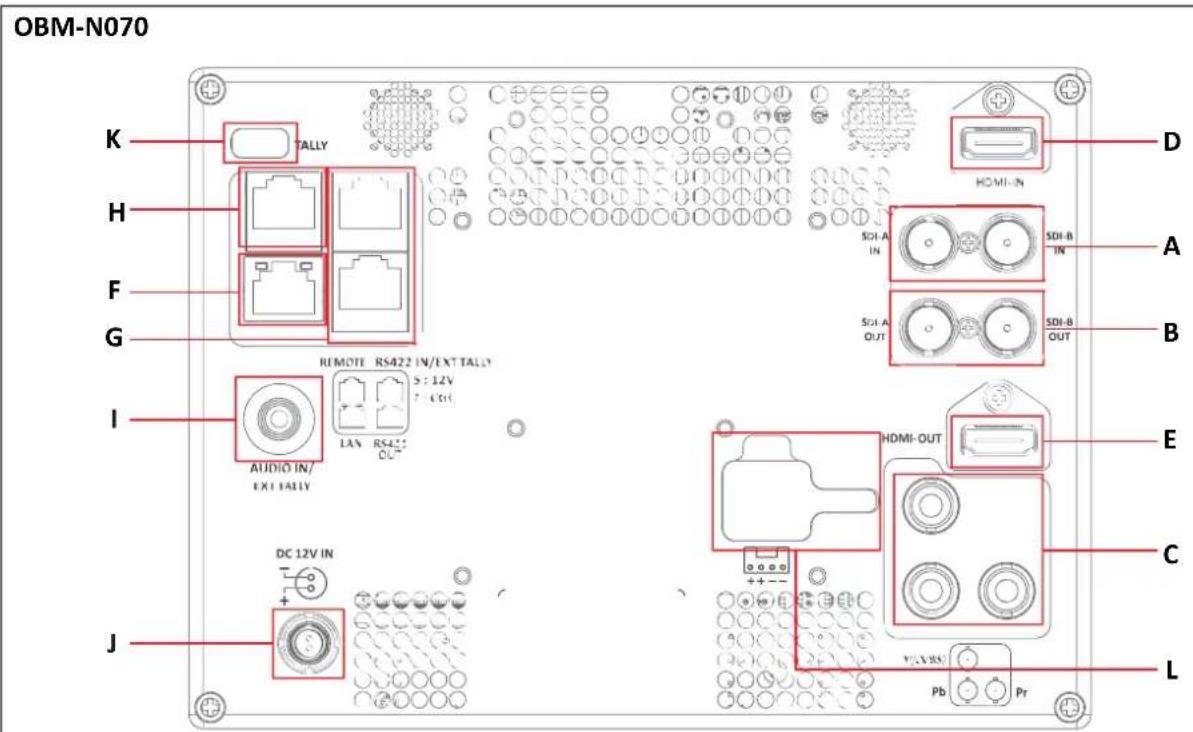

A : SDI IN (SDI Input) connectors (BNC)
Input connectors for SDI signals.
B : SDI OUT (SDI Output) connectors (BNC)
Output connectors for SDI signals.
Each connector outputs the signal which is input to the corresponding SDI IN connector.
**Note - Output is activated only when the power is on. Output is not activated in standby mode.
**When the input is SDI, the SDI signal is output. When the input is HDMI, the HDMI signal is converted and then output.
C : Analog Input connectors
Input connectors for analog signals (CVBS, Component).
D : HDMI Input connectors
Input connectors for HDMI signals.
E : HDMI Output connector
Output connector for HDMI signals.
F : PARALLEL REMOTE connector(RJ-45, 8-pin)
Forms a parallel switch and controls the monitor externally.
**Note - For safety, do not connect the connector for peripheral device wiring that might have excessive voltage to this port. Follow the instructions about this port.
[Pin Assignment]
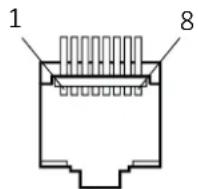
Functions can be changed in [Remote] section of the menu.
| Pin Number Function | |
| 1 | 3G SDI-A |
| 2 | 3G SDI-B |
| 3 | Analog |
| 4 | HDMI |
| 5 | Zero Scan |
| 6 | 1:1 Scan |
| 7 | Power |
| 8 | GND |
G : SERIAL REMOTE IN/OUT connector (RJ-45)
Used for the future function expansion.
Connects the monitor to control the program provided by the manufacturer by using RS-422/485 communication or the external UMD(IMD) equipment and controls the monitor.
H : LAN(10/100) IN/OUT connector
Used for the future function expansion.
Connects to the LAN (10/100) connector of the network by using 10BASE-T/100BASE-TX LAN cable.
A daisy chain connection using the LAN input/output connectors enables the control of multiple monitors in sequence.
I: AUDIO IN connector (Stereo mini jack)
Connector for analog audio input.
Analog input can be selected with SDI Audio Setting in User Configuration menu.
J : DC IN terminal
Battery Power Input terminal for DC 12V.
* Rated Power Input : DC 12V (OBM-N070 : 1.5A, OBM-N090 : 2A)
When using a DC Adapter other than the one supplied by the manufacturer, please be advised that the adapter with DC 12V/3A \~ 6A can be compatible with the monitor.
OBM-N070
OBM-N090
DC IN Socket
1 : GND
2:+12V

DC IN Socket
1:GND
4: +12V

K : Rear Tally
- Activates same as the Front Tally.
- Tally color can be selected in Green or Red using Serial Remote, Parallel Remote, or Network.
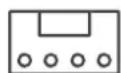
L : Battery In
- Battery Power input (OBM-N070 only): DC 6.8 \~ 12V
++--
4. Using the Menu
This monitor is equipped with an OSD menu to make various adjustments and settings such as picture control, input setting, set setting change, etc.
1. Press the MENU button.
The menu appears.
The menu presently selected is shown in gray.
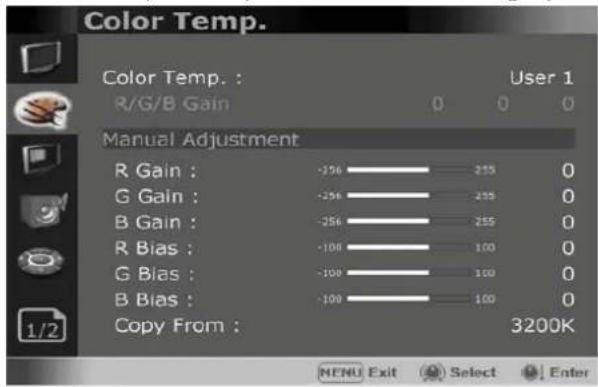
2. Turn SEL/VOL knob to select a menu, then press the knob.
The menu icon presently selected is shown highlighted

3. Select an item.
Turn the SEL/VOL knob to select the item, then press the knob.
The item to be changed is shown highlighted, and the sub menu is displayed on the right.
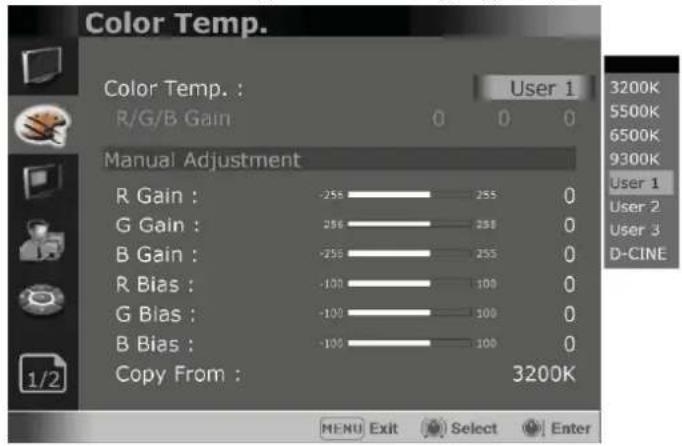
4. Make the setting or adjustment on an item.
How to change the adjustment level:
To increase the level, turn the SEL/VOL knob right.
To decrease the level, turn the SEL/VOL knob left.
How to change the setting:
Turn the SEL/VOL knob to change the setting, then press the knob to confirm the setting.
**Note - An item displayed in gray cannot be accessed. The item is accessible if it is displayed in white.
To return the display to the previous screen:
Press the MENU button.
To clear the menu:
Press the MENU button.
5. Adjustment Using the Menus
The OSD menu of this monitor consists of the following items.

Status menu (To indicate the current settings)
Format
Color Temp
Brightness
Contrast
Chroma
Aperture
Color Space
Gamma
User Preset
RGB Range
Back Light
WFM/Vector
Audio Level Meter
Focus Assist
Time Code
Volume
SDI Input
SDI Payload ID
Identifier
Sampling
Picture Rate
Scanning Method
Bit Depth
Link Assignment
Model Name
Serial Number
Board Version
Operation Time
Last Calibration Time

Color Temp./Color Space/Gamma menu
Color Temp. —— R/G/B Gain
Manual Adjustment — R Gain
R Gain
G Gain
B Gain
R Bias
G Bias
B Bias
Copy From
Color Space
OBM-HDR——Type
Gamma
Gamma Log — Default Log Sel.
User Log Sel.
Back Light
HDR&Cam.Log Comparison
Wipe Position

Camera Assist menu
Zebra & False Color
Zebra Level Adjustment
Zebra Range
Variable White Clipping
Variable Pink Level
Variable Green Level
Variable Black Clipping
False Color Comparison
Wipe Position
Focus Assist
Color
Frequency
Gamut Error
Type
Color Space
Y Maximum
Y Minimum
Chroma Maximum
Chroma Minimum
RGB Maximum
RGB Minimum

User Configuration menu
User Preset Setting — Load Save
Function Button Setting
F1 Button
F2 Button
F3 Button
F4 Button(OBM-N090 only)
F5 Button(OBM-N090 only)
Input Setting — 3G Signal Format RGB Range
Output Setting
Camera Log Mapped SDI Loopout
Speaker Out / Audio Level Meter Setting
SDI Left Speaker Out
SDI Right Speaker Out
HDMI L/R Speaker Out
Audio Level Meter
Display
Reference
Size/Transparency
Peak Hold Time
Display Type
Marker Setting
Marker
Aspect Marker—Variable Aspect
Center Marker
Area Marker
Color
Aspect Mat
Fit
Thickness
WFM/Vector Setting
WFM/Vector Type
Type
Intensity
Transparency
Color
Line Select
Line Position
Position
Size
Closed Caption Setting — Closed Caption
Fast Mode Setting | Fast Mode | Type 708 608
System Setting—Internal Pattern Key LED OSD Time OSD position System Data
Time Code
Time Code Position/Size

Remote menu
|Parallel Remote
1 Pin
2 Pin
3 Pin
4 Pin
5 Pin
6 Pin
7 Pin
8 Pin
Monitr ID
In-Monitor Display Setting
IMD Type
Transparency
Text Color
Left Tally Color
Right Tally Color
Network Setting
DHCP
IP Address
Subnet Mask
Gateway
Port No.

Security Setting
Key Lock
Password
User Parameter Lock
Change Password
6. OSD Menu Operations

Status Menu
The Status menu displays the current status of the monitor. The following items are displayed.
Page 1/4

Format
Color Temp
Brightness
Contrast
Chroma
Aperture
Color Space
Gamma
Page 2/4
![Status Status 2/4 User Preset User 1 RGB Range Limited Back Light 50 WFM/Vector WFM Audio Level Meter 16Ch [G1~G4] Focus Assist Off Time Code VITC Volume 15 MENU Exit Select Enter](/content/2026/06/1225542/images/6e522a44aa2bd723126a8ba93505bec67368c87a486ca413c92b67f082121028.jpg)
User Preset
RGB Range
Back Light
WFM/Vector
Audio Level Meter
Focus Assist
Time Code
Volume
Page 3/4
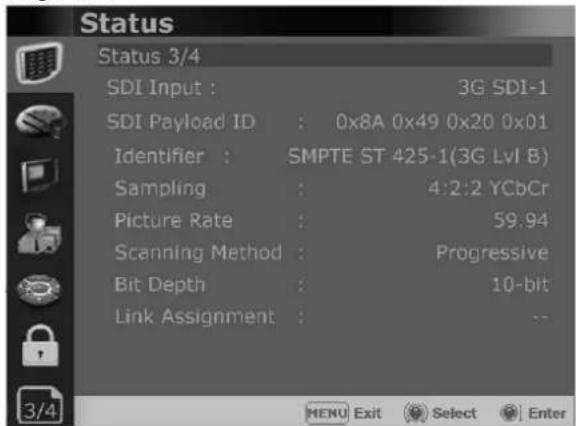
SDI Input
SDI Payload ID
Identifier
Sampling
Picture Rate
Scanning Method
Bit Depth
Link Assignment
*** When the SDI signal is connected, these items are displayed.
Page 4/4
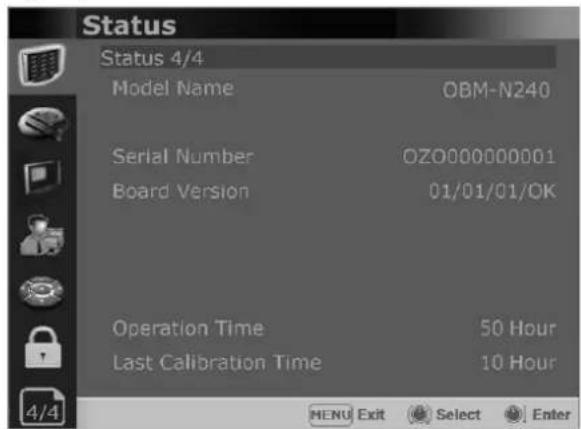
Model Name
Serial Number
Board Version
Operation Time
Last Calibration Time

Color Temp/Color Space/Gamma Menu
These menus are used for adjusting or setting the color temperature, color space or gamma of the picture.
Page 1/3
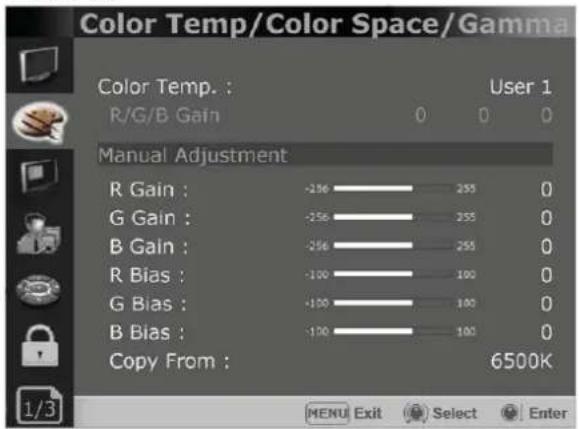
Color Temp
- Selects the color temperature from among [3200K], [5500K], [6500K], [9300K], [User1], [User2], [User3], [DCI-P3].
**Note - If Color Space is set to [DCI-P3], Color Temp. is fixed to [DCI-P3].
R/G/B Gain
- Displays the R/G/B Gain of the current Color Temperature.
Manual Adjustment
- If you set the Color Temp. to User 1/2/3, the item is changed from black to white, which means you can adjust the color temperature.
R/G/B Gain/Bias
- Adjusts the color balance(Gain, Bias).
Copy From
- The Gain and Bias data of each Color Temp. are restored to User adjustment.
Page 2/3
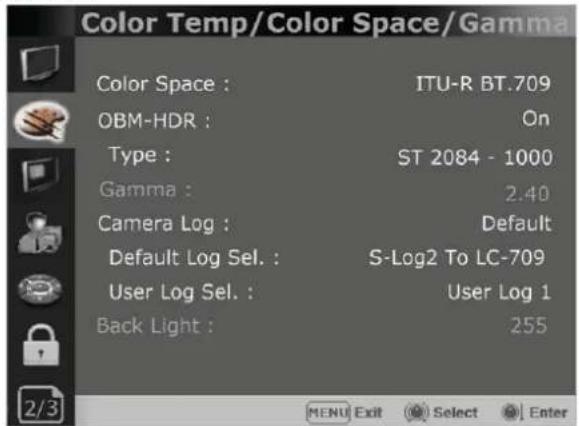
Color Space
- Selects the color space between [ITU-R BT.709], [Native].
OBM-HDR
Selects whether to enable or disable the OBM-HDR setting.
Type
Selects the mode of HDR gamma.
- ST 2084 -300 : This mode displays the absolute brightness up to 300 cd/m². So, the highlights over 300 cd/m² are clipped.
- ST 2084 -1000 : This mode displays the relative brightness up to 1000 cd/m². The part exceeding 1000 cd/m² is clipped.
- ST 2084 -10000 : The characteristics of LCD panel doesn't allow to produce the ideal brightness required by this standard, so the gamma is displayed in the relative brightness
- HLG - 0.98(300) (Hybrid Log Gamma) : This mode can be selected when the White is 300 cd/m² in HLG.
- HLG -1.0 / 1.1 / 1.2 / 1.3 / 1.4 / 1.5 : These modes allow the user to apply HLG from 1.0 up to 1.5.
- HLG -SG(1.2): HLG gamma is applied to 1.2 and then displayed in the absolute value up to 300cd / m^2 .
- S-Log3: Select the S-Log3(HDR) gamma.
Color Temp/Color Space/Gamma Menu
\*\*
1) OSD Menu of this mode is different, depending on each model's HDR maximum luminance.
HDR Maximum Luminance
OBM-N070 : 300 cd/m² OBM-N090 : 200 cd/m²
2) PQ and HLG gamma is different, depending on each model's luminance.
OBM-N070 : - ST 2804 -300 - HLG -0.98(300) OBM-N090 : - ST 2804 -200 - HLG -0.90(200)
Gamma
Selects the appropriate gamma mode from 1.00 to 3.00.
\*\*Note
- When the OBM-HDR is set Off, this menu becomes activated.
- When the color space is set to Native, this menu becomes deactivated.
Camera Log
Selects a camera log for the input signal.
[Off]: Sets off the camera log.
[Default]: The log which is selected in [Default Log Sel.] menu is applied.
[User]: The log which is selected in [User Log Sel.] menu is applied.
[Import Log Data]: Allows the user to save the Log LUT in USB memory stick to the monitor. The saved LUT can be used in User Log.
Default Log Sel.
Allows the user to select a camera log among C-Log, Log-C El 160\~3200, S-Log2 To LC-709, S-Log2 To LC-709TypeA, S-Log2 To Slog2-709, S-Log2 To Cine+709, S-Log2 To LC-709, S-Log3 To LC-709TypeA, S-Log3 To Slog2-709, S-Log3 To Cine+709, J-Log1.
User Log Sel.
Selects User Log 1 to 4.
\*\*Note
- If you insert the USB memory stick which contains the user log data to the monitor and push Enter in [Import Log Data] menu, the data is saved to the monitor.
- The file name of the user log data is displayed on the OSD up to 15 characters, and the log data file should be placed on the top folder of the USB memory stick.
Ex) If the file name is 'S-log3 to LC709_A.cube', it is displayed as 'S-log3 to LC709' on the OSD.
Back Light
- Adjusts the level of the back light level. If the back light value is increased, the screen becomes brighter.
** If the setting in Color Temp. menu and Color Space menu is changed, the value of Back Light returns to the default value of the color calibration in the factory.
Page 3/3

HDR&Cam.Log Comparison
Divides the screen side by side, applies HDR or Camera log on the left side, and compares the picture between the left side and the right side.
Wipe Position
Adjusts the boundary line of the left and right area. Allowed to adjust the boundary line by using the SEL/VOL knob.

Camera Assist Menu
Page 1/3
| [XCBX] | Zebra & False Color Setting | |
| Zebra&False Color : | False Color Variable | |
 | Zebra Level Adjustment : | 50 |
 | Zebra Range : | ±5% |
| Variable White Clipping : | 940 | |
 | Variable Pink Level : | 554 |
| Variable Green Level : | 432 | |
 | Variable Black Clipping : | 64 |
 | False Color Comparison : | On |
| Wipe Position : | 1920 | |
 | ||
Zebra & False Color
- Evaluates the Luma(Y') level of the input image. If the certain Y' level is set, the pixels with the designated Luma(Y') level are displayed in zebra pattern.
Zebra
Pixels with Y' level over 100% turn to red zebra pattern, and pixels with Y' level under 0% turn to green zebra pattern.
Zebra Level Adjustment
- Adjusts the Y' level as the user wants.
Zebra Range
- Adjusts the Y' level as the user wants
False Color ARRI
The color pattern is displayed with ARRI camera standard.
| Color | Level | Description |
| red | 99~100% | White clipping |
| yellow | 97~99% | Just below white clipping/white shoulder |
| pink | 52~56% | One stop over medium gray (Caucassian skin) |
| green | 38~42% | 18% neutral gray |
| blue | 2.5~4.0% | Just above black clipping/black slope |
| purple | 0~2.5% | Black clipping |
False Color Variable
This mode allows the user to adjust White clipping, Pink level, Green level, Black Clipping.
Variable White Clipping
- Adjusts White Clipping from 0 to 1023.
Variable Pink Level
- Adjusts Pink level from 0 to 1023.
Variable Green Level
- Adjusts Green level from 0 to 1023.
Variable Black Clipping
- Adjusts Black Clipping from 0 to 1023.
False Color Comparison
- Allows the user to divide the picture side by side and compare the original image on the left half and the False Color image on the right half.
Wipe Position
Adjusts the boundary line of the left and right area. Allowed to adjust the boundary line by using the SEL/VOL knob.
Page 2/3
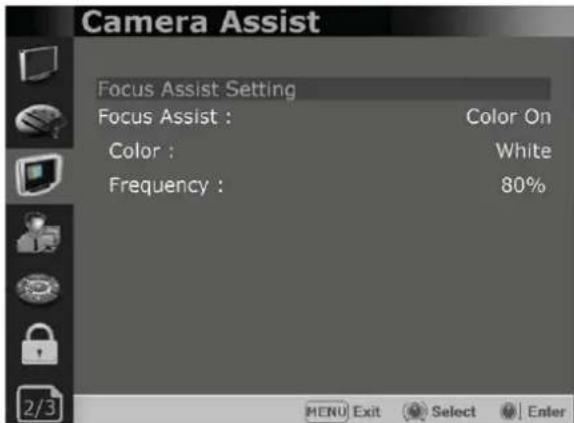
Focus Assist
- Controls the aperture level of a video signal and displays images on screen with sharpened edges to help camera focus operation.
Available types are [Color On] and [Mono On].
- [Color On]: The background image is the original color type.
- [Mono On]: The background image is the mono type.
Color
- Selects a color for Focus Assist among [RED], [Green], [Blue], [White], [Yellow], [Cyan], [Magenta].
Frequency
- Adjusts the edge difference level between the edges in an image.
- Available values are from 0% to 100%.

Camera Assist Menu
Page 3/3
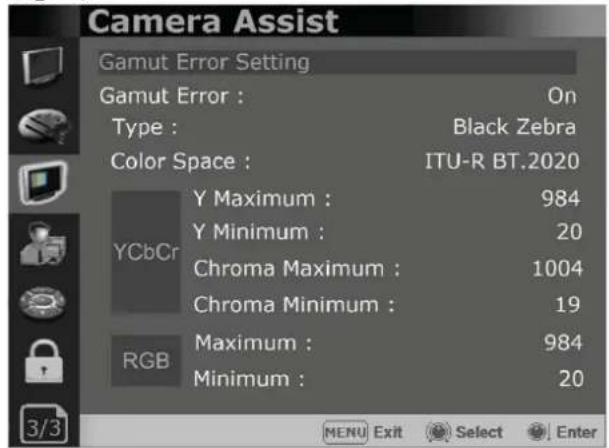
Gamut Error
Turns the Gamut Error [On]/[Off].
Zebra pattern or Color is displayed on the portion whose Y, Cb, Cr and R, G, B are out of the range of the adjusted values based on the color space selected in [Color Space].
Type
- Black Zebra: The portions outside of the adjusted values are displayed as Black Zebra.
- Black & White Zebra: The portions over Y Maximum, Chroma Maximum, RGB Maximum are displayed as Black Zebra, and the portions below Y Minimum, Chroma Minimum, RGB Minimum are displayed as White Zebera.
- Mono: The portions inside of the adjusted values are displayed as Mono, and the portions outside of the adjusted values are displayed as the color.
In this type, black and white area is not recognized.
Color Space
Selects the target color space among [ITU-R BT.601], [ITU-R BT.709], [ITU-R BT.2020].
- The default values of Y Maximum/Minimum, Chroma Maximum/Minimum, RGB Maximum/Minimum are in compliance with EBU R 103 standard. And, the values can be adjusted by the user.
\*\* Default Values
YCbCr
RGB
Y Maximum : 984
Maximum : 984
Y Minimum : 20
Minimum : 20
[Load] : Load the saved settings in [User Preset1], [User Preset2], [User Preset3], [User Preset4], [User Preset5] and [Factory Preset].
[Save] : Save the current setting status to [User Preset1], [User Preset2], [User Preset3], [User Preset4], or [User Preset5].
** When [User Preset Lock] of [Password] is set [On], [User Preset 1] setting values are protected by password. If you want to save the changed setting values to [User Preset 1], you can enter the password first to set [User Preset Lock] to [Off] and then save the values.
Function Button Setting
- Assigns the function for F1 to F5 buttons on the front panel.
The following functions can be assigned. : [HDR&Cam.Log Compare],[H/V Delay], [Color Temp.],[Audio Level Meter],[Time Code], [Zebra],[Focus Assist], [WFM/Vector], [Camera Log],[Closed Caption], [OBM-HDR], [Freeze],[Fast Mode],[False Color Compare], [Gamut Error],[Cam. Log Mapped SDI-Out]
-The following functions are assigned in the factory.
[F1 Button] : HDR&Cam.Log Compare
[F2 Button] : H/V Delay
[F3 Button] : Color Temp
[F4 Button] : Audio Level Meter(OBM-N090/N101 only)
[F5 Button] : Time Code(OBM-N090/N101 only)

User Configuration Menu
Page 2/7

Input Setting
3G Signal Format
- Selects the format of 3G SDI input signal.
: [Auto],[A 4:4:4 YUV 10b],[A 4:4:4 GBR 10b], [A 4:4:4 YUV 12b],[A 4:4:4 GBR 12b], [A 4:2:2 YUV 12b],[B DL 4:4:4 YUV 10/12b], [B DL 4:4:4 GBR 10/12b],[B DL 4:2:2 YUV 12b], [B DL 4:2:2 YUV 10b 60p]
RGB Range
-Selects Black Level and White Level of RGB format.
*Limited : 64(10bit)/256(12bit) \~
1023(10bit)/4095(12bit)
*Full: 0(Black Level) \~ 1023(10bit)/4095(12bit)
Output Setting
Camera Log Mapped SDI Loopout
This function enables the camera log to be loaded to the original image and then sends the camera log mapped image to another monitor through SDI loop out.
Page 3/7
![User Configuration Speaker Out / Audio Level Meter Setting SDI Left Speaker Out : CH1 Right Speaker Out : CH2 HDMI L/R Speaker Out : HDMI On Audio Level Meter : 16Ch [G1~G4] Display : Pair Reference : -18dB Size/Transparency : Normal/Full Peak Hold Time : 30 Display Type : Horizontal MENU Exit Select Enter](/content/2026/06/1225542/images/89efbc63e9e31a9505081c2b63578e43f47f989186545877eb4bdab313e54e14.jpg)
Speaker Out / Audio Level Meter Setting
- Selects the audio channel of the SDI & HDMI input signal.
SDI : Left Speaker Out / Right Speaker Out
- Selects the embedded audio channel for the left and right audio out of the Headphone jack on the front panel of the monitor. Audio channel can be selected among Ch1 \~ Ch16, Analog.
HDMI : L/R Speaker Out
- Selects the embedded audio channel of the HDMI signal. The available modes are [Off], [HDMI On], [Analog On].
Audio Level Meter Setting
Selects the embedded audio mode. : [Off], [8Ch [G1+G2]], [8Ch [G2+G3]], [8Ch [G3+G4]], [8Ch [G1+G3]], [8Ch [G1+G4]], [8Ch [G2+G4]], [16Ch [G1\~G4]] ** In HDMI input, either [Off] or [HDMI 2Ch] can be selected.
Display
Selects the display method for Audio Level Meter. Available modes are [Group] and [Pair]. ** In HDMI input, the mode is fixed to [Pair].
Reference
Selects the default value of Audio Level Meter. Available options are [-18dB] and [-20dB].
Size/Transparency
Selects the size and transparency of Audio Level Meter. Available options are [Normal/Full], [Normal/Half], [Large/Full], [Large/Half].
Peak Hold Time
Controls the speed rate of Peak Hold Decay Time occurring when the audio volume decreases.
Display Type
Selects the display type form Audio Level Meter. Available modes are [Horizontal] and [Vertical].

User Configuration Menu
Page 4/7
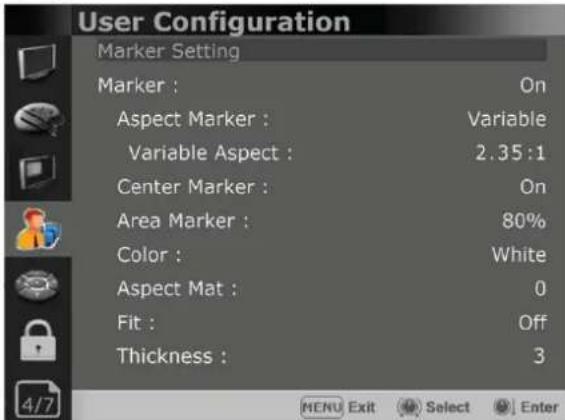
Marker Setting
Marker
- Selects On to display the marker, and Off to deactivate it.
Aspect Marker
Selects the aspect ratio of the marker.
You can select from among [Off], [16:9], [4:3], [4:3 ON AIR], [15:9], [14:9], [13:9], [1.85:1], [2.35:1], [2.39:1], [1.85:1 & 4:3], [1.66:1], [1.896:1], [Variable].
\*Variable Aspect
Allows the user to select the aspect ratio from the range between 1.00:1 and 3.00:1.
Center Marker
Selects On to display the center marker and Off not to display it.
Area Marker
Selects the size of the area marker.
You can select from among [Off], [80%], [85%], [88%], [90%], [93%], [100%], [EBU Action 16:9], [EBU Graphic 16:9], [EBU Action 14:9], [EBU Graphic 14:9], [EBU Action 4:3], [EBU Graphic 4:3].
Color
Selects the color of the marker.
You can select from among [White], [Gray], [Red], [Green], [Blue], [Yellow], [Cyan], [Magenta].
Aspect Mat
Darkens the outside of the area of the Aspect Marker. You can select from 0 to 7.
Fit
With Fit On, the Area Marker is displayed relative to the Aspect Marker in use. With Fit Off, the Area Marker is displayed relative to the incoming video source.
Thickness
Adjusts the thickness of the marker lines. You can select it from 1 to 7.
Page 5/7
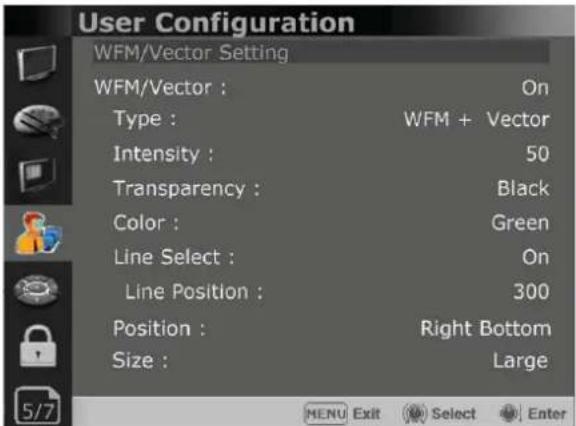
WFM/Vector Setting
WFM/Vector
- Select [On] to display the [WFM/Vector] and [Off] not to display.
Type
- Sets to activate and deactivate Waveform monitor and Vectorscope.
You can select from among [WFM], [VectorScope], [WFM+Vector], [WFM Wide].
*This function doesn't work when RGB format signal is input.
Intensity
Adjusts the brightness of Waveform and Vectorscope display. You can select from 1 to 64.
Transparency
Adjusts the transparency level of Waveform and Vectorscope.
[Black]: The background is black. Displayed image is hidden behind the background.
[Half]: The background is transparent. Displayed image can be seen indistinctly behind the Waveform and Vectorscope display.
Color
Selects the color of Waveform monitor. Available colors are [Green] and [White].
Line Select
Selects [On] to display the Waveform of the line assigned in [Line Position] below.
\*Line Position
Selects the specific horizontal line for Waveform and Vectorscope.
Increases the value to move the line upwards and decreases the value to move the line downwards.

User Configuration Menu
Position
- Sets the display position of the [WFM/Vector]. Selects [Right Bottom], [Left Bottom], [Left Top], or [Right Top].
Size
Sets the size of Waveform and Vector Scope. [Large] and [Small] can be selected.
Page 6/7

Closed Caption Setting
Closed Caption
Selects [On] to display the Closed Caption and [Off] not to display.
Type
Sets the Closed Caption type. [708]: Selects this mode to display 708 when HD-SDI signal is input. [608(VBI)]: Selects this mode to display 608(VBI) when SD-SDI signal is input. [608(708)]: Selects this mode to display 608(708) when HD-SDI signal is input.
708
Sets the Closed Caption type for 708. Selects from [Service1] to [Service6].
608
Sets the Closed Caption type for 608(708) and 608(VBI). Selects from [CC1] to [CC4].
Fast Mode Setting
This function allows the total latency to become nearly the zero delay, from the receipt of the signal to the on-screen display.
Fast Mode
Sets the fast mode.
Page 7/7

System Setting
Internal Signal
Generates the White Pattern internally. The selectable range is from 100%(White) to 0%(Black).
Key LED
Sets On to turn on the LED of the keys, and sets Off to turn off the LED of the keys.
OSD Time
Adjusts the display time of the OSD menu.
[10 Sec.]: The OSD menu will be disappeared after 10 seconds.
[20 Sec.]: The OSD menu will be disappeared about 20 seconds.
[30 Sec.]: The OSD menu will be disappeared about 30 seconds.
[On]: The OSD menu will not be disappeared.
OSD Position
Sets the position of OSD. Selects [Center] to [Left Bottom].
System Data
-[Save to USB] Saves the current settings of the monitor to the USB memory. -[Copy from USB] Recalls the settings saved in the USB memory, and load them to the monitor. -Saves and adjusts the settings of User 1 of User Preset.
Time Code
-Selects the type of the time code to be displayed. [VITC]: To display the VITC time code [LTC]: To display the LTC time code
Time Code Position/Size
- Allows to adjust the size and position of the Time Code.

Remote Menu
Page 1/3

Parallel Remote
Selects the Parallel Remote connector pins for which you want to change the function.
Various functions can be assigned to pin 1 to 6.
The following is the list of the functions which can be assigned to the pins.
[--]
[3G SDI-1]
[3G SDI-2]
[Analog]
[HDMI]
[Zero Scan]
[1:1 Scan]
[4:3 Aspect]
[16:9 Aspect]
[Auto Aspect]
[H/V Delay]
[Blue Only]
[Mono]
[Marker]
[TALLY R]
[TALLY G]
[User Preset1]
[User Preset2]
[User Preset3]
[User Preset4]
[User Preset5]
[ITU-R BT.709]
[Native]
[OBM-HDR]
[Cam. Log Default]
[Cam. Log User]
[External Tally]
** [--]: No function is assigned.
*7 Pin: For Power On and Off only
*8 Pin: For Ground only
Page 2/3

Monitor ID
Sets the ID of the monitor to control the monitor through Serial Remote or Network.
In-Monitor Display Setting
The monitor supports "TSL UMD Protocol – V3.1 & V5.0"
provided by Television System Ltd.
[Transparency], [Text Color], [Left Tally Color],

** The monitor displays English alphabet, numbers, Symbolic codes.
** Up to 16 characters can be displayed in English.
IMD Type
Selects [TSL V3.1] to activate IMD and [Off] to turn it off.
Transparency
Selects [Full] or [Half] for the background of IMD.
-[Full]: The background is black. The displayed image is hidden behind the background.
-[Half]: The background is transparent. The displayed image can be seen indistinctly behind the IMD display.
Text Color
Selects the color of text displayed in IMD.
-[White], [Red], [Green], [Blue], [Yellow], [Cyan], [Magenta] can be selected.
Left Tally Color
Selects the color of the left tally lamp displayed in IMD.
-[White],[Red],[Green],[Blue],[Yellow],[Cyan], [Magenta] can be selected.
Right Tally Color
Selects the color of the right tally lamp displayed in IMD.
-[White], [Red], [Green], [Blue], [Yellow], [Cyan], [Magenta] can be selected.

Remote Menu
Page 3/3

Network Setting
DHCP
- Toggle DHCP On or Off. DHCP allows your monitor to receive an IP address from your network for remote control via various programs.
IP Address, Subnet Mask & Gateway
- You can manually configure network settings when DHCP is disabled.
Port No.
- Sets the port number.

Security Menu

Security Setting
Key Lock
When Key Lock function is set On, the change of the menu settings and functions doesn't work.
** The same function as [Key Lock] button on the front panel.
Password
-This function allows the user to protect the setting values through password.
-When the Password lock is applied, the functions and the setting values can be changed, but they are not saved.
-When you protect the setting values with a password, set a four-digit number.
-The initial password is 0000.
-When you use [Password], change the initial password first.
User Parameter Lock
Selects [On] to protect the setting values. Selects [Off] to not protect by the password. When [On] is selected, OSD background is displayed with the lock image as shown below.

Change Password
Changes the password.
7. Available Signal Formats
This monitor is applicable to the following signal formats
HD-SDI
| Signal System | Signal Format |
| 1920x1080 /23.98, 24, 25, 29.97, 30p/Psf, 50, 59.94, 60i | 4:2:2 YCbCr 10bit |
| 2048 x 1080 /23.98, 24, 25, 29.97, 30p/Psf | 4:2:2 YCbCr 10bit |
| 1280x 720 /23.98, 24, 25, 29.97, 30, 50, 59.94, 60p | 4:2:2 YCbCr 10bit |
3G-SDI
| Signal System Signal Format | ||
| 1920 x1080 /50, 59.94, 60p | 4:2:2 YCbCr 10bit | Level A / Level B-DL |
| 1920 x1080 /23.98, 24, 25, 29.97, 30p/Psf, 50, 59.94, 60i | 4:4:4 RGB 10bit4:4:4 YCbCr 10bit4:4:4 RGB 12bit4:4:4 YCbCr 12bit | Level A / Level B-DL |
| 1280x 720 /23.98, 24, 25, 29.97, 30, 50, 59.94, 60p | 4:4:4 RGB 10bit4:4:4 YCbCr 10bit | Level A |
| 2048 x1080 /48, 50, 60p | 4:2:2 YCbCr 10bit | Level A / Level B-DL |
| 2048 x 1080 /23.98, 24, 25, 29.97, 30p/Psf | 4:4:4 RGB 10bit4:4:4 YCbCr 10bit4:4:4 RGB 12bit4:4:4 YCbCr 12bit | Level A / Level B-DL |
HDMI / DVI
| Signal System | Signal Format |
| 640 x 480p@59.94 / 60 | 4:4:4 RGB 8 / 10 / 12bit4:4:4 YCbCr 8 / 10 / 12bit4:2:2 YCbCr 12bit |
| 720 x 480p@59.94 / 60 | |
| 720 x 576p@50 | |
| 1280 x 720p@50 / 59.94 / 60 | |
| 1920 x 1080i@50 / 59.94 / 60 | |
| 1920 x 1080p@23.98 / 24 / 25 / 29.97 / 30 / 50 / 59.94 / 60 | |
| 2048 x 1080p@23.98 / 24 / 25 / 29.97 / 30 / 47.95 / 48 / 50 / 59.94 / 60 | |
| 800 x 600p@60 | 4:4:4 RGB 8 / 10 / 12bit4:4:4 YCbCr 8 / 10 / 12bit4:2:2 YCbCr 12bit |
| 1024 x 768p@60 |
Analog Composite
| Signal System | Signal Format |
| 487/59.94i NTSC | |
| 576/50i | PAL |
| 487/59.94i | PAL-M |
| 576/50i | SECAM |
Analog Component
| Signal System |
| 720 x 480i/P@59.94/60 |
| 720 x 576i/P@50 |
| 1280 x 720P@50/59.95/60 |
| 1920 x 1080l@50/59.94/60 |
| 1920 x 1080P@23.98/24/25/29.97/30/50/59.94/60 |
8. Key Functions
High Dynamic Range(HDR) Display Function
The OBM N series provides the function to display the High Dynamic Range footage.
Postium HDR function allows users to view both highlights and shadow detail of scenes at the same time, thus resulting in more natural and realistic images.
The OBM N series supports PQ EOTF (SMPTE ST 2084), Hybrid Log Gamma and S-Log3.
HDR Mode SDR Mode

natural_image
Split-panel landscape photo showing a sunset over calm water with boats on the shore (no text or symbols)OBM-HDR provides the function of comparing HDR and SDR(Standard Dynamic Range) on the displayed image on the OBM series simultaneously.

Adjustable Gamma
Gamma value is adjustable from 1.0 to 3.0 as user's preference to monitor in the dark area of the picture.
Any pictures taken in either light or dark environment can be easily watched or analyzed.

natural_image
Close-up of a smiling child wearing a red headscarf, with blurred background figures (no visible text or symbols)Gamma 1.8

natural_image
Close-up of a smiling child wearing a red headscarf, with blurred background figures (no text or symbols visible)Gamma 2.4
HDMI To SDI Conversion Out
The HDMI input signal can be converted and then output to SDI Out. IN OUT

Focus Assist
This function controls the aperture level of a video signal, and displays images on screen with sharpened edges to help camera focus operation.

natural_image
Close-up of a stylized flower with yellow center and orange-yellow petals, surrounded by green leaves (no text or symbols)Camera Log Mapped SDI Loopout
This function allows to load the camera log to the original image and then send the camera log mapped image to another monitor through SDI loop out.
[Monitor 1]

flowchart
graph TD
    A["Original Image"] --> B["Camera Log applied Image"]
    B --> C["Loop Out"]
    C --> D["[Monitor 2"]]
Camera Log applied image
Remote Control via Ethernet
The OBM N series can be connected via Ethernet connection and controlled remotely on the network.

flowchart
graph TD
    A["Computer Tower"] --> B["Main Desktop"]
    C["Desktop Computer"] --> B
    D["Computer Server"] --> B
    E["Computer Server 1"] --> B
    F["Computer Server 2"] --> B
    G["Computer Server 3"] --> B
    H["Computer Server 4"] --> B
    I["Computer Server 5"] --> B
    J["Computer Server 6"] --> B
    K["Computer Server 7"] --> B
    L["Computer Server 8"] --> B
    M["Computer Server 9"] --> B
    N["Computer Server 10"] --> B
    O["Computer Server 11"] --> B
    P["Computer Server 12"] --> B
    Q["Computer Server 13"] --> B
    R["Computer Server 14"] --> B
    S["Computer Server 15"] --> B
    T["Computer Server 16"] --> B
    U["Computer Server 17"] --> B
    V["Computer Server 18"] --> B
    W["Computer Server 19"] --> B
    X["Computer Server 20"] --> B
    Y["Computer Server 21"] --> B
    Z["Computer Server 22"] --> B
    AA["Computer Server 23"] --> B
    AB["Computer Server 24"] --> B
    AC["Computer Server 25"] --> B
    AD["Computer Server 26"] --> B
    AE["Computer Server 27"] --> B
    AF["Computer Server 28"] --> B
    AG["Computer Server 29"] --> B
    AH["Computer Server 30"] --> B
    AI["Computer Server 31"] --> B
    AJ["Computer Server 32"] --> B
    AK["Computer Server 33"] --> B
    AL["Computer Server 34"] --> B
    AM["Computer Server 35"] --> B
    AN["Computer Server 36"] --> B
    AO["Computer Server 37"] --> B
    AP["Computer Server 38"] --> B
    AQ["Computer Server 39"] --> B
    AR["Computer Server 40"] --> B
    AS["Computer Server 41"] --> B
    AT["Computer Server 42"] --> B
    AU["Computer Server 43"] --> B
    AV["Computer Server 44"] --> B
    AW["Computer Server 45"] --> B
    AX["Computer Server 46"] --> B
    AY["Computer Server 47"] --> B
    AZ["Computer Server 48"] --> B
    BA["Computer Server 49"] --> B
    BB["Computer Server 50"] --> B
    BC["Computer Server 51"] --> B
    BD["Computer Server 52"] --> B
    BE["Computer Server 53"] --> B
    BF["Computer Server 54"] --> B
    BG["Computer Server 55"] --> B
    BH["Computer Server 56"] --> B
    BI["Computer Server 57"] --> B
    BJ["Computer Server 58"] --> B
    BK["Computer Server 59"] --> B
    BL["Computer Server 60"] --> B
Black Stretch
The Black Stretch increases the visibility of subjects in dark areas, not degrading image quality in bright areas. This mode can be used to increase shadow detail without changing the absolute black level, and without affecting mid-tones.
Black Stretch Off

natural_image
Red three-wheeled motorcycle parked outdoors with white fencing in background (no visible text or symbols)Black Stretch On

natural_image
Red three-wheeled motorcycle parked outdoors, no visible text or symbols on the vehicle or backgroundFalse Color
This function evaluates the Luma(Y') level of the input image. If the certain Y' level is set, the pixels with the designated Luma(Y') level are displayed with the zebra pattern or the color pattern. There are three modes in OBM False Color.
Zebra
This mode displays the Luma(Y') level of the input image in zebra pattern.

natural_image
Woman wearing a straw hat against a blue sky with clouds (no visible text or symbols)False Color Variable
This mode allows the user to adjust White clipping, Pink level, Green level, Black Clipping.

natural_image
Stylized portrait of a woman with colorful hair and green accents, no visible text or symbolsFalse Color ARRI
The color pattern is displayed with ARRI camera standard.

natural_image
Stylized portrait of a woman with dynamic lighting and abstract background (no text or symbols)False Color Comparison
This function enables the user to divide the picture side by side, and compare the original image on the left half and the False Color image on the right half.

natural_image
Portrait of a woman wearing a straw hat, looking upward with abstract background elements (no text or symbols)Gamut Error
Zebra pattern or Color is displayed on the portion whose Y, Cb, Cr and R, G, B are out of the range of the adjusted values based on the target color space which the user selects.
The default values of Y Maximum/Minimum, Chroma Maximum/Minimum, RGB Maximum/Minimum are in compliance with EBU R 103 standard. And, the values can be adjusted by the user.
** Default Values


natural_image
Red vintage red car with black trim and yellow alloy wheel, parked outdoors (no visible text or symbols)Type 1: Black Zebra
When the targeted color space is selected as BT.709, the pixels outside of the targeted color space are displayed as Black Zebra. The pixels over Y Maximum, Chroma Maximum, RGB Maximum are displayed as Black Zebra, and the pixels below Y Minimum, Chroma Minimum, RGB Minimum are also displayed as Black Zebra.

natural_image
Red vintage truck with yellow wheel rim and black textured body, parked outdoors (no visible text or symbols)Type 2: Black & White Zebra
When the targeted color space is selected as BT.709, the pixels outside of the targeted color space are displayed as Black or White Zebra. The pixels over Y Maximum, Chroma Maximum, RGB Maximum are displayed as Black Zebra, and the pixels below Y Minimum, Chroma Minimum, RGB Minimum are displayed as White Zebra.

natural_image
Side view of a vintage car with red painted paint on the wheel rim (no visible text or symbols)Type 3: Mono
When the targeted color space is selected as BT.709, the pixels inside of the targeted color space are displayed as Mono, and the pixels outside of the targeted color space are displayed as the color. In this type, black and white area is not recognized.
Various Markers
The OBM N series can display various markers, including aspect marker, area marker, and center marker. In addition, the detailed display settings of each marker are allowed. For example, the color, brightness, horizontal/vertical position, and thickness of aspect markers can all be adjusted.
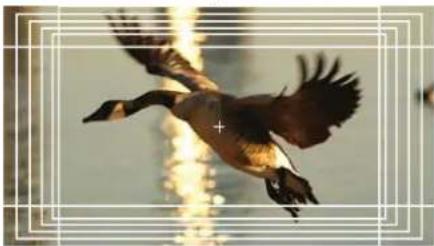
natural_image
A duck in flight with wings spread, captured mid-flight against a blurred sky background (no text or symbols visible)
natural_image
A grayscale photo of a large duck in flight with wings spread, against a blurred water background (no text or symbols visible)
natural_image
Flying duck in flight against a golden sunset background (no text or symbols visible)Aspect Mat 0 Aspect Mat 5Display various markers
System Date Copy
This function allows users to save the monitor configuration and adjustment settings on the USB memory stick and load them to other monitors. This is useful for multiple monitor systems, allowing the transfer of one monitor's setup and adjustment data to another.
Camera Log Selection
The OBM series has the built-in camera LUT of the various camera manufacturers. It allows users to load the following camera logs.
Log-C, C-Log / S-Log2, S-Log3 / J-Log1
The more camera LUTs will be updated.
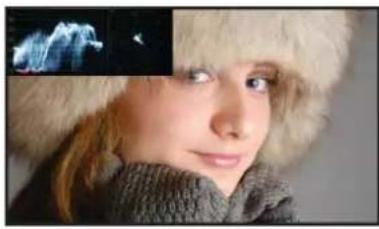
Waveform & Vector Scope Position Changeable
The position of Waveform and Vectro Scope can be changed among Left Top, Right Top, Right Bottom, Left Bottom.
natural_image
Close-up portrait of a person wearing a fur hat with a blue abstract graphic overlay (no readable text or symbols)
natural_image
Close-up portrait of a person wearing a fur hat and winter clothing, with a small inset image showing a snowy landscape (no text or symbols visible)
natural_image
Close-up portrait of a person wearing a fur hat with a blue abstract light graphic overlay (no text or symbols)
natural_image
Close-up portrait of a person wearing a fur hat, with a small inset image showing a blue abstract shape (no text or symbols)Wave/Vector Scope Size Adjustable
The image size of Wave/Vector Scope can be changed between Small and Large.

natural_image
Close-up portrait of a person wearing a fur hat, with a close-up of a blue abstract image on the right side (no visible text or symbols)
natural_image
Close-up portrait of a person wearing a fur hat and sweater, with a small inset image showing a blue abstract shape (no text or symbols)HDR Waveform
When HDR more is set on, HDR Waveform is displayed on screen.

natural_image
Spacecraft launch with bright exhaust plumes and a spacecraft in the background (no visible text or symbols)HDR Mode + HDR Waveform


natural_image
Medical imaging panel showing a 3D scan of vascular structures with red highlighted regions and a corresponding radiographic view (no text or labels)HDR Waveform

natural_image
Industrial laser welding process with bright flame emissions and a magnified inset showing three vertical lines (no text or symbols)SDR Mode + SDR Waveform


SDR Waveform
In-Monitor Display(IMD) Function
The image source names and tally information can be displayed on the screen, with an external remote function via Ethernet. The TSL system protocol is supported. The color of the source name and tally color can be selectable among White, Red, Green, Blue, Yellow, Cyan, Magen t a .

natural_image
Group of men in traditional attire with ornate headdresses, no visible text or symbolsVIDEO 1

natural_image
Group of people in traditional attire with ornate headdresses, no visible text or symbolsVIDEO 1

natural_image
Group of men in traditional attire with ornate headdresses, no visible text or symbolsVIDEO 1
Password Lock for User Preset
When multiple users share the same monitor, each user can register his/her own password for color temperature and user preset data. This ensures the users correctly recalls their preset data, and keeps preset information safe from unauthorized use.
Custom 3D LUT File Import
The OBM series allow the user to import 3D Look-up Table for accurate and consistent color matching between individual displays. as well as using customized 'looks' that have been created by 3rd party color-grading applications. 32^ 3 , 33^ 3 , 64^ 3 and 65^ 3 cube file is supported.

natural_image
Two-panel image showing a thatched-roof pier and a thatched-roof pavilion on turquoise water under a blue sky with clouds (no text or symbols visible)HDR / Camera Log Comparison
The unique function allows users to compare HDR and Camera Log side by side. The comparison area can be moved and selected by using the vertical Wipe pattern.

Fast Mode
This function allows the total latency to become nearly the zero delay, from the receipt of the signal to the on-screen display.
| Input Signal | Fast Mode Off | Fast Mode On | |
| SD-SDI | 480i(59.94)/576i(50) | 1 frame | 1 frame |
| HD/3G-SDI | 720p(60/59.94/50) | 1 frame | Zero Delay(0.02 frame) |
| 1080i(60/59.94/50) | 1 frame | Zero Delay(0.02 frame) | |
| 1080psf(30/29.97/25/24/23.98) | 1 frame | Zero Delay(0.02 frame) | |
| 1080p(60/59.94/50) | 1 frame | Zero Delay(0.02 frame) | |
| 1080p(30/29.97/25/24/23.98) | 1 frame | 1 frame | |
| HDMI | 480p(59.94)/576p(50) | 1 frame | 1 frame |
| 720p(60/59.94/50) | 1 frame | Zero Delay(0.02 frame) | |
| 1080i(60/59.94/50) | 1 frame | Zero Delay(0.02 frame) | |
| 1080p(60/59.94/50) | 1 frame | Zero Delay(0.02 frame) | |
| 1080p(30/29.97/25/24/23.98) | 1 frame | 1 frame | |
| 2160p(60/59.94/50) | 1 frame | Zero Delay(0.02 frame) | |
| 2160p(30/29.97/25/24/23.98) | 1 frame | 1 frame | |
| Example | 1080/60p | 1 frame * (1/60 sec) = 17ms | 0.02 frame * (1/60 sec) = 0.33ms |
| 1080/50p | 1 frame * (1/50 sec) = 20ms | 0.02 frame * (1/50 sec) = 0.40ms | |
| 1080/60i | 2 field * (1/60 sec) = 34ms | 0.02 field * (1/60 sec) = 0.33ms | |
| 1080/50i | 2 field * (1/50 sec) = 40ms | 0.02 field * (1/50 sec) = 0.40ms | |
| 1080/24psf | 2 field * (1/48 sec) = 42ms | 0.02 field * (1/48 sec) = 0.42ms |
- Product Specifications
| ITEM | OBM-N070 | OBM-N090 | |
| Input | 2 x BNC | 3G/HD/SD-SDI-1/2 | |
| 1 x HDMI | HDMI 1.4a | ||
| 3 x BNC (YPbPr) | Analog(YPbPr) | ||
| 1 x BNC (CVBS) | Composite | ||
| Output | 2 x BNC | 3G/HD/SD-SDI-1/2 | |
| 1 x HDMI | HDMI 1.4a | ||
| Input Signal Format | SMPTE ST 425-AB | 1080p(60/59.94/50/30/29.97/25/24/23.98/30sF/29.97sF/25sF/24sF/23.98sF) | |
| 1080i (60/59.94/50) | |||
| SMPTE ST 274 | 1080p(30/29.97/25/24/23.98/24sF/23.98sF) | ||
| 1080i (60/59.94/50) | |||
| SMPTE ST 296 | 720p(60/59.94/50) | ||
| SMPTE ST 260 | 1920 x 1035i(60/59.94) | ||
| SMPTE ST 2048 | 2048 x 1080p(24/23.98/24sF/23.98sF) | ||
| SMPTE ST 125 | 480i(59.94) | ||
| ITU-R BT.656 | 576i(50) | ||
| HDMI | 1.4a (~ 1080p(50/60)) | ||
| Audio In/Out | 1 x Phone Jack In | Line In(Stereo) | |
| 1 x Phone Jack Out | H/P Out(Front, Stereo) | ||
| 2 x Speaker Out | Stereo | ||
| Display | Size | 7" LCD | 9" LCD |
| Resolution | 1920 x 1080 (16:9) | 1920 x 1080 (16:9) | |
| Pixel Pitch | 0.081mm | 0.1035mm | |
| Color | 1.064B colors(8bit+2bit FRC) | 1.064B colors(8bit+2bit FRC) | |
| Viewing Angle | 170(H), 170(V) | 176(H), 176(V) | |
| Luminance of White | 600cd/m2 | 400cd/m2 | |
| Contrast | 800 : 1 | 700 : 1 | |
| Display Area (H x V) | 155.52 x 87.48 (mm) | 198.72 x 111.78 (mm) | |
| General | 1 x Ethernet | Control / Update, RJ-45P Input / Output | |
| 1 x GPIO | GPI-7 Port, RJ-45P Jack | ||
| 2 x Serial | RJ-422 Jack, RJ-45P Input / Output | ||
| 1 x USB | For Firmware Update, Color Calibration | ||
| DC In | LEMO 2-pin | 4-pin XLR | |
| Power Requirements | DC 12V | DC 12V | |
| Power Consumption | 18W | 29W | |
| Operating Temperature | 0 ~ 40°C(32°F~104°F) | 0 ~ 40°C(32°F~104°F) | |
| Operating Humidity | 20% ~ 80% RH | 20% ~ 80% RH | |
| Weight | 1.6kg | 2.5kg | |
| Dimensions(with stand) | 191 x 139 x 40mm | 223 x 174 x 43 (275 x 205 x 90)mm | |
| Accessories | Power Cable | ||
| Option | DV Battery Mount (*OBM-N070 Only)/ V-Mount / D-Tap Cable / Ball Head / Remote Control Table Stand / Rack Mount Kit / Carrying Case / Sun Hood / Acrylic Protector | ||
* Specifications are subject to change without prior notice for the product quality improvement.
| ITEM | OBM-N101 | |
| Screens | 10.1" | |
| Input | 2 x BNC | 3G/HD/SD-SDI-1/2 |
| 1 x HDMI | HDMI 1.4a | |
| 3 x BNC (YPbPr) | Analog(YPbPr) | |
| 1 x BNC (CVBS) | Composite | |
| Output | 2 x BNC | 3G/HD/SD-SDI-1/2 |
| 1 x HDMI | HDMI 1.4a | |
| Input Signal Format | SMPTE ST 425-AB | 1080p(60/59.94/50/30/29.97/25/24/23.98/30sF/29.97sF/25sF/24sF/23.98sF) |
| 1080i (60/59.94/50) | ||
| SMPTE ST 274 | 1080p(30/29.97/25/24/23.98/24sF/23.98sF) | |
| 1080i (60/59.94/50) | ||
| SMPTE ST 296 | 720p(60/59.94/50) | |
| SMPTE ST 260 | 1920 x 1035i(60/59.94) | |
| SMPTE ST 2048 | 2048 x 1080p(24/23.98/24sF/23.98sF) | |
| SMPTE ST 125 | 480i(59.94) | |
| ITU-R BT.656 | 576i(50) | |
| HDMI | 1.4a (~ 1080p(50/60)) | |
| Audio In/Out | 1 x Phone Jack In | Line In(Stereo) |
| 1 x Phone Jack Out | H/P Out(Front, Stereo) | |
| 2 x Speaker Out | Stereo | |
| Display | Size | 10.1" LCD |
| Resolution | 1920 x 1200 | |
| Pixel Pitch | 0.11292 (H) x 0.11292 (V) mm | |
| Color | 16.7M colors(6-bit+Hi-FRC) | |
| Viewing Angle | 170(H), 170(V) | |
| Luminance of White | 320cd/m2 | |
| Contrast | 800 : 1 | |
| Display Area (H x V) | 198.72 x 111.78 (mm) | |
| General | 1 x Ethernet | Control / Update, RJ-45P Input / Output |
| 1 x GPIO | GPI-7 Port, RJ-45P Jack | |
| 2 x Serial | RJ-422 Jack, RJ-45P Input / Output | |
| 1 x USB | For Firmware Update, Color Calibration | |
| DC In | 4-pin XLR | |
| Power Requirements | DC 12V | |
| Power Consumption | 14W | |
| Operating Temperature | 0 ~ 40°C(32°F~104°F) | |
| Operating Humidity | 20% ~ 80% RH | |
| Weight | 2.6 kg / 5.73 lbs | |
| Dimensions(W x H x D) | 293 x 217 x 90 (mm) / 11.53 x 8.54 x 3.54 (in) | |
| Accessories | Power Adapter / Power Cable | |
| Option | V-Mount / D-Tap Cable / Ball Head / Remote ControlTable Stand / Rack Mount Kit / Carrying Case / Sun Hood / Acrylic Protector | |
* Specifications are subject to change without prior notice for the product quality improvement.

POSTIUM KOREA Co., Ltd.
208, Building A, Samsong Techno Valley, 140, Tongil-ro,
Deogyang-gu, Goyang-si, Gyeonggi-do, Korea, 10594
Tel : +82.2.354.6055 / Fax : +82.2.354.6056
E-mail : sales@postium.com
www.postium.com


- Professional Video Monitor
- HDR
- Table of Contents
- Precaution
- FCC (Federal Communications Commission)
- Disposal of Old Electrical & Electronic Equipment
- Main Features
- Location and Function of Parts and Controls
- Front Panel
- A : Input select Buttons/Lamp
- [ANALOG] Button/Lamp
- [DIGITAL] Button/Lamp
- B : F1 \~ F5 Button/Lamp
- C : Function Button/Lamp
- D : Rotary Encoder
- [CHROMA] knob
- [APERTURE] knob
- E : Menu Operation Buttons
- [MENU/RETURN]
- [SEL/VOL] knob (Menu selection control)
- F : ⏻ (Standby) Switch and Indicator
- G : 📋 (headphone) Jack and USB connector
- Headphone Jack
- [USB] Connector
- H : IR Receiver (OBM-N090)
- A : SDI IN (SDI Input) connectors (BNC)
- B : SDI OUT (SDI Output) connectors (BNC)
- C : Analog Input connectors
- D : HDMI Input connectors
- E : HDMI Output connector
- F : PARALLEL REMOTE connector(RJ-45, 8-pin)
- G : SERIAL REMOTE IN/OUT connector (RJ-45)
- H : LAN(10/100) IN/OUT connector
- I: AUDIO IN connector (Stereo mini jack)
- J : DC IN terminal
- K : Rear Tally
- L : Battery In
- Using the Menu
- Press the MENU button.
- Turn SEL/VOL knob to select a menu, then press the knob.
- Select an item.
- Make the setting or adjustment on an item.
- How to change the setting:
- To return the display to the previous screen:
- To clear the menu:
- Adjustment Using the Menus
- Color Temp./Color Space/Gamma menu
- Camera Assist menu
- Zebra & False Color
- False Color Comparison
- Focus Assist
- Gamut Error
- User Configuration menu
- Remote menu
- Security Setting
- OSD Menu Operations
- Status Menu
- Color Temp/Color Space/Gamma Menu
- Color Temp
- R/G/B Gain
- Manual Adjustment
- R/G/B Gain/Bias
- Copy From
- Color Space
- OBM-HDR
- Type
- \*\*
- Gamma
- \*\*Note
- Camera Log
- Default Log Sel.
- User Log Sel.
- Back Light
- HDR&Cam.Log Comparison
- Wipe Position
- Zebra
- Zebra Level Adjustment
- Zebra Range
- False Color ARRI
- False Color Variable
- Variable White Clipping
- Variable Pink Level
- Variable Green Level
- Variable Black Clipping
- Color
- Frequency
- \*\* Default Values
- Function Button Setting
- Input Setting
- 3G Signal Format
- RGB Range
- Output Setting
- Camera Log Mapped SDI Loopout
- Speaker Out / Audio Level Meter Setting
- SDI : Left Speaker Out / Right Speaker Out
- HDMI : L/R Speaker Out
- Audio Level Meter Setting
- Display
- Reference
- Size/Transparency
- Peak Hold Time
- Display Type
- Marker Setting
- Marker
- Aspect Marker
- \*Variable Aspect
- Center Marker
- Area Marker
- Aspect Mat
- Fit
- Thickness
- WFM/Vector Setting
- WFM/Vector
- Intensity
- Transparency
- Line Select
- \*Line Position
- Position
- Size
- Page 6/7
- Closed Caption Setting
- Closed Caption
- 708
- 608
- Fast Mode Setting
- Fast Mode
- Page 7/7
- System Setting
- Internal Signal
- Key LED
- OSD Time
- OSD Position
- System Data
- Time Code
- Time Code Position/Size
- Parallel Remote
- Monitor ID
- In-Monitor Display Setting
- IMD Type
- Text Color
- Left Tally Color
- Right Tally Color
- Network Setting
- DHCP
- IP Address, Subnet Mask & Gateway
- Port No.
- Key Lock
- Password
- User Parameter Lock
- Change Password
- Available Signal Formats
- Key Functions
- High Dynamic Range(HDR) Display Function
- Adjustable Gamma
- HDMI To SDI Conversion Out
- Remote Control via Ethernet
- Black Stretch
- False Color
- Type 1: Black Zebra
- Type 2: Black & White Zebra
- Type 3: Mono
- Various Markers
- System Date Copy
- Camera Log Selection
- Waveform & Vector Scope Position Changeable
- Wave/Vector Scope Size Adjustable
- HDR Waveform
- In-Monitor Display(IMD) Function
- Password Lock for User Preset
- Custom 3D LUT File Import
- HDR / Camera Log Comparison
- POSTIUM KOREA Co., Ltd.
Brand : Postium
Model : OBM-N070
Category : Tracking