
MXU-88 Plus - KVM switch Smart-AVI - Free user manual and instructions
Find the device manual for free MXU-88 Plus Smart-AVI in PDF.


| Product Type | 8x8 4K HDMI / USB 2.0 Matrix Switch with Remote Control |
| Brand | Smart-AVI |
| Model | MXU-88 Plus |
| Dimensions (W x H x D) | 17.06 x 2 x 10.4 inches (433 x 51 x 264 mm) |
| Weight | 8.8 lbs (4.0 kg) |
| Power Adapter | PS12VDC5A (12V DC, 5A) |
| Video Inputs | (8) HDMI Type A 19-pin Female (TMDS), supports DVI-D with adapter |
| Video Outputs | (8) HDMI Type A 19-pin Female (TMDS), supports DVI-D with adapter |
| Maximum Video Resolution | 4Kx2K (3840x2160 @ 30Hz) |
| HDMI Version | HDMI 1.4, HDCP Compliant |
| USB Inputs | (8) USB 2.0 Type B Female (no emulation) |
| USB Outputs | (16) USB 2.0 Type A Female |
| Control Interface | Front panel buttons, Ethernet (TCP/IP) RJ-45 |
| Remote Control | Via Smart MUX HUB and MUX Control Units |
| Audio Support | Stereo embedded in HDMI signal |
| EDID Management | Learn and store from display on port 1 |
| Operating Temperature | 32 to 122°F (0 to 50°C) |
| Storage Temperature | -4 to 149°F (-20 to 65°C) |
| Working Humidity | Up to 85% RH (non-condensing) |
| Storage Humidity | Up to 90% RH (non-condensing) |
| Certifications | CE Approval |
| Warranty | 1 year limited warranty |
Frequently Asked Questions - MXU-88 Plus Smart-AVI
User questions about MXU-88 Plus Smart-AVI
0 question about this device. Answer the ones you know or ask your own.
Ask a new question about this device
Download the instructions for your KVM switch in PDF format for free! Find your manual MXU-88 Plus - Smart-AVI and take your electronic device back in hand. On this page are published all the documents necessary for the use of your device. MXU-88 Plus by Smart-AVI.
USER MANUAL MXU-88 Plus Smart-AVI
8X8 4K HDMI / USB 2.0 Matrix Switch with Remote Control
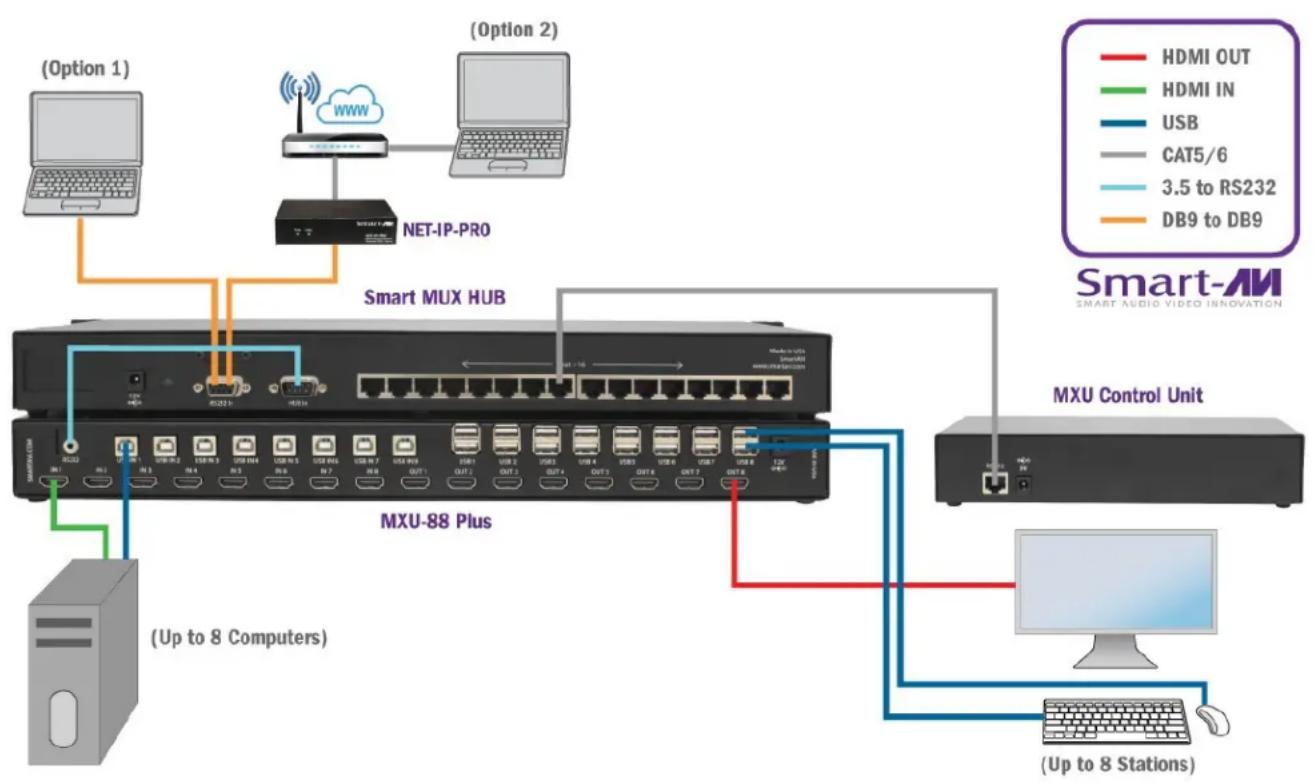
flowchart
graph TD
    subgraph Smart_MUX_HUB
        A["Internet Port"] -->|HDMI OUT| B["MCU Control Unit"]
        C["Net-IP-PRO"] -->|USB| B
        D["MXU-88 Plus"] -->|USB| B
        E["Option 1"] --> A
        F["Option 2"] --> A
    end

    subgraph MXU_Control_Unit
        G["MCU Control Unit"] -->|USB| B
        H["MCU_Control_Unit"] -->|USB| B
        I["MCU_Control_Unit"] -->|USB| B
        J["MCU_Control_Unit"] -->|USB| B
        K["MCU_Control_Unit"] -->|USB| B
        L["MCU_Control_Unit"] -->|USB| B
        M["MCU_Control_Unit"] -->|USB| B
        N["MCU_Control_Unit"] -->|USB| B
    end

    A -->|USB IN| D
    A -->|USB IN| E
    A -->|USB IN| F
    A -->|USB IN| G
    A -->|USB IN| H
    A -->|USB IN| I
    A -->|USB IN| J
    A -->|USB IN| K
    A -->|USB IN| L
    A -->|USB IN| M
    A -->|USB IN| N
    A -->|USB IN| O
    A -->|USB IN| P
    A -->|USB IN| Q
    A -->|USB IN| R
    A -->|USB IN| S
    A -->|USB IN| T
    A -->|USB IN| U
    A -->|USB IN| V
    A -->|USB IN| W
    A -->|USB IN| X
    A -->|USB IN| Y
    A -->|USB IN| Z
    A -->|USB IN| AA
    A -->|USB IN| AB
    A -->|USB IN| AC
    A -->|USB IN| AD
    A -->|USB IN| AE
    A -->|USB IN| AF
    A -->|USB IN| AG
    A -->|USB IN| AH
    A -->|USB IN| AI
    A -->|USB IN| AJ
    A -->|USB IN| AK
    A -->|USB IN| AL
    A -->|USB IN| AM
    A -->|USB IN| AN
    A -->|USB IN| AO
    A -->|USB IN| AP
    A -->|USB IN| AQ
    A -->|USB IN| AR
    A -->|USB IN| AS
    A -->|USB IN| AT
    A -->|USB IN| AU
    A -->|USB IN| AV
    A -->|USB IN| AW
    A -->|USB IN| AX
    A -->|USB IN| AY
    A -->|USB IN| AZ
    A -->|USB IN| BA
    A -->|USB IN| BB
    A -->|USB IN| BC
    A -->|USB IN| BD
    A -->|USB IN| BE
    A -->|USB IN| BF
    A -->|USB IN| BG
    A -->|USB IN| BH
    A -->|USB IN| BI
    A -->|USB IN| BJ
    A -->|USB IN| BK
    A -->|USB IN| BL
    A -->|USB IN| BM
    A -->|USB IN| BN
    A -->|USB IN| BO
    A -->|USB IN| BP
    A -->|USB IN| BPB
    A -->|USB IN| BPN
    A -->|USB IN| BPNBA
    A -->|USB IN| BPNBA1
    A -->|USB IN| BPNBA2
    A -->|USB IN| BPNBA3
    A -->|USB IN| BPNBA4
    A -->|USB IN| BPNBA5
    A -->|USB IN| BPNBA6
    A -->|USB IN| BPNBA7
    A -->|USB IN| BPNBA8
    A -->|USB IN| BPNBA9
    A -->|USB IN| BPNBA10

    subgraph Smart_AM_Smart_Audio_Video_innovation
        B["Smart_MUX_HUB"]
        D["MXU-88 Plus"]
        E["MXU_Control Unit"]
        F["Option 1"]
        G["Option 2"]
        H["Option 3"]
        I["Option 4"]
        J["Option 5"]
        K["Option 6"]
        L["Option 7"]
        M["Option 8"]
        N["Option 9"]
        O["Option 10"]
        P["Option 11"]
        Q["Option 12"]
        R["Option 13"]
        S["Option 14"]
        T["Option 15"]
        U["Option 16"]
        V["Option 17"]
        W["Option 18"]
        X["Option 19"]
        Y["Option 20"]
        Z["Option 21"]
        AA["Option 22"]
        AB["Option 23"]
        AC["Option 24"]
        AD["Option 25"]
        AE["Option 26"]
        AF["Option 27"]
        AG["Option 28"]
        AH["Option 29"]
        AI["Option 30"]
        AJ["Option 31"]
        AK["Option 32"]
        AL["Option 33"]
        AM["Option 34"]
        AN["Option 35"]
        AO["Option 36"]
        AP["Option 37"]
        AQ["Option 38"]
        AR["Option 39"]
        AS["Option 40"]
        AT["Option 41"]
        AU["Option 42"]
        AV["Option 43"]
        AW["Option 44"]
        AX["Option 45"]
        AZ["Option 46"]
        BA["Option 47"]
        BB["Option 48"]
        BC["Option 49"]
        BD["Option 50"]
        BE["Option 51"]
        BF["Option 52"]
        BG["Option 53"]
        BH["Option 54"]
        BI["Option 55"]
        BJ["Option 56"]
        BK["Option 57"]
        BL["Option 58"]
        BM["Option 59"]
        BN["Option 60"]
        BO["Option 61"]
        BP["Option 62"]
        BR["Option 63"]
        BS["Option 64"]
        BT["Option 65"]
        BU["Option 66"]
        BV["Option 67"]
        BW["Option 68"]
        BX["Option 69"]
        BY["Option 70"]
        BZ["Option 71"]
        CA["Option 72"]
        CB["Option 73"]
        CC["Option 74"]
        CD["Option 75"]
        DD["Option 76"]
        DE["Option 77"]
        FD["Option 78"]
        DG["Option 79"]
        DH["Option 80"]
        DI["Option 81"]
        DJ["Option 82"]
        DK["Option 83"]
        DL["Option 84"]
        DV["Option 85"]
        DW["Option 86"]
        DX["Option 87"]
        DXB["Option 88"]
        DXC["Option 89"]
        DXD["Option 90"]

    end
Transparent USB 2.0 Switching. Access to any USB Device for Any Station.
Remote access and control of up to 8 computers with 4K HDMI and transparent USB 2.0 from up to 8 connected stations
Smart-AM
SMART AUDIO VIDEO INNOVATION
| TABLE OF CONTENTS | |
| WHAT'S IN THE BOX? 2 | |
| PRODUCT PHOTOS 3-4 | |
| INTRODUCTION | 5 |
| FEATURES | 5 |
| APPLICATIONS 5 | |
| TECHNICAL SPECIFICATIONS | 6-7 |
| HARDWARE INSTALLATION | 8 |
| FRONT PANEL CONTROL | 9 |
| CONTROL VIA ETHERNET 10-11 | |
| LIMITED WARRANTY STATEMENT 12 |
| WHAT'S IN THE BOX? | ||
| PART NO. QTY DESCRIPTION | ||
| MXU88-S 1 8X8 4K HDMI USB 2.0 Matrix Switch | ||
| SC-HUB16 1 16 Port RS232 Selector Smart Mux Communication HUB | ||
| SC-RM8 1 MXU Controller Unit | ||
| CST2RS232 1 3.5mm to RS232 cable | ||
| PS12VD5A 1 Power Adapter | ||
| PS12VD3A 1 Power Adapter | ||
| PS5VD2A | 1 Power Adapter | |
| 1 Quick Start Guide | ||
Brackets for mounting can be ordered from SmartAVI.
MXU-88
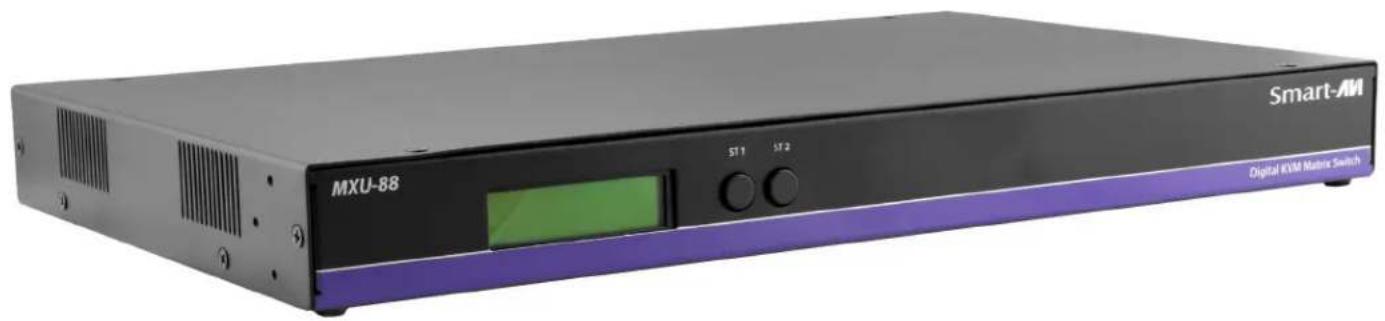
natural_image
Exterior view of a Smart-AM Microcontroller (MXU-88) with purple and black casing, displaying control buttons and green display screen (no readable text beyond branding)Front View

Rear View

Smart MUX HUB
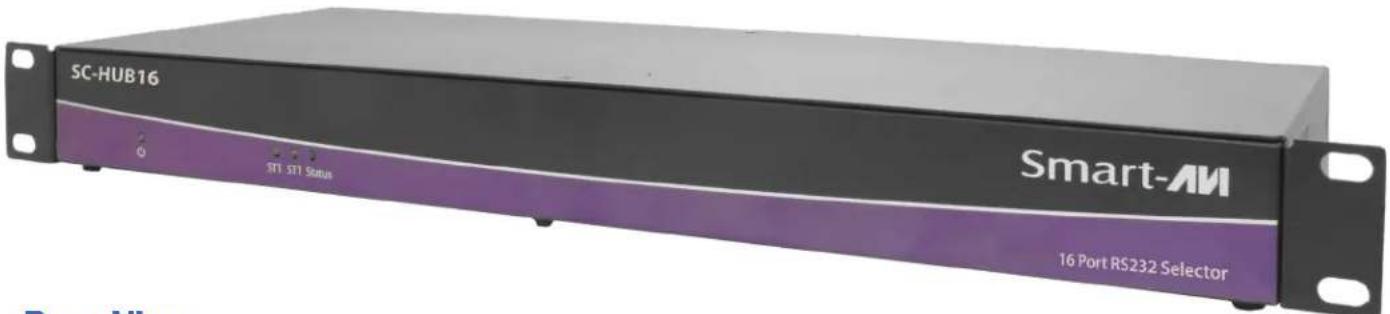
Rear View

natural_image
Front view of a network switch device showing ports, ports, and connections (no readable text or symbols)MXU-Control Unit
Front View Rear View
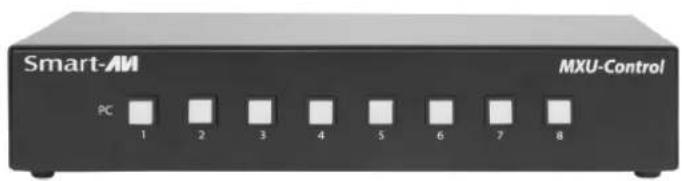

natural_image
Front view of a black electronic device with ports and a port, no visible text or symbols on the bodyMXU-88 Plus Installed
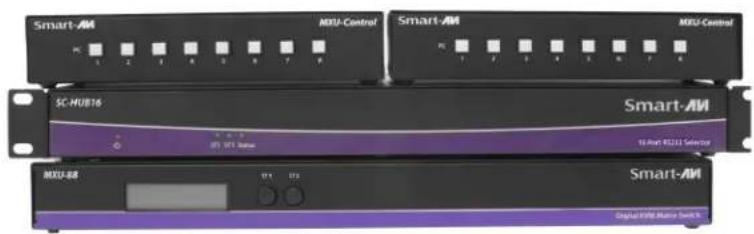

natural_image
Stacked black and purple electronic devices labeled Smart-AM, MXD Control, and SC-HUB16 (no visible text or symbols on main components)INTRODUCTION
The MXU-88 Plus is the latest upgrade to one of SmartAVI's most powerful and efficient matrix switching solutions. This 8X8 switching hub grants up to eight users shared remote access to as many as eight remote work stations and transparent USB 2.0 devices. Great for applications such as multi-user remote supervision or group-based video editing projects, the MXU-88 Plus excels even more at expediting workflow for digital devices of various kinds.
Capable of displaying HDMI-based video at resolutions up to 4K (3840×2160 @ 30Hz), the MXU-88 Plus is perfect for non-emulation KVM operations where a high degree of picture clarity is imperative. Better yet, the MXU-88 Plus is easy to control, outfitted with a simple two-button front panel interface and a web-based command console via Ethernet connection. The MXU-88 Plus's 16-port USB 2.0 output is ideal for transparent peripherals like keyboards, mice, external hard-drives, cameras, printers, scanners, streaming devices, and more. For comprehensive matrix switching and USB 2.0 device control remotely made easy, choose the MXU-88 Plus matrix switch powered by SmartAVI!
The MXU-88 is an ideal solution for medical, industrial, studio and defense applications, where it is not practical or safe to have multiple workstations in close proximity to each other. An operator can switch to any connected computer from any connected station with ease.
FEATURES
- Remote control via SmartMUX HUB and MUX Control Units
• (8) HDMI inputs with resolutions up to 4K (3840x2160 @ 30Hz)
• (8) HDMI outputs with resolutions up to 4K (3840x2160 @ 30Hz)
• (8) USB 2.0 Type B inputs—(8) Dual USB 2.0 Type A outputs
• Supports digital audio over HDMI
• Supports DVI-D with adapters
• Supports USB keyboard-mouse control (NO EMULATION) - Supports USB peripheral devices (external hard-drives, scanners, printers, etc...)
- Simple two-button front panel control with LCD display for control and status
• Full web-based control console over Ethernet - Learns and stores EDID information
• HDMI 1.4 & HDCP Compliant
• Control Sun, Mac or PC computers from one workstation - Plug-and-play ready for immediate use
APPLICATIONS
• Audio/Visual Presentations
• Schools & Universities
• Retail Store Displays
• Conference Centers
- Server Collocation
- Business Lobbies
- Shopping Centers
- Control Rooms
- Digital Signage
-
Dealer Rooms
-
Wall Displays
- Restaurants
- Education
- Hospitals
- Security
TECHNICAL SPECIFICATIONS
| VIDEO | |
| Supported Resolutions | 4Kx2K (3840x2160@30Hz), 1080p, 1080i, 720p, 480p, Supports all DVI-D Resolutions |
| Video Bandwidth 300 MHz | |
| HDMI Version HDMI 1.4 | |
| Input Interface (8) HDMI Type A 19-pin Female TMDS (DVI-D with adapter) | |
| Output Interface (8) HDMI Type A 19-pin Female TMDS (DVI-D with adapter) | |
| Max Cable length Up to | 20 ft. |
| Audio Stereo Embedded in HDMI signal | |
| USB | |
| Signal Type USB 2.0, 1.1 and 1.0 | |
| Input | (8) USB Type B Female (No Emulation) |
| Output (16) USB Type A | Female |
| CONTROL | |
| Front Panel Buttons | |
| Ethernet (TCP/IP) (1) RJ-45 | |
| OTHER | |
| Power Adapter PS12VDC5A | |
| Dimensions | 17.06" W x 2" H x 10.4" D |
| Weight | 8.8 lbs. |
| Working Temp. | 32 to 122°F (0 to 50 °C) |
| Working Humidity | Up to 85% RH (no condensation) |
| Storage Temp. -4 to 149 °F (-20 to 65 °C) | |
| Storage Humidity | Up to 90% RH (no condensation) |
| Smart MUX Communication HUB | |
| CE Approval Yes | |
| Control Connectors DB9 Male / DB9 Female | |
| Signal RS232 half duplex +/- 12V | |
| User Connector 16 RJ45, RS232 TTL +/-5V | |
| Remote Power POE | |
| Data Format 5 to 8 bits | |
| Interface RS-232 async | |
| Speed 300 bps to 76.8 kbps | |
| Power | 115/230 TO 12vdc 3a |
| Switches Code Operated | |
| Weight 3.8 lbs | |
| MUX Controller | |
| CE Approval Yes | |
| Signal RS232 half duplex +/- 12V | |
| User Connector 16 RJ45, RS232 TTL +/-5V | |
| Remote Power POE | |
| Optional 5VDC | |
| Data Format 5 to 8 bits | |
| Interface RS-232 async | |
| Speed 300 bps to 76.8 kbps | |
| Power Internal via POE | |
| Switches Code Operated | |
| Weight 2 lbs | |
HARDWARE INSTALLATION
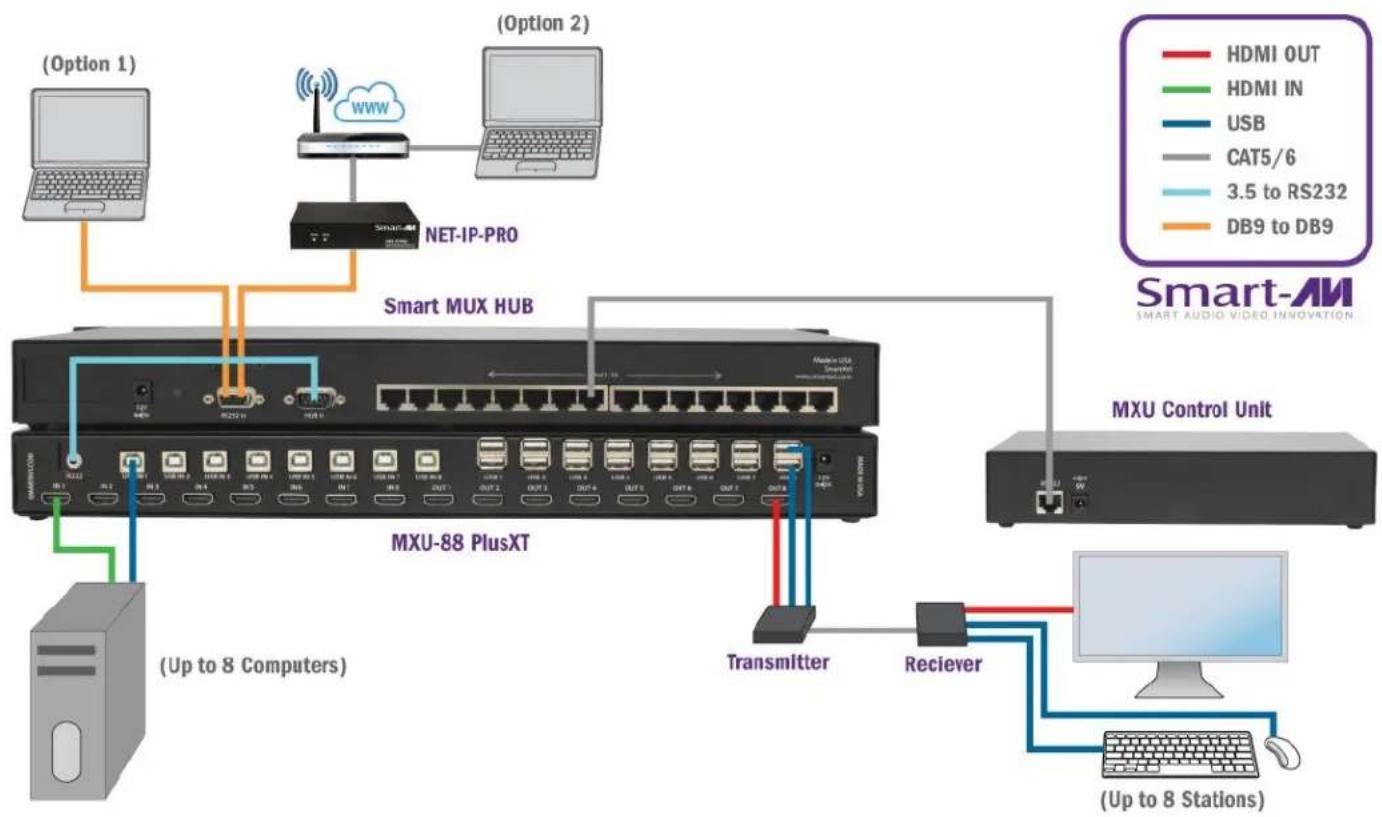
Connecting the Smart Mux Hub to the MXU-88 Is quick and easy.
1) Connect the 3.5mm proprietary serial cable to the MXU-88 round serial connection located on the back far left, looking at the back of the unit. Connect the other end, to the db9 connection on the "Smart Mux Hub" labeled RS232 located to the left of the RJ 45 connections.
2) Connect the ac adapter.
Connecting the "Mux Control Units" to the "Smart Mux Hub" is just as easy.
Only the first 8 RJ connections are active. The rest are for future development.
1) Connect a CAT5 or 6 utp cable to any of the active RJ45 connections. Connect the other end to the "Mux Control Unit". That's it!! Maximum cable length is 200'. Ac adapters are not necessary in most situations when connecting to the "Mux Control Units". Power is supplied through the attached cabling.
Using the "Mux Control Units"
Once everything is connected and powered on, the buttons on the "Mux Control Unit" are illuminated.
Pressing any of the 8 buttons will display the content of that connection on your screen.
For mouse and keyboard control of the input you are watching, long press the button. The button led will flash. And you are now have total control of the computer you are viewing.
KVM extenders can be used to extend placement of Displays and USB devices.
flowchart
graph TD
    subgraph Smart_MUX_HUB
        A["Internet"] --> B["Net-IP-PRO"]
        B --> C["Smart MUX HUB"]
        C --> D["MXU-88 PlusXT"]
        D --> E["Transmitter"]
        D --> F["Receiver"]
    end

    subgraph Smart_AM_Coordinates
        G["Smart MUX HUB"] --> H["MACPU"]
        I["MACPU"] --> J["USB"]
        K["MACPU"] --> L["USB"]
        M["MACPU"] --> N["USB"]
        O["MACPU"] --> P["USB"]
        Q["MACPU"] --> R["USB"]
        S["MACPU"] --> T["USB"]
        U["MACPU"] --> V["USB"]
        W["MACPU"] --> X["USB"]
        Y["MACPU"] --> Z["USB"]
        AA["MACPU"] --> AB["USB"]
        AC["MACPU"] --> AD["USB"]
        AE["MACPU"] --> AF["USB"]
        AG["MACPU"] --> AH["USB"]
        AI["MACPU"] --> AJ["USB"]
        AK["MACPU"] --> AL["USB"]
        AM["MACPU"] --> AN["USB"]
        AO["MACPU"] --> AP["USB"]
        AQ["MACPU"] --> AR["USB"]
        AS["MACPU"] --> AT["USB"]
        AU["MACPU"] --> AV["USB"]
        AW["MACPU"] --> AX["USB"]
        AY["MACPU"] --> AZ["USB"]
        BA["MACPU"] --> BB["USB"]
        BC["MACPU"] --> BD["USB"]
        BE["MACPU"] --> BF["USB"]
        BG["MACPU"] --> BH["USB"]
        BI["MACPU"] --> BJ["USB"]
        BK["MACPU"] --> BL["USB"]
        BM["MACPU"] --> BN["USB"]
        BO["MACPU"] --> BP["USB"]
        BQ["MACPU"] --> BR["USB"]
        BS["MACPU"] --> BT["USB"]
        BU["MACPU"] --> BV["USB"]
        BW["MACPU"] --> BX["USB"]
        BY["MACPU"] --> BZ["USB"]
        CA["MACPU"] --> CB["USB"]
        CC["MACPU"] --> CD["USB"]
        CE["MACPU"] --> CF["USB"]
        DG["MACPU"] --> DH["USB"]
        DI["MACPU"] --> DJ["USB"]
        DK["MACPU"] --> DL["USB"]
        DM["MACPU"] --> DJ
        DB["MACPU"] --> DC["USB"]
        DD["MACPU"] --> DC
    end

    subgraph Smart_AM_Smart_Audio_Video_INGNOVATION
        E
        F
        G
        H
        I
        J
        K
        L
        M
        N
        O
        P
        Q
        R
        S
        T
        U
        V
        W
        X
        Y
    end

    subgraph Smart_AM_TTM
        G
        H
        I
        J
        K
        L
        M
        N
        O
        P
        Q
        R
    end

    subgraph Smart_AM_TTM_TTM_TTM_TTM_TTM_TTM_TTM_TTM_TTM_TTM_TTM_TTM_TTM_TTM_TTM_TTM_TTM_TTM_TTM_TTM_TTM_TTM_TTM_TTM_TTM_TTM_TTM_TTM_TTM_TTM_TTM_TTM_TTM_TTM_TTM_TTM_TTM_TTM_TTM_TTM_TTM_TTM_TTM_TTM_TTM_TTM_TTM_TTM_TTM_TTM_TM_TTM_TTM_TTM_TTM_TTM_TTM_TTM_TTM_TTM_TTM_TTM_TTM_TTM_TTM_TTM_TTM_TTM_TTM_TTM_TTM_TTM_TTM_TTM_TTM_TTM_TTM_TTM_TTM_TTM_TTM_TTM_TTM_TTM_TTM_TTM_TTM_TTM_TTM_TTM_TTM_TTM_TTM_TTM_TTM_TTM_TTM_TTM_TTM_TTM_TMM_TM_TTM_TTM_TM_TTM_TTM_TM_TTM_TTM_TM_TTM_TTM_TM_TTM_TTM_TM_TTM_TTM_TM_TTM_TM_TTM_TM_TTM_TM_TTM_TM_TM_TTM_TM_TM_TTM_TM_TM_TM_TM_TM_TM_TM_TM_TM_TM_TM_TM_TM_TM_TM_TM_TM_TM_TM_TM_TM_TM_TM_TM_TM_TM_TM_TM_TM_TM_TM_TM_TM_TM_TM_TM_TM_TM_TM_TM_TM_TM_TM_TM_TM_TM_TM_TM-TM_TM_TM_TM_TM_TM_TM_TM_TM_TM_TM_TM_TM_TM_TM_TM_TM_TM-TM_TM-TM_TM-TM-TM-TM-TM-TM-TM-TM-TM-TM-TM-TM-TM-TM-TM-TM-TM-TM-TM-TM-TM-TM-TM-TM-TM-TM-TM-TM-TM-TM-TTMT_HUB
    end

    subgraph Smart_AM_Smart_MusAudio_Video_INGNOVATION
            G
            H
            I
            J
            K
            L
            M
            N
            O
            P
            Q
            R
            S
            T
            U
            V
            W
            X
            Y
            Z
            AA
            AB
            AC
            AD
            AE
            AF
            AG
            AH
            AI
            AJ
            AK
            AL
            AM
            AN
            AO
            AP
            AQ
            AR
            AS
            AT
            AU
            AV
            AW
            AX
            AZ
            BA
            BB
            BC
            BD
            BE
            BF
            BG
            BH
            BI
            BJ
            BK
            BL
            BM
            BN
            BO
            BP
            BP1
            BP2
            BP3
            BP4
            BP5
            BP6
            BP7
            BP8
            BP9
            BP10
            BP11
            BP12
            BP13
            BP14
            BP15
            BP16
            BP17
            BP18
            BP19
            BP20
            BP21
            BP22
            BP23
            BP24
            BP25
            BP26
            BP27
            BP28
            BP29
            BP30
            BP31
            BP32
            BP33
            BP34
            BP35
            BP36
            BP37
            BP38
            BP39
            BP40
            BP41
            BP42
            BP43
            BP44
            BP45
            BP46
            BP47
            BP48
            BP49
            BP50

    end
Transparent USB 2.0 Switching. Access to any USB Device for Any Station.
FRONT PANEL CONTROL
Use the ST2 button to navigate to the desired menu item. Pressing ST1 and ST2 at the same time will execute the selection.
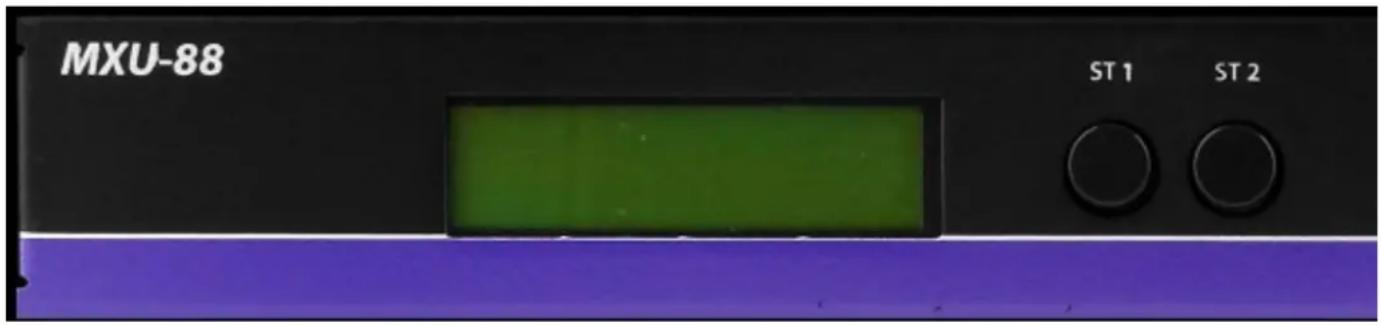
USB:
Change which computer is connected to which keyboard / mouse.
Press ST2 to move from IN port to IN port.
Press ST1 when the cursor is on the IN port you want to change the OUT port # connected to it.
Press ST1 & ST2 simultaneously to connect the ports.
Press ST2 to move to another IN port or press ST1 & ST2 simultaneously to exit back to the main menu.
Video:
Change which computer is connected to which monitor.
Press ST2 to move from IN port to IN port.
Press ST1 when the cursor is on the IN port you want to change the OUT port # connected to it.
Press ST1 & ST2 simultaneously to connect the ports.
Press ST2 to move to another IN port or press ST1 & ST2 simultaneously to exit back to the main menu.
EDID:
Press ST2 to move from menu item to item. Press ST1 and ST2 simultaneously to enter the EDID sub menu.
Learn: Will load and store the EDID from the display connected to port 1.
Info: Will display the name of the EDID currently in use.
Exit: Will exit back to the main menu.
IP:
Press ST1 & ST2 simultaneously to display the IP address in use by the MXU-88.
CONTROL VIA ETHERNET
On the front panel of the MXU-88 press the ST2 button until the cursor is by the IP selection. Press ST1 & ST2 simultaneously to display the IP address in use by the MXU-88. Enter the IP address into a web browser of your choice. You should see the MXU-88 login page. The username is admin and the password is admin. Then the main webpage will display as shown in Figure 7-1. The left column of numbers represents the output port. The top row of numbers represent the input ports. Using your mouse click on the box at the intersection of the input with the output to execute the desired connection. The video and usb connections can be changed independently.
There is also a button you can click on to learn the EDID of the monitor connected to output port 1 and a button that will display the EDID in use.

Figure 7-1
CONTROL VIA ETHERNET (Continued)
From the main webpage you can select IP Config and a webpage will display with fields allowing to set the network settings for the MXU-88.

Figure 8-1
LIMITED WARRANTY STATEMENT
A. Extent of limited warranty
Smart-AVI Technologies, Inc. warrants to the end-user customers that the Smart-AVI product specified above will be free from defects in materials and workmanship for the duration of 1 year, which duration begins on the date of purchase by the customer. Customer is responsible for maintaining proof of date of purchase.
Smart-AVI limited warranty covers only those defects which arise as a result of normal use of the product, and do not apply to any:
a. Improper or inadequate maintenance or modifications
b. Operations outside product specifications
c. Mechanical abuse and exposure to severe conditions
If Smart-AVI receives, during applicable warranty period, a notice of defect, Smart-AVI will at its discretion replace or repair defective product. If Smart-AVI is unable to replace or repair defective product covered by the Smart-AVI warranty within reasonable period of time, Smart-AVI shall refund the cost of the product.
Smart-AVI shall have no obligation to repair, replace or refund unit until customer returns defective product to Smart-AVI.
Any replacement product could be new or like new, provided that it has functionality at least equal to that of the product being replaced.
Smart-AVI limited warranty is valid in any country where the covered product is distributed by Smart-AVI.
B. Limitations of warranty
To the extant allowed by local law, neither Smart-AVI nor its third party suppliers make any other warranty or condition of any kind whether expressed or implied with respect to the Smart-AVI product, and specifically disclaim implied warranties or conditions of merchantability, satisfactory quality, and fitness for a particular purpose.
C. Limitations of liability
To the extent allowed by local law the remedies provided in this warranty statement are the customers sole and exclusive remedies.
To the extant allowed by local law, except for the obligations specifically set forth in this warranty statement, in no event will Smart-AVI or its third party suppliers be liable for direct, indirect, special, incidental, or consequential damages whether based on contract, tort or any other legal theory and whether advised of the possibility of such damages.
D. Local law
To the extent that this warranty statement is inconsistent with local law, this warranty statement shall be considered modified to be consistent with such law.
Smart-AM
SMART AUDIO VIDEO INNOVATION
NOTICE
The information contained in this document is subject to change without notice. SmartAVI makes no warranty of any kind with regard to this material, including but not limited to, implied warranties Of merchantability and fitness for particular purpose. SmartAVI will not be liable for errors contained herein or for incidental or consequential damages in connection with the furnishing, performance or use of this material. No part of this document may be photocopied, reproduced, or translated into another language without prior written consent from SmartAVI Technologies, Inc.
20180219

Designed and Manufactured in the USA
800.AVI.2131
Tel: (818) 503-6200 | Fax: (818) 503-6208 11651 Vanowen St. North Hollywood, CA 91605
SmartAVI.com


- MXU-Control Unit
- INTRODUCTION
- FEATURES
- APPLICATIONS
- TECHNICAL SPECIFICATIONS
- HARDWARE INSTALLATION
- Using the "Mux Control Units"
- FRONT PANEL CONTROL
- USB:
- Video:
- EDID:
- IP:
- CONTROL VIA ETHERNET
- CONTROL VIA ETHERNET (Continued)
- LIMITED WARRANTY STATEMENT
- Extent of limited warranty
- Limitations of warranty
- Limitations of liability
- Local law
- Smart-AM
- SMART AUDIO VIDEO INNOVATION
- NOTICE
Brand : Smart-AVI
Model : MXU-88 Plus
Category : KVM switch