
ALF-20X-SDIC - Security Camera Alfatron - Free user manual and instructions
Find the device manual for free ALF-20X-SDIC Alfatron in PDF.


| Product Type | PTZ Security Camera with Monocular AI Tracking |
| Brand | Alfatron |
| Model | ALF-20X-SDIC |
| Image Sensor | 1/2.8 inch high quality HD CMOS, 2.07 megapixels |
| Resolution | Full HD 1920x1080 up to 60 fps |
| Optical Zoom | 20X (f=5.2-98mm) |
| Digital Zoom | 10X |
| Video Output Interfaces | HDMI, SDI, USB 3.0 (type B), LAN (PoE) |
| Video Compression | H.265, H.264, MJPEG, YUY2, NV12 |
| Audio Compression | AAC, MP3, G.711A |
| Control Protocols | VISCA, Pelco-D, Pelco-P (auto-detect) |
| Pan/Tilt Range | Pan: ±170°, Tilt: -30° to +90° |
| Pan/Tilt Speed | Pan: 0.1-100°/sec, Tilt: 0.1-45°/sec |
| Preset Positions | Up to 255 (10 via remote control) |
| AI Tracking | Monocular AI tracking, up to 4 tracking regions |
| Network Protocols | RTSP, RTMP, ONVIF, GB/T28181, VISCA over IP |
| Power Supply | DC 12V ±10%, max 2A (PoE supported via LAN) |
| Power Consumption | Max 12W |
| Dimensions (W x D x H) | 181mm x 115mm x 149mm |
| Weight | 1.15 kg |
| Operating Temperature | -10°C to +50°C |
| Storage Temperature | -10°C to +70°C |
| Maintenance | Clean lens with soft dry cloth; avoid strong detergents |
| Safety | Do not open housing; installation by qualified technicians only |
| Spare Parts / Repairability | No user-serviceable parts; warranty void if disassembled |
Frequently Asked Questions - ALF-20X-SDIC Alfatron
User questions about ALF-20X-SDIC Alfatron
0 question about this device. Answer the ones you know or ask your own.
Ask a new question about this device
Download the instructions for your Security Camera in PDF format for free! Find your manual ALF-20X-SDIC - Alfatron and take your electronic device back in hand. On this page are published all the documents necessary for the use of your device. ALF-20X-SDIC by Alfatron.
USER MANUAL ALF-20X-SDIC Alfatron
With Monocular AI Tracking
Full HD PTZ Camera User Manual

natural_image
Black ALFATRON remote camera on a base (no text or symbols on device body)Attention
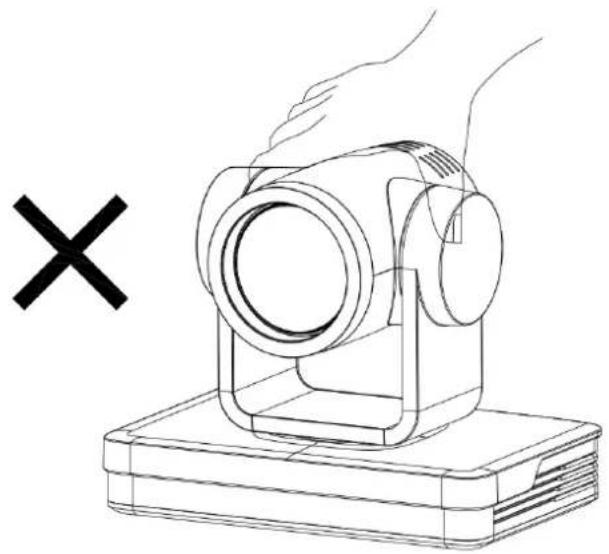
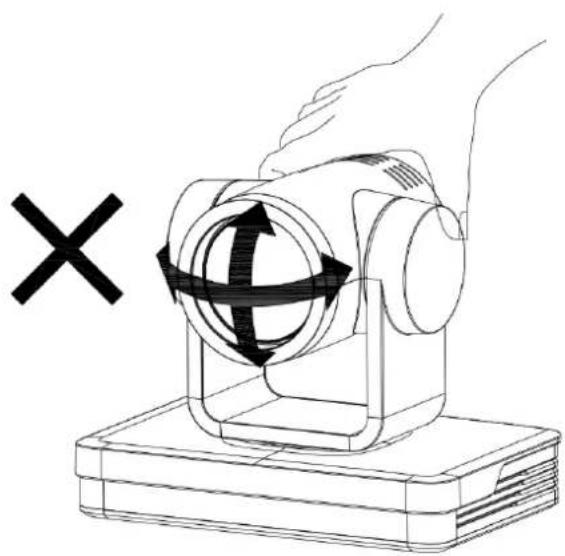
Improper operations may damage the product structure and result in mechanical failure. Please note the following tips:
natural_image
Line drawing of a handheld device with a cross mark and a 'X' symbol, no text or labels presentDo not move the camera by grabbing the head.
Move the camera by holding the bottom with one or both hands.
Please do not rotate the lens and holder manually regardless if the camera is powered on or off; this may damage the camera structure and cause the camera self-check to fail and be unable to start the camera
natural_image
Illustration of a hand holding a mechanical device with a circular component and directional arrows, no text or symbols present.CE F© EAC CAN ICES-3 (B)/NMB-3(B)
NOTE: This equipment has been tested and found to comply with the limits for a Class B digital device, pursuant to Part 15 of the FCC Rules. These limits are designed to provide reasonable protection against harmful interference in a residential installation. This equipment generates, uses and can radiate radio frequency energy and, if not installed and used in accordance with the instructions, may cause harmful interference to radio communications. However, there is no guarantee that interference will not occur in a particular installation. If this equipment does cause harmful interference to radio or television reception, which can be determined by turning the equipment off and on, the user is encouraged to try to correct the interference by one or more of the following measures:
---Reorient or relocate the receiving antenna.
---Increase the separation between the equipment and receiver.
---Connect the equipment into an outlet on a circuit different from that to which the receiver is connected.
---Consult the dealer or an experienced radio/TV technician for help.
WARNING: Changes or modifications not expressly approved by the party responsible for compliance could void the user's authority to operate the equipment.
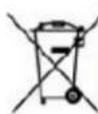
Do not dispose of this product with the normal household waste at the end of its life cycle. Return it to a collection point for the recycling of electrical and electronic devices. This is indicated by the symbol on the product, user manual or packaging
The materials are reusable according to their markings. By reusing, recycling or other forms of utilization of old devices you make an important contribution to the protection of our environment.
Please contact your local authorities for details about collection points.
This manual introduces functions, installations, and operations for this PTZ camera in detail. Please read this manual carefully before installation and use.
1. Cautions
1.1 Avoid damage to the product caused by heavy pressure, strong vibration, or immersion during transportation, storage, and installation.
1.2 Housing of this product is made of organic materials. Do not expose it to any liquid, gas, or solids that may corrode the shell.
1.3 Do not expose the product to liquid or moisture.
1.4 To prevent the risk of electric shock, do not open the housing. Installation and maintenance should only be carried out by qualified technicians.
1.5 Do not use the product beyond the specified temperature, humidity, or power supply specifications.
1.6 Wipe it with a soft, dry cloth when cleaning the camera lens. Wipe it gently with a mild detergent if needed. Do not use strong or corrosive detergents to avoid scratching the lens and affecting the image.
1.7 This product contains no parts which can be maintained by users themselves. Any damage caused by dismantling the product by the user without permission voids the warranty.
2. Electrical Safety
Installation and use of this product must strictly comply with local electrical safety standards.
The power supply of the product is ±12V , the max electrical current is 2A.

natural_image
Technical line drawing of a mechanical component with no visible text or symbols3. Installation
3.1 Do not rotate the camera head forcefully, it may cause mechanical failure.
3.2 This product should be placed on a stable desktop or another horizontal surface. Do not install the product obliquely, otherwise, it may display an inclined image.
3.3 Ensure there are no obstacles within the rotation range of the holder.
3.4 Do not power on before completing the installation.
4. Magnetic Interference
Electromagnetic fields at specific frequencies may affect the video image. This product is Class A. It may cause radio interference in the household application. The appropriate measure is required.
Content
1. Camera Installation....2
1.1 Camera Introduction....2
1.2 General Operation at Boot up ....3
1.3 Mounting Brackets .... 3
2. Product Overview....6
2.1 Dimension 5
2.2 Accessory 7
2.3 RS-232 Interface 7
2.4 Rotary DIP Switch....8
2.5 Main Features....9
2.6 Technical Parameter 9
3. Remote Control....11
3.1 Match Code for Wireless Remote Control....11
3.2 Keys Introduction for IR Remote Control....11
3.3 Menu Introduction....14
4. Network Configuration....16
4.1 Network Connection....16
4.2 IE Login 17
4.3 Streaming....18
4.4 Software Upgrading ....19
5. Monocular Tracking....21
6. Serial port communication and control....22
6.1 VISCA Protocol Return Command....22
6.2 VISCA Protocol Control Command ....22
6.3 VISCA Protocol Inquiry Command....23
6.4 Pelco-D protocol command list ....25
6.5 Pelco-P protocol command list....25
7. Maintenance and Troubleshooting....26
7.1 Maintenance....26
7.2 Troubleshooting ....26
8. Warranty ......27
1. Camera Installation
1.1 Camera Introduction
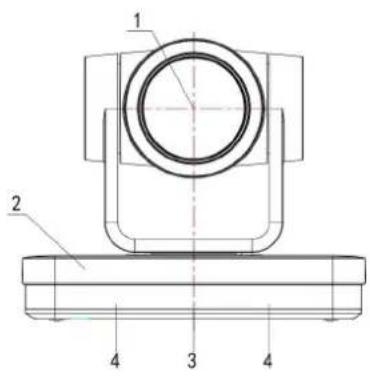
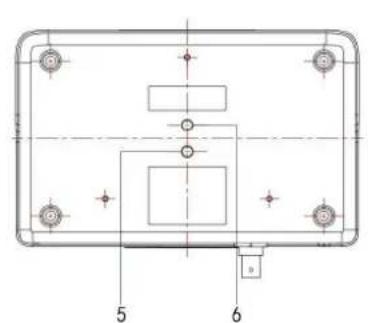
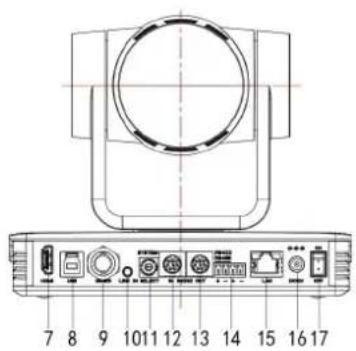
Figure 1.1 Interface of the SDIC models (All models)
- Camera Lens
- Camera Base
- Remote Control Receiving Indicator
- Infrared Receiver
- Tripod Screw Hole
- Screw Hole for Tripod
- HDMI Output
- USB3.0 Output
-
SDI Output
-
Audio Input Interface (Line-in)
- Rotary DIP Switch
- RS232 Control Interface (input)
- RS232 Control Interface (output)
- RS422 Interface (Compatible with RS485)
- Network Interface (LAN)
- DC12V Input Power Supply Socket
- Power Switch
1.2 General Operation at Boot up
1) After powering on and self-checking, the camera will automatically return to the preset 0 position if it's pre-set.
2) The default address for the IR remote control is 1#.
If the unit is restored to factory defaults, the remote control default address will restore to 1#.
1.3 Mounting Brackets
Notes:
Ceiling or wall mounting brackets can only be mounted on template and concrete wall.
For safety reasons, plasterboard is not recommended.
1) Wall Mounting:
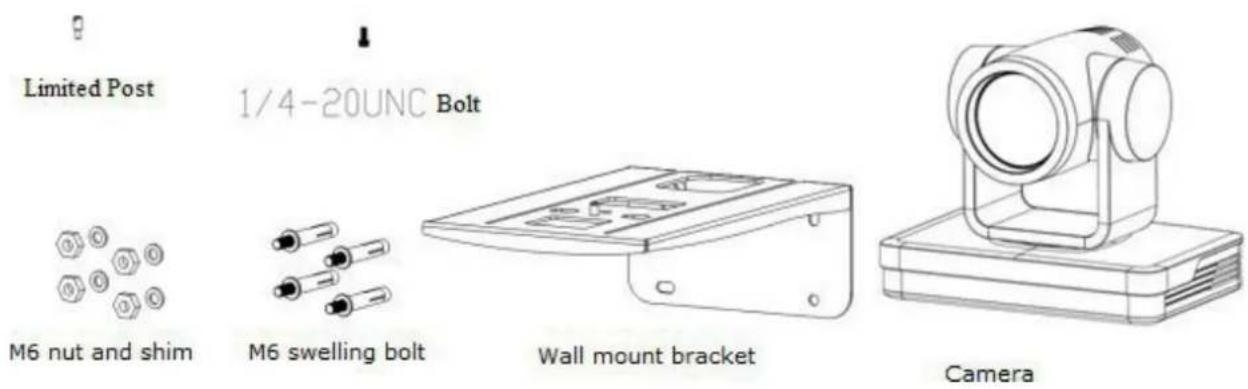
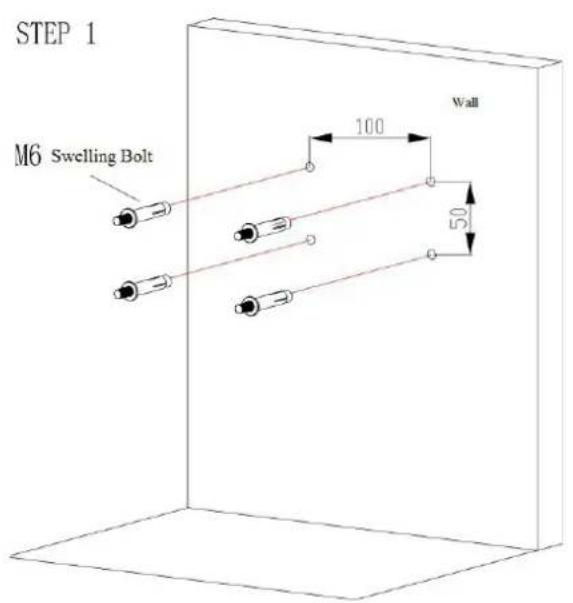

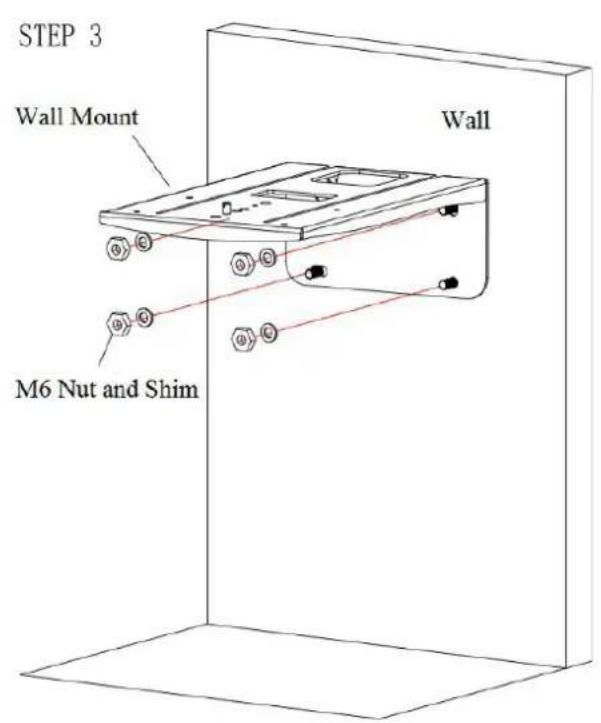

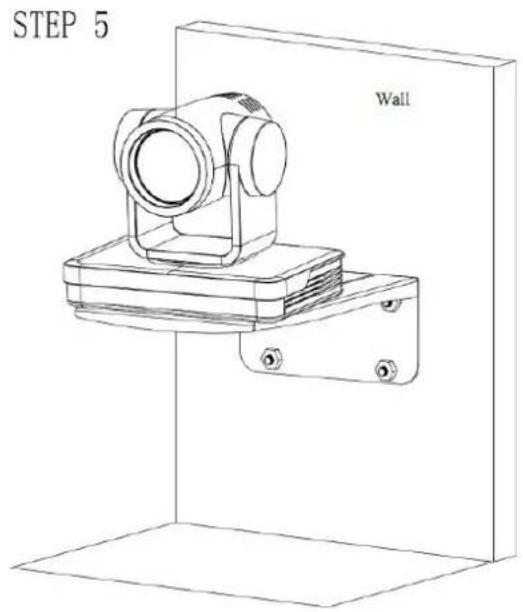
2) Ceiling Mounting

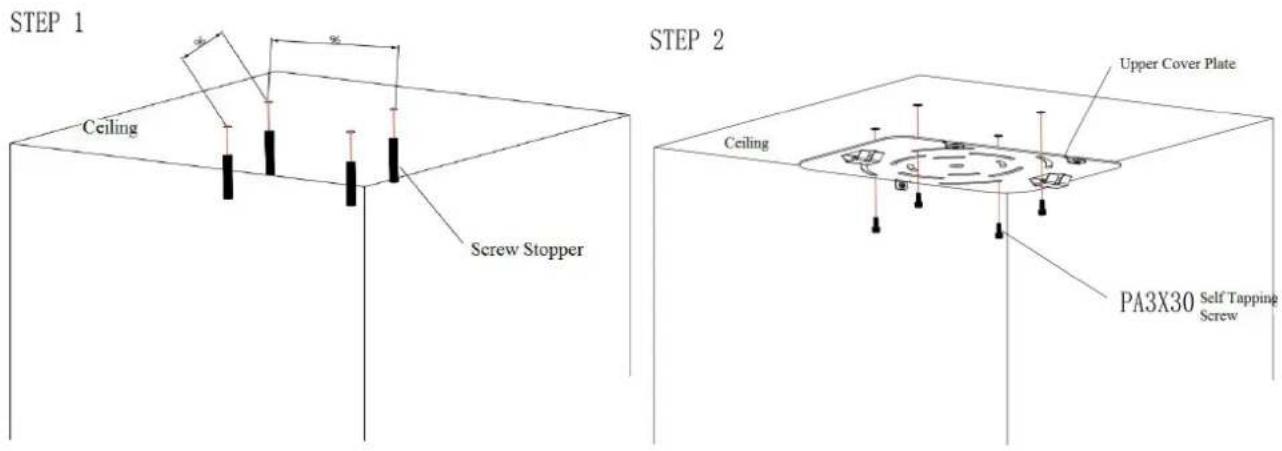
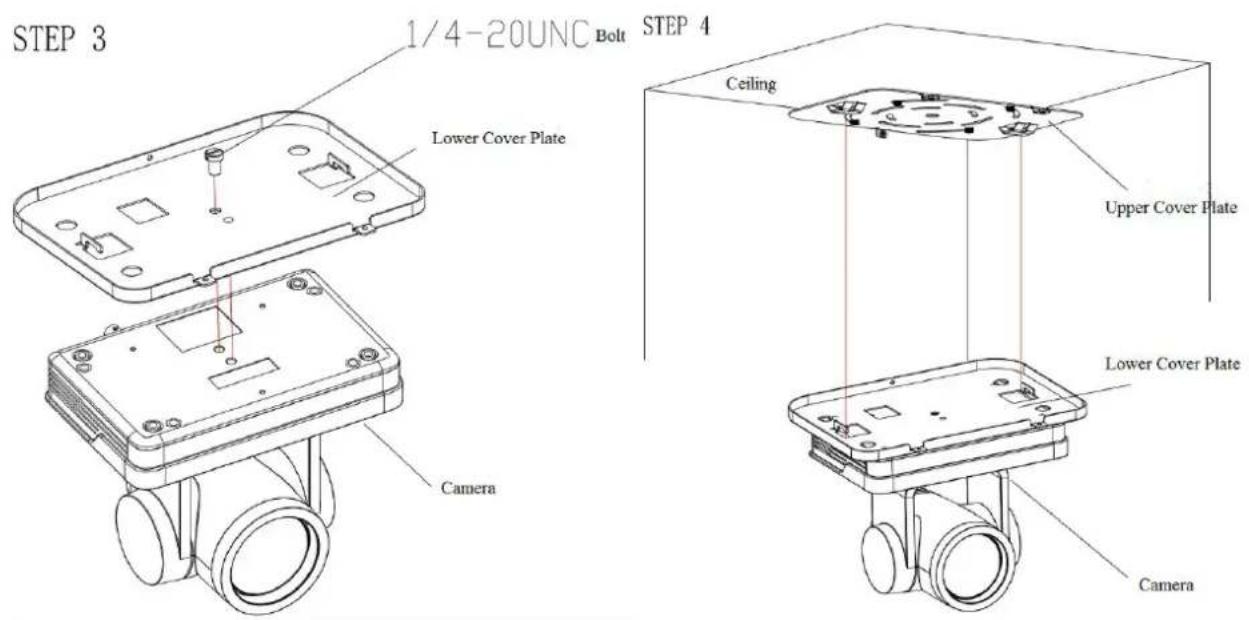

2. Product Overview
2.1 Dimension
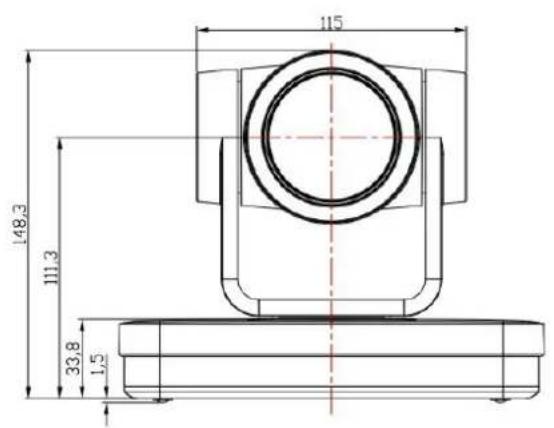
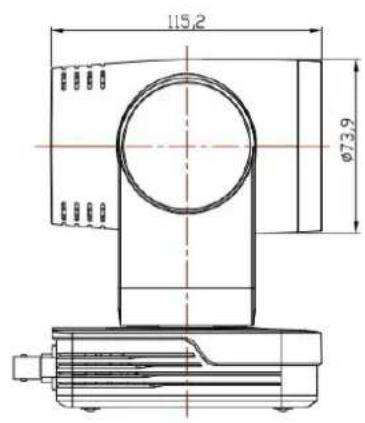
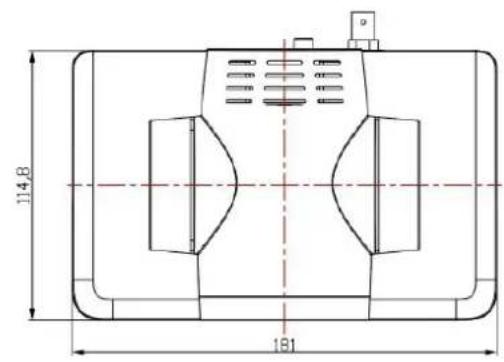
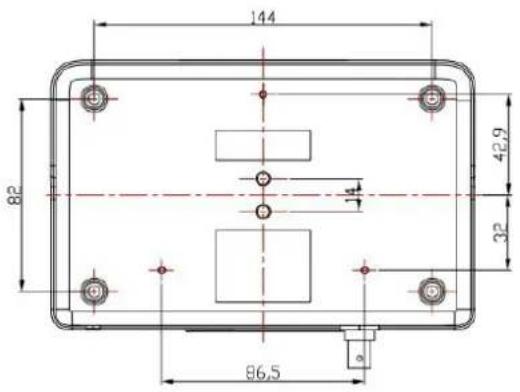
Figure 2.2 Product Dimension
2.2 Accessory
Please check below standard and optional accessories when unpacking the box.
| Standard Accessory | Optional Accessory |
| Power adapter | Wireless Remote Control |
| IR Remote Control | Ceiling Mount |
| RS232 Cable | Wall Mount |
| User Manual | |
| USB3.0 Cable |
2.3 RS-232 Interface
1). RS-232 Interface Definition
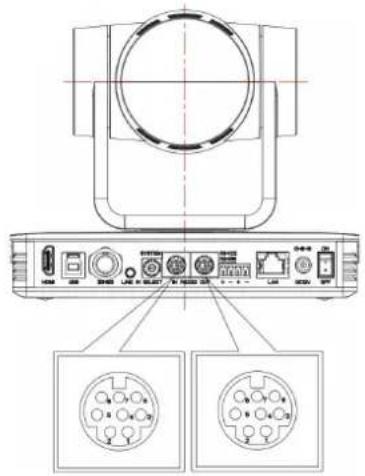
Connection to PC or Camera Controller

flowchart
graph TD
    A["1.DTR"] --> B["2.DSR"]
    A --> C["3.TXD"]
    A --> D["4.GND"]
    A --> E["5.RXD"]
    A --> F["6.GND"]
    A --> G["7.IR OUT"]
    A --> H["8.NC"]
    I["1.DCD"] --> J["2.RXD"]
    I --> K["3.TXD"]
    I --> L["4.DTR"]
    I --> M["5.GND"]
    I --> N["6.DSR"]
    O["7.RTS"] --> P["8.CTS"]
    O --> Q["9.RI"]

2). RS232 Mini-DIN 8-pin: Port Definition

| NO. | Port | Definition |
| 1 | DTR | Data Terminal Ready |
| 2 | DSR | Data Set Ready |
| 3 | TXD | Transmit Data |
| 4 | GND | Signal Ground |
| 5 | RXD | Receive Data |
| 6 | GND | Signal Ground |
| 7 | IR OUT | IR Commander Signal |
| 8 | NC | No Connection |
3). RS232 (DB9) Port Definition
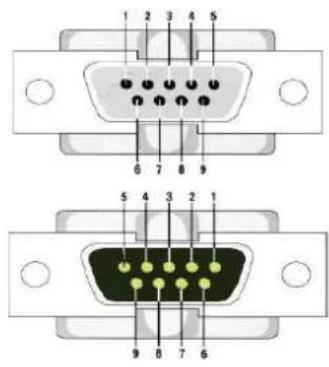
| NO. | Port | Definition |
| 1 | DCD | Data Carrier Detect |
| 2 | RXD | Receive Data |
| 3 | TXD | Transmit Data |
| 4 | DTR | Data Terminal Ready |
| 5 | GND | System Ground |
| 6 | DSR | Data Set Ready |
| 7 | RTS | Request to Send |
| 8 | CTS | Clear to Send |
| 9 | RI | Ring Indicator |
4). VISCA networking as shown below:

flowchart
graph TD
    A["VISCA Controller"] --> B["VISCA Equipment"]
    B --> C["IN OUT"]
    B --> D["IN OUT"]
    B --> E["IN OUT"]
    C --> F["Out"]
    D --> G["Out"]
    E --> H["Out"]
Camera cascade connection
| Camera 1 | Camera 2 |
| 1.DTR | 1.DTR |
| 2.DSR | 2.DSR |
| 3.TXD | 3.TXD |
| 4.GND | 4.GND |
| 5.RXD | 5.RXD |
| 6.GND | 6.GND |
| 7.IR OUT | 7.OPEN |
| 8.NC | 8.OPEN |
2.4 Rotary DIP Switch
| Dial-up | video format | Dial-up | video format |
| 0 | 1080P60 | 8 | 720P30 |
| 1 | 1080P50 | 9 | 720P25 |
| 2 | 1080I60 | A | 1080P59.94 |
| 3 | 1080I50 | B | 1080I59.94 |
| 4 | 720P60 | C | 720P59.94 |
| 5 | 720P50 | D | 1080P29.97 |
| 6 1080P30 E 720P29.97 | |||
| 7 1080P25 F | video format to be set on the menu | ||

Note: 1. Please remember to reboot the camera to take effect when
video format is switched.
- If switched to F, please power off and reboot for setting to take effect.
2.5 Main Features
This series camera has exceptional functionality, superior performance and rich video output interfaces. Featuring advanced ISP processing algorithms, offering vivid and high resolution video with a strong sense of depth and fantastic color rendition. It supports H.264/H.265 encoding which makes motion video more fluent and clear under low bandwidth conditions.
● Full HD Resolution: 1/2.8 inch high quality CMOS sensor. Resolution is up to 1920x1080 with frame rate up to 60 fps.
● Multiple Optical Zoom Lens: 12X/20X/30X optical zoom lens.
● Leading Auto Focus Technology: Fast, accurate and stable auto focusing technology.
- Low Noise and High SNR: Super high SNR image is achieved with low noise CMOS. Advanced 2D/3D noise reduction technology further reduces the noise while ensuring high image clarity.
● Multiple video output interfaces: HDMI, SDI, USB3.0, LAN.
Simultaneously output audio and video signal via HDMI, SDI, USB3.0 and LAN. LAN supports POE power supply, USB3.0 supports dual stream output, SDI output up to 100M with 1080P@60fps.
- Multiple Audio/Video Compression Standards: Supports H.264/H.265 video compression, up to 1920×1080 resolution at 60 fps; supports AAC, MP3 and G.711A audio compression, 8000,16000,32000,44100,48000 sampling frequency
● Built-in Gravity Sensor: Supports PTZ auto-flip function and easy installation.
- Multiple Network Protocol: Supports ONVIF, GB/T28181, RTSP, RTMP protocols; Supports RTMP push mode, which can easily be connected to streaming server (Wowza,FMS); Supports RTP multicast mode; Supports network full command VISCA control protocol.
● Control Interface: RS422 compatible with RS485, RS232-IN, RS2323-OUT, RS232 (cascade connection).
● M multiple Control Protocol: Supports VISCA, PELCO-D, PELCO-P protocols, and automatic identification protocols.
- Quiet Pan / Tilt Movement: With a high accuracy step driving motor, camera can pan / tilt is extremely quiet and smooth.
● Auto sleep function: Auto sleep/wake up function with low power consumption, less than 400mw.
● Multiple presets: Up to 255 presets (10 presets via remote control).
- IR / Wireless Remote Control: Users can choose IR remote control or wireless remote control according to different conditions. 2.4G wireless remote control is not affected by the angle, distance or infrared interference. Far-end-control is also available.
- Multiple Applications: Online-education, Lecture Capture, Webcasting, Video conferencing, Tele-medicine, Unified Communication, Emergency command and control systems, etc.
2.6 Technical Parameter
| Model | 12X | 20X | |||
| Camera Parameter | |||||
| Optical Zoom | 12Xf=3.9-46.8mm | 20X5.2-98mm | |||
| Sensor | 1/2.8 inch high quality HD CMOS sensor | ||||
| Effective Pixels | 16: 9, 2.07 megapixel | ||||
| Video Format | HDMI/SDI video format1080P60/50/30/25, 1080I60/50, 720P60/50USB3.0 interface video format:Main Stream: YUY2/MJPEG/NV12/H.264/H.265:1920×1080P30,1280×720P30,1024×576P30,960×540P30,800×448P30,720×480P30,640×360P30, 640×480P30,320×176P30Sub Stream: YUY2/NV12: 640×360P30,640×480P30,320×176P30MJPEG/H.264/H.265: 1920×1080P30,1280×720P30,1024×576P30,960×540P30,800×448P30,720×480P30,640×360P30, 640×480P30,320×177P30 | ||||
| View Angle | 72.5°(W)6.3°(T) 3.2°(T) | 56° (W) | |||
| AV | F1.8 – F2.4 | F1.5~ F3.0 | |||
| Digital Zoom | 10X | ||||
| Minimum Illumination | 0.5Lux (F1.8, AGC ON) | ||||
| DNR | 2D & 3D DNR | ||||
| White Balance | Auto/Manual/One Push/Specify color temperature (range: 2400k-7100k) | ||||
| Focus/Aperture/Electronic Shutter | Auto/Manual/One Push Focus | ||||
| Iris | Auto/Manual | ||||
| Shutter | Auto/Manual | ||||
| BLC | ON/OFF | ||||
| WDR | OFF/Dynamic level adjustment | ||||
| Video Adjustment | Brightness, Color, Saturation, Contrast, Sharpness, B/W mode, Gamma curve | ||||
| SNR | >50dB | ||||
| Input/output Interface | |||||
| Video Interfaces | HDMI, SDI, LAN (POE), USB3.0 (type B compatible with USB2.0), RS232-IN, RS232-OUT, RS422 (compatible with RS485), A-IN, Rotary DIP switch, DC 12V port, Power Switch | ||||
| Video Output | HDMI, SDI, LAN, USB3.0 | ||||
| Video Stream | Dual stream output for primary and secondary streams | ||||
| Video Compression Format | LAN Interface: H.265, H.264, Dual stream outputUSB3.0 Interface: YUY2, MJPEG, H.264, NV12, H.265 | ||||
| Audio Input Interface | Stereo unbalanced 3.5mm input | ||||
| Audio Output Interface | HDMI, SDI, LAN, USB3.0 | ||||
| Audio Compression Format | AAC/MP3/G.711A | ||||
| Control Interface | RS232-IN, RS232-OUT, RS422 (compatible with RS485) | ||||
| Control Protocol | VISCA/Pelco-D/Pelco-P, Baud Rate: 115200/38400/9600/4800/2400bps | ||||
| Power Interface | HEC3800 outlet (DC12V) | ||||
| Input Voltage | DC12V±10% | ||||
| Input Electric Current | Maximum: 1A | ||||
| Power Consumption | Maximum: 12W | ||||
| Network Protocols | RTSP, RTMP, ONVIF, GB/T28181; Network VISCA control protocol; Support remote upgrade, reboot and reset | ||||
| USB Communication | UVC (Video), UAC (Audio) | ||||
| PTZ Parameter | |||||
| Pan/Tilt Rotation | ±170°, -30°~+90° | ||||
| Pan Control Speed | 0.1 - 100°/sec | ||||
| Tilt Control Speed | 0.1 - 45°/sec | ||||
| Preset Speed | Pan: 100°/sec, Tilt: 45°/sec | ||||
| Preset Number | 255 presets (10 presets via remote control) | ||||
| Other Parameter | |||||
| Stored Temperature | -10°C~+70°C | ||||
| Storage Humidity | 20%~95% | ||||
| Working Temperature | -10°C~+50°C | ||||
| Working Humidity | 20%~80% | ||||
| Dimension | 181mmX115mmX149mm | ||||
| Weight | 1.15KG | ||||
| Accessory | |||||
| Package | Power Supply, RS232 Control Cable, USB3.0 cable(U3 model), IR Remote Control, User Manual | ||||
| Optional Accessories | Ceiling / Wall Mount (Extra Cost) | ||||
3. Remote Control
3.1 Match Code for Wireless Remote Control
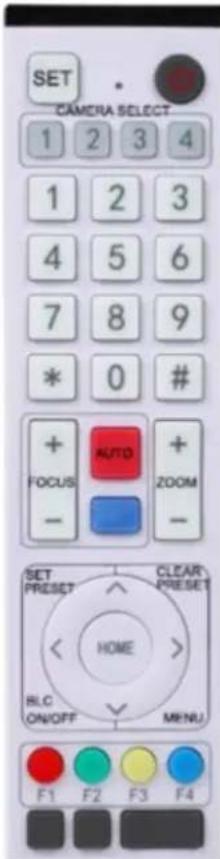
One to One Code Matching:
Press the "set" and "*" keys together for 3 seconds then the LED indicator will start flashing. The camera receives the signal and powers on, LED indicator will go off if code matching is successful. The camera can be controlled by this wireless remote control only after one to one code pairing. Otherwise, please clear the code matching of this remote control, or use other remote control to pair with the camera again. If one to one code matching fails, the red LED light will flash for 20 seconds and then switch off, camera will stop code matching and go into sleep mode; Press any key to wake up the camera and re-match the code.
Note: After code matching successfully, please select the camera address to control it.
Clear Code:
Press the "set" and "#" keys together for 3 seconds then the LED indicator will start flashing. Camera will power off and on, the LED indicator will go off if clearing the code was successful.
Sleep Mode and Wake Up:
Press any key to wake up the camera from sleep mode.
3.2 Keys Introduction for IR Remote Control
1). In this manual, "press the key" means a click rather than a long-press, and a special note will be given if a long-press for more than one second is required.
2). When a key-combination is required, do it in sequence. For example, “【*】+【#】+【F1】” means press“【*】” first and then press“【#】” and lastly press“【F1】”.
1. Standby Key
The camera enters standby mode if long press for 3 seconds on standby key;
Long press for 3 seconds again on the standby key, the camera will self-check again and return to HOME position (If preset 0
position is set, the camera will return to preset 0 position).
2. Camera Selection
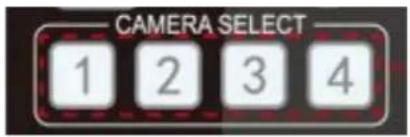
3. Focus Control
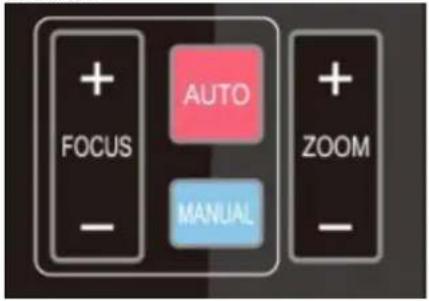
4. Zoom Control
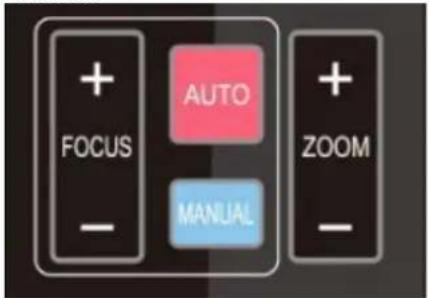
5. Set and Clear Presets
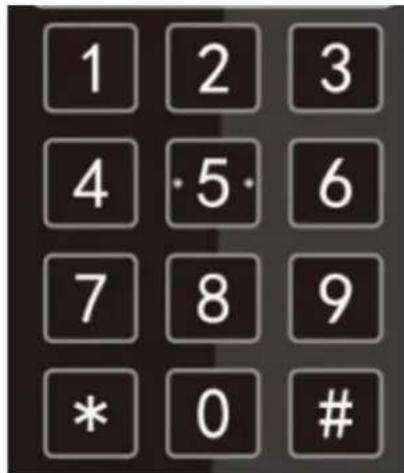
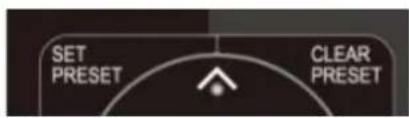
Select the camera address to control.
Auto: Auto focus mode
Manual: Manual focus mode
Focus + (near): Press 【FOCUS +】 key (Valid only in manual focus mode)
Focus - (far): Press 【FOCUS -】 key (Valid only in manual focus mode)
Press and hold the keys, the focusing action will continue and stop as soon as the key is released.
ZOOM -: press 【ZOOM -】key to zoom out Press and hold the keys, the focusing action will continue and stop as soon as the key is released.
Set Preset: press 【SET PRESET】button, and then press the number key 0-9 to set preset positions.
Note: 10 presets via remote control.
Call Preset: Press a number key 0-9 directly to call a preset position.
Clear Preset: press 【CLEAR PRESET】button, and then press the number key 0-9 to clear preset positions.
Note : press the 【#】 key three times successively to clear all presets.
6. Pan/Tilt Control

Up: press Down: press Left: press Right: press Back to middle position: press"【HOME】"
Press and hold the up/down/left/right key, the pan/tilt movements will keep running, from slow to fast, until it runs to the endpoint. The action will stop as soon as the key is released.
7. Menu Setting
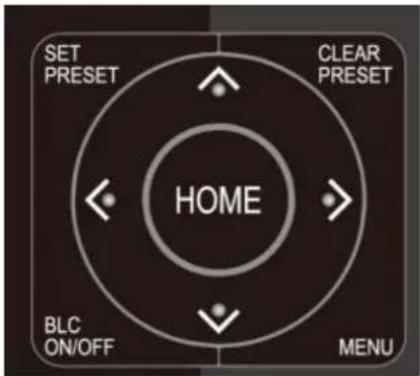
【MENU】: Open / close the OSD menu 【HOME】: Camera lens back to the middle position, Confirms menu selection, Enter next menu
【↑】【↓】: Choose item 【←】【→】: Modify values 【BLC ON/OFF】: Turn on or off the back light compensation
8. Camera Remote Control Address Setting
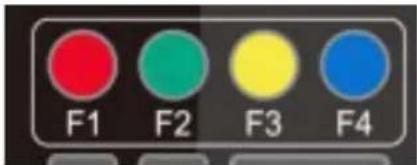
【*】+【#】+【F1】:Camera Address No.1 【*】+【#】+【F2】:Camera Address No.2 【*】+【#】+【F3】:Camera Address No.3 【*】+【#】+【F4】:Camera Address No.4
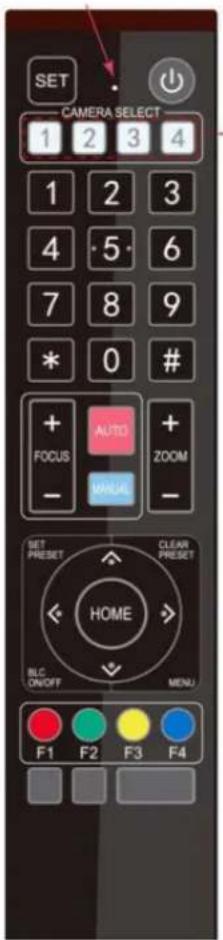
9. Key Combination
1) 【#】+【#】+【#】: Clear all presets
2) 【*】+【#】+【6】:Restore factory defaults
3) 【*】+【#】+【3】:Menu set to Chinese
4) 【*】+【#】+【4】:Menu set to English
5) 【*】+【#】+【9】: Flip switch
6) 【*】+【#】+Auto: Enter aging mode
7) 【#】+【*】+Auto: Exit aging mode
8) 【*】 + 【#】 + Manual: Restore the default user name, password, and IP address
9) 【#】+【#】+【0】: Switch the video format to 1080P60
10)【#】+【#】+【1】: Switch the video format to 1080P50
11)【#】+【#】+【2】: Switch the video format to 1080I60
12) 【#】+【#】+【3】:Switch the video format to 1080I50
13)【#】+【#】+【4】:Switch the video format to 720P60
14) 【#】+【#】+【5】:Switch the video format to 720P50
15)【#】+【#】+【6】: Switch the video format to 1080P30
16)【#】+【#】+【7】: Switch the video format to 1080P25
17)【#】+【#】+【8】:Switch the video format to 720P30
18)【#】+【#】+【9】:Switch the video format to 720P25
Note: If the address of former remote control is not address 1 but either 2, 3, or 4, the corresponding camera address will restore to address 1 when all parameters are restored to factory default. User should change the remote control address to address 1.
3.3 Menu Introduction
Note: The modification is only valid when the menu is exited before saving and powering off.
1). Menu Control
【MENU】: Enter / exit the OSD menu or return to the previous menu
【HOME】: Enter next menu
4.1 Network Connection
Direct connection: Connect the camera and computer via a network cable.
Internet connection mode: Connect the camera to the Internet via Router or Switcher. User can login to the device via the browser web page.
Note: Please do not put the power cable and network cable in places where can be easily handled to prevent video signal transmission becoming unstable due to poor contact of cables.
The computer must have the network segment that the camera IP address belongs to. The device will not be accessible without the segment. The camera default IP address is 192.168.5.163, segment 5 must be added in the computer. Visca Port: Set Visca port, the device will restart automatically after change (default 1259; 0-65535 optional).
Firstly open the window of Local Area Connection Properties on computer, select the “Internet protocol version 4(TCP/IPv4)”. Double click or click the property “Internet” protocol version 4 (TCP/IPv4) to enter into the Internet Protocol Version 4(TCP/IPv4) Properties window; select “Advanced” to enter into the Advanced TCP/IP Setting and add IP and subnet mask. Click the “Confirm” to finish the adding of IP segment. User can add the corresponding network segment according to the revised IP address of the camera.
Note: The IP address to be added cannot be same with that of other computers or devices. The existence of this IP address needs to be verified before adding.
To verify whether the network segment has been successfully added, click the "Start" and select "Command Prompt" to enter CMD, then click CONFIRM and open DOS command window, ping 192.168.5.26 and press Enter key to display information as shown below:
C:\Users\qq214>ping 192.168.5.26
Pinging 192.168.5.26 with 32 bytes of data:
Reply from 192.168.5.26: bytes=32 time<1ms TTL=128
Reply from 192.168.5.26: bytes=32 time=1ms TTL=128
Reply from 192.168.5.26: bytes=32 time<1ms TTL=128
Reply from 192.168.5.26: bytes=32 time<1ms TTL=128
Ping statistics for 192.168.5.26:
    Packets: Sent = 4, Received = 4, Lost = 0 (0% loss),
Approximate round trip times in milli-seconds:
    Minimum = 0ms, Maximum = 1ms, Average = 0ms
C:\Users\qq214>
After camera power on and self-check, follow the steps above to verify network connection. Open DOS command window, ping 192.168.5.163 and press Enter key.
C:\Users\qq214>ping 192.168.5.163
Pinging 192.168.5.163 with 32 bytes of data:
Reply from 192.168.5.163: bytes=32 time=2ms TTL=64
Reply from 192.168.5.163: bytes=32 time=1ms TTL=64
Reply from 192.168.5.163: bytes=32 time<1ms TTL=64
Reply from 192.168.5.163: bytes=32 time=4ms TTL=64
Ping statistics for 192.168.5.163:
    Packets: Sent = 4, Received = 4, Lost = 0 (0% loss),
Approximate round trip times in milli-seconds:
    Minimum = 0ms, Maximum = 4ms, Average = 1ms
C:\Users\qq214>
4.2 Web Interface Login
1) Web Page Login
Input the default IP address 192.168.5.163 in the browser and click the Enter button to enter into Web Client login page. User can login as administrator and normal user. If logging in as administrator (Default User name/Password: admin), users can preview, playback, and set configuration in the Web Client; If logging in as normal user (Default User name/Password: user1 or user
2), 'Users' can only preview, playback and logout, there is no option for configuration.
Note: Web access supports most web browsers: IE, 360 browsers and etc.
Chrome login is available after firmware update, but only supports basic configuration and preview video, no functions of recording videos, voice volume, video capture and playback.
3) Web Login Preview
When logged in to the camera's web interface, the preview of the camera image is available to view in the preview tab of the interface. If no image is shown, a camera firmware update may be required to update the camera firmware to accommodate HTML5 support. Please follow steps to perform the firmware update, further instructions are available under the specific camera model firmware download page at www.alfatronelectronics.com
4.3 Streaming
1). Video Stream Capture
Configurations -> Video Configure-> Video Encode
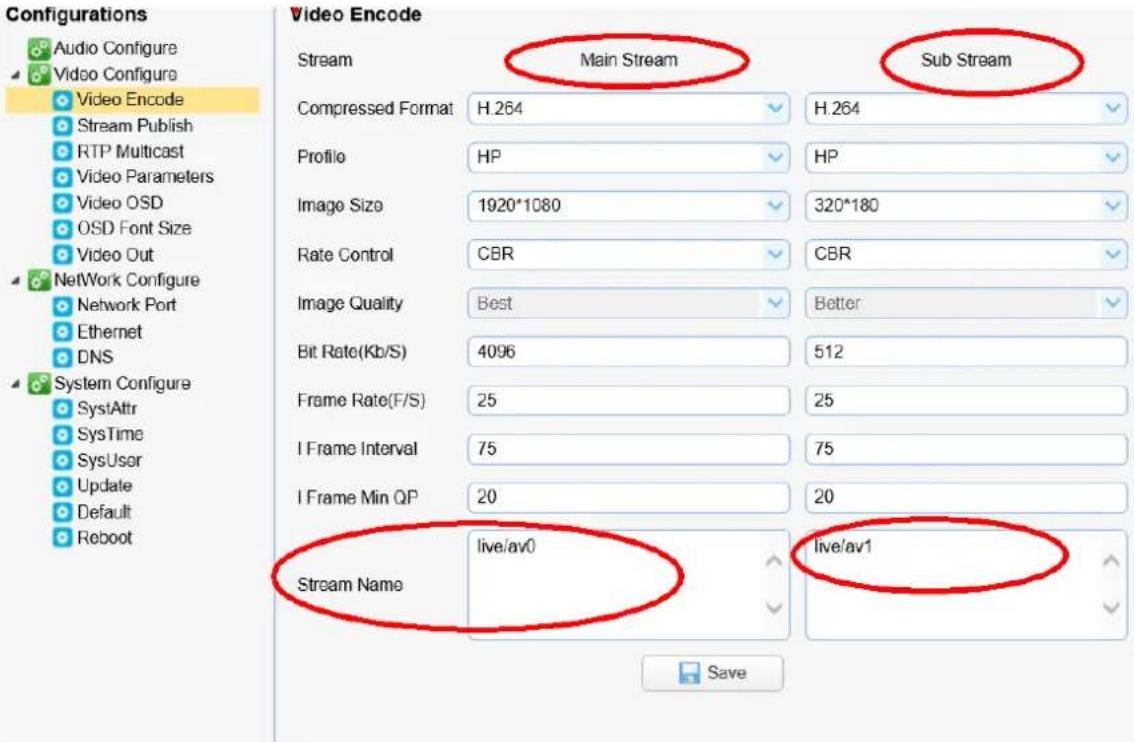
Configure the parameters according to the network environment. Note: stream name live/av0 (live/ XXX)
For example:
The default IP address of the camera is 192.168.5.163. The way to obtain the RTSP video stream is as per below: rtsp://192.168.5.163:554/live/av0 (av0 main stream) rtsp://192.168.5.163:554/live/av1 (av1 sub stream)
The default IP address of the camera is 192.168.5.163. the way to obtain RTMP video stream is as per below: rtmp://192.168.5.163:1935/live/av0 (av0 main stream) rtmp://192.168.5.163:1935/live/av1 (av1 sub stream)
2). Push Video Stream
Configurations -> Video Configure-> Stream Publish
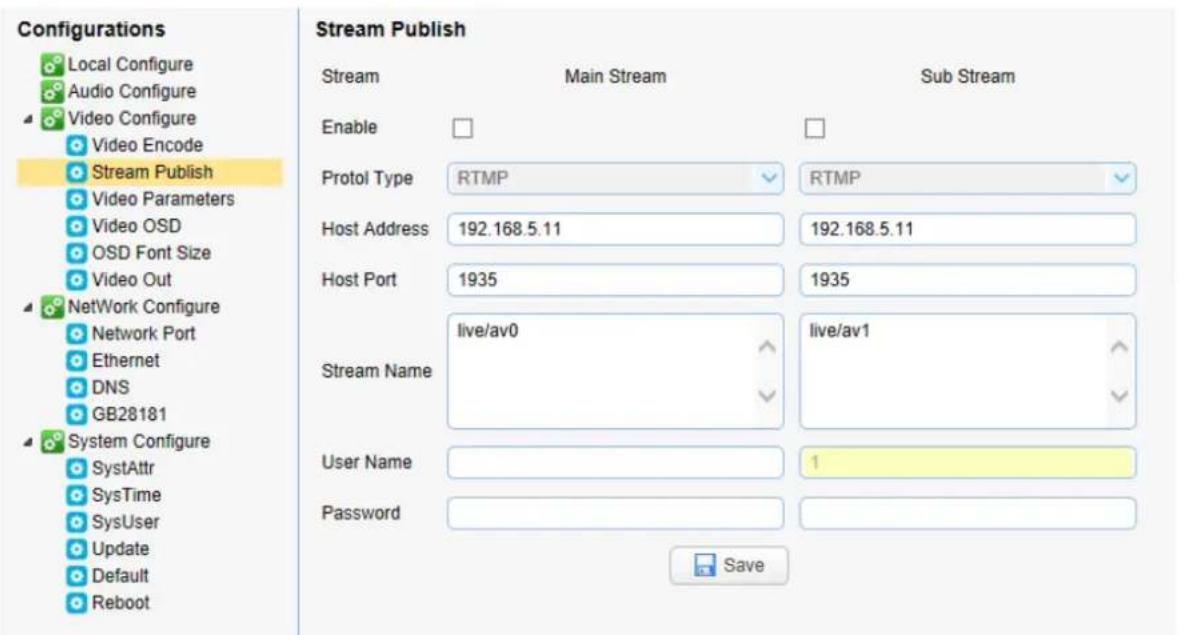
Push RTMP stream to public network server, the stream camera must be on the public network, or else it will fail to connect to the server.
Host address: server address, which can be either a domain name or an IP address
Host port: server default port number
Stream name: live/test (live/ XXX)
Username and password: the username and password set by the server, or leave it empty
Access url: rtmp://host domain name: host port/live/xxx
Or (rtmp://host IP address: host port/live/xxx)
4.4 Software Upgrading
1). Login to the web page to manage camera settings. The default page is preview interface, where users can use PTZ control, record video, preset camera positions etc.
2). Configurations -> System Configure-> Update
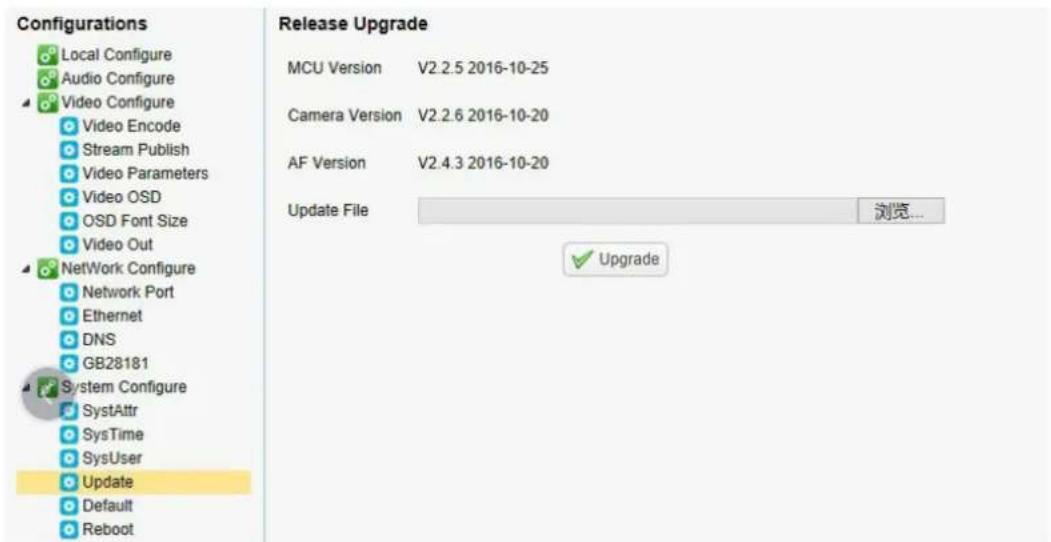
3). Click "browse" to select .mrg update file, then click on the upgrade button to finish software upgrading.
4). Camera will reboot after completion of firmware update. It prompts with "successful upgrade".
Log in to check the firmware version to make sure software upgrade successful.
Then click "restore factory default", reboot and restore parameters to factory default (default IP 192.168.5.163, user name: admin; password admin).
5. Monocular AI Tracking Function Web Page Configuration
- After login, enter into the management interface and turn on Tracking below "Monocular Tracking"
- On the right top is PTZ control area, in which you can set the preset region of Regional Tracking. Interface is as below.

Regional Settings Steps (We take Region1 as an example):
-
On the PTZ Area, adjust image by clicking direction buttons to select one region.
-
After finishing region1 setting, click "Set" to complete the Region1 Tracking. Other region settings are same as region1 setting steps.
You can set 4 different regions, and minimum 2 regions. And the Regional Tracking settings can only be configured through the webpage.
Call out the regional tracking: Click “Run” of corresponding region on the “Regional settings” area.
- Each preset preview image must be continuous from left to right and overlap when setting the tracking regions.
- You need to tick next to the region number to save the setting location when you setting the region.

flowchart
graph TD
    A["region 1"] --> B["region2"]
    B --> C["region3"]
    C --> D["region4"]
    E["table"] --> F
    style E fill:#f9f,stroke:#333
    style F fill:#ccf,stroke:#333
5. Serial port communication and control
The camera could be controlled through RS232/RS485 interface; RS232C serial parameter are as follows:
Baud rate: 2400/4800/9600/115200 bits / sec; Start bit: 1; data bits: 8; Stop bit: 1; Parity: None.
5.1 VISCA Protocol Return Command
| Ack/Completion Message | ||
| Command packet | Note | |
| ACK | z0 41 FF | Returned when the command is accepted. |
| Completion | z0 51 FF | Returned when the command has been executed. |
z = camera address + 8
| Error Messages | ||
| Command packet | Note | |
| Syntax Error | z0 60 02 FF | Returned when the command format is different or when a command with illegal command parameters is accepted |
| Command Not Executable | z0 61 41 FF | Returned when a command cannot be executed due to current conditions. For example, when commands controlling the focus manually are received during auto focus. |
5.2 VISCA Protocol Control Command
| Command | Function | Command packet | Note |
| AddressSet | Broadcast | 88 30 0p FF | p: Address setting |
| IF_Clear | Broadcast | 88 01 00 01 FF | I/F Clear |
| CommandCancel | 8x 21 FF | ||
| CAM_Power | On | 8x 01 04 00 02 FF | Power ON/OFF |
| Off | 8x 01 04 00 03 FF | ||
| CAM_Zoom | Stop | 8x 01 04 07 00 FF | |
| Tele(Standard) | 8x 01 04 07 02 FF | ||
| Wide(Standard) | 8x 01 04 07 03 FF | ||
| Tele(Variable) | 8x 01 04 07 2p FF | p = 0(low) - F(high) | |
| Wide(Variable) | 8x 01 04 07 3p FF | ||
| Direct | 8x 01 04 47 0p 0q 0r 0s FF | pqrs: Zoom Position | |
| CAM_Focus | Stop | 8x 01 04 08 00 FF | |
| Far(Standard) | 8x 01 04 08 02 FF | ||
| Near(Standard) | 8x 01 04 08 03 FF | ||
| Far(Variable) | 8x 01 04 08 2p FF | p = 0(low) - F(high) | |
| Near (Variable) | 8x 01 04 08 3p FF | ||
| Direct | 8x 01 04 48 0p 0q 0r 0s FF | pqrs: Focus Position | |
| Auto Focus | 8x 01 04 38 02 FF | ||
| Manual Focus | 8x 01 04 38 03 FF | ||
| One Push mode | 8x 01 04 38 04 FF | ||
| CAM_Zoom Focus | Direct | 8x 01 04 47 0p 0q 0r 0s0t 0u 0v 0w FF | pqrs: Zoom Position tuvw: Focus Position |
| CAM_AFSensitivity | High | 8x 01 04 58 01 FF | Focus sensitivity Setting |
| Normal | 8x 01 04 58 02 FF | ||
| Low | 8x 01 04 58 03 FF | ||
| CAM_AFZone | Top | 8x 01 04 AA 00 FF | Focus Region Setting |
| Center | 8x 01 04 AA 01 FF | ||
| Bottom | 8x 01 04 AA 02 FF | ||
| ALL | 8x1 01 04 AA 03 FF | ||
| CAM_WB | One Push mode | 8x 01 04 35 03 FF | |
| One Push Trigger | 8x 01 04 10 05 FF | One Push WB Trigger(Enabled during One Push WB mode) | |
| CAM_WB Mode | 8x 01 04 35 pq FF | pq = 00--33 WBMode | |
| CAM_AWBSensitivity | Low | 8x 01 04 A9 00 FF | WB Sensitivity Setting |
| Normal | 8x 01 04 A9 01 FF | ||
| High | 8x 01 04 A9 02 FF | ||
| CAM_RGain | Reset | 8x 01 04 03 00 FF | Manual Control of R Gain |
| Up | 8x 01 04 03 02 FF | ||
| Down | 8x 01 04 03 03 FF | ||
| Direct | 8x 01 04 43 00 00 0p 0q FF | pq: R Gain | |
| CAM_Bgain | Reset | 8x 01 04 04 00 FF | Manual Control of B Gain |
| Up | 8x 01 04 04 02 FF | ||
| Down | 8x 01 04 04 03 FF | ||
| Direct | 8x 01 04 44 00 00 0p 0q FF | pq: B Gain | |
| CAM_AE | Full Auto | 8x 01 04 39 00 FF | Automatic Exposure mode |
| Manual | 8x 01 04 39 03 FF | Manual Control mode | |
| Shutter priority | 8x 01 04 39 0A FF | Shutter Priority Automatic Exposure mode | |
| Iris priority | 8x 01 04 39 0B FF | Iris Priority Automatic Exposure mode | |
| Bright | 8x 01 04 39 0D FF | Bright mode | |
| CAM_Shutter | Reset | 8x 01 04 0A 00 FF | Shutter Setting |
| Up | 8x 01 04 0A 02 FF | ||
| Down | 8x 01 04 0A 03 FF | ||
| Direct | 8x 01 04 4A 00 00 0p 0q FF | pq: Shutter Position | |
| CAM_Iris | Reset | 8x 01 04 0B 00 FF | Iris Setting |
| Up | 8x 01 04 0B 02 FF | ||
| Down | 8x 01 04 0B 03 FF | ||
| Direct | 8x 01 04 4B 00 00 0p 0q FF | pq: Iris Position | |
| CAM_Gain Limit | Reset | 8x 01 04 0C 00 FF | Gain Limit Setting |
| Up | 8x 01 04 0C 02 FF | ||
| Down | 8x 01 04 0C 03 FF | ||
| Gain Limit | 8x 01 04 2C 0p FF | p: Gain Position | |
| CAM_Bright | Reset | 8x 01 04 0D 00 FF | Bright Setting |
| Up | 8x 01 04 0D 02 FF | ||
| Down | 8x 01 04 0D 03 FF | ||
| Direct | 8x 01 04 4D 00 00 0p 0q FF | pq: Bright Position | |
| CAM_ExpComp | On | 8x 01 04 3E 02 FF | Exposure Compensation ON/OFF |
| Off | 8x 01 04 3E 03 FF | ||
| Reset | 8x 01 04 0E 00 FF | Exposure Compensation Amount Setting | |
| Up | 8x 01 04 0E 02 FF | ||
| Down | 8x 01 04 0E 03 FF | ||
| Direct | 8x 01 04 4E 00 00 0p 0q FF | pq: ExpComp Position | |
| CAM_Back Light | On | 8x 01 04 33 02 FF | Back LightCompensation |
| Off | 8x 01 04 33 03 FF | ||
| CAM_WDRStrength | Reset | 8x 01 04 21 00 FF | WDR Level Setting |
| Up | 8x 01 04 21 02 FF | ||
| Down | 8x 01 04 21 03 FF | ||
| Direct | 8x 01 04 51 00 00 00 0p FF | p: WDR Level Positon | |
| CAM_NR | 2D | 8x 01 04 53 0p FF | P=0-7 0:OFF |
| 3D | 8x 01 04 54 0p FF | P=0-8 0:OFF | |
| CAM_Gamma | 8x 01 04 5B 0p FF | p = 0 - 4 0 : Default 1: 0.45 2: 0.503: 0.55 4 : 0.63 | |
| CAM_Low-Light Mode | ON | 8x 01 04 2D 01 FF | Low-Light Mode Setting |
| OFF | 8x 01 04 2D 00 FF | ||
| CAM_Flicker | OFF | 8x 01 04 23 00 FF | OFF |
| 50HZ | 8x 01 04 23 01 FF | 50HZ | |
| 60HZ | 8x 01 04 23 02 FF | 60HZ | |
| CAM_Aperture | Reset | 8x 01 04 02 00 FF | Aperture Control |
| Up | 8x 01 04 02 02 FF | ||
| Down | 8x 01 04 02 03 FF | ||
| Direct | 8x 01 04 42 00 00 0p 0q FF | pq: Aperture Gain | |
| CAM_Picture effect | B&W-Mode | 8x 01 04 63 04 FF | Picture effect Setting |
| OFF | 8x 01 04 63 00 FF | ||
| CAM_Memory | Reset | 8x 01 04 3F 00 pq FF | pq: Memory Number(=0 to 254)Corresponds to 0 to 9 on the Remote Commander |
| Set | 8x 01 04 3F 01 pq FF | ||
| Recall | 8x 01 04 3F 02 pq FF | ||
| CAM_LR_Reverse | On | 8x 01 04 61 02 FF | Image Flip Horizontal ON/OFF |
| Off | 8x 01 04 61 03 FF | ||
| CAM_PictureFlip | On | 8x 01 04 66 02 FF | Image Flip Vertical ON/OFF |
| Off | 8x 01 04 66 03 FF | ||
| CAM_ColorSaturation | Direct | 8x 01 04 49 00 00 00 0p FF | P=0-E0:60% 1:70% 2:80% 3:90% 4:100%5:110% 6:120% 7:130% 8:140%9:150% 10:160% 11:160% 12:180%13:190% 14:200% |
| CAM_IDWrite | 8x 01 04 22 0p 0q 0r 0s FF | pqrs: Camera ID (=0000 to FFFF) | |
| SYS_Menu | ON | 8x 01 04 06 06 02 FF | Turn on the menu screen |
| OFF | 8x 01 04 06 06 03 FF | Turn off the menu screen | |
| IR_Receive | ON | 8x 01 06 08 02 FF | IR(remote commander)receive On/Off |
| OFF | 8x 01 06 08 03 FF | ||
| IR_ReceiveReturn | On | 8x 01 7D 01 03 00 00 FF | IR(remote commander)receive message viathe VISCA communication ON/OFF |
| Off | 8x 01 7D 01 13 00 00 FF | ||
| CAM_SettingReset | Reset | 8x 01 04 A0 10 FF | Reset Factory Setting |
| CAM_Brightness | Direct | 8x 01 04 A1 00 00 0p 0q FF | pq: Brightness Position |
| CAM_Contrast | Direct | 8x 01 04 A2 00 00 0p 0q FF | pq: Contrast Position |
| On | 81 0A 01 32 00 00 02 00 FF | Turns Auto Tracking on | |
| OFF | 81 0A 01 32 00 00 03 00 FF | Turns Auto Tracking off | |
| CAM_Flip | OFF | 8x 01 04 A4 00 FF | Single Command For Video Flip |
| Flip-H | 8x 01 04 A4 01 FF | ||
| Flip-V | 8x 01 04 A4 02 FF | ||
| Flip-HV | 8x 01 04 A4 03 FF |
ALF-25X-4KCAM
| CAM_VideoSystem | Set camera video system | 8x 01 06 35 00 0p FF | P: 0~E Video format0:1080P60 5:720P501:1080P50 6:1080P302:1080i60 7:1080P253:1080i50 8:720P30 |
| Command | Function | Command packet | Note |
| 4:720P60 9:720P25 |
| Pan_tiltDrive | Up | 8x 01 06 01 VV WW 03 01 FF | VV: Pan speed 0x01 (low speed) to 0x18 (high speed)WW: Tilt speed 0x01 (low speed) to 0x14 (high speed)YYYY: Pan PositionZZZZ: Tilt Position |
| Down | 8x 01 06 01 VV WW 03 02 FF | ||
| Left | 8x 01 06 01 VV WW 01 03 FF | ||
| Right | 8x 01 06 01 VV WW 02 03 FF | ||
| Upleft | 8x 01 06 01 VV WW 01 01 FF | ||
| Upright | 8x 01 06 01 VV WW 02 01 FF | ||
| DownLeft | 8x 01 06 01 VV WW 01 02 FF | ||
| DownRight | 8x 01 06 01 VV WW 02 02 FF | ||
| Stop | 8x 01 06 01 VV WW 03 03 FF | ||
| AbsolutePosition | 8x 01 06 02 VV WW0Y 0Y 0Y 0Y 0Z 0Z 0Z 0Z FF | ||
| RelativePosition | 8x 01 06 03 VV WW0Y 0Y 0Y 0Y 0Z 0Z 0Z 0Z FF | ||
| Home | 8x 01 06 04 FF | ||
| Reset | 8x 01 06 05 FF | ||
| Pan-tilt LimitSet | Set | 8x 01 06 07 00 0W0Y 0Y 0Y 0Y 0Z 0Z 0Z 0Z FF | W:1 Up Right 0:Down LeftYYYY: Pan Limit Position(TBD)ZZZZ: Tilt Limit Position(TBD) |
| Clear | 8x 01 06 07 01 0W07 0F 0F 0F 07 0F 0F 0F FF |
5.3 VISCA Protocol Inquiry Command
| Command | Command Packet | Return Packet | Note |
| CAM_PowerInq | 8x 09 04 00 FF | y0 50 02 FF | On |
| y0 50 03 FF | Off(Standby) | ||
| CAM_ZoomPosInq | 8x 09 04 47 FF | y0 50 0p 0q 0r 0s FF | pqrs: Zoom Position |
| CAM_FocusAFModeInq | 8x 09 04 38 FF | y0 50 02 FF | Auto Focus |
| y0 50 03 FF | Manual Focus | ||
| y0 50 04 FF | One Push mode | ||
| CAM_FocusPosInq | 8x 09 04 48 FF | y0 50 0p 0q 0r 0s FF | pqrs: Focus Position |
| CAM_AFSensitivityInq | 8x 09 04 58 FF | y0 50 01 FF | High |
| y0 50 02 FF | Normal | ||
| y0 50 03 FF | Low | ||
| CAM_AFZoneInq | 8x 09 04 AA FF | y0 01 04 AA 00 FF | Top |
| y0 01 04 AA 01 FF | Center | ||
| y0 01 04 AA 02 FF | Bottom | ||
| y0 01 04 AA 03 FF | All | ||
| CAM_WBModeInq | 8x 09 04 35 FF | y0 50 pq FF | Auto |
| pq =WBMode | |||
| CAM_AWBSensitivityInq | 8x 09 04 A9 FF | y0 50 00 FF | Low |
| y0 50 01 FF | Normal | ||
| y0 50 02 FF | High | ||
| CAM_RGainInq | 8x 09 04 43 FF | y0 50 0B FF | 7000K |
| CAM_BGainInq | 8x 09 04 44 FF | y0 50 00 00 0p 0q FF | pq: B Gain |
| CAM_AEModelInq | 8x 09 04 39 FF | y0 50 00 FF | Full Auto |
| y0 50 03 FF | Manual | ||
| y0 50 0A FF | Shutter priority | ||
| y0 50 0B FF | Iris priority | ||
| y0 50 0D FF | Bright | ||
| CAM_ShutterPosInq | 8x 09 04 4A FF | y0 50 00 00 0p 0q FF | pq: Shutter Position |
| CAM_IrisPosInq | 8x 09 04 4B FF | y0 50 00 00 0p 0q FF | pq: Iris Position |
| CAM_Gain LimitInq | 8x 09 04 2C FF | y0 50 0p FF | p: Gain Positon |
ALF-25X-4KCAM
| CAM_BrightPosiInq | 8x 09 04 4D FF | y0 50 00 00 0p 0q FF | pq: Bright Position |
| CAM_ExpCompModeInq | 8x 09 04 3E FF | y0 50 02 FF | On |
| y0 50 03 FF | Off | ||
| CAM_ExpCompPosInq | 8x 09 04 4E FF | y0 50 00 00 0p 0q FF | pq: ExpComp Position |
| CAM_BacklightModeInq | 8x 09 04 33 FF | y0 50 02 FF | On |
| y0 50 03 FF | Off | ||
| CAM_WDRStrengthInq | 8x 09 04 51 FF | y0 50 00 00 00 0p FF | p: WDR Strength |
| CAM_NRLevel(2D) Inq | 8x 09 04 53 FF | y0 50 0p FF | P: 2DNRLevel |
| CAM_NRLevel(3D) Inq | 8x 09 04 54 FF | y0 50 0p FF | P:3D NRLevel |
| CAM_FlickerModeInq | 8x 09 04 55 FF | y0 50 0p FF | p: Flicker Settings(0: OFF, 1: 50Hz, 2:60Hz) |
| CAM_ApertureInq | 8x 09 04 42 FF | y0 50 00 00 0p 0q FF | pq: Aperture Gain |
| CAM_PictureEffectModeInq | 8x 09 04 63 FF | y0 50 00 FF | Off |
| y0 50 04 FF | B&W | ||
| CAM_MemoryInq | 8x 09 04 3F FF | y0 50 0p FF | p: Memory number last operated. |
| SYS_MenuModeInq | 8x 09 06 06 FF | y0 50 02 FF | On |
| y0 50 03 FF | Off | ||
| CAM_LR_ReverseInq | 8x 09 04 61 FF | y0 50 02 FF | On |
| y0 50 03 FF | Off | ||
| CAM_PictureFlipInq | 8x 09 04 66 FF | y0 50 02 FF | On |
| y0 50 03 FF | Off | ||
| CAM_ColorSaturationInq | 8x 09 04 49 FF | y0 50 00 00 00 0p FF | p: Color Gain setting 0h (60%) to Eh (130%) |
| CAM_IDInq | 8x 09 04 22 FF | y0 50 0p FF | p: Gamma ID |
| IR_ReceiveInq | 8x 09 06 08 FF | y0 50 02 FF | On |
| y0 50 03 FF | Off | ||
| IR_ReceiveReturn | y0 07 7D 01 04 00 FF | Power ON/OFF | |
| y0 07 7D 01 04 07 FF | Zoom tclc/widc | ||
| y0 07 7D 01 04 38 FF | AF ON/OFF | ||
| y0 07 7D 01 04 33 FF | Camera Backlight | ||
| y0 07 7D 01 04 3F FF | Camera _Memory | ||
| y0 07 7D 01 06 01 FF | Pan_titleDriver | ||
| CAM_BrightnessInq | 8x 09 04 A1 FF | y0 50 00 00 0p 0q FF | pq: Brightness Position |
| CAM_ContrastInq | 8x 09 04 A2 FF | y0 50 00 00 0p 0q FF | pq: Contrast Position |
| CAM_FlipInq | 8x 09 04 A4 FF | y0 50 00 FF | Off |
| y0 50 01 FF | Flip-H | ||
| y0 50 02 FF | Flip-V | ||
| y0 50 03 FF | Flip-HV | ||
| CAM_GammaInq | 8x 09 04 5B FF | y0 50 0p FF | p: Gamma setting |
| CAM_Low-LightModeInq | 8x 09 04 2D FF | y0 50 00 FF | OFF |
| y0 50 01 FF | ON | ||
| CAM_VersionInq | 8x 09 00 02 FF | y0 50 ab cdmn pq rs tu vw FF | ab cd: vender ID (0220)mn pq: model IDrs tu : ARM Versionvw : reserve |
| VideoSystemInq | 8x 09 06 23 FF | y0 50 0p FF | P: 0~E Video format0:1080P60 5:720P501:1080P50 6:1080P302:1080i60 7:1080P253:1080i50 8:720P304:720P60 9:720P25 |
| Pan-tiltMaxSpeedInq | 8x 09 06 11 FF | y0 50 ww zz FF | ww: Pan Max Speed zz: Tilt Max Speed |
| Pan-tiltPosInq | 8x 09 06 12 FF | y0 50 0w 0w 0w 0w0z 0z 0z 0z FF | www: Pan Position zzzz:Tilt Position |
Note:[X] in the above table indicates the camera address to be operated. 【y】 = 【x + 8】.
5.4 Pelco-D protocol command list
| Function | Byte1 | Byte2 | Byte3 | Byte4 | Byte5 | Byte6 | Byte7 |
| Up | 0xFF | Address | 0x00 | 0x08 | Pan Speed | Tilt Speed | SUM |
| Down | 0xFF | Address | 0x00 | 0x10 | Pan Speed | Tilt Speed | SUM |
| Left | 0xFF | Address | 0x00 | 0x04 | Pan Speed | Tilt Speed | SUM |
| Right | 0xFF | Address | 0x00 | 0x02 | Pan Speed | Tilt Speed | SUM |
| Upleft | 0xFF | Address | 0x00 | 0x0C | Pan Speed | Tilt Speed | SUM |
| Upright | 0xFF | Address | 0x00 | 0x0A | Pan Speed | Tilt Speed | SUM |
| DownLeft | 0xFF | Address | 0x00 | 0x14 | Pan Speed | Tilt Speed | SUM |
| DownRight | 0xFF | Address | 0x00 | 0x12 | Pan Speed | Tilt Speed | SUM |
| Zoom In | 0xFF | Address | 0x00 | 0x20 | 0x00 | 0x00 | SUM |
| Zoom Out | 0xFF | Address | 0x00 | 0x40 | 0x00 | 0x00 | SUM |
| Focus Far | 0xFF | Address | 0x00 | 0x80 | 0x00 | 0x00 | SUM |
| Focus Near | 0xFF | Address | 0x01 | 0x00 | 0x00 | 0x00 | SUM |
| Stop | 0xFF | Address | 0x00 | 0x00 | 0x00 | 0x00 | SUM |
| Set Preset | 0xFF | Address | 0x00 | 0x03 | 0x00 | Preset ID | SUM |
| Clear Preset | 0xFF | Address | 0x00 | 0x05 | 0x00 | Preset ID | SUM |
| Call Preset | 0xFF | Address | 0x00 | 0x07 | 0x00 | Preset ID | SUM |
| Query Pan Position | 0xFF | Address | 0x00 | 0x51 | 0x00 | 0x00 | SUM |
| Query Pan Position Response | 0xFF | Address | 0x00 | 0x59 | Value High Byte | Value Low Byte | SUM |
| Query Tilt Position | 0xFF | Address | 0x00 | 0x53 | 0x00 | 0x00 | SUM |
| Query Tilt Position Response | 0xFF | Address | 0x00 | 0x5B | Value High Byte | Value Low Byte | SUM |
| Query Zoom Position | 0xFF | Address | 0x00 | 0x55 | 0x00 | 0x00 | SUM |
| Query Zoom Position Response | 0xFF | Address | 0x00 | 0x5D | Value High Byte | Value Low Byte | SUM |
5.5 Pelco-P protocol command list
| Function | Byte1 | Byte2 | Byte3 | Byte4 | Byte5 | Byte6 | Byte7 | Byte 8 |
| Up | 0xA0 | Address | 0x00 | 0x08 | Pan Speed | Tilt Speed | 0xAF | XOR |
| Down | 0xA0 | Address | 0x00 | 0x10 | Pan Speed | Tilt Speed | 0xAF | XOR |
| Left | 0xA0 | Address | 0x00 | 0x04 | Pan Speed | Tilt Speed | 0xAF | XOR |
| Right | 0xA0 | Address | 0x00 | 0x02 | Pan Speed | Tilt Speed | 0xAF | XOR |
| Upleft | 0xA0 | Address | 0x00 | 0x0C | Pan Speed | Tilt Speed | 0xAF | XOR |
| Upright | 0xA0 | Address | 0x00 | 0x0A | Pan Speed | Tilt Speed | 0xAF | XOR |
| DownLeft | 0xA0 | Address | 0x00 | 0x14 | Pan Speed | Tilt Speed | 0xAF | XOR |
| DownRight | 0xA0 | Address | 0x00 | 0x12 | Pan Speed | Tilt Speed | 0xAF | XOR |
| Zoom In | 0xA0 | Address | 0x00 | 0x20 | 0x00 | 0x00 | 0xAF | XOR |
| Zoom Out | 0xA0 | Address | 0x00 | 0x40 | 0x00 | 0x00 | 0xAF | XOR |
| Stop | 0xA0 | Address | 0x00 | 0x00 | 0x00 | 0x00 | 0xAF | XOR |
| Focus Far | 0xA0 | Address | 0x01 | 0x00 | 0x00 | 0x00 | 0xAF | XOR |
| Focus Near | 0xA0 | Address | 0x02 | 0x00 | 0x00 | 0x00 | 0xAF | XOR |
| Set Preset | 0xA0 | Address | 0x00 | 0x03 | 0x00 | Preset ID | 0xAF | XOR |
| Clear Preset | 0xA0 | Address | 0x00 | 0x05 | 0x00 | Preset ID | 0xAF | XOR |
| Call Preset | 0xA0 | Address | 0x00 | 0x07 | 0x00 | Preset ID | 0xAF | XOR |
| Query Pan Position | 0xA0 | Address | 0x00 | 0x51 | 0x00 | 0x00 | 0xAF | XOR |
| Query Pan Position Response | 0xA0 | Address | 0x00 | 0x59 | Value High Byte | Value Low Byte | 0xAF | XOR |
| Query Tilt Position | 0xA0 | Address | 0x00 | 0x53 | 0x00 | 0x00 | 0xAF | XOR |
| Query Tilt Position Response | 0xA0 | Address | 0x00 | 0x5B | Value High Byte | Value Low Byte | 0xAF | XOR |
| Query Zoom Position | 0xA0 | Address | 0x00 | 0x55 | 0x00 | 0x00 | 0xAF | XOR |
| Query Zoom Position Response | 0xA0 | Address | 0x00 | 0x5D | Value High Byte | Value Low Byte | 0xAF | XOR |
6. Maintenance and Troubleshooting
6.1 Maintenance
1) Please power off the camera and disconnect the power adapter and socket if it's not used for n extended period of time.
2) Use a soft cloth to clean the camera cover.
3) Wipe with a soft, dry cloth when cleaning the camera lens. Wipe gently with a mild detergent if needed. Do not use strong or corrosive detergents to avoid scratching the lens and affecting the video quality.
6.2 Troubleshooting
1) No video output
a. Check whether the camera power supply is connected, if the voltage is normal, and if the power indicator is lit.
b. Whether the camera could do a self-check after restarting.
c. Check whether the bottom of the DIP switch is the normal operating mode (see Table 2.2 and Table 2.3)
d. Check whether the video output cable or video display is normal
2) No image
a. Check whether the video output cable or video display is normal
3) Video dithering when zoom-in or zoom-out
a. Check whether the camera installation position is solid
b. Whether there is vibrating machine or objects around the camera
4) Remote control does not work
a. Remote control address is set to 1. If the machine is set back to the factory default, remote control addresses need to be put back to 1 too.
b. Check whether the batteries are in the remote controller or if they are low.
c, Check that the camera working mode is in normal operating mode (see Table 2.2 and Table 2.3)
d. Check if the menu is closed. Camera control through remote controller is only available after exiting the menu. If video output is from LAN, menu will not be displayed, menu will automatically exist 30 seconds later, then it can be controlled by remote controller.
5) Serial port not working
a. Check whether the camera serial device protocol, baud rate, and address is consistent.
b. Check whether the control cable is connected properly.
c. Check whether the camera working mode is in normal operating mode.
6) Web pages cannot log in
a. Check if the camera outputs video normally by connecting directly to the screen via HDMI or SDI outputs
b. Check whether the network cable is connected properly (Ethernet port amber light flashes to indicate normal network cable connection)
c. Check that your computer is in the same IP and Subnet range and that the range is consistent with the IP address of the camera.
(Camera IP Address is briefly displayed on HDMI output on boot up of camera)
d. Click "Start" and select "Run" and then type "cmd" into the computer; Click "OK" then turn on a DOS command window and type 'ping 192.168.5.163'. Press the Enter key to see message as follows: (below image show network connection is normal)
C:\Users\qq214>ping 192.168.5.163
Pinging 192.168.5.163 with 32 bytes of data:
Reply from 192.168.5.163: bytes=32 time=2ms TTL=64
Reply from 192.168.5.163: bytes=32 time=1ms TTL=64
Reply from 192.168.5.163: bytes=32 time<1ms TTL=64
Reply from 192.168.5.163: bytes=32 time=4ms TTL=64
Ping statistics for 192.168.5.163:
    Packets: Sent = 4, Received = 4, Lost = 0 (0% loss),
Approximate round trip times in milli-seconds:
    Minimum = 0ms, Maximum = 4ms, Average = 1ms
C:\Users\qq214>
7. Warranty
1.1 This limited warranty covers defects in materials and workmanship in this product.
1.2 Should warranty service be required, proof of purchase must be presented to the Company. The serial number on the product must be clearly visible and not have been tampered with in any way whatsoever.
1.3 This limited warranty does not cover any damage, deterioration or malfunction resulting from any alteration, modification, improper or unreasonable use or maintenance, misuse, abuse, accident, neglect, exposure to excess moisture, fire, improper packing and shipping (such claims must be presented to the carrier), lightning, power surges, or other acts of nature. This limited warranty does not cover any damage, deterioration or malfunction resulting from the installation or removal of this product from any installation, any unauthorized tampering with this product, any repairs attempted by anyone unauthorized by the Company to make such repairs, or any other cause which does not relate directly to a defect in materials and/or workmanship of this product. This limited warranty does not cover equipment enclosures, cables or accessories used in conjunction with this product.
This limited warranty does not cover the cost of normal maintenance. Failure of the product due to insufficient or improper maintenance is not covered.
1.4 The Company does not warrant that the product covered hereby, including, without limitation, the technology and/or integrated circuit(s) included in the product, will not become obsolete or that such items are or will remain compatible with any other product or technology with which the product may be used.
1.5 Only the original purchaser of this product is covered under this limited warranty. This limited warranty is not transferable to subsequent purchasers or owners of this product.
1.6 Unless otherwise specified, the goods are warranted in accordance with the manufacturer's product specific warranties against any defect attributable to faulty workmanship or materials, fair wear and tear being excluded.
1.7 This limited warranty only covers the cost of faulty goods and does not include the cost of labor and travel to return the goods to the Company's premises.
1.8 In the event of any improper maintenance, repair or service being carried out by any third persons during the warranty period without the Company's written authorization, the limited warranty shall be void.
1.9 A 7 (seven) year limited warranty is given on the aforesaid product where used correctly according to the Company's instructions, and only with the use of the Company's components.
1.10 The Company will, at its sole option, provide one of the following three remedies to whatever extent it shall deem necessary to satisfy a proper claim under this limited warranty:
1.10.1 Elect to repair or facilitate the repair of any defective parts within a reasonable period of time, free of any charge for the necessary parts and labor to complete the repair and restore this product to its proper operating condition.; or
1.10.2 Replace this product with a direct replacement or with a similar product deemed by the Company to perform substantially the same function as the original product; or
1.10.3 Issue a refund of the original purchase price less depreciation to be determined based on the age of the product at the time remedy is sought under this limited warranty.
1.11 The Company is not obligated to provide the Customer with a substitute unit during the limited warranty period or at any time thereafter.
1.12 If this product is returned to the Company this product must be insured during shipment, with the insurance and shipping charges prepaid by the Customer. If this product is returned uninsured, the Customer assumes all risks of loss or damage during shipment. The Company will not be responsible for any costs related to the removal or reinstallation of this product from or into any installation. The Company will not be responsible for any costs related to any setting up this product, any adjustment of user controls or any programming required for a specific installation of this product.
1.13 Please be aware that the Company's products and components have not been tested with competitor's products and therefore the Company cannot warrant products and/or components used in conjunction with competitor's products.
1.14 The appropriateness of the goods for the purpose intended is only warranted to the extent that the goods are used in accordance with the Company's installation, classification and usage instructions.
1.15 Any claim by the Customer which is based on any defect in the quality or condition of the goods or their failure to correspond with specification shall be notified in writing to the Company within 7 days of delivery or (where the defect or failure was not apparent on reasonable inspection by the Customer) within a reasonable time after discovery of the defect or failure, but, in any event, within 6 months of delivery.
1.16 If delivery is not refused, and the Customer does not notify the Company accordingly, the Customer may not reject the goods and the Company shall have no liability and the Customer shall pay the price as if the goods had been delivered in accordance with the Agreement.
1.17 THE MAXIMUM LIABILITY OF THE COMPANY UNDER THIS LIMITED WARRANTY SHALL NOT EXCEED THE ACTUAL PURCHASE PRICE PAID FOR THE PRODUCT.


- With Monocular AI Tracking
- Attention
- CE F© EAC CAN ICES-3 (B)/NMB-3(B)
- This manual introduces functions, installations, and operations for this PTZ camera in detail. Please read this manual carefully before installation and use.
- Cautions
- Electrical Safety
- Installation
- Magnetic Interference
- Content
- Camera Installation....2
- Product Overview....6
- Remote Control....11
- Network Configuration....16
- Monocular Tracking....21
- Serial port communication and control....22
- Maintenance and Troubleshooting....26
- Warranty ......27
- Camera Installation
- Camera Introduction
- General Operation at Boot up
- Mounting Brackets
- 1) Wall Mounting:
- Product Overview
- Accessory
- RS-232 Interface
- Rotary DIP Switch
- Main Features
- Technical Parameter
- Remote Control
- Match Code for Wireless Remote Control
- One to One Code Matching:
- Clear Code:
- Sleep Mode and Wake Up:
- Keys Introduction for IR Remote Control
- Standby Key
- Camera Selection
- Focus Control
- Zoom Control
- Set and Clear Presets
- Pan/Tilt Control
- Menu Setting
- Camera Remote Control Address Setting
- Key Combination
- Menu Introduction
- Network Connection
- Web Interface Login
- 1) Web Page Login
- 2), 'Users' can only preview, playback and logout, there is no option for configuration.
- 3) Web Login Preview
- Streaming
- 1). Video Stream Capture
- 2). Push Video Stream
- Software Upgrading
- Monocular AI Tracking Function Web Page Configuration
- Serial port communication and control
- VISCA Protocol Return Command
- Maintenance and Troubleshooting
- Maintenance
- Troubleshooting
- 1) No video output
- 2) No image
- 3) Video dithering when zoom-in or zoom-out
- 4) Remote control does not work
- 5) Serial port not working
- 6) Web pages cannot log in
- Warranty
Brand : Alfatron
Model : ALF-20X-SDIC
Category : Security Camera