
HDMI-KVM-41 - KVM switch DVDO - Free user manual and instructions
Find the device manual for free HDMI-KVM-41 DVDO in PDF.


| Product Type | 4x1 HDMI KVM Switcher |
| Model | HDMI-KVM-41 |
| Brand | DVDO |
| Video Inputs | 4 x HDMI 2.0, 4 x USB 2.0 (Type B host) |
| Video Output | 1 x HDMI 2.0 |
| USB Device Ports | 3 x USB 2.0 (Type A) for keyboard, mouse, flash, etc. |
| Max Resolution | 4K@60Hz (4:4:4), 18Gbps bandwidth |
| Audio Support | PCM 2.0/5.1/7.1, Dolby TrueHD, DTS-HD Master Audio |
| Control Method | Front panel push buttons |
| Power Supply | DC 12V/2A, power consumption 7.7W |
| Dimensions (W x H x D) | 170 x 101 x 42 mm (6.69 x 3.98 x 1.65 in) |
| Weight | 0.60 kg (1.32 lb) |
| Operating Temperature | 0 to 45 °C (32 to 113 °F) |
| Storage Temperature | -20 to 70 °C (-4 to 158 °F) |
| Humidity | 10% to 90%, non-condensing |
| ESD Protection | ±8 kV air-gap, ±4 kV contact discharge |
| HDMI Cable Length (Max) | 15 m (1080P), 10 m (4K@60Hz 4:2:0), 5 m (4K@60Hz 4:4:4) |
| Compatibility | Windows 10/8/7/XP, Mac OS, Linux; plug and play, no driver required |
| Included Accessories | 1 x Switcher, 1 x DC 12V adapter, 2 x mounting brackets, 4 x USB-A to USB-B cables (1.5 m) |
| Cleaning Instructions | Use a dry cloth only; do not expose to liquids |
| Safety Warnings | Ensure ventilation, avoid heat sources, unplug during storms, do not place objects filled with liquids |
| Repairability | Refer to qualified service personnel; warranty void if tampered or repaired by unauthorized parties |
Frequently Asked Questions - HDMI-KVM-41 DVDO
User questions about HDMI-KVM-41 DVDO
0 question about this device. Answer the ones you know or ask your own.
Ask a new question about this device
Download the instructions for your KVM switch in PDF format for free! Find your manual HDMI-KVM-41 - DVDO and take your electronic device back in hand. On this page are published all the documents necessary for the use of your device. HDMI-KVM-41 by DVDO.
USER MANUAL HDMI-KVM-41 DVDO
natural_image
Black 4x1 HDMI2.0 KVM SWITCH device with ventilation grille and ports (no readable text beyond branding)DVDO-HDMI-KVM-41
4x1 KVM Switcher
User Manual
Version: V1.0.0
CE


Important Safety Instructions

- Do not expose this apparatus to rain, moisture, dripping or splashing and that no objects filled with liquids, such as vases, shall be placed on the apparatus.

- Clean this apparatus only with dry cloth.

- Do not install or place this unit in a bookcase, built-in cabinet or in other confined spaces. Ensure the unit is well ventilated.

- Unplug this apparatus during lightning storms or when unused for long periods of time.

- To prevent risk of electric shock or fire hazard due to overheating, do not obstruct the unit's ventilation openings with newspapers, tablecloths, curtains, and similar items.

- Protect the power cord from being walked on or pinched particularly at plugs.

- Do not install near any heat sources such as radiators, heat registers, stoves, or other apparatus (including amplifiers) that produce heat.

- Only use attachments / accessories specified by the manufacturer.

- Do not place sources of naked flames, such as lighted candles, on the unit.

- Refer all servicing to qualified service personnel.
FCC Warning
This equipment has been tested and found to comply with the limits for a Class B digital device, pursuant to Part 15 of the FCC Rules. These limits are designed to provide reasonable protection against harmful interference in a residential installation. This equipment generates uses and can radiate radio frequency energy and, if not installed and used in accordance with the instructions, may cause harmful interference to radio communications. However, there is no guarantee that interference will not occur in a particular installation. If this equipment does cause harmful interference to radio or television reception, which can be determined by turning the equipment off and on, the user is encouraged to try to correct the interference by one or more of the following measures:
-- Reorient or relocate the receiving antenna.
-- Increase the separation between the equipment and receiver.
-- Connect the equipment into an outlet on a circuit different from that to which the receiver is connected.
-- Consult the dealer or an experienced radio/TV technician for help.
Changes or modifications not expressly approved by the party responsible for compliance could void the user's authority to operate the equipment.
Table of Contents
Introduction 5
Overview 5
Features 6
Package Contents 6
Specifications 7
Panel Description 9
Front Panel 9
Rear Panel 10
Installation and Wiring 11
Installation 11
Wiring 12
Troubleshooting 13
Warranty Terms and Conditions 15
1 Introduction
1.1 Overview
DVDO-HDMI-KVM-41 is a 4x1 HDMI KVM switcher with HDMI 2.0 and HDCP 2.2 compatibility. The four port KVM switch allows the user controls four source devices / computers with only one set of USB devices (e.g. USB mouse, USB keyboard, USB flash and other USB 2.0 compliant devices).
This product provides a cost-effective way to share one USB keyboard, one USB mouse, one USB 2.0 device and one HDMI monitor to control four computers.
The DVDO-HDMI-KVM-41 supports HDMI 2.0 specification features including data rates up to 18Gbps 4Kx2K@60Hz (4:4:4) video, multi-channel audio and automatic HDCP 2.2/1.4 compatibility.
The DVDO-HDMI-KVM-41 provides four USB-B ports to connect upstream USB host devices and three USB-A ports to control. These USB ports are USB 2.0 compliant and downward compatible with USB 1.1/1.0. The DVDO-HDMI-KVM-41 also provides a microphone input and a headphone output interface for computers that do not have audio input/output.
The DVDO-HDMI-KVM-41 supports direct switching through buttons on the front panel and provides a wide compatibility choice for different operating systems, such as Windows, Mac OS and Linux, no driver required and simple plug and play.
1.2 Features
- 4x1 HDMI KVM switcher with HDMI 2.0 and HDCP 2.2 compliance
• Full 18G bandwidth, up to 4K/UHD @60Hz with 4:4:4 chroma sampling - Supports three USB-A port for USB keyboard, USB mouse and other USB 2.0 devices to control one of the four computers
- Supports switching the KVM input port by push button on the front panel, the HDMI input and USB input are switched simultaneously
- Supports one microphone input and one headphone output for audio application
- Wide compatibility with Windows 10/8/7 XP, Mac OS and Linux
- No driver required and simple plug and play.
1.3 Package Contents
• 1 x DVDO-HDMI-KVM-41 Switcher
• 1 x DC 12V Power Adapter (with US pins)
- 2 x Mounting Bracket
- 4 x USB-A to USB-B Data Cable (1500mm)
1.4 Specifications
| Video | |
| Video Input | 4 x HDMI IN, 4x USB2.0 type-B Host |
| Input Signal Type | HDMI: HDMI w/ HDCP 2.2USB: USB2.0 |
| Input/Output Resolution Supported | VESA: 640 × 480^8,9,10 , 800 × 600^8,9,10 , 1024 × 768^8,9,10 , 1024 × 768^8,9,10 , 1280 × 768^8,10 , 1280 × 800^8 , 1280 × 960^8,10 , 1280 × 1024^8,9,10 , 1360 × 768^8 , 1366 × 768^8 , 1400 × 1050^8 , 1440 × 900^8 , 1600 × 900^8 , 1600 × 1200^8 , 1680 × 1050^8 , 1920 × 1200^8 SMPTE: 720 × 480P^7,8 , 720 × 576P^8 , 1280 × 720P^1,2,3,4,5,6,7,8 , 1920 × 1080I^6,8 , 1920 × 1080P^1,2,3,4,5,6,7,8 , 3840 × 2160^2,3,5,6,8 , 4096 × 2160^2,3,5,6,8 1 = at 23.98 Hz, 2 = at 24 Hz, 3 = at 25 Hz, 4 = at 29.97 Hz, 5 = at 30 Hz, 6 = at 50 Hz, 7 = at 59.94 Hz, 8 = at 60 Hz, 9 = at 75 Hz, 10 = at 85 Hz |
| Maximum Data Rate | HDMI: 18GbpsUSB: 480Mbps |
| Output | 1 x HDMI, 3x USB2.0 type-A devices, 1x MIC in, 1x Audio out (Analog) |
| Output Signal Type | HDMI: HDMI 2.0 /HDCP 2.2USB: USB2.0 |
| Audio format supported | PCM 2.0/5.1/7.1, Dolby True HD and DTS HDMaster Audio |
| Control method | Front Panel Button Control |
| General | |
| Operating Temperature | 0 to +45°C (32 to +113 °F), 10% to 90%, non-condensing |
| Storage Temperature | -20 to +70°C (-4 to +158 °F), 10% to 90%, non-condensing |
| Humidity | 10% to 90%, non-condensing |
| ESD Protection | Human Body Model:±8kV (air-gap discharge)/±4kV (contact discharge) |
| Product Supply | DC 12V/2A |
| Power Consumption | 7.7W |
| Product Dimension(W x H x D) | 170mm × 101mm × 42mm /6.69" × 3.98" × 1.65" |
| Product Weight | 0.60kg / 1.32lb |
Transmission Distance
| Cable Type | Range | Supported Video |
| HDMI | Input/Output: 15m/49ft | 1080P@60Hz |
| Input/Output: 10m/33ft | 4K@60Hz 4:2:0 8bit | |
| Input/Output: 5m/16ft | 4K@60Hz 4:4:4 8bit |
1.5 Panel Description
1.5.1 Front Panel
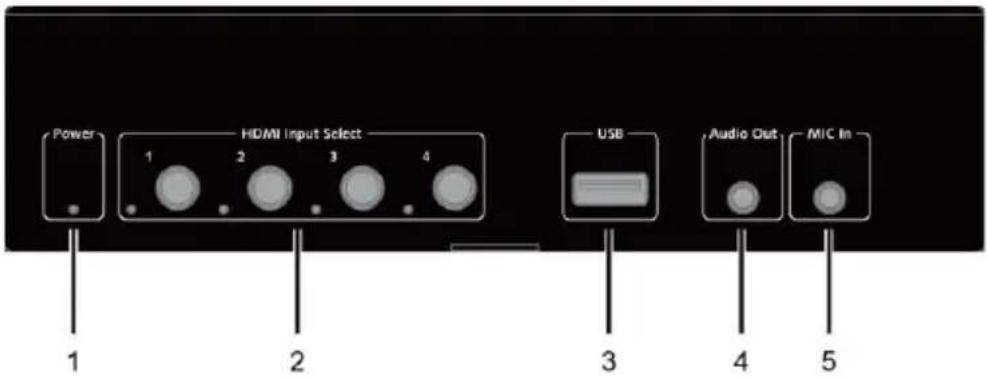
| No. | Name | Description |
| 1 | Power LED | On: The switcher is powered on.Off: The switcher is powered off. |
| 2 | HDMI Input Select Buttons and LEDs (1-4) | HDMI Input Select Buttons (1-4): Press the button to select HDMI IN 1/2/3/4.LED: LED is located on the left of the button.·LED On: The input is selected.·LED Off: The input is not selected. |
| 3 | USB-A Port | Connect to a USB device such as a camera. |
| 4 | Audio Out | Connect to an earphone. |
| 5 | Mic In | Connect a microphone. |
1.5.2 Rear Panel

| No. | Name | Description |
| 1 | DC 12V | Connect to a DC 12V power adapter. |
| 2 | HDMI Out | Connect to an HDMI Display device. |
| 3 | HDMI IN (1-4) | Connect to HDMI sources. |
| 4 | USB A Port | Connect to a USB device such as a keyboard. |
| 5 | USB A Port | Connect to a USB device such as a Mouse. |
| 6 | USB Host (1-4) | Connect to a PC.The USB Host 1-4 is bound with HDMI IN 1-4,When an HDMI input is selected, the corresponding host PC will be connected to the USB devices e.g. mouse and keyboard. |
2 Installation and Wiring
2.1 Installation
Note: Before installation, please ensure the device is disconnected from the power source.
Steps to install the device in a suitable location:
- Remove the four screws from the enclosure.

natural_image
Isometric line drawing of a rectangular electronic device with mounting holes and a side panel (no text or symbols)- Position and attach the mounting brackets to the enclosure using the screws in step 1.

natural_image
Technical line drawing of a rectangular electronic device with mounting brackets and a central panel (no text or symbols)- Attach the brackets to the surface you want to hold the unit against using the screws (provided by others).
2.2 Wiring
Warnings:
- Before wiring, disconnect the power from all devices.
- During wiring, connect and disconnect the cables gently.
Steps for device wiring:
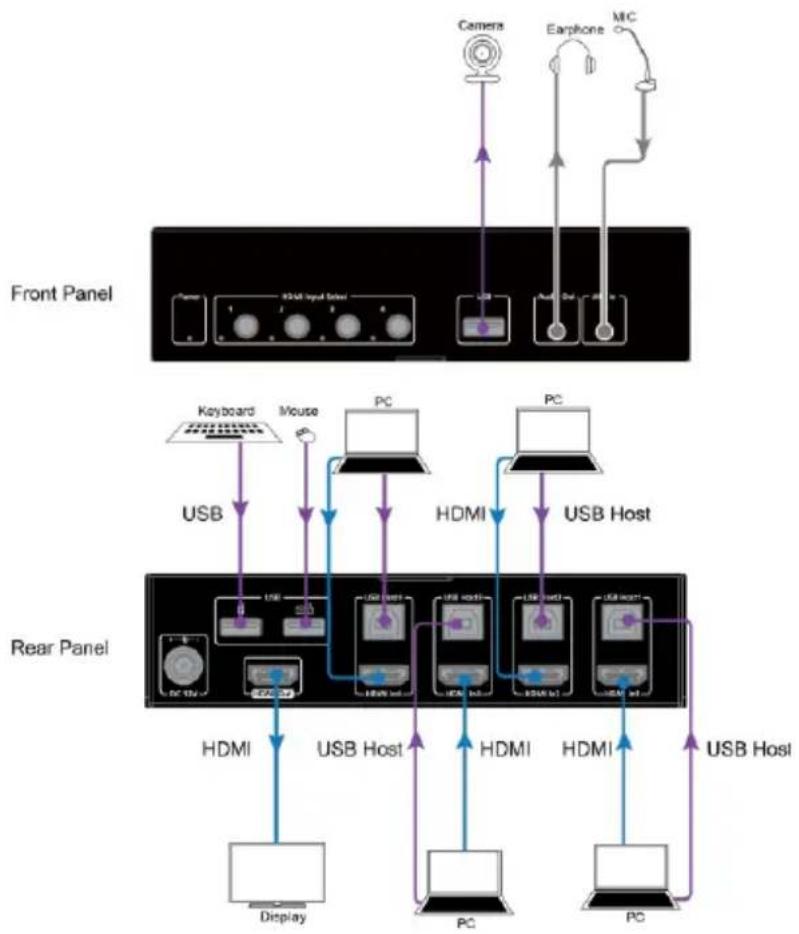
- Connect HDMI IN
Connect HDMI source devices to HDMI IN (1-4) of the switcher using high-quality HDMI cables (e.g. PC).
2. Connect HDMI OUT
Connect an HDMI display device to HDMI OUT of the switcher (e.g. TV, projector, LCD/LED display, etc.).
3. Connect USB host and USB device
- Connect the PC to the USB Host port of the switcher.
-
Connect USB devices to USB ports (on front panel or rear panel) of the switcher (e.g. mouse, keyboard, USB camera, etc.)
-
Connect an earphone and a MIC to the Audio Out and MIC In of the switcher.
- Connect the power adapter provided to the switcher.
- Power on all attached devices.
When all is set, check if all LED indicators on the switcher are normal to ensure installation is successful. For LED indication, please refer to Panel Description section.
flowchart
graph TD
    subgraph Front Panel
        A["Camera"] --> B["Microphone"]
        C["Earphone"] --> D["Microphone"]
        E["Microphone"] --> F["Microphone"]
        G["Microphone"] --> H["Microphone"]
        I["Microphone"] --> J["Microphone"]
        K["Microphone"] --> L["Microphone"]
        M["Microphone"] --> N["Microphone"]
        O["Microphone"] --> P["Microphone"]
        Q["Microphone"] --> R["Microphone"]
        S["Microphone"] --> T["Microphone"]
        U["Microphone"] --> V["Microphone"]
        W["Microphone"] --> X["Microphone"]
        Y["Microphone"] --> Z["Microphone"]
        AA["Microphone"] --> AB["Microphone"]
        AC["Microphone"] --> AD["Microphone"]
        AE["Microphone"] --> AF["Microphone"]
        AG["Microphone"] --> AH["Microphone"]
        AI["Microphone"] --> AJ["Microphone"]
        AK["Microphone"] --> AL["Microphone"]
        AM["Microphone"] --> AN["Microphone"]
        AO["Microphone"] --> AP["Microphone"]
        AQ["Microphone"] --> AR["Microphone"]
        AS["Microphone"] --> AT["Microphone"]
        AU["Microphone"] --> AV["Microphone"]
        AW["Microphone"] --> AX["Microphone"]
        AY["Camera"] --> Z
    end

    subgraph Rear Panel
        B -->|USB| PC1
        C -->|USB Host| PC2
        D -->|USB Host| PC3
        E -->|USB Host| PC4
        F -->|USB Host| PC5
        G -->|USB Host| PC6
        H -->|USB Host| PC7
        I -->|USB Host| PC8
        J -->|USB Host| PC9
        K -->|USB Host| PC10
        L -->|USB Host| PC11
        M -->|USB Host| PC12
        N -->|USB Host| PC13
        O -->|USB Host| PC14
        P -->|USB Host| PC15
        Q -->|USB Host| PC16
        R -->|USB Host| PC17
        S -->|USB Host| PC18
        T -->|USB Host| PC19
        U -->|USB Host| PC20
        V -->|USB Host| PC21
        W -->|USB Host| PC22
        X -->|USB Host| PC23
        Y -->|USB Host| PC24
        Z -->|USB Host| PC25
        AA -->|USB Host| PC26
        AB -->|USB Host| PC27
        AC -->|USB Host| PC28
        AD -->|USB Host| PC29
        AE -->|USB Host| PC30
        AF -->|USB Host| PC31
        AG -->|USB Host| PC32
        AH -->|USB Host| PC33
        AI -->|USB Host| PC34
        AJ -->|USB Host| PC35
        AK -->|USB Host| PC36
        AL -->|USB Host| PC37
        AM -->|USB Host| PC38
        AN -->|USB Host| PC39
        AO -->|USB Host| PC40
    end
Troubleshooting
1 Power: Ensure all devices are powered on.
2 Indicator: Ensure all LED indicators of the switcher are normal according to user manual.
3 Devices: Ensure picture can be shown normally when connecting source to display device directly.
4 Cable: Plug in and out the HDMI cable or try another HDMI cable. Ensure the specific cable length is within the available transmission range according to Specification section.
5 Compatibility: Please test other source and display devices to determine if it is a compatibility issue.
Warranty Terms and Conditions
A service charge will apply for service(s) claimed for repairable products if the warranty becomes unenforceable or inapplicable due to the following cases:
- The original serial number labeled on the product has been removed, erased, replaced, defaced or is illegible.
- The warranty has expired.
- The defects are caused by the product being repaired, dismantled or altered by anyone other than an authorized service partner.
- The defects are caused the product being used or handled improperly, roughly or not as instructed in the User Guide.
- The defects are caused by any force majeure including, but not limited to, accidents, fire, earthquake, lightning, tsunami and war.
- Any service, configuration or offer not covered by contract.
DVDO reserves the right to determine these cases, and changes may be made at any time without notice.
- Important Safety Instructions
- FCC Warning
- Table of Contents
- Introduction
- Overview
- Features
- Package Contents
- Panel Description
- Front Panel
- Rear Panel
- Installation and Wiring
- Installation
- Steps to install the device in a suitable location:
- Wiring
- Warnings:
- Steps for device wiring:
- Connect HDMI OUT
- Connect USB host and USB device
- Troubleshooting
- Warranty Terms and Conditions
Brand : DVDO
Model : HDMI-KVM-41
Category : KVM switch