PCI-1711UL-CE - Carte d'acquisition Advantech - Free user manual and instructions
Find the device manual for free PCI-1711UL-CE Advantech in PDF.


User questions about PCI-1711UL-CE Advantech
0 question about this device. Answer the ones you know or ask your own.
Ask a new question about this device
Download the instructions for your Carte d'acquisition in PDF format for free! Find your manual PCI-1711UL-CE - Advantech and take your electronic device back in hand. On this page are published all the documents necessary for the use of your device. PCI-1711UL-CE by Advantech.
USER MANUAL PCI-1711UL-CE Advantech
Entry-level 100 kS/s, 12-bit, 16-ch PCI Multifunction Card
User Manual
Copyright
The documentation and the software included with this product are copyrighted 2009 by Advantech Co., Ltd. All rights are reserved. Advantech Co., Ltd. reserves the right to make improvements in the products described in this manual at any time without notice. No part of this manual may be reproduced, copied, translated or transmitted in any form or by any means without the prior written permission of Advantech Co., Ltd. Information provided in this manual is intended to be accurate and reliable. However, Advantech Co., Ltd. assumes no responsibility for its use, nor for any infringements of the rights of third parties, which may result from its use.
Acknowledgements
Intel and Pentium are trademarks of Intel Corporation.
Microsoft Windows and MS-DOS are registered trademarks of
Microsoft Corp.
All other product names or trademarks are properties of their respective owners.
This Manual Covers the Following Models
- PCI-1711U
- PCI-1711UL
Part No. 2003171100 1st Edition
Printed in Taiwan June 2010
Product Warranty (2 years)
Advantech warrants to you, the original purchaser, that each of its products will be free from defects in materials and workmanship for two years from the date of purchase.
This warranty does not apply to any products which have been repaired or altered by persons other than repair personnel authorized by Advantech, or which have been subject to misuse, abuse, accident or improper installation. Advantech assumes no liability under the terms of this warranty as a consequence of such events.
Because of Advantech's high quality-control standards and rigorous testing, most of our customers never need to use our repair service. If an Advantech product is defective, it will be repaired or replaced at no charge during the warranty period. For out-of-warranty repairs, you will be billed according to the cost of replacement materials, service time and freight. Please consult your dealer for more details.
If you think you have a defective product, follow these steps:
- Collect all the information about the problem encountered. (For example, CPU speed, Advantech products used, other hardware and software used, etc.) Note anything abnormal and list any onscreen messages you get when the problem occurs.
- Call your dealer and describe the problem. Please have your manual, product, and any helpful information readily available.
- If your product is diagnosed as defective, obtain an RMA (return merchandise authorization) number from your dealer. This allows us to process your return more quickly.
- Carefully pack the defective product, a fully-completed Repair and Replacement Order Card and a photocopy proof of purchase date (such as your sales receipt) in a shippable container. A product returned without proof of the purchase date is not eligible for warranty service.
- Write the RMA number visibly on the outside of the package and ship it prepaid to your dealer.
CE
This product has passed the CE test for environmental specifications when shielded cables are used for external wiring. We recommend the use of shielded cables. This kind of cable is available from Advantech. Please contact your local supplier for ordering information.
Technical Support and Assistance
Step 1. Visit the Advantech web site at www.advantech.com/support where you can find the latest information about the product.
Step 2. Contact your distributor, sales representative, or Advantech's customer service center for technical support if you need additional assistance. Please have the following information ready before you call:
- Product name and serial number
- Description of your peripheral attachments
- Description of your software (operating system, version, application software, etc.)
- A complete description of the problem
- The exact wording of any error messages
Packing List
Before setting up the system, check that the items listed below are included and in good condition. If any item does not accord with the table, please contact your dealer immediately.
• PCI-1711U/UL DA&C card
• PCI-1711U/UL User Manual
- Companion CD-ROM with DLL drivers
Safety Precaution - Static Electricity
Follow these simple precautions to protect yourself from harm and the products from damage.
-
To avoid electrical shock, always disconnect the power from your PC chassis before you work on it. Don't touch any components on the CPU card or other cards while the PC is on.
-
Disconnect power before making any configuration changes. The sudden rush of power as you connect a jumper or install a card may damage sensitive electronic components.
Contents
Chapter 1 Introduction ...... 2
1.1 Features ...... 3
1.2 Applications 4
1.3 Installation Guide 5
Figure 1.1: Installation Flow Chart .... 6
1.4 Software Overview ...... 7
1.5 Device Driver Programming Roadmap 7
1.6 Accessories....9
Chapter 2 Installation ...... 12
2.1 Unpacking 12
2.2 Driver Installation 13
Figure 2.1: Setup Screen of Advantech Automation Software 14
Figure 2.2: Different Options for Driver Setup ..... 14
2.3 Hardware Installation 15
2.4 Device Setup & Configuration 16
Figure 2.3:The Device Manager Dialog Box ...... 16
Figure 2.4:The Device Setting Dialog Box ....17
Figure 2.5:The Test Utility Dialog Box .... 17
Chapter 3 Signal Connections ...... 20
3.1 Overview 20
3.2 Switch and Jumper Settings 20
Figure 3.1: Connector and Switch Locations ..... 20
Table 3.1: Board ID Setting (SW1) ...... 21
3.3 Signal Connections.... 22
Figure 3.2:I/O Connector Pin Assignments for the PCI-1711U Series 22
3.3.1 I/O Connector Signal Description 23
Table 3.2:I/O Connector Signal Descriptions ..... 23
3.3.2 Analog Input Connections 24
Figure 3.3: Analog Output Connections ...... 25
3.3.3 Digital Signal Connections 26
3.4 Field Wiring Considerations 27
Appendix A Specifications 30
A.1 Analog Input.... 30
A.2 Analog Output 31
A.3 Digital Input 31
A.4 Digital Output.... 32
A.5 Counter/Timer 32
A.6 General 33
Appendix B Block Diagrams ...... 36
Appendix C Calibration 38
C.1 VR Assignment 39
Figure C.1:PCI-1711U VR Assignment 39
C.2 A/D Calibration 40
C.3 D/A Calibration (PCI-1711U).... 40
CHAPTER
1
Introduction
Chapter 1 Introduction
The PCI-1711U/UL is a universal PCI bus multifunction card. It offers the five most desired measurement and control functions:
• 12-bit A/D conversion
• D/A conversion (PCI-1711U only)
- Digital input
- Digital output
- Timer/counter
A programmable-gain instrument amplifier lets you acquire different input signals without external signal conditioning. An onboard 1K word FIFO buffer provides high-speed data transfer and predictable performance under Windows. Automatic channel scanning circuitry and onboard SRAM let you perform multiple-channel A/D conversion and individual gains for each channel.
The following sections of this chapter will provide further information about features of the multifunction cards, a Quick Start for installation, together with some brief information on software and accessories for the PCI-1711U cards.
1.1 Features
• 16 single-ended inputs
• 12-bit A/D converter, up to 100 kHz sampling rate
- Programmable gain for each input channel
• Automatic channel/gain scanning
- Onboard 1K word FIFO buffer with software selectable interrupt
• 16 digital inputs and 16 digital outputs, TTL compatible
- Two 12-bit analog output channels
- Onboard programmable counter
• Universal PCI-Bus (Support 3.3V or 5V PCI-Bus signal)
- BoardID switch
PCI-1711U/UL offers the following main features:
PCI-Bus Plug & Play
The PCI-1711U cards use a PCI controller to interface the card to the PCI bus. The controller fully implements the PCI bus specification Rev 2.2. All configurations related to the bus, such as base address and interrupt assignment, are automatically controlled by software. No jumper or switch is required for user configuration.
Automatic Channel/Gain Scanning
PCI-1711U/UL features an automatic channel/gain scanning circuit. This circuit, instead of your software, controls multiplexer switching during sampling. On-board SRAM stores different gain values for each channel. This combination lets user perform multi-channel high-speed sampling (up to 100 kHz) for each channel.
Onboard FIFO Memory
There are 1K samples FIFO for A/D (AI) on PCI-1711U/UL. This is an important feature for faster data transfer and more predictable performance under Windows system.
Onboard Programmable Timer/Counter
PCI-1711U/UL provides a programmable timer counter for generating pacer trigger for the A/D conversion. The timer/counter chip is 82C54, which includes three 16-bit counters of 10 MHz clock. One counter is used as an event counter for counting events coming from the input channel. The other two are cascaded together to make a 32-bit timer for pacer trigger time base.
BoardID Switch
PCI-1711U/UL has a built-in DIP switch that helps define each card's ID when multiple PCI-1711U/UL cards have been installed on the same PC chassis. The BoardID setting function is very useful when building a system with multiple PCI-1711U cards. With the correct BoardID settings, you can easily identify and access each card during hardware configuration and software programming.
Note: For detailed specifications of the PCI-1711U/UL, please refer to Appendix A.
1.2 Applications
• Transducer and sensor measurements
• Waveform acquisition and analysis
- Process control and monitoring
• Vibration and transient analysis
Before you install your PCI-1711U/UL card, please make sure you have the following necessary components:
• PCI-1711U/UL DA&C card
• PCI-1711U/UL User Manual
- Driver software Advantech DLL drivers (included in the companion CD-ROM)
- Personal computer or workstation with a PCI-bus slot (running Windows 2000/XP/7)
• PCL-10168 Wiring cable (optional)
• ADAM-3968, PCLD-8710 Wiring board (optional)
Other optional components are also available for enhanced operation:
• ActiveDAQ Pro, LabView or other 3rd-party software
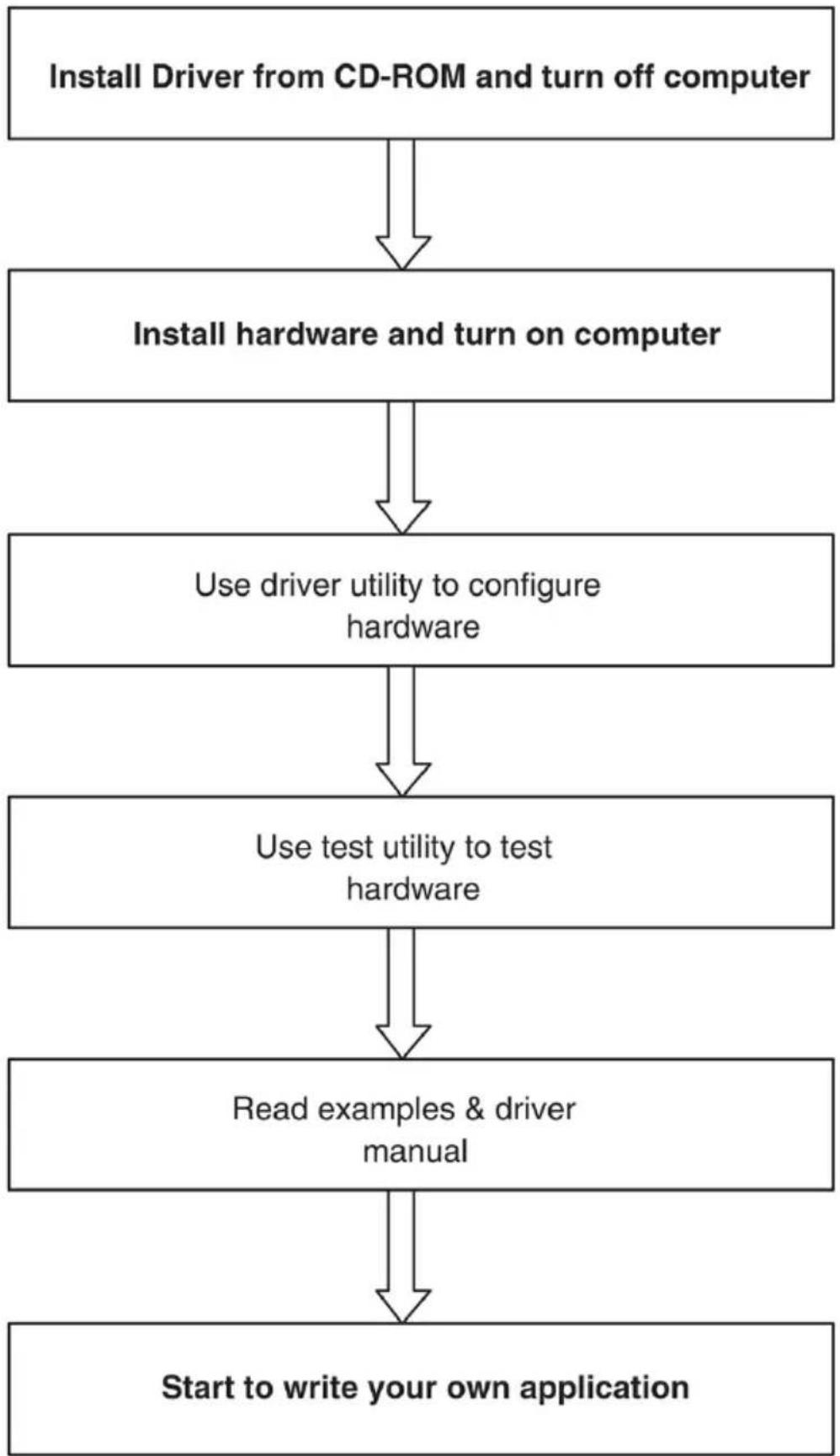
After you get the necessary components and maybe some of the accessories for enhanced operation of your multifunction card, you can then begin the installation procedure. Figure 1.1 on the next page provides a concise flow chart to give users a broad picture of the software and hardware installation procedures:
flowchart
graph TD
    A["Install Driver from CD-ROM and turn off computer"] --> B["Install hardware and turn on computer"]
    B --> C["Use driver utility to configure hardware"]
    C --> D["Use test utility to test hardware"]
    D --> E["Read examples & driver manual"]
    E --> F["Start to write your own application"]
Figure 1.1: Installation Flow Chart
Advantech offers a rich set of DLL drivers, third-party driver support and application software to help fully exploit the functions of your PCI-1711U/UL card:
• Device Drivers (on the companion CD-ROM)
- LabVIEW driver
- Advantech ActiveDAQ Pro
- WaveScan
Programming choices for DA&C cards
You may use Advantech application software such as Advantech Device Drivers. On the other hand, advanced users can use register-level programming, although this is not recommended due to its laborious and time-consuming nature.
Device Drivers
Advantech Device Driver software is included on the companion CD-ROM at no extra charge. It also comes with all Advantech DA&C cards. Advantech's Device Drivers features a complete I/O function library to help boost your application performance. Advantech Device Drivers for Windows 2000/XP/7 works seamlessly with development tools such as Visual Studio .Net, Visual C++, Visual Basic, Borland C++ Builder and Borland Delphi.
1.5 Device Driver Programming Roadmap
This section will provide you a roadmap to demonstrate how to build an application from scratch using Advantech Device Drivers with your favorite development tools such as Visual Studio .Net, Visual C++, Visual Basic, Delphi and C++ Builder. The step-by-step instructions on how to build your own applications using each development tool will be given in the Device Drivers Manual. Moreover, a rich set of example source code is also given for your reference.
Programming Tools
Programmers can develop application programs with their favorite development tools:
- Visual Studio .Net
• Visual C++ and Visual Basic - Delphi
- C++ Builder
For instructions on how to begin programming works in each development tool, Advantech offers a Tutorial Chapter in the Device Drivers Manual for your reference. Please refer to the corresponding sections in this chapter on the Device Drivers Manual to begin your programming efforts. You can also look at the example source code provided for each programming tool, since they can get you very well oriented.
The Device Drivers Manual can be found on the companion CD-ROM. Alternatively, if you have already installed the Device Drivers on your system, The Device Drivers Manual can be readily accessed through the Start button:
Start/Programs/Advantech Automation/Device Manager/Device Drivers Manual
The example source code could be found under the corresponding installation folder such as the default installation path:
\Program Files\Advantech\ADSAPI\Examples
For information about using other function groups or other development tools, please refer to the Creating Windows 2000/XP/7 Application with Device Drivers chapter and the Function Overview chapter on the Device Drivers Manual.
Programming with Device Drivers Function Library
Advantech Device Drivers offer a rich function library that can be utilized in various application programs. This function library consists of numerous APIs that support many development tools, such as
Visual Studio .Net, Visual C++, Visual Basic, Delphi and C++ Builder.
According to their specific functions or services, APIs can be categorized into several function groups:
• Analog Input Function Group
• Analog Output Function Group
• Digital Input/Output Function Group
- Counter Function Group
- Port Function Group (direct I/O)
• Event Function Group
For the usage and parameters of each function, please refer to the Function Overview chapter in the Device Drivers Manual.
Troubleshooting Device Drivers Error
Driver functions will return a status code when they are called to perform a certain task for the application. When a function returns a code that is not zero, it means the function has failed to perform its designated function. To troubleshoot the Device Drivers error, you can pass the error code to DRV_GetErrorMessage function to return the error message.
Alternatively, you can refer to the Device Drivers Error Codes Appendix in the Device Drivers Manual for a detailed listing of Error Codes, Error IDs and Error Messages.
1.6 Accessories
Advantech offers a complete set of accessory products to support the PCI-1711U/UL card. These accessories include:
Wiring Cables
PCL-10168
The PCL-10168 cable is a 68-pin SCSI shielded cable for PCI-1711U/UL cards.
Wiring Boards
• ADAM-3968 68-pin DIN-rail SCSI Wiring Board
• PCLD-8710 DIN-rail Wiring Board w/ CJC
CHAPTER
Installation
Chapter 2 Installation
2.1 Unpacking
After receiving your PCI-1711U/UL package, please inspect its contents first. The package should contain the following items:
• PCI-1711U or PCI-1711UL card
- Companion CD-ROM (Device Drivers included)
- User Manual
The PCI-1711U cards harbor certain electronic components vulnerable to electrostatic discharge (ESD). ESD can easily damage the integrated circuits and certain components if preventive measures are ignored.
Before removing the card from the antistatic plastic bag, you should take the following precautions to ward off possible ESD damage:
- Touch the metal part of your computer chassis with your hand to discharge the static electricity accumulated on your body. Alternatively, one can also use a grounding strap.
- Touch the anti-static bag to a metal part of your computer chassis before opening the bag.
- Take hold of the card only by the metal bracket when removing it out of the bag.
After taking out the card, you should first:
- Inspect the card for any possible signs of external damage (loose or damaged components, etc.). If the card is visibly damaged, please notify our service department or our local sales representative immediately. Do not install a damaged card into your system.
Also, pay extra caution to the following aspects during installation:
- Avoid physical contact with materials that could hold static electricity such as plastic, vinyl and Styrofoam.
- Whenever you handle the card, grasp it only by its edges. DO NOT TOUCH the exposed metal pins of the connector or the electronic components.
Note: Keep the anti-static bag for future use. You might need the original bag to store the card if you have to remove the card from a PC or transport it elsewhere.
2.2 Driver Installation
We recommend you install the driver before you install PCI-1711U/UL card into your system, since this will guarantee a smooth installation process.
The Advantech Device Drivers Setup program for the PCI-1711U/UL card is included in the companion CD-ROM that is shipped with your DA&C card package. Please follow the steps below to install the driver software:
- Insert the companion CD-ROM into your CD-ROM drive.
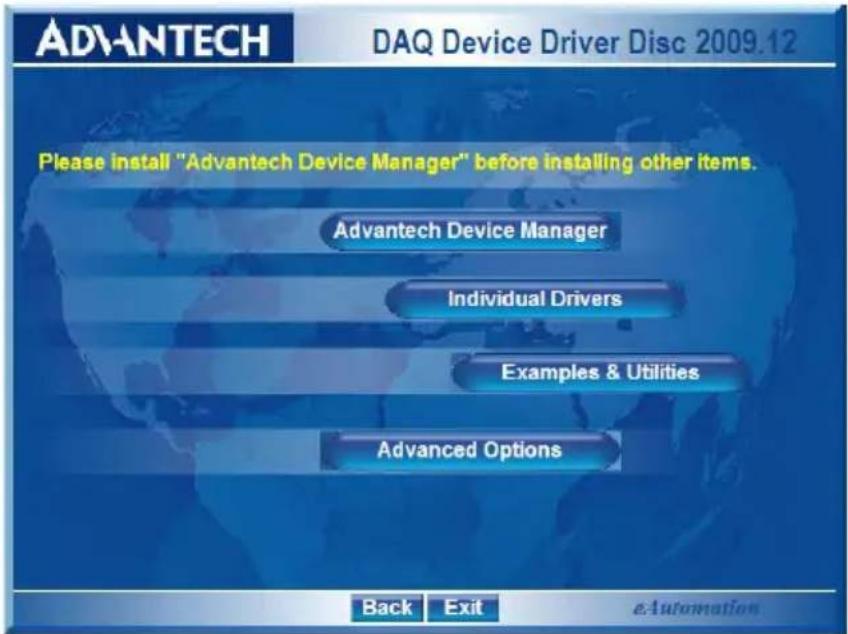
- The Setup program will be launched automatically if you have the autoplay function enabled on your system. When the Setup Program is launched, you will see the following Setup Screen.
Note: If the autoplay function is not enabled on your computer, use Windows Explorer or Windows Run command to execute autorun.exe on the companion CD-ROM.
text_image
ADVANTECH DAQ Device Driver Disc 2009.12 Please install "Advantech Device Manager" before installing other items. Advantech Device Manager Individual Drivers Examples & Utilities Advanced Options Back Exit a.AutomationFigure 2.1: Setup Screen of Advantech Automation Software
- Select the Device Manager option to install.
- Select the Individual Driver option.
- Select the specific device then follow the installation instructions step by step to complete your device driver installation and setup.

text_image
DAQ Device Driver Disc 2009.12 PCI-1710 PCI-1720/U PCI-1730 PCI-1741U PCI-1750 PCI-1760/U PCI-1710L PCI-1721 PCI-1730U PCI-1742U PCI-1751/U PCI-1761 PCI-1710HG PCI-1723 PCI-1731 PCI-1747/U PCI-1752/U/USQ PCI-1762 PCI-1710HGL PCI-1724 PCI-1733 PCI-1753/E PCI-1763UP PCI-1711 PCI-1727 PCI-1734 PCI-1754 PCI-1780 PCI-1711L PCI-1735U PCI-1755 PCI-1784 PCI-1712 PCI-1736UP PCI-1756 PCI-1712L PCI-1737U PCI-1758UDI/UDO/UDIO PCI-1713 PCI-1739U PCI-1757UP PCI-1714/UL PCI-1715U PCI-1716/L PCI-1718HDU/HGU Back Exit eAutomationFigure 2.2: Different Options for Driver Setup
For further information on driver-related issues, an online version of the Device Drivers Manual is available by accessing the following path:
Start/Programs/Advantech Automation/Device Manager/Device Drivers Manual
Note: Make sure you have installed the driver before you install the card (please refer to chapter 2.2 Driver Installation)
After the Device Drivers installation is completed you can install the PCI-1711U/UL card into any PCI slot on your computer. However, it is suggested that you refer to the computer's user manual or related documentation if you have any doubts. Please follow the steps below to install the card onto your system.
- Turn off your computer and unplug the power cord and cables. TURN OFF your computer before installing or removing any components on the computer.
- Remove the cover of your computer.
- Remove the slot cover on the back panel of your computer.
- Touch the metal part on the surface of your computer to neutralize the static electricity that might be on your body.
- Insert the PCI-1711U/UL card into a PCI slot. Hold the card only by its edges and carefully align it with the slot. Insert the card firmly into place. Use of excessive force must be avoided; otherwise, the card might be damaged.
- Fasten the bracket of the PCI card on the back panel rail of the computer with screws.
- Connect appropriate accessories (68-pin cable, wiring terminals, etc. if necessary) to the PCI card.
- Replace the cover of your computer chassis. Re-connect the cables you removed in step 2.
- Plug in the power cord and turn on the computer.
After your card is properly installed on your system, you can now configure your device using the Advantech Device Manager Program that has itself already been installed on your system during driver setup. A complete device installation procedure should include device setup, configuration and testing. The following sections will guide you through the Setup, Configuration and Testing of your device.
The Advantech Device Manager program is a utility that allows you to set up, configure and test your device, and later stores your settings on the system registry. These settings will be used when you call the APIs of Advantech Device Drivers.
Setting Up the Device
-
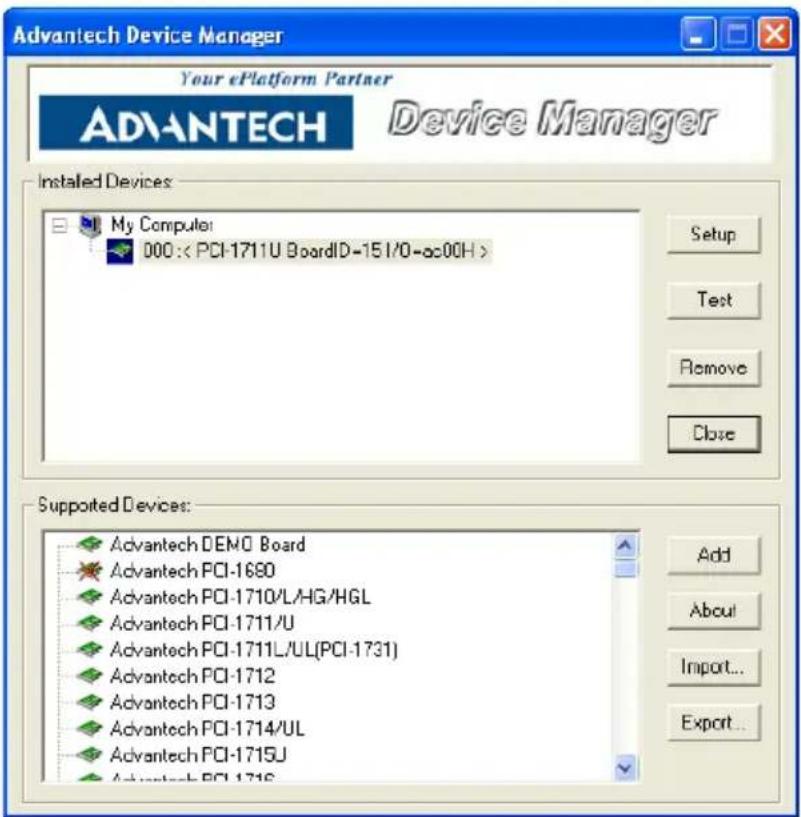
To install the I/O device for your card, you must first run the Device Manager program (by accessing Start/Programs/Advantech Automation/Device Manager/Advantech Device Manager).
-
You can then view the device(s) already installed on your system (if any) on the Installed Devices list box. If the software and hardware installation are completed, you will see PCI-1711U/UL card in the Installed Devices list.
text_image
Advantech Device Manager Your ePlatform Partner ADVANTECH Device Manager Installed Devices: My Computer: 000:<< PCI-1711U BoardID-15I/0-oc00H > Setup Test Remove Close Supported Devices: Advantech DEMO Board Advantech PCI-1680 Advantech PCI-1710/L/HG/HGL Advantech PCI-1711/U Advantech PCI-1711L/UL(PCI-1731) Advantech PCI-1712 Advantech PCI-1713 Advantech PCI-1714/UL Advantech PCI-1715J Advantech PCI-1716 Add About Import... Export...Figure 2.3: The Device Manager Dialog Box
Configuring the Device
- Please click the Setup button to configure your device. On the Device Setting dialog box (Fig. 2-4), you can specify the D/A voltage reference either as External or Internal and specify the voltage output range for the two D/A channels.

text_image
PCI-1711 Device Setting Base Address: AC00 Hex Interrupt Channel: 13 Hex D/A Voltage Ref - Channel 1 External Internal Voltage: 0.5V D/A Voltage Ref - Channel 2 External Internal Voltage: 0.5V OK Cancel Options... Help AboutFigure 2.4: The Device Setting Dialog Box
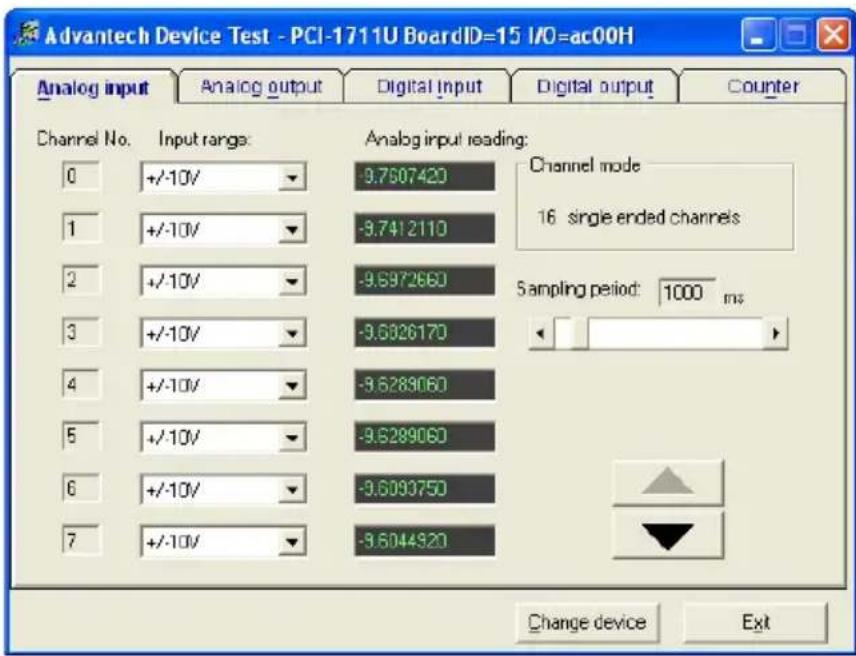
- After your card is properly installed and configured, you can click the Test... button to test your hardware by using the testing utility supplied.
text_image
Advantech Device Test - PCI-1711U BoardID=15 I/O=ac00H Analog input Analog output Digital Input Digital output Counter Channel No. Input range: Analog input reading: 0 +/-10V -9.7607420 Channel mode 1 +/-10V -9.7412110 16 single ended channels 2 +/-10V -9.6972680 Sampling period: 1000 ms 3 +/-10V -9.6926170 4 +/-10V -9.6289060 5 +/-10V -9.6289060 6 +/-10V -9.6093750 7 +/-10V -9.6044320 Change device ExitFigure 2.5: The Test Utility Dialog Box
For more detailed information, please refer to Chapter 2 of the Device Drivers Manual. You can also find rich examples on the CD-ROM to speed up your programming.
Signal Connections
Chapter 3 Signal Connections
3.1 Overview
Maintaining signal connections is one of the most important factors in ensuring that your application system is sending and receiving data correctly. A good signal connection can avoid unnecessary and costly damage to your PC and other hardware devices. This chapter provides useful information about how to connect input and output signals to the PCI-1711U cards via the I/O connector.
3.2 Switch and Jumper Settings
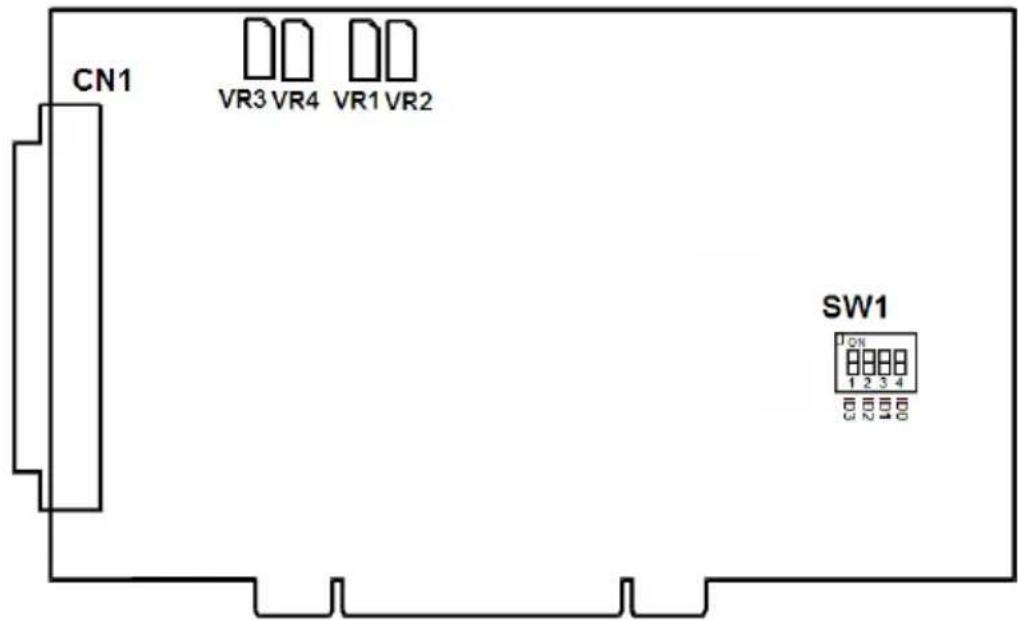
PCI-1711U cards have one switch for BoardID setting.
text_image
CN1 VR3 VR4 VR1 VR2 SW1 1 2 3 4 C C C CFigure 3.1: Connector and Switch Locations
BoardID settings are used to set a board's unique identifier when multiple identical cards are installed in the same system.
PCI-1711U cards have a built-in DIP switch (SW1), which is used to define each card's unique identifier. You can determine the unique identifier in the register as shown in Table 3.1. If there are multiple identical cards in the same chassis, the BoardID switch helps differentiate the boards by identifying each card's device number with the switch setting. The BoardID switch's unique identifier has been set to 0 at the factory.
If you need to adjust it to other numbers, set SW1 by referring to DIP switch settings below.
| Table 3.1: Board ID Setting (SW1) | ||||
| SW1 Position 1 Position 2 Position 3 Position 4 | ||||
| BoardID ID3 ID2 ID1 ID0 | ||||
| 0 | ON ON ON ON | |||
| 1 | ON ON ON OFF | |||
| 2 | ON ON OFF ON | |||
| 3 | ON ON OFF OFF | |||
| 4 | ON OFF | ON ON | ||
| 5 | ON OFF | ON OFF | ||
| 6 | ON OFF | OFF ON | ||
| 7 | ON OFF | OFF OFF | ||
| 8 | OFF | ON ON ON | ||
| 9 | OFF | ON ON OFF | ||
| 10 | OFF | ON OFF ON | ||
| 11 | OFF | ON OFF OFF | ||
| 12 | OFF | OFF | ON ON | |
| 13 | OFF | OFF | ON OFF | |
| 14 | OFF | OFF | OFF ON | |
| 15 | OFF | OFF | OFF OFF | |
Default Setting is 0
Pin Assignment
Figure 3-2 shows the pin assignments for the 68-pin I/O connector on the PCI-1711U/UL.
| AI0 | 68 | 34 | AI1 |
| AI2 | 67 | 33 | AI3 |
| AI4 | 66 | 32 | AI5 |
| AI6 | 65 | 31 | AI7 |
| AI8 | 64 | 30 | AI9 |
| AI10 | 63 | 29 | AI11 |
| AI12 | 62 | 28 | AI13 |
| AI14 | 61 | 27 | AI15 |
| AIGND | 60 | 26 | AIGND |
| *DA0_REF | 59 | 25 | DA1_REF* |
| *DA0_OUT | 58 | 24 | DA1_OUT* |
| *AOGND | 57 | 23 | AOGND* |
| DI0 | 56 | 22 | DI1 |
| DI2 | 55 | 21 | DI3 |
| DI4 | 54 | 20 | DI5 |
| DI6 | 53 | 19 | DI7 |
| DI8 | 52 | 18 | DI9 |
| DI10 | 51 | 17 | DI11 |
| DI12 | 50 | 16 | DI13 |
| DI14 | 49 | 15 | DI15 |
| DGND | 48 | 14 | DGND |
| DO0 | 47 | 13 | DO1 |
| DO2 | 46 | 12 | DO3 |
| DO4 | 45 | 11 | DO5 |
| DO6 | 44 | 10 | DO7 |
| DO8 | 43 | 9 | DO9 |
| DO10 | 42 | 8 | DO11 |
| DO12 | 41 | 7 | DO13 |
| DO14 | 40 | 6 | DO15 |
| DGND | 39 | 5 | DGND |
| CNT0_CLK | 38 | 4 | PACER_OUT |
| CNT0_OUT | 37 | 3 | TRG_GATE |
| CNT0_GATE | 36 | 2 | EXT_TRG |
| +12V | 35 | 1 | +5V |
Figure 3.2: I/O Connector Pin Assignments for the PCI-1711U Series
*Note: Pins 23\~25 and pins 57\~59 are not defined for PCI-1711UL
3.3.1 I/O Connector Signal Description
| Table 3.2: I/O Connector Signal Descriptions | |||
| Signal Name | Reference | Direction Description | |
| AI<0...15> | AIGND | Input | Analog Input Channels 0 through Each channel pair, AI(i = 0, 2, 4...14), can be configured as either two single-ended inputs or one differential input. |
| AIGND - - Analog Input Ground. The three ground references (AIGND, AOGND, and DGND) are connected together on the PCI-1711U/UL. | |||
| AO0_REF AO1_REF | AOGND | Input | Analog Output Channel 0/1 External Reference. |
| AO0_OUT AO1_OUT | AOGND Output Analog | Output Channels 0/1. | |
| AOGND - | - | Analog Output Ground. The three ground references (AIGND, AOGND, and DGND) are connected together on the PCI-1711U/UL. | |
| DI<0..15> DGN D Input Digital Input Channels 0 through 15. | |||
| DO<0..15> | DGND | Output | Digital Output Channels 0 through 15. |
| DGND | - | - | Digital Ground. This pin supplies the reference for the digital channels at the I/O connector as well as the +5VDCand +12 VDCsupply. The three ground references (AIGND, AOGND, and DGND) are connected together on the PCI-1711U/UL card. |
| CNT0_CLK | DGND | Input | Counter 0 Clock Input.Max. Input Frequency: 10MHz |
| CNT0_OUT | DGND | Output | Counter 0 Output. |
| CNT0_GATE | DGND | Input | Counter 0 Gate Control. |
| PACER_OUT DGND Output Pacer Clock Output. This pin pulses once for each pacer clock when turned on. If A/D conversion is in the pacer trigger mode, users can use this signal as a synchronous signal for other applications. A low-to-high edge triggers A/D conversion to start. | |||
| TRG_GATE DGND Input A/D External Trigger Gate. When TRG_GATE is connected to +5 V, it will enable the external trigger signal to input. When TRG_GATE is connected to DGND, it will disable the external trigger signal to input. | |||
| EXT_TRG DGND Input A/D External Trigger. This pin is external trigger signal input for the A/D conversion. A low -to-high edge triggers A/D conversion to start. | |||
| +12V DGND Output +12 V | DC Source. | ||
| +5V DGND Output +5 V | DC Source. | ||
3.3.2 Analog Input Connections
PCI-1711U/UL supports 16 single-ended analog inputs.
Single-ended Channel Connections
Single-ended connections use only one signal wire per channel. The voltage on the line references to the common ground on the card. A signal source without a local ground is called a "floating" source. It is fairly simple to connect a single ended channel to a floating signal source. A standard wiring diagram looks like this:

text_image
Signal Input + Vs - To A/D A.GNDA.GNDA.GND
Analog Output Connection
The PCI-1711U/UL provides two D/A output channels. You can use the internal precision -5 V or -10 V reference to generate 0 to +5 V or 0 to +10 V D/A output. Use an external reference for other D/A output ranges. The maximum reference input voltage is ±10 V and maximum output scaling is ±10 V. Loading current for D/A outputs should not exceed 5 mA.
Fig. 3-3 shows how to make analog output and external reference input connections on the PCI-1711U/UL.

flowchart
graph TD
    A["+5V"] --> B["INT_REF"]
    C["+10V"] --> D["DATA BUS"]
    B --> E["AO0"]
    D --> F["AO1"]
    E --> G["AO0_OUT"]
    F --> H["AO1_OUT"]
    G --> I["External Reference For DA Signal 0"]
    H --> J["External Reference For DA Signal 1"]
    I --> K["I/O Connector"]
    J --> K
    L["INT_REF"] --> M["AO0_REF"]
    N["AO1_REF"] --> O["AO1_OUT"]
    P["AOGND"] --> Q["Load"]
    R["AO0"] --> S["Load"]
    T["AO1"] --> U["Load"]
    V["AO0"] --> W["Load"]
    X["AO1"] --> Y["Load"]
Figure 3.3: Analog Output Connections
3.3.3 Digital Signal Connections
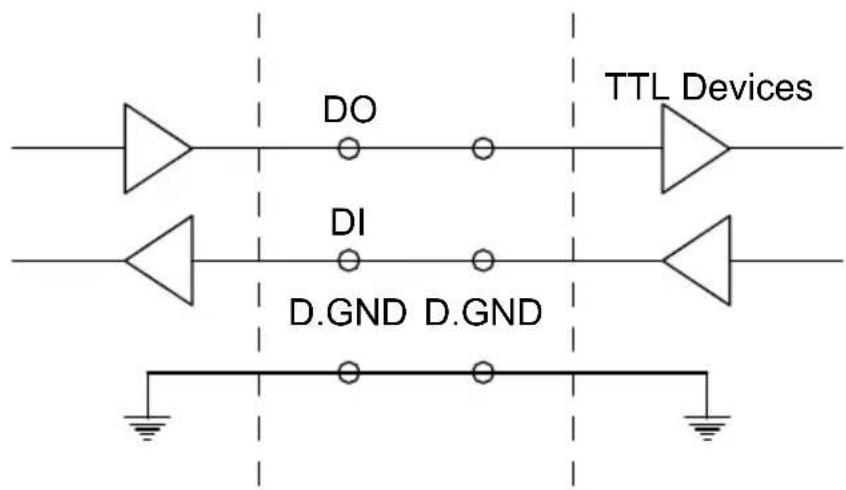
The PCI-1711U/UL has 16 digital input and 16 digital output channels. The digital I/O levels are TTL compatible. The following figure shows connections to exchange digital signals with other TTL devices:
text_image
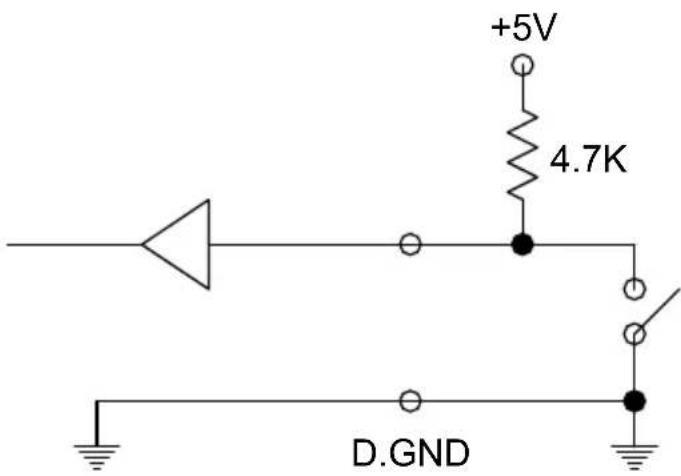
DO TIkl Devices DI D.GND D.GNDTo receive an OPEN/SHORT signal from a switch or relay, add a pull-up resistor to ensure that the input is held at a high level when the contacts are open.
text_image
+5V 4.7K D.GNDWhen you use PCI-1711U cards to acquire data from outside, noises in the environment might significantly affect the accuracy of your measurements if due cautions are not taken. The following measures will be helpful to reduce possible interference running signal wires between signal sources and the PCI-1711U card.
- The signal cables must be kept away from strong electromagnetic sources such as power lines, large electric motors, circuit breakers or welding machines, since they may cause strong electromagnetic interference. Keep the analog signal cables away from any video monitor, since it can significantly affect a data acquisition system.
- If the cable travels through an area with significant electromagnetic interference, you should adopt individually shielded, twisted-pair wires as the analog input cable. This type of cable has its signal wires twisted together and shielded with a metal mesh. The metal mesh should only be connected to one point at the signal source ground.
- Avoid running the signal cables through any conduit that might have power lines in it.
- If you have to place your signal cable parallel to a power line that has a high voltage or high current running through it, try to keep a safe distance between them. Alternatively, you can place the signal cable at a right angle to the power line to minimize the undesirable effect.
- The signals transmitted on the cable will be directly affected by the quality of the cable. In order to ensure better signal quality, we recommend that you use the PCL-10168 shielded cable.
APPENDIX

text_image
ASpecifications
Appendix A Specifications
A.1 Analog Input
| Channels 16 single-ended | ||||||
| Resolution 12-bit | ||||||
| FIFO Size 1k samples | ||||||
| Max. Sampling Rate | 100 kS/s | |||||
| Conversion Time | 10 μs | |||||
| Input Range and Gain List | Gain 1 2 4 8 16 | |||||
| Input | ±10 V | ±5 V | ±2.5 V | ±1.25 V | ±0.625 V | |
| Drift Gain 1 2 4 8 16 | ||||||
| Zero | 15 ppm/°C | |||||
| Span | 40 ppm/°C | |||||
| Small Signal BW for PGA | Gain 1 2 4 8 16 | |||||
| Bandwidth | 2.8 MHz | 2 MHz | 1.5 MHz | 0.65 MHz | 0.35 MHz | |
| Max. Input Overvoltage | ±15 V | |||||
| Input Protection | 30 Vp-p | |||||
| Input Impedance | 300 MΩ/5pF | |||||
| Trigger Mode Software, on-board programmable pacer or external | ||||||
| Accuracy DC | INLE: | ±0.5 LSB | ||||
| Monotonicity: 12 bits | ||||||
| Offset error: Adjustable to zero | ||||||
| Gain error: 0.005% FSR (Gain=1) | ||||||
| AC | SNR: 68 dB | |||||
| ENOB: 11 bits | ||||||
A.2 Analog Output
| Channels | 2 (PCI-1711U only) | |
| Resolution | 12-bit | |
| Output Range | Using Internal Reference 0 | ~ +5V @ -5V0 ~ +10V @ -10V |
| Using External Reference | 0 ~ +xV @ -xV (-10 ≤ x ≤ 10) | |
| Accuracy | Relative ±0.5 LSB | |
| Differential Non-linearity ±0 | .5 LSB (monotonic) | |
| Gain Error | Adjustable to zero | |
| Slew Rate | 10 V/μs | |
| Drift | 40 ppm / °C | |
| Driving Capability | 3 mA | |
| Update Rate | Static update | |
| Output Impedance | 6.8 ohm max. | |
| Setting Time | 26μs (to ± 1/2 LSB of FSR) | |
A.3 Digital Input
| Input Channels | 16 | |
| Input Voltage | Low 0.8V max. | |
| High 2V min. | ||
| Input Load | 10 kΩ pull-high resistor connect to 5 V | |
A.4 Digital Output
| Output Channels | 16 | |
| Output Voltage | Low 0.8 V max.@ +8.0mA (sink) | |
| High 2 V min.@ -0.4mA(source) | ||
A.5 Counter/Timer
| Counter chip | 82C54 or equivalent | |
| Channels | 3 channels, 2 channels are permanently configured as programmable pacers; 1 channel is free for user application | |
| Resolution | 16-bit | |
| Compatibility | TTL level | |
| Base Clock | Channel 1: 10 MHzChannel 2: Takes input from output of channel 1Channel 0: Internal 1 MHz or external clock(10 MHz max.) selected by software | |
| Max. Input Frequency | 10 MHz | |
| Clock Input | Low 0.8 V max. | |
| High 2.0 V min. | ||
| Gate Input | Low 0.8 V max. | |
| High 2.0 V min. | ||
| Counter Output | Low 0.5 V max. | @+24 mA |
| High 2.4 V min. | @-15 mA | |
A.6 General
| I/O Connector Type | 68-pin SCSI female | |
| Dimensions | 175 x 100 mm (6.9" x 3.9") | |
| Power Consumption Typical | Typical | +5 V @ 850 mA |
| Max. | +5 V @ 1 A | |
| Temperature Operating | 0~60°C (32~140°F) (refer to IEC 68-2-1,2) | |
| Storage | -20~70°C (-4~158°F) | |
| Relative Humidity Operating | Operating | 5~85%RH non-condensing (refer to IEC 68-1,-2,-3) |
| Storage | 5~95%RH non-condensing (refer to IEC 68-1,-2,-3) | |
| Certifications | CE certified | |
APPENDIX
B
Block Diagrams
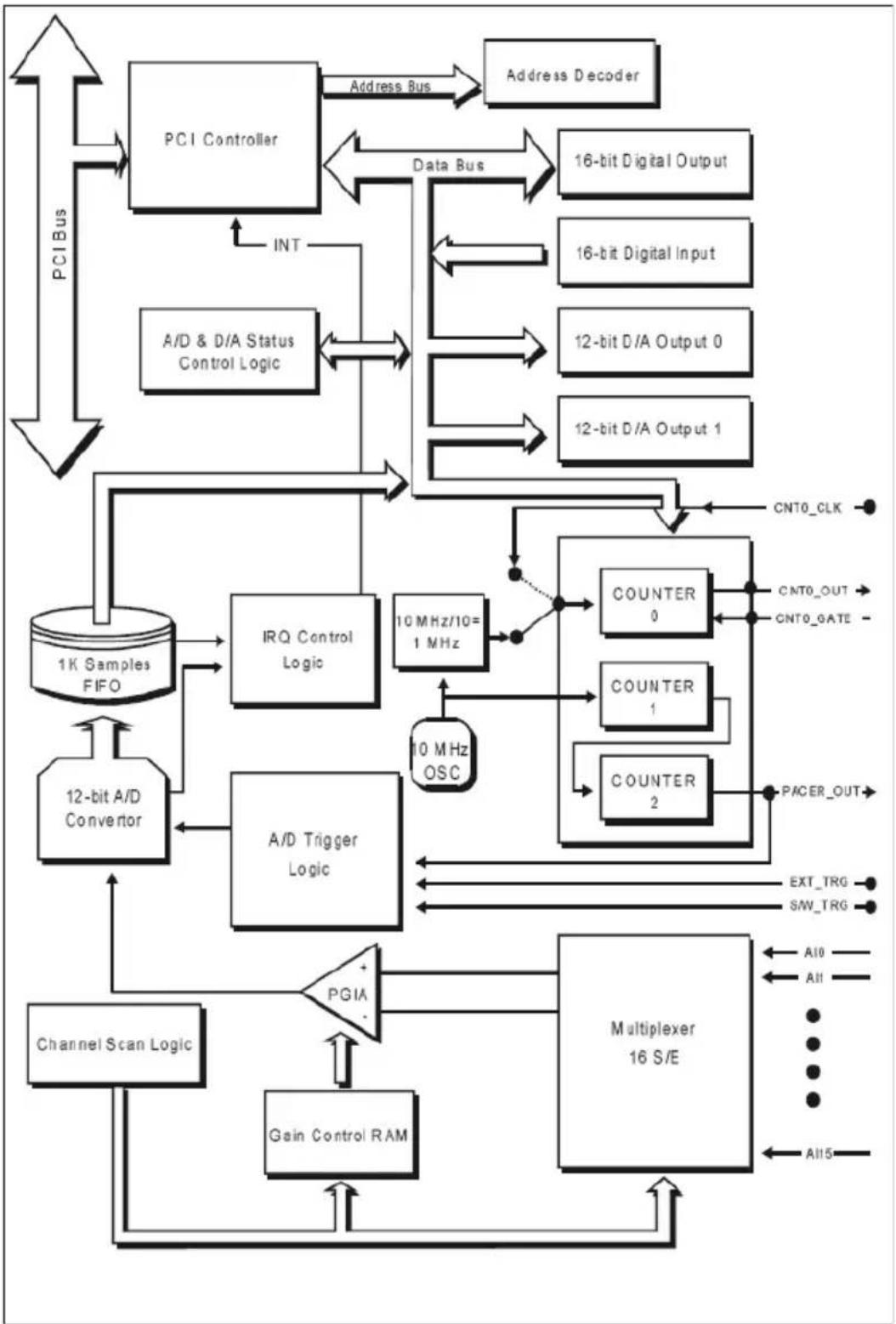
Appendix B Block Diagrams
flowchart
graph TD
    A["PCI Bus"] --> B["PCI Controller"]
    B --> C["Address Bus"]
    C --> D["Address Decoder"]
    B --> E["INT"]
    E --> F["A/D & D/A Status Control Logic"]
    F --> G["16-bit Digital Output"]
    G --> H["16-bit Digital Input"]
    H --> I["12-bit D/A Output 0"]
    I --> J["12-bit D/A Output 1"]
    J --> K["COUNTER 0"]
    K --> L["COUNTER 1"]
    L --> M["COUNTER 2"]
    M --> N["PACER_OUT"]
    N --> O["EXT_TRG"]
    N --> P["SW_TRG"]
    Q["1K Samples FIFO"] --> R["IRQ Control Logic"]
    R --> S["10 MHz OSC"]
    T["12-bit A/D Converter"] --> U["A/D Trigger Logic"]
    U --> V["PGIA"]
    V --> W["Gain Control RAM"]
    X["Channel Scan Logic"] --> Y["PGIA"]
    Y --> Z["Multiplexer 16 S/E"]
    AA["INT"] --> AB["Data Bus"]
    AB --> AC["16-bit Digital Output"]
    AC --> AD["16-bit Digital Input"]
    AD --> AE["12-bit D/A Output 0"]
    AE --> AF["12-bit D/A Output 1"]
    AF --> AG["CNT0_CLK"]
APPENDIX

Calibration
Appendix C Calibration
PCI-1711U cards are calibrated at the factory for initial use. However, a recalibration of the analog input and the analog output function is recommended:
- Every six months.
- Everytime the analog output range is changed.
We provide the Advantech Device Manager on the companion CD-ROM to assist you with D/A and A/D calibration. The Advantech Device Manager makes calibration easy. With a variety of prompts and graphic displays, these programs will lead you through the calibration and setup procedures, showing you all the correct settings and adjustments.
Note: If you installed the program to another directory, you can find these programs in the corresponding subfolders in your destination directory.
To perform a satisfactory calibration, you will need a 412 -digit digital multi-meter and a voltage calibrator or a stable, noise-free DC voltage source.
Note: Before you calibrate the D/A function, you must turn on the power at least 15 minutes to make sure the DA&C card is already stable.
The Advantech Device Manager can be accessed through the Start button:
Start/Programs/Advantech Automation/Device Manager/Advantech Device Manager/
C.1 VR Assignment
The five variable resistors (VRs) on the PCI-1711U/UL board help you make accurate adjustment on all A/D and D/A channels. See the figure in Appendix C for help finding the VRs. The following list shows the function of each VR:
| VR Function | |
| VR1 A/D bipolar offset | |
| VR2 A/D full scale | |
| VR3 D/A0 full scale | |
| VR4 D/A1 full scale |

text_image
CN1 VR3 VR4 VR1 VR2 SW1 1 2 3 4 D3 D2 D1 D0Figure C.1: PCI-1711U VR Assignment
Note: Using a precision voltmeter to calibrate the A/D outputs is recommended.
Regular and accurate calibration ensures maximum possible accuracy. The A/D calibration tool in the Advantech Device Manager leads you through the whole A/D offset and gain adjustment procedure. The basic steps are outlined below:
- Connect a DC voltage source of +9.995 V to AI0.
- Connect AGND to AI1, AI2, AI3, AI4 and AI5.
- Run the ADCAL.EXE program.
- Adjust VR2 until the output codes from the card's AI0 are focused on FFE (at least 70%), and adjust VR1 until the output codes from the card's AI1, AI2, AI3, AI4 and AI5 are focused on 7FF (at least 70%).
- Press the SPACE key to finish A/D calibration.
C.3 D/A Calibration (PCI-1711U)
Note: Using a precision voltmeter to calibrate the D/A outputs is recommended.
In a way similar to the A/D Calibration, the D/A calibration tool in the Advantech Device Manager leads you through the whole D/A calibration procedure.
- Measure the DA0 output with a 4 1/2-digit digital meter. Adjust the VR3 until the output value equals 4.9988V.
- Measure the DA1 output with a 4 1/2-digit digital meter. Adjust the VR4 until the output value equals 4.9988V.
- The D/A calibration is finished.