
FPM-7181W-P3AE - Surveillance Advantech - Free user manual and instructions
Find the device manual for free FPM-7181W-P3AE Advantech in PDF.


| Product Type | Industrial Monitor |
| Display Size | 18.5" |
| Max Resolution | 1366 x 768 |
| Touchscreen | Projected Capacitive |
| Touch Interface | USB & RS-232 |
| OS Support | Windows 7, XP, WES2009, WinCE 6.0, Linux |
| Mounting Options | Panel, Wall, Desktop, VESA (100 mm) |
| Front Panel Protection | IP66 compliant |
| Construction | Die-cast Magnesium alloy front bezel, SECC rear cover |
| Dimensions (W x H x D) | 488 x 309 x 45.7 mm (19.2" x 21.2" x 1.8") |
| Weight | 6 kg (13.2 lb) |
| Power Input | 12 V DC (DC Jack) or 24 V DC (Phoenix Jack) |
| Power Consumption | 35 W max |
| Operating Temperature | 0°C to 50°C |
| Storage Temperature | -20°C to 60°C |
| Display Type | WXGA TFT LED LCD |
| Colors | 16.2 million |
| Viewing Angle | 170° (V), 160° (H) |
| Luminance | 300 cd/m² |
| Contrast Ratio | 1000:1 (typical) |
| Lamp Life | 50,000 hours (MTBF) |
| Connectors | VGA (DB-15), DVI-D, Touchscreen DB-9, Touchscreen USB, DC 12V Power In, Plug-In Block 3P Male (DC10-30V) |
| OSD Controls | 6-key rear keypad with LED indicator |
| Warranty | 2 years |
| Safety Standards | BSMI, CE, FCC, CCC, UL |
| Cleaning | Use a damp cloth; do not use liquid or spray detergents |
Frequently Asked Questions - FPM-7181W-P3AE Advantech
User questions about FPM-7181W-P3AE Advantech
0 question about this device. Answer the ones you know or ask your own.
Ask a new question about this device
Download the instructions for your Surveillance in PDF format for free! Find your manual FPM-7181W-P3AE - Advantech and take your electronic device back in hand. On this page are published all the documents necessary for the use of your device. FPM-7181W-P3AE by Advantech.
USER MANUAL FPM-7181W-P3AE Advantech
natural_image
Illustration of three green wireframe kitchen appliances with no text or symbolsFPM-7181W Series
18.5" Industrial Monitor with Projected Capacitive Touchscreen, Direct-VGA and DVI Ports
Copyright
The documentation and the software included with this product are copyrighted 2013 by Advantech Co., Ltd. All rights are reserved. Advantech Co., Ltd. reserves the right to make improvements in the products described in this manual at any time without notice. No part of this manual may be reproduced, copied, translated or transmitted in any form or by any means without the prior written permission of Advantech Co., Ltd. Information provided in this manual is intended to be accurate and reliable. However, Advantech Co., Ltd. assumes no responsibility for its use, nor for any infringements of the rights of third parties, which may result from its use.
Acknowledgements
Intel and Pentium are trademarks of Intel Corporation.
Microsoft Windows and MS-DOS are registered trademarks of Microsoft Corp.
All other product names or trademarks are properties of their respective owners.
This Manual Covers the Following Models
FPM-7181W-P3AE
Part No. Edition 1
Printed in China February 2013
Product Warranty (2 years)
Advantech warrants to you, the original purchaser, that each of its products will be free from defects in materials and workmanship for two years from the date of purchase.
This warranty does not apply to any products which have been repaired or altered by persons other than repair personnel authorized by Advantech, or which have been subject to misuse, abuse, accident or improper installation. Advantech assumes no liability under the terms of this warranty as a consequence of such events.
Because of Advantech's high quality-control standards and rigorous testing, most of our customers never need to use our repair service. If an Advantech product is defective, it will be repaired or replaced at no charge during the warranty period. For out-of-warranty repairs, you will be billed according to the cost of replacement materials, service time and freight. Please consult your dealer for more details.
If you think you have a defective product, follow these steps:
- Collect all the information about the problem encountered. (For example, CPU speed, Advantech products used, other hardware and software used, etc.) Note anything abnormal and list any onscreen messages you get when the problem occurs.
- Call your dealer and describe the problem. Please have your manual, product, and any helpful information readily available.
- If your product is diagnosed as defective, obtain an RMA (return merchandise authorization) number from your dealer. This allows us to process your return more quickly.
- Carefully pack the defective product, a fully-completed Repair and Replacement Order Card and a photocopy proof of purchase date (such as your sales receipt) in a shippable container. A product returned without proof of the purchase date is not eligible for warranty service.
- Write the RMA number visibly on the outside of the package and ship it prepaid to your dealer.
Declaration of Conformity
This device complies with part 15 of the FCC rules: Operation is subject to the following two condition:
- This device may not cause harmful interference.
- This device must accept any interference received, including interference that may cause undesired operation.
FCC Class A
Note: This equipment has been tested and found to comply with the limits for a Class A digital device, pursuant to part 15 of the FCC Rules. These limits are designed to provide reasonable protection against harmful interference when the equipment is operated in a commercial environment. This equipment generates, uses, and can radiate radio frequency energy and, if not installed and used in accordance with the instruction manual, may cause harmful interference to radio communications. Operation of this equipment in a residential area is likely to cause harmful interference in which case the user will be required to correct the interference at his own expense.
Technical Support and Assistance
- Visit the Advantech web site at www.advantech.com/support where you can find the latest information about the product.
- Contact your distributor, sales representative, or Advantech's customer service center for technical support if you need additional assistance. Please have the following information ready before you call:
– Product name and serial number
– Description of your peripheral attachments
– Description of your software (operating system, version, application software, etc.)
– A complete description of the problem
– The exact wording of any error messages
Safety Instructions
- Read these safety instructions carefully.
- Keep this User Manual for later reference.
- Disconnect this equipment from any AC outlet before cleaning. Use a damp cloth. Do not use liquid or spray detergents for cleaning.
- For plug-in equipment, the power outlet socket must be located near the equipment and must be easily accessible.
- Keep this equipment away from humidity.
- Put this equipment on a reliable surface during installation. Dropping it or letting it fall may cause damage.
- The openings on the enclosure are for air convection. Protect the equipment from overheating. DO NOT COVER THE OPENINGS.
- Make sure the voltage of the power source is correct before connecting the equipment to the power outlet.
- Position the power cord so that people cannot step on it. Do not place anything over the power cord.
- All cautions and warnings on the equipment should be noted.
- If the equipment is not used for a long time, disconnect it from the power source to avoid damage by transient overvoltage.
- Never pour any liquid into an opening. This may cause fire or electrical shock.
- Never open the equipment. For safety reasons, the equipment should be opened only by qualified service personnel.
- If one of the following situations arises, get the equipment checked by service personnel:
■ The power cord or plug is damaged.
- Liquid has penetrated into the equipment.
■ The equipment has been exposed to moisture.
The equipment does not work well, or you cannot get it to work according to the user's manual.
■ The equipment has been dropped and damaged.
■ The equipment has obvious signs of breakage.
-
DO NOT LEAVE THIS EQUIPMENT IN AN ENVIRONMENT WHERE THE STORAGE TEMPERATURE MAY GO BELOW -20^ C ( -4^ F) OR ABOVE 60^ C ( 140^ F). THIS COULD DAMAGE THE EQUIPMENT. THE EQUIPMENT SHOULD BE IN A CONTROLLED ENVIRONMENT.
-
The sound pressure level at the operator's position according to IEC 704-1:1982 is no more than 70 dB (A).
-
IF the external power supply doesn't ship with the unit, the user manual shall have the description as below or equivalent: "This product is intended to be supplied by a UL Listed Power Adapter and output rated 12 V_DC , min.4.0 A (for DC Jack), or a UL Listed DC Power source and output rated 24 V_DC , min.2.0 A (for Phoenix Jack)"
DISCLAIMER: This set of instructions is given according to IEC 704-1. Advantech disclaims all responsibility for the accuracy of any statements contained herein.
Contents
Chapter 1 General Information ....1
1.1 Introduction 2
1.2 Specifications 2
1.2.1 General 2
1.2.2 Touchscreen 2
1.3 LCD Specification.... 2
1.4 Power Consumption.... 2
1.5 Connectors.... 3
1.6 Dimensions 3
Figure 1.1 FPM-7181W Dimensions.... 3
1.7 Power Connector Bracket 4
Chapter 2 Mounting ....5
2.1 Mounting the Monitor 6
2.1.1 Wall Mounting with FPM-7181W-SMKE Kit 6
Figure 2.1 Wall Mounting....6
2.1.2 Panel Mounting 7
2.1.3 Desktop, VESA Mount for FPM-7181W....9
Figure 2.2 Desktop Stand 9
Figure 2.3 VESA Mount....10
Appendix A OSD Operation Keypad......11
A.1 OSD Board Overview.... 12
A.1.1 OSD Button Description.... 12
Table A.1: OSD Button Description 12
A.1.2 LED Function 12
Table A.2: LED Function.... 12
A.2 OSD Key Functions.... 13
A.2.1 Menu Start 13
A.2.2 Input Source Select.... 14
A.2.3 Contrast/Brightness Setting 15
A.2.4 Geometry Menu – For DVI Input.... 16
A.2.5 Color Temperature Menu.... 17
A.2.6 Language Menu 18
A.2.7 OSD Manager 19
A.2.8 Auto Configuration Menu 20
A.2.9 Mode Information Menu 21
A.2.10 Memory Recall Menu 22
A.2.11 Exit Menu 23
A.2.12 Hot Keys 24
Appendix B Touch Driver Installation .....25
B.1 Touch Driver Installation 26
Appendix C Setting Serial Data for Expansion....31
C.1 Setting Serial Data for Expansion 32
Chapter 1
General Information
Sections include:
Introduction
Specifications
LCD Specification
Power Consumption
Connectors
Dimensions
1.1 Introduction
Advantech's FPM-7181W is a 18.5" wide screen color TFT LCD flat panel monitor built specifically for industrial applications. With the its touchscreen, FPM-7181W is an excellent and user-friendly system control interface.
In addition to its usual application as an LCD panel monitor, FPM-7181W comes standard with direct VGA and DVI control signal inputs, making it compatible with Industrial PCs and Workstations. Its OSD (On rear cover) function allows you to adjust display factors such as brightness, contrast, colors and VGA signal information. Functions that are more and more critical as HMI users become aware of the benefits of flat panel monitors. The whole chassis is of SECC, and the front panel is of aluminum with IP66 compliance.
With new multi touch technology, this monitor can be immediately transformed into a remote control system. The Advantech FPM-7181W is the ultimate HMI solution for your industrial application.
1.2 Specifications
1.2.1 General
■ Construction: Die-cast Magnesium alloy front bezel and SECC rear cover
■ Front panel: IP66 Compliant
■ Control: OSD control pad on rear
■ Mounting: Panel, wall, desktop, VESA
■ Dimensions (W x H x D): 488 x 309 x 45.7mm (19.2" x 21.2" x 1.8")
■ Weight: 6 kg (13.2lb)
1.2.2 Touchscreen
■ Type: Projected Capacitive touch
■ Controller: USB & RS-232 interface
OS Support: Microsoft® WES7P/XP/WES2009/WinCE 6.0/ Linux
1.3 LCD Specification
■ Display Type: WXGA TFT LED LCD
■ Display Size: 18.5"
Max. Colors: 16.2 M
Max. Resolution: 1366x768
■ View Angle: 170° (V), 160° (H)
■ Luminance: 300 cd/m2
■ Storage Temperature: -20 \~ 60°C
■ Operating Temperature: 0 \~ 50°C
■ Contrast Ratio: 1000:1 (typ)
■ Lamp Life Time (MTBF): 50,000 hrs.
1.4 Power Consumption
■ Max Power consumption: 35 W
Power input: Phoenix Jack: 24 V DC input DC Jack: external 57 W power adapter, with 100 \~ 240 V AC input and 12 V _DC @ 4.75 A output
■ Safety Standards: BSMI, CE, FCC, CCC, UL
1.5 Connectors
The following connectors are situated on FPM-7181W Series:
VGA Port (DB-15)
This DB-15 connector can be connected to the system via the external 15-pin DB-15 connector located on the left side of the system unit.
DVI Port (DVI-D)
Connected with a standard DVI connector thru I/O port of this unit. Only supports digital signals
■ Touchscreen Connector (DB-9)
This connector will be present only if a touchscreen is installed. It must be connected to the RS-232 port of the PC. The touchscreen cable is included with all orders which include the touchscreen option.
■ Touchscreen Connector (USB)
This connector will be present only if a touchscreen is installed. It must be connected to the USB port of the PC. The touchscreen cable is included with all orders which include the USB touchscreen option.
Note!RS-232 & USB touchscreen interface allow connection into the system at the same time, but USB interface has higher priority. Also be noted that when using USB touch interface and switch to RS-232 interface, it need to restart your industrial PCs or workstation.

DC 12V Power In
This connector will be connected to the DC 12V Switching Power Supply.
Plug-In Block 3P Male (ME050-50803) DC10-30V
This block connector can be connected via the external plug-in block 3P with flanges Female MC211-F103 connector
1.6 Dimensions
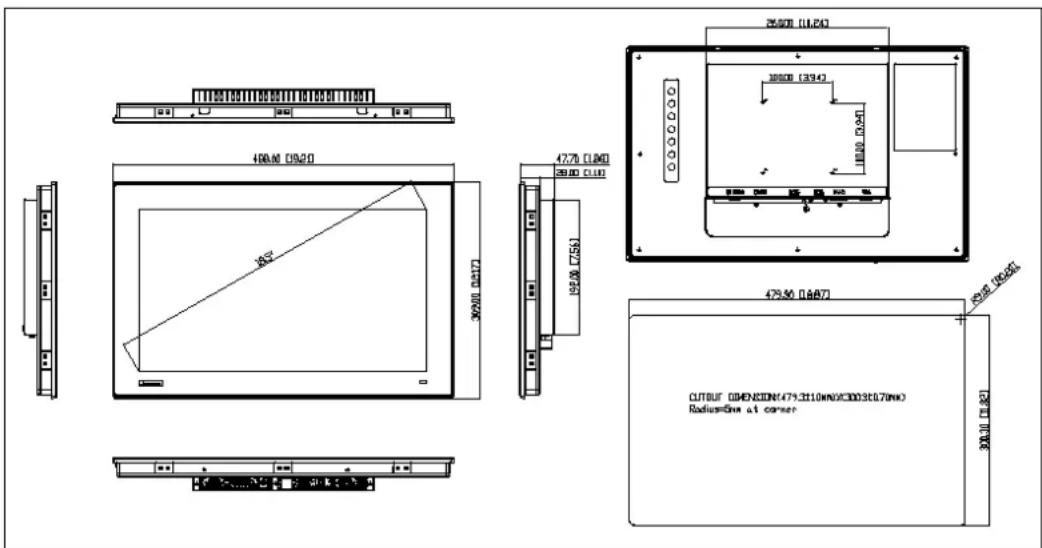
Figure 1.1 FPM-7181W Dimensions
1.7 Power Connector Bracket

Chapter 2
Mounting
Wall Mounting
Panel Mounting
■ Desktop Mounting
■ Swing Arm Mounting
2.1 Mounting the Monitor
The FPM-7181W Series can be mounted in many different ways. The versatility of the FPM-7181W mounts enable it to be mounted on your desk or anywhere else.
2.1.1 Wall Mounting with FPM-7181W-SMKE Kit
FPM-7181W can be mounted directly on a wall with panel mounting brackets. Please refer to Figure 2.1 and follow the following steps to mount FPM-7181W on a wall:

natural_image
Technical line drawing of two views of a device frame with internal components and mounting holes (no text or symbols)Figure 2.1 Wall Mounting
2.1.2 Panel Mounting
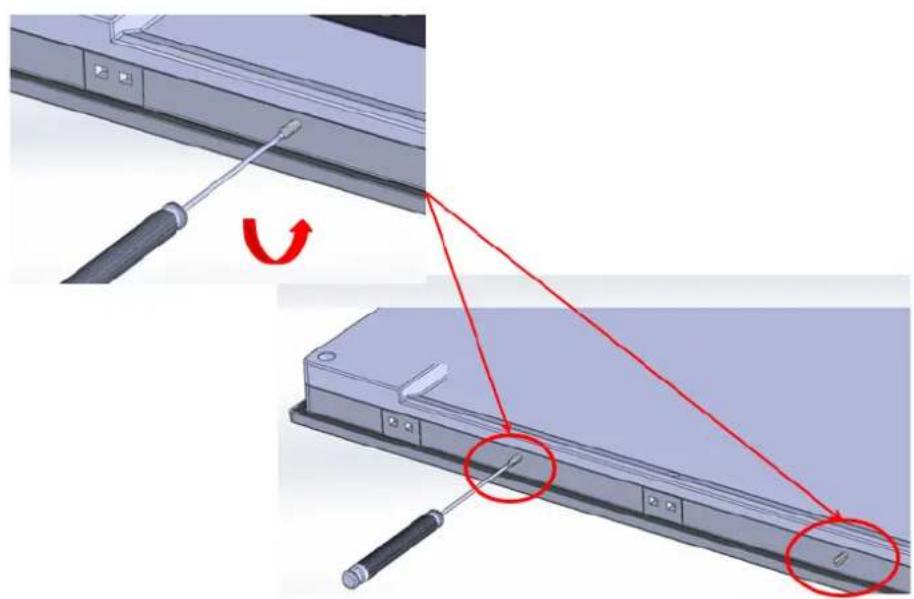
FPM-7181W can be mounted directly on a panel with additional mounting brackets. New easy installation can help you with one person for panel mounting.
- Screw to set up the snap hook out of upper side.
- Screw for the stopper screw out of down side.
-
push the FPM-7181W into panel, stopper screw and snap hook can hold the FPM-7181W.
-
Add panel mount kits in rear side. Fix 10pcs panel bracket around the industrial monitor, refer to the below figure.

natural_image
Diagram showing a screwdriver interacting with a device panel, with red arrows indicating motion (no text or symbols present)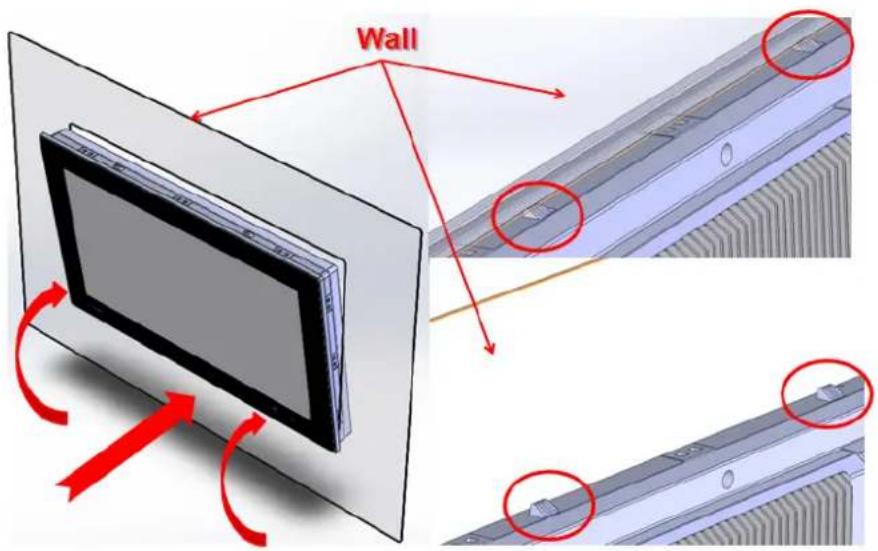

natural_image
3D illustration of a rectangular electronic device with a flat panel, labeled 'Done' in red text (no other symbols or text)2.1.3 Desktop, VESA Mount for FPM-7181W
2.1.3.1 Desk top stand with FPM-7181W-SMKE Kit
FPM-7181W ccan be mounted as stand in the desk directly by a additional mounting brackets. Please refer to figure 2.2 and follow these steps:

natural_image
Technical line drawing of a rectangular electronic device with internal components and mounting holes (no text or symbols)Figure 2.2 Desktop Stand
2.1.3.2 VESA Mount
FPM-7181W has been designed with support for the VESA mount standard. Refer to figure 2.3. Supports 100mm VESA dimension. Please use M4 screws (Length 8mm to 10 mm).
Warning! Use suitable mounting apparatus to avoid risk of injury.


Figure 2.3 VESA Mount
Appendix A
OSD Operation Keypad
A.1 OSD Board Overview
The OSD keypad, including six keys and a two color indicator, is designed as the OSD operation interface.
Note! This sheet is only for reference, different models will have different styles, but the functionality is the same.

A.1.1 OSD Button Description
Table A.1: OSD Button Description
| Power Turn the monitor power ON or OFF. | |
| Auto/Exit Automatically adjust the clock, phase, H-position and V-position.Exit menu. | |
| Down/Right/Increase Increase the brightness.Move the selector to the next option.Increase the gauge value of the selected option. | |
| Up/Left/Decrease | Decrease the brightness.Move the selector to the previous option.Decrease the gauge value of the selected option. |
| Menu/Sel Activate the OSD menu.Enter/confirm the selected option. | |
| Source Changes Input video source | |
A.1.2 LED Function
Table A.2: LED Function
| ON Blue |
| StandBy/OFF Blue Blinking |
| No Signals Orange |
A.2 OSD Key Functions
Each selected value is stored into LCD memory after SEL signal input or time out. The stored values are not affected if the power is turned off. But the selected value is not available in case a selected mode is changed before time out or power is turned off before time out. TIME OUT -> 5-6 seconds (Can be set in OSD Manager) The default definition of input keys is shown as following:
A.2.1 Menu Start
Generate Main Menu
Press MENU Button in OSD function key
■ Main Menu -- DISPLAY IN SCREEN
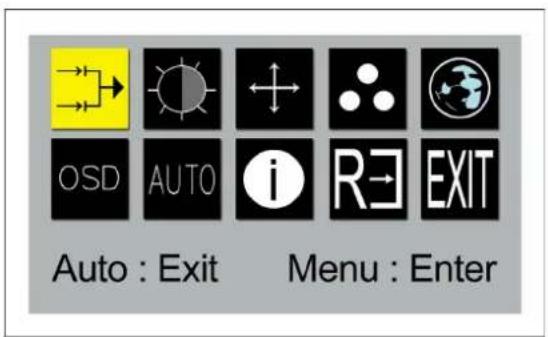
Sub-Menu – DISPLAY IN SCREEN
N/A
■ Available Key Functions

Turn off (turn off back-light)

- Move the selector to the left - Select the sub-menu
Select to exit the menu or wait for time-out

- Confirm - Enter the selected option.

- Move the selector to the right - Select the sub-menu

N/A
A.2.2 Input Source Select
Generate Main Menu
Select Left and Right Button, and then press Menu Button for selection confirmation.
■ Main Menu -- DISPLAY IN SCREEN

Sub-Menu – DISPLAY IN SCREEN

■ Available Key Functions
 | Power Off the LCD Monitor |  | Select to move up/down |
 | Return to the previous menu |  | Select to confirm |
 | Select to move up/down N/A |  |
A.2.3 Contrast/Brightness Setting
Generate Main Menu
Select Left and Right Button, and then press Menu Button for selection confirmation.
■ Main Menu -- DISPLAY IN SCREEN

Sub-Menu – DISPLAY IN SCREEN

bar
| Metric | Value | |---|---| | CONTRAST | 50 | | DIM BRIGHTNESS | 50 | | BRIGHTNESS | 100 | | SHARPNESS | 50 | | RECALL VAULE | | | Recall | REC1 REC2 |Note!RECALL VALUE- Recall: go back to display default setting.
RECALL VALUE- REC1: go to record 1 setting.
RECALL VALUE- REC2: go to record 2 setting.
■ Available Key Functions

Power Off the LCD Monitor

- Select to move up/down - Decrease the gauge value of the selected option

Return to the previous menu
Select to confirm

- Select to move up/ down
·Increase the gauge value of the selected option

N/A
A.2.4 Geometry Menu – For DVI Input
Generate Main Menu
Select Left and Right Button, press Menu Button for selection confirmation.
■ Main Menu -- DISPLAY IN SCREEN

Sub-Menu – DISPLAY IN SCREEN

bar
| Metric | Value | |---|---| | FOCUS | 87 | | CLOCK | 50 | | H POSITION | 50 | | V POSITION | 50 |■ Available Key Functions

Power Off the LCD Monitor

- Select to move up/down - Decrease the gauge value of the selected option
Return to the previous menu

Select to confirm

- Select to move up/ down - Increase the gauge value of the selected option

N/A
A.2.5 Color Temperature Menu
Generate Main Menu
Select ☐ Left and Right Button, and then press Menu Button for selection confirmation.
■ Main Menu -- DISPLAY IN SCREEN

Sub-Menu – DISPLAY IN SCREEN

■ Available Key Functions
 | Power Off the LCD Monitor |  | ·Select to move up/down ·Decrease the gauge value of the selected option |
 | Return to the previous menu |  | Select to confirm |
 | ·Select to move up/ down ·Increase the gauge value of the selected option |  | N/A |
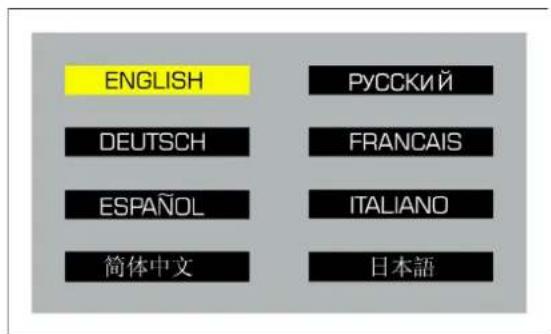
A.2.6 Language Menu
Generate Main Menu
Select Left and Right Button, and then press Menu Button for selection confirmation.
■ Main Menu -- DISPLAY IN SCREEN

Sub-Menu – DISPLAY IN SCREEN
■ Available Key Functions
 | Power Off the LCD Monitor |  | Move the selector to the left |
 | Return to the previous menu |  | Select to confirm |
 | Move the selector to the right |  | N/A |
A.2.7 OSD Manager
Generate Main Menu
Select QSD left and Right Button, and then press Menu Button for selection confirmation.
■ Main Menu -- DISPLAY IN SCREEN

Sub-Menu – DISPLAY IN SCREEN

■ Available Key Functions
 | Power Off the LCD Monitor |  | ·Select to move up/down ·Decrease the gauge value of the selected option |
 | Return to the previous menu |  | Select to confirm |
 | ·Select to move up/ down ·Increase the gauge value of the selected option |  | N/A |
A.2.8 Auto Configuration Menu
Generate Main Menu
Select AUTO left and Right Button, and then press Menu Button for selection confirmation.
■ Main Menu -- DISPLAY IN SCREEN

Sub-Menu – DISPLAY IN SCREEN

■ Available Key Functions
| Power Off the LCD Monitor | N/A |
| Return to the previous menu | Select to confirm |
| N/A N/A | Source |
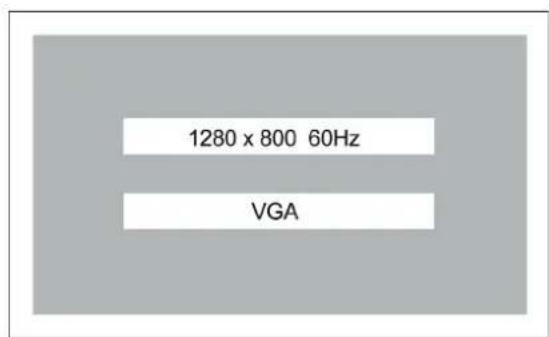
A.2.9 Mode Information Menu
Generate Main Menu
Select Left and Right Button, and then press Menu Button for selection confirmation.
■ Main Menu -- DISPLAY IN SCREEN

Sub-Menu – DISPLAY IN SCREEN
■ Available Key Functions

Power Off the LCD Monitor

Move the selector to the left

Return to the previous menu

Select to confirm

Move the selector to the right

N/A
A.2.10 Memory Recall Menu
Generate Main Menu
Select by Left and Right Button, then press Menu Button for selection confirmation.
■ Main Menu -- DISPLAY IN SCREEN

Sub-Menu – DISPLAY IN SCREEN

■ Available Key Functions

N/A N/A


N/A Select to confirm


N/A N/A

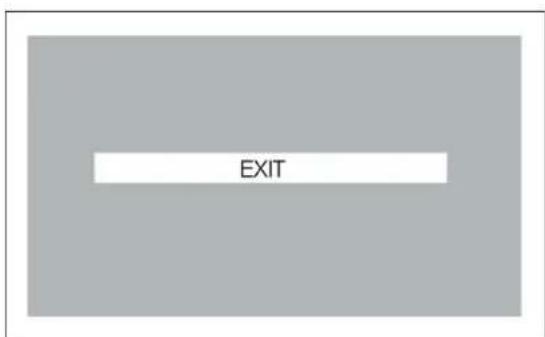
A.2.11 Exit Menu
Generate Main Menu
Select by Left and Right Button, and then press Menu Button for selection confirmation.
■ Main Menu -- DISPLAY IN SCREEN
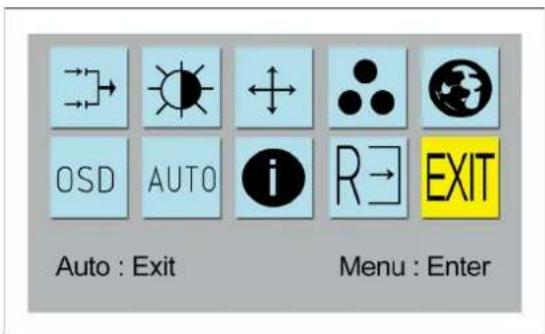
Sub-Menu – DISPLAY IN SCREEN
A.2.12 Hot Keys
OSD LOCK/UNLOCK
HOT KEYS

sequence for the button press so that you can have OSD LOCK and UNLOCK setting
Enter OSD LOCK MODE
- Press HOT KEY, the screen will show this action first
DO OSD LOCK
- Don't remove HOT KEY until the screen indicated this task is finished.
OSD LOCK
Enter OSD UNLOCK MODE
- Press HOT KEY, the screen will show this action first
DO OSD UNLOCK
- Don't remove the HOT KEY until the screen indicated this task is finished.
OSD UNLOCK

Appendix B
Touch Driver Installation
B.1 Touch Driver Installation
CD Driver supports Windows XP, Windows Vista, Windows 7. For drivers for other operating systems refer to http://home.eeti.com.tw/web20/eg/Touch_Drives.html For Multi-touch, we suggest using a USB interface with Windows 7 HID as there's no need to install the above driver.
Step 1: Install driver.


Step 2: Select touch interface RS-232 or USB.


Step 3: Select support Multi Monitor or not.

Note! Touch can support multi touch(18.5" 4 point / 21.5" 5 point). Touch already do the default setting, please note that no need to do calibration.


Appendix C
Setting Serial Data for Expansion
C.1 Setting Serial Data for Expansion
The several kinds of timings below are already programmed in this module.
The input synchronous signals are automatically recognized.
| Resolution HSYNC /KHz (+/-) VSYNC /Hz(+/-) PIXEL RATE /MHz | ||
| IBM, 720 * 400 31.469 | 70.087 28.322 | |
| MAC, 832 * 624 49.726 | 74.551 57.284 | |
| VESA 640 * 480 31.469 | 59.940 25.175 | |
| VESA 640 * 480 37.861 | 72.809 31.500 | |
| VESA 640 * 480 37.500 | 75.000 31.500 | |
| VESA 800 * 600 35.156 | 56.250 36.000 | |
| VESA 800 * 600 37.879 | 60.317 | 40.000 |
| VESA 800 * 600 48.077 | 72.188 50.000 | |
| VESA 800 * 600 46.875 | 75.000 49.500 | |
| VESA 1024*768 48.363 | 60.004 | 65.000 |
| VESA 1024*768 56.476 | 70.069 75.000 | |
| VESA 1024*768 60.023 | 75.029 | 78.750 |
| VESA 1280*720 45.000 | 60.000 | 74.250 |
| VESA 1366 * 768 47.712 | 59.790 85.500 | |
Note! Even if the preset timing is entered, a little adjustment of the functions such as Horizontal period, CLK-delay and display position, are required. The adjusted values are memorized in every preset number.
Note! This module recognizes the synchronous signals with near preset timing of the frequency of the HS and Vsync, even in the case that the signals other than the preset timing that were entered.
Note! Because adjustments may not fit, such as differing magnifying ratios or, in the case that you use it except for the display timing that was preset. Recommend best resolution as 1366*768.
www.advantech.com
Please verify specifications before quoting. This guide is intended for reference purposes only.
All product specifications are subject to change without notice.
No part of this publication may be reproduced in any form or by any means, electronic, photocopying, recording or otherwise, without prior written permission of the publisher.
All brand and product names are trademarks or registered trademarks of their respective companies.
© Advantech Co., Ltd. 2013


- FPM-7181W Series
- Copyright
- Acknowledgements
- Product Warranty (2 years)
- Declaration of Conformity
- FCC Class A
- Technical Support and Assistance
- Safety Instructions
- Contents
- Chapter 1 General Information ....1
- Chapter 2 Mounting ....5
- Appendix A OSD Operation Keypad......11
- Appendix B Touch Driver Installation .....25
- Appendix C Setting Serial Data for Expansion....31
- Chapter 1
- General Information
- Sections include:
- Introduction
- Specifications
- General
- Touchscreen
- LCD Specification
- Power Consumption
- Connectors
- Dimensions
- Power Connector Bracket
- Chapter 2
- Mounting
- Mounting the Monitor
- Wall Mounting with FPM-7181W-SMKE Kit
- Panel Mounting
- Desktop, VESA Mount for FPM-7181W
- Desk top stand with FPM-7181W-SMKE Kit
- VESA Mount
- Appendix A
- A.1 OSD Board Overview
- A.1.1 OSD Button Description
- A.1.2 LED Function
- A.2 OSD Key Functions
- A.2.1 Menu Start
- A.2.2 Input Source Select
- A.2.3 Contrast/Brightness Setting
- A.2.4 Geometry Menu – For DVI Input
- A.2.5 Color Temperature Menu
- A.2.6 Language Menu
- A.2.7 OSD Manager
- A.2.8 Auto Configuration Menu
- A.2.9 Mode Information Menu
- A.2.10 Memory Recall Menu
- A.2.11 Exit Menu
- A.2.12 Hot Keys
- Appendix B
- B.1 Touch Driver Installation
- Appendix C
- C.1 Setting Serial Data for Expansion
- www.advantech.com
Brand : Advantech
Model : FPM-7181W-P3AE
Category : Surveillance