
IDS-3110P-50XGA1E - Surveillance Advantech - Free user manual and instructions
Find the device manual for free IDS-3110P-50XGA1E Advantech in PDF.


| Product Type | Industrial Open Frame Monitor |
| Brand | Advantech |
| Model | IDS-3110P-50XGA1E |
| Category | Surveillance |
| Display Size | 10.4 inches |
| Resolution | 1024 x 768 (XGA) |
| Brightness | 500 cd/m² |
| Touchscreen | 5-Wire Resistive / Projected Capacitive (P-cap) |
| Viewing Angle | 88° horizontal, 88° vertical |
| Contrast Ratio | 1000:1 |
| Response Time | 25 ms |
| Backlight Life | 50,000 hours |
| Color Support | 16.2 million colors |
| Operating Temperature | -20°C to 60°C |
| Storage Temperature | -30°C to 70°C |
| Humidity | 95% @40°C, non-condensing |
| Vibration Resistance | 5-500 Hz, 0.026 G²/Hz, 2.16 Grms |
| Power Consumption | 11.8 W (typical) |
| Input Voltage | 12 V DC via jack |
| I/O Ports | VGA x1, DVI-D x1, USB x1, RS-232 x1 |
| Mounting Options | Rear mount, VESA 75x75 mm, VESA 100x100 mm |
| Net Weight | 1.2 kg |
| Gross Weight | 2.5 kg |
| Package Dimensions | 420 x 333 x 173 mm |
| Certifications | CE, FCC Class A, FM (Class I, Div 2) |
| Warranty | 2 years |
| Included Accessories | VGA cable, USB cable, mounting clamps, cable clamp, cable tie |
Frequently Asked Questions - IDS-3110P-50XGA1E Advantech
User questions about IDS-3110P-50XGA1E Advantech
0 question about this device. Answer the ones you know or ask your own.
Ask a new question about this device
Download the instructions for your Surveillance in PDF format for free! Find your manual IDS-3110P-50XGA1E - Advantech and take your electronic device back in hand. On this page are published all the documents necessary for the use of your device. IDS-3110P-50XGA1E by Advantech.
USER MANUAL IDS-3110P-50XGA1E Advantech
natural_image
Illustration of four electronic circuit boards with white outlines on a purple background (no text or symbols)IDS-3110 Series
10.4" Industrial Open Frame Monitor
Copyright
The documentation and the software included with this product are copyrighted 2019 by Advantech Co., Ltd. All rights are reserved. Advantech Co., Ltd. reserves the right to make improvements in the products described in this manual at any time without notice. No part of this manual may be reproduced, copied, translated or transmitted in any form or by any means without the prior written permission of Advantech Co., Ltd. Information provided in this manual is intended to be accurate and reliable. However, Advantech Co., Ltd. assumes no responsibility for its use, nor for any infringements of the rights of third parties, which may result from its use.
Acknowledgements
Intel and Pentium are trademarks of Intel Corporation.
Microsoft Windows and MS-DOS are registered trademarks of Microsoft Corp.
All other product names or trademarks are properties of their respective owners.
Product Warranty (2 years)
Advantech warrants to you, the original purchaser, that each of its products will be free from defects in materials and workmanship for two years from the date of purchase.
This warranty does not apply to any products which have been repaired or altered by persons other than repair personnel authorized by Advantech, or which have been subject to misuse, abuse, accident or improper installation. Advantech assumes no liability under the terms of this warranty as a consequence of such events.
Because of Advantech's high quality-control standards and rigorous testing, most of our customers never need to use our repair service. If an Advantech product is defective, it will be repaired or replaced at no charge during the warranty period. For out-of-warranty repairs, you will be billed according to the cost of replacement materials, service time and freight. Please consult your dealer for more details.
If you think you have a defective product, follow these steps:
-
Collect all the information about the problem encountered. (For example, CPU speed, Advantech products used, other hardware and software used, etc.) Note anything abnormal and list any onscreen messages you get when the problem occurs.
-
Call your dealer and describe the problem. Please have your manual, product, and any helpful information readily available.
-
If your product is diagnosed as defective, obtain an RMA (return merchandise authorization) number from your dealer. This allows us to process your return more quickly.
-
Carefully pack the defective product, a fully-completed Repair and Replacement Order Card and a photocopy proof of purchase date (such as your sales receipt) in a shippable container. A product returned without proof of the purchase date is not eligible for warranty service.
-
Write the RMA number visibly on the outside of the package and ship it prepaid to your dealer.
Declaration of Conformity
CE
This product has passed the CE test for environmental specifications. Test conditions for passing included the equipment being operated within an industrial enclosure. In order to protect the product from being damaged by ESD (Electrostatic Discharge) and EMI leakage, we strongly recommend the use of CE-compliant industrial enclosure products.
FCC Class A
Note: This equipment has been tested and found to comply with the limits for a Class A digital device, pursuant to part 15 of the FCC Rules. These limits are designed to provide reasonable protection against harmful interference when the equipment is operated in a commercial environment. This equipment generates, uses, and can radiate radio frequency energy and, if not installed and used in accordance with the instruction manual, may cause harmful interference to radio communications. Operation of this equipment in a residential area is likely to cause harmful interference in which case the user will be required to correct the interference at his own expense.
FM
This equipment has passed the FM certification. According to the National Fire Protection Association, work sites are classified into different classes, divisions and groups, based on hazard considerations. This equipment is compliant with the specifications of Class I, Division 2, Groups A, B, C and D indoor hazards.
Technical Support and Assistance
- Visit the Advantech website at http://support.advantech.com where you can find the latest information about the product.
- Contact your distributor, sales representative, or Advantech's customer service center for technical support if you need additional assistance. Please have the following information ready before you call:
– Product name and serial number
– Description of your peripheral attachments
– Description of your software (operating system, version, application software, etc.)
– A complete description of the problem - The exact wording of any error messages
Warnings, Cautions and Notes
Warning! Warnings indicate conditions, which if not observed, can cause personal injury!

Caution! Cautions are included to help you avoid damaging hardware or losing data. e.g.

There is a danger of a new battery exploding if it is incorrectly installed. Do not attempt to recharge, force open, or heat the battery. Replace the battery only with the same or equivalent type recommended by the manufacturer. Discard used batteries according to the manufacturer's instructions.
Note! Notes provide optional additional information.

Document Feedback
To assist us in making improvements to this manual, we would welcome comments and constructive criticism. Please send all such, in writing, to: support@advantech.com
Safety Instructions
- Read these safety instructions carefully.
- Keep this User Manual for later reference.
- Disconnect this equipment from any AC outlet before cleaning. Use a damp cloth. Do not use liquid or spray detergents for cleaning.
- For plug-in equipment, the power outlet socket must be located near the equipment and must be easily accessible.
- Keep this equipment away from humidity.
- Put this equipment on a reliable surface during installation. Dropping it or letting it fall may cause damage.
- The openings on the enclosure are for air convection. Protect the equipment from overheating. DO NOT COVER THE OPENINGS.
- Make sure the voltage of the power source is correct before connecting the equipment to the power outlet.
- Position the power cord so that people cannot step on it. Do not place anything over the power cord.
- All cautions and warnings on the equipment should be noted.
- If the equipment is not used for a long time, disconnect it from the power source to avoid damage by transient overvoltage.
- Never pour any liquid into an opening. This may cause fire or electrical shock.
- Never open the equipment. For safety reasons, the equipment should be opened only by qualified service personnel.
- If one of the following situations arises, get the equipment checked by service personnel:
■ The power cord or plug is damaged.
- Liquid has penetrated into the equipment.
■ The equipment has been exposed to moisture.
The equipment does not work well, or you cannot get it to work according to the user's manual.
■ The equipment has been dropped and damaged.
■ The equipment has obvious signs of breakage.
-
DO NOT LEAVE THIS EQUIPMENT IN AN ENVIRONMENT WHERE THE STORAGE TEMPERATURE MAY GO BELOW -20°C (-4°F) OR ABOVE 60°C (140°F). THIS COULD DAMAGE THE EQUIPMENT. THE EQUIPMENT SHOULD BE IN A CONTROLLED ENVIRONMENT.
-
CAUTION: DANGER OF EXPLOSION IF BATTERY IS INCORRECTLY REPLACED. REPLACE ONLY WITH THE SAME OR EQUIVALENT TYPE RECOMMENDED BY THE MANUFACTURER, DISCARD USED BATTERIES ACCORDING TO THE MANUFACTURER'S INSTRUCTIONS.
The sound pressure level at the operator's position according to IEC 704-1:1982 is no more than 70 dB (A).
DISCLAIMER: This set of instructions is given according to IEC 704-1. Advantech disclaims all responsibility for the accuracy of any statements contained herein.
Caution!
For power adapter selection: the information about the adapter output rating (12 Vdc, 5 A min, or 18 W min) is provided in the user manual for user's selection if the power adapter is not shipped with the unit

Contents
Chapter 1 Overview......1
1.1 Introduction 2
1.2 Features 2
1.3 Applications.... 2
1.4 Product Photos.... 2
1.5 Naming Rule 3
Chapter 2 System Setup....5
2.1 Specifications 6
2.2 Dimensions 8
Figure 2.1 IDS-3110 Series Dimensions .... 8
Figure 2.2 IDS-3110E Series Dimensions 8
Figure 2.3 IDS-3110 (XGA) Series Dimensions .... 8
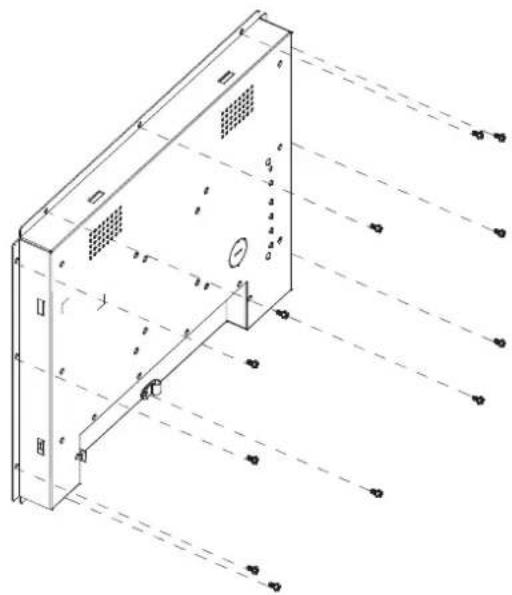
2.3 Rear Mount Assembly SOP 9
2.4 Cable Clamp 10
Chapter 3 Touchscreen....13
3.1 OSD Functions (IDS-3110 Series) 14
3.1.1 OSD Main Menu: Push the MENU Key 14
3.1.2 Brightness Selection - Submenu.... 15
3.1.3 Contrast Control.... 15
3.1.4 Screen Settings - Submenu 15
3.1.5 Color Temperature - Submenu 16
3.1.6 Language - Submenu 16
3.1.7 OSD Setting - Submenu 17
3.1.8 VGA/DVI Selection.... 17
3.2 OSD Functions for IDS-3110E Series.... 18
3.2.1 OSD Main Menu: Push the MENU Key 18
3.2.2 OSD Lock.... 18
3.2.3 OSD Unlock 18
3.2.4 Color Adjustment - Submenu (Brightness /Contrast/ Color Adjust/ Color Temp/Auto Color) 19
3.2.5 Image Setting Adjustment.... 19
3.2.6 Image Adjustment - Submenu (Clock/Phase/H. Position/V. Position) 20
3.2.7 OSD Menu Adjustment 20
3.2.8 OSD Adjustment - Submenu (OSD H.Pos./OSD V.Pos./OSD Timer).... 21
3.2.9 OSD Adjustment - Language Submenu.... 21
3.2.10 Reset Adjustment.... 22
3.3 OSD Functions for IDS-3110 XGA series 23
3.3.1 OSD Menu Details 23
n Drivers.... 31
Appendix A Troubleshooting 33
A.1 Introduction 34
A.2 Troubleshooting 34
Chapter 1
Overview
Sections Include:
Introduction
Features
Applications
Product Photos
Naming Rule
1.1 Introduction
The Advantech IDS-3110 series is a brand new Industrial Open Frame Monitor, designed to meet the needs of customers who want quick and easy integration with Advantech Embedded Box Computers, such as ARK and DSA lines. Advantech offers two different versions of IDS-3110 to meet different demands: IDS-3110 series (Superior grade version) and IDS-3110E series (Economical version)
1.2 Features
10.4" SVGA LED backlight panel provides 20\~30% power saving
-20°C \~ +60°C wide operating temperature support
■ Specially designed 5-wire resistive and P-cap touchscreen
An all new mechanical design with integrated bracket for easy installation
■ Versatile mounting methods for rear mount and VESA mount (75 x 75 mm, 100 x 100 mm)
1.3 Applications
Application scenarios - self-service applications:
KIOSK / POI machine
■ Transportation machine
- Ticketing machine
Financial ATM
■ Entertainment / Gaming / Slot machine
■ HMI (Human-Machine Interface) equipment controller monitor
■ Public communication machine
■ Public advertisement machine
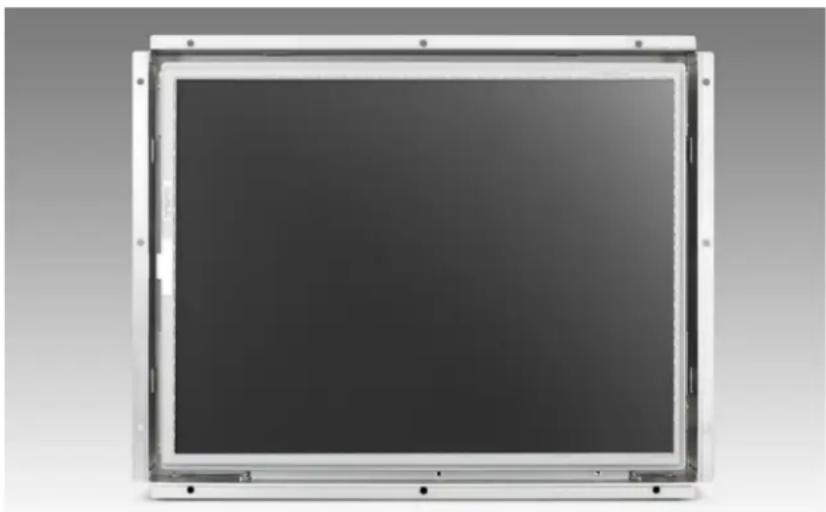
1.4 Product Photos
Front View
natural_image
Front view of a rectangular electronic device with a dark screen and metallic frame (no visible text or symbols)Rear View

natural_image
Back view of a computer monitor case with visible ports, buttons, and ventilation grilles (no text or symbols)IDS-3110 Bottom View

natural_image
Back view of a server rack with multiple ports (no visible text or labels)IDS-3110E Bottom View

natural_image
Front view of a computer drive chassis showing front panel, ports, and indicator lights (no visible text or labels)1.5 Naming Rule
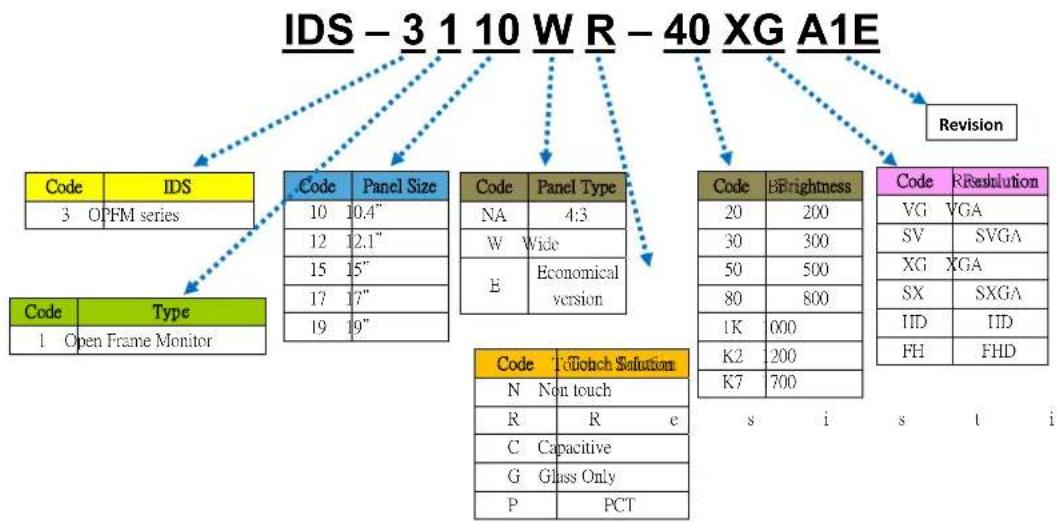
flowchart
graph TD
    A["IDS - 3 1 10 WR - 40 XG A1E"] --> B["Code IDS"]
    A --> C["Code Panel Size"]
    A --> D["Code Panel Type"]
    A --> E["Code Brightness"]
    A --> F["Code Resolution"]
    B --> G["3 OPFM series"]
    C --> H["10 10.4""]
    C --> I["12 12.1""]
    C --> J["15 15""]
    C --> K["17 17""]
    C --> L["19 19""]
    D --> M["NA 4:3"]
    D --> N["W Wide"]
    D --> O["E Economical version"]
    E --> P["20 200"]
    E --> Q["30 300"]
    E --> R["50 500"]
    E --> S["80 800"]
    E --> T["1K 000"]
    E --> U["K2 200"]
    E --> V["K7 700"]
    F --> W["VG VGA"]
    F --> X["SV SVGA"]
    F --> Y["XG XGA"]
    F --> Z["SX SXGA"]
    F --> AA["IID IID"]
    F --> AB["FH FHD"]
Chapter 2
System Setup
Sections Include:
Specifications
Dimensions
Rear Mount Assembly SOP
Cable Clamp
■ Accessory Packing
2.1 Specifications
Note! The IDS-3110 series offers the following features and meets precise specifications.

Unless otherwise noted, all the information listed below is subject to change without prior notification.
| Display | Model IDS-3110 IDS-3110E IDS-3110 XGA | |||
| Size 10.4" LED panel 10.4" LED panel 10.4" LED panel | ||||
| Resolution | 800 x 600(SVGA) | 800 x 600(SVGA) | 1024 x 768(XGA) | |
| Viewing Angle | 80°/80°(H),60°/80°(V) | 80°/80°(H),60°/70°(V) | 88°/88°(H),88°/88°(V) | |
| Brightness | 400 (cd/m2) | 2 3 2) 500 | (cd/m2) | |
| Color Support | 16.2 M / 262 K colors | 16.2 M / 262 K colors | 16.2 M colors | |
| Contrast Ratio 700:1 500:1 1000:1 | ||||
| Response Time | 30 [msec] | 35 [msec] | 25 [msec] | |
| Backlight Life 50,000 hrs | 30,000 hrs | 50,000 hrs | ||
| Touchscreen | Touchscreen Type | 5-Wire Resistive Touchscreen | 5-Wire Resistive Touch-screen / Projected Capacitive touch | |
| Surface Hardness | 3H | 3H | 3H / Mohs 5 | |
| Durability | 36 million touches | 36 million touches | 36 million touches / No limited | |
| Transparency | 81%±3% | 81%±3% | 81%±3%/90%±3% | |
| Environment | Operating Temperature | -20 ~ 60°C(-4 ~ 140°F) | 0~45°C(32 ~ 113°F) | -20 ~ 60°C(-4 ~ 140°F) |
| Storage Temperature | -30 ~ 70°C(-22 ~ 158°F) | -20 ~ 60°C(-4 ~ 140°F) | -30 ~ 70°C(-22 ~ 158°F) | |
| Humidity | 95% @ 40°C, non-condensing | |||
| Vibration | 5-500Hz, 0.026G2/Hz, 2.16Grms,X, Y, Z 1 hour per axis | |||
| System | I/O | VGA x 1; DVI-Dx 1; 12 VDCJack x 1;USB x1; RS-232x 1 | VGA x 1; 12VDC Jack x 1;USB x1; RS-232x 1 | VGA x 1; DVI-Dx 1; 12 VDCJack x 1;USB x1; RS-232x 1 |
| (USB & RS-232 are reserved for the connection to enable touch usage only) | ||||
| OSD | Keys: Menu, Up,Down, AutoAdjust, MonitorPower on/off.Menu Functions: Brightness, Contrast,Screen Settings,Color Temp,Language OSDSettings, VGA/DVI , Recall ,Auto Adjust. | Keys: Menu, Up, Down, AutoAdjust, Monitor Power on/offMenu Functions: Brightness, Contrast, Color Adjust, Color Temp,Auto Color, and Language | ||
| Power Consumption 6.68W(R) | 5.1W(R)4.6W(N) | 11.8W(R)11.47W(P)11.3W(N) | ||
| EMC Certificated 6.18W(N) | ||||
| Package Dimension 420 x 333 x 173 mm | ||||
| Net Weight 1.6kg 1.6kg 1.2kg | ||||
| Gross Weight 2.9kg 2.9kg 2.5kg | ||||
2.2 Dimensions

Figure 2.1 IDS-3110 Series Dimensions
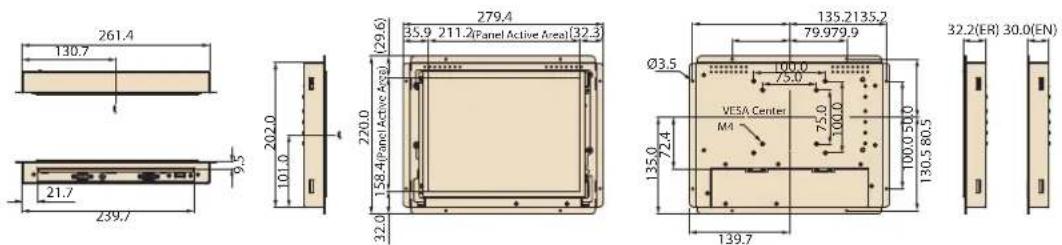
Figure 2.2 IDS-3110E Series Dimensions

Figure 2.3 IDS-3110 (XGA) Series Dimensions
2.3 Rear Mount Assembly SOP
- Using the M3 screws to attach and tighten as shown in the below figure.
2.4 Cable Clamp
- A cable clamp also comes with Open Frame Monitor to fix the power cable, see picture below.
Cable Clamp with IDS-3110

natural_image
Close-up of a black plug inserted into a white electronic device panel with numbered components (no visible text or symbols)Cable Clamp with IDS-3110E

natural_image
Interior view of a device panel with labeled ports and connectors (no readable text or symbols)- A cable tie for the USB cable is included in the accessory box, see below:

natural_image
Close-up of a white USB plug inserted into a metal enclosure, showing wiring and mounting holes (no text or symbols visible)Packing List
■ 1 x VGA cable 15P(M) 1.8 meter
■ 1 x USB-A(M)/USB-A(M) 1.8 meter (only for models with touch screen)
4 x Panel-mount clamps
4 x Panel-mount clamper screws: M4_25L
1 x Cable clamp
■ 1 x Cable clamp screw
1 x Cable tie
Note! Above accessory cables are subject to change in different SKUs.

Chapter 3
Touchscreen
Sections Include:
OSD Functions
■ Touch Drivers
3.1 OSD Functions (IDS-3110 Series)
The OSD of the IDS-3110 display (800 x 600 resolution) was selected to illustrate examples below:
| Buttons | Description |
| Power Turn the monitor power ON or OFF | |
| Menu Activate the OSD menu | |
| Exit menu | |
| Auto Automatically adjusts the clock, phase | |
| H-position and V-position | |
| Value Up/Down Move the selector to the previous option | |
| Decrease the gauge value of the selected option | |
LED Function
DPMS ON Green
DPMS STANDBY Orange
DPMS OFF Red
3.1.1 OSD Main Menu: Push the MENU Key
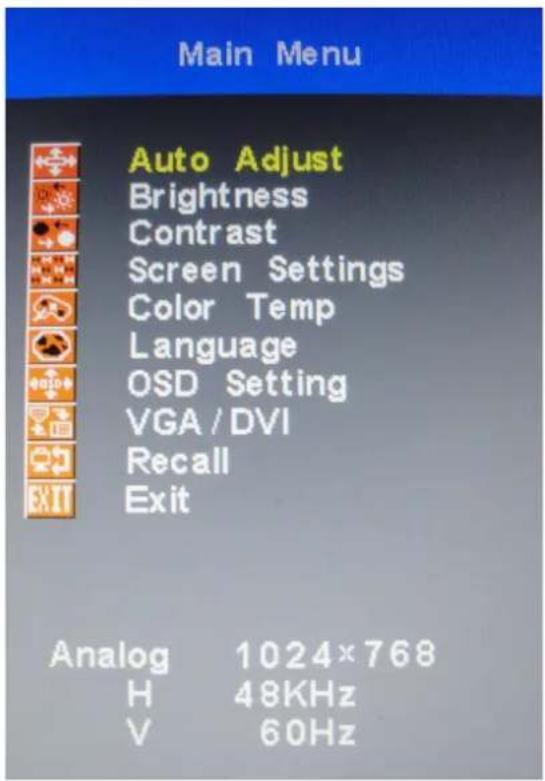
3.1.2 Brightness Selection - Submenu

3.1.3 Contrast Control

3.1.4 Screen Settings - Submenu

3.1.5 Color Temperature - Submenu

3.1.6 Language - Submenu

3.1.7 OSD Setting - Submenu

3.1.8 VGA/DVI Selection

3.2 OSD Functions for IDS-3110E Series
3.2.1 OSD Main Menu: Push the MENU Key

3.2.2 OSD Lock
Press the "Right" key and "Menu" key simultaneously to lock the OSD key.

3.2.3 OSD Unlock
Press the "Right" key and "Menu" key simultaneously again to unlock the OSD key.

3.2.4 Color Adjustment - Submenu (Brightness /Contrast/ Color Adjust/Color Temp/Auto Color)
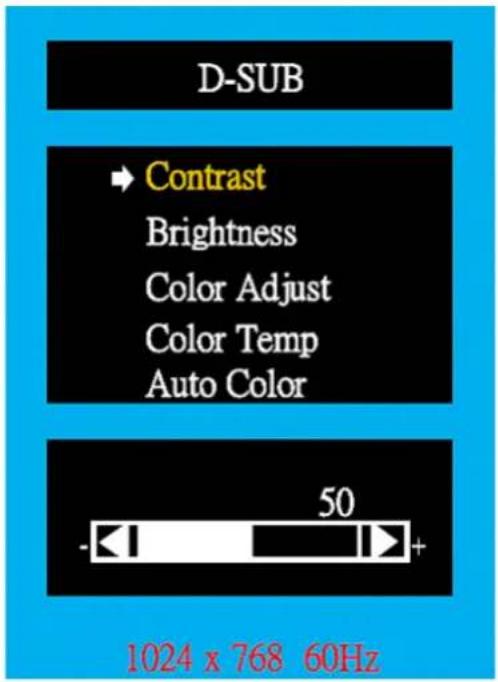
3.2.5 Image Setting Adjustment

3.2.6 Image Adjustment - Submenu (Clock/Phase/H. Position/V. Position)

3.2.7 OSD Menu Adjustment

3.2.8 OSD Adjustment - Submenu (OSD H.Pos./ OSD V.Pos./OSD Timer)

3.2.9 OSD Adjustment - Language Submenu

3.2.10 Reset Adjustment
D-SUB
Color
Image Setting
OSD Menu
Audio
→ Reset
1024 x 768 60Hz
3.3 OSD Functions for IDS-3110 XGA series
IDS-3110 XGA series are equipped with 1024 x 768 display resolution and the following OSD features:
| Buttons | Description |
| Power Turn the monitor power ON or OFF | |
| Menu | Activate the OSD menu |
| Select | |
| Auto/Exit | Automatically adjusts the clock, phase |
| H-position and V-position | |
| Value Up/Down | Move the selector to the previous option |
| Reduce the value of the selected option | |
| LED Function | |
| DPMS ON Green | |
| DPMS STANDBY Orange | |
| DPMS OFF Red | |
| Hot Key Function | |
| Value Down ECO mode | |
3.3.1 OSD Menu Details
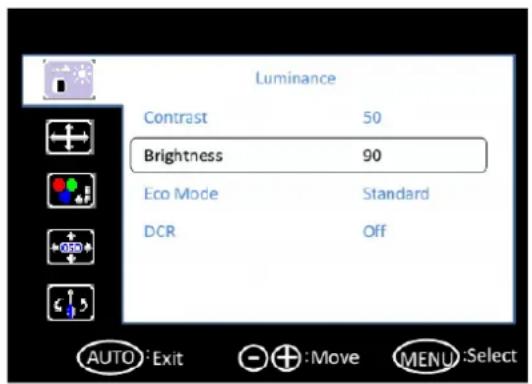
3.3.1.1 Luminance
Contrast
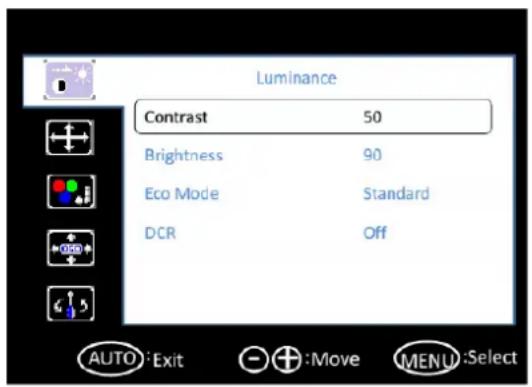
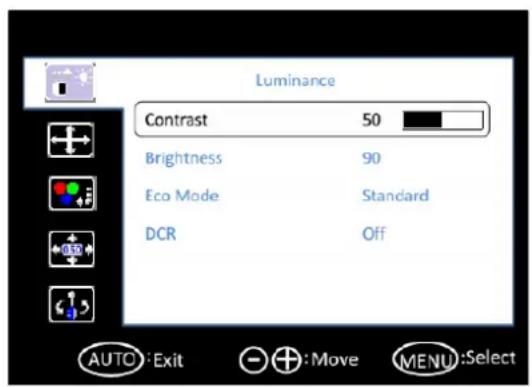
Brightness

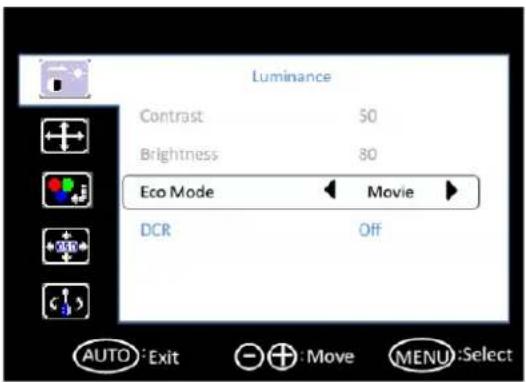
Eco Mode



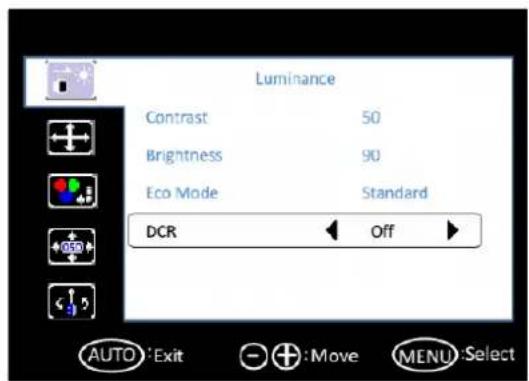
DCR

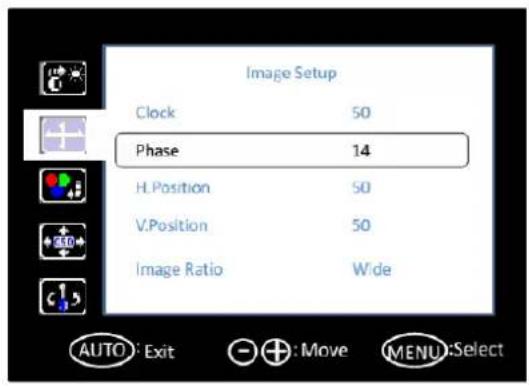
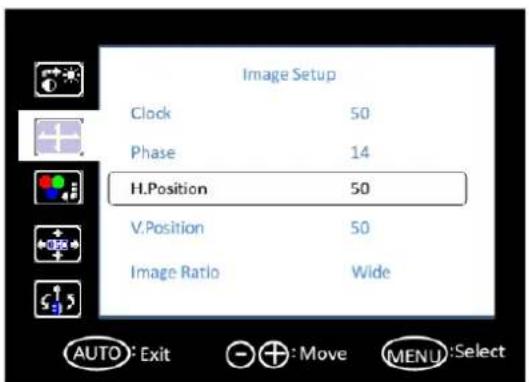
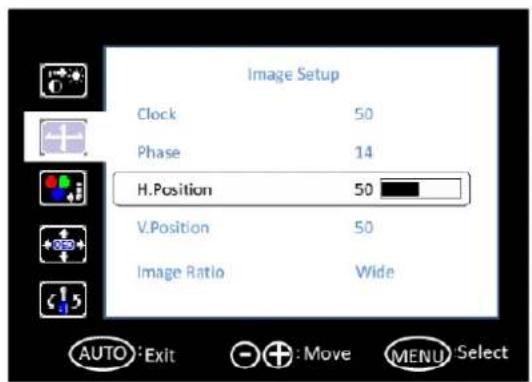
3.3.1.2 Image Setup
Clock


Phase

H. Position
V. Position
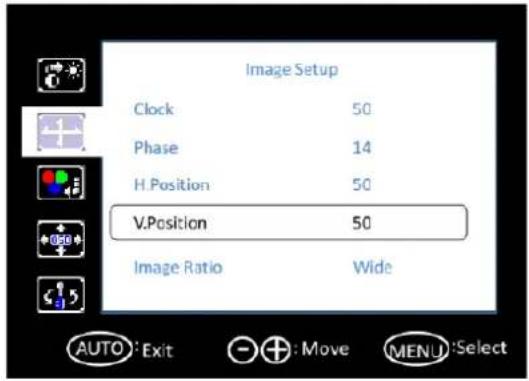
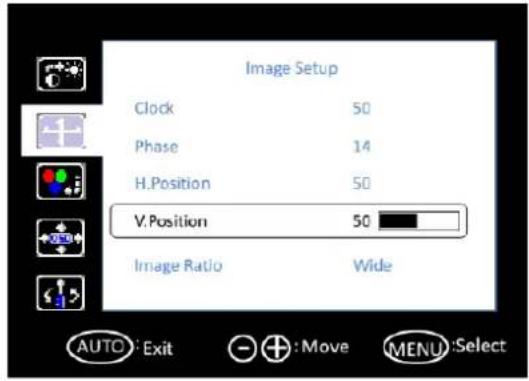
Image Ratio


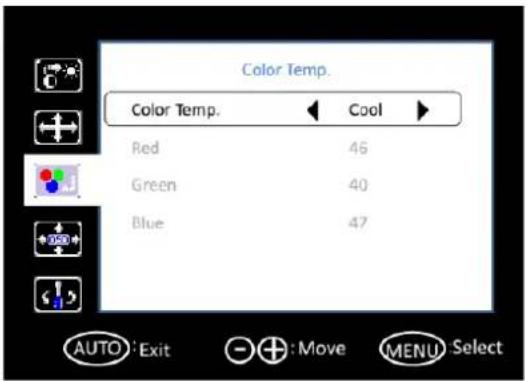
3.3.1.3 Color Temperature
Color Temperature


3.3.1.4 OSD Setup
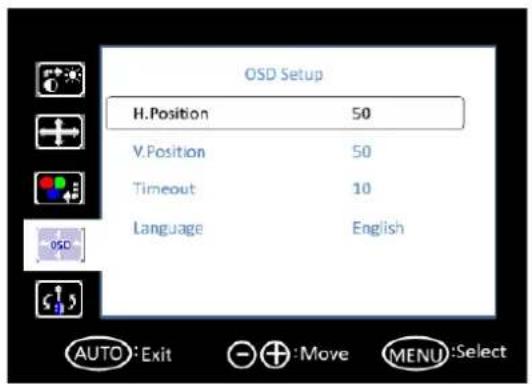
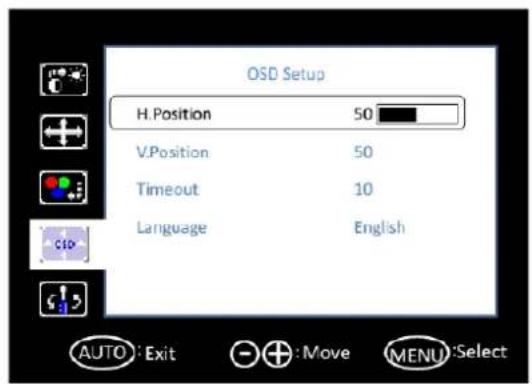
H. Position
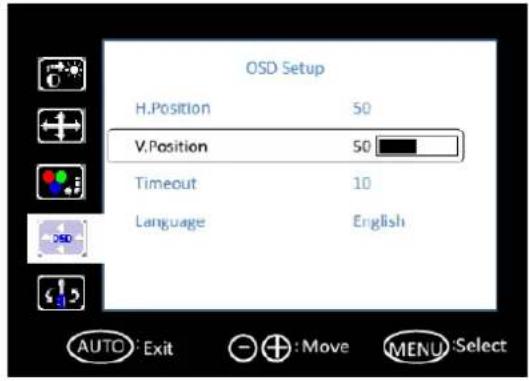
V. Position

Timeout


Language


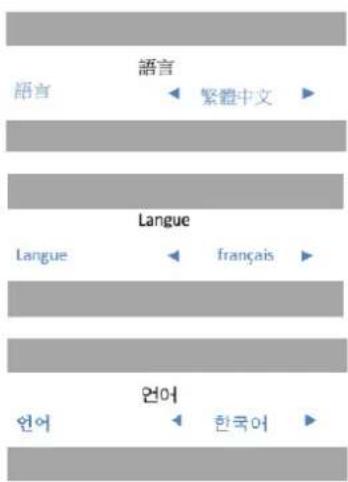
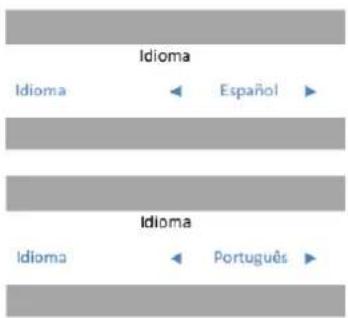
| Luminance | Contrast | 0/100 | Adjusts contrast 50 | ||
| Brightness | 0/100 | Adjusts brightness (backlight) 90 | |||
| ECO Mode | Standard | Standard | |||
| Sport | |||||
| Movie | |||||
| Game | |||||
| Internet | |||||
| Text | |||||
| DCR | On | Sets dynamic contrast ratio Off | |||
| Off | |||||
| Image setup | Clock | 0/100 | Adjusts clock latency of output capture window | Depends on the input resolution | |
| Phase | 0/100 | Adjusts clock phase of output capture window | Depends on the input resolution | ||
| H. Position | 0/100 | Adjusts horizontal position of output capture window | 50 | ||
| V. Position | 0/100 | Adjusts vertical position of out-put capture window | 50 | ||
| Image Ratio | Wide | Adjusts aspect ratio to full screen | Wide | ||
| 4:3 | Adjusts aspect ratio to 4:3 screen | ||||
| Color Temperature | Color Temp. | Warm | --> | Adjusts color temperature to warm | User |
| Normal | --> | Adjusts color temperature to normal | |||
| Cool | --> | Adjusts color temperature to cool | |||
| User | --> | Adjusts color temperature to user defined | |||
| OSD Setup | H. Position | 0/100 | Adjusts OSD horizontal position | 50 |
| V. Position | 0/100 | Adjusts OSD vertical position | 50 | |
| Timeout | 5/100 | Sets OSD timeout counter | 10 | |
| Language | English | Sets OSD display language English | ||
| Spanish | ||||
| French | ||||
| Portuguese | ||||
| Russian | ||||
| 简体中文 | ||||
| 繁體中文 | ||||
| Korean | ||||
| Extra | Input Select | D-Sub | Sets input source | Depends on the input sourceHDMI |
| DVI | ||||
| DDC/CI | On | Sets DDC/CI function on/off On | ||
| Off | ||||
| Reset | Yes | Sets user setting reset On | ||
| No | ||||
| Information | Resolution | Display current source information | Depends on the input source | |
| H. Frequency | ||||
| V. Frequency | ||||
3.4 Touch Drivers
The touch screen driver is available on line at the Advantech website. Use the following link to access the driver:
http://support.advantech.com/support/default.aspx
Appendix A
Troubleshooting
A.1 Introduction
If experiencing trouble with the monitor, or it fails to operate correctly, please refer to the following instructions before calling the Advantech service center. If unable to correct the faults using the instructions below, then please contact the distributor or the services/repair center.
A.2 Troubleshooting
No Images Appears On Screen
- Check to see that all the I/O and power connectors are installed correctly and connected. (Refer to 1.4, Open Frame Bottom view)
■ Make sure that none of the connectors are crooked, broken or loose.
■ Make sure that the OSD power on the LED is turned on.
■ Make sure that the brightness is not in the minimum.
■ Make sure that the screen resolution is set to the correct setting for the type of LCD, and that the setting does not exceed the resolution specified for the particular model of LCD.
The image is incorrectly displayed, or the full screen image does not appear
- Please make sure the screen resolution on the motherboard is correct.
The position of screen is not in the center
- Adjust the H-position and V-position or perform "Auto".
Out of range
When the message "Out of Range" appears onscreen, it indicates that the signal of the computer is not compatible with the LCD display; i.e. the resolution exceeds the specified resolution for the LCD.
■ Adjust the BIOS setting to match the correct resolution.
No signal
The display is powered on, but can neither receive or display any signal from the computer. Check all power switches, power cables and VGA signal cables to ensure that all are connected correctly on both sides.
Going to sleep
If the system goes to sleep, then the display has either been set to power-saving mode, or the display is experiencing a sudden signal disconnection problem. Check the BIOS system settings, and/or Windows configuration. Then check the connection of the power cable to computer on both sides.
ADVANTECH
Enabling an Intelligent Planet
www.advantech.com
Please verify specifications before quoting. This guide is intended for reference purposes only.
All product specifications are subject to change without notice.
No part of this publication may be reproduced in any form or by any means, electronic, photocopying, recording or otherwise, without prior written permission of the publisher.
All brand and product names are trademarks or registered trademarks of their respective companies.
© Advantech Co., Ltd. 2019


- IDS-3110 Series
- Copyright
- Acknowledgements
- Product Warranty (2 years)
- Declaration of Conformity
- CE
- FCC Class A
- FM
- Technical Support and Assistance
- Warnings, Cautions and Notes
- Document Feedback
- Safety Instructions
- Contents
- Chapter 1 Overview......1
- Chapter 2 System Setup....5
- Chapter 3 Touchscreen....13
- Appendix A Troubleshooting 33
- Chapter 1
- Overview
- Sections Include:
- Introduction
- Features
- Applications
- Product Photos
- Naming Rule
- Chapter 2
- System Setup
- Specifications
- Dimensions
- Rear Mount Assembly SOP
- Cable Clamp
- Packing List
- Chapter 3
- Touchscreen
- OSD Functions (IDS-3110 Series)
- OSD Main Menu: Push the MENU Key
- Brightness Selection - Submenu
- Contrast Control
- Screen Settings - Submenu
- Color Temperature - Submenu
- Language - Submenu
- OSD Setting - Submenu
- VGA/DVI Selection
- OSD Functions for IDS-3110E Series
- OSD Main Menu: Push the MENU Key
- OSD Lock
- OSD Unlock
- Color Adjustment - Submenu (Brightness /Contrast/ Color Adjust/Color Temp/Auto Color)
- Image Setting Adjustment
- Image Adjustment - Submenu (Clock/Phase/H. Position/V. Position)
- OSD Menu Adjustment
- OSD Adjustment - Submenu (OSD H.Pos./ OSD V.Pos./OSD Timer)
- OSD Adjustment - Language Submenu
- Reset Adjustment
- D-SUB
- OSD Functions for IDS-3110 XGA series
- OSD Menu Details
- Luminance
- Image Setup
- OSD Setup
- Touch Drivers
- Appendix A
- A.1 Introduction
- A.2 Troubleshooting
- No Images Appears On Screen
- The image is incorrectly displayed, or the full screen image does not appear
- The position of screen is not in the center
- Out of range
- No signal
- Going to sleep
- ADVANTECH
- www.advantech.com
Brand : Advantech
Model : IDS-3110P-50XGA1E
Category : Surveillance