
RKCONS1908 - Network switch StarTech.com - Free user manual and instructions
Find the device manual for free RKCONS1908 StarTech.com in PDF.


| Product Type | 19-inch LCD KVM Console (8-port) |
| Part Number | RKCONS1908 |
| Brand | StarTech.com |
| Display Size | 19-inch TFT LCD |
| Resolution | 1280 x 1024 (XGA) |
| Contrast Ratio | 500:1 |
| Brightness | 250 cd/m² |
| Viewing Angle | 140° (horizontal/vertical) |
| KVM Ports | 8 x DE15 VGA (female), 1 x PS/2 Keyboard, 1 x PS/2 Mouse |
| Keyboard/Mouse | 106-key PS/2 keyboard with touchpad |
| Power Input | 100-240 VAC, 50/60 Hz (adapter output 12VDC, 4A) |
| Power Consumption | 25W (typical) |
| Dimensions (W x D x H) | 490 x 470 x 44 mm (19.3 x 18.5 x 1.73 in) |
| Weight | 12.75 kg (28.1 lbs) |
| Mounting Depth | Min 554 mm / Max 1000 mm (21.8 - 39.4 in) |
| Operating Temperature | 0°C to 50°C (32°F to 122°F) |
| Storage Temperature | -20°C to 60°C (-4°F to 140°F) |
| Humidity | 10% to 90% RH (non-condensing) |
| Chassis Material | Heavy-duty steel |
| Certifications | CE, FCC, UL, CUL, RoHS |
| Warranty | 1 year |
| Technical Support | Lifetime (phone, chat, email) |
| Key Features | Cascade support (up to 8 slaves, 64 PCs for 8-port), OSD menus, hotkey commands, auto-scan, security lock per port, multilingual keyboard support |
Frequently Asked Questions - RKCONS1908 StarTech.com
User questions about RKCONS1908 StarTech.com
0 question about this device. Answer the ones you know or ask your own.
Ask a new question about this device
Download the instructions for your Network switch in PDF format for free! Find your manual RKCONS1908 - StarTech.com and take your electronic device back in hand. On this page are published all the documents necessary for the use of your device. RKCONS1908 by StarTech.com.
USER MANUAL RKCONS1908 StarTech.com
Folding Rackmount Console with KVM Switch
17" LCD Rackmount Console with 8/16 Port KVM 19" LCD Rackmount Console with 8/16 Port KVM
FCC Compliance Statement
This equipment has been tested and found to comply with the limits for a Class B digital device, pursuant to part 15 of the FCC Rules. These limits are designed to provide reasonable protection against harmful interference in a residential installation. This equipment generates, uses and can radiate radio frequency energy and, if not installed and used in accordance with the instructions, may cause harmful interference to radio communications. However, there is no guarantee that interference will not occur in a particular installation. If this equipment does cause harmful interference to radio or television reception, which can be determined by turning the equipment off and on, the user is encouraged to try to correct the interference by one or more of the following measures:
• Reorient or relocate the receiving antenna.
- Increase the separation between the equipment and receiver.
- Connect the equipment into an outlet on a circuit different from that to which the receiver is connected.
- Consult the dealer or an experienced radio/TV technician for help.
Use of Trademarks, Registered Trademarks, and other Protected Names and Symbols
This manual may make reference to trademarks, registered trademarks, and other protected names and/or symbols of third-party companies not related in any way to StarTech.com. Where they occur these references are for illustrative purposes only and do not represent an endorsement of a product or service by StarTech.com, or an endorsement of the product(s) to which this manual applies by the third-party company in question. Regardless of any direct acknowledgement elsewhere in the body of this document, StarTech.com hereby acknowledges that all trademarks, registered trademarks, service marks, and other protected names and/or symbols contained in this manual and related documents are the property of their respective holders.
Table of Contents
Introduction ...... 1
Packaging Contents.... 1
Installation .... 1
Hardware Installation 2
Connecting the console/module 4
Connecting computers to the module 6
Cascade Configuration 6
Turning on the console 7
Configuring display settings 7
Testing the console 8
Panel controls and OSD functions 9
Module operation 12
OSD Selection 12
Hot-key commands 16
Specifications 19
Technical Support 21
Warranty Information 21
Screen Quality & Pixel Policy 21
Introduction
Packaging Contents
• 1 x 1U LCD Rack Console Drawer
• 1 x 1U Multi-Platform KVM Module
• 1 x Mounting Brackets
• 1 x Mounting Rails - Set
- 1 x Power Adapter
Installation
Hardware Kit Contents

natural_image
Technical line drawing of a mechanical frame assembly (no text or symbols)Side Rails with front and rear brackets (2)
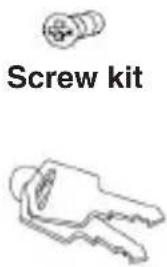
Keys (2)
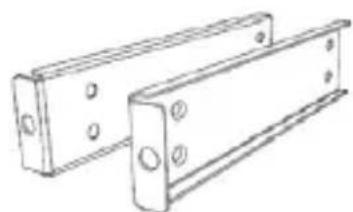
natural_image
Technical line drawing of two metal bracket components with mounting holes (no text or symbols)Mounting Brackets
Please note: These LCD Rack Consoles are comprised of two distinct components - a Rack-mountable Console and a Rack-mountable KVM Module, as illustrated below. The two devices are attached via a Centronics connector on the Rear panel of the Console and similarly the front panel of the Module.
Multi-Port KVM Module
Front Panel

natural_image
Back view of a black electronic device with four pins and a small connector (no visible text or symbols)Rear Panel

* 16-port module shown
Console
Front View, Open
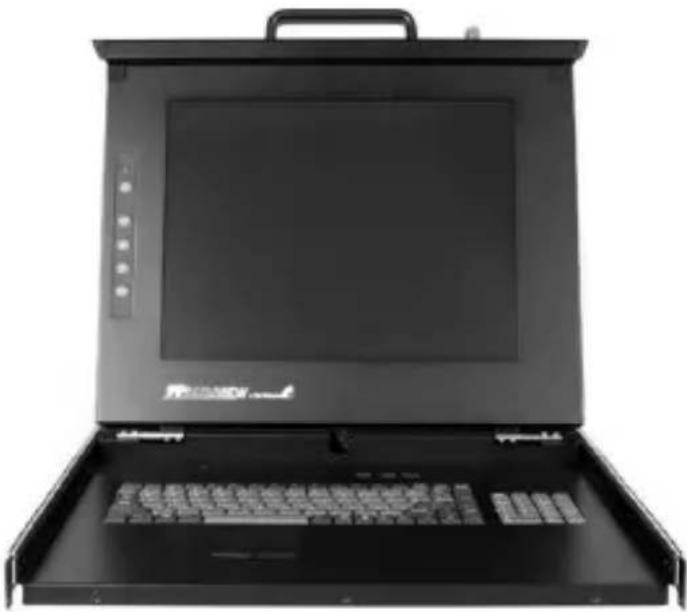
natural_image
Black and white photo of a laptop with open case, showing front panel, keyboard, and control panel (no visible text or symbols)Hardware Installation
Mounting the console
- Loosen the rear screws (pre-installed in side rails) and adjust the length of the rear bracket to fit the depth of your cabinet:
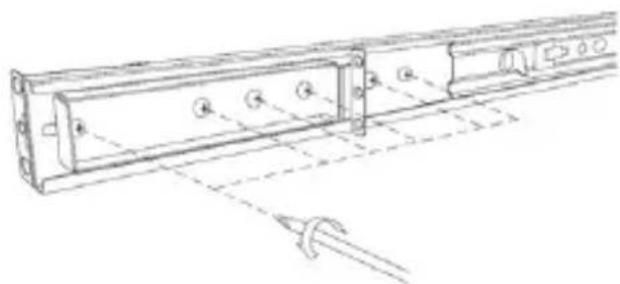
natural_image
Technical line drawing of a mechanical assembly with no visible text or symbols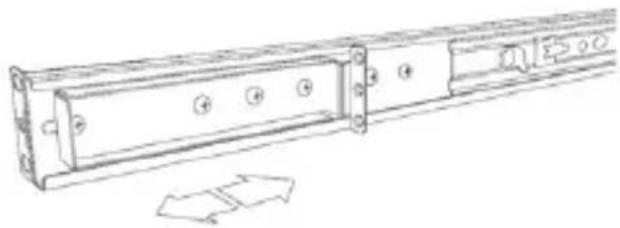
natural_image
Technical line drawing of a mechanical component with mounting holes and directional arrows (no text or symbols)- Install the rails into the cabinet:

natural_image
Technical line drawing of a mechanical assembly with mounting brackets and connecting rods (no text or symbols)- Tighten the screws that were loosened in Step 1:

natural_image
Technical line drawing of a mechanical assembly with mounting brackets and a tool (no text or symbols)-
Install the remaining rail, repeating Steps 1-3.
-
Slide the Module onto the Console side rails, connecting the Module and Console using the male Centronics connector provided by the Console, and the female Centronics connector provided by the Module. Ensure the connection is secure, and that the module is firmly seated within the Console side rails.
-
Gently, but firmly insert the Console (with Module attached) into the left and right rails:

natural_image
Technical line drawing of a mechanical assembly with mounting brackets and a central component (no text or symbols)- Unlock the console, and pull the left and right rail-lock switches towards you simultaneously, and hold them in this position while pushing the console into the cabinet:

- Install three screws on each side of the console:

natural_image
Technical line drawing of a mechanical assembly with mounting holes and a shaft (no text or symbols)- Installation is now complete.
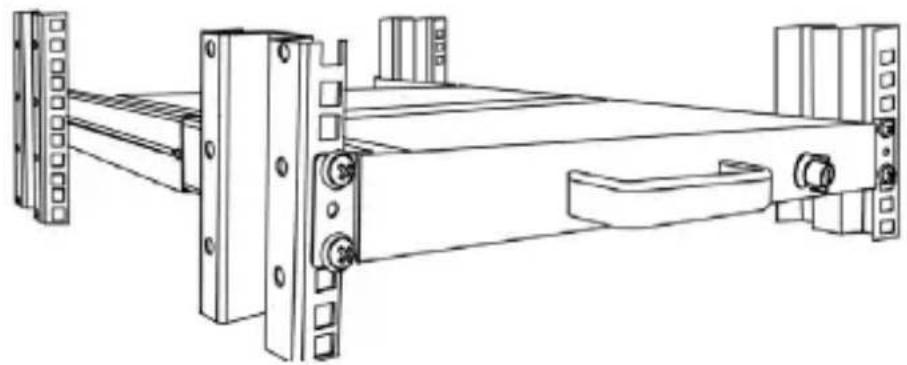
natural_image
Technical line drawing of a mechanical assembly with bolts and brackets (no text or symbols)Connecting the console/module
To connect the KVM Console/Module to a computer, perform the following steps:
- Remove the four screws from both sides of the KVM console. Be sure to retain these screws for the next installation step.
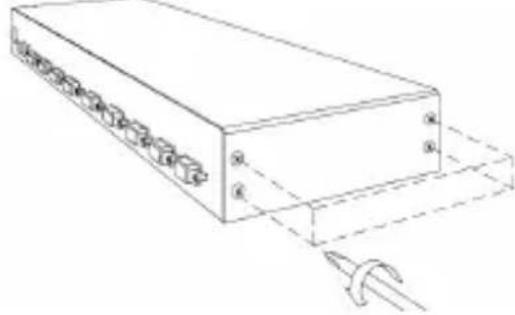
natural_image
Line drawing of a rectangular electronic device with multiple ports and an attached cable (no text or symbols)- Attach the mounting brackets to both sides of the KVM console, using the screws removed in step 1.
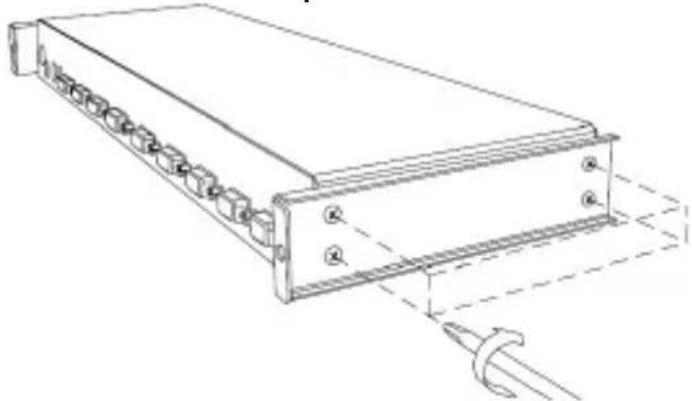
natural_image
Line drawing of a server rack with connectors and a cable (no text or symbols)- From the rear of the cabinet, slide the KVM console onto the mounting rails.

natural_image
Technical line drawing of a server rack with connectors and mounting brackets (no text or symbols)- Install one screw on each side of the console (as depicted below).

natural_image
Technical line drawing of a mechanical assembly with no visible text or symbolsConnecting computers to the module
Attach each of your managed computers to the KVM modules PC ports using ultra-thin KVM cables. The Module is capable of using either 2-in-1 USB or 3-in-1 PS/2 cables. Use the cables to connect one of the PC ports on the back of the switch to the computer's keyboard, mouse, and video ports. Note: These instructions are for a single KVM switch only.
Following this, plug the 12V DC power adapter into the power port on the KVM module, and turn on the computers that will be controlled by the console.
* Note: After the initial power up, you can hot-plug additional computers or slave KVM switches without having to power down your KVM.
Cascade Configuration
You can connect a second level of KVMs to one or more of your Master KVM console's PC ports. The KVM switches connected to the Master console are known as Slaves. Once connected, the KVM switches will automatically configure themselves as either Masters or Slaves. You can only connect an equal or “smaller” KVM to the Master KVM. For example, a 16-port Master KVM switch can have both 16-port and 8-port slaves. An 8-port Master KVM switch can only have 8-port (or fewer) KVM slaves.
The 8-port KVM can support 64 PCs, with 8 x 8-port Slave KVMs, each connected to 8 PCs. The 16-port KVM can support 136 computers, with 8 16-port Slave KVMs, each connected to 16 computers. The Slave KVM's must be connected to the 1\~8 ports, not the A\~H ports.
To cascade your KVMs, use a 3-in-1 PS/2 KVM cable to connect one of your Master switch's PC ports to the Slave switch's console ports. When turning on your cascaded switches, turn on the Master switch before turning on any of the others.
Turning on the console
Make sure all cables and the power cord are connected properly. Using two hands, grasp the rear of the drawer, lift the tab and pull the panel up and forward. This will disengage the momentary on/off switch and the unit should power on.
The LED located to the left of the monitor panel should turn from orange to green, verifying that the unit is operational.
Configuring display settings
After connecting the drawer and turning on your computer, you may need to configure one or more of the following display settings to allow the computer to display at the console's native resolution. See Specifications on page 9 for the correct resolution mode for your model.
• Display mode (also called desktop area or video resolution)
- Refresh rate (also called vertical scan rate or vertical sync)
• Color depth (also called color palette or number of colors)
Each video card has several controls that allow you to adjust the display settings, however, the software and driver for each video card is unique. In most cases, you can adjust these settings using a program or utility provided by the manufacturer of the video card. Most video cards use the Windows Display Properties control panel to configure the display. To open the Windows Display Properties, click the right mouse button in a blank area of the Windows desktop and then select Properties. The Settings tab usually lets you change the Color Palette and the Desktop Area (X by Y pixel resolution).
Some video cards integrate additional features into the Windows Display Properties control panel giving you an extra setup options that are flexible and easy to use. For example, the control panel may include an Advanced Properties button, an Adjustment tab, or a Refresh tab for changing other settings. Other video cards have a separate utility for setting display properties.
Whenever you change the resolution, color, or refresh rate, the image size, position, or shape may change. This behavior is normal. You can readjust the image using the monitor on-screen controls. For more information on the monitor on-screen controls, refer to Panel controls and OSD functions. For more information on configuring the display settings, please refer to the manual that accompanied your video card.
Testing the console
To test that the console is working properly, perform the following steps:
- Power up the LCD Rack Drawer, and then turn on your computer.
- Make sure the video image is centered within the screen area. Use the OSD controls to adjust the image (see Panel controls and OSD functions) or press the Auto button on the right hand side of the monitor.
* Note: If the unit does not power up when the panel is pulled up, try pushing the soft power on/off button on the left side of the monitor panel to power up the unit.
* Note: You can adjust the horizontal and vertical position, contrast, and brightness to better suit your video card and your personal preference.
Before you begin, make sure that power to all of the devices you will be connecting to the console have been turned off. To prevent damage to your installation due to ground potential difference, make sure that all of the devices being installed are properly grounded. Once all peripherals have been connected, please power them on.
Panel controls and OSD functions
The following controls are located on the left side of the console monitor:
| Controls Descriptions | |
| Soft power on/off. Adjacent LED is lit when on. | |
| Auto | Auto-synchronize and scale down display to any valid factory preset timings. |
| Up | Press to scroll to the function you want to adjust. |
| Down | Press to scroll to the function you want to adjust. |
| Menu | To access the main menu. This button also acts as the Enter button. |
Auto tune
Press the “Auto tune” button. The panel will adjust the display size automatically and also tune the panel to its optimized state.
Input Source
- Press the Menu button.
- Use the Down and Up buttons to scroll.
- Press the Menu button to enter, and you will see: VGA/DVI.
- Use the Down and Up buttons to select the input signal source.
- Press the Menu button to save your selection.
Brightness
- Press the Menu button.
- Use the Down and Up buttons to scroll to Brightness.
- Press the Menu button to enter.
- Use the Down and Up buttons to adjust the brightness of the display.
- Press the Menu button to save your selection.
Contrast
- Press the Menu button.
- Use the Down and Up buttons to scroll to Contrast.
- Press the Menu button to enter.
- Use the Down and Up buttons to adjust the contrast of the display.
- Press the Menu button to save your selection.
Color
- Press the Menu button.
- Use the Down and Up button to scroll.
- Highlight Color, and press the Menu button to enter, which will launch the following screen:
| Icon Description | |
| 9300°K | To set CIE coordinates at 9300°K color |
| 7500°K | To set CIE coordinates at 7500°K color |
| 6500°K | To set CIE coordinates at 6500°K color |
| User | To set user defined CIE |
| Auto color | To auto adjust color |
| Return | To exit and return to the previous page |
-
Use the Down and Up buttons to adjust the contrast of the display.
-
Press the Menu button to save your selection.
Position
- Press the Menu button.
- Use the Down and Up buttons to scroll.
- Highlight Position and press the Menu button to enter, which will launch the following screen:
| Icon Description | |
| Image Pos | To adjust the position of the image |
| OSD Pos | To adjust the position of the OSD |
| Return | To exit and return to the previous page |
- Use the Down and Up buttons to scroll.
- Press the Menu button to save your selection.
Language
- Press the Menu button.
- Use the Down and Up buttons to scroll.
- Highlight Language, and press the Menu button to select, which will launch the following screen:
| English |
| German |
| French |
| Italian |
| Spanish |
- Use the Down and Up buttons to scroll, and highlight the preferred language.
- Press the Menu button to save your selection.
Recall
- Press the Menu button.
- Use the Down and Up buttons to scroll to Recall. Press the Menu button to enter, where you will be able to select Yes/No using the Down and Up buttons. Once you have done so, press the Menu button. Note: selecting Yes will return your settings to the factory default state. Select No if you do not wish to make this change.
Exit
To exit the menu, scroll to Exit and press the Menu button.
Power Indicator
| Light Color Status | |
| Green ON | |
| RED Standby | |
| RED Suspend | |
| RED OFF | |
Module operation
OSD Selection
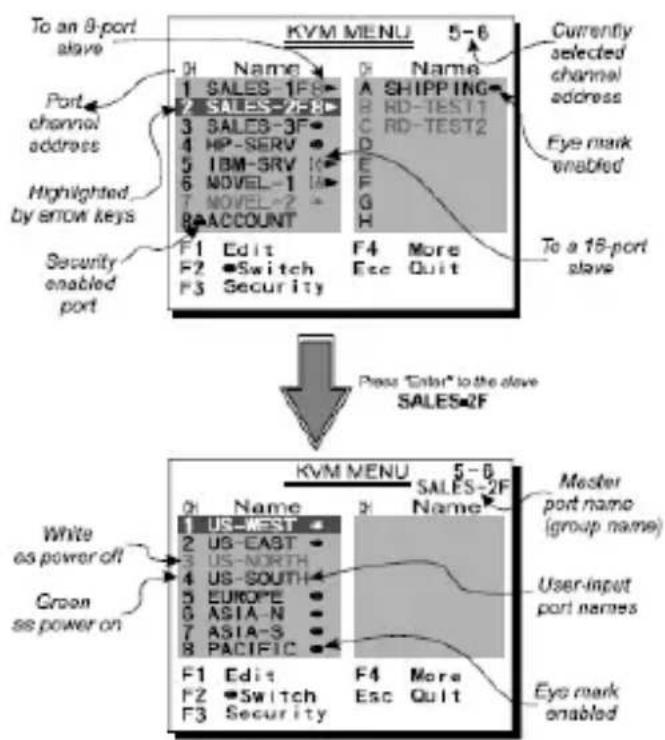
A computer may be selected by issuing hot-key commands or by activating the OSD window. The Auto-Scan function automatically scrolls through your connected computers.
flowchart
graph TD
    A["To an 9-port slave"] --> B["Port channel address"]
    B --> C["Highlighted by arrow keys"]
    C --> D["Security enabled port"]
    A --> E["Name: SALES-1F8, SALES-2F8C, SALES-3F, HP-SERV, IBM-SRV, NOVEL-1, NOVEL-2, ACCOUNT"]
    E --> F["F1 Edit F2 Switch F3 Security"]
    E --> G["F4 More Esc Quit"]
    H["Currently selected channel address"] --> I["A SHIPPING B RD-TEST1 C RD-TEST2 D E F G H"]
    I --> J["To a 16-port slave"]
    J --> K["Pass 'Enter' to the slave SALES-2F"]
    L["White as power off"] --> M["F1 Edit F2 Switch F3 Security"]
    N["Green se power on"] --> O["F1 Edit F2 Switch F3 Security"]
    P["Master post name (group name)"] --> Q["F4 More Esc Quit"]
    R["User-input port names"] --> S["F4 More Esc Quit"]
    T["Eye mark enabled"] --> U["F4 More Esc Quit"]
By hitting the left
The port number of the currently selected computer is displayed in red, at the right corner of the OSD menu.
The color of a device name is green if it has power and is ready for operation, or the color is white if it has no power. The OSD menu updates the color when it is activated.
Use the <> and <>arrow keys to highlight a computer and the
A triangle mark to the right of a name indicates the port is cascaded to a Slave; the number at the left of the triangle mark shows the number of ports the Slave has, i.e. 8 for an 8-port switch. The
An eye mark ( ) to the right of a name indicates the computer is selected to be monitored in Scan mode. In OSD, this mark can be switched on or off by function key
Function key
Function key
Function key
If you want to access the locked device temporarily, simply highlight it and press
Note: Only one device (a computer or a Slave) can be locked by this function at a time.
Please note: If you forget the password, the only way to permanently disable the security function is to remove all possible power sources from the Console. You will need to turn off all computers and unplug all power adapters, then restart everything.
Function key
Auto Scan
In this mode, the Console automatically switches from one powered computer to the next, sequentially in a fixed interval. During Auto Scan mode, the OSD displays the name of the selected computer. When Auto Scan detects any keyboard or mouse activity, it suspends the scanning until activity stops; it then resumes with the next computer in sequence. To abort Auto Scan mode, press the left
Manual Scan
Scan through power-on computers one by one by keyboard control. Scan Type (
Audio Stick
An optional multimedia module can be linked to the back of each KVM Module for selecting microphone and stereo speaker signals. There are two options for Audio Stick: On and Off. When set to On, audio selection follows computer selection. When set to Off, audio selection stops following computer selection. It is useful if you want to listen to a particular computer's audio signal while operating other computers. The non-volatile memory stores the Audio Stick setting.
Scan Type
Ready PC + In Scan mode, scan through power-on and eye mark selected computers. Ready PC: In Scan mode, scan through power-on computers. The non-volatile memory stores the Scan Type setting.
Scan Rate
Sets the duration of a computer displayed in Auto Scan mode. The options are 3 seconds, 8 seconds, 15 seconds and 30 seconds. The non-volatile memory stores the Scan Rate setting.
Keyboard Speed
The Console offers keyboard typematic settings that override similar settings in the BIOS and in Windows. Available speed options are Low, Middle, Fast and Faster as 10, 15, 20 and 30 characters/sec respectively. The non-volatile memory stores the Keyboard Speed setting.
Hotkey Menu
When you hit the left
CH Display
Auto Off: After you select a computer, the port number and name of the computer will appear on the screen for 3 seconds then disappear automatically. Always On: The port number and name of a selected computer and/or OSD status are displayed on the screen all the time. The non-volatile memory stores the CH Display setting.
Position
The position of the selected computer name and/or OSD status displayed on screen during operation. The actual display position shifts due to different VGA resolution, the higher the resolution the higher the display position. The nonvolatile memory stores the Position setting. UL as Upper Left, UR as Upper Right, LL as Lower Left, LR as Lower Right. MI as Middle.
Hot-key commands
A Hot-key command is a short keyboard sequence used to select a computer, to activate computer scan, etc. The Console constantly interprets keystrokes for hot-keys. A hot-key sequence starts with two left
The short form hot-key menu can be turned on as an OSD function (
L-CTRL: is the
1\~8/A\~H: are the number keys ‘1’ \~ ‘8’ at the upper row of the keyboard and character keys ‘A’ \~ ‘H’ case insensitive. Do not use the keypad at the right of the keyboard.
To select a computer by hot-key command, you must know its port number, which is determined by the KVM Module connection. For a computer connected to a Master, its port is represented by the PC port label (1\~8 or A\~H). For a computer connected to a Slave, two characters represent its port. The first character is the port number of the Master unit (1\~8) and the second one is the port number of the Slave (1\~8 or A\~H). Please note that only Master's 'PC 1' \~'PC 8' ports can be connected to a Slave.
$$ \text { Left Ctrl } + \text { left Ctrl } + 7 $$
Selects a computer connected to port 7 of the Master.
$$ \text { Left Ctrl } + \text { left Ctrl } + 6 + C $$
Selects a computer connected to port C of a Slave connected to port 6 of the Master.
To start Auto Scan, automatically scan power-on computers one by one at a fixed interval:
$$ \text { Left Ctrl } + \text { left Ctrl } + \text { F1 } $$
When Auto Scan detects any keyboard or mouse activity, it suspends the scanning till activity stops; it then resumes with the next computer in sequence. The length of the Auto Scan interval (Scan Rate) is adjustable, see below. To abort the Auto Scan mode, press the left Ctrl key twice.
* Note: Scan Type determines whether an eye-marked computer is to be displayed during Auto Scan.
Manual Scan enables you to manually switch back and forth between power-on computers.
Left Ctrl + left Ctrl + F2
Press < or <> to select the previous or the next computer in sequence. Press any other key to abort the Manual Scan.
* Note: Scan Type determines whether an eye-marked computer is to be displayed during Auto Scan.
To adjust Scan Rate which sets the duration before switching to the next computer in Auto Scan:
Left Ctrl + left Ctrl + F3
The LCD Rack Console sends one to four beeps indicating scan interval of 3, 8, 15 and 30 seconds respectively. To adjust keyboard typematic rate (characters/sec), this setting over-rides that of BIOS and any operating system:
Left Ctrl + left Ctrl + F4
The Console will generate 1 to 4 beeps corresponding to 10, 15, 20 and 30 characters/sec respectively.
Change Configuration while Running
A device (a computer or a KVM switch) at any ‘PC x’ port can be changed at any time after initial power-up. If you change any one of the PC 1 to PC 8 ports connection from a computer to a Slave or vice versa, or replace the devices of a port, the OSD will update this change the next time it is activated.
* Note: Any new device must be turned off before it is connected to the Master.
Specifications
| RACKCONS1708/GB/EU RACKCONS1716/GB | RACKCONS1908/GB RACKCONS1916/GB/EU | |
| Display Size | 17" 19" | |
| Connectors | 8 x DE15 female input (1708 only)16 x DE15 female input (1716 only)1 x VGA female outputInactive:1 x PS/2 Keyboard 6-pin Mini-Din (Female)1 x PS/2 Mouse 6-pin Mini-Din (Female) | 8 x DE15 female input (1908 only)16 x DE15 female input (1916 only)1 x VGA female outputInactive:1 x PS/2 Keyboard 6-pin Mini-Din (Female)1 x PS/2 Mouse 6-pin Mini-Din (Female) |
| Panel Type | Active Matrix TFT LCD | |
| Resolution Capabilities | 1280 x 1024 (XGA) | |
| Pixel Pitch | Supports 0.264mm x 0.264mm Supports 0.098mm x 0.294mm | |
| Back Light | Four lamps | |
| Viewing Angle | Right-Left view 60~70 (Typ)Up-Down View 45~60 (Typ) | Right-Left view 140 (Typ)Up-Down View 140 (Typ) |
| Contrast Ratio | 450:1 500:1 | |
| Brightness | White 250cd/m2 (Center 1 point Typ) | |
| Supported Colors | 16.2M Colors(6-bit with FRC) | |
| Response Time | Rising Time: 2msDecay Time: 14ms | Rising Time: 2msDecay Time: 10ms |
| System Cables | VGA+2 x PS/2 cable | |
| Keyboard / Mouse | 106 key PS/2 keyboardwith touchpad | |
| Keyboard Language | USA, UK, German, French, Spanish, Italian, Portuguese, Dutch, Swiss, Belgium, Swedish, Norwegian, Danish, Japan, Taiwan, Russian | |
| Sync | 45~80KHz | |
| Power Source | 100-240 VAC input | |
| Power Adapter | 12VDC, 4A | |
| Power Consumption | 25W, 19.05W for Panel 25W, 21.05W for Panel | |
| Operating Temperature | 0°C ~ 50°C (32°F ~ 122°F) | |
| Storage Temperature | -20°C ~ 60°C (-4°F ~ 140°F) | |
| Humidity | 10% ~ 90% RH | |
| Min/Max Mounting Depth | 504mm / 1000mm(19.84in / 39.37in) | 554mm / 1000mm(21.8in / 39.37in) |
| Dimensions | 440 x 470 x 44mm 490 x 470 x 44mm | |
| Net Weight | 11.75kg 12.75kg | |
| Chassis Construction | Heavy duty steel | |
| Regulatory Certification | CE, FCC, UL, CUL, CE, RoHS | |
Technical Support
StarTech.com's lifetime technical support is an integral part of our commitment to provide industry-leading solutions. If you ever need help with your product, visit www.startech.com/support and access our comprehensive selection of online tools, documentation, and downloads.
Warranty Information
This product is backed by a one year warranty.
In addition, StarTech.com warrants its products against defects in materials and workmanship for the periods noted, following the initial date of purchase. During this period, the products may be returned for repair, or replacement with equivalent products at our discretion. The warranty covers parts and labor costs only. StarTech.com does not warrant its products from defects or damages arising from misuse, abuse, alteration, or normal wear and tear.
Limitation of Liability
In no event shall the liability of StarTech.com Ltd. and StarTech.com USA LLP (or their officers, directors, employees or agents) for any damages (whether direct or indirect, special, punitive, incidental, consequential, or otherwise), loss of profits, loss of business, or any pecuniary loss, arising out of or related to the use of the product exceed the actual price paid for the product. Some states do not allow the exclusion or limitation of incidental or consequential damages. If such laws apply, the limitations or exclusions contained in this statement may not apply to you.
Screen Quality & Pixel Policy
During the manufacturing process, certain cosmetic imperfections can occur which do not constitute defects in the screen requiring an RMA replacement. Defective or “dead” pixels or sub-pixels are common to all manufacturers of LCD displays. Visual imperfections are caused by one or more defective pixels or sub-pixels.
A pixel is comprised of one red, one green, and one blue sub-pixel. If a defective whole pixel is always on, it will appear as a bright spot, typically white, yellow or other bright color, while if it is always off, it will appear as a dark brown of black spot visible on a bright background. A defective sub-pixel is less visible than a defective whole pixel as it is smaller, and dependent on the color of the defective sub-pixel as contrasted to the background color.
A display is not deemed defective if it contains less than and up to:
• 3 bright dots (pixel always on)
• 5 dark dots (pixel always off)
• 5 total bright and dark dots (on and off pixels)
If your display appears to have defective pixels or sub-pixels, or if you should have any questions relating to this policy, please contact StarTech.com technical support either by phone, online live chat, or email.
StarTech.com
Hard-to-find made easy
StarTech.com has been making “hard-to-find easy” since 1985, providing high quality solutions to a diverse IT and A/V customer base that spans many channels, including government, education and industrial facilities to name just a few. We offer an unmatched selection of computer parts, cables, A/V products, KVM and Server Management solutions, serving a worldwide market through our locations in the United States, Canada, the United Kingdom and Taiwan.
Visit www.startech.com today for complete information about all our products and to access exclusive interactive tools such as the Cable Finder, Parts Finder and the KVM Reference Guide.


- Folding Rackmount Console with KVM Switch
- FCC Compliance Statement
- Use of Trademarks, Registered Trademarks, and other Protected Names and Symbols
- Table of Contents
- Introduction ...... 1
- Installation .... 1
- Module operation 12
- Specifications 19
- Technical Support 21
- Warranty Information 21
- Introduction
- Packaging Contents
- Installation
- Multi-Port KVM Module
- Rear Panel
- Console
- Hardware Installation
- Connecting the console/module
- Connecting computers to the module
- Cascade Configuration
- Turning on the console
- Configuring display settings
- Testing the console
- Panel controls and OSD functions
- Auto tune
- Input Source
- Brightness
- Contrast
- Color
- Position
- Language
- Recall
- Exit
- Power Indicator
- Module operation
- OSD Selection
- Auto Scan
- Manual Scan
- Audio Stick
- Scan Type
- Scan Rate
- Keyboard Speed
- Hotkey Menu
- CH Display
- Hot-key commands
- Left Ctrl + left Ctrl + F2
- Left Ctrl + left Ctrl + F3
- Left Ctrl + left Ctrl + F4
- Change Configuration while Running
- Technical Support
- Warranty Information
- Limitation of Liability
- Screen Quality & Pixel Policy
- StarTech.com
Brand : StarTech.com
Model : RKCONS1908
Category : Network switch