PCI2S2PMC - Expansion card StarTech.com - Free user manual and instructions
Find the device manual for free PCI2S2PMC StarTech.com in PDF.


User questions about PCI2S2PMC StarTech.com
0 question about this device. Answer the ones you know or ask your own.
Ask a new question about this device
Download the instructions for your Expansion card in PDF format for free! Find your manual PCI2S2PMC - StarTech.com and take your electronic device back in hand. On this page are published all the documents necessary for the use of your device. PCI2S2PMC by StarTech.com.
USER MANUAL PCI2S2PMC StarTech.com
natural_image
Close-up of a computer motherboard with two 24-pin connectors and visible ports (no text or symbols)Actual product may vary from photo
StarTech.com

The Professionals' Source for Hard-to-Find Computer Parts
FCC Compliance Statement
This equipment has been tested and found to comply with the limits for a Class B digital device, pursuant to part 15 of the FCC Rules. These limits are designed to provide reasonable protection against harmful interference in a residential installation. This equipment generates, uses and can radiate radio frequency energy and, if not installed and used in accordance with the instructions, may cause harmful interference to radio communications. However, there is no guarantee that interference will not occur in a particular installation. If this equipment does cause harmful interference to radio or television reception, which can be determined by turning the equipment off and on, the user is encouraged to try to correct the interference by one or more of the following measures:
- Reorient or relocate the receiving antenna.
- Increase the separation between the equipment and receiver.
- Connect the equipment into an outlet on a circuit different from that to which the receiver is connected.
- Consult the dealer or an experienced radio/TV technician for help.
Use of Trademarks, Registered Trademarks, and other Protected Names and Symbols
This manual may make reference to trademarks, registered trademarks, and other protected names and/or symbols of third-party companies not related in any way to StarTech.com. Where they occur these references are for illustrative purposes only and do not represent an endorsement of a product or service by StarTech.com, or an endorsement of the product(s) to which this manual applies by the third-party company in question. Regardless of any direct acknowledgement elsewhere in the body of this document, StarTech.com hereby acknowledges that all trademarks, registered trademarks, service marks, and other protected names and/or symbols contained in this manual and related documents are the property of their respective holders.
Instruction Manual
Table of Contents
Introduction....1
Before You Begin ....1
System Requirements ....1
Contents 1
Installation 2
Installing the Card 2
Installing the Drivers 2
Configuring Your Serial Card ....4
Connecting Your Serial Devices ....5
Specifications 6
Technical Support ....7
Warranty Information ....7
Instruction Manual
Introduction
Thank you for purchasing a StarTech.com PCI serial card. This high performance add-in card adds 2 serial ports to your system. You can connect your RS-422 or RS-485 serial devices at distances of up to 4000 feet (1200 meters) at high speeds with excellent reliability.
Features
• T transfers data at speeds of up to 960 Kbits/sec.
- Plug and Play Compatible
- Eliminates IRQ conflict by sharing IRQ lines
- Backed by StarTech.com's lifetime warranty
Before You Begin
To ensure a quick and easy card installation, please read through this section carefully before attempting to install the card.
System Requirements
- An IBM compatible computer with a 486 or faster processor (Pentium or higher recommended)
- Operating systems: Windows 95/98/ME/2000/XP, NT 4.0, Linux, DOS
- An available PCI slot
WARNING! PCI cards, like all computer equipment, can be severely damaged by static electricity. Be sure that you are properly grounded before opening your computer case or touching your PCI card. StarTech.com recommends that you wear an anti-static strap when installing any computer component. If an anti-static strap is unavailable, discharge yourself of any static electricity build-up by touching a large grounded metal surface (such as the computer case) for several seconds. Also be careful to handle the PCI card by its edges and not the gold connectors.
Contents
This package should contain:
• 1 x PCI serial card
• 1 x driver CD
• 1 x Instruction Manual
Instruction Manual
Installation
This section will guide you through the installation of your PCI card and the related software. Please read through the instructions carefully and complete each step in the order listed.
Installing the Card
- Make sure that your system is unplugged and you are grounded.
- Remove the cover of your system (see your computer's user manual for details, if necessary) and gently turn your computer onto its side.
- Locate an empty PCI slot (usually white in color) and remove the metal plate that covers the rear bracket. You may need a Phillips screwdriver to perform this step. Retain this screw! You will need it to secure the card later.
- Gently insert the card into the empty slot, making sure it is firmly seated.
- Secure the card in place using the screw you removed in Step 3.

text_image
Available PCI Slots- Put the computer cover back on.
Installing the Drivers
Depending on the version of Windows you use and the configuration of your computer, the instructions below may not be identical to what you see on your screen.
Windows 95/98/ME
- Windows will automatically detect the new hardware. At the Add New Hardware Wizard window, click Next.
- Select Search for the best driver for your device (Recommended) and click Next.
- Select Specify location and type x:\RS422&485 Serial\PCI\Win9x (where "x:" is the letter of your CD-ROM drive) and click Next.
- Click Finish to complete the installation.
Instruction Manual
- Click Yes when asked to restart your computer.
To Verify Installation
- Go to your Control Panel and double-click the System icon.
- Click the Device Manager tab.
- Click the plus (+) symbol next to Ports (COM & LPT). Two new serial ports (numbered COMxx) should appear without exclamation marks or other errors.
Windows 2000/XP
- Windows will detect new hardware on startup and the Add New Hardware Wizard will appear.
- Insert the CD that came with the serial card. Choose Install the software automatically. Click Next.
- It may take several moments for Windows to search your drives for the driver files. The wizard will open a dialog box that says Please select the best match for your hardware from the list below. Choose the option with a location of x:\RS422&485 Serial\win2k and xp (where "x:" is the letter assigned to your CD-ROM drive) and click Next.
- You may receive a warning that the driver file has not been digitally signed. When prompted, choose Continue Anyway to continue the driver installation.
- Windows may detect another device ("Serial Port 1" or similar) immediately following the completion of the card software installation. If the Add New Hardware Wizard appears again, repeat steps 2 through 4 from above.
- Click Yes when asked to restart your computer.
To Verify Installation
- Go to your Control Panel and double-click the System icon.
- Click the Hardware tab.
- Click the Device Manager button.
- Click the plus (+) symbol next to Ports (COM & LPT). Two new serial ports (numbered COMxx) should appear without exclamation marks or other errors.
For Other Operating Systems (DOS, Linux)
Software and/or instructions for installing the serial card under other operating systems are included on the installation CD. To access these instructions, go to the "\RS422&485 Serial" folder on the CD that came with the serial card and look in the subfolder for the operating system you wish to use.
Instruction Manual
Configuring Your Serial Card
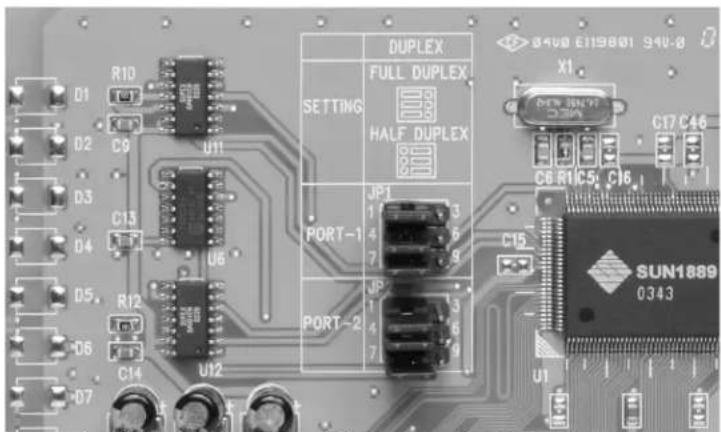
The PCI2S422DB9 allows you to configure each port based on your needs and the requirements of the serial devices you are connecting to each port. Consult the documentation for the device(s) you wish to connect to the card to determine the correct setting.
text_image
D1 D2 D3 D4 D5 D6 D7 R10 C9 U11 C13 U6 R12 C14 U12 DUPLEX SETTING FULL DUPLEX HALF DUPLEX PORT-1 JP1 1 3 4 6 7 9 PORT-2 JP 1 3 4 6 7 9 SUN1889 0343 C6 R1 C5 C16 C17 C16 X1 C15 U1Example: Both ports configured for Full Duplex (default)
Full Duplex: Allows the port to simultaneously send and receive data between itself and a serial device (default).
Half Duplex: The port will only send or _ receive data between itself and a serial device at any one time.
NOTE: The settings for one port do not affect the settings of the other, and both ports must be configured separately.
To Configure for Full Duplex
Jumper Configuration
CLOSED OPEN
1,23
4,56
7,89
To Configure for Half Duplex
Jumper Configuration
CLOSED OPEN
2,31
5,64
8.97
Instruction Manual
Connecting Your Serial Devices
WARNING: Power off the computer in which the card is installed and any serial devices before attempting any connection. Failure to do so could result in damage to the card and other peripheral equipment.
NOTE: The minimal amount of cable possible is preferable when connecting devices to the card. Excessive amounts of cable can cause interference and may reduce performance. Ensure that total cable length between the card and each device is no more than 4000 feet (1200 meters).
NOTE: If the cable you are using to connect the PCI2S422DB9 to your serial device is being run inside in ceilings, walls, or other enclosed spaces, be sure to observe local building codes with respect to communications cabling.
Pin Assignments
| RS-422 | Type | DB9M | DB25M | 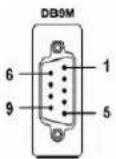 |
| TxD- | 1 | 8 | ||
| TxD+ | 2 | 3 | ||
| RxD- | 3 | 2 | ||
| RxD- | 4 | 20 | ||
| RTS- | 6 | 6 | ||
| RTS+ | 7 | 4 | ||
| CTS+ | 8 | 5 | ||
| CTS- | 9 | 22 | ||
| GND | 5 | 7 | ||
| RS-485 | Type | DB9M | DB25M | 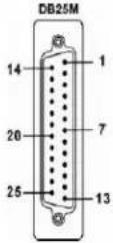 |
| TxD- | 2 | 3 | ||
| TxD+ | 1 | 8 | ||
| RTS- | 6 | 6 | ||
| RTS+ | 7 | 4 | ||
| CTS+ | 8 | 5 | ||
| CTS- | 9 | 22 | ||
| GND | 5 | 7 |
Instruction Manual
Specifications
| Chipset SUN1889 | |
| Connectors 2 x DB9 male | |
| Mode of Operation Differential | |
| Bus Transceivers Full Duplex and | Half Duplex Selectable |
| Maximum Data Rate 10 Mbits/sec | (250K baud on networks >= 64 nodes) |
| Maximum Cable Length 4000 feet | (1200 meters) |
| Max. Receivers/Drivers per Line R | RS-422: 1 driver, 10 ReceiversRS-485: 10 drivers, 32 Receivers |
| Bi-directional Surge Protection 15 | 00 VDC or 600 Watts Peak Pulse Power |
| Fault Protection +/- 60V for Receiver Input or Driver Output | |
| No Damage or Latchup to ESD Level 4: +/- 15KV Air DischargeLevel 2: +/- 4KV Contact Discharge | |
| Bus Interface PCI, 32-bit | |
| Regulatory Certifications FCC Class B, CSA, CE, TUV, UL, CB | |
Instruction Manual
Technical Support
The following technical resources are available for this StarTech.com product:
On-line help:
We are constantly adding new information to the Tech Support section of our web site. To access this page, click the Tech Support link on our homepage, www.startech.com. In the tech support section there are a number of options that can provide assistance with this product.
Knowledge Base - This tool allows you to search for answers to common issues using key words that describe the product and your issue.
FAQ - This tool provides quick answers to the top questions asked by our customers.
Downloads - This selection takes you to our driver download page where you can find the latest drivers for this product.
Call StarTech.com tech support for help:
USA/Canada: 1-800-265-1844
UK/Ireland/Europe: 00-800-7827-8324
Support hours: Monday to Friday 8:30AM to 6:00PM EST (except holidays)
Warranty Information
This product is backed by a lifetime warranty. In addition, StarTech.com warrants its products against defects in materials and workmanship for the periods noted, following the initial date of purchase. During this period, the products may be returned for repair, or replacement with equivalent products at our discretion. The warranty covers parts and labor costs only. StarTech.com does not warrant its products from defects or damages arising from misuse, abuse, alteration, or normal wear and tear.
Limitation of Liability
In no event shall the liability of StarTech.com Ltd. and StarTech.com USA LLP (or their officers, directors, employees or agents) for any damages (whether direct or indirect, special, punitive, incidental, consequential, or otherwise), loss of profits, loss of business, or any pecuniary loss, arising out of or related to the use of the product exceed the actual price paid for the product.
Some states do not allow the exclusion or limitation of incidental or consequential damages. If such laws apply, the limitations or exclusions contained in this statement may not apply to you.
Revised: 28 June 2005 (Rev. E)