
FOX II RS 104 - Audio/Video Equipment Extron - Free user manual and instructions
Find the device manual for free FOX II RS 104 Extron in PDF.


| Product Type | Four Port Fiber Optic RS-232 Inserter |
| Model | FOX II RS 104 |
| Brand | Extron |
| Category | Audio/Video Equipment |
| Dimensions (H x W x D) | 1U (1.75 in) x half rack width (approx. 8.5 in) x 8.5 in (216 mm x 216 mm x 44 mm) |
| Power Supply | 100-240 VAC, 50-60 Hz, 20 watts, internal universal |
| Fiber Optic Ports | 4, each with dual SFP transceivers (A and B) using LC connectors |
| Data Rate Support | 270 Mbps to 4.25 Gbps (selectable input data rate: 2.125 Gbps or 4.25 Gbps) |
| RS-232 Insertion/Extraction | Bidirectional serial control insertion/extraction via LAN port or fiber |
| LAN Port | RJ-45, 10/100Base-T, for configuration and serial data insertion |
| Compatibility | Extron FOX 500, FOXBOX, PowerCage FOX, and FOX II products |
| Fiber Cable Types | Multimode (up to 300 m) or Singlemode (up to 30 km) |
| Output Features | Buffered outputs, reclocking |
| Control Interfaces | HTML web pages, Simple Instruction Set (SIS) via LAN |
| LED Indicators | Power, Link/Activity (RJ-45), Tx/Rx Link (fiber), Reset |
| Reset Modes | 4 levels: events reset (mode 3), IP settings reset (mode 4), absolute reset (mode 5), hard reset (mode 1) |
| Mounting | 1U high, half rack width; rack-mountable (optional kit) or tabletop |
| Safety Class | Class 1 Laser Product – do not look into fiber connectors |
| Operating Temperature | Up to +122 °F (+50 °C) in rack |
| Warranty | 3 years from date of purchase |
Frequently Asked Questions - FOX II RS 104 Extron
User questions about FOX II RS 104 Extron
0 question about this device. Answer the ones you know or ask your own.
Ask a new question about this device
Download the instructions for your Audio/Video Equipment in PDF format for free! Find your manual FOX II RS 104 - Extron and take your electronic device back in hand. On this page are published all the documents necessary for the use of your device. FOX II RS 104 by Extron.
USER MANUAL FOX II RS 104 Extron
Fiber Optic Extenders
FOX II RS 104
FOX RS 104
Four Port Fiber Optic RS-232 Inserter

Safety Instructions
Safety Instructions • English
WARNING: This symbol, , when used on the product, is intended to alert the user of the presence of uninsulated dangerous voltage within the product's enclosure that may present a risk of electric shock.
ATTENTION: This symbol, △when used on the product, is intended to alert the user of important operating and maintenance (servicing) instructions in the literature provided with the equipment.
For information on safety guidelines, regulatory compliances, EMI/EMF compatibility, accessibility, and related topics, see the Extron Safety and Regulatory Compliance Guide, part number 68-290-01, on the Extron website, www.extron.com.
This equipment has been tested and found to comply with the limits for a Class A digital device, pursuant to part 15 of the FCC rules. The Class A limits provide reasonable protection against harmful interference when the equipment is operated in a commercial environment. This equipment generates, uses, and can radiate radio frequency energy and, if not installed and used in accordance with the instruction manual, may cause harmful interference to radio communications. Operation of this equipment in a residential area is likely to cause interference. This interference must be corrected at the expense of the user.
Copyright
© 2015 Extron Electronics. All rights reserved.
Trademarks
All trademarks mentioned in this guide are the properties of their respective owners.
The following registered trademarks ® , registered service marks (SM) , and trademarks (TM) are the property of RGB Systems, Inc. or Extron Electronics:
| Registered Trademarks (8) |
| AVTrac, Cable Cubby, CrossPoint, eBUS, EDID Manager, EDID Minder, Extron, Flat Field, GlobalViewer, Hideaway, Inline, IP Intercom, IP Link, Key Minder, LockIt, MediaLink, PlenumVault, PoleVault, PowerCage, Pure3, Quantum, SoundField, SpeedMount, SpeedSwitch, System INTEGRATOR, TeamWork, TouchLink, V-Lock, VersaTools, VN-Matrix, VoiceLift, WallVault, WindoWall, XTP, and XTP Systems |
| Registered Service Mark (SM) : S3 Service Support Solutions |
| Trademarks (TM) |
| AAP, AFL (Accu-Rate Frame Lock), ADSP (Advanced Digital Sync Processing), Auto-Image, CableCover, CDRS (Class D Ripple Suppression), DDSP (Digital Display Sync Processing), DMI (Dynamic Motion Interpolation), Driver Configurator, DSP Configurator, DSVP (Digital Sync Validation Processing), DTP, eLink, EQIP, FastBite, FlexOS, FOXBOX, Global Configurator, IP Intercom HelpDesk, LinkLicense, MAAP, MicroDigital, ProDSP, QS-FPC (QuickSwitch Front Panel Controller), Scope-Trigger, ShareLink, SIS, Simple Instruction Set, Skew-Free, SpeedNav, Triple-Action Switching, WebShare, XTRA, ZipCaddy, ZipClip |
Class 1 Laser Product
Any service to this product must be carried out by Extron Electronics and its qualified service personnel.
NOTE: For more information on safety guidelines, regulatory compliances, EMI/EMF compatibility, accessibility, and related topics, see the “Extron Safety and Regulatory Compliance Guide” on the Extron website.
Conventions Used in this Guide
Notifications
The following notifications are used in this guide:
ATTENTION:
- Risk of property damage.
- Risque de dommages matériels.
NOTE: A note draws attention to important information.
Software Commands
Commands are written in the fonts shown here:
^AR Merge Scene,,0p1 scene 1,1 ^B 51 ^W^C
[∅1] R∅∅4∅∅3∅∅∅∅4∅∅∅∅8∅∅∅6∅∅ [∅2] 35 [17] [∅3]
Esc X1 *X18 *X21 *X24 *X22 CE ←
NOTE: For commands and examples of computer or device responses mentioned in this guide, the character "0" is used for the number zero and "O" is the capital letter "o."
Computer responses and directory paths that do not have variables are written in the font shown here:
Reply from 208.132.180.48: bytes=32 times=2ms TTL=32
C:\Program Files\Extron
Variables are written in slanted form as shown here:
ping xxx.xxx.xxx.xxx -t
SOH R Data STX Command ETB ETX
Selectable items, such as menu names, menu options, buttons, tabs, and field names are written in the font shown here:
From the File menu, select New.
Click the OK button.
Specifications Availability
Product specifications are available on the Extron website, www.extron.com.
Contents
Introduction 1
About this Guide....1
About the Inserter....1
Fiber Cable Transmission Modes .... 3
Features 4
Installation and Operation .... 5
Mounting the Unit 5
Rear Panel Connections 5
Making Connections....7
Operation 10
Front Panel Features....10
Rear Panel Reset Operations....10
Remote Control 13
Simple Instruction Set Control 13
Host-to-Unit Instructions....13
Unit-initiated Messages.... 13
Error Responses....13
Using the Command and Response Tables .. 14
Symbol Definitions....14
HTML Operation....17
Opening the Embedded Web Pages......17
Status Tab 18
Configuration Tab 19
File Management Tab....26
Special Characters 27
Equipment Mounting 28
Mounting the Inserters....28
Tabletop Use 28
Mounting Kits 28
UL Rack-Mounting Guidelines 28
Introduction
WARNING: The FOX II RS 104 and FOX RS 104 RS-232 Inserters output continuous invisible light (Class 1 rated), which may be harmful to the eyes; use with caution.
- Do not look into the rear panel fiber optic cable connectors or into the fiber optic cables themselves.
- Plug the attached dust cap into the optical transceiver when the fiber optic cable is unplugged.
This guide contains installation, configuration, and operating information for the FOX II RS 104 and FOX RS 104 RS-232 Inserters.
NOTE: The two models are functionally identical. Throughout this guide, both models are referred to as "the inserter" for brevity. Drawings show the FOX II unit only.
About the Inserter
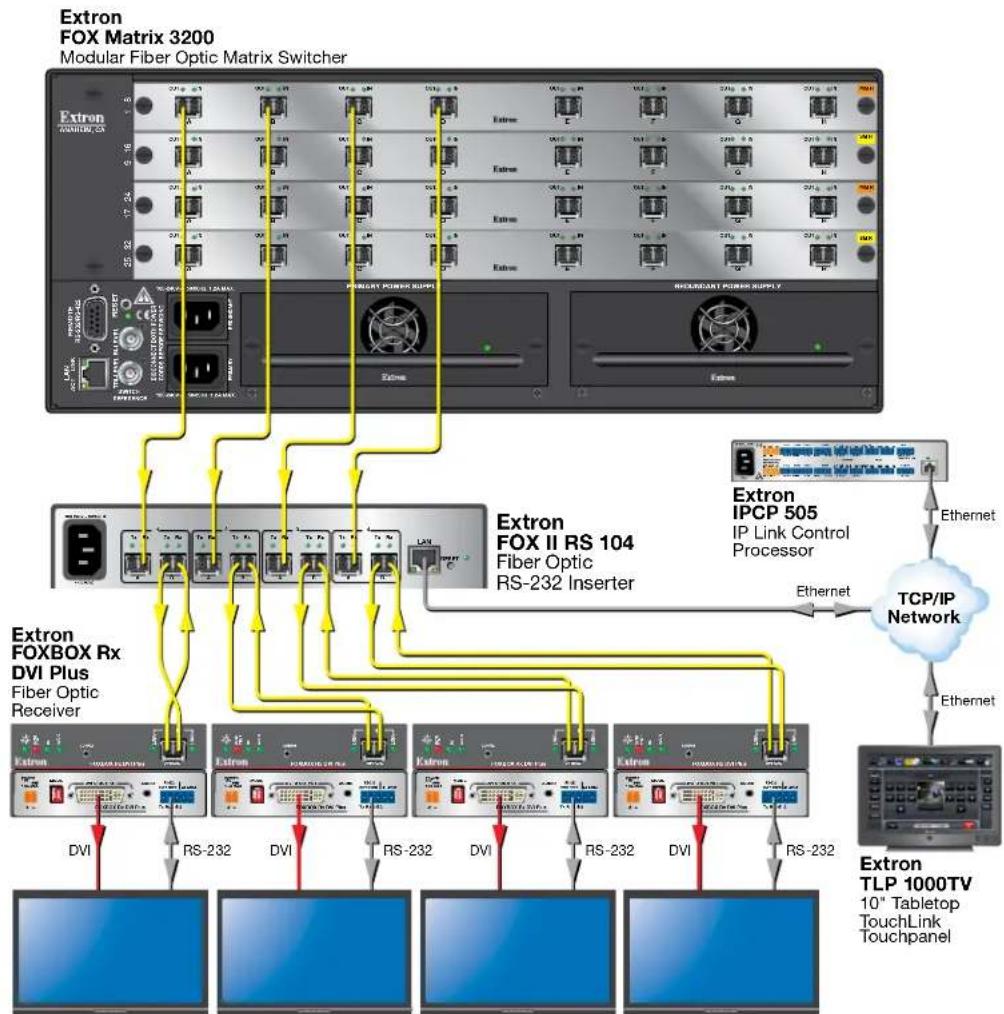
The inserter is a four fiber optic port RS-232 Inserter that provides local insertion points on the input (see figure 1, on the next page) or output (see figure 2 on page 3) of a fiber optic matrix switcher for long-haul RS-232 control. Each port provides a bidirectional fiber optic connection to a FOX matrix switcher for the insertion and extraction of control data, while maintaining a continuous pass-through link for video and audio. The inserter can be installed, along with its control system, in the same equipment rack as the matrix switcher, rather than at the remote fiber optic transmitter or receiver location.
The LAN port on the inserter allows direct insertion of bidirectional serial control to individual fiber optic inputs or outputs, simplifying control and eliminating the need for additional transmitters, receivers, and extra cabling.
The FOX II RS 104 Inserter is compatible with all current and legacy FOX 500, FOXBOX, and PowerCage FOX products with RS-232 control.

flowchart
graph TD
    A["Extron"] -->|RGB| B["Extron FOXBOX Tx VGA/YUV Fiber Optic Transmitter"]
    C["Extron"] -->|RGB| D["Extron IPCP 505 IP Link Control Processor"]
    E["Extron"] -->|RGB| F["Extron FOX II RS 104 Fiber Optic RS-232 Inserter"]
    G["Extron"] -->|Ethernet| H["TCP/IP Network"]
    I["Extron"] -->|Ethernet| H
    J["Extron"] -->|Ethernet| H
    K["Extron"] -->|Ethernet| H
    L["Extron"] -->|Ethernet| H
    M["Extron"] -->|Ethernet| H
    N["Extron"] -->|Ethernet| H
    O["Extron"] -->|Ethernet| H
    P["Extron"] -->|Ethernet| H
    Q["Extron"] -->|Ethernet| H
    R["Extron"] -->|Ethernet| H
    S["Extron"] -->|Ethernet| H
    T["Extron"] -->|Ethernet| H
    U["Extron"] -->|Ethernet| H
    V["Extron"] -->|Ethernet| H
    W["Extron"] -->|Ethernet| H
    X["Extron"] -->|Ethernet| H
    Y["Extron"] -->|Ethernet| H
    Z["Extron"] -->|Ethernet| H
    AA["Extron"] -->|Ethernet| H
    AB["Extron"] -->|Ethernet| H
    AC["Extron"] -->|Ethernet| H
    AD["Extron"] -->|Ethernet| H
    AE["Extron"] -->|Ethernet| H
    AF["Extron"] -->|Ethernet| H
    AG["Extron"] -->|Ethernet| H
    AH["Extron"] -->|Ethernet| H
    AI["Extron"] -->|Ethernet| H
    AJ["Extron"] -->|Ethernet| H
    AK["Extron"] -->|Ethernet| H
    AL["Extron"] -->|Ethernet| H
    AM["Extron"] -->|Ethernet| H
    AN["Extron"] -->|Ethernet| H
    AO["Extron"] -->|Ethernet| H
    AP["Extron"] -->|Ethernet| H
    AQ["Extron"] -->|Ethernet| H
    AR["Extron"] -->|Ethernet| H
    AS["Extron"] -->|Ethernet| H
    AT["Extron"] -->|Ethernet| H
    AU["Extron"] -->|Ethernet| H
    AV["Extron"] -->|Ethernet| H
    AW["Extron"] -->|Ethernet| H
    AX["Extron"] -->|Ethernet| H
    AY["Extron"] --> BZ["Fiber"]
    AZ["Fiber"] --> BA["Fiber"]
    BB["Fiber"] --> BC["Fiber"]
    BD["Fiber"] --> BE["Fiber"]
    BF["Fiber"] --> BG["Fiber"]
    BH["Fiber"] --> BI["Fiber"]
    BJ["Fiber"] --> BK["Fiber"]
    BL["Fiber"] --> BM["Fiber"]
    BN["Fiber"] --> BO["Fiber"]
    BP["Fiber"] --> BZ["Fiber"]
    BZ["Fiber"] --> BA["Fiber"]
    BR["Fiber"] --> BC["Fiber"]
    BS["Fiber"] --> BT["Fiber"]
    BU["Fiber"] --> BV["Fiber"]
    BW["Fiber"] --> BX["Fiber"]
    BY["Fiber"] --> BZ["Fiber"]
    CA["Fiber"] --> BZ["Fiber"]
    CB["Fiber"] --> BZ["Fiber"]
    CC["Fiber"] --> BZ["Fiber"]
    DA["Fiber"] --> BZ["Fiber"]
    DB["Fiber"] --> BZ["Fiber"]
    DC["Fiber"] --> BZ["Fiber"]
    BEF["Fiber"] --> BF["Fiber"]
    BF["Fiber"] --> BG["Fiber"]
    BH(Fiber) --> BI(Fiber)
    BI(Fiber) --> BA(Fiber)
    BJ(Fiber) --> BB(Fiber)
    BK(Fiber) --> BL(Fiber)
    BL(Fiber) --> BG(Fiber)
    BN(Fiber) --> BO(Fiber)
    BO(Fiber) --> BH(Fiber)
    BN(Fiber) --> BB(Fiber)
    BN(Fiber) --> BG(Fiber)
    BN(Fiber) --> BL(Fiber)
    BN(Fiber) --> BB(Fiber)
    BN(Fiber) --> BG(Fiber)
    BN(Fiber) --> BL(Fiber)
    BN(Fiber) --> BB(Fiber)
    BN(Fiber) --> BL(Fiber)
    BN(Fiber) --> BL(Fiber)
    BN(Fiber) --> BL(Fiber)
    BN(Fiber) --> BL(Fiber)
    BN(Fiber) --> BL(Fiber)
    BN(Fiber) --> BL(Fiber)
    BN(Fiber) --> BL(Fiber)
    BN(Fiber) --> BL(Fiber)
    BN(Fiber) --> BL(Fiber)
    BN(Fiber) --> BL(Fiber)
    BN(Fiber) --> BS(Fiber)
    BN(Fiber) --> BS(Fiber)
    BN(Fiber) --> BS(Fiber)
    BN(Fiber) --> BS(Fiber)
    BN(Fiber) --> BS(Fiber)
    BN(Fiber) --> BS(Fiber)
    BN(Fiber) --> BS(Fiber)
    BN(Fiber) --> BS(Fiber)
    BN(Fiber) --> BS(Fiber)
    BN(Fiber) --> BS(Fiber)
    BN(Fiber) --> NS(Fiber)
    BN(Fiber) --> NS(Fiber)
    BN(Fiber) --> NS(Fiber)
    BN(Fiber) --> NS(Fiber)
    BN(Fiber) --> NS(Fiber)
    BN(Fiber) --> NS(Fiber)
    BN(Fiber) --> NS(Fiber)
    BN(Fiber) --> NS(Fiber)
    BN(Fiber) --> NS(Fiber)
    BN(Fiber) --> NS(Fiber)
    BN(Fiber) --> BS(TLP 1000TV 10" Tabletop TouchLink Touchpanel)
Extron
FOX Matrix 3200
Modular Fiber Optic Matrix Switcher
Figure 1. Typical Inserter Application on the Matrix Switcher Input
The inserter is housed in a 6-inch deep (FOX RS 104) or 8.5-inch deep (FOX II RS 104), half rack width, 1U high metal enclosure. With optional rack shelves, the inserter can be installed in a standard 19-inch equipment rack. The inserter has a 100 VAC to 240 VAC, 50-60 Hz, 20-watt power supply that provides worldwide power compatibility.
The inserter can be remotely configured using either built-in HTML pages or the Simple Instruction Set (SIS), available via the rear panel LAN port. The SIS is a set of basic ASCII code commands that provide simple control through a control system or PC without the need to enter long strings of code.
flowchart
graph TD
    A["Extron Matrix 3200"] -->|Ethernet| B["TCP/IP Network"]
    A -->|Ethernet| C["Extron IPCP 505"]
    A -->|Ethernet| D["Extron FOX Box Rx DVI Plus Fiber Optic Receiver"]
    A -->|Ethernet| E["Extron TLP 1000TV 10" Tabletop TouchLink Touchpanel"]
    A -->|Ethernet| F["Extron FOX II RS 104 Fiber Optic RS-232 Inserter"]
    A -->|Ethernet| G["Extron IPCP 505 IP Link Control Processor"]
    A -->|Ethernet| H["Extron FOX Box Rx DVI Plus Fiber Optic Receiver"]
    A -->|Ethernet| I["Extron TLP 1000TV 10" Tabletop TouchLink Touchpanel"]
    A -->|Ethernet| J["Extron FOX Box Rx DVI Plus Fiber Optic Receiver"]
    A -->|Ethernet| K["Extron TLP 1000TV 10" Tabletop TouchLink Touchpanel"]
    A -->|Ethernet| L["Extron FOX Box Rx DVI Plus Fiber Optic Receiver"]
    A -->|Ethernet| M["Extron TLP 1000TV 10" Tabletop TouchLink Touchpanel"]
    A -->|Ethernet| N["Extron FOX Box Rx DVI Plus Fiber Optic Receiver"]
    A -->|Ethernet| O["Extron TLP 1000TV 10" Tabletop TouchLink Touchpanel"]
    A -->|Ethernet| P["Extron FOX Box Rx DVI Plus Fiber Optic Receiver"]
    A -->|Ethernet| Q["Extron TLP 1000TV 10" Tabletop TouchLink Touchpanel"]
    A -->|Ethernet| R["Extron FOX Box Rx DVI Plus Fiber Optic Receiver"]
    A -->|Ethernet| S["Extron TLP 1000TV 10" Tabletop TouchLink Touchpanel"]
    A -->|Ethernet| T["Extron FOX Box Rx DVI Plus Fiber Optic Receiver"]
    A -->|Ethernet| U["Extron TLP 1000TV 10" Tabletop TouchLink Touchpanel"]
    A -->|Ethernet| V["Extron FOX Box Rx DVI Plus Fiber Optic Receiver"]
    A -->|Ethernet| W["Extron TLP 1000TV 10" Tabletop TouchLink Touchpanel"]
    A -->|Ethernet| X["Extron FOX Box Rx DVI Plus Fiber Optic Receiver"]
    A -->|Ethernet| Y["Extron TLP 1000TV 10" Tabletop TouchLink Touchpanel"]
    A -->|Ethernet| Z["Extron FOX Box Rx DVI Plus Fiber Optic Receiver"]
    A -->|Ethernet| AA["Extron TLP 1000TV 10" Tabletop TouchLink Touchpanel"]
    A -->|Ethernet| AB["Extron FOX Box Rx DVI Plus Fiber Optic Receiver"]
    A -->|Ethernet| AC["Extron TLP 1000TV 10" Tabletop TouchLink Touchpanel"]
    A -->|Ethernet| AD["Extron FOX Box Rx DVI Plus Fiber Optic Receiver"]
    A -->|Ethernet| AE["Extron TLP 1000TV 10" Tabletop TouchLink Touchpanel"]
    A -->|Ethernet| AF["Extron FOX Box Rx DVI Plus Fiber Optic Receiver"]
    A -->|Ethernet| AG["Extron TLP 1000TV 10" Tabletop TouchLink Touchpanel"]
    A -->|Ethernet| AH["Extron FOX Box Rx DVI Plus Fiber Optic Receiver"]
    A -->|Ethernet| AI["Extron TLP 1000TV 10" Tabletop TouchLink Touchpanel"]
    A -->|Ethernet| AJ["Extron FOX Box Rx DVI Plus Fiber Optic Receiver"]
    A -->|Ethernet| AK["Extron TLP 1000TV 10" Tabletop TouchLink Touchpanel"]
    A -->|Ethernet| AL["Extron FOX Box Rx DVI Plus Fiber Optic Receiver"]
    A -->|Ethernet| AM["Extron TLP 1000TV 10" Tabletop TouchLink Touchpanel"]
    A -->|Ethernet| AN["Extron FOX Box Rx DVI Plus Fiber Optic Receiver"]
    A -->|Ethernet| AO["Extron TLP 1000TV 10" Tabletop TouchLink Touchpanel"]
    A -->|Ethernet| AP["Extron FOX Box Rx DVI Plus Fiber Optic Receiver"]
    A -->|Ethernet| AQ["Extron TLP 1000TV 10" Tabletop TouchLink Touchpanel"]
    A -->|Ethernet| AR["Extron FOX Box Rx DVI Plus Fiber Optic Receiver"]
    A -->|Ethernet| AS["Extron TLP 1000TV 10" Tabletop TouchLink Touchpanel"]
    A -->|Ethernet| AT["Extron FOX Box Rx DVI Plus Fiber Optic Receiver"]
    A -->|Ethernet| AU["Extron TLP 1000TV 10" Tabletop TouchLink Touchpanel"]
    A -->|Ethernet| AV["Extron FOX Box Rx DVI Plus Fiber Optic Receiver"]
    A -->|Ethernet| AW["Extron TLP 1000TV 10" Tabletop TouchLink Touchpanel"]
    A -->|Ethernet| AX["Extron FOX Box Rx DVI Plus Fiber Optic Receiver"]
    A -->|Ethernet| AY["Extron TLP 1000TV 10" Tabletop TouchLink Touchpanel"]
Flat Panel Display 1 Flat Panel Display 2 Flat Panel Display 3 Flat Panel Display 4
Figure 2. Typical Inserter Application on the Matrix Switcher Output
Fiber Cable Transmission Modes
Four versions of the inserter are documented in this guide. Two versions are the functionally identical FOX and FOX II models as described previously. Both of those models are further categorized by the type of fiber optic cable, multimode or singlemode, which defines the effective range of transmission:
Multimode — Long distance, up to 300 m (985 feet)
Singlemode — Very long distance, up to 30 km (18.75 miles)
Features
RS-232 insertion to or extraction from one or more of the fiber optic outputs (or both insertion and extraction) from the Ethernet port — Allows direct insertion of bidirectional serial control data into an optical signal.
Standard fiber optic signal architecture — Compatible optical signals are digital signals from 270 Mbps through 4.25 Gbps that are sent and received via fiber optic small form factor pluggable (SFP) modules with LC-type connectors. The inserter is compatible with Extron FOX matrix switchers and DAs and FOX, FOXBOX, and PowerCage FOX transmitters and receivers. The FOX II RS 104 is also compatible with all Extron FOX II products.
Buffered fiber optic outputs — Original power level is maintained on each output to maximize distance capabilities and ensure full availability of optical loss budget.
Output reclocking — Reshapes and restores timing of the digital signal.
Ethernet monitoring and control — Enables web-based remote management, monitoring, and control.
Ethernet connectivity for integration with a control system — Eliminates the need for separate control system wiring to remote devices.
Real-time status LED indicators for troubleshooting and monitoring — Rear panel LEDs verify link status and power.
Rack-mountable 1U, half rack width metal enclosure
Internal universal power supply — The 100-240 VAC, 50/60 Hz, international power supply provides worldwide power compatibility.
Installation and Operation
This section details the installation and operation of the FOX II RS 104 and FOX RS 104 RS-232 Inserters, including:
Mounting the Unit
Rear Panel Connections
Operation
ATTENTION:
Mounting instructions can be found in Mounting the Inserter on page 28. Compatible optional hardware is listed on the Extron website.
Rear Panel Connections

Figure 3. FOX II RS 104 Inserter Connectors
NOTE: The FOX RS 104 has a similar appearance.
A Fiber optic ports and LEDs (see page 6)
© Reset button and LED (see page 7)
B LAN port (see page 6)
D Power connector (see page 7)
A Fiber optic ports and LEDs — Each port, 1 through 4, has two SFP optical transceiver modules with LC connectors, labeled "A" and "B". How to connect these transceivers is determined by where the inserter is installed, typically on the input of a matrix switcher or on the output. Transceiver B is connected to an internal UART that inserts serial communications into the fiber optic signal or extracts the serial communications, depending on the application. See Fiber connection examples on page 7 for detailed connection diagrams in typical applications.
WARNING: The FOX II RS 104 and FOX RS 104 RS-232 Inserters output continuous invisible light (Class 1 rated), which may be harmful to the eyes; use with caution. Plug the attached dust cap into the optical transceiver when the fiber optic cable is unplugged.
NOTE: Ensure that you use the proper fiber cable for your inserter. Typically, singlemode fiber has a yellow jacket and multimode cable has an orange or aqua jacket.
1a Tx A — For one-way communications from the inserter to a downstream device, typically a matrix switcher, connect a fiber optic cable to the Tx A LC connector.
Connect the free end of this fiber optic cable to the In or Rx connector on the downstream device.
2a Rx A — For one-way transmission from an upstream device, typically a matrix switcher, connect a fiber optic cable to the Rx A LC connector.
Connect the free end of this fiber optic cable to the Out or Tx connector on the upstream device.
3a Tx B — For one-way communications from the inserter to a downstream device, which typically can be either a receiver or a transmitter, depending on the application, connect a fiber optic cable to the Tx B LC connector.
Connect the free end of this fiber optic cable to the Rx connector on the downstream device.
4a Rx B — For one-way transmission from an upstream device, which typically can be either a transmitter or a receiver, depending on the application, connect a fiber optic cable to the Rx B LC connector.
Connect the free end of this fiber optic cable to the Tx connector on the upstream device.
Tx Link and Rx Link LEDs — When lit, the link is active (light is received).
B LAN port — To configure the inserter with SIS commands or downloaded HTML pages from the inserter and to insert serial data into and extract it from the fiber stream, connect the unit to a PC or to an Ethernet LAN via this RJ-45 connector. You can use a PC for control and serial data insertion and extraction from anywhere in the world. See LAN port cabling on page 9 for connection information.
Link LED indicator — The green (link) LED indicates that the inserter is properly connected to an Ethernet LAN. This LED should light steadily.
Act LED indicator — The yellow (activity) LED indicates transmission of data packets on the RJ-45 connector. This LED should flicker as the inserter communicates.
C Reset button — The recessed Reset button initiates four levels of inserter reset. See Rear Panel Reset Operations on page 10 for details.
RESET
Events (mode 3) reset — Toggles events monitoring on and off. IP settings (mode 4) reset — Resets the IP functions of the inserter.
NOTE: The IP settings reset does not replace any user-installed firmware.
Absolute (mode 5) reset — Restore the inserter to the default factory conditions. Hard reset — Restore the inserter to the default factory conditions and return the inserter to the default firmware that shipped with the unit.
NOTES:
- Factory loaded firmware is active until it is replaced or the power is cycled.
- Hard reset does not clear the current configuration.
AC power connector — Plug a standard IEC power cord into this connector to connect the FOX II RS 104 to a 100 VAC to 240 VAC, 50-60 Hz power source.
Making Connections
Fiber connection examples
The fiber optic cable connections is determined by the installation relative to a matrix switcher. When the inserter is installed on matrix switcher input (see figure 4, below):
SFP transceiver B (①) receives the source optical signal, consisting of video and audio. The inserter throughputs the RS-232 stream via the LAN port (②) and inserts it into or extracts it from the optical signal stream via the UART and SFP transceiver B (③).
The inserter outputs the video and audio optical signal on SFP A (4). It outputs the inserted serial stream to the transmitter (which routes it to the controlling device) on SFP A (5).

flowchart
graph TD
    A["FOX Transmitter"] -->|Tx Rx| B["Inserted RS-232"]
    C["FOX Matrix Switcher"] -->|OUT OUT| D["Video & Audio"]
    B --> E["TxRx"]
    D --> F["Video & Audio"]
    E --> G["A"]
    F --> H["B"]
    G --> I["LAN"]
    H --> I
    I --> J["Ethernet"]
    J --> K["LAN"]
    K --> L["Control"]
    style A fill:#f9f,stroke:#333
    style C fill:#f9f,stroke:#333
    style B fill:#ccf,stroke:#333
    style E fill:#cfc,stroke:#333
    style F fill:#cfc,stroke:#333
    style G fill:#fcc,stroke:#333
    style H fill:#fcc,stroke:#333
    style I fill:#cff,stroke:#333
    style J fill:#ffc,stroke:#333
    style K fill:#ffc,stroke:#333
    style L fill:#cfc,stroke:#333
Figure 4. Typical Wiring Diagram for an Inserter on a Matrix Switcher Input
When the inserter is installed on matrix switcher output (see figure 5, below):
SFP transceiver A (①) receives the source optical signal.
The inserter throughputs the RS-232 command stream via the LAN port (2) and inserts it into or extracts it from the optical signal stream via the UART and SFP transceiver B (3).
The inserter outputs the optical signal, with the inserted serial stream, to the receiver on SFP B (4).

flowchart
graph TD
    A["FOX Matrix Switcher"] -->|OUT IN| B["Video & Audio"]
    A -->|IN| C["Video, Audio, & Inserted RS-232"]
    A -->|Tx Rx| D["Tx Rx"]
    A -->|Tx Rx| E["Tx Rx"]
    A -->|TX Rx| F["Tx Rx"]
    A -->|LAN| G["LAN"]
    G --> H["Ethernet"]
    H --> I["LAN"]
    I --> J["PC or Control System"]
    style A fill:#f9f,stroke:#333
    style J fill:#ccf,stroke:#333
Figure 5. Typical Wiring Diagram for an Inserter on a Matrix Switcher Output
LAN port cabling
It is vital that your Ethernet cables be the correct cable type and that they be properly terminated with the correct pinout. Ethernet links use Category (CAT) 5e or CAT 6, unshielded twisted pair (UTP) or shielded twisted pair (STP) cables, terminated with RJ-45 connectors. Ethernet cables are limited to a length of 328 feet (100 m).
NOTES:
- Do not use standard telephone cables. Telephone cables do not support Ethernet or Fast Ethernet.
- Do not stretch or bend cables. Transmission errors can occur.
The cable used depends on your network speed. The inserter supports both 10 Mbps (10Base-T — Ethernet) and 100 Mbps (100Base-T — Fast Ethernet), half-duplex and full-duplex Ethernet connections.
10Base-T Ethernet requires CAT 3 UTP or STP cable at minimum.
100Base-T Fast Ethernet requires CAT 5e UTP or STP cable at minimum.
The Ethernet cable can be terminated as a straight-through cable or a crossover cable and must be properly terminated for your application (see figure 6).
Crossover cable — Direct connection between the computer and the inserter
Patch (straight) cable — Connection of the inserter to an Ethernet LAN

| Pin | End 1 End 2 Wire color | End 1 End 2 Wire color |
| 1 | White-green | White-orange |
| 2 | Green | Orange |
| 3 | White-orange | White-green |
| 4 | Blue | Blue |
| 5 | White-blue | White-blue |
| 6 | Orange | Green |
| 7 | White-brown | White-brown |
| 8 | Brown | Brown |
T568A T568B A cable that is wired as T568A at one end and T568B at the other (Tx and Rx pairs reversed) is a "crossover" cable.
| Pin | Wire color | Wire color |
| 1 | White-orange | White-orange |
| 2 | OrangeOrange | |
| 3 | White-green | White-green |
| 4 | Blue | Blue |
| 5 | White-blue | White-blue |
| 6 | GreenGreen | |
| 7 | White-brown | White-brown |
| 8 | Brown | Brown |
T568BT568B A cable that is wired the same at both ends is called a "straight-through" cable, because no pin/pair assignments are swapped.
Figure 6. RJ-45 Connector and Pinout Tables
Operation
Front Panel Features
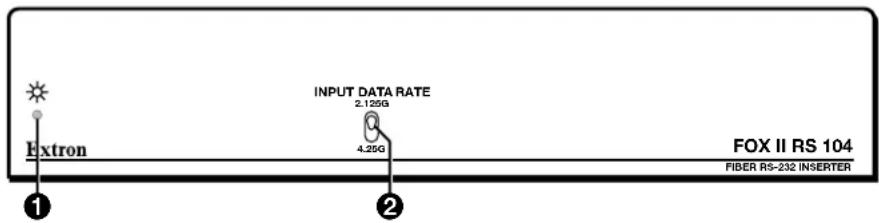
Figure 7. FOX II RS 104 Front Panel Features
NOTE: The FOX RS 104 has a similar appearance.
① Power LED — This LED lights green when power is applied.
② Input Data Rate switch — This switch selects between the 2.125 Gbits (2G) and 4.25 Gbits (4G) input data rate. After switching data rates, cycle power to the inserter to properly lock onto the selected input data rate.
Rear Panel Reset Operations
The rear panel Reset button initiates four levels of resets (numbered 1, 3, 4, and 5 for the sake of comparison with an Extron IPL product). The Reset button is recessed, so use a pointed stylus, ballpoint pen, or small screwdriver to access it.
See the table on the next page for a summary of the modes.
ATTENTION:
NOTE: The reset modes listed below close all open IP and Telnet connections and close all sockets. Also, the following modes are separate functions, not a continuation from mode 1 to mode 5.
| Reset Mode Comparison and Summary | |||
| Mode | Activation Result Purpose and notes | ||
| 1 Hold down the recessed Reset button while applying power to the inserter. | NOTE: After a mode 1 reset is performed, update the inserter firmware to the latest version. Do not operate the inserter firmware version that results from the mode 1 reset. If you want to use the factory default firmware, you must upload that version again. See Firmware Upgrade page on page 23 for details on uploading firmware. | The inserter reverts to the factory default firmware. Event scripting does not start if the inserter is powered on in this mode. All user files and settings, such as IP settings, are maintained. | Use mode 1 to return the inserter to the factory default firmware version if incompatibility issues arise with user-loaded firmware. |
| NOTE: If you do not want to update firmware, or you performed a mode 1 reset by mistake, cycle power to the inserter to return to the firmware version that was running before the mode 1 reset. Use the 0Q SIS command to confirm that the factory default firmware is no longer running (look for the asterisk [*] following the version number. | |||
| 3 Hold the Reset button for approximately 3 seconds, until the Reset LED blinks once, then momentarily press Reset for less than 1 second within 1 second. | Mode 3 turns events on or off. During resetting, the Reset LED flashes 2 times if events are starting, 3 times if events are stopping. | Mode 3 is useful for troubleshooting. | |
| 4 Hold the Reset button for approximately 6 seconds, until the Reset LED blinks twice (once at 3 seconds and again at 6 seconds). Then momentarily press Reset for less than 1 second within 1 second. | Mode 4:Enables ARP capability.Sets the IP address to the factory default.Sets the subnet address to the factory default.Sets the gateway address to the factory default.Sets port mapping to the factory default.Turns DHCP off.Turns events off.The Reset LED flashes four times in quick succession during the reset. | Mode 4 enables you to set IP address information using ARP and the MAC address. | |
| 5 Hold the Reset button for approximately 9 seconds, until the Reset LED blinks three times (once at 3 seconds, again at 6 seconds, and then again at 9 seconds). Then momentarily press Reset for less than 1 second within 1 second. | Mode 5 performs a complete reset to factory defaults (with the exception of the firmware):Does everything mode 4 does.Resets all IP options.Removes all files from the inserter.The reset LED flashes four times in quick succession during the reset. | Mode 5 is useful if you want to start over with configuration and uploading or to replace events. Same as the EscZQQ←SIS command on page 15. | |
Performing Soft System Resets (Resets 3, 4, and 5)
Perform a soft reset of the inserter as follows (see figure 8):
- Use a small screwdriver to press and hold the rear panel Reset button until the rear panel Reset LED blinks once (events reset), twice (system reset), or three times (absolute reset).

flowchart
graph LR
    A["Events Reset (Mode 3)"] --> B["RESET"]
    B --> C["Reset LED flashes once."]
    C --> D["Release, then immediately press and release again."]

    E["IP Settings Reset (Mode 4)"] --> F["RESET"]
    F --> G["Reset LED flashes twice."]
    G --> H["Release, then immediately press and release again."]

    I["Absolute Reset (Mode 5)"] --> J["RESET"]
    J --> K["Reset LED flashes three times."]
    K --> L["Release, then immediately press and release again."]
Figure 8. Resets
- Release the Reset button and then immediately press and release the Reset button again. Nothing happens if the second momentary press does not occur within 1 second.
Remote Control
This section describes the remote control operation of the FOX II RS 104 and FOX RS 104 RS-232 Inserters, including:
Simple Instruction Set Control
HTML Operation
You can use Simple Instruction Set (SIS) commands or built-in HTML pages for operation and configuration of the inserter. You can remotely operate the inserter from a PC connected to the LAN port (item B on page 6).
Simple Instruction Set Control
Host-to-Unit Instructions
SIS commands consist of one or more characters per field. No special characters are required to begin or end a command character sequence. When a command is valid, the unit executes the command and sends a response to the host device. All responses from the unit to the host end with a carriage return and a line feed (CR/LF = ←), which signals the end of the response character string. A string is one or more characters.
Unit-initiated Messages
The inserter issues the following copyright message when it detects an IP connection. xx is MM (multimode) or SM (singlemode), vn.nn is the firmware version number; 60-nnnn-zz is the part number of the connected unit.
(c) Copyright 20nn, Extron Electronics FOX II RS 104 xx, Vn.nn, 60-nnnn-zz←Day, Date, Time←
- or -
(c) Copyright 20nn, Extron Electronics FOX RS 104 xx, Vn.nn, 60-nnnn-zz←Day, Date, Time←
Error Responses
When the unit receives a valid SIS command, it executes the command and sends a response to the host device. If the unit is unable to execute the command because the command is invalid or it contains invalid parameters, the unit returns an error response to the host. The error response codes are:
E10 - Invalid command
E13 - Invalid parameter
E14 – Invalid command for this configuration
Using the Command and Response Tables
The command and response table begins on page 15. Either uppercase or lowercase letters are acceptable in the command field. Symbols, defined below, are used throughout the table to represent variables in the command and response fields. Command and response examples are shown throughout the table. The ASCII to Hex conversion table below is for use with the command and response table.
| ASCII to | Hex | Conversion Table | Esc | 1B | CR | ∅D | LF | ∅A | |||||||
| Space → | 20 | ! | 21 | “ | 22 | # | 23 | $ 24 | % | 25 | & | 26 | ‘ | 27 | |
| ( | 28 | ) | 29 | * | 2A | + | 2B | , 2C | - | 2D | . | 2E | / | 2F | |
| ∅ | 30 | 1 | 31 | 2 | 32 | 3 | 33 | 4 34 | 5 | 35 | 6 | 36 | 7 | 37 | |
| 8 | 38 | 9 | 39 | : | 3A | ; | 3B | < 3C | = | 3D | > | 3E | ? | 3F | |
| @ | 40 | A | 41 | B | 42 | C | 43 | D 44 | E | 45 | F | 46 | G | 47 | |
| H | 48 | | | 49 | J | 4A | K | 4B | L 4C | M | 4D | N | 4E | O | 4F | |
| P | 50 | Q | 51 | R | 52 | S | 53 | T 54 | U | 55 | V | 56 | W | 57 | |
| X | 58 | Y | 59 | Z | 5A | [ | 5B | \ 5C] | 5D | ^ | 5E | _ | 5F | ||
| ` | 60 | a | 61 | b | 62 | c | 63 | d 64 | e | 65 | f | 66 | g | 67 | |
| h | 68 | i | 69 | j | 6A | k | 6B | l 6C | m | 6D | n | 6E | o | 6F | |
| p | 70 | q | 71 | r | 72 | s | 73 | t 74 | u | 75 | v | 76 | w | 77 | |
| x | 78 | y | 79 | z | 7A | { | 7B | l 7C} | 7D | ~ | 7E | DEL | 7F | ||
Symbol Definitions
← = CR/LF (carriage return/line feed)
← = Carriage return (no line feed)
| = Pipe (can be used interchangeably with the ← character)
- = Space (hard) character
Esc = Escape key (hex 1B)
W = Can be used interchangeably with the Esc character
[X1] = Port number 1 through 4
[X2] = Enable and disable status 0 = disable 1 = enable
[X3] = Firmware version v.vv
X4 = Verbose firmware version-description-upload date/time. See the Query controller firmware version (verbose) command on page 15.
X5 = Inserter name (Up to 24 alphanumeric characters)
NOTE: The HTML language reserves certain characters for specific functions (see Special Characters on page 27).
X6 = Communication protocol
X7 = Default name
1 = FOX legacy (default) 2 = FOX II
FOX-II-RS-104-n- plus the last 3 pairs of MAC address.
n is either S (singlemode) or M (multimode).
FOX-RS-104-nn- plus the last 3 pairs of MAC address.
nn is either SM (singlemode) or MM (multimode).
X8 = Time and date (for set)
In the format: MM/DD/YY•HH:MM:SS where:
MM = month: 01 (January) through 12 (December)
DD = day: 01 through 31
YY = year: 00 through 99
HH = hour: 00 through 23
MM = minutes: 00 through 59
SS = seconds: 00 through 59
X9 = Time and date (for read)
In the format: Day, •DD•Mmm•YYYY•HH:MM:SS where:
Day = weekday: Mon through Sun
DD = date: ∅1 through 31
Mmm = month: Jan through Dec
YYYY = year: 2000 through 2099
HH = hour: 00 through 24
MM = minutes: 00 through 59
SS = seconds: 00 through 59
X10 = GMT offset
-12.0 through +14.0. Hours and minutes removed from GMT
X11 = Daylight Saving Time
∅ = Daylight Saving Time off/ignore
1 = Daylight Saving Time on (North America)
2 = Daylight Saving Time on (Europe)
3 = Daylight Saving Time on (Brazil)
X12 = IP address
.###.###.
X13 = Hardware (MAC) address ##-##-##-##-##-##
X14 = Number of open connections 0 - 200
X15 = Password 12 alphanumeric characters
NOTE: The HTML language reserves certain characters for specific functions (see Special Characters on page 27).
| X16 = DHCP | ∅ =off (default), 1 = on |
| X17 = Baud rate | 9600 (default), 19200, 38400, 115200 |
| X18 = Parity | odd, even, none (default), mark, space (Only the first letter required.) |
| X19 = Data bits 7, 8 (default) | |
| X20 = Stop bits | 1 (default), 2 |
| X21 = Port type (always 0 = RS-232) | |
| X22 = Verbose mode | ∅ = clear/none (default for Telnet connection) 2 = tagged responses for queries1 = verbose mode (default for RS-232) 3 = verbose mode and tagged for queries |
NOTE: If tagged responses is enabled, all read commands return the constant string and the value as the set command does (for example, the read matrix name command, EscCN←, returns lpn•X5←).
| X23 = Port timeout interval (in 10-sec. increments) | 1 (= 10 seconds) - 65000 (default is 30 = 300 seconds = 5 minutes) |
| X24 = Direct access port map | ∅ (= disabled) or 1024 and up (default is 2001) |
Command and Response Table for Inserter SIS Commands
| Command | ASCII Command(host to unit) | Response(unit to host) | Additional description |
| Enable and disable serial insertion ports | |||
| Enable one port | EscX1*1LRPT← | LrptX1*1← | Enable serial insertion port X1(allow data to be inserted onto fiber optic port X1). |
| Disable one port | EscX1*0LRPT← | LrptX1*0← | Disable serial insertion port X1. |
| Enable all ports | Esc0*1LRPT← | Lrpt0*1← | |
| Disable all ports | Esc0*0LRPT← | Lrpt0*0← | |
| View port status | EscX1LRPT← | X2← | Default X1 is 1 (enabled). |
| Information requests | |||
| Request name | I | FOX•II•RS•104•nn←Or FOX•RS•104•nn. nn is either SM (singlemode) or MM (multimode). | |
| Request part number | N | 60-xxxx-nn← | See www.extron.com for part numbers.nn is either 02 (singlemode) or 01 (multimode). |
| NOTE: There are up to three separate sets of Extron firmware on which the inserter can report: the controller firmware, which is the overall control firmware; the Ethernet protocol firmware, which handles the Ethernet interface; and the latest optional Extron firmware update, which is available at www.extron.com. | |||
| Query firmware version | Q | X3← | |
| Example: | Q | 1.23← | The factory-installed firmware version is 1.23 (sample value only). |
| Query controller firmware version (verbose) | 0Q | X3-X4-X4← | Provide a detailed status of the Ethernet protocol firmware, the controller firmware, and any firmware upgrade. The firmware that is running is marked by an asterisk (*). A caret (^) indicates that the firmware has a bad checksum or an invalid load. ?.?? indicates that firmware is not loaded. |
| Response description: Example: | Ethernet protocol firmware version-controller firmware version-updated firmware version← | ||
| 0q | |||
| Description3.00-0.99(1.81-IPL Series -Wed, 16 Jan 2003 00:00:00 GMT)-1.00*(1.81-IPL Series -Wed, 24 Oct 2002 08:02:33 GMT)← | |||
| Ethernet protocol firmware | IP Link firmware version | Updated firmware version | |
| Resets | |||
| System reset | EscZXXX← | Zpx← | Reset all settings to factory defaults. |
| Reset flash memory | EscZFFF← | Zpf← | |
| Absolute reset | EscZQQ← | Zpq← | Reset all settings, including IP address and subnet mask. |
| Absolute reset, but retain IP | EscZY← | Zpy← | Reset all settings except IP settings to factory defaults. |
| Command ASCII Command(host to unit) | Response(unit to host) | Additional description | |
| Serial port insertion protocol | |||
| NOTES:The serial port insertion protocol commands are valid for FOX II RS 104 Inserters only.The set commands are only valid when there is no reference input. With a reference input, serial insertion follows the input. | |||
| Set protocol to FOX II | EscX1*2FOXM← | FoxmX1*2← | Set fiber output X1 to FOX II mode. |
| Set protocol to FOX (legacy) | EscX1*1FOXM← | FoxmX1*1← | Set fiber output X1 to the legacy mode (default). |
| View protocol | EscX1FOXM←X6← | ||
| IP setup | |||
| Set inserter name | EscX3CN← | Ipn•X5← | |
| Read inserter name | EscCN←X5← | ||
| Reset inserter name to factory default | Esc•CN← | Ipn•X7← | See x7 definition on page 14. |
| Set time and date | EscX8CT← | IptX8← | |
| Read time and date | EscCT←X9← | ||
| Set GMT offset | EscX10CZ← | IpzX10← | In the command, the divider between hours and minutes can be either a colon or a period. In the response, the divider is a colon. |
| Example: | Esc8.3CZ← | Ipz+08:30← | 8.3 = 8:30. |
| Read GMT offset | EscCZ←X10← | ||
| Set Daylight Savings Time | EscX11CX← | IpxX11← | |
| Read Daylight Savings Time | EscCX←X11← | ||
| Set IP address | EscX12CI← | IpiX12← | |
| Read IP address | EscCI←X12← | ||
| Read hardware address | EscCH←X13← | Reads MAC address. | |
| Read # of open connections | EscCC←X14← | ||
| Set subnet mask | EscX12CS← | IpsX12← | |
| Read subnet mask | EscCS←X12← | ||
| Set gateway IP address | EscX12CG← | IpgX12← | |
| Read gateway IP address | EscCG←X12← | ||
| Set administrator password | EscX15CA← | Ipa•X15← | |
| Read administrator password | EscCA←X15← | ||
| Reset (clear) administrator password | Esc•CA← | Ipa•← | |
| Set user password | EscX15CU← | Ipu•X15← | |
| Read user password | EscCU←X15← | ||
| Reset (clear) user password | Esc•CU← | Ipu•← | |
| Set DHCP on or off | EscX16DH← | IdhX16← | |
| Read DHCP on/off status | EscDH←X16← | ||
| Set serial port parameters | EscX1*X17,X18,X19,X20CP← | ||
| Read serial port parameters | EscX1CP←X17 | CpnX1•CcpX17,X18,X19,X20← | |
| Set serial port mode | EscX1*X21CY← | CpnX1•CtyX21← | x21 is always 0 (RS-232) |
| Read serial port mode | EscX1CY←X21← | ||
| Set verbose mode | EscX22CV← | VrbX22← | |
| Read verbose mode | EscCV←X22← | ||
| Configure current port timeout | Esc0*X23TC← | Pti0*X23← | |
| Read current port timeout | Esc0TC←X23← | ||
| Configure global IP port timeout | Esc1*X23TC← | Pti1*X23← | |
| Read global IP port timeout | Esc1TC←X23← | ||
| Set direct access port map | EscX24MD← | PmdX24← | |
| Reset direct access port map | Esc2001MD← | Pmd02001← | Resets the direct access port number to 2001. |
| View direct access port map | EscMD←X24← | ||
HTML Operation
The inserter can be controlled and operated through its LAN port, connected via a LAN or WAN, using a web browser such as the Microsoft Internet Explorer. The display in the browser of the status or operation of the inserter has the appearance of web pages. This chapter describes the factory-installed HTML pages, which are always available and cannot be erased or overwritten.
NOTE: If your Ethernet connection to the inserter is unstable, try turning off the proxy server in your Web browser. In Microsoft Internet Explorer, clickTools > Internet Options > Connections > LAN Settings, uncheck the Use a proxy server... box, and then click OK.
Opening the Embedded Web Pages
Access the inserter using HTML pages as follows:
- Start the web browser program.
- Click in the Address field of the browser.
- Enter the inserter address in the Address field of the browser.
NOTE: If the local system administrators have not changed the value, the factory-specified default, 192.168.254.254, is the correct value for this field.
- If you want the browser to display a page other than the default page (such as a custom page that you have uploaded), enter a slash (/) and the file name to open.
NOTES:
- The Address field of the browser should display the address in the following format:
/ -
The HTML language reserves certain characters for specific functions (see Special Characters on page 27).
-
Press the keyboard
key. The inserter checks to see if it is password protected.
If the inserter is not password protected, it checks and downloads the HTML pages (proceed to step 7 on the next page).
If the inserter is password protected, the inserter downloads the Windows Security page (see figure 9).

Figure 9. Windows Security Page
NOTE: A User name entry is not required.
-
Click in the Password field and type in the appropriate administrator or user password. Click the OK button.
-
The inserter checks several possibilities, in the following order, and then responds accordingly:
- Does the address include a specific file name, such as 10.13.156.10/
- Is there a file in the inserter memory that is named "index.html"? If so, the inserter downloads "index.html" as the default startup page.
- If neither of the above conditions is true, the inserter downloads the factory-installed default startup page, "nortxe_index.html" (see figure 10), also known as the System Status page.
Status Tab
System Status page
The System Status page (see figure 10) provides an overall view of the status of the inserter, including each of the four insertion ports. The System Status page is the default page that the inserter downloads when you connect to it. Access the System Status page from other pages by clicking the Status tab.

Figure 10. System Status Page
The status web page periodically updates itself to reflect the latest status of the inserter components. If a value changes, the display shows the change in status the next time it updates.
Configuration Tab
System Settings page
The FOX inserter downloads the System Settings page (see figure 11) when you click the Configuration tab. The screen consists of fields in which you can view and edit IP administration and system settings. You can access the Port Settings, Passwords, or Firmware Upgrade page by clicking the appropriate link.
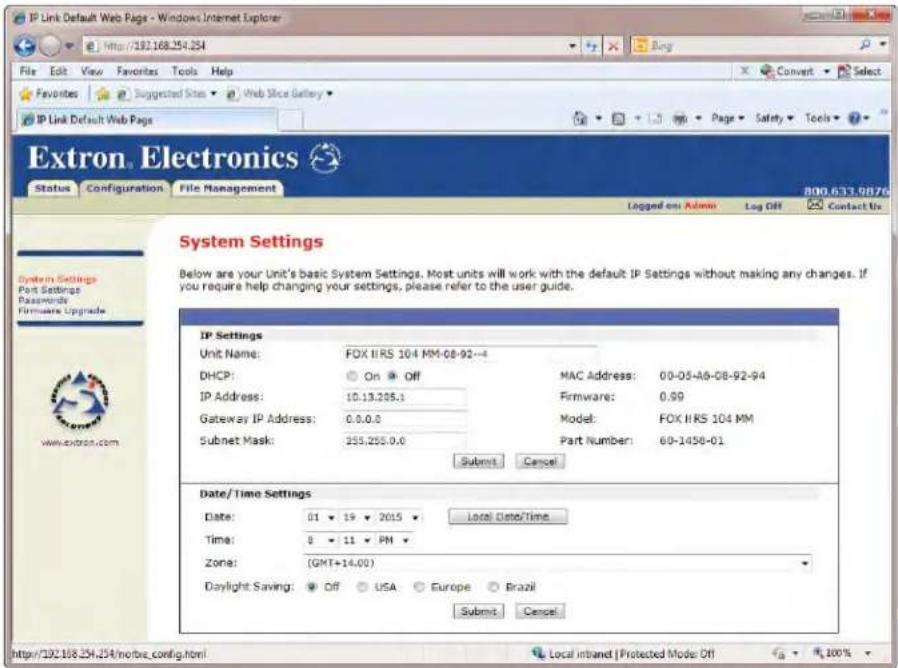
Figure 11. System Settings Page
On password-protected connections, there are two levels of protection: administrator and user. Administrators have full access to all capabilities and editing functions. Users can view all settings with the exception of passwords.
IP Settings fields
The IP Settings fields provide a location for viewing and editing settings unique to the Ethernet interface. After editing any of the settings on this page, click the Submit button at the bottom of the page.
Unit Name field — The Unit Name field contains the name used as the "from" information when the inserter e-mails notification of its failed or repaired status. This name field can be changed to any valid name, up to 24 alphanumeric characters.
NOTE: The HTML language reserves certain characters for specific functions (see Special Characters on page 27).
DHCP radio buttons — The DHCP On radio button directs the inserter to ignore any entered IP addresses and to obtain its IP address from a Dynamic Host Configuration Protocol (DHCP) server (if the network is DHCP capable). The DHCP Off radio button turns DHCP off. Contact the local system administrator to determine if DHCP is appropriate.
IP Address field — The IP Address field contains the IP address of the connected inserter. This value is encoded in the flash memory of the inserter.
Valid IP addresses consist of four 1-, 2-, or 3-digit numeric octets separated by dots (periods). Each field can be numbered from 000 through 255. Leading zeroes, up to 3 digits total per field, are optional. Values of 256 and above are invalid.
The factory-installed default address is 192.168.254.254, but if this conflicts with other equipment at your installation, you should ask your network administrator for a new, valid address.
NOTE: IP address changes can cause conflicts with other equipment. Only local system administrators should change IP addresses.
Gateway IP Address field — The Gateway IP Address field identifies the address of the gateway to the mail server to be used if the inserter and the mail server are not on the same subnet.
The gateway IP address has the same validity rules as the system IP address.
Subnet Mask field — The Subnet Mask field is used to determine whether the inserter is on the same subnet as the mail server when you are subnetting.
MAC Address field — The Media Access Control (MAC) Address is hardcoded in the inserter and cannot be changed.
Firmware field — The Firmware field identifies the installed firmware version. This field is hardcoded in the inserter and cannot be changed.
Model field — The Model field identifies the unit as the FOX or FOX II model and identifies the transmission mode (singlemode or multimode). This field is hardcoded in the inserter and cannot be changed.
Part Number field — The Part Number field identifies the part number of your inserter. This field is hardcoded in the inserter and cannot be changed.
Date/Time Settings fields
The Date/Time Settings fields (see figure 12) provide a location for viewing and setting the time functions.

Figure 12. Date/Time Settings Fields
To sync the inserter clock to the connected PC, click the Local Date/Time button and then click the Submit button.
NOTE: Use of the Local Date/Time button has no effect on the Zone and Daylight Savings functions.
For more complete control of the date and time settings, change the settings as follows:
- Click the drop box for the desired value. The adjustable variables are month, day, year, hours, minutes, AM/PM, and (time) zone. A drop-down scroll box appears (the year drop box is selected in figure 12, on the previous page).
- Click and drag the slider or click the scroll up ▶ button or the scroll down ▼ button until the desired value is visible.
- Click the desired value.
NOTES:
- If setting the time, set the local time. The Zone variable allows you to then enter the offset from Greenwich Mean Time (GMT).
-
The Zone field identifies the standard time zone selected and displays the amount of time, in hours and minutes, that the local time varies from the GMT international time reference.
-
Repeat steps 1 through 3 for other variables that need to be changed.
- If appropriate, select the appropriate Daylight Saving radio button to turn on the daylight savings time feature for your region or nation.
NOTE: When Daylight Saving Time is turned on, the inserter automatically updates its internal clock between Standard Time and Daylight Saving Time in the spring and fall on the date that the time change occurs in the country or region selected. When Daylight Savings Time is turned off, the inserter does not adjust its time reference.
- Click the Submit button.
RS-232 Port Settings page
Access the Port Settings page (see figure 13) by clicking the Port Settings link on the System Settings page.

Figure 13. RS-232 Port Settings Page
To tailor the serial data output on one of the fiber optic ports, select the radio button for a port and then use the drop-down boxes to select the baud rate, number of data bits, parity, and number of stop bits.
Passwords Page
Access the Passwords page (see figure 14) by clicking the Passwords link on the System Settings page.

Figure 14. Passwords Page
NOTE: If the inserter is password protected, fields on this page can be edited only by people logged in as administrators.
The fields on the Passwords page are for entering and verifying administrator and user passwords. Passwords are case sensitive and are limited to up to 12 uppercase and lowercase alphanumeric characters. Each password must be entered twice; once in the Password field and then again in the Re-enter Password field. Characters in these fields are masked by asterisks (*****). If you do not want to password protect an access level, leave the Password field and the Re-Enter Password field blank. After entering the password in both fields, click the Submit button.
NOTE: An administrator password must be created before a user password can be created.
Resetting a password
- Reset an existing password so that no password is required as follows:
- Clear any existing password.
- Enter a single space character in the Password and Re-enter Password fields.
- Click the Submit button.
Firmware Upgrade page
The Firmware Upgrade page (see figure 15) provides another way to replace the firmware that is coded on the control board of the inserter without taking the inserter out of service. Access the page by clicking the Firmware Upgrade link on the System Settings page.

Figure 15. Firmware Upgrade Page
NOTE: The Firmware Upgrade page is only for replacing the firmware that controls all inserter operation. To insert your own custom HTML pages, see File Management page on page 26.
Downloading the firmware from the website
To obtain the latest version of firmware for your FOX inserter:
- Visit www.extron.com and click the Download tab (see ①, figure 16).

Figure 16. Location of Firmware Upgrade Files
-
Click the Firmware link on the left sidebar menu (②).
-
On the Download Center screen (see ③, figure 17), click the Download link for the appropriate firmware file.

Figure 17. Finding Inserter Firmware
- Complete the Personal Information (see ④, figure 18) and click the Download button.
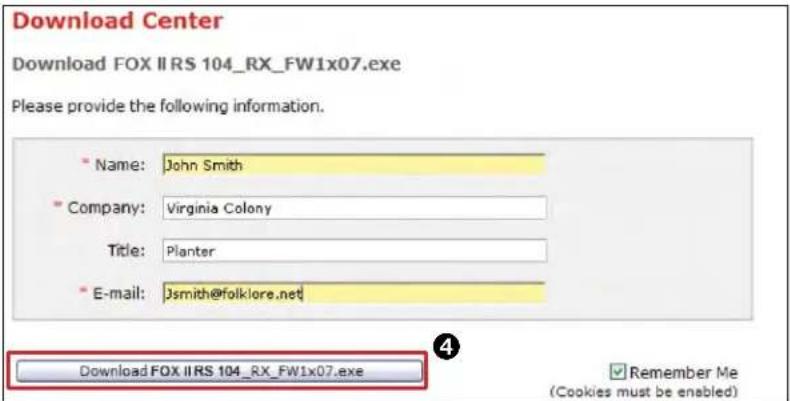
Figure 18. Personal Information Form
TIP: Select the Remember Me check box to avoid filling out this form in the future.
- Follow the instructions on the rest of the download screens to download the firmware update from the Extron website, start the Extron Installation Program to extract the firmware file, and place it in a folder identified in the program window.
ATTENTION:
- When downloaded from the Extron website, the firmware is placed in a subfolder of C:\Program Files\Extron\Firmware. Note the folder to which the firmware file is saved.
- The original factory-installed firmware is permanently available on the inserter. If the attempted firmware upload fails for any reason, the inserter reverts to the factory-installed firmware.
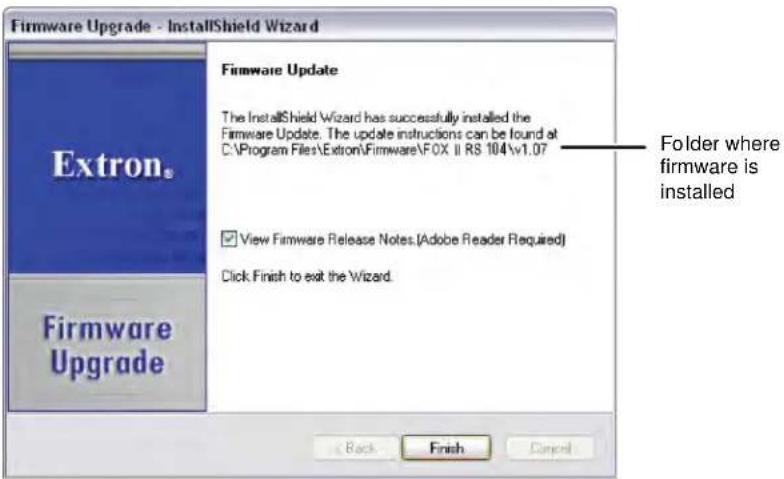
Figure 19. Location of the Firmware File
Uploading the firmware to the inserter
Update the firmware on your FOX inserter:
- Connect the PC to the FOX inserter via the LAN port of the inserter.
- Access the FOX inserter using HTML pages.
- Click the Configuration tab (see ①, figure 20).

Figure 20. Firmware Upgrade
- Click the Firmware Upgrade link (②).
- Click the Browse button (③). An open file window appears.
- Navigate to the folder where you saved the firmware upgrade file and select it ( 4).
- Click the open button ( 5).
- Click the Upload button (6). The firmware upload may take a few minutes. The inserter automatically reboots once the upload is complete.
File Management Tab
File Management page
To delete files such as user-supplied HTML pages from the inserter or to upload your own files to the inserter, click the File Management tab. The inserter downloads the file management HTML page (see figure 21).
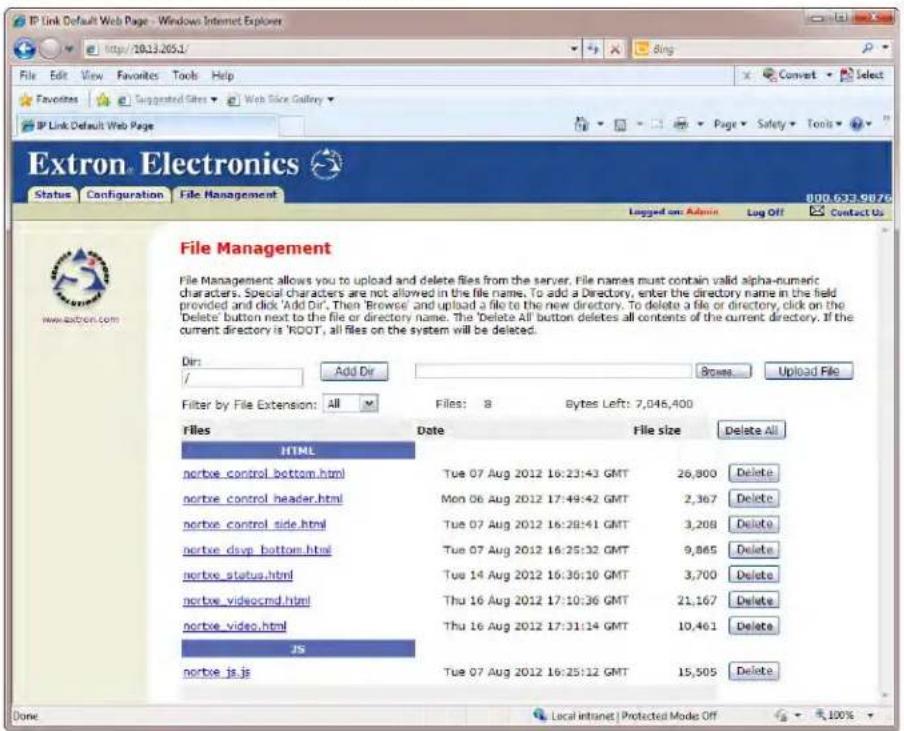
Figure 21. File Management Page
NOTE: The files listed in figure 21 are shown for example only and may not be present on your inserter.
To delete a file, check the associated delete check box and click the Delete Files button. Upload your own files as follows:
NOTE: The HTML language reserves certain characters for specific functions (see Special Characters on page 27).
- Click the Browse button.
- Browse through your system and select the desired file of files.
NOTE: If you want one of the pages that you create and upload to be the default startup page, name that file index.html.
- Click the Upload File button. The file or files that you selected appear in the list.
Special Characters
The HTML language reserves certain characters for specific functions. The inserter does not accept these characters as part of preset names, name of the inserter, passwords, or locally created file names.
The inserter rejects the following characters:
{space (spaces are ok for names)} + \~ , @ = ‘ [ ] { } < > ' “ semicolon (;) colon (:) | \ and ?.
Equipment Mounting
This section provides procedures for mounting the FOX II RS 104 and FOX RS 104 RS-232 Inserters.
Mounting the Inserters
ATTENTION:
The 1-inch high, half rack width Inserters can be placed on a table or mounted in a rack.
Tabletop Use
Affix the included rubber feet to the bottom of the unit and place it in any convenient location.
Mounting Kits
Mount the unit using any optional compatible mounting kit listed on www.extron.com, in accordance with the directions included with the kit. For rack mounting, see "UL Rack-Mounting Guidelines," below.
UL Rack-Mounting Guidelines
The following Underwriters Laboratories (UL) requirements pertain to the installation of the unit into a rack.
- Elevated operating ambient temperature — If installed in a closed or multi-unit rack assembly, the operating ambient temperature of the rack environment may be greater than room ambient. Therefore, consider installing the equipment in an environment compatible with the maximum ambient temperature (TMA = +122 °F, +50 °C) specified by Extron.
- Reduced air flow — Installation of the equipment in a rack should be such that the amount of air flow required for safe operation of the equipment is not compromised.
- Mechanical loading — Mounting of the equipment in the rack should be such that a hazardous condition is not achieved due to uneven mechanical loading.
- Circuit overloading — Consideration should be given to the connection of the equipment to the supply circuit and the effect that overloading of the circuits might have on overcurrent protection and supply wiring. Appropriate consideration of equipment nameplate ratings should be used when addressing this concern.
- Reliable earthing (grounding) — Reliable earthing of rack-mounted equipment should be maintained. Particular attention should be given to supply connections other than direct connections to the branch circuit (such as use of power strips).
Extron Warranty
Extron Electronics warrants this product against defects in materials and workmanship for a period of three years from the date of purchase. In the event of malfunction during the warranty period attributable directly to faulty workmanship and/or materials, Extron Electronics will, at its option, repair or replace said products or components, to whatever extent it shall deem necessary to restore said product to proper operating condition, provided that it is returned within the warranty period, with proof of purchase and description of malfunction to:
USA, Canada, South America, and Central America:
Extron Electronics
1230 South Lewis Street
Anaheim, CA 92805
U.S.A.
Japan:
Extron Electronics, Japan
Kyodo Building, 16 Ichibancho
Chiyoda-ku, Tokyo 102-0082
Japan
Europe and Africa:
Extron Europe
Hanzeboulevard 10
3825 PH Amersfoort
The Netherlands
China:
Extron China
686 Ronghua Road
Songjiang District
Shanghai 201611
China
Asia:
Extron Asia Pte Ltd
135 Joo Seng Road, #04-01
PM Industrial Bldg.
Singapore 368363
Singapore
Middle East:
Extron Middle East
Dubai Airport Free Zone
F12, PO Box 293666
United Arab Emirates, Dubai
This Limited Warranty does not apply if the fault has been caused by misuse, improper handling care, electrical or mechanical abuse, abnormal operating conditions, or if modifications were made to the product that were not authorized by Extron.
NOTE: If a product is defective, please call Extron and ask for an Application Engineer to receive an RA (Return Authorization) number. This will begin the repair process.
USA: 714.491.1500 or 800.633.9876
Europe: 31.33.453.4040
Asia: 65.6383.4400
Japan: 81.3.3511.7655
Units must be returned insured, with shipping charges prepaid. If not insured, you assume the risk of loss or damage during shipment. Returned units must include the serial number and a description of the problem, as well as the name of the person to contact in case there are any questions.
Extron Electronics makes no further warranties either expressed or implied with respect to the product and its quality, performance, merchantability, or fitness for any particular use. In no event will Extron Electronics be liable for direct, indirect, or consequential damages resulting from any defect in this product even if Extron Electronics has been advised of such damage.
Please note that laws vary from state to state and country to country, and that some provisions of this warranty may not apply to you.
| Extron Headquarters+1.800.633.9876 (Inside USA/Canada Only)Extron USA - West Extron USA - East+1.714.491.1500 +1.919.850.1000+1.714.491.1517 FAX +1.919.850.1001 FAX | Extron Europe+800.3987.6673(Inside Europe Only)+31.33.453.4040+31.33.453.4050 FAX | Extron Asia+65.6383.4400+65.6383.4664 FAX | Extron Japan+81.3.3511.7655+81.3.3511.7656 FAX | Extron China+86.21.3760.1568+86.21.3760.1566 FAX | Extron Middle East+971.4.299.1800+971.4.299.1880 FAX | Extron Korea+82.2.3444.1571+82.2.3444.1575 FAX | Extron India1800.3070.3777(Inside India Only)+91.80.3055.3777+91.80.3055.3737 FAX |

- Fiber Optic Extenders
- FOX II RS 104
- FOX RS 104
- Safety Instructions
- Safety Instructions • English
- Copyright
- Trademarks
- Class 1 Laser Product
- Conventions Used in this Guide
- Notifications
- ATTENTION:
- Software Commands
- Specifications Availability
- Contents
- Introduction 1
- Installation and Operation .... 5
- Remote Control 13
- Equipment Mounting 28
- Introduction
- About the Inserter
- Fiber Cable Transmission Modes
- Features
- Installation and Operation
- Rear Panel Connections
- NOTES:
- Making Connections
- Fiber connection examples
- LAN port cabling
- Operation
- Front Panel Features
- Rear Panel Reset Operations
- Performing Soft System Resets (Resets 3, 4, and 5)
- Remote Control
- Simple Instruction Set Control
- HTML Operation
- Host-to-Unit Instructions
- Unit-initiated Messages
- Error Responses
- Using the Command and Response Tables
- Symbol Definitions
- Opening the Embedded Web Pages
- Status Tab
- System Status page
- Configuration Tab
- System Settings page
- IP Settings fields
- Date/Time Settings fields
- RS-232 Port Settings page
- Passwords Page
- Resetting a password
- Firmware Upgrade page
- Downloading the firmware from the website
- |A|B|C|D|E|F|G|H|I|J|K|L|M|N|O|P|Q|R|S|T|U|V|W|X|Y|Z|All | Archives
- Release Notes
- Uploading the firmware to the inserter
- File Management Tab
- File Management page
- Special Characters
- Equipment Mounting
- Mounting the Inserters
- Tabletop Use
- Mounting Kits
- UL Rack-Mounting Guidelines
- Extron Warranty
- USA, Canada, South America, and Central America:
- Japan:
- Europe and Africa:
- China:
- Asia:
- Middle East:
Brand : Extron
Model : FOX II RS 104
Category : Audio/Video Equipment