LM-5011P - Point of Sale Terminal Posiflex - Free user manual and instructions
Find the device manual for free LM-5011P Posiflex in PDF.


User questions about LM-5011P Posiflex
0 question about this device. Answer the ones you know or ask your own.
Ask a new question about this device
Download the instructions for your Point of Sale Terminal in PDF format for free! Find your manual LM-5011P - Posiflex and take your electronic device back in hand. On this page are published all the documents necessary for the use of your device. LM-5011P by Posiflex.
USER MANUAL LM-5011P Posiflex
| Date | Version | Description |
| 2024/01/17 | A0 | For preliminary release |
CONTENTS
REVISION HISTORY .... 3
CONTENTS ....i
CHAPTER 1: FACTORY DEFAULTS ...... - 15 -
CHAPTER 2: USER DEFAULT SETTINGS....-15 -
CHAPTER 3: OUTPUT SETTINGS....-16 -
3.1 USB Interface Settings....- 16 -
3.2 RS232 Interface Setting ...... - 18 -
3.3 Keyboard Language ...... - 20 -
3.4 Character Encoding ...... - 23 -
3.5 Invoice Scan Mode ...... - 26 -
3.6 Invisible Character Output Control Settings....- 26 -
3.7 Keyboard Mode Settings - 27 -
CHAPTER 4: SYSTEM SETTINGS.... - 30 -
4.1 Enter Setup and Exit Setup....- 30 -
4.2 Scan Mode....- 30 -
4.3 Sleep Settings ...... - 34 -
4.4 Successful Reading Setting ...... - 35 -
4.5 Other Sound Settings....- 38 -
4.6 Image Property Settings ...... - 39 -
4.7 Lighting Settings - 42 -
CHAPTER 5: DATA EDITING ...... - 44 -
5.1 Prefix/Suffix Setting.... - 44 -
5.2 Prefix Sequence Setting.... - 44 -
POSIFLEX
5.3 Customized Prefix.... - 45 -
5.4 Code Type Name Display....- 46 -
5.5 AIM ID Prefix.... - 46 -
5.6 CODE ID Prefix ...... - 47 -
5.7 Customized Suffix....- 48 -
5.8 Suffix....- 49 -
5.9 Field Interception ...... - 50 -
5.10 GS Character Conversion....- 51 -
5.11 Character Replacement....- 53 -
5.12 Set NGR Information ...... - 54 -
CHAPTER 6: BARCODE PARAMETER SETTINGS....- 56 -
6.1 Overall Settings....- 56 -
6.2 Code128/AIM128/EAN128/NL128....- 57 -
6.3 UPC/EAN/ISSN/ISBN....- 59 -
6.4 Codabar ...... - 63 -
6.5 Code 39....- 66 -
6.6 Code 32....- 69 -
6.7 Code 93....-71 -
6.8 Code 11....-74 -
6.9 ITF-25/ITF-14/ITF-6/Deutsche12/Deutsche14....-76-
6.10 Industrial 25....-78 -
6.11 Matrix 25 - 81 -
6.12 NEC 25 /Japan Matrix 25 - 83 -
6.13 Standard 25 - 85 -
6.14 Data Logic 25 - 87 -
6.15 MSI-Plessey....- 89 -
6.16 Plessey....- 92 -
6.17 RSS-EXP /RSS_14/GS1 Data ...... - 93 -
POSIFLEX
6.18 Telepen....- 95 -
6.19 Pharma Code One-Track.... - 96 -
6.20 PharmaCode Two-Track ...... - 98 -
6.21 AZTEC....- 99 -
Factory Defaults: The communication mode will be restored to HID-KBW. For other default values, please refer the "System Default Setting Table", "Barcode Default Setting Table" in the Appendix.
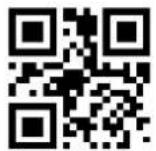
Restore All Factory Defaults
\>:S010186.<\
CHAPTER 2: USER DEFAULT SETTINGS
The user can set the required configuration according to the use environment, and then scan "Save Current Setting" to save the current configuration as the user default configuration. If the user default settings have been set before, this operation will replace the original user default settings information. The initial user default configuration can be restored by scanning "Restore User Default Setting".

Save Current Setting
\>:SVDEF02.<\

Restore User Default Setting
\>:S020286.<\
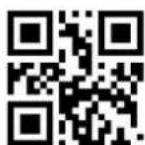
Exit Setup
CHAPTER 3: OUTPUT SETTINGS
3.1 USB Interface Settings
When using USB to connect the scanner and host, users can choose USB HID-KBW, USB virtual serial port or USB HID-POS according to actual needs.
3.1.1 USB HID
USB HID-KBW:
In keyboard mode, place the mouse cursor on the notepad, etc., and the data will be entered into the notepad after successful decoding.
USB HID POS:
Use HID POS protocol to communicate
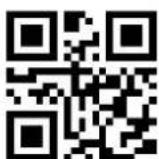
USB HID-KBW (Default)
\>:SOF0116.<\

USB HID POS
\>: S0F0516.<\
Upload Data Delay Setting
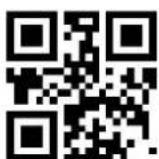
No Delay (Default)
\>:SC00037.<\
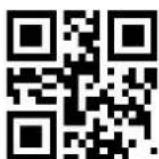
Delay (20ms)
\>:SC04037.<\
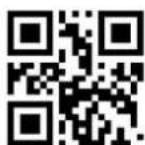
Exit Setup

Delay (40ms)
\>:SC0C037.<\

Delay setting (Any interval)
\>:R0001E2.<\
The data delay is actually delayed according to the character, and the unit is 1ms (milliseconds).
For Example: Set the delay 10ms (data code is expressed in hexadecimal)
1) Scan code "Enter Setup"
2) Scan code "Delay setting"
3) Scan Data code "0" "A" (in Appendix)
4) Scan code "Save" (in Appendix)
5) Scan code "Exit Setup"
3.1.2 USB Virtual Com
USB Virtual Com:
Enumerate into a virtual serial port. At this time, the PC needs to use the serial port assistant to receive data.
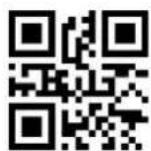
USB Virtual Com
\>:SOF0216.<\
Exit Setup
3.2 RS232 Interface Setting
Rs232 interface is a common way to connect scanner and host equipment (such as PC, POS and other equipment). When using the RS232 interface, the scanner and the host device must match the communication parameter configuration completely to ensure smooth communication and correct content.
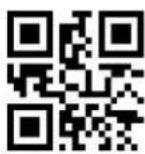
RS232
\>:SOF0016.<\
3.2.1 Baud Rate
Baud rate is the number of bits of data transmitted per second. Set the baud rate to match the host requirements.

1200bps
\>:SOF0047.<\
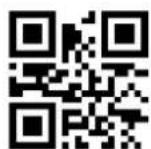
2400bps
\>:SOF0147.<\
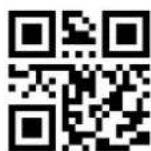
4800bps
\>:SOF0247.<\
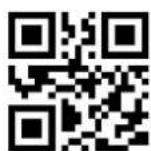
9600bps (Default)
\>:SOF0347.<\

Exit Setup

19200bps \>:SOF0547.<\

38400bps \>:SOF0647.<\

57600bps \>:SOF0747.<\
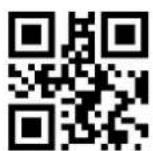
115200bps \>:SOF0847.<\
3.2.2 Parity
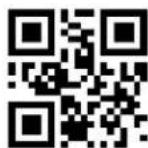
No Parity (Default)
\>:S060046.<\
3.2.3 Stop Bits
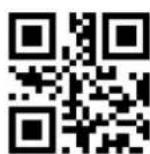
1 Stop Bit (Default)
\>:S010046.<\
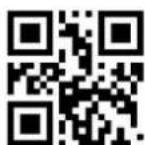
Exit Setup
3.2.4 Data Bits
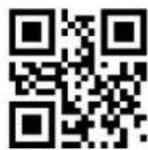
8 Data Bits (Default)
\>:S080846.<\
3.2.5 Flow Control
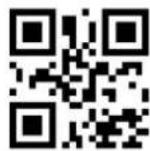
Non (Default)
\>:S600016.<\
3.3 Keyboard Language
The key arrangement, symbols, etc. of a keyboard is different due to different national languages. The scanner can be virtualized into keyboard standards of different countries according your needs, and the default is the US keyboard.
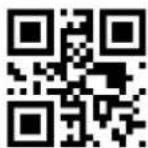
U.S.A (English) (Default)
\>:S1F001D.<\

Belgium \>:S1F011D.<\
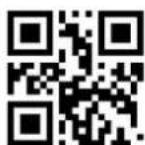
Exit Setup
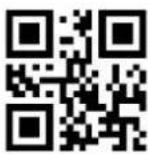
Brazil
\>:S1F021D.<\
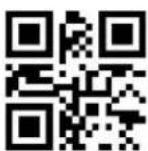
Czech slovakia
\>:S1F041D.<\
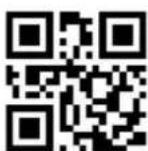
Finland (Swedish)
\>:S1F061D.<\
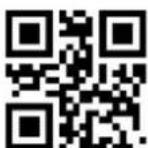
Germany / Austria
\>:S1F081D.<\
Hungary
\>:S1F0A1D.<\

Canada (French)
\>:S1F031D.<\

Denmark
\>:S1F051D.<\

France
\>:S1F071D.<\
Greece
\>:S1F091D.<\

Israel (Hebrew)
\>:S1F0B1D.<\
Italy \>:S1F0C1D.<\
Latin America \>:S1F0D1D.<\

Netherlands (Dutch) \>:S1F0E1D.<\

Norway \>:S1F0F1D.<\
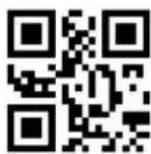
Poland \>:S1F101D.<\

Portugal \>:S1F111D.<\

Romania \>:S1F121D.<\
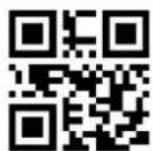
Russia \>:S1F131D.<\

Slovakia \>:S1F151D.<\
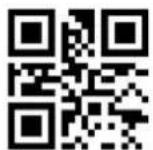
Spain \>:S1F161D.\

Sweden \>:S1F171D.<\
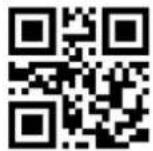
Switzerland \>:S1F181D.<\

Turkey_F \>:S1F191D.<\
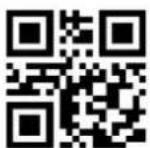
Turkey_Q \>:S1F1A1D.<\

UK \>:S1F1B1D.<\

Japan \>:S1F1C1D.<\

Italy 142 \>:S1F1F1D.<\

Thailand \>:S203F1D.<\
3.4 Character Encoding
Original data transmission: The original decoded data adopts decimal encoding.
Transfer to internal code to send: According to the keyboard language settings of different countries, the decoded data will be converted into the corresponding national internal code and sent; please accord with the "keyboard format setting
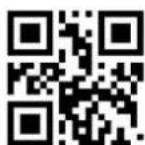
Exit Setup
HID-KBW" setting.

Send Original data (Default)
\>:S070019.<\

Convert to internal code to send
\>:S070319.<\
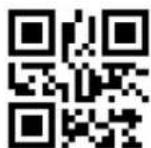
Convert to UNICODE
\>:S070519.<\
3.4.1 Encoding Preset
Example: If the barcode's binary code is SHIFT JIS and the content is Russian, at this time, turn off the Chinese output first, select RUSSIA in Keyboard Language, and the HID input code is preset to SHIFT JIS, converted to internal code and sent, it will be output correctly Russian.
When HID transmission mode-original data transmission, HID input code preset-invalid!!!

Auto (Default)
\>:SF0000C.<\

GBK2312
\>:SF0100C.<\

Exit Setup
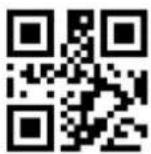
UTF-8
\>:SF0200C.<\
BIG-5
\>:SF0300C.<\
SHIFT JIS
\>:SF0400C.<\
3.4.2 Chinese Output Quick Settings
You can set Chinese output to TXT or WORD.
Chinese output to TXT
\>:SHTCT01.<\
Chinese output to WORD
\>:SHTCT02.<\
Disable Chinese output
\>:SHTCT03.<\

Exit Setup
3.5 Invoice Scan Mode
The QR content format of different invoices is different. After enabling this function, the decoded result will be analyzed and reorganized according to certain rules. Only the national tax is supported.
National tax regulations: Start character \$+version number
01+base64(name</->taxpayer identification number</->address telephone</->account opening bank and account number</->CRC)+terminator \$.
Disable (Default)
\>:SOF002A.<\
National tax
\>:S01002A.<\
3.6 Invisible Character Output Control Settings
3.6.1 Disable/Enable Invisible Character Output
Enable
\>:S070236.<\

Disable (Default)
\>:S070736.<\
3.6.2 F1-F12 Function Key Settings
Function keys refer to F1-F12. To output "Enter", need to set "output function keys".
Exit Setup
Output function key (Default)
\>:S070036.<\
Output CTRL key combination
\>:S070136.<\
Example: Set the prefix "F8" (Hexadecimal value is 0x1D)
1) Scan code "Enter setup"
2) Scan code "Allow adding custom prefix"
3) Scan code "Set Custom Prefix"
4) Scan Data code: "1" "D" (in Appendix)
5) Scan code "Save" (in Appendix)
6) Scan code "Output CTRL key combination"
7) Scan code "Exit setup"
3.7 Keyboard Mode Settings
3.7.1 Keyboard Input Mode

Standard keyboard input mode
\>:S030037.<\

Virtual keyboard input mode
ALT+NUM
\>:S030337.<\
3.7.2 Analog Numeric Keypad
Analog numeric keypad: Before sending the result of scan code, it will first judge whether num lock is turned on. If it is not turned on, then send a command to turn it on.

Exit Setup
Analog numeric keypad
\>:S040437.<\
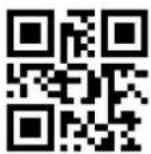
NO simulate the numeric keypad
(Default)
\>:S040037.<\
3.7.3 Caps Lock

No Case Conversion
\>:S380037.<\

Letter case interchange
\>:S380837.<\

Convert All to Upper Case
\>:S382037.<\
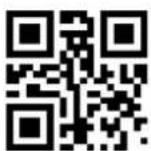
Convert All to Lower Case
\>:S383037.<\
3.7.4 ALT+NUM Special Settings
When outputting internal code, if use alt+Num model, the first number is 0, the received input method needs to set the corresponding national keyboard, otherwise it may be garbled; if the first digit does not add zero, the received system code needs to be consistent with the internal code output from the scanner, otherwise it may be garbled. When the keyboard can not output standard ASCII characters, you can choose to use ALT+number instead of output.
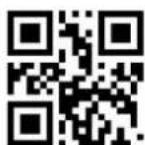
Exit Setup
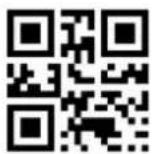
Not output the leading 0
\>:S080036.<\
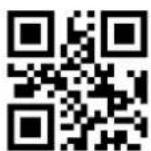
Keyless ASCII is not output (Default)
\>:S100036.<\

Output leading 0 (Default)
\>:S080836.<\

ALT+Numbers instead of keyless
ASCII
\>:S101036.<\
CHAPTER 4: SYSTEM SETTINGS
4.1 Enter Setup and Exit Setup
Scanning the "Enter Setup" barcode can enable the scanner to enter the setup mode. Then you can scan a number of programming barcodes to configure your scanner.
To exit the setup mode, scan the Exit Setup barcode or a non-programming barcode, or reboot the scanner.
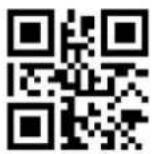
Enter setup
\>:S01010F.<\

Exit setup (Default)
\>:S01000F.<\
4.2 Scan Mode
4.2.1 Manual Mode
Press the button to trigger the reading, and release the button to end the reading. If the reading is successful or the reading time exceeds the single reading time, the reading will end.
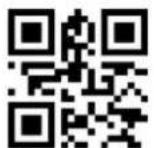
Manual mode (Command+Button) (Default)
\>:S03001A.<\

Exit Setup
4.2.2 Automatic Scanning Mode
In the induction mode, you can activate the scanner to work by pressing a button, sending a command, or auto-sensing.
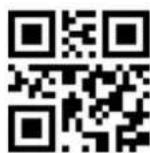
Automatic Mode (Command+Button+Auto-sensing)
\>:S03011A.<\
4.2.3 Continuous Scanning Mode
Under continuous Scanning Mode, after a period of time when a reading is successful, it will automatically start the next reading. Start or end scanning until the button is pressed and released (buttons and commands can be terminated and reopened)
Continuous Mode (Buttons+Command)
\>:S03021A.<\
4.2.4 Decode Session Timeout
Decode Session Timeout
\>:R000302.<\

Exit Setup
Example: Set the reading interval time 500ms (Data code expressed in hexadecimal)
1) Scan code "Enter setup"
2) Scan code "Decode Session Timeout"
3) Scan Data code "1" (in Appendix)
4) Scan Data code "F" (in Appendix)
5) Scan Data code "4" (in Appendix)
6) Scan code "Save" (in Appendix)
7) Scan code "Exit setup"
4.2.5 Single Scanning Time
Enabling the scanning till the it turned off automatically when the timeout is reached.

Single reading timeout
\>:R000064.<\
Example: Set the single reading time 4000ms (The data code is expressed in hexadecimal)
1) Scan code "Enter setup"
2) Scan code "Single reading timeout"
3) Scan Data code "F" (in Appendix)
4) Scan Data code "A" (in Appendix)
5) Scan Data code "0" (in Appendix)
6) Scan code "Save" (in Appendix)
7) Scan code "Exit setup"
Exit Setup
4.2.6 Timeout between Decodes (Same Barcode)
The same barcode reading interval can be controlled by setting the same barcode delay.
Disable Timeout between
Decodes (Same Barcode)
\>:S100017.<\
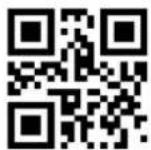
Enable Timeout between
Decodes (Same Barcode)
\>:S101017.<\

Same Code Reading Time Setting
\>:R000322.<\
4.2.7 Sensitivity
This setting is for Sense Mode. The higher the sensitivity, the more sensitive the scanner is to the image. To avoid mistaken scanning, you can select an appropriate degree of sensitivity that fits the application environment.
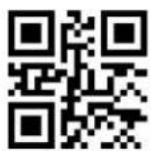
Hyper Sensitivity (Default)
\>:S3F0034.<\
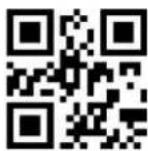
High Sensitivity
\>:S3F0534.<\
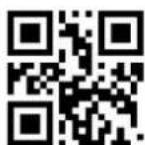
Exit Setup
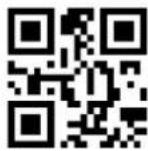
Medium Sensitivity
\>:S3F1034.<\
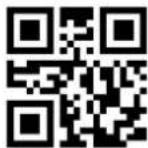
Low Sensitivity
\>:S3F3034.<\
4.3 Sleep Settings
4.3.1 Enable/Disable Sleep
Sleep mode: Refers to the sleep mode when there is no operation for a period of time, and some resources will be shut down.

Disable automatic sleep (Default)
\>:S200017.<\
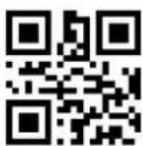
Enable automatic sleep
\>:S202017.<\
4.3.2 Sleep Time Setting

Sleep time
\>:R000012.<\
Sleep duration refers to how long it goes to sleep after no action, or how long to wake up after going to sleep.
Example: Set the sleep time 1000ms (The data code is expressed in hexadecimal)
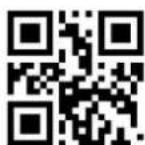
Exit Setup
1) Scan code "Enter setup"
2) Scan code "Sleep time"
3) Scan Data code "3" (in Appendix)
4) Scan Data code "E" (in Appendix)
5) Scan Data code "8" (in Appendix)
6) Scan code "Save" (in Appendix)
7) Scan code "Exit setup"
4.4 Successful Reading Setting
4.4.1 Enable/Disable Beep
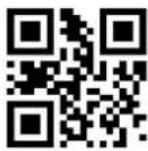
Enable prompt tone for successful reading (Setting code) (Default) \>:S020229.<\

Disable prompt tone for successful reading (Setting Code) \>:S020029.<\
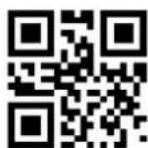
Enable the prompt tone for successful reading (not setting code) (Default) \>:S040429.<\
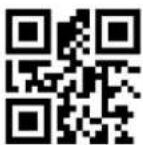
Disable prompt tone for successful reading (not setting code) \>:S040029.<\
4.4.2 Enable/Disable the Same Code Beep
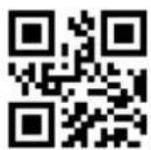
Enable
\>:S010135.<\
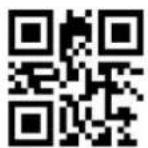
Disable (Default)
\>:S010035.<\
4.4.3 Beep Frequency

Low
\>:SFFDA27.<\

Medium
\>:SFF4B27.<\

Loud (Default)
\>:SFF2527.<\
4.4.4 Prompt Tone Duration

40ms (Short)
\>:SFF1F28.<\
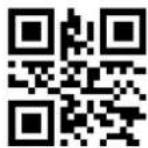
80ms (Middle) (Default)
\>:SFF3E28.<\
Exit Setup
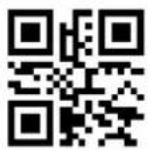
120ms (Long)
\>:SFF5D28.<\
4.4.5 Read Tone Sound

Low
\>:S030018.<\

Medium
\>:S030118.<\

Loud
\>:S030218.<\
4.4.6 Enable/Disable the Reminder Light (LED)
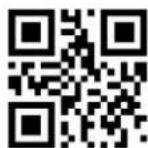
Enable the LED (Default)
\>:S101029.<\
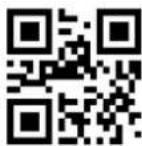
Disable the LED
\>:S100029.<\

Exit Setup
4.4.7 Enable/Disable Same Code LED
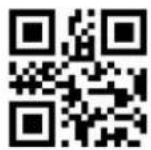
Enable
\>:S020235.<\

Disable (Default)
\>:S020035.<\
4.5 Other Sound Settings
4.5.1 Enable/Disable Power tone
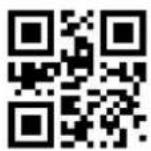
Enable Power Tone (Default)
\>:S010129.<\
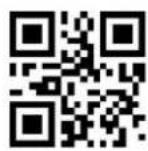
Disable Power Tone
\>:S010029.<\

Buzzer prompt (Default)
\>:S202029.<\
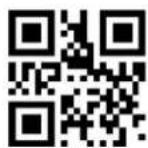
Enable unknown character sound
\>:S080829.<\
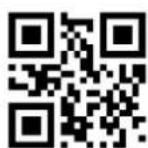
Disable unknown chacter beep
\>:S080029.<\
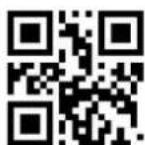
Exit Setup
4.5.2 Mute Setting
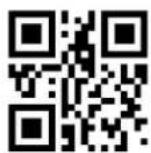
Disable Mute
\>:S404000.<\

Enable Mute
\>:S400000.<\
4.6 Image Property Settings
In some application scenarios, the default image may not meet the decoding needs. At this time, you can turn on/off certain image properties (such as Image sharpening) to meet the decoding needs in special scenarios.
The basic steps of image attribute setting are as follows:
- Enable setting code
- Set on/off image properties
- Enable image extension settings
For example, Disable Image Sharpening, follow the setting steps as follows:
1) Scan code: Enter setup
2) Scan code: Disable Image sharpening
3) Scan code: Enable Image extension setting
4.6.1 Enable Image Extension Setting

Enable Image extension setting
\>:S010123.<\
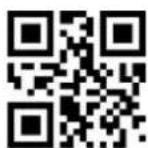
Disable Image extension setting (Default)
\>:S010023.<\
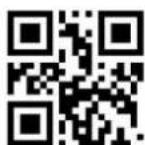
Exit Setup
4.6.2 Image sharpening
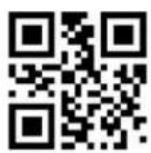
Enable Image sharpening (Default)
\>:S020223.<\

Disable Image sharpening \>:S020023.<\
4.6.3 Decode Timeout Setting
Decode timeout: Applied to control the decoder to exit the decoding of the current image with the set timeout time and proceed to the decoding of the next image when the decoding fails.
1D Decoding Timeout Setting
Enable 1D code Timeout (Default)
\>:S01010B.<\

Disable 1D code Timeout \>:S01000B.<\
1D Decode Timeout Setting
1D decode timeout time \>:R001A04.<\

Exit Setup
2D Decode Timeout Setting

Enable 2D code timeout (Default)
\>:S02020B.<\
Disable 2D code timeout
\>:S02000B.<\
2D Decode Timeout Setting
2D Decode timeout time
\>:R001A44.<\
4.6.4 Vertical Scan
Function Description: When this setting is turned on, the decoding will increase the vertical scanning to improve the success rate of the decoding, but if the decoding fails, the decoding time will increase
Enable
\>:S010122.<\
Disable (Default)
\>:S010022.<\
Exit Setup
4.7 Lighting Settings
4.7.1 Illumination
Illumination action one: the environment when take the picture; action two: prompt of decoding completion

Off
\>:SOC0000.<\

Reading On (Default)
\>:SOC0400.<\
Always On
\>:SOC0800.<\
4.7.2 Aiming

Off
\>:S300000.<\
Reading On
(Lit when reading, Default)
\>:S301000.<\
Exit Setup

Aloways On
\>:S302000.<\
4.7.3 Setting of Automatic Lights for Dark Environment

Enable (Default)
\>:S020021.<\
Disable
\>:S020221.<\
When the dark light environment is enabled, the decoder detects the image according to the set [Detection Time], and judges whether it is in a dark environment according to the [Detection Threshold]. When the detected value is less than the set threshold. Then the decoder automatically turns on the light.
Dark light detection time setting
\>:R0019C2.<\

Dark light detection threshold
Setting
\>:R0019E1.<\
Dark light detection time and dark light detection threshold setting steps
1) Scan code [Enter setup]
2) Scan code [dark light detection time setting] or 【\>:R0019E1.<\】
3) Scan code [digital code]
4) Scan code [Save]
5) Scan code [Exit setup]
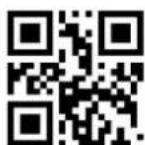
Exit Setup
CHAPTER 5: DATA EDITING
In daily applications, we need to edit the data before outputting it to facilitate data differentiation and processing.
Data editing includes: adding prefix, adding suffix, decoding information, adding terminator.
The default output sequence of processed data is as follow:
5.1 Prefix/Suffix Setting
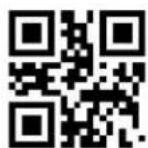
Enable all prefixes and suffixes \>:S80804E.<\

Disable all prefixes and suffixes \>:S80004E.<\
5.2 Prefix Sequence Setting
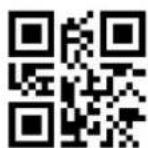
Customized prefix + Code ID + AIM ID \>:S01014E.<\

Code ID + Custom prefix + AIM ID (Default) \>:S01004E.<\
5.3 Customized Prefix
Customized Prefix : The customized prefix adds a user-defined string before the decoded information. For example, it is allowed to add a customized prefix and set the prefix to the character string "AB". After reading the barcode with the data "123", the scanner adds the character string "AB" before the character string "123", and the host receives "AB123"";
5.3.1 Enable/Disable Adding Customized Prefix
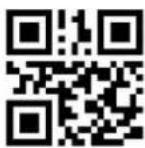
Enable add custom prefixes
\>:S04044E.<\

Disable add custom prefixes
(Default)
\>:S04004E.<\
5.3.2 Set Customized Prefix
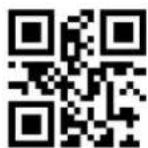
Set custom prefix
\>: R000505.<\
Example: Set customized prefix to "CODE" (The hexadecimal value is 0x43/0x4F/0x44/0x45)
1) Scan code "Enter setup"
2) Scan code "Set Custom Prefix"
3) Scan Data Code: "4" "3" "4" "F" "4" "4" "4" "5" (in Appendix)
4) Scan code "Save" (in Appendix)
5) Scan code "Enable add custom prefixes"
6) Scan code "Exit setup"
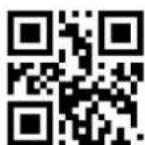
Exit Setup
5.4 Code Type Name Display
This function needs to set "Allow all types of prefixes and suffixes to be added". Add the code type name at the beginning of the scan code result. For example [QR].
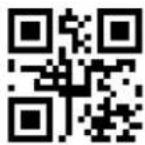
Allow display code type name \>:S808082.<\

Prohibit display code type name \>:S800082.<\
5.5 AIM ID Prefix
AIM, known as the Automatic Identification Manufacturers, defines identification codes for various standard bar codes, which are defined in Appendix. The scanner can add this identification code before the barcode data after decoding, that is, the AIM ID prefix.
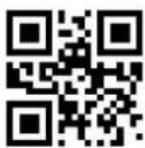
Allow add AIM ID \>:S010182.<\
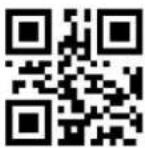
Prohibit add AIM ID (Default) \>:S010082.<\
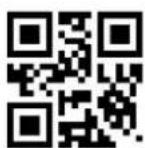
All barcode Code ID Restore factory default value
\>:DEFXXC2.<\

Exit Setup
5.6 CODE ID Prefix
Other than using AIM ID to identify different bar code types, users can also use the Code ID prefix to identify bar code types. Unlike the AIM ID prefix, the Code ID prefix corresponding to each barcode type can be customized. The Code ID of all barcodes consists of 1 or 2 characters, and it must be letters only, numbers, invisible characters, or punctuation marks, etc are not supported.
5.6.1 Allow/Prohibit Adding CODE ID Prefix
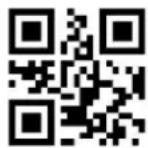
Allow to add CODE ID prefix
\>:S02024E.<\

Prohibit add CODE ID prefix
(Default)
\>:S02004E.<\
5.6.2 Setting CODE ID Prefix
Please refer to the following example for the method of modifying Code ID.
Example: Modify the Code ID of Code 128 to "p" (the hexadecimal value is 0x70)
1) Scan code "Enter setup"
2) Scan code "Set CODE128 CODE ID"
3) Scan Data code: "7" (in Appendix)
4) Scan Data code: "0" (in Appendix)
5) Scan code "Save" (in Appendix)
6) Scan code "Allow to add CODE ID prefix"
7) Scan code "Exit setup"

Exit Setup
5.7 Customized Suffix
Custom Suffix: The customized suffix is to add a user-defined string after decoding the information. For example, it is allowed to add a custom suffix and set the suffix to the character string "AB". After reading the barcode with the data as "123", the scanner adds the character string "AB" after the character string "123", and the host receives "123AB".
Note: The total length of the custom suffix string cannot exceed 5 characters.
5.7.1 Allow / prohibit adding custom suffix

Allow Custom Suffix
\>:S08084E.<\

Prohibit Custom Suffix (Default)
\>:S08004E.<\
5.7.2 Setting Custom Suffix
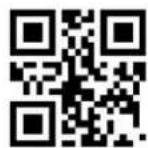
Setting Custom Suffix
\>:R0005B5.<\
Example: Setting custom prefix is "CODE" (Hexadecimal value is 0x43/0x4F/0x44/0x45)
1) Scan code "Enter setup"
2) Scan code "Setting Custom Suffix"
3) Scan Data code: "4" "3" "4" "F" "4" "4" "4" "5" (in Appendix)
4) Scan code "Save" (in Appendix)
5) Scan code "Allow Custom Cuffix"
6) Scan code "Exit setup"
Exit Setup
5.8 Suffix
The suffix (such as carriage return, line feed) marks the end of a complete data message. The suffix must be the last content when a piece of data is sent, and there will be no additional data after that.
Note: The total length of the terminator suffix string cannot exceed 5 characters.
5.8.1 Enable / Disable Suffix
Enable suffix (Default)
\>:S10104E.<\
Disable suffix
\>:S10004E.<\
Scanning the following setting codes can you quickly set the terminator as 0x0D (carriage return) or 0x0D, 0x0A (carriage Linefeed) or 0x09 (Tab), and allow adding terminator to send.

Set suffix
\>:R000655.<\
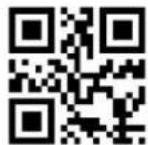
Set suffix 0x0D (Default)
\>:DEFXXC3.<\
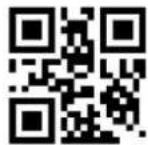
Set suffix 0x0D,0x0A
\>:DEFXXC4.<\
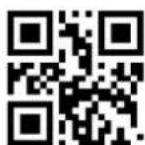
Set suffix 0x09
\>:DEFXXC5.<\
Exit Setup
Users can also customize the terminator suffix: First scan "Set suffix", then scan the hexadecimal value of the terminator suffix to be set in sequence, at last, scan "Save".
Note: The total length of the terminator suffix string cannot exceed 5 characters.
Example : Setting Custom suffix is 0x0A
1) Scan code "Enter setup"
2) Scan code "Set suffix"
3) Scan Data code: "0" "A" (in Appendix)
4) Scan code "Save" (in Appendix)
5) Scan code "Enable suffix"
6) Scan code "Exit setup"
5.9 Field Interception
Field interception refers to the secondary editing of the scanned code result.
Assuming that the scan code result data contains a total length of K bytes, the first segment is M bytes and the latter segment is N bytes. The value range of M and N is 0-255.

text_image
Scan code result string, total length K Bytes M K-M-N NInterception method and effect
Keep origin
Reserve Front part M bytes setting
Reserve Back part N bytes setting
Reserve K-M-N bytes in the middle section
If you want to hide the front bytes, N is set to 0, keep the middle, that is, K-M-0 If you want to hide the back bytes, set M to 0 and keep the middle, ie K-0-N
Exit Setup
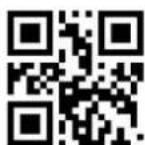
Keep only the front part
\>:S180882.<\

Keep only the back part (Default)
\>:S181082.<\

Keep only the middle section
\>:S181882.<\
Keep origin (Default)
\>:S180082.<\
For the setting of the M bytes in the front part and the N bytes in the back part, the set length is 0-255, that is, 0x00-0xFF.
For example, to set the M bytes to 18, the corresponding ASCII hexadecimal value is 12, first scan the "Front part M bytes setting", then the date "1" and "2" respectively, and then scan code "save"
Front part M bytes setting
\>:R000831.<\

Back part N bytes setting
\>:R000841.<\
5.10 GS Character Conversion
GS character conversion refers to replacing the 0x1D contained in the content with the specified ASCII character.
5.10.1 Enable/ Disable GS character conversion
Exit Setup

Enable GS characters conversion
\>:S010181.<\

Disable GS characters conversion
(Default)
\>:S010081.<\
5.10.2 Set GS Character conversion
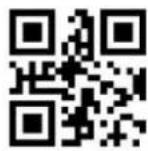
Set GS Conversion
\>:R0006A6.<\
Example: Set the GS conversion to “######” (The hexadecimal value is 0x23/0x23/0x23/0x23)
1) Scan code "Enter setup"
2) Scan code "Set GS conversion"
3) Scan Data code: "2" "3" "2" "3" "2" "3" "2" "3" (in Appendix)
4) Scan code "Save" (in Appendix)
5) Scan code "Enable GS characters conversion"
6) Scan code "Exit setup"
5.10.3 Quick Setting Code for Special GS Conversion
Including four substitutions: "[GS]", "(GS)", "

GS
\>:SHTCT04.<\


Exit Setup
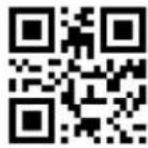
(GS)
\>:SHTCT06.<\

'GS'
\>:SHTCT08.<\

|
\>:SHTCT0A.<\
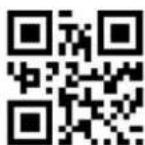
*
\>:SHTCT0C.<\
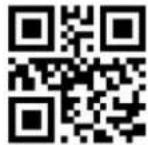
[GS]
\>:SHTCT07.<\
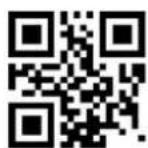
'GS'
\>:SHTCT09.<\

?
\>:SHTCTOB.<\
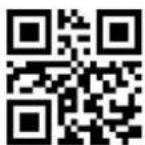
<0x1D>
\>:SHTCTOD.<\
5.11 Character Replacement
This function is to set an original replacement character and a replaced character. When the running character replacement is turned on, the character replacement is performed before outputting in the keyboard communication mode. If there is a set of transcoding, such as unicode to internal code or internal code to unicode, after the conversion, it is checked whether it is the character to be replaced, and if so, it is
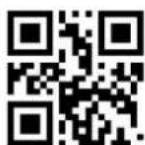
Exit Setup
replaced with the character to be replaced.
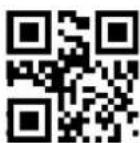
Allow character substitution
\>:S020281.<\
Disable character substitution
\>:S020081.<\
When setting the original replacement character and the replaced character, it is 2 bytes, with the high order first, that is, xxxxyyyy, xxxx is the original replacement character, and yyyy is the replaced character.
For example, replace the space with a carriage return, that is, 0020000D, 0020 is a space, and 000D is a carriage return.
Refer to the GS character replacement character for the setting procedure.
Replacement character setting code.
Character replacement data settings
\>:R0007D4.<\
5.12 Set NGR Information
After enable sending NGR information, when the decoding times out, the scanner will send user-defined NGR information to the host to determine the reading failure; users can set their own customized content by setting the NGR information. (NGR maximum of 7 characters!)

Exit Setup
5.12.1 Enable/ Disable Send NGR
Enable Send NGR
\>:S40404E.<\

Disable Send NGR (Default)
\>:S40004E.<\
5.12.2 Set NGR Information
Set NGR information
\>: R000767.<\
Example: Set NGR information to "FAIL" (hexadecimal value is 0x46/0x41/0x49/0x4C)
1) Scan code "Enter setup"
2) Scan code "Set NGR Information"
3) Scan Data code: "4" "6" "4" "1" "4" "9" "4" "C" (in Appendix)
4) Scan code "Save" (in Appendix)
5) Scan code "Enable Send NGR"
6) Scan code "Exit setup"
CHAPTER 6: BARCODE PARAMETER
SETTINGS
6.1 Overall Settings
6.1.1 Enable/Disable Reading All Barcodes
Set "Disable all barcode", the scanner cannot read other codes except the setting code

Enable all barcode
\>:S010187.<\
Disable all barcode
\>:S010087.<\
6.1.2 Enable/Disable Reading All 1D Barcodes

Enable all 1D Codes
\>:S020287.<\

Disable all 1D code
\>:S020087.<\
6.1.3 Enable/Disable Reading All 2D Barcodes
Enable all 2D codes
\>:S040487.<\

Disable all 2D codes
\>:S040087.<\
Exit Setup
Note: CODE128 and QR barcodes mandatorily enabled, all setting codes cannot disable both of them.
6.1.4 Enable/Disable Reading All 1D/2D Reverse Barcodes
Enable all 1D reverse barcode \>:S080887.<\

Disable all 1D reverse barcode (Default) \>:S080087.<\

Enable all 2D reverse barcode \>:S101087.<\
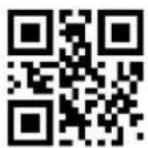
Disable all 2D reverse barcode (Default) \>:S100087.<\
6.2 Code128/AIM128/EAN128/NL128
6.2.1 Enable/Disable
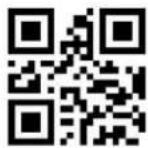
Enable (Default) \>:S010188.<\
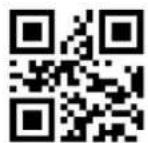
Disable \>:S010088.<\
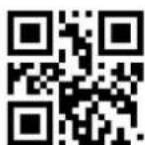
Exit Setup
6.2.2 CODE ID
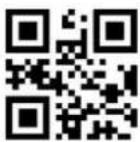
Set CODE128 CODE ID
\>: R001342.<\
6.2.3 Length Settings
The user can set the maximum and minimum length of barcode reading. If the length of barcode being read does not match the set effective length, the barcode reading will be unsuccessful, and the scanner will not send the data to the host.
The barcode length is composed of "Minimum length" and "Maximum length". If the maximum length is less than the minimum length, only barcodes of these two lengths can be read. If the maximum length is equal to the minimum length, only barcode of this length is supported.
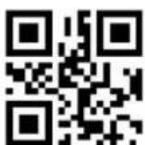
CODE 128 Maximum decoding
length
\>: R000C21.<\

CODE 128 Minimum decoding
length
\>: R000C31.<\
Example: Limited the scanner only read minimum 8 characters and maximum 12 characters
1) Scan code "Enter setup"
2) Scan code "CODE 128 Minimum decoding length"
3) Scan Data code "8" (in Appendix)
4) Scan code "Save" (in Appendix)
5) Scan code "CODE 128 Maximum decoding length"
Exit Setup
6) Scan Data code "C" (in Appendix)
7) Scan code "Save" (in Appendix)
8) Scan code "Exit setup"
6.2.4 GS1-128 Output Enable
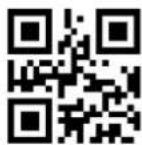
Enable output
\>:S202088.<\

Disable output (Default)
\>:S200088.<\
6.3.3 Parity Bits Transmission
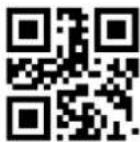
EAN8 parity output (Default)
\>:S0101AA.<\
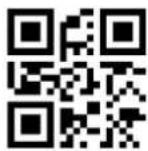
EAN8 no parity output
\>:S0100AA.<\

EAN13 parity output (Default)
\>:S0202AA.<\
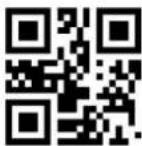
EAN13 no parity output
\>:S0200AA.<\

UPCA parity output (Default)
\>:S0404AA.<\
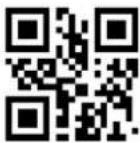
UPCA no parity output
\>:S0400AA.<\
UPCE parity output (Default)
\>:S0808AA.<\
UPCE no parity output
\>:S0800AA.<\
6.3.4 Set Whether to Enable Scan Additional Codes
After setting to "Read 2 digits additional code" or "Read 5 digits additional code", the scanner can read new barcodes composed of ordinary barcodes and additional codes, as well as ordinary barcodes without additional codes. After setting to "not read 2 digit additional code" or "not read 5 digit additional code", the part of the additional code in the new barcode composed of ordinary barcode and additional code will not
Exit Setup
be read, and the part of the common ordinary barcode can still be read.

Read 2 digit additional code
(Default)
\>:S101089.<\

Not read 2 digit additional
code\>:S100089.<\

Read 5 digit additional code
(Default)
\>:S080889.<\
Not read 2 digit additional code
\>:S080089.<\
6.3.5 Set Whether Additional Code is Required
This parameter is only valid when the scanner has been set "Read 2 digit additional code" or "read 5 digit additional code".
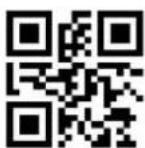
With additional code
\>:S808089.<\

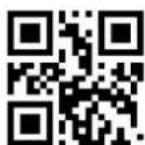
No additional code required
(Default)
\>: S800089.<\
Exit Setup
6.3.6 Extension Settings
"Barcode information not extended", means keep all original types and data bits; "Barcode information 8 expand to 13", means expanding the Data Bits of the barcode (add 0 at the prefix), but the barcode type remains.

ENA8 to ENA13 OPEN \>:S600089.<\
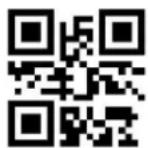
ENA8 to ENA13 CLOSE (Default) \>:S602089.<\

UPCE to UPCA OPEN \>:S1010A4.<\
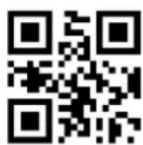
UPCE to UPCA CLOSE (Default) \>:S1000A4.<\
UPCA to EAN13 OPEN \>:S0301A4.<\

UPCA to EAN13 CLOSE (Default) \>:S0300A4.<\
Barcode information 8 expand to 13 \>:S600089.<\
Barcode information is not expanded (Default) \>:S602089.<\
6.4 Codabar
6.4.1 Enable/Disable Scan

Enable \>:S01018C.<\
Disable (Default) \>:S01008C.<\
6.4.2 CODE ID

Set CODABAR CODE ID
\>: R0013E2.<\
6.4.3 Parity
The check digit is not mandatory in the Codabar barcode data. If there is a check digit, it is the last character of the data. The check digit is a value calculated based on all data to check whether the data is correct.
Set to "None parity", the scanner will transmit all barcode data normally.
Set to "Check but not send check digit", the scanner will check according to the last 1 digit of the barcode. If the check is passed, normal data (the check digit excluded) will be transmitted. If the check fails, the barcode reading failure will be prompted.
Set to "Check and send check digit", the scanner will check the last 1 digit of the barcode. If the check is passed, the check digit will be transmitted as the last 1 digit of normal data. If the check fails, the reading failure will be promoted.
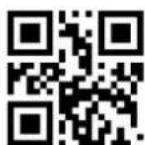
Exit Setup
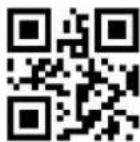
None parity (Default)
\>:S02008C.<\

Check but not send check digit
\>:S06028C.<\
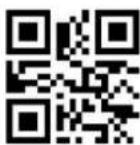
Check and send check digit
\>:S06068C.<\
6.4.4 Length Settings
The user can set the maximum and minimum length of barcode reading. If read barcode length does not match the set effective length, the barcode reading is unsuccessful, and the scanner will not send the barcode content to the host.
The barcode length is composed of "minimum length" and "maximum length". If the maximum length is less than the minimum length, only barcodes of these two lengths can be read. If the maximum length is equal to the minimum length, only barcode of this length is supported.

CODABAR Maximum decoding
length
\>: R000C81.<\

CODABAR Minimum decoding
length
\>: R000C91.<\

Exit Setup
Example: Limit the scanner to only read barcodes with a minimum of 8 bytes and a maximum of 12 bytes
1) Scan code "Enter setup"
2) Scan code "CODABAR Minimum decoding length"
3) Scan Data code "8" (in Appendix)
4) Scan code "Save" (in Appendix)
5) Scan code "CODABAR Maximum decoding length"
6) Scan Data code "C" (in Appendix)
7) Scan code "Save" (in Appendix)
8) Scan code "Exit setup"
6.4.5 Send Start/stop character setting

Not Send start/stop character
(Default)
\>:S08088C.<\
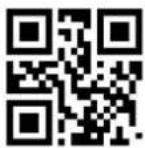
Send start/stop character
\>:S08008C.<\
Start/stop character case setting
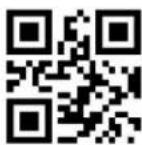
Start character Uppercaser
(Default)
\>:S20008C.<\
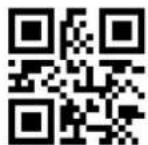
Start character Lowercase
\>:S20208C.<\

Exit Setup
6.5 Code 39
6.5.1 Enable/Disable Scan
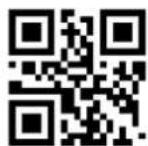
Enable (Default)
\>:S01018A.<\

Disable
\>:S01008A.<\
6.5.2 CODE ID

Set CODE39 CODE ID
\>: R001382.<\
6.5.3 Parity
The check digit is not mandatory in the Code 39 barcode data. If there is a check digit, it will be the last character of the data. The check digit is a value calculated based on all data to check whether the data is correct.
Set to "None parity", the scanner will transmit all barcode data normally.
Set to "Check but not send check digit", the scanner will check the barcode according to the last 1 digit of it. If the check is passed, normal data (check digit excluded) will be transmitted. If the check fails, the barcode reading failure will be prompted.
Set to "Check and send check digit", the scanner will check the last 1 digit of the barcode. If the check is passed, the check digit will be transmitted as the last 1 digit

Exit Setup
of normal data. If the check fails, the barcode reading failure will be prompted.
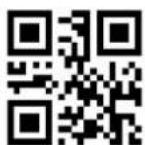
None parity (Default)
\>:S02008A.<\
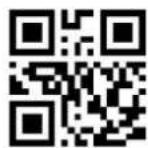
Check but not send check digit
\>:S06028A.<\
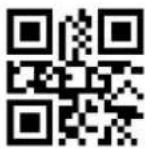
Check and send check digit
\>:S06068A.<\
6.5.4 Expand Support
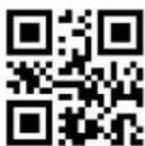
Enable Expand
\>:S08088A.<\
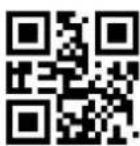
Disable Expand (Default)
\>:S08008A.<\
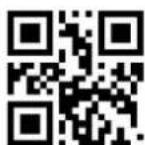
6.5.5 Full ASCII Support

Enable full ascii (Default)
\>:S20208A.<\
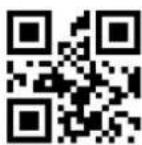
Disable full ascii
\>:S20008A.<\
Exit Setup
6.5.6 Length Settings
The user can set the maximum and minimum length of barcode reading. If the read barcode length does not match the preset effective length, the barcode reading is unsuccessful, and the scanner will not send the barcode content to the host.
The barcode length is composed of "minimum length" and "maximum length". If the maximum length is less than the minimum length, only barcodes of these two lengths can be read. If the maximum length is equal to the minimum length, only barcode of this length is supported.
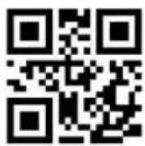
CODE 39 Maximum decoding length
\>: R000C41.<\

CODE 39 Minimum decoding length
\>: R000C51.<\
Example: Limit the scanner to only read barcodes with a minimum of 8 bytes and a maximum of 12 bytes
1) Scan code "Enter setup"
2) Scan code "CODE 39 Minimum decoding length"
3) Scan Data code "8" (in Appendix)
4) Scan code "Save" (in Appendix)
5) Scan code "CODE 39 Maximum decoding length"
6) Scan Data code "C" (in Appendix)
7) Scan code "Save" (in Appendix)
8) Scan code "Exit setup"
6.5.7 Send PREFIX Character (A)

Send PREFIX character (A)
\>:S1010AB.<\

Not send PREFIX Character
(Default)
\>:S1000AB.<\
6.5.8 CODE39 Send Leading Character (\*)
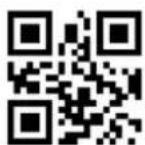
CODE39 Send leading
\>:S2020AB.<\

CODE39 Don't send Leading
(Default)
\>:S2000AB.<\
6.6 Code 32
6.6.1 Enable/Disable Scan
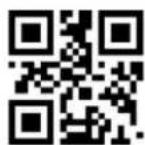
Enable (Default)
\>:S0101AB.<\
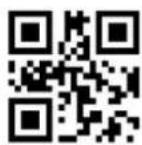
Disable
\>:S0100AB.<\
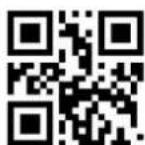
Exit Setup
6.6.2 CODE ID
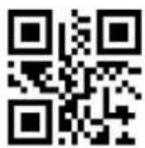
Set CODE32 CODE ID
\>:R001792.<\
6.6.3 Send PREFIX Character (A)
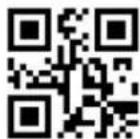
Send PREFIX character (A)
\>:S1010AB.<\

Not send PREFIXcharacter
(Default)
\>:S1000AB.<\
6.6.4 Length Settings
The user can set the maximum and minimum length of barcode reading. If the read barcode length does not match the set effective length, the barcode reading is unsuccessful, and the scanner will not send the barcode content to the host.
The barcode length is composed of "minimum length" and "maximum length". If the maximum length is less than the minimum length, only barcodes of these two lengths can be read. If the maximum length is equal to the minimum length, only barcode of this length is supported.

CODE 32 Maximum decoding
length
\>:R001181.<\

CODE 32 Minimum decoding
length
\>:R001191.<\
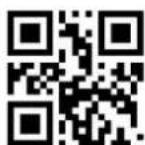
Exit Setup
Example: Limit the scanner to only read barcodes with a minimum of 8 bytes and a maximum of 12 bytes
1) Scan code "Enter setup"
2) Scan code "CODE 32 Minimum decoding length"
3) Scan Data code "8" (in Appendix)
4) Scan code "Save" (in Appendix)
5) Scan code "CODE 32 Maximum decoding length"
6) Scan Data code "C" (in Appendix)
7) Scan code "Save" (in Appendix)
8) Scan code "Exit setup"
6.7 Code 93
6.7.1 Enable/Disable Scan

Enable (Default)
\>:S01018D.<\

Disable
\>:S01008D.<\
6.7.2 CODE ID
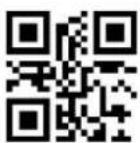
Set CODE93 CODE ID
\>: R001402.<\
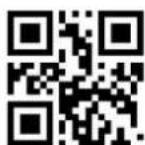
Exit Setup
6.7.3 Parity
The check digit is not mandatory in Code 93 barcode data. If there is a check digit, it is the last 2 characters of the data. The check digit is a value calculated based on all data to check whether the data is correct.
Set to "None parity", the scanner will transmit all barcode data normally.
Set to "Check but not send check digit", the scanner will check the barcode according to the last 2 digits of it. If the check is passed, normal data (check digit excluded) will be transmitted. If the check fails, the barcode reading failure will be prompted.
Set to "Check and send check digit", the scanner will check according to the last 2 digits of the bar code. If the check is passed, the check digit will be transmitted together as the last 2 digits of normal data. If the check fails, the barcode reading failure will be prompted.
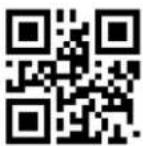
None parity (Default)
\>:S02008D.<\

Check but not send check digit
\>:S06028D.<\
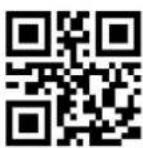
Check and send check digit
\>:S06068D.<\
6.7.4 Full ASCII Support
Full ASCII: The representation of all ASCII characters is included in the encoding method of Code 39. Through certain setting, the scanner can support barcodes containing the full ASCII character set.

Enable full ascii (Default)
\>:S20208D.<\

Disable full ascii
\>:S20008D.<\
6.7.5 Length Settings
The user can set the maximum and minimum length of barcode reading. If read barcode length does not match the set effective length, the barcode reading is unsuccessful, and the scanner will not send the barcode content to the host.
The barcode length is composed of "minimum length" and "maximum length". If the maximum length is less than the minimum length, only barcodes of these two lengths can be read. If the maximum length is equal to the minimum length, only barcode of this length is supported.
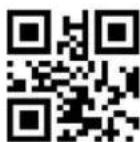
CODE 93 Maximum decoding
length
\>: R000CA1.<\

CODE 93 Minimum decoding
length
\>: R000CB1.<\
Example: Limit the scanner to only read barcodes with a minimum of 8 bytes and a maximum of 12 bytes
1) Scan code "Enter setup"
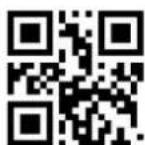
Exit Setup
2) Scan code "CODE 93 Minimum decoding length"
3) Scan Data code "8" (in Appendix)
4) Scan code "Save" (in Appendix)
5) Scan code "CODE 93 Maximum decoding length"
6) Scan Data code "C" (in Appendix)
7) Scan code "Save" (in Appendix)
8) Scan code "Exit setup"
6.8 Code 11
6.8.1 Enable/Disable Scan
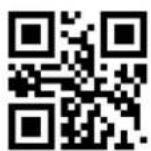
Enable
\>:S01018F.<\

Disable (Default)
\>:S01008F.<\
6.8.2 CODE ID

Set CODE11 CODE ID
\>: R001442.<\
6.8.3 Parity
The check digit is not mandatory in Code 11 barcode data. If there is a check digit, it is the last 1 or 2 characters of the data. The check digit is a value calculated based on all data to check whether the data is correct.
Set to "None parity", the scanner will transmit all barcode data normally.
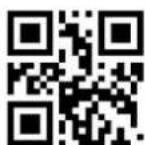
Exit Setup

None parity (Default)
\>:S02008F.<\
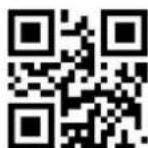
1 parity bit
\>:S08008F.<\

2 parity bits
\>:S08088F.<\

Check but not send check digit
\>:S06028F.<\

Check and send check digit
\>:S06068F.<\
6.8.4 Length Settings
The user can set the maximum and minimum length of barcode reading. If the read barcode length does not match the set effective length, the barcode reading is unsuccessful, and the scanner will not send the barcode content to the host.
The barcode length is composed of "minimum length" and "maximum length". If the maximum length is less than the minimum length, only barcodes of these two lengths can be read. If the maximum length is equal to the minimum length, only barcode of this length is supported.

Exit Setup
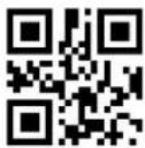
CODE 11 Maximum decoding
length
\>: R000CE1.<\

CODE 11 Minimum decoding
length
\>: R000CF1.<\
Example: Limit the scanner to only read barcodes with a minimum of 8 bytes and a maximum of 12 bytes
1) Scan code "Enter setup"
2) Scan code "CODE 11 Minimum decoding length"
3) Scan Data code "8" (in Appendix)
4) Scan code "Save" (in Appendix)
5) Scan code "CODE 11 Maximum decoding length"
6) Scan Data code "C" (in Appendix)
7) Scan code "Save" (in Appendix)
8) Scan code "Exit setup"
6.9 ITF-25/ITF-14/ITF-6/Deutsche12/Deutsche14
Interleaved 2 of 5 barcode data is not mandatory to include a check digit. If there is a check digit, it is the last character of the data. The check digit is a value calculated based on all data to verify whether the data is correct.
Set to "None parity", the scanner will transmit all barcode data normally.
Set to "Check but not send check digit", the scanner will check the last 1 digit of the barcode. If the check is passed, the normal data (the check digit excluded) will be transmitted. If the check fails, the barcode reading failure will be prompted.
Set to "Check and send check digit", the scanner will check the last 1 digit of the barcode. If the check is passed, the check digit will be transmitted as the last 1 digit of normal data. If the check fails, the barcode reading failure will be prompted.
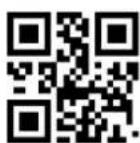
None parity (Default)
\>:S02008B.<\

Check but not send check digit
\>:S06028B.<\
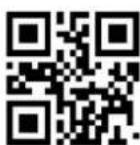
Check and send check digit
\>:S06068B.<\
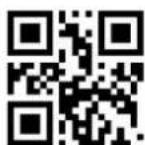
Exit Setup
6.9.4 Length Setting
The user can set the maximum and minimum length of barcode reading. If read barcode length does not match the set effective length, the barcode reading is unsuccessful, and the scanner will not send the barcode content to the host.
The barcode length is composed of "minimum length" and "maximum length". If the maximum length is less than the minimum length, only barcodes of these two lengths can be read. If the maximum length is equal to the minimum length, only barcode of this length is supported.
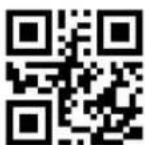
ITF Maximum decoding length
\>: R000C61.<\
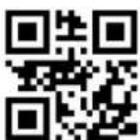
ITF Minimum decoding length
\>: R000C71.<\
Example: Limit the scanner to only read barcodes with a minimum of 8 bytes and a maximum of 12 bytes
1) Scan code "Enter setup"
2) Scan code "ITF Minimum decoding length"
3) Scan Data code "8" (in Appendix)
4) Scan code "Save" (in Appendix)
5) Scan code "ITF Maximum decoding length"
6) Scan Data code "C" (in Appendix)
7) Scan code "Save" (in Appendix)
8) Scan code "Exit setup"
6.10 Industrial 25
6.10.1 Enable/Disable Scan

Exit Setup
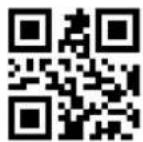
Enable
\>:S010193.<\

Disable (Default)
\>:S010093.<\
6.10.2 CODE ID

Set INDUSTRIAL 25 CODE ID
\>: R0014E2.<\
6.10.3 Parity
The check digit is not mandatory in the Industrial 25 barcode data. If there is a check digit, it is the last character of the data. The check digit is a value calculated based on all data to check whether the data is correct.
Set to "None parity", the scanner will transmit all barcode data normally.
Set to "Check but not send check digit", the scanner will check according to the last 1 digit of the barcode. If the check is passed, the normal data (the check digit excluded) will be transmitted. If the check fails, the barcode reading failure will be prompted.
Set to "Check and send check digit", the scanner will check the last 1 digit of the barcode. If the check is passed, the check digit will be transmitted as the last 1 digit of normal data. If the check fails, the barcode reading failure will be prompted.
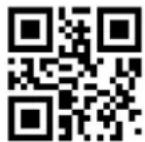
None parity (Default)
\>:S020093.<\

Check but not send check digit
\>:S060293.<\

Check and send check digit
\>:S060693.<\
6.10.4 Length Settings
The user can set the maximum and minimum length of barcode reading. If the read barcode length does not match the set effective length, the barcode reading is unsuccessful, and the scanner will not send the barcode content to the host.
The barcode length is composed of "minimum length" and "maximum length". If the maximum length is less than the minimum length, only barcodes of these two lengths can be read. If the maximum length is equal to the minimum length, only barcode of this length is supported.
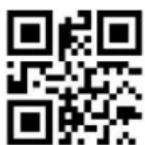
INDUSTRIAL 25 Maximum
decoding length
\>: R000D41.<\

INDUSTRIAL 25 Minimum
decoding length
\>: R000D51.<\

Exit Setup
Example: Limit the scanner to only read barcodes with a minimum of 8 bytes and a maximum of 12 bytes
1) Scan code "Enter setup"
2) Scan code "INDUSTRIAL 25 Minimum decoding length"
3) Scan Data code "8"(in Appendix)
4) Scan code "Save" (in Appendix)
5) Scan code "INDUSTRIAL 25 Maximum decoding length"
6) Scan Data code "C" (in Appendix)
7) Scan code "Save" (in Appendix)
8) Scan code "Exit setup"
6.11 Matrix 25
6.11.1 Enable/Disable scan
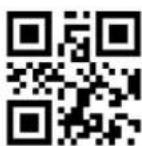
Enable
\>:S01018E.<\

Disable (Default)
\>:S01008E.<\
6.11.2 CODE ID
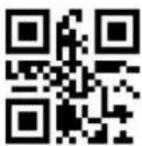
Set MATRIX25 CODE ID
\>: R001422.<\
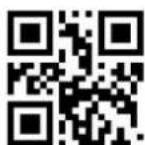
Exit Setup
6.11.3 Parity
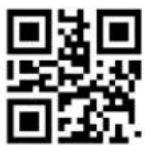
None parity (Default)
\>:S02008E.<\
Check but not send check digit
\>:S06028E.<\
Check and send check digit
\>:S06068E.<\
6.11.4 Length Settings
The user can set the maximum and minimum length of barcode reading. If read barcode length does not match the set effective length, the barcode reading is unsuccessful, and the scanner will not send the barcode content to the host.
The barcode length is composed of "minimum length" and "maximum length". If the maximum length is less than the minimum length, only barcodes of these two lengths can be read. If the maximum length is equal to the minimum length, only barcode of this length is supported.
Matrix25 Maximum decoding
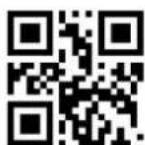
length
\>: R000CC1.<\
Matrix25 Minimum decoding
length
\>: R000CD1.<\
Exit Setup
Example: Limit the scanner to only read barcodes with a minimum of 8 bytes and a maximum of 12 bytes
1) Scan code "Enter setup"
2) Scan code "Matrix25 Minimum decoding length"
3) Scan Data code "8" (in Appendix)
4) Scan code "Save" (in Appendix)
5) Scan code "Matrix25 Maximum decoding length"
6) Scan Data code "C" (in Appendix)
7) Scan code "Save" (in Appendix)
8) Scan code "Exit setup"
6.12 NEC 25 /Japan Matrix 25
None parity (Default)
\>:S02009E.<\

Check but not send check digit
\>:S06029E.<\

Check and send check digit
\>:S06069E.<\
6.12.4 Length Settings
The user can set the maximum and minimum length of barcode reading. If read barcode length does not match the set effective length, the barcode reading is unsuccessful, and the scanner will not send the barcode content to the host.
The barcode length is composed of "minimum length" and "maximum length". If the maximum length is less than the minimum length, only barcodes of these two lengths can be read. If the maximum length is equal to the minimum length, only barcode this length is supported.
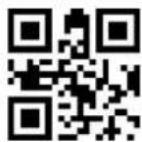
NEC25 Maximum decoding length
\>: R000FE2.<\

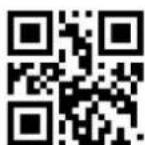
NEC25 Minimum decoding length
\>: R001002.<\
Exit Setup
Example: Limit the scanner to only read barcodes with a minimum of 8 bytes and a maximum of 12 bytes
1) Scan code "Enter setup"
2) Scan code "NEC25 Minimum decoding length"
3) Scan Data code "8" (in Appendix)
4) Scan code "Save" (in Appendix)
5) Scan code "NEC25 Maximum decoding length"
6) Scan Data code "C" (in Appendix)
7) Scan code "Save" (in Appendix)
8) Scan code "Exit setup"
6.13 Standard 25
6.13.1 Enable/Disable Scan
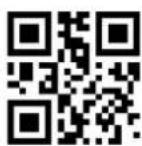
Enable
\>:S010192.<\
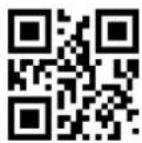
Disable (Default)
\>:S010092.<\
6.13.2 CODE ID
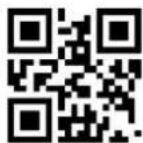
Set STANDARD 25 CODE ID
\>: R0014A2.<\

Exit Setup
6.13.3 Parity
Standard 25 barcode data is not mandatory to include a check digit. If there is a check digit, it is the last character of the data. The check digit is a value calculated based on all data to check whether the data is correct.
Set to "None parity", the scanner will transmit all barcode data normally.
Set to "Check but not send check digit", the scanner will check according to the last 1 digit of the barcode. If the check is passed, the normal data (check digit excluded) will be transmitted. If the check fails, the barcode reading failure will be prompted.
Set to "Check and send check digit", the scanner will check the last 1 digit of the barcode. If the check is passed, the check digit will be transmitted as the last 1 digit of normal data. If the check fails, the barcode reading failure will be prompted.

None parity (Default)
\>:S020092.<\

Check but not send check digit
\>:S060292.<\

Check and send check digit
\>:S060692.<\
6.13.4 Length Settings
The user can set the maximum and minimum length of barcode reading. If read barcode length does not match the set effective length, the barcode reading is unsuccessful, and the scanner will not send the barcode content to the host.
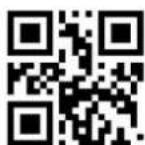
Exit Setup
The barcode length is composed of "minimum length" and "maximum length". If the maximum length is less than the minimum length, the barcode only recognizes the two lengths of Scan. If the maximum length is equal to the minimum length, only barcode of this length is supported.

STANDARD 25 Maximum
decoding length
\>: R000D21.<\
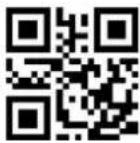
STANDARD 25 Minimum
decoding length
\>: R000D31.<\
Example: Limit the scanner to only read barcodes with a minimum of 8 bytes and a maximum of 12 bytes
1) Scan code "Enter setup"
2) Scan code "STANDARD 25 Minimum decoding length"
3) Scan Data code "8" (in Appendix)
4) Scan code "Save" (in Appendix)
5) Scan code "STANDARD 25 Maximum decoding length"
6) Scan Data code "C" (in Appendix)
7) Scan code "Save" (in Appendix)
8) Scan code "Exit setup"
6.14 Data Logic 25
6.14.1 Enable/Disable scan
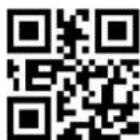
Enable \>:S01019F.<\
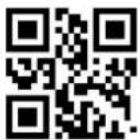
Disable (Default) \>:S01009F.<\
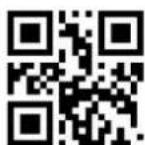
Exit Setup
6.14.2 CODE ID
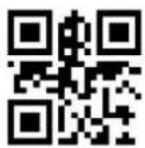
Set DataLogic25 CODE ID
\>: R001692.<\
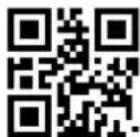
6.14.3 Parity
None parity (Default)
\>:S02009F.<\

Check but not send check digit
\>:S06029F.<\
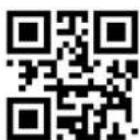
Check and send check digit
\>:S06069F.<\
6.14.4 Length Settings
The user can set the maximum and minimum length of barcode reading. If read barcode length does not match the set effective length, the barcode reading is unsuccessful, and the scanner will not send the barcode content to the host.
The barcode length is composed of "minimum length" and "maximum length". If the maximum length is less than the minimum length, only barcodes of these two lengths can be read. If the maximum length is equal to the minimum length, only barcode of this length is supported.
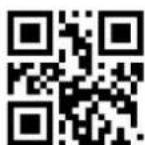
Exit Setup

Data Logic 25 Maximum decoding
length
\>: R001022.<\
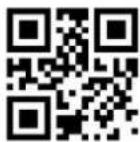
Data Logic 25 Minimum decoding
length
\>: R001042.<\
Example: Limit the scanner to only read barcodes with a minimum of 8 bytes and a maximum of 12 bytes
1) Scan code "Enter setup"
2) Scan code "Data Logic 25 Minimum decoding length"
3) Scan Data code "8" (in Appendix)
4) Scan code "Save" (in Appendix)
5) Scan code "Data Logic 25 Maximum decoding length"
6) Scan Data code "C" (in Appendix)
7) Scan code "Save" (in Appendix)
8) Scan code "Exit setup"
6.15 MSI-Plessey
6.15.1 Enable/Disable Scan
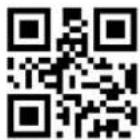
Enable MSI-Plessey
\>:S010191.<\
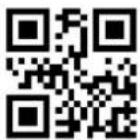
Disable (Default)
\>:S010091.<\
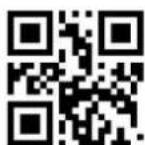
Exit Setup
6.15.2 CODE ID
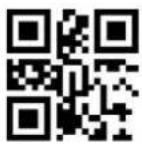
Set MSI PLESSEY ID
\>: R001482.<\
6.15.3 Parity
The check digit is not mandatory in the MSI-Plessey barcode data. If there is a check digit, it is the last 1 or 2 characters of the data. The check digit is a value calculated based on all data to verify whether the data is correct.
Set to "None Check", the reader will transmit all barcode data normally.
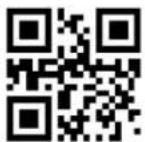
None parity Disable
\>:S020191.<\
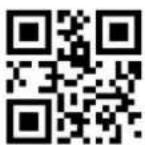
MOD10 One Check Character
(Default)
\>:S180091.<\
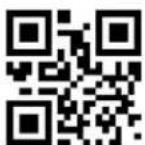
MOD10/11 Check Character
\>:S180891.<\
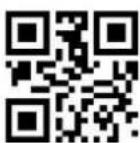
MOD10/10 Check Character
\>:S181091.<\

Exit Setup

Not Send MIS-Plessey Check Character (Default)
\>:S060291.<\
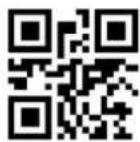
Send and Check MIS-Plessey Check Character
\>:S060691.<\
6.15.4 Lengths Settings
The user can set the maximum and minimum length of barcode reading. If the read barcode length does not match the set effective length, the barcode reading is unsuccessful, and the scanner will not send the barcode content to the host.
The barcode length is composed of "minimum length" and "maximum length". If the maximum length is less than the minimum length, only barcodes of these two lengths can be read. If the maximum length is equal to the minimum length, only barcode of this length is supported.

MSI_Plessey Maximum decoding length
\>: R000D01.<\
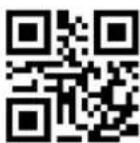
MSI_Plessey Minimum decoding Length
\>: R000D11.<\
Example: Limit the scanner to only read barcodes with a minimum of 8 bytes and a maximum of 12 bytes
1) Scan code "Enter setup"
2) Scan code "MSI_Plessey Minimum decoding Length"
3) Scan Date code "8" (in Appendix)
4) Scan code "Save" (in Appendix)
5) Scan code "MSI_Plessey Maximum decoding length"
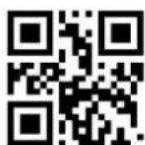
Exit Setup
6) Scan Data code "C" (in Appendix)
7) Scan code "Save" (in Appendix)
8) Scan code "Exit setup"
6.16 Plessey
6.16.1 Enable/Disable Plessey Scan

Enable Plessey
\>:S0101A0.<\
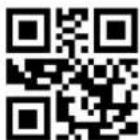
Disable Plessey (Default)
\>:S0100A0.<\
6.16.2 CODE ID
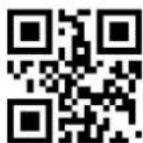
Set Plessey CODE ID
\>: R0016F2.<\
6.16.3 Lengths Settings
The user can set the maximum and minimum length of barcode reading. If read barcode length does not match the set effective length, the barcode reading is unsuccessful, and the scanner will not send the barcode content to the host.
The barcode length is composed of "minimum length" and "maximum length". If the maximum length is less than the minimum length, only barcodes of these two lengths can be read. If the maximum length is equal to the minimum length, only this length is supported.
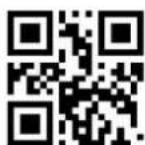
Exit Setup
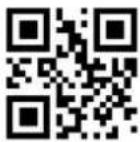
Plessey Maximum decoding
length
\>: R001062.<\

Plessey Minimum decoding
length
\>: R001082.<\
Example: Limit the scanner to only read barcodes with a minimum of 8 bytes and a maximum of 12 bytes
1) Scan code "Enter setup"
2) Scan code "Plessey Minimum decoding length"
3) Scan Data code "8" (in Appendix)
4) Scan code "Save" (in Appendix)
5) Scan code "Plessey Maximum decoding length"
6) Scan Data code "C" (in Appendix)
7) Scan code "Save" (in Appendix)
8) Scan code "Exit setup"
6.17 RSS-EXP /RSS\_14/GS1 Data
6.17.1 Enable/Disable RSS-EXP /RSS\_14/GS1 Data
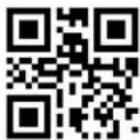
Enable RSS14
\>:S010190.<\

Disable RSS14 (Default)
\>:S010090.<\

Exit Setup
6.17.2 Enable/Disable RSS14 LIMIT
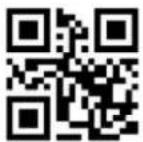
Enable RSS14 LIMIT
\>:S0101A6.<\

Disable RSS14 LIMIT (Default)
\>:S0100A6.<\
6.18.3 Lengths Settings
The user can set the maximum and minimum length of barcode reading. If read barcode length does not match the set effective length, the barcode reading is unsuccessful, and the scanner will not send the barcode content to the host.
The barcode length is composed of "minimum length" and "maximum length". If the maximum length is less than the minimum length, only barcodes of these two
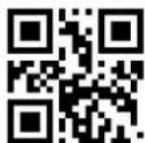
Exit Setup
lengths can be read. If the maximum length is equal to the minimum length, only barcode of this length is supported.

TELEPEN Maximum decoding length
\>: R000D61.<\
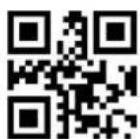
TELEPEN Minimum decoding length
\>: R000D71.<\
Example: Limit the scanner to only read barcodes with a minimum of 8 bytes and a maximum of 12 bytes
1) Scan code "Enter Setup"
2) Scan code "Telepen Minimum decoding length"
3) Scan Data code "8" (in Appendix)
4) Scan code "Save" (in Appendix)
5) Scan code "Telepen Maximum decoding length"
6) Scan Data code "C" (in Appendix)
7) Scan code "Save" (in Appendix)
8) Scan code "Exit setup"
6.19 Pharma Code One-Track
6.19.1 Enable/Disable Pharma Code One-Track
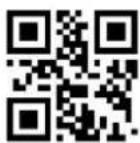
Enable Pharma-one
\>:S0101A1.<\
Disable Pharma-one (Default)
\>:S0100A1.<\
Exit Setup
6.19.2 CODE ID
Set Pharma_One CODE ID
\>: R001712.<\
6.19.3 Lengths Settings
The user can set the maximum and minimum length of barcode reading. If the read barcode length does not match the set effective length, the barcode reading is unsuccessful, and the scanner will not send the barcode content to the host.
The barcode length is composed of "minimum length" and "maximum length". If the maximum length is less than the minimum length, only barcodes of these two lengths can be read. If the maximum length is equal to the minimum length, only this length is supported.

Pharma_One Maximum decoding
length
\>: R0010A2.<\

Pharma_OneMinimum decoding
length
\>: R0010C2.<\
Example: Limit the scanner to only read barcodes with a minimum of 8 bytes and a maximum of 12 bytes
1) Scan code "Enter Setup"
2) Scan code "Pharma_One Minimum decoding length"
3) Scan Data code "8" (in Appendix)
4) Scan code "Save" (in Appendix)
5) Scan code "Pharma_One Maximum decoding length"

Exit Setup
6) Scan Data code "C" (in Appendix)
7) Scan code "Save" (in Appendix)
8) Scan code "Exit setup"
6.20 PharmaCode Two-Track
6.20.1 Enable/Disable PharmaCode Two-Track
Enable
\>:S0101A2.<\
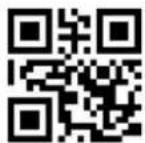
Disable (Default)
\>:S0100A2.<\
6.20.2 CODE ID setting
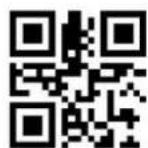
Set Pharma_Two CODE ID
\>: R001732.<\
6.20.3 Lengths Settings
The user can set the maximum and minimum length of barcode reading. If read barcode length does not match the set effective length, the barcode reading is unsuccessful, and the scanner will not send the barcode content to the host.
The barcode length is composed of "minimum length" and "maximum length". If the maximum length is less than the minimum length, only barcodes of these two lengths can be read. If the maximum length is equal to the minimum length, only barcode of this length is supported.
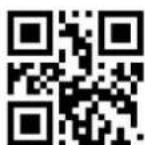
Exit Setup
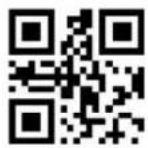
Pharma_Two Maximum decoding length
\>: R0010E2.<\
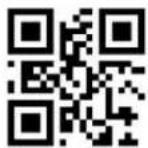
Pharma_Two Minimum decoding length
\>: R001102.<\
Example: Limit the scanner to only read barcodes with a minimum of 8 bytes and a maximum of 12 bytes
1) Scan code "Enter setup"
2) Scan code "Pharma_Two Minimum decoding length"
3) Scan Data code "8" (in Appendix)
4) Scan code "Save" (in Appendix)
5) Scan code "Pharma_Two Maximum decoding length"
6) Scan Data code "C" (in Appendix)
7) Scan code "Save" (in Appendix)
8) Scan code "Exit setup"
6.21 AZTEC
6.21.1 Enable/Disable AZTEC

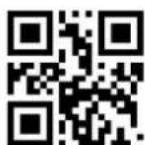
Enable AZTEC
\>:S01019A.<\

Disable AZTEC (Default)
\>:S01009A.<\
Exit Setup
6.21.2 Enable/Disable reverse
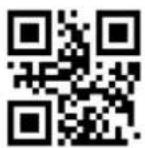
Disable Reverse (Default)
\>:S40009A.<\

Enable Reverse (Default)
\>:S40409A.<\
6.21.3 CODE ID
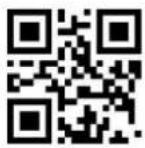
Set AZTEC CODE ID
\>: R0015E2.<\
6.21.4 Lengths Settings
The user can set the maximum and minimum length of barcode reading. If the barcode length does not match the set effective length, the barcode reading is unsuccessful, and the scanner will not send the barcode content to the host.
The barcode length is composed of "minimum length" and "maximum length". If the maximum length is less than the minimum length, only barcodes of these two lengths can be read. If the maximum length is equal to the minimum length, only barcode of this length is supported.

AZTEC Maximum decoding length
\>: R000ED2.<\
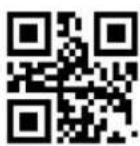
AZTEC Minimum decoding length
\>: R000F02.<\

Exit Setup
Example: Restrict the scanner to only read barcodes with a minimum of 4 bytes and a maximum of 100 bytes
1) Scan code "Enter setup"
2) Scan code "AZTEC Minimum decoding length"
3) Scan Data code "4" (in Appendix)
4) Scan code "Save" (in Appendix)
5) Scan code "AZTEC Maximum decoding length"
6) Scan Data code "6" "4" (in Appendix)
7) Scan code "Save" (in Appendix)
8) Scan code "Exit setup"
6.22 CODABLOCK A
6.22.1 Enable/Disable CODABLOCK A

Enable
\>:S01019C.<\

Disable (Default)
\>:S01009C.<\
6.22.2 CODE ID
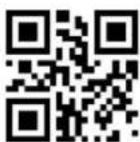
Set CodaBlock_A CODE ID
\>: R001602.<\
Exit Setup
6.22.3 Length Settings
The user can set the maximum and minimum length of barcode reading. If read barcode length does not match the set effective length, the barcode reading is unsuccessful, and the scanner will not send the barcode content to the host.
The barcode length is composed of "minimum length" and "maximum length". If the maximum length is less than the minimum length, only barcodes of these two lengths can be read. If the maximum length is equal to the minimum length, only this length is supported.
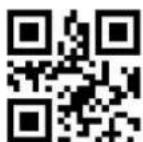
CodaBlock A Maximum decoding length
\>: R000F62.<\
CodaBlock A Minimum decoding length
\>: R000F82.<\
Example: Restrict the scanner to only read barcodes with a minimum of 4 bytes and a maximum of 100 bytes
1) Scan code "Enter setup"
2) Scan code "CodaBlock A Minimum decoding length"
3) Scan Data code "4" (in Appendix)
4) Scan code "Save" (in Appendix)
5) Scan code "CodaBlock A Maximum decoding length"
6) Scan Data code "6" "4" (in Appendix)
7) Scan code "Save" (in Appendix)
8) Scan code "Exit setup"
6.23 CODABLOCK F
6.23.1 Enable/Disable CODABLOCK F

Enable \>:S01019D.<\

Disable (Default) \>:S01009D.<\
6.23.2 CODE ID
Set CodaBlock_F CODE ID
\>: R001622.<\
6.23.3 Length Settings
The user can set the maximum and minimum length of barcode reading. If read barcode length does not match the set effective length, the barcode reading is unsuccessful, and the scanner will not send the barcode content to the host.
The barcode length is composed of "minimum length" and "maximum length". If the maximum length is less than the minimum length, only barcodes of these two lengths can be read. If the maximum length is equal to the minimum length, only barcode of this length is supported.

CodaBlock F Maximum decoding length
\>: R000FA2.<\
CodaBlock F Minimum decoding length
\>: R000FC2.<\
Example: Restrict the scanner to only read barcodes with a minimum of 4 bytes and a maximum of 100 bytes
1) Scan code "Enter setup"
2) Scan code "CodaBlock FMinimum decoding length"
3) Scan Data code "4" (in Appendix)
4) Scan code "Save" (in Appendix)
5) Scan code "CodaBlock F Maximum decoding length"
6) Scan Data code "6" "4" (in Appendix)
7) Scan code "Save" (in Appendix)
8) Scan code "Exit setup"
6.24 Data Matrix
6.24.1 Enable/Disable Data Matrix
Enable (Default)
\>:S010197.<\
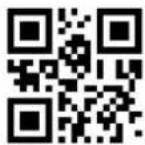
Disable (Default)
\>:S010097.<\

Exit Setup
6.24.2 Enable/Disable reverse
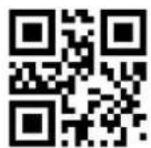
Enable (Default)
\>:S020297.<\
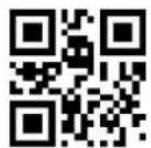
Disable
\>:S020097.<\
6.24.3 CODE ID

Set DATA MATRIX CODE ID
\>: R001582.<\
6.24.4 Length Settings
The user can set the maximum and minimum length of barcode reading. If read barcode length does not match the set effective length, the barcode reading is unsuccessful, and the scanner will not send the barcode content to the host.
The barcode length is composed of "minimum length" and "maximum length". If the maximum length is less than the minimum length, only barcodes of these two lengths can be read. If the maximum length is equal to the minimum length, only barcode of this length is supported.
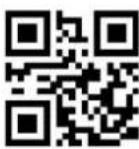
Data Matrix Maximum decoding length
\>: R000E12.<\
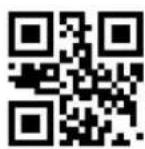
Data Matrix Minimum decoding length
\>: R000E32.<\
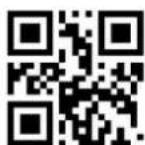
Exit Setup
Example: Restrict the scanner to only read barcodes with a minimum of 4 bytes and a maximum of 100 bytes
1) Scan code "Enter setup"
2) Scan code "Data Matrix Minimum decoding length"
3) Scan Data code "4" (in Appendix)
4) Scan "Save code" (in Appendix)
5) Scan code "Data Matrix Maximum decoding length"
6) Scan Data code "6" "4" (in Appendix)
7) Scan code "Save" (in Appendix)
8) Scan code "Exit setup"
6.24.5 GS1\_DM Output Enable
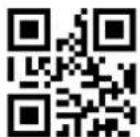
Enable
\>:S202097.<\
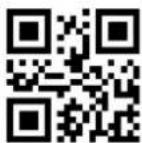
Disable (Default)
\>:S200097.<\
6.25 MaxiCode
6.25.1 Enable/Disable Maxi Code
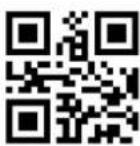
Enable
\>:S010199.<\

Disable (Default)
\>:S010099.<\

Exit Setup
6.25.2 CODE ID
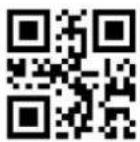
Set MAXI CODE ID
\>: R0015C2.<\
6.25.3 Length Settings
The user can set the maximum and minimum length of barcode reading. If read barcode length does not match the set effective length, the barcode reading is unsuccessful, and the scanner will not send the barcode content to the host.
The barcode length is composed of "minimum length" and "maximum length". If the maximum length is less than the minimum length, only barcodes of these two lengths can be read. If the maximum length is equal to the minimum length, only barcode of this length is supported.

MAXI Maximum decoding length
\>: R000E92.<\
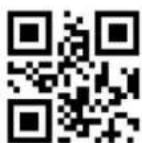
MAXI Minimum decoding length
\>: R000EB2.<\
Example: Restrict the scanner to only read barcodes with a minimum of 4 bytes and a maximum of 100 bytes
1) Scan code "Enter setup"
2) Scan code "MAXI Minimum decoding length"
3) Scan Data code "4" (in Appendix)
4) Scan code "Save" (in Appendix)
5) Scan code "MAXI Maximum decoding length"
6) Scan Data code "6" "4" (in Appendix)
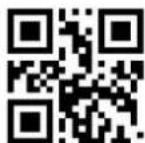
Exit Setup
7) Scan code "Save" (in Appendix)
8) Scan code "Exit setup"
6.26 PDF417
6.26.1 Enable/Disable PDF417

Enable (Default)
\>:S010195.<\
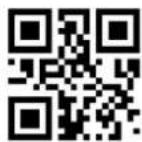
Disable
\>:S010095.<\
6.26.2 Enable/Disable reverse
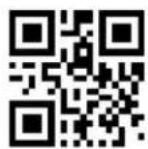
Enable reverse (Default)
\>:S020295.<\

Disable reverse
\>:S020095.<\
6.26.3 CODE ID
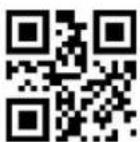
Set PDF417 CODE ID
\>: R001522.<\
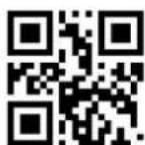
Exit Setup
6.26.4 Length Settings
The user can set the maximum and minimum length of the barcode scan. If read barcode length does not match the set effective length, the barcode reading is unsuccessful, and the scanner will not send the barcode content to the host.
The barcode length is composed of "minimum length" and "maximum length". If the maximum length is less than the minimum length, only barcodes of these two lengths can be read. If the maximum length is equal to the minimum length, only barcode of this length is supported.

PDF417 Maximum decoding length
\>: R000D82.<\
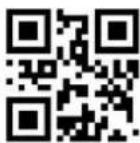
PDF417 Minimum decoding length
\>: R000DA2.<\
Example: Restrict the scanner to only read barcodes with a minimum of 4 bytes and a maximum of 100 bytes
1) Scan code "Enter setup"
2) Scan code "PDF417 Minimum decoding length"
3) Scan Data code "4" (in Appendix)
4) Scan code "Save" (in Appendix)
5) Scan code "PDF417 Maximum decoding length"
6) Scan Data code "6" "4" (in Appendix)
7) Scan code "Save" (in Appendix)
8) Scan code "Exit setup"
6.27 Micro PDF
6.27.1 Enable/Disable Micro PDF
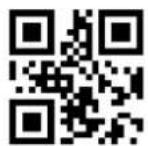
Enable \>:S0101A3.<\

Disable (Default) \>:S0100A3.<\
6.27.2 Enable/Disable Reverse

Disable Reverse (Default) \>:S4000A3.<\
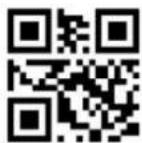
Enable Reverse \>:S4040A3.<\
6.27.3 CODE ID
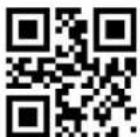
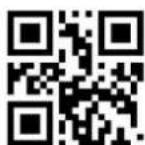
Set Micro_PDF CODE ID \>: R001752.<\
6.27.4 Length Settings
The user can set the maximum and minimum length of the barcode scan. If the length of the barcode taken by Scan does not match the effective length set, the Scan code is unsuccessful, and the scanner will not send the content of the barcode to the host.
Exit Setup
Scan barcode length is composed of "minimum length" and "maximum length". If the maximum length is less than the minimum length, the barcode only recognizes the two lengths of Scan. If the maximum length is equal to the minimum length, only barcode of this length is supported.

Micro PDF Maximum decoding length
\>: R001122.<\
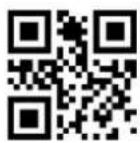
Micro PDF Minimum decoding length
\>: R001142.<\
Example: Restrict the scanner to only read barcodes with a minimum of 4 bytes and a maximum of 100 bytes
1) Scan code "Enter setup"
2) Scan code "Micro PDF Minimum decoding length"
3) Scan Data code "4" (in Appendix)
4) Scan code "Save" (in Appendix)
5) Scan code "Micro PDF Maximum decoding length"
6) Scan Data code "6" "4" (in Appendix)
7) Scan code "Save" (in Appendix)
8) Scan code "Exit setup"
6.28 QR Code
6.28.1 Enable/Disable Scan QR Code
QR CODE Default Fixed on, so reading is without enable or disable
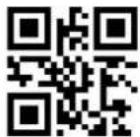
Fixed on
\>:S010196.<\

Exit Setup
6.28.2 Enable/Disable Reverse

Enable Reverse (Default)
\>:S020296.<\
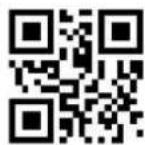
Disable Reverse
\>:S020096.<\
6.28.3 CODE ID
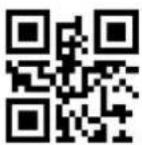
Set QR CODE ID
\>: R001562.<\
6.28.4 Length Settings
The user can set the maximum and minimum length of barcode reading. If the barcode length does not match the set effective length, the barcode reading is unsuccessful, and the scanner will not send the barcode content to the host.
The barcode length is composed of "minimum length" and "maximum length". If the maximum length is less than the minimum length, only barcodes of these two lengths can be read. If the maximum length is equal to the minimum length, only barcode of this length is supported.
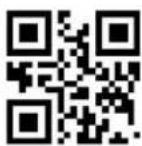
QR Maximum decoding length
\>: R000DC2.<\
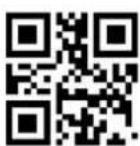
QR Maximum decoding length
\>: R000DF2.<\
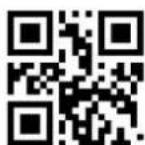
Exit Setup
Example: Restrict the scanner to only read barcodes with a minimum of 4 bytes and a maximum of 100 bytes
1) Scan code "Enter setup"
2) Scan code "QR Minimum decoding length"
3) Scan Data code "4" (in Appendix)
4) Scan code "Save code" (in Appendix)
5) Scan code "QR Maximum decoding length"
6) Scan Data code "6" "4" (in Appendix)
7) Scan code "Save code" (in Appendix)
8) Scan code "Exit setup"
6.29 Micro QR
6.29.1 Enable/Disable Scan Micro QR
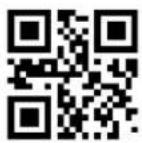
Enable
\>:S010198.<\

Disable (Default)
\>:S010098.<\
6.29.2 Enable/Disable Reverse
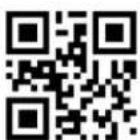
Disable reverse (Default)
\>:S400098.<\
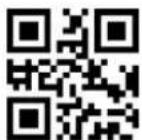
Enable reverse \>:S404098.<\

Exit Setup
6.29.3 CODE ID
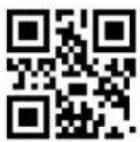
Set MICRO QR CODE ID
\>: R0015A2.<\
6.29.4 Length Settings
The user can set the maximum and minimum length of barcode reading. If the barcode length does not match the set effective length, the barcode reading is unsuccessful, and the scanner will not send the barcode content to the host.
The barcode length is composed of "minimum length" and "maximum length". If the maximum length is less than the minimum length, only barcodes of these two lengths can be read. If the maximum length is equal to the minimum length, only barcode of this length is supported.
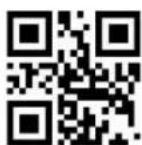
MICRO QR Maximum decoding
length
\>: R000E52.<\

MICRO QR Minimum decoding
length
\>: R000E72.<\
Example: Restrict the scanner to only read barcodes with a minimum of 4 bytes and a maximum of 20 bytes
1) Scan code "Enter setup"
2) Scan code "Micro QR Minimum decoding length"
3) Scan Data code "4" (in Appendix)
4) Scan code "Save" (in Appendix)
5) Scan code "Micro QR Maximum decoding length"
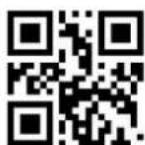
Exit Setup
6) Scan Data code "1" "4" (in Appendix)
7) Scan code "Save" (in Appendix)
8) Scan code "Exit setup"
6.30 Han Xin Code
6.30.1 Enable/Disable Reading Han Xin Code
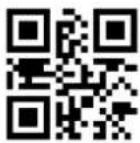
Enable
\>:S01019B.<\
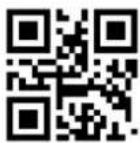
Disable (Default)
\>:S01009B.<\
6.30.2 Enable/Disable Reverse
Disable Reverse (Default)
\>:S02009B.<\
Enable Reverse \>:S02029B.<\
6.30.3 CODE ID

Set Hanxin CODE ID
\>: R001772.<\
Exit Setup
6.30.4 Length Settings
The user can set the maximum and minimum length of barcode reading. If the barcode length does not match the set effective length, the barcode reading is unsuccessful, and the scanner will not send the barcode content to the host.
The barcode length is composed of "minimum length" and "maximum length". If the maximum length is less than the minimum length, only barcodes of these two lengths can be read. If the maximum length is equal to the minimum length, only barcode of this length is supported.

HANXIN Maximum decoding length
\>: R000F22.<\

HANXIN Minimum decoding length
\>: R000F42.<\
Example: Restrict the scanner to only read barcodes with a minimum of 4 bytes and a maximum of 100 bytes
1) Scan code "Enter setup"
2) Scan code "HANXI Mnimum decoding length"
3) Scan Data code "4" (in Appendix)
4) Scan code "Save" (in Appendix)
5) Scan code "HANXIN Maximum decoding length"
6) Scan Data code "6" "4" (in Appendix)
7) Scan code "Save" (in Appendix)
8) Scan code "Exit setup"
6.31 DOTCODE

Enable \>:S0101AE.<\

Disable (Default) \>:S0100AE.<\
6.32 OCR
Allow ID card reading \>:S0101AC.<\
Prohibit ID card reading (Default) \>:S0100AC.<\
Allow passport reading \>:S0202AC.<\
Prohibit passport reading \>:S0200AC.<\
CHAPTER 7: BATCH PROCESSING
When multiple settings are required on the scanner, it may be cumbersome to set one by one. At this time, we can save all the information that needs to be set as a barcode information, and the device can complete multiple settings after reading this barcode.
The following are the guidelines for batch processing:
- The format of each command in the batch command is command + parameter.
- The command ends with a semicolon. Note that there can be no spaces between each command.
- Make the command into a QR code in the coding software.
- The batch command starts with \>:BATCHST.<\ and ends with \>:BATCHET.<\
Note: The batch instruction cannot contain data code. Where data codes are needed, specify them by using command + parameters.
For example: Set [Set Custom Prefix] to [A], it will be expressed as follows in batch processing: \>:R000505.<\41;
| Classification | Instruction | Parameter | =CONCATENATE(B3,C3) | Necessity |
| Start instruction | >:BATCHST.< | >:BATCHST.< | Must indicate that the batch instruction starts | |
| Open barcode | >:S01010F.< | >:S01010F.<; | ||
| All types of prefixes and suffixes are allowed | >:S80804E.< | >:S80804E.<; | ||
| Allow adding custom prefixes | >:S04044E.< | >:S04044E.<; | ||
| Set custom prefix | >:R000505.< | 41 | >:R000505.<41; | |
| Close barcode | >:S01000F.< | >:S01000F.<; | ||
| End of instruction | >:BATCHET.< | >:BATCHET.<; | Must indicate that the batch instruction ends |
The synthetic instructions are as follows :
(>:BATCHST.<():S01010F.<();():S80804E.<();():S04044E.<();():R000505.<()(41);():S01000F.<();():BATCHET.<();

text_image
QR code image containing encoded data, no visible human-readable textCHAPTER 8: APPENDIX
8.1 System Default Setting Table
| Parameter Name | Default Setting | Remark | |
| System settings | |||
| Barcode function | Off | ||
| Barcode information | Not send | ||
| Scan mode | Single mode | ||
| Single mode | Single read time | 3000ms | |
| Continuous mode | Single read time | 3000ms | |
| Read interval time | 1000ms | ||
| Trigger mode | Default (Command+Key) | Commands and keys are always On | |
| Sensitivity mode | High | ||
| Sleep mode | Disabled | ||
| Sleep time | 5000ms | ||
| Reading Success Tips | Enabled | ||
| Reading success VF | Medium | ||
| Reading success tips time | 80ms | ||
| Reading success LED | Enabled | ||
| On beeper | Enabled | ||
| Indicate month | Beeper | ||
| Illumination | Read code on | ||
| Aim light | Read code on | ||
| Interface setting | |||
| Interface | USB HID-KBW | ||
| USB | Button delay time | Button not delay time | |
| Country/keyboard language | U.S.A keyboard | ||
| HID Send Mode | Send Original data | ||
| RS232 | Baud rate | 9600 | |
| Parity Bit | None parity | ||
| Data Bits | 8bits | ||
| Parameter Name | Default Setting | Remark |
| Data format setting | ||
| Enable all Prefix and Suffix | ON | |
| Set Prefix steps | CODEID+Custom+AIMID | |
| Add custom prefix | Off | Up to prefix 10 characters |
| Add AIMD prefix | Off | ]Cm |
| Add CODE ID prefix | Off | 1or2 characters, uppercase or lowercase |
| Add Custom suffix | Off | Max suffix 5 characters |
| Add End suffix | On—0x0D | Enabled , Enter |
| NGR Information | Not send | |
| Scan code customization | Non | |
| Invoice | Off | Only supports national invoice assistant |
8.2 Barcode Default Setting Table
| Parameter Name | Default Setting | Remark |
| All reverse code | Disabled | |
| All reverse 2D code | Enabled | |
| Code128/AIM128/EAN128/NL128 | ||
| Enable | On | |
| Minimum length | 2 | |
| Maximum length | 80 | |
| UPC/EAN/ISSN/ISBN | ||
| Enable | On | |
| 2 bits additional code | Read | |
| 5 bits additional code | Read | |
| Must have additional code | Not required | |
| Extended to 13 bits | Not extended | |
| CODABAR | ||
| Enable | On | |
| Parity | OFF | OFF: According to the bar code content, if the bar code contains check, send check; do not contain check, do not send ; ON : At this point, the check bit will be used to check the decoded data, send or not according to the sending switch decision |
| Minimum length | 5 | |
| Maximum length | 60 | |
| CODE39 | ||
| Enable | On | |
| Parity | OFF | |
| Support extension | OFF | |
| Support Full ASCII | On | |
| Minimum length | 1 | |
| Maximum length | 60 | |
| CODE 11 | ||
| Enable | OFF | |
| Parity | OFF | |
| Minimum length | 1 | |
| Maximum length | 80 | |
| ITF-25/ITF-14/ITF-6/Deutsche12/Deutsche14 | ||
| Enable | On | |
| Parity | OFF | |
| Minimum length | 6 | |
| Maximum length | 100 | |
| INDUSTRIAL 25 | ||
| Enable | OFF | |
| Parity | OFF | |
| Minimum length | 1 | |
| Maximum length | 80 | |
| MATRIX 25 | ||
| Enable | OFF | |
| Parity | OFF | |
| Minimum length | 6 | |
| Maximum length | 80 | |
| Japan Matrix 25/NEC25 | ||
| Enable | OFF | |
| Parity | OFF | |
| Minimum length | 1 | |
| Maximum length | 80 | |
| STANDARD 25 | ||
| Enable | OFF | |
| Parity | OFF | |
| Minimum length | 1 | |
| Maximum length | 80 | |
| DATALOGIC 25 | ||
| Enable | OFF | |
| Parity | OFF | |
| Minimum length | 1 | |
| Maximum length | 1024 | |
| MSI_PLESSEY | ||
| Enable | OFF | |
| Parity | 1 Bits Check, MOD10 | |
| Parity character | Not send | |
| Minimum length | 1 | |
| Maximum length | 80 | |
| PLESSEY | ||
| Enable | OFF | |
| Minimum length | 1 | |
| Maximum length | 80 | |
| RSS-EXP/RSS_14/GS1 Data | ||
| Enable | OFF | |
| TELEPEN | ||
| Enable | OFF | |
| Minimum length | 1 | |
| Maximum length | 80 | |
| PharmaCode One-Track | ||
| Enable | OFF | |
| Minimum length | 1 | |
| Maximum length | 80 | |
| PharmaCode Two-Track | ||
| Enable | OFF | |
| Minimum length | 1 | |
| Maximum length | 80 | |
| AZTEC | ||
| Enable | OFF | |
| Minimum length | 1 | |
| Maximum length | 1024 | |
| CODABLOCK A | ||
| Enable | OFF | |
| Minimum length | 1 | |
| Maximum length | 1024 | |
| CODABLOCK F | ||
| Enable | OFF | |
| Minimum length | 1 | |
| Maximum length | 1024 | |
| DATA MATRIX | ||
| Enable | On | |
| Reverse | On | |
| Minimum length | 1 | |
| Maximum length | 3116 | |
| MAXI | ||
| Enable | OFF | |
| Minimum length | 1 | |
| Maximum length | 1024 | |
| PDF417 | ||
| Enable | On | |
| Reverse | On | |
| Minimum length | 1 | |
| Maximum length | 2710 | |
| MICRO PDF | ||
| Enable | OFF | |
| Minimum length | 1 | |
| Maximum length | 1024 | |
| QR | ||
| Enable | On | |
| Reverse | On | |
| Minimum length | 1 | |
| Maximum length | 4096 | |
| MICRO QR | ||
| Enable | OFF | |
| Minimum length | 1 | |
| Maximum length | 35 | |
| HANXIN | ||
| Enable | OFF | |
| Minimum length | 1 | |
| Maximum length | 1024 | |
8.3 AIM ID List
| Barcode types | AIM ID | Intruction |
| Code128/AIM128/EAN128/NL128 | ]C0 | Common Code 128 |
| UPC/EAN/ISSN/ISBN | ]E0 | Common EAN data |
| ]E1 | EAN data to add 2 bit additional code | |
| ]E2 | EAN data to add 5 bits addition code | |
| Codabar | ]F0 | Standard data packets, no special processing |
| ]F1 | Used in the management of blood centers in the United States | |
| ]F2 | Check and send check characters | |
| ]F4 | Check, but do not send check characters | |
| Code 39 | ]A0 | None parity, no Full ASCII expansion. All data sent |
| ]A1 | MOD 43Check, send check characters | |
| ]A3 | MOD 43 Check, but do not send check characters | |
| ]A4 | Full ASCII expansion, but None parity | |
| ]A5 | Expansion, MOD43check, send check characters | |
| ]A7 | Expansion, MOD43check, but do not send check characters | |
| CODE 93 | ]G0 | Common data |
| Code11 | ]H0 | MOD11Single Character Check, send check characters |
| ]H1 | MOD11/MOD11 double character check, and send check characters | |
| ]H3 | Check, but do not send check characters | |
| ]H9 | No verification | |
| ITF-25/ITF-14/ITF-6/Deutsche12/Deutsche14 | ]I0 | None parity |
| ]I1 | Check and send check characters | |
| ]I3 | Check, but do not send check characters | |
| Industrial 2 of 5 | ]S0 | NON |
| Matrix 25 | ]X0 | Product specific definitions |
| ]X1 | None parity | |
| ]X2 | MOD10Check, send check characters | |
| ]X3 | MOD11Check, send check characters | |
| Japan Matrix25/NEC25 | ]Z0 | Common data |
| Standard 25 | ]Z0 | Common data |
| Datalogic 25 | ]Z0 | Common data |
| MSI-Plessey | ]M0 | MOD10Check, send check characters |
| ]M1 | MOD10Check, but do not send check characters | |
| ]M8 | Tow parity | |
| ]M9 | Non Parity | |
| Plessey | ]P0 | Common data |
| RSS-EXP/RSS_14/GS1 | ]e0 | Common data |
| Telepen | ]B0, ]B1, ]B2, ]B4 | Common data |
| PharmaCode One-Track | ||
| PharmaCode Two-Track | ||
| AZTEC | ]z0-9,A-C | Common data |
| CodaBlock A | ]Z0 | Common data |
| CodaBlock F | ]Z0 | Common data |
| Data Matrix | ]d0 | ECC00 to ECC140 version |
| ]d1 | ECC200 common version | |
| ]d2 | ECC200, FNC1 in No.1 or No.5 | |
| ]d3 | ECC200, FNC1 in No.2 or No.6 | |
| ]d4 | ECC200, included ECI data | |
| ]d5 | ECC200, FNC in No.1 or No.5, or included ECI data. | |
| ]d6 | ECC200, FNC1 in No.2 or No.5 orr Included ECI data | |
| MaxiCode | ]U0 | Common data |
| ]U1 | Common data | |
| ]U2 | Common data | |
| ]U3 | Common data | |
| PDF417 | ]L0 | 1994PDF417 standard |
| Micro PDF417 | ||
| QR | ]Q0 | Model 1version |
| ]Q1 | 2005 standard version, no ECI data | |
| ]Q2 | 2005 standard version, have ECI data | |
| ]Q3 | 2005 standard version, no ECI data, FNC1 in No.1 | |
| ]Q4 | 2005 standard version, have ECI data, FNC1in No.2 | |
| ]Q5 | 2005 standard version, no ECI data, FNC1 in No.1 | |
| ]Q6 | 2005 standard, have ECI data, FNC1in No.2 | |
| Micro QR | ]Z0 | Common data |
| HAN XIN |
8.4 CODE ID List
| Barcode type | Code ID |
| Code128/AIM128/EAN128/NL128 | j |
| UPC/EAN/ISSN/ISBN | d |
| CODABAR | a |
| CODE 39 | b |
| CODE 93 | i |
| CODE 11 | H |
| ITF-25/ITF-14/ITF-6/ Deutsche12/Deutsche14 | e |
| Industrial 25 | D |
| MATRIX25 | v |
| Japan Matrix 25/NEC 25 | q |
| Standard 25 | s |
| Datalogic 25 | w |
| MSI-Plessey | m |
| Plessey | p |
| RSS-EXP /RSS_14/GS1 Data | y |
| Telepen | t |
| Pharma_One | y |
| Pharma_Two | Y |
| AZTEC | Z |
| Codablock A | h |
| Codablock F | k |
| Data Matrix | u |
| Maxi CODE | x |
| PDF417 | r |
| Micro PDF | R |
| QR code | s |
| Micro QR | S |
| HAN XIN | g |
8.5 ASCII code
| HEX | Decimal base | Character |
| 00 | 0 | NUL (Null char.) |
| 01 | 1 | SOH (Start of Header) |
| 02 | 2 | STX (Start of Text) |
| 03 | 3 | ETX (End of Text) |
| 04 | 4 | EOT (End of Transmission) |
| 05 | 5 | ENQ (Enquiry) |
| 06 | 6 | ACK (Acknowledgment) |
| 07 | 7 | BEL (Bell) |
| 08 | 8 | BS (Backspace) |
| 09 | 9 | HT (Horizontal Tab) |
| 0a | 10 | LF (Line Feed) |
| 0b | 11 | VT (Vertical Tab) |
| 0c | 12 | FF (Form Feed) |
| 0d | 13 | CR (Carriage Return) |
| 0e | 14 | SO (Shift Out) |
| 0f | 15 | SI (Shift In) |
| 10 | 16 | DLE (Data Link Escape) |
| 11 | 17 | DC1 (XON) (Device Control 1) |
| 12 | 18 | DC2 (Device Control 2) |
| 13 | 19 | DC3 (XOFF) (Device Control 3) |
| 14 | 20 | DC4 (Device Control 4) |
| 15 | 21 | NAK (Negative Acknowledgment) |
| 16 | 22 | SYN (Synchronous Idle) |
| 17 | 23 | ETB (End of Trans. Block) |
| 18 | 24 | CAN (Cancel) |
| 19 | 25 | EM (End of Medium) |
| 1a | 26 | SUB (Substitute) |
| 1b | 27 | ESC (Escape) |
| 1c | 28 | FS (File Separator) |
| 1d | 29 | GS (Group Separator) |
| 1e | 30 | RS (Request to Send) |
| 1f | 31 | US (Unit Separator) |
| 20 | 32 | SP (Space) |
| 21 | 33 | ! (Exclamation Mark) |
| 22 | 34 | " (Double Quote) |
| 23 | 35 | # (Number Sign) |
| 24 | 36 | $ (Dollar Sign) |
| 25 | 37 | % (Percent) |
| 26 | 38 | & (Ampersand) |
| 27 | 39 | ` (Single Quote) |
| 28 | 40 | ( (Right / Closing Parenthesis) |
| 29 | 41 | ) (Right / Closing Parenthesis) |
| 2a | 42 | * (Asterisk) |
| 2b | 43 | + (Plus) |
| 2c | 44 | , (Comma) |
| 2d | 45 | - (Minus / Dash) |
| 2e | 46 | . (Dot) |
| 2f | 47 | / (Forward Slash) |
| 30 | 48 | 0 |
| 31 | 49 | 1 |
| 32 | 50 | 2 |
| 33 | 51 | 3 |
| 34 | 52 | 4 |
| 35 | 53 | 5 |
| 36 | 54 | 6 |
| 37 | 55 | 7 |
| 38 | 56 | 8 |
| 39 | 57 | 9 |
| 3a | 58 | : (Colon) |
| 3b | 59 | ; (Semi-colon) |
| 3c | 60 | < (Less Than) |
| 3d | 61 | = (Equal Sign) |
| 3e | 62 | > (Greater Than) |
| 3f | 63 | ? (Question Mark) |
| 40 | 64 | @ (AT Symbol) |
| 41 | 65 | A |
| 42 | 66 | B |
| 43 | 67 | C |
| 44 | 68 | D |
| 45 | 69 | E |
| 46 | 70 | F |
| 47 | 71 | G |
| 48 | 72 | H |
| 49 | 73 | I |
| 4a | 74 | J |
| 4b | 75 | K |
| 4c | 76 | L |
| 4d | 77 | M |
| 4e | 78 | N |
| 4f | 79 | O |
| 50 | 80 | P |
| 51 | 81 | Q |
| 52 | 82 | R |
| 53 | 83 | S |
| 54 | 84 | T |
| 55 | 85 | U |
| 56 | 86 | V |
| 57 | 87 | W |
| 58 | 88 | X |
| 59 | 89 | Y |
| 5a | 90 | Z |
| 5b | 91 | [ (Left / Opening Bracket) |
| 5c | 92 | \ (Back Slash) |
| 5d | 93 | ] (Right / Closing Bracket) |
| 5e | 94 | ^ (Caret / Circumflex) |
| 5f | 95 | _ (Underscore) |
| 60 | 96 | ' (Grave Accent) |
| 61 | 97 | a |
| 62 | 98 | b |
| 63 | 99 | c |
| 64 | 100 | d |
| 65 | 101 | e |
| 66 | 102 | f |
| 67 | 103 | g |
| 68 | 104 | h |
| 69 | 105 | i |
| 6a | 106 | j |
| 6b | 107 | k |
| 6c | 108 | l |
| 6d | 109 | m |
| 6e | 110 | n |
| 6f | 111 | o |
| 70 | 112 | p |
| 71 | 113 | q |
| 72 | 114 | r |
| 73 | 115 | s |
| 74 | 116 | t |
| 75 | 117 | u |
| 76 | 118 | v |
| 77 | 119 | w |
| 78 | 120 | x |
| 79 | 121 | y |
| 7a | 122 | z |
| 7b | 123 | { (Left/ Opening Brace) |
| 7c | 124 | | (Vertical Bar) |
| 7d | 125 | } (Right/Closing Brace) |
| 7e | 126 | ~ (Tilde) |
| 7f | 127 | DEL (Delete) |
8.6 CTRL+mode output
| Non-printable ASCII control characters | Keyboard Control + ASCII (CTRL+X) Mode | ||||
| DEC | HEX | Char | Control + X Mode Off | Windows Mode Control + X Mode On | |
| CTRL + X | CTRL + X Function | ||||
| 0 | 00 | NUL | NULL | CTRL+ @ | |
| 1 | 01 | SOH | NP Enter | CTRL+ A | Select all |
| 2 | 02 | STX | Caps Lock | CTRL+ B | Bold |
| 3 | 03 | ETX | Right Arrow | CTRL+ C | Copy |
| 4 | 04 | EOT | Up Arrow | CTRL+ D | Bookmark |
| 5 | 05 | ENQ | NULL | CTRL+ E | Center |
| 6 | 06 | ACK | NULL | CTRL+F | Find |
| 7 | 07 | BEL | Enter | CTRL+G | |
| 8 | 08 | BS | Left Arrow | CTRL+ H | History |
| 9 | 09 | HT | Tab | CTRL+ I | Italic |
| 10 | 0A | LF | Down Arrow | CTRL+ J | Justify |
| 11 | 0B | VT | Tab | CTRL+ K | Hyperlink |
| 12 | 0C | FF | Backspace | CTRL+ L | list, left align |
| 13 | 0D | CR | Enter / Ret | CTRL+ M | |
| 14 | 0E | SO | Insert | CTRL+ N | New |
| 15 | 0F | SI | ESC | CTRL+ O | Open |
| 16 | 10 | DLE | F11 | CTRL+ P | |
| 17 | 11 | DC1 | Home | CTRL+ Q | Quit |
| 18 | 12 | DC2 | PrtScn | CTRL+ R | |
| 19 | 13 | DC3 | Delete | CTRL+ S | Save |
| 20 | 14 | DC4 | Tab+shift | CTRL+ T | |
| 21 | 15 | NAK | F12 | CTRL+ U | |
| 22 | 16 | SYN | F1 | CTRL+ V | Paste |
| 23 | 17 | ETB | F2 | CTRL+ W | |
| 24 | 18 | CAN | F3 | CTRL+ X | |
| 25 | 19 | EM | F4 | CTRL+ Y | |
| 26 | 1A | SUB | F5 | CTRL+ Z | |
| 27 | 1B | ESC | F6 | CTRL+ [ | |
| 28 | 1C | FS | F7 | CTRL+ \ | |
| 29 | 1D | GS | F8 | CTRL+ ] | |
| 30 | 1E | RS | F9 | CTRL+ ^ | |
| 31 | 1F | US | F10 | CTRL+ - | |
8.7 Data code
0\~9

\>:N000000.<\
0
\>:N000001.<\
1
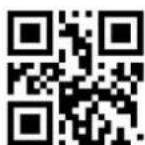
Exit Setup
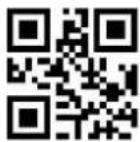
\>:N000002.<\
2
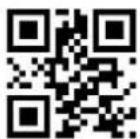
\>:N000003.<\
3

\>:N000004.<\
4

\>:N000005.<\
5
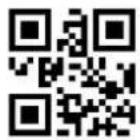
\>:N000006.<\
6
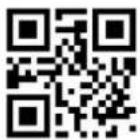
\>:N000007.<\
7

\>:N000008.<\
8
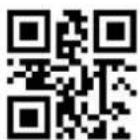
\>:N000009.<\
9
A\~F
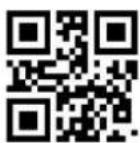
\>:N00000A.<\
A

\>:N00000B.<\
B
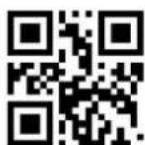
Exit Setup
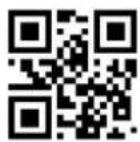
\>:N00000C.<\
C
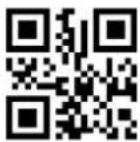
\>:N00000D.<\
D

\>:N00000E.<\
E
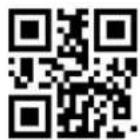
\>:N00000F.<\
F
Save or Cancel

\>:N000012.<\
0X12
Save
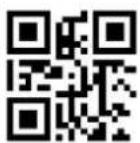
\>:N000010.<\
0X10
Cancel 1 digit of one previously read data

\>:N000011.<\
0X11
Cancel previous all data