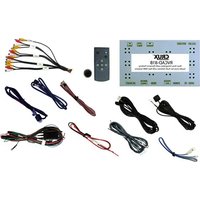
RVCAD-81B - Rear Camera CRUX - Free user manual and instructions
Find the device manual for free RVCAD-81B CRUX in PDF.


| Product Type | Rear View Camera Integration Module for Audi Non-MMI Vehicles |
| Brand | CRUX |
| Model | RVCAD-81B |
| Compatible Vehicles | Audi A4, A6, Q5 (2008-2014) with Non-MMI systems |
| Inputs | 3 AV inputs (AV1, AV2, AV3), RGB input, rear camera CVBS |
| Output | LVDS to factory monitor |
| Parking Assistance | Dynamic parking guideline (PAS) with PDC display |
| On-Screen Display (OSD) | Adjustable image, parking settings, utilities |
| Power Supply | 12V-24V DC (vehicle ACC) |
| Power Harness Included | Yes, with CAN wires, ACC, GND, reverse signal |
| Remote Control Included | Yes, with OSD menu navigation |
| Cables Included | LVDS IN, LVDS OUT, A/V, RGB, Touch, Rear Camera Power, Mode, IR, Touch in |
| DIP Switch Settings | 8 switches for input mode configuration |
| Dimensions (approx.) | 4.5 x 3.0 x 1.0 inches (115 x 76 x 25 mm) |
| Weight (approx.) | 0.3 lbs (135 g) |
| Operating Temperature | -20°C to 70°C (-4°F to 158°F) |
| Maintenance | Keep dry and clean; disconnect power before adjustments |
| Safety Precautions | Disconnect power harness before changing DIP switches; avoid short circuits |
| Spare Parts Available | Remote control, cables, harness (contact Crux Interfacing Solutions) |
| Repairability | Module not user-serviceable; contact manufacturer for support |
| Warranty | Check with Crux Interfacing Solutions |
| Manual Revision | 011917 |
Frequently Asked Questions - RVCAD-81B CRUX
User questions about RVCAD-81B CRUX
0 question about this device. Answer the ones you know or ask your own.
Ask a new question about this device
Download the instructions for your Rear Camera in PDF format for free! Find your manual RVCAD-81B - CRUX and take your electronic device back in hand. On this page are published all the documents necessary for the use of your device. RVCAD-81B by CRUX.
USER MANUAL RVCAD-81B CRUX
- Activates Reverse camera input in Non MMI Audi vehicles.
- Rear-view camera input.
- Provides three AV Inputs.
- With OE type Dynamic Parking Assistance + PDC.
- On-screen display and setup.
Vehicle Applications
AUDI
2008 - 2014 A4
2008 - 2014 A6
2008 - 2014 Q5
Navigation / Radio Compatibility
- Works on Audi vehicles with Non MMI systems (no MMI Control Knob behind the gear shifter).
Parts Included
![graph TD A["RVCAD-81B\nRear View Camera Integration\nfor Audi with Non MMI"] --> B["LVDS OUT Cable"] A --> C["LVDS IN Cable"] A --> D["A/V Cable"] A --> E["RGB Cable"] A --> F["TOUCH OUT Cable"] A --> G["POWER Harness"] A --> H["REAR CAMERA Power Cable"] A --> I["MODE Cable"] A --> J["IR Cable"] A -…](/content/2026/06/1226926/images/909ec10a2f44435b08292324de82434c30050b5a25b4517fc490a4eba37f04e2.jpg)
1/10
rev.011917
Crux Interfacing Solutions
www.cruxinterfacing.com

tel. #: (818) 609-9299
fax #: (818) 996-8188
Wiring Diagram
![graph TD A["CAN Low"] --> B["Command"] C["CAN High"] --> B B --> D["OE LCD Cable"] D --> E["RVCAD-81B Rear View Camera Integration for Audi with Non MMI"] E --> F["LVDS OUT Cable"] F --> G["Original Monitor"] G --> H["Back side of monitor"] E --> I["Touch screen"] E --> J["AV/OUT"] J --> K["Audio R"…](/content/2026/06/1226926/images/a1be6e8a5c243f9a9c1960cc2b683e1247bcc3eda8e2fd58b00b8b14d63fcb2d.jpg)
Connecting the CAN Wires
Connect CAN-H-HS (Brown+Green-3Pin) of the interface to CAN High (Orange + Brown) of the car Connect CAN-L-HS (Green-4pin) of the interface to CAN Low (Orange + Green) of the car
2 / 10
rev.011917
Installation Instructions
Connection of LCD Wires
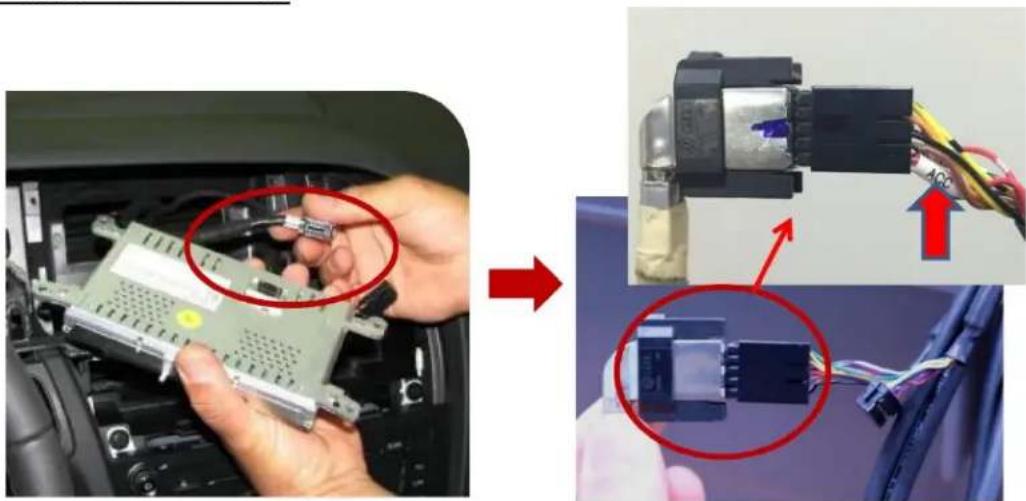
- Unplug the OE LCD cable from a monitor and connect to the supplied LVDS-IN cable. Please refer to the photo above. WARNING: The ACC wire should be at the bottom. (see arrow)
- Connect the other end of the original LVDS IN cable to LVDS IN port of the interface.
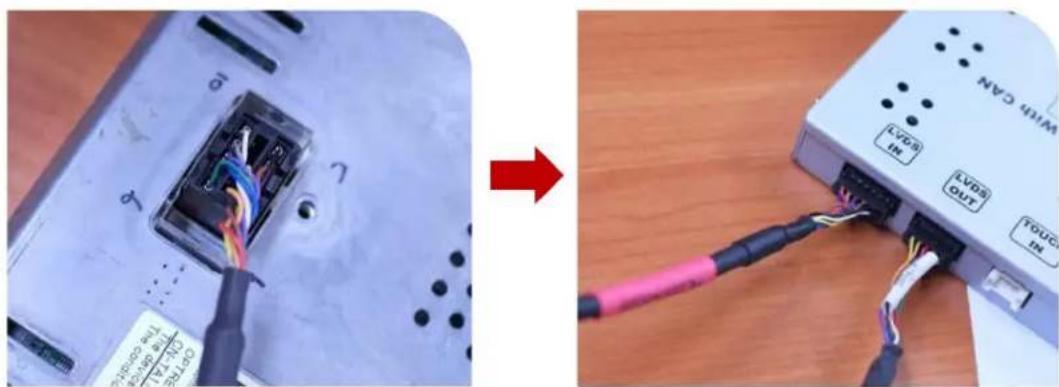
- Connect the supplied LVDS-OUT cable to OEM Monitor and connect the other end to the LVDS OUT port of the interface.
3 / 10
rev.011917
Connecting the CAN Wires

- Tap the CAN High wire (green + brown) of the RVCAD-81B to the CAN High wire (orange + green) of the vehicle.
- Tap the CAN Low wire (green) of the RVCAD-81B to the CAN Low wire (orange + brown) of the vehicle.
DIP Switch Settings
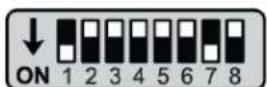
ON: DOWN / OFF: UP
Default : #8 OFF
DIP S/W : 1, 2 ON (hide INPUT MODE)
DIP S/W : 3 OFF (A/V2 display)
DIP S/W:4 OFF (A/V3 display)
DIP S/W : 5 OFF
DIP S/W : 6 OFF
DIP S/W : 7 ON (display external rear cam)
DIP S/W:8 OFF
| PIN | Function | Dip S/W Selection |
| 1 | Displaying RGB input | ON: RGB mode skipOFF: RGB mode display |
| 2 | Displaying A/V 1 | ON: A/V 1 mode skipOFF: A/V1 mode display |
| 3 | Displaying A/V 2 | ON: A/V 2 mode skipOFF: A/V2 mode display |
| 4 | Displaying A/V 3 | ON: A/V 3 mode skipOFF: A/V3 mode display |
| 5 | Not used: Set to OFF | |
| 6 | Not used: Set to OFF | |
| 7 | Setup of rear camera use | ON: CVBS4OFF: MAIN |
| 8 | Not used: Set to OFF | |
NOTE: Disconnect the Power Harness before changing the DIP Switch setting.
4 / 10
rev.011917
Crux Interfacing Solutions
www.cruxinterfacing.com
tel. #: (818) 609-9299
fax #: (818) 996-8188
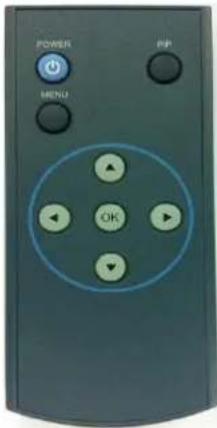
Remote Control
| Key | Function |
| POWER & PIP | Not available |
| MENU | Activating OSD menu |
| OK | Making a selection, changing image display |
| ▲ | UP |
| ▼ | DOWN |
| ◀ | LEFT(press for 2 seconds to access the factory mode) |
| ▶ | RIGHT(press for 2 seconds to reset all user settings) |
OSD Settings
Press the ◀ of the remote control for 2 seconds to enter settings.
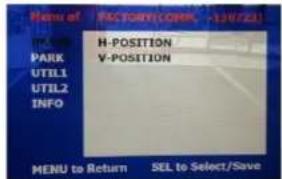
□ IMAGE
Adjust navigation position and size
H-POSITION : Move display horizontally V-POSITION : Move display vertically
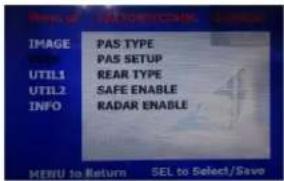
□ PARK
PAS TYPE Selecting Type of parking guide line - NOT USED : Not use Parking guide line
- PAS ON : Selecting Dynamic Parking guide line
- PAS OFF : Selecting fixed Parking guide line
PAS SETUP : Adjusting the position and Selecting type of the parking guide line
REAR TYPE : Choose rear camera recognition
* LAMP - Detecting the rear view camera via rear lamp (Installer must connect "Rear-C" cable of the power cable to the rear lamp of the car.)
*CAN - Detecting the rear view camera by CAN signal (Installer must connect "CAN" cable of the power cable to the "CAN" cable of the car.)
SAFE ENABLE : If your car is connected with CAN cable and it is in "ON" state, you can NOT watch DVD or A/V except original image or navigation while driving. At that time the screen get back to the main (default : OFF)
RADAR ENABLE: When set the gear to "R", Display PDC
NOTE:
In case the Rear camera does not work with "CAN", please connect the camera to the reverse light wire. (PAS and PDC will ot work in this situation)
5 / 10
rev.011917
Crux Interfacing Solutions
www.cruxinterfacing.com
tel. #: (818) 609-9299
fax #: (818) 996-8188
Parking Line Setting
Go to Factory Menu, choose PAS SETUP, press OK button change: H-POS → V-POS → TYPE
H-POS

In H-POSITION, use ◀, ▶ on remote control, to adjust parking guideline left and right.
V-POS
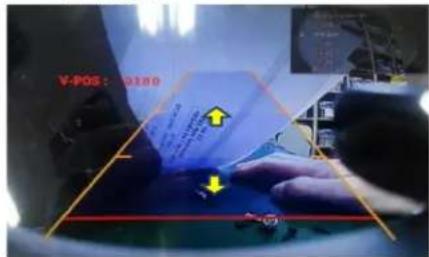
In V-POSITION, use ▲, ▼ on remote control, to adjust parking guideline up and down.
TYPE

In TYPE, use ▲, ▼ on remote control, to select parking guide line type for rear camera.
0001: wide parking guide line
0000: narrow parking guide line

6 / 10
rev.011917
Crux Interfacing Solutions
www.cruxinterfacing.com

tel. #: (818) 609-9299
fax #: (818) 996-8188
UTIL1 Settings
Setup for navigation

UTIL1- NAVI MODEL Definition of the navigation resolution
DEFAULT: default, 400 X 234, in low resolution
Setup for car model

UTIL1- CAR MODEL Selecting model of the car
A4L-NEW A4L-OLD

UTIL1– AV OUT SELECT Selecting background sound After returning from navigation or original mode
DEFAULT: Selecting AV sound just before changing navigation or original mode from the AV mode
AV 1\~3: Sound of the selected AV source 1\~3
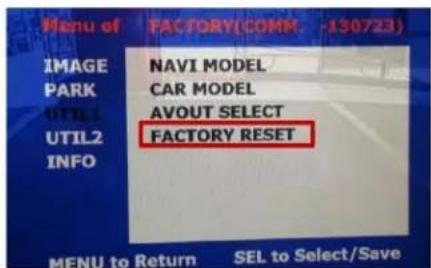
UTIL1 - FACTORY RESET
FACTORY MODE RESET
7/10
rev.011917
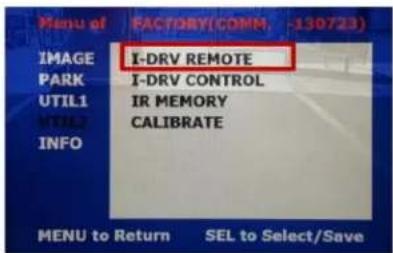
UTIL2- I_DRV REMOTE Choose DTV and DVD model to be control I_DRV function
LI-1DISC
NEC-6DISC
USER(when using IR MEMORY)
- Select DVD model: Setting on AV1 Mode
- Select DTV model: Setting on A/V2 mode
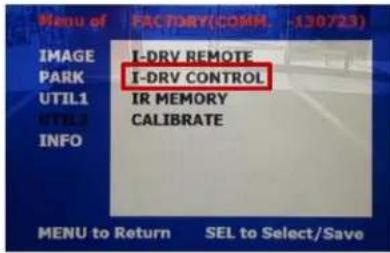
UTIL2- I_DRV CONTROL
Selecting whether to use I_DRV function or not
ON / OFF
A/V1 : Control DVD Remote control UI
A/V2 : Control DTV Remote control UI
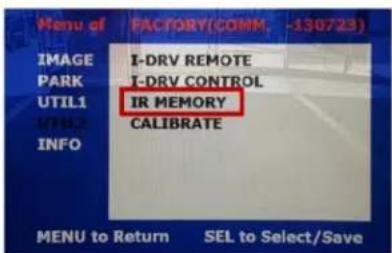
UTIL2-IR MEMORY
To register DVD, DTV remote control, the remote control value must be registered and can be control with touch DVD (A/V1), DTV(A/V2)
To use this function, in UTIL2-I_DRV REMOTE select USER mode
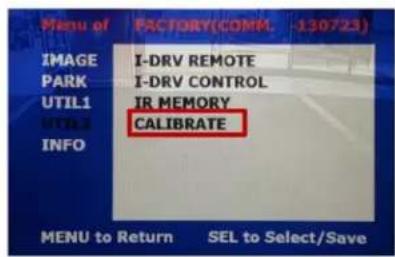
UTIL2-CALIBRATE
Touch Calibration
YES / NO
8 / 10
rev.011917
Operation
User can switch mode using original button in steering wheel
* Long Press : Switching mode (RGB→A/V1\~3→Original mode)
* Short Press : Move to Original mode
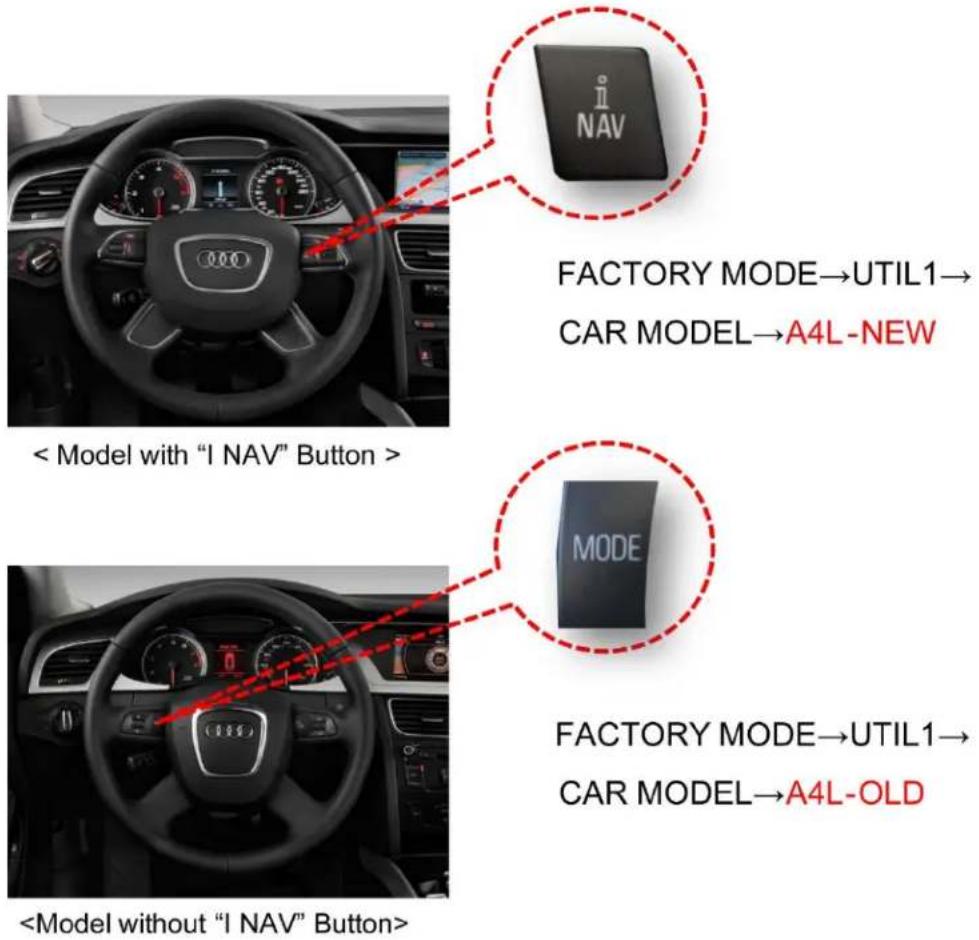
FACTORY MODE→UTIL1→
CAR MODEL→A4L-NEW
FACTORY MODE→UTIL1→
CAR MODEL→A4L-OLD
9 / 10
rev.011917
OSD (On Screen Display) Settings
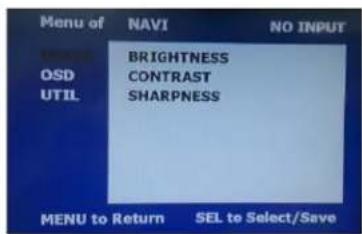
IMAGE
* BRIGHTNESS
* CONTRAST
* SHARPNESS
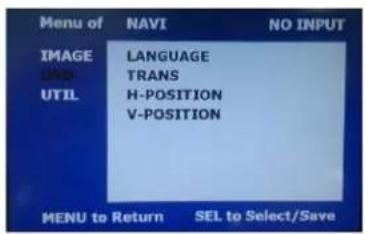
OSD
*LANGUAGE : Set OSD language (only support English and Chinese)
* TRANS : Adjust OSD transparency
*H-POSITION : Move OSD horizontally
* V-POSITION : Move OSD vertically

UTIL
* FACTORY RESET
: Factory reset only for OSD function (unable reset video position)
10 / 10
rev.011917
Brand : CRUX
Model : RVCAD-81B
Category : Rear Camera