
VRFAD-81C - Unspecified CRUX - Free user manual and instructions
Find the device manual for free VRFAD-81C CRUX in PDF.


| Product Type | Video Interface Module |
| Brand | CRUX |
| Model | VRFAD-81C |
| Compatible Vehicles | Audi A3 (8V) 2013-up, A4 (8W) 2016-up, Q5 (B9) 2018-up, Q7 (4M) 2015-up |
| Video Inputs | Front camera, Rear camera, Extra video input (AV source) |
| Outputs | LVDS to factory screen, 2x +12V trigger outputs (max 1A each) |
| Power Supply | 12V DC from vehicle, Red wire to +12V (RED/YELLOW), Black to ground (BROWN) |
| Camera Features | Picture-in-picture with factory PDC graphics, interactive parking guidelines with calibration |
| OSD Menu | On-screen display for settings: camera activation, park logic, trigger outputs, picture adjustments (brightness, contrast, saturation, hue, sharpness), lane line calibration |
| Trigger Outputs Configuration | Power Out 1 (Pink): CAM, ACC, or Cam; Power Out 2 (Green): RGear, AVS, or OFF; separately adjustable switching events (CAN, ACC, camera, reverse gear) |
| Interactive Lane Lines | Height and width adjustable in OSD; vehicle type selectable (A3, A4, Q7) |
| Installation Location | Behind the glove box, connects to multimedia player |
| Included Components | VRFAD-81C module, Main harness, Video harness, LVDS1 cable, LVDS2 cable |
| Camera Power Wiring | Front and rear cameras powered by Pink wire (Output 1), AV source by Green wire (Output 2) |
| Reverse Gear Trigger | Analog or CAN; if analog, connect white wire to +12V reverse signal |
| Audio for AV Source | Requires factory Auxiliary Audio Input; activate AUX in vehicle media menu |
| LED Indicators | Module has LEDs for communication status (manual mentions checking LEDs) |
Frequently Asked Questions - VRFAD-81C CRUX
User questions about VRFAD-81C CRUX
0 question about this device. Answer the ones you know or ask your own.
Ask a new question about this device
Download the instructions for your Unspecified in PDF format for free! Find your manual VRFAD-81C - CRUX and take your electronic device back in hand. On this page are published all the documents necessary for the use of your device. VRFAD-81C by CRUX.
USER MANUAL VRFAD-81C CRUX
- Adds front and back up camera inputs plus an extra video input ^1 .
- Uses the steering wheel control buttons or radio buttons to toggle between the inputs.
- Picture-in-picture mode combining after-market rear-view and front camera picture(s) with factory parking sensor graphics.
- Interactive parking guide lines with calibration function.
- Simultaneous use of picture-in-picture factory parking sensor graphics and interactive lane lines
- Built-in on-screen display and setup.
- 2 trigger outputs (+12V max. 1A), separately adjustable switching events (CAN, ACC, camera, reverse gear)
NOTES:
- Factory Audio Aux Input is required if video input will be used for AV sources.
- The VRFAD-81C connects at the multimedia player located in the glove box.
PARTS INCLUDED:
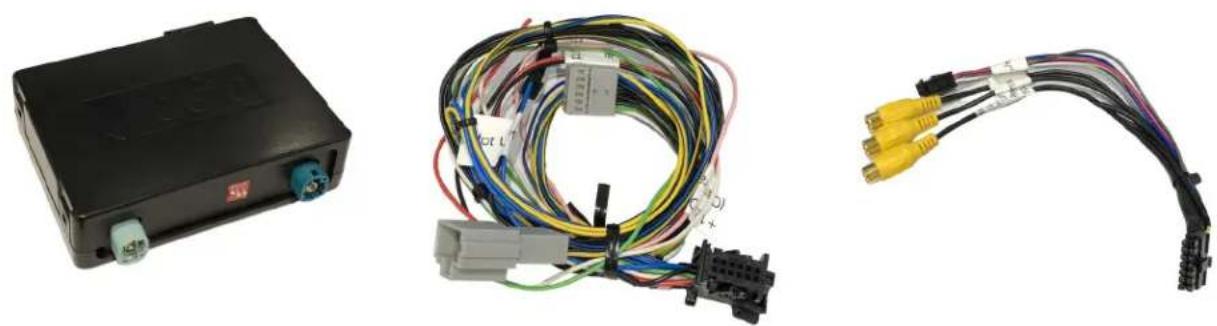
VRFAD-81C Module VRFAD-81C Harness Video Harness
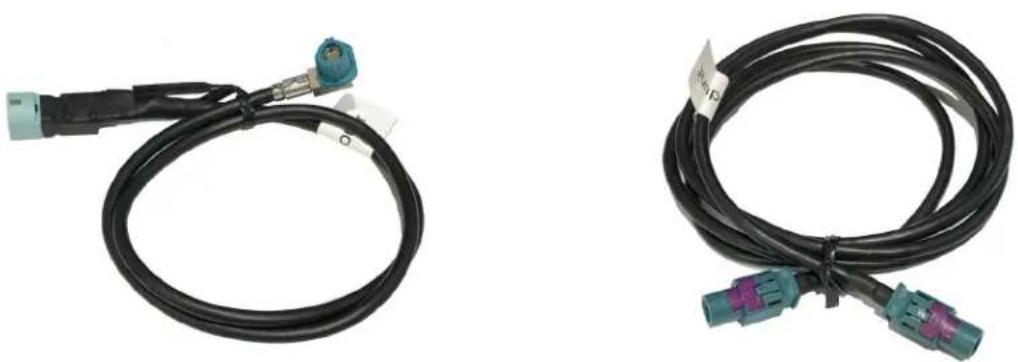
LVDS1 Cable (to vehicle) LVDS 2 Cable (to radio)
INSTALLATION DIAGRAM:
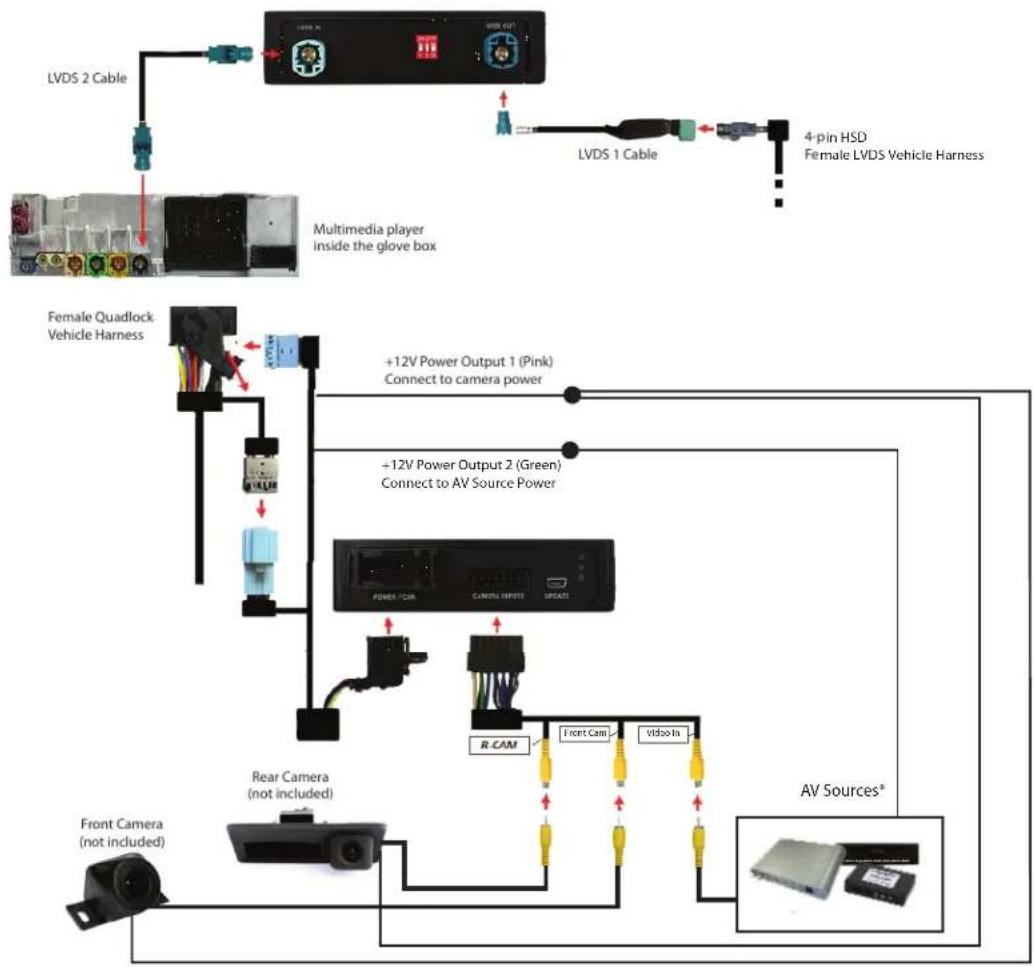
flowchart
graph TD
    A["LVDS 2 Cable"] --> B["Multimedia player inside the glove box"]
    C["LVDS 1 Cable"] --> D["4-pin HSD Female LVDS Vehicle Harness"]
    E["Female Quadlock Vehicle Harness"] --> F["+12V Power Output 1 (Pink) Connect to camera power"]
    E --> G["+12V Power Output 2 (Green) Connect to AV Source Power"]
    H["Front Camera (not included)"] --> I["Rear Camera (not included)"]
    J["Front Cam"] --> K["Front Cam"]
    L["Vidoo In"] --> M["AV Sources*"]
*NOTE: Vehicle must have Auxiliary Audio Input for the AV source.

DIP SWITCH SETTINGS:
| VEHICLE MONITOR SIZE DIP 1 DIP 2 DIP 3 | ____ | ____ | ||
| Audi A3 (8V) | 7” ON OFF | OFF | ||
| Audi A4 (8W) | 8.3” ON ON | ON | ||
| Audi Q7 (4M) | 8.3” ON OFF | ON | ||
INSTALLATION INSTRUCTIONS:

natural_image
Interior view of a car showing the front camera and rear-mounted audio jack (no visible text or symbols)- Installation is done behind the media player in the glove compartment.
natural_image
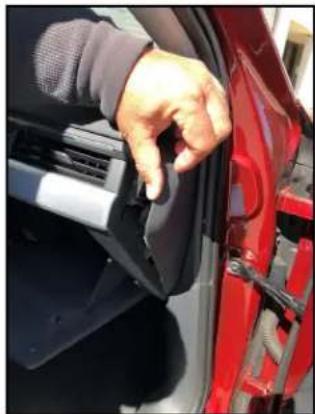
Close-up of a hand adjusting a red car door panel, no visible text or symbols- Remove the dashboard side panel. 3.

natural_image
Close-up of a person adjusting a car's front panel, no visible text or symbolsRemove the screw that holds the glove compartment.

natural_image
Close-up of hands using a power tool on a car tire (no visible text or symbols)- Remove the other screws holding the glove compartment.
natural_image
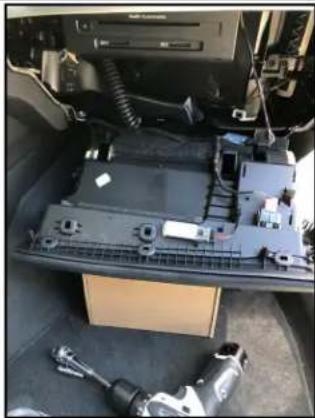
Interior view of a car showing a battery pack, electrical panel, and mechanical components (no visible text or symbols)- Pull down the glove compartment to show the media player.

natural_image
Close-up of a car interior with colorful plastic gloves and accessories (no visible text or symbols)- Remove the media player to gain access to the connectors on the back.

natural_image
Close-up of a hand holding a component with wires and a copper coil, next to a black plastic keyboard (no visible text or symbols)- Unplug the Gray connector from the Quadlock connector.

natural_image
Close-up of a hand holding a gray plastic connector with wires and colored wires, next to an electronic device (no visible text or symbols)- Plug in the Gray connector to the mate on the VRFAD-81C harness.

natural_image
Close-up of automotive electrical connectors with visible wiring and terminal blocks (no text or symbols)- Locate the Pink OR Gray LVDS connector and unplug it.

natural_image
Close-up of a car engine bay with a power connector and battery pack (no visible text or symbols)- Plug the Pink or Gray LVDS cable to the LVDS 1 cable. Plug the other end of the LVDS 1 cable to the module LVDS OUT.

natural_image
Close-up of electronic connectors and cables in a storage room (no visible text or symbols)- Plug one end of the LVDS 2 cable to the Pink or Gray LVDS port on the media player. Plug the other end of the LVDS 2 cable to the module LVDS IN.

natural_image
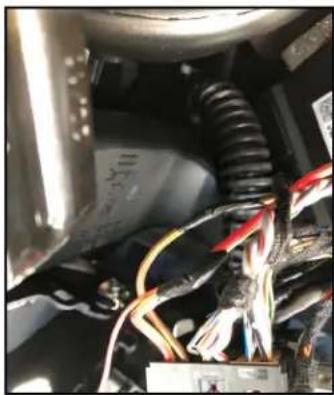
Close-up of a hand holding a cable with wires and connectors, no visible text or symbols- Tap the Red and Black wires of the VRFAD-81C harness to power & ground:
Red to RED/YELLOW Black to BROWN
natural_image
Close-up of an electronic device with visible wiring and components (no readable text or symbols)- Tape the connections well to avoid short circuits.
- Install the cameras that will be used in the install. Run the camera cables towards the radio. The RCAs and camera power wires will be connected to the VRFAD-81C harness.
Video Inputs
Reverse Camera
Front Camera
Video Input
Power Wire
Pink
Pink
Green
natural_image
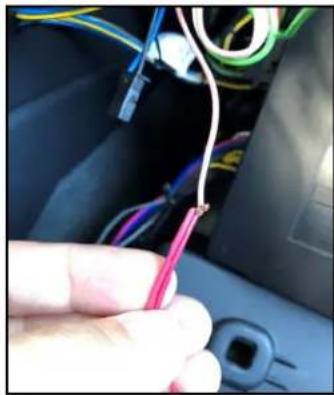
Close-up of a hand holding a red cable with wires, next to a car's head panel (no visible text or symbols)- Connect the camera power wires to the PINK power output 1 wire.

natural_image
Interior view of a vehicle battery pack with wiring and components (no visible text or symbols)- Plug in connectors to the VRFAD-81C module.

natural_image
Close-up of a black electronic device with illuminated ports and wiring (no visible text or symbols)- Test the communication. Turn on the ignition and check if LEDs are on.
- Test the cameras. Put gear in reverse and check for rear camera image on screen. Put gear in Drive and the front camera should turn on. Test AV source if image shows on the screen.
Once the cameras and AV source validation is complete, mount the VRFAD-81C module, reinstall the media player and glove compartment.
OSD SETTINGS:
OSD Menu
Use the following buttons to enter the VRFAD-81C OSD Menu:
AUDI

SETTING THE CAMERAS:
Use the PINK wire to power the Front and Rear cameras. Set the OSD as follows:
Option 1 = CAM

Setting the Front Camera
(Use the PINK (Output 1) wire to power the Front camera)


| OSD Menu | Menu Item Setting Description | ||
| Input FVC | OFF Front camera | deactivated | |
| ON | Switches to front camera if parking process is enabled and reverse gear is released | ||
| Option 1 Park | Logic | Intelligent | For vehicles with front-PDC. Enabled while parking process and up to 12 mph |
| RGearOnly | Enabled while parking process (not suitable for front camera operation) | ||
| RGearSpeed | Enabled while parking process and up to e.g. 7 mph (speed adjustable) | ||
| RGearTime Enabled while parking process and up to 20 seconds | |||
| Option 2 R/F | Cam ON XX Speed setting for deactivating of the camera image | ||
| Option 2 PDC | Graphic | OFF OEM PDC display of the vehicle deactivated | |
| Horizontal Vehicles with horizontal OEM PDC display | |||
| Vertical Vehicles with vertical OEM PDC display | |||
Note: You can deactivate the camera image by a long press (2 sec.) of the rotation knob.
Setting the Rear Aftermarket Camera
(Use the PINK (12V Output 1) wire to power the Rear camera)
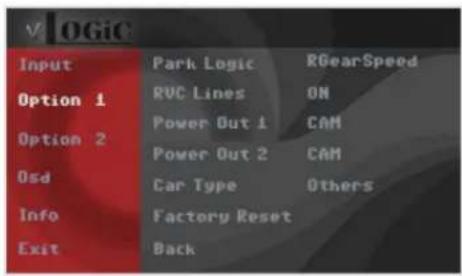
In the OSD Menu, set "Option 1" > menu item "Power Out 2" to "CAM"
If the aftermarket back up camera does not automatically switch on after putting the gear to reverse, you can use the analog setting instead. Connect the white wire from the VRFAD-81C harness to the analog reverse gear signal (+12V) wire. Set "Option 2" > "Cam Trigger" to Analog.


| OSD Menu | Menu Item Setting Description | ||
| Input RVC | OFF Rear View | camera deactivated | |
| ON | Switches to rear-view camera if reverse gear is engaged or PDC is activate | ||
| Option 1 Park | Logic | Intelligent | For vehicles with PDC. Enabled while parking process and up to 12 mph (not suitable for front camera operation for vehicles without front PDC) |
| RGearOnly | Enabled while parking process (not suitable for front camera operation) | ||
| RGearSpeed | Enabled while parking process and up to e.g. 7 mph (speed adjustable) | ||
| RGearTime Enabled while parking process and up to 20 seconds | |||
| Option 1 RVC | Lines ON Interactive Lane lines activated | ||
| Option 2 R/F | Cam Till XX Speed setting for deactivating of the camera image | ||
| Option 2 PDC | Graphic | OFF OEM PDC display of the vehicle deactivated | |
| Horizontal Vehicles with horizontal OEM PDC display | |||
| Vertical Vehicles with vertical OEM PDC display | |||
| Option 2 Cam | Trigger | CAN | Rear gear and blinker signal detection over CAN Bus |
| Analog | Rear gear signal detection over analog +12V signals | ||
Note: You can deactivate the camera image by a long press (2 sec.) of the rotation knob.
| OSD Menu | Menu Item | Setting | Description |
| Input | RVC | OEM | If a factory rear-view camera is present. The interface turns off, if reverse gear is enabled and it displays factory rear-view camera |
| Option 1 | Park Logic | Intelligent | For vehicles with front-PDC. Enabled while parking process and up to 12 mph. |
| RGearSpeed | Enabled while parking process and up to e.g. 7 mph (speed adjustable) | ||
| RGearTime | Enabled while parking process and up to 20 seconds | ||
| Option 2 | R/F Cam Till | XX | Speed setting for deactivating of the camera image |
AV Input
You can use the Video Input to plug in an external video source. Please note that the vehicle needs to have a factory AUX Input for audio to be heard through the factory sound system.

Use the GREEN wire (12V OUTPUT 2) of the VRFAD-81C harness to power the external video source (max. 1A) of the AV source.
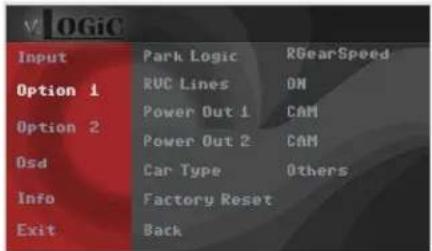
Go to the OSD menu and set "Option 1", menu item "Power Out 2" to "AVS" or "ACC".

| OSD Menu | Menu Item Setting Description | |
| Input Right VC/AV | OFF No camera | / AV source connected |
| RC01 AV source | connected to the Video input RCA | |
In the vehicle's Media menu, activate AUX Input (only necessary for AV source operation) to get sound through the vehicle's audio system. Press the "MEDIA" button for 3 to 5 seconds to go to AV mode.
A short press of the "MEDIA" button (or additionally on touchscreen the swipe gesture) will toggle through the video sources. Each short press will toggle to the next enabled input. If all inputs are enabled the order is:
Rear CAM > Front CAM > Video Input > ... Inputs which are not enabled are skipped.
To exit AV mode, press the "MEDIA" button for 3 to 5 seconds or by a short press of "RADIO/NAV/TEL/PHONE/CAR" button.
Configurable Trigger Outputs
You can configure the both +12V trigger outputs separately in the OSD menu. The PINK wire (12V OUTPUT 1) is Power Out 1 and the GREEN wire (12V OUTPUT 2) is Power Out 2.
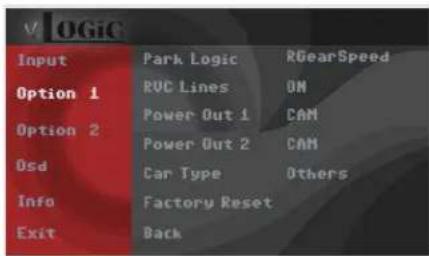
| OSD Menu | Menu Item Setting Description | ||
| Option | Power Out 1 (PINK) | CAM +12V when the interface is on (red LED on) | |
| ACC +12V when ignition is on | |||
| Cam | +12V when camera input is activated(manually or automatically) | ||
| Power Out 2 (GREEN) | RGear +12V when reverse gear is engaged | ||
| AVS +12V when camera / video input was manually activated | |||
| OFF Trigger output deactivated | |||
Tip: We recommend for all camera to use power out setting "Cam" and for AV source the power out setting of "AVS" or "ACC".
Interactive Lane Lines
The VRFAD-81C includes an Interactive Lane Lines function that is added to the aftermarket rear view camera. Use the OSD menu to activate this feature.


natural_image
Pure geometric diagram with intersecting lines and shaded regions, no text or symbols present| OSD Menu | Menu Item Setting Description | ||
| Option | RVC Lines | OFF | Interactive lane lines deactivated |
| ON | Interactive lane lines activated | ||
| Car Type | AUDI A3 / AUDI A4 / AUDI Q7 | Vehicle Type Selection | |
Interactive Lane Lines Settings
The height and width of the interactive lane lines can be set in the OSD menu. For this setting you must first activate the rear view camera level and push the "MENU" button for 2 seconds to activate the settings menu. With the rotation knob you can select the menu point "Line Height" to change the height of the interactive lane lines and with menu point "Line Width" the width of the lines. Click "Exit" to leave the settings menu.

Picture Settings
The camera picture can be set in the OSD menu. For this setting you must first activate the camera level and push the "MENU" button for 2 seconds to activate the settings menu. With the rotation knob you can select and change the "Brightness", "Contrast", "Saturation", Hue" and "Sharpness". Click "Exit" to leave the settings menu.

Note: The picture settings will be retained for every camera input separately.
OSD Settings
You can change the basic configurations of the interface in the OSD (on screen display).
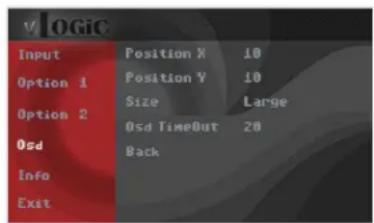
| OSD Menu | Menu Item Setting Description | ||
| OSD | POS. X 0-xxx Horizontal position of the OSD | ||
| POS. Y 0-xxx Vertical position of the OSD | |||
| Size | Small Small OSD menu window | ||
| Large Large OSD menu windows | |||
| Osd TimeOut 2 | -20 Time setting for automatic OSD shutoff | ||
| Info Version X | XX.XX Displays | the current SW-version | |
| Option 1 | Factory Reset | Reset to factory default settings | |

VEHICLE APPLICATIONS:
| Audi | ||
| 2013 - Up | A3 (8V) | MMI Navigation Plus with MMI touch 7" or 8.3" |
| 2016 - Up | A4 (8W) | MIB/MIB II main unit |
| 2018 - Up | Q5 (B9) | |
| 2015 - Up | Q7 (4M) |
NOTE: The RFM-APV connects at the multimedia player located in the glove box.
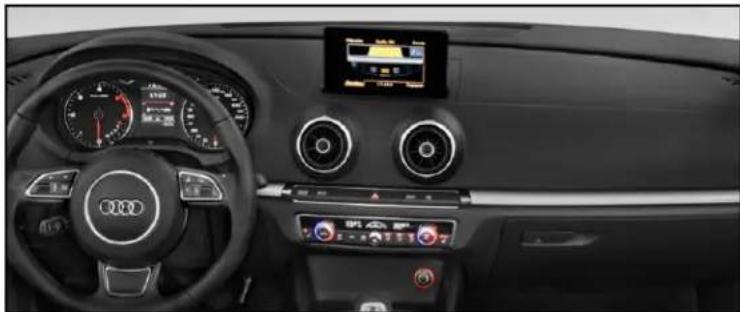
natural_image
Interior view of a Audi car dashboard and infotainment system (no visible text or symbols)2015 A3

natural_image
Interior view of a modern Audi car dashboard with digital displays and steering wheel (no visible text or symbols)2017 A4

natural_image
Interior view of a modern car dashboard with steering wheel, dashboard, and navigation screen (no visible text or symbols)2017 Q7


- NOTES:
- PARTS INCLUDED:
- INSTALLATION INSTRUCTIONS:
- Video Inputs
- Power Wire
- OSD SETTINGS:
- OSD Menu
- SETTING THE CAMERAS:
- Setting the Front Camera
- Setting the Rear Aftermarket Camera
- AV Input
- Configurable Trigger Outputs
- Interactive Lane Lines
- Interactive Lane Lines Settings
- Picture Settings
- OSD Settings
- VEHICLE APPLICATIONS:
Brand : CRUX
Model : VRFAD-81C
Category : Unspecified