
lightSPKR - Loudspeaker MEE audio - Free user manual and instructions
Find the device manual for free lightSPKR MEE audio in PDF.


| Product Type | Wireless Camping Speaker with Lantern |
| Brand | MEE audio |
| Model | lightSPKR |
| Connectivity | Bluetooth, USB, 3.5mm AUX |
| Audio Inputs | Bluetooth, USB (music playback), AUX 3.5mm |
| Speaker Configuration | Mono (supports stereo pairing with second unit) |
| Audio Modes | Dynamic, Bass Boost, Vocal Boost |
| Controls | Power button, Bluetooth button, Volume/Lantern knob, Play/Pause, Next/Previous track |
| Lantern | Adjustable color and brightness via knob |
| Voice Assistant Support | Siri and Google Assistant (via long press play/pause) |
| Stereo Pairing | Yes, connect two lightSPKR units |
| Battery | Built-in rechargeable battery |
| Charging | USB charging (cable included) |
| Battery Level Indicator | LED bar with four levels (80%, 60%, 40%, 20%) |
| Warranty | 1 year manufacturer warranty |
| What's in the Box | lightSPKR, Charging Cable, 3.5mm Audio Cable |
| Bluetooth Pairing | Long press Bluetooth button; blinking blue light |
| Power Off Timer | Automatic power off after 15 minutes of inactivity (unless lantern on or audio playing) |
| Phone Support | M-F 9am-5pm PST: 626-965-1008 |
| Email Support | support@MEEaudio.com (response within 2 business days) |
Frequently Asked Questions - lightSPKR MEE audio
User questions about lightSPKR MEE audio
0 question about this device. Answer the ones you know or ask your own.
Ask a new question about this device
Download the instructions for your Loudspeaker in PDF format for free! Find your manual lightSPKR - MEE audio and take your electronic device back in hand. On this page are published all the documents necessary for the use of your device. lightSPKR by MEE audio.
USER MANUAL lightSPKR MEE audio
WIRELESS CAMPING SPEAKER WITH LANTERN

lightSPKR Setup Guide
Scan the QR code or visit:
MEEaudio.com/lightSPKRsupport
what's in the box
natural_image
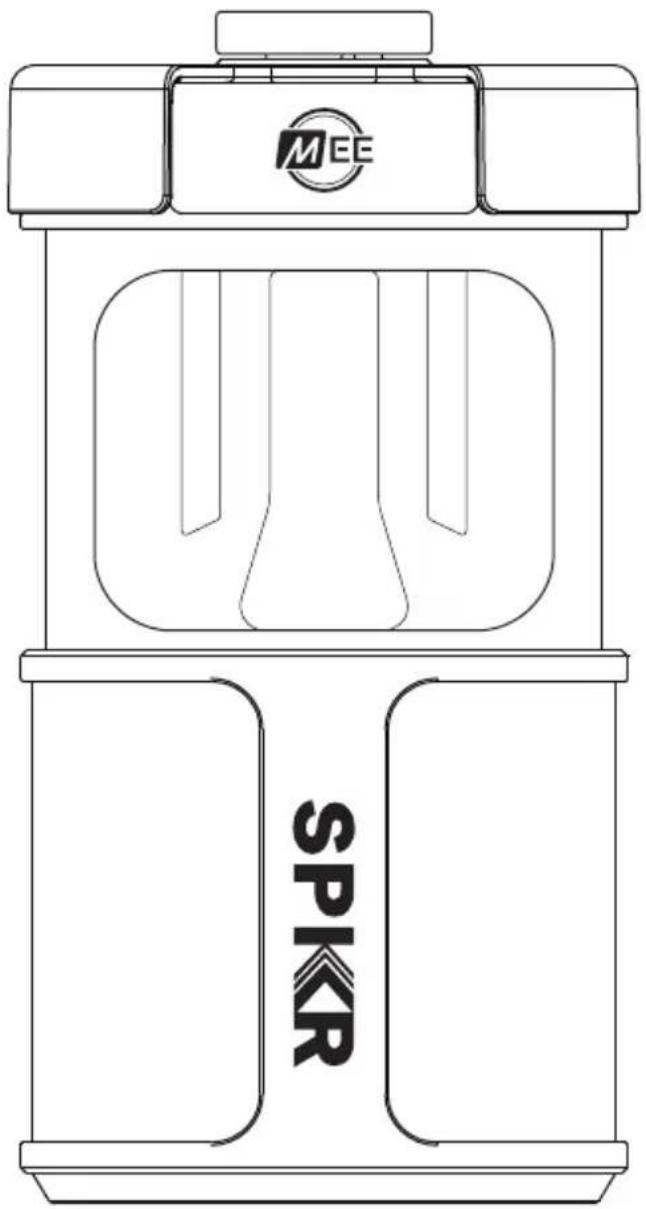
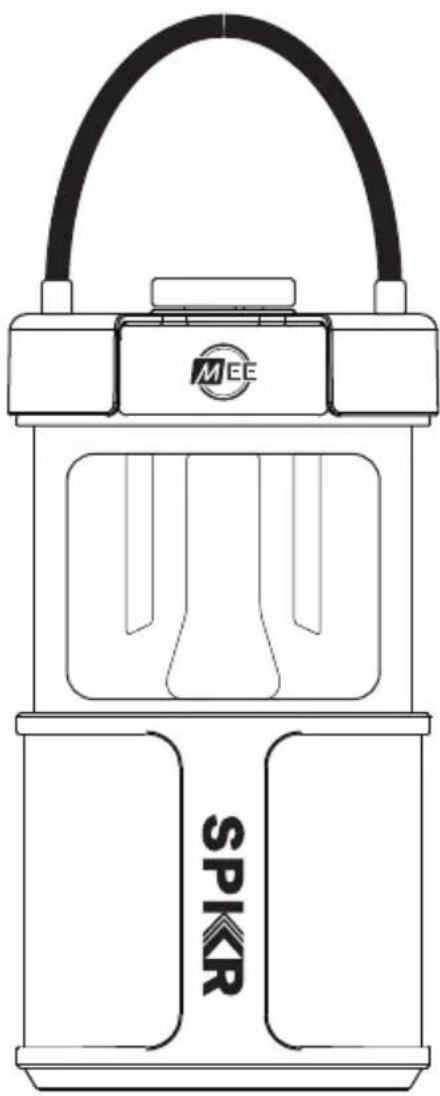
Line drawing of a handbag with MEE logo and 'SPIKR' branding, no readable text or symbols beyond branding elementslightSPKR
natural_image
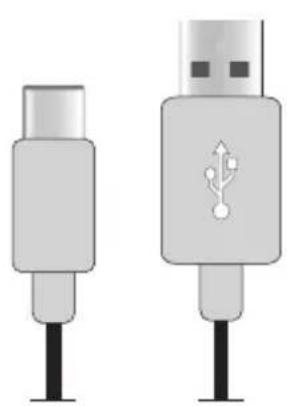
Two USB connectors with a USB symbol on their caps, shown from different angles (no text or labels)Charging Cable

natural_image
Two identical mechanical components with threaded ends and a central shaft, shown side by side (no text or symbols)3.5mm Audio Cable
light SPIKR interface

Bluetooth button
Bluetooth pairing: long press
Enable/disable stereo mode: double press
Factory reset: press and hold 8s
Power button
Power on/off: long press
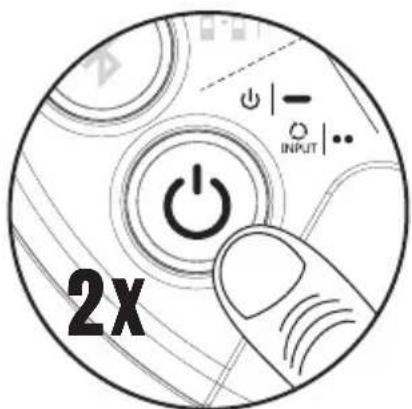
Change audio source*: double press
*available only if multiple sources are connected


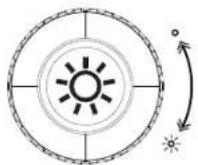
Lantern control
Light on / off: turn knob
Next track button
Next track: single press

Previous track button
Previous track: single press


Audio control
Volume up/down: turn knob
Play/pause: single press
Siri ^® / Google Assistant ^™ : long press
Answer/hang up phone call: single press
Refuse incoming call: long press
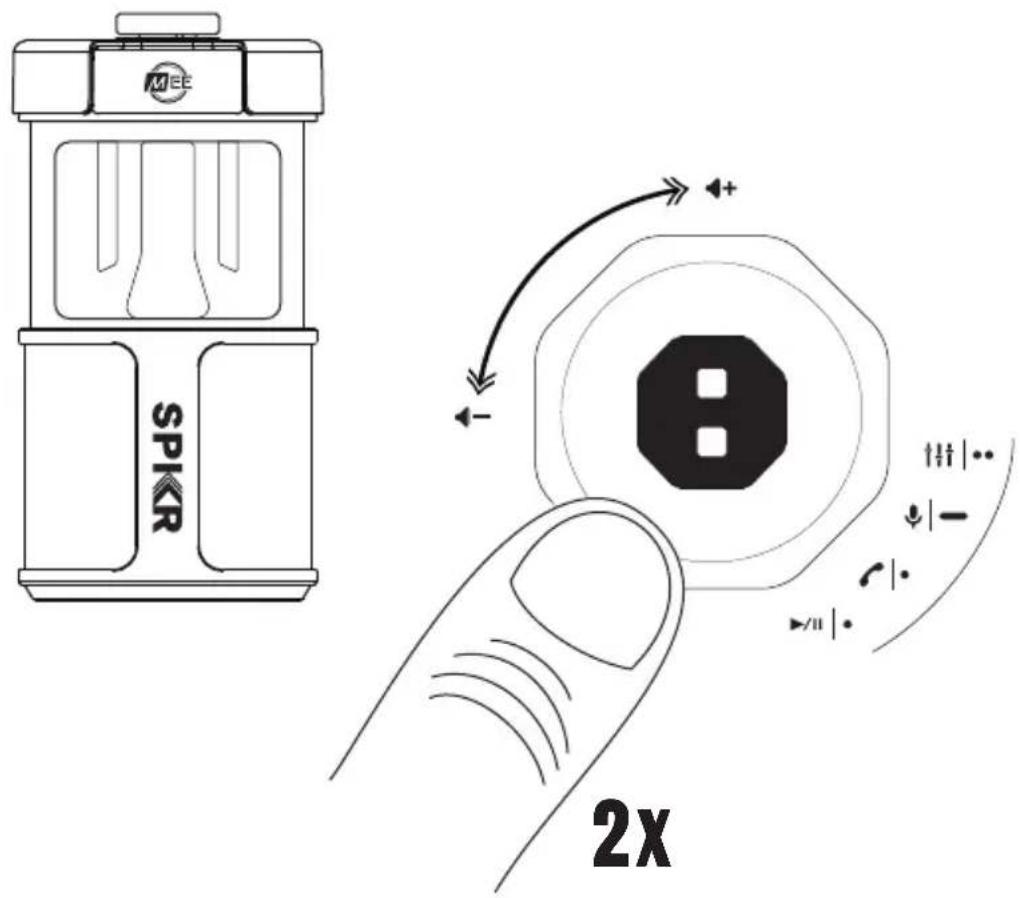
Change MEE audio mode: double press
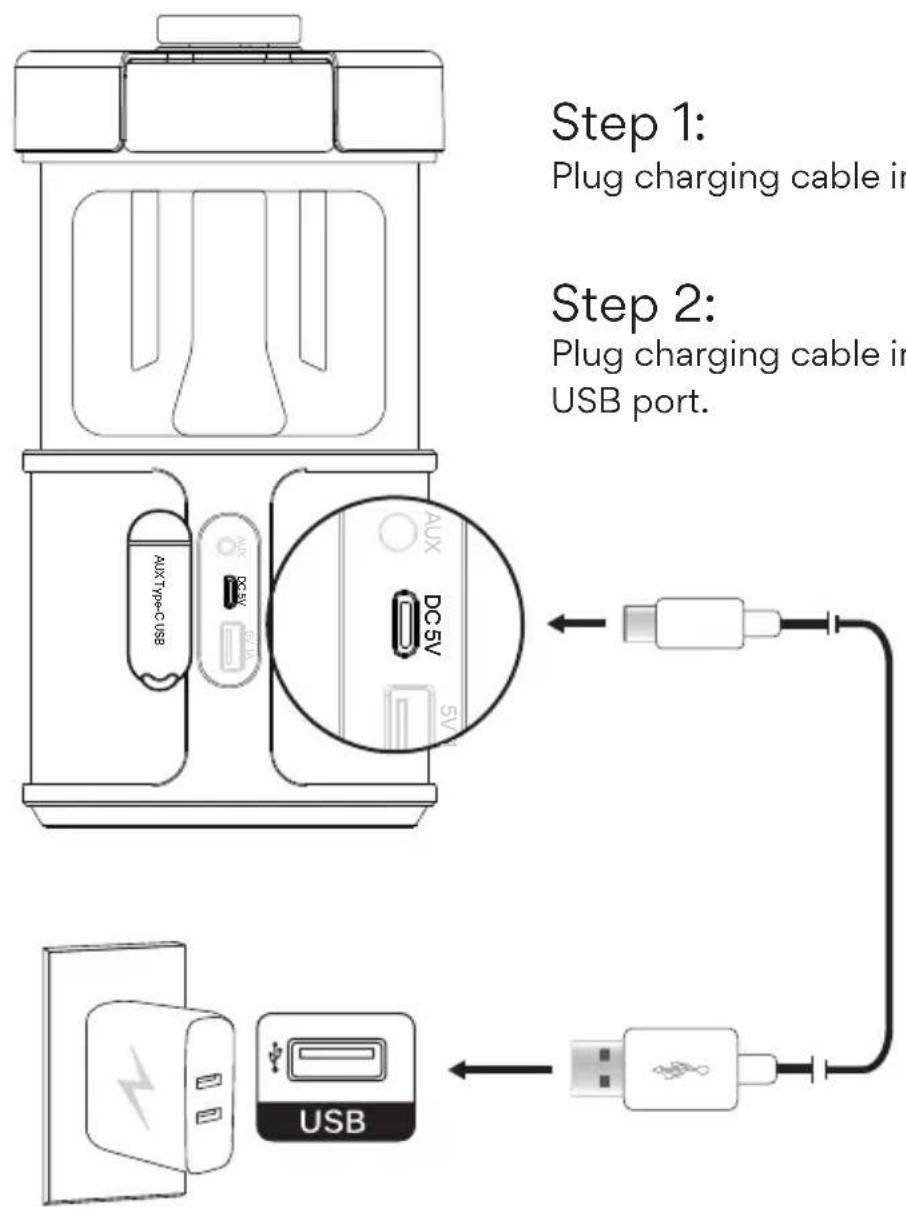
Step 1:
Plug charging cable into lightSPKR
Step 2:
Plug charging cable into a powered USB port.
Battery Level Indicator

bar
| Range (%) | Bar Color | Circle | Dot | |---|---|---|---| | > 80% | Light Battery | ○ | ○ | | 60% - 80% | Medium Battery | ○ | ○ | | 40% - 60% | Dark Battery | ○ | ● | | 20% - 40% | Light Battery | ○ | ● | | < 20% | Dark Battery | ● | ● |lantern operation

Step 1:
Power on the lightSPKR
Step 2:
Use the knob to turn on the lantern and adjust its color/brightness
Note: lightSPKR will automatically power off after 15 minutes of inactivity unless the lantern is on or audio is playing
Bluetooth pairing

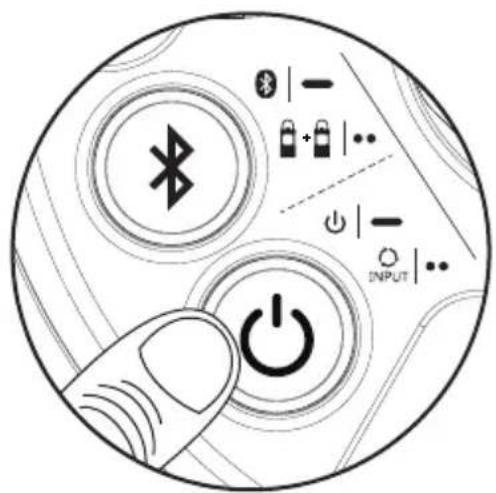
Step 1
Power on:
Long press power button

Step 2
Bluetooth pairing:
Long press Bluetooth button
blinking blue light = pairing mode

natural_image
Simple line drawing of a sun above a row of six circles, no text or symbols present
Step 3:
Select MEE audio lightSPKR on device
Note: To pair a different device, remove or disconnect the lightSPKR from the original device or long press Bluetooth button.
Stereo mode
Connect two lightSPKRs together in stereo for louder, more natural sound
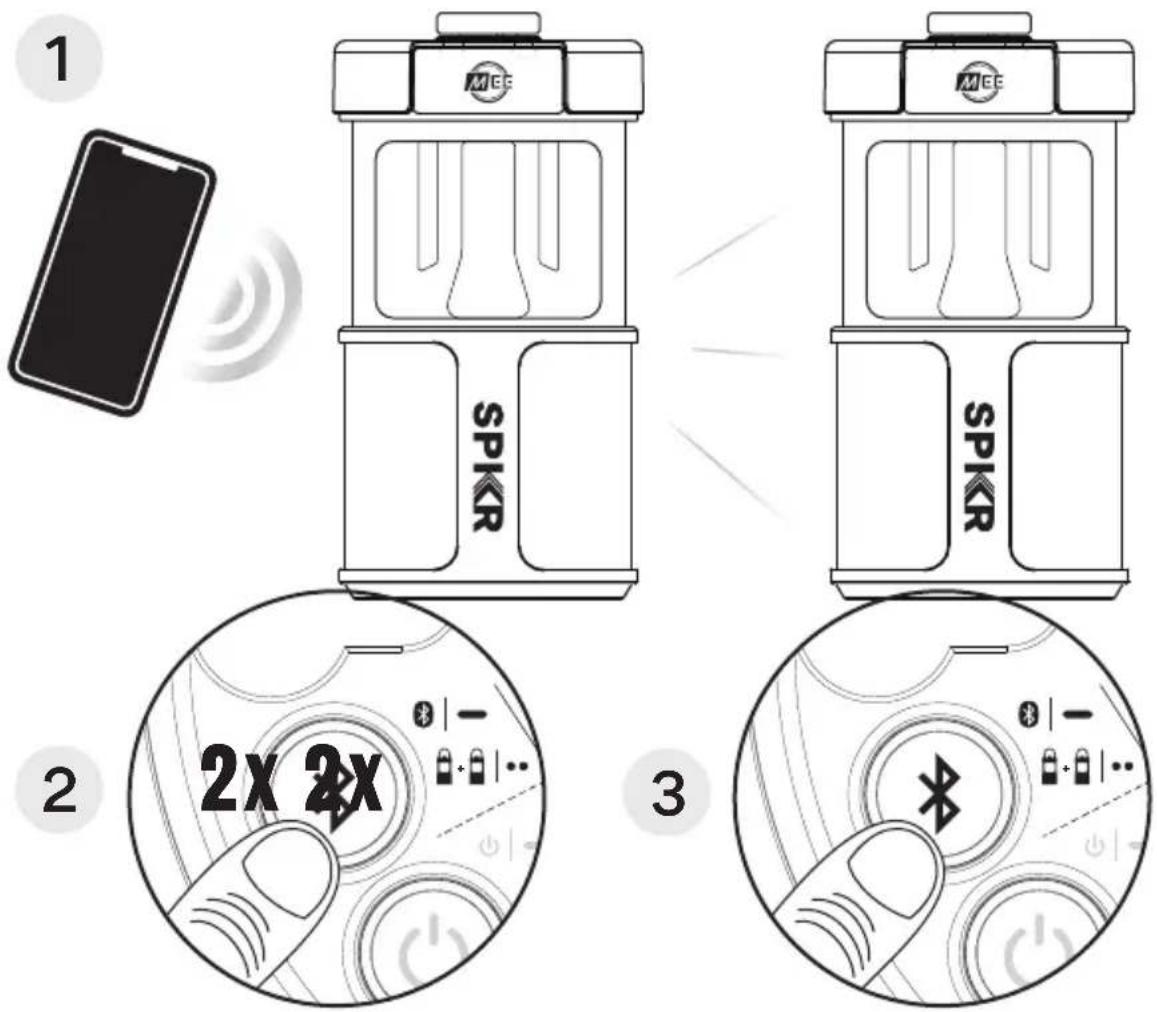
Step 1:
Connect the first lightSPKR to your device. This will become your left speaker
Step 2:
Double press the Bluetooth button on left speaker
Step 3:
Double press the Bluetooth button on right speaker
Note: Double press the Bluetooth button on left speaker again to exit stereo mode
Change audio modes
Double press the audio control to cycle through different sound modes
Audio Modes

DYNAMIC:
Default audio mode with enhanced bass and treble response for engaging, yet clear sound

BASS BOOST:
Enhances bass response and depth to create more impact and immersion

VOCAL BOOST:
Boosts speech and vocals for more clarity and intelligibility
Switch audio inputs
Switch between Bluetooth, USB, and AUX input

Step 1:
Power on the lightSPKR
Step 2:
Plug a 3.5mm audio cable into the AUX input or a USB stick with music into the USB port.
Audio source will automatically switch to the connected device.
Note: When 2 or more sources are connected, double press power button to cycle available sources

Step 1:
Power on the lightSPKR
Step 2:
Plug your device into the port labeled "USB" to charge
Note: Device will charge only while lightSPKR is powered on
questions?
we're here to help!
Phone Support: 626-965-1008
Monday \~ Friday 9 am to 5 pm PST
Email Support: support@MEEaudio.com
All emails are responded to within 2 business days
for additional support
view our video setup guide
Scan the QR code or enter the URL below into your web browser:
MEEaudio.com/lightSPKRsupport


SPKR
WARRANTY
This product is covered by a 1-year manufacturer warranty. For more information, visit MEEaudio.com/support.
MEE audio and its logo are registered trademarks of S2E, Inc. All rights reserved.
The Bluetooth ^® word mark and logos are registered trademarks owned by Bluetooth SIG, Inc. and any use of such marks by MEE audio is under license. Other trademarks and trade names are those of their respective owners.
Siri® is a registered trademark of Apple Inc. Google Assistant is a trademark of Google Inc.

- what's in the box
- light SPIKR interface
- Bluetooth button
- Power button
- Audio control
- Step 1:
- Step 2:
- lantern operation
- Bluetooth pairing
- Step 3:
- Stereo mode
- Change audio modes
- Audio Modes
- DYNAMIC:
- BASS BOOST:
- VOCAL BOOST:
- Switch audio inputs
- questions?
- we're here to help!
- for additional support
- view our video setup guide
- WARRANTY
Brand : MEE audio
Model : lightSPKR
Category : Loudspeaker