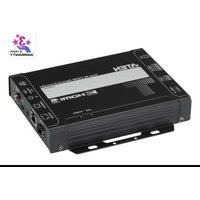
VE883A - AV Switch ATEN - Free user manual and instructions
Find the device manual for free VE883A ATEN in PDF.


| Product Type | True 4K HDMI Optical Extender (Transmitter & Receiver pair) |
| Model | VE883A (VE883AT + VE883AR) |
| Brand | ATEN |
| Dimensions (without bracket) | 16.60 x 12.49 x 2.90 cm (6.54 x 4.92 x 1.14 in.) |
| Dimensions (with bracket) | 16.94 x 14.69 x 3.00 cm (6.67 x 5.78 x 1.18 in.) |
| Weight (Transmitter) | 0.67 kg (1.45 lb) |
| Weight (Receiver) | 0.66 kg (1.48 lb) |
| Power Input | DC 12V via locking DC jack |
| Power Consumption (Transmitter) | 7.01 W (54 BTU) |
| Power Consumption (Receiver) | 6.5 W (52 BTU) |
| Maximum Resolution | 4096 x 2160 / 3840 x 2160 @ 60 Hz (4:4:4) |
| Maximum Distance (Multimode OM3) | 300 m (with VE883AK1 SFP+ module) |
| Maximum Distance (Singlemode OS2) | 10 km (with VE883AK2 SFP+ module) |
| Video Interface | HDMI Type A (HDCP 2.2 compliant, supports 3D & Deep Color) |
| Audio Interface | 5-pole terminal block (analog audio in/out) |
| USB Interface | 1 x USB Type-B (host), 2 x USB Type-A (device), USB 2.0 transparent |
| RS-232 Interface | 3-pole terminal block (bi-directional bypass) |
| IR Interface | Mini stereo jack, bi-directional (30 kHz – 56 kHz) |
| Ethernet Interface | 1 x GbE RJ-45 (bi-directional bypass) |
| Fiber Optic Interface | 1 x duplex SFP+ (LC connector) |
| Key Features | FarSmooth technology, lossless 4K extension, plug-and-play, hot-pluggable, rack-mountable |
| Cleaning | Unplug before cleaning; use a damp cloth. Do not use liquid or aerosol cleaners. |
| Safety | Indoor use only. Do not expose to water. Ensure adequate ventilation. Refer servicing to qualified personnel. |
| Warranty | 2 years limited hardware warranty (may vary by region; cables & accessories excluded) |
Frequently Asked Questions - VE883A ATEN
User questions about VE883A ATEN
0 question about this device. Answer the ones you know or ask your own.
Ask a new question about this device
Download the instructions for your AV Switch in PDF format for free! Find your manual VE883A - ATEN and take your electronic device back in hand. On this page are published all the documents necessary for the use of your device. VE883A by ATEN.
USER MANUAL VE883A ATEN
Compliance Statements
FEDERAL COMMUNICATIONS COMMISSION INTERFERENCE STATEMENT
This equipment has been tested and found to comply with the limits for a Class A digital device, pursuant to Part 15 of the FCC Rules. These limits are designed to provide reasonable protection against harmful interference when the equipment is operated in a commercial environment. This equipment generates, uses, and can radiate radio frequency energy and, if not installed and used in accordance with the instruction manual, may cause harmful interference to radio communications. Operation of this equipment in a residential area is likely to cause harmful interference in which case the user will be required to correct the interference at his own expense.
The device complies with Part 15 of the FCC Rules. Operation is subject to the following two conditions: (1) this device may not cause harmful interference, and (2) this device must accept any interference received, including interference that may cause undesired operation.
FCC Caution
Any changes or modifications not expressly approved by the party responsible for compliance could void the user's authority to operate this equipment.
Warning
Operation of this equipment in a residential environment could cause radio interference.
Achtung
The terms HDMI, HDMI High-Definition Multimedia Interface, and the HDMI Logo are trademarks or registered trademarks of HDMI Licensing Administrator, Inc.

RoHS
This product is RoHS compliant.
User Information
Online Registration
Be sure to register your product at our online support center:
International http://eservice.aten.com
Telephone Support
For telephone support, call this number:
| International 886-2-8692-6959 |
| China 86-400-810-0-810 |
| Japan 81-3-5615-5811 |
| Korea 82-2-467-6789 |
| North America 1-888-999-ATEN ext 4988 |
| 1-949-428-1111 |
User Notice
All information, documentation, and specifications contained in this manual are subject to change without prior notification by the manufacturer. The manufacturer makes no representations or warranties, either expressed or implied, with respect to the contents hereof and specifically disclaims any warranties as to merchantability or fitness for any particular purpose. Any of the manufacturer's software described in this manual is sold or licensed as is. Should the programs prove defective following their purchase, the buyer (and not the manufacturer, its distributor, or its dealer), assumes the entire cost of all necessary servicing, repair and any incidental or consequential damages resulting from any defect in the software.
The manufacturer of this system is not responsible for any radio and/or TV interference caused by unauthorized modifications to this device. It is the responsibility of the user to correct such interference.
The manufacturer is not responsible for any damage incurred in the operation of this system if the correct operational voltage setting was not selected prior to operation. PLEASE VERIFY THAT THE VOLTAGE SETTING IS CORRECT BEFORE USE.
Product Information
For information about all ATEN products and how they can help you connect without limits, visit ATEN on the Web or contact an ATEN Authorized Reseller.
Visit ATEN on the Web for a list of locations and telephone numbers:
| International http://www.aten.com |
| North America http://www.aten-usa.com |
Package Contents
Check to make sure that all the components are in working order. If you encounter any problem, please contact your dealer.
VE883A
The VE883A package consists of:
◆ 1 True VE883AT 4K HDMI Optical Extender (Transmitter)
◆ 1 True VE883AT 4K HDMI Optical Extender (Receiver)
◆ 2 power adapters and power cords
◆ 2 3-pole terminal blocks
◆ 2 5-pole terminal blocks
◆ 1 IR receiver
◆ 1 IR emitter
◆ 1 USB Type-B to USB Type-A cable
◆ 2 HDMI LockPros
◆ 2 SFP modules
◆ 1 user instructions
VE883AT
The VE883AT package consists of:
◆ 1 VE883A True 4K HDMI Optical Extender (Transmitter)
◆ 1 power adapter and power cord
◆ 1 3-pole terminal block
◆ 1 5-pole terminal block
◆ 1 IR receiver
◆ 1 IR emitter
◆ 1 USB Type-B to USB Type-A cable
◆ 1 HDMI LockPro
◆ 1 SFP module
◆ 1 user instructions
VE883AR
The VE883AT package consists of:
◆ 1 VE883A True 4K HDMI Optical
◆ Extender (Receiver)
◆ 1 power adapter and power cord
◆ 1 3-pole terminal block
◆ 1 5-pole terminal block
◆ 1 IR receiver
◆ 1 IR emitter
1 HDMI LockPro
◆ 1 SFP module
◆ 1 user instructions
Note: For long distance transmissions, ATEN recommends using SFP+ modules to allow compatibility with single or multi mode fibers. Depending on the chosen package (VE883AK1 or VE883AK2), different SFP+ modules are supplied:
| Part No. | Supplied SFP+ Modules |
| Description | |
| VE883AK1 10 | Gbps/300m SFP+ Duplex Multi Mode Transceiver |
| VE883AK2 10 | Gbps/10 km SFP+ Duplex Single Mode Transceiver |
Table of Contents
Compliance Statements ...... ii
User Information ....iv
Telephone Support .....iv
User Notice....iv
Product Information ...... v
Package Contents ......vi
Table of Contents ......viii
About this Manual ix
Conventions x
1. Introduction
Overview....1
Features 2
Planning the Installation 4
Display 4
Source Device....4
Cables....4
Optional Equipment....4
Compatible ATEN Products 4
Supported Video Resolutions 5
2. Hardware Setup
Components 7
VE883AT Front View. 7
VE883AT Rear View 8
VE883AR Front View 9
VE883AR Rear View 10
VE883A LED Display 11
Mounting 13
Installation....13
RS-232 Channel Transmission 15
3. Operation
Firmware Upgrades 17
Appendix
Safety Instructions 21
General 21
Rack Mounting 23
Technical Support 24
Specifications 25
ATEN Standard Warranty Policy 28
About this Manual
This user manual is provided to help you get the most from the VE883A unit. It covers all aspects of installation, configuration, and operation. An overview of the information found in the manual is provided below.
Chapter 1, Introduction introduces you to the 4K HDMI Optical Extender. Its purpose, features, and installation considerations are described.
Chapter 2, Hardware Setup describes the panel components of the 4K HDMI Optical Extender and details the steps that are necessary to quickly and safely set up your installation.
Chapter 2, Hardware Setup provides details on supported RS-232 commands and how to upgrade the device firmware.
Appendix provides a list of safety instructions and precautions, contact information for ATEN technical support, product specifications, and other technical information.
Note:
- Read this manual thoroughly and follow the installation and operation procedures carefully to prevent any damage to the unit or any connected devices.
- The product may be updated, with features and functions added, improved or removed since the release of this manual. For an up-to-date user manual, visit http://www.aten.com/global/en/
Conventions
This manual uses the following conventions:
MonospacedIndicates text that you should key in.
[] Indicates keys you should press. For example, [Enter] means to press the Enter key. If keys need to be chorded, they appear together in the same bracket with a plus sign between them: [Ctrl+Alt].
- Numbered lists represent procedures with sequential steps.
◆ Bullet lists provide information, but do not involve sequential steps.
Indicates selecting the option (on a menu or dialog box, for example), that comes next. For example, Start > Run means to open the Start menu, and then select Run.

Indicates critical information.
Overview
The VE883A is a True 4K HDMI Optical extender that consists of a transmitter VE883AT and a receiver VE883AR to transmit up to 4096 × 2160 / 3840 × 2160 @ 60 Hz (4:4:4) HDMI, audio, USB 2.0, RS-232, and IR signals across 300 m (VE883AK1) or 10 km (VE883AK2) over a single duplex fiber optic cable losslessly. While helping avoid bulky cable setup, fiber optic cables are electrically isolated, thus they are immune to RFI and EMI. With ATEN's exclusive FarSmooth technology, the VE883A prevents lagging and freezing by matching the output rates to the input rates and ensures that the video display is stable, smooth and identical to the source, particularly in long-distance extension applications where uninterrupted video streams are required.
The VE883A comes with interfaces of HDMI input / output, analog audio input / output, USB 2.0 Type-A, USB 2.0 Type-B, IR, RS-232, and Gigabit Ethernet. Connectivity with USB peripherals is expanded thanks to the VE883A's dual USB Type-A ports. For point-to-point extension, pluggable SFP+ modules are included to serve the purpose of optical connection. Plus, the VE883A is compatible with ATEN's VM7584 / VM8584 Optical Input / Output Board installed in ATEN's modular matrix switches to broaden applications. It is suitable for installations where True 4K video transmission across a long distance and electrical isolation are essential, such as control rooms, factories, and hospitals.
Note: VE883A / VE883AT / VE883AR is not backward compatible with VE883 / VE883T / VE883R.
Features
◆ Extends HDMI video, audio, IR, RS-232 control, and Ethernet signals over a duplex fiber optic cable across up to 10 km*
- Lossless transmission of up to 4096 × 2160 / 3840 × 2160 @ 60 Hz (4:4:4) signals
◆ HDMI (3D, Deep Color, True 4K); HDCP 2.2 compliant
- ATEN’s exclusive FarSmooth technology—prevents lagging and freezing by matching the output rates to the input rates and ensures the 4K@60Hz video display to be stable, smooth and identical to the source through 10 Gbps bandwidth
Dual USB Type-A ports built for expanded connectivity with USB peripherals.
- Supports transparent USB 2.0 signals—perfectly compatible with USB 2.0 peripherals at a maximum transfer rate of 25MB/s
- Bi-directional IR signal transmission—IR transmission is processed one direction at a time, ranged from 30 kHz to 56 kHz
- Features RS-232 serial port for connecting peripherals such as touch screens, and barcode scanners
◆ Supports batch upgrades using Firmware Upgrade Utility
◆ Built-in 8 kV / 15 kV ESD protection
Plug-and-play
Hot-pluggable
Rack-mountable
Note:
- The maximum transmission distance may vary depending on the fiber type, bandwidth, connector splicing, losses, model, chromatic dispersion, environmental factor, and kinks.
- For long distance transmissions, ATEN recommends using SFP+ modules to allow compatibility with single or multi mode fibers. Depending on the chosen package (VE883AK1 or VE883AK2), different SFP+ modules are supplied:
◆ VE883AK1: 10 Gbps/300m SFP+ Duplex Multi Mode Transceiver
VE883AK2: 10 Gbps/10 km SFP+ Duplex Single Mode Transceiver - ATEN recommends using Single Mode fibers that conform to IEC 11801 (OS1, OS1a, OS2), and Multi Mode fibers that conform to IEC 11801 (OM3, OM4) specifications.
- The Device is class 1 laser product. It meets the safety regulations of IEC/EN 60825-1, 21 CFR 1040.10, and 1040.11 except for deviations pursuant to Laser Notice No. 50, dated June 24, 2007.
Planning the Installation
Display
◆ An HDMI display capable of the highest required resolution
Source Device
◆ A source device with an HDMI port (e.g. a Blu-ray disc or a PC)
Cables
◆ 2 HDMI cables
◆ 1 duplex fiber optic cable
Note:
- ATEN recommends VE883AK2 using single-mode fibers that conform to IEC 11801 (OS1, OS1a, OS2), and VE883AK1 using multi-mode fibers that conform to IEC 11801 (OM3, OM4).
- The VE883A is a class 1 laser product that meets the safety regulations of IEC/EN 60825-1 and 21 CFR 1040.10 and 1040.11 except for deviations pursuant to Laser Notice No. 50, dated June 24, 2007.
Optional Equipment
To use the serial controller function, prepare a high-end controller and RS-232 serial cables.
Compatible ATEN Products
The VE883A is compatible with a range of ATEN HDMI Switches, HDMI Splitters, Modular Matrix Switches, and Video Matrix Switches, and HDMI Converters. For more details, visit the VE883A product page at www.aten.com
Supported Video Resolutions
The VE883A supports the following video resolutions:
| Input Resolutions | |
| 640 × 480 @ 60/67/72/75 Hz 480p | 60 Hz (4:3)/(16:9) |
| 720 × 400 @ 70 Hz 720p 60 Hz | |
| 800 × 600 @ 56/60/72/75 Hz 1080i | 60 Hz |
| 1024 × 768 @ 60/70/75 Hz 640x4 | 80 60Hz (4:3) |
| 1280 × 800 @ 60 Hz 576p 50 | Hz (4:3)/(16:9) |
| 1280 × 1024 @ 60/75 Hz 720p 50 Hz | |
| 1400 × 1050 @ 60 Hz 1080i 50 Hz | |
| 1440 × 900 @ 60 Hz 1080p 24/25/30/50 Hz | |
| 1600 × 1200 @ 60 Hz 3840x21 | 60p 24/25/30/50/60 Hz |
| 1680 × 1050 @ 60 Hz 4096x21 | 60p 24/25/30/50/60 Hz |
| 1920 × 1080 @ 60/120/144/240 Hz 38 | 40x2160p 50 Hz 4:2:0/60 Hz 4:2:0 |
| 1920 × 1200 @ 60 Hz / 60 Hz(Reduced Blanking) | 4096x2160p 50 Hz 4:2:0/60 Hz 4:2:0 |
| 1080p 60 Hz | |
This Page Intentionally Left Blank
Chapter 2
Hardware Setup

- Please review the safety information regarding the placement of this device in Safety Instructions, page 21.
- Do not power on the VE883A until all the necessary hardware is connected.
Components
VE883AT Front View

| No. | Component Description | |
| 1 | USB Type-B port Connect a | PC to the transmitter's USB Type-B port for USB operations. |
| 2 | audio in Connect a media p | layer to the transmitter's audio input port. |
| 3 | RS-232 port Connect a PC | to the transmitter's RS-232 port for remote control operations. |
| 4 | HDMI in Connect an HDMI- | enabled PC to the transmitter's HDMI input port. |
VE883AT Rear View

| No. | Component Description |
| 1 fiber optical port Connect the fiber optical ports using a duplex fiber optical cable. | |
| 2 Ethernet port Connect the HDMI-enabled PC to the transmitter's Ethernet port via an Ethernet cable. | |
| 3 IR port Connects to an IR emitter or receiver. | |
| 4 firmware upgrade port This port is reserved for ATEN Technical Support. If you would like to do a firmware upgrade yourself, please contact your dealer. | |
| 5 power jack Connect the power adapter and power cord to the power jack. | |
VE883AR Front View
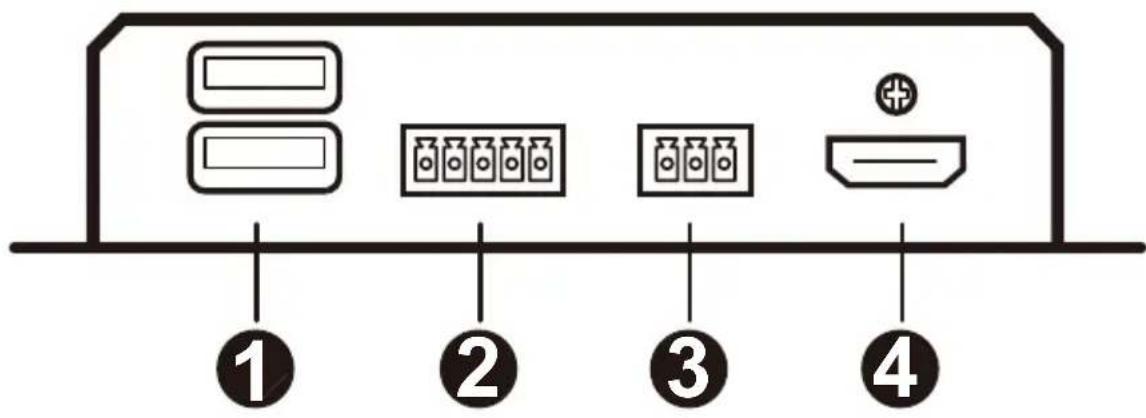
| No. | Component Description | |
| 1 | USB Type-A ports Connect | up to two USB peripherals to the receiver's USB Type-A ports. |
| 2 | audio out Connect to the audio output device. | |
| 3 | RS-232 port Connect the RS | S-232 port to a serial controller or a PC.Note: The unit supports bi-directional bypass transmission. See “Follow the steps below to connect the devices and the VE883A:” on page 13. |
| 4 | HDMI out Connect an HDMI | I-enabled display to the receiver's HDMI output port. |
VE883AR Rear View

| No. | Component Description | |
| 1 | fiber optical port Connect the | fiber optical ports using a duplex fiber optical cable. |
| 2 | Ethernet port Connect the | receiver to a network switch or PC / laptop.Note: The unit supports bi-directional bypass transmission. See “Follow the steps below to connect the devices and the VE883A:” on page 13. |
| 3 | IR port Connects to an IR emitter or receiver. | |
| 4 | firmware upgrade port This | port is reserved for ATEN Technical Support. If you would like to do a firmware upgrade yourself, please contact your dealer. |
| 5 | power jack Connect the power adapter and power cord to the power jack. | |
VE883A LED Display

12

③ 1 2
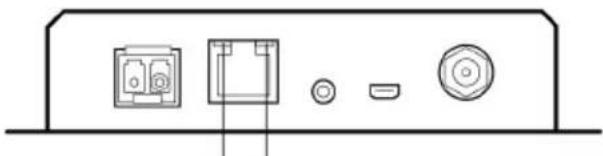
45
| No. | LED Indication | Description | |
| 1 system link Lights | orange | The connection between the VE883AT and VE883AR is stable. | |
| Flashes orange | The connection between the VE883AT and VE883AR is unstable. | ||
| Off The connection between the VE883AT and VE883AR is off. | |||
| 2 power Lights green | The unit is powered on. | ||
| Flashes green | The unit is receiving a firmware upgrade. | ||
| 3 HDMI out Lights orange | The video is displayed and secured with HDCP. | ||
| Flashes orange | The video is displayed but not secured with HDCP. | ||
| Off The video is not displayed. | |||
| 4 | Ethernet speed Lights | lights orange The data is being transmitted/received at 100 Mbps. | |
| Lights green The data is being transmitted/received at 1 Gbps. | |||
| Off The data is being transmitted/received at 10 Mbps or not transmitted/received. | |||
| 5 | Ethernet link Lights | green The VE883AR's connection to Ethernet is active. | |
| Flashes green The VE883AR is actively transmitting/receiving data over Ethernet. | |||
| Off The VE883AR is not connected to Ethernet. | |||
Mounting
Use the VE-RMK1U Rack Mount Kit to rack-mount the VE883A. For more information about this accessory, go to www.aten.com/products
Installation
Follow the steps below to connect the devices and the VE883A:
![graph TD subgraph_VE883A_Receiver["VE883A Receiver"] A["USB"] --> B["HDMAudio"] C["RS-232"] --> D["Monitor"] E["Keyboard Speakers"] --> F["or"] G["USB"] --> H["or"] I["Hardware / Software Controller"] --> J["Monitor"] K["Hardware / Software Controller"] --> L["Monitor"] M["Hardware / Software Contro…](/content/2026/06/1225888/images/97f1fcf9c0ba3b6d8ba282f908ba449ee36f1ec1b4e693c3e3fa314ea501cdb4.jpg)
- Connect an HDMI-enabled PC to the transmitter's HDMI input port, and then connect the PC to the transmitter's Ethernet port via an Ethernet cable.
- Connect a PC to the transmitter's RS-232 port and USB Type-B port for remote control and USB operations.
- Connect a media player to the transmitter's audio input port.
- Connect up to two USB peripherals to the receiver's USB Type-A ports.
-
Connect your speakers to the receiver's audio output port.
-
To remotely control a PC through serial controller, connect the RS-232 port of the receiver to a serial controller, and then connect the RS-232 port of the transmitter to a PC, and vice versa.
Note: The unit supports bi-directional RS-232 bypass transmission.
-
Connect an HDMI-enabled display to the receiver's HDMI output port.
-
Connect the fiber optical ports using a duplex fiber optical cable.
-
To provide network connectivity for your PC, connect the receiver to a network switch, and then connect the Ethernet port of the transmitter to your PC.
Note: The unit supports bi-directional Ethernet bypass transmission.
- (Optional) To remotely control a device connected to the receiver, for example, a TV, connect the IR emitter to the IR port of the receiver, and the IR receiver to the IR port of the transmitter, and vice versa.
Note: The unit supports bi-directional IR bypass transmission.
- Connect the power adapters and power cords to the power jacks on the transmitter and receiver.
RS-232 Channel Transmission
You can connect an RS-232 serial device to the RS-232 port of the units for RS-232 bypass channel such as a touch screen or a bar code scanner. The flow of the RS-232 signal transmission can be illustrated as follows:
![graph LR A["Server"] --> B["Fiber"] B --> C["Serial Device"] D["PIN CONFIGURATION (Captive screw connectors)"] --> E["Tx Rx Gnd"] E --> F["Tx Rx Gnd"] F --> G["Tx Rx Gnd"] G --> H["Tx Rx Gnd"] H --> I["Tx Rx Gnd"]](/content/2026/06/1225888/images/229a25bc2157fd8130354db759be99cac896a4e7b699c91ac01cfc5be50c38ee.jpg)
From a source device, the RS-232 signals is transmitted (Tx) to the VE883A receiving (Rx) unit; the VE883AR transmits (Tx) signals to the display device (Rx).
This Page Intentionally Left Blank
Firmware Upgrades
You can upgrade one or two VE883A units in your setup using Firmware Upgrade Utility from PCs installed at the VE883AT or the VE883AR's side.
Note:
To upgrade both the VE883AT and VE883AR in your environment, make sure they are powered on and connected via a duplex fiber optic cable. The system link LEDs on the VE883A units light orange.
- For a better user experience, use Windows 7 or later versions if you are using a Windows platform for firmware upgrade.
To upgrade the VE883A:
- Go to the VE883A product web page.
- Download the latest firmware package to a computer connected to the VE883AT or VE883AR's side.
- From the downloaded package, execute the .exe file. Read and agree to the License Agreement, and then click Next.

- The utility automatically browses and lists the VE883A devices in Device List.

- Check the unit(s) to be upgraded on the Device List, and click Next to start the upgrade.
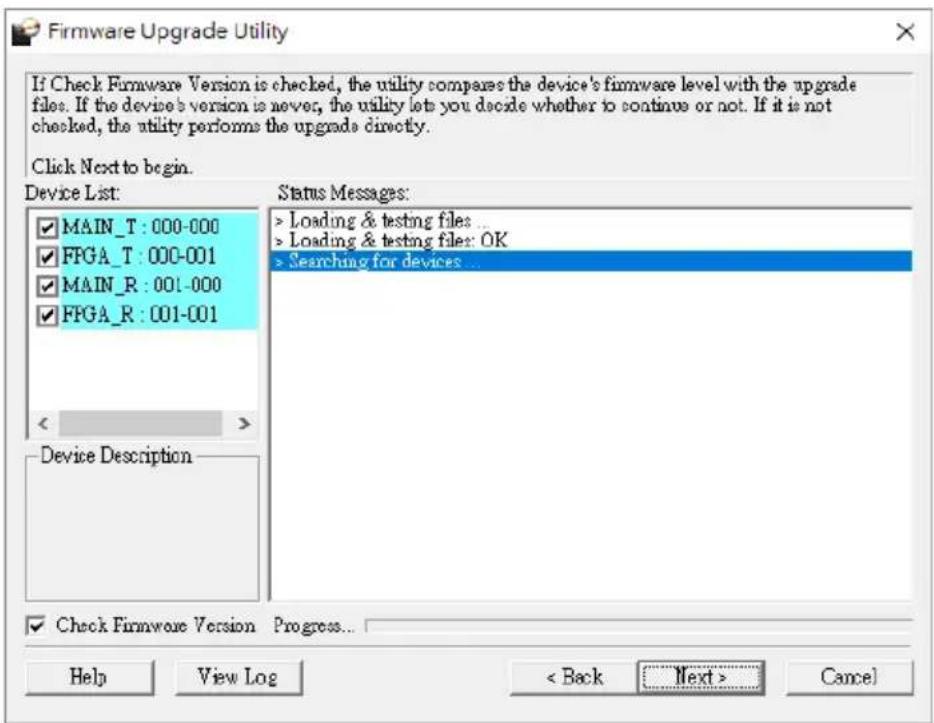
- When the upgrade is complete, a confirmation message, "Firmware Upgrade: OK" appears in the Status Messages column. Click Finish to complete the process.
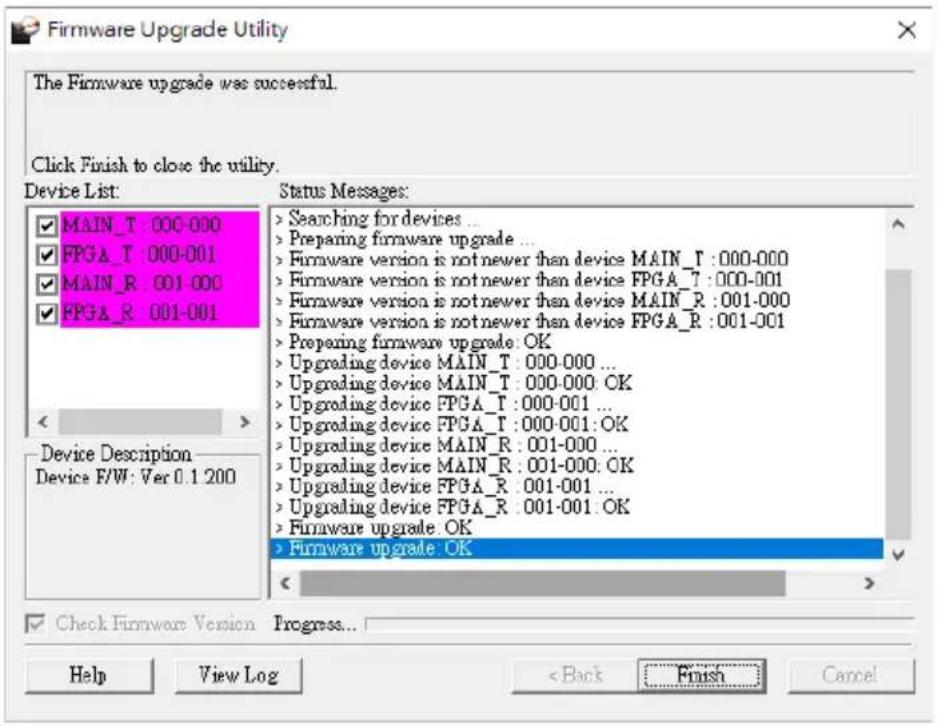
Note: During the upgrade process, the firmware upgrade operation program automatically checks the current firmware installed on the unit(s) and the firmware to be upgraded. If the firmware to be upgraded is not newer than the current one, a warning message prompts to remind you to decide whether to upgrade the firmware or not.

This Page Intentionally Left Blank
General
- This product is for indoor use only.
- Read all of these instructions. Save them for future reference.
◆ Follow all warnings and instructions marked on the device. - Do not place the device on any unstable surface (cart, stand, table, etc.). If the device falls, serious damage will result.
- Do not use the device near water.
- Do not place the device near, or over, radiators or heat registers.
- The device cabinet is provided with slots and openings to allow for adequate ventilation. To ensure reliable operation, and to protect against overheating, these openings must never be blocked or covered.
- The device should never be placed on a soft surface (bed, sofa, rug, etc.) as this will block its ventilation openings. Likewise, the device should not be placed in a built-in enclosure unless adequate ventilation has been provided.
- Never spill liquid of any kind on the device.
- Unplug the device from the wall outlet before cleaning. Do not use liquid or aerosol cleaners. Use a damp cloth for cleaning.
- The device should be operated from the type of power source indicated on the marking label. If you are not sure of the type of power available, consult your dealer or local power company.
- To prevent damage to your installation it is important that all devices are properly grounded.
Do not allow anything to rest on the power cord or cables. Route the power cord and cables so that they cannot be stepped on or tripped over. - Position system cables and power cables carefully; Be sure that nothing rests on any cables.
- Never push objects of any kind into or through cabinet slots. They may touch dangerous voltage points or short out parts resulting in a risk of fire or electrical shock.
Do not attempt to service the device yourself. Refer all servicing to qualified service personnel.
- If the following conditions occur, unplug the device from the wall outlet and bring it to qualified service personnel for repair.
◆ The power cord or plug has become damaged or frayed.
- Liquid has been spilled into the device.
- The device has been exposed to rain or water.
- The device has been dropped, or the cabinet has been damaged.
- The device exhibits a distinct change in performance, indicating a need for service.
- The device does not operate normally when the operating instructions are followed.
- Only adjust those controls that are covered in the operating instructions. Improper adjustment of other controls may result in damage that will require extensive work by a qualified technician to repair.
Rack Mounting
Before working on the rack, make sure that the stabilizers are secured to the rack, extended to the floor, and that the full weight of the rack rests on the floor. Install front and side stabilizers on a single rack or front stabilizers for joined multiple racks before working on the rack.
- Always load the rack from the bottom up, and load the heaviest item in the rack first.
- Make sure that the rack is level and stable before extending a device from the rack.
- Use caution when pressing the device rail release latches and sliding a device into or out of a rack; the slide rails can pinch your fingers.
Do not overload the AC supply branch circuit that provides power to the rack. The total rack load should not exceed 80 percent of the branch circuit rating.
Make sure that all equipment used on the rack—including power strips and other electrical connectors—is properly grounded.
- Ensure that proper airflow is provided to devices in the rack.
- Ensure that the operating ambient temperature of the rack environment does not exceed the maximum ambient temperature specified for the equipment by the manufacturer.
- Do not step on or stand on any device when servicing other devices in a rack.
Technical Support
International
- For online technical support – including troubleshooting, documentation, and software updates: http://support.aten.com
- For telephone support, see Telephone Support, page iv.
North America
| Email Support support@aten-usa.com | ||
| Online Technical Support | Troubleshooting Documentation Software Updates | http://www.aten-usa.com/support |
| Telephone Support 1-888-999-ATEN ext 4988 | ||
When you contact us, please have the following information ready beforehand:
Product model number, serial number, and date of purchase
- Your computer configuration, including operating system, revision level, expansion cards, and software
◆ Any error messages displayed at the time the error occurred
◆ The sequence of operations that led up to the error
◆ Any other information you feel may be of help
Specifications
| Function VE883 | AR VE883AT | |
| Video Input | ||
| Interfaces N/A 1 × HDMI Type A Female | (Black) | |
| Impedance N/A 100 Ω | ||
| Max. Distance N/A Up to 5 m | ||
| Video Output | ||
| Interfaces 1 × HDMI Type A Female (Black) | N/A | |
| Impedance 100 Ω N/A | ||
| Max. Distance Up to 5 m N/A | ||
| Video | ||
| Max. Data Rate 10.2 Gbps (3.4 Gbps Per Lane) | ||
| Max. Pixel Clock 594 MHz | ||
| Compliance HDMI (3D, Deep Color, 4K) HDCP 2.2 Compatible | ||
| Max. Resolution 4096 × 2160 @ 60 Hz (4:4:4) / 3840 × 2160 @ 60 Hz (4:4:4) | ||
| Max. Distance 1 × SFP | Module (*Note)VE883AK1: 4K × 2K/60Hz4:4:4 up to 300m (MM, OM3, Black)VE883AK2: 4K × 2K/60Hz4:4:4 up to 10km (SM, Blue) | 1 × SFP Module (*Note)VE883AK1: 4K × 2K/60Hz4:4:4 up to 300m (MM, OM3, Black)VE883AK2: 4K × 2K/60Hz4:4:4 up to 10km (SM, Blue) |
| Audio | ||
| Input N/A 1 × Terminal | Block, 5 Pole | (Green) |
| Output | 1 × Terminal Block, 5 Pole (Green) | N/A |
| Connectors | ||
| Unit To Unit | 1 × Bi-directional SFP (LC) | 1 × Bi-directional SFP (LC) |
| Firmware Upgrade | 1 × Micro USB Type-B Female (Black) | 1 × Micro USB Type-B Female (Black) |
| Power | 1 × DC Jack with locking | 1 × DC Jack with locking |
| Fiber Optics | ||
| Data Rate | 10.3 Gbps | |
| Function | VE883AR | VE883AT |
| Wavelength VE883AK1: 850 nmVE883AK2: 1310 nm | ||
| Fiber Type VE883AK1: Multimode(MM), OM3, LC Duplex TypeVE883AK2: Singlemode(SM), LC Duplex Type | ||
| Control | ||
| USB Channel | 2 × USB Type- A Female(White) | 1 × USB Type-B Female(White) |
| RS-232 Channel 1 × Terminal Block, 3 pole(Green) | 1 × Terminal Block, 3 pole(Green) | |
| IR Channel 1 × Mini Stereo Jack Female(Black);30K–56 KHz full range transmission | 1 × Mini Stereo Jack Female(Black);30K–56 KHz full range transmission | |
| Ethernet Channel 1 × GbE (RJ-45 Female) 1 × GbE (RJ-45 Female) | ||
| LEDs | ||
| Power 1 (Green) 1 (Green) | ||
| Link 1 (Orange) 1 (Orange) | ||
| Video Output 1 (Orange) N/A | ||
| Power Consumption DC12V:6.5W:52BTU DC12V:7.01W:54BTU | ||
| Environmental | ||
| Operating Temperature | 0–40 °C | |
| Storage Temperature | -20–60 °C | |
| Humidity | 0–80% RH, Non-Condensing | |
| Physical Properties | ||
| Housing | Metal | Metal |
| Weight | 0.66 kg (1.48 lb) | 0.67 kg (1.45 lb) |
| Dimensions (L × W×H) with bracket | 16.94 × 14.69 × 3.00 cm(6.67 × 5.78 × 1.18 in.) | 16.94 × 14.69 × 3.00 cm(6.67 × 5.78 × 1.18 in.) |
| Dimensions (L × W ×H) without bracket | 16.60 × 12.49 × 2.90 cm(6.54 × 4.92 × 1.14 in.) | 16.60 × 12.49 × 2.90 cm(6.54 × 4.92 × 1.14 in.) |
| Function VE883AR VE883AT | |
| Note: | |
| 1. Operating distance is approximate. A typical maximum distance may vary depending on factors such as fiber type, bandwidth, connector splicing, losses, modal or chromatic dispersion, environmental factors, and kinks. | |
| 2. ATEN recommends VE883AK2 using single-mode fibers that conform to IEC 11801 (OS1, OS1a, OS2), and VE883AK1 using multi-mode fibers that conform to IEC 11801 (OM3, OM4). | |
| 3. The VE883A is a class 1 laser product that meets the safety regulations of IEC/EN 60825-1 and 21 CFR 1040.10 and 1040.11 except for deviations pursuant to Laser Notice No. 50, dated June 24, 2007. | |
ATEN Standard Warranty Policy
Limited Hardware Warranty
ATEN warrants its hardware in the country of purchase against flaws in materials and workmanship for a Warranty Period of two [2] years (warranty period may vary in certain regions/countries) commencing on the date of original purchase. This warranty period includes the LCD panel of ATEN LCD KVM switches. For UPS products, the device warranty is two [2] years but battery is one [1] year. Select products are warranted for an additional year (see A+ Warranty for further details). Cables and accessories are not covered by the Standard Warranty.
What is covered by the Limited Hardware Warranty
ATEN will provide a repair service, without charge, during the Warranty Period. If a product is detective, ATEN will, at its discretion, have the option to (1) repair said product with new or repaired components, or (2) replace the entire product with an identical product or with a similar product which fulfills the same function as the defective product. Replaced products assume the warranty of the original product for the remaining period or a period of 90 days, whichever is longer. When the products or components are replaced, the replacing articles shall become customer property and the replaced articles shall become the property of ATEN.
To learn more about our warranty policies, please visit our website: http://www.aten.com/global/en/legal/policies/warranty-policy/
© Copyright 2024 ATEN® International Co., Ltd. Released: 2024-02-07
ATEN and the ATEN logo are registered trademarks of ATEN International Co., Ltd. All rights reserved. All other brand names and trademarks are the registered property of their respective owners.



- COMPLIANCE STATEMENTS
- FEDERAL COMMUNICATIONS COMMISSION INTERFERENCE STATEMENT
- FCC CAUTION
- WARNING
- ACHTUNG
- ROHS
- USER INFORMATION
- ONLINE REGISTRATION
- TELEPHONE SUPPORT
- USER NOTICE
- PRODUCT INFORMATION
- PACKAGE CONTENTS
- VE883A
- VE883AT
- VE883AR
- TABLE OF CONTENTS
- INTRODUCTION
- HARDWARE SETUP
- OPERATION
- APPENDIX
- ABOUT THIS MANUAL
- NOTE
- CONVENTIONS
- OVERVIEW
- FEATURES
- PLANNING THE INSTALLATION
- DISPLAY
- SOURCE DEVICE
- CABLES
- OPTIONAL EQUIPMENT
- COMPATIBLE ATEN PRODUCTS
- SUPPORTED VIDEO RESOLUTIONS
- CHAPTER 2
- COMPONENTS
- VE883AT FRONT VIEW
- VE883AT REAR VIEW
- VE883AR FRONT VIEW
- VE883AR REAR VIEW
- VE883A LED DISPLAY
- MOUNTING
- INSTALLATION
- RS-232 CHANNEL TRANSMISSION
- FIRMWARE UPGRADES
- GENERAL
- RACK MOUNTING
- TECHNICAL SUPPORT
- INTERNATIONAL
- ATEN STANDARD WARRANTY POLICY
- LIMITED HARDWARE WARRANTY
- WHAT IS COVERED BY THE LIMITED HARDWARE WARRANTY
Brand : ATEN
Model : VE883A
Category : AV Switch