AccuSync AS173M - Monitor SHARP - Free user manual and instructions
Find the device manual for free AccuSync AS173M SHARP in PDF.


User questions about AccuSync AS173M SHARP
0 question about this device. Answer the ones you know or ask your own.
Ask a new question about this device
Download the instructions for your Monitor in PDF format for free! Find your manual AccuSync AS173M - SHARP and take your electronic device back in hand. On this page are published all the documents necessary for the use of your device. AccuSync AS173M by SHARP.
USER MANUAL AccuSync AS173M SHARP
Please find your model name in the label on the rear side of monitor.
Table of Contents
Registration Information .... 1
Important Information .... 3
Product Features
Chapter 1 Installation
Parts Name and Functions ....10
Connecting Video 12
Control Panel 10
Setup ....13
Terminal Panel 11
Adjustable Monitor Stand Capability....14
Connections....12
Chapter 2 Basic Operation
Using the OSD (On-Screen Display) Controls....16
Power management function LED indicator patterns .....17
Changing the Input ....17
Chapter 3 Troubleshooting
Screen Image and Video Signal Issues ....19
Image Persistence ....20
Hardware Issues....20
Chapter 4 Specifications
AS173M....21
AS194Mi....22
Appendix A OSD Controls List
Appendix B Repacking the Monitor, Flexible Arm Installation
Repacking the Monitor....26
Remove the Monitor Stand for Mounting .....27
Flexible Arm Installation....27
Mount the Flexible Arm 27
Appendix c Manufacturer's Recycling and Energy Information
Disposing of your old NEC product 29
Energy Saving 29
Cable Information
CAUTION: Use the provided specified cables with this product so as not to interfere with radio and television reception.
For mini D-Sub 15-pin, please use a shielded signal cable with core.
For DisplayPort, HDMI, and AUDIO, please use a shielded signal cable.
Use of other cables and adapters may cause interference with radio and television reception.
FCC Information
WARNING: The Federal Communications Commission does not allow any modifications or changes to the unit EXCEPT those specified by NEC Display Solutions of America, Inc. in this manual. Failure to comply with this government regulation could void your right to operate this equipment.
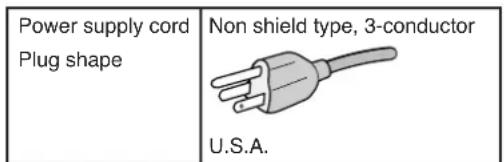
- The power supply cord you use must have been approved by and comply with the safety standards of U.S.A., and meet the following condition.
text_image
Power supply cord Plug shape Non shield type, 3-conductor U.S.A.-
This equipment has been tested and found to comply with the limits for a Class B digital device, pursuant to part 15 of the FCC Rules. These limits are designed to provide reasonable protection against harmful interference in a residential installation. This equipment generates, uses and can radiate radio frequency energy, and, if not installed and used in accordance with the instructions, may cause harmful interference to radio communications. However, there is no guarantee that interference will not occur in a particular installation. If this equipment does cause harmful interference to radio or television reception, which can be determined by turning the equipment off and on, the user is encouraged to try to correct the interference by one or more of the following measures:
-
Reorient or relocate the receiving antenna.
- Increase the separation between the equipment and receiver.
- Connect the equipment into an outlet on a circuit different from that to which the receiver is connected.
- Consult the dealer or an experienced radio/TV technician for help.
If necessary, the user should contact the dealer or an experienced radio/television technician for additional suggestions. The user may find the following booklet, prepared by the Federal Communications Commission, helpful: "How to Identify and Resolve Radio-TV Interference Problems." This booklet is available from the U.S. Government Printing Office, Washington, D.C., 20402, Stock No. 004-000-00345-4.
SUPPLIER'S DECLARATION OF CONFORMITY
This device complies with Part 15 of FCC Rules. Operation is subject to the following two conditions. (1) This device may not cause harmful interference, and (2) this device must accept any interference received, including interference that may cause undesired operation.
U.S. Responsible Party: NEC Display Solutions of America, Inc.
Address: 3250 Lacey Rd, Ste 500
Downers Grove, IL 60515
Tel. No.: (630) 467-3000
Type of Product: Display Monitor
Equipment Classification: Class B Peripheral
Model: AccuSync AS173M (M179E7)
AccuSync AS194Mi (M199E8)
To see a list of our TCO certified monitors and their TCO Certification (in English only), visit our website at:
https://www.nec-display.com/global/about/legal_regulation/TCO_mn/index.html
CAUTION: Please confirm the distribution system in building installation shall provide the circuit breaker rated 120/240 V, 20 A (maximum).
• The intended primary use of this product is as an Information Technical Equipment in an office or domestic environment.
• The product is intended to be connected to a computer and is not intended for the display of television broadcast signals.
Copyright Information
Windows is a registered trademark of Microsoft Corporation.
NEC is a registered trademark of NEC Corporation.
DisplayPort and DisplayPort Compliance Logo are trademarks owned by Video Electronics Standards Association in the United States and other countries.
ErgoDesign is a registered trademark of NEC Display Solutions, Ltd. in Austria, Benelux, Denmark, France, Germany, Italy, Norway, Spain, Sweden, U.K.
The terms HDMI and HDMI High-Definition Multimedia Interface, and the HDMI Logo are trademarks or registered trademarks of HDMI Licensing Administrator, Inc. in the United States and other countries.
Adobe and the Adobe logo are either registered trademarks or trademarks of Adobe Systems Incorporated in the United States and/or other countries.
All other brands and product names are trademarks or registered trademarks of their respective owners.
NOTE: (1) The contents of this user's manual may not be reprinted in part or whole without permission.
(2) The contents of this user's manual are subject to change without notice.
(3) Great care has been taken in the preparation of this user's manual; however, should you notice any questionable points, errors or omissions, please contact us.
(4) The image shown in this user's manual is indicative only. If there is inconsistency between the image and the actual product, the actual product shall govern.
(5) Notwithstanding articles (3) and (4), NEC will not be responsible for any claims on loss of profit or other matters deemed to result from using this device.


HIGH-DEFINITION MULTIMEDIA INTERFACE
Safety Precautions and Maintenance
FOR OPTIMUM PERFORMANCE, PLEASE NOTE
THE FOLLOWING WHEN SETTING UP AND
USING THE LCD COLOR MONITOR:
About the Symbols
To ensure safe and proper use of the product, this manual uses a number of symbols to prevent injury to you and others as well as damage to property. The symbols and their meanings are described below. Be sure to understand them thoroughly before reading this manual.
| WARNING | Failing to heed this symbol and handling the product incorrectly could result in accidents leading to major injury or death. |
| CAUTION | Failing to heed this symbol and handling the product incorrectly could result in personal injury or damage to surrounding property. |
Examples of symbols
| ▲ Indicates a warning or caution.This symbol indicates you should be careful of electric shocks. | |
| ○ Indicates a prohibited action.This symbol indicates something that must be prohibited. | |
| ● Indicates a mandatory action.This symbol indicates that the power cord should be unplugged from the power outlet. |
 | |
| UNPLUG THE POWER CORD | Unplug the power cord if the monitor malfunctions.Should the monitor emit smoke or strange odors or sounds, or if the monitor has been dropped or the cabinet broken, turn off the monitor's power, then unplug the power cord from the power outlet. Failure to do so could not only lead to fire or electric shock, it could also result in vision impairment. Contact your dealer for repairs.Never try to repair the monitor on your own. Doing so is dangerous. |
| To prevent personal injury or damage to the monitor caused by tipping over due to earthquakes or other shocks, make sure to install the monitor in a stable location and take measures to prevent falling. | |
| Immediately turn off the power and unplug your monitor from the wall outlet, then refer servicing to qualified service personnel under the following conditions. If the monitor is used in this condition, the monitor may fall or cause a fire or electric shock.If the monitor stand has cracked or peeled.If you notice any structural damage such as cracks or unnatural wobbling. | |
| Do not open or remove the monitor's cabinet.There are high voltage areas in the monitor. Opening or removing monitor covers and modifying the monitor may expose you to electric shock, fire, or other risks. Refer all servicing to qualified service personnel. | |
| WARNING | |
| Handle the power cord with care. Damaging the cord could lead to fire or electric shock.Do not place heavy objects on the cord.Do not place the cord under the monitor.Do not cover the cord with a rug, etc.Do not scratch or modify the cord.Do not bend, twist or pull the cord with excessive force.Do not apply heat to the cord.Should the cord be damaged (exposed core wires, broken wires, etc.), ask your dealer to replace it. | |
| Do not place this product on a sloping or unstable cart, stand or table. It may cause personal injury. | |
| Do not use the monitor if the monitor was dropped or the cabinet is damaged. It may cause an electric shock or fire. | |
| Do not insert objects of any kind into the cabinet slots, as they may touch dangerous voltage points, which can be harmful or fatal, or may cause electric shock, fire or equipment failure. | |
| Do not spill any liquids into the cabinet or use your monitor near water.Immediately turn off the power and unplug your monitor from the wall outlet, then refer servicing to qualified service personnel under the following condition. If the monitor is used in this condition, the monitor may fall or cause an electric shock or start a fire:If liquid has spilled or objects have fallen into the monitor. | |
| Do not use flammable gas sprays to remove dust when cleaning the monitor.Doing so could lead to a fire. | |
| Do not play with the plastic bag which covers the monitor. Do not use this bag for any other purpose. To avoid the danger of suffocation, do not place this bag over your head, nose or mouth. Do not place this bag over another person's head, nose or mouth. Keep this bag away from children and babies. | |
| Do not connect or disconnect this product during an electrical storm. It could lead to electric shock. | |
| CAUTION | |
| Please install the monitor in accordance with the following information.When transporting and securely install the monitor, please use as many people as necessary to be able to lift the monitor without causing personal injury or damage to the monitor. Do not cover the vent on the monitor. Improper installation of the monitor may result in damage to the monitor, an electric shock or fire.Do not install the monitor in the locations below:Poorly ventilated spaces.Near a radiator, other heat sources, or in direct sunshine.Continual vibration areas.Humid, dusty, steamy or oily areas.Outdoors.High temperature environment where humidity changes rapidly and condensation is likely to occur.Do not mount the product in any configuration or position not described in the user's manual. | |
 | |
| Do not climb on the monitor or the table where the monitor is installed. Do not install the monitor on a wheeled table if the wheels on the table have not been properly locked. The monitor may fall causing damage to the monitor or personal injury. | |
| Do not touch LCD panel surface while transporting, mounting and setting. Applying pressure on the LCD panel can cause serious damage to the monitor or personal injury. | |
| If the monitor or glass breaks, do not come into contact with the liquid crystal that is inside the screen. If the liquid crystal comes into contact with your eyes or mouth, rinse thoroughly and immediately contact your doctor for help. | |
| Handling the power cordHandle the power cord with care. Damaging the cord could lead to fire or electric shock.When connecting the power cord to the monitor's AC IN terminal, make sure the connector is fully and firmly inserted.Do not connect or disconnect the power cord with wet hands.When connecting or disconnecting the power cord, pull the power cord out by holding onto its plug.When cleaning the monitor, for safety purposes, unplug the power cord from the power outlet beforehand. Regularly dust off the power cord by using a soft dry cloth.Before moving the monitor, make sure the monitor power is off, then unplug the power cord from the power outlet and check that all cables connecting the monitor to other devices are disconnected.When you are not planning to use the monitor for an extended period of time, always unplug the power cord from the power outlet.Please use the power cord provided with this display in accordance with the power cord table. If a power cord is not supplied with this equipment, please contact NEC. For all other cases, please use the power cord with the plug style that matches the power socket where the monitor is located. The compatible power cord corresponds to the AC voltage of the power outlet and has been approved by, and complies with, the safety standards in the country of purchase.This equipment is designed to be used in the condition of the power cord connected to the earth. If the power cord is not connected to the earth, it may cause electric shock. Please make sure the power cord is earthed properly. | |
| Handle with care during installation and adjustment to prevent personal injury and damage to the monitor. | |
| The monitor must be mounted to a flexible arm or stand that supports the weight of the monitor to prevent damage and personal injury that could result from the monitor tipping over or falling.Please tighten all screws when installing the monitor to a flexible arm or stand. A loose screw may cause the monitor to fall, causing damage to the monitor or personal injury. | |
| Do not connect headphones to the monitor while you are wearing them. Depending on the volume level, it may damage your ears and cause loss of hearing. | |
| Clean the monitor's LCD screen surface with a lint-free, non-abrasive cloth.Avoid using any cleaning solutions! DO NOT clean with benzene thinner, alkaline detergent, alcoholic system detergent, glass cleaner, wax, polish cleaner, soap powder, or insecticide. Rubber or vinyl should not be in contact with the cabinet for an extended period of time. These types of fluids and materials can cause the paint to deteriorate, crack or peel. | |
| To ensure the monitor's reliability, please clean the ventilation holes at the rear side of the cabinet at least once a year to remove dirt and dust. Failure to do so could lead to electric shock or damage to the monitor. | |
Power Cord Table
| Plug Type North | America | European Continental | U.K. Chinese | Japanese | |
| Plug Shape | 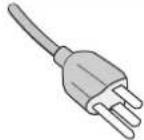 | 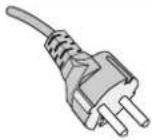 | 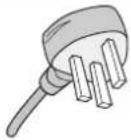 | 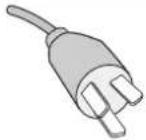 | 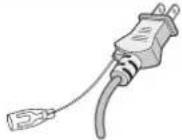 |
| Region U.S.A./Canada EU U.K. China Japan | |||||
| Voltage 120* 230 230 220 100 | |||||
* Please use this power cord under 125 V power supply.
NOTE: This product can only be serviced in the country where it was purchased.
Image Persistence
Image persistence occurs when a residual or "ghost" image of a previous image remains visible on the screen. Unlike CRT monitors, LCD monitors' image persistence is not permanent, but a still image being displayed for a long period of time should be avoided.
To alleviate image persistence, turn off the monitor for as long as the previous image was displayed. For example, if an image was on the monitor for one hour and a residual image remains, the monitor should be turned off for one hour to erase the image.
NOTE: As with all personal display devices, NEC DISPLAY SOLUTIONS recommends using a moving screen saver at regular intervals whenever the screen is idle, or turn off the monitor when not in use.
Ergonomics
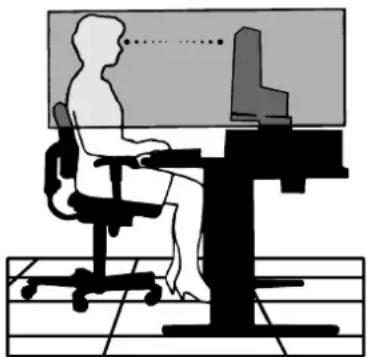
CORRECT PLACEMENT AND ADJUSTMENT OF THE MONITOR CAN REDUCE EYE, SHOULDER, AND NECK FATIGUE. CHECK THE FOLLOWING WHEN YOU POSITION THE MONITOR:
To realize the maximum ergonomics benefits, we recommend the following:
- For optimum performance of the monitor, allow 20 minutes for warming up. Avoid reproduction of still patterns on the monitor for long periods of time to avoid image persistence (after image effects).
- Adjust the monitor height so that the top of the screen is at or slightly below eye level. Your eyes should look slightly downward when viewing the middle of the screen.
- Position your monitor no closer than 40 cm (15.75 inches) and no further away than 70 cm (27.56 inches) from your eyes. The optimal distance is 50 cm (19.69 inches).
- Rest your eyes periodically for 5 to 10 minutes for every 1 hour by focusing on an object at least 20 feet away.
- Position the monitor at a 90^ angle to windows and other light sources to minimize glare and reflections. Adjust the monitor tilt so that ceiling lights do not reflect on your screen.
- If reflected light makes it hard for you to see your screen, use an anti-glare filter.
- Adjust the monitor's brightness and contrast controls to enhance readability.
- Use a document holder placed close to the screen.
- Position whatever you are looking at most of the time (the screen or reference material) directly in front of you to minimize turning your head while you are typing.
- Blink often. Eye exercise helps to reduce eye strain. Please contact your ophthalmologist. Get regular eye checkups.
- To avoid eye fatigue, adjust the brightness to a moderate setting. Place a sheet of white paper next to the screen for luminance reference.
- Do not position the Contrast control to its maximum setting.
- Use the preset Size and Position controls with standard signals.
- Use the preset Color Setting.
- Use non-interlaced signals.
- Do not use primary color blue on a dark background, as it is difficult to see and may produce eye fatigue due to insufficient contrast.
- Suitable for entertainment purposes at controlled luminous environments, to avoid disturbing reflections from the screen.
For more detailed information on setting up a healthy work environment, write to the American National Standard for Human Factors Engineering of Computer Workstations - ANSI/HFES 100-2007 - The Human Factors Society, Inc. P.O. Box 1369, Santa Monica, California 90406.
natural_image
Silhouette of a person sitting at a desk with a computer, no text or symbols visibleCleaning the LCD screen
- When the LCD screen is dusty, please gently wipe with a soft cloth.
- Please do not rub the LCD screen with hard or coarse material.
- Please do not apply pressure to the LCD screen surface.
- Please do not use OA cleaner as it will cause deterioration or discoloration on the LCD screen surface.
Cleaning the Cabinet
- Unplug the power supply.
• Gently wipe the cabinet with a soft cloth.
Dampen the cloth with a neutral detergent and water, wipe the cabinet and follow with a dry cloth.
Product Features
- Reduced Footprint
Provides the good solution for environments with space constraints without sacrificing the size of the screen and its superior image quality.
• Color Control Systems
Allow you to adjust the colors on your screen and customize the color accuracy of your monitor to a variety of standards.
- OSD (On-Screen Display) Controls
Allow you to quickly and easily adjust all elements of your screen image via simple to use on-screen menus.
- NaViSet Administrator 2 Software
Offers an expanded and intuitive graphical interface that allows you to adjust the OSD display settings from a network computer.
- No Touch Auto Adjust (Analog input only)
Automatically adjusts the monitor to optimal settings upon initial setup.
- ErgoDesign Features
Enhanced human ergonomics to improve the working environment, protect the health of the user, and save money. The ergonomic features include a fully articulating monitor stand, OSD controls for quick and easy image adjustment, and lower emissions.
- Plug and Play
The Microsoft ^® solution with the Windows ^® operating system facilitates setup and installation by allowing the monitor to send its capabilities (such as screen size and resolutions supported) directly to your computer, automatically optimizing display performance.
• Intelligent Power Manager System
Provides innovative power-saving methods that allow the monitor to shift to a lower power consumption level when on but not in use, saving two-thirds of your monitor energy costs, reducing emissions, and lowering the air conditioning costs of the workplace.
• Multiple Frequency Technology
Automatically adjusts monitor to the display card's scanning frequency, thus displaying the resolution required.
• VESA Standard Mounting Interface
Allows you to connect your AccuSync monitor to any VESA standard third party mounting arm or bracket.
• Environmental Impact (AS173M)
Annual typical maximum operating carbon footprint of this monitor (world-wide average) is approximately 17.3 kg (calculated by: rated wattage x 8 hours per day x 5 days a week x 45 weeks per year x Power-to-Carbon conversion factor - conversion factor is based on OECD publication of global CO2 emissions 2008 Edition). This monitor has a manufacturing carbon footprint of approximately 40.2 kg.
• Environmental Impact (AS194Mi)
Annual typical maximum operating carbon footprint of this monitor (world-wide average) is approximately 18.2 kg (calculated by: rated wattage x 8 hours per day x 5 days a week x 45 weeks per year x Power-to-Carbon conversion factor - conversion factor is based on OECD publication of global CO2 emissions 2008 Edition). This monitor has a manufacturing carbon footprint of approximately 43.5 kg.
NOTE: The manufacturing and operating carbon footprints are calculated by a unique algorithm developed exclusively by NEC for its monitors and are accurate at the time of printing. NEC reserves the right to publish updated carbon footprint values.
- Low Blue Light
Low Blue Light function substantially reduces blue light and helps to alleviate eye strain (see page 23).
- Flicker Free
Special backlight system reduces flicker for less eye strain.
Chapter 1 Installation
This Chapter Includes:
→ "Parts Name and Functions" on page 10
→ "Connections" on page 12
→ "Setup" on page 13
Control Panel

text_image
Diagram showing computer monitor connected to a device with labeled buttons and ports, including SELECT, INPUT/RESET, and numbered indicators 1-5.| Item Function | |
| 1 Power | Turns the monitor on and off. |
| 2 LED | Indicates that the power is on. |
| 3 INPUT/RESET | When the OSD menu is not displayed on the screen, it selects the input signal. When the OSD menu is displayed on the screen, it resets the function adjustment. |
| 4 + | When the OSD menu is not displayed on the screen, it opens the [VOLUME] menu. When the OSD menu is displayed on the screen, it navigates to the right or raises settings adjustments. |
| 5 - | When the OSD menu is not displayed on the screen, it opens the [BRIGHTNESS] menu. When the OSD menu is displayed on the screen, it navigates to the left or lowers settings adjustments. |
| 6 SELECT | When the OSD menu is not displayed on the screen, it opens the OSD menu. When the OSD menu is displayed on the screen, it selects a function icon or adjusts the function of the selected icon. |
NOTE: You can directly change to [LOW BLUE LIGHT] mode by touching the SELECT button for 3 seconds or more.
text_image
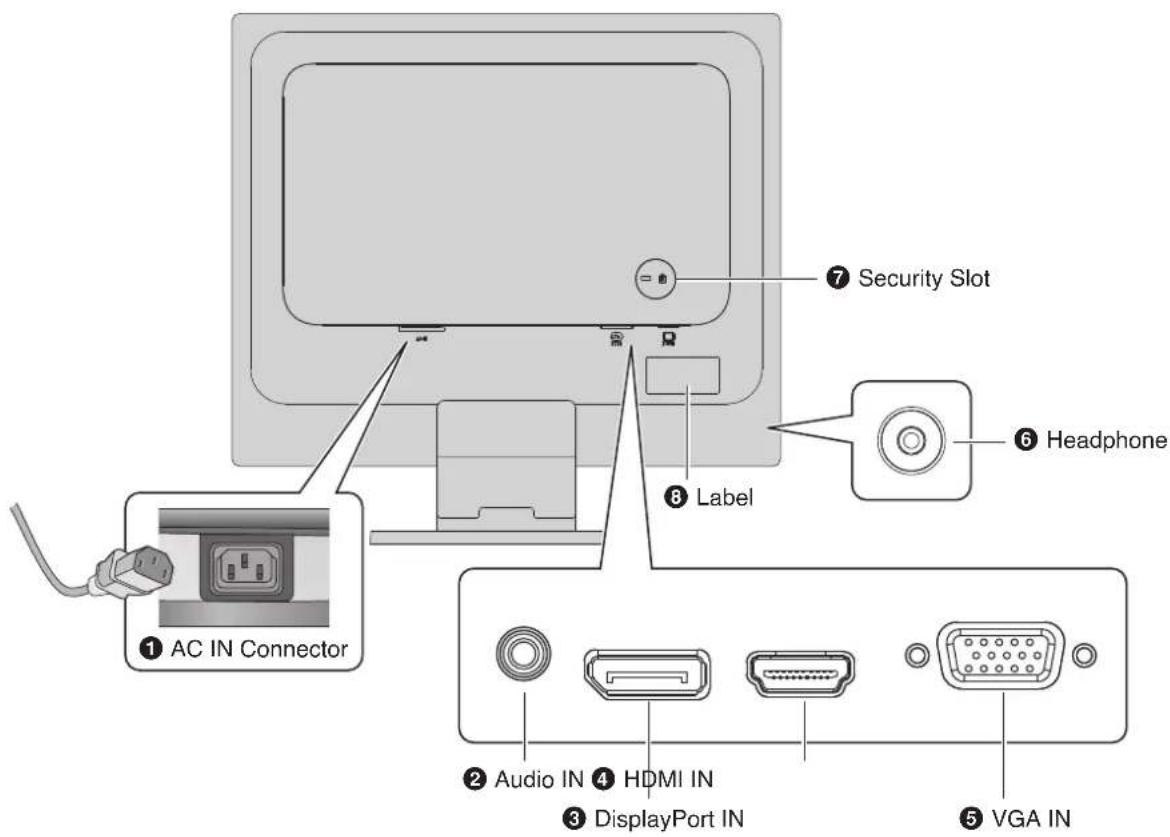
① AC IN Connector ② Audio IN ③ DisplayPort IN ④ HDMI IN ⑤ VGA IN ⑥ Headphone ⑦ Security Slot ⑧ Label① AC IN Connector
Connects with the supplied power cord.
② Audio IN
Audio signal input from external equipment such as a computer or player.
③ DisplayPort IN
Digital DisplayPort signals input.
④ HDMI IN
Digital HDMI signals input.
⑤ VGA IN (mini D-Sub 15-pin)
Analog RGB signals input.
⑥ Headphone Jack
Connects with headphones.
⑦ Security Slot
Security and theft protection lock slot compatible with Kensington security cables/equipment.
For products visit Kensington's website.
8 Label
Video Input Connections
- VGA (mini D-Sub 15-pin) – Analog video signal connection to a computer. Video only, no audio signal.
- HDMI – High definition digital video and audio signal connection to a computer, streaming media player, Blu-ray player, game console, etc.
- DisplayPort (DP) – High definition digital video and audio signal connection to a computer.
Connecting Video
The type of video connections that can be used to connect to a computer depends on the computer's display adapter.
The following table shows the typical factory preset signal timing for each connection type. Some display cards may not be able to support the required resolution for proper image reproduction with the selected connection. The monitor will show the proper image by automatically adjusting the factory preset timing signal.
| Resolution | Vertical Frequency Scan Type Notes | ||
| H | V | ||
| 640 x 480 60/72/75 Hz p | |||
| 720 x 400 70 Hz p | |||
| 720 x 480 60 Hz p | |||
| 720 x 576 50 Hz p | |||
| 800 x 600 56/60/72/75 Hz p SVGA | |||
| 1024 x 768 60/70/75 Hz p XGA | |||
| 1280 x 960 60/75 Hz p | |||
| 1280 x 1024 60/75 Hz p SXGA, Recommended (60 Hz) | |||
p: Progressive.
NOTE: When the selected monitor resolution is not a native panel resolution, the text contents appearance in the monitor screen is expanded in a horizontal or vertical direction to show the non-native resolution to full screen. This expansion is done by interpolated resolution technologies, which are normal and widely used in flat panel devices.
Connecting to a Computer with HDMI
- Please use an HDMI cable with the HDMI logo.
- It may take a moment for the signal to appear after turning on the computer.
- Some display cards or drivers may not display an image correctly.
- If the monitor's power is turned on after a connected computer is turned on, sometimes an image is not displayed. In this case, please turn off the computer then turn it on again.
Connecting to a Computer with DisplayPort
- Please use a DisplayPort cable with the DisplayPort compliance logo.
- It may take a moment for the signal to appear after turning on the computer.
- When connecting a DisplayPort cable to a component with a signal conversion adapter, an image may not appear.
• Some DisplayPort cables feature a locking function. When removing this cable, hold down the top button to release the lock. - If the monitor's power is turned on after a connected computer is turned on, sometimes an image is not displayed. In this case, please turn off the computer then turn it on again.
Setup
For box contents, please refer to the printed contents sheet provided in the box.
The accessories included depends on the location where the monitor was shipped.
To attach the base stand to the monitor stand:
Align the locking tabs on the base stand with the holes on the monitor stand. Insert the base stand into the monitor stand. Make sure the locking tabs engage, and that the base is securely attached to the monitor before continuing these instructions and using the monitor (Figure 1).
NOTE: Handle with care when attaching the stand.

text_image
Monitor Stand Base StandFigure 1
To connect the monitor to your system, follow these instructions:
NOTE: Make sure to read "Important Information" on page 3 before installation.
-
Turn off the power to your computer.
-
Connect devices to the monitor.

text_image
Headphone D-SUBDisplayPort HDMIAudio IN Power cordCAUTION: Use the provided specified cables with this product so as not to interfere with radio and television reception.
For mini D-Sub 15-pin, please use a shielded signal cable with core.
For DisplayPort, HDMI, and AUDIO, please use a shielded signal cable.
Use of other cables and adapters may cause interference with radio and television reception.
- Do not connect headphones to the monitor while you are wearing them. Depending on the volume level, it may damage your ears and cause loss of hearing.
NOTE: • Adjustment of the volume control as well as the equalizer to other settings than the center position may increase the ear-/headphones output voltage and therefore the sound pressure level.
• Use an audio cable without a built-in resistor. Using an audio cable with a built-in resistor lowers the sound.
- Incorrect cable connections may result in irregular operation, damage display quality/components of the LCD module and/or shorten the module's life.
- Attach the cable holder onto the monitor stand (Figure 2).

text_image
Monitor Stand Cable HolderFigure 2
NOTE: To prevent damage to the cables, cable holder, and monitor, spread the cables under the cable holder so that the cables rest side-by-side.
- Connect the power cord to a power outlet.
NOTE: Please refer to the Caution section of this manual for proper selection of the AC power cord (see page 6). Please make sure that enough power is supplied to the monitor. Please refer to "Power Supply" in the "Chapter 4 Specifications" on page 21.
-
Turn on the monitor by pressing the ⏻ button and then turn on the computer.
-
When using the analog (VGA) input, No Touch Auto Adjust automatically adjusts the monitor to optimal settings upon initial setup.
For further adjustments, use the following OSD controls:
• AUTO CONTRAST
- AUTO ADJUST
Refer to the "OSD Controls List" section of this User's Manual for a full description of these OSD controls.
NOTE: If you have any problems, please refer to the "Troubleshooting" section of this User's Manual.
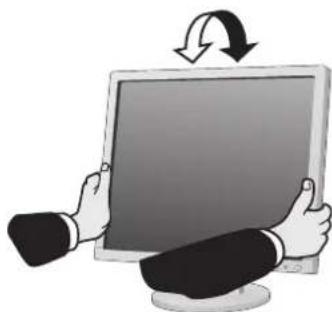
Adjustable Monitor Stand Capability
Hold the monitor on each side and adjust the tilt as desired.
natural_image
Illustration of a person holding a computer monitor with a circular arrow above it (no text or symbols)Chapter 2 Basic Operation
This Chapter Includes:
→ "Using the OSD (On-Screen Display) Controls" on page 16
→ “Changing the Input” on page 17
→ "Power management function LED indicator patterns" on page 17
Using the OSD (On-Screen Display) Controls
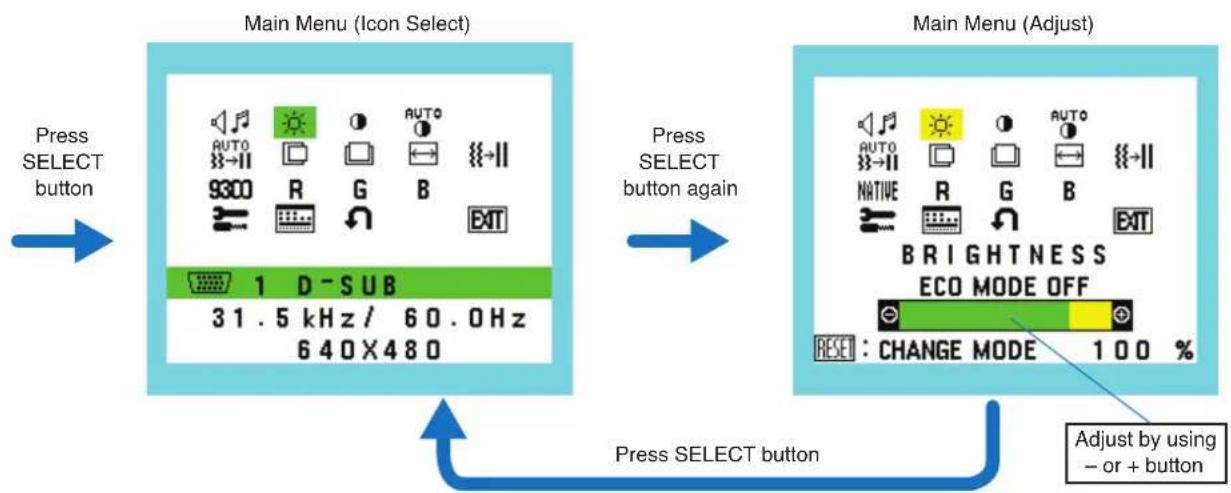
OSD (On-Screen Display) control button on the front of the monitor function as follows:
- To open the OSD menu, press the SELECT button. Please refer to the "Control Panel" on page 10 for basic functions of the buttons.
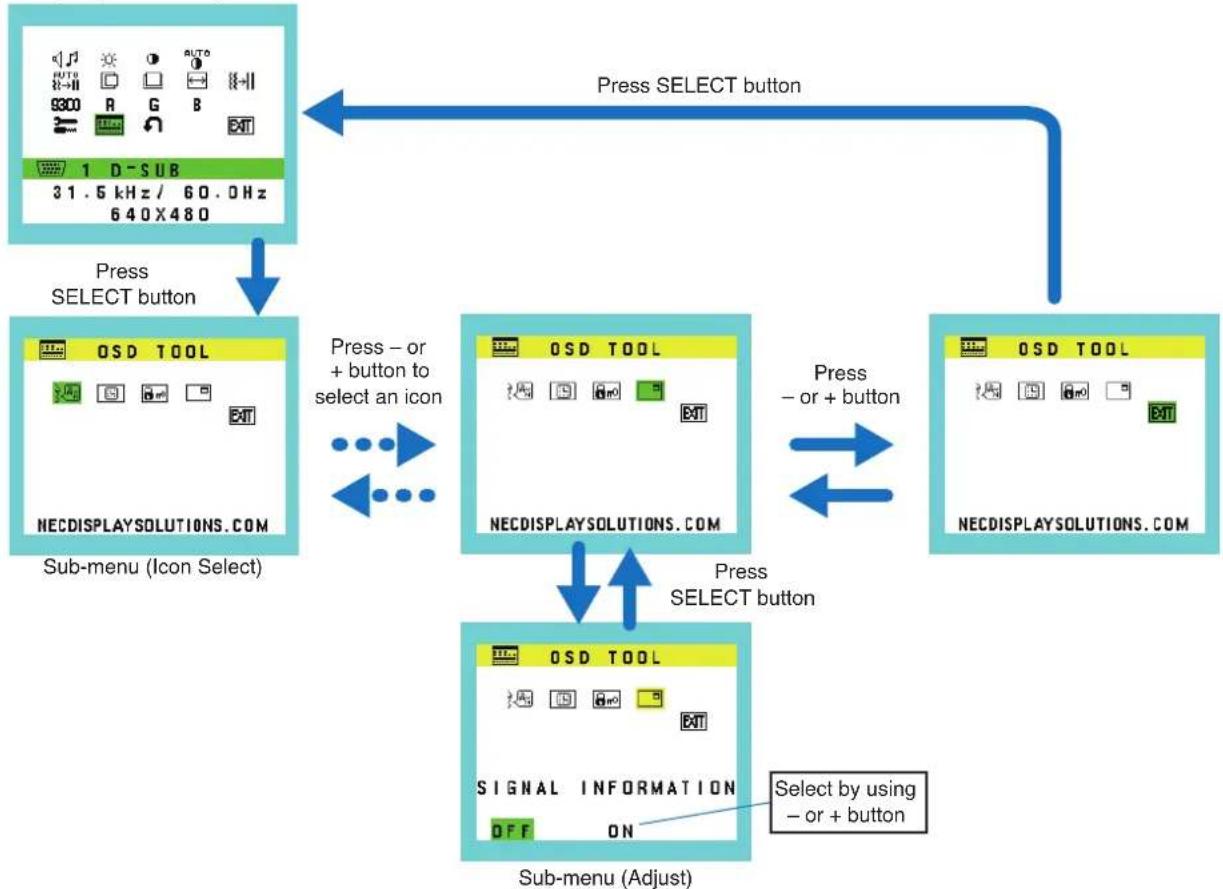
- Below is an OSD structure. Tables listing all options available in the OSD menu are located in "Appendix A OSD Controls List" on page 23.
flowchart
graph LR
    A["Main Menu (Icon Select)"] --> B["Press SELECT button"]
    B --> C["1 D-SUB 31.5 kHz / 60.0 Hz 640×480"]
    C --> D["Press SELECT button again"]
    D --> E["Main Menu (Adjust) with Brightness ECO MODE OFF: RESET: CHANGE MODE 100 %"]
    E --> F["Adjust by using - or + button"]
Example: [OSD TOOL] sub-menu
flowchart
graph TD
    A["Press SELECT button"] --> B["Press SELECT button"]
    B --> C["Press SELECT button"]
    C --> D["Press SELECT button"]
    D --> E["Press SELECT button"]
    E --> F["Press SELECT button"]
    F --> G["Press SELECT button"]
    G --> H["Press SELECT button"]
    H --> I["Press SELECT button"]
    I --> J["Press SELECT button"]
    J --> K["Press SELECT button"]
    K --> L["Press SELECT button"]
    L --> M["Press SELECT button"]
    M --> N["Press SELECT button"]
    N --> O["Press SELECT button"]
    O --> P["Press SELECT button"]
    P --> Q["Press SELECT button"]
    Q --> R["Press SELECT button"]
    R --> S["Press SELECT button"]
    S --> T["Press SELECT button"]
    T --> U["Press SELECT button"]
    U --> V["Press SELECT button"]
    V --> W["Press SELECT button"]
    W --> X["Press SELECT button"]
    X --> Y["Press SELECT button"]
    Y --> Z["Press SELECT button"]
    Z --> AA["Press SELECT button"]
    AA --> AB["Press SELECT button"]
    AB --> AC["Press SELECT button"]
    AC --> AD["Press SELECT button"]
    AD --> AE["Press SELECT button"]
    AE --> AF["Press SELECT button"]
    AF --> AG["Press SELECT button"]
    AG --> AH["Press SELECT button"]
    AH --> AI["Press SELECT button"]
    AI --> AJ["Press SELECT button"]
    AJ --> AK["Press SELECT button"]
    AK --> AL["Press SELECT button"]
    AL --> AM["Press SELECT button"]
    AM --> AN["Press SELECT button"]
    AN --> AO["Press SELECT button"]
    AO --> AP["Press SELECT button"]
    AP --> AQ["Press SELECT button"]
    AQ --> AR["Press SELECT button"]
    AR --> AS["Press SELECT button"]
    AS --> AT["Press SELECT button"]
    AT --> AU["Press SELECT button"]
    AU --> AV["Press SELECT button"]
    AV --> AW["Press SELECT button"]
    AW --> AX["Press SELECT button"]
    AX --> AY["Press SELECT button"]
Changing the Input
To change the signal input, press the INPUT/RESET button.
NOTE: If there is no active video signal on another input the monitor switches back to the current input.
For HDCP Content
HDCP is a system for preventing illegal copying of video data sent over a digital signal. If you are unable to view material via the digital inputs, this does not necessarily mean that the monitor is not functioning properly. With the implementation of HDCP, there may be cases in which certain content is protected by HDCP and might not be displayed due to the decision/intention of the HDCP community (Digital Content Protection, LLC). HDCP video content is generally commercially produced Blu-rays and DVDs, television broadcast, and streaming media services.
Power management function LED indicator patterns
The power management function is an energy saving feature that automatically reduces the power consumption of the monitor when the keyboard or the mouse has not been used for a fixed period.
| Mode LED indicator Power consumption Condition | |||
| Maximum operation Blue | Approx. 19 W (AS173M) Approx. 20 W (AS194Mi) | All functions work. | |
| Normal operation Blue | Approx. 10 W (AS173M) Approx. 12 W (AS194Mi) | Default setting. | |
| Energy saving mode Amber | 0.30 W The monitor has passed a certain amount of time with no video signal input. | ||
| Off mode Off 0.25 W | Turn off the monitor by the button. | ||
NOTE: • Power consumption depends on the setting of the OSD or which devices are connected to the monitor.
- This function works with computers that support VESA approved DPM (Display Power Management).
Chapter 3 Troubleshooting
This Chapter Includes:
→ "Screen Image and Video Signal Issues" on page 19
→ "Hardware Issues" on page 20
→ "Image Persistence" on page 20
No picture
- Make sure the signal cable is fully connected to the monitor and the computer.
- Make sure there is no DisplayPort converter adapter connected. The monitor does not support DisplayPort converter adapter.
- Make sure the computer's display card is completely seated in its slot.
- Make sure both the computer and monitor are powered on.
- Make sure that a supported resolution has been selected on the display card or system being used. If in doubt, please refer to the user's manual of the display controller or system to change the resolution.
- Check the monitor and your display card with respect to compatibility and recommended signal timings.
- Check the signal cable connector for bent or pushed-in pins.
- The monitor may be in power saving mode. The monitor automatically goes into standby at the preset time period after the video signal is lost. Press the ⏻ button on the monitor.
- Make sure the connected device outputs a signal to the monitor.
The image is unstable, unfocused or swimming is apparent
- Make sure the signal cable is fully connected to the monitor and the computer.
- Use the OSD Image Adjust controls to focus and adjust the display by increasing or decreasing the [FINE] adjustment. When the display mode is changed, the OSD Image Adjust settings may need to be readjusted.
- Check the monitor and your display card with respect to compatibility and recommended signal timings.
The image is not properly reproduced
• Use the OSD to enter the [INFORMATION] menu and confirm that the appropriate resolution has been selected.
- Use the [AUTO ADJUST] functions. (Analog input only).
Picture is not bright
• Make sure [ECO MODE] is [OFF].
- Make sure the signal cable is fully connected to the monitor and the computer.
- LCD brightness degradation occurs due to long-term usage or extreme cold conditions.
- If the brightness fluctuates, make sure [DV MODE] is set to [OFF].
Selected resolution is not displayed properly
- If the resolution you set is over or under a range, "OUT OF RANGE" window will appear then warn you. Please set supported resolution at the connected computer.
Brightness variations over time
- Change [DV MODE] to [OFF] and adjust brightness.
NOTE: When [DV MODE] is set to [ON], the monitor automatically adjusts brightness based on the video signal.
No Video
- If no video is present on the screen, turn the button off and on again.
• Make sure the computer is not in a power-saving mode by touching the connected keyboard or the connected mouse.
button does not respond
- Unplug the power cord of the monitor from the AC outlet to turn off and reset the monitor.
Message "OUT OF RANGE" is displayed (screen is either blank or shows rough images only)
- Image is displayed roughly (pixels are missing) and an OSD warning "OUT OF RANGE" is displayed: Either signal clock or resolution is too high. Choose one of the supported modes.
- An OSD warning “OUT OF RANGE” is displayed on a blank screen: Signal frequency is out of range. Choose one of the supported modes.
LED on monitor is not lit
- Make sure the power cord is properly connected to the monitor and the wall, and make sure the monitor's power button is on.
- Set [POWER INDICATOR] is [ON].
No Sound
- Check to see if speaker cable is properly connected.
- Check to see if [MUTE] is activated.
- Check to see if [VOLUME] is set to a minimum.
- Check to see if the computer supports an audio signal through DisplayPort or HDMI.
- Check selected [SOUND INPUT] when DisplayPort or HDMI is in use.
Image Persistence
Please be aware that LCD Technology may experience a phenomenon known as Image Persistence. Image Persistence occurs when a residual or “ghost” image of a previous image remains visible on the screen. Unlike CRT monitors, the image persistence on LCD monitors is not permanent, but single still image being displayed for a long period of time should be avoided.
To alleviate image persistence, turn off the monitor for as long as the previous image was displayed. For example, if an image was on the monitor for one hour and a residual image remains, the monitor should be turned off for one hour to erase the image.
NOTE: As with all personal display devices, NEC DISPLAY SOLUTIONS recommends using a moving screen saver at regular intervals whenever the screen is idle, or turning off the monitor when not in use.
Chapter 4 Specifications
AS173M
Monitor Specifications AccuSync AS173M Notes
| LCD Module Diagonal:Viewable Image Size:Native Resolution: | 43.28 cm/17.0 inches43.28 cm/17.0 inches1280 x 1024 60 Hz | Active matrix; thin film transistor (TFT) liquid crystal display (LCD); 0.264 mm dot pitch; 250 cd/m2 white luminance; 1000:1 contrast ratio (typical), (3000:1 Contrast ratio, DV MODE ON). | |
| Input Signal | |||
| VGA: Mini D-Sub 15-pin: Analog RGB | Sync | 0.7 Vp-p/75 ohmSeparate sync.TTL level Positive/Negative | |
| DisplayPort: DisplayPort Connector: Digital RGB Up to 1280 x 1024 60 Hz, DisplayPort V1.1a (HDCP 1.3) | |||
| HDMI: HDMI Connector: Digital YUV/RGB Up to 1280 x 1024 60 Hz, HDMI (HDCP 1.4) | |||
| Display Colors 16777216 Depends on display card used. | |||
| Synchronization Range Horizontal:Vertical: | 31.5 kHz to 81.0 kHz50 Hz to 75 Hz | AutomaticallyAutomatically | |
| Viewing Angle | Left/Right:Up/Down: | ±85° (CR > 10)±80° (CR > 10) | |
| Response Time | 5 ms (Tr + Tf Typ.) | ||
| Active Display Area | Horiz.:Vert.: | 337.9 mm/19.2 inches270.3 mm/11.7 inches | |
| AUDIO | |||
| AUDIO Input:STEREO Mini Jack:DisplayPort Connector:HDMI Connector: | Analog AudioDigital AudioDigital Audio | Stereo L/R 500mV rms 20 KohmPCM 2ch 32, 44.1, 48 kHz (16/20/24bit)PCM 2ch 32, 44.1, 48 kHz (16/20/24bit) | |
| Headphone Output: STEREO Mini Jack: | Headphone Impedance 32 Ohm | ||
| Speakers Practical Audio Output: 1.0 W + 1.0 W | |||
| Power Supply | AC 100-240 V, 50/60 Hz | ||
| Current Rating | 0.40 - 0.20 A | ||
| Dimensions | 373.2 mm (W) x 373.1 mm (H) x 205.1 mm (D)14.7 inches (W) x 14.7 inches (H) x 8.1 inches (D) | ||
| Stand adjustable range Tilt: UP 20° Down 5° | |||
| Weight | 3.3 kg (7.3 lbs) (with monitor stand) / 3.0 kg (6.6 lbs) (without monitor stand) | ||
| Environmental ConsiderationsOperating Temperature: Humidity: Altitude: Storage Temperature: Humidity: Altitude: | 5 °C to 35 °C/41 °F to 95 °F20 % to 80 %0 to 6,562 Feet/0 to 2,000 m-10 °C to 60 °C/14 °F to 140 °F10 % to 85 %0 to 40,000 Feet/0 to 12,192 m | ||
NOTE: Technical specifications are subject to change without notice.
Monitor Specifications AccuSync AS194Mi Notes
| LCD Module Diagonal:Viewable Image Size:Native Resolution: | 48.00 cm/18.9 inches48.00 cm/18.9 inches1280 x 1024 60 Hz | Active matrix; thin film transistor (TFT) liquid crystal display (LCD); 0.293 mm dot pitch; 250 cd/m2 white luminance; 1000:1 contrast ratio (typical), (3000:1 Contrast ratio, DV MODE ON) | |
| Input Signal | |||
| VGA: Mini D-Sub 15-pin: Analog RGB | Sync | 0.7 Vp-p/75 ohmSeparate sync.TTL level Positive/Negative | |
| DisplayPort: DisplayPort Connector: Digital RGB Up to 1280 x 1024 60 Hz, DisplayPort V1.1a (HDCP 1.3) | |||
| HDMI: HDMI Connector: Digital YUV/RGB Up to 1280 x 1024 60 Hz, HDMI (HDCP 1.4) | |||
| Display Colors 16777216 Depends on display card used. | |||
| Synchronization Range Horizontal:Vertical: | 31.5 kHz to 81.0 kHz50 Hz to 75 Hz | AutomaticallyAutomatically | |
| Viewing Angle | Left/Right:Up/Down: | ±89° (CR > 10)±89° (CR > 10) | |
| Response Time | 6 ms (Gray to Gray Typ.) | ||
| Active Display Area | Horiz.:Vert.: | 374.8 mm/19.2 inches299.8 mm/11.7 inches | |
| AUDIO | |||
| AUDIO Input:STEREO Mini Jack:DisplayPort Connector:HDMI Connector: | Analog AudioDigital AudioDigital Audio | Stereo L/R 500mV rms 20 KohmPCM 2ch 32, 44.1, 48 kHz (16/20/24bit)PCM 2ch 32, 44.1, 48 kHz (16/20/24bit) | |
| Headphone Output: STEREO Mini Jack: | Headphone Impedance 32 Ohm | ||
| Speakers Practical Audio Output: 1.0 W + 1.0 W | |||
| Power Supply | AC 100-240 V, 50/60 Hz | ||
| Current Rating | 0.45 - 0.25 A | ||
| Dimensions | 408.0 mm (W) x 386.4 mm (H) x 213.9 mm (D)16.1 inches (W) x 15.2 inches (H) x 8.4 inches (D) | ||
| Stand adjustable range Tilt: UP 20° Down 5° | |||
| Weight | 3.7 kg (8.2 lbs) (with monitor stand) / 3.4 kg (7.5 lbs) (without monitor stand) | ||
| Environmental ConsiderationsOperating Temperature: Humidity: Altitude: Storage Temperature: Humidity: Altitude: | 5 °C to 35 °C/41 °F to 95 °F20 % to 80 %0 to 6,562 Feet/0 to 2,000 m-10 °C to 60 °C/14 °F to 140 °F10 % to 85 %0 to 40,000 Feet/0 to 12,192 m | ||
NOTE: Technical specifications are subject to change without notice.
Appendix A OSD Controls List
Default values can be provided on request.
| VOLUME | Controls the volume of the speakers or headphones.To mute the speaker output, select the Audio icon and press the INPUT/RESET button. | |
| BRIGHTNESS | Adjusts the overall image and background screen brightness.Press the INPUT/RESET button to enter [ECO MODE].NOTE:When [DV MODE] is [ON], [ECO MODE] is set to [OFF] and cannot be changed. | |
| CONTRAST | Adjusts the image brightness in relation to the background.To enter the [DV MODE] setting, press the INPUT/RESET button. | |
| DV MODE | Setting that adjusts the brightness by detecting the screen's black areas and optimizes it. | |
| AUTO AUTO CONTRAST(Analog input only) | Automatically adjusts the image displayed for non-standard video inputs. | |
| AUTO AUTO ADJUST(Analog input only) | Automatically adjusts the image position, [H.SIZE], and [FINE] settings. | |
| LEFT/RIGHT(Analog input only) | Controls horizontal image position within the display area of the LCD. | |
| DOWN/UP(Analog input only) | Controls vertical image position within the display area of the LCD. | |
| H. SIZE (Analog input only) | Adjusts the horizontal size by increasing or decreasing the setting. | |
| FINE (Analog input only) | Improves focus, clarity, and image stability by increasing or decreasing this setting. | |
| NATIVE COLOR | Select the desired color setting from six color presets (9300 / 7500 / sRGB / USER / NATIVE / L/B).NOTE:You can directly change to [L/B] (LOW BLUE LIGHT MODE) by pressing the SELECT button for 3 seconds or more.For changing to other settings from [L/B] mode, press the SELECT button to open the OSD menu and enter [COLOR].When [L/B] is selected in [COLOR] control, [CONTRAST] and [DV MODE] are disabled. | |
| RED | Increases or decreases [RED]. The change will appear on screen. | |
| GREEN | Increases or decreases [GREEN]. The change will appear on screen. | |
| BLUE | Increases or decreases [BLUE]. The change will appear on screen. | |
| TOOL | Selecting [TOOL] opens the [TOOL] sub-menu. | |
| RESPONSE IMPROVE*1 | Turns the [RESPONSE IMPROVE] function [ON] or [OFF].This function may reduce blurring that occurs in some moving images. | |
| DDC/DC DDC/CI | This function turns the [DDC/CI] function [ON] or [OFF]. | |
| CARBON SAVINGS | Displays the estimated carbon saving information in kg.The carbon footprint factor in the carbon saving calculation is based on the OECD data (2008 Edition).The carbon saving information can be reset by pressing the INPUT/RESET button. | |
| CARBON USAGE | Displays the estimated carbon usages information in kg.This is an arithmetic estimation, not actual measurement value.The carbon footprint factor in the carbon usage calculation is based on the OECD data (2008 Edition).The carbon usage information can be reset by pressing the INPUT/RESET button. | |
| MONITOR INFO. | Indicates the model and serial numbers of your monitor. | |
| SOUND INPUT (HDMI, DisplayPort inputs only) | Selects the sound input source. | |
| OSD TOOL | Selecting [OSD TOOL] opens the [OSD TOOL] sub-menu. | |
| LANGUAGE | Selects the language used by the OSD. | |
| OSD TURN OFF | The OSD menu will stay open as long as it is in use. You can select how long the monitor waits after the last button press to close the OSD menu. The preset choices are 10-120 seconds by five-second increments. | |
| OSD LOCK OUT | This control completely locks out access to all of the OSD control functions except for [VOLUME], [BRIGHTNESS], and [CONTRAST].To activate the [OSD LOCK OUT] function, open the [OSD TOOL] sub-menu, select [OSD LOCK OUT], press and hold the INPUT/RESET and + buttons simultaneously until “OSD LOCKED OUT” indicator appears.To deactivate, press the SELECT button, then repeat the same steps until the OSD main menu opens on screen. | |
| SIGNAL INFORMATION | If you select [ON], the monitor displays “VIDEO INPUT” after changing the input.NOTE: · The compliance marks that are shown when powering on the monitor the first time are not shown when switching inputs.The compliance marks are not shown again unless the AC power cord has been disconnected and reconnected.If you select [OFF], the monitor does not display “VIDEO INPUT” after changing the input.· Setting [OFF] also prevents the compliance marks from being shown when powering on the monitor. | |
| FACTORY PRESET | Selecting [FACTORY PRESET] allows you to reset all OSD control settings back to the factory settings except [MUTE], [CARBON SAVINGS], [CARBON USAGE], and [SIGNAL INFORMATION]. Individual settings can be reset by highlighting the control to be reset and pressing the INPUT/RESET button. | |
| EXIT EXIT | Selecting [EXIT] close OSD sub-menu/menu. | |
*1: For AS194Mi only.
This Chapter Includes:
→ “Repacking the Monitor” on page 26
→ "Flexible Arm Installation" on page 27
Repacking the Monitor
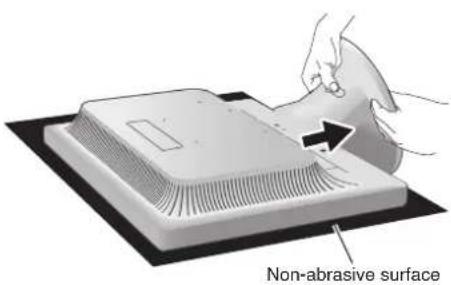
To repack the monitor for shipping, follow these instructions:
NOTE: Always remove the base stand when shipping the monitor.
- Place the monitor face down on a non-abrasive surface.
- Remove the cable cover (figure 1).
- Using your thumb, press the button to unlock.
- With the button pressed in, pull off the base stand (figure 2).

text_image
Monitor Stand Cable HolderFigure 1
text_image
Non-abrasive surfaceFigure 2
Flexible Arm Installation
This monitor is designed for use with a flexible arm. Contact NEC for more information.
Follow the instructions provided by the manufacturer of the display mount. Remove the monitor stand before mounting.
CAUTION:
To meet the safety requirements, the monitor must be mounted to an arm that supports the weight of the monitor. See the Specifications - "AS173M" on page 21 and "AS194Mi" on page 22 for details.
Remove the Monitor Stand for Mounting
NOTE: - Handle with care when removing the monitor stand.
- If the cable cover is installed, remove it before removing the monitor stand.
- You do not need to separate the base stand from the monitor stand.
The monitor stand can be removed with the base stand attached.
123
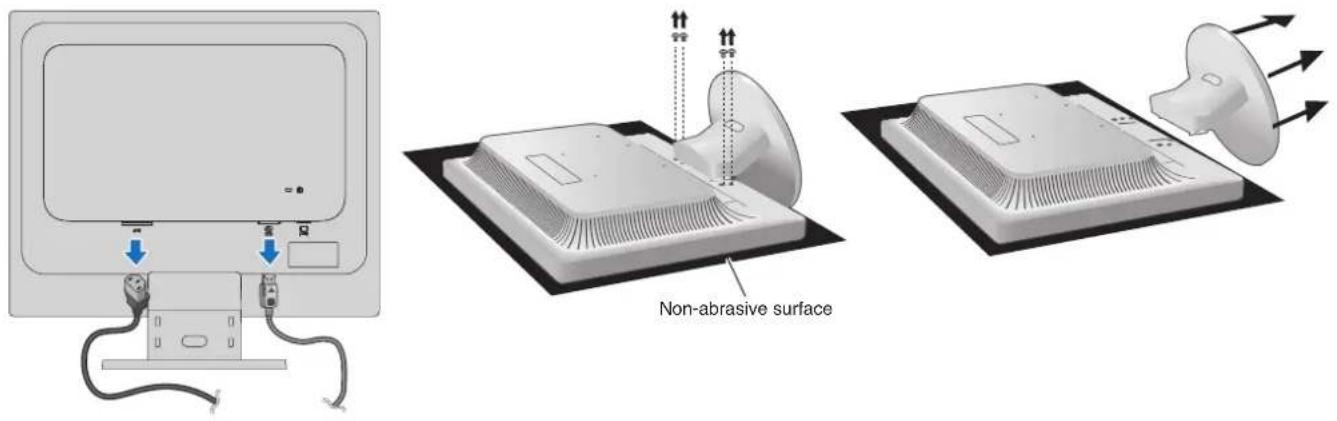
text_image
Non-abrasive surfaceMount the Flexible Arm
Using four screws that meet the specifications listed below, attach the arm to the monitor.
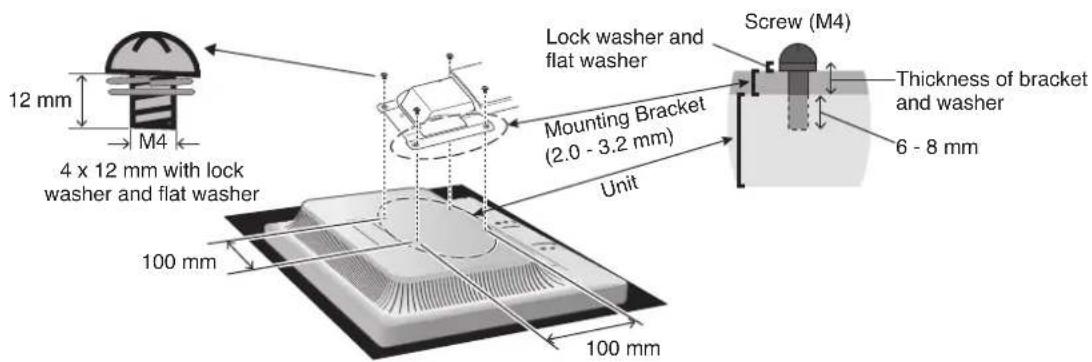
text_image
12 mm M4 4 x 12 mm with lock washer and flat washer 100 mm 100 mm Lock washer and flat washer Mounting Bracket (2.0 - 3.2 mm) Unit Screw (M4) Thickness of bracket and washer 6 - 8 mmCAUTION:
• The monitor should only be used with an approved arm (e.g. TUEV GS mark).
- Tighten all screws (recommended fasten torque: 98 - 137 N·cm).
- Attaching the flexible arm should be done by two or more people if the monitor cannot be placed face down on a flat surface for installation.
- The monitor must be used in the landscape position. When mounting on a flexible arm, please set the monitor in the landscape position with the LED indicator on the bottom bezel.
Appendix C Manufacturer's Recycling and Energy Information
This Chapter Includes:
→ "Disposing of your old NEC product" on page 29
→ "Energy Saving" on page 29
NEC DISPLAY SOLUTIONS is strongly committed to environmental protection and sees recycling as one of the company's top priorities in trying to minimize the burden placed on the environment. We are engaged in developing environmentally-friendly products, and always strive to help define and comply with the latest independent standards from agencies such as ISO (International Organisation for Standardization) and TCO (Swedish Trades Union).
Disposing of your old NEC product
The aim of recycling is to gain an environmental benefit by means of re-use, upgrading, reconditioning or reclamation of material. Dedicated recycling sites ensure that environmentally harmful components are properly handled and securely disposed. To ensure the best recycling of our products, NEC DISPLAY SOLUTIONS offers a variety of recycling procedures and gives advice on how to handle the product in an environmentally sensitive way, once it has reached the end of its life.
All required information concerning the disposal of the product and country-specific information on recycling facilities can be found on our following websites:
https://www.nec-display-solutions.com/greencompany/ (in Europe),
https://www.nec-display.com (in Japan) or
https://www.necdisplay.com (in USA).
Energy Saving
This monitor features an advanced energy saving capability. When a Display Power Management signal is sent to the monitor, the Energy Saving mode is activated. The monitor enters a single Energy Saving mode.
For additional information visit:
https://www.necdisplay.com/ (in USA)
https://www.nec-display-solutions.com/ (in Europe)
https://www.nec-display.com/global/index.html (Global)