
Voice Tracer VTR5166 - Dictaphone PHILIPS - Free user manual and instructions
Find the device manual for free Voice Tracer VTR5166 PHILIPS in PDF.


| Product Type | Dictaphone / Speech-to-Text Microphone |
| Dimensions (Width x Height) | 145 x 40 mm |
| Weight (with battery) | 161 g |
| Power Supply | USB via Type-C port (5V); internal rechargeable battery |
| Memory Support | Micro TF card (4 GB – 32 GB, not included) |
| Recording Format | WAV, 44.1 kHz / 4-bit, 176.4 kbps |
| Recording Modes | One-touch recording, voice-to-text, live recording, singing, solo, live broadcast |
| Voice-to-Text Software | PC software (Windows 7/8/10/XP/2000, Linux); real-time dictation and file transcription |
| Interface | Type-C USB (data and charging); 3.5 mm headphone jack |
| System Requirements | Windows 10/8/7/Vista/XP/2000, Linux; USB port; .NET Framework 4.0 for PC software |
| Operating Temperature | 5 °C – 45 °C |
| Operating Humidity | 10% – 90% (non-condensing) |
| Safety Precautions | Avoid moisture, direct sunlight, and heat sources; use headphones at safe volume |
| Maintenance | Clean with a dry cloth; do not expose to liquids |
| Spare Parts and Repairability | Replaceable TF memory card; battery not user-serviceable |
| Warranty | 1 year (subject to local terms) |
Frequently Asked Questions - Voice Tracer VTR5166 PHILIPS
User questions about Voice Tracer VTR5166 PHILIPS
0 question about this device. Answer the ones you know or ask your own.
Ask a new question about this device
Download the instructions for your Dictaphone in PDF format for free! Find your manual Voice Tracer VTR5166 - PHILIPS and take your electronic device back in hand. On this page are published all the documents necessary for the use of your device. Voice Tracer VTR5166 by PHILIPS.
USER MANUAL Voice Tracer VTR5166 PHILIPS
使用手册
User manual
目录
1 欢迎 5
1.1 产品特点 5
2 重要须知 6
2.1 安全 6
2.2 听力保护 6
3 您的多功能语音麦克风 7
3.1 供货范围 7
3.2 概览 7
4 开始使用 8
4.1 开 / 关机 8
4.2 连接电脑 8
5 录音 9
5.1 录音 9
6 现场语音转文本 10
6.1PC 端软件 10
7 娱乐休闲 13
7.1 唱歌模式 13
7.2 清唱模式 13
7.3 直播模式 13
8 回放模式 14
9 指示灯说明 15
10 常见故障排除 16
10.1 无法启动 16
10.2 麦克风无法录音 16
10.3 录音文件无法播放 16
10.4 麦克风无声音 16
11 技术参数 17
11.1 存储器 17
6.1PC 端软件

注意
7.3 直播模式
I.1 Product features 19
2 Important 20
2.1 Safety 20
2.2 Hearing protection 20
3 Your Speech to text Mic 21
- I What's in the box 21
3.2 Overview 21
4 Start to Use 22
4.1 Power on/off 22
4.2 Connect to PC 22
5 Recording 23
5.1 Recording 23
6 Live Voice to Text 24
6.1 PC software 24
7 Entertainment & Leisure 28
7.1 Singing mode 28
7.2 Solo mode 28
7.3 Live mode 29
8 Playback Mode 30
9 Indicator Description 31
10 Frequently Asked Questions 32
10.1 Fail to start 32
10.2 Fail to record of microphone 32
10.3 The device cannot play recorded audio 32
10.4 No sound of microphone 32
II Technical Parameters 33
II.1 Memory 33
11.2 Dimensions & weight 33
11.3 System requirements 33
11.4 Voice recording 33
11.5 Operating conditions 33
I Welcome
Welcome to the world of Philips! We are honored by your choice and purchase of Philips' products. You can have Philips' comprehensive technical supports from our website, e.g. user's manuals, software downloading and warranty information etc.
www.philips.com
1.1 Product features
- One-touch recording on multiple scenes and multiple modes;
• Voice to text, suitable for meetings and speeches;
• Live recording, recording with sound effects, recording of musical singing; - Entertainment, singing, live, solo and sound effects.
2 Important
2.1 Safety
- To avoid short circuits, never place the product in a location where it is exposed to moisture.
- Do not place the product near heated equipment or in direct sunlight.
- Please be careful not to pinch the cable, especially at the plug.

Warning
- Special Announcement: Before using the product, please read the Manual carefully. Our Company shall not be held liable for any data loss due to incorrect manual operation or force majeure. We specially recommend that users make additional copies of the files in the device.
- Images are for reference only. Philips reserves the right to change the color/appearance/design/parameters/product functions without prior notice.
2.2 Hearing protection
Please observe the following guidelines when using headphones:
- Adjust to the appropriate volume and do not use the headphones for a long time.
- It is especially important to note that the volume should not be adjusted beyond the range that the ear can withstand.
- Do not adjust the volume to level that covers the sound from surrounding environment.
- Be careful or suspend the use of headphones in hazardous situations.
3 Your Speech to text Mic
3.1 What's in the box:

3.2 Overview:

English
① Microphone ② Recording button
③ Volume button + / on ④ Volume button - / off
⑤ TYPE_C port ⑥ Power button
⑦ SD card holder
4 Start to Use
4.1 Power on/off
When the power button is pushed to ON, it is turned on, and when it is pushed to OFF, it is turned off. After it is turned on, the LED light gets on and the machine enters the standby state. Then it can be connected to the Type-c interface for singing and other operations.
4.2 Connect to PC
The USB cable of type-C interface can be used to connect the device to the computer. Since the device itself has no memory, there is no drive letter when the TF memory card is not inserted. After the TF memory card is inserted, the drive letter will be displayed on the connected computer. The name of the drive letter depends on the name of the TF memory card, which is generally a removable disk.
5 Recording
When you first use the recorder, please pay attention to the instructions in this section!
Since the machine itself has no memory, the recording function can only be used by inserting TF memory card.
(I) Make sure the TF card is inserted into the microphone.
(2) Make sure the TF card functions normally (Formatting is recommended before use).
(3) Make sure the TF card has enough memory.
(4) Make sure the microphone is fully charged.
5.1 Recording
In the standby mode, long press the “Record” button to begin the recording, and the red indicator light is on; Short press the “Record” button to save and exit the recording, and return to the singing mode.
6 Live Voice to Text
(I) Laptop connection: Connect the device to the laptop with a Line-in cable/accompaniment line. One end of the cable is connected to the Line-in port of USB dongle, and the other end is connected to the headphone port of the laptop.

(2) Desktop computer connection: Connect the device to the desktop computer with a line-in cable/accompaniment line. One end of the cable is connected to the headphone port of USB dongle, and the other end is connected to the MIC port of the computer.

6.1 PC software
Log into the link (vtr5166.szgps.net) which provided by JWD to download the PC software and copy the whole folder to a location on the PC.

Note
- When the computer system is XP or Windows 7, please use the folder named "VTR5166(for-Window-XP-or-7)".
- When the computer system is Windows 8 or 10, please use the folder named "VTR5166(for-Window-8-or-10)".
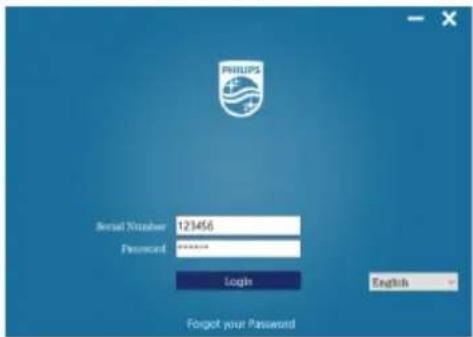
Login interface: Enter the correct product serial number, enter the password (initial password: 123456), click Login to use this software as shown below:
2 Set the device to voice-to-text mode before using the PC software. After the device is turned on, long press and the volume-button / turn off the sound effect to enter the voice-to-text mode. At this time, the LED keeps green.
3 If it is connected to a laptop, please refer to the first point of "Live Voice to Text" for connection to a desktop computer. If it is connected to a desktop, please refer to the second point for instructions.
4 line-in cable (four-section head) is as shown below:

5 After logging in, go to the main interface. The main interface includes: Record, Voice-to-text, Real-time transcription, File directory, Language setting, Send message.

The recording interface includes: start recording, pause recording, and save recording.
After logging in, in the main interface, you can select the "Start recording" module to enter the recording. The recording interface is as shown below. Select "Done" to save the current recording file. You can make the recordings directly on the micro TF card and move them to the PC for transcription. But you cannot playback the recordings directly from the micro TF card.

In the case of voice-to-text, select recording file to be transcribed into text, and save and edit text on the voice-to-text interface.

Reminder
• After installing the downloaded PC software, ensure that the network is available in the login of the software.
- If the computer prompts you to install Framwork4.0, you need to install it before you use it. You can download the software with a web domain name.
When the network connection is unstable and the signal is poor, it will affect the speed and accuracy of translation. It is recommended to use the PC software when the network speed is favorable.
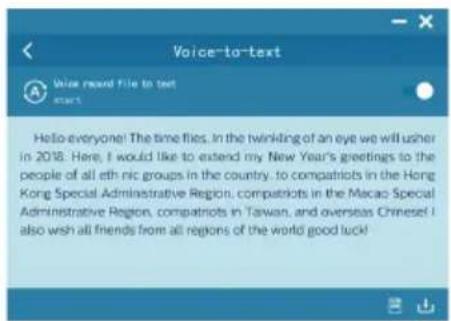
Real-time dictation: Select the real-time dictation menu. Click to enter, you can translate while speaking, and edit and save the translated text on this interface.

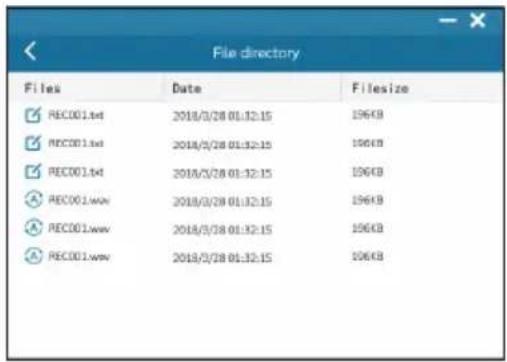
File directory: Select the file directory menu. After entering, you can browse the list of recorded files and text files. Click to open the text file.through it.
After selecting the "message delivery" menu, click the "icon, press "OK" after the prompt pops up, and click the corresponding input box to transfer the voice-to-text message.

7 Entertainment & Leisure
7.1 Singing mode
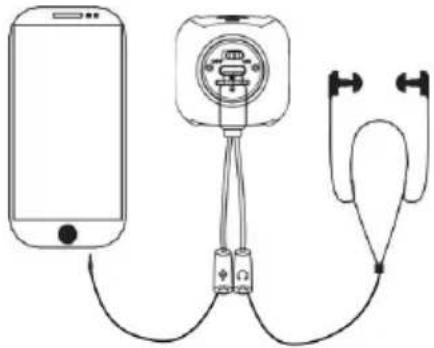
After connecting the headphones and the line-in cable, open the singing platform of the mobile phone, such as Changba, National Karaoke and other platforms to adjust the reverb on/off, adjust the sound volume to achieve an optimal singing mode. The connection is as shown below:

Note
- Do not mistake the accompaniment line with the headphone cable.

Note
- When using voice recording with Karaoke APPs, some mobile phones such as iPhone have built-in playback function and superimposed with the playback effect of Karaoke may cause howling. Therefore, it's necessary to turn off the playback function(vocal option) in the Karaoke APPs.
7.2 Solo mode
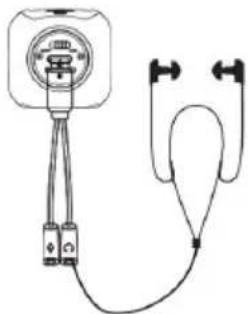
In the singing mode, long press volume “-” button / turn off the sound to enter the solo mode. You can adjust to the best solo state by adjusting the volume. The connection for solo is as shown below:
7.3 Live mode
For live broadcast connection, please refer to "7.1 Singing Mode". If you want to sing a song on live broadcast mode, you can choose: Mars Live, Huya Live, Kugou Live, and Inke Live.
8 Playback Mode
Playback of recording: Connect the computer with the USB cable of the TYPE_C port, and open the recording file for playback (not available to native playback).
9 Indicator Description
(I) When charging, the indicator light is orange; when fully charged, the indicator light is completely off.
(2) When the battery is low, the orange indicator light flashes to indicate that it is currently in a low power state.
(3) When recording: The red light is on.
(4) When standby: the green light is on.
(5) When connecting to a computer: The orange light is on. When recording with the PC software, the device indicator does not respond.
10 Frequently Asked Questions
Answers to the frequently asked questions are listed here to solve simple issues during use of the device. If such issues persist, please consult our dealers or visit our official website: www.philips.com/support
10.1 Fail to start
The battery is exhausted. Please connect it with USB for charging to ensure that it can start normally.
10.2 Fail to record of microphone
(I) Microphone TF card storage space is full.
(2) The TF card is not inserted in.
(3) Card error: a bad card.
10.3 The device cannot play recorded audio
(I) Confirm that the recorded files are not damaged and are saved normally.
(2) Confirm whether the player supports playback and play it
with different players. Support the following players:Xunlei Video, Qianqian Music, QQ Video, iQiyi Universal Player, KMplayer.
10.4 No sound of microphone
(I) Check if the connection with the mobile phone is correct.
(2) Check if the microphone has been adjusted to mute state.
(3) Whether the microphone has been powered off because of low power state.
(4) Check if the mobile phone has been adjusted to mute state.
(5) Check if the connection with the mobile phone is in good contact, and remove the protection shell of the mobile phone if necessary.
II Technical Parameters
11.1 Memory
Support MicroTF of 4G to 32G
11.2 Dimensions & weight
Width × height: 145 × 40 (mm)
Weight (with battery): 161g
11.3 System requirements
Operation system: Windows 10/Windows 8/Windows 7/
Vista/XP/2000, Linux
Interface: Type-c port
Sound pickup: 14mm capacitive independent suspension
diaphragm head
11.4 Voice recording
44.1Khz/4bit: bit rate 176.4kbps in WAV format
11.5 Operating conditions
Temperature: 5°C–45°C
Air humidity: 10% – 90%, no condensation
Warranty card
质保书

year warranty
一年质保
Type: VTR5166
Serial nr:
Date of purchase
购买日期
Dealer's name, address and signature
销售商名称、地址及签字
www.philips.com/welcome
This document is printed on chlorine free produced paper Data subject to change without notice
This product was brought to the market by Speech Processing Solutions GmbH or one of its affiliates, further referred to in this document as SPS, which is the manufacturer of the product. SPS is the warrantor in relation to the product with which this booklet was packaged.
For China only
只限中国地区
Printed in China


© 2019 Speech Processing Solutions GmbH.
Register your product and get support at
www.philips.com/welcome


- 使用手册
- User manual
- 目录
- 1 欢迎 5
- 2 重要须知 6
- 3 您的多功能语音麦克风 7
- 4 开始使用 8
- 5 录音 9
- 6 现场语音转文本 10
- 7 娱乐休闲 13
- 8 回放模式 14
- 9 指示灯说明 15
- 10 常见故障排除 16
- 11 技术参数 17
- 6.1PC 端软件
- 注意
- 7.3 直播模式
- 2 Important 20
- 3 Your speech to text mic 21
- 4 Start to use 22
- 5 Recording 23
- 6 Live voice to text 24
- 7 Entertainment & leisure 28
- 8 Playback mode 30
- 9 Indicator description 31
- 10 Frequently asked questions 32
- Ii technical parameters 33
- I welcome
- 1.1 Product features
- 2 Important
- 2.1 Safety
- Warning
- 2.2 Hearing protection
- 3 Your speech to text mic
- 4 Start to use
- 4.1 Power on/off
- 4.2 Connect to pc
- 5 Recording
- 5.1 Recording
- 6 Live voice to text
- 6.1 PC software
- Note
- Reminder
- 7 Entertainment & leisure
- 7.1 Singing mode
- 7.2 Solo mode
- 7.3 Live mode
- 8 Playback mode
- 9 Indicator description
- 10 Frequently asked questions
- 10.1 Fail to start
- 10.2 Fail to record of microphone
- 10.3 The device cannot play recorded audio
- 10.4 No sound of microphone
- Ii technical parameters
- 11.1 Memory
- 11.2 Dimensions & weight
- 11.3 System requirements
- 11.4 Voice recording
- 11.5 Operating conditions
- Warranty card
- 质保书
Brand : PHILIPS
Model : Voice Tracer VTR5166
Category : Dictaphone