RH7822CW1L - Media player LG - Free user manual and instructions
Find the device manual for free RH7822CW1L LG in PDF.


User questions about RH7822CW1L LG
0 question about this device. Answer the ones you know or ask your own.
Ask a new question about this device
Download the instructions for your Media player in PDF format for free! Find your manual RH7822CW1L - LG and take your electronic device back in hand. On this page are published all the documents necessary for the use of your device. RH7822CW1L by LG.
USER MANUAL RH7822CW1L LG
Before connecting, operating or adjusting this product, please read this instruction booklet carefully and completely.









CAUTION: THESE SERVICING INSTRUCTIONS ARE FOR USE BY QUALIFIED SERVICE PERSONNEL ONLY. TO REDUCE THE RISK OF ELECTRIC SHOCK DO NOT PERFORM ANY SERVICING OTHER THAN THAT CONTAINED IN THE OPERATING INSTRUCTIONS UNLESS YOU ARE QUALIFIED TO DO SO.

Caution: The apparatus should not be exposed to water (dripping or splashing) and no objects filled with liquids, such as vases, should be placed on the apparatus.


CAUTION: This product employs a Laser System.
To ensure proper use of this product, please read this owner's manual carefully and retain for future reference. Should the unit require maintenance, contact an authorized service center.
Use of controls, adjustments, or the performance of procedures other than those specified herein may result in hazardous radiation exposure.
To prevent direct exposure to laser beam, do not try to open the enclosure. Visible laser radiation when open. DO NOT STARE INTO BEAM.

WARNING: Do not install this equipment in a confined space such as a bookcase or similar unit.
CAUTION concerning the Power Cord
Most appliances recommend they be placed upon a dedicated circuit;
That is, a single outlet circuit which powers only that appliance and has no additional outlets or branch circuits. Check the specification page of this owner's manual to be certain.
Do not overload wall outlets. Overloaded wall outlets, loose or damaged wall outlets, extension cords, frayed power cords, or damaged or cracked wire insulation are dangerous. Any of these conditions could result in electric shock or fire. Periodically examine the cord of your appliance, and if its appearance indicates damage or deterioration, unplug it, discontinue use of the appliance, and have the cord replaced with an exact replacement part by an authorized servicer.
Protect the power cord from physical or mechanical abuse, such as being twisted, kinked, pinched, closed in a door, or walked upon. Pay particular attention to plugs, wall outlets, and the point where the cord exits the appliance.
SERIAL NUMBER:
You can find the serial number on the back of the unit. This number is unique to this unit and not available to others. You should record requested information here and retain this guide as a permanent record of your purchase.
Model No. ____
Serial No. ____
- The appliance is not intended for use by young children or infirm persons without supervision.
- Young Children should be supervised to ensure that they do not play with appliance.
- If the appliance is supplied from a cord extension set or an electrical portable outlet device, the cord extension set on electrical portable outlet device must be positioned so that it is not subject to splashing or ingress of moisture.
Contents
Introduction 4-10
Symbol Used in this Manual 4
Notes on Discs 4
Recordable and Playable Discs .....5
Playable Discs 6
Remote Control Operation 6
About the internal hard disk drive .....7
Disc-related terms 8
Front Panel 9
Remote Control 10
Hookup and Settings .....11-24
Rear Panel 11
Connecting to the Aerial .....11
Connections to Your TV 12
Connecting to an Amplifier 13
Accessory Audio/Video (A/V) Connections ....14
Using the Home Menu 15
Initial Settings 15-24
General Settings 15-18
Auto Programming 15
Program Edit 16
Clock Set 17
TV Aspect 17
Display Mode 17
Progressive Scan 18
PBC 18
Initialization 18
Language Settings .....18-19
Audio Settings 19
Dolby Digital / DTS / MPEG 19
Sampling Frequency 19
DRC (Dynamic Range Control) .....19
Vocal 19
Lock (Parental Control) Settings .....20-21
Rating / Set Password / Area Code .....20
DivX Registration Code 21
Recording Settings .....21-22
Record Mode Set .....21
Record Aspect . . . . . . . . . . . . . . . . . . . . . . . . . . . . . . . . . . . . . . . . . . . . . 21
DV Recording Audio 22
TV Recording Audio 22
Auto Chapter 22
Disc Settings .22-23
Disc Format 22
Finalize / Disc Label / Disc Protect .....23
General Explanation of On-Screen Display . . . .24
Playback .25-37
Playing a HDD, DVD, DivX file or Video CD .25-28
Playing a DivX Movie File .....29-30
Playing an Audio CD or MP3/WMA file . . . . .31-32
Program Playback with Audio CD and
MP3/WMA file 33
Viewing a JPEG File .....34-35
Editing a MP3/WMA, JPEG, DivX file .....36-37
Recording 38-43
About DVD recording 38
About HDD recording .....38
Timeshift 39
Basic Recording from a TV . . . . . . . . . . . . . . . . . . . . . . . . . . . . . 40
Instant Timer Recording ....40
Timer Recording 41
Simultaneous recording and playback .....41
Checking Timer Recording Details .....42
Recording from an External Input .....42
Recording from DV Input 43
Editing 44-50
Title List and Chapter List Menu Overview ....44
HDD, VR Mode: Original and Playlist Editing . . .45
Adding Chapter Markers 45
Changing Title Thumbnails . . . . . . . . . . . . . . . . . . . . . . . . . . . . . . . . . . . . . . . . . . . . . 45
Making a New Playlist ....46
Adding Additional Title/Chapters to the Playlist .46
Deleting an Original or Playlist Title/Chapter . . .47
Deleting a Part 47
Naming a Title 48
Sort 48
Undoing/Redoing the Last Deletion .....48
Combining Two Titles Into One .....49
Divide One Titles Into Two 49
Combining Two Chapters Into One .....49
Moving a Playlist Chapter .50
Hide a Chapter/Title .....50
Protect a Title ....50
Dubbing .....51-53
Before Dubbing 51
Dubbing from HDD to DVD 52
Dubbing from DVD to HDD 52
One Touch Copy (HDD to DVD) .....53
One Touch Copy (DVD to HDD) .....53
Reference 54-59
Additional Information .....54
Overwriting Recording .54
Viewing Title List menu displayed on other
DVD Recorders or Players .....54
Playing Your Recordings on Other DVD
Players (Finalizing a Disc) .....54
Language Codes 55
Area Codes 55
Controlling Your TV with the Supplied
Remote Control 56
Troubleshooting .....57-58
Specifications 59
Introduction
To ensure proper use of this product, please read this owner's manual carefully and retain for future reference.
This manual provides information on the operation and maintenance of your recorder. Should the unit require service, contact an authorized service location.
Symbol Used in this Manual

The lightning flash symbol alerts you to the presence of dangerous voltage within the product enclosure that may constitute a risk of electric shock.

The exclamation point alerts you to the presence of important operating and maintenance / servicing instructions.

Indicates hazards likely to cause harm to the unit itself or other material damage.
Note:
Indicates special notes and operating features.
Tip:
Indicates tips and hints for making the task easier.
A section whose title has one of the following symbols are applicable only to the disc represented by the symbol.
HDD
Titles recorded on the HDD
-RWVR
DVD-RW with VR recording mode
-RWVideo
DVD-RW with Video recording mode
+RW
DVD+RW disc
-R
DVD-R disc
+R
DVD+R disc
DVD
DVD-Video disc
VCD
Video CDs
ACD
Audio CDs
DivX
DivX files
MP3
MP3 files
WMA
WMA files
JPEG
JPEG files
About the Symbol Display
“∅” may appear on your TV display during operation and indicates that the function explained in this owner's manual is not available on that specific DVD video disc.
Notes on Discs
Handling Discs
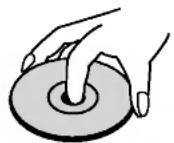
Do not touch the playback side of the disc. Hold the disc by the edges so that fingerprints do not get on the surface. Never stick paper or tape on the disc.

Storing Discs
After playing, store the disc in its case. Do not expose the disc to direct sunlight or sources of heat and never leave it in a parked car exposed to direct sunlight.
Cleaning Discs
Fingerprints and dust on the disc can cause poor picture quality and sound distortion. Before playing, clean the disc with a clean cloth. Wipe the disc from the center out.

text_image
Diagram showing two hand-drawn scenarios of a circular object being held, with one marked as '×' and the other as '○'Do not use strong solvents such as alcohol, benzine, thinner, commercially available cleaners, or anti-static spray intended for older vinyl records.
Moisture Condensation
Never operate this product immediately after moving it from a cold location to a warm location. Leave it for two or three hours without operating it. If you use this product in such a situation, it may damage discs/tapes and internal parts.
Recordable and Playable Discs

DVD-RW (Digital Video Disc - ReWritable):
- DVD-RW discs can be formatted for VR mode recording or Video mode recording. - These Discs can be recorded on repeatedly. Recordings can be erased, then you can record again on the same Disc.
[VR mode]
• Recordings can be extensively edited
- Playable only on VR mode compatible players (after finalization)
[Video mode]
- Playable on regular DVD players (after finalization)
- Limited editing features

DVD-R (Digital Video Disc - Recordable)
• These Discs can be recorded only once. After you finalize a DVD-R, you cannot record on it or edit it.
• DVD-R discs can be only formatted to Video mode.
- Playable on regular DVD players (after finalization)
• Limited editing features

DVD+RW (Digital Video Disc + ReWritable)
- These Discs can be recorded on repeatedly. Recordings can be erased, then you can record again on the same Disc.
- Playable on DVD+RW compatible players (automatically finalization)
- The edited contents are playable on DVD+RW compatible players only after finalization
• Recordings can be edited the title/chapter

DVD+R (Digital Video Disc + Recordable)
- These Discs can be recorded only once. After you finalize a DVD+R, you cannot record on it or edit it any more.
- Playable on DVD+R compatible players (after finalization)
- Any edited contents are not be compatible on DVD+R compatible players. (Hide, chapter combine, added chapter mark, etc.)
- Limited title/chapter editing features.

DVD+R DL (Digital Video Disc + Recordable; Double Layer)
- These Discs can be recorded only once. After you finalize a DVD+R DL, you cannot record on it or edit it any more.
- Storage space is nearly doubled with double layer DVD+R media, allowing consumers to record up to 8.5GB of video on a single DVD+R disc.
- Playable on DVD+R DL compatible players (after finalization)
- Any edited contents are not be compatible on DVD+R DL compatible players. (Hide, chapter combine, added chapter mark, etc.)
- Limited title/chapter editing features.
The recommendable recordable DVD discs
| DVD-R | DVD+R | DVD-RW | DVD+RW | DVD+R(DL) |
| SONY (8x, 16x) | SONY (2.4x, 4x, 8x, 16x) | Victor (1x, 4x) | SONY (2.4x) | Mitsubishi (2.4x) |
| TDK (4x, 8x) | TDK (4x) | Maxell (1x, 2x, 4x) | TDK (2.4x) | Maxell (2.4x) |
| Verbatim (4x, 8x) | Mitsubishi (4x, 8x) | TDK (2x) | Philips (4x) | - |
| Panasonic (2x, 4x) | Ricoh (2x, 4x, 8x) | Mitsubishi (2x) | Ricoh (2.4x) | - |
| - | - | - | HP (2.4x, 4x) | - |
Note:
If a DVD-RW/DVD+RW discs is recorded using a personal computer or other DVD recorder, you cannot format the disc using this recorder. So if you want to use the disc on this recorder, you must format the disc using the original recorder.
playable Discs

DVD (8 cm / 12 cm disc)
- Discs such as movies that can be purchased or rented

Video CD (VCD) (8 cm / 12 cm disc)
• VIDEO CDs or CD-Rs/CD-RWs in VIDEO CD/Super VIDEO CD format

Audio CD (8 cm / 12 cm disc)
- Music CDs or CD-Rs/CD-RWs in music CD format that can be purchased

CD-R/CD-RW (8 cm / 12 cm disc)
- CD-R/CD-RW discs that contain audio titles, DivX, MP3, WMA, or JPEG files.
Notes:
- Depending on the conditions of the recording equipment or the CD-R/RW (or DVD±R/RW) disc itself, some CD-R/RW (or DVD±R/RW) discs cannot be played on the unit.
- Do not attach any seal or label to either side (the labeled side or the recorded side) of a disc.
- Do not use irregularly shaped CDs (e.g., heart-shaped or octagonal). Doing so may result in malfunctions.
- Depending on the recording software & the finalization, some recorded discs (CD-R/RW or DVD±R/RW) may not be playable.
- DVD-R/RW, DVD+R/RW and CD-R/RW discs recorded using a personal computer or a DVD or CD Recorder may not play if the disc is damaged or dirty, or if there is dirt or condensation on the Recorder's lens.
- If you record a disc using a personal computer, even if it is recorded in a compatible format, there are cases in which it may not play because of the settings of the application software used to create the disc. (Check with the software publisher for more detailed information.)
Regional code of the recorder and DVDs

This recorder is designed and manufactured for playback of Region 2 encoded DVD software. The region code on the labels of some DVD discs indicates which type of the recorder can play those discs. This unit can play only DVD discs labeled 2 or ALL. If you try to play any other discs, the message
"Incorrect region code. Can't play back" will appear on the TV screen. Some DVD discs may not have a region code label even though their playback is prohibited by area limits.
Notes on DVDs and Video CDs
Some playback operations of DVDs and Video CDs may be intentionally fixed by software manufacturers. As this unit plays DVDs and Video CDs according to disc content designed by the software manufacturer, some playback features of the unit may not be available or other functions may be added.
Refer also to the instructions supplied with the DVDs and Video CDs. Some DVDs made for business purposes may not be played on the unit.
Remote Control Operation
Point the Remote Control at the remote sensor and press the buttons.
Remote Control Battery Installation

Remove the battery cover on the rear of the Remote Control, and insert two R03 (size AAA) batteries with + and - matched correctly.

Do not mix old and new batteries. Never mix different types of batteries (standard, alkaline, etc.).
About the internal hard disk drive
The internal hard disk drive (HDD) is a fragile piece of equipment. Please use the recorder following the guidelines below to protect against possible HDD failure.
We recommend that you back up your important recordings onto DVD discs in order to protect against accidental loss.
- Do not move the recorder while it is on.
• Install and use the recorder on a stable, level surface. - Do not block the rear vent/cooling fan.
- Do not use the recorder in excessively hot or humid places, or in places that may be subject to sudden changes in temperature. Sudden changes in temperature can cause condensation to form inside the recorder. This can be a cause of HDD failure.
- While the recorder is switched on, do not unplug from the wall socket or switch the electricity off from the breaker switch.
-
Do not move the recorder immediately after switching it off. If you need to move the recorder, please follow the steps below:
-
After the message POWER OFF is shown in the display, wait at least two minutes.
- Unplug from the wall socket.
-
Move the recorder.
-
If there's a power failure while the recorder is on there is a chance that some data on the HDD will be lost.
- The HDD is very delicate. If used improperly or in an unsuitable environment, it is possible that the HDD will fail after a few years of use. Signs of problems include playback unexpectedly freezing and noticeable block noise (mosaic) in the picture. However, sometimes there will be no warning signs of HDD failure.
If the HDD fails, no playback of recorded material will be possible. In this case it will be necessary to replace the HDD unit.
Disc-related terms
DVD +R (Double Layer)
Double layer recording technology offers two recordable layers on a single DVD disc, providing nearly double the capacity of 4.7GB single layer DVDs. The greatest, most valuable benefit of double layer recording technology is increased capacity. Storage space is nearly doubled with double layer DVD+R media, allowing consumers to burn up to 8.5GB of video on a single DVD+R disc.
DVD ±R / DVD ±RW
DVD -R and DVD +R are two different standards for recordable DVD drives and discs. This format allows information to be recorded onto the DVD disc only once. DVD +RW and DVD -RW are two standards for re-writable media, meaning the DVD content can be erased and re-recorded. Single-sided discs can hold 4.38 Gigabytes and double-sided discs hold twice as much.
VCD (Video CD)
A VCD holds up to 74 minutes (650 MB disc) or 80 minutes (700 MB disc) of MPEG-1 full-motion video along with quality stereo sound.
MPEG
MPEG is an international standard for video and audio compression. MPEG-1 is used in encoding video for VCD and provides for multichannel surround sound coding such as PCM, Dolby Digital, DTS, MP3 and MPEG audio.
MP3
MP3 is a popular compression format used for digital audio files that yields very high near-CD quality.
WMA
Windows media audio file. A type of coding / decoding developed by Microsoft Corp.
JPEG
Joint Pictures Expert Group. JPEG is a compressed file format that allows you to save images with no limit on the number of colors.
DivX
DivX is the name of a revolutionary new video codec which is based on the new MPEG-4 compression standard for video. You will be able to play DivX movies using this recorder.
PBC: Playback Control (Video CD only)
Playback control is available for Video CD (VCD) version 2.0 disc formats. PBC allows you to interact with the system via menus, search functions, or other typical computer-like operations. Moreover, still pictures of high resolution can be played if they are included in the disc. Video CDs not equipped with PBC (Version 1.1) operate in the same way as audio CDs.
Title (DVD video discs only)
A title is generally a distinct section of a DVD disc. For example the main feature could be title 1, a documentary describing how the film was made could be title 2, and cast interviews could be title 3. Each title is assigned a reference number enabling you to locate it easily.
Chapter (DVD video discs only)
A chapter is a segment of a title such as a scene in a film or one interview in a series. Each chapter is assigned a chapter number, enabling you to locate the chapter you want. Depending on the disc, chapters may not be recorded.
Scene (VCD)
On a video CD with PBC ( playback control) functions, moving pictures and still pictures are divided into sections called "scenes". Each scene is displayed in the menu screen and assigned a scene number, enabling you to locate the scene you want. A scene is composed of one or several tracks.
Track
A distinct element of audiovisual information, such as the picture or sound track for a specific language (DVD), or a musical piece on a video or audio CD. Each track is assigned a track number, enabling you to locate the track you want. DVD discs allow one track of video (with multiple angles) and several tracks of audio.
Front Panel
text_image
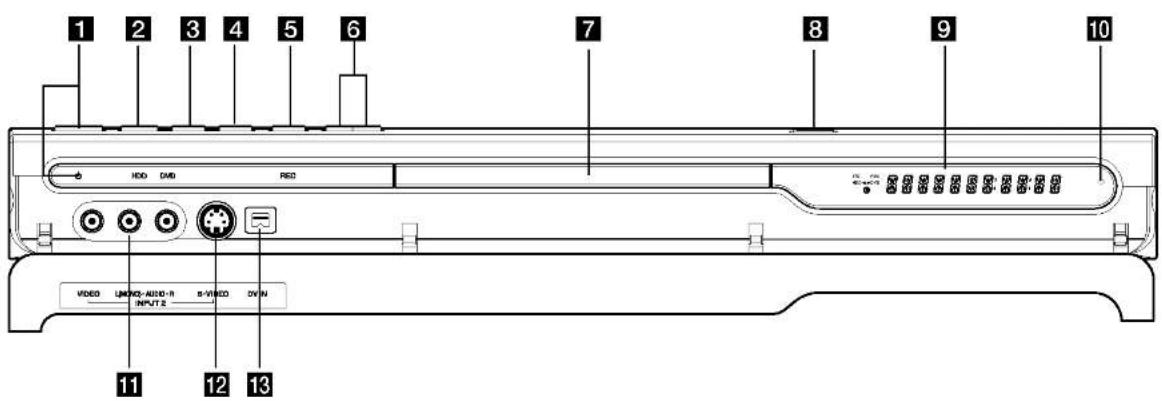
1 2 3 4 5 6 7 8 9 10 HDD DWD RS0 VIDEO LINKS-AD20-R S-VIBED 3V IN INPUT 2 11 12 131 POWER button and indicator
Switches the recorder ON or OFF.
Lights up red when the recorder is in standby mode.
2 HDD/DVD
Set the recorder's mode to HDD or DVD.
3 ▶ / II (PLAY / PAUSE)
Starts playback.
Pause playback or recording temporarily, press again to exit pause mode.
4 ■ (STOP)
Stops playback or recording.
5 ● (REC)
Starts recording. Press repeatedly to set the recording time.
6 PROG. (▼/▲)
Scans up or down through memorized channels.
7 Disc Tray
Insert a disc here.
8 OPEN/CLOSE (▲)
Opens or closes the disc tray.
9 Display window
Shows the current status of the recorder.
T/S: Indicates the timeshifting mode.
REC: The recorder is recording.
HDD: The recorder is HDD mode.
DVD: The recorder is DVD mode.
HDD ◀▶ DVD: The recorder is dubbing.
②: Indicates when the recorder is in timer recording or a timer recording is programmed.
: Indicates clock, total playing time, elapsed time, title number, chapter/track number, channel, etc.
10 Remote Sensor
Point the recorder remote control here.
11 INPUT 2 (VIDEO IN/AUDIO IN (Left/Right))
Connect the audio/video output of an external source (Audio system, TV/ Monitor, VCR, Camcorder, etc.).
12 INPUT 2 (S-VIDEO IN)
Connect the S-Video output of an external source (TV/ Monitor, VCR, Camcorder, etc.).
13 DV IN
Connect the DV output of a digital camcorder.
Remote Control

text_image
POWER OPEN/ CLOSE 3D SURR. PIP AV 1 2 3 4 5 6 7 8 9 AV 0 MUTE AUDIO SUBTITLE ANGLE REC REC MODE TIMER REC SCAN SKIP PAUSE/STEP STOP HOME MENU/LIST ENTER DISPLAY RETURN TIMESHFT MARKER - SEARCH SETUP DUBBING LSKIP TITLE CHP ADD THUMBAL RANDOM REPEAT A-B ZOOM CLEAR0-9 numerical buttons: Selects numbered options in a menu.
3D SURR.: Selects 3D SURROUND during playback.
◀ / ▶ / ▲ / ▼ (left/right/up/down): Selects an option in the menu.
▲ / ▼ (up/down): Scans up or down through memorized channels.
A-B: Repeat sequence.
ANGLE: Selects a DVD camera angle, if available.
AUDIO: Selects an audio language (DVD) or an audio channel (CD).
AV: Changes the input to use for recording (Tuner, AV1-2, or DV IN).
CHP ADD: Inserts a chapter marker when playing/recording.
CLEAR: Removes a track number on the Program List or a mark on the Marker Search menu.
DISPLAY: Accesses On-Screen Display.
DUBBING: Copies DVD to HDD (or HDD to DVD).
ENTER
- Acknowledges menu selection.
- Displays information while viewing a TV program.
HOME: Accesses or removes the HOME menu.
I.SKIP (INSTANT SKIP): Skips 15 seconds forward on the disc (about the length of a typical TV: commercial).
MARKER: Marks any point during playback.
MENU/LIST: Accesses menu on a DVD disc. Switches between Title List-Original and Title List-Playlist menu.
OPEN/CLOSE (▲): Opens and closes the disc tray.
PAUSE/STEP (II) : Pause playback or recording temporarily, press again to exit pause mode.
PIP: Selects PIP function on or off.
▶ (PLAY): Starts playback.
POWER: Switches the recorder ON or OFF.
RANDOM: Plays tracks in random order.
REC (●): Starts recording. Press repeatedly to set the recording time.
REC MODE: Selects the recording mode (HQ, SQ, LQ or EQ).
REPEAT: Repeat chapter, track, title, all.
RETURN (○)
- Removes the menu.
- Displays the menu of a video CD with PBC.
SCAN (◀◀ / ▶▶): Search backward or forward.
SEARCH: Displays Marker Search menu.
SETUP: Accesses or removes the Setup menu.
SKIP (I◄◄ / ►►I): Go to next chapter or track. Returns to beginning of current chapter or track or go to previous chapter or track.
STOP (■): Stops playback or recording.
SUBTITLE: Selects a subtitle language.
THUMBNAIL: Selects a thumbnail picture for the current title and chapter for use in the Original and Playlist menu.
TIMER REC: Displays Timer Record menu.
TIMESHIFT: Activates pause live TV/playback (timeshift) for a live TV program.
TITLE: Displays the disc's Title menu, if available.
TV Control Buttons
- POWER: Turns the TV on or off.
- AV: Selects the TV's source.
- PR +/-: Selects TV's channel.
- VOL +/-: Adjusts TV's volume.
- MUTE: Temporarily turns TV sound OFF, press again to restore.
ZOOM: Enlarges DVD video image.
Hookup and Settings
Rear Panel

text_image
1 2 3 4 5 6 7 8 9 AUDIO OUT AUDIO OUT COMPRESS RDC OUT AUDIO OUT AUDIO OUT AUDIO OUT1 AERIAL
Connect the aerial to this terminal.
2 AUDIO OUT (Left/Right)
Connect to a TV with audio inputs.
3 VIDEO OUT
Connect to a TV with video inputs.
4 COMPONENT VIDEO OUT/PROGRESSIVE SCAN (Y Pb Pr)
Connect to a TV with Y Pb Pr inputs.
5 S-VIDEO OUT
Connect to a S-Video Input on TV.
6 OPTICAL (Digital audio out jack)
Connect to digital (optical) audio equipment.
7 Cooling fan
8 AC Power Cord
Plug into the power source.
9 RF. OUT
Passes the signal from the AERIAL to your TV/monitor
10 AUDIO IN 1 (Left/Right)
Connect the audio output of an external source (Audio system, TV/Monitor, VCR, Camcorder).
11 VIDEO IN 1
Connect the video output of an external source (Audio system, TV/Monitor, VCR, Camcorder).
12 COAXIAL (Digital audio out jack)
Connect to digital (coaxial) audio equipment.
Connecting to the Aerial
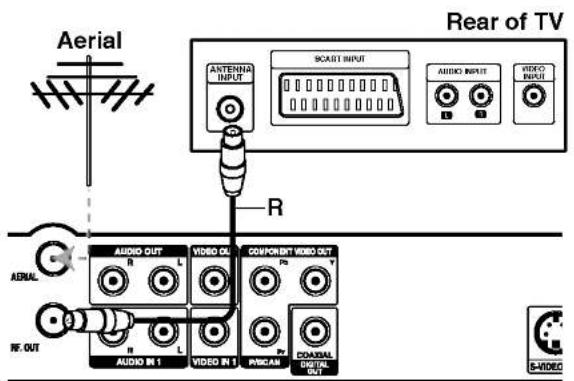
Remove the aerial cable plug from your TV set and insert it into the aerial socket at the back of the recorder. Plug one end of the aerial cable into the TV socket on the recorder and the other end into the aerial input socket on your TV set.
RF coaxial connection
Connect the RF. OUT jack on the recorder to the aerial input jack on the TV using the 75-ohm Coaxial Cable supplied (R). The RF. OUT jack passes the signal through from the AERIAL jack.
text_image
Aerial Rear of TV ANTENNA INPUT SCART INPUT AUDIO INPUT VIDEO INPUT AUDIO OUT VIDEO OUT COMPANY VIDEO OUT AERIAL RF. OUT AUDIO IN 1 VIDEO IN 1 PANCAN COASTAL DIGITAL OUTRear of the recorder
Connections to Your TV
- Make one of the following connections, depending on the capabilities of your existing equipment.
Tips
- Depending on your TV and other equipment you wish to connect, there are various ways you could connect the recorder. Use only one of the connections described below.
- Please refer to the manuals of your TV, VCR, Stereo System or other devices as necessary to make the best connections.
Caution
- Make sure the recorder is connected directly to the TV. Tune the TV to the correct video input channel.
- Do not connect the recorder's AUDIO OUT jack to the phono in jack (record deck) of your audio system.
- Do not connect your recorder via your VCR. The DVD image could be distorted by the copy protection system.
Rear of TV
flowchart
graph TD
    A["Audio INPUT"] --> B["A"]
    A --> C["V"]
    D["Video INPUT"] --> E["C"]
    D --> F["S"]
    G["Component Video Input"] --> H["C"]
    G --> I["S"]
    J["Audio OUT"] --> K["VIDEO OUT"]
    K --> L["COM/POWER VIDEO OUT"]
    M["Audio IN 1"] --> N["VIDEO IN 1"]
    N --> O["FINCAN"]
    P["CONJAL DIGITAL OUT"] --> Q["8-VIDEO OUT"]
Rear of the recorder
Video connection
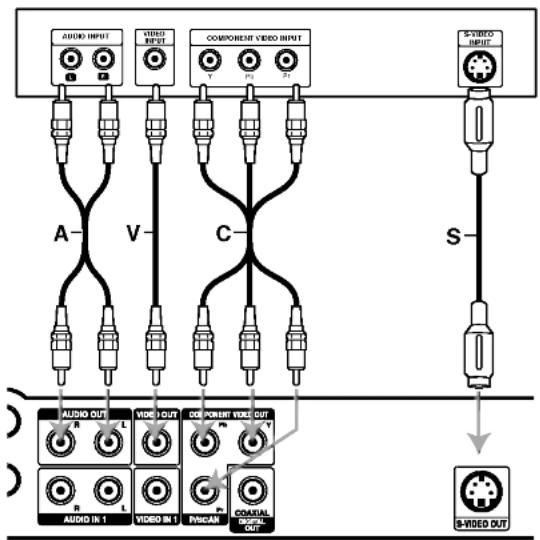
Connect the VIDEO OUT jack on the recorder to the video in jack on the TV using the video cable (V).
S-Video connection
Connect the S-VIDEO OUT jack on the recorder to the S-Video in jack on the TV using the S-Video cable (S).
Component Video connection
Connect the COMPONENT VIDEO OUT/ PROGRESSIVE SCAN jacks on the recorder to the corresponding input jacks on the TV using an Y Pb Pr cable (C).
Progressive Scan connection
If your television is a high-definition or "digital ready" television, you may take advantage of the recorder's progressive scan output for the highest video resolution possible. If your TV does not accept the Progressive Scan format, the picture will appear scrambled if you try Progressive Scan on the recorder.
Connect the COMPONENT VIDEO OUT/ PROGRESSIVE SCAN jacks on the recorder to the corresponding in jacks on the TV using the Y Pb Pr cable (C).
Notes:
- Set the Progressive to [ON] on the setup menu for progressive signal, see page 18.
- Progressive scan does not work with the analog video connections (yellow VIDEO OUT jack) or S-VIDEO connection.
Caution
Once the setting for Progressive Scan output is entered, an image will only be visible on a Progressive Scan compatible TV or monitor. If you set Progressive Scan to ON in error, you must reset the recorder. First, remove the disc in the recorder. Next, press STOP (■) and hold it for five seconds before releasing it. The video output will be restored to the standard setting, and a picture will once again be visible on a conventional analog TV or monitor.
Audio (Left/Right) Connection
Connect the left and right AUDIO OUT jacks of the recorder to the audio left and right IN jacks on the TV using the audio cables (A). Do not connect the recorder's AUDIO OUT jack to the phono in jack (record deck) of your audio system.
Connecting to an Amplifier
Connecting to an amplifier equipped with two channel analog stereo or Dolby Pro Logic II/Pro Logic
Connect the Left and Right AUDIO OUT jacks on the recorder to the audio left and right in jacks on your amplifier, receiver, or stereo system, using the audio cables (A).
Connecting to an amplifier equipped with two channel digital stereo (PCM) or to an Audio/Video receiver equipped with a multi-channel decoder (Dolby Digital™, MPEG 2, or DTS)
-
Connect one of the recorder's DIGITAL AUDIO OUT jacks (OPTICAL O or COAXIAL X) to the corresponding in jack on your amplifier. Use an optional digital (optical O or coaxial X) audio cable.
-
You will need to activate the recorder's digital output. (See "Audio Settings" on page 19).
Digital Multi-channel sound
A digital multi-channel connection provides the best sound quality. For this you need a multi-channel Audio/Video receiver that supports one or more of the audio formats supported by your recorder (MPEG 2, Dolby Digital and DTS). Check the receiver manual and the logos on the front of the receiver.

Caution:
Due to the DTS Licensing agreement, the digital output will be in DTS digital out when DTS audio stream is selected.
Notes:
- If the audio format of the digital output does not match the capabilities of your receiver, the receiver will produce a strong, distorted sound or no sound at all.
– Six Channel Digital Surround Sound via digital connection can only be obtained if your receiver is equipped with a Digital Multi-channel decoder.
- To see the audio format of the current DVD in the on-screen display, press AUDIO.
- This recorder does not perform internal (2 channel) decoding of a DTS sound track. To enjoy DTS multi channel surround, you must connect this recorder to a DTS compatible receiver via one of this recorder's digital audio outputs.
Rear of the recorder

flowchart
graph TD
    A["Audio INPUT"] --> B["Coaxial"]
    B --> C["OPTICAL"]
    D["Digital Input"] --> E["Optical"]
    F["Audio IN 1"] --> G["Video IN 1"]
    H["Video OUT"] --> I["Component Video OUT"]
    J["O"] --> K["Optical Digital Input"]
    L["AUDIO OUT"] --> M["Audio OUT"]
    N["VIDEO OUT"] --> O["Video OUT"]
    P["COMPONENT VIO OUT"] --> Q["Digital Output"]
Amplifier (Receiver)
Manufactured under license from Dolby Laboratories. "Dolby", "Pro Logic", and the double-D symbol are trademarks of Dolby Laboratories.
"DTS" and "DTS Digital Out" are trademarks of Digital Theater Systems, Inc.
Accessory Audio/Video (A/V) Connections
Connecting to the INPUT 1 or INPUT 2 Jacks
Connect the input jacks (AV1, AV2) on the recorder to the audio/video out jacks on your accessory component, using audio/video cables.
Note:
If you use the S-VIDEO IN jack on the front panel, the VIDEO IN jack on the front panel is not available.
Jack panel of Accessory Component (VCR, Camcorder, etc.)

text_image
3 VIDEO OUTPUT AUDIO OUTPUT VIDEO OUTPUT OR AUDIO OUT R L VIDEO OUT COMPONE PI R L VIDEO IN1 P/SCAN OR HDD PVDRear of the recorder
Front of the recorder
Connecting a Digital Camcorder
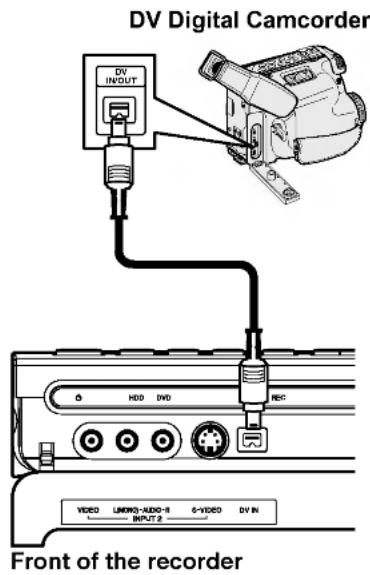
Using the front panel DV IN jack, it is possible to connect a DV digital camcorder and digitally transfer DV tapes to DVD.
Use a DV cable (not supplied) to connect the DV in/out jack of your DV camcorder to the front panel DV IN jack of this recorder.
Note:
This jack is for connection to DV digital camcorder only. It is not compatible with digital satellite tuners or D-VHS video decks.
text_image
DV Digital Camcorder DV INDOUT HDD DVD REC VIDEO LUNDO-AUDO-8 5+VIDEO DV IN INPUT 2 Front of the recorderUsing the Home Menu
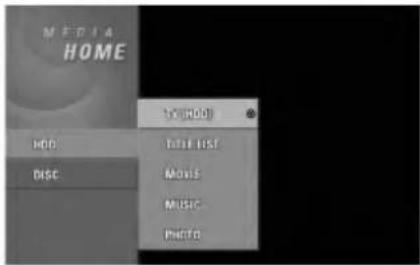
From the Home Menu screen you can access all the Media (HDD, DISC) for playback and recording of the recorder.
-
Press HOME to display the Home Menu screen.
-
Use the ▲ / ▼ and ENTER buttons to select a media you want. Options appears.
-
Use the ▲ / ▼ and ENTER buttons to select the option you want.
text_image
MEDIA HOME HDD DISC TOMO Total LIST Movie MUSIC Photo- To exit the HOME menu, press HOME.
• TV (HDD): Returns to live TV viewing for HDD recording.
• TV (DVD): Returns to live TV viewing for DVD recording.
• TITLE LIST: Displays the Title List menu.
• MOVIE: Plays back the movie of the DVD-Video, Video CD. Or Displays Movie menu.
• MUSIC: Displays Music (or Audio CD) menu.
• PHOTO: Displays Photo menu.
Initial Settings
In this menu system, there are several ways to customize the settings provided. Most menus consist of three levels to set up the options, but some require greater depth for the variety of settings.
General Operation
- Press SETUP and the Setup menu appears.
- Use ▲ / ▼ to select the desired option.
- While the desired item is selected, press ▶ to move to the second level.
- Use ▲ / ▼ to select the second desired option.
-
Press ▶ to move to the third level.
-
Use ▲ / ▼ to select the desired setting then press ENTER to confirm your selection. Some items require additional steps.
- Press SETUP to exit the Setup menu.
Note:
Press ◀ to go back to the previous level.
General Settings
Auto Programming
This recorder is equipped with a frequency synthesized tuner capable of receiving up to 88 TV channels.
Preparation:
- Connect the recorder to the desired type of aerial as shown in Connecting to the Aerial on page 11.
text_image
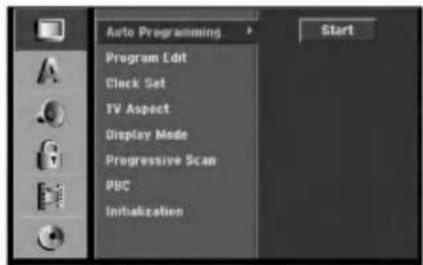
Auto Programming Start Program Edit Clock Set TV Aspect Display Mode Progressive Scan PBC Initialization- Select the [Auto Programming] option.
- Press ▶ to move to the third level. [Start] icon is highlighted.
- Press ENTER to begin the channel search. The tuner will automatically cycle through all available channels in the area and place them in the tuner's memory.
Note:
After you have connected your recorder for the very first time. If you press SETUP for initial setting, you can only set the [Auto Programming] option. Then you can set the other options.
Program Edit
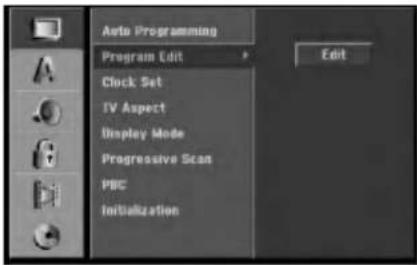
You can edit a channel manually (add, delete, name, move, etc.).
- Select [Program Edit] option then press ▶.
text_image
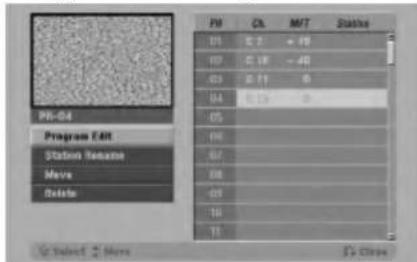
Auto Programming Program Edit Clock Set TV Aspect Display Mode Progressive Scan PBC Initialization- Press ENTER while [Edit] is selected. The Program List menu appears.
text_image
PM Ch MFT Stable 01 C F + 49 02 C 18 - 49 03 C 17 6 04 C 15 0 05 10 06 08 09 10 11 Program Edit Station Rename Move Delete-
Use ▲ / ▼ to select a PR number then press ENTER.
-
Use ▲ / ▼ to select the program option then press ENTER.
-
[Program Edit] Sets the channel manually. See "Program Edit" on the right.
- [Station Rename] Changes the station name. The display for entering characters appears. To enter characters, see page 48.
- [Move] Sorts the programme positions on the Program List. Press ▲ / ▼ to move the selected programme position to a new location.
-
[Delete] Disables a programme position you do not need.
-
Press RETURN (💡) repeatedly to exit Program List menu.
Program Edit
You can perform a search to select and store TV channels manually.
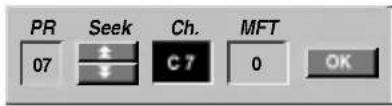
When you select [Program Edit] in step 4 above, the display for setting channels appears.
- Use ◀ / ▶ to select the item and press ▲ / ▼ to change the setting.
text_image
PR 07 Seek C7 Ch. MFT 0 OK• [PR] indicates the selected programme position.
- [Seek] Searches for a channel automatically. Searching stops when the recorder tunes in a channel.
• [Ch.] Changes the channel number.
- [MFT] Fine tunes the channel to obtain a clearer picture.
- Choose OK then press ENTER to confirm the setting and returns to the Program List menu.
Clock Set
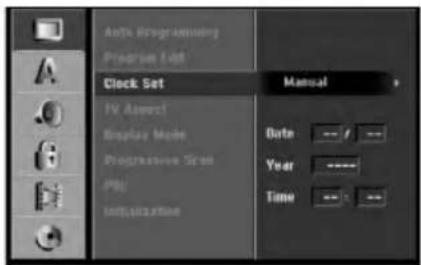
- Select [Clock set] option then press ▶.
text_image
Auto Programming Program List Clock Set Manual TV Aspect Display Mode Progression Start PBU Infiltration Date: ---/--- Year: ----/ Time: ---/---- Enter the necessary information for date and time.
◀ / ▶ (left/right): Moves the cursor to the previous or next column.
▲ / ▼ (up/down): Changes the setting at the current cursor position.
- Press ENTER to confirm your setting, then press SETUP to exit the Setup menu.
TV Aspect
Selects the aspect ratio of the connected TV (4:3 standard or wide).
- [4:3] Select this when connecting to a 4:3 screen TV. When you select [4:3], set [Display Mode] below.
• [16:9] Select this when connecting to a wide-screen TV or TV with a wide mode function.

text_image
Auto Programming Program List Class Set TV Aspect 4:3 Display Mode Progressive Status PSC LocalizationDisplay Mode
Selects how to display a wide picture on the screen when [4:3] is selected in [TV Aspect].
- [Letter Box] Displays a wide picture with bands on the upper and lower portions of the screen.
- [Pan Scan] Automatically displays a wide picture on the entire screen and cuts off the portions that do not fit.

text_image
Auto Programms Program List Check Set PV Aspect Display Mode Letter Box Preoperative Scan Pan Scan VDD: PathologicalsProgressive Scan
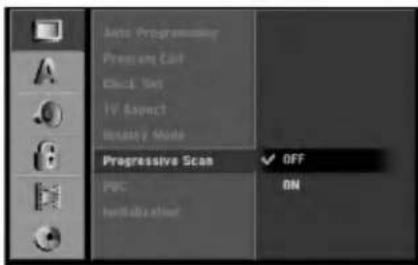
Progressive Scan Video provides the highest quality pictures with less flickering. If you are using the COMPONENT VIDEO OUT/PROGRESSIVE SCAN jacks, but are connecting the recorder to a standard (analog) television, set Progressive Scan to [OFF]. If you are using the COMPONENT VIDEO OUT/PROGRESSIVE SCAN jacks for connection to a TV or monitor that is compatible with a progressive scan signal, set Progressive Scan to [ON].
text_image
Auto Programming Pressure Cat Clock Set TV Aspect Binary Mode Progressive Scan ✓ OFF PSC ON ConfigurationNote:
Progressive Scan will be disable in the setup menu when the VIDEO OUTPUT switch on the rear panel is set to RGB position.
Caution
Once the setting for Progressive Scan output is entered, an image will only be visible on a Progressive Scan compatible TV or monitor. If you set Progressive Scan to [ON] in error, you must reset the recorder. First, remove the disc in the recorder. Next, press STOP (■) and hold it for five seconds before releasing it. The video output will be restored to the standard setting, and a picture will once again be visible on a conventional analog TV or monitor.
PBC
PBC stands for Playback Control and refers to special menus and navigation features that are available on some Video CDs.
- [ON] Video CDs are played according to the PBC, if available.
• [OFF] Video CDs are played the same way as Audio CDs.

text_image
Add Programs Program Left Check Set TP Agent1 Uniprise Mode Inappropriate Scan PBC OFF Initiation ONInitialization
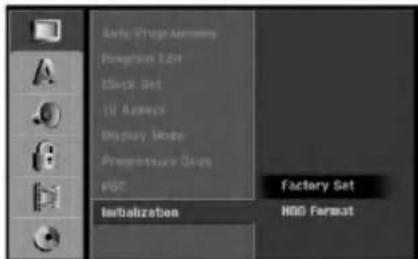
You can reset the recorder to its original factory settings and initialize the HDD.
- [Factory Set] If you need to, you can reset the recorder to all its factory settings. Some options cannot be reset. (Rating, Password, and Area Code)
-
[HDD format] Initializes the HDD (Hard Disk Drive): everything recorded on the HDD will be erased.
-
Select [Initialization] option then press ▶.
text_image
Auto Progr Alemming Program1.2.0 Clock Set UV Assets Display Mode Premiseure Clust HDC Factory Set Initialization HDD Format-
Press ▲ / ▼ to select the desired option then press ENTER.
The confirm message will appear. -
Use ◀ / ▶ to select [Yes] or [No] then press ENTER.
Language Settings
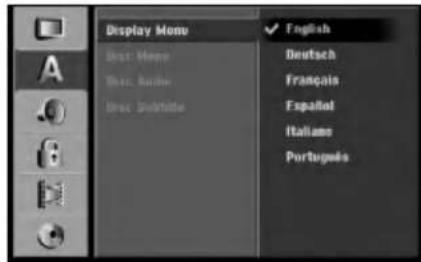
Display Menu
Select a language for the Setup menu and on-screen display.
text_image
Display Menu English Deutsch Français Español Italians PortuguesDisc Menu/Audio/Subtitle
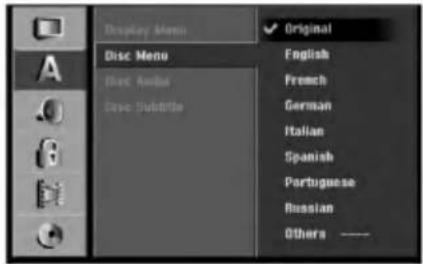
- [Original]Refers to the original language in which the disc was recorded.
- [Other] To select another language, press number buttons then ENTER to enter the corresponding 4-digit number according to the language code list in the reference chapter (see page 55). If you enter the wrong language code, press CLEAR.
• Off : Turn off Subtitle.
text_image
Display Menu Disc Menu Disc Anibal Disc Subtilde Original English French German Italian Spanish Portuguese Russian Others ----Audio Settings
Each DVD disc has a variety of audio output options. Set the recorder's Audio Output according to the type of audio system you use.
Dolby Digital / DTS / MPEG

text_image
Dolby Digital PCM Bitstream RMS MISC Bitstream Free DNC Vocal- [Bitstream]: Select "Bitstream" if you connect the recorder's DIGITAL AUDIO OUT jack to an amplifier or other equipment with a Dolby Digital, DTS or MPEG decoder.
- [PCM] (for Dolby Digital / MPEG): Select when connected to a two-channel digital stereo amplifier. DVDs encoded in Dolby Digital or MPEG will be automatically downmixed to two-channel PCM audio.
- [Off] (for DTS): If you select "Off", the DTS signal is not output through the DIGITAL AUDIO OUT jack.
Sampling Frequency
If your receiver or amplifier is NOT capable of handling 96 kHz signals, select [48 kHz]. When this choice is made, this unit will automatically convert any 96 kHz signals to 48 kHz so your system can decode them.
If your receiver or amplifier is capable of handling 96 kHz signals, select [96 kHz]. When this choice is made, this unit will pass each type of signal through without any further processing.

text_image
Audio Capital DTS MPG Sampling Freq. 48KHz Vacc 56KHzDRC (Dynamic Range Control)
With the DVD format, you can hear a program's soundtrack in the most accurate and realistic presentation possible, thanks to digital audio technology. However, you may wish to compress the dynamic range of the audio output (the difference between the loudest sounds and the quietest ones). Then, you may listen to a movie at a lower volume without losing clarity of sound. Set DRC to [ON] for this effect.

text_image
Delay Interval 87% HPDU Sampled Free OK OFF Vocal ONVocal
Set Vocal to [ON] only when a multi-channel karaoke DVD is playing. The karaoke channels on the disc will mix into normal stereo sound.

text_image
Audio Signal USB MPEG Sampling Tree RPG Vocal OFF ✓ ONLock (Parental Control) Settings
Rating
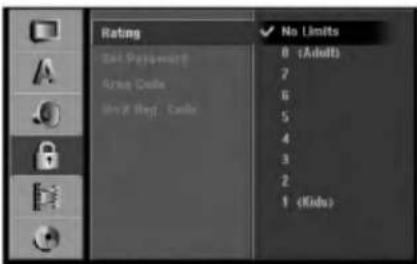
Some movies contain scenes that may not be suitable for children to view. Many of these discs contain parental control information that applies to the complete disc or to certain scenes on the disc. Movies and scenes are rated from 1 to 8, depending on the area. DVD video discs may or may not respond to the parental control setting if the Area code of the disc is set wrongly. Some discs offer more suitable scenes as an alternative. Ratings are area dependent. The parental control feature allows you to block access to scenes below the rating you input, thereby preventing your children from being able to view material you believe is unsuitable.
text_image
Rating Set Payment Base Camera Base Ref. Camera No Limits 8 (Adult) 7 6 5 4 3 2 1 (Kids)-
Select [Rating] option then press ▶.
-
To access the Rating, Password and Area Code features, you must input the 4-digit security code you created.
If you have not yet entered a security code you are prompted to do so. Input a 4-digit code and press ENTER. Enter it again and press ENTER to verify. If you make a mistake before pressing ENTER, press CLEAR.
- Select a rating using the ▲ / ▼ buttons.
[1] - [8]: Rating one (1) has the most restrictions and rating eight (8) is the least restrictive.
[No Limit]: If you select [No Limit], parental control is not active and the disc plays in full.
- Press ENTER to confirm your rating selection, then press SETUP to exit the menu.
Note:
If you set a rating for the recorder, all disc scenes with the same rating or lower are played. Higher rated scenes are not played unless an alternate scene is available on the disc. The alternative must have the same rating or a lower one. If no suitable alternative is found, playback stops. You must enter the 4-digit password or change the rating level in order to play the disc.
Set Password

text_image
Setting Set Password Area Code BWX Reg. Code Change Delete New Password-
Select [Set Password] option then press ▶.
-
Follow step 2 as shown "Rating". To change the password, select the [Change], press ENTER and input the new 4-digit code then press ENTER. Input it again to verify. To delete the password, select [Delete] then press ENTER.
If you forget your 4-digit code
If you forget your password, to clear the current password, follow the procedure below.
- Press SETUP to display the Setup menu.
- Use the Number buttons to enter the 6-digit number "210499".
- Select [Yes] then press ENTER. The 4-digit password is cleared. Enter a new code.
Area Code
Enter the code of an area whose standards were used to rate the DVD video disc, referring to the list (See "Area Codes", page 55.).

text_image
Rating Set Password Area Code DivX Reg. Code- Select [Area Code] option then press ▶.
- Follow step 2 as shown "Rating".
- Select the first character using the ▲ / ▼ buttons.
- Shift the cursor using ▶ buttons and select the second character using ▲ / ▼ buttons.
- Press ENTER to confirm your area code selection, then press SETUP to exit the menu.
DivX Registration Code DivX
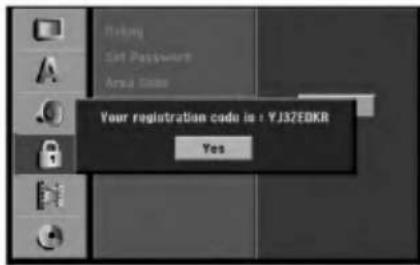
We provide you the DivX® VOD (Video On Demand) registration code that allows you to rent and purchase videos using the DivX® VOD service. For more information, visit www.divx.com/vod.
-
Select [DivX Reg. Code] option then press ▶.
-
Press ENTER while [View] is selected and the registration code will appear.
text_image
Your registration code is: YJ32EDKR Yes- Use the registration code to purchase or rent the videos from Divx® VOD service at www.divx.com/vod. Follow the instructions and download the video onto a disc for playback on this unit.
Note:
All the downloaded videos from DivX® VOD can only be played back on this unit.
Recording Settings
Record Mode Set
You can set the picture quality for recording; HQ (High Quality), SQ (Standard Quality), LQ (Low Quality), EQ (Extend Quality).

text_image
Rec Mode Set Box Aspect1 DV Box Audio TV Box Audio Audio Chapter EQ EQ ✓ SD HQ-
Select [Rec Mode Set] option then press ▶.
-
Use ▲ / ▼ to select a desired Record Mode (HQ, SQ, LQ or EQ).
-
Press ENTER to confirm your selection, then press SETUP to exit the menu.
Record Aspect
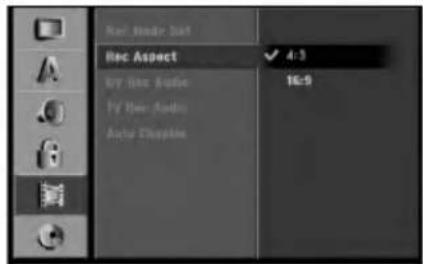
When DVD recording, you can set the recording aspect ratio to suit the material you're recording (16:9 or 4:3).
text_image
Rec: Shndar Dot Rec Aspect 4:3 By line Audio 16:5 By line Audio Auto DisplaceDV Recording Audio
You need to set this if you have a camcorder using 32kHz/12-bit sound connected to the front panel DV IN jack.
Some digital camcorders have two stereo tracks for audio. One is recorded at the time of shooting; the other is for overdubbing after shooting.
On the Audio 1 setting, the sound that was recorded while shooting is used.
On the Audio 2 setting, the overdubbed sound is used.

text_image
Mac Audio Dot Sec Audio1 DV Rec Audio Audio 1 TV Sec Audio Audio 2 Auto DisplayTV Recording Audio
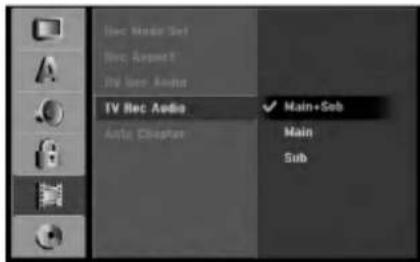
When TV recording with bilingual, you can choose audio channel to record.
[Main+Sub] Main language and Sub language
[Main] Main language only
[Sub] Sub language only
text_image
Rec: Modal Set Rec: Audio TV Rec Audio Auto Chapter Main+Sub Main SubAuto Chapter
When recording in Video mode, chapter markers are put in specified setting. You can change this interval to 5 minutes, 10 minutes or 15 minutes. If you select [None], switch off automatic chapter marking altogether with the [None] setting.

text_image
Auto Chapter None ✓ 5 Min 10 Min 15 MinDisc Settings
Disc Format
If you load a completely blank disc, the recorder will initialize the disc.
DVD-R: The recorder initialize the disc to Video mode. The recording mode will always be Video mode.
DVD-RW: The recorder initialize the disc to VR mode.
DVD+R (DL): The Initialize menu will appears. Select "Yes" then press ENTER.
DVD+RW: The recorder initialize the disc to DVD+RW mode.
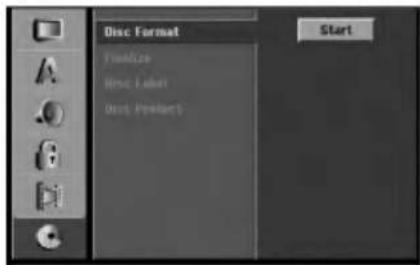
Also, you can reformat the DVD-RW/DVD+RW from the Setup menu as below.
text_image
Disc Format Customize Hide Label Exit Products Start-
Select [Disc Format] option then press ▶.
-
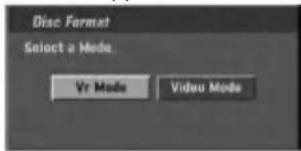
Press ENTER while [Start] is selected. Format Disc menu appears.
text_image
Disc Format Select a Mode. Vr Mode Video Mode- Use ◀ / ▶ to select a desired mode (VR Mode or Video Mode) then press ENTER.
Confirm message will appear.
For DVD+RWs, go to step 4.
- Use ◀ / ▶ to select [Ok] then press ENTER.
It takes a few moments to initialize the disc.
Caution
If you want to change the disc format, everything recorded on the disc will be erased.
Finalize
Finalizing 'fixes' the recordings in place so that the disc can be played on a regular DVD player or computer equipped with a suitable DVD-ROM drive. Finalizing a Video mode disc creates a menu screen for navigating the disc. This is accessed by pressing MENU/LIST or TITLE.

Caution
Once you have finalized a DVD-R and DVD+R disc, you cannot edit or record anything else on that disc except DVD+RW. However, you can record and edit a DVD-RW disc by choosing [Unfinalize] option.
text_image
Close format Finalize Close Label Close Project Finalize Properties-
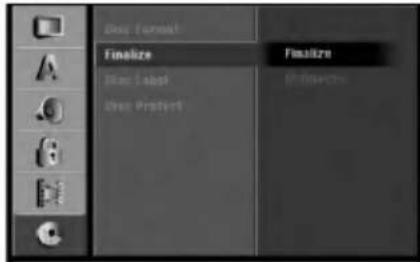
Select [Finalize] option then press ▶.
-
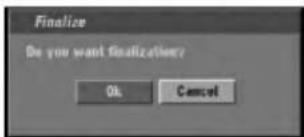
Press ENTER while [Finalize] is selected. Finalize menu appears.
text_image
Finalize Do you want finalization? Ok Cancel- Select [Ok] then press ENTER. The recorder starts finalizing the disc.
Note:
- How long finalization takes depends on the type of disc, how much is recorded on the disc, and the number of titles on the disc.
- DVD+R DL disc can take up to 30 minutes to finalize.
Tips
- If you load a DVD-RW that has already been finalized, you can 'Unfinalize' it by choosing Unfinalize from the Finalize menu. After doing this, you can edit and re-record onto the disc.
- You cannot unfinalize a DVD-R and DVD+R disc.
- If [Disc Protect] option is set to [ON], the finalize is not available. To finalize, set [Disc Protect] option to [OFF].
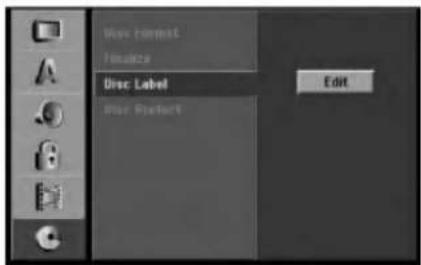
Disc Label
Use this to enter a name for the disc. This name appears when you load the disc and when you display disc information on-screen.
• The disc name can be up to 32 characters long.
- For discs formatted on a different recorder, you will see only a limited character set.
text_image
New format Source Disc Label Edit- Select [Disc Label] option then press ▶.
- Press ENTER while [Edit] is selected. Keyboard menu appears. To enter characters, see page 48.
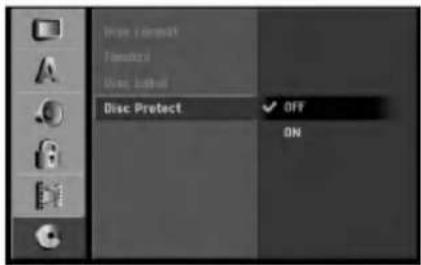
Disc Protect
When recording in DVD+RW / +R disc or VR mode formatted DVD-RW disc, set to [ON] to prevent accidental recording, editing or deleting of the disc loaded. If you need to unlock the disc to make edits, select [OFF].
text_image
Disc Protect OFF ONGeneral Explanation of On-Screen Display
This manual gives basic instructions for operating the recorder. Some DVDs require specific operation or allow only limited operation during playback. When this occurs, the symbol ☑ appears on the TV screen, indicating that the operation is not permitted by the recorder or is not available on the disc.
Displaying Information While Watching TV
During viewing the TV, press ENTER or DISPLAY to display/remove the information displayed on-screen.
e.g., when DVD-RW in VR mode is inserted.
Indicates channel number, station name, and audio signal (STEREO, MONO) received by the tuner.
Indicates operational mode of the recorder. (HDD, DVD, VCD, etc.)
Indicates the record mode, free space, and elapsed time progress bar.
Indicates disc name and format.

text_image
DVD-RW VR Mode S0 1h 59min Free DVU AV1 3/1/2005 11:08Indicates current date and time.
Displaying Disc Information on-screen
You can display various information about the disc loaded on-screen.
- Press DISPLAY once to show current status.
Example: DVD-RW in VR mode

text_image
TITLE 4 19/02 ORG SO 0:00:04 / 0:00:22 DVD- Press DISPLAY once again to show various playback information.
The items displayed differ depending on the disc type or playing status.
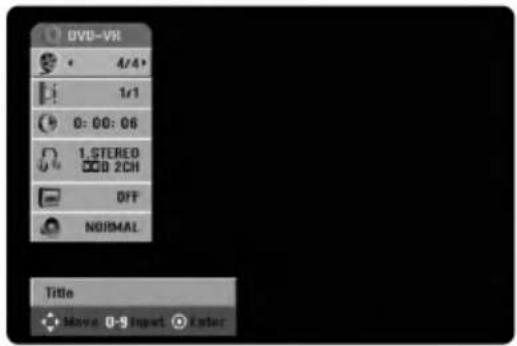
text_image
DVD-VR 4/4* 1/1 0:00:06 1.STEREO D 2CH OFF NORMAL Title Move 0-9 Input Enter- You can select an item by pressing ▲ / ▼ and change or select the setting by pressing ◀ / ▶. For details about each item, see the pages in parentheses.
• [Title]: Current title (or track) number/total number of titles (or tracks) (page 25)
• [Chapter]: Current chapter number/total number of chapters (page 25)
• [Time]: Elapsed playing time (page 26)
• [Audio]: Selected audio language (DVD VIDEO only) or audio channel (page 27)
• [Subtitle]: Selected subtitle (page 28)
• [Angle]: Selected angle/total number of angles (page 27)
• [Sound]: Selected sound mode (page 28)
Note:
If no button is pressed for 10 seconds, the on-screen display disappears.
Playback
Playing a HDD, DVD, DivX file or Video CD
Playback Setup
- Turn the TV on and select the video input source connected to the recorder.
-
Audio system: Turn the audio system on and select the input source connected to the recorder.
-
Load your chosen disc in the tray, with the playback side down.
- Starts playback using HOME menu (see page 15).
If a menu screen is displayed
The menu screen may be displayed first after loading a DVD or Video CD which contains a menu.
DVD
Use the ◀/▶/▲/▼ buttons to select the title/chapter you want to view, then press ENTER to start playback.
Press TITLE or MENU/LIST to return to the menu screen.
VCD
- Use the number buttons to select the track you want to view. Press RETURN (♂) to return to the menu screen.
-
Menu setting and the exact operating procedures for using the menu may differ depending on the disc. Follow the instructions on the each menu screen. You may also set PBC to [OFF] under Setup menu. See page 18.
-
To stop the playback, press STOP ■. The unit records the stopped point, depending on the disc. "■" appears on the screen briefly. Press ▶ (PLAY) to resume playback (from the scene point). If you press STOP (■) again or unload the disc ("■" appears on the screen.), the unit will clear the stopped point. Press OPEN/CLOSE (▲) to remove the disc. Press OPEN/CLOSE (▲) to close disc tray or press POWER (○), the disc tray closes automatically and unit turns off.
Notes:
- If Parental Control is set and the disc is not within the Rating settings (not authorized), the 4-digit code must be entered and/or the disc must be authorized (see "Rating", on page 20).
- DVDs may have a Region Code. Your recorder will not play discs that have a region code different from your recorder. The region code for this recorder is 2 (two).
- Unless stated otherwise, all operations described use the remote control. Some features may also be available on the Setup menu.
Moving to another TITLE HDD -RWVR
-RWVideo +RW -R +R DVD DivX
When a disc has more than one title, you can move to another title as follows:
- Press DISPLAY twice then use ▲ / ▼ to select the title icon. Then, press the appropriate numbered button (0-9) or ◀ / ▶ to select a title number.
Moving to another CHAPTER/TRACK
-RWvr -RWvideo +RW -R +R DVD
VCD
When a title on a disc has more than one chapter or a disc has more than one track, you can move to another chapter/track as follows:
- Press SKIP ◀◀◀ or ▶▶◀ briefly during playback to select the next chapter/track or to return to the beginning of the current chapter/track.
- Press SKIP I◄◄ twice briefly to step back to the previous chapter/track.
- To go directly to any chapter during DVD playback, press DISPLAY twice and press ▲ / ▼ to select the chapter/track icon. Then, input the chapter/track number or use ◀ / ▶.
Search HDD -RWVR -RWVideo +RW -R
+R DVD VCD
- Press SCAN (◀◀ or ▶▶) during playback.
- Press SCAN (◀◀ or ▶▶) repeatedly to select the required speed. HDD, DVD ; 5 steps (forward and backward) Video CD; 3 steps (forward and backward)
- To exit SEARCH mode, press PLAY.
Still Picture and Frame-by-Frame Playback
- Press PAUSE/STEP (Ⅲ) during playback. Advance the picture frame-by-frame by pressing PAUSE/STEP (Ⅱ) repeatedly.
- To exit still motion mode, press PLAY.
Tip:
You can advance or back up the picture frame-by-frame by pressing ◀/▶ repeatedly during PAUSE mode.
The picture frame-by-frame in reverse is not available for Video CD.
Slow Motion HDD -RWVR -RWVideo +RW
-R +R DVD VCD
- Press PAUSE/STEP (III) during playback. The DVD player will now go into PAUSE mode.
- Use the SCAN (◀◀ or ▶▶) to select the required speed. DVD, HDD; 4 steps (forward and backward) Video CD; 3 steps (forward only)
- To exit Slow Motion mode, press PLAY (▶).
Random Karaoke DVD VCD
- Press RANDOM during playback. The unit automatically begins Random Playback and "RANDOM" appears on the TV screen.
- To return to normal playback, press RANDOM until "NORMAL" appears on the TV screen.
Tip:
By pressing SKIP ▶▶ during Random playback, the unit selects another title (track) and resumes Random playback.
Notes:
- This function only works with DVD Karaoke discs or video CDs without PBC.
- On a Video CD with PBC, you must set PBC to OFF in the Setup menu to use the Random function. See page 18.
Repeat HDD -RWVR -RWVideo +RW -R
+R DVD VCD
Press REPEAT to select a desired repeat mode.
• [Chapter] repeats the current chapter. (DVD only)
• [Title] repeats the current title. (DVD, HDD only)
- [All] repeats the all titles/tracks on the VR mode DVD-RW, or Video CD.
• [Track]: repeats the current track. (Video CD only)
• [OFF] does not play repeatedly.
Note:
On a Video CD with PBC, you must set PBC to [OFF] in the Setup menu to use the Repeat function. See page 18.
Repeat A-B HDD -RWvr -RWVideo +RW
-R +R DVD VCD
To repeat a sequence.
- Press A-B at your chosen starting point. "A*" appears briefly on the TV screen.
- Press A-B again at your chosen end point. "A B" appears briefly on the TV screen and the repeat sequence begins.
- Press A-B again to cancel.
Note:
During HDD playback, you cannot select a sequence less than 5 seconds.
Time Search HDD -RWVR -RWVideo +RW
-R +R DVD DivX
To start playing at any chosen time on the disc:
- Press DISPLAY twice during playback. The time search box shows the elapsed playing time.
- Press ▲ / ▼ to select the time clock icon and "0:00:00" appears.
- Input the required start time in hours, minutes, and seconds from left to right. If you enter the wrong numbers, press ◀ / ▶ to move the under bar (_) to the wrong number. Then enter the correct numbers.
- Press ENTER to confirm. Playback starts from the selected time.
Zoom HDD -RWVR -RWVideo +RW -R
+R DVD VCD
The Zoom function allows you to enlarge the video image and to move through the enlarged image.
- Press ZOOM during playback or still playback to activate the Zoom function.
Each press of the ZOOM button changes the TV screen in the sequence shown below. x1 size → x2 size → x4 size → x1 size (normal size) - Use the ◀ / ▶ / ▲ / ▼ buttons to move through the zoomed picture.
- To resume normal playback, press CLEAR or press ZOOM repeatedly until the normal picture appears.
Note:
The zoom function may not work for some DVDs.
Marker Search 7 1/6

To enter a Marker
You can start playback from up to six memorized points. To enter a marker, press MARKER at the desired point on the disc. The Marker icon appears on the TV screen briefly. Repeat to enter up to six markers.
To Recall or Clear a Marked Scene
- During disc playback, press SEARCH. The marker search menu appears on the screen.
- Use ◀/▶/▲/▼ to select a marked scene that you want to recall or clear.
- Press ENTER and playback starts from the marked scene. Or, press CLEAR and the marked scene is erased from the marker search menu.

text_image
Marker Search Open 100% 100% from OptionsChecking the Contents of DVD Video Discs: Menus
DVDs may contain menus that allow you to access special features. To open the disc menu, press MENU/LIST. Then, press the appropriate number button to select an option. Or, use the ◀/▶/▲/▼ buttons to highlight your selection, then press ENTER.
Title Menu DVD
- Press TITLE.
If the current title has a menu, the menu will appear on the TV screen. Otherwise, the disc menu may not appear. - The menu may contain camera angles, spoken language and subtitle options, and chapters for the title.
Disc Menu DVD
- Press MENU/LIST.
The disc menu is displayed. - To remove the disc menu, press MENU/LIST again.
Camera Angle DVD
If the disc contains scenes recorded at different camera angles, you can change to a different camera angle during playback.
- Press ANGLE then press ◀ /▶ repeatedly during playback to select a desired angle. The number of the current angle appears on the TV screen.
Tip:
The ANGLE indicator will blink on the TV screen at scenes recorded at different angles to indicate that angle switching is possible.
Changing the Audio Soundtrack DVD
Press AUDIO then press ◀ / ▶ repeatedly during playback to hear a different audio language or audio soundtrack if available.
Note:
Some discs feature both Dolby Digital and DTS soundtracks. There is no analog audio output when DTS is selected. To listen to the DTS soundtrack, connect this recorder to a DTS decoder via one of the digital outputs. See page 13 for connection details.
Changing the Audio Channel

Press AUDIO then press ◀ / ▶ repeatedly during playback to hear a different audio channel (STEREO, LEFT or RIGHT).
With DVD-RW discs recorded in VR mode and HDD that have both a main and a Bilingual audio channel, you can switch among Main (L), Sub (R), or Main+sub (L+R) by pressing AUDIO.
3D Surround
-RWVR
-RWVideo
+RW
-R
+R DVD VCD DivX
This unit can produce a 3D Surround effect, which simulates multi-channel audio playback from two conventional stereo speakers, instead of the five or more speakers normally required to listen to multi-channel audio from a home theater system.
- Press 3D SURR. then press ◀ / ▶ repeatedly during playback to select [3D SUR.].
- To turn off the 3D Surround effect, select [NORMAL].
Subtitles DVD DivX
Press SUBTITLE then press ◀/▶ repeatedly during playback to see the different subtitle languages.
Instant Skip
HDD
-RWvr
-RWVideo
+RW
-R +R DVD
Each press I.SKIP skips forward 15 seconds.
In HDD playback or Timeshift mode, each press ◀/▶ skips forward or reverse 5 minutes.
Note:
If appears, the feature is not available on the disc.
Finding Locations on a Disc VCD
You can directly access any point on a video CD using this function. Use this function only while a video CD is playing. Playback jumps to the point specified.
- Press SEARCH during playback. The progress bar appears on the TV screen.
- Use ◀ / ▶ to find a start position for playback.
- Press ENTER to confirm the selected position. Playback starts from the selected position.
Note:
This function works only when no marker is memorized.
Last Condition Memory DVD
This recorder memorizes the user settings for the last disc that you have viewed. Settings remain in memory even if you remove the disc from the recorder or switch off the recorder. If you load a disc that had its settings memorized, the latest stop position is automatically recalled.
Notes:
- Settings are stored in memory for use any time. - This recorder does not memorize settings of a disc if you switch off the recorder before commencing to play it.
PIP (Picture in Picture) HDD -RWVR
-RWVideo +RW -R +R DVD VCD
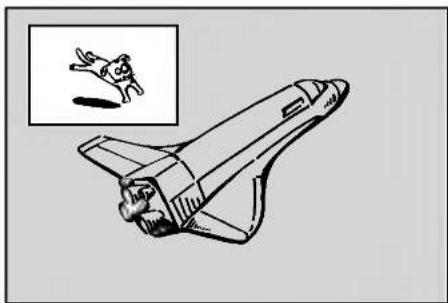
This function enables you to view the stored stations in sub picture during playback.
natural_image
Line drawing of a space shuttle with an inset showing a person jumping over the shuttle (no text or symbols)On and off
Press PIP to switch on the sub picture, press this button again to switch it off.
Input mode selection for sub picture
Press AV to select the input mode for the sub picture. Each time this button is pressed, each input mode for the sub picture is displayed as shown below.
$$ \text { Tuner } \rightarrow \text { AV1 } \rightarrow \text { AV2 } $$
Program selection for sub picture
Use ▲ / ▼ to change the program when sub picture's input is set to tuner. The selected program number is displayed on the TV screen. You can view the selected program by pressing STOP (■).
Sub picture position change
Press ◀ / ▶ repeatedly until desired position is achieved. The sub picture moves clockwise or counterclockwise.
Zoom Sub picture
Press ZOOM repeatedly to enlarge the sub picture, the magnification level increases up to three steps.
Playing a DivX Movie File
The recorder can play Divx files on HDD, CD-R/RW or DVD±R/RW discs. Before playing DivX files, read "About DivX movie files" on page 30.
- Press HOME.
- Select a media that contains DivX file(s) then press ENTER.
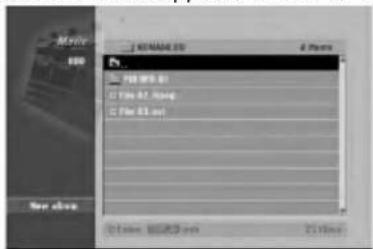
- Select [MOVIE] option then press ENTER. The Movie menu appears on the TV screen.
text_image
MAYA 01 File FID: 01 C File 87, Map C File 83, int New access C:\Users\MAYA 01.m C:\Users- Press ▲ / ▼ to select a folder, and press ENTER. A list of files in the folder appears. If you are in a file list and want to return to the Folder list, use the ▲ / ▼ buttons on the remote to highlight 🔒 - and press ENTER.
- If you want to view a particular file, press ▲ / ▼ to highlight a file and press PLAY. You can use variable playback functions. Refer to pages 25-28.
- Press STOP to stop the playback. The Movie menu appears.
Notice for displaying the DivX subtitle
Please refer to following notice when the DivX subtitle does not display properly.
- Find a suitable language for the DivX subtitle on the figure below.
| Disc Subtitle Language | Available DivX Subtitle |
| Original, English | English |
| French, German, Italian, Spanish, Portuguese | French, German, Italian, Spanish, PortugueseDutch, Swedish |
| Russian | Russian |
| Other 6976 | Greek |
| Other 7665 | Polish, Hungarian, Czech |
- Press SETUP. The Setup menu appears. Press SETUP ➔ [LANGUAGE] ➔ [Disc Subtitle] then select the language you have found. Refer to "Disc Menu/Audio/Subtitle" on page 19.
Tip:
If the subtitle still does not display properly after the steps 1-2 proceeded, press and hold SUBTITLE about 3 seconds then press ◀ / ▶ to select another language code during playback until the subtitle is displayed properly.
Movie menu options
- Press ▲ / ▼ to select a folder/file on the Movie menu then press ENTER. Movie menu options appear.

text_image
Microsoft HKEY File 02 (B) File 02 (M) File 02 (N) Resume Menu Copy Play Browse Edit- Press ▲ / ▼ / ◀ / ▶ to select an option, and press ENTER.
• [Play] Start playback the selected title.
- [Open] Opens the folder and a list of files in the folder appears
- [Delete] Deletes the file(s) or folder(s) from the media. (HDD only)
- [Rename] Edits the file name. (HDD only) (page 36)
- [Move] Moves the file(s) to another folder or media. (HDD only) (page 37)
- [Copy] Copies the file(s) to another folder or media. (page 37)
About DivX movie files
DivX disc compatibility with this recorder is limited as follows:
- Available resolution size of the DivX file is under 720x576 (W x H) pixel.
- The file name of the DivX subtitle is limited to characters.
- The total number of files and folders on the disc should be less than 1999.
- If the number of the screen frame is over 29.97 frames per second, this unit may not operate normally.
- If the video and audio structure of recorded file is not interleaved, returns to the menu screen.
- If the file is recorded with GMC, the unit supports only 1-point of the record level.
* GMC?
GMC is the acronym for Global Motion Compensation. It is an encoding tool specified in MPEG4 standard. Some MPEG4 encoders, like DivX or Xvid, have this option. There are different levels of GMC encoding, usually called 1-point, 2-point, or 3-point GMC.
playable DivX file
".avi", ".divx"
playable DivX subtitle
".smi", ".srt",
".sub (Micro DVD format only)”,
".txt (Micro DVD format only)"
- Divx subtitle except those listed above is not displayed on the TV screen.
playable Codec format
- Sampling frequency: within 8 - 48 kHz (MP3), within 32 - 48kHz (WMA)
- Bit rate: within 8 - 320kbps (MP3), 32 - 192kbps (WMA)
Playing an Audio CD or MP3/WMA file
The recorder can play audio CDs and MP3/WMA files on HDD, CD-ROM, CD-R/RW or DVD±R/RW discs. Before playing MP3/WMA files, read "About MP3/WMA audio files" on page 32.
- Press HOME.
The HOME menu appears. - Select a media that contains MP3/WMA or audio title then press ENTER.
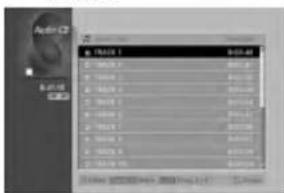
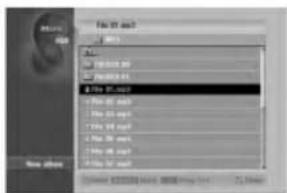
- Select [MUSIC] option then press ENTER. The Audio CD or Music menu appears on the TV screen.
text_image
Audio 1 2 3 4 5 6 7 8 9 10 11 12 13 14 15 16 17 18 19 20 21 22 23 24 25 26 27 28 29 30 31 32 33 34 35 36 37 38 39 40 41 42 43 44 45 46 47 48 49 50 51 52 53 54 55 56 57 58 59 60 61 62 63 64 65 66 67 68 69 70 71 72 73 74 75 76 77 78 79 80 81 82 83 84 85 86 87 88 89 90 91 92 93 94 95 96 97 98 99 100Audio CD Menu
text_image
File 01.msd File File 01.msd File 02.msd File 03.msd File 04.msd File 05.msd File 06.msd File 07.msd File 08.msd File 09.msd File 10.msd New album Sunder 000000000, 000000000, Print, 75 MinutesMusic Menu
- Use ▲▼ to select a track then press ▶ (PLAY). Playback starts.
During playback, the current track's elapsed playing time will appear on the front panel display and menu. Playback will stop at the end of the disc.
Tips:
- Press DISPLAY to view ID3-Tag information for the MP3 file. If ID3-Tag information is not present, "Not Checked" will appear. If you select a folder, the number of subfolders and number of MP3/WMA files in the folder are displayed. Press DISPLAY again to remove the information screen.
- If you want to move to the upper directory, use the ▲ / ▼ to highlight 🔒 and press ENTER.
-
You can also display HOME menu to select another media by pressing RETURN (💡).
-
To stop playback at any time, press STOP.
Tip:
You can create new folder. Select [New Album] option on the Music-HDD menu then press ENTER. "NONAME##" folder is created.
Audio CD and Music menu options
- Press ▲/▼ to select a folder/file on the Audio CD or Music menu then press ENTER. The menu options appear.

text_image
File 01.mp3 MP3 100.000 (0) 100.000 (0) @ File (5 mg) @ File (5 mg) @ File (5 mg) Rename Movie Copy- Press ▲/▼/◄/► to select an option, and press ENTER.
• [Play] Start playback the selected title.
- [Open] Opens the folder and a list of files in the folder appears
- [Delete] Deletes the file(s) from the media.
• [Rename] Edits the file name. (page 36)
- [Move] Moves the file(s) to another folder or media. (page 37)
- [Copy] Copies the file(s) to another folder or media. (page 37)
- [Program Add] Adds the track(s) to Program List. (page 33)
Pause
- Press PAUSE/STEP (Ⅲ) during playback.
- To return to playback, press ▶ (PLAY) or press PAUSE/STEP (■) again.
Moving to Another Track
- Press SKIP ◀◀◀ or ▶▶▶ briefly during playback to go to the next track or to return to the beginning of the current track.
- Press SKIP ◀◀ twice briefly to step back to the previous track.
- On an Audio CD, to go directly to any track, enter the track number using the numbered buttons (0-9) during playback.
Repeat
Audio CDs - Repeat Track/All/Off
Press REPEAT to select a desired repeat mode.
- TRACK: repeats the current track.
- ALL: repeats the all tracks on the disc.
- OFF (No display): does not play repeatedly.
MP3/WMA - Repeat Track/Folder/Off
Press REPEAT to select a desired repeat mode.
- TRACK: repeats the current track.
- FOLDER: repeats the all tracks in the current folder.
- OFF (No display): does not play repeatedly.
Random
- Press RANDOM during playback or in stop mode. The unit automatically begins Random Playback and "RANDOM" appears on the menu screen.
- To return to normal playback, press RANDOM repeatedly until "RANDOM" disappears from the menu screen.
Tip:
By pressing SKIP ▶▶▶ during Random playback, the unit selects another track and resumes Random playback.
3D Surround
This unit can produce a 3D Surround effect, which simulates multi-channel audio playback from two conventional stereo speakers, instead of the five or more speakers normally required to listen to multi-channel audio from a home theater system.
- Press 3D SURR. during playback to select [3D SUR].
- To turn off the 3D Surround effect, press 3D SURR. until "3D SUR" disappears from the menu screen.
Changing the Audio Channel
Press AUDIO repeatedly to hear a different audio channel (stereo, left or right).
Search (Audio CD only)
- Press SCAN (◀◀ or ▶▶) during playback. The recorder will now go into SEARCH mode.
- Press SCAN (◀◀ or ▶▶) repeatedly to select the required speed (3 steps).
- To exit SEARCH mode, press ▶ (PLAY).
Repeat A-B (Audio CD only)
To repeat a sequence in a track:
- Press A-B at your chosen start point. Repeat icon and 'A' appears on the menu screen.
- Press A-B again at your chosen end point. The Repeat icon and 'A - B' appears on the menu screen, and the repeat sequence begins.
- To exit the sequence and return to normal play, press A-B again. The Repeat icon disappears from the menu screen.
About MP3/WMA audio files
MP3 / WMA file compatibility with this recorder is limited as follows:
- Sampling frequency: within 8 - 48 kHz (MP3), within 32 - 48kHz (WMA)
- Bit rate: within 8 - 320kbps (MP3), 32 - 192kbps (WMA)
- The recorder cannot read an MP3/WMA file that has a file extension other than ".mp3" / ".wma".
- CD-R physical format should be "ISO 9660" and "JOLIET".
- DVD±R/RW physical format should be "ISO 9660 (UDF Bridge format)".
- If you record MP3 / WMA files using software that cannot create a file system (eg. Direct-CD) it is impossible to playback MP3 / WMA files. We recommend that you use Easy-CD Creator, which creates an ISO 9660 file system.
- File names should have a maximum of 8 letters and must incorporate an .mp3 or .wma extension.
- They should not contain special letters such as / ? * : "< > | etc.
- The total number of files and folders on the disc should be less than 1999.
This recorder requires discs and recordings to meet certain technical standards in order to achieve optimal playback quality. Pre-recorded DVDs are automatically set to these standards. There are many different types of recordable disc formats (including CD-R containing MP3 or WMA files) and these require certain pre-existing conditions (see above) to ensure compatible playback.
Customers should note that permission is required in order to download MP3 / WMA files and music from the Internet. Our company has no right to grant such permission. Permission should always be sought from the copyright owner.
Program Playback with Audio CD and MP3/WMA file
Program Playback enables you to make custom playlists of Audio CD or MP3/WMA tracks. Programs can contain up to 99 Audio CD tracks or 256 MP3/WMA files.
- Use ▲ / ▼ to select a track/file (or folder) on the Audio CD or Music menu. You can select all files and folders on the Music menu by pressing CLEAR button. To cancel the selections, press CLEAR again.
Selecting multiple files/tracks (folders)
- Press MARKER.
A check mark appears on the file/track or folder. Press MARKER again to cancel the marked file/track or folder.
-
Repeat step 1 to mark additional file/track (folders).
-
Press ENTER.
The options appear on the left side of the menu.
-
Use ▲ / ▼ to select the [Program Add] option then press ENTER.
-
Repeat steps 1-3 to mark additional tracks.
Note:
If you select a folder for Programmed Playback, all tracks/files in the folder are added to the Program List.

text_image
File 05.mp3 MP3 Movie set Movie list Movie list.mp3 Movie list.mp3 Movie list.mp3 Movie list.mp3 Movie list.mp3 Movie list.mp3 Movie list.mp3 Movie list.mp3 Movie list.mp3 Movie list.mp3 Movie list.mp3 Movie list.mp3 Movie list.mp3 Movie list.mp3 Movie list.mp3 Movie list.mp3 Movie list.mp3 Movie list.mp3 Movie list.mp3 Movie list.mp3 Movie list.mp2 Movie list.mp2 Movie list.mp2 Movie list.mp2 Movie list.mp2 Movie list.mp2 Movie list.mp2 Movie list.mp2 Movie list.mp2 Movie list.mp2 Movie list.mp2 Movie list.mp2 Movie list.mp2 Movie list.mp2 Movie list.mp2 Movie list.mp2 Movie list.mp2 Movie list.mp2 Movie list.mp2 Movie list.mp2 Movie list.mp1 Movie list.mp1 Movie list.mp1 Movie list.mp1 Movie list.mp1 Movie list.mp1 Movie list.mp1 Movie list.mp1 Movie list.mp1 Movie list.mp1 Movie list.mp1 Movie list.mp1 Movie list.mp1 Movie list.mp1 Movie list.mp1 Movie list.mp1 Movie list.mp1 Movie list.mp1 Movie list.mp1 Movie list.mp1 Movie list.mp2 Movie list.mp2 Movie list.mp2 Movie list.mp2 Movie list.mp2 Movie list.mp2 Movie list.mp2 Movie list.mp2 Movie list.mp2 Movie list.mp2 Movie list.mp2 Movie list.mp2 Movie list.mp2 Movie list.mp2 Movie list.mp2 Movie list.mp2 Movie list.mp2 Movie list.mp2 Movie list.mp2 Movie list.mp3-
Use ▶ to move to the Program list. The programmed track you selected last is highlighted on the program list.
-
Use ▲ / ▼ to select the track you want to start playing.
-
Press ▶ (PLAY) to start. Playback stops after playing the last programmed track in the program list.
-
To exit Program Playback and resume normal playback, select a track on the List and press (PLAY).
Tip:
You can access or remove the Program List screen by pressing MENU/LIST.
Program List menu options
- Press ▲ / ▼ to select a track/file on the Program List then press ENTER. The menu options appear.
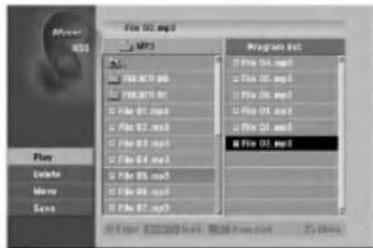
text_image
File 01.mp3 Programs list File 01.mp3 File 02.mp3 File 03.mp3 File 04.mp3 File 05.mp3 File 06.mp3 File 07.mp3 File 08.mp3 File 09.mp3 File 10.mp3 File 11.mp3 File 12.mp3 File 13.mp3 File 14.mp3 File 15.mp3 File 16.mp3 File 17.mp3 File 18.mp3 File 19.mp3 File 20.mp3 File 21.mp3 File 22.mp3 File 23.mp3 File 24.mp3 File 25.mp3 File 26.mp3 File 27.mp3 File 28.mp3 File 29.mp3 File 30.mp3 File 31.mp3 File 32.mp3 File 33.mp3 File 34.mp3 File 35.mp3 File 36.mp3 File 37.mp3 File 38.mp3 File 39.mp3 File 40.mp3 File 41.mp3 File 42.mp3 File 43.mp3 File 44.mp3 File 45.mp3 File 46.mp3 File 47.mp3 File 48.mp3 File 49.mp3 File 50.mp3 File 51.mp3 File 52.mp3 File 53.mp3 File 54.mp3 File 55.mp3 File 56.mp3 File 57.mp3 File 58.mp3 File 59.mp3 File 60.mp3 File 61.mp3 File 62.mp3 File 63.mp3 File 64.mp3 File 65.mp3 File 66.mp3 File 67.mp3 File 68.mp3 File 69.mp3 File 70.mp3 File 71.mp3 File 72.mp3 File 73.mp3 File 74.mp3 File 75.mp3 File 76.mp3 File 77.mp3 File 78.mp3 File 79.mp3 File 80.mp3 File 81.mp3 File 82.mp3 File 83.mp3 File 84.mp3 File 85.mp3 File 86.mp3 File 87.mp3- Use ▲ / ▼ to select an option then press ENTER to confirm your selection.
• [Play] Playback begins in the order in which you programmed the tracks from the selected track.
- [Delete] Deletes the track(s) from the Program List menu.
- [Move] Moves the track(s) to change the program order.
• [Save] Memorizes the program list. (HDD only)
Repeat Programmed Tracks
Press REPEAT to select the desired Repeat mode.
• [TRACK] Repeats the current track.
• [ALL] Repeats all tracks on the Program List.
• [OFF] Cancels Repeat mode (no display).
Erasing a Track from the Program List
-
Select the track you wish to erase from the Program List. Use MARKER button to select multiple tracks.
-
Press ENTER. The menu options appears
-
Select [Delete] option then press ENTER.
Changing Track Order in the Program List
-
Select the track you wish to move on the Program List. Use MARKER button to select multiple tracks.
-
Press ENTER. The menu options appears
-
Select [Move] option then press ENTER.
-
Use ▲ / ▼ to move the yellow bar to the desired location, then press ENTER.
Save Your Program List (HDD only)
This recorder memorizes the user program list that you have programmed.
-
Select a track on the Program List. The menu options appear.
-
Select [Save] option then press ENTER. The Program List is saved in the HDD's PROGRAM folder.
Viewing a JPEG File
The recorder can play JPEG files on the CD-R/RW, DVD±R/RW, or HDD. Before playing JPEG recordings, read "About JPEG image files" on page 35.
- Press HOME.
The HOME menu appears. - Select a media that contains JPEG file then press ENTER.
- Select [PHOTO] option then press ENTER.
The Photo menu appears on the TV screen.
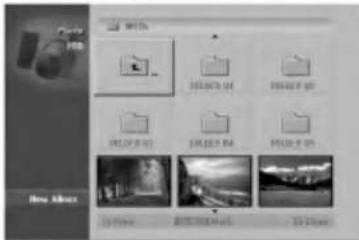
text_image
File 103 New Access File Edit View Insert Help-
Use ◀ / ▶ / ▲ / ▼ to select a folder, then press ENTER.
The menu options appear on the left side of the menu. -
Select [Open] option then press ENTER.
A list of files in the selected folder appears.
- Use ◀ / ▶ / ▲ / ▼ to select a file, then press ENTER.
The menu options appear on the left side of the menu.
Tips:
- If you want to move to the upper directory, use the ▲ / ▼ to highlight 🔍 - and press ENTER.
-
You can also display HOME menu to select another media by pressing RETURN (♂).
-
Use ▲ / ▼ to select [Full Screen] then press ENTER. The selected image is displayed in full screen.
-
To stop viewing at any time, press STOP. The Photo menu appears.
natural_image
Black-and-white landscape photo of a mountainous terrain with trees and distant buildings under a cloudy sky (no visible text or symbols)Press ENTER to appear or disappear this menu.
Photo menu options
- Press ▲ / ▼ to select a file on the Program List then press ENTER.
The menu options appear.
You can select all files and folders on the menu by pressing CLEAR button. To cancel the selections, press CLEAR again.
Selecting multiple files (folders)
- Press MARKER.
A check mark appears on the file or folder. Press MARKER again to cancel the marked file or folder.
- Repeat step 1 to mark additional file (folders).
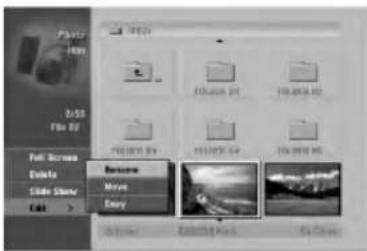
text_image
File Hill 3/50 File 60 Full Screen Delete Slide Show Edit > Rename Move Busy Extra Dark Go Color-
Use ▲ / ▼ to select an option then press ENTER to confirm your selection.
-
[Open] Opens the folder and a list of files in the folder appears
• [Full Screen] Shows the selected file as full screen. - [Delete] Deletes the selected file from the media. (HDD only)
• [Slide Show] Displays Slide Show menu. - [Rename] Edits the file name. (page 36) (HDD only)
- [Move] Moves the file(s) to another folder (album) or media. (page 37) (HDD only)
- [Copy] Copies the file(s) to another folder or media. (page 37)
Tip:
You can create new folder in the HDD. Select [New Album] option then press ENTER. "NONAME#" folder is created.
Skip Images
While viewing a picture, press SKIP (I◄◄ or ►►I) once to advance to the next file or return to the previous file.
Rotate Images
Use ▲ / ▼ while viewing a picture to flip the picture clockwise or counterclockwise.
View Slide Shows
-
Select [Slide Show] option on the Photo menu (Refer to "Photo menu options" on page 34).
-
Press ENTER. The Slide Show menu appears.

text_image
Slide Show Object All Speed Normal Simultaneous Music play Start Cancel- Use ◀ / ▶ / ▲ / ▼ to set the options.
[Object] option:
- [Selected] Views slide show only selected files. Use the MARKER button to select multiple files. - [All] Views slide show all files.
[Speed] option: Sets the Slide Show speed to [Slow], [Normal], or [Fast].
-
Select the [Start] option then press ENTER to start the Slide Show.
-
Press STOP to stop the Slide Show and returns to the Photo menu.
To Pause the Slide Show
- Press PAUSE/STEP (Ⅲ) to pause slide show.
- When you want to continue slide show, press ▶ (PLAY).
To listen to music while slide show simultaneously
You can display photo files while listening to MP3 music files recorded on HDD.
-
Select [Slide Show] option on the Photo menu (Refer to "Photo menu options" on page 34).
-
Press ENTER. The Slide Show menu appears.
-
Select [Simultaneous Music play] option on the Slide Show menu

text_image
Slide Show Object All Speed Normal Simultaneous Music play Start Cancel-
Press ENTER. Simultaneous Music play menu appears.
-
Press MARKER to select multiple files.
- Select [Select All] option to select all tracks then press ENTER. - Select [Deselect All] option to deselect all selected tracks then press ENTER. - Select [Cancel] option to exit this menu then press ENTER.
- Use ◀/▶/▲/▼ to highlight [Start] option then press ENTER.

text_image
Simultaneous Music play Select music FOLDER 00 FOLDER 01 ✓ File 01.mp3 ✓ File 02.mp3 ✓ File 03.mp3 ✓ File 04.mp3 ✓ File 05.mp3 Select All Deselect All Start Cancel- Press STOP to stop the Slide Show and return to the Photo menu.
About JPEG image files
JPEG disc compatibility with this recorder is limited as follows:
- Depending upon the size and number of JPEG files, it could take a long time for the recorder to read the files. If you don't see an on-screen display after several minutes, some of the files may be too large — reduce the resolution of the JPEG files to less than 4M pixels.
- The total number of files and folders on the disc should be less than 1999.
- Some discs may be incompatible due to a different recording format or the condition of disc.
- Ensure that all the selected files have the ".jpg" extensions when copying into the CD layout.
- If the files have ".jpe" or ".jpeg" extensions, please rename them as ".jpg" file.
- File names without ".jpg" extension will not be able to be read by this recorder. Even though the files are shown as JPEG image files in Windows Explorer.
- Progressive and lossless compression JPEG image files are not supported.
Editing a MP3/WMA, JPEG, DivX file
These descriptions are MP3 file's operation for example, other kind's files are operated same way.
Erasing a file(s)/folder(s) from the HDD
You can erase MP3/WMA, JPEG or DivX file(s)/folder(s) on the HDD.
- Select a file you wish to erase on the menu. You can select all files and folders on the menu by pressing CLEAR button. To cancel the selections, press CLEAR again.
Selecting multiple files (folders)
- Press MARKER.
A check mark appears on the file or folder.
Press MARKER again to cancel the marked file or folder.
-
Repeat step 1 to mark additional file (folders).
-
Press ENTER.
The menu options appear on the menu.
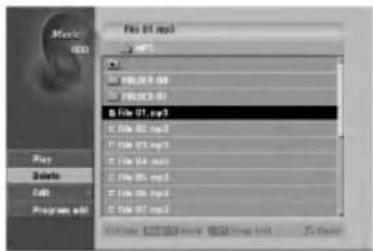
text_image
File 01.mp3 File 02.mp3 File 01.mp3 File 02.mp3 File 03.mp3 File 04.mp3 File 05.mp3 File 06.mp3 File 07.mp3- Select [Delete] option then press ENTER. The selected file(s) is deleted from HDD.
Naming a file on the HDD
You can name MP3/WMA files on the HDD independently. Names can be up to 32 characters long.
-
Select a file you wish to rename on the menu.
-
Press ENTER.
The menu options appear on the menu.
- Select [Edit] option then press ENTER. Edit options appears.

text_image
File 81.mp3 File File 80.mp3 File 81.mp3 File 80.mp3 File 80.mp3 Play Movie Playoff Playoff Playoff Playoff Playoff Playoff Playoff Playoff Playoff Playoff Playoff Playoff Playoff Playoff Playoff Playoff Playoff Playoff Playoff Playoff Playoff Playoff Playoff Playoff Playoff Playoff Playoff Playoff Playoff Playoff Playoff Playoff Playoff Playoff- Select [Rename] option then press ENTER. Keyboard menu appears. To enter characters, see page 48.
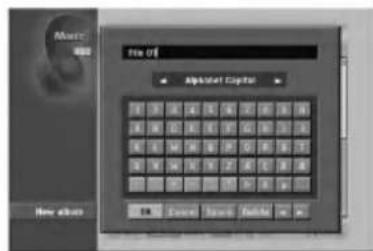
text_image
Maser File Off Symbol Capital New storeCopying a file(s) to another media or folder
You can copy a file(s)/folder(s) to another media or folder.
- Select a file you wish to copy on the menu. You can select all files and folders on the menu by pressing CLEAR button. To cancel the selections, press CLEAR again.
Selecting multiple files (folders)
- Press MARKER.
A check mark appears on the file or folder.
Press MARKER again to cancel the marked file or folder.
-
Repeat step 1 to mark additional file (folders).
-
Press ENTER.
The menu options appear on the menu.
-
Select [Edit] option then press ENTER. Edit options appears.
-
Select [Copy] option then press ENTER. Copy menu appears.

text_image
File 01.mp3 File 01.mp3 File 01.mp3 File 01.mp3 File 01.mp3 File 01.mp3 File 01.mp3 File 01.mp3 File 01.mp3 File 01.mp3 File 01.mp3 File 01.mp3 File 01.mp3 File 01.mp3 File 01.mp3 File Delete Edit Prepare on add Remove Move Copy Save As: 2000.00.00.00.00.00.00.00.00.00.00.00.00.00.00.00.00.00.00.00.00.00.00.00.00.00.00.00.00.00.00.00.00.00.-
You can select a album (folder) to copy.
-
After selecting a media then press ENTER. The album (folder) list appears.
-
Select a folder. Also, you can create new album (folder). Select [New Album] option on the Copy menu then press ENTER. "NONAME##" folder is created.
-
Select [Copy] option then press ENTER to begin copying.

text_image
File 61.mp3 New Copy Select the items NEW(NYK) Copy Cancel New items New items 110mm ©www.8000000.com C:\UsersMoving a file(s)
You can move a file(s)/folder(s) to another media or folder. After moving, the file(s)/folder(s) are deleted from the current location.
-
Follow steps 1-3 as shown left.
-
Press ENTER. The options appear on the left side of the menu.
-
Select [Move] option then press ENTER. Move menu will appear.
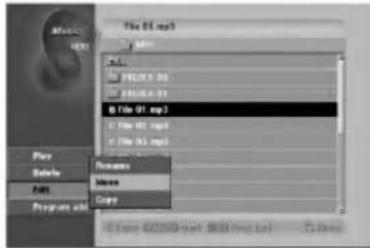
text_image
File 01.mp3 File PROCK 03 EQUITY 01 B File (F1.mp3) C File (F2).mp3 D File (F3).mp3 Process Mouse Copy-
You can select a album (folder) to move.
-
After selecting a media then press ENTER. The album (folder) list appears.
-
Select a folder. Also, you can create new album (folder). Select [New Album] option on the Move menu then press ENTER. "NONAME#" folder is created.
-
Select [Move] option then press ENTER to begin moving.

text_image
Add Select the album Add/Remove Remove Cancel New albumRecording
About DVD recording
Notes:
- This recorder cannot make recordings on CD-R or CD-RW discs.
- Our company takes no responsibility for recording failure due to power outages, defective discs, or damage to the Recorder.
- Fingerprints and small scratches on a disc can affect playback and/or recording performance. Please take proper care of your discs.
Disc types and recording formats, modes, and settings
This recorder can play five different kinds of DVD discs: pre-recorded DVD-Video discs, DVD-RW, DVD-R, DVD+RW and DVD+R discs. The disc format for DVD-R, DVD+R, DVD+RW discs is always "Video format"—the same as pre-recorded DVD-Video discs. This means that once finalized, you can play a DVD-R, DVD+R, or DVD+RW in a regular DVD player.
By default, the DVD-RW disc format is Video Recording (VR) format, though you can change this to Video format, if required. (Reinitializing the disc will erase the contents of the disc.)
The recording mode is closely related to the disc format. If the disc format is Video Recording format, then the recording mode is VR mode; if the disc format is Video mode, then the recording mode is Video mode (except for DVD-Video, which is not recordable, and so does not have a recording mode). Within the recording modes (which are fixed for them whole disc) are the record settings. These can be changed as required for each recording and determine the picture quality and how much space the recording will take up on the disc.
About HDD recording
Recording to the internal hard disk drive (HDD) is basically similar to recording to a VR mode DVD-RW disc. You have the full choice of recording quality options, including the manual mode, and of course you can record, erase and re-record as many times as you like. The capacity of the hard disk drive means that you can store many hours of video on it, even in the higher quality recording modes. To help you organize the contents, the HDD is divided into ten genre. You can name and use these genres as you like—for example, you might have a genre for movies, another for TV shows, and one for camcorder recordings.
Note:
- The maximum number of titles that can be recorded on the HDD is 255.
- Using the HDD allows you to record a maximum of 12 hours continuously.
Notes for recording
- The recording times shown are not exact because the recorder uses variable bit-rate video compression. This means that the exact recording time will depend on the material being recorded.
- When recording a TV broadcast, if the reception is poor or the picture contains interference, the recording times may be shorter.
- If you record still pictures or audio only, the recording time may be longer.
- The displayed times for recording and time remaining may not always add up to exactly the length of the disc.
- The recording time available may decrease if you heavily edit a disc.
- If using a DVD-RW disc, make sure you change the recording format (Video mode or VR mode) before you record anything on the disc. See page 22 (Disc Format) for how to do this.
- When using a DVD-R or DVD+R disc, you can keep recording until the disc is full, or until you finalize the disc. Before you start a recording session, check the amount of recording time left on the disc.
- When using a DVD-RW disc in Video mode, recording time available will only increase if you erase the last title recorded on the disc.
- The Delete Title option in the Title List (Original) menu only hides the title, it does not actually erase the title from the disc and increase the recording time available (except for the last recorded title on a DVD-RW disc in Video mode).
- Overwrite recording is available using DVD+RW discs.
- When using a DVD+R/RW, the recorder will execute the Menu-making operation to update the new title and editing when removing the disc from the recorder. So you must remove the disc after selecting the recorder's operation mode to DISC mode.
Recording time and picture quality
There are four preset recording quality modes:
- HQ – Highest quality setting, gives about 1 hour of recording time on a DVD (4.7GB).
- SQ – Default quality, sufficient for most applications, gives about 2 hours of recording time on a DVD (4.7GB).
- LQ – Slightly lower video quality, gives about 4 hour of recording time on a DVD disc (4.7GB).
- EQ – Lowest video quality, gives about 6 hour of recording time on a DVD (4.7GB).
Timeshift HDD
Do not miss a scene from a live broadcast. If the telephone rings while you are watching your favorite live broadcast, just press "TIMESHIFT" and "PAUSE" before answering the phone. The timeshift function will be activated and the broadcast is then recorded for later viewing.
After the phone call or viewing interruption, press "PLAY" or "SCAN" to watch the program.
Press "STOP" to return to the live broadcast.
Timeshift (Pause, Live TV/Playback) Operation HDD
You can store a program in the HDD storage cache temporarily.
Press TIMESHIFT while watching a TV program.
The Progress Bar display appears on the screen as shown below. The Progress Bar changes to timeshift icon after 5 seconds.

text_image
PLAY 17:45 2 18:45 3 4 5- Indicates playback mode.
- Indicates current Timeshift position.
- Indicates Timeshift start time.
- Indicates Timeshift elapsed time.
- Indicates the time that is one hour from Timeshift start time.
Tips:
- You can use trick play functions (Slow, Scan, etc.) during timeshift. Refer to Playback Operation on pages 25-28.
- You can edit the cached clip during Timeshift to retain the program on the HDD. Refer to Clip Record on the right.
Notes:
- There is not free space on the HDD, the oldest timeshift section of the cache will be incrementally deleted.
- If no button is pressed for 6 hours, the Timeshift will stop automatically.
Marker Search in Timeshift mode
You can mark one in Timeshift mode. Press MARKER at the desired point during Timeshift. Press SEARCH to recall the marked scene.
Clip Record HDD
You can edit during Timeshift to store the program on the HDD (Hard Disk Drive).
- During Timeshift, use pause step, search and slow-motion to find the starting point.
- Press REC at the starting point of the section you want to record. Progress of the edit is indicated in red on the Progress Bar.

-
Use pause step, search and slow-motion to find the ending point.
-
Press REC at the ending point of the section you want to record. Normal playback continues.
-
Repeat steps 1 and 4 to make several Clip Records of a program.

-
Press STOP to stop Timeshift. Confirm message will appear.
-
Use ◀ / ▶ to select [Yes] then press ENTER. Or, press STOP again. The current broadcast is displayed on the screen.
Notes:
- Selected sections are recorded on the HDD.
- If you want to stop Clip recording, press the STOP button. If you press POWER to stop Clip recording, the program may not be recorded on the HDD.
- Clip records cannot be made for sections lasting less than 5 seconds.
Jump to Start or End during Timeshift
- Press ENTER during timeshift. The menu will appear.
- Press ◀ and playback starts from the very beginning of the timeshift. Press ▶ and jumps to the very end of the timeshift then goes to pause mode.
To Exit the Timeshift
- Press STOP to exit Timeshift function. Confirm message will appear.
- Use ◀ / ▶ to select [Yes] then press ENTER. The current broadcast is displayed on the screen.
Basic Recording from a TV
Follow the instructions below to record a TV program. Recording starts immediately and continues until the disc is full or you stop the recording.
Note:
You must load a recordable disc for DVD recording.
- Press HOME.
The HOME menu appears. - Select a media (HDD or DISC) to record TV program then press ENTER.
- Select [TV (HDD)] or [TV (DVD)] option then press ENTER.
Also make sure that the TV input is set to this recorder. If you load a completely blank disc, the recorder takes a short while to initialize the disc. - Set a recording mode as necessary by pressing REC MODE repeatedly. (HQ, SQ, LQ, EQ)
- Use ▲ / ▼ buttons to select the TV channel to record.
Changing TV Audio Channel
You can select the audio channel (language) to listen by pressing AUDIO during viewing TV program. The current audio channel is displayed on-screen.
Stereo or mono broadcast:
Stereo → Left → Right → Mono
Bilingual broadcast:
Main → Sub → Main+Sub
- For TV recording with bilingual, set audio channel from the [TV Rec Audio] in sub-menu of the Setup menu (see page 22).
-
If the sound is of poor quality when set to Stereo, you can often improve it by changing to Mono (Left or Right).
-
Press REC (●) once.
Recording will start. (The REC indicator lights in the display window.)
- Recording continues until you press STOP (■) or the disc or HDD is full.
-
To record for a fixed length of time, see Instant Timer Recording on right.
-
Press STOP (■) to stop recording.
To Pause the Recording
- Press PAUSE/STEP (III) to pause recording.
- When you want to continue recording, press PAUSE/STEP (III).
Instant Timer Recording
Instant Timer Recording allows you to make a recording easily of a preset length without using the program timer.
- Follow steps 1-4 as shown left (Basic Recording from a TV).
- Press REC (●) repeatedly to select the recording time length.

Recording starts after the first press. Each subsequent press increases the recording time within free space (maximum 240 minutes). The recording time is displayed on the TV screen. At the end of the recording, the recorder will stop recording and shut off.
Checking the Recording Time
Press REC (●) once to check the recording time. The recalled setting will automatically return to the TV screen for a moment.
Also, remaining time of recording is shown in the display window.
To Extend the Recording Time
The recording time can be extended anytime by pressing REC (●).
Each subsequent press increases the recording time within free space (maximum 240 minutes).

If the recorder is unplugged (or there is a power failure) while the recorder is recording, the recording will be lost.
Timer Recording
This recorder can be programmed to record up to 16 programs within a period of 1 month. For unattended recording, the timer needs to know the channels to be recorded, the starting and ending time.
Note:
If you use a completely blank disc for timer recording, you must format the disc before starting timer recording. (Refer to "Disc Format" on page 22.)
1. Press TIMER REC.
The Timer Record menu will appear.
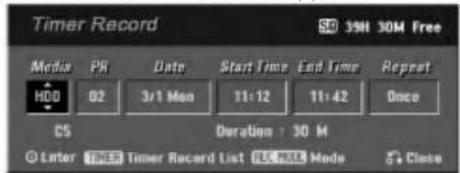
text_image
Timer Record SD 39H 30M Free Metric PR Date Start Time End Time Repeat HDD 62 3/1 Mon 11:12 11:42 Once CS Duration : 30 M Later TIME Timer Record List FLA NULL Mode Close• [Media] Choose a media to record (HDD or DVD).
- [PR] Choose a memorized program number, or one of the external inputs from which to record.
• [Date] Choose a date up to 1 month in advance.
• [Start Time] Set the start time.
• [End Time] Set the end time.
- [Repeat] Choose a desired repeat (Once, Daily (Monday - Friday), or Weekly).
2. Enter the necessary information for your timer recording(s).
- ◀ / ▶ (left/right) – move the cursor left/right
- ▲ / ▼ (up/down) – change the setting at the current cursor position
- Press RETURN (💡) to exit the Timer Record menu.
- Press ENTER after filling in all the program information.
- Press TIMER REC to display Timer Record List.
3. Set a recording mode as necessary by pressing REC MODE repeatedly. (HQ, SQ, LQ, EQ)
4. Press ENTER, the program will be memorized by the recorder.
To check the programming, the Timer Record List will appear.
Check field's "Rec. OK" on the Timer Record List indicates that the timer recording is programmed correctly.
5. Press RETURN (💡) to exit the Program List.
6. Make sure that you load a recordable disc for DVD recording and press POWER to switch your unit to Standby.
Notes:
- The timer indicator lights in the display window when the recorder is in standby with the timer active.
- For TV recording with bilingual, set audio channel from the [TV Rec Audio] in sub-menu of the Setup menu (see page 22).
- You must press POWER to stop the timer recording.
- If you set a timer recording to record to DVD but there isn't a recordable DVD loaded at the time of the recording, the Recovery Recording feature will automatically record the program to the HDD for you.
Simultaneous recording and playback
Playback and recording for both DVD and built in hard disk drive (HDD) are completely independent. For example, you can record to either the DVD or HDD source and play back video from the other source at the same time.
- Start recording.
- Press HOME to display the Home Menu screen.
- Use the ▲ / ▼ / ◀ / ▶ and ENTER buttons to select a different media type that you want to play back.
- Start Playback.
The recording will continue while playing back the media from the other mode.
Notes:
- You can't use simultaneous playback and recording while copying.
- You cannot edit programs during simultaneous recording and playback.
Checking Timer Recording Details
Programming can be checked whenever the recorder is turned on. Press TIMER REC twice.
- Use ▲ / ▼ to select a timer recording.
- Press ENTER to edit the selected program. Timer Record menu appears.
- Press CLEAR to delete the selected program from the Timer Record List.
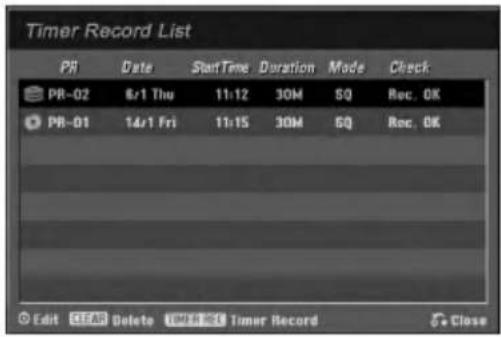
text_image
Timer Record List PR Date Start Time Duration Mode Check PR-02 6/1 Thu 11:12 30M 50 Rec. OK PR-01 14/1 Fri 11:15 30M 60 Rec. OK Edit CLEAR Delete ORDER RED Timer Record CloseCanceling a Timer Recording
You can clear a timer setting anytime before the recording actually starts.
- Use ▲ / ▼ to select a program you want to erase on the Timer Recorder List. If you want to erase the program, press CLEAR.
Stopping a Timer Recording in Progress
After a timer recording has started, you can still cancel the program.
- Press POWER.
Timer Recording Troubleshooting
Even though the timer is set, the recorder will not record when:
- There is no disc loaded and there is not free space on the HDD.
- A non-recordable disc is loaded and there is not free space on the HDD.
- [Disc Protect] option is set to [ON] in the Setup menu and there is not free space on the HDD. (see page 23).
• Power is turned on. - There are already 99 titles (DVD-RW, DVD-R), 49 titles (DVD+R, DVD+RW) recorded on the disc and there are already 255 titles recorded on the HDD.
You cannot enter a timer program when:
• A recording is already underway.
- The time you're trying to set has already passed.
• There are already 16 timer programs set.
If two or more timer programs overlap:
• The earlier program takes priority.
- When the earlier program finishes, the later program starts.
- If two programs are set to start at exactly the same time, the program entered first takes priority.
If the disc is damaged, the recording may not complete successfully. In this case even though the Check field shows "Rec. OK", it may not be.
Recording from an External Input
Recording from External Components
You can record from an external component, such as a camcorder or VCR, connected to any of the recorder's external inputs.
- Make sure that the component you want to record from is connected properly to the recorder. See page 14.
- Choose a media (HDD or DVD) to record using HOME menu. (see page 15).
-
Press AV repeatedly to select the external input to record from.
-
Tuner: Built-in tuner
- AV1: AUDIO IN 1 / VIDEO IN 1 mounted on back panel
-
AV2: INPUT 2 (VIDEO, AUDIO (L/R), S-VIDEO IN) mounted on front panel
• DV: DV IN mounted on front panel -
Select the recording mode as necessary by pressing REC MODE repeatedly. (HQ, SQ, LQ, or EQ)
-
Press REC (●) once. Recording will start. (The REC indicator lights in the display window.)
-
Recording continues until you press STOP (■) or the disc is full.
-
To record for a fixed length of time, see "Instant Timer Recording" on page 40.
-
Press STOP (■) to stop recording.
Note:
If your source is copy-protected using CopyGuard, you will not be able to record it using this recorder.
See Copyright on page 51 for more details.
Recording from DV Input
Before DV dubbing
You can connect a DV-equipped camcorder to this recorder using a single DV cable for input and output of audio, video, data and control signals.
- This recorder is only compatible with DV-format (DVC-SD, DV25) camcorders. Digital satellite tuners and Digital VHS video recorders are not compatible.
- You cannot connect more than one DV camcorder at a time to this recorder.
- You cannot control this recorder from external equipment connected via the DV IN jack (including two recorders).
- It may not always be possible to control the connected camcorder via the DV IN jack.
- Digital camcorders can usually record audio as stereo 16-bit/48kHz, or twin stereo tracks of 12-bit/32kHz. This recorder can only record one stereo audio track. Set [DV Rec Audio] option to [Audio 1] or [Audio 2] as required (see page 22).
- Audio input to the DV IN jack should be 32 or 48kHz (not 44.1kHz).
- Picture disturbance on the recording may occur if the source component pauses playback or plays an unrecorded section of tape, or if the power fails in the source component, or the DV cable becomes disconnected.
Recording from a Digital Camcorder
You can record from a digital camcorder connected to the DV IN jack on the front panel of this recorder.
Using the recorder's remote, you can control both the camcorder and this recorder.
Before recording, make sure that the audio input for the DV IN jack is set up (see page 22).
Tips:
- The source signal must be DVC-SD format.
- Some camcorders cannot be controlled using this recorder's remote.
- If you connect a second recorder using a DV cable, you cannot control the second DVD from this one.
- You cannot control this unit remotely from a component connected to the DV IN jack.
-
You cannot record date and time information from a DV cassette.
-
Make sure your digital camcorder is connected to the front panel DV IN jack. See page 14.
- Select [TV(HDD)] or [TV(DVD)] option on the HOME menu then press ENTER. (see page 15).
- Check that the DV audio input is as you require. You can choose between Audio 1 (original audio) and Audio 2 (overdubbed audio).
- DV Input is set from the [DV Rec Audio] in sub-menu of the Setup menu. See "DV Recording Audio" on page 22 for more information.
- Press AV repeatedly to select the DV input. DV appears in the display window and on the TV screen.
- Find the place on the camcorder tape that you want to the recording to start from. For best results, pause playback at the point from which you want to record.
- Depending on your camcorder, you can use this recorder's remote to control the camcorder using the STOP, PLAY and PAUSE functions.
-
Press REC (●) once to start recording.
-
Recording is automatically stopped if the recorder detects no signal.
- You can pause or stop the recording by pressing PAUSE/STEP (■) or STOP (■). You cannot control the camcorder from this remote control during recording.
- In Video mode, the final frame of the recording may remain displayed on screen for a while after recording stops.
- For timer recording to work properly on this recorder, the digital camcorder must also be switched on and in operating.
Troubleshooting
If you cannot get a picture and/or audio through the DV IN jack, check the bullet points:
- Make sure the DV cable is properly connected.
- Try switching off the connected equipment then switch back on.
- Try switching the audio input.
Note:
Depending on the connected camcorder, you may not be able to control it using the remote control supplied with this recorder.
Title List and Chapter List Menu Overview
Using the Title List menu you can edit video content. The editing features available in the Title List menu depend on whether you are editing video on DVD, or the HDD, and whether you're editing Original content, or a Playlist.
There are two ways to edit VR mode DVD-RW discs. You can directly edit the Original content of the disc, or you can create and edit a Playlist. The Playlist doesn't actually change any of the content on the disc, but just controls how the content is played back.
Editing material recorded on the HDD is similar to editing the Original content of a VR mode DVD-RW, with similar commands for erasing and naming titles, as well as fine control over the content of chapters within titles for DVD disc.
Note:
During recording, if you display the Title List menu for the HDD, some of the titles may appear with a mark. These titles were recorded with a Line Input setting different to the current setting of the recorder. During recording, these titles cannot be played.
-
Press MENU/LIST to display the Title List menu. Playback should be stopped when you do this.
-
You can also access it using HOME menu, select [TITLE LIST] option then press ENTER.
- When selecting titles, use the ▲ / ▼ buttons to display the previous/next page if there are more than six titles.
- If you are editing a VR mode disc, press MENU/LIST to switch between Original and Playlist menu.
On the left side of the screen are the menu options. The main part of the screen shows thumbnails of the titles (or chapter) on the DVD or HDD. You can change these thumbnails using the THUMBNAIL button—see Changing Title Thumbnails on page 45.
Press DISPLAY to display the information of selected title on the Title List menu.
After selecting a title or chapter on the Title List or Chapter List menu, then press ENTER. The menu options appears on the left side of the menu. Use ▲ / ▼ to select a option then press ENTER to confirm your selection.
- To exit the Title List menu, press RETURN (💡) repeatedly.
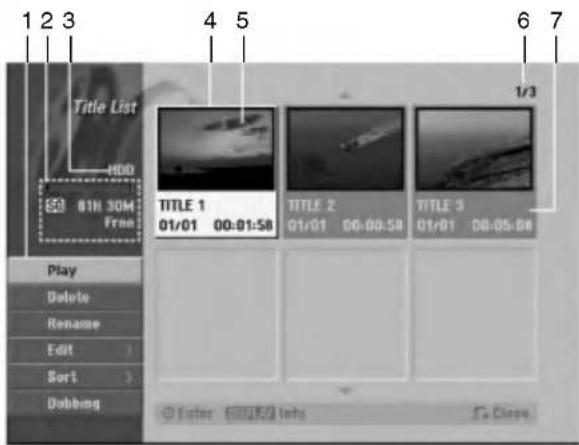
text_image
1 2 3 4 5 6 7 Title List HDD 81N 30M Free 1/3 TITLE 1 01/01 00:01:58 TITLE 2 01/01 00:00:58 TITLE 3 01/01 00:05:08 Play Delete Rename Edit > Sort > Dobbing Enter Info Close- Menu options: To display menu option, select a title or chapter then press ENTER. The options displayed differ depending on the disc type.
• [Chapter] Displays Chapter List of the title.
• [Combine] Combines two titles or chapters into one (page 49).
- [Delete] Deletes the title or chapter. (page 47)
- [Delete Part] Deletes a part of the Title (page 47).
• [Divide] Divides a title into two (page 49).
• [Dubbing] Copies the title to another media. (page 52)
• [Full Play] Starts playback of the selected title including the hidden chapters.
- [Hide (Show)] Hides (or Shows) the selected title or chapter. (page 50)
- [Move] Moves a chapter on the Chapter List-Playlist menu to a position on the menu. (page 50)
- [Play] Start playback of the selected title or chapter. The hidden titles and chapters on the DVD+R/RW cannot be play back.
- [Playlist Add] Adds the title or chapter to the Playlist. (page 46)
- [Protect] Protects accidental recording, editing or deleting of the title. (page 50)
- [Rename (Title Name)] Edits the title name. (page 48)
- [Sort] Lists the programs on the Title List menu by Date, Title, or Category. (page 48)
• [Title] Displays Title List of the chapter.
- [Undo]/[Redo] Un-do/Re-do the last deletion/action. (page 48)
-
Indicates the record mode, free space, and elapsed time progress bar.
-
Current media
- Currently selected title.
- Thumbnail
- Shows the selected title number and total number of titles.
- Shows the title name, recorded date, and recording length.
HDD, VR Mode: Original and Playlist Editing
Titles, Chapters and Parts
Titles in the disc's original content contain one or more chapters. When you insert a disc's title into the Playlist, all the chapters within that title also appear. In other words, chapters in the Playlist behave exactly as chapters on a DVD-Video disc do. Parts are sections of Original or Playlist titles. From the Original and Playlist menu you can add or delete parts. Adding a chapter or title to the Playlist creates a new title made up of a section (ie., chapter) of an Original title. Deleting a part removes part of a title from the Original or Playlist menu.
Caution
- When editing using the Delete, Add and Move functions, the start and end frames may not be exactly as set in the start and end point display.
- During Playlist playback, you may notice a momentary pause between edits. This is not a malfunction.
Is editing a DVD like editing a video tape?
No. When you edit a video tape you need one video deck to play the original tape and another to record the edits. With DVD, you edit by making a 'Playlist' of what to play and when to play it. On playback, the Recorder plays the disc according to the Playlist.
About word 'Original' and 'Playlist' -RWvr
Throughout this manual, you will often see the words Original and Playlist to refer to the actual content and the edited version.
- Original: content refers to what's actually recorded on the disc.
- Playlist: content refers to the edited version of the disc — how the Original content is to be played.
Adding Chapter Markers
-RWvr +RW +R
You can create chapters within a title by inserting chapter marks at the desired points.
Note:
Chapter markers are inserted at regular intervals automatically. You can change this interval from the Initial Setup menu (see "Auto Chapter" on page 22)
During recording or playing back, at the point you want to start a new chapter, press CHP ADD. A chapter marker icon appears on the TV screen.
Changing Title Thumbnails
HDD -RWVR +RW +R
Each title displayed in the Title List menu is represented by a thumbnail picture taken from the start of that title or chapter.
If you prefer, select a different still picture from within a title.
Press THUMBNAIL to make the currently displayed picture the one that appears in the Title List menu. The still picture that you choose appears in both the Original or Playlist menu.
Tip:
You can also change the thumbnail picture of the title on the Chapter List menu. Select a chapter on the Chapter List menu then press THUMBNAIL. The thumbnail picture of the title that includes the chapter is changed.
Making a New Playlist -RWvr
Use this function to add an Original title or chapter to the Playlist. When you do this, the whole title is put into the Playlist (you can delete bits you don't need later — see Deleting an Original or Playlist title/chapter on page 47).
The title appears in the Playlist complete with the chapter markers that appear in the Original. However, if you add more chapter markers to the Original later, these are not automatically copied over into the Playlist title.
You can add up to 999 chapters to one disc. If you only want to add a chapter of a title, use the Adding a title/chapter to the Playlist on this page.
- Choose a title or chapter on the Title List-Original menu or Chapter List-Original menu to put into the Playlist, then press ENTER. The menu options appears on the left side of the menu.

text_image
Title List Original 2013-07 @ 5.00 Free May Show for Delete Preview Last Playlist Add: Helping TITLE 4 05:01 3:01:12 TITLE 2 01:01 0:01:24 TITLE 3 01:01 3:00:29 TITLE 6 Hoot 0:01:12 © Last 12G/12R/12Mai Add- Use ▲ / ▼ to select [Playlist Add] option then press ENTER.

text_image
Video List Options DVD-3M On View Free Play Cluster Delete Project Help Playback Add Samsung Select Playlist New Playlist © Edit: 10x7.1x2.1x8.0x9.0x10.0x11.0x12.0x13.0x14.0x15.0x16.0x17.0x18.0x19.0x20.0x21.0x22.0x23.0x24.0x25.0x26.0x27.0x28.0x29.0x30.0x31.0x32.0x33.0x34.0x35.0x36.0x37.0x38.0x39.0x40.0x41.0x42.0x43.0x44.0x45.0x46.0x47.0x48.0x49.0x50.0x51.0x52.0x53.0x54.0x55.0x56.0x57.0x58.0x59.0x60.0x61.0x62.0x63.0x64.0x65.0x66.0x67.0x68.0x69.0x70.0x71.0x72.0x73.0x74.0x75.0x76.0x77.0x78.0x79.0x80.0x81.0x82.0x83.0x84.0x85.0x86.0x87.0x88.0x89.0x90.0x91.0x92.0x93.0x94.0x95.0x96.0x97.0x98.0x99.0 Edit: 10x7.1x2.1x8.0x9.0x10.0x11.0x12.0x13.0x14.0x15.0x16.0x17.0x18.0x19.0x20.0x21.0x22.0x23.0x24.0x26.0x27.0x28.0x29.0x30.- Select [New Playlist] then press ENTER. The new title appears in the updated Playlist. All chapters of the title are added to the Playlist.

text_image
Time List Perfet 240-254 In Stop Free TITLE 1 8/5/01 8:32:24 Show C:\Users\Mysec ShowAdding Additional Title/Chapters to the Playlist -RWvr
You can add an Original title or chapter to add to a Playlist title even if it is already registered.
- Choose a title or chapter on the Title List-Original menu or Chapter List-Original menu to put into the Playlist, then press ENTER. The menu options appears on the left side of the screen.

text_image
File List External 200-00 To Work Free Play Chapter Delete Product Edit PlayOut (Add) Editing TITLE 1 01:01 TITLE 2 01:01 TITLE 3 01:01 00:00 Close Image Tools Make Paste- Use ▲ / ▼ to select [Playlist Add] from menu options then press ENTER.

text_image
Take List Entail Play Choose Delete [Default] 1.66 Played 100% Diluted TITLE 1 TITLE 2 TITLE 3 01:01 0:00:00 Select Playlist On New Planted TITLE 1 Share GCD Time Flash Manager Color-
Choose a Title List-Playlist that is already registered to insert a title or chapter, then press ENTER.
-
Repeat steps 1-3 to add additional title or chapter on the Playlist. You can view the added chapters on the Chapter List-Playlist menu.
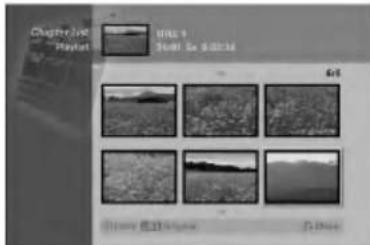
natural_image
Grayscale landscape photo grid with six individual views of a landscape (no text or symbols)- Press RETURN (♂) to exit, or MENU/LIST to go back to the Title List-Original menu.
Deleting an Original or Playlist Title/Chapter
When you erase a title or chapter from the Playlist menu, you only remove it from the Playlist; the title/chapter remains in the Original menu.
If you choose to delete a title or chapter from the Original (title/chapter) menu, the title or chapter is actually deleted from the disc and the remaining time available for recording increases. Titles/chapters deleted from the Original are also removed from the Playlist.
Note:
It may not be possible to delete chapters that are less than 5 seconds long.
-
Use ◀/▶/▲/▼ to choose a chapter or title you want to delete on the Title List or Chapter List menu then press ENTER. The menu options appears on the left side of the screen.
-
Select [Delete] option from the options on the menu.
Example: Title List (HDD)

text_image
TFL2.1 01:01 39:01:53 TFL2.2 01:01 00:00:55 TFL2.3 01:01 00:00:58 File Edit View Balance Balance Balance Balance Balance Balance Balance Balance Balance Balance Balance Balance Balance Balance Balance Balance Balance Balance Balance Balance Balance Balance Balance Balance Balance Balance Balance Balance Balance Balance Balance Balance Balance Balance Balance Balance Balance Balance Balance Balance Balance Balance Balance Balance Balance Balance Balance Balance Balance Balance Cash- Press ENTER to confirm.
The confirm message for deleting will appear.
- Use ◀ / ▶ to select [Yes] then press ENTER. The selected chapter or title is deleted.
After pressing ENTER, the new, updated menu is displayed.
-
Repeat steps 1 - 4 to continue to delete from the menu.
-
Press RETURN (💡) repeatedly to exit the menu.
Notes:
- When DVD+RW recording, the deleted title's name is changed to 'Deleted Title'.
- If more than two titles are repeatedly deleted, the titles are combined into one.
- When you are deleting a title or chapter, only the last one on DVD+RW increases remaining recording time.
Deleting a Part HDD -RWvr
You can delete a part which you do not want in the title.
-
Use ▶/▶/▲/▼ to choose a title you want to delete on the Title List menu then press ENTER. The options appears on the left side of the menu.
-
Select [Delete Part] option then press ENTER. Title Edit (Delete Part) menu appears on the TV screen.
[Start Point] icon is highlighted.
Example: Title Edit (Delete Part) (HDD)

text_image
The Life Sunny Feet Start Point Environment Sound Point Control Name: [1] 0.0000 C:\Product\N=0.0000\nSoftware\Point\N=0.0000-
Starts playback and use pause step, search and slow-motion to find the starting point.
-
Press ENTER at the starting point of the section you want to delete.
'End Point' icon is highlighted.
The part is indicated on the Progress Bar.
-
Use pause step, search and slow-motion to find the ending point.
-
Press ENTER at the ending point of the section you want to delete.
You can cancel the selected point, use ▲ / ▼ to select [Cancel] icon then press ENTER.
Tip:
With HDD recordings, you can delete additional part. Select [Next Part] icon on the menu then press ENTER, then repeat steps 3-6.
- If you finish to edit, select [Done] icon then press ENTER.
The confirm message for deleting will appear.
Use ◀ / ▶ to select [Yes] then press ENTER.
The selected part is deleted from the title and Title List menu appears.
Note:
It may not be possible to delete parts that are less than 3 seconds long.
Naming a Title
You can name Original and Playlist titles independently. Names can be up to 32 characters long.
- Choose the title you want to name on the Title List menu, then press ENTER.
The menu options appears on the left side of the menu.
- Use ▲/▼ to select [Rename (Title Name)] option then press ENTER.
Keyboard menu appears.
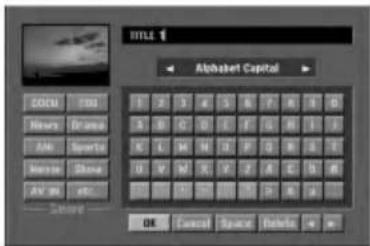
text_image
TITLE 1 Alphabet Capital DOWN END News Orange AN Sports Mouse Show AV IN ABC Squeeze OK Cancel Space Helps +-
Enter a name for the title. Use ◀/▶/▲/▼ to select a character then press ENTER to confirm your selection.
-
Use MENU/LIST button to change keyboard type.
- OK: Select to finish.
- Cancel: Cancels all entered characters.
• Space: Inserts a space at the cursor position. - Delete: Deletes the previous character at the cursor position.
• ◀ / ▶: Moves cursor to left or right.
Tip:
Remote control buttons for entering a name
▶ (PLAY): Inserts a space at the cursor position.
II (PAUSE/STEP): Deletes the after character at the cursor position.
■ (STOP), CLEAR: Deletes the previous character at the cursor position.
|◀◀ / ▶▶▶: Moves cursor to left or right.
Numbers (0-9): Enters the corresponding character at the cursor position.
Tip:
You can add the genre only for HDD title name.
- Choose OK then press ENTER to fix the name and return to the previous menu screen.
- Press RETURN (💡) repeatedly to exit the menu.
Notes:
- Names can be up to 32 characters long.
- For discs formatted on a different recorder, you will see only a limited character set.
- When recording on DVD-R, DVD+R or DVD+RW discs, the entered name is displayed on the DVD player only after finalization.
Sort HDD
This function allows you to access show listings organized by Date, Title, or Category on the Title List-HDD menu. So you can find title you want to watch easily.
- Choose any title on the Title List-HDD menu, then press ENTER.
The menu options appears on the left side of the menu.
- Use ▲/▼ to select [Sort] option then press ENTER. Sort options appears.
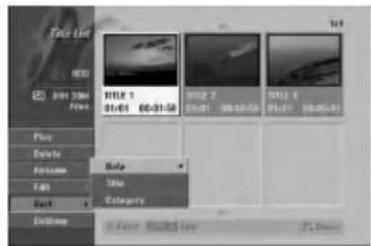
text_image
Take Up 000 001 3284 Free Play Details Focus FAT Fact Customs TITLE 1 01:01 00:01:58 01/01 00:01:58 01/01 00:01:58 01/01 00:01:58 01/01 00:01:58 01/01 00:01:58 Help Title Category F-View 00:01:58 Live [7] Drive- Use ▲ / ▼ to select [Date], [Title] or [Category] option then press ENTER.
After pressing ENTER, the sorted menu is displayed.
Undoing/Redoing the Last Deletion -RWvr
If you make a mistake while deleting, you can undo it. There is one level of undo (in other words, you can undo the last one deletion you made).
Use ▲ / ▼ to select [Undo] option then press ENTER. It doesn't matter whether you are currently in the menu screen; the last deletion is undone.
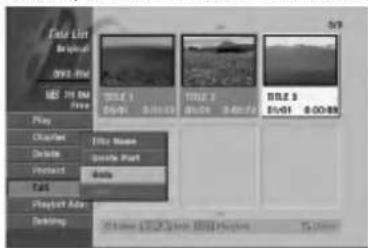
text_image
Take List Brush 3000.00 LED: 20 MB Free Play Channel Delete Protect Talk Playback Help Blocking Title 1 Title 2 Title 3 File Name File Size File Type File Date File Time 0:00:00 Close CLK/Icon HLL/PlayIcon 5:00:00Notes:
- You can't undo a recording.
- You can't undo anything after ejecting the disc from the recorder or switching the recorder into standby mode.
- You can still undo a deletion even after exiting the menu display.
Tip:
You can redo the last undo action using the [Redo] option.
Combining Two Titles Into One
HDD
Use this function to combine two adjacent Original-HDD titles into one.
Notes:
- This function is not available if there is only one titles within the HDD.
-
If there are more than 60 titles on the HDD, you cannot combine the titles.
-
On the Title List-HDD menu, select the first title of the two titles you want to combine then press ENTER.
The menu options appears on the left side of the screen.
- Select [Combine] option then press ENTER.
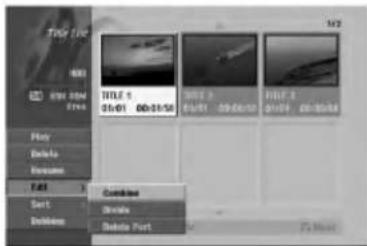
text_image
TITLE 1 05:01 00:01:58 TITLE 2 01:01 00:00:52 TITLE 3 01:01 00:00:54 Compose Details Details Port- Select the second title of the two titles you want to combine then press ENTER. The confirm message appears.
- Use ◀ / ▶ to select [Yes] then press ENTER. After pressing ENTER, the updated menu is displayed.
Divide One Titles Into Two
HDD
+RW
Use this command to split a title up into two new titles.
- On the Title List menu, select a title you want to divide then press ENTER. The menu options appears on the left side of the screen.
- Select [Divide] option. Example: Title List (HDD)

text_image
Tally-Up WBS S2 916 JPM Free Play Delete Rescue Fast Sort Outings TITLE 1 0x81 0x81:55 TITLE 2 01:01 00:00:50 TITLE 3 0x81 0x81:55 Customs Show Select Part 75.000- Press ENTER.
Title Edit (Divide) menu appears. [Divide] option is highlighted.
Current picture
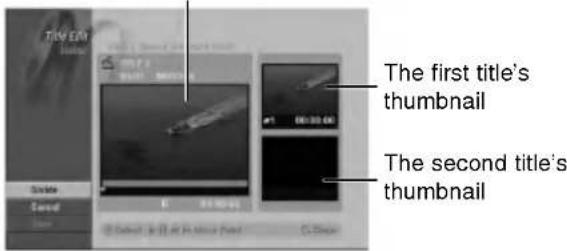
text_image
The first title's thumbnail The second title's thumbnail- Use play, pause step, search and slow-motion to find the point you want to divide the title.
- Select [Divide] option then press ENTER at the point. To reset the point, select [Cancel] option then press ENTER. Repeat from step 3.
- Choose [Done] option then press ENTER to fix the dividing point. The title is divided into two new titles. It take up to 4 minutes to divide.
Note:
You cannot select dividing point less than 3 seconds.
Combining Two Chapters Into
One
-RWVR
+RW
+R
Use this function to combine two adjacent Playlist or Original chapters into one.
Note:
This function is not available if there is only one chapter within the title.
- On the Chapter List menu, select the second chapter of the two chapters you want to combine then press ENTER The menu options appears on the left side of the screen.
- Use ▲ / ▼ to select [Combine] option. The combine indicator appears between the two chapters you want to combine.
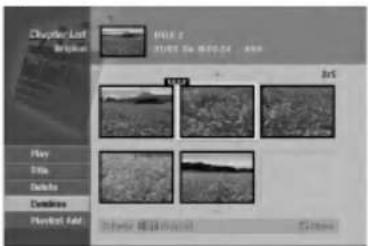
text_image
Clayfish List Breaker PAGE 2 STOCK 50 MSCI-14 Add Play File Delete Delete Rendered Add Shower: Red/Red/Red/Red Cut off- Press ENTER.
Moving a Playlist Chapter
-RWVR
Use this function to re-arrange the playing order of Playlist chapters on the Title List-Playlist menu.
Note:
This function is not available if there is only one chapter.
- Select a chapter on the Chapter List-Playlist menu.
- Press ENTER.
The menu options appears on the left side of the menu. - Use ▲ / ▼ to select [Move] option from Playlist options then press ENTER.
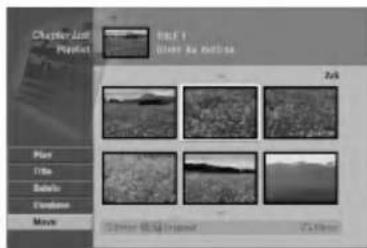
text_image
Chapter1 Pencil BILK 1 START AS RESULTS 24k Show: 0.000000000000000000000000000000000000000000000000000000000000000000000000000000000000000000 Play Title Balance Duration Move- Use ◀ / ▶ / ▲ / ▼ to choose the place you want to move the chapter to then press ENTER. After pressing ENTER, the updated menu is displayed.
Hide a Chapter/Title +RW +R
You can skip playing chapters or titles without deleting from the disc.
-
Use ▲▼◀▶ to choose a chapter or title you want to hide on the Title List or Chapter List menu, then press ENTER.
Options appear on the left side of the screen. -
Select [Hide] option.
Example: Title List (DVD+RW)
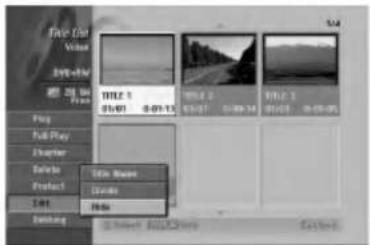
text_image
Take Out Value 200-50 Title 1 01/01 01/13 Title 2 01/01 01/14 Title 3 01/01 01/01 Play Full Play Chapter Delete Product Edit Title Name Delete Title OK Select All Change Cancel- Press ENTER to confirm.
The chapter's or title's thumbnail will dim.
Tip
If you select a hidden chapter or title on the Title List or Chapter List menu, you can 'show' it by choosing [Show] option on the menu. After doing that, you are able to see the chapter or title.
Protect a Title +RW +R -RWvr
Use this function to protect against accidental recording, editing or deleting of the title.
- Press MENU/LIST to display the Title List menu.
- Use ▲▼◀▶ to choose a title you want to protect then press ENTER.
Options appear on the left side of the screen. - Select [Protect] from the options.
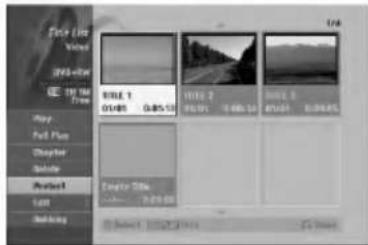
- Press ENTER to confirm.
The lock mark will appears on the title's thumbnail.
Tip
If you select a title that has already been protected on the Title List menu, you can 'unprotect' it by choosing [Protect] option from the Title List menu options. After doing that, you can edit and delete the title.
Dubbing
Before Dubbing
Use the copying features of this recorder to:
- Back up important recordings stored on the HDD to a DVD.
- Make a DVD copy of a recording on the HDD to play in another player.
- Transfer video from a DVD to the HDD for editing.
- Transfer edited video from the HDD to DVD.
The simplest method of copying is to use the One Touch Copy feature. Using this you can very simply copy the title that's currently playing from HDD to DVD, or the other way around.
Note:
If the title's length is less than 5 seconds, the dubbing is not available. (from HDD to DVD)
Restrictions on copying
Some video material is copy-once protected. This means that it can be recorded to HDD, but it cannot then be freely copied again. If you want to transfer copy-once protected material from HDD to DVD, you'll need to use a VR mode DVD-RW disc compatible with CPRM Ver. 1.1, and the following restrictions apply:
After copying a copy-once protected title to DVD it is automatically erased from the HDD. It is not therefore possible to copy a locked title that is copy-once protected.
You can identify copy-once protected material during playback by displaying disc information on-screen.
- A media in NTSC format cannot be copied.
What is 'CPRM'?
CPRM is a copy protection system (with scramble system) only allowing the recording of 'copy once' broadcast programs. CPRM stands for Content Protection for Recordable Media.
This Recorder is CPRM compatible, which means that you can record copy-once broadcast programs, but you cannot then make a copy of those recordings. CPRM recordings can only be made on DVD-RW discs formatted in VR mode, and CPRM recordings can only be played on players that are specifically compatible with CPRM.
Copyright
- Recording equipment should be used only for lawful copying and you are advised to check carefully what is lawful copying in the area in which you are making a copy. Copying of copyright material such as films or music is unlawful unless permitted by a legal exception or consented to by the rights owner.
- This product incorporates copyright protection technology that is protected by method claims of certain U.S. patents and other intellectual property rights owned by Macrovision Corporation and other rights owners. Use of this copyright protection technology must be authorized by Macrovision Corporation, and is intended for home and other limited viewing uses only, unless otherwise authorized by Macrovision corporation. Reverse engineering or disassembly is prohibited.
- CONSUMERS SHOULD NOTE THAT NOT ALL HIGH DEFINITION TELEVISION SETS ARE FULLY COMPATIBLE WITH THIS PRODUCT AND MAY CAUSE ARTIFACTS TO BE DISPLAYED IN THE PICTURE. IN CASE OF 625 PROGRESSIVE SCAN PICTURE PROBLEMS, IT IS RECOMMENDED THAT THE USER SWITCH THE CONNECTION TO THE 'STANDARD DEFINITION' OUTPUT. IF THERE ARE QUESTIONS REGARDING OUR TV SET COMPATIBILITY WITH THIS MODEL 625p HDD/DVD RECORDER, PLEASE CONTACT OUR CUSTOMER SERVICE CENTER.
Fast copying
Copying between DVD and HDD is a completely digital process and therefore involves no loss of quality in the audio or video. This means that you can transfer back and forth without having to worry about the quality getting worse with each copy 'generation'. It also means that copying can be carried out at the maximum speed possible.
When copying from HDD to DVD, the speed of copying depends on the recording mode and the kind of DVD disc you're using.
Dubbing from HDD to DVD
- On the Title List-HDD menu, select a title you want to dub then press ENTER. The menu options appears on the left side of the screen.

text_image
Title List 003 Q1 01 2014 Free Play Delete Recovery View Back Delinence TITLE 1 05-01 00-01-08 TITLE 2 01:02 02:00:08 TITLE 3 01:01 02:05:09 02:00:08 02:01:08 02:02:08 02:03:08 02:04:08 02:05:08 02:06:08 02:07:08 02:08:08 02:09:08 02:10:08 02:11:08 02:12:08 02:13:08 02:14:08 02:15:08 02:16:08 02:17:08 02:18:08 02:19:08 02:20:08 02:21:08 02:22:08 02:23:08 02:24:08 02:25:08 02:26:08 02:27:08 02:28:08 02:29:08 02:30:08 02:31:08 02:32:08 02:33:08 02:34:08 02:35:08 02:36:08 02:37:08 02:38:08 02:39:08 02:40:08 02:41:08 02:42:08 02:43:08 02:44:08 02:45:08 02:46:08 02:47:08 02:48:08 02:49:08 02:50:08 02:51:08 02:52:08 02:53:08 02:54:08 02:55:08 02:56:08 02:57:08 02:58:08 02:59:08 02:60:08 02:61:08 02:62:08 02:63:08 02:64:08 02:65:08 02:66:08 02:67:08 02:68:08 02:69:08 02:70:08 02:71:08 02:72:08 02:73:08 02:74:08 02:75:08 02:76:08 02:77:08 02:78:08 02:79:08 02:80:08 02:81:08 02:82:08 02:83:08 02:84:08 02:85:08 02:86:08 02:87:08 02:88:08 02:89:08 02:90:08 1.1x 1.1x 1.1x 1.1x 1.1x 1.1x 1.1x 1.1x 1.1x 1.1x 1.1x 1.1x 1.1x 1.1x 1.1x 1.1x 1.1x 1.1x 1.1x 1.1x 1.1x- Use ▲ / ▼ to select [Dubbing] option then press ENTER. Dubbing menu appears.

text_image
Dubbing Title Length 80-01-58 Free Space 58 mm Rec Mode HQ Start Cancel-
Use ◀ / ▶ to select record mode (HQ, SQ, LQ, EQ, or Fast), then press ▼. 'Start' icon is highlighted. Fast: See page 51 for more information on Fast copying.
-
When [Start] icon is highlighted, press ENTER. Dubbing starts.
-
To stop dubbing at any other time, press STOP (■).
Notes:
- The recording time of [Fast] mode could be varied depending on data size of source. Approximated Time (Example: 4x DVD disc): - 1 hour contents of LQ: 5-6 minutes - 1 hour contents of HQ: 12-15 minutes
- Stopping dubbing in [Fast] mode partway through will cancel the recording and any data recorded up to that point will be lost. - If the remaining space on the disc is insufficient, the [Fast] mode is not available. - The [Fast] mode is not available for edited HDD title.
Dubbing from DVD to HDD
- On the Title List menu, select a title you want to dub then press ENTER. Menu options appears on the left side of the screen.
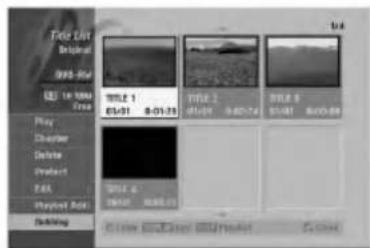
text_image
Time Unit Original 00:00:00 1st Time Play Charter Delete Project Edit Playset Back Locking TIME 1 05:01 0:01:35 TIME 2 05:01 0:01:34 TIME 3 05:01 0:01:33 TIME 4 05:01 0:01:32 Time 5 05:01 0:01:31 Close Close Close- Use ▲ / ▼ to select [Dubbing] option then press ENTER. Dubbing menu appears.
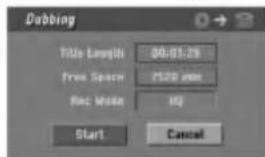
text_image
Dubbing Title Lengths 00:01:25 Free Space 7520 mm Arc Mode 16J Start Cancel- Use ◀ / ▶ to select record mode (HQ, SQ, LQ, EQ, or Fast), then press ▼. 'Start' icon is highlighted. Fast: Only available when copying VR mode disc to HDD. (See page 51 for more information on Fast copying.)
- When [Start] icon is highlighted, press ENTER. Dubbing starts.
- To stop dubbing at any other time, press STOP (■).
Notes:
- Depending on the conditions of the recording equipment or the disc itself, the dubbing may not be capable.
- Stopping dubbing in [Fast] mode partway through will cancel the recording and any data recorded up to that point will be lost.
- The recording time of [Fast] mode can take up to 19 minutes.
One Touch Copy (HDD to DVD)
The One Touch Copy feature copies the currently playing title from the HDD to DVD. The whole title is copied, regardless of where in the title you start copying. The recorder copies at the maximum speed possible.
For One Touch Copy to work, make sure that a recordable DVD disc is loaded.
During HDD playback, press DUBBING to copy the current title to DVD.
The on-screen display indicates that the title is being copied. Playback continues while copying.
- You cannot use the One Touch Copy function to copy a title if any part of the title is copy-once protected.

text_image
→ 0 11%One Touch Copy (DVD to HDD)
One Touch Copy from DVD to HDD copies a single title to the HDD in real time. When you start copying, playback jumps back to the start of the title, then continues through to the end of the title, when recording automatically stops. The copy will be made in the recording mode (HQ, SQ, LQ, EQ) that is currently set.
During DVD playback, press DUBBING to copy the current title to HDD.
Playback starts again from the beginning of the current title. The on-screen display indicates that the title is being copied.

text_image
0 → 16%Notes:
• Video CD cannot be copied to HDD.
- The copying stops when then recorder detects a badly scratched or copy protected part.
- If some part of the title being copied is copy-protected, copying will start, but the copy-protected portions will not be copied.
- During Playlist title's playback, One Touch Copy is not available.
Tip:
To stop dubbing at any other time, press STOP (■).
Reference
Additional Information
Overwriting Recording +RW
To overwrite a new video recording on a previously recorded title, follow these steps. This feature is not available for DVD+Rs, that always record at the end of the Disc.
- Select input source you want to record (TV channel, AV1-2, DV).
- Press MENU/LIST to display the Title List menu.
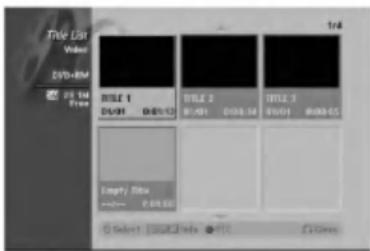
text_image
Title List Video DVD-ROM PS 16 Free TITLE 1 05/01 04/01/22 TITLE 2 01/01 D00:54 TITLE 3 05/01 D00:55 Empty Time 0:00:00 Select Select Info Print C:\Users- Use ▲▼◀▶ to choose a title you want to overwrite.
- Press REC (●) to start overwrite recording. Overwrite recording starts from the start point of the title.
- Press STOP (■) to stop the overwrite recording. The new title is created and updated menu is displayed.
Notes:
- This function is not available for a protected title.
- If the overwrite is longer than the recording length of the current title, the next title is overwritten. But if next title is protected, the overwriting stops at the starting point of the title.
- If the selected title's recording length is less than 10 seconds, the next title is overwritten. But if the next title is protected, overwriting stops.
Viewing Title List menu displayed on other DVD Recorders or Players
+RW +R
You can view the Title List menu displayed on the other DVD player that is capable of playing DVD+RW or DVD+R discs.
-
Insert DVD+R or DVD+RW disc recorded already.
-
Press TITLE in Play mode. Title List menu will appear as shown below.
Tip
You can remove the Title List menu by pressing STOP (■).
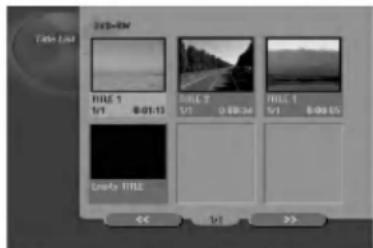
text_image
Table List TITLE TITLE 1 1/1 0:01:13 TITLE 2 1/1 0:00:34 TITLE 3 1/1 0:00:05 Create TITLE << 1/1 >>- To play back a title, select the title you want then press ENTER or ▶ (PLAY).
Playing Your Recordings on Other DVD Players (Finalizing a Disc)
Most regular DVD players can play finalized discs recorded in Video mode, finalized DVD+R or DVD+RWs. A small number of players can also play DVD-RW discs recorded in VR mode, finalized or not. Check the manual that came with the other player to check what formats of discs it will play.
Finalizing 'fixes' the recordings and editings in place so that the disc can be played on a regular DVD player or computer equipped with a suitable DVD-ROM drive.
Finalizing a Video mode disc creates a menu screen for navigating the disc. The menu can be accessed by pressing MENU/LIST or TITLE.
To finalize a disc, refer to "Finalize" on page 23.
Notes:
- Unfinalized DVD+RW is playable on regular DVD players.
- The edited contents of a DVD+RW disc is compatible on regular DVD players only after finalization.
- Any edited contents of the DVD+R disc are not compatible on regular DVD players. (Hide, chapter combine, added chapter mark, etc.)
- How long finalization takes depends on the type of disc, how much is recorded on the disc, and the number of titles on the disc.
- DVD+R DL disc can take up to 30 minutes to finalize.
Language Codes
Use this list to input your desired language for the following initial settings:
Disc Audio, Disc Subtitle, Disc Menu.
| Language | Code | Language | Code | Language | Code | Language | Code |
| Abkhazian | 6566 | Fiji | 7074 | Lingala | 7678 | Singhalese | 8373 |
| Afar | 6565 | Finnish | 7073 | Lithuanian | 7684 | Slovak | 8375 |
| Afrikaans | 6570 | French | 7082 | Macedonian | 7775 | Slovenian | 8376 |
| Albanian | 8381 | Frisian | 7089 | Malagasy | 7771 | Somali | 8379 |
| Ameharic | 6577 | Galician | 7176 | Malay | 7783 | Spanish | 6983 |
| Arabic | 6582 | Georgian | 7565 | Malayalam | 7776 | Sudanese | 8385 |
| Armenian | 7289 | German | 6869 | Maltese | 7784 | Swahili | 8387 |
| Assamese | 6583 | Greek | 6976 | Maori | 7773 | Swedish | 8386 |
| Aymara | 6588 | Greenlandic | 7576 | Marathi | 7782 | Tagalog | 8476 |
| Azerbaijani | 6590 | Guarani | 7178 | Moldavian | 7779 | Tajik | 8471 |
| Bashkir | 6665 | Gujarati | 7185 | Mongolian | 7778 | Tamil | 8465 |
| Basque | 6985 | Hausa | 7265 | Nauru | 7865 | Tatar | 8484 |
| Bengali; Bangla | 6678 | Hebrew | 7387 | Nepali | 7869 | Telugu | 8469 |
| Bhutani | 6890 | Hindi | 7273 | Norwegian | 7879 | Thai | 8472 |
| Bihari | 6672 | Hungarian | 7285 | Oriya | 7982 | Tibetan | 6679 |
| Breton | 6682 | Icelandic | 7383 | Panjabi | 8065 | Tigrinya | 8473 |
| Bulgarian | 6671 | Indonesian | 7378 | Pashto, Pushto | 8083 | Tonga | 8479 |
| Burmese | 7789 | Interlingua | 7365 | Persian | 7065 | Turkish | 8482 |
| Byelorussian | 6669 | Irish | 7165 | Polish | 8076 | Turkmen | 8475 |
| Cambodian | 7577 | Italian | 7384 | Portuguese | 8084 | Twi | 8487 |
| Catalan | 6765 | Japanese | 7465 | Quechua | 8185 | Ukrainian | 8575 |
| Chinese | 9072 | Javanese | 7487 | Rhaeto-Romance | 8277 | Urdu | 8582 |
| Corsican | 6779 | Kannada | 7578 | Rumanian | 8279 | Uzbek | 8590 |
| Croatian | 7282 | Kashmiri | 7583 | Russian | 8285 | Vietnamese | 8673 |
| Czech | 6783 | Kazakh | 7575 | Samoan | 8377 | Volapük | 8679 |
| Danish | 6865 | Kirghiz | 7589 | Sanskrit | 8365 | Welsh | 6789 |
| Dutch | 7876 | Korean | 7579 | Scots Gaelic | 7168 | Wolof | 8779 |
| English | 6978 | Kurdish | 7585 | Serbian | 8382 | Xhosa | 8872 |
| Esperanto | 6979 | Laothian | 7679 | Serbo-Croatian | 8372 | Yiddish | 7473 |
| Estonian | 6984 | Latin | 7665 | Shona | 8378 | Yoruba | 8979 |
| Faroese | 7079 | Latvian, Lettish | 7686 | Sindhi | 8368 | Zulu | 9085 |
Area Codes
Choose an area code from this list.
| Area | Code | Area | Code | Area | Code | Area | Code |
| Afghanistan | AF | Ethiopia | ET | Malaysia | MY | Saudi Arabia | SA |
| Argentina | AR | Fiji | FJ | Maldives | MV | Senegal | SN |
| Australia | AU | Finland | FI | Mexico | MX | Singapore | SG |
| Austria | AT | France | FR | Monaco | MC | Slovak Republic | SK |
| Belgium | BE | Germany | DE | Mongolia | MN | Slovenia | SI |
| Bhutan | BT | Great Britain | GB | Morocco | MA | South Africa | ZA |
| Bolivia | BO | Greece | GR | Nepal | NP | South Korea | KR |
| Brazil | BR | Greenland | GL | Netherlands | NL | Spain | ES |
| Cambodia | KH | Islands | HM | Netherlands Antilles | AN | Sri Lanka | LK |
| Canada | CA | Hungary | HU | New Zealand | NZ | Sweden | SE |
| Chile | CL | India | IN | Nigeria | NG | Switzerland | CH |
| China | CN | Indonesia | ID | Norway | NO | Thailand | TH |
| Colombia | CO | Israel | IL | Oman | OM | Turkey | TR |
| Congo | CG | Italy | IT | Pakistan | PK | Uganda | UG |
| Costa Rica | CR | Jamaica | JM | Panama | PA | Ukraine | UA |
| Croatia | HR | Japan | JP | Paraguay | PY | United States | US |
| Czech Republic | CZ | Kenya | KE | Philippines | PH | Uruguay | UY |
| Denmark | DK | Kuwait | KW | Poland | PL | Uzbekistan | UZ |
| Ecuador | EC | Libya | LY | Portugal | PT | Vietnam | VN |
| Egypt | EG | Luxembourg | LU | Romania | RO | Zimbabwe | ZW |
| El Salvador | SV | Russian Federation | RU |
Controlling Your TV with the Supplied Remote Control
You can control the sound level, input source, and power switch of your LG TV with the supplied remote.
You can control your TV using the buttons below.
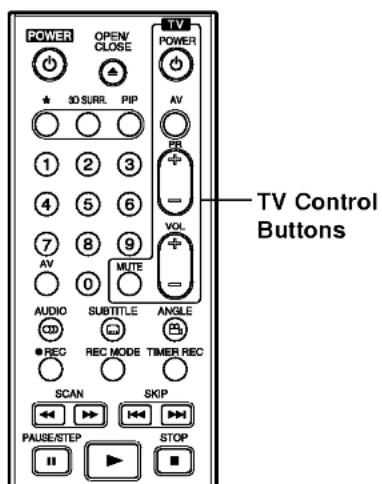
text_image
POWER OPEN/ CLOSE 3D SURR. PIP AV FR 1 2 3 4 5 6 7 8 9 AV 0 MUTE AUDIO SUBTITLE ANGLE ● REC REC MODE TIMER REC SCAN SKIP PAUSE/STEP STOP TV Control Buttons| By pressing | You can |
| POWER | Turn the TV on or off. |
| AV | Switch the TV's input source between the TV and other input sources. |
| PR +/- | Scans up or down through memorized channels. |
| VOL +/- | Adjust the volume of the TV. |
| MUTE | Temporarily turns TV sound OFF, press again to restore. |
Controlling other TVs with the remote
You can control the sound level, input source, and power switch of non-LG TVs as well. If your TV is listed in the table below, set the appropriate manufacturer code.
-
While holding down TV POWER button, press the number buttons to select the manufacturer code for your TV (see the table below).
-
Release TV POWER button.
Code numbers of controllable TVs
If more than one code number is listed, try entering them one at a time until you find the one that works with your TV.
| Manufacturer | Code Number |
| LG / GoldStar | 1 (Default), 2 |
| Zenith | 1, 3, 4 |
| Samsung | 6, 7 |
| Sony | 8, 9 |
| Hitachi | 4 |
Notes:
- Depending on your TV, some or all buttons may not function on the TV, even after entering the correct manufacturer code.
- If you enter a new code number, the code number previously entered will be erased.
- When you replace the batteries of the remote, the code number you have set may be reset to the default setting. Set the appropriate code number again.
Troubleshooting
Check the following guide for the possible cause of a problem before contacting service.
| Symptom | Cause | Solution |
| No power. | The power cord is disconnected. | Plug the power cord into the wall outlet securely. |
| No picture. | The TV is not set to receive recorder signal output. | Select the appropriate video input mode on the TV so the picture from the recorder appears on the TV screen. |
| The video cable is not connected securely. | Connect the video cable securely. | |
| The connected TV power is turned off. | Turn on the TV. | |
| No sound. | The equipment connected with the audio cable is not set to receive recorder signal output. | Select the correct input mode on the audio receiver so you can listen to the sound from the recorder. |
| The audio cables are not connected securely. | Connect the audio cable securely. | |
| The power of the equipment connected with the audio cable is turned off. | Turn on the equipment connected with the audio cable. | |
| The audio connecting cord is damaged. | Replace it with new one. | |
| The playback picture is poor. | The disc is dirty. | Clean the disc. |
| The recorder does not start playback. | No disc is inserted. | Insert a disc. (Check that the disc indicator in the display window is lit.) |
| An unplayable disc is inserted. | Insert a playable disc. (Check the disc type, color system, and regional code.) | |
| The disc is placed upside down. | Place the disc with the playback side down. | |
| The disc is not placed within the guide. | Place the disc on the disc tray correctly inside the guide. | |
| The disc is dirty. | Clean the disc. | |
| The Rating level is set. | Cancel the Rating function or change the rating level. | |
| The picture from the external input is distorted | The video signal from the external component is copy-protected. | You cannot connect via this recorder. Connect the component directly to your TV. |
| Some channels are skipped over when using ▲ / ▼. | Those channels are not stored in the recorder. | Restore channels. See “Program Edit” on page 16. |
| The picture or sound of broadcasting channel is weak or missing. | Aerial or cables are loose. | Tighten connections or replace cable. |
| Camcorder image is not shown. | Camcorder is off. | Turn camcorder on and operate properly. |
| Camcorder image via A/V input or DV IN to recorder is not shown on TV screen. | The recorder's source is incorrect. | Use AV to select input channel (AV1, AV2, DV, etc.) |
| Cannot play a disc recorded using this recorder on another player. | The disc was recorded in Video mode. | Finalize the disc. (page 23) |
| Some players will not play even a finalized disc recorded in Video mode. | No solution. | |
| The disc was recorded in VR mode, | The other player must be RW compatible in order to play it. | |
| Discs recorded with copy-once material cannot be played on other players. | No solution. | |
| Cannot record or did not record successfully. | The remaining blank space on the disc is insufficient. | Use another disc. |
| The source you are trying to record is copy protected. | You cannot record the source. | |
| When setting the recording channel, the channel is tuned on the TV's own tuner. | Select the channel on the recorder's built-in TV tuner. | |
| When recording to a Video mode disc, programs that are copy-once protected cannot be recorded. | Use a VR mode formatted disc for copy-once material. | |
| Timer recording is not possible. | Clock in recorder is not set to correct time. | Set clock to correct time. See "Clock Set" on page 17. |
| Timer has been programmed incorrectly. | Reprogram Timer. See "Timer Recording" on page 41. | |
| Timer record indicator light does not appear after programming timer. | Reprogram Timer. | |
| Stereo Audio Record and/or Playback is not present. | TV is not Stereo-compatible. | No solution. |
| Broadcast program is not in stereo format. | No solution. | |
| The recorder A/V Out jacks are not connected to TV A/V In jacks. | Make A/V connections. Stereo is available only via A/V output from the recorder. | |
| The recorder Audio/Video Out is not selected for viewing at the TV. | Select AUX or A/V source as TV input. | |
| The recorder's TV audio channel is set to mono. | Set TV audio channel mode to Stereo. See "Changing TV audio channel" on page 40. | |
| The remote control does not work properly. | The remote control is not pointed at the remote sensor of the recorder. | Point the remote control at the remote sensor of the recorder. |
| The remote control is too far from the recorder. | Operate the remote control within 7 m. | |
| There is an obstacle in the path of the remote control and the recorder. | Remove the obstacle. | |
| The batteries in the remote control are exhausted. | Replace the batteries with new ones. |
Resetting the recorder
If you observe any of the following symptoms...
- The unit is plugged in, but the power will not turn on or off.
- The front panel display is not working.
- The recorder is not operating normally.
...you can reset the recorder as follows:
- Press and hold the POWER button for at least five seconds. This will force the unit to power off then turn the unit back on.
- Unplug the power cord, wait at least five seconds, and then plug it in again.
Specifications
General
| Power requirements | AC 110-240V, 50/60 Hz |
| Power consumption | 45W |
| Dimensions (approx.) | 430 X 49 X 350 mm (w x h x d) without foot |
| Mass (approx.) | 4.6 kg |
| Operating temperature | 5°C to 35°C |
| Operating humidity | 5 % to 90 % |
| Television system | PAL I, B/G, I/I, SECAM D/K, K1 colour system |
| Recording format | PAL |
Recording
| Recording format | DVD Video Recording, DVD-VIDEO |
| Recordable media | HDD (160GB), DVD-ReWritable, DVD-Recordable, DVD+ReWritable,DVD+Recordable, DVD+Recordable (Double Layer) |
| Recordable time | DVD (4.7GB): Approx. 1 hour (HQ mode), 2 hours (SQ mode),4 hours (LQ mode), 6 hours (EQ mode)DVD+R DL (8.5GB): Approx. 3 hour (HQ mode),3 hours 40 minutes (SQ mode), 7 hours 10 minutes (LQ mode),10 hours 30 minutes (EQ mode)HDD (160GB): Approx. 42 hours (HQ mode), 82 hours (SQ mode),152 hours (LQ mode), 226 hours (EQ mode) |
| Video recording format | |
| Sampling frequency | 27MHz |
| Compression format | MPEG 2 (VBR support) |
| Audio recording format | |
| Sampling frequency | 48kHz |
| Compression format | Dolby Digital (2 channel) |
Playback
| Frequency response | DVD (PCM 48 kHz): 8 Hz to 20 kHz, CD: 8 Hz to 20 kHz |
| DVD (PCM 96 kHz): 8 Hz to 44 kHz | |
| Signal-to-noise ratio | More than 100 dB (AUDIO OUT connector) |
| Harmonic distortion | Less than 0.008% (AUDIO OUT connector) |
| Dynamic range | More than 95 dB (AUDIO OUT connector) |
Inputs
| AERIAL IN | Aerial input, 75 ohms |
| VIDEO IN | 1.0 Vp-p 75 ohms, sync negative, RCA jack x 2 |
| AUDIO IN | 0 dBm more than 47 Kohms, RCA jack (L, R) x 2 |
| DV IN | 4 pin (IEEE 1394 standard) |
Outputs
| VIDEO OUT | 1 Vp-p 75 Ω, sync negative, RCA jack x 1 |
| S-VIDEO OUT | (Y) 1.0 V (p-p), 75 Ω, negative sync, Mini DIN 4-pin x 1(C) 0.3 V (p-p) 75 Ω |
| COMPONENT VIDEO OUT | (Y) 1.0 V (p-p), 75 Ω, negative sync, RCA jack x 1(Pb)/(Pr) 0.7 V (p-p), 75 Ω, RCA jack x 2 |
| Audio output (digital audio) | 0.5 V (p-p), 75 Ω, RCA jack x 1 |
| Audio output (optical audio) | 3 V (p-p), 75 Ω, Optical connector x 1 |
| Audio output (analog audio) | 2.0 Vrms (1 KHz, 0 dB), 600 Ω, RCA jack (L, R) x 1 |
Accessory:
| Video cable | 1 | Audio cable (L, R) | 1 |
| RF Coaxial Cable | 1 | Remote control | 1 |
| Batteries | 2 |
- Design and specifications are subject to change without notice.

LG Electronics Inc.