
UCCDS30H - Computing Black Box - Free user manual and instructions
Find the device manual for free UCCDS30H Black Box in PDF.


| Product Type | Universal Computing Cart (Double Cart) with Solid Steel Door |
| Brand | Black Box |
| Model | UCCDS30H |
| Device Capacity | 30 devices |
| Slot Dimensions (H x W x D) | 13 in x 1.3 in x 10 in (33 cm x 3.5 cm x 25.4 cm) |
| External Dimensions (H x W x D) | 44.3 in x 54.4 in x 24.8 in (112.4 cm x 138.2 cm x 63 cm) |
| Weight | 191 lb (86.6 kg) |
| Power Supply | 120 V AC, 15-20 A, 60 Hz |
| Power Strips | Three 12-outlet power strips (15 A max each) |
| Timer | One 4-outlet timer with always-on outlet; 15-minute intervals |
| Mobility | Four casters: two locking swivel, two fixed |
| Locking | Solid steel door with key lock; two sets of keys included |
| Handle | Removable handle with cord wrap; user-installed |
| Supported Devices | Tablets, notebooks, laptops, e-readers, netbooks |
| Safety Features | Ground prong required; no extension cords; adult supervision needed; power switch must be off before plugging |
| Warranty | Warranty voided by misuse, incorrect operation, or inadequate repair |
| Spare Parts / Repairability | Power strips, timer, casters, keys; contact Black Box for replacements |
| Cleaning | Wipe with dry cloth; do not use liquids |
Frequently Asked Questions - UCCDS30H Black Box
User questions about UCCDS30H Black Box
0 question about this device. Answer the ones you know or ask your own.
Ask a new question about this device
Download the instructions for your Computing in PDF format for free! Find your manual UCCDS30H - Black Box and take your electronic device back in hand. On this page are published all the documents necessary for the use of your device. UCCDS30H by Black Box.
USER MANUAL UCCDS30H Black Box
Universal Computing Carts (UCC) Double Cart
Mobile, secure, and powered storage for up to 18, 20, 27, 30, 36, or 40 computing devices.
The perfect storage solution for tablets, notebooks, and laptops.

natural_image
Exterior view of a beige industrial machine with two doors, wheels, and ventilation slots (no visible text or symbols)FEDERAL COMMUNICATIONS COMMISSION AND INDUSTRY CANADA RADIO FREQUENCY INTERFERENCE STATEMENTS
This equipment generates, uses, and can radiate radio-frequency energy, and if not installed and used properly, that is, in strict accordance with the manufacturer's instructions, may cause interference to radio communication. It has been tested and found to comply with the limits for a Class A computing device in accordance with the specifications in Subpart B of Part 15 of FCC rules, which are designed to provide reasonable protection against such interference when the equipment is operated in a commercial environment. Operation of this equipment in a residential area is likely to cause interference, in which case the user at his own expense will be required to take whatever measures may be necessary to correct the interference.
Changes or modifications not expressly approved by the party responsible for compliance could void the user's authority to operate the equipment.
This digital apparatus does not exceed the Class A limits for radio noise emission from digital apparatus set out in the Radio Interference Regulation of Industry Canada.
Black Box and the Double Diamond logo are registered trademarks of BB Technologies, Inc.
Any other trademarks mentioned in this manual are acknowledged to be the property of the trademark owners.
Table of Contents
- Specifications .... 7
-
Overview.... 11
2.1 Introduction.... 11
2.2 What's Included 11
2.3 Hardware Description 12 -
Electrical Precautions ...... 13
3.1 Other Precautions ...... 13
- Configuration and Setup 14
4.1 Installing the Handle 14
4.2 Routing the Cable 15
4.3 Fastening the Power Bricks and Routing the Cable 16
- Using Your Universal Computing Cart.... 18
5.1 Charging Your Computers 18
5.2 Moving Your Universal Computing Cart 18
5.3 Timer Instructions 20
1. Specifications
Table 1-1. Cart Specifications
| Part Number UCCDS20T, UCCDS20H | UCCDS30T, UCCDS30H | UCCDS40T, UCCDS40H | |
| Slot Dimensions | |||
| Height (in.) 13" | 13" 13" | ||
| Height (cm) 33 | cm 33 cm 33 | cm | |
| Width (in.) 1.3" | 1.3" 1.3" | ||
| Width (cm) 3.5 | cm 3.5 cm | 3.5 cm | |
| Depth (in.) | 10" | 10" | 10" |
| Depth (cm) | 25.4 | 25.4 cm | 25.4 cm |
| Device Capacity | |||
| Number of Devices | 20 30 | 40 | |
| External Dimensions (Including Handle)* | |||
| Height (in.) | 44.3" | 44.3" | 44.3" |
| Height (cm) | 112.4 cm | 112.4 cm | 112.4 cm |
| Width (in.) | 54.4" | 54.4" | 54.4" |
| Width (cm) 138.2 cm 138.2 cm | 138.2 cm | ||
| Depth (in.) | 24.8" | 24.8" | 24.8" |
| Depth (cm) 63 | cm 63 cm 63 cm | ||
| Weight (Cart with Tambour Door) | |||
| UCCDS20T | UCCDS30T | UCCDS40T | |
| Weight (lb.) | 164 lb. | 176 lb. | 188 lb. |
| Weight (kg) | 74.4 kg | 79.8 kg | 85.3 kg |
| Weight (Cart with Solid Steel Door) | |||
| UCCDS20H | UCCDS30H | UCCDS40H | |
| Weight (lb.) | 179 lb. | 191 lb. | 203 lb. |
| Weight (kg) | 81.2 kg | 86.6 kg | 92.1 kg |
*External dimensions are the same for all double cart models.
Table 1-1 (continued). Cart Specifications
| Part Number | UCCDM18T, UCCDM18H | UCCDM27T, UCCDM27H | UCCDM36T, UCCDM36H |
| Slot Dimensions | |||
| Height (in.) 13" | 13" 13" | ||
| Height (cm) 33 | cm 33 cm 33 cm | ||
| Width (in.) 1.5" | 1.5" 1.5" | ||
| Width (cm) 3.9 | cm 3.9 cm | 3.9 cm | |
| Depth (in.) | 15" | 15" | 15" |
| Depth (cm) 38 | 1 cm 38 | 1 cm 38 | 1 cm |
| Device Capacity | |||
| Number of Devices | 18 | 27 | 36 |
| External Dimensions (Including Handle)* | |||
| Height (in.) | 44.3" | 44.3" | 44.3" |
| Height (cm) | 112.4 cm | 112.4 cm | 112.4 cm |
| Width (in.) | 54.4" | 54.4" | 54.4" |
| Width (cm) 138.2 cm 138.2 cm 138.2 cm | |||
| Depth (in.) | 24.8" | 24.8" | 24.8" |
| Depth (cm) 63 | cm 63 cm 63 cm | ||
| Weight (Cart with Tambour Door) | |||
| UCCDM18T | UCCDM27T | UCCDM36T | |
| Weight (lb.) | 170 lb. | 185 lb. | 200 lb. |
| Weight (kg) | 77.1 kg | 83.9 kg | 90.7 kg |
| Weight (Cart with Solid Steel Door) | |||
| UCCDM18H | UCCDM27H | UCCDM36H | |
| Weight (lb.) | 185 lb. 200 lb. | 215 lb. | |
| Weight (kg) | 83.9 kg | 90.7 kg | 97.5 kg |
*External dimensions are the same for all double cart models.
Table 1-1 (continued). Cart Specifications
| Part Number UCCDL18T, UCCDL18H | UCCDL27T, UCCDL27H | UCCDL36T, UCCDL36H | ||
| Slot Dimensions | ||||
| Height (in.) 13" | 13" 13" | |||
| Height (cm) 33 | cm 33 cm 33 cm | |||
| Width (in.) 1.5" | 1.5" 1.5" | |||
| Width (cm) 3.9 | cm 3.9 | cm | 3.9 | cm |
| Depth (in.) 17" | 17" 17" | |||
| Depth (cm) 43.2 | cm 43.2 | cm | 43.2 | cm |
| Device Capacity | ||||
| Number of Devices | 18 | 27 | 36 | |
| External Dimensions (Including Handle)* | ||||
| Height (in.) | 44.3" | 44.3" | 44.3" | |
| Height (cm) | 112.4 cm | 112.4 cm | 112.4 cm | |
| Width (in.) | 54.4" | 54.4" | 54.4" | |
| Width (cm) 138.2 | cm 138.2 | cm | 138.2 | cm |
| Depth (in.) | 24.8" | 24.8" | 24.8" | |
| Depth (cm) 63 | cm 63 cm 63 cm | |||
| Weight (Cart with Tambour Door) | ||||
| UCCDL18T | UCCDM27T | UCCDL36T | ||
| Weight (lb.) | 176 lb. | 194 lb. | 212 lb. | |
| Weight (kg) | 79.8 kg | 88 | 96.2 kg | |
| Weight (Cart with Solid Steel Door) | ||||
| UCCDL18H | UCCDM27H | UCCDL36H | ||
| Weight (lb.) | 191 lb. | 209 lb. | 227 lb. | |
| Weight (kg) | 86.6 kg | 94.8 kg | 103 kg | |
*External dimensions are the same for all double cart models.
Table 1-2. Power Strip Specifications
| Part Number Timer | er Included Power Strips | |
| UCCDS20T, UCCDS20H | (1) 4-outlet, 4-bank timer with “always-on outlet,” 15-minute increments, 100–125 V, 50–60 Hz, 15 amp max. | (2) 12-outlet, 15 A max. |
| UCCDS30T, UCCDS30H | (3) 12-outlet, 15 A max. | |
| UCCDS40T, UCCDS40H | (4) 12-outlet, 15 A max. | |
| UCCDM18T, UCCDM18H | (2) 12-outlet, 15 A max. | |
| UCCDM27T, UCCDM27H | (3) 12-outlet, 15 A max. | |
| UCCDM36T, UCCDM36H | (3) 12-outlet, 15 A max. | |
| UCCDL18T, UCCDL18H | (2) 12-outlet, 15 A max. | |
| UCCDL27T, UCCDL27H | (3) 12-outlet, 15 A max. | |
| UCCDL36T, UCCDL36H | (3) 12-outlet, 15 A max. |
Table 1-3. Accessories Specifications
| Part Number Accessory Specs | ||
| UCCSHELFS Small | device shelf Number of Slots: 10;Slot Dimensions: 1.32"W x 10"D | |
| UCCSHELFM Medium | device shelf Number of Slots: 9;Slot Dimensions: 1.52"W x 15"D | |
| UCCSHELFL Large | device shelf Number of Slots: 9;Slot Dimensions: 1.52"W x 17"D | |
| UCCSHELF Storage | shelf Height: 2U | |
| UCC-PPM | Pop-up power module | Recesses into top laminate of cart, 2-outlet, 110–125 V |
2. Overview
2.1 Introduction
The Universal Computing Cart (UCC) is designed to store, charge, and transport tablets, e-readers, laptops, netbooks, and other similar devices. Units are available with capacities for 18, 20, 27, 30, 36, or 40 separate storage slots. Each unit plugs into a typical 120-volt 15-amp outlet. Carts are available with tambour or solid-steel doors.
Please read these operating instructions carefully. They contain important advice concerning the use and safety of your cart. This Universal Computing Cart must only be used for its intended purpose in accordance with these operating instructions.
2.2 What's Included
- Universal Computing Cart with 18-, 20-, 27-, 30-, 36-, or 40-device capacity; assembled
• (4) casters (installed), including: (2) locking swivel casters and (2) non-locking fixed casters
• (1) 4-outlet timer (4-bank) (installed) - Power Strips (installed): See the power strips specifications in Table 1-2 on the previous page.
- Cart handle with mounting hardware (to be installed by user)
• (1) user's manual
• (2) sets of keys
2.3 Hardware Description

Figure 2-1. Front and back of cart with tambour door.
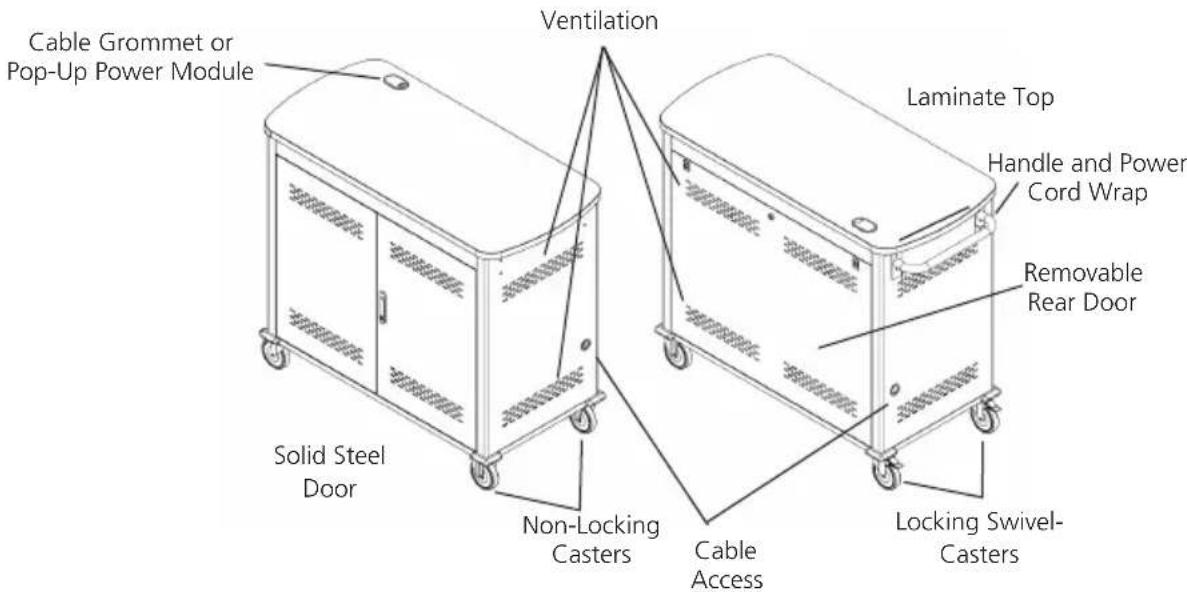
Figure 2-2. Front and back of cart with solid steel door.
3. Electrical Precautions
- The power switch must be in the "OFF" position before plugging the UCC into a wall receptacle.
- The UCC must ONLY be connected to a 120-volt AC 15- or 20-amp power supply.
- The UCC must only be used by adults or with adult supervision.
• Always store the power cord around the cord wraps when transporting the UCC. - Never pull the UCC by the power cord.
- Do not plug the UCC in if the switch, receptacle(s), or power cord has been damaged. All electrical components on this product must be repaired by a qualified electrician.
- Do not use an extension cord in conjunction with the UCC.
- Do not use liquids in or around the UCC environment.
- Inadequate repair can create significant hazards to users and is not covered by warranty.
- For your safety, we recommend that a qualified electrician test the circuit you will be plugging the UCC into. The circuit should be checked for ground integrity and appropriate branch circuit protection.
- The UCC ground prong must be present for safe operation. If the plug is damaged or if the ground prong has been removed, it should be replaced by a qualified electrician.
- The use of the UCC, including plugging or unplugging laptops, plugging or unplugging the UCC, operating the control switch, and engaging or releasing the directional and locked casters, must be done with adult supervision.
3.1 Other Precautions
- The UCC can be very heavy when fully loaded with laptops and should be moved about by persons physically able to do so.
- The UCC should only be used for the storage and transport of tablets, laptops, and other similar devices.
- Misuse, incorrect operation, or inadequate repair of the UCC will void the warranty.
4. Configuration and Setup
Remove and discard all packaging materials and then lock the lockable casters.
Open and inspect the UCC to verify all doors, locks, and casters are working properly.
Do not plug the UCC into a wall outlet until all configurations and setup are complete.
4.1 Installing the Handle
The handle/cord wrap installs on the side of the cart with the locking swivel casters.
NOTE: The casters swivel on one side of the UCC and are fixed on the other. Consider maneuverability options before installing the handle.
Step 1: Locate the side of the cart with the locking swivel casters.
Step 2. Place the handle so that the holes in the brackets are aligned with the threaded holes in the side panels.
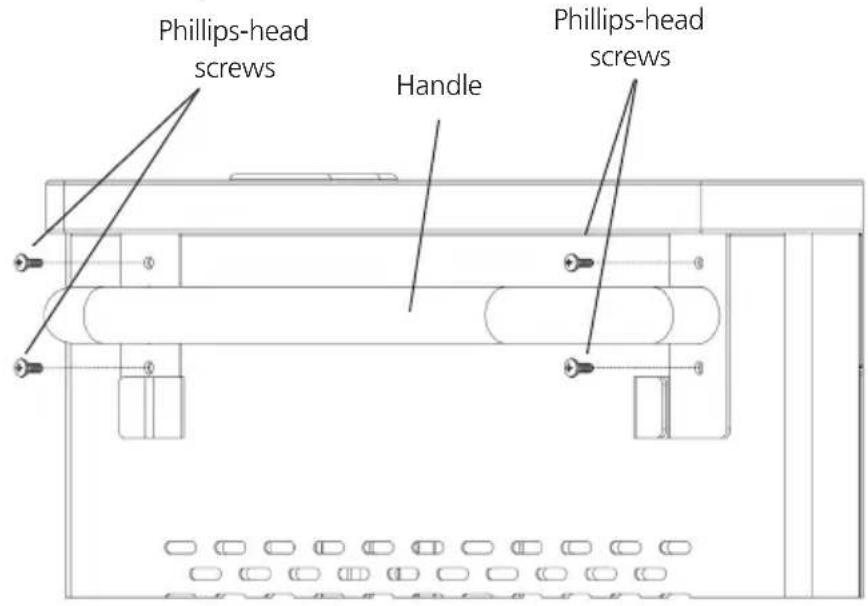
Figure 4-1. Handle assembly.
Step 3. Using a Phillips-head screwdriver, tighten four of the Phillips-head screws into the threaded holes.
- At the back of the cart, loosen the two screws on the cable manager, pull up on the top section of the cable manager, and place the device side of the charging cable into one of the slots. (See Figure 4-2.)

Figure 4-2. Small shelf routing instructions.
- Replace the top section of the cable manager and tighten the screws.
- Route the device side of the charging cable to the front of the cart and repeat step 1 for the front cable manager.
- Wrap any excess cable around the cable wrap on the back of the shelf.
- Plug the charger power plug into the power strip located below the shelf.
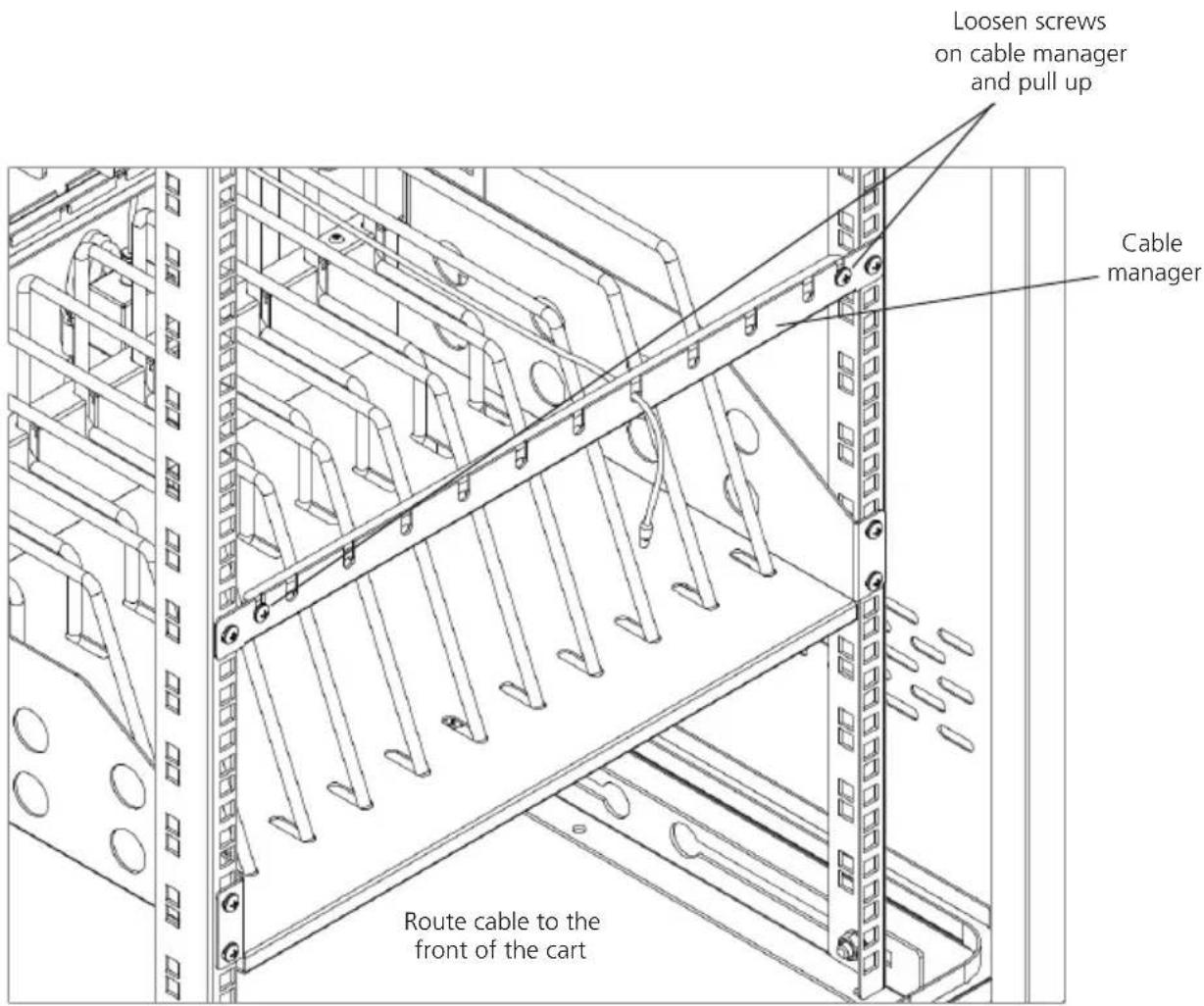
Figure 4-3. Routing the cable.
4.3 Fastening the Power Bricks and Routing the Cable (UCCDM18T, UCCDM18H, UCCDM27T, UCCDM27H, UCCDM36T, UCCDM36H, UCCDL18T, UCCDL18H, UCCDL27T, UCCDL27H, UCCDL36T, UCCDL36H)
- Attach the wrapped cord and power brick to the back of the shelf using the hook and loop strap. Keep some extra cable unwrapped to plug into the power strip. (See Figure 4-4.)
- Loosen the two screws on the cable manager, pull up on the top section of the cable manager, and place the device side of the charging cable into one of the slots.
- Replace the top section of the cable manager and tighten the screws.
- Route the device side of the charging cable to the front of the cart and repeat step 2 for the front cable manager (see Figure 4-3).
- Plug the charger power plug into the power strip located below the shelf.

Figure 4-4. Fastening the power brick and routing the cable.
5. Using Your Universal Computing Cart
5.1 Charging Your Computers
- After the devices have been loaded into the UCC, plug the power cord of the UCC into a suitable receptacle.
- Locate the internal power switches on the timer and power strips of the UCC and push the switches to the ON position.
5.2 Moving Your Universal Computing Cart
- Turn the timer power switch to the off position.
- Remove the UCC plug from the wall receptacle and wrap the cord around the cord wrap or handle.
- Close and secure tambour or solid-steel doors.
- Your UCC comes equipped with two fixed casters and two locking swivel casters. Unlock the casters before moving the UCC to a new location.
- When you reach your desired destination, lock the casters to prevent the cart from moving and plug the UCC into a wall receptacle.

Figure 5-1. Plug the cart into the wall.
5.3 Timer Instructions
Before using your timer:
- For your safety, we recommend that a qualified electrician test the circuit you will plug the cart into. The circuit should be checked for ground integrity and appropriate branch circuit protection.
- The cart's ground prong must be present for safe operation. If the plug is damaged or if the ground prong has been removed, it should be replaced by a qualified electrician.
- Using the cart, including plugging it in or unplugging it, plugging in or unplugging the laptop(s) or other electrical equipment, or operating the control switch must be done with adult supervision.
The timer comes preset from the factory to alternate power between the power strips at 15-minute intervals.
All power strips cannot charge simultaneously.
By plugging the cart power cord into an approved outlet and flipping the red switches located on the timer and power strips, the cart will begin charging.
To end power, turn the red switch on the timer off and unplug the cart from the wall outlet.
Black Box Tech Support: FREE! Live. 24/7.
Tech support the way it should be.

natural_image
Close-up portrait of a smiling man with short hair, hand near face (no text or symbols visible)Great tech support is just 30 seconds away at 724-746-5500 or blackbox.com.

BLACK BOX®
NETWORK SERVICES
About Black Box
Black Box Network Services is your source for an extensive range of networking and infrastructure products. You'll find everything from cabinets and racks and power and surge protection products to media converters and Ethernet switches all supported by free, live 24/7 Tech support available in 30 seconds or less.
© Copyright 2013. Black Box Corporation. All rights reserved.
UCCDM20T, version 1


- Universal Computing Carts (UCC) Double Cart
- Mobile, secure, and powered storage for up to 18, 20, 27, 30, 36, or 40 computing devices.
- FEDERAL COMMUNICATIONS COMMISSION AND INDUSTRY CANADA RADIO FREQUENCY INTERFERENCE STATEMENTS
- Table of Contents
- Specifications
- Overview
- Introduction
- What's Included
- Hardware Description
- Electrical Precautions
- Other Precautions
- Configuration and Setup
- Installing the Handle
- Using Your Universal Computing Cart
- Charging Your Computers
- Moving Your Universal Computing Cart
- Timer Instructions
- About Black Box
Brand : Black Box
Model : UCCDS30H
Category : Computing