DS-9104HFI-S - Security Camera Hikvision - Free user manual and instructions
Find the device manual for free DS-9104HFI-S Hikvision in PDF.


User questions about DS-9104HFI-S Hikvision
0 question about this device. Answer the ones you know or ask your own.
Ask a new question about this device
Download the instructions for your Security Camera in PDF format for free! Find your manual DS-9104HFI-S - Hikvision and take your electronic device back in hand. On this page are published all the documents necessary for the use of your device. DS-9104HFI-S by Hikvision.
USER MANUAL DS-9104HFI-S Hikvision
DS-9000/9100/9600 Series DVR
USER MANUAL
Version 1.3.1
Hikvision® Network Digital Video Recorder User's Manual
This manual, as well as the software described in it, is furnished under license and may be used or copied only in accordance with the terms of such license. The content of this manual is furnished for informational use only, is subject to change without notice, and should not be construed as a commitment by Hikvision Digital Technology Co., Ltd. (Hikvision). Hikvision assumes no responsibility or liability for any errors or inaccuracies that may appear in the book.
Except as permitted by such license, no part of this publication may be reproduced, stored in a retrieval system, or transmitted, in any form or by any means, electronic, mechanical, recording, or otherwise, without the prior written permission of Hikvision.
HIKVISION MAKES NO WARRANTIES, EXPRESS OR IMPLIED, INCLUDING WITHOUT LIMITATION THE IMPLIED WARRANTIES OF MERCHANTABILITY AND FITNESS FOR A PARTICULAR PURPOSE, REGARDING THE HIKVISION SOFTWARE. HIKVISION DOES NOT WARRANT, GUARANTEE, OR MAKE ANY REPRESENTATIONS REGARDING THE USE OR THE RESULTS OF THE USE OF THE HIKVISION SOFTWARE IN TERMS OF ITS CORRECTNESS, ACCURACY, RELIABILITY, CURRENTNESS, OR OTHERWISE. THE ENTIRE RISK AS TO THE RESULTS AND PERFORMANCE OF THE HIKVISION SOFTWARE IS ASSUMED BY YOU. THE EXCLUSION OF IMPLIED WARRANTIES IS NOT PERMITTED BY SOME STATES. THE ABOVE EXCLUSION MAY NOT APPLY TO YOU.
IN NO EVENT WILL HIKVISION, ITS DIRECTORS, OFFICERS, EMPLOYEES, OR AGENTS BE LIABLE TO YOU FOR ANY CONSEQUENTIAL, INCIDENTAL, OR INDIRECT DAMAGES (INCLUDING DAMAGES FOR LOSS OF BUSINESS PROFITS, BUSINESS INTERRUPTION, LOSS OF BUSINESS INFORMATION, AND THE LIKE) ARISING OUT OF THE USE OR INABILITY TO USE THE HIKVISION SOFTWARE EVEN IF HIKVISION HAS BEEN ADVISED OF THE POSSIBILITY OF SUCH DAMAGES. BECAUSE SOME STATES DO NOT ALLOW THE EXCLUSION OR LIMITATION OF LIABILITY FOR CONSEQUENTIAL OR INCIDENTAL DAMAGES, THE ABOVE LIMITATIONS MAY NOT APPLY TO YOU.
Regulatory Information
FCC Information
FCC compliance: This equipment has been tested and found to comply with the limits for a digital device, pursuant to part 15 of the FCC Rules. These limits are designed to provide reasonable protection against harmful interference when the equipment is operated in a commercial environment. This equipment generates, uses, and can radiate radio frequency energy and, if not installed and used in accordance with the instruction manual, may cause harmful interference to radio communications. Operation of this equipment in a residential area is likely to cause harmful interference in which case the user will be required to correct the interference at his own expense.
FCC Conditions
This device complies with part 15 of the FCC Rules. Operation is subject to the following two conditions:
-
This device may not cause harmful interference.
-
This device must accept any interference received, including interference that may cause undesired operation.
EU Conformity Statement

This product and - if applicable - the supplied accessories too are marked with "CE" and comply therefore with the applicable harmonized European standards listed under the Low Voltage Directive 2006/95/EC, the EMC Directive 2004/108/EC.

2002/96/EC (WEEE directive): Products marked with this symbol cannot be disposed of as unsorted municipal waste in the European Union. For proper recycling, return this product to your local supplier upon the purchase of equivalent new equipment, or dispose of it at designated collection points. For more information see: www.recyclethis.info.

2006/66/EC (battery directive): This product contains a battery that cannot be disposed of as unsorted municipal waste in the European Union. See the product documentation for specific battery information. The battery is marked with this symbol, which may include lettering to indicate cadmium (Cd), lead (Pb), or mercury (Hg). For proper recycling, return the battery to your supplier or to a designated collection point. For more information see: www.recyclethis.info.
Description on Laser Specification
The optical disc drive such as DVD Super Multi (Double Layer) Drive 22X that is used in this computer is equipped with laser. The classification label with the following sentence is affixed to the surface of the drive.
CLASS 1 LASER
PRODUCT TO IEC60825-1
LASER KLASSE 1
The drive with the above label is certified by the manufacturer that the drive complies with the requirement for laser product on the date of manufacturing pursuant to article 21 of Code of Federal Regulations by the United States of America, Department of Health & Human Services, Food and Drug Administration.
In other countries, the drive is certified to comply with the requirement pursuant to IEC 60825-1 and EN 60825-1 on class 1 laser product.
This computer is equipped with the optical disc drive in the following list according to the model.
Safety Warnings and Cautions
Please pay attention to the following warnings and cautions:

Hazardous Voltage may be present: Special measures and precautions must be taken when using this device. Some potentials (voltages) on the device may present a hazard to the user. This device should only be used by the Employees from our company with knowledge and training in working with these types of devices that contain live
circuits.
text_image
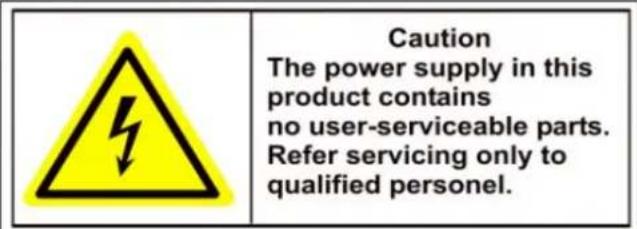
Caution The power supply in this product contains no user-serviceable parts. Refer servicing only to qualified personnel.Power Supply Hazardous Voltage: AC mains voltages are present within the power supply assembly. This device must be connected to a UL approved, completely enclosed power supply, of the proper rated voltage and current. No user serviceable parts inside the power supply.
System Grounding (Earthing): To avoid shock, ensure that all AC wiring is not exposed and that the earth grounding is maintained. Ensure that any equipment to which this device will be attached is also connected to properly wired grounded receptacles and are approved medical devices.

Power Connect and Disconnect: The AC power supply cord is the main disconnect device to mains (AC power). The socket outlet shall be installed near the equipment and shall be readily accessible.
Installation and Maintenance: Do not connect/disconnect any cables to or perform
installation/maintenance on this device during an electrical storm.
| WARNING | |
| RISK OF ELECTRIC SHOCK | |
| Do not attempt to modify or use the supplied AC power cord if it is not the exact type and rating required. |
Power Cord Requirements: The connector that plugs into the wall outlet must be a grounding-type male plug designed for use in your region. It must have certification marks showing certification by an agency in your region. The connector that plugs into the AC receptacle on the power supply must be an IEC 320, sheet C13,
female connector. See the following website for more information http://kropla.com/electric2.htm.

text_image
Yellow triangular warning sign with black lightning bolt symbol indicating electrical hazardLithium Battery: This device contains a Lithium Battery. There is a risk of explosion if the battery is replaced by an incorrect type. Dispose of used batteries according to the vendor's instructions and in accordance with local environmental regulations.
Perchlorate Material: Special handling may apply. See
www.dtsc.ca.gov/hazardouswaste/perchlorate. This notice is required by California Code of Regulations, Title 22, Division 4.5, Chapter 33: Best Management Practices for Perchlorate Materials. This device includes a battery which contains perchlorate material.
Taiwan battery recycling:

Please recycle batteries.

text_image
Yellow triangular warning sign with black exclamation mark symbolThermal and Mechanical Injury: Some components such as heat sinks, power regulators, and processors may be hot; care should be taken to avoid contact with these components.
Electro Magnetic Interference: This equipment has not been tested for compliance with emissions limits of FCC and similar international regulations. This device is not, and may not be, offered for sale or lease, or sold, or leased until authorization from the United States FCC or its equivalent in other countries has been obtained. Use of this equipment in a residential location is prohibited. This equipment generates, uses and can radiate radio frequency energy which may result in harmful interference to radio communications. If this equipment does cause harmful interference to radio or television reception, which can be determined by turning the equipment on and off, the user is required to take measures to eliminate the interference or discontinue the use of this equipment.
Lead Content:
text_image
Pb 2LIPlease recycle this device in a responsible manner. Refer to local environmental regulations for proper recycling; do not dispose of device in unsorted municipal waste.
Thank you for purchasing our product. If there is any question or request, please do not hesitate to contact dealer.
This manual is applicable to DS-9004/9008/9016HDI-S, DS-9004/9008/9016HFI-S, DS-9004/9008/9016HFI-SH, DS-9004/9008/9016HFI-RH; DS-9104/9108/9116HFI-S, DS-9104/9108/9116HFI-SH,
DS-9104/9108/9116HFI-RH; DS-9604/9608/9612/9616NI-SH, DS-9604/9608/9612/9616NI-RH.
This manual may contain several technically incorrect places or printing errors, and the content is subject to change without notice. The updates will be added into the new version of this manual. We will readily improve or update the products or procedures described in the manual.
Preventive and Cautionary Tips
Before connecting and operating your DVR, please be advised of the following tips:
- Ensure unit is installed in a well-ventilated, dust-free environment.
• Unit is designed for indoor use only. - Keep all liquids away from the DVR.
- Ensure environmental conditions meet factory specifications.
- Ensure unit is properly secured to a rack or shelf. Major shocks or jolts to the unit as a result of dropping it may cause damage to the sensitive electronics within the unit.
• Use the DVR in conjunction with an UPS if possible.
• Power down the unit before connecting and disconnecting accessories and peripherals.
• A factory recommended HDD should be used for this device. - Improper use or replacement of the battery may result in hazard of explosion. Replace with the same or equivalent type only. Dispose of used batteries according to the instructions provided by the battery manufacturer.
TABLE OF CONTENTS
CHAPTER 1....10
Introduction....10
Overview....11
Product Key Features 12
Product Application Diagram 14
Operating Your DVR.... 15
Using the Front Panel Controls.... 15
Rear Panel Diagram 21
CHAPTER 2....23
Getting Started 23
Starting and Shutting Down Your DVR 24
Rebooting and Locking Your DVR 24
Using the Setup Wizard.... 25
CHAPTER 3.... 31
Live View.... 31
Viewing Live Video 32
Understanding Live View Icons.... 32
Operating theLiveView 32
Using the Mouse in Live View 33
Using Digital Zoom 33
Using an Aux Monitor 34
Configuring Live View Displays.... 34
Setting Camera Order.... 36
Channel Zero Encoding 36
CHAPTER 4....37
Record Settings.... 37
Configuring Settings for Recording.... 38
Initializing Record Settings.... 38
Scheduling a Recording 39
Starting a Manual Recording 40
Protecting Recorded Files 41
Locking and Unlocking Recorded Files 41
Setting HDD to Read-Only 42
Configuring Advanced HDD Settings.... 43
Setting up HDD Redundancy 43
CHAPTER 5....45
Playback....45
Playing Back a Recording....46
Understanding the Playback Interface.... 46
Playing Back from General Video Search 46
Playing Back from Event Search 48
Playing Back from Live View.... 49
Playing Back from System Log 50
Playing Back Frame-by-Frame 50
Smart Search 50
Using Digital Zoom 51
CHAPTER 6....53
Backup 53
Backing up Recorded Files 54
Exporting Files 54
Exporting Video Clips.... 56
Exporting Files via e-SATA 57
Managing Backup Devices 58
CHAPTER 7....59
Alarm Settings....59
Configuring Alarms....60
Setting up Motion Detection 60
Setting up Sensor Alarms....62
Triggering Alarm Outputs Manually....64
Detecting Video Loss.... 64
Detecting Video Tampering....66
Setting Exception 67
Understanding Exception Trigger Options 68
Intelligent Analysis 68
Intelligent Settings 69
Rule Settings 71
CHAPTER 8....75
Network Settings 75
Configuring Network Settings 76
Configuring Basic Settings 76
Configuring PPPoE Settings 77
Configuring DDNS 78
Configuring an NTP Server 79
Configuring a Remote Alarm Host 80
Configuring Multicast 80
Configuring MTU 81
Configuring Server and HTTP Ports 81
Configuring E-mail Settings 82
Viewing Network Traffic 83
Configuring Network Detection.... 84
CHAPTER 9....86
PTZ Controls....86
Navigating PTZ Menus....87
Configuring PTZ Settings 87
Setting PTZ Presets, Patrols & Patterns.... 88
Understanding PTZ Controls 88
Customizing Presets 89
Customizing Patrols 89
Customizing Patterns 91
CHAPTER 10....92
Camera Management 92
Configuring IP Cameras....93
Configuring OSD Settings 95
Setting up Privacy Mask 96
Adjusting Display Settings....97
CHAPTER 11....98
RAID Configuration 98
Configuring RAID 99
Creating Array....99
Deleting Array.... 101
Rebuilding Array.... 102
Migrating Array 106
Configuring Virtual HDD 107
Creating Virtual Disk 107
Deleting Virtual Disk 108
Repairing Virtual Disk 109
Upgrading Array 110
CHAPTER 12....112
HDD Management 112
Managing HDDs....113
Initializing HDDs....113
Setting Network HDD....113
Setting HDD Groups....115
Setting HDD Status....116
Setting HDD to Read-Only 116
Setting HDD to Redundancy....116
Expanding HDD Capacity....117
Checking HDD Status....117
Configuring HDD Alarms....118
CHAPTER 13....119
DVR Management 119
Configuring System Settings 120
Configuring General Settings.... 120
Configuring Advanced Settings 120
Configuring RS-232 Port Settings 121
Managing User Accounts 122
Adding a New User.... 122
Deleting a User.... 124
Modifying a User 125
Managing System.... 125
Importing & Exporting Configuration 125
Updating System Firmware 126
Restoring Default Settings 127
Viewing System Information 128
Viewing System Logs 128
CHAPTER 14.... 131
Appendix 131
Glossary 132
FAQ....133
List of Compatible IP Cameras 134
List of Hikvision IP Cameras Supported by DS-9000/9600 134
List of Third-party IP Cameras Supported by DS-9000/9600.... 136
CHAPTER1
Introduction
Overview
The DS-9000/9100/9600 series DVR is a new generation of video surveillance product with powerful functionalities in video encoding and decoding, video data storage, intelligent video analytics and network management.
The DS-9000/9100/9600HFI-RH models support RAID disk array and virtual disk configuration to enhance data reliability and storage capability, as video data can be divided and replicated among 8 hard disk drives. DS-9000 series can be connected with both analog and network cameras, and is capable of working as a standalone DVR, hybrid DVR or NVR; The DS-9600 series only supports the IP cameras while the DS-9100 series DVR can be connected with analog cameras only. The DS-9000/9100/9600 series DVR can be widely applied in the fields of finance, public security, forces, telecom, transportation, electricity, education, water conservancy, etc.
text_image
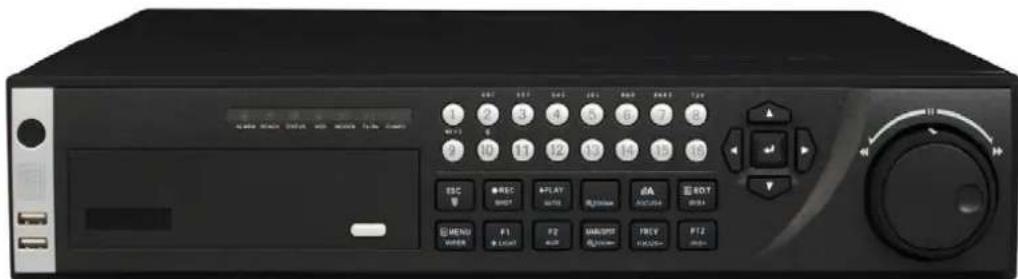
1 2 3 4 5 6 7 8 W/1 9 10 11 12 13 14 15 16 ESC REC PLAY MENI F1 P2 MUSPT PREV F12 HUAER LIGHT RED RED RUTS RUTS RUTS RUTS RUTS RUTS RUTS RUTS RUTS RUTS RUTS RUTS RUTS RUTS RUTS RUTS RUTS RUTS RUTS RUTS RUTS RUTS RUTS RUTS RUTS RUT S RUT S RUT S RUT S RUT S RUT S RUT S RUT S RUT S RUT S RUT S RUT S RUT S RUT S RUT S RUT S RUT S RUT S RUT S RUT S RUT S RUT S RUT S RUT S RUT S RUT T RUT T RUT T RUT T RUT T RUT T RUT T RUT T RUT T RUT T RUT T RUT T RUT T RUT T RUT T RUT T RUT T RUT T RUT T RUT T RUT T RUT T RUT T RUT T RUT T RUT SFigure 1. DS-9000-S Series DVR
text_image
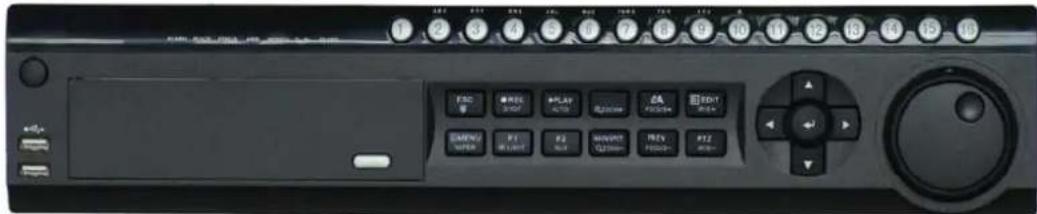
1 2 3 4 5 6 7 8 9 10 11 12 13 14 15 16 FSC REF PLAY EA# PSCE #A EDIT ME EMPI# P1 P2 W#P# T#N Fos#- #2 SPR#E PL#T F# N#S +0Figure 2. DS-9100-S Series DVR
text_image
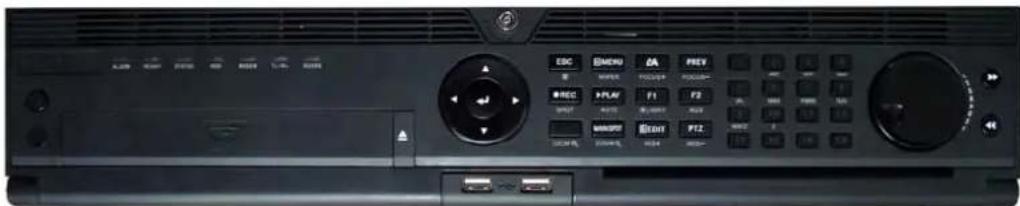
ESC BNDU DA PREY REC PLAY F1 F2 SPAT PPT2 MSPSP IOUT P12 ECA ECA HSD HSDFigure 3. DS-9000/9100/9600HFI-SH & DS-9000/9100/9600HFI-RH Series DVR
natural_image
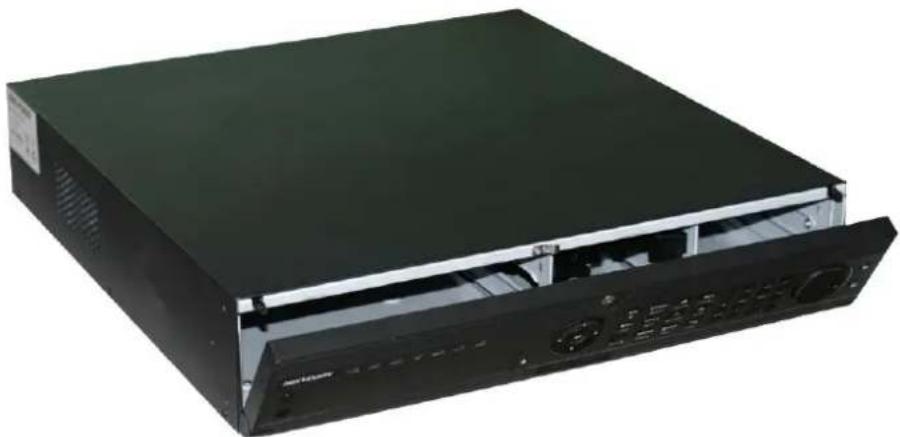
Black server rack unit with ventilation slots and drive bays (no visible text or labels)Figure 4. DS-9000/9100/9600HFI-SH & DS-9000/9100/9600HFI-RH Series DVR
Product Key Features
• H.264 video compression standard.
• PAL/NTSC video input.
• DS-9000 can be connected analog camera, network camera/dome and network video server.
• DS-9600 can be connected with network camera/dome and network video server.
• DS-9000/9600 can be connected with third-party network cameras (AXIS, Bosch, Panasonic, SANYO, SONY, ZAVIO, PROVIDEO, ARECONT, ACTI, PELCO, VIVOTEK, INFINOVA, PSIA, ONVIF).
• DS-9100 can be connected with analog cameras only.
• Each analog channel supports dual stream. Main stream supports up to 4CIF resolution and sub stream supports up to CIF resolution.
• Each IP camera of DS-9000/9600 supports HDMI video output at up to 1920×1080P resolution.
• VGA video output at up to 1280×1024 resolution.
- DS-9000/9100/9600-RH supports RAID storage, with the following capabilities: disk array and virtual disk configurable, manual disk array rebuilding, hot swap/spare rebuilding, RAID level migration and one-button configuration.
- Video encoding parameters of each channel can be set separately, including resolution, frame rate, bit rate, image quality.
• Each channel supports normal continuous and event compression parameters.
- Support both composite stream and video only stream. Audio and video streams are strictly simultaneous.
• Watermark technology.
- Email notification.
- Local Monitoring:
- DS-9000/9100/9600-SH and DS-9000/9100/9600-RH series support three independent local outputs, including HDMI, VGA, main and AUX composite video output.
- DS-9000/9100-S series support VGA, Main and AUX composite video output simultaneously.
• HDMI output at up to 1920×1080 resolution.
• VGA output at up to 1280×1024 resolution.
• 1/4/6/8/9/16-division live view, with camera order adjustable.
- Group switch, manual switch and automatic cycle modes selectable for video live view, with the auto cycle dwell time configurable.
• Digital zoom in live view mode.
- Shield of assigned channel for live view.
- Motion detection, view tampering alert, video exception alert and video loss alert.
- Privacy mask.
- Various PTZ protocols, PTZ preset, patrol and pattern.
- Video image zoom-in by clicking the mouse and tracing by dragging mouse in PTZ control mode.
- HDD Management:
- Up to 8 SATA hard disks can be connected for RAID storage.
- Up to 8 SATA hard disks, 8 network hard disks (8 NAS disks or 7 NAS disks + 1 iSCSI disk) and 1 eSATA can be connected; each HDD with up to 2TB storage capacity.
- Up to 8 virtual disks are supported.
• S.M.A.R.T. technology.
• HDD group management.
- HDD property can be set to redundancy, read-only and R/W.
- HDD file system is compatible with Windows. Use pre-allocating hard disk management technology, and no disk fragments.
• Recording and Playback:
• Cycle and non-cycle recording mode.
- Normal and event video encoding parameters.
- Multiple recording types, including manual, normal, alarm, motion, motion | alarm and motion & alarm recording, etc.
- 8 recording time periods with separate recording types.
- Pre-record and Post-record time for alarm and motion detection, and pre-record time for scheduled and manual recording.
- Lock and unlock of video files.
- Local redundant recording.
- Video data search and playback by channel number, recording type, time etc.
• Digital zoom function in playback mode.
- Pause, play fast, play slow, skip forward, and skip backward when playback, locating in progress bar by dragging the mouse.
- Up to 16-channel synchronous playback for DS-9000/9100 series DVR, and 4-channel synchronous playback for DS-9600 series NVR.
- Intelligent Features :
- DS-9000/9100/9600-SH and DS-9000/9100/9600-RH series support intelligent features (configured with the expanded intelligent board) as an option.
• Each channel supports up to 8 rules for intelligent detecting, including traverse plane, enter region, exit region, invasion, loiter, left take, parking, run and high density.
- Notification of intelligent alarm by uploading information and JPEG picture to client software to CMS.
- Support intelligent module reboot partly when setting intelligent detection system.
Note: Intelligent features are optional for DS-9000/9100/9600-SH and DS-9000/9100/9600-RH models, and not supported in the default unit.
Note: The device must be configured with the intelligent board so as to realize the intelligent functions. The following options are provided: B-B, B-A and B-F
| Levels | Traverse plane | Enter/Exit Area | Object Left/Taken | Intrusion | Loitering | High Density | Illegal Parking | Fast Movement |
| B_F | ||||||||
| B_A | ||||||||
| B_B |
- Backup:
- Record files backed up via USB, SATA CD/DVD-R/Wdevice.
- Bunch backup by file or by time.
- Record files edited for backup in playback.
- Management and maintenance for backup devices.
- Alarm & Exception:
- Unified management of DVR and IP camera alarm in/out of DS-9000/DS-9600.
- Unified management of DVR alarm in/out of DS-9100.
- Configurable arming time for alarm in/out.
- Unified management of intelligent detection, motion detection, view tampering and video loss alarm.
- Various exception alarm types supported: alarms for video loss, motion detection, video tempering, video in/out format unmatched, illegal access, network disconnection, IP conflict, hard disk error and hard disk full.
- Various exception alarm handling methods: pop-up alarm image on monitor, audible warning, notify surveillance center, trigger alarm output, send Email, etc.
• Auto recovery from exceptions.
• Network:
• 10/100/1000M adaptive network interface.
- TCP/IP protocol suites, PPPoE, DHCP, DNS, DDNS, NTP, SADP protocols, etc.
- Unicast and multicast, support TCP, UDP, and RTP for unicast.
- Remote search, playback and download, lock/unlock of video files.
• Support breakpoint resume.
- Remote access and configuration of parameters; remote import/export of device configuration parameters.
- Remote access of device running status, system log and alarm status.
- Remote control of DVR via button operation.
- Remote lock/unlock of panel buttons and mouse.
- Remote formatting of hard disk, upgrade, reboot/shutdown and other system maintenance operations.
• RS-232 and RS-485 transparent channel transmission.
• Event alarm and exceptions upload to remote management host.
- Remote manual recording.
- Remote video image capture in JPEG format.
- Remote PTZ control.
• Voice talk and broadcast.
• Built-in WEB Server.
- Other:
• Control of DVR via front panel keys, mouse, IR remote control and special keyboard.
- Three-level user management, each user with individual operating permission for DVR and camera.
- Powerful record and search for log of operation, alarm and exceptions.
- Import/export of device configuration files.
Product Application Diagram
flowchart
graph TD
    subgraph Internet
        PC["PC"] -->|Internet| Router["Router"]
        Router --> Ethernet["Ethernet"]
    end

    subgraph VGA Monitor
        VGA["M Ga Monitor"] -->|Main Monitor| MainMonitor["Aux/Spot Monitor"]
        MainMonitor --> Speaker["Speaker"]
    end

    subgraph USB Mouse
        USBMouse["USB Mouse"] --> Keyboard["Keyboard"]
        IRRemote["IR Remote"]
    end

    subgraph Alarm Output
        AlarmInput["Alarm Input"] --> AnalogDome["Analog Dome"]
        AlarmInput --> AnalogCamera["Analog Camera"]
        AlarmInput --> IPDome["IP Dome"]
        AlarmInput --> IPCamera["IP Camera"]
    end

    subgraph Audio Input
        AudioInput["Audio Input"] --> USBDevice["USB Device"]
    end
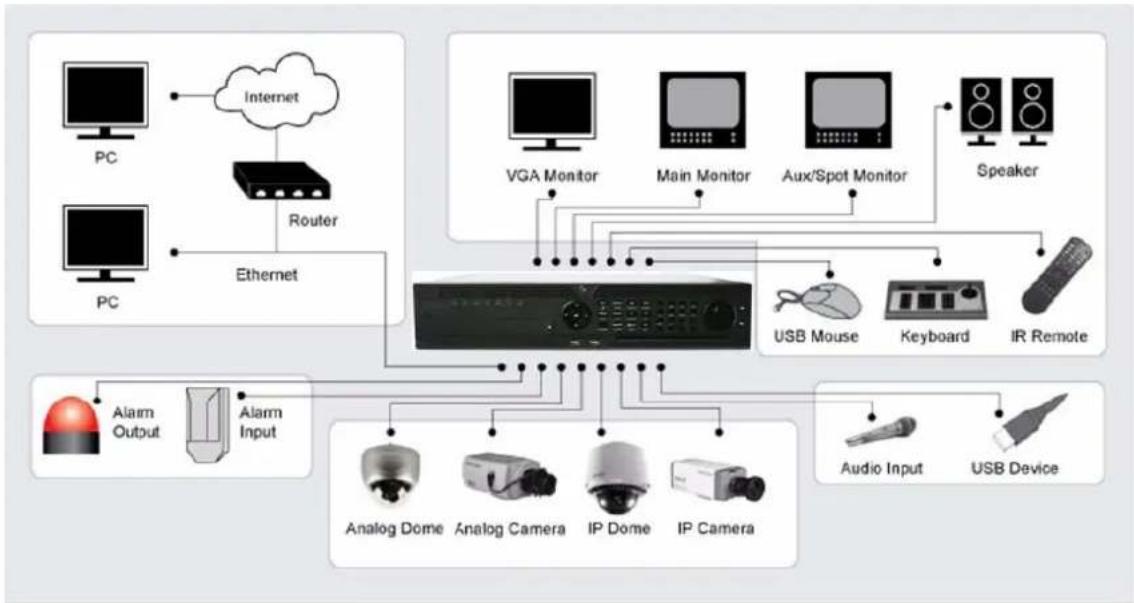
Figure 5. Product Application Diagram
Note: For DS-9600 series NVR, it does not support analog cameras, and for DS-9100 series DVR, it does not support network cameras.
Operating Your DVR
There are numerous ways to navigate and operate your DVR. You may use the Front Panel Controls, the included IR Remote, a Mouse and the Soft Keyboard.
Using the Front Panel Controls
Front Panel of DS-9000/9100-S DVR:

text_image
Diagram of a remote control device with labeled buttons and ports, showing front and back views with numbered labels.Figure 6. DS-9000/9100-S DVR Front Panel Controls
The controls on the front panel include:
-
Power Button: Powers DVR on/off.
-
IR Receiver: Receiver for IR remote.
-
USB Ports: Universal Serial Bus (USB) ports for additional devices such as USB mouse and USB Hard Disk Drive (HDD).
-
Status Indicators: Status indicators for different features of the DVR.
-
Alarm: Alarm indicator turns red when a sensor alarm is detected.
- Ready: Ready indicator turns blue when DVR is functioning properly.
- Status: Status indicator turns blue when DVR is controlled by an IR remote. Indicator turns red when controlled by a keyboard and purple when IR remote and keyboard is used at the same time.
- HDD: HDD indicator blinks red when data is being read from or written to HDD.
- Modem: Reserved.
- TX/RX: TX/RX indicator blinks blue when network connection is functioning properly.
-
Guard: Guard indicator turns blue when the device is armed, off when the device is unarmed. The arm/disarm state can be initiated by pressing and holding on the ESC button for more than 3 seconds in Preview mode.
-
Alphanumeric Buttons: Alphanumeric buttons used in various menus of the DVR. Some uses include:
-
Switching to the corresponding channel in Preview or PTZ Control mode.
- Inputting numbers and characters in Edit mode.
-
Switching between different channels in Playback mode.
-
Control Buttons:
- ESC Button: The ESC button is used to escape to the previous menu and to arm/disarm the DVR in Preview mode.
- REC/SHOT Button: The REC/SHOT button is used to enter the Manual Record interface. If used when controlling a PTZ, pressing the REC/SHOT button and then a Numeric button will call a PTZ preset.
- PLAY/AUTO Button: The PLAY/AUTO button is used to enter the Playback menu. It is also used to turn audio on/off in the Playback menu and auto scan in the PTZ Control menu.
- ZOOM+ Button: The ZOOM+ button is used to zoom the PTZ camera in when in the PTZ Control menu.
- A/FOCUS+ Button: The A/FOCUS+ button is used to adjust focus in the PTZ Control menu. It is also used to switch between input methods (upper and lowercase alphabet, symbols and numeric input). It can also be used to clear entire masked areas, such as in the Motion Detection and Privacy Mask menus.
- EDIT/IRIS+ Button: The EDIT/IRIS+ button is used to edit text fields. When editing text fields, it will also function as a Backspace button to delete the character in front of the cursor. On checkbox fields, pressing the EDIT/IRIS+ button will tick the checkbox. In PTZ Control mode, the EDIT/IRIS+ button opens up the iris of the camera. In Playback mode, it can be used to generate video clips for backup.
- MENU/WIPER Button: Pressing the MENU/WIPER button will return the user to the Main menu (after successful login). Pressing and holding the button for 5 seconds will turn off audible key beep. The MENU/WIPER button will also bring up Sensitivity Interface settings. In PTZ Control mode, the MENU/WIPER button will start wiper (if applicable).
- F1/LIGHT Button: The F1/LIGHT button when used in a list field will select all items on the list. In PTZ Control mode, it will turn on/off PTZ light.
- F2/AUX Button: The F2/AUX button is used to cycle through tab pages. It will also bring up the Channel & OSD Position settings.
- MAIN/SPOT/ZOOM- Button: The MAIN/SPOT/ZOOM- button is used to switch between main and spot output. In PTZ Control mode, it can be used to zoom the camera out.
- PREV/FOCUS- Button: The PREV/FOCUS- button is used to switch between single screen and multi-screen mode. In PTZ Control mode, it is used to adjust the focus in conjunction with the A/FOCUS+ button. It can also be used to select entire masked areas, such as in Motion Detection and Privacy Mask menus.
- PTZ/IRIS- Button: The PTZ/IRIS- button is used to enter the PTZ Control mode. When in the PTZ Control mode, it is used to close the iris of the PTZ camera.
7. DIRECTION/ENTER Buttons:
- DIRECTION Buttons: The DIRECTION buttons are used to navigate between different fields and items in menus. In Playback mode, the Up and Down button is used to speed up and slow down recorded video. The Left and Right button will select the next and previous day of recordings. In Preview mode, these buttons can be used to cycle through channels.
-
ENTER Button: The ENTER button is used to confirm selection in any of the menu modes. It can also be used to tick checkbox fields. In Playback mode, it can be used to play or pause the video. In Single Play mode, pressing the ENTER button will advance the video by a single frame.
-
JOG SHUTTLE Control: The JOG SHUTTLE control can be used to move the active selection in a menu. The inner ring will move the selection up and down; the outer ring will move it left and right. In the Playback mode, the inner ring is used to jump 30 seconds forward/backward in a video. The outer ring can be used to speed up/slow down the video. In Preview mode, it can be used to cycle through different channels.
Front Panel of DS-9000/9100/9600-SH and DS-9000/9100/9600-RH DVR:

text_image
1 2 3 4 5 6 7 8 9 10Figure 7. DS-9000/9100/9600-SH & DS-9000/9100/9600-RH DVR Front Panel
The controls on the front panel include:
-
Status Indicators: Status indicators for different features of the DVR.
-
Alarm: Alarm indicator turns red when a sensor alarm is detected.
- Ready: Ready indicator turns blue when DVR is functioning properly.
- Status: Status indicator turns blue when DVR is controlled by an IR remote. Indicator turns red when controlled by a keyboard and purple when IR remote and keyboard is used at the same time.
- HDD: HDD indicator blinks red when data is being read from or written to HDD.
- Modem: Reserved.
- TX/RX: TX/RX indicator blinks blue when network connection is functioning properly.
-
Guard: Guard indicator turns blue when the device is armed, off when the device is unarmed. The arm/disarm state can be initiated by pressing and holding on the ESC button for more than 3 seconds in Live View mode.
-
Power Button: Powers DVR on/off.
-
IR Receiver: Receiver for IR remote.
-
DVD-ROM: This space is for DVD-ROM. (Optional)
-
DIRECTION/ENTER Buttons:
-
DIRECTION Buttons: The DIRECTION buttons are used to navigate between different fields and items in menus. In Playback mode, the Up and Down button is used to speed up and slow down recorded video. The Left and Right button will select the next and previous file of recordings. In Live View mode, these buttons can be used to cycle through channels.
-
ENTER Button: The ENTER button is used to confirm selection in any of the menu modes. It can also be used to tick checkbox fields. In Playback mode, it can be used to play or pause the video. In Single Play mode, pressing the ENTER button will advance the video by a single frame.
-
USB Ports: Universal Serial Bus (USB) ports for additional devices such as USB mouse and USB Hard Disk Drive (HDD).
-
Control Buttons:
-
ESC Button: The ESC button is used to escape to the previous menu and to arm/disarm the DVR in Live View mode.
- REC/SHOT Button: The REC/SHOT button is used to enter the Manual Record interface. If used when controlling a PTZ, pressing the REC/SHOT button and then a Numeric button will call a PTZ preset.
- ZOOM+ Button: The ZOOM+ button is used to zoom the PTZ camera in when in the PTZ Control menu.
- MENU/WIPER Button: Pressing the MENU/WIPER button will return the user to the Main menu (after successful login). Pressing and holding the button for 5 seconds will turn off audible key beep. The MENU/WIPER button will also bring up Sensitivity Interface settings. In PTZ Control mode, the MENU/WIPER button will start wiper (if applicable).
- PLAY/AUTO Button: The PLAY/AUTO button is used to enter the Playback menu. It is also used to turn audio on/off in the Playback menu and auto scan in the PTZ Control menu.
- MAIN/SPOT/ZOOM- Button: The MAIN/SPOT/ZOOM- button is used to switch between main and spot output. In PTZ Control mode, it can be used to zoom the camera out.
- A/FOCUS+ Button: The A/FOCUS+ button is used to adjust focus in the PTZ Control menu. It is also used to switch between input methods (upper and lowercase alphabet, symbols and numeric input). It can also be used to clear entire masked areas, such as in the Motion Detection and Privacy Mask menus.
- F1/LIGHT Button: The F1/LIGHT button when used in a list field will select all items on the list. In PTZ
Control mode, it will turn on/off PTZ light.
- EDIT/IRIS+ Button: The EDIT/IRIS+ button is used to edit text fields. When editing text fields, it will also function as a Backspace button to delete the character in front of the cursor. On checkbox fields, pressing the EDIT/IRIS+ button will tick the checkbox. In PTZ Control mode, the EDIT/IRIS+ button opens up the iris of the camera. In Playback mode, it can be used to generate video clips for backup.
- PREV/FOCUS- Button: The PREV/FOCUS- button is used to switch between single screen and multi-screen mode. In PTZ Control mode, it is used to adjust the focus in conjunction with the A/FOCUS+ button. It can also be used to select entire masked areas, such as in Motion Detection and Privacy Mask menus.
- F2/AUX Button: The F2/AUX button is used to cycle through tab pages. It will also bring up the Channel & OSD Position settings.
-
PTZ/IRIS- Button: The PTZ/IRIS- button is used to enter the PTZ Control mode. When in the PTZ Control mode, it is used to close the iris of the PTZ camera.
-
Alphanumeric Buttons: Alphanumeric buttons used in various menus of the DVR. Some uses include:
-
Switching to the corresponding channel in Live View or PTZ Control mode.
- Inputting numbers and characters in Edit mode.
-
Switching between different channels in Playback mode.
-
JOG SHUTTLE Control: The JOG SHUTTLE control can be used to move the active selection in a menu. It will move the selection up and down. In the Playback mode, the ring is used to jump 30s forward/backward in video files. In Live View mode, it can be used to cycle through different channels.
-
Left and Right Button: The left and right button can be used to move the active selection in a menu. It will move the selection left and right. In the Playback mode, the buttons can be used to speed up/slow down the video. In live view mode, it can be used to cycle through different channels.
Note: If GUARD indicator is blue (default), all alarm event and exception settings are valid. Otherwise, alarm event and exception settings will be invalid, but normal recording will still be available.
Note: It is important to note that you must click the EDIT button on either the remote or front panel on a text field before you're able to edit its content. After you're done entering text, you must hit the ENTER button to be able to move on to the next field.
Using the IR Remote Control
Your DVR may also be controlled with the included IR remote control, shown in Figure 8. Batteries (2×AAA) must be installed before operating.

text_image
1 2 3 4 5 6 7 8 9 10 11 12 13 14 15 16 17 18 ADD DEF ABC MOD WXYZ EDIT 0 PLAY VOCIP PREY MENU ENTER F/S ESCFigure 8. IR Remote Control
The keys on the remote control closely resemble the ones found on the front panel, including:
- POWER Button: Same as POWER button on front panel.
- DEV Button: Enables/Disables Remote Control.
- Alphanumeric Buttons: Same as Alphanumeric buttons on front panel.
- EDIT Button: Same as EDIT/IRIS+ button on front panel.
- A Button: Same as A/FOCUS+ button on front panel.
- REC Button: Same as REC/SHOT button on front panel.
- PLAY Button: Same as PLAY/AUTO button on front panel.
- INFO Button: Same as ZOOM+ button on front panel.
- VOIP Button: Same as MAIN/SPOT/ZOOM- button on front panel.
- MENU Button: Same as MENU/WIPER button on front panel.
- PREV Button: Same as PREV/FOCUS- button on front panel.
- DIRECTION/ENTER Buttons: Same as DIRECTION/ENTER buttons on front panel.
- PTZ Button: Same as PTZ/IRIS- button on front panel.
- ESC Button: Same as ESC button on front panel.
- RESERVED: Reserved.
- F1 Button: Same as F1/LIGHT button on front panel.
- PTZ CONTROL Buttons: Buttons to adjust the iris, focus and zoom of a PTZ camera.
- F2 Button: Same as F2/AUX button on front panel.
Aim the remote control at the IR receiver located at the front of the unit to test operation. If there is no response:
- Using the front control panel or the mouse, go into Menu > Settings > General > More Settings.
- Check and remember DVR ID#. The default ID# is 255. This ID# is valid for all IR controls.
- Press the DEV button on the remote.
- Enter the DVR ID# from step 2.
- Press the ENTER button on the remote.
If the Status indicator on the front panel turns blue, the remote control is operating properly. If the Status indicator does not turn blue and there is still no response from the remote, please check the following:
- Batteries are installed correctly and the polarities of the batteries are not reversed.
- Batteries are fresh and not out of charge.
- IR receiver is not obstructed.
Using a USB Mouse
A regular 3-button (Left/Right/Scroll-wheel) USB mouse can also be used with this DVR. To use a USB mouse:
- Plug USB mouse into one of the USB ports on the front panel of the DVR.
- The mouse should automatically be detected. If in a rare case that the mouse is not detected, please refer to the recommended device list from your provider.
The buttons on the mouse corresponds to:
1. Left Button:
- Single-Click: Select a component of a menu, such as a button or an input field. This is similar to pressing the ENTER button on the remote/front panel controls.
- Double-Click: Switch between single screen and multi-screen mode in Live View/ Playback mode.
- Click and Drag: Clicking and dragging the Left mouse button can be used to control the pan/tilt of a PTZ camera as well as to vary the position of digital zoom area and camera OSD. It can also be used to setup the alarm areas.
2. Right Button:
- Single-Click: Shows pop-up menu.
3. Scroll-Wheel:
- Scroll Up: In Live View mode, scrolling up will switch to the previous screen. In Menu mode, it will move the selection to the previous item.
- Scroll Down: In Live View mode, scrolling down will switch to the next screen. In Menu mode, it will move the selection to the next item.
Using the Soft Keyboard
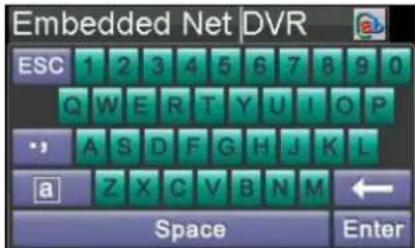
When a mouse is used to perform task on the DVR, clicking on a text input field will bring up the Soft Keyboard, shown in Figure 9.
text_image
Embedded Net DVR ESC 1 2 3 4 5 6 7 8 9 0 Q W E R T Y U I O P A S D F G H J K L a Z X C V B N M ← Space EnterFigure 9. Soft Keyboard
The buttons on the soft keyboard represents:

text_image
a A 123 Enter ESCLowercase: Designates lowercase input is being used.
Uppercase: Designates uppercase input is being used.
Switch to Lowercase: Switch to lowercase input.
Switch to Uppercase: Switch to uppercase input.
Number: Designates number input is being used.
Symbols: Switch to symbols input.
Backspace: Delete the character in front of the cursor.
Enter: Confirm selection.
ESC: Exit out of Soft Keyboard.
Figure 10. Soft Keyboard Buttons
Rear Panel Diagram

text_image
1 2 3 4 5 6 7 8 9 10 11 12 13 14 15 16 A声音 AUDIO AUDIO SPOUT OUT AUDIO OUT AUDIO OUT LINE IN VGA USB/224 LAN USB/485 4KB OUT—— 10 11 12 13 14 CE FCFigure 11. DS-9000/9100-S DVR Rear Panel
text_image
AUDIO-SPOT OUT AUDIO-SPOT AUDIO-SPOT AUDIO-SPOT AUDIO-SPOT AUDIO-SPOT AUDIO-SPOT AUDIO-SPOT AUDIO-SPOT AUDIO-SPOT AUDIO-SPOT AUDIO-SPOT AUDIO-SPOT AUDIO-SPOT AUDIO-SPOT AUDIO-SPOT AUDIO-SPOT AUDIO-SPOT AUDIO-SPOT AUDIO-SPOT AUDIO-SPOT AUDIO-SPAT AUDIO-SPAT AUDIO-SPAT AUDIO-SPAT AUDIO-SPAT AUDIO-SPAT AUDIO-SPAT AUDIO-SPAT AUDIO-SPAT AUDIO-SPAT AUDIO-SPAT AUDIO-SPAT AUDIO-SPAT AUDIO-SPAT AUDIO-SPAT AUDIO-SPAT AUDIO-SPAT AUDIO-SPAT AUDIO-SPAT AUDIO-SPAT AUDIO-SPCAT AUDIO-SPCAT AUDIO-SPCAT AUDIO-SPCAT AUDIO-SPCAT AUDIO-SPCAT AUDIO-SPCAT AUDIO-SPCAT AUDIO-SPCAT AUDIO-SPCAT AUDIO-SPCAT AUDIO-SPCAT AUDIO-SPCAT AUDIO-SPCAT AUDIO-SPCAT AUDIO-SPCAT AUDIO-SPCAT AUDIO-SPCAT AUDIO-SPCAT AUDIO-SPCAT AUDIO-SPAT AUDIO-SPAT AUDIO-SPAT AUDIO-SPAT AUDIO-SPAT AUDIO-SPAT AUDIO-SPAT AUDIO-SPAT AUDIO-SPAT AUDIO-SPAT AUDIO-SPAT AUDIO-SPAT AUDIO-SPAT AUDIO-SPAT AUDIO-SPAT AUDIO-SPAT AUDIO-SPAT AUDIO-SPAT AUDIO-SPAT AUDIO-SPATT AUDIO-SPATT AUDIO-SPATT AUDIO-SPATT AUDIO-SPATT AUDIO-SPATT AUDIO-SPATT AUDIO-SPATT AUDIO-SPATT AUDIO-SPATT AUDIO-SPATT AUDIO-SPATT AUDIO-SPATT AUDIO-SPATT AUDIO-SPATT AUDIO-SPATT AUDIO-SPATT AUDIO-SPATT AUDIO-SPATT AUDIO-SPATT AUDIO-SPATFigure 12. DS-9000/9100-SH & DS-9000/9100-RH Rear Panel
text_image
2 3 4 5 6 7 8 9 10 11 12 13 14 USB Interface AC 100V-240VFigure 13. DS-9600NI-SH & DS-9600NI-RH Rear Panel
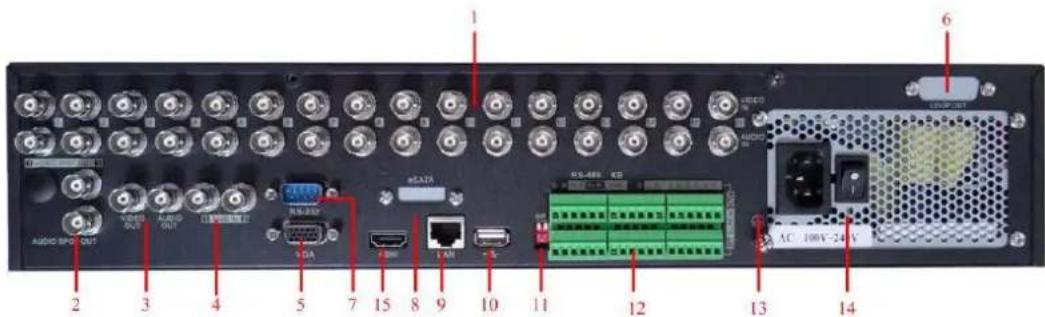
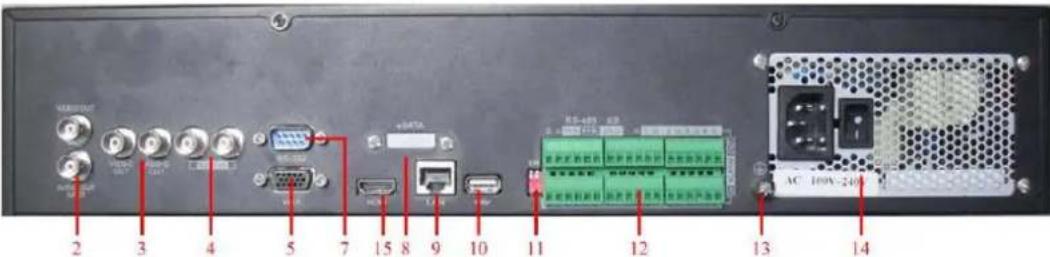
| No. | Item | Description |
| 1 | VIDEO IN | BNC connectors for analog video input. |
| AUDIO IN | BNC connectors for analog audio input. | |
| 2 | VIDEO SPOT OUT | BNC connector for monitor. If HDMI is connected, interface is deactivated; If VGA is connected, the interface is for video output only. If VGA is not connected, interface is for video output, playback and showing PTZ controls. |
| AUDIO SPOT OUT | BNC connector for audio output. If HDMI/VGA is connected, audio is synchronized with HDMI/VGA. If HDMI/VGA is not connected, audio issynchronized with VIDEO SPOT OUT. | |
| 3 | VIDEO OUT | BNC connector for video output.1. When both HDMI and VGA are connected, it is used for live view only;2. When either HDMI or VGA is connected, it is used as the auxiliary video output for live view, playback, recording and PTZ controls; 3.When neither HDMI nor VGA is connected, it is used as the main video output for live view and menu operations. |
| AUDIO OUT | BNC connector for audio output. This connector is synchronized with VIDEO OUT. | |
| 4 | LINE IN | BNC connector for audio input. |
| 5 | VGA | DB9 connector for VGA output. Display local video output and menu. |
| 6 | Loop Out (Optional) | DB15 interface for connection video matrix and monitor. |
| 7 | RS-232 Interface | Connector for RS-232 devices. |
| 8 | eSATA (Optional) | Connects external SATA HDD, CD/DVD-RM or disk array. |
| 9 | LAN Interface | Connector for LAN (Local Area Network). |
| 10 | USB Interface | Connector for USB devices. |
| 11 | Termination Switch | RS-485 termination switch. Up position is not terminated.Down is 120Ω termination. |
| 12 | RS-485 Interface | Connector for RS-485 devices. T+, T- pin connects to PTZ. |
| Controller Port | D+, D- pin connects to Ta, Tb pin of controller. For cascading devices, the first DVR's D+, D- pin should be connected with the D+, D- pin of the next DVR. | |
| ALARM IN | Connector for alarm input (up to 16 channels). | |
| ALARM OUT | Connector for alarm output (4 channels). | |
| 13 | GROUND | Ground(needs to be connected when DVR startup) |
| 14 | POWER | AC 110V ~ 220V |
| 15 | HDMI | HDMI video output connector |
Note: The DS-9000-S and DS-9100-S models do not provide HDMI interfaces on the rear panel.
CHAPTER2
Getting Started
Starting and Shutting Down Your DVR
Proper startup and shutdown procedures are crucial to expanding the life of your DVR.
To start your DVR:
- Ensure the power supply is plugged into an electrical outlet. It is HIGHLY recommended that an Uninterruptible Power Supply (UPS) be used in conjunction with the unit. The Power indicator LED on the front panel should turn red, indicating the unit is receiving power.
- Press the POWER button on the front panel. The Power indicator LED should turn blue. The unit will begin to start.
- After startup, the Power indicator LED will remain blue. A splash screen with the status of the DSP and HDD will be shown. The first row of icons at the bottom of the screen shows the DSP status. If an 'X' is shown on top of an icon, it means that the DSP initialization has failed. The second row of icons at the bottom of the screen will show the HDD status. If an 'X' is shown, it means that the HDD is not installed or cannot be detected.
There are two proper ways to shutdown the DVR. To shutdown the DVR:
• OPTION 1: Standard Shutdown
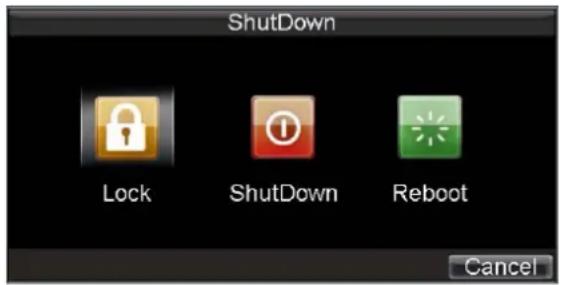
- Enter the Shutdown menu, shown in Figure 1 by clicking on Menu > Shutdown.
text_image
Shutdown Lock Shutdown Reboot CancelFigure 1. Shutdown Menu
- Select the ShutDown button.
- Click the Yes button.
• OPTION 2: Manual Shutdown
- Press and hold the POWER button for 3 seconds.
- Enter the administrator's username and password in the dialog box for authentication.
- Click the Yes button.
Note: Do not press the POWER button again when the system is shutting down.
Rebooting and Locking Your DVR
While in the Shutdown menu (Figure 1), you may also reboot or lock your DVR. Locking your DVR will return you to the Live View mode, which will require an user name and password to exit out of it. The Reboot button will reboot your DVR.
To reboot or lock your DVR:
- Enter the Shutdown menu by clicking Menu > Shutdown.
- Select the Lock button to lock the DVR or the Reboot button to reboot the DVR.
Using the Setup Wizard
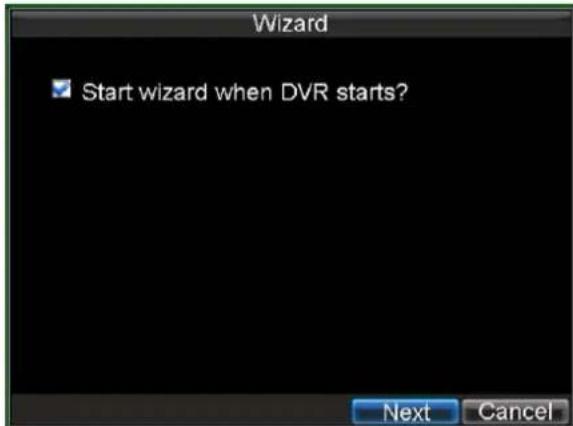
By default, the Setup Wizard will start once the DVR has loaded, as shown in Figure 2. The Setup Wizard will walk you through some of the more important settings of your DVR. If you do not wish to use the Setup Wizard at this time, click the Cancel button. You may also choose to use the Setup Wizard at a later time by leaving the "Start Wizard when DVR starts?" checkbox checked.
text_image
Wizard Start wizard when DVR starts? Next CancelFigure 2. Setup Wizard
To start using the Setup Wizard:
1. Configure User Permission
1) Click the Next button on the Wizard window. This will take you to the User Permission window, shown in Figure 3.

text_image
Wizard Admin Password ***** New Admin Password New Password ***** Confirm ***** Previous NextFigure 3. User Permission
2) Navigate to the Admin Password input field.
3) Enter the admin password into the Admin Password input field. By default, the password is 12345.
4) To change the admin password, check the New Admin Password checkbox. Enter the new password and confirm the password in the given fields.
5) Click the Next button to enter the time settings Setup Wizard window.
2. Configure Time Settings
text_image
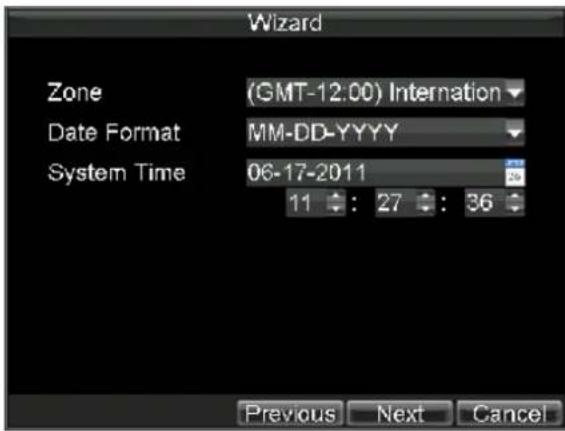
Wizard Zone (GMT-12.00) Internation Date Format MM-DD-YYYY System Time 06-17-2011 11 : 27 : 36 Previous Next CancelFigure 4. System Time Settings
1) In the time settings Setup Wizard window, set the time zone, date format and system time.
2) After the time settings, click the Next button to back to the Setup Wizard window.
Note: For the DS-9000/9100/9600-RH model, please refer to Step 3 for RAID configuration. For other models, go to Step 4 directly.
3. Configure RAID Settings
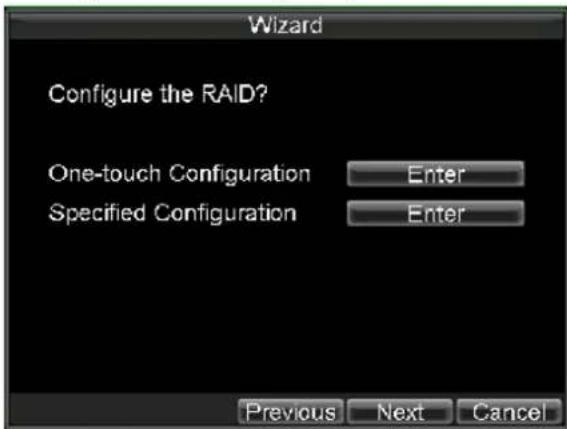
1) In the RAID Setup Wizard window, select the RAID configuration type to One-touch Configuration or Specified Configuration, shown in Figure 5. If it does not need to configure the HDD management, click Next to continue the Setup Wizard.
text_image
Wizard Configure the RAID? One-touch Configuration Enter Specified Configuration Enter Previous Next CancelFigure 5. RAID Configuration
One-touch Array Configuration:
a) Click the Enter button next to One-touch Configuration to enter the One-touch Array Configuration window, shown in Figure 6.
Note:
- When the One-touch Array Configuration is selected, the device can automatically enable the installed HDDs for array creation. As the default array type is RAID 5, thus at least 3 hard disks must be installed on the device.
- After completion of One-touch Array Configuration, the device will create 1 array and 8 virtual disks. And the array volume will be equally allocated to each virtual disk.
b) Edit the Array Name and then click the OK button to finish the one-touch array configuration.

text_image
One-touch Array Configuration Array Name 1 OK CancelFigure 6. One-touch Array Configuration
Specified Array Configuration:
a) Click the Enter button next to Specified Configuration in Wizard to enter the Array Configuration interface, as shown in Figure 7.
b) Follow the operating steps of array configuration shown on the window and click Enter to enter RAID settings interface.
2) After having finished the array configuration, click the OK button to back to the Setup Wizard window.
Note: Please refer to Chapter 11 for specific instructions of array configuration.

text_image
Wizard Steps of array configuration Step 1: Create an array Step 2: Set hot spare disk Step 3: Create a virtual disk Enter "RAID Setting"? Enter Previous Next Cancel
text_image
RAID Settings Physical HDD Array Virtual HDD Adapter No Capacity Array Type Status Model 4 931G Normal FunctionaWDC WD10 5 931G Normal FunctionaWDC WD10 6 485G Normal FunctionaST3500410 One touch Create Set OKFigure 7. Enter RAID Configuration
4. Configure HDD Management
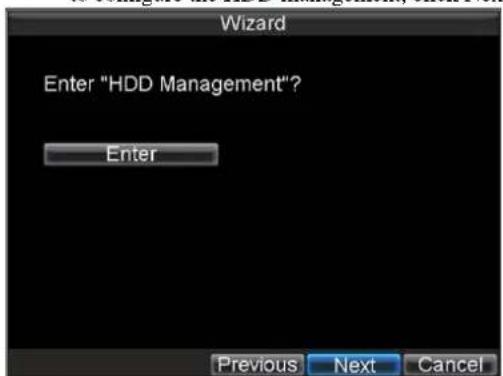
1) In the Setup Wizard window, click Next button to enter the HDD Management Setup Wizard window. 2) Click the Enter button to enter the HDD Management window, shown in Figure 8. If it does not need to configure the HDD management, click Next to continue the Setup Wizard.
text_image
Wizard Enter "HDD Management"? Enter Previous Next Cancel
text_image
HDD Management General Set Cameras for HDD Group Label Capacity Status Property Way Type Free Space Group 1 500GB Normal RAW Array 497GB 1 Expand Add Remove Set Init OKFigure 8. Enter HDD Management
3) If a new HDD was recently installed, select the HDD from the list to initialize it. Initializing the HDD will format and remove all data from it.
4) After the HDD has been initialized, click the OK button to back to the Setup Wizard window.
5. Configure Record Settings
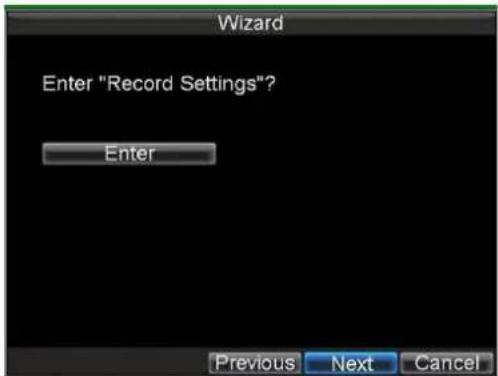
1) In the Setup Wizard window, click Next button to enter the Record Settings Setup Wizard window.
2) Click the Enter button to enter the Record Settings window, shown in Figure 9. If it does not need to configure the record settings, click Next to continue the Setup Wizard.
text_image
Wizard Enter "Record Settings"? Enter Previous Next Cancel
text_image
Record Settings General Advanced Schedule Camera Analog 1 Encoding Parameters Main Stream(Normal) Stream Type Video & Audio Resolution 4CIF BitRate Type Variable Video Quality Low Frame Rate 25(PAL)/30(NTSC) Max. BitRate(Kbps) 1536 Custom More Settings Set Copy To All Copy Apply OK CancelFigure 9. Record Settings
3) Select the Schedule tab, shown in Figure 10.
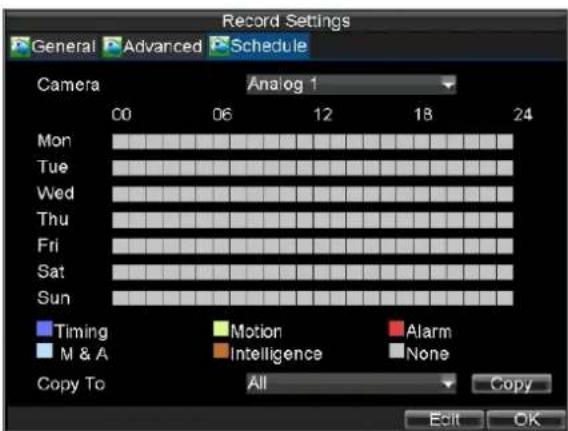
text_image
Record Settings General Advanced Schedule Camera Analog 1 00 06 12 18 24 Mon Tue Wed Thu Fri Sat Sun Timing Motion Alarm M & A Intelligence None Copy To All Copy Edit OKFigure 10. Schedule Settings
4) Click the Edit button. This will open up a new recording schedule, shown in Figure 11.
5) Check both the Enable Schedule and All Day checkbox. This will enable the recording schedule and have it record continuously all day.
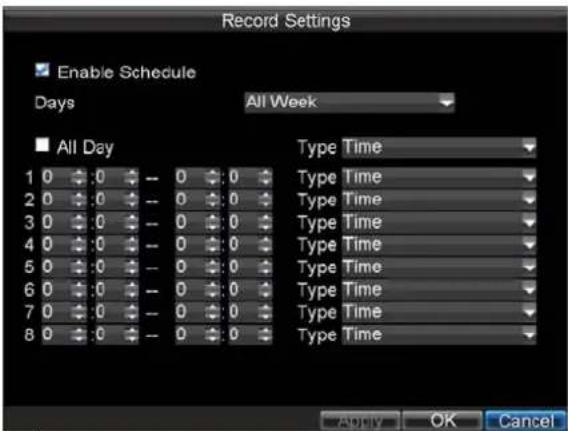
text_image
Record Settings Enable Schedule Days All Week All Day 1 0 :0 -- 0 :0 2 0 :0 -- 0 :0 3 0 :0 -- 0 :0 4 0 :0 -- 0 :0 5 0 :0 -- 0 :0 6 0 :0 -- 0 :0 7 0 :0 -- 0 :0 8 0 :0 -- 0 :0 Type Time Type Time Type Time Type Time Type Time Type Time Type Time Type Time Type Time Apply OK CancelFigure 11. Edit Schedule Settings
6) Click the OK button. This will take you back to the Schedule tab. To copy the schedule to a different channel, select the channel or all under Copy To and click the Copy button.
7) Click the OK button to back to the Setup Wizard window.
6. Configure Network Settings
1) In the Setup Wizard window, click Next button to enter the Network Settings Setup Wizard window.
2) Click the Enter button to enter the Network Settings window, shown in Figure 12. If it does not need to configure the network settings, click Next to continue the Setup Wizard.
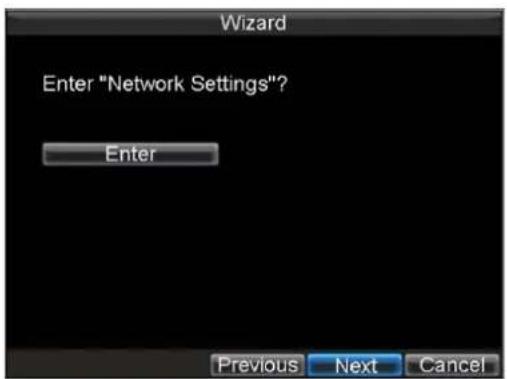
text_image
Wizard Enter "Network Settings"? Enter Previous Next Cancel
text_image
Network Settings General Advanced Network Status NIC Type 10M/100M/1000M Auto DHCP IP Address 172 .8 .116 .211 Subnet Mask 255 .255 .255 .0 Default Gateway 172 .8 .116 .1 Preferred DNS Server 192 .0 .0 .200 Alternate DNS Server MAC Address 00:40:30:e1:f9:b0 ADD OK CancelFigure 12. Network Settings
3) Enter the IP Address, Subnet Mask and Default Gateway. Click the OK button to return to the Setup Wizard.
7. Configure Camera Management
1) In the Setup Wizard window, click Next button to enter the Camera Management Setup Wizard window.
2) Click the Enter button to enter the Camera Management window, shown in Figure 13. if does not need to configure IP cameras, click the Done button to finish the settings; if it needs to configure the IP cameras, click Enter button to enter the Camera Management window, shown in Figure 13.

text_image
Wizard Enter "Camera Management"? Enter Previous Done
text_image
Camera Management Channel No. Camera Name IP Channel Add Port Status A1 Camera 01 Local N/A Enable A2 Camera 02 Local N/A Enable A3 Camera 03 Local N/A Enable A4 Camera 04 Local N/A Enable A5 Camera 05 Local N/A Enable A6 Camera 06 Local N/A Enable A7 Camera 07 Local N/A Enable A8 Camera 08 Local N/A Enable A9 Camera 09 Local N/A Enable A10 Camera 10 Local N/A Enable A11 Camera 11 Local N/A Enable A12 Camera 12 Local N/A Enable A13 Camera 13 Local N/A Enable Add Set Status OKFigure 13. Camera Management
3) Click Add button to add IP camera, and click OK to back to Setup Wizard.
4) If all the settings are entered as desired, click the Done button to finish settings and exit the Setup Wizard.
Note: DS-9100 series DVR does not support IP channels connection and thus no IP camera configuration is required.
Congratulations! You've completed the Setup Wizard. The next step in the initial setup process is to setup the system date and time.
CHAPTER3
Live View
Viewing Live Video
The Live View mode is automatically started after the DVR boots up. It is also at the very top of the menu hierarchy, thus hitting the ESC multiple times (depending on which menu you're on) will bring you to the Live View mode.
Understanding Live View Icons
There are multiple icons on each display in Live View mode to indicate different camera status. These icons include:

Event Icon: Indicates video loss or tampering, motion detection and/or sensor alarm.

Record Icon: Indicates the current channel is recording. The recording may have been started manually, from a schedule, and/or triggered from motion or alarm.

Main Icon: Indicates the current channel is in the main output mode.

Aux Icon: Indicates the current channel is in the aux output mode.

Spot Icon: Indicates the current channel is in the spot output mode.

Alarm Icon: Indicates there is an alarm or exception.
Figure 1. Live View Icons
Note: Status for video loss is only valid with analog cameras. Event icons will only be displayed when armed, except for the video loss alarm. Output icon is only valid when enable output hint in General menu.
Operating the LiveView
In Live View mode, you can:
1. Display Single Camera:
- Using Front Panel/Remote: Use Alphanumeric buttons.
- Using Mouse: Select Single Camera in right-click menu.
2. Live View Layout Switch:
- Using Front Panel/Remote: Click PREV button.
- Using Mouse: Select Multi-Camera in right-click menu.
3. Manual Switch:
- Using Front Panel/ Remote: To move to the previous screen, click the Left direction button. To move to the next screen, click the Right direction button.
- Using Mouse: Select Next screen in right-click menu.
4. Auto Switch:
- Using Front Panel/Remote: Click ENTER button.
- Using Mouse: Select Start Sequence in right-click menu.
5. Digital Zoom:
• Using Mouse: Select Digital Zoom in right-click menu.
- Switch between Main and Aux Output:
• Using Front Panel/Remote: Click MAIN/AUX button.
• Using Mouse: Select Aux Monitor/Main Monitor in right-click menu.
Using the Mouse in Live View
Many features of the Live View can be quickly accessed by clicking the right-button of the mouse (shown in Figure 2). These features include:
- Single Camera: Switch to a full screen display of the selected camera. Camera can be selected from a drop down list.
- Multi-Camera: Switch between different display layout options. Layout options can be selected from a drop down list.
- Next Screen: When displaying less than the maximum number of cameras in Live View, clicking this feature will switch to the next set of displays.
- Playback: Enter into Playback mode.
• PTZ: Enter PTZ Control mode.
• Digital Zoom: Enter Digital Zoom interface.
- Reboot Intelligent: if the monitoring field changed, you may need to select this option to reboot intelligent library in order to activate the settings.
- Menu: Enter Main menu.
- Start Auto-switch: Enable sequencing in Live View mode.
- Aux Monitor: Enter Aux operation mode.
Note: The dwell time of the live view configuration should be set before using Start Auto-switch.
Note: If you enter Aux monitor mode and the Aux monitor is not connected, switch back to the Main output with the MAIN/AUX button on the front panel or remote.
Note: If the corresponding camera support intelligent function, the Reboot Intelligence option will be included when right-click mouse on this camera.

text_image
Single Camera Multi Camera Next Screen Playback PTZ Digital Zoom Reboot Intelligence Menu Start Auto-switch Aux MonitorFigure 2. Live View Mouse Menu
Using Digital Zoom
To use digital Zoom in Live View mode:
-
Right-click using the mouse in Live View mode.
-
Select Digital Zoom from Mouse menu.
- Left-click and drag the red box to the desired area for zoom. The zoomed image will be magnified by 4X. A sample of this can be seen in Figure 3.

text_image
16-11-2009 Mon 14:22:19 16-12-2009 Mon 15-23-19Figure 3. Digital Zoom
Using an Aux Monitor
Certain features of the Live View are also available while using an Aux monitor. These features include:
- Single Camera: Switch to a full screen display of the selected camera. Camera can be selected from a drop down list.
- Multi-Camera: Switch between different display layout options. Layout options can be selected from a drop down list.
- Next Screen: When displaying less than the maximum number of cameras in Live View, clicking this feature will switch to the next set of displays.
- Playback: Enter into Playback mode.
• PTZ: Enter PTZ Control mode.
• Main Monitor: Enter Main operation mode.
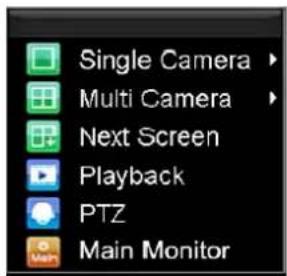
text_image
Single Camera Multi Camera Next Screen Playback PTZ Main MonitorFigure 4. Aux Monitor Mouse Menu
Note: Main menu operation's not available while in Aux monitor mode.
Configuring Live View Displays
Live View displays can be customized to your own needs. These settings can be accessed by entering the Display Settings menu.

text_image
Display Settings Display Channel Zero Encoding Video Output VGA Mode 4 * 4 Dwell Time No Switch Camera Order Set Enable Audio Output Event Output VGA Event Dwell Time 10s Apply OK CancelFigure 5. Display Settings
To access the Display Settings menu:
- Click the MENU button.
- Click the Setting icon.
- Click the Display icon.
- Select Display tab
The settings available in this menu include:
- Video Output: Designates the output to configure the settings for. Outputs include HDMI(depends on the model), VGA, Main and Aux composite video (CVBS).
• Mode: Designates the display mode to be use for Live View. - Dwell Time: The time in seconds to dwell between switching of channels when Start Sequence is selected in Live View.
- Camera Order: The order of the cameras to be used in the selected display mode (See Setting Camera Order).
- Enable Audio Output: Enables/disable audio output for the selected video output.
• Event Output: Designates the output to show event video on.
• Event Dwell Time: The time in seconds to show event screen.
Note: DS-9000/9100-SH/RH and DS-9600 series DVR will automatically detect if a HDMI monitor or VGA monitor is connected. Only HDMI monitor can be activated if both HDMI and VGA ports are connected.
Note: When a HDMI display is connected to the DVR, the HDMI monitor will become the main output. All the Live View operations will be available. Main video (VIDEO OUT) is set as Aux control output, which supports PTZ Control, Playback, and Live View mode on it. The main audio (AUDIO OUT) is tied to the main video (VIDEO OUT), while Aux audio (AUDIO SPOT OUT) is tied to the HDMI video output.
Note: When a VGA display is connected to the DVR, the VGA monitor will become the main output. All the Live View operations will be available. Main video (VIDEO OUT) is set as Aux control output, which supports PTZ Control, Playback, and Live View mode on it. Aux video (VIDEO SPOT OUT) only allows Live View depending on configuration. The main audio (AUDIO OUT) is tied to the main video (VIDEO OUT), while Aux audio (AUDIO SPOT OUT) is tied to the VGA video output.
Note: When both HDMI and VGA display are not connected to the DVR, all the Live View operations will then become available to the main video output. The VIDEO SPOT OUT will be the Aux control output. Main audio will still be tied to main video while Aux audio will be tied to Aux CVBS video (VIDEO SPOT OUT).
Note: When the resolution of video output is set as the highest one, the intelligent and zero channel encoding features will be not available anymore.
Setting Camera Order
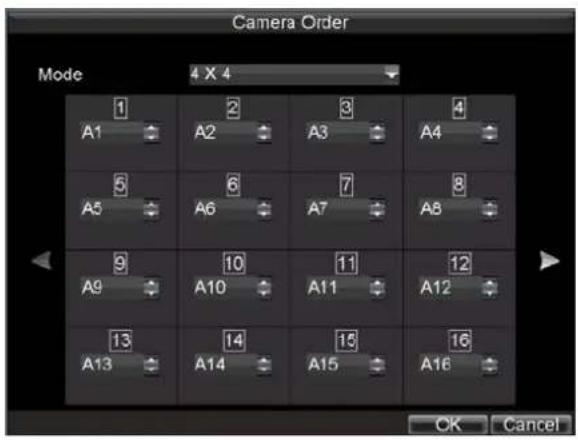
Setting the camera order allows you to logically position cameras for more efficient monitoring of your own individual location.
text_image
Camera Order Mode 4 X 4 1 A1 2 A2 3 A3 4 A4 5 A5 6 A6 7 A7 8 A8 9 A9 10 A10 11 A11 12 A12 13 A13 14 A14 15 A15 16 A16 OK CancelFigure 6. Camera Order Setting
To set the camera order:
- Enter the Display Settings menu, shown in Figure 6 (Menu > Settings > Display).
- Click the Set button.
- Select the display mode you would like to set the camera order for under Mode.
- Using the up and down button at each display, select the camera you would like to set. Setting an 'X' will mean the camera will not be displayed.
- Click the OK button.
Channel Zero Encoding
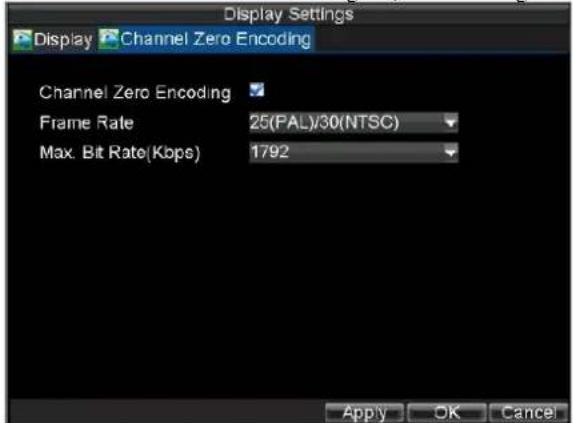
Sometimes the user needs to remote view a lot of cameras simultaneously from web browser or CMS software, in order to decrease the bandwidth requirement in case that the image quality is not strictly required, zero channel encoding feature is supported as an option for users.
Enter the Display Settings menu and select Channel Zero Encoding tab, shown in Figure 7.
text_image
Display Settings Display Channel Zero Encoding Channel Zero Encoding Frame Rate 25(PAL)/30(NTSC) Max. Bit Rate(Kops) 1792 Apply OK CancelFigure 7. Channel Zero Encoding
The video source of channel zero is from video Aux output, the users are allowed to configure the video divisions, camera order and dwell time for channel zero.
Note: The channel zero does not support sub stream, only main stream is available.
CHAPTER 4
Record Settings
Configuring Settings for Recording
There are multiple ways to setup your DVR for recording. They include setting up a recording schedule, triggering a recording by motion detection and/or a sensor alarm, and manually starting the recording.
Initializing Record Settings
Before setting your DVR up for recording, certain settings should be configured first. The steps to configuring these settings are:
-
If you have not initialized a HDD either through the Setup Wizard or through HDD management, you must do so before proceeding.
-
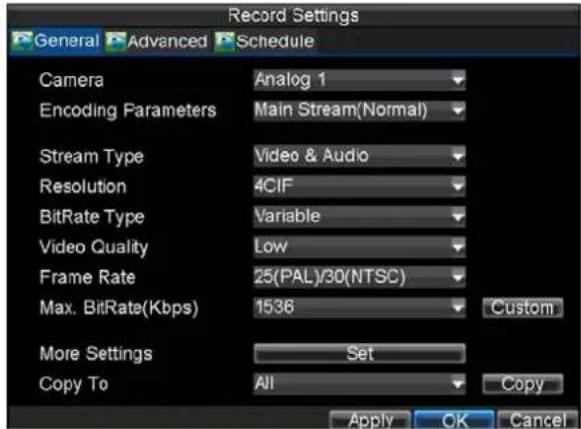
Navigate to Menu > Settings > Record. You will be taken to the Record Settings menu, shown in Figure 1.
text_image
Record Settings General Advanced Schedule Camera Analog 1 Encoding Parameters Main Stream(Normal) Stream Type Video & Audio Resolution 4CIF BitRate Type Variable Video Quality Low Frame Rate 25(PAL)/30(NTSC) Max. BitRate(Kbps) 1536 Custom More Settings Set Copy To All Copy Apply OK CancelFigure 1. General Record Settings
-
Select the camera you would to configure the settings for.
-
Configure settings for:
• Encoding Parameters: Select the encoding parameters, Normal, Event or Sub stream.
• Stream Type: Type of stream to record, either video or video and audio.
- Resolution: Select the resolution of the recording. The options include 4CIF, DCIF, 2CIF, CIF, and QCIF.
- Bit Rate Type: Select either Variable or Constant bit rate.
• Video Quality: Select the quality to record cameras at.
• Frame Rate: Select recordings frame rate.
• Max Bit Rate: Select or define custom maximum bit rate for recordings.
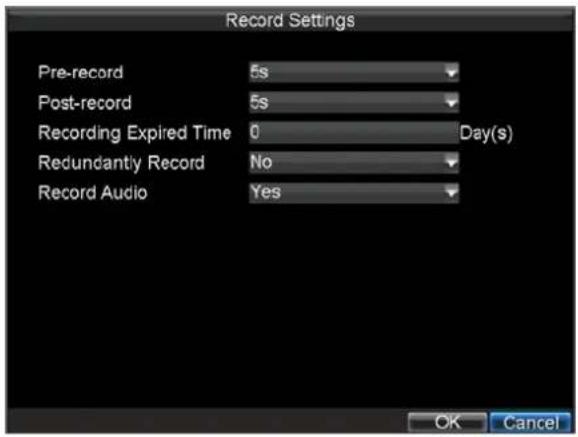
- Click the Set button under More Settings. This will bring up another menu with more advance recording options, as shown in Figure 2.
text_image
Record Settings Pre-record 5s Post-record 5s Recording Expired Time 0 Day(s) Redundantly Record No Record Audio Yes OK CancelFigure 2. Additional Record Settings
- Set additional record settings:
• Pre-record: Sets the time in seconds to pre-record before the actual recording begins.
• Post-record: Sets the time in seconds to post-record after the actual recording has ended.
- Recording Expired Time: Sets the expiration time in days for recorded video. Recordings after expiration time would be deleted. If it's set to '0,' the option would be disabled.
- Redundantly Record: Select to enable or disable redundant recording on the particular channel.
• Record Audio: Select to record audio of the camera or not.
-
Click the OK button to finish and return to the previous menu.
-
Select the Advanced tab, this will open the Advanced settings menu, shown in Figure 3.
-
Enable or disable the Overwrite setting. Enabling the Overwrite setting will cause recorded files to be overwritten once the HDD is full.
-
Click Apply and then the OK button.

text_image
Record Settings General Advanced Schedule Overwrite Yes eSATA For Export Apply OK CancelFigure 3. Advanced Record Settings
Scheduling a Recording
Scheduling a recording allows you to setup the DVR to only record when you want it to. To setup a recording schedule:
- Enter the Record Settings menu (Menu > Setting > Record).
- Select the Schedule tab to open the Schedule menu, shown in Figure 4.

text_image
Record Settings General Advanced Schedule Camera Analog 1 00 06 12 18 24 Mon Tue Wed Thu Fri Sat Sun Timing Motion Alarm M & A Intelligence None Copy To All Copy Edit OKFigure 4. Schedule Settings
- Select Camera to edit schedule for.
- Click the Edit button.
- Click and check Enable Schedule.
- Select the day you would like to setup the schedule for or select All Week to record the entire week.
- Select to record the entire day by clicking All Day or at different time periods. Up to 8 time periods can be scheduled. It is important to note that time periods cannot be overlapped.
- Select recording Type. Recording type can be based on time and triggered by motion detection and/or alarm. Motion detected and alarm triggered recordings are further explained in Configuring Alarms.
- Click the OK button to finish configuration.
- Repeat steps 3-9 for other cameras or copy settings from one schedule to the next under the Copy To section.
- Click OK to finish and save the schedule settings.
Note: Event encoding parameters will take effect when motion detection or alarm happens. Normal encoding parameters will take effect when there are no events happening.
Starting a Manual Recording
A manual recording can be started at any time. To start a manual recording:
- Press the REC/SHOT button on the front panel or in the Main menu to bring up the Manual Record menu (shown in Figure 5).

text_image
Manual Record Analog All 1 2 3 4 5 6 7 8 Status an un un un un un un un 9 10 11 12 13 14 15 16 IP Camera All 1 Status an ExitFigure 5. Manual Record Menu
- Start manual recording by selecting On or Off for the cameras desired.
Protecting Recorded Files
There are two methods to prevent recorded files from being deleted off the HDD. It's highly recommended that important recorded events be protected from deletion. Recorded files can either be locked or the HDD that the files reside on can be set to read only.
Locking and Unlocking Recorded Files
To lock or unlock a recorded file:
- Enter the Video Search menu by navigating to Menu > Video Search. The Video Search menu is shown in Figure 6.

- Search for desired recording by entering search parameters. Search parameters include Camera #, Video/File Type, and Start/End Time.
- Click the Search button. A list of recordings (similar to Figure 7), matching the search parameters will be displayed.
- Select the file you would like to lock/unlock.
- Click on the lock icon to lock file. If the file is already locked, click on the lock icon again to unlock file. Locked files will be shown with a closed lock while unlocked files, opened lock.
- Click Cancel to exit out of the Video Search menu.

text_image
Search Results Cam HDC Start Time Stop Time Size Play Loc A1 5 2010-06-10 11:12:08 12:24:47 228,032KB A1 5 2010-06-10 12:24:47 13:08:43 137,584KB A1 5 2010-06-10 13:10:14 13:49:34 121,920KB A1 5 2010-06-10 13:49:34 15:13:32 259,345KB A1 5 2010-06-10 15:13:32 16:37:32 259,502KB A1 5 2010-06-10 16:37:32 16:43:29 18,388KB A2 5 2010-06-10 11:12:10 11:12:26 3,655KB A2 5 2010-06-10 11:12:41 11:13:25 9,887KB A2 5 2010-06-10 11:13:44 11:13:56 3,922KB A2 5 2010-06-10 11:14:06 11:14:18 4,031KB A2 5 2010-06-10 11:14:27 11:15:19 11,254KB A2 5 2010-06-10 11:15:28 11:15:40 3,826KB A2 5 2010-06-10 11:15:50 11:16:02 3,859KB Total Size: 5.84GB Export CancelFigure 7. Video Search Result List
Setting HDD to Read-Only
To set a HDD to read-only:
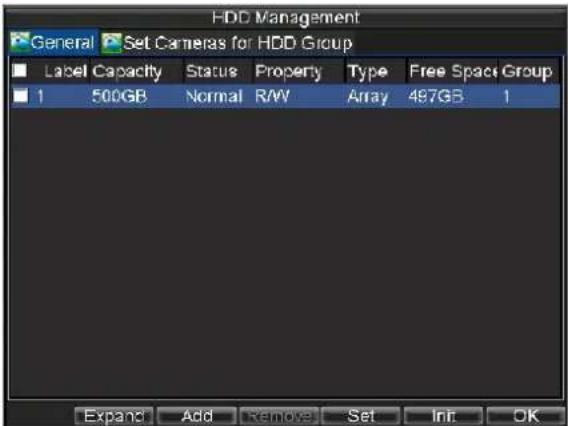
- Navigate to the HDD Management menu by going to Menu > HDD Management. The HDD Management menu is shown in Figure 8.
text_image
HDD Management General Set Cameras for HDD Group Label Capacity Status Property Way Type Free Space Group 1 500GB Normal R/W Array 497GB 1 Expand Add Remove Set Init OKFigure 8. HDD Management Menu
- Select the General tab.
- Select the HDD to set to read-only.
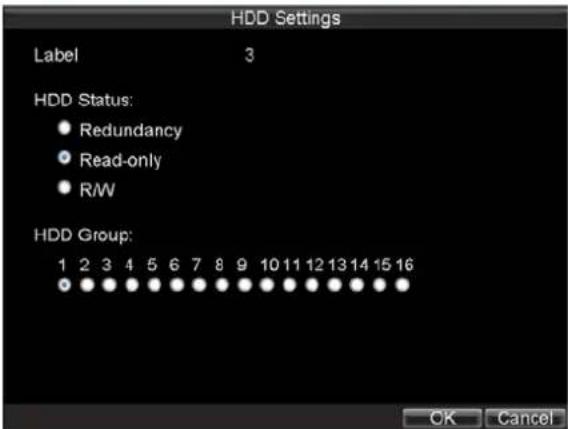
- Click the Set button. This will take you to the HDD Settings menu, shown in Figure 9.
text_image
HDD Settings Label 3 HDD Status: • Redundancy • Read-only • R/W HDD Group: 1 2 3 4 5 6 7 8 9 10 11 12 13 14 15 16 OK CancelFigure 9. HDD Settings Menu
- Set HDD to Read-Only.
- Click the OK button. The HDD is now read-only.
Note: When a HDD is set to read-only, no more recordings can be written to the disk. In order to enable recordings on that particular disk again, you must set the HDD to R/W (Read/Write) in the HDD Settings menu. If multiple HDDs are used, the DVR will automatically record to the next HDD that is not set to read-only.
Configuring Advanced HDD Settings
Setting up HDD Redundancy
To insure unexpected failures of hard disk drives, it's recommended to set up HDD redundancy. It is important to note that in order to set up HDD redundancy, you'll need more than one HDD in your DVR.
To set up HDD redundancy:
- Navigate to the HDD Management menu by clicking Menu > HDD management.
- Click on the General tab.
- Select the HDD to be used for redundancy, as shown in Figure 10.

text_image
HDD Management General Set Cameras for HDD Group Label Capacity Status Property Way Type Free Space Group 1 500GB Normal R/W Array 497GB 1 Expand Add Remove Set Init OKFigure 10. HDD Management Menu
- Click the Set button. This will take you to the HDD Settings menu.
- Set HDD Status to Redundancy, shown in Figure 11. Verify at least one other HDD is set to R/W (read/write).
- Click the OK button to save settings and return to the previous menu.

text_image
HDD Settings Label 3 HDD Status: • Redundancy • Read-only • R/W HDD Group: 1 2 3 4 5 6 7 8 9 10 11 12 13 14 15 16 OK CancelFigure 11. HDD Settings
- Navigate to the Record Settings menu by clicking Menu > Settings > Record Setting.
- Click on the General tab.
- Select the Camera to be used for redundancy.
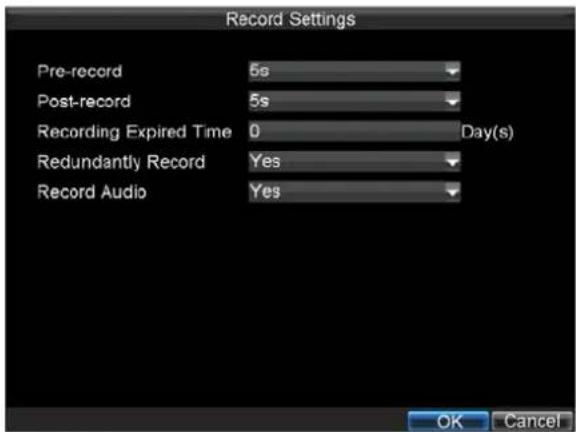
- Next to More Settings, click on the Set button. This will bring up additional settings for the
selected camera (shown in Figure 12).
text_image
Record Settings Pre-record 5s Post-record 5s Recording Expired Time 0 Day(s) Redundantly Record Yes Record Audio Yes OK CancelFigure 12. Additional Record Settings
- Set Redundantly Record to Yes.
- Click the OK button to save settings.
- Repeat steps 8-12 for other cameras you would like to redundantly record.
CHAPTER5
Playback
Playing Back a Recording
You must first search for recordings to play them back. There are multiple ways to search for recordings, including searching for them by time, by channel, by file type and by log.
Understanding the Playback Interface
There are various controls on the Playback interface that makes viewing recordings more efficient. A screenshot of the Playback interface is shown below in Figure 1.

text_image
16-11-2009 Mon 11:55:19 Playback Panel Playback Control Panel 13% Normal EventFigure 1. Playback Interface
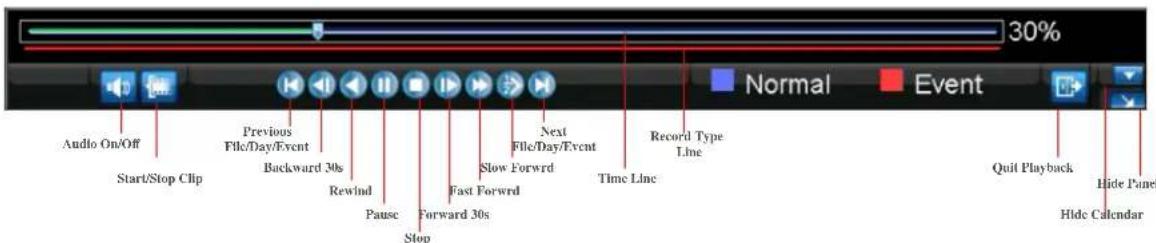
The Playback Control Panel, shown in Figure 2 contains the various controls on the Playback interface.
text_image
30% Normal Event Audio On/Off Previous File/Day/Event Backward 30s Rewind Pause Forward 30s Stop Next File/Day/Event Slow Forward Fast Forward Record Type Line Time Line Quit Playback Hide Panel Hide CalendarFigure 2. Playback Control Panel
Note: A blue Record Time Line designates schedule/manual recording while a red one shows event recordings.
Playing Back from General Video Search
To playback files from a general video search:
- Enter into the Video Search menu by clicking Menu > Video Search.
- Set the search parameters by selecting cameras to search, video/file type and the start/end time
(as shown in Figure 3).
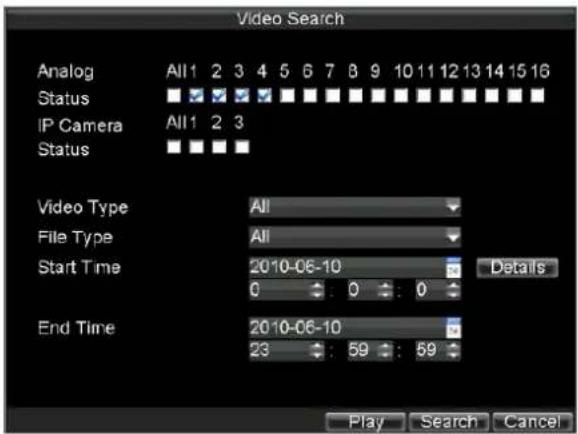
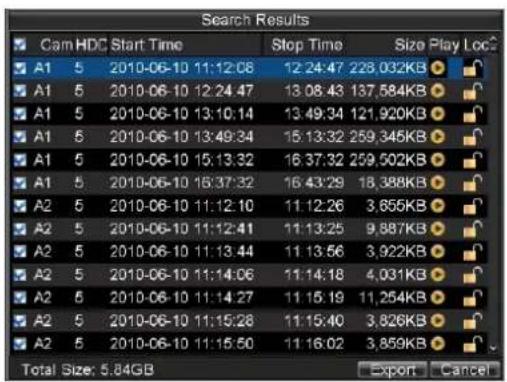
- Click the Play button to start playback of all the files found with the specified search criteria or click the Search button to bring up the list of search results. After search results are presented, you can press play icon to enter multi-channel playback cameras selection, show in Figure 4.
text_image
Search Results Cam HDC Start Time Stop Time Size Play Loc2 A1 5 2010-06-10 11:12:08 12:24:47 228,032KB A1 5 2010-06-10 12:24:47 13:08:43 137,584KB A1 5 2010-06-10 13:10:14 13:49:34 121,920KB A1 5 2010-06-10 13:49:34 15:13:32 259,345KB A1 5 2010-06-10 15:13:32 16:37:32 259,502KB A1 5 2010-06-10 16:37:32 16:43:29 18,388KB A2 5 2010-06-10 11:12:10 11:12:26 3,855KB A2 5 2010-06-10 11:12:41 11:13:25 9,887KB A2 5 2010-06-10 11:13:44 11:13:56 3,922KB A2 5 2010-06-10 11:14:06 11:14:18 4,031KB A2 5 2010-06-10 11:14:27 11:15:19 11,254KB A2 5 2010-06-10 11:15:28 11:15:40 3,826KB A2 5 2010-06-10 11:15:50 11:16:02 3,859KB Total Size: 5.84GB Export Cancel
text_image
Multi-Channel Playback Cameras Please select the cameras for multi-channel playback. Analog All 1 2 3 4 5 6 7 8 9 10 11 12 13 14 15 16 Status ■ ■ ■ ■ ■ ■ ■ ■ ■ ■ ■ ■ ■ ■ ■ ■ IP Camera All 1 2 3 Status ■ ■ ■ ■ OK CancelFigure 4. File and Channel Selection Menu
- When press OK, recordings will automatically be play backed in the Playback interface, shown in Figure 5.
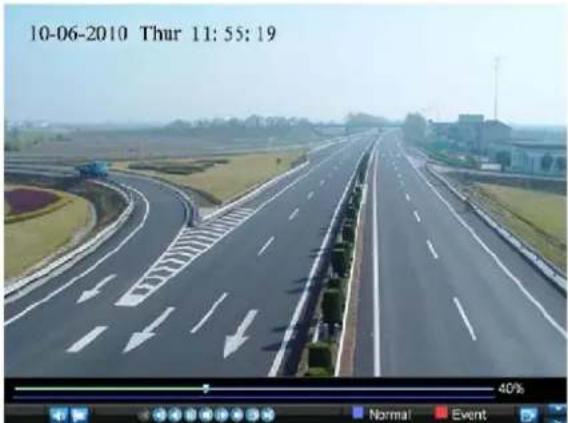
text_image
10-06-2010 Thur 11:55:19 40% Normal EventFigure 5. Playback Interface
Playing Back from Event Search
To playback files from a video event search:
- Enter into the Video Search menu by clicking Menu > Event Search
- Set the search parameters by selecting event type to search, alarm input/ channel and the start/end time (as shown in Figure 6).
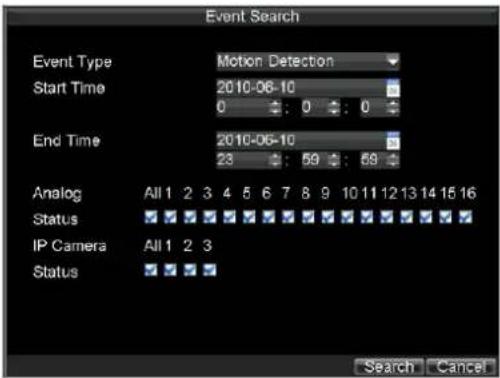
text_image
Event Search Event Type Motion Detection Start Time 2010-06-10 0 : 0 : 0 End Time 2010-06-10 23 : 59 : 58 Analog All 1 2 3 4 5 6 7 8 9 10 11 12 13 14 15 16 Status ☑ ☐ ☐ ☐ ☐ ☐ ☐ ☐ ☐ ☐ ☐ ☐ ☐ ☐ IP Camera All 1 2 3 Status ☑ ☐ ☐ ☐ Search CancelFigure 6. Video Event Search Menu
- Click the Search button to start bring up the list of search results. After search results are presented, you can press play icon to playback the selected event, show in figure 7.
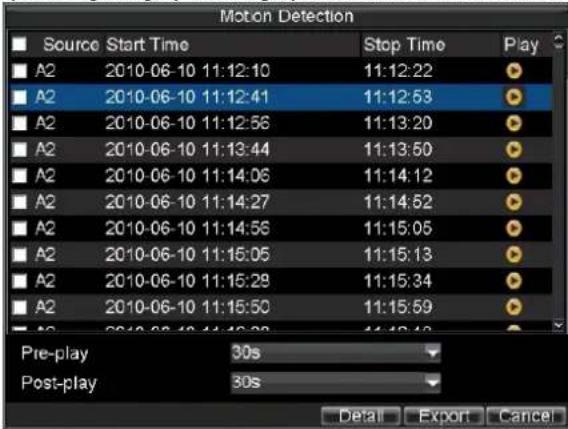
text_image
Motion Detection Source Start Time Stop Time Play A2 2010-06-10 11:12:10 11:12:22 A2 2010-06-10 11:12:41 11:12:53 A2 2010-06-10 11:12:56 11:13:20 A2 2010-06-10 11:13:44 11:13:50 A2 2010-06-10 11:14:06 11:14:12 A2 2010-06-10 11:14:27 11:14:52 A2 2010-06-10 11:14:56 11:15:05 A2 2010-06-10 11:15:05 11:15:13 A2 2010-06-10 11:15:28 11:15:34 A2 2010-06-10 11:15:50 11:15:59 A2 2010-06-10 11:15:88 44:48:43 Pre-play 30s Post-play 30s Detail Export CancelFigure 7. File Selection Menu
- Recordings will automatically be play backed in the Playback interface, shown in Figure 8.

text_image
10-06-2010 Thur 11: 55: 19 40% Normal EventFigure 8. Playback Interface
Playing Back from Live View
You may also instantly playback from a channel while watching a Live View. The playback will be of recordings from the past 5 minutes.
To playback from a channel instantly in Live View:
- Using a Mouse:
- Right-click the mouse on desired channel and select the Playback button.
-
Recordings from the selected channel will start playing back in the Playback interface. An Attention message will appear if there are no recordings found from the previous 5 minutes. You may also press the Play button to view the day's recording for the selected channel.
-
You may also select additional channels for playback from the channel list on the right hand side of the Playback interface, as shown in Figure 9.

text_image
16-11-2009 Mon 14:22:19 Analog IP Analog Camera 01 Camera 02 Camera 03 Camera 04 Camera 05 Camera 06 Camera 07 Camera 08 Camera 09 Camera 10 Nov -2009- S M T W T F S 1 2 3 4 5 6 7 8 9 10 11 12 13 14 15 16 17 正 19 正 21 25 26 27 28 29 30 49%Figure 9. Playback Interface
• Using the Front Panel/Remote:
- Press the PLAY button. This will take you into the Playback interface.
- Enter the channel you would like to watch recordings for on the front panel or remote (i.e. press '11' for channel 11).
- Recordings will begin for the selected channel.
Playing Back from System Log
You may also playback recordings from the System Log.
To playback video from the System Log:
- Enter the Log Search menu by clicking Menu > Maintenance > Log Search (shown in Figure 10).
- Set Start time and End Time.
- Click Search button, after search results are presented, select a log item and click Play button to playback the associated video directly. Attention message will appear if there is no video associated with the log.

text_image
Log Search Major Type Alarm Minor Type All Start Time 2010-06-10 End Time 2010-06-10 Search Cancel
text_image
Log Search Major Type Start Time Minor Type Parameter • Alarm 2010-06-10 11:12:10 Motion Detection EN/A • Alarm 2010-06-10 11:12:22 Motion Detection EN/A • Alarm 2010-06-10 11:12:41 Motion Detection EN/A • Alarm 2010-06-10 11:12:53 Motion Detection EN/A • Alarm 2010-06-10 11:12:56 Motion Detection EN/A • Alarm 2010-06-10 11:13:20 Motion Detection EN/A • Alarm 2010-06-10 11:13:44 Motion Detection EN/A • Alarm 2010-06-10 11:13:50 Motion Detection EN/A • Alarm 2010-06-10 11:14:06 Motion Detection EN/A • Alarm 2010-06-10 11:14:12 Motion Detection EN/A • Alarm 2010-06-10 11:14:27 Motion Detection EN/A • Alarm 2010-06-10 11:14:52 Motion Detection EN/A • Alarm 2010-06-10 11:14:56 Motion Detection EN/A Details Play Export CancelFigure 10. Log Search Menu
Playing Back Frame-by-Frame
To playback frame-by-frame in the Playback interface:
- Using a Mouse:
- Click the Slow Forward button on the Playback Control Panel until the speed changes to Single frame.
- Click the Pause button to advance the video frame by frame.
• Using the Front Panel/Remote:
- Rotate the inner control on Jog Shuttle counterclockwise or press the Down button to set the play to Single frame.
- Press the OK button.
- Press the Enter button to advance the video frame by frame.
Note: For DS-9000/9100-SH/RH series and DS-9600 series DVR, the way to control play speed is a little different with DS-9000/9100-S series DVR, please refer to the front panel explanation in this manual for details.
Smart Search
In order to locate motion detection event easily and accurately in the playback progress line, the users are allowed to analyze a certain area (scene) dynamically, and to get all of the related motion detection events that occurred in this area.
Note: The smart search function is only available for analog channels.
To use dynamic analysis function:
- Go to playback interface and play the video
- Right-click mouse and select Dynamic Analysis to go to analysis area selection interface
- You can left-click the mouse and drag an area for motion detection analysis, then right-click mouse you will get popped up menu.
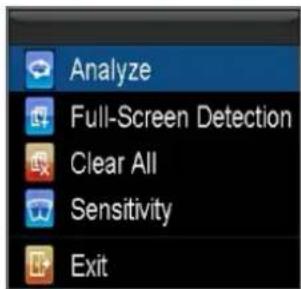
text_image
Analyze Full-Screen Detection Clear All Sensitivity ExitFigure 11. Right-click menu when dynamic analysis
- Before selecting Analyze to start analysis, you also can select full-screen detection, configure the sensitivity level, etc.
- You will go to playback interface with the result of smart search which is indicated by green line clips in the recording type line

text_image
13% Normal EventFigure 12. Playback time line after dynamic analysis
- Right-click mouse you will find popped up menu as below

text_image
Camera Digital Zoom Dynamic Analysis Previous Dynamic Next Dynamic Add Rule Control Panel ExitFigure 13. Right-click menu when playback
You can select Dynamic Analysis to re-drag the analysis area and to re-analyze it, on the other hand, you can select Previous Dynamic to go to the previous event clip or Next Dynamic to go to the next event clip.
Using Digital Zoom
To use digital zoom in Playback mode:
- Enter Digital Zoom mode by right-clicking with the mouse in Playback and selecting Zoom.
- Left-Click and drag red box for desired magnification area, as shown in Figure 14. The selected area will be zoomed to full screen.

text_image
16-11-2009 Mon 14:22:19 16-12-2009 Mon 16:22:19Figure 14. Digital Zoom Area Selection
CHAPTER 6
Backup
Backing up Recorded Files
Recorded files can be backed up to various devices, such as USB flash drives, USB HDDs, e-SATA or a DVD writer, and you may backup recorded files via normal Video Search or Event Search.
Exporting Files
To export recorded files via Video Search:
- Enter the Video Search menu (shown in Figure 1) by clicking Menu > Video Search.
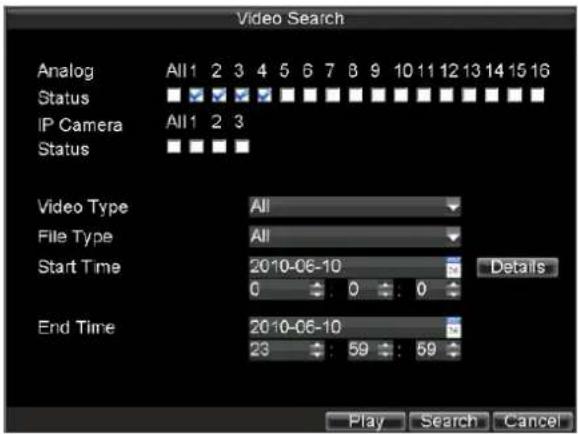
- Select desired parameters to search for files to export.
- Press the Search button. This will take you to the Search Results menu.
- Select the files to export, as shown in Figure 2. You may also click the Play icon to verify that these files are indeed the ones you would like to export.
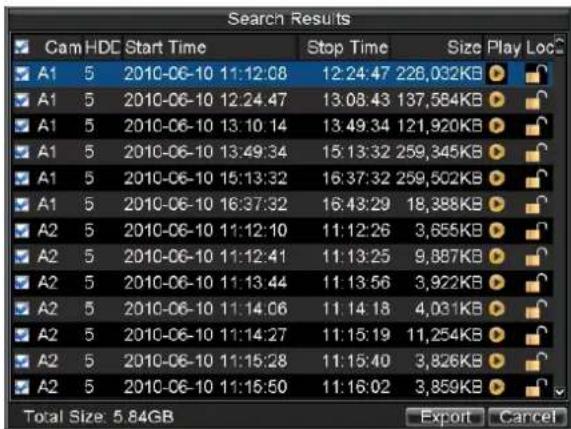
text_image
Search Results Cam HDC Start Time Stop Time Size Play Loc A1 5 2010-06-10 11:12:08 12:24:47 226,032KB A1 5 2010-06-10 12:24.47 13:08.43 137,584KB A1 5 2010-06-10 13:10.14 13:49.34 121,920KB A1 5 2010-06-10 13:49:34 15:13:32 259,345KB A1 5 2010-06-10 15:13:32 16:37:32 259,502KB A1 5 2010-06-10 16:37:32 16:43:29 18,388KB A2 5 2010-06-10 11:12:10 11:12:26 3,655KB A2 5 2010-06-10 11:12:41 11:13:25 9,887KB A2 5 2010-06-10 11:13:44 11:13:56 3,922KB A2 5 2010-06-10 11:14:06 11:14:18 4,031KB A2 5 2010-06-10 11:14:27 11:15:19 11,254KB A2 5 2010-06-10 11:15:28 11:15:40 3,826KB A2 5 2010-06-10 11:15:50 11:16:02 3,859KB Total Size: 5.84GB Export CancelFigure 2. Video Search Results
- The size of the currently selected files is displayed in the lower-left corner of the window. Select the Export button to enter the Export menu, shown in Figure 3.

text_image
Export Refresh USB1-1 Free Space 1.71GB File Name Size Type Date Modified Folder 2010-06-12 09:40:42 New Folder Delete Play Format Start CancelFigure 3. Export Menu
-
Select device to export to from drop-down list (USB Flash Drive, USB HDD, DVD Writer). If backup device is not recognized:
-
Click the Refresh button.
- Reconnect device.
-
Check for compatibility from vendor.
-
Click Start to begin backup process, shown in Figure 4.

text_image
Export Refresh USB1-1 Free Space 1.71GB File Name Size Type Date Modified Ex 40 42 Exporting 2/3 Cancel New Folder Delete Play Format Start CancelFigure 4. Backup Progress
- After the backup process has completed (Figure 5), you may select the files from your device and click the Play button to verify that it has been exported successfully.
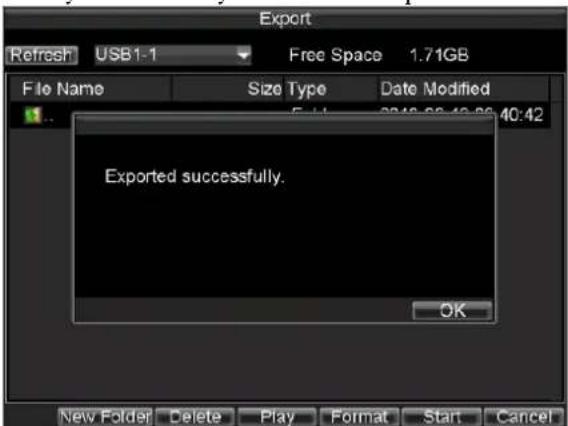
text_image
Export Refresh USB1-1 Free Space 1.71GB File Name Size Type Date Modified 40:42 Exported successfully. OK New Folder Delete Play Format Start CancelFigure 5. Export Successful Screen
Note: Video Player software will automatically be copied on to the device that the recorded files were exported on.
To export recorded files via Event Search:
- Enter the Event Search menu (shown in Figure 6) by clicking Menu > Event Search
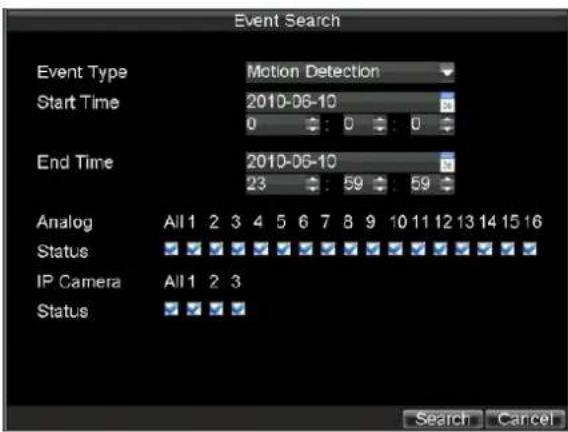
text_image
Event Search Event Type Motion Detection Start Time 2010-06-10 0 : 0 : 0 End Time 2010-06-10 23 : 59 : 59 Analog All 1 2 3 4 5 6 7 8 9 10 11 12 13 14 15 16 Status IP Camera All 1 2 3 Status Search CancelFigure 6. Event Search Menu
- Set the search parameters by selecting event type to search, alarm input/ channel and the start/end time, then click Search button, this will take you to search results interface.

text_image
Motion Detection Source Start Time Stop Time Play A2 2010-06-10 11:12:10 11:12:22 A2 2010-06-10 11:12:41 11:12:53 A2 2010-06-10 11:12:56 11:13:20 A2 2010-06-10 11:13:44 11:13:50 A2 2010-06-10 11:14:06 11:14:12 A2 2010-06-10 11:14:27 11:14:52 A2 2010-06-10 11:14:56 11:15:05 A2 2010-06-10 11:15:05 11:15:13 A2 2010-06-10 11:15:28 11:15:34 A2 2010-06-10 11:15:50 11:15:59 Pre-play 30s Post-play 30s Detail Export CancelFigure 7. Event Search Results
- Select the files to export, you may also click the Play icon to verify that these files are indeed the ones you would like to export.
- Press Export button to enter Export menu, then you can export the files following the step 6 to step 8 as above explanation in this chapter.
Exporting Video Clips
You may also select video clips to export directly during Playback. A maximum of 30 clips can be selected for each channel.
To export video clips during Playback:
• Using the Mouse:
- Enter into the Playback interface (See Playing Back a Recording).
- Using the Clip Start/Stop button in the Playback Control Panel, select the start and end of the
video clip during playback.
-
Repeat for additional clips.
-
Click the Quit Playback button to exit from the Playback interface. You'll then be prompted to save the clips, as shown in Figure 8.
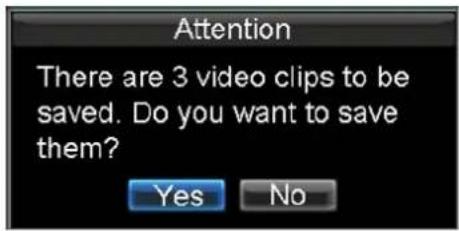
text_image
Attention There are 3 video clips to be saved. Do you want to save them? Yes NoFigure 8. Video Clips Save Prompt
-
Click the Yes button to enter Backup interface or select No to exit to Playback interface.
-
At the Backup interface, select the Start button to begin the Backup process.
• Using the Front Panel / Remote:
-
Enter into the Playback interface (See Playing Back a Recording).
-
During playback, press the EDIT button to mark start of clip.
-
Press the EDIT button again to mark end of clip.
-
Repeat for additional clips.
-
Press the ESC button to exit from the Playback interface. You'll then be prompted to save the clips, as shown in Figure 8.
-
Click the Yes button to enter Backup interface or select No to exit to Playback interface.
-
At the Backup interface, select the Start button to begin the Backup process.
Exporting Files via e-SATA
DVR provides the e-SATA port on the rear panel as an option, you can back up the recorded files via e-SATA port by using external SATA disk.
To export recorded files via e-SATA:
-
Enter the Record Settings menu by clicking Menu > Settings > Record
-
Click Advanced tab, it will take you to the e-SATA property configuration, as shown in Figure 9, select For Export option in the drop-down list, the DVR will ask for reboot to take effect.

text_image
Record Settings General Advanced Schedule Overwrite Yes eSATA For Export Apply OK CancelFigure 9. E-SATA Property Settings
- You may go to recorded files export interface following the above explanation in section Exporting Files or Exporting Video Clips. The Export menu appears as shown in Figure 10.
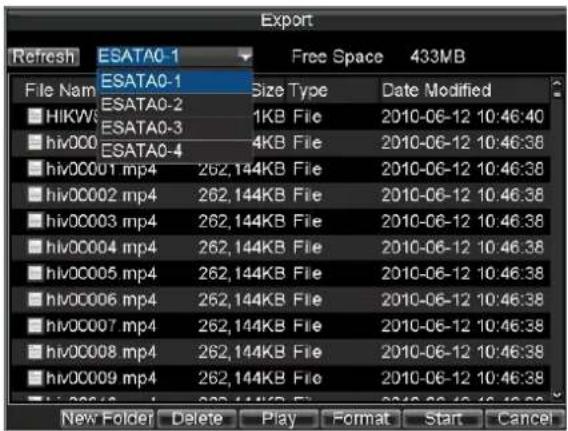
text_image
Export Refresh ESATA0-1 Free Space 433MB File Nam ESATA0-1 Size Type Date Modified ■HIKWS ESATA0-2 1KB File 2010-06-12 10:46:40 ■hiv000 ESATA0-3 4KB File 2010-06-12 10:46:38 ■hiv0001 mp4 262,144KB File 2010-06-12 10:46:38 ■hiv0002 mp4 262,144KB File 2010-06-12 10:46:38 ■hiv0003 mp4 262,144KB File 2010-06-12 10:46:38 ■hiv0004 mp4 262,144KB File 2010-06-12 10:46:38 ■hiv0005 mp4 262,144KB File 2010-06-12 10:46:38 ■hiv0006 mp4 262,144KB File 2010-06-12 10:46:38 ■hiv0007 mp4 262,144KB File 2010-06-12 10:46:38 ■hiv0008 mp4 262,144KB File 2010-06-12 10:46:38 ■hiv0009 mp4 262,144KB File 2010-06-12 10:46:38 ■hiv0016 262,144KB File 2010-06-12 10:46:38 New Folder Delete Play Format Start CancelFigure 10. Files Export Interface
- Select a partition in the drop-down list, then you may click Start to start exporting. Wait until the backup process complete.
Managing Backup Devices
To manage backup devices, you must first be in the Export menu, shown in Figure 11. The Export menu can be accessed by following the steps shown in the previous section (See Exporting Files).
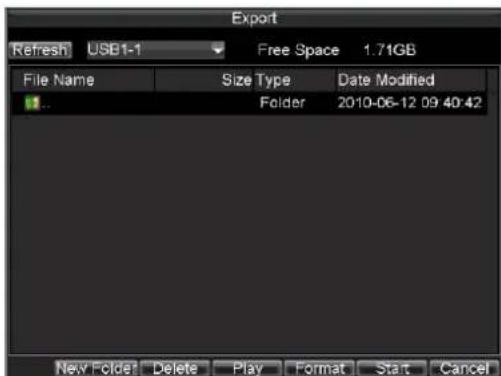
text_image
Export Refresh USB1-1 Free Space 1.71GB File Name Size Type Date Modified Folder 2010-06-12 09:40:42 New Folder Delete Play Format Start Cancel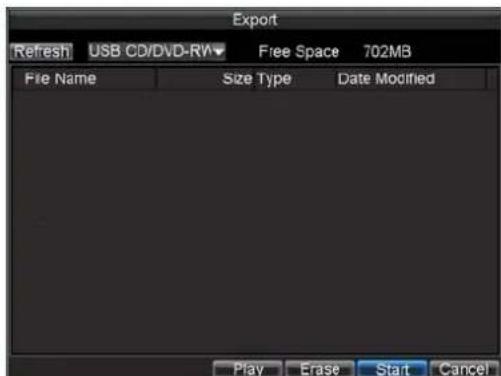
text_image
Export Refresh USB CD/DVD-RW Free Space 702MB File Name Size Type Date Modified Play Erase Start CancelFigure 11. Export Menu
Once in the Export menu, you may:
- New Folder: Creates a new folder on the export device.
- Delete: Delete a file or folder from the export device.
- Play: Play the selected video file from the export device.
- Format: Format the export device.
- Erase: Erase files from a re-writable CD/DVD.
CHAPTER 7
Alarm Settings
Configuring Alarms
Setting up Motion Detection
Set up properly, using motion detected recording will increase the number of days your DVR is able to record. It will only record relevant events rather than recording everything, making searching for an event easier.
To set up motion detection:
1. Enter Camera Management/Setting:
- DS-9000/9600 Series DVR: Enter the Camera Management interface, shown in Figure 1 by navigating to Menu > Setting > Camera. Select the channel to configure motion detection on and click Set.
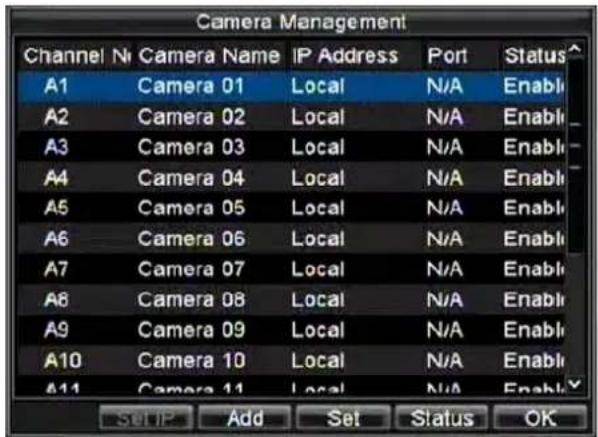
text_image
Camera Management Channel Nr Camera Name IP Address Port Status A1 Camera 01 Local N/A Enable A2 Camera 02 Local N/A Enable A3 Camera 03 Local N/A Enable A4 Camera 04 Local N/A Enable A5 Camera 05 Local N/A Enable A6 Camera 06 Local N/A Enable A7 Camera 07 Local N/A Enable A8 Camera 08 Local N/A Enable A9 Camera 09 Local N/A Enable A10 Camera 10 Local N/A Enable A11 Camera 11 Local N/A Enable Setup Add Set Status OKFigure 1. Camera Management Interface
- DS-9100 Series DVR: Enter the Camera Settings interface by navigating to Menu > Setting > Camera. Select channel to configure motion detection on.
- Select the Advanced tab to open up the Advanced Camera Settings menu, shown in Figure 2.

text_image
Camera Settings General Advanced Camera Analog 1 Image Settings Set ■ Mask Area Settings ■ Tamper Detection Area Settings Handle ■ Motion Detection Area Settings Handle ■ Video Loss Detection Copy To All Copy Apply OK CancelFigure 2. Advanced Camera Settings
- Check the checkbox next to Video Motion Detection.
- Click the Area Settings button to enter the Motion Detection area and Sensitivity configuration interface.
- The Motion Detection area, shown in Figure 3, allows you to mask out areas where you would
like motion to be detected in. The maximum area is the whole screen. You can left click mouse, hold and drag it to mask the Motion Detection area. Using EDIT button and direction buttons can also help you to select Motion Detection area.
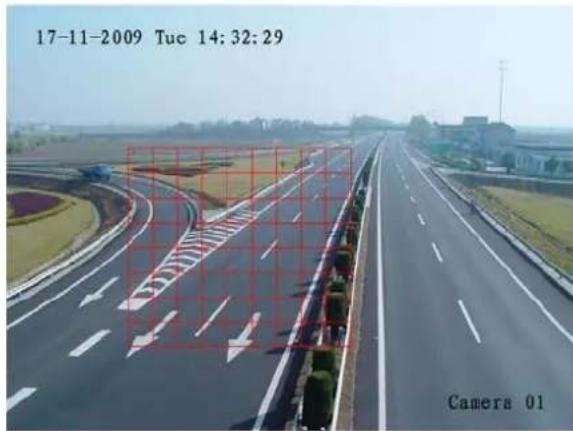
text_image
17-11-2009 Tuc 14:32:29 Camera 01Figure 3. Motion Detection Area
- Right click mouse or press MENU button on the front panel to set the Motion Detection Sensitivity, shown in Figure 4. The higher the sensitivity value, the higher the sensitivity. In order to configure a proper sensitivity for the surveillance field, you may select Highlight On in the right-click menu, and then all detected motion area in the camera will be marked with red highlight color.

text_image
Full-Screen Detection Clear All Highlight On Sensitivity Exit Sensitivity Low Highest Higher Medium Low Lower Lowest Off OK CancelFigure 4. Motion Sensitivity Setting
- Click OK to return to the Camera Settings menu.
- Click the Handle button to open the Exception Handle menu, shown in Figure 5. Select the Triggered Camera tab.
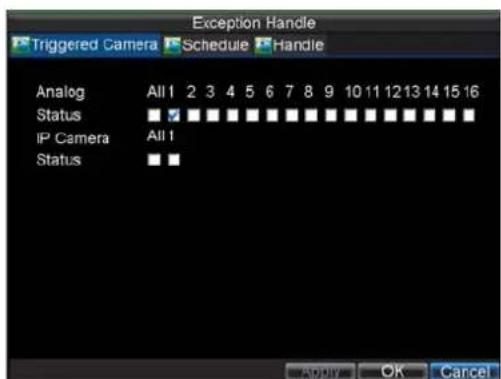
text_image
Exception Handle Triggered Camera Schedule Handle Analog All 1 2 3 4 5 6 7 8 9 10 11 12 13 14 15 16 Status ▼ ▼ ▼ ▼ ▼ ▼ ▼ ▼ ▼ ▼ ▼ ▼ ▼ ▼ ▼ IP Camera All 1 Status ▼ ▼ Apply OK CancelFigure 5. Exception Handle Menu
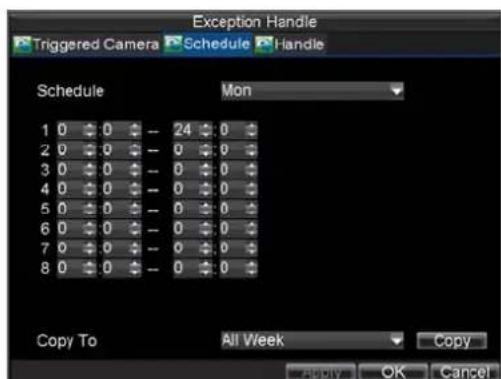
text_image
Exception Handle Triggered Camera Schedule Handle Schedule Mon 1 0 0 -- 24 0 2 0 0 -- 0 9 3 0 0 -- 0 0 4 0 0 -- 0 0 5 0 0 -- 0 0 6 0 0 -- 0 0 7 0 0 -- 0 0 8 0 0 -- 0 0 Copy To All Week Copy OK Cancel- Select cameras to trigger for recording when motion is detected by checking the checkboxes under the desired cameras.
- Select Schedule tab to set arm time, 8 periods can be set.
- Click OK to complete motion settings for the selected camera.
You may now add a schedule to start recording when motion is detected (See Scheduling a Recording).
Setting up Sensor Alarms
Recordings can also be triggered from an external sensor alarm device. To setup sensor alarms:
- Enter into the Alarm Management menu, shown in Figure 6.

text_image
Alarm Settings Alarm Input Alarm Output No. Alarm Name IP Channel Address Type A<-1 Local N.O A<-2 Local N.O A<-3 Local N.O A<-4 Local N.O A<-5 Local N.O A<-6 Local N.O A<-7 Local N.O A<-8 Local N.O A<-9 Local N.O A<-10 Local N.O A<-11 Local N.O A<-12 Local N.O Set OKFigure 6. Alarm Management Menu
- Select the Alarm Input # and click the Set button. This will open the Alarm Input Setting menu, shown in Figure 7.
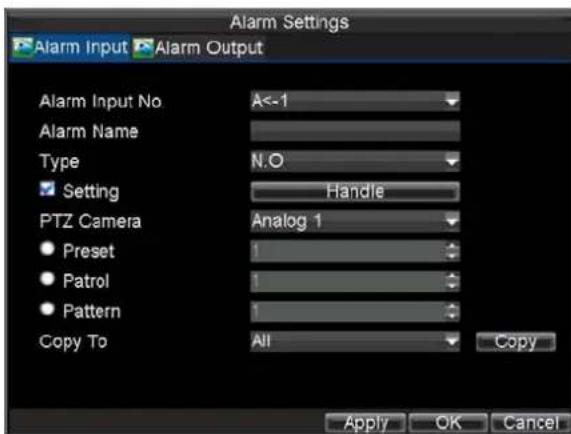
text_image
Alarm Settings Alarm Input Alarm Output Alarm Input No A<-1 Alarm Name Type N.O Setting Handle PTZ Camera Analog 1 • Preset 1 • Patrol 1 • Pattern 1 Copy To All Copy Apply OK CancelFigure 7. Alarm Management Settings
- Set the alarm input type. The options available are Normally Opened (N.O.) and Normally Closed (N.C.).
- Check the checkbox next to Setting and click the Handle button to enter the Alarm Input Handle menu.
- Select the Triggered Camera tab.
- Select cameras to trigger for recording when alarm occurs by checking the checkboxes under the desired cameras, as shown in Figure 8.

- Click the OK button to complete setup.
You may now add a schedule to start recording when an alarm is triggered (See Scheduling a Recording).
Alarm outputs may also be configured in the Alarm Management menu. To set up Alarm Output:
- Select the Alarm Output tab. This will bring up the Alarm Output interface, shown in Figure 9.
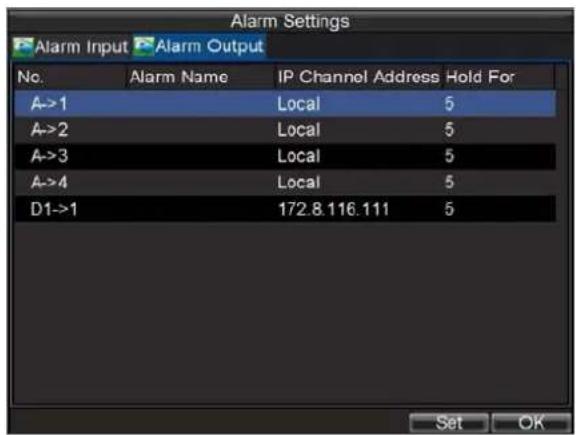
text_image
Alarm Settings Alarm Input Alarm Output No. Alarm Name IP Channel Address Hold For A->1 Local 5 A->2 Local 5 A->3 Local 5 A->4 Local 5 D1->1 172.8.116.111 5 Set OKFigure 9. Alarm Output Interface
- Select the output you would like to configure and click the Set button. This will bring up the settings page for the selected channel (Figure 10).

text_image
Alarm Settings Alarm Input Alarm Output Alarm Output No. A->1 Alarm Name Hold For 5s Schedule All Week 1 0 0 - 24 0 2 0 0 - 0 0 3 0 0 - 0 0 4 0 0 - 0 0 5 0 0 - 0 0 6 0 0 - 0 0 7 0 0 - 0 0 8 0 0 - 0 0 Copy To All Copy ADD OK CancelFigure 10. Alarm Output Settings
- Configure the settings for selected output.
- Select OK to save and exit.
Note: If the Hold For option is selected as Manually Stop, the alarm will only stop when you manually stop it (See Triggering Alarm Outputs Manually).
Note: Triggering an IP camera will require the necessary permissions from the camera.
Triggering Alarm Outputs Manually
You may also trigger alarm outputs manually through the Manual Alarm menu.
To trigger alarm outputs manually:
- Enter the Manual Alarm menu (Figure 11) by clicking Menu > Manual Alarm.
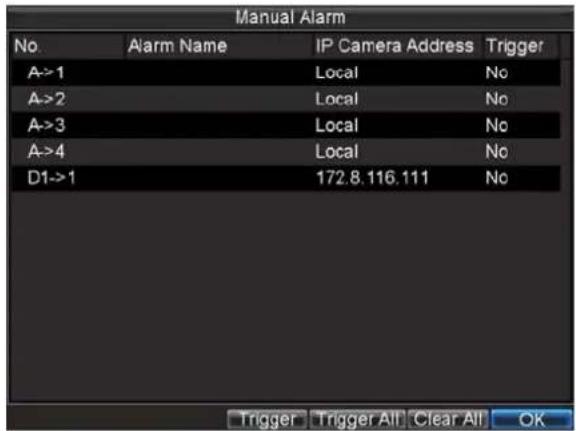
text_image
Manual Alarm No. Alarm Name IP Camera Address Trigger A->1 Local No A->2 Local No A->3 Local No A->4 Local No D1->1 172.8.116.111 No Trigger Trigger All Clear All OKFigure 11. Manual Alarm Menu
-
In the Manual Alarm menu, you may:
-
Trigger: Select an alarm from the list and click Trigger to trigger its output.
- Trigger All: Trigger all alarm outputs at once.
-
Clear All: Stop all alarm outputs at once.
-
Select OK to return to the previous menu.
Detecting Video Loss
Your DVR can be setup to detect video loss and trigger an action. To setup video loss detection:
- Enter Camera Management/Settings menu (Figure 12) by clicking Menu > Setting > Camera.

text_image
Camera Management Channel N# Camera Name IP Address Port Status A1 Camera 01 Local N/A Enable A2 Camera 02 Local N/A Enable A3 Camera 03 Local N/A Enable A4 Camera 04 Local N/A Enable A5 Camera 05 Local N/A Enable A6 Camera 06 Local N/A Enable A7 Camera 07 Local N/A Enable A8 Camera 08 Local N/A Enable A9 Camera 09 Local N/A Enable A10 Camera 10 Local N/A Enable A11 Camera 11 Local N/A Enable Setup Add Set Status OKFigure 12. Camera Management Menu of DS-9000
- Select camera under Channel # to configure video loss detection for and click the Set button. (DS-9100 series DVR will directly enter Camera Settings menu when click Camera icon.)
- Select the Advanced tab.
- Check the Video Loss Detection checkbox to enable feature, as shown in Figure 13.
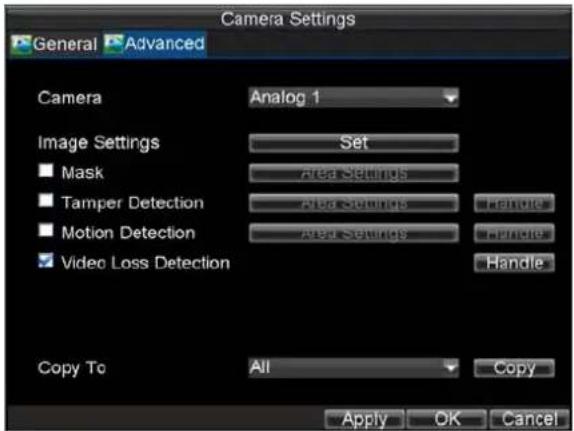
text_image
Camera Settings General Advanced Camera Analog 1 Image Settings Set ■ Mask Area Settings ■ Tamper Detection Area Settings Handle ■ Motion Detection Area Settings Handle ■ Video Loss Detection Handle Copy To All Copy Apply OK CancelFigure 13. Camera Settings Menu
- Click the Handle button to enter the Exception Handle menu, shown in Figure 14.
- Select the Handle tab to configure exceptions handling. Exception trigger options are further explained in the next section (See Understanding Exception Trigger Options).
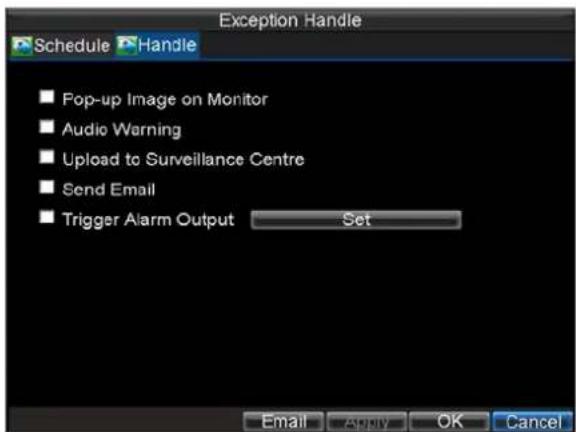
text_image
Exception Handle Schedule Handle ■ Pop-up Image on Monitor ■ Audio Warning ■ Upload to Surveillance Centre ■ Send Email ■ Trigger Alarm Output Set Email Apply OK CancelFigure 14. Exception Handle Menu
- Select the Schedule tab. Set the schedule of when you want video loss detection to be enabled. Schedule can be set for all week or any day of the week with up to 8 time periods per day.
- Click the Apply button to finish settings.
- Repeat above for other channels.
Detecting Video Tampering
Video tampering (i.e. moving camera to a different position) can also be detected and set to trigger an action on your DVR. To setup video tempering detection:
- Enter Camera Management/Settings menu (Figure 15) by clicking Menu > Setting > Camera.
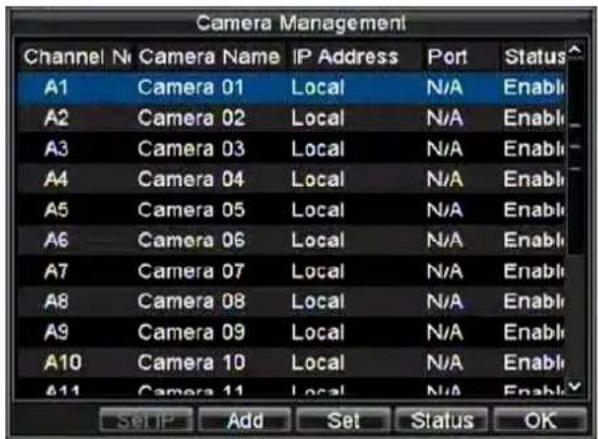
text_image
Camera Management Channel Nr Camera Name IP Address Port Status A1 Camera 01 Local N/A Enable A2 Camera 02 Local N/A Enable A3 Camera 03 Local N/A Enable A4 Camera 04 Local N/A Enable A5 Camera 05 Local N/A Enable A6 Camera 06 Local N/A Enable A7 Camera 07 Local N/A Enable A8 Camera 08 Local N/A Enable A9 Camera 09 Local N/A Enable A10 Camera 10 Local N/A Enable A11 Camera 11 Local N/A Enable Setup Add Set Status OKFigure 15. Camera Management Menu
- Select camera under Channel # to configure video loss detection for and click the Set button.
- Select the Advanced tab.
- Check the Tamper Detection checkbox, as shown in Figure 16.
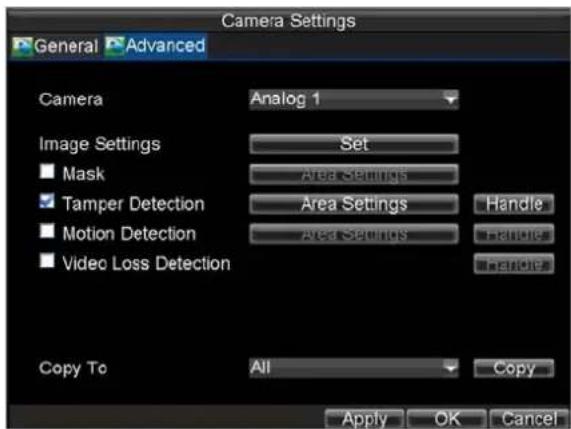
text_image
Camera Settings General Advanced Camera Analog 1 Image Settings Set ■ Mask Area Settings ■ Tamper Detection Area Settings Handle ■ Motion Detection Area Settings Handle ■ Video Loss Detection Handle Copy To All Copy Apply OK CancelFigure 16. Camera Settings Menu
- Click the Area Settings button to enter the area setup.
- Setup tampering area, as shown in Figure 17. Only one tampering area can be set, with the full screen being the maximum area.
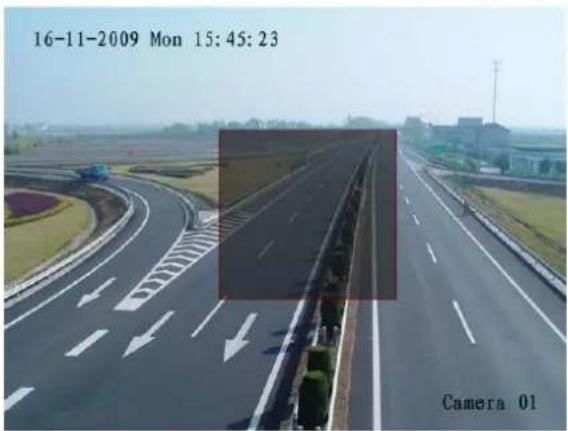
text_image
16-11-2009 Mon 15:45:23 Camera 01Figure 17. Tampering Area etup
- Right click the mouse to set detection sensitivity. There are three options: Low, Medium and High.
- Click OK to return to the Camera Settings menu.
- Click the Handle button to enter the Exception Handle menu, shown in Figure 18.
- Select the Handle tab to configure exceptions handling. Exception trigger options are further explained in the next section (See Understanding Exception Trigger Options).
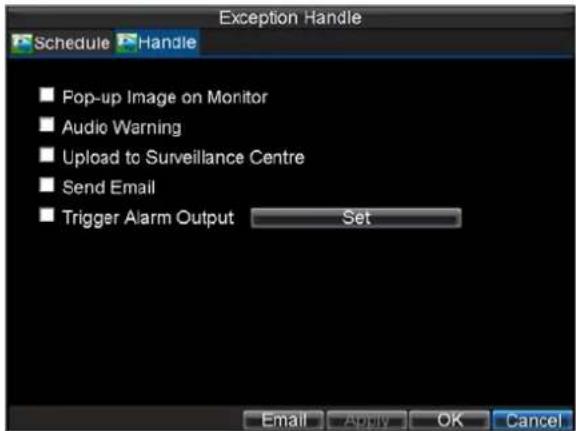
text_image
Exception Handle Schedule Handle ■ Pop-up Image on Monitor ■ Audio Warning ■ Upload to Surveillance Centre ■ Send Email ■ Trigger Alarm Output Set Email Apply OK CancelFigure 18. Exception Handle Menu
- Select the Schedule tab. Set the schedule of when you want video loss detection to be enabled. Schedule can be set for all week or any day of the week with up to 8 time periods per day.
- Click the Apply button to finish settings.
- Repeat above for other channels.
Setting Exception
Setting exceptions allow the DVR to alert you when irregular events occur. These events include:
• HDD Full: All installed HDD are full.
- HDD Errors: Errors occurred during writing of the HDD, no HDD installed or HDD had failed to initialize.
• Network Disconnected: Disconnected network cable.
• IP Conflict: Conflict in IP address setting.
- Illegal Access: Wrong user ID or password used.
• Video Exception: Instable video signal detected.
• Video Output Standard Mismatch: I/O video standards do not match.
• Abnormal Recording: No recording HDD.
To set exceptions:
- Enter the Exception menu by clicking Menu > Settings>Exception.
- Select the exception to configure under Exception Type.
- Select triggering options, as shown in Figure 19. Trigger options are further explained in the next section (See Understanding Exception Trigger Options).
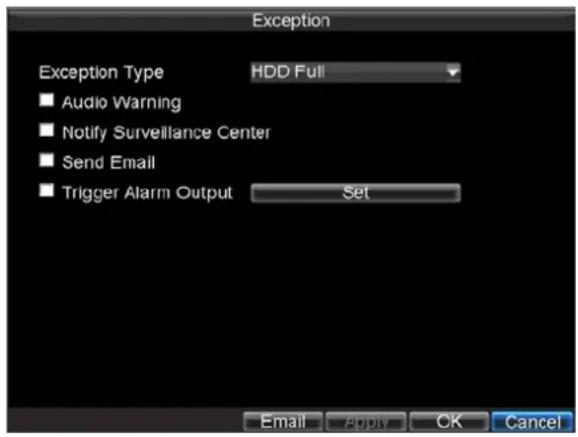
text_image
Exception Exception Type HDD Full ■ Audio Warning ■ Notify Surveillance Center ■ Send Email ■ Trigger Alarm Output Set Email Apply OK CancelFigure 19. Exception Menu
- Click OK to save and exit Exception menu.
Understanding Exception Trigger Options
When setting up exception handlers for such features as motion detection and sensor alarms, you may select triggering options to alert you of these exceptions.
The triggering options that you may select include:
- Pop-up Image on Monitor: When an alarm is triggered, the local monitor (VGA or BNC monitor) will display an image under Live View mode. This alarm can be configured under the Popup Alarm Image handle method. For alarms that are triggered simultaneously, images will be displayed one at a time every 10 seconds (default dwell time). A different dwell time can be set by going to Menu > Settings > Display > Dwell Time. Once the alarm stops, cycling of the images will also stop and you'll be returned to the Live View screen.
• Audio Warning: Trigger an audible beep when exception is detected. - Notify Surveillance Center: Sends a signal to remote alarm host when exception is detected (See Configuring a Remote Alarm Host).
- Trigger Alarm Output: Trigger an alarm output when exception is detected. Alarm output can be configured by following the steps listed in Setting Up Sensor Alarms.
- Send Email: Sending email when exception is detected. Sending email can be configured by following the steps listed in Configuring E-mail Settings.
Intelligent Analysis
Intelligent analysis module is an option and available only for DS-9000/9100HFI-RH DVR. Before use, you may need to install the intelligent board(iDS-90xxE/B) to the slot of DVR's mainboard. The resolution of HDMI will decrease to 1024×768 automatically when the intelligent module is activated, the Intelligent menu will appear in Settings as well, Shown in Figure 20.

text_image
System Settings General Camera Record Network Alarm PTZ RS232 Display Exception User Intelligence Intelligence Settings ExitFigure 20. Intelligent Settings
Note: The intelligent analysis function is only available for analog cameras.
Intelligent Settings
To set the intelligent functions:
- Enter the Intelligent Settings interface by clicking Menu > Settings > Intelligent, shown in Figure 21.

text_image
Behavior Analysis Camera Analog 1 Enable Intelligent Picture Parameters Settings Target Overlay Settings Rule Settings Settings Rule Name Type Parameters 1 Rule 1 2 Rule 2 3 Rule 3 4 Rule 4 5 Rule 5 6 Rule 6 Default Apply OK CancelFigure 21. Intelligent Settings Menu
- Select the camera you want to set intelligent function on and check the Enable Intelligent checkbox.
- If the DVR should be able to capture and upload JPEG picture that triggered by intelligent alarm, you need to enter Settings for Picture Parameters, shown in Figure 22, check the Upload Pictures checkbox and select image quality in the Quality drop-down list.
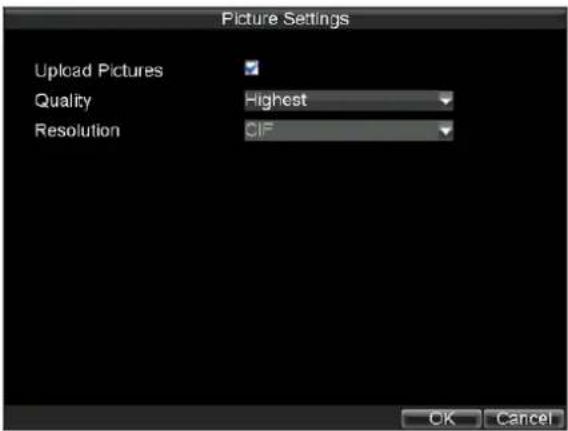
text_image
Picture Settings Upload Pictures Quality Highest Resolution Off OK CancelFigure 22. Picture Settings
- To set the rule display status on image, you need to enter Overlay Settings by clicking Settings for Target Overlay, shown in Figure 23.
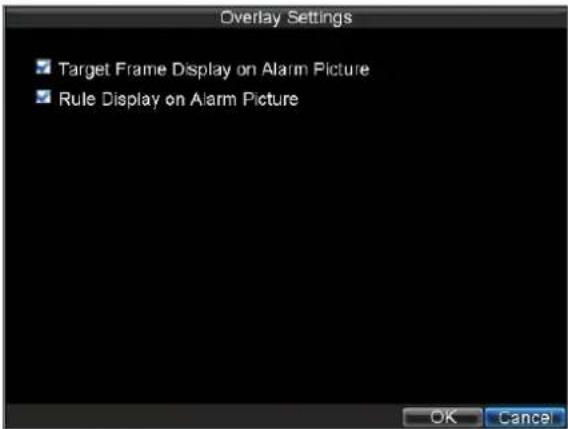
text_image
Overlay Settings Target Frame Display on Alarm Picture Rule Display on Alarm Picture OK CancelFigure 23. Overlay Settings
- Set one or more rules for this camera in Rule Settings menu, then check the checkbox of available rules to include them in the rule list, shown in Figure 24, click Apply button to get the settings done.
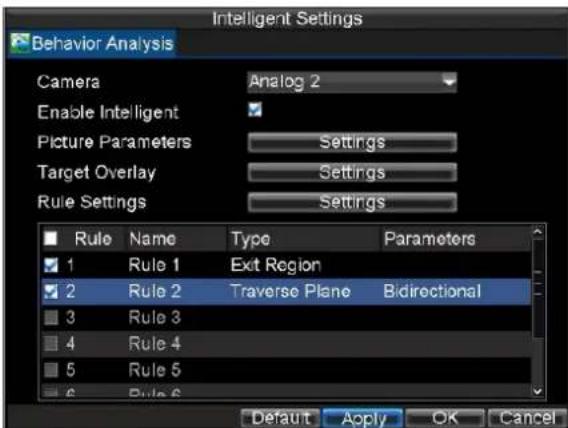
text_image
Intelligent Settings Behavior Analysis Camera Analog 2 Enable Intelligent Picture Parameters Settings Target Overlay Settings Rule Settings Settings Rule Name Type Parameters 1 Rule 1 Exit Region 2 Rule 2 Traverse Plane Bidirectional 3 Rule 3 4 Rule 4 5 Rule 5 6 Rule 6 Default Apply OK CancelFigure 24. Include the Rules to list
Rule Settings
Maximum eight rules can be included for one channel and users are allowed to choose rule from following types: Traverse Plane, Enter Region, Exit Region, Invasion, Loiter, Left Take, Parking, Run and High Density.
To set rules for camera:
- Enter the Intelligent Settings interface by clicking Menu > Settings > Intelligent > Rule Settings, shown in Figure 25.

text_image
Rule Settings Rule No. 1 Rule Name Rule 1 Rule Type Exit Region Rule Parameter None Region Settings Settings Handle Settings OK CancelFigure 25. Rule Settings
- Select a Rule No. and you can set Rule Name accordingly.
- Select a desired type in the drop-down list of Rule Type, the settings of Rule Parameters may become available depends on the rule type you configured.
- For each rule, you may need to set an activated region. Region Settings are further explained in the next section.
- Enter Handle settings menu, as shown in Figure 26, select Triggered Camera tab.

text_image
Handle Triggered Camera Schedule Rule Analog All 1 2 3 4 5 6 7 8 9 10 11 12 13 14 15 16 StatusFigure 26. Rule Handle Menu
- Select cameras to trigger for recording or actions when alarm occurs by checking the checkboxes under the desired cameras.
- Click Schedule tab to set the activated schedule for this rule, there are two time segments can be set.
- Select Rule tab to configure alarm handling.
Note: for the polygon region settings, minimum three edges should be drawn, and maximum ten edges can be drawn.
Region settings for Traverse Plane:
-
In the Rule Settings menu, select rule type as Traverse Plane, and choose a desired direction type, there are three available options including: Bidirectional, From Left to Right and From Right to Left.
-
Enter Region Settings, left-click mouse to draw the line, left-click mouse to determine the terminals, shown in Figure 27, DVR will detect and analyze if the object crosses the line in wrong direction.

text_image
09-05-2008 Fri 12:42:20 25天 Canada 01Figure 27. Region settings for Traverse Plane
- Right-click mouse and select Finish to complete settings.
Region settings for Enter Region or Exit Region:
-
In the Rule Settings menu, select rule type as Enter Region or Exit Region.
-
Enter Region Settings, left-click mouse to draw the specific monitoring field, it supports polygon, shown in Figure 28. DVR will detect and analyze if there is object enter into or exit from this filed.
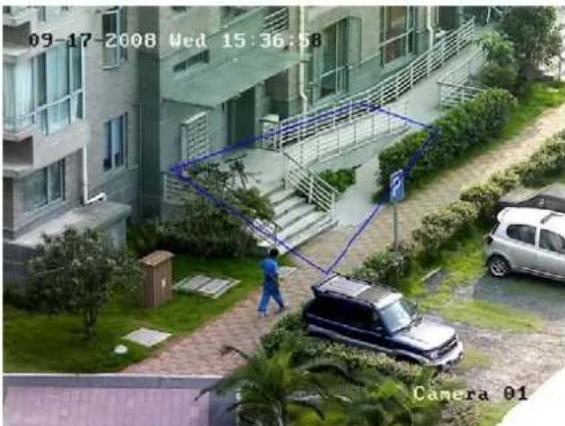
text_image
09-17-2008 Wed 15:36:58 Camera 01Figure 28. Region settings for Enter Region or Exit Region
- Right-click mouse and select Finish to complete settings.
Region settings for Invasion:
-
In the Rule Settings menu, select rule type as Invasion, and enter a duration time, the DVR will give information if an object intrude this specific filed and the duration is longer than the value you set.
-
Enter Region Settings, left-click mouse to draw the specific monitoring field, it supports polygon, shown in Figure 29. DVR will detect and analyze if there is object enter into or exit from this filed.
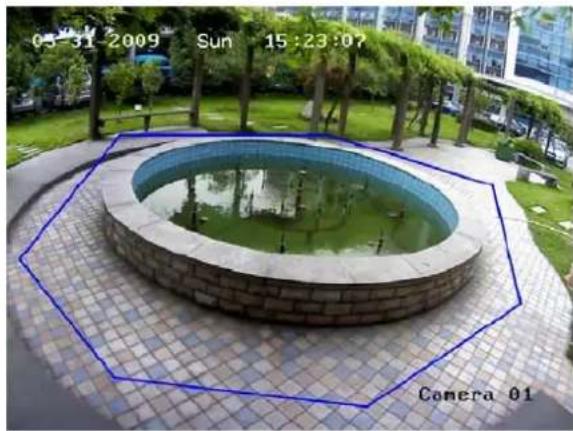
natural_image
Exterior view of a circular stone pool with green water, surrounded by trees and urban buildings (no signage)Figure 29. Region settings for Invasion
- Right-click mouse and select Finish to complete settings.
Region settings for Loiter:
- In the Rule Settings menu, select rule type as Loiter, and enter a duration time, the DVR will give information if an object loiter in the specific filed and the duration is longer than the value you set.
- Enter Region Settings, left-click mouse to draw the specific monitoring field, shown in Figure 28.
- Right-click mouse and select Finish to complete settings.
Region settings for Left Take:
- In the Rule Settings menu, select rule type as Left Take, and enter a duration time, the DVR will give information if an object is left in or taken away from the specific filed.
- Enter Region Settings, left-click mouse to draw the specific monitoring field, shown in Figure 30.

natural_image
Interior view of a room with a person viewing a framed picture on the wall (no visible text or symbols)Figure 30. Region settings for Left Take
- Right-click mouse and select Finish to complete settings.
Region settings for Parking:
- In the Rule Settings menu, select rule type as Parking, and enter a duration time, the DVR will give information if a vehicle is parked in the specific filed.
- Enter Region Settings, left-click mouse to draw the specific monitoring field, shown in Figure 31.
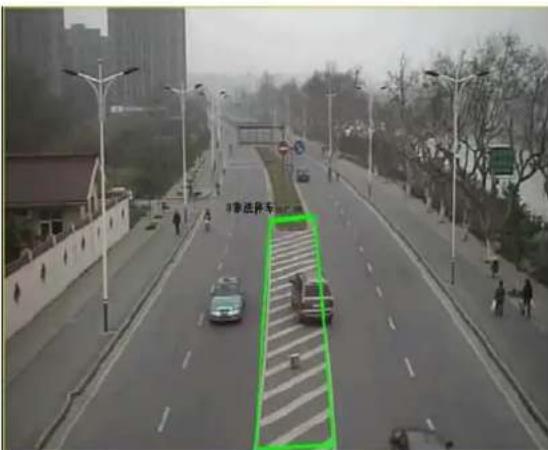
text_image
Street photo with visible traffic signs and a green bounding box highlighting a pedestrian crossing areaFigure 31. Region settings for Parking
- Right-click mouse and select Finish to complete settings.
Region settings for Run:
- In the Rule Settings menu, select rule type as Run.
- Set a value for Distance(%) , the DVR will give information if speed of moving object dramatically increase accordingly to the value you set.
- Enter Region Settings, left-click mouse to draw the specific monitoring field.
- Right-click mouse and select Finish to complete region settings
Region settings for Run:
- In the Rule Settings menu, select rule type as High Density.
- Set a value for Density(%), the DVR will give information if there are objects fill up the monitoring field accordingly to the value you set.
- Enter Region Settings, left-click mouse to draw the specific monitoring field, shown in Figure 32.
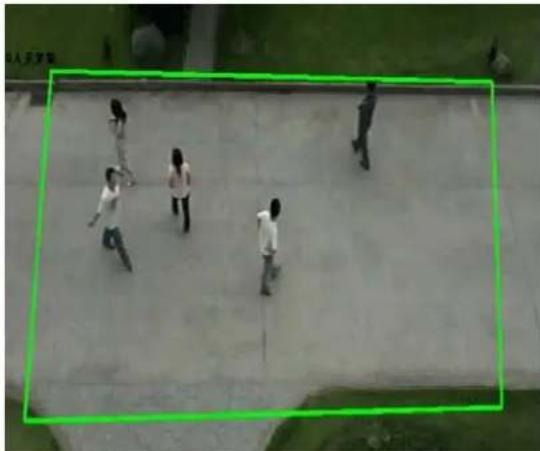
natural_image
Aerial view of five people walking on a paved area, enclosed in a green bounding box (no visible text or symbols)Figure 32. Region settings for Parking
- Right-click mouse and select Finish to complete region settings.
CHAPTER8
Network Settings
Configuring Network Settings
Network settings must be configured before you're able to use your DVR over the network.
Configuring Basic Settings
To configure basic network settings:
- Enter the Network Settings menu, shown in Figure 1 by clicking Menu > Settings > Network.
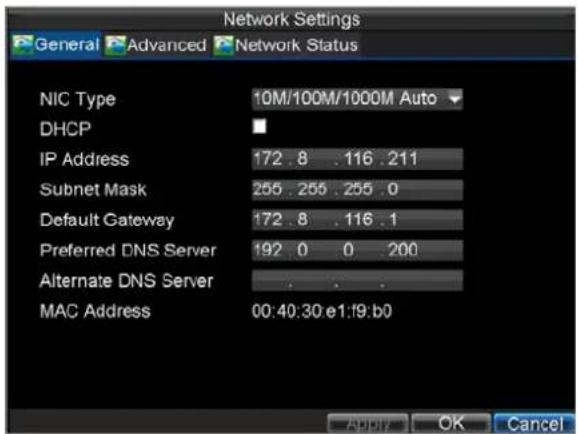
text_image
Network Settings General Advanced Network Status NIC Type 10M/100M/1000M Auto DHCP IP Address 172.8 .116 .211 Subnet Mask 255.255.255.0 Default Gateway 172.8 .116.1 Preferred DNS Server 192.0 0 .200 Alternate DNS Server MAC Address 00:40:30 e1:f9:b0 ADD? OK CancelFigure 1. Network Settings Menu
- Select the General tab.
- If you have a DHCP server running and would like your DVR to automatically obtain an IP address and other network settings from that server, check the DHCP checkbox. You may check the DHCP status by going to the Network Status tab, as shown in Figure 2.
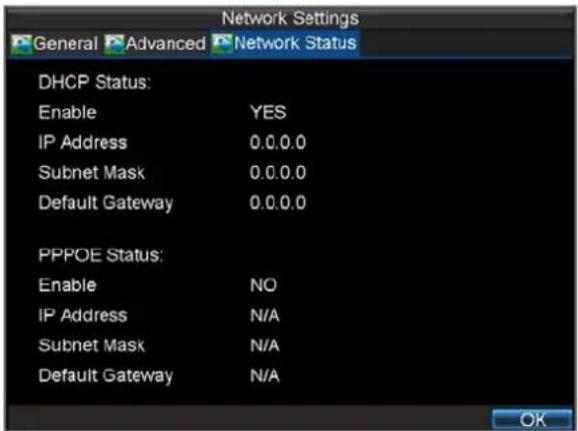
text_image
Network Settings General Advanced Network Status DHCP Status: Enable YES IP Address 0.0.0.0 Subnet Mask 0.0.0.0 Default Gateway 0.0.0.0 PPPOE Status: Enable NO IP Address N/A Subnet Mask N/A Default Gateway N/A OKFigure 2. Network Status
-
If you would like to configure your own settings, enter the settings for:
-
IP Address: IP address you would like to use for your DVR.
- Subnet Mask: Subnet Mask of network.
- Default Gateway: IP address of your Gateway. Typically the IP address of your router.
- Preferred/Alternate DNS Server: The preferred and alternate Domain Name System (DNS)
Server to be used with your DVR.
- Click OK to save and exit the Network Settings menu.
Configuring PPPoE Settings
Your DVR also allows for Point-to-Point Protocol over Ethernet (PPPoE) access. To set up PPPoE access:
-
Enter the Network Settings menu by clicking Menu > Settings > Network.
-
Select the General tab, as shown in Figure 3.
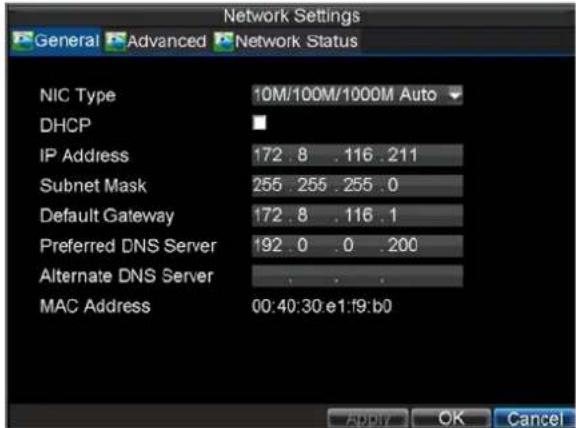
text_image
Network Settings General Advanced Network Status NIC Type 10M/100M/1000M Auto DHCP IP Address 172.8 .116 .211 Subnet Mask 255.255.255.0 Default Gateway 172.8 .116 .1 Preferred DNS Server 192.0 .0 .200 Alternate DNS Server MAC Address 00:40:30:e1:f9:b0 ADDY OK CancelFigure 3. Network Settings Menu
- Select the Advanced tab. This will take you to the advanced network settings menu, shown in Figure 4.
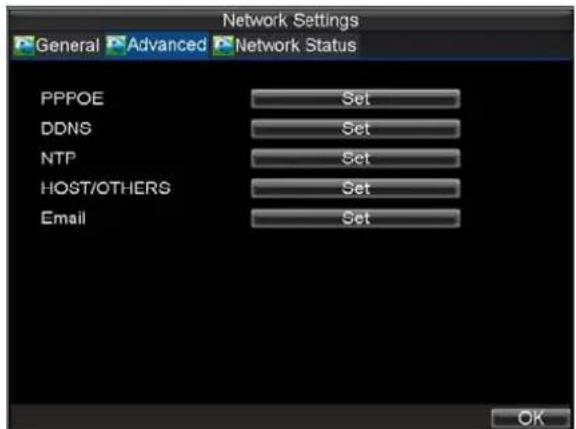
text_image
Network Settings General Advanced Network Status PPPOE Set DDNS Set NTP Set HOST/OTHERS Set Email Set OKFigure 4. Advanced Network Settings
- Click the Set button next to PPPoE to enter PPPoE settings menu, shown in Figure 5.

text_image
PPPCE PPPOE User Name user Password ****** Confirm Password ****** OK CancelFigure 5. PPPoE Settings
- Check the PPPoE checkbox to enable feature.
- Enter User Name, Password, and Confirm Password for PPPoE access. PPPoE credentials can be obtained from your network administrator. Once the setup is completed, your DVR will automatically dial-up into your network after rebooting.
- Click OK button to save and exit Network Settings menu. You may be now asked to restart your DVR for settings to take place. To check on the status of your PPPoE connection, go to Menu > Settings > Network and select the Network Status tab.
Configuring DDNS
If your DVR is setup to use PPPoE as its default network connection, you may setup Dynamic DNS (DDNS) to be used in conjunction.
To setup DDNS:
- Enter the Network Settings menu by clicking Menu > Settings > Network.
- Select the Advanced tab.
- Select the Set button next to DDNS to enter the DDNS settings menu, shown in Figure 6.
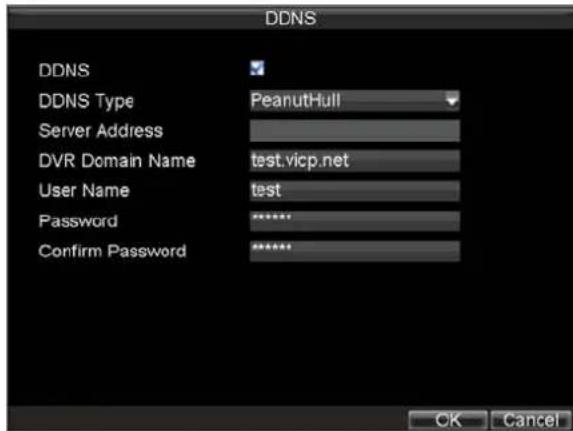
text_image
DDNS DDNS DDNS Type PeanutHull Server Address DVR Domain Name test.vicp.net User Name test Password ****** Confirm Password ****** OK CancelFigure 6. DDNS Settings Menu
- Check the DDNS checkbox to enable feature.
- Select DDNS Type. There are three different DDNS type to choose from, IpServer, PeanutHull, DynDNS and NO-IP.
- IpServer: Enter Server Address for IpServer.
- PeanutHull: Enter User Name and Password obtained from the PeanutHull website
(Figure 6).
- DynDNS: Enter Server Address for DynDNS (i.e. members.dyndns.org) (Figure 7). Under DVR Domain Name, enter the domain obtained from the DynDNS web site. Lastly, enter the User Name and Password registered in the DynDNS network.
- NO-IP: Enter the account information in the corresponding fields. Refer to the Dyndns settings.

text_image
DDNS DDNS DDNS Type DynDns Server Address members.dyndns.com DVR Domain Name test.dyndns.com User Name test Password ****** Confirm Password ****** OK CancelFigure 7. DynDNS Settings
Configuring an NTP Server
A Network Time Protocol (NTP) Server may also be setup on your DVR to keep the date and time current and accurate.
To setup an NTP server:
- Enter the Network Settings menu by clicking Menu > Settings > Network.
- Select the Advanced tab.
- Select the Set button next to NTP to enter the NTP settings menu, as shown in Figure 8.
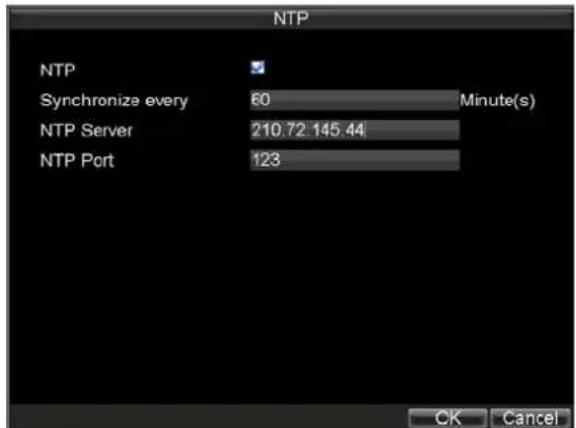
text_image
NTP NTP Synchronize every 60 Minute(s) NTP Server 210.72.145.44 NTP Port 123 OK CancelFigure 8. NTP Settings Menu
-
Check the NTP checkbox to enable feature.
-
Set NTP settings:
-
Synchronize Every: Time in minutes to synchronize with NTP server.
• NTP Server: IP address of NTP server.
• NTP Port: Port of NTP server. -
Click OK to save and exit menu.
Note: Time synchronization interval has a range of 0-10080min, normally 60min. If the DVR is used on a public network, you should use a NTP server that has a time synchronization function, such as the server at the National Time Center (IP Address: 210.72.145.44). If the DVR is setup in a more customized network, NTP software can be used to establish a NTP server used for time synchronization.
Configuring a Remote Alarm Host
With a remote alarm host set, the DVR will send a signal to the host when an alarm is triggered. The remote alarm host must have the Network Video Surveillance software installed.
To set up a remote alarm host:
- Enter Network settings menu by clicking Menu > Settings > Network.
- Select the Advanced tab.
- Click the Set button next to Host/Others to enter the Host/Others menu, as shown in Figure 9.
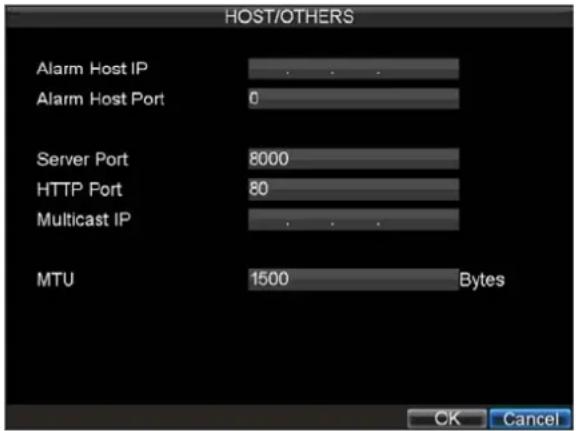
text_image
HOST/OTHERS Alarm Host IP Alarm Host Port 0 Server Port 8000 HTTP Port 80 Multicast IP MTU 1500 Bytes OK CancelFigure 9. Host/Others Menu
- Enter Alarm Host IP and Alarm Host Port. Alarm Host IP is the IP of the remote PC which has the Network Video Surveillance software installed. The Alarm Host Port must be the same as software's alarm monitor port (default port is 7200).
Configuring Multicast
Setting up multicasting solves limitation issues when streaming videos through a network access device. A multicast address spans the Class-D IP range of 224.0.0.0 to 239.255.255.255. It is suggested that the IP address range of 239.252.0.0 to 239.255.255.255 be used.
To set up multicasting:
- Enter the Network Settings menu by clicking Menu > Settings > Network.
- Select the Advanced tab.
- Click the Set button next to Host/Others to enter the Host/Others menu.
- Set Multicast IP, as shown in Figure 10. When adding a device to the Network Video Surveillance software, the multicast address must be the same as the DVR's multicast IP.

text_image
HOST/OTHERS Alarm Host IP Alarm Host Port 0 Server Port 8000 HTTP Port 80 Multicast IP MTU 1500 Bytes OK CancelFigure 10. Host/Others Menu
- Click OK to save and exit menu.
Configuring MTU
MTU is the abbreviation of Maximum Transmission Unit. Unit is represented by bytes.
To change MTU:
- Enter the Network Settings menu by clicking Menu > Settings > Network.
- Select the Advanced tab.
- Click the Set button next to Host/Others to enter the Host/Others menu.
- Enter new MTU for this device, as shown in Figure 11.
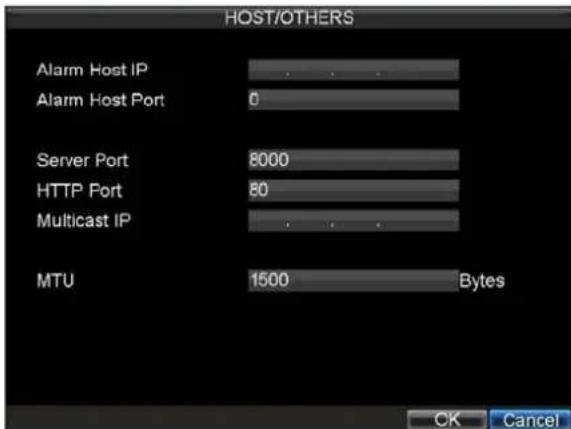
text_image
HOST/OTHERS Alarm Host IP Alarm Host Port Server Port HTTP Port Multicast IP MTU 1500 Bytes OK CancelFigure 11. Host/Others Menu
Note: The virtual value of MTU is from 500 to 9676.
Configuring Server and HTTP Ports
If you would like to change the server and HTTP ports from the default settings, you can do so in the Network Settings menu. The default server port is 8000 while the default HTTP port is 80.
To change the default ports:
- Enter the Network Settings menu by clicking Menu > Settings > Network.
- Select the Advanced tab.
- Click the Set button next to Host/Others to enter the Host/Others menu.
- Enter new Server Port and HTTP Port, as shown in Figure 12.

text_image
HOST/OTHERS Alarm Host IP Alarm Host Port 0 Server Port 8000 HTTP Port 80 Multicast IP MTU 1500 Bytes OK CancelFigure 12. Host/Others Menu
Note: The Server Port has a port range of 2000-65535 and is used for remote client software access. The HTTP port is used for remote internet browser access.
Configuring E-mail Settings
To configure E-mail settings:
- Enter the Network Settings menu by clicking Menu > Settings > Network.
- Select the Advanced tab.
- Click the Set button next to E-mail to enter the E-mail menu. The E-mail menu is shown in Figure 13.

text_image
Email General Advanced Server Authentication User Name 123@aaa.com Password ****** SMTP Server smtp.aaa.com From Name 123 From Email Address 123@aaa.com Select Recipients To Name 1 To Name 321 To Email Address 321@bbb.com Test Apply OK CancelFigure 13. E-mail Menu
- Enter e-mail settings. Please refer to Figure 13 for details.
- Click the Test button to test e-mail settings.
- Select Advanced tab to enable Attached JPEG File if you want to send email with alarm images, the interval is the time of two adjacent alarm images. You can also set SMTP port and enable SSL here.
7. Click the OK button to save and exit the E-mail menu.
Note: It is recommended that the e-mail settings be tested after they are entered. This can be accomplished by clicking the Test button in the E-mail menu.
Viewing Network Traffic
You can view the network traffic to obtain real-time information of DVR such as linking status, MTU, sending/receiving rate, etc.
To view network traffic:
- Enter the Network Traffic interface by clicking Menu > Maintenance > Network Detection.

line
| Time (s) | Traffic (Kbps) | | -------- | -------------- | | 0 | 0 | | 40:48 | 4 | | 1b:68 | 8 | | 1500 | 0 | | 1000M | 0 |Figure 14. Network Traffic Interface
- You can view the sending rate and receiving rate information on the interface. The traffic data is refreshed every 1 second.
Configuring Network Detection
You can obtain network connecting status of DVR through the network detection function, including network delay, packet loss, etc.
Testing Network Delay, Packet Loss
To view network traffic:
- Enter the Network Traffic interface by clicking Menu > Maintenance > Network Detection.
- Click the Detection tab to enter the Network Detection menu, as shown in Figure 15.
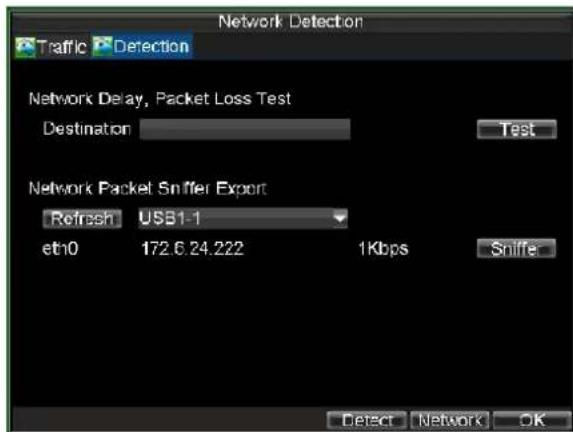
text_image
Network Detection Traffic Detection Network Delay, Packet Loss Test Destination Test Network Packet Sniffer Export Refresh USB1-1 etn0 172.6.24.222 1Kbps Sniffer Detect Network OKFigure 15. Network Detection Interface
- Enter the destination address in the text field of Destination.
- Click the Test button to start testing network delay and packet loss. The testing result will pop up on the window. If the testing is failed, the error message box will pop up as well. Refer to Figure 16.

text_image
Result Average Delay: 0 ms Packet Loss Rate: 0% OK
text_image
Attention Destination address is unreachable! OKFigure 16. Testing Result of Network Delay and Packet Loss
Exporting Network Packet
By connecting the DVR to network, the captured network data packet can be exported to USB-flash disk, SATA/eSTATA CD-RW and other local backup devices.
To export network packet:
- Enter the Network Traffic interface by clicking Menu > Maintenance > Network Detection.
- Click the Detection tab to enter the Network Detection interface.
- Select the backup device from the dropdown list of Device Name, as shown in Figure 18.
Note: Click the Refresh button if the connected local backup device cannot be displayed. When it fails to detect the backup device, please check whether it is compatible with the DVR. You can format the backup device if the format is incorrect.

text_image
Network Detection Traffic Detection Network Delay, Packet Loss Test Destination 172.6.24.22 Test Network Packet Sniffer Export Refresh USB1-1 et10 172.6.24.222 Dbps Sniffer Detect Network OKFigure17. Export Network Packet
- Click the Sniffer button to start exporting.
- After the exporting is complete, click OK to finish the packet export, as shown in Figure 18.

text_image
Packet sniffer exporting... Cancel
text_image
Attention Network packet sniffer export is complete! OKFigure 18. Packet Export Attention
CHAPTER9
PTZ Controls
Navigating PTZ Menus
PTZ menus can be navigated through with either the mouse or the front panel/remote. For quick access to certain PTZ settings, right clicking with the mouse in a display while in PTZ control mode will bring up the PTZ settings menu. This menu is shown in Figure 1.
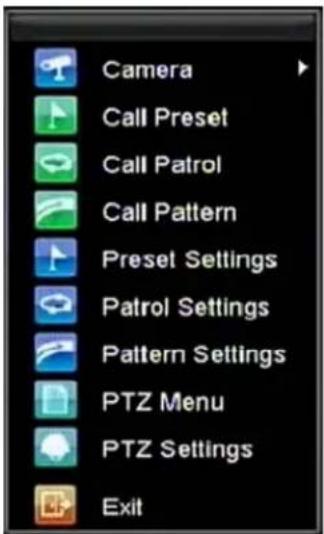
text_image
Camera Call Preset Call Patrol Call Pattern Preset Settings Patrol Settings Pattern Settings PTZ Menu PTZ Settings ExitFigure 1. Mouse PTZ Settings Menu
The items that can be found on this menu include:
• Camera: Select a PTZ camera.
• Call Preset: Call a PTZ preset.
• Call Patrol: Call a PTZ sequence.
• Call Pattern: Call a PTZ pattern.
- Preset Settings: Enter PTZ preset configuration menu.
• Patrol Settings: Enter PTZ patrol configuration menu.
- Pattern Settings: Enter PTZ pattern configuration menu.
• PTZ Menu: Enter the menu of PTZ.
• PTZ Settings: Enter PTZ setting menu.
Configuring PTZ Settings
Settings for a PTZ camera must be configured before it can be used. Before proceeding, verify that the PTZ and RS-485 of the DVR are connected properly.
To configure PTZ settings:
- Enter the PTZ Settings menu by clicking Menu > Settings > PTZ. The PTZ Settings menu is shown in Figure 2.

text_image
PTZ Settings Camera Analog 1 Baudrate 9600 Data Bit 8 Stop Bit 1 Parity None Flow Ctrl None PTZ Protocol HIKVISION Address 0 Copy To All Copy Default Apply OK CancelFigure 2. PTZ Settings Menu
- Select channel where PTZ camera is installed next to Camera label.
- Enter PTZ settings so it matches that of the PTZ camera.
- Click OK button to save and exit menu.
Setting PTZ Presets, Patrols & Patterns
Your DVR allows you to customize presets, patrols and patterns for a connected PTZ camera.
Understanding PTZ Controls
Before setting presets, patrols and patterns, it's important to understand some of the features of the PTZ control panel, shown in Figure 3.
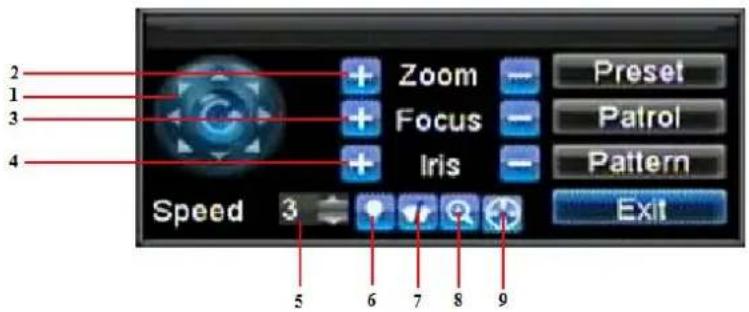
text_image
2 1 3 4 Zoom Focus Iris Preset Patrol Pattern Exit Speed 3 5 6 7 8 9Figure 3. PTZ Control Interface
The controls on the PTZ panel include:
- Directional Pad/Auto-scan Buttons: Controls the movements and directions of the PTZ. Center button is also used to start auto-scan of PTZ.
- Zoom: Used to zoom in and out with the PTZ.
- Focus: Used to adjust the focus of the PTZ.
- Iris: Used to open up or close the iris of the PTZ.
- Speed: Adjusts the movement speed of the PTZ.
- Light: Turns PTZ light (if applicable) on and off.
- Wiper: Turns PTZ wiper (if applicable) on and off.
- Zoom In: Instantly zooms PTZ in.
- Center: Centers PTZ.
Customizing Presets
Presets can be set to move your PTZ camera to a desired preset location at the click of a button.
To setup and use custom PTZ presets:
- Enter the PTZ Control interface, shown in Figure 3 by clicking PTZ in the mouse menu or the PTZ button on the front panel.
- Select the Preset button to enter the Preset Management menu.
- In the Preset Management menu, shown in Figure 4, you may:
- Configure Preset: Use the PTZ control panel to adjust the position of the preset. Select a Preset number and click the Set button to save preset location.
- Clear Preset: Select a Preset number and click the Clear button to delete the preset. You may also select the Clear All button to delete all presets.
- Call Preset: Select a Preset and click the Call button.
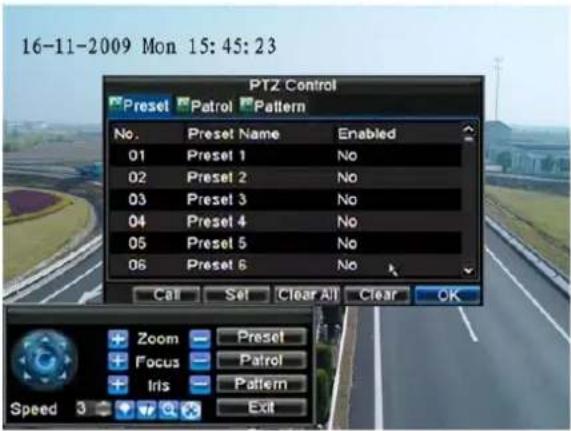
text_image
16-11-2009 Mon 15:45:23 PTZ Control Preset Patrol Pattern No. Preset Name Enabled 01 Preset 1 No 02 Preset 2 No 03 Preset 3 No 04 Preset 4 No 05 Preset 5 No 06 Preset 6 No Call Set Clear All Clear OK Zoom Preset Focus Patrol Iris Pattern Exit Speed 3Figure 4. Preset Management Menu
Note: Only valid presets can be called and deleted.
Customizing Patrols
Patrols can be setup to move the PTZ to different key points and have it stay there for a set duration before moving on to the next point. The key points are defined by presets which can be set following the steps above in Customizing Presets.
To set up and use PTZ patrols:
- Enter the PTZ Control interface, shown in Figure 3 by clicking PTZ in the mouse menu or the PTZ button on the front panel.
- Select the Patrol button to enter the Pareol Management menu, shown in Figure 5.
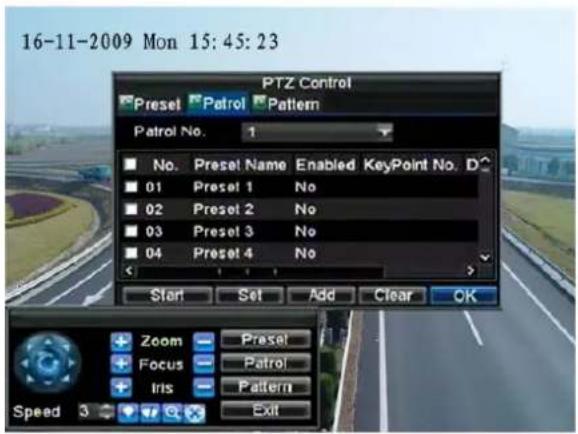
text_image
16-11-2009 Mon 15:45:23 PTZ Control Preset Patrol Pattern Patrol No. 1 No Preset Name Enabled KeyPoint No. D 01 Preset 1 No 02 Preset 2 No 03 Preset 3 No 04 Preset 4 No Start Set Add Clear OK Zoom Presel Focus Patrol Iris Pattern Speed 3 ExitFigure 5. Patrol Management Menu
- In the Patrol Management menu, you may:
- Configure Patrol:
- Select a Patrol Number to set.
- Select valid presets (See Customizing Presets) and click the Set button to enter the Patrol configuration menu. A sequence should have at least 2 valid presets.
- Set the Key Point No., Duration, and Speed (Figure 6). The Key Point No. determines the order at which the PTZ will follow while cycling through the patrol. The Duration refers to the time span to stay at the corresponding key point. The Speed defines the rate at which the PTZ will move from one key point to the next.
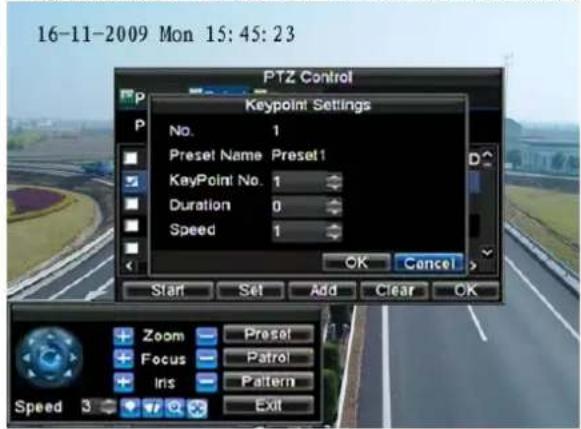
text_image
16-11-2009 Mon 15:45:23 PTZ Control Keypoint Settings No. 1 Preset Name Preset1 KeyPoint No. 1 Duration 0 Speed 1 OK Cancel > Start Set Add Clear OK Zoom Preset Focus Patrol Iris Pattern Exit Speed 3Figure 6. Patrol Configuration Menu
- Click OK to return to Patrol Management menu and repeat steps 2-3 to configure other key points.
- After all key points have been configured, click OK to save and exit menu.
- Clear Patrol:
- Select a valid Patrol Number.
- Click the Clear button to delete patrol.
- Call Patrol:
- Select a valid Patrol Number.
- Click the Start button to call the patrol, select the stop button to stop the patrol, as shown in Figure 7.
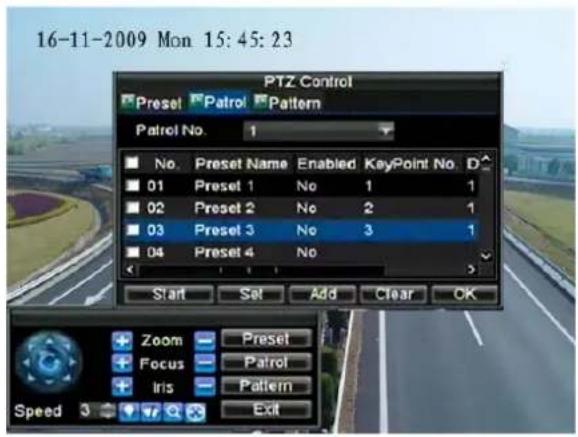
text_image
16-11-2009 Mon 15:45:23 PTZ Control Preset Patrol Pattern Patrol No. 1 No Preset Name Enabled KeyPoint No. D_ 01 Preset 1 No 1 1 02 Preset 2 No 2 1 03 Preset 3 No 3 1 04 Preset 4 No Start Set Add Clear OK Zoom Preset Focus Patrol Iris Pattern Exit Speed 3Figure 7. Patrol Management Menu
Customizing Patterns
Patterns can be setup by recording the movement of the PTZ.
To setup and use PTZ patterns:
- Enter the PTZ Control interface, shown in Figure 3 by clicking PTZ in the mouse menu or the PTZ button on the front panel.
- Select the Pattern button to enter the Pattern Management menu, shown in Figure 8.
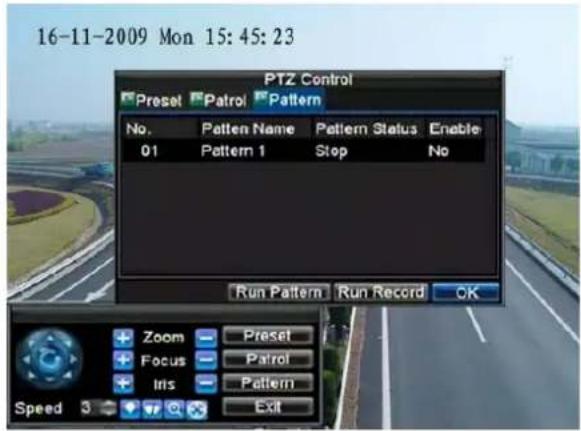
text_image
16-11-2009 Mon 15:45:23 PTZ Control Preset Patrol Pattern No. Pattern Name Pattern Status Enable 01 Pattern 1 Stop No Run Pattern Run Record OK Zoom Preset Focus Patrol Iris Pattern Exit Speed 3Figure 8. Pattern Management Menu
- Select a Pattern Number.
- To record a new pattern, select the Run Record button to start recording of the movements of the PTZ. Use the PTZ control panel to move the PTZ. The PTZ movements will be recorded until the Stop Record button is clicked.
- To run a pattern, click the Run Pattern button on a valid pattern. The PTZ will move according to the path that was defined until Stop Pattern is clicked.
- Click OK to save and exit from menu.
CHAPTER10
Camera Management
Configuring IP Cameras
Depending on the model of your DVR, IP cameras can be configured and used in conjunction with regular analog cameras. IP cameras are supported in DS-9000/9600 only. Please refer to following table for the performance of supported cameras, and the number of IP cameras listed below is the maximum recording cameras that supported in the certain resolution.
| Models | Analog cameras | IP cameras | |||
| 4CIF IP cameras | HD720P IP cameras | UXGA IP cameras (half real time) | UXGA IP cameras (real time) | ||
| HVR | |||||
| DS-9004 | 4 | 4 | 2 | 2 | 1 |
| DS-9008 | 8 | 8 | 4 | 4 | 2 |
| DS-9016 | 16 | 8 | 4 | 4 | 2 |
| NVR | |||||
| DS-9004 | 0 | 4 | 2 | 2 | 1 |
| DS-9008 | 0 | 8 | 4 | 4 | 2 |
| DS-9016 | 0 | 16 | 8 | 8 | 4 |
Note: For DS-9000 model, if used as a NVR, it can support 4/8/16 4CIF IP cameras or 2/4/8 IP cameras at HD720p or UXGA(half real-time) resolution.
Before configuring IP cameras, please ensure that all IP cameras are connected to the same network as your DVR and that the network settings for your DVR is properly setup (See Configuring Network Settings). If the IP cameras are not in the same LAN, please make sure the value of server port and RTSP port in IP cameras are different with each other, and the ports mapping have been made properly.
To configure IP cameras:
- Enter the Camera Management menu, shown in Figure 1 by clicking Menu > Settings > Camera.
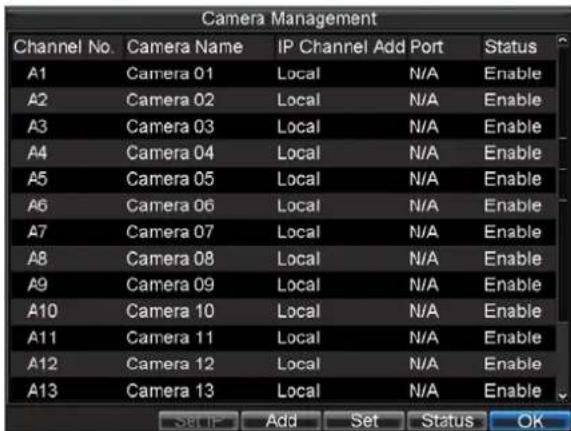
text_image
Camera Management Channel No. Camera Name IP Channel Add Port Status A1 Camera 01 Local N/A Enable A2 Camera 02 Local N/A Enable A3 Camera 03 Local N/A Enable A4 Camera 04 Local N/A Enable A5 Camera 05 Local N/A Enable A6 Camera 06 Local N/A Enable A7 Camera 07 Local N/A Enable A8 Camera 08 Local N/A Enable A9 Camera 09 Local N/A Enable A10 Camera 10 Local N/A Enable A11 Camera 11 Local N/A Enable A12 Camera 12 Local N/A Enable A13 Camera 13 Local N/A Enable Set IP Add Set Status OKFigure 1. Camera Management Menu
- Determine number of analog channels to disable. Please note that in order to add more than 8 IP cameras at 4CIF or 4 IP cameras at 720p/UXGA resolution, you will need to disable some analog channels. Disabling 2 analog channels will add 1 IP camera at 4CIF resolution, and disabling 4 analog channels will add 1 IP camera at 720p/UXGA resolution.
- To disable analog channels, click the Status button to enter the Camera Enabled Status menu, shown in Figure 2. Uncheck checkboxes to disable corresponding channels. Click OK to save setting. A confirmation message will appear on the screen asking you to reboot the DVR. Click Yes to reboot. After the system has rebooted, enter back into the Camera Management menu and continue with the following steps.
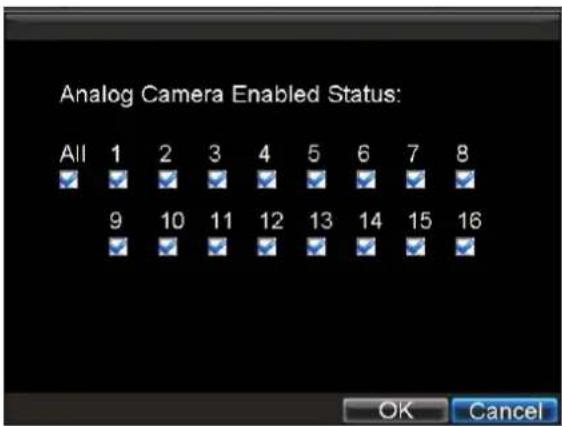
text_image
Analog Camera Enabled Status: All 1 2 3 4 5 6 7 8 9 10 11 12 13 14 15 16 OK CancelFigure 2. Camera Enabled Status Menu
- Select the Add button to enter IP Channel Settings menu, shown in Figure 3.

text_image
IP Channel Settings No. IP Channel Add Channels Type Manufacturer Serial No. 1 172.8.116.111 1 IPC HIKVISION 20043876 IP Channel No. D1 IP Channel Address 172.8.116.111 Manage Port 8000 Channel Port 1 Manufacturer HIKVISION Admin Password Refresh OK CancelFigure 3. IP Channel Settings Menu
- Select the IP device from the list. The devices found in the list are those supported by SADP and are found by the DVR. If no devices were found, you may manually enter the camera parameters in the fields below.
- Enter IP camera parameters. This includes the IP address (domain name), manage port, channel port, manufacturer and password of the IP camera. It can support adding Hikvision, Sony and Panasonic IPC. It can also support DVS connection.
- Select OK to save and return to the Camera Management menu.
- If IP camera was added successfully, the Status for that camera would show that it is Connected (Figure 4). If it does not, click the Set button to verify that the parameters were entered correctly. You may also delete an added channel by clicking the Delete button.

text_image
Camera Management Channel No. Camera Name IP Channel Add Port Status A6 Camera 05 Local N/A Enable A6 Camera 06 Local N/A Enable A7 Camera 07 Local N/A Enable A8 Camera 08 Local N/A Enable A9 Camera 09 Local N/A Enable A10 Camera 10 Local N/A Enable A11 Camera 11 Local N/A Enable A12 Camera 12 Local N/A Enable A13 Camera 13 Local N/A Enable A14 Camera 14 Local N/A Enable A15 Camera 15 Local N/A Enable A16 Camera 16 Local N/A Enable D1 IPCamera 01 172.8.116.123 8000 Connecte Set IP Add Set Delete OKFigure 4. Camera Management Menu
- Click OK to exit out of the Camera Management menu.
To adjust IP camera compression settings:
- Enter the Record Settings menu, shown in Figure 5 by clicking Menu > Settings > Record.
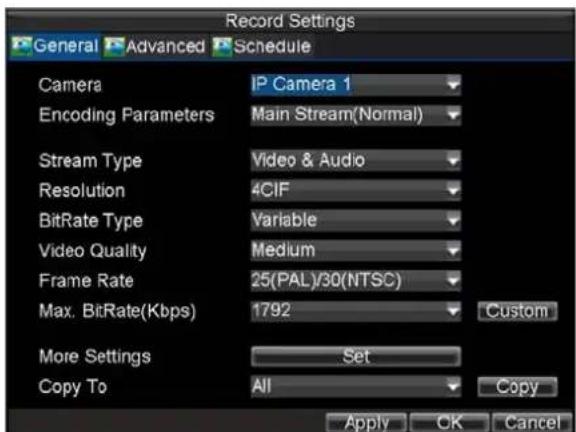
text_image
Record Settings General Advanced Schedule Camera IP Camera 1 Encoding Parameters Main Stream(Normal) Stream Type Video & Audio Resolution 4CIF BitRate Type Variable Video Quality Medium Frame Rate 25(PAL)/30(NTSC) Max. BitRate(Kbps) 1792 Custom More Settings Set Copy To All Copy Apply OK CancelFigure 5. Record Settings Menu
- Select the General tab.
- Select the IP camera to configure next to the Camera label.
- Adjust IP camera compression settings. If the IP camera was added successfully, the DVR will show OSD, channel name and the compression parameters in accordance to the IP camera's current settings.
- Select the Sub stream next to the Encoding Parameters to set sub stream parameters. Sub stream is only used for live video viewing.
- Click OK to save and exit out of menu.
Note: The quality of resolution, frame rate and bit rate depends on the performance of the IP camera.
Configuring OSD Settings
On Screen Display (OSD) settings can be configured in the Camera Management menu. The OSD is shown in each display during Live View mode and includes the time and date as well as the camera name.
To configure OSD settings:
-
Enter the Camera Management/Settings menu, shown in Figure 1 by clicking Menu > Settings > Camera.
-
Select channel to setup OSD settings under Channel #. Click the Set button. (DS-9100HFI-RH will directly enter Camera Settings menu when click Camera icon.)
-
Configure desired OSD settings, as shown in Figure 6.
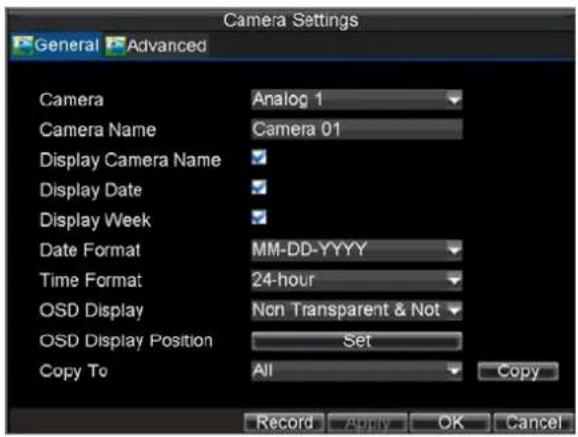
text_image
Camera Settings General Advanced Camera Analog 1 Camera Name Camera 01 Display Camera Name Display Date Display Week Date Format MM-DD-YYYY Time Format 24-hour OSD Display Non Transparent & Not OSD Display Position Set Copy To All Copy Record Apply OK CancelFigure 6. OSD Settings Menu
Setting up Privacy Mask
You may setup privacy mask to mask off sensitive or private areas in the field of view of a camera.
To setup privacy mask:
-
Enter the Camera Management/Settings menu, shown in Figure 1 by clicking Menu > Settings > Camera.
-
Select channel to setup privacy mask under Channel #. Click the Set button. (DS-9100 series DVR will directly enter Camera Settings menu when click Camera icon.)
-
Select the Advanced tab to enter the Advanced Camera Settings menu, shown in Figure 7.

text_image
Camera Settings General Advanced Camera Analog 1 Image Settings Set ■ Mask Area Settings ■ Tamper Detection Area Settings Handle ■ Motion Detection Area Settings Handle ■ Video Loss Detection Handle Copy To All Copy Apply OK CancelFigure 7. Advanced Camera Settings Menu
-
Check the Mask checkbox to enable feature.
-
Click the Area Settings button to enter Area Settings menu.
-
Set mask area, as shown in Figure 8.

text_image
16-11-2009 Mon 15:45:23 Camera 01Figure 8. Setting Mask Area
- Select OK to save and exit mask setup interface.
Note: Up to 4 areas can be configured.
Adjusting Display Settings
Display settings such as the brightness, contrast, saturation and hue can also be adjusted in the Camera Management menu.
To adjust display settings:
- Enter the Camera Management/Settings menu, shown in Figure 1 by clicking Menu > Settings > Camera.
- Select channel to adjust display settings under Channel #. Click the Set button. (DS-9100 will directly enter Camera Settings menu when click Camera icon.)
- Select the Advanced tab to enter the Advanced Camera Settings menu, shown in Figure 7.
- Click the Set button next to the Image Settings label.
- Adjust the display settings, as shown in Figure 9. Brightness, contrast, saturation and hue can be adjusted. The adjustments of display settings not only affect live images, but also recorded images.

text_image
16-11-2009 Mon 15:45:23 Brightness Contrast Saturation Hue Default OK Cancel Camera 01Figure 9. Display Settings
CHAPTER11
RAID Configuration
Note: This Chapter is available for DS-9000HFI-RH, DS-9100HFI-RH and DS-9600NI-RH models only.
Configuring RAID
The DS-9000/9100HFI-RH is capable of realizing Redundant Array of Independent Disk, supporting RAID0, RAID1, RAID5 and RAID10 RAID types. Prior to operation, please install the array adapter and HDD properly. It is recommended to use the same HDDs (including model and capacity) for array creation and configuration so as to maintain reliable and stable running of the disks.
Note: The ST31000525SV/ST31000340NS HDD models are not supported for array configuration currently.
Creating Array
Before recording, it needs to create the array in the RAID menu.
One-touch Configuration
To configure array by One-touch Configuration:
- Enter the RAID Settings menu, shown in Figure 1 by clicking Menu > Settings >RAID.
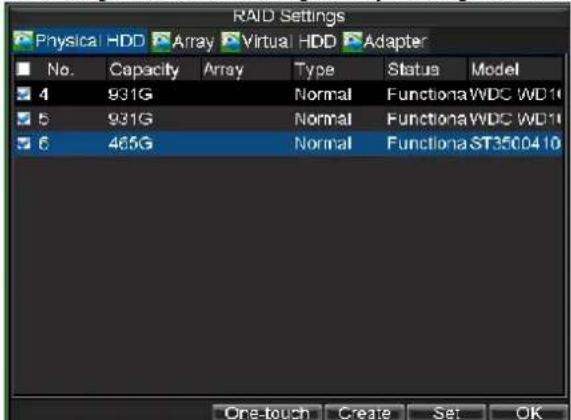
text_image
RAID Settings Physical HDD Array Virtual HDD Adapter No. Capacity Array Type Status Model 4 931G Normal FunctionaWDC WD10 5 931G Normal FunctionaWDC WD10 6 465G Normal FunctionaST3500410 One-touch Create Set OKFigure 1. RAID Settings Menu
- Click the One-touch button to start array configuration.
Note: When the One-touch Array Configuration is selected, the device can automatically enable the installed HDDs for array creation. As the default array type is RAID 5, thus at least 3 hard disks must be installed.
- Edit the Array Name and then click the OK button to start array configuration.
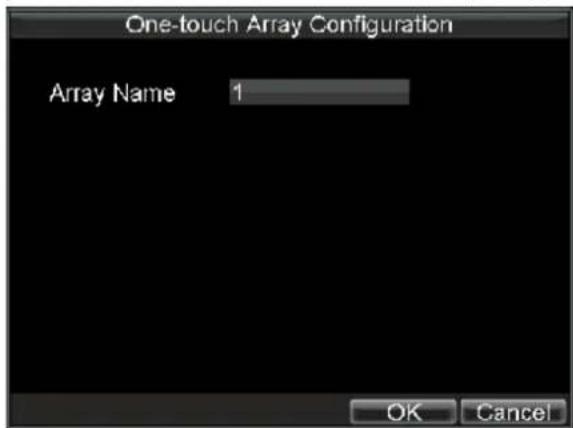
text_image
One-touch Array Configuration Array Name 1 OK CancelFigure 2. One-touch Array Configuration
- When the array configuration is complete, click the OK button on the pop-up Attention box to
finish the settings.
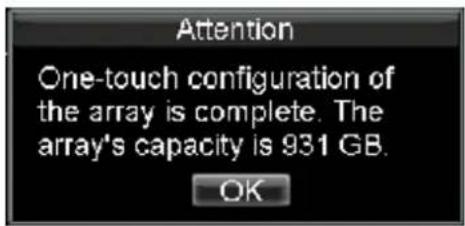
text_image
Attention One-touch configuration of the array is complete. The array's capacity is 931 GB. OKFigure 3. One-touch Array Configuration is Complete
Note:
1) After completion of One-touch Configuration, the device will create 1 array and 8 virtual disks automatically. And the array capacity will be equally allocated to each virtual disk.
2) By default, the foreground initialization is used when the configuration is finished. And the hard disk can be used only after the initialization is complete.
Adding Array
To add an array:
- Enter the RAID Settings menu, shown in Figure 4 by clicking Menu > Settings >RAID.

text_image
RAID Settings Physical HDD Array Virtual HDD Adapter No. Capacity Array Type Status Model 4 931G Normal FunctionaWDC WD10 5 931G Normal FunctionaWDC WD10 6 465G Normal FunctionaST3500410 One-touch Create Set OKFigure 4. RAID Settings Menu
- Select the physical HDD from the list.
- Click the Create button to enter the Create Array interface.
- Edit the Array Name.
- Set the RAID Level to RAID 0, 1, 5 or 10.
- Select the physical HDD to be used for array creation.
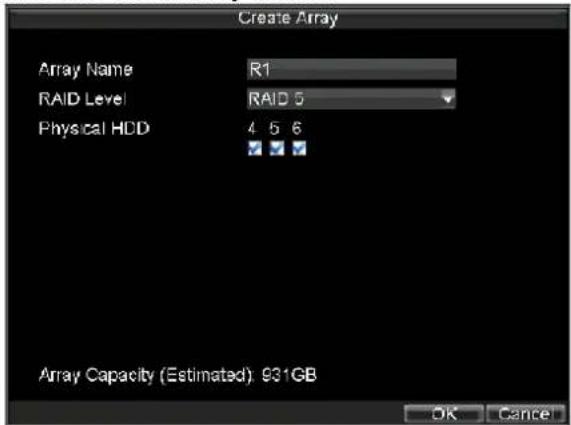
text_image
Create Array Array Name R1 RAID Level RAID 5 Physical HDD 4 5 6 Array Capacity (Estimated) 931GB OK CancelFigure 5. Create Array
- Click the OK button to continue the creation of array.
- In the pop-up Attention box, click the Yes button to finish the array creation.
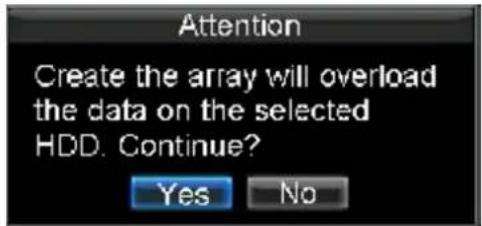
text_image
Attention Create the array will overload the data on the selected HDD. Continue? Yes NoFigure 6. Attention
Note: During the creation of array, corresponding error message box will pop up if the estimated array capacity is not enough for creating the array.
Deleting Array
To delete an array:
- Enter the RAID Settings menu, shown in Figure 4 by clicking Menu > Settings >RAID.
- Select the Array tab to enter the Array interface, as shown in Figure 7.
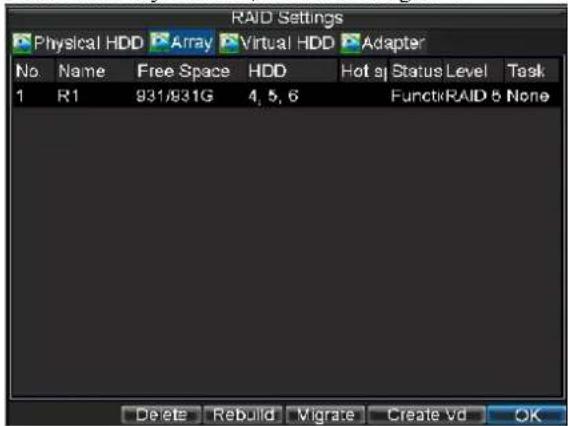
text_image
RAID Settings Physical HDD Array Virtual HDD Adapter No Name Free Space HDD Hot sp Status Level Task 1 R1 931/931G 4, 5, 6 FunctkRAID 5 None Delete Rebuild Migrate Create Vd OKFigure 7. Array List
- Select the Array from the list to be deleted.
- In the pop-up Attention box, click the Yes button to confirm the array deletion.
- Click the OK button to finish the array deletion.

text_image
Attention Deleting the array would delete ALL data in the array. Continue? Yes No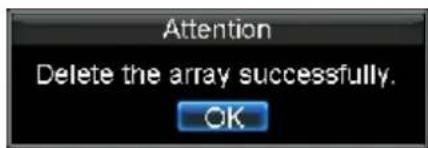
text_image
Attention Delete the array successfully. OKFigure 8. Attention for Array Deletion
Note: Before deleting the array, all virtual disks existing under this array must be deleted first in the Virtual HDD interface.
Rebuilding Array
The working status of array includes Functional, Degraded and Offline. By viewing the array status, you can take immediate and proper maintenance for the disks so as to ensure the high security and reliability of the data stored in the disk array.
When there is no disk loss in the array, the working status of array will change to Functional; when the number of lost disks has exceeded the limit, the working status of array will change to Offline; in other conditions, the working status is Degraded.
When the array is in Degraded status, user can restore it to Functional by array rebuilding.
Note: If there is no virtual disk created in the array and no physical HDD exception exists, then it doesn't need to rebuild the array when the array status restores to Functional.
Auto-rebuilding
Rebuilding Hot Spare Disk
When the auto-rebuild function is enabled, the hot spare disk will be automatically used for array rebuilding if the array is in Degraded status.
- Enter the RAID Settings menu by clicking Menu > Settings >RAID.
- Select the Adapter tab to enter the Adapter interface, as shown in Figure 9.
- Enable the Auto-rebuild function by clicking its checkbox.
- Click the Apply button.
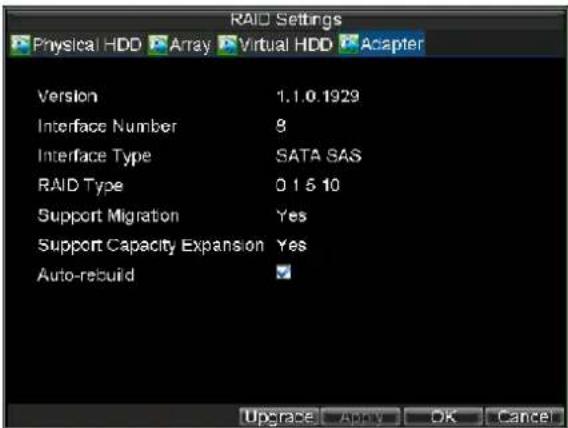
text_image
RAID Settings Physical HDD Array Virtual HDD Adapter Version 1.1.0.1929 Interface Number 8 Interface Type SATA SAS RAID Type 0 1 5 10 Support Migration Yes Support Capacity Expansion Yes Auto-rebuild Upgrade Apply OK CancelFigure 9. Adapter
- Select the Physical HDD tag in RAID Settings menu to enter the Physical HDD interface.

text_image
RAID Settings Physical HDD Array Virtual HDD Adapter No. Capacity Array Type Status Model 2 931G Normal FunctionaWDC WD10 4 931G R1 Normal FunctionaWDC WD10 5 931G R1 Normal FunctionaWDC WD10 6 465G R1 Normal Functiona ST3500410 One-touch Create Set OKFigure 10. Select Physical HDD
- Select the Physical HDD from the list and then click the Set button to enter Set Hot Spare interface.
Note: It is recommended to use the same HDDs (including model and capacity) for setting hot spare so as to maintain reliable and stable running of the disks.
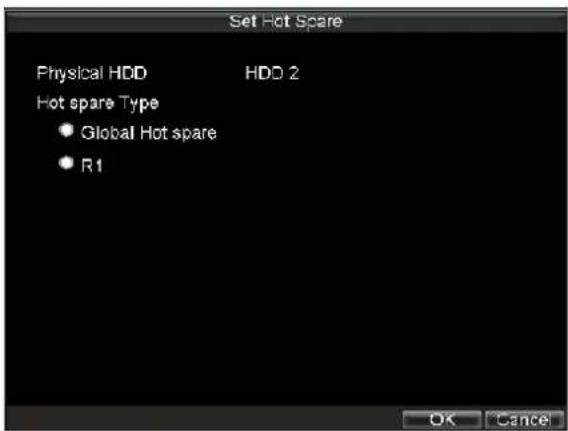
text_image
Set Hot Spare Physical HDD HD0 2 Hot spare Type • Global Hot spare • R1 OK CancelFigure 11. Set Hot Spare
- Set the hot spare type of the selected HDD to Global Hot Spare or specified hot spare.
Global hot spare: it can be used as the hot spare for any array created in the system. Specified hot spare: it can be used as the hot spare for the specified array only.
- Click the OK button to confirm the settings.
- Start auto-rebuild task. When the system has detected HDD exception or the array is in Degraded status, the auto-rebuild task will be automatically started.
Rebuilding Physical HDD
When the system has detected HDD exception or the array is in Degraded status, you can replace the exception HDD with new functioning physical HDD in the same SATA interface to start the auto-rebuild task.
To rebuild a physical HDD:
- Enter the RAID Settings menu by clicking Menu > Settings > RAID.
- Select the Adapter tab to enter the Adapter interface, as shown in Figure 12.
- Enable the Auto-rebuild function by clicking its checkbox.
- Click the Apply button.
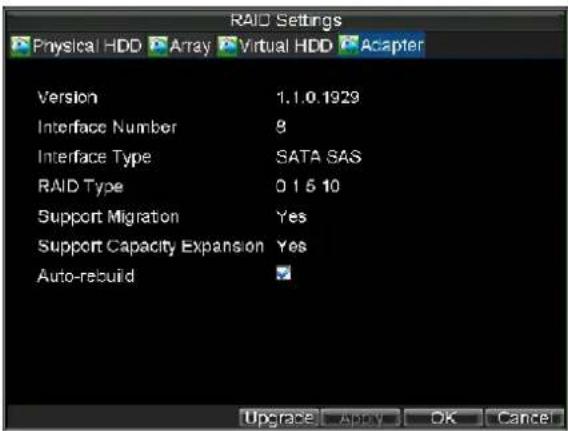
text_image
RAID Settings Physical HDD Array Virtual HDD Adapter Version 1.1.0.1929 Interface Number 8 Interface Type SATA SAS RAID Type 0 1 5 10 Support Migration Yes Support Capacity Expansion Yes Auto-rebuild Upgrade Apply OK CancelFigure 12. Adapter
- Start rebuilding of physical HDD.
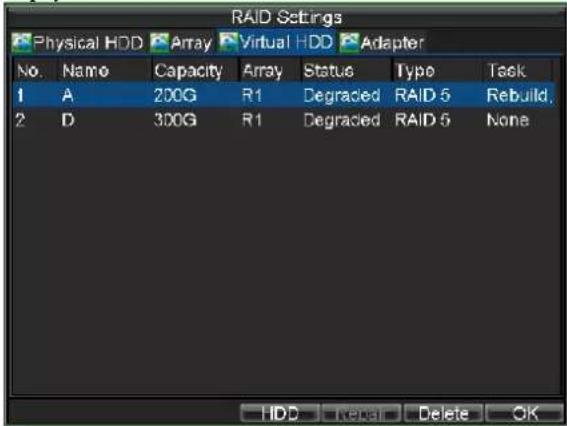
text_image
RAID Settings Physical HDD Array Virtual HDD Adapter No. Name Capacity Array Status Type Task 1 A 200G R1 Degraded RAID 5 Rebuild. 2 D 300G R1 Degraded RAID 5 None HDD Delete OKFigure 13. Rebuild Array
When the system has detected HDD exception or the array is in Degraded status, replace the exception HDD with new functioning physical HDD in the same SATA interface, and then the auto-rebuild task will be automatically started.
Note: It is recommended to use the same HDDs (including model and capacity) for replacement and then set the new physical HDD to Normal type so as to maintain reliable and stable running of the disks.
Rebuilding Array Manually
When the system has detected HDD exception or the array is in Degraded status, you can select the idle physical HDD for manual rebuilding of array.
To rebuild an array manually:
- Enter the RAID Settings menu by clicking Menu > Settings >RAID.
- Select the Array tab to enter the Array interface, as shown in Figure 14.
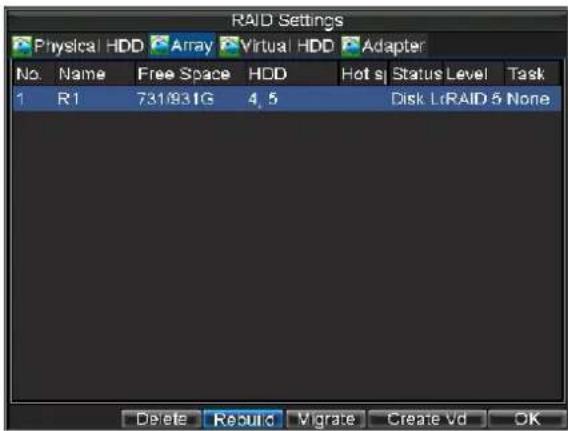
text_image
RAID Settings Physical HDD Array Virtual HDD Adapter No. Name Free Space HDD Hot sj Status Level Task 1 R1 731/931G 4,5 Disk LrRAID-5 None Delete Record Vigrate Create Vd OKFigure 14. Select Array for Rebuilding
- Select the array for rebuilding.
- Click the Rebuild button to enter Rebuild Array interface.

text_image
Rebuild Array Array Name R1 RAID Level RAID 5 RAID HDD 4.5, 6 Physical HDD 2 4 5 6 OK CancelFigure 15. Rebuild Array
- Select the physical HDD for array rebuilding.
-
Click the OK button to confirm the array rebuilding
Note: Make sure virtual disks have been created before operating array rebuilding; otherwise, corresponding message box will pop up. -
Return to the Virtual HDD interface to view the rebuilding status under Task bar.
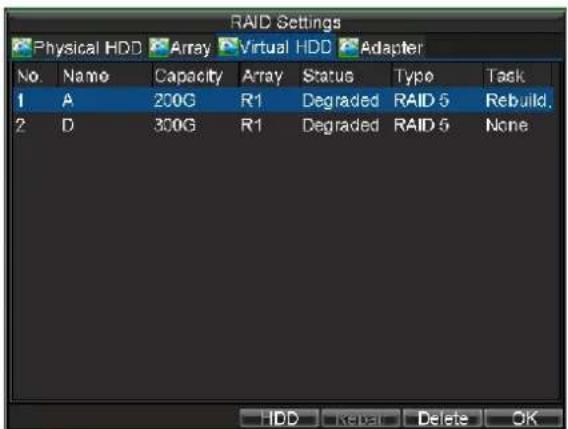
text_image
RAID Settings Physical HDD Array Virtual HDD Adapter No Name Capacity Array Status Type Task 1 A 200G R1 Degraded RAID 5 Rebuild. 2 D 300G R1 Degraded RAID 5 None HDD Rebar Delete OKFigure 15. Rebuild Array
Migrating Array
If it needs to add the physical HDD during the normal working of array to enhance the security, you can take the array migration.
To migrate an array:
- Enter the RAID Settings menu by clicking Menu > Settings >RAID.
- Select the Array tab to enter the Array interface, as shown in Figure 15.
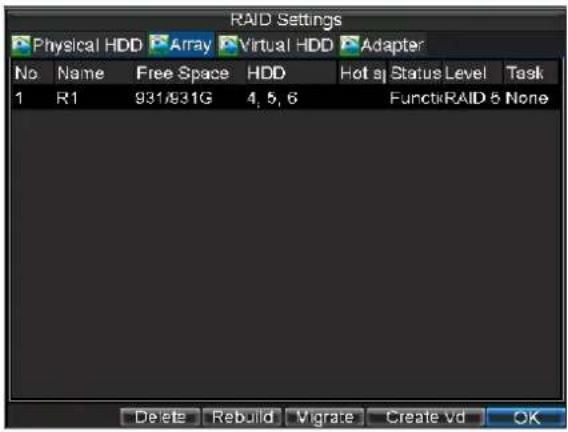
text_image
RAID Settings Physical HDD Array Virtual HDD Adapter No Name Free Space HDD Hot sp Status Level Task 1 R1 931/931G 4, 5, 6 FunctiRAID & None Delete Rebuild Vigrate Create Vd OKFigure 15. Array
- Select the array for migration.
- Click the Migrate button to enter Migrate Array interface.
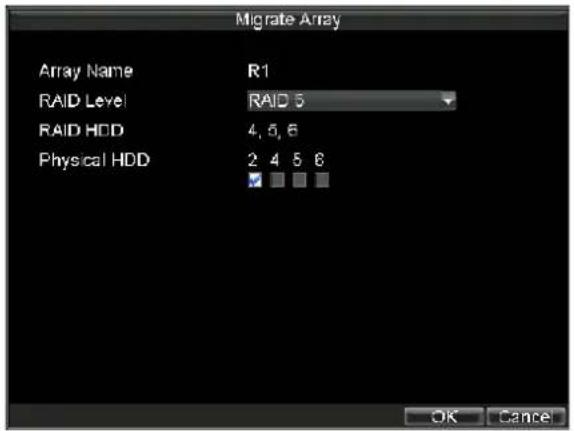
text_image
Migrate Array Array Name R1 RAID Level RAID 5 RAID HDD 4, 5, 6 Physical HDD 2 4 5 6 OK CancelFigure 16. Migrate Array
- Select the target RAID level and physical HDD for array migration.
- Click the OK button to start the array migration.
Note:
1) Make sure virtual disks have been created before operating array rebuilding. Or else, corresponding message box will pop up.
2) Currently the migration to RAID 5 is supported only.
7. Return to the Array interface to view the migrating progress.

text_image
RAID Settings Physical HDD Array Virtual HDD Adapter No. Name Free Space HDD Hot sj Status Level Task 1 R1 731/931G 4, 5, 6, 2 FuncxRAID & Migrate Delete Rebuild Migrate Create Vc OKFigure 17. Migration is Complete
Note: After the array migration is complete, the array and each virtual disk capacity will be refreshed. Now, it needs to reboot the device and expand capacity for each virtual disk. Please refer to the Expanding HDD Capacity section of Chapter 12 for expanding capacity of virtual disk.
Configuring Virtual HDD
Creating Virtual Disk
To create a virtual disk:
- Enter the RAID Settings menu by clicking Menu > Settings >RAID.
- Select the Array tab to enter the Array interface, as shown in Figure 18.

text_image
RAID Settings Physical HDD Array Virtual HDD Adapter No Name Free Space HDD Hot sj Status Level Task 1 R1 931/931G 4, 5, 6 FunctkRAID 5 None Delete Rebuild Vibrate Create Vd OKFigure 18. Array
- Select the array from the list for creating virtual disk.
- Click the Create Vd button to enter the Create Virtual Disk interface.
Note: Up to 8 virtual disks can be created for the array.

text_image
Create Virtual Disk Array R1 Name A Capacity(GB) 200 Initialize Type Initialization (Foreground▼ Information of array capacity Delete Apply OK CancelFigure 19. Create Virtual Disk
- Edit the name of virtual disk and set the capacity.
Note: At least 100GB capacity must be configured for each virtual disk.
Initialization (Foreground): The foreground initialization usually takes long time, which depends on the HDD capacity. During the foreground initialization, the virtual disk is not allowed to use.
Initialization (Background): The background initialization usually takes long time, which depends on the HDD capacity. During the background initialization, the virtual disk is allowed to use.
Initialization (Fast): The fast initialization usually takes short time, which is not relevant to the HDD capacity.
It is recommended to select the foreground initialization when the hard disk is used on the DVR for the first time.
-
Click the OK button to confirm the creation of virtual disk.
-
Return to the RAID Settings menu.
-
Click the Virtual HDD tab to enter the Virtual HDD interface. The created virtual disks will be listed on the interface.
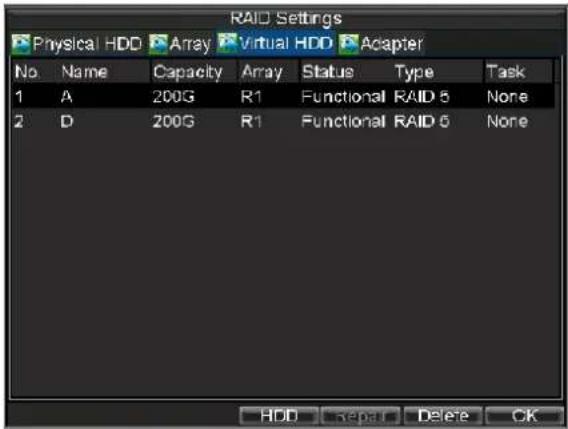
text_image
RAID Settings Physical HDD Array Virtual HDD Adapter No Name Capacity Array Status Type Task 1 A 200G R1 Functional RAID 5 None 2 D 200G R1 Functional RAID 6 None HDD Repair Delete OKFigure 20. Created Virtual Disk
Deleting Virtual Disk
To delete a virtual disk:
- Enter the RAID Settings menu by clicking Menu > Settings >RAID.
- Click the Virtual HDD tab to enter the Virtual HDD interface.
- Select the virtual disk from the list to be deleted.
- Click the Delete button.

text_image
RAID Settings Physical HDD Array Virtual HDD Adapter No Name Capacity Array Status Type Task 1 A 200G R1 Functional RAID 5 None 2 D 200G R1 Functional RAID 6 None HDD Repair Delete OKFigure 21. Delete Virtual Disk
- In the pop-up Attention box, click the Yes button to confirm the virtual disk deletion.

text_image
Attention The removal of virtual disk will cause ALL data in the disk to be deleted. Continue? Yes NoFigure 22. Confirm Virtual Disk Deletion
- Click the OK button to finish the virtual disk deletion.
text_image
Attention Deleting the virtual disk is complete. OKFigure 23. Virtual Disk Deletion Is Complete
Repairing Virtual Disk
When an array restores to Degraded or Functional from the previous Offline status, it needs to repair its virtual disks.
To repair a virtual disk:
- Enter the RAID Settings menu by clicking Menu > Settings >RAID.
- Click the Virtual HDD tab to enter the Virtual HDD interface.
- Select the virtual disk from the list to be deleted.
- Click the Repair button to start repairing the selected virtual disk.

text_image
RAID Settings Physical HDD Array Virtual HDD Adapter No. Name Capacity Array Status Type Task 1 A 200G R1 Degraded RAID 5 None 3 F 200G R1 Degraded RAID 6 None HDD Repair Delete OKFigure 24. Repair Virtual Disk
- Click the OK button to finish the virtual disk deletion.
Upgrading Array
To upgrade an array:
- Enter the RAID Settings menu by clicking Menu > Settings >RAID.
- Select the Adapter tab to enter the Adapter interface, as shown in Figure 25.
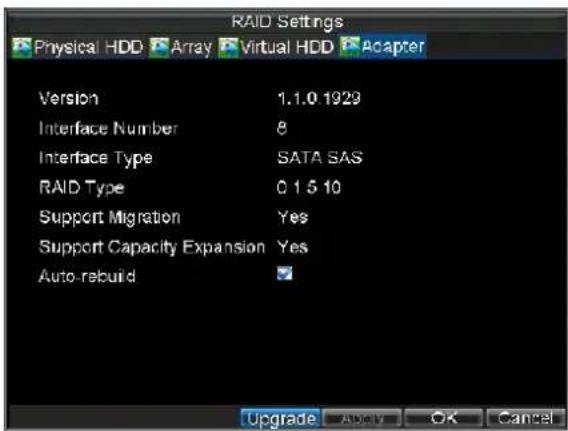
text_image
RAID Settings Physical HDD Array Virtual HDD Adapter Version 1.1.0 1929 Interface Number 8 Interface Type SATA SAS RAID Type 0 1 5 10 Support Migration Yes Support Capacity Expansion Yes Auto-rebuild Upgrade Apply OK CancelFigure 25. Array Upgrade
- Click the Upgrade button to enter the Upgrade of Adapter Version interface.
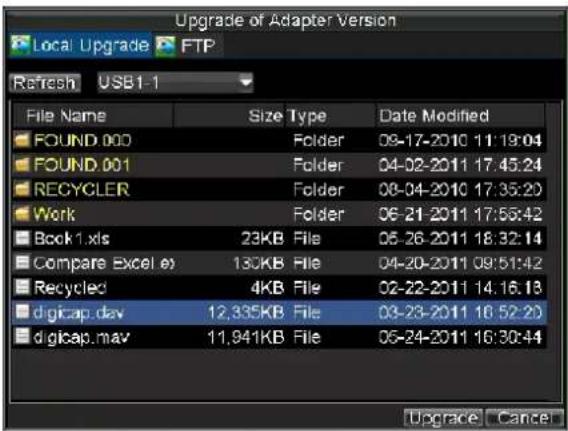
text_image
Upgrade of Adapter Version Local Upgrade FTP Refresh USB1-1 File Name Size Type Date Modified FOUND.000 Folder 09-17-2010 11:19:04 FOUND.001 Folder 04-02-2011 17:45:24 RECYCLER Folder 08-04-2010 17:35:20 Work Folder 06-21-2011 17:55:42 Book1.xls 23KB File 06-26-2011 18:32:14 Compare Excel e) 130KB File 04-20-2011 09:51:42 Recycled 4KB File 02-22-2011 14:16:13 digital.cav 12,335KB File 03-23-2011 16:52:20 digital.mav 11,941KB File 06-24-2011 16:30:44 Upgrade CancelFigure 25. Array Upgrade
Note: The adapter version can be upgraded by local backup device or by FTP server. Please refer to the Updating System Firmware section of Chapter 12 for the same instructions.
CHAPTER 12
HDD Management
Managing HDDs
Initializing HDDs
A newly installed hard disk drive (HDD) must be first initialize before it can be used with your DVR. Initializing the HDD will erase all data on it.
To initialize a HDD:
- Enter the HDD Management menu by clicking Menu > HDD, shown in Figure 1.
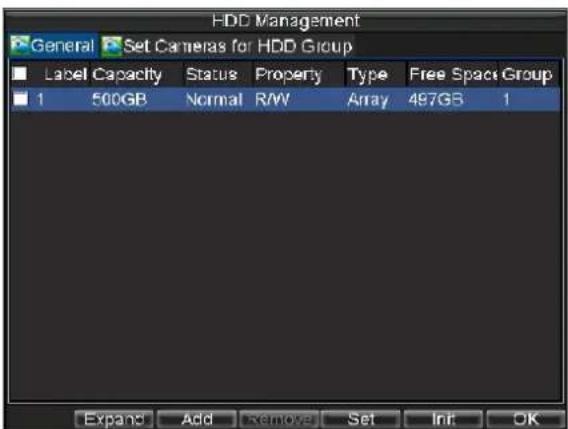
text_image
HDD Management General Set Cameras for HDD Group Label Capacity Status Property Way Type Free Space Group 1 500GB Normal RAV Array 497GB 1 Expand Add Remove Set Init OKFigure 1. HDD Management Menu
- Select HDD to initialize.
- Click the Init button.
- Select OK button to begin initialization. After the HDD has been initialized, the status of the HDD will change from Abnormal to Normal.
Setting Network HDD
Add the allocated "DVR Storage Space" of NAS or disk of IP SAN to DVR, this part will work as network HDD.
To set a network HDD:
- Enter the HDD Management menu, shown in Figure 2 by clicking Menu > HDD.

text_image
HDD Management General Set Cameras for HDD Group Label Capacity Status Property Way Type Free Space Group 1 500GB Normal RAW Array 497GB 1 Expand Add Remove Set Init OKFigure 2. HDD Management Menu
- Click Add to enter Network HDD menu.
- Select type as NAS or IP SAN, shown in Figure 3 when selected as NAS.

text_image
Network HDD NetHDD No. NetHDD No. 1 Type NAS NetHDD IP 192 .0 .0 .28 NetHDD Directory /dvr/9000 Add CancelFigure 3. Network HDD Menu
- Select Add button to add network HDD to HDD list.
- Select the network HDD to initialize. After initialization, the network HDD can be used.

text_image
HDD Management General Set Cameras for HDD Group Label Capacity Status Property Type Free Space Group 1 500GB Normal RAW Array 497GB 1 17 19.60GB Normal RAW NAS 19GB 1 Expand Add Remove Set Init OKFigure 4. HDD Management Menu
Setting HDD Groups
Your DVR can separate multiple HDDs into groups. Videos from specified channels can be set to be recorded onto a particular HDD group.
To setup a HDD group:
- Enter the HDD Management menu by clicking Menu > HDD.
- Select HDDs to be added to group.
- Select Set button to enter HDD Settings menu.
- Set the HDD Group Number, as shown in Figure 5.
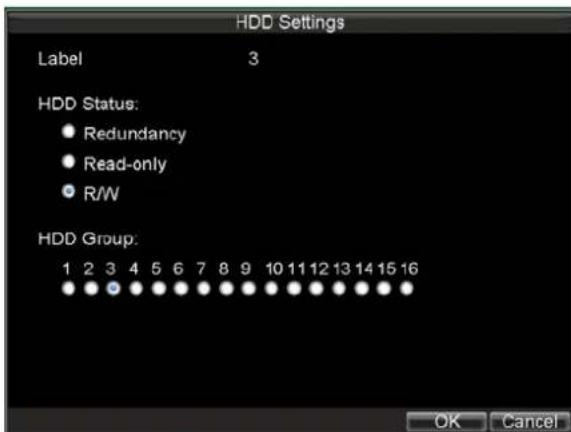
text_image
HDD Settings Label 3 HDD Status: • Redundancy • Read-only • R/W HDD Group: 1 2 3 4 5 6 7 8 9 10 11 12 13 14 15 16 OK CancelFigure 5. HDD Settings Menu
- Select OK to save and exit menu.
Note: By default, all HDDs belong to group 1.
To setup specified channels to be recorded onto a particular HDD group:
- Select Set Cameras for HDD Group tab to enter setup interface.
- Select channels for the group.
- Select the HDD group you want the channels to be recorded on, as shown in Figure 6.

text_image
HDD Management General Set Cameras for HDD Group Analog All 1 2 3 4 5 6 7 8 9 10 11 12 13 14 15 16 Status Record on HDD Group 1 Apply OK CancelFigure 6. Set Cameras for HDD Group
- Select OK to save and exit menu.
Setting HDD Status
You may change the behavior of your HDD by changing its status. The status of a HDD can be set to redundancy, read-only or read/write (R/W).
Setting HDD to Read-Only
A HDD can be set to read-only to avoid important recorded files from being overwritten when the HDD becomes full.
To set a HDD to read-only:
- Enter the HDD Management menu by clicking Menu > HDD.
- Select HDD to protect.
- Select the Set button to enter the HDD Settings menu, as shown in Figure 7.
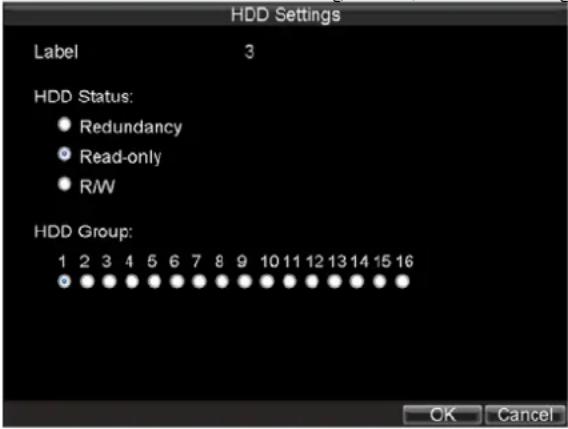
text_image
HDD Settings Label 3 HDD Status: • Redundancy • Read-only • RW HDD Group: 1 2 3 4 5 6 7 8 9 10 11 12 13 14 15 16 OK CancelFigure 7. HDD Settings Menu
- Set HDD Status to Read-Only.
- Select OK to save and exit menu.
Note: Once set to read-only, the HDD cannot be written to until it is set back to read/write (R/W). If the HDD that is currently being written to is set to read-only, the data will be recorded to the next HDD. If there is only one HDD present, setting it to read-only will cause the DVR to not record.
Setting HDD to Redundancy
In order to use HDD redundancy on your DVR, you will need to have at least two disk installed. Setting up HDD redundancy will allow your DVR to redundantly record a copy of the videos onto multiple drives as a safeguard against losing all your files in case of disk failures.
To set a HDD to redundancy:
- Enter the HDD Management menu by clicking Menu > HDD.
- Select HDD to set redundancy on.
- Select the Set button to enter the HDD Settings menu, as shown in Figure 7.
- Set HDD Status to Redundancy.
- Select OK to save and exit menu.
Note: The HDD that is set to redundancy is used to store an extra copy of the recording. If a HDD is set to redundancy, at least one HDD should be set to the R/W status.
Expanding HDD Capacity
Note: This Section is available for DS-9000HFI-RH, DS-9100HFI-RH and DS-9600NI-RH models only.
After array migration and device reboot, you can expand the capacity for each virtual disk.
To expand the capacity of a virtual disk:
- Enter the HDD Management menu by clicking Menu > HDD.
Note: You can also enter the HDD Management by clicking the HDD button in RAID Settings > Virtual HDD interface.
-
Select the virtual disk for capacity expansion.
-
Click the Expand button to start capacity expansion, as shown in Figure 8.

text_image
HDD Management General Set Cameras for HDD Group Label Capacity Status Property Way Free Space Group 1 200GB Normal RAW Array 198GB 1 Expand Add Remove Set Init OKFigure 8. Expand HDD Capacity
Checking HDD Status
You may check the status of any of the installed HDDs on your DVR at anytime.
To check the status of a HDD:
-
Enter the HDD Management menu by clicking Menu > HDD.
-
The status of your HDD is listed under the Status column. If the status is listed as Normal or Sleeping, the HDD is in working order. If it is listed as Abnormal and has already been initialized, the HDD needs to be replaced. If the HDD is Uninitialized, you will need to initialize it before it can be used in your DVR. Please refer to Initializing HDDs for further instructions.
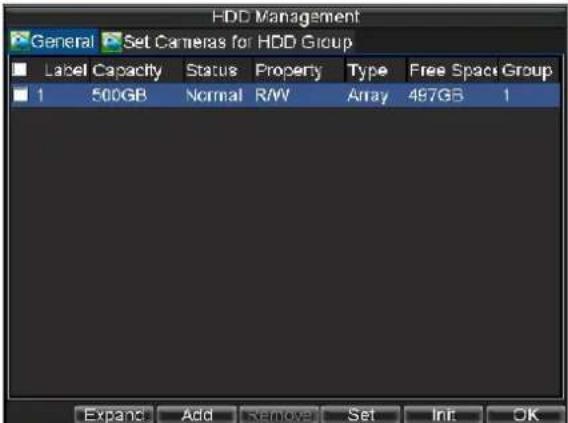
text_image
HDD Management General Set Cameras for HDD Group Label Capacity Status Property Way Type Free Space Group 1 500GB Normal R/W Array 497GB 1 Expand Add Remove Set Init OKFigure 9. Checking HDD Staus
Configuring HDD Alarms
HDD alarms can be set to trigger when an HDD is uninitialized or in an abnormal state.
To set HDD alarms:
- Enter Exception menu, shown in Figure 10 by clicking Menu > Settings > Exception.

text_image
Exception Exception Type HDD Error Audio Warning Notify Surveillance Center Send Email Trigger Alarm Output Set Email Apply OK CancelFigure 10. Exception Menu
-
Select HDD Error under Exception Type.
-
Select trigger action. Trigger actions are further explained in Understanding Exception Trigger Options.
CHAPTER 13
DVR Management
Configuring System Settings
Configuring General Settings
General settings such as the system language can be configured in the General Settings menu of your DVR.
To configure general settings:
- Enter the General Settings menu, shown in Figure 1 by clicking Menu > Settings > General.
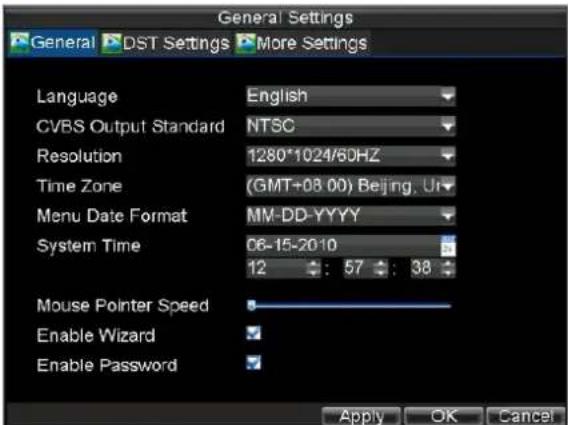
text_image
General Settings General DST Settings More Settings Language English CVBS Output Standard NTSC Resolution 1280*1024/60HZ Time Zone (GMT+08.00) Beijing, Un Menu Date Format MV-DD-YYYY System Time 06-15-2010 12 : 57 : 38 Mouse Pointer Speed Enable Wizard Enable Password Apply OK CancelFigure 1. General Settings Menu
- Select the General tab.
- Configure general settings. These settings include:
• Language: Default language used in DVR menus.
• CVBS Output Standard: Video output standard: NTSC and PAL.
• Resolution: VGA or HDMI output resolution.
• Time Zone: Time zone to use for DVR.
- Menu Date Format: Format to use for date.
• System Time: System time and date.
• Mouse Pointer Speed: Speed of mouse pointer.
- Enable Wizard: activate/deactivate the Wizard when booting up.
- Enable Password: Enable/disable system password.
Note: If the video standard is different between the input and the output, you may notice flickering in Live Live View mode.
Configuring Advanced Settings
To configure more advanced settings:
- Enter the General Settings menu, shown in Figure 1 by clicking Menu > Settings > General.
- Click the More Settings tab; this will take you to the More Settings menu, shown in Figure 2.
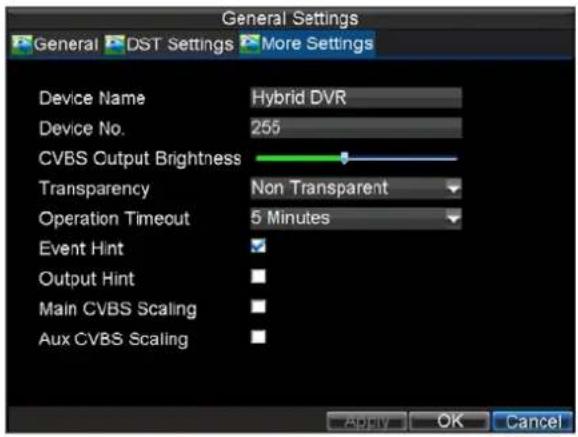
text_image
General Settings General DST Settings More Settings Device Name Hybrid DVR Device No. 255 CVBS Output Brightness Transparency Non Transparent Operation Timeout 5 Minutes Event Hint Output Hint Main CVBS Scaling Aux CVBS Scaling Apply OK CancelFigure 2. More Settings Menu
- Configure settings, including:
• Device Name: Name to use for DVR.
• Device No.: Device number to use for DVR.
• CVBS Output Brightness: Video output brightness.
• Transparency: Menu transparency.
- Operation Timeout: Set timeout time for menu inactivity. For example, if timeout time was set to 5 minutes, after 5 minutes of inactivity in the General Settings menu, you'll be returned to the Live View.
• Event Hint: To display hint when live view, if exception happens.
- Enable Output Hint: To display output status in live view.
• CVBS Scaling: Enable/disable video output scaling for main/aux video output.
Configuring RS-232 Port Settings
To configure RS-232 devices to be used with the DVR:
- Enter the RS-232 Settings menu, shown in by clicking Menu > Settings > RS232.

text_image
RS232 Settings Baudrate 115200 Data Bit 8 Stop Bit 1 Parity None Flow Ctrl None Used As Console Default OK CancelFigure 3. RS-232 Settings Menu
-
Configure RS-232 Settings.
-
The RS-232 port can be used in two ways:
- Parameter Control: Connect a PC to the DVR using the PC serial port. Device parameters can then be set using software such as HyperTerminal. The serial port
parameters must be the same as the DVR's when connecting with the PC serial port.
- Transparent Channel: Connect a serial device directly to the DVR. The serial device will be controlled remotely by the PC through the network and the protocol of the serial device.
Note: Please note that the remote control features through the RS-232 port are limited.
Managing User Accounts
By default, your DVR comes with one user account, the Administrator account. The Administrator user name is admin and the password is 12345. The default password for Administrator should be changed right away for security reasons. The Administrator has the authority to add, delete or configure parameters for many of the system functions.
Adding a New User
You may add up to 31 new users to your DVR. To add new users:
Enter the User Settings menu, shown in Figure 4 by clicking Menu > Settings > User.

text_image
User Settings No. User Name Level User's MAC Address 1 admin Administrator 00:00:00:00:00:00 2 user Guest 00:00:00:00:00:00 Add Delete Modify OKFigure 4. User Settings Menu
- Select the Add button to enter the Add User menu, shown in Figure 5.
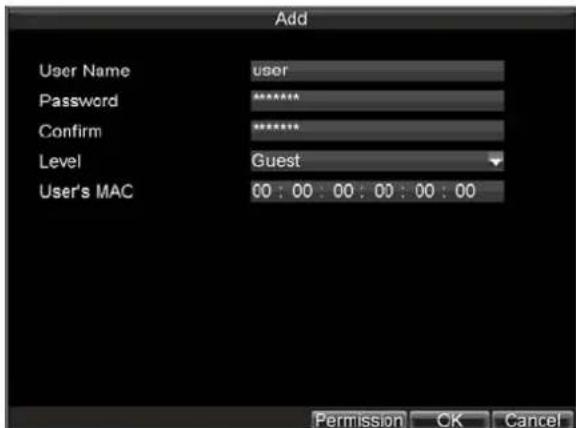
text_image
Add User Name user Password ********** Confirm ********** Level Guest User's MAC 00 : 00 : 00 : 00 : 00 : 00 Permission OK CancelFigure 5. Add User Menu
-
Enter information for new user, including User Name, Password, Level and User's MAC.
-
The Level is the user level and is separated into two tiers.
-
Operator: The Operator user level has the authority to configure two-way audio in network settings and all parameters in channel settings.
-
Guest: The Guest user can not configure network settings, but can configure the local playback as well as the remote playing in channel settings.
-
If User's MAC is configured and enabled, the user may only access the DVR from that particular MAC address.
-
Select the Permission button to enter the Permission Settings menu, shown in Figure 6.
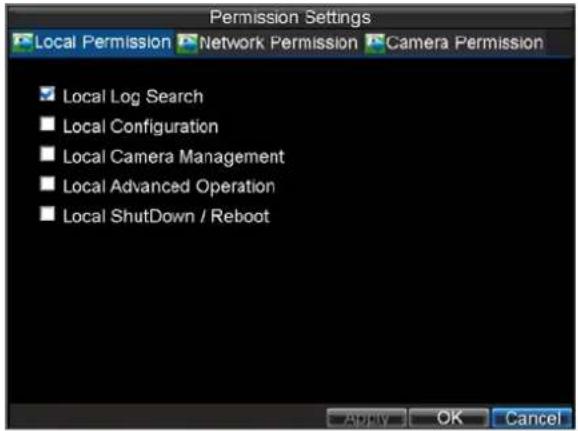
text_image
Permission Settings Local Permission Network Permission Camera Permission ✓ Local Log Search ■ Local Configuration ■ Local Camera Management ■ Local Advanced Operation ■ Local ShutDown / Reboot Apply OK CancelFigure 6. Permission Settings Menu
-
Configure privileges for local settings under Local Permission tab. The local settings include:
-
Local Log Search: Search and view logs of DVR.
- Local Configuration: Configure and restore parameters to factory defaults. Introduce settings to or export settings from DVR.
- Local Camera Management: Enable and disable analog channels. Ability to add and delete IP cameras
- Local Advanced Operation: HDD management (including the initialization and changing the properties of a disk). Ability to update system firmware as well as to stop the relay output
-
Local Shutdown/Reboot: Shutdown or reboot the DVR.
-
Click on the Network Permission tab to configure network privileges, as shown in Figure 7. The network settings include:
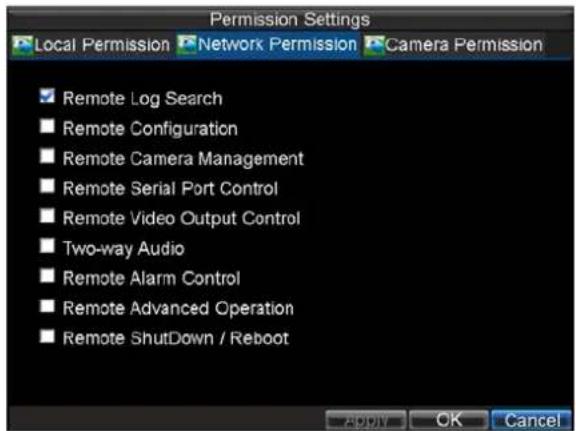
text_image
Permission Settings Local Permission Network Permission Camera Permission ✓ Remote Log Search ■ Remote Configuration ■ Remote Camera Management ■ Remote Serial Port Control ■ Remote Video Output Control ■ Two-way Audio ■ Remote Alarm Control ■ Remote Advanced Operation ■ Remote ShutDown / Reboot ADDY OK CancelFigure 7. Network Privileges Menu
- Remote Log Search: Remotely view logs that are saved on the DVR.
- Remote Configuration: Remotely configure parameters, restore parameters to factory defaults and import settings to as well as export settings from DVR.
- Remote Camera Management: Remotely enable and disable analog channels. Add and delete IP cameras.
- Remote Serial Port Control: Configure settings for RS232 and RS485 ports.
- Remote Video Output Control: Send remote button control signal.
- Two-Way Audio: Ability to use two-way radio between the remote client and the DVR.
- Remote Alarm Control: Remote alert or control the relay output of the DVR. Alarm and exception settings must be configured properly to upload to host.
- Remote Advanced Operation: Remotely manage hard disk drives (initializing and setting properties for HDDs). Ability to remote update system firmware and stop of the relay output
-
Remote Shutdown/Reboot: Remotely shutdown or reboot the DVR.
-
Click on the Camera Permission tab to configure channel privileges, as shown in Figure 8. The channel Settings include:
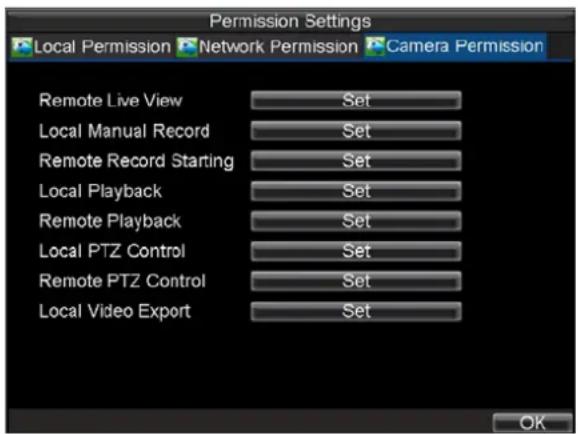
text_image
Permission Settings Local Permission Network Permission Camera Permission Remote Live View Set Local Manual Record Set Remote Record Starting Set Local Playback Set Remote Playback Set Local PTZ Control Set Remote PTZ Control Set Local Video Export Set OKFigure 8. Camera Permission Menu
- Remote Live View: Select and view live video over the network.
- Local Manual Record: Locally start and stop manual recording on any of the channels.
- Remote Record Starting: Remotely start and stop manual recording on any of the channels.
- Local Playback: Locally play recorded files that are on the DVR.
- Remote Playback: Remotely play and download recorded files that are on the DVR.
- Local PTZ Control: Locally control PTZ cameras.
- Remote PTZ Control: Remotely control PTZ cameras.
-
Local Video Export: Locally backup recorded files from any of the channels.
-
Click the OK button to save and exit menu.
Note: If you forget the password to your DVR, contact your supplier with the serial number of your DVR to obtain a secure code to reset your DVR.
Deleting a User
To delete a user from the DVR:
- Enter the User Settings menu by clicking Menu > Settings > User.
- Select user to delete.
- Click the Delete button to delete user.
- Click the OK button to exit menu.
Modifying a User
To modify a user:
- Enter the User Settings menu by clicking Menu > Settings > User.
- Select user to modify.
- Click the Modify button to enter the Modify menu, shown in Figure 9.

text_image
Modify User Name user Password ****** Confirm ****** Level Guest User's MAC 00 : 00 : 00 : 00 : 00 : 00 Permission OK CancelFigure 9. Modify User Menu
- Edit user information.
- To modify user permissions, click on the Permission button. Permissions settings are defined in the section above, Adding a New User.
- Click the OK button to exit menu.
Managing System
Importing & Exporting Configuration
Configuration information from your DVR can be exported to a USB device and imported into another DVR. This will allow you to efficiently setup the same configuration on numerous DVRs.
To import or export DVR configuration:
- Enter the Import/Export Configuration menu, shown in Figure 10 by clicking Menu > Maintenance > Configuration.
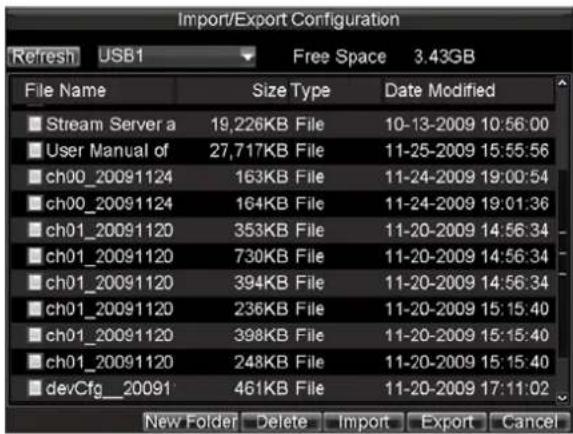
text_image
Import/Export Configuration Refresh USB1 Free Space 3.43GB File Name Size Type Date Modified Stream Server a 19,226KB File 10-13-2009 10:56:00 User Manual of 27,717KB File 11-25-2009 15:55:56 ch00_20091124 163KB File 11-24-2009 19:00:54 ch00_20091124 164KB File 11-24-2009 19:01:36 ch01_20091120 353KB File 11-20-2009 14:56:34 ch01_20091120 730KB File 11-20-2009 14:56:34 ch01_20091120 394KB File 11-20-2009 14:56:34 ch01_20091120 236KB File 11-20-2009 15:15:40 ch01_20091120 398KB File 11-20-2009 15:15:40 ch01_20091120 248KB File 11-20-2009 15:15:40 devCfg_20091 461KB File 11-20-2009 17:11:02 New Folder Delete Import Export CancelFigure 10. Import/Export Configuration Menu
- Click Export to export a configuration file to USB device. USB device must be connected at this point to the DVR.
- To import a configuration file, select the file from the USB device and click the Import button. After the import process is completed, you must reboot the DVR.
- Click Cancel to exit out of menu.
Updating System Firmware
The firmware on your DVR can be updated using two methods. These methods include updating via an USB device or over the network via a FTP server.
To update via an USB device:
- Connect USB device to DVR. The firmware file must be located in the root directory of your USB device.
- Enter the Firmware Update menu, shown in Figure 11 by clicking Menu > Maintenance > Upgrade.
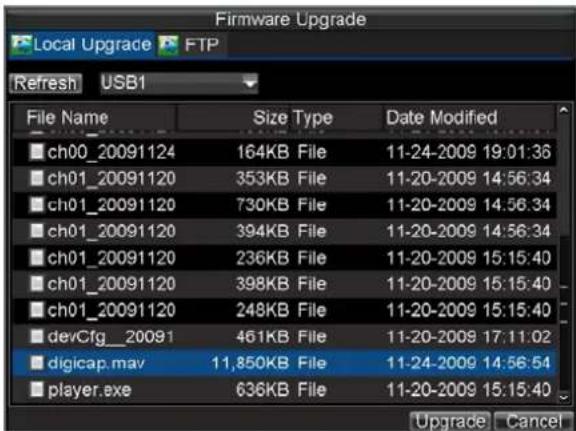
text_image
Firmware Upgrade Local Upgrade FTP Refresh USB1 File Name Size Type Date Modified ch00_20091124 164KB File 11-24-2009 19:01:36 ch01_20091120 353KB File 11-20-2009 14:56:34 ch01_20091120 730KB File 11-20-2009 14:56:34 ch01_20091120 394KB File 11-20-2009 14:56:34 ch01_20091120 236KB File 11-20-2009 15:15:40 ch01_20091120 398KB File 11-20-2009 15:15:40 ch01_20091120 248KB File 11-20-2009 15:15:40 devCfg_20091 461KB File 11-20-2009 17:11:02 digicap.mav 11,850KB File 11-24-2009 14:56:54 player.exe 636KB File 11-20-2009 15:15:40 Upgrade CancelFigure 11. Firmware Update Menu
- Select the Local Upgrade tab.
- Select the firmware on the USB device.
- Select Upgrade to begin the update process.
- After the system firmware has been updated, reboot the DVR.
To update via a FTP server:
-
Configure PC (running FTP server) and DVR to be in the same Local Area Network. Run the 3rd-party TFTP software on the PC and copy the firmware into the root directory of TFTP.
-
Enter the Firmware Update menu by clicking Menu > Maintenance > Upgrade.
-
Select the FTP tab, shown in Figure 12.
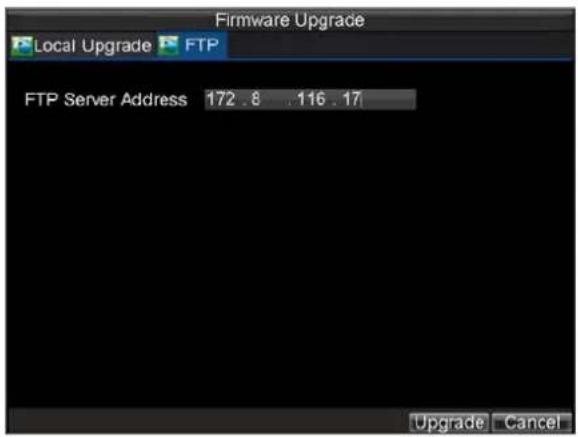
text_image
Firmware Upgrade Local Upgrade FTP FTP Server Address 172 .8 .116 .17 Upgrade CancelFigure 12. FTP Firmware Update
- Input the FTP server address.
- Select Upgrade to begin update process.
- After the system firmware has been update, reboot the DVR.
Note: If the DVR fails to update, please contact your system supplier for further assistance.
Restoring Default Settings
To restore default factory settings to your DVR:
- Enter the Default Settings menu, shown in Figure 13 by clicking Menu > Maintenance > Default.
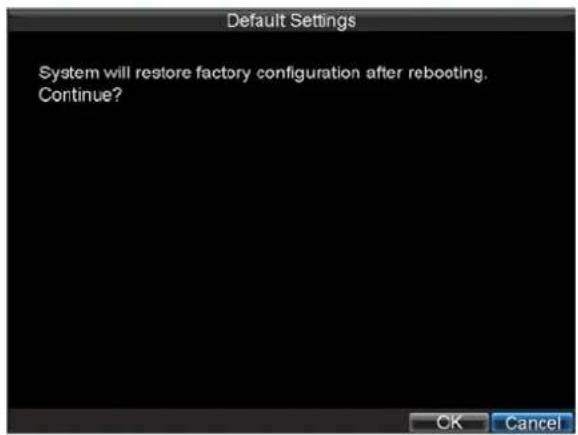
text_image
Default Settings System will restore factory configuration after rebooting. Continue?Figure 13. Default Settings Menu
Select OK to restore factory defaults.
Note: Network information such as IP address, subnet mask and gateway will not be restored.
Viewing System Information
To view system information:
- Enter into the Information menu, shown in Figure 14 by clicking Menu > Maintenance > Information.

text_image
System Information Device Information Channel Status Record Status Alarm Device Name Embedded Net DVR Model DS-9016HF-RH Serial No. 1620110513BARR400818439WCVU Firmware Version V1.3.1, Build 110516 Encode Version V5.0, Build 110227 OKFigure 14. System Information
• Device Information: The model number of the DVR, serial No., the current firmware version installed on DVR, etc.
- Chan Status: Cameras working status in DVR such as motion, tampering, video loss and video exception.
- Record Status: Recording status of the cameras, including: stream type, frame rate, bit rate, resolution, record type, etc.
• Alarm Status: The status of external alarm in/out on DVR.
• Network Status: Network status such as IP address, gateway, DNS server, client port, etc.
• HD Status: Hard disk status on DVR.
- Select OK to return to the previous screen.
Viewing System Logs
Many events of your DVR are logged into the system logs.
To access the system logs and search for these events:
- Enter the Log Search menu, shown in Figure 15 by clicking Menu > Maintenance > Log Search.
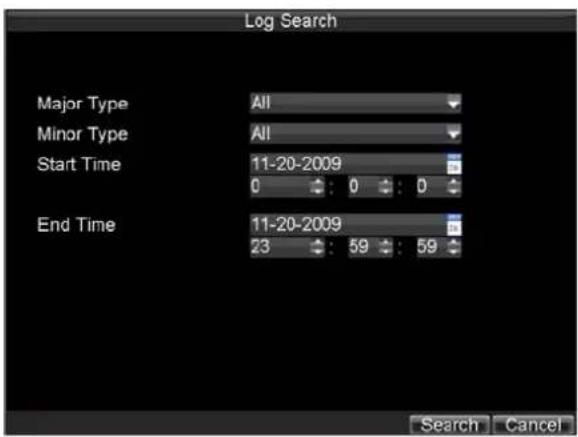
text_image
Log Search Major Type All Minor Type All Start Time 11-20-2009 End Time 11-20-2009 23 59 59 Search CancelFigure 15. Log Search Menu
- Set Search parameters.
- Click the Search button to begin search. If logs matching the search criteria are found, it will be displayed in a list similar to that of Figure 16.
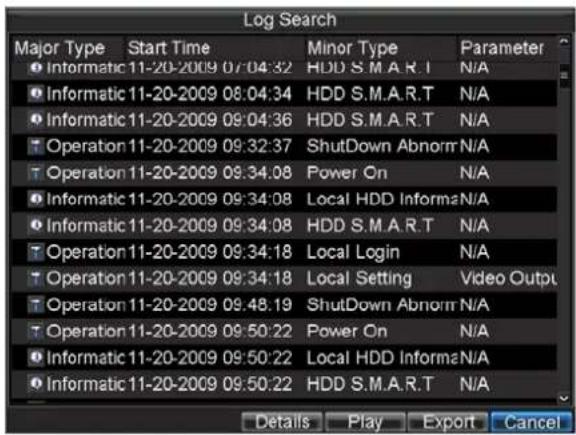
text_image
Log Search Major Type Start Time Minor Type Parameter ● Informatic 11-20-2009 07:04:32 HDD S.M.A.R.T N/A ● Informatic 11-20-2009 08:04:34 HDD S.M.A.R.T N/A ● Informatic 11-20-2009 09:04:36 HDD S.M.A.R.T N/A ○ Operation 11-20-2009 09:32:37 Shutdown Abnorm N/A ○ Operation 11-20-2009 09:34:08 Power On N/A ● Informatic 11-20-2009 09:34:08 Local HDD Informa N/A ● Informatic 11-20-2009 09:34:08 HDD S.M.A.R.T N/A ○ Operation 11-20-2009 09:34:18 Local Login N/A ○ Operation 11-20-2009 09:34:18 Local Setting Video Output ○ Operation 11-20-2009 09:48:19 Shutdown Abnorm N/A ○ Operation 11-20-2009 09:50:22 Power On N/A ● Informatic 11-20-2009 09:50:22 Local HDD Informa N/A ● Informatic 11-20-2009 09:50:22 HDD S.M.A.R.T N/A Details Play Export CancelFigure 16. Log Search Results
- To view more detail information about a particular log entry, select the entry and click the Details button.
- If applicable, you may also view the associated video to the selected log entry by clicking the Play button.
- Log files can also be exported onto a USB device. To export a log file, connect a USB device to the DVR, select the log file to export and click the Export button. This will take you to the Log Search Export menu, shown below in Figure 17. Click the Export button to export log onto USB device. The exported file will be named according to the time it was exported (i.e. 2000062991627.txt).

text_image
Log Export Refresh USB1 Free Space 3.60GB File Name Size Type Date Modified RECYCLER Folder 11-05-2009 15:42:38 Recycled Folder 11-05-2009 15:39:30 work Folder 11-20-2009 14:55:36 ch01_20091120 353KB File 11-20-2009 14:56:34 ch01_20091120 730KB File 11-20-2009 14:56:34 ch01_20091120 394KB File 11-20-2009 14:56:34 ch01_20091120 236KB File 11-20-2009 15:15:40 ch01_20091120 398KB File 11-20-2009 15:15:40 ch01_20091120 248KB File 11-20-2009 15:15:40 player.exe 636KB File 11-20-2009 15:15:40 New Folder Delete Export CancelFigure 17. Log Search Export Menu
- Click Cancel to exit out of menu.
CHAPTER14
Appendix
Glossary
- Dual Stream: Dual stream is a technology used to record high resolution video locally while transmitting a lower resolution stream over the network. The two streams are generated by the DVR, with the main stream having a maximum resolution of 4CIF and the sub-stream having a maximum resolution of CIF.
- DVR: Acronym for Digital Video Recorder. A DVR is device that is able to accept video signals from analog cameras, compress the signal and store it on its hard drives.
- HDD: Acronym for Hard Disk Drive. A storage medium which stores digitally encoded data on platters with magnetic surfaces.
- DHCP: Dynamic Host Configuration Protocol (DHCP) is a network application protocol used by devices (DHCP clients) to obtain configuration information for operation in an Internet Protocol network.
- HTTP: Acronym for Hypertext Transfer Protocol. A protocol to transfer hypertext request and information between servers and browsers over a network
- DHCP: PPPoE, Point-to-Point Protocol over Ethernet, is a network protocol for encapsulating Point-to-Point Protocol (PPP) frames inside Ethernet frames. It is used mainly with ADSL services where individual users connect to the ADSL transceiver (modem) over Ethernet and in plain Metro Ethernet networks.
- DDNS: Dynamic DNS is a method, protocol, or network service that provides the capability for a networked device, such as a router or computer system using the Internet Protocol Suite, to notify a domain name server to change, in real time (ad-hoc) the active DNS configuration of its configured hostnames, addresses or other information stored in DNS.
• Hybrid DVR: A hybrid DVR is a combination of a DVR and NVR. - NTP: Acronym for Network Time Protocol. A protocol designed to synchronize the clocks of computers over a network.
- NTSC: Acronym for National Television System Committee. NTSC is an analog television standard used in such countries as the United States and Japan. Each frame of an NTSC signal contains 525 scan lines at 60Hz.
- NVR: Acronym for Network Video Recorder. An NVR can be a PC-based or embedded system used for centralized management and storage for IP cameras, IP Domes and other DVRs.
- PAL: Acronym for Phase Alternating Line. PAL is also another video standard used in broadcast televisions systems in large parts of the world. PAL signal contains 625 scan lines at 50Hz.
- PTZ: Acronym for Pan, Tilt, Zoom. PTZ cameras are motor driven systems that allow the camera to pan left and right, tilt up and down and zoom in and out.
- USB: Acronym for Universal Serial Bus. USB is a plug-and-play serial bus standard to interface devices to a host computer.
FAQ
- Why does my DVR make a beeping sound after booting?
There are a few reasons for the warning beep your DVR makes after booting.
- There is no HDD present in the DVR.
- The HDD has not been initialized.
- The HDD is defective.
If you wish to use your DVR without any HDDs, you may disable this warning beep in the Exception Settings menu (See Setting Exception).
- Why does the DVR seem unresponsive when operating with the IR remote control?
If your DVR seem unresponsive when using the IR remote and you have read through the section Using the IR Remote Control, please check:
-
Check that the batteries are installed correctly in the remote, making sure that the polarities of the batteries are not reversed.
-
Make sure the batteries are fresh and are not out of power.
- Make sure the remote has not been tampered with.
- Check around and make sure there are no fluorescent lamps in use.
• Why does the PTZ seem unresponsive?
If the PTZ seem unresponsive, please check:
- Check that the RS-485 cable is properly connected.
- Check that the dome decoder type is correct.
- Check that the dome decoder speed configuration is correct.
- Check that the dome decoder address bit configuration is correct.
- Check to make sure that the main board RS-485 interface is not broken.
- Why is there no video recorded after setting the motion detection?
If there are no recorded video after setting the motion detection, please check:
- Check that the recording schedule is setup correctly by following the steps listed in Scheduling a Recording.
- Check that the motion detection area is configured correctly (See Setting Up Motion Detection).
- Make sure that channels are being triggered for motion detection (See Setting Up Motion Detection).
- Why doesn't the DVR detect my USB export device for exporting recorded files?
There's a chance that the DVR and your USB device is not compatible. Please refer to our company's website to view a list of compatible devices.
- My DVR is in Live View mode and the menu will not come up. It does not respond to the mouse, front panel, remote or keyboard.
Your DVR may be in auxiliary mode. This occurs when the MAIN/SPOT button is pushed on the front panel. To return to the previous mode of operation, press the MAIN/SPOT button again.
List of Compatible IP Cameras
List of Hikvision IP Cameras Supported by DS-9000/9600
| IPC Platform | IPC Type | Model | Sub Stream | IPC Resolution | Main Stream Resolution Supported by DS-9000 | IPC Sub Stream Resolution | Sub Stream Resolution Supported by DS-9000 | Audio Compression | Encoding Format/ Transmission/ Packaging Format | Latest Version | Supported by DS-9000 V1.0 | Supported by DS-9000 V1.2.0 | Supported by DS-9000 V1.3.0 |
| 6446 Platform | SD IP Camera | DS-2CD802PF/NF-L(·D)(·IR1)(·IR3)(·IR5)DS-2CD812PF/NF(E)(·D)(·IR1)(·IR3)(·IR5)DS-2CD892PF/NF(F)(·D)(·IR1)(·IR3)(·IR5)DS-2CD832F(L)DS-2CD702PF/NF(F)DS-2CD712PF/NF(E)DS-2CD792PF/NF(F)DS-2CD732F(L) | Yes | 4CIF/DCIF/2CIF/CIF/QCIF | 4CIF/DCIF/2CIF/CIF/QCIF | CIF/QCIF CIF/QCIF | G722 | G711 | HIK H.264+HIK RTSP+PS | V2.0 build 090811 | Yes Yes Yes | ||
| Standard H.264+ Standard RTSP+RTP | V2.0 build 090522 | No Yes Yes | |||||||||||
| Standard MPFG4+ Standard RTSP+RTP | V2.0 build 090715 | No Yes Yes | |||||||||||
| DS-2CD802PF/NF-WDS-2CD812PF/NF-WDS-2CD892PF/NF-WDS-2CD832F-W | Yes | 4CIF/DCIF/2CIF/CIF/QCIF | 4CIF/DCIF/2CIF/CIF/QCIF | CIF/QCIF CIF/QCIF G722 | HIK H.264+HIK RTSP+PS | V2.0 build 090629 | Yes Yes Yes | ||||||
| HD IP Camera | DS-2CD852MF-EDS-2CD752MF(E)DS-2CD752MF-(DF B(H)) | Yes | UXGA/HD90 0P/HD720P/S VGA/VGA/4 CIF/DCTF/2C IF/CIF/QCIF | UXGA(12.5 fps)/720P/VGA/4 CIF/DCTF/2C IF/CIF/QCIF | CIF/QCIF | CIF/QCIF | G722 | HIK H.264+HIK RTSP+PS | V2.0 build 100521 | Yes Yes Yes | |||
| G711 | Standard H.264+ Standard RTSP+RTP | V2.0 build 100329 | No Yes Yes | ||||||||||
| Standard MPEG4+ Standard RTSP+RTP | V2.0 build 090629 | No Yes Yes | |||||||||||
| DS-2CD862MF-EDS-2CD762MF-(DF B(H)) | Yes | XVGA/720P/VGA | 720P/VGA CIF | CIF (320*240) | G722 | HIK H.264+HIK RTSP+PS | V2.0 build 100521 | Yes Yes Yes | |||||
| G711 | Standard H.264+ Standard RTSP+RTP | V2.0 build 100329 | No Yes Yes | ||||||||||
| STANDARD MPEG4+ Standard RTSP+RTP | V2.0 build 090629 | No Yes Yes | |||||||||||
| 365 Platform | SD IP Camera | DS-2CD7133F-F | Yes | VGA | 640*480 | CIF/QVGA | CIF/320*240 | G711 | Standard H.264+ Standard RTSP+RTP | V3.0 build 110117 | No Yes Yes | ||
| DS-2CD733F-EDS-2CD833F-EDS-2CD8133F-L | Yes | VGA | 640*480 | CIF/QVGA | CIF/320*240 | G711 | Standard H.264+ Standard RTSP+RTP | V3.0 build 110117 | No | No | Yes | ||
| DS-2CD893PF/NF-LDS-2CD893PFWD-FDS-2CD893NFWD-EDS-2CD793PF/NF-EDS-2CD793PFWD-LDS-2CD793NFWD-F | Yes | 704*576 | 4CIF | CIF | CIF | G711 | Standard H.264+ Standard RTSP+RTP | V3.0 build 110117 | No | No | Yes | ||
| HD IP Camera | DS-2CD7153 E Yes | 1600*1200/1600*912/128 0*960/1280*720/800*600/4CIF/VGA/ | CIF/4CIF/640 *480/1600*1 200/1280*72 0 | CIF/QVGA | CIF/320*240 | G711 | Standard H.264+ Standard RTSP+RTP | V3.0 build 110117 | No Yes Yes | ||||
| CIF | |||||||||||||
| DS-2CD8153F-FDS-2CD853F-EDS-2CD753F-EDS_2CD8253F_EI | Yes | 1600*1200/1600*912/1280*960/1280*720/800*600/4CIF/VGA/CIF | CIF/4CIF/640*480/1600*1200/1280*720 | CIF/QVGA CIF | 320*240 G711 | Standard H.264+ Standard RTSP+RTP | V3.0 build 110117 | No No Yes | |||||
| DS_2CD854F_FDS_2CD754F_FDS_2CD8254F_EI | Yes | 1920*1080/1600*1200/2048*1536/1280*720 | 1280*720/1600*1200/1920*1080 | 320*240 320 | 240 G711 | Standard H.264+ Standard RTSP+RTP | V3.0 build 110117 | No No Yes | |||||
| DS_2CD883F EDS_2CD783F_E | Yes | 1920*1080/2560*1920/2048*1536/1280*720/1600*1200 | 1280*720/1600*1200/1920*1080 | 320*240 320 | 240 G711 | Standard H.264+ Standard RTSP+RTP | V3.0 build 110117 | No No Yes | |||||
| DS-2CD863PF/NF-FDS-2CD763PI/NF-E | Yes | 1280*960/1280*720/640*480 | 1280*720/640*480 | 352*288/320*240 | CIF/320*240 G7.1 | Standard H.264+ Standard RTSP+RTP | V3.0 build 110117 | No No Yes | |||||
| 6467 Platform | HD IP Camera | DS-2CD876MI/BIF | Yes | 1600*1200 | UXGA | 640*480 | VGA | G711 | Standard H.264+ Standard RTSP+RTP | V2.0 build 101102 | No No Yes | ||
| DS-2CD886MI/BIF-F | Yes | 1920*1080/2560*1920/2048*1536/1280*720 | 1080P/720P 640*480 VGA G711 | Standard H.264+ Standard RTSP+RTP | V2.0 build 101102 | No No Yes | |||||||
| DS-976 | No | UXGA UXGA | No | No No | Standard H.264+ Standard RTSP+PS | V2.2 build 110526 | No No Yes | ||||||
| DS-976-V | No | UXGA UXGA | No | No No | Standard H.264+ Standard RTSP+PS | V2.2 build 110512 | No No Yes | ||||||
| DS-2CD977 | No | 1080P 1080P | No | No No | Standard H.264+ Standard RTSP+PS | V2.0 build 110218 | No No Yes | ||||||
| 6446 Platform | SD IP Camera | DS-2DF1-601/2/3/4/5/6/7/8H(F)DS-2DF1-611/2/3/4/5/6/7/8H(F)DS-2DF1-631/2/3/4/5/6/7/8H(F) | Yes | 4CIF/DCIF/2CIF/CIF/QCIF | 4CIF/DCIF/2CIF/CIF/QCIF | CIF/QCIF | CIF/QCIF | G722 | HIK H.264+HIK RTSP+PS | V2.0.1 build 100513 | Yes | Yes | Yes |
| HD IP Camera | DS-2DF1-671 | Yes | VGA/720P/X VGA | 720P/VGA CIF/QCIF | CIF (320*240) | G722 | HIK H.264+HIK RTSP+PS | V2.0.1 build 100617 | No | Yes | Yes | ||
| DS-2DF1-672 | VGA/720P/X VGA | 720P/VGA CIF/QCIF | CIF (320*240) | G722 | HIK H.264+HIK RTSP+PS | V2.0.2 build 101225 | No | Yes | Yes | ||||
| DS-2DF1-6732 | Yes | VGA/720P/X VGA | 720P/VGA CIF/QCIF | CIF (320*240) | G722 | HIK H.264+HIK RTSP+PS | V2.0.2 build 101225 | No No Yes | |||||
| SD DVS | DS_6101HF DS_6102IIF | Yes | 4CIF/DCIF/2CIF/CIF/QCIF | 4CIF/DCIF/2CIF/CIF/QCIF | CIF/QCIF | CIF/QCIF | G722 | HIK H.264+HIK RTSP+PS | V2.0 build 091027 | Yes | Yes | Yes |
List of Third-party IP Cameras Supported by DS-9000/9600
| IPC Manufacturer | Model | Sub Stream | IPC Resolution | Main Stream Resolution Supported by DS-9000 | IPC Sub Stream Resolution | Sub Stream Resolution Supported by DS-9000 | Audio Compression | Encoding Format/Transmissi on/Packag ing Format | Latest Version | Supported by DS-9000 V1.1.0 | Supported by DS-9000 V1.2.0 | Supported by DS-9000 V1.3.0 |
| Sony | SNC-DF40/DF70 | No | 640*480(VGA)480*360384*288320*240(QVGA)256*192160*120(QQVGA) | 640*480320*240 | G711U-Law | MPEG4 | Yes | Yes | Yes | |||
| Panasonic | WV-NP240 | No | VGAQVGA | 640*480320*240 | G726A-Law | MPEG4 | Yes Yes Yes | |||||
| Sanyo VCC-HID4000 No | 1920*1080p1280*720p960*540p640*360p320*180p | 1280*720640*360320*180 | Not support | II.264 | No Yes Yes | |||||||
| Axis 207W/207MW No | 1280*10241280*9601280*720640*480640*360480*360480*270352*288320*240320*180240*180240*135176*144160*120160*90 | 1280*720/640*480 | G711u-Law,G726 | MPEG4 | No No Yes | |||||||
| Zavio | f3105 | No | 320*240/640*480/1280*720/1280*1024(frame rate: 1, 2, 3, 4,5, 7, 10, 15, 20, 30) | 320*240/640*480/1280*720 | Not support | MPEG4 | No No Yes | |||||
| ACTI | acm7411 | No | 320*240/640*480/1280*720/1280*1024/(frame rate: 1, 2, 3, 4,5, 6, 7, 10, 15, 30) | 320*240/640*480/1280*720 | Not support | MPEG4 | No No Yes | |||||
| Arecont | ARE-AV5105DN | No | 640*480 | Not support | No No Yes | |||||||
| Vivotce | ABUS | No | 1600*1200/1280*960/640*480/320*240(frame rate: 1, 2, 3, 4,5, 6, 8, 10, 12, 15, 20,25) | 1600*1200/640*480/320*240 | Not support | MPEG4 | No No Yes | |||||
| Infinova | V6201-M | No | D1/2CIF/CIF/QCIF/640*480/1280*720/1280*960(Frame rate: 1, 2, 4, 6,8, 10, 12, 15, 20,30N/25P)(Note: the resolution actually supported is640*480/1280*720/1280*960) | 640*480/1280*720 | G711u-Law | MPEG4 | No No Yes |