GTB-HD4K2K-148 - Switch Gefen - Free user manual and instructions
Find the device manual for free GTB-HD4K2K-148 Gefen in PDF.


User questions about GTB-HD4K2K-148 Gefen
0 question about this device. Answer the ones you know or ask your own.
Ask a new question about this device
Download the instructions for your Switch in PDF format for free! Find your manual GTB-HD4K2K-148 - Gefen and take your electronic device back in hand. On this page are published all the documents necessary for the use of your device. GTB-HD4K2K-148 by Gefen.
USER MANUAL GTB-HD4K2K-148 Gefen
Splitter for HDMI with Ultra HD 4K x 2K support
GTB-HD4K2K-148
User Manual
Release A1
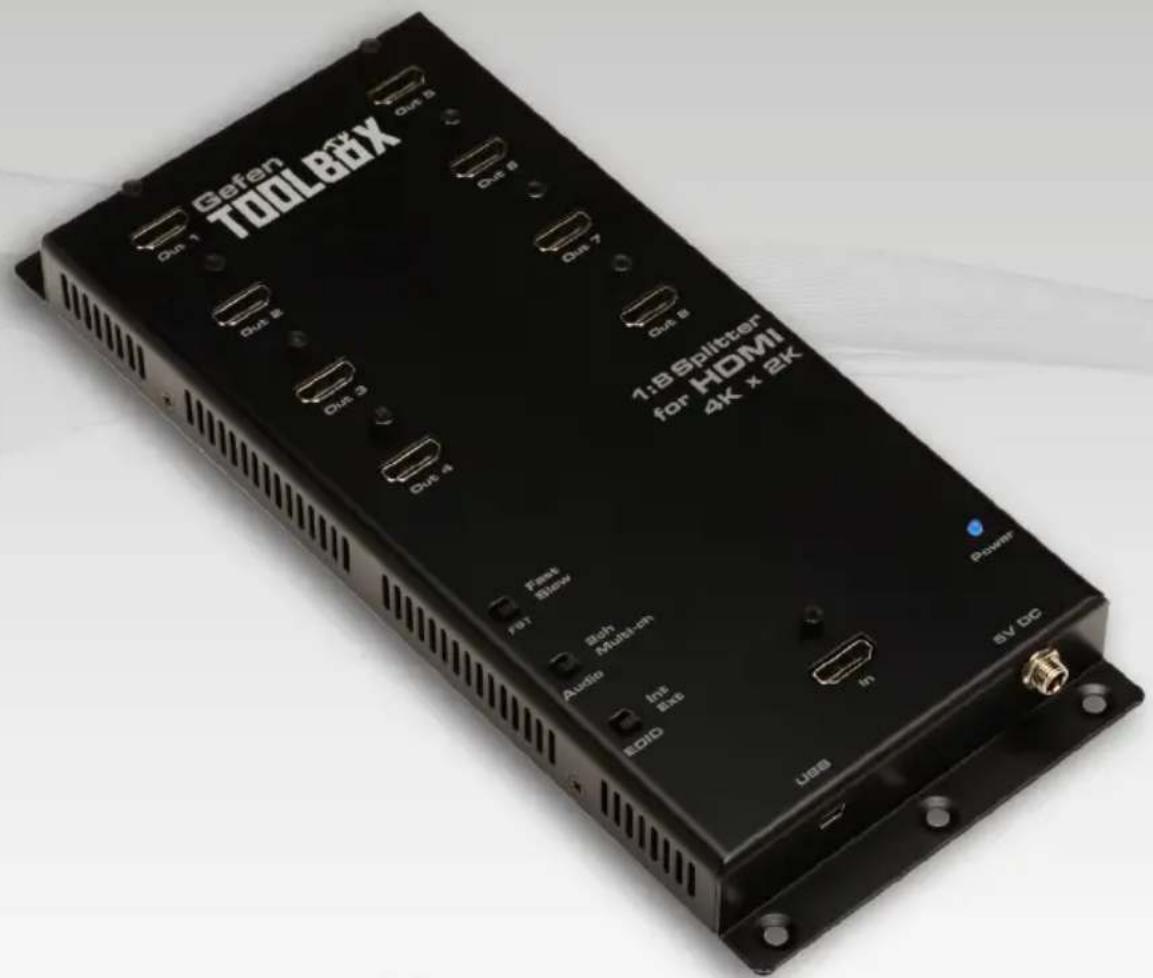
text_image
Gefen TOOL8xx Out 3 Out 1 Out 2 Out 3 Out 4 Cuts 7 Cuts 8 1:9 Splitter for HDMI 4K x 2K First Show FST 50h Music-on Audio in E60 EDIO USB Power 6V DCGefen TOOLBOX
Important Safety Instructions
GENERAL SAFETY INFORMATION
- Read these instructions.
- Keep these instructions.
- Heed all warnings.
- Follow all instructions.
- Do not use this product near water.
-
Clean only with a dry cloth.
-
Do not block any ventilation openings. Install in accordance with the manufacturer's instructions.
-
Do not install or place this product near any heat sources such as radiators, heat registers, stoves, or other apparatus (including amplifiers) that produce heat.
-
Do not defeat the safety purpose of the polarized or grounding-type plug. A polarized plug has two blades with one wider than the other. A grounding type plug has two blades and a third grounding prong. The wide blade or the third prong are provided for your safety. If the provided plug does not fit into your outlet, consult an electrician for replacement of the obsolete outlet.
-
Protect the power cord from being walked on or pinched particularly at plugs, convenience receptacles, and the point where they exit from the apparatus.
-
Only use attachments/accessories specified by the manufacturer.
-
To reduce the risk of electric shock and/or damage to this product, never handle or touch this unit or power cord if your hands are wet or damp. Do not expose this product to rain or moisture.
-
Unplug this apparatus during lightning storms or when unused for long periods of time.
-
Refer all servicing to qualified service personnel. Servicing is required when the apparatus has been damaged in any way, such as power-supply cord or plug is damaged, liquid has been spilled or objects have fallen into the apparatus, the apparatus has been exposed to rain or moisture, does not operate normally, or has been dropped.
-
Batteries that may be included with this product and/or accessories should never be exposed to open flame or excessive heat. Always dispose of used batteries according to the instructions.
Warranty Information
Gefen warrants the equipment it manufactures to be free from defects in material and workmanship.
If equipment fails because of such defects and Gefen is notified within two (2) years from the date of shipment, Gefen will, at its option, repair or replace the equipment, provided that the equipment has not been subjected to mechanical, electrical, or other abuse or modifications. Equipment that fails under conditions other than those covered will be repaired at the current price of parts and labor in effect at the time of repair. Such repairs are warranted for ninety (90) days from the day of reshipment to the Buyer.
This warranty is in lieu of all other warranties expressed or implied, including without limitation, any implied warranty or merchantability or fitness for any particular purpose, all of which are expressly disclaimed.
- Proof of sale may be required in order to claim warranty.
- Customers outside the US are responsible for shipping charges to and from Gefen.
- Copper cables are limited to a 30 day warranty and cables must be in their original condition.
The information in this manual has been carefully checked and is believed to be accurate. However, Gefen assumes no responsibility for any inaccuracies that may be contained in this manual. In no event will Gefen be liable for direct, indirect, special, incidental, or consequential damages resulting from any defect or omission in this manual, even if advised of the possibility of such damages. The technical information contained herein regarding the features and specifications is subject to change without notice.
For the latest warranty coverage information, refer to the Warranty and Return Policy under the Support section of the Gefen Web site at www.gefen.com.
PRODUCT REGISTRATION
Please register your product online by visiting the Register Product page under the Support section of the Gefen Web site.
Contacting Gefen Technical Support
Gefen, LLC
c/o Customer Service
20600 Nordhoff St.
Chatsworth, CA 91311
Telephone: (818) 772-9100
(800) 545-6900
Fax: (818) 772-9120
Email: support@gefentoolbox.com
Visit us on the Web: www.gefentoolbox.com
Technical Support Hours: 8:00 AM to 5:00 PM Monday - Friday, Pacific Time
For 24 / 7 support, see the back of the product for the
support number
1:8 Splitter for HDMI 4K x 2K is a trademark of Gefen, LLC.
Important Notice
Gefen, LLC reserves the right to make changes in the hardware, packaging, and any accompanying documentation without prior written notice.
HDMI, the HDMI logo, and High-Definition Multimedia Interface are trademarks or registered trademarks of HDMI Licensing in the United States and other countries.
Operating Notes
- The 1:8 Splitter for HDMI 4K x 2K has advanced EDID management features to ensure complete compatibility with all sources and display devices. See Setting the EDID Mode for more information.
- The 1:8 Splitter for HDMI 4K x 2K automatically detects the presence of Deep Color. This feature will be disabled if any of the connected sink devices (displays, etc.) do not support this feature. This behavior ensures compatibility among all output devices in a mixed-device environment. This feature cannot be disabled.
Features and Packing List
Features
- Simultaneously displays an Ultra Hi-Def source on up to eight Ultra HD displays
• Supports resolutions up to Ultra HD 4K x 2K (3840 x 2160 @ 30Hz) and 1080p Full HD
• Supports 12-bit Deep Color - 3DTV pass-through
- Lip Sync pass-through
• FST Technology speeds up HDCP authentication process - Fast and Slow FST Modes
- Advanced EDID Management for rapid integration of source and displays
- Supports LPCM 7.1, Dolby® TrueHD, Dolby Digital® Plus, and DTS-HD Master Audio™
- Supports the use of DVI sources and DVI displays with HDMI-to-DVI adapters (not included)
• Field-upgradeable firmware using Mini-USB port - Locking Power Supply
- Surface-mountable
• Available in Black or White

HIGH-DEFINITION MULTIMEDIA INTERFACE

PROGRESSIVE



HDCP
COMPLIANT


Packing List
The 1:8 Splitter for HDMI 4K x 2K ships with the items listed below. If any of these items are not present in your box when you first open it, immediately contact your dealer or Gefen.
• 1 x 1:8 Splitter for HDMI 4K x 2K
• 1 x 6 ft. HDMI cable (M-M)
• 1 x 5V DC locking power supply
• 1 x Quick-Start Guide
Table of Contents
01 Getting Started
Panel Layout 2
Installation 4
Connecting the 1:8 Splitter for HDMI 4K x 2K....4
Sample Wiring Diagram 4
02 Operating the
1:8 Splitter for HDMI 4K x 2K
Setting the Switching Mode....8
What is Fast Switching Technology? 8
Using Fast Mode 8
Using Slow Mode 9
Setting the Audio Channel Mode.... 10
Using 2-Channel Audio .... 10
Using Multichannel Audio.... 11
Setting the EDID Mode.... 12
Using the Internal EDID 12
Using the External EDID 13
03 Appendix
Wall Mounting Instructions 16
Firmware Upgrade Procedure.... 17
Specifications 18
ULTRA HD
1:8 Splitter for HDMI with Ultra HD 4K x 2K support SOURCEDISPLAYS
01 Getting Started
Panel Layout 2
Installation 4
Connecting the 1:8 Splitter for HDMI 4K x 2K....4
Sample Wiring Diagram 4
Panel Layout
(Black finish shown)
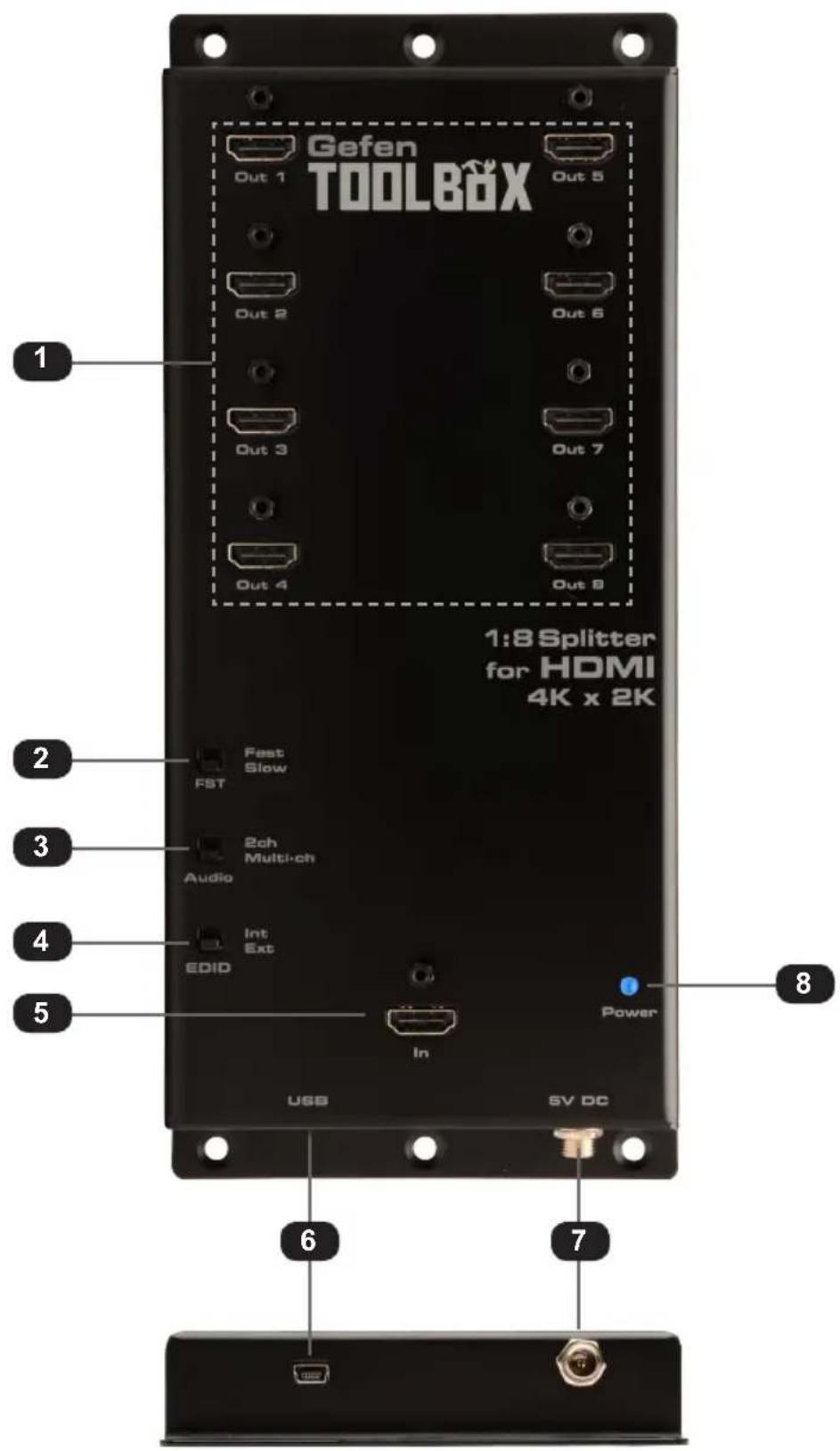
text_image
Gefen TOOLBOX Out 1 Out 5 Out 2 Out 6 Out 3 Out 7 Out 4 Out 8 1:8 Splitter for HDMI 4K x 2K FST Fast Slow Audio 2ch Multi-ch Int Ext EDID Power In USB SV DC 1 2 3 4 5 6 7 8| ID Name Description | ||
| 1 Out 1 - Out | 8 Connect an Ultra HD display | to each of these ports using HDMI cables. |
| 2 FST (Fast / | Slow) Use this slider switcher to switch between Fast and Slow FST (Fast Switching Technology) modes. See Setting the Switching Mode for more information on using FST mode. | |
| 3 Audio (2ch / | Multi-ch) Use this slider switcher to switch between 2CH and Multichannel audio on the output. See Setting the Audio Channel Mode for more information on using this feature. | |
| 4 EDID (Int / Ext) Use this slider switch to switch between internal (Int) and external (Ext) EDID modes. See Setting the EDID Mode for more information. | ||
| 5 In Connect the included HDMI cable from the | Ultra Hi-Def source to this HDMI port. | |
| 6 | USB | Used for upgrading the firmware. See Firmware Upgrade Procedure for more information. |
| 7 5V DC Connect the included 5V DC power supply to this locking power receptacle. | ||
| 8 Power This LED indicator will glow bright blue when the included 5V DC power supply is connected between the splitter and an available electrical outlet. | ||
Connecting the 1:8 Splitter for HDMI 4K x 2K
- Use the included HDMI cable to connect the Ultra Hi-Def source to the In port on the splitter.
- Connect up to eight Ultra Hi-Def displays to the Out (1 - 8) ports on the splitter.
- Connect the included 5V DC locking power supply to the power receptacle on the splitter. Do not overtighten the locking power connector.
- Connect the included AC power cord from the power supply to an available electrical outlet.
Sample Wiring Diagram
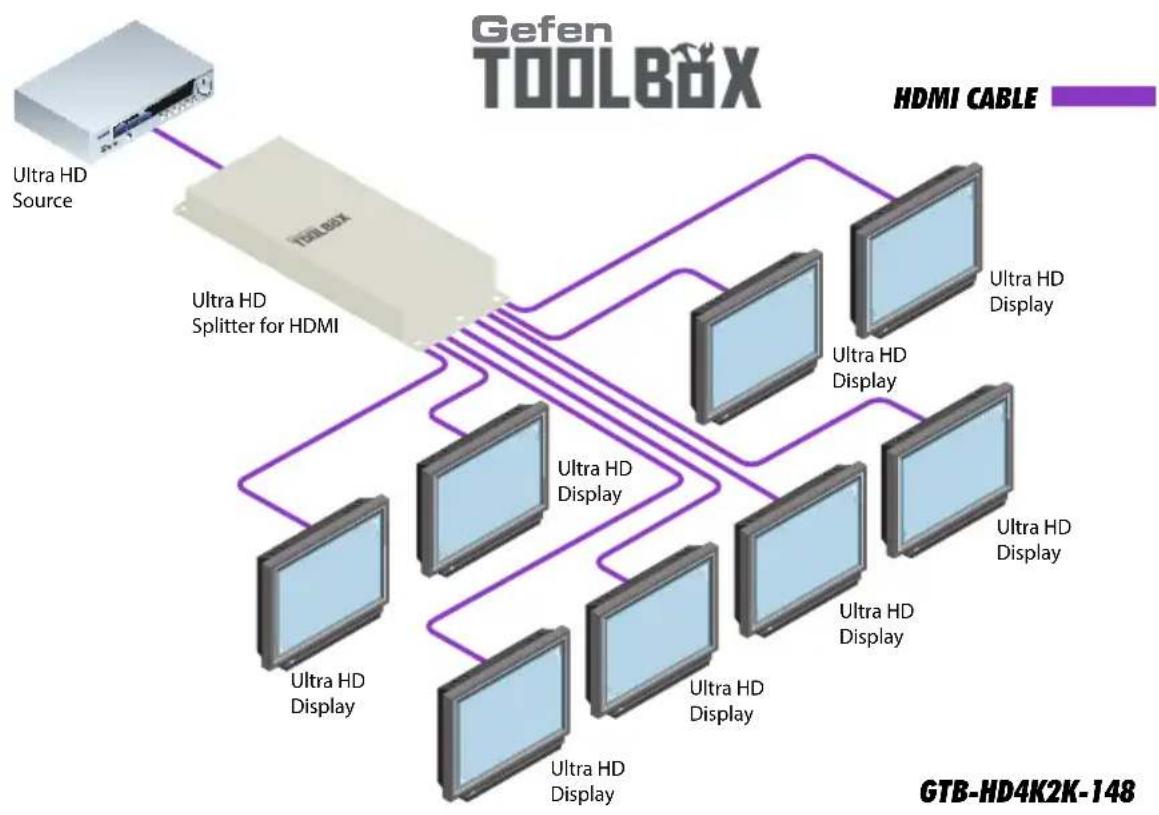
flowchart
graph TD
    A["Ultra HD Source"] --> B["ToolBox"]
    B --> C["Ultra HD Splitter for HDMI"]
    C --> D["Ultra HD Display"]
    C --> E["Ultra HD Display"]
    C --> F["Ultra HD Display"]
    C --> G["Ultra HD Display"]
    C --> H["Ultra HD Display"]
    C --> I["Ultra HD Display"]
    C --> J["Ultra HD Display"]
    C --> K["Ultra HD Display"]
    C --> L["Ultra HD Display"]
    C --> M["Ultra HD Display"]
    C --> N["Ultra HD Display"]
    C --> O["Ultra HD Display"]
    C --> P["Ultra HD Display"]
    C --> Q["Ultra HD Display"]
    C --> R["Ultra HD Display"]
    C --> S["Ultra HD Display"]
    C --> T["Ultra HD Display"]
    C --> U["Ultra HD Display"]
    C --> V["Ultra HD Display"]
    C --> W["Ultra HD Display"]
    C --> X["Ultra HD Display"]
    C --> Y["Ultra HD Display"]
    C --> Z["Ultra HD Display"]
    C --> AA["Ultra HD Display"]
    C --> AB["Ultra HD Display"]
    C --> AC["Ultra HD Display"]
    C --> AD["Ultra HD Display"]
    C --> AE["Ultra HD Display"]
    C --> AF["Ultra HD Display"]
    C --> AG["Ultra HD Display"]
    C --> AH["Ultra HD Display"]
    C --> AI["Ultra HD Display"]
    C --> AJ["Ultra HD Display"]
    C --> AK["Ultra HD Display"]
    C --> AL["Ultra HD Display"]
    C --> AM["Ultra HD Display"]
    C --> AN["Ultra HD Display"]
    C --> AO["Ultra HD Display"]
    C --> AP["Ultra HD Display"]
    C --> AQ["Ultra HD Display"]
    C --> AR["Ultra HD Display"]
    C --> AS["Ultra HD Display"]
    C --> AT["Ultra HD Display"]
    C --> AU["Ultra HD Display"]
    C --> AV["Ultra HD Display"]
    C --> AW["Ultra HD Display"]
    C --> AX["Ultra HD Display"]
    C --> AY["Ultra HD Display"]
    C --> AZ["Ultra HD Display"]
    C --> BA["Ultra HD Display"]
    C --> BB["Ultra HD Display"]
    C --> BC["Ultra HD Display"]
    C --> BD["Ultra HD Display"]
    C --> BE["Ultra HD Display"]
    C --> BF["Ultra HD Display"]
    C --> BG["Ultra HD Display"]
    C --> BH["Ultra HD Display"]
    C --> BI["Ultra HD Display"]
    C --> BJ["Ultra HD Display"]
    C --> BK["Ultra HD Display"]
    C --> BL["Ultra HD Display"]
    C --> BM["Ultra HD Display"]
    C --> BN["Ultra HD Display"]
    C --> BO["Ultra HD Display"]
    C --> BP["Ultra HD Display"]
    C --> BQ["Ultra HD Display"]
    C --> BR["Ultra HD Display"]
    C --> BS["Ultra HD Display"]
    C --> BT["Ultra HD Display"]
    C --> BU["Ultra HD Display"]
    C --> BV["Ultra HD Display"]
    C --> BW["Ultra HD Display"]
ULTRA HD
1:8
SOURCEDISPLAYS
Splitter for HDMI with Ultra HD 4K x 2K support
02 Operating the 1:8 Splitter for HDMI 4K x 2K
Setting the Switching Mode....8
What is Fast Switching Technology? 8
Using Fast Mode 8
Using Slow Mode 9
Setting the Audio Channel Mode....10
Using 2-Channel Audio 10
Using Multichannel Audio.... 11
Setting the EDID Mode....12
Using the Internal EDID 12
Using the External EDID 13
Setting the Switching Mode

What is Fast Switching Technology?
Fast Switching Technology (FST) is a Gefen software implementation for HDMI products. FST was created to improve the lengthy HDMI authentication process, based on the HDMI and HDCP specifications.
FST provides quicker audio/video source switching and greatly improves the overall audio/video system behavior and performance when more than one HDTV display is used in the system setup.
FST allows connecting / disconnecting or turning ON / OFF of HDTV displays without having these activities affect other Hi-Def sources routed to any other HDTV display in the same system.
Using Fast Mode
Use fast switching mode to improve performance when connecting / disconnecting Hi-Def sources, and powering ON / OFF HDTV displays.
- Disconnect the power supply from the 1:8 Splitter for HDMI 4K x 2K.
- Set the FST switch to the Fast position.
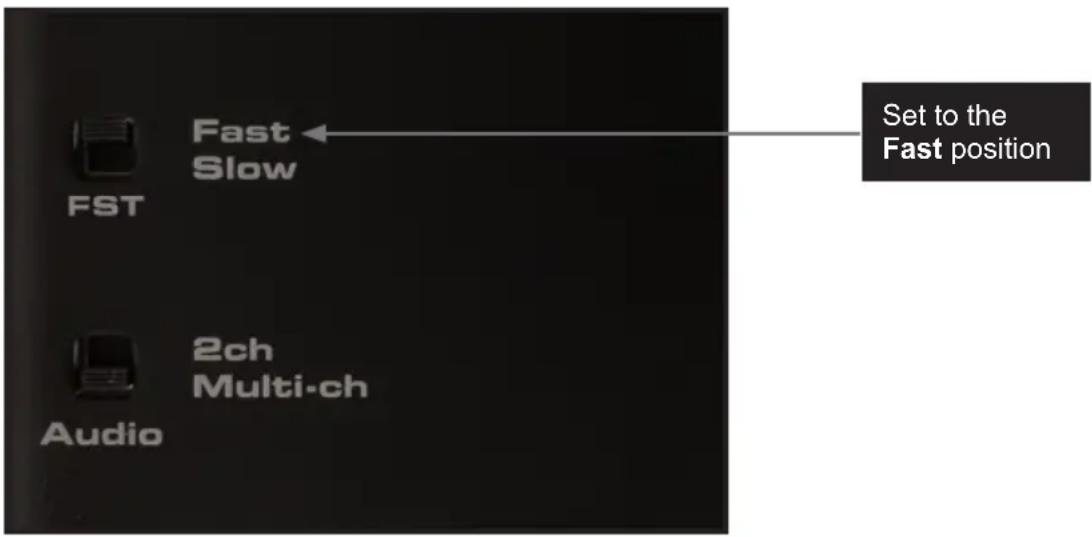
text_image
Fast Slow FST 2ch Multi-ch Audio Set to the Fast position- Reconnect the power supply to the splitter.
If the FST switch is moved from the Slow position to the Fast position while the splitter is powered, then power-cycle the splitter by disconnecting and reconnecting the power supply in order for the change to take effect.
Using Slow Mode
When set to slow switching mode, the 1:8 Splitter for HDMI 4K x 2K will follow the standard authentication process, based on the HDMI and HDCP specifications. Slow mode is recommended when the source does not support multiple devices.
- Disconnect the power supply from the splitter.
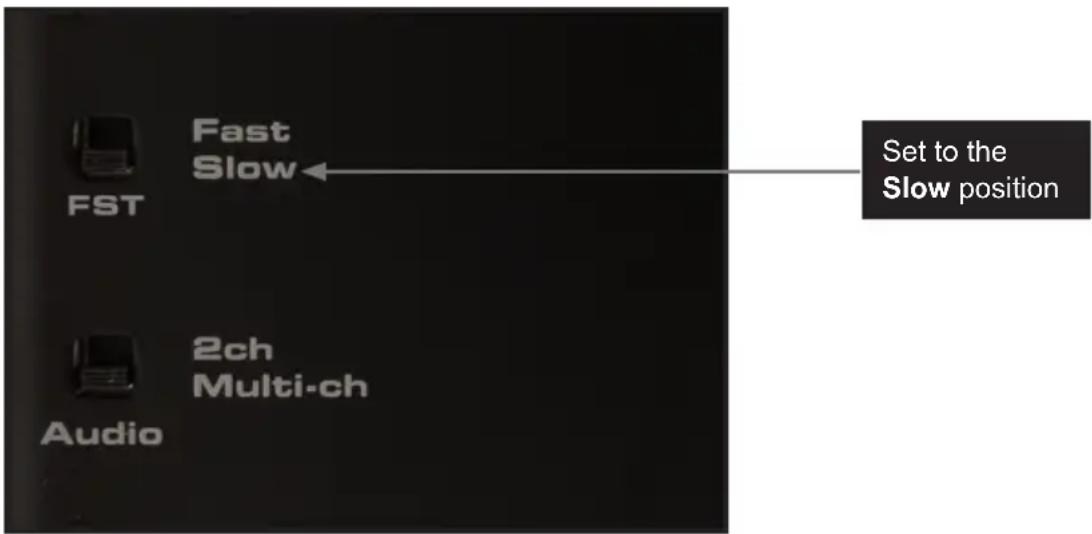
- Set the FST switch to the Slow position.
text_image
Fast Slow FST 2ch Multi-ch Audio Set to the Slow position- Reconnect the power supply to the splitter.
If the FST switch is moved from the Fast position to the Slow position while the splitter is powered, then power-cycle the splitter by disconnecting and reconnecting the power supply in order for the change to take effect.
Setting the Audio Channel Mode
The 1:8 Splitter for HDMI 4K x 2K features a switch that will switch between 2-channel and multichannel audio output.

NOTE: In order for the audio channel mode to be selected, the EDID switch must be set to the Int position. If the EDID switch is set to the Ext position, then the Audio switch will have no effect on the audio output signal. See Setting the EDID Mode for more information on using the EDID.
Using 2-Channel Audio
Use this audio mode when all displays (and/or other sink devices) support only 2-channel LPCM audio.
- Disconnect the power supply from the splitter.
- Set the EDID switch to the Int position.
- Set the Audio switch to the 2ch position.

text_image
Fast Slow FST 2ch Multi-ch Audio Set to the 2ch position- Reconnect the power supply to the splitter
If the Audio switch is moved from the Multi-ch position to the 2ch position while the splitter is powered, then power-cycle the splitter by disconnecting and reconnecting the power supply in order for the change to take effect.
- The internal EDID will restrict the audio output to the following format, regardless of the audio input format:
Audio Format Speaker Allocation
LPCM 2CH FL / FR
Using Multichannel Audio
Use this audio mode when the connected displays (and/or other sink devices) are capable of supporting various audio formats.
- Disconnect the power supply from the splitter.
- Set the EDID switch to the Int position.
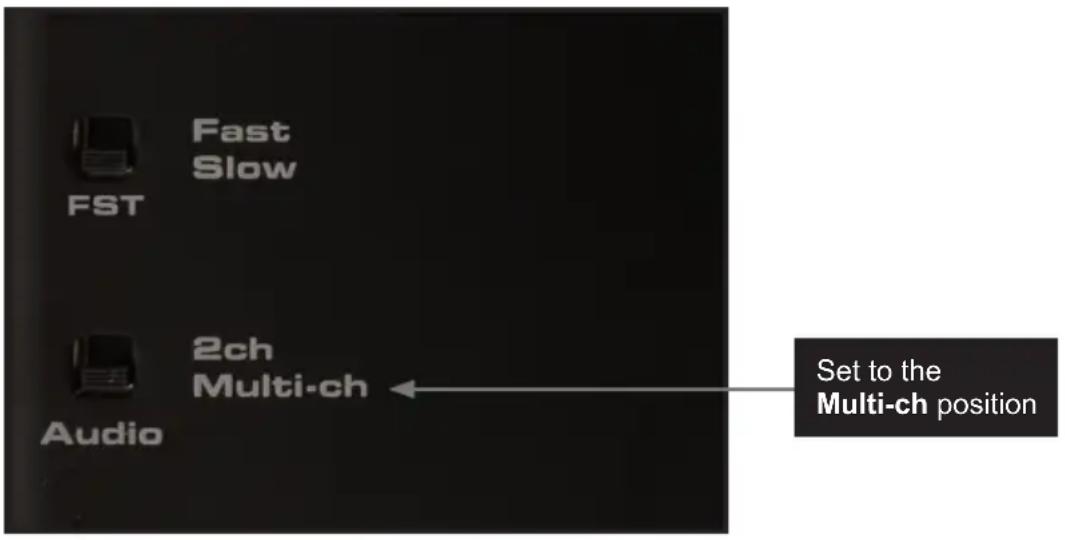
- Set the Audio switch to the Multi-ch position.
text_image
Fast Slow FST 2ch Multi-ch Audio Set to the Multi-ch position- Reconnect the power supply.
If either the EDID or Audio switch are moved to another position while the splitter is powered, then power-cycle the splitter by disconnecting and reconnecting the power supply in order for the changes to take effect.
- When the Audio switch is set to the Multi-ch position, the following audio output formats are supported:
| Audio Format Audio Format | |
| LPCM 2CH LPCM 8-channel | |
| Dolby® Digital Dolby® Digital Plus | |
| Dolby® TrueHD DTS® | |
| DTS-HD Master AudioTM MLP (PPCM) | |
Setting the EDID Mode
The 1:8 Splitter for HDMI 4K x 2K features EDID Management. Before the source can send video and/or audio to the display (sink), the source reads the EDID (Extended Display Identification Data) from the display (sink) devices connected to the splitter. The EDID contains information about what type of audio/video data that the source can send to each output device. The splitter can use either the downstream EDID (from the display/sink) or the built-in internal EDID.
Using the Internal EDID
Use this EDID mode if problems are encountered when using the external EDID. The built-in internal EDID provides the source device with a “generic” EDID which can be used by all display (sink) devices. The use of the internal EDID also provides control of the audio output format. See Setting the Audio Channel Mode for more information.
- Disconnect the power supply from the splitter.
- Set the EDID switch to the Int position.

text_image
2ch Multi-ch Audio Int Ext EDID Set to the Int position3. Reconnect the power supply.
If the EDID switch is moved from the Ext position to the Int position while the splitter is powered, then power-cycle the splitter by disconnecting and reconnecting the power supply in order for the change to take effect.
See Table 2.1 on the next page for specifications on the internal EDID.
Table 2.1 - Internal EDID Specification
| Video Data Block Audio Data Block Color Profile | ||
| 640 x 480p 59/60 4:3 | LPCM 2-channel | xvYCC 709 |
| 720 x 480p 59/60 4:3 | LPCM 8-channel | xvYCC 601 |
| 720 x 480p 59/60 16:9 | Dolby® Digital | |
| 1280 x 720p 59/60 16:9 | DTS® | |
| 1920 x 1080i 59/60 16:9 | Dolby® Digital Plus | |
| 1440 x 480i 59/60 4:3 | Dolby® TrueHD | |
| 1920 x 1080p 59/60 16:9 | DTS-HD Master Audio^TM | |
| 720 x 576p 50 4:3 | MLP (PPCM) | |
| 720 x 576p 50 16:9 | ||
| 1280 x 720p 50 16:9 | ||
| 1920 x 1080i 50 16:9 | ||
| 1440 x 576i 50 4:3 | ||
| 1920 x 1080p 50 16:9 | ||
| 1920 x 1080p 23/24 16:9 | ||
Using the External EDID
When set to Ext mode, the splitter will fetch the EDID data of each display (or other sink device) that is connected to the splitter. Once this information is gathered, the splitter "builds" an EDID based on the highest video resolution and most superior audio format that is supported by both sink devices. This EDID is then transmitted to the source device.
- Disconnect the power supply from the splitter.
- Set the EDID switch to the Int position.

text_image
Ech Multi-ch Audio Int Ext EDID Set to the Ext position- Reconnect the power supply.
If the EDID switch is moved from the Ext position to the Int position while the splitter is powered, then power-cycle the splitter by disconnecting and reconnecting the power supply in order for the change to take effect.
ULTRA HD
1:8 Splitter for HDMI with Ultra HD 4K x 2K support SOURCEDISPLAYS
03 Appendix
Wall Mounting Instructions 16
Firmware Upgrade Procedure 17
Specifications 18
Wall Mounting Instructions
The 1:8 Splitter for HDMI 4K x 2K should be mounted vertically in a wall or cabinet with wood/drywall screws as shown in the diagram above. There should be an inch or two of clearance between the edges of the unit and any walls or vertical surfaces to allow for enough clearance for insertion and retraction of cables at the HDMI connectors.
For installation on a drywall surface, use a #6 drywall screw. It is recommended when installing on a drywall surface that studs be used to secure the splitter should undue stress be applied when connecting and disconnecting HDMI cables.

text_image
Gefen TOOLBOX 1:8 Splitter for HDMI 4K x 2K Fast Blow Sch Multi-on Audio Int Set ESDD Power In USB 5V DCFirmware Upgrade Procedure
The following items are required to update firmware:
• GefenToolBox 1:8 Splitter for HDMI 4K x 2K
- Computer (Mac or PC)
- USB-to-Mini-USB cable
- Firmware file
- Download the firmware from the Gefen Web site.
- Extract the firmware file from the .ZIP file.
- Power-Off the 1:8 Splitter for HDMI 4K x 2K.
It is unnecessary to disconnect any HDMI cables from the splitter during the update process.

STOP: The 1:8 Splitter for HDMI 4K x 2K must be POWERED OFF before connecting the USB cable to the computer.
- Connect the USB cable between the computer and the 1:8 Splitter for HDMI 4K x 2K.
- Power-ON the 1:8 Splitter for HDMI 4K x 2K.
- Once the computer is able to connect to the 1:8 Splitter for HDMI 4K x 2K, a removable disk icon will be displayed.
- Drag the .bin file to the removable disk.
- Disconnect the USB cable from the computer.
- The firmware update process is complete.
Specifications
Supported Formats
| Resolutions (max.) • Ultra HD 4K x 2K | (3840 x 2160 @ 30 Hz)• 1080p Full HD |
Electrical
| Maximum Pixel Clock • 300 MHz |
| Power Indicator • LED, blue |
| FST Switch • 1 x 2-position, slide-type |
| Audio Switch • 1 x 2-position, slide-type |
| EDID Switch • 1 x 2-position, slide-type |
Connectors
| Video Input • 1 x HDMI, Type A 19-pin, female, locking | |
| Video Output • 8 x HDMI, Type A 19-pin, female, locking | |
| USB • Mini-B | |
| Power • Locking-type | |
Operational
| Power Input • 5V DC | |
| Power Consumption • 10W (max.) | |
| Operating Temperature | • +32 to 104 °F (0 to +40 °C) |
Physical
| Dimensions (W x H x D) | • 4.5" x 10.4" x 1.0"(115mm x 264mm x 26mm) |
| Unit Weight | • 0.96 lbs (0.43 kg) |

text_image
Gefen TOOLBOX 1:8 Splitter for HDMI 4K x 2K PAP Parks Blow Autho Ioh Makuten HOMO Int BMC Ubit Dy Power 5V DCStretch it, Switch it, Split it, Control it.
Gefen's got it. ®
20600 Nordhoff St., Chatsworth CA 91311
1-800-545-6900 818-772-9100 fax: 818-772-9120
www.gefentoolbox.com support@gefentoolbox.com