
AR-P17 - Printer/Copier SHARP - Free user manual and instructions
Find the device manual for free AR-P17 SHARP in PDF.


| Product Type | Laser monochrome multifunction printer/copier |
| Dimensions (W x D x H) | 420 x 400 x 400 mm (estimated) |
| Weight | 15 kg (estimated) |
| Power supply | 220-240 V AC, 50/60 Hz |
| Power consumption | Average 800 W, standby 15 W (estimated) |
| Main functions | Print, copy, scan (estimated) |
| Print speed | Up to 17 pages per minute (A4) |
| Print resolution | 600 x 600 dpi |
| Paper tray capacity | 250 sheets (estimated) |
| Media types | Plain paper, envelopes, labels |
| Maintenance and cleaning | Regularly clean the drum and feed rollers with a lint-free cloth |
| Safety | Compliant with EEC directives (89/336/EEC, 93/68/EEC) and class A NMB-003 Canada |
| Spare parts and repairability | Toner cartridge, drum, maintenance kit available |
| General information | 22-page user manual available for download; average rating 8.0/10 |
Frequently Asked Questions - AR-P17 SHARP
User questions about AR-P17 SHARP
0 question about this device. Answer the ones you know or ask your own.
Ask a new question about this device
Download the instructions for your Printer/Copier in PDF format for free! Find your manual AR-P17 - SHARP and take your electronic device back in hand. On this page are published all the documents necessary for the use of your device. AR-P17 by SHARP.
USER MANUAL AR-P17 SHARP
SOFTWARE SETUP GUIDE
(for network printer)
Page
- INTRODUCTION ...... Back cover
- SETUP IN A WINDOWS ENVIRONMENT 2
- SETUP IN A MACINTOSH ENVIRONMENT 29
• SAFETY STANDARDS 38
INTRODUCTION
This manual explains how to install and configure the software that is required for the printer function of the SHARP digital multifunctional system AR-M230/M270 series. The procedure for viewing the online manual is also explained.
Note
- The explanations of screens and procedures in this manual are primarily for Windows® XP in Windows® environments, and Mac OS X v10.2 in Macintosh environments. The screens may vary in other versions of the operating systems.
- The explanations in this manual are based on the North American version of the software. Versions for other countries and regions may vary slightly from the North American version.
- Where "AR-XXXX" appears in this manual, please substitute the name of your model for "XXXX". For the name of your model, see "PART NAMES AND FUNCTIONS" in the operation manual for copier.
- This manual refers to the "SHARP Digital Multifunctional System AR-M230/M270 Series Software CD-ROM" that accompanied the printer expansion kit AR-P17 simply as "CD-ROM".
- The PS3 expansion kit (AR-PK1) and print server card (AR-NC5J) mentioned in this manual are options.
Trademark acknowledgments
- Microsoft® Windows® operating system is a trademark or copyright of Microsoft Corporation in the U.S.A. and other countries.
- Windows® 95, Windows® 98, Windows® Me, Windows NT® 4.0, Windows® 2000, and Windows® XP are trademarks or copyrights of Microsoft Corporation in the U.S.A. and other countries.
- Acrobat® Reader Copyright© 1987-2002 Adobe Systems Incorporated. All rights reserved. Adobe, the Adobe logo, Acrobat, and the Acrobat logo are trademarks of Adobe Systems Incorporated.
- IBM and PC/AT are trademarks of International Business Machines Corporation.
• Macintosh, Power Macintosh, Mac OS, LaserWriter, and AppleTalk are trademarks of Apple Computer, Inc. - PostScript® is a registered trademark of Adobe Systems Incorporated.
- PCL is a trademark of the Hewlett-Packard Company.
- All other trademarks and copyrights are the property of their respective owners.
SOFTWARE LICENSE
The SOFTWARE LICENSE will appear when you install the software from the CD-ROM. By using all or any portion of the software on the CD-ROM or in the machine, you are agreeing to be bound by the terms of the SOFTWARE LICENSE.
The display screens, messages, and key names shown in the manual may differ from those on the actual machine due to product improvements and modifications.
CONTENTS
SETUP IN A WINDOWS ENVIRONMENT
ABOUT THE SOFTWARE CD-ROM 2
BEFORE INSTALLATION 3
● HARDWARE AND SOFTWARE REQUIREMENTS......3
● INSTALLATION ENVIRONMENT AND INSTALLATION PROCEDURE....3
USING THE MACHINE AS A NETWORK PRINTER 4
- CONNECTING TO A NETWORK....4
- SETTING THE IP ADDRESS OF THE MACHINE....5
● INSTALLING THE PRINTER DRIVER (Standard installation)......8 - CUSTOM INSTALLATION....10
● INSTALLING THE PRINTER STATUS MONITOR....12
● INSTALLING THE PRINTER ADMINISTRATION UTILITY 13
USING THE MACHINE WITH A PARALLEL OR USB CONNECTION....14
● INSTALLING THE PRINTER DRIVER .... 14
- CONNECTING TO A COMPUTER....20
SHARING THE PRINTER USING WINDOWS NETWORKING 21
INSTALLING THE PS DISPLAY FONTS 23
USING THE PPD FILE....24
● Installing the resident font information for PPD (only when the PPD file is installed in Windows 95/98/Me) .....24
CONFIGURING THE PRINTER DRIVER 25
HOW TO USE THE ONLINE MANUAL.... 26
TROUBLESHOOTING 27
SETUP IN A MACINTOSH ENVIRONMENT
USING THE PRINTER IN A MACINTOSH ENVIRONMENT 29
ABOUT THE SOFTWARE CD-ROM 29
BEFORE INSTALLATION 30
● HARDWARE AND SOFTWARE REQUIREMENTS 30
- CONNECTING TO A NETWORK....30
● APPLETALK SETTINGS ....30
INSTALLING THE PPD FILE 31
● INSTALLATION IN MAC OS X 31
INSTALLATION IN MAC OS 8.6 - 9.x....32
INSTALLING THE SCREEN FONTS (Mac OS 8.6 - 9.x) 32
CONFIGURING THE PRINTER DRIVER 33
- MAC OS X v10.2.x....33
- MAC OS X v10.1.5....35
- MAC OS 8.6 - 9.x....36
HOW TO USE THE ONLINE MANUAL.... 37
SAFETY STANDARDS.... 38
ABOUT THE SOFTWARE CD-ROM
The CD-ROM that accompanies the printer expansion kit contains the following software:
- Printer driver
The printer driver enables you to use the printer function of the machine. The CD-ROM contains the PCL6 and PCL5 printer drivers ^1 and the PS printer driver ^2 .
- Printer Status Monitor*3
This allows you to check the status of the network printer on your computer screen.
- Printer Administration Utility*3, 4
This is a utility that allows administrators to check the status of the printer and change settings.
• Discover and Link Tool
This is used to configure and check the IP address of the machine, which is used when the machine is connected to a network.
*1 It is recommended that you use the PCL6 printer driver. If you have a problem printing from older software using the PCL6 printer driver, use the PCL5e printer driver.
*2 To use the PS printer driver, the PS3 expansion kit must be installed.
*3 To use the Printer Status Monitor and the Printer Administration Utility, the printer must be connected to a network running TCP/IP protocol.
*4 If you are installing the Printer Administration Utility in Windows 95, a system file must be updated before the utility can be installed. For more information, click the "Display Readme" button in the Software Selection window of the installer. (p.13)
WARNING:
FCC Regulations state that any unauthorized changes or modifications to this equipment not expressly approved by the manufacturer could void the user is authority to operate this equipment.
Note:
This equipment has been tested and found to comply with the limits for a Class A digital device, pursuant to part 15 of the FCC Rules. These limits are designed to provide reasonable protection against harmful interference when the equipment is operated in a commercial environment. This equipment generates, uses, and can radiate radio frequency energy and, if not installed and used in accordance with the instruction manual, may cause harmful interference to radio communications.
Operation of this equipment in a residential area is likely to cause harmful interference in which case the user will be required to correct the interference at his own expense.
Notice for Users in Canada
This Class A digital apparatus complies with Canadian ICES-003.
This is a Class A product. In a domestic environment this product may cause radio interference in which case the user may be required to take adequate measures.
This equipment complies with the requirements of Directive 89/336/EEC as amended by 93/68/EEC.
The CE mark logo label is affixed on an equipment in case that the directives described in the above sentence are applicable to the product. (This sentence is not applicable in any country where the above directives are not required.)
Shielded cables must be used with this equipment to maintain compliance with standards.
BEFORE INSTALLATION
HARDWARE AND SOFTWARE REQUIREMENTS
Check the following hardware and software requirements before installing the software.
| Computer type | IBM PC/AT or compatible computer equipped with a USB 2.0/1.1*1, bi-directional parallel interface (IEEE 1284), or 10Base-T/100Base-TX LAN card |
| Operating system | Windows 95*2, Windows 98, Windows Me, Windows NT Workstation 4.0 (Service Pack 5 or later)*3, Windows 2000 Professional*3, Windows XP Professional*3, Windows XP Home Edition*3 |
| Other hardware requirements | An environment that allows any of the above operating systems to fully operate |
*1 Compatible with Windows 98, Windows Me, Windows 2000 Professional, Windows XP Professional or Windows XP Home Edition preinstalled models equipped with a USB interface as standard.
*2 If you are installing the Printer Administration Utility in Windows 95, a system file must be updated before the utility can be installed. For more information, click the "Display Readme" button in the Software Selection window of the installer. (p.13)
*3 Administrator's rights are required to install the software using the installer.
INSTALLATION ENVIRONMENT AND INSTALLATION PROCEDURE
Follow the appropriate installation procedure for your operating system and type of cable as indicated below.
| Cable | Operating system | Procedure to follow |
| LAN | Windows 95/98/Me/NT 4.0/2000/XP | 1. CONNECTING TO A NETWORK (p.4)2. SETTING THE IP ADDRESS OF THE MACHINE (p.5)3. "INSTALLING THE PRINTER DRIVER (Standard installation)" (p.8) |
| USB | Windows 98/Me/2000 | Installation in Windows 98/Me/2000 (USB cable) (p.16) |
| Windows XP | Installation in Windows XP (USB/parallel cable) (p.14) | |
| Parallel | Windows 95/98/Me/NT 4.0/2000 | Installation in Windows 95/98/Me/NT 4.0/2000 (parallel cable) (p.18) |
| Windows XP | Installation in Windows XP (USB/parallel cable) (p.14) | |
| Printer sharing | Windows 95/98/Me/NT 4.0/2000/XP | SHARING THE PRINTER USING WINDOWS NETWORKING (p.21) |
USING THE MACHINE AS A NETWORK PRINTER
This section explains how to configure the machine settings and install the software that enables the machine to be used as a network printer.

- The following explanations are for a Windows environment on a TCP/IP network.
- To use the machine in other environments, the print server card is required. See the "Print Server Card User's Manual" on the CD-ROM that accompanied the print server card.
CONNECTING TO A NETWORK
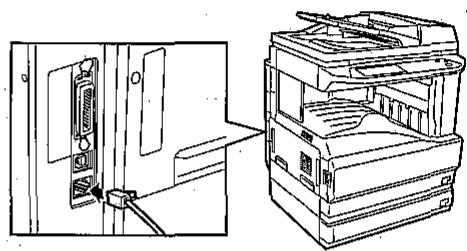
Insert the LAN cable into the LAN port on the machine. Use a network cable that is shielded.
natural_image
Technical line drawing showing a door panel inserted into a device, with an open rear stack of paper or printer (no text or symbols present)
If your machine has the optional print server card AR-NC5J installed, you must use the Network port indicated in the picture.
natural_image
Technical line drawing showing a computer tower connected to an open stack of internal components (no text or symbols visible)HOW TO USE THE ONLINE MANUAL
Follow the steps below to view the online manual. This manual contains information needed for using the machine as a printer.

To access the online manual, your computer must have Acrobat Reader 4.0 or a later version. If you do not have Acrobat Reader, follow the instructions in "Installing Acrobat Reader" to install it.
1 Insert the printer expansion kit AR-P17 Software CD-ROM into your computer's CD-ROM drive.
2 Double-click the CD-ROM icon (✗) on the desktop.
3 Double-click the "AR_M230_M270 Printer Manual" folder.
4 Double-click the "EnglishA" folder (for regions other than the U.S., double-click the "English" folder) and then double-click the "Printer Manual" icon.

If you will be viewing the online manual repeatedly, you may find it convenient to copy the "Printer Manual" file to your computer.
Installing Acrobat Reader
If Acrobat Reader is not installed on your computer, follow these steps to install it.
1 Insert the printer expansion kit AR-P17 Software CD-ROM into your computer's CD-ROM drive.
2 Double-click the CD-ROM icon (💡) on the desktop.
3 Double-click the "Acrobat Reader" folder and then double-click the "English" folder.
4 Double-click the "Reader Installer" icon.
5 Follow the on-screen instructions to install the Acrobat Reader.
MAC OS 8.6 - 9.x
1 Select "Chooser" from the Apple Menu.
2 Click the "LaserWriter 8" icon.
- The model name of your network-connected machine ("SCxxxxxx") appears in the "Select a PostScript Printer" list on the right. The name of the machine that appears is the name that was entered in the AppleTalk settings when the network settings were configured ("xxxxxx" is a sequence of characters that varies depending on your machine).
- If multiple AppleTalk zones are displayed, select the zone which includes the printer.
3 Click the machine's model name ("SCxxxxxx") in the "Select a PostScript Printer" list.
4 Click the "Create" button.
- If the "Select a PostScript™ Printer Description File" dialog box appears, select the PPD file of the machine and then click the "Select" button.
- If the "Select a PostScript™ Printer Description File" dialog box does not appear, follow these steps to select the PPD file manually when you return to the Chooser dialog box.
1) Verify that the machine is selected in the "Select a PostScript Printer" list, and then click the "Setup" button and the "Select RPD" button.
2) Select the PPD file of the machine, and then click the "Open" (or "Select") button.
3) Click the "OK" button.
5 Verify that the machine is selected in the "Select a PostScript Printer" list, and then click the "Setup" button and the "Configure" button.
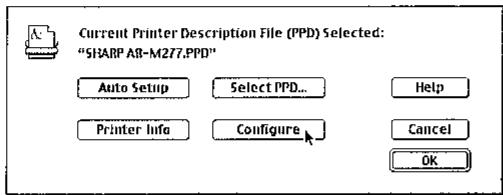
6 Set the printer configuration based on the options that have been installed, and then click the "OK" button.
Be sure to select the correct printer configuration. If not, printing may not take place correctly.
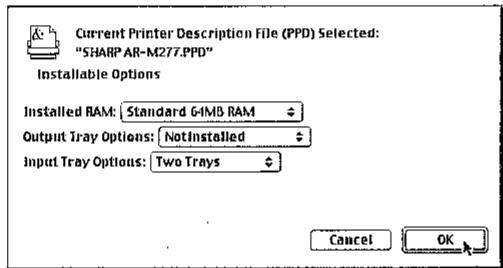
7 Click the "OK" button to close the dialog box.
8 Click the Close box (□) to close the Chooser.
This completes the configuration of the printer driver.
SETTING THE IP ADDRESS OF THE MACHINE
Before installing the printer driver, be sure to set the IP address of the machine. Consult your network administrator for the correct IP address, subnet mask, and default gateway to be entered. If a DHCP server will automatically assign an IP address to the machine, the following procedure is not necessary. (To check the IP address assigned to the machine by DHCP, see "Checking the IP address when DHCP is used" (p.6).)
If a print server card is installed, use "NICManager" to set the IP address ("NICManager" is on the "User Software" CD-ROM that accompanied the print server card). For more information, see the "Print Server Card User's Manual" on the CD-ROM.
1 Make sure that the LAN cable is connected to the machine and then turn on the machine.
2 Insert the CD-ROM into your computer's CD-ROM drive.
3 Click the "start" button, click "My Computer" ( ), and then double-click the CD-ROM icon ( ). In Windows 95/98/Me/NT 4.0/2000, double-click "My Computer" and then double-click the CD-ROM icon.
4 Double-click the "Setup" icon (💡).

If the language selection screen appears after you double click the "Setup" icon, select the language that you wish to use and click the "Next" button. (Normally the correct language is selected automatically.)
5 The "SOFTWARE LICENSE" window will appear. Make sure that you understand the contents of the license agreement, and then click the "Yes" button.
6 Read the message in the "Welcome" window and then click the "Next" button.
![7 Click the "Administrator Tools" button. Select a software to be installed [Software] [Tools, Readme] Printer Driver The printer driver enables you to use the printer function of the machine Printer Status Monitor This allows you to check the status of the network: printer on your computer screen Administrator Tools... [Printer Administration Utility] / [Discover and Link Tool]](/content/2025/01/122341/images/84d2a325db05d5f8bbbbb4eec6f2a28bab18ccffcafa6d88b86215fc14a3804b.jpg)
8 Click the "Discover and Link Tool" button.
The Discover and Link Tool starts.
![Select a software to be installed. [Software] [Display Readme] Printer: Administration Utility This is a utility that allows administrators to check the status of the printer and change settings Discover and Link Tool This is used to configure and check the IP address of the machine, which is used when the machine is connected to a network.](/content/2025/01/122341/images/330eee9c2baa22d7a189b6da73d08e693d69a14002bc6bfaa3cb243293cce7a2.jpg)

If you wish to view the Discover and Link Tool manual (for network administrators), see "Viewing the Discover and Link Tool manual" (p.7).
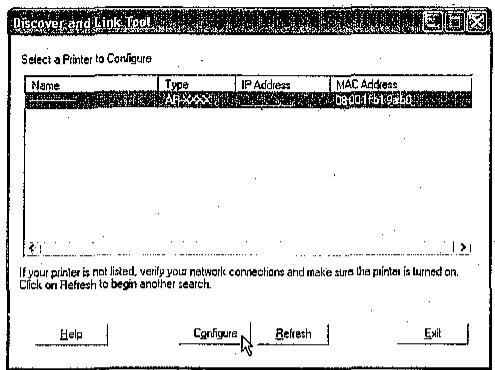
9 The printer or printers connected to the network will be detected. Click the printer to be configured (the machine).
10
Click the "Configure" button.
11
Enter the IP address, subnet mask, and default gateway.
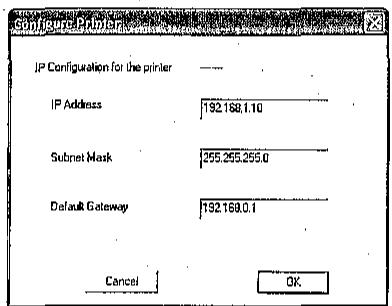
The settings in the above window are examples. Be sure to ask your network administrator for the correct IP address, subnet mask, and default gateway to be entered.
12
Click the "OK" button.
The Web page in the machine opens in your Web browser to let you configure the machine name and other settings. For detailed explanations of the procedures for configuring settings, click "Help" in the menu frame. When you have completed the settings, quit your Web browser.
13
Restart the machine.
Power off the machine and then power it back on.
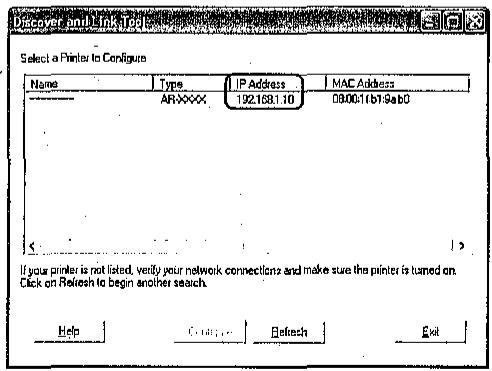
14
Click the "Refresh" button.
The IP address that you entered will appear. Make sure that it is correct.

If you wish to change the name of the machine, double click the displayed name. The Web page in the machine will appear.
This completes the IP address settings.
Checking the IP address when DHCP is used
If DHCP is being used, write down the IP address that appears in the window of step 9 on page 5, as you will need to enter and/or check the IP address at several points in the procedures on the following pages.

If the machine is used in a DHCP environment, the machine's IP address may change automatically. If this happens, printing will no longer be possible. In this event, use a WINS server or do not use the machine in a DHCP environment.
MAC OS X v10.1.5

Make sure that the machine is powered on.

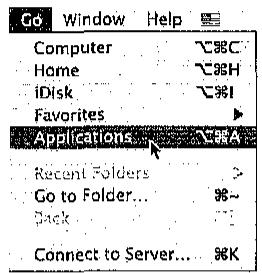
Select "Applications" from the "Go" menu.

Double-click the "Utilities" folder.

Double-click the "Print Center" icon (☐).
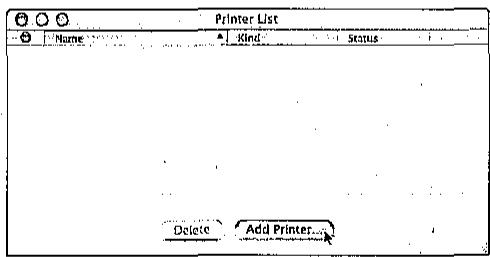
The "Printer List" window appears.

If this is the first time you are installing a printer driver on your computer, a confirmation message will appear. Click the "Add" button.

Click the "Add Printer" button.

Select "AppleTalk" in the menu at the top of the window.
A list of printers connected to the network will appear.

If multiple AppleTalk zones are displayed, select the zone which includes the printer.
7
Click the machine's model name in the list.
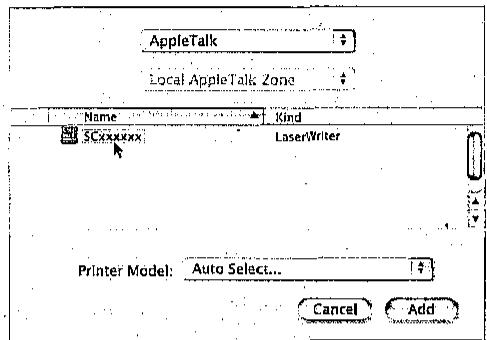
The name of the machine that appears is the name that was entered in the AppleTalk settings when the network settings were configured ("xxxxxx" is a sequence of characters that varies depending on your machine).

Click the "Printer Model" menu and select "Other" in the list of PPD files. The PPD file selection window will appear.

Click the startup disk name, "Library", "Printers", "PPDs", "Contents", "Resources", "en.lproj", and select the PPD file with your model name.

Click the "Choose" button.

Click the "Add" button.
This completes the configuration of the printer driver.

Select the PPD file of the machine.
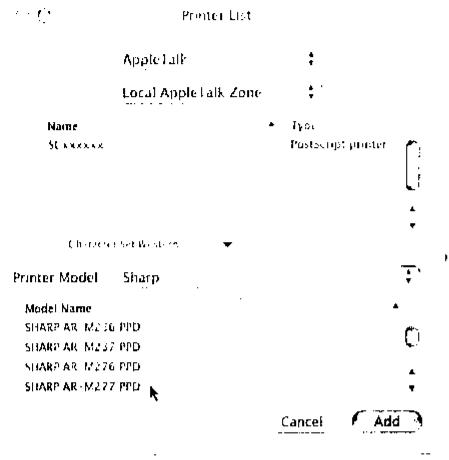

Click the "Add" button.
The machine is added to the list of printers.

Click the name of the machine in the "Printer List" window, and select "Show Info" from the "Printers" menu.
The "Printer info" window will appear.
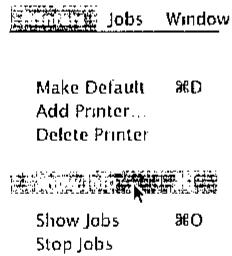

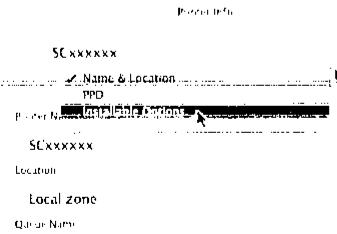
Select "Installable Options" in the menu.

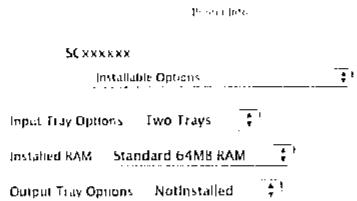
Set the printer configuration based on the options that have been installed, and then click the "Apply Changes" button.
Set the printer configuration properly. If not, printing may not be executed properly.
Apply Changes

Close the window.
This completes the configuration of the printer driver.
Viewing the Discover and Link Tool manual

Insert the CD-ROM into your computer's CD-ROM drive.

Click the "start" button, click "My Computer" ( ), and then double-click the CD-ROM icon ( ). In Windows 95/98/Me/NT 4.0/2000, double-click "My Computer" and then double-click the CD-ROM icon.

Double-click the "Tool" folder.

Double-click the "Setup" icon ( ).

Click the "View Admin Guide" button.
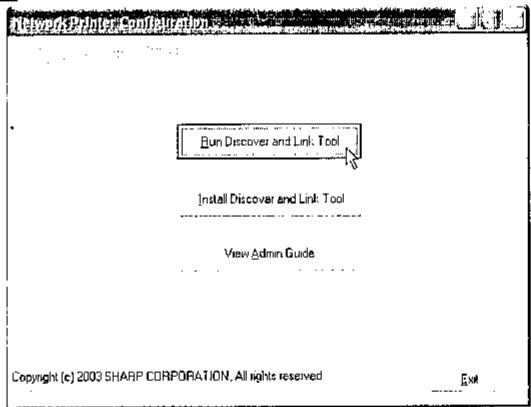

To install the "Discover and Link Tool", click the "Install Discover and Link Tool" button.
INSTALLING THE PRINTER DRIVER (Standard installation)

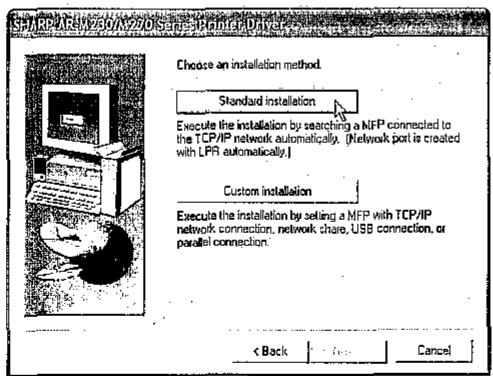
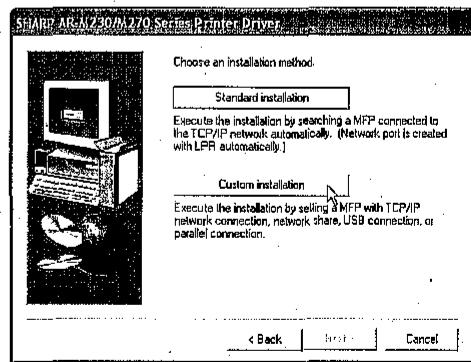
If you wish to install the display font or specify the machine's IP address when installing the printer driver, select "Custom installation" (p.10)
1 Insert the CD-ROM into your computer's CD-ROM drive.
2 Click the "start" button, click "My Computer" (💡), and then double-click the CD-ROM icon (💡). In Windows 95/98/Me/NT 4.0/2000, double-click "My Computer" and then double-click the CD-ROM icon.
3 Double-click the "Setup" icon ( ).

If the language selection screen appears after you double click the "Setup" icon, select the language that you wish to use and click the "Next" button. (Normally the correct language is selected automatically.)
4 The "SOFTWARE LICENSE" window will appear. Make sure that you understand the contents of the license agreement, and then click the "Yes" button.
5 Read the message in the "Welcome" window and then click the "Next" button.
6 Click the "Printer Driver" button. To view information on the software, click the "Display Readme" button.
![Select a software to be installed. [Software] [Display Readme] Printer Driver The printer driver enables you to use the printer function of the machine. Printer Status Monitor This allows you to check the status of the network printer on your computer screen. Administrator Tools... [Printer Administration Utilkey] / [Discover and Link Tool] < Back < Close](/content/2025/01/122341/images/36ee80ce51a8b8cac1628bbbf37ea4d051c159910808a94f33e001ca039c1dc7.jpg)
7 Click the "Next" button.
8 Click the "Standard installation" button.
CONFIGURING THE PRINTER DRIVER
Follow the steps below to configure the machine's printer driver.
MAC OS X v10.2.x
1 Make sure that the machine is powered on.
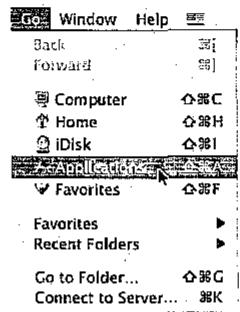
2 Select "Applications" from the "Go" menu.
3 Double-click the "Utilities" folder.
4 Double-click the "Print Center" icon (☐).
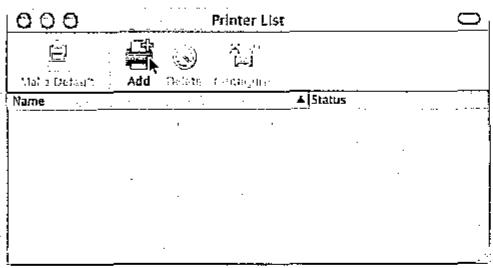
The "Printer List" window appears.

If this is the first time you are installing a printer driver on your computer, a confirmation message will appear. Click the "Add" button.
5 Click "Add".
6 Select "AppleTalk" in the menu at the top of the window.
A list of printers connected to the network will appear.

If multiple AppleTalk zones are displayed, select the zone which includes the printer.
7 Click the machine's model name in the list.
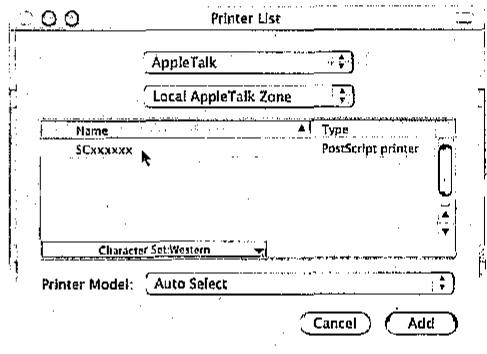
The name of the machine that appears is the name that was entered in the AppleTalk settings when the network settings were configured ("xxxxxx" is a sequence of characters that varies depending on your machine).
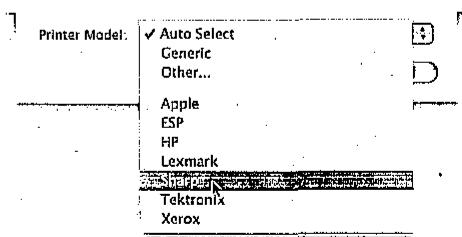
8 Select "Sharp" in the "Printer Model" menu. The PPD file selection window appears.
INSTALLATION IN MAC OS 8.6 - 9.x
1 Insert the printer expansion kit AR-P17 Software CD-ROM into your computer's CD-ROM drive.
2 Double-click the CD-ROM icon (☐) on the desktop.
3 Double-click the "MacOS" folder.
4 Double-click the "Installer" icon (💡).
The installer window will appear.
5 Click the "Install" button.
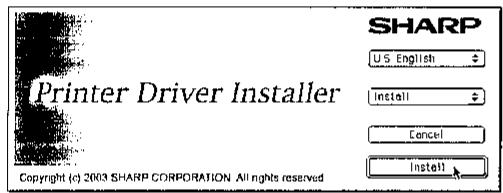
6 The License Agreement window will appear. Make sure that you understand the contents of the license agreement, and then click the "Yes" button.
7 Read the message in the window that appears and click the "Continue" button.
Begin installation of the PPD file. After the installation, a message prompting you to restart your computer will appear. Click the "OK" button and restart your computer.
This completes the installation of the PPD file.
INSTALLING THE SCREEN FONTS (Mac OS 8.6 - 9.x)
The screen fonts for Macintosh are contained in the "Font" folder of the PS3 expansion kit AR-PK1 PRINTER UTILITIES CD-ROM. Install the screen fonts as needed. The screen fonts are installed by copying the required screen font suitcase folders to your Macintosh.
Copy the screen fonts to the following folder:
- Mac OS 8.6 to 9.x: "Fonts" folder in the "System Folder"

If a malfunction occurs due to the installation of screen fonts, delete the fonts from the system.
9 Printers connected to the network are detected. Select the machine and click the "Next" button.
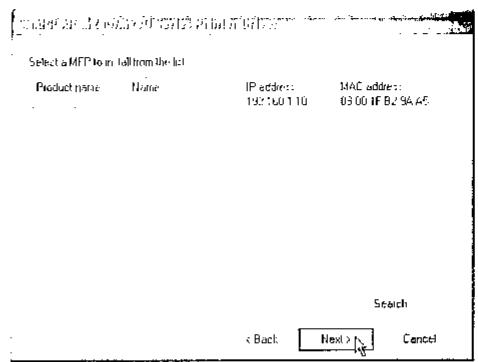

If the machine is not found, make sure that the machine is powered on and connected to your computer and then search again. If the machine is still not found, use the custom installation procedure to directly specify the IP address (p.10).
10 A confirmation window appears. Check the contents and then click the "Next" button.
11 When the printer driver selection window appears, select the printer driver to be installed and click the "Next" button.
Select the checkboxes of the printer drivers to be installed.
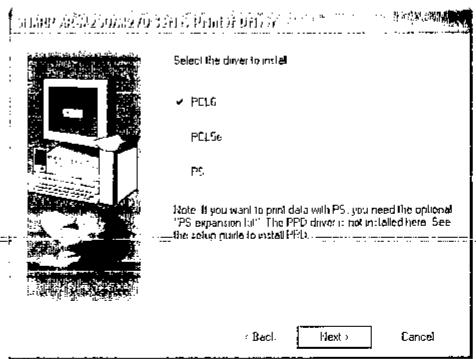

To use the PS printer driver, the PS3 expansion kit must be installed.
12 Select whether or not you wish the printer to be your default printer and click the "Next" button.
If you are installing multiple printer drivers, select the printer that you wish to use as your default printer.
If you do not wish to set either printer driver as the default printer, select "No".
13 Click the "Next" button.
Begin installation of the printer driver.
If you are running Windows 2000/XP and a warning message appears regarding the Windows logo test or digital signature, be sure to click "Continue Anyway" or "Yes".
14 When "The installation of the SHARP software is complete" appears, click the "OK" button.
15 Click the "Close" button.

After the installation, a message prompting you to restart your computer may appear. In this case, click the "Yes" button to restart your computer.
This completes the installation of the software.
- After installation, see "CONFIGURING THE PRINTER DRIVER" (p.25) to check the printer driver settings.
- To install the Printer Status Monitor or Printer Administration Utility, see the following pages:
Printer Status Monitor: p.12
Printer Administration Utility: p.13

If you installed the PS printer driver, the PS display font can be installed from the "PRINTER UTILITIES" CD-ROM that accompanied the PS3 expansion kit. (p.23)
CUSTOM INSTALLATION
If you wish to install the display font or specify the machine's IP address when installing the printer driver, select "Custom installation".
1 Insert the CD-ROM into your computer's CD-ROM drive.
2 Click the "start" button, click "My Computer" ( ), and then double-click the CD-ROM icon ( ). In Windows 95/98/Me/NT 4.0/2000, double-click "My Computer" and then double-click the CD-ROM icon.
Double-click the "Setup" icon (💡).

If the language selection screen appears after you double click the "Setup" icon, select the language that you wish to use and click the "Next" button. (Normally the correct language is selected automatically.)
- The "SOFTWARE LICENSE" window will appear. Make sure that you understand the contents of the license agreement, and then click the "Yes" button.
5 Read the message in the "Welcome" window and then click the "Next" button.
6 Click the "Printer Driver" button. To view information on the software, click the "Display Readme" button.
![Select a software to be installed. [Software] [Display Readme] Printer Driver The printer driver enables you to use the printer function of the machine. Printer Status Monitor This allows you to check the status of the network printer on your computer screen. Administrator Tools... [Printer Administration Utility] / [Discover and Link Tool] < Back No. Close](/content/2025/01/122341/images/67dbfbad488635aef3a24fa03fc84cf3cac60ff573336c69724c6042257f1136.jpg)
- Click the "Next" button.
8 Click the "Custom installation" button.
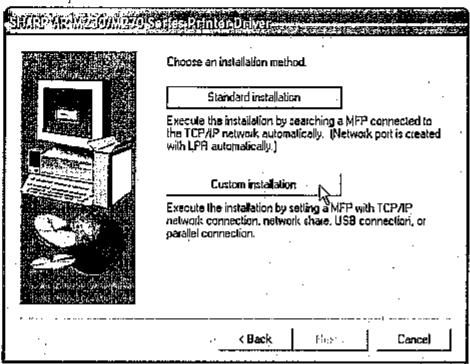
9 Select "LPR Direct Print" and click the "Next" button.
10 Printers connected to the network are detected. Select the machine and click the "Next" button.
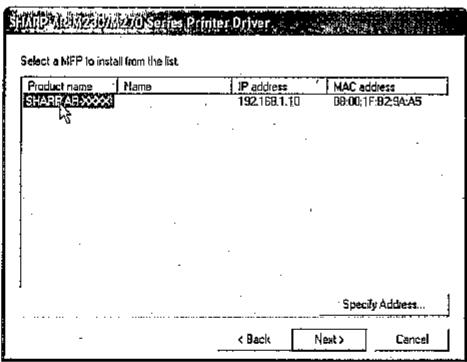
If you wish to specify the IP address, click the "Specify address" button, enter the IP address, and click the "Search" button.
11 A confirmation window appears. Check the contents and then click the "Next" button.
INSTALLING THE PPD FILE
In order to print from a Macintosh, the PPD file must be installed. To install the PPD file to your Macintosh computer, follow the procedure below.
INSTALLATION IN MAC OS X
1 Insert the printer expansion kit AR-P17 Software CD-ROM into your computer's CD-ROM drive.
2 Double-click the CD-ROM icon (⊕) on the desktop.
3 Double-click the "MacOSX" folder.
4 Double-click the folder of the operating system version you are using.
- In Mac OS X v10.1.5, double-click the "Version 10.1" folder.
- In Mac OS X v10.2.x, double-click the "Version 10.2" folder.
5 Double-click the "AR-P17" icon (√).
The installer window will appear.

- If you are using Mac OS X v10.2.x, the "Authenticate" window will appear. Enter the password and click the "OK" button.
- If you are using Mac OS X v10.1.5, click the lock icon ( ), enter the password, and click the "OK" button.
6 Click the "Continue" button.
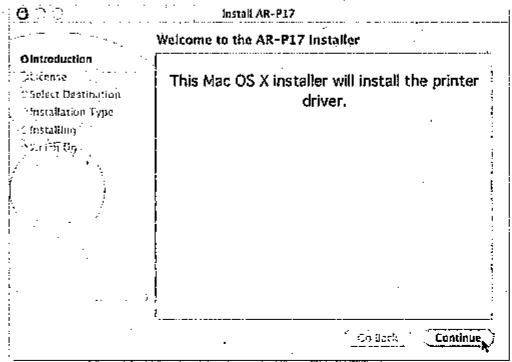
7 The License Agreement window will appear. Make sure that you understand the contents of the license agreement, and then click the "Continue" button. A message will appear asking you if you agree to the terms of the license. Click the "Agree" button.
8 Select the hard disk in which you wish to install the PPD file, and click the "Continue" button.
Be sure to select the hard disk in which your operating system is installed.
9 Click the "Install" button.
Begin installation of the PPD file.
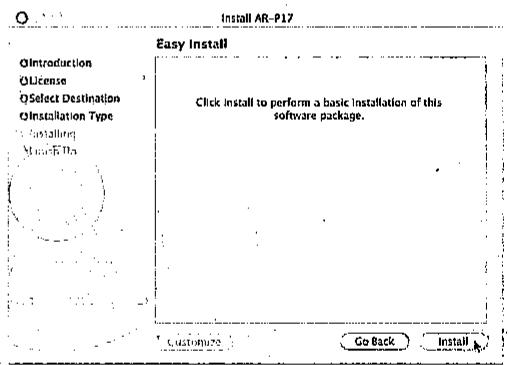
10 When the message "The software was successfully installed" appears in the installation window, click the "Close" button.
This completes the installation of the PPD file.
BEFORE INSTALLATION
HARDWARE AND SOFTWARE REQUIREMENTS
You will need the following hardware and software in order to install the PPD file for Macintosh.
| Operating system | Mac OS 8.6 to 9.x, 10.1.5, and 10.2 to 10.2.8 (except 10.2.2) |
| CPU and RAM | Requirements of the operating system must be satisfied. |

If you are using Mac OS 8.6 to 9.x, make sure that LaserWriter8 has been installed and that the "LaserWriter8" checkbox is selected (☒) in "Extensions Manager" in "Control Panels". If not, install it from the system CD-ROM supplied with your Macintosh computer.
CONNECTING TO A NETWORK
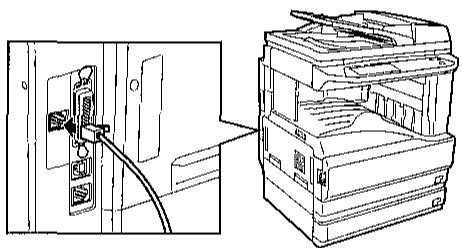
Install the print server card (AR-NC5J) in the machine and connect the machine to the network. The cable and adapter that are used vary depending on the network. Be sure to use equipment that meets the specifications of the network. Connect the LAN cable to the LAN port on the print server card in the machine.
natural_image
Technical line drawing showing a door panel connected to an open printer case (no text or symbols present)
When the print server card is installed, the LAN port on the printer expansion kit cannot be used. Be sure to connect the cable to the Network port indicated in the picture.
APPLETALK SETTINGS
After connecting the machine to the network, configure AppleTalk settings as required for your network environment. To configure the settings, see the online manual on the "User Software" CD-ROM.

When the printer driver selection window appears, select the printer driver to be installed and click the "Next" button.
Select the checkboxes of the printer drivers to be installed.
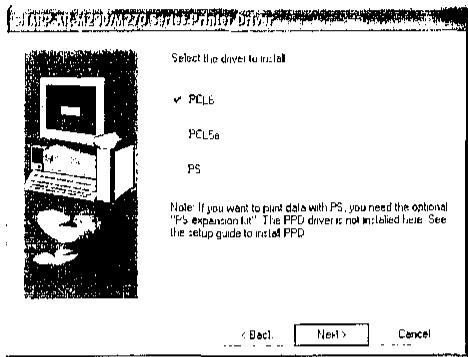

To use the PS printer driver, the PS3 expansion kit must be installed.

Select whether or not you wish the printer to be your default printer and click the "Next" button.
If you are installing multiple printer drivers, select the printer that you wish to use as your default printer.
If you do not wish to set either printer driver as the default printer, select "No".

When the window for entering a printer name appears, click the "Next" button.
If you wish to change the printer name, enter the desired name.

Select whether or not you wish to install the display font and click the "Next" button.
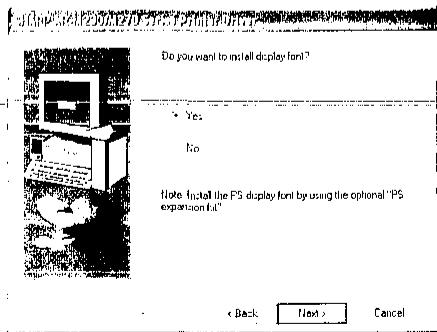

Click the "Next" button.
Begin installation of the printer driver.

Caution
If you are running Windows 2000/XP and a warning message appears regarding the Windows logo test or digital signature, be sure to click "Continue Anyway" or "Yes".

When "The installation of the SHARP software is complete" appears, click the "OK" button.

Click the "Close" button.

Vote
After the installation, a message prompting you to restart your computer may appear. In this case, click the "Yes" button to restart your computer.
This completes the installation of the software.
- After installation, see "CONFIGURING THE PRINTER DRIVER" (p.25) to check the printer driver settings.
- To install the Printer Status Monitor or Printer Administration Utility, see the following pages:
Printer Status Monitor: p.12
Printer Administration Utility: p.13

If you installed the PS printer driver, the PS display font can be installed from the "PRINTER UTILITIES" CD-ROM that accompanied the PS3 expansion kit. (p.23)
INSTALLING THE PRINTER STATUS MONITOR
1 Insert the CD-ROM into your computer's CD-ROM drive.
2 Click the "start" button, click "My Computer" ( ), and then double-click the CD-ROM icon ( ). In Windows 95/98/Me/NT 4.0/2000, double-click "My Computer" and then double-click the CD-ROM icon.
3 Double-click the "Setup" icon ( ).

If the language selection screen appears after you double click the "Setup" icon, select the language that you wish to use and click the "Next" button. (Normally the correct language is selected automatically.)
4 The "SOFTWARE LICENSE" window will appear. Make sure that you understand the contents of the license agreement, and then click the "Yes" button.
5 Read the message in the "Welcome" window and then click the "Next" button.
6 Click the "Printer Status Monitor" button. To view information on the software, click the "Display Readme" button.
![Software Selection Select a software to be installed. [Software] [Display Readme] Printer Driver The printer driver enables you to use the printer function of the machine. Printer Status Monitor This allows you to check the status of the network printer on your computer screen. Administrator Tools... [Printer Administration Utility] / [Discover and Link Tool] < Back < Back Close](/content/2025/01/122341/images/90fb57356b914be069dcac3b010b91510e3da4bf98d85860f58b59c2f9b2689a.jpg)
7 Follow the on-screen instructions.
USING THE PRINTER IN A MACINTOSH ENVIRONMENT
To use the machine as a printer for the Macintosh, the PS3 expansion kit AR-PK1 and print server card AR-NC5J must be installed.
Install the PPD file needed to use the machine as a printer from the Software CD-ROM that accompanied the printer expansion kit (AR-P17).
ABOUT THE SOFTWARE CD-ROM
The CD-ROM that accompanies the printer expansion kit contains the following software:
- PPD file
A Macintosh computer refers to the PPD file when using a printer driver for printing.
• Acrobat Reader 4.05
Software that allows you to view the online printer manual on your computer.
The printer driver cannot be correctly installed by Plug and Play (Windows 2000/XP)
In Windows 2000/XP, if the printer driver cannot be correctly installed by Plug and Play (for example, Plug and Play takes place without copying the required files for the printer driver installation), follow these steps to remove unneeded devices and then install the printer driver as explained in "INSTALLING THE SOFTWARE".
1 Click the "start" button, click "Control Panel", and then click "Performance and Maintenance". In Windows 2000, click the "Start" button, select "Settings", and then click "Control Panel".
2 Click "System", click the "Hardware" tab, and click the "Device Manager" button.

In Windows 2000, double-click the "System" icon, click the "Hardware" tab, and click the "Device Manager" button.
3 Click the (+) icon beside "Other devices".
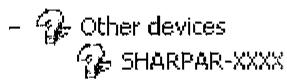
If "SHARP AR-XXXX" appears, select and delete it.

If "Other devices" does not appear, close the "Device Manager" window.
- Install the software as explained in "INSTALLING THE SOFTWARE".
Plug and play screen does not appear (when using a USB cable)
If the Plug and Play screen does not appear after you connect the machine to your computer with a USB cable and turn on the machine, follow the steps below to verify that the USB port is available.
1 Click the "start" button, click "Control Panel", and then click "Performance and Maintenance".
In Windows 98/Me/2000, click the "Start" button, select "Settings", and then click "Control Panel".
2 Click "System", click the "Hardware" tab, and click the "Device Manager" button.
"Universal Serial Bus controllers" will appear in the list of devices.

- In Windows 98/Me, double-click the "System" icon and click the "Device Manager" tab.
- In Windows 2000, double-click the "System" icon, click the "Hardware" tab, and click the "Device Manager" button.
- If the "System" icon does not appear in Windows Me, click "view all Control Panel options".
3 Click the (±) icon beside "Universal Serial Bus controllers".
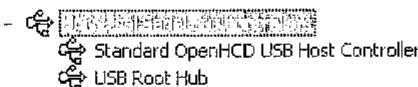
Two items should appear: your controller chipset type and Root Hub. If these items appear, you can use the USB port. If the "Universal Serial Bus controllers" shows a yellow exclamation point or does not appear, you must check your computer manual for USB troubleshooting or contact your computer manufacturer.
4 Once you have verified that the USB port is enabled, install the software as explained in "INSTALLING THE SOFTWARE".
INSTALLING THE PRINTER ADMINISTRATION UTILITY
1 Insert the CD-ROM into your computer's CD-ROM drive.
2 Click the "start" button, click "My Computer" ( ), and then double-click the CD-ROM icon ( ). In Windows 95/98/Me/NT 4.0/2000, double-click "My Computer" and then double-click the CD-ROM icon.
3 Double-click the "Setup" icon ( Ⓤ ).

If the language selection screen appears after you double click the "Setup" icon, select the language that you wish to use and click the "Next" button. (Normally the correct language is selected automatically.)
4 The "SOFTWARE LICENSE" window will appear. Make sure that you understand the contents of the license agreement, and then click the "Yes" button.
5 Read the message in the "Welcome" window and then click the "Next" button.
6 Click the "Administrator Tools" button.
![Software as below Select a software to be installed. [Software] [Display Readine] Printer Driver The printer driver enables you to use the printer function of the machine Printer Status Monitor The allows you to check the status of the network, printer on your computer screen Administrator Tools... [Punter Administration Utility] / [Discover and Link Tool] < Back Close](/content/2025/01/122341/images/bca4a0d14d5f9382eb07e6e47cc40d50d54a7efa886ac477fb50cd37903e6e7b.jpg)
7 Click the "Printer Administration Utility" button. To view information on the software, click the "Display Readme" button.
![Select a software to be installed [Software] [Display Readme] Printer Administration Utility This is a utility that allows administrators to check the status of the printer and change settings. Discover and Link Tool This is used to configure and check the IP address of the machine. Which is used when the machine is connected to a network < Back... Close](/content/2025/01/122341/images/ac3272a34b2b13518bbdec1035501a66660671fb4fb45847f2f2fde839732ac5.jpg)

If you are installing the Printer Administration Utility in Windows 95, a system file must be updated before the utility can be installed. For more information, click the "Display README" button.
8 Follow the on-screen instructions.
USING THE MACHINE WITH A PARALLEL OR USB CONNECTION
INSTALLING THE PRINTER DRIVER

If an error message appears, follow the on-screen instructions to solve the problem. After the problem is solved, the installation procedure will continue. Depending on the problem, you may have to click the "Cancel" button to exit the installer. In this case, reinstall the software from the beginning after solving the problem.
Installation in Windows XP (USB/parallel cable)
1 The USB or parallel cable must not be connected to the machine. Make sure that the cable is not connected before proceeding.
If the cable is connected, a Plug and Play window will appear. If this happens, click the "Cancel" button to close the window and disconnect the cable.

The cable will be connected in step 14.
2 Insert the CD-ROM into your computer's CD-ROM drive.
3 Click the "start" button, click "My Computer" (☐), and then double-click the CD-ROM icon (☐).
- Double-click the "Setup" icon ( ).

If the language selection screen appears after you double click the "Setup" icon, select the language that you wish to use and click the "Next" button. (Normally the correct language is selected automatically.)
5 The "SOFTWARE LICENSE" window will appear. Make sure that you understand the contents of the license agreement, and then click the "Yes" button.
6 Read the message in the "Welcome" window and then click the "Next" button.
7 Click the "Printer Driver" button. To view information on the software, click the "Display Readme" button.
![Software Selection Select a software to be installed. [Software] [Display Readme] Printer Driver The printer driver enables you to use the printer function of the machine. Printer Status Monitor This allows you to check the status of the network printer on your computer screen. Administrator Tools... [Printer Administration Utility] / [Discover and Link Tool] < Back < Back Close](/content/2025/01/122341/images/ed0d8c6d7c864be90349e90ac8f768ada1d5dca127fd79bac870420c187964b4.jpg)
8 Click the "Next" button.
9 Click the "Custom installation" button.
![SHARP AR-M240/M 270 Series Printer Driver Choose an installation method. Standard installation Execute the installation by searching a MFP connected to the TCP/IP network automatically. [Network port is created with LPR automatically.] Custom installation Execute the installation by setting a MFP with TCP/IP network connection, network share, USB connection, or parallel connection. < Back Back Cancel](/content/2025/01/122341/images/9fc5d4cd174c73f0ca9973a0a67a0a802bafc8b8df53a2316bbfa7fa63028077.jpg)
TROUBLESHOOTING
If the software does not install correctly, check the following items on your computer.
To remove the software, see "Removing the software" in the online manual.
Troubleshooting information can also be found in the README files for each of the software programs.
To view a README file, click the "Display Readme" button in the "Software Selection" screen.
Printer driver cannot be installed (Windows 2000/XP)
If the printer driver cannot be installed in Windows 2000/XP, follow these steps to check your computer's settings.
1 Click the "start" button and then click "Control Panel". In Windows 2000, click the "Start" button, select "Settings", and then click "Control Panel".
2 Click "Performance and Maintenance", and then click "System". In Windows 2000, double-click the "System" icon.
3 Click the "Hardware" tab and then click the "Driver Signing" button.
4 Check "What action do you want Windows to take?" ("File signature verification" in Windows 2000).
What action do you want Windows to take?
○ Ignore - Install the software anyway and don't ask for my approval
② Warn - Prompt me each time to choose an action
○ Block - Never install unsigned driver software
Administrator option
√ Make this action the system default
If the option "Block" has been selected, it will not be possible to install the printer driver. Select the option "Warn" and then install the printer driver as explained in "INSTALLING THE SOFTWARE".
Another printer is using the parallel port (when using a parallel cable)
If another printer is using the parallel port and printing is not possible using the machine, follow the steps below to change the port setting of the other printer driver, and make sure that the port of the printer driver for the machine is set to LPT1.
1 Click the "start" button, click "Control Panel", click "Printers and Other Hardware", and then click "Printers and Faxes". In Windows 95/98/Me/NT 4.0/2000, click the "Start" button, select "Settings", and then click "Printers".
2 Click the icon of the printer driver for which you wish to change the port setting, and select "Properties" from the "File" menu.
3 Click the "Ports" tab.
In Windows 95/98/Me, click the "Details" tab.
4 Select "FILE:" in the "Print to the following port" list box, and click the "OK" button.
5 Click the "SHARP AR-XXXX" printer driver icon and select "Properties" from the "File" menu.
6 Click the "Ports" tab.
In Windows 95/98/Me, click the "Details" tab.
7 Select "LPT1" in the "Print to the following port" list box, and click the "OK" button.

In the event that you need to use the other printer, repeat the above steps to set the port of the machine to "FILE:", and change the port setting of the other printer back to "LPT1".
HOW TO USE THE ONLINE MANUAL
The online manual provides detailed instructions for operating the machine as a printer. View the online manual to use the printer function after the initial setup is completed.

To view the online manual, your computer must have Acrobat Reader 5.0 or later. If you do not have Acrobat Reader, follow the instructions in "Installing Acrobat Reader" to install it.
1 Insert the CD-ROM into your computer's CD-ROM drive.
2 Click the "start" button, click "My Computer" ( , ), and then double-click the CD-ROM icon ( ). In Windows 95/98/Me/NT 4.0/2000, double-click "My Computer" and then double-click the CD-ROM icon.
Note
- If you will be viewing the online manual repeatedly, you may find it convenient to copy this online manual file to your computer.
- The online manual can be printed out using Acrobat Reader. SHARP recommends printing out the sections which you refer to regularly.
- Refer to "Help" of Acrobat Reader for more details on how to use Acrobat Reader.
Installing Acrobat Reader
1 Insert the CD-ROM that accompanied the machine into your computer's CD-ROM drive.
2 Click the "start" button, click "My Computer" ( ), and then double-click the CD-ROM icon ( ). In Windows 95/98/Me/NT4.0/2000, double-click "My Computer" and then double-click the CD-ROM icon.
3 Double-click the "Manual" folder, double-click the "EnglishA" folder (for regions other than the U.S., double-click the "English" folder), and then double-click the "AR_M230_M270.pdf" icon. The online manual will appear.
3 Double-click the "Acrobat" folder, and then double-click the "ar500enu.exe" icon. Follow the on-screen instructions to install Acrobat Reader.

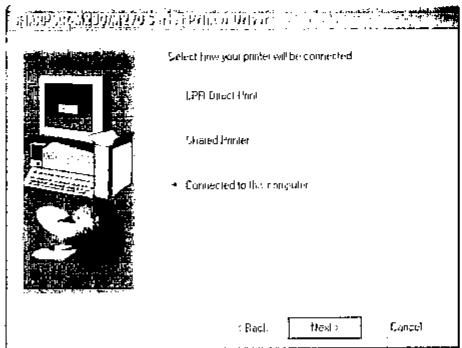
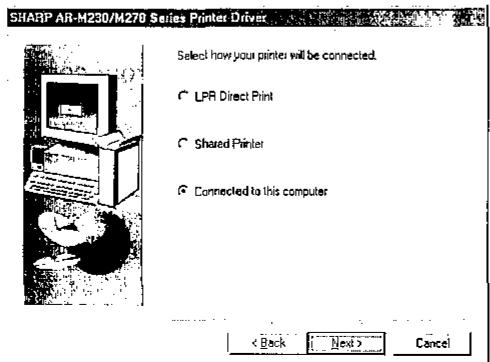
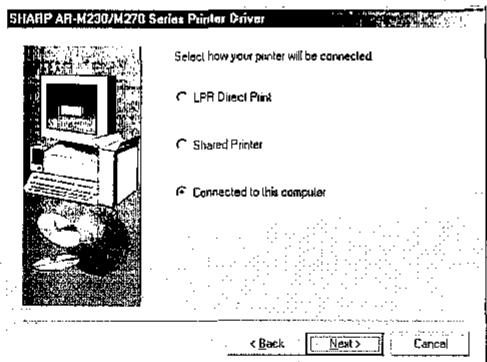
When you are asked how the printer is connected, select "Connected to this computer" and click the "Next" button.

Select whether or not you wish to install the display font and click the "Next" button.

Follow the on-screen instructions.

the following screen appears while the files are being copied (the message may appear more than once), pick the "Continue Anyway" button.
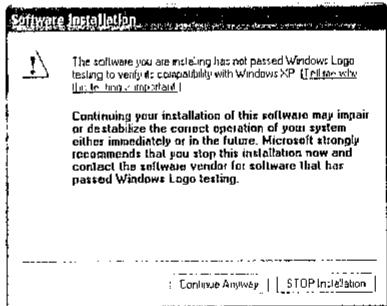
When "The installation of the SHARP software is complete" appears, click the "OK" button.

When the "Finish" screen appears, click the "Close" button.
A message will appear instructing you to connect the machine to your computer. Click the "OK" button.

After the installation, a message prompting you to restart your computer may appear. In this case, click the "Yes" button to restart your computer.

Connect the interface cable to the machine and your computer (p.20).
- If you are using a USB cable, make sure the machine's power is turned on and then connect the cable. - If you are using a parallel cable, turn off the power of the machine and your computer, connect the cable, turn on the power of the machine, and then turn on your computer. Windows will detect the machine and the Plug and Play screen will appear.

Begin installation of the PCL6 printer driver.
"SHARP AR-XXXX" will appear in the "Found New Hardware Wizard" dialog box. Select "Install the software automatically (Recommended)" and click the "Next" button. Follow the on-screen instructions.

If a warning window appears regarding the "Windows logo test", be sure to click the "Continue Anyway" button.
After completing the above steps, repeat the installation procedure from step 1 if you are installing the PCL5e or PS printer driver.
- Repeat the installation procedure from step 1.
- When the select printer driver to install screen appears, remove the checkmark from "PCL6" and select the checkbox of the printer driver that you wish to install ("PCL5e" or "PS").
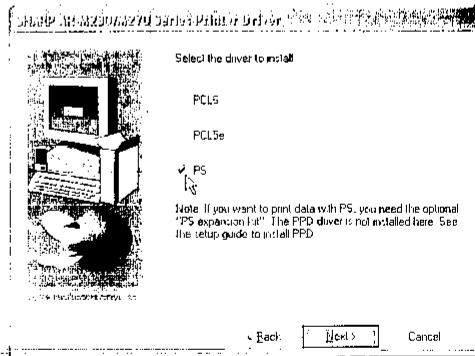
This completes the installation of the software.
- If you installed the printer driver, configure the printer driver settings as explained in "CONFIGURING THE PRINTER DRIVER" (p.25). - If you installed the PS printer driver, the PS display font can be installed from the "PRINTER UTILITIES" CD-ROM that accompanied the PS3 expansion kit. (p.23)
Installation in Windows 98/Me/2000 (USB cable)
1 The USB cable must not be connected to the machine. Make sure that the cable is not connected before proceeding.
If the cable is connected, a Plug and Play window will appear. If this happens, click the "Cancel" button to close the window and disconnect the cable.

The cable will be connected in step 15.
2 Insert the CD-ROM into your computer's CD-ROM drive.
3 Double-click "My Computer" (☐), and then double-click the CD-ROM icon (☐).
4 Double-click the "Setup" icon ( ).

If the language selection screen appears after you double click the "Setup" icon, select the language that you wish to use and click the "Next" button. (Normally the correct language is selected automatically.)
5 The "SOFTWARE LICENSE" window will appear. Make sure that you understand the contents of the license agreement, and then click the "Yes" button.
6 Read the message in the "Welcome" window and then click the "Next" button.
7 Click the "Printer Driver" button. To view information on the software, click the "Display Readme" button.
![Software Selection Select a software to be installed. [Software] [Display Reader] Printer Driver The printer driver enables you to use the printer function of the machine... Printer Status Monitor This allows you to check the status of the network printer on your computer screen. Administrators Tools... [Printer Administration Utility] / [Discover and Link Tool] < Back Next Close](/content/2025/01/122341/images/4544428479ed85c26939e29260b0c7a8c6c71992514b15954dc67363be84bd10.jpg)
8 Click the "Next" button.
9 Click the "Custom installation" button.
![SHARP AR-M230/M270 Series Printer Driver Choose an installation method Standard installation Execute the installation by searching a MFP connected to the TCP/IP network automatically. [Network port is created with LPR automatically.] Custom installation Execute the installation by setting a MFP with TCP/IP network connection, network share, USB connection, or parallel connection. < Back Help Cancel](/content/2025/01/122341/images/dc020282a365e693de725ae17ed8cc0f9b2f31f854f68f5001a14e0fb0f6eadc.jpg)
10 When you are asked how the printer is connected, select "Connected to this computer" and click the "Next" button.
CONFIGURING THE PRINTER DRIVER
After installing the printer driver, you must configure the printer driver settings appropriately for the number of paper trays on the machine and the size of paper loaded in each tray.
1 Click the "start" button, click "Control Panel", click "Printers and Other Hardware", and then click "Printers and Faxes". In operating systems other than Windows XP, click the "Start" button, select "Settings", and then click "Printers".
2 Click the "SHARP AR-XXXX" printer driver icon and select "Properties" from the "File" menu.
If you are using Windows NT 4.0/2000/XP, go to step 4.
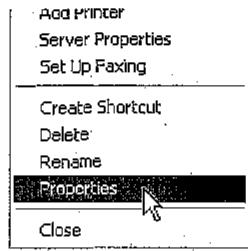
3 In Windows 95/98/Me, click the "Setup" tab.
4 Click the "Configuration" tab and set the printer configuration based on the options that have been installed.
Set the printer configuration properly. Otherwise, printing may not take place correctly.
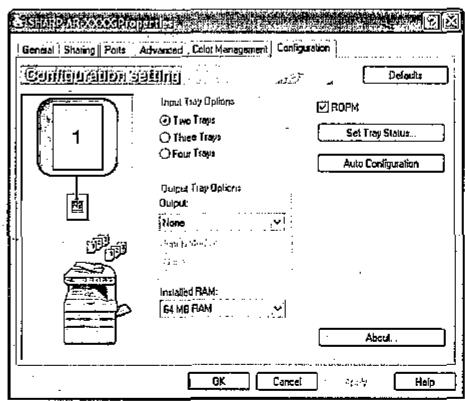

If the machine is used as a network printer, you can click the "Auto Configuration" button to automatically configure the settings based on the detected machine status.
5 Click the "Set Tray Status" button and set the size and type of paper loaded in each tray.
Select a tray from the "Paper source" menu, set the size of paper loaded in the tray from the "Set Paper Size" menu, and select the type of paper from the "Set Paper Type" menu. Repeat for each of the trays.
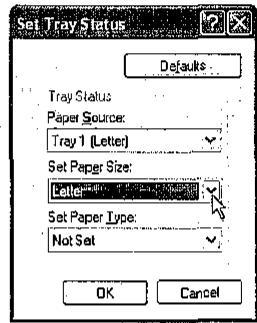
6 Click the "OK" button in the "Set Tray Status" window.
7 Click the "OK" button in the printer properties window.
USING THE PPD FILE
The PPD file enables the machine to print using the standard PS driver of the operating system, and can be used when the optional PS3 expansion kit AR-PK1 is installed. Install the PPD file as needed. Use the Add Printer Wizard in Windows to install the PPD file.
Be sure to read the Readme file before installing the PPD file. The Readme file is in the "EnglishA" or "English" folder. For the location of the folder, see step 4.
1 Click the "start" button, click "Control Panel", click "Printers and Other Hardware", and then click "Printers and Faxes".
In operating systems other than Windows XP, click the "Start" button, select "Settings", and then click "Printers".
2 Insert the CD-ROM into your computer's CD-ROM drive.
3 Click "Add a printer" in "Printer Tasks".
In Windows 95/98/Me/NT 4.0/2000, double-click the "Add Printer" icon. The "Add Printer Wizard" will appear.
4 Follow the on-screen instructions.
When you are asked to specify the path of the PPD file, enter the path as follows. (Substitute the letter of your CD-ROM drive for "R" in the following paths.)
| Operating system | PPD file path |
| Windows 95/98/Me | R:\Drivers\Printer\EnglishA\PPD\9XME |
| Windows NT 4.0 | R:\Drivers\Printer\EnglishA\PPD\NT40 |
| Windows 2000/XP | R:\Drivers\Printer\EnglishA\PPD\2KXP |
* In regions other than the U.S., enter "English" instead of "EnglishA".
Installing the resident font information for PPD (only when the PPD file is installed in Windows 95/98/Me)
If you have installed the PPD file in Windows 95/98/Me and will use the resident font, you must install resident font information for PPD. Follow the procedure below to install the resident fonts information.

- If you are using Windows 2000 or Windows XP, the resident font information is automatically installed when the PPD file is installed.
- Before installing the resident font information, be sure to install the PPD file.
1 Insert the CD-ROM into your computer's CD-ROM drive.
2 Double-click "My Computer" (☐), and then double-click the CD-ROM icon (☐).
3 Double-click the "Drivers" folder, the "Printer" folder, the "EnglishA" folder (for regions other than the U.S., double-click the "English" folder), the "PPD" folder, the "9XME" folder, and "PFMSetup.exe".
- Follow the on-screen instructions.
5 After the resident font information has been installed, restart your computer.

If printer resident fonts cannot be specified from the application software, the resident font information has not been installed or the information is not correct. In this case, reinstall the resident font information.
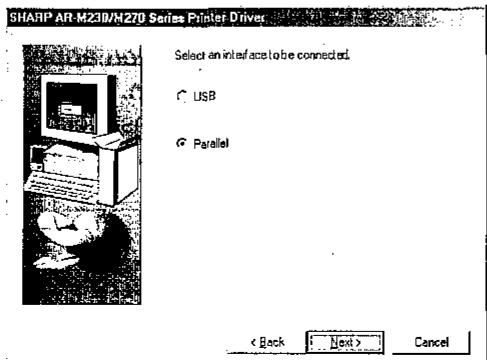
11 When the interface selection screen appears, select "USB" and click the "Next" button.
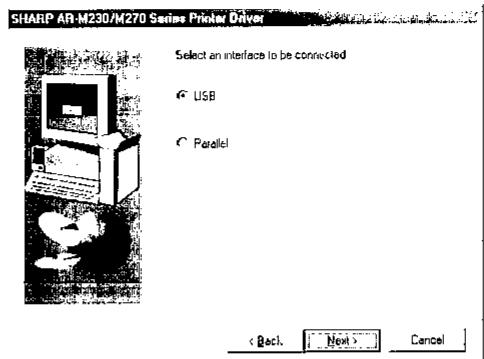
12 Select whether or not you wish to install the display font and click the "Next" button.
13 Follow the on-screen instructions.

In Windows 2000, if the following screen appears while the files are being copied (the message may appear more than once), click the "Yes" button.
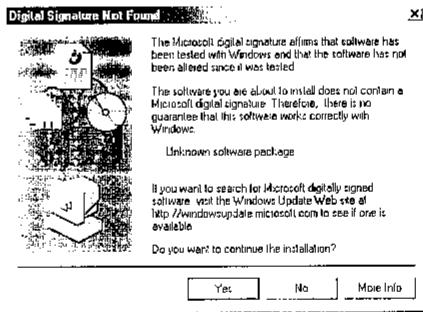
When "The installation of the SHARP software is complete" appears, click the "OK" button.
14 When the "Finish" screen appears, click the "Close" button.
A message will appear instructing you to connect the machine to your computer. Click the "OK" button.

After the installation, a message prompting you to restart your computer may appear. In this case, click the "Yes" button to restart your computer.
15 Make sure that the power of the machine is turned on, and then connect the USB cable. (p.20) Windows will detect the machine and the Plug and Play screen will appear.
16 Follow the instructions in the Plug and Play screen that appears in your version of Windows to begin the installation.
After completing the above steps, repeat the installation procedure from step 1 if you are installing the PCL5e or PS printer driver.
- Repeat the installation procedure from step 1.
- When the select printer driver to install screen appears, remove the checkmark from "PCL6" and select the checkbox of the printer driver that you wish to install ("PCL5e" or "PS").
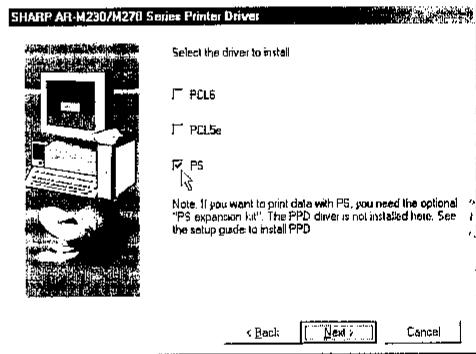
This completes the installation of the software.
- If you installed the printer driver, configure the printer driver settings as explained in "CONFIGURING THE PRINTER DRIVER" (p.25).
- If you installed the PS printer driver, the PS display font can be installed from the "PRINTER UTILITIES" CD-ROM that accompanied the PS3 expansion kit (p.23).
Installation in Windows 95/98/Me/NT 4.0/2000 (parallel cable)
The parallel cable must not be connected to the machine. Make sure that the cable is not connected before proceeding. If the cable is connected, a Plug and Play window will appear. If this happens, click the "Cancel" button to close the window and disconnect the cable.

The cable will be connected in step 21.
2 Insert the CD-ROM into your computer's CD-ROM drive.
3 Double-click "My Computer" (☐), and then double-click the CD-ROM icon (☐).
4 Double-click the "Setup" icon (💡).

If the language selection screen appears after you double click the "Setup" icon, select the language that you wish to use and click the "Next" button. (Normally the correct language is selected automatically.)
5 The "SOFTWARE LICENSE" window will appear. Make sure that you understand the contents of the license agreement, and then click the "Yes" button.
6 Read the message in the "Welcome" window and then click the "Next" button.
7 Click the "Printer Driver" button. To view information on the software, click the "Display Readme" button.
![Software Selection Select a software to be installed. [Software] [Display Readme] Printer Driver The printer driver enables you to use the printer function of the machine. Printer Status Monitor This allows you to check the status of the network printer on your computer screen.](/content/2025/01/122341/images/a190f22fb6e9359f48d6754588a5e9d0400a9b52ad3a4ba20a2b7d5aa54a2d1c.jpg)
8 Click the "Next" button.
9 Click the "Custom installation" button.
![SHARP AR-N230/M4270 Series Printer Driver Choose an installation method. Standard installation Execute the installation by searching a MFP connected to the TCP/IP network automatically. [Network port is created with LPR automatically.] Custom installation Execute the installation by setting a MFP with TCP/IP network connection, network share, USB connection, or parallel connection. < Back Next... Cancel](/content/2025/01/122341/images/955e4b484905fc3eb721d1d0c8b5a465d1262a0d495d7b325ee15487181182eb.jpg)
10 When you are asked how the printer is connected, select "Connected to this computer" and click the "Next" button. If you are using Windows 95/NT 4.0, go to step 12.
11 When the interface selection screen appears, select "Parallel" and click the "Next" button.
INSTALLING THE PS DISPLAY FONTS
The fonts used by the PS printer driver are contained in the "PRINTER UTILITIES" CD-ROM that accompanied the PS3 expansion kit (AR-PK1). Install these fonts as needed for the PS printer driver.
1 Insert the PS3 expansion kit AR-PK1 PRINTER UTILITIES CD-ROM into your computer's CD-ROM drive. If your computer is configured for auto start on the CD-ROM, proceed to step 4.
2 Click the "start" button, click "My Computer" ( ), and then double-click the CD-ROM icon ( ). In Windows 95/98/Me/NT 4.0/2000, double-click "My Computer", and then double-click the CD-ROM icon.
3 Double-click the "Setup" icon (💡).

If the language selection screen appears after you double click the "Setup" icon, select the language that you wish to use and click the "Next" button. (Normally the correct language is selected automatically.)
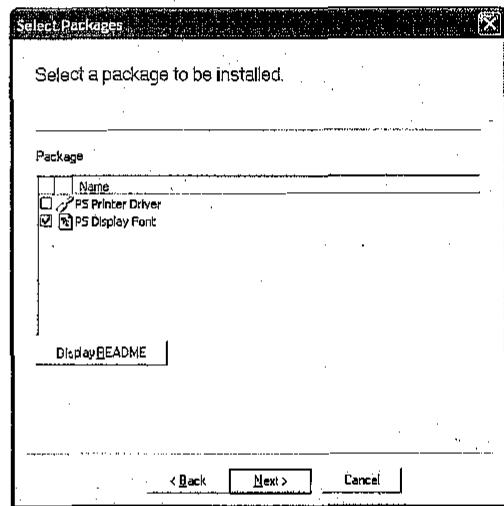
4 Select the "PS Display Font" checkbox and click the "Next" button.

Do not select "PS Printer Driver". The PS printer driver for the machine should only be installed from the CD-ROM that accompanies the AR-P17 printer expansion kit.
5 Follow the on-screen instructions.

Select "Shared Printer" and click the "Next" button.
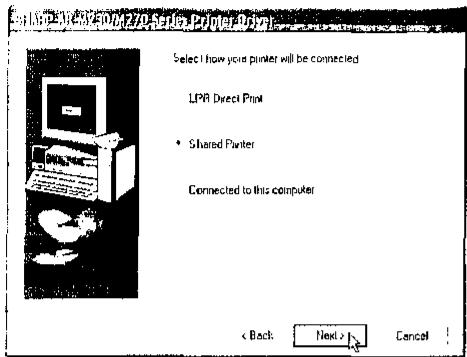

For the port to be used, select the machine set as a shared printer, and click the "Next" button.
You can also click the "Add Network Port" button and select the printer to be shared (the machine) by browsing the network in the window that appears.
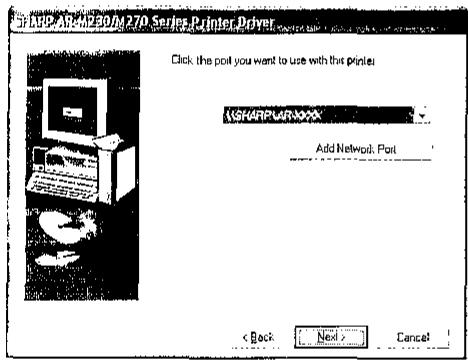

If the shared printer does not appear in the list, check the settings in the printer server.

When the model selection window appears, select model name of your machine and click the "Next" button.
For the model name of your machine, see "PART NAMES AND FUNCTIONS" in the operation manual for copier.

When the printer driver selection window appears, select the printer driver to be installed and click the "Next" button.
Be sure to select the same printer driver as the printer driver used in the print server (the machine).
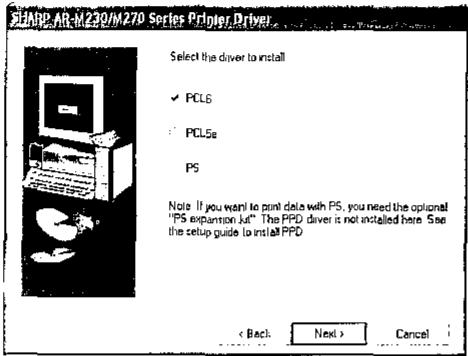

Follow the on-screen instructions.

When the "Finish" screen appears, click the "Close" button.

After the installation, a message prompting you to restart your computer may appear. In this case, click the "Yes" button to restart your computer.
This completes the installation of the software.
- If you installed the printer driver, configure the printer driver settings as explained in "CONFIGURING THE PRINTER DRIVER" (p.25).
- If you installed the PS printer driver, the PS display font can be installed from the "PRINTER UTILITIES" CD-ROM that accompanied the PS3 expansion kit. (p.23)

Select the printer port and click the "Next" button.
Select "LPT1" for the printer port.
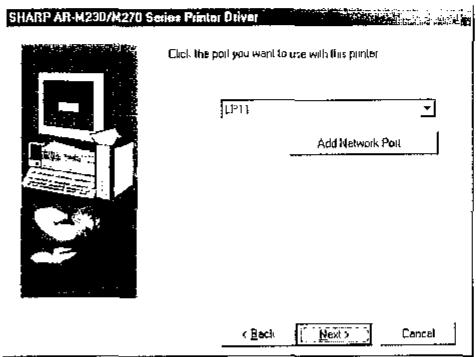

If "LPT1" does not appear, another printer or peripheral device is using LPT1. In this case continue the installation, and after the installation is finished, change the port setting so that the machine can use LPT1. This procedure is explained in "Another printer is using the parallel port (when using a parallel cable)" on page 27.

When the model selection window appears, select model name of your machine and click the "Next" button.
For the model name of your machine, see "PART NAMES AND FUNCTIONS" in the operation manual for copier.

When the printer driver selection window appears, select the printer driver to be installed and click the "Next" button.
Select the checkboxes of the printer drivers to be installed.
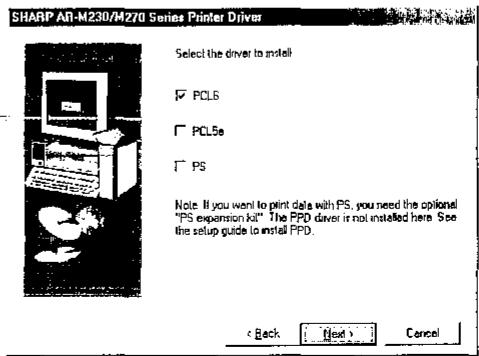

To use the PS printer driver, the PS3 expansion kit must be installed.

Select whether or not you wish the printer to be your default printer and click the "Next" button.
If you are installing multiple printer drivers, select the printer that you wish to use as your default printer. If you do not wish to set either printer driver as the default printer, select "No".

When the window for entering a printer name appears, click the "Next" button. If you wish to change the printer name, enter the desired name.

Select whether or not you wish to install the display font and click the "Next" button.

Follow the on-screen instructions.

When "The installation of the SHARP software is complete" appears, click the "OK" button.

When the "Finish" screen appears, click the "Close" button.
A message will appear instructing you to connect the machine to your computer. Click the "OK" button.

After the installation, a message prompting you to restart your computer may appear. In this case, click the "Yes" button to restart your computer.

Turn off the power of the machine and your computer, and connect the machine to your computer with the parallel cable. (p.20) After connecting the machine to your computer, turn on the power of the machine and then start up your computer.
This completes the installation of the software.
- If you installed the printer driver, configure the printer driver settings as explained in "CONFIGURING THE PRINTER DRIVER" (p.25).
- If you installed the PS printer driver, the PS display font can be installed from the "PRINTER UTILITIES" CD-ROM that accompanied the PS3 expansion kit. (p.23)
CONNECTING TO A COMPUTER
Follow the procedure below to connect the machine to your computer.
Interface cables for connecting the machine to your computer are not included with the machine.
Please purchase the appropriate cable for your computer.
Interface cable
USB cable
Shielded twisted pair cable, high-speed transmission equivalent (9 feet (3 m) max.)
If the machine will be connected using a USB 2.0 interface, please purchase a USB cable that supports USB 2.0.
Parallel cable
IEEE 1284-Shielded type bi-directional parallel interface cable (9 feet (3 m) max.)

- USB is available on a PC/AT compatible computer that was originally equipped with USB and had Windows 98, Windows Me, Windows 2000 Professional, Windows XP Professional or Windows XP Home Edition preinstalled.
- Do not connect the interface cable before installing the printer driver. The interface cable must be connected during installation of the printer driver.
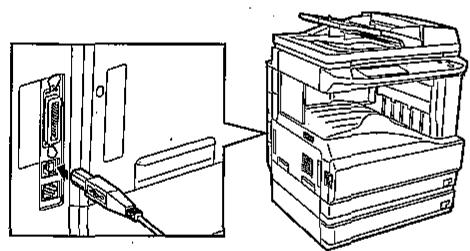
CONNECTING A USB CABLE
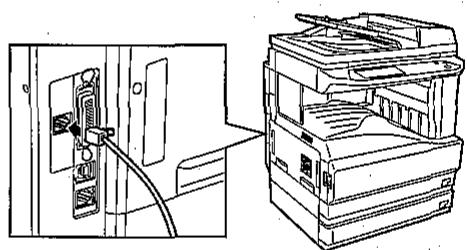
1 Insert the cable into the USB connector on the machine.
natural_image
Diagram showing a computer tower with an attached cable and its internal storage unit (no text or symbols visible)2 Insert the other end of the cable into your computer's USB connector.

The cable can also be inserted into a USB 1.1 connector.
CONNECTING A PARALLEL CABLE
1 Ensure that your computer and the machine are turned off.
2 Insert the cable into the parallel connector on the machine and fasten with the clasps.
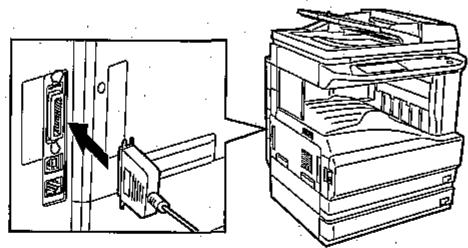
3 Insert the other end of the cable into your computer's parallel connector.
SHARING THE PRINTER USING WINDOWS NETWORKING
If the machine will be used as a shared printer on a network, follow these steps to install the printer driver in the client computer.

To configure the appropriate settings in the print server, see the operation manual or help file of your operating system.
"Print server" as explained here is a computer that is directly connected to the machine, and a "Client" is any other computer that is connected to the same network.

1 Insert the CD-ROM into your computer's CD-ROM drive.
2 Click the "start" button, click "My Computer" (💡), and then double-click the CD-ROM icon (💡).
In Windows 95/98/Me/NT 4.0/2000, double-click "My Computer", and then double-click the CD-ROM icon.
3 Double-click the "Setup" icon (💡).
If the language selection screen appears after you double click the "Setup" icon, select the language that you wish to use and click the "Next" button. (Normally the correct language is selected automatically.)
4 The "SOFTWARE LICENSE" window will appear. Make sure that you understand the contents of the license agreement, and then click the "Yes" button.
5 Read the message in the "Welcome" window and then click the "Next" button.
6 Click the "Printer Driver" button. To view information on the software, click the "Display Readme" button.
![Software Selection... Select a software to be installed. [Software] [Display Readme] Printer Driver The printer driver enables you to use the printer function of the machine. Printer Status Monitor This allows you to check the status of the network printer on your computer screen. Administrator Tools... [Printer Administration Utility] / [Discover and Link Tool] < Back < Back Close](/content/2025/01/122341/images/97c2c8c3c07a7dcec836a4b47053bf0b7b38e432d07f1e3e32d28a090a9b72d7.jpg)
7 Click the "Next" button.
8 Click the "Custom installation" button.
- SOFTWARE SETUP GUIDE
- (for network printer)
- INTRODUCTION
- Note
- Trademark acknowledgments
- SOFTWARE LICENSE
- CONTENTS
- SETUP IN A WINDOWS ENVIRONMENT
- SETUP IN A MACINTOSH ENVIRONMENT
- ABOUT THE SOFTWARE CD-ROM
- WARNING:
- Note:
- Notice for Users in Canada
- BEFORE INSTALLATION
- HARDWARE AND SOFTWARE REQUIREMENTS
- INSTALLATION ENVIRONMENT AND INSTALLATION PROCEDURE
- USING THE MACHINE AS A NETWORK PRINTER
- CONNECTING TO A NETWORK
- HOW TO USE THE ONLINE MANUAL
- Installing Acrobat Reader
- MAC OS 8.6 - 9.x
- SETTING THE IP ADDRESS OF THE MACHINE
- Checking the IP address when DHCP is used
- MAC OS X v10.1.5
- Click the "Add" button.
- Viewing the Discover and Link Tool manual
- INSTALLING THE PRINTER DRIVER (Standard installation)
- CONFIGURING THE PRINTER DRIVER
- MAC OS X v10.2.x
- INSTALLATION IN MAC OS 8.6 - 9.x
- INSTALLING THE SCREEN FONTS (Mac OS 8.6 - 9.x)
- This completes the installation of the software.
- CUSTOM INSTALLATION
- INSTALLING THE PPD FILE
- INSTALLATION IN MAC OS X
- APPLETALK SETTINGS
- INSTALLING THE PRINTER STATUS MONITOR
- USING THE PRINTER IN A MACINTOSH ENVIRONMENT
- The printer driver cannot be correctly installed by Plug and Play (Windows 2000/XP)
- Plug and play screen does not appear (when using a USB cable)
- INSTALLING THE PRINTER ADMINISTRATION UTILITY
- USING THE MACHINE WITH A PARALLEL OR USB CONNECTION
- INSTALLING THE PRINTER DRIVER
- Installation in Windows XP (USB/parallel cable)
- TROUBLESHOOTING
- Printer driver cannot be installed (Windows 2000/XP)
- Another printer is using the parallel port (when using a parallel cable)
- Installation in Windows 98/Me/2000 (USB cable)
- USING THE PPD FILE
- Installing the resident font information for PPD (only when the PPD file is installed in Windows 95/98/Me)
- Installation in Windows 95/98/Me/NT 4.0/2000 (parallel cable)
- INSTALLING THE PS DISPLAY FONTS
- CONNECTING TO A COMPUTER
- Interface cable
- USB cable
- Parallel cable
- CONNECTING A USB CABLE
- CONNECTING A PARALLEL CABLE
- SHARING THE PRINTER USING WINDOWS NETWORKING
Brand : SHARP
Model : AR-P17
Category : Printer/Copier