Inspiron 3595 - Laptop DELL - Free user manual and instructions
Find the device manual for free Inspiron 3595 DELL in PDF.


User questions about Inspiron 3595 DELL
0 question about this device. Answer the ones you know or ask your own.
Ask a new question about this device
Download the instructions for your Laptop in PDF format for free! Find your manual Inspiron 3595 - DELL and take your electronic device back in hand. On this page are published all the documents necessary for the use of your device. Inspiron 3595 by DELL.
USER MANUAL Inspiron 3595 DELL
Notes, cautions, and warnings
NOTE: A NOTE indicates important information that helps you make better use of your product.
CAUTION: A CAUTION indicates either potential damage to hardware or loss of data and tells you how to avoid the problem.
WARNING: A WARNING indicates a potential for property damage, personal injury, or death.
Contents
1 Working inside your computer....6
Safety instructions....6
Before working inside your computer....6
Before you begin 6
Electrostatic discharge—ESD protection....7
ESD field service kit ....7
Transporting sensitive components....8
After working inside your computer....8
2 Removing and installing components....9
Recommended tools....9
Screw list....9
Optical drive....10
Removing the optical drive....10
Replacing the optical drive....12
Base cover....13
Removing the base cover....13
Replacing the base cover....16
Battery....19
Removing the battery....19
Replacing the battery....20
Memory module....21
Removing the memory module....21
Replacing the memory module....24
Wireless card....24
Removing the wireless card....24
Replacing the wireless card....25
Optical-drive connector board....26
Removing the optical-drive connector board.... 26
Replacing the optical-drive connector board....27
Coin-cell battery....28
Removing the coin-cell battery....28
Replacing the coin-cell battery....28
Fan....29
Removing the fan....29
Replacing the fan....30
Solid-state drive....32
Removing the solid-state drive....32
Replacing the solid-state drive....34
Hard drive....36
Removing the hard drive.... 36
Replacing the hard drive....37
Touchpad....39
Removing the touchpad....39
Replacing the touchpad....40
Speakers....41
Removing the speakers....41
Replacing the speakers....42
Heat sink....43
Removing the heat sink....43
Replacing the heat sink....43
Display assembly....44
Removing the display assembly....44
Replacing the display assembly....46
Power-adapter port....48
Removing the power-adapter port....48
Replacing the power-adapter port....49
I/O board....50
Removing the I/O board....50
Replacing the I/O board....51
Power button....52
Removing the power button....52
Replacing the power button....53
System board....54
Removing the system board....54
Replacing the system board....57
Power button with fingerprint reader....59
Removing the power button with fingerprint reader....59
Replacing the power button with fingerprint reader....60
Palm-rest and keyboard assembly....61
Removing the palm-rest and keyboard assembly....61
Replacing the palm-rest and keyboard assembly....62
Display bezel....63
Removing the display bezel....63
Replacing the display bezel....64
Camera....65
Removing the camera....65
Replacing the camera....65
Display panel....66
Removing the display panel....66
Replacing the display panel....67
Display hinges....68
Removing the display hinges....68
Replacing the display hinges....69
Display cable....70
Removing the display cable....70
Replacing the display cable....71
Display back-cover and antenna assembly....72
Removing the display back-cover and antenna assembly....72
Replacing the display back-cover and antenna assembly....72
3 Device drivers....74
Downloading the audio driver....74
Downloading the network driver....74
Downloading the chipset driver....75
Downloading the media-card reader driver....75
Downloading the WiFi driver....76
Downloading the USB driver....76
Downloading the graphics driver....77
4 System setup....78
System setup....78
Entering BIOS setup program....78
Navigation keys....78
Boot Sequence....78
System setup options....79
Clearing CMOS settings....82
Clearing BIOS (System Setup) and System passwords....82
5 Troubleshooting....83
Enhanced Pre-Boot System Assessment (ePSA) diagnostics....83
Running the ePSA diagnostics....83
System diagnostic lights....83
Recovering the operating system....84
Flashing the BIOS....84
Enabling Intel Optane memory....85
Disabling Intel Optane memory....85
Flashing BIOS (USB key) 85
WiFi power cycle....85
Flea power release....86
6 Getting help and contacting Dell....87
Working inside your computer
Safety instructions
Use the following safety guidelines to protect your computer from potential damage and to ensure your personal safety. Unless otherwise noted, each procedure included in this document assumes that you have read the safety information that shipped with your computer.
NOTE: Before working inside your computer, read the safety information that shipped with your computer. For more safety best practices, see the Regulatory Compliance home page at www.dell.com/regulatory_compliance.
NOTE: Disconnect all power sources before opening the computer cover or panels. After you finish working inside the computer, replace all covers, panels, and screws before connecting to the electrical outlet.
CAUTION: To avoid damaging the computer, ensure that the work surface is flat and clean.
CAUTION: Handle components and cards with care. Do not touch the components or contacts on a card. Hold a card by its edges or by its metal mounting bracket. Hold a component such as a processor by its edges, not by its pins.
CAUTION: You should only perform troubleshooting and repairs as authorized or directed by the Dell technical assistance team. Damage due to servicing that is not authorized by Dell is not covered by your warranty. See the safety instructions that shipped with the product or at www.dell.com/regulatory_compliance.
CAUTION: Before touching anything inside your computer, ground yourself by using a wrist grounding strap or by periodically touching an unpainted metal surface, such as the metal at the back of the computer. While you work, periodically touch an unpainted metal surface to dissipate static electricity, which could harm internal components.
CAUTION: When you disconnect a cable, pull on its connector or on its pull tab, not on the cable itself. Some cables have connectors with locking tabs or thumb-screws that you must disengage before disconnecting the cable. When disconnecting cables, keep them evenly aligned to avoid bending any connector pins. When connecting cables, ensure that the ports and connectors are correctly oriented and aligned.
CAUTION: Press and eject any installed card from the media-card reader.
NOTE: The color of your computer and certain components may appear differently than shown in this document.
Before working inside your computer
NOTE: The images in this document may differ from your computer depending on the configuration you ordered.
Before you begin
- Save and close all open files and exit all open applications.
- Shut down your computer. Click Start > ⏻ Power > Shut down.
NOTE: If you are using a different operating system, see the documentation of your operating system for shut-down instructions.
-
Disconnect your computer and all attached devices from their electrical outlets.
-
Disconnect all attached network devices and peripherals, such as keyboard, mouse, and monitor from your computer.
-
Remove any media card and optical disc from your computer, if applicable.
Electrostatic discharge—ESD protection
ESD is a major concern when you handle electronic components, especially sensitive components such as expansion cards, processors, memory DIMMs, and system boards. Very slight charges can damage circuits in ways that may not be obvious, such as intermittent problems or a shortened product life span. As the industry pushes for lower power requirements and increased density, ESD protection is an increasing concern.
Due to the increased density of semiconductors used in recent Dell products, the sensitivity to static damage is now higher than in previous Dell products. For this reason, some previously approved methods of handling parts are no longer applicable.
Two recognized types of ESD damage are catastrophic and intermittent failures.
- Catastrophic – Catastrophic failures represent approximately 20 percent of ESD-related failures. The damage causes an immediate and complete loss of device functionality. An example of catastrophic failure is a memory DIMM that has received a static shock and immediately generates a "No POST/No Video" symptom with a beep code emitted for missing or nonfunctional memory.
- Intermittent – Intermittent failures represent approximately 80 percent of ESD-related failures. The high rate of intermittent failures means that most of the time when damage occurs, it is not immediately recognizable. The DIMM receives a static shock, but the tracing is merely weakened and does not immediately produce outward symptoms related to the damage. The weakened trace may take weeks or months to melt, and in the meantime may cause degradation of memory integrity, intermittent memory errors, etc.
The more difficult type of damage to recognize and troubleshoot is the intermittent (also called latent or "walking wounded") failure.
Perform the following steps to prevent ESD damage:
- Use a wired ESD wrist strap that is properly grounded. The use of wireless anti-static straps is no longer allowed; they do not provide adequate protection. Touching the chassis before handling parts does not ensure adequate ESD protection on parts with increased sensitivity to ESD damage.
- Handle all static-sensitive components in a static-safe area. If possible, use anti-static floor pads and workbench pads.
- When unpacking a static-sensitive component from its shipping carton, do not remove the component from the anti-static packing material until you are ready to install the component. Before unwrapping the anti-static packaging, ensure that you discharge static electricity from your body.
- Before transporting a static-sensitive component, place it in an anti-static container or packaging.
ESD field service kit
The unmonitored Field Service kit is the most commonly used service kit. Each Field Service kit includes three main components: anti-static mat, wrist strap, and bonding wire.
Components of an ESD field service kit
The components of an ESD field service kit are:
- Anti-Static Mat – The anti-static mat is dissipative and parts can be placed on it during service procedures. When using an anti-static mat, your wrist strap should be snug and the bonding wire should be connected to the mat and to any bare metal on the system being worked on. Once deployed properly, service parts can be removed from the ESD bag and placed directly on the mat. ESD-sensitive items are safe in your hand, on the ESD mat, in the system, or inside a bag.
- Wrist Strap and Bonding Wire – The wrist strap and bonding wire can be either directly connected between your wrist and bare metal on the hardware if the ESD mat is not required, or connected to the anti-static mat to protect hardware that is temporarily placed on the mat. The physical connection of the wrist strap and bonding wire between your skin, the ESD mat, and the hardware is known as bonding. Use only Field Service kits with a wrist strap, mat, and bonding wire. Never use wireless wrist straps. Always be aware that the internal wires of a wrist strap are prone to damage from normal wear and tear, and must be checked regularly with a wrist strap tester in order to avoid accidental ESD hardware damage. It is recommended to test the wrist strap and bonding wire at least once per week.
- ESD Wrist Strap Tester – The wires inside of an ESD strap are prone to damage over time. When using an unmonitored kit, it is a best practice to regularly test the strap prior to each service call, and at a minimum, test once per week. A wrist strap tester is the best method for doing this test. If you do not have your own wrist strap tester, check with your regional office to find out if they have one. To perform the test, plug the wrist-strap's bonding-wire into the tester while it is strapped to your wrist and push the button to test. A green LED is lit if the test is successful; a red LED is lit and an alarm sounds if the test fails.
- Insulator Elements – It is critical to keep ESD sensitive devices, such as plastic heat sink casings, away from internal parts that are insulators and often highly charged.
- Working Environment – Before deploying the ESD Field Service kit, assess the situation at the customer location. For example, deploying the kit for a server environment is different than for a desktop or portable environment. Servers are typically installed in a rack within a data center; desktops or portables are typically placed on office desks or cubicles. Always look for a large open flat work area that is free of clutter and large enough to deploy the ESD kit with additional space to accommodate the type of system that is
being repaired. The workspace should also be free of insulators that can cause an ESD event. On the work area, insulators such as Styrofoam and other plastics should always be moved at least 12 inches or 30 centimeters away from sensitive parts before physically handling any hardware components
- ESD Packaging – All ESD-sensitive devices must be shipped and received in static-safe packaging. Metal, static-shielded bags are preferred. However, you should always return the damaged part using the same ESD bag and packaging that the new part arrived in. The ESD bag should be folded over and taped shut and all the same foam packing material should be used in the original box that the new part arrived in. ESD-sensitive devices should be removed from packaging only at an ESD-protected work surface, and parts should never be placed on top of the ESD bag because only the inside of the bag is shielded. Always place parts in your hand, on the ESD mat, in the system, or inside an anti-static bag.
- Transporting Sensitive Components – When transporting ESD sensitive components such as replacement parts or parts to be returned to Dell, it is critical to place these parts in anti-static bags for safe transport.
ESD protection summary
It is recommended that all field service technicians use the traditional wired ESD grounding wrist strap and protective anti-static mat at all times when servicing Dell products. In addition, it is critical that technicians keep sensitive parts separate from all insulator parts while performing service and that they use anti-static bags for transporting sensitive components.
Transporting sensitive components
When transporting ESD sensitive components such as replacement parts or parts to be returned to Dell, it is critical to place these parts in anti-static bags for safe transport.
Lifting equipment
Adhere to the following guidelines when lifting heavy weight equipment:

CAUTION: Do not lift greater than 50 pounds. Always obtain additional resources or use a mechanical lifting device.
- Get a firm balanced footing. Keep your feet apart for a stable base, and point your toes out.
- Tighten stomach muscles. Abdominal muscles support your spine when you lift, offsetting the force of the load.
- Lift with your legs, not your back.
- Keep the load close. The closer it is to your spine, the less force it exerts on your back.
- Keep your back upright, whether lifting or setting down the load. Do not add the weight of your body to the load. Avoid twisting your body and back.
- Follow the same techniques in reverse to set the load down.
After working inside your computer

CAUTION: Leaving stray or loose screws inside your computer may severely damage your computer.
- Replace all screws and ensure that no stray screws remain inside your computer.
- Connect any external devices, peripherals, or cables you removed before working on your computer.
- Replace any media cards, discs, or any other parts that you removed before working on your computer.
- Connect your computer and all attached devices to their electrical outlets.
- Turn on your computer.
Removing and installing components
Recommended tools
The procedures in this document may require the following tools:
- Phillips screwdriver #1
- Flat-head screwdriver
- Plastic scribe
Screw list
NOTE: When removing screws from a component, it is recommended to note the screw type, the quantity of screws, and then place them in a screw storage box. This is to ensure that the correct number of screws and correct screw type is restored when the component is replaced.
NOTE: Some computers have magnetic surfaces. Ensure that the screws are not left attached to such surface when replacing a component.
NOTE: Screw color may vary with the configuration ordered.
Table 1. Screw list
| Component Secured to Screw type Quantity Screw | Image | |||
| Base cover Palm-rest and keyboard assembly | M2x2 2 |  | ||
| Base cover Palm-rest and keyboard assembly | M2x4 1 |  | ||
| Base cover Palm-rest and keyboard assembly | M2.5x7 6 |  [8HT]NOTE: Screw color may vary depending on the configuration ordered. [8HT]NOTE: Screw color may vary depending on the configuration ordered. | ||
| Battery Palm-rest and keyboard assembly | M2x3 4 |  | ||
| Display panel Display back-cover and antenna assembly | M2x2 4 |  | ||
| Hard-drive assembly Palm-rest and keyboard assembly | M2x3 4 |  | ||
| Hard-drive bracket Hard drive M3x3 4 |  | |||
| Heat sink System board M2x3 3 |  | |||
| Hinges Palm-rest and keyboard assembly | M2.5x5 5 |  | ||
| Hinge brackets Display back cover and antenna assembly | M2.5x4 8 |  | ||
| Hinge brackets Display back cover and antenna assembly | M2x2 2 |  | ||
| I/O board Palm-rest and keyboard assembly | M2x4 | ·1 (for computers shipped with optical drive)·2 (for computers shipped without optical drive) | [KDSX] | |
| Optical-drive bracket (Applicable only on the computers shipped with optical drive) | Optical drive M2x3 2 |  | ||
| Optical-drive connector board (Applicable only on the computers shipped with optical drive) | Palm-rest and keyboard assembly | M2x2 Big Head 1 |  | |
| Power-adapter port Palm-rest and keyboard assembly | M2x3 1 |  | ||
| Power-button board Palm-rest and keyboard assembly | M2x2 1 |  | ||
| Power button with fingerprint reader (optional) | Palm-rest and keyboard assembly | M2x2 1 | [XDSZ] | |
| Solid-state drive Palm-rest and keyboard assembly | M2x2.2+0.8 1 |  | ||
| System board | Palm-rest and keyboard assembly | M2x4 1 |  | |
| Touchpad | Palm-rest and keyboard assembly | M2x2 4 |  | |
| Wireless-card bracket | System board | M2x3 1 |  | |
Optical drive
Removing the optical drive

NOTE: Before working inside your computer, read the safety information that shipped with your computer and follow the steps in Before working inside your computer. After working inside your computer, follow the instructions in After working inside your computer. For more safety best practices, see the Regulatory Compliance home page at www.dell.com/regulatory_compliance.
Procedure
NOTE: Applicable only to computers that are shipped with optical drive.
- Remove the screw (M2x2) that secures the optical-drive assembly to the base cover.
- Using a screwdriver, push the optical drive through the slot to release the optical-drive assembly out of the optical-drive bay.
- Slide the optical-drive assembly out of the optical-drive bay.

text_image
Diagram of a device with labeled parts, showing a tool inserted into a component and annotated with arrows.- Remove the two screws (M2x3) that secure the optical-drive bracket to the optical drive.
- Remove the optical-drive bracket from optical drive.

natural_image
Exterior view of a white plastic electronic device casing with labeled parts (no readable text or symbols)- Pull the optical-drive bezel carefully to remove it from the optical drive.
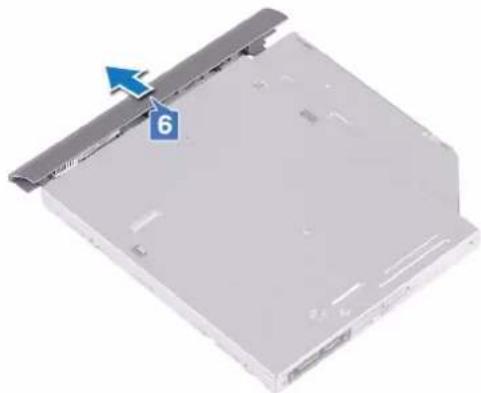
natural_image
Exterior view of a computer drive chassis with a blue arrow pointing to component 6 (no text or symbols on the device itself)Replacing the optical drive

NOTE: Before working inside your computer, read the safety information that shipped with your computer and follow the steps in Before working inside your computer. After working inside your computer, follow the instructions in After working inside your computer. For more safety best practices, see the Regulatory Compliance home page at www.dell.com/regulatory_compliance.
Procedure
1.

NOTE: Applicable only to computers that are shipped with optical drive.
Align the tabs on the optical-drive bezel with the slots on the optical drive and snap the optical-drive bezel into place.

natural_image
Exterior view of a flatbed electronic device with a blue arrow pointing to a component labeled '1' (no text or symbols on the device itself)- Align the screw holes on the optical-drive bracket with the screw holes on the optical drive.
- Replace the two screws (M2x3) that secure the optical-drive bracket to the optical drive.
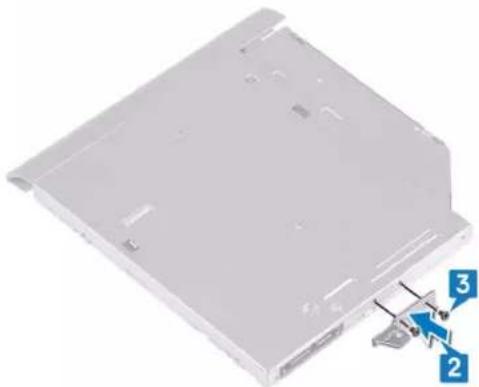
natural_image
Exterior view of a white plastic electronic device with labeled parts (no text or symbols visible)-
Slide the optical-drive assembly into the optical-drive bay.
-
Align the screw hole on the optical-drive bracket with the screw hole on the base cover. Replace the screw (M2x2) that secures the optical-drive assembly to the base cover.
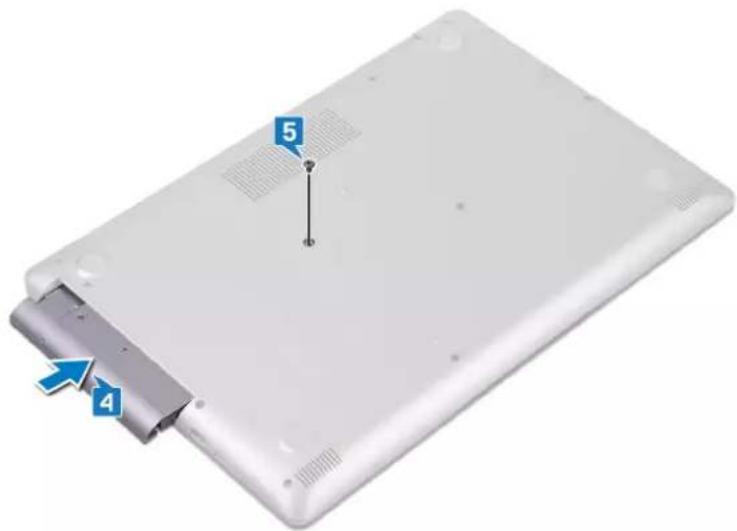
text_image
5 4Base cover
Removing the base cover

NOTE: Before working inside your computer, read the safety information that shipped with your computer and follow the steps in Before working inside your computer. After working inside your computer, follow the instructions in After working inside your computer. For more safety best practices, see the Regulatory Compliance home page at www.dell.com/regulatory_compliance.
Prerequisites
Remove the optical drive (optional).
Procedure for computers shipped without optical drive
- Loosen the three captive screws on the base cover.
- Remove the screw (M2x4) that secures the base cover to the palm-rest and keyboard assembly.
- Remove the six screws (M2.5x7) that secure the base cover to the palm-rest and keyboard assembly.

text_image
Diagram of a device with numbered pins and labeled components, likely for assembly or positioning reference.-
Pry the base cover starting from the top-left corner of the computer base.
-
Lift the base cover off the palm-rest and keyboard assembly.
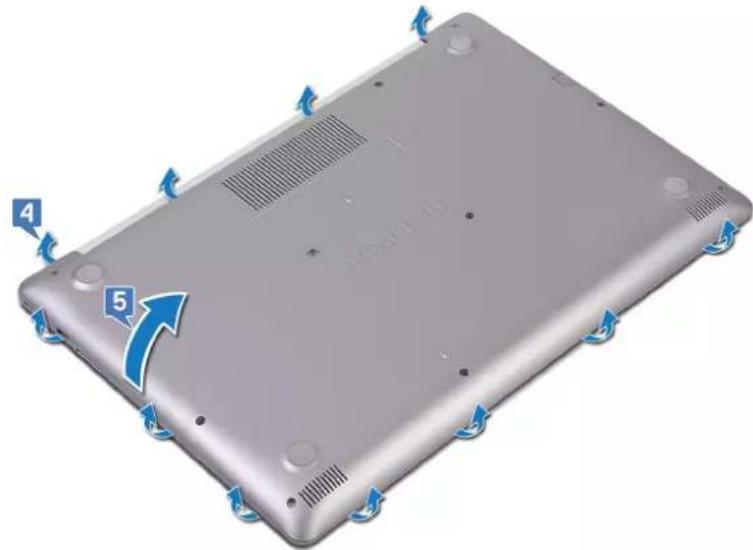
natural_image
3D model of a silver laptop back with blue directional arrows indicating rotation (no text or symbols)
NOTE: The following steps are applicable only if you want to further remove any other component from your computer.
- Peel the tape that adheres the battery cable to the connector and disconnect the battery cable from the system board.

natural_image
Disassembled laptop chassis with battery pack and circuit board, showing internal components (no text or symbols visible)- Press and hold the power button for five seconds to ground the computer and drain the flea power.
Procedure for the computers that are shipped with optical drive
- Loosen the three captive screws on the base cover.
- Remove the screw (M2x4) that secures the base cover to the palm-rest and keyboard assembly.
- Remove the two screws (M2x2) that secure the base cover to the palm-rest and keyboard assembly.
- Remove the six screws (M2.5x7) that secure the base cover to the palm-rest and keyboard assembly.
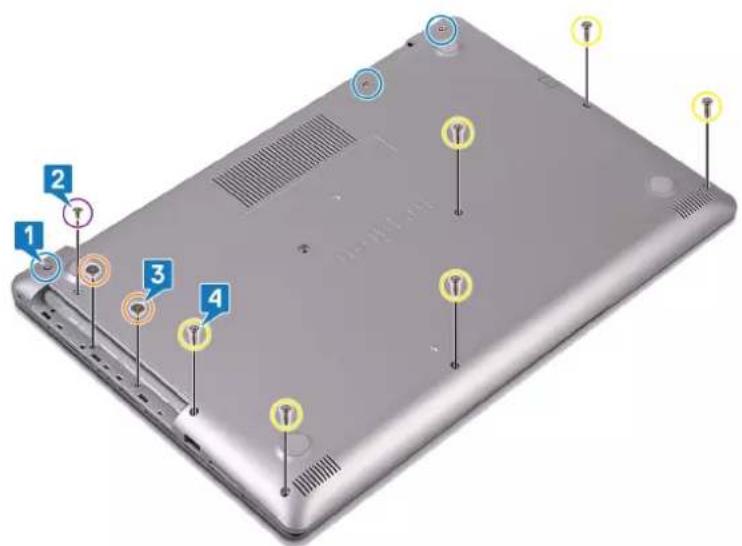
text_image
Labeled diagram of a device showing numbered components with annotations for each part.- Pry the base cover starting from the top-left corner of the computer base.
- Lift the base cover off the palm-rest and keyboard assembly.
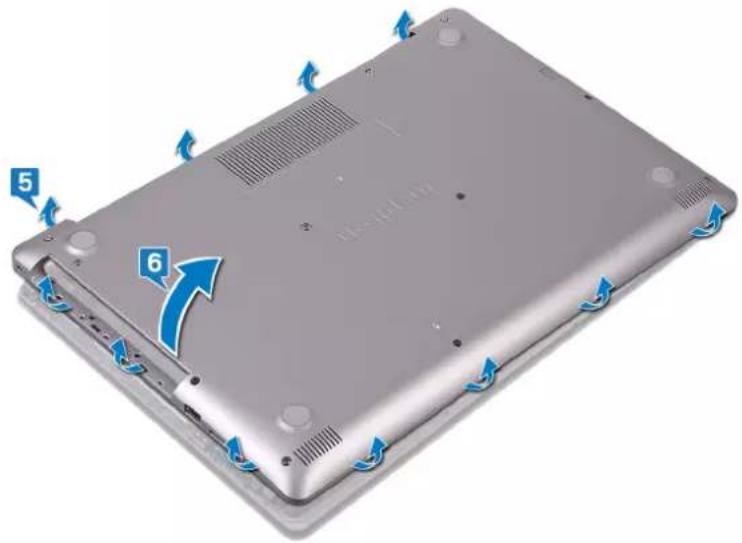
text_image
5 6
NOTE: The following steps are applicable only if you want to further remove any other component from your computer.
- Peel the tape that adheres the battery cable to the connector and disconnect the battery cable from the system board.
- Disconnect the battery cable from the system board.
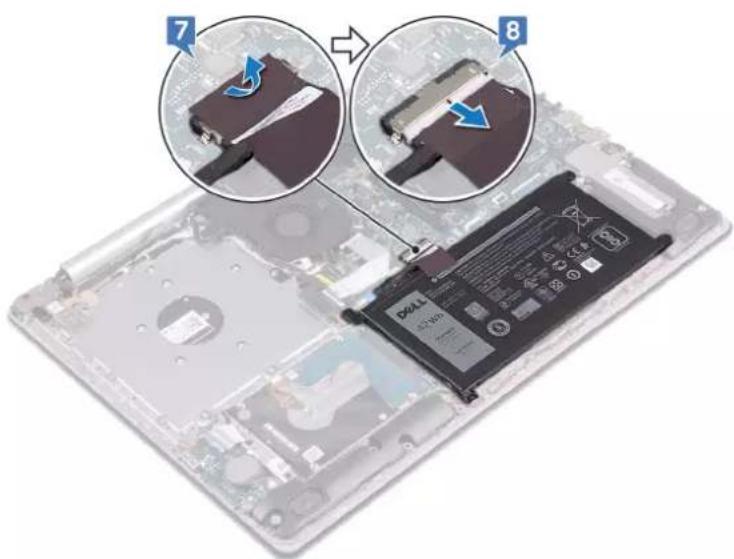
text_image
7 8- Press and hold the power button for five seconds to ground the computer and drain the flea power.
Replacing the base cover
NOTE: Before working inside your computer, read the safety information that shipped with your computer and follow the steps in Before working inside your computer. After working inside your computer, follow the instructions in After working inside your computer. For more safety best practices, see the Regulatory Compliance home page at www.dell.com/regulatory_compliance.
Procedure for computers shipped without optical drive
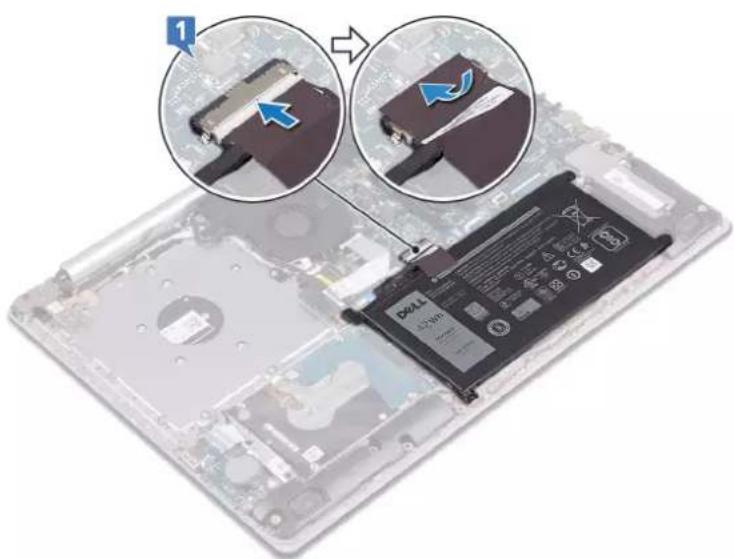
- Connect the battery cable to the system board and adhere the tape that secures the battery cable to the connector on the system board, if applicable.
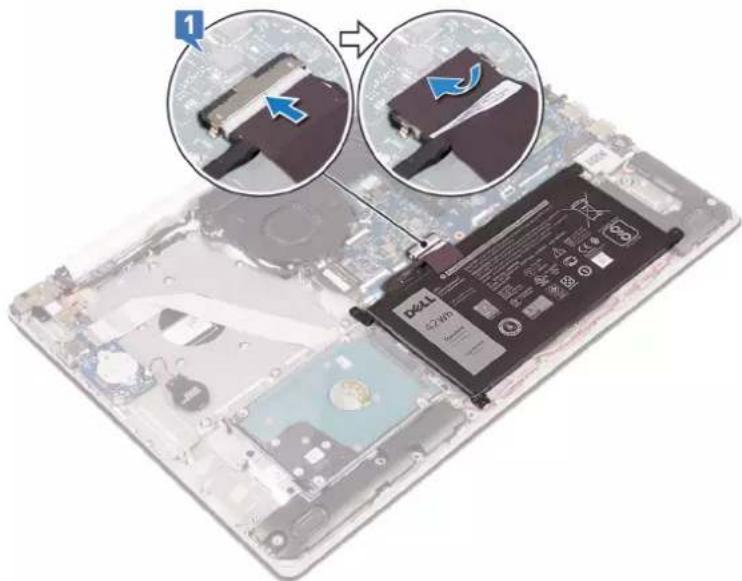
natural_image
Laptop battery pack with highlighted circuit board and battery stack, showing internal components and mounting features (no text or symbols)-
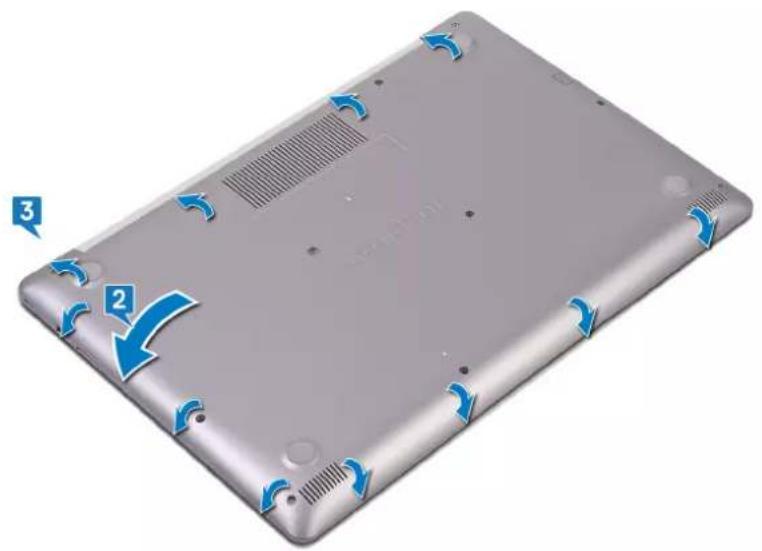
Place the base cover on the palm-rest and keyboard assembly.
-
Snap the base cover into place starting from the power-adapter port.

CAUTION: To avoid accidental damage to the power-adapter port, do not press the base cover against the power-adapter port when you snap the base cover to the computer base.
natural_image
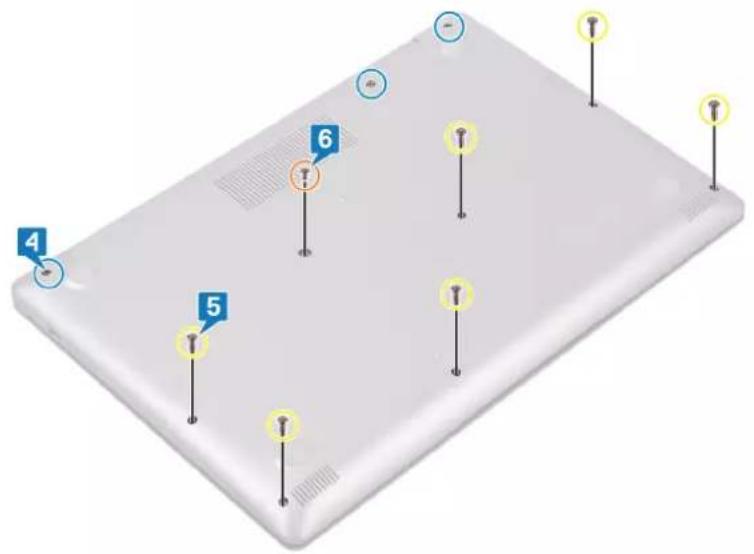
3D rendering of a silver laptop back with blue directional arrows indicating rotation or movement (no text or symbols)- Tighten the three captive screws that secure the base cover to the palm-rest and keyboard assembly.
- Replace the six screws (M2.5x7) that secure the base cover to the palm-rest and keyboard assembly.
- Replace the screw (M2x4) that secures the base cover to the palm-rest and keyboard assembly.
text_image
4 5 6Procedure for computers that are shipped with optical drive
- Connect the battery cable to the system board and adhere the tape that secures the battery cable to the connector on the system board, if applicable.
text_image
Laptop battery rear panel with close-up insets showing component disassembly and battery release steps- Place the base cover on the palm-rest and keyboard assembly.
- Snap the base cover into place starting from the power-adapter port.

CAUTION: To avoid accidental damage to the power-adapter port, do not press the base cover against the power-adapter port when you snap the base cover to the computer base.

text_image
Laptop screen with numbered annotations indicating component placement and rotation direction- Replace the six screws (M2.5x7) that secure the base cover to the palm-rest and keyboard assembly.
- Replace the two screws (M2x2) that secure the base cover to the palm-rest and keyboard assembly (only for computers shipped with optical drive).
- Replace the screw (M2x4) that secures the base cover to the palm-rest and keyboard assembly.
- Tighten the three captive screws that secure the base cover to the palm-rest and keyboard assembly.

text_image
Labeled diagram of a laptop showing numbered components with icons and labelsPost-requisites
Replace the optical drive (optional).
Battery
Removing the battery

NOTE: Before working inside your computer, read the safety information that shipped with your computer and follow the steps in Before working inside your computer. After working inside your computer, follow the instructions in After working inside your computer. For more safety best practices, see the Regulatory Compliance home page at www.dell.com/regulatory_compliance.
Lithium-ion battery precautions

CAUTION:
• Exercise caution when handling Lithium-ion batteries.
- Discharge the battery as much as possible before removing it from the system. This can be done by disconnecting the AC adapter from the system to allow the battery to drain.
- Do not crush, drop, mutilate, or penetrate the battery with foreign objects.
- Do not expose the battery to high temperatures, or disassemble battery packs and cells.
- Do not apply pressure to the surface of the battery.
- Do not bend the battery.
- Do not use tools of any kind to pry on or against the battery.
- Ensure any screws during the servicing of this product are not lost or misplaced, to prevent accidental puncture or damage to the battery and other system components.
- If a battery gets stuck in a device as a result of swelling, do not try to free it as puncturing, bending, or crushing a Lithium-ion battery can be dangerous. In such an instance, contact for assistance and further instructions.
- If the battery gets stuck inside your computer as a result of swelling, do not try to release it as puncturing, bending, or crushing a lithium-ion battery can be dangerous. In such an instance, contact Dell technical support for assistance. See www.dell.com/contactdell.
• Always purchase genuine batteries from www.dell.com or authorized Dell partners and resellers.
Prerequisites
- Remove the optical drive (applicable only to computers shipped with optical drive).
- Remove the base cover.
Procedure
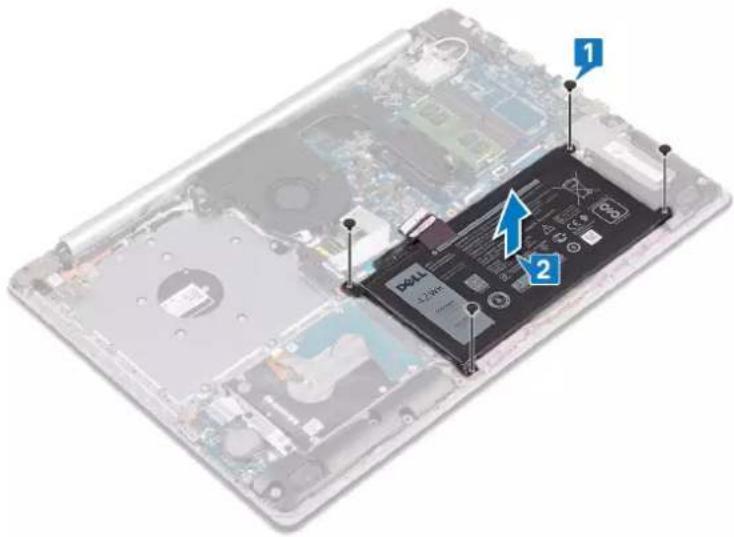
- Remove the four screws (M2x3) that secure the battery to the palm-rest and keyboard assembly.
- Lift the battery off the palm-rest and keyboard assembly.
text_image
Laptop screen showing battery pack with labeled components and blue arrows indicating parts of the batteryReplacing the battery

NOTE: Before working inside your computer, read the safety information that shipped with your computer and follow the steps in Before working inside your computer. After working inside your computer, follow the instructions in After working inside your computer. For more safety best practices, see the Regulatory Compliance home page at www.dell.com/regulatory_compliance.
Lithium-ion battery precautions

CAUTION:
• Exercise caution when handling Lithium-ion batteries.
- Discharge the battery as much as possible before removing it from the system. This can be done by disconnecting the AC adapter from the system to allow the battery to drain.
- Do not crush, drop, mutilate, or penetrate the battery with foreign objects.
- Do not expose the battery to high temperatures, or disassemble battery packs and cells.
• Do not apply pressure to the surface of the battery.
- Do not bend the battery.
- Do not use tools of any kind to pry on or against the battery.
- Ensure any screws during the servicing of this product are not lost or misplaced, to prevent accidental puncture or damage to the battery and other system components.
- If a battery gets stuck in a device as a result of swelling, do not try to free it as puncturing, bending, or crushing a Lithium-ion battery can be dangerous. In such an instance, contact for assistance and further instructions.
- If the battery gets stuck inside your computer as a result of swelling, do not try to release it as puncturing, bending, or crushing a lithium-ion battery can be dangerous. In such an instance, contact Dell technical support for assistance. See www.dell.com/contactdell.
• Always purchase genuine batteries from www.dell.com or authorized Dell partners and resellers.
Procedure
- Align the screw holes on the battery with the screw holes on the palm-rest and keyboard assembly.
- Replace the four screws (M2x3) that secure the battery to the palm-rest and keyboard assembly.

text_image
Laptop screen showing battery pack with labeled components and a blue arrow indicating a fault or repair point.- Connect the battery cable to the system board.

natural_image
Laptop interior showing battery pack and circuit board with a magnified inset highlighting a component (no text or symbols visible)Post-requisites
- Replace the base cover.
- Replace the optical drive (applicable only to computers shipped with optical drive).
Memory module
Removing the memory module

NOTE: Before working inside your computer, read the safety information that shipped with your computer and follow the steps in Before working inside your computer. After working inside your computer, follow the instructions in After working inside your computer. For more safety best practices, see the Regulatory Compliance home page at www.dell.com/regulatory_compliance.
Heat sink
Removing the heat sink
NOTE: Before working inside your computer, read the safety information that shipped with your computer and follow the steps in Before working inside your computer. After working inside your computer, follow the instructions in After working inside your computer. For more safety best practices, see the Regulatory Compliance home page at www.dell.com/regulatory_compliance.
NOTE: The heat sink may become hot during normal operation. Allow sufficient time for the heat sink to cool before you touch it.
CAUTION: For maximum cooling of the processor, do not touch the heat transfer areas on the heat sink. The oils in your skin can reduce the heat transfer capability of the thermal grease.
Prerequisites
- Remove the optical drive (applicable only to computers shipped with optical drive).
- Remove the base cover.
Procedure
- In reverse sequential order (4->3->2->1), loosen the four captive screws that secure the heat sink to the system board.
- Lift the heat sink off the system board.
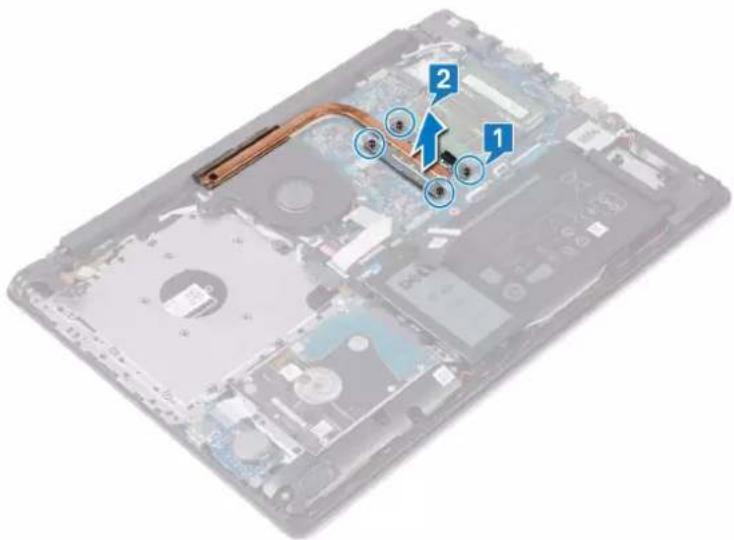
text_image
Laptop screen with labeled components and numbered annotations pointing to internal partsReplacing the heat sink
NOTE: Before working inside your computer, read the safety information that shipped with your computer and follow the steps in Before working inside your computer. After working inside your computer, follow the instructions in After working inside your computer. For more safety best practices, see the Regulatory Compliance home page at www.dell.com/regulatory_compliance.
CAUTION: Incorrect alignment of the heat sink can damage the system board and processor.
NOTE: If either the system board or the heat sink is replaced, use the thermal pad/paste provided in the kit to ensure that thermal conductivity is achieved.
Procedure
- Place the heat sink on the system board and align the screw holes on the heat sink with the screw holes on the system board.
- In sequential order (1->2->3->4) as indicated on the heat sink, tighten the captive screws to secure the heat sink to the system board.
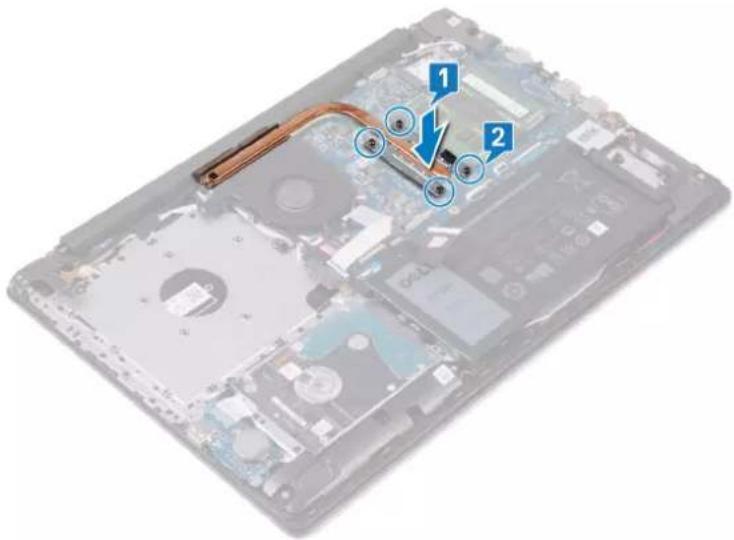
text_image
Laptop screen with visible circuit board and cable connector, numbered 1 and 2 indicating parts of the component.Post-requisites
- Replace the base cover.
- Replace the optical drive (applicable only to computers shipped with optical drive).
Procedure
- Locate the memory module on your computer.
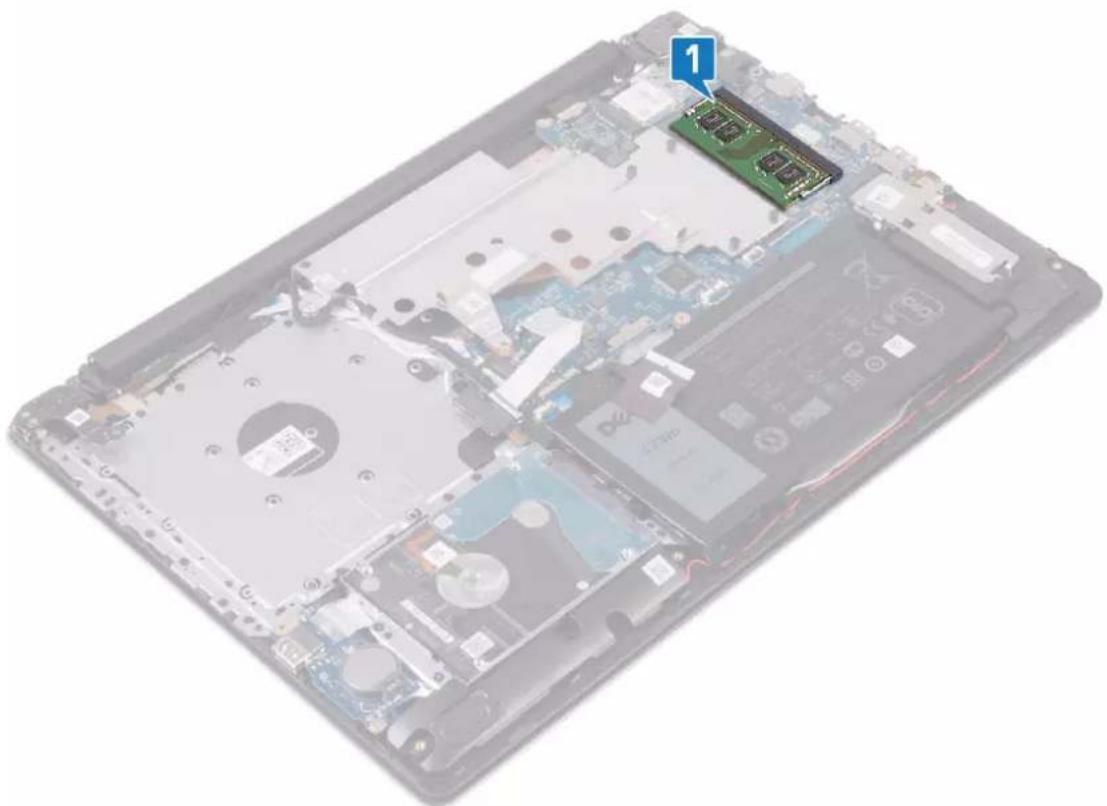
natural_image
Interior view of a computer motherboard showing CPU socket, RAM slots, and memory chips (no text or symbols visible)- Use your fingertips to carefully spread apart the securing-clips on each end of the memory-module slot until the memory module pops up.
- Remove the memory module from the memory-module slot.

text_image
Diagram showing two views of a green RAM module being processed, labeled with arrows and numbered parts.Replacing the memory module

NOTE: Before working inside your computer, read the safety information that shipped with your computer and follow the steps in Before working inside your computer. After working inside your computer, follow the instructions in After working inside your computer. For more safety best practices, see the Regulatory Compliance home page at www.dell.com/regulatory_compliance.
Procedure
- Align the notch on the memory module with the tab on the memory-module slot.
- Slide the memory module firmly into the slot at an angle.
- Press the memory module down until it clicks into place.

NOTE: If you do not hear the click, remove the memory module and reinstall it.

text_image
Diagram showing a computer RAM module being processed, with three labeled steps and an inset close-up of the chip.Wireless card
Removing the wireless card

NOTE: Before working inside your computer, read the safety information that shipped with your computer and follow the steps in Before working inside your computer. After working inside your computer, follow the instructions in After working inside your computer. For more safety best practices, see the Regulatory Compliance home page at www.dell.com/regulatory_compliance.
Prerequisites
- Remove the optical drive (applicable only to computers shipped with optical drive).
- Remove the base cover.
Procedure
- Locate the wireless card on your computer.
- Remove the screw (M2x3) that secures the wireless-card bracket to the system board.
-
Slide and remove the wireless-card bracket from the wireless card.
-
Using a plastic scribe, disconnect the antenna cables from the wireless card.
- Slide and remove the wireless card from the wireless-card slot.
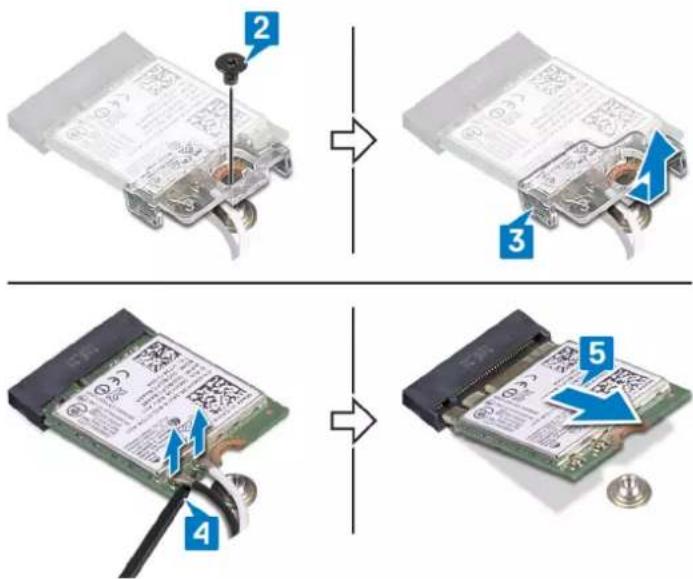
text_image
Diagram illustrating the step-by-step installation of an electronic component, showing disassembly from a circuit board to a memory card.Replacing the wireless card

NOTE: Before working inside your computer, read the safety information that shipped with your computer and follow the steps in Before working inside your computer. After working inside your computer, follow the instructions in After working inside your computer. For more safety best practices, see the Regulatory Compliance home page at www.dell.com/regulatory_compliance.
Procedure

CAUTION: To avoid damage to the wireless card, do not place any cables under it.
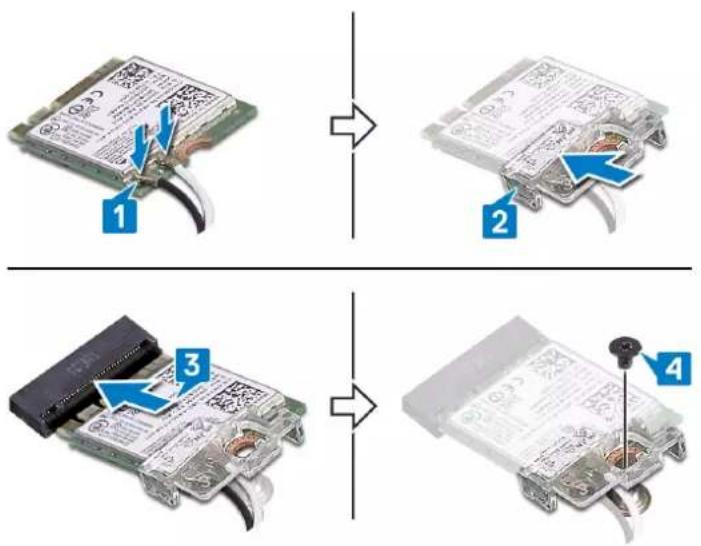
- Connect the antenna cables to the wireless card.
The following table provides the antenna-cable color scheme for the wireless card supported by your computer.
Table 2. Antenna-cable color scheme
| Connectors on the wireless card Antenna-cable color | |
| Main (white triangle) White | |
| Auxiliary (black triangle) Black |
- Slide and replace the wireless-card bracket on the wireless-card.
- Align the notch on the wireless card with the tab on the wireless-card slot and insert the wireless card at an angle into the wireless-card slot.
- Replace the screw (M2x3) that secures the wireless-card bracket to the system board.
flowchart
graph TD
    A["1: Disassembly with cable"] --> B["2: Repair with cable"]
    B --> C["3: Disassembly with cable"]
    C --> D["4: Repair with screw"]
    style A fill:#f9f,stroke:#333
    style B fill:#ccf,stroke:#333
    style C fill:#cfc,stroke:#333
    style D fill:#fcc,stroke:#333
Post-requisites
- Replace the base cover.
- Replace the optical drive (applicable only to computers shipped with optical drive).
Optical-drive connector board
Removing the optical-drive connector board

NOTE: Before working inside your computer, read the safety information that shipped with your computer and follow the steps in Before working inside your computer. After working inside your computer, follow the instructions in After working inside your computer. For more safety best practices, see the Regulatory Compliance home page at www.dell.com/regulatory_compliance.
Prerequisites
- Remove the optical drive (applicable only to computers shipped with optical drive).
- Remove the base cover.
Procedure

NOTE: Applicable only to computers that are shipped with optical drive.
- Lift the latch and disconnect the optical-drive connector-board cable from the system board.
- Remove the screw (M2x2 Big Head) that secures the optical-drive connector board to the palm-rest and keyboard assembly.
- Lift the optical-drive connector board along with the cable off the palm-rest and keyboard assembly.

text_image
Laptop screen with numbered annotations highlighting internal components and a magnified view of the circuit board.Replacing the optical-drive connector board

NOTE: Before working inside your computer, read the safety information that shipped with your computer and follow the steps in Before working inside your computer. After working inside your computer, follow the instructions in After working inside your computer. For more safety best practices, see the Regulatory Compliance home page at www.dell.com/regulatory_compliance.
Procedure
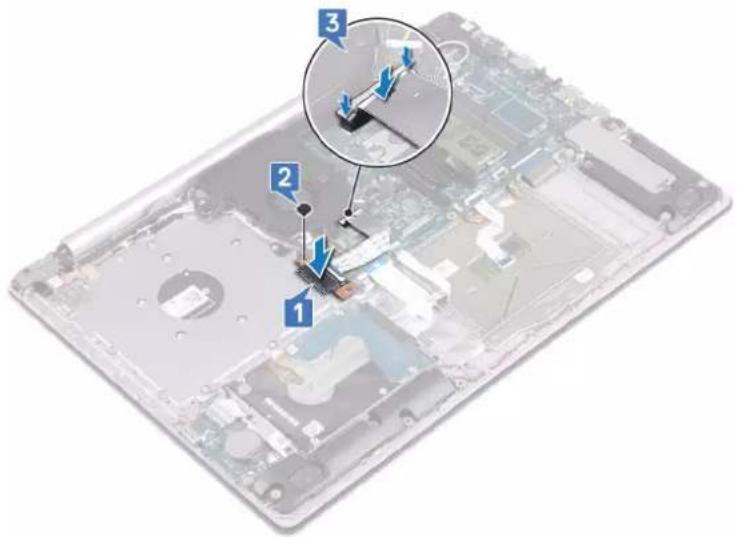
- Align the screw hole on the optical-drive connector board with the screw hole on the palm-rest and keyboard assembly.
- Replace the screw (M2x2 Big Head) that secures the optical-drive connector board to the palm-rest and keyboard assembly.
- Connect the optical-drive connector-board cable to the system board and close the latch that secures the optical-drive connector-board cable to the system board.
text_image
Laptop screen with numbered component annotations showing a 3D view of internal circuitry and a magnified inset highlighting a specific area.Post-requisites
- Replace the base cover.
- Replace the optical drive (applicable only to computers shipped with optical drive).
Coin-cell battery
Removing the coin-cell battery

NOTE: Before working inside your computer, read the safety information that shipped with your computer and follow the steps in Before working inside your computer. After working inside your computer, follow the instructions in After working inside your computer. For more safety best practices, see the Regulatory Compliance home page at www.dell.com/regulatory_compliance.

CAUTION: Removing the coin-cell battery resets the BIOS setup program's settings to default. It is recommended that you note the BIOS setup program's settings before removing the coin-cell battery.
Prerequisites
- Remove the optical drive (applicable only to computers shipped with optical drive).
- Remove the base cover.
Procedure

CAUTION: Removing the coin-cell battery resets the BIOS setup program's settings to default. Before removing the coin-cell battery, it is recommended to note the BIOS setup program's settings.
Using a plastic scribe, gently pry the coin-cell battery out of the battery socket on the system board.

natural_image
Laptop with a close-up view showing a disassembled hard disk component being adjusted by a tool (no text or symbols visible)Replacing the coin-cell battery

NOTE: Before working inside your computer, read the safety information that shipped with your computer and follow the steps in Before working inside your computer. After working inside your computer, follow the instructions in After working inside your computer. For more safety best practices, see the Regulatory Compliance home page at www.dell.com/regulatory_compliance.
Procedure
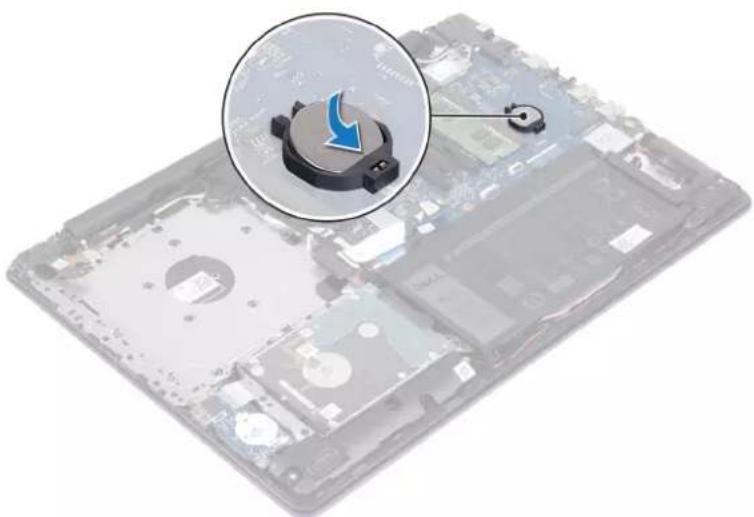
With the positive-side facing up, snap the coin-cell battery into the battery socket on the system board.
natural_image
Laptop with open circuit board and a magnified inset showing a circular component with blue arrow (no text or symbols)Post-requisites
- Replace the base cover.
- Replace the optical drive (applicable only to computers shipped with optical drive).
Fan
Removing the fan

NOTE: Before working inside your computer, read the safety information that shipped with your computer and follow the steps in Before working inside your computer. After working inside your computer, follow the instructions in After working inside your computer. For more safety best practices, see the Regulatory Compliance home page at www.dell.com/regulatory_compliance.
Prerequisites
- Remove the optical drive (applicable only to computers shipped with optical drive).
- Remove the base cover.
Procedure
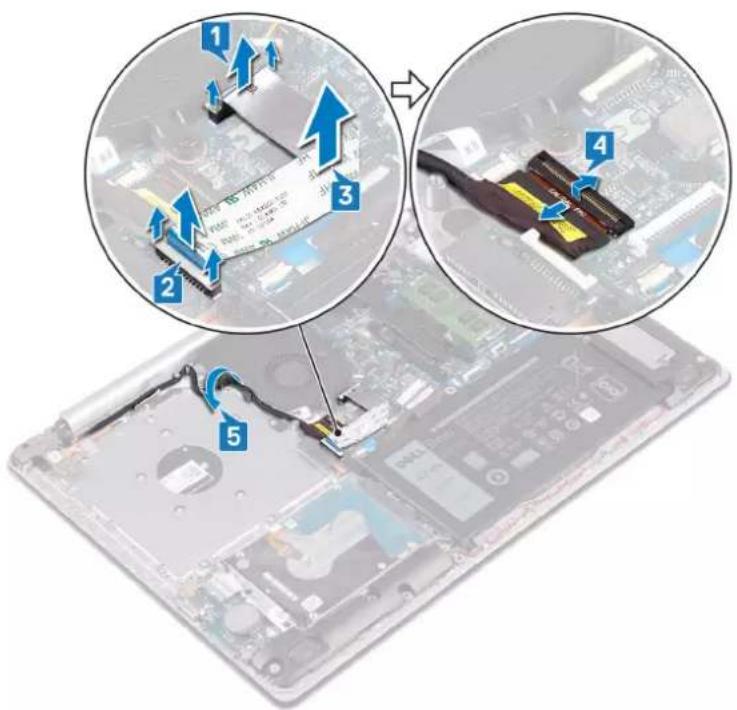
- Lift the latch and disconnect the optical-drive connector-board cable from the system board (applicable only to computers shipped with optical drive).
- Lift the latch and disconnect the optical-drive connector-board cable from the optical-drive board connector (applicable only to computers shipped with optical drive).
- Lift the optical-drive connector-board cable off the system board (applicable only to computers shipped with optical drive).
- Open the latch and disconnect the display cable from the system board.
- Remove the display cable from the routing guides on the fan.
text_image
Laptop CPU socket with labeled components and assembly steps showing cable installation and memory drive connection- Disconnect the fan cable from the system board.
- Remove the three screws (M2.5x5) that secure the fan to the palm-rest and keyboard assembly.
- Lift the fan off the palm-rest and keyboard assembly.
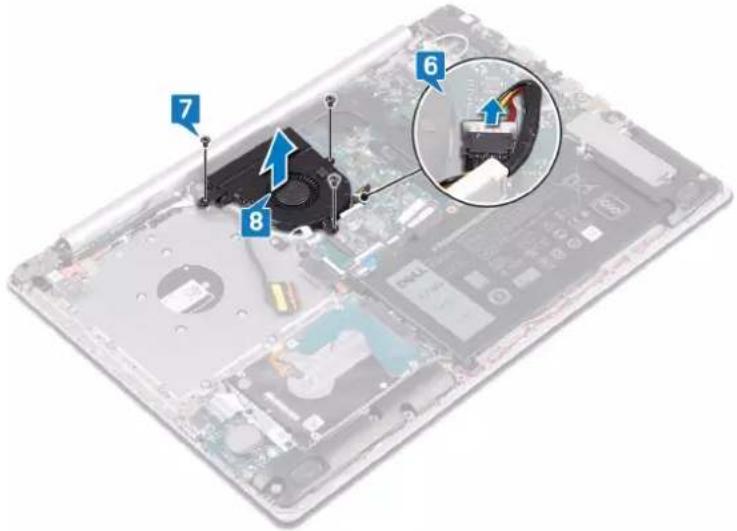
text_image
Laptop screen with numbered component labels pointing to a device interior showing internal components and wiring.Replacing the fan

NOTE: Before working inside your computer, read the safety information that shipped with your computer and follow the steps in Before working inside your computer. After working inside your computer, follow the instructions in After working inside your computer. For more safety best practices, see the Regulatory Compliance home page at www.dell.com/regulatory_compliance.
Procedure
- Align the screw holes on the fan with the screw holes on to the palm-rest and keyboard assembly.
-
Replace the three screws (M2.5x5) that secure the fan to the palm-rest and keyboard assembly.
-
Connect the fan cable to the system board.
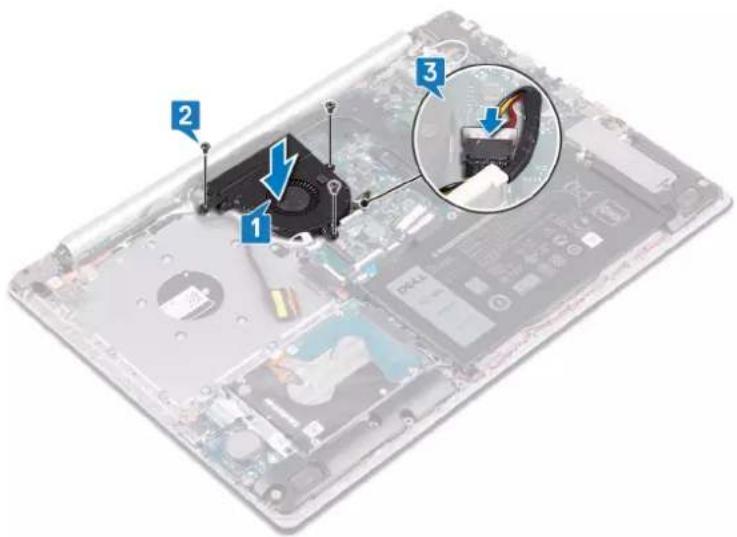
text_image
Laptop interior diagram with numbered components and a magnified inset showing a cable connector detail- Route the display cable through the routing guides on the fan.
- Connect the display cable to its connector on system board and close the latch to secure the cable.
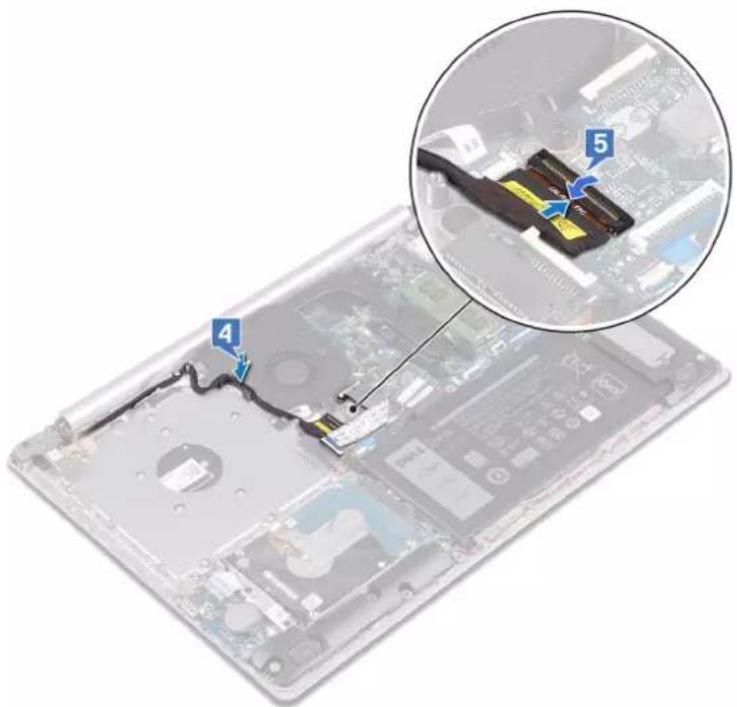
text_image
Laptop screen showing internal cable connector with numbered annotations pointing to components
NOTE: The following steps are applicable only to computers that are shipped with optical drive.
- Press down on the latch to connect the optical-drive connector-board cable to the optical-drive connector board.
- Press down on the latch to connect the optical-drive connector-board cable to the system board.
Post-requisites
- Replace the base cover.
- Replace the optical drive (applicable only to computers shipped with optical drive).
Solid-state drive
Removing the solid-state drive

NOTE: Before working inside your computer, read the safety information that shipped with your computer and follow the steps in Before working inside your computer. After working inside your computer, follow the instructions in After working inside your computer. For more safety best practices, see the Regulatory Compliance home page at www.dell.com/regulatory_compliance.

CAUTION: Solid-state drives are fragile. Exercise care when handling the solid-state drive.

CAUTION: To avoid data loss, do not remove the solid-state drive while the computer is in sleep or on state.
Prerequisites
- Remove the optical drive (applicable only to computers shipped with optical drive).
- Remove the base cover.
Procedure to remove the M.2 2230 solid-state drive
- Loosen the captive screw that secures the M.2 2230 shield to the palm-rest and keyboard assembly.
- Remove the screw (M2x3) that secures the M.2 2230 shield to the palm-rest and keyboard assembly.
- Slide and remove the tab on the M.2 2230 thermal shield from the slot on the palm-rest and keyboard assembly.
- Lift the solid-state drive and M.2 2230 thermal shield at an angle and remove it from the M.2 slot on the system board.

text_image
1 2 3 4 000 0000000000000000000000000000000000000000000000000000000000000000000000000000000000000000000000000000- Turn the M.2 2230 thermal shield over.
- Remove the screw (M2x2) that secures the solid-state drive to the M.2 2230 thermal shield.
- Lift the solid-state drive off the M.2 2230 thermal shield.

text_image
6 7 1 2 3 4 5 6 7 8 9 10 11 12 13 14 15 16 17 18 19 20 21 22 23 24 25 26 27 28 29 30 31 32 33 34 35 36 37 38 39 40 41 42 43 44 45 46 47 48 49 50 51 52 53 54 55 56 57 58 59 60 61 62 63 64 65 66 67 68 69 70 71 72 73 74 75 76 77 78 79 80Procedure to remove the M.2 2280 solid-state drive
- Loosen the captive screw that secures the M.2 2280 thermal shield to the palm-rest and keyboard assembly.
- Remove the screw (M2x3) that secures the M.2 2280 thermal shield and the solid-state drive to the palm-rest and keyboard assembly.
- Slide and remove the M.2 2280 thermal shield from the slot on the palm-rest and keyboard assembly.
- Lift the solid-state drive at an angle and remove it from the M.2 slot on the system board.
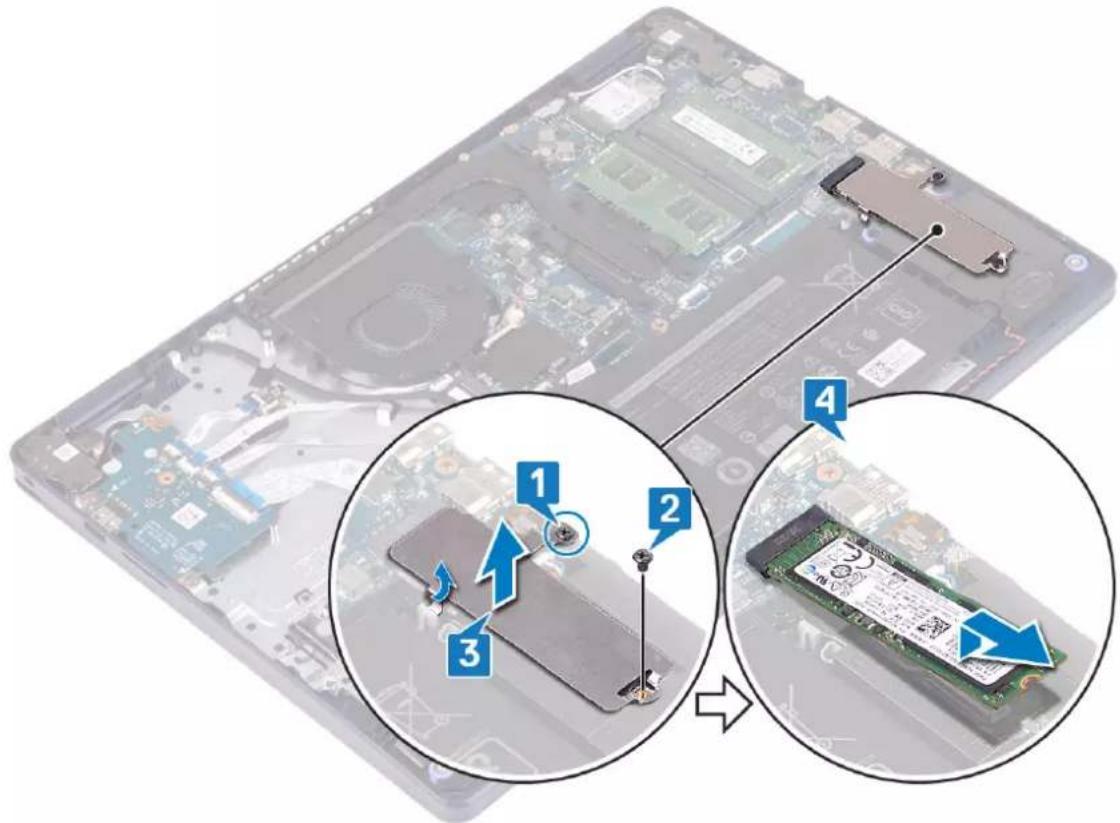
text_image
Diagram showing a device with labeled parts and a magnified view of its internal structure, likely illustrating a battery or memory management concept.Replacing the solid-state drive

NOTE: Before working inside your computer, read the safety information that shipped with your computer and follow the steps in Before working inside your computer. After working inside your computer, follow the instructions in After working inside your computer. For more safety best practices, see the Regulatory Compliance home page at www.dell.com/regulatory_compliance.

CAUTION: Solid-state drives are fragile. Exercise care when handling the solid-state drive.
Procedure to replace M.2 2230 solid-state drive
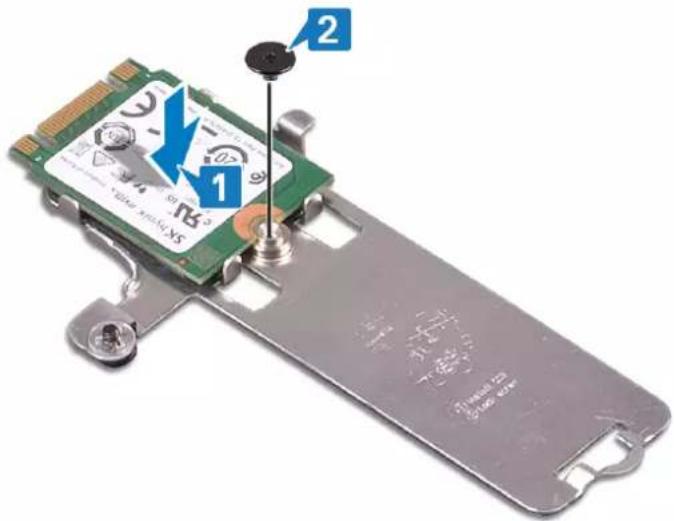
- Place the solid-state drive into the slot at the back of the M.2 2230 thermal shield.
- Replace the screw (M2x2) that secures the solid-state drive to the M.2 2230 thermal shield.
text_image
1 2 1 2 T1 0.000 T1 0.000 T1 0.000 T1 0.000 T1 0.000 T1 0.000 T1 0.000 T1 0.000 T1 0.000 T1 0.000 T1 0.000 T1 0.000- Turn over the solid-state drive and M.2 2230 thermal shield.
- Align the notch on the solid-state drive with the tab on the M.2 slot and slide the solid-state drive into place.
- Insert the tab on the M.2 2230 thermal shield into the slot on the palm-rest and keyboard assembly.
- Tighten the captive screw that secures the M.2 2230 thermal shield to the palm-rest and keyboard assembly.
- Replace the screw (M2x3) that secures the M.2 2230 thermal shield to the palm-rest and keyboard assembly.

text_image
Diagram showing a device with labeled parts and a magnified view of its internal structure, likely illustrating a hardware or electronics assembly.Procedure to replace the M.2 2280 solid-state drive
- Align the notch on the solid-state drive with the tab on the M.2 slot and slide the solid-state drive into place.
- Insert the tab of the M.2 2280 thermal shield into the slot on the palm-rest and keyboard assembly.
- Replace the screw (M2x3) that secures the M.2 2280 thermal shield and solid-state drive to the palm-rest and keyboard assembly.
- Tighten the captive screw that secures the M.2 2280 thermal shield to the palm rest and keyboard assembly.

text_image
Diagram showing a device with labeled parts and a close-up of its internal structure, likely illustrating a hardware or circuit setup.Post-requisites
- Replace the base cover.
- Replace the optical drive (applicable only to computers shipped with optical drive).
Hard drive
Removing the hard drive

NOTE: Before working inside your computer, read the safety information that shipped with your computer and follow the steps in Before working inside your computer. After working inside your computer, follow the instructions in After working inside your computer. For more safety best practices, see the Regulatory Compliance home page at www.dell.com/regulatory_compliance.

CAUTION: Hard drives are fragile. Exercise care when handling the hard drive.

CAUTION: To avoid data loss, do not remove the hard drive while the computer is in sleep or on state.
Prerequisites
- Remove the optical drive (applicable only to computers shipped with optical drive).
- Remove the base cover.
- Remove the battery.
Procedure
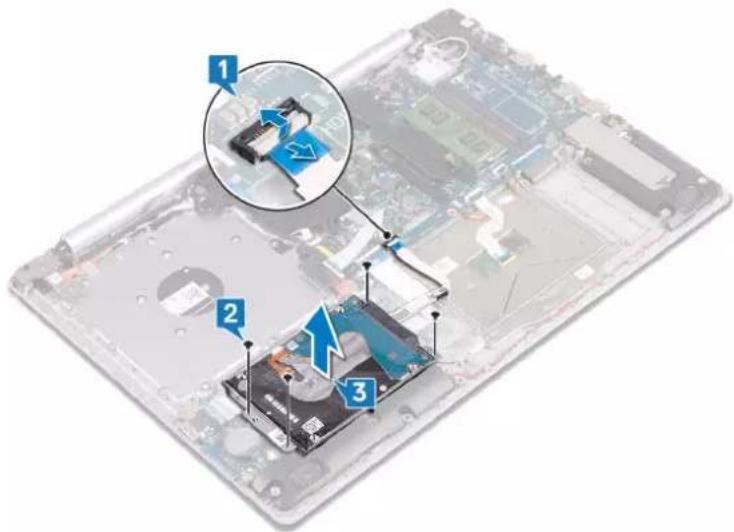
- Lift the latch and disconnect the hard-drive cable from the system board.
- Remove the four screws (M2x3) that secure the hard-drive assembly to the palm-rest and keyboard assembly.
- Lift the hard-drive assembly along with its cable off the palm-rest and keyboard assembly.
text_image
Laptop chassis interior with numbered annotations indicating component placement and assembly steps- Disconnect the interposer from the hard-drive assembly.

natural_image
Internal view of a hard disk drive with cable and connector (no text or symbols visible)- Remove the four screws (M3x3) that secure the hard-drive bracket to the hard drive.
- Lift the hard drive off the hard-drive bracket.

text_image
Diagram of an electronic device with labeled parts and directional arrows indicating assembly or component alignment.Replacing the hard drive

NOTE: Before working inside your computer, read the safety information that shipped with your computer and follow the steps in Before working inside your computer. After working inside your computer, follow the instructions in After working inside your computer. For more safety best practices, see the Regulatory Compliance home page at www.dell.com/regulatory_compliance.

CAUTION: Hard drives are fragile. Exercise care when handling the hard drive.
Procedure
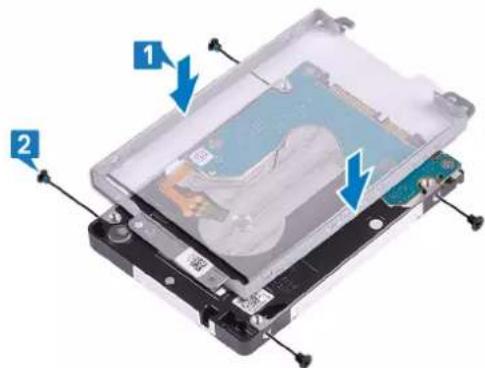
- Align the screw holes on the hard-drive bracket with the screw holes on the hard drive.
- Replace the four screws (M3x3) that secure the hard-drive bracket to the hard drive.
text_image
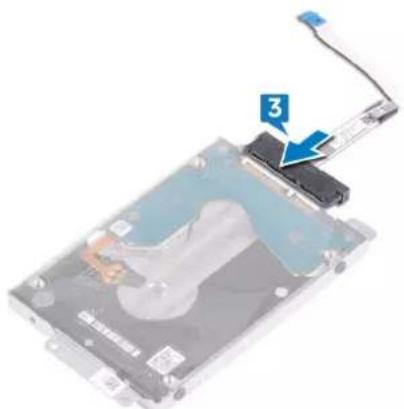
Diagram of a device with labeled components and directional arrows indicating assembly or movement- Connect the interposer to the hard-drive assembly.
natural_image
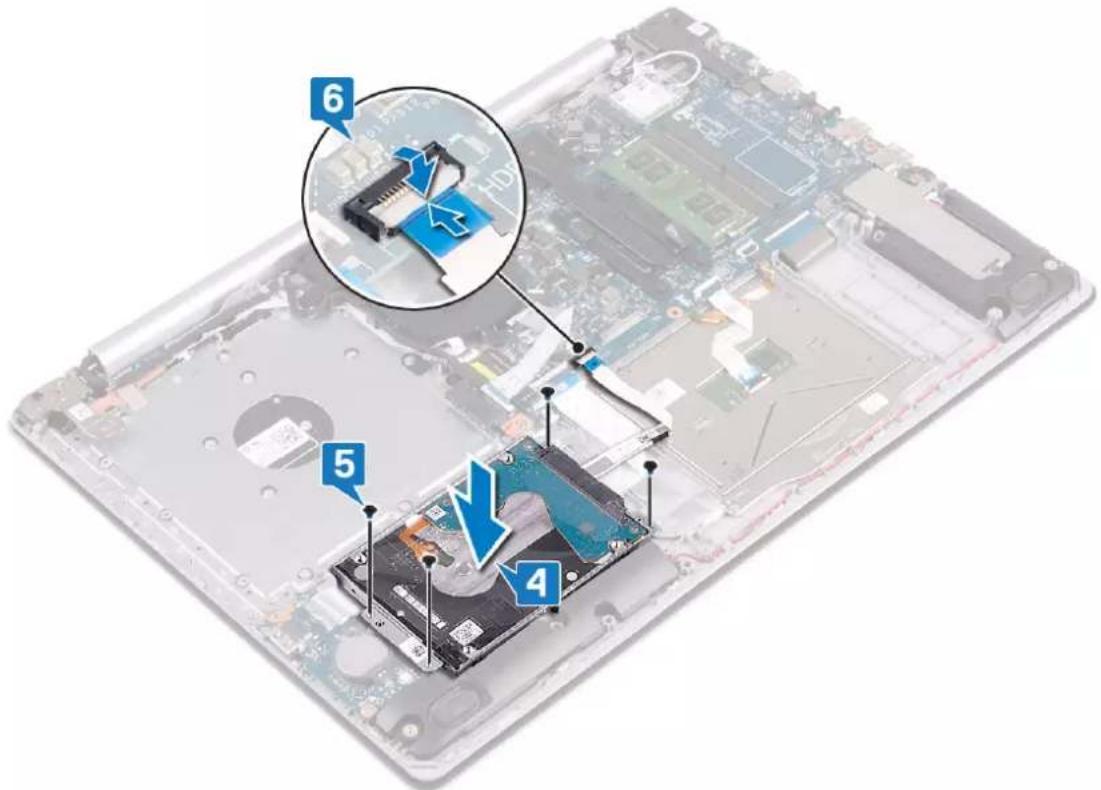
Internal view of a hard disk drive with a cable and labeled component (no text or symbols beyond label)- Using the alignment posts, place the hard-drive assembly on the palm-rest and keyboard assembly.
- Replace the four screws (M2x3) that secure the hard-drive assembly to the palm-rest and keyboard assembly.
- Connect the hard-drive cable to the system board and close the latch to secure the cable.
text_image
Laptop screen with labeled components showing a hard drive assembly and a close-up of a USB flash drive.Post-requisites
- Replace the battery.
- Replace the base cover.
- Replace the optical drive (applicable only to computers shipped with optical drive).
Touchpad
Removing the touchpad

NOTE: Before working inside your computer, read the safety information that shipped with your computer and follow the steps in Before working inside your computer. After working inside your computer, follow the instructions in After working inside your computer. For more safety best practices, see the Regulatory Compliance home page at www.dell.com/regulatory_compliance.
Prerequisites
- Remove the optical drive (applicable only to computers shipped with optical drive).
- Remove the base cover.
- Remove the battery.
Procedure
- Open the latch and disconnect the hard-drive cable from the system board.
- Open the latch and disconnect the touchpad cable from the system board.
- Open the latch and disconnect the keyboard back-light cable, if available, from the system board.

text_image
Laptop screen with three annotated views showing internal components and connection points- Gently peel the tape that secures the touchpad to the palm-rest and keyboard assembly.
- Remove the four screws (M2x2) that secure the touchpad to the palm-rest and keyboard assembly.
- Slide and lift the touchpad off the palm-rest and keyboard assembly.

text_image
Laptop screen with numbered annotations highlighting a component's internal structure and rotation direction.Replacing the touchpad
NOTE: Before working inside your computer, read the safety information that shipped with your computer and follow the steps in Before working inside your computer. After working inside your computer, follow the instructions in After working inside your computer. For more safety best practices, see the Regulatory Compliance home page at www.dell.com/regulatory_compliance.
Procedure
NOTE: Ensure that the touchpad is aligned with the guides available on the palm-rest and keyboard assembly, and the gap on either sides of the touchpad is equal.
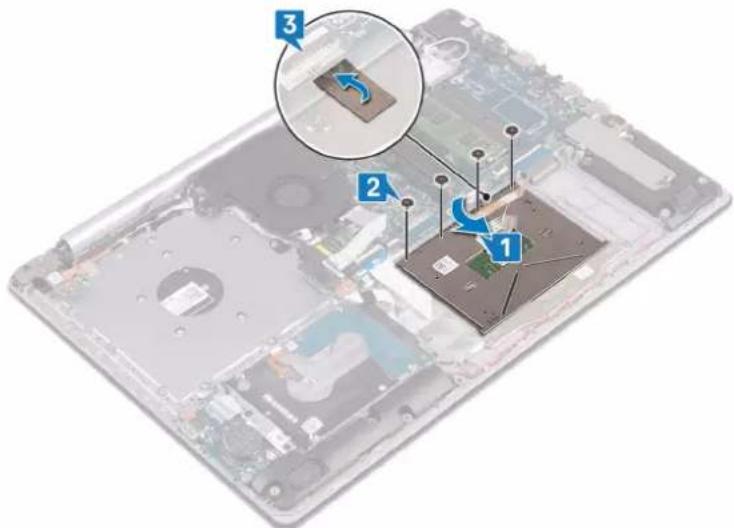
- Using the alignment post, slide and place the touchpad into the slot on the palm-rest and keyboard assembly.
- Replace the four screws (M2x2) that secure the touchpad to the palm-rest and keyboard assembly.
- Adhere the tape that secures the touchpad to the palm-rest and keyboard assembly.
text_image
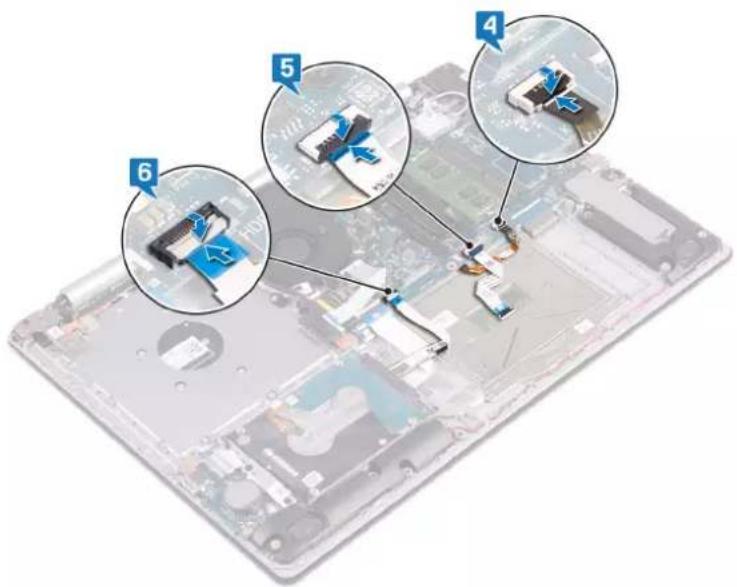
Laptop screen with labeled components and a magnified inset showing a component being turned into a device.- Slide the hard-drive cable into the connector on the system board and close the latch to secure the cable.
- Slide the touchpad cable into the connector on the system board and close the latch to secure the cable.
- If available, slide the keyboard back-light cable if into the connector on the system board and close the latch to secure the cable.
text_image
Laptop screen with numbered annotations showing internal components and a close-up of the circuit board.Post-requisites
- Replace the battery.
- Replace the base cover.
- Replace the optical drive (applicable only to computers shipped with optical drive).
Speakers
Removing the speakers

NOTE: Before working inside your computer, read the safety information that shipped with your computer and follow the steps in Before working inside your computer. After working inside your computer, follow the instructions in After working inside your computer. For more safety best practices, see the Regulatory Compliance home page at www.dell.com/regulatory_compliance.
Prerequisites
- Remove the optical drive (applicable only to computers shipped with optical drive).
- Remove the base cover.
- Remove the solid-state drive.
Procedure
- Disconnect the speaker cable from the system board.
- Note the speaker cable routing and remove it from the routing guides on palm-rest and keyboard assembly.
- Lift the speakers, along with the cable, off the palm-rest and keyboard assembly.

text_image
Laptop screen showing internal components with numbered annotations and a magnified view of the cable being inserted.Replacing the speakers
NOTE: Before working inside your computer, read the safety information that shipped with your computer and follow the steps in Before working inside your computer. After working inside your computer, follow the instructions in After working inside your computer. For more safety best practices, see the Regulatory Compliance home page at www.dell.com/regulatory_compliance.
Procedure
NOTE: If the rubber grommets are pushed out when removing the speakers, push them back in before replacing the speakers.
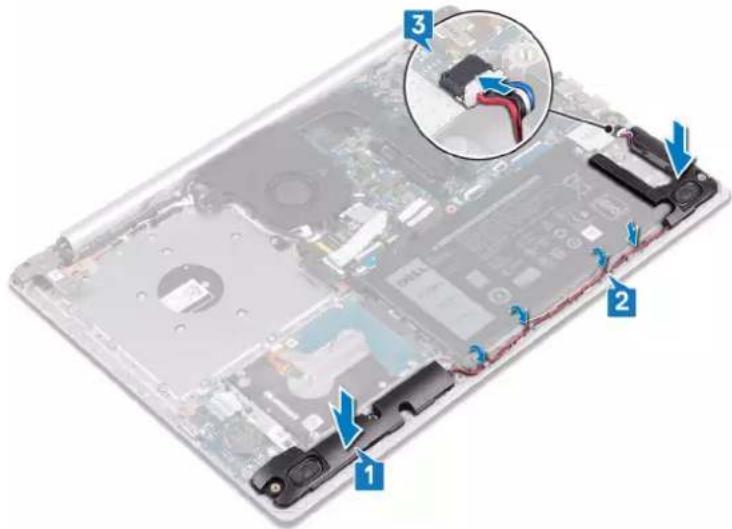
- Using the alignment posts and rubber grommets, place the speakers in the slots on the palm-rest and keyboard assembly.
- Route the speaker cable through the routing guides on the palm-rest and keyboard assembly.
- Connect the speaker cable to the system board.
text_image
Laptop screen with labeled components and a magnified inset showing cable installation stepsPost-requisites
- Replace the solid-state drive.
-
Replace the base cover.
-
Replace the optical drive (applicable only to computers shipped with optical drive).
Heat sink
Removing the heat sink
NOTE: Before working inside your computer, read the safety information that shipped with your computer and follow the steps in Before working inside your computer. After working inside your computer, follow the instructions in After working inside your computer. For more safety best practices, see the Regulatory Compliance home page at www.dell.com/regulatory_compliance.
NOTE: The heat sink may become hot during normal operation. Allow sufficient time for the heat sink to cool before you touch it.
CAUTION: For maximum cooling of the processor, do not touch the heat transfer areas on the heat sink. The oils in your skin can reduce the heat transfer capability of the thermal grease.
Prerequisites
- Remove the optical drive (applicable only to computers shipped with optical drive).
- Remove the base cover.
Procedure
- In reverse sequential order (4->3->2->1), loosen the four captive screws that secure the heat sink to the system board.
- Lift the heat sink off the system board.

text_image
Laptop screen with labeled components and numbered annotations pointing to a cable or connectorReplacing the heat sink
NOTE: Before working inside your computer, read the safety information that shipped with your computer and follow the steps in Before working inside your computer. After working inside your computer, follow the instructions in After working inside your computer. For more safety best practices, see the Regulatory Compliance home page at www.dell.com/regulatory_compliance.
CAUTION: Incorrect alignment of the heat sink can damage the system board and processor.
NOTE: If either the system board or the heat sink is replaced, use the thermal pad/paste provided in the kit to ensure that thermal conductivity is achieved.
Procedure
- Place the heat sink on the system board and align the screw holes on the heat sink with the screw holes on the system board.
- In sequential order (1->2->3->4) as indicated on the heat sink, tighten the captive screws to secure the heat sink to the system board.

text_image
Laptop screen showing internal components with numbered annotations pointing to a cable or connectorPost-requisites
- Replace the base cover.
- Replace the optical drive (applicable only to computers shipped with optical drive).
Display assembly
Removing the display assembly

NOTE: Before working inside your computer, read the safety information that shipped with your computer and follow the steps in Before working inside your computer. After working inside your computer, follow the instructions in After working inside your computer. For more safety best practices, see the Regulatory Compliance home page at www.dell.com/regulatory_compliance.
Prerequisites
- Remove the optical drive (applicable only to computers shipped with optical drive).
- Remove the base cover.
- Remove the wireless card.
Procedure

NOTE: Steps 1 to 3 are applicable only for the computers that are shipped with optical drive.
- Lift the latch and disconnect the optical-drive connector-board cable from the system board.
- Lift the latch and disconnect the optical-drive connector-board cable from the optical-drive board connector.
- Lift the optical-drive connector-board cable off the system board.
- Open the latch and disconnect the display cable from the system board.
- Note the display-cable routing and remove the cable from its routing guides on the fan and the palm-rest and keyboard assembly

text_image
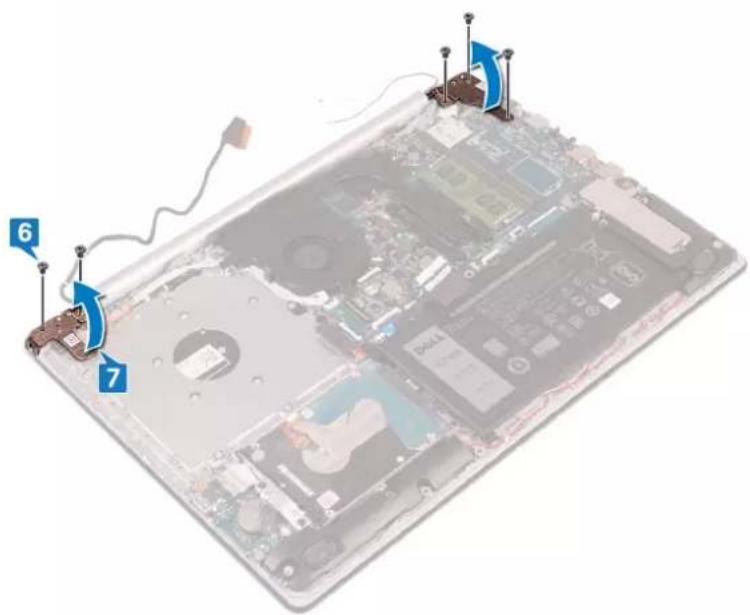
Diagram showing a computer motherboard with labeled components and directional arrows indicating assembly or repair steps.- Remove the five screws (M2.5x5) that secure the left and the right hinges to the system board and the palm-rest and keyboard assembly.
NOTE: For computers shipped without optical drive, there is an additional screw on the left hinge.
- Open the hinges.
text_image
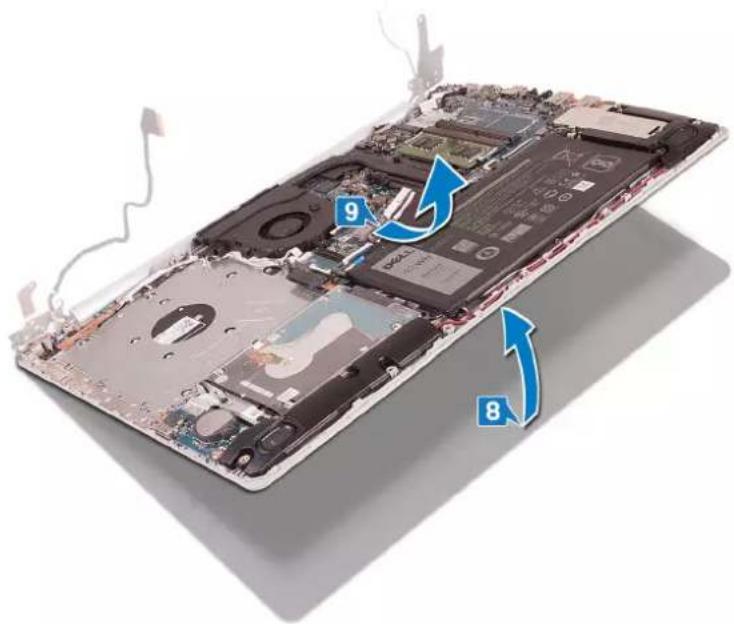
Laptop screen with labeled components and wiring, showing numbered parts 6 and 7- Lift the palm-rest and keyboard assembly at an angle.
- Slide and remove the palm-rest and keyboard assembly off the display assembly.
text_image
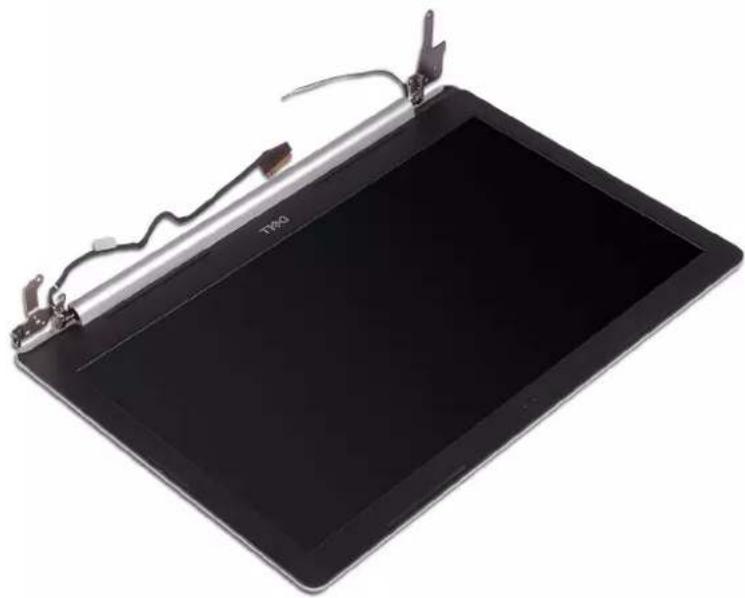
Labeled diagram of a smartphone showing internal components with arrows indicating movement or assembly, marked with numbers 8 and 9.- After performing all the above steps, you are left with display assembly.
natural_image
Top-down view of a black tablet device with a metal clip and cable, no visible text or symbols on the device itself.Replacing the display assembly

NOTE: Before working inside your computer, read the safety information that shipped with your computer and follow the steps in Before working inside your computer. After working inside your computer, follow the instructions in After working inside your computer. For more safety best practices, see the Regulatory Compliance home page at www.dell.com/regulatory_compliance.
Procedure

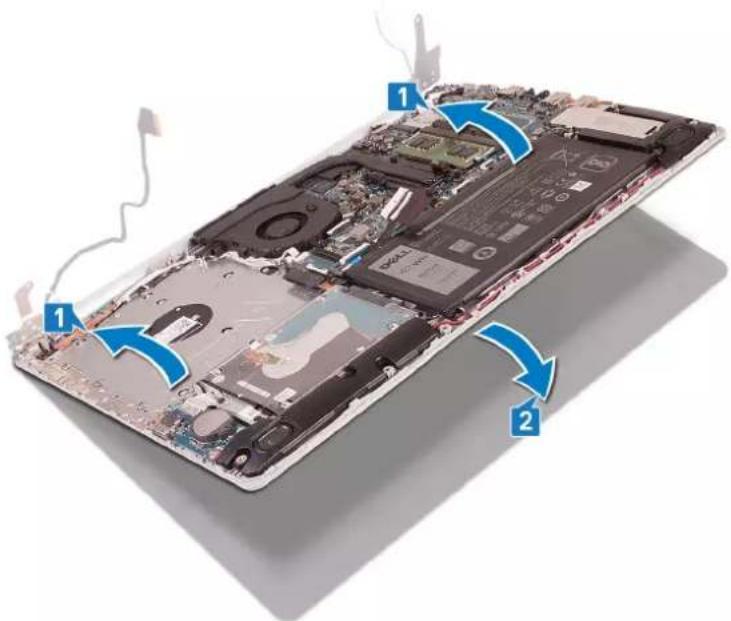
NOTE: Ensure that the hinges are opened to the maximum before replacing the display assembly on palm-rest and keyboard assembly.
- Slide the palm-rest and keyboard assembly at an angle.
- Close the palm-rest and keyboard assembly.
text_image
Labeled diagram of an electronic device showing internal components with blue arrows indicating flow or movement.- Using the alignment posts, press the hinges down on the system board and the palm-rest and keyboard assembly.
- Replace the five screws (M2.5x5) that secure the left and the right hinges to the system board and the palm-rest and keyboard assembly.
NOTE: For computers shipped without optical drive, there is an additional screw on the left hinge.
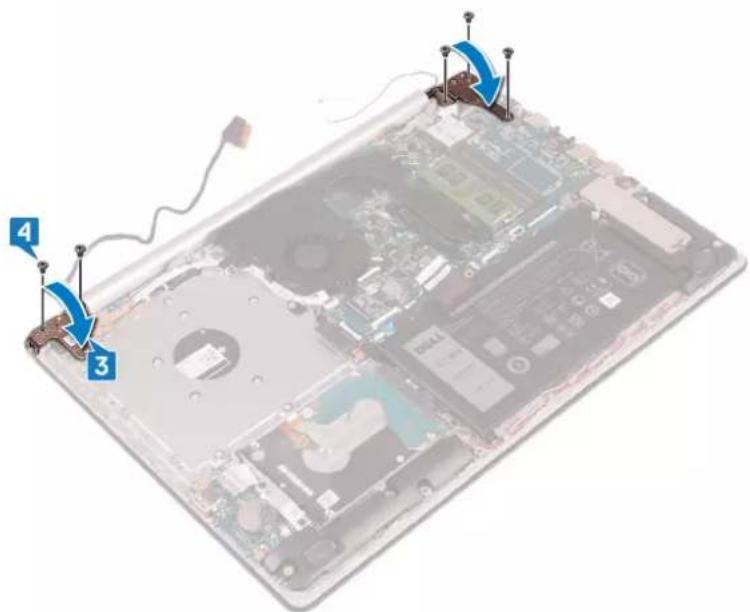
text_image
Laptop screen with labeled components and blue arrows indicating cable or wiring changes- Route the display cable through the routing guides on the fan and the palm-rest and keyboard assembly.
- Slide the display cable to the connector on the system board and close the latch to secure the cable.

text_image
Laptop screen with labeled components and magnified view showing cable connector assemblyNOTE: The following steps are applicable only to computers that are shipped with optical drive.
- Press down on the latch to connect the optical-drive connector board cable to the optical-drive connector board.
- Press down on the latch to connect the optical-drive connector board cable to the system board.
Post-requisites
- Replace the wireless card.
- Replace the base cover.
- Replace the optical drive (applicable only to computers shipped with optical drive).
Power-adapter port
Removing the power-adapter port

NOTE: Before working inside your computer, read the safety information that shipped with your computer and follow the steps in Before working inside your computer. After working inside your computer, follow the instructions in After working inside your computer. For more safety best practices, see the Regulatory Compliance home page at www.dell.com/regulatory_compliance.
Prerequisites
- Remove the optical drive (applicable only to computers shipped with optical drive).
- Remove the base cover.
- Remove the wireless card.
Procedure
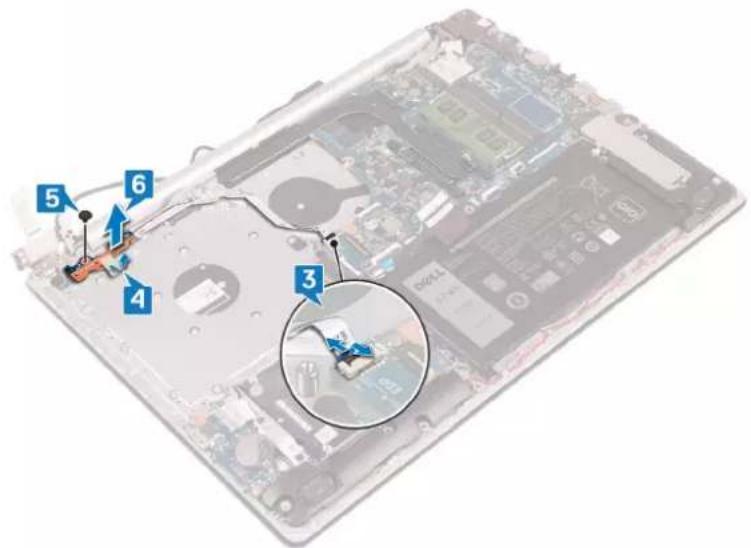
- Remove the three screws (M2.5x5) that secure the left hinge to the system board and palm-rest assembly.
- Lift the left hinge.
- Disconnect the power-adapter port cable from the system board.
-
Note the power-adapter port cable routing and remove it from the routing guides on the palm-rest and keyboard assembly.
-
Remove the screw (M2x2) that secures the power-adapter port to the palm-rest and keyboard assembly.
- Lift the power-adapter port, along with its cable, off the palm-rest and keyboard assembly.

text_image
Diagram showing a device's internal components with numbered annotations indicating assembly stepsReplacing the power-adapter port
NOTE: Before working inside your computer, read the safety information that shipped with your computer and follow the steps in Before working inside your computer. After working inside your computer, follow the instructions in After working inside your computer. For more safety best practices, see the Regulatory Compliance home page at www.dell.com/regulatory_compliance.
Procedure
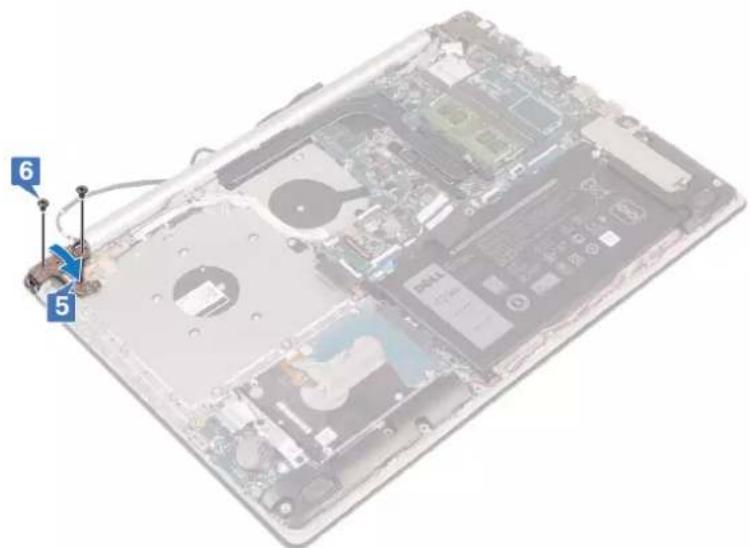
- Align the screw hole on the power-adapter port with the screw hole on the palm-rest and keyboard assembly.
- Replace the screw (M2x2) that secures the power-adapter port to the palm-rest and keyboard assembly.
- Route the power-adapter port cable through the routing guides on the palm-rest and keyboard assembly.
- Connect the power-adapter port cable to the system board.
- Close the left hinge.
- Replace the three screws (M2.5x5) that secure the left hinge to the system board and palm-rest assembly.
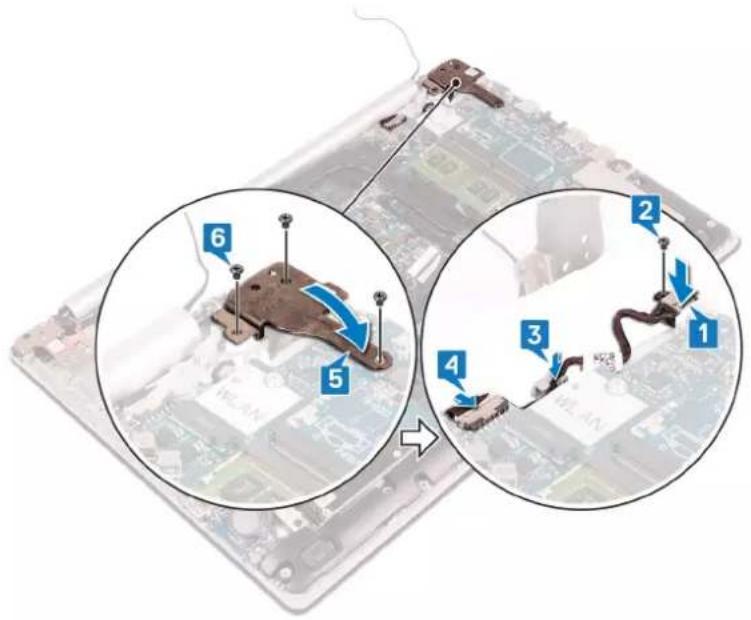
text_image
Diagram showing a disassembled electronic component with numbered parts and blue arrows indicating assembly steps.I/O board
Removing the I/O board

NOTE: Before working inside your computer, read the safety information that shipped with your computer and follow the steps in Before working inside your computer. After working inside your computer, follow the instructions in After working inside your computer. For more safety best practices, see the Regulatory Compliance home page at www.dell.com/regulatory_compliance.
Prerequisites

CAUTION: Removing the coin-cell battery resets the BIOS setup program's settings to default. Before removing the I/O board along with the coin-cell battery, it is recommended to note the BIOS setup program's settings.
- Remove the optical drive (applicable only to computers shipped with optical drive).
- Remove the base cover.
- Remove the battery.
- Remove the hard drive.
Procedure
- Open the latch and disconnect the I/O-board cable from the system board.
- Peel the I/O-board cable from the palm-rest and keyboard assembly.
- Remove the screw (M2x4) that secures the I/O board to the palm-rest and keyboard assembly.
- Lift the I/O board, along with the cable, off the palm-rest and keyboard assembly.

text_image
Laptop screen with numbered component annotations showing a close-up of the circuit board and a magnified view of the internal components.Replacing the I/O board

NOTE: Before working inside your computer, read the safety information that shipped with your computer and follow the steps in Before working inside your computer. After working inside your computer, follow the instructions in After working inside your computer. For more safety best practices, see the Regulatory Compliance home page at www.dell.com/regulatory_compliance.
Procedure
- Open the latch and disconnect the I/O-board cable from the system board.
- Peel the I/O-board cable from the palm-rest and keyboard assembly.
- Remove the screw (M2x4) that secures the I/O board to the palm-rest and keyboard assembly.
- Lift the I/O board, along with the cable, off the palm-rest and keyboard assembly.
Computers shipped without optical drive
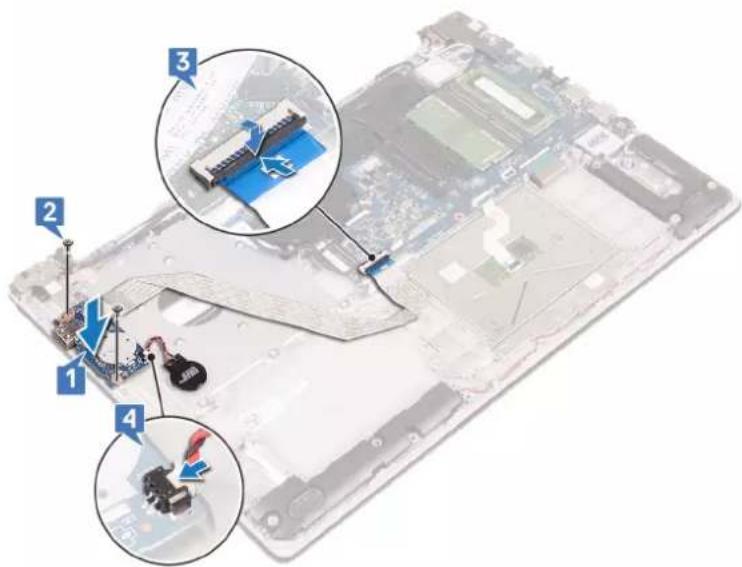
text_image
Laptop screen with numbered annotations pointing to electronic components and wiring, showing circuit board and hardware layout.Computers shipped optical drive
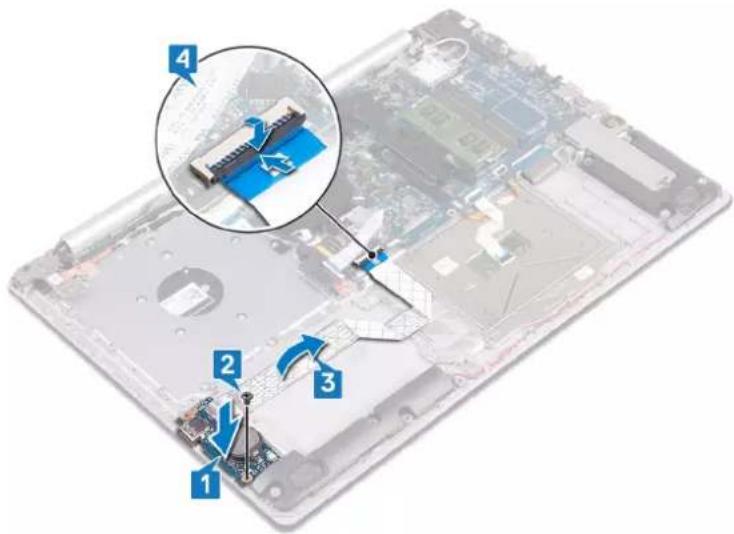
text_image
Laptop interior diagram with numbered annotations indicating mechanical components and assembly stepsPost-requisites
- Replace the hard drive.
- Replace the battery.
- Replace the base cover.
- Replace the optical drive (applicable only to computers shipped with optical drive).
Power button
Removing the power button

NOTE: Before working inside your computer, read the safety information that shipped with your computer and follow the steps in Before working inside your computer. After working inside your computer, follow the instructions in After working inside your computer. For more safety best practices, see the Regulatory Compliance home page at www.dell.com/regulatory_compliance.
Prerequisites
- Remove the optical drive (applicable only to computers shipped with optical drive).
- Remove the base cover.
- Remove the fan.
Procedure
- Remove the two screws (M2.5x5) that secure the right hinge to the palm-rest and keyboard assembly.

NOTE: For computers shipped without optical drive, there is an additional screw on the right hinge that secures the right hinge to palm-rest and keyboard assembly.

NOTE: Unhook the display cable from the right hinge before opening the right hinge.
- Unhook the display cable and open the right hinge.

natural_image
Laptop screen showing internal circuit board and memory components (no text or symbols visible)- Open the latch and disconnect the power button cable from the system board.
- Peel off the tape that secures the power button to the palm-rest and keyboard assembly.
- Remove the screw (M2x3) that secures the power button to the palm-rest and keyboard assembly.
- Lift the power button, along with the cable, off the palm-rest and keyboard assembly.
text_image
Laptop keyboard diagram with numbered annotations pointing to key componentsReplacing the power button

NOTE: Before working inside your computer, read the safety information that shipped with your computer and follow the steps in Before working inside your computer. After working inside your computer, follow the instructions in After working inside your computer. For more safety best practices, see the Regulatory Compliance home page at www.dell.com/regulatory_compliance.
Procedure
- Place the power button on the palm-rest and keyboard assembly and align the screw hole on the power button with the screw hole on the palm-rest and keyboard assembly.
- Replace the screw (M2.5x5) that secures the power button to the palm-rest and keyboard assembly.
- Adhere the tape that secures the power button to the palm-rest and keyboard assembly.
- Slide the power-button cable to the system board and close the latch to secure the cable.

text_image
Laptop interior with numbered annotations pointing to a device's components, including a close-up of a component.- Route the display cable through the hook on the right hinge and close the right hinge.
- Replace the two screws (M2.5x5) that secure the right hinge to the palm-rest and keyboard assembly.

NOTE: For computers shipped without optical drive, there is an additional screw on the right hinge that secures the right hinge to palm-rest and keyboard assembly.
natural_image
Laptop CPU socket with visible internal components and a numbered component (no text or symbols)Post-requisites
- Replace the fan.
- Replace the base cover.
- Replace the optical drive (applicable only to computers shipped with optical drive).
System board
Removing the system board

NOTE: Before working inside your computer, read the safety information that shipped with your computer and follow the steps in Before working inside your computer. After working inside your computer, follow the instructions in After
working inside your computer. For more safety best practices, see the Regulatory Compliance home page at www.dell.com/regulatory_compliance.
NOTE: Your computer's Service Tag is stored in the system board. You must enter the Service Tag in the BIOS setup program after you replace the system board.
NOTE: Replacing the system board removes any changes you have made to the BIOS using the BIOS setup program. You must make the appropriate changes again after you replace the system board.
NOTE: Before disconnecting the cables from the system board, note the location of the connectors so that you can reconnect the cables correctly after you replace the system board.
Prerequisites
- Remove the optical drive (applicable only to computers shipped with optical drive).
- Remove the base cover.
- Remove the battery.
- Remove the memory module.
- Remove the wireless card.
- Remove the solid-state drive.
- Remove the fan.
- Remove the heat sink.
Procedure
- Disconnect the power-adapter port cable from the system board.
- Disconnect the speaker cable from the system board.
- Open the latch and disconnect the keyboard from the system board.
- Open the latch and disconnect the keyboard back-light cable from the system board.
- Open the latch and disconnect the touchpad cable from the system board.
- Open the latch and disconnect the hard-drive cable from the system board.
- Open the latch and disconnect the I/O board cable from the system board.
- Open the latch and disconnect the finger-print reader cable from the system board.
- Lift the latch and disconnect the optical-drive connector-board cable from the system board (optional).
- Lift the latch and disconnect the optical-drive connector-board cable from the palm rest and keyboard assembly.
- Lift the optical-drive connector board along with the cable off the palm rest and keyboard assembly (optional).
- Open the latch and disconnect the display cable from the system board.
- Open the latch and disconnect the power-button board cable from the system board.

text_image
Laptop hardware components with numbered annotations indicating assembly or installation steps- Remove the three screws (M2.5x5) that secure the right hinge to the system board.
- Open the right hinge.

text_image
14 15- Remove the screw (M2x4) that secures the system board to palm rest and keyboard assembly.
- Lift the system board off the palm rest and keyboard assembly.
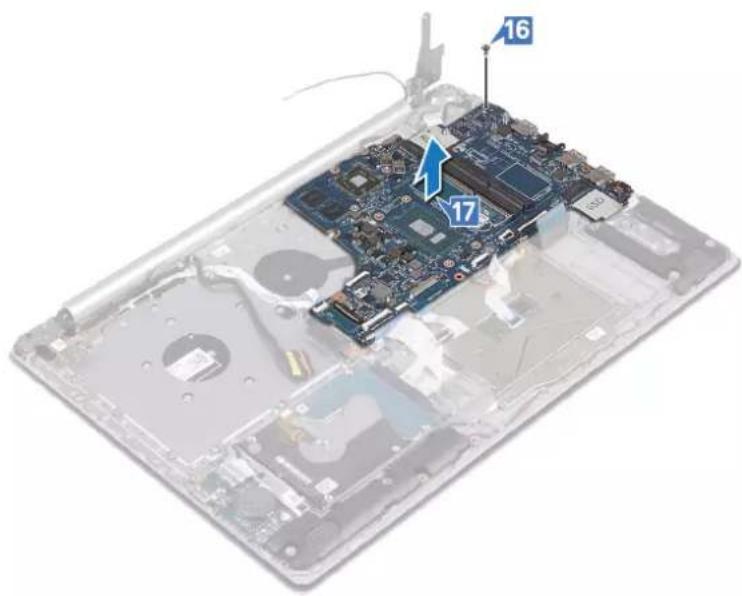
text_image
16 17Replacing the system board
NOTE: Before working inside your computer, read the safety information that shipped with your computer and follow the steps in Before working inside your computer. After working inside your computer, follow the instructions in After working inside your computer. For more safety best practices, see the Regulatory Compliance home page at www.dell.com/regulatory_compliance.
NOTE: Your computer's Service Tag is stored in the system board. You must enter the Service Tag in the BIOS setup program after you replace the system board.
NOTE: Replacing the system board removes any changes you have made to the BIOS using the BIOS setup program. You must make the appropriate changes again after you replace the system board.
Procedure
- Align the screw hole on the system board with the screw hole on the palm rest and keyboard assembly.
- Replace the screw (M2x4) that secures the system board to the palm rest and keyboard assembly.

natural_image
Laptop interior showing a circuit board with labeled components (no text or symbols beyond labels)- Close the right display hinge.
- Replace the three screws (M2.5x5) that secure the right hinge to the system board.

text_image
Labeled diagram of an electronic device showing internal components with numbered annotations (3, 4)- Slide the finger-print reader cable into the connector on the system board and close the latch.
- Slide the I/O-board cable into the connector on the system board and close the latch.
- Slide the hard-drive cable into the connector on the system board and close the latch.
- Slide the touchpad cable into the connector on the system board and close the latch.
- Slide the keyboard back-light cable into the connector on the system board and close the latch.
- Slide the keyboard cable into the connector on the system board and close the latch.
- Connect the speaker cable to the system board.
- Connect the power-adapter port cable to the system board.
- Slide the power-button board cable into the connector on the system board and close the latch.
- Open the latch and connect the display cable to the system board.
- Align the optical-drive connector-board cable to the connectors on the system board and palm rest and keyboard assembly (optional).
- Slide the optical-drive connector-board cable to the connector on the palm rest and keyboard assembly (optional).
- Slide the optical-drive connector-board cable to the connector on the system board (optional).
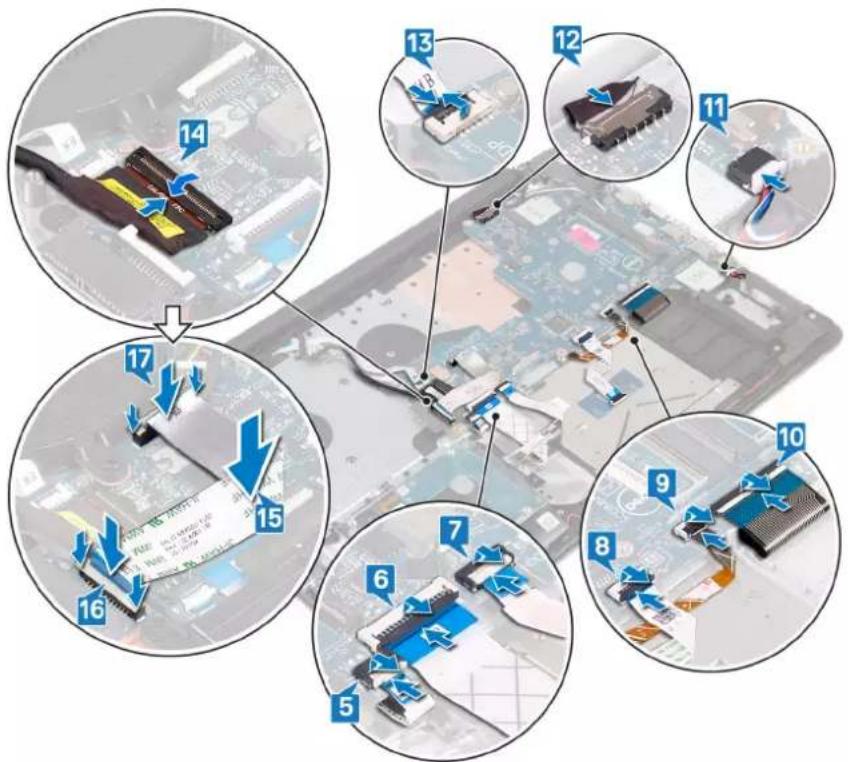
text_image
Diagram showing numbered components of a computer motherboard with blue arrows indicating assembly or repair steps.Post-requisites
- Replace the heat sink.
- Replace the fan.
- Replace the solid-state drive.
- Replace the wireless card.
- Replace the memory module.
- Replace the battery.
- Replace the base cover.
- Replace the optical drive (applicable only to computers shipped with optical drive).
Entering the Service Tag in the BIOS setup program
- Turn on or restart your computer.
- Press F2 when the Dell logo is displayed to enter the BIOS setup program.
- Navigate to the Main tab and enter the Service Tag in the Service Tag Input field.
NOTE: Service tag is the alphanumeric identifier located at the back side of your computer.
Power button with fingerprint reader
Removing the power button with fingerprint reader
NOTE: Before working inside your computer, read the safety information that shipped with your computer and follow the steps in Before working inside your computer. After working inside your computer, follow the instructions in After working inside your computer. For more safety best practices, see the Regulatory Compliance home page at www.dell.com/regulatory_compliance.
NOTE: Applicable only for computers that are shipped with fingerprint reader.
Prerequisites
- Remove the optical drive (applicable only to computers shipped with optical drive).
- Remove the base cover.
- Remove the battery.
- Remove the solid-state drive.
- Remove the fan.
- Remove the heat sink.
- Remove the wireless card.
- Remove the system board.

NOTE: When removing and replacing the power button with fingerprint reader, do not remove the heat sink from the system board.
Procedure
- Peel the fingerprint reader cable off the palm-rest and keyboard assembly.
- Remove the screw (M2x2) that secures the power button with fingerprint reader to the palm-rest and keyboard assembly.
- Using a plastic scribe, release the fingerprint-reader board from the palm-rest and keyboard assembly.
- Lift the power button with fingerprint reader, along with its cable, off the palm-rest and keyboard assembly.

text_image
Laptop interior diagram with numbered components and a magnified inset showing a circuit board componentReplacing the power button with fingerprint reader

NOTE: Before working inside your computer, read the safety information that shipped with your computer and follow the steps in Before working inside your computer. After working inside your computer, follow the instructions in After working inside your computer. For more safety best practices, see the Regulatory Compliance home page at www.dell.com/regulatory_compliance.

NOTE: Applicable only for computers that are shipped with fingerprint reader.
Procedure
- Using the alignment posts, align and place the power button with fingerprint reader on the palm-rest and keyboard assembly.
- Replace the screw (M2x2) that secures the power button with fingerprint reader to the palm-rest and keyboard assembly.
- Adhere the fingerprint reader cable on the palm-rest and keyboard assembly.
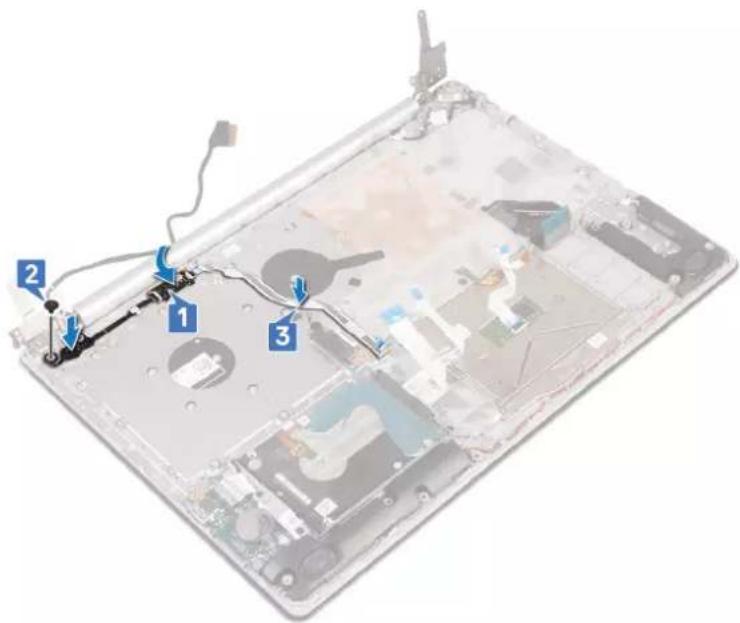
text_image
Laptop screen with labeled components showing cable, circuit board, and wiring connectionsPost-requisites
- Replace the system board.
- Replace the wireless card.
- Replace the heat sink.
- Replace the fan.
- Replace the solid-state drive.
- Replace the battery.
- Replace the base cover.
- Replace the optical drive (applicable only to computers shipped with optical drive).
Palm-rest and keyboard assembly
Removing the palm-rest and keyboard assembly

NOTE: Before working inside your computer, read the safety information that shipped with your computer and follow the steps in Before working inside your computer. After working inside your computer, follow the instructions in After working inside your computer. For more safety best practices, see the Regulatory Compliance home page at www.dell.com/regulatory_compliance.
Prerequisites
- Remove the optical drive (applicable only to computers shipped with optical drive).
- Remove the base cover.
- Remove the battery.
- Remove the optical-drive connector board (applicable only to computers shipped with optical drive).
- Remove the fan.
- Remove the solid-state drive.
- Remove the wireless card.
- Remove the speakers.
- Remove the hard drive.
- Remove the touchpad.
- Remove the power-adapter port.
-
Remove the display assembly.
-
Remove the I/O board.
-
Remove the system board.

NOTE: When removing and replacing the palm-rest and keyboard assembly, do not remove the heat sink from the system board.
- Remove the power button with fingerprint reader (optional).
Procedure
After performing the above steps, we are left with the palm-rest and keyboard assembly.

natural_image
3D cutaway view of a computer motherboard showing internal components like CPU socket and drive slots (no text or symbols)Replacing the palm-rest and keyboard assembly

NOTE: Before working inside your computer, read the safety information that shipped with your computer and follow the steps in Before working inside your computer. After working inside your computer, follow the instructions in After working inside your computer. For more safety best practices, see the Regulatory Compliance home page at www.dell.com/regulatory_compliance.
Procedure
Place the palm-rest and keyboard assembly on a flat surface.

natural_image
Cutaway view of a computer motherboard showing internal components like drive bays and slots (no text or symbols visible)Post-requisites
- Replace the power button with fingerprint reader (optional).
- Replace the system board.
- Replace the I/O board.
- Replace the display assembly.
- Replace the power-adapter port.
- Replace the touchpad.
- Replace the hard drive.
- Replace the speakers.
- Replace the wireless card.
- Replace the solid-state drive.
- Replace the fan.
- Replace the optical-drive connector board (applicable only to computers shipped with optical drive).
- Replace the battery.
- Replace the base cover.
- Replace the optical drive (applicable only to computers shipped with optical drive).
Display bezel
Removing the display bezel

NOTE: Before working inside your computer, read the safety information that shipped with your computer and follow the steps in Before working inside your computer. After working inside your computer, follow the instructions in After working inside your computer. For more safety best practices, see the Regulatory Compliance home page at www.dell.com/regulatory_compliance.
Prerequisites
- Remove the optical drive (applicable only to computers shipped with optical drive).
- Remove the base cover.
- Remove the wireless card.
- Remove the display assembly.
Procedure

NOTE: This procedure is applicable only for computers shipped with non-touchscreen displays.
- Using a plastic scribe, carefully pry up the display bezel from the top-left outer edge of the display back-cover and antenna assembly.
- Remove the display bezel off the display back-cover and antenna assembly.
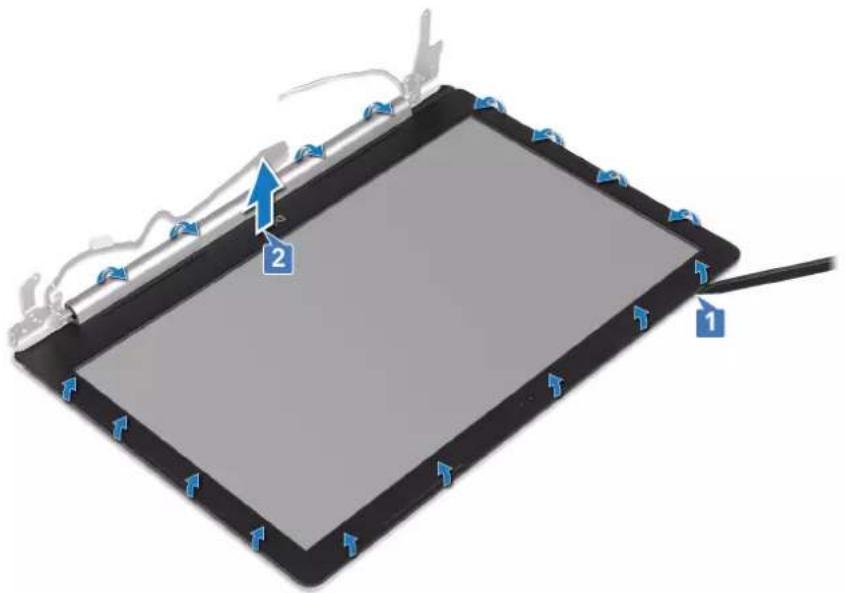
text_image
Diagram of a device with labeled parts, showing a tray and cable assembly with numbered annotations.Replacing the display bezel
NOTE: Before working inside your computer, read the safety information that shipped with your computer and follow the steps in Before working inside your computer. After working inside your computer, follow the instructions in After working inside your computer. For more safety best practices, see the Regulatory Compliance home page at www.dell.com/regulatory_compliance.
Procedure
NOTE: This procedure is applicable only for computers shipped with non-touchscreen displays.
Align the display bezel with the display back-cover and antenna assembly, and then gently snap the display bezel into place.
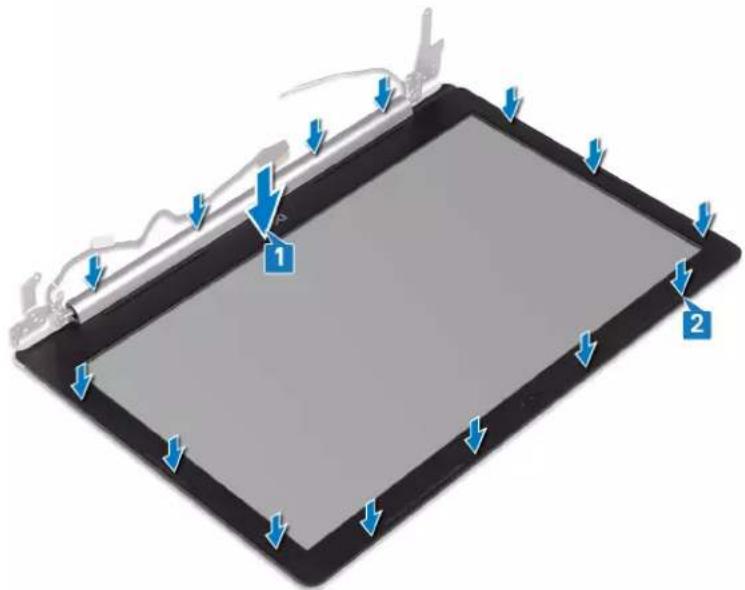
natural_image
Diagram of a tablet device with blue directional arrows indicating movement or force (no text or symbols present)Post-requisites
- Replace the display assembly.
-
Replace the wireless card.
-
Replace the base cover.
- Replace the optical drive (applicable only to computers shipped with optical drive).
Camera
Removing the camera

NOTE: Before working inside your computer, read the safety information that shipped with your computer and follow the steps in Before working inside your computer. After working inside your computer, follow the instructions in After working inside your computer. For more safety best practices, see the Regulatory Compliance home page at www.dell.com/regulatory_compliance.
Prerequisites
- Remove the optical drive (applicable only to computers shipped with optical drive).
- Remove the base cover.
- Remove the wireless card.
- Remove the display assembly.
- Remove the display bezel.
Procedure

NOTE: This procedure is applicable only for computers shipped with non-touchscreen displays.
- Using a plastic scribe, gently pry the camera off the display back-cover and antenna assembly.
- Disconnect the camera cable from the camera module.
- Lift the camera module from the display back-cover and antenna assembly.
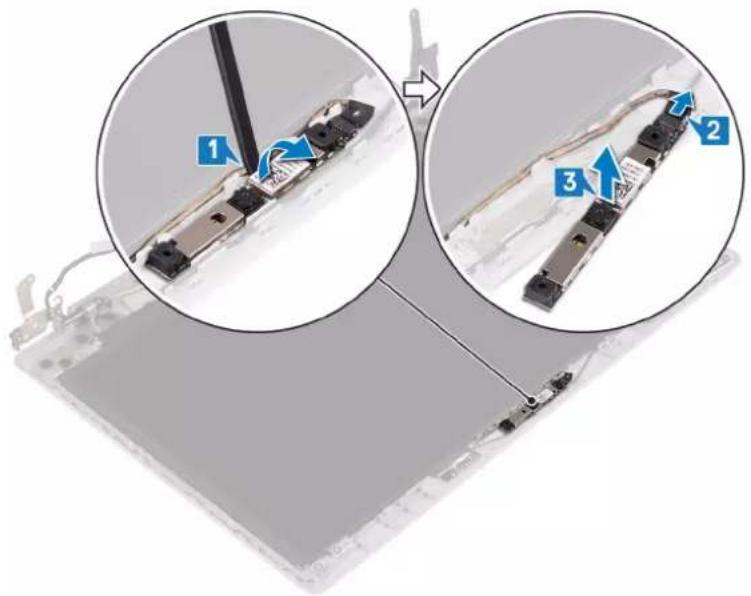
text_image
Diagram showing three steps of a device assembly with labeled components and directional arrows indicating process flow.Replacing the camera

NOTE: Before working inside your computer, read the safety information that shipped with your computer and follow the steps in Before working inside your computer. After working inside your computer, follow the instructions in After working inside your computer. For more safety best practices, see the Regulatory Compliance home page at www.dell.com/regulatory_compliance.
Procedure
NOTE: This procedure is applicable only for computers shipped with non-touchscreen displays.
- Align the camera module with the camera cable.
- Connect the camera cable to the camera module.
- Using the alignment post adhere the camera module to the display back-cover and antenna assembly.

text_image
Diagram showing three steps of battery mounting or disassembly, labeled 1, 2, and 3 with arrows indicating process flow.Post-requisites
- Replace the display bezel.
- Replace the display assembly.
- Replace the wireless card.
- Replace the base cover.
- Replace the optical drive (applicable only to computers shipped with optical drive).
Display panel
Removing the display panel
NOTE: Before working inside your computer, read the safety information that shipped with your computer and follow the steps in Before working inside your computer. After working inside your computer, follow the instructions in After working inside your computer. For more safety best practices, see the Regulatory Compliance home page at www.dell.com/regulatory_compliance.
Prerequisites
- Remove the optical drive (applicable only to computers shipped with optical drive).
- Remove the base cover.
- Remove the wireless card.
- Remove the display assembly.
- Remove the display bezel.
Procedure
NOTE: This procedure is applicable only for computers shipped with non-touchscreen displays.
- Remove the four screws (M2x2) that secure the display panel to the display back-cover and antenna assembly.
- Lift the display panel and turn it over.
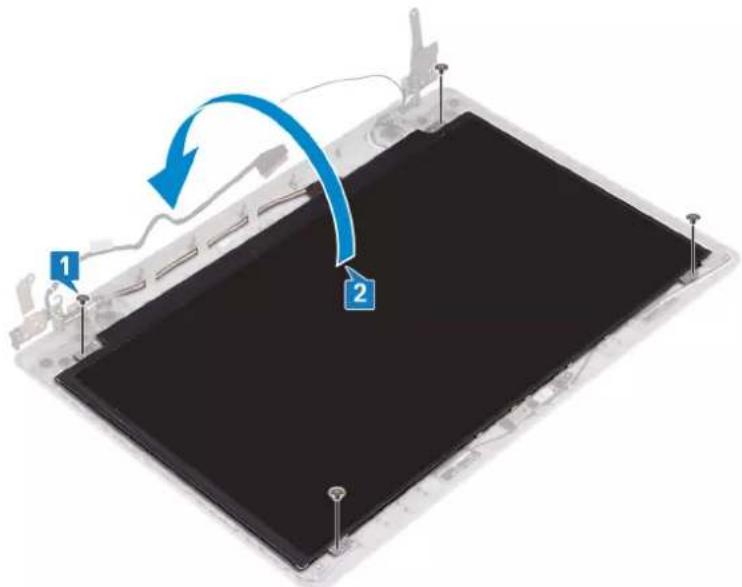
text_image
Diagram showing a device with labeled components and a blue curved arrow indicating rotation or movement, marked as parts 1 and 2.- Peel the tape adhering the display cable to the back of the display panel.
- Lift the latch and disconnect the display cable from the display-panel cable connector.
- Lift the display panel away from the display back-cover and antenna assembly.

text_image
Diagram showing a laptop with labeled parts and a magnified view of the internal components, likely illustrating a device or hardware assembly.Replacing the display panel

NOTE: Before working inside your computer, read the safety information that shipped with your computer and follow the steps in Before working inside your computer. After working inside your computer, follow the instructions in After working inside your computer. For more safety best practices, see the Regulatory Compliance home page at www.dell.com/regulatory_compliance.
Procedure

NOTE: This procedure is applicable only for computers shipped with non-touchscreen displays.
- Place the display panel on a flat and clean surface.
- Connect the display cable to the connector at the back of the display panel and close the latch to secure the cable.
- Adhere the tape that secures the display cable to the back of the display panel.

text_image
Diagram showing a device with labeled components and three circular insets highlighting internal components, likely illustrating a mechanical or electronic assembly.- Place the display panel on the display back-cover and antenna assembly.
- Replace the four screws (M2x2) that secure the display panel to the display back-cover and antenna assembly.

text_image
5 4Post-requisites
- Replace the display bezel.
- Replace the display assembly.
- Replace the wireless card.
- Replace the base cover.
- Replace the optical drive (applicable only to computers shipped with optical drive).
Display hinges
Removing the display hinges

NOTE: Before working inside your computer, read the safety information that shipped with your computer and follow the steps in Before working inside your computer. After working inside your computer, follow the instructions in After working inside your computer. For more safety best practices, see the Regulatory Compliance home page at www.dell.com/regulatory_compliance.
Prerequisites
- Remove the optical drive (applicable only to computers shipped with optical drive).
- Remove the base cover.
- Remove the wireless card.
- Remove the display assembly.
- Remove the display bezel.
- Remove the display panel.
Procedure
- Remove the eight screws (M2.5x2.5) that secure the hinges to the display back-cover and antenna assembly.
- Remove the two screws (M2x2) that secure the hinge brackets to the display back-cover and antenna assembly.
- Lift the hinges and brackets off the display back-cover and antenna assembly.
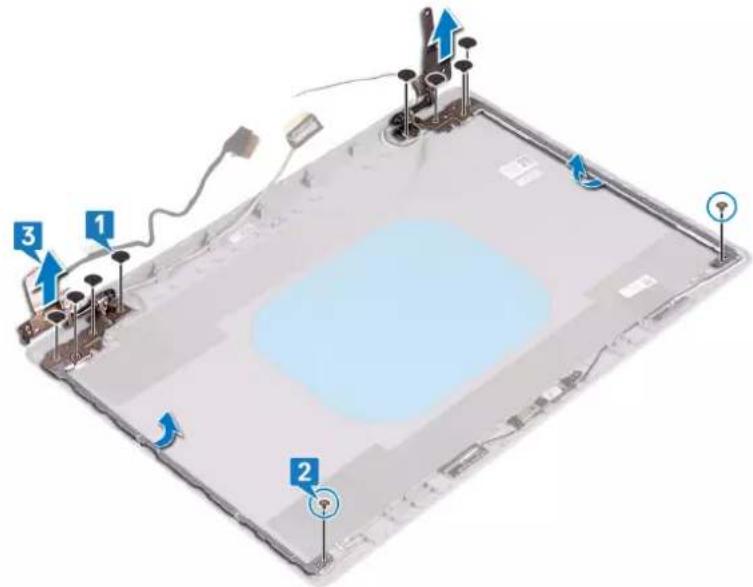
text_image
Diagram of a device with numbered components and blue circular highlights, likely illustrating a component assembly or installation.Replacing the display hinges

NOTE: Before working inside your computer, read the safety information that shipped with your computer and follow the steps in Before working inside your computer. After working inside your computer, follow the instructions in After working inside your computer. For more safety best practices, see the Regulatory Compliance home page at www.dell.com/regulatory_compliance.
Procedure
- Align the screw holes on the hinges and brackets with the screw holes on the display back-cover and antenna assembly.
- Replace the two screws (M2x2) that secure the hinge plates to the display back-cover and antenna assembly.
- Replace the eight screws (M2.5x2.5) that secure the hinges to the display back-cover and antenna assembly.

text_image
Diagram of a device with numbered components and directional arrows indicating assembly or navigation stepsPost-requisites
- Replace the display panel.
- Replace the display bezel.
- Replace the display assembly.
- Replace the wireless card.
- Replace the base cover.
- Replace the optical drive (applicable only to computers shipped with optical drive).
Display cable
Removing the display cable

NOTE: Before working inside your computer, read the safety information that shipped with your computer and follow the steps in Before working inside your computer. After working inside your computer, follow the instructions in After working inside your computer. For more safety best practices, see the Regulatory Compliance home page at www.dell.com/regulatory_compliance.
Prerequisites
- Remove the optical drive (applicable only to computers shipped with optical drive).
- Remove the base cover.
- Remove the wireless card.
- Remove the display assembly.
- Remove the display bezel.
- Remove the display panel.
- Remove the display hinges.
Procedure

NOTE: This procedure is applicable only for computers shipped with non-touchscreen displays.
- Disconnect the camera cable from the camera module.
- Note the display cable routing and remove the cable from the routing guides on the display back-cover and antenna assembly.
- Remove the display cable from the display back-cover and antenna assembly.

text_image
Labeled diagram of a device showing numbered components and an inset close-up of the component with pins 1, 2, and 3.Replacing the display cable
NOTE: Before working inside your computer, read the safety information that shipped with your computer and follow the steps in Before working inside your computer. After working inside your computer, follow the instructions in After working inside your computer. For more safety best practices, see the Regulatory Compliance home page at www.dell.com/regulatory_compliance.
Procedure
NOTE: This procedure is applicable only for computers shipped with non-touchscreen displays.
- Route the display cable along the routing guides, starting from the bottom of the display (near the hinges).
- Route the rest of the display cable along the routing guides on the left side of the display back-cover and antenna assembly.
- Slide the camera cable into the connector on the camera module to secure the cable.
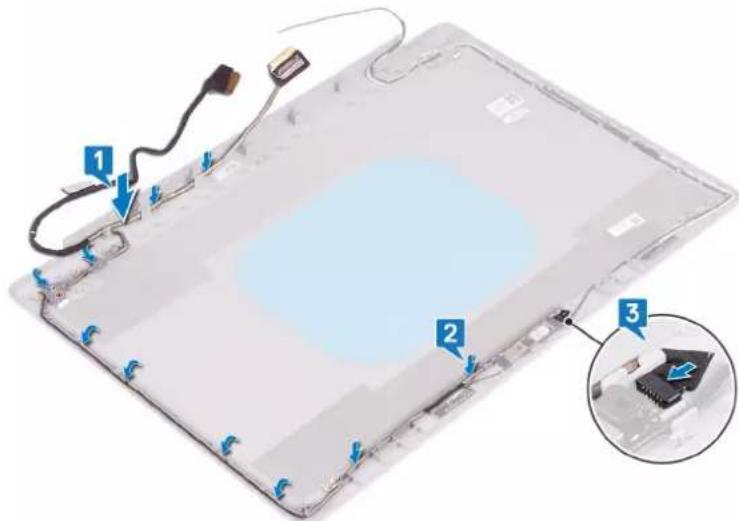
text_image
Labeled diagram of a device showing three numbered components with blue arrows pointing to features, including a magnified inset showing a component.Post-requisites
- Replace the display hinges.
- Replace the display panel.
- Replace the display bezel.
-
Replace the display assembly.
-
Replace the wireless card.
- Replace the base cover.
- Replace the optical drive (applicable only to computers shipped with optical drive).
Display back-cover and antenna assembly
Removing the display back-cover and antenna assembly

NOTE: Before working inside your computer, read the safety information that shipped with your computer and follow the steps in Before working inside your computer. After working inside your computer, follow the instructions in After working inside your computer. For more safety best practices, see the Regulatory Compliance home page at www.dell.com/regulatory_compliance.
Prerequisites
- Remove the optical drive (applicable only to computers shipped with optical drive).
- Remove the base cover.
- Remove the wireless card.
- Remove the display assembly.
- Remove the display bezel.
- Remove the camera.
- Remove the display panel.
- Remove the display hinges.
- Remove the display cable.
Procedure

NOTE: This procedure is applicable only for computers shipped with non-touchscreen displays.
After performing all the above steps, we are left with the display back-cover and antenna assembly.

natural_image
Top-down view of a blue rectangular electronic device with gray insulation and cable, no visible text or symbolsReplacing the display back-cover and antenna assembly

NOTE: Before working inside your computer, read the safety information that shipped with your computer and follow the steps in Before working inside your computer. After working inside your computer, follow the instructions in After working inside your computer. For more safety best practices, see the Regulatory Compliance home page at www.dell.com/regulatory_compliance.
Procedure
NOTE: This procedure is applicable only for computers shipped with non-touchscreen displays.
Place the display back-cover and antenna assembly on a clean and flat surface.

natural_image
Top-down view of a gray electronic device with a blue integrated area and cable, no visible text or symbols.Post-requisites
- Replace the display cable.
- Replace the display hinges.
- Replace the display panel.
- Replace the camera.
- Replace the display bezel.
- Replace the display assembly.
- Replace the wireless card.
- Replace the base cover.
- Replace the optical drive (applicable only to computers shipped with optical drive).
Device drivers
Downloading the audio driver
- Turn on your computer.
- Go to www.dell.com/support.
- Enter the Service Tag of your computer, and then click Submit.
NOTE: If you do not have the Service Tag, use the auto-detect feature or manually browse for your computer model.
- Click Drivers & downloads.
- Click the Detect Drivers button.
- Review and agree to the Terms and Conditions to use SupportAssist, then click Continue.
- If necessary, your computer starts to download and install SupportAssist.
NOTE: Review on-screen instructions for browser-specific instructions.
-
Click View Drivers for My System.
-
Click Download and Install to download and install all driver updates detected for your computer.
- Select a location to save the files.
- If prompted, approve requests from User Account Control to make changes on the system.
- The application installs all drivers and updates identified.
NOTE: Not all files can be installed automatically. Review the installation summary to identify if manual installation is necessary.
- For manual download and installation, click Category.
- Click Audio in the drop-down list.
- Click Download to download the audio driver for your computer.
- After the download is complete, navigate to the folder where you saved the audio driver file.
- Double-click the audio driver file icon and follow the instructions on the screen to install the driver.
Downloading the network driver
- Turn on your computer.
- Go to www.dell.com/support.
- Enter the Service Tag of your computer, and then click Submit.
NOTE: If you do not have the Service Tag, use the auto-detect feature or manually browse for your computer model.
- Click Drivers & downloads.
- Click the Detect Drivers button.
- Review and agree to the Terms and Conditions to use SupportAssist, then click Continue.
- If necessary, your computer starts to download and install SupportAssist.
NOTE: Review on-screen instructions for browser-specific instructions.
- Click View Drivers for My System.
- Click Download and Install to download and install all driver updates detected for your computer.
- Select a location to save the files.
- If prompted, approve requests from User Account Control to make changes on the system.
- The application installs all drivers and updates identified.

NOTE: Not all files can be installed automatically. Review the installation summary to identify if manual installation is necessary.
- For manual download and installation, click Category.
- Click Network in the drop-down list.
- Click Download to download the network driver for your computer.
- After the download is complete, navigate to the folder where you saved the network driver file.
- Double-click the network driver file icon and follow the instructions on the screen to install the driver.
Downloading the chipset driver
- Turn on your computer.
- Go to www.dell.com/support.
- Enter the Service Tag of your computer, and then click Submit.

NOTE: If you do not have the Service Tag, use the auto-detect feature or manually browse for your computer model.
- Click Drivers & downloads.
- Click the Detect Drivers button.
- Review and agree to the Terms and Conditions to use SupportAssist, then click Continue.
- If necessary, your computer starts to download and install SupportAssist.

NOTE: Review on-screen instructions for browser-specific instructions.
- Click View Drivers for My System.
- Click Download and Install to download and install all driver updates detected for your computer.
- Select a location to save the files.
- If prompted, approve requests from User Account Control to make changes on the system.
- The application installs all drivers and updates identified.

NOTE: Not all files can be installed automatically. Review the installation summary to identify if manual installation is necessary.
- For manual download and installation, click Category.
- Click Chipset in the drop-down list.
- Click Download to download the chipset driver for your computer.
- After the download is complete, navigate to the folder where you saved the saved the chipset driver file.
- Double-click the chipset driver file icon and follow the instructions on the screen to install the driver.
Downloading the media-card reader driver
- Turn on your computer.
- Go to www.dell.com/support.
- Enter the Service Tag of your computer, and then click Submit.

NOTE: If you do not have the Service Tag, use the auto-detect feature or manually browse for your computer model.
- Click Drivers & downloads.
- Click the Detect Drivers button.
- Review and agree to the Terms and Conditions to use SupportAssist, then click Continue.
- If necessary, your computer starts to download and install SupportAssist.

NOTE: Review on-screen instructions for browser-specific instructions.
-
Click View Drivers for My System.
-
Click Download and Install to download and install all driver updates detected for your computer.
- Select a location to save the files.
- If prompted, approve requests from User Account Control to make changes on the system.
- The application installs all drivers and updates identified.

NOTE: Not all files can be installed automatically. Review the installation summary to identify if manual installation is necessary.
- For manual download and installation, click Category.
- Click Chipset in the drop-down list.
- Click Download to download the media-card reader driver for your computer.
- After the download is complete, navigate to the folder where you saved the media-card reader driver file.
- Double-click the media-card reader driver file icon and follow the instructions on the screen to install the driver.
Downloading the WiFi driver
- Turn on your computer.
- Go to www.dell.com/support.
- Enter the Service Tag of your computer, and then click Submit.

NOTE: If you do not have the Service Tag, use the auto-detect feature or manually browse for your computer model.
- Click Drivers & downloads.
- Click the Detect Drivers button.
- Review and agree to the Terms and Conditions to use SupportAssist, then click Continue.
- If necessary, your computer starts to download and install SupportAssist.

NOTE: Review on-screen instructions for browser-specific instructions.
- Click View Drivers for My System
- Click Download and Install to download and install all driver updates detected for your computer.
- Select a location to save the files.
- If prompted, approve requests from User Account Control to make changes on the system.
- The application installs all drivers and updates identified.

NOTE: Not all files can be installed automatically. Review the installation summary to identify if manual installation is necessary.
- For manual download and installation, click Category.
- Click Network in the drop-down list.
- Click Download to download the WiFi driver for your computer.
- After the download is complete, navigate to the folder where you saved the WiFi driver file.
- Double-click the WiFi driver icon and follow the instructions on the screen to install the driver.
Downloading the USB driver
- Turn on your computer.
- Go to www.dell.com/support.
- Enter the Service Tag of your computer, and then click Submit.

NOTE: If you do not have the Service Tag, use the auto-detect feature or manually browse for your computer model.
- Click Drivers & downloads.
- Click the Detect Drivers button.
- Review and agree to the Terms and Conditions to use SupportAssist, then click Continue.
- If necessary, your computer starts to download and install SupportAssist.

NOTE: Review on-screen instructions for browser-specific instructions.
- Click View Drivers for My System.
- Click Download and Install to download and install all driver updates detected for your computer.
- Select a location to save the files.
- If prompted, approve requests from User Account Control to make changes on the system.
- The application installs all drivers and updates identified.

NOTE: Not all files can be installed automatically. Review the installation summary to identify if manual installation is necessary.
- For manual download and installation, click Category.
- Click Chipset in the drop-down list.
- Click Download to download the USB driver for your computer.
- After the download is complete, navigate to the folder where you saved the USB driver file.
- Double-click the USB driver file icon and follow the instructions on the screen to install the driver.
Downloading the graphics driver
- Turn on your computer.
- Go to www.dell.com/support.
- Enter the Service Tag of your computer, and then click Submit.

NOTE: If you do not have the Service Tag, use the auto-detect feature or manually browse for your computer model.
- Click Drivers & downloads.
- Click the Detect Drivers button.
- Review and agree to the Terms and Conditions to use SupportAssist, then click Continue.
- If necessary, your computer starts to download and install SupportAssist.

NOTE: Review on-screen instructions for browser-specific instructions.
- Click View Drivers for My System.
- Click Download and Install to download and install all driver updates detected for your computer.
- Select a location to save the files.
- If prompted, approve requests from User Account Control to make changes on the system.
- The application installs all drivers and updates identified.

NOTE: Not all files can be installed automatically. Review the installation summary to identify if manual installation is necessary.
- For manual download and installation, click Category.
- Click Video in the drop-down list.
- Click Download to download the graphics driver for your computer.
- After the download is complete, navigate to the folder where you saved the graphics driver file.
- Double-click the graphics driver file icon and follow the instructions on the screen to install the driver.
System setup
NOTE: Depending on the computer and its installed devices, the items listed in this section may or may not be displayed.
System setup
CAUTION: Unless you are an expert computer user, do not change the settings in the BIOS Setup program. Certain changes can make your computer work incorrectly.
NOTE: Before you change BIOS Setup program, it is recommended that you write down the BIOS Setup program screen information for future reference.
Use the BIOS Setup program for the following purposes:
• Get information about the hardware installed in your computer, such as the amount of RAM and the size of the hard drive.
- Change the system configuration information.
- Set or change a user-selectable option, such as the user password, type of hard drive installed, and enabling or disabling base devices.
Entering BIOS setup program
- Turn on (or restart) your computer.
- During POST, when the DELL logo is displayed, watch for the F2 prompt to appear, and then press F2 immediately.
NOTE: The F2 prompt indicates that the keyboard is initialized. This prompt can appear very quickly, so you must watch for it, and then press F2. If you press F2 before the F2 prompt, this keystroke is lost. If you wait too long and the operating system logo appears, continue to wait until you see the desktop. Then, turn off your computer and try again.
Navigation keys
NOTE: For most of the System Setup options, changes that you make are recorded but do not take effect until you restart the system.
Keys Navigation
Up arrow Moves to the previous field.
Down arrow Moves to the next field.
Enter Selects a value in the selected field (if applicable) or follow the link in the field.
Spacebar Expands or collapses a drop-down list, if applicable.
Tab Moves to the next focus area.
Esc Moves to the previous page until you view the main screen. Pressing Esc in the main screen displays a message that prompts you to save any unsaved changes and restarts the system.
Boot Sequence
Boot Sequence allows you to bypass the System Setup-defined boot device order and boot directly to a specific device (for example: optical drive or hard drive). During the Power-on Self Test (POST), when the Dell logo appears, you can:
- Access System Setup by pressing F2 key
- Bring up the one-time boot menu by pressing F12 key
The one-time boot menu displays the devices that you can boot from including the diagnostic option. The boot menu options are:
- Removable Drive (if available)
- STXXXX Drive (if available)
NOTE: XXX denotes the SATA drive number.
• Optical Drive (if available)
• SATA Hard Drive (if available)
- Diagnostics
NOTE: Choosing Diagnostics, will display the ePSA diagnostics screen.
The boot sequence screen also displays the option to access the System Setup screen.
System setup options
NOTE: Depending on this computer and its installed devices, the items listed in this section may or may not appear.
Table 3. System setup options—System information menu
| General-System Information | |
| System Information | |
| BIOS Version Displays the BIOS version number. | |
| Service Tag Displays the Service Tag of the computer. | |
| Asset Tag Displays the Asset Tag of the computer. | |
| Ownership Tag Displays the ownership tag of the computer. | |
| Manufacture Date Displays the manufacture date of the computer. | |
| Ownership Date Displays the ownership date of the computer. | |
| Express Service Code Displays the express service code of the computer. | |
| Memory Information | |
| Memory Installed Displays the total computer memory installed. | |
| Memory Available Displays the total computer memory available. | |
| Memory Speed Displays the memory speed. | |
| Memory Channel Mode Displays single or dual channel mode. | |
| Memory Technology Displays the technology used for the memory. | |
| DIMM A Size Displays the DIMM A memory size. | |
| DIMM B Size Displays the DIMM B memory size. | |
| Processor Information | |
| Processor Type Displays the processor type. | |
| Core Count Displays the number of cores on the processor. | |
| Processor ID | Displays the processor identification code. |
| Current Clock Speed | Displays the current processor clock speed. |
| Minimum Clock Speed | Displays the minimum processor clock speed. |
| Maximum Clock Speed | Displays the maximum processor clock speed. |
| HT Capable | Displays whether the processor is HyperThreading (HT) capable. |
| 64-Bit Technology | Displays whether 64-bit technology is used. |
| Device Information | |
| Primary HDD | Displays the primary hard drive information of the computer. |
| M.2 SATA SSD Displays the M.2 SATA SSD device information of the computer. | |
| M.2 PCIe SSD-0 Displays the M.2 PCIe SSD information of the computer.LOM MAC Address Displays the LOM MAC address of the computer.Video Controller Displays the video controller type of the computer.dGPU Video Controller Displays the discrete graphics information of the computer.Video BIOS Version Displays the video BIOS version of the computer.Video Memory Displays the video memory information of the computer.Panel Type Displays the Panel Type of the computer.Native Resolution Displays the native resolution of the computer.Audio Controller Displays the audio controller information of the computer.Wi-Fi Device Displays the wireless device information of the computer.Bluetooth Device Displays the bluetooth device information of the computer.Battery Information Displays the battery health information.Boot SequenceBoot Sequence Displays the boot sequence.Boot List Option Displays the available boot options.Advanced Boot OptionsEnable Legacy Option ROMs Enable or disable the Legacy Option ROMs.Enable Attempt Legacy Boot Enable or disable Legacy Boot.UEFI Boot Path Security Enable or disable the system to prompt the user to enter the Admin password when booting a UEFI boot path from the F12 boot menu.Date/Time Displays the current date in MM/DD/YY format and current time in HH:MM:SS AM/PM format. | |
Table 4. System setup options—System Configuration menu
| System Configuration | |
| Integrated NIC Controls the on-board LAN controller. | |
| Enable UEFI Network Stack | Enable or disable UEFI Network Stack. |
| SATA Operation | Configure operating mode of the integrated SATA hard drive controller. |
| Drives | Enable or disable various drives on board. |
| SMART Reporting | Enable or disable SMART Reporting during system startup. |
| USB Configuration | |
| Enable Boot Support | Enable or disable booting from USB mass storage devices such as external hard drive, optical drive, and USB drive. |
| Enable External USB Port | Enable or disable booting from USB mass storage devices connected to external USB port. |
| Thunderbolt Adapter Configuration | Enable or disable Thunderbolt technology support. |
| Audio | Enable or disable the integrated audio controller. |
| Keyboard Illumination | Enables you to choose the operating mode of the keyboard illumination feature. |
| Keyboard Backlight Timeout on AC | When the backlight is enabled, this feature defines the timeout value for the keyboard backlight when an AC adapter is plugged into the computer. |
| Keyboard Backlight Timeout on Battery | When the backlight is enabled, this feature defines the timeout value for the keyboard backlight when the computer is running only on battery power. |
Table 4. System setup options—System Configuration menu(continued)
| System Configuration |
| Miscellaneous Devices Enable or disable various onboard devices. |
Table 5. System setup options—Video menu
| Video |
| LCD Brightness Set the panel brightness independently for Battery and AC power. |
Table 6. System setup options—Security menu
| Security |
| Admin Password Set, change, or delete the administrator password. |
| System Password Set, change, or delete the system password. |
| Internal HDD-0 Password Set, change, or delete the internal hard-disk drive password. |
| Strong Password Enable or disable strong passwords. |
| Password Configuration Control the minimum and maximum number of characters allowed for Admin and System passwords. |
| Password Bypass Bypass the System (Boot) Password and the internal HDD password prompts during a system restart. |
| Password Change Enable or disable changes to the System and Hard Disk passwords when an administrator password is set. |
| Non-Admin Setup Changes Determines whether changes to the setup option are permitted when an administrator password is set. |
| UEFI Capsule Firmware Updates Enable or disable BIOS updates through UEFI capsule update packages. |
| PTT Security Enable or disable Platform Trust Technology (PTT) visibility to the operating system. |
| Computrace(R) Enable or disable the BIOS module interface of the optional Computrace(R) Service from Absolute Software. |
| Admin Setup Lockout Enable to prevent users from entering Setup when an Admin Password is set. |
| Master Password Lockout Disables the master password support. Hard Disk passwords need to be cleared before changing the setting. |
Table 7. System setup options—Secure Boot menu
| Secure Boot | |
| Secure Boot Enable Enable or disable the secure boot feature. | |
| Secure Boot Mode | Modifies the behavior of Secure Boot to allow evaluation or enforcement of UEFI driver signatures. |
| Expert Key Management | |
| Expert Key Management | Enable or disable Expert Key Management. |
| Custom Mode Key Management | Select the custom values for expert key management. |
Table 8. System setup options—Virtualization Support menu
| Virtualization Support |
| Virtualization Specify whether a Virtual Machine Monitor (VMM) can utilize the additionalhardware capabilities provided by Virtualization Technology. |
| VT for Direct I/O Specify whether a Virtual Machine Monitor (VMM) can utilize the additionalhardware capabilities provided by Virtualization Technology for Direct I/O. |
Table 9. System setup options—Wireless menu
| Wireless |
| Wireless Switch Determine which wireless devices can be controlled by the Wireless Switch.Wireless Device Enable Enable or disable internal wireless devices. |
Table 10. System setup options—Maintenance menu
| Maintenance |
| Service Tag Display the system's Service Tag. |
| Asset Tag Create a system Asset Tag. |
| BIOS Downgrade Control flashing of the system firmware to previous revisions. |
| Data Wipe Enable to securely erase data from all internal storage devices. |
| BIOS Recovery Enable the user to recover from certain corrupted BIOS conditions from a recovery file on the user primary hard drive or an external USB key. |
Table 11. System setup options—System Logs menu
| System Logs |
| BIOS Events Display BIOS events. |
| Thermal Events Display Thermal events. |
| Power Events Display Power events. |
Table 12. System setup options—SupportAssist System Resolution menu
| SupportAssist System Resolution |
| Auto OS Recovery Threshold Control the automatic boot flow for SupportAssist System Resolution Console and for Dell OS Recovery tool. |
| SupportAssist OS Recovery Enable or disable the boot flow for SupportAssist OS Recovery tool in the even of certain system errors. |
Clearing CMOS settings

CAUTION: Clearing CMOS settings will reset the BIOS settings on your computer.
- Remove the base cover.
- Disconnect the battery cable from the system board.
- Remove the coin-cell battery.
- Wait for one minute.
- Replace the coin-cell battery.
- Connect the battery cable to the system board.
- Replace the base cover.
Clearing BIOS (System Setup) and System passwords
To clear the system or BIOS passwords, contact Dell technical support as described at www.dell.com/contactdell.

NOTE: For information on how to reset Windows or application passwords, refer to the documentation accompanying Windows or your application.
Troubleshooting
Enhanced Pre-Boot System Assessment (ePSA) diagnostics
The ePSA diagnostics (also known as system diagnostics) performs a complete check of your hardware. The ePSA is embedded with the BIOS and is launched by the BIOS internally. The embedded system diagnostics provides a set of options for particular devices or device groups allowing you to:
- Run tests automatically or in an interactive mode
- Repeat tests
• Display or save test results - Run thorough tests to introduce additional test options to provide extra information about the failed device(s)
- View status messages that inform you if tests are completed successfully
- View error messages that inform you of problems encountered during testing

NOTE: Some tests for specific devices require user interaction. Always ensure that you are present at the computer terminal when the diagnostic tests are performed.
For more information, see Dell EPSA Diagnostic 3.0.
Running the ePSA diagnostics
- Turn on your computer.
- As the computer boots, press the F12 key as the Dell logo appears.
- On the boot menu screen, select the Diagnostics option.
- Click the arrow at the bottom left corner.
Diagnostics front page is displayed. - Click the arrow in the lower-right corner to go to the page listing. The items detected are listed.
- To run a diagnostic test on a specific device, press Esc and click Yes to stop the diagnostic test.
- Select the device from the left pane and click Run Tests.
- If there are any issues, error codes are displayed. Note the error code and validation number and contact Dell.
System diagnostic lights
Battery-status light
Indicates the power and battery-charge status.
Solid white — Power adapter is connected and the battery has more than 5 percent charge.
Amber — Computer is running on battery and the battery has less than 5 percent charge.
Off
- Power adapter is connected and the battery is fully charged.
- Computer is running on battery and the battery has more than 5 percent charge.
- Computer is in sleep state, hibernation, or turned off.
The power and battery-status light blinks amber along with beep codes indicating failures.
For example, the power and battery-status light blinks amber two times followed by a pause, and then blinks white three times followed by a pause. This 2,3 pattern continues until the computer is turned off indicating no memory or RAM is detected.
The following table shows different power and battery-status light patterns and associated problems.
Table 13. LED codes
| Diagnostic light codes Problem description | |
| 2,1 Processor failure | |
| 2,2 System board: BIOS or ROM (Read-Only Memory) failure | |
| 2,3 No memory or RAM (Random-Access Memory) detected | |
| 2,4 Memory or RAM (Random-Access Memory) failure | |
| 2,5 Invalid memory installed | |
| 2,6 System-board or chipset error | |
| 2,7 Display failure | |
| 3,1 Coin-cell battery failure | |
| 3,2 PCI, video card/chip failure | |
| 3,3 Recovery image not found | |
| 3,4 Recovery image found but invalid | |
| 3,5 Power-rail failure | |
| 3,6 System BIOS Flash incomplete | |
| 3,7 Management Engine (ME) error |
Camera status light: Indicates whether the camera is in use.
- Solid white — Camera is in use.
- Off — Camera is not in use.
Caps Lock status light: Indicates whether Caps Lock is enabled or disabled.
- Solid white — Caps Lock enabled.
- Off — Caps Lock disabled.
Recovering the operating system
When your computer is unable to boot to the operating system even after repeated attempts, it automatically starts Dell SupportAssist OS Recovery.
Dell SupportAssist OS Recovery is a standalone tool that is preinstalled in all Dell computers installed with Windows 10 operating system. It consists of tools to diagnose and troubleshoot issues that may occur before your computer boots to the operating system. It enables you to diagnose hardware issues, repair your computer, back up your files, or restore your computer to its factory state.
You can also download it from the Dell Support website to troubleshoot and fix your computer when it fails to boot into their primary operating system due to software or hardware failures.
For more information about the Dell SupportAssist OS Recovery, see Dell SupportAssist OS Recovery User's Guide at www.dell.com/support.
Flashing the BIOS
You may need to flash (update) the BIOS when an update is available or when you replace the system board.
Follow these steps to flash the BIOS:
-
Turn on your computer.
-
Go to www.dell.com/support.
-
Click Product support, enter the Service Tag of your computer, and then click Submit.

NOTE: If you do not have the Service Tag, use the auto-detect feature or manually browse for your computer model.
-
Click Drivers & downloads > Find it myself.
-
Select the operating system installed on your computer.
-
Scroll down the page and expand BIOS.
- Click Download to download the latest version of the BIOS for your computer.
- After the download is complete, navigate to the folder where you saved the BIOS update file.
- Double-click the BIOS update file icon and follow the instructions on the screen.
Enabling Intel Optane memory
- On the taskbar, click the search box, and then type Intel Rapid Storage Technology.
- Click Intel Rapid Storage Technology.
The Intel Rapid Storage Technology window is displayed.
- On the Status tab, click Enable to enable the Intel Optane memory.
- On the warning screen, select a compatible fast drive, and then click Yes to continue enabling Intel Optane memory.
- Click Intel Optane memory > Reboot to complete enabling your Intel Optane memory.

NOTE: Applications may take up to three subsequent launches after enablement to see the full performance benefits.
Disabling Intel Optane memory

CAUTION: After disabling Intel Optane memory, do not uninstall the driver for Intel Rapid Storage Technology as it will result in a blue screen error. The Intel Rapid Storage Technology user interface can be removed without uninstalling the driver.

NOTE: Disabling Intel Optane memory is required before removing the SATA storage device accelerated by the Intel Optane memory module from the computer.
- On the taskbar, click the search box, and then type Intel Rapid Storage Technology.
- Click Intel Rapid Storage Technology.
The Intel Rapid Storage Technology window is displayed.
- On the Intel Optane memory tab, click Disable to disable the Intel Optane memory.

NOTE: For computers in which Intel Optane memory acts as a primary storage, do not disable the Intel Optane memory. The Disable option will be grayed out.
- Click Yes if you accept the warning. The disabling progress is displayed.
- Click Reboot to complete disabling your Intel Optane memory and restart your computer.
Flashing BIOS (USB key)
- Follow the procedure from step 1 to step 7 in "Flashing the BIOS" to download the latest BIOS setup program file.
- Create a bootable USB drive. For more information see the knowledge base article SLN143196 at www.dell.com/support.
- Copy the BIOS setup program file to the bootable USB drive.
- Connect the bootable USB drive to the computer that needs the BIOS update.
- Restart the computer and press F12 when the Dell logo is displayed on the screen.
- Boot to the USB drive from the One Time Boot Menu.
- Type the BIOS setup program filename and press Enter.
- The BIOS Update Utility appears. Follow the instructions on the screen to complete the BIOS update.
WiFi power cycle
If your computer is unable to access the internet due to WiFi connectivity issues a WiFi power cycle procedure may be performed. The following procedure provides the instructions on how to conduct a WiFi power cycle:

NOTE: Some ISPs (Internet Service Providers) provide a modem/router combo device.
- Turn off your computer.
-
Turn off the modem.
-
Turn off the wireless router.
- Wait for 30 seconds.
- Turn on the wireless router.
- Turn on the modem.
- Turn on your computer.
Flea power release
Flea power is the residual static electricity that remains on the computer even after it has been powered off and the battery has been removed. The following procedure provides the instructions on how to conduct flea power release:
- Turn off your computer.
- Disconnect the power adapter from your computer.
- Press and hold the power button for 15 seconds to drain the flea power.
- Connect the power adapter to your computer.
- Turn on your computer.
Getting help and contacting Dell
Self-help resources
You can get information and help on Dell products and services using these self-help resources:
Table 14. Self-help resources
| Self-help resources Resource location | |
| Information about Dell products and services www.dell.com | |
| My Dell |  |
| Tips |  |
| Contact Support In Windows search, type Contact Support, and press Enter. | |
| Online help for operating system www.dell.com/support/windows | www.dell.com/support/linux |
| Troubleshooting information, user manuals, setup instructions, product specifications, technical help blogs, drivers, software updates, and so on. | www.dell.com/support |
| Dell knowledge base articles for a variety of computer concerns. | 1. Go to www.dell.com/support.2. Type the subject or keyword in the Search box.3. Click Search to retrieve the related articles. |
| Learn and know the following information about your product:·Product specifications·Operating system·Setting up and using your product·Data backup·Troubleshooting and diagnostics·Factory and system restore·BIOS information | See Me and My Dell at www.dell.com/support/manuals.To locate the Me and My Dell relevant to your product, identify your product through one of the following:·Select Detect Product.·Locate your product through the drop-down menu under View Products.·Enter the Service Tag number or Product ID in the search bar. |
Contacting Dell
To contact Dell for sales, technical support, or customer service issues, see www.dell.com/contactdell.
NOTE: Availability varies by country/region and product, and some services may not be available in your country/region.
NOTE: If you do not have an active internet connection, you can find contact information on your purchase invoice, packing slip, bill, or Dell product catalog.